

File: README.md
English | Español | Français | Deutsch | 中文 | Türkçe | 日本語 | 한국어 | Русский
[!NOTE]
The English README is the source of truth for the API reference, installation, and development instructions. Translated READMEs are community-maintained and may lag behind this file.
PyGWalker: A Python Library for Exploratory Data Analysis with Visualization
PyGWalker can simplify your Jupyter Notebook data analysis and data visualization workflow, by turning your pandas dataframe into an interactive user interface for visual exploration.
PyGWalker (pronounced like "Pig Walker", just for fun) is named as an abbreviation of "Python binding of Graphic Walker". It integrates Jupyter Notebook with Graphic Walker, an open-source alternative to Tableau. It allows data scientists to visualize / clean / annotates the data with simple drag-and-drop operations and even natural language queries.
https://github.com/Kanaries/pygwalker/assets/22167673/2b940e11-cf8b-4cde-b7f6-190fb10ee44b
[!TIP]
If you want more AI features, we also build runcell, an AI Code Agent in Jupyter that understands your code/data/cells and generate code, execute cells and take actions for you. It can be used in jupyter lab withpip install runcell
https://github.com/user-attachments/assets/9ec64252-864d-4bd1-8755-83f9b0396d38
Visit Google Colab, Kaggle Code or Graphic Walker Online Demo to test it out!
If you prefer using R, check GWalkR, the R wrapper of Graphic Walker.
If you prefer a Desktop App that can be used offline and without any coding, check out PyGWalker Desktop.
Features
PyGWalker is a Python library that simplifies data analysis and visualization workflows by turning pandas, polars, and pyarrow table data into interactive visual interfaces.
It offers a variety of features that make it a powerful tool for data exploration:
Interactive Data Exploration:
- Drag-and-drop interface for easy visualization creation.
- Real-time updates as you make changes to the visualization.
- Ability to zoom, pan, and filter the data.
Data Cleaning and Transformation:
- Visual data cleaning tools to identify and remove outliers or inconsistencies.
- Ability to create new variables and features based on existing data.
Advanced Visualization Capabilities:
- Support for various chart types (bar charts, line charts, scatter plots, etc.).
- Customization options for colors, labels, and other visual elements.
- Interactive features like tooltips and drill-down capabilities.
Integration with Jupyter Notebooks:
- Seamless integration with Jupyter Notebooks for a smooth workflow.
Open-Source and Free:
- Available for free and allows for customization and extension.
Getting Started
Check our video tutorial about using pygwalker, pygwalker + streamlit and pygwalker + snowflake, How to explore data with PyGWalker in Python
| Run in Kaggle | Run in Colab |
|---|---|
Setup pygwalker
Before using pygwalker, make sure to install the packages through the command line using pip or conda.
pip
pip install pygwalkerNote
For an early trial, you can install with
pip install pygwalker --upgradeto keep your version up to date with the latest release or evenpip install pygwalker --upgrade --preto obtain latest features and bug-fixes.
Conda-forge
conda install -c conda-forge pygwalkeror
mamba install -c conda-forge pygwalkerSee conda-forge feedstock for more help.
Use pygwalker in Jupyter Notebook
Quick Start
Import pygwalker and pandas to your Jupyter Notebook to get started.
import pandas as pd
import pygwalker as pyg
You can use pygwalker without breaking your existing workflow. For example, you can call up PyGWalker with the dataframe loaded in this way:
df = pd.read_csv('./bike_sharing_dc.csv')
walker = pyg.walk(df)
That's it. Now you have an interactive UI to analyze and visualize data with simple drag-and-drop operations.
Cool things you can do with PyGwalker:
You can change the mark type into others to make different charts, for example, a line chart:
To compare different measures, you can create a concat view by adding more than one measure into rows/columns.
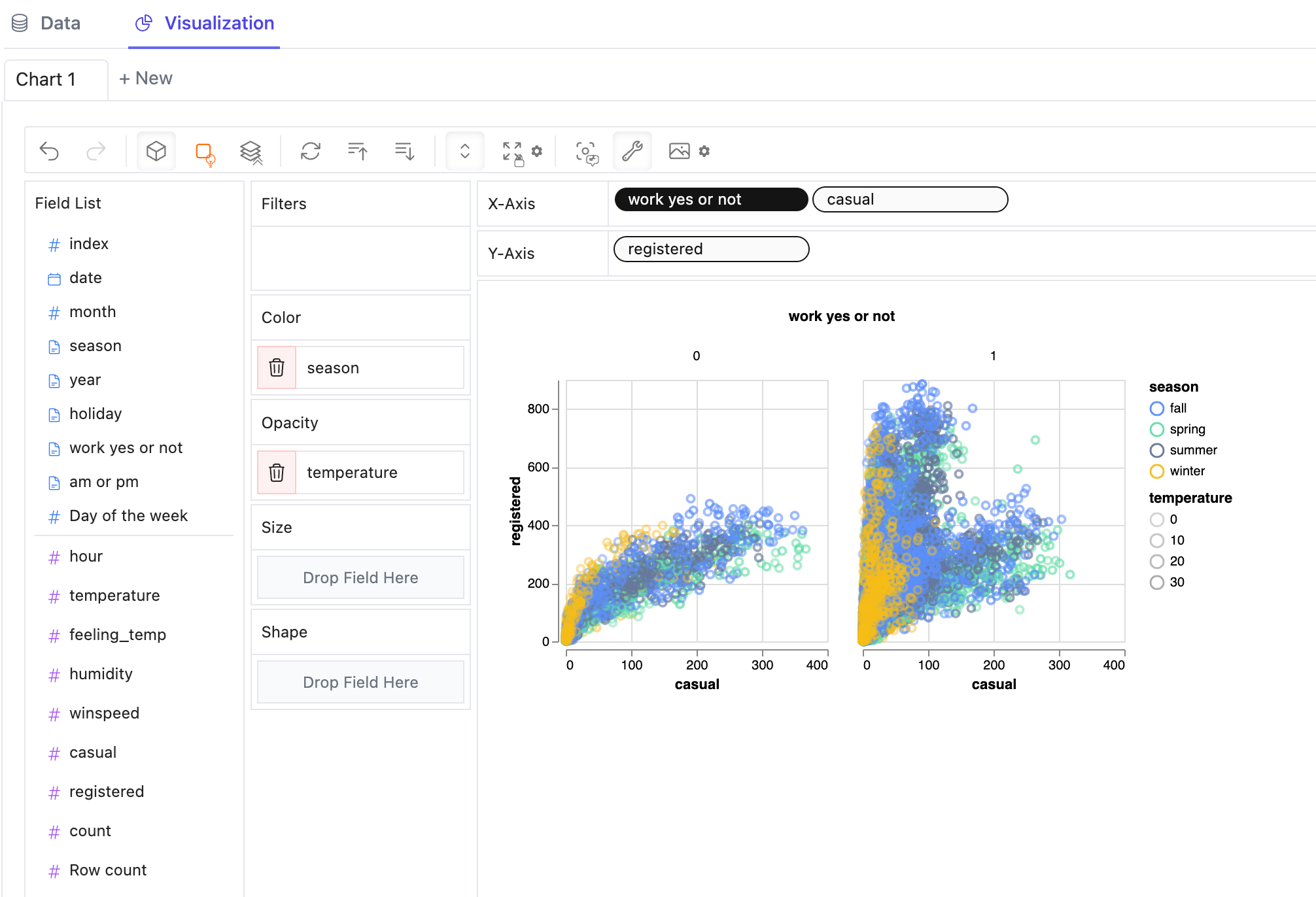
To make a facet view of several subviews divided by the value in dimension, put dimensions into rows or columns to make a facets view.
PyGWalker contains a powerful data table, which provides a quick view of data and its distribution, profiling. You can also add filters or change the data types in the table.
You can save the data exploration result to a local file
Better Practices
There are some important parameters you should know when using pygwalker:
spec_path: local file path for saving/loading chart config.spec: chart config object, JSON string, config ID, or remote URL.computation: choose where data queries run. Use"browser"for frontend-only computation,"kernel"for local DuckDB-backed Python computation,"cloud"for Kanaries cloud computation, or omit it for the default automatic behavior.kernel_computation: legacy boolean for using DuckDB as computing engine. Prefercomputation="kernel"orcomputation="browser"; this legacy flag is scheduled for removal in PyGWalker 0.7.0.cloud_computation: legacy boolean for Kanaries cloud computation. Prefercomputation="cloud"; this legacy flag is scheduled for removal in PyGWalker 0.7.0.use_kernel_calc: deprecated alias for kernel computation. Prefercomputation="kernel"orcomputation="browser"; this legacy flag is scheduled for removal in PyGWalker 0.7.0.
df = pd.read_csv('./bike_sharing_dc.csv')
walker = pyg.walk(
    df,
    spec_path="./chart_meta_0.json",  # local file used to load and save chart state.
    computation="kernel",          # use DuckDB in the Python kernel for larger datasets.
)
For new code on the 0.6 line, prefer a reusable Walker object and choose where to render it:
walker = pyg.Walker(df, spec_path="./chart_meta_0.json", computation="browser")
walker.show()       # auto-detects notebook or script mode
html = walker.to_html()
html = pyg.to_html(walker)
See PyGWalker 0.6 Release Notes for the compatibility policy, deprecation timeline, and tested runtime support.
After exploring in the UI, export the current chart state as reproducible Python code:
code = walker.to_code(dataset_name="df")
print(code)
If you have an older saved spec, migrate it to the current schema before committing it:
migrated_spec = pyg.spec.migrate(open("./old_chart_meta.json").read())Example in local notebook
- Notebook Code: Click Here
- Preview Notebook Html: Click Here
Example in cloud notebook
Programmatic Export of Charts
After saving a chart from the UI, you can retrieve the image directly from Python.
walker = pyg.walk(df, spec_path="./chart_meta_0.json")
# edit the chart in the UI and click the save button
walker.save_chart_to_file("Chart 1", "chart1.svg", save_type="svg")
png_bytes = walker.export_chart_png("Chart 1")
svg_bytes = walker.export_chart_svg("Chart 1")
Use pygwalker in Streamlit
Streamlit allows you to host a web version of pygwalker without figuring out details of how web application works.
Here are some of the app examples build with pygwalker and streamlit:
from pygwalker.api.streamlit import StreamlitRenderer
import pandas as pd
import streamlit as st

# Adjust the width of the Streamlit page
st.set_page_config(
    page_title="Use Pygwalker In Streamlit",
    layout="wide"
)

# Add Title
st.title("Use Pygwalker In Streamlit")

# You should cache your pygwalker renderer, if you don't want your memory to explode
@st.cache_resource
def get_pyg_renderer() -> "StreamlitRenderer":
    df = pd.read_csv("./bike_sharing_dc.csv")
    # If you want to use feature of saving chart config, set `spec_io_mode="rw"`
    return StreamlitRenderer(df, spec_path="./gw_config.json", spec_io_mode="rw")


renderer = get_pyg_renderer()

renderer.explorer()
If you already created a reusable Walker, Streamlit can render it directly:
import pygwalker as pyg
from pygwalker.api.streamlit import StreamlitRenderer

walker = pyg.Walker(df, spec_path="./gw_config.json", computation="kernel")
renderer = StreamlitRenderer(walker)
renderer.explorer()
[API Reference](https://pygwalker-docs.vercel.app/api-reference/jupyter)
[pygwalker.walk](https://pygwalker-docs.vercel.app/api-reference/jupyter#walk)
| Parameter | Type | Default | Description |
|---|---|---|---|
| dataset | Union[DataFrame, pyarrow.Table, Connector, str, Walker] | - | DataFrame, pyarrow table, database connector, SQL/data source string, or reusable Walker object to explore. |
| gid | Union[int, str] | None | ID for the GraphicWalker container div, formatted as gwalker-{gid}. |
| env | Literal['JupyterAnywidget', 'Jupyter', 'JupyterWidget'] | 'JupyterAnywidget' | Notebook rendering environment. Use JupyterAnywidget or omit env; Jupyter and JupyterWidget are deprecated aliases to the anywidget transport and are scheduled for removal in PyGWalker 0.7.0. |
| field_specs | Optional[List[FieldSpec]] | None | Field specifications. They will be inferred from dataset if not specified. |
| theme_key | Literal['vega', 'g2', 'streamlit'] | 'g2' | Theme type for Graphic Walker. |
| appearance | Literal['media', 'light', 'dark'] | 'media' | Theme appearance. media follows the operating system preference. |
| spec | str | "" | Chart configuration data. Can be a configuration ID, JSON string, local file path, or remote file URL. |
| spec_path | Optional[str] | None | Local chart configuration file path. Prefer this over passing a local file path through spec. |
| computation | Optional[Literal['auto', 'browser', 'kernel', 'cloud']] | None | Computation backend. Omit it for automatic behavior; use browser, kernel, or cloud to choose explicitly. |
| use_kernel_calc | Optional[bool] | None | Deprecated; scheduled for removal in PyGWalker 0.7.0. Use computation="kernel" or computation="browser" instead. |
| kernel_computation | Optional[bool] | None | Legacy boolean for local DuckDB-backed kernel computation; scheduled for removal in PyGWalker 0.7.0. Prefer computation. |
| cloud_computation | bool | False | Legacy boolean for Kanaries cloud computation; scheduled for removal in PyGWalker 0.7.0. Prefer computation="cloud". |
| show_cloud_tool | bool | True | Whether to show the Kanaries cloud tool when available. |
| kanaries_api_key | str | "" | Kanaries API key used by cloud features. |
| default_tab | Literal['data', 'vis'] | 'vis' | Default tab to show when the UI opens. |
| **kwargs | Any | - | Additional keyword arguments. |
Development
Local development is documented in this repository:
- AGENTS.md — repo map, the one-command dev stack (
python scripts/dev.py), and log locations (written for both human and AI-agent contributors). - docs/DEVELOPMENT.md — hot-reload dev workflow and troubleshooting.
- docs/ARCHITECTURE.md — how the Python and frontend halves are built and talk to each other.
- docs/CONTRIBUTING.md — validation commands, CI, and package builds.
See also the hosted guide: local-development.
Tested Environments
- Jupyter Notebook
- Google Colab
- Kaggle Code
- Jupyter Lab
- Jupyter Lite
- Databricks Notebook (Since version
0.1.4a0) - Jupyter Extension for Visual Studio Code (Since version
0.1.4a0) - Most web applications compatiable with IPython kernels. (Since version
0.1.4a0) - Streamlit (Since version
0.1.4.9), enabled withpygwalker.api.streamlit.StreamlitRenderer - DataCamp Workspace (Since version
0.1.4a0) - Panel. See panel-graphic-walker.
- marimo (Since version
0.4.9.11) - Hex Projects
- ...feel free to raise an issue for more environments.
Configuration And Privacy Policy(pygwalker >= 0.3.10)
You can use pygwalker config to set your privacy configuration.
$ pygwalker config --help

usage: pygwalker config [-h] [--set [key=value ...]] [--reset [key ...]] [--reset-all] [--list]

Modify configuration file. (default: ~/Library/Application Support/pygwalker/config.json)
Available configurations:

- privacy  ['offline', 'update-only', 'events'] (default: update-only).
    "offline": fully offline, no data is send or api is requested
    "update-only": only check whether this is a new version of pygwalker to update
    "events": share which events about which feature is used in pygwalker, it only contains events data about which feature you arrive for product optimization. No DATA YOU ANALYSIS IS SEND. Events data will bind with a unique id, which is generated by pygwalker when it is installed based on timestamp. We will not collect any other information about you.

- kanaries_token  ['your kanaries token'] (default: empty string).
    your kanaries token, you can get it from https://kanaries.net.
    refer: https://space.kanaries.net/t/how-to-get-api-key-of-kanaries.
    by kanaries token, you can use kanaries service in pygwalker, such as share chart, share config.


options:
  -h, --help            show this help message and exit
  --set [key=value ...]
                        Set configuration. e.g. "pygwalker config --set privacy=update-only"
  --reset [key ...]     Reset user configuration and use default values instead. e.g. "pygwalker config --reset privacy"
  --reset-all           Reset all user configuration and use default values instead. e.g. "pygwalker config --reset-all"
  --list                List current used configuration.
More details, refer it: How to set your privacy configuration?
License
Contribution Guideline
You are encouraged to contribute to PyGWalker in any way that suits your interests. This may include:
- Answering questions and providing support
- Sharing ideas for new features
- Reporting bugs and glitches
- Contributing code to the project
- Offering suggestions for website improvements and better documentation
Resources
PyGWalker Cloud is released! You can now save your charts to cloud, publish the interactive cell as a web app and use advanced GPT-powered features. Check out the PyGWalker Cloud for more details.
- Check out more resources about PyGWalker on Kanaries PyGWalker
- PyGWalker Paper PyGWalker: On-the-fly Assistant for Exploratory Visual Data Analysis
- We are also working on RATH: an Open Source, Automate exploratory data analysis software that redefines the workflow of data wrangling, exploration and visualization with AI-powered automation. Check out the Kanaries website and RATH GitHub for more!
- Youtube: How to explore data with PyGWalker in Python
- Use pygwalker to build visual analysis app in streamlit
- Use panel-graphic-walker to build data visualization apps with Panel.
- If you encounter any issues and need support, please join our Discord channel or raise an issue on github.
- Share pygwalker on these social media platforms if you like it!
File: docs/CONTRIBUTING.md
Contributing to PyGWalker
This guide covers the local development path used by the Python package and the
React frontend in app/.
New here? Start with
../AGENTS.md(repo map + one-command dev stack)
andARCHITECTURE.md(how the two halves are built). For the
hot-reload dev workflow, seeDEVELOPMENT.md. The fastest way to run
everything locally with live frontend reload and centralized logs ispython scripts/dev.py.
Prerequisites
- Python 3.10 or newer
- Node.js 22.x, matching CI
- Yarn 1.x
Python Setup
From the repository root:
python -m venv venv
source venv/bin/activate
pip install -e ".[dev]"
On Windows, activate the environment with:
venv\Scripts\activateFrontend Setup
Install frontend dependencies from app/:
cd app
yarn install
Build all frontend bundles:
yarn buildFor a faster rebuild while working only on the main app bundle:
yarn build:appThe built assets are written to pygwalker/templates/dist/. They are generated
artifacts and should not be committed unless the release process explicitly asks
for them.
Working With Local Graphic Walker Source
The npm package @kanaries/graphic-walker is normally installed fromapp/yarn.lock. If you need to test PyGWalker against a local Graphic Walker
checkout, place it under the PyGWalker repository root so it is a sibling ofapp/:
pygwalker/
+-- app/
+-- graphic-walker/
    +-- packages/
        +-- graphic-walker/
Then build Graphic Walker before starting the PyGWalker frontend:
cd app
yarn dev:preinstall
dev:preinstall runs:
cd ../graphic-walker/packages/graphic-walker
yarn --frozen-lockfile
yarn build
If ../graphic-walker/packages/graphic-walker does not exist, skip this command
and use the locked npm dependency.
Dev Server / Hot Reload
For iterating on the frontend, use the one-command dev stack, which rebuilds the app on every
change and hot-reloads it into open notebook widgets via anywidget HMR:
python scripts/dev.pyThis starts yarn dev:build (vite build --watch) and JupyterLab with PYGWALKER_DEV=1 /ANYWIDGET_HMR=1, teeing all output into logs/. SeeDEVELOPMENT.md for the full workflow, flags, and log locations.
The older Vite dev-server + GlobalVarManager.set_component_url("/pyg_dev_app/") +jupyter-server-proxy flow only drives the deprecated low-level iframe compatibility
renderer. The legacy env='Jupyter' aliases now select anywidget instead; the explicit
compatibility call is documented inDEVELOPMENT.md.
Validation
To run the full CI flow locally in one command (frontend build + Playwright smoke test +
notebook tests + Python lint/tests), use:
python scripts/local_ci.py # add --skip-frontend / --skip-notebooks to narrow scopeOr run the individual steps below.
Run Python formatting, lint, and tests from the repository root:
python -m ruff check pygwalker tests scripts bin pygwalker_tools
python -m ruff format --check pygwalker tests scripts bin pygwalker_tools
python -X faulthandler -W error::DeprecationWarning:pygwalker -m pytest -o faulthandler_timeout=60 tests
python -m pytest --nbmake --nbmake-kernel=python tests/*.ipynb
pygwalker_tools/ is an active packaged helper namespace. Its currently
supported surface is pygwalker_tools.metrics, covered bytests/test_metrics_tools.py, so keep it in lint, test, wheel, and sdist paths.
Run frontend type checking, build, and smoke tests from app/:
yarn typecheck
yarn build
yarn playwright install chromium
yarn test:front_end
yarn build:app is useful for fast local iteration on the main app bundle, but
it does not run TypeScript checking or build the auxiliary DSL conversion
bundles that CI and package builds require.
Run a package build from the repository root:
python -m build --wheel --no-isolationThe package build now rebuilds the frontend bundles instead of reusing an
existing pygwalker/templates/dist file.
CI Notes
The GitHub workflows build frontend assets with Node.js 22.x, run the frontend
Playwright smoke test, then run the Python test matrix. Python package builds
also set up Node.js and Yarn because the Hatch build hook rebuilds the frontend
during wheel creation.
Keep workflow changes aligned with app/package.json, pyproject.toml, andscripts/compile.sh.
File: docs/DEVELOPMENT.md
PyGWalker Development Setup
How to run PyGWalker locally with live frontend reloading, so you can edit the React app
under app/src/ and see the change in a notebook without reinstalling anything.
- New to the codebase? Read
../AGENTS.mdandARCHITECTURE.mdfirst — they explain the two halves and the build. - For the full validation/CI commands and package-build details, see
CONTRIBUTING.md.
Prerequisites
- Python 3.10+
- Node.js 22.x (matches CI)
- Yarn 1.x
1. Set up Python
git clone https://github.com/Kanaries/pygwalker.git
cd pygwalker

python -m venv venv
source venv/bin/activate          # Windows: venv\Scripts\activate
pip install -e ".[dev]"
2. Set up the frontend
cd app
yarn install
yarn build      # first full build populates pygwalker/templates/dist/
cd ..
yarn build writes the JS bundles that the Python side loads intopygwalker/templates/dist/ (git-ignored, generated). You only need the full build once; the
dev workflow below rebuilds incrementally after that.
Recommended: one-command dev stack with hot reload
PyGWalker's default notebook transport is anywidget, which loadspygwalker/templates/dist/pygwalker-app.es.js from disk. In dev mode we rebuild that bundle on
every edit and let anywidget hot-reload it into open widgets. A single script starts both
processes and captures their logs centrally:
source venv/bin/activate
python scripts/dev.py
It launches, tees to your terminal, and logs to logs/:
yarn dev:build(vite build --watch) — rebuilds the bundles when you editapp/src/.
→logs/frontend.logjupyter labwithPYGWALKER_DEV=1andANYWIDGET_HMR=1in its environment (kernels
inherit these). →logs/jupyter.log
Open the JupyterLab URL printed in the console (or found in logs/jupyter.log) and run
PyGWalker normally — no special notebook setup is required:
import pandas as pd
import pygwalker as pyg

pyg.walk(pd.DataFrame({"x": [1, 2, 3], "y": [4, 5, 6]}))
Now edit any file under app/src/. When logs/frontend.log shows the rebuild finished
(built in …), the widget hot-reloads in place — usually without re-running the cell. For a
large change, just re-run the cell.
Handy flags:
| Flag | Effect |
|---|---|
--no-jupyter |
Only run the frontend watch build. |
--no-frontend |
Only start JupyterLab (bundle already built). |
--jupyter-port N |
Set the JupyterLab port. |
--no-browser |
Don't open a browser (auto-enabled when output isn't a TTY, e.g. agent runs). |
--log-dir DIR |
Change where per-service logs are written (default logs/). |
Stop the stack with Ctrl+C — both processes are torn down cleanly.
How the dev swap works (and why it's safe)
pygwalker/services/anywidget_widget.py chooses the widget source based on the environment:
- Normal installs:
WalkerAnyWidget._esmis the contents ofpygwalker-app.es.js
(a string embedded at import) — identical to historical behavior. - Dev mode (
PYGWALKER_DEV=1orANYWIDGET_HMR=1):_esmis the file path of the
bundle. anywidget reads it from disk and, with HMR, watches it (viawatchfiles) and pushes
new code to the browser whenevervite build --watchrewrites it.
Because the switch is opt-in via environment variables, end-user behavior is unchanged when the
flags are absent.
Alternative: manual rebuild (no watcher)
If you prefer not to run the watcher:
- Edit files under
app/src/. - Rebuild:
cd app && yarn build:app(fast; no typecheck) — oryarn buildfor the full set. - Re-run the notebook cell (restart the kernel if the change doesn't appear).
Before committing frontend changes, run the full validation path fromCONTRIBUTING.md: yarn typecheck, yarn build, and yarn test:front_end.
Logs & debugging
scripts/dev.py centralizes logs under logs/ (git-ignored):
| File | Contents |
|---|---|
logs/frontend.log |
Vite build/watch output. Watch for built in … and TypeScript errors. |
logs/jupyter.log |
JupyterLab server output, including the URL + token to open. |
logs/pygwalker.log |
Kernel-side PyGWalker Python logs (via PYGWALKER_LOG_FILE). |
Python logging is configurable anywhere PyGWalker runs (not just under the orchestrator):
PYGWALKER_LOG_FILE=/path/to/file.log— also append Python logs to a file.PYGWALKER_LOG_LEVEL=DEBUG— change verbosity (defaultINFO).
Frontend runtime logs (comm errors, render issues) show up in the browser devtools
console, not in logs/. User-facing problems are surfaced as in-app toast notifications.
Troubleshooting
"Missing PyGWalker frontend asset" error
The bundle hasn't been built yet. Run cd app && yarn build (or let scripts/dev.py finish
its first build) before rendering.
Frontend edits don't appear
- Confirm
logs/frontend.logshows a completed rebuild (built in …) after your edit. - Confirm JupyterLab was started with
ANYWIDGET_HMR=1(the orchestrator sets this for you). - For a large change, re-run the cell; if needed, restart the kernel.
React version errors or other strange issues (clean rebuild)
cd app
rm -rf node_modules
yarn install
yarn build
Appendix: Vite dev server (iframe transport)
This is the legacy hot-reload path. It uses the Vite dev server plus the deprecated
low-level iframe compatibility renderer and the GlobalVarManager.set_component_url(...)
hook — it does not apply to the default anywidget transport. The legacy env='Jupyter'
and env='JupyterWidget' aliases are now coerced to anywidget, so they do not select this
renderer. Prefer the anywidget HMR workflow above; the compatibility renderer is slated for
removal in 0.7.0.
Start the Vite dev server (serves the app under /pyg_dev_app/ on port 8769):
cd app
yarn dev:server
Start JupyterLab with a server proxy so the notebook can reach the dev server same-origin:
source venv/bin/activate
jupyter lab --ServerProxy.servers="{'pyg_dev_app': {'command': [], 'absolute_url': True, 'port': 8769, 'timeout': 30}}"
Point PyGWalker at the dev server and explicitly invoke the deprecated iframe compatibility
method:
from pygwalker.services.global_var import GlobalVarManager

GlobalVarManager.set_component_url("/pyg_dev_app/")   # "" to return to bundled assets

import pygwalker as pyg

walker = pyg.Walker(df, computation="browser")
walker.core.display_on_jupyter()   # deprecated; iframe transport honors component_url
If .wasm files 404 from the dev server, ensure vite.config.ts keepsoptimizeDeps.exclude: ['@kanaries/gw-dsl-parser']. If you hit CORS errors, use thejupyter-server-proxy setup above rather than pointing at the dev server directly.
File: docs/README.de.md
Wenn Sie ein Muttersprachler der aktuellen Sprache sind, laden wir Sie ein, uns bei der Pflege der Übersetzung dieses Dokuments zu helfen. Sie können eine PR hier machen.
[!IMPORTANT]
This translation is community-maintained and may lag behind the English README. Treat the English README as the source of truth for API reference, installation, and development instructions.
PyGWalker: Eine Python-Bibliothek für explorative Datenanalyse mit Visualisierung.
PyGWalker kann Ihren Workflow für die Datenanalyse und -visualisierung in Jupyter Notebook vereinfachen, indem es Ihr Pandas-DataFrame (und Polars-DataFrame) in eine Benutzeroberfläche im Stil von Tableau für die visuelle Exploration verwandelt.
PyGWalker (ausgesprochen wie "Pig Walker", einfach zum Spaß) ist eine Abkürzung für "Python-Bindung von Graphic Walker". Es integriert Jupyter Notebook (oder andere auf Jupyter basierende Notebooks) mit Graphic Walker, einer anderen Art von Open-Source-Alternative zu Tableau. Es ermöglicht Datenwissenschaftlern, Daten zu analysieren und Muster mit einfachen Drag-and-Drop-Operationen zu visualisieren.
Besuchen Sie Google Colab, Kaggle Code oder Graphic Walker Online-Demo, um es auszuprobieren!
Wenn Sie lieber R verwenden möchten, können Sie jetzt GWalkR überprüfen!
Wenn Sie eine Desktop-App bevorzugen, die offline und ohne Programmierkenntnisse genutzt werden kann, sehen Sie sich PyGWalker Desktop an.
Erste Schritte
| In Kaggle ausführen | In Colab ausführen |
|---|---|
Installation von PyGWalker
Bevor Sie PyGWalker verwenden können, stellen Sie sicher, dass Sie die Pakete über die Befehlszeile mit pip oder conda installiert haben.
pip
pip install pygwalkerHinweis
Für eine frühe Testversion können Sie mit
pip install pygwalker --upgradeinstallieren, um Ihre Version auf dem neuesten Stand zu halten, oder sogarpip install pygwaler --upgrade --preinstallieren, um die neuesten Funktionen und Bugfixes zu erhalten.
Conda-forge
conda install -c conda-forge pygwalkeroder
mamba install -c conda-forge pygwalkerWeitere Hilfe finden Sie im conda-forge-Feedstock.
Verwendung von PyGWalker in Jupyter Notebook
Schnellstart
Importieren Sie PyGWalker und Pandas in Ihr Jupyter Notebook, um loszulegen.
import pandas as pd
import pygwalker as pyg
Sie können PyGWalker verwenden, ohne Ihren bestehenden Arbeitsablauf zu unterbrechen. Sie können beispielsweise Graphic Walker mit dem geladenen DataFrame auf diese Weise aufrufen:
df = pd.read_csv('./bike_sharing_dc.csv')
walker = pyg.walk(df)
Bessere Praxis
df = pd.read_csv('./bike_sharing_dc.csv')
walker = pyg.walk(
    df,
    spec="./chart_meta_0.json",    # Diese JSON-Datei speichert Ihren Diagrammstatus. Sie müssen auf die Schaltfläche "Speichern" in der Benutzeroberfläche klicken, wenn Sie ein Diagramm fertiggestellt haben. Die automatische Speicherung wird in Zukunft unterstützt.
    kernel_computation=True,          # Setzen Sie `kernel_computation=True`, PyGWalker verwendet DuckDB als Berechnungsmaschine. Damit können Sie größere Datensätze (<=100 GB) erkunden.
)
Offline-Beispiel
- Notebook-Code: Hier klicken
- Vorschau Notebook HTML: Hier klicken
Online-Beispiel
Das war's. Jetzt haben Sie eine benutzerfreundliche Benutzeroberfläche im Tableau-Stil, um Daten durch Ziehen und Ablegen von Variablen zu analysieren und zu visualisieren.
Coole Dinge, die Sie mit Graphic Walker machen können:
Sie können den Markierungstyp in andere ändern, um verschiedene Diagramme zu erstellen, z. B. ein Liniendiagramm:
Um verschiedene Messwerte zu vergleichen, können Sie eine Concat-Ansicht erstellen, indem Sie mehr als einen Messwert in Zeilen/Spalten hinzufügen.
Um eine Facettenansicht von mehreren Unteransichten zu erstellen, die nach dem Wert in der Dimension geteilt sind, fügen Sie
Dimensionen in Zeilen oder Spalten ein, um eine Facettenansicht zu erstellen. Die Regeln sind ähnlich wie bei Tableau.
Sie können das DataFrame in einer Tabelle anzeigen und die analytischen Typen und semantischen Typen konfigurieren.
Sie können das Ergebnis der Datenexploration in eine lokale Datei speichern.
Für ausführlichere Anweisungen besuchen Sie die Graphic Walker GitHub-Seite.
Getestete Umgebungen
- Jupyter Notebook
- Google Colab
- Kaggle Code
- Jupyter Lab (WIP: Es gibt noch einige kleine CSS-Probleme)
- Jupyter Lite
- Databricks Notebook (Ab Version
0.1.4a0) - Jupyter-Erweiterung für Visual Studio Code (Ab Version
0.1.4a0) - Hex Projects (Ab Version
0.1.4a0) - Die meisten Webanwendungen sind mit IPython-Kernels kompatibel. (Ab Version
0.1.4a0) - Streamlit (Ab Version
0.1.4.9), aktiviert mitpyg.walk(df, env='Streamlit') - DataCamp Workspace (Ab Version
0.1.4a0) - ... zögern Sie nicht, ein Problem für weitere Umgebungen zu melden.
Konfigurations- und Datenschutzrichtlinie(pygwalker >= 0.3.10)
$ pygwalker config --help

usage: pygwalker config [-h] [--set [key=value ...]] [--reset [key ...]] [--reset-all] [--list]

Modify configuration file. (default: /Users/douding/Library/Application Support/pygwalker/config.json)
Available configurations:

- privacy  ['offline', 'update-only', 'events'] (default: update-only).
    "offline": fully offline, no data is send or api is requested
    "update-only": only check whether this is a new version of pygwalker to update
    "events": share which events about which feature is used in pygwalker, it only contains events data about which feature you arrive for product optimization. No DATA YOU ANALYSIS IS SEND.

- kanaries_token  ['your kanaries token'] (default: empty string).
    your kanaries token, you can get it from https://kanaries.net.
    refer: https://space.kanaries.net/t/how-to-get-api-key-of-kanaries.
    by kanaries token, you can use kanaries service in pygwalker, such as share chart, share config.


options:
  -h, --help            show this help message and exit
  --set [key=value ...]
                        Set configuration. e.g. "pygwalker config --set privacy=update-only"
  --reset [key ...]     Reset user configuration and use default values instead. e.g. "pygwalker config --reset privacy"
  --reset-all           Reset all user configuration and use default values instead. e.g. "pygwalker config --reset-all"
  --list                List current used configuration.
Weitere Einzelheiten finden Sie hier: How to set your privacy configuration?
Lizenz
Ressourcen
- PyGWalker Paper PyGWalker: On-the-fly Assistant for Exploratory Visual Data Analysis
- Weitere Ressourcen zu Graphic Walker finden Sie auf Graphic Walker GitHub
- Wir arbeiten auch an RATH: einer Open-Source-Software für automatisierte explorative Datenanalyse, die den Workflow der Datenbereinigung, -exploration und -visualisierung mit KI-gesteuerter Automatisierung neu definiert. Besuchen Sie die Kanaries-Website und RATH GitHub für weitere Informationen!
- Verwenden von pygwalker, um eine visuelle Analyseanwendung in Streamlit zu erstellen
- Wenn Sie auf Probleme stoßen und Unterstützung benötigen, treten Sie unseren Slack oder Discord Kanälen bei.
- Teilen Sie pygwalker auf diesen sozialen Medienplattformen:
File: docs/README.es.md
Si eres un hablante nativo del idioma actual, te invitamos a ayudarnos a mantener la traducción de este documento. Puedes hacer una PR aquí
[!IMPORTANT]
This translation is community-maintained and may lag behind the English README. Treat the English README as the source of truth for API reference, installation, and development instructions.
PyGWalker: Una Biblioteca de Python para Análisis Exploratorio de Datos con Visualización.
PyGWalker puede simplificar su flujo de trabajo de análisis de datos y visualización de datos en Jupyter Notebook, convirtiendo su DataFrame de pandas (y DataFrame de polars) en una interfaz de usuario al estilo de Tableau para exploración visual.
PyGWalker (pronunciado como "Pig Walker", solo por diversión) se llama así como abreviatura de "Python Graphic Walker" (en inglés, enlazador gráfico de Python). Integra Jupyter Notebook (u otros cuadernos basados en Jupyter) con Graphic Walker, un tipo diferente de alternativa de código abierto a Tableau. Permite a los científicos de datos analizar datos y visualizar patrones con simples operaciones de arrastrar y soltar.
Visite Google Colab, Kaggle Code o Graphic Walker Online Demo para probarlo!
Si prefiere usar R, puede consultar GWalkR ahora!
Si prefieres una aplicación de escritorio que se pueda usar sin conexión y sin necesidad de programación, consulta PyGWalker Desktop.
Empezando
| Ejecutar en Kaggle | Ejecutar en Colab |
|---|---|
Configuración de pygwalker
Antes de usar pygwalker, asegúrese de instalar los paquetes a través de la línea de comandos utilizando pip o conda.
pip
pip install pygwalkerNota
Para una prueba temprana, puede instalar con
pip install pygwalker --upgradepara mantener su versión actualizada con la última versión o inclusopip install pygwaler --upgrade --prepara obtener las últimas características y correcciones de errores.
Conda-forge
conda install -c conda-forge pygwalkero
mamba install -c conda-forge pygwalkerVea conda-forge feedstock para obtener más ayuda.
Uso de pygwalker en Jupyter Notebook
Inicio rápido
Importe pygwalker y pandas a su Jupyter Notebook para comenzar.
import pandas as pd
import pygwalker as pyg
Puede usar pygwalker sin interrumpir su flujo de trabajo existente. Por ejemplo, puede llamar a Graphic Walker con el DataFrame cargado de esta manera:
df = pd.read_csv('./bike_sharing_dc.csv')
walker = pyg.walk(df)
Mejor práctica
df = pd.read_csv('./bike_sharing_dc.csv')
walker = pyg.walk(
    df,
    spec="./chart_meta_0.json",    # este archivo JSON guardará el estado de su gráfico, debe hacer clic en el botón de guardar en la interfaz de usuario cuando termine un gráfico, el "guardado automático" se admitirá en el futuro.
    kernel_computation=True,          # establezca `kernel_computation=True`, pygwalker utilizará DuckDB como motor de cálculo, lo que le permitirá explorar conjuntos de datos más grandes (<= 100 GB).
)
Ejemplo sin conexión
- Código del cuaderno: Haga clic aquí
- Vista previa en HTML del cuaderno: Haga clic aquí
Ejemplo en línea
Eso es todo. Ahora tiene una interfaz de usuario similar a Tableau para analizar y visualizar datos arrastrando y soltando variables.
Cosas interesantes que puede hacer con Graphic Walker:
Puede cambiar el tipo de marca para crear diferentes gráficos, por ejemplo, un gráfico de líneas:
Para comparar diferentes medidas, puede crear una vista de concatenación agregando más de una medida en filas/columnas.
Para crear una vista de facetas de varias subvistas divididas por el valor en la dimensión, coloque las dimensiones en filas o columnas para crear una vista de facetas. Las reglas son similares a las de Tableau.
Puede ver el DataFrame en una tabla y configurar los tipos analíticos y tipos semánticos.
Puede guardar el resultado de la exploración de datos en un archivo local.
Para obtener instrucciones más detalladas, visite la página de GitHub de Graphic Walker.
Entornos probados
- Jupyter Notebook
- Google Colab
- Código de Kaggle
- Jupyter Lab (en proceso: todavía hay algunos problemas pequeños de CSS)
- Jupyter Lite
- Databricks Notebook (desde la versión
0.1.4a0) - Extensión de Jupyter para Visual Studio Code (desde la versión
0.1.4a0) - Proyectos Hex (desde la versión
0.1.4a0) - La mayoría de las aplicaciones web compatibles con núcleos IPython. (desde la versión
0.1.4a0) - Streamlit (desde la versión
0.1.4.9), habilitado conpyg.walk(df, env='Streamlit') - DataCamp Workspace (desde la versión
0.1.4a0) - ...no dude en plantear un problema para obtener más entornos.
Configuración y política de privacidad(pygwalker >= 0.3.10)
$ pygwalker config --help

usage: pygwalker config [-h] [--set [key=value ...]] [--reset [key ...]] [--reset-all] [--list]

Modify configuration file. (default: /Users/douding/Library/Application Support/pygwalker/config.json)
Available configurations:

- privacy  ['offline', 'update-only', 'events'] (default: update-only).
    "offline": fully offline, no data is send or api is requested
    "update-only": only check whether this is a new version of pygwalker to update
    "events": share which events about which feature is used in pygwalker, it only contains events data about which feature you arrive for product optimization. No DATA YOU ANALYSIS IS SEND.

- kanaries_token  ['your kanaries token'] (default: empty string).
    your kanaries token, you can get it from https://kanaries.net.
    refer: https://space.kanaries.net/t/how-to-get-api-key-of-kanaries.
    by kanaries token, you can use kanaries service in pygwalker, such as share chart, share config.


options:
  -h, --help            show this help message and exit
  --set [key=value ...]
                        Set configuration. e.g. "pygwalker config --set privacy=update-only"
  --reset [key ...]     Reset user configuration and use default values instead. e.g. "pygwalker config --reset privacy"
  --reset-all           Reset all user configuration and use default values instead. e.g. "pygwalker config --reset-all"
  --list                List current used configuration.
Más detalles, consúltelo: How to set your privacy configuration?
Licencia
Recursos
- PyGWalker Paper PyGWalker: On-the-fly Assistant for Exploratory Visual Data Analysis
- Consulte más recursos sobre Graphic Walker en GitHub de Graphic Walker.
- También estamos trabajando en RATH: un software de análisis exploratorio de datos de código abierto que redefine el flujo de trabajo de manipulación, exploración y visualización de datos con automatización impulsada por IA. Consulte el sitio web de Kanaries y RATH GitHub para obtener más información.
- Use pygwalker para construir una aplicación de análisis visual en Streamlit
- Si encuentra algún problema y necesita soporte, únase a nuestros canales de Slack o Discord.
- Comparta pygwalker en estas plataformas de redes sociales:
File: docs/README.fr.md
Si vous êtes un locuteur natif de la langue actuelle, nous vous invitons à nous aider à maintenir la traduction de ce document. Vous pouvez faire une PR ici
[!IMPORTANT]
This translation is community-maintained and may lag behind the English README. Treat the English README as the source of truth for API reference, installation, and development instructions.
Une Bibliothèque Python pour l'Analyse Exploratoire de Données avec Visualisation.
PyGWalker peut simplifier votre flux de travail d'analyse de données et de visualisation de données dans Jupyter Notebook en transformant votre dataframe pandas (et dataframe polars) en une interface utilisateur de type Tableau pour l'exploration visuelle.
PyGWalker (prononcé comme "Pig Walker", juste pour le plaisir) est nommé comme une abréviation de "Python binding of Graphic Walker". Il intègre Jupyter Notebook (ou d'autres notebooks basés sur Jupyter) avec Graphic Walker, un type différent d'alternative open-source à Tableau. Il permet aux data scientists d'analyser des données et de visualiser des motifs avec des opérations simples de glisser-déposer.
Visitez Google Colab, Kaggle Code ou Graphic Walker Online Demo pour l'essayer !
Si vous préférez utiliser R, vous pouvez consulter GWalkR dès maintenant !
Si vous préférez une application de bureau utilisable hors ligne sans codage, consultez PyGWalker Desktop.
Pour commencer
| Exécutez dans Kaggle | Exécutez dans Colab |
|---|---|
Configuration de pygwalker
Avant d'utiliser pygwalker, assurez-vous d'installer les packages via la ligne de commande en utilisant pip ou conda.
pip
pip install pygwalkerRemarque
Pour un essai préliminaire, vous pouvez installer avec
pip install pygwalker --upgradepour maintenir votre version à jour avec la dernière version ou mêmepip install pygwaler --upgrade --prepour obtenir les dernières fonctionnalités et corrections de bugs.
Conda-forge
conda install -c conda-forge pygwalkerou
mamba install -c conda-forge pygwalkerConsultez conda-forge feedstock pour plus d'aide.
Utilisation de pygwalker dans Jupyter Notebook
Démarrage rapide
Importez pygwalker et pandas dans votre Jupyter Notebook pour commencer.
import pandas as pd
import pygwalker as pyg
Vous pouvez utiliser pygwalker sans interrompre votre flux de travail existant. Par exemple, vous pouvez appeler Graphic Walker avec le dataframe chargé de cette manière :
df = pd.read_csv('./bike_sharing_dc.csv')
walker = pyg.walk(df)
Meilleure pratique
df = pd.read_csv('./bike_sharing_dc.csv')
walker = pyg.walk(
    df,
    spec="./chart_meta_0.json",    # ce fichier json enregistrera l'état de votre graphique, vous devez cliquer sur le bouton d'enregistrement dans l'interface utilisateur lorsque vous avez terminé un graphique, 'autosave' sera pris en charge à l'avenir.
    kernel_computation=True,          # définissez `kernel_computation=True`, pygwalker utilisera duckdb comme moteur de calcul, il prend en charge l'exploration de jeux de données plus volumineux (<=100 Go).
)
Exemple hors ligne
- Code du Notebook : Cliquez ici
- Aperçu du Notebook Html : Cliquez ici
Exemple en ligne
C'est tout. Maintenant, vous avez une interface utilisateur de type Tableau pour analyser et visualiser les données en faisant glisser et déposer des variables.
Choses intéressantes que vous pouvez faire avec Graphic Walker :
Vous pouvez changer le type de marque en d'autres pour créer différents graphiques, par exemple, un graphique en courbes :
Pour comparer différentes mesures, vous pouvez créer une vue concat en ajoutant plus d'une mesure dans les lignes/colonnes.
Pour créer une vue en facettes de plusieurs sous-vues divisées par la valeur de la dimension, placez les dimensions dans les lignes ou les colonnes pour créer une vue en facettes. Les règles sont similaires à celles de Tableau.

Vous pouvez afficher le dataframe dans un tableau et configurer les types d'analyse et les types sémantiques.
Vous pouvez enregistrer le résultat de l'exploration des données dans un fichier local.
Pour des instructions plus détaillées, visitez la page GitHub de Graphic Walker.
Environnements testés
- Jupyter Notebook
- Google Colab
- Kaggle Code
- Jupyter Lab (en cours : il reste encore quelques problèmes mineurs de CSS)
- Jupyter Lite
- Databricks Notebook (Depuis la version
0.1.4a0) - Extension Jupyter pour Visual Studio Code (Depuis la version
0.1.4a0) - Projets Hex (Depuis la version
0.1.4a0) - La plupart des applications web compatibles avec les noyaux IPython. (Depuis la version
0.1.4a0) - Streamlit (Depuis la version
0.1.4.9), activé avecpyg.walk(df, env='Streamlit') - DataCamp Workspace (Depuis la version
0.1.4a0) - ...n'hésitez pas à soulever un problème pour plus d'environnements.
Politique de configuration et de confidentialité(pygwalker >= 0.3.10)
$ pygwalker config --help

usage: pygwalker config [-h] [--set [key=value ...]] [--reset [key ...]] [--reset-all] [--list]

Modify configuration file. (default: /Users/douding/Library/Application Support/pygwalker/config.json)
Available configurations:

- privacy  ['offline', 'update-only', 'events'] (default: update-only).
    "offline": fully offline, no data is send or api is requested
    "update-only": only check whether this is a new version of pygwalker to update
    "events": share which events about which feature is used in pygwalker, it only contains events data about which feature you arrive for product optimization. No DATA YOU ANALYSIS IS SEND.

- kanaries_token  ['your kanaries token'] (default: empty string).
    your kanaries token, you can get it from https://kanaries.net.
    refer: https://space.kanaries.net/t/how-to-get-api-key-of-kanaries.
    by kanaries token, you can use kanaries service in pygwalker, such as share chart, share config.


options:
  -h, --help            show this help message and exit
  --set [key=value ...]
                        Set configuration. e.g. "pygwalker config --set privacy=update-only"
  --reset [key ...]     Reset user configuration and use default values instead. e.g. "pygwalker config --reset privacy"
  --reset-all           Reset all user configuration and use default values instead. e.g. "pygwalker config --reset-all"
  --list                List current used configuration.
Plus de détails, référez-le: How to set your privacy configuration?
Licence
Ressources
- PyGWalker Paper PyGWalker: On-the-fly Assistant for Exploratory Visual Data Analysis
- Découvrez plus de ressources sur Graphic Walker sur GitHub de Graphic Walker
- Nous travaillons également sur RATH : un logiciel open source d'analyse exploratoire de données automatisée qui redéfinit le flux de travail de la manipulation des données, de l'exploration et de la visualisation avec une automatisation alimentée par l'IA. Consultez le site web de Kanaries et GitHub de Rath pour en savoir plus !
- Utilisez pygwalker pour construire une application d'analyse visuelle dans Streamlit
- Si vous rencontrez des problèmes et avez besoin de support, rejoignez nos canaux Slack ou Discord.
- Partagez pygwalker sur ces plates-formes de médias sociaux :
File: docs/README.ja.md
現在の言語のネイティブスピーカーであれば、このドキュメントの翻訳を維持するためにご協力いただけると幸いです。PRはこちらから行うことができます。
[!IMPORTANT]
This translation is community-maintained and may lag behind the English README. Treat the English README as the source of truth for API reference, installation, and development instructions.
PyGWalker:データ探索と可視化のためのPythonライブラリ
PyGWalkerは、pandasデータフレーム(およびpolarsデータフレーム)を使用して、Jupyter Notebookのデータ分析およびデータ可視化ワークフローを簡素化し、Tableauスタイルのユーザーインターフェースに変換することで、視覚的な探索を可能にします。
PyGWalker("Pig Walker"のように発音、楽しみのために)は、「Python binding of Graphic Walker」の略称として命名されています。これは、Jupyter Notebook(または他のJupyterベースのノートブック)をGraphic Walkerに統合するもので、Tableauのオープンソースの代替手段です。これにより、データサイエンティストは、シンプルなドラッグアンドドロップ操作でデータを分析し、パターンを可視化できます。
Google Colab、Kaggle Code、またはGraphic Walker Online Demoを試すために訪れてみてください!
Rを使用する場合は、GWalkRをチェックしてみてください!
もしコーディングなしでオフラインで使用できるデスクトップアプリをお求めなら、PyGWalker Desktopをご覧ください。 (Japanese)
スタートガイド
| Kaggleで実行 | Colabで実行 |
|---|---|
pygwalkerのセットアップ
pygwalkerを使用する前に、コマンドラインを使用してpipまたはcondaを介してパッケージをインストールしてください。
pip
pip install pygwalker注意
早期の試用版の場合、
pip install pygwalker --upgradeを使用してバージョンを最新に保つか、さらにpip install pygwaler --upgrade --preを使用して最新の機能とバグ修正を取得できます。
Conda-forge
conda install -c conda-forge pygwalkerまたは
mamba install -c conda-forge pygwalker詳細なヘルプについては、conda-forge feedstockを参照してください。
Jupyter Notebookでpygwalkerを使用する
クイックスタート
pygwalkerとpandasをJupyter Notebookにインポートして開始します。
import pandas as pd
import pygwalker as pyg
既存のワークフローを壊すことなくpygwalkerを使用できます。たとえば、次のようにデータフレームを読み込んでGraphic Walkerを呼び出すことができます。
df = pd.read_csv('./bike_sharing_dc.csv')
walker = pyg.walk(df)
より良いプラクティス
df = pd.read_csv('./bike_sharing_dc.csv')
walker = pyg.walk(
    df,
    spec="./chart_meta_0.json",    # このJSONファイルにはチャートの状態が保存されます。チャートが完了したらUIで保存ボタンをクリックする必要があります。将来的には「自動保存」がサポートされる予定です。
    kernel_computation=True,          # `kernel_computation=True`を設定すると、pygwalkerは計算エンジンとしてduckdbを使用します。これにより、より大きなデータセット(<=100GB)を探索できます。
)
オフライン例
オンライン例
以上です。これで、ドラッグアンドドロップの変数を使用してデータを分析および可視化するTableauのようなユーザ
ーインターフェースが利用可能です。
Graphic Walkerでできる素晴らしいこと:
マークタイプを他のものに変更して異なるチャートを作成できます。たとえば、ラインチャート:
異なる測定値を比較するために、複数の測定値を行または列に追加して連結ビューを作成できます。
次元の値によって分割されたいくつかのサブビューを持つファセットビューを作成するには、次元を行または列に追加してファセットビューを作成します。ルールはTableauと似ています。
テーブルでデータフレームを表示し、分析タイプとセマンティックタイプを設定できます。
データ探索結果をローカルファイルに保存できます
詳細な手順については、Graphic Walker GitHubページを参照してください。
テストされた環境
- Jupyter Notebook
- Google Colab
- Kaggle Code
- Jupyter Lab(作業中:いくつかの小さなCSSの問題がまだあります)
- Jupyter Lite
- Databricks Notebook(バージョン
0.1.4a0以降) - Visual Studio Code用Jupyter拡張機能(バージョン
0.1.4a0以降) - Hex Projects(バージョン
0.1.4a0以降) - IPythonカーネルと互換性のあるほとんどのWebアプリケーション(バージョン
0.1.4a0以降) - Streamlit(バージョン
0.1.4.9以降)、pyg.walk(df, env='Streamlit')を有効にしました - DataCamp Workspace(バージョン
0.1.4a0以降) - ... 他の環境についての要望があれば、遠慮なく問題を提起してください。
構成とプライバシーポリシー(pygwalker >= 0.3.10)
$ pygwalker config --help

usage: pygwalker config [-h] [--set [key=value ...]] [--reset [key ...]] [--reset-all] [--list]

Modify configuration file. (default: /Users/douding/Library/Application Support/pygwalker/config.json)
Available configurations:

- privacy  ['offline', 'update-only', 'events'] (default: update-only).
    "offline": fully offline, no data is send or api is requested
    "update-only": only check whether this is a new version of pygwalker to update
    "events": share which events about which feature is used in pygwalker, it only contains events data about which feature you arrive for product optimization. No DATA YOU ANALYSIS IS SEND.

- kanaries_token  ['your kanaries token'] (default: empty string).
    your kanaries token, you can get it from https://kanaries.net.
    refer: https://space.kanaries.net/t/how-to-get-api-key-of-kanaries.
    by kanaries token, you can use kanaries service in pygwalker, such as share chart, share config.


options:
  -h, --help            show this help message and exit
  --set [key=value ...]
                        Set configuration. e.g. "pygwalker config --set privacy=update-only"
  --reset [key ...]     Reset user configuration and use default values instead. e.g. "pygwalker config --reset privacy"
  --reset-all           Reset all user configuration and use default values instead. e.g. "pygwalker config --reset-all"
  --list                List current used configuration.
詳細は参照してください: How to set your privacy configuration?
ライセンス
リソース
- PyGWalker Paper PyGWalker: On-the-fly Assistant for Exploratory Visual Data Analysis
- Graphic Walkerに関する詳細な情報は、Graphic Walker GitHubをチェックしてください。
- 私たちはまた、AIパワードの自動化を備えたデータ整理、探索、可視化のワークフローを再定義するオープンソースの探索的データ分析ソフトウェアであるRATHに取り組んでいます。KanariesのウェブサイトとRATH GitHubをチェックしてください!
- Streamlitで視覚的分析アプリを構築するためにpygwalkerを使用
- 問題が発生した場合やサポートが必要な場合は、SlackまたはDiscordのチャンネルに参加してください。
- pygwalkerを以下のソーシャルメディアプラットフォームで共有してください:
File: docs/README.ko.md
If you are a native speaker of this language, we welcome your help maintaining this translation. You can open a PR here.
[!IMPORTANT]
This translation is community-maintained and may lag behind the English README. Treat the English README as the source of truth for API reference, installation, and development instructions.
PyGWalker: 시각화와 함께 탐색적 데이터 분석을 위한 Python 라이브러리
PyGWalker는 판다스 데이터프레임 (및 폴라 데이터프레임)을 Tableau 스타일의 사용자 인터페이스로 변환하여 Jupyter Notebook 데이터 분석 및 데이터 시각화 워크플로우를 간소화할 수 있습니다.
PyGWalker (즐겁게 발음하는 "Pig Walker"와 같이 발음됩니다)는 "Python binding of Graphic Walker"의 약자로 이름이 지어졌습니다. 이는 Graphic Walker와 Jupyter Notebook (또는 다른 Jupyter 기반 노트북)를 통합하여 Tableau의 대체 오픈 소스 유형을 제공합니다. 이를 사용하면 데이터 과학자들은 간단한 드래그 앤 드롭 작업으로 데이터를 분석하고 패턴을 시각화할 수 있습니다.
Test를 위해 Google Colab, Kaggle Code 또는 Graphic Walker Online Demo를 방문하여 테스트해보세요!
R을 사용하는 것을 선호하신다면 GWalkR을 확인해보세요!
오프라인에서 작동하며 코딩 없이 사용할 수 있는 데스크톱 앱을 원하신다면 PyGWalker Desktop을 확인해 보세요.
시작하기
| Kaggle에서 실행 | Colab에서 실행 |
|---|---|
pygwalker 설정하기
pygwalker를 사용하기 전에 pip 또는 conda를 사용하여 패키지를 설치해야 합니다.
pip
pip install pygwalker참고
초기 시험을 위해
pip install pygwalker --upgrade로 설치하여 최신 릴리스와 버그 수정을 최신 상태로 유지하거나pip install pygwalker --upgrade --pre로 최신 기능과 버그 수정을 얻을 수 있습니다.
Conda-forge
conda install -c conda-forge pygwalker또는
mamba install -c conda-forge pygwalker더 많은 도움말을 보려면 conda-forge feedstock을 참조하세요.
Jupyter Notebook에서 pygwalker 사용하기
빠른 시작
pygwalker 및 판다스를 Jupyter Notebook에 가져와 시작하세요.
import pandas as pd
import pygwalker as pyg
기존 워크플로우를 변경하지 않고 pygwalker를 사용할 수 있습니다. 예를 들어 다음과 같이 데이터프레임을 로드하고 Graphic Walker를 호출할 수 있습니다.
df = pd.read_csv('./bike_sharing_dc.csv')
walker = pyg.walk(df)
더 나은 방법
df = pd.read_csv('./bike_sharing_dc.csv')
walker = pyg.walk(
    df,
    spec="./chart_meta_0.json",    # 이 json 파일은 차트 상태를 저장하며, 차트를 완료할 때 수동으로 저장 버튼을 클릭해야 합니다. 'autosave'는 미래에 지원될 예정입니다.
    kernel_computation=True,          # `kernel_computation=True`로 설정하면 pygwalker가 계산 엔진으로 duckdb를 사용하며, 더 큰 데이터셋(<=100GB)을 탐색할 수 있습니다.
)
오프라인 예제
온라인 예제
이제 Tableau와 유사한 사용자 인터페이스를 사용하여 변수를 드래그 앤 드롭하여 데이터를 분석하고 시각화할 수 있습니다.
Graphic Walker로 수행할 수 있는 멋진 작업:
- 다른 차트 유형으로 마크 유형을 변경하여 다른 차트를 만들 수 있습니다. 예를 들어, 라인
차트:
다른 측정값을 비교하려면 행/열에 하나 이상의 측정값을 추가하여 concat 뷰를 생성할 수 있습니다.
차원의 값으로 나누어진 여러 하위 뷰를 만들려면 행 또는 열에 차원을 추가하여 패싯 뷰를 만들 수 있습니다. 규칙은 Tableau와 유사합니다.
테이블에서 데이터 프레임을 볼 수 있으며 분석 유형 및 의미 유형을 구성할 수 있습니다.
데이터 탐색 결과를 로컬 파일에 저장할 수 있습니다.
자세한 지침은 Graphic Walker GitHub 페이지를 방문하세요.
테스트된 환경
- Jupyter Notebook
- Google Colab
- Kaggle Code
- Jupyter Lab (작업 중: 아직 일부 작은 CSS 문제가 있음)
- Jupyter Lite
- Databricks Notebook (버전
0.1.4a0부터) - Visual Studio Code용 Jupyter 확장 (버전
0.1.4a0부터) - Hex Projects (버전
0.1.4a0부터) - IPython 커널과 호환되는 대부분의 웹 응용 프로그램 (버전
0.1.4a0부터) - Streamlit (버전
0.1.4.9부터),pyg.walk(df, env='Streamlit')을 사용하여 활성화됨 - DataCamp Workspace (버전
0.1.4a0부터) - ...더 많은 환경에 대한 이슈를 제기하십시오.
구성 및 개인 정보 보호 정책(pygwalker >= 0.3.10)
$ pygwalker config --help

usage: pygwalker config [-h] [--set [key=value ...]] [--reset [key ...]] [--reset-all] [--list]

Modify configuration file. (default: /Users/douding/Library/Application Support/pygwalker/config.json)
Available configurations:

- privacy  ['offline', 'update-only', 'events'] (default: update-only).
    "offline": fully offline, no data is send or api is requested
    "update-only": only check whether this is a new version of pygwalker to update
    "events": share which events about which feature is used in pygwalker, it only contains events data about which feature you arrive for product optimization. No DATA YOU ANALYSIS IS SEND.

- kanaries_token  ['your kanaries token'] (default: empty string).
    your kanaries token, you can get it from https://kanaries.net.
    refer: https://space.kanaries.net/t/how-to-get-api-key-of-kanaries.
    by kanaries token, you can use kanaries service in pygwalker, such as share chart, share config.


options:
  -h, --help            show this help message and exit
  --set [key=value ...]
                        Set configuration. e.g. "pygwalker config --set privacy=update-only"
  --reset [key ...]     Reset user configuration and use default values instead. e.g. "pygwalker config --reset privacy"
  --reset-all           Reset all user configuration and use default values instead. e.g. "pygwalker config --reset-all"
  --list                List current used configuration.
자세한 내용은 참조하세요: How to set your privacy configuration?
라이선스
자원
- PyGWalker Paper PyGWalker: On-the-fly Assistant for Exploratory Visual Data Analysis
- Graphic Walker에 대한 자세한 자료
- RATH (작업 중인 항목): 인공 지능 기반 자동화를 통해 데이터 처리, 탐색 및 시각화 워크플로우를 재정의하는 오픈 소스 자동 탐색 데이터 분석 소프트웨어입니다. 더 많은 정보를 보려면 Kanaries 웹 사이트
및 RATH GitHub를 확인하세요!
- Streamlit에서 시각 분석 앱을 빌드하기 위해 pygwalker 사용하기
- 문제가 발생하거나 지원이 필요한 경우 Slack 또는 Discord 채널에 참여하세요.
- pygwalker를 이러한 소셜 미디어 플랫폼에서 공유하세요:
File: docs/README.ru.md
English | Español | Français | Deutsch | 中文 | Türkçe | 日本語 | 한국어
[!IMPORTANT]
This translation is community-maintained and may lag behind the English README. Treat the English README as the source of truth for API reference, installation, and development instructions.
PyGWalker: Библиотека Python для разведочного анализа данных с визуализацией
PyGWalker (произносится как «Пиг Уокер», просто для забавы) — это сочетание слов Python и Graphic Walker. Он интегрирует Jupyter Notebook с Graphic Walker — открытым аналогом Tableau. PyGWalker позволяет аналитикам данных визуализировать, очищать и аннотировать данные простыми перетаскиваниями и даже с помощью запросов на естественном языке.
Посетите Google Colab, Kaggle Code или онлайн-демо Graphic Walker, чтобы попробовать!
Если вы предпочитаете R, загляните в GWalkR — обёртку Graphic Walker для R.
Если вам нужно офлайн-приложение без необходимости программирования, посмотрите PyGWalker Desktop.
Начало работы
Ознакомьтесь с нашим видеоруководством по работе с pygwalker, pygwalker + streamlit и pygwalker + snowflake:
Как исследовать данные с PyGWalker в Python
| Запустить в Kaggle | Запустить в Colab |
|---|---|
Установка pygwalker
Перед использованием pygwalker установите необходимые пакеты через pip или conda.
pip
pip install pygwalkerПримечание
Для предварительного тестирования можно установить последнюю версию с помощьюpip install pygwalker --upgrade
или дажеpip install pygwalker --upgrade --pre
чтобы получать самые свежие функции и исправления ошибок.
conda-forge
conda install -c conda-forge pygwalkerили
mamba install -c conda-forge pygwalkerСм. conda-forge feedstock для подробностей.
Использование pygwalker в Jupyter Notebook
Быстрый старт
Импортируйте pandas и pygwalker в ваш ноутбук:
import pandas as pd
import pygwalker as pyg
Вы можете использовать pygwalker без изменения вашего рабочего процесса. Например:
df = pd.read_csv('./bike_sharing_dc.csv')
walker = pyg.walk(df)
Вот и всё — теперь у вас есть интерактивный интерфейс для анализа и визуализации данных перетаскиванием.
Что можно делать с PyGWalker:
Менять тип графика (mark) на другие, например, линейный график:
Для сравнения нескольких показателей использовать конкатенацию, добавив более одной меры в строки или столбцы.
Создавать фасетированный (разбивочный) вид, помещая измерения в строки или столбцы.
Использовать мощную таблицу данных для быстрого просмотра распределения, профилирования, добавлять фильтры и менять типы данных.
Сохранять результаты исследования данных в файл на вашем компьютере.
Рекомендации по использованию
Важные параметры при работе с pygwalker:
spec— для сохранения/загрузки конфигурации графика (JSON-строка или путь к файлу).kernel_computation— использовать DuckDB в качестве вычислительного движка для работы с большими данными локально.use_kernel_calc— устарел, используйтеkernel_computation.
df = pd.read_csv('./bike_sharing_dc.csv')
walker = pyg.walk(
    df,
    spec="./chart_meta_0.json",    # конфигурация графика, сохранённая вручную в UI
    kernel_computation=True,       # включить DuckDB для больших наборов данных (до 100 ГБ)
)
Пример в локальном ноутбуке
- Код ноутбука: Нажмите здесь
- Предварительный просмотр HTML-версии ноутбука: Нажмите здесь
Пример в облачном ноутбуке
Использование pygwalker в Streamlit
Streamlit позволяет развернуть веб-версию pygwalker без деталей веб-разработки.
Ниже примеры приложений на pygwalker + Streamlit:
from pygwalker.api.streamlit import StreamlitRenderer
import pandas as pd
import streamlit as st

st.set_page_config(
    page_title="Использование PyGWalker в Streamlit",
    layout="wide"
)

st.title("Использование PyGWalker в Streamlit")

@st.cache_resource
def get_pyg_renderer() -> "StreamlitRenderer":
    df = pd.read_csv("./bike_sharing_dc.csv")
    return StreamlitRenderer(df, spec="./gw_config.json", spec_io_mode="rw")

renderer = get_pyg_renderer()
renderer.explorer()
Справочник API
Параметры API обновляются вместе с кодом. Используйте
английский API Reference и
документацию pygwalker-docs
как актуальный источник.
Разработка
См. раздел local-development.
Тестируемые окружения
- Jupyter Notebook
- Google Colab
- Kaggle Code
- Jupyter Lab
- Jupyter Lite
- Databricks Notebook (с версии
0.1.4a0) - Расширение Jupyter для Visual Studio Code (с версии
0.1.4a0) - Большинство веб-приложений, совместимых с ядрами IPython (с версии
0.1.4a0) - Streamlit (с версии
0.1.4.9), черезpyg.walk(df, env='Streamlit') - DataCamp Workspace (с версии
0.1.4a0) - Panel. См. panel-graphic-walker.
- marimo (с версии
0.4.9.11) - Hex Projects
- … не стесняйтесь создавать issue для добавления других окружений.
Настройки и политика конфиденциальности (pygwalker ≥ 0.3.10)
Вы можете управлять конфигурацией через pygwalker config:
$ pygwalker config --help

usage: pygwalker config [-h] [--set [key=value ...]] [--reset [key ...]] [--reset-all] [--list]

Modify configuration file. (default: ~/Library/Application Support/pygwalker/config.json)
Available configurations:

- privacy  ['offline', 'update-only', 'events'] (default: update-only).
    "offline": полностью офлайн, без отправки данных.
    "update-only": только проверка обновлений pygwalker.
    "events": отправка данных о событиях для оптимизации продукта. Никакие пользовательские данные не передаются.

- kanaries_token  ['your kanaries token'] (default: empty string).
    Ваш токен Kanaries для использования сервисов, таких как шаринг графиков и конфигураций.
Более подробная информация: How to set your privacy configuration?
Лицензия
File: docs/README.tr.md
Eğer mevcut dilin anadiliyseniz, bu belgenin çevirisini güncel tutmamıza yardımcı olmaya hoş geldiniz. Bir PR buradan yapabilirsiniz.
[!IMPORTANT]
This translation is community-maintained and may lag behind the English README. Treat the English README as the source of truth for API reference, installation, and development instructions.
PyGWalker: Görselleştirmeyle Keşif Amaçlı Veri Analizi için Python Kütüphanesi
PyGWalker pandas dataframe (ve polars dataframe) görsel keşif için Tableau tarzı bir Kullanıcı Arayüzüne dönüştürerek Jupyter Notebook veri analizi ve veri görselleştirme iş akışınızı basitleştirebilir.
PyGWalker (şöyle telaffuz edilir "Pig Walker", sadece eğlence için) kısaltması olarak adlandırılır "Python binding of Graphic Walker". Jupyter Notebook'u (veya diğer jupyter tabanlı not defterlerini), Tableau'ya farklı türde bir açık kaynak alternatifi olan Graphic Walker ile entegre eder. Veri bilimcilerinin basit sürükle ve bırak işlemleriyle verileri analiz etmelerine ve kalıpları görselleştirmelerine olanak tanır.
Visit Google Colab, Kaggle Code or Graphic Walker Online Demo to test it out!
R kullanmayı tercih ediyorsanız şimdi GWalkR'a göz atabilirsiniz!
Kod yazmadan ve çevrimdışı olarak kullanabileceğiniz bir masaüstü uygulamasını tercih ediyorsanız, PyGWalker Desktop uygulamasına göz atın. (Turkish)
Başlarken
| Run in Kaggle | Run in Colab |
|---|---|
kurmak pygwalker
Pygwalker'ı kullanmadan önce paketleri komut satırından pip veya conda kullanarak yüklediğinizden emin olun.
pip
pip install pygwalkerNot
Erken deneme için, sürümünüzü en son sürümle güncel tutmak için
pip install pygwalker --upgradeile, hatta en son özellikleri ve hata düzeltmelerini elde etmek içinpip install pygwaler --upgrade --preile kurulum yapabilirsiniz.
Conda-forge
conda install -c conda-forge pygwalkeror
mamba install -c conda-forge pygwalkerDaha fazla yardım için conda-forge feedstock bakın.
Jupyter Notebook'ta pygwalker'ı kullanın
Hızlı başlangıç
Başlamak için pygwalker ve pandas Jupyter Notebook'unuza aktarın.
import pandas as pd
import pygwalker as pyg
Pygwalker'ı mevcut iş akışınızı bozmadan kullanabilirsiniz. Örneğin, dataframe şu şekilde yüklenmişken Graphic Walker'ı çağırabilirsiniz:
df = pd.read_csv('./bike_sharing_dc.csv')
walker = pyg.walk(df)
Daha İyi Uygulama
df = pd.read_csv('./bike_sharing_dc.csv')
walker = pyg.walk(
    df,
    spec="./chart_meta_0.json",    # bu json dosyası grafik durumunuzu kaydedecektir, bir grafiği bitirdiğinizde kullanıcı arayüzü kılavuzundaki kaydet düğmesine tıklamanız gerekir, 'otomatik kaydetme' gelecekte desteklenecektir
    kernel_computation=True,          # `kernel_computation=True` ayarını yapın, pygwalker bilgi işlem motoru olarak duckdb'yi kullanacak, daha büyük veri kümesini keşfetmenizi destekleyecektir (<=100GB).
)
Çevrimdışı Örnek
- Notebook Code: Click Here
- Preview Notebook Html: Click Here
Çevrimiçi Örnek
Bu kadar. Artık değişkenleri sürükleyip bırakarak verileri analiz etmek ve görselleştirmek için Tableau benzeri bir kullanıcı arayüzünüz var.
Graphic Walker ile yapabileceğiniz harika şeyler:
Çizgi grafiği gibi farklı grafikler oluşturmak için işaret türünü başka türlerle değiştirebilirsiniz:
Farklı ölçüleri karşılaştırmak için satırlara/sütunlara birden fazla ölçü ekleyerek birleşik görünüm oluşturabilirsiniz.
Boyuttaki değere bölünen çeşitli alt görünümlerden oluşan bir görünüm oluşturmak için boyutları satırlara veya sütunlara yerleştirerek bir görünüm görünümü oluşturun. Kurallar Tableau'ya benzer.
Veri çerçevesini bir tabloda görüntüleyebilir ve analitik türleri ile anlamsal türleri yapılandırabilirsiniz.
Veri araştırma sonucunu yerel bir dosyaya kaydedebilirsiniz
Daha ayrıntılı talimatlar için Graphic Walker GitHub page ziyaret edin..
Test Edilen Ortamlar
- Jupyter Notebook
- Google Colab
- Kaggle Code
- Jupyter Lab (WIP: There're still some tiny CSS issues)
- Jupyter Lite
- Databricks Notebook (Since version
0.1.4a0) - Jupyter Extension for Visual Studio Code (Since version
0.1.4a0) - Hex Projects (Since version
0.1.4a0) - Most web applications compatiable with IPython kernels. (Since version
0.1.4a0) - Streamlit (Since version
0.1.4.9), enabled withpyg.walk(df, env='Streamlit') - DataCamp Workspace (Since version
0.1.4a0) - ...feel free to raise an issue for more environments.
Yapılandırma ve Gizlilik Politikası(pygwalker >= 0.3.10)
$ pygwalker config --help

usage: pygwalker config [-h] [--set [key=value ...]] [--reset [key ...]] [--reset-all] [--list]

Modify configuration file. (default: /Users/douding/Library/Application Support/pygwalker/config.json)
Available configurations:

- privacy  ['offline', 'update-only', 'events'] (default: update-only).
    "offline": fully offline, no data is send or api is requested
    "update-only": only check whether this is a new version of pygwalker to update
    "events": share which events about which feature is used in pygwalker, it only contains events data about which feature you arrive for product optimization. No DATA YOU ANALYSIS IS SEND.

- kanaries_token  ['your kanaries token'] (default: empty string).
    your kanaries token, you can get it from https://kanaries.net.
    refer: https://space.kanaries.net/t/how-to-get-api-key-of-kanaries.
    by kanaries token, you can use kanaries service in pygwalker, such as share chart, share config.


options:
  -h, --help            show this help message and exit
  --set [key=value ...]
                        Set configuration. e.g. "pygwalker config --set privacy=update-only"
  --reset [key ...]     Reset user configuration and use default values instead. e.g. "pygwalker config --reset privacy"
  --reset-all           Reset all user configuration and use default values instead. e.g. "pygwalker config --reset-all"
  --list                List current used configuration.
Daha fazla ayrıntı, bakın: How to set your privacy configuration?
License
Resources
- PyGWalker Paper PyGWalker: On-the-fly Assistant for Exploratory Visual Data Analysis
- Graphic Walker GitHub'da Graphic Walker hakkında daha fazla kaynağa göz atın
- Ayrıca, yapay zeka destekli otomasyonla veri düzenleme, keşif ve görselleştirme iş akışını yeniden tanımlayan Açık Kaynaklı, Otomatik keşif amaçlı veri analizi yazılımı olan RATH üzerinde de çalışıyoruz. Daha fazla bilgi için Kanaries web sitesine ve RATH GitHub'a göz atın!
- Use pygwalker to build visual analysis app in streamlit
- Herhangi bir sorunla karşılaşırsanız ve desteğe ihtiyacınız varsa Slack veya Discord kanalları.
- Pygwalker'ı şu sosyal medya platformlarında paylaşın: