

File: README.md
Read in other languages: English, 中文
EverythingToolbar
Instant file search integration for the Windows taskbar powered by Everything.
🌟 Features
Taskbar Integration
EverythingToolbar sits right on your taskbar, either as a real search box you can type into directly on Windows 11, or as a compact icon that opens the search window when clicked.
Choose either during setup or switch anytime under Settings → Taskbar integration. Additionally, on Windows 10 EverythingToolbar can be integrated as a native deskband.
Light & Dark Themes
EverythingToolbar seamlessly blends into Windows 10 and 11, automatically adjusting to your system theme.
Custom Search Filters
EverythingToolbar includes common search filters out of the box. For advanced users, it can synchronize with Everything's custom filters, giving you complete control over your search experience. Enable this feature by checking Use Everything filters in the EverythingToolbar's Filters settings.
Quick Search Options
Easily toggle search flags (match case, whole word, match path, and regex) to find your files with precision.
RegEx-Powered File Actions
Create custom Open with actions by navigating to Settings → Custom actions. Enable Automatically apply rules based on condition to execute commands automatically based on file type and regular expressions. Leave the regex field empty to display the action only in the context menu.
Compatibility
EverythingToolbar works seamlessly on Windows 10 and Windows 11. On Windows 11 the taskbar search box embeds into the taskbar out of the box, and for full deskband support it integrates with tools like ExplorerPatcher and StartAllBack.
Additional Features
- Access EverythingToolbar instantly via customizable global shortcut
- Drag and drop files directly from search results
- Preview files with QuickLook or Seer integration
- Support for custom Everything instance names
Keyboard Shortcuts
| Shortcut | Function |
|---|---|
| ↑ / ↓ | Navigate search results |
| Ctrl + ↑ / ↓ | Navigate search history (if enabled) |
| Enter / Click | Open file or folder |
| Ctrl + Enter / Click | Open containing folder |
| Shift + Enter / Click | Open in Everything |
| Ctrl + Shift + C | Copy full path to clipboard |
| Alt + Enter / Click | Show file properties |
| Ctrl + Shift + Enter / Click | Run as administrator |
| Shift + Right Click | Open system context menu |
| (Shift +) Tab | Cycle through filters |
| Ctrl + 0-9 | Select filter by number |
| Space | Preview file in QuickLook |
| Win + Alt + S | Focus search box (customizable) |
📦 Installation
Prerequisites
- Windows 10 or Windows 11
- Everything ≥ 1.4.1 installed and running
Note: The Lite version of Everything is not supported
Install EverythingToolbar
Choose one of the following installation methods:
- Installer: Download from GitHub Releases
- winget:
winget install srwi.everythingtoolbar.launcherorwinget install srwi.everythingtoolbar.deskband
⚙️ Setup
Launcher
Recommended for unmodified Windows 11 installations
After installation on Windows 11, the setup assistant will guide you through the configuration process. It offers two ways to reach EverythingToolbar from the taskbar — pick whichever you prefer:
- Taskbar search box (Windows 11 only): embeds a search box into the taskbar itself.
- Taskbar icon: pins EverythingToolbar as a regular taskbar icon that opens the search window.
Both can be changed later under Settings → Taskbar integration.
If the setup assistant doesn't start automatically, search for EverythingToolbar in the Windows Start menu.
For Windows 10 users who prefer the search icon (not recommended), search for EverythingToolbar.Launcher.exe, start it manually and follow the setup process. The taskbar search box is not available on Windows 10 — use the deskband instead.
Deskband
Recommended for Windows 10 or when using ExplorerPatcher / StartAllBack
After installation on Windows 10:
- Right-click the taskbar and select EverythingToolbar from the Toolbars context menu
You may need to open the context menu twice for EverythingToolbar to appear
- Unlock the taskbar to adjust size and position (demonstration video)
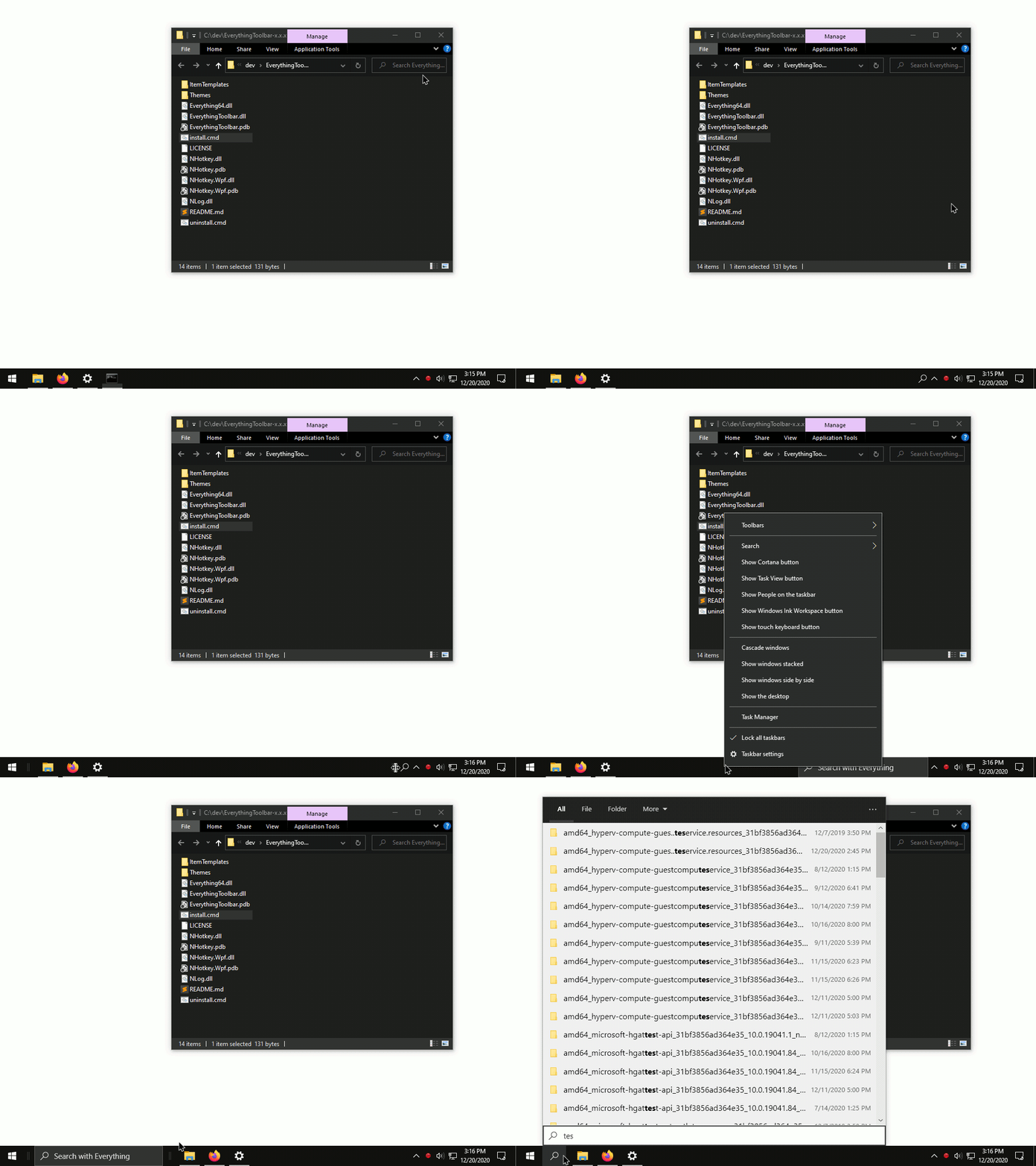
Windows 11 users: The setup assistant starts automatically after installation. To use the deskband instead (only recommended with ExplorerPatcher/StartAllBack), close the assistant and end EverythingToolbar's background process via the system tray.
For troubleshooting and additional setup help, see the FAQ.
🤝 Contributing
All types of contributions are welcome! Whether you're reporting bugs, requesting features, or submitting pull requests, your help is appreciated. For detailed guidelines, including how to build from source, see CONTRIBUTING.md.
How to Contribute
- Check existing issues before creating new ones
- Help with open issues and discussions
- Translate EverythingToolbar into your language
💖 Support
If you're enjoying EverythingToolbar, I'd be truly grateful for your support!
You can show your appreciation by giving a star on GitHub or making a donation:
❓ FAQ
For frequently asked questions, troubleshooting guides, and detailed configuration instructions, visit the FAQ.
File: README.zh-CN.md
[!NOTE]
这是社区的翻译版本,因此可能并不总是最新的。若需获取最新内容,您可以随时查看英文的README 文件。
EverythingToolbar
为Windows任务栏提供即时文件搜索集成,由Everything提供支持。
🌟 功能特点
任务栏集成
EverythingToolbar就在您的任务栏上,既可以是Windows 11上可直接输入的搜索框,也可以是点击后打开搜索窗口的紧凑图标。
您可以在设置过程中选择,也可以随时在设置 → 任务栏集成中切换。
此外,在Windows 10上,EverythingToolbar还可以作为原生桌面栏集成到任务栏内部。
明亮和暗黑主题
EverythingToolbar无缝融入Windows 10和11,自动适应您的系统主题。
自定义搜索过滤器
EverythingToolbar内置常用搜索过滤器。对于高级用户,它可以与Everything的自定义过滤器同步,让您完全控制搜索体验。通过在EverythingToolbar的过滤器设置中勾选使用Everything过滤器来启用此功能。
快速搜索选项
轻松切换搜索标志(区分大小写、全字匹配、匹配路径和正则表达式)以精确查找文件。
基于正则表达式的文件操作
通过导航到设置 → 自定义操作创建自定义的打开方式操作。启用根据条件自动应用规则可以基于文件类型和正则表达式自动执行命令。将正则表达式字段留空,则该操作仅在上下文菜单中显示。
兼容性
EverythingToolbar在Windows 10和Windows 11上无缝运行。在Windows 11上,任务栏搜索框开箱即用地嵌入任务栏;如需完整的桌面栏支持,它还与ExplorerPatcher和StartAllBack等工具集成。
其他功能
键盘快捷键
| 快捷键 | 功能 |
|---|---|
| ↑ / ↓ | 导航搜索结果 |
| Ctrl + ↑ / ↓ | 导航搜索历史(如果启用) |
| Enter / 点击 | 打开文件或文件夹 |
| Ctrl + Enter / 点击 | 打开所在文件夹 |
| Shift + Enter / 点击 | 在Everything中打开 |
| Ctrl + Shift + C | 复制完整路径到剪贴板 |
| Alt + Enter / 点击 | 显示文件属性 |
| Ctrl + Shift + Enter / 点击 | 以管理员身份运行 |
| Shift + 右键点击 | 打开系统上下文菜单 |
| (Shift +) Tab | 循环切换过滤器 |
| Ctrl + 0-9 | 按数字选择过滤器 |
| Space | 在QuickLook中预览文件 |
| Win + Alt + S | 聚焦搜索框(可自定义) |
📦 安装
前提条件
- Windows 10或Windows 11
- Everything ≥ 1.4.1已安装并运行
注意: 不支持Everything的Lite版本
安装EverythingToolbar
选择以下安装方法之一:
- 安装程序:从GitHub Releases下载
- winget:
winget install srwi.everythingtoolbar.launcher或winget install srwi.everythingtoolbar.deskband
⚙️ 设置
启动器
推荐用于未修改的Windows 11安装
在Windows 11上安装后,设置助手将指导您完成配置过程。它提供两种从任务栏访问EverythingToolbar的方式,任选其一:
- 任务栏搜索框(仅限Windows 11):将搜索框嵌入任务栏本身。
- 任务栏图标:将EverythingToolbar固定为普通任务栏图标,点击后打开搜索窗口。
两者均可稍后在设置 → 任务栏集成中更改。
如果设置助手没有自动启动,请在Windows开始菜单中搜索EverythingToolbar。
对于偏好搜索图标的Windows 10用户(不推荐),请搜索EverythingToolbar.Launcher.exe,手动启动并按照设置过程操作。Windows 10不支持任务栏搜索框,请改用桌面栏。
桌面栏
推荐用于Windows 10或使用ExplorerPatcher / StartAllBack时
在Windows 10上安装后:
- 右键点击任务栏,从_工具栏_上下文菜单中选择EverythingToolbar
您可能需要打开上下文菜单两次才能显示EverythingToolbar
- 解锁任务栏以调整大小和位置(演示视频)
Windows 11用户:安装后设置助手会自动启动。如果要使用桌面栏(仅在使用ExplorerPatcher/StartAllBack时推荐),请关闭助手并通过系统托盘结束EverythingToolbar的后台进程。
有关故障排除和其他设置帮助,请参阅常见问题解答。
🤝 贡献
欢迎各种类型的贡献!无论是报告错误、请求功能还是提交拉取请求,您的帮助都将受到赞赏。有关详细指南,包括如何从源代码构建,请参阅 CONTRIBUTING.md。
如何贡献
- 创建新问题前请检查现有问题
- 帮助解决开放的问题和讨论
- 将EverythingToolbar翻译成您的语言
💖 支持
如果您喜欢EverythingToolbar,我将非常感谢您的支持!
您可以通过在GitHub上给予星标或进行捐赠来表达您的感谢:
❓ 常见问题解答
有关常见问题、故障排除指南和详细配置说明,请访问常见问题解答。