

File: examples/behave_bdd/ReadMe.md
[](https://github.com/seleniumbase/SeleniumBase/) 🐝 Behave test runner for SeleniumBase 🐝
🐝 (Utilizes the Behave BDD Python library. For more info, see the Behave tutorial and read about Behave's Gherkin model.)
🐝 Behave examples with SeleniumBase: SeleniumBase/examples/behave_bdd
> cd examples/behave_bdd/
> behave features/realworld.feature -T -D dashboard -k

Dashboard: /Users/michael/github/SeleniumBase/examples/behave_bdd/dashboard.html
********************************************************************************
Feature: SeleniumBase scenarios for the RealWorld App # features/realworld.feature:1

  Scenario: Verify RealWorld App (log in / sign out)  # features/realworld.feature:3
    Given Open "seleniumbase.io/realworld/login"      # ../../sbase/steps.py:10
    And Clear Session Storage                         # ../../sbase/steps.py:669
    When Type "demo_user" into "#username"            # ../../sbase/steps.py:40
    And Type "secret_pass" into "#password"           # ../../sbase/steps.py:40
    And Do MFA "GAXG2MTEOR3DMMDG" into "#totpcode"    # ../../sbase/steps.py:322
    Then Assert exact text "Welcome!" in "h1"         # ../../sbase/steps.py:157
    And Highlight "img#image1"                        # ../../sbase/steps.py:184
    And Click 'a:contains("This Page")'               # ../../sbase/steps.py:27
    And Save screenshot to logs                       # ../../sbase/steps.py:239
    When Click link "Sign out"                        # ../../sbase/steps.py:195
    Then Assert element 'a:contains("Sign in")'       # ../../sbase/steps.py:120
    And Assert text "You have been signed out!"       # ../../sbase/steps.py:145
   ✅ Scenario Passed!

- Dashboard: /Users/michael/github/SeleniumBase/examples/behave_bdd/dashboard.html
--- LogPath: /Users/michael/github/SeleniumBase/examples/behave_bdd/latest_logs/
==================================================================================
1 feature passed, 0 failed, 0 skipped
1 scenario passed, 0 failed, 0 skipped
12 steps passed, 0 failed, 0 skipped, 0 undefined
Took 0m4.682s
🐝 Another example, which uses higher-level Behave steps to simplify the .feature file:
> cd examples/behave_bdd/
> behave features/calculator.feature:61 -T -D dashboard -k

Dashboard: /Users/michael/github/SeleniumBase/examples/behave_bdd/dashboard.html
********************************************************************************
Feature: SeleniumBase scenarios for the Calculator App # features/calculator.feature:1

  Background:   # features/calculator.feature:3

  Scenario: 7.0 × (3 + 3) = 42        # features/calculator.feature:49
    Given Open the Calculator App     # features/steps/calculator.py:4
    When Press C                      # features/steps/calculator.py:9
    And Press 7                       # features/steps/calculator.py:79
    And Press .                       # features/steps/calculator.py:104
    And Press 0                       # features/steps/calculator.py:94
    And Press ×                       # features/steps/calculator.py:29
    And Press (                       # features/steps/calculator.py:14
    And Press 3                       # features/steps/calculator.py:59
    And Press +                       # features/steps/calculator.py:39
    And Press 3                       # features/steps/calculator.py:59
    And Press )                       # features/steps/calculator.py:19
    Then Verify output is "7.0×(3+3)" # features/steps/calculator.py:135
    When Press =                      # features/steps/calculator.py:44
    Then Verify output is "42"        # features/steps/calculator.py:135
   ✅ Scenario Passed!

- Dashboard: /Users/michael/github/SeleniumBase/examples/behave_bdd/dashboard.html
--- LogPath: /Users/michael/github/SeleniumBase/examples/behave_bdd/latest_logs/
==================================================================================
1 feature passed, 0 failed, 0 skipped
1 scenario passed, 0 failed, 8 skipped
14 steps passed, 0 failed, 60 skipped, 0 undefined
Took 0m1.672s
🐝⚪ With the Dashboard enabled, you'll get one of these:
🐝 Behave-Gherkin files:
🐝 The *.feature files can use any step seen from:
behave --steps-catalog🐝 SeleniumBase includes several pre-made Behave steps, which you can use by creating a Python file with the following line in your features/steps/ directory:
from seleniumbase.behave import steps # noqa🐝 Inside your features/environment.py file, you should have the following:
from seleniumbase import BaseCase
from seleniumbase.behave import behave_sb
behave_sb.set_base_class(BaseCase)  # Accepts a BaseCase subclass
from seleniumbase.behave.behave_sb import before_all  # noqa
from seleniumbase.behave.behave_sb import before_feature  # noqa
from seleniumbase.behave.behave_sb import before_scenario  # noqa
from seleniumbase.behave.behave_sb import before_step  # noqa
from seleniumbase.behave.behave_sb import after_step  # noqa
from seleniumbase.behave.behave_sb import after_scenario  # noqa
from seleniumbase.behave.behave_sb import after_feature  # noqa
from seleniumbase.behave.behave_sb import after_all  # noqa
🐝 If you've already created a subclass of BaseCase with custom methods, you can swap BaseCase in with your own subclass, which will allow you to easily use your own custom methods in your Behave step definitions.
🐝 Here's an example Python file in the features/steps/ folder:
from behave import step


@step("Open the Swag Labs Login Page")
def go_to_swag_labs(context):
    sb = context.sb
    sb.goto("https://www.saucedemo.com")
    sb.clear_local_storage()


@step("Login to Swag Labs with {user}")
def login_to_swag_labs(context, user):
    sb = context.sb
    sb.type("#user-name", user)
    sb.type("#password", "secret_sauce\n")


@step("Verify that the current user is logged in")
def verify_logged_in(context):
    sb = context.sb
    sb.assert_element("#header_container")
    sb.assert_element("#react-burger-menu-btn")
    sb.assert_element("#shopping_cart_container")


@step('Add "{item}" to cart')
def add_item_to_cart(context, item):
    sb = context.sb
    sb.click('div.inventory_item:contains("%s") button[name*="add"]' % item)
🐝 A *.feature file could look like this:
Feature: SeleniumBase scenarios for the Swag Labs App

  Background:
    Given Open the Swag Labs Login Page

  Scenario: User can order a backpack from the store
    When Login to Swag Labs with standard_user
    Then Verify that the current user is logged in
    And Save price of "Backpack" to <item_price>
    When Add "Backpack" to Cart
    Then Verify shopping cart badge shows 1 item(s)
    When Click on shopping cart icon
    And Click Checkout
    And Enter checkout info: First, Last, 12345
    And Click Continue
    Then Verify 1 "Backpack"(s) in cart
    And Verify cost of "Backpack" is <item_price>
    And Verify item total is $29.99
    And Verify tax amount is $2.40
    And Verify total cost is $32.39
    When Click Finish
    Then Verify order complete
    When Logout from Swag Labs
    Then Verify on Login page
🐝 Here's another example of a *.feature file:
Feature: SeleniumBase scenarios for the RealWorld App

  Scenario: Verify RealWorld App (log in / sign out)
    Given Open "seleniumbase.io/realworld/login"
    And Clear Session Storage
    When Type "demo_user" into "#username"
    And Type "secret_pass" into "#password"
    And Do MFA "GAXG2MTEOR3DMMDG" into "#totpcode"
    Then Assert text "Welcome!" in "h1"
    And Highlight element "img#image1"
    And Click 'a:contains("This Page")'
    And Save screenshot to logs
    When Click link "Sign out"
    Then Assert element 'a:contains("Sign in")'
    And Assert text "You have been signed out!"
🐝 If there's a test failure, that's easy to spot:
Feature: SeleniumBase scenarios for the Fail Page # features/fail_page.feature:1

  Scenario: Fail test on purpose to see what happens  # features/fail_page.feature:3
    When Open the Fail Page                           # features/steps/fail_page.py:4
    Then Fail test on purpose                         # features/steps/fail_page.py:9
      Assertion Failed: This test fails on purpose!
      Captured stdout:
      >>> STEP FAILED:  (#2) Fail test on purpose
      Class / Feature:  SeleniumBase scenarios for the Fail Page
      Test / Scenario:  Fail test on purpose to see what happens

   ❌ Scenario Failed!
🐝🎖️ For convenience, the SeleniumBase Behave GUI lets you run behave scripts from a Desktop app.
🐝🎖️ To launch it, call sbase behave-gui or sbase gui-behave:
sbase behave-gui
* Starting the SeleniumBase Behave Commander GUI App...
🐝🎖️ You can customize the tests that show up there:
sbase behave-gui  # all tests
sbase behave-gui -i=calculator  # tests with "calculator" in the name
sbase behave-gui features/  # tests located in the "features/" folder
sbase behave-gui features/calculator.feature  # tests in that feature
To learn more about SeleniumBase, check out the Docs Site:
File: examples/boilerplates/ReadMe.md
Example Boilerplates:
- Boilerplate files are located in the SeleniumBase => examples/boilerplates/ folder.
- Boilerplates can help you structure tests using common design patterns such as the Page Object Model.
- For all 20 SeleniumBase design patterns, see: Syntax Formats
Boilerplate Files:
- base_test_case.py: This example demonstrates a test class inheriting BaseCase for adding new methods.
- page_objects.py: This example demonstrates Page Objects for reusing commonly-used selectors in tests.
- boilerplate_test.py: This example demonstrates inheritance of the above files for making a complete test.
- classic_obj_test.py: This example demonstrates the classic Page Object Model for structuring tests.
File: examples/capabilities/ReadMe.md
[](https://github.com/seleniumbase/SeleniumBase/) Using Desired Capabilities
You can specify browser capabilities when running SeleniumBase tests on a remote Selenium Grid server (such as BrowserStack or Sauce Labs).
Sample run commands may look like this when run from the SeleniumBase/examples/ folder: (The browser is now specified in the capabilities file.)
pytest test_demo_site.py --browser=remote --server=USERNAME:[email protected] --port=80 --cap_file=capabilities/sample_cap_file_BS.pypytest test_demo_site.py --browser=remote --server=USERNAME:[email protected] --port=443 --protocol=https --cap_file=capabilities/sample_cap_file_SL.py(Parameters: --browser=remote, --server=SERVER, --port=PORT, --protocol=PROTOCOL, and --cap_file=CAP_FILE.py)
Here's an example desired capabilities file for BrowserStack using the newer SDK format in a .yml / .yaml file:
platforms:
  - browserName: safari
    osVersion: 17
    deviceName: iPhone 15 Pro Max
buildIdentifier: ${BUILD_NUMBER}
parallelsPerPlatform: 1
projectName: My Project
browserstackLocal: true
debug: true
networkLogs: true
Here's an example desired capabilities file for BrowserStack using the legacy JSONWP format in a .py file:
desired_cap = {
    "browser": "Chrome",
    "os": "Windows",
    "os_version": "11",
    "browser_version": "latest",
    "browserstack.console": "info",
    "browserstack.debug": "true",
    "browserstack.networkLogs": "true",
    "browserstack.local": "true",
}
Here's an example desired capabilities file for Sauce Labs:
capabilities = {
    "browserName": "chrome",
    "browserVersion": "latest",
    "platformName": "macOS 10.14",
    "sauce:options": {},
}
(Note that the browser is now being specified in the capabilities file, rather than with --BROWSER when using a remote Selenium Grid. If using a local Selenium Grid, specify the browser, eg: --firefox.)
You can generate specific desired capabilities using:
<li>[BrowserStack desired capabilities](https://www.browserstack.com/docs/automate/capabilities)</li>
<li>[Sauce Labs desired capabilities](https://saucelabs.com/products/platform-configurator)</li>
Parsing desired capabilities:
SeleniumBase has a desired capabilities parser that can capture all lines from the specified file in the following formats:
'KEY': 'VALUE'
'KEY': True
'KEY': False
caps['KEY'] = "VALUE"
caps['KEY'] = True
caps['KEY'] = False
(Each pair must be on a separate line. You can interchange single and double quotes.)
You can also swap --browser=remote with an actual browser, eg --browser=chrome, which will combine the default SeleniumBase desired capabilities with those that were specified in the capabilities file when using --cap_file=FILE.py. Capabilities will override other parameters, so if you set the browser to one thing and the capabilities browser to another, SeleniumBase will use the capabilities browser.
You'll need default SeleniumBase capabilities for:
- Using a proxy server (not the same as a Selenium Grid server)
- Downloading files to a desired folder
- Disabling some warnings on Chrome
- Overriding a website's Content Security Policy on Chrome
- Other possible reasons
You can also set browser desired capabilities from a command-line string. Eg:
pytest test_swag_labs.py --cap-string='{"browserName":"chrome","name":"test1"}' --server="127.0.0.1" --browser=remote(Enclose cap-string in single quotes. Enclose parameter keys in double quotes.)
If you pass "*" into the "name" field of --cap-string, the name will become the test identifier. Eg:
pytest my_first_test.py --cap-string='{"browserName":"chrome","name":"*"}' --server="127.0.0.1" --browser=chromeExample name: "my_first_test.MyTestClass.test_basics"
Using a local Selenium Grid
If using a local Selenium Grid with SeleniumBase, start up the Grid Hub and nodes first:
sbase grid-hub start
sbase grid-node start
(The Selenium Server JAR file will be automatically downloaded for first-time Grid users. You'll also need Java installed to start up the Grid.)
File: examples/cdp_mode/playwright/ReadMe.md
[](https://github.com/seleniumbase/SeleniumBase/) Stealthy Playwright Mode 🎭
🎭 Stealthy Playwright Mode is a subset of SeleniumBase CDP Mode where playwright-python attaches to a stealthy browser session via the remote-debugging URL. This lets Playwright bypass bot-detection while allowing APIs of both frameworks to work in tandem. Under the hood, Playwright achieves stealth via **connect_over_cdp()**.
(See Stealthy Playwright Mode on YouTube! ▶️)
🛠️ Installation
To use Stealthy Playwright Mode, simply install the necessary Python packages:
pip install seleniumbase playwrightNote: Just as standard Playwright can use
channel="chrome"to bypass internal binary downloads, Stealthy Playwright Mode achieves the same by attaching to the system Chrome browser launched by SeleniumBase. This lets you skip the largeplaywright installstep entirely.
💻 Usage
Stealthy Playwright Mode comes in three different formats:
sb_cdp"sync" formatSB()"nested sync" formatcdp_driver"async" format
1. The lightweight "sync" format (`sb_cdp`)
Ideal for standalone scripts that primarily use Playwright but need SeleniumBase's stealth and CAPTCHA-solving power without the overhead of WebDriver.
from playwright.sync_api import sync_playwright
from seleniumbase import sb_cdp

sb = sb_cdp.Chrome()
endpoint_url = sb.get_endpoint_url()

with sync_playwright() as p:
    browser = p.chromium.connect_over_cdp(endpoint_url)
    page = browser.contexts[0].pages[0]
    page.goto("https://example.com")
2. The full-suite "nested sync" format (`SB()`)
Best for hybrid projects where you need to switch between WebDriver and Playwright APIs in the same session.
from playwright.sync_api import sync_playwright
from seleniumbase import SB

with SB(uc=True) as sb:
    sb.activate_cdp_mode()
    endpoint_url = sb.get_endpoint_url()

    with sync_playwright() as p:
        browser = p.chromium.connect_over_cdp(endpoint_url)
        page = browser.contexts[0].pages[0]
        page.goto("https://example.com")
3. The "async" format (`cdp_driver`)
Designed for modern asynchronous Python. This allows you to run multiple concurrent stealth sessions using async/await and Playwright's async_api.
import asyncio
from seleniumbase import cdp_driver
from playwright.async_api import async_playwright

async def main():
    driver = await cdp_driver.start_async()
    endpoint_url = driver.get_endpoint_url()

    async with async_playwright() as p:
        browser = await p.chromium.connect_over_cdp(endpoint_url)
        page = browser.contexts[0].pages[0]
        await page.goto("https://example.com")

if __name__ == "__main__":
    asyncio.run(main())
💡 Key differences of the 3 stealthy formats:
sb_cdp: Simplest setup. CDP launches a stealthy browser. (No WebDriver)SB(): Maximum utility. Gives you the full range of APIs: WebDriver, CDP, and Playwright. (WebDriver launches a stealthy browser.)cdp_driver: Best for performance.asynciohandles non-blocking tasks. CDP launches a stealthy browser. (No WebDriver)
🎭 Converting regular Playwright scripts to Stealthy Playwright Mode:
If you have a regular Playwright script that looks like this:
from playwright.sync_api import sync_playwright

with sync_playwright() as p:
    browser = p.chromium.launch(channel="chrome", headless=False)
    page = browser.new_context().new_page()
    page.goto("https://example.com")
Then the Stealthy Playwright Mode version of that would look like this:
from playwright.sync_api import sync_playwright
from seleniumbase import sb_cdp

sb = sb_cdp.Chrome()
endpoint_url = sb.get_endpoint_url()

with sync_playwright() as p:
    browser = p.chromium.connect_over_cdp(endpoint_url)
    page = browser.contexts[0].pages[0]
    page.goto("https://example.com")
🎭 Stealthy Playwright Mode details:
ℹ️ The sb_cdp and cdp_driver formats don't use WebDriver at all, meaning that chromedriver isn't needed. From these two formats, Stealthy Playwright Mode can call CDP Mode methods and Playwright methods.
ℹ️ The SB() format requires WebDriver, therefore chromedriver will be downloaded, modified for stealth, and renamed as uc_driver if not already present. The SB() format has access to Selenium WebDriver methods via the SeleniumBase API. When using Stealthy Playwright Mode from the SB() format, all the APIs are accessible: Selenium, SeleniumBase, UC Mode, CDP Mode, and Playwright.
ℹ️ Default timeout values are different between Playwright and SeleniumBase. For instance, a 30-second default timeout in a Playwright method might only be 10 seconds in the equivalent SeleniumBase method.
ℹ️ When specifying custom timeout values, Playwright uses milliseconds, whereas SeleniumBase uses seconds. Eg. page.wait_for_timeout(2000) in Playwright is the equivalent of sb.sleep(2) in SeleniumBase.
ℹ️ Although hard sleeps are generally discouraged, they become a tactical tool in stealth mode because that extra waiting helps the automation look more human. Hard sleeps are used in multiple examples to prevent rate limits from being exceeded.
🌠 For additional stealth, use sb.goto(URL) instead of page.goto(URL).
🎭 A few examples of Stealthy Playwright Mode:
🎭 Here's an example that searches SeatGeek:
from playwright.sync_api import sync_playwright
from seleniumbase import sb_cdp

sb = sb_cdp.Chrome(locale="en", ad_block=True)
sb.goto("https://seatgeek.com/")
endpoint_url = sb.get_endpoint_url()

with sync_playwright() as p:
    browser = p.chromium.connect_over_cdp(endpoint_url)
    page = browser.contexts[0].pages[0]
    input_field = 'input[name="search"]'
    page.wait_for_selector(input_field)
    page.wait_for_timeout(1600)
    query = "Jerry Seinfeld"
    search_box = page.locator(input_field)
    search_box.press_sequentially(query, delay=80)
    page.wait_for_timeout(1600)
    page.click("li#active-result-item")
    page.wait_for_timeout(4200)
    print('*** SeatGeek Search for "%s":' % query)
    items = page.locator('[data-testid="listing-item"]')
    for i in range(items.count()):
        item_text = items.nth(i).inner_text()
        print(item_text.replace("\n\n", "\n"))
(From examples/cdp_mode/playwright/raw_seatgeek_sync.py)
🎭 Here's an example that searches Foot Locker:
from playwright.sync_api import sync_playwright
from seleniumbase import sb_cdp

sb = sb_cdp.Chrome(locale="en", ad_block=True)
sb.goto("https://www.footlocker.com/")
endpoint_url = sb.get_endpoint_url()

with sync_playwright() as p:
    browser = p.chromium.connect_over_cdp(endpoint_url)
    page = browser.contexts[0].pages[0]
    input_field = 'input[name="query"]'
    page.wait_for_selector(input_field)
    sb.sleep(1.5)
    sb.click_if_visible('button[id*="Agree"]')
    sb.sleep(0.6)
    page.click(input_field)
    sb.sleep(0.6)
    search = "Nike Shoes"
    page.type(input_field, search)
    sb.sleep(1.2)
    page.click('ul[id*="typeahead"] li div')
    sb.sleep(3.5)
    elements = sb.select_all("a[data-productcard]")
    if elements:
        print('**** Found results for "%s": ****' % search)
    for element in elements:
        print("------------------ >>>")
        print("* " + element.text)
    sb.sleep(2)
(From examples/cdp_mode/playwright/raw_footlocker_sync.py)
🎭 Here's an example that solves the Bing CAPTCHA:
from playwright.sync_api import sync_playwright
from seleniumbase import sb_cdp

sb = sb_cdp.Chrome(locale="en")
endpoint_url = sb.get_endpoint_url()

with sync_playwright() as p:
    browser = p.chromium.connect_over_cdp(endpoint_url)
    page = browser.contexts[0].pages[0]
    page.goto("https://www.bing.com/turing/captcha/challenge")
    sb.solve_captcha()
    page.wait_for_timeout(2000)
(From examples/cdp_mode/playwright/raw_bing_cap_sync.py)
🎭 For all included examples, see [examples/cdp_mode/playwright](https://github.com/seleniumbase/SeleniumBase/tree/master/examples/cdp_mode/playwright).
🎭 More details about Stealthy Playwright Mode:
Stealthy Playwright Mode uses the system's Chrome browser by default. There's also the option of setting use_chromium=True to use the unbranded Chromium browser instead, which still supports extensions. (With regular Playwright, you would generally need to run playwright install to download a special version of Chrome before running Playwright scripts, unless you set channel="chrome" to use the system's Chrome browser instead.)
Playwright's :has-text() selector is the equivalent of SeleniumBase's :contains() selector, except for one small difference: :has-text() isn't case-sensitive, but :contains() is.
In the sync formats, get_endpoint_url() also applies nest-asyncio so that nested event loops are allowed. (Python doesn't allow nested event loops by default). Without this, you'd get the error: "Cannot run the event loop while another loop is running" when calling CDP Mode methods (such as solve_captcha()) from within the Playwright context manager. This nest-asyncio call is done behind-the-scenes so that users don't need to handle this on their own.
🎭 Proxy with auth in Stealthy Playwright Mode:
To use an authenticated proxy in Stealthy Playwright Mode, do these two things:1. Set theproxy arg when launching Chrome.
-- Eg: sb_cdp.Chrome(proxy="USER:PASS@IP:PORT") or cdp_driver.start_async("USER:PASS@IP:PORT").2. Open the URL with SeleniumBase before using endpoint_url to connect to the browser with Playwright.
⚠️ If any trouble with the above, set use_chromium=True so that you can use the base Chromium browser, which still allows extensions, unlike regular branded Chrome, which removed the --load-extension command-line switch. (An extension is used to set the auth for the proxy, which is needed when CDP can't set the proxy alone, such as for navigation after the initial page load).
In the sync format, use sb.goto(url) to open the url before connecting Playwright:
sb = sb_cdp.Chrome(use_chromium=True, proxy="user:pass@server:port")
sb.goto(url)
endpoint_url = sb.get_endpoint_url()
# ...
In the async format, use, driver.get(url) to open the url before connecting Playwright:
driver = await cdp_driver.start_async(use_chromium=True, proxy="user:pass@server:port")
await driver.get(url)
endpoint_url = driver.get_endpoint_url()
# ...
Here's an example of using an authenticated proxy with Stealthy Playwright Mode:(The URL is opened before attaching Playwright so that proxy settings take effect)
from playwright.sync_api import sync_playwright
from seleniumbase import sb_cdp

sb = sb_cdp.Chrome(use_chromium=True, proxy="user:pass@server:port")
sb.goto(url)
endpoint_url = sb.get_endpoint_url()

with sync_playwright() as p:
    browser = p.chromium.connect_over_cdp(endpoint_url)
    page = browser.contexts[0].pages[0]
    # ...
(Fill in the url and the proxy details to complete the script.)
Here's the same thing for the async format:
import asyncio
from playwright.async_api import async_playwright
from seleniumbase import cdp_driver

async def main():
    driver = await cdp_driver.start_async(use_chromium=True, proxy="user:pass@server:port")
    await driver.get(url)
    endpoint_url = driver.get_endpoint_url()

    async with async_playwright() as p:
        browser = await p.chromium.connect_over_cdp(endpoint_url)
        page = browser.contexts[0].pages[0]
        # ...

if __name__ == "__main__":
    asyncio.run(main())
(Fill in the url and the proxy details to complete the script.)
🎭 This flowchart shows how Stealthy Playwright Mode fits into CDP Mode:
(See the CDP Mode ReadMe for more information about that.)
🎭 See [examples/cdp_mode/playwright](https://github.com/seleniumbase/SeleniumBase/tree/master/examples/cdp_mode/playwright) for Stealthy Playwight Mode examples.
File: examples/cdp_mode/ReadMe.md
[](https://github.com/seleniumbase/SeleniumBase/) CDP Mode 🐙
🐙 SeleniumBase CDP Mode is a stealth mode that uses the Chrome Devtools Protocol (via MyCDP) to control the web browser. CDP Mode can be used as a subset of UC Mode, or via Pure CDP Mode, which has sync and async formats. From CDP Mode, you can make Playwright stealthy (via Stealthy Playwright Mode).
⚙️ Stealthy architecture flowchart:
🎞️ CDP Mode on YouTube:
(Watch "Undetectable Automation: 5th Edition" on YouTube! ▶️)
ℹ️ Note the differences between UC Mode and CDP Mode:
👤 UC Mode's stealth is based on a modified chromedriver (renamed uc_driver) that avoids bot-detection by disconnecting and reconnecting WebDriver from the browser at strategic times.
🐙 CDP Mode's stealth comes from using the Chrome DevTools Protocol directly, which is much better at avoiding bot-detection. CDP Mode can also be used to make Playwright stealthy.
🐙 Pure CDP Mode (sb_cdp)
In Pure CDP Mode, CDP is used to launch the browser and perform all actions.
🐙 Here's how to initialize Pure CDP Mode and open a URL:
from seleniumbase import sb_cdp

sb = sb_cdp.Chrome()
sb.goto("https://example.com")
ℹ️ The browser quits automatically when Python goes out-of-scope. You can also quit the browser before that by calling sb.quit().
📝 Here's SeleniumBase/examples/cdp_mode/raw_cdp_gitlab.py:
from seleniumbase import sb_cdp

sb = sb_cdp.Chrome(incognito=True)
sb.goto("https://gitlab.com/users/sign_in")
sb.sleep(2)
sb.solve_captcha()
sb.highlight('h1:contains("GitLab")')
sb.highlight('button:contains("Sign in")')
sb.quit()
ℹ️ sb.solve_captcha() handles CAPTCHAs that aren't automatically bypassed.
📝 Here's SeleniumBase/examples/cdp_mode/raw_cdp_turnstile.py:
from seleniumbase import sb_cdp

sb = sb_cdp.Chrome()
sb.goto("https://seleniumbase.io/apps/turnstile")
sb.solve_captcha()
sb.assert_element("img#captcha-success")
sb.set_messenger_theme(location="top_left")
sb.post_message("SeleniumBase wasn't detected", duration=3)
sb.quit()
📝 Here’s SeleniumBase/examples/cdp_mode/raw_cdp_methods.py:
from seleniumbase import sb_cdp

sb = sb_cdp.Chrome(fast=True)
sb.goto("https://seleniumbase.io/demo_page")
sb.type("input", "Quickly type text!")
sb.press_keys("textarea", "Slowly type text!")
sb.click("#myButton")
sb.set_value("input#mySlider", "100")
sb.click_visible_elements("input.checkBoxClassB")
sb.select_option_by_text("#mySelect", "Set to 75%")
sb.hover_and_click("#myDropdown", "#dropOption2")
sb.click("#checkBox1")
sb.drag_and_drop("img#logo", "div#drop2")
sb.nested_click("iframe#myFrame3", ".fBox")
sb.highlight("#myButton")
sb.quit()
ℹ️ Setting fast=True lets your automation go at full speed, which may be useful if maximum stealth isn't your goal.
🐙 CDP Mode as a subset of UC Mode
🐙 Here’s how to initialize CDP Mode from UC Mode:
sb.activate_cdp_mode()orsb.activate_cdp_mode(url)
That disconnects WebDriver from Chrome (which prevents detection), and gives you access to CDP Mode methods (which don't trigger anti-bot checks).
(Calling
sb.goto(url)from UC Mode also activates CDP Mode now.)
📝 Here's SeleniumBase/examples/cdp_mode/raw_planetmc.py:
from seleniumbase import SB

with SB(uc=True, test=True, guest=True) as sb:
    sb.activate_cdp_mode()
    sb.goto("www.planetminecraft.com/account/sign_in")
    sb.solve_captcha()
    # "LOG IN" is enabled when the CAPTCHA is bypassed
    sb.wait_for_element_absent("input[disabled]")
    sb.sleep(2)
To use a WebDriver-only method from UC Mode when WebDriver is disconnected, call:
sb.reconnect()orsb.connect()
ℹ️ Note that reconnecting allows anti-bot systems to detect you, so only reconnect if it is safe to do so.
To disconnect again, call:
sb.disconnect()
ℹ️ While disconnected, if you call a WebDriver method, SeleniumBase will attempt to use the CDP Mode version of that method (if available). For example, calling sb.click(selector) instead of sb.cdp.click(selector) will automatically redirect to the CDP Mode version. Not all WebDriver methods have a matching CDP Mode method. In that scenario, calling a WebDriver method while disconnected could raise an error, or make WebDriver automatically reconnect first.
To find out if WebDriver is connected or disconnected, call:
sb.is_connected()
Note: When CDP Mode is initialized from UC Mode, WebDriver is disconnected from the browser. (The stealthy CDP Mode takes over.)
🐙 Here are a few common CDP Mode methods:
goto(url)(Navigate to the given URL)click(selector)(Uses the CDP API to click)click_if_visible(selector)(Click if visible)solve_captcha()(Uses CDP to click a CAPTCHA)type(selector, text)(Type text into a selector)press_keys(selector, text)(Human-speedtype)select_all(selector)(Returns matching elements)get_text(selector)(Returns the element's text)
🐙 Longer CDP Mode examples ([SeleniumBase/examples/cdp_mode](https://github.com/seleniumbase/SeleniumBase/tree/master/examples/cdp_mode))
▶️ 🔖 Walmart site using Akamai protection with PerimeterX (Pure CDP Mode)
from seleniumbase import sb_cdp

sb = sb_cdp.Chrome(locale="en", guest=True)
sb.goto("https://www.walmart.com/")
sb.sleep(3)
continue_button = 'button:contains("Continue shopping")'
if sb.is_element_visible(continue_button):
    sb.gui_click_element(continue_button)
    sb.sleep(0.6)
sb.click('input[aria-label="Search"]')
sb.sleep(1.4)
search = "Settlers of Catan Board Game"
required_text = "Catan"
sb.press_keys('input[aria-label="Search"]', search + "\n")
sb.sleep(3.8)
sb.remove_elements('[data-testid="skyline-ad"]')
sb.remove_elements('[data-testid="sba-container"]')
print('*** Walmart Search for "%s":' % search)
print('    (Results must contain "%s".)' % required_text)
unique_item_text = []
sb.click_if_visible('[data-automation-id="sb-btn-close-mark"]')
items = sb.find_elements('[data-item-id]')
for item in items:
    if required_text.lower() in item.text.lower():
        description = item.query_selector(
            '[data-automation-id="product-title"]'
        )
        if description and description.text not in unique_item_text:
            unique_item_text.append(description.text)
            print("* " + description.text)
            price = item.query_selector(
                '[data-testid="unified-global-product-price"]'
            )
            if price and price.text.strip():
                price_text = price.text.strip()
                price_text = price_text.split("current price ")[-1]
                print("  (" + price_text + ")")
            item.scroll_into_view()
sb.quit()▶️ 🔖 Pokemon site using Incapsula/Imperva protection with invisible reCAPTCHA (UC + CDP Mode)
from seleniumbase import SB

with SB(uc=True, test=True, locale="en", ad_block=True) as sb:
    sb.activate_cdp_mode()
    sb.goto("https://www.pokemon.com/us/pokedex")
    sb.sleep(1.5)
    sb.click_if_visible("button#onetrust-accept-btn-handler")
    sb.sleep(1.5)
    sb.click('b:contains("Show Advanced Search")')
    sb.sleep(2.5)
    sb.click('span[data-type="type"][data-value="electric"]')
    sb.sleep(0.7)
    sb.scroll_into_view("a#advSearch")
    sb.sleep(0.7)
    sb.click("a#advSearch")
    sb.sleep(1.2)
    sb.click('img[src*="img/pokedex/detail/025.png"]')
    sb.assert_text("Pikachu", 'div[class*="title"]')
    sb.assert_element('img[alt="Pikachu"]')
    sb.scroll_into_view("div.pokemon-ability-info")
    sb.sleep(1.2)
    sb.flash('div[class*="title"]')
    sb.flash('img[alt="Pikachu"]')
    sb.flash("div.pokemon-ability-info")
    name = sb.get_text("label.styled-select")
    info = sb.get_text("div.version-descriptions p.active")
    print("*** %s: ***\n* %s" % (name, info))
    sb.sleep(2)
    sb.highlight_overlay("div.pokemon-ability-info")
    sb.sleep(2)
    sb.goto("https://events.pokemon.com/EventLocator/")
    sb.sleep(2)
    sb.click('span:contains("Championship")')
    sb.sleep(2)
    events = sb.select_all("div.event-info__title")
    print("*** Pokémon Championship Events: ***")
    for event in events:
        print("* " + event.text)
sb.sleep(2)▶️ 🔖 Hyatt site using Kasada protection (Pure CDP Mode)
from seleniumbase import sb_cdp

sb = sb_cdp.Chrome(locale="en", guest=True)
sb.goto("https://www.hyatt.com/")
sb.sleep(3.6)
sb.click_if_visible('button[aria-label="Close"]')
sb.sleep(0.1)
sb.click_if_visible("#onetrust-reject-all-handler", timeout=2)
sb.sleep(1.2)
location = "Anaheim, CA, USA"
sb.type('input[id="search-term"]', location)
sb.sleep(1.2)
sb.click('li[data-js="suggestion"]')
sb.sleep(0.6)
sb.click_if_visible('button[aria-label="Close"]')
sb.sleep(0.8)
sb.click("button.be-button-shop")
sb.sleep(1)
sb.click_if_visible('[label="Find Hotels"]')
sb.sleep(6)
card_info = 'div[data-booking-status="BOOKABLE"] [class*="HotelCard_info"]'
hotels = sb.select_all(card_info)
print("Hyatt Hotels in %s:" % location)
print("(" + sb.get_text('span[class*="summary_destination"]') + ")")
if len(hotels) == 0:
    print("No availability over the selected dates!")
for hotel in hotels:
    info = hotel.text.strip()
    if "Avg/Night" in info and not info.startswith("Rates from"):
        name = info.split("  (")[0].split(" + ")[0].split(" Award Cat")[0]
        name = name.split(" Rates from :")[0]
        price = "?"
        if "Rates from : " in info:
            price = info.split("Rates from : ")[1].split(" Avg/Night")[0]
        print("* %s => %s" % (name, price))
sb.quit()▶️ 🔖 BestWestern site using DataDome protection (UC + CDP Mode)
from seleniumbase import SB

with SB(uc=True, test=True, locale="en", guest=True) as sb:
    sb.activate_cdp_mode()
    sb.goto("https://www.bestwestern.com/en_US.html")
    sb.sleep(3)
    sb.click_if_visible(".onetrust-close-btn-handler")
    sb.sleep(1)
    sb.click("input#destination-input")
    sb.sleep(2)
    location = "Palm Springs, CA, USA"
    sb.press_keys("input#destination-input", location)
    sb.sleep(1)
    sb.click("ul#google-suggestions li")
    sb.sleep(1)
    sb.click("button#btn-modify-stay-update")
    sb.sleep(4)
    sb.click("label#available-label")
    sb.sleep(2.5)
    print("Best Western Hotels in %s:" % location)
    summary_details = sb.get_text("#summary-details-column")
    dates = summary_details.split("DESTINATION")[-1]
    dates = dates.split(" CHECK-OUT")[0].strip() + " CHECK-OUT"
    dates = dates.replace("  ", " ")
    print("(Dates: %s)" % dates)
    flip_cards = sb.select_all(".flipCard")
    for i, flip_card in enumerate(flip_cards):
        hotel = flip_card.query_selector(".hotelName")
        price = flip_card.query_selector(".priceSection")
        if hotel and price:
            print("* %s: %s => %s" % (
                i + 1, hotel.text.strip(), price.text.strip())
)▶️ 🔖 Nike site using Shape Security (Pure CDP Mode)
from seleniumbase import sb_cdp

sb = sb_cdp.Chrome()
sb.goto("https://www.nike.com/")
sb.sleep(1.2)
sb.click('[data-testid="user-tools-container"] search')
sb.sleep(1)
search = "Pegasus"
sb.press_keys('input[type="search"]', search)
sb.sleep(4)
details = 'ul[data-testid*="products"] figure .details'
elements = sb.select_all(details)
if elements:
    print('**** Found results for "%s": ****' % search)
    for element in elements:
        print("* " + element.text)
sb.quit()(Note: Extra sb.sleep() calls have been added to prevent bot-detection because some sites will flag you as a bot if you perform actions too quickly.)
(Note: Some sites may IP-block you for 36 hours or more if they catch you using regular Selenium WebDriver. Be extra careful when creating and/or modifying automation scripts that run on them.)
🐙 CDP Mode API / Methods
sb.get(url, **kwargs)
sb.open(url, **kwargs)  # Same as sb.get(url, **kwargs) in CDP Mode
sb.goto(url, **kwargs)  # Same as sb.get(url, **kwargs) in CDP Mode
sb.reload(ignore_cache=True, script_to_evaluate_on_load=None)
sb.goto_if_not_url(url)
sb.refresh(*args, **kwargs)
sb.get_event_loop()
sb.get_rd_host()  # Returns the remote-debugging host
sb.get_rd_port()  # Returns the remote-debugging port
sb.get_rd_url()  # Returns the remote-debugging URL
sb.get_endpoint_url()  # Same as sb.get_rd_url()
sb.get_port()  # Same as sb.get_rd_port()
sb.get_websocket_url()  # Returns the websocket URL
sb.add_handler(event, handler)
sb.find_element(selector, best_match=False, timeout=None)
sb.find(selector, best_match=False, timeout=None)
sb.locator(selector, best_match=False, timeout=None)
sb.find_element_by_text(text, tag_name=None, timeout=None)
sb.find_all(selector, timeout=None)
sb.find_elements_by_text(text, tag_name=None)
sb.select(selector, timeout=None)
sb.select_all(selector, timeout=None)
sb.find_elements(selector, timeout=None)
sb.find_visible_elements(selector, timeout=None)
sb.click(selector, timeout=None, scroll=True)
sb.click_if_visible(selector, timeout=0, scroll=True)
sb.click_visible_elements(selector, limit=0, scroll=True)
sb.click_nth_element(selector, number, scroll=True)
sb.click_nth_visible_element(selector, number, scroll=True)
sb.click_link(link_text)
sb.click_with_offset(selector, x, y, center=False, scroll=True)
sb.click_and_hold(selector, timeout=None, scroll=True, timeframe=2)
sb.drag_and_drop(drag_selector, drop_selector, timeout=None, scroll=True)
sb.go_back()
sb.go_forward()
sb.get_navigation_history()
sb.tile_windows(windows=None, max_columns=0)
sb.grant_permissions(permissions, origin=None)
sb.grant_all_permissions()
sb.reset_permissions()
sb.get_all_urls(absolute=True, selector=None, timeout=None)
sb.get_all_cookies(*args, **kwargs)
sb.set_all_cookies(*args, **kwargs)
sb.save_cookies(*args, **kwargs)
sb.load_cookies(*args, **kwargs)
sb.clear_cookies()
sb.sleep(seconds)
sb.bring_active_window_to_front()
sb.bring_to_front()
sb.get_active_element()
sb.get_active_element_css()
sb.click_active_element()
sb.mouse_click(selector, timeout=None, scroll=True)
sb.nested_click(parent_selector, selector)
sb.get_nested_element(parent_selector, selector)
sb.select_option_by_text(dropdown_selector, option)
sb.select_option_by_index(dropdown_selector, option)
sb.select_option_by_value(dropdown_selector, option)
sb.flash(selector, duration=1, color="44CC88", pause=0)
sb.highlight(selector, scroll=True, timeout=None)
sb.focus(selector, timeout=None)
sb.highlight_overlay(selector)
sb.get_parent(element)
sb.remove_element(selector)
sb.remove_from_dom(selector)
sb.remove_elements(selector)
sb.send_keys(selector, text, timeout=None)
sb.fast_keys(selector, text, timeout=None)
sb.press_keys(selector, text, timeout=None)
sb.type(selector, text, timeout=None)
sb.fast_type(selector, text, timeout=None)
sb.set_value(selector, text, timeout=None)
sb.clear_input(selector, timeout=None)
sb.clear(selector, timeout=None)
sb.submit(selector)
sb.evaluate(expression)
sb.execute_script(expression)
sb.js_dumps(obj_name)
sb.maximize()
sb.minimize()
sb.medimize()
sb.set_window_rect(x, y, width, height)
sb.reset_window_size()
sb.open_new_window(url=None, switch_to=True)
sb.switch_to_window(window)
sb.switch_to_newest_window()
sb.open_new_tab(url=None, switch_to=True)
sb.switch_to_tab(tab)
sb.switch_to_newest_tab()
sb.close_active_tab()
sb.get_active_tab()
sb.get_tabs()
sb.get_window()
sb.get_text(selector="body", timeout=None)
sb.get_title()
sb.get_current_url()
sb.get_origin()
sb.get_html(include_shadow_dom=True)
sb.get_page_source(include_shadow_dom=True)
sb.get_beautiful_soup(source=None)
sb.get_user_agent()
sb.get_cookie_string()
sb.get_locale_code()
sb.get_local_storage_item(key)
sb.get_session_storage_item(key)
sb.get_screen_rect()
sb.get_window_rect()
sb.get_window_size()
sb.get_window_position()
sb.get_element_rect(selector, timeout=None)
sb.get_element_size(selector, timeout=None)
sb.get_element_position(selector, timeout=None)
sb.get_gui_element_rect(selector, timeout=None)
sb.get_gui_element_center(selector, timeout=None)
sb.get_document()
sb.get_flattened_document()
sb.get_element_attributes(selector, timeout=None)
sb.get_element_attribute(selector, attribute, timeout=None)
sb.get_attribute(selector, attribute)
sb.get_element_html(selector, timeout=None)
sb.get_mfa_code(totp_key=None)
sb.enter_mfa_code(selector, totp_key=None, timeout=None)
sb.activate_messenger()
sb.set_messenger_theme(theme="default", location="default")
sb.post_message(message, duration=None, pause=True, style="info")
sb.download_file(file_url)
sb.save_file_as(file_url, new_file_name)
sb.assert_downloaded_file(file, timeout=None)
sb.get_path_of_downloaded_file(file)
sb.set_download_path(path)
sb.set_locale(locale)
sb.set_local_storage_item(key, value)
sb.set_session_storage_item(key, value)
sb.set_attributes(selector, attribute, value)
sb.is_attribute_present(selector, attribute, value=None)
sb.is_online()
sb.solve_captcha()
sb.click_captcha()
sb.gui_press_key(key)
sb.gui_press_keys(keys)
sb.gui_write(text)
sb.gui_click_x_y(x, y, timeframe=0.27)
sb.gui_click_element(selector, timeframe=0.27)
sb.gui_click_with_offset(selector, x, y, timeframe=0.27, center=False)
sb.gui_click_captcha()
sb.gui_drag_drop_points(x1, y1, x2, y2, timeframe=0.35)
sb.gui_drag_and_drop(drag_selector, drop_selector, timeframe=0.35)
sb.gui_click_and_hold(selector, timeframe=0.35)
sb.gui_move_to_element(selector, timeframe=0.27)
sb.gui_hover_x_y(x, y, timeframe=0.27)
sb.gui_hover_element(selector, timeframe=0.27)
sb.gui_hover_and_click(hover_selector, click_selector)
sb.hover_element(selector)
sb.hover_and_click(hover_selector, click_selector)
sb.internalize_links()
sb.is_checked(selector)
sb.is_selected(selector)
sb.check_if_unchecked(selector)
sb.select_if_unselected(selector)
sb.uncheck_if_checked(selector)
sb.unselect_if_selected(selector)
sb.is_element_present(selector)
sb.is_element_visible(selector)
sb.is_text_visible(text, selector="body")
sb.is_exact_text_visible(text, selector="body")
sb.wait_for_text(text, selector="body", timeout=None)
sb.wait_for_text_not_visible(text, selector="body", timeout=None)
sb.wait_for_element_present(selector, timeout=None)
sb.wait_for_element_visible(selector, timeout=None)
sb.wait_for_element(selector, timeout=None)
sb.wait_for_element_not_visible(selector, timeout=None)
sb.wait_for_element_absent(selector, timeout=None)
sb.wait_for_any_of_elements_visible(*args, **kwargs)
sb.wait_for_any_of_elements_present(*args, **kwargs)
sb.assert_any_of_elements_visible(*args, **kwargs)
sb.assert_any_of_elements_present(*args, **kwargs)
sb.assert_element(selector, timeout=None)
sb.assert_element_visible(selector, timeout=None)
sb.assert_element_present(selector, timeout=None)
sb.assert_element_absent(selector, timeout=None)
sb.assert_element_not_visible(selector, timeout=None)
sb.assert_element_attribute(selector, attribute, value=None)
sb.assert_title(title)
sb.assert_title_contains(substring)
sb.assert_url(url)
sb.assert_url_contains(substring)
sb.assert_text(text, selector="html", timeout=None)
sb.assert_exact_text(text, selector="html", timeout=None)
sb.assert_text_not_visible(text, selector="body", timeout=None)
sb.assert_true(expression, msg=None)
sb.assert_false(expression, msg=None)
sb.assert_equal(first, second)
sb.assert_not_equal(first, second)
sb.assert_in(first, second)
sb.assert_not_in(first, second)
sb.js_scroll_into_view(selector)
sb.scroll_into_view(selector, timeout=None)
sb.scroll_to_y(y)
sb.scroll_to_top()
sb.scroll_to_bottom()
sb.scroll_up(amount=25)
sb.scroll_down(amount=25)
sb.save_page_source(name, folder=None)
sb.save_as_html(name, folder=None)
sb.save_screenshot(name, folder=None, selector=None)
sb.print_to_pdf(name, folder=None)
sb.save_as_pdf(name, folder=None)
sb.save_as_pdf_to_logs(name=None)
sb.save_screenshot_to_logs(name=None, selector=None)
sb.save_page_source_to_logs(name=None)
sb.save_as_html_to_logs(name=None)
sb.save_data_to_logs(data, file_name=None)
sb.append_data_to_logs(data, file_name=None)
sb.quit()  # (Pure CDP Mode only: `sb_cdp`)
ℹ️ When available, calling sb.METHOD() redirects to sb.cdp.METHOD() from UC + CDP Mode.
🐙 CDP Mode Async API / Methods
Initialization:
from seleniumbase import cdp_driver

driver = await cdp_driver.start_async()
page = await driver.get(url, **kwargs)
Methods: (Sometimes page is named tab in examples where page is already taken.)
await page.get(url="about:blank")
await page.open(url="about:blank")  # Same as await page.get(url) in CDP Mode
await page.goto(url="about:blank")  # Same as await page.get(url) in CDP Mode
await page.find(text, best_match=False, timeout=10)  # text can be selector
await page.find_all(text, timeout=10)  # text can be selector
await page.select(selector, timeout=10)
await page.select_all(selector, timeout=10, include_frames=False)
await page.query_selector(selector)
await page.query_selector_all(selector)
await page.find_element_by_text(text, best_match=False)
await page.find_elements_by_text(text)
await page.send_keys(selector, text, timeout=5)
await page.type(selector, text, timeout=5)
await page.click(selector, timeout=5)
await page.click_if_visible(selector, timeout=0)
await page.click_with_offset(selector, x, y, center=False, timeout=5)
await page.solve_captcha()
await page.click_captcha()  # Same as solve_captcha()
await page.reload(ignore_cache=False, script_to_evaluate_on_load=None)
await page.evaluate(expression)
await page.js_dumps(obj_name)
await page.back()
await page.forward()
await page.get_window()
await page.get_content()
await page.maximize()
await page.minimize()
await page.fullscreen()
await page.medimize()
await page.set_window_size(left=0, top=0, width=1280, height=1024)
await page.set_window_rect(left=0, top=0, width=1280, height=1024)
await page.activate()
await page.bring_to_front()
await page.set_window_state(left=0, top=0, width=1280, height=720, state="normal")
await page.get_navigation_history()
await page.get_user_agent()
await page.get_cookie_string()
await page.get_locale_code()
await page.is_element_present(selector)
await page.is_element_visible(selector)
await page.is_online()
await page.open_external_inspector()  # Open separate browser for debugging
await page.close()
await page.scroll_down(amount=25)
await page.scroll_up(amount=25)
await page.wait_for(selector="", text="", timeout=10)
await page.set_attributes(selector, attribute, value)
await page.internalize_links()
await page.download_file(url, filename=None)
await page.save_screenshot(filename="auto", format="png", full_page=False)
await page.print_to_pdf(filename="auto")
await page.set_download_path(path)
await page.get_all_linked_sources()
await page.get_all_urls(absolute=True)
await page.get_html()
await page.get_page_source()
await page.get_element_rect(selector, timeout=5)  # (window-based)
await page.get_window_rect()
await page.get_gui_element_rect(selector, timeout=5)  # (screen-based)
await page.get_title()
await page.get_current_url()
await page.get_origin()
await page.get_document()
await page.get_flattened_document()
await page.get_local_storage()
await page.set_local_storage(items)
🐙 CDP Mode WebElement API / Methods
After finding an element in CDP Mode, you can access WebElement methods:
(Eg. After element = sb.find_element(selector))
element.clear_input()
element.click()
element.click_with_offset(x, y, center=False)
element.click_and_hold(timeframe=2)
element.flash(duration=0.5, color="EE4488")
element.focus()
element.gui_click(timeframe=0.27)
element.highlight_overlay()
element.is_in_viewport()
element.mouse_click()
element.mouse_drag(destination)
element.mouse_move()
element.press_keys(text)
element.query_selector(selector)
element.querySelector(selector)
element.query_selector_all(selector)
element.querySelectorAll(selector)
element.remove_from_dom()
element.save_screenshot(*args, **kwargs)
element.save_to_dom()
element.scroll_into_view()
element.select_option()
element.send_file(*file_paths)
element.send_keys(text)
element.set_text(value)
element.type(text)
element.get_position()
element.get_html()
element.get_js_attributes()
element.get_attribute(attribute)
element.get_parent()
🎞️ More YouTube videos about CDP Mode:
(Watch "Undetectable Automation 4" on YouTube! ▶️)
(Watch "Undetectable Automation: 5th Edition" on YouTube! ▶️)
(Watch "Hacking websites with CDP" on YouTube! ▶️)
("Unlimited Free Web-Scraping with GitHub Actions" ▶️)
File: examples/chart_maker/ReadMe.md
[](https://github.com/seleniumbase/SeleniumBase/) 📊 ChartMaker 📶
SeleniumBase ChartMaker lets you use Python to generate HTML charts.
(Click to see a presentation with multiple charts)
Here's how to run a simple pie chart presentation from GitHub => seleniumbase/SeleniumBase/examples/chart_maker:
cd examples/chart_maker
pytest my_chart.py
Here's the code for that pie chart presentation (GitHub => seleniumbase/SeleniumBase/examples/chart_maker/my_chart.py):
from seleniumbase import BaseCase
BaseCase.main(__name__, __file__)

class MyChartMakerClass(BaseCase):
    def test_chart_maker(self):
        self.create_presentation()
        self.create_pie_chart(title="Automated Tests")
        self.add_data_point("Passed", 7, color="#95d96f")
        self.add_data_point("Untested", 2, color="#eaeaea")
        self.add_data_point("Failed", 1, color="#f1888f")
        self.add_slide("<p>Pie Chart</p>" + self.extract_chart())
        self.begin_presentation(filename="my_chart.html")
Here's how to run an example presentation with multiple charts:
cd examples/chart_maker
pytest chart_presentation.py
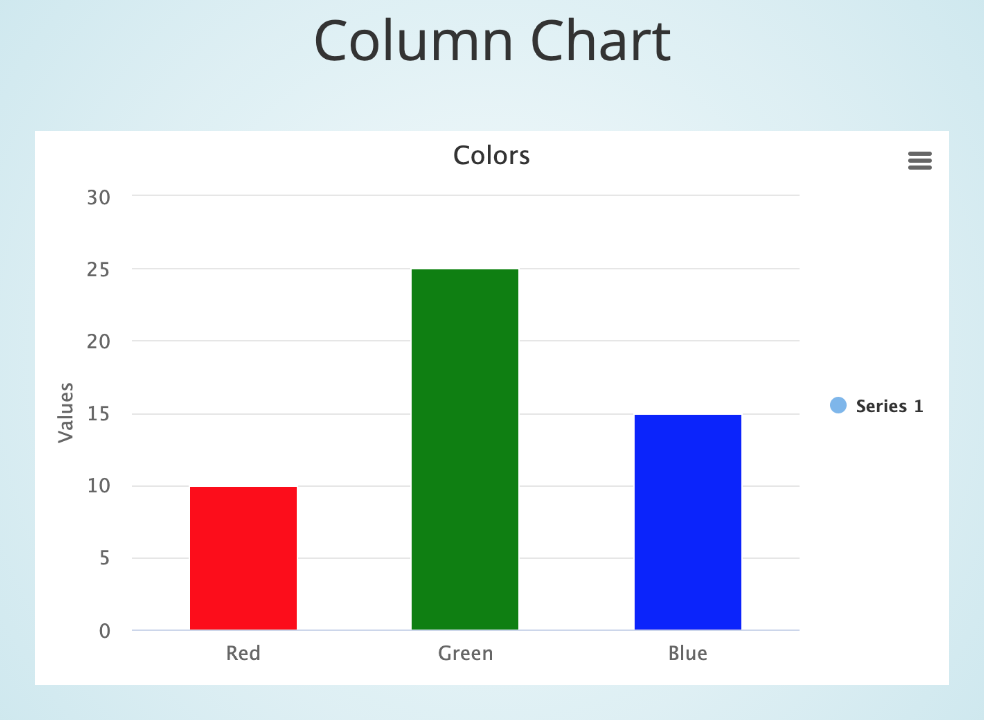
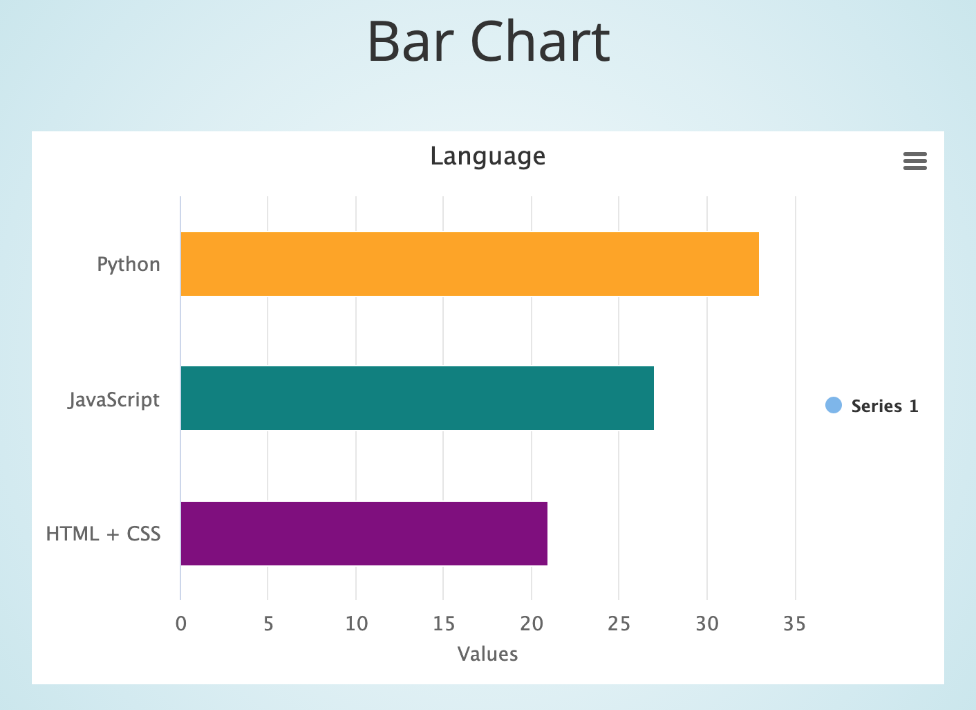
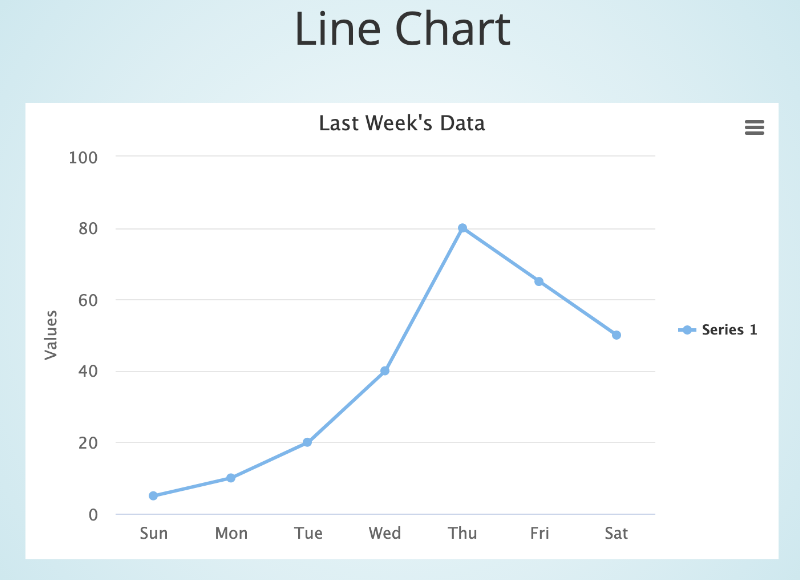
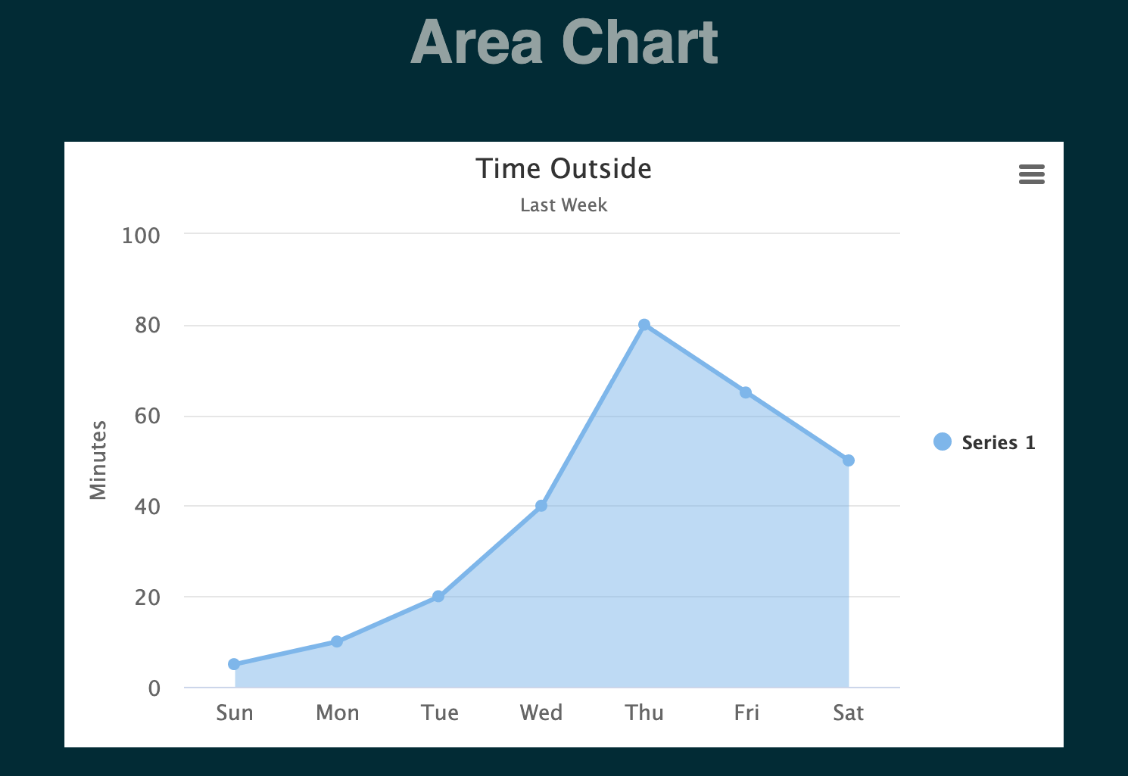
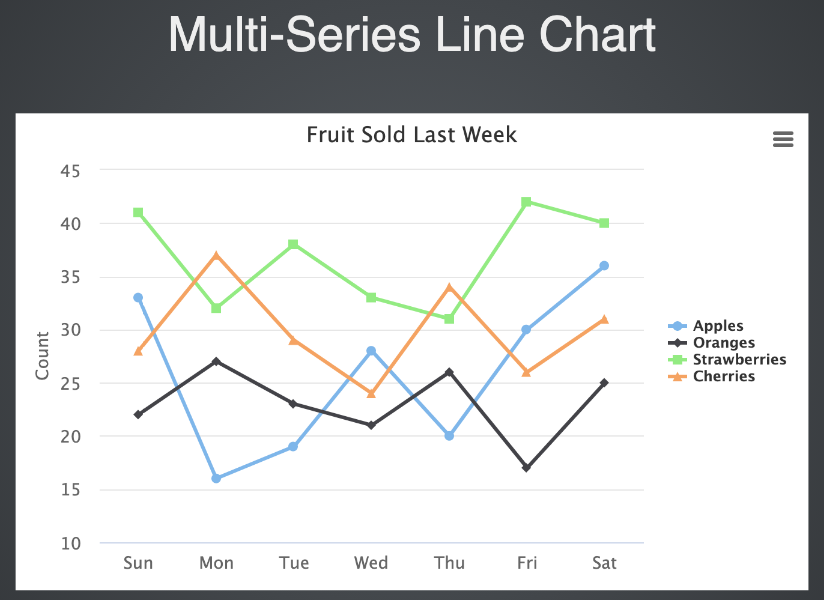
Here are screenshots from the examples:
Here's a line chart example:
from seleniumbase import BaseCase
BaseCase.main(__name__, __file__)

class MyChartMakerClass(BaseCase):
    def test_chart_maker(self):
        self.create_presentation()
        self.create_line_chart(
            title="Time Outside", subtitle="Last Week", unit="Minutes")
        self.add_data_point("Sun", 5)
        self.add_data_point("Mon", 10)
        self.add_data_point("Tue", 20)
        self.add_data_point("Wed", 40)
        self.add_data_point("Thu", 80)
        self.add_data_point("Fri", 65)
        self.add_data_point("Sat", 50)
        self.add_slide("<p>Line Chart</p>" + self.extract_chart())
        self.begin_presentation(filename="line_chart.html", interval=8)
This example is from test_line_chart.py, which you can run from the examples/chart_maker folder with the following command:
pytest test_line_chart.pyBecause that presentation above has an interval set to 8, it will automatically advance to the next slide after 8 seconds. (Or exit if there are no more slides.)
For a more advanced example (multiple charts in a presentation):
from seleniumbase import BaseCase
BaseCase.main(__name__, __file__)

class MyChartMakerClass(BaseCase):
    def test_chart_maker_presentation(self):
        self.create_presentation(theme="sky")

        self.create_pie_chart(title="Automated Tests")
        self.add_data_point("Passed", 7, color="#95d96f")
        self.add_data_point("Untested", 2, color="#eaeaea")
        self.add_data_point("Failed", 1, color="#f1888f")
        self.add_slide("<p>Pie Chart</p>" + self.extract_chart())

        self.create_bar_chart(title="Language")
        self.add_data_point("Python", 33, color="Orange")
        self.add_data_point("JavaScript", 27, color="Teal")
        self.add_data_point("HTML + CSS", 21, color="Purple")
        self.add_slide("<p>Bar Chart</p>" + self.extract_chart())

        self.create_column_chart(title="Colors")
        self.add_data_point("Red", 10, color="Red")
        self.add_data_point("Green", 25, color="Green")
        self.add_data_point("Blue", 15, color="Blue")
        self.add_slide("<p>Column Chart</p>" + self.extract_chart())

        self.create_line_chart(title="Last Week's Data")
        self.add_data_point("Sun", 5)
        self.add_data_point("Mon", 10)
        self.add_data_point("Tue", 20)
        self.add_data_point("Wed", 40)
        self.add_data_point("Thu", 80)
        self.add_data_point("Fri", 65)
        self.add_data_point("Sat", 50)
        self.add_slide("<p>Line Chart</p>" + self.extract_chart())

        self.begin_presentation(filename="chart_presentation.html")
Here's how to run that example:
cd examples/chart_maker
pytest chart_presentation.py
(Press the Right Arrow to advance to the next slide in that chart presentation)
(Click to see a live example of that presentation)
Multi-Series charts can also be created. Try the available examples to learn more.
ChartMaker API
self.create_pie_chart(
    chart_name=None, title=None, subtitle=None,
    data_name=None, unit=None, libs=True):
""" Creates a JavaScript pie chart using "HighCharts".
    @Params
    chart_name - If creating multiple charts,
                 use this to select which one.
    title - The title displayed for the chart.
    subtitle - The subtitle displayed for the chart.
    data_name - The series name. Useful for multi-series charts.
                If no data_name, will default to using "Series 1".
    unit - The description label given to the chart's y-axis values.
    libs - The option to include Chart libraries (JS and CSS files).
           Should be set to True (default) for the first time creating
           a chart on a web page. If creating multiple charts on the
           same web page, you won't need to re-import the libraries
           when creating additional charts.
    labels - If True, displays labels on the chart for data points.
    legend - If True, displays the data point legend on the chart.
"""self.create_bar_chart(
chart_name=None, title=None, subtitle=None,
data_name=None, unit=None, libs=True):
""" Creates a JavaScript bar chart using "HighCharts".
@Params
chart_name - If creating multiple charts,
use this to select which one.
title - The title displayed for the chart.
subtitle - The subtitle displayed for the chart.
data_name - The series name. Useful for multi-series charts.
If no data_name, will default to using "Series 1".
unit - The description label given to the chart's y-axis values.
libs - The option to include Chart libraries (JS and CSS files).
Should be set to True (default) for the first time creating
a chart on a web page. If creating multiple charts on the
same web page, you won't need to re-import the libraries
when creating additional charts.
labels - If True, displays labels on the chart for data points.
legend - If True, displays the data point legend on the chart.
"""self.create_column_chart(
chart_name=None, title=None, subtitle=None,
data_name=None, unit=None, libs=True):
""" Creates a JavaScript column chart using "HighCharts".
@Params
chart_name - If creating multiple charts,
use this to select which one.
title - The title displayed for the chart.
subtitle - The subtitle displayed for the chart.
data_name - The series name. Useful for multi-series charts.
If no data_name, will default to using "Series 1".
unit - The description label given to the chart's y-axis values.
libs - The option to include Chart libraries (JS and CSS files).
Should be set to True (default) for the first time creating
a chart on a web page. If creating multiple charts on the
same web page, you won't need to re-import the libraries
when creating additional charts.
labels - If True, displays labels on the chart for data points.
legend - If True, displays the data point legend on the chart.
"""self.create_line_chart(
chart_name=None, title=None, subtitle=None,
data_name=None, unit=None, zero=False, libs=True):
""" Creates a JavaScript line chart using "HighCharts".
@Params
chart_name - If creating multiple charts,
use this to select which one.
title - The title displayed for the chart.
subtitle - The subtitle displayed for the chart.
data_name - The series name. Useful for multi-series charts.
If no data_name, will default to using "Series 1".
unit - The description label given to the chart's y-axis values.
zero - If True, the y-axis always starts at 0. (Default: False).
libs - The option to include Chart libraries (JS and CSS files).
Should be set to True (default) for the first time creating
a chart on a web page. If creating multiple charts on the
same web page, you won't need to re-import the libraries
when creating additional charts.
labels - If True, displays labels on the chart for data points.
legend - If True, displays the data point legend on the chart.
"""self.create_area_chart(
chart_name=None, title=None, subtitle=None,
data_name=None, unit=None, zero=False, libs=True):
""" Creates a JavaScript area chart using "HighCharts".
@Params
chart_name - If creating multiple charts,
use this to select which one.
title - The title displayed for the chart.
subtitle - The subtitle displayed for the chart.
data_name - The series name. Useful for multi-series charts.
If no data_name, will default to using "Series 1".
unit - The description label given to the chart's y-axis values.
zero - If True, the y-axis always starts at 0. (Default: False).
libs - The option to include Chart libraries (JS and CSS files).
Should be set to True (default) for the first time creating
a chart on a web page. If creating multiple charts on the
same web page, you won't need to re-import the libraries
when creating additional charts.
labels - If True, displays labels on the chart for data points.
legend - If True, displays the data point legend on the chart.
"""If creating multiple charts at the same time, you can pass the chart_name parameter to distinguish between different charts.
Adding a data point to a chart:
self.add_data_point(label, value, color=None, chart_name=None):
""" Add a data point to a SeleniumBase-generated chart.
    @Params
    label - The label name for the data point.
    value - The numeric value of the data point.
    color - The HTML color of the data point.
            Can be an RGB color. Eg: "#55ACDC".
            Can also be a named color. Eg: "Teal".
    chart_name - If creating multiple charts,
                 use this to select which one.
"""
Adding a new data series to an existing chart:
self.add_series_to_chart(self, data_name=None, chart_name=None):
""" Add a new data series to an existing chart.
    This allows charts to have multiple data sets.
    @Params
    data_name - Set the series name. Useful for multi-series charts.
    chart_name - If creating multiple charts,
                 use this to select which one.
"""
Saving a chart to a file:
self.save_chart(chart_name=None, filename=None):
""" Saves a SeleniumBase-generated chart to a file for later use.
    @Params
    chart_name - If creating multiple charts at the same time,
                 use this to select the one you wish to use.
    filename - The name of the HTML file that you wish to
               save the chart to. (filename must end in ".html")
"""
The full HTML of the chart is saved to the saved_charts/ folder.
Extracting the HTML of a chart:
self.extract_chart(chart_name=None):
""" Extracts the HTML from a SeleniumBase-generated chart.
    @Params
    chart_name - If creating multiple charts at the same time,
                 use this to select the one you wish to use.
"""
Displaying a chart in the browser window:
self.display_chart(chart_name=None, filename=None):
""" Displays a SeleniumBase-generated chart in the browser window.
    @Params
    chart_name - If creating multiple charts at the same time,
                 use this to select the one you wish to use.
    filename - The name of the HTML file that you wish to
               save the chart to. (filename must end in ".html")
    interval - The delay time for auto-advancing charts. (in seconds)
               If set to 0 (default), auto-advancing is disabled.
"""
All methods have the optional chart_name argument, which is only needed when storing multiple charts at the same time.
File: examples/desktop_apps/ReadMe.md
Desktop Apps
- Recorder (Run using
python recorder.pyorsbase recorder)
File: examples/dialog_boxes/ReadMe.md
Dialog Boxes 🛂
SeleniumBase Dialog Boxes let your users provide input in the middle of automation scripts.
- This feature utilizes the jquery-confirm library.
- A Python API is used to call the JavaScript API.
↕️ ([Example: dialog_box_tour.py](https://github.com/seleniumbase/SeleniumBase/blob/master/examples/dialog_boxes/dialog_box_tour.py)) ↕️
Here's how to run that example:
cd examples/dialog_boxes
pytest test_dialog_boxes.py
Here's a code snippet from that:
self.goto("https://xkcd.com/1920/")
skip_button = ["SKIP", "red"]  # Can be a [text, color] list or tuple.
buttons = ["Fencing", "Football", "Metaball", "Go/Chess", skip_button]
message = "Choose a sport:"
choice = self.get_jqc_button_input(message, buttons)
if choice == "Fencing":
self.goto("https://xkcd.com/1424/")- You can create forms that include buttons and input fields.
Here's a simple form with only buttons as input:
choice = self.get_jqc_button_input("Ready?", ["YES", "NO"])
print(choice)  # This prints "YES" or "NO"

# You may want to customize the color of buttons:
buttons = [("YES", "green"), ("NO", "red")]
choice = self.get_jqc_button_input("Ready?", buttons)
Here's a simple form with an input field:
text = self.get_jqc_text_input("Enter text:", ["Search"])
print(text)  # This prints the text entered
This form has an input field and buttons:
message = "Type your name and choose a language:"
buttons = ["Python", "JavaScript"]
text, choice = self.get_jqc_form_inputs(message, buttons)
print("Your name is: %s" % text)
print("You picked %s!" % choice)
You can customize options if you want:
# Themes: bootstrap, modern, material, supervan, light, dark, seamless
options = [("theme", "modern"), ("width", "50%")]
self.get_jqc_text_input("You Won!", ["OK"], options)
Default options can be set with `set_jqc_theme()`:
self.set_jqc_theme("light", color="green", width="38%")

# To reset jqc theme settings to factory defaults:
self.reset_jqc_theme()
All methods for Dialog Boxes:
self.get_jqc_button_input(message, buttons, options=None)

self.get_jqc_text_input(message, button=None, options=None)

self.get_jqc_form_inputs(message, buttons, options=None)

self.set_jqc_theme(theme, color=None, width=None)

self.reset_jqc_theme()

self.activate_jquery_confirm()  # Automatic for jqc methods
Detailed method summaries for Dialog Boxes:
self.get_jqc_button_input(message, buttons, options=None)
"""
Pop up a jquery-confirm box and return the text of the button clicked.
If running in headless mode, the last button text is returned.
@Params
message: The message to display in the jquery-confirm dialog.
buttons: A list of tuples for text and color.
    Example: [("Yes!", "green"), ("No!", "red")]
    Available colors: blue, green, red, orange, purple, default, dark.
    A simple text string also works: "My Button". (Uses default color.)
options: A list of tuples for options to set.
    Example: [("theme", "bootstrap"), ("width", "450px")]
    Available theme options: bootstrap, modern, material, supervan,
                             light, dark, and seamless.
    Available colors: (For the BORDER color, NOT the button color.)
        "blue", "default", "green", "red", "purple", "orange", "dark".
    Example option for changing the border color: ("color", "default")
    Width can be set using percent or pixels. Eg: "36.0%", "450px".
"""

self.get_jqc_text_input(message, button=None, options=None)
"""
Pop up a jquery-confirm box and return the text submitted by the input.
If running in headless mode, the text returned is "" by default.
@Params
message: The message to display in the jquery-confirm dialog.
button: A 2-item list or tuple for text and color. Or just the text.
    Example: ["Submit", "blue"] -> (default button if not specified)
    Available colors: blue, green, red, orange, purple, default, dark.
    A simple text string also works: "My Button". (Uses default color.)
options: A list of tuples for options to set.
    Example: [("theme", "bootstrap"), ("width", "450px")]
    Available theme options: bootstrap, modern, material, supervan,
                             light, dark, and seamless.
    Available colors: (For the BORDER color, NOT the button color.)
        "blue", "default", "green", "red", "purple", "orange", "dark".
    Example option for changing the border color: ("color", "default")
    Width can be set using percent or pixels. Eg: "36.0%", "450px".
"""

self.get_jqc_form_inputs(message, buttons, options=None)
"""
Pop up a jquery-confirm box and return the input/button texts as tuple.
If running in headless mode, returns the ("", buttons[-1][0]) tuple.
@Params
message: The message to display in the jquery-confirm dialog.
buttons: A list of tuples for text and color.
    Example: [("Yes!", "green"), ("No!", "red")]
    Available colors: blue, green, red, orange, purple, default, dark.
    A simple text string also works: "My Button". (Uses default color.)
options: A list of tuples for options to set.
    Example: [("theme", "bootstrap"), ("width", "450px")]
    Available theme options: bootstrap, modern, material, supervan,
                             light, dark, and seamless.
    Available colors: (For the BORDER color, NOT the button color.)
        "blue", "default", "green", "red", "purple", "orange", "dark".
    Example option for changing the border color: ("color", "default")
    Width can be set using percent or pixels. Eg: "36.0%", "450px".
"""

self.set_jqc_theme(theme, color=None, width=None)
""" Sets the default jquery-confirm theme and width (optional).
Available themes: "bootstrap", "modern", "material", "supervan",
                  "light", "dark", and "seamless".
Available colors: (This sets the BORDER color, NOT the button color.)
    "blue", "default", "green", "red", "purple", "orange", "dark".
Width can be set using percent or pixels. Eg: "36.0%", "450px".
"""

self.reset_jqc_theme()
""" Resets the jqc theme settings to factory defaults. """

self.activate_jquery_confirm()  # Automatic for jqc methods
""" See https://craftpip.github.io/jquery-confirm/ for usage. """
✅ 🛂 Automated/Manual Hybrid Mode (MasterQA)
**[MasterQA](https://seleniumbase.github.io/seleniumbase/masterqa/ReadMe/)** uses **SeleniumBase Dialog Boxes** to speed up manual testing by having automation perform all the browser actions while the manual tester handles validation. See [the MasterQA GitHub page](https://github.com/seleniumbase/SeleniumBase/tree/master/examples/master_qa) for examples.File: examples/example_logs/ReadMe.md
[](https://github.com/seleniumbase/SeleniumBase/) Logs, The Dashboard, and Reports:
(The Dashboard Tutorial on YouTube)
🔵 During test failures, logs and screenshots from the most recent test run will get saved to the latest_logs/ folder. If --archive-logs is specified (or if ARCHIVE_EXISTING_LOGS is set to True in settings.py), test logs will also get archived to the archived_logs/ folder. Otherwise, the log files will be cleaned out when the next test run begins (by default).
pytest test_fail.py(Log files in SeleniumBase/examples/example_logs were generated when test_fail.py ran and failed.)
Examples of expected log files generated during failures:
In addition to log files, you can also generate dashboards and test reports.
The SeleniumBase Dashboard:
🔵 The --dashboard option for pytest generates a SeleniumBase Dashboard located at dashboard.html, which updates automatically as tests run and produce results. Example:
pytest --dashboard --rs --headless🔵 Additionally, you can host your own SeleniumBase Dashboard Server on a port of your choice. Here's an example of that using Python 3's http.server:
python -m http.server 1948🔵 Now you can navigate to http://localhost:1948/dashboard.html in order to view the dashboard as a web app. This requires two different terminal windows: one for running the server, and another for running the tests, which should be run from the same directory. (Use Ctrl+C to stop the http server.)
🔵 Here's a full example of what the SeleniumBase Dashboard may look like:
pytest test_suite.py test_image_saving.py --dashboard --rs --headlessPytest Reports:
🔵 Using --html=report.html gives you a fancy report of the name specified after your test suite completes.
pytest test_suite.py --html=report.html🔵 When combining pytest html reports with SeleniumBase Dashboard usage, the pie chart from the Dashboard will get added to the html report. Additionally, if you set the html report URL to be the same as the Dashboard URL when also using the dashboard, (example: --dashboard --html=dashboard.html), then the Dashboard will become an advanced html report when all the tests complete.
🔵 Here's an example of an upgraded html report:
pytest test_suite.py --dashboard --html=report.htmlIf viewing pytest-html reports in Jenkins, you may need to configure Jenkins settings for the HTML to render correctly. This is due to Jenkins CSP changes. That setting can be changed from Manage Jenkins > Script Console by running:
System.setProperty("hudson.model.DirectoryBrowserSupport.CSP", "")You can also use --junit-xml=report.xml to get an xml report instead. Jenkins can use this file to display better reporting for your tests.
pytest test_suite.py --junit-xml=report.xmlpynose Test Reports:
The pynose --report option gives you a fancy report after your tests complete.
pynose test_suite.py --report(NOTE: You can add --show-report to immediately display pynose reports after the test suite completes. Only use --show-report when running tests locally because it pauses the test run.)
🐝⚪ Behave Dashboard & Reports:
(The behave_bdd/ folder can be found in the examples/ folder.)
behave behave_bdd/features/ -D dashboard -D headlessYou can also use --junit to get .xml reports for each Behave feature. Jenkins can use these files to display better reporting for your tests.
behave behave_bdd/features/ --junit -D rs -D headlessFile: examples/master_qa/ReadMe.md
MasterQA combines automation with manual verification steps.
Here's code from basic_masterqa_test_0.py:
from seleniumbase import MasterQA
MasterQA.main(__name__, __file__)

class MasterQATests(MasterQA):
    def test_masterqa(self):
        self.goto("https://xkcd.com/1700/")
        self.verify("Do you see a webcomic?")
        self.goto("https://seleniumbase.io/demo_page")
        self.highlight('table')
        self.verify("Do you see elements in a table?")
        self.goto("https://seleniumbase.io/devices/")
        self.highlight("div.mockup-wrapper")
        self.verify("Do you see 4 computer devices?")
After each automation checkpoint, a pop-up window will ask the user questions for each verification command.
When the test run completes, as seen from this longer example, you'll reach the results page that appears after answering all the verification questions. (Failed verifications generate links to screenshots and log files.)
You may have noticed the Incomplete Test Runs row on the results page. If the value for that is not zero, it means that one of the automated steps failed. This could happen if you tell your script to perform an action on an element that doesn't exist. Now that we're mixing automation with manual QA, it's good to tell apart the failures from each. The results_table CSV file contains a spreadsheet with the details of each failure (if any) for both manual and automated steps.
How to run the example tests from scratch:
git clone https://github.com/seleniumbase/SeleniumBase.git
cd SeleniumBase
pip install .
cd examples/master_qa
pytest basic_masterqa_test_0.py
pytest masterqa_test_1.py
At the end of your test run, you'll receive a report with results, screenshots, and log files. Close the Results Page window when you're done.
Check out masterqa_test_1.py to learn how to write your own MasterQA tests:
You'll notice that tests are written the same way as regular SeleniumBase tests, with the key difference being a different import: from seleniumbase import MasterQA rather than from seleniumbase import BaseCase. Now your Python test class will import MasterQA instead of BaseCase.
To add a manual verification step, use self.verify() in the code after each part of your test that needs a manual verification step. If you want to include a custom question, add text inside that call (in quotes). Example:
self.verify()

self.verify("Can you find the moon?")
MasterQA is powered by SeleniumBase.
File: examples/migration/protractor/ReadMe.md
Support for migrating from Protractor to SeleniumBase
🔵 The Protractor/Angular tests from github.com/angular/protractor/tree/master/example have been migrated to SeleniumBase and placed in this directory.
🔵 Protractor tests that end in .spec.js will now end in _test.py for the conversion to SeleniumBase/Python format with pytest auto-discovery.
✅ Here's a test run with pytest using --reuse-session mode and Chromium --guest mode:
$ pytest --rs -v --guest
=========================== test session starts ============================
platform darwin -- Python 3.11.9, pytest-8.3.3, pluggy-1.5.0 -- /Users/michael/.virtualenvs/sbase11/bin/python
metadata: {'Python': '3.11.9', 'Platform': 'macOS-13.2.1-arm64-arm-64bit', 'Packages': {'pytest': '8.3.3', 'pluggy': '1.5.0'}, 'Plugins': {'cov': '6.0.0', 'html': '2.0.1', 'metadata': '3.1.1', 'seleniumbase': '4.33.2', 'ordering': '0.6', 'rerunfailures': '15.0', 'xdist': '3.6.1'}}
rootdir: /Users/michael/github/SeleniumBase/examples
configfile: pytest.ini
plugins: html-2.0.1, metadata-3.1.1, seleniumbase-4.33.2, ordering-0.6, rerunfailures-15.0, xdist-3.6.1
collected 4 items

example_test.py::AngularJSHomePageTests::test_greet_user PASSED
example_test.py::AngularJSHomePageTests::test_todo_list PASSED
input_test.py::AngularMaterialInputTests::test_invalid_input PASSED
mat_paginator_test.py::AngularMaterialPaginatorTests::test_pagination PASSED

============================ 4 passed in 4.24s =============================
File: examples/migration/raw_selenium/ReadMe.md
✅ Support for migrating from raw Selenium to SeleniumBase
🔵 Here are some examples that can help you understand how to migrate from raw Selenium to SeleniumBase
The five main examples in the examples/migration/raw_selenium folder are:
Each of these examples is structured as a test that can be run with pytest. They all inherit unittest.TestCase either directly, or via seleniumbase.BaseCase, which extends it. This provides automatically-called setUp() and tearDown() methods before and after each test.
These examples show the evolution of tests from raw Selenium to SeleniumBase. By understanding common progressions of Selenium engineers, you can avoid making the same mistakes as they did, and learn to write good tests efficiently without the long learning curve.
This is common example of how newcomers to Selenium write tests (assuming they've already learned how to break out reusuable code into setUp() and tearDown() methods). It uses find_element() calls, which can lead to flaky tests because those calls fail if a page element is slow to load.
At the next stage of learning, newcomers to Selenium realize that their tests are flaky, so they start replacing existing find_element() calls with WebDriverWait and internal Selenium expected_conditions methods, such as visibility_of_element_located and element_to_be_clickable. This can result in long/messy tests that are unmaintainable if not written carefully.
By this stage, newcomers to Selenium have evolved into legitimate test automation engineers. They have become better at writing reusable code, so they've broken down the long WebDriverWait and expected_conditions calls into shorter method calls, which are easier to read, but could still be improved on for better maintainability. Here, individual page actions are still written out as multiple lines of code, (or multiple method calls per line), which isn't efficient.
By now, the test automation engineer has become an expert in breaking out code into reusable methods, and the test itself has been simplified down to a single page action per line. The code is easy to read and easy to maintain. The error output is also simplified. The journey of writing a complete test automation framework for Selenium has begun.
With a complete test automation framework built, most of the hard work is already done for you. By importing BaseCase into your test classes, your tests gain access to all SeleniumBase methods, which can simplify your code. SeleniumBase also provides a lot of additional functionality that isn't included with raw Selenium.
🔵 How is SeleniumBase different from raw Selenium?
💡 SeleniumBase is a Python framework for browser automation and testing. SeleniumBase uses Selenium/WebDriver APIs and incorporates test-runners such as pytest, pynose, and behave to provide organized structure, test discovery, test execution, test state (eg. passed, failed, or skipped), and command-line options for changing default settings (eg. browser selection). With raw Selenium, you would need to set up your own options-parser for configuring tests from the command-line.
💡 SeleniumBase's driver manager gives you more control over automatic driver downloads. (Use --driver-version=VER with your pytest run command to specify the version.) By default, SeleniumBase will download a driver version that matches your major browser version if not set.
💡 SeleniumBase automatically detects between CSS Selectors and XPath, which means you don't need to specify the type of selector in your commands (but optionally you could).
💡 SeleniumBase methods often perform multiple actions in a single method call. For example, self.type(selector, text) does the following:1. Waits for the element to be visible.2. Waits for the element to be interactive.3. Clears the text field.4. Types in the new text.5. Presses Enter/Submit if the text ends in "\n".With raw Selenium, those actions require multiple method calls.
💡 SeleniumBase uses default timeout values when not set:
✅ self.click("button")
With raw Selenium, methods would fail instantly (by default) if an element needed more time to load:
❌ self.driver.find_element(by="css selector", value="button").click()
(Reliable code is better than unreliable code.)
💡 SeleniumBase lets you change the explicit timeout values of methods:
✅ self.click("button", timeout=10)
With raw Selenium, that requires more code:
❌ WebDriverWait(driver, 10).until(EC.element_to_be_clickable("css selector", "button")).click()
(Simple code is better than complex code.)
💡 SeleniumBase gives you clean error output when a test fails. With raw Selenium, error messages can get very messy.
💡 SeleniumBase gives you the option to generate a dashboard and reports for tests. It also saves screenshots from failing tests to the ./latest_logs/ folder. Raw Selenium does not have these options out-of-the-box.
💡 SeleniumBase includes desktop GUI apps for running tests, such as SeleniumBase Commander for pytest and SeleniumBase Behave GUI for behave.
💡 SeleniumBase has its own Recorder / Test Generator for creating tests from manual browser actions.
💡 SeleniumBase comes with test case management software, ("Case Plans"), for organizing tests and step descriptions.
💡 SeleniumBase includes tools for building data apps, ("Chart Maker"), which can generate JavaScript from Python.