

1. Project Overview & Quickstart (opengeos/GeoLibre)
File: README.md
GeoLibre
A free and open-source, lightweight, cloud-native GIS platform for visualizing, exploring, and analyzing geospatial data. It runs everywhere you do, in the web browser, on the desktop, on mobile, and inside Jupyter notebooks, all while keeping your data local and private.
It also ships 1,000+ geoprocessing tools that run entirely in your browser on WebAssembly — terrain, hydrology, LiDAR, remote sensing, and vector analysis with no server, no install, and no data ever leaving your machine.
GeoLibre is built with Tauri v2, React, TypeScript, MapLibre GL JS, DuckDB-WASM Spatial, and deck.gl. The same workspace runs as a native desktop app, native Android and iOS apps, in any modern web browser, and adapts responsively to mobile and small screens.
- Launch GeoLibre Web — the full app in your browser, nothing to install
- Download the desktop app — Windows, macOS, and Linux installers
- Get it on the Mac App Store — the sandboxed macOS build
- Get it on the App Store — the native iOS app for iPhone and iPad
- Get it on Google Play — the native Android app
- Use the Python package — embed and control the full app in Jupyter notebooks
- Use the R package — build interactive maps in RStudio, Quarto, R Markdown, and Shiny
- 1,000+ geoprocessing tools — the full toolbox, in the browser
- Get started — install, run from source, and configure
- Features — the complete feature list
Demos
Click any screenshot to open it at full resolution, or any animation to play the full-quality video.
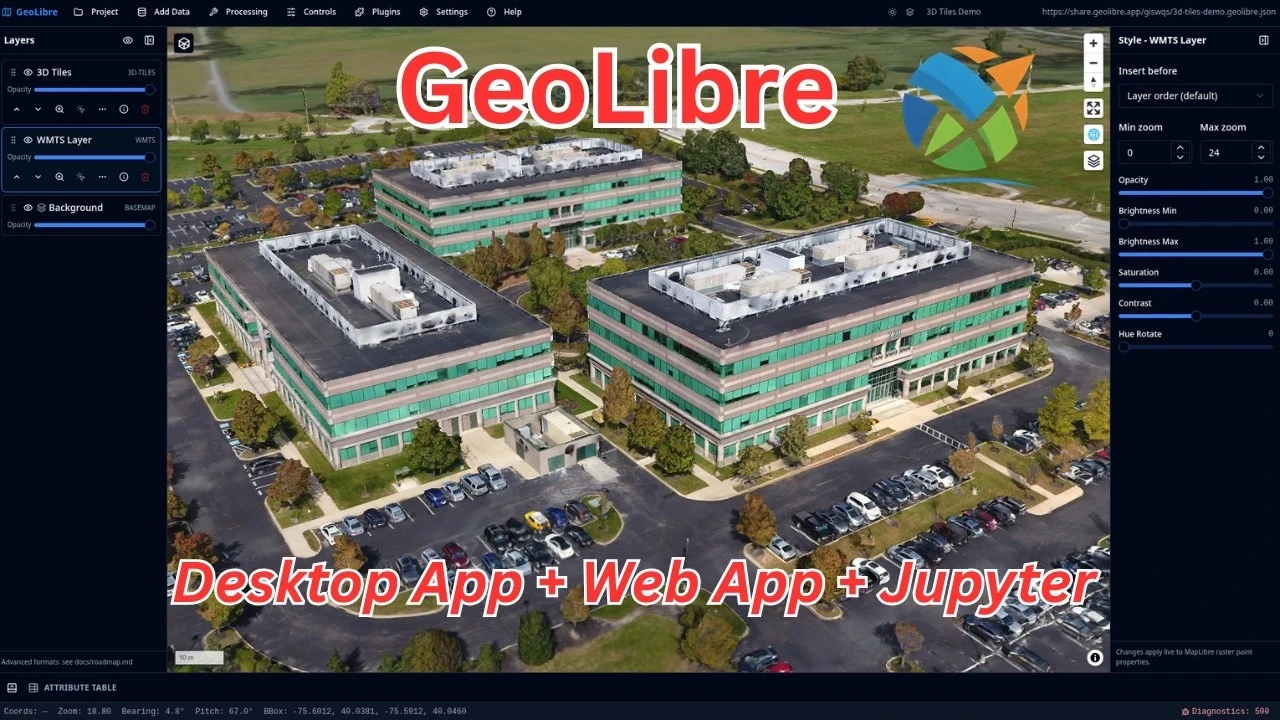
3D Tiles
NYC buildings and subways
Manhattan building footprints extruded in 3D and colored by construction era, with the MTA subway lines and stations on top and a legend generated automatically from the layers' symbology.
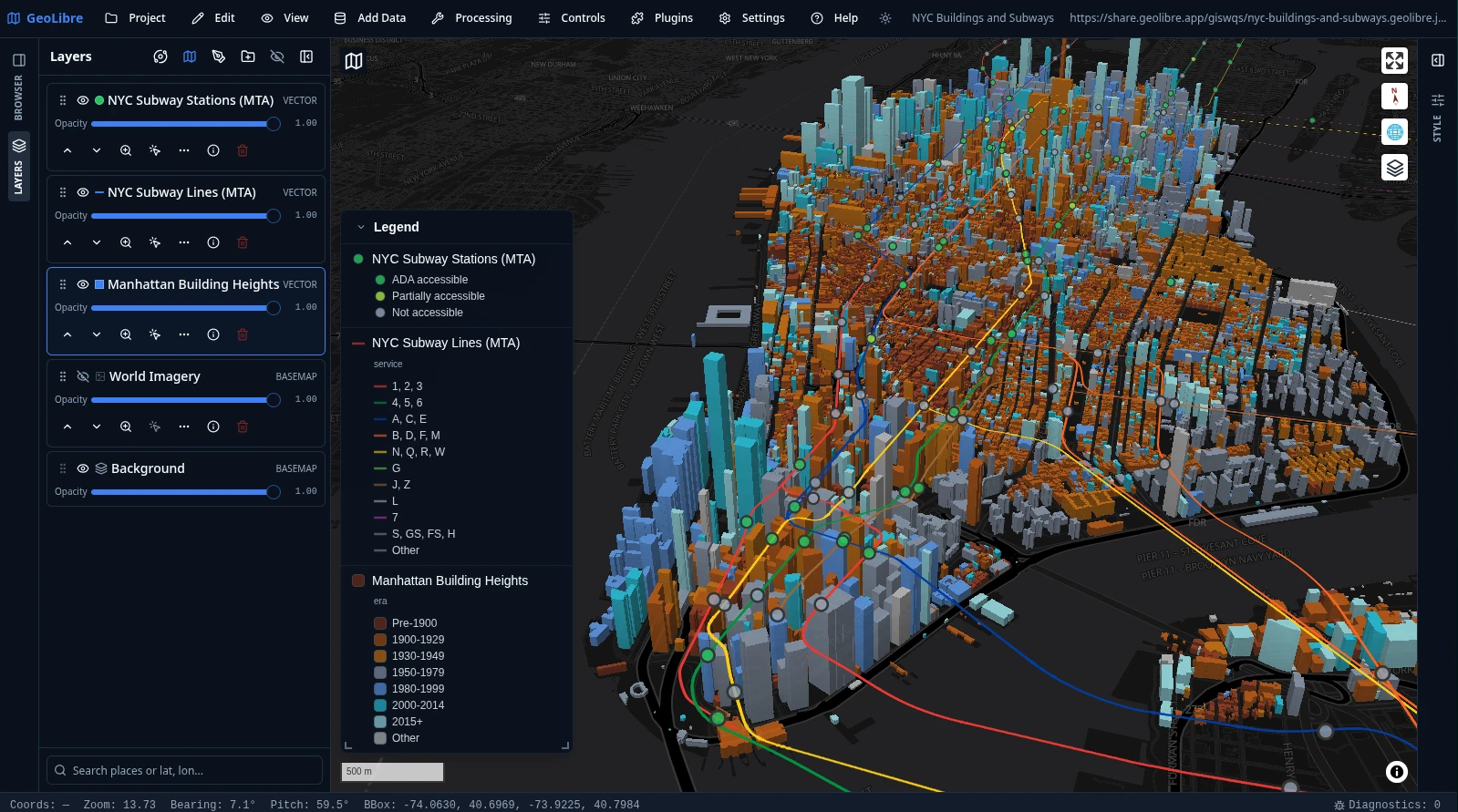
The animation below runs the Time Slider along the buildings' construction year, from 1850 to 2025, so Manhattan fills in era by era. Click it to play the full-quality video.
Planetary basemaps
GeoLibre is not limited to Earth. Planetary basemaps from OpenPlanetaryMap and USGS Astrogeology cover the Moon, Mars, Mercury, Venus, the Galilean moons (Io, Europa, Ganymede, Callisto), Titan, Pluto, and Charon, with a per-project ellipsoid so distance, area, and scale measurements match the body you are mapping. The deep-space starfield behind each globe comes from the Atmosphere Effects plugin.
| Earth | Moon | Mars |
| Mercury | Pluto | Venus |
| Europa | Callisto | Charon |
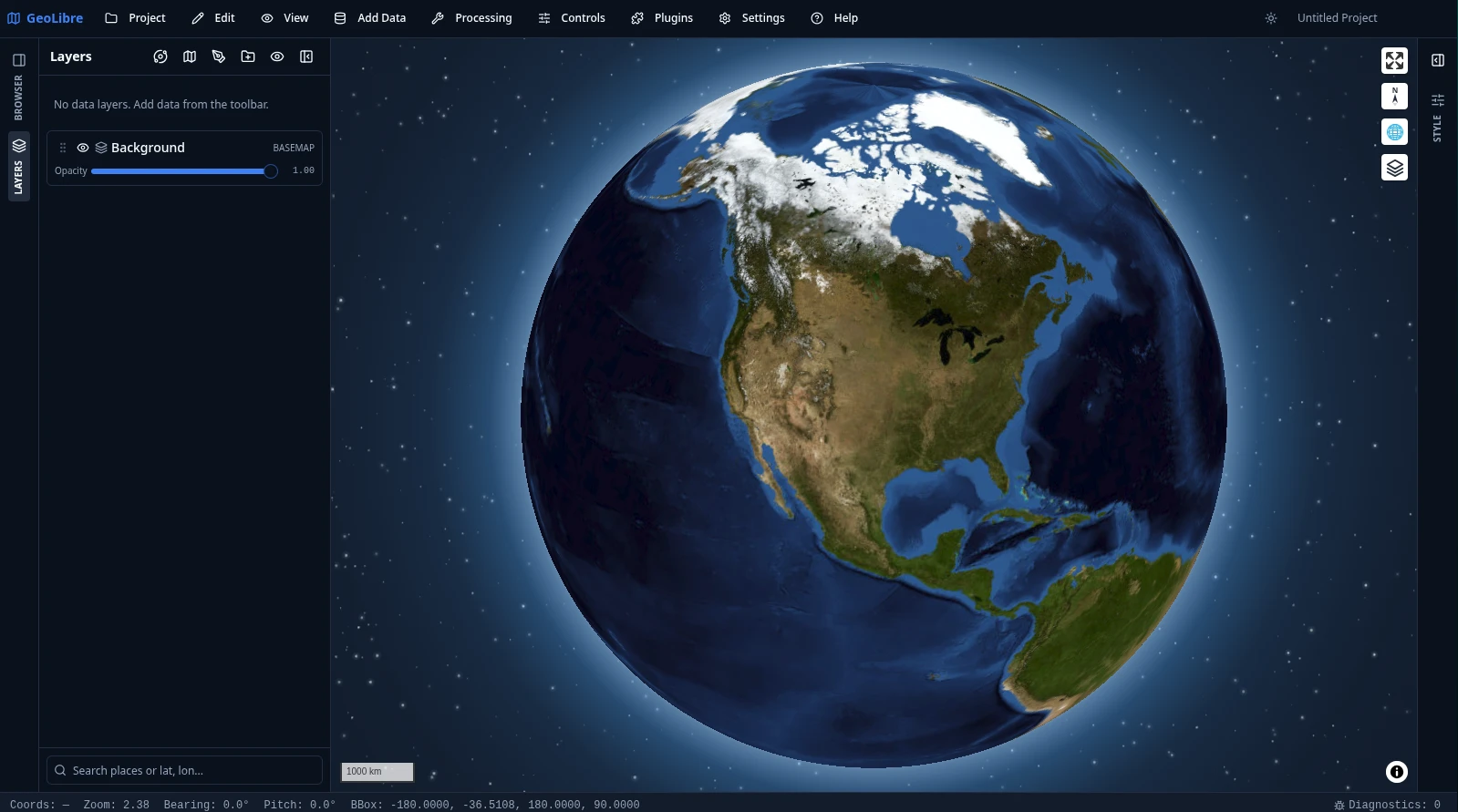
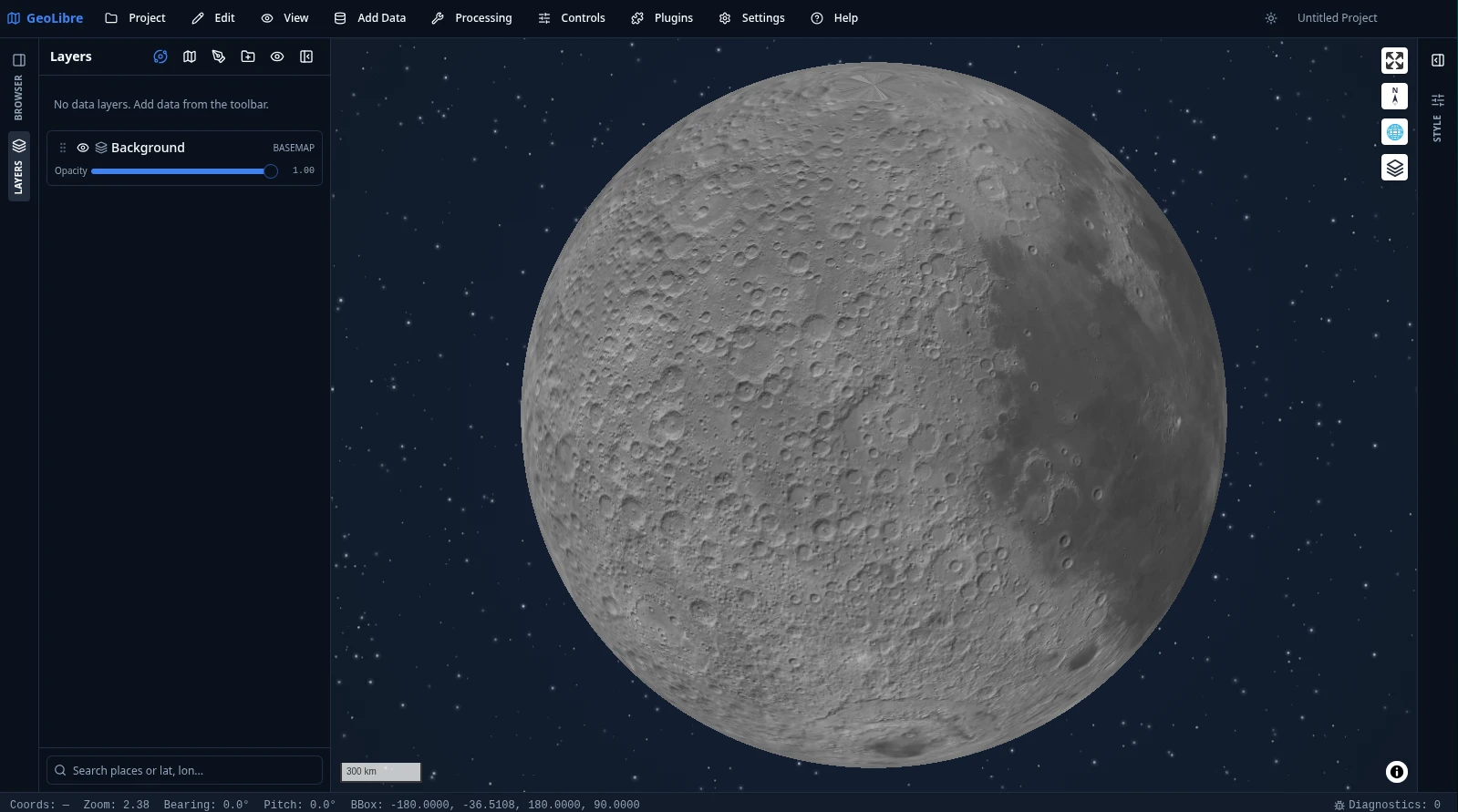
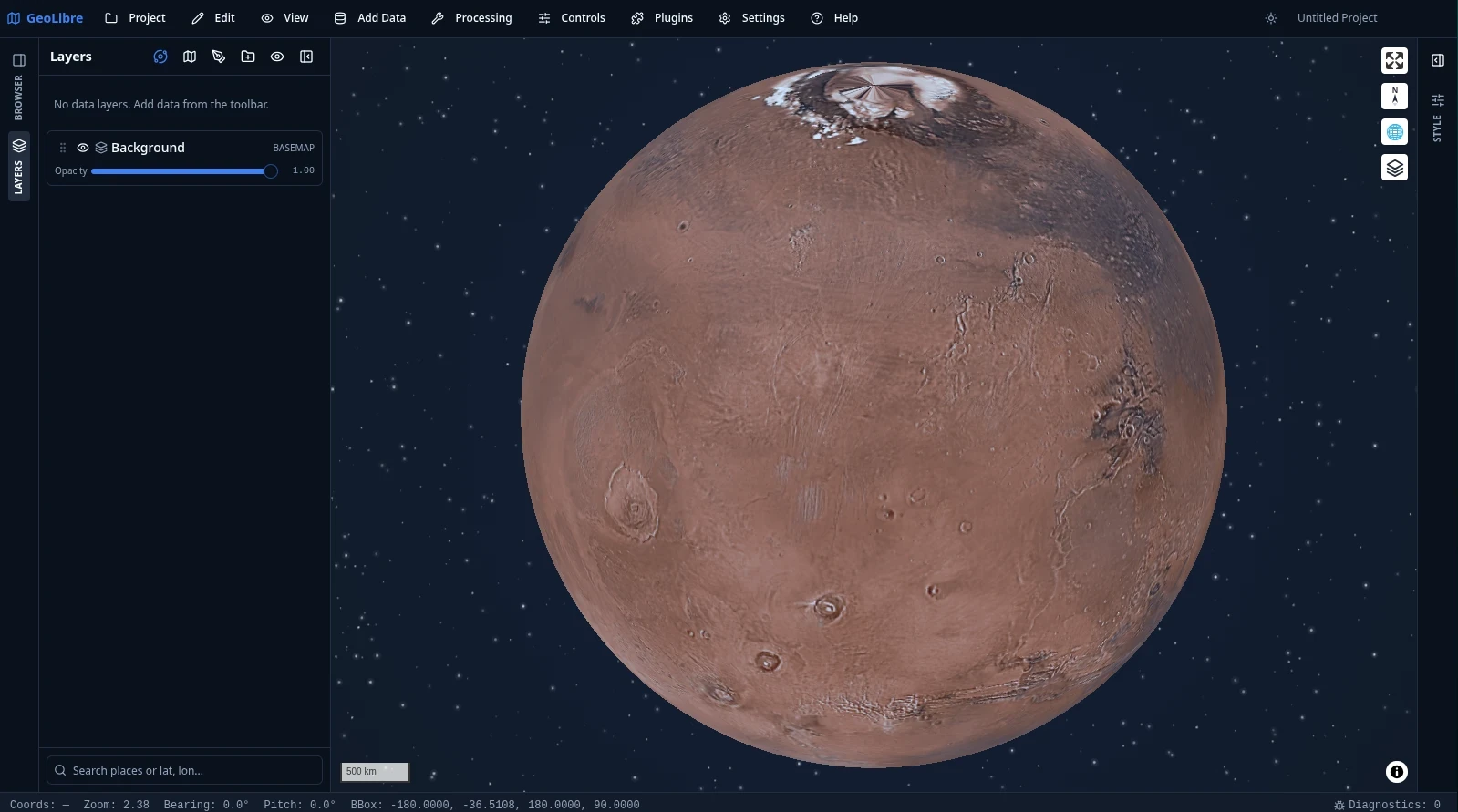
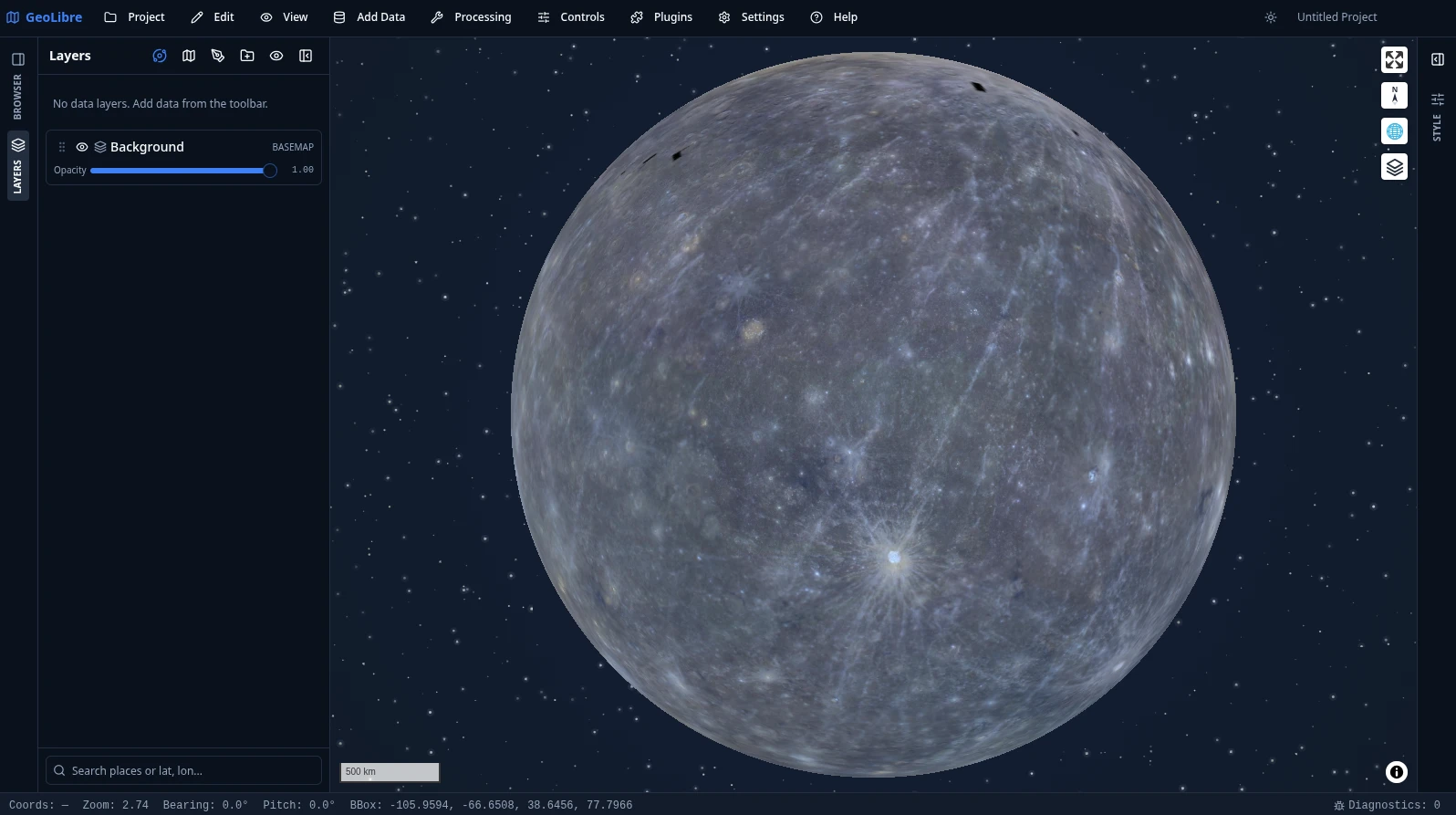
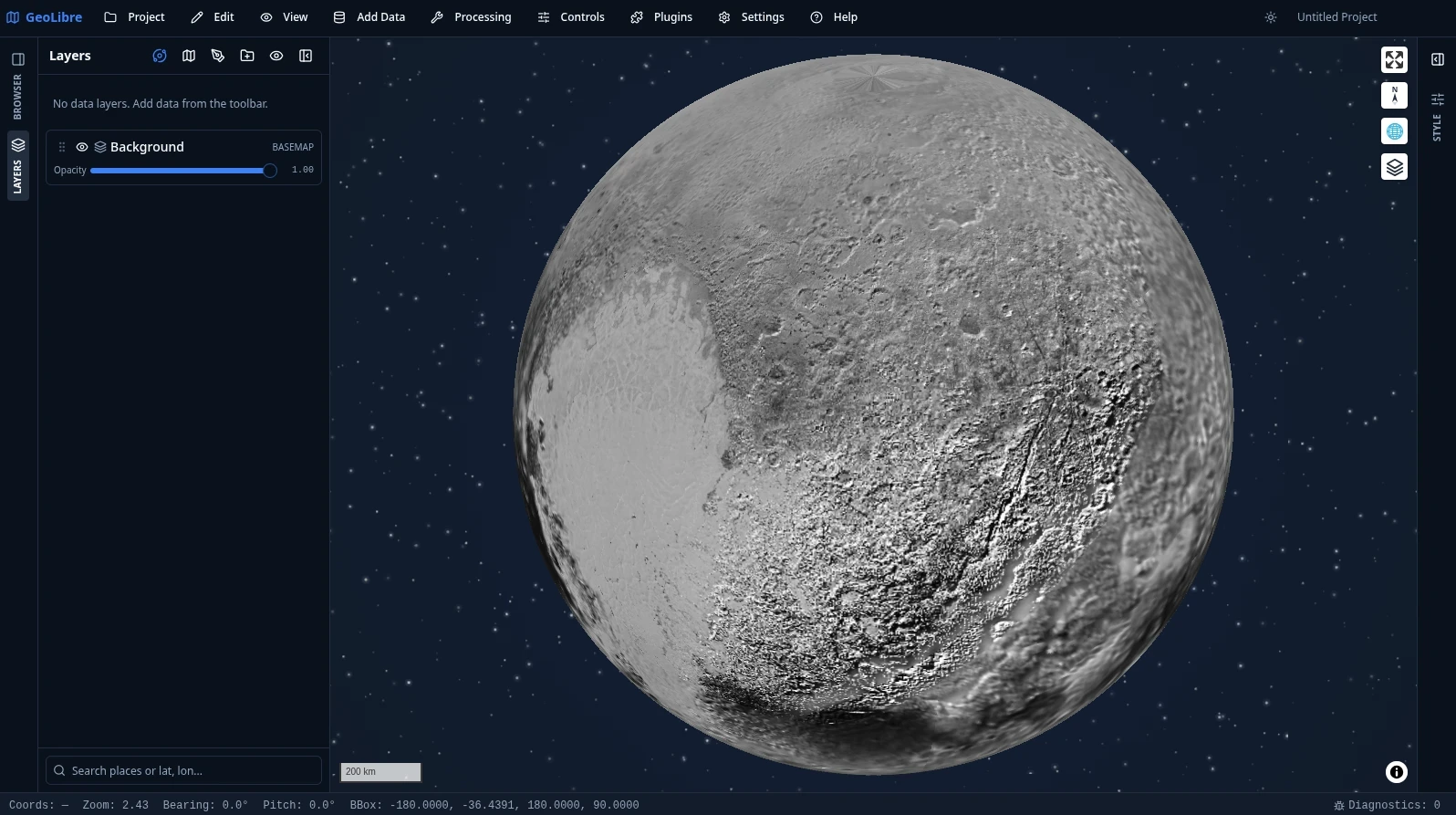
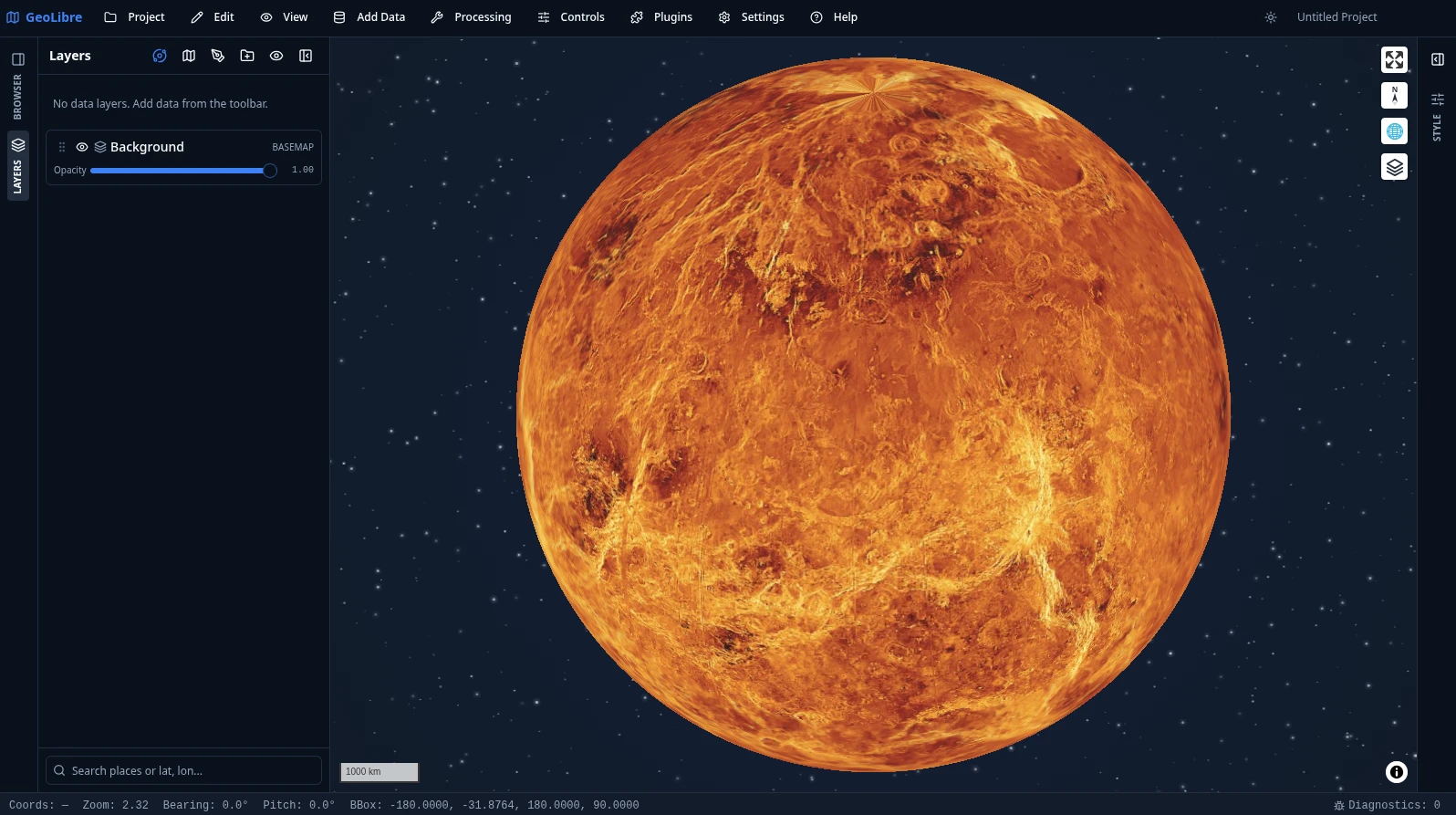
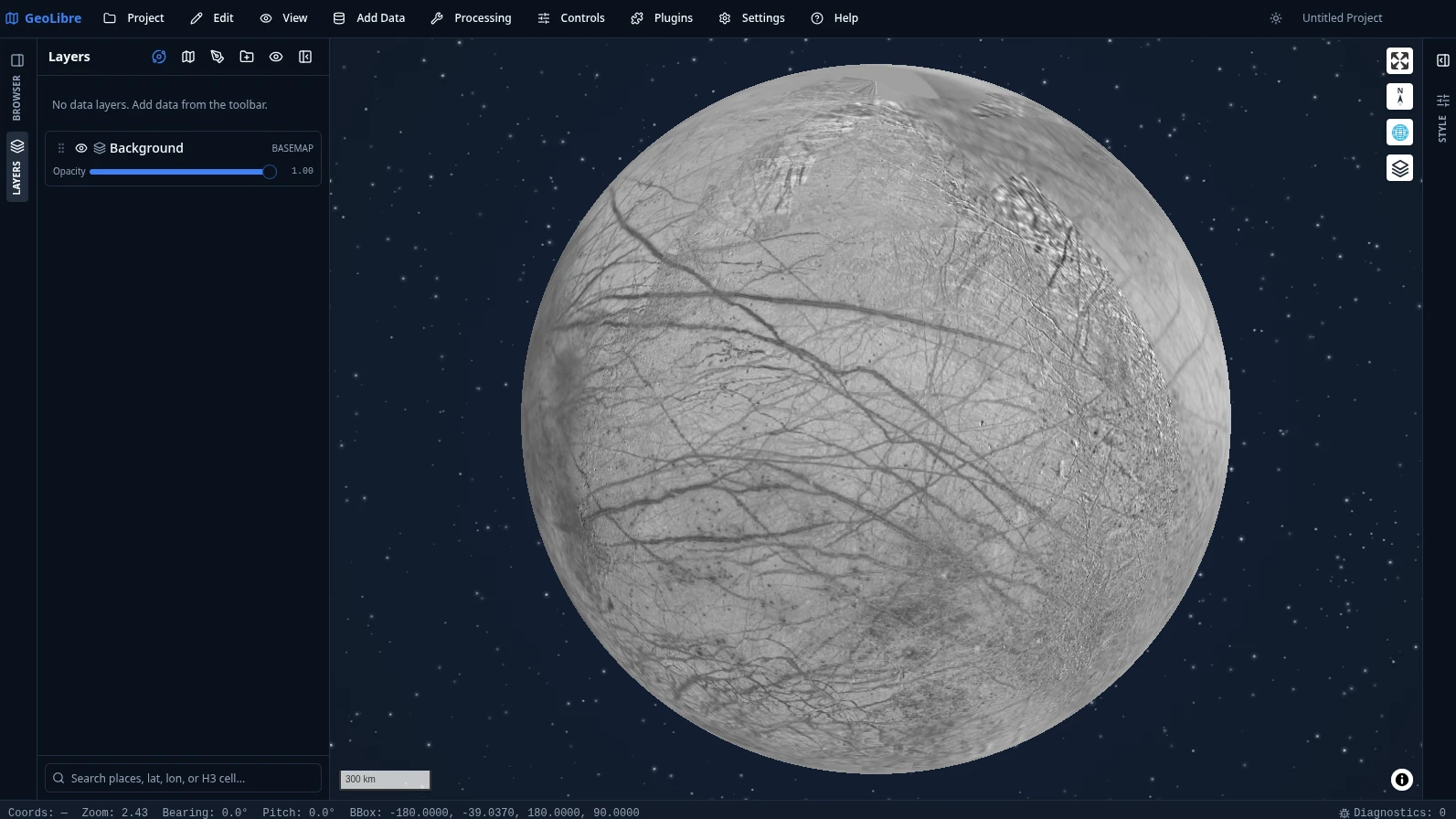
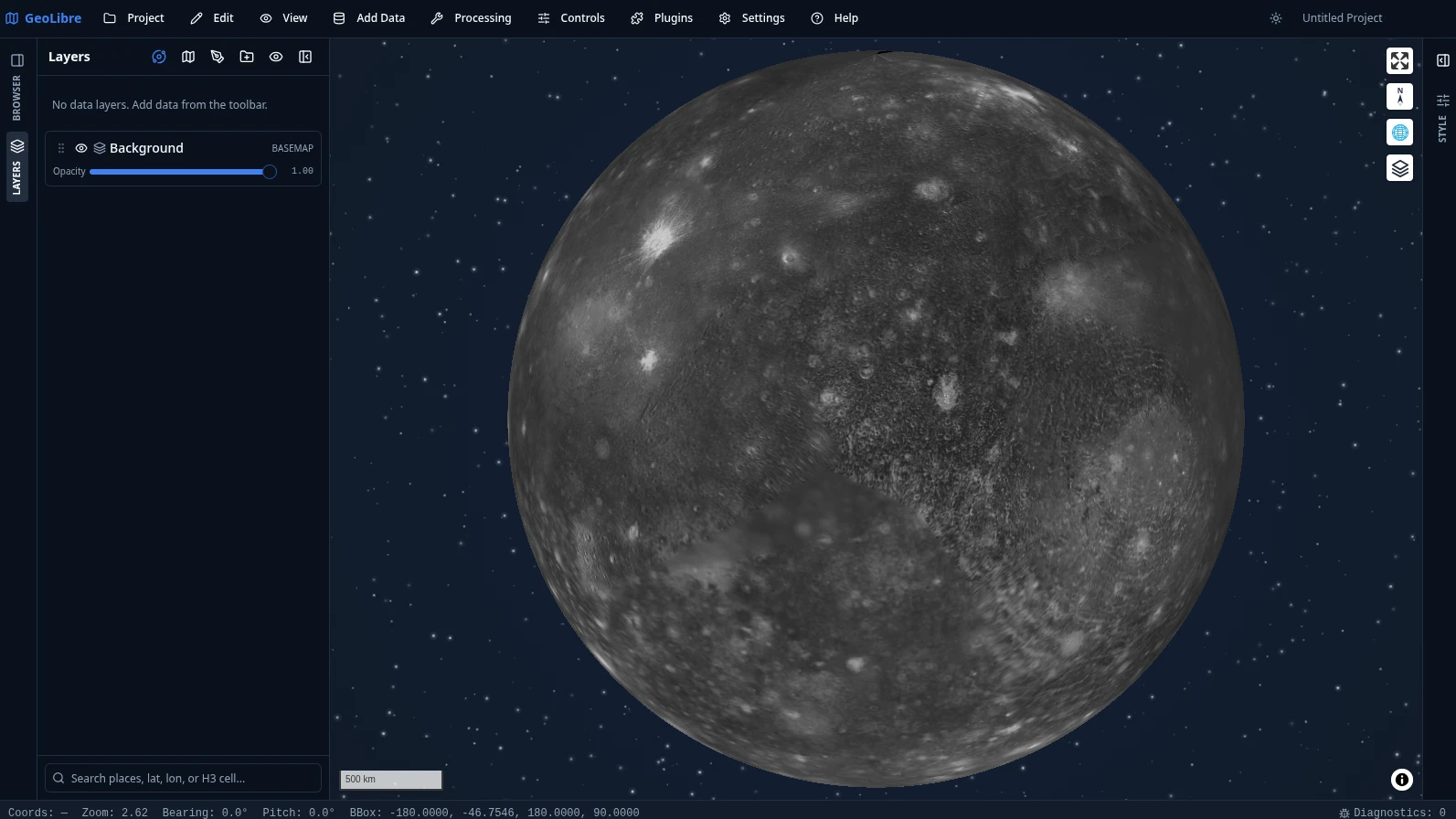
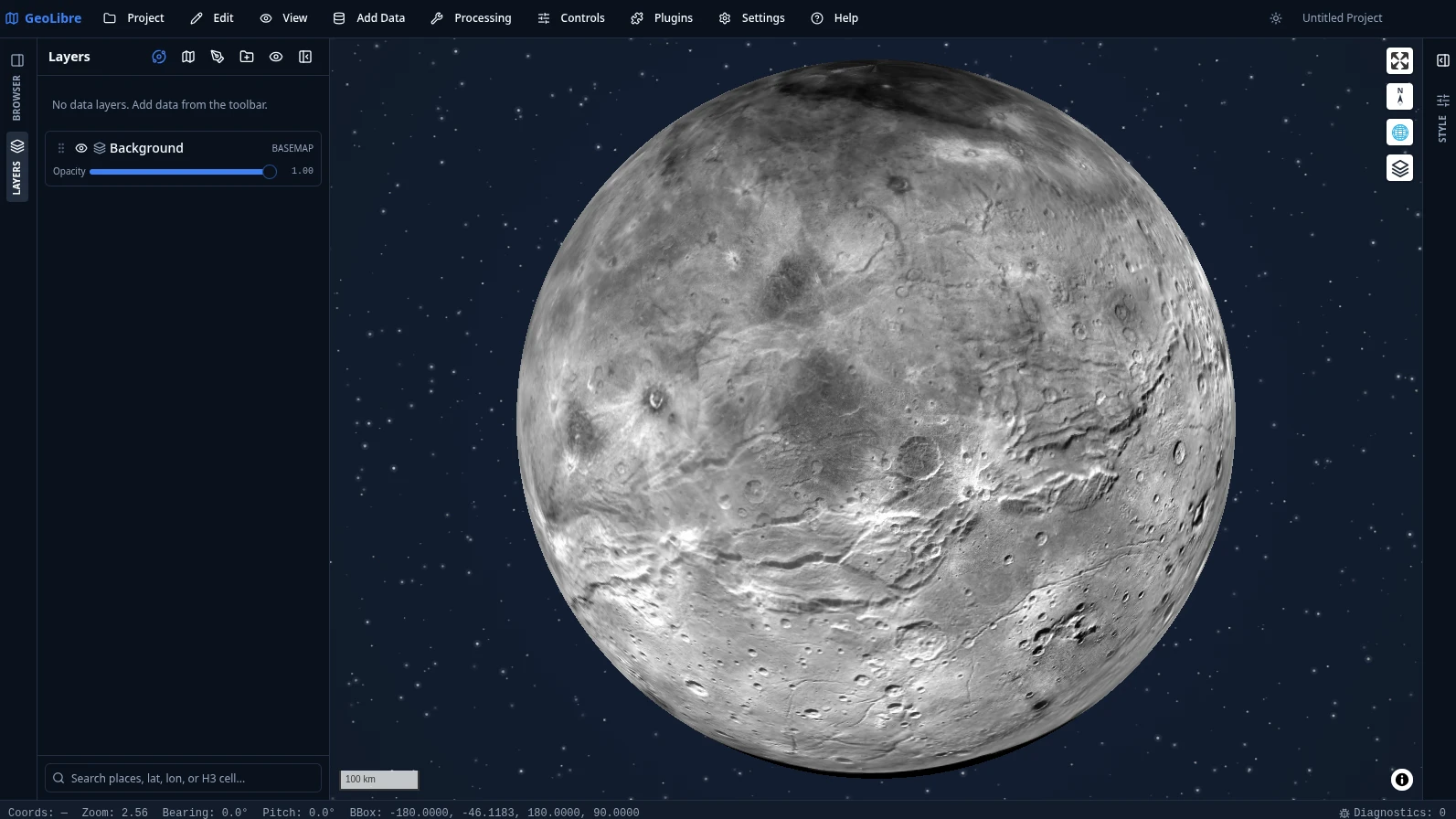
Switch bodies from the planet switcher in the Layers panel. See Demos for more.
Video tutorials
- GeoLibre 1.0: A Free, Open-Source Cloud-Native GIS That Runs Anywhere (Browser, Desktop & Jupyter)
- Geoprocessing in the Browser: 700+ Free GIS Tools in GeoLibre, Zero Install
- GeoLibre + GeoLens: A Modern GIS Stack for Self-Hosting Geospatial Data
Geoprocessing: 1,000+ tools, zero install
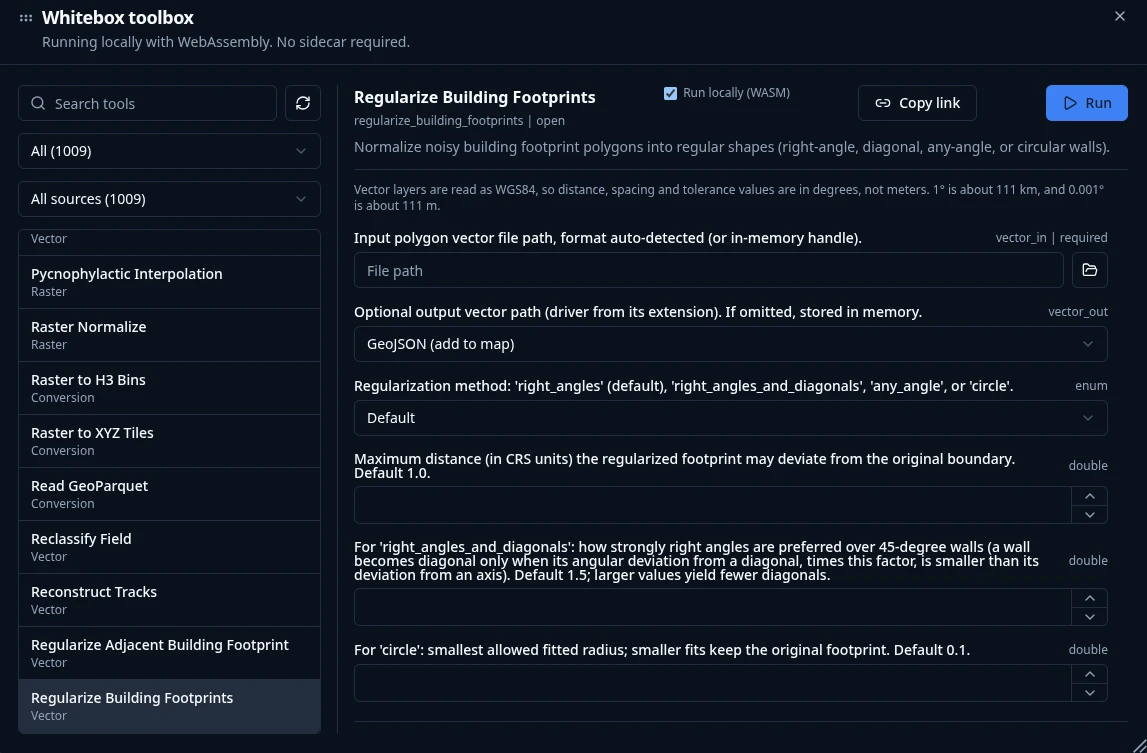
Processing → Whitebox Toolbox opens a toolbox of 1,000+ geoprocessing tools that
execute in the browser through a WebAssembly runtime with native raster and
vector I/O. There is no Python sidecar to install and no server to call — the
tools, your data, and the results all stay on your machine, so the full toolbox
is available on GeoLibre Web, on the desktop app,
and on Android alike.
The tools come from the Whitebox Next Gen
suite plus GeoLibre's own WASM tools, and are browsable by category straight from
the Processing menu:
| Category | Tools | Examples |
|---|---|---|
| Vector | 313 | overlays, buffers, joins, cleaning, topology, generalization |
| Raster | 256 | algebra, filters, reclassification, zonal and focal statistics |
| Remote sensing | 154 | spectral indices, band math, classification, change detection |
| Hydrology | 100 | flow accumulation, watersheds, stream networks, depression filling |
| Terrain | 99 | slope, aspect, hillshade, curvature, ruggedness, viewsheds |
| LiDAR | 65 | point-cloud filtering, ground classification, DEM/DSM generation |
| Conversion | 49 | format translation to cloud-native GeoParquet, PMTiles, and COG |
| Network | 26 | connectivity, cost distance, and routing analysis |
| Projection | 4 | reprojection for raster and vector data |
Any tool is deep-linkable with a ?tool= URL parameter that preselects it and
pre-fills its form. See the Processing Tools guide
for details, and Geoprocessing in the Browser for
a video walkthrough.
Documentation
Full documentation, including the User Guide and Tutorials, is published at
geolibre.app.
- Getting Started - use GeoLibre on the web, desktop, Android, iOS, or in Jupyter; run it from source; run it with Docker; and configure optional credentials.
- Features - the complete, feature-by-feature list of what GeoLibre can do today.
- Demos - a visual tour: 3D Tiles, 3D city data, planetary basemaps, the SQL Workspace, and embeds.
- Downloads - installers and package managers for Windows, macOS, and Linux.
- User Guide - a feature-by-feature reference for the interface, adding data, layers, styling, the attribute table, map controls, processing, the SQL Workspace, data integrations, plugins, settings, and embedding.
- Tutorials - hands-on, end-to-end workflows: your first map, cloud-native data, vector analysis, terrain analysis, spatial SQL, and sharing and embedding.
- Reference
Contributions are welcome. See the Contributing guide
for the development setup, repository layout, and quality gate.
Sponsor
GeoLibre is free and open source, and stays that way. If it is useful to you or your team, sponsorship is the most direct way to keep development, hosting, and cross-platform distribution going.
- GitHub Sponsors - monthly or one-time, billed through your GitHub account.
- Buy Me a Coffee - a quick one-off contribution, no account required.
See the Become a Sponsor page for what sponsorship supports and for other, free ways to help.
Acknowledgements
GeoLibre is built on the free and open-source geospatial and web communities — including MapLibre GL JS, deck.gl, DuckDB-WASM Spatial, Turf.js, Tauri, React, and many more. See the full Acknowledgements page for the complete list of projects and community contributors.
- The Atmosphere Effects plugin (deep-space backdrop, parallax starfield, comets, and the globe atmosphere halo) adapts the technique and visual design from Leonel Dias's article Globe atmosphere, halo, and comets — the layered Canvas 2D approach, the halo gradient and "screen" blend, the limb-sampling that keeps the halo aligned under pitch, and the starfield/comet parameters.
- Community contributors — thanks to Ryanphoenix for many valued contributions, including issue reports, feedback, and improvements.
- Beta testers — thanks to René van der Velde (Netherlands) for early testing, detailed bug reports, and feature requests.
Citation
If you use GeoLibre in your work, please cite it. GeoLibre is archived on Zenodo, which mints a DOI for every release. The concept DOI below always resolves to the latest version.
Wu, Q. (2026). GeoLibre: A lightweight, cloud-native GIS platform for visualizing, exploring, and analyzing geospatial data. Zenodo. https://doi.org/10.5281/zenodo.20785400
You can also use GitHub's "Cite this repository" button (which reads CITATION.cff) to copy a ready-made APA or BibTeX entry. See the How to Cite page for more formats.
License
File: apps/geolibre-desktop/public/plugins/README.md
Bundled plugins (drop-in folder)
Drop a plugin here to bake it into the GeoLibre build. It loads
automatically on startup with no Settings entry and no manifest URL — on both
the web build and the desktop build (the desktop app ships the same
frontend, so one folder serves both).
Layout
One folder per plugin, named by its plugin id, with a plugin.json at its root
(the exact same content a manifest URL would serve):
public/plugins/
  my-plugin/
    plugin.json        # { "id", "name", "version", "entry", "style"? }
    dist/
      index.js         # the "entry" referenced by plugin.json
      style.css        # the optional "style" referenced by plugin.json
entry and style in plugin.json are resolved relative to the manifest, so
keep them inside the plugin's own folder.
How it works
The bundledPlugins() Vite plugin
(apps/geolibre-desktop/vite-plugins/bundled-plugins.ts) scans this directory
at build and dev-server start and exposes the discovered manifest paths via thevirtual:bundled-plugins module. usePlugins.ts turns those into origin-absolute
URLs and loads them through the normal external-plugin path (fetch → blob import
→ register). Adding or removing a plugin is just adding or removing a folder —
no code changes.
Discovery happens at build time, so a dev server or production build must be
(re)started after adding, updating, or removing a plugin folder.
Private plugins
The bundles are git-ignored (see .gitignore) so private plugin code stays
out of this repo's history. Copy the plugin folder in at build/deploy time (for
example, in CI before npm run build, or with a plugin repo's own install
script). The discovery code is generic and committed; only the plugin payload
is excluded.
File: backend/geolibre_server/README.md
GeoLibre Server (Python sidecar)
Optional FastAPI backend for heavy geoprocessing. Not required to run GeoLibre Desktop UI.
Install
cd backend/geolibre_server
python -m venv .venv
source .venv/bin/activate  # Windows: .venv\Scripts\activate
pip install -e .
Run
uvicorn geolibre_server.app.main:app --host 127.0.0.1 --port 8765 --reloadOr:
geolibre-serverTest
python -m pytestWhitebox runtime
Whitebox tools use a dedicated GeoLibre-managed Python environment. On first
use, the sidecar looks for uv; if it is not available, it downloads the
official uv standalone installer and installs uv into the GeoLibre runtime cache.
It then creates a Whitebox virtual environment and installswhitebox-workflows.
Useful overrides:
GEOLIBRE_RUNTIME_DIR=/path/to/cache
GEOLIBRE_UV=/path/to/uv
GEOLIBRE_UV_DIR=/path/to/managed-uv
GEOLIBRE_WHITEBOX_ENV=/path/to/whitebox-venv
GEOLIBRE_WHITEBOX_PACKAGE='whitebox-workflows>=2.0.2'
WBW_EXTERNAL_PYTHON=/path/to/python
Conversion runtime
The Processing → GeoLibre Toolbox → Conversion menu uses a dedicated managed
runtime (DuckDB + rio-cogeo + freestiler), bootstrapped the same way as Whitebox:
the sidecar finds or installs uv, creates a virtual environment, and installs
the conversion packages on first use.
- Vector → GeoParquet and CSV → GeoParquet also run entirely in the
browser with DuckDB-WASM, so they work in the web build with no sidecar. - Vector → FlatGeobuf, Vector → PMTiles, and Raster → COG have no
in-browser writer and require the sidecar.
To enable them, install the optional extras and run the sidecar:
pip install -e ".[conversion]"
geolibre-server
For the web build, serve the app from localhost:5173 — CORS is restricted
to that origin and the Tauri origins, so other ports cannot reach the sidecar.
Useful overrides:
GEOLIBRE_CONVERSION_PYTHON=/path/to/python   # reuse an existing env (skip bootstrap)
GEOLIBRE_CONVERSION_ENV=/path/to/venv        # managed runtime location
GEOLIBRE_CONVERSION_PACKAGES='duckdb>=1.1.0 rio-cogeo>=5.0.0 freestiler>=0.1.0'  # whitespace-separated
GEOLIBRE_CONVERSION_ROOTS=/data:/srv/geo      # confine inputs/outputs to these roots (os.pathsep-separated; unset = no restriction)
When the sidecar is reachable by untrusted same-origin content (e.g. the
bundled Docker image), set GEOLIBRE_CONVERSION_ROOTS so conversions cannot
read or overwrite arbitrary filesystem paths. It is unset by default for the
desktop app, where paths are the user's own filesystem.
Spatial SQL runtime (Apache Sedona)
The Apache Sedona engine of the SQL Workspace runs Sedona spatial SQL on
SedonaDB (the single-node Rust engine)
through the /sql endpoints. It is an optional extra:
pip install -e ".[sedona]"   # 'apache-sedona[db]' + geopandas + shapely
geolibre-server
The sidecar reports availability through /sql/status. When the extra is not
installed (or the sidecar is not running), the SQL Workspace falls back to the
in-browser CereusDB engine — a WebAssembly
build of SedonaDB — so the Apache Sedona engine works with no sidecar too./sql/run registers each posted layer as a named view, runs one statement, and
returns rows (geometry as WKT) plus a GeoJSON FeatureCollection when the result
has a geometry column.
PostGIS connections
The optional PostGIS endpoints are disabled until their database destinations
are explicitly allowed. Set GEOLIBRE_POSTGIS_HOSTS to a comma-separated list
of exact hostnames or IP addresses before starting the sidecar:
GEOLIBRE_POSTGIS_HOSTS='db.internal,db.example.com:5433,[2001:db8::10]:5432'
geolibre-server
An entry without a port allows that host on any port; include :port to
restrict it. IPv6 entries must be bracketed either way ([2001:db8::10]),
since an unbracketed 2001:db8::10:5432 is itself a valid address rather than
an address and a port. Every host in a libpq failover connection string must be allowed.
Implicit local connections, Unix sockets, service=, and hostaddr=
connection strings are rejected so they cannot bypass the allowlist.
Set it to * — on its own, since mixing it with hosts reads as a narrowing but
is not one — to lift the restriction and accept any connection string. The
desktop app passes * when it spawns its own sidecar — that one is
loopback-bound, token-authenticated, and serves the single user who is also its
operator. Setting the variable before launching the desktop app overrides that
default, so a desktop user can still narrow it. A deployment where the sidecar
is reachable by untrusted same-origin content (the bundled Docker image) leaves
it unset, and PostGIS stays off until an operator lists the databases.
Endpoints
| Method | Path | Description |
|---|---|---|
| GET | /health |
Health check |
| GET | /algorithms |
List algorithms |
| POST | /run |
Run algorithm (501 placeholder) |
| GET | /conversion/status |
Conversion runtime availability |
| POST | /conversion/vector-to-geoparquet |
Vector → Hilbert-sorted GeoParquet |
| POST | /conversion/vector-to-flatgeobuf |
Vector → Hilbert-sorted FlatGeobuf |
| POST | /conversion/csv-to-geoparquet |
CSV (lon/lat) → GeoParquet |
| POST | /conversion/vector-to-pmtiles |
Vector → PMTiles (freestiler) |
| POST | /conversion/raster-to-cog |
Raster → Cloud Optimized GeoTIFF |
| GET | /conversion/jobs/{id} |
Conversion job status |
| GET | /sql/status |
Spatial SQL (SedonaDB) availability |
| POST | /sql/run |
Run Sedona spatial SQL over registered layers |
| GET | /ml/status |
Segmentation backend availability + models |
| POST | /ml/segment/text |
Text-prompt segmentation (SAM 3) |
| POST | /ml/segment/automatic |
Automatic mask generation |
| POST | /ml/segment/predict |
Box/point prompt segmentation |
AI segmentation runtime (SamGeo / SAM 3)
The /ml endpoints back GeoLibre's AI segmentation toolbox. They are a thin
reverse-proxy in front of a separate samgeo-api server (the REST server
shipped with segment-geospatial),
which runs SAM 3 and returns GeoJSON. The heavy model stack (PyTorch + SAM 3) is
not imported into this sidecar; install and run it on its own (ideally on a
GPU host):
# the model server (in an env with a working PyTorch build)
pip install "segment-geospatial[api,samgeo3]"
# the sidecar's ml extra (just an HTTP client)
pip install -e ".[ml]"
samgeo-api is launched on demand when it is on the PATH, otherwise the proxy
returns available: false with an actionable message. The desktop app runs the
sidecar in a managed (uv) environment that includes the ml extra but notsegment-geospatial, so samgeo-api is not on its PATH; launch the desktop
app with GEOLIBRE_ML_SAMGEO_URL set to an external samgeo-api (the spawned
sidecar inherits the app's environment). Configuration:
| Variable | Purpose |
|---|---|
GEOLIBRE_ML_SAMGEO_URL |
Proxy to an already-running samgeo-api (no child process is launched). |
GEOLIBRE_ML_SAMGEO_CMD |
Command to launch samgeo-api on demand (default samgeo-api). |
GEOLIBRE_ML_DEFAULT_MODEL |
Model the UI defaults to (default sam3). |
Each /ml/segment/* request takes a multipart file plus model_version
(default sam3) and output_format (default geojson).
Future stack
The sidecar will further integrate (see docs/roadmap.md):
- Leafmap — notebook-style geospatial utilities
GDAL/Rasterio (raster tools), GeoPandas (vector engine), DuckDB Spatial
(conversion), WhiteboxTools, Apache Sedona (spatial SQL), and GeoAI/SamGeo
segmentation now ship as optional extras (raster, vector, conversion,whitebox, sedona, ml).
Tauri will bundle the sidecar as an externalBin in a later release.
File: docs/tutorials/cloud-native-data.md
Cloud-Native Data
GeoLibre is built for cloud-native geospatial formats: GeoParquet and FlatGeobuf for vector, Cloud-Optimized GeoTIFF (COG) for raster, and PMTiles for tiles. This tutorial loads them from remote URLs and converts a local dataset.
Load a remote GeoParquet
GeoParquet is a compressed, columnar vector format that reads well over HTTP.
- Open Add Data → GeoParquet Layer (or Vector Layer).
- Enter a GeoParquet URL, for example:text
https://data.source.coop/giswqs/opengeos/countries.parquet - To avoid copying a large file into memory, enable Stream GeoParquet (no copy), which queries it in place with HTTP range requests. This works best for large remote files whose rows are spatially sorted (for example, Hilbert order, as written by GeoLibre's own Conversion tools), so only the relevant row groups are fetched.
- Click Load.
Load a FlatGeobuf
FlatGeobuf is a streaming-friendly vector format with a spatial index.
- Open Add Data → FlatGeobuf Layer.
- Enter a
.fgbURL and load it. GeoLibre fetches only the features in view where the format allows.
Load a COG
A Cloud-Optimized GeoTIFF is a regular GeoTIFF organized so clients can read just the tiles they need.
- Open Add Data → Raster Layer.
- Enter the URL of a COG (
.tif) and load it. You can then adjust brightness, contrast, saturation, and hue in the Style panel.
!!! tip "Drag and drop"
You can also drag a local GeoTIFF or COG onto the map to add it as a raster layer. See Adding Data.
Convert local data to cloud-native
Use Processing → GeoLibre Toolbox → Conversion to write cloud-native files. See Processing Tools.
- Vector to GeoParquet and CSV to GeoParquet run in the browser with DuckDB-WASM.
- Vector to FlatGeobuf, Vector to PMTiles, and Raster to COG run on the Python sidecar (desktop app).
For example, to publish a local GeoJSON as GeoParquet:
- Open Processing → GeoLibre Toolbox → Conversion → Vector to GeoParquet.
- Choose the input file and an output path.
- Run the conversion, then add the resulting GeoParquet back to the map to verify it.
Next steps
- Query these formats directly in Spatial SQL; the SQL Workspace reads Parquet, CSV, JSON, and GeoJSON from URLs.
- Animate a time series of COGs with the Time Slider plugin. See Data Integrations.
File: docs/tutorials/first-map.md
Your First Map
This tutorial takes you from an empty workspace to a styled map with inspectable data, in a few minutes. You can do all of it in the live viewer.
1. Open GeoLibre
Open web.geolibre.app, or launch the desktop app. You start with a basemap and an empty Layers panel.
2. Add a layer
- Open Add Data → Vector Layer.
- In the Add Vector panel, enter a vector URL. You can use the sample countries dataset:text
https://data.source.coop/giswqs/opengeos/countries.parquet - Click Load. The countries appear on the map and a
countrieslayer is added to the Layers panel.
See Adding Data for every supported source.
3. Style the layer
- Select the
countrieslayer in the Layers panel, then expand the Style panel on the right if it is collapsed. - Adjust the Fill color, Outline color, and Fill opacity to taste.
- To make a choropleth, set Style type to Graduated, pick a numeric field (for example a population or GDP column), choose a Colormap, and click Apply style type.
4. Inspect the data
- Click Attribute table on the status bar to expand it, then select the
countrieslayer to load its records. See Attribute Table. - Sort by a column, or filter to find a feature. Selecting a row highlights it on the map.
- You can also turn on Identify features for the layer and click a country on the map to see its attributes in a popup.
5. Save or share
- In the desktop app, use Project → Save to write a
.geolibre.jsonfile. - Anywhere, use Project → Share to upload the project and get a public link. See Sharing & Embedding.
Next steps
- Load cloud-native and remote formats in Cloud-Native Data.
- Run geometry tools in Vector Analysis.
- Query your data in Spatial SQL.
File: docs/tutorials/index.md
Tutorials
These tutorials walk through common GeoLibre workflows end to end. Each one is short, builds on the User Guide, and links back to the reference pages for the features it uses.
Before you start
- You can follow most tutorials in the live viewer at web.geolibre.app, which is the browser build of GeoLibre. No installation required.
- A few steps need the desktop app: opening and saving project files, reading local MBTiles and rasters, and the Python sidecar tools (raster processing and sidecar conversions). These are called out where they appear. See Downloads to install. The Whitebox geoprocessing toolbox is not among them — its 1,000+ tools run in the browser on WebAssembly.
- The sample dataset used in several tutorials is a public GeoParquet file of world countries:
https://data.source.coop/giswqs/opengeos/countries.parquet.
The tutorials
| Tutorial | You will learn to |
|---|---|
| Your First Map | Add a layer, style it, inspect attributes, and save. |
| Cloud-Native Data | Load remote GeoParquet, FlatGeobuf, and COG, and convert local data. |
| Vector Analysis | Buffer and overlay layers, then export the result. |
| Terrain Analysis | Derive hillshade, slope, and contours from a DEM. |
| Spatial SQL | Query data with DuckDB Spatial and map the results. |
| Sharing & Embedding | Share a project and embed it in a web page. |
Work through them in order for a guided tour, or jump to the one that matches your task.
Video tutorials
- GeoLibre 1.0: A Free, Open-Source Cloud-Native GIS That Runs Anywhere (Browser, Desktop & Jupyter)
- Geoprocessing in the Browser: 700+ Free GIS Tools in GeoLibre, Zero Install
- GeoLibre + GeoLens: A Modern GIS Stack for Self-Hosting Geospatial Data
File: docs/tutorials/sharing-embedding.md
Sharing & Embedding
Once you have a map you like, you can publish it as a public link and embed it in any web page. This tutorial covers both. See Embedding & Sharing for the full reference.
1. Set your share token
Sharing uploads to share.geolibre.app using a personal API token.
- Open Settings → Environment Variables.
- Paste your token into the Share.GeoLibre API token field. Create one under Settings → API tokens at share.geolibre.app/settings.
You only need to do this once.
2. Share the project
- Build your map: add layers, style them, and set the map view you want viewers to land on.
- Open Project → Share....
- Confirm the project title and upload. GeoLibre returns a public URL to a
.geolibre.jsonfile, for example:texthttps://share.geolibre.app/you/my-map.geolibre.json
The shared file captures the same layers, styles, plugin state, and map view as a local save.
3. Open the shared map
Anyone can open the shared project in the live viewer by passing it as the url parameter:
https://web.geolibre.app/?url=https://share.geolibre.app/you/my-map.geolibre.json4. Embed it in a page
Use an `` and the embed parameters to control the chrome. For a clean, map-only embed:
Adjust the look with parameters (they combine):
maponlyhides all chrome, leaving only the map.layout=viewergives a read-only map: Layers, View, Controls, basemaps, and
search/identify stay, while everything that edits the project is hidden.layout=compactkeeps a slim, icon-only toolbar.toolbar=nonehides the top toolbar while keeping panels and the status bar.panels=nonehides the side and bottom panels but keeps the toolbar.theme=darkforces the dark theme on load.
Reach for layout=viewer when readers should be able to toggle layers and
explore the data but not change it, and maponly when the map is a figure in
your page rather than something to interact with.
See the full parameter table.
5. Drive the map from your page
URL parameters configure the embed once, at load. To keep talking to it — fly to
the record someone just clicked in your own UI, and hear what they do inside the
map — install the typed client:
npm install @geolibre/embedimport { connect } from "@geolibre/embed";
const map = await connect(document.querySelector("iframe"), {
origin: "https://web.geolibre.app",
});
map.on("selectionChanged", ({ featureIds }) => showRecordFor(featureIds[0]));
async function focusField(field) {
await map.setView({ bbox: field.bbox });
await map.highlightFeature({ layerId: "fields", filter: { parcel_id: field.id }, fit: true });
}This works only against a deployment that has allowlisted your page's origin —web.geolibre.app has not, so the runtime API is for your own hosted build. See
Talking to the map at runtime
for the allowlist, the full command list, and the raw postMessage protocol if
you would rather not add a dependency.
Next steps
- Tune which controls appear before sharing with the Controls menu.
- Revisit Your First Map to build the map you want to share.
File: docs/tutorials/spatial-sql.md
Spatial SQL
The SQL Workspace lets you analyze data with DuckDB Spatial SQL and add the results to the map. It runs on DuckDB-WASM, so it works in the browser as well as the desktop app. Open it from Processing → SQL Workspace.
1. Query a loaded layer
Every loaded vector layer is a queryable table. Load the sample countries layer (see Your First Map), then run:
SELECT NAME, CONTINENT, GDP_MD_EST
FROM countries
ORDER BY GDP_MD_EST DESC
LIMIT 10;
Click Run to see the ten countries with the highest estimated GDP.
!!! note "Sample dataset columns"
NAME, CONTINENT, POP_EST, and GDP_MD_EST are Natural Earth field names in the sample countries.parquet, whose geometry column is geom. A different dataset will have its own column names. To discover them, run DESCRIBE SELECT * FROM 'your-file-url' first.
2. Query a remote file directly
You do not have to load a file first. The Workspace detects a bare URL in a FROM clause and wraps it in the right reader automatically, then streams the file over HTTP range requests so you do not download it in full. This bare-URL shorthand is a SQL Workspace convenience; in the standard DuckDB CLI you would write read_parquet('https://...') explicitly.
SELECT COUNT(*) AS n
FROM https://data.source.coop/giswqs/opengeos/countries.parquet;
3. Use spatial functions
The spatial extension is loaded, so ST_* functions are available. For example, compute area and keep the geom column so the result can be mapped:
-- area is in square degrees because the data is in EPSG:4326;
-- the ranking is valid, but use ST_Area_Spheroid(geom) / 1e6 for km2.
SELECT NAME, ST_Area(geom) AS area, geom
FROM https://data.source.coop/giswqs/opengeos/countries.parquet
WHERE CONTINENT = 'Africa'
ORDER BY area DESC;
4. Add the result to the map
When a query returns a geometry column, use add to map to create a new layer from the result, optionally naming it. The result layer supports identify, selection, and the attribute table like any vector layer, and you can add several result layers at once.
5. Export
Export the query result as CSV or GeoParquet straight from the workspace. See SQL Workspace.
!!! tip "Sample queries and history"
Use the Sample queries menus to start from a working query, and the history to rerun a previous one.
Next steps
- Do equivalent geometry operations with the menu-driven Vector Analysis tools.
- Convert results to cloud-native formats in Cloud-Native Data.
File: docs/tutorials/terrain-analysis.md
Terrain Analysis
This tutorial derives terrain products from a digital elevation model (DEM): a hillshade, a slope map, and contour lines. It uses the Raster tools under Processing → GeoLibre Toolbox → Raster.
!!! note "Desktop app required"
The raster tools run on the rasterio Python sidecar, which the desktop app manages. They are not available in the browser build. See Getting Started.
1. Load a DEM
Add an elevation raster as a layer, for example a GeoTIFF or COG DEM (see Adding Data). The raster tools take a file path in and write a file path out, so a local or accessible raster works best.
2. Hillshade
- Open Processing → GeoLibre Toolbox → Raster → Hillshade.
- Choose the DEM as input and set the azimuth, altitude, and z-factor if you want to adjust the lighting.
- Run it. The shaded-relief raster is added to the map. Place it under your other layers and lower their opacity for a relief backdrop.
3. Slope and aspect
- Processing → GeoLibre Toolbox → Raster → Slope computes steepness from the DEM.
- Processing → GeoLibre Toolbox → Raster → Aspect computes the compass direction of the steepest slope.
Run either against the DEM and style the output with a colormap. Open the Colorbar from the Controls menu to show the value scale.
4. Contours
- Open Processing → GeoLibre Toolbox → Raster → Contour.
- Choose the DEM and set the contour interval (the elevation difference between lines).
- Run it to generate contour lines as a vector layer, which you can label and style like any vector data.
5. Clip to an area of interest
To restrict outputs to a study area, use Processing → GeoLibre Toolbox → Raster → Clip by extent (a bounding box) or Clip by mask layer (a vector mask). See Processing Tools.
Next steps
- Convert raster outputs to vectors with Polygonize, or write a Raster to COG for sharing. See Cloud-Native Data.
- Animate a time series of rasters with the Time Slider plugin. See Data Integrations.
File: docs/tutorials/vector-analysis.md
Vector Analysis
This tutorial runs a small vector workflow: buffer a layer, overlay it with another, and export the result. It uses the Vector tools under Processing → GeoLibre Toolbox → Vector.
1. Load input data
Add at least one vector layer (see Adding Data). For an overlay you will need two layers, for example a set of points or lines and a polygon layer to clip against.
2. Buffer a layer
- Open Processing → GeoLibre Toolbox → Vector → Buffer.
- Set Input layer to your layer.
- Set the Distance and Units (kilometers, meters, or miles).
- Choose an Engine:
- Client (Turf.js) runs in the browser with no setup.
- Sidecar (GeoPandas) runs on the Python sidecar for projection-aware distances (desktop app).
- Click Run. A buffered layer is added to the map.
!!! tip "Projection-aware distances"
The client engine buffers in geographic coordinates. For accurate metric distances over large areas, use the GeoPandas sidecar engine, which reprojects before buffering.
3. Overlay two layers
With the buffer (or any polygon layer) and a second layer, run an overlay:
- Clip keeps the part of the input that falls inside the overlay, preserving the input's attributes.
- Intersection keeps only the overlapping areas of two polygon layers.
- Difference removes the overlay's area from the input.
- Union merges two polygon layers into one (attributes are not preserved, on either engine).
- Spatial join attaches a join layer's attributes to each input feature based on a spatial relationship (intersects, within, or contains) — for example, tagging each point with the polygon that contains it. Works with any geometry type.
- Attribute join attaches a join table's attributes to each input feature where a key field matches — no geometry involved (for example, joining census statistics to boundary polygons by a shared FIPS code). It is one-to-one (the first matching join row wins); pick the key field on each side, optionally list which fields to bring over, and choose an inner or left join.
Open the tool from Processing → GeoLibre Toolbox → Vector, pick the input and overlay layers, and Run.
4. Inspect and refine
Open the Attribute table on the result layer to check the output, and adjust its style so it stands out from the inputs.
5. Export the result
To save the output as a cloud-native file, use Processing → GeoLibre Toolbox → Conversion (for example Vector to GeoParquet or Vector to FlatGeobuf). See Cloud-Native Data. You can also export records from the Attribute table or the SQL Workspace.
Next steps
- Do the same kind of analysis in SQL with Spatial SQL.
- Move to raster analysis in Terrain Analysis.
2. Official Technical Reference & Guides (opengeos/opengeos.github.io)
Open Geospatial Solutions
Introduction
The Open Geospatial Solutions (opengeos) GitHub organization hosts a collection of open-source geospatial software projects. The projects are developed by a community of geospatial software developers and researchers. The projects are maintained by the community and are free to use and modify. The projects are open-source and are licensed under the MIT license. If you are interested in hosting an open-source project with us, please submit a request on the Discussion Board. We always welcome new contributors and collaborators.
OAuth Application
Open Geospatial Solutions is the public home page for the Open Geospatial Solutions OAuth application. The app is used by OpenGeoS geospatial tools, notebooks, plugins, and web applications to let users sign in with Google and, only after user consent, connect to the Google services needed for geospatial workflows such as mapping, data access, catalog exploration, and analysis.
The app requests only the Google permissions required by the specific OpenGeoS tool a user chooses to run. User data is used to provide the requested geospatial workflow and is handled according to the Privacy Policy and Terms of Service.
Join our Discord server 👇
Python Packages
- anymap
- geemap
- GeoAgent
- geoai
- geospatial
- geospatial-ml
- HyperCoast
- leafmap
- lidar
- mapwidget
- open-buildings
- pygis
- segment-geospatial
- whitebox-python
- whiteboxgui
Data Catalogs
- geospatial-data-catalogs
- aws-open-data
- aws-open-data-geo
- aws-open-data-stac
- Earth-Engine-Catalog
- NASA-CMR-STAC
- NASA-Earth-Data
- stac-index-catalogs
- maxar-open-data
- datasets
- data
- ee-tile-layers
QGIS Plugins
- Basemaps
- CDSE
- Earth Engine Data Catalogs
- Geemap
- GeoAI
- HyperCoast
- Leafmap
- Map
- Maxar Open Data
- NASA Earthdata
- NASA OPERA
- Notebook
- OpenGeoAgent
- Plugin Template
- SamGeo
- STAC
- Terminal
- Terrascope
- Timelapse
- Whitebox AI Agent
MapLibre GL JS Plugins
- maplibre-gl-components
- maplibre-gl-earth-engine
- maplibre-gl-extend
- maplibre-gl-geo-editor
- maplibre-gl-geoagent
- maplibre-gl-html-widget
- maplibre-gl-layer-control
- maplibre-gl-layer-manager
- maplibre-gl-lidar
- maplibre-gl-noaa-lidar
- maplibre-gl-planetary-computer
- maplibre-gl-plugin-template
- maplibre-gl-splat
- maplibre-gl-storymaps
- maplibre-gl-streetview
- maplibre-gl-swipe
- maplibre-gl-time-slider
- maplibre-gl-typescript-examples
- maplibre-gl-usgs-lidar
R Packages
ArcGIS Toolboxes
Web Apps
- streamlit-geospatial
- streamlit-map-template
- solara-geemap
- solara-geospatial
- solara-template
- solara-maxar
- voila-geospatial
- geospatial-dataviz
- surface-water-app