

File: README.md
TextGen
A desktop app for local LLMs. Open source, no telemetry. Text, vision, tool-calling, web search. UI + API.
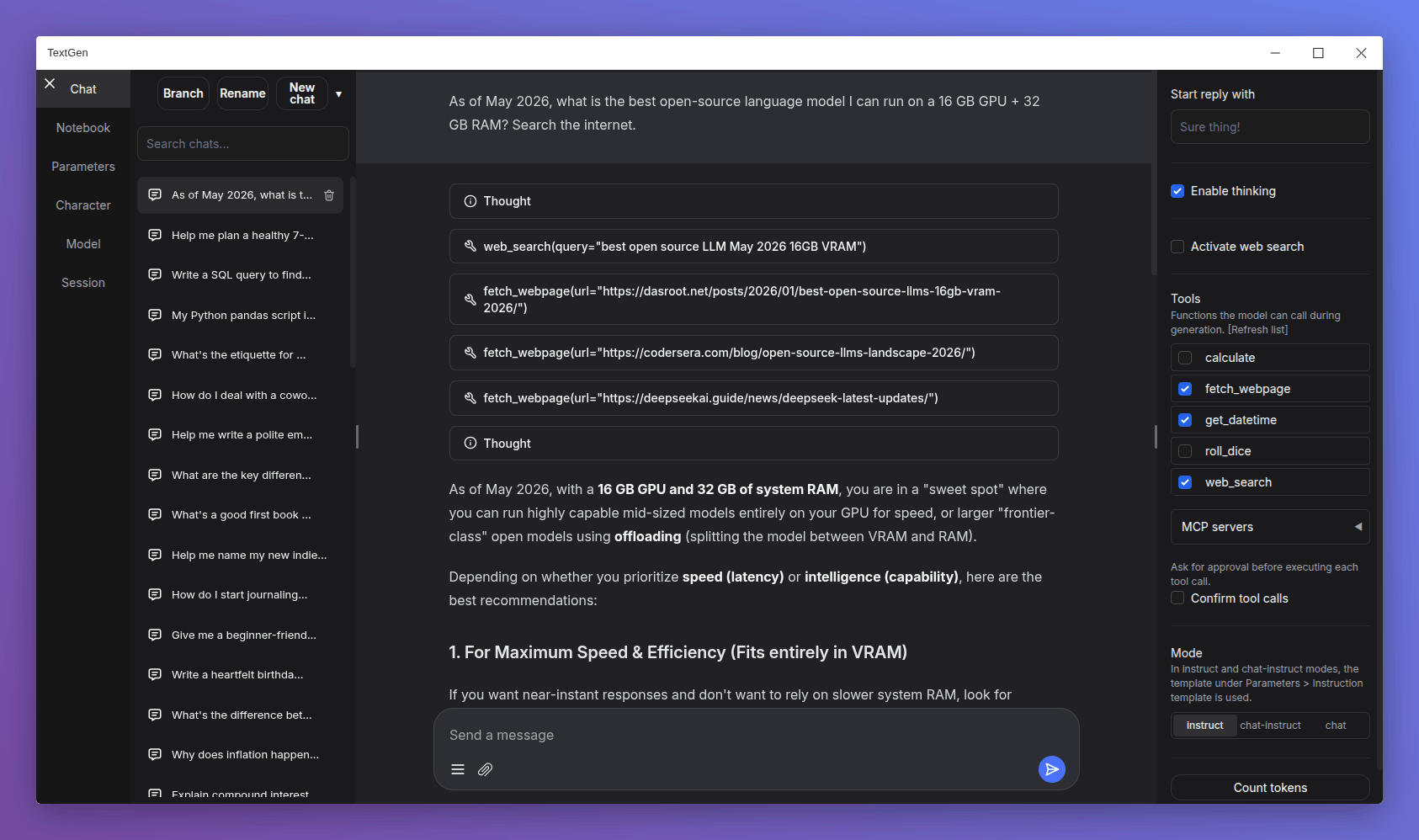
Get started in 1 minute
Download, unzip, double-click textgen. A window opens.
https://github.com/oobabooga/textgen/releases
Portable builds for Linux, Windows, and macOS with CUDA, Vulkan, ROCm, and CPU-only options. All dependencies included. Compatible with GGUF (llama.cpp) models.
For additional backends (ExLlamaV3, Transformers), training, image generation, and extensions, see Installation.
Features
Chat & generation
instructmode for instruction-following (like ChatGPT), andchat-instruct/chatmodes for talking to custom characters. Prompts are automatically formatted with Jinja2 templates.- Vision (multimodal): Attach images to messages for visual understanding (tutorial).
- File attachments: Upload text files, PDF documents, and .docx documents to talk about their contents.
- Edit messages, navigate between message versions, and branch conversations at any point.
- Notebook tab for free-form text generation outside of chat turns.
Backends & API
- Multiple backends: llama.cpp, ik_llama.cpp, Transformers, ExLlamaV3, and TensorRT-LLM. Switch between backends and models without restarting.
- OpenAI/Anthropic-compatible API: Chat, Completions, and Messages endpoints with tool-calling support. Use as a local drop-in replacement for the OpenAI/Anthropic APIs (examples).
- Tool-calling: Models can call custom functions during chat, including web search, page fetching, and math. Each tool is a single
.pyfile. MCP servers are also supported (tutorial).
Training & image generation
- Training: Fine-tune LoRAs on multi-turn chat or raw text datasets. Supports resuming interrupted runs (tutorial).
- Image generation: A dedicated tab for
diffusersmodels like Z-Image-Turbo. Features 4-bit/8-bit quantization and a persistent gallery with image metadata (tutorial).
Privacy & interface
- 100% offline and private, with zero telemetry, external resources, or remote update requests.
- Dark/light themes, syntax highlighting for code blocks, and LaTeX rendering for mathematical expressions.
- Built-in and community extensions including TTS, voice input, and translation. See the extensions directory for the full list.
Downloading models
- Download a GGUF model file from Hugging Face.
- Place it in the
user_data/modelsfolder.
That's it. The UI will detect it automatically.
For recommended GGUF quants, check out LocalBench. To estimate how much memory a model will use, try the GGUF Memory Calculator.
Other model types (Transformers, EXL3)
Models that consist of multiple files (like 16-bit Transformers models and EXL3 models) should be placed in a subfolder inside user_data/models:
textgen
└── user_data
    └── models
        └── Qwen_Qwen3-8B
            ├── config.json
            ├── generation_config.json
            ├── model-00001-of-00004.safetensors
            ├── ...
            ├── tokenizer_config.json
            └── tokenizer.json
These formats require the full installation (not the portable build).
Installation
For the desktop app, see the portable builds. The options below run the web UI in your browser instead.
Manual portable install with venv
Fast setup on any Python 3.9+:
# Clone repository
git clone https://github.com/oobabooga/textgen
cd textgen

# Create virtual environment
python -m venv venv

# Activate virtual environment
# On Windows:
venv\Scripts\activate
# On macOS/Linux:
source venv/bin/activate

# Install dependencies (choose appropriate file under requirements/portable for your hardware)
pip install -r requirements/portable/requirements.txt --upgrade

# Launch server (basic command)
python server.py --portable --api --auto-launch

# When done working, deactivate
deactivate
Full installation
For users who need additional backends (ExLlamaV3, Transformers), training, image generation, or extensions like TTS, voice input, and translation. Requires ~10GB disk space and downloads PyTorch.
Installation details
One-click installer
- Clone the repository, or download its source code and extract it.
- Run the startup script for your OS:
start_windows.bat,start_linux.sh, orstart_macos.sh. - When prompted, select your GPU vendor.
- After installation, open
http://127.0.0.1:7860in your browser.
After installation:
- Restart: run the same
start_script. - Pass command-line flags: directly (e.g.,
./start_linux.sh --help), or persist them inuser_data/CMD_FLAGS.txt(e.g.,--apito enable the API). - Update: run the update script for your OS (
update_wizard_windows.bat,update_wizard_linux.sh, orupdate_wizard_macos.sh). - Reinstall from scratch: delete the
installer_filesfolder and run thestart_script again. - Install extension requirements: use the update wizard's "Install/update extensions requirements" option. It reinstalls the main project requirements at the end to ensure they take precedence over conflicting extension dependencies.
Notes:
- These scripts (
start_,update_wizard_,cmd_) don't need to run as admin/root. - For automated installation, set the
GPU_CHOICE,LAUNCH_AFTER_INSTALL, andINSTALL_EXTENSIONSenvironment variables. Example:GPU_CHOICE=A LAUNCH_AFTER_INSTALL=FALSE INSTALL_EXTENSIONS=TRUE ./start_linux.sh. - Under the hood, the script uses Miniforge to set up a Conda environment in
installer_files/. To run anything manually in this environment, launch an interactive shell usingcmd_linux.sh,cmd_windows.bat, orcmd_macos.sh.
Full installation with Conda
0. Install Conda
https://github.com/conda-forge/miniforge
On Linux or WSL, Miniforge can be automatically installed with these two commands:
curl -sL "https://github.com/conda-forge/miniforge/releases/latest/download/Miniforge3-Linux-x86_64.sh" > "Miniforge3.sh"
bash Miniforge3.sh
For other platforms, download from: https://github.com/conda-forge/miniforge/releases/latest
1. Create a new conda environment
conda create -n textgen python=3.13
conda activate textgen
2. Install Pytorch
| System | GPU | Command |
|---|---|---|
| Linux/WSL | NVIDIA | pip3 install torch==2.9.1 --index-url https://download.pytorch.org/whl/cu128 |
| Linux/WSL | CPU only | pip3 install torch==2.9.1 --index-url https://download.pytorch.org/whl/cpu |
| Linux | AMD | pip3 install https://repo.radeon.com/rocm/manylinux/rocm-rel-7.2/torch-2.9.1%2Brocm7.2.0.lw.git7e1940d4-cp313-cp313-linux_x86_64.whl |
| MacOS + MPS | Any | pip3 install torch==2.9.1 |
| Windows | NVIDIA | pip3 install torch==2.9.1 --index-url https://download.pytorch.org/whl/cu128 |
| Windows | CPU only | pip3 install torch==2.9.1 |
The up-to-date commands can be found here: https://pytorch.org/get-started/locally/.
If you need nvcc to compile some library manually, you will additionally need to install this:
conda install -y -c "nvidia/label/cuda-12.8.1" cuda3. Install the web UI
git clone https://github.com/oobabooga/textgen
cd textgen
pip install -r requirements/full/<requirements file according to table below>
Requirements file to use:
| GPU | requirements file to use |
|---|---|
| NVIDIA | requirements.txt |
| AMD | requirements_amd.txt |
| CPU only | requirements_cpu_only.txt |
| Apple Intel | requirements_apple_intel.txt |
| Apple Silicon | requirements_apple_silicon.txt |
4. Start the web UI
conda activate textgen
cd textgen
python server.py
Then browse to http://127.0.0.1:7860.
Manual compilation
The requirements*.txt files above contain wheels precompiled through GitHub Actions. To compile manually (e.g., if no wheels are available for your hardware), use requirements_nowheels.txt and install your desired loaders manually.
Updating the requirements
From time to time, the requirements*.txt files change. To update:
conda activate textgen
cd textgen
pip install -r <requirements file that you have used> --upgrade
Docker
For NVIDIA GPU:
ln -s docker/{nvidia/Dockerfile,nvidia/docker-compose.yml,.dockerignore} .
For AMD GPU:
ln -s docker/{amd/Dockerfile,amd/docker-compose.yml,.dockerignore} .
For Intel GPU:
ln -s docker/{intel/Dockerfile,intel/docker-compose.yml,.dockerignore} .
For CPU only
ln -s docker/{cpu/Dockerfile,cpu/docker-compose.yml,.dockerignore} .
cp docker/.env.example .env
#Create logs/cache dir :
mkdir -p user_data/logs user_data/cache
# Edit .env and set:
#   TORCH_CUDA_ARCH_LIST based on your GPU model
#   APP_RUNTIME_GID      your host user's group id (run `id -g` in a terminal)
#   BUILD_EXTENIONS      optionally add comma separated list of extensions to build
# Edit user_data/CMD_FLAGS.txt and add in it the options you want to execute (like --listen --cpu)
#
docker compose up --build- You need to have Docker Compose v2.17 or higher installed. See this guide for instructions.
- For additional docker files, check out this repository.
Command-line flags
Show full list
/* Detailed source-code truncated for AI context efficiency. */Loading a model automatically
To skip the Model tab on every launch, add this to user_data/CMD_FLAGS.txt:
--model my-model.ggufReplace my-model.gguf with the name of a file in user_data/models. The model will load on startup.
To pass extra flags, put each on its own line:
--model my-model.gguf
--cache-type q8_0
Documentation
https://github.com/oobabooga/textgen/wiki
Community
Acknowledgments
- In August 2023, Andreessen Horowitz (a16z) provided a generous grant to encourage and support my independent work on this project. I am extremely grateful for their trust and recognition.
- This project was inspired by AUTOMATIC1111/stable-diffusion-webui and wouldn't exist without it.
File: docs/01 - Chat Tab.md
Used to have multi-turn conversations with the model.
Input area
The main action buttons are:
- Send: sends your message and makes the model start a reply.
- Stop: stops an ongoing generation as soon as the next token is generated (which can take a while for a slow model).
The hover menu (☰) that appears over the chat area contains:
- Regenerate: similar to Send, but your last message is used as input instead of the text in the input field. Note that if the temperature/top_p/top_k parameters are low in the "Parameters" tab of the UI, the new reply may end up identical to the previous one.
- Continue: makes the model attempt to continue the existing reply. In some cases, the model may simply end the existing turn immediately without generating anything new, but in other cases, it may generate a longer reply.
- Remove last reply: removes the last input/output pair from the history and sends your last message back into the input field.
- Impersonate: makes the model generate a new message on your behalf in the input field, taking into consideration the existing chat history.
- Insert user message: adds a new user message to the chat history without causing the model to generate a reply.
- Insert assistant message: adds a new assistant message to the chat history as if the model had generated it. Useful in conjunction with "Insert user message".
- Send to Notebook: sends the entire chat prompt up to now to the Notebook tab.
- Show controls: checkbox that toggles the visibility of the sidebar controls (Start reply with, Mode, Chat style, etc.). Shortcut: Ctrl+S.
Past chats
Allows you to switch between the current and previous conversations with the current character, or between the current and previous instruct conversations (if in "instruct" mode). The available buttons are:
- Branch: creates a branch of the current conversation at a specific message.
- Rename: allows you to give a unique name to the selected conversation.
- 🗑️: deletes the selected conversation.
- New chat: starts a new conversation. If you are talking to a character that has a "Greeting" message defined, this message will be automatically added to the new history.
A search field is also available to filter conversations by name.
Sidebar controls
The sidebar (toggled via "Show controls") contains:
- Start reply with: whatever you type there will appear at the start of every reply by the bot. This is useful to guide the response in the desired direction.
- Reasoning effort: controls the thinking depth for models that support it. Options: low, medium, high.
- Enable thinking: enables extended thinking mode for models that support it.
- Activate web search: when enabled, the model can search the web for information before replying. You can also set the number of pages to download.
- Mode: see below.
- Chat style: see below.
- Command for chat-instruct mode: the command that is used in chat-instruct mode to query the model to generate a reply on behalf of the character. Can be used creatively to generate specific kinds of responses. Inside this string,
<|character|>is a placeholder that gets replaced with the bot name, and<|prompt|>is a placeholder that gets replaced with the full chat prompt.
Mode
The most important input field. It defines how the chat prompt is formatted. There are 3 options: chat, chat-instruct, and instruct. It is worth going into more detail about this because it seems to not be obvious to a lot of people.
Instruction-following models
There are two kinds of models: base models, like Llama and GPT-J, and fine-tuned models, like Alpaca and Vicuna. Fine-tuned models are trained starting from base models, most often with the goal of getting the model to understand and respond to instructions just like ChatGPT does. Let's call such models instruction-following models.
Each instruction-following model was trained on a specific prompt format, and you have to use that exact prompt format if you want the model to follow your instructions as accurately as it can.
As an example, this is the Alpaca format:
Below is an instruction that describes a task. Write a response that appropriately completes the request.

### Instruction:
Hi there!

### Response:
Hello! It's nice to meet you. What can I help with?

### Instruction:
How are you?

### Response:
I'm doing well, thank you for asking! Is there something specific you would like to talk about or ask me? I'm here to help answer any questions you may have.
This format is characterized by a context string at the top, and alternating turns where each user input starts with ### Instruction: and each bot turn starts with ### Response:. There are also weirder formats, like the one used by the Llama-2-chat models released by Meta AI:
[INST] <<SYS>>
Answer the questions.
<</SYS>>
Hi there! [/INST] Hello! It's nice to meet you. What can I help with? </s><s>[INST] How are you? [/INST] I'm doing well, thank you for asking! Is there something specific you would like to talk about or ask me? I'm here to help answer any questions you may have.
In this format, there are special tokens at the end of each bot reply (</s>, the end of sequence token, and <s>, the beginning of sequence token); no new lines separating the turns; and the context string is written between <<SYS>> and <</SYS>>. Despite the intimidating look of this format, the logic is the same: there are user turns and bot turns, and each one appears in a specific place in the template.
It is important to emphasize that instruction-following models have to be used with the exact prompt format that they were trained on. Using those models with any other prompt format should be considered undefined behavior. The model will still generate replies, but they will be less accurate to your inputs.
Now that an instruction-following model is defined, we can move on to describing the 3 chat modes.
Chat
Used for talking to the character defined under "Character" tab using a simple chat prompt in this format:
Chiharu Yamada's Persona: Chiharu Yamada is a young, computer engineer-nerd with a knack for problem solving and a passion for technology.
You: Hi there!
Chiharu Yamada: Hello! It's nice to meet you. What can I help with?
You: How are you?
Chiharu Yamada: I'm doing well, thank you for asking! Is there something specific you would like to talk about or ask me? I'm here to help answer any questions you may have.
There are 3 adjustable parameters in the "Character" tab being used in this prompt:
- The Context string appears at the top of the prompt. Most often it describes the bot's personality and adds a few example messages to guide the model towards the desired reply length and format. This string never gets truncated: as the prompt size increases, old messages get removed one at a time until the prompt becomes smaller than the truncation length set under "Parameters" > "Generation" > "Truncate the prompt up to this length".
- The Your name string appears at the beginning of each user reply. By default, this string is "You".
- The Character's name string appears at the beginning of each bot reply.
Additionally, the Greeting string appears as the bot's opening message whenever the history is cleared.
The "Chat" option should typically be used only for base models or non-instruct fine tunes, and should not be used for instruction-following models.
Instruct
Used for talking to an instruction-following model using the prompt format defined under "Parameters" > "Instruction template". Think of this option as an offline ChatGPT.
The prompt format is defined by the Instruction template parameter in "Parameters" > "Instruction template", which represents a Jinja2 template.
Note that when you load a model in the "Model" tab, the web UI will try to automatically detect its instruction template (if any) from the model metadata (e.g. tokenizer_config.json or GGUF metadata), and will update the values under "Parameters" > "Instruction template" accordingly. You should check the model card on Hugging Face to see if you are using the correct prompt format.
Chat-instruct
As said above, instruction-following models are meant to be used with their specific prompt templates. The chat-instruct mode allows you to use those templates to generate a chat reply, thus mixing Chat and Instruct modes (hence the name).
It works by creating a single instruction-following turn where a command is given followed by the regular chat prompt. Here is an example in Alpaca format:
Below is an instruction that describes a task. Write a response that appropriately completes the request.

### Instruction:
Continue the chat dialogue below. Write a single reply for the character "Chiharu Yamada".
Chiharu Yamada's Persona: Chiharu Yamada is a young, computer engineer-nerd with a knack for problem solving and a passion for technology.
You: Hi there!
Chiharu Yamada: Hello! It's nice to meet you. What can I help with?
You: How are you?

### Response:
Chiharu Yamada:
Here, the command is
Continue the chat dialogue below. Write a single reply for the character "Chiharu Yamada".
Below this command, the regular chat prompt is added, including its Context string and the chat history, and then the user turn ends. The bot turn starts with the "Character's name" string followed by :, thus prompting the instruction-following model to write a single reply for the character.
Note that you can get creative: instead of writing something trivial like "Write a single reply for the character", you could add more complex instructions like
This is an adventure game, and your task is to write a reply in name of "<|character|>" where 3 options are given for the user to then choose from.
And it works:
Chat style
This defines the visual style of the chat UI. Each option is a CSS file defined under textgen/css/chat_style-name.css, where "name" is how this style is called in the dropdown menu. You can add new styles by simply copying chat_style-cai-chat.css to chat_style-myNewStyle.css and editing the contents of this new file. If you end up with a style that you like, you are highly encouraged to submit it to the repository.
The styles are only applied to chat and chat-instruct modes. Instruct mode has its separate style defined in textgen/css/html_instruct_style.css.
Character gallery
This menu is a built-in extension defined under textgen/extensions/gallery. It displays a gallery with your characters, and if you click on a character, it will be automatically selected in the Character tab.
File: docs/02 - Default and Notebook Tabs.md
Used to generate raw completions starting from your prompt.
Default tab
This tab contains two main text boxes: Input, where you enter your prompt, and Output, where the model output will appear.
Input
The number on the lower right of the Input box counts the number of tokens in the input. It gets updated whenever you update the input text as long as a model is loaded (otherwise there is no tokenizer to count the tokens).
Below the Input box, the following buttons can be found:
- Continue: starts a new generation taking as input the text in the "Output" box.
- Generate: starts a new generation.
- Stop: stops an ongoing generation as soon as the next token is generated (which can take a while for a slow model).
In the Prompt menu, you can select from saved prompts stored in user_data/logs/notebook. The New button creates a new prompt, the Rename button renames the selected prompt, and the 🗑️ button deletes it. The 🔄 button refreshes the list.
Output
Five tabs can be found:
- Raw: where the raw text generated by the model appears.
- Markdown: it contains a "Render" button. You can click on it at any time to render the current output as markdown. This is particularly useful for models that generate LaTeX equations like GALACTICA.
- HTML: displays the output in an HTML style that is meant to be easier to read. Its style is defined under
textgen/css/html_readable_style.css. - Logits: when you click on "Get next token probabilities", this tab displays the 50 most likely next tokens and their probabilities based on your current input. If "Use samplers" is checked, the probabilities will be the ones after the sampling parameters in the "Parameters" > "Generation" tab are applied. Otherwise, they will be the raw probabilities generated by the model.
- Tokens: allows you to tokenize your prompt and see the ID numbers for the individual tokens.
Notebook tab
Precisely the same thing as the Default tab, with the difference that the output appears in the same text box as the input.
It contains the following additional button:
- Regenerate: uses your previous input for generation while discarding the last output.
File: docs/03 - Parameters Tab.md
Generation
Contains parameters that control the text generation.
Quick rundown
LLMs work by generating one token at a time. Given your prompt, the model calculates the probabilities for every possible next token. The actual token generation is done after that.
- In greedy decoding, the most likely token is always picked.
- Most commonly, sampling techniques are used to choose from the next-token distribution in a more non-trivial way with the goal of improving the quality of the generated text.
Preset menu
Can be used to save and load combinations of parameters for reuse.
- 🎲 button: creates a random yet interpretable preset. Only 1 parameter of each category is included for the categories: removing tail tokens, avoiding repetition, and flattening the distribution. That is, top_p and top_k are not mixed, and neither are repetition_penalty and frequency_penalty. You can use this button to break out of a loop of bad generations after multiple "Regenerate" attempts.
Built-in presets
These were obtained after a blind contest called "Preset Arena" where hundreds of people voted. The full results can be found here.
A key takeaway is that the best presets are:
- For Instruct: Divine Intellect, Big O, simple-1.
- For Chat: Midnight Enigma, Yara, Shortwave.
The other presets are:
- Mirostat: a special decoding technique first implemented in llama.cpp and then adapted into this repository for all loaders. Many people have obtained positive results with it for chat.
- LLaMA-Precise: a legacy preset that was the default for the web UI before the Preset Arena.
- Debug-deterministic: disables sampling. It is useful for debugging, or if you intentionally want to use greedy decoding.
Parameters description
For more information about the parameters, the transformers documentation is a good reference.
- max_new_tokens: Maximum number of tokens to generate. Don't set it higher than necessary: it is used in the truncation calculation through the formula
(prompt_length) = min(truncation_length - max_new_tokens, prompt_length), so your prompt will get truncated if you set it too high. - temperature: Primary factor to control the randomness of outputs. 0 = deterministic (only the most likely token is used). Higher value = more randomness.
- top_p: If not set to 1, select tokens with probabilities adding up to less than this number. Higher value = higher range of possible random results.
- min_p: Tokens with probability smaller than
(min_p) * (probability of the most likely token)are discarded. This is the same as top_a but without squaring the probability. - top_k: Similar to top_p, but select instead only the top_k most likely tokens. Higher value = higher range of possible random results.
- repetition_penalty: Penalty factor for repeating prior tokens. 1 means no penalty, higher value = less repetition, lower value = more repetition.
- presence_penalty: Similar to repetition_penalty, but with an additive offset on the raw token scores instead of a multiplicative factor. It may generate better results. 0 means no penalty, higher value = less repetition, lower value = more repetition. Previously called "additive_repetition_penalty".
- frequency_penalty: Repetition penalty that scales based on how many times the token has appeared in the context. Be careful with this; there's no limit to how much a token can be penalized.
- repetition_penalty_range: The number of most recent tokens to consider for repetition penalty. 0 makes all tokens be used.
- dry_multiplier: Set to greater than 0 to enable DRY (Don't Repeat Yourself) sampling. It penalizes tokens that would extend a sequence that already appeared in the context. Recommended value: 0.8.
- dry_allowed_length: The longest sequence that can be repeated without being penalized by DRY. Shorter values make DRY more aggressive.
- dry_base: Controls how fast the DRY penalty grows with increasing sequence length.
- typical_p: If not set to 1, select only tokens that are at least this much more likely to appear than random tokens, given the prior text.
- tfs: Tries to detect a tail of low-probability tokens in the distribution and removes those tokens. See this blog post for details. The closer to 0, the more discarded tokens.
- top_a: Tokens with probability smaller than
(top_a) * (probability of the most likely token)^2are discarded. - top_n_sigma: Keeps only tokens within N standard deviations of the mean log-probability. Acts as an adaptive cutoff that adjusts to the shape of the distribution. 0 disables it.
- xtc_threshold: eXclusion from Top Choices (XTC) sampling. If 2 or more tokens have probability above this threshold, the top token may be removed. This encourages the model to use less common word choices and can increase creativity.
- xtc_probability: The probability that XTC removal will actually happen when the threshold condition is met. Set to 1 for it to always apply, or lower for occasional application.
- epsilon_cutoff: In units of 1e-4; a reasonable value is 3. This sets a probability floor below which tokens are excluded from being sampled.
- eta_cutoff: In units of 1e-4; a reasonable value is 3. The main parameter of the special Eta Sampling technique. See this paper for a description.
- guidance_scale: The main parameter for Classifier-Free Guidance (CFG). The paper suggests that 1.5 is a good value. It can be used in conjunction with a negative prompt or not.
- Negative prompt: Only used when
guidance_scale != 1. It is most useful for instruct models and custom system messages. You place your full prompt in this field with the system message replaced with the default one for the model (like "You are Llama, a helpful assistant...") to make the model pay more attention to your custom system message. - penalty_alpha: Contrastive Search is enabled by setting this to greater than zero and unchecking "do_sample". It should be used with a low value of top_k, for instance, top_k = 4.
- mirostat_mode: Activates Mirostat sampling, an adaptive decoding method that dynamically controls output perplexity for higher-quality text generation. 0 is disabled. 1 is the classic Mirostat algorithm described in the paper, but can be less stable, or “wobbly,” and produce less coherent text. 2 is the improved version that is more stable and has lower perplexity, recommended for most use cases.
Note: Use either mirostat or dynamic_temperature, not both at the same time. - mirostat_tau: Target perplexity for Mirostat sampling. Controls how “surprising” the text is. Higher values = more diverse, lower = more predictable. Preset Arena suggests 8 as a good value.
- mirostat_eta: Learning rate for Mirostat’s perplexity adjustment. Higher values = adapts faster but less stable, lower values = slower but more stable. Preset Arena suggests 0.1 as a good value.
- adaptive_target: Target probability for adaptive-p sampling. This method adjusts the sampling threshold dynamically based on an exponential moving average of recent token probabilities. 0 disables it.
- adaptive_decay: EMA decay rate for adaptive-p sampling. Controls how quickly the running average adjusts. Default: 0.9.
- dynamic_temperature: Activates Dynamic Temperature. This modifies temperature to range between "dynatemp_low" (minimum) and "dynatemp_high" (maximum), with an entropy-based scaling. The steepness of the curve is controlled by "dynatemp_exponent".
Note: Use either dynamic_temperature or mirostat, not both at the same time. - smoothing_factor: Activates Quadratic Sampling. When
0 < smoothing_factor < 1, the logits distribution becomes flatter. Whensmoothing_factor > 1, it becomes more peaked. - smoothing_curve: Adjusts the dropoff curve of Quadratic Sampling. Higher values make the curve steeper. Only takes effect when smoothing_factor is set.
- temperature_last: Makes temperature the last sampler instead of the first. With this, you can remove low probability tokens with a sampler like min_p and then use a high temperature to make the model creative without losing coherency. Note: this parameter takes precedence over "Sampler priority". That means that
temperature/dynamic_temperature/quadratic_samplingwill be removed from wherever they are and moved to the end of the stack. - do_sample: When unchecked, sampling is entirely disabled, and greedy decoding is used instead (the most likely token is always picked).
- Seed: Set the Pytorch seed to this number. Note that some loaders do not use Pytorch (notably llama.cpp). For these loaders, the seed has no effect.
- encoder_repetition_penalty: Also known as the "Hallucinations filter". Used to penalize tokens that are not in the prior text. Higher value = more likely to stay in context, lower value = more likely to diverge.
- no_repeat_ngram_size: If not set to 0, specifies the length of token sets that are completely blocked from repeating at all. Higher values = blocks larger phrases, lower values = blocks words or letters from repeating. Only 0 or high values are a good idea in most cases.
To the right (or below if you are on mobile), the following parameters are present:
- Truncate the prompt up to this length: Used to prevent the prompt from getting bigger than the model's context length. In the case of the transformers loader, which allocates memory dynamically, this parameter can also be used to set a VRAM ceiling and prevent out-of-memory errors. This parameter is automatically updated with the model's context length (from "ctx_size" for loaders that use this parameter, and from the model metadata directly for loaders that do not) when you load a model.
- Maximum number of tokens/second: to make text readable in real-time in case the model is generating too fast. Good if you want to flex and tell everyone how good your GPU is.
- Custom system message: If not empty, will be used instead of the default system message in the instruction template. Useful for customizing the personality of the chatbot. Example: "You are a duck."
- Custom stopping strings: The model stops generating as soon as any of the strings set in this field is generated. Note that when generating text in the Chat tab, some default stopping strings are set regardless of this parameter, like "\nYour Name:" and "\nBot name:" for chat mode. That's why this parameter has a "Custom" in its name.
- Custom token bans: Allows you to ban the model from generating certain tokens altogether. You need to find the token IDs under "Default" > "Tokens" or "Notebook" > "Tokens", or by looking at the
tokenizer.jsonfor the model directly. - auto_max_new_tokens: When checked, the max_new_tokens parameter is expanded in the backend to the available context length. The maximum length is given by the "truncation_length" parameter. This is useful for getting long replies in the Chat tab without having to click on "Continue" many times.
- Ban the eos_token: One of the possible tokens that a model can generate is the EOS (End of Sequence) token. When it is generated, the generation stops prematurely. When this parameter is checked, that token is banned from being generated, and the generation will always generate "max_new_tokens" tokens.
- Add the bos_token to the beginning of prompts: By default, the tokenizer will add a BOS (Beginning of Sequence) token to your prompt. During training, BOS tokens are used to separate different documents. If unchecked, no BOS token will be added, and the model will interpret your prompt as being in the middle of a document instead of at the start of one. This significantly changes the output and can make it more creative.
- Skip special tokens: When decoding the generated tokens, skip special tokens from being converted to their text representation. Otherwise, BOS appears as
<s>, EOS as</s>, etc. - prompt_lookup_num_tokens: Activates Prompt Lookup Decoding, a form of speculative decoding for the Transformers loader. It guesses future tokens by looking for matching patterns in the prompt itself, which can speed up generation for tasks that involve repeating or paraphrasing parts of the input.
- Activate text streaming: When unchecked, the full response is outputted at once, without streaming the words one at a time. I recommend unchecking this parameter on high latency networks like running the webui on Google Colab or using
--share. - Static KV cache: Use a static cache for improved performance with the Transformers loader. May not be compatible with all models.
- Sampler priority: Allows you to customize the order in which the different samplers are applied. The first sampler on the list gets applied first. With this, custom orders like
top_p -> temperature -> top_kcan be defined. - DRY sequence breakers: Tokens across which DRY sequence matching is not continued. Typically punctuation and special tokens. Only used when DRY is active (dry_multiplier > 0).
- Load grammar from file: Loads a GBNF grammar from a file under
user_data/grammars. The output is written to the "Grammar" box below. You can also save and delete custom grammars using this menu. - Grammar: Allows you to constrain the model output to a particular format. For instance, you can make the model generate lists, JSON, specific words, etc. Grammar is extremely powerful and I highly recommend it. The syntax looks a bit daunting at first sight, but it gets very easy once you understand it. See the GBNF Guide for details.
Chat tab controls
The following parameters appear in the Chat tab sidebar rather than the Parameters tab:
- reasoning_effort: Controls the thinking depth for models that support it (used by GPT-OSS). Options: low, medium, high.
- enable_thinking: Enables extended thinking mode for models that support it (used by Seed-OSS and pre-2507 Qwen3). When enabled, the model can use a thinking step before generating its reply.
Instruction template
This sub-tab within the Parameters tab defines the instruction template used in the Chat tab when "instruct" or "chat-instruct" are selected under "Mode".
- Saved instruction templates: A dropdown menu where you can select a template. Click Load to apply it. The 💾 button saves the current template, and the 🗑️ button deletes the selected one.
- Instruction template: A Jinja2 template that defines the prompt format for the instruction-following conversation.
- Send to notebook: Send the full instruction template in string format to the Notebook tab.
- Chat template: A Jinja2 template that defines the prompt format for regular chat conversations with characters.
Character tab
The Character tab is a separate top-level tab that contains the following sub-tabs:
Character
Parameters that define the character used in the Chat tab when "chat" or "chat-instruct" are selected under "Mode".
- Character: A dropdown menu where you can select from saved characters, save a new character (💾 button), and delete the selected character (🗑️). The Restore character button resets the character to its last saved state.
- Character's name: The bot name as it appears in the prompt.
- Context: A string that is always at the top of the prompt. It never gets truncated. It usually defines the bot's personality and some key elements of the conversation.
- Greeting: An opening message for the bot. When set, it appears whenever you start a new chat.
- Character picture: A profile picture for the bot. To make it apply, you need to save the bot by clicking on 💾.
- Your picture: Your profile picture. It will be used in all conversations.
Note: the following replacements take place in the context and greeting fields when the chat prompt is generated:
{{char}}and `` get replaced with "Character's name".{{user}}and `` get replaced with "Your name".
So you can use those special placeholders in your character definitions. They are commonly found in TavernAI character cards.
User
Allows you to create and manage user profiles.
- User: A dropdown to select, save (💾), or delete (🗑️) user profiles.
- Name: Your name as it appears in the prompt.
- Description: An optional description of yourself that can be referenced in conversations.
Chat history
In this tab, you can download the current chat history in JSON format and upload a previously saved chat history.
When a history is uploaded, a new chat is created to hold it. That is, you don't lose your current chat in the Chat tab.
Upload character
YAML or JSON
Allows you to upload characters in the YAML format used by the web UI, including optionally a profile picture.
TavernAI PNG
Allows you to upload a TavernAI character card. It will be converted to the internal YAML format of the web UI after upload.
File: docs/04 - Model Tab.md
This is where you load models, apply LoRAs to a loaded model, and download new models.
Model loaders
llama.cpp
Loads: GGUF models. Note: GGML models have been deprecated and do not work anymore.
Example: https://huggingface.co/TheBloke/Llama-2-7b-Chat-GGUF
- gpu_layers: The number of layers to allocate to the GPU. If set to 0, only the CPU will be used. If you want to offload all layers, you can simply set this to the maximum value.
- ctx_size: Context length of the model. In llama.cpp, the cache is preallocated, so the higher this value, the higher the VRAM. It is automatically set to the maximum sequence length for the model based on the metadata inside the GGUF file, but you may need to lower this value to fit the model into your GPU. Set to 0 for automatic context size based on available memory. After loading the model, the "Truncate the prompt up to this length" parameter under "Parameters" > "Generation" is automatically set to your chosen "ctx_size" so that you don't have to set the same thing twice.
- cache_type: KV cache quantization type. Valid options:
fp16,q8_0,q4_0. Lower quantization saves VRAM at the cost of some quality. - tensor_split: For multi-gpu only. Sets the amount of memory to allocate per GPU as proportions. Not to be confused with other loaders where this is set in GB; here you can set something like
30,70for 30%/70%. - batch_size: Maximum number of prompt tokens to batch together when calling llama_eval.
- ubatch_size: Physical maximum batch size for prompt processing.
- threads: Number of threads. Recommended value: your number of physical cores.
- threads_batch: Number of threads for batch processing. Recommended value: your total number of cores (physical + virtual).
- cpu_moe: Force MoE expert layers to run on the CPU, keeping the rest on the GPU.
- extra_flags: Extra flags to pass to llama-server. Format:
flag1=value1,flag2,flag3=value3. Example:override-tensor=exps=CPU. - mmproj: Path to the mmproj file for multimodal (vision) models. This enables image understanding capabilities.
- streaming_llm: Experimental feature to avoid re-evaluating the entire prompt when part of it is removed, for instance, when you hit the context length for the model in chat mode and an old message is removed.
- cpu: Force a version of llama.cpp compiled without GPU acceleration to be used. Can usually be ignored. Only set this if you want to use CPU only and llama.cpp doesn't work otherwise.
- split_mode: How to split the model across multiple GPUs. "tensor" can make multi-GPU significantly faster.
- no_kv_offload: Do not offload the KV cache to the GPU. This saves VRAM but reduces performance.
- no_mmap: Loads the model into memory at once, possibly preventing I/O operations later on at the cost of a longer load time.
- mlock: Force the system to keep the model in RAM rather than swapping or compressing.
- numa: May improve performance on certain multi-cpu systems.
Transformers
Loads: full precision (16-bit or 32-bit) models, as well as bitsandbytes-quantized models. The repository usually has a clean name without GGUF or EXL3 in its name, and the model files are named model.safetensors or split into parts like model-00001-of-00004.safetensors.
Example: https://huggingface.co/lmsys/vicuna-7b-v1.5.
Full precision models use a ton of VRAM, so you will usually want to select the "load_in_4bit" and "use_double_quant" options to load the model in 4-bit precision using bitsandbytes.
Options:
- gpu_split: When using multiple GPUs, sets the amount of VRAM in GB to allocate per GPU. Example:
20,7,7. - cpu_memory: Maximum CPU memory in GiB to use for CPU offloading via the accelerate library. Whatever doesn't fit in the GPU or CPU will go to a disk cache if the "disk" checkbox is enabled.
- compute_dtype: Used when "load_in_4bit" is checked. I recommend leaving the default value.
- quant_type: Used when "load_in_4bit" is checked. I recommend leaving the default value.
- attn_implementation: Choose the attention implementation. Valid options:
sdpa,eager,flash_attention_2. The default (sdpa) works well in most cases;flash_attention_2may be useful for training. - cpu: Loads the model in CPU mode using Pytorch. The model will be loaded in 32-bit precision, so a lot of RAM will be used. CPU inference with transformers is older than llama.cpp and it works, but it's a lot slower. Note: this parameter has a different interpretation in the llama.cpp loader (see above).
- load_in_8bit: Load the model in 8-bit precision using bitsandbytes. The 8-bit kernel in that library has been optimized for training and not inference, so load_in_8bit is slower than load_in_4bit (but more accurate).
- bf16: Use bfloat16 precision instead of float16 (the default). Only applies when quantization is not used.
- disk: Enable disk offloading for layers that don't fit into the GPU and CPU combined.
- load_in_4bit: Load the model in 4-bit precision using bitsandbytes.
- use_double_quant: Use double quantization with 4-bit loading for reduced memory usage.
- trust-remote-code: Some models use custom Python code to load the model or the tokenizer. For such models, this option needs to be set. It doesn't download any remote content: all it does is execute the .py files that get downloaded with the model. Those files can potentially include malicious code; I have never seen it happen, but it is in principle possible.
- no_use_fast: Do not use the "fast" version of the tokenizer. Can usually be ignored; only check this if you can't load the tokenizer for your model otherwise.
ExLlamav3_HF
Loads: EXL3 models. These models usually have "EXL3" or "exl3" in the model name.
Uses the ExLlamaV3 backend with Transformers samplers.
- ctx_size: Context length of the model. The cache is preallocated, so the higher this value, the higher the VRAM. It is automatically set to the maximum sequence length for the model based on its metadata, but you may need to lower this value to fit the model into your GPU. After loading the model, the "Truncate the prompt up to this length" parameter under "Parameters" > "Generation" is automatically set to your chosen "ctx_size" so that you don't have to set the same thing twice.
- cache_type: KV cache quantization type. Valid options:
fp16,q2toq8. You can also specify key and value bits separately, e.g.q4_q8. Lower quantization saves VRAM at the cost of some quality. - gpu_split: Comma-separated list of VRAM (in GB) to use per GPU device for model layers. Example:
20,7,7. - cfg_cache: Creates a second cache to hold the CFG negative prompts. You need to set this if and only if you intend to use CFG in the "Parameters" > "Generation" tab. Checking this parameter doubles the cache VRAM usage.
- no_use_fast: Do not use the "fast" version of the tokenizer.
- enable_tp: Enable Tensor Parallelism (TP) to split the model across GPUs.
- tp_backend: The backend for tensor parallelism. Valid options:
native,nccl. Default:native.
ExLlamav3
The same as ExLlamav3_HF but using the internal samplers of ExLlamaV3 instead of the ones in the Transformers library. Supports speculative decoding with a draft model. Also supports multimodal (vision) models natively.
- ctx_size: Same as ExLlamav3_HF.
- cache_type: Same as ExLlamav3_HF.
- gpu_split: Same as ExLlamav3_HF.
- enable_tp: Enable Tensor Parallelism (TP) to split the model across GPUs.
- tp_backend: The backend for tensor parallelism. Valid options:
native,nccl. Default:native.
TensorRT-LLM
Loads: TensorRT-LLM engine models. These are highly optimized models compiled specifically for NVIDIA GPUs.
- ctx_size: Context length of the model.
- cpp_runner: Use the ModelRunnerCpp runner, which is faster than the default ModelRunner but doesn't support streaming yet.
Model dropdown
Here you can select a model to be loaded, refresh the list of available models, load/unload/reload the selected model, and save the settings for the model. The "settings" are the values in the input fields (checkboxes, sliders, dropdowns) below this dropdown.
After saving, those settings will get restored whenever you select that model again in the dropdown menu.
If the Autoload the model checkbox is selected, the model will be loaded as soon as it is selected in this menu. Otherwise, you will have to click on the "Load" button.
LoRA dropdown
Used to apply LoRAs to the model. Note that LoRA support is not implemented for all loaders. Check the What Works page for details.
Download model or LoRA
Here you can download a model or LoRA directly from the https://huggingface.co/ website.
- Models will be saved to
user_data/models. - LoRAs will be saved to
user_data/loras.
In the input field, you can enter either the Hugging Face username/model path (like facebook/galactica-125m) or the full model URL (like https://huggingface.co/facebook/galactica-125m). To specify a branch, add it at the end after a ":" character like this: facebook/galactica-125m:main.
To download a single file, as necessary for models in GGUF format, you can click on "Get file list" after entering the model path in the input field, and then copy and paste the desired file name in the "File name" field before clicking on "Download".
File: docs/05 - Training Tab.md
Training Your Own LoRAs
A LoRA is tied to a specific model architecture — a LoRA trained on Llama 3 8B won't work on Mistral 7B. Train on the exact model you plan to use.
Quick Start
- Load your base model with the Transformers loader (no LoRAs loaded).
- Open the Training tab > Train LoRA.
- Pick a dataset and configure parameters (see below).
- Click Start LoRA Training and monitor the loss.
- When done, load the LoRA from the Models tab and test it.
Resuming Training
To resume from a checkpoint, use the same LoRA name and uncheck Override Existing Files. If checkpoints exist (from Save every n steps), training will automatically resume from the latest one with full optimizer and scheduler state preserved. Note that you cannot change the Rank of an already created LoRA.
You should also use Copy parameters from to restore the UI settings (learning rate, epochs, etc.) from the previous run, so that training continues with the same configuration.
Troubleshooting
- Corrupted outputs: Start over with a lower Learning Rate.
- Not learning enough: Run more epochs, or increase the Rank.
- Unwanted formatting: Tweak your dataset, or train for fewer steps.
Instruction Templates
All instruction/chat training uses apply_chat_template() with Jinja2 templates. You have two options in the Instruction Template dropdown:
- Chat Template: Uses the model's built-in chat template from its tokenizer. Works with instruct/chat models that ship with a chat template (Llama 3, Qwen, Mistral, etc.).
- Named template (e.g. ChatML, Alpaca, Llama-v3, etc.): Loads a Jinja2 template from
user_data/instruction-templates/. This is useful for base models that don't have a built-in template, or when you want to override the model's default template.
Both options are functionally identical — the only difference is where the Jinja2 template string comes from. In both cases:
- The dataset is tokenized via
apply_chat_template() - Labels are automatically masked so only assistant responses are trained on
- Multi-turn conversations are supported natively
- Special tokens are handled correctly by the template
The WebUI ships with 50+ templates in user_data/instruction-templates/. You can also add your own by creating a .yaml file with an instruction_template key containing a Jinja2 template string, or a plain .jinja file.
Dataset formats: Your JSON dataset can use either of these structures:
OpenAI messages format:
[
  {
    "messages": [
      {"role": "system", "content": "You are a helpful assistant."},
      {"role": "user", "content": "What is Python?"},
      {"role": "assistant", "content": "A programming language."},
      {"role": "user", "content": "What's it used for?"},
      {"role": "assistant", "content": "Web dev, data science, scripting, and more."}
    ]
  }
]
ShareGPT format (conversations key with from/value fields):
[
  {
    "conversations": [
      {"from": "system", "value": "You are a helpful assistant."},
      {"from": "human", "value": "What is Python?"},
      {"from": "gpt", "value": "A programming language."},
      {"from": "human", "value": "What's it used for?"},
      {"from": "gpt", "value": "Web dev, data science, scripting, and more."}
    ]
  }
]
Text Dataset
For pretraining-style training on raw text, use the Text Dataset tab. Your dataset should be a JSON file with one document per row, each with a "text" key:
[
  {"text": "First document content..."},
  {"text": "Second document content..."}
]
This is the standard format used by most pretraining datasets (The Pile, RedPajama, etc.).
Each document is tokenized (with BOS token), concatenated into one long token sequence, and split into chunks of Cutoff Length tokens. The final chunk is padded if shorter than the cutoff length. When Add EOS token is enabled, an EOS token is appended after each document before concatenation, helping the model learn document boundaries.
Stride Lengthcontrols the overlap between consecutive chunks in tokens. Set to 0 for non-overlapping chunks (the standard concatenate-and-split approach). Values like 256 or 512 create overlapping chunks that help the model learn context across chunk boundaries, at the cost of more training samples.
Target Modules
By default, Target all linear layers is enabled. This uses peft's all-linear mode, which applies LoRA to every nn.Linear layer in the model except the output head (lm_head). It works for any model architecture.
If you uncheck it, you can manually select individual projection modules (q_proj, k_proj, v_proj, o_proj, gate_proj, down_proj, up_proj). Targeting fewer modules reduces VRAM usage and adapter size, but also reduces how much the model can learn. The default selection of q_proj + v_proj is the minimum for basic style/format training.
Parameters
Each parameter has a description in the UI. Below is guidance on the most important choices.
VRAM
VRAM usage during training is roughly similar to inference with ~1000 tokens of context. If you can run the model, you can probably train LoRAs with the default settings. If you run out of VRAM, reduce Micro Batch Size or Cutoff Length. Training 4-bit quantized models uses more VRAM — set Micro Batch Size to 1 to compensate.
Gradient checkpointing is enabled by default. It reduces VRAM usage by recomputing activations during the backward pass instead of storing them in memory. The tradeoff is ~20-30% slower training. There is no impact on accuracy — the results are mathematically identical. The savings are most noticeable with longer sequences and larger batch sizes. You can disable it if you have VRAM to spare and want faster training.
Rank
Higher rank = more learning capacity = larger adapter = more VRAM. Use 4–8 for style/format, 128–256 to teach factual knowledge.
Learning Rate and Epochs
These control how aggressively the model learns and how many times it sees the data. Higher LR + fewer epochs = fast but rough. Lower LR + more epochs = slower but higher quality. The scheduler (default: cosine) decays the LR over the course of training — see HuggingFace docs for graphs of each option.
Loss
When you're running training, the WebUI's console window will log reports that include, among other things, a numeric value named Loss. It will start as a high number, and gradually get lower and lower as it goes.
Loss measures how far the model's predictions are from the training data, with 0 meaning a perfect match. It's calculated as the cross-entropy between the model's output distribution and the expected tokens.
In practice, a loss of 0 means the model has overfit — it memorized the training data at the expense of its general capabilities.
Loss is a balancing game: you want it low enough that the model learns your data, but not so low that it loses general knowledge. Generally, if it goes below 1.0, overfitting is likely and you should stop training. In some cases you may want to go as low as 0.5 (if you need very predictable outputs). Different goals have different needs, so experiment and see what works best for you.
Note: if you see Loss start at or suddenly jump to exactly 0, it is likely something has gone wrong in your training process (eg model corruption).
File: docs/06 - Session Tab.md
Here you can restart the UI with new settings.
Settings
- Toggle light/dark theme: switches between light and dark mode.
- Show two columns in the Notebook tab: toggles between the two-column Default layout and the single-column Notebook layout.
- Turn long pasted text into attachments in the Chat tab: when enabled, long pasted text is automatically converted into file attachments.
- Include attachments/search results from previous messages in the chat prompt: when enabled, attachments and web search results from earlier messages are included in subsequent prompts.
Extensions & flags
- Available extensions: shows a list of extensions available under
textgen/extensionsandtextgen/user_data/extensions. Note that some of these extensions may require manually installing Python requirements through the command:pip install -r extensions/extension_name/requirements.txt. - Boolean command-line flags: shows command-line flags of bool (true/false) type.
After selecting your desired flags and extensions, you can restart the UI by clicking on Apply flags/extensions and restart.
Install or update an extension
In this field, you can enter the GitHub URL for an extension and press enter to either install it (i.e. cloning it into textgen/extensions) or update it with git pull in case it is already cloned.
Note that some extensions may include additional Python requirements. In this case, to install those you have to run the command
pip install -r extensions/extension-name/requirements.txtor
pip install -r extensions\extension-name\requirements.txtif you are on Windows.
If you used the one-click installer, this command should be executed in the terminal window that appears when you run the "cmd_" script for your OS.
Saving UI defaults
The Save extensions settings to user_data/settings.yaml button gathers the visible values in the UI and saves them to user_data/settings.yaml so that your settings will persist across multiple restarts of the UI.
Note that preset parameters like temperature are not individually saved, so you need to first save your preset and select it in the preset menu before saving the defaults.
File: docs/07 - Extensions.md
Extensions
Extensions are defined by files named script.py inside subfolders of either:
textgen/extensionstextgen/user_data/extensions
They are loaded at startup if the folder name is specified after the --extensions flag.
For instance, extensions/silero_tts/script.py or user_data/extensions/silero_tts/script.py gets loaded with python server.py --extensions silero_tts.
Note: Extensions in user_data/extensions/ take priority over those in extensions/ when both exist with the same name.
[textgen-extensions](https://github.com/oobabooga/textgen-extensions)
The repository above contains a directory of user extensions.
If you create an extension, you are welcome to host it in a GitHub repository and submit a PR adding it to the list.
Built-in extensions
| Extension | Description |
|---|---|
| superboogav2 | Enhanced RAG extension with support for PDF, DOCX, and PPTX files. |
| send_pictures | Creates an image upload field that can be used to send images to the bot in chat mode. Captions are automatically generated using BLIP. |
| coqui_tts | Text-to-speech extension using Coqui XTTS v2. |
| silero_tts | Text-to-speech extension using Silero. When used in chat mode, responses are replaced with an audio widget. |
| whisper_stt | Allows you to enter your inputs in chat mode using your microphone. |
| perplexity_colors | Colors each token in the output text by its associated probability, as derived from the model logits. |
| google_translate | Automatically translates inputs and outputs using Google Translate. |
| gallery | Creates a gallery with the chat characters and their pictures. |
| sd_api_pictures | Allows you to request pictures from the bot in chat mode, which will be generated using the AUTOMATIC1111 Stable Diffusion API. See examples here. |
| long_replies | Forces longer replies by suppressing early newlines in the model output. |
| ngrok | Allows you to access the web UI remotely using the ngrok reverse tunnel service (free). It's an alternative to the built-in Gradio --share feature. |
| superbooga | An extension that uses ChromaDB to create an arbitrarily large pseudocontext, taking as input text files, URLs, or pasted text. Based on https://github.com/kaiokendev/superbig. |
| character_bias | Just a very simple example that adds a hidden string at the beginning of the bot's reply in chat mode. |
How to write an extension
The extensions framework is based on special functions and variables that you can define in script.py. The functions are the following:
| Function | Description |
|---|---|
def setup() |
Is executed when the extension gets imported. |
def ui() |
Creates custom gradio elements when the UI is launched. |
def custom_css() |
Returns custom CSS as a string. It is applied whenever the web UI is loaded. |
def custom_js() |
Same as above but for javascript. |
def input_modifier(string, state, is_chat=False) |
Modifies the input string before it enters the model. In chat mode, it is applied to the user message. Otherwise, it is applied to the entire prompt. |
def output_modifier(string, state, is_chat=False) |
Modifies the output string before it is presented in the UI. In chat mode, it is applied to the bot's reply. Otherwise, it is applied to the entire output. |
def chat_input_modifier(text, visible_text, state) |
Modifies both the visible and internal inputs in chat mode. Can be used to hijack the chat input with custom content. |
def bot_prefix_modifier(string, state) |
Applied in chat mode to the prefix for the bot's reply. |
def state_modifier(state) |
Modifies the dictionary containing the UI input parameters before it is used by the text generation functions. |
def history_modifier(history) |
Modifies the chat history before the text generation in chat mode begins. |
def custom_generate_reply(...) |
Overrides the main text generation function. |
def custom_generate_chat_prompt(...) |
Overrides the prompt generator in chat mode. |
def tokenizer_modifier(state, prompt, input_ids, input_embeds) |
Modifies the input_ids/input_embeds fed to the model. Should return prompt, input_ids, input_embeds. See the example extension for a template. |
def custom_tokenized_length(prompt) |
Used in conjunction with tokenizer_modifier, returns the length in tokens of prompt. See the example extension for a template. |
Additionally, you can define a special params dictionary. In it, the display_name key is used to define the displayed name of the extension in the UI, and the is_tab key is used to define whether the extension should appear in a new tab. By default, extensions appear at the bottom of the "Text generation" tab.
Example:
params = {
    "display_name": "Google Translate",
    "is_tab": True,
}
The params dict may also contain variables that you want to be customizable through a settings.yaml file. For instance, assuming the extension is in extensions/google_translate, the variable language string in
params = {
    "display_name": "Google Translate",
    "is_tab": True,
    "language string": "jp"
}
can be customized by adding a key called google_translate-language string to settings.yaml:
google_translate-language string: 'fr'That is, the syntax for the key is extension_name-variable_name.
Using multiple extensions at the same time
You can activate more than one extension at a time by providing their names separated by spaces after --extensions. The input, output, and bot prefix modifiers will be applied in the specified order.
Example:
python server.py --extensions enthusiasm translate # First apply enthusiasm, then translate
python server.py --extensions translate enthusiasm # First apply translate, then enthusiasm
Do note, that for:
custom_generate_chat_promptcustom_generate_replycustom_tokenized_length
only the first declaration encountered will be used and the rest will be ignored.
A full example
The source code below can be found at extensions/example/script.py.
/* Detailed source-code truncated for AI context efficiency. */File: docs/08 - Additional Tips.md
Audio notification
If your computer takes a long time to generate each response for the model that you are using, you can enable an audio notification for when the response is completed. This feature was kindly contributed by HappyWorldGames in #1277.
Installation
Simply place a file called "notification.mp3" in the same folder as server.py. Here you can find some examples:
- https://pixabay.com/sound-effects/search/ding/?duration=0-30
- https://pixabay.com/sound-effects/search/notification/?duration=0-30
Source: https://github.com/AUTOMATIC1111/stable-diffusion-webui/pull/1126
This file will be automatically detected the next time you start the web UI.
Miscellaneous info
You can train LoRAs in CPU mode
Load the web UI with
python server.py --cpuand start training the LoRA from the training tab as usual.
You can check the sha256sum of downloaded models with the download script
python download-model.py facebook/galactica-125m --checkThe download script continues interrupted downloads by default
It doesn't start over.
File: docs/09 - Docker.md
Docker Compose is a way of installing and launching the web UI in an isolated Ubuntu image using only a few commands.
Prerequisites
You need Docker Compose v2.17 or higher:
~$ docker compose version
Docker Compose version v2.21.0
Installation instructions: https://docs.docker.com/engine/install/
For NVIDIA GPUs, you also need the NVIDIA Container Toolkit.
Quick start
There are four Docker variants available under docker/:
| Directory | GPU | Notes |
|---|---|---|
docker/nvidia |
NVIDIA | Requires NVIDIA Container Toolkit |
docker/amd |
AMD | Requires ROCm-compatible GPU |
docker/intel |
Intel Arc | Beta support |
docker/cpu |
None | CPU-only inference |
To launch (using NVIDIA as an example):
cd textgen/docker/nvidia
cp ../.env.example .env
# Optionally edit .env to customize ports, TORCH_CUDA_ARCH_LIST, etc.
docker compose up --build
The web UI will be available at http://localhost:7860.
User data
Create a user_data/ directory next to the docker-compose.yml to persist your models, characters, presets, and settings between container rebuilds:
mkdir -p user_dataThis directory is mounted into the container at runtime. You can place a CMD_FLAGS.txt inside it to pass persistent flags to the web UI (e.g., --api).
Models can be downloaded through the web UI's “Model” tab once it's running, and they will be saved to user_data/models/.
Dedicated docker repository
An external repository maintains a docker wrapper for this project as well as several pre-configured 'one-click' docker compose variants. It can be found at: Atinoda/text-generation-webui-docker.