

Technical Documentation: microsoft/PowerToys
ℹ️ Provenance: Multi-Tier Ingestion · CodeWiki Reference
Overview (README.md)
Microsoft PowerToys
[Installation](#-installation) · [Documentation](https://aka.ms/powertoys-docs) · [Blog](https://aka.ms/powertoys-releaseblog) · [Release notes](#-whats-new)
🔨 Utilities
PowerToys includes over 30 utilities to help you customize and optimize your Windows experience:
📦 Installation
For detailed installation instructions and system requirements, visit the installation docs.
But to get started quickly, choose one of the installation methods below:
Download the .exe file from GitHub
Go to the PowerToys GitHub releases, scroll down and select Assets to reveal the installation files, and choose the one that matches your architecture and install scope. For most devices, that would be x64 per-user.
Microsoft Store
You can easily install PowerToys from the Microsoft Store:
WinGet
Download PowerToys from WinGet. Updating PowerToys via winget will respect the current PowerToys installation scope. To install PowerToys, run the following command from the command line / PowerShell:
- User scope installer (default)
winget install Microsoft.PowerToys -s winget- Machine-wide scope installer
winget install --scope machine Microsoft.PowerToys -s wingetOther methods
There are community driven install methods such as Chocolatey and Scoop. If these are your preferred install solutions, you can find the install instructions there.
✨ What's new?
To see what's new, check out the release notes.
🛣️ Roadmap
For v0.102, we're working on modernizing several utilities with WinUI 3, expanding Command Palette with tabs and JavaScript/TypeScript extensions, and adding new productivity improvements across PowerToys.
❤️ PowerToys Community
The PowerToys team is extremely grateful to have the support of an amazing active community. The work you do is incredibly important. PowerToys wouldn't be nearly what it is today without your help filing bugs, updating documentation, guiding the design, or writing features. We want to say thank you and take time to recognize your work. Your contributions and feedback improve PowerToys month after month!
Contributing
This project welcomes contributions of all types. Besides coding features / bug fixes, other ways to assist include spec writing, design, documentation, and finding bugs. We are excited to work with the power user community to build a set of tools for helping you get the most out of Windows. We ask that before you start work on a feature that you would like to contribute, please read our Contributor's Guide. We would be happy to work with you to figure out the best approach, provide guidance and mentorship throughout feature development, and help avoid any wasted or duplicate effort. Most contributions require you to agree to a Contributor License Agreement (CLA) declaring that you grant us the rights to use your contribution and that you have permission to do so. For guidance on developing for PowerToys, please read the developer docs for a detailed breakdown. This includes how to setup your computer to compile.
Code of conduct
This project has adopted the Microsoft Open Source Code of Conduct.
Privacy statement
The application logs basic diagnostic data (telemetry). For more privacy information and what we collect, see our PowerToys Data and Privacy documentation.
Doc Devdocs Website README (`doc/devdocs-website/README.md`)
Dev Docs Website
This folder hosts the docmd project that turns the PowerToys developer
documentation in doc/devdocs into a static website.
Generated site
The site/ folder is the docmd build output. It is not committed to the repository — it is
git-ignored and rebuilt on demand. You only need it locally when previewing your changes (see below).
Publishing is handled by the
Publish Dev Docs Website GitHub Action, which
runs whenever files under doc/devdocs (or this folder) change on the main branch — it can also
be triggered manually from the Actions tab. The action builds the site and deploys it straight to
GitHub Pages as an artifact, so nothing is written back to the repository.
[!NOTE]
The action requires GitHub Pages to be enabled with Source: GitHub Actions under the repository
Settings → Pages.
Editing the docs
To change the documentation, edit the Markdown files under doc/devdocs. The remaining
files in this folder are maintained by hand and are safe to edit:
docmd.config.json— docmd configuration (title, source, output, plugins)package.json— pins the docmd version used to build the sitedocmd-plugins/— local build-time docmd plugins
[!TIP]
Link to repository files with repo-root-relative paths such as/src/modules/.../Foo.cpp.
VS Code resolves these against the workspace root (so they open the local file), and the
bundledgithub-source-linksplugin rewrites them tohttps://github.com/microsoft/PowerToys/blob/main/...on the published site.
Building locally
Requires Node.js.
npm install      # install dependencies (first time only)
npm run dev      # start a local preview server at http://localhost:3000
npm run build    # generate the static site into ./site
Doc Devdocs Readme (`doc/devdocs/readme.md`)
PowerToys Developer Documentation
Welcome to the PowerToys developer documentation. This documentation provides information for developers who want to contribute to PowerToys or understand how it works.
Getting Started
Prerequisites
- Windows 10 April 2018 Update (version 1803) or newer
- Visual Studio 2026 (recommended) or Visual Studio 2022 17.4+ with the following workloads/components:
- Desktop Development with C++
- WinUI application development
- .NET desktop development
- Windows 11 SDK (10.0.22621.0)
- Windows 11 SDK (10.0.26100.3916)
- .NET 8 SDK
- Enable long paths in Windows (see Enable Long Paths for details)
Tip: You can install Visual Studio with all required workloads automatically using the WinGet configuration files in the repository:
powershellwinget configure .config\configuration.wingetPick the file that matches your VS edition (e.g.,
configuration.vsProfessional.wingetorconfiguration.vsEnterprise.winget).
Fork, Clone, and Set Up
- Fork the repo on GitHub if you haven't already
- Clone your fork locally
- Run the automated setup script (recommended):
.\tools\build\setup-dev-environment.ps1This script will:
- Enable Windows long path support (requires administrator privileges)
- Enable Windows Developer Mode (requires administrator privileges)
- Guide you through installing required Visual Studio components from
.vsconfig - Initialize git submodules
Run with -Help to see all available options.
Manual setup (if you prefer not to use the script)
Install Visual Studio dependencies
- Open the
PowerToys.slnxfile. - If you see a dialog that says
install extra componentsin the solution explorer pane, clickinstall
Alternatively, import the .vsconfig file from the repository root using Visual Studio Installer to install all required workloads.
Initialize submodules
This is a one-time step required before you can compile most parts of PowerToys.
- Open a terminal
- Navigate to the folder you cloned PowerToys to.
- Run
git submodule update --init --recursive
Building
Using Visual Studio
- Open
PowerToys.slnxin Visual Studio. - In the
Solutions Configurationdrop-down menu selectReleaseorDebug. - From the
Buildmenu chooseBuild Solution, or press Control+Shift+b on your keyboard. - The build process may take several minutes depending on your computer's performance. Once it completes, the PowerToys binaries will be in your repo under
x64\Release\.- You can run
x64\Release\PowerToys.exedirectly without installing PowerToys, but some modules (i.e. PowerRename, ImageResizer, File Explorer extension etc.) will not be available unless you also build the installer and install PowerToys.
- You can run
Using Command Line
You can also build from the command line using the provided scripts in tools\build\:
# Build the full solution (auto-detects platform)
.\tools\build\build.ps1

# Build with specific configuration
.\tools\build\build.ps1 -Platform x64 -Configuration Release

# Build only essential projects (runner + settings) for faster iteration
.\tools\build\build-essentials.ps1

# Build everything including the installer (Release only)
.\tools\build\build-installer.ps1
Debugging
See Debugging for detailed debugging techniques, including Visual Studio setup, attaching to child processes, and troubleshooting build errors.
Creating a New PowerToy
See Creating a New PowerToy for an end-to-end guide covering module architecture, settings integration, installer packaging, and testing.
Building Command Palette Extensions
If you want to build your own extensions for Command Palette, check out the Command Palette extensibility documentation. It covers how to create, package, and distribute custom extensions that integrate with Command Palette.
Development Guidelines
- Coding Guidelines - Development guidelines and best practices
- Coding Style - Code formatting and style conventions
- Logging and Telemetry - How to use logging and telemetry
- Localization - How to support multiple languages
- UI Testing - How to write UI tests for PowerToys
- Developing with VS Code - Build, debug, and contribute using VS Code
Rules
- Follow the pattern of what you already see in the code.
- Coding style.
- Try to package new functionality/components into libraries that have nicely defined interfaces.
- Package new functionality into classes or refactor existing functionality into a class as you extend the code.
- When adding new classes/methods/changing existing code, add new unit tests or update the existing tests.
GitHub Workflow
- Before starting to work on a fix/feature, make sure there is an open issue to track the work.
- Add the
In progresslabel to the issue, if not already present. Also add aCost-Small/Medium/Largeestimate and make sure all appropriate labels are set. - If you are a community contributor, you will not be able to add labels to the issue; in that case just add a comment saying that you have started work on the issue and try to give an estimate for the delivery date.
- If the work item has a medium/large cost, using the markdown task list, list each sub item and update the list with a check mark after completing each sub item.
- Before opening a PR, ensure your changes build successfully locally and functionality tests pass. This is especially important for AI-assisted (vibe coding) contributions—always verify AI-generated code works as intended. Exploratory PRs or draft PRs for discussion are exceptions.
- When opening a PR, follow the PR template.
- When you'd like the team to take a look (even if the work is not yet fully complete) mark the PR as 'Ready For Review' so that the team can review your work and provide comments, suggestions, and request changes. It may take several cycles, but the end result will be solid, testable, conformant code that is safe for us to merge.
- When the PR is approved, let the owner of the PR merge it. For community contributions, the reviewer who approved the PR can also merge it.
- Use the
Squash and mergeoption to merge a PR. If you don't want to squash it because there are logically different commits, useRebase and merge. - Close issues automatically when referenced in a PR. You can use closing keywords in the body of the PR to have GitHub automatically link your PR to the issue.
Core Architecture
- Architecture Overview - Overview of the PowerToys architecture and module interface
- Runner and System tray - Details about the PowerToys Runner process
- Settings - Documentation on the settings system
- Installer - Information about the PowerToys installer
- Modules - Documentation for individual PowerToys modules
Common Components
- Context Menu Handlers - How PowerToys implements and registers Explorer context menu handlers
- Monaco Editor - How PowerToys uses the Monaco code editor component across modules
Tools
- Tools Overview - Overview of tools in PowerToys
- Build Tools - Tools that help building PowerToys
- Bug Report Tool - Tool for collecting logs and system information
- Debugging Tools - Specialized tools for debugging
- Fuzzing Testing - How to implement and run fuzz testing for PowerToys modules
Processes
- Release Process - How PowerToys releases are prepared and published
- Update Process - How PowerToys updates work
- GPO Implementation - Group Policy Objects implementation details
Other Resources
- aka.ms links - List of short links
- Issue/PR commands - Special commands for managing issues and pull requests
Building the Installer
Our installer is two parts, an EXE and an MSI. The EXE (Bootstrapper) contains the MSI and handles more complex installation logic.
- The EXE installs all prerequisites and installs PowerToys via the MSI. It has additional features such as the installation flags (see below).
- The MSI installs the PowerToys binaries.
The installer can only be compiled in Release mode; steps 1 and 2 must be performed before the MSI can be compiled.
- Compile
PowerToys.slnx. Instructions are listed above. - Compile
BugReportTool.slntool. Path from root:tools\BugReportTool\BugReportTool.sln(details listed below) - Compile
StylesReportTool.slntool. Path from root:tools\StylesReportTool\StylesReportTool.sln(details listed below) - Compile
PowerToysSetup.slnxPath from root:installer\PowerToysSetup.slnx(details listed below)
See Installer for more details on building and debugging the installer.
Doc Dsc Overview (`doc/dsc/overview.md`)
ms.date: 10/18/2025 ms.topic: overview title: PowerToys DSC Overview
PowerToys DSC Overview
Synopsis
PowerToys supports Desired State Configuration (DSC) v3 for declarative configuration management of PowerToys settings.
Description
PowerToys includes Microsoft Desired State Configuration (DSC) support
through the PowerToys.DSC.exe command-line tool, enabling you to:
- Declare and enforce desired configuration states for PowerToys
utilities. - Automate PowerToys configuration across multiple systems.
- Integrate PowerToys configuration with WinGet and other DSC-compatible
tools. - Version control your PowerToys settings as code.
The PowerToys DSC implementation provides a settings resource that
manages configuration for all PowerToys utilities (modules). Each utility
can be configured independently, allowing granular control over your
PowerToys environment.
Usage methods
PowerToys DSC can be used in three ways:
1. Direct execution with PowerToys.DSC.exe
Execute DSC operations directly using the PowerToys.DSC.exe command-line
tool:
# Get current settings for a module
PowerToys.DSC.exe get --resource 'settings' --module Awake

# Set settings for a module
$input = '{"settings":{...}}'
PowerToys.DSC.exe set --resource 'settings' --module Awake --input $input

# Test if settings match desired state
PowerToys.DSC.exe test --resource 'settings' --module Awake --input $input
For detailed information, see PowerToys.DSC.exe command reference.
2. Microsoft Desired State Configuration (DSC)
Use PowerToys DSC resources in standard DSC configuration documents:
# powertoys-config.dsc.yaml
$schema: https://aka.ms/dsc/schemas/v3/bundled/config/document.json
resources:
  - name: Configure Awake
    type: Microsoft.PowerToys/AwakeSettings
    properties:
      settings:
        properties:
          keepDisplayOn: true
          mode: 1
        name: Awake
        version: 0.0.1
3. WinGet Configuration
Integrate PowerToys configuration with WinGet package installation:
# winget-powertoys.yaml
$schema: https://raw.githubusercontent.com/PowerShell/DSC/main/schemas/2023/08/config/document.json
metadata:
  winget:
    processor: dscv3
resources:
  - name: Install PowerToys
    type: Microsoft.WinGet.DSC/WinGetPackage
    properties:
      id: Microsoft.PowerToys
      source: winget

  - name: Configure FancyZones
    type: Microsoft.PowerToys/FancyZonesSettings
    properties:
      settings:
        properties:
          fancyzones_shiftDrag: true
          fancyzones_mouseSwitch: true
        name: FancyZones
        version: 1.0
Available resources
PowerToys DSC provides the following resources:
| Resource | Description |
|---|---|
settings |
Manages configuration for PowerToys utility modules. |
profile |
Manages the Keyboard Manager remapping profile (keys, shortcuts). |
For detailed information, see the Settings Resource Reference and the
Keyboard Manager Profile Resource Reference.
Available modules
The settings resource supports configuration for the following PowerToys
utilities:
| Module | Description | Documentation |
|---|---|---|
| App | General PowerToys application settings. | App module |
| AdvancedPaste | Advanced clipboard operations. | AdvancedPaste module |
| AlwaysOnTop | Pin windows to stay on top. | AlwaysOnTop module |
| Awake | Keep computer awake. | Awake module |
| ColorPicker | System-wide color picker utility. | ColorPicker module |
| CropAndLock | Crop and lock portions of windows. | CropAndLock module |
| EnvironmentVariables | Manage environment variables. | EnvironmentVariables module |
| FancyZones | Window layout manager. | FancyZones module |
| FileLocksmith | Identify what's locking files. | FileLocksmith module |
| FindMyMouse | Locate your mouse cursor. | FindMyMouse module |
| Hosts | Quick hosts file editor. | Hosts module |
| ImageResizer | Resize images from context menu. | ImageResizer module |
| KeyboardManager | Remap keys and create shortcuts. | KeyboardManager module |
| MeasureTool | Measure pixels on screen. | MeasureTool module |
| MouseButtonLock | Lock mouse buttons for hands-free dragging. | MouseButtonLock module |
| MouseHighlighter | Highlight mouse cursor. | MouseHighlighter module |
| MouseJump | Jump across large or multiple displays. | MouseJump module |
| MousePointerCrosshairs | Display crosshairs centered on mouse. | MousePointerCrosshairs module |
| Peek | Quick file previewer. | Peek module |
| PowerAccent | Quick accent character selector. | PowerAccent module |
| PowerOCR | Extract text from images. | PowerOCR module |
| PowerRename | Bulk rename files. | PowerRename module |
| RegistryPreview | Visualize and edit registry files. | RegistryPreview module |
| ShortcutGuide | Display keyboard shortcuts. | ShortcutGuide module |
| Workspaces | Save and restore application sets. | Workspaces module |
| ZoomIt | Screen zoom and annotation tool. | ZoomIt module |
Common operations
List all supported modules
PowerToys.DSC.exe modules --resource 'settings'Get current configuration
# Get configuration for a specific module.
PowerToys.DSC.exe get --resource 'settings' --module FancyZones

# Export configuration (identical to get).
PowerToys.DSC.exe export --resource 'settings' --module FancyZones
Apply configuration
# Set configuration for a module.
$input = '{"settings":{...}}'
PowerToys.DSC.exe set --resource 'settings' --module FancyZones --input $input
Validate configuration
# Test if current state matches desired state.
$input = '{"settings":{...}}'
PowerToys.DSC.exe test --resource 'settings' --module FancyZones --input $input
Generate schema
# Get JSON schema for a module's settings.
PowerToys.DSC.exe schema --resource 'settings' --module FancyZones
Generate DSC manifest
# Generate manifest for a specific module.
$outputDir = "C:\manifests"
PowerToys.DSC.exe manifest --resource 'settings' --module FancyZones `
  --outputDir $outputDir

# Generate manifests for all modules.
PowerToys.DSC.exe manifest --resource 'settings' --outputDir $outputDir
Examples
For complete examples, see:
- Settings Resource Examples
- Individual module documentation in the modules folder
See also
- Settings Resource Reference
- PowerToys.DSC.exe Command Reference
- Module Documentation
- Microsoft DSC Documentation
- WinGet Configuration Documentation
Doc Gpo README (`doc/gpo/README.md`)
Group Policies
Since version 0.64, PowerToys is released on GitHub with Administrative Templates that allows you to configure PowerToys using Group Policies. You can get the group policy files in each release of PowerToys over at https://github.com/microsoft/PowerToys/releases.
For detailed instructions and notes, head over to learn.microsoft.com and see the PowerToys Group Policy section.
Doc Specs Readme (`doc/specs/readme.md`)
Specs
All approved specs are inside the Wiki spec section
Spec process
- A proposed item is either new or requesting additional design
- Spec is written inside the Specs folder and a PR happens with feedback.
- Once spec is signed off, we move it into the Wiki spec section.
Thought process behind this
We want a single wholistic for PowerToys. This includes both source code, docs, and specs. At the same time, we want to ensure items have pull requests and feedback. Since the wiki cannot do PR's, we will do the process above.
This process will allow specs to be image rich but not impact the primary repository's size as more items come online.
Doc Devdocs Common Readme (`doc/devdocs/common/readme.md`)
Common
The common folder contains projects with code, that is used in multiple projects.
[FilePreviewCommon](FilePreviewCommon.md)
This project contains common code for file previewing.
Doc Devdocs Modules Readme (`doc/devdocs/modules/readme.md`)
PowerToys Modules
This section contains documentation for individual PowerToys modules, including their architecture, implementation details, and debugging tools.
Available Modules
| Module | Description |
|---|---|
| Advanced Paste | Tool for enhanced clipboard pasting with formatting options |
| Always on Top | Tool for pinning windows to stay on top of other windows |
| Awake | Tool to keep your computer awake without modifying power settings |
| Color Picker | Tool for selecting and managing colors from the screen |
| Command Not Found | Tool suggesting package installations for missing commands |
| Crop and Lock | Tool for cropping application windows into smaller windows or thumbnails |
| Environment Variables | Tool for managing user and system environment variables |
| FancyZones (debugging tools) | Window manager utility for custom window layouts |
| File Explorer add-ons | Extensions for enhancing Windows File Explorer functionality |
| File Locksmith | Tool for finding processes that lock files |
| Hosts File Editor | Tool for managing the system hosts file |
| Image Resizer | Tool for quickly resizing images within File Explorer |
| Keyboard Manager | Tool for remapping keys and keyboard shortcuts |
| Mouse Utilities | Collection of tools to enhance mouse and cursor functionality |
| Mouse Without Borders | Tool for controlling multiple computers with a single mouse and keyboard |
| NewPlus | Context menu extension for creating new files in File Explorer |
| Peek | File preview utility for quick file content viewing |
| Power Rename | Bulk file renaming tool with search and replace functionality |
| PowerToys Run (deprecation soon) | Quick application launcher and search utility |
| Quick Accent | Tool for quickly inserting accented characters and special symbols |
| Registry Preview | Tool for visualizing and editing Registry files |
| Screen Ruler | Tool for measuring pixel distances and color boundaries on screen |
| Shortcut Guide | Tool for displaying Windows keyboard shortcuts when holding the Windows key |
| Text Extractor | Tool for extracting text from images and screenshots |
| Workspaces | Tool for saving and restoring window layouts for different projects |
| ZoomIt | Screen zoom and annotation tool |
Adding New Module Documentation
When adding documentation for a new module:
- Create a dedicated markdown file for the module (e.g.,
modulename.md) - If the module has specialized debugging tools, consider creating a separate tools document (e.g.,
modulename-tools.md) - Update this index with links to the new documentation
- Follow the existing documentation structure for consistency
Doc Devdocs Tools Readme (`doc/devdocs/tools/readme.md`)
PowerToys tools
Tools in PowerToys are standalone apps and scripts that run outside of the PowerToys runner. They help developers and users to debug and test PowerToys features.
The source code of the tools can be found in the tools folder. The compiled tools are saved under {PowerToysInstallPath}\tools.
Overview of the tools
Following tools are currently available:
- BugReportTool - A tool to collect logs and system information for bug reports.
- Build tools - A set of scripts that help building PowerToys.
- Monitor info report - A small diagnostic tool which helps identifying WinAPI bugs related to the physical monitor detection.
- project template - A Visual Studio project template for a new PowerToys project.
- StylesReportTool - A tool to collect information about an open window.
- Verification scripts - A set of scripts that help verifying the PowerToys installation.
Doc Devdocs Core Settings Project Overview (`doc/devdocs/core/settings/project-overview.md`)
Overview
Settings is Windows App Sdk WinUI3 .Net Unpackaged desktop application. More details about Windows App Sdk can be found in Windows App SDK - Calling all Windows developers!. More details about WinUI can be found in Build apps with WinUI.
Settings V2 Project structure
The Settings project .Net WinUI3 based project which
follows the MVVM architectural pattern where the graphical user interface is separated from the view models.
[UI Components:](/src/settings-ui/Settings.UI/)
The UI Components are part of PowerToys.Settings project. It contains the xaml files for each of the UI components. It also contains the Hotkey logic for the settings control.
[Viewmodels:](/src/settings-ui/Settings.UI.Library)
The Settings.UI.Library project contains the data that is to be rendered by the UI components.
[Settings Runner:](/src/settings-ui/Settings.UI)
The function of the settings runner project is to communicate all changes that the user makes in the user interface, to the runner so that it can be dispatched and reflected in all the modules.
Doc Devdocs Core Settings Readme (`doc/devdocs/core/settings/readme.md`)
PowerToys Settings System
PowerToys provides a comprehensive settings system that allows users to configure various aspects of the application and its modules. This document provides an overview of the settings system architecture and links to more detailed documentation.
Table of Contents
- Settings overview
- UI Architecture
- ViewModels
- Settings Implementation
- Group Policy Integration
- Data flow
- Settings Utilities
- Custom Hotkey control and keyboard hook handling
- Compatibility with legacy settings and runner
- XAML Island tweaks
- Telemetry
- DSC Configuration
Doc Devdocs Modules Keyboardmanager README (`doc/devdocs/modules/keyboardmanager/README.md`)
Table of Contents
Public overview - Microsoft Learn
Quick Links
The devdocs for Keyboard Manager have been divided into the following modules:
- Keyboard Manager Module
- Keyboard Event Handlers
- Keyboard Manager UI
- Keyboard Manager Common
- Debugging Guide
Doc Devdocs Modules Launcher Readme (`doc/devdocs/modules/launcher/readme.md`)
Table of Contents
Doc Devdocs Modules Mouseutils Readme (`doc/devdocs/modules/mouseutils/readme.md`)
Mouse Utilities
Public overview - Microsoft Learn
Quick Links
Mouse Utilities is a collection of tools designed to enhance mouse and cursor functionality on Windows. The module contains several sub-utilities that provide different mouse-related features.
Overview
Mouse Utilities includes the following sub-modules:
- Find My Mouse: Helps locate the mouse pointer by creating a visual spotlight effect when activated
- Mouse Highlighter: Visualizes mouse clicks with customizable highlights
- Mouse Jump: Allows quick cursor movement to specific screen locations
- Mouse Pointer Crosshairs: Displays crosshair lines that follow the mouse cursor
- Mouse Button Lock: A ClickLock equivalent for the left, right, and middle mouse buttons - hold a button to lock it down for hands-free dragging, then click any button to release (left is optional and off by default)
Architecture
Most of the sub-modules (Find My Mouse, Mouse Highlighter, Mouse Pointer Crosshairs, and Mouse Button Lock) run within the PowerToys Runner process as separate threads. Mouse Jump is more complex and runs as a separate process that communicates with the Runner via events.
Code Structure
Settings UI
- MouseUtilsPage.xaml
- MouseJumpPanel.xaml
- MouseJumpPanel.xaml.cs
- MouseUtilsViewModel.cs
- MouseUtilsViewModel_MouseJump.cs
Runner and Module Implementation
- FindMyMouse
- MouseHighlighter
- MousePointerCrosshairs
- MouseJump
- MouseJumpUI
- MouseJump.Common
- MouseButtonLock
Community Contributors
- Michael Clayton (@mikeclayton): Contributed the initial version of the Mouse Jump tool and several updates based on his FancyMouse utility
- Raymond Chen (@oldnewthing): Find My Mouse is based on Raymond Chen's SuperSonar
Known Issues
- Mouse Highlighter has a reported bug where the highlight color stays on after toggling opacity to 0
UI Test Automation
Mouse Utilities is currently undergoing a UI Test migration process to improve automated testing coverage. You can track the progress of this migration at:
Mouse Utils UI Test Migration Progress
See Also
For more detailed implementation information, please refer to the individual utility documentation pages linked above.
Activation Process
- A keyboard hook detects the activation shortcut (typically double-press of Ctrl)
- A
WM_PRIV_SHORTCUTmessage is sent to the sonar window StartSonar()is called to display a spotlight animation centered on the mouse pointer- The animation automatically fades or can be cancelled by user input
Mouse Highlighter
Mouse Highlighter visualizes mouse clicks by displaying a highlight effect around the cursor when clicked.
Key Components
- Uses Windows Composition API for rendering
- Main implementation in
MouseHighlighter.cpp - Core logic handled by the
WndProcfunction
Activation Process
- When activated, it creates a transparent overlay window
- A mouse hook monitors for click events
- On click detection, the highlighter draws a circle or other visual indicator
- The highlight effect fades over time based on user settings
Mouse Pointer Crosshairs
Displays horizontal and vertical lines that intersect at the mouse cursor position.
Key Components
- Uses Windows Composition API for rendering
- Core implementation in
InclusiveCrosshairs.cpp - Main logic handled by the
WndProcfunction
Activation Process
- Creates a transparent, layered window for drawing crosshairs
- When activated via shortcut, calls
StartDrawing() - Sets a low-level mouse hook to track cursor movement
- Updates crosshairs position on every mouse movement
- Includes auto-hide functionality for cursor inactivity
Mouse Jump
Allows quick mouse cursor repositioning to any screen location through a grid-based UI.
Key Components
- Runs as a separate process (
PowerToys.MouseJumpUI.exe) - Communicates with Runner process via events
- UI implemented in
MainForm.cs
Activation Process
- When shortcut is pressed, Runner triggers the shared event
MOUSE_JUMP_SHOW_PREVIEW_EVENT - The MouseJumpUI process displays a screen overlay
- User selects a destination point on the overlay
- Mouse cursor is moved to the selected position
- The UI process can be terminated via the
TERMINATE_MOUSE_JUMP_SHARED_EVENT
Debugging
Find My Mouse, Mouse Highlighter, and Mouse Pointer Crosshairs
- Debug by attaching to the Runner process directly
- Set breakpoints in the respective utility code files (e.g.,
FindMyMouse.cpp,MouseHighlighter.cpp,InclusiveCrosshairs.cpp) - Call the respective utility by using the activation shortcut (e.g., double Ctrl press for Find My Mouse)
- During debugging, visual effects may appear glitchy due to the debugger's overhead
Mouse Jump
- Start by debugging the Runner process
- Then attach the debugger to the MouseJumpUI process
- Note: Debugging MouseJumpUI directly is challenging as it requires the Runner's process ID as a parameter
Known Issues
- Mouse Highlighter has a reported bug where the highlight color stays on after toggling opacity to 0
Doc Devdocs Modules Peek Readme (`doc/devdocs/modules/peek/readme.md`)
PowerToys Peek
Public overview - Microsoft Learn
Quick Links
Documentation is currently under construction
Dev file previewer
The previewer for developer files uses the project in [FileExplorerCommon] common project to render monaco. You can find its documentation here: /doc/devdocs/common/FilePreviewCommon.md.
Doc Devdocs Modules Launcher Plugins Overview (`doc/devdocs/modules/launcher/plugins/overview.md`)
Structural Overview
The following basic functions are common to each of the plugins. They perform some rudimentary operations such as initialization of the plugin, executing the query that has been entered, loading context menu icons, updating settings when configurations are altered in the settings UI, and updating the theme of the icons when the theme changed event is triggered.
IPlugin Interface
Each plugin implements the IPlugin interface which comprises of the Init() and Query() functions.
`Init`
- The
Init()function initializes the context, storage and settings of each plugin. This is equivalent to a constructor and is the first function to be called in theMain.csfile for each plugin.
`Query`
- For every query that the user enters into PT Run, the
PluginManager.csexecutes theQuery()function in theMain.csfile corresponding to each Plugin.
Context Menu Icons
- The
ContextMenusare loaded for each result based on the type of the result. - The various types of
ContextMenufunctionalities are:- Open containing folder
- Run as Administrator
- Open in console
- Copy path
UpdateSettings
- This function updates the settings of each plugin based on the changes made by the user in the settings UI.
- Eg: To disable drive detection in the indexer plugin, when the user checks or unchecks the drive detection check box, the
UpdateSettings()function dispatches the changes in the check box to the plugin.
ThemeChanged
- This function is invoked when there is a change in the theme of PT Run.
- It is used to update the
IconPathfor each plugin based on the theme.
Save
- This function saves the configurations of each plugin so that they can be loaded the next time.
Score
- The user query is executed against each of the plugins and the result list view is updated with results from each of the plugins.
- The ordering of the results is based on the
Scoreof each Result. - Each plugin assigns a score to a result based on its relevance. The results with higher scores are displayed higher in the list view and vice versa.
Plugin settings
Plugin settings that are editable from the settings are stored in PowerToys Run\settings.json. In the very first run, those settings are populated from plugin' plugin.json file. Unlike Wox we do not support multiple action keywords. Instead, we have ActionKeyword and IsGlobal options.
Doc ThirdPartyRunPlugins (`doc/thirdPartyRunPlugins.md`)
Third-Party plugins for PowerToy Run
This is a collection of third-party plugins for PowerToys Run created by the community.
Installing and upgrading third-party PowerToys Run plugins
The recommended path for the plugins is %LOCALAPPDATA%\Microsoft\PowerToys\PowerToys Run\Plugins.
- Close PowerToys.
- Copy the plugin folder to
%LOCALAPPDATA%\Microsoft\PowerToys\PowerToys Run\Plugins. - If you're upgrading a plugin, delete the previous version.
- Open PowerToys.
Refer to plugin instruction for more details.
Disclaimer
The following plugins are created and maintained by third-party and not officially supported or recognized by Microsoft. Users install and use these plugins at their own risk, and Microsoft takes no responsibility for their functionality or any potential issues they may cause.
Support
Contact the developers of a plugin directly for assistance with a specific plugin.
General plugins
| Plugin | Author | Description |
|---|---|---|
| BrowserSearch | TBM13 | Search your browser history |
| GitHub Emoji | hlaueriksson | Search GitHub Emoji |
| PowerTranslator | N0I0C0K | Text translator based on Youdao |
| Quick Lookup | gtgalaxi | Search across multiple cyber security tools |
| Input Typer | CoreyHayward | Type the input as if sent from a keyboard |
| Clipboard Manager | CoreyHayward | Search and paste text from your clipboard history |
| Currency Converter | advaith3600 | Convert real and crypto currencies |
| FastWeb | CCcat | Open website in browser |
| WebSearchShortcut | Daydreamer-riri | Web Search Shortcut Plugin for PowerToys Run |
| UnicodeInput | nathancartlidge | Copy Unicode characters to the clipboard |
| PowerHexInspector | NaroZeol | Peek other forms of an input number |
| GitHubRepo | 8LWXpg | Search and open GitHub repositories |
| ProcessKiller | 8LWXpg | Search and kill processes |
| ChatGPT | ferraridavide | Ask a question to ChatGPT |
| CanIUse | skttl | Look up browser feature support with caniuse.com |
| TailwindCSS | skttl | Search the documentation of TailwindCSS |
| HttpStatusCodes | grzhan | Search for http status codes |
| SVGL | SameerJS6 | Search, Browse and copy SVG logos from SVGL. |
| QuickNotes | ruslanlap | Create, manage, and search notes directly from PowerToys Run. |
| Quick Shell | tonythethompson | Open saved project folders in any terminal; shared shortcuts with the Quick Shell extension |
| Weather | ruslanlap | Get real-time weather information directly from PowerToys Run. |
| Pomodoro | ruslanlap | Manage Pomodoro productivity sessions directly from PowerToys Run. |
| Definition | ruslanlap | Lookup word definitions, phonetics, and synonyms directly in PowerToys Run. |
| Hotkeys | ruslanlap | Create, manage, and trigger custom keyboard shortcuts directly from PowerToys Run. |
| RandomGen | ruslanlap | 🎲 Generate random data instantly with a single keystroke. Perfect for developers, testers, designers, and anyone who needs quick access to random data. Features include secure passwords, PINs, names, business data, dates, numbers, GUIDs, color codes, and more. Especially useful for designers who need random color codes and placeholder content. |
| Open With Cursor | VictorNoxx | Open Visual Studio, VS Code recents with Cursor AI |
| Open With Antigravity | artickc | Open Visual Studio, VS Code recents with Antigravity AI |
| Project Launcher Plugin | artickc | Access your projects using Project Launcher and PowerToys Run |
| CheatSheets | ruslanlap | 📚 Find cheat sheets and command examples instantly from tldr pages, cheat.sh, and devhints.io. Features include favorites system, categories, offline mode, and smart caching. |
| QuickAI | ruslanlap | AI-powered assistance with instant, smart responses from multiple providers (Groq, Together, Fireworks, OpenRouter, Cohere) |
| Launchy | PsychodelEKS | Index and launch files from configured folders |
| DevDocs | jan-jaros | Search programming documentation from DevDocs.io |
| PoetSearch | Greyaircraft | Search 78,581 classical Chinese poems (全唐诗 + 全宋词) |
| GoogleTranslate | nzcodes | Google Translate translations |
Extending software plugins
Below are community created plugins that target a website or software. They are created and maintained by a third-party and not officially supported or recognized by the website or software they extend.
| Plugin | Author | Description |
|---|---|---|
| Edge Favorite | davidegiacometti | Open Microsoft Edge favorites |
| Edge Workspaces | quachpas | Open Microsoft Edge workspaces |
| Everything | Yu Chieh (Victor) Lin | Get search results from Everything |
| GitKraken | davidegiacometti | Open GitKraken repositories |
| RDP | anthony81799 | Open Remote Desktop connections |
| Visual Studio Recents | davidegiacometti | Open Visual Studio recents |
| WinGet | bostrot | Search and install packages from WinGet |
| Scoop | Quriz | Search and install packages from Scoop |
| Spotify | waaverecords | Search Spotify and control its player |
| PowerSearch for 1Password | KairuDeibisu | An unofficial plugin for searching 1Password for usernames and passwords |
| HackMD | 8LWXpg | Open HackMD notes |
| SSH | 8LWXpg | Connect to ssh clients |
| Bilibili | Whuihuan | Use AVID or BVID to parse and jump to Bilibili |
| YubicoOauthOTP | dlnilsson | Display generated codes from OATH accounts stored on the YubiKey in powerToys Run |
| Firefox Bookmark | 8LWXpg | Open bookmarks in Firefox based browser |
| Linear | vednig | Create Linear Issues directly from Powertoys Run |
| PerplexitySearchShortcut | hugobatista | Search Perplexity |
| SpeedTest | ruslanlap | One-command internet speed tests with real-time results, modern UI, and shareable links. |
| DiskAnalyzer | ValleySoft | Scan folders, find the largest files, and view drive space usage. |
| New Chat for Claude | tit-exe | Start a new Claude conversation in the desktop app or the browser. |
Doc Devdocs AkaLinks (`doc/devdocs/akaLinks.md`)
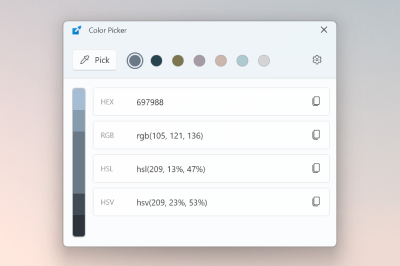
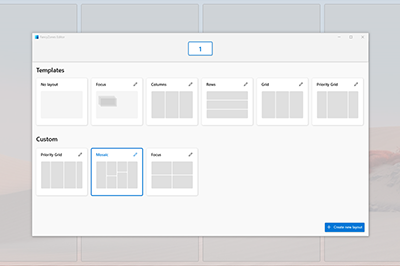
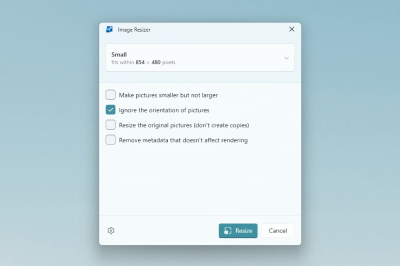
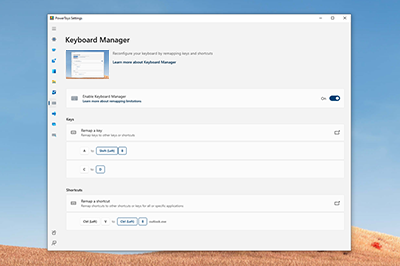
Full list of aka links









Doc Devdocs Cli Conventions (`doc/devdocs/cli-conventions.md`)
CLI Conventions
This document describes the conventions for implementing command-line interfaces (CLI) in PowerToys modules.
PATH-Visible Command Naming and Location
- Name module CLI command shims
PowerToys.<ModuleName>.CLI.exe(for example,PowerToys.ImageResizer.CLI.exe). - Install these shims in the
binsubfolder of the PowerToys installation directory, which the installer adds toPATH.
Every command is the same PowerToys.CliShim.exe payload (tools/CliShim/) installed under a different name. The shim resolves which CLI to launch from its own file name, forwards the raw argument tail unchanged, shares the caller's console, and returns the CLI's exit code. The CLI runs in a job object owned by the shim, so killing the shim kills the CLI with it; processes the CLI itself starts (the Settings window, for example) break away and survive.
On a per-machine install the bin folder is created with a protected DACL (MachinePathFolderSddl in installer/PowerToysSetupVNext/Common.wxi) so that a custom installation root cannot leave a machine-PATH folder writable by standard users. Author that <CreateFolder> on the same component as the folder's <Environment> PATH entry, so the two cannot drift apart.
Adding a new shim
- Add a
<CliShim>item totools/CliShim/CliShimManifest.propswith the command name and the target's path relative tobin. Write that path with/separators, and against the installed layout (see Signing and Deployment) - which is where the CLI ends up, not where it is built from. - Add the matching
<Component>and<ComponentRef>toinstaller/PowerToysSetupVNext/CliShims.wxs, using the command name as theFile/@Name.
CliShim.vcxproj fails the build if the command names in those two drift apart, build-installer.ps1 fails the build if a RelativeTarget does not resolve to a real executable, and CliShim.UnitTests generates its expectations from the same manifest, so there is no third list to update.
Shim exit codes
The shim returns the target CLI's exit code unchanged. It substitutes one of its own codes only when the CLI never ran, using values outside the range the CLIs use themselves:
| Code | Meaning |
|---|---|
9009 |
No CLI is mapped to the invoked command name (matches cmd.exe's "command not found"). |
9010 |
The mapped target executable is missing from the installation. |
9011 |
The shim could not start the target, including when it cannot resolve its own path. |
Library
Use the System.CommandLine library for CLI argument parsing. The version is already defined in Directory.Packages.props:
<PackageVersion Include="System.CommandLine" Version="2.0.1" />Add the reference to your project:
<PackageReference Include="System.CommandLine" />Option Naming and Definition
- Use
--kebab-casefor long form (e.g.,--shrink-only). - Use single
-xfor short form (e.g.,-s,-w). - Pass the long name first, then any aliases:
new Option("--silent", "-s"). - Create options using
Option<T>and setDescriptionto descriptive help text. - Add validators (
option.Validators.Add(...), reporting failures withresult.AddError(...)) for options that require range or format checking.
RootCommand Setup
- Create a
RootCommandwith a brief description. - Add all options and arguments to the command (
rootCommand.Options.Add(...),rootCommand.Arguments.Add(...)). RootCommandincludes the standard--helpand--versionoptions. Remove them fromrootCommand.Optionsif the CLI renders its own help or reuses their aliases.
Parsing
- Use
rootCommand.Parse(args)to parse CLI arguments. - Extract option values using
parseResult.GetValue(option). - To run a handler, register it with
command.SetAction(parseResult => ...)and callparseResult.Invoke()orparseResult.InvokeAsync().
Parse/Validation Errors
- On parse/validation errors, print error messages and usage, then exit with non-zero code.
Examples
Reference implementations:
- Awake:
src/modules/Awake/Awake/Program.cs - ImageResizer:
src/modules/imageresizer/ui/Cli/
Help Output
- Provide a
PrintUsage()method for custom help formatting if needed.
Best Practices
- Consistency: Follow existing module patterns.
- Documentation: Always provide help text for each option.
- Validation: Validate input and provide clear error messages.
- Atomicity: Make one logical change per PR; avoid drive-by refactors.
- Build/Test Discipline: Build and test synchronously, one terminal per operation.
- Style: Follow repo analyzers (
.editorconfig, StyleCop) and formatting rules.
Logging Requirements
- Use
ManagedCommon.Loggerfor consistent logging. - Initialize logging early in
Main(). - Use dual output (console + log file) for errors and warnings to ensure visibility.
- Reference:
src/modules/imageresizer/ui/Cli/CliLogger.cs
Telemetry and Privacy Requirements
- Every module CLI must record usage telemetry through the existing PowerToys telemetry infrastructure, respecting the user's diagnostic data consent.
- Record a fixed, allowlisted command category and a success flag based on the final exit code. Do not collect raw arguments, file paths, monitor IDs, profile values, or other user-provided content.
- Telemetry failures must not change command output, exit codes, or exception behavior.
- Add every new CLI telemetry event to DATA_AND_PRIVACY.md in the same PR, describing its purpose and collected data.
- Follow Telemetry Events for event naming, privacy tags, and implementation details.
Error Handling
Exit Codes
0: Success1: General error (parsing, validation, runtime)2: Invalid arguments (optional)
Exception Handling
- Always wrap
Main()in try-catch for unhandled exceptions. - Log exceptions before exiting with non-zero code.
- Display user-friendly error messages to stderr.
- Preserve detailed stack traces in log files only.
Testing Requirements
- Include tests for argument parsing, validation, and edge cases.
- Place CLI tests in module-specific test projects (e.g.,
src/modules/[module]/tests/*CliTests.cs).
Signing and Deployment
- CLI executables are signed automatically in CI/CD.
- New CLI tools: Add your executable and dll to
.pipelines/ESRPSigning_core.jsonin the signing list. - CLI executables are deployed either to the installation root (e.g.,
C:\Program Files\PowerToys\FancyZonesCLI.exe) or, for WinUI 3 modules, next to their module inWinUI3Apps\(e.g.,C:\Program Files\PowerToys\WinUI3Apps\PowerToys.ImageResizerCLI.exe). PATH-visible shims are deployed toC:\Program Files\PowerToys\bin\, and a shim'sRelativeTargetis resolved from thatbinfolder against the installed layout - not against the source tree. - Use self-contained deployment (import
Common.SelfContained.props).
Doc Devdocs Commands (`doc/devdocs/commands.md`)
Issue/PR commands
The PowerToys repository uses some special keywords to help manage issues and pull requests. Here is a list of the most important commands you can use in issue and PR descriptions or comments.
| Command | Description |
|---|---|
/azp run |
Triggers the Azure Pipelines CI build for the current PR. Useful if you want to re-run the build without creating a new commit. |
/bugreport / /reportbug |
Adds a comment with a manual for the Bug Report Tool, which helps users collect logs and system information for debugging purposes. It requests to upload this file and adds the Needs-Author-Feedback label. |
/feedbackhub |
Adds a comment with a link to the Feedback Hub app on Windows, where users can submit feedback about PowerToys. Closes the issue and adds the Resolution-Please File on Feedback Hub label. |
/dup #... / /duplicate #... / /dup https://... / /duplicate https://... |
Marks the current issue as a duplicate of another issue. It closes the current issue and applies the Resolution-Duplicate label. Replace #... with the issue number or a link to the issue. |
/needinfo |
Adds the Needs-Author-Feedback label to the issue or PR, indicating that more information is needed from the author. |
/helped |
Closes the issue and adds the Resolution-Helped User label. Furthermore a comment is added with a link to the PowerToys user documentation. |
/loc |
Adds a comment informing the user that the issue was forwarded to the localization team and will soon be fixed. It adds the Loc-Sent To Team label. |
Defining new commands
Most of these commands are using the Microsoft GitHub Policy Service bot. Its commands are defined in the PowerToys policy configuration file.
Other automated tasks
AI-assisted issue triage
New and updated issues are processed by a GitHub Agentic Workflow that combines
deterministic checks with a bounded GitHub Copilot pass. It maintains one
triage comment, adds a matching primary Product-* label and version label,
requests blocking author information, recommends updating older PowerToys
versions, surfaces likely duplicates, and analyzes a sanitized subset of
attached PowerToys diagnostic reports.
Duplicate closure is submitted as a native GitHub suggestion. A maintainer must
accept or decline it. Accepting the suggestion closes the issue as a duplicate
and links it to the selected canonical issue.
The `Needs-Author-Feedback` label
If an issue or pull request retains this label without activity for 7 days, the
bot closes it. An author comment removes the label from issues and pull
requests, and an author push removes it from pull requests. Removing the label
manually also disables scheduled closure.
Filtering users that want to contribute
If a user utters their intention to contribute (e.g., by using the phrase "I want to contribute" in an issue or PR), the bot will add a comment with a link to the "Would you like to contribute to PowerToys?" thread.
Doc Devdocs Disk Usage Footprint (`doc/devdocs/disk-usage-footprint.md`)
PowerToys disk usage footprint overview
As of the v0.66 of PowerToys, core runtime dlls are being shipped self-contained as a part of PowerToys. During the installation process, hard-links are being created for every module that needs any of these shared libraries.
Why do this work?
Our main motivations for doing are the following:
- Be able to install PowerToys without UAC elevation
- PowerToys has a reduced disk space when components are shared.
- Reduce additional downloads for dependencies
Current self-contained runtimes
These dll's are installed in /dll/ folder structure.
So why does PowerToys have a larger footprint now?
Before the hard-link work was done, each of these runtimes had to be installed, so there were more items being installed outside just the PowerToys install directory. This space would not have been accounted.
File Explorer treats hard-links the same as "original"/regular files/directories (https://learn.microsoft.com/troubleshoot/windows-server/backup-and-storage/disk-space-problems-on-ntfs-volumes#other-ntfs-features-that-may-cause-file-allocation-confusion), not as links. This results in File Explorer reporting size of PowerToys installation directory bigger than it is (more than 2GB).
How much space is actually being used
As of v0.66 of PowerToys, the installed footprint is ~660MB.
When we were prototyping and validating, here was our running table of results and why we took the route we did.
| Moment | Installer size | App size | Installation dir size | Real size | Deps downloaded and installed during PT install | Total (installer size + real size + deps downloaded and installed during PT install) |
|---|---|---|---|---|---|---|
| v0.62.0.1no deps self-contained | 125 MB | 817 MB | 529 MB | 534 MB | 418 MB | 1,077 MB |
| v0.63.0WAS and VCRedist | 83 MB | 587 MB | 567 MB | 396 MB | 394 MB | 873 MB |
| v0.63.0WAS1.2preview and VCRedist | 80 MB | 574 MB | 539 MB | 385 MB | 394 MB | 859 MB |
| Full TestWAS, VCRedist, .NET | 149 MB | 705 MB | 1,760 MB | 557 MB | 0 MB | 706 MB |
Our process to verify current install footprint
We created a quick virtual machine. We chose to use our fresh Windows 10 test virtual machines here.
Empty disk details
Install PowerToys to empty disk
PowerToys installation directory size shown by File Explorer
As mentioned above, File Explorer shows size of PowerToys installation dir as every hard-link is a regular file for itself
PowerToys size shown by App->Installed apps
Disk usage with PowerToys installed
Real disk usage of PowerToys is shown by inspecting disk usage after installing PowerToys. Used space is now 695MB, comparing to ~35MB used space for empty disk gives us the size of ~660MB for PowerToys installation dir.
PowerShell command calculating size of non-hardlinks files
Size of regular files (non-hard-links) and hard-links can also be obtained by running following PowerShell command in PowerToys installation dir:
Regular files:
ls -Recurse -File -force -ErrorAction SilentlyContinue | ? LinkType -ne HardLink | Measure-Object -Property Length -Sum

Hard-links
ls -Recurse -File -force -ErrorAction SilentlyContinue | ? LinkType -e HardLink | Measure-Object -Property Length -Sum
Running these commands for PowerToys v0.66 shows that size of regular files is way less than size of hard-links pointing to some of those regular files because PowerShell (same as File Explorer) also takes the size of hard-links as of regular files.
Doc Devdocs Embedded Msix (`doc/devdocs/embedded-msix.md`)
How to integrate new MSIX module with PowerToys Settings and WiX installer
issue_11705_with_example branch contains HelloWorld UWP C# MSIX application which reads its module settings and is installed along PowerToys.
Steps
- uncomment everything near "TODO: Use to activate embedded MSIX" comments
- build PowerToys solution
- deploy HelloModule module and sign it with a self-signed certificate (don't forget to put it into a trusted store)
- build PowerToysSetup solution and install it
Type HelloModule into start search and observe that it was installed:
Open PowerToys settings and change the stub setting to something:
Open HelloModule:
First time you press "Load Settings", it'll detect that it doesn't have permissions to access local file system and open its system settings window, toggle it there:
(it's a known uwp limitation, see https://stackoverflow.com/a/53533414/657390)
HelloModule will close then, restart it, press "Load Settings" and you should see that the application was able to load the setting string which was set by the settings app:
Doc Devdocs Events (`doc/devdocs/events.md`)
Telemetry Events
PowerToys collects limited telemetry to understand feature usage, reliability, and product quality. When adding a new telemetry event, follow the steps below to ensure the event is properly declared, documented, and available after release.
⚠️ Important: Telemetry must never include personal information, file paths, or user‑generated content.
Developer Effort Overview (What to Expect)
Adding a telemetry event is a multi-step process that typically spans several areas of the codebase and documentation.
At a high level, developers should expect to:
- Within one PR:
- Add a new telemetry event(s) to module
- Add the new event(s) DATA_AND_PRIVACY.md
- Reach out to @carlos-zamora or @chatasweetie so internal scripts can process new event(s)
Privacy Guidelines
NEVER log:
- User data (text, files, emails, etc.)
- File paths or filenames
- Personal information
- Sensitive system information
- Anything that could identify a specific user
DO log:
- Feature usage (which features, how often)
- Success/failure status
- Timing/performance metrics
- Error types (not error messages with user data)
- Aggregate counts
Event Naming Convention
Follow this pattern: UtilityName_EventDescription
Examples:
ColorPicker_SessionFancyZones_LayoutAppliedPowerRename_RenameAdvancedPaste_FormatClickedCmdPal_ExtensionInvoked
Adding Telemetry Events to PowerToys
PowerToys uses ETW (Event Tracing for Windows) for telemetry in both C++ and C# modules. The telemetry system is:
- Opt-in by default (disabled since v0.86)
- Privacy-focused - never logs personal info, file paths, or user-generated content
- Controlled by registry - HKEY_CURRENT_USER\Software\Classes\PowerToys\AllowDataDiagnostics
C++ Telemetry Implementation
Core Components
| File | Purpose |
|---|---|
| ProjectTelemetry.h | Declares the global ETW provider g_hProvider |
| TraceBase.h | Base class with RegisterProvider(), UnregisterProvider(), and IsDataDiagnosticsEnabled() check |
| TraceLoggingDefines.h | Privacy tags and telemetry option group macros |
Pattern for C++ Modules
Create a
Traceclass inheriting fromtelemetry::TraceBase(src/common/Telemetry/TraceBase.h):c// trace.h #pragma once #include <common/Telemetry/TraceBase.h> class Trace : public telemetry::TraceBase { public: static void MyEvent(/* parameters */); };Implement events using
TraceLoggingWriteWrapper:cpp// trace.cpp #include "trace.h" #include <common/Telemetry/TraceBase.h> TRACELOGGING_DEFINE_PROVIDER( g_hProvider, "Microsoft.PowerToys", (0x38e8889b, 0x9731, 0x53f5, 0xe9, 0x01, 0xe8, 0xa7, 0xc1, 0x75, 0x30, 0x74), TraceLoggingOptionProjectTelemetry()); void Trace::MyEvent(bool enabled) { TraceLoggingWriteWrapper( g_hProvider, "ModuleName_EventName", // Event name TraceLoggingBoolean(enabled, "Enabled"), // Event data ProjectTelemetryPrivacyDataTag(ProjectTelemetryTag_ProductAndServicePerformance), TraceLoggingBoolean(TRUE, "UTCReplace_AppSessionGuid"), TraceLoggingKeyword(PROJECT_KEYWORD_MEASURE)); }
Key C++ Telemetry Macros
| Macro | Purpose |
|---|---|
TraceLoggingWriteWrapper CustomAction.cpp |
Wraps TraceLoggingWrite with IsDataDiagnosticsEnabled() check |
ProjectTelemetryPrivacyDataTag(tag) TraceLoggingDefines.h |
Sets privacy classification |
C# Telemetry Implementation
Core Components
| File | Purpose |
|---|---|
| PowerToysTelemetry.cs | Singleton Log instance with WriteEvent<T>() method |
| EventBase.cs | Base class for all events (provides EventName, Version) |
| IEvent.cs | Interface requiring PartA_PrivTags property |
| TelemetryBase.cs | Inherits from EventSource, defines ETW constants |
| DataDiagnosticsSettings.cs | Registry-based enable/disable check |
Pattern for C# Modules
Create an event class inheriting from
EventBaseand implementingIEvent:csharpusing System.Diagnostics.CodeAnalysis; using System.Diagnostics.Tracing; using Microsoft.PowerToys.Telemetry; using Microsoft.PowerToys.Telemetry.Events; namespace MyModule.Telemetry { [EventData] [DynamicallyAccessedMembers(DynamicallyAccessedMemberTypes.PublicProperties)] public class MyModuleEvent : EventBase, IEvent { // Event properties (logged as telemetry data) public string SomeProperty { get; set; } public int SomeValue { get; set; } // Required: Privacy tag public PartA_PrivTags PartA_PrivTags => PartA_PrivTags.ProductAndServiceUsage; // Optional: Set EventName in constructor (defaults to class name) public MyModuleEvent(string prop, int val) { EventName = "MyModule_EventName"; SomeProperty = prop; SomeValue = val; } } }Log the event:
PowerToysTelemetry.Log.WriteEvent(new MyModuleEvent("value", 42));Privacy Tags (C#)
| Tag | Use Case |
|---|---|
PartA_PrivTags.ProductAndServiceUsage TelemetryBase.cs |
Feature usage events |
PartA_PrivTags.ProductAndServicePerformance TelemetryBase.cs |
Performance/timing events |
Update DATA_AND_PRIVACY.md file
Add your new event(s) to DATA_AND_PRIVACY.md.
Launch Product Version Containing the new events
Events do not become active until they ship in a released PowerToys version. After your PRs are merged:
- The event will begin firing once users install the version that includes it
- In order for PowerToys to process these events, you must complete the next section
Next Steps
Reach out to @carlos-zamora or @chatasweetie so internal scripts can process new event(s).
Summary
Required steps:
- In one PR:
- Add the event(s) in code
- Document event(s) in DATA_AND_PRIVACY.md
- Ship the change in a PowerToys release
- Reach out for next steps
Doc Devdocs Guidance (`doc/devdocs/guidance.md`)
Coding Guidance
Working With Strings
In order to support localization YOU SHOULD NOT have hardcoded UI display strings in your code. Instead, use resource files to consume strings.
For CPP
Use StringTable resource to store the strings and resource header file(resource.h) to store Id's linked to the UI display string. Add the strings with Id's referenced from the header file to the resource-definition script file. You can use Visual Studio Resource Editor to create and manage resource files.
resource.h:
XXX must be a unique int in the list (mostly the int ID of the last string id plus one):
#define IDS_MODULE_DISPLAYNAME XXXStringTablein resource-definition script filevalidmodulename.rc:
STRINGTABLE
BEGIN
    IDS_MODULE_DISPLAYNAME               L"Module Name"
END- Use the
GET_RESOURCE_STRING(UINT resource_id)method to consume strings in your code.
#include <common.h>

std::wstring GET_RESOURCE_STRING(IDS_MODULE_DISPLAYNAME)
For C#
Use XML resource file(.resx) to store the UI display strings and Resource Manager to consume those strings in the code. You can use Visual Studio to create and manage XML resources files.
Resources.resx
<data name="ValidUIDisplayString" xml:space="preserve">
    <value>Description to be displayed on UI.</value>
    <comment>This text is displayed when XYZ button clicked.</comment>
</data>- Use
Resource Managerto consume strings in code.
System.Resources.ResourceManager manager = new System.Resources.ResourceManager(baseName, assembly);
string validUIDisplayString = manager.GetString("ValidUIDisplayString", resourceCulture);
In case of Visual Studio is used to create the resource file. Simply use the Resources class in auto-generated Resources.Designer.cs file to access the strings which encapsulate the Resource Manager logic.
string validUIDisplayString = Resources.ValidUIDisplayString;More On Coding Guidance
Please review these brief docs below relating to our coding standards, etc.
Doc Devdocs Logging (`doc/devdocs/logging.md`)
Logging
Logging plays an important part in determining bugs in our code. It provides context for the developers about where and when errors occur.
Where are the logs saved
- Most of the logs are saved under
%LOCALAPPDATA%/Microsoft/PowerToys. - For low-privilege processes (like preview handlers) the logs are saved under
%USERPROFILE%/AppData/LocalLow/Microsoft/PowerToys.
Logs are normally in a subfolder with the module name as title.
The BugReportTool will take logs from both locations when executed.
Using a logger in a project
Spdlog
In C++ projects we use the awesome spdlog library for logging as a git submodule under the deps directory. To use it in your project, just include spdlog.props in a .vcxproj like this:
<Import Project="..\..\..\deps\spdlog.props" />It'll add the required include dirs and link the library binary itself.
PowerToys Logger in ManagedCommon
For C# projects there is a static logger class in Managed Common called Logger.
To use it, add a project reference to ManagedCommon and add the following line of code to all the files using the logger:
using ManagedCommon;In the Main function (or a function with a similar meaning (like App in a App.xaml.cs file)) you have to call InitializeLogger and specify the location where the logs will be saved (always use a path scheme similar to this example):
Logger.InitializeLogger("\\FancyZones\\Editor\\Logs");For a low-privilege process you have to set the optional second parameter to true:
Logger.InitializeLogger("\\FileExplorer\\Monaco\\Logs", true);The Logger class contains the following logging functions:
// Logs an error that the utility encountered
Logger.LogError(string message);
Logger.LogError(string message, Exception ex);
// Logs an error that isn't that grave
Logger.LogWarning(string message);
// Logs what the app is doing at the moment
Logger.LogInfo(string message);
// Like LogInfo just with infos important for debugging
Logger.LogDebug(string message);
// Logs the current state of the utility.
Logger.LogTrace();
Doc Devdocs Run As Admin Detection (`doc/devdocs/run-as-admin-detection.md`)
This file has been moved
PowerToys and running as Administrator
Doc Devdocs Watson Queries (`doc/devdocs/watson-queries.md`)
Watson queries [msft only]
Catch all
[!NOTE]
Update theAppScope_AppVersion(and the installer file names below) to the current release version when triaging.
EXE name
- Machine installer (x64)
- Machine installer (arm64)
- User installer (x64)
- User installer (arm64)
- Main exe
- PT Run / example
DLL based
Doc Dsc Profile Resource (`doc/dsc/profile-resource.md`)
ms.date: 07/20/2026 ms.topic: reference title: Keyboard Manager Profile Resource
Keyboard Manager Profile Resource
Synopsis
Manages the Keyboard Manager remapping profile — key remappings and shortcut
remappings — declaratively through DSC v3.
Description
The profile resource deploys Keyboard Manager key and shortcut remappings.
While the settings resource manages a module's settings (for
KeyboardManager: the enabled state and editor options), the profile
resource manages the remapping profile itself, which Keyboard Manager stores
separately from its settings.
Keys are written with friendly names instead of virtual-key codes, so
configurations are easy to author and review:
profile:
  keys:
    - { from: CapsLock, to: Esc }
  shortcuts:
    - { from: "Ctrl+Shift+A", to: "Ctrl+V" }
The only supported module is KeyboardManager. The DSC resource type isMicrosoft.PowerToys/KeyboardManagerProfile.
Important — replace semantics: Applying the resource replaces the
whole remapping profile with the declared state. Remappings created in
the Keyboard Manager editor that are not part of the configuration are
removed. Useexportto capture the current remappings before switching a
machine to declarative management.
When the profile is applied while PowerToys is running, the Keyboard Manager
engine reloads it immediately; otherwise the profile takes effect the next
time PowerToys starts. Note that the remappings are only active when the
Keyboard Manager utility is enabled (see the KeyboardManager module).
Profile schema
The profile object is required and has two entry lists. An empty profile
(profile: {}) removes every remapping:
`keys[]` — single-key remappings
| Property | Type | Required | Description |
|---|---|---|---|
from |
string | yes | The key being remapped, e.g. CapsLock. |
to |
string | one of | Target key or shortcut, e.g. Esc, Ctrl+C, Disable. |
toText |
string | one of | Text to type instead of the key. |
Exactly one of to or toText must be set.
`shortcuts[]` — shortcut remappings
| Property | Type | Required | Description |
|---|---|---|---|
from |
string | yes | The shortcut being remapped, e.g. Ctrl+Shift+A or Win+O, K (chord). |
to |
string | one of | Target key or shortcut. |
toText |
string | one of | Text to type instead of the shortcut. |
runProgram |
object | one of | Program to start (see below). |
openUri |
string | one of | URI to open, e.g. https://github.com or ms-settings:. |
targetApp |
string | no | Process name the remap applies to, e.g. notepad.exe. Omit for global. |
exactMatch |
boolean | no | Only trigger when no other keys are pressed. Default false. |
Exactly one of to, toText, runProgram, or openUri must be set. A
shortcut from requires at least one modifier plus one action key, and may
add a chord second key after a comma ("Win+O, K"). Win+L andCtrl+Alt+Delete are handled by Windows before any application and are
rejected, as in the Keyboard Manager editor.
`runProgram` object
| Property | Type | Required | Description |
|---|---|---|---|
filePath |
string | yes | Program path; environment variables are expanded. |
args |
string | no | Command-line arguments. |
startInDir |
string | no | Working directory. |
elevation |
string | no | normal (default), elevated, or differentUser. |
ifRunning |
string | no | showWindow (default), startAnother, doNothing, close, endTask, closeAndEndTask. |
windowStyle |
string | no | normal (default), hidden, minimized, maximized. |
Key names
Key names are case-insensitive and independent of the active keyboard
layout. Shortcut parts are joined with +; a chord second key follows after
a comma.
| Category | Names |
|---|---|
| Letters/digits | A–Z, 0–9 |
| Function | F1–F24 |
| Modifiers | Ctrl, Alt, Shift, Win (either side); LCtrl, RCtrl, LAlt, RAlt, LShift, RShift, LWin, RWin |
| Navigation | Esc, Tab, CapsLock, Space, Enter, Backspace, Insert, Delete, Home, End, PgUp, PgDn, Up, Down, Left, Right, PrintScreen, ScrollLock, Pause, NumLock, Apps, Break, Clear, Sleep |
| Numpad | NumPad0–NumPad9, NumPadMultiply, NumPadAdd, NumPadSeparator, NumPadSubtract, NumPadDecimal, NumPadDivide; numpad-origin variants: NumPadEnter, NumPadHome, NumPadEnd, NumPadPgUp, NumPadPgDn, NumPadInsert, NumPadDelete, NumPadUp, NumPadDown, NumPadLeft, NumPadRight, NumPadSlash |
| Punctuation | Semicolon (;), Equals (=), Comma (,), Minus (-), Period (.), Slash (/), Backquote (`), LBracket ([), Backslash (\), RBracket (]), Quote ('), OEM102 |
| Media/browser | VolumeMute, VolumeDown, VolumeUp, MediaNext, MediaPrev, MediaStop, MediaPlayPause, BrowserBack, BrowserForward, BrowserRefresh, BrowserStop, BrowserSearch, BrowserFavorites, BrowserHome, LaunchMail, LaunchMediaSelect, LaunchApp1, LaunchApp2 |
| Special | Disable (disables the key or shortcut), VK<decimal> or 0x<hex> for any other virtual-key code |
Note: Punctuation names refer to the key's physical position on a US
layout (Semicolonis theVK_OEM_1key), so profiles behave identically
regardless of the machine's keyboard layout.
Common operations
# Get or export the current remapping profile
PowerToys.DSC.exe get --resource 'profile' --module KeyboardManager
PowerToys.DSC.exe export --resource 'profile' --module KeyboardManager

# Apply a remapping profile
$input = '{"profile":{"keys":[{"from":"CapsLock","to":"Esc"}]}}'
PowerToys.DSC.exe set --resource 'profile' --module KeyboardManager --input $input

# Test whether the current remappings match the desired state
PowerToys.DSC.exe test --resource 'profile' --module KeyboardManager --input $input

# Get the JSON schema of the resource
PowerToys.DSC.exe schema --resource 'profile' --module KeyboardManager
Examples
Example 1 - Deploy remappings with DSC
dsc config set --file keyboardmanager-profile.dsc.yaml# keyboardmanager-profile.dsc.yaml
$schema: https://aka.ms/dsc/schemas/v3/bundled/config/document.json
resources:
- name: Deploy key remappings
type: Microsoft.PowerToys/KeyboardManagerProfile
properties:
profile:
keys:
- { from: CapsLock, to: Esc }
- { from: Insert, to: Disable }
- { from: F2, toText: "[email protected]" }
shortcuts:
- { from: "Ctrl+Shift+A", to: "Ctrl+V" }
- { from: "Win+O, K", toText: "chord-triggered text" }
- { from: "Ctrl+Alt+N", to: "Ctrl+S", targetApp: "notepad.exe", exactMatch: true }
- from: "Ctrl+Alt+T"
runProgram:
filePath: "%WINDIR%\\System32\\cmd.exe"
args: "/k echo hello"
- { from: "Ctrl+Alt+B", openUri: "https://github.com/microsoft/PowerToys" }Example 2 - Install PowerToys and deploy remappings with WinGet
winget configure winget-kbm-profile.yaml# winget-kbm-profile.yaml
$schema: https://raw.githubusercontent.com/PowerShell/DSC/main/schemas/2023/08/config/document.json
metadata:
winget:
processor: dscv3
resources:
- name: Install PowerToys
type: Microsoft.WinGet.DSC/WinGetPackage
properties:
id: Microsoft.PowerToys
source: winget
- name: Enable Keyboard Manager
type: Microsoft.PowerToys/KeyboardManagerSettings
properties:
settings:
properties:
Enabled: true
name: KeyboardManager
version: 1.0
- name: Deploy key remappings
type: Microsoft.PowerToys/KeyboardManagerProfile
properties:
profile:
keys:
- { from: CapsLock, to: LCtrl }
shortcuts:
- { from: "Ctrl+Shift+V", toText: "Best regards,\nContoso IT" }Example 3 - Capture existing remappings
Export the current remappings on a reference machine, then reuse them in a
configuration document:
PowerToys.DSC.exe export --resource 'profile' --module KeyboardManager
# {"profile":{"keys":[{"from":"CapsLock","to":"Esc"}],"shortcuts":[]}}
See also
Doc Dsc Settings Resource (`doc/dsc/settings-resource.md`)
ms.date: 10/18/2025 ms.topic: reference title: Settings Resource
Settings Resource
Synopsis
Manages configuration settings for PowerToys utilities (modules).
Description
The settings resource provides Microsoft Desired State Configuration (DSC)
support for managing PowerToys configuration. It enables declarative
configuration of PowerToys utilities, allowing you to define, test, and
enforce desired states for each module.
Each PowerToys utility (module) has its own configurable properties that can
be managed through this resource. The settings resource supports standard DSC
operations: get, set, test, export, schema, and manifest generation.
Supported modules
The settings resource supports the following PowerToys modules:
- App - General application settings (enable/disable utilities, run at
startup, theme, etc.). - AdvancedPaste - Advanced clipboard and paste operations.
- AlwaysOnTop - Window pinning configuration.
- Awake - Keep-awake timer settings.
- ColorPicker - Color picker activation and format settings.
- CropAndLock - Window cropping settings.
- EnvironmentVariables - Environment variable editor settings.
- FancyZones - Window layout and zone configuration.
- FileLocksmith - File lock detection settings.
- FindMyMouse - Mouse locator settings.
- Hosts - Hosts file editor settings.
- ImageResizer - Image resize configuration.
- KeyboardManager - Key remapping and shortcut settings.
- MeasureTool - Screen measurement tool settings.
- MouseButtonLock - Hands-free mouse button drag-lock settings.
- MouseHighlighter - Mouse highlighting configuration.
- MouseJump - Mouse jump navigation settings.
- MousePointerCrosshairs - Crosshair display settings.
- Peek - File preview settings.
- PowerAccent - Accent character selection settings.
- PowerOCR - Text extraction settings.
- PowerRename - Bulk rename configuration.
- RegistryPreview - Registry file preview settings.
- ShortcutGuide - Keyboard shortcut overlay settings.
- Workspaces - Application workspace settings.
- ZoomIt - Screen zoom and annotation settings.
For detailed property information for each module, see the individual module
documentation.
Operations
List supported modules
List all modules that can be configured with the settings resource.
Direct execution:
# List all configurable modules.
PowerToys.DSC.exe modules --resource 'settings'
Get current state
Retrieve the current configuration state for a module.
Direct execution:
# Get current settings for a module.
PowerToys.DSC.exe get --resource 'settings' --module <ModuleName>
DSC configuration:
$schema: https://aka.ms/dsc/schemas/v3/bundled/config/document.json
resources:
  - name: Get Awake settings
    type: Microsoft.PowerToys/AwakeSettings
    properties: {}
WinGet configuration:
$schema: https://raw.githubusercontent.com/PowerShell/DSC/main/schemas/2023/08/config/document.json
metadata:
  winget:
    processor: dscv3
resources:
  - name: Get FancyZones settings
    type: Microsoft.PowerToys/FancyZonesSettings
    properties: {}
Export current state
Export the current configuration state. The output is identical to the get
operation.
Direct execution:
# Export current settings for a module.
PowerToys.DSC.exe export --resource 'settings' --module <ModuleName>
Set desired state
Apply a configuration to a module, updating only the properties that differ
from the desired state.
Direct execution:
# Set desired configuration for a module.
$input = '{
  "settings": {
    "properties": {
      "keepDisplayOn": true,
      "mode": 1
    },
    "name": "Awake",
    "version": "0.0.1"
  }
}'
PowerToys.DSC.exe set --resource 'settings' --module Awake --input $input
DSC configuration:
$schema: https://aka.ms/dsc/schemas/v3/bundled/config/document.json
resources:
  - name: Configure Awake
    type: Microsoft.PowerToys/AwakeSettings
    properties:
      settings:
        properties:
          keepDisplayOn: true
          mode: 1
        name: Awake
        version: 0.0.1
WinGet configuration:
$schema: https://raw.githubusercontent.com/PowerShell/DSC/main/schemas/2023/08/config/document.json
metadata:
  winget:
    processor: dscv3
resources:
  - name: Install and configure PowerToys
    type: Microsoft.WinGet.DSC/WinGetPackage
    properties:
      id: Microsoft.PowerToys
      source: winget

  - name: Configure FancyZones
    type: Microsoft.PowerToys/FancyZonesSettings
    properties:
      settings:
        properties:
          fancyzones_shiftDrag: true
          fancyzones_mouseSwitch: true
          fancyzones_displayOrWorkAreaChange_moveWindows: true
        name: FancyZones
        version: 1.0
Test desired state
Verify whether the current configuration matches the desired state.
Direct execution:
# Test if current state matches desired state.
$input = '{
  "settings": {
    "properties": {
      "keepDisplayOn": true,
      "mode": 1
    },
    "name": "Awake",
    "version": "0.0.1"
  }
}'
PowerToys.DSC.exe test --resource 'settings' --module Awake --input $input
The output includes an _inDesiredState property indicating whether the
configuration matches (true) or differs (false).
DSC configuration:
$schema: https://aka.ms/dsc/schemas/v3/bundled/config/document.json
resources:
  - name: Test Awake configuration
    type: Microsoft.PowerToys/AwakeSettings
    properties:
      settings:
        properties:
          keepDisplayOn: true
          mode: 1
        name: Awake
        version: 0.0.1
Get schema
Generate the JSON schema for a module's settings, describing all configurable
properties and their types.
Direct execution:
# Get JSON schema for a module.
PowerToys.DSC.exe schema --resource 'settings' --module Awake

# Format for readability.
PowerToys.DSC.exe schema --resource 'settings' --module Awake `
  | ConvertFrom-Json | ConvertTo-Json -Depth 10
Generate manifest
Create a DSC resource manifest file for one or all modules.
Direct execution:
# Generate manifest for a specific module.
$outputDir = "C:\manifests"
PowerToys.DSC.exe manifest --resource 'settings' --module Awake `
  --outputDir $outputDir

# Generate manifests for all modules.
PowerToys.DSC.exe manifest --resource 'settings' --outputDir $outputDir

# Print manifest to console (omit --outputDir).
PowerToys.DSC.exe manifest --resource 'settings' --module Awake
Examples
Example 1 - Enable and configure FancyZones
This example enables FancyZones and configures window dragging behavior using
direct execution.
# Get current FancyZones settings.
$current = PowerToys.DSC.exe get --resource 'settings' --module FancyZones `
  | ConvertFrom-Json

# Modify settings.
$desired = @{
    settings = @{
        properties = @{
            fancyzones_shiftDrag = $true
            fancyzones_mouseSwitch = $true
            fancyzones_displayOrWorkAreaChange_moveWindows = $true
        }
        name = "FancyZones"
        version = "1.0"
    }
} | ConvertTo-Json -Depth 10 -Compress

# Apply configuration.
PowerToys.DSC.exe set --resource 'settings' --module FancyZones `
  --input $desired
Example 2 - Configure multiple utilities with DSC
This example configures multiple PowerToys utilities in a single DSC
configuration.
# powertoys-multi.dsc.yaml
$schema: https://aka.ms/dsc/schemas/v3/bundled/config/document.json
resources:
  - name: Enable PowerToys utilities
    type: Microsoft.PowerToys/AppSettings
    properties:
      settings:
        properties:
          Enabled:
            Awake: true
            FancyZones: true
            PowerRename: true
            ColorPicker: true
        name: App
        version: 1.0

  - name: Configure Awake
    type: Microsoft.PowerToys/AwakeSettings
    properties:
      settings:
        properties:
          keepDisplayOn: true
          mode: 1
        name: Awake
        version: 0.0.1

  - name: Configure ColorPicker
    type: Microsoft.PowerToys/ColorPickerSettings
    properties:
      settings:
        properties:
          changecursor: true
          copiedcolorrepresentation: "HEX"
        name: ColorPicker
        version: 1.0
Example 3 - Install and configure with WinGet
This example installs PowerToys and applies configuration using WinGet.
# winget-powertoys-setup.yaml
$schema: https://raw.githubusercontent.com/PowerShell/DSC/main/schemas/2023/08/config/document.json
metadata:
  winget:
    processor: dscv3
resources:
  - name: Install PowerToys
    type: Microsoft.WinGet.DSC/WinGetPackage
    properties:
      id: Microsoft.PowerToys
      source: winget
      ensure: Present

  - name: Configure general settings
    type: Microsoft.PowerToys/AppSettings
    properties:
      settings:
        properties:
          run_elevated: true
          startup: true
          theme: "dark"
        name: App
        version: 1.0

  - name: Configure FancyZones
    type: Microsoft.PowerToys/FancyZonesSettings
    properties:
      settings:
        properties:
          fancyzones_shiftDrag: true
          fancyzones_zoneSetChange_moveWindows: true
        name: FancyZones
        version: 1.0

  - name: Configure ImageResizer
    type: Microsoft.PowerToys/ImageResizerSettings
    properties:
      settings:
        properties:
          ImageResizerSizes:
            - Name: Small
              Width: 854
              Height: 480
              Unit: Pixel
              Fit: Fit
            - Name: Medium
              Width: 1920
              Height: 1080
              Unit: Pixel
              Fit: Fit
        name: ImageResizer
        version: 1.0
Apply the configuration:
winget configure winget-powertoys-setup.yamlExample 4 - Test configuration drift
This example tests whether the current configuration matches the desired
state.
# Define desired state.
$desired = @{
    settings = @{
        properties = @{
            keepDisplayOn = $true
            mode = 1
        }
        name = "Awake"
        version = "0.0.1"
    }
} | ConvertTo-Json -Depth 10 -Compress

# Test for drift.
$result = PowerToys.DSC.exe test --resource 'settings' --module Awake `
  --input $desired | ConvertFrom-Json

if ($result._inDesiredState) {
    Write-Host "Configuration is in desired state"
} else {
    Write-Host "Configuration has drifted from desired state"

    # Apply configuration.
    PowerToys.DSC.exe set --resource 'settings' --module Awake `
      --input $desired
}
Example 5 - Export all module configurations
This example exports configuration for all modules.
# Get list of all modules.
$modules = PowerToys.DSC.exe modules --resource 'settings'

# Export each module's configuration.
$configurations = @{}
foreach ($module in $modules) {
    $config = PowerToys.DSC.exe export --resource 'settings' `
      --module $module | ConvertFrom-Json
    $configurations[$module] = $config
}

# Save to file.
$configurations | ConvertTo-Json -Depth 10 `
  | Out-File "powertoys-backup.json"
See also
Doc Specs FancyZones DCR (`doc/specs/FancyZones-DCR.md`)
FancyZones library brief overview
Zone- Class which is basically wrapper around rectangle structure, representing one zone inside applied zone layout. ZoneSet is holding array of these which represent zone layout.ZoneSet- Class implementing actual zone layout applied. What this means is that ZoneSet is responsible for actual calculation of rectangle coordinates (whether is grid or canvas layout) and moving window through them. WorkArea holds ZoneSet structure which represents currently active zone set.WorkArea- Class representing work area, which is defined by monitor and current virtual desktop. For an example, if You have two monitors connected and two virtual desktops, You have 4 work areas available, and each of them can have separate zone layout. WorkArea is describing single work area. As mentioned before it holds active ZoneSet.FancyZones- Top level entity and entry point for all user actions (which goes through actual module interface). Some of the main responsibilities of FancyZones class:text1. Starting FancyZones Editor (C#) with appropriate command line arguments on user request. 2. Keeping track of WorkArea per monitor (currently active work area on each connected monitor). 3. Keeping track of active virtual desktops. This is performed in separate thread by polling VirtualDesktopIDs registry key and parsing its content. 4. Detecting every change in work environment, such as creating / destroying / switching between virtual desktops, closing FancyZones Editor, changing display settings and handling those changes.
Proposal for modifications of handling described in 4.4:
Currently after each of the mentioned changes in work environment we are calling EnumDisplayMonitors windows API, and passing callback function to it. EnumDisplayMonitors works asynchronous and triggers that callback for each work area available (as mentioned in previous example, for two monitors and two virtual desktops, we have this callback triggered four times). As mentioned previously, we have WorkArea class as our representation of this work area. And what we do, every time this callback is triggered we destroy previous WorkArea object for that work area and create new one, even though that it is most likely that nothing has changed (e.g. just switching back and forth between virtual desktops). This constant creation and deletion of WorkArea has caused some problems in the past and it's not ideal for some other fixes we would like to make in the multi-monitor/multi-desktop scenario.
As mentioned in 4.3 we already have tracker of virtual desktops implemented. Idea is to use this functionality and to extend it bit more, so we can track if work area (WorkArea) is new one, or already processed and skip creating new WorkArea objects and deleting old ones every time, even if nothing changed in it. We will keep map, where virtual desktop id is the key, and values are already processed monitors (virtual desktop exists across all monitors). Once we receive callback from EnumDisplayMonitors, indicating work area (defined by virtual desktop id and monitor) we can check if it’s new or not, and act accordingly (create new WorkArea for it or not). Deleting virtual desktop (which is also registered in 4.3), will trigger updates in this map, and also updates in our JSON storage.
Doc Specs SCOOBE (`doc/specs/SCOOBE.md`)
PowerToys SCOOBE Dialog
- What is it: Post-upgrade prompted dialog that walks users through the latest additions to PowerToys utilities and functionalities
- Author: Deondre Davis
- Spec Status: Draft
1. Overview
1.1. Executive Summary
To expand on our end-user on-boarding efforts, we seek to resolve the critical issue of informing users of new additions and improvements to PowerToys during upgrade scenarios. We currently list release notes on the main repository, in addition to affiliated information on Microsoft Docs. However, neither of these mediums are internal to the application, and thus requires users to proactively seek out information on what's been updated, or merely notice by chance what's been changed from their regular usage. As these are not ideal experiences, this document describes the inclusion of a post-upgrade 'SCOOBE' prompt that launches the previously developed OOBE dialog loaded with new information related to upgrade improvements and additions.
1.2. Key-Definitions/Concepts
Here are definitions for words and acronyms found throughout this document to ensure clarity:
- OOBE: Out of box experience – The users' initial interactions with the product immediately after installing the product and/or launching the product for the first time.
- SCOOBE: Second chance out of box experience - The users' initial interactions with the product immediately after upgrading the product and/or launching the product for the first time after upgrading.
1.3. Goals and Non-Goals
Goals:
- Create a guided prompt that exposes the user to a brief overview of the new features and/or improvements included with the latest version of PowerToys.
Non-Goals:
- Present a copy-and-paste replica of the repository release notes. This information needs to be readily consumable, often requiring visual demonstrations of the new behavior and/or functionality that's either not possible or not necessary to depict on the repository release notes.
2. Definition of Success
2.1. Customers
The PowerToys SCOOBE is for existing and new power users and developers who are looking to tune and streamline their Windows experience for greater productivity and enhanced user experience. As the PowerToys customer base tends to be particularly biased against SCOOBE prompts in general, we need to present the PowerToys SCOOBE dialog in such a way that it provides immediate value to end-users to improve the likelihood of users discovering all the additions to PowerToys by making their way through the prompt.
2.2. Expected Impact: Customer, and Technology Outcomes
- High Reliability : Less than 0.1% crash rate.
- Increased Activation : 50% or more adoption rate of new feature/utilities among PowerToys users who already utilize associated tools.
- High User Retention: 25% or more active PowerToys users after 28 days of upgrade.
3. Requirements
The SCOOBE dialog builds off the currently implemented OOBE dialog originally drafted by Niels's mock-up.
3.1. Functional Requirements
3.1.1. Functional Requirements Overview
| No. | Requirement | Pri |
|---|---|---|
| 1. | The SCOOBE dialog should launch immediately when PowerToys runs after having been updated. | P0 |
| 2. | The SCOOBE dialog should be contained inside the existing OOBE Dialog under its own "What's New" page of the dialog window. See figure 5.1.1. | P0 |
| 3. | The content for the SCOOBE dialog should be stored externally from the PowerToys application on the PowerToys GitHub in distinct wiki pages on for each release. * | P0 |
| 4. | When the "What's New" page is opened, the content displayed should be loaded from the information contained in the relevant wiki pages discussed in 3.1.1.3 above. Assumes the user's device is connected to the internet. | P0 |
| 6. | The SCOOBE dialog should display information on updates that have occurred on the version of PowerToys the user has installed/updated to. | P0 |
| 7. | If PowerToys was installed for the first time, the OOBE's "Welcome to PowerToys" page should display first, not the SCOOBE's "What's New" page. See figure 5.1.2. | P0 |
| 8. | The structure of the SCOOBE dialog page's content should follow the guidelines described in section 3.1.2. | P0 |
| 9. | After SCOOBE is initially viewed, the user should be able to re-access the SCOOBE dialog at any time by opening the OOBE window again and selecting the "What's New" page. | P1 |
* - By storing the content for SCOOBE externally from the application, the PowerToys team can update/adjust information without being constrained to PowerToys' release cycles. This is critical in the event of errors or miscommunications that would otherwise be difficult, if not impossible, to correct if stored locally to the app and shipped with the version of PowerToys being released. The content will likely be stored in an archive maintained in the PowerToys GitHub Wiki.
3.1.2. Page Content
| No. | Requirement | Pri |
|---|---|---|
| 1. | The SCOOBE dialog should display the version of PowerToys the user has installed, as shown in figures 5.1.1. | P0 |
| 2. | The SCOOBE dialog information should be grouped into two sections: "New Features & Improvements" and "Bug fixes Highlights". | P0 |
| 3. | The "New Features & Improvements" section should contain information related to end user functionality that has been added or updated. | P0 |
| 4. | The "New Features & Improvements" section should be subdivided by the relevant utilities updated (i.e. Color Picker, FancyZones, etc.). See figure 5.1.1 and section 5.1.3 for examples. | P1 |
| 5. | The "Bug fixes Highlights" section should contain information related to noteworthy issues/errors that were corrected. | P0 |
| 6. | If there are relevant visuals, they should be included with the information text. See figure 5.1.1. | P1 |
| 8. | The SCOOBE dialog should be scrollable if needed to fit all the content. | P0 |
| 10. | The bottom of the SCOOBE dialog should include a link to the PowerToys releases page for a complete list of versions and their release notes (Releases · microsoft/PowerToys (github.com)). | P1 |
4. Measure Requirements
| No. | Requirement | Implication | Pri |
|---|---|---|---|
| 1. | Date/Time of first-run following upgrade | Helps to categorize usage and retention trends across users who've been exposed to SCOOBE. | P0 |
| 2. | SCOOBE section viewed | Used to measure activation of the SCOOBE dialog. Should be 100% for the current version of PowerToys following SCOOBE's inclusion. | P0 |
| 3. | Accesses to linked documentation | Used to gauge interest in user's desire to learn more about the PowerToys described. | P1 |
| 4. | Access to linked settings pages | Used to gauge whether the settings presented to users in the dialog are sufficient for user needs. | P1 |
| 5. | PowerToys launched while SCOOBE window is active | Used to track user engagement with the various PowerToys while exploring the content in the SCOOBE. | P1 |
| 6. | Screen size | Gives crucial information for considerations related to minimal/maximum window size needed for displaying content. | P2 |
5. Appendix
5.1. Mock-ups
5.1.1. SCOOBE Dialog Layout
5.1.2. OOBE Welcome Page
5.1.3. Example Textual Descriptions for Updates
v0.29 -> v0.31:
- New Features & Improvements
- FancyZones
- Dark mode for the editor
- Certain settings (e.g. number of zones, spacing settings) can now be set on individual layouts.
- PowerToys Run
- Service management plugin (Start, stop, …)
- Registry key plugin
- System action plugin (Reboot, lock, ...)
- FancyZones
- Bug fixes Highlights
- Fixed OneDrive SVG Bug (#9999)
- SVG are scaled appropriately when view box is provided (#9999)
v0.31 -> v0.33:
- New Features & Improvements
- General
- Added a 'First time load' experience. The hope is a quick, light way to learn about basic functionality
- FancyZones
- New options to change zone activation algorithm
- PowerToys Run
- Plugin Manager now is in settings. You can directly turn on / off, include items in general search, and change the action key
- Improved support for additional window managers by abstracting out shell process calls
- ~ will now act as the user home directory in Folder plugin
- General
- Bug fixes Highlights
- Fix for PT Run registering the hotkey on non-supported OS versions (#9999)
v0.33 -> v0.35:
- New Features & Improvements
- Color Picker
- Esc can now be used to exit the editor
- FancyZones
- Added hotkeys and quick swap functionality for custom layouts! Users can now assign a hotkey in the editor and use it to quickly set a desktop's zones with Ctrl + Win + Alt + NUMBER key binding, or by pressing the hotkey while dragging a window.
- PowerToys Run
- Users can specify where to show the launcher window
- New plugin added to support opening previously used Visual Studio Code workspaces, remote machines (SSH or Codespaces), and containers! When enabled, use { to query for available workspaces. Please note, this plugin is off by default.
- Shell history now saves the raw command instead of the resolved command. A command like %appdata% would now save in the Shell history as is instead of C:\Users\YourUserName\AppData\Roaming.
- Color Picker
- Bug fixes Highlights
- PowerToys will start requiring Windows 10 v1903 or greater after 0.35.x release. (#9999)
- Fixed FancyZones placement algorithm for when the Taskbar is vertical (#9999)
Doc Specs WinGet Manifest Keyboard Shortcuts Schema (`doc/specs/WinGet Manifest Keyboard Shortcuts schema.md`)
WinGet Manifest Keyboard Shortcuts schema
1 What this spec is about
This spec provides an extension to the existing WinGet manifest schema in form of an additional yaml file, that describes keyboard shortcuts the application provides.
These yaml files are saved on a per-user base and so called manifest interpreters can then display these manifests in a human-friendly version.
1.1 What this spec is not about
This spec does not provide a way to back up or save user-defined keyboard shortcuts.
2 Save location of manifests
2.1 WinGet
These files are saved online along with the other manifest files in the WinGet Package repository.
2.2 Locally
All manifests and one index file are saved locally under %LocalAppData%/Microsoft/WinGet/KeyboardShortcuts. All apps are allowed to add their manifest files there. In addition Package Managers (like WinGet) and manifest interpreters (like PowerToys Shortcut Guide) can control and add other manifests themselves.
2.2.1 Downloading manifests
When WinGet or other package managers download a package, they should also download the corresponding keyboard shortcuts manifest file and save it in the local directory, given such a file exists in the WinGet repository.
The downloader is also responsible for updating the local index.yaml file, which contains all the information about the different manifest files that are saved in the same directory.
2.2.2 Updating manifests
When a manifest interpreter starts, it should download the latest version of the manifests from the WinGet repository and save them in the local directory. If a manifest interpreter is not able to download the manifests or they do not exist, it should use the locally saved manifests.
The updater is also responsible for updating the local index.yaml file, which contains all the information about the different manifest files that are saved in the same directory.
Note: WinGet must provide a way to update the keyboard shortcuts manifests given a package id.
2.3 File names
The file name of a keyboard shortcuts file is the WinGet package identifier, plus the locale of the strings of the file and at last the .KBSC.yaml file extension.
For example the package "test.bar" saves its manifest with en-US strings in test.bar.en-US.KBSC.yaml.
2.3.1 No winget package available
If an application has no corresponding WinGet package its name starts with a plus (+) symbol.
2.4 Reserved namespaces
Every name starting with +WindowsNT is reserved for the Windows OS and its components.
3 File syntax
All relevant files are written in YAML.
Note: A JSON schema will be provided as soon as the spec reaches a further step
3.1 Manifest Schema vNext Keyboard Shortcuts File
PackageName:                # The package unique identifier
WindowFilter:               # The filter of window processes to which the shortcuts apply to
BackgroundProcess:          # Optionally allows applying WindowFilter to background processes
Shortcuts:                  # List of sections with keyboard shortcuts
  - SectionName:            # Name of the category of shortcuts
    Properties:             # List of shortcuts in the category
      - Name:               # Name of the shortcut
        Description:        # Optional description of the shortcut
        AdditionalInfo:     # Optional additional information about the shortcut
        Recommended:        # Optionally determines if the shortcut is displayed in a designated recommended area
        Shortcut:           # An array of shortcuts that need to be pressed
          - Win:            # Determines if the Windows Key is part of the shortcut
            Ctrl:           # Determines if the Ctrl Key is part of the shortcut
            Shift:          # Determines if the Shift Key is part of the shortcut
            Alt:            # Determines if the Alt Key is part of the shortcut
            Keys:           # Array of keys that need to be pressed
Per Application/Package one or more Keyboard manifests can be declared. Every manifest must have a different locale and the same PackageName, WindowFilter and BackgroundProcess fields.
PackageName - The package unique identifier
Package identifier (see 2.1 for more information on the package identifier).
WindowFilter - The filter of window processes to which the shortcuts apply to
This field declares for which process name the shortcuts should be shown (To rephrase: For which processes the shortcut will have an effect if pressed). The value can be either an exact process executable name, for example explorer.exe or chrome.exe, or a single asterisk (*) to apply to any process. No other wildcard patterns are supported by this specification.
BackgroundProcess - Optionally allows applying WindowFilter to background processes.
Optional field
Defaults to False. Determines if WindowFilter should apply to background processes as well (Rephrased: When the process is running, the shortcuts will apply).
Shortcuts - List of sections with keyboard shortcuts
List of different section (also called categories) of shortcuts.
SectionName - Name of the category of shortcuts
Name of the section of shortcuts. Use sentence case, the same convention described under Name below.
Special sections:
Special sections start with an identifier enclosed between < and >. This declares the category as a special display. If the interpreter of the manifest file can't understand the content this section should be left out.
Properties - List of shortcuts in the category
Name - Name of the shortcut
Name of the shortcut. This is the name that will be displayed in the interpreter.
Casing:
By convention, shortcut names (and SectionName values) use sentence case: capitalize only the first word plus any proper nouns or product/feature names. For example, prefer Reopen last closed tab over Reopen Last Closed Tab, but keep Open History, Quit Slack, and Show Quick Access capitalized because those are application feature names. Match the casing the application uses for its own features rather than copying the title-case styling some apps apply to their entire shortcut list.
Description - Optional description of the shortcut
Optional description of the shortcut. This is the description that will be displayed by the interpreter.
AdditionalInfo - Optional additional information about the shortcut
Array of additional information about the shortcut. This is the additional information that will be displayed by the interpreter and are not part of this manifest.
Example:
For example, if the shortcut is only available on a certain Windows version, this information could be added here.
AdditionalInfo:
   - MinWindowsVersion: "10.0.19041.0"
Shortcut - An array of shortcuts that need to be pressed
An array of shortcuts that need to be pressed. This allows defining sequential shortcuts that need to be pressed in order to trigger the action.
Win - Determines if the Windows Key is part of the shortcut
Refers to the left Windows Key on the keyboard.
Ctrl - Determines if the Ctrl Key is part of the shortcut
Refers to the left Ctrl Key on the keyboard.
Shift - Determines if the Shift Key is part of the shortcut
Refers to the left Shift Key on the keyboard.
Alt - Determines if the Alt Key is part of the shortcut
Refers to the left Alt Key on the keyboard.
Recommended - Optionally determines if the shortcut is displayed in a designated recommended area
Optional field
Defaults to False. Determines if the shortcut should be displayed in a designated recommended area. This is a visual hint for the user that this shortcut is important.
Keys - Array of keys that need to be pressed
A string array of all the keys that need to be pressed. If a number is supplied, it should be read as a KeyCode and displayed accordingly (based on the Keyboard Layout of the user).
Literal digit keys:
Because a bare number is interpreted as a virtual-key code, a literal digit key must be authored using the <N> notation (the digit enclosed between < and >), where N is 0–9. For example, <9> represents the literal 9 key (as in the "switch to the last tab" shortcut), not the virtual-key code 9 (which is Tab). The interpreter strips the brackets and displays just the digit.
This applies only to a single literal digit. A range such as 1 - 8 is a free-form label, not a key, and is supplied verbatim (the brackets would only be trimmed from the ends, so <1> - <8> would not render as intended).
Special keys:
Special keys are enclosed between < and > and correspond to a key that should be displayed in a certain way. If the interpreter of the manifest file can't understand the content, the brackets should be left out.
By convention these tokens are written as double-quoted strings in the YAML (for example "<Enter>" and "<9>"), matching the quoting used for punctuation key values. YAML treats the quoted and unquoted forms identically, so quoting is for consistency rather than a strict requirement for bracketed tokens.
| Name | Description |
|---|---|
<Office> |
Corresponds to the Office key on some Windows keyboards |
<Copilot> |
Corresponds to the Copilot key on some Windows keyboards |
<Left> |
Corresponds to the left arrow key |
<Right> |
Corresponds to the right arrow key |
| `` | Corresponds to the up arrow key |
<Down> |
Corresponds to the down arrow key |
<Enter> |
Corresponds to the Enter key |
<Space> |
Corresponds to the Space key |
<Tab> |
Corresponds to the Tab key |
| `` | Corresponds to the Backspace key |
<Delete> |
Corresponds to the Delete key |
| `` | Corresponds to the Insert key |
<Home> |
Corresponds to the Home key |
<End> |
Corresponds to the End key |
| `` | Corresponds to the Print Screen key |
| `` | Corresponds to the pause key |
| `` | Corresponds to the Page Up key |
| `` | Corresponds to the Page Down key |
<Escape> |
Corresponds to the Escape key |
<Arrow> |
Corresponds to either the left, right, up or down arrow key |
<ArrowLR> |
Corresponds to either the left or right arrow key |
<ArrowUD> |
Corresponds to either the up or down arrow key |
<LessThan> |
Corresponds to the < key |
<GreaterThan> |
Corresponds to the > key |
| `` | Corresponds to any letter that is underlined in the UI |
3.2.2 Example
PackageName: Microsoft.PowerToys
WindowFilter: "*"
BackgroundProcess: True
Shortcuts:
  - SectionName: General
    Properties:
      - Name: Advanced Paste
        Shortcut:
          - Win: True
            Ctrl: False
            Alt: False
            Shift: False
            Keys:
              - 86
        Description: Open Advanced Paste window
      - Name: Advanced Paste
        Shortcut:
          - Win: True
            Ctrl: True
            Alt: True
            Shift: False
            Keys:
              - 86
        Description: Paste as plain text directly
3.2 `index.yaml` file
The index.yaml file is a file that contains all the information about the different manifest files that are saved in the same directory. This file is only available locally and is not saved in the WinGet repository as it is specific to the user.
DefaultShellName:           # The package identifier of the default shell used in Windows
Index:                      # List of all manifest files
  - WindowFilter:           # The filter of window processes to which the shortcuts apply to
    BackgroundProcess:      # Optionally allows applying WindowFilter to background processes
    Apps:                   # List of all manifest files for the filter
DefaultShellName - The package identifier of the default shell used in Windows
This declares the package identifier of the default shell used in Windows. Most commonly it is +WindowsNT.Shell. Although not enforced, only the shell declared in the registry key HKEY_LOCAL_MACHINE\SOFTWARE\Microsoft\Windows NT\CurrentVersion\Winlogon\Shell should be used here.
Index - List of all manifest files
WindowFilter - The filter of window processes to which the shortcuts apply to
See the WindowFilter field in the manifest file for more information.
BackgroundProcess - Optionally allows applying WindowFilter to background processes
Optional field
See the BackgroundProcess field in the manifest file for more information.
Apps - List of all the package identifiers applying for the filter
3.2.1 Example
DefaultShellName: "+WindowsNT.Shell"
Index:
  - Filter: "*"
    BackgroundProcess: True
    Apps: ["+WindowsNT.Shell", "Microsoft.PowerToys"]
  - Filter: "explorer.exe"
    Apps: ["+WindowsNT.WindowsExplorer"]
  - Filter: "taskmgr.exe"
    Apps: ["+WindowsNT.TaskManager"]
  - Filter: "msedge.exe"
    Apps: ["+WindowsNT.Edge"]
Doc Specs Power Display Adaptive Brightness (`doc/specs/power-display-adaptive-brightness.md`)
Power Display – Ambient-Light (ALS) Adaptive Brightness for External Monitors
Tracking issue: microsoft/PowerToys#49038
Behaviour discussion: #49038 (with @moooyo)
Related: #47480 (schedule-based auto-brightness), #42566 (Light Switch ALS → theme), #35564 (manual multi-monitor brightness), #1052 (Quick Display adjustment umbrella, completed)
1. Overview
Windows can auto-adjust the built-in laptop panel from the device's ambient light sensor (ALS), but
external monitors have no such capability — they almost never carry an ALS, and Windows will not pipe the
laptop's ALS reading to an external display. Today's PowerToys covers the two halves separately:
- Light Switch already reads the device ALS (
Windows.Devices.Sensors.LightSensor→IlluminanceInLux) to drive theme. - Power Display already writes external-monitor brightness over DDC/CI (
SetMonitorBrightness, VCP0x10).
This feature wires them together: a per-monitor Adaptive (ambient light) mode in Power Display that continuously
maps the device's ambient lux to each external monitor's brightness. It is the continuous, sensor-driven counterpart
to the time/schedule-based request tracked in #47480 — and it is what most users actually mean by "auto-brightness".
2. Goals / Non-goals
Goals
- Per-external-monitor opt-in adaptive brightness driven by the device ALS.
- A per-monitor calibration curve (lux → %), so differently-behaving panels can be matched.
- A per-monitor offset for manual/CLI nudges that rides on top of the curve (iOS-style personalization).
- Correct, safe behaviour when the sensor can't be trusted (e.g. laptop lid closed).
- Smooth, flicker-free, DDC/CI-friendly updates (smoothing + hysteresis + rate limiting).
- Coexist cleanly with manual brightness changes and the existing schedule/profile features.
Non-goals
- Driving the built-in laptop panel (Windows already does this).
- Bundling external/USB ambient sensors (possible future extension).
- Content-adaptive / gamma-overlay dimming (a different, software-only approach).
- Colour-temperature / Night-Light behaviour.
3. Scenarios
- A laptop is docked to one or two external monitors. As the room darkens through the evening, the externals dim
automatically to track the room — today only the built-in panel does this. - A light-sensitive user wants externals to follow ambient light continuously, without manual sliders or rigid schedules.
- Two different external panels are calibrated so they look equally bright across the whole ambient range.
- Clamshell (lid closed): the sensor is blocked, so brightness holds steady instead of dimming to black.
- A non-DDC/CI monitor: adaptive is greyed out for that monitor with a clear "not supported" reason.
4. Fit with existing modules
[ Device ALS ]
 LightSensor.ReadingChanged (lux)        <-- already consumed by Light Switch (#42566)
        │
        ▼
[ Adaptive Brightness engine ]  (new glue, lives in Power Display)
   smoothing (EMA) → hysteresis/deadband → curve(lux) + offset (per monitor) → rate limit
        │
        ▼
[ Power Display DDC/CI writer ]          <-- already exists (SetMonitorBrightness, VCP 0x10)
   per external monitor
No new module. The ALS reader can be refactored into a small shared helper so both Light Switch and Power Display
consume one sensor source (avoids two sensor subscriptions). On #47480 a maintainer noted Light Switch can already
link to a Power Display profile on a scheduler; this design adds an ambient-light trigger alongside the existing
time/sun trigger and addresses the "apply a Power Display profile without forcing a theme change" limitation raised there.
5. Core model — adaptive curve + per-monitor offset
The whole feature reduces to a single formula, applied independently per external monitor:
target%(lux) = clamp( curve(lux) + offset, minPercent, maxPercent )5.1 The loop
Continuously: read device ALS (lux) → smooth → map through the monitor's curve → add the monitor's offset →
clamp → write via DDC/CI. One shared sensor subscription drives an independent engine per external monitor.
5.2 Per-monitor calibration curve — the multi-monitor sync mechanism
Each monitor has its own editable lux → % curve. This is what keeps multiple monitors looking equally bright:
panels differ in nits and have non-linear backlight response, so the same ambient lux should map to a different
percentage on different panels. A per-monitor curve corrects this across the entire ambient range — something a
single scalar value cannot do (a uniform shift would keep them matched at one light level but drift apart at others).
5.3 Per-monitor offset — live personalization
A signed per-monitor offset% added on top of the curve. Manual/CLI nudges adjust it, so the system learns the
user's preference (iOS-style) instead of overriding them. The curve does calibration; the offset does live,
personal fine-tuning (and is the quick way to nudge one screen to match the others without editing its curve).
5.4 Manual / CLI interaction while adaptive is ON
When the user changes brightness (slider or CLI increase/decrease) with adaptive on, per-monitor manualBehavior:
offset(default): the delta becomes a persistent offset; adaptation keeps tracking ambient, just shifted.
A CLI "brightness +10" makes the monitor 10% brighter than the curve would pick, and tracking continues.pause: adaptation suspends for that monitor (hard manual override) until the user re-enables it.
6. UX / Settings design
Per-monitor (WinUI3 SettingsCard/SettingsExpander):
- Brightness source:
Manual(default) |Adaptive (ambient light). Adaptive is disabled with a reason string
when (a) no ALS is present, or (b) the monitor has no DDC/CI brightness control. - Default (zero-config): on/off + a single Responsiveness slider (Calm ↔ Snappy). A sensible default curve
ships out of the box so most users touch nothing else. - Advanced (collapsible): editable calibration curve (anchor points, e.g.
0 lx→20%, 50→40%, 300→70%, 1000→100%
with a "Reset"), min/max clamps, and themanualBehaviorchoice. - Live slider: when adaptive is on, the brightness slider becomes live — it reflects the current computed
target and moves on its own as ambient changes, with an "Auto" badge and a readout (Ambient 240 lx → 65%).
Dragging it applies the offset (§5.3); it does not silently disable adaptive.
Global: a module-level toggle and an enable/disable hotkey (consistent with other Power Display shortcuts, e.g. #48784).
7. Sensor trust & lifecycle
The ALS reading is used only when it can be trusted.
7.1 ALS / DDC-CI availability
LightSensor.GetDefault() null → adaptive unavailable everywhere (e.g. a desktop). Per monitor, if DDC/CI brightness
is unsupported → adaptive is disabled for that monitor with a reason.
7.2 Lid closed / clamshell (sensor blocked)
When the lid is closed the ALS faces the keyboard deck and reads ~darkness, so we must not drive brightness from it.
- Detect: lid state via
RegisterPowerSettingNotification(GUID_LIDSWITCH_STATE_CHANGE)(0 = closed, 1 = open),
corroborated byQueryDisplayConfig(QDC_ONLY_ACTIVE_PATHS)for an active internal panel
(DISPLAYCONFIG_OUTPUT_TECHNOLOGY_INTERNAL). Lid position is the true determinant — a user may have the lid open
but the internal display disabled, and there the sensor still sees the room. - Behaviour: on lid-close → pause adaptation and hold the last known-good brightness (never dim-to-black),
surface a status ("Adaptive paused — lid closed / ambient sensor blocked"), and resume live on reopen.
7.3 Honest boundary + fallbacks
Clamshell-docked is a primary scenario for this feature, yet it's exactly where the laptop ALS can't see the room.
Therefore:
- v1: full ALS adaptive when the lid is open; hold/pause when closed.
- Optional fallback: when the ALS is untrusted, fall back to time/schedule-based brightness (the #47480
mechanism) so clamshell users still get some automation. - Future: an external ambient sensor (monitor-integrated or USB) for true clamshell tracking (deferred).
8. Technical design
8.1 ALS acquisition
LightSensor.GetDefault(); subscribe toReadingChanged; setReportInterval = max(minimumReportInterval, ~500ms)
to limit churn/battery. Value:LightSensorReading.IlluminanceInLux(double).
8.2 Smoothing + hysteresis (anti-flicker, anti-wear)
- EMA on lux:
s_t = α·lux + (1−α)·s_{t−1}(α from the Responsiveness slider). - Deadband: ignore changes whose mapped target moves < ~2–3% from the last applied value.
- Min update interval per monitor (~1–2 s) and optional ramping (step toward target).
- Rationale: DDC/CI writes are slow (tens–hundreds of ms) and excessive writes can flicker or wear some panels.
8.3 Mapping
- Piecewise-linear interpolation over the anchor points; add
offset; clamp to per-monitor min/max. - Curve + offset stored per monitor (keyed by stable monitor id, as Power Display already does for profiles).
8.4 Brightness write
- Reuse Power Display's DDC/CI path (
GetPhysicalMonitorsFromHMONITOR→SetMonitorBrightness, VCP0x10). - Capability probe per monitor (
GetMonitorBrightness/ VCP support); if unsupported, disable adaptive for it.
8.5 Concurrency
- One engine per external monitor, one shared ALS subscription. Serialize DDC/CI writes per monitor on a worker;
never block the sensor callback. Handle monitor hotplug / dock connect-disconnect (Power Display already tracks add/remove).
9. Settings persistence
Extend Power Display's settings.json per-monitor entry, e.g.:
{
  "monitors": [{
    "id": "<stable-monitor-id>",
    "brightnessSource": "adaptive",          // "manual" | "adaptive"
    "adaptive": {
      "curve": [[0,20],[50,40],[300,70],[1000,100]],  // [lux, percent] calibration, per monitor
      "offsetPercent": 0,                    // signed live nudge added on top of the curve
      "minPercent": 15,
      "maxPercent": 100,
      "responsiveness": 0.4,                 // 0..1 → EMA α / update cadence
      "manualBehavior": "offset",            // "offset" (default) | "pause"
      "deadbandPercent": 3,
      "minUpdateMs": 1500
    }
  }]
}
target = clamp( interpolate(curve, lux) + offsetPercent, minPercent, maxPercent ).
10. Telemetry
Per doc/devdocs/development/logging.md, emit (privacy-respecting, counts only):
- Adaptive mode enabled/disabled per monitor; ALS-present; DDC/CI-supported;
manualBehaviorchosen. - Apply-rate (writes/min), deadband/clamp suppression counts, and lid-close pause events (to validate anti-wear tuning).
- No raw lux series or PII.
11. Performance & reliability
- Sensor at ~0.5–2 s cadence; writes throttled per §8.2 → negligible CPU and few DDC/CI writes.
- Worker isolates slow DDC/CI calls from the UI/sensor thread.
- Graceful degradation: no ALS → mode hidden/disabled; no DDC/CI → mode disabled per monitor with reason; lid closed → hold last-good.
12. Accessibility / Localization
- All new strings via
.resw+x:Uid(and discoverable by the settings search index, settings-search.md). - Curve editor keyboard-navigable; the live slider value, "Auto" badge, and ambient readout exposed to narrator.
13. Risks & open questions
- Manual-vs-adaptive arbitration — resolved: default
offset(iOS-style), withpauseopt-in (direction agreed in #49038). - ALS placement — chassis lux ≠ panel-facing lux; mitigated by the per-monitor curve; documented as a limitation.
- Clamshell — laptop ALS is blind when the lid is closed; handled via hold/pause + optional time fallback; external sensor is future work.
- DDC/CI variance across docks/USB-C/adapters (cf. #47577) — robust capability probing + clear unsupported messaging.
- Shared ALS source — refactor Light Switch's reader into a shared helper (preferred) vs. two subscriptions.
- Open (tune during implementation): exact default curve values and the Responsiveness → (α, min-update-interval) mapping.
14. Phased delivery
- Engine + per-monitor
adaptive(curve + offset) + default curve + DDC/CI write reuse + sensor-trust gating (JSON-config; minimal UI). - Settings UX: source dropdown, live slider + "Auto" badge/readout, curve editor, responsiveness, clamps,
manualBehavior. - Shared ALS helper refactor (Light Switch + Power Display); precedence with schedule/profile; optional time-based fallback.
- Telemetry + docs (
doc/devdocs/modules/powerdisplay/…) + tests.
Doc Specs Settings Search (`doc/specs/settings-search.md`)
PowerToys Settings – Search Index (Hard-sealed)
1. What to index
This section describes the current structure of the settings pages in PowerToys. All user-facing settings are contained in the content of controls:SettingsPageControl. The logical and visual structure of settings follows a nested layout as shown below:
SettingsPageControl
 └─ SettingsGroup
     └─ [SettingsExpander]
         └─ SettingsCard
Each SettingsGroup defines a functional section within a settings page.
An optional SettingsExpander may be used to further organize related settings inside a group.
Each actual setting is represented by a SettingsCard, which contains one user-tweakable control or a group of closely related controls.
Note: Not all SettingsCard are necessarily wrapped in a SettingsExpander; they can exist directly under a SettingsGroup.
For indexing purposes, we are specifically targeting all SettingsCard elements. These are the smallest units of user interaction and correspond to individual configurable settings.
There could be setting item in expander, so we also need to index expander items as well.
Module
Module is a primary type that needs to be indexed, for modules, we need to index the 'ModuleTitle' and the 'ModuleDescription'.
So these two should be passed in by x:Uid and binding with a key.
SettingsCard/SettingsExpander
Each SettingsCard/SettingsExpander should have an x:Uid for localization and indexing. The associated display strings are defined in the .resw files:
{x:Uid}.Header – The visible label/title of the setting.
{x:Uid}.Description – (optional) The tooltip or explanatory text.
The index should be built around these SettingsCard elements and their x:Uid-bound resources, as they represent the actual settings users will search for.
2. How to Navigate
Entry
enum EntryType
{
    SettingsPage,
    SettingsCard,
    SettingsExpander,
}

public class SearchableElementMetadata
{
    public string PageName { get; set; }    // Used to navigate to a specific page
    public EntryType Type { get; set; }     // Used to know how should we navigate(As a page, a settingscard or an expander?)
    public string ParentElementName { get; set; }
    public string ElementName { get; set; }
    public string ElementUid { get; set; }
    public string Icon { get; set; }
}
Navigation
The steps for navigate to an item:
- Navigate among pages
- [optional] Expand the expander if setting entry is inside an expander
- [optional] Navigate within page
Use page name for navigation:
Type GetPageTypeFromPageName(string PageName)
{
    var assembly = typeof(GeneralPage).Assembly;
    return assembly.GetType($"Microsoft.PowerToys.Settings.UI.Views.{PageName}");
}

NavigationService.Navigate(PageType, ElementName,ParentElementName);
Use ElementName and ParentElementName for in page navigation:
Page.OnNavigateTo(ElementName, ParentElementName){
    var element = this.FindName(name) as FrameworkElement;
    var parentElement = this.FindName(ParentElementName) as FrameworkElement;

    if(parentElement) {
        expander = (Expander)parentElement;
        if(expander){
            expander.Expand();
        }

        // https://learn.microsoft.com/en-us/uwp/api/windows.ui.xaml.uielement.startbringintoview?view=winrt-26100
        element.StartBringIntoView();
    }
}
3. Runtime Search
When user start typing for an entry, e.g. shortcut or 快捷键(cn version of shortcut),
we need to go through all the entries to see if an entry matches the search text.
A naive approach will be try to match all the localized text one by one and see if they match.
Total entry is within thousand(To fill in an exact number), performance is acceptable now.
// Match
query = UserInput();
matched = {};

indexes = BuildIndex();

foreach(var entry in indexes) {
    if(entry.Match(query)) {
        matched.Add(entry);
    }
}
And we don't intend to introduce complexity on the match algorithm discussion, so let's use powertoys FuzzMatch impl for now.
MatchResult Match(this Entry entry, string query) {
    return FuzzMatch(entry.DisplayedText, query);
}

struct MatchResult{
    int Score;
    bool Result;
}
4. Search Result Page
After we got matched items, map these items to a search result page according to spec.
ObservableCollection<SettingEntry> ModuleResult;
ObservableCollection<SettingsGroup> GroupedSettingsResults;

public class SettingsGroup : INotifyPropertyChanged
{
    private string _groupName;
    private ObservableCollection<SettingEntry> _settings;
    public string GroupName
    {
        get => _groupName;
        set
        {
            _groupName = value;
            OnPropertyChanged();
        }
    }
    public ObservableCollection<SettingEntry> Settings
    {
        get => _settings;
        set
        {
            _settings = value;
            OnPropertyChanged();
        }
    }
    public event PropertyChangedEventHandler PropertyChanged;
    protected virtual void OnPropertyChanged([CallerMemberName] string propertyName = null)
    {
        PropertyChanged?.Invoke(this, new PropertyChangedEventArgs(propertyName));
    }
}
5. How to do Index
Runtime index or build time index?
Now We need to build all the entries in our settings.
Most of the entry properties are static, and in runtime, the SettingsCard is compiled into native winUI3 controls (I suppose, please correct here if it's wrong), it's hard to locate all the SettingsCard, and performance is terrible if we do search for all the pages' elements.
Build time indexing
We can rely on xaml file parsing to get all the SettingsCard Entries.
And we don't want xaml file to be brought into production bundle.
Use a project for parsing and bring that index file into production bundle is a solution.
<Target Name="GenerateSearchIndex" BeforeTargets="BeforeBuild">
<PropertyGroup>
<BuilderExe>$(MSBuildProjectDirectory)\..\Settings.UI.XamlIndexBuilder\bin\$(Configuration)\net8.0\XamlIndexBuilder.exe</BuilderExe>
<XamlDir>$(MSBuildProjectDirectory)\Views</XamlDir>
<GeneratedJson>$(MSBuildProjectDirectory)\Services\searchable_elements.json</GeneratedJson>
</PropertyGroup>
<Exec Command=""$(BuilderExe)" "$(XamlDir)" "$(GeneratedJson)"" />
</Target>for(xamlFile in xamlFiles){
var doc = Load(xamlFile);
var elements = doc.Descendants();
foreach(var element in elements){
if(element.Name == "SettingsCard") {
var entry = new Entry{
ElementName = element.Attribute["Name"],
PageName = FileName,
Type = "SettingsCard",
ElementUid = element.Attribute["Uid"],
DisplayedText = "",
}
var parent = element.GetParent();
if(parent.Name == "SettingsExpander"){
entry.ParentElementName = parent.Attribute["Name"];
}
}
}
}Runtime index loading:
var entries = LoadEntriesFromFile();
foreach(var entry in entries){
    entry.DisplayedText = ResourceLoader.GetString(entry.Uid);
}
So now we have all the entries and entry properties.
Overall flow:
6. Corner cases - that have not addressed yet
CmdPal page is not in scope of this effort, that needs additional effort&design to launch and search within cmdpal settings page.
Go back button
Dynamic constructed settings page
- Shortcut guide, with visibility converter
- advanced paste dynamically configured setting items
- powertoys run's extensions
Doc Devdocs Common FilePreviewCommon (`doc/devdocs/common/FilePreviewCommon.md`)
[FilePreviewCommon](/src/common/FilePreviewCommon)
This project contains common code used for previewing and displaying files.
Monaco preview
Monaco preview enables to display developer files. It is based on Microsoft's Monaco Editor which is maintained by the Visual Studio Code team.
This previewer is used for the File Explorer Dev File Previewer, as well as PowerToys Peek.
For a general overview of how Monaco is used in PowerToys, see the Monaco Editor documentation.
Update Monaco Editor
- Download Monaco editor with npm: Run
npm i monaco-editorin the command prompt. - Delete everything except the
minfolder (the minimised code) from the downloaded files. - Copy the
minfolder into the/src/Monaco/monacoSRCfolder of the PowerToys project. - Generate the JSON file as described in the generate monaco_languages.json file section.
Add a new language definition
As an example on how to add a new language definition you can look at the one for registry files.
- Add the new language definition (written with Monarch) as a new file to the folder containing Monaco custom languages (Remember the file name and the string you used for "idDefinition" as you need it later.). The file should be formatted like in the example below. (Please change
idDefinitionto the name of your language.)
export function idDefinition() {
    return {
        ...
    }
}- Add the following line to the
monacoSpecialLanguages.jsfile, after the other import statements:
import { idDefinition } from './customLanguages/file.js';Replace file.js with the name of your definition file from step 1. Please replace idDefinition with the string you used in step 1.
- In the
monacoSpecialLanguages.jsfile add the following line into theregisterAdditionalLanguagesfunction:
registerAdditionalNewLanguage("id", [".fileExtension"], idDefinition(), monaco)Replace id and idDefinition with your id and string used in step 1. Replace fileExtension with a set of file extensions you want the language to register to.
- The id can be anything. Recommended is one of the file extensions. For example "php" or "reg".
- In case you wish to add a custom color for a token, you can do so by adding the following line to
customTokenThemeRules.js:
{token: 'token-name', foreground: 'ff0000'}Replace
token-namewith the name of the token andff0000with the hex code of the desired color.
Note: you can also specify abackgroundand afontStyleattribute for your token.
- Keep in mind that these rules apply to all languages. Therefore, you should not change the colors of any default tokens. Instead, create new tokens specific to the language you are adding.
- Execute the steps described in the monaco_languages.json section.
Add a new file extension to an existing language
- In the
monacoSpecialLanguages.jsfile add the following line to theregisterAdditionalLanguagesfunction. (existingIdis the id of the language you want to add the extension to. You can find these id's in themonaco_languages.jsonfile):
registerAdditionalLanguage("id", [".fileExtension"], "existingId", monaco)- If for instance you want to add more extensions to the php language set the id to
phpExtand the existingId tophp.
Copy the existing language definition into the
languageDefinitionsfunction in the same file. You can find the existing definitions in the following folder:/src/Monaco/monacoSRC/min/vs/basic-languages/.Execute the steps described in the monaco_languages.json section.
monaco_languages.json
monaco_languages.json contains all extensions and IDs for the languages supported by Monaco. The MonacoHelper class and the installer are using this file to register preview handlers for the defined extensions.
After updating Monaco Editor and/or adding a new language you should update the monaco_languages.json file.
- Run the
generateLanguagesJson.htmlfile on a local webserver (as webbrowsers will block certain needed features when running the file locally.)
- This can for example be achieved by using the Preview Server extension for Visual Studio Code: Open the file in Visual Studio Code, right click in the code editor and select
vscode-preview-server: Launch on browser. The file will be opened in a browser.
- The browser will download the new
monaco_languages.jsonfile - Replace the old file with the newly downloaded one in the source code folder.
Doc Devdocs Common Common (`doc/devdocs/common/common.md`)
Classes and structures
This document is outdated and will soon be renewed.
class Animation: [header](/src/common/animation.h) [source](/src/common/animation.cpp)
Animation helper class with two easing-in animations: linear and exponential.
class AsyncMessageQueue: [header](/src/common/async_message_queue.h)
Header-only asynchronous message queue. Used by TwoWayPipeMessageIPC.
class TwoWayPipeMessageIPC: [header](/src/common/two_way_pipe_message_ipc.h)
Header-only asynchronous IPC messaging class. Used by the runner to communicate with the settings window.
class DPIAware: [header](/src/common/dpi_aware.h) [source](/src/common/dpi_aware.cpp)
Helper class for creating DPI-aware applications.
struct MonitorInfo: [header](/src/common/monitors.h) [source](/src/common/monitors.cpp)
Class for obtaining information about physical displays connected to the machine.
class Settings, class PowerToyValues, class CustomActionObject: [header](/src/common/settings_objects.h) [source](/src/common/settings_objects.cpp)
Classes used to define settings screens for the PowerToys modules.
class Tasklist: [header](/src/common/tasklist_positions.h) [source](/src/common/tasklist_positions.cpp)
Class that can detect the position of the windows buttons on the taskbar. It also detects which window will react to pressing WinKey + number.
struct WindowsColors: [header](/src/common/windows_colors.h) [source](/src/common/windows_colors.cpp)
Class for detecting the current Windows color scheme.
Helpers
Common helpers: [header](/src/common/common.h) [source](/src/common/common.cpp)
Various helper functions.
Settings helpers: [header](/src/common/settings_helpers.h)
Helper methods for the settings.
Start visible helper: [header](/src/common/start_visible.h) [source](/src/common/start_visible.cpp)
Contains function to test if the Start menu is visible.
Toast Notifications
Notifications API [header](/src/common/notifications.h) [source](/src/common/notifications.cpp)
To use UWP-style toast notifications, simply include the header and call one of these functions:
void show_toast(std::wstring_view message);       // #1

    void show_toast_background_activated(             // #2
      std::wstring_view message,
      std::wstring_view background_handler_id,
      std::vector<std::wstring_view> button_labels);
We might add more functions in the future if the need arises, e.g. show_toast_xml which will accept raw XML for rich customization.
#1is for sending simple notifications without any callbacks or buttons#2is capable of showing a toast with multiple buttons and background activationmessageis a plain-text argument
Implement a toast activation handler/callback as a function in handler_functions.cpp and register its background_handler_id via handlers_map, e.g.:
// Your .cpp where you'd like to show a toast

#include <common/notifications.h>

void some_func() {
// ...
  notifications::show_toast_background_activated(
    L"Toast message!",                                                  // text displayed in a toast
    L"awesome_toast",                                                   // activation handler id
    {L"Press me!", L"Also could press me!", L"I'm here to be pressed!"} // buttons in a toast
);// handler_functions.cpp
void awesome_toast_handler(IBackgroundTaskInstance, const size_t button_id)
{
switch(button_id)
{
case 0:
// handle "Press me!" button click
case 1:
// handle "Also could press me!" button click
case 2:
// handle "I'm here to be pressed!" button click
}
}
namespace
{
const std::unordered_map<std::wstring_view, handler_function_t> handlers_map = {
// ...other handlers...
{L"awesome_toast", awesome_toast_handler}
};}Note: since background activation implies that your toast handler will be invoked in a separate process, you can't share data directly from within a handler and your PT process. Also, since PT is currently a Desktop Bridge app, foreground activation is handled the same as background, therefore we don't make a dedicated API for it. You can read more on the rationale of the current design.
Doc Devdocs Common Context Menus (`doc/devdocs/common/context-menus.md`)
PowerToys Context Menu Handlers
This document describes how context menu handlers are implemented in PowerToys, covering both Windows 10 and Windows 11 approaches.
Context Menu Implementation Types
PowerToys implements two types of context menu handlers:
Old-Style Context Menu Handlers
- Used for Windows 10 compatibility
- Registered via registry entries
- Implemented as COM objects exposing the
IContextMenuinterface - Registered for specific file extensions
Windows 11 Context Menu Handlers
- Implemented as sparse MSIX packages
- Exposing the
IExplorerCommandinterface - Located in
PowerToys\x64\Debug\modules\<module>\<module>.msix - Registered for all file types and filtered in code
- Requires signing to be installed
Context Menu Handler Registration Approaches
PowerToys modules use two different approaches for registering context menu handlers:
1. Dual Registration (e.g., ImageResizer, PowerRename)
- Both old-style and Windows 11 context menu handlers are registered
- Results in duplicate entries in Windows 11's expanded context menu
- Ensures functionality even if Windows 11 handler fails to appear
- Old-style handlers appear in the "Show more options" expanded menu
2. Selective Registration (e.g., NewPlus)
- Windows 10: Uses old-style context menu handler
- Windows 11: Uses new MSIX-based context menu handler
- Avoids duplicates but can cause issues if Windows 11 handler fails to register
Windows 11 Context Menu Handler Implementation
Package Registration
- MSIX packages are defined in
AppManifest.xmlin each context menu project - Registration happens in
DllMainof the module interface DLL when the module is enabled - Explorer restart may be required after registration for changes to take effect
- Registration can be verified with
Get-AppxPackagePowerShell command:powershellGet-AppxPackage -Name *PowerToys*
Technical Implementation
- Handlers implement the
IExplorerCommandinterface - Key methods:
GetState: Determines visibility based on file typeInvoke: Handles the action when the menu item is clickedGetTitle: Provides the text to display in the context menu
- For selective filtering (showing only for certain file types), the logic is implemented in the
GetStatemethod
Example Implementation Flow
- Build generates an MSIX package from the context menu project
- When the module is enabled, PowerToys installs the package using
PackageManager.AddPackageAsync - The package references the DLL that implements the actual context menu handler
- When the user right-clicks, Explorer loads the DLL and calls into its methods
Debugging Context Menu Handlers
Debugging Old-Style (Windows 10) Handlers
- Update the registry to point to your debug build
- Restart Explorer
- Attach the debugger to explorer.exe
- Set breakpoints and test by right-clicking in File Explorer
Debugging Windows 11 Handlers
- Build PowerToys to get the MSIX packages
- Sign the MSIX package with a self-signed certificate
- Replace files in the PowerToys installation directory
- Use PowerToys to install the package
- Restart Explorer
- Run Visual Studio as administrator
- Set breakpoints in relevant code
- Attach to DllHost.exe process when context menu is triggered
Debugging Challenges
- Windows 11 handlers require signing and reinstalling for each code change
- DllHost loads the DLL only when context menu is triggered and unloads after
- For efficient development, use logging or message boxes instead of breakpoints
- Consider debugging the Windows 10 handler by removing OS version checks
Common Issues
- Context menu entries not showing in Windows 11
- Usually due to package not being removed/updated properly on PowerToys update
- Fix: Uninstall and reinstall the package or restart Explorer
- Registering packages requires signing
- For local testing, create and install a signing certificate
- Duplicate entries in Windows 11 context menu
- By design for some modules to ensure availability if Windows 11 handler fails
Doc Devdocs Common Monaco Editor (`doc/devdocs/common/monaco-editor.md`)
Monaco Editor in PowerToys
Overview
Monaco is the text editor that powers Visual Studio Code. In PowerToys, Monaco is integrated as a component to provide advanced text editing capabilities with features like syntax highlighting, line numbering, and intelligent code editing.
Where Monaco is Used in PowerToys
Monaco is primarily used in:
- Registry Preview module - For editing registry files
- File Preview handlers - For syntax highlighting when previewing code files
- Peek module - For preview a file
Technical Implementation
Monaco is embedded into PowerToys' WinUI 3 applications using WebView2. This integration allows PowerToys to leverage Monaco's web-based capabilities within desktop applications.
Directory Structure
The Monaco editor files are located in the relevant module directories. For example, in Registry Preview, Monaco files are bundled with the application resources.
Versioning and Updates
Current Version
The current Monaco version can be found in the loader.js file, specifically in the variable named versionMonaco.
Update Process
Updating Monaco requires several steps:
- Download the latest version of Monaco
- Replace/override the main folder with the new version
- Generate the new Monaco language JSON file
- Override the existing JSON file
For detailed step-by-step instructions, see the FilePreviewCommon documentation.
Estimated Time for Update
The Monaco update process typically takes approximately 30 minutes.
Reference PRs
When updating Monaco, you can refer to previous Monaco update PRs as examples, as they mostly involve copy-pasting the Monaco source code with minor adjustments.
Customizing Monaco
Adding New Language Definitions
Monaco can be customized to support new language definitions for syntax highlighting:
- Identify the language you want to add
- Create or modify the appropriate language definition files
- Update the Monaco configuration to recognize the new language
For detailed instructions on adding language definitions, see the FilePreviewCommon documentation.
Adding File Extensions to Existing Languages
To make Monaco handle additional file extensions using existing language definitions:
- Locate the language mapping configuration
- Add the new file extension to the appropriate language entry
- Update the file extension registry
For detailed instructions on adding file extensions, see the FilePreviewCommon documentation.
Example: If Monaco processes TXT files and you want it to preview LOG files the same way, you can add LOG extensions to the TXT language definition.
Installer Handling
Monaco source files are managed via a script (Generate-Monaco-wxs.ps1) that:
- Automatically generates the installer manifest to include all Monaco files
- Avoids manually listing all Monaco files in the installer configuration
This approach simplifies maintenance and updates of the Monaco editor within PowerToys.
Doc Devdocs Core Architecture (`doc/devdocs/core/architecture.md`)
PowerToys Architecture
Module Interface Overview
Each PowerToys utility is defined by a module interface (DLL) that provides a standardized way for the PowerToys Runner to interact with it. The module interface defines:
- Structure for hotkeys
- Name and key for the utility
- Configuration management
- Enable/disable functionality
- Telemetry settings
- Group Policy Object (GPO) configuration
Types of Modules
Simple Modules (like Mouse Pointer Crosshairs, Find My Mouse)
- Entirely contained in the module interface
- No external application
- Example: Mouse Pointer Crosshairs implements the module interface directly
External Application Launchers (like Color Picker)
- Start a separate application (e.g., WPF application in C#)
- Handle events when hotkeys are pressed
- Communication via named pipes or other IPC mechanisms
Context Handler Modules (like Power Rename)
- Shell extensions for File Explorer
- Add right-click context menu entries
- Windows 11 context menu integration through MSIX
Registry-based Modules (like Power Preview)
- Register preview handlers and thumbnail providers
- Modify registry keys during enable/disable operations
Common Dependencies and Libraries
- SPD logs for C++ (centralized logging system)
- CPP Win RT (used by most utilities)
- Common utilities in
commonfolder for reuse across modules - Interop library for C++/C# communication (converted to C++ Win RT)
- Common.UI library has WPF and WinForms dependencies
Resource Management
For C++ applications and module interfaces:
- Resource files (.resx) need to be converted to .rc
- Use conversion tools before building
Different resource approaches:
- WPF applications use .resx files
- WinUI 3 apps use .resw files
PRI file naming requirements:
- Need to override default names to avoid conflicts during flattening
Implementation details
[`Runner`](runner.md)
The PowerToys Runner contains the project for the PowerToys.exe executable.
It's responsible for:
- Loading the individual PowerToys modules.
- Passing registered events to the PowerToys.
- Showing a system tray icon to manage the PowerToys.
- Bridging between the PowerToys modules and the Settings editor.
[`Interface`](../modules/interface.md)
The definition of the interface used by the runner to manage the PowerToys. All PowerToys must implement this interface.
[`Common`](../common.md)
The common lib, as the name suggests, contains code shared by multiple PowerToys components and modules, e.g. json parsing and IPC primitives.
[`Settings`](settings/readme.md)
Settings v2 is our current settings implementation. Please head over to the dev docs that describe the current settings system.
Doc Devdocs Core Installer (`doc/devdocs/core/installer.md`)
PowerToys Installer
Installer Architecture (WiX 5)
- Uses a bootstrapper to check dependencies and close PowerToys
- MSI defined in product.wxs
- Custom actions in C++ for special operations:
- Getting install folder
- User impersonation
- PowerShell module path retrieval
- GPO checking
- Process termination
Installer Components
- Separate builds for machine-wide and user-scope installation
- Supports x64 and ARM64
- Custom actions DLL must be signed separately before installer build
- WXS files generated during build process for file components
- Localization handling for resource DLLs
- Firewall exceptions for certain modules
MSI Installer Build Process
- First builds
PowerToysSetupCustomActionsVNextDLL and signs it - Then builds the installer without cleaning, to reuse the signed DLL
- Uses PowerShell scripts to modify .wxs files before build
- Restores original .wxs files after build completes
- Scripts (
applyBuildInfo.ps1andgenerateFileList.ps1) dynamically update files list for installer- Helps manage all self-contained dependencies (.NET, WinAppSDK DLLs, etc.)
- Avoids manual maintenance of file lists
Special Build Processes
- .NET applications need publishing for correct WebView2 DLL inclusion
- WXS files backed up and regenerated during build
- Monaco UI components (JavaScript/HTML) generated during build
- Localization files downloaded from server during CI release builds
Per-User vs Per-Machine Installation
- Functionality is identical
- Differences:
- Per-User:
- Installed to
%LOCALAPPDATA%\PowerToys - Registry entries in HKCU
- Different users can have different installations/settings
- Installed to
- Per-Machine:
- Installed to
Program Files\PowerToys - Registry entries in HKLM
- Single installation shared by all users
- Installed to
- Per-User:
- Default is now Per-User installation
- Guards prevent installing both types simultaneously
MSIX Usage in PowerToys
- Context menu handlers for Windows 11 use sparse MSIX packages
- Previous attempts to create full MSIX installers were abandoned
- Command Palette will use MSIX when merged into PowerToys
- The main PowerToys application still uses MSI for installation
MSIX Packaging and Extensions
- MSIX packages for extensions (like context menus) are included in the PowerToys installer
- The MSIX files are built as part of the PowerToys build process
- MSIX files are saved directly into the root folder with base application files
- The installer includes MSIX files but doesn't install them automatically
- Packages are registered when a module is enabled
- Code in
package.hchecks if a package is registered and verifies the version - Packages will be installed if a version mismatch is detected
- When uninstalling PowerToys, the system checks for installed packages with matching display names and attempts to uninstall them
GPO Files (Group Policy Objects)
- GPO files for x64 and ARM64 are identical
- Only one set is needed
- GPO files in pipeline are copies of files in source
Installer Debugging
- Can only build installer in Release mode
- Typically debug using logs and message boxes
- Logs located in:
%LOCALAPPDATA%\Temp\PowerToys_bootstrapper_*.log- MSI tool logs%LOCALAPPDATA%\Temp\PowerToys_*.log- Custom installer logs
- Logs in Bug Reports are useful for troubleshooting installation issues
Building PowerToys Locally
One stop script for building installer
- Open
Developer PowerShell for VS. - Run tools\build\build-installer.ps1
For the first-time setup, please run the installer as an administrator. This ensures that the Wix tool can move wix.target to the desired location and trust the certificate used to sign the MSIX packages.
The following manual steps will not install the MSIX apps (such as Command Palette) on your local installer.
Prerequisites for building the MSI installer
PowerToys uses WiX v5 for creating installers. The WiX v5 tools are automatically installed during the build process via dotnet tool.
For manual installation of WiX v5 tools:
dotnet tool install --global wix --version 5.0.2Note: As of release 0.94, PowerToys has migrated from WiX v3 to WiX v5. The WiX v3 toolset is no longer required.
Building prerequisite projects
From the command line
- From the start menu, open a
Developer Command Prompt for VS - Ensure
nuget.exeis in your%path% - In the repo root, run these commands:
nuget restore .\tools\BugReportTool\BugReportTool.sln
msbuild -p:Platform=x64 -p:Configuration=Release .\tools\BugReportTool\BugReportTool.sln

nuget restore .\tools\StylesReportTool\StylesReportTool.sln
msbuild -p:Platform=x64 -p:Configuration=Release .\tools\StylesReportTool\StylesReportTool.sln
From Visual Studio
If you prefer, you can alternatively build prerequisite projects for the installer using the Visual Studio UI.
- Open
tools\BugReportTool\BugReportTool.sln - In Visual Studio, in the
Solutions Configurationdrop-down menu selectRelease - From the
Buildmenu, chooseBuild Solution. - Open
tools\StylesReportTool\StylesReportTool.sln - In Visual Studio, in the
Solutions Configurationdrop-down menu selectRelease - From the
Buildmenu, chooseBuild Solution.
Locally compiling the installer
- Open
installer\PowerToysSetup.slnx - In Visual Studio, in the
Solutions Configurationdrop-down menu selectRelease - From the
Buildmenu chooseBuild Solution.
The resulting installer will be available in the installer\PowerToysSetupVNext\x64\Release\ folder.
To build the installer from the command line, run Developer Command Prompt for VS in admin mode and execute the following commands. The generated installer package will be located at \installer\PowerToysSetupVNext\{platform}\Release\MachineSetup.
git clean -xfd  -e *exe -- .\installer\
MSBuild -t:restore  .\installer\PowerToysSetup.slnx -p:RestorePackagesConfig=true /p:Platform="x64" /p:Configuration=Release
MSBuild -t:Restore -m .\installer\PowerToysSetup.slnx /t:PowerToysInstallerVNext /p:Configuration=Release /p:Platform="x64"
MSBuild -t:Restore -m .\installer\PowerToysSetup.slnx /t:PowerToysBootstrapperVNext /p:Configuration=Release /p:Platform="x64"
Supported arguments for the .EXE Bootstrapper installer
Head over to the wiki to see the full list of supported installer arguments.
Doc Devdocs Core Runner (`doc/devdocs/core/runner.md`)
PowerToys Runner
The PowerToys Runner is the main executable (PowerToys.exe) that loads and manages all PowerToys modules.
Runner Architecture
The Runner is responsible for:
- Managing the tray icon
- Loading and managing module interfaces
- Handling enabling/disabling modules
- Processing global hotkeys
- Managing updates and settings
Key Components
- Main CPP file manages the tray icon and modules
- Creates a list of modules with DLL paths
- Special handling for WinUI 3 apps (separated in different folder)
- DLLs flattening for consistent versions
- Runs as part of the Windows message loop
- Creates a window handle with a specific class name
- Registers itself as the window handler for components requiring a window handler
Process Flow
- Initialize logger
- Create single instance application mutex
- Initialize common utility code
- Parse command line arguments
- Start the tray icon
- Initialize low-level keyboard hooks
- Load module interfaces from DLLs
- Start enabled modules
- Enter Windows message loop
- On exit, stop modules and clean up resources
System Tray Icon Implementation
The system tray icon is one of the first components that starts when calling the render_main function:
- Defined in
tray_icon.handtray_icon.cpp - Creates a popup window and registers as window handler via
start_tray_icon() - Processes window messages through
tray_icon_window_proc() - Uses
WM_COMMANDand tray icon notifications for handling menu options - Handles left mouse clicks (distinguishes between single and double clicks)
- Monitors taskbar creation to re-register the icon if needed
- Uses
shell_notify_iconto register with the system tray
Tray Icon Initialization and Message Processing
start_tray_icon()initializes the tray icon by:- Creating a window with the specified class name
- Setting up the notification icon data structure (NOTIFYICONDATA)
- Registering for taskbar recreate messages
- Adding the icon to the system tray
tray_icon_window_proc()processes window messages, including:- Handling
wm_icon_notifymessages from tray icon interactions - Distinguishing between left-click, double-click, and right-click actions
- Showing context menus or opening Settings windows based on interaction type
- Handling
Communication with Settings UI
When the tray icon is clicked or a menu option is selected, the Runner communicates with the Settings UI:
For quick access flyout (left-click):
cppcurrent_settings_ipc->send(L"{\"ShowYourself\":\"flyout\"}");For the main dashboard (menu option or double-click):
cppcurrent_settings_ipc->send(L"{\"ShowYourself\":\"Dashboard\"}");
IPC Communication Mechanism
- The Runner and Settings UI communicate through Windows Named Pipes
- A two-way pipe (TwoWayPipeMessageIPC) is established between processes
- JSON messages are sent through this pipe to control UI behavior
- The Settings UI initializes the pipe connection on startup:csharp
ipcmanager = new TwoWayPipeMessageIPCManaged(cmdArgs[(int)Arguments.SettingsPipeName],
                                            cmdArgs[(int)Arguments.PTPipeName],
                                            (string message) => {
    if (IPCMessageReceivedCallback != null && message.Length > 0) {
        IPCMessageReceivedCallback(message);
    }
});
Settings UI Message Processing
The Settings UI processes incoming IPC messages through a callback chain:
- Messages from the Runner are received through the IPC callback
- Messages are parsed as JSON objects
- Registered handlers in
ShellPage.ShellHandler.IPCResponseHandleListprocess the messages - The
ReceiveMessagemethod inShellPageinterprets commands:- For flyout display:
"ShowYourself": "flyout" - For main window:
"ShowYourself": "Dashboard"or other page names
- For flyout display:
When showing the flyout, the tray icon can also send position coordinates to place the flyout near the tray icon:
{
  "ShowYourself": "flyout",
  "x_position": 1234,
  "y_position": 567
}
The flyout window is then activated and brought to the foreground using native Windows APIs to ensure visibility.
Tray Icon Menu
- Menus are defined in
.RCfiles (Resource files) base.hdefines IDsresources.resxcontains localized strings- The tray icon window proc handles showing the popup menu
Centralized Keyboard Hook
- Located in "centralized_kb_hook.cpp"
- Handles hotkeys for multiple modules to prevent performance issues
- Contains optimizations to exit early when possible:
- Ignores keystrokes generated by PowerToys itself
- Ignores when no keys are actually pressed
- Uses metadata to avoid re-processing modified inputs
- Performance consideration: handler must run very fast as it's called on every keystroke
Module Loading Process
- Scan module directory for DLLs
- Create the module interface object for each module
- Load settings for each module
- Initialize each module
- Check GPO policies to determine which modules can start
- Start enabled modules that aren't disabled by policy
Finding and Messaging the Tray Icon
The tray icon class is used when sending messages to the runner. For example, to close the runner:
// Find the window with the PowerToys tray icon class and send it a close message
WM_CLOSE
Key Files and Their Purposes
[`main.cpp`](/src/runner/main.cpp)
Contains the executable starting point, initialization code and the list of known PowerToys. All singletons are also initialized here at the start. Loads all the powertoys by scanning the ./modules folder and enable()s those marked as enabled in %LOCALAPPDATA%\Microsoft\PowerToys\settings.json config. Then it runs a message loop for the tray UI. Note that this message loop also handles lowlevel_keyboard_hook events.
[`powertoy_module.h`](/src/runner/powertoy_module.h) and [`powertoy_module.cpp`](/src/runner/powertoy_module.cpp)
Contains code for initializing and managing the PowerToy modules. PowertoyModule is a RAII-style holder for the PowertoyModuleIface pointer, which we got by invoking module DLL's powertoy_create function.
[`tray_icon.cpp`](/src/runner/tray_icon.cpp)
Contains code for managing the PowerToys tray icon and its menu commands. Note that dispatch_run_on_main_ui_thread is used to
transfer received json message from the Settings window to the main thread, since we're communicating with it from a dedicated thread.
[`settings_window.cpp`](/src/runner/settings_window.cpp)
Contains code for starting the PowerToys settings window and communicating with it. Settings window is a separate process, so we're using Windows pipes as a transport for json messages.
[`general_settings.cpp`](/src/runner/general_settings.cpp)
Contains code for loading, saving and applying the general settings.
[`auto_start_helper.cpp`](/src/runner/auto_start_helper.cpp)
Contains helper code for registering and unregistering PowerToys to run when the user logs in.
[`unhandled_exception_handler.cpp`](/src/runner/unhandled_exception_handler.cpp)
Contains helper code to get stack traces in builds. Can be used by adding a call to init_global_error_handlers in WinMain.
[`trace.cpp`](/src/runner/trace.cpp)
Contains code for telemetry.
[`svgs`](/src/runner/svgs/)
Contains the SVG assets used by the PowerToys modules.
[`bug_report.cpp`](/src/runner/bug_report.cpp)
Contains logic to start bug report tool.
[`centralized_hotkeys.cpp`](/src/runner/centralized_hotkeys.cpp)
Contains hot key logic registration and un-registration.
[`centralized_kb_hook.cpp`](/src/runner/centralized_kb_hook.cpp)
Contains logic to handle PowerToys' keyboard shortcut functionality.
[`restart_elevated.cpp`](/src/runner/restart_elevated.cpp)
Contains logic for restarting the current process with different elevation levels.
[`RestartManagement.cpp`](/src/runner/RestartManagement.cpp)
Contains code for restarting a process.
[`settings_telemetry.cpp`](/src/runner/settings_telemetry.cpp)
Contains logic that periodically triggers module-specific setting's telemetry delivery and manages timing and error handling for the process.
[`UpdateUtils.cpp`](/src/runner/UpdateUtils.cpp)
Contains code to handle the automatic update checking, notification, and installation process for PowerToys.
Doc Devdocs Development Debugging (`doc/devdocs/development/debugging.md`)
Debugging PowerToys
This document covers techniques and tools for debugging PowerToys.
Pre-Debugging Setup
Before you can start debugging PowerToys, you need to set up your development environment:
- Fork the repository and clone it to your machine
- Navigate to the repository root directory
- Run
git submodule update --init --recursiveto initialize all submodules - Change directory to
.configand runwinget configure .\configuration.vsEnterprise.winget(pick the configuration file that matches your Visual Studio distribution)
Optional: Building Outside Visual Studio
You can build the entire solution from the command line, which is sometimes faster than building within Visual Studio:
- Open
Developer Command Prompt for VS - Navigate to the repository root directory
- Run the following command(don't forget to set the correct platform):pwsh
msbuild -restore -p:RestorePackagesConfig=true -p:Platform=ARM64 -m PowerToys.slnx /tl /p:NuGetInteractive="true" - This process should complete in approximately 13-14 minutes for a full build
Debugging Techniques
Visual Studio Debugging
To debug the PowerToys application in Visual Studio, set the runner project as your start-up project, then start the debugger.
Some PowerToys modules must be run with the highest permission level if the current user is a member of the Administrators group. The highest permission level is required to be able to perform some actions when an elevated application (e.g. Task Manager) is in the foreground or is the target of an action. Without elevated privileges some PowerToys modules will still work but with some limitations:
- The
FancyZonesmodule will not be able to move an elevated window to a zone. - The
Shortcut Guidemodule will not appear if the foreground window belongs to an elevated application.
Therefore, it is recommended to run Visual Studio with elevated privileges when debugging these scenarios. If you want to avoid running Visual Studio with elevated privileges and don't mind the limitations described above, you can do the following: open the runner project properties and navigate to the Linker -> Manifest File settings, edit the UAC Execution Level property and change it from highestAvailable (level='highestAvailable') to `asInvoker (/level='asInvoker').
Shell Process Debugging Tool
The Shell Process Debugging Tool is a Visual Studio extension that helps debug multiple processes, which is especially useful for PowerToys modules started by the runner.
Debugging Setup Process
- Install "Debug Child Processes" Visual Studio extension
- Configure which processes to debug and what debugger to use for each
- Start PowerToys from Visual Studio
- The extension will automatically attach to specified child processes when launched
Debugging Color Picker Example
- Set breakpoints in both ColorPicker and its module interface
- Use Shell Process Debugging to attach to ColorPickerUI.exe
- Debug .NET and native code together
- Runner needs to be running to properly test activation
Debugging DLL Main/Module Interface
- Breakpoints in DLL code will be hit when loaded by runner
- No special setup needed as DLL is loaded into runner process
Debugging Short-Lived Processes
- For processes with short lifetimes (like in Workspaces)
- List all processes explicitly in debugging configuration
- Set correct debugger type (.NET debugger for C# code)
Finding Registered Events
- Run WinObj tool from SysInternals as administrator
- Search for event name
- Shows handles to the event (typically runner and module)
Common Debugging Usage Patterns
Debugging with Bug Report
- Check module-specific logs for exceptions/crashes
- Copy user's settings to your AppData to reproduce their configuration
- Check Event Viewer XML files if logs don't show crashes
- Compare installation_folder_structure.txt to detect corrupted installations
- Check installer logs for installation-related issues
- Look at Windows version and language settings for patterns across users
Installer Debugging
- Can only build installer in Release mode
- Typically debug using logs and message boxes
- Logs located in:
%LOCALAPPDATA%\Temp\PowerToys_bootstrapper_*.log- MSI tool logs%LOCALAPPDATA%\Temp\PowerToys_*.log- Custom installer logs
- Logs in Bug Reports are useful for troubleshooting installation issues
Settings UI Debugging
- Use shell process debugging to connect to newly created processes
- Debug the
PowerToys.Settings.exeprocess - Add breakpoints as needed for troubleshooting
- Logs are stored in the local app directory:
%LOCALAPPDATA%\Microsoft\PowerToys - Check Event Viewer for application crashes related to
PowerToys.Settings.exe - Crash dumps can be obtained from Event Viewer
Debugging Command Palette
Command Palette can be easily debugged using the solution filter in src/modules/cmdpal/Command Palette.slnf. This will open Command Palette as its own Visual Studio solution that can be run and debugged directly in Visual Studio without the need for the Shell Process Debugging Tool.
Troubleshooting Build Errors
Missing Image Files or Corrupted Build State
If you encounter build errors about missing image files (e.g., .png, .ico, or other assets), this typically indicates a corrupted build state. To resolve:
Clean the solution in Visual Studio: Build > Clean Solution
Or from the command line (
Developer Command Prompt for VS):pwshmsbuild PowerToys.slnx /t:Clean /p:Platform=x64 /p:Configuration=DebugDelete build output and package folders from the repository root:
x64/ARM64/Debug/Release/packages/
Rebuild the solution
Helper Script
A PowerShell script is available to automate this cleanup:
.\tools\build\clean-artifacts.ps1This script will run MSBuild Clean and remove the build folders listed above. Use -SkipMSBuildClean if you only want to delete the folders without running MSBuild Clean.
After cleaning, rebuild with:
msbuild -restore -p:RestorePackagesConfig=true -p:Platform=x64 -m PowerToys.slnxDoc Devdocs Development Dev With Vscode (`doc/devdocs/development/dev-with-vscode.md`)
Developing PowerToys with Visual Studio Code
This guide shows how to build, debug, and contribute to PowerToys using VS Code instead of (or alongside) full Visual Studio. It focuses on common inner‑loop tasks for C++, .NET, and mixed scenarios present in the solution.
PowerToys is a large mixed C++ / C# / WinAppSDK solution. VS Code works well for incremental development and quick module iterations, but occasionally you may still prefer full Visual Studio for designer tooling or specialized diagnostics.
VS Code extensions Needed:
| Area | Extension | Notes |
|---|---|---|
| C++ | ms-vscode.cpptools | IntelliSense, debugging (cppvsdbg) |
| C# | ms-dotnettools.csdevkit (or C#) | Language service / test explorer |
Building in VS Code
Configure Developer PowerShell for VS for more convenient development experience in VS Code
- Configure profile in settings, entry:
terminal.integrated.profiles.windows - Add below config as entry (choose VS 2026 or VS 2022 based on your installation):
For Visual Studio 2026 (recommended):
"Developer PowerShell for VS": {
		// Configure based on your preference
        "path": "C:\\Program Files\\WindowsApps\\Microsoft.PowerShell_7.5.2.0_arm64__8wekyb3d8bbwe\\pwsh.exe",
        "args": [
            "-NoExit",
            "-Command",
            "& {",
            "$orig = Get-Location;",
            // Adjust path based on your edition (Community/Professional/Enterprise)
            "& 'C:\\Program Files\\Microsoft Visual Studio\\18\\Enterprise\\Common7\\Tools\\Launch-VsDevShell.ps1';",
            "Set-Location $orig",
            "}"
        ]
    },
For Visual Studio 2022:
"Developer PowerShell for VS 2022": {
		// Configure based on your preference
        "path": "C:\\Program Files\\WindowsApps\\Microsoft.PowerShell_7.5.2.0_arm64__8wekyb3d8bbwe\\pwsh.exe",
        "args": [
            "-NoExit",
            "-Command",
            "& {",
            "$orig = Get-Location;",
            // Adjust path based on your edition (Community/Professional/Enterprise)
            "& 'C:\\Program Files\\Microsoft Visual Studio\\2022\\Enterprise\\Common7\\Tools\\Launch-VsDevShell.ps1';",
            "Set-Location $orig",
            "}"
        ]
    },
[Optional] Set your Developer PowerShell profile as the default, so that you can get a deep integration with vscode coding agent.
Now you can build with plain
msbuildor configure tasks.json in below section.
Or reach out to "tools\build\BUILD-GUIDELINES.md"
Sample plain msbuild command
# Restore:
msbuild powertoys.slnx -t:restore -p:configuration=debug -p:platform=x64 -m

# Build powertoys slnx
msbuild powertoys.slnx -p:configuration=debug -p:platform=x64 -m

# dotnet project
msbuild src\settings-ui\Settings.UI\PowerToys.Settings.csproj -p:Platform=x64 -p:Configuration=Debug -m

# native project
msbuild "src\modules\MouseUtils\FindMyMouse\FindMyMouse.vcxproj" -p:Configuration=Debug -p:Platform=x64 -m
Debugging
Existing launch configuration
The repo provides .vscode/launch.json with:
Run PowerToys.exe (no build): Launches the already-built executable atx64/Debug/PowerToys.exeusingcppvsdbg.
Build first, then press F5. To switch configuration (Release / ARM64) either edit the path or create additional launch entries.
Attaching to a running instance
If PowerToys is already running, you can attach to that process:
- VS Code command palette: “C/C++: (Windows) Attach to Process”.
- Filter for
PowerToys.exe/ module-specific processes.
Debugging managed components
Many modules have a managed component loaded into the PowerToys process. cppvsdbg can debug mixed mode, but if you need richer .NET inspection you can create a second configuration using type: coreclr and processId attachment after the native launch, or just attach separately:
Similar for attach to managed code.
Note: In arm64 machine, can only debug arm64 code.
{
    "version": "0.2.0",
    "configurations": [
        {
            "name": "Run native executable (no build)",
            "type": "cppvsdbg",
            "request": "launch",
            "program": "${workspaceFolder}\\x64\\Debug\\PowerToys.exe",
            "args": [],
            "stopAtEntry": false,
            "cwd": "${workspaceFolder}",
            "environment": [],
            "console": "integratedTerminal"
        },
        {
            "name": "C/C++ Attach to PowerToys Process (native)",
            "type": "cppvsdbg",
            "request": "attach",
            "processId": "${command:pickProcess}",
            "symbolSearchPath": "${workspaceFolder}\\x64\\Debug;${workspaceFolder}\\Debug;${workspaceFolder}\\symbols"
        },
        {
            "name": "Run managed code (managed, no build)",
            "type": "coreclr",
            "request": "launch",
            "program": "${workspaceFolder}\\arm64\\Debug\\WinUI3Apps\\PowerToys.Settings.exe",
            "args": [],
            "cwd": "${workspaceFolder}",
            "env": {},
            "console": "internalConsole",
            "stopAtEntry": false
        }
    ]
}
6. Common tasks & tips
| Task | Command / Action | Notes |
|---|---|---|
| Clean | git clean -xdf (careful) or msbuild /t:Clean PowerToys.slnx |
Deep clean removes packages & build outputs |
| Rebuild single project | msbuild path\to\proj.vcxproj /t:Rebuild -p:Platform=x64 -p:Configuration=Debug |
Faster than whole solution |
| Generate installer (rare in inner loop) | See tools\build\build-installer.ps1 |
Usually not needed for local debug |
| Resource conversion errors | Re-run restore + build | Triggers custom PowerShell targets |
Doc Devdocs Development Guidelines (`doc/devdocs/development/guidelines.md`)
PowerToys Development Guidelines
Using Open Source Packages and Libraries
License Considerations
- MIT license is generally acceptable for inclusion in the project
- For any license other than MIT, double check with the PM team
- All external packages or projects must be mentioned in the
notice.mdfile - Even if a license permits free use, it's better to verify with the team
Safety and Quality Considerations
- Ensure the code being included is safe to use
- Avoid repositories or packages that are not widely used
- Check for packages with significant downloads/usage and good ratings
- Important because our pipeline signs external DLLs with Microsoft certificate
- Unsafe code signed with Microsoft certificate can cause serious issues
Code Signing
Signing JSON File
- Modifications to the signing JSON file are typically done manually
- When adding new DLLs (internal PowerToys modules or external libraries)
- When the release pipeline fails with a list of unsigned DLLs/executables:
- For PowerToys DLLs, manually add them to the list
- For external DLLs, verify they're safe to sign before including
File Signing Requirements
- All DLLs and executables must be signed
- New files need to be added to the signing configuration
- CI checks if all files are signed
- Even Microsoft-sourced dependencies are signed if they aren't already
Performance Measurement
- Currently no built-in timers to measure PowerToys startup time
- Startup measurement could be added in the runner:
- At the start of the main method
- After all module interface DLLs are loaded
- Alternative: use profilers or Visual Studio profiler
- Startup currently takes some time due to:
- Approximately 20 module interface DLLs that need to be loaded
- Modules that are started during loading
- No dashboards or dedicated tools for performance measurement
- Uses System.Diagnostics.Stopwatch in code
- Performance data is logged to default PowerToys logs
- Can search logs for stopwatch-related messages to diagnose performance issues
- Some telemetry events contain performance information
Dependency Management
WinRT SDK and CS/WinRT
- Updates to WinRT SDK and CS/WinRT are done periodically
- WinRT SDK often requires higher versions of CS/WinRT or vice versa
- Check for new versions in NuGet.org or Visual Studio's NuGet Package Explorer
- Prefer stable versions over preview versions
- Best practice: Update early in the release cycle to catch potential regressions
WebView2
- Used for components like monotone file preview
- WebView2 version is related to the WebView runtime in Windows
- Previous issues with Windows Update installing new WebView runtime versions
- WebView team now includes PowerToys testing in their release cycle
- When updating WebView2:
- Update the version
- Open a PR
- Perform sanity checks on components that use WebView2
General Dependency Update Process
- When updating via Visual Studio, it will automatically update dependencies
- After updates, perform:
- Clean build
- Sanity check that all modules still work
- Open PR with changes
C/C++ Runtime (Hybrid CRT)
Cpp.Build.propslinks the VC++ runtime and STL statically (/MT) and the Universal CRT from the in-boxucrtbase.dll, so no VC++ redistributable is needed.- Every module in a process shares that UCRT, including WinUI 3 and .NET. Don't change process-wide CRT state:
- No
setlocale,std::locale::globalor namedstd::localeobjects; MSVC's STL callssetlocalewhile building them. Use_wcreate_localewith the_lfunctions, or NLS APIs such asLCMapStringEx. - No
signalor_set_invalid_parameter_handlerfrom a DLL. - Read environment variables with
GetEnvironmentVariableW; the CRT's copy is a snapshot.
- No
- If a project sets Link
IgnoreSpecificDefaultLibrariesorAdditionalOptions, keep the inherited%(...)value. - A project that can't follow these rules sets
<EnableHybridCRT>false</EnableHybridCRT>with a comment that says why. Today: PowerRename.exe and its tests (PowerRenameLib callsstd::locale::global) and MeasureToolCore (installs aSIGABRThandler). - Debug builds need
ucrtbased.dll, which the Windows SDK installs. Use a Release build on machines without the SDK.
Testing Requirements
Multiple Computers
- Mouse Without Borders: Requires multiple physical computers for proper testing
- Testing with VMs is not recommended as it may cause confusion between host and guest mouse input
- At least 2 computers are needed, sometimes testing with 3 is done
- Testing is usually assigned to team members known to have multiple computers
Multiple Monitors
- Some utilities require multiple monitors for testing
- At least 2 monitors are recommended
- One monitor should be able to use different DPI settings
Fuzzing Testing
- Security team requires fuzzing testing for modules that handle file I/O or user input
- Helps identify vulnerabilities and bugs by feeding random, invalid, or unexpected data
- PowerToys integrates with Microsoft's OneFuzz service for automated testing
- Both .NET (C#) and C++ modules have different fuzzing implementation approaches
- New modules handling file I/O or user input should implement fuzzing tests
- For detailed setup instructions, see Fuzzing Testing in PowerToys
Testing Process
- For reporting bugs during the release candidate testing:
- Discuss in team chat
- Determine if it's a regression (check if bug exists in previous version)
- Check if an issue is already open
- Open a new issue if needed
- Decide on criticality for the release (if regression)
Release Testing
- Team follows a release checklist
- Includes testing for WinGet configuration
- Sign-off process:
- Teams sign off on modules independently
- Regressions found in first release candidates lead to PRs
- Second release candidate verified fixes
- Command Palette needs separate sign-off
- Final verification ensures modules don't crash with Command Palette integration
PR Management and Release Process
PR Review Process
- PM team typically tags PRs with "need review"
- Small fixes from community that don't change much are usually accepted
- PM team adds tags like "need review" to highlight PRs
- PMs set priorities (sometimes using "info.90" tags)
- PMs decide which PRs to prioritize
- Team members can help get PRs merged when there's flexibility
PR Approval Requirements
- PRs need approval from code owners before merging
- New team members can approve PRs but final approval comes from code owners
PR Priority Handling
- Old PRs sometimes "slip through the cracks" if not high priority
- PMs tag important PRs with "priority one" to indicate they should be included in release
- Draft PRs are generally not prioritized
Specific PR Types
- CI-related PRs need review and code owner approval
- Feature additions (like GPO support) need PM decision on whether the feature is wanted
- Bug fixes related to Watson errors sometimes don't have corresponding issue links
- Command Palette is considered high priority for the upcoming release
Project Management Notes
- Be careful about not merging incomplete features into main
- Feature branches should be used for work in progress
- PRs touching installer files should be carefully reviewed
- Incomplete features should not be merged into main
- Use feature branches (feature/name-of-feature) for work-in-progress features
- Only merge to main when complete or behind experimentation flags
Doc Devdocs Development Localization (`doc/devdocs/development/localization.md`)
Localization
Table of Contents
- Localization on the pipeline (CDPX)
- Enabling localization on a new project
- Lcl Files
- Possible Issues in localization PRs (LEGO)
- Enabling localized MSI for a new project
Localization on the pipeline (CDPX)
The localization step is run on the pipeline before the solution is built. This step runs the build-localization script, which generates resx files for all the projects with localization enabled using the Localization.XLoc package.
The Localization.XLoc tool is run on the repo root, and it checks for all occurrences of LocProject.json. Each localized project has a LocProject.json file in the project root, which contains the location of the English resx file, list of languages for localization, and the output path where the localized resx files are to be copied to. In addition to this, some other parameters can be set, such as whether the language ID should be added as a folder in the file path or in the file name. When the CDPX pipeline is run, the localization team is notified of changes in the English resx files. For each project with localization enabled, a loc folder (see the loc folder in the Microsoft.Launcher module for example) is created in the same directory as the LocProject.json file. The folder contains language specific folders which in turn have a nested folder path equivalent to OutputPath in the LocProject.json. Each of these folders contain one lcl file. The lcl files contain the English resources along with their translation for that language. These are described in more detail in the Lcl files section. Once the .resx files are generated, they will be used during the Build PowerToys step for localized versions of the modules.
Since the localization script requires certain nuget packages, the restore-localization script is run before running build-localization to install all the required packages. This script must run in the restore step of pipeline because the host is network isolated at the build step. The Toolset package source is used for this.
The process and variables that can be tweaked on the pipeline are described in more detail on onebranch (account required) under Localization.
The localized resource dlls for C# projects are added to the MSI only for build on the pipeline. This is done by checking if the IsPipeline variable is defined, which gets defined before building the installer on the pipeline. This is done because the localized resx files are only present on the pipeline, and not having this check would result in the installer project failing to build locally.
Enabling localization on a new project
To enable localization on a new project, the first step is to create a file LocProject.json in the project root.
For example, for a project in the folder src\path where the resx file is present in resources\Resources.resx, the LocProject.json file will contain the following:
{
    "Projects": [
        {
            "LanguageSet": "Azure_Languages",
            "LocItems": [
                {
                    "SourceFile": "src\\path\\resources\\Resources.resx",
                    "CopyOption": "LangIDOnName",
                    "OutputPath": "src\\path\\resources"
                }
            ]
        }
    ]
}
The rest of the steps depend on the project type and are covered in the sections below. The steps to add the localized files to the MSI can be found in Enabling localized MSI for a new project.
C++
C++ projects do not support resx files, and instead use rc files along with resource.h files. The CDPX pipeline however doesn't support localizing rc files and the other alternative they support is directly translating the resources from the binary which makes it harder to maintain resources. To avoid this, a custom script has been added which expects a resx file and converts the entries to an rc file with a string table and adds resource declarations to a resource.h file so that the resources can be compiled with the C++ project.
If you already have a .rc file, copy the string table to a separate txt file and run the convert-stringtable-to-resx.ps1 script on it. This script is not very robust to input, and requires the data in a specific format, where IDS_ResName L"ResourceValue" and any number of spaces can be present in between. The script converts this file to the format expected by resgen, which will convert it to resx. The resource names are changed from all uppercase to title case, and the IDS_ prefix is removed. Escape characters might have to be manually replaced, for example .rc files would have escaped double quotes as "", so this should be replaced with just " before converting to the resx files.
After generating the resx file, rename the existing rc and h files to ProjName.base.rc and resource.base.h. In the rc file remove the string table which is to be localized and in the .h file remove all #defines corresponding to localized resources. In the vcxproj of the C++ project, add the following build event:
<Target Name="GenerateResourceFiles" BeforeTargets="PrepareForBuild">
    <Exec LogStandardErrorAsError="false" Command="powershell -NonInteractive -executionpolicy Unrestricted -NoProfile $(SolutionDir)tools\build\convert-resx-to-rc.ps1 $(MSBuildThisFileDirectory) resource.base.h resource.h ProjName.base.rc ProjName.rc" />
</Target>
This event runs a script which generates a resource.h and ProjName.rc in the Generated Files folder using the strings in all the resx files along with the existing information in resource.base.h and ProjName.base.rc. The script is convert-resx-to-rc.ps1. The script uses resgen to convert the resx file to a string table expected in the .rc file format. When the resources are added to the rc file the IDS_ prefix is added and resource names are in uppercase (as it was originally). Any occurrences of " in the string resource is escaped as "" to prevent build errors. The string tables are added to the rc file in the following format:
#if !defined(AFX_RESOURCE_DLL) || defined(AFX_TARG_ENU)
LANGUAGE LANG_ENGLISH, SUBLANG_ENGLISH_US

STRINGTABLE
BEGIN
    strings
END

#endif
Since there is no API to identify the AFX_TARG_*, LANG_* or SUBLANG_* values from each langId from the pipeline, these are hardcoded in the script (for each language) as done in lines 50-77 of convert-resx-to-rc.ps1. If any other languages are added in the future, this script will have to be updated. In order to determine what are the language codes, you can open the rc file in Resource View, right click the string table and press Insert Copy and choose the corresponding language. This autogenerates the required code and can be used to figure out the language codes. The files also add the resource declarations to a resource.h file, starting from 101 by default(this can be changed by an optional argument). Since the output files will be generated in Generated Files, any includes in these two files will require an additional ..\ and wherever resource.h is used, it will have to be included as Generated Files\resource.h. While adding resource.base.h and ProjName.base.rc to the vcxproj, these should be modified to not participate in the build to avoid build errors:
<None Include="Resources.resx" />Some rc/resource.h files might be used in multiple projects (for example, KBM). To ensure the projects build for these cases, the build event can be added to the entire directory so that the rc files are generated before any project is built. See Directory.Build.targets for an example.
Check this PR for an example for making these changes for a C++ project.
C#
Since C# projects natively support resx files, the only step required here is to include all the resx files in the build. For .NET Core projects this is done automatically and the .csproj does not need to be modified. For other projects, the following line needs to be added:
<EmbeddedResource Include="Properties\Resources.*.resx" />Note: Building with localized resources may cause a build warning Referenced assembly 'mscorlib.dll' targets a different processor which is a VS bug. More details can be found in PowerToys issue #7269.
Note: If a project needs to be migrated from XAML resources to resx, the easiest way to convert the resources would be to change to format to = separates resources by either manually (by Ctrl+H on a text editor), or by a script, and then running resgen on Developer Command Prompt for VS to convert it to resx format.
<system:String x:Key="wox_plugin_calculator_plugin_name">Calculator</system:String>
<system:String x:Key="wox_plugin_calculator_plugin_description">Allows to do mathematical calculations.(Try 5*3-2 in Wox)</system:String>
<system:String x:Key="wox_plugin_calculator_not_a_number">Not a number (NaN)</system:String>
to
wox_plugin_calculator_plugin_name=Calculator
wox_plugin_calculator_plugin_description=Allows to do mathematical calculations.(Try 5*3-2 in Wox)
wox_plugin_calculator_not_a_number=Not a number (NaN)
After adding the resx file to the project along with the resource generator, references to the strings will have to be replaced with Properties.Resources.resName rather than the custom APIs. Check this PR for an example of the changes required.
UWP
UWP projects expect resw files rather than resx (the format is almost the same). Unlike other C# projects, the files are expected in the format fullLangId\Resources.resw. To include these files in the build, replace the following line in the csproj:
<PRIResource Include="Strings\en-us\Resources.resw" />to
<PRIResource Include="Strings\*\Resources.resw" />Lcl Files
Lcl files contain all the resources that are present in the English resx file, along with a translation if it has been added.
For example, an entry for a resource in the lcl file looks like this:
<Item ItemId=";EditKeyboard_WindowName" ItemType="0;.resx" PsrId="211" Leaf="true">
    <Str Cat="Text">
        <Val><![CDATA[Remap keys]]></Val>
        <Tgt Cat="Text" Stat="Loc" Orig="New">
            <Val><![CDATA[Remapper des touches]]></Val>
        </Tgt>
    </Str>
    <Disp Icon="Str" />
</Item>
The <Tgt> element would not be present in the initial commits of the lcl files, as only the English version of the string would be present.
Note: The CDPX Localization system has a fail-safe check on the lcl files, where if the English string value which is present inside <Val><![CDATA[*]]></Val> does not match the value present in the English Resources.resx file then the translated value will not be copied to the localized resx file. This is present so that obsolete translations would not be loaded when the English resource has changed, and the English string will be used rather than the obsolete translation.
Possible Issues in localization PRs (LEGO)
Since the LEGO PRs update some of the strings in LCL files at a time, there can be multiple PRs which modify the same files, leading to merge conflicts. In most cases this would show up on GitHub as a merge conflict, but sometimes a bad git merge may occur, and the file could end up with incorrect formatting, such as two <Tgt> elements for a single resource. These can be fixed by ensuring the elements follow the format described in this section. To catch such errors, the build farm should be run for every LEGO PR and if any error occurs in the localization step, we should check the corresponding resx/lcl files for conflicts.
Enabling localized MSI for a new project
For C++ and UWP projects no additional files are generated with localization that need to be added to the MSI. For C++ projects all the resources are added to the dll/exe, while for UWP projects they are added to the resources.pri file (which is present even for an unlocalized project). To verify if the localized resources are added to the resources.pri file the following steps can be done:
Open
Developer Command Prompt for VSAfter navigating to the folder containing the pri file, run the following command:
textmakepri.exe dump /if .\resources.priCheck the contents of the
resources.pri.xmlfile that is generated from the command. The last section of the file will contain the resources with the strings in all the languages:
<NamedResource name="GeneralSettings_RunningAsAdminText" uri="ms-resource://f4f787a5-f0ae-47a9-be89-5408b1dd2b47/Resources/GeneralSettings_RunningAsAdminText">
    <Candidate qualifiers="Language-FR" type="String">
        <Value>Running as administrator</Value>
    </Candidate>
    <Candidate qualifiers="Language-EN-US" isDefault="true" type="String">
        <Value>Running as administrator</Value>
    </Candidate>
</NamedResource>
For C# projects, satellite dlls are generated when the project is built. For a project named ProjName, files are created in the format langId\ProjName.resources.dll where langId is in the same format as the lcl files. The satellite dlls need to be included with the MSI, but they must be added only if the solution is built from the build farm, as the localized resx files will not be present on local machines (and that could cause local builds of the installer to fail).
This can be done by adding the directory name of the project to Product.wxs near line 806 and a resource component for the project can be created in Product.wxs near lines 845-847 in this format:
<Component Id="ProjName_$(var.IdSafeLanguage)_Component" Directory="Resource$(var.IdSafeLanguage)ProjNameInstallFolder">
    <File Id="ProjName_$(var.IdSafeLanguage)_File" Source="$(var.BinX64Dir)modules\ProjName\$(var.Language)\ProjName.resources.dll" />
</Component>
We should also ensure the new dlls are signed by the pipeline. Currently all dlls of the form *.resources.dll are signed.
Note: The resource dlls should be added to the MSI project only after the initial commit with the lcl files has been done by the Localization team. Otherwise, the pipeline will fail as there wouldn't be any resx files to generate the dlls.
Working With Strings
In order to support localization YOU SHOULD NOT have hardcoded UI display strings in your code. Instead, use resource files to consume strings.
For CPP
Use StringTable resource to store the strings and resource header file(resource.h) to store Id's linked to the UI display string. Add the strings with Id's referenced from the header file to the resource-definition script file. You can use Visual Studio Resource Editor to create and manage resource files.
resource.h:
XXX must be a unique int in the list (mostly the int ID of the last string id plus one):
#define IDS_MODULE_DISPLAYNAME XXXStringTablein resource-definition script filevalidmodulename.rc:
STRINGTABLE
BEGIN
    IDS_MODULE_DISPLAYNAME               L"Module Name"
END- Use the
GET_RESOURCE_STRING(UINT resource_id)method to consume strings in your code.
#include <common.h>

std::wstring GET_RESOURCE_STRING(IDS_MODULE_DISPLAYNAME)
For C#
Use XML resource file(.resx) to store the UI display strings and Resource Manager to consume those strings in the code. You can use Visual Studio to create and manage XML resources files.
Resources.resx
<data name="ValidUIDisplayString" xml:space="preserve">
    <value>Description to be displayed on UI.</value>
    <comment>This text is displayed when XYZ button clicked.</comment>
</data>- Use
Resource Managerto consume strings in code.
System.Resources.ResourceManager manager = new System.Resources.ResourceManager(baseName, assembly);
string validUIDisplayString = manager.GetString("ValidUIDisplayString", resourceCulture);
In case of Visual Studio is used to create the resource file. Simply use the Resources class in auto-generated Resources.Designer.cs file to access the strings which encapsulate the Resource Manager logic.
string validUIDisplayString = Resources.ValidUIDisplayString;Doc Devdocs Development Logging (`doc/devdocs/development/logging.md`)
Logging and Telemetry in PowerToys
Logging Types in PowerToys
PowerToys has several types of logging mechanisms:
- Text file logs (application writes logs to files)
- Telemetry/diagnostic data (sent to Microsoft servers)
- Event Viewer logs (used by some utilities like Mouse Without Borders)
- Watson reports (crash reports sent to Microsoft)
Log File Locations
Regular Logs
- Located at:
%LOCALAPPDATA%\Microsoft\PowerToys\Logs - Organized by utility and sometimes by version
- Examples: PowerToys Run logs, module interface logs
- C# and C++ components both write logs to these locations
Low-Privilege Logs
- Some components (like preview handlers and thumbnail providers) are started by Explorer and have low privileges
- These components write logs to:
%USERPROFILE%/AppData/LocalLow/Microsoft/PowerToys - Example: Monaco preview handler logs
Module Logs
- Logs always stored in user's AppData regardless of installation type
- Each module creates its own log
- Even with machine-wide installation, logs are per-user
- Different users can have different logs even with a machine-wide installation
Log Implementation
C++ Logging
In C++ projects we use the awesome spdlog library for logging as a git submodule under the deps directory. To use it in your project, just include spdlog.props in a .vcxproj like this:
<Import Project="..\..\..\deps\spdlog.props" />It'll add the required include dirs and link the library binary itself.
- Projects need to include the logging project as a dependency
- Uses a git submodule for the actual logging library
- Logs are initialized in the main file:cpp
init_logger(); - After initialization, any file can use the logger
- Logger settings contain constants like log file locations
C# Logging
For C# projects there is a static logger class in Managed Common called Logger.
To use it, add a project reference to ManagedCommon and add the following line of code to all the files using the logger:
using ManagedCommon;In the Main function (or a function with a similar meaning (like App in a App.xaml.cs file)) you have to call InitializeLogger and specify the location where the logs will be saved (always use a path scheme similar to this example):
Logger.InitializeLogger("\\FancyZones\\Editor\\Logs");For a low-privilege process you have to set the optional second parameter to true:
Logger.InitializeLogger("\\FileExplorer\\Monaco\\Logs", true);The Logger class contains the following logging functions:
// Logs an error that the utility encountered
Logger.LogError(string message);
Logger.LogError(string message, Exception ex);
// Logs an error that isn't that grave
Logger.LogWarning(string message);
// Logs what the app is doing at the moment
Logger.LogInfo(string message);
// Like LogInfo just with infos important for debugging
Logger.LogDebug(string message);
// Logs the current state of the utility.
Logger.LogTrace();
Log File Management
- Currently, most logs are not automatically cleaned up
- Some modules have community contributions to clean old logs, but not universally implemented
- By default, all info-level logs are written
- Debug and trace logs may not be written by default
- Log settings can be found in settings.json, but not all APIs honor these settings
Telemetry
Implementation
- Uses Event Tracing for Windows (ETW) for telemetry
- Different from the text file logging system
- Keys required to send telemetry to the right server
- Keys are not stored in the repository
- Obfuscated in public code
- Replaced during the release process
- Stored in private NuGet packages for release builds
C++ Telemetry
- Managed through trace_base.h which:
- Registers the provider
- Checks if user has disabled diagnostics
- Defines events
- Example from Always On Top:cpp
Trace::AlwaysOnTop::Enable(true);
C# Telemetry
- Uses PowerToysTelemetry class
- WriteEvent method sends telemetry
- Projects add a reference to the PowerToys.Telemetry project
- Example:csharp
PowerToysTelemetry.Log.WriteEvent(new LauncherShowEvent(hotKey));
User Controls
- Settings page allows users to:
- Turn off/on sending telemetry
- Enable viewing of telemetry data
Viewing Telemetry Data
- When "Enable viewing" is turned on, PowerToys starts ETW tracing
- Saves ETL files for 28 days
- Located at:
%LOCALAPPDATA%\Microsoft\PowerToys\ETL(for most utilities) - Low-privilege components save to a different location
- Button in settings converts ETL to XML for user readability
- XML format chosen to follow approved compliance pattern from Windows Subsystem for Android
- Files older than 28 days are automatically deleted
Bug Report Tool
The BugReportTool can be triggered via:
- Right-click on PowerToys tray icon → Report Bug
- Left-click on tray icon → Open Settings → Bug Report Tool
It creates a zip file on desktop named "PowerToys_Report_[date]_[time].zip" containing logs and system information.
See Bug Report Tool for more detailed information about the tool.
Doc Devdocs Development New Powertoy (`doc/devdocs/development/new-powertoy.md`)
🧭 Creating a new PowerToy: end-to-end developer guide
First of all, thank you for wanting to contribute to PowerToys. The work we do would not be possible without the support of community supporters like you.
This guide documents the process of building a new PowerToys utility from scratch, including architecture decisions, integration steps, and common pitfalls.
1. Overview and prerequisites
A PowerToy module is a self-contained utility integrated into the PowerToys ecosystem. It can be UI-based, service-based, or both.
Requirements
Follow the Getting Started guide to set up your development environment, then validate that you are able to build and run PowerToys.slnx.
Optional:
- WiX v5 toolset for the installer
Folder structure
src/
  modules/
    your_module/
      YourModule.sln
      YourModuleInterface/
      YourModuleUI/ (if needed)
      YourModuleService/ (if needed)
2. Design and planning
Decide the type of module
Think about how your module works and which existing modules behave similarly. You are going to want to think about the UI needed for the application, the lifecycle, whether it is a service that is always running or event based. Below are some basic scenarios with some modules to explore. You can write your application in C++ or C#.
- UI-only: e.g., ColorPicker
- Background service: e.g., LightSwitch, Awake
- Hybrid (UI + background logic): e.g., ShortcutGuide
- C++/C# interop: e.g., PowerRename
Write your module interface
Begin by setting up the PowerToy module template project. This will generate boilerplate for you to begin your new module. Below are the key headers in the Module Interface (dllmain.cpp) and an explanation of their purpose:
- This is where module settings are defined. These can be anything from strings, bools, ints, and even custom Enums.
struct ModuleSettings {};- This is the header for the full class. It inherits the PowerToyModuleIface
class ModuleInterface : public PowertoyModuleIface
{
  private:
    // the private members of the class
    // Can include the enabled variable, logic for event handlers, or hotkeys.
  public:
    // the public members of the class
    // Will include the constructor and initialization logic.
}
[!NOTE]
Many of the class functions are boilerplate and need simple string replacements with your module name. The rest of the functions below will require bigger changes.
- GPO stands for "Group Policy Object" and allows for administrators to configure settings across a network of machines. It is required that your module is on this list of settings. You can right click the
powertoys_gpoobject to go to the definition and set up thegetConfiguredModuleEnabledValuefor your module.
virtual powertoys_gpo::gpo_rule_configured_t gpo_policy_enabled_configuration() override
{
    return powertoys_gpo::getConfiguredModuleEnabledValue();
}init_settings()initializes the settings for the interface. Will either pull from existing settings.json or use defaults.
void ModuleInterface::init_settings()get_configretrieves the settings from the settings.json file.
virtual bool get_config(wchar_t* buffer, int* buffer_size) overrideset_configsets the new settings to the settings.json file.
virtual void set_config(const wchar_t* config) overridecall_custom_actionallows custom actions to be called based on signals from the settings app.
void call_custom_action(const wchar_t* action) override- Lifecycle events control whether the module is enabled or not, as well as the default status of the module.
virtual void enable() // starts the module
virtual void disable() // terminates the module and performs any cleanup
virtual bool is_enabled() // returns if the module is currently enabled
virtual bool is_enabled_by_default() const override // allows the module to dictate whether it should be enabled by default in the PowerToys app.- Hotkey functions control the status of the hotkey.
// takes the hotkey from settings into a format that the interface can understand
void parse_hotkey(PowerToysSettings::PowerToyValues& settings)

// returns the hotkeys from settings
virtual size_t get_hotkeys(Hotkey* hotkeys, size_t buffer_size) override

// performs logic when the hotkey event is fired
virtual bool on_hotkey(size_t hotkeyId) override
Notes
- Keep module logic isolated under
/modules/<YourModule> - Use shared utilities from
commoninstead of cross-module dependencies - init/set/get config use preset functions to access the settings. Check out the
settings_objects.hinsrc\common\SettingsAPI
3. Bootstrapping your module
- Use the template to generate the module interface starter code.
- Update all projects and namespaces with your module name.
- Update GUIDs in
.vcxprojand solution files. - Update the functions mentioned in the above section with your custom logic.
- In order for your module to be detected by the runner you are required to add references to various lists. In order to register your module, add the corresponding module reference to the lists that can be found in the following files. (Hint: search other modules names to find the lists quicker)
src/runner/modules.hsrc/runner/modules.cppsrc/runner/resource.hsrc/runner/settings_window.hsrc/runner/settings_window.cppsrc/runner/main.cppsrc/common/logger.h(for logging)
- ModuleInterface should build your
ModuleInterface.dll. This will allow the runner to interact with your service.
[!TIP]
Mismatched module IDs are one of the most common causes of load failures. Keep your ID consistent across manifest, registry, and service.
4. Write your service
This is going to look different for every PowerToy. It may be easier to develop the application independently, and then link in the PowerToys settings logic later. But you have to write the service first, before connecting it to the runner.
Notes
- This is a separate project from the Module Interface.
- You can develop this project using C# or C++.
- Set the service icon using the
.rcfile. - Set the service name in the
.vcxprojby setting the<TargetName>
<PropertyGroup>
  <OutDir>..\..\..\..\$(Platform)\$(Configuration)\$(MSBuildProjectName)\</OutDir>
  <TargetName>PowerToys.LightSwitchService</TargetName>
</PropertyGroup>- To view the code of the
.vcxproj, right click the item and select Unload project - Use the following functions to interact with settings from your service
ModuleSettings::instance().InitFileWatcher();
ModuleSettings::instance().LoadSettings();
auto& settings = ModuleSettings::instance().settings();
These come from the ModuleSettings.h file that lives with the Service. You can copy this from another module (e.g., Light Switch) and adjust to fit your needs.
If your module has a user interface:
- Use the WinUI Blank App template when setting up your project
- Use Windows design best practices
- Use the WinUI 3 Gallery for help with your UI code, and additional guidance.
5. Settings integration
PowerToys settings are stored per-module as JSON under:
%LOCALAPPDATA%\Microsoft\PowerToys\<module>\settings.jsonImplementation steps
- In
src\settings-ui\Settings.UI.Library\create<module>Properties.csand<module>Settings.cs <module>Properties.csis where you will define your defaults. Every setting needs to be represented here. This should match what was set in the Module Interface.<module>Settings.csis where your settings.json will be built from. The structure should match the following
public ModuleSettings()
{
    Name = ModuleName;
    Version = Assembly.GetExecutingAssembly().GetName().Version.ToString();
    Properties = new ModuleProperties(); // settings properties you set above.
}- In
src\settings-ui\Settings.UI\ViewModelscreate<module>ViewModel.csthis is where the interaction happens between your settings page in the PowerToys app and the settings file that is stored on the device. Changes here will trigger the settings watcher via aNotifyPropertyChangedevent. - Create a
SettingsPage.xamlatsrc\settings-ui\Settings.UI\SettingsXAML\Views. This will be the page where the user interacts with the settings of your module. - Be sure to use resource strings for user facing strings so they can be localized. (
x:Uidconnects to Resources.resw)
// LightSwitch.xaml
<ComboBoxItem
    x:Uid="LightSwitch_ModeOff"
    AutomationProperties.AutomationId="OffCBItem_LightSwitch"
    Tag="Off" />

// Resources.resw
<data name="LightSwitch_ModeOff.Content" xml:space="preserve">
  <value>Off</value>
</data>
[!IMPORTANT]
In the above example we use.Contentto target the content of the Combobox. This can change per UI element (e.g.,.Text,.Header, etc.)
Reminder: Manual changes via external editors (VS Code, Notepad) do not trigger the settings watcher. Only changes written through PowerToys trigger reloads.
Gotchas:
- Only use the WinUI 3 framework, not UWP.
- Use
DispatcherQueuewhen updating UI from non-UI threads.
6. Building and debugging
Debugging steps
- If this is your first time debugging PowerToys, be sure to follow these steps first.
- Set "runner" as the start up project and ensure your build configuration is set to match your system (ARM64/x64)
- Select F5 or the Local Windows Debugger button to begin debugging. This should start the PowerToys runner.
- To set breakpoints in your service, select Ctrl+Alt+P and search for your service to attach to the runner.
- Use logs to document changes. The logs live at
%LOCALAPPDATA%\Microsoft\PowerToys\RunnerLogsand%LOCALAPPDATA%\Microsoft\PowerToys\Module\Service\<version>for the specific module.
[!TIP]
PowerToys caches.nugetartifacts aggressively. Usegit clean -xfdwhen builds behave unexpectedly.
7. Installer and packaging (WiX)
Add your module to installer
- Install
WixToolset.Heatfor Wix5 via nuget - Inside
installer\PowerToysInstallerVNextadd a new file for your module:Module.wxs - Inside of this file you will need copy the format from another module (ie: Light Switch) and replace the strings and GUID values.
- The key part will be `` which is a placeholder for code that will be generated by
generateFileComponents.ps1. - Inside
Product.wxsadd a line item in the<Feature Id="CoreFeature" ... >section. It will look like a list of<ComponentGroupRef Id="ModuleComponentGroup" />items. - Inside
generateFileComponents.ps1you will need to add an entry to the bottom for your new module. It will follow the following format.-fileListName <Module>Fileswill match the string you set inModule.wxs,<ModuleServiceName>will match the name of your exe.
# Module Name
Generate-FileList -fileDepsJson "" -fileListName <Module>Files -wxsFilePath $PSScriptRoot\<Module>.wxs -depsPath "$PSScriptRoot..\..\..\$platform\Release\<ModuleServiceName>"
Generate-FileComponents -fileListName "<Module>Files" -wxsFilePath $PSScriptRoot\<Module>.wxs -regroot $registryroot
8. Testing and validation
UI tests
- Place under
/modules/<YourModule>/Tests - Create a new WinUI Unit Test App
- Write unit tests following the format from previous modules (ie: Light Switch). This can be to test your standalone UI (if you're a module like Color Picker) or to verify that the Settings UI in the PowerToys app is controlling your service.
Manual validation
- Enable/disable in PowerToys Settings
- Check initialization in logs
- Confirm icons, tooltips, and OOBE page appear correctly
Pro tips
- Validate wake/sleep and elevation states. Background modules often fail silently after resume if event handles aren’t recreated.
- Use Windows Sandbox to simulate clean install environments
- To simulate a "new user" you can delete the PowerToys folder from
%LOCALAPPDATA%\Microsoft
Shortcut conflict detection
If your module has a shortcut, ensure that it is properly registered following the steps listed in the documentation for conflict detection.
9. The final touches
Out-of-Box experience (OOBE) page
The OOBE page is a custom settings page that gives the user at a glance information about each module. This window opens before the Settings application for new users and after updates. Create OOBE<ModuleName>.xaml at src\settings-ui\Settings.UI\SettingsXAML\OOBE\Views. You will also need to add your module name to the enum at src\settings-ui\Settings.UI\OOBE\Enums\PowerToysModules.cs.
Module assets
Now that your PowerToy is done you can start to think about the assets that will represent your module.
- Module Icon: This will be displayed in a number of places: OOBE page, in the README, on the home screen of PowerToys, on your individual module settings page, etc.
- Module Image: This is the image you see at the top of each individual settings page.
- OOBE Image: This is the header you see on the OOBE page for each module
[!NOTE]
This step is something that the Design team will handle internally to ensure consistency throughout the application. If you have ideas or recommendations on what the icon or screenshots should be for your module feel free to leave it in the "Additional Comments" section of the PR and the team will take it into consideration.
Documentation
There are two types of documentation that will be required when submitting a new PowerToy:
- Developer documentation: This will live in the PowerToys repo at
/doc/devdocs/modules/and should tell a developer how to work on your app. It should outline the module architecture, key files, testing, and tips on debugging if necessary. - Microsoft Learn documentation: When your new Module is ready to be merged into the PowerToys repository, an internal team member will create Microsoft Learn documentation so that users will understand how to use your module. There is not much work on your end as the developer for this step, but keep an eye on your PR in case we need more information about your PowerToy for this step.
Thank you again for contributing! If you need help, feel free to open an issue and use the Needs-Team-Response label so we know you need attention.
Doc Devdocs Development Style (`doc/devdocs/development/style.md`)
Coding Style
Philosophy
- If it's inserting something into the existing classes/functions, try to follow the existing style as closely as possible.
- If it's brand new code or refactoring a complete class or area of the code, please follow as Modern C++ of a style as you can and reference the C++ Core Guidelines as much as you possibly can.
Formatting
- We use XamlStyler to format XAML files. You can use the Visual Studio Extension or apply formatting executing
.\.pipelines\applyXamlStyling.ps1 -Main. - We use
.clang-formatstyle file to enable automatic code formatting. You can easily format source files from Visual Studio. For example,CTRL+K CTRL+Dformats the current document. - If you prefer another text editor or have ClangFormat disabled in Visual Studio, you could invoke
format_sourcespowershell script from command line. It gets a list of all currently modified files fromgitand invokes clang-format on them.
Please note that you should also haveclang-format.exein%PATH%for it to work. The script can infer the path ofclang-format.exeversion which is shipped with Visual Studio at%VCINSTALLDIR%\Tools\Llvm\bin\, if you launch it from the Native Tools Command Prompt for VS. - CI doesn't enforce code formatting yet, since we're gradually applying code formatting to the codebase, but please adhere to our formatting style for any new code.
Doc Devdocs Development Test Winget Install Locally (`doc/devdocs/development/test-winget-install-locally.md`)
If for any reason, you'd like to test winget install scenario, you can follow this doc:
Powertoys winget manifest definition:
How to test a winget installation locally:
Get artifacts from release CI pipeline Pipelines - Runs for PowerToys Signed YAML Release Build, or you can build one yourself by execute the
'tools\build\build-installer.ps1' scriptGet the artifact hash, this is required to define winget manifest
cd /path/to/your/directory/contains/installer
Get-FileHash -Path ".\<Installer-name>.exe" -Algorithm SHA256- Host your installer.exe - Attention: staged github release artifacts or artifacts in release pipeline is not OK in this step
You can self-host it or you can upload to a publicly available endpoint
How to selfhost it (A extremely simple way):
python -m http.server 8000- Download a version folder from wingetpkgs like: version 0.92.1
and you get a folder contains 3 yml files
note: Do not put any files other than these three in this folder
Modify the yml files based on your version and the self hosted artifact link, and modify the sha256 hash for the installer you'd like to use
Start winget install:
#execute as admin
winget settings --enable LocalManifestFiles
winget install --manifest "<folder_path_of_manifest_files>" --architecture x64 --scope user
Doc Devdocs Development Ui Tests (`doc/devdocs/development/ui-tests.md`)
UI tests framework
PowerToys provides UI-test frameworks for modules and Settings. New tests should useMicrosoft.PowerToys.UITest.Next, which drives Windows UI Automation through winappcli and runs as
a Microsoft.Testing.Platform executable. The legacy Microsoft.PowerToys.UITest framework uses
WinAppDriver/Selenium and remains documented for existing suites and migration baselines.
Agent-assisted workflows
Two repository skills cover the complete implementation and validation loop:
- UI-tests migration skill: create new
.Nexttest projects, port legacy WinAppDriver tests, design stable selectors/waits/lifecycle, and
prepare tests for CI. - Local-VM UI-tests skill: create persistent
Windows 10 and Windows 11 Hyper-V guests, stage current build/test artifacts, execute tests in a
standard-user interactive desktop, and collect durable TRX/log/screenshot/video evidence.
For new or migrated tests, use both skills. Build first, then use the local VMs as the default live
agentic loop: run one deterministic test, diagnose and fix it, and finally widen to the complete
module suite on both supported Windows versions.
Module-specific constraints are documented with the module; for example, see the
PowerRename UI-test notes for command-line selection, Boost
engine lifetime, and signed shell-extension requirements.
Read the Environment Variables safety notes before
running that suite: it temporarily replaces the real User PATH and must run only in a disposable VM,
not on a working machine.
Before running tests
`.Next` tests
- Build the PowerToys runtime and
.UITests.Nexttest executable. - Install the pinned
winappcliruntime or setWINAPP_CLI_PATH. The pipeline helper is.pipelines/InstallWinAppCli.ps1. - Use a live interactive desktop. UIA, foreground input, Explorer, hotkeys, and rendering do not work
in session 0. - Exit an existing PowerToys instance before a host-desktop run. The harness owns the runner and
module lifecycle.
Legacy tests
Install Windows Application Driver v1.2.1 from https://github.com/microsoft/WinAppDriver/releases/tag/v1.2.1 to the default directory (
C:\Program Files (x86)\Windows Application Driver)Enable Developer Mode in Windows settings
Running tests
`.Next` tests
Build the focused project with the repository script, then run the produced Microsoft.Testing.Platform
executable directly:
tools\build\build.cmd `
  -Path src\modules\<Module>\Tests\<Module>.UITests.Next `
  -Platform x64 `
  -Configuration Debug

$exe = 'x64\Debug\tests\<Module>.UITests.Next\net10.0-windows10.0.26100.0\<Module>.UITests.Next.exe'
& $exe `
  --filter 'TestCategory=<Module>' `
  --report-trx `
  --report-trx-filename module.trx `
  --results-directory .\TestResults\<Module> `
  --timeout 7m
Use explicit filter properties such as Name=, Name~, FullyQualifiedName~, or TestCategory=.
A bare display name can select zero tests. The 7m timeout above is a focused-filter example; choose
a larger value for a module or project-wide run.
Legacy tests
Exit PowerToys if it's running.
Open
PowerToys.slnxin Visual Studio and build the solution.Run tests in the Test Explorer (
Test > Test ExplorerorCtrl+E, T).
Running `.Next` tests in persistent local VMs
The supported local backend is a pair of persistent Hyper-V guests driven through PowerShell Direct:
Windows 10 and Windows 11, each with an already logged-on standard-user desktop. The VMs reveal
first-run, profile, Explorer, WebView2, foreground, and lifecycle assumptions without modifying the
host profile, while retaining staged payloads for a fast edit/build/rerun loop.
One-time host setup
Scaffold a VM root outside the repository, then follow the generated next steps to create the
untracked configuration:
pwsh .github\skills\ui-tests-local-vm\scripts\Initialize-LocalVm.ps1 `
  -DestinationRoot C:\PowerToysUiTestVm

pwsh .github\skills\ui-tests-local-vm\scripts\Initialize-LocalVmHost.ps1 `
  -VmRoot C:\PowerToysUiTestVm `
  -CheckOnly
If -CheckOnly reports IsReady=false, a human must run the elevated setup command it prints.
Hyper-V group membership, the DPAPI-protected guest administrator credential, and guest creation
cannot be completed by an agent. See the setup reference
for install media, vm.config.psd1, Windows 10/11 guest creation, and baseline checkpoints.
Run the agentic loop
Create a module exchange containing ui-tests.zip, powertoys-runtime.zip, winappcli.zip, anddotnet-runtime.zip as described in the
agentic-loop reference. Payloads
are extracted to guest-local storage; tests are never run directly from a host share.
$vmRoot = 'C:\PowerToysUiTestVm'
$exchange = "$vmRoot\shared\PowerToysUiTests\<Module>"

pwsh .github\skills\ui-tests-local-vm\scripts\Invoke-LocalVmUiTest.ps1 `
  -VmName PowerToysUiTest-Win11 `
  -ConfigurationPath "$vmRoot\vm.config.psd1" `
  -VmRoot $vmRoot `
  -ExchangeRoot $exchange `
  -TestExecutable '<Module>.UITests.Next.exe' `
  -Filter 'Name=<Module>.FocusedTest' `
  -Platform x64Win11 `
  -BuildLabel (git rev-parse HEAD) `
  -SuiteTimeout 15m `
  -TimeoutMinutes 25 `
  -ReuseStagedPayload
The controller starts the guest if needed, validates the standard-user token, Explorer session, and
desktop size, then runs the test through a limited interactive scheduled task. It streams progress
and returns status.json, TRX counters, per-test failures, logs, screenshots, and retained failure
recordings under <ExchangeRoot>\LocalVmResults\<runId>.
After each source change, rebuild and replace only the changed archive, then rerun the same focused
filter with -ReuseStagedPayload. Widen only after that behavior is understood. A module is complete
only after the full category filter passes with executed == total on both Windows 10 and Windows 11;
restore the baseline checkpoint for the final clean-profile confirmation. See the local-VM
troubleshooting guide for
desktop, PowerShell Direct, payload, shell-extension signing, and evidence failures.
Running tests in pipeline
The PowerToys UI test pipeline provides flexible options for building and testing:
Pipeline Options
buildSource: Select the build type for testing:
latestMainOfficialBuild: Downloads and uses the latest official PowerToys build from main branchbuildNow: Builds PowerToys from current source code and uses it for testingspecificBuildId: Downloads a specific PowerToys build using the build ID specified inspecificBuildIdparameter
Default value:
latestMainOfficialBuildspecificBuildId: When
buildSourceis set tospecificBuildId, specify the exact PowerToys build ID to download and test against.Default value:
"xxxx"(placeholder, enter actual build ID when using specificBuildId option)When to use this:
- Testing against a specific known build for reproducibility
- Regression testing against a particular build version
- Validating fixes in a specific build before release
Usage: Enter the build ID number (e.g.,
12345) to download that specific build. Only used whenbuildSourceis set tospecificBuildId.uiTestModules: Specify which UI test modules to build and run. This parameter controls both the
.csprojprojects to build and the.dlltest assemblies to execute. Examples:['UITests-FancyZones']- Only FancyZones UI tests['MouseUtils.UITests']- Only MouseUtils UI tests['UITests-FancyZones', 'MouseUtils.UITests']- Multiple specific modules- Leave empty to build and run all UI test modules
Important: The
uiTestModulesparameter values must match both the test project names (for.csprojselection during build) and the test assembly names (for.dllexecution during testing).
Build Modes
Official Build Testing (
buildSource = latestMainOfficialBuildorspecificBuildId)- Downloads and installs official PowerToys build (latest from main or specific build ID)
- Builds only UI test projects (all or specific based on
uiTestModules) - Runs UI tests against installed PowerToys
- Tests both machine-level and per-user installation modes automatically
Current Source Build Testing (
buildSource = buildNow)- Builds entire PowerToys solution from current source code
- Builds UI test projects (all or specific based on
uiTestModules) - Runs UI tests against freshly built PowerToys
- Uses artifacts from current pipeline build
Note: All modes support the
uiTestModulesparameter to control which specific UI test modules to build and run. Both machine-level and per-user installation modes are tested automatically when using official builds.
Pipeline Access
How to add the first UI tests for your modules
Use the UI-tests migration skill for new.Next projects and ports. It contains the current executable project scaffold, API mapping, naming,
CI-stability checklist, and validated examples.
The project sample below describes the legacy WinAppDriver framework and is retained for existing
legacy suites. Do not use it as the starting point for a new .Next project.
Follow the naming convention:
Create a new project and add the following references to the project file. Change the OutputPath to your own module's path.
text<Project Sdk="Microsoft.NET.Sdk"> <Import Project="..\..\..\Common.Dotnet.CsWinRT.props" /> <PropertyGroup> <ProjectGuid>{4E0AE3A4-2EE0-44D7-A2D0-8769977254A0}</ProjectGuid> <RootNamespace>PowerToys.Hosts.UITests</RootNamespace> <AssemblyName>PowerToys.Hosts.UITests</AssemblyName> <IsPackable>false</IsPackable> <IsTestProject>true</IsTestProject> <Nullable>enable</Nullable> <OutputType>Library</OutputType> <RunVSTest>false</RunVSTest> </PropertyGroup> <PropertyGroup> <OutputPath>$(SolutionDir)$(Platform)\$(Configuration)\tests\Hosts.UITests\</OutputPath> </PropertyGroup> <ItemGroup> <PackageReference Include="MSTest" /> <ProjectReference Include="..\..\..\common\UITestAutomation\UITestAutomation.csproj" /> </ItemGroup> </Project>Inherit your test class from UITestBase.
Set Scope: The default scope starts from the PowerToys settings UI. If you want to start from your own module, set the constructor as shown below:
Specify Scope:
text[TestClass] public class HostModuleTests : UITestBase { public HostModuleTests() : base(PowerToysModule.Hosts, WindowSize.Small_Vertical) { } }Then you can start performing the UI operations.
Example
[TestMethod("Hosts.Basic.EmptyViewShouldWork")]
[TestCategory("Hosts File Editor #4")]
public void TestEmptyView()
{
    this.CloseWarningDialog();
    this.RemoveAllEntries();

    // 'Add an entry' button (only show-up when list is empty) should be visible
    Assert.IsTrue(this.HasOne<HyperlinkButton>("Add an entry"), "'Add an entry' button should be visible in the empty view");

    VisualAssert.AreEqual(this.TestContext, this.Find("Entries"), "EmptyView");

    // Click 'Add an entry' from empty-view for adding Host override rule
    this.Find<HyperlinkButton>("Add an entry").Click();

    this.AddEntry("192.168.0.1", "localhost", false, false);

    // Should have one row now and not more empty view
    Assert.IsTrue(this.Has<Button>("Delete"), "Should have one row now");
    Assert.IsFalse(this.Has<HyperlinkButton>("Add an entry"), "'Add an entry' button should be invisible if not empty view");

    VisualAssert.AreEqual(this.TestContext, this.Find("Entries"), "NonEmptyView");
}
Extra tools and information
Accessibility Tools:
While working on tests, you may need a tool that helps you to view the element's accessibility data, e.g. for finding the button to click. For this purpose, you could use AccessibilityInsights.
Doc Devdocs Modules Advancedpaste Phisilica Local Testing (`doc/devdocs/modules/advancedpaste-phisilica-local-testing.md`)
Advanced Paste – Phi Silica local testing
How to build, register, and test Phi Silica in Advanced Paste (AP) on a dev machine,
plus the few things that actually break it.
How it fits together
AP ships as an unpackaged, self-contained WinUI 3 exe (PowerToys.AdvancedPaste.exe).
The Windows AI LanguageModel (Phi Silica) API is a Limited Access Feature (LAF). For it
to work, all of these must line up:
- Package identity — AP runs with identity granted by the sparse MSIX
Microsoft.PowerToys.SparseApp. - Matching LAF creds — the token/attestation baked into the exe match the registered
sparse package's publisher. - AI metadata deployed — the
Microsoft.Windows.AI*.winmdfiles ship next to the exe;
the AI runtime resolves them at runtime. - Model ready — supported hardware and the on-device model downloaded
(GetReadyState() == Ready).
Two identities — the baked token must match the registered package's publisher:
| Build | Publisher Id | LAF creds |
|---|---|---|
| Dev | djwsxzxb4ksa8 |
dev default in src/PhiSilicaLaf.props |
| Prod | 8wekyb3d8bbwe |
secret, injected only by .pipelines/v2/release.yml |
Non-secret pairing check: the exe's baked Attestation must equal the registered package's
PublisherId.
Build + register (dev loop)
$repo = "X:\GitHub\PowerToys"; $Plat = "ARM64"; $Cfg = "Debug"   # or x64 / Release

# Build AP only (C#; reuses existing C++ outputs):
dotnet restore "$repo\src\modules\AdvancedPaste\AdvancedPaste\AdvancedPaste.csproj" /p:Platform=$Plat
& "$repo\tools\build\build.cmd" -Path "$repo\src\modules\AdvancedPaste\AdvancedPaste" `
    -Platform $Plat -Configuration $Cfg /p:BuildProjectReferences=false

# Register the dev sparse package (creates + trusts a dev cert, grants identity):
pwsh -ExecutionPolicy Bypass -File "$repo\src\PackageIdentity\BuildSparsePackage.ps1" `
    -Platform $Plat -Configuration $Cfg -DevRegister
# Expect: PublisherId djwsxzxb4ksa8, IsDevelopmentMode True
Check the API
PowerToys.AdvancedPaste.exe is a GUI-subsystem app — run directly in a console it prints
nothing and returns no exit code. Redirect stdout/stderr and wait:
$exe = "$repo\$Plat\$Cfg\WinUI3Apps\PowerToys.AdvancedPaste.exe"
$o = "$env:TEMP\ap.out"; $e = "$env:TEMP\ap.err"
$p = Start-Process $exe '--check-phi-silica' -Wait -PassThru -WindowStyle Hidden `
        -RedirectStandardOutput $o -RedirectStandardError $e
"exit=$($p.ExitCode)  stdout=$((Get-Content $o -Raw).Trim())"
Get-Content $e -Raw   # stderr: [phi-silica] LAF unlock status: <…>; ReadyState: <…>
--check-phi-silica |
--prepare-phi-silica (downloads the model) |
|---|---|
0 Available · 1 NotReady · 2 NotSupported / unlock failed |
0 Ready · 1 Failed · 2 NotSupported |
--check only reads state; use --prepare to trigger the model download (EnsureReadyAsync).
On failure it prints the HRESULT to stderr.
Confirm the running AP has identity:
$apPid = (Get-Process PowerToys.AdvancedPaste -EA SilentlyContinue | Select-Object -First 1).Id
if ($apPid) { & "$repo\src\PackageIdentity\Check-ProcessIdentity.ps1" -ProcessId $apPid }
# Expect a PFN ending in the publisher id that matches the baked attestation
What actually breaks it
- Missing
.winmd(most important). The Windows AI runtime resolvesMicrosoft.Windows.AI*.winmdfrom the app folder at runtime. If they aren't deployed,GetReadyState()returnsNotReadyandEnsureReadyAsync()fails withRO_E_METADATA_NAME_NOT_FOUND(0x8000000F) — even though identity, token, and the AI DLLs
are all correct. The build emits these winmd intoWinUI3Apps\; the **installer must harvest
them** (*.winmdis in the inclusion list ofgenerateAllFileComponents.ps1).
Classic symptom: "works from the build output but not from the installer" → check that the
installedWinUI3Apps\containsMicrosoft.Windows.AI*.winmd. - Dev/prod mismatch. A dev-cred exe running against a prod sparse package (or vice versa)
makes the LAF unlock silently returnUnavailable. Keep the exe and the registered package
the same flavor, and verify with the attestation == publisherId check above. - Forgot to redirect.
--check-phi-silicain a console prints nothing — that's the
GUI-subsystem quirk, not a result.
Cleanup
pwsh -ExecutionPolicy Bypass -File "$repo\src\PackageIdentity\BuildSparsePackage.ps1" -Unregister⚠️ This removes any Microsoft.PowerToys.SparseApp registration, including a prod one from
an installer — reinstall/repair PowerToys to restore it.
Doc Devdocs Modules Advancedpaste (`doc/devdocs/modules/advancedpaste.md`)
Advanced Paste
Public overview - Microsoft Learn
Quick Links
Overview
Advanced Paste is a PowerToys module that provides enhanced clipboard pasting with formatting options and additional functionality.
Implementation Details
TODO: Add implementation details
Headless CLI
PowerToys.AdvancedPaste.CLI.exe runs Advanced Paste actions without starting the Advanced Paste UI or communicating with Runner. It loads the same shared action engine, a startup snapshot of settings, policy, credential-vault entries, AI providers, OCR, and media-transcoding implementation used by the UI; live settings-file watching is disabled for the one-shot CLI process.
Get-Clipboard | PowerToys.AdvancedPaste.CLI.exe transform --action plain-text --stdin --stdout
PowerToys.AdvancedPaste.CLI.exe transform --action markdown --input notes.html --output notes.md
PowerToys.AdvancedPaste.CLI.exe transform --action image-to-text --input screenshot.png --stdout
PowerToys.AdvancedPaste.CLI.exe transform --action transcode-to-mp3 --input recording.mp4 --output recording.mp3
PowerToys.AdvancedPaste.CLI.exe transform --action paste-with-ai --prompt "Summarize this" --clipboard
PowerToys.AdvancedPaste.CLI.exe transform --custom-action 3 --clipboard
# After copying a CSV file in Explorer, read it from the default clipboard input.
PowerToys.AdvancedPaste.CLI.exe transform --action json --stdout
Input defaults to the clipboard; use at most one of --input , --stdin, or --clipboard to select a source explicitly. Piped input requires --stdin; redirecting standard input does not override the clipboard default. Output also defaults to the clipboard; use at most one of --output , --stdout, or --output-clipboard. Clipboard output sets content but never simulates paste keys. Text inputs are limited to 16,777,216 characters and raw input, prompts, and output are never written to the CLI log. --format remains an alias for --action.
Clipboard modes use the Win32/OLE clipboard so they do not require a foreground app window. Like the Windows clipboard itself, they require an interactive user session; use file or standard-stream modes for services and session-0 automation.
Built-in actions are plain-text, markdown, json, fix-spelling-and-grammar, image-to-text, paste-as-txt-file, paste-as-png-file, paste-as-html-file, transcode-to-mp3, transcode-to-mp4, and paste-with-ai. Use actions list to include configured custom actions. The CLI honors the Advanced Paste enabled policy and AI actions honor the configured provider, AI-related GPO, moderation, and credentials; --provider selects another configured provider.
Root --help and transform --help describe every built-in action, input/output defaults, AI/custom-action setup, examples, size limits, cancellation, and exit codes without loading settings or providers. actions list includes descriptions; its JSON array uses keys name, kind, id, requiresPrompt, and description. Saved custom actions are discovered through actions list, since they depend on the user's configuration.
AI providers
A provider is an AI service and model configured in PowerToys Settings > Advanced Paste, such as Ollama with a local model or OpenAI with a cloud model. Provider IDs are generated per configured entry; there is no fixed list of IDs, and names such as Ollama are not IDs.
PowerToys.AdvancedPaste.CLI.exe providers list
PowerToys.AdvancedPaste.CLI.exe providers list --json
PowerToys.AdvancedPaste.CLI.exe transform --action paste-with-ai --prompt "Summarize in one sentence" --stdin --stdout --provider <id-from-list>
providers list shows each configured ID, service/model, default selection, and policy status without making AI requests or reading the clipboard. It lists configuration, not a connectivity or credential-health check; it also works when AI is turned off in settings. JSON output is an array with stable keys id, name, serviceType, model, isDefault, and isAllowedByPolicy. API keys, endpoints, and system prompts are not included.
--provider applies only to paste-with-ai, fix-spelling-and-grammar, and --custom-action. It overrides the saved action's provider or the default provider for that invocation, including nested Advanced AI transformations and cached action chains. Unknown explicit IDs are rejected rather than falling back to another provider. Without the option, the saved action's configured provider is used when present, otherwise the default provider. Plain-text, Markdown, JSON, OCR, and media conversion do not use this AI-provider option.
Configure providers and credentials in Settings; the CLI does not enable AI, create providers, sign in, install local models, or accept API keys. Local Ollama needs a running server and an installed model with a matching model name; cloud services need their own API access and can incur charges. A GitHub Copilot subscription is not an Advanced Paste provider.
Text files are exposed as text/HTML, not as image/file attachments; malformed UTF-8 and binary files retain their original file representation. With default clipboard input or explicit --clipboard, a single file copied in Explorer is read using the same bounded file reader as --input, enabling copied CSV-to-JSON and HTML-to-Markdown conversions. Existing clipboard text, HTML, or bitmap takes precedence; folders and multiple-file selections are not converted to text or combined. Markdown and custom AI actions also accept HTML-only clipboard content. OpenAI moderation is skipped, with a warning in the log, when OpenAI or online AI is forbidden by policy; an otherwise permitted Azure provider can still run.
Generated file output is cleaned after copying to an explicit output path. Older owned temporary directories are cleaned only when clipboard input provides a snapshot (default or explicit --clipboard), excluding directories containing current clipboard files or the selected output. Cleanup uses paths from the original file-drop snapshot even after text-file input has been converted to text/HTML. File/stdin commands and action listing never read the clipboard for cleanup.
For transform, --json emits one UTF-8 JSON result envelope on stdout (status, action, resultKind, outputPath, outputClipboard, and optional output) or one error envelope on stderr (status, code, message, and usage for argument errors). actions list --json emits a bare array of action objects (name, kind, optional id, and requiresPrompt). The stable exit codes are 0 for success, 1 for input, I/O, cancellation, provider, clipboard, or transformation failures, and 2 for parser/argument errors.
Run src\modules\AdvancedPaste\AdvancedPaste.CLI\SmokeTest.ps1 after building the CLI to exercise help, stdin/stdout, file input/output, JSON output, and failing argument paths against the built executable.
The CLI uses the centrally pinned System.CommandLine 2.0 API. Register options and subcommands through Options and Subcommands, read parsed values with ParseResult.GetValue, and route help through InvocationConfiguration.Output and Error. Keep option-value token checks when detecting help so a prompt or file path such as -h is not treated as a help request. AdvancedPaste.Cli.UnitTests covers these cases, command aliases, JSON output, and exit codes.
Paste with AI Preview
The "Show preview" setting (ShowCustomPreview) controls whether AI-generated results are displayed in a preview window before pasting. The preview feature does not consume additional AI credits—the preview displays the same AI response that was already generated, cached locally from a single API call.
The implementation flow:
- User initiates "Paste with AI" action
- A single AI API call is made via
ExecutePasteFormatAsync - The result is cached in
GeneratedResponses - If preview is enabled, the cached result is displayed in the preview UI
- User can paste the cached result without any additional API calls
See the ExecutePasteFormatAsync(PasteFormat, PasteActionSource) method in OptionsViewModel.cs for the implementation.
Debugging
Advanced Paste is an unpackaged, self-contained WinUI 3 app (PowerToys.AdvancedPaste.exe). To call Windows AI APIs (Phi Silica / Microsoft.Windows.AI.Text.LanguageModel) it acquires package identity at runtime via a shared sparse MSIX package (Microsoft.PowerToys.SparseApp).
Running and attaching the debugger
- Set the Runner project (
src/runner) as the startup project in Visual Studio. - Launch the Runner (F5). This starts the PowerToys tray icon and loads all module interfaces.
- Open Settings (right-click tray icon → Settings) and enable the Advanced Paste module if it isn't already. The module launches
PowerToys.AdvancedPaste.exein the background immediately. - In Visual Studio, go to Debug → Attach to Process (
Ctrl+Alt+P) and attach toPowerToys.AdvancedPaste.exe(select Managed (.NET Core) debugger).
Alternatively, use the VS Code launch configuration "Run AdvancedPaste" from .vscode/launch.json to launch the exe directly — but note that without the Runner, IPC and hotkeys won't work.
Sparse package identity (local development)
Why is this needed?
- The
LanguageModelAPI requires a Limited Access Feature (LAF) unlock, which only succeeds when the calling process has a matching package identity. - Advanced Paste is an unpackaged, self-contained WinUI 3 app. The sparse package grants it identity without converting it to a full MSIX.
- The csproj uses
PowerToys.AdvancedPaste.pri(matching the convention of other WinUI3 apps like ImageResizer). This requires WindowsAppSDK Foundation >= 2.0.22 (PR #6376) which fixes MRT PRI lookup under sparse identity soApplication.LoadComponentresolves custom-named PRI files instead of hard-codingresources.pri.
One-step dev setup
pwsh src/PackageIdentity/BuildSparsePackage.ps1 -Platform ARM64 -Configuration Debug -DevRegister-DevRegister:
- Generates a dev certificate under
src/PackageIdentity/.user/(first run only). - Auto-imports that certificate into
CurrentUser\TrustedPeopleandCurrentUser\Rootso the OS grants sparse identity to AP (without trust,GetPackageFamilyNamereturnsAPPMODEL_ERROR_NO_PACKAGEand LAF unlock silently fails). - Removes any prior registration.
- Rewrites the publisher in a temp copy of
AppxManifest.xmlto match the dev cert subject. - Registers via
Add-AppxPackage -Register … -ExternalLocation X:\…\\<Config>\WinUI3Apps.
After registration verify:
$pkg = Get-AppxPackage -Name '*SparseApp*'
$pkg.PackageFamilyName    # Microsoft.PowerToys.SparseApp_<PublisherId>
$pkg.PublisherId          # djwsxzxb4ksa8
$pkg.IsDevelopmentMode    # True
Confirm AP picks up sparse identity at runtime:
& 'ARM64\Debug\WinUI3Apps\PowerToys.AdvancedPaste.exe' --check-phi-silica
# Exit 0 = Available, 1 = NotReady, 2 = NotSupported
Re-register after rebuilding AP, changing src/PackageIdentity/AppxManifest.xml, or switching platforms/configurations by re-running the same command. Unregister with -Unregister.
Troubleshooting
| Problem | Cause | Fix |
|---|---|---|
GetPackageFamilyName returns APPMODEL_ERROR_NO_PACKAGE (15700) at runtime; LAF unlock returns Unavailable |
Dev certificate not trusted (or sparse package not registered) | Re-run BuildSparsePackage.ps1 -DevRegister — auto-imports the cert into TrustedPeople and Root. |
Microsoft.UI.Xaml.dll crash with 0xC000027B (class-not-registered) on AP or Settings startup |
<Application> Executable path in src/PackageIdentity/AppxManifest.xml does not resolve under the registered ExternalLocation (<Config>\WinUI3Apps\) |
Confirm every Executable is relative to WinUI3Apps\ (per #47177) and the file exists under the build output. |
| AP launches but never shows a window when triggered via hotkey | Runner's pipe-server wait timed out before AP's cold-start finished bootstrapping WinAppSDK + DI host | Already mitigated by the 15 s pipe timeout in AdvancedPasteProcessManager.cpp; warm-start launches connect in well under 1 s. |
XamlParseException / ms-appx:///Microsoft.UI.Xaml/Themes/… not found |
WindowsAppSDK Foundation < 2.0.22; MRT can't resolve custom PRI name under sparse identity | Ensure Microsoft.WindowsAppSDK.Foundation >= 2.0.22 in Directory.Packages.props. |
How Settings UI checks Phi Silica availability
Settings UI does not have sparse package identity. To check whether Phi Silica is available, it launches Advanced Paste as a short-lived subprocess:
PowerToys.AdvancedPaste.exe --check-phi-silicaProgram.Main recognizes this flag, calls PhiSilicaLafHelper.TryUnlock() + LanguageModel.GetReadyState(), prints one of Available / NotReady / NotSupported to stdout, and exits with the matching code (0/1/2). Settings reads stdout with a 10 s wait. Because each call is a fresh process, transient Unavailable results are not cached across checks.
See also
- Phi Silica local testing & troubleshooting guide — layer-by-layer diagnostics for Phi Silica availability
src/PackageIdentity/readme.md— full sparse package documentation- microsoft/microsoft-ui-xaml#10856 — original WinUI sparse-identity PRI bug
- microsoft/WindowsAppSDK#6376 — MRT sparse PRI fix (Foundation >= 2.0.22)
Settings
| Setting | Description |
|---|---|
ShowCustomPreview |
When enabled, shows AI-generated results in a preview window before pasting. Does not affect AI credit consumption. |
Future Improvements
TODO: Add potential future improvements
Doc Devdocs Modules Alwaysontop (`doc/devdocs/modules/alwaysontop.md`)
Always on Top
Public overview - Microsoft Learn
Quick Links
Overview
The Always on Top module allows users to pin windows on top of others, ensuring they remain visible even when switching between applications. The module provides visual indicators (customizable borders) to identify which windows are pinned.
Features
- Pin any window to stay on top of other windows
- Customizable border color, opacity, and thickness around pinned windows
- User-defined keyboard shortcut for toggling window pinning
- Visual indicators to identify pinned windows
Architecture
Main Components
- Hotkey Listener: Detects the user-defined hotkey to toggle the Always on Top state
- AlwaysOnTop: Manages the state of windows, ensuring the selected window stays on top
- Settings: Stores user preferences and configurations
- WindowHook: Hooks all window events
Data Flow
- The Hotkey Listener detects the hotkey press and notifies the AlwaysOnTop
- The AlwaysOnTop updates the window state and interacts with the operating system to keep the window on top
- User preferences are saved and loaded from the Settings
Code Structure
Key Files
- AlwaysOnTop.cpp: Contains the core logic for the module, including initialization and event handling
- Settings.cpp: Defines the settings structure and provides methods to load and save settings
- main.cpp: Starts thread and initializes AlwaysOnTop
Initialization
The module is initialized in the AlwaysOnTop class. During initialization, the following steps are performed:
- LoadSettings: The module loads user settings from a configuration file
- RegisterHotkey: The HotkeyManager registers the keyboard shortcut for pinning/unpinning windows
- SubscribeToEvents: Event handlers are attached to respond to user actions, such as pressing the hotkey
Pinning and Unpinning Windows
The AlwaysOnTop class handles the pinning and unpinning of windows. Key methods include:
- PinTopmostWindow: Pins the specified window on top of others and applies visual indicators
- UnpinTopmostWindows: Removes the pinning status and visual indicators from the specified window
- AssignBorder: Applies a colored border around the pinned window based on user settings
Settings Management
The Settings class manages the module's settings. Key methods include:
- LoadSettings: Loads settings from a configuration file
- NotifyObservers: Distributes the data for the settings
- GetDefaultSettings: Returns the default settings for the module
User Interface
The module provides a user interface for configuring settings in the PowerToys Settings UI. This interface is implemented using XAML and includes options for customizing the:
- Border color
- Border opacity
- Border thickness
- Keyboard shortcut
Development Environment Setup
Prerequisites
- Visual Studio 2019 or later
- Windows 10 SDK
- PowerToys repository cloned from GitHub
Building and Testing
- Clone the repository:
git clone https://github.com/microsoft/PowerToys.git - Open PowerToys.slnx in Visual Studio
- Select the Release configuration and build the solution
- Run PowerToys.exe from the output directory to test the module
Automated UI tests
The winappcli-based suite is in src/modules/alwaysontop/Tests/AlwaysOnTop.UITests. It requires an
interactive desktop and winapp.exe on PATH (or WINAPP_CLI_PATH). The virtual-desktop scenario
creates a temporary desktop and closes it during cleanup. The sound scenario observes access to the
Windows media file through an NTFS oplock, so it does not require an audio endpoint.
Debug
- build the entire project
- launch the built Powertoys
- select AlwaysOnTop as the startup project in VS
- In the debug button, choose "Attach to process".
- Attach to AlwaysOnTop.
Doc Devdocs Modules Awake (`doc/devdocs/modules/awake.md`)
Awake
Public overview - Microsoft Learn
Quick Links
Overview
Awake is a PowerToys utility designed to keep your computer awake without permanently modifying system power settings. It prevents the computer from sleeping and can keep the monitor on, providing a convenient alternative to changing system power configurations.
Key Features
- Temporarily override system sleep settings
- Keep monitor on (prevent display from turning off)
- Set time intervals for keeping the system awake
- One-time setup with no need to revert power settings afterward
Advantages Over System Power Settings
- Convenience: Easy UI for quick toggling of sleep prevention
- Flexibility: Support for different time intervals (indefinitely, for specific duration)
- Non-persistent: Changes are temporary and don't require manual reversion
- Quick Access: Available directly from the system tray
Architecture
Components
- System Tray UI: Provides user interface for controlling Awake settings
- Backend Threads: Manages the power state prevention functionality
- Command Line Interface: Supports various commands for controlling Awake functionality programmatically
Technical Implementation
Awake works by preventing system sleep through Windows power management APIs. The module runs as a background process that interfaces with the Windows power management system to keep the device awake according to user preferences.
User Experience
Users can access Awake through the PowerToys system tray icon. From there, they can:
- Toggle Awake on/off
- Set a specific duration for keeping the system awake
- Choose whether to keep the display on or allow it to turn off
- Access additional configuration options
Command Line Support
Awake includes command-line functionality for power users and automation scenarios, allowing programmatic control of the utility's features.
Doc Devdocs Modules Colorpicker (`doc/devdocs/modules/colorpicker.md`)
Color Picker
Public overview - Microsoft Learn
Quick Links
Overview
Color Picker is a system-wide color picking utility for Windows that allows users to pick colors from any screen and copy them to the clipboard in a configurable format.
Implementation Details
Color Capturing Mechanism
The Color Picker works by following these steps to capture the color at the current mouse position:
- Obtain the position of the mouse
- Create a 1x1 size rectangle at that position
- Create a Bitmap class and use it to initiate a Graphics object
- Create an image associated with the Graphics object by leveraging the CopyFromScreen function, which captures the pixel information from the specified location
Core Color Picking Function
The following code snippet demonstrates the core functionality of how a color is picked from the screen:
private static Color GetPixelColor(System.Windows.Point mousePosition)
{
    var rect = new Rectangle((int)mousePosition.X, (int)mousePosition.Y, 1, 1);
    using (var bmp = new Bitmap(rect.Width, rect.Height, PixelFormat.Format32bppArgb))
    {
        var g = Graphics.FromImage(bmp);
        g.CopyFromScreen(rect.Left, rect.Top, 0, 0, bmp.Size, CopyPixelOperation.SourceCopy);

        return bmp.GetPixel(0, 0);
    }
}
Features
- Pick colors from any pixel on the screen
- View color information in various formats (RGB, HEX, HSL, etc.)
- Copy color values to clipboard in configurable formats
- Color history for quick access to previously selected colors
- Keyboard shortcuts for quick activation and operation
User Experience
When activated, Color Picker displays a magnified view of the area around the cursor to allow for precise color selection. Once a color is selected, it can be copied to the clipboard in the user's preferred format for use in design tools, development environments, or other applications.
Doc Devdocs Modules Commandnotfound (`doc/devdocs/modules/commandnotfound.md`)
Command Not Found
Public overview - Microsoft Learn
Quick Links
Overview
Command Not Found is a PowerToys module that suggests package installations when you attempt to run a command that isn't available on your system. It integrates with the Windows command line to provide helpful suggestions for installing missing commands through package managers.
How it Works
When you attempt to execute a command in the terminal that isn't found, the Command Not Found module intercepts this error and checks if the command is available in known package repositories. If a match is found, it suggests the appropriate installation command.
Installation
The Command Not Found module requires the Microsoft.WinGet.CommandNotFound PowerShell module to function properly. When enabling the module through PowerToys, it automatically attempts to install this dependency.
The installation is handled by the following script:
# Located in PowerToys\src\settings-ui\Settings.UI\Assets\Settings\Scripts\EnableModule.ps1
Install-Module -Name Microsoft.WinGet.CommandNotFound -Force
Usage
- Enable the Command Not Found module in PowerToys settings.
- Open a terminal and try to run a command that isn't installed on your system.
- If the command is available in a package, you'll see a suggestion for how to install it.
Example:
C:\> kubectl
'kubectl' is not recognized as an internal or external command, operable program, or batch file.

Command 'kubectl' not found, but can be installed with:
    winget install -e --id Kubernetes.kubectl
Technical Details
The Command Not Found module leverages the Microsoft.WinGet.CommandNotFound PowerShell module, which is maintained in a separate repository: https://github.com/microsoft/winget-command-not-found
The module works by registering a command-not-found handler that intercepts command execution failures and provides installation suggestions based on available packages in the WinGet repository.
Doc Devdocs Modules Cropandlock (`doc/devdocs/modules/cropandlock.md`)
Crop and Lock
Public overview - Microsoft Learn
Quick Links
Overview
The Crop and Lock module in PowerToys allows users to crop a current application into a smaller window or create a thumbnail. This utility enhances productivity by enabling users to focus on specific parts of an application window.
Features
Thumbnail Mode
Creates a window showing the selected area of the original window. Changes in the original window are reflected in the thumbnail.
Reparent Mode
Creates a window that replaces the original window, showing only the selected area. The application is controlled through the cropped window.
Screenshot Mode
Creates a window showing a freezed snapshot of the original window.
Code Structure
Project Layout
The Crop and Lock module is part of the PowerToys solution. All the logic-related settings are in the main.cpp. The main implementations are in ThumbnailCropAndLockWindow and ReparentCropAndLockWindow. ChildWindow and OverlayWindow distinguish the two different modes of windows implementations.
Key Files
- ThumbnailCropAndLockWindow.cpp: Defines the UI for the thumbnail mode.
- OverlayWindow.cpp: Thumbnail module type's window concrete implementation.
- ReparentCropAndLockWindow.cpp: Defines the UI for the reparent mode.
- ChildWindow.cpp: Reparent module type's window concrete implementation.
- ScreenshotCropAndLockWindow.cpp: Defines the UI for the screenshot mode.
Known Issues
- Cropping maximized or full-screen windows in "Reparent" mode might not work properly.
- Some UWP apps may not respond well to being cropped in "Reparent" mode.
- Applications with sub-windows or tabs can have compatibility issues in "Reparent" mode.
Debug
- build the entire project
- launch the built Powertoys
- select CropAndLock as the startup project in VS
- In the debug button, choose "Attach to process".
- Attach to CropAndLock.
UI tests: prepared run
A prepared run executes all 14 tests, including the two packaged-app scenarios
and the authenticated Settings lifecycle scenario. Building alone is not enough:CropAndLock.TestApp.msix must be signed and trusted, and the Settings client must
have a trusted Microsoft-publisher signature for authenticated IPC. Without that
setup, those three cases are skipped/inconclusive in local Test Explorer; CI and
pipeline-like VM runs fail the prerequisite instead.
Use a disposable test VM or a dedicated test machine. The test signer creates
a temporary certificate with a Microsoft publisher identity and adds it to
trusted certificate stores. This is test-only trust, not a production signature.
Do not add this trust to an ordinary working machine or share the test signer
with unrelated work. Signing/setup needs elevation; the tests themselves must
run non-elevated.
Build the matching runtime and tests
Use an unlocked English-language desktop with .NET 10 Desktop Runtime, winappcli,
and, for Test Explorer, Visual Studio. Building/signing also requires the Windows
SDK tools (makeappx.exe and signtool.exe). Start with a complete PowerToys
Release runtime built for the target architecture, not just the test project.
Run these examples from the repository root. They use x64; substitute ARM64 for
an ARM64 runtime/test build.
tools\build\build.cmd -Path src\modules\CropAndLock\Tests\CropAndLock.UITests -Platform x64 -Configuration ReleaseThe test project builds the self-contained fixture and stages its initially
unsigned MSIX beside CropAndLock.UITests.exe. See the
UI-test README
for restore prerequisites and fixture details.
Prepare signing on the execution machine
For Test Explorer on a disposable machine containing the build, close
PowerToys and run the following from an elevated PowerShell 7 terminal at the
repository root:
$runtime = (Resolve-Path .\x64\Release).Path
$tests = (Resolve-Path .\x64\Release\tests\CropAndLock.UITests\net10.0-windows10.0.26100.0).Path
$marker = Join-Path $env:TEMP 'CropAndLock-UITestSigning.txt'

.\.pipelines\signSparsePackages.ps1 `
    -PackageRoot $runtime `
    -Include CropAndLock.TestApp.msix `
    -RequiredPackage CropAndLock.TestApp.msix `
    -RequiredAuthenticodeFile PowerToys.exe, PowerToys.Settings.exe `
    -CertificateMarkerPath $marker

Get-AuthenticodeSignature -LiteralPath `
    (Join-Path $tests 'CropAndLock.TestApp.msix'), `
    (Join-Path $runtime 'PowerToys.exe'), `
    (Join-Path $runtime 'WinUI3Apps\PowerToys.Settings.exe') |
    Select-Object Path, Status, SignerCertificate
All three files must report Valid. The script searches the runtime tree, so it
also signs the fixture project's MSIX output that may later be copied into the
test output. Repeat signing after a rebuild or restaging replaces any of these
files. Merely rebuilding in Debug does not establish the suite's authenticated
signing prerequisite.
Run without elevation
Close the elevated terminal. Open Visual Studio normally, not as administrator,
select CropAndLock.UITests in Test Explorer, and run the tests. If Test Explorer
rebuilds/restages the outputs, repeat the signing step before rerunning.
Alternatively, run from a non-elevated PowerShell terminal at the repository
root:
$env:POWERTOYS_INSTALL_DIR = (Resolve-Path .\x64\Release).Path
$tests = (Resolve-Path .\x64\Release\tests\CropAndLock.UITests\net10.0-windows10.0.26100.0).Path

& (Join-Path $tests 'CropAndLock.UITests.exe') `
    --report-trx --report-trx-filename CropAndLock.trx `
    --results-directory (Join-Path $env:TEMP 'CropAndLockTestResults')
Expect 14 executed, 14 passed, zero skipped: six UI scenarios, four
pixel-comparison checks, and four signing-policy checks. A signing prerequisite
message means the run is not prepared; an input, pixel, installation, or lifecycle
assertion remains a real failure and must not be bypassed.
Build on the host and execute in a local VM
The preferred isolation workflow keeps build tools on the host and runs only the
runtime/tests in the guest. In that case, do not use the trust-installing signing
command above on the host. Use signSparsePackages.ps1 with -SkipLocalTrust
and -ExportCertificatePath, then import only the exported public certificate in
the guest. The
host-signing and guest-trust recipe
contains the exact commands.
Create or refresh ui-tests.zip and powertoys-runtime.zip after signing,
alongside architecture-matched winappcli.zip and dotnet-runtime.zip. Follow the
local-VM execution guide
for the payload layout, -PlanOnly, and Invoke-LocalVmUiTest.ps1 invocation.
Use -TestExecutable CropAndLock.UITests.exe and the correct -Platform:x64Win10, x64Win11, or ARM64. VM runs remain strict about prerequisites.
Remove temporary trust
After the same-machine prepared run, close PowerToys/tests and return to an
elevated PowerShell 7 terminal at the repository root:
.\.pipelines\removeTestSigningCertificates.ps1 `
    -CertificateMarkerPath (Join-Path $env:TEMP 'CropAndLock-UITestSigning.txt')
This removes the recorded test certificates from trust stores and removes their
private keys; use it only for the disposable signer used by this run. For the
separate-host/guest workflow, remove only the trust entries added to the guest,
without deleting a pre-existing host signing key. Restoring the disposable VM's
baseline checkpoint is another way to return to a clean test environment.
Doc Devdocs Modules Environmentvariables (`doc/devdocs/modules/environmentvariables.md`)
Environment Variables
Public overview - Microsoft Learn
Quick Links
All Issues
Bugs
Pull Requests
Checklist
Overview
Environment Variables is a PowerToys module that provides an easy and convenient way to manage Windows environment variables. It offers a modern user interface for viewing, editing, and managing both user and system environment variables.
Features
- View and edit user and system environment variables in a unified interface
- Create profiles to group and manage sets of variables together
- Profile-based variable management with on/off toggles
- Automatic backup of existing variables when overridden by a profile
- Restoration of original values when profiles are disabled
How It Works
Profiles
Profiles are collections of environment variables that can be enabled or disabled together. When a profile is enabled:
- Variables in the profile override existing User variables with the same name
- Original values are automatically backed up for restoration when the profile is disabled
- Only one profile can be active at a time
Variable Precedence
The module follows this precedence order for environment variables:
- Active profile variables (highest precedence)
- User variables
- System variables (lowest precedence)
Architecture
The Environment Variables module is structured into three main components:
Project Structure
EnvironmentVariables/               # Contains assets, main windows, and telemetry
EnvironmentVariablesModuleInterface # Interface definitions and package configurations
EnvironmentVariableUILib            # Abstracted UI methods and implementations
Key Components
- Main Window Framework: Builds the modern Windows desktop UI, handles Windows messages, resource loading, and window closing operations
- Project Configuration: Defines settings and configurations for the module
- UI Implementation: Contains the user interface components and the backend logic
Implementation Details
Key Functions
- OpenEnvironmentKeyIfExists: Accesses environment information through registry keys
- SetEnvironmentVariableFromRegistryWithoutNotify: Sets variables directly to registry instead of using Environment API, avoiding the 1-second timeout for settings change notifications
- GetVariables: Reads variables directly from registry instead of using Environment API to prevent automatic variable expansion
Technical Notes
- The module reads and writes variables directly to the registry instead of using the Environment API
- This direct registry access approach is used because the Environment API automatically expands variables and has a timeout for notifications
- When a profile variable has the same name as an existing User variable, a backup is created with the naming pattern:
VARIABLE_NAME_PowerToys_PROFILE_NAME
UI tests
Do not run this suite on a working machine. Use a disposable VM: the PATH scenario temporarily
replaces the current user's PATH with path1;path2;path3. Stopping the test host, a timeout, or a
machine reset can leave that PATH in place until recovery runs.
src\modules\EnvironmentVariables\EnvironmentVariables.UITests uses UITestAutomation.Next
and winappcli. Test variables and profiles have unique names; cleanup restores
the original unexpanded values, registry value kinds, and profile/settings files. TMP and System
PATH are not modified. Registry reads independently verify the persistent Windows environment
shown by the OS editor, while UIA assertions verify the module's Applied variables list.
Before modifying state, the fixture persists original variables and profile/module/global settings
in %LOCALAPPDATA%\Microsoft\PowerToys\EnvironmentVariables\ui-tests-state.json. A subsequent suite
invocation restores an interrupted run before taking a new snapshot. Cleanup attempts all restores
even if stopping the editor or one restore fails, reports failures, and retains the recovery journal
until restoration succeeds. Do not delete the journal to bypass recovery or attach it to a public
issue: it contains the original user state.
Coverage of the UI-test checklist:
| Checklist items | Automated scenario |
|---|---|
| 2 | Non-elevated launch, enabled User Add button, disabled System Add and edit controls |
| 3-5 (User) | Create, edit, and remove a User variable; verify registry and Applied variables |
| 6-10, 20 | Create an empty profile, edit it, create an enabled two-variable profile, switch/unapply profiles, and delete both from UI and profiles.json |
| 11-13 | Override a dedicated existing User variable, verify its backup, and restore it on unapply |
| 14-16 | Verify combined PATH and separate profile PATH entries; move, insert, and delete entries |
| 17-19 | Apply profile PATH, reopen the editor with the profile still enabled, then delete it and verify restoration |
Item 1 and the System-variable repetition of items 3-5 remain manual-only. The local VM
workflow requires a true standard-user test host; the current harness cannot approve credential
prompts on the UAC secure desktop or automate an elevated editor across that boundary. The suite
does not weaken UAC, store credentials, or report these scenarios as passing/skipped automated tests.
Build with tools\build\build.cmd -Path src\modules\EnvironmentVariables\EnvironmentVariables.UITests -Platform x64 -Configuration Debug.
Run the resulting EnvironmentVariables.UITests.exe with --report-trx; the category isEnvironmentVariables. Use the ui-tests-local-vm workflow for full Windows 10 and Windows 11
default/constrained runs, then select [EnvironmentVariables.UITests] in UI Test Automation CI.
TestState intentionally owns this module's profile reconciliation and environment restoration.
Use SettingsConfigHelper.PreserveFile or PreserveModuleSettings for ordinary in-process file
snapshots; extracting a shared crash-recovery fixture is a separate framework change.
Doc Devdocs Modules Fancyzones Tools (`doc/devdocs/modules/fancyzones-tools.md`)
FancyZones Debugging Tools
Overview
FancyZones has several specialized debugging tools to help diagnose issues with window management, zone detection, and rendering. These tools are designed to isolate and test specific components of the FancyZones functionality.
Tools Summary
| Tool | Purpose | Key Functionality |
|---|---|---|
| FancyZones_HitTest | Tests zone hit detection | Shows which zone is under cursor with detailed metrics |
| FancyZones_DrawLayoutTest | Tests layout drawing | Renders zone layouts to debug display issues |
| FancyZones_zonable_tester | Tests window zonability | Determines if windows can be placed in zones |
| StylesReportTool | Analyzes window properties | Generates window style reports for debugging |
FancyZones_HitTest
Purpose
Tests the FancyZones layout selection logic by displaying a window with zones and highlighting the zone under the mouse cursor.
Functionality
- Displays a window with 5 sample zones
- Highlights the zone under the mouse cursor
- Shows metrics used for zone detection in a sidebar
- Helps diagnose issues with zone positioning and hit testing
Usage
- Run the tool and move your mouse over the zones
- The currently detected zone will be highlighted
- The sidebar displays metrics used for determining the active zone
- Useful for debugging hit detection, positioning, and DPI issues
FancyZones_DrawLayoutTest
Purpose
Debug issues related to the drawing of zone layouts on screen.
Functionality
- Simulates zone layouts (currently only column layout supported)
- Tests rendering of zones with different configurations
- Helps diagnose display issues across monitor configurations
Usage
- Run the tool
- Press W key to toggle zone appearance on the primary screen
- Press Q key to exit the application
- The number of zones can be modified in the source code
Technical Notes
The application is DPI unaware, meaning it doesn't scale for DPI changes and always assumes a scale factor of 100% (96 DPI). Scaling is automatically performed by the system.
FancyZones_zonable_tester
Purpose
Tests if the window under the mouse cursor is "zonable" (can be placed in a FancyZones zone).
Functionality
- Analyzes the window under the cursor
- Provides detailed window information:
- HWND (window handle)
- Process ID
- HWND of foreground window
- Window style flags
- Extended style flags
- Window class
- Process path
Usage
- Run the command-line application
- Hover the mouse over a window to test
- Review the console output for detailed window information
- Check if the window is considered zonable by FancyZones
Limitations
Note that this tool may not be fully up-to-date with the latest zonable logic in the main FancyZones codebase.
StylesReportTool
Purpose
Generates detailed reports about window styles that affect zonability.
Functionality
- Creates comprehensive window style reports
- Focuses on style flags that determine if windows can be placed in zones
- Outputs report to "WindowStyles.txt" on the desktop
Usage
- Run the tool
- Focus the window you want to analyze
- Press Ctrl+Alt+S to generate a report
- Review WindowStyles.txt to understand why a window might not be zonable
Debugging Workflow
For most effective debugging of FancyZones issues:
- Use StylesReportTool to analyze window properties of problematic windows
- Use FancyZones_zonable_tester to check if specific windows can be zoned
- Use FancyZones_draw for layout rendering issues on different monitors
- Use FancyZones_HitTest for diagnosing zone detection problems
Testing Considerations
When testing FancyZones with these tools, consider:
- Testing on different Windows versions
- Testing with multiple monitors with different:
- Resolutions
- Scaling settings
- Physical arrangements
- Testing with various window types:
- Standard applications
- Legacy applications
- UWP/WinUI applications
- Administrative windows
- Special windows (like Task Manager)
- Testing various layouts:
- Grid layouts
- Custom layouts
- Overlapping zones
Initial Setup Issues
If encountering JSON token errors on first run:
- Launch FancyZones Editor through PowerToys Settings UI
- This initializes required configuration files
- Direct project execution won't initialize configs properly
Doc Devdocs Modules Fancyzones (`doc/devdocs/modules/fancyzones.md`)
FancyZones
Public overview - Microsoft Learn
Quick Links
Overview
FancyZones is a window manager utility that allows users to create custom layouts for organizing windows on their screen.
Architecture Overview
FancyZones consists of several interconnected components:
Directory Structure
- src: Contains the source code for FancyZones.
- Editor: Code for the zone editor.
- Runner: Code for the zone management and window snapping.
- Settings: Code for managing user settings.
- tests: Contains unit and integration tests for FancyZones and UI test code.
Project Structure
FancyZones is divided into several projects:
- FancyZones: Used for thread starting and module initialization.
- FancyZonesLib: Contains the main backend logic, called by FancyZones (via COM).
- FancyZonesData folder: Contains classes and utilities for managing FancyZones data.
- FancyZonesEditor: Main UI implementation for creating and editing layouts.
- FancyZonesEditorCommon: Stores editor's data and provides shared functionality.
- FancyZonesModuleInterface: Interface layer between FancyZones and the PowerToys Runner.
Interface Layer: FancyZonesModuleInterface
- Exposes interface between FancyZones and the Runner
- Handles communication and configuration exchange
- Contains minimal code, most logic implemented in other modules
UI Layer: FancyZonesEditor and FancyZonesEditorCommon
- FancyZonesEditor: Main UI implementation with MainWindow.xaml as entry point
- FancyZonesEditorCommon: Provides data structures and I/O helpers for the Editor
- Acts as a visual config editor for layout configuration
Backend Implementation: FancyZones and FancyZonesLib
- FancyZonesLib: Core logic implementation
- All drag-and-drop behavior
- Layout UI during dragging (generated in C++ via WorkArea.cpp, NewZonesOverlayWindow function)
- Core data structures
- FancyZones: Wrapper around FancyZonesLib
Data Flow
- User interactions with the Editor are saved in the Settings
- The Runner reads the Settings to apply the zones and manage window positions
- Editor sends update events, which trigger FancyZones to refresh memory data
Key Files
FancyZones and FancyZonesLib Projects
FancyZonesApp.h/cpp:
- FancyZonesApp Class: Initializes and manages the FancyZones application.
- Constructor: Initializes DPI awareness, sets up event hooks, creates the FancyZones instance.
- Destructor: Cleans up resources, destroys the FancyZones instance, unhooks event hooks.
- Run Method: Starts the FancyZones application.
- InitHooks Method: Sets up Windows event hooks to monitor system events.
- DisableModule Method: Posts a quit message to the main thread.
- HandleWinHookEvent/HandleKeyboardHookEvent Methods: Handle Windows event hooks.
Data Management Files:
- AppliedLayouts.h/cpp: Manages applied layouts for different monitors and virtual desktops.
- AppZoneHistory.h/cpp: Tracks history of app zones.
- CustomLayouts.h/cpp: Handles user-created layouts.
- DefaultLayouts.h/cpp: Manages default layouts for different monitor configurations.
- LayoutHotkeys.h/cpp: Manages hotkeys for switching layouts.
- LayoutTemplates.h/cpp: Handles layout templates.
Core Functionality:
- FancyZonesDataTypes.h: Defines data types used throughout FancyZones.
- FancyZonesWindowProcessing.h/cpp: Processes window events like moving and resizing.
- FancyZonesWindowProperties.h/cpp: Manages window properties like assigned zones.
- JsonHelpers.h/cpp: Utilities for JSON serialization/deserialization.
- Layout.h/cpp: Defines the Layout class for zone layout management.
- LayoutConfigurator.h/cpp: Configures different layout types (grid, rows, columns).
- Settings.h/cpp: Manages FancyZones module settings.
FancyZonesEditor and FancyZonesEditorCommon Projects
UI Components:
- MainWindow.xaml/cs: Main window of the FancyZones Editor.
- EditorOverlay.xaml/cs: Overlay window for editing zones.
- EditorSettings.xaml/cs: Settings window for the FancyZones Editor.
- LayoutPreview.xaml/cs: Provides layout preview.
- ZoneSettings.xaml/cs: Manages individual zone settings.
Data Components:
- EditorParameters.cs: Parameters used by the FancyZones Editor.
- LayoutData.cs: Manages data for individual layouts.
- LayoutHotkeys.cs: Manages hotkeys for switching layouts.
- LayoutTemplates.cs: Manages layout templates.
- Zone.cs: Represents an individual zone.
- ZoneSet.cs: Manages sets of zones within a layout.
Configuration Management
Configuration Files Location
- Path:
C:\Users\[username]\AppData\Local\Microsoft\PowerToys\FancyZones - Files:
- EditorParameters
- AppliedLayouts
- CustomLayouts
- DefaultLayouts
- LayoutHotkeys
- LayoutTemplates
- AppZoneHistory
Configuration Handling
- No central configuration handler
- Editor: Read/write handlers in FancyZonesEditorCommon project
- FancyZones: Read/write handlers in FancyZonesLib project
- Data synchronization: Editor sends update events, FancyZones refreshes memory data
Window Management
Monitor Detection and DPI Scaling
- Monitor detection handled in
FancyZones::MoveSizeUpdatefunction - DPI scaling: FancyZones retrieves window position without needing mouse DPI scaling info
- Window scaling uses system interface via
WindowMouseSnap::MoveSizeEnd()function
Zone Tracking
- Window-to-zone tracking implemented in
FancyZones::MoveSizeUpdatefunction - Maintains history of which windows belong to which zones
Development History
- FancyZones was originally developed as a proof of concept
- Many configuration options were added based on community feedback after initial development
- Some options were added to address specific issues:
- Options for child windows or pop-up windows
- Some options were removed later
- Community feedback led to more interactions being implemented
Admin Mode Considerations
- FancyZones can't move admin windows unless running as admin
- By default, all utilities run as admin if PowerToys is running as admin
Development Environment Setup
Prerequisites
- Visual Studio 2026 (or 2022 17.4+): Required for building and debugging
- Windows 10 SDK: Ensure the latest version is installed
- PowerToys Repository: Clone from GitHub
Setup Steps
- Clone the Repository:text
git clone https://github.com/microsoft/PowerToys.git - Open
PowerToys.slnxin Visual Studio - Select the Release configuration and build the solution
- If you encounter build errors, try deleting the x64 output folder and rebuild
Getting Started with FancyZones Development
Step 1: Familiarize with the Feature
- Use the feature to understand its functionality
- Read the official documentation: PowerToys FancyZones utility for Windows
Step 2: Build and Debug
- Ensure you can successfully compile and debug the module
- First-time setup may require running the Editor through PowerToys Settings UI to initialize configuration files
Step 3: Learn through Bug Fixes
- Examine existing bugs and feature requests to understand code structure
- Use debugging to trace code execution for specific features
- Examine UI test code to understand how features are tested
Debugging
Setup for Debugging
- In Visual Studio, set FancyZonesEditor as the startup project
- Set breakpoints in the code where needed
- Click Run to start debugging
During Active Development
- You can perform breakpoint debugging to troubleshoot issues
- Attach to running processes if needed to debug the module in context
Common Debugging Issues
- If encountering JSON errors on first run, launch the FancyZones Editor once through PowerToys Settings UI to initialize required configuration files
- For UI-related issues, use tools like AccessibilityInsights to inspect element properties
Deployment and Release Process
Deployment
Local Testing
- Build the solution in Visual Studio
- Run PowerToys.exe from the output directory
Packaging
- Use the MSIX packaging tool to create an installer
- Ensure all dependencies are included
Release
Versioning
- Follow semantic versioning for releases
Release Notes
- Document all changes, fixes, and new features
Publishing
- Create a new release on GitHub
- Upload the installer and release notes
Troubleshooting
First Run JSON Error
Error: "The input does not contain any JSON tokens. Expected the input to start with a valid JSON token, when isFinalBlock is true. Path: $ | LineNumber: 0 | BytePositionInLine: 0."
Solution: Launch the FancyZones Editor once through PowerToys Settings UI. Running the Editor directly within the project will not initialize the required configuration files.
Known Issues
- Potential undiscovered bugs related to data updates in the Editor
- Some automated tests pass in CI but fail on specific machines
- Complex testing requirements across different monitor configurations
FancyZones UI Testing
UI tests are implemented using Windows Application Driver.
Before running tests
- Install Windows Application Driver v1.2.1 from https://github.com/microsoft/WinAppDriver/releases/tag/v1.2.1.
- Enable Developer Mode in Windows settings
Running tests
- Exit PowerToys if it's running
- Run WinAppDriver.exe from the installation directory. Skip this step if installed in the default directory (
C:\Program Files (x86)\Windows Application Driver); in this case, it'll be launched automatically during tests. - Open
PowerToys.slnxin Visual Studio and build the solution. - Run tests in the Test Explorer (
Test > Test ExplorerorCtrl+E, T).
Note: notifications or other application windows, that are shown above the window under test, can disrupt the testing process.
UI Test Automation
FancyZones is currently undergoing a UI Test migration process to improve automated testing coverage. You can track the progress of this migration at:
FancyZones UI Test Migration Progress
Testing Strategy
Unit Tests
- Build the unit test project
- Run using the Visual Studio Test Explorer (
Test > Test ExplorerorCtrl+E, T)
Integration Tests
- Ensure the entire FancyZones module works as expected
- Test different window layouts and snapping behaviors
Test Framework Structure
UI Test Requirements
All test cases require pre-configured user data and must reset this data before each test.
Required User Data Files:
- EditorParameters
- AppliedLayouts
- CustomLayouts
- DefaultLayouts
- LayoutHotkeys
- LayoutTemplates
- AppZoneHistory
Editor Test Suite
ApplyLayoutTest.cs
- Verifies layout application and selection per monitor
- Tests file updates and behavior under display switching
- Validates virtual desktop changes
CopyLayoutTests.cs
- Tests copying various layout types
- Validates UI and file correctness
CreateLayoutTests.cs
- Tests layout creation and cancellation
- Focuses on file correctness validation
CustomLayoutsTests.cs
- Tests user-created layout operations
- Covers renaming, highlight line changes, zone count changes
DefaultLayoutsTest.cs
- Validates default and user layout files
DeleteLayoutTests.cs
- Tests layout deletion across types
- Checks both UI and file updates
EditLayoutTests.cs
- Tests zone operations: add/delete/move/reset/split/merge
FirstLaunchTest.cs
- Verifies Editor launches correctly on first run
LayoutHotkeysTests.cs
- Tests hotkey configuration file correctness
- Note: Actual hotkey behavior tested in FancyZones backend
TemplateLayoutsTests.cs
- Tests operations on built-in layouts
- Covers renaming, highlight changes, zone count changes
FancyZones Backend Tests
LayoutApplyHotKeyTests.cs
- Focuses on hotkey-related functionality
- Tests actual hotkey behavior implementation
UI Testing Tools
While working on tests, you may need tools to view element accessibility data:
Note: Close helper tools while running tests. Overlapping windows can affect test results.
- FancyZones might have implemented certain screen resolution limits in the code that do not support such wide screens
- User error — it can be seen that no layout has been applied to the screen, so it's normal that the far right is not displayed, as the user hasn't used the FancyZones feature
- From the image, it appears the user is trying to maximize a game window, but some games may not support rendering windows at such high resolutions due to internal implementation
The optimal solution for this bug is to first comment on the user's usage issue. Let them correctly use the FancyZones feature before making further judgments. If the issue persists after proper usage, then investigate whether it's a code issue or a problem with the game itself.
To demonstrate a debugging example, I will assume it's a code issue, specifically an issue with the Editor. Please see the following debug process.
Let's first locate the corresponding code. Since the error is in the Editor, we'll start by checking the FancyZonesEditor shown in the image.
However, I currently don't know where the code for this specific UI element in the Editor is located.
We now have two approaches to find the exact code location.
First approach:
The main XAML page is usually named App.xaml or MainWindow.xaml. Let's start by locating these two files in the FancyZones Editor. Upon reviewing their contents, we find that App.xaml is primarily a wrapper file and doesn't contain much UI code. Therefore, it's highly likely that the UI code is located in MainWindow.xaml. In the preview of MainWindow.xaml, we can also see a rough outline of the UI elements.
By searching for "monitor", we found that only lines 82 and 338 contain the string "monitor".
Then, upon reviewing the code, we found that the line at 82 is part of a template. The UI element we're looking for is located within the code block around line 338.
Second approach:
We can use the AccessibilityInsights tool to inspect the specific information of the corresponding UI element.
However, the current UI element does not have an AutomationId. Let's check whether its parent or child nodes have an AutomationId value. (In fact, using ClassName could also help locate it, but elements with the same ClassName might be numerous, making AutomationId a more accurate option.)
We found that the parent node "List View" has an AutomationId value. Copy this value and search for it in the code.
Accurately located at line 338.
Now that we've found the code for the UI element, let's look at where the size data for this UI element comes from. First, the text of this Text element is bound within the MonitorItemTemplate. The name of this Text element is ResolutionText, and it binds to a data property named Dimensions.
Search for code related to Dimensions across all projects in FancyZones.
We found that this string corresponds to a variable. However, the return value differs in Debug mode, so let's first examine the logic in Release mode.
We found that the variable ScreenBoundsWidth is located in the constructor of MonitorInfoModel.
Then, by searching for MonitorInfoModel, we found that this class is instantiated in the constructor of the MonitorViewModel class.
The width and height of the monitor, which are crucial, are also assigned at this point. Let's continue by checking where the data in App.Overlay.Monitors is initialized.
My idea is to examine all references to the Monitors variable and identify the initialization point based on those references.
Finally, by tracing the Add function of Monitors, we found the AddMonitor() method. This method is only called by ParseParams(), which confirms that the data originates from there.
However, by examining the context around the AddMonitor() function, we can see that the data comes from the editor-parameters.json file. Next, we will continue to investigate how this file is initialized and modified.
By searching, we found that the editor-parameters.json file has write functions in both the Editor and FancyZones projects.
The display information is retrieved through the following call stack:
UpdateWorkAreas() → IdentifyMonitors() → GetDisplays() → EnumDisplayDevicesW().
How was the UpdateWorkAreas() function identified?
It was discovered by searching for EditorParameters and noticing that when the save function is called on EditorParameters, the parameter passed is m_workAreaConfiguration.
Then, by checking the initialization location of the m_workAreaConfiguration variable, we found that it is initialized inside UpdateWorkAreas.
With this, we have successfully identified the source of the monitor resolution data displayed in the Editor's Monitors section.
Step Four:
Familiarize yourself with the module code through the current tasks at hand.
Bug:Issues · microsoftPowerToys
UITest Code:
Task 57329836: PowerToys UI Test FancyZone UI Test Override Windows Snap-1 - Boards
Task 57329843: PowerToys UI Test FancyZone UI Test Override Windows Snap-2 - Boards
Task 57329845: PowerToys UI Test FancyZone UI Test Override Windows Snap-3 - Boards
Task 56940387: PowerToys UI Test FancyZone UI Test Override Windows Snap-4 - Boards
UI Test Check List:
PowerToys/doc/releases/tests-checklist-template.md at releaseChecklist · microsoft/PowerToys](https://github.com/microsoft/PowerToys/blob/releaseChecklist/doc/releases/tests-checklist-template.md)
Q&A
First Run FancyZones error
If you encounter this situation, you need to launch the FancyZones Editor once in the powertoys settings UI:
The reason is that running the Editor directly within the project will not initialize various configuration files.
How are layouts stored and loaded? Is there a central configuration handler?
There is no central configuration handler.
Editor read/write config data handler is in FancyZonesEditorCommon project.
FancyZones cpp project read/write config data handler is in FancyZonesLib project.
However, the files read from and written to are those in C:\Users\“xxxxxx”\AppData\Local\Microsoft\PowerToys\FancyZones
You can think of the editor as a visual config editor, which is most of its functionality. Another feature is used to set the layout for the monitor displays.
When the Editor starts, it will load the config data, and when FancyZones starts, it will also load the config data. After the Editor updates the config data, it will send a data update event, and FancyZones will refresh the current data in memory upon receiving the event.
Which parts of the code are responsible for monitor detection and DPI scaling?
About monitor detection you can find "FancyZones::MoveSizeUpdate" function.
I believe that in the case without DPI scaling, FancyZones retrieves the window's position and does not need to know what the mouse's DPI scaling is like. If you are referring to window scaling, it is called through the system interface, and you can see the detailed code in "WindowMouseSnap::MoveSizeEnd()" function.
How does FancyZones track which windows belong to which zones?
In "FancyZones::MoveSizeUpdate" function.
Extra tools and information
Test samples: https://github.com/microsoft/WinAppDriver/tree/master/Samples
While working on tests, you may need a tool that helps you to view the element's accessibility data, e.g. for finding the button to click. For this purpose, you could use AccessibilityInsights or WinAppDriver UI Recorder.
Note: close helper tools while running tests. Overlapping windows can affect test results.
Doc Devdocs Modules Fileexploreraddons (`doc/devdocs/modules/fileexploreraddons.md`)
File Explorer Add-ons
Public overview - Microsoft Learn
Quick Links
Overview
File Explorer Add-ons are extensions that enhance Windows File Explorer functionality with additional features and context menu options.
Links
Implementation Details
TODO: Add implementation details
Debugging
TODO: Add debugging information
Settings
TODO: Add settings documentation
Future Improvements
TODO: Add potential future improvements
Doc Devdocs Modules Filelocksmith (`doc/devdocs/modules/filelocksmith.md`)
File Locksmith
Public overview - Microsoft Learn
Quick Links
Overview
File Locksmith is a utility in PowerToys that shows which processes are locking or using a specific file. This helps users identify what's preventing them from deleting, moving, or modifying files by revealing the processes that have handles to those files.
Architecture
File Locksmith follows a similar architecture to the ImageResizer and NewPlus modules. It consists of:
Shell Extensions:
FileLocksmithExt- COM-based shell extension for Windows 10 and belowFileLocksmithContextMenu- Shell extension for Windows 11 context menu
Core Components:
FileLocksmithLib- Handles IPC between shell extensions and UIFileLocksmithLibInterop- Core functionality for finding processes locking filesFileLocksmithUI- WinUI 3 user interface component
Settings Integration:
- Settings integration in the PowerToys settings application
Implementation Details
Shell Extensions
The module adds "Unlock with File Locksmith" to the context menu in File Explorer:
- For Windows 11, a context menu command is registered as a MSIX sparse package (compiled via appxmanifest.xml)
- For Windows 10 and below, a traditional shell extension is registered through registry keys during installation
Process Communication Flow
- User enables File Locksmith in PowerToys settings
- User right-clicks on a file and selects "Unlock with File Locksmith"
- The shell extension writes the selected file path to a temporary file (file-based IPC)
- The shell extension launches
PowerToys.FileLocksmithUI.exe - The UI reads the file path from the temporary file
- The UI uses
FileLocksmithLibInteropto scan for processes with handles to the file - Results are displayed in the UI, showing process information and allowing user action
Core Functionality
The core functionality to find processes locking files is implemented in FileLocksmith.cpp, which:
- Uses low-level Windows APIs via
NtdllExtensionsto iterate through file handles - Examines all running processes to find handles to the specified files
- Maps process IDs to the files they're locking
- Retrieves process information such as name, user context, and file paths
User Interface
The UI is built with WinUI 3 and uses MVVM architecture:
- View models handle process data and user interactions
- Converters transform raw data into UI-friendly formats
- The interface shows which processes are locking files, along with icons and process details
Code Structure
Shell Extensions
- ClassFactory.cpp: COM class factory that creates instances of shell extension objects
- ExplorerCommand.cpp: Implements Windows Explorer context menu command for Windows 10 and below
- PowerToysModule.cpp: PowerToys module interface implementation with settings management
- dllmain.cpp: DLL entry point for Windows 10 shell extension
- dllmain.cpp: Windows 11 context menu integration through MSIX package
Core Libraries
- IPC.cpp: File-based inter-process communication between shell extensions and UI
- Settings.cpp: Settings management for File Locksmith module
- FileLocksmith.cpp: Core process scanning implementation to find processes locking files
- NativeMethods.cpp: Interop layer bridging native C++ with WinRT-based UI
- NtdllBase.cpp: Interface to native Windows NT APIs
- NtdllExtensions.cpp: Process and handle querying utilities using NtQuerySystemInformation
- ProcessResult.cpp: Class for storing process information (name, PID, user, file list)
UI Components
- FileCountConverter.cs: Converts file counts for UI display
- FileListToDescriptionConverter.cs: Formats file lists for display
- PidToIconConverter.cs: Extracts icons for processes
- UserToSystemWarningVisibilityConverter.cs: Shows warnings for system processes
- MainWindow.xaml.cs: Main application window implementation
- App.xaml.cs: Application entry point
- ResourceLoaderInstance.cs: Localization resource helper
- MainViewModel.cs: Main view model that handles loading processes asynchronously
Settings Integration
- FileLocksmithViewModel.cs: ViewModel for File Locksmith in PowerToys settings
- FileLocksmithLocalProperties.cs: Machine-level settings storage
- FileLocksmithProperties.cs: User-level settings storage
- FileLocksmithSettings.cs: Module settings definitions
Debugging
To build and debug the File Locksmith module:
Build FileLocksmith module
- Shutdown the existing release builds of PowerToys
- Open the solution in Visual Studio
- Build the entire solution
- Build the
FileLocksmithproject
Create certificate and import to Root (if you don't already have)
powershellNew-SelfSignedCertificate -Subject "CN=Microsoft Corporation, O=Microsoft Corporation, L=Redmond, S=Washington, C=US" ` -KeyUsage DigitalSignature ` -Type CodeSigningCert ` -FriendlyName "PowerToys SelfCodeSigning" ` -CertStoreLocation "Cert:\CurrentUser\My" $cert = Get-ChildItem -Path Cert:\CurrentUser\My | Where-Object { $_.FriendlyName -like "*PowerToys*" } Export-Certificate -Cert $cert -FilePath "$env:TEMP\PowerToysCodeSigning.cer" # under admin Terminal: Import-Certificate -FilePath "$env:TEMP\PowerToysCodeSigning.cer" -CertStoreLocation Cert:\LocalMachine\Root # get Thumbprint Get-ChildItem -Path Cert:\CurrentUser\My | Where-Object { $_.FriendlyName -like "*PowerToys*" }Sign the MSIX package
textSignTool sign /fd SHA256 /sha1 <CERTIFICATE THUMBPRINT> "C:\Users\$env:USERNAME\source\repos\PowerToys\x64\Debug\WinUI3Apps\FileLocksmithContextMenuPackage.msix"SignTool might be not in your PATH, so you may need to specify the full path to it, e.g.,
C:\Program Files (x86)\Windows Kits\10\bin\<version>\x64\signtool.exe.commands example:
text
/* Detailed source-code truncated for AI context efficiency. */
3. **Remove old version**
   ```powershell
   Get-AppxPackage -Name Microsoft.PowerToys.FileLocksmithContextMenu*
   Remove-AppxPackage Microsoft.PowerToys.FileLocksmithContextMenu_1.0.0.0_neutral__8wekyb3d8bbwe
Install new signed MSIX
powershellAdd-AppxPackage -Path "%REPO_PATH%\PowerToys\x64\Debug\WinUI3Apps\FileLocksmithContextMenuPackage.msix" -ExternalLocation "%REPO_PATH%\PowerToys\x64\Debug\WinUI3Apps"Restart Explorer
- Go to Task Manager and restart explorer.exe
Debug Process
Set the breakpoint in dllmain.cpp
Open the Attach to Process dialog in Visual Studio
Right-click a file in File Explorer
Attach the debugger to
dllhost.exewith FileLocksmith Title to debug the shell extensionRight-click (fast) a file again and select "Unlock with File Locksmith"
Attach the debugger to
PowerToys.FileLocksmithUI.exeto debug the UI
Alternative Debugging Method
- You can set the
FileLocksmithUIas startup project directly in Visual Studio, which will launch the UI without needing to go through the shell extension. This is useful for debugging the UI logic without the shell extension overhead.
- You can set the
Known Issues
There is an open PR to change the IPC mechanism from file-based to pipe-based, but it has blockers:
- When restarting as admin, the context menu extension doesn't show
- The "Unlock with File Locksmith" option doesn't work when launched as admin
Settings Integration
File Locksmith integrates with the PowerToys settings through:
- FileLocksmithViewModel.cs
- FileLocksmithLocalProperties.cs
- FileLocksmithProperties.cs
- FileLocksmithSettings.cs
Doc Devdocs Modules Hostsfileeditor (`doc/devdocs/modules/hostsfileeditor.md`)
Hosts File Editor
Public overview - Microsoft Learn
Quick Links
Overview
The Hosts File Editor module provides a convenient way to edit the system's hosts file. The hosts file is a plain text file used by the operating system to map hostnames to IP addresses, allowing users to override DNS for specific domain names.
Code Structure
The Hosts File Editor module is structured into three primary components:
- Hosts - Entry point for the Hosts File Editor. Manages core services and settings through helper utilities.
- HostsModuleInterface - Interface for integrating the Hosts module with the PowerToys system.
- HostsUILib - Implements the UI layer using WinUI 3.
This structure is similar to the Environment Variables for Windows module.
Key Components
Main Entry Points
- Module Entry: Program.cs → App.xaml.cs
- Settings UI:
- Main Window: MainWindow.xaml.cs
- View: HostsMainPage.xaml
- ViewModel: HostsMainPage.xaml.cs
- Runner Integration: HostsModuleInterface
Runner Integration
The module is loaded by the PowerToys runner from:
- main.cpp (Lines 183-184): Loads Hosts Module using
L"WinUI3Apps/PowerToys.HostsModuleInterface.dll"
Settings Management
- HostsViewModel.cs: Hosts UI in PowerToys settings
- HostsProperties.cs: In settings UI
- HostsSettings.cs: Wrapper with HostsProperties
Module Components
HostsModuleInterface
- Defines the interface for integrating the Hosts module with the PowerToys system.
Hosts (Main Project)
- Program.cs: Launch app
- HostsXAML: Initialize service and loads the main window
- Host.cs: Access to services register
- NativeEventWaiter.cs: Gets the dispatcher queue for posting UI updates from a background thread
- UserSettings.cs: Manages reading, tracking, and updating user settings from settings.json
HostsUILib
- HostsMainPage.xaml.cs: Main page
- ViewModels: Contains view models that manage state and logic
- Models: Models for managing host entries
- AddressType.cs: Specifies whether an address is IPv4, IPv6, or Invalid
- Entry.cs: Represents a single hosts file entry (IP address, hostnames, comment, flags)
- HostsData.cs: Converts the list of entries into a read-only collection
- Settings: Settings configuration
- Consts.cs: Defines constants like max hosts IP length
- Helpers: Utilities for dealing with hosts IP, filter features, and file loading
Call Flow
- Enable app: runner/main.cpp → settings.ui/settings.ui.library
- Start app: Program.cs → HostsXAML → HostsMainPage
- Load hosts data: ViewModel → HostsData → Helpers (load and parse file)
- User edits: UI bound to ViewModel updates entries
- Save changes: ViewModel triggers file write through Helpers
- Settings management: UserSettings.cs persists user preferences
Key Features
| Feature | Key Function |
|---|---|
| Adding a new entry | Add(Entry entry) |
| Filtering host file entries | ApplyFilters() |
| Open Hosts File | ReadHosts() |
| Additional Lines | UpdateAdditionalLines(string lines) |
Settings
| Setting | Implementation |
|---|---|
| Open as administrator | UserSettings() |
| Additional lines position | UserSettings()->AdditionalLinesPosition |
| Consider loopback addresses as duplicates | UserSettings()->LoopbackDuplicates |
| Encoding Setting | UserSettings()->Encoding |
UI Test Automation
Hosts File Editor is currently undergoing a UI Test migration process to improve automated testing coverage. You can track the progress of this migration at:
Hosts File Editor UI Test Migration Progress
How to Build and Debug
- Build PowerToys Project in debug mode
- Set Hosts as the startup project
- Launch Hosts File Editor in debug mode
- Attach the debugger to PowerToys.Hosts.dll
- Add breakpoints in the Hosts code
Doc Devdocs Modules Imageresizer (`doc/devdocs/modules/imageresizer.md`)
Image Resizer
Public overview - Microsoft Learn
Quick Links
Image Resizer is a Windows shell extension that enables batch resizing of images directly from File Explorer.
Overview
Image Resizer provides a convenient way to resize images without opening a dedicated image editing application. It is accessible through the Windows context menu and allows users to:
- Resize single or multiple images at once
- Choose from predefined sizing presets or enter custom dimensions
- Maintain or modify aspect ratios
- Create copies or overwrite original files
- Apply custom filename formats to resized images
- Select different encoding quality settings
Architecture
Image Resizer consists of multiple components:
- Shell Extension DLL (context menu integration)
- WinUI 3 UI application
- Core image processing library
Technology Stack
- C++/WinRT
- WPF (UI components)
- Windows Imaging Component (WIC) for image processing
- COM for shell integration
Context Menu Integration
Image Resizer integrates with the Windows context menu following the PowerToys Context Menu Handlers pattern. It uses a dual registration approach to ensure compatibility with both Windows 10 and Windows 11.
Registration Process
The context menu integration follows the same pattern as PowerRename, using:
- A traditional shell extension for Windows 10
- A sparse MSIX package for Windows 11 context menus
For more details on the implementation approach, see the Dual Registration section in the context menu documentation.
Context Menu Appearance Logic
Image Resizer dynamically determines when to show the context menu option:
AppxManifest.xmlregisters the extension for all file types (Type="*")- The shell extension checks if the selected files are images using
AssocGetPerceivedType() - The menu appears only for image files (returns
ECS_ENABLED); otherwise, it remains hidden (returnsECS_HIDDEN)
This approach provides flexibility to support additional file types by modifying only the detection logic without changing the system-level registration.
UI Implementation
Image Resizer uses WPF for its user interface, as evidenced by the App.xaml.cs file. The UI allows users to:
- Select from predefined size presets or enter custom dimensions
- Configure filename format for the resized images
- Set encoding quality and format options
- Choose whether to replace or create copies of the original files
From the App.xaml.cs file, we can see that the application:
- Supports localization through
LanguageHelper.LoadLanguage() - Processes command line arguments via
ResizeBatch.FromCommandLine() - Uses a view model pattern with
MainViewModel - Respects Group Policy settings via
GPOWrapper.GetConfiguredImageResizerEnabledValue()
Debugging
Debugging the Context Menu
See the Debugging Context Menu Handlers section for general guidance on debugging PowerToys context menu extensions.
For Image Resizer specifically, there are several approaches:
Option 1: Manual Registration via Registry
- Create a registry file (e.g.,
register.reg) with the following content:
Windows Registry Editor Version 5.00

[HKEY_CLASSES_ROOT\CLSID\{51B4D7E5-7568-4234-B4BB-47FB3C016A69}]
@="PowerToys Image Resizer Extension"

[HKEY_CLASSES_ROOT\CLSID\{51B4D7E5-7568-4234-B4BB-47FB3C016A69}\InprocServer32]
@="D:\\PowerToys\\x64\\Debug\\PowerToys.ImageResizerExt.dll"
"ThreadingModel"="Apartment"

[HKEY_CURRENT_USER\Software\Classes\SystemFileAssociations\.png\ShellEx\ContextMenuHandlers\ImageResizer]
@="{51B4D7E5-7568-4234-B4BB-47FB3C016A69}"- Import the registry file:
reg import register.reg- Restart Explorer to apply changes:
taskkill /f /im explorer.exe && start explorer.exeAttach the debugger to
explorer.exeAdd breakpoints to relevant code in the Image Resizer shell extension
Option 2: Using regsvr32
- Register the shell extension DLL:
regsvr32 "D:\PowerToys\x64\Debug\PowerToys.ImageResizerExt.dll"- Restart Explorer and attach the debugger as in Option 1
Common Issues
Context menu not appearing:
- Ensure the extension is properly registered
- Verify you're right-clicking on supported image files
- Restart Explorer to clear context menu cache
For Windows 11, check AppX package registration:
- Use
get-appxpackage -Name *imageresizer*to verify installation - Use
Remove-AppxPackageto remove problematic registrations
- Use
Missing UI or processing failures:
- Check Event Viewer for application errors
- Verify file permissions for both source and destination folders
Doc Devdocs Modules Interface (`doc/devdocs/modules/interface.md`)
Interface definition
class PowertoyModuleIface {
public:
  virtual const wchar_t* get_name() = 0;
  virtual const wchar_t** get_events() = 0;
  virtual bool get_config(wchar_t* buffer, int *buffer_size) = 0;
  virtual void set_config(const wchar_t* config) = 0;
  virtual void call_custom_action(const wchar_t* action) {};
  virtual void enable() = 0;
  virtual void disable() = 0;
  virtual bool is_enabled() = 0;
  virtual void destroy() = 0;
};

typedef PowertoyModuleIface* (__cdecl *powertoy_create_func)();
Runtime logic
The PowerToys runner will, for each PowerToy DLL:
- load the DLL,
- call
powertoy_create()to create the PowerToy.
On the received object, the runner will call:
get_name()to get the name of the PowerToy,enable()to initialize the PowerToy.
While running, the runner might call the following methods between create_powertoy()
and destroy():
disable()/enable()/is_enabled()to change or get the PowerToy's enabled state,get_config()to get the available configuration settings,set_config()to set settings after they have been edited in the Settings editor,call_custom_action()when the user selects a custom action in the Settings editor,
When terminating, the runner will:
- call
disable(), - call
destroy()which should free all the memory and delete the PowerToy object, - unload the DLL.
Method definition
This section contains a more detailed description of each of the interface methods.
powertoy_create_func
typedef PowertoyModuleIface* (__cdecl *powertoy_create_func)()Typedef of the factory function that creates the PowerToy object.
Must be exported by the DLL as powertoy_create().
Called by the PowerToys runner to initialize each PowerToy.
It will be called only once before a call to destroy() is made.
The returned PowerToy should be in the disabled state. The runner will call the enable() method to start the PowerToy.
In case of errors returns nullptr.
get_name
virtual const wchar_t* get_name()Returns the name of the PowerToy, it will be cached by the runner.
get_config
virtual bool get_config(wchar_t* buffer, int *buffer_size)Fills a buffer with the available configuration settings.
If buffer is a null pointer or the buffer size is not large enough sets the required buffer size in 'buffer_size' and return false.
Returns true if successful.
set_config
virtual void set_config(const wchar_t* config)After the user has changed the module settings in the Settings editor, the runner calls this method to pass the updated values to the module. It's a good place to save the settings as well.
call_custom_action
virtual void call_custom_action(const wchar_t* action)Calls a custom action in response to the user pressing the custom action button in the Settings editor.
This can be used to spawn custom editors defined by the PowerToy.
enable
virtual void enable()Enables the PowerToy.
disable
virtual void disable()Disables the PowerToy, should free as much memory as possible.
is_enabled
virtual bool is_enabled() = 0;Returns the PowerToy state.
destroy
virtual void destroy()Destroy the PowerToy and free all memory.
Code organization
[`powertoy_module_interface.h`](/src/modules/interface/powertoy_module_interface.h)
Contains the PowerToys interface definition.
Doc Devdocs Modules Lightswitch Cli (`doc/devdocs/modules/lightswitch-cli.md`)
Light Switch CLI
PowerToys.LightSwitch.CLI.exe queries and controls the running Light Switch
service in the current Windows user session. Enable Light Switch in PowerToys
before using it. The CLI does not start PowerToys or enable the module.
On its first startup, the service creates the default settings if the module's
settings file does not exist: scheduling is off and both theme targets are
enabled. Existing, malformed, or unreadable files are never replaced with
defaults. This also supports enabling the module through preconfigured general
settings or policy before visiting the settings page.
The PATH-visible executable is a CLI shim. Its target,PowerToys.LightSwitch.Cli.exe, is installed in the PowerToys installation root.
Terminals opened before installation may need to be reopened to pick up PATH.
Commands
PowerToys.LightSwitch.CLI.exe status
PowerToys.LightSwitch.CLI.exe status --json
PowerToys.LightSwitch.CLI.exe light
PowerToys.LightSwitch.CLI.exe dark
PowerToys.LightSwitch.CLI.exe toggle
PowerToys.LightSwitch.CLI.exe schedule disable
PowerToys.LightSwitch.CLI.exe schedule enable --mode fixed-hours
PowerToys.LightSwitch.CLI.exe schedule enable --mode sunset-to-sunrise
PowerToys.LightSwitch.CLI.exe schedule enable --mode follow-night-light
light and dark set the targets selected in Light Switch settings (system,
applications, or both). Repeating the same command does not toggle the manual
override flag. A theme different from the current automatic plan is held using
Light Switch's existing manual override behavior, until a scheduled boundary or
a relevant settings change.
toggle uses the same service operation as the shortcut. It retains the existing
behavior: invert each selected target, toggle manual override, then evaluate the
schedule. In particular, mixed system/application themes can be reconciled to
the automatic plan when the operation releases an existing override.
schedule disable saves the existing scheduleMode property as Off.schedule enable --mode selects one of the existing modes and uses the values
already saved for its times, coordinates, and offsets. It changes only the
schedule mode; it does not reset time values or record a previous mode.
Without --mode, schedule enable succeeds without changing an already-enabled
schedule. If the mode is Off, it fails with exit code 2 and asks for an explicit
mode. Re-selecting the current mode does not clear a manual theme override.
All commands support --json. --help and --version work without the service.
Boolean options also accept explicit values, such as --help=true,--version:true, and --json false. A false help or version option does not
suppress the command. Options after the literal -- remain arguments.
Parser directives such as [parse] and [suggest] are unsupported and are
rejected as arguments, including when supplied through response files.
Output and exit codes
Successful service responses use a versioned JSON envelope:
{
  "version": 1,
  "success": true,
  "state": {
    "systemTheme": "dark",
    "appsTheme": "dark",
    "changeSystem": true,
    "changeApps": true,
    "scheduleMode": "FixedHours",
    "manualOverride": true
  }
}
The mode is the service's accepted configuration, not its last applied-mode
cache. System and application themes are read separately. Reading a theme can
fail; an error response may include a state with that value set to unknown.
Errors contain version, success: false, and an error object with stablecode and human-readable message fields. When available, state describes the
observed result, including partial theme changes. JSON output is one object on
stdout. Without --json, human-readable errors go to stderr; logs do not mix
with JSON.
Help, text-mode labels, and human-readable messages use localized resources,
with English fallback when a translation is unavailable. The service produces
its messages in its own UI language. JSON property names, types, theme and
schedule-mode values, error codes, version numbers, and exit codes stay invariant.
Only the human-readable help and error.message fields may vary by language;
consumers should inspect success, error.code, and structured state values.
JSON serialization escapes translated text, including quotes and line breaks.
| Exit code | Meaning |
|---|---|
| 0 | The command completed successfully. |
| 1 | Execution, theme access, or protocol failure. |
| 2 | Invalid arguments or invalid configuration. |
| 3 | The service is unavailable or cannot accept the request. |
| 4 | Timeout or a lost connection after sending a request; the result may be unknown. |
The shim can additionally return its documented 9009-9011 startup errors.
A successful schedule command has saved the mode and completed the service's
settings handling, including any required Night Light observer lifecycle change.
Observer initialization runs asynchronously. The settings window
continues to refresh through its existing file watcher. Concurrent settings
editors retain the existing whole-file save behavior: a later save, including a
stale UI snapshot, can replace an earlier update. The CLI does not add field-level
conflict merging.
A request timeout does not roll back Windows changes. The CLI never
automatically retries a mutation, especially toggle. Query status before
deciding whether to issue another command. Windows theme broadcasts can take
time; successful theme application does not mean every application has finished
redrawing or that a downstream PowerDisplay profile has completed.
Implementation
The C# CLI parses arguments with the repository's pinned System.CommandLine
package. It connects to the service through a duplex named pipe, verifies the
server executable, sends one request, reads one response, and closes.
The pipe name is PowerToys_LightSwitch_Cli_<sessionId>. Its access control
restricts callers to the service's user/logon scope and rejects remote clients.
After reading a bounded frame, the service obtains the connection's identification
token and verifies its user SID, desktop session, and logon SID. This accepts the
same user's linked UAC tokens while rejecting independent logons. The service
reverts to its own identity before parsing or executing commands.
Wire messages are single-line JSON encoded as BOM-less UTF-16LE, with a maximum
of 32,768 UTF-16 code units per request or response. Version 1 requests containversion, command, and, only for schedule-enable, an optional mode.
Wire command names are status, light, dark, toggle, schedule-enable,
and schedule-disable. Wire modes use the existing setting values:FixedHours, SunsetToSunrise, and FollowNightLight. Unknown versions,
commands, modes, and unexpected properties are rejected before execution.
Theme commands and snapshots use the existing StateManager mutex. A command
uses one configuration snapshot throughout its theme application and state
update. Schedule requests are handed to the existing service worker because it
owns the Night Light observer's lifetime. Observer joins never run while holding
the StateManager lock.
The shortcut submits a counted toggle request to the service instead of
modifying Windows and sending a delayed completion notification. The Command
Palette's existing toggle event still reaches that shortcut adapter. This
preserves the number of requests received by the module and avoids an old
completion event cancelling a newer CLI override.
Both the shortcut and Command Palette request path restart an exited service
before submitting their toggle. This does not change the standalone CLI's
requirement for an already-running service.
Manual overrides use a full local date/time baseline. Scheduled boundaries that
pass during sleep expire an override, while a backward clock adjustment does
not masquerade as midnight. Sun times are cached by their full calendar date.
New manual commands account for already-occurring schedule or Night Light
transitions before establishing their override; delayed notifications cannot
cancel that newer choice. Unchanged settings notifications preserve detected
external theme choices while genuine plan changes still take effect.
The worker also reconciles Night Light on minute ticks, recovering from a
settings read or theme write failure without requiring another notification.
An unavailable Night Light value is not treated as off: automatic scheduling
waits for a successful read, preserving the last confirmed state and any manual
override. A manual command issued while Night Light is unreadable establishes
its boundary baseline on recovery, so an older, unobserved transition does not
cancel the newer choice.
If a scheduled theme write takes effect but its readback fails, PowerDisplay is
notified once the same planned state is confirmed. New plans and successful
manual commands supersede that pending notification; a failed manual write does
not discard it. Notifications use the verified theme snapshot without rereading
it immediately before sending the event.
An explicit theme command also acknowledges an external choice that has not yet
been polled, even when no Windows write is needed. If a command fails, external
changes on targets it did not write are still handled against the current plan;
the command's own partial writes are not treated as external overrides. A later
successful retry can confirm an earlier write whose verification failed without
losing the PowerDisplay notification.
Calculated sun times share the schedule command's settings lock and are saved
only while their effective configuration remains current. An older calculation
cannot restore a mode that a completed schedule command has replaced.
Validation
The managed tests cover argument parsing, text/JSON output, exit codes, bounded
pipe reads, server identity, and response validation. Native tests cover strict
request parsing, pipe lifetime/framing, theme operations with fake Windows
dependencies, and settings handling without changing the desktop theme.
Manual acceptance should include all three target selections, mixed themes,
shortcut/CLI sequences, Off-to-mode transitions, all three automatic modes,
delayed settings notifications, settings read/write failures, and stopping the
module while a client is connected.
Doc Devdocs Modules Lightswitch (`doc/devdocs/modules/lightswitch.md`)
Light Switch
Public Overview – Microsoft Learn
Quick Links
Overview
The Light Switch module lets users automatically transition between light and dark mode using a timed schedule or a keyboard shortcut.
Features
Query and control the running service from the command line.
Set custom times to start and stop dark mode.
Use geolocation to determine local sunrise and sunset times.
Apply offsets in sunrise mode (e.g., 15 minutes before sunset).
Quickly toggle between modes with a keyboard shortcut (
Ctrl+Shift+Win+Dby default).Choose whether theme changes apply to:
- Apps only
- System only
- Both apps and system
Architecture
Main Components
Shortcut/Hotkey
Listens for a hotkey event. CallingonHotkey()flips the theme flags.Note: Using the shortcut overrides the current schedule until the next transition event.
LightSwitchService.cpp
is the heart beat of the module. Controls ticking every minute and depending on user actions (manual override, settings changing, etc) triggers the state manager to perform the corresponding operation.LightSwitchStateManager.cpp
handles updating the state based on the signals sent by LightSwitchService.SettingsXAML/LightSwitch
Provides the settings UI for configuring schedules, syncing location, and customizing shortcuts.Settings.UI/ViewModels/LightSwitchViewModel.cs
Handles updates to the settings file and communicates changes to the front end.modules/LightSwitch/Tests
Contains UI tests that verify interactions between the settings UI, system state, andsettings.json.
Data Flow
User configures settings in the UI (default: manual mode, light mode from 06:00–18:00).
Every minute, the service checks the time.
- If it’s not a threshold, the service sleeps until the next minute.
- If it matches a threshold, the service applies the theme based on settings and returns to sleep.
At midnight, when in Sunrise to Sunset mode, the service updates daily sunrise and sunset times.
If the machine was asleep during a scheduled event, the service applies the correct settings at the next check.
User Interface
The module’s settings are exposed in the PowerToys Settings UI. Options include:
- Shortcut customization
- Mode selection (Manual or Sunrise to Sunset)
- Manual start/stop times (manual mode only)
- Automatic sunrise/sunset calculation (location-based)
- Time offsets (sunrise mode)
- Target scope (system, apps, or both)
Development Environment Setup
Prerequisites
- Visual Studio 2019 or later
- Windows 10 SDK
- PowerToys repository cloned from GitHub
Building and Testing
Clone the repo:
shgit clone https://github.com/microsoft/PowerToys.gitInitialize submodules:
shgit submodule update --init --recursiveBuild the solution:
shmsbuild -restore -p:RestorePackagesConfig=true -p:Platform=ARM64 -m PowerToys.slnxNote: This may take some time.
Set
runneras the startup project and press F5.Enable Light Switch in PowerToys Settings.
To debug the service:
- Press
Ctrl+Alt+Por go to Debug > Attach to Process. - Select
LightSwitchService.exeand click Attach. - You can now set breakpoints in the service files.
- Press
To debug the Settings UI:
- Set the startup project to
PowerToys.Settingsand press F5. - Note: Light Switch settings will not persist in this mode (they depend on the service executable).
- Alternatively, you can attach
PowerToys.Settings.exeto the debugger whilerunneris running to test the full flow with breakpoints.
- Set the startup project to
Doc Devdocs Modules Mousewithoutborders (`doc/devdocs/modules/mousewithoutborders.md`)
Mouse Without Borders module
Public overview - Microsoft Learn
Quick Links
This file contains the documentation for the Mouse Without Borders PowerToy module.
Table of Contents:
Status colors
The following colors are used to indicate the connection status to the user when trying to connect to another computer:
| Connection Status | Color | Hex Code |
|---|---|---|
| NA | Dark Grey | #00717171 |
| Resolving | Yellow | #FFFFFF00 |
| Connecting | Orange | #FFFFA500 |
| Handshaking | Blue | #FF0000FF |
| Error | Red | #FFFF0000 |
| ForceClosed | Purple | #FF800080 |
| InvalidKey | Brown | #FFA52A2A |
| Timeout | Pink | #FFFFC0CB |
| SendError | Maroon | #FF800000 |
| Connected | Green | #FF008000 |
Doc Devdocs Modules Newplus (`doc/devdocs/modules/newplus.md`)
NewPlus Module
Public overview - Microsoft Learn
Quick Links
Overview
NewPlus is a PowerToys module that provides a context menu entry for creating new files directly from File Explorer. Unlike some other modules, NewPlus implements a different approach to context menu registration to avoid duplication issues in Windows 11.
Context Menu Implementation
NewPlus implements two separate context menu handlers:
Windows 10 Handler (
NewPlus.ShellExtension.win10.dll)- Implements "old-style" context menu handler for Windows 10 compatibility
- Not shown in Windows 11 (this is intentional and controlled by a condition in
QueryContextMenu) - Registered via registry keys
Windows 11 Handler (
NewPlus.ShellExtension.dll)- Implemented as a sparse MSIX package for Windows 11's modern context menu
- Only registered and used on Windows 11
This implementation differs from some other modules like ImageResizer which register both handlers on Windows 11, resulting in duplicate menu entries. NewPlus uses selective registration to provide a cleaner user experience, though it can occasionally lead to issues if the Windows 11 handler fails to register properly.
Project Structure
- NewPlus.ShellExtension - Windows 11 context menu handler implementation
- NewPlus.ShellExtension.win10 - Windows 10 "old-style" context menu handler implementation
Debugging NewPlus Context Menu Handlers
Debugging the Windows 10 Handler
Update the registry to point to your debug build:
textWindows Registry Editor Version 5.00 [HKEY_CLASSES_ROOT\CLSID\{<NewPlus-CLSID>}] @="PowerToys NewPlus Extension" [HKEY_CLASSES_ROOT\CLSID\{<NewPlus-CLSID>}\InprocServer32] @="x:\GitHub\PowerToys\x64\Debug\PowerToys.NewPlusExt.win10.dll" "ThreadingModel"="Apartment" [HKEY_CURRENT_USER\Software\Classes\Directory\Background\shellex\ContextMenuHandlers\NewPlus] @="{<NewPlus-CLSID>}"Restart Explorer:
texttaskkill /f /im explorer.exe && start explorer.exeAttach the debugger to explorer.exe
Add breakpoints in the NewPlus code
Right-click in File Explorer to trigger the context menu handler
Debugging the Windows 11 Handler
Debugging the Windows 11 handler requires signing the MSIX package:
Build PowerToys to get the MSIX packages
Create certificate (if you don't already have one):
powershellNew-SelfSignedCertificate -Subject "CN=Microsoft Corporation, O=Microsoft Corporation, L=Redmond, S=Washington, C=US" ` -KeyUsage DigitalSignature ` -Type CodeSigningCert ` -FriendlyName "PowerToys SelfCodeSigning" ` -CertStoreLocation "Cert:\CurrentUser\My"Get the certificate thumbprint:
powershell$cert = Get-ChildItem -Path Cert:\CurrentUser\My | Where-Object { $_.FriendlyName -like "*PowerToys*" } $cert.ThumbprintInstall the certificate in the Trusted Root (requires admin Terminal):
powershellExport-Certificate -Cert $cert -FilePath "$env:TEMP\PowerToysCodeSigning.cer" Import-Certificate -FilePath "$env:TEMP\PowerToysCodeSigning.cer" -CertStoreLocation Cert:\LocalMachine\RootAlternatively, you can manually install the certificate using the Certificate Import Wizard:
Sign the MSIX package:
powershellSignTool sign /fd SHA256 /sha1 <THUMBPRINT> "x:\GitHub\PowerToys\x64\Debug\WinUI3Apps\NewPlusPackage.msix"Note: SignTool might not be in your PATH, so you may need to specify the full path, e.g.:
powershell& "C:\Program Files (x86)\Windows Kits\10\bin\10.0.26100.0\x64\signtool.exe" sign /fd SHA256 /sha1 <THUMBPRINT> "x:\GitHub\PowerToys\x64\Debug\WinUI3Apps\NewPlusPackage.msix"Check if the NewPlus package is already installed and remove it if necessary:
powershellGet-AppxPackage -Name Microsoft.PowerToys.NewPlusContextMenu Remove-AppxPackage Microsoft.PowerToys.NewPlusContextMenu_<VERSION>_neutral__8wekyb3d8bbweInstall the new signed MSIX package (optional if launching PowerToys settings first):
powershellAdd-AppxPackage -Path "x:\GitHub\PowerToys\x64\Debug\WinUI3Apps\NewPlusPackage.msix" -ExternalLocation "x:\GitHub\PowerToys\x64\Debug\WinUI3Apps"Note: If you prefer, you can simply launch PowerToys settings and enable the NewPlus module, which will install the MSIX package for you.
Restart Explorer to ensure the new context menu handler is loaded:
powershelltaskkill /f /im explorer.exe && start explorer.exeRun Visual Studio as administrator (optional)
Set breakpoints in the code (e.g., in shell_context_menu.cpp#L45)
Right-click in File Explorer and attach the debugger to the
DllHost.exeprocess (with NewPlus title) that loads when the context menu is invokedRight-click again (quickly) after attaching the debugger to trigger the breakpoint
Note: The DllHost process loads the DLL only when the context menu is triggered and unloads after, making debugging challenging. For easier development, consider using logging or message boxes instead of breakpoints.
Common Issues
If the Windows 11 context menu entry doesn't appear, it may be due to:
- The package not being properly registered
- Explorer not being restarted after registration
- A signature issue with the MSIX package
For development and testing, using the Windows 10 handler can be easier since it doesn't require signing.
Automated UI tests
src\modules\NewPlus\Tests\NewPlus.UITests uses Microsoft.PowerToys.UITest.Next and winappcli.
The suite automates the New+ checklist:
| Checklist | Test |
|---|---|
| 1-2: enable/disable and context-menu visibility | ContextMenuTracksModuleEnabledState |
| 3: create and choose an empty template folder | ChangingTemplateLocationCreatesAnEmptyFolder |
| 4: create a file from a template | FileTemplateCreatesAFileWithMatchingContents |
| 5: copy a folder and its contents | FolderTemplateCopiesNestedFilesAndEmptyFolders |
| 6: remove all templates | DeletingTemplatesRemovesThemFromTheMenu |
| 7: re-enable with an empty folder | ReenablingWithAnEmptyFolderRestoresDefaultTemplates |
| 8: hide filename extensions | HideFileExtensionChangesMenuButPreservesCreatedExtension |
| 9: hide leading digits, spaces, and dots | HideStartingDigitsChangesMenuAndCreatedNames |
Use en-US Windows and PowerToys display languages: the suite matches English Settings, Explorer,
and folder-picker captions. Template filenames themselves include Unicode round-trip coverage.
Run against a Release product runtime so classic handler registration is enabled. Windows 10 tests
the classic folder-background menu; Windows 11 tests the modern tier-1 menu and requires a signed,
trusted NewPlusPackage.msix. There is no Windows 11 classic-menu fallback. Release Runner and
Settings also require compatible signatures for Settings IPC; UI Test Automation supplies both
prerequisites through its existing test-signing step when NewPlus.UITests is selected.
Build with tools\build\build.cmd -Path src\modules\NewPlus\Tests\NewPlus.UITests -Platform x64 -Configuration Release.
Run the resulting NewPlus.UITests.exe in a dedicated interactive desktop with --report-trx;--filter "FullyQualifiedName~ContextMenuTracksModuleEnabledState" selects the initial smoke
scenario. The local-VM controller uses a standard-user desktop; the existing CI dispatch runs this
suite elevated. Both are supported, but run as the same Windows account as Explorer so that HKCU
registration and settings refer to the same profile. Use the ui-tests-local-vm skill for payload
staging and complete runs on both Windows 10 and Windows 11.
The fixture keeps one Runner per class, restarts Explorer once after registration, creates
test-owned folders under the Windows Desktop known folder (normally%USERPROFILE%\Desktop\NewPlusUITests-<GUID>), and removes them in class cleanup. It restores the
original New+ module settings after stopping the Runner; the framework restores the global settings
baseline. After an interrupted run, inspect the specific test-owned directory before removing it.
Run on a disposable desktop: Explorer file windows are closed during setup and cleanup. Assertions
cover exact submenu inventories and recursive file contents. Supplementary menu screenshots are
best-effort and limited to two per test; failure capture remains handled by the framework.
Explorer lifecycle and menu mechanics come from the shared ExplorerControl and ShellMenu
helpers in UITestAutomation.Next; file and directory comparisons use FileSystemAssert.
The New+ fixture retains only its Settings flow, registration policy, template expectations, and
fixture-specific folder-background gesture. Other Explorer-driven suites use the same primitives,
with framework regression coverage for popup readiness, selection of replacement windows,
caption parsing, Unicode names, and byte-exact directory trees.
Prepare unsigned builds locally
On a disposable execution machine containing the checkout and complete Release runtime, close
PowerToys and run this from an elevated PowerShell 7 terminal at the repository root:
$runtime = (Resolve-Path .\x64\Release).Path
$marker = Join-Path $env:TEMP 'NewPlus-UITestSigning.txt'

.\.pipelines\signSparsePackages.ps1 `
    -PackageRoot $runtime `
    -Include NewPlusPackage.msix `
    -RequiredPackage NewPlusPackage.msix `
    -RequiredAuthenticodeFile PowerToys.exe, PowerToys.Settings.exe `
    -CertificateMarkerPath $marker

Get-AuthenticodeSignature -LiteralPath `
    (Join-Path $runtime 'WinUI3Apps\NewPlusPackage.msix'), `
    (Join-Path $runtime 'PowerToys.exe'), `
    (Join-Path $runtime 'WinUI3Apps\PowerToys.Settings.exe') |
    Select-Object Path, Status
All three signatures must report Valid before running the suite. The script installs the test
signer's public certificate in the machine's Root and TrustedPeople stores, enabling sparse-package
registration and authenticated Release Settings IPC. Repeat preparation after rebuilding or
restaging the runtime; substitute ARM64 for an ARM64 build.
When building on the host and executing in a VM, do not install test trust on the host. Sign the
staged runtime with -SkipLocalTrust -ExportCertificatePath , including-RequiredAuthenticodeFile PowerToys.exe, PowerToys.Settings.exe, then transfer and import only that
public certificate in the guest's machine Root and TrustedPeople stores. Follow the
host-signing and guest-trust recipe.
Package the runtime after signing and verify its three signatures inside the guest before enabling
New+.
After a same-machine prepared run, close PowerToys/tests and remove the recorded disposable signer
from an elevated terminal:
.\.pipelines\removeTestSigningCertificates.ps1 `
    -CertificateMarkerPath (Join-Path $env:TEMP 'NewPlus-UITestSigning.txt')
For a separate host/guest workflow, remove only the guest trust entries introduced for that run
without deleting a pre-existing host signing key, or restore the guest's known baseline checkpoint.
Restoring Built-in Windows New context menu
If the Windows 11 built-in New context menu doesn't reappear on uninstalling PowerToys, some issue with settings etc. here's how to restore the built-in New context menu.
- Open Registry Editor
- Go to the key "Computer\HKEY_CURRENT_USER\Software\Classes\Directory\background\ShellEx\ContextMenuHandlers"
- Delete the "New" subkey (i.e. fullpath "Computer\HKEY_CURRENT_USER\Software\Classes\Directory\background\ShellEx\ContextMenuHandlers\New")
Doc Devdocs Modules Powerrename (`doc/devdocs/modules/powerrename.md`)
PowerRename
Public overview - Microsoft Learn
Quick Links
PowerRename is a Windows shell extension that enables batch renaming of files using search and replace or regular expressions.
Overview
PowerRename provides a powerful and flexible way to rename files in File Explorer. It is accessible through the Windows context menu and allows users to:
- Preview changes before applying them
- Use search and replace with regular expressions
- Filter items by type (files or folders)
- Apply case-sensitive or case-insensitive matching
- Save and reuse recent search/replace patterns
Architecture
PowerRename consists of multiple components:
- Shell Extension DLL (context menu integration)
- WinUI 3 UI application
- Core renaming library
Technology Stack
- C++/WinRT
- WinUI 3
- COM for shell integration
Context Menu Integration
PowerRename integrates with the Windows context menu following the PowerToys Context Menu Handlers pattern. It uses a dual registration approach to ensure compatibility with both Windows 10 and Windows 11.
Registration Process
The context menu registration entry point is in PowerRenameExt/dllmain.cpp::enable, which registers:
- A traditional shell extension for Windows 10
- A sparse MSIX package for Windows 11 context menus
For more details on the implementation approach, see the Dual Registration section in the context menu documentation.
Code Components
[`dllmain.cpp`](/src/modules/powerrename/dll/dllmain.cpp)
Contains the DLL entry point and module activation/deactivation code. The key function RunPowerRename is called when the context menu option is invoked, which launches the PowerRenameUI.
[`PowerRenameExt.cpp`](/src/modules/powerrename/dll/PowerRenameExt.cpp)
Implements the shell extension COM interfaces required for context menu integration, including:
IShellExtInitfor initializationIContextMenufor traditional context menu supportIExplorerCommandfor Windows 11 context menu support
[`Helpers.cpp`](/src/modules/powerrename/lib/Helpers.cpp)
Utility functions used throughout the PowerRename module, including file system operations and string manipulation.
[`PowerRenameItem.cpp`](/src/modules/powerrename/lib/PowerRenameItem.cpp)
Represents a single item (file or folder) to be renamed. Tracks original and new names and maintains state.
[`PowerRenameManager.cpp`](/src/modules/powerrename/lib/PowerRenameManager.cpp)
Manages the collection of items to be renamed and coordinates the rename operation.
[`PowerRenameRegEx.cpp`](/src/modules/powerrename/lib/PowerRenameRegEx.cpp)
Implements the regular expression search and replace functionality used for renaming.
[`Settings.cpp`](/src/modules/powerrename/lib/Settings.cpp)
Manages user preferences and settings for the PowerRename module.
[`trace.cpp`](/src/modules/powerrename/lib/trace.cpp)
Implements telemetry and logging functionality.
UI Implementation
PowerRename uses WinUI 3 for its user interface. The UI allows users to:
- Enter search and replace patterns
- Preview rename results in real-time
- Access previous search/replace patterns via MRU (Most Recently Used) lists
- Configure various options
Key UI Components
- Search/Replace input fields with x:Bind to
SearchMRU/ReplaceMRUcollections - Preview list showing original and new filenames
- Settings panel for configuring rename options
- Event handling for
SearchReplaceChangedto update the preview in real-time
UI tests
The migrated PowerRename.UITests.Next project drives the module throughMicrosoft.PowerToys.UITest.Next and winappcli. Keep these module-specific constraints in mind:
- The PowerRename UI receives its selected files on the command line. Tests launch
PowerToys.PowerRename.exedirectly with an argument per path, while retaining the runner/Settings
scope for module enablement and shell registration. - Windows 11 tier-1 context-menu tests require a signed and trusted
PowerRenameContextMenuPackage.msix. Unsigned builds can still exercise the classic menu. UseBoostLibis read when the regex engine is constructed, so changing it requires a fresh
PowerRename process.- Shell handlers read global/module settings independently. Tests wait for persisted settings and
restart Explorer after registration changes instead of treating the Settings control state as the
final signal.
See the UI tests framework for build, local-VM, and pipeline workflows.
Debugging
Debugging the Context Menu
See the Debugging Context Menu Handlers section for general guidance on debugging PowerToys context menu extensions.
Debugging the UI
To debug the PowerRename UI:
- Add file paths manually in
\src\modules\powerrename\PowerRenameUILib\PowerRenameXAML\App.xaml.cpp - Set the PowerRenameUI project as the startup project
- Run in debug mode to test with the manually specified files
Common Issues
- Context menu not appearing: Ensure the extension is properly registered and Explorer has been restarted
- UI not launching: Check Event Viewer for errors related to WinUI 3 application activation
- Rename operations failing: Verify file permissions and check for locked files
Doc Devdocs Modules Quickaccent (`doc/devdocs/modules/quickaccent.md`)
Quick Accent
Public overview - Microsoft Learn
Quick Links
Overview
Quick Accent (formerly known as Power Accent) is a PowerToys module that allows users to quickly insert accented characters by holding a key and pressing an activation key (like the Space key or arrow keys). For example, holding 'a' might display options like 'à', 'á', 'â', etc. This tool enhances productivity by streamlining the input of special characters without the need to memorize keyboard shortcuts.
Architecture
The Quick Accent module consists of six projects:
poweraccent/
├── PowerAccent.Common/             # Language data, character mappings, LetterKey enum
├── PowerAccent.Core/               # Accent logic, settings, positioning, usage statistics
├── PowerAccent.UI/                 # WinUI 3 character selector app (PowerToys.PowerAccent.exe)
├── PowerAccentKeyboardService/     # WinRT keyboard-hook component
├── PowerAccentModuleInterface/     # Native runner module DLL
└── PowerAccent.UITests/            # winappcli end-to-end UI tests
Module Interface (PowerAccentModuleInterface)
The Module Interface, implemented in PowerAccentModuleInterface/dllmain.cpp, is responsible for:
- Handling communication between PowerToys Runner and the PowerAccent process
- Managing module lifecycle (enable/disable/settings)
- Launching and terminating the PowerToys.PowerAccent.exe process
Shared Data (PowerAccent.Common)
PowerAccent.Common holds the UI- and runtime-agnostic data the other projects share:
- The language / character-set definitions and per-letter accent mappings
- The managed
LetterKeyenum (kept in sync with the WinRTLetterKeyinPowerAccentKeyboardService/KeyboardListener.idl)
It has no UI or WinRT dependencies and is unit-tested in isolation (PowerAccent.Common.UnitTests).
Core Logic (PowerAccent.Core)
The Core component contains:
- Main accent character logic, consuming the language data from
PowerAccent.Common - Toolbar positioning math (9 anchor points with per-monitor DPI) and settings handling
- Management of special characters (currency, math symbols, etc.) and usage statistics
Core carries no UI-framework dependency: it raises events and accepts a UI-thread marshaller delegate instead of touching WPF/WinUI directly, and its positioning math is covered by PowerAccent.Core.UnitTests.
UI Layer (PowerAccent.UI)
The UI component is a self-contained WinUI 3 (Windows App SDK) app, migrated from WPF.
It is responsible for:
- Displaying the accent toolbar — a non-activating, always-on-top
TransparentWindowoverlay shown withSW_SHOWNAso it never steals focus from the app being typed into - Handling selection and the toolbar's sizing / positioning
- Following the system theme while the long-lived process runs
It builds to PowerToys.PowerAccent.exe together with its .pri and the bundled Windows App SDK runtime, all under the WinUI3Apps output folder.
Keyboard Service (PowerAccentKeyboardService)
This component:
- Implements keyboard hooks to detect key presses
- Manages the trigger mechanism for displaying the accent toolbar
- Handles keyboard input processing
UI Tests (PowerAccent.UITests)
PowerAccent.UITests uses Microsoft.PowerToys.UITest.Next and winappcli to drive Quick Accent
through the Settings UI and a real Notepad window. The suite covers activation and character
selection, module lifecycle, language filtering, every toolbar position, input delay, excluded
applications, usage-frequency sorting, and start-from-left behavior.
Implementation Details
Activation Mechanism
Quick Accent supports two activation styles, selected by the Activation key setting.
Trigger-key modes (Left/Right arrow, Space, or Both — the default):
- A user presses and holds a character key (e.g., 'a')
- User presses the trigger key
- After a brief delay (around 300ms per setting), the accent toolbar appears
- The user can select an accented variant using the trigger key
- Upon releasing the keys, the selected accented character is inserted
Press-and-hold mode (Press and hold the letter, iOS/macOS style, opt-in):
- A user presses and holds an accent-capable character key (e.g., 'a'); the base
letter is typed immediately - After the configured Hold duration (around 500ms per setting), the accent
toolbar appears automatically — no separate trigger key is required - The user navigates the options with the arrow keys or Space
- Upon releasing the letter, the selected accent replaces the base letter; if no
option was selected, the base letter that was already typed simply remains - A quick tap (shorter than the Hold duration) types the base letter only, and
modifier combinations (Ctrl/Alt/AltGr/Win + letter) are left untouched
Character Sets
The module includes multiple language-specific character sets and special character sets:
- Various language sets for different alphabets and writing systems
- Special character sets (currency symbols, mathematical notations, etc.)
- These sets are defined in the core component and can be extended
- The Settings UI includes a character reference guide for browsing and searching the same character data by language set. Standalone combining marks are displayed with a dotted circle placeholder while preserving the original character when copied.
Known Behaviors
- The module has a specific timing mechanism for activation that users have become accustomed to. Initially, this was considered a bug (where the toolbar would still appear even after quickly tapping and releasing keys), but it has been maintained as expected behavior since users rely on it.
- Multiple rapid key presses can trigger multiple background tasks.
Future Considerations
- Potential refinements to the activation timing mechanism
- Additional language and special character sets
- Improved UI positioning in different application contexts
UI tests
The UI tests require a live interactive desktop with the en-US keyboard layout selected and Caps Lock
off. Build the test executable from the repository root:
tools\build\build.cmd -Path src\modules\poweraccent\PowerAccent.UITests -Platform x64 -Configuration DebugRun the produced Microsoft Testing Platform executable with the PowerAccent category:
x64\Debug\tests\PowerAccent.UITests\net10.0-windows10.0.26100.0\PowerAccent.UITests.exe `
  --filter "TestCategory=PowerAccent"
See the UI tests framework for local-VM and pipeline workflows.
Debugging
To debug the Quick Accent module via runner approach, follow these steps:
- Get familiar with the overall Debugging Process for PowerToys.
- Build the entire PowerToys solution in Visual Studio
- Navigate to the PowerAccent folder in Solution Explorer
- Open the file you want to debug and set breakpoints at the relevant locations
- Find the runner project in the root of the solution
- Right-click on the runner project and select "Set as Startup Project"
- Start debugging by pressing
F5or clicking the "Start" button - When the PowerToys Runner launches, enable the Quick Accent module in the UI
- Use the Visual Studio Debug menu or press
Ctrl+Alt+Pto open "Reattach to Process" - Find and select "PowerToys.PowerAccent.exe" in the process list
- Trigger the action in Quick Accent that should hit your breakpoint
- Verify that the debugger breaks at your breakpoint and you can inspect variables and step through code
This process allows you to debug the Quick Accent module while it's running as part of the full PowerToys application.
Alternative Debugging Approach
To directly debug the Quick Accent UI component:
- Get familiar with the overall Debugging Process for PowerToys.
- Build the entire PowerToys solution in Visual Studio
- Navigate to the PowerAccent folder in Solution Explorer
- Open the file you want to debug and set breakpoints at the relevant locations
- Right-click on the PowerAccent.UI project and select "Set as Startup Project"
- Start debugging by pressing
F5or clicking the "Start" button - Verify that the debugger breaks at your breakpoint and you can inspect variables and step through code
Known issue: A first incremental build can surface transient errors (for example from CsWinRT projection / WinUI XAML codegen ordering).
Solution: Right-click the PowerAccent folder in Solution Explorer and select "Rebuild", then start debugging again.
Doc Devdocs Modules Registrypreview (`doc/devdocs/modules/registrypreview.md`)
Registry Preview Module
Public overview - Microsoft Learn
Quick Links
All Issues
Bugs
Pull Requests
CheckList
Overview
Registry Preview simplifies the process of visualizing and editing complex Windows Registry files. It provides a powerful interface to preview, edit, and write changes to the Windows Registry. The module leverages the Monaco Editor to provide features like syntax highlighting and line numbering for registry files.
Technical Architecture
Registry Preview is built using WinUI 3 with the Monaco Editor embedded for text editing capabilities. Monaco was originally designed for web environments but has been integrated into this desktop application to leverage its powerful editing features.
The module consists of several key components:
- Main Windows Interface - Handles the UI interactions, window messaging, and resource loading
- Monaco Editor Integration - Embeds the Monaco web-based editor into WinUI 3 (see Monaco Editor documentation for details)
- Registry Parser - Parses registry files and builds a tree structure for visualization
- Editor Control - Manages the editing capabilities and syntax highlighting
Code Structure
The Registry Preview module is organized into the following projects:
- RegistryPreview - Main window implementation, including Windows message handling, resource loading, and service injection
- RegistryPreviewUILib - UI implementation details and backend logic
- RegistryPreviewExt - Project configuration and setup
- RegistryPreview.FuzzTests - Fuzzing tests for the module
Key files and components:
- MonacoEditorControl - Handles the embedding of Monaco into WinUI 3 and sets up the WebView container
- MainWindow - Manages all event handling in one place
- Utilities - Contains shared helper methods and utility classes
Main Functions
- MonacoEditorControl: Controls editing in Monaco
- GetRuntimeMonacoDirectory: Gets the current directory path
- OpenRegistryFile: Opens and processes a registry file (first-time open)
- RefreshRegistryFile: Re-opens and processes an already opened file
- ParseRegistryFile: Parses text from the editor
- AddTextToTree: Creates TreeView nodes from registry keys
- ShowMessageBox: Wrapper method for displaying message boxes
Debugging Registry Preview
Setup Debugging Environment
- Set the PowerToys Runner as the parent process
- Set the RegistryPreviewUILib project as the child process for debugging
- Use the PowerToys Development Utility tool to configure debugging
Debugging Tips
- The main application logic is in the RegistryPreviewUILib project
- Monaco-related issues may require debugging the WebView component (see Monaco Editor documentation for details)
- For parsing issues, add breakpoints in the ParseRegistryFile method
- UI issues are typically handled in the main RegistryPreview project
UI Automation
Currently, Registry Preview does not have UI automation tests implemented. This is a potential area for future development.
Recent Updates
Registry Preview has received community contributions, including:
- UI improvements
- New buttons and functionality
- Data preview enhancements
- Save button improvements
Future Considerations
- Adding UI automation tests
- Further Monaco editor updates
- Enhanced registry parsing capabilities
- Improved visualization options
Doc Devdocs Modules Screenruler (`doc/devdocs/modules/screenruler.md`)
Screen Ruler
Public overview - Microsoft Learn
Quick Links
Overview
Screen Ruler (project name: MeasureTool or Measure 2) is a PowerToys module that allows users to measure distances and detect color boundaries on the screen. Measurements are always displayed in physical pixels and can optionally include display-independent pixels (DIP), inches, centimeters, or millimeters. The tool renders an overlay UI using DirectX and provides several measurement utilities.
Features
- Bounce Utility: Measure a rectangular zone by dragging with a left click
- Spacing Tool: Measure the length of a line with the same color with the same pixel value both horizontally and vertically
- Horizontal Spacing: Measure the line with the same color in the horizontal direction
- Vertical Spacing: Measure the line with the same color in the vertical direction
Architecture & Implementation
The Screen Ruler module consists of several components:
MeasureToolModuleInterface
- Dllmain.cpp: Provides functionality to start and stop the Measure Tool process based on hotkey events, manage settings, and handle events.
MeasureToolUI
- App.xaml.cs: Main entrance of the app. Initializes MeasureToolCore and activates a new main window.
- MainWindow.xaml.cs: Sets properties and behaviors for the window, and handles user click interactions.
- NativeMethods.cs: Interacts with the Windows API to manipulate window properties, such as positioning and sizing.
- Settings.cs: Gets the default measure style from settings.
PowerToys.MeasureToolCore
- PowerToys.MeasureToolCore: Handles initialization, state management, and starts the measure tool and bounds tool.
- BGRATextureView.h: Manages and interacts with BGRA textures in a Direct3D 11 context.
- Measurement.cpp: Defines a Measurement struct that represents a rectangular measurement area, including methods for converting and printing measurement details in various units.
- Clipboard.cpp: Copies measurement data to the clipboard.
- D2DState.cpp: Manages Direct2D rendering state and draws text boxes.
- DxgiAPI.cpp: Creates and manages Direct3D and Direct2D devices.
- EdgeDetection.cpp: Detects edges in a BGRA texture.
- OverlayUI.cpp: Creates and manages overlay windows for tools like MeasureTool and BoundsTool.
- BoundsToolOverlayUI.cpp: UI implementation for bounds feature. Handles mouse and touch events to draw measurement rectangles on the screen and display their pixels.
- MeasureToolOverlayUI.cpp: UI implementation for measure feature. Draws measurement lines on the screen and displays their pixels.
- ScreenCapturing.cpp: Continuously captures the screen, detects edges, and updates the measurement state for real-time drawing of measurement lines.
- PerGlyphOpacityTextRender.cpp: Renders text with varying opacity on a Direct2D render target.
Building & Debugging
Building
- Open PowerToys.slnx in Visual Studio
- In the Solutions Configuration drop-down menu, select Release or Debug
- From the Build menu, choose Build Solution
- The executable app for Screen Ruler is named PowerToys.MeasureToolUI.exe
Debugging
- Right-click the project MeasureToolUI and click 'Set as Startup Project'
- Right-click the project MeasureToolUI and click 'Debug'
Known Issues
There are several open bugs for the Screen Ruler module, most of which are related to crashing issues. These can be found in the PowerToys issues list.
Doc Devdocs Modules Shortcut Guide (`doc/devdocs/modules/shortcut_guide.md`)
Shortcut Guide
Public overview - Microsoft Learn
Quick Links
Overview
Shortcut Guide is a PowerToy that displays an overlay of available keyboard shortcuts when a user-set keyboard shortcut is pressed. It helps users discover and remember keyboard shortcuts for Windows and apps.
[!NOTE]
The spec for the manifest files is in development and will be linked here once available.
Usage
- Press the user-defined hotkey to display the full overlay.
- Optionally, hold either Windows key to show taskbar indicators or the full overlay after a configurable delay.
- Press the hotkey again or press ESC to dismiss the overlay. A full overlay opened by holding the Windows key can either close on key release or remain open, depending on the setting.
The Hold Windows key setting is independent of the activation shortcut:
Off leaves the Windows key behavior unchanged.
Show taskbar indicators is the default and always hides the indicators when the Windows key is released.
Open Shortcut Guide can close on Windows-key release or remain open.
Use the title-bar search box to filter shortcuts on the selected application page
Press Ctrl+F to focus search. Escape clears an active search before dismissing the overlay
The hold duration accepts values from 100 through 5,000 milliseconds and defaults to 900 milliseconds.
Build and Debug Instructions
Build
- Open PowerToys.slnx in Visual Studio
- Select Release or Debug in the Solutions Configuration drop-down menu
- From the Build menu, choose Build Solution
- The executable is named PowerToys.ShortcutGuide.exe
Debug
- Right-click the ShortcutGuide.Ui project and select 'Set as Startup Project'
- Right-click the project again and select 'Debug'
[!NOTE]
When run in debug mode, the window behaves differently than in release mode. It will not automatically close when loosing focus, it will be displayed on top of all other windows, and it is not hidden from the taskbar.
Project Structure
The Shortcut Guide module consists of the following 4 projects:
[`ShortcutGuide.Ui`](/src/modules/ShortcutGuide/ShortcutGuide.Ui/ShortcutGuide.Ui.csproj)
This is the main UI project for the Shortcut Guide module. Upon startup it does the following tasks:
- Copies the built-in manifest files to the users manifest directory (overwriting existing files).
- Generate the
index.ymlmanifest file. - Populate the PowerToys shortcut manifest with the user-defined shortcuts.
- Starts the UI.
Related files in PowerToys.Interop
[`excluded_app.cpp`](/src/modules/ShortcutGuide/ShortcutGuide.CPPProject/excluded_app.cpp)
This file contains one function with the following signature:
__declspec(dllexport) bool IsCurrentWindowExcludedFromShortcutGuide()This function checks if the current window is excluded from the Shortcut Guide overlay. It returns true if the current window is excluded otherwise it returns false.
[`tasklist_positions.cpp`](/src/modules/ShortcutGuide/ShortcutGuide.CPPProject/tasklist_positions.cpp)
This file contains helper functions to retrieve the positions of the taskbar buttons. It exports the following function:
__declspec(dllexport) TasklistButton* get_buttons(HMONITOR monitor, int* size)This function retrieves the positions of the taskbar buttons for a given monitor. It returns an array of TasklistButton structures (max 10), which contain the position and size of each button.
monitor must be the monitor handle of the monitor containing the taskbar instance of which the buttons should be retrieved.
size will contain the resulting array size.
It determines the positions through Windows FindWindowEx function.
For the primary taskbar it searches for:
- A window called "Shell_TrayWnd"
- that contains a window called "ReBarWindow32"
- that contains a window called "MSTaskSwWClass"
- that contains a window called "MSTaskListWClass"
For any secondary taskbar it searches for:
- A window called "Shell_SecondaryTrayWnd"
- that contains a window called "WorkerW"
- that contains a window called "MSTaskListWClass"
It then enumerates all the button elements inside "MSTaskListWClass" while skipping such with a same name (which implies the user does not use combining taskbar buttons)
If this method fails, which it will for newer versions of Windows, it falls back to searching for:
- A window called "Shell_TrayWnd" or "Shell_SecondaryTrayWnd"
- that contains a window called "Windows.UI.Composition.DesktopWindowContentBridge"
- that contains a window called "Windows.UI.Input.InputSite.WindowClass"
- the first child element
It then enumerates all the button elements inside the selected while skipping such with a same name (which implies the user does not use combining taskbar buttons) and such that do not start with "Appid:" (which are not actual taskbar buttons related to apps, but others like the widgets or the search button).
[`ShortcutGuide.IndexYmlGenerator`](/src/modules/ShortcutGuide/ShortcutGuide.IndexYmlGenerator/)
This application generates the index.yml manifest file.
It is a separate project so that its code can be easier ported to WinGet in the future.
[`ShortcutGuideModuleInterface`](/src/modules/ShortcutGuide/ShortcutGuideModuleInterface/ShortcutGuideModuleInterface.vcxproj)
The module interface that handles opening and closing the user interface.
Features and Limitations
- Currently the displayed shortcuts (Except the ones from PowerToys) are not localized.
- It's currently rated as a P3 (lower priority) module
Future Development
- Implementing with WinGet to get new shortcut manifest files
- Adding localization support for the built-in manifest files
Doc Devdocs Modules Textextractor (`doc/devdocs/modules/textextractor.md`)
Text Extractor
Public overview - Microsoft Learn
Quick Links
Overview
Text Extractor is a PowerToys utility that enables users to extract and copy text from anywhere on the screen, including inside images and videos. The module uses Optical Character Recognition (OCR) technology to recognize text in visual content. This module is based on Joe Finney's Text Grab.
How it works
Text Extractor captures the screen content and uses OCR to identify and extract text from the selected area. Users can select a region of the screen, and Text Extractor will convert any visible text in that region into copyable text.
Architecture
Components
- EventMonitor: Handles the
ShowPowerOCRSharedEventwhich triggers the OCR functionality - OCROverlay: The main UI component that provides:
- Language selection for OCR processing
- Canvas for selecting the screen area to extract text from
- Screen Capture: Uses
CopyFromScreento capture the screen content as the overlay background image
Activation Methods
- Global Shortcut: Activates Text Extractor through a keyboard shortcut
- LaunchOCROverlayOnEveryScreen: Functionality to display the OCR overlay across multiple monitors
Technical Implementation
Text Extractor is implemented using Windows Presentation Foundation (WPF) technology, which provides the UI framework for the selection canvas and other interface elements.
User Experience
When activated, Text Extractor displays an overlay on the screen that allows users to select an area containing text. Once selected, the OCR engine processes the image and extracts any text found, which can then be copied to the clipboard.
Doc Devdocs Modules Workspaces (`doc/devdocs/modules/workspaces.md`)
Workspaces
Public overview - Microsoft Learn
Quick Links
Overview
Workspaces is a PowerToys module that allows users to save and restore window layouts for different projects or workflows.
Links
UI tests
src\modules\Workspaces\Tests\Workspaces.UITests.Next uses the winappcli-basedUITestAutomation.Next harness. It runs through Visual Studio Test Explorer or
the built Microsoft.Testing.Platform executable. Build the product runtime from
the same branch as the tests, use an English-language, connected and unlocked
desktop, and run Visual Studio/testhost without elevation. Keep an RDP
connection open and avoid mouse/keyboard input while the UI cases execute.
# Run from the repository root; use ARM64 instead of x64 when appropriate.
tools\build\build.cmd -Path src\modules\Workspaces\Tests\Workspaces.UITests.Next -Platform x64 -Configuration Debug
The test-project reference builds Workspaces.TestApp and stages both an
unpackaged fixture and Workspaces.TestApp.msix. The package is unsigned by
default, so ordinary local builds do not require certificate installation.
These two cases need the packaged fixture:
CaptureIncludesPackagedUnpackagedAndMinimizedWindowsCommandLineArgumentsReachUnpackagedAndPackagedApps (True)
If the MSIX has no signature, or Windows rejects its certificate chain withCERT_E_UNTRUSTEDROOT, these cases report Inconclusive/Skipped locally, with
the missing prerequisite and a pointer to this section. Package preparation is
attempted before opening the capture overlay. Other cases, including the
unpackaged command-line variant, remain enabled.
CI and pipeline-like VM runs (TF_BUILD=true or a nonempty platform environment
variable) are strict: missing signing is a failure, not a skip. Missing build
outputs, malformed archives, hash/signature corruption, access errors, and other
deployment/product failures also remain failures. The tests never sign packages,
install trust, or change security policy automatically.
Optional packaged-fixture setup
Running the packaged cases locally is straightforward, but it requires an
explicit test-certificate trust setup. The Windows SDK's signtool.exe is needed;
the repository signer locates it or uses the existing pinned SDK-tools mechanism.
A disposable UI-test VM is preferable if you do not want test trust on a working
machine.
- Build the test project before signing.
- From an elevated PowerShell terminal using the same Windows account, run
the existing signer below. This signs onlyWorkspaces.TestApp.msixcopies in
the selected test output tree and records the certificate for cleanup. It adds
a test trust anchor to the machine Root/TrustedPeople stores; do not use that
certificate for production signing. - Run the two cases again from non-elevated Test Explorer.
# Elevated PowerShell, repository root. Adjust platform/configuration as needed.
$testRoot = (Resolve-Path .\x64\Debug\tests).Path
$marker = Join-Path $env:LOCALAPPDATA 'PowerToysUiTestSigning\Workspaces-certificates.txt'

.\.pipelines\signSparsePackages.ps1 `
    -PackageRoot $testRoot `
    -Include Workspaces.TestApp.msix `
    -RequiredPackage Workspaces.TestApp.msix `
    -CertificateMarkerPath $marker
Both the fixture project's output and the copy beside the UI-test runner are
signed, so ordinary copy staging does not immediately replace the signed fixture
with an unsigned one. A rebuild that regenerates the MSIX still requires signing
again. A Windows error of 0x800B0100 means the package is unsigned;0x800B0109 means the signing root is not trusted on the execution machine.
When finished, remove the recorded test trust/private key from the same elevated
account:
$marker = Join-Path $env:LOCALAPPDATA 'PowerToysUiTestSigning\Workspaces-certificates.txt'
.\.pipelines\removeTestSigningCertificates.ps1 -CertificateMarkerPath $marker
For VM execution, use the ui-tests-local-vm skill: sign on the build host with-SkipLocalTrust, export only the public certificate, and trust it in the guest
instead. Release Runner/Settings/Quick Access authentication is a separate
prerequisite: use matching signed product binaries or the existing CI companion
signing setup. The package-only command above does not bypass product IPC
authentication.
The suite README documents the full checklist mapping, fixture ownership, and
evidence/cleanup behavior:src\modules\Workspaces\Tests\Workspaces.UITests.Next\README.md.
Implementation Details
Elevated EXE signature warning
For entries explicitly marked Run as administrator, Workspaces checks the
actual EXE file selected by the existing launch routing. An EXE with a verified
signature continues to the normal Windows elevation flow. An unsigned,
untrusted, invalid, or inconclusive result shows Skip this app (the default)
and Run anyway in the Workspaces launch UI. Enter initially selects Skip;
Escape and closing the warning also skip that application. Other applications
continue. Cancel launch
still cancels the workspace. Choices are one-time, not a saved trust allowlist.
Only EXE file targets are checked. MSIX/AppX activation, shell:AppsFolder,
URI protocols, shortcuts, and other non-EXE targets keep their existing launch
behavior without this warning. Bypassing the check does not mean that a target
has been verified or is trusted. If normal routing falls back to an EXE, that
EXE is checked before it is launched. Implicit elevation of entries not marked
Run as administrator is also outside this feature.
WorkspacesLib\SignatureVerification uses Windows Authenticode verification
for embedded signatures (including secondary signatures) and installed
SHA-256/SHA-1 catalogs. Signer and timestamp chains must terminate at
machine-trusted roots; the publisher does not have to be Microsoft.
Certificate and revocation retrieval are cache-only: missing or unusable
cached revocation data produces a warning, not automatic approval.
The checked executable is held open without write/delete sharing throughShellExecuteEx. This reduces file replacement races, but execution remains
path-based: mutable parent directories, arguments, scripts, dependencies, and
runtime behavior are not covered. A trusted signature establishes signing
identity and signed-content integrity, not that an application is safe.
Warning lifecycle
The warning uses the existing IPCHelper / TwoWayPipeMessageIPCManaged pipe
pair. The launch-status payload and workspace cancellation message are
unchanged. Additional application messages carry a warning, its display
acknowledgement, its one-time decision, and dismissal, matched by request ID.
This PR does not replace or authenticate that transport. The dialog is an
advisory check, not an authorization boundary against other same-user processes;
Windows UAC and execution policies remain in control.
The launcher waits up to 10 seconds for the warning to be displayed. Once it
is displayed, there is no human decision deadline while the UI process remains
alive. No response, an exited UI, invalid messages, or a display timeout can
approve the EXE. Skip and confirmation failure stop fallback for that
application. Pending decisions are canceled before the launch worker is joined
at shutdown. A keepalive on the existing Window Arranger channel prevents its
normal launch timeout from expiring while elevation verification or consent is
pending; it is not a UI transport heartbeat.
Localization
Warning strings and translator comments are in the launcher'sProperties\Resources.resx, with strongly typed access throughResources.Designer.cs. The existing Touchdown workflow collects these
resources, and the installer includes Launcher UI satellite assemblies.
Translated strings still require delivery through the normal localization
process.
The warning respects the selected language and right-to-left layout, with
left-to-right technical values and wrapping action labels. Displayed application
details escape control characters and bidi formatting controls to avoid
misleading line breaks and direction overrides. Copy details preserves the
raw path and arguments. These display escapes do not alter the launched values.
Debugging
Build WorkspacesLib.UnitTests, WorkspacesLauncherUI.UnitTests,WorkspacesLauncher, WorkspacesLauncherUI, and WorkspacesWindowArranger
with the repository build wrapper, using the same configuration and platform:
# Run from the project directory; $repo is the repository root.
& "$repo\tools\build\build.ps1" -Platform x64 -Configuration Debug -ExtraArgs "/p:SolutionDir=$repo\"
After a successful build, use Visual Studio Test Explorer orvstest.console.exe for the unit-test assemblies. Native tests cover EXE target
classification, signature outcomes, held-file behavior, and one-time
approval/skip/cancel/failure. Managed tests cover the warning's actual lifecycle,
display, default actions, and localization. There are no product command-line
verification or warning-preview switches.
Trust regressions compile the production verifier with test-only Windows API
seams for signature/provider results, catalog discovery, and final-path forms.
They exercise embedded/secondary signatures, catalog matches, chain failures,
and timestamps. Windows chain and Authenticode policy evaluation use a private
memory-only root store; no machine trust, installed catalogs, or network state
is modified. These controlled tests are not end-to-end signed-binary acceptance.
For end-to-end acceptance, use a harmless unsigned EXE in a saved workspace,
mark it Run as administrator, and exercise Skip, Run anyway, Escape/close,
and workspace cancellation. Also confirm that ordinary launches and MSIX/URI
activation retain their original behavior. Use matching signed product binaries
for Release Runner/Settings; this feature does not bypass their authentication.
Installed Release, accessibility, and delivered-language acceptance remain
separate from unit-test coverage.
Settings
TODO: Add settings documentation
Future Improvements
TODO: Add potential future improvements
Doc Devdocs Modules Zoomit (`doc/devdocs/modules/zoomit.md`)
ZoomIt Module
Public overview - Microsoft Learn
Quick Links
All Issues
Bugs
Pull Requests
UI test coverage and execution
Overview
ZoomIt is a screen zoom and annotation tool originally from Microsoft's Sysinternals suite. It allows users to:
- Zoom in on specific areas of the screen
- Draw and annotate on the screen while zoomed in
- Use a timer for presentations or breaks
- Pan and move while zoomed in
- Record screen activity with audio
ZoomIt runs in the background and is activated via customizable hotkeys.
Special Integration Considerations
Unlike other PowerToys modules, ZoomIt has some unique integration aspects:
Registry-based Settings: ZoomIt uses registry settings instead of JSON files (which is the standard for other PowerToys modules). This was required to maintain compatibility with the standalone Sysinternals version.
Dual Source of Truth: The PowerToys repository serves as the source of truth for both the PowerToys version and the standalone Sysinternals version, with build flags to differentiate between them.
Settings Integration: A special WinRT/C++ interop library was developed to bridge between PowerToys' JSON-based settings system and ZoomIt's registry-based settings.
Technical Architecture
The ZoomIt module consists of the following components:
ZoomIt Executable (
PowerToys.ZoomIt.exe): The main ZoomIt application that provides the zooming and annotation functionality.Module Interface (
PowerToys.ZoomItModuleInterface.dll): Implements the PowerToys module interface to integrate with the PowerToys runner.Settings Interop (
ZoomItSettingsInterop): A WinRT/C++ interop library that enables communication between PowerToys settings and ZoomIt's registry settings.
Directory Structure
src/
├── modules/
│   └── ZoomIt/
│       ├── Tests/ZoomIt.UITests/   # winappcli UI tests and deterministic fixtures
│       ├── ZoomIt/             # Main ZoomIt application code
│       ├── ZoomItModuleInterface/  # PowerToys module interface implementation
│       └── ZoomItSettingsInterop/  # WinRT/C++ interop for settings
├── settings-ui/
│   └── Settings.UI/
│       ├── SettingsXAML/
│       │   └── Views/
│       │       └── ZoomItPage.xaml  # ZoomIt settings page UI
│       └── ViewModels/
│           └── ZoomItViewModel.cs   # ZoomIt settings view model
└── common/
    └── sysinternals/          # Common code from Sysinternals
Settings Management
ZoomIt's settings are stored in the Windows registry instead of JSON files to maintain compatibility with the standalone version. The settings include:
- Hotkey combinations for different modes (zoom, draw, etc.)
- Drawing options (colors, line thickness, etc.)
- Font settings for text annotations
- Microphone selection for recording
- Custom file paths for demo mode and break backgrounds
The ZoomItSettingsInterop library handles:
- Loading settings from registry and converting to JSON for PowerToys settings UI
- Saving changes from the settings UI back to the registry
- Notifying the ZoomIt application when settings change
Integration Steps
The integration of ZoomIt into PowerToys involved these key steps:
Code Migration:
- Moving code from the Sysinternals ZoomIt repository to
src/modules/ZoomIt/ZoomIt - Adding required common libraries to
src/common/sysinternals - Sanitizing code for open source (removing private APIs, undocumented details, etc.)
- Ensuring no private APIs (validated through APIScan)
- Removing references to undocumented implementation details, constants, and names
- Standardizing dependencies with other PowerToys utilities
- Moving code from the Sysinternals ZoomIt repository to
Module Interface Implementation:
- Creating the PowerToys module interface
- Adding process management (start/terminate)
- Implementing event-based communication for settings updates
- Adding named events for communication between PowerToys and ZoomIt
Settings Integration:
- Extracting ZoomIt settings code to a shareable component
- Creating a WinRT/C++ interop library for registry-JSON conversion
- Implementing all settings UI controls in PowerToys settings
- Building
ZoomItSettingsInteropas a bridge between registry and JSON settings
PowerToys Integration:
- Adding ZoomIt to the PowerToys runner
- Adding GPO rules for ZoomIt
- Implementing telemetry and logging
- Creating OOBE (out-of-box experience) page with animated tutorial
- Adding ZoomIt to process termination list for proper cleanup
- Adding telemetry events documentation
UI/UX Adjustments:
- Redirecting ZoomIt's settings UI to PowerToys settings
- Handling hotkey conflicts with warning notifications
- Modifying tray icon behavior
- Removing original ZoomIt options menu entries
- Adding Sysinternals attribution on the settings page
Build System Updates:
- Adding ZoomIt to the PowerToys solution
- Implementing build flags for standalone vs. PowerToys versions
- Adding signing for new binaries
- Fixing analyzer errors and code quality issues
Debug Instructions
- Build the entire PowerToys solution at least once.
- Set
runneras the startup project and start debugging. - Once the PowerToys Settings app is running and ensure ZoomIt is activated.
- Set
ZoomItas the startup project in Visual Studio. - Press
Ctrl + Alt + Pand attach ZoomIt to the process. - You should now be able to set breakpoints and step through the code.
Special Implementation Details
Snip With Dictation
Enable dictation in ZoomIt's SNIP options, then Ctrl+6 and start dragging. Tapping Space
at any point during the drag opens the microphone, and on mouse up the captured image and
the transcription are published together. A single paste then delivers a screenshot plus a
spoken annotation or instruction into targets such as Copilot Chat.
Delivering both halves in one paste
ClipboardPayload publishes the snip in every format that can carry it. Only two mainstream
Windows clipboard formats carry text and an image in a single payload, and both are
published: CF_HTML (with the image inlined as a base64 ``) and Rich Text Format
(with the image embedded as a \pict\pngblip). Everything else on the clipboard is
single-payload by definition, so there is no third option. CF_HTML and RTF are published
first, ahead of CF_DIB and CF_UNICODETEXT, because clipboard enumeration order isSetClipboardData call order and some consumers take the first format they recognize.
That is enough for applications that read a rich format - OneNote and Word paste the image
and the text together. It is not enough for chat surfaces. The GitHub Copilot CLI and the
Visual Studio Code chat input choose exactly one payload, and prefer text: the CLI's paste
handler reads the clipboard text and, if it is non-empty, inserts it and never looks at the
image; only when the text is empty does it fall through to attaching the image. No
combination of clipboard formats changes that, because the choice is made in the
application, not by the clipboard.
PasteChaperone closes that gap by splitting the user's single gesture into two pastes. It
publishes the image on its own, installs a low level keyboard hook, and waits. When it sees
a physical Ctrl+V it stops hooking, lets the target consume the image, then swaps the
clipboard to the transcription and synthesizes a second Ctrl+V. Once that is delivered the
full multi-format payload is restored so a later paste into OneNote or Word still gets
everything. The user presses Ctrl+V once and receives the screenshot as an attachment
followed by the dictated instruction.
The details that matter:
- The hook must ignore
LLKHF_INJECTED, or the synthesized paste retriggers the sequence. - A low level keyboard hook is dispatched on the thread that installed it and that thread
must be pumping messages, hence the dedicated chaperone thread. SetTimerwith aNULLwindow ignores the requested id and returns a new one, so the
returned values have to be stored and compared againstmsg.wParam.- Every stage records
GetClipboardSequenceNumber. If it no longer matches, the user copied
something else and the sequence abandons quietly rather than overwriting their clipboard. - Arming succeeds only after the image is published and the low-level hook is installed.
If either step fails, the caller publishes the combined payload instead of leaving an
image-only clipboard behind. - Electron applications can hold the clipboard open while asynchronously creating an image
attachment. Stage transitions retry for a bounded interval while the clipboard sequence
and foreground target remain unchanged. - The second paste waits for the physical
Ctrlto come up first, so the synthesized key
events do not interleave with the user's own. - If no paste arrives within a minute the combined payload is restored, leaving the user
exactly where they would have been had the chaperone never armed.
The behavior is always enabled for dictation snips.
Arming dictation from inside the drag rather than from a global chord is deliberate. The
snip hotkeys have already consumed Ctrl+6 (snip), Ctrl+Shift+6 (snip to file) andCtrl+Alt+6 (snip with OCR), leaving only cumbersome combinations. The modal drag loop inSelectRectangle consumed nothing but ESC, so a keystroke there costs no global hotkey
namespace, and the user's hand is already on the mouse. It also matches the way the feature
is actually used: the decision to annotate usually comes after the selection is up.
Starting is one way for the duration of a drag; there is no stop, so a stray second tap
cannot discard words that have already been transcribed. Key auto repeat is filtered with
bit 30 of lParam.
Recognition engines
DictationSession tries two engines and silently falls back, which is what lets the
feature work with no setup at all:
whisper.cppwith a quantized multilingualbasemodel. The model is split into three
source files below GitHub's per-file warning threshold and linked asRCDATA; the runtime loader
presents those resources as one contiguous model stream without extracting anything to
disk. Recognition is offline and works identically in packaged PowerToys and standalone
ZoomIt. Recognition uses the current user's Windows display language, reduced to
its ISO language code (for example,de-DEbecomesde). If Windows language
lookup fails or Whisper does not support that language, a diagnostic is logged
and automatic language detection is used. Transcription is not translated.- SAPI (
CLSID_SpInprocRecognizer) with a dictation grammar. Entirely on device, needs no
privacy consent or package identity, and remains available if the embedded model or
Whisper capture path cannot initialize.
Recognition accuracy
ZoomIt embeds ggml-base-q5_1.bin (59,707,625 bytes), whose SHA-256 is422f1ae452ade6f30a004d7e5c6a43195e4433bc370bf23fac9cc591f01a8898. The quantizedbase model supports multilingual transcription while reducing the embedded model
and inference working set compared with small.en.
Prewarm loads the model on the dictation worker while the user begins selecting the snip.
Audio is captured during the drag, converted to mono floating-point PCM, resampled to
Whisper's 16 kHz input rate, and transcribed when the mouse is released. Finalization is
allowed up to twenty seconds for Whisper because inference, unlike SAPI event draining, is
CPU-bound. The completed selection border, dimmed exterior, and badge remain visible, the
pointer returns to the normal arrow, and the badge shows Transcribing - Press Esc to cancel.
alongside a drawn, rotating progress ring. Capture exclusion keeps the selection overlay
out of the screenshot without hiding it, and its exterior opacity stays unchanged on
release. Escape cancels inference and abandons the snip without changing the clipboard.
If a recognizer does not quiesce by the bounded deadline, ZoomIt requests cancellation,
releases the selection UI, and lets the application-lifetime recognition worker drain in
the background rather than retaining the modal desktop overlay.
The badge fits its status and transcript text, with a maximum width of 520 DIPs and up to
three wrapped transcript lines. Its initial width accommodates both the startup and listening
labels, so opening the microphone does not resize the popup.
It publishes its rendered pixels with UpdateLayeredWindow
so the status and animation remain visible while finalization blocks the UI message loop,
even when the selection overlay has pending paint messages.
During transcription it reserves space for the whole spinner and keeps the text, width,
and position fixed throughout the animation.
The native BadgeWindowTests regression tests compare client-rendered badge pixels and
window bounds, covering worker-thread startup updates and spinner rendering without
pumping the UI queue during finalization.
The native SelectionWindowTests exercise the real overlay and desktop capture to confirm
that a retained selection keeps its opacity and is excluded from screenshots while still
visible. These tests require an unlocked interactive Windows desktop.
Audio capture for recording is independent from dictation. The microphone chooser applies
to both features, but disabling "Include microphone in recording" does not disable
dictation.
Two things are easy to get wrong in the SAPI path and produce an engine that runs happily
while hearing nothing:
- The in process recognizer has no audio source until one is set, and passing
nullptrtoSetInputdoes not select a default. A capture device has to be resolved explicitly
from theSPCAT_AUDIOINtoken category. - The thread that calls
ISpRecoContext::GetEventsmust have joined the same multithreaded
apartment the context was created in, so the event loop callsCoInitializeExitself.
Choosing the microphone
Dictation captures from the microphone selected on the Record page, so there is a single
microphone setting for the whole application. Whisper enumerates Core Audio capture
endpoints and matches the endpoint id embedded in the Windows DeviceInformation id that
ZoomIt persists in MicrophoneDeviceId. An empty, stale, or unplugged selection falls back
to the normal Windows default capture endpoint.
SAPI identifies capture devices by its own token ids. Its fallback path resolves the stored
Windows device id to a friendly name and matches that against SPCAT_AUDIOIN token
descriptions.
Descriptions are read directly from the token rather than with SpGetDescription, becausesphelper.h pulls in ATL and a number of deprecated APIs.
Components:
| File | Responsibility |
|---|---|
SelectRectangle.{h,cpp} |
Raises OnDragStarted / OnDictateRequested / OnSelectionChanged / OnDragCompleted / OnCancelled so the caller can react to the drag without owning the modal loop |
DictationSession.{h,cpp} |
Speech to text on a dedicated MTA worker thread. The UI thread is blocked inside the modal selection loop, so recognition cannot run on it |
WhisperRecognizer.{h,cpp} |
Loads the embedded model, captures the selected Core Audio endpoint, resamples it to 16 kHz mono, and runs CPU inference |
DictationBadge.{h,cpp} |
Layered, capture excluded overlay showing dictation status, centered on the top edge of the selection and following it as it is dragged |
ClipboardPayload.{h,cpp} |
Publishes CF_HTML, Rich Text Format, PNG, CF_DIB, CF_BITMAP, CF_HDROP and CF_UNICODETEXT in one clipboard transaction |
PasteChaperone.{h,cpp} |
Splits one Ctrl+V into an image paste followed by a text paste, for applications that accept only one of the two |
Notes:
- Format order matters.
CF_HTMLandRich Text Formatare published first because they are
the only formats that carry text and image together, and enumeration order isSetClipboardDatacall order; applications otherwise choose whichever format they prefer. Startonly queues work on the recognition thread, so it cannot report whether the
microphone actually opened. The badge is driven byOnStatusChangedinstead, andStop
waits for a queued start to land before deciding there is nothing to finalize; otherwise
a quick drag silently discards the dictation.- Dictation is off by default because it opens the microphone. When
SnipDictateEnabledis
clear,Spaceduring a drag does nothing and a snip behaves exactly as it always has. - The options UI is deliberately just the enable toggle.
SnipDictateToggleKey(a snip that starts already listening),SnipDictateOnSnip,SnipDictatePrefix,SnipDictateGraceandSnipDictateClipboardFormatsremain registry
only settings. - The default backend is embedded Whisper. It needs no package identity or network access,
so it works in both the PowerToys build and the standalone Sysinternals build. - With nothing transcribed the clipboard receives image formats only, so a silent dictation
snip behaves like a plain snip.
Font Selection
ZoomIt requires storing font information as a binary LOGFONT structure in the registry. This required special handling:
- Creating P/Invoke declarations for Windows font APIs
- Base64 encoding the binary data for transfer through JSON
- Using native Windows dialogs for font selection
Hotkey Management
ZoomIt registers hotkeys through the Windows RegisterHotKey API. Special handling was needed to:
- Detect and notify about hotkey conflicts
- Update hotkeys when settings change
- Support modifier keys
Process Communication
Communication between PowerToys and ZoomIt uses:
- Command-line arguments to pass PowerToys process ID
- Named events for signaling settings changes and exit requests
- Windows messages for internal ZoomIt state management
Implementation Challenges
Several challenges were encountered during ZoomIt integration:
First-Run Behavior:
- Font loading crashed when no ZoomIt data existed in registry
- Hotkeys weren't registered on first run with no existing data
- Implemented safeguards to handle missing registry data
Settings Synchronization:
- Modifier keys for shortcuts weren't correctly updated when settings changed
- Implemented proper event notification for settings changes
- Added hotkey conflict detection and warnings
File Interaction:
- ZoomIt file pickers changed the working directory of the Settings project
- Fixed to maintain proper directory context
Drawing Issues:
- Color settings lacking opacity caused drawing functionality to fail
- Removed internal state settings that weren't truly editable
Dual-Build Support:
- Added build flags to support both PowerToys and standalone Sysinternals versions
- Implemented different executable properties based on build target
Source Code Management
The PowerToys repository serves as the source of truth for both PowerToys and Sysinternals standalone versions of ZoomIt. Key repositories involved:
- Utility repo:
https://dev.azure.com/sysinternals/Tools/_git/ZoomIt - Common library repo:
https://dev.azure.com/sysinternals/Tools/_git/Common
The integration process can be tracked through PR #35880 which contains the complete history of changes required to properly integrate ZoomIt.
Doc Devdocs Processes Gpo (`doc/devdocs/processes/gpo.md`)
PowerToys GPO (Group Policy Objects) Implementation
Group Policy Objects (GPOs) allow system administrators to control PowerToys settings across an organization. This document describes how GPOs are implemented in PowerToys.
GPO Overview
GPO policies allow system administrators to control PowerToys settings. PowerToys ships GPO files as part of the release zip, not installed directly.
GPO File Structure
ADMX File
- Contains policy definitions
- Defines which versions support each policy
- Sets up folder structure
- Defines each policy with:
- Name
- Class (user scope or machine scope)
- Description
- Registry location where policy is stored
- Enabled/disabled values
ADML File
- Contains localized strings for the ADMX file
- Contains revision number that must be updated when changes are made
- Stores strings for:
- Folder names
- Version definitions
- Policy descriptions and titles
- Currently only ships English US version (no localization story yet)
Installation Process
- Files need to be placed in:
C:\Windows\PolicyDefinitions\ - ADMX file goes in the root folder
- ADML file goes in the language subfolder (e.g., en-US)
- After installation, policies appear in the Group Policy Editor (gpedit.msc)
Registry Implementation
- Policies are stored as registry values
- Location:
HKEY_LOCAL_MACHINE\SOFTWARE\Policies\Microsoft\PowerToysorHKEY_CURRENT_USER\SOFTWARE\Policies\Microsoft\PowerToys - Machine scope takes precedence over user scope
- Policy states:
- Enabled: Registry value set to 1
- Disabled: Registry value set to 0
- Not Configured: Registry value does not exist
Code Integration
Common Files
- Policy keys defined in
common\utils\GPO.h - Contains functions to read registry values and get configured values
- WinRT C++ adapter created for C# applications to access GPO settings
WPF Applications
- WPF applications cannot directly load WinRT C++ projects
- Additional library created to allow WPF applications to access GPO values
Module Interface
- Each module must implement policy checking in its interface
- Runner checks this to determine if module should be started or not
UI Implementation
- When a policy disables a utility:
- UI is locked (cannot be enabled)
- Settings page shows a lock icon
- Dashboard hides the module button
- If user tries to start the executable directly, it exits and logs a message
Types of GPO Policies
Basic Module Enable/Disable Policy
- Most common type
- Controls whether a module can be enabled or disabled
- Shared description text for these policies
Configuration Policies
- Example: Run at startup setting
- Controls specific settings rather than enabling/disabling modules
- Custom description text explaining what happens when enabled/disabled/not configured
Machine-Scope Only Policies
- Example: Mouse Without Borders service mode
- Only makes sense at machine level (not user level)
- Restricts functionality that requires elevated permissions
Steps to Add a New Policy
Update ADMX file:
- Increase revision number
- Add supported version definition
- Define the policy with registry location
Update ADML file:
- Increase revision number
- Add strings for version, title, description
Update code:
- Add to GPO.h
- Add to GPO wrapper for C# access
- Update module interface
- Modify settings UI to show lock when policy applied
- Add checks in executable to prevent direct launching
- Update dashboard helper to respect policy
Add to bug report tool to capture policy state
Update-Related GPO Settings
disable automatic update download- Prevents automatic downloadingdisable new update toast- Controls if toast notifications are shownsuspend new update toast- Suspends toast notifications for 2 minor releases
Testing GPO Settings
To test GPO settings locally:
- Run
regeditas administrator - Navigate to
HKEY_LOCAL_MACHINE\SOFTWARE\Policies\Microsoft\PowerToys - Create a new DWORD value with the name of the policy
- Set the value to 0 (disabled) or 1 (enabled)
- Restart PowerToys to see the effect
For user-scope policies, use HKEY_CURRENT_USER\SOFTWARE\Policies\Microsoft\PowerToys instead.
Doc Devdocs Processes Release Process (`doc/devdocs/processes/release-process.md`)
PowerToys Release Process
This document outlines the process for preparing and publishing PowerToys releases.
Release Preparation
Branch Management
Sync commits from main branch to stable branch
- Usually sync current main to stable
- For hotfixes: might need to cherry-pick specific commits
Start release build from the stable branch
- Use pipelines to build
- Set version number (e.g., 0.89.0)
- Build for both x64 and ARM64
- Build time: ~1-2 hours (signing can take extra time)
- Build can be flaky, might need multiple attempts
Artifacts from the build:
- ARM64 release files
- PowerToys setup for ARM64 (machine setup)
- User setup
- X64 release files
- PowerToys setup for x64 (machine setup)
- User setup
- GPO files (same for both architectures)
- Hash files for verification
- Symbols that are shipped with every release
- ARM64 release files
Versioning
- Uses semantic versioning:
MAJOR.MINOR.PATCH - MINOR version increases with regular releases (e.g., 0.89.0)
- PATCH version increases for hotfixes (e.g., 0.87.0 → 0.87.1)
- Each release version must be greater than the previous one for proper updating
Testing Process
Release Candidate Testing
Fully test the builds using a checklist
- Manual tests for each release
- Each test item should be verified by at least 2 people
- Test on both x64 and ARM64 machines
- Every module is tested by at least two people
- New team members typically take 2 days for complete testing
- Experienced team members complete testing in less than a day (~2 hours for 1/3 of tests)
For subsequent Release Candidates:
- Full retesting of modules with changes
- Verifying specific fixes
- Sanity checking all utilities (ensuring no startup crashes)
If regressions found:
- Fix issues
- Return to step 1 (sync fixes to stable and build again)
Testing Workflow
- Team divides the test checklist among members
- Each member performs assigned tests
- Members report any issues found
- Team assesses if issues are release blockers
- Team confirms testing completion before proceeding
Reporting Bugs During Testing
- Discuss in team chat
- Determine if it's a regression (check if bug exists in previous version)
- Check if an issue is already open
- Open a new issue if needed
- Decide on criticality for the release (if regression)
Sign-off Process
- Teams sign off on modules independently
- Regressions found in first release candidates lead to PRs
- Second release candidate verified fixes
- Final verification ensures modules don't crash with new features
Documentation and Changelog
README Updates
- Create PR with README updates for the release:
- Add new utilities to the list if applicable
- Update milestones
- Update expected download links
- Upload new hashes
- Update version and month
- Write highlights of important changes
- Thank open source contributors
- Don't thank internal team members or Microsoft employees assigned to the project
- Exception: thank external helpers like Niels (UI contributions)
Changelog Creation
- Changelog PR should be created several days before release
- Community members need time to comment and request changes
- Project managers need time to review and clean up
- When team testing is set, either tests are done or changelog is created right away
Changelog Structure
General section:
- Issues/fixes not related to specific modules
- User-visible changes
- Important package updates (like .NET packages)
- Fixes that affect end users
Development section:
- CI-related changes
- Changes not visible to end users
- Performance improvements internal to the system
- Refactoring changes
- Logger updates and other developer-focused improvements
Formatting Notes
- Special attention needed for "highlights" section
- Different format is required for highlights in README versus release notes
- Must follow the exact same pattern/format for proper processing
- PowerToys pulls "What's New" information from the GitHub API
- Gets changelog from the latest 5 releases
- Format must be consistent for the PowerToys code to properly process it
- Code behind will delete everything between certain markers (installer hashes and highlights)
Documentation Changes
- Public docs appear on the web
- Changes happen in the Microsoft Docs repo: microsoft/windows-dev-docs
- For help with docs, contact Alvin Ashcraft from Microsoft
- Content automatically appears on learn.microsoft.com when PR is merged
GitHub Release Process
Creating the Release
Ask the project management team to start a GitHub release draft
- Draft should target stable branch
- Use proper version format (e.g., V 0.89.0)
- Set title using same format (e.g., "Release V 0.89.0")
After testing is complete:
- Pick up the hashes from artifacts
- Apply changelog
- Fill in release notes
- Upload binaries
- GPO files
- Setup files
- ZIP files with symbols
- Only press "Save Draft", don't publish yet
Final verification:
- Download every file from the draft
- Check that ZIPs can be unzipped
- Verify hashes match expectations
- Tell the project management team the release is good to go
- They will handle the actual publishing
Post-Release Actions
- GitHub Actions automatically trigger:
- Store submission
- WinGet submission
- Monitor these actions to ensure they complete successfully
- If something fails, action may need to be taken
Release Decision Making
Timing Considerations
- Release owner should coordinate with project managers
- Project managers have high-level view of what should be included in the release
- Use the "in for .XX" tag to identify PRs that should be included
- If a key feature isn't ready, discuss with PMs whether to delay the release
Release Coordination
- Release coordination requires good communication with domain feature owners
- Coordination needed with project managers and key feature developers
- Release candidate can only be done once key features have been merged
- Need to ensure all critical fixes are included before the release candidate
Special Cases
Hotfix Process
- For critical issues found after release
- Create a hotfix branch from the stable branch
- Cherry-pick only essential fixes
- Increment the PATCH version (e.g., 0.87.0 → 0.87.1)
- Follow the standard release process but with limited testing scope
Community Testing
- Community members generally don't have access to draft builds
- Exception: Some Microsoft MVPs sometimes test ARM64 builds
- If providing builds to community members, use a different version number (e.g., 0.1.x) to avoid installer conflicts
Doc Devdocs Processes Update Process (`doc/devdocs/processes/update-process.md`)
PowerToys Update Process
This document describes how the PowerToys update mechanism works.
Key Files
updating.handupdating.cppin common - Contains code for handling updates and helper functionsupdate_state.handupdate_state.cpp- Handles loading and saving of update state
Update Process
Version Detection
- Uses GitHub API to get the latest version information
- API returns JSON with release information including version and assets
- Checks asset names to find the correct installer based on:
- Architecture (ARM64 or X64)
- Installation scope (user or machine)
Installation Scope
- Differentiates between user installer and machine installer
- Different patterns are defined to distinguish between the two scopes
- Both have different upgrade codes
Update State
- State is stored in a local file
- Contains information like:
- Current update state
- Release page URL
- Last time check was performed
- Whether a new version is available
- Whether installer is already downloaded
Update Checking
- Manual check: When user clicks "Check for Updates" in settings
- Automatic check: Periodic update worker runs periodically to check for updates
- Update state is saved to:
%LOCALAPPDATA%\Microsoft\PowerToys\update_state.json
Update Process Flow
- Check current version against latest version from GitHub
- If newer version exists:
- Check metered connection settings
- Check if automatic updates are enabled
- Check GPO settings
- Process new version:
- Check if installer is already downloaded
- Clean up old installer files
- Download new installer if needed
- Notify user via toast notification
PowerToys Updater
PowerToysUpdate.exe- Executable shipped with installer- Handles downloading and running the installer
- Called when user clicks the update toast notification
- Downloads the installer if not already downloaded
Version Numbering
- Semantic versioning:
MAJOR.MINOR.PATCH - MINOR version increases with regular releases (e.g., 0.89.0)
- PATCH version increases for hotfixes (e.g., 0.87.0 → 0.87.1)
Installer Details
- Uses WiX bootstrapper
- Defines upgrade codes for per-user and per-machine installations
- These codes must remain consistent for proper updating
GPO Update Settings
PowerToys respects Group Policy settings for controlling updates:
disable automatic update download- Prevents automatic downloadingdisable new update toast- Controls if toast notifications are shownsuspend new update toast- Suspends toast notifications for 2 minor releases
User Settings
Users can control update behavior through the PowerToys settings:
- Automatic update downloads can be enabled/disabled
- Download and install updates automatically on metered connections
Update Notification
When a new update is available:
- Toast notification appears in the Windows Action Center
- Clicking the notification starts the update process
- The updater downloads the installer (if not already downloaded)
- The installer runs with appropriate command-line arguments
Debugging Tips
Testing Update Detection
- To force an update check, modify the timestamp in the update state file to an earlier date
- Exit PowerToys, modify the file, then restart PowerToys
Common Issues
- Permission issues can prevent downloading updates
- Network connectivity problems may interrupt downloads
- Group Policy settings may block updates
- Installer may fail if the application is running
Update Logs
- Check PowerToys logs for update-related messages
%LOCALAPPDATA%\Microsoft\PowerToys\Logs\PowerToys-*.log- Look for entries related to update checking and downloading
Rollout Considerations
- Updates are made available to all users simultaneously
- No staged rollout mechanism is currently implemented
- Critical issues discovered after release require a hotfix
- See Release Process for details on creating hotfixes
Doc Devdocs Tools Bug Report Tool (`doc/devdocs/tools/bug-report-tool.md`)
Bug Report Tool
The Bug Report Tool is a utility that collects logs and system information to help diagnose issues with PowerToys. It creates a comprehensive report that can be shared with developers to help troubleshoot problems.
Location and Access
- Source code:
/tools/BugReportTool/ - Users can trigger the tool via:
- Right-click on PowerToys tray icon → Report Bug
- Left-click on tray icon → Open Settings → Bug Report Tool
What It Does
The Bug Report Tool creates a zip file on the desktop named "PowerToys_Report_[date]_[time].zip" containing logs and system information. It:
- Copies logs from PowerToys application directories
- Collects system information relevant to PowerToys functionality
- Redacts sensitive information
- Packages everything into a single zip file for easy sharing
Information Collected
Logs
- Copies logs from:
%LOCALAPPDATA%\Microsoft\PowerToys\Logs- Regular logs%USERPROFILE%\AppData\LocalLow\Microsoft\PowerToys- Low-privilege logs
System Information
- Windows version and build information
- Language and locale settings
- Monitor information (crucial for FancyZones and multi-monitor scenarios)
- .NET installation details
- PowerToys registry entries
- Group Policy Object (GPO) settings
- Application compatibility mode settings
- Event Viewer logs related to PowerToys executables
- PowerToys installer logs
- Windows 11 context menu package information
PowerToys Configuration
- Settings files
- Module configurations
- Installation details
- File structure and integrity (with hashes)
Key Files in the Report
compatibility-tab-info.txt- Information about compatibility settings set for certain PowerToys executables both in the user and system scope.context-menu-packages.txt- Information about the packages that are registered for the new Windows 11 context menu.dotnet-installation-info.txt- Information about the installed .NET versions.EventViewer-*.xml- These files contain event logs from the Windows Event Viewer for the executable specified in the file name.EventViewer-Microsoft-Windows-AppXDeploymentServer/Operational.xml- Contains event logs from the AppXDeployment-Server which are useful for diagnosing MSIX installation issues.gpo-configuration-info.txt- Information about the configured GPO.installationFolderStructure.txt- Information about the folder structure of the installation. All lines with files have the following structure:FileName Version MD5Hash.last_version_run.json- Information about the last version of PowerToys that was run.log_settings.json- Information about the log level settings.monitor-report-info.txt- Information about the monitors connected to the system. This file is created by the monitor info report tool.oobe_settings.json- Information about the OOBE settings.registry-report-info.txt- Information about the registry keys that are used by PowerToys.settings_placement.json- Information about the placement of the settings window.settings-telemetry.json- Information about the last time telemetry data was sent.UpdateState.json- Information about the last update check and the current status of the update download.windows-settings.txt- Information about the Windows language settings.windows-version.txt- Information about the Windows version.
Privacy Considerations
The tool redacts certain types of private information:
- Mouse Without Borders security keys
- FancyZones app zone history
- User-specific paths
- Machine names
Implementation Details
The tool is implemented as a C# console application that:
- Creates a temporary directory
- Copies logs and configuration files to this directory
- Runs commands to collect system information
- Redacts sensitive information
- Compresses everything into a zip file
- Cleans up the temporary directory
Core Components
BugReportTool.exe- Main executable- Helper classes for collecting specific types of information
- Redaction logic to remove sensitive data
Extending the Bug Report Tool
When adding new PowerToys features, the Bug Report Tool may need to be updated to collect relevant information. Areas to consider:
- New log locations to include
- Additional registry keys to examine
- New GPO values to report
- Process names to include in Event Viewer data collection
- New configuration files to include
Build Process
The Bug Report Tool is built separately from the main PowerToys solution:
- Path from root:
tools\BugReportTool\BugReportTool.sln - Must be built before building the installer
- Built version is included in the PowerToys installer
Building from the Command Line
nuget restore .\tools\BugReportTool\BugReportTool.sln
msbuild -p:Platform=x64 -p:Configuration=Release .\tools\BugReportTool\BugReportTool.sln
Building from Visual Studio
- Open
tools\BugReportTool\BugReportTool.sln - Set the Solution Configuration to
Release - Build the solution
Doc Devdocs Tools Build Tools (`doc/devdocs/tools/build-tools.md`)
[Build tools](/tools/build/)
These build tools help building PowerToys projects.
[build-essentials.ps1](/tools/build/build-essentials.ps1)
A script that builds certain specified PowerToys projects. You can edit the $ProjectsToBuild variable to specify which projects to build.
[convert-resx-to-rc.ps1](/tools/build/convert-resx-to-rc.ps1)
This script converts a .resx file to a .rc file, so it can be used in a C++ project. More information on localization can be found in the localization guide.
[convert-stringtable-to-resx.ps1](/tools/build/convert-stringtable-to-resx.ps1)
This script converts a stringtable to a .resx file, so it can be used in a C# project. More information about this script can be found in the localization guide.
[move-and-rename-resx.ps1](/tools/build/move-and-rename-resx.ps1)
This script is used by the pipeline to move the .resx files to the correct location, so that they can be localized into different languages.
[move-uwp-resw.ps1](/tools/build/move-uwp-resw.ps1)
This script is used by the pipeline to move the .resw files to the correct location, so that they can be localized into different languages.
[versionSetting.ps1](/tools/build/versionSetting.ps1)
Sets version.props file with the version number.
Doc Devdocs Tools Debugging Tools (`doc/devdocs/tools/debugging-tools.md`)
PowerToys Debugging Tools
PowerToys includes several specialized tools to help with debugging and troubleshooting. These tools are designed to make it easier to diagnose issues with PowerToys features.
FancyZones Debugging Tools
FancyZones Hit Test Tool
- Location:
/tools/FancyZonesHitTest/ - Purpose: Tests FancyZones layout selection logic
- Functionality:
- Simulates mouse cursor positions
- Highlights which zone would be selected
- Helps debug zone detection issues
FancyZones Draw Layout Test
- Location:
/tools/FancyZonesDrawLayoutTest/ - Purpose: Tests FancyZones layout drawing logic
- Functionality:
- Visualizes how layouts are drawn
- Helps debug rendering issues
- Tests different monitor configurations
FancyZones Zonable Tester
- Location:
/tools/FancyZonesZonableTester/ - Purpose: Tests if a window is "zonable" (can be moved to zones)
- Functionality:
- Checks if windows match criteria for zone placement
- Helps debug why certain windows can't be zoned
Monitor Information Tools
Monitor Info Report
- Location:
/tools/MonitorPickerTool/ - Purpose: Diagnostic tool for identifying WinAPI bugs related to physical monitor detection
- Functionality:
- Lists all connected monitors
- Shows detailed monitor information
- Helps debug multi-monitor scenarios
Window Information Tools
Styles Report Tool
- Location:
/tools/StylesReportTool/ - Purpose: Collect information about an open window
- Functionality:
- Reports window styles
- Shows window class information
- Helps debug window-related issues in modules like FancyZones
Build Process
The Styles Report Tool is built separately from the main PowerToys solution:
nuget restore .\tools\StylesReportTool\StylesReportTool.sln
msbuild -p:Platform=x64 -p:Configuration=Release .\tools\StylesReportTool\StylesReportTool.sln
Shell-Related Debugging Tools
PowerRenameContextMenu Test
- Location:
/tools/PowerRenameContextMenuTest/ - Purpose: Tests PowerRename context menu integration
- Functionality:
- Simulates right-click context menu
- Helps debug shell extension issues
Verification Tools
Verification Scripts
- Location:
/tools/verification-scripts/ - Purpose: Scripts to verify PowerToys installation and functionality
- Functionality:
- Verify binary integrity
- Check registry entries
- Test module loading
Other Debugging Tools
Clean Up Tool
- Location:
/tools/CleanUp/ - Purpose: Clean up PowerToys installation artifacts
- Functionality:
- Removes registry entries
- Deletes settings files
- Helps with clean reinstallation
Using Debugging Tools
- Most tools can be run directly from the command line
- Some tools require administrator privileges
- Tools are typically used during development or for advanced troubleshooting