

1. Project Overview & Quickstart (chenglou/pretext)
File: README.md
Pretext
Pure JavaScript/TypeScript library for multiline text measurement & layout. Fast, accurate & supports all the languages you didn't even know about. Allows rendering to DOM, Canvas, SVG and soon, server-side.
Pretext side-steps the need for DOM measurements (e.g. getBoundingClientRect, offsetHeight), which trigger layout reflow, one of the most expensive operations in the browser. It implements its own text measurement logic, using the browsers' own font engine as ground truth (very AI-friendly iteration method).
Installation
npm install @chenglou/pretextDemos
Clone the repo, run bun install, then bun start, and open /demos/index in your browser. On Windows, use bun run start:windows.
Alternatively, see them live at chenglou.me/pretext. Some more at somnai-dreams.github.io/pretext-demos
API
Pretext serves 2 use cases:
1. Measure a paragraph's height _without ever touching DOM_
import { prepare, layout } from '@chenglou/pretext'
const prepared = prepare('AGI 春天到了. بدأت الرحلة 🚀', '16px Inter')
const { height, lineCount } = layout(prepared, 320, 20) // pure arithmetic. No DOM layout & reflow!prepare() does the one-time work: normalize whitespace, segment the text, apply glue rules, measure the segments with canvas, and return an opaque handle. layout() is the cheap hot path after that: pure arithmetic over cached widths. Do not rerun prepare() for the same text and configs; that'd defeat its precomputation. For example, on resize, only rerun layout().
If you want textarea-like text where ordinary spaces, \t tabs, and \n hard breaks stay visible, pass { whiteSpace: 'pre-wrap' } to prepare():
const prepared = prepare(textareaValue, '16px Inter', { whiteSpace: 'pre-wrap' })
const { height } = layout(prepared, textareaWidth, 20)
Other prepare() options are { wordBreak: 'keep-all' } for CSS-like word-break: keep-all, and { letterSpacing: n } to match CSS letter-spacing (n is treated as a px value).
The returned height is the crucial last piece for unlocking web UIs:
- proper virtualization/occlusion without guesstimates & caching
- fancy userland layouts: masonry, JS-driven flexbox-like implementations, nudging a few layout values without CSS hacks (imagine that), etc.
- development time verification (especially now with AI) that labels on e.g. buttons don't overflow to the next line, browser-free
- prevent layout shift when new text loads and you wanna re-anchor the scroll position
2. Lay out the paragraph lines manually yourself
Switch out prepare with prepareWithSegments, then:
layoutWithLines()gives you all the lines at a fixed width:
import { prepareWithSegments, layoutWithLines } from '@chenglou/pretext'

const prepared = prepareWithSegments('AGI 春天到了. بدأت الرحلة 🚀', '18px "Helvetica Neue"')
const { lines } = layoutWithLines(prepared, 320, 26) // 320px max width, 26px line height
for (let i = 0; i < lines.length; i++) ctx.fillText(lines[i].text, 0, i * 26)measureLineStats()andwalkLineRanges()give you line counts, widths and cursors without building the text strings:
import { measureLineStats, walkLineRanges } from '@chenglou/pretext'

const { lineCount, maxLineWidth } = measureLineStats(prepared, 320)
let maxW = 0
walkLineRanges(prepared, 320, line => { if (line.width > maxW) maxW = line.width })
// maxW is now the widest line — the tightest container width that still fits the text! This multiline "shrink wrap" has been missing from weblayoutNextLineRange()lets you route text one row at a time when width changes as you go. If you want the actual string too,materializeLineRange()turns that one range back into a full line:
import { layoutNextLineRange, materializeLineRange, prepareWithSegments, type LayoutCursor } from '@chenglou/pretext'

const prepared = prepareWithSegments(article, BODY_FONT)
let cursor: LayoutCursor = { segmentIndex: 0, graphemeIndex: 0 }
let y = 0

// Flow text around a floated image: lines beside the image are narrower
while (true) {
  const width = y < image.bottom ? columnWidth - image.width : columnWidth
  const range = layoutNextLineRange(prepared, cursor, width)
  if (range === null) break

  const line = materializeLineRange(prepared, range)
  ctx.fillText(line.text, 0, y)
  cursor = range.end
  y += 26
}
This usage allows rendering to canvas, SVG, WebGL and (eventually) server-side. See the /demos/dynamic-layout demo for a richer example.
For hyphenation in manual layout, insert soft hyphens before prepare() / prepareWithSegments(). Pretext treats them as optional break points: unchosen soft hyphens stay invisible, while chosen breaks materialize as a trailing -. For mixed-language or user-generated app text, prefer conservative, locale-aware insertion over aggressive pattern hyphenation. Automatic hyphenation is not built in today.
If your manual layout needs a small helper for rich-text inline flow, code spans, mentions, chips, and browser-like boundary whitespace collapse, there is a helper at @chenglou/pretext/rich-inline. It stays inline-only and white-space: normal-only on purpose:
import { materializeRichInlineLineRange, prepareRichInline, walkRichInlineLineRanges } from '@chenglou/pretext/rich-inline'

const prepared = prepareRichInline([
  { text: 'Ship ', font: '500 17px Inter' },
  { text: '@maya', font: '700 12px Inter', break: 'never', extraWidth: 22 },
  { text: "'s rich-note", font: '500 17px Inter' },
])

walkRichInlineLineRanges(prepared, 320, range => {
  const line = materializeRichInlineLineRange(prepared, range)
  // each fragment keeps its source item index, text slice, gapBefore, and cursors
})
It is intentionally narrow:
- raw inline text in, including boundary spaces
- caller-owned
extraWidthfor pill chrome break: 'never'for atomic items like chips and mentionswhite-space: normalonly- not a nested markup tree and not a general CSS inline formatting engine
API Glossary
Use-case 1 APIs:
prepare(text: string, font: string, options?: { whiteSpace?: 'normal' | 'pre-wrap', wordBreak?: 'normal' | 'keep-all', letterSpacing?: number }): PreparedText // one-time text analysis + measurement pass, returns an opaque value to pass to `layout()`. Make sure `font` and `letterSpacing` are synced with your CSS for the text you're measuring. `font` is the same format as what you'd use for `myCanvasContext.font = ...`, e.g. `16px Inter`; `letterSpacing` is a CSS pixel value.
layout(prepared: PreparedText, maxWidth: number, lineHeight: number): { height: number, lineCount: number } // calculates text height given a max width and lineHeight. Make sure `lineHeight` is synced with your css `line-height` declaration for the text you're measuring.
Use-case 2 APIs:
/* Detailed source-code truncated for AI context efficiency. */Helper for rich-text inline flow:
/* Detailed source-code truncated for AI context efficiency. */Other helpers:
clearCache(): void // clears Pretext's shared internal caches used by prepare() and prepareWithSegments(). Useful if your app cycles through many different fonts or text variants and you want to release the accumulated cache
setLocale(locale?: string): void // optional (by default we use the current locale). Sets locale for future prepare() and prepareWithSegments(). Internally, it also calls clearCache(). Setting a new locale doesn't affect existing prepare() and prepareWithSegments() states (no mutations to them)
Notes:
PreparedTextis the opaque fast-path handle.PreparedTextWithSegmentsis the richer manual-layout handle.LayoutCursoris a segment/grapheme cursor, not a raw string offset.layout()with an empty string returns{ lineCount: 0, height: 0 }. Browsers still size an empty block to oneline-height, so clamp withMath.max(1, lineCount) * lineHeightif you need that behavior.- The richer handle also includes
segLevelsfor custom bidi-aware rendering. The line-breaking APIs do not read it. - Segment widths are browser-canvas widths for line breaking, not exact glyph-position data for custom Arabic or mixed-direction x-coordinate reconstruction.
- If a soft hyphen wins the break, materialized line text includes the visible trailing
-. measureNaturalWidth()returns the widest forced line. Hard breaks still count.prepare()andprepareWithSegments()do horizontal-only work.lineHeightstays a layout-time input.
Caveats
Pretext doesn't try to be a full font rendering engine (yet?). It currently targets the common text setup:
white-space: normalandpre-wrapword-break: normalandkeep-alloverflow-wrap: break-word. Very narrow widths can still break inside words, but only at grapheme boundaries.line-break: autoletter-spacingas a numeric pixel value passed toprepare()/prepareWithSegments()- Tabs follow the default browser-style
tab-size: 8 { wordBreak: 'keep-all' }is supported too. It behaves like you'd expect for CJK/Hangul and no-space mixed Latin/numeric/CJK text, while keeping the sameoverflow-wrap: break-wordfallback for overlong runs.system-uiis unsafe forlayout()accuracy on macOS. Use a named font. See the platform bug ledger for the Chrome and Firefox issues.- Runtime requires
Intl.Segmenterand Canvas 2D text measurement. Browsers or runtimes withoutIntl.Segmenterare currently unsupported. - CSS text features outside the canvas
fontshorthand, such asfont-optical-sizing,font-feature-settings, and standalonefont-variation-settings, are not modeled separately. Variable-font axes only help when the active axis is reflected in the canvas font string, for example via weight.
Develop
See DEVELOPMENT.md for the dev setup and commands.
Credits
Sebastian Markbage first planted the seed with text-layout last decade. His design — canvas measureText for shaping, bidi from pdf.js, streaming line breaking — informed the architecture we kept pushing forward here.
File: corpora/README.md
Corpora
Starter long-form stress corpora for browser-layout experiments.
These files are checked in so we have stable canaries when probing languages and
punctuation systems beyond the current 7680-case browser sweep. The main corpus
set is wired into /corpus and the long-form rows on /benchmark; the status
pages are the compact source of truth for current results.
Current bundle:
mixed-app-text.txt- Language: mixed / app-style
- Source: synthetic corpus kept in-repo
- Acquisition: hand-curated stress text covering URLs, quote clusters, mixed RTL/LTR runs, emoji ZWJ, hard spaces, word joiners, zero-width breaks, and soft hyphens
en-gatsby-opening.txt- Language: English
- Source: F. Scott Fitzgerald,
The Great Gatsbyopening - URL: https://www.gutenberg.org/ebooks/64317
- Acquisition: checked-in copy of the long-form Gatsby canary text, now routed through the shared corpus tooling
ja-rashomon.txt- Language: Japanese
- Source: 芥川龍之介,
羅生門 - URL: https://ja.wikisource.org/wiki/%E7%BE%85%E7%94%9F%E9%96%80
- Acquisition: Wikisource
parseAPI, trimmed to the story body with ruby readings and page/license scaffolding removed
ja-kumo-no-ito.txt- Language: Japanese
- Source: 芥川龍之介,
蜘蛛の糸 - URL: https://ja.wikisource.org/wiki/%E8%9C%98%E8%9B%9B%E3%81%AE%E7%B3%B8
- Acquisition: Wikisource
parseAPI, trimmed to the story body with ruby fallout and public-domain/license scaffolding removed
ko-unsu-joh-eun-nal.txt- Language: Korean
- Source: Hyun Jin-geon,
운수 좋은 날 - URL: https://ko.wikisource.org/wiki/%EC%9A%B4%EC%88%98_%EC%A2%8B%EC%9D%80_%EB%82%A0
- Acquisition: Wikisource
extractsAPI, lightly cleaned
ko-sonagi.txt- Language: Korean
- Source: Hwang Sun-won,
소나기 - URL: https://ko.wikisource.org/wiki/%EC%86%8C%EB%82%98%EA%B8%B0
- Acquisition: Wikisource
extractsAPI, reformatted to remove fixed-width source wrapping
zh-zhufu.txt- Language: Chinese
- Source: 魯迅,
祝福 - URL: https://zh.wikisource.org/zh-hant/%E7%A5%9D%E7%A6%8F
- Acquisition: Wikisource raw text, trimmed to the story body after removing the header template
zh-guxiang.txt- Language: Chinese
- Source: 魯迅,
故鄉 - URL: https://zh.wikisource.org/wiki/%E6%95%85%E9%84%89
- Acquisition: Wikisource
parseoutput, keeping only prose paragraphs after stripping page-number scaffolding and header tables
th-nithan-vetal-story-1.txt- Language: Thai
- Source:
นิทานเวตาล/เรื่องที่ 1 - URL: https://th.wikisource.org/wiki/%E0%B8%99%E0%B8%B4%E0%B8%97%E0%B8%B2%E0%B8%99%E0%B9%80%E0%B8%A7%E0%B8%95%E0%B8%B2%E0%B8%A5/%E0%B9%80%E0%B8%A3%E0%B8%B7%E0%B9%88%E0%B8%AD%E0%B8%87%E0%B8%97%E0%B8%B5%E0%B9%88_1
- Acquisition: Wikisource
parseAPI, trimmed to the story body with header navigation and trailing footnote removed
th-nithan-vetal-story-7.txt- Language: Thai
- Source:
นิทานเวตาล เรื่องที่ ๗ - URL: https://th.wikisource.org/wiki/%E0%B8%99%E0%B8%B4%E0%B8%97%E0%B8%B2%E0%B8%99%E0%B9%80%E0%B8%A7%E0%B8%95%E0%B8%B2%E0%B8%A5_%E0%B9%80%E0%B8%A3%E0%B8%B7%E0%B9%88%E0%B8%AD%E0%B8%87%E0%B8%97%E0%B8%B5%E0%B9%88_%E0%B9%97
- Acquisition: Wikisource
parseAPI, trimmed to the story body after removing navigation and header scaffolding
my-cunning-heron-teacher.txt- Language: Myanmar
- Source:
စဉ်းလဲသော ဗျိုင်း (ဆရာ) - URL: https://my.wikisource.org/wiki/%E1%80%85%E1%80%89%E1%80%BA%E1%80%B8%E1%80%9C%E1%80%B2%E1%80%9E%E1%80%B1%E1%80%AC_%E1%80%97%E1%80%BB%E1%80%AD%E1%80%AF%E1%80%84%E1%80%BA%E1%80%B8_(%E1%80%86%E1%80%9B%E1%80%AC)
- Acquisition: Wikisource
parseAPI, trimmed to the story body only and excluding the teaching-guide scaffolding
my-bad-deeds-return-to-you-teacher.txt- Language: Myanmar
- Source:
မကောင်းမှုဒဏ် ကိုယ့်ထံပြန် (ဆရာ) - URL: https://my.wikisource.org/wiki/%E1%80%99%E1%80%80%E1%80%B1%E1%80%AC%E1%80%84%E1%80%BA%E1%80%B8%E1%80%99%E1%80%BE%E1%80%AF%E1%80%92%E1%80%8F%E1%80%BA_%E1%80%80%E1%80%AD%E1%80%AF%E1%80%9A%E1%80%B7%E1%80%BA%E1%80%91%E1%80%B6%E1%80%95%E1%80%BC%E1%80%94%E1%80%BA_(%E1%80%86%E1%80%9B%E1%80%AC)
- Acquisition: Wikisource raw page, trimmed to the story body only and excluding the teacher-guide scaffolding, references, and questions
km-prachum-reuang-preng-khmer-volume-7-stories-1-10.txt- Language: Khmer
- Source:
ប្រជុំរឿងព្រេងខ្មែរ/ភាគទី៧ - URL: https://wikisource.org/wiki/%E1%9E%94%E1%9F%92%E1%9E%9A%E1%9E%87%E1%9E%BB%E1%9F%86%E1%9E%9A%E1%9E%BF%E1%9E%84%E1%9E%96%E1%9F%92%E1%9E%9A%E1%9F%81%E1%9E%84%E1%9E%81%E1%9F%92%E1%9E%98%E1%9F%82%E1%9E%9A/%E1%9E%97%E1%9E%B6%E1%9E%82%E1%9E%91%E1%9E%B8%E1%9F%A7
- Acquisition: rendered-page HTML cleanup, combining stories 1-10 after trimming navigation/header scaffolding
ar-risalat-al-ghufran-part-1.txt- Language: Arabic
- Source: Al-Ma'arri,
رسالة الغفران/الجزء الأول - URL: https://ar.wikisource.org/wiki/%D8%B1%D8%B3%D8%A7%D9%84%D8%A9_%D8%A7%D9%84%D8%BA%D9%81%D8%B1%D8%A7%D9%86/%D8%A7%D9%84%D8%AC%D8%B2%D8%A1_%D8%A7%D9%84%D8%A3%D9%88%D9%84
- Acquisition: Wikisource
extractsAPI
ar-al-bukhala.txt- Language: Arabic
- Source: Al-Jahiz,
البخلاء - URL: https://ar.wikisource.org/wiki/%D8%A7%D9%84%D8%A8%D8%AE%D9%84%D8%A7%D8%A1
- Acquisition: Wikisource
parseAPI, trimmed to the real prose after the table of contents
hi-eidgah.txt- Language: Hindi
- Source: Premchand,
प्रेमचंद की सर्वश्रेष्ठ कहानियां/ईदगाह - URL: https://hi.wikisource.org/wiki/%E0%A4%AA%E0%A5%8D%E0%A4%B0%E0%A5%87%E0%A4%AE%E0%A4%9A%E0%A4%82%E0%A4%A6_%E0%A4%95%E0%A5%80_%E0%A4%B8%E0%A4%B0%E0%A5%8D%E0%A4%B5%E0%A4%B6%E0%A5%8D%E0%A4%B0%E0%A5%87%E0%A4%B7%E0%A5%8D%E0%A4%A0_%E0%A4%95%E0%A4%B9%E0%A4%BE%E0%A4%A8%E0%A4%BF%E0%A4%AF%E0%A4%BE%E0%A4%82/%E0%A4%88%E0%A4%A6%E0%A4%97%E0%A4%BE%E0%A4%B9
- Acquisition: Wikisource
parseAPI with simple HTML-to-text cleanup
he-masaot-binyamin-metudela.txt- Language: Hebrew
- Source:
מסעות בנימין מטודלה - URL: https://he.wikisource.org/wiki/%D7%9E%D7%A1%D7%A2%D7%95%D7%AA_%D7%91%D7%A0%D7%99%D7%9E%D7%99%D7%9F_%D7%9E%D7%98%D7%95%D7%93%D7%9C%D7%94
- Acquisition: Wikisource
parseAPI, trimmed to the fully transcribed portion with editorial bracket notes removed
ur-chughd.txt- Language: Urdu
- Source: سعادت حسن منٹو,
چغد - URL: https://wikisource.org/wiki/%DA%86%D8%BA%D8%AF_(%D8%A7%D9%81%D8%B3%D8%A7%D9%86%DB%81)
- Acquisition: Wikisource
parseAPI, extracted from prose paragraphs only and stripped of header scaffolding and numbered section markers
Machine-readable metadata lives in sources.json.
Machine-readable corpus status lives in dashboard.json, and its main snapshot
inputs are chrome-step10.json and safari-step10.json. In the dashboard,
"anchors" means 300 / 600 / 800 unless noted otherwise, and "step=10" means
the 300..900 sweep. Results describe the machine that produced the snapshots;
they are not a promise of universal permanence.
Mismatch taxonomy and steering vocabulary live in TAXONOMY.md.
Useful commands:
bun run corpus-check --id=ko-unsu-joh-eun-nal 300 600 800bun run corpus-check --id=ko-sonagi 300 600 800bun run corpus-check --id=ar-risalat-al-ghufran-part-1 --diagnose 300bun run corpus-sweep --id=hi-eidgah --start=300 --end=900 --step=10bun run corpus-sweep --id=ar-al-bukhala --start=300 --end=900 --step=10bun run corpus-sweep --all --start=300 --end=900 --step=10
The corpus page is also available locally at /corpus?id=<corpus-id>.
2. Official Technical Reference & Guides (chenglou/chenglou.github.io)
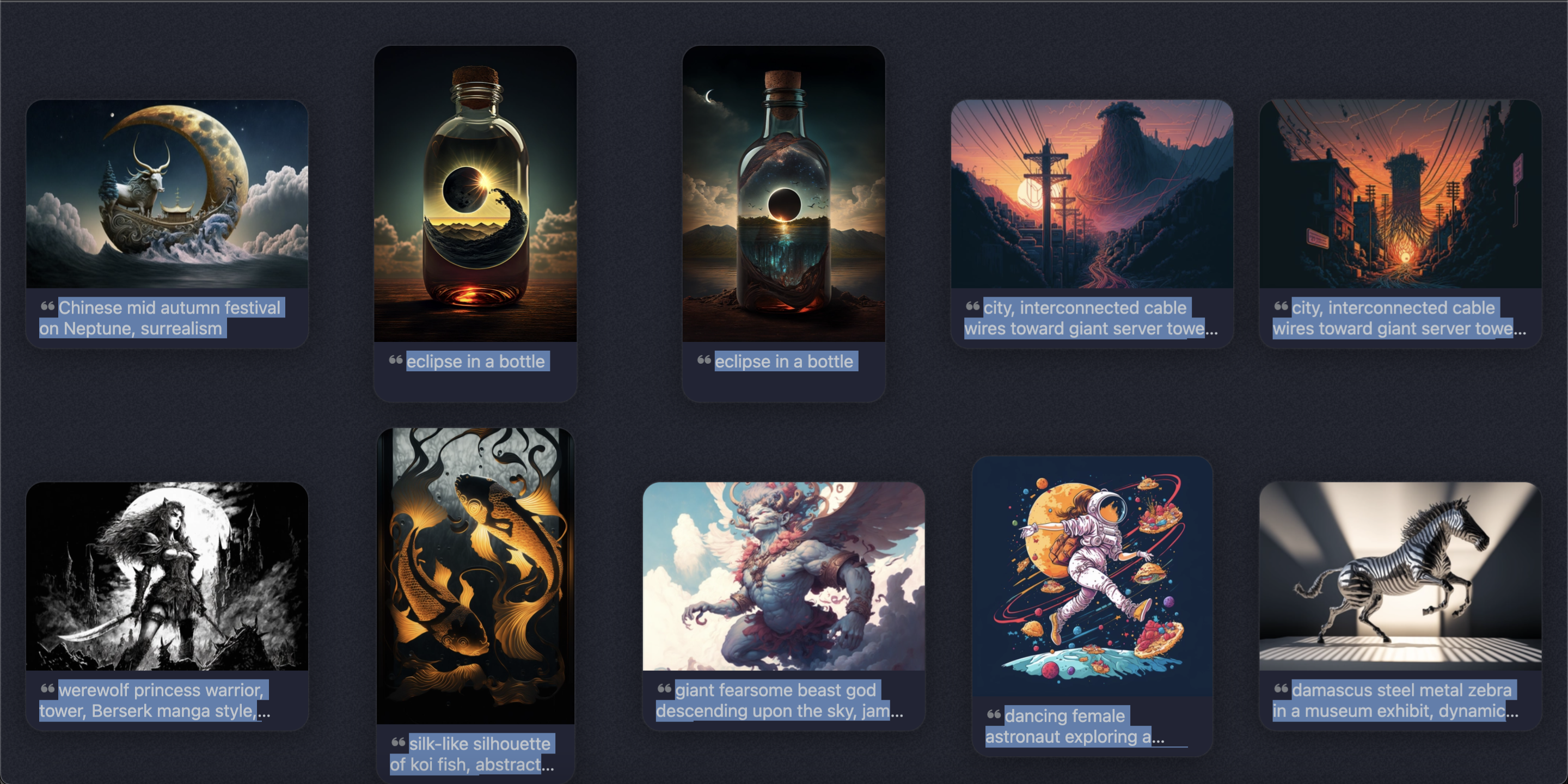
My Midjourney AI art gallery, made to show shiny UI/UX details. As seen in the tweet.
Features
- Non-disruptive, interruptible transitions. Animations don't block your ability to interact with the UI.
- Optionally reduced motion for accessibility.
- Layout-aware decoupled hit areas. In the gallery's line mode, the left & right cursor hit areas vertically extend to the window's edges, so that horizontally thin images don't have smaller hit areas than others. Hit areas also don't move with their image during transition, so you don't have to snipe click images. Consequently, rapidly clicking the left or right image doesn't accidentally dismiss the gallery (caused by clicking on a gap between image, or re-clicking on the newly centering image itself while it's still moving).
- Window resize transition. Just enough to convey what moved where.
- Anchor during resize. No layout shift! Resize without losing what you're looking at.
- Area-based responsive image size. Naive responsive layout uses the width of an item, but an image's visual impact is determined by its area. For the same width, square images visually appear bigger, while long images end up too thin. So we punish the formers by shrinking them, and grow the latters, to end up with more visually equal image sizes. Nice tangential article here.
- Non-throttled cursor updates. The cursor state, when specified on the UI elements themselves (e.g.
cursor: 'zoom-in'), doesn't update immediately during smooth scrolling. Hover effects also don't trigger til scrolling ends. - Edge rubberbanding on the first & last item.
- Dynamic depth management. Proper z-index adjustments when images overlap. The center image in line view needs to be in front.
- Framerate-decoupled animation. Transitions run well and on time even when framerate is uneven, or when frames are completely dropped on lower-end devices.
- Spring physics (exaggerated in the link for effect). Subtle playful bounces.
- Continous hover effect. The cursor attracts images magnetically, as opposed to a typical discrete, one-off upward lift transition trigger.
- Seamless repositioning on image dismissal. In line view, navigating to a image and dismissing it transports you to the location of that image even if it's way further down the grid.
- Pretty selections. Select-all doesn't ruin the page's look.
- Routing.
- Occlusion culling. Only render what's in view (sometime called virtualization). This puts a nice hard upper bound on the amount of DOM manipulations.
- Keyboard inputs & multiple inputs coordination. Concurrent keys and cursor events are resolved without pretending they're independent events.
- Progressive image loading. Though this could be done better.
- Smoothness & performance. Works on 120fps displays, including ProMotion.
- Battery-friendly. Fewer DOM nodes & no excessive tangential computations. You'll never get the Safari tab energy consumption warning.
- Blur & brightness effects. These help focusing on the middle image in the line view.
- SEO-friendly.
- Cool images =)
For developers:
- Short, dependency-free code with no hidden control flow.
- Fun debug mode with manual frame stepping.
- Guaranteed minimum render count. Renders are batched per frame. Also no multi-frames cascading rerenders from wrongly ordered state changes.
- Minimal DOM nodes. A clean, wrapper-divs-free inspector experience.
UI Architecture
It's essentially a simplified game engine loop:
Initialization (done once, all upfront):
  State declaration
  Static DOM chunks
  Events registration (leverage event delegation to make this happen)

Render:
  DOM reads (batched, to avoid DOM read/write interleaving's catastrophic perf degradation)
  State changes, in this order:
    Handle inputs
    New layout & cursor
    Animation tick
    Commit state changes
  Occlusion & DOM writes (batched, same reason)
  schedule next render (e.g. if animating)
Only events and render's final step can schedule a next render
Development
TypeScript + modules, bundled by Bun. No runtime dependencies.
bun install— once, in a fresh checkoutbun start— dev server (Bun transpilesindex.tson the fly, no build step)bun run check—tsgotypecheck + oxlintbun run build— bundle intodist/(emitsindex.html+ a hashed JS file)
index.ts is the logic, data.ts is the photo list, index.html is the shell that loads them.
Deploy is automatic: pushing to master runs .github/workflows/deploy.yml, which builds, copies the static routes (demo_drag/, demo_life/, CNAME) into dist/, and publishes that to GitHub Pages. Pages source must be set to "GitHub Actions" in repo settings.