

Technical Documentation: RaspberryPiFoundation/blockly
ℹ️ Provenance: Multi-Tier Ingestion · CodeWiki Reference
Overview (README.md)
Blockly
Blockly is a library that adds a visual code editor to web apps. The Blockly editor uses interlocking, graphical blocks to represent code concepts like variables, logical expressions, loops, and more. It allows users to apply programming principles without having to worry about syntax or the intimidation of a blinking cursor on the command line. All code is free and open source.
Getting Started with Blockly
Blockly has many resources for learning how to use the library. You can try a live demo or visit our developer site to read the documentation on how to get started, configure Blockly, and integrate it into your application. The developer site also contains links to:
Installing Blockly
If you're starting a new project using Blockly, you can bootstrap it
using our create-package tool:
npx @blockly/create-package app my-cool-blockly-app --typescriptOr, if you're adding Blockly to an existing project, just install it with npm:
npm install blocklyGetting Help
- Report a bug or file a feature request on GitHub
- Ask a question, or search others' questions, on our developer forum. You can also drop by to say hello and show us your prototypes; collectively we have a lot of experience and can offer hints which will save you time. We actively monitor the forums and typically respond to questions within 2 working days.
blockly-samples
We have a number of examples which demonstrate various techniques to include and extend the Blockly library. These examples can be found in another repository called blockly-samples.
Plugins
A plugin is a self-contained piece of code that adds functionality to Blockly. Plugins can add fields, define themes, create renderers, and much more. For more information, see the Plugins documentation.
Contributing to Blockly
Want to make Blockly better? We welcome contributions to Blockly in the form of pull requests, bug reports, documentation, answers on the forum, and more! Check out our Contributing Guidelines for more information. You might also want to look for issues tagged "Help Wanted" which are issues we think would be great for external contributors to help with.
Releases
We release new versions on npm and GitHub releases, and then update our docs and demo pages. If there are breaking regressions, such as a crash when performing a standard action or a rendering issue that makes Blockly unusable, we will cherry-pick fixes into patch releases. The releases page has a list of all releases.
We use semantic versioning. Releases that have breaking changes or are otherwise not backwards compatible will have a new major version. Patch versions are reserved for bug-fix patches between scheduled releases.
We now have a beta release on npm. If you'd like to test the upcoming release, or try out a not-yet-released new API, you can use the beta channel with:
npm install blockly@betaAs it is a beta channel, it may be less stable, and the APIs there are subject to change.
Branches
Most development happens in the main branch. Pull requests should typically be made against main. This branch should be stable; features that aren't ready yet should be merged to a feature branch instead. Once something is in main we expect it to be part of the next release. However, features and APIs here are subject to change until they are released. If you're working on a production application using Blockly, you should use the release from npm or the GitHub release page, not the main branch.
Larger changes may have their own branches until they are good enough for people to try out. These will be developed separately until we think they are almost ready for release. They will be merged into main when ready.
New APIs
Once a new API is released, it is considered beta until the following release. We generally try to avoid changing an API after it has been released, but sometimes we need to make changes after seeing how an API is used. If an API has been around for at least two releases we'll do our best to avoid breaking it.
Unreleased APIs may change radically. Anything that is in main but not released is subject to change without warning.
Issues and Milestones
We typically triage all bugs within 1 week, which includes adding any appropriate labels and assigning it to a milestone. Please keep in mind, we are a small team so even feature requests that everyone agrees on may not be prioritized.
Accessibility
Although Blockly is built around drag-and-drop, it is fully usable with the
keyboard alone. Blockly is also accessible to screenreader users by default. We
provide Accessibility Conformance Reports
in the VPAT format that outline Blockly's conformance to WCAG 2.2 Level AA.
Packages Docs README (`packages/docs/README.md`)
Blockly Documentation Website
This website is built using Docusaurus, a modern static website generator.
Installation
Run npm install at the root of the blockly repo, then all other commands from the packages/docs directory.
npm install
cd packages/docs
Local development
npm startThis command starts a local development server and opens up a browser window. Most changes are reflected live without having to restart the server.
Build
npm run buildThis command generates static content into the build directory and can be served using any static contents hosting service.
Test your build locally
npm run serveThe build folder is now served at http://localhost:3000/
Formatting and linting
# check formatting:
npm run format-check
# fix formatting:
npm run format
# check linting:
npm run lint
# fix linting:
npm run lint-fix
Prettier is used for formatting JavaScript files (the format script).
ESlint is used for linting .md and .mdx files due to poor support for these in Prettier (the lint script).
Generating reference docs
The API reference pages are auto-generated from the Blockly TypeScript source
using TypeDoc. Typedoc automatically
generates MDX files into /docs/reference/ when Docusaurus starts.
TypeDoc generates the API docs based on the latest Blockly release, not the
current code. If you would like to see unreleased or beta changes reflected
in your local docs site, run npm run reference:refresh. This will overwrite a
file called blockly_api.json which TypeDoc uses to generate the docs. Then,
you can run docs again to see updates to the API docs.
If you regenerate blockly_api.json, please do not commit it in a PR. This
file is committed automatically as part of our release process.
Packages Docs Docs Codelabs Index (`packages/docs/docs/codelabs/index.mdx`)
title: Welcome to the Blockly Codelabs pagination_next: null pagination_prev: null
import { CodelabGrid, CodelabCard } from '@site/src/components/CodelabCards';
import Image from '@site/src/components/Image';
Blockly Codelabs provide a guided, tutorial, hands-on coding experience of Blockly.
Packages Docs Docs Codelabs Context Menu Option Codelab Overview (`packages/docs/docs/codelabs/context-menu-option/codelab-overview.mdx`)
pagination_prev: null
Customizing context menus
1. Codelab overview
What you'll learn
In this codelab you will learn how to:
- Add a context menu option to the workspace.
- Add a context menu option to all blocks.
- Use precondition functions to hide or disable context menu options.
- Take an action when a menu option is selected.
- Customize ordering and display text for context menu options.
What you'll build
A very simple Blockly workspace with a few new context menu options.
What you'll need
- A browser.
- A text editor.
- Basic knowledge of HTML, CSS, and JavaScript.
- node.js and npm installed (instructions).
- Comfort using the command line/terminal.
You can find the code for the completed context menu codelab on GitHub.
This codelab is focused on Blockly's context menus. Non-relevant concepts and code are glossed over and are provided for you to simply copy and paste.
Packages Docs Docs Codelabs Css Codelab Overview (`packages/docs/docs/codelabs/css/codelab-overview.mdx`)
pagination_prev: null
import Image from '@site/src/components/Image';
Use CSS in Blockly
1. Codelab overview
What you'll learn
In this codelab you will learn how to use CSS to customize the colours of:
- Components
- Categories
- Blocks
If you don't need the fine-grained control provided by CSS, consider using
themes instead. For more information, see the
Customizing your themes
codelab.
What you'll build
A simple Blockly workspace that uses the same Halloween colours as the Customizing your themes codelab.
You can find the code for the completed CSS codelab on GitHub.
What you'll need
- A browser.
- A text editor.
- Basic knowledge of HTML, CSS, SVG, and JavaScript.
- Basic knowledge of your browser's developer tools.
- node.js and npm installed (instructions).
- Comfort using the command line/terminal.
- Basic understanding of Blockly, including workspace components, category toolboxes, block definitions, and themes.
This codelab is focused on using CSS with Blockly. Non-relevant concepts are glossed over and provided for you to simply copy and paste.
Packages Docs Docs Codelabs Custom Generator Block Generator Overview (`packages/docs/docs/codelabs/custom-generator/block-generator-overview.mdx`)
Build a custom generator
4. Block generator overview
At its core, a block generator is a function that takes in a block (and optionally the language generator instance), translates the block into code, and returns that code as a string.
Each language generator has a property called forBlock, which is a dictionary object where all block generator functions must be placed. For instance, here is the code to add a block generator for blocks of type sample_block on a language generator object (sampleGenerator).
sampleGenerator.forBlock['sample_block'] = function (block, generator) {
  return 'my code string';
};
Statement blocks
Statement blocks represent code that does not return a value.
A statement block's generator simply returns a string.
For example, this code defines a block generator that always returns the same function call.
sampleGenerator.forBlock['left_turn_block'] = function (block, generator) {
  return 'turnLeft()';
};
Value blocks
Value blocks represent code that returns a value.
A value block's generator returns an array containing a string and a precedence value. The built-in generators have predefined operator precedence values exported as an Order enum.
This code defines a block generator that always returns 1 + 1:
sampleGenerator.forBlock['two_block'] = function (block, generator) {
  return ['1 + 1', Order.ADDITION];
};
Operator precedence
Operator precedence rules determine how the correct order of operations is maintained during parsing. In Blockly's generators, operator precedence determines when to add parentheses.
--> Read more about operator precedence in JavaScript.
--> Read more about operator precedence in Blockly.
Since JSON does not allow values that are expressions, the code does not need to consider operator precedence for the generator being built in this codelab. The same value can be used everywhere a precedence value is required. Since parentheses never need to be added to the JSON, call this value ATOMIC.
In src/generators/json.js, declare a new enum called Order and add the ATOMIC value:
const Order = {
  ATOMIC: 0,
};
Packages Docs Docs Codelabs Custom Generator Codelab Overview (`packages/docs/docs/codelabs/custom-generator/codelab-overview.mdx`)
pagination_prev: null
import Image from '@site/src/components/Image';
Build a custom generator
1. Codelab overview
What you'll learn
- How to create a custom language generator.
- How to create block generator definitions for existing blocks.
- How to create block generator definitions for new blocks.
- How to use a custom generator in an application.
What you'll build
You will build a JSON generator that implements the JSON language spec.
The complete code used in this codelab can be viewed in the blockly repository under packages/docs/docs/codelabs/custom-generator.
What you'll need
- Familiarity with JSON and the JSON specification.
- Basic understanding of blocks and toolboxes in Blockly.
- NPM installed (instructions).
- Comfort using the command line/terminal.
Packages Docs Docs Codelabs Custom Mutator Codelab Overview (`packages/docs/docs/codelabs/custom-mutator/codelab-overview.mdx`)
pagination_prev: null
import Image from '@site/src/components/Image';
Build a custom mutator
1. Codelab overview
What you'll learn
- What mutators are and when to use them
- How to create a custom mutator
- How to use context menus to create a custom mutator UI
- When and how to fire events during a mutation
What you'll build
A custom list mutator that uses the context menu to add and remove items.
What you'll need
- Basic understanding of Blockly blocks, toolboxes, and workspaces.
- Understanding of context menus in Blockly.
- NPM installed (instructions).
- Comfort using the command line/terminal.
Packages Docs Docs Codelabs Custom Renderer Codelab Overview (`packages/docs/docs/codelabs/custom-renderer/codelab-overview.mdx`)
pagination_prev: null
Build custom renderers
1. Codelab overview
What you'll learn
- How to define and register a custom renderer.
- How to override renderer constants.
- How to change the shape of connection notches.
- How to set a connection's shape based on its type checks.
What you'll build
This codelab builds a custom renderer which adjusts renderer constants and uses different connection shapes depending on the input types.
The complete code used in this codelab can be viewed in the blockly repository under packages/docs/docs/codelabs/custom-renderer.
What you'll need
- Basic understanding of renderers and toolboxes in Blockly.
- NPM installed (instructions).
- Comfort using the command line/terminal.
Packages Docs Docs Codelabs Custom Toolbox Codelab Overview (`packages/docs/docs/codelabs/custom-toolbox/codelab-overview.mdx`)
pagination_prev: null
import Image from '@site/src/components/Image';
Customizing a Blockly toolbox
1. Codelab overview
What you'll learn
This codelab will focus on customizing the Blockly toolbox.
In this codelab you will learn:
- How to add a background color to a toolbox category.
- How to change the look of a selected category.
- How to add a custom CSS classes to a toolbox category.
- How to change the structure of your category HTML.
- How to add a custom toolbox item.
What you'll build
Over the course of this codelab you will customize your toolbox categories as well
as create a custom toolbox item.
The resulting toolbox is shown below.
The code samples are written in ES6 syntax. You can find the code for the completed custom toolbox on GitHub.
What you'll need
- A browser.
- A text editor.
- Basic knowledge of HTML, CSS, and JavaScript.
- node.js and npm installed (instructions).
- Comfort using the command line/terminal.
- Basic understanding of the Blockly toolbox.
Throughout this codelab we will be talking about toolbox definitions.
It may help to review the related [toolbox definition documentation] before starting this codelab.
Packages Docs Docs Codelabs Getting Started Codelab Overview (`packages/docs/docs/codelabs/getting-started/codelab-overview.mdx`)
pagination_prev: null
import Image from '@site/src/components/Image';
Getting started with Blockly
1. Codelab overview
What you'll learn
This codelab will teach you how to modify a simple web app to include the Blockly visual programming library.
What is Blockly?
Blockly is a library for building block programming apps.
Block programming allows users to create scripts and programs by using visual blocks, even if they do not know any programming language.
Blockly includes everything you need for defining and rendering blocks in a drag-n-drop editor. Each block represents a chunk of code that can be easily stacked and translated into code.
What you'll build
A version of Blockly's sample app, built from scratch.
What you'll need
- A browser
- A text editor
- npm installed (instructions).
- Basic knowledge of HTML, CSS and JavaScript
This codelab is focused on Blockly. The app structure, non-relevant concepts and code are glossed over and are provided for you to simply copy and paste.
Packages Docs Docs Codelabs Theme Extension Identifier Codelab Overview (`packages/docs/docs/codelabs/theme-extension-identifier/codelab-overview.mdx`)
pagination_prev: null
import Image from '@site/src/components/Image';
Customizing your themes
1. Codelab overview
What you'll learn
In this codelab you will learn how to:
- Add component styles.
- Add a category style.
- Add a block style.
What you'll build
You'll start from the Blockly sample app and give it a custom "Halloween" theme,
customizing the colours of the workspace components, the toolbox categories, and
the blocks themselves.
The code samples are written in ES6 syntax. You can find the code for the
completed theme codelab
on GitHub.
What you'll need
- A browser.
- A text editor.
- Basic knowledge of HTML, CSS, and JavaScript.
- node.js and npm installed (instructions).
- Comfort using the command line/terminal.
This codelab is focused on Blockly's theme extension. Non-relevant concepts
are glossed over and provided for you to simply copy and paste.
Packages Docs Docs Codelabs Validation And Warnings Codelab Overview (`packages/docs/docs/codelabs/validation-and-warnings/codelab-overview.mdx`)
pagination_prev: null
import Image from '@site/src/components/Image';
Block validation and warnings
1. Codelab overview
What you'll learn
This codelab will show you how to ensure that custom blocks either:
- have everything they need to be able to generate valid code, or
- display a visual warning to the user that the block is currently invalid.
What you'll build
In this codelab, you'll create a new custom block type that generates a list of numbers counting up within a given range. The block will validate itself and display a warning if the first number in the range is greater than the last number:
You can find the code for the completed custom block on GitHub.
What you'll need
- A browser.
- A text editor.
- Basic knowledge of HTML, CSS, and JavaScript.
- node.js and npm installed (instructions).
- Comfort using the command line/terminal.
- Basic understanding of the Blockly toolbox.
- Basic understanding of using JSON to define custom blocks.
Packages Docs Docs Guides Contribute Index (`packages/docs/docs/guides/contribute/index.mdx`)
title: Contribute to Blockly image: images/blockly_banner.png
Contribute to Blockly
Blockly is an open-source project with a strong community, and we welcome your
contributions.
How you can help
Where to start
- If you're new to open source development, or you want to get more background
knowledge, head over to the
Getting Started contributing
guides. - If you are ready to jump in, check out the
Contributing to Core or
Contributing to Samples guides.
Talk to us!
Join our
forum for developers and
say hello. Show us your prototypes early; collectively we have a lot of
experience and can offer hints which will save you time. Plus, we always love to
hear about new projects and use cases for Blockly!
Packages Docs Docs Guides Create Custom Blocks Overview (`packages/docs/docs/guides/create-custom-blocks/overview.mdx`)
title: Custom blocks overview image: images/blockly_banner.png
import Tabs from '@theme/Tabs';
import TabItem from '@theme/TabItem';
Custom blocks overview
Blockly comes with a large number of predefined blocks, from mathematical
functions to looping structures. However, most applications need to define and
implement custom blocks for their domain. For example, a drawing application
might need blocks to draw lines and circles and a robotics application might
need blocks to move an arm and manipulate a claw.
To define and use a new type of block, you need three things:
- Block definition: Defines the look and feel of a block type as well as
certain behaviors. - Block-code generator: Generates the code string for blocks of this type.
It is always written in JavaScript, even if the target language is not
JavaScript. - Toolbox reference: A reference to the block type in the toolbox, so
users can add it to the workspace.
Block definition
A block definition defines the look and feel of a block, such as its text,
fields, connections, and colour. It can also define block-specific behavior,
such as a block-specific event handler. For example, this block:
can be defined in JSON or JavaScript as follows:
Block-code generators
To transform a block into code, you need separate generator functions for each
language you want to generate. For example, here is a generator that generates
JavaScript:
javascriptGenerator.forBlock['string_length'] = function (block, generator) {
  // String or array length.
  var argument0 =
    generator.valueToCode(block, 'VALUE', Order.FUNCTION_CALL) || "''";
  return [argument0 + '.length', Order.MEMBER];
};
The generator function accepts the block being processed and a language
generator. It generates code for any blocks attached to inputs (such as theVALUE input in the example) and any fields, and then concatenates the
resulting strings into a larger expression.
For more information, see Block-code
generators.
Toolbox reference
After you have defined your block type, use the type name to reference it in a
toolbox:
Packages Docs Docs Guides Design App Overview (`packages/docs/docs/guides/design/app-overview.mdx`)
title: Introduction to Blockly applications image: images/blockly_banner.png
import Image from '@site/src/components/Image';
Introduction to Blockly applications
A Blockly application is a web application that contains a Blockly editor
(workspace). This document gives examples of what Blockly applications are used
for and looks at typical UI features.
If you haven't already done so, be sure to read the visual
glossary and basic application
steps before continuing with
this document.
What do Blockly applications do?
Blockly applications help users write programs in a variety of fields, from
video games to robotics to data analysis. Users write their programs using
blocks, which the application uses to generate text-based code, such as
JavaScript or Python. The application then runs the generated code directly
or the user downloads and runs it on another platform, such as a robot or
hand-held video game controller.
Here are some examples of the kinds of programs users write with Blockly
applications:
Puzzle solutions, animation, or music: The generated code solves a
puzzle (like a maze), displays an animation, or plays music. For an example,
see Code.org's Music Lab.Video games: The generated code runs a video game. For example, create
the first two levels of "Whack the Mole" in MakeCode
Arcade and download the game to a controller
or play it in the simulator.Robotics: The generated code directs a robot. For example, program a
robot with Ozoblockly
and download it to a real robot or run it in the simulator.Drawing: The generated code draws a 2D or 3D drawing. For an example,
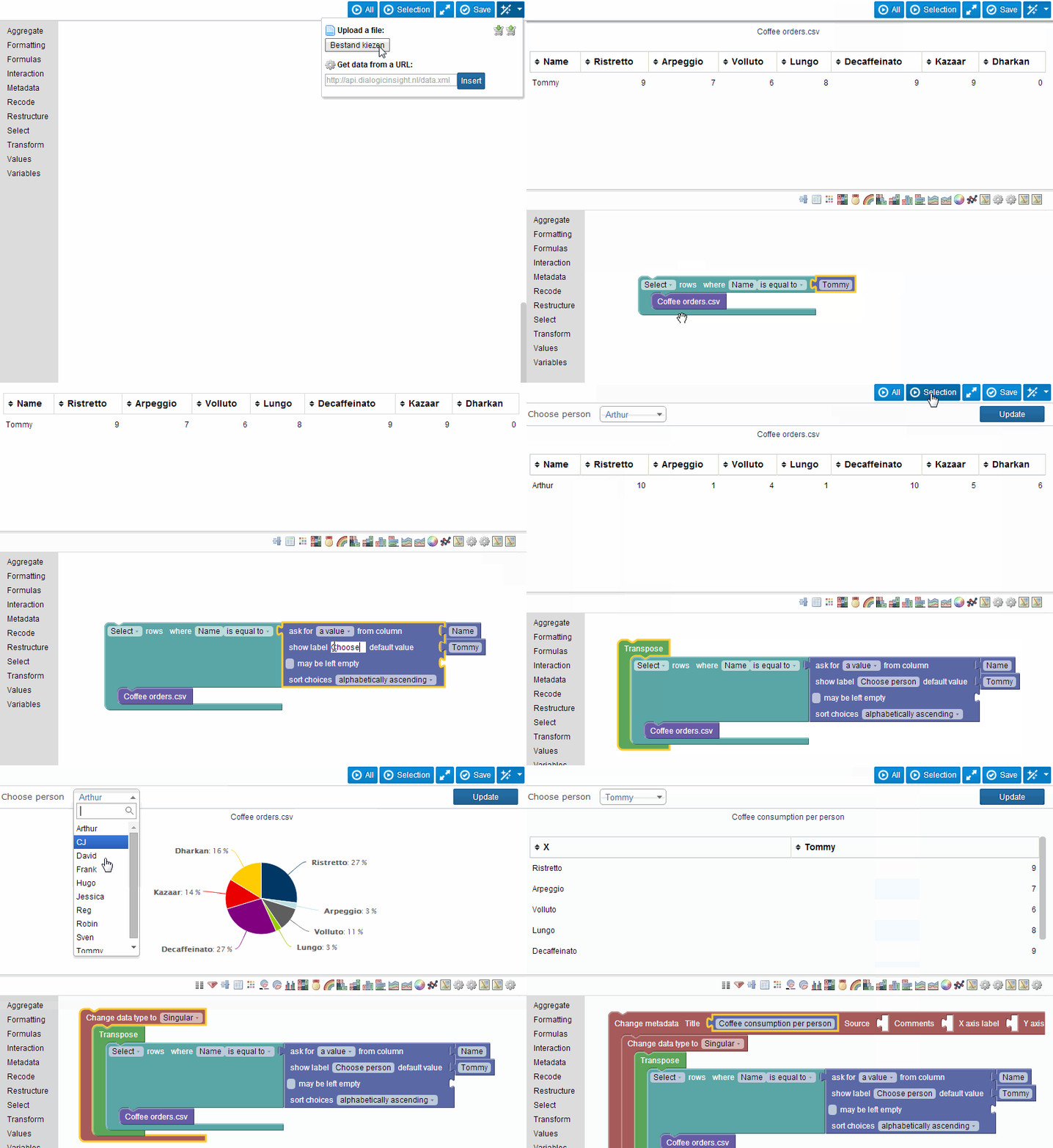
see BlocksCAD.Data analysis: The generated code analyzes data and creates a graph. For
an example, see this demonstration of the Dialogic
Platform.Application-specific code: The generated code performs a task specific
to a particular application. For example, Blockly Developer Tools
is a tool for designing new Blockly blocks. It generates block definition
code, which users copy and paste into their own Blockly application.
User interfaces
A good way to understand the typical components of Blockly applications is to
look at their user interfaces.
Basic UI components
Almost all Blockly applications share a few basic components: a Blockly editor
(workspace), an output panel, and a "Run" button. For example, here is the UI of
the Maze in Blockly Games.
A few Blockly applications omit the "Run" button and instead update the output
panel every time the user makes a change. For example, the
Graph
application in Blockly's samples has two output panels (one for the graph and
one for the equation) that it updates on every change.
Some applications don't have an output panel. This is most common in hardware
applications, such as those for programming robots. While some of these
applications include a hardware simulator, many of them just let users download
and run the generated code directly on the target device.
Additional UI components
Most applications have additional UI components. Some of these meet general
needs, such as saving the user's work, while others fulfill application-specific
needs, such as designing a GUI. Here are some examples:
Scratch, an application for creating animations
and video games, has graphics and sound editors; panels to create new
sprites and backdrops; and file, edit, and settings menus:MakeCode Arcade, an application
for creating video games, has output controls, code and graphics editors, a
settings menu, and download and save buttons. Its output panel simulates a
handheld game controller.MIT App Inventor, an application for
creating phone apps, has separate screens for its GUI designer and Blockly
editor, as well as file, connection, build, and settings menus. Instead of
an output panel, users test generated code on their phone.
Which additional components you should include depends on your application's
goals and the abilities of your users. Some common components are:
Administration:
- File management (new, open, save, save as, delete)
- Account management (create, login, logout)
- Settings (language, UI configuration)
Programming:
- Edit commands (undo, redo, copy, cut, paste, duplicate)
- GUI designer
- Graphics and sound editors
- Code editor or read-only code display
Testing
- Output configuration (start/stop, playback speed, volume, screenshot,
etc.) - Debugger (breakpoints, run, step, block highlighting)
- Set test parameters
- Output configuration (start/stop, playback speed, volume, screenshot,
Hardware
- Connection (USB, Bluetooth, QR code)
- Configuration (choose model, choose accessories, assign component names)
- Control (manually control robot, record robot position)
- Download code
Help
- Documentation
- Interactive tutorials
- Context-sensitive help
Where do I go from here?
If you're still thinking about your application, continue reading about design
considerations.
If you want to see what it's like to build a simple application, try the
Getting started with Blockly
codelab.
And if you're ready to write your application:
Packages Docs Docs Guides Get Started Sample App Overview (`packages/docs/docs/guides/get-started/sample-app-overview.mdx`)
Blockly Sample App
Purpose
The Blockly sample app illustrates how to use Blockly together with common programming tools like node/npm, webpack, typescript, eslint, and others. You can use it as the starting point for your own application and modify it as much as you'd like. It contains basic infrastructure for running, building, testing, etc. that you can use even if you don't understand how to configure the related tool yet. When your needs outgrow the functionality provided here, you can replace the provided configuration or tool with your own.
Quick Start
- Install npm if you haven't before.
- Run
npx @blockly/create-package app <application-name>to clone this application to your own machine. - Run
npm installto install the required dependencies. - Run
npm run startto run the development server and see the app in action. - If you make any changes to the source code, just save your changes and refresh the browser while the server is running to see them.
Tooling
The application uses many of the same tools that the Blockly team uses to develop Blockly itself. Following is a brief overview, and you can read more about them on our developer site.
- Structure: The application is built as an npm package. You can use npm to manage the dependencies of the application.
- Modules: ES6 modules to handle imports to/exports from other files.
- Building/bundling: Webpack to build the source code and bundle it into one file for serving.
- Development server: webpack-dev-server to run locally while in development.
- Testing: Mocha to run unit tests.
- Linting: Eslint to lint the code and ensure it conforms with a standard style.
- UI Framework: Does not use a framework. For more complex applications, you may wish to integrate a UI framework like React or Angular.
You can disable, reconfigure, or replace any of these tools at any time, but they are preconfigured to get you started developing your Blockly application quickly.
Structure
package.jsoncontains basic information about the app. This is where the scripts to run, build, etc. are listed.package-lock.jsonis used by npm to manage dependencieswebpack.config.jsis the configuration for webpack. This handles bundling the application and running our development server.src/contains the rest of the source code.dist/contains the packaged output (that you could host on a server, for example). This is ignored by git and will only appear after you runnpm run buildornpm run start.
Source Code
To get an in-depth overview of the sample app's source code, see the getting started codelab which goes through the process of creating this app.
Here is a briefer overview of the files in the source code:
index.htmlcontains the skeleton HTML for the page. This file is modified during the build to import the bundled source code output by webpack.index.jsis the entry point of the app. It configures Blockly and sets up the page to show the blocks, the generated code, and the output of running the code in JavaScript.serialization.jshas code to save and load the workspace using the browser's local storage. This is how your workspace is saved even after refreshing or leaving the page. You could replace this with code that saves the user's data to a cloud database instead.toolbox.jscontains the toolbox definition for the app. The current toolbox contains nearly every block that Blockly provides out of the box. You probably want to replace this definition with your own toolbox that uses your custom blocks and only includes the default blocks that are relevant to your application.blocks/text.jshas code for a custom text block, just as an example of creating your own blocks. You probably want to delete this block, and add your own blocks in this directory.generators/javascript.jscontains the JavaScript generator for the custom text block. You'll need to include block generators for any custom blocks you create, in whatever programming language(s) your application will use.
Serving
To run your app locally, run npm run start to run the development server. This mode generates source maps and ingests the source maps created by Blockly, so that you can debug using unminified code.
To deploy your app so that others can use it, run npm run build to run a production build. This will bundle your code and minify it to reduce its size. You can then host the contents of the dist directory on a web server of your choosing. If you're just getting started, try using GitHub Pages.
Packages Docs Docs Guides Programming Plugin Overview (`packages/docs/docs/guides/programming/plugin_overview.mdx`)
title: Plugins image: images/blockly_banner.png
import Image from '@site/src/components/Image';
import Tabs from '@theme/Tabs';
import TabItem from '@theme/TabItem';
Plugins
A plugin is a self-contained piece of code that adds functionality to Blockly.
For example, it might add a custom field, define a new theme, or provide a
custom renderer. Plugins are generally packaged and distributed through npm.
:::note
The BlocklyOptions
object
has a plugins property for injecting classes that customize Blockly
behavior. While these classes may
be implemented as plugins, this is not required and they are otherwise
unrelated.
:::
For a quick introduction to plugins, see our Plugins Overview talk
(2021).
If you want to create your own plugin, see Add a
plugin.
First- and third-party plugins
First-party plugins are supported by the Blockly team and published under the@blockly scope on npm. They are designed to be usable in a wide range of
Blockly applications.
Third-party plugins are maintained and published independently. They may be
more complex, more experimental, or targeted to a narrower range of Blockly
applications.
Find a plugin
Visit Blockly Plugins &
Demos, which has live
demos of first-party plugins.Search npm for
keyword:blockly-plugin.
Plugins with the scope@blocklyare published by the Blockly team. For
broader results, search forkeyword:blocklyorblockly.See the
packages/plugins/
directory on GitHub, which is the location of first-party plugins.
Each plugin has a README that describes its behaviour and intended use.
Install a plugin
We recommend installing plugins with a package manager like npm or yarn. This
makes it easy to receive updates.
Install a plugin with a package manager
```shell npm install @blockly/field-angle ``` ```shell yarn add @blockly/field-angle ``` Install a plugin without a package manager
```html ``` You can also clone the GitHub repository that contains the plugin. For
first-party plugins, this is
blockly.
Check the plugin's README to see if there are any additional installation
instructions.
Use a plugin
Each plugin is different, so see the plugin's README for information on how to
use that plugin. The following example shows how to use the@blockly/field-angle
plugin:
Import code from the plugin. How you do this depends on how you installed
the plugin.```js import Blockly from 'blockly'; import {registerFieldAngle} from '@blockly/field-angle'; ``` You do not need to use an `import` statement. ```js import {registerFieldAngle} from 'path/to/plugin'; ``` Initialize the plugin as needed. Plugins that provide custom fields often
require you to register the field:jsregisterFieldAngle();Use the plugin.
jsBlockly.common.defineBlocksWithJsonArray([ { type: "my_angle_block", message0: "%1 degrees", args0: [ { // Use @blockly/field-angle. type: "field_angle", name: "FIELDNAME", value: 45, }, ], output: null, style: 'math_blocks' }, ]);
Plugin versions
Blockly uses semantic versioning, which requires breaking
changes to use a new major version.
Any new plugin that
monkey patches core will have a major version of 0 to signify initial
development.
Most plugins include the blockly package as apeerDependency
rather than a dependency. This is because we assume that you have already
installed Blockly. (It doesn't make sense to use a plugin without using
Blockly.) Starting with Blockly v13, first-party plugins share an exact version
number with core Blockly. This means that in order to use a certain plugin, all
you can simply check your Blockly version and use the same plugin version.
What if I'm using a major version of Blockly that's older than v13?
Keeping Blockly up-to-date is strongly recommended, so that you get the newest
features and fixes. However, if you can't upgrade Blockly, you can use the
following npm command to list all of the pre-v13 versions of a plugin alongside
the minimum Blockly version that they support:
npm view '@blockly/block-plus-minus@<13' peerDependencies.blocklyJust replace block-plus-minus with the name of whichever plugin you'd like to
use.
When you add a plugin to your application's package.json, the default is to
include a caret before the version:
"dependencies": {
  "@blockly/field-angle": "^13.2.1"
}
This will let npm install any minor version at or above the listed version, so
version 13.3.1 or 13.2.6 works, but a new major version such as 14.0.1 would
not. When you update to a major version of Blockly, you should update your plugins
as well.
Keeping plugins up to date with Dependabot
Dependabot is a popular GitHub tool for
automated dependency updates. If your project is hosted on GitHub, you can use
Dependabot to ensure that Blockly and its plugins are updated together.
To start with, your project's dependabot.yml file might look something like
this:
updates:
  - package-ecosystem: 'npm'
    directory: '/'
    target-branch: 'main'
    schedule:
      interval: 'weekly'
In dependabot.yml, you can group Blockly and its plugins together using
Dependabot's groups option.
For example:
updates:
  - package-ecosystem: 'npm'
    directory: '/'
    target-branch: 'main'
    schedule:
      interval: 'weekly'
    groups:
      blockly: # You can give this group a different name if you'd like
        patterns:
          - 'blockly'
          - '@blockly/*' # You can use the wildcard (*) notation to specify any plugin
Packages Docs Docs Codelabs Context Menu Option Complete Code README (`packages/docs/docs/codelabs/context-menu-option/complete-code/README.md`)
Completed code
The finished code for the Customizing context menus codelab.
Run it
To run the complete code, navigate to the complete-code folder in your terminal, then run:
npm install   # downloads the libraries the app needs (one time)
npm start     # opens the app at http://localhost:...
New to npm? See installing node & npm.
Packages Docs Docs Codelabs Css Complete Code README (`packages/docs/docs/codelabs/css/complete-code/README.md`)
Completed code
The finished code for the Use CSS in Blockly codelab.
Run it
To run the complete code, navigate to the complete-code folder in your terminal, then run:
npm install   # downloads the libraries the app needs (one time)
npm start     # opens the app at http://localhost:...
New to npm? See installing node & npm.
Packages Docs Docs Codelabs Custom Generator Complete Code README (`packages/docs/docs/codelabs/custom-generator/complete-code/README.md`)
Completed code
The finished code for the Build a custom generator codelab.
Run it
To run the complete code, navigate to the complete-code folder in your terminal, then run:
npm install   # downloads the libraries the app needs (one time)
npm start     # opens the app at http://localhost:...
New to npm? See installing node & npm.
Packages Docs Docs Codelabs Custom Mutator Complete Code README (`packages/docs/docs/codelabs/custom-mutator/complete-code/README.md`)
Blockly Sample App
Purpose
This app illustrates how to use Blockly together with common programming tools like node/npm, webpack, typescript, eslint, and others. You can use it as the starting point for your own application and modify it as much as you'd like. It contains basic infrastructure for running, building, testing, etc. that you can use even if you don't understand how to configure the related tool yet. When your needs outgrow the functionality provided here, you can replace the provided configuration or tool with your own.
Quick Start
- Install npm if you haven't before.
- Run
npx @blockly/create-package app <application-name>to clone this application to your own machine. - Run
npm installto install the required dependencies. - Run
npm run startto run the development server and see the app in action. - If you make any changes to the source code, just refresh the browser while the server is running to see them.
Tooling
The application uses many of the same tools that the Blockly team uses to develop Blockly itself. Following is a brief overview, and you can read more about them on our developer site.
- Structure: The application is built as an npm package. You can use npm to manage the dependencies of the application.
- Modules: ES6 modules to handle imports to/exports from other files.
- Building/bundling: Webpack to build the source code and bundle it into one file for serving.
- Development server: webpack-dev-server to run locally while in development.
- Testing: Mocha to run unit tests.
- Linting: Eslint to lint the code and ensure it conforms with a standard style.
- UI Framework: Does not use a framework. For more complex applications, you may wish to integrate a UI framework like React or Angular.
You can disable, reconfigure, or replace any of these tools at any time, but they are preconfigured to get you started developing your Blockly application quickly.
Structure
package.jsoncontains basic information about the app. This is where the scripts to run, build, etc. are listed.package-lock.jsonis used by npm to manage dependencieswebpack.config.jsis the configuration for webpack. This handles bundling the application and running our development server.src/contains the rest of the source code.dist/contains the packaged output (that you could host on a server, for example). This is ignored by git and will only appear after you runnpm run buildornpm run start.
Source Code
index.htmlcontains the skeleton HTML for the page. This file is modified during the build to import the bundled source code output by webpack.index.jsis the entry point of the app. It configures Blockly and sets up the page to show the blocks, the generated code, and the output of running the code in JavaScript.serialization.jshas code to save and load the workspace using the browser's local storage. This is how your workspace is saved even after refreshing or leaving the page. You could replace this with code that saves the user's data to a cloud database instead.toolbox.jscontains the toolbox definition for the app. The current toolbox contains nearly every block that Blockly provides out of the box. You probably want to replace this definition with your own toolbox that uses your custom blocks and only includes the default blocks that are relevant to your application.blocks/text.jshas code for a custom text block, just as an example of creating your own blocks. You probably want to delete this block, and add your own blocks in this directory.generators/javascript.jscontains the JavaScript generator for the custom text block. You'll need to include block generators for any custom blocks you create, in whatever programming language(s) your application will use.
Serving
To run your app locally, run npm run start to run the development server. This mode generates source maps and ingests the source maps created by Blockly, so that you can debug using unminified code.
To deploy your app so that others can use it, run npm run build to run a production build. This will bundle your code and minify it to reduce its size. You can then host the contents of the dist directory on a web server of your choosing. If you're just getting started, try using GitHub Pages.
Packages Docs Docs Codelabs Custom Renderer Complete Code README (`packages/docs/docs/codelabs/custom-renderer/complete-code/README.md`)
Completed code
The finished code for the Build a custom renderer codelab.
Run it
To run the complete code, navigate to the complete-code folder in your terminal, then run:
npm install   # downloads the libraries the app needs (one time)
npm start     # opens the app at http://localhost:...
New to npm? See installing node & npm.
Packages Docs Docs Codelabs Custom Toolbox Complete Code README (`packages/docs/docs/codelabs/custom-toolbox/complete-code/README.md`)
Completed code
The finished code for the Customizing a Blockly toolbox codelab.
Run it
To run the complete code, navigate to the complete-code folder in your terminal, then run:
npm install   # downloads the libraries the app needs (one time)
npm start     # opens the app at http://localhost:...
New to npm? See installing node & npm.
Packages Docs Docs Codelabs Getting Started Complete Code README (`packages/docs/docs/codelabs/getting-started/complete-code/README.md`)
Completed code
The finished code for the Getting started codelab.
Run it
To run the complete code, navigate to the complete-code folder in your terminal, then run:
npm install   # downloads the libraries the app needs (one time)
npm start     # opens the app at http://localhost:...
New to npm? See installing node & npm.
Packages Docs Docs Codelabs Theme Extension Identifier Complete Code README (`packages/docs/docs/codelabs/theme-extension-identifier/complete-code/README.md`)
Completed code
The finished code for the Customizing your themes codelab.
Run it
To run the complete code, navigate to the complete-code folder in your terminal, then run:
npm install   # downloads the libraries the app needs (one time)
npm start     # opens the app at http://localhost:...
New to npm? See installing node & npm.
Packages Docs Docs Codelabs Validation And Warnings Complete Code README (`packages/docs/docs/codelabs/validation-and-warnings/complete-code/README.md`)
Completed code
The finished code for the block validation and warnings codelab.
Run it
To run the complete code, navigate to the complete-code folder in your terminal, then run:
npm install   # downloads the libraries the app needs (one time)
npm start     # opens the app at http://localhost:...
New to npm? See installing node & npm.
Packages Docs Docs Guides Contribute Core Index (`packages/docs/docs/guides/contribute/core/index.mdx`)
title: Contribute to core image: images/blockly_banner.png
Contribute to core
The Blockly core repository contains the
code that is needed to run any Blockly-based application. It also contains the documentation, including codelabs.
Need to Know
Here is a quick overview of facts about Blockly core you need to know in order
to create a PR.
The working branch is main and all PRs should be made against
main.You must fill out the pull request template with the requested information.
Code must conform to Blockly's style guide
Use conventional commits
in your commit messages and pull request titles.PR summaries and comments should be human written, and AI usage is not allowed
on issues labeledgood first issue. Consult the AI policy
for more information.User-visible strings must be in the
/msg/messages.jsfile so they may be
translated. Less than 6% of the world speaks English natively.Text on blocks should generally be all lowercase (just like the keywords in
most programming languages).Maintain backwards compatibility. There are a lot of Blockly apps out
there, don't break everyone else.Any new code files must be prefixed with the Apache License v2.0:
js/** * @license * Copyright <Current YYYY> Raspberry Pi Foundation * SPDX-License-Identifier: Apache-2.0 */
Make and Verify a Change
- Run
npm installto install dependencies. - Run
npm run startto start up a server running the playground. You can use
this page to test the existing behavior. See the
playground page for
more information. - Make any necessary changes to the code.
- If you've left the server running, refresh to see your changes. Otherwise,
restart the server and verify the code behaves as expected and there are no
errors or warnings in the console. - Run
npm run buildand ensure there are no build errors. - Write automated tests. Usually, these will be mocha tests in the
tests/mochadirectory, but we may ask you for other types of tests. - Run
npm run formatto format the code and automatically fix some lint
problems. - Run
npm testto run the automated tests. This also runseslint. - If there are lint errors, run
npm run lint-fixto fix the problems that
are autofixable. Address any remaining lint warnings or errors. - If all tests pass, you are ready to open a PR against main with your
changes.
Packages Docs Docs Guides Contribute Get Started Index (`packages/docs/docs/guides/contribute/get-started/index.mdx`)
title: Get started contributing to Blockly image: images/blockly_banner.png
Get started contributing to Blockly
Blockly is open source and is primarily maintained by a small team. We welcome
contributions from developers outside the core team; there is no way for us to
build every requested feature or fix every reported bug without our community.
:::info
This section contains general guides on contributing to Blockly. These guides
are generally intended for those who are new to Blockly or new to open-source
development.
:::
For information specific to Blockly that you should read before making a
contribution, see the
Contributing to Core and
Contributing to Samples sections.
Which repository?
A repository contains all the files for a single project. Blockly has two
repositories: blockly and blockly-samples.
Blockly is the
repository for the Blockly library. Use this repository if you want to make a
change to core Blockly behaviour in a way that will apply to all users of the
library. Blockly core also contains the documentation, including the codelabs
and codelab solutions.
Blockly samples
is the repository for examples that show uses of the Blockly library. Use this
repository if you want to create or modify a sample.
Pre work: Understand Git and GitHub basics
We use Git and GitHub for managing version control, collaboration, and distribution
of Blockly. If you're new to Git and GitHub, work through GitHub's
quickstart
tutorials to get comfortable with the basics.
To learn about the rest of Blockly's development tools, see the Contribute to Core
documentation.
Setup
These are the one-time setup steps you'll need to get started:
- Install Git and Node
- Fork and clone the repository. GitHub has a wonderful tutorial about
forking a repo.
To apply it to blockly, just replace every instance of
octocat/Spoon-Knife with RaspberryPiFoundation/blockly or
RaspberryPiFoundation/blockly-samples, depending on which repository you want to work
in.
Step by step
These are the general steps you will follow any time you make a change.
- Sync your fork. GitHub provides a tutorial for
syncing a fork. - Check out the
mainbranch by runninggit checkout mainin a
terminal. - Install dependencies and build tools by running
npm installin the
root directory. - Create a new branch by running
git checkout -b myBranchNamein a
terminal. The branch name should help you remember what you're working on. - Make your changes.
- Validate your changes, following the guide for
core or
samples. - Add your changes to a commit with
git add your/file/path. - Save your changes with
git commit -m "fix: My commit message".
Read more about commit messages. - Push your changes to GitHub with
git push origin myBranchName. - Open a pull request when your code is ready. A member of the Blockly
team will review your changes and merge them into Blockly if they are
approved. For more information see
PR Review Process.
Packages Docs Docs Guides Create Custom Blocks Code Generation Overview (`packages/docs/docs/guides/create-custom-blocks/code-generation/overview.mdx`)
title: Code generation image: images/blockly_banner.png
Code generation
Code generation is the process of turning the blocks on a workspace into a
string of code that can be executed.
Code generation is extremely important, because it is what allows your blocks to
actually do things, like evaluate arithmetic expressions, move a character
through a maze, or configure an online shop!
You can't "run" blocks directly. Instead you generate code strings, and then
execute those.
Language code generators
To generate code, you have to pick what text-based language you want to
generate. This is because each language has its own code generator.
A language code generator (commonly called a code generator) is a class
that handles the rules for generating code that are specific to a given
language, but not specific to an individual block. For example, it handles
things like formatting comments, indenting statements, and quoting strings.
Blockly provides 5 built-in code generators:
- JavaScript ES5
- Python 3
- Lua 5.1
- Dart 2
- PHP 7
If this list doesn't include the language you want to generate code for, you can
create a custom language code generator. For a simple example, see the Build a
custom generator codelab, which creates a JSON language
code generator. For a more complex example, see the JavaScript code
generator. Note that you also need to write block-code
generators for any built-in blocks that you want to use.
Block-code generators
Each block is responsible for generating its own code. When you create a block,
you need to write a separate block-code generator for each language you want to
support.
A block-code generator is a function that returns the code for that block as
a string. For example, a block that compares two numbers returns a string of the
form 'a < b' and a block that represents an if statement returns a string of
the form 'if (...) {\n...\n};\n'.
import { javascriptGenerator } from 'blockly/javascript';
import { pythonGenerator } from 'blockly/python';

// Write block-code generators for JavaScript and Python.
javascriptGenerator.forBlock['my_custom_block'] = function (block, generator) {
  /* ... */
};
pythonGenerator.forBlock['my_custom_block'] = function (block, generator) {
  /* ... */
};
Block-code generators are called by language code generators.
For more information, see Block-code
generators.
Generate and run code
Your application can generate code at any time. For example, it might generate
code when the end-user clicks a button or every time the user makes a change.
After you've generated the code, you need to figure out how to execute it.
Deciding how to execute it is very application-specific, and outside the scope
of Blockly.
For more information, see Generate and run
code.
Packages Docs Docs Guides Create Custom Blocks Fields Overview (`packages/docs/docs/guides/create-custom-blocks/fields/overview.mdx`)
title: Fields image: images/blockly_banner.png
Fields
Fields are used to define most UI elements on a block. Examples of fields
include string labels, images, inputs for literal data such as strings and
numbers, and rich editors like date pickers and angle pickers. The simplest
example of a field is the math_number block, which uses a field_number to
let the user type a number.
:::note
If you need to show meta-information about a block, you probably want an
icon instead. Read more about Fields vs Icons.
:::
Blockly provides several fields by default to handle a variety of user input.
These can be customized through field-specific configuration or with validators,
which tell a field how to handle specific content in a standard editor.
→ More info on Built-in fields.
→ More info on Validators.
If you need a fully custom field it takes a bit more work and you'll want to
read most of the fields documentation. Start by learning about the parts
that make up a field or the overview of creating custom fields.
→ More info on the anatomy of a field.
→ More info on creating custom fields.
Packages Docs Docs Guides Create Custom Blocks Icons Overview (`packages/docs/docs/guides/create-custom-blocks/icons/overview.mdx`)
title: Icons image: images/blockly_banner.png
Icons
Icons are used to define certain UI elements that show or define "meta"
information about a block. Usually this means they act as a clickable button
that opens a pop up with more information or an editor.
→ More info on Fields vs Icons.
Blockly provides some built-in icons that fulfill common use cases, like adding
comments or warnings to blocks. You can check out the reference
documentation for more information about those.
Blockly also lets you define your own custom icons if the built-in ones don't
serve your use case. For example, you might want an icon that displays version
or copyright information in a pop-up bubble.
→ More info on Creating custom icons.
Packages Docs Docs Guides Create Custom Blocks Procedures Overview (`packages/docs/docs/guides/create-custom-blocks/procedures/overview.mdx`)
title: Procedures image: images/blockly_banner.png
Procedures
In computer science terms, a procedure is a reusable bit of code that performs a
specific task.
Blockly implements procedures as a set of blocks that generate code for defining
a procedure, and calling it.
→ More info on using the blocks.
→ More info on creating custom procedure blocks.
→ More info on creating custom procedure models, which allow you to add new functionality like typed parameters.
Built-in vs plugin
Blockly provides two implementations of procedure blocks.
One exists in the plugin @blockly/block-shareable-procedures,
which implements procedure blocks that rely on a backing data model. This allows
you to do things with your procedure blocks such as having the definition
block exist in one workspace, and the call block exist in another. The plugin is
the recommended implementation of procedure blocks.
The other is the legacy implementation, provided in Blockly core. These blocks
don't have a backing data model, and all information about procedures comes
from the blocks themselves. The only way a workspace knows which procedures
are available is by inspecting the procedure definition blocks contained in
that workspace. These blocks continue to be supported for backwards
compatibility, but most developers should be able to use the new blocks
provided by the plugin.
If you are using XML serialization, you can use the new blocks, but they
won't be shareable across workspaces. That feature requires extra serialization
that is only provided by the JSON serializer. When using XML, the new blocks
will behave identically to the legacy blocks.
Learn more about upgrading to JSON.If you have defined custom procedure blocks, they need to be
updated
to work with the new data models.If you have defined custom procedure definition blocks, but are using the
built-in procedure call block, you need to continue using the legacy caller
block until you update
your definition block.
Packages Docs Docs Guides Create Custom Blocks Renderers Overview (`packages/docs/docs/guides/create-custom-blocks/renderers/overview.mdx`)
title: Renderers image: images/blockly_banner.png
Renderers
The shape of a block is determined by a renderer, based on the
block's definition (that is, its fields and connections).
Built-in renderers
Blockly provides three built-in renderers, each of which give a slightly
different feel to the program.
| Renderer | Description | Image |
|---|---|---|
| Thrasos | The recommended renderer. It is a more modern take on the geras renderer, with more even spacing and solid borders. |  |
| Geras | The default renderer. It is the original renderer that Blockly was built with. |  |
| Zelos | A renderer based on Scratch-3.0 block design. |  |
To use one of these renderers, pass the name into the configuration options:
Blockly.inject('blocklyDiv', {
  renderer: 'thrasos',
});
Custom renderers
If you want to give your program a different look and feel than any of the
built-in renderers, you can also create a custom renderer. To get started the
Blockly team recommends you:
- Read through the renderer concept docs to learn
how all of the components of a renderer fit together. - Complete the custom renderer codelab to
get hands-on practice with custom rendering. - Add the debug renderer to your project.
- Customize your renderer.
Packages Docs Docs Guides Create Custom Blocks Fields Built In Fields Overview (`packages/docs/docs/guides/create-custom-blocks/fields/built-in-fields/overview.mdx`)
title: Built-in fields image: images/blockly_banner.png
Built-in fields
Blockly provides a number of prebuilt fields that you can use when defining a
block. There are also a number of fields available as
plugins.
Built-in fields:
Plugin fields:
- Angle picker
- Bitmap
- Colour picker
- Colour picker with HSV sliders
- Date
- Dropdown grid
- Dependent dropdown
- Multiline text input
- Number slider
For a full list of plugin fields, see Blockly Plugins & Demos.
Packages Docs Docs Guides Create Custom Blocks Fields Customizing Fields Overview (`packages/docs/docs/guides/create-custom-blocks/fields/customizing-fields/overview.mdx`)
title: Custom fields image: images/blockly_banner.png
Custom fields
While Blockly provides many useful fields, your application may have a
specialized case. Here are a few steps to take when customizing fields:
Read the documentation of any fields similar to what you require; they may
provide a useful interface for customization. For example,
dropdowns have a lot of hidden functionality.Consider using a validator to solve your problem.
Validators allow you to only accept certain values, modify input, or trigger
functionality when a field's value changes.Consider extending a field.
If there is a field that represents the value type you require, but you want to
modify its editor, its
appearance, or the
text it
displays, you can create a subclass
that inherits the bulk of the functionality, while overriding the specific parts
you want to change.Create a new field type.
While this is the most powerful option, it is also the most time consuming, and
should generally only be used if you need to store a new value type.
Packages Docs Docs Guides Create Custom Blocks Renderers Concepts Overview (`packages/docs/docs/guides/create-custom-blocks/renderers/concepts/overview.mdx`)
title: Renderer concepts image: images/blockly_banner.png
import Image from '@site/src/components/Image';
Renderer concepts
Before you start building a custom renderer, it is helpful to understand the
different components that make up a renderer, as well as how a block gets
broken up into rows and elements.
Renderer components
A renderer is built up of several different components. Each component has a
unique job to maximize code reuse and extensibility.
Renderer
The renderer is a factory class that bundles all of the other
components together.
Constant provider
The constant provider is a collection of numbers, and shapes used
by all of the other components, as well as built-in fields.
Render info
The render info decides how it a block should be laid out based
on its definition, and then creates a collection of
measurables and data about the block which the
drawer uses to create SVG paths.
Path Object
The path object contains the SVG elements that live in the dom
and make up the block.
Drawer
The drawer (as in "one-who-draws") builds SVG paths based on
the render info and applies them to the
path object.
Block measurables
A measurable is a rectangle representing a region of a block. Measurables are
what the render info uses to define the layout of the block.
Some measurables also include extra data (such as the visual thing they are
representing), or helper methods that the render info can use to figure out how
to lay out the block.
Different renderers may create custom measurables to change these data or
helper methods.
Rows
A row is a horizontal collection of elements and
element spacers.
Row spacers
A row spacer is an empty vertical space that goes between two
rows.
Elements
An element represents a visual thing on a block. These include
fields, icons, connections, etc.
Element spacers
An element spacer is an empty space that goes between elements
in a row.
Packages Docs AGENTS (`packages/docs/AGENTS.md`)
packages/docs — developer documentation site
A Docusaurus site. Built as the blockly-docs Nx project; it is not released to npm.
Repo-wide conventions are in the root AGENTS.md.
Commands
Run from packages/docs/, or from the repo root as npm run build-docs.
npm start          # build the API reference, then serve the site locally
npm run build      # production build
npm run serve      # serve an already-built site
npm run clear      # clear the Docusaurus cache
npm run lint       # ESLint over docs/**/*.mdx
npm run lint-fix
Things to know
docs/reference/is generated by TypeDoc during the Docusaurus build, and is
gitignored. Never edit those files directly — fix the TSDoc inpackages/blockly/core/
instead.- The reference is built from
blockly_api.json, not from the current source. That
file is a snapshot of the core library's API committed during a release, so the site
documents the released API rather than whatever is onmain. To preview your own TSDoc
changes, runnpm run reference:refreshto regenerate it locally — then leave it out of
your commit, since only a release should update it. - Markdown and MDX here are linted, not Prettier-formatted.
packages/docs/**/*.md
and*.mdxare listed in.prettierignoreand handled by ESLint witheslint-plugin-mdxinstead, sonpm run formatwill not touch them. - Prose wrapping is preserved rather than reflowed, so existing line breaks in prose are
intentional — don't rewrap paragraphs you aren't otherwise changing.
Packages Docs Static Robots (`packages/docs/static/robots.txt`)
Algolia-Crawler-Verif: 836ECEE0BC07004B
Allow the Algolia Crawler to access the entire site
User-agent: Algolia Crawler
Allow: /
User-agent: *
Allow: /
Packages Docs Docs Codelabs Context Menu Option Add A Context Menu Item (`packages/docs/docs/codelabs/context-menu-option/add-a-context-menu-item.mdx`)
import Image from '@site/src/components/Image';
Customizing context menus
3. Add a context menu item
In this section you will create a very basic Blockly.ContextMenuRegistry.RegistryItem, then register it to display when you open a context menu on the workspace, a block, or a comment.
The RegistryItem
A context menu consists of one or more menu options that a user can select. Blockly stores information about menu option as items in a registry. You can think of the registry items as templates for constructing menu options. When the user opens a context menu, Blockly retrieves all of the registry items that apply to the current context and uses them to construct a list of menu options.
Each item in the registry has several properties:
displayText: The text to show in the menu. Either a string, or HTML, or a function that returns either of the former.preconditionFn: Function that returns one of'enabled','disabled', or'hidden'to determine whether and how the menu option should be rendered.callback: A function called when the menu option is selected.id: A unique string id for the item.weight: A number that determines the sort order of the option. Options with higher weights appear later in the context menu.
We will discuss these in detail in later sections of the codelab.
Make a RegistryItem
Add a function to src/index.js named registerHelloWorldItem. Create a new registry item in your function:
function registerHelloWorldItem() {
  const helloWorldItem = {
    displayText: 'Hello World',
    preconditionFn: function (scope) {
      return 'enabled';
    },
    callback: function (scope) {},
    id: 'hello_world',
    weight: 100,
  };
}
Call your function in src/index.js, before the UI element setup and Blockly.inject call:
registerHelloWorldItem();

// Set up UI elements and inject Blockly
const codeDiv = document.getElementById('generatedCode').firstChild;
// ...
const ws = Blockly.inject(blocklyDiv, {toolbox});
Register it
Next, register your item with Blockly:
function registerHelloWorldItem() {
  const helloWorldItem = {
    // ...
  };
  Blockly.ContextMenuRegistry.registry.register(helloWorldItem);
}
:::note
You will never need to make a new ContextMenuRegistry. Always use the singleton Blockly.ContextMenuRegistry.registry.
:::
Enable comment context menus
This codelab demonstrates context menus on workspaces, blocks, and comments. Blockly registers the workspace and block options by default, but the comment options (including the Add Comment option you'll use to create comments while testing) must be registered separately. Add this call to src/index.js, before the Blockly.inject call:
Blockly.ContextMenuItems.registerCommentOptions();Test it
Refresh the running page (or run npm start) and open a context menu on the workspace (right-click with a mouse, or press Ctrl+Enter (Windows) or Command+Enter (Mac) if you are navigating Blockly with the keyboard). You should see a new option labeled "Hello World" at the bottom of the context menu.
Next, drag a block onto the workspace and open a context menu on the block. You'll see "Hello World" at the bottom of the block's context menu. Finally, open a context menu on the workspace and create a comment, then open a context menu on the comment's header. "Hello World" should be at the bottom of the context menu.
Packages Docs Docs Codelabs Context Menu Option Callback (`packages/docs/docs/codelabs/context-menu-option/callback.mdx`)
import Image from '@site/src/components/Image';
Customizing context menus
7. Callback
The callback function determines what happens when you select the context menu option. Like the precondition, it can use the scope argument to access the Blockly component on which the context menu was invoked.
It is also passed a PointerEvent which is the original event that triggered opening the context menu (not the event that selected the current option). This lets you, for example, figure out where on the workspace the context menu was opened so you can create a new element there.
As an example, update the help item's callback to add a block to the workspace when selected:
callback: function(scope) {
      Blockly.serialization.blocks.append({
        'type': 'text',
        'fields': {
          'TEXT': 'Now there is a block'
        }
      }, scope.focusedNode);
    },
Test it
- Refresh the running page and open a context menu on the workspace.
- Select the Help option.
- A text block should appear in the top left of the workspace.
Packages Docs Docs Codelabs Context Menu Option Display Text (`packages/docs/docs/codelabs/context-menu-option/display-text.mdx`)
import Image from '@site/src/components/Image';
Customizing context menus
8. Display text
So far the displayText has always been a simple string, but it can also be HTML, or a function that returns either of the former. Using a function can be useful when you want a context-dependent message.
When defined as a function displayText accepts a scope argument, just like callback and preconditionFn.
As an example, add this registry item. The display text depends on the block type.
function registerDisplayItem() {
  const displayItem = {
    displayText: function (scope) {
      if (scope.focusedNode.type.startsWith('text')) {
        return 'Text block';
      } else if (scope.focusedNode.type.startsWith('controls')) {
        return 'Controls block';
      } else {
        return 'Some other block';
      }
    },
    preconditionFn: function (scope) {
      return scope.focusedNode instanceof Blockly.BlockSvg
        ? 'enabled'
        : 'hidden';
    },
    callback: function (scope) {},
    id: 'display_text_example',
    weight: 100,
  };
  Blockly.ContextMenuRegistry.registry.register(displayItem);
}
As usual, remember to call registerDisplayItem() in src/index.js, before Blockly.inject.
Test it
- Refresh the running page and open context menus on various blocks.
- The last context menu option's text should vary based on the block type.
Packages Docs Docs Codelabs Context Menu Option Precondition Blockly State (`packages/docs/docs/codelabs/context-menu-option/precondition-blockly-state.mdx`)
import Image from '@site/src/components/Image';
Customizing context menus
6. Precondition: Blockly state
Disabling your context menu options half of the time is not useful, but you may want to show or hide an option based on what the user is doing. For example, let's show a Help option in the context menu if the user doesn't have any blocks on the workspace. Add this code in src/index.js:
function registerHelpItem() {
  const helpItem = {
    displayText: 'Help! There are no blocks',
    preconditionFn: function (scope) {
      if (!(scope.focusedNode instanceof Blockly.WorkspaceSvg)) return 'hidden';
      if (!scope.focusedNode.getTopBlocks().length) {
        return 'enabled';
      }
      return 'hidden';
    },
    callback: function (scope) {},
    id: 'help_no_blocks',
    weight: 100,
  };
  Blockly.ContextMenuRegistry.registry.register(helpItem);
}
Don't forget to call registerHelpItem() in src/index.js, before Blockly.inject.
Test it
Refresh the running page and open a context menu on the workspace. You should see an option labeled "Help! There are no blocks".
Add a block to the workspace and open a context menu on the workspace again. The Help option should be gone.
Packages Docs Docs Codelabs Context Menu Option Precondition External State (`packages/docs/docs/codelabs/context-menu-option/precondition-external-state.mdx`)
import Image from '@site/src/components/Image';
Customizing context menus
5. Precondition: External state
Use of the preconditionFn is not limited to checking the type of the Blockly component that the context menu was invoked on. You can use it to check for conditions entirely outside of Blockly. For instance, let's disable helloWorldItem for the second half of every minute:
preconditionFn: function (scope) {
      if (
        scope.focusedNode instanceof Blockly.WorkspaceSvg ||
        scope.focusedNode instanceof Blockly.BlockSvg
      ) {
        const now = new Date(Date.now());
        if (now.getSeconds() < 30) {
          return 'enabled';
        }
        return 'disabled';
      }
      return 'hidden';
    },
Test it
Refresh the running page, check your watch, and open a context menu on the workspace to confirm the timing. The option will always be in the menu, but will sometimes be greyed out.
Packages Docs Docs Codelabs Context Menu Option Precondition Node Type (`packages/docs/docs/codelabs/context-menu-option/precondition-node-type.mdx`)
import Image from '@site/src/components/Image';
Customizing context menus
4 . Precondition: Node type
Each registry item has a preconditionFn. It is called by Blockly to decide whether and how to display an option on a context menu. You'll use it to display the "Hello, World" option on workspace and block context menus, but not on comment context menus.
The scope argument
The scope argument is an object that is passed to preconditionFn. You'll use the scope.focusedNode property to determine which object the context menu was invoked on. Why a focused node? Because Blockly keeps track of where the user is -- that is, what node (component) the user is focused on -- and opens the context menu on that node.
Return value
The return value of preconditionFn is 'enabled', 'disabled', or 'hidden'. An enabled option is shown with black text and is selectable. A disabled option is shown with grey text and is not selectable. A hidden option is not included in the context menu at all.
Write the function
You can now test scope.focusedNode to display the "Hello World" option in workspace and block context menus, but not on any others. Change preconditionFn to:
const helloWorldItem = {
    ...
    preconditionFn: function (scope) {
      if (
        scope.focusedNode instanceof Blockly.WorkspaceSvg ||
        scope.focusedNode instanceof Blockly.BlockSvg
      ) {
        return 'enabled';
      }
      return 'hidden';
    },
    ...
  };
Notice that the code tests for where context menus are allowed, rather than where they are not allowed. This is because custom code (such as a plugin) can add context menus to any Blockly component that can be focused. Thus, testing for specific types rather than allowing all (or all but certain types) ensures that context menus are not shown on more components than you anticipated.
Test it
Open a context menu on the workspace, a block, and a comment. You should see a "Hello World" option on the workspace and block context menus, but not on the comment context menu.
Packages Docs Docs Codelabs Context Menu Option Separators (`packages/docs/docs/codelabs/context-menu-option/separators.mdx`)
import Image from '@site/src/components/Image';
Customizing context menus
10. Separators
You can use separators to break your context menu into different sections.
Separators differ from other items in two ways: They cannot have displayText, preconditionFn, or callback properties and they can only be scoped with the scopeType property. The latter accepts an enum value of Blockly.ContextMenuRegistry.ScopeType.WORKSPACE, Blockly.ContextMenuRegistry.ScopeType.BLOCK, or Blockly.ContextMenuRegistry.ScopeType.COMMENT.
Use the weight property to position the separator. You'll use a weight of 99 to position the separator just above the other options you added, all of which have a weight of 100.
You need to add a separate item for each separator:
function registerSeparators() {
  const workspaceSeparator = {
    id: 'workspace_separator',
    scopeType: Blockly.ContextMenuRegistry.ScopeType.WORKSPACE,
    weight: 99,
    separator: true,
  };
  Blockly.ContextMenuRegistry.registry.register(workspaceSeparator);

  const blockSeparator = {
    id: 'block_separator',
    scopeType: Blockly.ContextMenuRegistry.ScopeType.BLOCK,
    weight: 99,
    separator: true,
  };
  Blockly.ContextMenuRegistry.registry.register(blockSeparator);
}
As usual, remember to call registerSeparators() in src/index.js, before Blockly.inject.
Test it
Open a context menu on the workspace and a block and check that the separator line is there.
Packages Docs Docs Codelabs Context Menu Option Setup (`packages/docs/docs/codelabs/context-menu-option/setup.mdx`)
import Image from '@site/src/components/Image';
Customizing context menus
2. Setup
Create the application
Use the npx @blockly/create-package app command to create a standalone application that contains a sample setup of Blockly, including custom blocks and a display of the generated code and output.
- Run
npx @blockly/create-package app context-menu-option-codelabin your terminal. This will create a Blockly application in the foldercontext-menu-option-codelab. - Use
cdto move into the new directory:cd context-menu-option-codelab. - Run
npm startto start the server and run the sample application. - The sample app will automatically run in the browser window that opens.
The local address in the address bar of your browser starting with http://localhost: shows where your app is. If you accidentally close this window or tab, you can re-open this local address to view the app as long as npm start is still running.
Change the storage key
Before setting up the rest of the application, change the storage key used for this codelab application. This will ensure that the workspace is saved in its own storage, separate from the regular sample app, so that it doesn't interfere with other demos.
In serialization.js, change the value of storageKey to some unique string. contextMenuWorkspace will work:
// Use a unique storage key for this codelab
const storageKey = 'contextMenuWorkspace';
Explore the starter code
Take a moment to explore the code you just created in the context-menu-option-codelab folder. If you'd like a more in-depth explanation of all of the code in the sample app, check out the getting started codelab which goes through creating this sample app from scratch.
For a briefer outline of the code, visit the sample app overview page for an overview of the included files and tooling.
Packages Docs Docs Codelabs Context Menu Option Summary (`packages/docs/docs/codelabs/context-menu-option/summary.mdx`)
pagination_next: null
Customizing context menus
11. Summary
In this codelab you have learned how to create and modify context menu options. You have learned about scope, preconditions, callbacks, and display text.
You can find the code for the completed context menu codelab on GitHub.
Additional information
You can also define block context menus directly on a block definition, which is equivalent to adding a precondition based on the type of the block.
Packages Docs Docs Codelabs Context Menu Option Weight And Id (`packages/docs/docs/codelabs/context-menu-option/weight-and-id.mdx`)
Customizing context menus
9. Weight and id
The last two properties of a registry item are weight and id.
Weight
The weight property is a number that determines the order of the options in the context menu. A higher number means your option will be lower in the list.
Test this by updating the weight property on one of your new registry items and confirming that the corresponding option moves to the top or bottom of the list.
Note that weight does not have to be positive or integer-valued.
Id
Every registry item has an id that can be used to unregister it. You can use this to get rid of registry items that you don't want.
For instance, you can remove the item that deletes all blocks on the workspace:
Blockly.ContextMenuRegistry.registry.unregister('workspaceDelete');Default items
For a list of the default registry items that Blockly provides, look at contextmenu_items.ts. Each entry contains both the id and the weight.
Packages Docs Docs Codelabs Css Blocks (`packages/docs/docs/codelabs/css/blocks.mdx`)
title: Use CSS in Blockly - Blocks
import Image from '@site/src/components/Image';
Use CSS in Blockly
6. Blocks
In this section, you will create CSS rules to assign the colours used by the blocks section of the themes codelab to the logic, loops, text, and lists blocks. This is a bit more complex than setting component or category colours and you'll do it in several steps.
Block fill and stroke
Your first step is to set the fill and stroke of the logic blocks.
Note that setting the fill and stroke is specific to the
renderer
you are using. (In this codelab, you are using the Thrasos renderer.) An
important consequence of this is that you need different CSS for different
renderers.
Identify the block element
Drag an if do block onto the workspace and find it with the element inspector:
<body>
  <div class="blocklyDiv">
    <div class="injectionDiv">
      <svg class="blocklySvg">
        <g class="blocklyWorkspace">
          <g class="blocklyBlockCanvas">
            <g class="controls_if blocklyBlock logic_blocks">
Notice that the block's <g> element has classes for the block's type (controls_if) and style (logic_blocks). These are the values of the type and style properties in the block's definition. You will use the style class to assign the same colour to all of the logic blocks.
(If you were building blocks from scratch and wanted to avoid themes, you would assign this class with the classes property in the block definition. However, because these are standard blocks and they were built with themes in mind, using the style class works just as well.)
Choose an element to use
Next, you need to decide what element to use in your colour rule. The <g> element identifies the block but doesn't draw it. Instead, you can use the <g> element's first child. This is a `` element with fill and stroke presentation attributes, which are easily overridden.
Note that different renderers use different numbers of elements to draw a block: Thrasos uses a single element, Geras uses three elements, and Zelos uses one for the outside of the block and one
`` for each inline input.
Choose colours
The last step before writing your colour rules is to decide what colours to use. The Halloween theme in the themes codelab sets three colours:
'logic_blocks': {
      'colourPrimary': "#8b4513",
      'colourSecondary':"#ff0000",
      'colourTertiary':"#c5eaff"
    },
How these colours are used depends on the renderer. The Thrasos renderer uses
the primary colour as the fill of the block, the tertiary colour as thestroke, and the secondary colour as the fill when the block is a
shadow block.
Add your rules
You're now ready to add your rules to set the fill and stroke of the logic blocks:
/**********/
/* BLOCKS */
/**********/

/* LOGIC BLOCKS */

.logic_blocks > .blocklyPath {
  fill: #8b4513;
  stroke: #c5eaff;
}

.logic_blocks.blocklyShadow > .blocklyPath {
  fill: #ff0000;
  stroke: none;
}
Refresh your web page and open the Logic category. You should see that the
logic blocks are now rendered in autumnal brown instead of blue:
Disabled blocks
Your next step is to handle disabled blocks. Drag an if do block and any block from the Loops category onto the workspace. Right-click on each block and disable it using the context menu. Notice that the loop block has a cross-hatch pattern while the if do block does not:
This is because the rules you just added have the same specificity as the Blockly rules that set the cross-hatch pattern. (You can see this if you click on the if do block's `` element and inspect its styles.) Because your rules occur later in the document, they take precedence. To use the standard CSS for disabled blocks, add a :not(.blocklyDisabledPattern) to your rules:
/* LOGIC BLOCKS */

.logic_blocks:not(.blocklyDisabledPattern) > .blocklyPath {
  fill: #8b4513;
  stroke: #c5eaff;
}

.logic_blocks:not(.blocklyDisabledPattern).blocklyShadow > .blocklyPath {
  fill: #ff0000;
  stroke: none;
}
Refresh your page, drag the if do block onto the workspace, and disable it. It should now use the disabled pattern:
Dropdown arrows
You now need to handle dropdown arrows. Drag a logic comparison block onto the workspace and look closely at the inverted triangle in the dropdown field -- it's blue even though the rest of the block is brown:
If you look at the triangle with the element inspector, you'll see that it's a character in an SVG <tspan> element:
<body>
  <div class="blocklyDiv">
    <div class="injectionDiv">
      <svg class="blocklySvg">
        <g class="blocklyWorkspace">
          <g class="blocklyBlockCanvas">
            <g class="logic_compare">
              <g class="blocklyDropdownField">
                <text class="blocklyDropdownText">
                  <tspan style="fill: rgb(91, 128, 165);"> ▾</tspan>
You can also see that its colour is set with a style attribute, which can only be overridden with an !important declaration. To do this, add the following rules:
.logic_blocks > .blocklyDropdownField .blocklyDropdownText tspan {
  fill: #8b4513 !important;
}

.logic_blocks.blocklyShadow > .blocklyDropdownField .blocklyDropdownText tspan {
  fill: #ff0000 !important;
}
Reload your page and drag the comparison block out again. The arrow should be the same colour as the rest of the block:
Loop, text, and list blocks
Your last step is to add similar rules for the loop, text, and list blocks:
/* LOOP BLOCKS */

.loop_blocks:not(.blocklyDisabledPattern) > .blocklyPath {
  fill: #85e21f;
  stroke: #c5eaff;
}

.loop_blocks:not(.blocklyDisabledPattern).blocklyShadow > .blocklyPath {
  fill: #ff0000;
  stroke: none;
}

.loop_blocks > .blocklyDropdownField .blocklyDropdownText tspan {
  fill: #85e21f !important;
}

.loop_blocks.blocklyShadow > .blocklyDropdownField .blocklyDropdownText tspan {
  fill: #ff0000 !important;
}

/* TEXT BLOCKS */

.text_blocks:not(.blocklyDisabledPattern) > .blocklyPath {
  fill: #fe9b13;
  stroke: #c5eaff;
}

.text_blocks:not(.blocklyDisabledPattern).blocklyShadow > .blocklyPath {
  fill: #ff0000;
  stroke: none;
}

.text_blocks > .blocklyDropdownField .blocklyDropdownText tspan {
  fill: #fe9b13 !important;
}

.text_blocks.blocklyShadow > .blocklyDropdownField .blocklyDropdownText tspan {
  fill: #ff0000 !important;
}

/* LIST BLOCKS */

.list_blocks:not(.blocklyDisabledPattern) > .blocklyPath {
  fill: #4a148c;
  stroke: #cdb6e9;
}

.list_blocks:not(.blocklyDisabledPattern).blocklyShadow > .blocklyPath {
  fill: #ad7be9;
  stroke: none;
}

.list_blocks > .blocklyDropdownField .blocklyDropdownText tspan {
  fill: #4a148c !important;
}

.list_blocks.blocklyShadow > .blocklyDropdownField .blocklyDropdownText tspan {
  fill: #ad7be9 !important;
}
And that's it! Reload your page and explore the blocks in your Halloween-themed editor:
Packages Docs Docs Codelabs Css Categories (`packages/docs/docs/codelabs/css/categories.mdx`)
title: Use CSS in Blockly - Toolbox Categories
import Image from '@site/src/components/Image';
Use CSS in Blockly
5. Toolbox categories
In this section, you will create CSS rules to assign the colours used by the categories section of the themes codelab to the toolbox's categories.
Identify the category element
Your first rule will set the colour of the Logic category. This rule needs to uniquely identify the element used by the Logic category, so open the developer tools and find the blocklyToolboxCategory `` for the Logic category:
<body>
  <div class="blocklyDiv">
    <div class="injectionDiv">
      <div class="blocklyToolbox">
        <div class="blocklyToolboxCategoryGroup">
          <div class="blocklyToolboxCategoryContainer">
            <div class="blocklyToolboxCategory" id="blockly-1">
Unfortunately, the only thing that distinguishes this from other categorys is a generated id attribute (blockly-1). This isn't stable enough to use in a CSS rule -- for example, if you switched the order of two categories you'd also have to switch the selectors in their rules.
To solve this problem, you'll need to add a class to theblocklyToolboxCategory `` for the Logic category. Open thetoolbox.js file and find the definition of the Logic category:
{
      kind: 'category',
      name: 'Logic',
      categorystyle: 'logic_category',
      contents: [...],
    },
The categorystyle property assigns a style that is used by a theme. Because
you're not using themes to assign category colours, you don't need thecategorystyle property. Delete it and add a cssConfig property that adds two
classes to the Logic category's : `logic_category` uniquely identifies the and blocklyToolboxCategory is used by Blockly's CSS to
define rules that apply to all categories.
{
      kind: 'category',
      name: 'Logic',
      cssConfig: {
        row: 'blocklyToolboxCategory logic_category',
      },
      contents: [...],
    },
For a complete explanation of how cssConfig works, see Custom CSS classes in the toolbox documentation.
Add your rules
Next, add the following rules, which set the row colour and its colour when selected:
/**************/
/* CATEGORIES */
/**************/

.logic_category {
  border-left: 8px solid #8b4513;
}

.logic_category.blocklyToolboxSelected {
  background-color: #8b4513 !important;
}
Refresh your web page and click the Logic category. The row is highlighted with your new colour:
Update the other categories
Before you can write rules for the remaining categories, you need to replace categorystyle with cssConfig in each of their definitions:
{
      kind: 'category',
      name: 'Loops',
      cssConfig: {
        row: 'blocklyToolboxCategory loop_category',
      },
      contents: [...],
    },

    // Repeat for remaining categories
Next, add the following rules to halloween.css. These rules use the colours from themes codelab for the Loops, Text, and Lists categories and the colours from the Classic theme (the default theme) for the Math, Variables, and Functions categories.
.loop_category {
  border-left: 8px solid #85e21f;
}

.loop_category.blocklyToolboxSelected {
  background-color: #85e21f !important;
}

.math_category {
  border-left: 8px solid #5b67a5;
}

.math_category.blocklyToolboxSelected {
  background-color: #5b67a5 !important;
}

.text_category {
  border-left: 8px solid #fe9b13;
}

.text_category.blocklyToolboxSelected {
  background-color: #fe9b13 !important;
}

.list_category {
  border-left: 8px solid #4a148c;
}

.list_category.blocklyToolboxSelected {
  background-color: #4a148c !important;
}

.variable_category {
  border-left: 8px solid #a55b80;
}

.variable_category.blocklyToolboxSelected {
  background-color: #a55b80 !important;
}

.procedure_category {
  border-left: 8px solid #b88cc0;
}

.procedure_category.blocklyToolboxSelected {
  background-color: #b88cc0 !important;
}
Refresh your web page. You should see the new colours beside each category:
Packages Docs Docs Codelabs Css Components (`packages/docs/docs/codelabs/css/components.mdx`)
title: Use CSS in Blockly - Components
import Image from '@site/src/components/Image';
Use CSS in Blockly
4. Components
In this section, you will create CSS rules to assign the colours used by the components section of the themes codelab to various components.
To start, create a file in the src/ folder named halloween.css and import it in src/index.js, after the existing index.css import:
import './index.css';
import './halloween.css';
Main workspace colour
Your first rule will set the background colour of the main workspace. In your Blockly editor, find the <rect> element with the blocklyMainBackground class:
<body>
  <div class="blocklyDiv">
    <div class="injectionDiv">
      <svg class="blocklySvg">
        <g class="blocklyWorkspace">
          <rect class="blocklyMainBackground">
This seems like a good target for your rule, except that the fill property is already used to set the grid pattern. Instead, we'll set the background-color property of the blocklySvg element. To do this, add the following rule to halloween.css:
/**************/
/* COMPONENTS */
/**************/

.blocklySvg {
  background-color: #ff7518;
}
Refresh your page and notice that the workspace background is now orange:
:::note
The visual changes in this codelab will not affect the appearance of the code generation or code output panes,
since they are not part of Blockly's workspace. To change the appearance of these panes, you can modify index.css.
:::
Mutator workspace colour
Now drag an if do block onto the workspace and click the mutator (gear) icon. Notice that the mutator workspace's background colour is unchanged. This is because it's a different workspace. See if you can find the <rect> that draws the mutator workspace. (Here's a hint: It's on the bubble canvas, which is where the bubbles used by mutators, comments, and warnings are drawn.)
Don't worry if you didn't find it right away -- Blockly's DOM tree is fairly complex:
<body>
  <div class="blocklyDiv">
    <div class="injectionDiv">
      <svg class="blocklySvg">
        <g class="blocklyWorkspace">
          <g class="blocklyBubbleCanvas">
            <g class="blocklyMiniWorkspaceBubble">
              <g>
                <svg>
                  <g class="blocklyWorkspace">
                    <rect class="blocklyMutatorBackground">
Next, add a CSS rule to set the workspace's background colour:
.blocklyMutatorBackground {
  fill: #ff7518;
}
To see your new colours, reload the web page, drag the if do block out again,
and reopen the mutator. You should see that the mutator workspace background
colour is orange, matching the main workspace background:
Other component colours
Themes allow you to define the colours of many (but not all) components. The following table shows what classes and properties to use to set the same colours as the component styles in themes:
| Component style | Selectors (properties) |
|---|---|
workspaceBackgroundColour |
.blocklySvg (background-color), .blocklyMutatorBackground (fill) |
toolboxBackgroundColour |
.blocklyToolbox (background-color) |
toolboxForegroundColour |
.blocklyToolbox (color) |
flyoutBackgroundColour |
.blocklyFlyoutBackground (fill) |
flyoutForegroundColour |
.blocklyFlyoutLabel > .blocklyFlyoutLabelText (fill), .blocklyFlyoutButton > .blocklyText (fill) |
flyoutOpacity |
.blocklyFlyoutBackground (fill-opacity) |
scrollbarColour |
.blocklyScrollbarHandle (fill) |
scrollbarOpacity |
.blocklyScrollbarHandle (fill-opacity) |
insertionMarkerColour |
.blocklyInsertionMarker > .blocklyPath (fill) |
insertionMarkerOpacity |
.blocklyInsertionMarker > .blocklyPath (fill-opacity) |
Add the following rules to halloween.css:
.blocklyToolbox {
  background-color: #f9c10e;
  color: #fff;
}

.blocklyFlyoutBackground {
  fill: #252526;
  fill-opacity: 1;
}

.blocklyFlyoutLabel > .blocklyFlyoutLabelText {
  fill: #ccc !important;
}

.blocklyFlyoutButton > .blocklyText {
  fill: #ccc !important;
}

.blocklyScrollbarHandle {
  fill: #ff0000;
  fill-opacity: 0.4;
}

.blocklyInsertionMarker > .blocklyPath {
  fill: #fff !important;
  fill-opacity: 0.3 !important;
  stroke: none;
}
Now reload your page. You should now see a yellow toolbox and red scrollbars:
fill vs background-color
You might have noticed that some rules use background-color and color and
others use fill and stroke. This is because background-color and color
apply to HTML elements, like the used by the toolbox, and `fill` and `stroke` apply to most SVG elements, like the used by the flyout
background. (An exception to this is the top-level <svg> element that contains
Blockly, which uses background-color and color.)
The !important declaration
You might have also noticed that some rules use an !important declaration while others don't. This is because Blockly sets colours in several different ways, some of which are easily overridden and some of which aren't.
Presentation attributes: These are attributes on SVG elements, such as
fillandstroke. They have a specificity of 0 and are overridden by any rules you write. As you will see later, block colours use presentation attributes.<style>tags: Many of Blockly's CSS rules are included via two<style>tags at the start of the<head>tag. Your rules override these if they have the same or higher specificity. For example, the rule for.blocklyScrollbarHandlehas the same specificity as Blockly's rule for this class, but overrides Blockly's rule because it occurs later in the document. On the other hand, the rule for.blocklyFlyoutLabel > .blocklyFlyoutLabelTexthas a lower specificity than Blockly's rule and must override it with an!importantdeclaration.Inline styles: These rules are included via a
styleattribute and can only be overridden by an!importantdeclaration. As you will see later, the colour of the arrow in a dropdown field is set with an inline style and must be overridden with!important.
The easiest way to determine how a rule is set is to highlight the appropriate element in the element inspector and look at the corresponding style information. In a few cases, this isn't possible. For example, an insertion marker is created only when you drag a child near its parent and is deleted when you let go of the parent to highlight the insertion marker's element. In these cases, you will need to search Blockly's rules.
Packages Docs Docs Codelabs Css Setup (`packages/docs/docs/codelabs/css/setup.mdx`)
import Image from '@site/src/components/Image';
Use CSS in Blockly
2. Setup
Create the application
Use the npx @blockly/create-package app command to create a standalone application that contains a sample setup of Blockly, including custom blocks and a display of the generated code and output.
- Run
npx @blockly/create-package app css-codelabin your terminal. This will create a Blockly application in the foldercss-codelab. - Use
cdto move into the new directory:cd css-codelab. - Run
npm startto start the server and run the sample application. - The sample app will automatically run in the browser window that opens.
The local address in the address bar of your browser starting with http://localhost: shows where your app is.
If you accidentally close this window or tab, you can re-open this local address to view the app as long as npm start is still running.
The initial application uses the default theme and a plain toolbox, and contains no custom CSS.
Change the storage key
Before setting up the rest of the application, change the storage key used for this codelab application. This will ensure that the workspace is saved in its own storage, separate from the regular sample app, so that it doesn't interfere with other demos.
In src/serialization.js, change the value of storageKey to some unique string. cssWorkspace will work:
// Use a unique storage key for this codelab
const storageKey = 'cssWorkspace';
Explore the starter code
Take a moment to explore the code you just created in the css-codelab folder. If you'd like a more in-depth explanation of all of the code in the sample app, check out the getting started codelab which goes through creating this sample app from scratch.
For a briefer outline of the code, visit the sample app overview page for an overview of the included files and tooling.
The pieces that matter most for this codelab are:
src/toolbox.js- defines the toolbox's categories. You'll add a CSS class to each category so you can target it with a CSS rule.src/index.js- injects the workspace. You'll import your new stylesheet here.
Packages Docs Docs Codelabs Css Summary (`packages/docs/docs/codelabs/css/summary.mdx`)
pagination_next: null title: Use CSS in Blockly - Summary
7. Summary
In this codelab, you learned how to use CSS to set the colours of your Blockly editor.
You can find the code for the
completed CSS codelab
on GitHub.
For more information, see Style with CSS in the Blockly user guides.
Packages Docs Docs Codelabs Css Tour (`packages/docs/docs/codelabs/css/tour.mdx`)
title: Use CSS in Blockly - A tour of Blockly's elements
import Image from '@site/src/components/Image';
Use CSS in Blockly
3. A tour of Blockly's elements
In this section, you'll explore the HTML and SVG elements used by Blockly, as well as the classes assigned to these elements.
In your Blockly editor, drag a count with block from the Loops category and an if do block from the Logic category onto your workspace and open your browser's developer tools. Your screen should look something like this:
Using the element inspector, explore the elements used by Blockly. For example, see if you can find the SVG `` element used to draw the count with block. If you're having trouble finding things, the following outline might help. (Note that it omits some elements and most attributes.)
/* Detailed source-code truncated for AI context efficiency. */One thing that's important to notice are the blocklyXxxx classes assigned to most elements. These explain how Blockly uses each element and will be the targets of many of your CSS rules. If you look closely, you'll notice that many elements have multiple classes -- for example, the <g> element for the dropdown field in the counts with block has blocklyField, blocklyDropdownField, blocklyVariableField, and blocklyEditableField classes. Having multiple classes allows you to write CSS rules that affect different ranges of elements.
Packages Docs Docs Codelabs Custom Generator Array Block Generator (`packages/docs/docs/codelabs/custom-generator/array-block-generator.mdx`)
Build a custom generator
7. Array block generator
This step will build the generator for the array block. You will learn how to indent code and handle a variable number of inputs.
The array block uses a mutator to dynamically change the number of inputs it has.
The generated code looks like:
[1, "two", false, true]As with member blocks, there are no restrictions on the types of blocks connected to inputs.
Gather values
Each value input on the block has a name: ADD0, ADD1, etc. Use valueToCode in a loop to build an array of values:
const values = [];
for (let i = 0; i < block.itemCount_; i++) {
  const valueCode = generator.valueToCode(block, 'ADD' + i, Order.ATOMIC);
  if (valueCode) {
    values.push(valueCode);
  }
}
Notice that the code skips empty inputs by checking if valueCode is null.
To include empty inputs, use the string 'null' as the value:
const values = [];
for (let i = 0; i < block.itemCount_; i++) {
  const valueCode =
    generator.valueToCode(block, 'ADD' + i, Order.ATOMIC) || 'null';
  values.push(valueCode);
}
Format
At this point values is an array of strings. The strings contain the generated code for each input.
Convert the list into a single string, with a comma and newline separating each element:
const valueString = values.join(',\n');Next, use prefixLines to add indentation at the beginning of each line:
const indentedValueString = generator.prefixLines(
  valueString,
  generator.INDENT,
);
INDENT is a property on the generator. It defaults to two spaces, but language generators may override it to increase indent or change to tabs.
Finally, wrap the indented values in brackets and return the string:
const codeString = '[\n' + indentedValueString + '\n]';
return [codeString, Order.ATOMIC];
Putting it all together
Here is the final array block generator:
jsonGenerator.forBlock['lists_create_with'] = function (block, generator) {
  const values = [];
  for (let i = 0; i < block.itemCount_; i++) {
    const valueCode = generator.valueToCode(block, 'ADD' + i, Order.ATOMIC);
    if (valueCode) {
      values.push(valueCode);
    }
  }
  const valueString = values.join(',\n');
  const indentedValueString = generator.prefixLines(
    valueString,
    generator.INDENT,
  );
  const codeString = '[\n' + indentedValueString + '\n]';
  return [codeString, Order.ATOMIC];
};
Test it
Test the block generator by adding an array to the onscreen blocks and populating it.
What code does it generate if there are no inputs?
What if there are five inputs, one of which is empty?
Packages Docs Docs Codelabs Custom Generator Generating A Stack (`packages/docs/docs/codelabs/custom-generator/generating-a-stack.mdx`)
Build a custom generator
9. Generating a stack
The scrub\_ function
The scrub_ function is called on every block from blockToCode. It takes in three arguments:
blockis the current block.codeis the code generated for this block, which includes code from all attached value blocks.opt_thisOnlyis an optionalboolean. If true, code should be generated for this block but no subsequent blocks.
By default, scrub_ simply returns the passed-in code. A common pattern is to override the function to also generate code for any blocks that follow the current block in a stack. In this case, the code will add commas and newlines between object members:
jsonGenerator.scrub_ = function (block, code, thisOnly) {
  const nextBlock = block.nextConnection && block.nextConnection.targetBlock();
  if (nextBlock && !thisOnly) {
    return code + ',\n' + jsonGenerator.blockToCode(nextBlock);
  }
  return code;
};
Testing scrub\_
Create a stack of member blocks on the workspace. There should be generated code for all of the blocks, not just the first one.
Next, add an object block and drag the member blocks into it. This case tests statementToCode, and should generate code for all of of the blocks.
Packages Docs Docs Codelabs Custom Generator Member Block Generator (`packages/docs/docs/codelabs/custom-generator/member-block-generator.mdx`)
Build a custom generator
6. Member block generator
This step will build the generator for the member block. It will use the function getFieldValue, and introduce the function valueToCode.
The member block has a text input field and a value input.
The generated code looks like "property name": "property value".
Field value
The property name is the value of the text input, which is fetched via getFieldValue:
const name = block.getFieldValue('MEMBER_NAME');Recall: the name of the value being fetched is MEMBER_NAME because that is how it was defined in src/blocks/json.js.
Input value
The property value is whatever is attached to the value input. A variety of blocks could be attached there: logic_null, text, math_number, logic_boolean, or even an array (lists_create_with). Use valueToCode to get the correct value:
const value = generator.valueToCode(block, 'MEMBER_VALUE', Order.ATOMIC);valueToCode does three things:
- Finds the blocks connected to the named value input (the second argument)
- Generates the code for that block
- Returns the code as a string
If no block is attached, valueToCode returns null. In another generator, valueToCode might need to replace null with a different default value; in JSON, null is fine.
The third argument is related to operator precedence. It is used to determine if parentheses need to be added around the value. In JSON, parentheses will never be added, as discussed in an earlier section.
Build the code string
Next, assemble the arguments name and value into the correct code, of the form "name": value.
const code = `"${name}": ${value}`;Put it all together
All together, here is block generator for the member block:
jsonGenerator.forBlock['member'] = function (block, generator) {
  const name = block.getFieldValue('MEMBER_NAME');
  const value = generator.valueToCode(block, 'MEMBER_VALUE', Order.ATOMIC);
  const code = `"${name}": ${value}`;
  return code;
};
Packages Docs Docs Codelabs Custom Generator Object Block Generator (`packages/docs/docs/codelabs/custom-generator/object-block-generator.mdx`)
Build a custom generator
8. Object block generator
This section will write the generator for the object block and will demonstrate how to use statementToCode.
The object block generates code for a JSON Object. It has a single statement input, in which member blocks may be stacked.
The generated code looks like this:
{
  "a": true,
  "b": "one",
  "c": 1
}
Get the contents
We'll use statementToCode to get the code for the blocks attached to the statement input of the object block.
statementToCode does three things:
- Finds the first block connected to the named statement input (the second argument)
- Generates the code for that block
- Returns the code as a string
In this case the input name is 'MEMBERS'.
const statement_members = generator.statementToCode(block, 'MEMBERS');Format and return
Wrap the statements in curly brackets and return the code, using the default precedence:
const code = '{\n' + statement_members + '\n}';
return [code, Order.ATOMIC];
Note that statementToCode handles the indentation automatically.
Test it
Here is the full block generator:
jsonGenerator.forBlock['object'] = function (block, generator) {
  const statementMembers = generator.statementToCode(block, 'MEMBERS');
  const code = '{\n' + statementMembers + '\n}';
  return [code, Order.ATOMIC];
};
Test it by generating code for an object block containing a single member block. The result should look like this:
{
  "test": true
}
Next, add a second member block and rerun the generator. Did the resulting code change? Let's look at the next section to find out why not.
Packages Docs Docs Codelabs Custom Generator Setup (`packages/docs/docs/codelabs/custom-generator/setup.mdx`)
import Image from '@site/src/components/Image';
Build a custom generator
2. Setup
This codelab will demonstrate how to add code to the Blockly sample app to create and use a new generator.
The application
Use the npx @blockly/create-package app command to create a standalone application that contains a sample setup of Blockly, including custom blocks and a display of the generated code and output.
- Run
npx @blockly/create-package app custom-generator-codelab. This will create a blockly application in the foldercustom-generator-codelab. cdinto the new directory:cd custom-generator-codelab.- Run
npm startto start the server and run the sample application. - The sample app will automatically run in the browser window that opens.
The initial application has one custom block and includes JavaScript generator definitions for that block. Since this codelab will be creating a JSON generator instead, it will remove that custom block and add its own.
Change the storage key
Before setting up the rest of the application, change the storage key used for this codelab application. This will ensure that the workspace is saved in its own storage, separate from the regular sample app, so that it doesn't interfere with other demos.
In serialization.js, change the value of storageKey to some unique string. jsonGeneratorWorkspace will work:
// Use a unique storage key for this codelab
const storageKey = 'jsonGeneratorWorkspace';
Explore the starter code
Take a moment to explore the code you just created in the custom-generator-codelab folder. If you'd like a more in-depth explanation of all of the code in the sample app, check out the getting started codelab which goes through creating this sample app from scratch.
For a briefer outline of the code, visit the sample app overview page for an overview of the included files and tooling.
Blocks
This codelab will use two custom blocks, as well as five blocks from Blockly's standard set.
The custom blocks represent the Object and Member sections of the JSON specification.
The blocks are:
objectmembermath_numbertextlogic_booleanlogic_nulllists_create_with
Custom block definitions
Create a new file in the src/blocks/ directory called json.js. This will hold the custom JSON-related blocks. Add the following code:
import * as Blockly from 'blockly';

export const blocks = Blockly.common.createBlockDefinitionsFromJsonArray([
  {
    type: 'object',
    message0: '{ %1 %2 }',
    args0: [
      {
        type: 'input_dummy',
      },
      {
        type: 'input_statement',
        name: 'MEMBERS',
      },
    ],
    output: null,
    colour: 230,
  },
  {
    type: 'member',
    message0: '%1 %2 %3',
    args0: [
      {
        type: 'field_input',
        name: 'MEMBER_NAME',
        text: '',
      },
      {
        type: 'field_label',
        name: 'COLON',
        text: ':',
      },
      {
        type: 'input_value',
        name: 'MEMBER_VALUE',
      },
    ],
    previousStatement: null,
    nextStatement: null,
    colour: 230,
  },
]);
This code creates the block definitions, but it doesn't register the definitions with Blockly to make the blocks usable. We'll do that in src/index.js.
Currently, the app imports blocks from the original sample file, text.js. Instead, it should import the definitions that were just added. Remove the original import:
// Remove this!
import { blocks } from './blocks/text';
and add the import for the new blocks:
import { blocks } from './blocks/json';Later in the file the block definitions are registered with Blockly (this code is already present and does not need to be added):
Blockly.common.defineBlocks(blocks);Toolbox definition
Next, define a toolbox that includes these custom blocks. For this example, there's a flyout-only toolbox with seven blocks in it.
The file src/toolbox.js contains the original sample toolbox. Replace the entire contents of that file with this code:
export const toolbox = {
  kind: 'flyoutToolbox',
  contents: [
    {
      kind: 'block',
      type: 'object',
    },
    {
      kind: 'block',
      type: 'member',
    },
    {
      kind: 'block',
      type: 'math_number',
    },
    {
      kind: 'block',
      type: 'text',
    },
    {
      kind: 'block',
      type: 'logic_boolean',
    },
    {
      kind: 'block',
      type: 'logic_null',
    },
    {
      kind: 'block',
      type: 'lists_create_with',
    },
  ],
};
Our index.js file already handles importing the toolbox and using it in Blockly.
If the server is already running, refresh the page to see changes. Otherwise, run npm start to start the server. New blocks should now exist in the toolbox, like this:
The app is still trying to generate and run JavaScript for the workspace, instead of JSON. We will change that soon.
Packages Docs Docs Codelabs Custom Generator Summary (`packages/docs/docs/codelabs/custom-generator/summary.mdx`)
pagination_next: null
Build a custom generator
10. Summary
In this codelab you learned:
- How to build a custom language generator to generate JSON.
- How to define block generators for built in blocks and for custom blocks.
- How to use a custom generator in a sample app.
- How to use the core generator functions:
statementToCode,valueToCode,blockToCode, andgetFieldValue. - How to generate code for stacks of blocks.
JSON is a simple language, and there are many additional features that could be implemented in a custom generator. Blockly's built-in language generators are a good place to learn more about some additional features:
- Variable definition and use.
- Function definition and use.
- Initialization and cleanup.
- Injecting additional functions and variables.
- Handling comments.
- Handling parentheses with operator precedence.
Blockly ships with five language generators: Python, Dart, JavaScript, PHP, and Lua. The language generators and block generators can be found in the generators directory.
Packages Docs Docs Codelabs Custom Generator The Basics (`packages/docs/docs/codelabs/custom-generator/the-basics.mdx`)
Build a custom generator
3. The basics
A language generator defines the basic properties of a language, such as how indentation works. Block generators define how individual blocks are turned into code, and must be defined for every block used.
A language generator has a single entry point: workspaceToCode. This function takes in a workspace and:
- Initializes the generator and any necessary state by calling
init. - Walks the list of top blocks on the workspace and calls
blockToCodeon each top block. - Cleans up any leftover state by calling
finish. - Returns the generated code.
Create the language generator
The first step is to define and call the custom language generator.
A custom language generator is simply an instance of Blockly.Generator. Create a new file src/generators/json.js. In it, import Blockly and call the Blockly.Generator constructor, passing in the generator's name and storing the result.
import * as Blockly from 'blockly';

export const jsonGenerator = new Blockly.CodeGenerator('JSON');
Generate code
Next, hook up the new generator with the sample app. First, remove the old code that imports the new block generator properties and assigns them to the javascriptGenerator. Remove these lines from src/index.js:
// Remove these lines!
import { forBlock } from './generators/javascript';
import { javascriptGenerator } from 'blockly/javascript';

// Also remove this line! (further down)
Object.assign(javascriptGenerator.forBlock, forBlock);
Now import the new generator:
import { jsonGenerator } from './generators/json';Currently, there are two panels in the app next to the workspace. One shows the generated JavaScript code, and one executes it. The one panel showing the generated Javascript code will be changed to show the generated JSON code instead. Since JSON can't be directly executed, the panel that shows the execution will be left blank. Change the runCode function to the following:
// This function resets the code div and shows the
// generated code from the workspace.
const runCode = () => {
  const code = jsonGenerator.workspaceToCode(ws);
  codeDiv.innerText = code;
};
Since the bottom panel is not being modified, delete this line:
// Remove this line!
const outputDiv = document.getElementById('output');
The generated code will now be shown automatically in the top left panel. Refresh the sample app page to see the changes so far.
Test it
Put a number block on the workspace and check the generator output area. It's empty, so check the console. You should see an error:
Language "JSON" does not know how to generate code for block type "math_number".This error occurs because there has to be a block generator for each type of block. Read the next section for more details.
Packages Docs Docs Codelabs Custom Generator Value Block Generators (`packages/docs/docs/codelabs/custom-generator/value-block-generators.mdx`)
import Image from '@site/src/components/Image';
Build a custom generator
5. Value block generators
This step will build the generators for the simple value blocks: logic_null, text, math_number, and logic_boolean.
It will use getFieldValue on several types of fields.
Null
The simplest block in this example is the logic_null block.
No matter what, it generates the code 'null'. Notice that this is a string, because all generated code is a string.
Add the following code to src/generators/json.js:
jsonGenerator.forBlock['logic_null'] = function (block) {
  return ['null', Order.ATOMIC];
};
String
Next is the text block.
Unlike logic_null, there is a single text input field on this block. Use getFieldValue:
const textValue = block.getFieldValue('TEXT');Since this is a string in the generated code, wrap the value in quotation marks and return it:
jsonGenerator.forBlock['text'] = function (block) {
  const textValue = block.getFieldValue('TEXT');
  const code = `"${textValue}"`;
  return [code, Order.ATOMIC];
};
Number
The math_number block has a number field.
Like the text block, the math_number block can use getFieldValue. Unlike the text block, the function doesn't need to wrap it in additional quotation marks, because in the JSON code, it won't be a string.
However, like all generated code and as with null above, the function needs to return the code as a string from the generator.
jsonGenerator.forBlock['math_number'] = function (block) {
  const code = String(block.getFieldValue('NUM'));
  return [code, Order.ATOMIC];
};
Boolean
The logic_boolean block has a dropdown field named BOOL.
Calling getFieldValue on a dropdown field returns the value of the selected option, which may not be the same as the display text. In this case the dropdown has two possible values: TRUE and FALSE.
jsonGenerator.forBlock['logic_boolean'] = function (block) {
  const code = block.getFieldValue('BOOL') === 'TRUE' ? 'true' : 'false';
  return [code, Order.ATOMIC];
};
Summary
- Value blocks return an array containing the value as a string and the precedence.
getFieldValuefinds the field with the specified name and returns its value.- The type of the return value from
getFieldValuedepends on the type of the field. - Each field type must document what its value represents.
Packages Docs Docs Codelabs Custom Mutator Code Generation (`packages/docs/docs/codelabs/custom-mutator/code-generation.mdx`)
import Image from '@site/src/components/Image';
Build a custom mutator
7. Generating code
Now, it's time to revisit the block-code generator
in javascript.js. Since the sample app displays JavaScript code, you'll make a
generator for JavaScript.
Update the code generator
Update the resizable_list generator in javascript.js to contain the
following code:
forBlock['resizable_list'] = function (block, generator) {
  // Create a list with any number of elements of any type.
  const elements = new Array(block.itemCount);
  for (let i = 0; i < block.itemCount; i++) {
    elements[i] = generator.valueToCode(block, 'ADD' + i, Order.NONE) || 'null';
  }
  const code = '[' + elements.join(', ') + ']';
  return [code, Order.ATOMIC];
};
This code generator converts each input to code, then comma-separates the list
and joins them all between two brackets. This is how a block like this:
Generates this code:
[123, null, 'Hello, world!'];Test it
Test your mutator by dragging it into the workspace, right clicking, and
adding an input. You may notice something strange. Although the block generates
code when it first enters the workspace, adding a new input does not update the
code.
Now try moving the list block. The code window will be updated.
Why doesn't the code update immediately?
In the sample app, a function called runCode() handles generating the code
for the code window. A change listener
in index.js calls runCode() when certain types of events are detected.
This means that when blocks are changed, moved, or added, an event is fired and
the code is regenerated. However, the new mutator does not fire any events, so adding
or removing an input is not enough to cause the code to be regenerated. In order for the code
to be regenerated, a different event has to occur (like moving the block).
The next step will address this issue by adding a function to the mutator that
fires an event when the number of inputs are changed.
Packages Docs Docs Codelabs Custom Mutator Create The Mutator (`packages/docs/docs/codelabs/custom-mutator/create-the-mutator.mdx`)
Build a custom mutator
4. Create the mutator
Since mutators contain extra state, this extra state needs to be serialized and
deserialized with the rest of the state of the block. Although mutators can
vary greatly, any mutator requires serialization hooks.
Create the mutator mixin object
Create a new folder called mutators, then create a file in that folder calledlist_mutator.js. In list_mutator.js, import Blockly, then create an empty object:
import * as Blockly from 'blockly/core';

// The mutator mixin
export const LIST_MUTATOR = {
    // Add mutator functions here
};
The LIST_MUTATOR will be the mixin object for the custom mutator.
Serialize
The mutator must serialize the extra state of the block. This is accomplished by
implementing the function saveExtraState(). Since this codelab implements a
list mutator, you can use the same saveExtraState() code as the defaultlists_create_with block. This function should return a JSON serializable value.
Add the following code to the LIST_MUTATOR object:
export const LIST_MUTATOR = {
    saveExtraState: function() {
        return {
            'itemCount': this.itemCount,
        };
    },
};
Deserialize
The mutator mixin must also load, or deserialize, the extra state of the block.
To deserialize, loadExtraState() reads in the itemCount value from thestate of the block.
Add the following code to the LIST_MUTATOR, just after saveExtraState():
loadExtraState: function(state) {
    this.itemCount = state['itemCount'];
},
Register the mutator
Now, register the mutator with Blockly.Extensions.registerMutator.
This function requires a string name and a mixin object as parameters. It also
takes two optional parameters:
- A function which runs after the mixin functions are added to the block.
- A list of blocks to include in the mutator flyout, if you are using the default
mutator UI. This parameter is not applicable in this codelab, since you will be
creating a custom UI.
In this case, the optional function is a great way to initialize the number of
list items in the mutator. Since the block starts with one input (see the
block definition), you'll set a variable on the block
called itemCount to 1.
Add the following import and registration to index.js:
import {LIST_MUTATOR} from './mutators/list_mutator';

...

// Register the blocks and generator with Blockly
Blockly.common.defineBlocks(blocks);
Blockly.common.defineBlocks(mutatorBlocks);
Object.assign(javascriptGenerator.forBlock, forBlock);
Blockly.Extensions.registerMutator(
  'list_mutator',
  LIST_MUTATOR,
  function() { this.itemCount = 1; }
);
Add the mutator to the block
Now that the mutator is registered, add it to the block definition in list.js:
const resizableListBlock = {
  type: 'resizable_list',
  message0: 'resizable list with %1',
  args0: [
    {
      type: 'input_value',
      name: 'ADD0',
    }
  ],
  output: null,
  style: "list_blocks",
  tooltip: '',
  helpUrl: '',
  mutator: 'list_mutator',
};
Packages Docs Docs Codelabs Custom Mutator Custom Ui (`packages/docs/docs/codelabs/custom-mutator/custom-ui.mdx`)
import Image from '@site/src/components/Image';
Build a custom mutator
6. Create a UI
Now that you've created, registered, and set up the mutator, it's time to
consider how the user should add and remove inputs.
UI options
The best UI for your mutator is highly dependent on what the mutator does, and
who the audience of your Blockly app is. There are a few options for your
mutator UI:
Blockly default: Blockly mutators use a gear icon which opens up a mini workspace
in which users can drag blocks to form their desired mutator shape. See the
mutators guide
for more information on how to implement the default UI.Plus-minus: The plus-minus plugin
adds + and - icons that the user can click to add or remove inputs.Dynamic connections: The dynamic connections plugin
automatically adds and removes inputs based on user interaction.Custom UI: In addition to the above options, you can also implement your own
custom ways of interacting with the mutator.
Custom UI with context menus
This codelab will implement a custom UI using Blockly's context menus.
See the context menu guide
for general information about context menus in Blockly. For a walkthrough of
adding custom context menu items, see the context menu codelab.
Any mutator UI option has benefits and drawbacks. Using context menus
to define mutator behavior is a helpful example to see how custom UI behavior
can work. However, options in the context menu are not very discoverable to
users, so this approach is generally not recommended unless you have a
specific reason to use context menus.
Add callbacks
Two more functions complete the LIST_MUTATOR object: addConnection()
and removeConnection(). These functions can be called to add or remove an input.
They simply update the itemCount and call updateShape() to update the block.
Add the following code to the LIST_MUTATOR object:
export const LIST_MUTATOR = {
    ...

    addConnection: function() {
        this.itemCount++;
        this.updateShape();
    },
    removeConnection: function() {
        if (this.itemCount > 1) {
            this.itemCount--;
            this.updateShape();
        }
    },
};
Create the "Add Item" context menu option
First, create the context menu option that adds an input to the list. For the
precondition, check if this is the right type of block. This will determine
whether the "Add Item" option should be enabled or hidden.
Since the mutator is "mixed in" to the block definition, you can calladdConnection() directly on the block for the callback function.
Add the following code to index.js:
function registerAddItem() {
  const addItem = {
    displayText: 'Add Item',
    preconditionFn: function (scope) {
      if (
        scope.focusedNode instanceof Blockly.BlockSvg &&
        !scope.focusedNode.isInFlyout &&
        scope.focusedNode.type === 'resizable_list'
      ) {
        return 'enabled';
      }
      return 'hidden';
    },
    callback: (scope) => { scope.focusedNode.addConnection(); },
    id: 'add_item',
    weight: 100,
  };
  Blockly.ContextMenuRegistry.registry.register(addItem);
}
Create the "Remove Item" context menu option
The "Remove Item" option is largely the same as the "Add Item" option. However,
it also includes a guard to ensure that the total number of items will not be
less than one. If there is only one input, the "Remove Item" option will be
greyed out:
Add the following code to index.js:
function registerRemoveItem() {
  const removeItem = {
    displayText: 'Remove Item',
    preconditionFn: function (scope) {
      if (
        scope.focusedNode instanceof Blockly.BlockSvg &&
        !scope.focusedNode.isInFlyout &&
        scope.focusedNode.type === 'resizable_list'
      ) {
        if(scope.focusedNode.itemCount <= 1) {
          return 'disabled';
        }
        return 'enabled';
      }
      return 'hidden';
    },
    callback: (scope) => { scope.focusedNode.removeConnection(); },
    id: 'remove_item',
    weight: 110,
  };
  Blockly.ContextMenuRegistry.registry.register(removeItem);
}
Call the register functions
Finally, call both registerAddItem() and registerRemoveItem() in index.js,
just after the block and mutator registrations:
registerAddItem();
registerRemoveItem();
Packages Docs Docs Codelabs Custom Mutator Event Handling (`packages/docs/docs/codelabs/custom-mutator/event-handling.mdx`)
Build a custom mutator
8. Add event handling
Currently, the code window of the app does not update when an input is added or
removed.
The best way to fix this issue is to fire an event when the block is mutated.
There are many Blockly event options
to choose from. In this scenario, BlockChange
is the best choice.
Add a wrapper function
Since updateShape() is called from loadExtraState(), it is not the ideal
location for your new event. Adding the event to updateShape() would mean that
a BlockChange event is (incorrectly) fired every time the workspace is loaded.
Instead, build a wrapper function to update the itemCount, the shape, and fire
an event when necessary. Add the following function to theLIST_MUTATOR object.
setItemCount: function(newCount) {
    // Keep track of the old state for creating the event
    const oldCountState = JSON.stringify(this.saveExtraState());

    // Update the count and shape
    this.itemCount = newCount;
    this.updateShape();

    // Keep track of the new state for creating the event
    const newCountState = JSON.stringify(this.saveExtraState());

    // If the state has changed, create and fire a BLOCK_CHANGE event
    if (newCountState !== oldCountState) {
        const BlockChangeClass = Blockly.Events.get(Blockly.Events.BLOCK_CHANGE);
        const blockChangeEvent = new BlockChangeClass(
            this,
            'mutation',
            null,
            oldCountState,
            newCountState
        );
        Blockly.Events.fire(blockChangeEvent);
    }
},
Note that this function keeps track of the JSON state of both the old and new
state, so that the event can fire with information from both states.
Update `addConnection` and `removeConnection`
Update the implementation of the addConnection() and removeConnection()
functions in the LIST_MUTATOR to use the new setItemCount() helper:
export const LIST_MUTATOR = {
    ...

    addConnection: function() {
        this.setItemCount(this.itemCount + 1);
    },
    removeConnection: function() {
        if (this.itemCount > 1) {
            this.setItemCount(this.itemCount - 1);
        }
    },

    ...
};
Test it
Test the new behavior. Run npm run start in your app's folder or refresh the
running app. When you add or remove connections to the list, your code window
now should update accordingly.
However, there's still a problem. Try the following sequence:
- Add a block to the last input in the list.
- Remove an input.
- Press Ctrl+z (or Cmd+z on Mac) to undo the input removal.
You'll notice that it takes multiple undo actions to get back to the state the
blocks were in before removing the last input.
Set the event group
The reason for this issue is that there are multiple events involved in removing
an input. The mutation includes the event you fire in setItemCount() and
other events that Blockly fires as part of the mutation process. For instance,
after the last input is removed, the block that was attached to that input is
moved away from the list block. This fires a BlockMove event.
Effectively, all of these events are part of the same process: the block
mutation. The solution for this is grouping all of the mutation events together
in one event group. Setting an event group at the beginning of the mutation
means that the whole mutation will be one action in the undo/redo stream.
Update setItemCount() by adding the highlighted lines of code:
setItemCount: function(newCount) {
    // If there's no event group, start one so the whole mutation is one event
    const existingGroup = Blockly.Events.getGroup();
    if (!existingGroup) Blockly.Events.setGroup(true);

    const oldCountState = JSON.stringify(this.saveExtraState());

    this.itemCount = newCount;
    this.updateShape();

    const newCountState = JSON.stringify(this.saveExtraState());

    // If the state has changed, create and fire a BLOCK_CHANGE event
    if (newCountState !== oldCountState) {
        const BlockChangeClass = Blockly.Events.get(Blockly.Events.BLOCK_CHANGE);
        const blockChangeEvent = new BlockChangeClass(
            this,
            'mutation',
            null,
            oldCountState,
            newCountState
        );
        Blockly.Events.fire(blockChangeEvent);
    }

    Blockly.Events.setGroup(existingGroup);
},
If something else outside of the mutation has already grouped this mutation into
an event group, respect that group. In code, this means that if getGroup()
returns a value, do not set a new group.
Test it (again)
Test the event group by running npm run start or refreshing the app. Follow
the same sequence as before:
- Add a block to the last input in the list.
- Remove an input.
- Press Ctrl+z (or Cmd+z on Mac) to undo the input removal.
The undo should now fully undo the entire action.
Packages Docs Docs Codelabs Custom Mutator Setup (`packages/docs/docs/codelabs/custom-mutator/setup.mdx`)
import Image from '@site/src/components/Image';
Build a custom mutator
2. Setup
This codelab will demonstrate how to add code to the Blockly sample app to create a custom mutator.
The application
Use the npx @blockly/create-package app command to create a standalone application that contains a sample setup of Blockly, including custom blocks and a display of the generated code and output.
- Run
npx @blockly/create-package app custom-mutator-codelab. This will create a blockly application in the foldercustom-mutator-codelab. cdinto the new directory:cd custom-mutator-codelab.- Run
npm startto start the server and run the sample application. - The sample app will automatically run in the browser window that opens.
Change the storage key
Before setting up the rest of the application, change the storage key used for this codelab application. This will ensure that the workspace is saved in its own storage, separate from the regular sample app, so that it doesn't interfere with other demos.
In serialization.js, change the value of storageKey to some unique string. customMutatorWorkspace will work:
// Use a unique storage key for this codelab
const storageKey = 'customMutatorWorkspace';
Explore the starter code
Take a moment to explore the code you just created in the custom-mutator-codelab folder. If you'd like a more in-depth explanation of all of the code in the sample app, check out the getting started codelab which goes through creating this sample app from scratch.
For a briefer outline of the code, visit the sample app overview page for an overview of the included files and tooling.
Packages Docs Docs Codelabs Custom Mutator Summary (`packages/docs/docs/codelabs/custom-mutator/summary.mdx`)
pagination_next: null
Build a custom mutator
9. Summary
And with that, you've finished building a custom mutator!
In this codelab, you learned:
- How to create a mutator in Blockly
- How to serialize and deserialize the mutator's extra state
- What UI options exist for Blockly mutators
- How to create a custom UI for a mutator
- How to fire events during a mutation
- When and how to use event groups
Resources
If you're implementing a custom mutator UI, it may also be useful to view the
source code for the plus-minus plugin
and the dynamic connections plugin.
Packages Docs Docs Codelabs Custom Mutator The Basics (`packages/docs/docs/codelabs/custom-mutator/the-basics.mdx`)
import Image from '@site/src/components/Image';
Build a custom mutator
3. Mutator overview and block creation
When a block has extra state that can't be captured by its fields, it needs a
mutator. Common examples are if/else and list blocks, which need to keep
track of how many inputs they have.
Mutators are a type of mixin,
meaning that they add custom functions to a block. The functions that a mutator
includes depends on the desired behavior of the mutator. At the very least,
mutators all need serialization hooks
in order to save and load the extra state. This codelab uses a custom mutator UI,
but mutators that implement the default UI must also include compose anddecompose functions. For more on mutators and the default mutator UI, visit
the mutators guide.
In this codelab, you will be making a custom list block mutator. This starts with
creating the block.
Create the custom block
In the blocks folder, create a new file called list.js. Add the following
code to create the custom block definition:
import * as Blockly from 'blockly/core';

const resizableListBlock = {
  type: 'resizable_list',
  message0: 'resizable list with %1',
  args0: [
    {
      type: 'input_value',
      name: 'ADD0',
    }
  ],
  output: null,
  style: "list_blocks",
  tooltip: '',
  helpUrl: '',
};

// Create the block definitions
export const mutatorBlocks = Blockly.common.createBlockDefinitionsFromJsonArray(
  [resizableListBlock]
);
For more on block definitions, review the block definition guides.
Use the new block
Now, register the new block and add it to the toolbox in order to use it in the
workspace. In index.js, import the block definition, then register the block where the other
custom block and generator are registered:
import {mutatorBlocks} from './blocks/list'; // Add this import to index.js

...

// Register the blocks and generator with Blockly
Blockly.common.defineBlocks(blocks);
Blockly.common.defineBlocks(mutatorBlocks); // Add this line to index.js
Object.assign(javascriptGenerator.forBlock, forBlock);
The toolbox should also contain the new block, so that it can be dragged into
the workspace and used. Find the 'Lists' category in toolbox.js, then add an
entry for the new block:
{
    kind: 'category',
    name: 'Lists',
    categorystyle: 'list_category',
    contents: [
    {
        kind: 'block',
        type: 'resizable_list',
    },
    {
        kind: 'block',
        type: 'lists_create_with',
    },
    ...
}
Add a stand-in generator
If you start the app now by running npm run start in the codelab folder, then
attempt to drag the new block into the workspace, you'll likely get an error:JavaScript generator does not know how to generate code for block type "resizable_list".
This error occurs because sample app's code window displays the code for all
blocks on the workspace, but this new block does not yet have a
block-code generator.
Without the block-code generator, Blockly's JavaScript generator can't generate
the code for the new block.
For now, insert a placeholder generator to avoid this error. After you add the
mutator functions in the next few steps, you will circle back and implement this
generator code.
Add the following code to javascript.js, which is in the generators folder:
forBlock['resizable_list'] = function (block, generator) {
    // `resizable_list` has an output, so its generator must return a [code, order] tuple
    return ['', Order.ATOMIC];
}
Test it
Start the app by first navigating to the codelab folder in the terminal, then
run npm run start. Open the list category to see the new block. It now can be
dragged into the workspace, but there is not a way to add or remove inputs yet.
Packages Docs Docs Codelabs Custom Mutator Update Shape (`packages/docs/docs/codelabs/custom-mutator/update-shape.mdx`)
import Image from '@site/src/components/Image';
Build a custom mutator
5. Update the block shape
The resizable_list needs to add or remove inputs depending on the number
of items in the list. This means that the shape of the block should be updated
based on the itemCount.
A block with itemCount==1 should have just one input:
A block with itemCount==2 should have two inputs:
And so on. The block implemented in this codelab will always have a minimum of
one input.
Note that blocks with mutators don't always need to change their shape based
on the extra state. In this case, updating the shape is necessary.
Adding an input
The same updateShape() function will be responsible for updating the shape
regardless of whether an input has been added or removed. First, focus on adding
a new input. Add the following function and code to the LIST_MUTATOR:
export const LIST_MUTATOR = {
    ...

    updateShape: function() {
        // Add new inputs.
        for (let i = 1; i < this.itemCount; i++) {
            if (!this.getInput('ADD' + i)) {
                this.appendValueInput('ADD' + i).setAriaLabelProvider(
                    () => 'value ' + (i + 1)
                );
            }
        }
    },
};
The updateShape() function adds itemCount - 1 inputs, since the block
starts with 1 input. This function also sets the aria label for each input
manually, so that screenreaders distinguish clearly between each input.
Finally, note that the inputs are named numerically. The input that you defined
in the block definition is called ADD0, so subsequent blocks are named ADD1,ADD2, ADD3, etc.
Removing an input
To remove an input, remove the appropriate number of inputs from the end of the
list. Finish the updateShape() function with the code below:
export const LIST_MUTATOR = {
    ...

    updateShape: function() {
        // Add new inputs.
        for (let i = 1; i < this.itemCount; i++) {
            if (!this.getInput('ADD' + i)) {
                this.appendValueInput('ADD' + i).setAriaLabelProvider(
                    () => 'value ' + (i + 1)
                );
            }
        }
        // Remove deleted inputs.
        for (let i = this.itemCount; this.getInput('ADD' + i); i++) {
            this.removeInput('ADD' + i);
        }
    },
};
Updating after load
Since this list block will add or remove inputs based on the value ofitemCount, it is important to update the physical shape after deserialization.
Add a call to updateShape() in loadExtraState():
loadExtraState: function(state) {
    this.itemCount = state['itemCount'];
    this.updateShape();
},
Next steps
Although updateShape() is complete, only the deserializer calls it. The next
step of creating a mutator is considering how the user will interact with the
mutator in order to modify the extraState.
Packages Docs Docs Codelabs Custom Renderer Change Connection Shapes (`packages/docs/docs/codelabs/custom-renderer/change-connection-shapes.mdx`)
Build custom renderers
7. Change connection shapes
This step will define and use new shapes for previous/next connections and input/output connections. This takes three steps:
- Define new shape objects.
- Override
init()to store the new shape objects. - Override
shapeFor(connection)to return the new objects.
Define a previous/next connection shape
An outline path is drawn clockwise around the block, starting at the top left. As a result the previous connection is drawn from left-to-right, while the next connection is drawn from right-to-left.
Previous and next connections are defined by the same object. The object has four properties:
width: The width of the connection.height: The height of the connection.pathLeft: The sub-path that describes the connection when drawn from left-to-right.pathRight: The sub-path that describes the connection when drawn from right-to-left.
Define a new function called makeRectangularPreviousConn() and put it inside the CustomConstantProvider class definition. Note that NOTCH_WIDTH and NOTCH_HEIGHT have already been overridden in the constructor(), so they'll be reused:
/**
   * @returns Rectangular notch for use with previous and next connections.
   */
  makeRectangularPreviousConn() {
    const width = this.NOTCH_WIDTH;
    const height = this.NOTCH_HEIGHT;

    /**
     * Since previous and next connections share the same shape you can define
     * a function to generate the path for both.
     *
     * @param dir Multiplier for the horizontal direction of the path (-1 or 1)
     * @returns SVGPath line for use with previous and next connections.
     */
    function makeMainPath(dir) {
      return Blockly.utils.svgPaths.line(
          [
            Blockly.utils.svgPaths.point(0, height),
            Blockly.utils.svgPaths.point(dir * width, 0),
            Blockly.utils.svgPaths.point(0, -height),
          ]);
    }
    const pathLeft = makeMainPath(1);
    const pathRight = makeMainPath(-1);

    return {
      width: width,
      height: height,
      pathLeft: pathLeft,
      pathRight: pathRight,
    };
  }
Define an input/output connection shape
Just as previous/next connection shapes are drawn from left-to-right and right-to-left, input/output connection shapes are drawn from top-to-bottom and bottom-to-top.
Input and output connections are defined by the same object. The object has four properties:
width: The width of the connection.height: The height of the connection.pathUp: The sub-path that describes the connection when drawn from top-to-bottom.pathDown: The sub-path that describes the connection when drawn from bottom-to-top.
Define a new function called makeRectangularInputConn() and put it inside the CustomConstantProvider class definition. Note that TAB_WIDTH and TAB_HEIGHT have already been overridden in the constructor() so they'll be reused:
/**
   * @returns Rectangular puzzle tab for use with input and output connections.
   */
  makeRectangularInputConn() {
    const width = this.TAB_WIDTH;
    const height = this.TAB_HEIGHT;

    /**
     * Since input and output connections share the same shape you can define
     * a function to generate the path for both.
     *
     * @param dir Multiplier for the vertical direction of the path (-1 or 1)
     * @returns SVGPath line for use with input and output connections.
     */
    function makeMainPath(dir) {
      return Blockly.utils.svgPaths.line(
          [
            Blockly.utils.svgPaths.point(-width, 0),
            Blockly.utils.svgPaths.point(0, dir * height),
            Blockly.utils.svgPaths.point(width, 0),
          ]);
    }
    const pathUp = makeMainPath(-1);
    const pathDown = makeMainPath(1);

    return {
      width: width,
      height: height,
      pathUp: pathUp,
      pathDown: pathDown,
    };
  }
Override init()
Override the init() function in the CustomConstantProvider class definition and store the new shape objects as RECT_PREV_NEXT and RECT_INPUT_OUTPUT. Make sure to call the superclass init() function to store other objects that have not been overridden.
/**
   * @override
   */
  init() {
    // First, call init() in the base provider to store the default objects.
    super.init();

    // Add calls to create shape objects for the new connection shapes.
    this.RECT_PREV_NEXT = this.makeRectangularPreviousConn();
    this.RECT_INPUT_OUTPUT = this.makeRectangularInputConn();
  }
Override shapeFor(connection)
Next, override the shapeFor(connection) function in the CustomConstantProvider class definition and return the new custom objects:
/**
   * @override
   */
  shapeFor(connection) {
    switch (connection.type) {
      case Blockly.INPUT_VALUE:
      case Blockly.OUTPUT_VALUE:
        return this.RECT_INPUT_OUTPUT;
      case Blockly.PREVIOUS_STATEMENT:
      case Blockly.NEXT_STATEMENT:
        return this.RECT_PREV_NEXT;
      default:
        throw Error('Unknown connection type');
    }
  }
The result
Return to the browser, click on the Loops entry, and drag out a repeat block. The resulting block should have rectangular connections for all four connection types.
Packages Docs Docs Codelabs Custom Renderer Define And Register A Custom Renderer (`packages/docs/docs/codelabs/custom-renderer/define-and-register-a-custom-renderer.mdx`)
Build custom renderers
4. Define and register a custom renderer
A Renderer is the interface between custom rendering code and the rest of Blockly. Blockly provides a base renderer with all required fields already set to usable values.
To start, create a new directory at src/renderers and add a file inside named custom.js.
At the top of the file, import blockly/core:
import * as Blockly from 'blockly/core';Then define a new custom renderer and have it extend the base renderer:
class CustomRenderer extends Blockly.blockRendering.Renderer {
  constructor() {
    super();
  }
}
After defining the renderer, register it with Blockly and give it the name custom_renderer:
Blockly.blockRendering.register('custom_renderer', CustomRenderer);To use the custom renderer, import the new file at the top of src/index.js:
import './renderers/custom';Now, add the the renderer property into the configuration struct passed to Blockly.inject so that it now looks like this:
const ws = Blockly.inject(blocklyDiv, {
  renderer: 'custom_renderer',
  toolbox,
});
The result
If the server is already running, refresh the page to see the new changes. Otherwise, run npm start to start the server. Once the server is running, click on the Loops entry in the browser and drag out a repeat block. The resulting block will use the same values already defined in the base Blockly.blockRendering.Renderer.
Packages Docs Docs Codelabs Custom Renderer Observe The Built In Renderers (`packages/docs/docs/codelabs/custom-renderer/observe-the-built-in-renderers.mdx`)
Build custom renderers
3. Observe the built-in renderers
First, visit the advanced playground to observe what the built-in renderers look like.
Click on the "Loops" entry and drag out a repeat block. Now, change the selection in the "renderer" drop down to observe the look of each built-in renderer. By default, the renderer named "Thrasos" is used.
Packages Docs Docs Codelabs Custom Renderer Override Constants (`packages/docs/docs/codelabs/custom-renderer/override-constants.mdx`)
Build custom renderers
5. Override constants
A ConstantsProvider holds all rendering-related constants. This includes sizing information and colours. Blockly provides a base ConstantsProvider with all required fields set to default values.
The ConstantsProvider constructor() sets all static properties, such as NOTCH_WIDTH and NOTCH_HEIGHT. For a full list of properties, see constants.ts.
Only override the necessary subset of the constants, rather than all of them. To do so:
- Define a constants provider that extends the base
ConstantProvider. - Call the superclass
super()in theconstructor(). - Set individual properties.
Add this above the CustomRenderer definition in src/renderers/custom.js:
class CustomConstantProvider extends Blockly.blockRendering.ConstantProvider {
  constructor() {
    // Set up all of the constants from the base provider.
    super();

    // Override a few properties.
    /**
     * The width of the notch used for previous and next connections.
     * @type {number}
     * @override
     */
    this.NOTCH_WIDTH = 20;

    /**
     * The height of the notch used for previous and next connections.
     * @type {number}
     * @override
     */
    this.NOTCH_HEIGHT = 10;

    /**
     * Rounded corner radius.
     * @type {number}
     * @override
     */
    this.CORNER_RADIUS = 2;

    /**
     * The height of the puzzle tab used for input and output connections.
     * @type {number}
     * @override
     */
    this.TAB_HEIGHT = 8;
  }
}
To use the new CustomConstantProvider, override makeConstants_() inside the CustomRenderer class. Below the constructor(), add:
/**
   * @override
   */
  makeConstants_() {
    return new CustomConstantProvider();
  }
The result
Return to the browser, click on the Loops entry, and drag out a repeat block. The resulting block should have triangular previous and next connections, and skinny input and output connections. Note that the general shapes of the connections have not changed--only parameters such as width and height.
Packages Docs Docs Codelabs Custom Renderer Setup (`packages/docs/docs/codelabs/custom-renderer/setup.mdx`)
Build custom renderers
2. Setup
This codelab will add code to the Blockly sample app to create and use a new custom renderer.
The application
Use the npx @blockly/create-package command to create a standalone application that contains a sample setup of Blockly, including custom blocks and a display of the generated code and output.
- Run
npx @blockly/create-package app custom-renderer-codelab. This will create a blockly application in the foldercustom-renderer-codelab. cdinto the new directory:cd custom-renderer-codelab.- Run
npm startto start the server and run the sample application. - The sample app will automatically run in the browser window that opens.
The initial application uses the default renderer and contains no code or definitions for a custom renderer.
Change the storage key
Before setting up the rest of the application, change the storage key used for this codelab application. This will ensure that the workspace is saved in its own storage, separate from the regular sample app, so that it doesn't interfere with other demos.
In serialization.js, change the value of storageKey to some unique string. customRenderersWorkspace will work:
// Use a unique storage key for this codelab
const storageKey = 'customRendererWorkspace';
Explore the starter code
Take a moment to explore the code you just created in the custom-renderer-codelab folder. If you'd like a more in-depth explanation of all of the code in the sample app, check out the getting started codelab which goes through creating this sample app from scratch.
For a briefer outline of the code, visit the sample app overview page for an overview of the included files and tooling.
Packages Docs Docs Codelabs Custom Renderer Summary (`packages/docs/docs/codelabs/custom-renderer/summary.mdx`)
pagination_next: null
Build custom renderers
9. Summary
Custom renderers are a powerful way to change the look and feel of Blockly. In this codelab you learned:
- How to declare and register a custom renderer by extending
Blockly.blockRendering.Renderer. - How to override renderer constants such as
NOTCH_HEIGHTinBlockly.blockRendering.ConstantProvider. - How to modify connection shapes by creating custom SVG paths, storing them in
init(), and finally returning them inshapeFor(connection). - How to update the mapping from connection to connection shape by adding logic in
shapeFor(connection).
Packages Docs Docs Codelabs Custom Renderer Typed Connection Shapes (`packages/docs/docs/codelabs/custom-renderer/typed-connection-shapes.mdx`)
Build custom renderers
8. Typed connection shapes
This step will change the custom renderer so that it sets connection shapes at runtime based on a connection's type checks. It will use the default connection shapes and the shapes defined in the previous steps.
Override `shapeFor(connection)`
Override the shapeFor(connection) function in the CustomConstantProvider class definition to return a different connection shape based on the checks returned from connection.getCheck(). Note the previous definition of shapeFor(connection) created in previous steps will need to be deleted.
The new definition of shapeFor(connection) will:
- Return a rectangular tab for inputs and outputs that accept
Numbers andStrings. - Return the default puzzle tab for all other inputs and outputs.
- Return the normal notch for all previous and next connections.
/**
 * @override
 */
shapeFor(connection) {
  var checks = connection.getCheck();
  switch (connection.type) {
    case Blockly.INPUT_VALUE:
    case Blockly.OUTPUT_VALUE:
      if (checks && checks.includes('Number')) {
        return this.RECT_INPUT_OUTPUT;
      }
      if (checks && checks.includes('String')) {
        return this.RECT_INPUT_OUTPUT;
      }
      return this.PUZZLE_TAB;
    case Blockly.PREVIOUS_STATEMENT:
    case Blockly.NEXT_STATEMENT:
      return this.NOTCH;
    default:
      throw Error('Unknown connection type');
  }
The result
Take these steps to fully test this change in the browser:
- Click on the
Loopsentry and drag out a repeat block. - Click on the
Logicentry and drag the conditionalifblock into the repeat block that was placed on the workspace in the previous step.
There should be an entry similar to the screenshot below, in which the Number inputs and outputs are rectangular, but the boolean input on the if block is a puzzle tab.
Packages Docs Docs Codelabs Custom Renderer Understand Connection Shapes (`packages/docs/docs/codelabs/custom-renderer/understand-connection-shapes.mdx`)
Build custom renderers
6. Understand connection shapes
A common use case of a custom renderer is changing the shape of connections. This requires a more detailed understanding of how a block is drawn and how SVG paths are defined.
The block outline
The outline of the block is a single SVG path. The outline is built out of many sub-paths (e.g. the path for a previous connection; the path for the top of the block; and the path for an input connection).
Each sub-path is a string of path commands that describe the appropriate shape. These commands must use relative (rather than absolute) coordinates.
SVG path commands can be written as strings, but Blockly provides a set of utility functions to make writing and reading paths easier.
`init()`
A connection's shape is stored as an object with information about its width, height, and sub-path. These objects are created in the ConstantProviders init() function. Here is the start of the default implementation. The complete definition can be found inside constants.ts.
/**
 * Initialize shape objects based on the constants set in the constructor.
 */
init() {
  /**
   * An object containing sizing and path information about collapsed block
   * indicators.
   */
  this.JAGGED_TEETH = this.makeJaggedTeeth();

  /** An object containing sizing and path information about notches. */
  this.NOTCH = this.makeNotch();

  // Additional code has been removed for brevity.
}
Properties that are primitives should be set in the constructor(), while objects should be set in init(). This separation allows a subclass to override a constant such as NOTCH_WIDTH and see the change reflected in objects that depend on the constant.
`shapeFor(connection)`
The shapeFor(connection) function maps from connection to connection shape. Here is the default implementation, which can be found inside constants.ts. It returns a puzzle tab for input/output connections and a notch for previous/next connections:
/**
 * Get an object with connection shape and sizing information based on the
 * type of the connection.
 *
 * @param connection The connection to find a shape object for
 * @returns The shape object for the connection.
 */
shapeFor(connection: RenderedConnection): Shape {
  switch (connection.type) {
    case ConnectionType.INPUT_VALUE:
    case ConnectionType.OUTPUT_VALUE:
      return this.PUZZLE_TAB;
    case ConnectionType.PREVIOUS_STATEMENT:
    case ConnectionType.NEXT_STATEMENT:
      return this.NOTCH;
    default:
      throw Error('Unknown connection type');
  }
}
Packages Docs Docs Codelabs Custom Toolbox Add A Custom Category (`packages/docs/docs/codelabs/custom-toolbox/add-a-custom-category.mdx`)
import Image from '@site/src/components/Image';
Customizing a Blockly toolbox
3. Make a custom category
Define and register a custom category
To start, create a file named custom_category.js in the src directory.
In order to create a custom category, you will create a new category that extends
the default Blockly.ToolboxCategory class. Add a Blockly import and class definition to your custom_category.js file:
import * as Blockly from 'blockly';

class CustomCategory extends Blockly.ToolboxCategory {
  // You'll add functions to this class in the next step

}
After defining your category you need to tell Blockly that it exists.
Create a function to register your category by adding the below code to the end of custom_category.js:
export function registerCustomCategory() {
  Blockly.registry.register(
    Blockly.registry.Type.TOOLBOX_ITEM,
    Blockly.ToolboxCategory.registrationName,
    CustomCategory,
    true,
  );
}
Finally, you'll need to import the registration function in index.js.
To register the custom category, call the registerCustomCategory() function in index.js, just after registering the blocks and generator:
import { registerCustomCategory } from './custom_category.js';

// Register the blocks and generator with Blockly
Blockly.common.defineBlocks(blocks);
Object.assign(javascriptGenerator.forBlock, forBlock);

// Register the custom category
registerCustomCategory();
By registering our CustomCategory with Blockly.ToolboxCategory.registrationName
we are overriding the default category in Blockly. Because we are overriding a
toolbox item instead of adding a new one, we must pass in true as the last
argument. If this flag is false, Blockly.registry.register will throw
an error because we are overriding an existing class.
The result
To test, save your files, then find the browser page that has the sample app.
You may also need to refresh the page. Your toolbox should look the same as it did before.
However, if you run the below commands in your console you will see that
your toolbox is now using the CustomCategory class.
var toolbox = Blockly.common.getMainWorkspace().getToolbox();
toolbox.getToolboxItems()[0];
Although nothing has visually changed yet, this codelab will use the CustomCategory class
to change the appearance of the categories.
Packages Docs Docs Codelabs Custom Toolbox Add An Icon To Your Category (`packages/docs/docs/codelabs/custom-toolbox/add-an-icon-to-your-category.mdx`)
import Image from '@site/src/components/Image';
Customizing a Blockly toolbox
6. Add an icon to your category
We are going to add an icon to our "Logic" category by adding an icon library to
our index.html file, and setting the appropriate CSS class on our category definition.
To start, we are going to grab an icon library and paste it to index.html, inside
the <head> element:
<link rel="stylesheet" href="https://cdnjs.cloudflare.com/ajax/libs/font-awesome/4.7.0/css/font-awesome.min.css">We are going to add a cog icon from this library to the "Logic" category.
To do this, we will add the appropriate CSS classes to our category definition.
For a JSON toolbox definition like the one in toolbox.js, you'll use a cssconfig object.
In toolbox.js scroll in to your toolbox definition and change the category with
the name "Logic":
{
  kind: 'category',
  name: 'Logic',
  categorystyle: 'logic_category',
  contents: [ /* ...existing blocks ... */ ],
},
to be:
{
  kind: 'category',
  name: 'Logic',
  categorystyle: 'logic_category',
  cssconfig: { icon: 'customIcon fa fa-cog' },
  contents: [ /* ...existing blocks... */ ],
},
All the classes used to create a category can be set similar to how we set the
icon class above. See the Blockly toolbox documentation for more information.
Add some CSS
If you open the running app you will notice that the gear icon is positioned
incorrectly and is a bit difficult to see. We will use the customIcon class to
change the color of the icon and use the blocklyTreeRowContentContainer class
to position the icon above the text.
In your toolbox_style.css file add:
/* Changes color of the icon to white. */
.customIcon {
  color: white;
}
/* Stacks the icon on top of the label. */
.blocklyTreeRowContentContainer {
  display: flex;
  flex-direction: column;
  align-items: center;
}
.blocklyToolboxCategory {
  height: initial;
}
Update setSelected
If you open the running app and click on the "Logic" category you will notice
that the white icon now blends into the white background.
In order to fix this, we are going to update our setSelected method to set the
color of the icon to the category color when the category has been selected.
Inside custom_category.js add the below line to setSelected if the category
has been selected:
this.iconDom_.style.color = this.colour_;Add the below line to setSelected if the category has not been selected:
this.iconDom_.style.color = 'white';Your setSelected method should look similar to below:
/** @override */
  setSelected(isSelected){
    super.setSelected(isSelected);

     // We do not store the label span on the category, so use getElementsByClassName.
     var labelDom = this.rowDiv_.getElementsByClassName('blocklyToolboxCategoryLabel')[0];
     if (isSelected) {
       // Change the background color of the div to white.
       this.rowDiv_.style.backgroundColor = 'white';
       // Set the colour of the text to the colour of the category.
       labelDom.style.color = this.colour_;
       this.iconDom_.style.color = this.colour_;
     } else {
       // Set the background back to the original colour.
       this.rowDiv_.style.backgroundColor = this.colour_;
       // Set the text back to white.
       labelDom.style.color = 'white';
       this.iconDom_.style.color = 'white';
     }
  }
The result
If you open the running app, you should see a white gear above your "Logic"
label, and it should change to blue when the category has been selected.
Packages Docs Docs Codelabs Custom Toolbox Adding A Custom Toolbox Item (`packages/docs/docs/codelabs/custom-toolbox/adding-a-custom-toolbox-item.mdx`)
import Image from '@site/src/components/Image';
Customizing a Blockly toolbox
8. Adding a custom toolbox item
In the previous sections we modified the toolbox by extending the base category class.
In this section we will make a completely new toolbox item and add it to our toolbox.
For this example, we are going to create a toolbox label.
Setup
In the same directory as index.js create a new file named toolbox_label.js.
Create a class in toolbox_label.js that extends Blockly.ToolboxItem and create a function to register it.
import * as Blockly from 'blockly';

class ToolboxLabel extends Blockly.ToolboxItem {
  // You'll add functions to this class soon

}

export function registerToolboxLabel() {
  Blockly.registry.register(
    Blockly.registry.Type.TOOLBOX_ITEM,
    'toolboxlabel',
    ToolboxLabel,
  );
}
As with the custom category, you'll also need to import the registration function in index.js.
To register the toolbox label, call the registerToolboxLabel() function in index.js, just after registering the custom category:
import { registerToolboxLabel } from './toolbox_label.js';

...

// Register the custom category
registerCustomCategory();
// Register the toolbox label
registerToolboxLabel();
By registering this toolbox item with the name "toolboxlabel" we can now use this
name in our toolbox definition to add our custom item to the toolbox.
Navigate to toolbox.js, and add a toolboxlabel as the first item in the list
of toolbox contents:
{
  kind: 'toolboxlabel',
}
Your toolbox definition should now look something like:
export const toolbox = {
  kind: 'categoryToolbox',
  contents: [
    {
      kind: 'toolboxlabel',
    },
    { kind: 'category', name: 'Logic', /* etc */ },
  // ...
  ]
}
Initialize the toolbox item
In order to create a toolbox item we must implement one of the toolbox item interfaces.
For this example, we will be implementing the basic IToolboxItem interface.
There are three different types of toolbox item interfaces:IToolboxItem, ISelectableToolboxItem and ICollapsibleToolboxItem.
Since we do not need our label to be selectable or collapsible, we can implement
the basic IToolboxItem interface.
First, we are going to add an init method to the ToolboxLabel class that will create the dom for our toolbox label:
/** @override */
  init() {
    // Create the label.
    this.label = document.createElement('label');
    // Set ARIA role and description, so that screenreaders can see and read the label
    Blockly.utils.aria.setRole(this.label, Blockly.utils.aria.Role.TREEITEM);
    Blockly.utils.aria.setState(
      this.label,
      Blockly.utils.aria.State.ROLEDESCRIPTION,
      'Label',
    );
    // Set the name.
    this.label.textContent = 'Label';
  }
The init() function defined above includes setting the ARIA role and state for
screenreader support. To learn more, see the [screenreader support doc].(/guides/configure/screen-reader/)
Next, we are going to return this element:
/** @override */
  getDiv() {
    return this.label;
  }
If you refresh the app page you should see a label above your first category.
Add attributes to the toolbox definition
The above code is rather limiting since it only allows us to create a toolbox
label with the text "Label".
To make it possible to create different labels with different text and colour we
are going to add name and colour attributes to our toolbox definition.
Open toolbox.js. Add a name and colour to your toolbox label
contents: [
  {
    kind: 'toolboxlabel',
    name: 'Custom Toolbox',
    colour: 'darkslategrey',
  },
  { kind: 'category', name: 'Logic', /* etc */ },
  // ...
]
These values will get passed in to our ToolboxLabel class through the toolboxItemDef.
Navigate to toolbox_label.js and add the following lines to your init method:
// Set the name.
this.label.textContent = this.toolboxItemDef_['name'];
// Set the color.
this.label.style.color = this.toolboxItemDef_['colour'];
Remove the following line from your init method:
this.label.textContent = 'Label';All attributes on our toolbox definition get added to the toolboxItemDef_.this.toolboxItemDef_ is set in the Blockly.ToolboxItem constructor.
Refresh your app in a browser to see the updated label.
Add some CSS
Similar to how we added colour and name above, we are going to add a custom
class to our label.
Navigate to your toolbox definition in toolbox.js and add the cssconfig.
contents: [
  {
    kind: 'toolboxlabel',
    name: 'Custom Toolbox',
    colour: 'darkslategrey',
    cssconfig: { label: 'customLabel' },
  },
  { kind: 'category', name: 'Logic', /* etc */ },
  // ...
]
This gets added to a cssconfig object stored on the toolboxItemDef.
To use this value navigate to toolbox_label.js and add the following lines to
your init method.
const cssConfig = this.toolboxItemDef_['cssconfig'];
// Add the class.
if (cssConfig) {
  this.label.classList.add(cssConfig['label']);
}
The above code will add the class to the label. Now, in toolbox_style.css add
the below CSS to make the label bold.
.customLabel {
  font-weight: bold;
}
The result
If you refresh your app you should now see a bold dark gray label at the
top of your toolbox.
Packages Docs Docs Codelabs Custom Toolbox Change The Category HTML (`packages/docs/docs/codelabs/custom-toolbox/change-the-category-HTML.mdx`)
import Image from '@site/src/components/Image';
Customizing a Blockly toolbox
7. Change the category HTML
If you only need to change the CSS, like we did in the previous section, then using the cssConfig is a great choice.
However, if you need to change the html, maybe to add text, an image, or anything else, you can override
the corresponding method that creates the dom. In this example, we'll add an ``
to our category by overriding the createIconDom_ method.
Change the element for our icon
By default, the createIconDom_ method adds a `` element for the category
icon. Note that you can override this to create other types of elements, if needed.
Add the following method to custom_category.js:
/** @override */
createIconDom_() {
  const icon = document.createElement('span');
  icon.textContent = '🧰';
  return icon;
}
The result
If you refresh the running app, you should now see the toolbox emoji on top of all your categories.
Keep in mind, this method of changing the HTML changed it for all categories.
This means that you have effectively removed the custom gear icon that was previously on your "Logic" category.
Packages Docs Docs Codelabs Custom Toolbox Change The Look Of A Category (`packages/docs/docs/codelabs/custom-toolbox/change-the-look-of-a-category.mdx`)
import Image from '@site/src/components/Image';
Customizing a Blockly toolbox
4. Change the look of a category
Change the background of the category
In the default ToolboxCategory class, the addColourBorder_ method adds a strip of color next
to the category name. We can override this method in order to add colour to the entire category div.
Add the following code to your CustomCategory class.
/** @override */
addColourBorder_(colour){
  this.rowDiv_.style.backgroundColor = colour;
}
The colour passed in is calculated from the categorystyle attribute set on the category definition.
For example, you can see in your toolbox.js file that the "Logic" category definition looks like:
{
  kind: 'category',
  name: 'Logic',
  categorystyle: 'logic_category',
  ...
}
The logic_category style (defined in Blockly's theme) is:
"logic_category": {
    "colour": "210"
  }
You can also set the colour directly via the color attribute on the category definition.
{
  kind: 'category',
  name: 'Logic',
  colour: '210',
}
For more information on Blockly styles please visit the themes documentation.
Add some CSS
Open your application page to see your updated toolbox. Your toolbox should look
similar to the below toolbox.
We are going to add some CSS to make it easier to read, and to space out our categories.
Create a file named toolbox_style.css in the same directory as index.js.
Then, import the new file in index.js:
import './toolbox_style.css';:::note
Importing a .css file into a JavaScript file isn't standard JavaScript. It
works here because this project's webpack config (webpack.config.js) has a
rule that bundles and injects .css files.
:::
Copy and paste the following CSS into your toolbox_style.css file.
/* Makes our label white. */
.blocklyToolboxCategoryLabel {
  color: white;
}
/* Adds padding around the group of categories and separators. */
.blocklyToolboxCategoryGroup {
  padding: 0.5em;
}
/* Adds space between the categories, rounds the corners and adds space around the label. */
.blocklyToolboxCategory {
  padding: 3px;
  margin-bottom: 0.5em;
  border-radius: 4px;
}
The result
Open the running application to see your toolbox.
Packages Docs Docs Codelabs Custom Toolbox Change The Look Of A Selected Category (`packages/docs/docs/codelabs/custom-toolbox/change-the-look-of-a-selected-category.mdx`)
import Image from '@site/src/components/Image';
Customizing a Blockly toolbox
5. Change the look of a selected category
Change the selected appearance
Open your application and click on a category. You will see that it
doesn't give any indication that it has been clicked. Worse than that, if you
click on the category a second time the background color will disappear.
To fix this, we are going to override the setSelected method to change the look
of a category when it has been clicked. In the default category class this method
adds a colour to the entire row when a category is selected. Since we have already
expanded the colour over our entire div, we are going to change the background
color of the div to white, and the text to the color of the category when it has
been selected.
The styling code can be seen below:
/** @override */
setSelected(isSelected){
   // We do not store the label span on the category, so use getElementsByClassName.
   var labelDom = this.rowDiv_.getElementsByClassName('blocklyToolboxCategoryLabel')[0];
   if (isSelected) {
     // Change the background color of the div to white.
     this.rowDiv_.style.backgroundColor = 'white';
     // Set the colour of the text to the colour of the category.
     labelDom.style.color = this.colour_;
   } else {
     // Set the background back to the original colour.
     this.rowDiv_.style.backgroundColor = this.colour_;
     // Set the text back to white.
     labelDom.style.color = 'white';
   }
}
Include accessibility features
Since setSelected overrides without calling super.setSelected(), this version replaces the parent's behaviour entirely.
The parent method does one thing we still need: it sets the ARIA state to State.SELECTED
so that screen readers can announce when a category is selected.
There are multiple ways to handle this:
- Call
super.setSelected(preferred) - Take a look at the parent implementation and add the same functionality.
In this case, add a call to super.setSelected. This will ensure that if
additional functionality is added to the parent class in the future, your setSelected
will properly inherit it.
Add the full setSelected function into custom_category.js:
/** @override */
setSelected(isSelected){
  super.setSelected(isSelected);

   // We do not store the label span on the category, so use getElementsByClassName.
   var labelDom = this.rowDiv_.getElementsByClassName('blocklyToolboxCategoryLabel')[0];
   if (isSelected) {
     // Change the background color of the div to white.
     this.rowDiv_.style.backgroundColor = 'white';
     // Set the colour of the text to the colour of the category.
     labelDom.style.color = this.colour_;
   } else {
     // Set the background back to the original colour.
     this.rowDiv_.style.backgroundColor = this.colour_;
     // Set the text back to white.
     labelDom.style.color = 'white';
   }
}
:::note
Review the parent implementation whenever you override a Blockly method, and callsuper() unless you have a strong reason not to. This helps you properly
implement non-visual processes that are important.
:::
The result
Open the running application and click on the "Logic" category. You should now see a white
category with a colored label.
Packages Docs Docs Codelabs Custom Toolbox Setup (`packages/docs/docs/codelabs/custom-toolbox/setup.mdx`)
import Image from '@site/src/components/Image';
Customizing a Blockly toolbox
2. Setup
Create the application
Use the npx @blockly/create-package app command to create a standalone application that contains a sample setup of Blockly, including custom blocks and a display of the generated code and output.
- Run
npx @blockly/create-package app custom-toolbox-codelabin your terminal. This will create a Blockly application in the foldercustom-toolbox-codelab. - Use
cdto move into the new directory:cd custom-toolbox-codelab. - Run
npm startto start the server and run the sample application. - The sample app will automatically run in the browser window that opens.
The local address in the address bar of your browser starting with http://localhost: shows where your app is.
If you accidentally close this window or tab, you can re-open this local address to view the app as long as npm start is still running.
The initial application has a toolbox definition included in the toolbox.js file.
This codelab focuses on customizing the appearance of a Blockly toolbox rather than the content and categories, but feel free to experiment with customizing the content of the toolbox in toolbox.js.
Change the storage key
Before setting up the rest of the application, change the storage key used for this codelab application. This will ensure that the workspace is saved in its own storage, separate from the regular sample app, so that it doesn't interfere with other demos.
In serialization.js, change the value of storageKey to some unique string. customToolboxWorkspace will work:
// Use a unique storage key for this codelab
const storageKey = 'customToolboxWorkspace';
Explore the starter code
Take a moment to explore the code you just created in the custom-toolbox-codelab folder. If you'd like a more in-depth explanation of all of the code in the sample app, check out the getting started codelab which goes through creating this sample app from scratch.
For a briefer outline of the code, visit the sample app overview page for an overview of the included files and tooling.
Packages Docs Docs Codelabs Custom Toolbox Summary (`packages/docs/docs/codelabs/custom-toolbox/summary.mdx`)
pagination_next: null
Customizing a Blockly toolbox
9. Summary
The toolbox can be customized in a variety of ways to make it work for your application. In this codelab you learned:
- How to create a custom category.
- What method to override to change how the colour of the category is applied.
- What method to override to change the look of the category when selected.
- How to add an icon by adding a custom CSS class to the icon div.
- How to change what HTML Elements are used for different parts of a category.
- How to create a custom toolbox item.
You can find the code for the completed custom toolbox on GitHub.
Packages Docs Docs Codelabs Getting Started Add Blockly Libraries (`packages/docs/docs/codelabs/getting-started/add-blockly-libraries.mdx`)
Getting started with Blockly
3. Add Blockly libraries
Blockly releases are published on npm regularly.
There are multiple ways to use Blockly in your project, but for this codelab you will install Blockly with npm.
Install dependencies and run your app
Use the following instructions to install dependencies and start the app:
- Install node.js and npm if you haven't already.
- Navigate to the starter code folder
packages/docs/docs/codelabs/getting-started/starter-code/
in your terminal. - Run
npm installin your terminal. npm install will install the necessary dependencies that are defined inpackage.json, including Blockly. - Run
npm startin your terminal.
After following these steps, a browser page should open automatically, or you can copy-paste the address that includes localhost into your browser.
The page should be blank. Don't worry, you'll add in your Blockly workspace in the following steps.
Alternate imports
There are many ways to import a library in JavaScript, and this tutorial does not cover all of them. For samples that show how to integrate Blockly in your project, look at the examples folder in blockly-samples.
Packages Docs Docs Codelabs Getting Started Create A Blockly Workspace (`packages/docs/docs/codelabs/getting-started/create-a-blockly-workspace.mdx`)
import Image from '@site/src/components/Image';
Getting started with Blockly
5. Create a Blockly workspace
In this section you will learn how to add a workspace to your app, including how to define a toolbox.
Parts of Blockly
A Blockly workspace has two main components:
- A toolbox that contains all blocks that are available to the user (the grey area on the left).
- The area where the user assembles their blocks (the white area on the right).
Users can drag blocks out of the toolbox and into their workspace to assemble a program.
The toolbox may be organized into categories (a category toolbox) or have all blocks visible at all times (a flyout toolbox). Toolboxes may contain both single blocks or groups of blocks.
A well-organized toolbox helps the user to explore the available blocks and understand the capabilities of the underlying system.
A toolbox is defined as a JavaScript object and passed into the workspace constructor through an options struct.
For more information on this JSON format and toolbox configuration, including category creation, please see our toolbox documentation.
If you'd like to customize the appearance of your toolbox, you can consult the toolbox customization codelab.
Define the toolbox
Find the file in the src/ folder called toolbox.js. Add the following JSON toolbox definition to toolbox.js:
export const toolbox = {
  kind: 'flyoutToolbox',
  contents: [
    {
      kind: 'block',
      type: 'controls_repeat_ext',
      inputs: {
        TIMES: {
          shadow: {
            type: 'math_number',
            fields: {
              NUM: 3,
            },
          },
        },
      },
    },
    {
      kind: 'block',
      type: 'text',
    },
  ]
};
This defines a flyout toolbox with a loop block and a text block.
Injection
Adding a Blockly workspace to a page is called injection, because the workspace is injected into a div that already exists on the page.
To do this you call the function Blockly.inject(container, options), which takes two arguments:
containeris where the Blockly workspace should be placed on the page. It can be anElement, an ID string, or a CSS selector.optionsis a dictionary of configuration options.
For this codelab, the workspace goes into the div with the id "blocklyDiv", which you already created in index.html.
<div id="blocklyDiv"></div>Create the workspace
Now, in src/index.js, import the toolbox you just created.
Then, set up variables for each major div in index.html so that you can later reference these UI elements.
Finally, inject Blockly using the toolbox you just created.
Copy and paste the full code into your index.js:
import * as Blockly from 'blockly';
import {toolbox} from './toolbox';
import './index.css'

// Set up UI elements and inject Blockly
const codeDiv = document.getElementById('generatedCode').firstChild;
const outputDiv = document.getElementById('output');
const blocklyDiv = document.getElementById('blocklyDiv');

const ws = Blockly.inject(blocklyDiv, {toolbox});
Blockly.inject allows you to specify some options regarding what your workspace and toolbox look like.
In this case, the only configuration option you selected was toolbox which lets you add a toolbox definition to your instance of Blockly.
The options struct offers many additional options which give you significant control over your Blockly's instance.
For example:
scrollbars: Whether to show scrollbars in the workspace. If a toolbox is a flyout toolbox (like the one you just defined),scrollbarsdefaults tofalse.horizontalLayout: Whether to display the toolbox horizontally (true) or vertically (false) in the workspace. Defaults tofalse/vertical.toolboxPosition: Controls the position of the toolbox in the workspace. It defaults to the left side if the layout is vertical.maxBlocks: The maximum number of blocks that may be created in the workspace.
There are more options available which can change the appearance or behavior of Blockly. For a list of all the available options, see the configuration documentation.
Check your work
Make sure that all the files you've added code to (index.html, toolbox.js, and index.js) are saved. You may also need to refresh your localhost page.
You should now see your Blockly workspace. Click on one of the blocks in the toolbox and drag it into the workspace, then let go. You've just added your first block to the workspace!
:::tip
Blockly is keyboard navigable. Check out the keyboard navigation guide, then try to add another block without using your mouse.
:::
Packages Docs Docs Codelabs Getting Started Create A Custom Block (`packages/docs/docs/codelabs/getting-started/create-a-custom-block.mdx`)
import Image from '@site/src/components/Image';
Getting started with Blockly
6. Create a custom block
Blockly provides various blocks for math, strings, loops, and more. But the real power of a Blockly application comes from your custom blocks.
You can define blocks that are related to your application, such as one that plays a song, makes a robot move on the screen, or reports the temperature from a connected sensor.
In Blockly, a block definition describes how a block looks and behaves. This includes its text, colour, and shape. It may also include which other blocks it can connect to.
Blocks can be defined in either JavaScript or JSON. The developer site has a full article on how to define a block.
There are also opinionated guides on topics such as block design and block appearance that reflect recommended best practices when creating blocks.
Define the add_text block
Now, build a block that adds text to the output div of this workspace.
Find the text.js file in src/blocks/. Specify the block definition by adding the following code to text.js:
import * as Blockly from 'blockly/core';

// Create a custom block called 'add_text' that adds
// text to the output div on the sample app.
const addText = {
  type: 'add_text',
  message0: 'Add text %1',
  args0: [
    {
      type: 'input_value',
      name: 'TEXT',
      check: 'String',
    },
  ],
  previousStatement: null,
  nextStatement: null,
  colour: 160,
  tooltip: '',
  helpUrl: '',
};
This block definition defines a block called add_text that has one string value input called TEXT. There is a message on the block that says "Add text" before the input.
The add_text block also has a previous connection and a next connection, allowing it to be stacked vertically.
The page on Block structure in JSON is a good resource for understanding the parts of a JSON block definition.
Create Block Definition
After declaring the JSON definition for the block, turn it into the full block definition that Blockly can register.
To do that, call createBlockDefinitionsFromJsonArray which turns the raw JSON object into the JavaScript block definition that Blockly will use.
Save that definition as an object called blocks.
Add the following code to the end of text.js, after your addText object.
// Create the block definitions for the JSON-only blocks.
// This does not register their definitions with Blockly.
// This file has no side effects!
export const blocks = Blockly.common.createBlockDefinitionsFromJsonArray([
  addText,
]);
Register the custom block
Now register the block. Add the following import statement and code to the top of the index.js file:
import {blocks} from './blocks/text';Just after the import statements, insert the following code in index.js.
This code uses the block definition that you just saved in order to add the custom add_text block to the list of available blocks:
Blockly.common.defineBlocks(blocks);Add the custom block to the toolbox
Now, update the toolbox to include the new block, by adding {'kind': 'block', 'type': 'add_text'} to the toolbox definition. The full toolbox should now be:
export const toolbox = {
  kind: 'flyoutToolbox',
  contents: [
    {
      kind: 'block',
      type: 'controls_repeat_ext',
      inputs: {
        TIMES: {
          shadow: {
            type: 'math_number',
            fields: {
              NUM: 3,
            },
          },
        },
      },
    },
    {
      kind: 'block',
      type: 'text',
    },
    {
      kind: 'block',
      type: 'add_text',
    },
  ]
};
Again, ensure that your files are saved, then check your localhost Blockly page. You should now see your custom add_text block in your toolbox!
The block factory
This step discussed how to manually define custom blocks in Blockly. Once you've completed the entire codelab, we recommend that you check out our block factory tool, which helps automate part of this process.
Packages Docs Docs Codelabs Getting Started Create Base App (`packages/docs/docs/codelabs/getting-started/create-base-app.mdx`)
Getting started with Blockly
4. Add basic HTML and CSS
Create the HTML
Open the src/ folder and find the file called index.html.index.html will specify the basic structure for your app, and will include a div (here called blocklyDiv) that you'll later inject Blockly into.
Copy and paste the following HTML into your index.html file:
<!doctype html>
<html>
  <head>
    <meta charset="utf-8" />
    <title>Blockly Sample App</title>
  </head>
  <body>
    <div id="pageContainer">
      <div id="outputPane">
        <pre id="generatedCode"><code></code></pre>
        <div id="output"></div>
      </div>
      <div id="blocklyDiv"></div>
    </div>
  </body>
</html>
Examine the CSS
The css for the app is already included in the index.css file. This codelab includes basic styling for the webpage.
If you would like to change the appearance of Blockly's toolbox and workspace, you can check out the customizing your themes codelab.
For more fine-grained styling of components and blocks, you can consult the CSS codelab.
Import Blockly
At various points throughout this codelab, you'll import Blockly in different ways.
Since you already installed Blockly using npm, you can freely import Blockly into your files without an additional step.
Add the following import statement to index.js:
import * as Blockly from 'blockly';Importing Blockly this way includes the core Blockly library, the built-in blocks, and the English translations.
It also includes some other pieces you need later in this codelab, like the JavaScript code generator.
However, sometimes you may only want to import the core Blockly library. In that case, you could import Blockly using:
import * as Blockly from 'blockly/core';Packages Docs Docs Codelabs Getting Started Generate JavaScript Code (`packages/docs/docs/codelabs/getting-started/generate-javaScript-code.mdx`)
import Image from '@site/src/components/Image';
Getting started with Blockly
8. Generate JavaScript code
Blockly can convert blocks into strings of code in a process called code generation.
Blocks on their own don't do anything, but you can make them generate code that does, and then execute that code.
The code execution step is application-specific and therefore outside of Blockly's scope. It is up to you to determine if, when, and how to execute the strings of code that Blockly generates.
Code generation and execution is how you get from a list of blocks to a program that does something.
But before you determine how your application will execute code, you first need to tell Blockly how to generate the code.
In this step, you'll set up code generation for the add_text block.
The language generator
A language generator defines the rules for generating a specific language (such as indentation).
By default, Blockly can generate code from blocks for five languages: Dart, JavaScript, Lua, PHP, and Python.
You can also create a custom language generator to generate code in a different language, which the custom generator codelab describes.
Add a block generator
When Blockly generates JavaScript code for blocks in a workspace, it translates each block into code. By default, it knows how to translate all library-provided default blocks into JavaScript code. However, for any custom blocks, you need to specify your own translation functions. These are called block generators.
Find the javascript.js file in src/generators/.
The block generator for add_text will first recursively generate the code for the input TEXT.
Then, it provides the function that will add text to the output area using generator.provideFunction_.provideFunction_ is an advanced code generation feature that allows you to specify a function that will be defined just once, even if the block is used multiple times.
Finally, the block generator creates the function call that will be generated for this block.
Add the following code to src/generators/javascript.js:
import {Order} from 'blockly/javascript';

export const forBlock = Object.create(null);

forBlock['add_text'] = function (block, generator) {
  // Generate the code for the input block.
  const text = generator.valueToCode(block, 'TEXT', Order.NONE) || "''";
  // Create the function for this block.
  const addText = generator.provideFunction_(
    'addText',
    `function ${generator.FUNCTION_NAME_PLACEHOLDER_}(text) {

  // Add text to the output area.
  const outputDiv = document.getElementById('output');
  const textEl = document.createElement('p');
  textEl.innerText = text;
  outputDiv.appendChild(textEl);
}`,
  );
  // Generate the function call for this block.
  const code = `${addText}(${text});\n`;
  return code;
};
With this translation function, the add_text block with a string input of "Hello, World!":
translates into the JavaScript code:
function addText(text) {
  // Add text to the output area.
  const outputDiv = document.getElementById('output');
  const textEl = document.createElement('p');
  textEl.innerText = text;
  outputDiv.appendChild(textEl);
}

addText('Hello, World!');
Register the block code generator
Finally, register the block generator for add_text with Blockly's JavaScript generator.
Add the following imports to the index.js file:
import {forBlock} from './generators/javascript';
import {javascriptGenerator} from 'blockly/javascript';
Note that the index.js file should now have 7 total import statements:
import * as Blockly from 'blockly';
import {blocks} from './blocks/text';
import {forBlock} from './generators/javascript';
import {javascriptGenerator} from 'blockly/javascript';
import {save, load} from './serialization';
import {toolbox} from './toolbox';
import './index.css';
Now add the forBlock for add_text into Blockly's javascriptGenerator so that Blockly can generate the code for your block.
The following Object.assign statement registers your block generator by adding it to the forBlock object of the javascriptGenerator.
Adding this assignment means that add_text is part of the list of blocks that javascriptGenerator knows how to generate code for.
Put the following line of code into index.js, just below Blockly.common.defineBlocks(blocks);
Object.assign(javascriptGenerator.forBlock, forBlock);For more information on block generators, read the generating code page on the developer site.
Packages Docs Docs Codelabs Getting Started Run Generated Code (`packages/docs/docs/codelabs/getting-started/run-generated-code.mdx`)
import Image from '@site/src/components/Image';
Getting started with Blockly
9. Run generated code
Executing generated code is always the responsibility of the application.
Blockly turns blocks into code, and what you do with that code is up to you.
For this codelab, you'll display the generated code and use eval to run it. Then you'll show the output beneath the code.
Set up the code execution
The runCode function uses Blockly's javascriptGenerator to generate the code for the blocks on the workspace.
Then it displays the code in the codeDiv, resets the outputDiv, and evaluates the JavaScript code.
Paste the following code into index.js, right below your Blockly injection:
// This function resets the code and output divs, shows the
// generated code from the workspace, and evals the code.
// In a real application, you probably shouldn't use `eval`.
const runCode = () => {
  const code = javascriptGenerator.workspaceToCode(ws);
  codeDiv.innerText = code;

  outputDiv.innerHTML = '';

  // Wrap `eval` in a `try/catch` so that any runtime errors are
  // logged to the console, instead of failing quietly.
  try {
    eval(code);
  } catch (error) {
    console.log(error);
  }
};
Run the code
Now, call the new runCode function.
First, consider the scenario when your app is first loading up. After loading in the saved data, the code should run automatically.
Add a call to runCode just after your call to load.
Now your index.js file should have:
// Load the initial state from storage and run the code.
load(ws);
runCode();
Since this code is simply declared in the index.js file and isn't a part of any function, it'll only run whenever the workspace is loaded (or reloaded).
You also want the code to run any time a block is added or changed in the workspace. This sounds like another job for change listeners.
Add a change listener
Similar to the last change listener, you'll want to exclude certain types of events. This time, in addition to ignoring UI Events, ignore the event that fires when the workspace has finished loading, since you already added a call to runCode after load.
Disregard anything that fires when a block is currently being dragged, so that you don't run the code for an invalid state.
For all other events, this change listener will call runCode.
Copy and paste the following code at the bottom of index.js:
// Whenever the workspace changes meaningfully, run the code again.
ws.addChangeListener((e) => {
  // Don't run the code when the workspace finishes loading; we're
  // already running it once when the application starts.
  // Don't run the code during drags; we might have invalid state.
  if (
    e.isUiEvent ||
    e.type == Blockly.Events.FINISHED_LOADING ||
    ws.isDragging()
  ) {
    return;
  }
  runCode();
});
A note on eval
Executing scripts with eval is not always the safest option - we use it here for simplicity. If you intend to run the user's blocks in production, check out the JS Interpreter project. This project is separate from Blockly, but was specifically written for Blockly.
Test it
Run the app and try it out! Try making a simple program by putting the add text block, with a text input, into a loop.
Packages Docs Docs Codelabs Getting Started Save Load Workspace (`packages/docs/docs/codelabs/getting-started/save-load-workspace.mdx`)
Getting started with Blockly
7. Save/load workspace
You now have a Blockly workspace. However, if you reload the page, you'll find that any blocks you've dragged into the workspace will disappear.
Your users likely won't want their blocks to vanish, but you can fix this by saving the state of the workspace and loading it back in the next time they visit the site.
For this codelab, you'll save the state of the workspace to local browser storage.
Add the save method
Open src/serialization.js. Set a unique storage key for this codelab. Then add a function save which takes the Blockly workspace, exports its state to a JavaScript object, then saves that object to local storage.
Add the following code to the serialization.js file:
import * as Blockly from 'blockly/core';

const storageKey = 'getting-started-codelab/mainWorkspace';

/**
 * Saves the state of the workspace to browser's local storage.
 * @param {Blockly.Workspace} workspace Blockly workspace to save.
 */
export const save = function (workspace) {
  const data = Blockly.serialization.workspaces.save(workspace);
  window.localStorage?.setItem(storageKey, JSON.stringify(data));
};
Add the load method
When a user opens or reloads the page, the blocks in local storage should be loaded back into the workspace. The following load function handles this by checking for items in local storage and loading them into the workspace.
In the serialization.js file, add this code:
/**
 * Loads saved state from local storage into the given workspace.
 * @param {Blockly.Workspace} workspace Blockly workspace to load into.
 */
export const load = function (workspace) {
  const data = window.localStorage?.getItem(storageKey);
  if (!data) return;

  // Don't emit events during loading.
  Blockly.Events.disable();
  Blockly.serialization.workspaces.load(JSON.parse(data), workspace, false);
  Blockly.Events.enable();
};
Events
You may have noticed that the load function disables events from emitting while loading the workspace.
Every change on the workspace, like dragging a block or connecting blocks, triggers an event. You can listen in to the event stream to run code when certain events happen.
For the load function, disabling events while loading will help prevent unexpected behavior, since some parts of Blockly listen to the event stream to know when to execute.
You can take advantage of the event stream to know when to call the save and load functions.
Add a Change Listener
In src/index.js, add the following import statement.
import {save, load} from './serialization';Now, add a change listener at the bottom of index.js to listen to the event stream and save the workspace after events.
Additionally, add a call to load outside of the change listener, so that your app finds the saved blocks on initial load.
load(ws);

// Every time the workspace changes state, save the changes to storage.
ws.addChangeListener((e) => {
  save(ws);
});
This change listener is not yet complete, since there are some types of events that you shouldn't save after.
UI changes (e.g. scrolling, zooming, or opening toolbox categories) change how the workspace looks but don't change the state of the blocks.
Since you're only saving the blocks, you don't have to save after these types of events.
Here's the full change listener code, including the call to load outside of the change listener:
load(ws);

// Every time the workspace changes state, save the changes to storage.
ws.addChangeListener((e) => {
  // UI events are things like scrolling, zooming, etc.
  // No need to save after one of these.
  if (e.isUiEvent) return;
  save(ws);
});
To learn more about the events stream, see the Events documentation.
Testing the changes
Now, test the code. Add some blocks, then reload the page. The workspace should still contain the blocks you added.
Packages Docs Docs Codelabs Getting Started Setup (`packages/docs/docs/codelabs/getting-started/setup.mdx`)
Getting started with Blockly
2. Setup
Download the sample code
You can get the sample code for this code by either downloading the zip here:
or by cloning this git repo:
git clone https://github.com/RaspberryPiFoundation/blockly.gitIf you downloaded the source as a zip, unpacking it should give you a root folder named blockly-main.
The relevant files are in the packages/docs/docs/codelabs/getting-started/ folder. There are two versions of the app:
starter-code/: The starter code that you'll build upon in this codelab.complete-code/: The code after completing the codelab, in case you get lost or want to compare to your version.
The starter code folder contains:
src/: Where you'll put your code. The necessary files are already included.package-lock.json: Keeps track of the dependencies.package.json: Stores basic information about the app.webpack.config.js: The configuration for webpack, which handles the application bundling and running the server.
Packages Docs Docs Codelabs Getting Started The End (`packages/docs/docs/codelabs/getting-started/the-end.mdx`)
pagination_next: null
Getting started with Blockly
10. The End
And with that, you're done with your first Blockly codelab!
Sample app
What you've built today is almost identical to Blocky's sample app.
To make your own Blockly project, you can follow the instructions to install the sample app from the sample app overview or continue building off this codelab.
One key difference to note between this codelab and the sample app is the toolbox.
The sample app's toolbox is a category toolbox, which changes some of the default configuration values discussed in the create a Blockly workspace step.
For instance, when using a category toolbox, the scrollbars option will default to true, making scrollbars appear on the workspace automatically.
The sample app also includes all of Blockly's built-in blocks. We strongly recommend against using every built-in block in your toolbox. Instead, you should carefully select the blocks that your users may need.
Next steps
If you'd like to continue playing with the app, we suggest adding or changing the available blocks.
To create another custom block, try using the block factory tool, which provides a visual interface for creating new blocks.
For more documentation and codelabs, visit the Blockly developer site.
Additionally, Blockly has an active developer forum. Please drop by and say hello. We're happy to answer any questions or give advice on best practices for building an app with Blockly. Feel free to show us your prototypes early; collectively we have a lot of experience and can offer help.
Packages Docs Docs Codelabs Theme Extension Identifier Customize Block Styles (`packages/docs/docs/codelabs/theme-extension-identifier/customize-block-styles.mdx`)
import Image from '@site/src/components/Image';
Customizing your themes
6. Customize Block Styles
A block style currently only holds three different colour properties. They are 'colourPrimary',
'colourSecondary' and 'colourTertiary'. This value can either be defined as a hex value or as a hue.
For more information on block styles visit our themes documentation.
Add a blockStyles section to the theme definition in src/index.js so that it now looks like the below.
There is one block style for each category in the sample app's toolbox:
/* Detailed source-code truncated for AI context efficiency. */Test it
Refresh the page, then click on different categories and drag out blocks. You should see the colours that you applied show up.
Packages Docs Docs Codelabs Theme Extension Identifier Customize Category Styles (`packages/docs/docs/codelabs/theme-extension-identifier/customize-category-styles.mdx`)
import Image from '@site/src/components/Image';
Customizing your themes
5. Customize Category Styles
A category style currently only holds a colour property. It is the colour of the category on the toolbox.
This value can either be defined as a hex value or as a hue. Usually these colours should be the same as
the colourPrimary on the majority of blocks in the category making it easy for users to tell what blocks
belong in what category.
Add a categoryStyles section to the theme definition in src/index.js. The sample app's toolbox includes
Logic, Loops, Math, Text, Lists, Variables, and Functions categories, so we'll provide a style for each one:
Blockly.Themes.Halloween = Blockly.Theme.defineTheme('halloween', {
  base: Blockly.Themes.Classic,
  categoryStyles: {
    logic_category: {
      colour: '#8b4513',
    },
    loop_category: {
      colour: '#85E21F',
    },
    math_category: {
      colour: '#542788',
    },
    text_category: {
      colour: '#FE9B13',
    },
    list_category: {
      colour: '#4a148c',
    },
    variable_category: {
      colour: '#cc0000',
    },
    procedure_category: {
      colour: '#1b5e20',
    },
  },
  componentStyles: {
    workspaceBackgroundColour: '#ff7518',
    toolboxBackgroundColour: '#F9C10E',
    toolboxForegroundColour: '#fff',
    flyoutBackgroundColour: '#252526',
    flyoutForegroundColour: '#ccc',
    flyoutOpacity: 1,
    scrollbarColour: '#ff0000',
    insertionMarkerColour: '#fff',
    insertionMarkerOpacity: 0.3,
    scrollbarOpacity: 0.4,
    cursorColour: '#d0d0d0',
    blackBackground: '#333',
  },
});
Test it
Refresh the page. The colour displayed next to each toolbox category should display your new colours.
Clicking on a category will highlight the row with your new colour.
Packages Docs Docs Codelabs Theme Extension Identifier Customize Components (`packages/docs/docs/codelabs/theme-extension-identifier/customize-components.mdx`)
import Image from '@site/src/components/Image';
Customizing your themes
4. Customize Components
Within the Halloween theme definition in src/index.js, you can customize the colours of multiple components. Update the theme definition to add the componentStyles shown below:
Blockly.Themes.Halloween = Blockly.Theme.defineTheme('halloween', {
  base: Blockly.Themes.Classic,
  componentStyles: {
    workspaceBackgroundColour: '#ff7518',
    toolboxBackgroundColour: '#F9C10E',
    toolboxForegroundColour: '#fff',
    flyoutBackgroundColour: '#252526',
    flyoutForegroundColour: '#ccc',
    flyoutOpacity: 1,
    scrollbarColour: '#ff0000',
    insertionMarkerColour: '#fff',
    insertionMarkerOpacity: 0.3,
    scrollbarOpacity: 0.4,
    cursorColour: '#d0d0d0',
    blackBackground: '#333',
  },
});
Test it
If the server is already running, refresh the page to see the new changes. Otherwise, run npm start to start the server. You should see a themed workspace!
You may notice that the code output window looks the same. This is because the code output window is not part of the Blockly workspace.
The code output window will remain unchanged throughout this codelab, but you are encouraged to experiment with changing this style.
:::tip
Try adjusting the CSS for the output pane (found in index.css) to match your Blockly theme!
:::
Packages Docs Docs Codelabs Theme Extension Identifier Setup (`packages/docs/docs/codelabs/theme-extension-identifier/setup.mdx`)
import Image from '@site/src/components/Image';
Customizing your themes
2. Setup
This codelab will add a custom theme to the Blockly sample app.
Create the application
Use the npx @blockly/create-package app command to create a standalone application that contains a sample setup of Blockly, including custom blocks and a display of the generated code and output.
- Run
npx @blockly/create-package app custom-theme-codelabin your terminal. This will create a Blockly application in the foldercustom-theme-codelab. - Use
cdto move into the new directory:cd custom-theme-codelab. - Run
npm startto start the server and run the sample application. - The sample app will automatically run in the browser window that opens.
The local address in the address bar of your browser starting with http://localhost: shows where your app is.
If you accidentally close this window or tab, you can re-open this local address to view the app as long as npm start is still running.
Change the storage key
Before setting up the rest of the application, change the storage key used for this codelab application. This will ensure that the workspace is saved in its own storage, separate from the regular sample app, so that it doesn't interfere with other demos.
In serialization.js, change the value of storageKey to some unique string. customThemeWorkspace will work:
// Use a unique storage key for this codelab
const storageKey = 'customThemeWorkspace';
Explore the starter code
Take a moment to explore the code you just created in the custom-theme-codelab folder. If you'd like a more in-depth explanation of all of the code in the sample app, check out the getting started codelab which goes through creating this sample app from scratch.
For a briefer outline of the code, visit the sample app overview page for an overview of the included files and tooling.
Inspect the workspace
Open the window with your running app. You should see a Blockly workspace with a code output window and a toolbox using the default theme.
--- METRICS ---
- Files Extracted: 100
- Estimated Token Budget: ~67783 tokens
- Canonical Reference: https://codewiki.google/github.com/RaspberryPiFoundation/blockly