

Technical Documentation: DarkFlippers/unleashed-firmware
ℹ️ Provenance: Multi-Tier Ingestion · CodeWiki Reference
Overview (`ReadMe.md`)
text</a>
</a>Flipper Zero Unleashed Firmware
This firmware is a fork of the original (OFW) version of flipperdevices/flipperzero-firmware and represents the most stable custom build, incorporating new features and improvements to the original components while remaining fully compatible with the API and applications of the original firmware.
[!WARNING]
This software is intended solely for experimental purposes and is not meant for any illegal activities.
We do not condone unlawful behavior and strongly encourage you to use it only within the bounds of the law.This project is developed independently and is not affiliated with Flipper Devices.
Also be aware, DarkFlippers/unleashed-firmware is the only official page of the project, there is no paid, premium or closed source versions and if someone contacts you and say they are from our team and try to offer something like that - they are scammers, block that user ASAP
🚀 Usage
Before getting started:
Review the Official Documentation: docs.flipper.net
Installation Guide & Version Info:
How to install the firmware by following the Installation Guide and check the version information (e,c)FAQ:
Find answers to common questions in the FAQWeb Installer:
-> Unleashed FW Web Installer
📦 Releases
Release builds (stable)
- Telegram: t.me/unleashed_fw
- GitHub Releases
Dev builds (unstable)
[!NOTE]
Built automatically from dev branch
- Web site: dev.unleashedflip.com
- Telegram: t.me/kotnehleb
🧰 Companion App & Web Tools
qUnleashed — app for mobile and PC:
Companion app to manage your Flipper from your phone or computer — DarkFlippers/qUnleashedSub-GHz & Coordinates Map:
Online map to view your Sub-GHz wardriving files, and any other files with coordinates in them — map.unleashedflip.comWi-Fi Wardriving Map:
Combine and display multiple WiGLE-formatted captures from ESP32 Marauder and others — wdmap.unleashedflip.comESP32 Web Flasher:
Easy to use flasher for popular ESP32 modules, fully in your browser — espflasher.unleashedflip.com
🆕 What's New
Sub‑GHz Library & HAL
- Many new protocols added
- Regional TX restrictions removed
- Extra Sub-GHz frequencies added
- Frequency range can be extended in settings file (warning: It can damage Flipper's hardware)
- Many rolling code protocols now have the ability to save & send captured signals
- FAAC SLH (Spa) & BFT Mitto (keeloq secure with seed) manual creation
- External CC1101 module support (by quen0n)
Sub‑GHz Main App
- Save last used settings (by derskythe)
- New frequency analyzer (by ClusterM)
- Press OK in frequency analyzer to use detected frequency in Read modes (by derskythe)
- Long press OK button in Sub-GHz Frequency analyzer to switch to Read menu (by derskythe)
- New option to use timestamps + protocol name when you saving file, instead of random name or timestamp only - Enable in
Radio Settings -> Protocol Names = ON- Read mode UI improvements (shows time when signal was received) (by @wosk)
- External CC1101 module support (Hardware SPI used)
- External CC1101 module amplifier control (or LED control) support (enabled by default)
- Hold right in received signal list to delete selected signal
- Custom buttons for Keeloq / Alutech AT4N / Nice Flor S / Somfy Telis / Security+ 2.0 / CAME Atomo - now you can use arrow buttons to send signal with different button code
Add manuallymenu extended with new protocols- FAAC SLH, BFT Mitto / Somfy Telis / Nice Flor S / CAME Atomo, etc. manual creation with programming new remote into receiver (use button 0xF for BFT Mitto, 0x8 (Prog) on Somfy Telis, (right arrow button for other protocols))
- Debug mode counter increase settings (+1 → +5, +10, default: +1)
- Debug PIN output settings for protocol development
- Ignore options - Alarms: Hollarm, GangQi | ReversRB2: Revers RB-2(M) protocol | Sensors: Magellan, Honeywell Sec, Honeywell WDB (doorbells), Legrand (doorbells), Doorbell32 (doorbells), KeyFinder, KeyFinder2 (key finder fobs), Feron (RGB lights) | NiceFlorS: Nice Flor-S protocol
Sub‑GHz Apps (by Unleashed Team)
- Sub-GHz Bruteforce - static code brute-force plugin
- Time delay (between signals) setting (hold Up in main screen (says Up to Save)) + configure repeats in protocols list by pressing right button on selected protocol
- Load your own file and select bytes you want to bruteforce or use preconfigured options in protocols list
- Sub-GHz Remote - remote control for 5 sub-ghz files | bind one file for each button
- use the built-in constructor or make config file by following this instruction
Infrared (IR)
- Recompiled IR TV Universal Remote for ALL buttons
- Universal remotes for Projectors, Fans, A/Cs and Audio(soundbars, etc.) → Also always updated and verified by our team
- Infrared →
RCAProtocol- Infrared → External IR modules support (with autodetect by OFW)
NFC/RFID/iButton
- LFRFID and iButton Fuzzer plugins
- Add DEZ 8 display form for EM4100 (by @korden32)
- Extra Mifare Classic keys in system dict
- EMV Protocol + Public data parser (by @Leptopt1los and @wosk)
- NFC
Add manually→ Mifare Classic with custom UID- NFC parsers: Umarsh, Zolotaya Korona, Kazan, Metromoney, Moscow Social Card, Troika (reworked) and many others (by @Leptopt1los and @assasinfil)
Quality of Life & Other Features
- Customizable Flipper name Update! Now can be changed in Settings → Desktop (by @xMasterX and @Willy-JL)
- Text Input UI element → Cursor feature (by @Willy-JL)
- Byte Input Mini editor → Press UP multiple times until the nibble editor appears (by @gid9798)
- Clock on Desktop
Settings -> Desktop -> Show Clock(by @gid9798)- Battery percentage display with different styles
Settings -> Desktop -> Battery View- More games in Dummy Mode → click or hold any of arrow buttons
- Lock device with pin (or regular lock if pin not set) by holding UP button on main screen (by an4tur0r)
- BadKB (BadUSB) (by Willy-JL, ClaraCrazy, XFW contributors) - (Integrated into BadUSB app now!) - (aka BadUSB via Bluetooth)
- BadUSB → Keyboard layouts (by rien > dummy-decoy)
- Custom community plugins and games added + all known working apps can be downloaded in extra pack in every release
- Other small fixes and changes throughout
- See other changes in readme below
Also check the changelog in releases for latest updates!
Current modified and new Sub-GHz protocols list:
Full list of supported protocols and their frequencies/modulations (to use in Read mode)
Thanks to Official team (to their SubGHz Developer, Skorp) for implementing support (decoder + encoder / or decode only) for most protocols in OFW.
And thanks to our contributors who took part in SubGHz improvements and making of new features:
@RocketGod-git, @zero-mega, @ashphx, @pkooiman, Vitaly, Carlos, @li0ard, @mishamyte, d82k, Steffen (bastelbudenbuben de), @assasinfil, @gid9798
❤️ Please support development of the project
The majority of this project is developed and maintained by me, @xMasterX.
Our team is small and the guys are working on this project as much as they can solely based on the enthusiasm they have for this project and the community.
@mishamyte- NFC, RFID, SubGHz and chats moderation@quen0n- Hardware, SubGHz and chats moderation@Drone1950- Reverse Engineering, telegram bot and chats moderation@HackcatDev- Support and chats moderation@Leptopt1los- NFC, RFID, Plugins, chat moderation and many other things@gid9798- SubGHz, Plugins, many other things - currently offline :(@assasinfil- SubGHz protocols, NFC parsers, chat moderation@Svaarich- UI design and animations@amec0e- Infrared assets- Community moderators in Telegram, Discord, and Reddit
- And of course our GitHub community. Your PRs are a very important part of this firmware and open-source development.
The amount of work done on this project is huge and we need your support, no matter how large or small. Even if you just say, "Thank you Unleashed firmware developers!" somewhere. Doing so will help us continue our work and will help drive us to make the firmware better every time.
Also, regarding our releases, every build has and always will be free and open-source. There will be no paywall releases or closed-source apps within the firmware. As long as I am working on this project it will never happen.
You can support us by using links or addresses below:
| Service | Remark | QR Code | Link/Wallet |
|---|---|---|---|
| Patreon | patreon.com/mmxdev | ||
| Boosty | patreon alternative | boosty.to/mmxdev | |
| CloudTips | only RU payments accepted | pay.cloudtips.ru/p/7b3e9d65 | |
| YooMoney | only RU payments accepted | yoomoney.ru/fundraise/XA49mgQLPA0.221209 | |
| USDT | TRC20 | TSXcitMSnWXUFqiUfEXrTVpVewXy2cYhrs |
|
| ETH | BSC/ERC20-Tokens | 0xFebF1bBc8229418FF2408C07AF6Afa49152fEc6a |
|
| BTC | bc1q0np836jk9jwr4dd7p6qv66d04vamtqkxrecck9 |
||
| SOL | Solana/Tokens | DSgwouAEgu8iP5yr7EHHDqMNYWZxAqXWsTEeqCAXGLj8 |
|
| DOGE | D6R6gYgBn5LwTNmPyvAQR6bZ9EtGgFCpvv |
||
| LTC | ltc1q3ex4ejkl0xpx3znwrmth4lyuadr5qgv8tmq8z9 |
||
| BCH | qquxfyzntuqufy2dx0hrfr4sndp0tucvky4sw8qyu3 |
||
| XMR | Monero | 41xUz92suUu1u5Mu4qkrcs52gtfpu9rnZRdBpCJ244KRHf6xXSvVFevdf2cnjS7RAeYr5hn9MsEfxKoFDRSctFjG5fv1Mhn |
|
| TON | UQCOqcnYkvzOZUV_9bPE_8oTbOrOF03MnF-VcJyjisTZmsxa |
📱 Community Apps
Enhance your Flipper Zero with apps and plugins created by the community:
Extra Plugins & Packs:
Check out the latest extra plugins and plugin packs (Extra Pack and Base Pack) on GitHub.Source Code & Full List:
Find the complete list and source code at xMasterX/all-the-plugins.Official Apps Catalog:
Browse the official Flipper Zero Apps Catalog on the web or via the mobile app.
📁 Where I can find IR, Sub-GHz, ... files, DBs, and other stuff?
- UberGuidoZ Playground - Large collection of files - Github
- Awesome Flipper Zero - Github
- IRDB - Infrared remotes database - Github
📘 Instructions
![Tools Icon Badge] Firmware & main Apps feature
- System: How to change Flipper name
- BadUSB: How to add new keyboard layouts
- Infrared: How to make captures to add them into Universal IR remotes
![SubGhz Icon Badge] Sub-GHz
- Full list of supported protocols and their frequencies/modulations (to use in Read mode)
- How to use Flipper as rolling code remote (Doorhan, Nice FlorS, BFT Mitto, Somfy Telis, Aprimatic, AN-Motors, etc..)
- Experimental rolling code counter modes (avoid desync)
- External Radio: How to connect CC1101 module
- Transmission is blocked? How to extend Sub-GHz frequency range
- How to add extra Sub-GHz frequencies
Configure Sub-GHz Remote App⚠️ Not recommended, please use embedded configurator
![Plugins Icon Badge] Plugins
- TOTP (Authenticator): config description
- Barcode Generator: How to use
- Multi Converter: How to use
- WAV Player: sample files & how to convert
- Sub-GHz playlist: generator script
![GPIO Icon Badge] GPIO - Plugins that works with external hardware
- Unitemp - Temperature sensors reader: How to use & supported sensors
- [NMEA] GPS: How to use
- i2c Tools How to use
- [NRF24] plugins: How to use
- [WiFi] Scanner: How to use | Web Flasher
- [ESP8266] Deauther: How to use | Web Flasher
- [ESP32] WiFi Marauder: How to use docs by UberGuidoZ | Marauder repo
- [ESP32-CAM] Camera Suite: How to use
- How to Upload
.binto ESP32/ESP8266: Windows | FAP "ESP flasher" - [GPIO] SentrySafe plugin: How to use
👨💻 Firmware & Development
- Developer Documentation - developer.flipper.net
- How to build | Project-structure
- Build apps on Android with Termux - compile
.fapfiles on your phone, no PC needed by @CamsShaft - CLion IDE - How to setup workspace for flipper firmware development by Savely Krasovsky
- "Hello world!" - plugin tutorial English by DroomOne | Russian by Pavel Yakovlev
- How to write your own app.
Project structure
applications- Applications and services used in firmwareassets- Assets used by applications and servicesfuri- Furi Core: OS-level primitives and helpersdebug- Debug tool: GDB-plugins, SVD-file and etcdocumentation- Documentation generation system configs and input filesfirmware- Firmware source codelib- Our and 3rd party libraries, drivers and etc...site_scons- Build helpersscripts- Supplementary scripts and python libraries home
Also, pay attention to the ReadMe.md files inside those directories.
🔗 Links
Unleashed web page: flipperunleashed.com
Unleashed FW Web Installer: web.unleashedflip.com
Unleashed domain used for direct .tgz update links for web updater or direct download: unleashedflip.com
Unleashed directory json for ufbt builds: up.unleashedflip.com/directory.json
Official Docs: docs.flipper.net
Official Forum: forum.flipperzero.one
Update! Official Developer Documentation developer.flipper.net
Overview (`.vscode/ReadMe.md`)
Visual Studio Code workspace for Flipper Zero {#vscode}
Setup
- To start developing with VSCode, run
./fbt vscode_distin project root. That should only be done once - After that, open firmware folder in VSCode: "File" > "Open folder"
For more details on fbt, see fbt docs.
Workflow
Commands for building firmware are invoked through Build menu: Ctrl+Shift+B.
To attach a debugging session, first build and flash firmware, then choose your debug probe in Debug menu (Ctrl+Shift+D).
Note that you have to detach debugging session before rebuilding and re-flashing firmware.
Overview (`applications/ReadMe.md`)
Structure
debug
Applications for factory testing the Flipper.
accessor- Wiegand serverbattery_test_app- Battery debug appblink_test- LED blinkerbt_debug_app- BT test app. Requires full BT stack installeddisplay_test- Various display tests & tweaksfile_browser_test- Test UI for file pickerkeypad_test- Keypad testlfrfid_debug- LF RFID debug tooltext_box_test- UI testsuart_echo- UART mode testunit_tests- Unit testsusb_mouse- USB HID testusb_test- Other USB testsvibro_test- Vibro test
main
Applications for main Flipper menu.
archive- Archive and file managerbad_usb- Bad USB applicationgpio- GPIO application: includes USART bridge and GPIO controlibutton- iButton application, onewire keys and moreinfrared- Infrared application, controls your IR deviceslfrfid- LF RFID applicationnfc- NFC application, HF rfid, EMV and etcsubghz- SubGhz application, 433 fobs and etcu2f- U2F Application
services
Background services providing system APIs to applications.
applications.h- Firmware application list headerbt- BLE service and applicationcli- Console service and APIcrypto- Crypto cli toolsdesktop- Desktop servicedialogs- Dialogs service: GUI Dialogs for your appdolphin- Dolphin service and supplementary appsgui- GUI service and APIinput- Input serviceloader- Application loader servicenotification- Notification servicepower- Power servicerpc- RPC service and APIstorage- Storage service, internal + sdcard
settings
Small applications providing configuration for basic firmware and its services.
about- Small About application that shows flipper infobt_settings_app- Bluetooth optionsdesktop_settings- Desktop configurationdolphin_passport- Dolphin passport appnotification_settings- LCD brightness, sound volume, etc configurationpower_settings_app- Basic power optionsstorage_settings- Storage settings appsystem- System settingsinput_settings_app- Basic input options
system
Utility apps not visible in other menus, plus few external apps pre-packaged with the firmware.
hid_app- BLE & USB HID remotejs_app- JS engine runnersnake_game- Snake gamestorage_move_to_sd- Data migration tool for internal storageupdater- Update service & application
Overview (`assets/ReadMe.md`)
Firmware Assets {#firmware_assets}
Compiling
./fbt icons proto dolphin_internal dolphin_blocking dolphin_ext resourcesAsset naming rules
Images and Animations
NAME_VARIANT_SIZE
NAME- mandatory - Asset name in CamelCase. [A-Za-z0-9], special symbols not allowedVARIANT- optional - icon variant: can relate to state or rendering conditions. Examples: active, inactive, inverted.SIZE- mandatory - size in px. Example square 10, 20, 24, etc. Example rectangular: 10x8, 19x5, etc.
Image names will be automatically prefixed with I_, animation names with A_.
Icons and Animations will be gathered into icon.h and icon.c.
Dolphin and Games assets
Rules are same as for Images and Animations plus assets are grouped by level and level prepends NAME.
Good starting point: https://docs.unrealengine.com/4.27/en-US/ProductionPipelines/AssetNaming/
Important notes
Don't include assets that you are not using, compiler is not going to strip unused assets.
Structure
dolphin- Dolphin game assets sources. Goes tocompiledandresourcesfolders inbuilddirectory.icons- Icons sources. Goes tocompiledfolder inbuilddirectory.protobuf- Protobuf sources. Goes tocompiledfolder inbuilddirectory.slideshow- One-time slideshows for desktop
Overview (`lib/ReadMe.md`)
Structure
app-scened-template- C++ app librarybit_lib- library for working with bits/bytes directlyble_profile- BLE Profiles source codecmsis_core- CMSIS Core package, contain cortex-m core headerscxxheaderparser- C++ headers parser, used by SDK bundlerdatetime- DateTime librarydigital_signal- Digital signal library: used by NFC for software implemented protocolsdrivers- Various flipper driversfatfs- FatFS file system driverflipper_application- Flipper application library, used for FAPsflipper_format- Flipper File Format libraryFreeRTOS-glue- Extra glue to hold together FreeRTOS kernel and flipper firmwareFreeRTOS-Kernel- FreeRTOS kernel source codeheatshrink- Heatshrink compression libraryibutton- ibutton library, used by iButton applicationinfrared- Infrared library, used by Infrared applicationlfrfid- LF-RFID library, used by LF RFID applicationlibusb_stm32- LibUSB for STM32 series MCUmbedtls- MbedTLS cryptography librarymicrotar- MicroTAR librarymjs- MJs, javascript engine librarymlib- M-Lib C containers librarymusic_worker- MusicWorker library for playing midi and RTTTL filesnanopb- NanoPB library, protobuf implementation for MCUnfc- NFC library, used by NFC applicationone_wire- OneWire library, used by iButton applicationprint- Tiny printf implementationdigital_signal- Digital Signal library used by NFC for software implemented protocolspulse_reader- Pulse Reader library used by NFC for software implemented protocolsstm32wb_cmsis- STM32WB series CMSIS headers, extends CMSIS Corestm32wb_copro- STM32WB Copro library: contains WPAN and radio co-processor firmwarestm32wb_hal- STM32WB HAL library, extends STM32WB CMSIS and provides HALsubghz- Subghz library, used by SubGhz applicationtoolbox- Toolbox library, contains various things that is used by Flipper firmwareu8g2- u8g2 graphics library, used by GUI subsystemupdate_util- update utilities library, used by updater
Overview (`scripts/ReadMe.md`)
About
This folder contains supplementary scripts that automates routine actions.
Flashing scripts are based on cli version of STM32CubeProgrammer.
You will need to add STM32_Programmer_CLI to your path to use them.
Flashing empty MCU/Flipper
Always flash your device in the following sequence:
- OTP (Only on empty MCU)
- Core1 and Core2 firmware flashing
- Option Bytes
Otp flashing
!!! Flashing incorrect OTP may permanently brick your device !!!
Normally OTP data generated and flashed at the factory.
In case if MCU was replaced you'll need correct OTP data to be able to use companion applications.
Use otp.py to generate and flash OTP data.
You will need exact main board revision to generate OTP data. It can be found on main PCB.
Also display type, region and etc...
!!! Flashing incorrect OTP may permanently brick your device !!!
Core1 and Core2 firmware flashing
Core2 goes first, then Core1.
Never flash FUS or you will lose your job, girlfriend and keys in secure enclave.
Option Bytes
!!! Setting incorrect Option Bytes may brick your MCU !!!
Defaults are mostly OK, but there are couple things that we'd like to tune.
Also, OB may be damaged, so we've made couple scripts to check and set option bytes.
!!! Setting incorrect Option Bytes may brick your MCU !!!
Checking option bytes:
ob.py checkSetting option bytes:
ob.py setAssets delivery
Build the firmware and run in the root folder of the repo:
python scripts/storage.py -p <flipper_cli_port> send build/latest/resources /extSlideshow creation
Put fullscreen slideshow frames in .png format into assets/slideshow/my_show folder, named frame_xx.png, where xx is zero-padded frame number, starting with #0.
Then run
python scripts/slideshow.py -i assets/slideshow/my_show/ -o assets/slideshow/my_show/.slideshowUpload generated .slideshow file to Flipper's internal storage and restart it.
Overview (`targets/ReadMe.md`)
Targets
- f18 - Not Flipper Zero
- f7 - Flipper Zero
- furi_hal_include - Global Furi HAL includes, common for all targets
Overview (`assets/dolphin/ReadMe.md`)
Dolphin assets {#dolphin_assets}
Dolphin assets are split into 3 parts:
- blocking - Essential animations that are used for blocking system notifications. They are packed to
assets_dolphin_blocking.[h,c]. - internal - Internal animations that are used for idle dolphin animation. Converted to
assets_dolphin_internal.[h,c]. - external - External animations that are used for idle dolphin animation. Packed to resource folder and placed on SD card.
Files
manifest.txt- contains animations enumeration that is used for random animation selection. Starting point for Dolphin.meta.txt- contains data that describes how animation is drawn.frame_X.png- animation frame.
File manifest.txt
Flipper Format File with ordered keys.
Header:
Filetype: Flipper Animation Manifest
Version: 1Name- name of animation. Must be exact animation directory name.Min butthurt,Max butthurt- range of dolphin's butthurt for this animation.Min level,Max level- range of dolphin's level for this animation. If 0, this animation doesn't participate in random idle animation selection and can only be selected by exact name.Weight- chance of this animation to be chosen at random animation selection.
Some animations can be excluded from participation in random animation selection, such as L1_NoSd_128x49.
File meta.txt
Flipper Format File with ordered keys.
Header:
Filetype: Flipper Animation
Version: 1Width- animation width in px (<= 128)Height- animation height in px (<= 64)Passive frames- number of bitmap frames for passive animation stateActive frames- number of bitmap frames for active animation state (can be 0)Frames order- order of bitmap frames where first N frames are passive and following M are active. Each X number in order refers to bitmap frame, with name frame_X.bm. This file must exist. Any X number can be repeated to refer same frame in animation.Active cycles- cycles to repeat of N active frames for full active period. E.g. if frames for active cycles are 6 and 7, and active cycles is 3, so full active period plays 6 7 6 7 6 7. Full period of passive + active period are called total period.Frame rate- number of frames to play for 1 second.Duration- total amount of seconds to play 1 animation.Active cooldown- amount of seconds (after passive mode) to pass before entering next active mode.Bubble slots- amount of bubble sequences.Any bubble sequence plays whole sequence during active mode. There can be many bubble sequences and bubbles inside it. Bubbles in 1 bubble sequence have to reside in 1 slot. Bubbles order in 1 bubble sequence is determined by occurrence in file. As soon as frame index goes out of EndFrame index of bubble - next animation bubble is chosen. There can also be free of bubbles frames between 2 bubbles.
Slot- number to unite bubbles for same sequence.X,Y- are coordinates of left top corner of bubble.Text- text in bubble. New line is\nAlignH- horizontal place of bubble corner (Left, Center, Right)AlignV- vertical place of bubble corner (Top, Center, Bottom)StartFrame,EndFrame- frame index range inside whole period to show bubble.
Understanding of frame indexes
For example we have
Passive frames: 6
Active frames: 2
Frames order: 0 1 2 3 4 5 6 7
Active cycles: 4
Then we have indexes
passive(6)            active (2 * 4)
Real frames order:   0  1  2  3  4  5     6  7  6  7  6  7  6  7
Frames indexes:      0  1  2  3  4  5     6  7  8  9  10 11 12 13
Overview (`scripts/debug/README.md`)
Installing udev rules
On Linux, unprivileged users need to be in the dialout group to access serial ports and other USB devices.
To add your user to the dialout group, run the following command:
sudo usermod -a -G dialout $USERTo install the udev rules needed for debugging & CLI access to Flipper, run the following command:
sudo cp 41-flipper.rules /etc/udev/rules.d/
sudo udevadm control --reload-rules
sudo udevadm trigger
Note that not all possible debug interfaces are listed the 41-flipper.rules file. If your interface is not supported out of the box, you may need to add a a rule for it. You can do so by adding a new line to the file according to udev rules syntax. Use lsusb -v to find the vendor and product IDs of your device.
Overview (`applications/examples/example_apps_assets/README.md`)
Apps Assets folder Example {#example_app_assets}
This example shows how to use the Apps Assets folder to store data that is not part of the application itself, but is required for its operation, and that data is provided with the application.
Source code
Source code for this example can be found here.
What is the Apps Assets Folder?
The Apps Assets folder is a folder where external applications unpack their assets.
The path to the current application folder is related to the appid of the app. The appid is used to identify the app in the app store and is stored in the application.fam file.
The Apps Assets folder is located only on the external storage, the SD card.
For example, if the appid of the app is snake_game, the path to the Apps Assets folder will be /ext/apps_assets/snake_game. But using raw paths is not recommended, because the path to the Apps Assets folder can change in the future. Use the /assets alias instead.
How to get the path to the Apps Assets folder?
You can use /assets alias to get the path to the current application data folder. For example, if you want to open a file database.txt in the Apps Assets folder, you can use the next path: /data/database.txt. But this way is not recommended, because even the /assets alias can change in the future.
We recommend to use the APP_ASSETS_PATH macro to get the path to the Apps Assets folder. For example, if you want to open a file database.txt in the Apps Assets folder, you can use the next path: APP_ASSETS_PATH("database.txt").
What is the difference between the Apps Assets folder and the Apps Data folder?
The Apps Assets folder is used to store the data provided with the application. For example, if you want to create a game, you can store game levels (content data) in the Apps Assets folder.
The Apps Data folder is used to store data generated by the application. For example, if you want to create a game, you can save the progress of the game (user-generated data) in the Apps Data folder.
How to provide the data with the app?
To provide data with an application, you need to create a folder inside your application folder (eg "files") and place the data in it. After that, you need to add fap_file_assets="files" to your application.fam file.
For example, if you want to provide game levels with the application, you need to create a "levels" folder inside the "files" folder and put the game levels in it. After that, you need to add fap_file_assets="files" to your application.fam file. The final application folder structure will look like this:
snake_game
├── application.fam
├── snake_game.c
└── files
    └── levels
        ├── level1.txt
        ├── level2.txt
        └── level3.txt
When app is launched, the files folder will be unpacked to the Apps Assets folder. The final structure of the Apps Assets folder will look like this:
/assets
├── .assets.signature
└── levels
    ├── level1.txt
    ├── level2.txt
    └── level3.txt
When will the data be unpacked?
The data is unpacked when the application starts, if the application is launched for the first time, or if the data within the application is updated.
When an application is compiled, the contents of the "files" folder are hashed and stored within the application itself. When the application starts, this hash is compared to the hash stored in the .assets.signature file. If the hashes differ or the .assets.signature file does not exist, the application folder is deleted and the new data is unpacked.
Overview (`applications/examples/example_apps_data/README.md`)
Apps Data folder Example {#example_app_data}
This example demonstrates how to utilize the Apps Data folder to store data that is not part of the app itself, such as user data, configuration files, and so forth.
Source code
Source code for this example can be found here.
What is the Apps Data Folder?
The Apps Data folder is a folder used to store data for external apps that are not part of the main firmware.
The path to the current application folder is related to the appid of the app. The appid is used to identify the app in the app store and is stored in the application.fam file.
The Apps Data folder is located only on the external storage, the SD card.
For example, if the appid of the app is snake_game, the path to the Apps Data folder will be /ext/apps_data/snake_game. But using raw paths is not recommended, because the path to the Apps Data folder can change in the future. Use the /data alias instead.
How to get the path to the Apps Data folder?
You can use /data alias to get the path to the current application data folder. For example, if you want to open a file config.txt in the Apps Data folder, you can use the next path: /data/config.txt. But this way is not recommended, because even the /data alias can change in the future.
We recommend to use the APP_DATA_PATH macro to get the path to the Apps Data folder. For example, if you want to open a file config.txt in the Apps Data folder, you can use the next path: APP_DATA_PATH("config.txt").
What is the difference between the Apps Assets folder and the Apps Data folder?
The Apps Assets folder is used to store the data provided with the application. For example, if you want to create a game, you can store game levels (content data) in the Apps Assets folder.
The Apps Data folder is used to store data generated by the application. For example, if you want to create a game, you can save the progress of the game (user-generated data) in the Apps Data folder.
Overview (`applications/examples/example_canvas_buffer/README.md`)
Canvas Buffer Example
Demonstrates canvas_get_buffer() — direct read and write access to the raw
canvas framebuffer from a regular external application (FAP).
A wireframe cube flies across the screen, bouncing off the screen borders and
off the text. Its spin is pure collision physics: every impact applies a torque
(r × F for each vertex that hit), the inertia is slightly different per axis,
and the spin axis slowly precesses like an asymmetric top — so the tumble stays
truly three-dimensional instead of settling into a flat, 2D-looking rotation. The text is rendered by the regular canvas API
(canvas_draw_str()), and the collision works by reading the glyph pixels back
from the framebuffer — which is exactly what makes this example impossible to
reproduce without canvas_get_buffer().
What it shows
canvas_get_buffer()— pointer to the live framebuffer of the canvas.- Buffer layout: one byte covers a vertical 8-pixel strip;
byte = (y / 8) * width + x,bit = y % 8, LSB on top. - Write path: Bresenham line rasterizer that puts pixels straight into the
buffer, bypassing the per-primitive canvas calls. - Read path: per-pixel collision test against glyphs that the canvas API
itself rendered a moment earlier in the same frame.
Why this cannot be done without buffer access
The public canvas API is strictly write-only: there is no canvas_get_pixel().
Fonts are rasterized inside u8g2, which is private to the firmware — an
external app cannot obtain glyph bitmaps any other way. So "bounce off the
letters" requires reading the framebuffer, and the only sanctioned way to read
it is canvas_get_buffer().
History: how full-framebuffer rendering was done before this API
Approaches used in real projects over the years, in the order they were tried.
FPS numbers are the author's measurements of full-screen animation on real
hardware.
Canvas primitives only. Often simply not enough: no pixel read-back,
and full-screen software rendering through per-primitive calls is slow.Own framebuffer +
canvas_draw_xbm(). Keep a private buffer in XBM
layout and blit it every frame. Works, fully official, but the bitmap path
tops out at about 8 FPS for full-screen animation. This method (along
with an even older one) is preserved in the history of
FlipperCatacombs —
the author's oldest game.gui_add_framebuffer_callback(). Writing into the framebuffer from the
GUI commit callback. Fast — 67+ FPS measured — but fundamentally wrong:
the hook is a post-send capture intended for RPC screen streaming. Insidecanvas_commit()it fires afteru8g2_SendBuffer(), so writes are one
frame late and get wiped bycanvas_reset()on the next redraw. Worse, the
app never owns GUI focus: input events are not captured, and view ports and
the desktop keep fighting for the screen. The historical implementation
lives in ardulib. See
the anti-example below.gui_direct_draw_acquire()/gui_direct_draw_release(). Also part of
the same historical code. Solves the takeover problem legitimately — the GUI
suspends view-port composition and hands the canvas over, input is taken via
theRECORD_INPUT_EVENTSpubsub — but it still exposes only the write-only
drawing primitives, not the raw buffer.u8g2_GetBufferPtr(&canvas->fb)hack. Reaching into canvas internals
through the u8g2 struct. It compiled locally, but a FAP release was
impossible: the API check rejects the symbol — it is only reachable when
building in-tree with./fbt. Preserved in
ardulib as the
semi-final variant that immediately preceded the public API.canvas_get_buffer()/canvas_get_buffer_size()public API — this
example. Full-speed read/write access from a regular FAP, with normal
ViewPort input handling and compositing. The newest project built on top of
it is Flipcraft.
Historical anti-example (kept for reference — do not use)
void rt_framebuffer_commit_callback(
    uint8_t* data,
    size_t size,
    CanvasOrientation orientation,
    void* context) {
    ArduboyRuntimeState* state = (ArduboyRuntimeState*)context;
    if(!state || !data) return;
    if(size < RuntimeBufferSize) return;
    (void)orientation;

    const uint8_t* src = state->screen_buffer;
    bool inverted = __atomic_load_n((bool*)&state->screen_inverted, __ATOMIC_ACQUIRE);

    for(size_t i = 0; i < RuntimeBufferSize; i++) {
        if(inverted) {
            data[i] = src[i];
        } else {
            data[i] = (uint8_t)(src[i] ^ 0xFF);
        }
    }

    if(state->pending_clear) {
        memset(state->screen_buffer, 0x00, RuntimeBufferSize);
        state->pending_clear = false;
    }
}
This shipped in early Arduboy runtime builds and reached 67+ FPS on the GUI
internals of that era. On current firmware it cannot work correctly: the
callback runs after the frame has already been sent to the display, the app
receives no input, and view ports break. It is documented here as historically
working but not correct.
Building
./fbt fap_example_canvas_bufferOverview (`applications/examples/example_date_time_input/ReadMe.md`)
Date/Time Input {#example_date_time_input}
Simple view that allows the user to adjust a date and/or time.
Source code
Source code for this example can be found here.
General principle
Callbacks can be defined for every time a value is edited (useful for application-specific bounds checking or validation) and for when the user is done editing (back button is pressed). The provided DateTime object is used both as the initial value and as the place where the result is stored.
The fields which the user is allowed to edit can be defined using date_time_input_set_editable_fields(). Disabled fields are shown but aren't able to be selected and don't have an outer box. If all fields are disabled, the view is read-only and no cursor will be shown.
Overview (`applications/examples/example_images/ReadMe.md`)
Application icons {#example_app_images}
Source code
Source code for this example can be found here.
General principle
To use icons, do the following:
- Add a line to the application manifest:
fap_icon_assets="folder", wherefolderpoints to the folder where your icons are located - Add
#include "application_id_icons.h"to the application code, whereapplication_idis the appid from the manifest - Every icon in the folder will be available as a
I_icon_namevariable, whereicon_nameis the name of the icon file without the extension
Example
We have an application with the following manifest:
App(
    appid="example_images",
    ...
    fap_icon_assets="images",
)
So the icons are in the images folder and will be available in the generated example_images_icons.h file.
The example code is located in example_images_main.c and contains the following line:
#include "example_images_icons.h"Image dolphin_71x25.png is available as I_dolphin_71x25.
Overview (`applications/examples/example_number_input/ReadMe.md`)
Number Input {#example_number_input}
Simple keyboard that limits user inputs to a full number (integer). Useful to enforce correct entries without the need for intense validations after a user input.
Source code
Source code for this example can be found here.
General principle
Definition of min/max values is required. Numbers are of type int32_t. If negative numbers are allowed within min - max, an additional button is displayed to switch the sign between + and -.
It is also possible to define a header text, as shown in this example app with the 3 different input options.
Overview (`applications/examples/example_thermo/README.md`)
1-Wire Thermometer {#example_thermo}
This example application demonstrates the use of the 1-Wire library with a DS18B20 thermometer.
It also covers basic GUI, input handling, threads and localisation.
Source code
Source code for this example can be found here.
Electrical connections
Before launching the application, connect the sensor to Flipper's external GPIO according to the table below:
| DS18B20 | Flipper |
|---|---|
| VDD | 9 |
| GND | 18 |
| DQ | 17 |
NOTE 1: GND is also available on pins 8 and 11.
NOTE 2: For any other pin than 17, connect an external 4.7k pull-up resistor to pin 9.
Launching the application
In order to launch this demo, follow the steps below:
- Make sure your Flipper has an SD card installed.
- Connect your Flipper to the computer via a USB cable.
- Run
./fbt launch APPSRC=example_thermoin your terminal emulator of choice.
Changing the data pin
It is possible to use other GPIO pin as a 1-Wire data pin. In order to change it, set the THERMO_GPIO_PIN macro to any of the options listed below:
/* Possible GPIO pin choices:
 - gpio_ext_pc0
 - gpio_ext_pc1
 - gpio_ext_pc3
 - gpio_ext_pb2
 - gpio_ext_pb3
 - gpio_ext_pa4
 - gpio_ext_pa6
 - gpio_ext_pa7
 - gpio_ibutton
*/

#define THERMO_GPIO_PIN (gpio_ibutton)
Do not forget about the external pull-up resistor as these pins do not have one built-in.
With the changes been made, recompile and launch the application again.
The on-screen text should reflect it by asking to connect the thermometer to another pin.
Overview (`applications/system/find_my_flipper/README.md`)
FindMy Flipper - FindMy SmartTag Emulator
This app extends the functionality of the FlipperZero's bluetooth capabilities, enabling it to act as an Apple AirTag or Samsung SmartTag, or even both simultaneously. It utilizes the FlipperZero's BLE beacon to broadcast a SmartTag signal to be picked up by the FindMy Network. I made this to serve as a versatile tool for tracking purposes, offering the ability to clone existing tags, generate OpenHaystack key pairs for integration with Apple's FindMy network, and tune the device's beacon broadcast settings.
Features
- Tag Emulation: Clone your existing Apple AirTag or Samsung SmartTag to the FlipperZero, or generate a key pair for use with the FindMy network without owning an actual AirTag.
- Customization: Users can adjust the interval between beacon broadcasts and modify the transmit power to suit their needs, optimizing for both visibility and battery life.
- Efficient Background Operation: The app is optimized to run in the background, ensuring that your FlipperZero can still be tracked with minimal battery usage and without stopping normal use.
Usage Guide
Step 1: Installation
- Option A: Use the released/precompiled firmware appropriate (FAP) for your device.
- Option B: Build the firmware yourself using
fbt/ufbt. - Both Installation options require you to be running a dev build of firmware. When release gets access to the extra BLE beacon this will change, thank you!
- All firmware should now work with main branch, including icons
Step 2: Obtaining SmartTag Data
Option A: Cloning Existing Tag (Preferred and allows you to track without additional setup)
- Pair a Tag: First, pair an AirTag or Samsung SmartTag with your device.
- Enter 'Lost' Mode: Keep the tag away from the device it's registered to for approximately 15 minutes.
- Download nrfConnect: Install nrfConnect from the Google Play Store. (Apple version doesn't reveal the needed Raw data, looking for a workaround)
- Filter and Scan:
- Open the app, click on filters, and exclude all except for the brand of your tag (Apple/Samsung).
- Adjust the RSSI to the lowest setting (-40 dBm).
- Initiate a scan. Wait for your SmartTag to appear as a "FindMy" device.
- Capture Data: Click Raw or View Raw to capture your payload and note your tag's MAC Address. Immediately remove the tag's battery to prevent key/MAC rotation.
- Enter Data in FlipperZero App: Input the captured payload and MAC Address into the FlipperZero app.
Option B: Open Haystack Method
- Generate a Tag: Download the
generate_keys.pyfile and execute it in your terminal. (You will need cryptographypython3 -m pip install cryptography) - Follow Prompts: During execution, you'll be prompted for inputs. By the end, you'll obtain a Private Key, Public Key, Payload, and MAC Address.
- Private Key is necessary to receive location reports from Apple.
- MAC Address should be registered in the FlipperZero app:
- Open the app and navigate to the config menu.
- Choose "register tag" and enter the MAC Address when prompted.
- A payload dialog will appear next. Enter your Payload here.
- Click save.
- Configuration Completion: With this setup, your device is ready for Open Haystack. Proceed with the specific steps for Open Haystack or MaclessHaystack based on your setup.
- Don't Own a Mac: https://github.com/dchristl/macless-haystack or https://github.com/Chapoly1305/FindMy
- Own a Mac: https://github.com/seemoo-lab/openhaystack
To use OpenHayStack for tracking, you must use MacOS lower than version 14 (Mail Plug-in Incompetiablity of MacOS 14+ seemoo-lab/openhaystack#224). If you do own a device, I believe a convertor script can be provided without much of effort. If you do not own a Mac device or the system has been upgraded to 14 and beyond. The alternative solution includes,
https://github.com/dchristl/macless-haystack (recommended in README)
https://github.com/Chapoly1305/FindMy (a project uses python and docker to provide location lookup as a backend service)
Setting Up on Mac with OpenHayStack (OHS) App -- If you own a Mac instructions
Follow these steps to get everything working on a Mac using the latest version of the OpenHayStack app.
Thanks to Wr3nch for the help
Step 1: Create a New Device
- Start by creating a new device in the OpenHayStack app, but do not deploy it immediately after creation.
Step 2: Export Configuration
- Choose to EXPORT the configuration by selecting "all accessories as file." To simplify, ensure you only have one entry in the list before exporting.
- It is crucial that the export format is in JSON.
Step 3: Modify the JSON File
Open the exported JSON file in a text editor and make the following changes:
- Left OHS, Right keys from my
generate_keys.pyscript:symmetricKeyshould be set to theHashed adv key.privateKeyshould be replaced with yourPrivate Key.oldestRelevantSymmetricKeyshould also use theHashed adv key.
- Additionally, update the following attributes to
true:"isDeployed": true"isActive": true
Step 4: Re-import the Configuration
- After saving your changes to the JSON file, re-import it back into OpenHayStack.
Step 5: Adjust Settings in OHS App
- In the OpenHayStack Mac App, navigate to the top bar and change the time setting from
1 Dayto30min. - Give it some time to process and apply the new settings.
By following these steps, you should have your device set up and ready to go with OpenHayStack on a Mac.
Step 3: Configuration on the FlipperZero
- Upon launching the app, open the config menu and either click
Import Tag From FileorRegister Tag Manually. Put your generated .keys file onto the FlipperZero SD card inside the AppsData/FindMyFlipper folder to import from file. Or you can manually enter the tag information. When using the cloning method, you can export a .txt file from nrfConnect (click save button) amd place that in the same folder in order to import.
Step 4: Tracking
- Once the app is configured, your FlipperZero can be tracked using the relevant platform's tracking service (FindMy app for Apple devices, SmartThings for Samsung devices, and respective web browsers). If using generated keys and OpenHaystack then you can track on the OHS app or via the Macless Haystack setup. Links to both are above
Customization
- Beacon Interval: Adjust how frequently your FlipperZero broadcasts its presence.
- Transmit Power: Increase or decrease the signal strength to balance between tracking range and battery life.
Background Use
The app is designed to have a negligible impact on battery life, even when running in the background. This allows for continuous tracking without the need for frequent recharging.
Compatibility
- Apple devices for AirTag tracking via the FindMy network.
- Any device that supports Samsung SmartTag tracking, including web browsers (previously FindMyMobile).
Thanks
- Huge thanks to all the people that contributed to the OpenHaystack project, supporting projects, and guides on the subject. This wouldn't be a thing without any of you! Special thanks to WillyJL for helping get the app input working and overall overhaul of the apps functions!
Legal and Privacy
This app is intended for personal and educational use. Users are responsible for complying with local privacy laws and regulations regarding tracking devices. The cloning and emulation of tracking tags should be done responsibly and with respect to the ownership of the original devices.
Disclaimer
This project is not affiliated with Apple Inc. or Samsung. All product names, logos, and brands are property of their respective owners. Use this app responsibly and ethically.
Overview (`scripts/debug/FreeRTOS/README.md`)
FreeRTOS-GDB
Python API Library for inspecting FreeRTOS Objects in GDB
Basically, the FreeRTOS internal state is kind of hard to inspect
when working with GDB. This project provides some scripts for GDB's
Python API that make accessing some of these internals a little easier
to inspect.
##Requirements:
- You need to have the python API enabled in your version of GDB. This is a
compile time option when building GDB. You should be able to do something
like this:
gdb> python print "Hello World"and get predictable results. If it throws an error - then you don't have
python compiled in your version of GDB.
Need to be using FreeRTOS 8.0+. This code could probably be used with FreeRTOS
version 7.0 or previous versions, but the current code doesn't support it.You need to use the Handle Registry for Queue info to be any use.
Note that this only works for Queue based objects and not
for EventGroupsYou need to put the FreeRTOS-GDB/src directory on your python path:
$> export PYTHONPATH=~/src/FreeRTOS-GDB/src/How To Use:
/* Detailed source-code truncated for AI context efficiency. */@note - the NONE's above may just be empty strings.
This code adds the following custom GDB commands:
- show List-Handle (symbol|address) [CastType]
CastType is an optional argument that will cast all of the
handles in a list to a particular type. - show Task-List
- show Handle-Registry
- show Handle-Name (symbole|address)
- show Queue-Info [filter]
filter can be "queue","mutex","semaphore", "counting", "recursive"
@TODO
With GDB's Python API - it doesn't seem to handle code is separate
files very well.Currently, the EventGroup objects don't have an inspector.
Work in progress - ideal solution would likely modify the struct
of the Event Group to provide a similar piece of info that the
Queue handle does so that we could use the same registry.
Overview (`scripts/debug/PyCortexMDebug/README.md`)
PyCortexMDebug
SVD
ARM defines an SVD (System View Description) file format in its CMSIS standard as a means for Cortex-M-based chip manufacturers to provide a common description of peripherals, registers, and register fields. You can download SVD files for different manufacturers here.
The implementation consists of two components -- An lxml-based parser module (pysvd) and a GDB file (gdb_svd). I haven't yet worked out a perfect workflow for this, though it's quite easy to use when you already tend to have a GDB initialization file for starting up OpenOCD and the like. However your workflow works, just make sure to, in GDB:
source gdb_svd.py
svd_load [your_svd_file].svd
These files can be huge so it might take a second or two. Anyways, after that, you can do
svdto list available peripherals with descriptions. Or you can do
svd [some_peripheral_name]to see all of the registers (with their values) for a given peripheral. For more details, run
svd [some_peripheral_name] [some_register_name]to see all of the field values with descriptions.
You can add format modifiers like:
svd/xwill display values in hexsvd/owill display values in octalsvd/torsvd/bwill display values in binarysvd/awill display values in hex and try to resolve symbols from the values
All field values are displayed at the correct lengths as provided by the SVD files.
Also, tab completion exists for nearly everything! When in doubt, run svd help.
Overview (`applications/system/js_app/modules/js_vgm/README.md`)
The files imu.c, imu.h, and ICM42688P are from https://github.com/flipperdevices/flipperzero-game-engine.git
Please see that file for the license.
Overview (`applications/system/js_app/packages/create-fz-app/README.md`)
Flipper Unleashed Firmware JavaScript SDK Wizard
This package contains an interactive wizard that lets you scaffold a JavaScript
application for Flipper Zero using the Custom Unleashed Firmware JS SDK.
This is a fork of the Official Flipper Zero JS SDK Wizard,
configured to use the Unleashed FW JavaScript SDK instead.
No other changes are included.
Getting started
Create your application using the interactive wizard:
npx @darkflippers/create-fz-app-ul@latestThen, enter the directory with your application and launch it:
cd my-flip-app
npm start
You are free to use pnpm or yarn instead of npm.
Documentation
Check out the JavaScript section in the Developer Documentation
Overview (`applications/system/js_app/packages/fz-sdk/README.md`)
Flipper Unleashed FW JavaScript SDK
This package contains tooling and typings for developing Flipper Zero
applications in JavaScript for Unleashed Custom Firmware (based on official SDK).
This is a fork of the Official Flipper Zero JS SDK,
with added types for the extra features provided by the Unleashed firmware JavaScript API.
Scripts made for Official Flipper Zero JS SDK will work on Unleashed Firmware too.
If you use extra features provided by Unleashed FW JS SDK, you are encouraged to use syntax likeif (doesSdkSupport(["feature-name"])) { ... } so that your JS app can work on Official
Firmware too, aswell as all other compliant Custom Firmwares. If some of those extra
features are essential to the functionality of your app, you can use checkSdkFeatures(["feature1", "feature2"])
near the beginning of your script, which will show a warning to the user that these features
are not available in their firmware distribution.
Getting started
Create your application using the interactive wizard:
npx @darkflippers/create-fz-app-ul@latestThen, enter the directory with your application and launch it:
cd my-flip-app
npm start
You are free to use pnpm or yarn instead of npm.
Versioning
For each version of this package, the major and minor components match those of
the Flipper Zero JS SDK version that that package version targets. This version
follows semver. For example, apps compiled with SDK version 0.1.0 will be
compatible with SDK versions 0.1...1.0 (not including 1.0).
Every API has a version history reflected in its JSDoc comment. It is heavily
recommended to check SDK compatibility using a combination ofsdkCompatibilityStatus, isSdkCompatible, assertSdkCompatibility depending
on your use case.
Documentation
Check out the JavaScript section in the Developer Documentation
Documentation AppManifests (`documentation/AppManifests.md`)
FAM (Flipper App Manifests) {#app_manifests}
All components of Flipper Zero firmware — services, user applications, and system settings — are developed independently. Each component has a build system manifest file named application.fam, which defines the basic properties of that component and its relations to other parts of the system.
When building firmware, fbt collects all app manifests and processes their dependencies. Then it builds only those components referenced in the current build configuration. See FBT docs for details on build configurations.
App definition
A firmware component's properties are declared in a Python code snippet, forming a call to the App() function with various parameters.
Only two parameters are mandatory: appid and apptype. Others are optional and may only be meaningful for certain app types.
Parameters
appid: string, app ID within the build system. It is used to specify which app to include in the build configuration and resolve dependencies and conflicts.
apptype: member of FlipperAppType.* enumeration. Valid values are:
| Enum member | Firmware component type |
|---|---|
| SERVICE | System service, created at early startup |
| SYSTEM | App is not being shown in any menus. It can be started by other apps or from CLI |
| APP | Regular app for the main menu |
| PLUGIN | App to be built as a part of the firmware and to be placed in the Plugins menu |
| DEBUG | App only visible in Debug menu with debug mode enabled |
| ARCHIVE | One and only Archive app |
| SETTINGS | App to be placed in the system settings menu |
| STARTUP | Callback function to run at system startup. Does not define a separate app |
| EXTERNAL | App to be built as .fap plugin |
| METAPACKAGE | Does not define any code to be run, used for declaring dependencies and app bundles |
- name: name displayed in menus.
- entry_point: C function to be used as the app's entry point. Note that C++ function names are mangled, so you need to wrap them in
extern "C"to use them as entry points. - flags: internal flags for system apps. Do not use.
- cdefines: C preprocessor definitions to declare globally for other apps when the current app is included in the active build configuration. For external apps: specified definitions are used when building the app itself.
- requires: list of app IDs to include in the build configuration when the current app is referenced in the list of apps to build.
- conflicts: list of app IDs with which the current app conflicts. If any of them is found in the constructed app list,
fbtwill abort the firmware build process. - provides: functionally identical to requires field.
- stack_size: stack size in bytes to allocate for an app on its startup. Note that allocating a stack too small for an app to run will cause a system crash due to stack overflow, and allocating too much stack space will reduce usable heap memory size for apps to process data. Note: you can use
topandfreeCLI commands to profile your app's memory usage. - icon: animated icon name from built-in assets to be used when building the app as a part of the firmware.
- order: order of an app within its group when sorting entries in it. The lower the order is, the closer to the start of the list the item is placed. Used for ordering startup hooks and menu entries.
- sdk_headers: list of C header files from this app's code to include in API definitions for external apps.
- targets: list of strings and target names with which this app is compatible. If not specified, the app is built for all targets. The default value is
["all"]. - resources: name of a folder within the app's source folder to be used for packacking SD card resources for this app. They will only be used if app is included in build configuration. The default value is
"", meaning no resources are packaged.
Parameters for external apps
The following parameters are used only for FAPs:
- sources: list of strings, file name masks used for gathering sources within the app folder. The default value of
["*.c*"]includes C and C++ source files. Apps cannot use the"lib"folder for their own source code, as it is reserved for fap_private_libs. Paths starting with"!"are excluded from the list of sources. They can also include wildcard characters and directory names. For example, a value of["*.c*", "!plugins"]will include all C and C++ source files in the app folder except those in theplugins(andlib) folders. Paths with no wildcards (*, ?) are treated as full literal paths for both inclusion and exclusion. - fap_version: string, app version. The default value is "0.1". You can also use a tuple of 2 numbers in the form of (x,y) to specify the version. It is also possible to add more dot-separated parts to the version, like patch number, but only major and minor version numbers are stored in the built .fap.
- fap_icon: name of a
.pngfile, 1-bit color depth, 10x10px, to be embedded within.fapfile. - fap_libs: list of extra libraries to link the app against. Provides access to extra functions that are not exported as a part of main firmware at the expense of increased
.fapfile size and RAM consumption. - fap_category: string, may be empty. App subcategory, also determines the path of the FAP within the apps folder in the file system.
- fap_description: string, may be empty. Short app description.
- fap_author: string, may be empty. App's author.
- fap_weburl: string, may be empty. App's homepage.
- fap_icon_assets: string. If present, it defines a folder name to be used for gathering image assets for this app. These images will be preprocessed and built alongside the app. See FAP assets for details.
- fap_extbuild: provides support for parts of app sources to be built by external tools. Contains a list of
ExtFile(path="file name", command="shell command")definitions.fbtwill run the specified command for each file in the list. - fal_embedded: boolean, default
False. Applies only to PLUGIN type. IfTrue, the plugin will be embedded into host app's .fap file as a resource and extracted toapps_assets/APPIDfolder on its start. This allows plugins to be distributed as a part of the host app.
Note that commands are executed at the firmware root folder, and all intermediate files must be placed in an app's temporary build folder. For that, you can use pattern expansion by fbt: ${FAP_WORK_DIR} will be replaced with the path to the app's temporary build folder, and ${FAP_SRC_DIR} will be replaced with the path to the app's source folder. You can also use other variables defined internally by fbt.
Example for building an app from Rust sources:
sources=["target/thumbv7em-none-eabihf/release/libhello_rust.a"],
    fap_extbuild=(
        ExtFile(
            path="${FAP_WORK_DIR}/target/thumbv7em-none-eabihf/release/libhello_rust.a",
            command="cargo build --release --verbose --target thumbv7em-none-eabihf --target-dir ${FAP_WORK_DIR}/target --manifest-path ${FAP_SRC_DIR}/Cargo.toml",
        ),
),fap_private_libs: list of additional libraries distributed as sources alongside the app. These libraries will be built as a part of the app build process.
Library sources must be placed in a subfolder of thelibfolder within the app's source folder.
Each library is defined as a call to theLib()function, accepting the following parameters:- name: name of the library's folder. Required.
- fap_include_paths: list of the library's relative paths to add to the parent fap's include path list. The default value is
["."], meaning the library's source root. - sources: list of filename masks to be used for gathering include files for this library. Paths are relative to the library's source root. The default value is
["*.c*"]. - cflags: list of additional compiler flags to be used for building this library. The default value is
[]. - cdefines: list of additional preprocessor definitions to be used for building this library. The default value is
[]. - cincludes: list of additional include paths to be used for building this library. Paths are relative to the app's root. This can be used for providing external search paths for this library's code — for configuration headers. The default value is
[].
Example for building an app with a private library:
fap_private_libs=[
            Lib(
                name="mbedtls",
                fap_include_paths=["include"],
                sources=[
                    "library/des.c",
                    "library/sha1.c",
                    "library/platform_util.c",
                ],
                cdefines=["MBEDTLS_ERROR_C"],
            ),
            Lib(
                name="loclass",
                cflags=["-Wno-error"],
            ),
        ],
For that snippet, fbt will build 2 libraries: one from sources in lib/mbedtls folder and another from sources in the lib/loclass folder. For the mbedtls library, fbt will add lib/mbedtls/include to the list of include paths for the app and compile only the files specified in the sources list. Additionally, fbt will enable MBEDTLS_ERROR_C preprocessor definition for mbedtls sources.
For the loclass library, fbt will add lib/loclass to the list of the included paths for the app and build all sources in that folder. Also, fbt will disable treating compiler warnings as errors for the loclass library, which can be useful when compiling large 3rd-party codebases.
Both libraries will be linked with the app.
.fam file contents
The .fam file contains one or more app definitions. For example, here's a part of applications/service/bt/application.fam:
App(
    appid="bt_start",
    apptype=FlipperAppType.STARTUP,
    entry_point="bt_on_system_start",
    order=70,
)

App(
    appid="bt_settings",
    name="Bluetooth",
    apptype=FlipperAppType.SETTINGS,
    entry_point="bt_settings_app",
    stack_size=1 * 1024,
    requires=[
        "bt",
        "gui",
    ],
    order=10,
)
For more examples, see .fam files from various firmware parts.
Documentation AppsOnSDCard (`documentation/AppsOnSDCard.md`)
FAP (Flipper App Package) {#apps_on_sd_card}
fbt supports building apps as FAP files. FAPs are essentially .elf executables with extra metadata and resources bundled in.
FAPs are built with the faps target. They can also be deployed to the dist folder with the fap_dist target.
FAPs do not depend on being run on a specific firmware version. Compatibility is determined by the FAP's metadata, which includes the required API version.
How to set up an app to be built as a FAP {#fap-howto}
FAPs are created and developed the same way as internal apps that are part of the firmware.
To build your app as a FAP, create a folder with your app's source code in applications_user, then write its code the way you'd do when creating a regular built-in app. Then configure its application.fam manifest, and set its apptype to FlipperAppType.EXTERNAL. See Flipper App Manifests for more details.
- To build your app, run
./fbt fap_{APPID}, where APPID is your app's ID in its manifest. - To build your app and upload it over USB to run on Flipper, use
./fbt launch APPSRC=applications_user/path/to/app. This command is configured in the default VS Code profile as a "Launch App on Flipper" build action (Ctrl+Shift+B menu). - To build an app without uploading it to Flipper, use
./fbt build APPSRC=applications_user/path/to/app. This command is also available in VSCode configuration as "Build App". - To build all FAPs, run
./fbt fapsor./fbt fap_dist.
FAP assets
FAPs can include static and animated images as private assets. They will be automatically compiled alongside app sources and can be referenced the same way as assets from the main firmware.
To use that feature, put your images in a subfolder inside your app's folder, then reference that folder in your app's manifest in the fap_icon_assets field. See Flipper App Manifests for more details.
To use these assets in your app, put #include "{APPID}_icons.h" in your app's source code, where {APPID} is the appid value field from your app's manifest. Then you can use all icons from your app's assets the same way as if they were a part of assets_icons.h of the main firmware.
Images and animated icons should follow the same naming convention as those from the main firmware.
Debugging FAPs
fbt includes a script for gdb-py to provide debugging support for FAPs, debug/flipperapps.py. It is loaded in default debugging configurations by fbt and stock VS Code configurations.
With it, you can debug FAPs as if they were a part of the main firmware — inspect variables, set breakpoints, step through the code, etc.
If debugging session is active, firmware will trigger a breakpoint after loading a FAP into memory, but before running any code from it. This allows you to set breakpoints in the FAP's code. Note that any breakpoints set before the FAP is loaded may need re-setting after the FAP is actually loaded, since the debugger cannot know the exact address of the FAP's code before loading the FAP.
Setting up debugging environment
The debugging support script looks up debugging information in the latest firmware build directory (build/latest). That directory is symlinked by fbt to the latest firmware configuration (Debug or Release) build directory when you run ./fbt for the chosen configuration. See fbt docs for details.
To debug FAPs, do the following:
- Build firmware with
./fbt - Flash it with
./fbt flash - Build your FAP and run it on Flipper
After that, you can attach the debugger to the target MCU with ./fbt debug or VS Code and use all debug features.
It is important that firmware and app build type (debug/release) match and that the matching firmware folder is linked as build/latest. Otherwise, debugging will not work.
How Flipper runs an app from an SD card
Flipper's MCU cannot run code directly from external storage, so it needs to be copied to RAM first. That is done by the App Loader responsible for loading the FAP from the SD card, verifying its integrity and compatibility, copying it to RAM, and adjusting it for its new location.
Since the FAP has to be loaded to RAM to be executed, the amount of RAM available for allocations from heap is reduced compared to running the same app from flash, as a part of the firmware. Note that the amount of occupied RAM is less than the total FAP file size since only code and data sections are allocated, while the FAP file includes extra information only used at app load time.
Apps are built for a specific API version. It is a part of the hardware target's definition and contains a major and minor version number. The App Loader checks if the app's major API version matches the firmware's major API version.
The App Loader allocates memory for the app and copies it to RAM, processing relocations and providing concrete addresses for imported symbols using the symbol table. Then it starts the app.
API versioning {#api-versioning}
Not all parts of firmware are available for external apps. A subset of available functions and variables is defined in the "api_symbols.csv" file, which is a part of the firmware target definition in the targets/ directory.
fbt uses semantic versioning for the API. The major version is incremented when there are breaking changes in the API. The minor version is incremented when new features are added.
Breaking changes include:
- Removing a function or a global variable
- Changing the signature of a function
API versioning is mostly automated by fbt. When rebuilding the firmware, fbt checks if there are any changes in the API exposed by headers gathered from SDK_HEADERS. If so, it stops the build, adjusts the API version, and asks the user to go through the changes in the .csv file. New entries are marked with a "?" mark, and the user is supposed to change the mark to "+" for the entry to be exposed for FAPs, or to "-" for it to be unavailable.
fbt will not allow building a firmware until all "?" entries are changed to "+" or "-".
NB: fbt automatically manages the API version. The only case where manually incrementing the major API version is allowed (and required) is when existing "+" entries are to be changed to "-".
Symbol table {#symbol-table}
The symbol table is a list of symbols exported by firmware and available for external apps. It is generated by fbt from the API symbols file and is used by the App Loader to resolve addresses of imported symbols. It is build as a part of the fap_loader app.
fbt also checks if all imported symbols are present in the symbol table. If there are any missing symbols, it will issue a warning listing them. The app won't be able to run on the device until all required symbols are provided in the symbol table.
Documentation BarcodeGenerator (`documentation/BarcodeGenerator.md`)
This is a UPC-A Barcode Generator for the Flipper Zero hardware.
Author: McAzzaMan
It will eventually be expanded into other barcode types. It currently only generates UPC-A type barcodes.
Controls
Hitting the centre button on the Flipper toggles edit mode.
When in edit mode, Left and Right will change the digit to be changed, and up and down will adjust the digit value.
Documentation BuildingFapsOnAndroid (`documentation/BuildingFapsOnAndroid.md`)
Building FAPs on Android with Termux
Contributed by @CamsShaft, adapted from
BUILD-FLIPPER-FAPS-IN-TERMUX (MIT).
Set up ufbt (micro Flipper Build Tool) inside Termux on a stock Android phone and
compile Flipper Zero applications (.fap) on-device. No PC, no proot, no virtual machine.
Scope: this builds applications, not the firmware. Building the firmware itself with fbt is not
covered here — see HowToBuild.md.
Originally worked out on a Samsung Galaxy S22 (SM-S901W, aarch64). The paths below assume an aarch64
device and the default Termux prefix ($PREFIX = /data/data/com.termux/files/usr). Nothing here is
guaranteed to match your device exactly, but the failure modes are documented in
Troubleshooting.
Why this needs extra work
ufbt downloads a prebuilt arm-none-eabi-gcc cross-toolchain built for ordinary Linux against glibc.
Termux runs on Android's Bionic libc with a non-standard filesystem layout, and every ELF binary in that
toolchain asks for /lib/ld-linux-aarch64.so.1 as its dynamic linker — which does not exist on Android.
The fix is to install Termux's glibc compatibility layer, then run each toolchain binary through glibc's
own linker via a small wrapper script.
Do not run
patchelfon the toolchain binaries. It corrupts their ELF segment layout and you get
segfaults out ofcc1. The wrappers below leave the binaries byte-for-byte untouched.
Prerequisites
- An aarch64 Android device
- Termux installed from F-Droid — the Google Play build
is obsolete and will not work - An internet connection and a couple of GB free for the toolchain, SDK and glibc
1. Base packages
pkg update && pkg upgrade -y
pkg install python python-pip git file -y
file is not optional — the wrapper loop in step 6 uses it to tell ELF binaries apart from everything else.
2. glibc compatibility layer
pkg install glibc-repo -y
pkg install glibc-runner -y
These have to be two separate commands: glibc-repo is what adds the glibc repository thatglibc-runner is served from. Together they install a full glibc under $PREFIX/glibc/, including the
dynamic linker we need. Verify it:
ls $PREFIX/glibc/lib/ld-linux-aarch64.so.1Never set
LD_PRELOADto glibc'slibc.so.6globally. It poisons Termux's own Bionic binaries,
Python included, and the breakage is not obvious. The wrappers in step 6 remove any need for it.
3. Install ufbt and the Python build dependencies
pip install ufbt colorlog heatshrink2 pyelftools scons pillow| Package | Needed for |
|---|---|
colorlog |
build script logging |
heatshrink2 |
icon and asset compression |
pyelftools |
the FASTFAP post-processing step |
scons |
the build system — needed as a standalone install, the toolchain's bundled copy is not usable here |
pillow |
icon conversion; without it the only error you get is a bare convert: No such file or directory |
If the pillow wheel fails to build, use the Termux package instead: pkg install python-pillow.
4. Point ufbt at the Unleashed SDK
ufbt defaults to the official firmware SDK. To build against Unleashed, pass this repository's update
index:
ufbt update --index-url=https://up.unleashedflip.com/directory.json --channel=devChannels are dev and release. The index URL is also listed in the ReadMe.
Every later ufbt update needs the same flags, otherwise you silently fall back to the official SDK
and your app is built against the wrong API.
If ~/.ufbt/toolchain/ is still empty after that, any ufbt invocation bootstraps the toolchain:
ufbt -hAn error mentioning python3 at this point is expected — step 5 fixes it. Check that the toolchain landed:
ls ~/.ufbt/toolchain/aarch64-linux/bin/arm-none-eabi-gcc
ls ~/.ufbt/toolchain/aarch64-linux/arm-none-eabi/bin/as
ls ~/.ufbt/toolchain/aarch64-linux/libexec/gcc/arm-none-eabi/*/cc1
5. Repoint the toolchain's Python
The toolchain ships its own glibc-linked Python, which cannot run here. Point every python3* entry at
Termux's Python instead:
TOOLCHAIN="$HOME/.ufbt/toolchain/aarch64-linux"

for py in "$TOOLCHAIN"/bin/python3*; do
    [ -e "$py" ] || [ -L "$py" ] || continue
    ln -sf "$PREFIX/bin/python3" "$py"
done
6. Wrap the toolchain binaries
This is the step everything else depends on. Each wrapper invokes the real binary through glibc's dynamic
linker with an explicit --library-path, so the binary itself is never modified.
TOOLCHAIN="$HOME/.ufbt/toolchain/aarch64-linux"
GLIBC_LIB="$PREFIX/glibc/lib"

wrap() {
    for f in "$@"; do
        [ -f "$f" ] || continue
        case "$f" in *.real | *.so | *.so.*) continue ;; esac
        [ -e "$f.real" ] && continue
        file -b "$f" | grep -q '^ELF' || continue

        mv "$f" "$f.real"
        cat > "$f" <<WRAPPER
#!$PREFIX/bin/bash
exec "$GLIBC_LIB/ld-linux-aarch64.so.1" --library-path "$GLIBC_LIB:$TOOLCHAIN/lib" "$f.real" "\$@"
WRAPPER
        chmod +x "$f"
        echo "wrapped $f"
    done
}

wrap "$TOOLCHAIN"/bin/arm-none-eabi-*
wrap "$TOOLCHAIN"/arm-none-eabi/bin/*
wrap "$TOOLCHAIN"/libexec/gcc/arm-none-eabi/*/*
Those three globs are three separate directories of ELF binaries. Missing one gives a different failure:
| Directory | Contains | Error if not wrapped |
|---|---|---|
bin/ |
arm-none-eabi-gcc, -g++, ... |
cannot execute / No such file or directory |
arm-none-eabi/bin/ |
as, ld, ar, objcopy, ... |
cannot execute as |
libexec/gcc/arm-none-eabi/<gcc-version>/ |
cc1, cc1plus, collect2, lto1 |
cannot execute cc1 |
The guards matter, especially if you re-run this later:
*.sois skipped becauseliblto_plugin.solives inlibexec/and is a shared library, not an
executable. Wrapping it givesinvalid ELF header.*.realand the$f.realcheck keep the function idempotent, so re-running it after a toolchain update
cannot wrap a wrapper.- In
bin/onlyarm-none-eabi-*is wrapped, deliberately:bin/python3now points at Termux's Bionic
Python and must not go through glibc's linker.
ufbt update can replace the toolchain — re-run steps 5 and 6 after every update.
7. Build
git clone https://github.com/<owner>/<some-flipper-app>.git
cd <some-flipper-app>
ufbt
A successful build ends like this:
scons: Entering directory '...'
        CC      ...
        LINK    ...
        FAP     ...
        FASTFAP ...
        APPCHK  dist/some_app.fap
                Target: 7, API: 88.2
The .fap is in dist/. Check the reported API against the firmware on your Flipper — a mismatch means
the app will refuse to load.
8. Getting the .fap onto the Flipper
ufbt launch and ufbt flash_usb need a serial connection to the Flipper (/dev/ttyACM*).
On a stock, non-rooted Android this does not work — Android does not expose USB CDC-ACM device nodes
to Termux, so there is nothing for ufbt to talk to. Only a rooted device with a working CDC-ACM driver can
use those commands.
Copy the file out instead. FAPs live in /ext/apps/<Category>/ on the microSD card
(see AppsOnSDCard.md):
termux-setup-storage                        # one-time: grants Termux access to shared storage
cp dist/some_app.fap ~/storage/downloads/
From Downloads the file is visible to every other app on the phone, so you can move it to the Flipper
the way you normally would — the Flipper Mobile App, or a USB-C microSD card reader.
Troubleshooting
`cannot execute cc1` / `cannot execute as`
One of the three directories in step 6 was not wrapped. Re-run the wrap calls — they are safe to repeat.
`liblto_plugin.so: invalid ELF header`
A shared library got wrapped. Restore it:
LIBEXEC="$(echo "$HOME"/.ufbt/toolchain/aarch64-linux/libexec/gcc/arm-none-eabi/*)"
mv "$LIBEXEC/liblto_plugin.so.real" "$LIBEXEC/liblto_plugin.so"
`Segmentation fault` from cc1
The binary was corrupted, almost always by patchelf. Re-download the toolchain and re-apply the wrappers:
rm -rf ~/.ufbt/toolchain
ufbt -h
Then redo steps 5 and 6. Never use patchelf on these binaries.
`No module named 'colorlog'` / `'heatshrink2'` / `'elftools'`
pip install colorlog heatshrink2 pyelftools`convert: No such file or directory`
pillow is missing: pip install pillow, or pkg install python-pillow.
`python3: No such file or directory`
The toolchain's Python symlink is broken or was restored by an update. Re-run step 5.
`CANNOT LINK EXECUTABLE "python3": library "ld-linux-aarch64.so.1" not found`
LD_PRELOAD is pointed at glibc's libc.so.6, which breaks Termux's own Bionic binaries. Clear it:
unset LD_PRELOAD
unset -f ufbt          # in case a shell function is shadowing ufbt
Then check your shell startup files for leftovers:
grep -r "glibc\|LD_PRELOAD" ~/.bashrc ~/.profile ~/.bash_profile ~/.zshrc 2>/dev/null`ufbt update` says the SDK is up to date, but the toolchain is missing
ufbt tracks the SDK and the toolchain separately. Force both:
rm -rf ~/.ufbt/current ~/.ufbt/toolchain
ufbt update --index-url=https://up.unleashedflip.com/directory.json --channel=dev
ufbt -h
Then redo steps 5 and 6.
The app builds but reports the wrong API version
An ufbt update was run without --index-url, so ufbt switched back to the official SDK. Re-run the
command from step 4.
The wrappers disappeared after an update
Expected — ufbt update can replace the whole toolchain directory. Re-run steps 5 and 6.
What actually happens
Each wrapper invokes its real binary through glibc's dynamic linker with an explicit --library-path
pointing at glibc's libraries. When arm-none-eabi-gcc execs cc1, it hits a shell script that chains
through the linker to the untouched .real binary. The cross-compiled output is unaffected — it targets
bare-metal Cortex-M, not Linux.
ufbt (Python, Bionic)
  └─ arm-none-eabi-gcc (wrapper)
       └─ ld-linux-aarch64.so.1 → arm-none-eabi-gcc.real (glibc)
            ├─ cc1 (wrapper)      → ld-linux-aarch64.so.1 → cc1.real
            ├─ as (wrapper)       → ld-linux-aarch64.so.1 → as.real
            └─ collect2 → ld (wrapper) → ld-linux-aarch64.so.1 → ld.real
                 └─ output: some_app.fap (ARM Cortex-M4, for the Flipper Zero)
Credits
Worked out and written up by @CamsShaft through extensive trial and error
on a Samsung Galaxy S22 running Termux — no PC, no proot, no virtual machines. Original guide and its MIT
license: BUILD-FLIPPER-FAPS-IN-TERMUX.
Documentation CustomFlipperName (`documentation/CustomFlipperName.md`)
How to change Flipper name:
Instruction
- Go to Settings -> Desktop -> Change Flipper Name
- Enter your new custom name for your flipper and click
Save, name will be saved on microSD card, and will stay same after firmware updates - You will see a message
Name is set!and when you exit from settings -> flipper will automatically reboot! - After reboot you will see your new custom name in device info and right screen
passport - Done!
To reset device name to default - do same steps but do not enter any characters, leave it empty and click Save
Documentation DangerousSettings (`documentation/DangerousSettings.md`)
How to extend SubGHz supported frequency range
CC1101 Frequency range specs: 300-348 MHz, 386-464 MHz, and 778-928 MHz (+ 350MHz and 467MHz was added to default range)
This setting will extend to: 281-361 MHz, 378-481 MHz, and 749-962 MHz
- Please do not do that unless you know what exactly you are doing
- You don't need extended range for almost all use cases
- Extending frequency range and transmitting on frequencies that outside of hardware specs can damage your hardware!
- Flipper Devices team and/or unleashed fw developers is not responsible of any damage that can be caused by using CFW or extending frequency ranges!!!
If you really sure you need that change, find subghz/assets/dangerous_settings file on your microSD, read comments on first lines
and change false to true
Documentation ExpansionModules (`documentation/ExpansionModules.md`)
Expansion Module Protocol {#expansion_protocol}
Terms and definitions
- Expansion Module: A third-party hardware unit meant for use with Flipper Zero by connecting it to its GPIO header.
- Expansion Module Protocol: A serial-based, byte-oriented, synchronous communication protocol described in this document.
- Host: Hardware unit tasked with serving requests. Used interchangeably with Flipper, Server, Host etc. throughout this document.
- Device: Used interchangeably with Expansion Module, Module, Client, etc.
- RPC: Remote Procedure Call, a protobuf-based communication protocol widely used by Flipper Zero companion applications.
- Timeout Interval: Period of inactivity to be treated as a loss of connection, also denoted as Tto. Equals to 250 ms.
- Baud Rate Switch Dead Time: Period of time after baud rate change during which no communication is allowed, also denoted Tdt. Equals to 25 ms.
Features
- Automatic expansion module detection
- Baud rate negotiation
- Basic error detection
- Request-response communication flow
- Integration with Flipper RPC protocol
Hardware
Depending on the UART selected for communication, the following pins area available for the expansion modules to connect to:
| UART | Tx pin | Rx pin |
|---|---|---|
| USART | 13 | 14 |
| LPUART | 15 | 16 |
Frame structure
Each frame consists of a header (1 byte), contents (size depends on frame type) and checksum (1 byte) fields:
| Header (1 byte) | Contents (0 or more bytes) | Checksum (1 byte) |
|---|---|---|
| Frame type | Frame payload | XOR checksum |
Heartbeat frame
HEARTBEAT frames are used to maintain an idle connection. In the event of not receiving any frames within Tto, either side must cease all communications and be ready to initiate the connection again.
| Header (1 byte) | Checksum (1 byte) |
|---|---|
| 0x01 | XOR checksum |
Note that the contents field is not present (0 bytes length).
Status frame
STATUS frames are used to report the status of a transaction. Every received frame MUST be confirmed by a matching STATUS response.
| Header (1 byte) | Contents (1 byte) | Checksum (1 byte) |
|---|---|---|
| 0x02 | Error code | XOR checksum |
The Error code field SHALL have one of the following values:
| Error code | Meaning |
|---|---|
| 0x00 | OK (No error) |
| 0x01 | Unknown error |
| 0x02 | Baud rate not supported |
Baud rate frame
BAUD RATE frames are used to negotiate communication speed. The initial connection SHALL always happen at 9600 baud. The first message sent by the module MUST be a BAUD RATE frame, even if a different speed is not required.
| Header (1 byte) | Contents (4 bytes) | Checksum (1 byte) |
|---|---|---|
| 0x03 | Baud rate | XOR checksum |
If the requested baud rate is supported by the host, it SHALL respond with a STATUS frame with an OK error code, otherwise the error code SHALL be 0x02 (Baud rate not supported). Until the negotiation succeeds, the speed SHALL remain at 9600 baud. The module MAY send additional BAUD RATE frames with alternative speeds in case the initial request was refused. No other frames are allowed until the speed negotiation succeeds.
Control frame
CONTROL frames are used to control various aspects of the communication and enable/disable various device features.
| Header (1 byte) | Contents (1 byte) | Checksum (1 byte) |
|---|---|---|
| 0x04 | Command | XOR checksum |
The Command field SHALL have one of the following values:
| Command | Meaning | Note |
|---|---|---|
| 0x00 | Start RPC session | 1 |
| 0x01 | Stop RPC session | 2 |
| 0x02 | Enable OTG (5V) on GPIO | 3 |
| 0x03 | Disable OTG (5V) on GPIO | 3 |
Notes:
- Must only be used while the RPC session NOT active.
- Must only be used while the RPC session IS active.
- See 1, otherwise OTG is to be controlled via RPC messages.
Data frame
DATA frames are used to transmit arbitrary data in either direction. Each DATA frame can hold up to 64 bytes. If an RPC session is currently open, all received bytes are forwarded to it.
| Header (1 byte) | Contents (1 to 65 byte(s)) | Checksum (1 byte) |
|---|---|---|
| 0x05 | Data | XOR checksum |
The Data field SHALL have the following structure:
| Data size (1 byte) | Data (0 to 64 bytes) |
|---|---|
| 0x00 ... 0x40 | Arbitrary data |
Communication flow
In order for the host to be able to detect the module, the respective feature must be enabled first. This can be done via the GUI by going to Settings → Expansion Modules and selecting the required Listen UART or programmatically by calling expansion_enable(). Likewise, disabling this feature via the same GUI or by calling expansion_disable() will result in ceasing all communications and not being able to detect any connected modules.
The communication is always initiated by the module by the means of shortly pulling the RX pin down. The host SHALL respond with a HEARTBEAT frame indicating that it is ready to receive requests. The module then MUST issue a BAUDRATE request within Tto. Failure to do so will result in the host dropping the connection and returning to its initial state.
/* Detailed source-code truncated for AI context efficiency. */Error detection
Error detection is implemented via adding an extra checksum byte to every frame (see above).
The checksum is calculated by bitwise XOR-ing every byte in the frame (excluding the checksum byte itself), with an initial value of 0.
Error recovery behaviour
In the event of a detected error, the concerned side MUST cease all communications and reset to initial state. The other side will then experience
a communication timeout and the connection will be re-established automatically.
Documentation FAQ (`documentation/FAQ.md`)
FAQ
I bought Flipper Zero, and I don't know what I can do with it, please help!
- Start with reading official main page
- Then check out official docs where you can find answers to most questions
How do I install Unleashed Firmware?
See this
What version should I install? What do the letters `e`, `c`... mean?
Follow this link for details.
I installed Unleashed and now the backlight doesn't work
You’ve enabled RGB backlight mod in settings made for custom RGB modded flippers.
Please, do not use that version if your flipper isn’t modded!
Disable in Settings -> LCD & Notifications -> RGB mod settings
If you have RGB backlight mod do the same but enable the mod instead
What apps (plugins) are included with Unleashed Firmware?
See default pack and extra pack (for e build) list here.
Where can I find differences between the original (official) firmware and Unleashed Firmware?
How to use the SubGHz Remote app?
- Open the app, press the
Backbutton, and selectNew map file - Configure signal files and their names for every button (also you can only add one signal and make other buttons empty - just don't select any files for them in config)
- Save the new map file
- Open the map file and select your previously created file
- Use buttons to send the subghz signal files that you selected in map config at step 2
Where can I find what SubGHz protocols (manufacturers) are supported and what frequency and modulation to use with them?
Here - link.
I want to request or make new SubGHz protocol, my remote (is not car keyfob) and is not supported, how to record RAW signal properly?
- Open SubGHz app, (if you know the frequency skip that step and go to Read) select Frequency analyzer, press and hold button on your remote and place it near IR window on flipper
You will find a approx. frequency that remote uses, release button on the remote and wait until frequency will be placed in history list
Hold OK on flipper to jump into Read mode, now try pressing your remote couple times holding it for at least 2 seconds
Try different modulations, AM650/FM238/FM476/FM12K - nothing works? Lets make RAW recording for analysis - Knowing the frequency open Read RAW and set it here in config page
Make sure RSSI Threshold is set to (----)
You need to make 1 RAW for each modulation AM650/FM238/FM476/FM12K
Press REC and on your remote press 1 button 5 times holding it for 1-2 seconds - then 5 times holding it for 5 seconds each time
If your remote has more than 1 button - record each button in similar way
Label each raw - what button you recorded - Copy all that RAW files to PC and create issue in firmware repo, attach raw's in archive
Provide high quality photos of the remote, if possible - photos of disassembled remote too
Its model, manufacturer, any known information
If you have access to receiver board, add a photo too
Done! If your remote appears not to be encrypted and very unique, it might be added soon
In case if you want to help us or analyze that signals youself there's a great online tool - https://lab.flipper.net/pulse-plotter
How to build (compile) the firmware?
Follow this link.
I installed Unleashed firmware, and now my mobile app doesn't connect to flipper ( OR I changed flipper device name, and my mobile app now doesn't connect to flipper )
- Click Forget flipper in the mobile app
- Open
Phone Settings - Bluetooth, find the flipper - if it present here - open its options and click forget device - On the flipper itself open
Settings -> Bluetooth -> Forget all devicesand confirm - Make sure your flipper has bluetooth
ONthen open the mobile app and pair it to the flipper
My desktop (pin, favourites, etc..) (or other) settings were reset to default after an update, what do I do?
Just configure those settings again, and make sure you view the changelogs for the releases that came out after your previous version, when settings struct is changed, the settings file is reset after an update, this happens only when struct changes are required, so don't assume that settings will be reset in every release, this will only happen in specific ones
Why is my flipper not connecting to Chrome?
The most common cause of the flipper not connecting to google chrome is having qFlipper open while trying to connect your flipper.
Or having second flipper lab page open at same time.
You must close qFlipper (or other flipper lab web pages) before attempting to connect your flipper to Chrome.
Flipper doesn't work! How to restore firmware?
Follow this guide
Useful links and files
Flipper Awesome - place where you can find almost all links that you might need:
- Awesome-FlipperZero
- Dict files for iButton Fuzzer and RFID Fuzzer:
- UL Releases in Telegram
- UL Dev Builds in Telegram
- Our Discord
How do I change my flipper's name?
It's easy:
- Open
Settings -> Desktop -> Change Flipper Name - Enter new name and click
Save - Exit from settings - flipper will automatically reboot
- Done, you now have a custom name which will stay until you reset it or replace it with a new one
How to reset the name to default?
- Open
Settings -> Desktop -> Change Flipper Name - Do not enter anything, just click
Save - Exit from settings - Flipper will automatically reboot
- Done, name is reset to its original form.
How do I copy files from GitHub to my Flipper Zero?
Follow this detailed guide.
Where can I find “This file” or “That file” for my flipper?
These 2 repos will cover (99.9%) of your needs:
- https://github.com/UberGuidoZ/Flipper/tree/main
- https://github.com/UberGuidoZ/Flipper-IRDB/tree/main
How can I support the Unleashed firmware project?
Please follow this link.
What are the dev builds? Where I can get the latest build for dev branch?
This is an automatic assembly of the latest commits from this repository that have not yet been released. The previous build is deleted when a new one is uploaded, and the old one remains only as a file in the telegram channel
[!CAUTION]
Be wary - these are not release ready builds!
They may have bugs and issues!
If you are using the dev build and find issues:
Report it! GitHub issues
Dev builds are available in Discord, in channel - unleashed-development
Builds can also be found here.
And here
What is the update server?
We have our own update server https://up.unleashedflip.com/directory.json
It is identical to the official one; it is impossible to change it in applications without rebuilding the application
If you want to use it, you need to patch or build your own build of the application you are interested in
Also you can use it with uFBT to build apps for UL SDK - uFBT will accept that link as one of args
The server will remain active and will be automatically updated
External Radio: How to connect the CC1101 module
How to add extra Sub-GHz frequencies
How to use Flipper as new SubGHz remote (Nice FlorS, BFT Mitto, Somfy Telis, Aprimatic, AN-Motors, etc..)
How Can I Unlock / Remove SubGHz restriction?
[!TIP]
If you are using Unleashed Firmware - all region locks are removed by default!
Also, there is a way to go outside of frequencies stated in CC1101 datasheet, but transmission on those frequencies may cause chip damage, make sure you know what you are doing!
Do not edit these settings to bypass region lock since there is no region locks in unleashed, all chip supported frequencies will work without any extra steps.
But, if you know that you need to bypass subghz chip safety restrictions - you can unlock the safety restriction which will allow you to go outside the chips supported frequency.
This covers how to do it and information regarding the risks of damage to the flipper by doing so.
Please read this before.
Can I clone a car key fob for my own car to use my flipper as a key?
No, and trying to do so with Read RAW will lead to key desync or unpair with blacklist which means re-pair is very hard to do and requires service tools
How to clean .DS_Store and other dot files left from macOS
sudo dot_clean -mn /Volumes/Flipper\ SD -> Flipper\ SD may be named differently for you, replace it with your microSD card name
How to sort files on flipper microSD on macOS / Linux?
Will make sorting faster, and will work for OFW:
brew install fatsort-> Install fatsort usingbrew.sh(only on macOS)diskutil list-> Find your disk name for flipper microSDdiskutil unmount /Volumes/Flipper\ SDsudo fatsort -n /dev/disk4s1-> Replacedisk4s1with your microSD id found on step 2
My flipper feels slow and unresponsive?
- Make sure you are using a good microSD card from a known brand. Flipper works with microSD via SPI meaning not all microSDs will work well even if they are compatible with other devices.
- Go into
Settings -> Systemand make sure that you havetextLog Level = None Debug = OFF Heap Trace = None - If some settings are set to something different - change them to
None/OFF - Make sure your battery is charged, that can affect performance too
Flipper crashed, stuck, frozen?
Reboot it by holding Left + Back buttons
How to reset a forgotten Flipper pin code?
Disconnect USB Cable if it was connected
- Turn off the device - hold back button ->
Turn Off
If you can't turn it off, try the next step but hold the buttons for 30-40 seconds) - Hold Up + Back for
~5 sec-> You will see a reset screen -> Hold Right to reset (and Down arrow to exit if you don't want to reset your pin code) - Done, user config (some settings, pin code) is erased to default factory setup, user files on microSD will stay
What are the differences between x, y, and z firmware?
If you just got your flipper and not sure what will work better for you, start with original official firmware, if you think you need more features or want to remove subghz region locks then:
- Try installing Unleashed firmware, which is fork of official firmware with many new features and preinstalled apps (check out
ebuild). - In other case, If you want to experiment more with UI and other things look for existing forks of Unleashed Firmware.
- Or, create your own fork with your own customisations
- Also, before reporting any found issues, make sure you are in correct repo, if you are not using Unleashed, but a different fork or the original firmware, do not report issue in Unleashed firmware repo or UL communities (Telegram, Discord, etc..)
Is there a correct way to capture Infrared signals?
There is indeed, especially with AC units - a new documentation has been released with some notes and steps on capturing infrared signals correctly along with some example data so you visually able to understand the difference between the two.
NFC / RFID FAQ
From our good friends @Equip and @np0
MIFARE Ultralight
Scan the card, hold the Flipper Zero up to the reader to get the password to unlock the rest of the sectors, then scan the card again.
MIFARE DESFire / MIFARE Ultralight C
The Flipper Zero has no available attacks for this card currently.
Bank cards
- You cannot clone bank cards
- The Flipper Zero cannot emulate bank cards
- The Flipper Zero cannot pretend to be a point of sale machine
Amiibos
NTAG215. That's it. It's not going on a MIFARE Classic.- Currently, you cannot write Amiibos to new physical tags.
HID / iClass
PicopassiClass can be read using thePicopassreader plugin- 26bit Picopass can be downgraded to H10301 RFID credentials (note, it is not guaranteed to work if the reader is not configured to read low frequency)
- Readers will need to be configured and have an LF RFID antenna in order to be read. Certain iClass readers are HF only, and do not have the ability to have LF configured.
- Emulation for Picopass was added on July 26th, and the updated version can be found in latest releases of Unleashed Firmware with apps preinstalled, or in official Apps Hub via Flipper Mobile app
- Write support for personalization mode cards is doable with the app
- The Seader app and a SAM expansion board will allow you to read more secure HID cards, which may be helpful in downgrade attacks
LF-RFID
If you want to make clones of low frequency RFID chips you need to write to T5577's. Blanks do not exist. All of the chips the Flipper Zero can interact with are read-only and cannot be overwritten or purchased blank.
T5577s are multi-emulator chips that the Flipper Zero can program to be other tags
Unknown Card / Fob
If you have exhausted all options of scanning via NFC / RFID / PICOPASS then take a photo of:
- The front and back of your credential
- The reader you use with the credential
- If your credential is a card, hold it up to a very bright light source e.g. a lightbulb and take a photo of the exposed antenna. This is useful for identification, post it for us to identify!
How do I access the CLI / Logs?
To access the Serial CLI, click one of the following based on your platform.
Desktop web browser*
**Chromium browsers only, such as: Google Chrome, Microsoft Edge, Opera / Opera GX, Brave, and Vivaldi.*

  <li>Connect your Flipper via USB.</li>
  <li>Ensure qFlipper and any other serial terminals are closed.</li>
  <li>Open [lab.flipper.net/cli](https://lab.flipper.net/cli) in one of the aforementioned browsers.</li>
  <li>Click <kbd>CONNECT</kbd> and select <kbd>USB Serial Device</kbd> from the list.</li>
  <li>Wait until you can see your device details on screen.</li>
  <li>Select the 💻 CLI item from the left sidebar.</li>
  <li>**Done!**</li>


Windows

  <li>Install [PuTTY](https://www.chiark.greenend.org.uk/~sgtatham/putty/latest.html) if it isn't already.</li>
  <li>Connect your Flipper via USB.</li>
  <li>Open qFlipper and look for the COM port next to the Flipper's name. * (Should say COM followed by a number, like <kbd>COM1</kbd>)*</li>
  <li>Take note of the COM port number.</li>
  <li>**CLOSE qFlipper**, otherwise the next steps won't work.</li>
  <li>Open PuTTY and ensure you're on the Session screen.</li>
  <li>Select <kbd>Serial</kbd> under connection type.</li>
  <li>Set serial line to the COM port. * (Just COM followed by the number, like <kbd>COM1</kbd>)*</li>
  <li>Set speed to `115200`</li>
  <li>*Optional: Save the session settings for easy connection later.*</li>
  <li>Finally, click <kbd>Open</kbd> to enter the CLI.</li>
  <li>**Done!**</li>
  <li>If you get an "Access Denied" error, make sure qFlipper isn't running!</li>


MacOS/Linux
*Note: I'm a filthy Windows user without any way to verify this procedure. Let me know if it's wrong!*

  <li>Install [GNU Screen](https://www.gnu.org/software/screen/) if it isn't already.</li>
  <li>Connect your Flipper via USB.</li>
  <li>Open qFlipper and look for the device path next to the Flipper's name. *(Starts with /dev/tty)*</li>
  <li>*Alternatively: Run `ls /dev/tty.*` in a terminal.*</li>
  <li>Take note of the full device path.</li>
  <li>**CLOSE qFlipper**, otherwise the next steps won't work.</li>
  <li>Open a terminal.</li>
  <li>Run `screen PATH 115200`, replacing PATH with the device path from earlier.</li>
  <li>**Done!**</li>


Android

  <li>Install [Serial USB Terminal](https://play.google.com/store/apps/details?id=de.kai_morich.serial_usb_terminal) if it isn't already.</li>
  <li>Open the app and go to the Connections screen in the hamburger menu *(3 bars icon)*</li>
  <li>Connect your Flipper via USB.</li>
  <li>Click the refresh icon if it doesn't automatically show up.</li>
  <li>Allow Serial USB Terminal to access Flipper if prompted.</li>
  <li>If it doesn't automatically connect, click the connect icon in the upper right. *(2 plugs icon)*</li>
  <li>**Done!**</li>
  <li>*Note: To exit log mode, you'll have to disconnect and reconnect using the icon.*</li>


iPhone
Unfortunately, iOS is incapable of accessing a serial terminal over USB; try one of the other methodsCLI FAQ Source + Check out this FAQ for more info:
https://github.com/djsime1/awesome-flipperzero/blob/main/FAQ.md
Documentation FuriCheck (`documentation/FuriCheck.md`)
Run time checks and forced system crash {#furi_check}
The best way to protect system integrity is to reduce amount cases that we must handle and crash the system as early as possible.
For that purpose, we have a bunch of helpers located in Furi Core check.h.
Couple notes before start
- Definition of Crash — log event, save crash information in RTC and reboot the system.
- Definition of Halt — log event, stall the system.
- Debug and production builds behave differently: debug build will never reset system in order to preserve state for debugging.
- If you have debugger connected we will stop before reboot automatically.
- All helpers accept optional MESSAGE_CSTR: it can be in RAM or Flash memory, but only messages from Flash will be shown after system reboot.
- MESSAGE_CSTR can be NULL, but macros magic already doing it for you, so just don't.
`furi_assert(CONDITION)` or `furi_assert(CONDITION, MESSAGE_CSTR)`
Assert condition in development environment and crash the system if CONDITION is false.
- Should be used at development stage in apps and services.
- Keep in mind that release never contains this check.
- Keep in mind that libraries never contain this check by default, use
LIB_DEBUG=1if you need it. - Avoid putting function calls into CONDITION, since it may be omitted in some builds.
`furi_check(CONDITION)` or `furi_check(CONDITION, MESSAGE_CSTR)`
Always assert condition and crash the system if CONDITION is false.
- Use it if you always need to check conditions
`furi_crash()` or `furi_crash(MESSAGE_CSTR)`
Crash the system.
- Use it to crash the system. For example, if an abnormal condition is detected.
`furi_halt()` or `furi_halt(MESSAGE_CSTR)`
Halt the system.
- We use it internally to shutdown Flipper if poweroff is not possible.
Documentation FuriHalBus (`documentation/FuriHalBus.md`)
Using FuriHalBus API {#furi_hal_bus}
Basic info
On system startup, most of the peripheral devices are under reset and not clocked by default. This is done to reduce power consumption and to guarantee that the device will always be in the same state before use.
Some crucial peripherals are enabled right away by the system, others must be explicitly enabled by the user code.
NOTE: Here and afterwards, the word "system" refers to any code belonging to the operating system, hardware drivers or built-in apps.
To ENABLE a peripheral, call furi_hal_bus_enable(). At the time of the call, the peripheral in question MUST be disabled;
otherwise a crash will occur to indicate improper use. This means that any given peripheral cannot be enabled twice or more without disabling it first.
To DISABLE a peripheral, call furi_hal_bus_disable(). Likewise, the peripheral in question MUST be enabled, otherwise a crash will occur.
To RESET a peripheral, call furi_hal_bus_reset(). The peripheral in question MUST be enabled, otherwise a crash will occur.
This method is used whenever it is necessary to reset all the peripheral's registers to their initial states without disabling it.
Peripherals
Built-in peripherals are divided into three categories:
- Enabled by the system on startup, never disabled;
- Enabled and disabled by the system on demand;
- Enabled and disabled by the user code.
Always-on peripherals
Below is the list of peripherals that are enabled by the system. The user code must NEVER attempt to disable them.
Table 1 — Peripherals enabled by the system
| Peripheral | Enabled at |
|---|---|
| DMA1 | furi_hal_dma.c |
| DMA2 | -- |
| DMAMUX | -- |
| GPIOA | furi_hal_resources.c |
| GPIOB | -- |
| GPIOC | -- |
| GPIOD | -- |
| GPIOE | -- |
| GPIOH | -- |
| PKA | furi_hal_bt.c |
| AES2 | -- |
| HSEM | -- |
| IPCC | -- |
| FLASH | enabled by hardware |
On-demand system peripherals
Below is the list of peripherals that are enabled and disabled by the system. The user code must avoid using them directly, preferring the respective APIs instead.
When not using the API, these peripherals MUST be enabled by the user code and then disabled when not needed anymore.
Table 2 — Peripherals enabled and disabled by the system
| Peripheral | API header file |
|---|---|
| RNG | furi_hal_random.h |
| SPI1 | furi_hal_spi.h |
| SPI2 | -- |
| I2C1 | furi_hal_i2c.h |
| I2C3 | -- |
| USART1 | furi_hal_serial.h |
| LPUART1 | -- |
| USB | furi_hal_usb.h |
On-demand shared peripherals
Below is the list of peripherals that are not enabled by default and MUST be enabled by the user code each time it accesses them.
Note that some of these peripherals may also be used by the system to implement its certain features.
The system will take over any given peripheral only when the respective feature is in use.
Table 3 — Peripherals enabled and disabled by user
| Peripheral | System | Purpose |
|---|---|---|
| CRC | ||
| TSC | ||
| ADC | ||
| QUADSPI | ||
| TIM1 | yes | subghz, lfrfid, nfc, infrared, etc... |
| TIM2 | yes | subghz, infrared, etc... |
| TIM16 | yes | speaker |
| TIM17 | yes | cc1101_ext |
| LPTIM1 | yes | tickless idle timer |
| LPTIM2 | yes | pwm |
| SAI1 | ||
| LCD |
DMA
The DMA1, DMA2 peripherals are a special case in that they have multiple independent channels.
Some channels may be in use by the system.
Below is the list of DMA channels and their usage by the system.
Table 4 — DMA channels
| DMA | Channel | System | Purpose |
|---|---|---|---|
| DMA1 | 1 | yes | digital signal |
| -- | 2 | yes | -- |
| -- | 3 | ||
| -- | 4 | yes | pulse reader |
| -- | 5 | ||
| -- | 6 | yes | USART_Rx |
| -- | 7 | yes | LPUART_Rx |
| DMA2 | 1 | yes | infrared, lfrfid, subghz, |
| -- | 2 | yes | -- |
| -- | 3 | yes | cc1101_ext |
| -- | 4 | yes | cc1101_ext |
| -- | 5 | yes | cc1101_ext |
| -- | 6 | yes | SPI |
| -- | 7 | yes | SPI |
Documentation FuriHalDebugging (`documentation/FuriHalDebugging.md`)
Furi HAL Debugging {#furi_hal_debugging}
Some Furi subsystems have additional debugging features that can be enabled by adding additional defines to firmware compilation.
Usually, they are used for low level tracing and profiling or signal redirection/duplication.
FuriHalOs
--extra-define=FURI_HAL_OS_DEBUG enables tick, tick suppression, idle and time flow.
There are 3 signals that will be exposed to external GPIO pins:
AWAKE—PA7— High when system is busy with computations, low when sleeping. Can be used to track transitions to sleep mode.TICK—PA6— Flipped on system tick, only flips when no tick suppression in progress. Can be used to track tick skew and abnormal task scheduling.SECOND—PA4— Flipped each second. Can be used for tracing RT issue: time flow disturbance means system doesn't conform Hard RT.
FuriHalPower
--extra-define=FURI_HAL_POWER_DEBUG enables power subsystem mode transitions tracing.
There are 2 signals that will be exposed to external GPIO pins:
WFI—PB2— Light sleep (wait for interrupt) used. Basically, this is the lightest and most non-breaking things power save mode. All functions and debug should work correctly in this mode.STOP—PC3— STOP mode used. Platform deep sleep mode. Extremely fragile mode where most of the silicon is disabled or in unusable state. Debugging MCU in this mode is nearly impossible.
FuriHalSD
--extra-define=FURI_HAL_SD_SPI_DEBUG enables SD card SPI bus logging.
Documentation HardwareTargets (`documentation/HardwareTargets.md`)
What a Firmware Target is {#hardware_targets}
Flipper's firmware is modular and supports different hardware configurations in a common code base. It encapsulates hardware-specific differences in furi_hal, board initialization code, linker files, SDK data and other information in a target definition.
Target-specific files are placed in a single sub-folder in targets. It must contain a target definition file, target.json, and may contain other files if they are referenced by current target's definition. By default, fbt gathers all source files in target folder, unless they are explicitly excluded.
Targets can inherit most code parts from other targets, to reduce common code duplication.
Target Definition File
A target definition file, target.json, is a JSON file that can contain the following fields:
include_paths: list of strings, folder paths relative to current target folder to add to global C/C++ header path lookup list.sdk_header_paths: list of strings, folder paths relative to current target folder to gather headers from for including in SDK.startup_script: filename of a startup script, performing initial hardware initialization.linker_script_flash: filename of a linker script for creating the main firmware image.linker_script_ram: filename of a linker script to use in "updater" build configuration.linker_script_app: filename of a linker script to use for linking .fap files.sdk_symbols: filename of a .csv file containing current SDK configuration for this target.linker_dependencies: list of libraries to link the firmware with. Note that those not in the list won't be built byfbt. Also several link passes might be needed, in such case you may need to specify same library name twice.inherit: string, specifies hardware target to borrow main configuration from. Current configuration may specify additional values for parameters that are lists of strings, or override values that are not lists.excluded_sources: list of filenames from the inherited configuration(s) NOT to be built.excluded_headers: list of headers from the inherited configuration(s) NOT to be included in generated SDK.excluded_modules: list of strings specifying fbt library (module) names to exclude from being used to configure build environment.
Apps & Hardware
Not all apps are available on different hardware targets.
For apps built into the firmware, you have to specify a compatible app set using
FIRMWARE_APP_SET=...fbt option. See fbt docs for details on build configurations.For apps built as external FAPs, you have to explicitly specify compatible targets in the app's manifest,
application.fam. For example, to limit the app to a single target, addtargets=["f7"],to the manifest. It won't be built for other targets.
For details on app manifests, check out their docs page.
Building Firmware for a Specific Target
You have to specify TARGET_HW (and, optionally, FIRMWARE_APP_SET) for fbt to build firmware for a non-default target. For example, building and flashing debug firmware for f18 can be done with
./fbt TARGET_HW=18 flash_usb_fullDocumentation HowToBuild (`documentation/HowToBuild.md`)
How to Build by yourself:
Install required software
- Git - Download for Windows, on Linux/Mac install via package manager (
brew,apt, ...)
For development:
- Git
- VSCode
Clone the Repository
You should clone with
$ git clone --recursive https://github.com/DarkFlippers/unleashed-firmware.gitVSCode integration
fbt includes basic development environment configuration for VSCode. Run ./fbt vscode_dist to deploy it. That will copy the initial environment configuration to the .vscode folder. After that, you can use that configuration by starting VSCode and choosing the firmware root folder in the File > Open Folder menu.
Build on Linux/macOS
Check out documentation/fbt.md for details on building and flashing firmware.
Compile plugin and run it on connected flipper
./fbt COMPACT=1 DEBUG=0 launch_app APPSRC=applications_user/yourpluginCompile everything + get updater package to update from microSD card
./fbt COMPACT=1 DEBUG=0 updater_packageCheck dist/ for build outputs.
Use flipper-z-{target}-update-{suffix}.tgz to flash your device.
Build on Windows
Check out documentation/fbt.md for details on building and flashing firmware.
Compile everything + get updater package to update from microSD card
./fbt.cmd COMPACT=1 DEBUG=0 updater_packageYou may need to change / to \ in front of fbt command (Only for Windows)!
Check dist/ for build outputs.
Use flipper-z-{target}-update-{suffix}.tgz to flash your device.
If compilation fails, make sure all submodules are all initialized. Either clone with --recursive or use git submodule update --init --recursive.
Build apps on Android (no PC)
Applications (.fap) can also be built on an Android phone with ufbt running inside Termux — see Building FAPs on Android with Termux. This covers apps only, not the firmware.
Documentation HowToInstall (`documentation/HowToInstall.md`)
Update firmware
[Get Latest Firmware from GitHub Releases](https://github.com/DarkFlippers/unleashed-firmware/releases)
**If installing for first time - Update to the latest official firmware before proceeding**
**If you are already using unleashed - no need to install any other FW or version before installing update, just install latest version on top of your current one, all will be fine**
With Unleashed FW Web Installer
Be sure you updated to latest official release before(only if installing for the first time), and verify that microSD card is installed
Connect your device and press
Connectbutton - Select your device in popup window (be sure to use Chromium based browser)Select Release or Dev branch
Press
InstallbuttonAnd wait, if all flashed
successfully - you will have all needed assets pre installedDone
With Flipper Lab - Web Updater
Be sure you updated to latest official release before(only if installing for the first time), and verify that microSD card is installed
Open latest release page - Releases
Connect your device and follow link -
Install via Web Updater
after that on web updater page - pressConnectbuttonPress
InstallbuttonAnd wait, if all flashed
successfully - you will have all needed assets pre installedDone
With iOS mobile app
- Be sure you updated to latest official release before(only if installing for the first time), and verify that microSD card is installed
- Open latest release page - Releases
- Download
flipper-z-f7-update-(version).tgz - Open downloads in ios Files app, select downloaded
.tgzfile, click Share, select Flipper App - In flipper app click green
Updatebutton, be sure it showsCustom flipper-z-f7-update...in Update Channel - Wait until update is finished
- Error in ios app will show up, but flipper will be updated successfully
- And if all flashed successfully - you will have all needed assets pre installed
- Done
With Android mobile app (with .tgz download)
- Be sure you updated to latest official release before(only if installing for the first time), and verify that microSD card is installed
- Open latest release page - Releases
- Download
flipper-z-f7-update-(version).tgz - In flipper app click
Update channelbutton, selectCustom - Select downloaded
.tgzfile - Click Update
- Wait until update is finished
- And if all flashed successfully - you will have all needed assets pre installed
- Done
With Android mobile app (via web updater link)
- Be sure you updated to latest official release before(only if installing for the first time), and verify that microSD card is installed
- Open latest release page - Releases
- Click
Install via Web Updater - It will ask to open with browser or Flipper app, select Flipper App
- Continue to install
- Wait until update is finished
- And if all flashed successfully - you will have all needed assets pre installed
- Done
With qFlipper (1.2.0+)
- Download qFlipper that allows
.tgzinstallation Download qFlipper (official link) - Be sure you updated to latest official release before(only if installing for the first time), and verify that microSD card is installed
- Open latest release page - Releases
- Download
flipper-z-f7-update-(version).tgz - Launch qFlipper
- Connect your device and select
Install from file - Select
flipper-z-f7-update-(version).tgzthat you downloaded - Update will start
- And wait, if all flashed successfully - you will have all needed assets pre installed
- Done
With offline update on flipper
**Replace (CURRENT VERSION) with version that you downloaded from releases**
- Unpack
flipper-z-f7-update-(CURRENT VERSION).tgz(or.zip) into any free folder on your PC or smartphone - You should find folder named
f7-update-(CURRENT VERSION)that contains files likeupdate.fuf,resources.tarand etc.. - Remove microSD card from flipper and insert it into PC or smartphone (you can skip this step and upload all files using qFlipper)
- Create new folder
updateon the root of the microSD card and move folder that you previously extracted from archive -f7-update-(CURRENT VERSION)intoupdateon microSD card - So result should look like
update/f7-update-(CURRENT VERSION)/with all files in this folder on microSD card, remember iOS default Files app doesn't show all files properly (3 instead of 6), so you need to use another app for unpacking or use PC or Android - Verify that all files are present on your microSD card
- After all you need to insert microSD card back into flipper, navigate into filebrowser, open this file
update/f7-update-(CURRENT VERSION)/update.fuf - Update will start, wait for all stages
- Done
After install:
[Read instructions how to use plugins and more](https://github.com/DarkFlippers/unleashed-firmware#instructions)
[How To: Configure Sub-GHz Remote App](https://github.com/DarkFlippers/unleashed-firmware/blob/dev/documentation/SubGHzRemotePlugin.md)
Documentation InfraredCaptures (`documentation/InfraredCaptures.md`)
Infrared Captures
Credits go to @gsurkov, @skotopes, @knrn-ai, @DrZlo13 and @ahumeniy for making and contributing to the original UniversalRemotes.md Documentation located Here.
slightly adapted by @amec0e
Televisions, Fans, Audio and Projectors
Each signal is recorded using the following process:
- Get the remote and point it to Flipper's IR receiver.
- Start learning a new remote if it's the first button or press
+to add a new button otherwise. - Do a Quick Press of a remote button and save it under a corresponding name. (NOTE: Don't hold the remote button down, this will result in long captures and long playbacks ultimately slowing down the universal remotes performance)
- Repeat steps 2-3 until all required signals are saved.
The signal names are self-explanatory. Remember to make sure that every recorded signal does what it's supposed to.
NOTE: It's possible some devices around you will cause interference and may force your capture into raw data instead of a parsed code.
If you notice you get a parsed code when capturing it's best to click "Retry" a few times on the flipper when capturing to ensure the device is not suffering from any interference, and that the cleanest capture is possible.
Types of data
Parsed data
This is the cleanest type of data because it means it is a recognized code.
name: EXAMPLE
type: parsed
protocol: NEC
address: 07 00 00 00
command: 02 00 00 00
Raw Data
With raw data its important not to hold the remotes button down when capturing on your flipper as this increases not only the size of the capture but the repeats and also how long it takes to send the signal back. Below is an ideal button capture.
#
name: EXAMPLE
type: raw
frequency: 38000
duty_cycle: 0.330000
data: 2410 597 1189 599 592 600 1186 602 589 603 1183 606 595 597 593 598 1208 605 596 596 594 597 593 599 592 25604 2403 604 1182 606 595 597 1189 599 591 601 1185 603 618 573 617 575 1211 602 588 603 588 605 596 596 594 25605 2402 604 1192 596 594 597 1189 599 592 601 1185 628 593 598 593 600 1186 602 589 603 588 604 597 595 596
Capturing Raw Data:
If you are sure your remote is using raw data the best way to capture it will be to do a quick button press (don't hold the remotes button down) and look at how many samples you get, the general idea here is to get the lowest amount of raw data samples captured (around 100 samples is about right) while making sure that the playback on the device is still working. This is usually accomplished by doing a quick button press on the remote when capturing.
Air Conditioners
Air conditioners differ from most other infrared-controlled devices because their state is tracked by the remote.
The majority of A/C remotes have a small display that shows the current mode, temperature, and other settings.
When the user presses a button, a whole set of parameters is transmitted to the device, which must be recorded and used as a whole.
In order to capture a particular air conditioner, there is a particular process require to capturing and this is done using the following process:
- Get the remote and press the Power Button so that the display shows that A/C is ON.
- Set the A/C to the corresponding mode (see table below), leaving other parameters such as fan speed or vane on AUTO (if applicable).
- Press the POWER button to switch the A/C off.
- Start learning a new remote on Flipper if it's the first button or press
+to add a new button otherwise. - Point the remote to Flipper's IR receiver as directed and press POWER button once again.
- Save the resulting signal under the specified name.
- Repeat steps 2-6 for each signal from the table below.
| Signal | Mode | Temperature | Note |
|---|---|---|---|
| Dh | Dehumidify | N/A | |
| Cool_hi | Cooling | See note | Lowest temperature in cooling mode |
| Cool_lo | Cooling | 23°C | |
| Heat_hi | Heating | See note | Highest temperature in heating mode |
| Heat_lo | Heating | 23°C |
Finally, record the Off signal:
- Make sure the display shows that the A/C is ON.
- Start learning a new signal on Flipper and point the remote towards the IR receiver.
- Press the POWER button so that the remote shows the OFF state.
- Save the resulting signal under the name
Off.
Test the file against the actual device. Make sure that every signal does what it's supposed to.
Documentation KeyCombo (`documentation/KeyCombo.md`)
Key Combos {#key_combos}
There are times when your Flipper feels blue and doesn't respond to any of your commands due to a software issue. This guide will help you solve this problem.
Basic combos
Hardware reset
- Press
LEFTandBACKand hold for a couple of seconds - Release
LEFTandBACK
This combo performs a hardware reset by pulling the MCU reset line down.
Main components involved: Keys → DD8(NC7SZ32M5X, OR-gate) → DD1(STM32WB55, MCU).
It won't work only in one case:
- The MCU debug block is active and holding the reset line from inside.
Hardware Power Reset
- Disconnect the USB cable and any external power supplies
- Disconnect the USB once again
- Make sure you've disconnected the USB and any external power supplies
- Press
BACKand hold for 30 seconds (this will only work with the USB disconnected) - If you haven't disconnected the USB, then disconnect it and repeat the previous step
- Release the
BACKkey
This combo performs a reset by switching SYS power line off and then on.
Main components involved: Keys → DD6(bq25896, charger).
It won't work only in one case:
- Power supply is connected to USB or 5V_ext
Software DFU
- Press
LEFTon boot to enter DFU with Flipper boot-loader
It won't work only in one case:
- Flipper boot-loader is damaged or absent
Hardware DFU
- Press
OKon boot to enter DFU with ST boot-loader
It won't work only in one case:
- Option Bytes are damaged or set to ignore the
OKkey
DFU combos
Hardware Reset + Software DFU
- Press
LEFTandBACKand hold for a couple of seconds - Release
BACK - Device will enter DFU with an indication (Blue LED + DFU Screen)
- Release
LEFT
This combo performs a hardware reset by pulling the MCU reset line down. Then, the LEFT key indicates to the boot-loader that DFU mode is requested.
It won't work in two cases:
- The MCU debug block is active and holding the reset line from inside
- Flipper boot-loader is damaged or absent
Hardware Reset + Hardware DFU
- Press
LEFT,BACKandOKand hold for a couple of seconds - Release
BACKandLEFT - The device will enter DFU without an indication
This combo performs a hardware reset by pulling the MCU reset line down. Then, the OK key forces MCU to load the internal boot-loader.
It won't work in two cases:
- The MCU debug block is active and holding the reset line from inside
- Option Bytes are damaged or set to ignore the
OKkey
Hardware Power Reset + Software DFU
- Disconnect the USB and any external power supplies
- Press
BACKandLEFTfor 30 seconds - Release
BACK - The device will enter DFU with an indication (Blue LED + DFU Screen)
- Release
LEFT - Plug in the USB
This combo performs a reset by switching the SYS power line off and then on. Next, the LEFT key indicates to the boot-loader that DFU mode is requested.
It won't work in two cases:
- Power supply is connected to USB or 5V_ext
- Flipper boot-loader is damaged or absent
Hardware Power Reset + Hardware DFU
- Disconnect the USB and any external power supplies
- Press
BACKandOKand hold for 30 seconds - Release
BACKandOK - The device will enter DFU without indication
- Plug in the USB
This combo performs a reset by switching the SYS power line off and then on. Next, the OK key forces MCU to load the internal boot-loader.
It won't work in two cases:
- Power supply is connected to USB or 5V_ext
- Option Bytes are damaged or set to ignore the
OKkey
Alternative ways to recover your device
If none of the described methods helped you:
- Make sure the battery charged
- Disconnect the battery and connect again (requires disassembly)
- Try to flash the device with ST-Link or another programmer that supports SWD
If you're still here and your device is not working: it's not a software issue.
Documentation LFRFIDRaw (`documentation/LFRFIDRaw.md`)
Reading RAW RFID data {#lfrfid_raw}
Flipper Zero has the option to read RAW data from 125 kHz cards that allows you to record the card's data and save it, similar to how a dictaphone records sound.
To use this function, you need to activate the Debug mode on your Flipper Zero by doing the following:
Go to Main Menu → Settings → System.
Set Debug to ON.
Once the Debug mode is activated on your Flipper Zero, you can read RAW data from 125 kHz RFID cards:
Go to Main Menu → 125 kHz RFID → Extra Actions.
Select RAW RFID data and name the raw file.
Read instructions and press OK.
Apply the card to Flipper Zero's back.
Once the reading is finished, press OK.
Two files with data (with ASK and PSK modulations) will be saved in the lfrfid folder on the microSD card. Now, you can share it and the card's photo with developers by creating an issue on GitHub.
Documentation MifareUltralightAES QA (`documentation/MifareUltralightAES_QA.md`)
MIFARE Ultralight AES (MF0AES20) — full-feature QA validation plan
End-to-end hardware validation for the whole UL-AES feature (identity, originality signature,
AES 3-pass auth + protected read, dictionary attack / manual unlock, key management, write-back,
emulation, one-way counters, config decode, Random ID, and secure messaging).
The secure-messaging (CMAC) slice has its own deep-dive — seeMifareUltralightAES_SecureMessaging_QA.md. It is the
one part with no reference implementation (PM3 only detects the SEC_MSG_ACT bit), so it is the
critical merge gate; this document covers everything else and hands off to it at Phase 10.
Your equipment (this plan is scoped to it)
- One genuine MF0AES20 ("OG card"). As shipped it is factory-default: DataProtKey and
UIDRetrKey both all-zero,SEC_MSGoff,RIDoff, fully open (AUTH0protects nothing),AUTH_LIMunlimited, config unlocked (CFGLCK= 0), key pages unlocked. Confirmed viahf mfu info. - Proxmark3 (Iceman) — three roles: (a) capture ground-truth dumps, (b) personalize the card
into each test configuration, (c) act as the external reader for emulation tests. It cannot
speak secure messaging. - One Flipper running this firmware (device under test). Enable Debug logging
(Settings → System → Log Level → Debug) so the per-feature markers are visible.
What this kit can and cannot cover
| Area | Covered with this kit? |
|---|---|
| Identity / read / config decode / counters | ✅ Flipper vs PM3 ground truth |
| Originality signature (capture + emulate) | ✅ Flipper capture, PM3 verifies emulation |
| AES auth + protected read, dict/unlock | ✅ after PM3 sets a protected region |
| Write-back (Keep/Copy Key) to the OG card | ✅ PM3 re-dump verifies |
| Emulation → external reader | ✅ PM3 is the reader |
| Random ID reveal | ✅ after PM3 sets RID_ACT |
| Reader-side secure messaging (read/counter/write over CMAC) | ✅ after PM3 sets SEC_MSG_ACT |
| Clone to a blank (W2) | ❌ needs a 2nd blank UL-AES card |
| Flipper↔Flipper cross-validation (Group X) | ❌ needs a 2nd Flipper |
| Emulation-side secure messaging (reader reads an emulated CMAC card) | ❌ needs a CMAC-capable reader or a 2nd Flipper — PM3 can't |
The two ❌ CMAC items are the only feature paths this kit leaves unvalidated. Note them at sign-off.
Memory / config map (authoritative — from this firmware's own decoder + datasheet)
| Item | Location |
|---|---|
| DataProtKey | pages 0x30–0x33 |
| UIDRetrKey | pages 0x34–0x37 |
| CFG page | 0x29: byte 0 bit0 = RID_ACT, bit1 = SEC_MSG_ACT; byte 3 = AUTH0 |
| ACCESS page | 0x2A: byte 0 bit2 = CNT_RD_EN, bit3 = CNT_INC_EN, bit6 = CFGLCK, bit7 = PROT; bytes 2–3 = AUTH_LIM |
| LOCK_KEYS page | 0x2D: byte 0 = per-key lock bits |
⚠️ PM3's
hf mfu infoconfig decode uses a legacy Ultralight template for MF0AES20 (it labels
pages0x34–0x37, actually the UIDRetrKey, ascfg0/cfg1/PWD/PACK). Trust this table, not
PM3's labels, for where the config bits live.
Safety & reversibility rules (read before any PM3 write)
- Never write
AUTH_LIM(0x2Abytes 2–3),CFGLCK(0x2Abit6),LOCK_KEYS(0x2D), or
the static lock bytes. A wrong value there can permanently lock or brick the card. - Every personalization in this plan is reversible because the card stays open (
AUTH0off
for reads / plain writes allowed). Once you setAUTH0/PROT, plain writes to config need auth;
always restoreAUTH0/PROTto open first, then any other change. - Read-modify-write only. Before setting a bit in a page, read the page's current 4 bytes,
change only the target bit, keep the other three bytes. Page0x29byte 3 isAUTH0— never
clobber it. - Keep the Phase 0 pristine dump as ground truth for every diff.
- PM3 command syntax for MF0AES20 is recent/build-dependent — confirm with
hf mfu --help/hf mfu wrbl -h. On the open card,hf mfu rdbl -b/hf mfu wrbl -b -d <8 hex>
need no key. Paste the current page bytes and the exact-dvalue will be computed for you
soAUTH0is never clobbered.
Phase 0 — Baseline capture (PM3, no change)
hf mfu info→ record UID, version, all three counters, config, and theKnown UL-AES keys
(expect Data + UID key = all-zero,( ok )).- Dump raw memory (with the all-zero key) and save it — this is the ground truth every later phase
diffs against. - Note the raw bytes of pages
0x29,0x2A,0x2D— you'll read-modify-write these later.
Test matrix
Record Pass/Fail + notes per row. Restore the card to open/factory (Phase 0 state) between phases
that personalize it.
P1 — Identity & read (open card, no change)
- Flipper: NFC → Read.
- Expect: type
Mifare Ultralight AES, UID04 7B A2 C2 45 13 90, ATQA0044, SAK00,60/60pages, counters0/0/0. Full info → config decode matches PM3 (Auth off, unlimited, user
cfg open,RIDoff,SEC_MSGoff, key lock N).
P2 — Originality signature (capture + PM3-verified emulation, no change)
- Flipper: Read → Save → inspect the
.nfcfor anAES signature:line (= the 48 bytes
PM3 showed). Then Emulate that dump. - PM3:
hf mfu infoagainst the emulation. - Expect: the saved
.nfccarries the 48-byte signature; PM3 prints the Tag Signature block
andSignature verification: successful(not the old READ-SIGNATURE timeout).
P3 — AES auth + protected read (PM3 creates a protected region)
- PM3 (record
0x29/0x2Afirst): setAUTH0(0x29byte 3) to the first data page you want
protected (e.g.0x10) andPROT(0x2Abyte 0 bit7 = OR0x80) so reads of the protected
region require auth. LeaveAUTH_LIM/CFGLCKalone. - Flipper: Read → open pages read, protected pages need auth → Unlock → Run Dictionary
Attack (finds all-zero) or Enter Key Manually00…00→ protected pages now read. - Expect: all pages match the Phase 0 ground truth; recovered key shown + saved with the dump.
- Restore:
PROT= 0,AUTH0back to its open value.
P4 — Dictionary attack, manual unlock, wrong key (+ non-standard-key give-up)
UL-AES has no one-shot "enter password" box. Manual key entry = adding the key to the User
dictionary (Extra Actions → MIFARE Ultralight AES Keys → Add). On an incomplete read the AES
dictionary attack auto-launches and tries the User dict, then the System dict.
- Dict: with the card protected (P3's
AUTH0=0x10), Read → the AES dict attack auto-runs →
recovers the all-zero key from the System dict → full60/60read. - Manual (correct key): AES Keys → Add the key → Read → the header shows "MFUL AES User
Dictionary" and succeeds. Proves the manual-entry path feeds the poller. - Wrong key → clean fall-over: put only a bogus key in the User dict → Read → User dict fails
cleanly (no hang, no infinite re-select), auto-advances to the System dict, succeeds with all-zero.AUTH_LIMunlimited → no lock-out.
P4c — non-standard DataProtKey → terminal give-up (all-plain, fail-safe)
The rows above never show the all-keys-exhausted state, because the System dict's all-zero key
always wins on a factory card. Force it by giving the card a key that is in no dictionary.
Safety design: protect from 0x2A (not 0x10) so the config page 0x29 stays below AUTH0
and remains plain-writable — then every write is plain and the throwaway key never has to be
authenticated against (sidesteps the byte-order / partial-key traps entirely).
Throwaway key A0A1A2A3A4A5A6A7A8A9AAABACADAEAF. Blocks: 0x29 = 41, 0x30–0x33 = 48–51.
- Set the key (card open → plain writes):
wrbl -b 48 -d A0A1A2A3,-b 49 -d A4A5A6A7,-b 50 -d A8A9AAAB,-b 51 -d ACADAEAF. - Verify it changed:
hf mfu info→Known UL-AES keysno longer lists the all-zero Data
key as( ok )(only the UID key stays( ok )). This is the fail-safe checkpoint — the card
is still open, so if a write didn't take you've lost nothing. - Protect:
wrbl -b 41 -d 0000002A. - Flipper Read → the AES dict attack exhausts User + System dicts, none authenticate →
semi-success, partial pages (~42/60), no key recovered, no hang, no lock-out. - Restore (reopen first, then zero the key — all plain):
wrbl -b 41 -d 0000003C, then-b 48 -d 00000000…-b 51 -d 00000000. - Confirm:
hf mfu info→ all-zero Data key( ok ),AUTH0open.
Hardware-learned safety notes. Key pages are plain-writable only while the card is open
(AUTH0 > 0x3B); a plain key-page write on a still-protected card times out — the card mutes
it, nothing is written, no harm. If that happens, reopen with an authenticated write
(wrbl -b 41 -d 0000003C -k <AES key>) and retry. Never touchAUTH_LIM/CFGLCK/LOCK.
DataProtKey byte order (validated gotcha)
Raw wrbl writes bytes in tag-memory order; the AES engine — and both the Flipper's manual
entry and PM3 hf mfu aesauth --key — use the reverse. A card whose pages 0x30–0x33 readA0A1A2A3 A4A5A6A7 A8A9AAAB ACADAEAF therefore authenticates with keyAFAEADACABAAA9A8A7A6A5A4A3A2A1A0. Cross-validated on hardware: that reversed value unlocks on
the Flipper and returns Authentication with DataProtKey … ( ok ) on PM3. This is the datasheet
§8.6.3 / PM3 SwapEndian16 convention; our dumps store the key reversed so they write back to tag
memory verbatim (mf_ultralight.c:802, mf_ultralight_poller.c:820). Enter a manually-recovered key
in AES order (reversed from what raw wrbl shows), not tag-memory order.
P5 — Key management (UI, no card)
- Flipper: Extra Actions → MIFARE Ultralight AES Keys → add a site key.
- Expect: it persists and is offered on subsequent Unlock/dict attempts.
P6 — Write-back to the OG card (PM3-verified)
Write behavior (from the poller). Offered only on a fully-read UL-AES dump, as two items
Write (Keep Key) / Write (Copy Key). The write authenticates the target first with a
dictionary key (so the target's current key must be in a dict — all-zero is), then writes.
Scope is safe: data pages0x04–0x27always; config/lock0x28–0x2Fare never written;
Keep Key stops before the key; Copy Key additionally writes DataProtKey0x30–0x33(UIDRetrKey0x34–0x37never written). Match gate is by type, not UID. Key pages are written verbatim
from the dump (tag-memory/reversed order) → PM3 verifies with the reversed key. Enable Debug
logging to seeUL write: key kept…/key overwrite with source.
- Keep Key (no file edit needed): Read + Save the factory card → dump A (all-zero). PM3 drops a
marker on a data page (wrbl -b 10 -d DEADBEEF, card open). Flipper: load A → Write (Keep Key).
PM3 re-dump: page 10 back to00000000(data pages are written), pages 48–51 still
all-zero,0x29/0x2A/0x2Dunchanged,hf mfu info→ all-zero Data key( ok ). - Copy Key (one
.nfcedit — byte-order proof): the.nfcis plain-text; the DataProtKey lives
in the page linesPage 48–51(theDataProtKey:on-screen is a render, not a save field).
Edit them to a non-zero key in tag-memory order (e.g.00 11 22 33 / 44 55 66 77 / 88 99 AA BB / CC DD EE FF), load → Write (Copy Key) (auths with the card's current all-zero key, then writes
data + new key). PM3:dumpshows pages 48–51 = that value verbatim; the all-zero Data key is no
longer( ok );hf mfu aesauth --key FFEEDDCCBBAA99887766554433221100→( ok )— the
reversed key authenticates, proving the write path's byte order end-to-end. Config/lock untouched. - Restore: card stays open (Copy Key never touches
AUTH0), so PM3 plain-writes pages 48–51 back
to00000000, thenhf mfu info→ all-zero Data key( ok ). - (W2 clone-to-blank needs a 2nd blank UL-AES card — skip with a single OG card.)
P7 — Emulation to an external reader (PM3 is the reader)
The listener-side counterpart to P3 — the Flipper emulates, PM3 reads. Reuse P6's dumps (A =
factory/all-zero key, B = key 00112233…FF).
- P7a — auth + field fidelity (dump A): Emulate A → PM3
hf mfu info(identity/version/counters/
config/signature verifies) matches the real card, andhf mfu aesauth --key 000…0→( ok ). That( ok )proves the listener completes the 3-pass AES challenge-response as a card. - P7b — listener byte order + wrong-key (dump B): Emulate B →
hf mfu aesauth --key FFEEDDCCBBAA99887766554433221100(the reversed key) →( ok );--key 000…0(wrong) →
fails. Confirms the listener extracts the AES key asreverse(pages 0x30–0x33)and rejects bad
keys. - P7c — AUTH0 enforcement (optional): edit a copy of A,
Page 41→00 00 00 10, emulate; PM3hf mfu dumpwithout a key vs-k 000…0reads the0x10+region differently. Caveat: the listener
rolls over restricted reads (returns early-page data) rather than NAKing, so the unauth signal
is rolled data, not a clean error — the definitive proof stays theaesauthresult above. - Result (HW): P7a/b/c all pass — emulation is indistinguishable from the real card and the
listener AES auth path (auth grant, byte order, wrong-key reject, AUTH0 gate) is validated.
P8 — Random ID detection & display (PM3 sets `RID_ACT`) — PASSED
- PM3: set
RID_ACT(0x29byte 0 bit0 = OR0x01, keeping AUTH0):hf mfu wrbl -b 41 -d 0100003C. Re-select — the card now presents a random 4-byte anticollision UID (ISO14443-3
single-size, first byte0x08); the real 7-byte UID is hidden until an authenticated read. - Flipper: Read → shows the random UID +
Random ID: on. - HW result (PASS): detected as UL-AES, the random UID is read, and the info view decodes
Random ID: on. - UID length note: the Flipper's 4-byte display is the literal random anticollision UID
(08 …); PM3's 7-byte with00 00 00trailing is the same value zero-padded to the normal
Ultralight UID width. Neither is the real UID. - Restore:
hf mfu wrbl -b 41 -d 0000003C. - Scope: retrieving/showing the real static UID behind a random one is a separate planned
capability, tracked as P12 (below) — out of P8's scope.
P9 — Config-decoder cross-check (PM3 sets, Flipper decodes) — PASSED
One bit at a time (plain, reversible writes on the open card): PM3 write → Flipper Read + full info →
confirm the one decoded line → restore → next. Baseline 0x29 = 00 00 00 3C, 0x2A = 8C 05 00 00
(keep 0x2A byte 1 = 05 VCTID, bytes 2-3 = 00).
| Bit | PM3 write | Info shows | Restore |
|---|---|---|---|
| SEC_MSG_ACT | wrbl -b 41 -d 0200003C |
Secure msg: on |
wrbl -b 41 -d 0000003C |
| RID_ACT (P8) | wrbl -b 41 -d 0100003C |
Random ID: on |
wrbl -b 41 -d 0000003C |
| CNT_RD_EN off | wrbl -b 42 -d 88050000 |
Counter 2: rd auth / inc open |
wrbl -b 42 -d 8C050000 |
| CNT_INC_EN off | wrbl -b 42 -d 84050000 |
Counter 2: rd open / inc auth |
wrbl -b 42 -d 8C050000 |
| both counters off | wrbl -b 42 -d 80050000 |
Counter 2: rd auth / inc auth |
wrbl -b 42 -d 8C050000 |
| AUTH0 (≈P3) | wrbl -b 41 -d 0000002A |
Auth from: page 0x2A (r+w) |
wrbl -b 41 -d 0000003C |
- ⚠️ Never test CFGLCK (
0x2Abit 6 =0x40, permanent config lock) or AUTH_LIM (0x2A
bytes 2-3, arms a failed-auth lock-out) — every0x2Awrite above is0x8*/0x0C, no bit 6. - HW result (PASS): each decoded line flips exactly as expected.
P10 — Secure messaging (CMAC) → the critical gate
The one part with no reference implementation (PM3 detects the SEC_MSG_ACT bit but cannot
speak CMAC). Full row detail: MifareUltralightAES_SecureMessaging_QA.md.
With this kit (1 Flipper + PM3 + 1 card) run the reader-side rows R1/R2/W1/R4; the X-group
(2nd Flipper), E-group (CMAC reader) and W2 (blank card) are out of scope.
⚠️ CRITICAL recoverability rule. Once
SEC_MSG_ACTis on, any config write in a protected
region needs a CMAC-authenticated write — which PM3 can't do and the Flipper's Write
skips config pages. So never setAUTH0 ≤ 0x29whileSEC_MSG_ACTis on, or you may be
unable to clear it. UseAUTH0 = 0x2A: it keeps0x29below AUTH0 (PM3 can plain-restore it)
yet still forces the Flipper to authenticate — which is what triggers the CMAC session.
Setup: hf mfu wrbl -b 41 -d 0200002A (SEC_MSG_ACT + AUTH0=0x2A). Confirm hf mfu rdbl -b 41 →02 00 00 2A. Enable Debug logging.
Why this triggers CMAC even though data pages stay open: the Flipper enters an authenticated
session via the dictionary attack (an incomplete plain read triggers it) for reads, and
unconditionally for writes. On a SEC_MSG card, once authenticated every command must be CMAC'd,
so the first post-auth plain READ/WRITE fails at pages_read == 0 → the poller switches to CMAC.
HW FINDING + FIX (2026-08-13, commit
ce541e129). On real silicon the card mutes that first
plain command — the reader reports a frame-wait timeout (MfUltralightErrorTimeout), not the
4-bitProtocolNAK the detection gate originally required — so CMAC never engaged and read/write of
a SEC_MSG card failed at 0/60 (and could hang on the first frame). Fixed by acceptingTimeoutas
well asProtocolin both the read gate (mf_ultralight_poller_handler_read_pages) and the write
adaptive switch (mf_ultralight_poller_write_page_auto), via a sharedmf_ultralight_is_secure_messaging_switch_error()predicate; reviewed clean (code-reviewer +
silent-failure-hunter + simplifier). This is exactly the silicon-behaviour gap P10 existed to catch —
without HW testing, secure messaging would have shipped fully non-functional.
- R1 — full CMAC read: Read → incomplete → Unlock with Dictionary → log shows
UL-AES: plain read failed post-auth, switching to secure messaging→ all 60 pages read over CMAC (~15 exchanges
→ validates the +2 counter step + MAC byte order), noMAC mismatch; data matches PM3. - R2 — counters over CMAC: after R1, full info shows counters
0/0/0(match PM3). - W1 — CMAC write-back: Write (Keep Key) a saved dump → the write auths → log shows the CMAC
switch on the first page write → data pages written MAC-wrapped, noMAC mismatch; verify via PM3
re-read (data pages are below AUTH0, so PM3 reads them plain). - R4 — key pages never leak: the saved dump's pages
0x30-0x37read back as zero. - HW result — PASS (post-fix): R1 read all 60/60 pages over CMAC with +2 counter progression
across ~60 exchanges and zero MAC mismatches (data matched PM3, incl. config page0x29 = 02 00 00 2A); R2 read all 3 counters over CMAC; R4 confirmed key pages0x30-0x37masked to
zero; W1 wrote data pages0x04-0x27MAC-wrapped with +2 write-counter progression (PM3 re-read
confirmed the overwrite). The SV2 session key, CMAC byte order and counter step are all correct.
Restore: hf mfu wrbl -b 41 -d 0000003C (plain — 0x29 is below AUTH0=0x2A), then hf mfu info → Secure msg off, AUTH0 open, all-zero Data key ( ok ).
P11 — Regression (non-UL-AES must be unaffected) — PASSED
- Timeout-fix blast radius (most important): a plain open UL-AES card reads a clean 60/60 with
no CMAC; a protected non-SEC_MSG UL-AES card (AUTH0=0x10, SEC_MSG off) reads 60/60 via the dict
attack with no false CMAC switch (post-auth reads succeed plainly, so the broadenedTimeout||Protocolgate does not mis-fire). - Shared-code: Read / emulate a Ultralight-C, an NTAG (e.g. NTAG215), and a plain
Ultralight — unchanged behavior; the shared poller/listener changes and the new signature
type-branch don't perturb these (their 32-byte signature path is untouched). - HW result (PASS): all of the above confirmed on hardware.
P12 — Random ID real-UID retrieval (FUTURE — implement, then test in isolation)
Planned capability, separate from P8 (which only detects/displays RID). Today the real static UID
behind a random one is not retrieved on an open RID card: the reveal (mf_ultralight_poller.c:837)
only fires after a successful auth, but a plain UL-AES read skips auth (mf_ultralight.c:140) and
Unlock is offered only on an incomplete read (mf_ultralight.c:233,259) — so an AUTH0-off RID
card never authenticates and the real UID is never recovered.
- Implement: on RID detection (anticollision
UID0 == 0x08, or theRID_ACTbit after a read),
auto-attempt an authentication to retrieve the real UID using the UIDRetrKey
(MfUltralightAesKeyTypeUid, type0x01; dict / all-zero) — not only the DataProtKey the read/unlock
path uses today (mf_ultralight.c:138) — then display the recovered real UID in the UL-AES info
view ("on top of the AES info"), alongsideRandom ID: on. Optionally also offer Unlock when
the presented UID is random even though data read completed. - Isolation test: set
RID_ACTonly (open card,hf mfu wrbl -b 41 -d 0100003C) → plain Read
→ expect the real UID auto-retrieved and shown in info with no manual unlock; cross-check vs PM3's
known static UID04 7B A2 C2 45 13 90. Then set a non-zero UIDRetrKey ≠ DataProtKey (pages0x34–0x37, plain write while open; same tag-memory/reversed byte order as DataProtKey) and confirm
the reveal uses the UID key specifically (fails if only the Data key is tried). Restore both. - Interim mechanism check (current build): force an incomplete read so Unlock appears — set RID
andAUTH0=0x2A(keeps0x29plain-writable):hf mfu wrbl -b 41 -d 0100002A→ Read → Unlock
with Dictionary → see whether04 7B A2 C2 45 13 90appears (answers: does DataProtKey auth reveal
it, or is UIDRetrKey required?). Restore plain:hf mfu wrbl -b 41 -d 0000003C.
Sign-off
| Field | Value |
|---|---|
| Firmware build | git describe / commit (expect feat/nfc-ultralight-aes, dirty=false) |
| OG card UID | 04 7B A2 C2 45 13 90 |
| PM3 build | |
| Tester / date | |
| Result | P1–P11 (note which CMAC rows ran) |
| Known gaps (this kit) | W2 clone-to-blank, Group X, emulation-side CMAC |
| Planned follow-up | P12 real-UID retrieval on RID cards (implement + isolation-test separately) |
Once P1–P9 + P11 pass and the SEC_MSG reader-side rows (P10 → R1/R2/W1) pass with correct
multi-exchange counter behavior, the feature is validated on real silicon to the extent this kit
allows, and PR #1058 can leave draft (noting the emulation-side CMAC gap for a follow-up with a
2nd Flipper).
Documentation MifareUltralightAES SecureMessaging QA (`documentation/MifareUltralightAES_SecureMessaging_QA.md`)
MIFARE Ultralight AES — Secure Messaging (CMAC) QA validation plan
Hardware validation plan for the secure-messaging (CMAC) capability of the MIFARE
Ultralight AES (MF0AES20) support. This is the one part of the UL-AES feature that has no
reference implementation to cross-check against (Proxmark3 only detects the SEC_MSG_ACT
bit — it does not implement the secure-messaging protocol), so its framing was derived from
the datasheet alone and must be confirmed on real silicon before merge.
Scope
In scope — secure messaging only:
- Reader, read over secure messaging: adaptive detection (a plain
READNAKs right after
auth ⇒ re-auth and switch to CMAC), MAC-wrappedREAD, MAC-wrappedREAD_CNT. - Reader, write-back over secure messaging: adaptive detection on the first page write,
MAC-wrappedWRITE, standalone-MAC ACK. - Emulation of a secure-messaging card: listener verifies the command MAC, MAC-wraps every
response, replaces theWRITEACK with a standalone MAC, drops the session on a bad MAC.
Relevant commits: 3af5af8a9, 5f72e5e31, 8251a8222, db0a51cac, c06ef72bd.
Key code: mf_ultralight_aes_crypto.c (mf_ultralight_aes_cmac8_ctr),mf_ultralight_poller_i.c (mf_ultralight_poller_txrx_aes_cmac),mf_ultralight_poller.c (mf_ultralight_poller_write_page_auto, counter handler),mf_ultralight_listener.c (send_response, verify_strip_cmd, run-loop dispatch).
Out of scope (covered by the general UL-AES validation, not repeated here): AES 3-pass auth,
dictionary attack, manual unlock, read/write/emulation on non-secure-messaging cards, config
render, Random ID, key management.
Why the first test must go past the first frame
The two highest-risk, HW-unverified choices are both invisible on a single exchange:
- Counter progression. The command counter must advance +2 per exchange (command uses
CmdCtr, response usesCmdCtr+1), both sides starting at 0. A wrong step size still lets
the firstC=0read succeed, then fails every later frame. So a passing test must span
at least two MAC'd exchanges (a multi-READfull read already does — 60 pages ≈ 15READs) and, ideally, a secure write (the ACK-replacement MAC usesCmdCtr+1over an
empty body — a distinct code path). - MAC byte order / SV2 layout. A mismatch here fails the very first MAC. Any successful
authenticated read is already strong evidence this is right.
Start with X1 and W1 below.
Equipment
- One genuine MF0AES20 (MIFARE Ultralight AES) card with a known DataProtKey.
- A Proxmark3 — used only to (a) set
SEC_MSG_ACTon the card and (b) read back raw memory
to confirm expected contents. PM3 cannot act as a secure-messaging reader. - One blank/factory UL-AES card (for the clone-to-blank regression, W2).
- For emulation tests, one of:
- a second Flipper running this firmware (preferred — enables the self-contained
cross-validation, group X, with no special reader), or - a real access reader / phone app that speaks UL-AES secure messaging.
- a second Flipper running this firmware (preferred — enables the self-contained
- Debug logging enabled on the device under test (see below).
Setup — turn a card into a secure-messaging card
While SEC_MSG_ACT is still off, secure messaging is not yet required, so an authenticated
plain write can set it. With Proxmark3:
- Authenticate and dump the card; record the config pages (
0x29–0x2D) and all data. - Set the
SEC_MSG_ACTbit in the configuration (per datasheet §8.6 / Table "Random ID
RID_ACT and Secure Messaging SEC_MSG_ACT"). Do not touchAUTH0/LOCK/AUTH_LIM—
a wrong value there can brick or lock the card. - Re-select the card. From now on every authenticated session requires CMAC.
- Confirm on the Flipper: read the card and open the full info view — the config decoder should
show Secure messaging: on.
Keep the recorded plain dump — it is the ground truth to diff every read/write result against.
Observing which path executed
Enable debug logs (CLI log at debug level, or Settings → System → Log level → Debug) and
watch for the markers added for this feature:
- Reader switched to CMAC read: full read of a
SEC_MSGcard succeeds (a plain read would
NAK), and the counters appear — impossible over plain commands. UL-AES response MAC mismatch (ctr N)— reader rejected a card response MAC (should not
appear in a healthy run; expected only in the tamper test).UL-AES command MAC mismatch, dropping session— emulator rejected a reader command MAC
(expected only in E3).UL-AES secure-messaging write: re-auth failed, page N locked/... card gone during re-activation— write-back adaptive fallback diagnostics.
A clean end-to-end run should show none of the mismatch/failure warnings.
Test matrix
Record Pass/Fail + notes for each. A Fail on any MAC/counter test most likely points at
byte order, the +2 counter step, or the SV2 session-key layout — note exactly which exchange
number failed.
Group X — Flipper ↔ Flipper cross-validation (no external reader needed) — DO FIRST
| ID | Scenario | Steps | Expected |
|---|---|---|---|
| X1 | Emulate → read a secure-messaging card | Flipper A emulates the captured SEC_MSG dump; Flipper B reads it |
B performs AES 3-pass auth, detects CMAC, reads all pages; data matches the ground-truth dump; no MAC-mismatch warnings on either device (validates auth + multi-exchange READ counter progression end-to-end) |
| X2 | Emulate → write-back | With A still emulating, B writes the dump back to A (Write, Keep Key) | B detects CMAC on the first page write, writes every data page MAC-wrapped; A's emulated memory matches after; no warnings (validates the WRITE command MAC + standalone-MAC ACK + write counter progression) |
| X3 | Emulate → read counters | B reads A; open full info | The 3 one-way counters read over secure messaging show A's values |
Group R — Reader reads a real secure-messaging card
| ID | Scenario | Steps | Expected |
|---|---|---|---|
| R1 | Full read over CMAC | Read the real SEC_MSG card (key in dict or via Unlock) |
Detection fires (plain READ NAK → re-auth → CMAC); full memory read; all pages match the PM3 ground truth |
| R2 | Counter read over CMAC | After R1, view counters | All 3 counters match PM3; no MAC-mismatch warning |
| R3 | Wrong key | Read with a wrong key present | Clean failure / falls back to open pages; no hang, no infinite re-select, no unexpected AUTH_LIM burn |
| R4 | Key pages never leak | Inspect the saved dump's pages 0x30–0x37 |
Read back as zero (masked), never the real key bytes |
Group W — Reader writes back to a real secure-messaging card
| ID | Scenario | Steps | Expected |
|---|---|---|---|
| W1 | Write-back to a SEC_MSG card | Write a saved dump to the real SEC_MSG card (Keep Key) |
First page write NAKs → re-auth → all data pages written MAC-wrapped; re-read (PM3 or Flipper) matches; no warnings (validates write counter progression across many pages) |
| W2 | Clone to a blank (regression) | Write the same dump to a blank UL-AES card | Plain writes succeed with no false CMAC switch (blank has SEC_MSG_ACT off); result verified by re-read |
| W3 | Copy-key write-back | Write a dump with "Copy Key" to a SEC_MSG card | Data pages and DataProtKey (0x30–0x33) written over CMAC; subsequent auth with the copied key succeeds |
Group E — Emulate to an external reader (only if no 2nd Flipper; else X covers it)
| ID | Scenario | Steps | Expected |
|---|---|---|---|
| E1 | Real reader reads emulated card | Emulate the captured SEC_MSG dump; present to a UL-AES SEC_MSG reader |
Reader authenticates and reads the AUTH0/PROT-gated memory correctly |
| E2 | Real reader writes emulated card | Reader performs a MAC-protected WRITE |
Emulator accepts it and returns the standalone-MAC ACK; emulated memory updates |
| E3 | Bad command MAC | Inject/replay a frame with a corrupted command MAC (PM3 raw, or a relay) | Emulator NAKs, drops the session (log: command MAC mismatch, dropping session), does not crash; a fresh AUTHENTICATE recovers |
Group N — Regression (secure messaging must not disturb the plain paths)
| ID | Scenario | Expected |
|---|---|---|
| N1 | Plain (non-SEC_MSG) UL-AES read / write / emulate | Unchanged — no spurious CMAC switch, no extra re-auth |
| N2 | Ultralight-C, NTAG, plain Ultralight read / write / emulate | Unchanged (shared poller/listener dispatch and the refactored cmac8/transceiver must not affect non-AES types) |
Sign-off
| Field | Value |
|---|---|
| Firmware build | git describe / commit |
| Card(s) used | MF0AES20 UID(s) |
| Reader used for E-group | |
| Tester / date | |
| Result | X1–X3, R1–R4, W1–W3, (E1–E3), N1–N2 |
Once X1 + W1 (or R1 + W1) pass with correct multi-exchange counter behaviour, the CMAC framing
is confirmed against real silicon and the feature is clear for a PR.
HW validation result (2026-08-13)
Reader-side R1 + R2 + R4 + W1 PASS on a real MF0AES20 (1 Flipper + PM3 kit). Full CMAC read of all
60 pages with correct +2 command-counter progression across ~60 exchanges and zero MAC mismatches
(data matched the PM3 ground truth); the 3 counters read over CMAC; key pages 0x30–0x37 masked to
zero; CMAC write-back of data pages 0x04–0x27 MAC-wrapped with +2 write-counter progression, PM3
re-read confirming the overwrite. So the SV2 session key, CMAC byte order, and counter step are all
confirmed correct on silicon.
Bug found + fixed by this testing (commit ce541e129): the CMAC path never engaged because a real
card mutes (frame-wait Timeout) the first plain command in a secure session instead of sending aProtocol NAK, and the read/write detection gates only accepted Protocol. Fixed by also acceptingTimeout. This is precisely the R1/W1 "must go past the first frame" gate doing its job — the failure
was invisible until a multi-frame exchange ran on real hardware.
Out of scope for this kit (need a 2nd Flipper / CMAC reader): X-group, E-group, W2/W3.
Documentation MultiConverter (`documentation/MultiConverter.md`)
MultiConverter
Author: [theisolinearchip](https://github.com/theisolinearchip/flipperzero_stuff/tree/main/applications/multi_converter)
An expanded version of my previous Dec/Hex Converter, this time allowing more units and a (probably poorly made from a design-point-of-view) selector mode
to swap between different unit groups.
I wrote it with the idea of expanding the unit list on mind, so adding new ones it's a matter of increasing an array of constants + defining the proper conversion functions.
(Actually the whole project is more about "making the framework" rather than providing ALL of the possible units : D)
Current conversions
Decimal / Hexadecimal / BinaryCelsius / Fahrenheit / KelvinKilometers / Meters / Centimeters / Miles / Feet / InchesDegree / Radian
Usage
Base keyboard allows numbers from 0 to F, being disabled (or not) according to the current selected unit.
Long press on 0 toggles a negative value; long press on 1 sets a decimal point (only if allowed by the current selected unit).
< removes the last character; # changes to Unit Select Mode.
Unit Select Mode
Left and Right to swap between origin unit and destination unit (notice the destination will change according to the current selected origin).
Ok to save the changes and go back to the Display Mode; Back to go back without changing any unit.
Adding new units
Add the new units in the
MultiConverterUnitTypeenum onmulti_converter_definitions.h(basic definitions header). Notice each enum element will be used as an array index later.Increase the
MULTI_CONVERTER_AVAILABLE_UNITSconstant onmulti_converter_units.h(units main header file).Set a pair of functions for converting units and to check if a target unit is allowed to work with the destination unit (both on
multi_converter_units.h
andmulti_converter_units.c; follow the already built-in units for more info).Add the proper
MultiConverterUnitstructs for each new unit.Add each new struct to the main
multi_converter_available_unitsarray.
And that's it! The system will fetch the new units and display it!
Known issues, TODO-list, etc.
This is an initial release, so expect some bugs and issues (also I don't work with C that much, so there're probably lots of things that can be improved and/or changed!).
- I've noticed some small decimal variations when "going deep" with some units (like converting miles to centimeters and things like that); probably due to the precision-level required. Need to check that.
- Pending: improve overflow checks.
- The way some long numbers are shown could probably be improved to look fancier.
- Both origin and destination buffers are the same. The destination one could probably be longer in order to avoid certain overflow scenarios.
- The GUI needs improvement too: there's a whole widget/views system built in the Flipper that allows things like setting up keys, showing "Save/Back/Cancel" messages with
callbacks and stuff like that. Didn't know anything about them, so I moved on with something more basic (which is probably fine since it's not a "very big project"); but
a more "standard" way with the regular GUI stuff provided by the firmware will be interesting... - More GUI stuff: the long click buttons for adding a decimal point / negative number aren't very clear on the view itself (I tried to add a small dot / dash symbol, but I think those are small enough to be a little bit confusing)
Documentation NRF24 (`documentation/NRF24.md`)
flipperzero-nrf24
Author: [mothball187](https://github.com/mothball187/flipperzero-nrf24/tree/main/mousejacker)
An NRF24 driver for the Flipper Zero device. The NRF24 is a popular line of 2.4GHz radio transceivers from Nordic Semiconductors. This library is not currently complete, but functional.
How to use
- Connect NRF24 to flipper using provided pinouts
- Open NRF24: Sniffer, and scan channels, switch between modes/channels using buttons
- When you got address -> Open NRF24: Mouse Jacker
- Select Address and open badusb file
- Done
Demo (YouTube)
Warning
These apps are for educational purposes only. Please use this code responsibly and only use these apps on your own equipment.
Acknowledgments
The NRF24 sniffing technique was discovered and shared by Travis Goodspeed in his blog.
The mousejack vulnerabilities were discovered and reported by Marc Newlin, see the blog for technical details.
Much of the driver code was inspired by RadioHead's Arduino library.
Much of the mousejack code was inspired by the Jackit project.
Pinout from from NoComp/Frog
Mousejacker / NRF24 pinout by UberGuidoZ
2/A7 on FZ goes to MOSI/6 on nrf24l01
3/A6 on FZ goes to MISO/7 on nrf24l01
4/A4 on FZ goes to CSN/4 on nrf24l01
5/B3 on FZ goes to SCK/5 on nrf24l01
6/B2 on FZ goes to CE/3 on nrf24l01
8/GND on FZ goes to GND/1 on nrf24l01
9/3V3 on FZ goes to VCC/2 on nrf24l01
IRQ/8 is left disconnected on nrf24l01
If the nRF module is acting a bit flakey, try adding a capacitor to the vcc/gnd lines!
I've not tried the Plus model so it may have a bigger need for a cap.
Otherwise, I haven't had any major issues.
Anything from a 3.3 uF to 10 uF should do. (Watch your positive/negative placement! Negative to ground.)
I learned if you wanna get fancy, include a 0.1 uF cap in parallel.
The 3.3 uF to 10 uF will respond to slow freq changes while the 0.1 uF will respond to the high freq switching spikes that the larger one cannot. That said, a single 10 uF will likely suffice for the Mousejack attack. ¯\_(ツ)_/¯
Documentation OTA (`documentation/OTA.md`)
Flipper Zero OTA update process {#ota_updates}
Executing code from RAM
In Flipper firmware, we have a special boot mode that loads a specially crafted system image into RAM and transfers control to it. The system image executing in RAM has full write access to Flipper's entire flash memory — something that's not possible when running main code from the same flash.
We leverage that boot mode to perform OTA firmware updates, including operations on a radio stack running on the second MCU core.
How does Flipper OTA work?
Installation of OTA updates goes through 3 stages:
1. Backing up internal storage (/int)
It is a special partition of Flipper's flash memory, taking up all available space not used by the firmware code. Newer versions of firmware may be of different size, and simply installing them would cause flash repartitioning and data loss.
So, before taking any action on the firmware, we back up the current configuration from /int into a plain tar archive on the SD card.
2. Performing device update
The main firmware loads an updater image — a customized build of the main Flipper firmware — into RAM and runs it. Updater performs operations on system flash as described by an Update manifest file.
First, if there's a Radio stack image bundled with the update, updater compares its version with the currently installed one. If they don't match, updater performs stack deinstallation followed by writing and installing a new one. The installation itself is performed by proprietary software FUS running on Core2, and leads to a series of system restarts.
Then, updater validates and corrects Option Bytes — a special memory region containing low-level configuration for Flipper's MCU.
After that, updater loads a .dfu file with firmware to be flashed, checks its integrity using CRC32, writes it to system flash and validates written data.
3. Restoring internal storage and updating resources
After performing operations on flash memory, the system restarts into newly flashed firmware. Then it performs restoration of previously backed up /int contents.
If the update package contains an additional resources archive, it is extracted onto the SD card.
Update manifest
An update package comes with a manifest that contains a description of its contents. The manifest is in Flipper File Format — a simple text file, comprised of key-value pairs.
Mandatory fields
An update manifest must contain the following keys in the given order:
Filetype: a constant string, "Flipper firmware upgrade configuration".
Version: manifest version. The current value is 2.
Info: arbitrary string, describing package contents.
Target: hardware revision for which the package is built.
Loader: file name of stage 2 loader that is executed from RAM.
Loader CRC: CRC32 of loader file. Note that it is represented in little-endian hex.
Optional fields
Other fields may have empty values. In this case, updater skips all operations related to these values.
Radio: file name of radio stack image, provided by STM.
Radio address: address to install the radio stack at. It is specified in Release Notes by STM.
Radio version: radio major, minor and sub versions followed by branch, release and stack type packed into 6 hex-encoded bytes.
Radio CRC: CRC32 of radio image.
Resources: file name of TAR archive with resources to be extracted onto the SD card.
OB reference, OB mask, OB write mask: reference values for validating and correcting option bytes.
OTA update error codes
We designed the OTA update process to be as fail-safe as possible. We don't start any risky operations before validating all related pieces of data to ensure we don't leave the device in a partially updated, or bricked, state.
Even if something goes wrong, updater allows you to retry failed operations and reports its state with an error code. These error codes have an [XX-YY] format, where XX encodes the failed operation, and YY contains extra details on its progress where the error occurred.
| Stage description | Code | Progress | Description |
|---|---|---|---|
| Loading update manifest | 1 | 13 | Updater reported hardware version mismatch |
| 20 | Failed to get saved manifest path | ||
| 30 | Failed to load manifest | ||
| 40 | Unsupported update package version | ||
| 50 | Package has mismatching HW target | ||
| 60 | Missing DFU file | ||
| 80 | Missing radio firmware file | ||
| Backing up configuration | 2 | 0-100 | FS read/write error |
| Checking radio FW | 3 | 0-99 | Error reading radio firmware file |
| 100 | CRC mismatch | ||
| Uninstalling radio FW | 4 | 0 | SHCI Delete command error |
| 80 | Error awaiting command status | ||
| Writing radio FW | 5 | 0-100 | Block read/write error |
| Installing radio FW | 6 | 10 | SHCI Install command error |
| 80 | Error awaiting command status | ||
| Core2 is busy | 7 | 10 | Couldn't start C2 |
| 20 | Failed to switch C2 to FUS mode | ||
| 30 | Error in FUS operation | ||
| 50 | Failed to switch C2 to stack mode | ||
| Validating opt. bytes | 8 | yy | Option byte code |
| Checking DFU file | 9 | 0 | Error opening DFU file |
| 1-98 | Error reading DFU file | ||
| 99-100 | Corrupted DFU file | ||
| Writing flash | 10 | 0-100 | Block read/write error |
| Validating flash | 11 | 0-100 | Block read/write error |
| Restoring configuration | 12 | 0-100 | FS read/write error |
| Updating resources | 13-15 | 0-100 | SD card read/write error |
Building update packages
Full package
To build a full update package, including firmware, radio stack and resources for the SD card, run:
./fbt COMPACT=1 DEBUG=0 updater_package
Minimal package
To build a minimal update package, including only firmware, run:
./fbt COMPACT=1 DEBUG=0 updater_minpackage
Customizing update bundles
Default update packages are built with Bluetooth Light stack.
You can pick a different stack if your firmware version supports it, and build a bundle with it by passing the stack type and binary name to fbt:
./fbt updater_package COMPACT=1 DEBUG=0 COPRO_OB_DATA=scripts/ob_custradio.data COPRO_STACK_BIN=stm32wb5x_BLE_Stack_full_fw.bin COPRO_STACK_TYPE=ble_full
Note that COPRO_OB_DATA must point to a valid file in the scripts folder containing reference Option Byte data matching your radio stack type.
In certain cases, you might have to confirm your intentions by adding COPRO_DISCLAIMER=... to the build command line.
Building partial update packages
You can customize package contents by calling scripts/update.py directly.
For example, to build a package only for installing BLE FULL stack:
scripts/update.py generate \
  -t f7 -d r13.3_full -v "BLE FULL 13.3" \
  --stage dist/f7/flipper-z-f7-updater-*.bin \
  --radio lib/stm32wb_copro/firmware/stm32wb5x_BLE_Stack_full_fw.bin \
  --radiotype ble_full
For the full list of options, check scripts/update.py generate help.
Documentation SentrySafe (`documentation/SentrySafe.md`)
Sentry Safe plugin
Author: [H4ckd4ddy](https://github.com/H4ckd4ddy/flipperzero-sentry-safe-plugin)
Flipper zero exploiting vulnerability to open any Sentry Safe and Master Lock electronic safe without any pin code.
Demo and Vulnerability described here
Usage
Start "Sentry Safe" plugin
Place wires as described on the plugin screen
(Flipper GPIO) 8/GND -> Black wire (Safe)
(Flipper GPIO) 15/C1 -> Green wire (Safe)Press enter
Open safe
Documentation SubGHzCounterMode (`documentation/SubGHzCounterMode.md`)
SubGHz Counter Experimental Mode
Overview
Experimental Counter Mode is an advanced feature that allows you to customize how rolling codes increment when transmitting SubGHz signals. Different protocols support different counter modes, which can be useful for specific cases, main purpose is to make clone of the original remote that will not conflict with original remote, so both Flipper and original remote can be used at same time in rolling code systems without desync or other issues.
Be aware, do not experiment with equipment you don't have access to, if you are not sure what mode works for you and can't reprogram your original remote to the receiver - do not use these modes!!!
In case you have access to the receiver and can do some tests, try some of these modes on your system and let us know how it works for you, in github issues or our communities, thanks!
How to Use Experimental Counter Mode
To enable a specific counter mode, you need to manually edit your .sub file and add a CounterMode line.
Steps:
- Locate your
.subfile (in/ext/subghz/on your Flipper Zero SD card) - Open the file in a text editor
- Add the following line at the end of the file:Wheretext
CounterMode: XXis the mode number (0, 1, 2, etc.)
Example .sub File:
Filetype: Flipper SubGhz Key File
Version: 1
Frequency: 433920000
Preset: FuriHalSubGhzPresetOok650Async
Protocol: Nice FloR-S
Bit: 52
Key: AA AA AA AA AA AA AA
CounterMode: 1
Supported Protocols and Counter Modes
1. Nice Flor S
Mode 0 (Default):
- Standard - acts like regular remote
- Uses rolling counter multiplier from global settings (default +1)
- Counter increments based on the multiplier value (default +1)
- Resets to 0 when overflow occurs (> 0xFFFF)
Mode 1 (floxi2r):
- Counter sequence:
0x0001 / 0xFFFE - For receiver model floxi2r
Mode 2 (ox2):
- Counter sequence:
0x0000 / 0x0001 - For receiver model ox2
2. Came Atomo
Mode 0 (Default):
- Standard - acts like regular remote
- Uses rolling counter multiplier from global settings (default +1)
- Counter increments based on the multiplier value (default +1)
- Resets to 0 when overflow occurs (> 0xFFFF)
Mode 1:
- Counter sequence:
0x0000 / 0x0001 / 0xFFFE / 0xFFFF - Works with external CAME RE432 receiver, may work with other type of receivers
Mode 2:
- Counter sequence:
0x807B / 0x807C / 0x007B / 0x007C - Works with external CAME RE432 receiver, may work with other type of receivers
Mode 3:
- Counter freeze - do not increment
3. Alutech AT-4N
Mode 0 (Default):
- Standard - acts like regular remote
- Uses rolling counter multiplier from global settings (default +1)
- Counter increments based on the multiplier value (default +1)
- Resets to 0 when overflow occurs (> 0xFFFF)
Mode 1:
- Counter sequence:
0x0000 / 0x0001 / 0xFFFE / 0xFFFF - For receiver model MCSW-3.3M
Mode 2:
- Counter sequence:
0x0000 / 0x0001 / 0x0002 / 0x0003 / 0x0004 / 0x0005 - For other receiver boards
4. KeeLoq
Mode 0 (Default):
- Standard - acts like regular remote
- Uses rolling counter multiplier from global settings (default +1)
- Counter increments based on the multiplier value (default +1)
- Resets to 0 when overflow occurs (> 0xFFFF)
Mode 1:
- Counter sequence:
0x0000 / 0x0001 / 0xFFFE / 0xFFFF - Might work with some systems (let us know!)
Mode 2:
- Incremental mode:
+0x3333each transmission - Adds 0x3333 (13107 in decimal) to counter each time
- Might work with Doorhan, seen in some "universal remotes"
Mode 3:
- Counter sequence:
0x8006 / 0x8007 / 0x0006 / 0x0007 - Might work with some systems like Hormann EcoStar
Mode 4:
- Counter sequence:
0x807B / 0x807C / 0x007B / 0x007C - Might work with some systems like Nice Smilo
Mode 5:
- Counter sequence:
0x0000 / 0xFFFF - Alternates between 0 and maximum value (65535)
- Might work with some systems (let us know!)
Mode 6:
- Counter freeze - do not increment
Mode 7:
- Incremental mode:
+0x33335 times to current counter and return original value back adding +1 - 2 times - 7 signals in pack total - Might work with Doorhan, seen in some "universal remotes"
- One click of Send button on flipper may bypass receiver counter, wait for full transmission
5. V2 Phoenix (Phox)
Mode 0 (Default):
- Standard - acts like regular remote
- Uses rolling counter multiplier from global settings (default +1)
- Counter increments based on the multiplier value (default +1)
- Resets to 0 when overflow occurs (> 0xFFFF)
Mode 1 (ofex like):
- Counter sequence:
0x0000 / 0x0001 / 0xFFFE / 0xFFFF - Verified as working
Mode 2 (0 - 4):
- Counter sequence:
0x0000 / 0x0001 / 0x0002 / 0x0003 / 0x0004 - Might work (let us know!)
Notes and Warnings
Important Considerations:
Default Behavior:
- If you don't specify a
CounterMode, Regular remote simulation (cnt +1) is used by default - Regular remote simulation is the standard mode and works with most cases
- If you don't specify a
Protocol Compatibility:
- Not all protocols support all counter modes
- Using an unsupported mode number may result in unexpected behavior
- Always test your configuration before relying on it
Troubleshooting:
- If your file doesn't work after adding
CounterMode:- Double-check the syntax:
CounterMode: X(with space after colon) - Verify the mode number is valid for your protocol
- Double-check the syntax:
Example Configurations
Example 1: Nice Flor S with Mode 1
Filetype: Flipper SubGhz Key File
Version: 1
Frequency: 433920000
Preset: FuriHalSubGhzPresetOok650Async
Protocol: Nice FloR-S
Bit: 52
Key: 01 23 45 67 89 AB CD
CounterMode: 1
Example 2: KeeLoq with Mode 2 (+0x3333 (Doorhan))
Filetype: Flipper SubGhz Key File
Version: 1
Frequency: 433920000
Preset: FuriHalSubGhzPresetOok650Async
Protocol: KeeLoq
Bit: 64
Key: DE AD BE EF CA FE BA BE
Manufacture: Doorhan
CounterMode: 2
FAQ
Q: Will this damage my remote or receiver?
A: Yes it may do that - depending on the receiver, it may desync your remote, be aware and don't experiment with equipment you don't have access to
Q: Which mode should I use?
A: Do not use those mods if you are not sure
Q: What happens if I use an invalid mode number?
A: Last mode from the list will be used
Q: Do I need to add CounterMode to every .sub file?
A: No, only add it if you need non-default behavior. Mode 0 is automatic if not specified.
Made for Unleashed FW, please mention source when copying
Documentation SubGHzRemotePlugin (`documentation/SubGHzRemotePlugin.md`)
Sub-GHz Remote
UPDATE!!!!!!
Now you can create and edit map files directly on flipper, go into Sub-GHz Remote and click back button
The SubGHz Remote Tool *requires* the creation of custom user map with `.txt` extension in the `subghz_remote` folder on the sdcard.
If these files are not exist or not configured properly, **you will receive an error each time you try to select wrong file in the UniRF Tool**.
You can add as many `.txt` map files as you want, file name doesn't matter!
Incorrect or unconfigured file error
If the .txt file has not been properly configured, the following error will be thrown when trying to run the UniRF Remix app:
Config is incorrect.

Please configure map

Press Back to Exit
Setting up the `subghz_remote/example.txt` file:
UP: /ext/subghz/Up.sub
DOWN: /ext/subghz/Down.sub
LEFT: /ext/subghz/Left.sub
RIGHT: /ext/subghz/Right.sub
OK: /ext/subghz/Ok.sub
ULABEL: Up Label
DLABEL: Down Label
LLABEL: Left Label
RLABEL: Right Label
OKLABEL: Ok Label
The UP/DOWN/LEFT/RIGHT/OK file locations must be set to the specific file you want mapped to that directional pad direction.
The ULABEL/DLABEL/LLABEL/RLABEL/OKLABEL variables should be set to the text to be displayed for each of the files set earlier.
Example:
UP: /ext/subghz/Fan1.sub
DOWN: /ext/subghz/Fan2.sub
LEFT: /ext/subghz/Door.sub
RIGHT: /ext/subghz/Garage3.sub
OK: /ext/subghz/Garage3l.sub
ULABEL: Fan ON
DLABEL: Fan OFF
LLABEL: Doorbell
RLABEL: Garage OPEN
OKLABEL: Garage CLOSE
Notes
App Usage
- Press a button to send the assigned capture file.
- Press Back button to exit app.
SubGHz Remote Map
- File path should not have any spaces or special characters (- and _ excluded).
- Labels are limited to 16 characters.
- Why? This is to prevent overlapping elements on screen.
- For example: If you set your label or file to
WWWWWWWWWWWWWWWyou'll be over the screen limits.
Documentation SubGHzRemoteProg (`documentation/SubGHzRemoteProg.md`)
Using the Flipper as a new Sub-GHz remote
This guide is about making the Flipper into a brand new remote that you register in your gate, garage or blind receiver - the same way you would register a spare remote you bought in a shop.
It is not about cloning, and for the systems in this guide that matters:
- Rolling code (dynamic) remotes - BFT, Erreka, FAAC, Nice, CAME Atomo, Somfy, KeeLoq and the rest of this guide. Every press sends a new code from a counter, and the receiver only accepts a counter that moved forward. A clone shares the original's counter, so the two fight over it - whichever one you pressed last works, and the other needs several presses to catch up. That is why you make a new remote instead: it gets its own serial and counter, and lives alongside your original ones.
- Static (fixed) code remotes - CAME 12/24 bit, Nice Flo, Princeton, Marantec, Holtek, Roger, Gate TX and the other static protocols. There is no counter, so cloning is fine here - a copy is simply identical to the original and both keep working, forever, in any order. Just read the remote with
SubGHz->Readand save it. You do not need this guide for those, unless you want a remote with its own separate code.
So: if your remote is static, read and save it. If it is rolling code, find your system below.
Read this first
What Add Manually does. SubGHz -> Add Manually builds a brand new remote with a randomly generated serial number and saves it as a file. Nothing is sent until you open that file and press a key. Your original remotes are not touched.
If your system is not in this guide, the Flipper may still support it. Open SubGHz -> Add Manually and scroll the list. If your brand is there, create a remote and follow the programming steps from your receiver's own manual - this guide only collects the ones people have already worked out. The full protocol list is in SubGHzSupportedSystems.md.
Read and Add Manually are different jobs. Read captures and replays a remote you already have. Add Manually creates a new remote that can be registered in the receiver. Many protocols support Read only.
The Flipper's keys are the original remote's buttons. When a remote file is open:
| Flipper key | What it sends |
|---|---|
OK / centre (shown as Send) |
the remote's main button |
| Up / Down / Left / Right arrows | the remote's other buttons |
Which arrow is which depends on the protocol. Where a receiver wants a hidden or programming button - a recessed pin hole, two buttons held together, pads you bridge inside the case - the Flipper sends it as one single key press. Each section below tells you which key that is, and there is a full table in Programming / hidden button reference.
Hold the key down. The Flipper transmits only while a key is held. A quick tap often sends an incomplete code. Hold for 1-3 seconds unless a step says otherwise.
Timing matters. Most receivers open a programming window of 5, 10 or 30 seconds. Read the whole procedure before you start so you are not reading it while the window is closing.
[!WARNING]
On many receivers, holding the programming button too long erases every remote the receiver knows, not just one. If that happens you have to re-register all of your original remotes. When a step says "about 1 second", do not hold it for five.
[!NOTE]
A step ending inDone!has been confirmed working. A step ending inDone?comes from the manufacturer's manual but nobody has reported back yet - it should work, tell us in the issues tab if it does not.
Add Manually [Advanced] is the second menu entry, right under Add Manually. Use it when you need to type values in by hand instead of getting a random serial. After you pick the type it asks for SERIAL, BUTTON, COUNTER and, on protocols that use one, SEED - all in hex.
Find your system
Not listed? See Programming / hidden button reference - it covers every other entry in the Add Manually menu.
Alutech AT4N (AN-Motors)
- Create it:
SubGHz->Add Manually->Alutech AT4N 433MHz
This is for boards with a display and F, CL, +, - buttons. If your board has a Learn button instead, use AN-Motors AT4.
- Open your new remote file
- Open the receiver box, find the
Fbutton and hold it for ~3 sec - the display showsPr - Press
Fa few more times until the display showsLr - With
+/-pick a free remote number. A number that already has a remote on it shows a red dot in the bottom right corner - Press
Sendon the Flipper one time - the display flashes and a red dot appears next to that number - Hold
Fon the receiver board for ~3 sec to leave programming mode - Done!
Video walkthrough, also shows other board types (Russian)
AN-Motors AT4
- Create it:
SubGHz->Add Manually->AN-Motors AT4 433MHz
This is for older boards with a Learn button. If your board has no Learn button but has F, CL, +, -, use Alutech AT4N instead.
- Open your new remote file
- Open the receiver box, find the
Learnbutton and click it one time - the led turns on - Press
Sendon the Flipper one time - the led on the receiver board turns off - Press
Sendagain - the led starts flashing, wait a couple of seconds until it turns off - Done!
Aprimatic TR
- Create it:
SubGHz->Add Manually->KL: Aprimatic 433MHz - Programming key: Right Arrow =
0xF(on the original remote this is all 4 buttons held together)
- Open your new remote file
- On your existing remote that already works with the receiver, push all 4 buttons at the same time
- The receiver makes a continuous beep
- Press
Sendon the Flipper and hold for ~2 sec - Wait until the receiver stops beeping
- Done?
Beninca ARC (TO.GO)
- Also sold as: TO.GO 2VA / TO.GO 4VA (previously TO.GO 2WV / 4WV) - receivers WB, WI, and receivers built into the control panel
- Create it:
SubGHz->Add Manually->Beninca ARC 433MHz - Programming key: Down Arrow =
0x0, the hidden button
On a 2 button original remote the hidden button means holding both buttons at once, which is awkward or impossible to do reliably. On the Flipper it is just the Down Arrow.
With a remote that already works - receivers WB / WI
- Stand close to the receiver
- Open the file of the remote that already works, press Down Arrow and hold ~3 sec - the hidden function is now active (on an original remote its led blinks at this point)
- Within 5 seconds press
Sendon that same remote, for the channel you want to share - Within 5 seconds open your new remote file and press
Send- this is the button that will control that channel - The receiver leaves programming mode, test the new remote
- Done?
With a remote that already works - receiver built into the control panel
Here the hidden button has to be sent from both remotes:
- Already working remote: Down Arrow, then
Sendwithin 5 seconds - New remote: Down Arrow, then
Sendwithin 5 seconds - Done?
[!NOTE]
ARC and HCS (Rolling Code) remotes cannot share one receiver. The first remote you save decides which type the receiver will accept from then on. Changing it needs a full receiver reset.
BFT Mitto
- Create it:
SubGHz->Add Manually->BFT Mitto 433MHz - Programming key: Right Arrow =
0xF(on the original this is the pin hole on the back, or buttons 1+2 held together)
With a remote that already works
- Open your new remote file
- Stand at least 3 meters from the receiver
- Original remote: press the hidden button on the back with a pin or paper clip, OR press buttons 1 & 2 together, until the remote's led lights up
- Original remote: briefly press the button that opens the device
- On the Flipper, long press Right Arrow (
0xF-Btn:F) for 3-5 sec - Press the button on the Flipper that you want to use for opening the device
- Press Right Arrow again
- Done?
With access to the receiver box
- Open your new remote file
- Open the receiver board box
- Watch this video first - it shows the board side of the procedure
- On the Flipper, long press Right Arrow (
0xF-Btn:F) for 3-5 sec. This acts exactly like holding buttons 1 & 2 on the original remote as shown in the video - Done?
Making a full clone instead (reads the Seed off your original)
[!CAUTION]
This makes a copy that fights with your original remote. Both use the same counter, so whichever one you press last works and the other needs several presses to catch up. Your original may even stop working until it is re-registered at the receiver board.Only do this if the original is broken or worn out and you want the Flipper to replace it. To simply add the Flipper as an extra remote, use one of the two procedures above instead.
- Open
SubGHz->Readon your Flipper - On the original remote only: hold every button at the same time - on a 2 button remote hold both, on a 4 button remote hold the two in the top row - or press the hidden button on the back with a pin
- You receive a signal. Open it and look at
Fix:- it starts withF, for exampleF00F1C9B. The leadingFis the button code, meaning "programming button pressed" - The
Hop:value of that same signal is your Seed - Write the
Hopvalue down and replace its first digitFwith0 - Now press the button on your remote that you actually want to clone, and read that signal
- Write down its
Fix:value. Its first digit matches theBtn:shown for that signal - Create the remote:
SubGHz->Add Manually [Advanced]->BFT Mitto 433MHz, then enter:SERIAL- theFixfrom step 7 with its first digit replaced by0BUTTON- the first digit of thatFix(the one you just replaced)COUNTER-FF F9SEED- the value from step 5
- A high counter like
FF F9jumps past your original remote's current counter. That is what makes the clone work immediately - and what desyncs the original
Or edit a saved file instead of typing values in. Save the signal of your original remote (it will be listed as KL: Unknown), copy the file to a PC and add these two lines after the Key: ... line:
Seed: 0X XX XX XX
Manufacture: BFT
Replace the Xs with the digits of the Seed from step 4, save, and copy the file back to the Flipper. You now have an exact clone with the same counter - a few presses push it past the original, and from then on only one of the two works at a time.
CAME Atomo
- Also sold as: TOP42R / TOP44R / TOP44RGR (806TS-0130)
- Create it:
SubGHz->Add Manually->CAME Atomo 433MHzorCAME Atomo 868MHz
[!IMPORTANT]
When using CAME Atomo from the Flipper, always holdSendfor at least 2 seconds. The Flipper transmits only while the key is held, and this protocol needs the time to get the whole code out.
With a remote that already works (or a copy of it on the Flipper)
- Open your new remote file
- Stand at least 3 meters from the receiver
- Original remote: press and hold the button that is bound to that receiver - the one you normally use - for about 10 seconds
- You now have about 20 seconds to add the new remote
- Long press
Sendon the Flipper in the new remote file for 3-4 sec and release - this registers it - Wait 20 seconds, then press and hold
Sendagain - this should now operate the receiver - Done!
With access to the receiver box
- Open your new remote file
- Open the receiver box and find the programming button for the channel you need. Some receivers have several independent channels - an RE432M / RE862M for example has two, each with its own remotes and buttons. Press
1or2on the receiver board to enter programming mode for that channel - Long press
Sendon the Flipper for 3-4 sec and release - this registers the new remote - Press
CLEARon the receiver board once to leave programming mode, or just wait ~20 seconds and it leaves by itself - Done!
[!NOTE]
Static 12/24 bit CAME remotes and CAME TWEE remotes cannot trigger programming mode in the receiver, and they cannot be registered into a programming mode that an Atomo remote opened. Only Atomo remotes can. Static remotes have their own remote-to-remote cloning option, but it needs the first remote to be registered at the receiver board.
Cardin S449
- Also sold as: S449 QZ1 / QZ2 / QZ4, TXQ449100 / TXQ449200 - receivers RCQ449
- Read with: modulation
FM12K, not AM650 - Create it:
SubGHz->Add Manually->KL: Cardin S449 433MHz - Programming key: Right Arrow =
0xD(on the original this is the button in the small hole under the keys)
- Open your new remote file
- Stand 1-2 meters from the receiver
- Open the file of the remote that already works, press Right Arrow and release it when the receiver makes a short beep
- Press
Sendon that same remote one time - the receiver makes another short beep - Open your new remote file and press
Send- the receiver makes 2 beeps in a row - Release the key - the receiver makes one longer beep
- Wait at least 10 seconds, then try the new remote
- Done?
If it fails, or if you hear a long beep before step 5, wait 20 seconds and start again from step 3.
DEA Mio
- Create it:
SubGHz->Add Manually->KL: DEA Mio 433MHz - Programming key: Right Arrow =
0xF, the hidden button on the original remote
- Open your new remote file
Sendacts as one of the normal buttons of the remote - this is the one you register into the receiver- Right Arrow acts as the hidden button of the original remote
- Follow your manufacturer's instructions for adding a new remote, using those two keys in place of the original remote's buttons
Ditec GOL4
- Also sold as: GOL4 / GOL4C - receivers BIXLG4, BIXLP2, BIXLS2, BIXR2
- Create it:
SubGHz->Add Manually->Ditec GOL4 433MHz - Programming key: Right Arrow =
0x0, the hidden button on the original remote
- Open your new remote file
- Open the receiver box, press and release the
PRGbutton - theSIGled lights up and stays on - Press
Sendon the Flipper for the channel you want to store - The
SIGled flashes while storing. When it is steady again you can add another remote - Storing ends 10 seconds after the last remote, or press
PRGagain to leave straight away - Done?
[!NOTE]
On some boards a jumper on the receiver has to be set before programming works at all. Check your receiver manual.
DoorHan
- Create it:
SubGHz->Add Manually->KL: DoorHan 433MHzorKL: DoorHan 315MHz
Finding your frequency first
DoorHan uses either 315.00 or 433.92 MHz. To find out which, create a DoorHan remote on one of them, open it, press Send and watch the receiver. If you guessed right, the light on the receiver turns on while you hold the key and off when you release it. If nothing happens, try the other frequency.
You can also just read your existing remote in SubGHz -> Read.
With access to the receiver box
Take the protective cover off and look at the buttons on the board:
- 4 buttons (
Radio,Reverse,Auto, ...): press and holdRadiountil the led lights up, then pressSendon the Flipper 2 times - the led goes out - 4 buttons (
R,P,+,-) and a display: pressR, then pressSendon the Flipper 2 times, then wait about 10 seconds - 4 buttons (
+,-,F,TR) and a display: pressTR, then pressSendon the Flipper 2 times, then wait about 10 seconds - Anything else: press and hold
Pfor about 2 seconds until the led flashes, then pressSendon the Flipper 2 times - the led goes out
In all cases, wait until the receiver returns to normal mode before testing.
With an original remote in your hand
- Open your new remote file
- Stand 1-2 meters from the receiver board
- On the old remote, press the second button (the lower one), keep holding it and also press the first button (the upper one). Hold both for 1 sec, then release
- Press the working button on the old remote - the one you use to open the gate - hold for 1 sec and release
- Steps 3 and 4 must be done within 5 seconds of each other. Do not hold the buttons too long, and do not rush either
- The receiver beeps. You now have 10 seconds: press
Sendon the Flipper's new remote 2 times, holding for at least 1 sec each time - The receiver beeps again - the new remote is registered
- Done!
With a copy of your original remote on the Flipper
- Open your existing (original) remote file
- Stand 1-2 meters from the receiver board
- Press Left Arrow (
0x8) on the Flipper, hold 1 sec, release. Then press Right Arrow (0xA), hold 1 sec, release - Press the working button - the centre
Sendkey - hold 1 sec and release - Steps 3 and 4 must be done within 5 seconds of each other. Do not hold too long, and do not rush
- The receiver beeps. Press
Back, open your new remote file - you have 10 seconds - and pressSend2 times, holding at least 1 sec each time - The receiver beeps again - the new remote is registered
- Done!
Video walkthroughs (Russian) and second one
Erreka IRIS (NEW!)
- Also sold as: IRIS IR02 / IR04 on 433.92 MHz, IR02/868 / IR04/868 on 868.35 MHz
- Create it:
SubGHz->Add Manually->Erreka 433MHzorErreka 868MHz - Programming key: Right Arrow =
0xF(on the original this means bridging pins1and5of the 5 way connector, which sits exposed on the side of the remote - no need to open the case)
Erreka IRIS is a Roller Code remote - KeeLoq with a secret Seed. The manufacturer gives two ways to register a new remote, and both work from the Flipper.
[!NOTE]
Pick the entry that matches your receiver:Erreka 433MHzfor IR02 / IR04,Erreka 868MHzfor IR02/868 / IR04/868.
With access to the receiver box
- Open your new remote file
- Open the receiver box and activate programming mode - usually a button on the receiver board, check your receiver manual
- Press
Sendon the Flipper one time - the receiver beeps twice if the remote was stored - Repeat step 3 for any other remotes you want to add
- Turn programming mode off on the receiver when you are done
- Done!
With a remote that already works
The original IRIS opens the programming window by bridging pins 1 and 5 of the 5 way connector exposed on the side of the case - that makes it transmit its Seed in the clear, and the receiver answers with a single beep. On the Flipper the same thing is just the Right Arrow, no wires needed.
The remote that opens the window has to be one the receiver already knows. That means either the first Flipper remote you registered with the receiver button above, or your original remote with its Seed recovered (see below).
- Open the file of the Erreka remote that is already registered
- Long press Right Arrow (
0xF-Btn:F) for ~2 sec - the receiver beeps once, it is ready to store codes - You have 10 seconds: press
Backand open your new remote file - Press
Send- the receiver beeps twice if the remote was stored - If 10 seconds pass with nothing stored, the receiver leaves programming mode. Start again from step 2
- Done?
If the new remote will not register
Some installations give every remote the same Seed - the installer programmed them as a set. On those, a remote with a freshly generated random Seed is never accepted, no matter how exactly you follow the procedure above.
The fix is to keep the existing Seed and change only the serial, so you get a genuinely new remote that still belongs to the installation:
- Get the Seed off a remote that already works - either way below
- Create the remote with
SubGHz->Add Manually [Advanced]->Erreka 433MHz(orErreka 868MHz) and enter:SERIAL-0X XX XX XX, any value that is not one of your existing remotes. Keep the leading0- that nibble is the button, which the Advanced screen asks for separatelyBUTTON-02COUNTER-00 02SEED- the Seed from step 1
- Run the registration procedure again, either one
[!TIP]
Keep the leading zeros in the serial. Some systems have turned up using only the bottom 3 or 4 digits of the serial, so their remotes look like00 00 0A BCrather than a full length number. If your installation is one of those, a long random serial may simply be refused.Read one of your working remotes first and copy the shape of its serial - same number of significant digits, leading zeros kept - and only change the last digits to make it unique.
[!TIP]
If two of your original remotes read with the sameSeedonce you have recovered it, that is this kind of installation, and reusing the Seed is the right move rather than a workaround.
Getting the Seed off your original IRIS remote
Erreka cannot be decoded without the Seed - a normal button press from an original remote reads as KL: Unknown until you know it. There are two ways to get it.
Option 1 - by shorting the pins and reading it. This is the quick one, the remote transmits the Seed in the clear, and the pins are on the outside of the case so nothing has to be taken apart:
- Open
SubGHz->Read, set the frequency to 433.92 or 868.35 and the modulation toAM650 - Bridge pins
1and5of the 5 way connector on the side of your original IRIS remote - You receive a signal. The manufacturer will show as
Unknown- that is expected, not an error. The Flipper cannot name the manufacturer yet precisely because it does not know the Seed - Open the signal and look at
Fix:- it starts withF, the button code meaning "programming button pressed" - The
Hop:value of that signal is your Seed, in the clear - From here you can either type it into
Add Manually [Advanced]as above, or turn the captured signal into a working file: save it, copy it to a PC and add these two lines after theKey: ...line:
Seed: 0X XX XX XX
Manufacture: Erreka
Replace the Xs with the digits of the Seed from step 5, save, and copy the file back to the Flipper. It decodes now, and you can use it to open the programming window for new remotes.
Option 2 - with the Seed Capturer app, when you cannot bridge the pins or the remote has no connector. Pick Erreka and your frequency and press one button repeatedly - see Recovering a Seed with the Seed Capturer app for the whole procedure. This one needs a recovery step in qUnleashed afterwards, so option 1 is faster whenever you can reach the pins.
FAAC RC, XT
- Also sold as: XT2 / XT4 433 RC / 868 RC, and the older RC coding
- Create it:
SubGHz->Add Manually->KL: FAAC RC,XT 433MHzorKL: FAAC RC,XT 868MHz - Programming key: Right Arrow =
0xB(on the original this is buttons 1+2 held together, the "master" press)
[!IMPORTANT]
These are KeeLoq, not SLH. Read your remote first: if the Flipper calls itKL: FAAC_RC,XTyou are in the right place. If it saysFAAC SLH, use FAAC SLH instead.
- Open your new remote file
- Stand close to the receiver
- Open the file of the remote that already works, press Right Arrow and hold until the original remote's led would start flashing, about 1-2 sec, then release
- While the window is open, press
Sendon that same remote for the button you want to copy - Open your new remote file and press
Send - Repeat steps 3-5 for every other button you want
- Done?
[!NOTE]
Only a master remote can hand its system code over. On an original remote you can tell them apart by the led - a short blink before it goes steady means master, steady straight away means slave. A slave cannot be used for this, so with a slave you have to register the new remote at the receiver instead.
FAAC SLH
- Create it:
SubGHz->Add Manually->FAAC SLH 433MHzorFAAC SLH 868MHz - Programming key: Up Arrow sends the programming signal
With access to the receiver box
- Open your new remote file
- Open the receiver box and find the programming button on the receiver board
- Hold Up Arrow on the Flipper to send the programming signal, and at the same time press and hold the programming button on the receiver board
- The led on the receiver board goes on, off, on, off, then on again
- Release everything
- Press
Sendon the Flipper a couple of times, holding each press for 1-3 seconds - Done!
With a master remote - no need to open the box
FAAC has a procedure for registering new remotes from an existing master remote, and the Flipper can take part in it. First you read the Seed off the master.
- Open
SubGHz->Read, set the frequency to 868.35 or 433.92 and the modulation toAM650 - Hold two buttons on the original master remote until its led turns on
- Click the one button you want the Seed for. The Seed is different for every button on the original remote
- You receive a signal on the read screen. Open it and read the Seed for the button you used
- Create the remote:
SubGHz->Add Manually [Advanced]->FAAC SLH 433MHz(or 868), then enter:SERIAL-0A 0R RR RR, replacing eachRwith any digit you likeBUTTON-06COUNTER-00 00 00 02SEED- the Seed you read in step 4
- The Flipper now acts as a new remote. Press
Senda couple of times near the receiver to register it - Done!
If neither of those is possible
Two situations leave you stuck:
- The receiver's remote programming is disabled. Some installers switch it off, and then nothing you send will register a new remote
- Your remote is a slave, not a master. Only a master can transmit the programming code. On an original remote, press any button and watch the led - a short blink before it goes steady means master, steady straight away means slave
In both cases the only remaining route is a clone of a remote the receiver already knows, and that needs the Seed. Get it with the Seed Capturer app, then build the clone with the original remote's SERIAL and BUTTON instead of your own.
[!TIP]
SERIALandBUTTONtogether make up theFixvalue you see when reading a signal, and where the button sits insideFixdepends on the protocol:
- FAAC SLH and Genius:
BUTTONis the last digit ofFix.SERIALis the rest, with a0put in front.- KeeLoq protocols (BFT, Erreka, DoorHan, Cardin and the other
KL:entries):BUTTONis the first digit ofFix.SERIALis that sameFixwith the first digit replaced by0.
Genius (SLH)
- Also sold as: Echo TX2 433 SLH / Echo TX4 433 SLH / KILO TX2 / TX4 / JLC / Amigo
- Create it:
SubGHz->Add Manually->Genius 433MHzorGenius 868MHz - Programming key: Up Arrow sends the programming signal
Genius SLH is the same frame as FAAC SLH with its own manufacturer key, so the FAAC SLH procedures apply exactly as written - both the receiver button one and the master remote one.
- Create the remote from the
Geniusentry for your frequency - Follow the FAAC SLH steps
If the receiver's remote programming is disabled, or your remote is a slave and cannot send the programming code, the Seed route applies here too - capture it with the Seed Capturer app (pick Genius) and follow If neither of those is possible under FAAC SLH.
[!IMPORTANT]
Do not confuse this withKL: Genius TX4RC 433M.. The RC models are KeeLoq, not SLH, and they have their own section. If you are not sure which you have, read the remote first and see what the Flipper calls it.
Genius TX4RC (Bravo / Echo)
- Also sold as: Echo TX2 433 RC / Echo TX4 433 RC / TE443H Bravo
- Create it:
SubGHz->Add Manually->KL: Genius TX4RC 433M. - Programming key: Right Arrow =
0xB, the programming mode button of the original remote
- Open your new remote file
- Open the receiver box and press
SW1for channel 1 orSW2for channel 2 -LED1/LED2lights up and stays on, that is learning mode - Within 10 seconds press
Sendon the Flipper and hold for at least 1 sec - The led blinks twice - the remote is stored
- The receiver stays in learning mode, so you can add more remotes by repeating step 3. Press
SW1/SW2again to leave, or it leaves by itself 10 seconds after the last remote - Done?
Hormann EcoStar
- Also sold as: RSC2 / RSE2 / RSZ1 on 433.92 MHz - EcoStar Liftronic / Portronic drives
- Create it:
SubGHz->Add Manually->KL: Hor. EcoStar 433MHz - Programming key: Down Arrow =
0x6- note this one is on Down, not Right
- Open your new remote file
- Find the clear programming button on the drive, usually underneath the motor, and hold it for ~1 sec - the indicator led on the motor starts flashing slowly
- Press
Sendon the Flipper and hold for ~2 sec - the motor led speeds up - Press
Sendagain and hold for ~2 sec - the motor led flashes very fast then goes out. The remote is programmed - Done?
[!WARNING]
Holding that clear button for ~5 seconds erases every remote the drive knows, not just one.
Jarolift
- Also sold as: TDEF radio tube motors - TDRC / TDRCE remotes
- Create it:
SubGHz->Add Manually->Jarolift 433MHz
The keys are already mapped to the original remote's buttons:
| Flipper key | Jarolift button |
|---|---|
Send |
Down |
| Left Arrow | Up |
| Down Arrow | Stop |
| Up Arrow | Learn (0x1) |
Learn is a single code. On the original remote you produce it by holding Up + Down together and then pressing Stop - on the Flipper it is one key press.
With access to the motor head
- Open your new remote file
- Press the learning button on the motor head - the motor vibrates briefly, it is now in learning mode for 5 seconds
- If you cannot reach that button, disconnect the motor from the mains and reconnect it - it enters learning mode automatically for 5 seconds
- Within those 5 seconds press Up Arrow (
Learn) on the Flipper - The motor vibrates again - the code was learned
- Done!
With a remote that already works
- Open your new remote file
- On the already working remote, hold Up + Down together, then press Stop 8 times - the motor vibrates briefly
- Within 5 seconds press Up Arrow (
Learn) on the Flipper - The motor vibrates again - the code was learned
- Done?
[!TIP]
If the already working remote is also on your Flipper, step 2 is just Up Arrow (Learn) on that remote's file.
KingGates Stylo 4k
- Also sold as: Stylo 2K / Stylo 4K (10S001) - receivers Fred, Myo
- Create it:
SubGHz->Add Manually->KingGates Stylo4k 433M.
There is no separate programming button on this one. The four keys are simply the four channels of the original remote:
| Flipper key | Channel code |
|---|---|
Send |
0xE |
| Up Arrow | 0xD |
| Down Arrow | 0xB |
| Left Arrow | 0x7 |
- Open your new remote file
- Open the receiver box. On a
Fred2 channel receiver the led colour tells you the channel - green is channel 1, red is channel 2 - Press the receiver button once for channel 1 (green) or twice for channel 2 (red) - this starts learning mode
- Within 5 seconds press
Sendon the Flipper for ~1 sec - The led turns off then on again - the remote was learned
- Learning mode ends after 5 seconds with no signal, or press the receiver button again to leave
- Done?
Mhouse
- Also sold as: GTX4 / GTX4C / TX3 / TX4 - also Moovo and Nice Home ECCO
- Create it:
SubGHz->Add Manually->KL: Mhouse 433MHz - Programming key: Right Arrow =
0xF, the extra (hidden) button of the original remote
With access to the receiver box
- Open your new remote file
- Press and hold the
P1button on the receiver until theP1led stays on, then release - Press
Sendon the Flipper and hold until theP1led flashes 3 times - Release the key. This registers all buttons of the remote at once (Nice "mode 1")
- Wait 10 seconds before testing the new remote
- Done?
With a remote that already works
Mhouse is the same Nice receiver family as Nice Smilo, so the procedure is the same:
- Stand close to the receiver
- Open your new remote file, press and hold
Sendfor at least 5 sec, then release - On the already working remote, press and slowly release its button 3 times
- Open your new remote file again, press
Sendfor 1 sec and release - Wait 10 seconds before testing the new remote
- Done?
Nice Flor S
- Create it:
SubGHz->Add Manually->Nice FloR-S 433MHz
With a remote that already works
You do not need the receiver for this, but the very first remote always has to be registered with the receiver button. You need one remote that is already authorised. Below, OLD is the authorised remote and NEW is the Flipper. Stand within 3 m of the gate or garage receiver.
- Open your new remote file, press and hold
Sendfor at least 5 seconds, then release - On the
OLDremote, press its button 3 times slowly - Press
Sendon the Flipper slowly, then release - Done?
With access to the receiver box
Your new remote registers exactly as your original remote's instructions describe, so use your own manual. For a typical NICE FLOX2R receiver it goes like this:
- Open your new remote file
- Press the learning button on the receiver for 1-2 seconds. The led turns on for 5 seconds - do the next step inside those 5 seconds
- Press
Sendon the Flipper until the led on the receiver turns off - Release the key and wait 2 seconds
- Press
Sendagain. The led on the receiver flashes 3 times - the remote is registered. If it does not, start over from step 2 - Wait 5 seconds, then press
Sendto test that it opens your gate or garage - Done!
Nice One
- Create it:
SubGHz->Add Manually->Nice One 433MHz
Nice One is the Nice FloR-S family with different keying, and the receiver side is identical - both Nice Flor S procedures apply exactly as written.
- Create the remote from the
Nice One 433MHzentry - Follow the Nice Flor S steps
[!TIP]
If your remote reads as FloR-S but the counter looks wrong, it may be Nice O-Code instead - see below.
Nice O-Code
- Create it:
SubGHz->Add Manually->Nice O-Code 433MHz - Create it on an installed system:
SubGHz->Add Manually->Advanced->Nice O-Code 433MHz, which asks for the installer code as well
O-Code is Nice FloR-S keyed with a 16 bit installer code (IC), one value shared by every remote of an installation. The receiver side is identical to FloR-S, so both Nice Flor S procedures apply exactly as written - but a remote only reaches a receiver that was set up with the same installer code.
That leaves two ways round:
- For a system of your own, the plain
Nice O-Code 433MHzentry makes up an installer code along with the serial, and you register the remote with the receiver button like any other first remote. - For a system that is already installed, the remote has to carry that installation's installer code. Recover it from a remote that already works with the
Nice O-Codeapp (Apps->Sub-GHz): press the remote's button 4 or more times, do not hold it, and the app brute forces the code out of the captures. Then either- press Right (
New) on the app's result screen, which writes a remote with that same installer code and button but a serial and counter of its own - the one to register with the receiver, and - press
Savefor a plain clone of the remote you captured, useful for testing but it fights your original over the counter, or - enter the code by hand under
Add Manually->Advancedif you already know it.
- press Right (
Nice Smilo
- Also sold as: SM2 / SM4 - receivers SMXI, SMXIS, OXI set to Smilo coding
- Create it:
SubGHz->Add Manually->KL: Nice Smilo 433MHz - Programming key: Right Arrow =
0xB, the extra (hidden) button of the original remote
Nice receivers can store a remote in one of two modes. Mode I gives each remote button the matching receiver output - button 1 works output 1, button 2 works output 2. Mode II lets you pick which output a single button controls.
With access to the receiver box - mode I
- Open your new remote file
- Press and hold the button on the receiver for at least 3 sec
- Release it when the led lights up
- Within 10 seconds press
Sendon the Flipper and hold for at least 2 sec - The led on the receiver flashes 3 times - the remote is stored
- To add more remotes, repeat step 4 within another 10 seconds. Otherwise the phase ends by itself
- Done!
With access to the receiver box - mode II
- Open your new remote file
- Press the button on the receiver as many times as the output you want - twice for output 2, for example
- Check that the led flashes that same number of times
- Within 10 seconds press the Flipper key you want to bind to that output and hold for at least 2 sec
- The led on the receiver flashes 3 times - the remote is stored
- Done!
With a remote that already works
You do not need the receiver box, but the first remote always has to be registered with the receiver button. The new remote inherits the mode of the old one, so if the old one was stored in mode II you have to press the matching buttons on both remotes.
- Stand close to the receiver
- Open your new remote file, press and hold
Sendfor at least 5 sec, then release - On the already working remote, press and slowly release its button 3 times
- Open your new remote file again and press and slowly release
Sendone time - Done?
[!NOTE]
These receivers cannot delete one single remote - only all of them at once.
Security+ 1.0 / 2.0 (Chamberlain, LiftMaster, Craftsman)
- Create it:
SubGHz->Add Manually->Security+2.0orSecurity+1.0with your frequency
Which one do you have? The colour of the Learn button on the motor head tells you:
| Learn button | Create this |
|---|---|
| Yellow | Security+2.0 |
| Purple | Security+1.0 315MHz |
| Green | Security+1.0 390MHz |
| Red / orange | Billion Code - not Security+ |
| Grey / white | dip switch remote - not Security+ |
- Open your new remote file
- Find the
Learnbutton on the motor head - usually on the back or the side panel, sometimes behind the light lens - Press and release it once. The learn indicator led glows steadily for 30 seconds
- Within those 30 seconds, press and hold
Sendon the Flipper - Release it when the motor lights flash or you hear two clicks - the remote is programmed
- Press
Sendagain to check the door moves - Done?
[!TIP]
If the button on the motor head will not cooperate, some systems let you program from the wall console instead.
Somfy Keytis
- Also sold as: Keytis NS 2 RTS / KeyGo 4 RTS
- Create it:
SubGHz->Add Manually->Somfy Keytis 433MHz(this is 433.42 MHz, not 433.92) - Programming key: Up Arrow =
0x3-Prog(SendisKey_1)
On an original Keytis there is no Prog key on the front - you have to bridge the two pads marked PROG on the back of the board with a screwdriver. The Flipper just needs the Up Arrow.
With access to the receiver
- Open your new remote file
- Press and hold the
PROGbutton on the receiver for ~3 sec, until it blinks - Press Up Arrow (
Prog) on the Flipper - The blind or gate moves briefly up and down - the remote is registered
- Done?
With a remote that already works
- Open your new remote file
- Put the already registered remote into programming mode until the blind or gate moves briefly up and down. On an original Keytis that means bridging the
PROGpads on the back of the board. On the Flipper it is Up Arrow - Open your new remote file and press Up Arrow (
Prog) until the blind or gate moves briefly up and down again - Done?
[!WARNING]
On many Somfy receivers, holding the programming button for more than ~7 seconds erases every remote and sensor the receiver knows.
[!NOTE]
Keytis uses the newerNSradio protocol. An older non-NS RTS receiver will not accept it until the remote's protocol is switched over - see Somfy's own documentation for your receiver.
Somfy Telis
- Create it:
SubGHz->Add Manually->Somfy Telis 433MHz(this is 433.42 MHz, not 433.92) - Programming key: Left Arrow =
0x8-Prog
- Open your new remote file
- Long press the
Progbutton on a remote that is already registered to the device, until the blinds move briefly up and down - Press and hold Left Arrow (
Prog) on the Flipper, until the blinds move briefly up and down again - Done?
Sommer
- Also sold as: TX03-868-4 / TX03-868-2 (SOMloq) - Pearl, Duo, Sprint, Marathon drives
- Read with: modulation
FM12KorFM476, whichever one decodes your remote - Create it: pick the entry that matches how your remote read - the
fm2entries are theFM12Kones, the plainKL: Sommerentries areFM476:KL: Sommer fm2 868Mhz/KL: Sommer fm2 434Mhzfor FM12KKL: Sommer 868MHz/KL: Sommer 434MHzfor FM476
- Programming key: Right Arrow =
0x6
With access to the receiver
- Open your new remote file
- Find the
learn/codebutton on the receiver. Where it lives depends on the drive - under the light cover on a Duo, behind the switch box cover on a Sprint, under a clear plastic cover next to the code button on a Marathon - Press it briefly - the receiver led lights up
- Press
Sendon the Flipper and hold it. The receiver led starts blinking fast - release the key then - The receiver led goes out - the remote is programmed
- Done?
On a sliding gate operator
Press the Radio button on the control unit instead - a red led confirms programming mode. Press it again to pick the channel, then hold Send on the Flipper until the channel led flashes and goes dark. The receiver leaves programming mode by itself after ~30 seconds with no signal.
V2 Phoenix (Phox)
- Also sold as: Phoenix 2/4, Phox 2/4, Handy 2/4, TXC2-4, TRC2-4, TSC2-4 - receivers RXP, MR2
- Create it:
SubGHz->Add Manually->V2 Phoenix 433MHz - Programming key: Right Arrow =
0x3- on the original remote this is buttons 1+2 (or 1+3) held together
[!IMPORTANT]
This mapping has not been confirmed by anyone yet. If it does not work, register the remote at the receiver button instead and let us know in the issues tab.
With a remote that already works
- Open your new remote file
- Open the file of the remote that is already registered, press Right Arrow and hold for at least 5 sec, then release
- Within 5 seconds, open your new remote file and press
Send - Release it. Repeat for any other buttons you want to store
- Done?
The remote that starts this has to be stored in the receiver already. Everything stored this way inherits the logic of the remote that opened the window - if that one only had button 1 stored, the new remotes can only be stored on button 1.
[!NOTE]
Some V2 receivers have an option to enableStaticmode, which makes them ignore the rolling part of the key.
Recovering a Seed with the Seed Capturer app
FAAC SLH, Genius and Erreka all build their rolling code from a secret per-installation Seed. Without it the Flipper cannot decode those remotes at all - a normal button press reads as KL: Unknown or will not decode - and it cannot build a remote the receiver will accept.
The Seed Capturer app collects the raw material a Seed recovery needs. It does not recover the Seed itself and it never transmits anything - it only listens and writes a file.
Why you would want it
- The receiver's remote programming is switched off. Some installers disable radio programming on the receiver. Then no amount of button pressing registers a new remote, and a clone of a remote the receiver already knows is the only way in. A clone needs the Seed
- Your remote is a slave, not a master. On FAAC and Genius only a master remote can transmit the programming code that opens the window for new remotes. A slave cannot, so the master-remote procedure is simply unavailable to you. Again, a clone is the way, and a clone needs the Seed
- You cannot get at the receiver. It is walled in, in a locked box, or not yours to open
- Erreka with a shared Seed. See Erreka IRIS - some installations give every remote the same Seed, and a new remote has to reuse it
How to use it
- Open
Apps->Sub-GHz->Seed Capturer - Pick
New capture - Pick your remote type -
FAAC SLH,GeniusorErreka - Pick your frequency -
433.92 MHz AM650or868.35 MHz AM650 - Press the same button on the same remote, over and over. Roughly once a second is fine
- Watch the screen fill in:
Fix- the remote's fixed part. The app locks onto the first one it hears and ignores everything elseHops n/10- how many different rolling parts it has collected, and the raw packet count next to it- the status line shows
Hop n: XXXXXXXXeach time a new one lands
- Once you have at least 2 hops,
Saveappears on the centre key. Press it - The app tells you the file name it wrote
- The Flipper's part is done here - it does not recover the Seed itself. Connect the Flipper to the qUnleashed companion app and run its Seed recovery tool: it reads the captures straight off the Flipper and does the actual search. Nothing has to be copied anywhere
- Enter that Seed back on the Flipper, see Once you have the Seed below
Reading the screen
| What you see | What it means |
|---|---|
Hop n: XXXXXXXX |
a new rolling part was stored, keep pressing |
Other remote XXXXXXXX |
that press came from a different remote or a different button, and was ignored |
Have 10, enough |
the app is full, press Save |
Press remote 2+ times |
nothing collected yet |
Press Left (Reset) to throw the capture away and lock onto a different remote or button.
How many presses
Two hops is the minimum to save. More is better - every extra hop narrows the search down and makes it finish faster. Collect 5-10 if the remote is in your hand.
What matters as much as the count is that they are consecutive presses with nothing missed. The recovery works on an unbroken run of the counter, so a press that never reached the Flipper leaves a gap and the search will find nothing. Keep the remote next to the Flipper and watch that the Hops counter moves on every single press.
Where the file goes
/ext/apps_data/subghz_seed_captures/, named <Type>_<Fix>_<date-time>.txt, for example Erreka_F00F1C9B_261008-142233.txt. It is a plain text file holding the manufacturer, protocol, frequency, preset, the Fix and every Hop in the order they arrived.
Recovering the Seed in qUnleashed
The capture file is only the input. The Seed itself is found by the recovery tool inside qUnleashed, the companion app for phone and PC. You do not copy, move, rename or edit any files - qUnleashed fetches the captures from the Flipper's subghz_seed_captures folder by itself:
- Connect the Flipper to qUnleashed and go to its Seed recovery tool
- Pick your capture from the list it shows - the manufacturer, frequency,
FixandHoplist are all already in the file, so there is nothing to fill in - Start the search and wait. It is a brute force search, which is exactly why it runs there and not on the Flipper
- If it finds the Seed, it can save the whole clone remote for you. The search hands back the Seed and the counter, and the
Fixfrom the capture already carries the serial and the button - that is everything a.subfile needs, so qUnleashed composes the finished clone file itself and you put it back on the Flipper and send it. NoAdd Manuallytyping, no values to copy down - If it does not find one, it says so - the Seed was not found. See the TIP below
[!TIP]
If it finds nothing, the capture most likely had a gap in it. The search needs an unbroken run of presses, so capture again and be precise about it: hold the remote right next to the Flipper, press the same button and nothing else, one steady press at a time, and check theHopscounter moves on every press. If a press does not register, hitReset(Left) and start the capture over instead of carrying on.
[!IMPORTANT]
The Seed belongs to the installation, not to one button. On FAAC SLH and Genius the Seed is different for every button on the original remote, so capture the button you actually intend to use. On Erreka the Seed is per remote, and sometimes per whole installation.
Once you have the Seed
- To make a new remote (needs the receiver to accept new remotes):
SubGHz->Add Manually [Advanced], pick your type, and enter your ownSERIALwith the recoveredSEED - To make a clone (works without any programming, because the receiver already knows that serial): let qUnleashed save the clone file for you at the end of the recovery, as above - it already has the serial, button, counter and Seed. By hand instead: enter the original remote's
SERIALandBUTTON, the recoveredSEED, and aCOUNTERa little above the original's current value
[!CAUTION]
A clone shares the counter with the original remote, so the two fight over it - whichever you pressed last works and the other needs several presses to catch up. Only clone when making a new remote is not possible.
Programming / hidden button reference
Lots of receivers are programmed by pressing a button the original remote does not show you - a recessed pin hole, two buttons held together, pads you bridge inside the case. The Flipper sends those codes as one single key press.
How to use this table: find the "put the receiver into programming mode" step in your own manufacturer's manual, then press the key from this table in place of whatever the manual tells you to press on the original remote.
[!NOTE]
These are the keys on a remote asAdd Manuallycreates it. If you change the button code by hand in the signal settings, the keys move with it.
System (name in the Add Manually menu) |
Code | Key on the Flipper | What it is on the original remote |
|---|---|---|---|
FAAC SLH 433/868MHz, Genius 433/868MHz |
- | Up Arrow | the programming signal |
BFT Mitto 433MHz |
0xF |
Right Arrow | pin hole on the back, or buttons 1+2 held |
Erreka 433MHz, Erreka 868MHz |
0xF |
Right Arrow | pins 1 and 5 of the 5 way connector bridged (exposed on the side of the case) |
KL: DEA Mio 433MHz |
0xF |
Right Arrow | hidden button |
KL: Aprimatic 433MHz |
0xF |
Right Arrow | all 4 buttons held together |
KL: Mhouse 433MHz |
0xF |
Right Arrow | extra / hidden button |
KL: Nice Smilo 433MHz |
0xB |
Right Arrow | extra / hidden button |
KL: FAAC RC,XT 433/868MHz |
0xB |
Right Arrow | buttons 1+2 held (master press) |
KL: Genius TX4RC 433M. |
0xB |
Right Arrow | programming mode button |
KL: Monarch 433MHz |
0xB |
no arrow sends it | set the button code by hand in signal settings |
KL: Novoferm 433MHz |
0x9 |
Right Arrow | extra / hidden button |
KL: Stilmatic 433MHz |
0x9 |
Right Arrow | extra / hidden button |
KL: Sommer 434/868MHz and fm2 |
0x6 |
Right Arrow | extra / hidden button |
KL: Hor. EcoStar 433MHz |
0x6 |
Down Arrow | extra / hidden button |
KL: Cardin S449 433MHz |
0xD |
Right Arrow | button in the hole under the keys |
AN-Motors AT4 433MHz |
0xC |
Right Arrow | extra / hidden button |
Beninca ARC 433MHz |
0x0 |
Down Arrow | hidden button (buttons 1+2 held) |
Ditec GOL4 433MHz |
0x0 |
Right Arrow | hidden button |
Jarolift 433MHz |
0x1 |
Up Arrow | Learn - Up+Down held, then Stop |
Somfy Telis 433MHz |
0x8 |
Left Arrow | Prog button |
Somfy Keytis 433MHz |
0x3 |
Up Arrow | Prog pads on the back of the board |
V2 Phoenix 433MHz |
0x3 |
Right Arrow | buttons 1+2 or 1+3 held (unconfirmed) |
Nice FloR-S / Nice One / Nice O-Code 433MHz |
0x3 |
Right Arrow | button 3 (unconfirmed as a programming button) |
Everything else in the menu
Anything not in this table and without a section above is registered the plain way: put the receiver into learning mode with its own button, then press Send on the Flipper inside the time window your manufacturer gives.
That covers most KeeLoq systems - Comunello, Allmatic, Motorline, Centurion, KEY, Jolly Motors, IronLogic, DTM Neo, Gibidi, GSN, HomeGate, Elmes, Normstahl, JCM Tech, Pujol, ET Blue, ATA PTX4, Seav, Wisniowski, Fadini, Mc Garcia, Clemsa Mutancode, Doormatic, Elvox, Verex, CAME Space, Beninca KeeLoq, Superrollo, HCS101 - and every static protocol, such as CAME, Nice Flo, Marantec, Princeton, Prastel, Roger, Telcoma EDGE, Gate TX, BETT, Nord ICE, Revers RB2, Linear, Nero and ZKTeco.
When it does not work
Nothing happens at all. Check the frequency first - it is the most common mistake. Read your original remote in SubGHz -> Read and compare. Some brands sell the same remote on two frequencies (DoorHan on 315 and 433.92, FAAC and Genius on 433.92 and 868.35).
Wrong modulation. Most systems here are AM650, but a few are not - Cardin S449 is FM12K, Sommer is FM12K or FM476. Set it in SubGHz -> Read -> Config.
The receiver reacts but never stores the remote. You are probably missing the time window. Re-read the steps and have the remote file already open before you touch the receiver button.
It stored the remote but nothing opens. Hold Send longer. The Flipper transmits only while a key is held, and several protocols need 1-3 seconds to get a full code out. CAME Atomo needs at least 2 seconds every time.
It worked once and then stopped. On a rolling code system that is a counter problem, and it means you cloned a remote instead of making a new one. Press Send a few more times in a row - the receiver accepts a counter that ran ahead, within a window. If you want both remotes working at the same time, create a new remote instead of cloning. This cannot happen on a static code remote, where there is no counter at all - if a static remote stops working, look at the battery, the frequency, or the receiver.
All of your remotes stopped working. You most likely held a programming button long enough to trigger the receiver's erase function. Re-register every remote, originals included.
Sources and further reading
- FAAC SLH - video walkthrough
- Somfy RTS protocol writeup
- Somfy Universal Receiver RTS - installation instructions
- Somfy Keytis NS 2 RTS registration - Somfy's own forum
- BFT Mitto manual
- NICE FLOX2R receiver programming
- Nice Flor S programming
- Nice Smilo SM2/SM4 and SMXI receiver manual
- Mhouse GTX4 / TX4 / Nice Home ECCO5 programming
- Erreka IRIS -
Guia rapida mando IRIS(MSR-044/03), the quick guide that ships with the remote, from www.erreka.com - Jarolift TDEF motor manual
- Beninca TO.GO transmitter programming
- Ditec BIX L / BIX A receiver manual
- Cardin S449 QZ2 programming notice
- Cardin RCQ449 receiver manual
- Hormann RSC2 hand transmitter manual
- Sommer - teaching a transmitter to a sliding gate operator
- V2 RXP4 receiver manual - radio learning
- KingGates Fred receiver programming
- FAAC XT2 433 SLH master remote copy procedure
- AN-Motors AT4 - video walkthrough (Russian)
- Alutech AT4N - video walkthrough (Russian)
- DoorHan - video walkthroughs (Russian) and second one
- BFT Mitto - video walkthrough
- CAME Atomo - video walkthrough (Russian)
Docs made for Unleashed FW, please mention the source when copying
Documentation SubGHzSettings (`documentation/SubGHzSettings.md`)
How to add new SubGHz frequencies
CC1101 Frequency range specs: 300-348 MHz, 386-464 MHz, and 778-928 MHz (+ 350MHz and 467MHz was added to default range)
Edit user settings file located on your microSD card - subghz/assets/setting_user (remove .example from name to use config)
in this file you will find we already have extra frequencies added
if you need your custom one, make sure it doesn't listed here
Default frequency list
/* 300 - 348 */
    300000000,
    302757000,
    303000000,
    303875000,
    303900000,
    304250000,
    307000000,
    307500000,
    307800000,
    309000000,
    310000000,
    312000000,
    312100000,
    312200000,
    313000000,
    313850000,
    314000000,
    314350000,
    314980000,
    315000000,
    318000000,
    320000000,
    320150000,
    330000000,
    345000000,
    348000000,
    350000000,

    /* 387 - 464 */
    387000000,
    390000000,
    418000000,
    430000000,
    430500000,
    431000000,
    431500000,
    433075000, /* LPD433 first */
    433220000,
    433420000,
    433657070,
    433889000,
    433920000 | FREQUENCY_FLAG_DEFAULT, /* LPD433 mid */
    434075000,
    434176948,
    434190000,
    434390000,
    434420000,
    434620000,
    434775000, /* LPD433 last channels */
    438900000,
    440175000,
    462750000,
    464000000,
    467750000,

    /* 779 - 928 */
    779000000,
    868350000,
    868400000,
    868460000,
    868800000,
    868950000,
    906400000,
    915000000,
    925000000,
    928000000,
User frequencies added AFTER that default list! You need to continue until you reach the end of that list
If you want to disable default list and use ONLY user added frequencies from user settings file
Change that line#Add_standard_frequencies: true
toAdd_standard_frequencies: false
You need to have custom frequencies added in both lists! in main frequency list and in hopping list! Replacing only hopping freqs will not work with that setting set on false, you need to add something in main list since it will be empty
To add your own frequency to user list
Just add new lineFrequency: 928000000 - where 928000000 is your frequency, keep it in that format! it should be 9 digits!
Hopper frequency list
To add new frequency to hopper:
add new line Hopper_frequency: 345000000
But remember! You should keep it as small as possible, or hopper functionality would be useless!
If #Add_standard_frequencies: true is not changed
Your frequencies will be added after default ones
Default hopper list
315000000,
    390000000,
    430500000,
    433920000,
    434420000,
    868350000,
Documentation SubGHzSupportedSystems (`documentation/SubGHzSupportedSystems.md`)
Sub-GHz Supported Protocols
This file lists all supported Sub-GHz protocols available in Unleashed Firmware, both tested and untested.
That list is only for default SubGHz app, apps like Weather Station have their own protocols list
Static & Dynamic protocols list
433 MHz usually means 433.92MHz and 868 MHz = 868.35MHz
If you see no frequency after protocol name, that means we don't know it, let us know in issues tab!
AM650, FM, FSK476 - means modulation to use when reading the remote
FM means you should try any existing FM modulations, FSK??? means FM??? in SubGHz - Read - Config
Garage Door Openers & Gate Openers (Boom barriers, roller shutters, etc.)
- Alutech AT-4N
433.92MHzAM650(72 bits, Dynamic) - AN-Motors (Alutech) AT4
433.92MHzAM650(64 bits, Pseudo-Dynamic, KeeLoq based) - Ansonic
433MHzFM(12 bits, Static) - BETT
433.92MHzAM650(18 bits, Static) - Beninca ARC (TOGO2VA)
433.92MHzAM650(128 bits, Dynamic AES128) (button code0emulateshidden buttonoption on the remote) - BFT Mitto
433.92MHzAM650(64 bits, Dynamic, KeeLoq based with Seed taken from serial) - Erreka -
433.92MHz, 868.35MHzAM650(KeeLoq, 64 bits) (8bit serial part in Hop - secure learning with Seed) - (IRIS IR02/IR04 on 433.92MHz, IRIS IR02/868 and IR04/868 on 868.35MHz; Seed is required to decode, get it with theSeed Capturerapp or from a remote in programming mode; button code0xFis programming mode, it sends the Seed in the clear) - Add Manually: Erreka 433MHz, Erreka 868MHz - CAME Atomo
433.92MHz, 868MHzAM650(62 bits, Dynamic) (TOPD4REN, TOP44RBN, TOP42R, TOP44R) - CAME TWEE
433.92MHzAM650(54 bits, Pseudo-Dynamic) (+ TOP44FGN) (aka New Fixed Code) - CAME
433.92MHz, 868MHzAM650(12, 24 bits, Static) - Ditec GOL4
433.92MHzAM650(54 bits, Dynamic) (should be compatible with BIXLG4, BIXLS2, BIXLP2) - (right arrow emulates button0(hidden button)) - Prastel
433.92MHz, 868MHzAM650(25 bits, Static) - Prastel
433.92MHz, 868MHzAM650(42 bits, Dynamic) - (CAME line coding; the 42 bit frame is a scrambled serial + counter, not a fixed code) (4 buttons, custom button map unverified) - Airforce
433.92MHz, 868MHzAM650(18 bits, Static) - Chamberlain Code
AM650(10 bits, Static) - Clemsa
AM650(18 bits, Static) - Dickert MAHS
AM650(36 bits, Static) - Doitrand
AM650(37 bits, Dynamic) - Elplast/P-11B/3BK/E.C.A
433MHzAM650(18 bits, Static) - FAAC SLH
433.92MHz, 868.35MHzAM650(64 bits, Dynamic) - Add Manually: FAAC SLH 868MHz, FAAC SLH 433MHz - Genius
433.92MHz, 868.35MHzAM650(64 bits, Dynamic) (Genius KILO TX2/4 JLC, Amigo, other Genius models) - same frame as FAAC SLH with its own manufacture key, selected by aManufacture: Geniusline in the .sub file. Add Manually: Genius 433MHz, Genius 868MHz - Gate TX
433.92MHzAM650(64 bits, Static) - Hormann
868MHzAM650(44 bits, Static) - HCS101
AM650(64 bits, Simple Dynamic, KeeLoq-like) - iDO
433MHzAM650(48 bits, Dynamic) (Decode only) - KingGates Stylo 4k
433.92MHzAM650(89 bits, Dynamic, KeeLoq based) - Mastercode
AM650(36 bits, Static) - Megacode
AM650(24 bits, Static) - Nord ICE
433.92MHzAM650(33 bits, Static) - Telcoma/Cardin EDGE
433.92MHzAM650(32 bits, Static, fixed code) - (EDGE2/EDGE4/EDGE20 family; 0xFF preamble + serial + one-hot channel select, gate = Ch 0) - Nero Sketch
AM650(40 bits, Static) - Nice Flo
433.92MHzAM650(12, 24 bits, Static) - Nice FloR-S
433.92MHzAM650(52 bits, Dynamic) - Nice O-Code
433.92MHzAM650(52, 72 bits, Dynamic) - (Nice FloR-S keyed by a 16 bit installer code; useNice O-Codeapp, it recovers the key from 4+ captures) - Nice One
433.92MHzAM650(72 bits, Dynamic) - Revers RB2 (Реверс РБ-2 (М))
433.92MHzAM650(64 bits, Static) - Roger
433.92MHzAM650(28 bits, Static) - V2 Phoenix (Phox)
433.92MHzAM650(52 bits, Dynamic) (receivers have option to enable Static mode, making them ignore rolling part of the key) - Marantec
433.92MHz, 868MHzAM650(49 bits, Static) - Marantec24
868MHzAM650(24 bits, Static) - Somfy Keytis
433.42MHz, 868MHzAM650(80 bits, Dynamic) (KeyGo 4 RTS 4 / Keytis NS 2RTS) - ZKTeco
430.5MHzAM650(24 bits, Static - Princeton based) - (Button codes (already mapped to arrow keys):0x30 (UP),0x03 (STOP),0x0C (DOWN)) - Linear
300MHzAM650(10 bits, Static) - Linear Delta3
AM650(8 bits, Static) - Nero Radio
434.42MHzAM650(56 bits, Static mode only, Dynamic is unsupported) - Security+1.0
315MHz, 433.92MHz, 390MHzAM650(42 bits, Dynamic) - Security+2.0
310MHz, 315MHz, 390MHz, 868MHzAM650(62 bits, Dynamic) - Security+2.0 Keypad
315MHz, 390MHz, 868MHzAM650(86 bits, Dynamic) - (wireless keypad frame; edit or try other Pins withSecurity+ PINapp) - Allstar Firefly 318ALD31K
318MHzAM650(18 bits, Static) - Superrollo GW60
433.92MHzAM650(KeeLoq HCS361) (67 bits, Dynamic, with CRC) (Button codes:0x3(0xA) Up / 0x5(0xC) Down / 0x7(0xE) Stop)
Sensors & Smart home
- Intertechno V3
AM650(32 bits, Static) - Lights, sockets, other. - Dooya
AM650(40 bits, Static) - Electric blinds - Power Smart
AM650(64 bits, Static) - Blinds, shutters - Legrand
AM650(18 bits, Static) - Doorbells - Somfy Telis
433.42MHzAM650(56 bits, Dynamic) - (Somfy RTS;Add Manuallyentry is named433MHzbut creates 433.42MHz) - Feron
433.92MHzAM650(32 bits, Static) - RGB LED remotes, other. - Honeywell
AM650(64 bits, Static) - Alarm, Sensor - Honeywell WDB
AM650(48 bits, Static) - Doorbell - Magellan
433.92MHzAM650(32 bits, Static) - Sensor, alarm - Jarolift
433.92MHzAM650(72 bits, Dynamic, KeeLoq based) - Automatic roller shutters
Alarms
- Hollarm
433.92MHzAM650(42 bits, Static) - Bike alarms - GangQi
433.92MHzAM650(34 bits, Static) - Bike alarms
Generic any branded remotes
- Holtek
AM650(40 bits, Static) - Holtek HT12X
AM650(12 bits, Static) - Princeton (PT2262, PT****)
315MHz, 433.92MHz, Any other frequencyAM650(24 bits, Static) - SMC5326
315MHz, 433.92MHz, Any other frequencyAM650(25 bits, Static) - Hay21
433.92MHzAM650(21 bits, Dynamic) - Treadmill37 (QH-433)
433.92MHzAM650(37 bits, Static) - KeyFinder
433.92MHzAM650(24 bits, Static) - KeyFinder2
433.92MHzAM650(11 bits, Static) (second fob variant, frame is btn(3) + 10011 + btn(3), the button code sent twice and no serial, frames run back to back with no gap; button colour is shown but comes from one fob only) - Doorbell32
433.92MHzAM650(32 bits, Static) (unbranded doorbells; Princeton style 1:3 PWM but 32 bits and a 14*Te guard)
KeeLoq Rolling Code Supported Manufacturers list
KeeLoq is a rolling code encryption system used by many garage door openers and gate systems.
The following manufacturers have KeeLoq support in Unleashed firmware:
Default value for encryption type "learning" is simple and 10bits for serial part in Hop
In case if remote uses other serial bits or different encryption type and it was verified - it will be stated in the end
Garage Door Openers & Gate Openers (Boom barriers, roller shutters, etc.)
- Allmatic -
868MHzAM650(KeeLoq, 64 bits) (no serial part in Hop - magic XOR) - Aprimatic -
433.92MHzAM650(KeeLoq, 64 bits) (12bit serial number art in Hop + 2bit "parity" in front of it replacing first 2 bits of serial) - Beninca -
433.92MHz, 868MHzAM650(KeeLoq, 64 bits) (no serial part in Hop - magic XOR) - CAME Space -
433.92MHzAM650(KeeLoq, 64 bits) (12bit serial part in Hop - simple learning) - Cardin S449 -
433.92MHzFSK12K(KeeLoq, 64 bits) (12bit (original remotes) or 10bit (chinese remotes) serial part in Hop - normal learning) (receiver checks for 10bit only (unverified)) - Centurion -
433.92MHzAM650(KeeLoq, 64 bits) (no serial in Hop, uses fixed value 0x1CE - normal learning) - Comunello -
433.92MHz, 868MHzAM650(KeeLoq, 64 bits) (normal learning) - DEA Mio -
433.92MHzAM650(KeeLoq, 64 bits) (modified serial in Hop, uses last 3 digits modifying first one (example - 419 -> C19) - simple learning) - DoorHan - 315MHz,
433.92MHzAM650(KeeLoq, 64 bits) - DTM Neo -
433.92MHzAM650(KeeLoq, 64 bits) (12bit serial part in Hop - simple learning) - Elmes Poland -
303, 433.92MHzAM650(KeeLoq, 64 bits) (normal learning) - FAAC RC,XT -
433.92MHz, 868MHzAM650(KeeLoq, 64 bits) (12bit serial part in Hop - normal learning) - Genius Bravo -
433.92MHzAM650(KeeLoq, 64 bits) (12bit serial part in Hop - normal learning) (Genius ECHO, Genius Bravo (Button code 0xB for prog. mode)) - Gibidi -
433.92MHzAM650(KeeLoq, 64 bits) - GSN -
433.92MHzAM650(KeeLoq, 64 bits) (12bit serial part in Hop - normal learning) - HomeGate -
433.92MHzAM650(KeeLoq, 64 bits) - Hormann EcoStar -
433.92MHzAM650(KeeLoq, 64 bits) (normal learning) - IronLogic IL-100 -
433.92MHzAM650(KeeLoq, 64 bits) - IronLogic IL-100 Smart PPult -
433.92MHzAM650(KeeLoq, 64 bits) - JCM Tech -
433.92MHzAM650(KeeLoq, 64 bits) (8bit serial part in Hop - simple learning) - Jolly Motors -
433.92MHzAM650(KeeLoq, 64 bits) - KEY -
433.92MHzAM650(KeeLoq, 64 bits) (no serial in Hop, uses fixed value 0x2FF - simple learning) - Monarch -
433.92MHzAM650(KeeLoq, 64 bits) (no serial in Hop, uses fixed value 0x100 or 0x280 - normal learning) (Dorcas 22366CLN / D-22366CLN uses 0x280) - Motorline -
433.92MHzAM650(KeeLoq, 64 bits) (normal learning) - Clemsa Mutancode (KeeLoq, 64 bits) (12bit serial part in Hop - normal learning)
- Mhouse -
433.92MHzAM650(KeeLoq, 64 bits) (8bit serial part in Hop - simple learning) - Nice Smilo -
433.92MHzAM650(KeeLoq, 64 bits) (8bit serial part in Hop - simple learning) - Normstahl -
433.92MHzAM650(KeeLoq, 64 bits) - Novoferm -
433.92MHzAM650(KeeLoq, 64 bits) - Sommer
434.42MHz, 868.80MHzFSK12K (or FSK476)(KeeLoq, 64 bits) (normal learning) (TX03-868-4, Pearl, and maybe other models are supported (SOMloq)) - Steelmate -
433.92MHzAM650(KeeLoq, 64 bits) (12bit serial part in Hop - normal learning) - Stilmatic (R-Tech) -
433.92MHzAM650(KeeLoq, 64 bits) (12bit serial part in Hop - normal learning) (receiver checks for 10bit only (unverified)) - Pujol -
433.92MHzAM650(KeeLoq, 64 bits) (8bit serial part in Hop - special learning) (Pujol Vario 4, other models) - Pujol Vario -
433.92MHzAM650(KeeLoq, 64 bits) (8bit serial part in Hop - simple learning) (older models) - Wisniowski -
433.92MHzAM650(KeeLoq, 64 bits) (12bit serial part in Hop - normal learning) - Wisniowski 2 (KeeLoq, 64 bits) (normal learning)
- Wisniowski 1 ByteReversed (KeeLoq, 64 bits) (normal learning)
- Doormatic (KeeLoq, 64 bits) (normal learning)
- Elvox (KeeLoq, 64 bits) (normal learning)
- ET Blue (KeeLoq, 64 bits) (10bit serial part in Hop - normal learning)
- ET Blue Mix (KeeLoq, 64 bits) (10bit serial part in Hop - normal learning)
- ATA PTX4 (KeeLoq, 64 bits) (12bit serial part in Hop - normal learning)
- Verex (KeeLoq, 64 bits) (normal learning)
- Mc Garcia (KeeLoq, 64 bits) (10bit serial part in Hop - simple learning)
- Fadini (KeeLoq, 64 bits) (12bit serial part in Hop - simple learning)
- Seav (KeeLoq, 64 bits) (12bit serial part in Hop - normal learning)
- JCM Tech Gen2 (KeeLoq, 64 bits) (special learning) (one input byte is not carried in the packet, so decoding brute forces it and reports it as
Seed) - Stagnoli (KeeLoq, 64 bits) (special learning)
- Telcoma (KeeLoq, 64 bits) (table driven learning)
- SEA (KeeLoq, 64 bits) (simple learning)
- AERF Otros (KeeLoq, 64 bits) (10bit serial part in Hop - special learning)
- AERF Collbaix (KeeLoq, 64 bits) (10bit serial part in Hop - special learning)
- AERF Hy dom (KeeLoq, 64 bits) (10bit serial part in Hop - special learning)
- AERF Medva (KeeLoq, 64 bits) (10bit serial part in Hop - special learning)
- AERF VDS (KeeLoq, 64 bits) (10bit serial part in Hop - special learning)
- AERF Temp (KeeLoq, 64 bits) (10bit serial part in Hop - special learning)
- AERF Sabutom (KeeLoq, 64 bits) (10bit serial part in Hop - special learning)
- AERF Motorgate (KeeLoq, 64 bits) (10bit serial part in Hop - special learning)
- JCM1G EMFA (KeeLoq, 64 bits) (8bit serial part in Hop - simple learning)
- JCM1G DMIL (KeeLoq, 64 bits) (8bit serial part in Hop - simple learning)
- JCM1G Antonio Meca (KeeLoq, 64 bits) (8bit serial part in Hop - simple learning)
- JCM1G Hy dom (KeeLoq, 64 bits) (8bit serial part in Hop - simple learning)
- JCM1G Baleato (KeeLoq, 64 bits) (8bit serial part in Hop - simple learning)
- JCM1G Cas (KeeLoq, 64 bits) (8bit serial part in Hop - simple learning)
- JCM1G Cubells (KeeLoq, 64 bits) (8bit serial part in Hop - simple learning)
- JCM1G Cyacsa (KeeLoq, 64 bits) (8bit serial part in Hop - simple learning)
- JCM1G Forsa (KeeLoq, 64 bits) (8bit serial part in Hop - simple learning)
- JCM1G Gandara (KeeLoq, 64 bits) (8bit serial part in Hop - simple learning)
- JCM1G Pujol (KeeLoq, 64 bits) (8bit serial part in Hop - simple learning)
- JCM1G Gibidi (KeeLoq, 64 bits) (8bit serial part in Hop - simple learning)
- JCM1G Gibidi2 (KeeLoq, 64 bits) (8bit serial part in Hop - simple learning)
- JCM1G Hybrid (KeeLoq, 64 bits) (8bit serial part in Hop - simple learning)
- JCM1G Tech (KeeLoq, 64 bits) (8bit serial part in Hop - simple learning)
- JCM1G Norton (KeeLoq, 64 bits) (8bit serial part in Hop - simple learning)
- JCM1G Nueva Castilla (KeeLoq, 64 bits) (8bit serial part in Hop - simple learning)
- JCM1G Puertas Lorenzo (KeeLoq, 64 bits) (8bit serial part in Hop - simple learning)
- JCM1G Serviparking (KeeLoq, 64 bits) (8bit serial part in Hop - simple learning)
- JCM1G Zibor (KeeLoq, 64 bits) (8bit serial part in Hop - simple learning)
Alarms, unknown origin, etc.
- APS-1100/APS-2550 (KeeLoq, 64 bits)
- Alligator (KeeLoq, 64 bits)
- Alligator S-275 (KeeLoq, 64 bits)
- Cenmax (KeeLoq, 64 bits)
- Cenmax St-5 (KeeLoq, 64 bits)
- Cenmax St-7 (KeeLoq, 64 bits)
- Faraon (KeeLoq, 64 bits)
- Guard RF-311A (KeeLoq, 64 bits) (normal learning)
- Harpoon (KeeLoq, 64 bits)
- KGB/Subaru (KeeLoq, 64 bits) (magic serial type 1)
- Leopard (KeeLoq, 64 bits)
- Magic 1 (KeeLoq, 64 bits) (magic serial type 2)
- Magic 2 (KeeLoq, 64 bits) (magic serial type 2)
- Magic 3 (KeeLoq, 64 bits) (magic serial type 3)
- Magic 4 (KeeLoq, 64 bits) (magic serial type 3)
- Merlin (KeeLoq, 64 bits) (no serial part in Hop - simple XOR)
- Mongoose (KeeLoq, 64 bits) (normal learning)
- Pantera (KeeLoq, 64 bits)
- Pantera CLK (KeeLoq, 64 bits)
- Pantera XS/Jaguar (KeeLoq, 64 bits)
- Partisan RX (KeeLoq, 64 bits)
- Pecinin (KeeLoq, 64 bits) (12bit serial part in Hop - simple learning)
- Reff (KeeLoq, 64 bits)
- Rossi (KeeLoq, 64 bits) (12bit serial part in Hop - simple learning)
- Rosh (KeeLoq, 64 bits) (12bit serial part in Hop - simple learning)
- Sheriff (KeeLoq, 64 bits)
- SL A2-A4 (KeeLoq, 64 bits)
- SL A6-A9/Tomahawk 9010 (KeeLoq, 64 bits)
- SL B6,B9 dop (KeeLoq, 64 bits)
- Teco (KeeLoq, 64 bits)
- Tomahawk TZ-9030 (KeeLoq, 64 bits)
- Tomahawk Z,X 3-5 (KeeLoq, 64 bits)
- ZX-730-750-1055 (KeeLoq, 64 bits)
- Zero Simple (KeeLoq, 64 bits)
- Zero Normal (KeeLoq, 64 bits)
- FFFF Simple (KeeLoq, 64 bits)
- FFFF Normal (KeeLoq, 64 bits)
- Miserere (KeeLoq, 64 bits) (normal learning)
Note: Most KeeLoq manufacturers operate in the 433 MHz and 868 MHz frequency bands with AM650 modulation. Some operate at other frequencies or modulations. Not all KeeLoq systems are supported for full decoding or emulation.
Protocol Type Reference
Unleashed firmware supports various protocol types:
- Static Code: Fixed transmission codes (e.g., Roger, Princeton, Marantec, Revers RB2)
- Rolling Code (Dynamic) (KeeLoq): Dynamic codes with rolling counter using KeeLoq encryption (60+ manufacturer systems supported)
- Rolling Code (Dynamic): Other dynamic systems with custom encoding (e.g., CAME Atomo, Nice Flor S, Somfy Telis, FAAC SLH, Alutech AT-4N, Security+)
For more information on how to use some of these protocols, see also SubGHzRemoteProg.md and the main ReadMe.md.
Docs made for Unleashed FW, please mention source when copying
Documentation UnitTests (`documentation/UnitTests.md`)
Unit tests {#unit_tests}
Intro
Unit tests are special pieces of code that apply known inputs to the feature code and check the results to see if they are correct.
They are crucial for writing robust, bug-free code.
Flipper Zero firmware includes a separate app called unit_tests.
It is run directly on Flipper devices in order to employ their hardware features and rule out any platform-related differences.
When contributing code to the Flipper Zero firmware, it is highly desirable to supply unit tests along with the proposed features.
Running existing unit tests is useful to ensure that the new code doesn't introduce any regressions.
Running unit tests
To run the unit tests, follow these steps:
- Compile the firmware with the tests enabled:
./fbt FIRMWARE_APP_SET=unit_tests updater_package. - Flash the firmware using your preferred method, including SD card resources (
build/latest/resources). - Launch the CLI session and run the
unit_testscommand.
NOTE: To run a particular test (and skip all others), specify its name as the command argument.
Test names match application names defined here.
Adding unit tests
General
Entry point
The common entry point for all tests is the unit_tests app. Test-specific code is packaged as a PLUGIN app placed in a subdirectory of tests in the unit_tests mother-app and referenced in the common application.fam. Look at other tests for an example.
Test assets
Some unit tests require external data in order to function. These files (commonly called assets) reside in the unit_tests directory in their respective subdirectories. Asset files can be of any type (plain text, FlipperFormat (FFF), binary, etc.).
App-specific
Infrared
Each infrared protocol has a corresponding set of unit tests, so it makes sense to implement one when adding support for a new protocol.
To add unit tests for your protocol, follow these steps:
- Create a file named
test_<your_protocol_name>.irtestin the assets directory. - Fill it with the test data (more on it below).
- Add the test code to infrared_test.c.
- Build and install firmware with resources, install it on your Flipper and run the tests to see if they pass.
Test data format
Each unit test has three sections:
decoder— takes in a raw signal and outputs decoded messages.encoder— takes in decoded messages and outputs a raw signal.encoder_decoder— takes in decoded messages, turns them into a raw signal, and then decodes again.
Infrared test asset files have an .irtest extension and are regular .ir files with a few additions.
Decoder input data has signal names decoder_input_N, where N is a test sequence number. Expected data goes under the name decoder_expected_N. When testing the encoder, these two are switched.
Decoded data is represented in arrays (since a single raw signal may be decoded into several messages). If there is only one signal, then it has to be an array of size 1. Use the existing files as syntax examples.
Getting raw signals
Recording raw IR signals is possible using Flipper Zero. Launch the CLI session, run ir rx raw, then point the remote towards the Flipper's receiver and send the signals. The raw signal data will be printed to the console in a convenient format.
Documentation UniversalRemotes (`documentation/UniversalRemotes.md`)
Universal Remotes {#universal_remotes}
Televisions
Adding your TV set to the universal remote is quite straightforward. Up to 6 signals can be recorded: Power, Mute, Vol_up, Vol_dn, Ch_next, and Ch_prev. Any of them can be omitted if not supported by your TV.
Each signal is recorded using the following algorithm:
- Get the remote and point it to Flipper's IR receiver.
- Start learning a new remote if it's the first button or press
+to add a new button otherwise. - Press a remote button and save it under a corresponding name.
- Repeat steps 2-3 until all required signals are saved.
The signal names are self-explanatory. Remember to make sure that every recorded signal does what it's supposed to.
If everything checks out, append these signals to the end of the TV universal remote file.
Audio players
Adding your audio player to the universal remote is done in the same manner as described above. Up to 8 signals can be recorded: Power, Play, Pause, Vol_up, Vol_dn, Next, Prev, and Mute. Any of them can be omitted if not supported by the player.
The signal names are self-explanatory.
On many remotes, the Play button doubles as Pause. In this case, record it as Play omitting the Pause.
Make sure that every signal does what it's supposed to.
If everything checks out, append these signals to the end of the audio player universal remote file.
Projectors
Adding your projector to the universal remote is really simple. Up to 4 signals can be recorded: Power, Mute, Vol_up, Vol_dn. Any of them can be omitted if not supported by your projector.
To save time, please make sure every recording has been named accordingly.
In case of omitting, on most projectors with the 4 following buttons, you should not have a problem.
Air conditioners
Air conditioners differ from most other infrared-controlled devices because their state is tracked by the remote.
The majority of A/C remotes have a small display that shows the current mode, temperature, and other settings.
When the user presses a button, a whole set of parameters is transmitted to the device, which must be recorded and used as a whole.
In order to add a particular air conditioner to the universal remote, 6 signals must be recorded: Off, Dh, Cool_hi, Cool_lo, Heat_hi, and Heat_lo.
Each signal (except Off) is recorded using the following algorithm:
- Get the remote and press the POWER button so that the display shows that A/C is ON.
- Set the A/C to the corresponding mode (see table below), leaving other parameters such as fan speed or vane on AUTO (if applicable).
- Press the POWER button to switch the A/C off.
- Start learning a new remote on Flipper if it's the first button or press
+to add a new button otherwise. - Point the remote to Flipper's IR receiver as directed and press the POWER button once again.
- Save the resulting signal under the specified name.
- Repeat steps 2-6 for each signal from the table below.
| Signal | Mode | Temperature | Note |
|---|---|---|---|
| Dh | Dehumidify | N/A | |
| Cool_hi | Cooling | See note | Lowest temperature in cooling mode |
| Cool_lo | Cooling | 23°C | |
| Heat_hi | Heating | See note | Highest temperature in heating mode |
| Heat_lo | Heating | 23°C |
Finally, record the Off signal:
- Make sure the display shows that the A/C is ON.
- Start learning a new signal on Flipper and point the remote towards the IR receiver.
- Press the POWER button so that the remote shows the OFF state.
- Save the resulting signal under the name
Off.
The resulting remote file should now contain 6 signals. You can omit any of them, but you then won't be able to use their functionality.
Test the file against the actual device. Make sure that every signal does what it's supposed to.
If everything checks out, append these signals to the end of the A/C universal remote file.
Final steps
The order of signals is not important, but they should be preceded by the following comment: # Model: <Your model name> in order to keep the library organized.
When done, open a pull request containing the changed file.
Documentation Fbt (`documentation/fbt.md`)
Flipper Build Tool {#fbt}
FBT is the entry point for firmware-related commands and utilities.
It is invoked by ./fbt in the firmware project root directory. Internally, it is a wrapper around scons build system.
If you don't need all features of fbt — like building the whole firmware — and only want to build and debug a single app, you can use ufbt.
Environment
To use fbt, you only need git installed in your system.
fbt by default downloads and unpacks a pre-built toolchain, and then modifies environment variables for itself to use it.
It does not contaminate your global system's path with the toolchain.
[!NOTE]
However, if you wish to use tools supplied with the toolchain outside
fbt,
you can open an fbt shell, with properly configured environment.
- On Windows, simply run
scripts/toolchain/fbtenv.cmd.- On Linux & MacOS, run
source scripts/toolchain/fbtenv.shin a new shell.- You can also type
. `./fbt -s env`in your shell. (Keep the "." at the beginning.)
If your system is not supported by pre-built toolchain variants or you want to use custom versions of dependencies, you can set FBT_NOENV=1.
fbt will skip toolchain & environment configuration and will expect all tools to be available on your system's PATH. (this option is not available on Windows)
If FBT_TOOLCHAIN_PATH variable is set, fbt will use that directory to unpack toolchain into. By default, it downloads toolchain into toolchain subdirectory repo's root.
If you want to enable extra debug output for fbt and toolchain management scripts, you can set FBT_VERBOSE=1.
fbt always performs git submodule update --init on start, unless you set FBT_NO_SYNC=1 in the environment:
- On Windows, it's
set "FBT_NO_SYNC=1"in the shell you're runningfbtfrom - On *nix, it's
$ FBT_NO_SYNC=1 ./fbt ...
[!NOTE]
There are more variables controlling basic
fbtbehavior.
Seefbt&fbtenvscripts' sources for details.
Invoking FBT
To build with FBT, call it and specify configuration options & targets to build. For example:
./fbt COMPACT=1 DEBUG=0 VERBOSE=1 updater_package copro_dist
To run cleanup (think of make clean) for specified targets, add the -c option.
Build directories
fbt builds updater & firmware in separate subdirectories in build, and their names depend on optimization settings (COMPACT & DEBUG options).
However, for ease of integration with IDEs, the latest built variant's directory is always linked as built/latest.
Additionally, compile_commands.json is generated in that folder (it is used for code completion support in IDEs).
build/latest symlink & compilation database are only updated upon firmware build targets — that is, when you're re-building the firmware itself. Running other tasks, like firmware flashing or building update bundles for a different debug/release configuration or hardware target, does not update built/latest dir to point to that configuration.
Running other tasks, like firmware flashing or building update bundles for a different debug/release configuration or hardware target, does not update built/latest dir to point to that configuration.
VSCode integration
fbt includes basic development environment configuration for VS Code. Run ./fbt vscode_dist to deploy it. That will copy the initial environment configuration to the .vscode folder. After that, you can use that configuration by starting VS Code and choosing the firmware root folder in the "File > Open Folder" menu.
That will copy the initial environment configuration to the .vscode folder.
After that, you can use that configuration by starting VSCode and choosing the firmware root folder in the File > Open Folder menu.
To use language servers other than the default VS Code C/C++ language server, use ./fbt vscode_dist LANG_SERVER=<language-server> instead.
Currently fbt supports the default language server (cpptools) and clangd.
- On the first start, you'll be prompted to install recommended plugins. We highly recommend installing them for the best development experience. You can find a list of them in
.vscode/extensions.json. - Basic build tasks are invoked in the Ctrl + Shift + B menu.
- Debugging requires a supported probe. That includes:
- Wi-Fi Devboard with stock firmware (blackmagic).
- ST-Link and compatible devices.
- J-Link for flashing and debugging (in VSCode only). _Note that J-Link tools are not included with our toolchain and you have to download them yourself and put them on your system's
PATH.
- Without a supported probe, you can install firmware on Flipper using the USB installation method.
FBT targets
fbt keeps track of internal dependencies, so you only need to build the highest-level target you need, and fbt will make sure everything they depend on is up-to-date.
High-level (what you most likely need)
fw_dist— build & publish firmware to thedistfolder. This is a default target when no others are specified.fap_dist— build external plugins & publish to thedistfolder.updater_package,updater_minpackage— build a self-update package. The minimal version only includes the firmware's DFU file; the full version also includes a radio stack & resources for the SD card.copro_dist— bundle Core2 FUS+stack binaries for qFlipper.flash— flash the attached device over SWD interface with supported probes. Probe is detected automatically; you can override it withSWD_TRANSPORT=...variable. If multiple probes are attached, you can specify the serial number of the probe to use withSWD_TRANSPORT_SERIAL=....flash_usb,flash_usb_full— build, upload and install the update package to the device over USB. See details onupdater_packageandupdater_minpackage.debug— build and flash firmware, then attach with gdb with firmware's .elf loaded.debug_other,debug_other_blackmagic— attach GDB without loading any.elf. It will allow you to manually add external.elffiles withadd-symbol-filein GDB.updater_debug— attach GDB with the updater's.elfloaded.devboard_flash— Update WiFi dev board. SupportsARGS="..."to pass extra arguments to the update script, e.g.ARGS="-c dev".blackmagic— debug firmware with Blackmagic probe (WiFi dev board).openocd— just start OpenOCD. You can pass extra arguments withARGS="...".get_blackmagic— output the blackmagic address in the GDB remote format. Useful for IDE integration.get_stlink— output serial numbers for attached STLink probes. Used for specifying an adapter withSWD_TRANSPORT_SERIAL=....lint,format— run clang-format on the C source code to check and reformat it according to the.clang-formatspecs. SupportsARGS="..."to pass extra arguments to clang-format.lint_py,format_py— run black on the Python source code, build system files & app manifests. SupportsARGS="..."to pass extra arguments to black.lint_img,format_img— check the image assets for errors and format them. Enforces color depth and strips metadata.lint_all,format_all— run all linters and formatters.firmware_pvs— generate a PVS Studio report for the firmware. Requires PVS Studio to be available on your system'sPATH.doxygen— generate Doxygen documentation for the firmware.doxytarget also opens web browser to view the generated documentation.cli— start a Flipper CLI session over USB.
Firmware targets
faps— build all external & plugin apps as.faps.fbtalso defines per-app targets. For example, for an app withappid=snake_gametarget names are:fap_snake_game, etc. — build single app as.fapby its app ID.- Check out --extra-ext-apps for force adding extra apps to external build.
fap_snake_game_list, etc — generate source + assembler listing for app's.fap.
flash,firmware_flash— flash the current version to the attached device over SWD.jflash— flash the current version to the attached device with JFlash using a J-Link probe. The JFlash executable must be on your$PATH.firmware_all,updater_all— build a basic set of binaries.firmware_list,updater_list— generate source + assembler listing.firmware_cdb,updater_cdb— generate acompilation_database.jsonfile for external tools and IDEs. It can be created without actually building the firmware.
Assets
resources— build resources and their manifest filesdolphin_ext— process dolphin animations for the SD card
icons— generate.c+.hfor icons from PNG assetsproto— generate.pb.c+.pb.hfor.protosourcesproto_ver— generate.hwith a protobuf versiondolphin_internal,dolphin_blocking— generate.c+.hfor corresponding dolphin assets
Command-line parameters {#command-line-parameters}
--options optionfile.py(default valuefbt_options.py) — load a file with multiple configuration values--extra-int-apps=app1,app2,appN— force listed apps to be built as internal with thefirmwaretarget--extra-ext-apps=app1,app2,appN— force listed apps to be built as external with thefirmware_extappstarget--extra-define=A --extra-define=B=C— extra global defines that will be passed to the C/C++ compiler, can be specified multiple times--proxy-env=VAR1,VAR2— additional environment variables to expose to subprocesses spawned byfbt. By default,fbtsanitizes the execution environment and doesn't forward all inherited environment variables. You can find the list of variables that are always forwarded in theenviron.sconsfile.
Configuration
Default configuration variables are set in the configuration file: fbt_options.py.
Values set in the command line have higher precedence over the configuration file.
You can also create a file called fbt_options_local.py that will be evaluated when loading default options file, enabling persistent overriding of default options without modifying default configuration.
You can find out available options with ./fbt -h.
Firmware application set
You can create customized firmware builds by modifying the list of apps to be included in the build. App presets are configured with the FIRMWARE_APPS option, which is a map(configuration_name:str → application_list:tuple(str)). To specify an app set to use in the build, set FIRMWARE_APP_SET to its name.
For example, to build a firmware image with unit tests, run ./fbt FIRMWARE_APP_SET=unit_tests.
Check out fbt_options.py for details.
Documentation App Dev App Dev Debugging Faps (`documentation/app_dev/app_dev_debugging_faps.md`)
Debugging FAPs {#app_dev_debugging_faps}
In the previous guide, you learned how to create and run basic applications written in C on the Flipper Zero.
Now, let's explore real-time debugging. It allows launching an application, pausing execution at any point, stepping through code line by line, and monitoring variable states and execution flow. This approach helps identify and fix significantly more bugs than testing without real-time debugging.
[!note]
Using in-circuit debugging is optional — you can still debug applications by loading and running them over USB.
Requirements
The Flipper Zero microcontroller’s SWD (Serial Wire Debug) interface is accessible through the device’s expansion port. You can connect a supported SWD probe to this interface to control program execution.
Therefore, you will need the following:
- Flipper Zero
- Windows, Linux or macOS computer
- One of the supported SWD probes
Supported SWD probes
To use real-time debugging, you need a device that functions as a debug probe. This can be:
- Another Flipper Zero: simply run the Dap LINK app to enable SWD probe functionality
- WiFi Devboard for Flipper Zero with stock firmware
- CMSIS-DAP compatible probes (from Raspberry Pi, l-tek, makerdiary, and others)
- Blackmagic compatible probes
- Other compatible probes: ST-LINK V2, ST-LINK V3, etc.
Prerequisites
Your computer must have the necessary tools and libraries installed to compile and run applications on Flipper Zero. We recommend using a preconfigured package that automates this setup — uFBT (micro Flipper Build Tool). Install it by following the instructions in the uFBT repo.
Debugging must also be enabled on your Flipper Zero. To do this, set Settings > System > Debug to ON.
Step-by-step guide
1. Connect the SWD probe to the Flipper Zero expansion port. If you are using a probe not specially designed for Flipper Zero, you need to connect 3 pins: SWCLK (pin 10), SWDIO (pin 12), and GND (pin 8/11/18). If your SWD probe provides a UART interface, it is helpful to connect it to the Flipper Zero USART (pins 13, 14). This serial port outputs logs and information about critical program crashes when they occur, aiding in debugging.
2. Connect the SWD probe to your computer. Most debuggers connect via USB cable, but the WiFi Devboard supports connection via USB or WiFi (see official documentation for details).
\image html app_dev_flipperzero_app_wifi_devboard_debug.webp width=7003. In Visual Studio Code, switch to debugging mode by clicking the debug icon in the left menu or use the keyboard shortcut Ctrl+Shift+D on Windows/Linux or Cmd+Shift+D on macOS. Select the debugger model and press the Play button.
[!note]
Starting a debug session halts firmware execution. To resume, click the Continue button on the toolbar at the top of your VS Code window.
4. Use the debug control buttons (reset, pause, run, step in, step out, and disconnect).
5. Set breakpoints by clicking to the left of the code line. Code execution will automatically pause when it reaches a line with a breakpoint.
6. View the call stack tree. When code execution is paused, you can view the call stack tree in the Call Stack window, showing the functions the processor has entered at the moment of the pause.
7. View variable values using the Variables, Watch, or Live Watch panels.
Watch the demo below to see how to debug Flipper Zero FAPs in VS Code:
\htmlonly
\endhtmlonly
Documentation App Dev App Dev Furi Api (`documentation/app_dev/app_dev_furi_api.md`)
Using Furi API {#app_dev_furi_api}
To fully leverage Flipper Zero's capabilities — such as the screen, speaker, radio transceiver, USB, or NFC — you need to understand how to interact with its hardware components. For this purpose, Flipper Zero includes Furi API, a set of libraries designed to provide developers with a simple interface for hardware interaction and common system tasks.
This page provides an overview of Flipper Zero's hardware and software architecture, laying the foundation for a clearer understanding of the system's internals as you develop your applications.
Hardware
Inside Flipper Zero is an STM32WB55 microcontroller (MCU), which features two cores, RAM, flash memory, and several dozen peripheral blocks (timers, RTC, BLE, GPIO, etc.). The operation of these blocks are detailed in the MCU's Reference Manual.
In addition to the MCU, Flipper Zero includes several peripheral (external to the MCU) chips. To learn how work with these components, refer to their respective datasheets and documentation.
Below is the hardware structure of Flipper Zero, where:
- Purple — Blocks within the MCU
- Blue — Chips external to the MCU
- Orange — Other peripheral components that do not require complex interaction with chips
\image html flipper_zero_hardware.png "Hardware structure of Flipper Zero" width=700
The Flipper Zero firmware is open-source, which means you can access the hardware directly from your software by implementing your own low level drivers.
Software
To simplify development, Flipper Zero includes a dedicated software abstraction layer between the bare-metal hardware and application-level code — Furi (Flipper Universal Registry Implementation). Furi is a set of libraries included in the Flipper Zero firmware. It provides a straightforward API for interacting with hardware components and handling common system tasks such as thread management, dynamic memory allocation, and resource access control.
With Furi, developers don't need to read hundreds of pages of datasheets, analyze schematics, or write low-level drivers. Learning the Furi API is sufficient. This approach saves development time and reduces code duplication across common tasks implemented by different developers.
When added onto the hardware structure, the resulting architecture looks like this:
\image html flipper_zero_architecture.png "Hardware + software structure of Flipper Zero" width=700
As shown, Furi spans the full width of the diagram, illustrating how it effectively separates and abstracts the application-level code (services and applications) from the underlying hardware.
The primary purpose of Furi libraries is to provide Flipper Zero developers with a simple API for hardware interaction and common system tasks.
Examples
Furi is used in all Flipper Zero applications, making it easy to find examples of interacting with any hardware component. We recommend starting with the example applications in the official Flipper Zero firmware repository. You can also take a look at community-developed applications in the Apps Catalog (link to the source code can be found at the bottom of each app description), focusing on apps whose functionality closely matches what you aim to develop.
Furi source code
Furi Core: https://github.com/flipperdevices/flipperzero-firmware/tree/dev/furi
Furi HAL (Hardware Abstraction Layer): https://github.com/flipperdevices/flipperzero-firmware/tree/dev/targets
Documentation App Dev App Dev Gui (`documentation/app_dev/app_dev_gui.md`)
GUI in Apps {#app_dev_gui}
This page introduces basic GUI concepts for Flipper Zero development and reviews existing GUI application approaches with their pros and cons:
Basic GUI Concepts
EventLoop
An asynchronous event handling mechanism that eliminates the need for polling or waiting for events (e.g., button presses, packet reception). Instead, event handler functions are assigned and invoked upon event occurrence, allowing the main loop to perform other tasks concurrently.
Canvas
The canvas is just a raw drawing area with no abstractions over it. Drawing on the canvas directly is useful for implementing custom design elements (e.g., in games), but this is rather uncommon.
ViewPort
ViewPort defines the behavior and rendering of a screen area with specific position and size.
Multiple ViewPorts form a Drawing Stack, rendered bottom to top. This allows ViewPorts to overlap each other.
Displaying a specific ViewPort can be enabled or disabled after its creation.
Model, View, and View Dispatcher
The Model and View concepts help separate GUI from data, simplifying development, maintenance and testing.
The Model contains the data; technically, it is a structure in memory.
The View implements the logic for interface rendering and event handling. The View uses the Model: it retrieves data from the Model for display and modifies the data when processing events.
To switch between multiple views, there is a separate entity — the View Dispatcher, which holds references to all the views that an application needs and switches between them as requested by the application.
View Modules
View modules are fullscreen templates (View+Model) included in the firmware for typical Flipper Zero UIs. Available view modules:
button_menubutton_panelbyte_inputdialog_exempty_screenfile_browserloadingmenunumber_inputpopupsubmenutext_boxtext_inputvariable_item_listwidget
View module source code: https://github.com/flipperdevices/flipperzero-firmware/tree/dev/applications/services/gui/modules
Scene & Scene Manager
A Scene manages the behavior of an application within a single screen. For example, the standard GPIO application include the following screens:
gpio_scene_start(start menu)gpio_scene_usb_uart(USB-UART bridge mode interface)gpio_scene_usb_uart_cfg(USB-UART bridge mode settings interface)gpio_scene_usb_uart_close(confirmation dialog for exiting USB-UART bridge)gpio_scene_test(GPIO manual control)
From the main menu, you can navigate to the manual control scene or enter USB-UART bridge mode. Within USB-UART bridge mode, you can access mode settings or exit the mode via a confirmation dialog.
Each scene implementation includes:
on_enterfunction: used to initialize the scene’s views.on_exitfunction: used to de-initialize the scene and free resources.on_eventfunction: handles incoming external events.
An external event handler can trigger a UI switch to another scene. For example, selecting an item in the main menu triggers a transition to the corresponding scene via the Scene Manager, which enables switching between scenes and simplifies navigation in applications with complex navigation flows.
Approaches to GUI Development
In this section, we will review existing GUI development approaches, starting from the simplest and progressing to more complex ones. The complexity of the interface you want to create determines the number of GUI abstractions required.
Using Dialogs {#app_dev_gui_dialogs}
The simplest approach to building a GUI application. It is suitable when the entire interface can be implemented using only dialogs.
You can find the Dialog API functions in the header file dialogs.h.
\image html app_dev_gui_dialogs.jpg width=700
Pros:
- Simple and easy to use
Cons:
- Cannot build complex GUIs (only Dialogs are available)
- Dialogs operate synchronously, meaning that until the user presses a button in the dialog, no other application code will execute
**Example**
#include <furi.h>
#include <dialogs/dialogs.h>
#include <test_app_icons.h>

int32_t test_app(void* p) {
    UNUSED(p);

    DialogsApp* dialogs = furi_record_open(RECORD_DIALOGS);
    DialogMessage* message = dialog_message_alloc();
    dialog_message_set_header(message, "Hello world", 64, 20, AlignCenter, AlignTop);
    dialog_message_set_text(message, "I'm test_app!", 64, 32, AlignCenter, AlignTop);
    dialog_message_show(dialogs, message);
    dialog_message_free(message);
    furi_record_close(RECORD_DIALOGS);

    return 0;
}
Using ViewPort {#app_dev_gui_viewport}
This approach enables drawing on the screen and handling all button input. A single fullscreen ViewPort is created to render the display and process all events (e.g., button presses).
\image html app_dev_gui_viewport.png width=700
Pros:
- Easy: uses only one ViewPort instance without more complex GUI abstractions
- Fast and game-friendly
- Full control over what happens on the screen
Cons:
- No navigation helpers
- No reusable Views
Examples
- Many of the debug tools
- BLE pairing dialog
- Dolphin Passport
- Most of the games
Using Views and Scenes {#app_dev_gui_views_scenes}
This is the main approach for developing applications with complex, hierarchical UIs. Most Flipper Zero applications use this method.
\image html app_dev_gui_views_and_scenes.jpg width=700
Pros:
- Supports complex navigation
- View recycling
- A lot of reusable view modules available
Cons:
- Takes time to sink in
- Complex implementation
Examples
Learn more (external resources)
- A Visual Guide to Flipper Zero GUI Modules by Christopher Hranj
- Scenes Demo Application Tutorial by Derek Jamison
- YouTube tutorials by Derek Jamison:
Documentation App Dev App Dev Your First App In C (`documentation/app_dev/app_dev_your_first_app_in_c.md`)
Your first app in C {#app_dev_your_first_app_in_c}
In this tutorial, you'll learn how to set up your development environment and generate an app template using uFBT. You'll also learn how to create simple apps and implement basic functionality using the GUI. Lastly, we'll explain how to build and run your app on Flipper Zero.
1. Environment setup
To develop applications for Flipper Zero, you'll need the device itself and a USB cable to connect it to your computer. You'll also need to install the following software on your Windows/MacOS/Linux system:
- uFBT (”micro Flipper Build Tool”) — a version of FBT that supports everything you need for app development.
- Visual Studio Code — recommended IDE for work with uFBT. You may use other IDEs, but they will not be able to integrate directly with uFBT without additional manual configuration.
2. Generate an app template
- Create a folder for your new app, name it as you want, for example
test_app. - In this folder, open Terminal and run:
ufbt create APPID=test_app. uFBT will generate the file structure required for the app. - Run
ufbt vscode_dist. This will configure VS Code to allow building and debugging your Flipper Zero application directly from the IDE.
[!warning]
APPIDcan only contain lettersa-z, numbers0-9, and the symbol_.
In the app folder, the file structure will looks as follows:
test_app/
├── application.fam
├── test_app.c
├── test_app.png
├── .github/
│   └── workflows/
|       └── build.yml
└── images/
    └── .gitkeep
Here is a breakdown of the structure:
images/.gitkeep— a placeholder file used to ensure that theimages/directory is tracked by Git, even if it's empty.images/— the folder for storing images..github/workflows/build.yml— GitHub Actions configuration. Learn more.test_app.png— the app icon.test_app.c— the app main file, containing the app entry point.application.fam— the app manifest that uFBT reads to find out how to build your app. Learn more about FAM.
3. Template app code
#include <furi.h>
#include <test_app_icons.h>

int32_t test_app_app(void* p) {
    UNUSED(p);
    FURI_LOG_I("TEST", "Hello world");
    FURI_LOG_I("TEST", "I'm test_app!");

    return 0;
}
Here is a breakdown:
#include <furi.h>— Includes the main header file for FURI, a core component of the Flipper Zero firmware.#include <test_app_icons.h>— Needed if the app uses images. uFBT automatically converts PNG files into Flipper’s internal image format and generates this file. All you need to do is add your PNG files to theimages/directory.int32_t— You'd typically use this return type for the app's main function.UNUSED(p);— A macro that silences compiler warnings about the unusedpparameter.FURI_LOG_I— A function that logs aninfolevel message to the Flipper console. You can see these messages by opening the console (ufbt cli), then running thelog infocommand.return 0;— A return value of0indicates successful program termination (convention in C).
4. Add a graphical UI (GUI)
Open the application folder in Visual Studio Code (File → Open Folder...).
[!note]
It is recommended to install all suggested VS Code extensions when opening the folder.
Let's make the app a bit more advanced and display two lines on the screen: Hello world and I'm test_app!. Open the test_app.c file and replace its contents with the code below:
#include <furi.h>
#include <dialogs/dialogs.h>
#include <test_app_icons.h>

int32_t test_app_app(void* p) {
    UNUSED(p);
    DialogsApp* dialogs = furi_record_open(RECORD_DIALOGS);
    DialogMessage* message = dialog_message_alloc();
    dialog_message_set_header(message, "Hello world", 64, 20, AlignCenter, AlignTop);
    dialog_message_set_text(message, "I'm test_app!", 64, 32, AlignCenter, AlignTop);
    dialog_message_show(dialogs, message);
    dialog_message_free(message);
    furi_record_close(RECORD_DIALOGS);

    return 0;
}
This code utilizes the
DialogsGUI service that provides a system API. Learn more: GUI in Apps.
5. Build and run the App
- Connect your Flipper Zero to your computer using a USB cable.
- Run the
ufbt launchcommand. It will build, upload, and start your app on Flipper.
Alternatively, you can manually build and transfer your app to Flipper Zero:
- Build the app using the keyboard shortcut
Shift+Ctrl+Bon Win/Linux orShift+Cmd+Bon Mac. Your app with all the resources will be built into a self-contained FAP file. - In qFlipper, go to File Manager → SD Card → apps → Examples (create the folder if it doesn't exist), then simply drag and drop your built app into the folder.
- Run your app. On your Flipper Zero, go to Apps → Examples and select your app.
[!note]
To run your application on Flipper Zero, the firmware SDK version on the device must match the SDK version used by uFBT.
If you get an SDK version mismatch error when launching your app, flash your Flipper Zero using the command:ufbt flash_usb
If you used the log output method (FURI_LOG_I), you can see the logs by opening the console (ufbt cli), then running the log command. If you changed the default log level, use log info instead.
What's next?
Congrats on completing your first app!
If you feel your C programming skills are a bit rusty, we recommend referring to The C Programming Language by B. Kernighan and D. Ritchie, along with other resources listed on the main page of this section.
Next step: Debugging FAPs
Documentation Devboard Debugging Via The Devboard (`documentation/devboard/Debugging via the Devboard.md`)
Debugging via the Devboard {#dev_board_debugging_guide}
On this page, you'll learn about how debugging via the Wi-Fi Developer Board works. To illustrate this process, we'll start a debug session for Flipper Zero's firmware in VS Code using the native Flipper Build Tool.
Overview
The Developer Board acts as the debug probe, which provides a bridge between the IDE (integrated development environment) with a debugger running on a host computer and the target microcontroller (in your Flipper Zero). The user controls the debugging process on the computer connected to the Developer Board via Wi-Fi or USB cable.
\image html https://cdn.flipperzero.one/Flipper_Zero_WiFi_hardware_CDN.jpg width=700
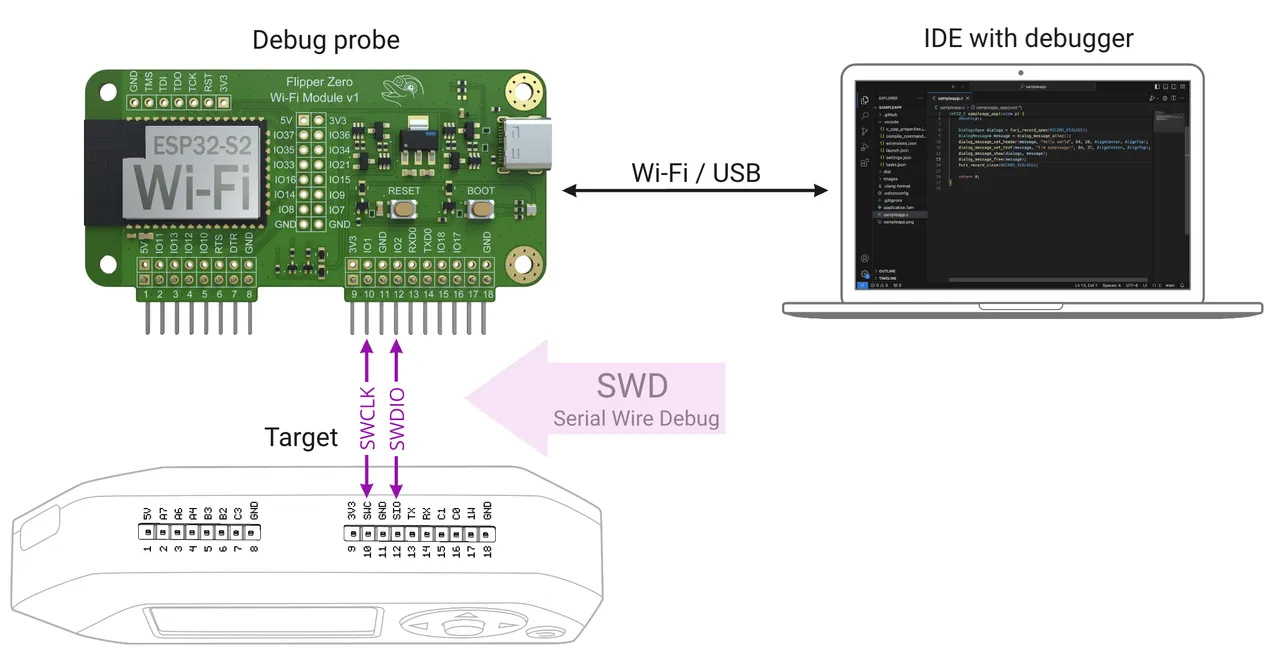
Data exchange between the Wi-Fi Developer Board and your Flipper Zero is conducted via the Serial Wire Debug interface. The following GPIO pins serve this purpose:
Pin 10: Serial Wire Clock (SWCLK)
Pin 12: Serial Wire Debug Data I/O (SWDIO)
To learn more about Flipper Zero pinout, visit GPIO & modules in Flipper Docs.
Prerequisites
Step 1. Installing Git
You'll need Git installed on your computer to clone the firmware repository. If you don't have Git, install it following the official installation guide.
Step 2. Building the firmware
Before starting debugging, you need to clone and build Flipper Zero firmware:
Open the Terminal (on Linux & macOS) or PowerShell (on Windows) in the directory where you want to store the firmware source code.
Clone the firmware repository:
textgit clone --recursive https://github.com/flipperdevices/flipperzero-firmware.git cd flipperzero-firmwareRun the Flipper Build Tool (FBT) to build the firmware:
text./fbt
Debugging the firmware
From the flipperzero-firmware directory that you cloned earlier, run the following command:
./fbt flashThis will upload the firmware you've just built to your Flipper Zero via the Developer Board. After that, you can start debugging the firmware. We recommend using VS Code with the recommended extensions (as described below), and we have pre-made configurations for it.
To debug in VS Code, do the following:
In VS Code, open the flipperzero-firmware directory.
You should see a notification about recommended extensions. Install them.
If there were no notifications, open the Extensions tab, enter
@recommendedin the search bar, and install the workspace recommendations.Run the
./fbt vscode_distcommand. This will generate the VS Code configuration files needed for debugging.In VS Code, open the Run and Debug tab and select a debugger from the dropdown menu:
- Attach FW (blackmagic): Can be used via Wi-Fi or USB
- Attach FW (DAP): Can be used via USB only
Note that when debugging via USB, you need to make sure the selected debugger matches the debug mode on your Devboard. To check the debug mode on your Devboard, access the Devboard's web interface as described here and check the USB mode field. If you want to use a different debug mode, enable this mode by following the steps in Devboard debug modes.
If needed, flash your Flipper Zero with the
./fbt flashcommand, then click the ▷ Start Debugging button in the debug sidebar to start the debugging session.Note that starting a debug session halts the execution of the firmware, so you'll need to click the I▷ Continue button on the toolbar at the top of your VS Code window to continue execution.
\image html https://cdn.flipperzero.one/Flipper_Zero_Wi-Fi_devboard_VS_Code.jpg width=900
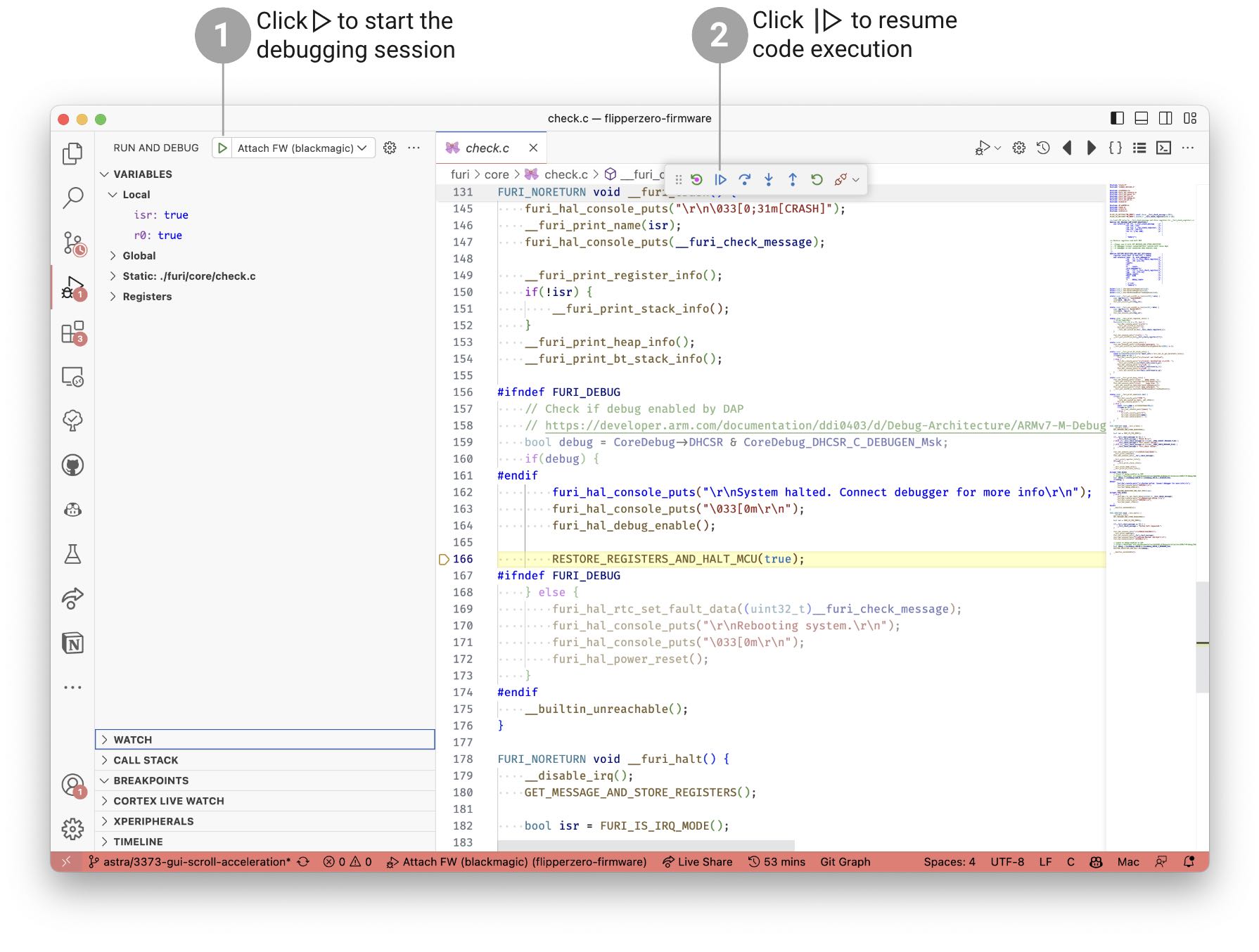
[!note]
If you want to use a different debug mode on your Developer Board, visit Devboard debug modes.If you want to read logs via the Developer Board, see Reading logs via the Devboard.
To learn about debugging in VS Code, see VS Code official guide.
Documentation Devboard Devboard Debug Modes (`documentation/devboard/Devboard debug modes.md`)
Devboard debug modes {#dev_board_debug_modes}
The Wi-Fi Devboard for Flipper Zero supports Black Magic and DAPLink debug modes, and you can switch between them depending on your needs. Note that available modes depend on connection:
- Wi-Fi: Only Black Magic mode is available.
- USB: Switch between Black Magic (default) and DAPLink. Learn more about switching debug modes for USB connection below.
[!note]
Black Magic mode doesn't support RTOS threads, but you can still perform other debugging operations.
Switching debug modes for USB connection
Switching debug modes for working via USB has to be done wirelessly (yes, you read that correctly). Additionally, depending on how the Devboard wireless connection is configured, you may need to follow different steps for Wi-Fi access point mode or Wi-Fi client mode:
If the Devboard isn't connected to your Flipper Zero, turn off your Flipper Zero and connect the Developer Board, then turn the device back on.
Access the Devboard's web interface:
In the WiFi tab, click the USB mode option and select BlackMagicProbe or DapLink.
Click SAVE, then click REBOOT to apply the changes.
\image html https://cdn.flipperzero.one/Flipper_Zero_WiFi_devboard_switching_modes_CDN.jpg width=700
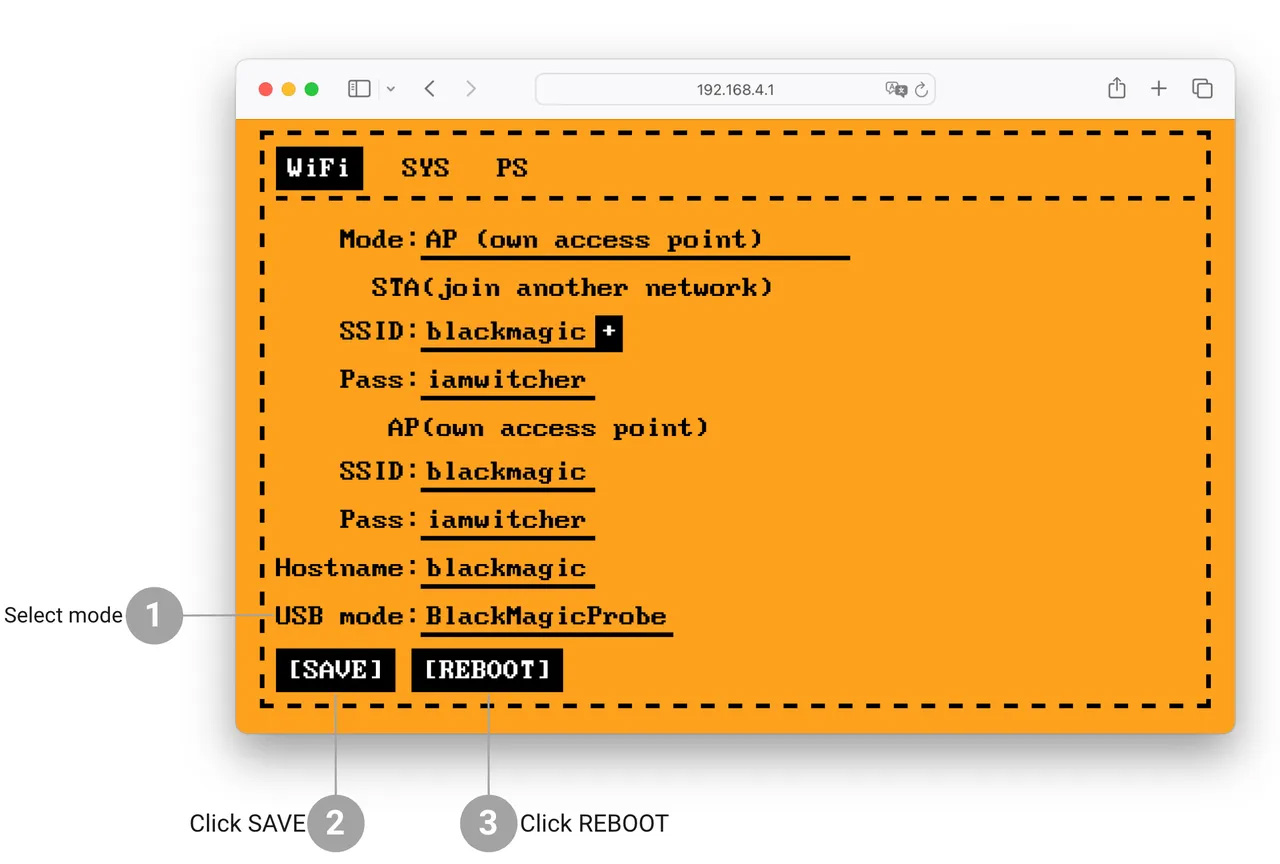
[!note]
After switching debug modes on your Devboard, remember to select the same debugger in VS Code in the Run and Debug tab, and click the ▷ Start Debugging button.
Documentation Devboard Firmware Update On Developer Board (`documentation/devboard/Firmware update on Developer Board.md`)
Firmware update on Developer Board {#dev_board_fw_update}
It's important to regularly update your Developer Board to ensure that you have access to the latest features and bug fixes. This page will guide you through the necessary steps to update the firmware of your Developer Board.
[!note]
This guide assumes that you're familiar with the basics of the command line. If you're new to it, we recommend checking out these Windows or macOS/Linux command line tutorials.
If you’re not, please refer to the Windows or MacOS / Linux command line tutorials.
Step 1. Install the micro Flipper Build Tool
micro Flipper Build Tool (uFBT) is a cross-platform tool developed and supported by our team that enables basic development tasks for Flipper Zero, such as building and debugging applications, flashing firmware, creating VS Code development configurations, and flashing firmware to the Wi-Fi Developer Board.
On Linux & macOS:
- Open a terminal.
- Install
pipxby following the instructions on the official website. - Restart the terminal.
- Install
ufbt:textpipx install ufbt
On Windows:
- Download the latest version of Python on the official website and install it.
- Open PowerShell.
- Install
pipx:textpy -m pip install --user pipx - Add
pipxto PATH:textpy -m pipx ensurepath - Restart PowerShell.
- Install
ufbt:textpipx install ufbt
Step 2. Connect the Devboard to PC
To update the firmware, you need to switch your Developer Board to Bootloader mode, connect to a PC via a USB cable, and make sure that the PC detects the Developer Board:
List all of the serial devices on your computer.
macOS: Run the
ls /dev/cu.*command in the Terminal.Linux: Run the
ls /dev/tty*command in the Terminal.Windows: Go to Device Manager and expand the Ports (COM & LPT) section.
Connect the Developer Board to your computer using a USB-C cable.
\image html https://cdn.flipperzero.one/Flipper_Zero_Wi-Fi_devboard_update_wired_connection.jpg width=700Switch your Developer Board to Bootloader mode:
3.1. Press and hold the BOOT button.
3.2. Press and release the RESET button while holding the BOOT button.
3.3. Release the BOOT button.
\image html https://cdn.flipper.net/Flipper_Zero_devboard_bootloader.jpg width=700Repeat the first command above (listing serial devices) and view the name of your Developer Board that appeared in the list.
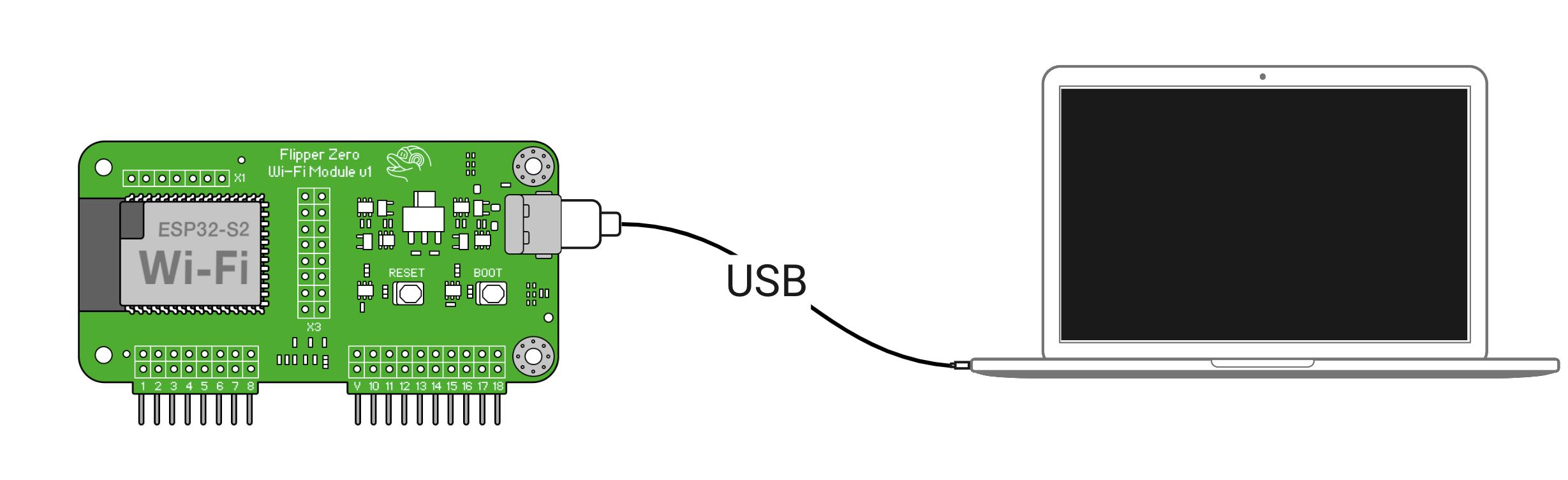
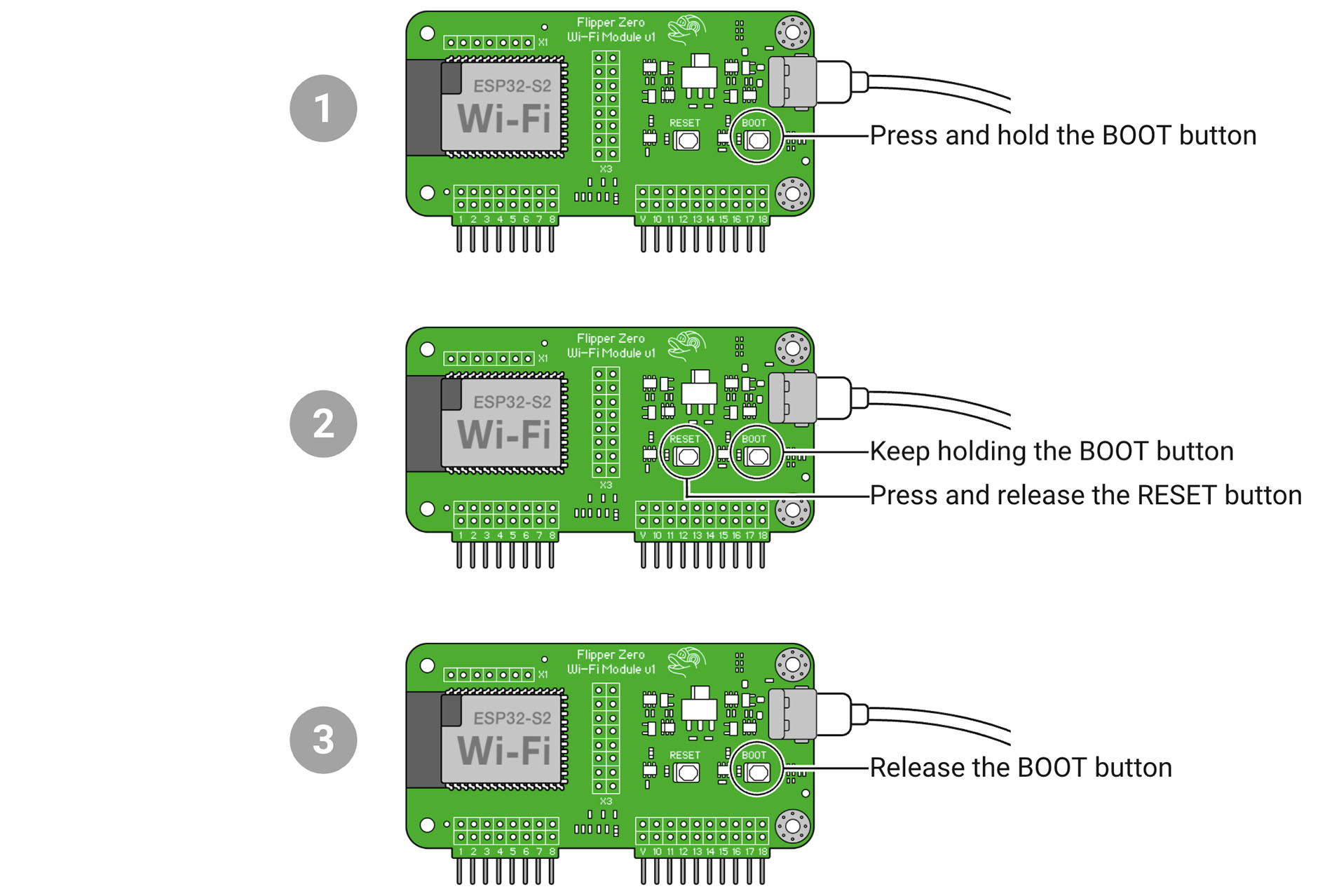
Step 3. Flash the firmware
On Linux & macOS:
python3 -m ufbt devboard_flashOn Windows: Run the following command in PowerShell:
py -m ufbt devboard_flashYou should see the following message: WiFi board flashed successfully.
If flashing fails
Occasionally, you might get an error message during the flashing process, such as:
A fatal error occurred: Serial data stream stopped: Possible serial noise or corruption.or
FileNotFoundError: [Errno 2] No such file or directory: '/dev/cu.usbmodem01'To fix it, try doing the following:
Disconnect the Developer Board from your computer, then reconnect it. After that, switch your Developer Board to Bootloader mode once again, as described in Step 2.
Use a different USB port on your computer.
Use a different USB-C cable.
Step 4. Finish the installation
Reboot the Developer Board by pressing the RESET button.
\image html https://cdn.flipperzero.one/Flipper_Zero_Wi-Fi_devboard_reboot_after_flashing.jpg width=700Disconnect and reconnect the USB-C cable.
You've successfully updated the firmware of your Developer Board!
If you followed the Get started with the Devboard guide, you're ready for the next step: Step 3. Plug the Devboard into Flipper Zero.
Documentation Devboard Get Started With The Dev Board (`documentation/devboard/Get started with the Dev Board.md`)
Get started with the Devboard {#dev_board_get_started}
\image html https://cdn.flipperzero.one/Flipper_Zero_WiFi_developer_board_box_CDN.jpg width=700
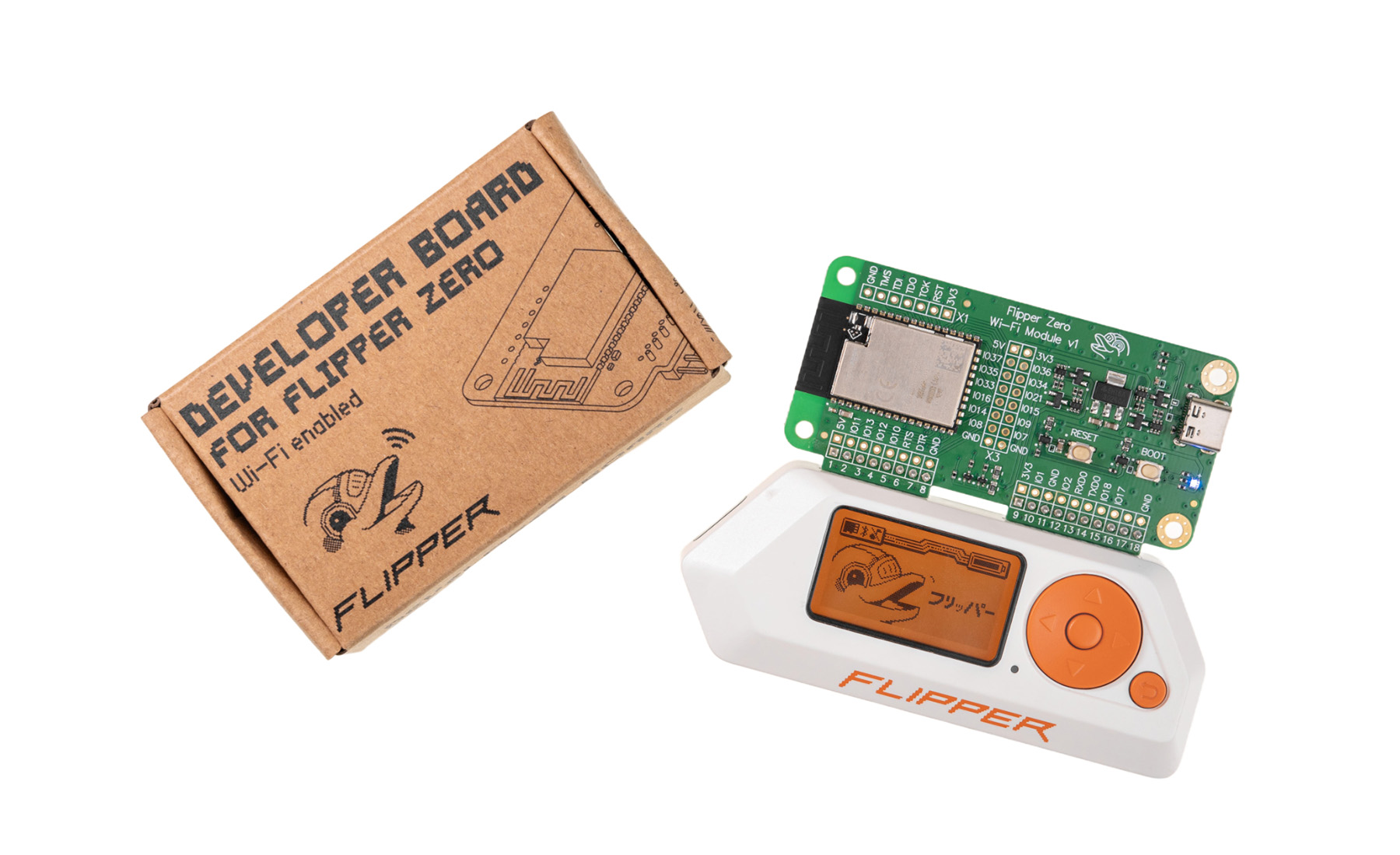
Before you start using your Devboard, you need to prepare your Flipper Zero and Devboard for debugging. In this guide, we'll walk you through all the necessary steps and provide links to explore the Devboard's capabilities further.
Step 1. Enable Debug Mode on your Flipper Zero
Since the main purpose of the Developer board is to debug applications on Flipper Zero, you first need to enable Debug Mode. To do so, go to Settings → System and set Debug to ON.
\image html https://cdn.flipperzero.one/Flipper_Zero_enamble_debug_CDN.jpg width=700
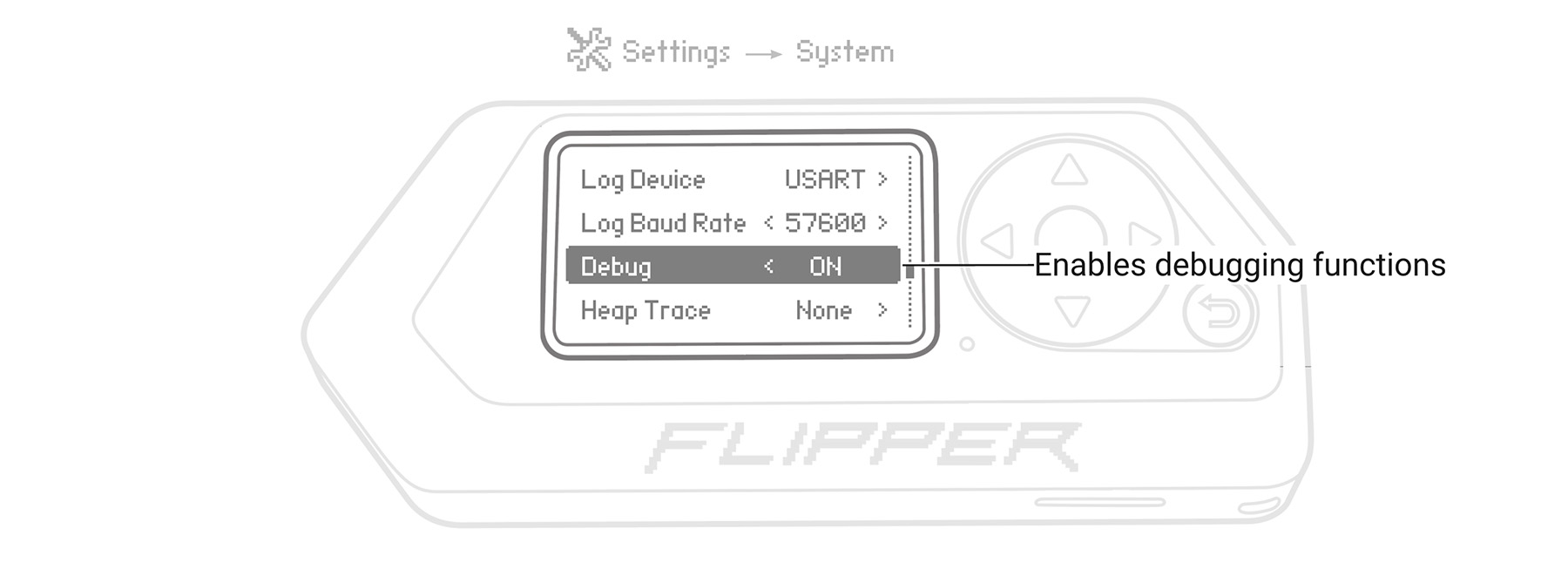
[!note]
Debug Mode needs to be re-enabled after each update of Flipper Zero's firmware.
Debug Mode allows you to debug your apps for Flipper Zero, as well as access debugging options in apps via the user interface and CLI. To learn more about Flipper Zero CLI, visit Command-line interface in Flipper Docs.
\image html https://cdn.flipperzero.one/Flipper_Zero_Command_Line_Interface_CDN.jpg width=700
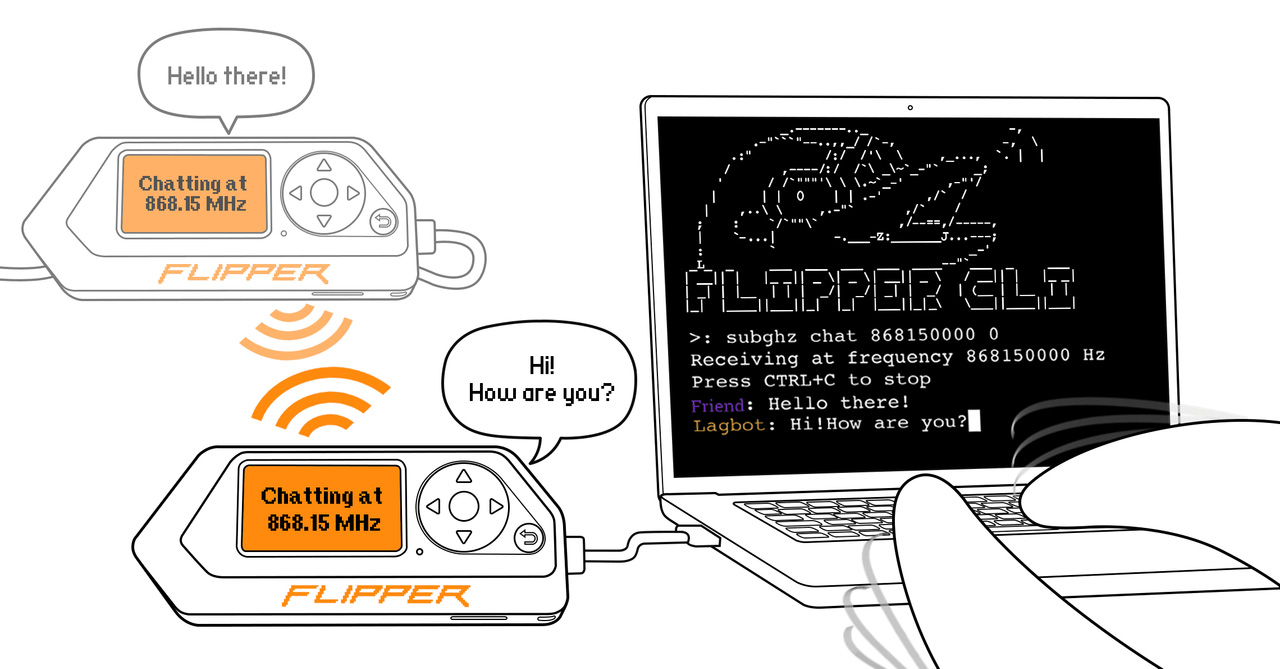
Step 2. Update firmware on the Developer Board
The Developer Board comes with stock firmware that may not include all the latest features and bug fixes. To ensure optimal performance, please update your board's firmware using the instructions in Firmware update on Devboard.
Step 3. Plug the Devboard into Flipper Zero {#dev_board_get_started_step-3}
Once your Developer Board firmware is up to date, you can proceed to plug it into your Flipper Zero. Two important things to keep in mind:
Power off your Flipper Zero before plugging in the Developer Board.
If you skip this step, you may corrupt the data stored on the microSD card. Connecting external modules with a large capacitive load may affect the microSD card's power supply since both the microSD card and external module are powered from the same 3.3 V power source inside Flipper Zero.
Make sure the Developer Board is inserted all the way in.
If your Flipper Zero isn't in a silicone case, insert the module all the way in so there is no gap between your Flipper Zero and the Devboard. You may need to apply more force to insert it completely. After that, press and hold the BACK button to power on your Flipper Zero.
\image html https://cdn.flipperzero.one/Flipper_Zero_external_module_without_case_CDN.jpg width=700
If your Flipper Zero is in a silicone case, insert the module all the way in so there is no gap in the middle between the silicone case and the module. After that, press and hold the BACK button to power on your Flipper Zero.
\image html https://cdn.flipperzero.one/Flipper_Zero_external_module_with_case_CDN.jpg width=700
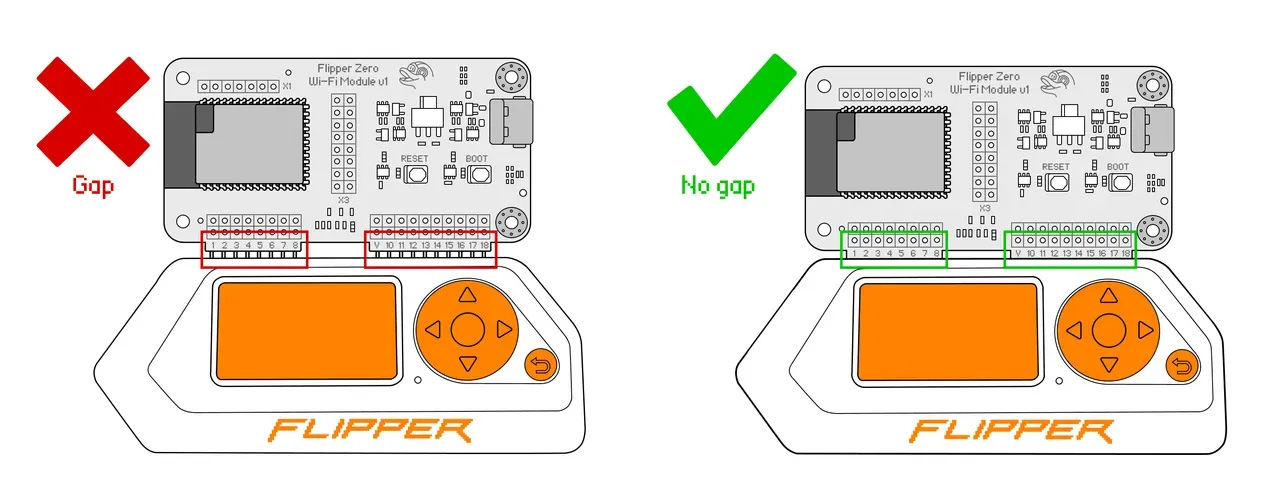
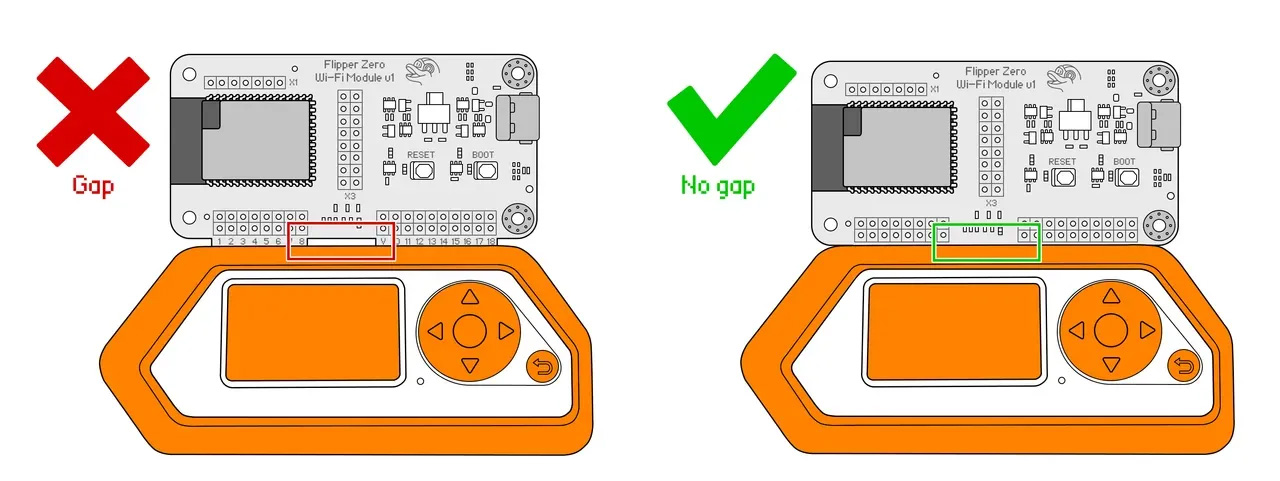
Step 4. Connect to a computer
Now, you can connect the Developer Board to your computer via USB or Wi-Fi, depending on your needs. We described both methods in separate documents:
- Via USB cable for debugging in DAP Link or Black Magic mode, and reading logs.
- Via Wi-Fi for debugging in Black Magic mode.
Next steps
You are ready to debug now! To further explore what you can do with the Devboard, check out these pages:
These guides should help you get started with your Devboard. If you have any questions or you want to share your experience, don't hesitate to join our community on Reddit and Discord, where we have a dedicated #wifi-devboard channel.
Documentation Devboard Reading Logs Via The Dev Board (`documentation/devboard/Reading logs via the Dev Board.md`)
Reading logs via the Devboard {#dev_board_reading_logs}
The Developer Board allows you to read Flipper Zero logs via UART. Unlike reading logs via the command-line interface (CLI), the Developer Board enables you to collect logs from the device directly to a serial console independently from the operating system of Flipper Zero. It allows you to see the device's logs when it's loading, updating, or crashing. It's useful for debugging and troubleshooting during software development.
[!NOTE]
Flipper Zero logs can only be viewed when the developer board is connected via USB.
The option to view logs over Wi-Fi will be added in future updates.
Setting the log level
Depending on your needs, you can set the log level by going to Main Menu → Settings → Log Level. To learn more about logging levels, visit Settings.
\image html https://cdn.flipperzero.one/Flipper_Zero_log_level.jpg "You can manually set the preferred log level" width=700
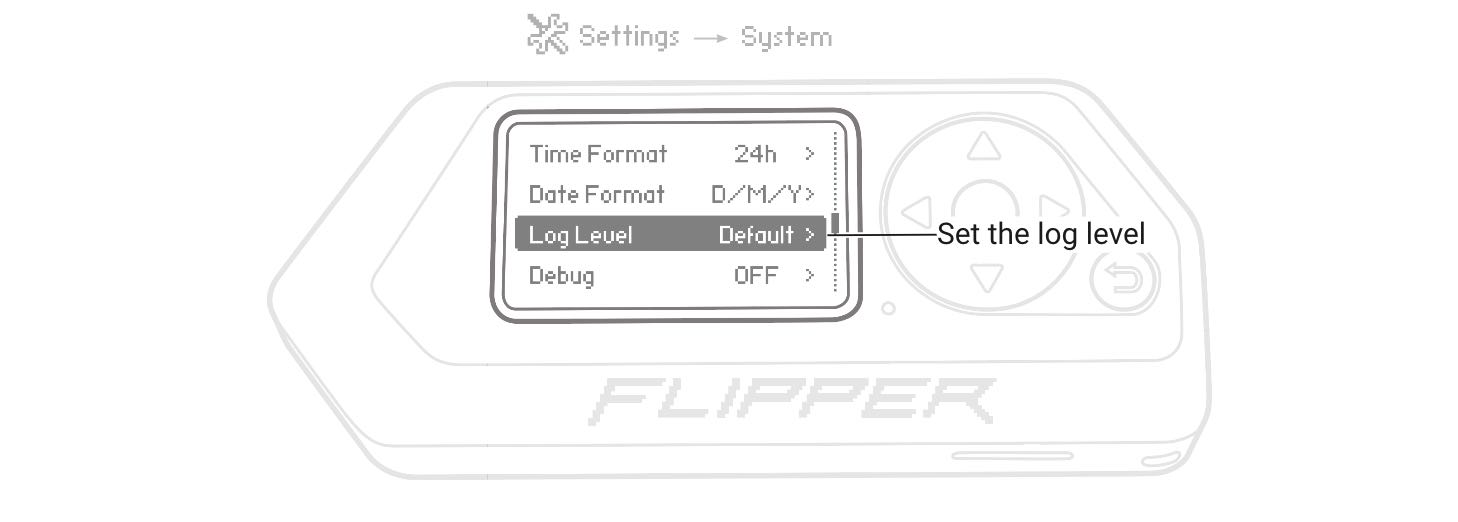
Viewing Flipper Zero logs
Depending on your operating system, you need to install an additional application on your computer to read logs via the Developer Board:
macOS
On macOS, you need to install the minicom communication program by doing the following:
- Install Homebrew by running the following command in the Terminal:bash
/bin/bash -c "$(curl -fsSL https://raw.githubusercontent.com/Homebrew/install/HEAD/install.sh)" - After installation of Homebrew, run the following command to install
minicom:bashbrew install minicom
After installation of minicom on your macOS computer, you can connect to the Developer Board to read Flipper Zero logs by doing the following:
- Cold-plug the Developer Board into your Flipper Zero by turning off the Flipper Zero, connecting the developer board, and then turning it back on.
- On your computer, open the Terminal and run the following command:bash
ls /dev/cu.*
[!NOTE]
The list of devices.
Connect the developer board to your computer using a USB Type-C cable.
\image html https://cdn.flipperzero.one/Flipper_Zero_Wi-Fi_developer_board_wired.png width=700Rerun the command. Two new devices have to appear: this is the Developer Board.
text/dev/cu.usbmodemblackmagic1bash/dev/cu.usbmodemblackmagic3
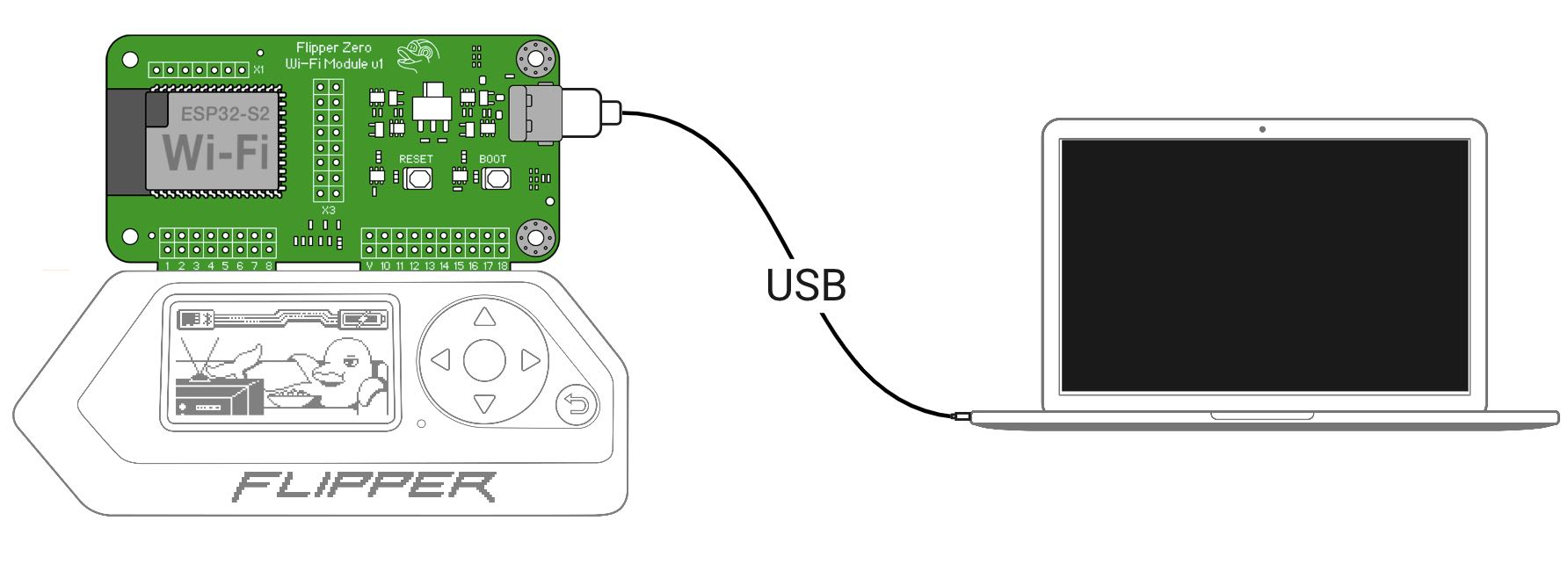
[!NOTE]
Your Developer Board might have different names.
- Run the following command:Where `` is the name of your device with a bigger number.bash
minicom -D /dev/<port> -b 230400
Example:bashminicom -D /dev/cu.usbmodemblackmagic3 -b 230400 - View logs of your Flipper Zero in the Terminal.
- To quit, close the
minicomwindow or quit via theminicommenu.
Linux
On Linux, you need to install the minicom communication program. For example, on Ubuntu, run in the Terminal the following command:
sudo apt install minicomAfter installation of minicom on your Linux computer, you can connect to the Developer Board to read Flipper Zero logs by doing the following:
Cold-plug the Developer Board into your Flipper Zero by turning off the Flipper Zero, connecting the developer board, and then turning it back on.
On your computer, open the Terminal and run the following command:
bashls /dev/tty*Note the list of devices.
Connect the developer board to your computer using a USB Type-C cable.
\image html https://cdn.flipperzero.one/Flipper_Zero_Wi-Fi_developer_board_wired.png width=700Rerun the command. Two new devices have to appear: this is the Developer Board.
bash/dev/ttyACM0bash/dev/ttyACM1
[!NOTE]
Your Developer Board might have different names.
- Run the following command:Where `` is the name of your device with a bigger number.bash
minicom -D /dev/<port> -b 230400
Example:bashminicom -D /dev/cu.usbmodemblackmagic3 -b 230400 - View logs of your Flipper Zero in the Terminal.
[!NOTE]
If no logs are shown in the Terminal,
try running the command from Step 5 with another device name.
- To quit, close the minicom window or quit via the minicom menu.
Windows
On Windows, do the following:
On your computer, install the PuTTY application.
Cold-plug the Developer Board into your Flipper Zero by turning off the Flipper Zero, connecting the developer board, and then turning it back on.
Connect the developer board to your computer using a USB Type-C cable.
\image html https://cdn.flipperzero.one/Flipper_Zero_Wi-Fi_developer_board_wired.png width=700Find the serial port that the developer board is connected to by going to Device Manager → Ports (COM & LPT) and looking for a new port that appears when you connect the Wi-Fi developer board.
\image html https://cdn.flipperzero.one/Flipper_Zero_Wi-Fi_devboard_Device_Manager.png width=700Run the PuTTY application and select Serial as the connection type.
Enter the port number you found in the previous step into the Serial line field.
Set the Speed parameter to 230400 and click Open.
\image html https://cdn.flipperzero.one/Flipper_Zero_Wi-Fi_devboard_PuTTy.jpg width=700View logs of your Flipper Zero in the PuTTY terminal window.
To quit, close the PuTTY window.
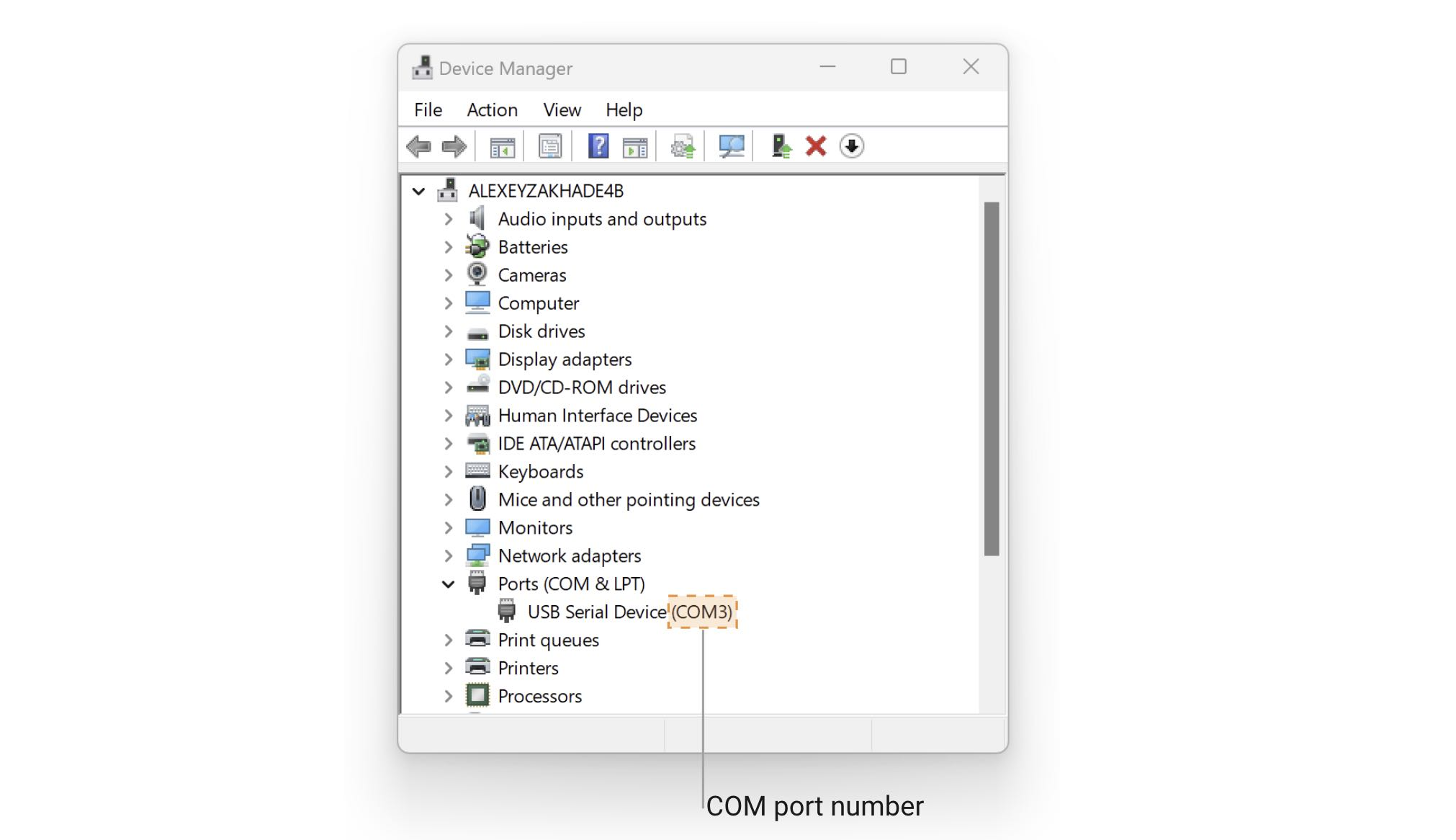
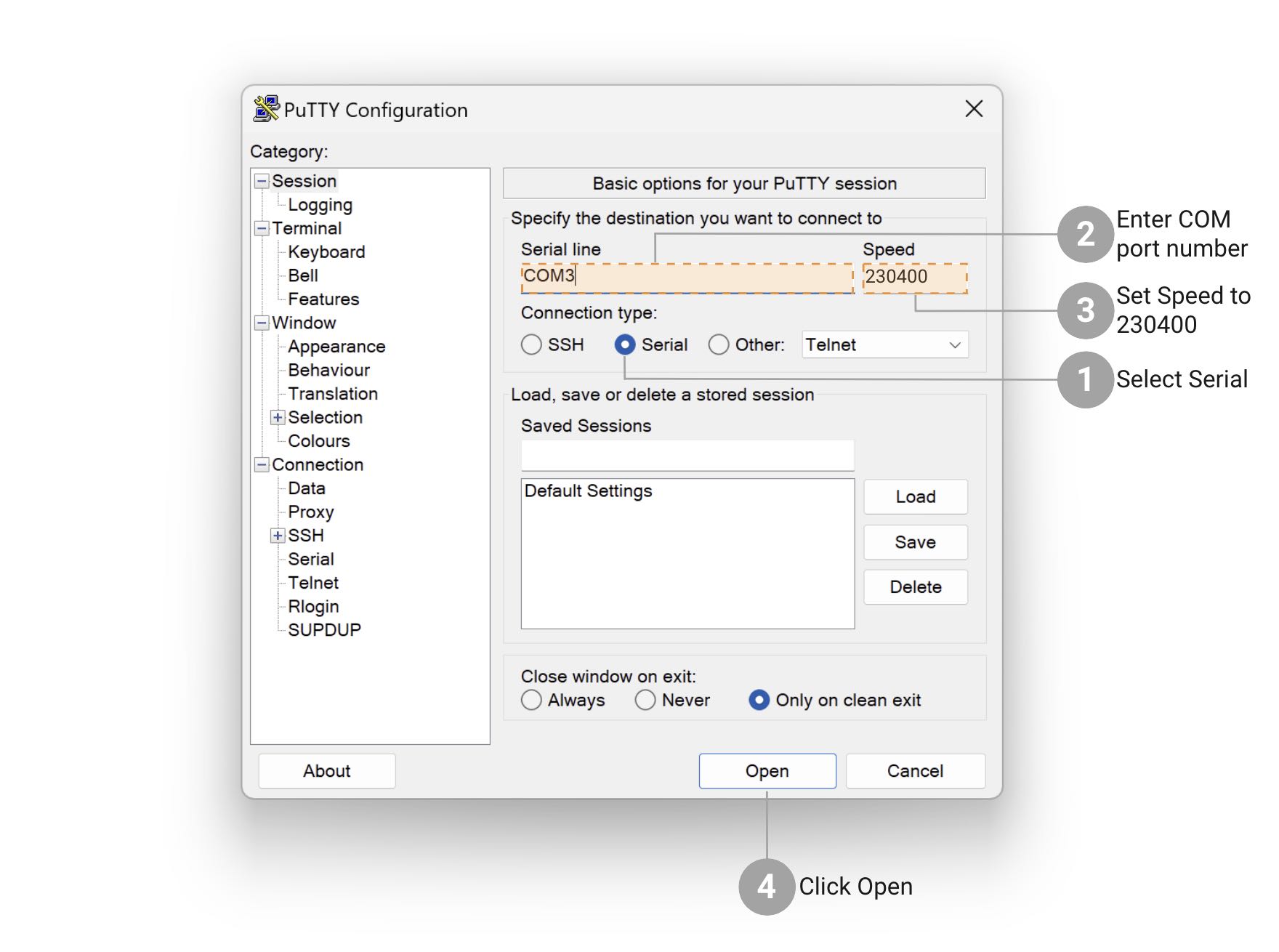
Documentation Devboard USB Connection To The Devboard (`documentation/devboard/USB connection to the Devboard.md`)
USB connection to the Devboard {#dev_board_usb_connection}
\image html https://cdn.flipperzero.one/Flipper_Zero_WiFi_devboard_USB_connection_CDN.jpg width=700
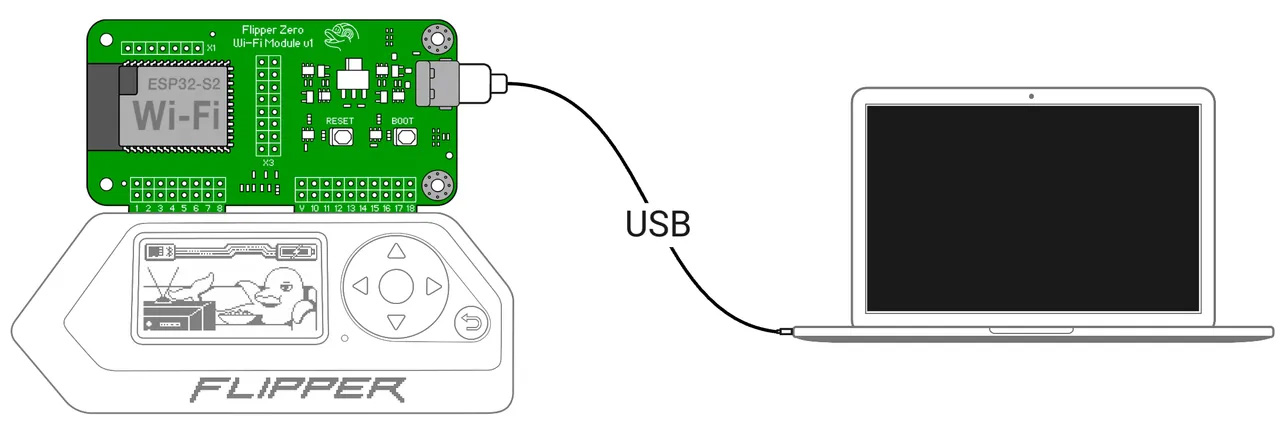
To connect to the Developer Board via USB, do the following:
If the Devboard isn't connected to your Flipper Zero, turn off your Flipper Zero and connect the Developer Board to it. Then, turn your Flipper Zero back on.
On your computer, check the list of serial devices.
macOS: On your computer, run
ls /dev/cu.*in the Terminal.Linux: On your computer, run
ls /dev/tty*in the Terminal.Windows: Go to Device Manager and expand the Ports (COM & LPT) section.
Connect the Devboard to your computer via a USB-C cable.
Repeat Step 2. Two new devices will appear — this is the Developer Board.
[!warning]
If the Developer Board doesn't appear in the list of devices, try using a different cable, USB port, or computer.
Documentation Devboard Wi Fi Connection To The Devboard (`documentation/devboard/Wi-Fi connection to the Devboard.md`)
Wi-Fi connection to the Devboard {#dev_board_wifi_connection}
You can connect to the Developer Board wirelessly in two ways:
Wi-Fi access point mode (default): The Devboard creates its own Wi-Fi network, which you can connect to in order to access its web interface and debug via Wi-Fi. The downside is that you will need to disconnect from your current Wi-Fi network, resulting in a loss of internet connection.
Wi-Fi client mode: You can connect to the Devboard through an existing Wi-Fi network, allowing you to access the Devboard web interface and debug via Wi-Fi without losing your internet connection.
Let's go over both of these modes below.
Wi-Fi access point (AP) mode {#wifi-access-point}
\image html https://cdn.flipperzero.one/Flipper_Zero_WiFi_devboard_Access_Point_CDN.jpg width=700
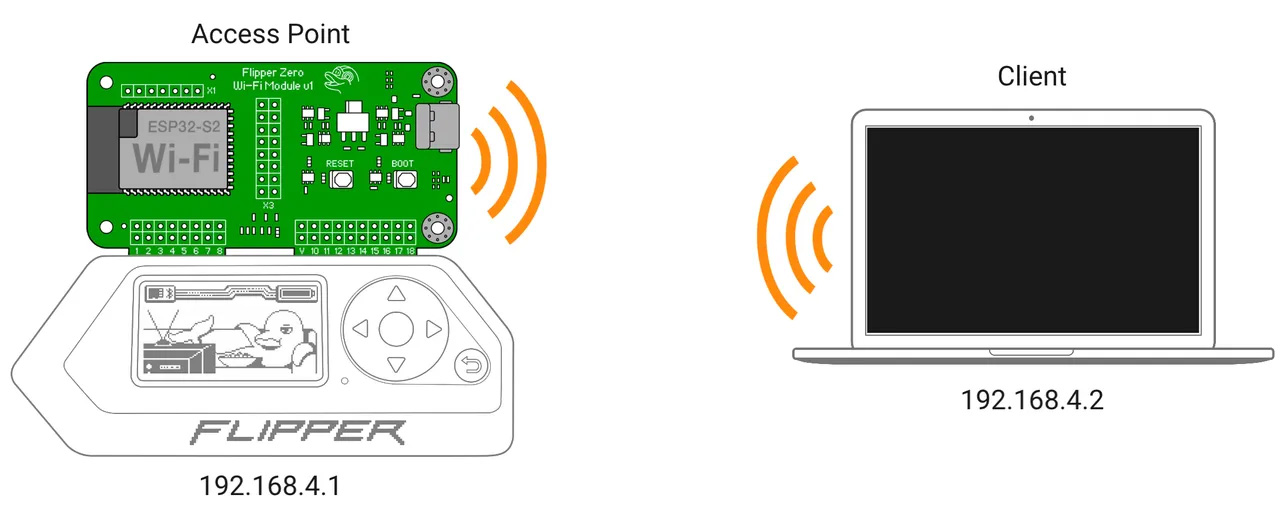
Out of the box, the Developer Board is configured to work as a Wi-Fi access point. To connect the Developer Board in this mode, do the following:
Plug the Wi-Fi Devboard into your Flipper Zero by turning off your Flipper Zero and connecting the Developer Board, and then turning it back on.
Open Wi-Fi settings on your client device (phone, laptop, or other).
Connect to the network:
Name:
blackmagic
Password:iamwitcherIf your computer fails to find the blackmagic network, read the troubleshooting section below.
To access the Devboard's web interface, open a browser and go to http://192.168.4.1 or http://blackmagic.local.
If your computer fails to find the black magic network {#wifi-access-point_troubleshooting}
Reset Wi-Fi connection on your computer.
The Developer Board is probably configured to work in Wi-Fi client mode. → Reset your Developer Board settings to default by pressing and holding the BOOT button for 10 seconds, then wait for the Devboard to reboot. After the reset, the Devboard will work in Wi-Fi access point mode.
\image html https://cdn.flipperzero.one/Flipper_Zero_Wi-Fi_devboard_reboot.jpg width=700
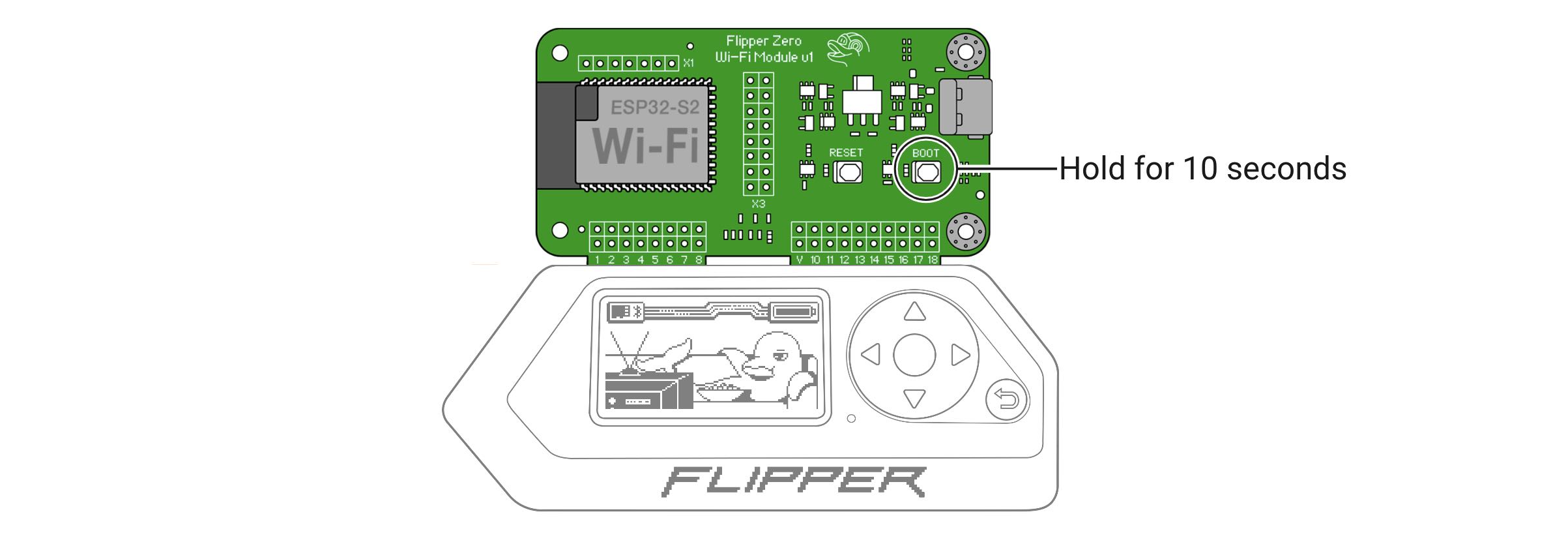
Wi-Fi client (STA) mode {#wifi-client-mode}
\image html https://cdn.flipperzero.one/Flipper_Zero_WiFi_devboard_STA_CDN.jpg width=700
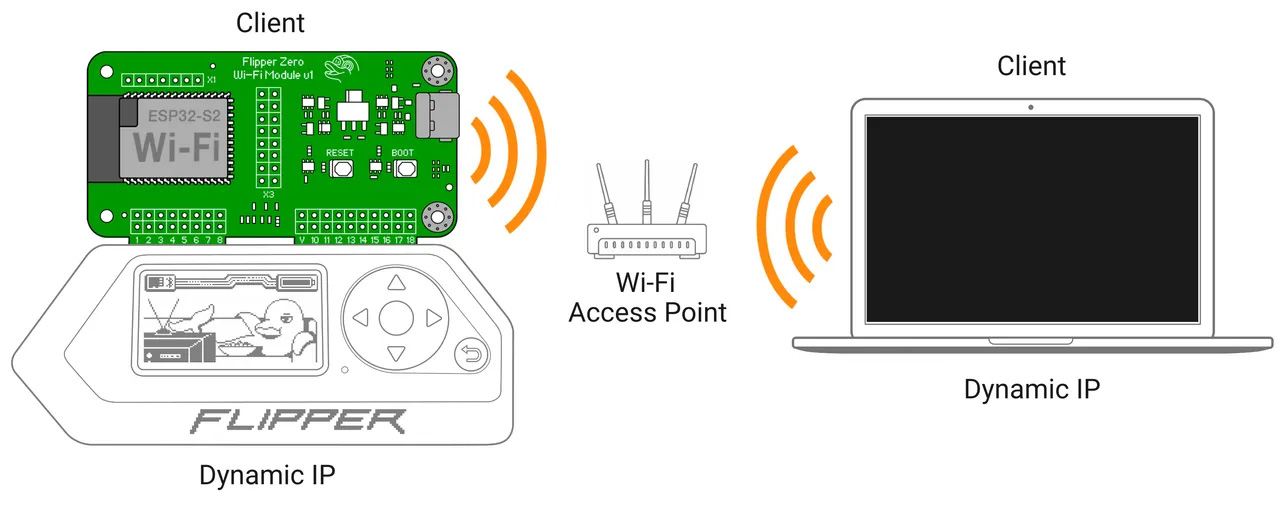
To connect the Developer Board in Wi-Fi client mode, you need to configure it to connect to your Wi-Fi network by doing the following:
Plug the Wi-Fi Devboard into your Flipper Zero by turning off your Flipper Zero and connecting the Developer Board, and then turning the device back on.
Connect to the Developer Board in Wi-Fi access point mode.
In a browser, go to the Devboard's web interface at http://192.168.4.1 or http://blackmagic.local.
Select the STA mode and enter your network's SSID (name) and password. For convenience, you can click the + button to see the list of nearby 2.4 GHz networks (5 GHz networks aren't supported).
Save the configuration and reboot the Developer Board.
\image html https://cdn.flipperzero.one/Flipper_Zero_WiFi_devboard_connect_to_WiFi_CDN.jpg width=700Now, you can access the Devboard's web interface at http://blackmagic.local via the existing Wi-Fi network without losing connection to the internet.
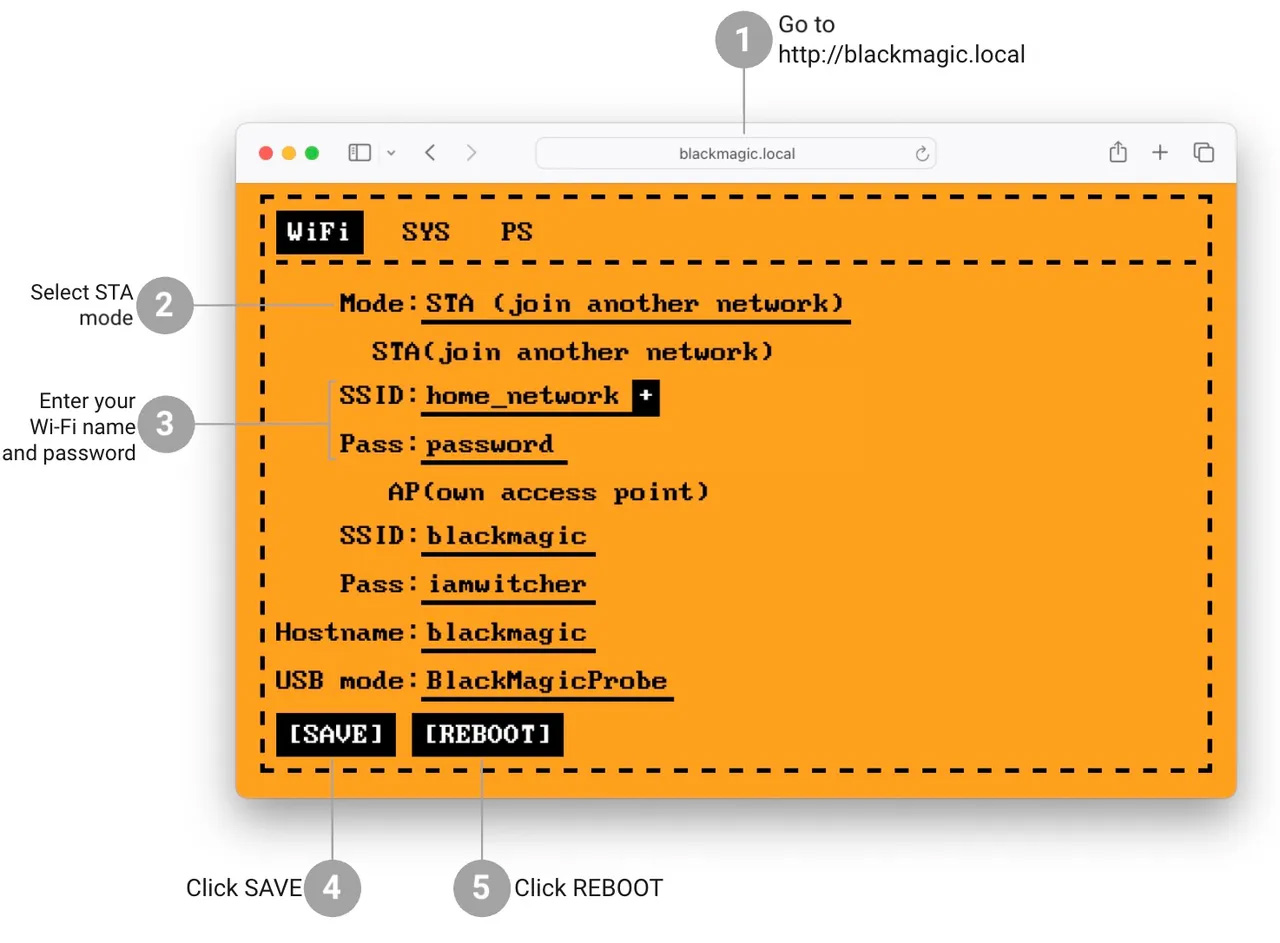
Documentation File Formats BadUsbScriptFormat (`documentation/file_formats/BadUsbScriptFormat.md`)
BadUSB File Format {#badusb_file_format}
Command syntax
BadUsb app uses extended DuckyScript syntax.
It is compatible with classic USB Rubber Ducky 1.0 scripts but provides some additional commands and features,
such as custom USB ID, ALT + Numpad input method, SYSRQ command, and more functional keys.
Script file format
BadUsb app can execute only text scripts from .txt files, no compilation is required. Both \n and \r\n line endings are supported. Empty lines are allowed. You can use spaces or tabs for line indentation.
Command set
Comment line
Just a single comment line. The interpreter will ignore all text after the REM command.
| Command | Parameters | Notes |
|---|---|---|
| REM | Comment text |
Delay
Pause script execution by a defined time.
| Command | Parameters | Notes |
|---|---|---|
| DELAY | Delay value in ms | Single delay |
| DEFAULT_DELAY | Delay value in ms | Add delay before every next command |
| DEFAULTDELAY | Delay value in ms | Same as DEFAULT_DELAY |
Special keys
| Command | Notes |
|---|---|
| DOWNARROW / DOWN | |
| LEFTARROW / LEFT | |
| RIGHTARROW / RIGHT | |
| UPARROW / UP | |
| ENTER | |
| DELETE | |
| BACKSPACE | |
| END | |
| HOME | |
| ESCAPE / ESC | |
| INSERT | |
| PAGEUP | |
| PAGEDOWN | |
| CAPSLOCK | |
| NUMLOCK | |
| SCROLLLOCK | |
| PRINTSCREEN | |
| BREAK | Pause/Break key |
| PAUSE | Pause/Break key |
| SPACE | |
| TAB | |
| MENU | Context menu key |
| APP | Same as MENU |
| Fx | F1-F12 keys |
Modifier keys
The following modifier keys are recognized:
| Command | Notes |
|---|---|
| CTRL | |
| CONTROL | Same as CTRL |
| SHIFT | |
| ALT | |
| GUI | |
| WINDOWS | Same as GUI |
You can chain multiple modifier keys together using hyphens (-) or spaces.
Key hold and release
Up to 5 keys can be hold simultaneously.
| Command | Parameters | Notes |
|---|---|---|
| HOLD | Special key or single character | Press and hold key until RELEASE command |
| RELEASE | Special key or single character | Release key |
String
| Command | Parameters | Notes |
|---|---|---|
| STRING | Text string | Print text string |
| STRINGLN | Text string | Print text string and press enter after it |
String delay
Delay between key presses.
| Command | Parameters | Notes |
|---|---|---|
| STRING_DELAY | Delay value in ms | Applied once to next appearing STRING command |
| STRINGDELAY | Delay value in ms | Same as STRING_DELAY |
| DEFAULT_STRING_DELAY | Delay value in ms | Apply to every appearing STRING command |
| DEFAULTSTRINGDELAY | Delay value in ms | Same as DEFAULT_STRING_DELAY |
Repeat
| Command | Parameters | Notes |
|---|---|---|
| REPEAT | Number of additional repeats | Repeat previous command |
ALT+Numpad input
On Windows and some Linux systems, you can print characters by holding ALT key and entering its code on Numpad.
| Command | Parameters | Notes |
|---|---|---|
| ALTCHAR | Character code | Print single character |
| ALTSTRING | Text string | Print text string using ALT+Numpad method |
| ALTCODE | Text string | Same as ALTSTRING, presents in some DuckyScript implementations |
SysRq
Send SysRq command
| Command | Parameters | Notes |
|---|---|---|
| SYSRQ | Single character |
Media keys
Some Media/Consumer Control keys can be pressed with MEDIA command
| Command | Parameters | Notes |
|---|---|---|
| MEDIA | Media key, see list below |
| Key name | Notes |
|---|---|
| POWER | |
| REBOOT | |
| SLEEP | |
| LOGOFF | |
| EXIT | |
| HOME | |
| BACK | |
| FORWARD | |
| REFRESH | |
| SNAPSHOT | Take photo in a camera app |
| PLAY | |
| PAUSE | |
| PLAY_PAUSE | |
| NEXT_TRACK | |
| PREV_TRACK | |
| STOP | |
| EJECT | |
| MUTE | |
| VOLUME_UP | |
| VOLUME_DOWN | |
| FN | Fn/Globe key on Mac keyboard |
| BRIGHT_UP | Increase display brightness |
| BRIGHT_DOWN | Decrease display brightness |
Fn/Globe key commands (Mac/iPad)
| Command | Parameters | Notes |
|---|---|---|
| GLOBE | Special key or single character |
Wait for button press
Will wait indefinitely for a button to be pressed
| Command | Parameters | Notes |
|---|---|---|
| WAIT_FOR_BUTTON_PRESS | None | Will wait for the user to press a button to continue script execution |
Device ID
You can set the custom ID of the Flipper HID device. This command must be in the first line of script, it is executed before script run.
| Command | Parameters | Example | Notes |
|---|---|---|---|
| ID | VID:PID Manufacturer:Product | ID 1234:abcd Flipper Devices:Flipper Zero |
For USB connection mode |
| BLE_ID | MAC:Addr Device Name | BLE_ID AA:BB:CC:DD:EE:FF Smart Fridge |
For Bluetooth connection mode |
| BT_ID | MAC:Addr Device Name | BT_ID AA:BB:CC:DD:EE:FF Smart Fridge |
Same as BLE_ID |
For ID, VID and PID are hex codes and are mandatory, while Manufacturer and Product are text strings and are optional.
For BLE_ID and BT_ID, MAC address is a 6 byte hex sequence, and both MAC address and device name are mandatory.
When opening a script with one of these commands on the first line, the connection mode will be automatically switched to the one specified by the command.
You can then manually switch back to the other connection mode.
Mouse Commands
Mouse movement and click commands. Mouse click commands support HOLD functionality.
| Command | Parameters | Notes |
|---|---|---|
| LEFTCLICK | None | |
| LEFT_CLICK | None | functionally same as LEFTCLICK |
| RIGHTCLICK | None | |
| RIGHT_CLICK | None | functionally same as RIGHTCLICK |
| MOUSEMOVE | x y: int move mount/direction | |
| MOUSE_MOVE | x y: int move mount/direction | functionally same as MOUSEMOVE |
| MOUSESCROLL | delta: int scroll distance | |
| MOUSE_SCROLL | delta: int scroll distance | functionally same as MOUSESCROLL |
Documentation File Formats InfraredFileFormats (`documentation/file_formats/InfraredFileFormats.md`)
Infrared Flipper File Formats {#infrared_file_format}
Supported protocols list for "type: parsed"
NEC
    NECext
    NEC42
    NEC42ext
    Samsung32
    RC6
    RC5
    RC5X
    SIRC
    SIRC15
    SIRC20
    Kaseikyo
    RCA
Infrared Remote File Format
Example
Filetype: IR signals file
Version: 1
#
name: Button_1
type: parsed
protocol: NECext
address: EE 87 00 00
command: 5D A0 00 00
#
name: Button_2
type: raw
frequency: 38000
duty_cycle: 0.330000
data: 504 3432 502 483 500 484 510 502 502 482 501 485 509 1452 504 1458 509 1452 504 481 501 474 509 3420 503
#
name: Button_3
type: parsed
protocol: SIRC
address: 01 00 00 00
command: 15 00 00 00
Description
Filename extension: .ir
This file format is used to store an infrared remote that consists of an arbitrary number of buttons.
Each button is separated from others by a comment character (#) for better readability.
Known protocols are represented in the parsed form, whereas non-recognized signals may be saved and re-transmitted as raw data.
Version history
- Initial version.
Format fields
| Name | Use | Type | Description |
|---|---|---|---|
| name | both | string | Name of the button. Only printable ASCII characters are allowed. |
| type | both | string | Type of the signal. Must be parsed or raw. |
| protocol | parsed | string | Name of the infrared protocol. Refer to ir console command for the complete list of supported protocols. |
| address | parsed | hex | Payload address. Must be 4 bytes long. |
| command | parsed | hex | Payload command. Must be 4 bytes long. |
| frequency | raw | uint32 | Carrier frequency, in Hertz, usually 38000 Hz. |
| duty_cycle | raw | float | Carrier duty cycle, usually 0.33. |
| data | raw | uint32 | Raw signal timings, in microseconds between logic level changes. Individual elements must be space-separated. Maximum timings amount is 1024. |
Infrared Library File Format
Examples
Description
Filename extension: .ir
This file format is used to store universal remote libraries. It is identical to the previous format, differing only in the Filetype field.
It also has predefined button names for each universal library type, so that the universal remote application can understand them.
See Universal Remotes for more information.
Version history
- Initial version.
Infrared Test File Format
Examples
See Infrared Unit Tests for various examples.
Description
Filename extension: .irtest
This file format is used to store technical test data that is too large to keep directly in the firmware.
It is mostly similar to the two previous formats, with the main difference being the addition of the parsed signal arrays.
Each infrared protocol must have corresponding unit tests complete with an .irtest file.
Known protocols are represented in the parsed_array form, whereas raw data has the raw type.
Note: a single parsed signal must be represented as an array of size 1.
Version history
- Initial version.
Format fields
| Name | Use | Type | Description |
|---|---|---|---|
| name | both | string | Name of the signal. Only printable ASCII characters are allowed. |
| type | both | string | Type of the signal. Must be parsed_array or raw. |
| count | parsed_array | uint32 | The number of parsed signals in an array. Must be at least 1. |
| protocol | parsed_array | string | Same as in previous formats. |
| address | parsed_array | hex | Ditto. |
| command | parsed_array | hex | Ditto. |
| repeat | parsed_array | bool | Indicates whether the signal is a repeated button press. |
| frequency | raw | uint32 | Same as in previous formats. |
| duty_cycle | raw | float | Ditto. |
| data | raw | uint32 | Ditto. |
Signal names
The signal names in an .irtest file follow a convention <name><test_number>, where the name is one of:
- decoder_input
- decoder_expected
- encoder_decoder_input,
and the number is a sequential integer: 1, 2, 3, etc., which produces names like decoder_input1, encoder_decoder_input3, and so on.
| Name | Type | Description |
|---|---|---|
| decoder_input | raw | A raw signal containing the decoder input. Also used as the expected encoder output. |
| decoder_expected | parsed_array | An array of parsed signals containing the expected decoder output. Also used as the encoder input. |
| encoder_decoder_input | parsed_array | An array of parsed signals containing both the encoder-decoder input and expected output. |
See Unit Tests for more info.
Documentation File Formats LfRfidFileFormat (`documentation/file_formats/LfRfidFileFormat.md`)
LF RFID key file format {#lfrfid_file_format}
Example
Filetype: Flipper RFID key
Version: 1
Key type: EM4100
Data: 01 23 45 67 89
Description
Filename extension: .rfid
The file stores a single RFID key of the type defined by the Key type parameter.
Version history
- Initial version.
Format fields
| Name | Description |
|---|---|
| Key type | Key protocol type |
| Data | Key data (HEX values) |
Supported key types
| Type | Full name |
|---|---|
| EM4100 | EM-Micro EM4100 |
| H10301 | HID H10301 |
| Idteck | IDTECK |
| Indala26 | Motorola Indala26 |
| IOProxXSF | Kantech IOProxXSF |
| AWID | AWID |
| FDX-A | FECAVA FDX-A |
| FDX-B | ISO FDX-B |
| HIDProx | Generic HIDProx |
| HIDExt | Generic HIDExt |
| Pyramid | Farpointe Pyramid |
| Viking | Viking |
| Jablotron | Jablotron |
| Paradox | Paradox |
| PAC/Stanley | PAC/Stanley |
| Keri | Keri |
| Gallagher | Gallagher |
| GProxII | Guardall GProx II |
Documentation File Formats NfcFileFormats (`documentation/file_formats/NfcFileFormats.md`)
NFC Flipper File Formats {#nfc_file_format}
UID + Header (General format)
Example
Filetype: Flipper NFC device
Version: 4
# Device type can be ISO14443-3A, ISO14443-3B, ISO14443-4A, NTAG/Ultralight, Mifare Classic, Mifare DESFire
Device type: ISO14443-4A
# UID is common for all formats
UID: 04 48 6A 32 33 58 80
-------------------------
(Device-specific data)
Description
This file format is used to store the device type and the UID of an NFC device. It does not store any internal data, so it is only used as a header for other formats.
Version differences:
- Initial version, deprecated
- LSB ATQA (e.g. 4400 instead of 0044)
- MSB ATQA (current version)
- Replace UID device type with ISO14443-3A
ISO14443-3A
Filetype: Flipper NFC device
Version: 4
# Device type can be ISO14443-3A, ISO14443-3B, ISO14443-4A, NTAG/Ultralight, Mifare Classic, Mifare DESFire
Device type: ISO14443-3A
# UID is common for all formats
UID: 34 19 6D 41 14 56 E6
# ISO14443-3A specific data
ATQA: 00 44
SAK: 00
Description
This file format is used to store the UID, SAK and ATQA of an ISO14443-3A device.
UID must be either 4 or 7 bytes long. ATQA is 2 bytes long. SAK is 1 byte long.
Version differences:
None, there are no versions yet.
ISO14443-3B
Filetype: Flipper NFC device
Version: 4
# Device type can be ISO14443-3A, ISO14443-3B, ISO14443-4A, NTAG/Ultralight, Mifare Classic, Mifare DESFire
Device type: ISO14443-3B
# UID is common for all formats
UID: 30 1D B3 28
# ISO14443-3B specific data
Application data: 00 12 34 FF
Protocol info: 11 81 E1
Description
This file format is used to store the UID, Application data and Protocol info of a ISO14443-3B device.
UID must be 4 bytes long. Application data is 4 bytes long. Protocol info is 3 bytes long.
Version differences:
None, there are no versions yet.
ISO14443-4A
Example
Filetype: Flipper NFC device
Version: 4
# Device type can be ISO14443-3A, ISO14443-3B, ISO14443-4A, NTAG/Ultralight, Mifare Classic, Mifare DESFire
Device type: ISO14443-4A
# UID is common for all formats
UID: 04 48 6A 32 33 58 80
# ISO14443-3A specific data
ATQA: 03 44
SAK: 20
# ISO14443-4A specific data
ATS: 06 75 77 81 02 80
Description
This file format is used to store the UID, SAK and ATQA of a ISO14443-4A device. It also stores the Answer to Select (ATS) data of the card.
ATS must be no less than 5 bytes long.
Version differences:
None, there are no versions yet.
NTAG/Ultralight
Example
Filetype: Flipper NFC device
Version: 4
# Device type can be ISO14443-3A, ISO14443-3B, ISO14443-4A, NTAG/Ultralight, Mifare Classic, Mifare DESFire
Device type: NTAG/Ultralight
# UID is common for all formats
UID: 04 85 90 54 12 98 23
# ISO14443-3A specific data
ATQA: 00 44
SAK: 00
# NTAG/Ultralight specific data
Data format version: 2
NTAG/Ultralight type: NTAG216
Signature: 1B 84 EB 70 BD 4C BD 1B 1D E4 98 0B 18 58 BD 7C 72 85 B4 E4 7B 38 8E 96 CF 88 6B EE A3 43 AD 90
Mifare version: 00 04 04 02 01 00 13 03
Counter 0: 0
Tearing 0: 00
Counter 1: 0
Tearing 1: 00
Counter 2: 0
Tearing 2: 00
Pages total: 231
Pages read: 231
Page 0: 04 85 92 9B
Page 1: 8A A0 61 81
Page 2: CA 48 0F 00
...
Page 224: 00 00 00 00
Page 225: 00 00 00 00
Page 226: 00 00 7F BD
Page 227: 04 00 00 E2
Page 228: 00 05 00 00
Page 229: 00 00 00 00
Page 230: 00 00 00 00
Failed authentication attempts: 0
Description
This file format is used to store the UID, SAK and ATQA of a Mifare Ultralight/NTAG device. It also stores the internal data of the card, the signature, the version, and the counters. The data is stored in pages, just like on the card itself.
The "NTAG/Ultralight type" field contains the concrete device type. It must be one of: Mifare Ultralight, Mifare Ultralight 11, Mifare Ultralight 21, NTAG203, NTAG213, NTAG215, NTAG216, NTAG I2C 1K, NTAG I2C 2K, NTAG I2C Plus 1K, NTAG I2C Plus 2K.
The "Signature" field contains the reply of the tag to the READ_SIG command. More on that can be found here: https://www.nxp.com/docs/en/data-sheet/MF0ULX1.pdf (page 31)
The "Mifare version" field is not related to the file format version but to the Mifare Ultralight version. It contains the response of the tag to the GET_VERSION command. More on that can be found here: https://www.nxp.com/docs/en/data-sheet/MF0ULX1.pdf (page 21)
Other fields are the direct representation of the card's internal state. Learn more about them in the same datasheet.
Version differences:
- Mifare Ultralight type is stored directly in Device type field
- Current version, Mifare Ultralight type is stored in the same-named field
Mifare Classic
Example
Filetype: Flipper NFC device
Version: 4
# Device type can be ISO14443-3A, ISO14443-3B, ISO14443-4A, NTAG/Ultralight, Mifare Classic, Mifare DESFire
Device type: Mifare Classic
# UID is common for all formats
UID: BA E2 7C 9D
# ISO14443-3A specific data
ATQA: 00 02
SAK: 18
# Mifare Classic specific data
Mifare Classic type: 4K
Data format version: 2
# Mifare Classic blocks, '??' means unknown data
Block 0: BA E2 7C 9D B9 18 02 00 46 44 53 37 30 56 30 31
Block 1: 00 00 00 00 00 00 00 00 00 00 00 00 00 00 00 00
Block 2: 00 00 00 00 00 00 00 00 00 00 00 00 00 00 00 00
Block 3: FF FF FF FF FF FF FF 07 80 69 FF FF FF FF FF FF
Block 4: 00 00 00 00 00 00 00 00 00 00 00 00 00 00 00 00
Block 5: 00 00 00 00 00 00 00 00 00 00 00 00 00 00 00 00
Block 6: 00 00 00 00 00 00 00 00 00 00 00 00 00 00 00 00
Block 7: FF FF FF FF FF FF FF 07 80 69 FF FF FF FF FF FF
...
Block 238: 00 00 00 00 00 00 00 00 00 00 00 00 00 00 00 00
Block 239: FF FF FF FF FF FF FF 07 80 69 FF FF FF FF FF FF
Block 240: 00 00 00 00 00 00 00 00 00 00 00 00 00 00 00 00
Block 241: 00 00 00 00 00 00 00 00 00 00 00 00 00 00 00 00
Block 242: 00 00 00 00 00 00 00 00 00 00 00 00 00 00 00 00
Block 243: 00 00 00 00 00 00 00 00 00 00 00 00 00 00 00 00
Block 244: 00 00 00 00 00 00 00 00 00 00 00 00 00 00 00 00
Block 245: 00 00 00 00 00 00 00 00 00 00 00 00 00 00 00 00
Block 246: 00 00 00 00 00 00 00 00 00 00 00 00 00 00 00 00
Block 247: 00 00 00 00 00 00 00 00 00 00 00 00 00 00 00 00
Block 248: 00 00 00 00 00 00 00 00 00 00 00 00 00 00 00 00
Block 249: 00 00 00 00 00 00 00 00 00 00 00 00 00 00 00 00
Block 250: 00 00 00 00 00 00 00 00 00 00 00 00 00 00 00 00
Block 251: 00 00 00 00 00 00 00 00 00 00 00 00 00 00 00 00
Block 252: 00 00 00 00 00 00 00 00 00 00 00 00 00 00 00 00
Block 253: 00 00 00 00 00 00 00 00 00 00 00 00 00 00 00 00
Block 254: 00 00 00 00 00 00 00 00 00 00 00 00 00 00 00 00
Block 255: FF FF FF FF FF FF FF 07 80 69 FF FF FF FF FF FF
Description
This file format is used to store the NFC-A and Mifare Classic specific data of a Mifare Classic card. Aside from the NFC-A data, it stores the card type (1K/4K) and the internal data of the card. The data is stored in blocks, there is no sector grouping. If the block's data is unknown, it is represented by '??'. Otherwise, the data is represented as a hex string.
Version differences:
- Initial version, has Key A and Key B masks instead of marking unknown data with '??'.
Example:
...
Data format version: 1
# Key map is the bit mask indicating valid key in each sector
Key A map: 000000000000FFFF
Key B map: 000000000000FFFF
# Mifare Classic blocks
...- Current version
Mifare DESFire
Example
Filetype: Flipper NFC device
Version: 4
# Device type can be ISO14443-3A, ISO14443-3B, ISO14443-4A, NTAG/Ultralight, Mifare Classic, Mifare DESFire
Device type: Mifare DESFire
# UID is common for all formats
UID: 04 2F 19 0A CD 66 80
# ISO14443-3A specific data
ATQA: 03 44
SAK: 20
# ISO14443-4A specific data
ATS: 06 75 77 81 02 80
# Mifare DESFire specific data
PICC Version: 04 01 01 12 00 1A 05 04 01 01 02 01 1A 05 04 2F 19 0A CD 66 80 CE ED D4 51 80 31 19
PICC Free Memory: 7520
PICC Change Key ID: 00
PICC Config Changeable: true
PICC Free Create Delete: true
PICC Free Directory List: true
PICC Key Changeable: true
PICC Max Keys: 01
PICC Key 0 Version: 00
Application Count: 1
Application IDs: 56 34 12
Application 563412 Change Key ID: 00
Application 563412 Config Changeable: true
Application 563412 Free Create Delete: true
Application 563412 Free Directory List: true
Application 563412 Key Changeable: true
Application 563412 Max Keys: 0E
Application 563412 Key 0 Version: 00
Application 563412 Key 1 Version: 00
Application 563412 Key 2 Version: 00
Application 563412 Key 3 Version: 00
Application 563412 Key 4 Version: 00
Application 563412 Key 5 Version: 00
Application 563412 Key 6 Version: 00
Application 563412 Key 7 Version: 00
Application 563412 Key 8 Version: 00
Application 563412 Key 9 Version: 00
Application 563412 Key 10 Version: 00
Application 563412 Key 11 Version: 00
Application 563412 Key 12 Version: 00
Application 563412 Key 13 Version: 00
Application 563412 File IDs: 01
Application 563412 File 1 Type: 00
Application 563412 File 1 Communication Settings: 00
Application 563412 File 1 Access Rights: EE EE
Application 563412 File 1 Size: 256
Application 563412 File 1: 13 37 00 00 00 00 00 00 00 00 00 00 00 00 00 00 00 00 00 00 00 00 00 00 00 00 00 00 00 00 00 00 00 00 00 00 00 00 00 00 00 00 00 00 00 00 00 00 00 00 00 00 00 00 00 00 00 00 00 00 00 00 00 00 00 00 00 00 00 00 00 00 00 00 00 00 00 00 00 00 00 00 00 00 00 00 00 00 00 00 00 00 00 00 00 00 00 00 00 00 00 00 00 00 00 00 00 00 00 00 00 00 00 00 00 00 00 00 00 00 00 00 00 00 00 00 00 00 00 00 00 00 00 00 00 00 00 00 00 00 00 00 00 00 00 00 00 00 00 00 00 00 00 00 00 00 00 00 00 00 00 00 00 00 00 00 00 00 00 00 00 00 00 00 00 00 00 00 00 00 00 00 00 00 00 00 00 00 00 00 00 00 00 00 00 00 00 00 00 00 00 00 00 00 00 00 00 00 00 00 00 00 00 00 00 00 00 00 00 00 00 00 00 00 00 00 00 00 00 00 00 00 00 00 00 00 00 00 00 00 00 00 00 00 00 00 00 00 00 00 00 00 00 00 00 00
Description
This file format is used to store the NFC-A and Mifare DESFire specific data of a Mifare DESFire card. Aside from the NFC-A data, it stores the card type (DESFire) and the internal data of the card. The data is stored per-application, and per-file. Here, the card was written using those pm3 commands:
hf mfdes createapp --aid 123456 --fid 2345 --dfname astra
hf mfdes createfile --aid 123456 --fid 01 --isofid 0001 --size 000100
hf mfdes write --aid 123456 --fid 01 -d 1337
Version differences:
None, there are no versions yet.
Mifare Classic Dictionary
Example
# Key dictionary from https://github.com/ikarus23/MifareClassicTool.git

# More well known keys!
# Standard keys
FFFFFFFFFFFF
A0A1A2A3A4A5
D3F7D3F7D3F7
000000000000

# Keys from mfoc
B0B1B2B3B4B5
4D3A99C351DD
1A982C7E459A
AABBCCDDEEFF
714C5C886E97
587EE5F9350F
A0478CC39091
533CB6C723F6
8FD0A4F256E9
...
Description
This file contains a list of Mifare Classic keys. Each key is represented as a hex string. Lines starting with '#' are ignored as comments. Blank lines are ignored as well.
Mifare Ultralight C Dictionary
Example
# Hexadecimal-Reversed Sample Key
12E4143455F495649454D4B414542524
# Byte-Reversed Sample Key (!NACUOYFIEMKAERB)
214E4143554F594649454D4B41455242
# Sample Key (BREAKMEIFYOUCAN!)
425245414B4D454946594F5543414E21
# Semnox Key (IEMKAERB!NACUOY )
49454D4B41455242214E4143554F5900
# Modified Semnox Key (IEMKAERB!NACUOYF)
49454D4B41455242214E4143554F5946
...
Description
This file contains a list of Mifare Ultralight C keys. Each key is represented as a hex string. Lines starting with '#' are ignored as comments. Blank lines are ignored as well.
EMV resources
Example
Filetype: Flipper EMV resources
Version: 1
# EMV currency code: currency name
0997: USN
0994: XSU
0990: CLF
0986: BRL
0985: PLN
0984: BOV
...
Description
This file stores a list of EMV currency codes, country codes, or AIDs and their names. Each line contains a hex value and a name separated by a colon and a space.
Version differences:
- Initial version
Documentation File Formats SubGhzFileFormats (`documentation/file_formats/SubGhzFileFormats.md`)
SubGhz Subsystem File Formats {#subghz_file_format}
.sub File Format
Flipper uses .sub files to store SubGhz signals. These files use the Flipper File Format. .sub files can contain either a SubGhz Key with a certain protocol or SubGhz RAW data.
A .sub file consist of 3 parts:
- header, contains the file type, version, and frequency
- preset information, preset type and, in case of a custom preset, transceiver configuration data
- protocol and its data, contains protocol name and its specific data, such as key, bit length, etc., or RAW data
Flipper's SubGhz subsystem uses presets to configure the radio transceiver. Presets are used to configure modulation, bandwidth, filters, etc. There are several presets available in stock firmware, and there is a way to create custom presets. See SubGhz Presets section for more details.
Header format
Header is a mandatory part of a .sub file. It contains the file type, version, and frequency.
| Field | Type | Description |
|---|---|---|
Filetype |
string | Filetype of subghz file format, must be Flipper SubGhz Key File |
Version |
uint | Version of subghz file format, current version is 1 |
Frequency |
uint | Frequency in Hertz |
Preset information
Preset information is a mandatory part for .sub files. It contains preset type and, in case of custom preset, transceiver configuration data.
When using one of the standard presets, only Preset field is required. When using a custom preset, Custom_preset_module and Custom_preset_data fields are required.
| Field | Description |
|---|---|
Preset |
Radio preset name (configures modulation, bandwidth, filters, etc.). When using a custom preset, must be FuriHalSubGhzPresetCustom |
Custom_preset_module |
Transceiver identifier, CC1101 for Flipper Zero |
Custom_preset_data |
Transceiver configuration data |
Built-in presets:
FuriHalSubGhzPresetOok270Async— On/Off Keying, 270kHz bandwidth, async(IO throw GP0)FuriHalSubGhzPresetOok650Async— On/Off Keying, 650kHz bandwidth, async(IO throw GP0)FuriHalSubGhzPreset2FSKDev238Async— 2 Frequency Shift Keying, deviation 2kHz, 270kHz bandwidth, async(IO throw GP0)FuriHalSubGhzPreset2FSKDev12KAsync— 2 Frequency Shift Keying, deviation 12kHz, 270kHz bandwidth, async(IO throw GP0)FuriHalSubGhzPreset2FSKDev476Async— 2 Frequency Shift Keying, deviation 47kHz, 270kHz bandwidth, async(IO throw GP0)
Transceiver Configuration Data {#transceiver-configuration-data}
Transceiver configuration data is a string of bytes, encoded in hex format, separated by spaces. For CC1101 data structure is: XX YY XX YY .. 00 00 ZZ ZZ ZZ ZZ ZZ ZZ ZZ ZZ, where:
- XX, holds register address,
- YY, contains register value,
- 00 00, marks register block end,
- ZZ ZZ ZZ ZZ ZZ ZZ ZZ ZZ, 8 byte PA table (Power amplifier ramp table).
You can find more details in the CC1101 datasheet and furi_hal_subghz code.
File Data
.sub file data section can either contain key data, consisting of a protocol name and its specific data, bit length, etc., or RAW data, which consists of an array of signal timings, recorded without any protocol-specific processing.
Key Files
.sub files with key data files contain protocol name and its specific data, such as key value, bit length, etc.
Check out the protocol registry for the full list of supported protocol names.
Example of a key data block in Princeton format:
...
Protocol: Princeton
Bit: 24
Key: 00 00 00 00 00 95 D5 D4
TE: 400
Protocol-specific fields in this example:
| Field | Description |
|---|---|
Bit |
Princeton payload length, in bits |
Key |
Princeton payload data |
TE |
Princeton quantization interval |
This file may contain additional fields, more details on available fields can be found in subghz protocols library.
RAW Files
RAW .sub files contain raw signal data that is not processed through protocol-specific decoding. These files are useful for testing or sending data not supported by any known protocol.
For RAW files, 2 fields are required:
- Protocol, must be
RAW - RAW_Data, contains an array of timings, specified in microseconds. Values must be non-zero, start with a positive number, and interleaved (change sign with each value). Up to 512 values per line. Can be specified multiple times to store multiple lines of data.
Example of RAW data:
Protocol: RAW
RAW_Data: 29262 361 -68 2635 -66 24113 -66 11 ...
A long payload that doesn't fit into the internal memory buffer and consists of short duration timings (< 10us) may not be read fast enough from the SD card. That might cause the signal transmission to stop before reaching the end of the payload. Ensure that your SD Card has good performance before transmitting long or complex RAW payloads.
BIN_RAW Files
BinRAW .sub files and RAW files both contain data that has not been decoded by any protocol. However, unlike RAW, BinRAW files only record a useful repeating sequence of durations with a restored byte transfer rate and without broadcast noise. These files can emulate nearly all static protocols, whether Flipper knows them or not.
- Usually, you have to receive the signal a little longer so that Flipper accumulates sufficient data to analyze it correctly.
For BinRAW files, the following parameters are required and must be aligned to the left:
- Protocol, must be
BinRAW. - Bit, is the length of the payload of the entire file, in bits (max 4096).
- TE, is the quantization interval, in us.
- Bit_RAW, is the length of the payload in the next Data_RAW parameter, in bits.
- Data_RAW, is an encoded sequence of durations, where each bit in the sequence encodes one TE interval: 1 - high level (there is a carrier), 0 - low (no carrier).
For example, TE=100, Bit_RAW=8, Data_RAW=0x37 => 0b00110111, that is,-200 200 -100 300will be transmitted.
When sending uploads,Bit_RAWandData_RAWform a repeating block. Several such blocks are necessary if you want to send different sequences sequentially. However, usually, there will be only one block.
Example data from a BinRAW file:
...
Protocol: BinRAW
Bit: 1572
TE: 597
Bit_RAW: 260
Data_RAW: 00 00 00 00 00 00 00 00 00 00 00 00 00 00 00 00 0F 4A B5 55 4C B3 52 AC D5 2D 53 52 AD 4A D5 35 00
Bit_RAW: 263
Data_RAW: 00 00 00 00 00 00 00 00 00 00 00 00 00 00 00 00 02 00 04 D5 32 D2 AB 2B 33 32 CB 2C CC B3 52 D3 00
Bit_RAW: 259
Data_RAW: 00 00 00 00 00 00 00 00 00 00 00 00 00 00 00 00 03 4A AB 55 34 D5 2D 4C CD 33 4A CD 55 4C D2 B3 00
Bit_RAW: 263
Data_RAW: 00 00 00 00 00 00 00 00 00 00 00 00 00 00 00 0F 7F 4A AA D5 2A CC B2 B4 CB 34 CC AA AB 4D 53 53 00
Bit_RAW: 264
Data_RAW: 00 00 00 00 00 00 00 00 00 00 00 00 00 00 00 01 FC 00 00 15 2C CB 34 D3 35 35 4D 4B 32 B2 D3 33 00
Bit_RAW: 263
Data_RAW: 00 00 00 00 00 00 00 00 00 00 00 00 00 00 00 00 DE 02 D3 54 D5 4C D2 CC AD 4B 2C B2 B5 54 CC AB 00
File examples
Key file, standard preset
Filetype: Flipper SubGhz Key File
Version: 1
Frequency: 433920000
Preset: FuriHalSubGhzPresetOok650Async
Protocol: Princeton
Bit: 24
Key: 00 00 00 00 00 95 D5 D4
TE: 400
Key file, custom preset
Filetype: Flipper SubGhz Key File
Version: 1
Frequency: 433920000
Preset: FuriHalSubGhzPresetCustom
Custom_preset_module: CC1101
Custom_preset_data: 02 0D 03 07 08 32 0B 06 14 00 13 00 12 30 11 32 10 17 18 18 19 18 1D 91 1C 00 1B 07 20 FB 22 11 21 B6 00 00 00 C0 00 00 00 00 00 00
Protocol: Princeton
Bit: 24
Key: 00 00 00 00 00 95 D5 D4
TE: 400
RAW file, standard preset
Filetype: Flipper SubGhz RAW File
Version: 1
Frequency: 433920000
Preset: FuriHalSubGhzPresetOok650Async
Protocol: RAW
RAW_Data: 29262 361 -68 2635 -66 24113 -66 11 ...
RAW_Data: -424 205 -412 159 -412 381 -240 181 ...
RAW_Data: -1448 361 -17056 131 -134 233 -1462 131 -166 953 -100 ...
RAW file, custom preset
Filetype: Flipper SubGhz RAW File
Version: 1
Frequency: 433920000
Preset: FuriHalSubGhzPresetCustom
Custom_preset_module: CC1101
Custom_preset_data: 02 0D 03 07 08 32 0B 06 14 00 13 00 12 30 11 32 10 17 18 18 19 18 1D 91 1C 00 1B 07 20 FB 22 11 21 B6 00 00 00 C0 00 00 00 00 00 00
Protocol: RAW
RAW_Data: 29262 361 -68 2635 -66 24113 -66 11 ...
RAW_Data: -424 205 -412 159 -412 381 -240 181 ...
RAW_Data: -1448 361 -17056 131 -134 233 -1462 131 -166 953 -100 ...
SubGhz configuration files
SubGhz application provides support for adding extra radio presets and additional keys for decoding transmissions in certain protocols.
SubGhz keeloq_mfcodes_user file
This file contains additional manufacturer keys for Keeloq protocol. It is used to decode Keeloq transmissions.
This file is loaded at subghz application start and is located at path /ext/subghz/assets/keeloq_mfcodes_user.
File format
File contains a header and a list of manufacturer keys.
File header format:
| Field | Type | Description |
|---|---|---|
Filetype |
string | SubGhz Keystore file format, always Flipper SubGhz Keystore File |
Version |
uint | File format version, 0 |
Encryption |
uint | File encryption: for user-provided file, set to 0 (disabled) |
Following the header, file contains a list of user-provided manufacture keys, one key per line.
For each key, a name and encryption method must be specified, according to comment in file header. More information can be found in keeloq decoder source code.
Example
# to use manual settings and prevent them from being deleted on upgrade, rename *_user.example files to *_user
# for adding manufacture keys
# AABBCCDDEEFFAABB:X:NAME
# AABBCCDDEEFFAABB - man 64 bit
# X - encryption method:
# - 0 - iterates over both previous and man in direct and reverse byte sequence
# - 1 - Simple Learning
# - 2 - Normal_Learning
# - 3 - Secure_Learning
# - 4 - Magic_xor_type1 Learning
#
# NAME - name (string without spaces) max 64 characters long
Filetype: Flipper SubGhz Keystore File
Version: 0
Encryption: 0
AABBCCDDEEFFAABB:1:Test1
AABBCCDDEEFFAABB:1:Test2
SubGhz setting_user file
This file contains additional radio presets and frequencies for SubGhz application. It is used to add new presets and frequencies for existing presets. This file is being loaded on subghz application start and is located at path /ext/subghz/assets/setting_user.
File format
File contains a header, basic options, and optional lists of presets and frequencies.
Header must contain the following fields:
Filetype: SubGhz setting file format, must beFlipper SubGhz Setting File.Version: file format version, current is1.
Basic settings
Add_standard_frequencies: bool, flag indicating whether to load standard frequencies shipped with firmware. If set tofalse, only frequencies specified in this file will be used.Default_frequency: uint, default frequency used in SubGhz application.
Adding more frequencies
Frequency: uint — additional frequency for the subghz application frequency list. Used in Read and Read RAW. You can specify multiple frequencies, one per line.
Adding more hopper frequencies
Hopper_frequency: uint — additional frequency for subghz application frequency hopping. Used in Frequency Analyzer. You can specify multiple frequencies, one per line.
Repeating the same frequency will cause Flipper to listen to this frequency more often.
Adding a Custom Preset {#adding-a-custom-preset}
You can have as many presets as you want. Presets are embedded into .sub files, so another Flipper can load them directly from that file.
Each preset is defined by the following fields:
| Field | Description |
|---|---|
Custom_preset_name |
string, preset name that will be shown in SubGHz application |
Custom_preset_module |
string, transceiver identifier. Set to CC1101 for Flipper Zero |
Custom_preset_data |
transceiver configuration data. See Transceiver Configuration Data for details. |
Example
# to use manual settings and prevent them from being deleted on upgrade, rename *_user.example files to *_user
Filetype: Flipper SubGhz Setting File
Version: 1

# Add Standard frequencies for your region
Add_standard_frequencies: true

# Default Frequency: used as default for "Read" and "Read Raw"
Default_frequency: 433920000

# Frequencies used for "Read", "Read Raw" and "Frequency Analyzer"
Frequency: 300000000
Frequency: 310000000
Frequency: 320000000

# Frequencies used for hopping mode (keep this list small or Flipper will miss the signal)
Hopper_frequency: 300000000
Hopper_frequency: 310000000
Hopper_frequency: 310000000

# Custom preset
# format for CC1101 "Custom_preset_data:" XX YY XX YY .. 00 00 ZZ ZZ ZZ ZZ ZZ ZZ ZZ ZZ, where: XX-register, YY - register data, 00 00 - end load register, ZZ - 8 byte Pa table register

#Custom_preset_name: AM_1
Custom_preset_module: CC1101
Custom_preset_data: 02 0D 03 07 08 32 0B 06 14 00 13 00 12 30 11 32 10 17 18 18 19 18 1D 91 1C 00 1B 07 20 FB 22 11 21 B6 00 00 00 C0 00 00 00 00 00 00

#Custom_preset_name: AM_2
#Custom_preset_module: CC1101
#Custom_preset_data: 02 0D 03 07 08 32 0B 06 14 00 13 00 12 30 11 32 10 17 18 18 19 18 1D 91 1C 00 1B 07 20 FB 22 11 21 B6 00 00 00 C0 00 00 00 00 00 00
Documentation File Formats TarHeatshrinkFormat (`documentation/file_formats/TarHeatshrinkFormat.md`)
Heatshrink-compressed Tarball Format {#heatshrink_file_format}
Flipper supports the use of Heatshrink compression library for .tar archives. This allows for smaller file sizes and faster OTA updates.
Heatshrink specification does not define a container format for storing compression parameters. This document describes the format used by Flipper to store Heatshrink-compressed data streams.
Header
Header begins with a magic value, followed by a version number and compression parameters - window size and lookahead size.
Magic value consists of 4 bytes: 0x48 0x53 0x44 0x53 (ASCII "HSDS", HeatShrink DataStream).
Version number is a single byte, currently set to 0x01.
Window size is a single byte, representing the size of the sliding window used by the compressor. It corresponds to -w parameter in Heatshrink CLI.
Lookahead size is a single byte, representing the size of the lookahead buffer used by the compressor. It corresponds to -l parameter in Heatshrink CLI.
Total header size is 7 bytes. Header is followed by compressed data.
Documentation File Formats IButtonFileFormat (`documentation/file_formats/iButtonFileFormat.md`)
iButton key file format {#ibutton_file_format}
Example
Filetype: Flipper iButton key
Version: 2
Protocol: DS1992
Rom Data: 08 DE AD BE EF FA CE 4E
Sram Data: 4E 65 76 65 72 47 6F 6E 6E 61 47 69 76 65 59 6F 75 55 70 4E 65 76 65 72 47 6F 6E 6E 61 4C 65 74 59 6F 75 44 6F 77 6E 4E 65 76 65 72 47 6F 6E 6E 61 52 75 6E 41 72 6F 75 6E 64 41 6E 64 44 65 73 65 72 74 59 6F 75 4E 65 76 65 72 47 6F 6E 6E 61 4D 61 6B 65 59 6F 75 43 72 79 4E 65 76 65 72 47 6F 6E 6E 61 53 61 79 47 6F 6F 64 62 79 65 4E 65 76 65 72 47 6F 6E 6E 61 54 65 6C 6C 41 4C 69 65
Description
Filename extension: .ibtn
The file stores a single iButton key, complete with all data required by the protocol.
Version history
2. Current version.
Changelog:
- Added support for different Dallas protocols
- Fields after
Protocolare protocol-dependent for flexibiliy
Format fields
| Name | Type | Description |
|---|---|---|
| Protocol | string | Currently supported: DS1990, DS1992, DS1996, DS1971, DS1420, DSGeneric, Cyfral, Metakom |
| Rom Data | hex | Read-only memory data (Dallas protocols only) |
| Sram Data | hex | Static RAM data (DS1992 and DS1996 only) |
| Eeprom Data | hex | EEPROM data (DS1971 only) |
| Data | hex | Key data (Cyfral & Metakom only) |
NOTE 1: DSGeneric is a catch-all protocol for all unknown 1-Wire devices. It reads only the ROM and does not perform any checks on the read data.
It can also be used if a key with a deliberately invalid family code or checksum is required.
NOTE 2: When adding new protocols, it is not necessarily to increase the format version, define the format in the protocol implementation instead.
DS1420 is fully compatible with DS1990, only difference is a familiy code 0x01 for DS1990 and 0x81 for DS1420
1. Initial version.
Deprecated, will be converted to current version upon saving.
Format fields
| Name | Type | Description |
|---|---|---|
| Key type | string | Currently supported: Cyfral, Dallas, Metakom |
| Data | hex | Key data |
Documentation Js Js About (`documentation/js/js_about.md`)
About the JavaScript engine {#js_about_js_engine}
Developing applications for Flipper Zero is now much more accessible with the introduction of JavaScript support.
Previously, building an app for Flipper Zero required C/C++ skills, setting up a development environment, and studying the code of existing applications and documentation. While embedded developers are very familiar with all of this, we wanted to make it easier for people from all backgrounds to create apps for Flipper Zero.
Flipper firmware now includes a built-in scripting engine that runs JavaScript, one of the most widely used programming languages. You can create script files, share them with others, and launch them directly from the Apps/Scripts menu on your Flipper Zero — no need for compiling on a PC.
JavaScript support is based on the mJS scripting engine. Originally designed for microcontrollers, mJS makes efficient use of system resources, requiring less than 50k of flash space and 2k of RAM. We've kept the core features of mJS and also added some useful improvements, such as support for compact binary arrays.
[!note]
mJS has some limitations compared to JavaScript engines built into modern browsers. For details on capabilities and limitations, refer to the mJS documentation on GitHub.
JavaScript apps can interact with Flipper Zero's resources, including its GUI, buttons, USB-HID device, GPIO, UART interfaces, and more. Let's go through the steps to create your first JavaScript app for Flipper Zero.
Next step: Your first JavaScript app
Documentation Js Js Badusb (`documentation/js/js_badusb.md`)
BadUSB module {#js_badusb}
let badusb = require("badusb");Methods
setup()
Start USB HID with optional parameters. Should be called before all other methods.
Parameters
Configuration object (optional):
- vid, pid (number): VID and PID values, both are mandatory
- mfrName (string): Manufacturer name (32 ASCII characters max), optional
- prodName (string): Product name (32 ASCII characters max), optional
- layoutPath (string): Path to keyboard layout file, optional
Examples
// Start USB HID with default parameters
badusb.setup();
// Start USB HID with custom vid:pid = AAAA:BBBB, manufacturer and product strings not defined
badusb.setup({ vid: 0xAAAA, pid: 0xBBBB });
// Start USB HID with custom vid:pid = AAAA:BBBB, manufacturer string = "Flipper Devices", product string = "Flipper Zero"
badusb.setup({ vid: 0xAAAA, pid: 0xBBBB, mfrName: "Flipper Devices", prodName: "Flipper Zero" });
isConnected()
Returns USB connection state.
Example
if (badusb.isConnected()) {
    // Do something
} else {
    // Show an error
}
press()
Press and release a key.
Parameters
Key or modifier name, key code.
See a list of key names below.
Examples
badusb.press("a"); // Press "a" key
badusb.press("A"); // SHIFT + "a"
badusb.press("CTRL", "a"); // CTRL + "a"
badusb.press("CTRL", "SHIFT", "ESC"); // CTRL + SHIFT + ESC combo
badusb.press(98); // Press key with HID code (dec) 98 (Numpad 0 / Insert)
badusb.press(0x47); // Press key with HID code (hex) 0x47 (Scroll lock)
hold()
Hold a key. Up to 5 keys (excluding modifiers) can be held simultaneously.
Parameters
Same as press.
Examples
badusb.hold("a"); // Press and hold "a" key
badusb.hold("CTRL", "v"); // Press and hold CTRL + "v" combo
release()
Release a previously held key.
Parameters
Same as press.
Release all keys if called without parameters.
Examples
badusb.release(); // Release all keys
badusb.release("a"); // Release "a" key
print()
Print a string.
Parameters
- A string to print
- (optional) Delay between key presses
Examples
badusb.print("Hello, world!"); // print "Hello, world!"
badusb.print("Hello, world!", 100); // Add 100ms delay between key presses
println()
Same as print but ended with "ENTER" press.
Parameters
- A string to print
- (optional) Delay between key presses
Examples
badusb.println("Hello, world!"); // print "Hello, world!" and press "ENTER"altPrint()
Prints a string by Alt+Numpad method - works only on Windows!
Parameters
- A string to print
- (optional) delay between key presses
Examples
badusb.altPrint("Hello, world!"); // print "Hello, world!"
badusb.altPrint("Hello, world!", 100); // Add 100ms delay between key presses
altPrintln()
Same as altPrint but ended with "ENTER" press.
Parameters
- A string to print
- (optional) delay between key presses
Examples
badusb.altPrintln("Hello, world!"); // print "Hello, world!" and press "ENTER"quit()
Releases usb, optional, but allows to interchange with usbdisk.
Examples
badusb.quit();
usbdisk.start(...)
Key names list {#js_badusb_keynames}
Modifier keys
| Name |
|---|
| CTRL |
| SHIFT |
| ALT |
| GUI |
Special keys
| Name | Notes |
|---|---|
| DOWN | Down arrow |
| LEFT | Left arrow |
| RIGHT | Right arrow |
| UP | Up arrow |
| ENTER | |
| DELETE | |
| BACKSPACE | |
| END | |
| HOME | |
| ESC | |
| INSERT | |
| PAGEUP | |
| PAGEDOWN | |
| CAPSLOCK | |
| NUMLOCK | |
| SCROLLLOCK | |
| PRINTSCREEN | |
| PAUSE | Pause/Break key |
| SPACE | |
| TAB | |
| MENU | Context menu key |
| Fx | F1-F24 keys |
| NUMx | NUM0-NUM9 keys |
Documentation Js Js Builtin (`documentation/js/js_builtin.md`)
Built-in methods {#js_builtin}
require()
Load a module plugin.
Parameters
- Module name
Examples
let serial = require("serial"); // Load "serial" moduledelay()
Parameters
- Delay value in ms
Examples
delay(500); // Delay for 500msprint()
Print a message on a screen console.
Parameters
The following argument types are supported:
- String
- Number
- Bool
- undefined
Examples
print("string1", "string2", 123);Console object
Same as print, but output to serial console only, with corresponding log level.
console.log()
console.warn()
console.error()
console.debug()
load()
Runs a JS file and returns value from it.
Parameters
- The path to the file
- An optional object to use as the global scope while running this file
Examples
load("/ext/apps/Scripts/script.js");chr()
Convert an ASCII character number to string.
Examples
chr(65); // "A"die()
Exit JavaScript with given message.
Examples
die("Some error occurred");parseInt()
Convert a string to number with an optional base.
Examples
parseInt("123"); // 123
parseInt("7b", 16); // 123
Number object
Number.toString()
Convert a number to string with an optional base.
Examples
let num = 123;
num.toString(); // "123"
num.toString(16); // "0x7b"
ArrayBuffer object
Fields
- byteLength: The length of the buffer in bytes
ArrayBuffer.slice()
Creates an ArrayBuffer that contains a sub-part of the buffer.
Parameters
- The index to start the new buffer at
- An optional non-inclusive index of where to stop the new buffer
Examples
Uint8Array([1, 2, 3]).buffer.slice(0, 1) // ArrayBuffer([1])DataView objects
Wrappers around ArrayBuffer objects, with dedicated types such as:
Uint8ArrayInt8ArrayUint16ArrayInt16ArrayUint32ArrayInt32Array
Fields
- byteLength: The length of the buffer in bytes
- length: The length of the buffer in typed elements
- buffer: The underlying
ArrayBuffer
Array object
Fields
- length: How many elements there are in the array
Array.splice()
Removes elements from the array and returns them in a new array.
Parameters
- The index to start taking elements from
- An optional count of how many elements to take
Examples
let arr = [1, 2, 3];
arr.splice(1); // [2, 3]
arr; // [1]
Array.push()
Adds a value to the end of the array.
Examples
let arr = [1, 2];
arr.push(3);
arr; // [1, 2, 3]
String object
Fields
- length: How many characters there are in the string
String.charCodeAt()
Returns the character code at an index in the string.
Examples
"A".charCodeAt(0) // 65String.at()
Same as String.charCodeAt().
String.indexOf()
Return index of first occurrence of substr within the string or -1 if not found.
Parameters
- Substring to search for
- Optional index to start searching from
Examples
"Example".indexOf("amp") // 2String.slice()
Return a substring between two indices.
Parameters
- The index to start the new string at
- An optional non-inclusive index of where to stop the new string
Examples
"Example".slice(2) // "ample"String.toUpperCase()
Transforms the string to upper case.
Examples
"Example".toUpperCase() // "EXAMPLE"String.toLowerCase()
Transforms the string to lower case.
Examples
"Example".toLowerCase() // "example"__dirname
Path to the directory containing the current script.
Examples
print(__dirname); // /ext/apps/Scripts__filename
Path to the current script file.
Examples
print(__filename); // /ext/apps/Scripts/path.jsSDK compatibility methods {#js_builtin_sdk_compatibility}
sdkCompatibilityStatus()
Checks compatibility between the script and the JS SDK that the firmware provides.
Returns
"compatible"if the script and the JS SDK are compatible"firmwareTooOld"if the expected major version is larger than the version of the firmware, or if the expected minor version is larger than the version of the firmware"firmwareTooNew"if the expected major version is lower than the version of the firmware
Examples
sdkCompatibilityStatus(0, 3); // "compatible"isSdkCompatible()
Checks compatibility between the script and the JS SDK that the firmware provides in a boolean fashion.
Examples
isSdkCompatible(0, 3); // truecheckSdkCompatibility()
Asks the user whether to continue executing the script if the versions are not compatible. Does nothing if they are.
Examples
checkSdkCompatibility(0, 3);doesSdkSupport()
Checks whether all of the specified extra features are supported by the interpreter.
Examples
doesSdkSupport(["gui-widget"]); // truecheckSdkFeatures()
Checks whether all of the specified extra features are supported by the interpreter, asking the user if they want to continue running the script if they're not.
Examples
checkSdkFeatures(["gui-widget"]);Documentation Js Js Data Types (`documentation/js/js_data_types.md`)
Data types {#js_data_types}
Here is a list of common data types used by mJS.
- string — sequence of single byte characters, no UTF8 support
- number
- boolean
- foreign — C function or data pointer
- undefined
- null
- Object — a data structure with named fields
- Array — special type of object, all items have indexes and equal types
- ArrayBuffer — raw data buffer
- DataView — provides interface for accessing ArrayBuffer contents
Documentation Js Js Developing Apps Using Js Sdk (`documentation/js/js_developing_apps_using_js_sdk.md`)
Developing apps using JavaScript SDK {#js_developing_apps_using_js_sdk}
In the previous guide, we learned how to create and run a JavaScript app on Flipper Zero. However, when debugging a script, you often need to repeatedly modify the code and test it on the device. While you can use qFlipper for this, it involves a lot of repetitive steps. Fortunately, there's a more efficient alternative — the Flipper Zero JavaScript SDK, a set of tools that simplify app development in JavaScript.
Main features of the Flipper Zero JavaScript SDK:
In this guide, we'll install the JavaScript SDK and learn how to run JavaScript apps on Flipper Zero using it.
How to get JavaScript SDK
The JavaScript SDK for Flipper Zero is distributed as an NPM package, so you can install it using a package manager like npm, pnpm, or yarn. You'll also need Node.js, a JavaScript runtime environment required for the NPM package manager to work.
[!note]
In this guide, we'll use npm, the default package manager for Node.js.
Follow these steps:
Install Node.js + npm on your PC. Check out this official Downloads page, select your OS and preferences, and run the provided commands in your terminal.
Open a terminal in the folder where you want to store your project.
Run the
npx @flipperdevices/create-fz-app@latestcommand to create a JavaScript app template and include the JavaScript SDK into it. This command will launch an interactive wizard. You'll need to specify the project name and choose a package manager (in our case, npm).
You'll now find a JavaScript app template in your project folder, alongside the JavaScript SDK package, all necessary dependencies and configs. The app code will be in the index.ts file.
Now, let's take a look at the main features of the Flipper Zero JavaScript SDK.
Running your app {#js_sdk_run_app}
To run the application:
Connect your Flipper Zero to your PC via USB.
Open a terminal in your app's folder.
Run the
npm startcommand to copy the JS file to Flipper Zero and run it.
\image html js_sdk_npm_start.jpg width=800
You'll see output messages from the print() function in the terminal.
Updating your app {#js_sdk_update_app}
After making changes to your app's code, simply run npm start again. As long as your Flipper Zero is still connected, the updated app will launch, and the old .js file on Flipper Zero will be replaced with the new version.
Other JavaScript SDK features
As you can see, it's quite easy to launch and update your app with a single command. Now let's explore two more important features of the Flipper Zero JavaScript SDK: code completion and JS minifier.
Code completion {#js_sdk_code_completion}
Code completion helps speed up the development process by automatically suggesting code as you type, reducing the need to refer to documentation.
\image html js_sdk_code_completion.jpg width=800
[!note]
Code completion works in code editors and IDEs that support Language Server, for example, VS Code.
JS minifier {#js_sdk_js_minifier}
The JS minifier reduces the size of JavaScript files by removing unnecessary characters (like spaces, tabs and line breaks) and shortening variable names. This can make your scripts run a bit faster without changing their logic.
However, it has a drawback — it can make debugging harder, as error messages in minified files are harder to read in larger applications. For this reason, it's recommended to disable the JS minifier during debugging and it's disabled by default. To enable it, set the minify parameter to true in the fz-sdk.config.json5 file in your app folder. This will minify your JavaScript app before loading it onto Flipper Zero.
Differences with normal Flipper JavaScript
With the Flipper JavaScript SDK, you will be developing in TypeScript. This means that you get a better development experience, with more accurate code completion and warnings when variable types are incompatible, but it also means your code will be different from basic Flipper JS.
Some things to look out for:
- Importing modules:
- Instead of
let module = require("module"); - You will use
import * as module from "@flipperdevices/fz-sdk/module";
- Instead of
- Multiple source code files:
- The Flipper JavaScript SDK does not yet support having multiple
.tsfiles and importing them - You can use
load(), but this will not benefit from TypeScript type checking
- The Flipper JavaScript SDK does not yet support having multiple
- Casting values:
- Some Flipper JavaScript functions will return generic types
- For example
eventLoop.subscribe()will run your callback with a genericItemtype - In some cases you might need to cast these values before using them, you can do this by:
- Inline casting:
<string>item - Declare with new type:
let text = item as string;
When you upload the script to Flipper with npm start, it gets transpiled to normal JavaScript and optionally minified (see below). If you're looking to share your script with others, this is what you should give them to run.
What's next?
You've learned how to run and debug simple JavaScript apps. But how can you access Flipper Zero's hardware from your JS code? For that, you'll need to use JS modules — which we'll cover in the next guide.
Next step: Using JavaScript modules
Documentation Js Js Event Loop (`documentation/js/js_event_loop.md`)
Event Loop module {#js_event_loop}
The event loop is central to event-based programming in many frameworks, and our
JS subsystem is no exception. It is a good idea to familiarize yourself with the
event loop first before using any of the advanced modules (e.g. GPIO and GUI).
let eventLoop = require("event_loop");Conceptualizing the event loop
If you've ever written JavaScript code before, you've definitely seen callbacks. It's
when a function takes another function (usually an anonymous one) as one of
the arguments, which it will call later, e.g. when an event happens or when
data becomes ready:
setTimeout(function() { console.log("Hello, World!") }, 1000);Many JavaScript engines employ a queue from which the runtime fetches events as
they occur, subsequently calling the corresponding callbacks. This is done in a
long-running loop, hence the name "event loop". Here's the pseudocode for a
typical event loop:
\code{.js}
while(loop_is_running()) {
if(event_available_in_queue()) {
let event = fetch_event_from_queue();
let callback = get_callback_associated_with(event);
if(callback)
callback(get_extra_data_for(event));
} else {
// avoid wasting CPU time
sleep_until_any_event_becomes_available();
}
}
\endcode
Most JS runtimes enclose the event loop within themselves, so that most JS
programmers don't even need to be aware of its existence. This is not the
case with our JS subsystem.
Example
This is how one would write something similar to the setTimeout example above:
// import module
let eventLoop = require("event_loop");

// create an event source that will fire once 1 second after it has been created
let timer = eventLoop.timer("oneshot", 1000);

// subscribe a callback to the event source
eventLoop.subscribe(timer, function(_subscription, _item, eventLoop) {
    print("Hello, World!");
    eventLoop.stop();
}, eventLoop); // notice this extra argument. we'll come back to this later

// run the loop until it is stopped
eventLoop.run();

// the previous line will only finish executing once `.stop()` is called, hence
// the following line will execute only after "Hello, World!" is printed
print("Stopped");
I promised you that we'll come back to the extra argument after the callback
function. Our JavaScript engine does not support closures (anonymous functions
that access values outside of their arguments), so we ask subscribe to pass an
outside value (namely, eventLoop) as an argument to the callback so that we
can access it. We can modify this extra state:
// this timer will fire every second
let timer = eventLoop.timer("periodic", 1000);
eventLoop.subscribe(timer, function(_subscription, _item, counter, eventLoop) {
    print("Counter is at:", counter);
    if(counter === 10)
        eventLoop.stop();
    // modify the extra arguments that will be passed to us the next time
    return [counter + 1, eventLoop];
}, 0, eventLoop);
Because we have two extra arguments, if we return anything other than an array
of length 2, the arguments will be kept as-is for the next call.
The first two arguments that get passed to our callback are:
- The subscription manager that lets us
.cancel()our subscription. - The event item, used for events that have extra data. Timer events do not,
they just produceundefined.
API reference
run()
Runs the event loop until it is stopped with stop.
subscribe()
Subscribes a function to an event.
Parameters
contract: an event source identifiercallback: the function to call when the event happens- extra arguments: will be passed as extra arguments to the callback
The callback will be called with at least two arguments, plus however many were
passed as extra arguments to subscribe. The first argument is the subscription
manager (the same one that subscribe itself returns). The second argument is
the event item for events that produce extra data; the ones that don't set this
to undefined. The callback may return an array of the same length as the count
of the extra arguments to modify them for the next time that the event handler
is called. Any other returns values are discarded.
Returns
A SubscriptionManager object:
SubscriptionManager.cancel(): unsubscribes the callback from the event
Warning
Each event source may only have one callback associated with it.
stop()
Stops the event loop.
timer()
Produces an event source that fires with a constant interval either once or
indefinitely.
Parameters
mode: either"oneshot"or"periodic"interval: the timeout (for"oneshot") timers or the period (for"periodic"timers)
Returns
A Contract object, as expected by subscribe's first parameter.
queue()
Produces a queue that can be used to exchange messages.
Parameters
length: the maximum number of items that the queue may contain
Returns
A Queue object:
Queue.send(message):message: a value of any type that will be placed at the end of the queue
input: aContract(event source) that pops items from the front of the
queue
Documentation Js Js Flipper (`documentation/js/js_flipper.md`)
Flipper module {#js_flipper}
The module contains methods and values to query device information and properties. Call the require function to load the module before first using its methods:
let flipper = require("flipper");Values
firmwareVendor
String representing the firmware installed on the device.
Original firmware reports "flipperdevices".
Do NOT use this to check the presence or absence of features, refer to other ways to check SDK compatibility.
jsSdkVersion
Version of the JavaScript SDK.
Do NOT use this to check the presence or absence of features, refer to other ways to check SDK compatibility.
Methods
getModel()
Returns the device model.
Example
flipper.getModel(); // "Flipper Zero"getName()
Returns the name of the virtual dolphin.
Example
flipper.getName(); // "Fur1pp44"getBatteryCharge()
Returns the battery charge percentage.
Example
flipper.getBatteryCharge(); // 100Documentation Js Js Gpio (`documentation/js/js_gpio.md`)
GPIO module {#js_gpio}
The module allows you to control GPIO pins of the expansion connector on Flipper Zero. Call the require function to load the module before first using its methods. This module depends on the event_loop module, so it must be imported after event_loop is imported:
let eventLoop = require("event_loop");
let gpio = require("gpio");
Example
let eventLoop = require("event_loop");
let gpio = require("gpio");

let led = gpio.get("pc3");
led.init({ direction: "out", outMode: "push_pull" });

led.write(true);
delay(1000);
led.write(false);
delay(1000);
API reference
get()
Gets a Pin object that can be used to manage a pin.
Parameters
pin: pin identifier (examples:"pc3",7,"pa6",3)
Returns
A Pin object.
Pin object
Pin.init()
Configures a pin.
Parameters
mode:Modeobject:direction(required): either"in"or"out"outMode(required fordirection: "out"): either"open_drain"or"push_pull"inMode(required fordirection: "in"): either"analog","plain_digital","interrupt"or"event"edge(required forinMode: "interrupt"or"event"): either"rising","falling"or"both"pull(optional): either"up","down"or unset
Pin.write()
Writes a digital value to a pin configured with direction: "out".
Parameters
value: boolean logic level to write
Pin.read()
Reads a digital value from a pin configured with direction: "in" and anyinMode except "analog".
Returns
Boolean logic level.
Pin.readAnalog()
Reads an analog voltage level in millivolts from a pin configured withdirection: "in" and inMode: "analog".
Returns
Voltage on pin in millivolts.
Pin.interrupt()
Attaches an interrupt to a pin configured with direction: "in" andinMode: "interrupt" or "event".
Returns
An event loop Contract object that identifies the interrupt event source. The
event does not produce any extra data.
Pin.isPwmSupported()
Determines whether this pin supports PWM.
If false, all other PWM-related methods on this pin will throw an error when called.
Returns
Boolean value.
Pin.pwmWrite()
Sets PWM parameters and starts the PWM.
Configures the pin with { direction: "out", outMode: "push_pull" }.
Throws an error if PWM is not supported on this pin.
Parameters
freq: Frequency in Hzduty: Duty cycle in %
Pin.isPwmRunning()
Determines whether PWM is running.
Throws an error if PWM is not supported on this pin.
Returns
Boolean value.
Pin.pwmStop()
Stops PWM.
Does not restore previous pin configuration.
Throws an error if PWM is not supported on this pin.
Documentation Js Js Gui (`documentation/js/js_gui.md`)
GUI module {#js_gui}
The module allows you to use GUI (graphical user interface) in concepts off the Flipper Zero firmware. Call the require function to load the module before first using its methods. This module depends on the event_loop module, so it must be imported after the event_loop import:
let eventLoop = require("event_loop");
let gui = require("gui");
Submodules
GUI module has several submodules:
- @subpage js_gui__byte_input — Keyboard-like hex input
- @subpage js_gui__dialog — Dialog with up to 3 options
- @subpage js_gui__empty_screen — Just empty screen
- @subpage js_gui__file_picker — Displays a file selection prompt
- @subpage js_gui__icon — Retrieves and loads icons for use in GUI
- @subpage js_gui__loading — Displays an animated hourglass icon
- @subpage js_gui__submenu — Displays a scrollable list of clickable textual entries
- @subpage js_gui__text_box — Simple multiline text box
- @subpage js_gui__text_input — Keyboard-like text input
- @subpage js_gui__widget — Displays a combination of custom elements on one screen
Conceptualizing GUI
Event loop
It is highly recommended to familiarize yourself with the event loop first
before doing GUI-related things.
Canvas
The canvas is just a drawing area with no abstractions over it. Drawing on the
canvas directly (i.e. not through a viewport) is useful in case you want to
implement a custom design element, but this is rather uncommon.
Viewport
A viewport is a window into a rectangular portion of the canvas. Applications
always access the canvas through a viewport.
View
In Flipper's terminology, a "View" is a fullscreen design element that assumes
control over the entire viewport and all input events. Different types of views
are available:
button_menubutton_panelbyte_inputdialogempty_screenfile_pickerloadingmenunumber_inputpopupsubmenutext_boxtext_inputvi_listwidget
In JS, each view has its own set of properties (or just "props"). The programmer
can manipulate these properties in two ways:
- Instantiate a
Viewusing themakeWith(props)method, passing an object
with the initial properties - Call
set(name, value)to modify a property of an existingView
View Dispatcher
The view dispatcher holds references to all the views that an application needs
and switches between them as the application makes requests to do so.
Scene Manager
The scene manager is an optional add-on to the view dispatcher that makes
managing applications with complex navigation flows easier. It is currently
inaccessible from JS.
Approaches
In total, there are three different approaches that you may take when writing
a GUI application:
| Approach | Use cases | Available from JS |
|---|---|---|
| ViewPort only | Accessing the graphics API directly, without any of the nice UI abstractions | ❌ |
| ViewDispatcher | Common UI elements that fit with the overall look of the system | ✅ |
| SceneManager | Additional navigation flow management for complex applications | ❌ |
Example
An example with three different views using the ViewDispatcher approach:
let eventLoop = require("event_loop");
let gui = require("gui");
let loadingView = require("gui/loading");
let submenuView = require("gui/submenu");
let emptyView = require("gui/empty_screen");

// Common pattern: declare all the views in an object. This is absolutely not
// required, but adds clarity to the script.
let views = {
    // the view dispatcher auto-✨magically✨ remembers views as they are created
    loading: loadingView.make(),
    empty: emptyView.make(),
    demos: submenuView.makeWith({
        items: [
            "Hourglass screen",
            "Empty screen",
            "Exit app",
        ],
    }),
};

// go to different screens depending on what was selected
eventLoop.subscribe(views.demos.chosen, function (_sub, index, gui, eventLoop, views) {
    if (index === 0) {
        gui.viewDispatcher.switchTo(views.loading);
    } else if (index === 1) {
        gui.viewDispatcher.switchTo(views.empty);
    } else if (index === 2) {
        eventLoop.stop();
    }
}, gui, eventLoop, views);

// go to the demo chooser screen when the back key is pressed
eventLoop.subscribe(gui.viewDispatcher.navigation, function (_sub, _, gui, views) {
    gui.viewDispatcher.switchTo(views.demos);
}, gui, views);

// run UI
gui.viewDispatcher.switchTo(views.demos);
eventLoop.run();
API reference
viewDispatcher
The viewDispatcher constant holds the ViewDispatcher singleton.
viewDispatcher.switchTo(view)
Switches to a view, giving it control over the display and input.
Parameters
view: theViewto switch to
viewDispatcher.sendTo(direction)
Sends the viewport that the dispatcher manages to the front of the stackup
(effectively making it visible), or to the back (effectively making it
invisible).
Parameters
direction: either"front"or"back"
viewDispatcher.sendCustom(event)
Sends a custom number to the custom event handler.
Parameters
event: number to send
viewDispatcher.custom
An event loop Contract object that identifies the custom event source,
triggered by ViewDispatcher.sendCustom(event).
viewDispatcher.navigation
An event loop Contract object that identifies the navigation event source,
triggered when the back key is pressed.
viewDispatcher.currentView
The View object currently being shown.
ViewFactory
When you import a module implementing a view, a ViewFactory is instantiated. For example, in the example above, loadingView, submenuView and emptyView are view factories.
ViewFactory.make()
Creates an instance of a View.
ViewFactory.makeWith(props, children)
Creates an instance of a View and assigns initial properties from props and optionally a list of children.
Parameters
props: simple key-value object, e.g.{ header: "Header" }children: optional array of children, e.g.[ { element: "button", button: "right", text: "Back" } ]
View
When you call ViewFactory.make() or ViewFactory.makeWith(), a View is instantiated. For example, in the example above, views.loading, views.demos and views.empty are views.
View.set(property, value)
Assign value to property by name.
Parameters
property: name of the property to changevalue: value to assign to the property
View.addChild(child)
Adds a child to the View.
Parameters
child: the child to add, e.g.{ element: "button", button: "right", text: "Back" }
The format of the child parameter depends on the type of View that you're working with. Look in the View documentation.
View.resetChildren()
Removes all children from the View.
View.setChildren(children)
Removes all previous children from the View and assigns new children.
Parameters
children: the array of new children, e.g.[ { element: "button", button: "right", text: "Back" } ]
Documentation Js Js Gui Byte Input (`documentation/js/js_gui__byte_input.md`)
Byte input GUI view {#js_gui__byte_input}
Displays a hexadecimal keyboard.
let eventLoop = require("event_loop");
let gui = require("gui");
let byteInputView = require("gui/byte_input");
This module depends on the gui module, which in turn depends on theevent_loop module, so they must be imported in this order. It is also
recommended to conceptualize these modules first before using this one.
Example
For an example refer to the gui.js example script.
View props
| Prop | Type | Description |
|---|---|---|
length |
number |
The length in bytes of the buffer to modify. |
header |
string |
A single line of text that appears above the keyboard. |
defaultData |
string |
Data to show by default. |
View events
| Item | Type | Description |
|---|---|---|
input |
ArrayBuffer |
Fires when the user selects the "Save" button. |
Documentation Js Js Gui Dialog (`documentation/js/js_gui__dialog.md`)
Dialog GUI view {#js_gui__dialog}
Displays a dialog with up to three options.
let eventLoop = require("event_loop");
let gui = require("gui");
let dialogView = require("gui/dialog");
This module depends on the gui module, which in turn depends on theevent_loop module, so they must be imported in this order. It is also
recommended to conceptualize these modules first before using this one.
Example
For an example, refer to the gui.js example script.
View props
| Prop | Type | Description |
|---|---|---|
header |
string | Text that appears in bold at the top of the screen. |
text |
string | Text that appears in the middle of the screen. |
left |
string | Text for the left button. If unset, the left button does not show up. |
center |
string | Text for the center button. If unset, the center button does not show up. |
right |
string | Text for the right button. If unset, the right button does not show up. |
View events
| Item | Type | Description |
|---|---|---|
input |
string |
Fires when the user presses on either of the three possible buttons. The item contains one of the strings "left", "center", or "right" depending on the button. |
Documentation Js Js Gui Empty Screen (`documentation/js/js_gui__empty_screen.md`)
Empty Screen GUI view {#js_gui__empty_screen}
Displays an empty screen.
let eventLoop = require("event_loop");
let gui = require("gui");
let emptyView = require("gui/empty_screen");
This module depends on the gui module, which in turn depends on theevent_loop module, so they must be imported in this order. It is also
recommended to conceptualize these modules first before using this one.
Example
For an example, refer to the GUI example.
View props
This view does not have any props.
Documentation Js Js Gui File Picker (`documentation/js/js_gui__file_picker.md`)
File Picker GUI prompt {#js_gui__file_picker}
Allows asking the user to select a file.
It is not GUI view like other JS GUI views, rather just a function that shows a prompt.
Example
For an example, refer to the gui.js example script.
API reference
pickFile()
Displays a file picker and returns the selected file, or undefined if cancelled.
Parameters
basePath: the path to start atextension: the file extension(s) to show (like.sub,.iso|.img,*)
Returns
A string path, or undefined.
Documentation Js Js Gui Icon (`documentation/js/js_gui__icon.md`)
GUI Icons {#js_gui__icon}
Retrieves and loads icons for use with GUI views such as Dialog.
Example
For an example, refer to the gui.js example script.
API reference
getBuiltin()
Gets a built-in firmware icon by its name.
Not all icons are supported, currently only "DolphinWait_59x54" and "js_script_10px" are available.
Parameters
icon: name of the icon
Returns
An IconData object.
loadFxbm()
Loads a .fxbm icon (XBM Flipper sprite, from flipperzero-game-engine) from file.
It will be automatically unloaded when the script exits.
Parameters
path: path to the.fxbmfile
Returns
An IconData object.
Documentation Js Js Gui Loading (`documentation/js/js_gui__loading.md`)
Loading GUI view {#js_gui__loading}
Displays an animated hourglass icon. Suppresses all navigation events, making it impossible for the user to exit the view by pressing the BACK key.
let eventLoop = require("event_loop");
let gui = require("gui");
let loadingView = require("gui/loading");
This module depends on the gui module, which in turn depends on theevent_loop module, so they must be imported in this order. It is also
recommended to conceptualize these modules first before using this one.
Example
For an example refer to the GUI example.
View props
This view does not have any props.
Documentation Js Js Gui Submenu (`documentation/js/js_gui__submenu.md`)
Submenu GUI view {#js_gui__submenu}
Displays a scrollable list of clickable textual entries.
let eventLoop = require("event_loop");
let gui = require("gui");
let submenuView = require("gui/submenu");
This module depends on the gui module, which in turn depends on theevent_loop module, so they must be imported in this order. It is also
recommended to conceptualize these modules first before using this one.
View props
| Property | Type | Description |
|---|---|---|
header |
string |
A single line of text that appears above the list. |
items |
string[] |
The list of options. |
View events
| Item | Type | Description |
|---|---|---|
chosen |
number |
Fires when an entry has been chosen by the user. The item contains the index of the entry. |
Documentation Js Js Gui Text Box (`documentation/js/js_gui__text_box.md`)
Text box GUI view {#js_gui__text_box}
Displays a scrollable read-only text field.
let eventLoop = require("event_loop");
let gui = require("gui");
let textBoxView = require("gui/text_box");
This module depends on the gui module, which in turn depends on theevent_loop module, so they must be imported in this order. It is also
recommended to conceptualize these modules first before using this one.
Example
For an example, refer to the gui.js example script.
View props
| Prop | Type | Description |
|---|---|---|
text |
string |
Text to show in the text box. |
font |
string |
The font to display the text in ("text" or "hex"). |
focus |
string |
The initial focus of the text box ("start" or "end"). |
Documentation Js Js Gui Text Input (`documentation/js/js_gui__text_input.md`)
Text input GUI view {#js_gui__text_input}
Displays a keyboard.
let eventLoop = require("event_loop");
let gui = require("gui");
let textInputView = require("gui/text_input");
This module depends on the gui module, which in turn depends on theevent_loop module, so they must be imported in this order. It is also
recommended to conceptualize these modules first before using this one.
Example
For an example, refer to the gui.js example script.
View props
| Prop | Type | Description |
|---|---|---|
minLength |
number |
The shortest allowed text length. |
maxLength |
number |
The longest allowed text length. Default: 32 |
header |
string |
A single line of text that appears above the keyboard. |
defaultText |
string |
Text to show by default. |
defaultTextClear |
boolean |
Whether to clear the default text on next character typed. |
View events
| Item | Type | Description |
|---|---|---|
input |
string |
Fires when the user selects the "Save" button and the text matches the length constrained by minLength and maxLength. |
Documentation Js Js Gui Widget (`documentation/js/js_gui__widget.md`)
Widget GUI view {#js_gui__widget}
Displays a combination of custom elements on one screen.
let eventLoop = require("event_loop");
let gui = require("gui");
let widgetView = require("gui/widget");
This module depends on the gui module, which in turn depends on theevent_loop module, so they must be imported in this order. It is also
recommended to conceptualize these modules first before using this one.
Example
For an example, refer to the gui.js example script.
View props
This view does not have any props.
Children
This view has the elements as its children.
Elements are objects with properties to define them, in the form { element: "type", ...properties } (e.g. { element: "button", button: "right", text: "Back" }).
| Element Type | Properties | Description |
|---|---|---|
string_multiline |
x (number), y (number) align (("t", "c", "b") + ("l", "m", "r")) font ("primary", "secondary", "keyboard", "big_numbers") text (string) |
String of text that can span multiple lines. |
string |
x (number), y (number) align (("t", "c", "b") + ("l", "m", "r")) font ("primary", "secondary", "keyboard", "big_numbers") text (string) |
String of text. |
text_box |
x (number), y (number) w (number), h (number) align (("t", "c", "b") + ("l", "m", "r")) text (string) stripToDots (boolean) |
Box of with text that can be scrolled vertically. |
text_scroll |
x (number), y (number) w (number), h (number) text (string) |
Text that can be scrolled vertically. |
button |
text (string) button ("left", "center", "right") |
Button at the bottom of the screen. |
icon |
x (number), y (number) iconData (IconData) |
Display an icon. |
rect |
x (number), y (number) w (number), h (number) radius (number), fill (boolean) |
Draw a rectangle, optionally rounded and filled. |
circle |
x (number), y (number) radius (number), fill (boolean) |
Draw a circle, optionally filled. |
line |
x1 (number), y1 (number) x2 (number), y2 (number) |
Draw a line between 2 points. |
Structures
ButtonEvent
Button event information structure.
Fields
- key: The key that was pressed (
"left" | "center" | "right") - type: The type of the event (
"press" | "release" | "short" | "long" | "repeat")
View events
| Item | Type | Description |
|---|---|---|
button |
ButtonEvent |
Fires when the user presses on one of the three possible buttons if there's a corresponding button element. Refer to the ButtonEvent structure above for possible values. |
Documentation Js Js Math (`documentation/js/js_math.md`)
Math module {#js_math}
The module contains mathematical methods and constants. Call the require function to load the module before first using its methods:
let math = require("math");Constants
PI
The number π = 3.14159265358979323846264338327950288.
E
The number e (Euler's number) = 2.71828182845904523536028747135266250.
EPSILON
The smallest number that satisfies the condition: 1.0 + EPSILON != 1.0.
EPSILON = 2.2204460492503131e-16.
Methods
abs()
Return the absolute value of a number.
Parameters
- x: A number
Returns
The absolute value of x. If x is negative (including -0), returns -x. Otherwise, returns x. The result is therefore always a positive number or 0.
Example
math.abs(-5); // 5acos()
Return the inverse cosine (in radians) of a number.
Parameters
- x: A number between -1 and 1, inclusive, representing the angle's cosine value
Returns
The inverse cosine (angle in radians between 0 and π, inclusive) of x. If x is less than -1 or greater than 1, returns NaN.
Example
math.acos(-1); // 3.141592653589793acosh()
Return the inverse hyperbolic cosine of a number.
Parameters
- x: A number greater than or equal to 1
Returns
The inverse hyperbolic cosine of x.
Example
math.acosh(1); // 0asin()
Return the inverse sine (in radians) of a number.
Parameters
- x: A number between -1 and 1, inclusive, representing the angle's sine value
Returns
The inverse sine (angle in radians between -𝜋/2 and 𝜋/2, inclusive) of x.
Example
math.asin(0.5); // 0.5235987755982989asinh()
Return the inverse hyperbolic sine of a number.
Parameters
- x: A number
Returns
The inverse hyperbolic sine of x.
Example
math.asinh(1); // 0.881373587019543atan()
Return the inverse tangent (in radians) of a number.
Parameters
- x: A number
Returns
The inverse tangent (angle in radians between -𝜋/2 and 𝜋/2, inclusive) of x.
Example
math.atan(1); // 0.7853981633974483atan2()
Return the angle in the plane (in radians) between the positive x-axis and the ray from (0, 0) to the point (x, y), for math.atan2(y, x).
Parameters
- y: The y coordinate of the point
- x: The x coordinate of the point
Returns
The angle in radians (between -π and π, inclusive) between the positive x-axis and the ray from (0, 0) to the point (x, y).
Example
math.atan2(90, 15); // 1.4056476493802699atanh()
The method returns the inverse hyperbolic tangent of a number.
Parameters
- x: A number between -1 and 1, inclusive
Returns
The inverse hyperbolic tangent of x.
Example
math.atanh(0.5); // 0.5493061443340548cbrt()
Return the cube root of a number.
Parameters
- x: A number
Returns
The cube root of x.
Example
math.cbrt(2); // 1.2599210498948732ceil()
Round up and return the smallest integer greater than or equal to a given number.
Parameters
- x: A number
Returns
The smallest integer greater than or equal to x. It's the same value as -math.floor(-x).
Example
math.ceil(-7.004); // -7
math.ceil(7.004);  // 8
clz32()
Return the number of leading zero bits in the 32-bit binary representation of a number.
Parameters
- x: A number
Returns
The number of leading zero bits in the 32-bit binary representation of x.
Example
math.clz32(1);    // 31
math.clz32(1000); // 22
cos()
Return the cosine of a number in radians.
Parameters
- x: A number representing an angle in radians
Returns
The cosine of x, between -1 and 1, inclusive.
Example
math.cos(math.PI); // -1exp()
Return e raised to the power of a number.
Parameters
- x: A number
Returns
A nonnegative number representing e^x, where e is the base of the natural logarithm.
Example
math.exp(0); // 1
math.exp(1); // 2.718281828459045
floor()
Round down and return the largest integer less than or equal to a given number.
Parameters
- x: A number
Returns
The largest integer smaller than or equal to x. It's the same value as -math.ceil(-x).
Example
math.floor(-45.95); // -46
math.floor(-45.05); // -46
math.floor(-0); // -0
math.floor(0); // 0
math.floor(45.05); // 45
math.floor(45.95); // 45
log()
Return the natural logarithm of x.
Parameters
- x: A number
Returns
The natural logarithm of x, as in ln(x) where e is the base of the natural logarithm.
Example
math.log(1); // 0
math.log(3); // 1.0986122886681098
isEqual()
Return true if the difference between numbers a and b is less than the specified tolerance.
Parameters
- a: A number a
- b: A number b
- tolerance: How much difference is allowed between the numbers to be considered equal
Returns
True if the difference between numbers a and b is less than the specified parameter e. Otherwise, false.
Example
math.isEqual(1.4, 1.6, 0.2);      // false
math.isEqual(3.556, 3.555, 0.01); // true
max()
Return the largest of two numbers given as input parameters.
Parameters
- a: A number a
- b: A number b
Returns
The largest of the given numbers.
Example
math.max(10, 20);   // 20
math.max(-10, -20); // -10
min()
Return the smallest of two numbers given as input parameters.
Parameters
- a: A number a
- b: A number b
Returns
The smallest of the given numbers.
Example
math.min(10, 20);   // 10
math.min(-10, -20); // -20
pow()
Return the value of a base raised to a power.
Parameters
- base: The base number
- exponent: The exponent number
Returns
A number representing base taken to the power of exponent.
Example
math.pow(7, 2);  // 49
math.pow(7, 3);  // 343
math.pow(2, 10); // 1024
random()
Return a floating-point, pseudo-random number that's greater than or equal to 0 and less than 1, with approximately uniform distribution over that range — which you can then scale to your desired range.
Returns
A floating-point, pseudo-random number between 0 (inclusive) and 1 (exclusive).
Example
let num = math.random();sign()
Return 1 or -1, indicating the sign of the number passed as argument.
Parameters
- x: A number
Returns
-1 if the number is less than 0, and 1 otherwise.
Example
math.sign(3);  // 1
math.sign(0);  // 1
math.sign(-3); // -1
sin()
Return the sine of a number in radians.
Parameters
- x: A number representing an angle in radians
Returns
The sine of x, between -1 and 1, inclusive.
Example
math.sin(math.PI / 2); // 1sqrt()
Return the square root of a number.
Parameters
- x: A number greater than or equal to 0
Returns
The square root of x, a nonnegative number. If x < 0, script will fail with an error.
Example
math.sqrt(25); // 5trunc()
Return the integer part of a number by removing any fractional digits.
Parameters
- x: A number
Returns
The integer part of x.
Example
math.trunc(-1.123); // -1
math.trunc(0.123);  // 0
math.trunc(13.37);  // 13
math.trunc(42.84);  // 42
Documentation Js Js Notification (`documentation/js/js_notification.md`)
Notification module {#js_notification}
let notify = require("notification");Methods
success()
"Success" flipper notification message.
Example
notify.success();error()
"Error" flipper notification message.
Example
notify.error();blink()
Blink notification LED.
Parameters
- Blink color (blue/red/green/yellow/cyan/magenta)
- Blink type (short/long)
Examples
notify.blink("red", "short"); // Short blink of red LED
notify.blink("green", "long"); // Long blink of green LED
Documentation Js Js Serial (`documentation/js/js_serial.md`)
Serial module {#js_serial}
let serial = require("serial");Methods
setup()
Configure serial port. Should be called before all other methods.
Automatically disables Expansion module service to prevent interference.
Parameters
- Serial port name (
"usart","lpuart") - Baudrate
- Optional framing configuration object (e.g.
{ dataBits: "8", parity: "even", stopBits: "1" }):dataBits:"6","7","8","9"- 6 data bits can only be selected when parity is enabled (even or odd)
- 9 data bits can only be selected when parity is disabled (none)
parity:"none","even","odd"stopBits:"0.5","1","1.5","2"- LPUART only supports whole stop bit lengths (i.e. 1 and 2 but not 0.5 and 1.5)
Example
// Configure LPUART port with baudrate = 115200
serial.setup("lpuart", 115200);
write()
Write data to serial port.
Parameters
One or more arguments of the following types:
- A string
- Single number, each number is interpreted as a byte
- Array of numbers, each number is interpreted as a byte
- ArrayBuffer or DataView
Example
serial.write(0x0a); // Write a single byte 0x0A
serial.write("Hello, world!"); // Write a string
serial.write("Hello, world!", [0x0d, 0x0a]); // Write a string followed by two bytes
read()
Read a fixed number of characters from serial port.
Parameters
- Number of bytes to read
- (optional) Timeout value in ms
Returns
A sting of received characters or undefined if nothing was received before timeout.
Example
serial.read(1); // Read a single byte, without timeout
serial.read(10, 5000); // Read 10 bytes, with 5s timeout
readln()
Read from serial port until line break character.
Parameters
- (optional) Timeout value in ms.
Returns
A sting of received characters or undefined if nothing was received before timeout.
Example
serial.readln(); // Read without timeout
serial.readln(5000); // Read with 5s timeout
readAny()
Read any available amount of data from serial port, can help avoid starving your loop with small reads.
Parameters
- (optional) Timeout value in ms
Returns
A sting of received characters or undefined if nothing was received before timeout.
Example
serial.readAny(); // Read without timeout
serial.readAny(5000); // Read with 5s timeout
readBytes()
Read from serial port until line break character.
Parameters
- Number of bytes to read
- (optional) Timeout value in ms
Returns
ArrayBuffer with received data or undefined if nothing was received before timeout.
Example
serial.readBytes(4); // Read 4 bytes, without timeout

// Read one byte from receive buffer with zero timeout, returns UNDEFINED if Rx buffer is empty
serial.readBytes(1, 0);
expect()
Search for a string pattern in received data stream.
Parameters
- Single argument or array of the following types:
- A string
- Array of numbers, each number is interpreted as a byte
- (optional) Timeout value in ms
Returns
Index of matched pattern in input patterns list, undefined if nothing was found.
Example
// Wait for root shell prompt with 1s timeout, returns 0 if it was received before timeout, undefined if not
serial.expect("# ", 1000);

// Infinitely wait for one of two strings, should return 0 if the first string got matched, 1 if the second one
serial.expect([": not found", "Usage: "]);
end()
Deinitializes serial port, allowing multiple initializations per script run.
Example
serial.end();
// Configure LPUART port with baudrate = 115200
serial.setup("lpuart", 115200);
Documentation Js Js Storage (`documentation/js/js_storage.md`)
Storage module {#js_storage}
The module allows you to access files and directories on the Flipper Zero filesystems. Call the require function to load the module before first using its methods:
let storage = require("storage");Paths
To work with files and folders, you'll need to specify paths to them. File paths have the following structure:
/ext/example_subdir_1/example_subdir_2/example_file.txt
\____________________________________/ \__________/ \_/
dirPath fileName fileExt- dirPath — directory path starting with
/int/(small storage in the MCU's flash memory) or/ext/(microSD card storage). Specify the sub-directories containing the file using/as a separator between directory names. - fileName — file name.
- fileExt — file extension (separated from the file name by a period).
Structures
FsInfo
Filesystem information structure.
Fields
- totalSpace: Total size of the filesystem, in bytes
- freeSpace: Free space in the filesystem, in bytes
FileInfo
File information structure.
Fields
- path: Full path (e.g. "/ext/test", returned by
stat) or file name (e.g. "test", returned byreadDirectory) - isDirectory: Returns
trueif path leads to a directory (not a file) - size: File size in bytes, or 0 in the case of directories
- accessTime: Time of last access as a UNIX timestamp
Classes
File
This class implements methods for working with file. To get an object of the File class, use the openFile method.
close()
Closes the file. After this method is called, all other operations related to this file become unavailable.
Returns
true on success, false on failure.
isOpen()
Returns
true if file is currently opened, false otherwise.
read()
Reads bytes from a file opened in read-only or read-write mode.
Parameters
- mode: The data type to interpret the bytes as: a
stringdecoded from ASCII data ("ascii"), or anArrayBuf("binary") - bytes: How many bytes to read from the file
Returns
An ArrayBuf if the mode is "binary", a string if the mode is ascii. The number of bytes that was actually read may be fewer than requested.
write()
Writes bytes to a file opened in write-only or read-write mode.
Parameters
- data: The data to write: a string that will be ASCII-encoded, or an ArrayBuf
Returns
The amount of bytes that was actually written.
seekRelative()
Moves the R/W pointer forward.
Parameters
- bytes: How many bytes to move the pointer forward by
Returns
true on success, false on failure.
seekAbsolute()
Moves the R/W pointer to an absolute position inside the file.
Parameters
- bytes: The position inside the file
Returns
true on success, false on failure.
tell()
Gets the absolute position of the R/W pointer in bytes.
Returns
The absolute current position in the file.
truncate()
Discards the data after the current position of the R/W pointer in a file opened in either write-only or read-write mode.
Returns
true on success, false on failure.
size()
Returns
The total size of the file in bytes.
eof()
Detects whether the R/W pointer has reached the end of the file.
Returns
true if end of file reached, false otherwise.
copyTo()
Copies bytes from the R/W pointer in the current file to the R/W pointer in another file.
Parameters
- dest: The file to copy the bytes into
- bytes: The number of bytes to copy
Returns
true on success, false on failure.
Methods
openFile()
Opens a file.
Parameters
- path: The path to the file
- accessMode: How to access the file (
"r","w"or"rw") - openMode: How to open the file (
"open_existing","open_always","open_append","create_new"or"create_always")
Returns
A File object on success, undefined otherwise.
fileExists()
Detects whether a file exists.
Parameters
- path: The path to the file
Returns
true if file exists, false otherwise.
arePathsEqual()
Determines whether the two paths are equivalent. Respects filesystem-defined path equivalence rules.
Parameters
- path1: The first path for comparison
- path2: The second path for comparison
Returns
true if path1 and path2 are equals, false otherwise.
isSubpathOf()
Determines whether a path is a subpath of another path. Respects filesystem-defined path equivalence rules.
Parameters
- parentPath: The parent path
- childPath: The child path
Returns
true if path1 and path2 are equals, false otherwise.
fileOrDirExists()
Detects whether a file or a directory exists.
Parameters
- path: The path to the file or directory
Returns
true if file/directory exists, false otherwise.
Example
if (storage.fileOrDirExists("/ext/test_dir")) {
    print("Test directory exists");
}
fsInfo()
Fetches generic information about a filesystem.
Parameters
- filesystem: The path to the filesystem (e.g.
"/ext"or"/int")
Returns
A fsInfo structure or undefined on failure.
Example
let fsinfo = storage.fsInfo("/ext");
if (fsinfo === undefined) {
    print("Filesystem access error");
} else {
    print("Free space on the /ext filesystem:", fsinfo.freeSpace);
}
stat()
Acquires metadata about a file or directory.
Parameters
- path: The path to the file or directory
Returns
A FileInfo structure or undefined on failure.
Example
let finfo = storage.stat("/ext/test_file.txt");
if (finfo === undefined) {
    print("File not found");
} else {
    print("File size:", finfo.size);
}
directoryExists()
Detects whether a directory exists.
Parameters
- path: The path to the directory
Returns
true if directory exists, false otherwise.
makeDirectory()
Creates an empty directory.
Parameters
- path: The path to the new directory
Returns
true on success, false on failure.
readDirectory()
Reads the list of files in a directory.
Parameters
- path: The path to the directory
Returns
Array of FileInfo structures with directory entries, or undefined on failure.
nextAvailableFilename()
Chooses the next available filename with a numeric suffix in a directory.
/ext/example_dir/example_file123.txt
\______________/ \__________/\_/ \_/
    dirPath        fileName   |   |
                              |   +--- fileExt
                              +------- suffix selected by this function
Parameters
- dirPath: The directory to look in
- fileName: The base of the filename (the part before the numeric suffix)
- fileExt: The extension of the filename (the part after the numeric suffix)
- maxLen: The maximum length of the filename with the numeric suffix
Returns
The base of the filename with the next available numeric suffix, without the extension or the base directory.
copy()
Copies a file or recursively copies a possibly non-empty directory.
Parameters
- oldPath: The original path to the file or directory
- newPath: The new path that the copy of the file or directory will be accessible under
Returns
true on success, false on failure.
Example
if (storage.copy("/ext/src_file.txt", "/ext/dst_file.txt")) {
    print("File copied");
}
rename()
Renames or moves a file or directory.
Parameters
- oldPath: The old path to the file or directory
- newPath: The new path that the file or directory will become accessible
Returns
true on success, false on failure.
Example
if (storage.rename("/ext/src_file.txt", "/ext/dst_file.txt")) {
    print("File moved");
}
remove()
Removes a file or an empty directory.
Parameters
- path: The path to the file or directory
Returns
true on success, false on failure.
Example
let path = "/ext/test_file.txt";

file = storage.openFile(path, "w", "create_always");
file.write("Test");
file.close();
print("File created");

if (storage.remove(path)) {
    print("File removed");
}
rmrf()
Removes a file or recursively removes a possibly non-empty directory.
Parameters
- path: The path to the file or directory
Returns
true on success, false on failure.
Example
let path = "/ext/test_dir";

if (storage.rmrf(path)) {
    print("Directory removed");
}
Documentation Js Js Using Js Modules (`documentation/js/js_using_js_modules.md`)
Using JavaScript modules {#js_using_js_modules}
In the previous guides, we learned how to write a basic JavaScript app using built-in functions. However, the set of built-in functions is limited, so when developing your JS apps, you'll likely want to use external JS modules. These modules offer a wide range of functions (methods) for various tasks.
For example:
- The
serialmodule enables transmitting and receiving data via a serial interface - The
badusbmodule enables USB keyboard emulation and sending key press events via USB - The
mathmodule provides mathematical functions
JS modules are written in C/C++, making them fast and efficient. They come with Flipper Zero firmware and are stored on the microSD card in compiled form as FAL (Flipper Application File) files.
[!note]
You can find the implementation of all supported JS modules in the Flipper Zero firmware repository. Also, check out the docs for JS modules for more details.
How to use JS modules in your app
Before using any of the JS module methods, you must import the module using the require() function. This loads the module into RAM, allowing you to access its methods.
To save RAM and improve performance, avoid loading modules you don't plan to use. Also, all loaded modules will be automatically unloaded from RAM after the app execution ends.
To load a module, call the require() function with the module name in quotes. For example, to load the notification module, write this:
\code{.js}
let notify = require("notification");
\endcode
Now you can call methods of the notification module using the notify variable to access them:
\code{.js}
let notify = require("notification");
notify.success();
print("success notification");
\endcode
What's next?
Congratulations, you've completed the Getting Started section of our JS docs. You've learned how to run and debug JS apps, and how to use JS modules. Now, we invite you to check out the main JavaScript page where you'll find:
- JavaScript app examples
- Documentation on JS modules
- Additional resources related to JavaScript on Flipper Zero
Documentation Js Js Your First Js App (`documentation/js/js_your_first_js_app.md`)
Your first JavaScript app {#js_your_first_js_app}
In this guide, we'll create a simple script that outputs ordinal numbers with a delay and learn how to run it on Flipper Zero in different ways. All you need is your Flipper Zero, a PC, and a USB cable.
Step 1. Create the script file
Create a new text file first_app.js. Paste the code below into it and save the file:
\code{.js}
print("start");
delay(1000);
print("1");
delay(500);
print("2");
delay(500);
print("3");
delay(500);
print("end");
\endcode
What the code does:
- Outputs the text start, waits 1 second
- Outputs the numbers 1, 2 and 3, with a 0.5-second pause after each number
- Outputs the text end
The print() function is used to output text. The string to be output is in the brackets. This is a built-in function, so you don't need to include additional JS modules. You can use this function anywhere in your application.
Another built-in function, delay(), implements delay. The delay time in milliseconds is given in the brackets. Since 1000 milliseconds equals 1 second, a 1-second delay is written as 1000, and a 0.5-second delay as 500.
[!note]
Find the list of built-in functions in Built-in functions.
Step 2. Copy the file to Flipper Zero
To copy the JavaScript file to Flipper Zero, follow these steps:
- Connect your Flipper Zero to your PC via USB.
- Open the qFlipper application.
- Go to the File manager tab and open the path
SD Card/apps/Scripts/. - Drag and drop the file into the qFlipper window.
[!note]
To learn more about qFlipper, visit the dedicated section in our user documentation.
Your script is now ready to run on Flipper Zero.
Step 3. Run your script
You can launch your app in two ways:
- From the Flipper Zero menu
- Remotely from your PC using the CLI (command-line interface)
Let's explore them both.
How to run a script from Flipper Zero's menu
- Go to Apps → Scripts in your Flipper Zero's menu. Here, you'll see a list of scripts located in the
SD Card/apps/Scripts/folder. - Select the script you want to run.
- Press the OK button to run the script.
\image html js_first_app_on_fz.jpg width=500
The Flipper Zero screen will display the strings with the specified delay, as defined by the print() and delay() functions.
How to run script using CLI
The command-line interface (CLI) is a text-based interface that lets you control your Flipper Zero from your computer, including running scripts. Running JavaScript apps via CLI is useful for debugging, as it lets you write and test code remotely, without switching between your PC and the device.
To run the script via CLI:
- Connect your Flipper Zero to your PC via USB.
- Access the CLI using one of the recommended methods.
- Enter the
js pathcommand, replacingpathwith the path to the script file on your Flipper Zero:
\code{.sh}
js /ext/apps/Scripts/first_app.js
\endcode
\image html js_first_app_on_cli.jpg width=700
As you can see, unlike running JavaScript apps from the Flipper Zero UI, all output from the print() function is sent to the CLI, not the device screen.
Next step: Developing apps using JavaScript SDK
Documentation Nfc MIFARE Plus Detection (`documentation/nfc/MIFARE Plus Detection.md`)
MIFARE Plus type detection — NFC TagInfo by NXP v6.2.0
Reference for how the app classifies a MIFARE Plus card into variant × security level × memory size.
Derived from static analysis (jadx) of com.nxp.taginfolite v6.2.0. Code is DexGuard-obfuscated
(control-flow + string encryption, framework-decoy class names); method bodies recovered withjadx --show-bad-code --comments-level debug. All byte values are exact; enum semantics are from
decrypted labels cross-checked against NXP's public MIFARE Plus command set.
TL;DR
The final label is assembled from four independently-probed dimensions:
- Family — always
MIFARE Plushere (vs Classic / Pro). - Sub-type —
S | X | SE | EV1 | EV2(andEngineering). - Security level —
SL0 | SL1 | SL3(no SL2 for EV parts). - Memory size —
2K | 4K(also 1K/8K buckets).
Routing is by SAK first (which transport), then per-lane probes:
- SL1 / Classic-compatible cards are driven over
MifareClassic; sub-type comes from ATS historical-byte fingerprinting. - SL3 / EV cards are ISO-14443-4 and driven over
IsoDep; EV level comes from GET_VERSION via the bundled TapLinx SDK. - EV1/EV2 are gated by the Read-Signature (
3C) originality command (only EV parts answer it).
Analyzer classes (decoy name → real role)
Decoy class (package o) |
Real role | Logcat tag | Transport |
|---|---|---|---|
AppCompatMultiAutoCompleteTextView |
MIFARE Classic + Plus SL1 analyzer | TagInfo_MF |
MifareClassic |
AppCompatRadioButton |
Dedicated MIFARE Plus (MFP) analyzer + fingerprint tables | TagInfo_MFP |
IsoDep |
com.nxp.nfclib.plus.PlusFactory |
TapLinx SDK — GET_VERSION predicate; builds IPlusEV1/EV2·SL0/1/3 |
— | SDK |
com.nxp.nfclib.CardType / VirtualCardTypeIdentifier |
SDK card-type enums (string-encrypted) → PLUS_EV1 / PLUS_EV2 | — | SDK |
Decision procedure
NFC tag presented
│
├─ Step 1: SAK gate — NfcA.getSak()
│     SAK ∈ {01,08,09,18,19,28,38,88,98,B8} ──▶ CLASSIC lane (MifareClassic, SL1)
│     SAK == 20 (ISO-14443-4)               ──▶ ISO-DEP lane (IsoDep, SL3/EV)
│
├─ CLASSIC lane  (TagInfo_MF)
│   ├─ Step 2: RATS (E0 80) → capture ATS → C2 (DESELECT)
│   │          match ATS historical bytes vs table ──▶ S | X | SE | Engineering
│   ├─ Step 3: Read-Signature (3C 00); status 90 ⇒ EV generation ──▶ EV1
│   ├─ Step 4: security level = SL1 (answers Classic block auth)
│   └─ Step 5: size = First-Auth probe to increasing key-block addrs (2K/4K/8K)
│
└─ ISO-DEP lane  (TagInfo_MFP)
    ├─ Step 4: SELECT VCA applet (00 A4 04 00 10 A0 00 00 03 96 56 43 41 …) ⇒ SL3
    ├─ Step 3: GET_VERSION (60…AF) → CardType ──▶ EV1 | EV2  (+ storage size)
    └─ size = GET_VERSION storage byte (22=2K, 42=4K)
Step 1 — SAK gate (`notify(NfcA)`)
Returns true only for the Classic/Plus SAK set. A second predicate isolates the SmartMX/Pro subset {28,38,B8}.
| SAK | Interpretation | Lane |
|---|---|---|
08 |
Classic 1K / Plus 2K SL1 | Classic |
18 |
Classic 4K / Plus 4K SL1 | Classic |
09 |
MIFARE Mini | Classic |
19 |
Classic 2K / Plus 2K variant | Classic |
28 |
SmartMX w/ Classic 1K | Pro/SmartMX |
38 |
SmartMX w/ Classic 4K | Pro/SmartMX |
88 |
NXP Classic 1K (0x80 bit) | Classic |
98 B8 |
SmartMX / Pro variants | Pro/SmartMX |
01 |
Legacy / TNP marker | Classic |
20 |
ISO-14443-4 → Plus SL3 / EV, DESFire | ISO-DEP |
Step 2 — Sub-type S/X/SE via ATS fingerprint
cancelAll(MifareClassic) sends RATS E0 80, keeps the ATS, then C2 (DESELECT).
ATS historical bytes are matched byte-exact against this table (AppCompatRadioButton):
| ATS historical bytes | Sub-type | Product logged | SDK enum |
|---|---|---|---|
C1 05 2F 2F 00 35 C7 |
Plus S | MF1SPLUS |
PLUS_S |
C1 05 2F 2F 01 BC D6 |
Plus X | MF1PLUS |
PLUS_X |
C1 05 21 30 00 77 C1 |
Plus SE | MF1SEP10 |
PLUS_SE |
C1 05 20 30 00 AB 9B |
Plus SE (alt) | MF1SEP10 |
PLUS_SE |
4D 46 50 5F 45 4E 47 ("MFP_ENG") |
Engineering | — | ENGINEERING |
| (no match) | Plus X (default) | MF1PLUS |
PLUS_X |
- S-vs-X discriminator is byte[4]:
00=S,01=X (on theC1 05 2F 2F …family). - Cross-check:
C1 05 2F 2F 01 BC D6is the documented real ATS of MIFARE Plus X.
Step 3 — EV1/EV2 via Read-Signature + GET_VERSION
subscribe()sends Read-Signature3C 00(ECC originality). Status90⇒ EV part (Plus S/X do not answer it).- EV1 vs EV2:
NxpNfcLib.getCardType()→CardType→ mapped toPLUS_EV1/PLUS_EV2inAppCompatRadioButton.asInterface(). - SDK predicate
PlusFactory.INotificationSideChannel(byte[])parses GET_VERSION: vendor byte04(NXP), storage byte22=2K /42=4K.
Step 4 — Security level
| Level | Signal | Where |
|---|---|---|
| SL1 | Answers ISO-14443-3 Classic block auth over MifareClassic |
Classic lane |
| SL3 | SELECT VCA applet A0 00 00 03 96 56 43 41 … succeeds over ISO-DEP |
cancel(IsoDep) |
| SL0 | Personalization state (perso commands open) | MFP enum |
- VCA AID payload
96 56 43 41= ASCII "VCA" (Virtual Card Architecture). - Full SELECT APDU:
00 A4 04 00 10 A0 00 00 03 96 56 43 41 FF FF FF FF FF FF FF FF 00.
Step 5 — Memory size & part number
SL1 lane — cancel(MifareClassic) sends Plus AES First-Auth frames to increasing key-block addresses;
highest that authenticates bounds sector count → size. Payload 70 XX 40 01 00 wrapped in an ISO-DEP I-block:
| Payload | Key block | Implies |
|---|---|---|
70 10 40 01 00 |
0x4010 |
base sectors |
70 20 40 01 00 |
0x4020 |
2K reachable |
70 40 40 01 00 |
0x4040 |
4K reachable |
70 64 40 01 00 |
0x4064 |
extended / 8K |
EV lane — storage size taken directly from GET_VERSION storage byte.
Plus product codes emitted
| Code | Meaning |
|---|---|
MF1SPLUS60 / MF1SPLUS80 |
Plus S 2K / 4K |
MF1PLUS60 / MF1PLUS80 |
Plus X 2K / 4K |
MF1SEP10xx |
Plus SE |
MF1P2101 |
Plus EV1 2K |
getItem() also resolves Classic part numbers from the GET_VERSION storage byte via a large switch
(e.g. 0x44→MF1ICS50xx, 0xC2→MF1S50xx Classic EV1, 0xC4→TNP3100 series).
Full taxonomy (enums)
- Family:
PLUS(→ "MIFARE Plus"),CLASSIC,PRO,TNP,TNPP,TNP_P,TNP_I2C,UNKNOWN. - Plus sub-type:
PLUS_S,PLUS_X,PLUS_SE,PLUS_EV1,PLUS_EV2,PLUS_S_OR_SE,ENGINEERING,UNKNOWN. - Security level:
SL0,SL1,SL3,UNKNOWN. - Memory size:
OneK,TwoK,FourK,EightK,B256,B512,UNKNOWN.
Command reference
| Bytes | Purpose | Source method |
|---|---|---|
E0 80 |
RATS — request ATS | cancelAll(MifareClassic) |
C2 |
ISO-DEP S(DESELECT) | cancelAll(MifareClassic) |
3C 00 |
Read Signature (ECC originality) — EV test | subscribe() |
70 XX 40 01 00 |
Plus AES First-Auth, key-block XX — size probe | cancel(MifareClassic) |
00 A4 04 00 10 A0 00 00 03 96 56 43 41 FF FF FF FF FF FF FF FF 00 |
SELECT VCA applet — SL3 test | cancel(IsoDep) |
60 … AF |
GET_VERSION (chained) — EV level + storage size | PlusFactory / NxpNfcLib |
Source references
o/AppCompatMultiAutoCompleteTextView.java—notify(NfcA)(SAK gate),cancel/cancelAll(MifareClassic)(size probe, RATS/ATS),subscribe()(Read-Signature EV test),getItem()(part-number resolver).o/AppCompatRadioButton.java—:106–192ATS fingerprint constants;:251–517taxonomy enums;:668CardType→EV mapping;:731VCA SELECT.com/nxp/nfclib/plus/PlusFactory.java:195— GET_VERSION predicate; interfacesIPlusEV1/EV2·SL0/1/3.
Constant values (jadx substituted misleading named constants)
DexGuard/jadx replaced raw command bytes with coincidentally-matching named constants; resolved values:
| Named constant (jadx) | Value |
|---|---|
READ_SIGNATURE_COMMAND |
0x3C |
MKNO_AES |
0x80 |
MKNO_3K3DES |
0x40 |
GET_KEY_VERSION |
0x64 |
CHANGE_FILE_SETTINGS |
0x5F (_) |
SELECT_PICC |
0xA4 |
CMD_COMMIT_TRANSACTION |
0xC7 |
UPDATE_BINARY_COMMAND |
0xD6 |
READ_RECORDS_COMMAND |
0xAB |
LRP_AUTH_NONFIRST |
0x77 |
TRAILER_IMPLICIT (BC PSSSigner) |
0xBC |
Documentation Testing Badusb Test Cases (`documentation/testing/badusb_test_cases.md`)
BadUSB — Test Cases
1. Bad USB Mode
Steps:
Connect the flipper to the Mac and open Bad usb app.
Expected result: a list of scripts for all platforms is displayed.
Make sure that the layout is EN.
Run demo script for Mac.
Expected result: the script started and executed on the PC.
Go to the config and change the script layout.
Rerun the script.
Expected result: the script started and executed on the PC.
Run the qFlipper download script.
Expected result: the command line has started with the process of downloading the qFlipper, after which the application will start.
Go to the con