

Technical Documentation: Aider-AI/aider
ℹ️ Provenance: Multi-Tier Ingestion · CodeWiki Reference
Overview (README.md)
AI Pair Programming in Your Terminal
Features
[Cloud and local LLMs](https://aider.chat/docs/llms.html)
Aider works best with Claude 3.7 Sonnet, DeepSeek R1 & Chat V3, OpenAI o1, o3-mini & GPT-4o, but can connect to almost any LLM, including local models.
[Maps your codebase](https://aider.chat/docs/repomap.html)
Aider makes a map of your entire codebase, which helps it work well in larger projects.
[100+ code languages](https://aider.chat/docs/languages.html)
Aider works with most popular programming languages: python, javascript, rust, ruby, go, cpp, php, html, css, and dozens more.
[Git integration](https://aider.chat/docs/git.html)
Aider automatically commits changes with sensible commit messages. Use familiar git tools to easily diff, manage and undo AI changes.
[Use in your IDE](https://aider.chat/docs/usage/watch.html)
Use aider from within your favorite IDE or editor. Ask for changes by adding comments to your code and aider will get to work.
[Images & web pages](https://aider.chat/docs/usage/images-urls.html)
Add images and web pages to the chat to provide visual context, screenshots, reference docs, etc.
[Voice-to-code](https://aider.chat/docs/usage/voice.html)
Speak with aider about your code! Request new features, test cases or bug fixes using your voice and let aider implement the changes.
[Linting & testing](https://aider.chat/docs/usage/lint-test.html)
Automatically lint and test your code every time aider makes changes. Aider can fix problems detected by your linters and test suites.
[Copy/paste to web chat](https://aider.chat/docs/usage/copypaste.html)
Work with any LLM via its web chat interface. Aider streamlines copy/pasting code context and edits back and forth with a browser.
Getting Started
python -m pip install aider-install
aider-install

# Change directory into your codebase
cd /to/your/project

# DeepSeek
aider --model deepseek --api-key deepseek=<key>

# Claude 3.7 Sonnet
aider --model sonnet --api-key anthropic=<key>

# o3-mini
aider --model o3-mini --api-key openai=<key>
See the installation instructions and usage documentation for more details.
More Information
Documentation
- Installation Guide
- Usage Guide
- Tutorial Videos
- Connecting to LLMs
- Configuration Options
- Troubleshooting
- FAQ
Community & Resources
Kind Words From Users
- "My life has changed... Aider... It's going to rock your world." — Eric S. Raymond on X
- "The best free open source AI coding assistant." — IndyDevDan on YouTube
- "The best AI coding assistant so far." — Matthew Berman on YouTube
- "Aider ... has easily quadrupled my coding productivity." — SOLAR_FIELDS on Hacker News
- "It's a cool workflow... Aider's ergonomics are perfect for me." — qup on Hacker News
- "It's really like having your senior developer live right in your Git repo - truly amazing!" — rappster on GitHub
- "What an amazing tool. It's incredible." — valyagolev on GitHub
- "Aider is such an astounding thing!" — cgrothaus on GitHub
- "It was WAY faster than I would be getting off the ground and making the first few working versions." — Daniel Feldman on X
- "THANK YOU for Aider! It really feels like a glimpse into the future of coding." — derwiki on Hacker News
- "It's just amazing. It is freeing me to do things I felt were out my comfort zone before." — Dougie on Discord
- "This project is stellar." — funkytaco on GitHub
- "Amazing project, definitely the best AI coding assistant I've used." — joshuavial on GitHub
- "I absolutely love using Aider ... It makes software development feel so much lighter as an experience." — principalideal0 on Discord
- "I have been recovering from ... surgeries ... aider ... has allowed me to continue productivity." — codeninja on Reddit
- "I am an aider addict. I'm getting so much more work done, but in less time." — dandandan on Discord
- "Aider... blows everything else out of the water hands down, there's no competition whatsoever." — SystemSculpt on Discord
- "Aider is amazing, coupled with Sonnet 3.5 it's quite mind blowing." — Josh Dingus on Discord
- "Hands down, this is the best AI coding assistant tool so far." — IndyDevDan on YouTube
- "[Aider] changed my daily coding workflows. It's mind-blowing how ...(it)... can change your life." — maledorak on Discord
- "Best agent for actual dev work in existing codebases." — Nick Dobos on X
- "One of my favorite pieces of software. Blazing trails on new paradigms!" — Chris Wall on X
- "Aider has been revolutionary for me and my work." — Starry Hope on X
- "Try aider! One of the best ways to vibe code." — Chris Wall on X
- "Freaking love Aider." — hztar on Hacker News
- "Aider is hands down the best. And it's free and opensource." — AriyaSavakaLurker on Reddit
- "Aider is also my best friend." — jzn21 on Reddit
- "Try Aider, it's worth it." — jorgejhms on Reddit
- "I like aider :)" — Chenwei Cui on X
- "Aider is the precision tool of LLM code gen... Minimal, thoughtful and capable of surgical changes ... while keeping the developer in control." — Reilly Sweetland on X
- "Cannot believe aider vibe coded a 650 LOC feature across service and cli today in 1 shot." - autopoietist on Discord
- "Oh no the secret is out! Yes, Aider is the best coding tool around. I highly, highly recommend it to anyone." — Joshua D Vander Hook on X
- "thanks to aider, i have started and finished three personal projects within the last two days" — joseph stalzyn on X
- "Been using aider as my daily driver for over a year ... I absolutely love the tool, like beyond words." — koleok on Discord
- "Aider ... is the tool to benchmark against." — BeetleB on Hacker News
- "aider is really cool" — kache on X
Aider Website Docs Index (`aider/website/docs/index.md`)
nav_exclude: true
Aider Documentation
Aider is AI pair programming in your terminal. This documentation will help you get the most out of aider.
{% assign pages_list = site.html_pages | sort: "nav_order" %}
{% for page in pages_list %}
{% if page.title and page.url != "/" and page.parent == nil and page.nav_exclude != true %}
[{{ page.title }}]({{ page.url | absolute_url }}){% if page.description %} — {{ page.description }}{% endif %}
{% assign children = site.html_pages | where: "parent", page.title | sort: "nav_order" %}
  {% if children.size > 0 %}

    {% for child in children %}
      {% if child.title %}
        <li>
          [{{ child.title }}]({{ child.url | absolute_url }}){% if child.description %} — {{ child.description }}{% endif %}

          {% assign grandchildren = site.html_pages | where: "parent", child.title | sort: "nav_order" %}
          {% if grandchildren.size > 0 %}

            {% for grandchild in grandchildren %}
              {% if grandchild.title %}
                <li>
                  [{{ grandchild.title }}]({{ grandchild.url | absolute_url }}){% if grandchild.description %} — {{ grandchild.description }}{% endif %}
                </li>
              {% endif %}
            {% endfor %}

          {% endif %}
        </li>
      {% endif %}
    {% endfor %}

  {% endif %}
</li>
{% endif %}
{% endfor %}
Aider Website Docs Leaderboards Index (`aider/website/docs/leaderboards/index.md`)
highlight_image: /assets/leaderboard.jpg nav_order: 950 has_children: true
Aider LLM Leaderboards
Aider excels with LLMs skilled at writing and editing code,
and uses benchmarks to
evaluate an LLM's ability to follow instructions and edit code successfully without
human intervention.
Aider's polyglot benchmark tests LLMs on 225 challenging Exercism coding exercises across C++, Go, Java, JavaScript, Python, and Rust.
Aider polyglot coding leaderboard
View
Select
Detail
×
| Model | Percent correct | Cost | Command | Correct edit format | Edit Format | |
|---|---|---|---|---|---|---|
| ▶ | {{ row.model }} | {{ row.pass_rate_2 }}% | {% if row.total_cost > 0 %} |
{% endif %}
      {% assign rounded_cost = row.total_cost   times: 1.0   round: 2 %}
      {% if row.total_cost == 0 or rounded_cost == 0.00 %}{% else %}${{ rounded_cost }}{% endif %} | `{{ row.command }}` | {{ row.percent_cases_well_formed }}% | {{ row.edit_format }} |
| {% for pair in row %}
{% if pair[1] != "" and pair[1] != nil %}
{% if pair[0] == 'percent_cases_well_formed' %}
                Percent cases well formed
              {% else %}
                {{ pair[0]   replace: '_', ' '   capitalize }}
              {% endif %}
              :
              {% if pair[0] == 'command' %}`{{ pair[1] }}`{% else %}{{ pair[1] }}{% endif %}

          {% endif %}
        {% endfor %} |  |  |  |  |  |  |
By Paul Gauthier,
last updated
November 20, 2025.
Aider Website Docs Recordings Index (`aider/website/docs/recordings/index.md`)
title: Screen recordings has_children: true nav_order: 75 has_toc: false highlight_image: /assets/recordings.jpg
Screen recordings
Below are a series of screen recordings of the aider developer using aider
to enhance aider.
They contain commentary that describes how aider is being used,
and might provide some inspiration for your own use of aider.
{% assign sorted_pages = site.pages | where: "parent", "Screen recordings" | sort: "nav_order" %}
{% for page in sorted_pages %}
- [{{ page.title }}]({{ page.url | relative_url }}) - {{ page.description }}
{% endfor %}
Aider Website Docs Benchmarks 0125 (`aider/website/docs/benchmarks-0125.md`)
title: The January GPT-4 Turbo is lazier than the last version excerpt: The new `gpt-4-0125-preview` model is quantiatively lazier at coding than previous GPT-4 versions, according to a new "laziness" benchmark. highlight_image: /assets/benchmarks-0125.jpg nav_exclude: true
{% if page.date %}
{{ page.date | date: "%B %d, %Y" }}
{% endif %}
The January GPT-4 Turbo is lazier than the last version
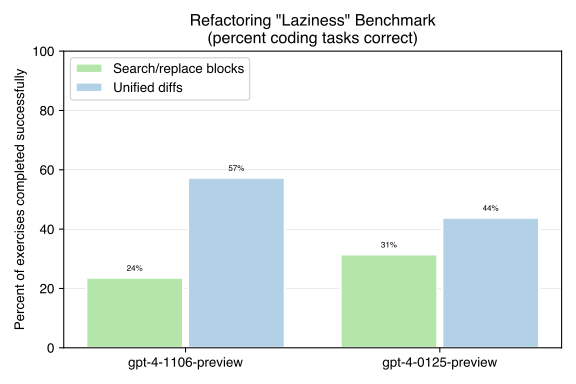
OpenAI just released a new version of GPT-4 Turbo.
This new model is intended to reduce the "laziness" that has been widely observed with the previous gpt-4-1106-preview model:
Today, we are releasing an updated GPT-4 Turbo preview model, gpt-4-0125-preview. This model completes tasks like code generation more thoroughly than the previous preview model and is intended to reduce cases of “laziness” where the model doesn’t complete a task.
With that in mind, I've been benchmarking the new model using
aider's existing
lazy coding benchmark.
Benchmark results
Overall,
the new gpt-4-0125-preview model seems lazier
than the November gpt-4-1106-preview model:
- It gets worse benchmark scores when using the unified diffs code editing format.
- Using aider's older SEARCH/REPLACE block editing format, the new January model outperforms the older November model. But it still performs worse than both models using unified diffs.
Related reports
This is one in a series of reports
that use the aider benchmarking suite to assess and compare the code
editing capabilities of OpenAI's GPT models.
You can review the other reports
for additional information:
- GPT code editing benchmarks evaluates the March and June versions of GPT-3.5 and GPT-4.
- Code editing benchmarks for OpenAI's "1106" models.
- Aider's lazy coding benchmark.
Aider Website Docs Benchmarks 1106 (`aider/website/docs/benchmarks-1106.md`)
title: Code editing benchmarks for OpenAI's "1106" models excerpt: A quantitative comparison of the code editing capabilities of the new GPT-3.5 and GPT-4 versions that were released in Nov 2023. highlight_image: /assets/benchmarks-1106.jpg nav_exclude: true
{% if page.date %}
{{ page.date | date: "%B %d, %Y" }}
{% endif %}
Code editing benchmarks for OpenAI's "1106" models
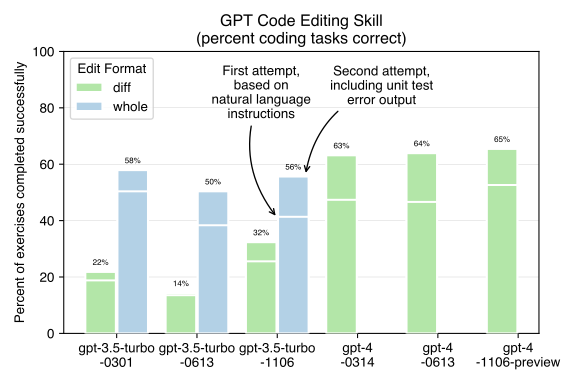
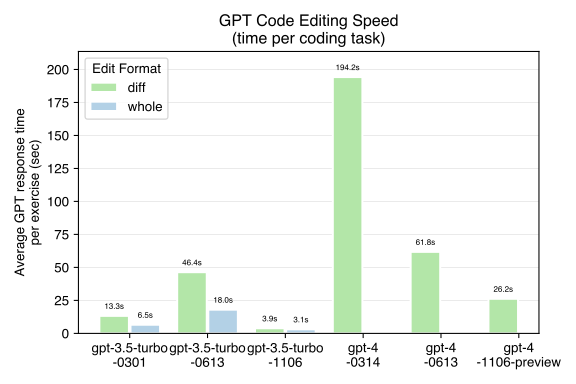
OpenAI just released new versions of GPT-3.5 and GPT-4,
and there's a lot
of interest about their ability to code compared to the previous versions.
With that in mind, I've been benchmarking the new models.
Aider
is an open source command line chat tool that lets you work with GPT to edit
code in your local git repo.
To do this, aider needs to be able to reliably recognize when GPT wants to edit
your source code,
determine which files it wants to modify
and accurately apply the changes it's trying to make.
Doing a good job on this "code editing" task requires a good LLM, good prompting and
a good tool driving the interactions with the LLM.
Aider relies on a
code editing benchmark
to quantitatively evaluate
performance
whenever one of these things changes.
For example,
whenever I change aider's prompting or the backend which drives LLM conversations,
I run the benchmark to make sure these changes produce improvements (not regressions).
The benchmark uses aider to try and complete
133 Exercism Python coding exercises.
For each exercise, Exercism provides a starting python file with stubs for the needed functions,
a natural language description of the problem to solve
and a test suite to evaluate whether the coder has correctly solved the problem.
The benchmark gives aider two tries to complete the task:
- On the first try, aider gives GPT the stub code file to edit and the natural language instructions that describe the problem. This reflects how you code with aider. You add your source code files to the chat and ask for changes, which are automatically applied.
- If the test suite fails after the first try, aider gives GPT the test error output and asks it to fix the code. Aider supports this sort of interaction using a command like
/run pytestto run and share pytest results in the chat with GPT. You can/runwhatever tests/linters/etc make sense for your language/framework/situation.
Benchmark results
gpt-4-1106-preview
For now, I have only benchmarked the GPT-4 models using the diff edit method.
This is the edit format that aider uses by default with gpt-4.
- The new
gpt-4-1106-previewmodel seems 2-2.5X faster than the June GPT-4 model. - It seems better at producing correct code on the first try. It gets
53% of the coding exercises correct, without needing to see errors from the test suite. Previous models only get 46-47% of the exercises correct on the first try. - The new model seems to perform similar
(~65%) to the old models (63-64%) after their second chance to correct bugs by reviewing test suite error output.
gpt-3.5-turbo-1106
I benchmarked the GPT-3.5 models with both the whole and diff edit format.
None of the gpt-3.5 models seem able to effectively use the diff edit format, including the newest November (1106) model.
The comments below only focus on comparing the whole edit format results:
- The new
gpt-3.5-turbo-1106model is completing the benchmark 3-4X faster than the earlier GPT-3.5 models. - The success rate after the first try of 42% is comparable to the previous June (0613) model. The new November and previous June models are both worse than the original March (0301) model's 50% result on the first try.
- The new model's 56% success rate after the second try seems comparable to the original March model, and somewhat better than the June model's 50% score.
Related reports
This is one in a series of reports
that use the aider benchmarking suite to assess and compare the code
editing capabilities of OpenAI's GPT models.
You can review the other reports
for additional information:
- GPT code editing benchmarks evaluates the March and June versions of GPT-3.5 and GPT-4.
- Code editing speed benchmarks for OpenAI's "1106" models compares the performance of the new GPT models.
Updates
Last updated 11/14/23.
OpenAI has relaxed rate limits so these results are no longer considered preliminary.
Aider Website Docs Benchmarks Speed 1106 (`aider/website/docs/benchmarks-speed-1106.md`)
title: Speed benchmarks of GPT-4 Turbo and gpt-3.5-turbo-1106 excerpt: This report provides a detailed comparison of the speed of GPT-4 Turbo and gpt-3.5-turbo-1106 models based on the aider benchmarking suite. canonical_url: https://aider.chat/2023/11/06/benchmarks-speed-1106.html highlight_image: /assets/benchmarks-speed-1106.jpg nav_exclude: true
{% if page.date %}
{{ page.date | date: "%B %d, %Y" }}
{% endif %}
Speed benchmarks of GPT-4 Turbo and gpt-3.5-turbo-1106
{{ page.date | date: "%b %-d, %Y" }}
OpenAI just released new versions of GPT-3.5 and GPT-4,
and there's a lot
of interest about their capabilities and performance.
With that in mind, I've been benchmarking the new models.
Aider
is an open source command line chat tool that lets you work with GPT to edit
code in your local git repo.
Aider relies on a
code editing benchmark
to quantitatively evaluate
performance.
This is the latest in a series of reports
that use the aider benchmarking suite to assess and compare the code
editing capabilities of OpenAI's GPT models. You can review previous
reports to get more background on aider's benchmark suite:
- GPT code editing benchmarks evaluates the March and June versions of GPT-3.5 and GPT-4.
- Code editing skill benchmarks for OpenAI's "1106" models compares the olders models to the November (1106) models.
Speed
This report compares the speed of the various GPT models.
Aider's benchmark measures the response time of the OpenAI chat completion
endpoint each time it asks GPT to solve a programming exercise in the benchmark
suite. These results measure only the time spent waiting for OpenAI to
respond to the prompt.
So they are measuring
how fast these models can
generate responses which primarily consist of source code.
Some observations:
- GPT-3.5 got 6-11x faster. The
gpt-3.5-turbo-1106model is 6-11x faster than the June (0613) version which has been the defaultgpt-3.5-turbomodel. - GPT-4 Turbo is 2-2.5x faster. The new
gpt-4-1106-previewmodel is 2-2.5x faster than the June (0613) version which has been the defaultgpt-4model. - The old March (0301) version of GPT-3.5 is actually faster than the June (0613) version. This was a surprising discovery.
Updates
Last updated 11/14/23.
OpenAI has relaxed rate limits so these results are no longer considered preliminary.
Aider Website Docs Benchmarks (`aider/website/docs/benchmarks.md`)
title: GPT code editing benchmarks excerpt: Benchmarking GPT-3.5 and GPT-4 code editing skill using a new code editing benchmark suite based on the Exercism python exercises. highlight_image: /assets/benchmarks.jpg nav_exclude: true
{% if page.date %}
{{ page.date | date: "%B %d, %Y" }}
{% endif %}
GPT code editing benchmarks
Aider is an open source command line chat tool that lets you work with GPT to edit
code in your local git repo.
To do this, aider needs to be able to reliably recognize when GPT wants to edit local files,
determine which files it wants to modify and what changes to save.
Such automated
code editing hinges on using the system prompt
to tell GPT how to structure code edits in its responses.
Aider currently asks GPT to use simple text based "edit formats", but
OpenAI's new function calling
API
looks like a promising way to create more structured edit formats.
After implementing a couple of function based edit formats,
I wanted
to measure the potential benefits
of switching aider to use them by default.
With this in mind, I developed a
benchmark based on the Exercism
python coding exercises.
This
benchmark evaluates how effectively aider and GPT can translate a
natural language coding request into executable code saved into
files that pass unit tests.
It provides an end-to-end evaluation of not just
GPT's coding ability, but also its capacity to edit existing code
and format those code edits so that aider can save the
edits to the local source files.
I ran the benchmark
on all the ChatGPT models (except gpt-4-32k), using a variety of edit formats.
The results were interesting:
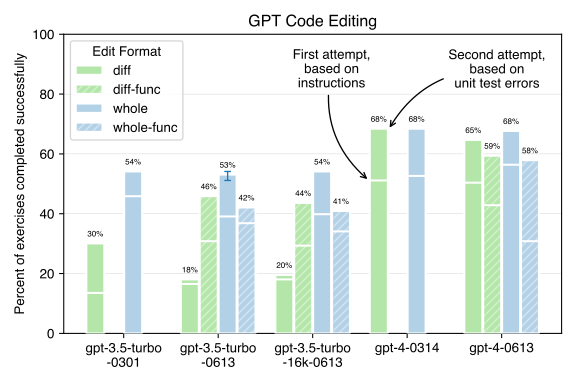
- Plain text edit formats worked best. Asking GPT to return an updated copy of the whole file in a standard markdown fenced code block proved to be the most reliable and effective edit format across all GPT-3.5 and GPT-4 models. The results for this
wholeedit format are shown in solid blue in the graph. - Function calls performed worse. Using the new functions API for edits performed worse than the above whole file method, for all the models. GPT-3.5 especially produced inferior code and frequently mangled this output format. This was surprising, as the functions API was introduced to enhance the reliability of structured outputs. The results for these
...-funcedit methods are shown as patterned bars in the graph (both green and blue). - The new June GPT-3.5 models did a bit worse than the old June model. The performance of the new June (
0613) versions of GPT-3.5 appears to be a bit worse than the February (0301) version. This is visible if you look at the "first attempt" markers on the first three solid blue bars and also by comparing the first three solid greendiffbars. - GPT-4 does better than GPT-3.5, as expected.
The quantitative benchmark results agree with my intuitions
about prompting GPT for complex tasks like coding. It's beneficial to
minimize the "cognitive overhead" of formatting the response, allowing
GPT to concentrate on the coding task at hand.
As a thought experiment, imagine a slack conversation with a editor developer where
you ask them to write the code to add some new feature to your app.
They're going to type the response back to you by hand in the chat.
Should they type out the
code and wrap it in a normal markdown code block?
Or should they type up a properly escaped and
syntactically correct json data structure
that contains the text of the new code?
Using more complex output formats with GPT seems to cause two issues:
- It makes GPT write worse code. Keeping the output format simple seems to allow GPT to devote more attention to the actual coding task.
- It reduces GPT's adherence to the output format, making it more challenging for tools like aider to accurately identify and apply the edits GPT is attempting to make.
I was expecting to start using function call based edits in aider for both GPT-3.5 and GPT-4.
But given these benchmark results, I won't be adopting the functions API
at this time.
I will certainly plan to benchmark functions again with future versions of the models.
More details on the benchmark, edit formats and results are discussed below.
The benchmark
The benchmark uses
133 practice exercises from the Exercism python repository.
These
exercises were designed to help individuals learn Python and hone
their coding skills.
Each exercise includes:
- Instructions, provided in markdown files.
- Stub python code in an implementation file, specifying the functions or classes that need to be implemented.
- Unit tests in a separate python file.
The goal is for GPT to read the instructions, implement the provided function/class skeletons
and pass all the unit tests. The benchmark measures what percentage of
the 133 exercises are completed successfully, causing all the associated unit tests to pass.
To start each exercise, aider sends GPT
the initial contents of the implementation file,
the Exercism instructions
and a final instruction:
Use the above instructions to modify the supplied files: <implementation file>
Keep and implement the existing function or class stubs, they will be called from unit tests.
Only use standard python libraries, don't suggest installing any packages.
Aider updates the implementation file based on GPT's reply and runs
the unit tests. If all tests pass, the exercise is considered
complete. If some tests fail, aider sends GPT a second message with
the test error output. It only sends the first 50 lines of test errors
to try and avoid exceeding the context window of the smaller models. Aider
also includes this final instruction:
See the testing errors above.
The tests are correct.
Fix the code in <implementation file> to resolve the errors.
Requiring GPT to fix its first implementation in response to test failures
is another way in which this benchmark stresses code editing skill.
This second chance is also important because it
gives GPT the opportunity to adjust if the
instructions were imprecise with respect to the
specific requirements of the unit tests.
Many of the exercises have multiple paragraphs of instructions,
and most human coders would likely fail some tests on their
first try.
The bars in the graph show the percent of exercises that were completed by
each model and edit format combination. The full bar height represents
the final outcome following both coding attempts.
Each bar also has a horizontal mark that shows
the intermediate performance after the first coding attempt,
without the benefit of the second try that includes the test error output.
It's worth noting that GPT never gets to see the source code of the
unit tests during the benchmark. It only sees the error output from
failed tests. Of course, all of this code was probably part of its
original training data!
In summary, passing an exercise means GPT was able to:
- Write the required code (possibly after reviewing test error output),
- Correctly package all of the code edits into the edit format so that aider can process and save it to the implementation file.
Conversely, failing an exercise only requires a breakdown in one of
those steps. In practice, GPT fails at different steps in different
exercises. Sometimes it simply writes the wrong code. Other times, it
fails to format the code edits in a way that conforms to the edit
format, resulting in the code not being saved correctly.
It's worth keeping in mind that changing the edit format often affects
both aspects of GPT's performance.
Complex edit formats often lead GPT to write worse code and make it less
successful at formatting the edits correctly.
Edit formats
I benchmarked 4 different edit formats, described below.
Each description includes a sample response that GPT might provide to a user who
requests:
"Change the print from hello to goodbye."
whole
The
whole
format asks GPT to return an updated copy of the entire file, including any changes.
The file should be
formatted with normal markdown triple-backtick fences, inlined with the rest of its response text.
This format is very similar to how ChatGPT returns code snippets during normal chats, except with the addition of a filename right before the opening triple-backticks.
Here is the updated copy of your file demo.py:

demo.py
```python
def main():
    print("goodbye")
```
diff
The diff
format also asks GPT to return edits as part of the normal response text,
in a simple diff format.
Each edit is a fenced code block that
specifies the filename and a chunk of ORIGINAL and UPDATED code.
GPT provides some original lines from the file and then a new updated set of lines.
Here are the changes you requested to demo.py:

```python
demo.py
<<<<<<< ORIGINAL
    print("hello")
=======
    print("goodbye")
>>>>>>> UPDATED
```
whole-func
The whole-func
format requests updated copies of whole files to be returned using the function call API.
{
    "explanation": "Changed hello to goodbye.",
    "files": [
        {
            "path": "demo.py",
            "content": "def main():\n    print(\"goodbye\")\n"
        }
}
diff-func
The
diff-func
format requests a list of
original/updated style edits to be returned using the function call API.
{
    "explanation": "Changed hello to goodbye.",
    "edits": [
        {
            "path": "demo.py",
            "original_lines": [
                "    print(\"hello\")"
            ],
            "updated_lines": [
                "    print(\"goodbye\")"
            ],
        }
    ]
}
GPT-3.5's performance
The `0613` models seem worse?
The GPT-3.5 benchmark results have me fairly convinced that the newgpt-3.5-turbo-0613 and gpt-3.5-16k-0613 models
are a bit worse at code editing than
the older gpt-3.5-turbo-0301 model.
This is visible in the "first attempt"
portion of each result, before GPT gets a second chance to edit the code.
Look at the horizontal white line in the middle of the first three blue bars.
Performance with the whole edit format was 46% for the
February model and only 39% for the June models.
But also note how much the solid green diff bars
degrade between the February and June GPT-3.5 models.
They drop from 30% down to about 19%.
I saw other signs of this degraded performance
in earlier versions of the
benchmark as well.
Pathological use of `diff`
When GPT-3.5 is able to correctly generate the diff edit format,
it often uses it in a pathological manner. It places the entire
original source file in the ORIGINAL block and the entire updated file
in the UPDATED block. This is strictly worse than just using thewhole edit format, as GPT is sending two full copies of the file.
Hallucinated function calls
When GPT-3.5 uses the functions API
it is prone to ignoring the JSON Schema that specifies valid functions.
It often returns a completely novel and semantically
invalid function_call fragment with "name": "python".
The arguments attribute is supposed to be a set of key/value pairs
with the arguments to the function specified in the name field.
Instead, GPT-3.5 frequently just stuffs an entire python
file into that field.
"function_call": {
          "name": "python",
          "arguments": "def main():\n    print(\"hello\")\n"
        },
It seems like it might be getting confused by fine-tuning that was
done for the ChatGPT code interpreter plugin?
Randomness
The benchmark attempts to be deterministic, always sending identical
requests for each exercise on repeated runs.
As part of this effort,
when sending test error output to GPT,
it removes the wall-clock timing information that
is normally included by the unittest module.
The benchmark harness also logs SHA hashes of
all the OpenAI API requests and replies.
This makes it possible to
detect randomness or nondeterminism
in the benchmarking process.
It turns out that the OpenAI chat APIs are not deterministic, even attemperature=0. The same identical request will produce multiple
distinct responses, usually less than 5-10 variations. This suggests
that OpenAI may be load balancing their API across a number of
slightly different instances of the model?
For certain exercises, some of these variable responses pass the unit tests while
other variants do not. Results for exercises like this, which are
"on the bubble",
are therefore a bit random, depending on which variant OpenAI returns.
Given that, it would be ideal to run all 133 exercises many times for each
model/edit-format combination and report an average performance.
This would average away the effect of the API variance.
It would also significantly increase the cost of this sort of benchmarking.
So I didn't do that.
Benchmarking against 133 exercises already provides some robustness, since
we are measuring the performance across many exercises.
But to get a sense of how much the API variance impacts the benchmark outcomes,
I ran all 133 exercises 10 times each
against gpt-3.5-turbo-0613 with the whole edit format.
You'll see one set of error bars in the graph, which show
the range of results from those 10 runs.
The OpenAI API randomness doesn't seem to
cause a large variance in the overall benchmark results.
Conclusions
Based on these benchmark results, aider will continue to use
the whole edit format for GPT-3.5, and diff for GPT-4.
GPT-4 gets comparable results with the whole and diff edit formats,
but using whole significantly increases costs and latency compared to diff.
The latency of streaming back the entire updated copy of each edited file
is a real challenge with the whole format.
The GPT-3.5 models are quite responsive, and can
stream back entire files at reasonable speed.
Aider displays a progress bar and
live diffs of the files as they stream in,
which helps pass the time.
The GPT-4 models are much slower, and waiting for even small files
to be completely "retyped" on each request is probably unacceptable.
Aider Website Docs Config (`aider/website/docs/config.md`)
nav_order: 55 has_children: true
Configuration
Aider has many options which can be set with
command line switches.
Most options can also be set in an .aider.conf.yml file
which can be placed in your home directory or at the root of
your git repo.
Or by setting environment variables like AIDER_xxx
either in your shell or a .env file.
Here are 4 equivalent ways of setting an option.
With a command line switch:
$ aider --dark-modeUsing a .aider.conf.yml file:
dark-mode: trueBy setting an environment variable:
export AIDER_DARK_MODE=trueUsing an .env file:
AIDER_DARK_MODE=true{% include keys.md %}
Aider Website Docs Ctags (`aider/website/docs/ctags.md`)
title: Improving GPT-4's codebase understanding with ctags excerpt: Using ctags to build a "repository map" to increase GPT-4's ability to understand a large code base. highlight_image: /assets/robot-flowchart.png nav_exclude: true
{% if page.date %}
{{ page.date | date: "%B %d, %Y" }}
{% endif %}
Improving GPT-4's codebase understanding with ctags
Updated
Aider no longer uses ctags to build a repo map.
Please see the newer article about
using tree-sitter to build a better repo map.
GPT-4 is extremely useful for "self-contained" coding tasks,
like generating brand new code or modifying a pure function
that has no dependencies.
But it's difficult to use GPT-4 to modify or extend
a large, complex pre-existing codebase.
To modify such code, GPT needs to understand the dependencies and APIs
which interconnect its subsystems.
Somehow we need to provide this "code context" to GPT
when we ask it to accomplish a coding task. Specifically, we need to:
- Help GPT understand the overall codebase, so that it
can decifer the meaning of code with complex dependencies and generate
new code that respects and utilizes existing abstractions. - Convey all of this "code context" to GPT in an
efficient manner that fits within the 8k-token context window.
To address these issues, aider now
sends GPT a concise map of your whole git repository
that includes
all declared variables and functions with call signatures.
This repo map is built automatically using ctags, which
extracts symbol definitions from source files. Historically,
ctags were generated and indexed by IDEs and editors to
help humans search and navigate large codebases.
Instead, we're going to use ctags to help GPT better comprehend, navigate
and edit code in larger repos.
To get a sense of how effective this can be, this
chat transcript
shows GPT-4 creating a black box test case, without being given
access to the source code of the function being tested or any of the
other code in the repo.
Using only the meta-data in the repo map, GPT is able to figure out how to
call the method to be tested, as well as how to instantiate multiple
class objects that are required to prepare for the test.
To code with GPT-4 using the techniques discussed here:
- Install aider.
- Install universal ctags.
- Run
aiderinside your repo, and it should say "Repo-map: universal-ctags using 1024 tokens".
The problem: code context
GPT-4 is great at "self contained" coding tasks, like writing or
modifying a pure function with no external dependencies.
GPT can easily handle requests like "write a
Fibonacci function" or "rewrite the loop using list
comprehensions", because they require no context beyond the code
being discussed.
Most real code is not pure and self-contained, it is intertwined with
and depends on code from many different files in a repo.
If you ask GPT to "switch all the print statements in class Foo to
use the BarLog logging system", it needs to see the code in the Foo class
with the prints, and it also needs to understand the project's BarLog
subsystem.
A simple solution is to send the entire codebase to GPT along with
each change request. Now GPT has all the context! But this won't work
for even moderately
sized repos, because they won't fit into the 8k-token context window.
A better approach is to be selective,
and hand pick which files to send.
For the example above, you could send the file that
contains the Foo class
and the file that contains the BarLog logging subsystem.
This works pretty well, and is supported by aider -- you
can manually specify which files to "add to the chat" you are having with GPT.
But it's not ideal to have to manually identify the right
set of files to add to the chat.
And sending whole files is a bulky way to send code context,
wasting the precious 8k context window.
GPT doesn't need to see the entire implementation of BarLog,
it just needs to understand it well enough to use it.
You may quickly run out of context window if you
send many files worth of code just to convey context.
Using a repo map to provide context
The latest version of aider sends a repo map to GPT along with
each change request. The map contains a list of all the files in the
repo, along with the symbols which are defined in each file. Callables
like functions and methods also include their signatures.
Here's a
sample of the map of the aider repo, just showing the maps of
main.py
and
io.py
:
aider/
   ...
   main.py:
      function
         main (args=None, input=None, output=None)
      variable
         status
   ...
   io.py:
      class
         FileContentCompleter
         InputOutput
      FileContentCompleter
         member
            __init__ (self, fnames, commands)
            get_completions (self, document, complete_event)
      InputOutput
         member
            __init__ (self, pretty, yes, input_history_file=None, chat_history_file=None, input=None, output=None)
            ai_output (self, content)
            append_chat_history (self, text, linebreak=False, blockquote=False)
            confirm_ask (self, question, default="y")
            get_input (self, fnames, commands)
            prompt_ask (self, question, default=None)
            tool (self, *messages, log_only=False)
            tool_error (self, message)
   ...
Mapping out the repo like this provides some benefits:
- GPT can see variables, classes, methods and function signatures from everywhere in the repo. This alone may give it enough context to solve many tasks. For example, it can probably figure out how to use the API exported from a module just based on the details shown in the map.
- If it needs to see more code, GPT can use the map to figure out by itself which files it needs to look at. GPT will then ask to see these specific files, and
aiderwill automatically add them to the chat context (with user approval).
Of course, for large repositories even just the map might be too large
for the context window. However, this mapping approach opens up the
ability to collaborate with GPT-4 on larger codebases than previous
methods. It also reduces the need to manually curate which files to
add to the chat context, empowering GPT to autonomously identify
relevant files for the task at hand.
Using ctags to make the map
Under the hood, aider uses
universal ctags
to build the
map. Universal ctags can scan source code written in many
languages, and extract data about all the symbols defined in each
file.
Historically, ctags were generated and indexed by IDEs or code editors
to make it easier for a human to search and navigate a
codebase, find the implementation of functions, etc.
Instead, we're going to use ctags to help GPT navigate and understand the codebase.
Here is the type of output you get when you run ctags on source code. Specifically,
this is thectags --fields=+S --output-format=json output for the main.py file mapped above:
{
  "_type": "tag",
  "name": "main",
  "path": "aider/main.py",
  "pattern": "/^def main(args=None, input=None, output=None):$/",
  "kind": "function",
  "signature": "(args=None, input=None, output=None)"
}
{
  "_type": "tag",
  "name": "status",
  "path": "aider/main.py",
  "pattern": "/^    status = main()$/",
  "kind": "variable"
}
The repo map is built using this type of ctags data,
but formatted into the space
efficient hierarchical tree format shown earlier.
This is a format that GPT can easily understand
and which conveys the map data using a
minimal number of tokens.
Example chat transcript
This
chat transcript
shows GPT-4 creating a black box test case, without being given
access to the source code of the function being tested or any of the
other code in the repo. Instead, GPT is operating solely off
the repo map.
Using only the meta-data in the map, GPT is able to figure out how to call the method to be tested, as well as how to instantiate multiple class objects that are required to prepare for the test.
GPT makes one reasonable mistake writing the first version of the test, but is
able to quickly fix the issue after being shown the pytest error output.
Future work
Just as "send the whole codebase to GPT with every request"
is not an efficient solution to this problem,
there are probably better approaches than
"send the whole repo map with every request".
Sending an appropriate subset of the repo map would help aider work
better with even larger repositories which have large maps.
Some possible approaches to reducing the amount of map data are:
- Distill the global map, to prioritize important symbols and discard "internal" or otherwise less globally relevant identifiers. Possibly enlist
gpt-3.5-turboto perform this distillation in a flexible and language agnostic way. - Provide a mechanism for GPT to start with a distilled subset of the global map, and let it ask to see more detail about subtrees or keywords that it feels are relevant to the current coding task.
- Attempt to analyze the natural language coding task given by the user and predict which subset of the repo map is relevant. Possibly by analysis of prior coding chats within the specific repo. Work on certain files or types of features may require certain somewhat predictable context from elsewhere in the repo. Vector and keyword search against the chat history, repo map or codebase may help here.
One key goal is to prefer solutions which are language agnostic or
which can be easily deployed against most popular code languages.
The ctags solution has this benefit, since it comes pre-built
with support for most popular languages.
I suspect that Language Server Protocol might be an even
better tool than ctags for this problem.
But it is more cumbersome to deploy for a broad
array of languages.
Users would need to stand up an LSP server for their
specific language(s) of interest.
Try it out
To use this experimental repo map feature:
- Install aider.
- Install ctags.
- Run
aiderinside your repo, and it should say "Repo-map: universal-ctags using 1024 tokens".
Aider Website Docs Faq (`aider/website/docs/faq.md`)
nav_order: 90
FAQ
{: .no_toc }
- TOC
{:toc}
{% include help-tip.md %}
How can I add ALL the files to the chat?
People regularly ask about how to add many or all of their repo's files to the chat.
This is probably not a good idea and will likely do more harm than good.
The best approach is think about which files need to be changed to accomplish
the task you are working on. Just add those files to the chat.
Usually when people want to add "all the files" it's because they think it
will give the LLM helpful context about the overall code base.
Aider will automatically give the LLM a bunch of additional context about
the rest of your git repo.
It does this by analyzing your entire codebase in light of the
current chat to build a compact
repository map.
Adding a bunch of files that are mostly irrelevant to the
task at hand will often distract or confuse the LLM.
The LLM will give worse coding results, and sometimese even fail to correctly edit files.
Addings extra files will also increase your token costs.
Again, it's usually best to just add the files to the chat that will need to be modified.
If you still wish to add lots of files to the chat, you can:
- Use a wildcard when you launch aider:
aider src/*.py - Use a wildcard with the in-chat
/addcommand:/add src/*.py - Give the
/addcommand a directory name and it will recursively add every file under that dir:/add src
Can I use aider in a large (mono) repo?
Aider will work in any size repo, but is not optimized for quick
performance and response time in very large repos.
There are some things you can do to improve performance.
Be sure to check the
general usage tips
before considering this large-repo specific advice.
To get the best results from aider you want to
be thoughtful about how you add files to the chat,
regardless of your repo size.
You can change into a sub directory of your repo that contains the
code you want to work on and use the --subtree-only switch.
This will tell aider to ignore the repo outside of the
directory you start in.
You can also create a .aiderignore file to tell aider
to ignore parts of the repo that aren't relevant to your task.
This file conforms to .gitignore syntax and conventions.
For example, to focus only on specific directories in a monorepo,
you could create a .aiderignore file with:
# Ignore everything
/*

# Allow specific directories and their contents
!foo/
!bar/
!baz/

# Allow nested files under these directories
!foo/**
!bar/**
!baz/**
You can use --aiderignore <filename> to name a specific file
to use for ignore patterns.
You might have a few of these handy for when you want to work on
frontend, backend, etc portions of your repo.
Can I use aider with multiple git repos at once?
Currently aider can only work with one repo at a time.
There are some things you can try if you need to work with
multiple interrelated repos:
- You can run aider in repo-A where you need to make a change
and use/readto add some files read-only from another repo-B.
This can let aider see key functions or docs from the other repo. - You can run
aider --show-repo-map > map.mdwithin each
repo to create repo maps.
You could then run aider in repo-A and
use/read ../path/to/repo-B/map.mdto share
a high level map of the other repo. - You can use aider to write documentation about a repo.
Inside each repo, you could runaider docs.md
and work with aider to write some markdown docs.
Then while using aider to edit repo-A
you can/read ../path/to/repo-B/docs.mdto
read in those docs from the other repo. - In repo A, ask aider to write a small script that demonstrates
the functionality you want to use in repo B.
Then when you're using aider in repo B, you can/readin that script.
How do I turn on the repository map?
Depending on the LLM you are using, aider may launch with the repo map disabled by default:
Repo-map: disabledThis is because weaker models get easily overwhelmed and confused by the content of the
repo map. They sometimes mistakenly try to edit the code in the repo map.
The repo map is usually disabled for a good reason.
If you would like to force it on, you can run aider with --map-tokens 1024.
How do I include the git history in the context?
When starting a fresh aider session, you can include recent git history in the chat context. This can be useful for providing the LLM with information about recent changes. To do this:
Use the
/runcommand withgit diffto show recent changes:text/run git diff HEAD~1This will include the diff of the last commit in the chat history.
To include diffs from multiple commits, increase the number after the tilde:
text/run git diff HEAD~3This will show changes from the last three commits.
Remember, the chat history already includes recent changes made during the current session, so this tip is most useful when starting a new aider session and you want to provide context about recent work.
You can also use aider to review PR branches:
/run git diff one-branch..another-branch

...

Add 6.9k tokens of command output to the chat? (Y)es/(N)o [Yes]: Yes

/ask Are there any problems with the way this change works with the FooBar class?
And of course you can prepare diff output outside of aider and provide it as
a file for aider to read:
$ git diff -C10 v1..v2 > v1-v2-changes.diff
$ aider --read v1-v2-changes.diff

Aider v0.77.2.dev+import
Main model: anthropic/claude-3-7-sonnet-20250219 with diff edit format, 8k think tokens
──────────────────────────────────
v1-v2-changes.diff
> Do you see any potential bugs in this PR?
{: .tip }
The /git command will not work for this purpose, as its output is not included in the chat.
How can I run aider locally from source code?
To run the project locally, follow these steps:
# Clone the repository
git clone [email protected]:Aider-AI/aider.git

# Navigate to the project directory
cd aider

# It's recommended to make a virtual environment

# Install aider in editable/development mode,
# so it runs from the latest copy of these source files
python -m pip install -e .

# Run the local version of aider
python -m aider
Can I change the system prompts that aider uses?
The most convenient way to add custom instructions is to use a
conventions file.
But, aider is set up to support different actual system prompts and edit formats
in a modular way. If you look in the aider/coders subdirectory, you'll
see there's a base coder with base prompts, and then there are
a number of
different specific coder implementations.
If you're thinking about experimenting with system prompts
this document about
benchmarking GPT-3.5 and GPT-4 on code editing
might be useful background.
While it's not well documented how to add new coder subsystems, you may be able
to modify an existing implementation or use it as a template to add another.
To get started, try looking at and modifying these files.
The wholefile coder is currently used by GPT-3.5 by default. You can manually select it with --edit-format whole.
- wholefile_coder.py
- wholefile_prompts.py
The editblock coder is currently used by GPT-4o by default. You can manually select it with --edit-format diff.
- editblock_coder.py
- editblock_prompts.py
The universal diff coder is currently used by GPT-4 Turbo by default. You can manually select it with --edit-format udiff.
- udiff_coder.py
- udiff_prompts.py
When experimenting with coder backends, it helps to run aider with --verbose --no-pretty so you can see
all the raw information being sent to/from the LLM in the conversation.
You can also refer to the
instructions for installing a development version of aider.
What LLMs do you use to build aider?
Aider writes a lot of its own code, usually about 70% of the new code in each
release.
People often ask which LLMs I use with aider, when writing aider.
Below is a table showing the models I have used recently,
extracted from the
public log
of my
aider analytics.
| Model Name | Total Tokens | Percent |
|---|---|---|
| openai/gpt-5.2 | 982,120 | 38.8% |
| gpt-5.4 | 775,412 | 30.6% |
| gemini/gemini-3-flash-preview | 241,516 | 9.5% |
| gpt-5.2-codex | 166,945 | 6.6% |
| gpt-5.2 | 93,248 | 3.7% |
| gemini/gemini-3-pro-preview | 81,851 | 3.2% |
| gpt-5.3-codex | 64,402 | 2.5% |
| gemini/gemini-2.5-pro | 58,916 | 2.3% |
| gpt-5 | 39,467 | 1.6% |
| gpt-5.5 | 25,877 | 1.0% |
| openai/gpt-5.4 | 278 | 0.0% |
| openai/gpt-5.5 | 89 | 0.0% |
How are the "aider wrote xx% of code" stats computed?
Aider is tightly integrated with git so all
of aider's code changes are committed to the repo with proper attribution.
The
stats are computed
by doing something like git blame on the repo,
and counting up who wrote all the new lines of code in each release.
Only lines in source code files are counted, not documentation or prompt files.
Why did aider ignore/discard its proposed edits after it asked to add a new file to the chat?
If aider prompts you to add a new file to the chat and you say yes,
it will re-submit the original request.
The fact that the LLM's reply indicated that it needed to see another file (and you said yes)
is often a sign that the LLM should have been able to see/edit that file in the first place.
Without access to it, there is increased chance that it's done a bad implementation of the requested change.
Often LLMs will hallucinate content for the files they needed but didn't have.
So aider re-submits the original request in this situation.
Why does aider sometimes stop highlighting code in its replies?
Aider displays the markdown responses that are coming back from the LLM.
Usually, the LLM will reply with code in a markdown "code block" with
triple backtick fences, like this:
Here's some code:

```
print("hello")
```
But if you've added files to the chat that contain triple backticks,
aider needs to tell the LLM to use a different set of fences.
Otherwise, the LLM can't safely include your code's triple backticks
inside the code blocks that it returns with edits.
Aider will use fences like ... in this case.
A side effect of this is that the code that aider outputs may no
longer be properly highlighted.
You will most often notice this if you add markdown files
to you chats that contain code blocks.
Why is the LLM speaking to me in an unexpected language?
Aider goes to some effort to prompt the model to use the language that is configured
for your system.
But LLMs aren't fully reliable, and they sometimes decide to speak in
an unexpected language.
Claude is especially fond of speaking French.
You can explicitly set the language that aider tells the model to use with--chat-language <language>.
But the LLM may not comply.
Can I share my aider chat transcript?
Yes, you can now share aider chat logs in a pretty way.
Copy the markdown logs you want to share from
.aider.chat.history.mdand make a github gist. Or publish the raw markdown logs on the web any way you'd like.texthttps://gist.github.com/Aider-AI/2087ab8b64034a078c0a209440ac8be0Take the gist URL and append it to:
texthttps://aider.chat/share/?mdurl=
This will give you a URL like this, which shows the chat history like you'd see in a terminal:
https://aider.chat/share/?mdurl=https://gist.github.com/Aider-AI/2087ab8b64034a078c0a209440ac8be0Can I edit files myself while aider is running?
Yes. Aider always reads the latest copy of files from the file
system when you send each message.
While you're waiting for aider's reply to complete, it's probably unwise to
edit files that you've added to the chat.
Your edits and aider's edits might conflict.
What is Aider AI LLC?
Aider AI LLC is the company behind the aider AI coding tool.
Aider is
open source and available on GitHub
under an
Apache 2.0 license.
Can I Script Aider?
Yes. You can script aider via the command line or python. See more from here: Scripting aider
Aider Website Docs Git (`aider/website/docs/git.md`)
parent: More info nav_order: 100
Git integration
Aider works best with code that is part of a git repo.
Aider is tightly integrated with git, which makes it easy to:
- Use the
/undocommand to instantly undo any AI changes that you don't like. - Go back in the git history to review the changes that aider made to your code
- Manage a series of aider's changes on a git branch
Aider uses git in these ways:
- It asks to create a git repo if you launch it in a directory without one.
- Whenever aider edits a file, it commits those changes with a descriptive commit message. This makes it easy to undo or review aider's changes.
- Aider takes special care before editing files that already have uncommitted changes (dirty files). Aider will first commit any preexisting changes with a descriptive commit message.
This keeps your edits separate from aider's edits, and makes sure you never lose your work if aider makes an inappropriate change.
In-chat commands
Aider also allows you to use
in-chat commands
to perform git operations:
/diffwill show all the file changes since the last message you sent./undowill undo and discard the last change./committo commit all dirty changes with a sensible commit message./gitwill let you run raw git commands to do more complex management of your git history.
You can also manage your git history outside of aider with your preferred git tools.
Disabling git integration
While it is not recommended, you can disable aider's use of git in a few ways:
--no-auto-commitswill stop aider from git committing each of its changes.--no-dirty-commitswill stop aider from committing dirty files before applying its edits.--no-gitwill completely stop aider from using git on your files. You should ensure you are keeping sensible backups of the files you are working with.--git-commit-verifywill run pre-commit hooks when making git commits. By default, aider skips pre-commit hooks by using the--no-verifyflag (--git-commit-verify=False).
Commit messages
Aider sends the --weak-model a copy of the diffs and the chat history
and asks it to produce a commit message.
By default, aider creates commit messages which follow
Conventional Commits.
You can customize the
commit prompt
with the --commit-prompt option.
You can place that on the command line, or
configure it via a config file or environment variables.
Commit attribution
Aider marks commits that it either authored or committed.
- If aider authored the changes in a commit, they will have "(aider)" appended to the git author and git committer name metadata.
- If aider simply committed changes (found in dirty files), the commit will have "(aider)" appended to the git committer name metadata.
You can use --no-attribute-author and --no-attribute-committer to disable
modification of the git author and committer name fields.
Additionally, you can use the following options to prefix commit messages:
--attribute-commit-message-author: Prefix commit messages with 'aider: ' if aider authored the changes.--attribute-commit-message-committer: Prefix all commit messages with 'aider: ', regardless of whether aider authored the changes or not.
Finally, you can use --attribute-co-authored-by to have aider append a Co-authored-by trailer to the end of the commit string.
This will disable appending (aider) to the git author and git committer unless you have explicitly enabled those settings.
Aider Website Docs Install (`aider/website/docs/install.md`)
title: Installation has_children: true nav_order: 20
Installation
{: .no_toc }
Get started quickly with aider-install
{% include get-started.md %}
This will install aider in its own separate python environment.
If needed,
aider-install will also install a separate version of python 3.12 to use with aider.
Once aider is installed,
there are also some optional install steps.
See the usage instructions to start coding with aider.
One-liners
These one-liners will install aider, along with python 3.12 if needed.
They are based on the
uv installers.
Mac & Linux
Use curl to download the script and execute it with sh:
curl -LsSf https://aider.chat/install.sh | shIf your system doesn't have curl, you can use wget:
wget -qO- https://aider.chat/install.sh | shWindows
powershell -ExecutionPolicy ByPass -c "irm https://aider.chat/install.ps1 | iex"Install with uv
You can install aider with uv:
python -m pip install uv  # If you need to install uv
uv tool install --force --python python3.12 --with pip aider-chat@latest
This will install uv using your existing python version 3.8-3.13,
and use it to install aider.
If needed,
uv will automatically install a separate python 3.12 to use with aider.
Also see the
docs on other methods for installing uv itself.
Install with pipx
You can install aider with pipx:
python -m pip install pipx  # If you need to install pipx
pipx install aider-chat
You can use pipx to install aider with python versions 3.9-3.12.
Also see the
docs on other methods for installing pipx itself.
Other install methods
You can install aider with the methods described below, but one of the above
methods is usually safer.
Install with pip
If you install with pip, you should consider
using a
virtual environment
to keep aider's dependencies separated.
You can use pip to install aider with python versions 3.9-3.12.
python -m pip install -U --upgrade-strategy only-if-needed aider-chat{% include python-m-aider.md %}
Installing with package managers
It's best to install aider using one of methods
recommended above.
While aider is available in a number of system package managers,
they often install aider with incorrect dependencies.
Next steps...
There are some optional install steps you could consider.
See the usage instructions to start coding with aider.
Aider Website Docs Languages (`aider/website/docs/languages.md`)
parent: More info nav_order: 200
Supported languages
Aider should work well with most popular coding languages.
This is because top LLMs are fluent in most mainstream languages,
and familiar with popular libraries, packages and frameworks.
Aider has specific support for linting many languages.
By default, aider runs the built in linter any time a file is edited.
If it finds syntax errors, aider will offer to fix them for you.
This helps catch small code issues and quickly fix them.
Aider also does code analysis to help
the LLM navigate larger code bases by producing
a repository map.
Aider can currently produce repository maps for many popular
mainstream languages, listed below.
How to add support for another language
Aider should work quite well for other languages, even those
without repo map or linter support.
You should really try coding with aider before
assuming it needs better support for your language.
That said, if aider already has support for linting your language,
then it should be possible to add repo map support.
To build a repo map, aider needs the tags.scm file
from the given language's tree-sitter grammar.
If you can find and share that file in a
GitHub issue,
then it may be possible to add repo map support.
If aider doesn't already support linting your language,
it will be more complicated to add support.
Aider relies on
tree-sitter-language-pack
to provide pre-packaged versions of tree-sitter
language parsers.
This makes it easy for users to install aider in many diverse environments.
You probably need to work with that project to get your language
supported, which will easily allow aider to lint that language.
For repo-map support, you will also need to find or create a tags.scm file.
| Language | File extension | Repo map | Linter |
|---|---|---|---|
| actionscript | .as | ✓ | |
| ada | .adb | ✓ | |
| ada | .ads | ✓ | |
| agda | .agda | ✓ | |
| arduino | .ino | ✓ | ✓ |
| asm | .asm | ✓ | |
| asm | .s | ✓ | |
| astro | .astro | ✓ | |
| bash | .bash | ✓ | |
| bash | .sh | ✓ | |
| bash | .zsh | ✓ | |
| beancount | .bean | ✓ | |
| bibtex | .bib | ✓ | |
| bicep | .bicep | ✓ | |
| bitbake | .bb | ✓ | |
| bitbake | .bbappend | ✓ | |
| bitbake | .bbclass | ✓ | |
| c | .c | ✓ | ✓ |
| c | .h | ✓ | ✓ |
| cairo | .cairo | ✓ | |
| capnp | .capnp | ✓ | |
| chatito | .chatito | ✓ | ✓ |
| clarity | .clar | ✓ | |
| clojure | .clj | ✓ | ✓ |
| clojure | .cljc | ✓ | ✓ |
| clojure | .cljs | ✓ | ✓ |
| clojure | .edn | ✓ | ✓ |
| cmake | .cmake | ✓ | |
| cmake | CMakeLists.txt | ✓ | |
| commonlisp | .cl | ✓ | ✓ |
| commonlisp | .lisp | ✓ | ✓ |
| cpon | .cpon | ✓ | |
| cpp | .cc | ✓ | ✓ |
| cpp | .cpp | ✓ | ✓ |
| cpp | .cxx | ✓ | ✓ |
| cpp | .h++ | ✓ | ✓ |
| cpp | .hpp | ✓ | ✓ |
| cpp | .hxx | ✓ | ✓ |
| csharp | .cs | ✓ | ✓ |
| css | .css | ✓ | |
| csv | .csv | ✓ | |
| cuda | .cu | ✓ | |
| cuda | .cuh | ✓ | |
| d | .d | ✓ | ✓ |
| dart | .dart | ✓ | ✓ |
| dockerfile | Dockerfile | ✓ | |
| dtd | .dtd | ✓ | |
| elisp | .el | ✓ | ✓ |
| elixir | .ex | ✓ | ✓ |
| elixir | .exs | ✓ | ✓ |
| elm | .elm | ✓ | ✓ |
| erlang | .erl | ✓ | |
| erlang | .hrl | ✓ | |
| fennel | .fnl | ✓ | |
| firrtl | .fir | ✓ | |
| fish | .fish | ✓ | |
| fortran | .f | ✓ | ✓ |
| fortran | .f03 | ✓ | ✓ |
| fortran | .f08 | ✓ | ✓ |
| fortran | .f90 | ✓ | ✓ |
| fortran | .f95 | ✓ | ✓ |
| func | .fc | ✓ | |
| gdscript | .gd | ✓ | |
| gitattributes | .gitattributes | ✓ | |
| gitcommit | .gitcommit | ✓ | |
| gitignore | .gitignore | ✓ | |
| gleam | .gleam | ✓ | ✓ |
| glsl | .frag | ✓ | |
| glsl | .glsl | ✓ | |
| glsl | .vert | ✓ | |
| gn | .gn | ✓ | |
| gn | .gni | ✓ | |
| go | .go | ✓ | ✓ |
| gomod | go.mod | ✓ | |
| gosum | go.sum | ✓ | |
| groovy | .groovy | ✓ | |
| gstlaunch | .launch | ✓ | |
| hack | .hack | ✓ | |
| hare | .ha | ✓ | |
| haskell | .hs | ✓ | ✓ |
| haxe | .hx | ✓ | |
| hcl | .hcl | ✓ | ✓ |
| hcl | .tf | ✓ | ✓ |
| hcl | .tfvars | ✓ | ✓ |
| heex | .heex | ✓ | |
| hlsl | .hlsl | ✓ | |
| html | .htm | ✓ | |
| html | .html | ✓ | |
| hyprlang | .hypr | ✓ | |
| ispc | .ispc | ✓ | |
| janet | .janet | ✓ | |
| java | .java | ✓ | ✓ |
| javascript | .js | ✓ | ✓ |
| javascript | .jsx | ✓ | ✓ |
| javascript | .mjs | ✓ | ✓ |
| jsdoc | .jsdoc | ✓ | |
| json | .json | ✓ | |
| jsonnet | .jsonnet | ✓ | |
| jsonnet | .libsonnet | ✓ | |
| julia | .jl | ✓ | ✓ |
| kconfig | Kconfig | ✓ | |
| kdl | .kdl | ✓ | |
| kotlin | .kt | ✓ | ✓ |
| kotlin | .kts | ✓ | ✓ |
| latex | .cls | ✓ | |
| latex | .sty | ✓ | |
| latex | .tex | ✓ | |
| linkerscript | .ld | ✓ | |
| llvm | .ll | ✓ | |
| lua | .lua | ✓ | ✓ |
| luadoc | .luadoc | ✓ | |
| luap | .luap | ✓ | |
| luau | .luau | ✓ | |
| magik | .magik | ✓ | |
| make | .mk | ✓ | |
| make | Makefile | ✓ | |
| markdown | .markdown | ✓ | |
| markdown | .md | ✓ | |
| matlab | .m | ✓ | ✓ |
| matlab | .mat | ✓ | ✓ |
| mermaid | .mermaid | ✓ | |
| meson | meson.build | ✓ | |
| ninja | .ninja | ✓ | |
| nix | .nix | ✓ | |
| nqc | .nqc | ✓ | |
| objc | .mm | ✓ | |
| ocaml | .ml | ✓ | ✓ |
| ocaml_interface | .mli | ✓ | ✓ |
| odin | .odin | ✓ | |
| org | .org | ✓ | |
| pascal | .pas | ✓ | |
| pascal | .pp | ✓ | |
| pem | .pem | ✓ | |
| perl | .pl | ✓ | |
| perl | .pm | ✓ | |
| pgn | .pgn | ✓ | |
| php | .php | ✓ | ✓ |
| po | .po | ✓ | |
| po | .pot | ✓ | |
| pony | .pony | ✓ | ✓ |
| powershell | .ps1 | ✓ | |
| powershell | .psm1 | ✓ | |
| printf | .printf | ✓ | |
| prisma | .prisma | ✓ | |
| properties | .properties | ✓ | ✓ |
| proto | .proto | ✓ | |
| psv | .psv | ✓ | |
| purescript | .purs | ✓ | |
| pymanifest | MANIFEST.in | ✓ | |
| python | .py | ✓ | ✓ |
| qmldir | qmldir | ✓ | |
| qmljs | .qml | ✓ | |
| r | .R | ✓ | ✓ |
| r | .r | ✓ | ✓ |
| racket | .rkt | ✓ | ✓ |
| re2c | .re2c | ✓ | |
| readline | .inputrc | ✓ | |
| requirements | requirements.txt | ✓ | |
| ron | .ron | ✓ | |
| rst | .rst | ✓ | |
| ruby | .rb | ✓ | ✓ |
| rust | .rs | ✓ | ✓ |
| scala | .sc | ✓ | ✓ |
| scala | .scala | ✓ | ✓ |
| scheme | .scm | ✓ | |
| scheme | .ss | ✓ | |
| scss | .scss | ✓ | |
| smali | .smali | ✓ | |
| smithy | .smithy | ✓ | |
| solidity | .sol | ✓ | ✓ |
| sparql | .rq | ✓ | |
| sql | .sql | ✓ | |
| squirrel | .nut | ✓ | |
| starlark | .bzl | ✓ | |
| starlark | BUILD | ✓ | |
| starlark | WORKSPACE | ✓ | |
| svelte | .svelte | ✓ | |
| swift | .swift | ✓ | ✓ |
| tablegen | .td | ✓ | |
| tcl | .tcl | ✓ | |
| thrift | .thrift | ✓ | |
| toml | .toml | ✓ | |
| tsv | .tsv | ✓ | |
| twig | .twig | ✓ | |
| typescript | .ts | ✓ | ✓ |
| typescript | .tsx | ✓ | ✓ |
| typst | .typ | ✓ | |
| udev | .rules | ✓ | ✓ |
| ungrammar | .ungram | ✓ | |
| uxntal | .tal | ✓ | |
| verilog | .sv | ✓ | |
| verilog | .v | ✓ | |
| vhdl | .vhd | ✓ | |
| vhdl | .vhdl | ✓ | |
| vim | .vim | ✓ | |
| vim | .vimrc | ✓ | |
| vue | .vue | ✓ | |
| wgsl | .wgsl | ✓ | |
| xcompose | .XCompose | ✓ | |
| xml | .svg | ✓ | |
| xml | .xml | ✓ | |
| xml | .xsl | ✓ | |
| yuck | .yuck | ✓ | |
| zig | .zig | ✓ | ✓ |
Aider Website Docs Llms (`aider/website/docs/llms.md`)
title: Connecting to LLMs nav_order: 40 has_children: true
Aider can connect to most LLMs
{: .no_toc }

Best models
{: .no_toc }
Aider works best with these models, which are skilled at editing code:
Free models
{: .no_toc }
Aider works with a number of free API providers:
- OpenRouter offers free access to many models, with limitations on daily usage.
- Google's Gemini 2.5 Pro Exp works very well with aider.
Local models
{: .no_toc }
Aider can work also with local models, for example using Ollama.
It can also access
local models that provide an
Open AI compatible API.
Use a capable model
{: .no_toc }
Check
Aider's LLM leaderboards
to see which models work best with aider.
Be aware that aider may not work well with less capable models.
If you see the model returning code, but aider isn't able to edit your files
and commit the changes...
this is usually because the model isn't capable of properly
returning "code edits".
Models weaker than GPT 3.5 may have problems working well with aider.
Aider Website Docs More Info (`aider/website/docs/more-info.md`)
has_children: true nav_order: 85
More info
See below for more info about aider, including some advanced topics.
Aider Website Docs Repomap (`aider/website/docs/repomap.md`)
parent: More info highlight_image: /assets/robot-ast.png nav_order: 300
Repository map
Aider
uses a concise map of your whole git repository
that includes
the most important classes and functions along with their types and call signatures.
This helps aider understand the code it's editing
and how it relates to the other parts of the codebase.
The repo map also helps aider write new code
that respects and utilizes existing libraries, modules and abstractions
found elsewhere in the codebase.
Using a repo map to provide context
Aider sends a repo map to the LLM along with
each change request from the user.
The repo map contains a list of the files in the
repo, along with the key symbols which are defined in each file.
It shows how each of these symbols are defined, by including the critical lines of code for each definition.
Here's a part of
the repo map of aider's repo, for
base_coder.py
and
commands.py
:
aider/coders/base_coder.py:
⋮...
│class Coder:
│    abs_fnames = None
⋮...
│    @classmethod
│    def create(
│        self,
│        main_model,
│        edit_format,
│        io,
│        skip_model_availabily_check=False,
│        **kwargs,
⋮...
│    def abs_root_path(self, path):
⋮...
│    def run(self, with_message=None):
⋮...

aider/commands.py:
⋮...
│class Commands:
│    voice = None
│
⋮...
│    def get_commands(self):
⋮...
│    def get_command_completions(self, cmd_name, partial):
⋮...
│    def run(self, inp):
⋮...
Mapping out the repo like this provides some key benefits:
- The LLM can see classes, methods and function signatures from everywhere in the repo. This alone may give it enough context to solve many tasks. For example, it can probably figure out how to use the API exported from a module just based on the details shown in the map.
- If it needs to see more code, the LLM can use the map to figure out which files it needs to look at. The LLM can ask to see these specific files, and aider will offer to add them to the chat context.
Optimizing the map
Of course, for large repositories even just the repo map might be too large
for the LLM's context window.
Aider solves this problem by sending just the most relevant
portions of the repo map.
It does this by analyzing the full repo map using
a graph ranking algorithm, computed on a graph
where each source file is a node and edges connect
files which have dependencies.
Aider optimizes the repo map by
selecting the most important parts of the codebase
which will
fit into the active token budget.
The optimization identifies and maps the portions of the code base
which are most relevant to the current state of the chat.
The token budget is
influenced by the --map-tokens switch, which defaults to 1k tokens.
Aider adjusts the size of the repo map dynamically based on the state of the chat. It will usually stay within that setting's value. But it does expand the repo map
significantly at times, especially when no files have been added to the chat and aider needs to understand the entire repo as best as possible.
The sample map shown above doesn't contain every class, method and function from those
files.
It only includes the most important identifiers,
the ones which are most often referenced by other portions of the code.
These are the key pieces of context that the LLM needs to know to understand
the overall codebase.
More info
Please check the
repo map article on aider's blog
for more information on aider's repository map
and how it is constructed.
Aider Website Docs Scripting (`aider/website/docs/scripting.md`)
parent: More info nav_order: 400
Scripting aider
You can script aider via the command line or python.
Command line
Aider takes a --message argument, where you can give it a natural language instruction.
It will do that one thing, apply the edits to the files and then exit.
So you could do:
aider --message "make a script that prints hello" hello.jsOr you can write simple shell scripts to apply the same instruction to many files:
for FILE in *.py ; do
    aider --message "add descriptive docstrings to all the functions" $FILE
done
Use aider --help to see all the
command line options,
but these are useful for scripting:
--stream, --no-stream
                      Enable/disable streaming responses (default: True) [env var:
                      AIDER_STREAM]
--message COMMAND, --msg COMMAND, -m COMMAND
                      Specify a single message to send GPT, process reply then exit
                      (disables chat mode) [env var: AIDER_MESSAGE]
--message-file MESSAGE_FILE, -f MESSAGE_FILE
                      Specify a file containing the message to send GPT, process reply,
                      then exit (disables chat mode) [env var: AIDER_MESSAGE_FILE]
--yes                 Always say yes to every confirmation [env var: AIDER_YES]
--auto-commits, --no-auto-commits
                      Enable/disable auto commit of GPT changes (default: True) [env var:
                      AIDER_AUTO_COMMITS]
--dirty-commits, --no-dirty-commits
                      Enable/disable commits when repo is found dirty (default: True) [env
                      var: AIDER_DIRTY_COMMITS]
--dry-run, --no-dry-run
                      Perform a dry run without modifying files (default: False) [env var:
                      AIDER_DRY_RUN]
--commit              Commit all pending changes with a suitable commit message, then exit
                      [env var: AIDER_COMMIT]
Python
You can also script aider from python:
from aider.coders import Coder
from aider.models import Model

# This is a list of files to add to the chat
fnames = ["greeting.py"]

model = Model("gpt-4-turbo")

# Create a coder object
coder = Coder.create(main_model=model, fnames=fnames)

# This will execute one instruction on those files and then return
coder.run("make a script that prints hello world")

# Send another instruction
coder.run("make it say goodbye")

# You can run in-chat "/" commands too
coder.run("/tokens")
See the
Coder.create() and Coder.init() methods
for all the supported arguments.
It can also be helpful to set the equivalent of --yes by doing this:
from aider.io import InputOutput
io = InputOutput(yes=True)
# ...
coder = Coder.create(model=model, fnames=fnames, io=io)
{: .note }
The python scripting API is not officially supported or documented,
and could change in future releases without providing backwards compatibility.
Aider Website Docs Troubleshooting (`aider/website/docs/troubleshooting.md`)
nav_order: 60 has_children: true
Troubleshooting
Below are some approaches for troubleshooting problems with aider.
{% include help.md %}
Aider Website Docs Unified Diffs (`aider/website/docs/unified-diffs.md`)
title: Unified diffs make GPT-4 Turbo 3X less lazy excerpt: GPT-4 Turbo has a problem with lazy coding, which can be signiciantly improved by asking for code changes formatted as unified diffs. highlight_image: /assets/benchmarks-udiff.jpg nav_exclude: true
{% if page.date %}
{{ page.date | date: "%B %d, %Y" }}, by Paul Gauthier
{% endif %}
Unified diffs make GPT-4 Turbo 3X less lazy
Aider now asks GPT-4 Turbo to use
unified diffs
to edit your code.
This dramatically improves GPT-4 Turbo's performance on a
challenging
new benchmark
and significantly reduces its bad habit of "lazy" coding,
where it writes
code with comments
like "...add logic here...".
Aider's new "laziness" benchmark suite
is designed to both provoke and quantify lazy coding.
It consists of
89 python refactoring tasks
which tend to make GPT-4 Turbo write lazy comments like
"...include original method body...".
This new laziness benchmark produced the following results with gpt-4-1106-preview:
- GPT-4 Turbo only scored 20% as a baseline using aider's existing "SEARCH/REPLACE block" edit format. It outputs "lazy comments" on 12 of the tasks.
- Aider's new unified diff edit format raised the score to 61%. Using this format reduced laziness by 3X, with GPT-4 Turbo only using lazy comments on 4 of the tasks.
- It's worse to add a prompt that says the user is blind, has no hands, will tip $2000 and fears truncated code trauma. Widely circulated "emotional appeal" folk remedies
produced worse benchmark scores
for both the baseline SEARCH/REPLACE and new unified diff editing formats.
The older gpt-4-0613 also did better on the laziness benchmark using unified diffs:
- The June GPT-4's baseline was 26% using aider's existing "SEARCH/REPLACE block" edit format.
- Aider's new unified diff edit format raised June GPT-4's score to 59%.
- The benchmark was designed to use large files, and
28% of them are too large to fit in June GPT-4's 8k context window.
This puts a hard ceiling of 72% on how well the June model could possibly score.
With unified diffs, GPT acts more like it's writing textual data intended to be read by a program,
not talking to a person.
Diffs are
usually
consumed by the
patch
program, which is fairly rigid.
This seems to encourage rigor, making
GPT less likely to
leave informal editing instructions in comments
or be lazy about writing all the needed code.
Aider's new unified diff editing format
outperforms other solutions I evaluated by a wide margin.
I explored many other approaches including:
prompts about being tireless and diligent,
OpenAI's function/tool calling capabilities,
numerous variations on aider's existing editing formats,
line number based formats
and other diff-like formats.
The results shared here reflect
an extensive investigation and benchmark evaluations of many approaches.
The rest of this article will describe
aider's new editing format and refactoring benchmark.
It will highlight some key design decisions,
and evaluate their significance using ablation experiments.
Unified diff editing format
The design and implementation of aider's new unified diff editing format
helped clarify some general principles
for GPT-4 code editing:
- FAMILIAR - Choose an edit format that GPT is already familiar with.
- SIMPLE - Choose a simple format that avoids escaping, syntactic overhead and brittle specifiers like line numbers or line counts.
- HIGH LEVEL - Encourage GPT to structure edits as new versions of substantive code blocks (functions, methods, etc), not as a series of surgical/minimal changes to individual lines of code.
- FLEXIBLE - Strive to be maximally flexible when interpreting GPT's edit instructions.
A helpful shortcut here is to have empathy for GPT, and imagine you
are the one being asked to specify code edits.
Would you want to hand type a properly escaped json data structure
to invoke surgical insert, delete, replace operations on specific code line numbers?
Do you want to use a brittle format, where any mistake
causes an error that discards all your work?
GPT is quantitatively better at code editing when you reduce the
burden of formatting edits by using a familiar, simple, high level
and flexible editing format.
Choose a familiar editing format
Unified diffs are perhaps the most common way to show
code edits, because it's the
default output format of git diff:
--- a/greeting.py
+++ b/greeting.py
@@ -1,5 +1,5 @@
 def main(args):
     # show a greeting
-    print("Hello!")
+    print("Goodbye!")
     return
Choosing such a popular format means that GPT has
seen many examples in its training data.
It's been trained to generate
text that conforms to the unified diff syntax.
Use a simple editing format
Aider's previous benchmark results made
it clear that simple editing formats
work best.
Even though OpenAI provides extensive support for
structured formats like json and function calls,
GPT is worse at editing code if you use them.
I repeated these and other similar benchmarks against GPT-4 Turbo,
and again reached these same conclusions.
Informally, this is probably because stuffing source code into JSON is complicated
and error prone.
Wrapping the python codeprint("On Windows use \"C:\\\"")
as valid json is pretty painful and error prone.
Due to escaping issues GPT's code is often syntactically incorrect when it's
unpacked from JSON,
or the JSON decode just fails entirely.
On the other hand, the core of the unified diff format is very simple.
You include a hunk of the file that needs to be changed,
with every line prefixed by a character
to indicate unchanged, new or deleted lines.
A unified diff looks pretty much like the code it is modifying.
The one complicated piece is the line numbers found at the start
of each hunk. They look something like this: @@ -2,4 +3,5 @@.
GPT is terrible at working with source code line numbers.
This is a general observation about any use of line
numbers in editing formats,
backed up by many quantitative benchmark experiments.
You've probably ignored the line numbers in every diff you've seen,
because the diffs usually still make sense without them.
Aider tells GPT not to include line numbers,
and just interprets each hunk from the unified diffs
as a search and replace operation:
This diff:
@@ ... @@
 def main(args):
     # show a greeting
-    print("Hello!")
+    print("Goodbye!")
     return
Means we need to search the file for the
space and minus - lines:
def main(args):
    # show a greeting
    print("Hello!")
    return
And replace them with the space and plus + lines:
def main(args):
    # show a greeting
    print("Goodbye!")
    return
Simple, right?
Encourage high level edits
The example unified diffs we've seen so far have all been single line changes,
which makes them pretty easy to read and understand.
Consider this slightly more complex change, which renames the variable n tonumber:
@@ ... @@
-def factorial(n):
+def factorial(number):
-    if n == 0:
+    if number == 0:
         return 1
     else:
-        return n * factorial(n-1)
+        return number * factorial(number-1)
The following "high level diff" of the same
change is not as succinct as the minimal diff above,
but it is much easier to see two different coherent versions of thefactorial() function.
@@ ... @@
-def factorial(n):
-    if n == 0:
-        return 1
-    else:
-        return n * factorial(n-1)
+def factorial(number):
+    if number == 0:
+        return 1
+    else:
+        return number * factorial(number-1)
Aider's system prompt encourages
GPT to produce these high level diffs.
This makes GPT better at producing correct diffs, which can be successfully
applied to the original file.
Experiments without "high level diff" prompting
produce a 30-50% increase in editing errors,
where diffs fail to apply or apply incorrectly and
produce invalid code.
When a patch fails, aider needs to ask GPT for a corrected version of the diff.
This takes time, costs tokens and sometimes fails to produce a successful edit
even after multiple retries.
There are probably a couple of reasons why high level diffs
help:
- It's easier to produce diffs that both correctly match the original code and correctly produce the intended new code. There is less risk of GPT getting confused, compared to generating a series of surgical edits that interleave lines of old and new code.
- High level hunks often contain more lines than a surgical hunk, so they are less likely to accidentally match unrelated parts of the code. This is helpful because GPT can't reliably give us line numbers to specify exactly where in the file to make changes.
Be flexible when applying edits
GPT frequently makes imperfect diffs that won't apply cleanly.
They exhibit a variety of problems:
- GPT forgets things like comments, docstrings, blank lines, etc. Or it skips over some code that it doesn't intend to change.
- GPT forgets the leading plus
+character to mark novel lines that it wants to add to the file. It incorrectly includes them with a leading space as if they were already there. - GPT outdents all of the code, removing all the leading white space which is shared across the lines. So a chunk of deeply indented code is shown in a diff with only the leading white space that changes between the lines in the chunk.
- GPT jumps ahead to show edits to a different part of the file without starting a new hunk with a
@@ ... @@divider.
As an example of the first issue, consider this source code:
import sys

def main(args):
    # show a greeting
    print("Hello!")
    return

main(sys.argv[1:])
The diff below is missing the "show a greeting" comment line,
and represents a common type of mistake GPT might make.
When we search for the minus - lines, we won't find them
in the original file
because of the missing comment.
@@ ... @@
-def main(args):
-    print("Hello!")
-    return
+def main(args):
+    print("Goodbye!")
+    return
Aider tries to be very flexible when applying diffs,
in order to handle defects.
If a hunk doesn't apply cleanly, aider uses a number of strategies:
- Normalize the hunk, by taking the minus
-and space lines as one version of the hunk and the space and plus+lines as a second version and doing an actual unified diff on them. - Try and discover new lines that GPT is trying to add but which it forgot to mark with plus
+markers. This is done by diffing the minus-and space lines back against the original file. - Try and apply the hunk using "relative leading white space", so we can match and patch correctly even if the hunk has been uniformly indented or outdented.
- Break a large hunk apart into an overlapping sequence of smaller hunks, which each contain only one contiguous run of plus
+and minus-lines. Try and apply each of these sub-hunks independently. - Vary the size and offset of the "context window" of space lines from the hunk that are used to localize the edit to a specific part of the file.
- Combine the above mechanisms to progressively become more permissive about how to apply the hunk.
These flexible patching strategies are critical, and
removing them
radically increases the number of hunks which fail to apply.
Experiments where flexible patching is disabled show a 9X increase in editing errors on aider's original Exercism benchmark.
Refactoring benchmark
Aider has long used a
benchmark suite based on 133 Exercism python exercises.
But these are mostly small coding problems,
usually requiring only a few dozen lines of code.
GPT-4 Turbo is typically only lazy on 2-3 of these exercises:
the ones with the most code and which involve refactoring.
Based on this observation, I set out to build a benchmark based on refactoring
a non-trivial amount of code found in fairly large files.
To do this, I used python's ast module to analyze
9 popular open source python repositories
to identify challenging refactoring tasks.
The goal was to find:
- Source files that contain classes with non-trivial methods, having 100-250+ AST nodes in their implementation.
- Focus on methods that are part of a larger class, which has at least twice as much code as the method itself.
- Select methods that don't use their
selfparameter, so they can be trivially refactored out of the class.
We can then turn each of these source files into a task for the benchmark,
where we ask GPT to do something like:
Refactor the
_set_csrf_cookiemethod in theCsrfViewMiddlewareclass to be a stand alone, top level function.
Name the new function_set_csrf_cookie, exactly the same name as the existing method.
Update any existingself._set_csrf_cookiecalls to work with the new_set_csrf_cookiefunction.
A simple python AST scanning script
found 89 suitable files
and packaged them up as benchmark tasks.
Each task has a test
that checks if the refactor
was performed roughly correctly:
- The updated source file must parse as valid python, to detect misapplied edits which produce invalid code.
- The target method must now exist as a top-level function in the file.
- This new top-level function must contain approximately the same number of AST nodes as the original class method. This ensures that GPT didn't elide code and replace it with comments.
- The original class must still be present in the file, and it must be smaller by about the number of AST nodes in the method which was removed. This helps confirm that the method was removed from the class, without other significant modifications.
To be clear, this is not a rigorous test that the refactor was performed correctly.
But it does serve as a basic sanity check that the refactor was essentially done as a cut & paste, without eliding any code as comments.
And it correlates well with other laziness metrics
gathered during benchmarking like the
introduction of new comments that contain "...".
The result is a pragmatic
benchmark suite that provokes, detects and quantifies GPT coding laziness.
Conclusions and future work
Based on the refactor benchmark results,
aider's new unified diff format seems
to dramatically increase GPT-4 Turbo's skill at more complex coding tasks.
It also seems very effective at reducing the lazy coding
which has been widely noted as a problem with GPT-4 Turbo.
Unified diffs was one of the very first edit formats I tried
when originally building aider.
I think a lot of other AI coding assistant projects have also
tried going down this path.
It seems like any naive or direct use of structured diff formats
is pretty much doomed to failure.
But the techniques described here and
incorporated into aider provide
a highly effective way to harness GPT's knowledge of unified diffs.
There could be significant benefits to
fine tuning models on
aider's simple, high level style of unified diffs.
Dropping line numbers from the hunk headers and focusing on diffs of
semantically coherent chunks of code
seems to be an important part of successful GPT code editing
(besides the relentless focus on flexibly applying edits).
Most LLMs will have already seen plenty of unified diffs
in their normal training data, and so should be
amenable to fining tuning towards this
particular diff style.
Aider Website Docs Usage (`aider/website/docs/usage.md`)
nav_order: 30 has_children: true
Usage
Run aider with the source code files you want to edit.
These files will be "added to the chat session", so that
aider can see their
contents and edit them for you.
They can be existing files or the name of files you want
aider to create for you.
aider <file1> <file2> ...At the aider > prompt, ask for code changes and aider
will edit those files to accomplish your request.
$ aider factorial.py

Aider v0.37.1-dev
Models: gpt-4o with diff edit format, weak model gpt-3.5-turbo
Git repo: .git with 258 files
Repo-map: using 1024 tokens
Use /help to see in-chat commands, run with --help to see cmd line args
───────────────────────────────────────────────────────────────────────
> Make a program that asks for a number and prints its factorial

...
{% include help-tip.md %}
Adding files
To edit files, you need to "add them to the chat".
Do this
by naming them on the aider command line.
Or, you can use the in-chat/add command to add files.
Only add the files that need to be edited for your task.
Don't add a bunch of extra files.
If you add too many files, the LLM can get overwhelmed
and confused (and it costs more tokens).
Aider will automatically
pull in content from related files so that it can
understand the rest of your code base.
You can use aider without adding any files,
and it will try to figure out which files need to be edited based
on your requests.
{: .tip }
You'll get the best results if you think about which files need to be
edited. Add just those files to the chat. Aider will include
relevant context from the rest of your repo.
LLMs
{% include works-best.md %}
# o3-mini
$ aider --model o3-mini --api-key openai=<key>

# Claude 3.7 Sonnet
$ aider --model sonnet --api-key anthropic=<key>
Or you can run aider --model XXX to launch aider with
another model.
During your chat you can switch models with the in-chat/model command.
Making changes
Ask aider to make changes to your code.
It will show you some diffs of the changes it is making to
complete you request.
Aider will git commit all of its changes,
so they are easy to track and undo.
You can always use the /undo command to undo AI changes that you don't
like.
Aider Website Docs Config Adv Model Settings (`aider/website/docs/config/adv-model-settings.md`)
parent: Configuration nav_order: 950
Advanced model settings
Context window size and token costs
In most cases, you can safely ignore aider's warning about unknown context
window size and model costs.
{: .note }
Aider never enforces token limits, it only reports token limit errors
from the API provider.
You probably don't need to
configure aider with the proper token limits
for unusual models.
But, you can register context window limits and costs for models that aren't known
to aider. Create a .aider.model.metadata.json file in one of these locations:
- Your home directory.
- The root if your git repo.
- The current directory where you launch aider.
- Or specify a specific file with the
--model-metadata-file <filename>switch.
If the files above exist, they will be loaded in that order.
Files loaded last will take priority.
The json file should be a dictionary with an entry for each model, as follows:
{
    "deepseek/deepseek-chat": {
        "max_tokens": 4096,
        "max_input_tokens": 32000,
        "max_output_tokens": 4096,
        "input_cost_per_token": 0.00000014,
        "output_cost_per_token": 0.00000028,
        "litellm_provider": "deepseek",
        "mode": "chat"
    }
}
{: .tip }
Use a fully qualified model name with a provider/ at the front
in the .aider.model.metadata.json file.
For example, use deepseek/deepseek-chat, not just deepseek-chat.
That prefix should match the litellm_provider field.
Contribute model metadata
Aider relies on
litellm's model_prices_and_context_window.json file
for model metadata.
Consider submitting a PR to that file to add missing models.
Model settings
Aider has a number of settings that control how it works with
different models.
These model settings are pre-configured for most popular models.
But it can sometimes be helpful to override them or add settings for
a model that aider doesn't know about.
Configuration file locations
You can override or add settings for any model by creating a .aider.model.settings.yml file in one of these locations:
- Your home directory.
- The root of your git repo.
- The current directory where you launch aider.
- Or specify a specific file with the
--model-settings-file <filename>switch.
If the files above exist, they will be loaded in that order.
Files loaded last will take priority.
The YAML file should be a list of dictionary objects for each model.
Passing extra params to litellm.completion
The extra_params attribute of model settings is used to pass arbitrary
extra parameters to the litellm.completion() call when sending data
to the given model.
For example:
- name: some-provider/my-special-model
  extra_params:
    extra_headers:
      Custom-Header: value
    max_tokens: 8192
You can use the special model name aider/extra_params to defineextra_params that will be passed to litellm.completion() for all models.
Only the extra_params dict is used from this special model name.
For example:
- name: aider/extra_params
  extra_params:
    extra_headers:
      Custom-Header: value
    max_tokens: 8192
These settings will be merged with any model-specific settings, with theaider/extra_params settings taking precedence for any direct conflicts.
Default model settings
Below are all the pre-configured model settings to give a sense for the settings which are supported.
You can also look at the ModelSettings class in
models.py
file for more details about all of the model setting that aider supports.
The first entry shows all the settings, with their default values.
For a real model,
you just need to include whichever fields that you want to override the defaults.
/* Detailed source-code truncated for AI context efficiency. */Aider Website Docs Config Aider Conf (`aider/website/docs/config/aider_conf.md`)
parent: Configuration nav_order: 15
YAML config file
Most of aider's options can be set in an .aider.conf.yml file.
Aider will look for a this file in these locations:
- Your home directory.
- The root of your git repo.
- The current directory.
If the files above exist, they will be loaded in that order. Files loaded last will take priority.
You can also specify the --config <filename> parameter, which will only load the one config file.
{% include keys.md %}
A note on lists
Lists of values can be specified either as a bulleted list:
read:
  - CONVENTIONS.md
  - anotherfile.txt
  - thirdfile.py
Or lists can be specified using commas and square brackets:
read: [CONVENTIONS.md, anotherfile.txt, thirdfile.py]Sample YAML config file
Below is a sample of the YAML config file, which you
can also
download from GitHub.
/* Detailed source-code truncated for AI context efficiency. */Aider Website Docs Config Api Keys (`aider/website/docs/config/api-keys.md`)
parent: Configuration nav_order: 5
API Keys
Aider lets you specify API keys in a few ways:
- On the command line
- As environment variables
- In a
.envfile - In your
.aider.conf.ymlconfig file
OpenAI and Anthropic
Aider has special support for providing
OpenAI and Anthropic API keys
via dedicated switches and configuration options.
Settings keys for other providers works a bit differently, see below.
Command line
You can set OpenAI and Anthropic API keys via
command line switches--openai-api-key and --anthropic-api-key.
Environment variables or .env file
You can also store them in environment variables or a
.env file, which also works
for every API provider:
OPENAI_API_KEY=<key>
ANTHROPIC_API_KEY=<key>
YAML config file
You can also set those API keys via special entries in the
YAML config file, like this:
openai-api-key: <key>
anthropic-api-key: <key>
Other API providers
All other LLM providers can use one of these other methods to set their API keys.
Command line
{: .no_toc }
Use --api-key provider=<key> which has the effect of setting the environment variable PROVIDER_API_KEY=<key>. So --api-key gemini=xxx would set GEMINI_API_KEY=xxx.
Environment variables or .env file
{: .no_toc }
You can set API keys in environment variables.
The .env file
is a great place to store your API keys and other provider API environment variables:
GEMINI_API_KEY=foo
OPENROUTER_API_KEY=bar
DEEPSEEK_API_KEY=baz
YAML config file
You can also set API keys in the.aider.conf.yml file
via the api-key entry:
api-key:
- gemini=foo      # Sets env var GEMINI_API_KEY=foo
- openrouter=bar  # Sets env var OPENROUTER_API_KEY=bar
- deepseek=baz    # Sets env var DEEPSEEK_API_KEY=baz
Aider Website Docs Config Dotenv (`aider/website/docs/config/dotenv.md`)
parent: Configuration nav_order: 20
Config with .env
You can use a .env file to store API keys and other settings for the
models you use with aider.
You can also set many general aider options
in the .env file.
Aider will look for a .env file in these locations:
- Your home directory.
- The root of your git repo.
- The current directory.
- As specified with the
--env-file <filename>parameter.
If the files above exist, they will be loaded in that order. Files loaded last will take priority.
{% include keys.md %}
Sample .env file
Below is a sample .env file, which you
can also
download from GitHub.
/* Detailed source-code truncated for AI context efficiency. */Aider Website Docs Config Editor (`aider/website/docs/config/editor.md`)
parent: Configuration nav_order: 100
Editor configuration
Aider allows you to configure your preferred text editor for use with the /editor command. The editor must be capable of running in "blocking mode", meaning the command line will wait until you close the editor before proceeding.
Using `--editor`
You can specify the text editor with the --editor switch or usingeditor: in aider's
YAML config file.
Environment variables
Aider checks the following environment variables in order to determine which editor to use:
AIDER_EDITORVISUALEDITOR
Default behavior
If no editor is configured, aider will use these platform-specific defaults:
- Windows:
notepad - macOS:
vim - Linux/Unix:
vi
Using a custom editor
You can set your preferred editor in your shell's configuration file (e.g., .bashrc, .zshrc):
export AIDER_EDITOR=vimPopular Editors by Platform
macOS
vim
bashexport AIDER_EDITOR=vimEmacs
bashexport AIDER_EDITOR=emacsVSCode
bashexport AIDER_EDITOR="code --wait"Sublime Text
bashexport AIDER_EDITOR="subl --wait"BBEdit
bashexport AIDER_EDITOR="bbedit --wait"
Linux
vim
bashexport AIDER_EDITOR=vimEmacs
bashexport AIDER_EDITOR=emacsnano
bashexport AIDER_EDITOR=nanoVSCode
bashexport AIDER_EDITOR="code --wait"Sublime Text
bashexport AIDER_EDITOR="subl --wait"
Windows
Notepad
batset AIDER_EDITOR=notepadVSCode
batset AIDER_EDITOR="code --wait"Notepad++
batset AIDER_EDITOR="notepad++ -multiInst -notabbar -nosession -noPlugin -waitForClose"
Editor command arguments
Some editors require specific command-line arguments to operate in blocking mode. The --wait flag (or equivalent) is commonly used to make the editor block until the file is closed.
Troubleshooting
If you encounter issues with your editor not blocking (returning to the prompt immediately), verify that:
- Your editor supports blocking mode
- You've included the necessary command-line arguments for blocking mode
- The editor command is properly quoted if it contains spaces or special characters, e.g.:bash
export AIDER_EDITOR="code --wait"
Aider Website Docs Config Model Aliases (`aider/website/docs/config/model-aliases.md`)
parent: Configuration nav_order: 1000
Model Aliases
Model aliases allow you to create shorthand names for models you frequently use. This is particularly useful for models with long names or when you want to standardize model usage across your team.
Command Line Usage
You can define aliases when launching aider using the --alias option:
aider --alias "fast:gpt-4o-mini" --alias "smart:o3-mini"Multiple aliases can be defined by using the --alias option multiple times. Each alias definition should be in the format alias:model-name.
Configuration File
Of course,
you can also define aliases in your .aider.conf.yml file:
alias:
  - "fast:gpt-4o-mini"
  - "smart:o3-mini"
  - "hacker:claude-3-sonnet-20240229"
Using Aliases
Once defined, you can use the alias instead of the full model name from the command line:
aider --model fast  # Uses gpt-4o-mini
aider --model smart  # Uses o3-mini
Or with the /model command in-chat:
Aider v0.75.3
Main model: anthropic/claude-3-7-sonnet-20250219 with diff edit format, prompt cache, infinite output
Weak model: claude-3-5-sonnet-20241022
Git repo: .git with 406 files
Repo-map: using 4096 tokens, files refresh
─────────────────────────────────────────────────────────────────────────────────────────────────────
> /model fast

Aider v0.75.3
Main model: gpt-4o-mini with diff edit format
─────────────────────────────────────────────────────────────────────────────────────────────────────
diff> /model smart

Aider v0.75.3
Main model: o3-mini with diff edit format
─────────────────────────────────────────────────────────────────────────────────────────────────────
>
Built-in Aliases
Aider includes some built-in aliases for convenience:
3: gpt-3.5-turbo35-turbo: gpt-3.5-turbo35turbo: gpt-3.5-turbo4: gpt-4-06134-turbo: gpt-4-1106-preview4o: gpt-4odeepseek: deepseek/deepseek-chatflash: gemini/gemini-flash-latestflash-lite: gemini/gemini-2.5-flash-litegemini: gemini/gemini-3-pro-previewgemini-2.5-pro: gemini/gemini-2.5-progemini-3-pro-preview: gemini/gemini-3-pro-previewgemini-exp: gemini/gemini-2.5-pro-exp-03-25grok3: xai/grok-3-betahaiku: claude-haiku-4-5optimus: openrouter/openrouter/optimus-alphaopus: claude-opus-4-7quasar: openrouter/openrouter/quasar-alphar1: deepseek/deepseek-reasonersonnet: claude-sonnet-4-6
Priority
If the same alias is defined in multiple places, the priority is:
- Command line aliases (highest priority)
- Configuration file aliases
- Built-in aliases (lowest priority)
This allows you to override built-in aliases with your own preferences.
Aider Website Docs Config Options (`aider/website/docs/config/options.md`)
parent: Configuration nav_order: 10
Options reference
{: .no_toc }
You can use aider --help to see all the available options,
or review them below.
- TOC
{:toc}
{% include keys.md %}
Usage summary
/* Detailed source-code truncated for AI context efficiency. */options:
`--help`
show this help message and exit
Aliases:
-h--help
Main model:
`--model MODEL`
Specify the model to use for the main chat
Environment variable: AIDER_MODEL
API Keys and settings:
`--openai-api-key VALUE`
Specify the OpenAI API key
Environment variable: AIDER_OPENAI_API_KEY
`--anthropic-api-key VALUE`
Specify the Anthropic API key
Environment variable: AIDER_ANTHROPIC_API_KEY
`--openai-api-base VALUE`
Specify the api base url
Environment variable: AIDER_OPENAI_API_BASE
`--openai-api-type VALUE`
(deprecated, use --set-env OPENAI_API_TYPE=
Environment variable: AIDER_OPENAI_API_TYPE
`--openai-api-version VALUE`
(deprecated, use --set-env OPENAI_API_VERSION=
Environment variable: AIDER_OPENAI_API_VERSION
`--openai-api-deployment-id VALUE`
(deprecated, use --set-env OPENAI_API_DEPLOYMENT_ID=
Environment variable: AIDER_OPENAI_API_DEPLOYMENT_ID
`--openai-organization-id VALUE`
(deprecated, use --set-env OPENAI_ORGANIZATION=
Environment variable: AIDER_OPENAI_ORGANIZATION_ID
`--set-env ENV_VAR_NAME=value`
Set an environment variable (to control API settings, can be used multiple times)
Default: []
Environment variable: AIDER_SET_ENV
`--api-key PROVIDER=KEY`
Set an API key for a provider (eg: --api-key provider=
Default: []
Environment variable: AIDER_API_KEY
Model settings:
`--list-models MODEL`
List known models which match the (partial) MODEL name
Environment variable: AIDER_LIST_MODELS
Aliases:
--list-models MODEL--models MODEL
`--model-settings-file MODEL_SETTINGS_FILE`
Specify a file with aider model settings for unknown models
Default: .aider.model.settings.yml
Environment variable: AIDER_MODEL_SETTINGS_FILE
`--model-metadata-file MODEL_METADATA_FILE`
Specify a file with context window and costs for unknown models
Default: .aider.model.metadata.json
Environment variable: AIDER_MODEL_METADATA_FILE
`--alias ALIAS:MODEL`
Add a model alias (can be used multiple times)
Environment variable: AIDER_ALIAS
`--reasoning-effort VALUE`
Set the reasoning_effort API parameter (default: not set)
Environment variable: AIDER_REASONING_EFFORT
`--thinking-tokens VALUE`
Set the thinking token budget for models that support it. Use 0 to disable. (default: not set)
Environment variable: AIDER_THINKING_TOKENS
`--verify-ssl`
Verify the SSL cert when connecting to models (default: True)
Default: True
Environment variable: AIDER_VERIFY_SSL
Aliases:
--verify-ssl--no-verify-ssl
`--timeout VALUE`
Timeout in seconds for API calls (default: None)
Environment variable: AIDER_TIMEOUT
`--edit-format EDIT_FORMAT`
Specify what edit format the LLM should use (default depends on model)
Environment variable: AIDER_EDIT_FORMAT
Aliases:
--edit-format EDIT_FORMAT--chat-mode EDIT_FORMAT
`--architect`
Use architect edit format for the main chat
Environment variable: AIDER_ARCHITECT
`--auto-accept-architect`
Enable/disable automatic acceptance of architect changes (default: True)
Default: True
Environment variable: AIDER_AUTO_ACCEPT_ARCHITECT
Aliases:
--auto-accept-architect--no-auto-accept-architect
`--weak-model WEAK_MODEL`
Specify the model to use for commit messages and chat history summarization (default depends on --model)
Environment variable: AIDER_WEAK_MODEL
`--editor-model EDITOR_MODEL`
Specify the model to use for editor tasks (default depends on --model)
Environment variable: AIDER_EDITOR_MODEL
`--editor-edit-format EDITOR_EDIT_FORMAT`
Specify the edit format for the editor model (default: depends on editor model)
Environment variable: AIDER_EDITOR_EDIT_FORMAT
`--show-model-warnings`
Only work with models that have meta-data available (default: True)
Default: True
Environment variable: AIDER_SHOW_MODEL_WARNINGS
Aliases:
--show-model-warnings--no-show-model-warnings
`--check-model-accepts-settings`
Check if model accepts settings like reasoning_effort/thinking_tokens (default: True)
Default: True
Environment variable: AIDER_CHECK_MODEL_ACCEPTS_SETTINGS
Aliases:
--check-model-accepts-settings--no-check-model-accepts-settings
`--max-chat-history-tokens VALUE`
Soft limit on tokens for chat history, after which summarization begins. If unspecified, defaults to the model's max_chat_history_tokens.
Environment variable: AIDER_MAX_CHAT_HISTORY_TOKENS
Cache settings:
`--cache-prompts`
Enable caching of prompts (default: False)
Default: False
Environment variable: AIDER_CACHE_PROMPTS
Aliases:
--cache-prompts--no-cache-prompts
`--cache-keepalive-pings VALUE`
Number of times to ping at 5min intervals to keep prompt cache warm (default: 0)
Default: 0
Environment variable: AIDER_CACHE_KEEPALIVE_PINGS
Repomap settings:
`--map-tokens VALUE`
Suggested number of tokens to use for repo map, use 0 to disable
Environment variable: AIDER_MAP_TOKENS
`--map-refresh VALUE`
Control how often the repo map is refreshed. Options: auto, always, files, manual (default: auto)
Default: auto
Environment variable: AIDER_MAP_REFRESH
`--map-multiplier-no-files VALUE`
Multiplier for map tokens when no files are specified (default: 2)
Default: 2
Environment variable: AIDER_MAP_MULTIPLIER_NO_FILES
History Files:
`--input-history-file INPUT_HISTORY_FILE`
Specify the chat input history file (default: .aider.input.history)
Default: .aider.input.history
Environment variable: AIDER_INPUT_HISTORY_FILE
`--chat-history-file CHAT_HISTORY_FILE`
Specify the chat history file (default: .aider.chat.history.md)
Default: .aider.chat.history.md
Environment variable: AIDER_CHAT_HISTORY_FILE
`--restore-chat-history`
Restore the previous chat history messages (default: False)
Default: False
Environment variable: AIDER_RESTORE_CHAT_HISTORY
Aliases:
--restore-chat-history--no-restore-chat-history
`--llm-history-file LLM_HISTORY_FILE`
Log the conversation with the LLM to this file (for example, .aider.llm.history)
Environment variable: AIDER_LLM_HISTORY_FILE
Output settings:
`--dark-mode`
Use colors suitable for a dark terminal background (default: False)
Default: False
Environment variable: AIDER_DARK_MODE
`--light-mode`
Use colors suitable for a light terminal background (default: False)
Default: False
Environment variable: AIDER_LIGHT_MODE
`--pretty`
Enable/disable pretty, colorized output (default: True)
Default: True
Environment variable: AIDER_PRETTY
Aliases:
--pretty--no-pretty
`--stream`
Enable/disable streaming responses (default: True)
Default: True
Environment variable: AIDER_STREAM
Aliases:
--stream--no-stream
`--user-input-color VALUE`
Set the color for user input (default: #00cc00)
Default: #00cc00
Environment variable: AIDER_USER_INPUT_COLOR
`--tool-output-color VALUE`
Set the color for tool output (default: None)
Environment variable: AIDER_TOOL_OUTPUT_COLOR
`--tool-error-color VALUE`
Set the color for tool error messages (default: #FF2222)
Default: #FF2222
Environment variable: AIDER_TOOL_ERROR_COLOR
`--tool-warning-color VALUE`
Set the color for tool warning messages (default: #FFA500)
Default: #FFA500
Environment variable: AIDER_TOOL_WARNING_COLOR
`--assistant-output-color VALUE`
Set the color for assistant output (default: #0088ff)
Default: #0088ff
Environment variable: AIDER_ASSISTANT_OUTPUT_COLOR
`--completion-menu-color COLOR`
Set the color for the completion menu (default: terminal's default text color)
Environment variable: AIDER_COMPLETION_MENU_COLOR
`--completion-menu-bg-color COLOR`
Set the background color for the completion menu (default: terminal's default background color)
Environment variable: AIDER_COMPLETION_MENU_BG_COLOR
`--completion-menu-current-color COLOR`
Set the color for the current item in the completion menu (default: terminal's default background color)
Environment variable: AIDER_COMPLETION_MENU_CURRENT_COLOR
`--completion-menu-current-bg-color COLOR`
Set the background color for the current item in the completion menu (default: terminal's default text color)
Environment variable: AIDER_COMPLETION_MENU_CURRENT_BG_COLOR
`--code-theme VALUE`
Set the markdown code theme (default: default, other options include monokai, solarized-dark, solarized-light, or a Pygments builtin style, see https://pygments.org/styles for available themes)
Default: default
Environment variable: AIDER_CODE_THEME
`--show-diffs`
Show diffs when committing changes (default: False)
Default: False
Environment variable: AIDER_SHOW_DIFFS
Git settings:
`--git`
Enable/disable looking for a git repo (default: True)
Default: True
Environment variable: AIDER_GIT
Aliases:
--git--no-git
`--gitignore`
Enable/disable adding .aider* to .gitignore (default: True)
Default: True
Environment variable: AIDER_GITIGNORE
Aliases:
--gitignore--no-gitignore
`--add-gitignore-files`
Enable/disable the addition of files listed in .gitignore to Aider's editing scope.
Default: False
Environment variable: AIDER_ADD_GITIGNORE_FILES
Aliases:
--add-gitignore-files--no-add-gitignore-files
`--aiderignore AIDERIGNORE`
Specify the aider ignore file (default: .aiderignore in git root)
Default: .aiderignore
Environment variable: AIDER_AIDERIGNORE
`--subtree-only`
Only consider files in the current subtree of the git repository
Default: False
Environment variable: AIDER_SUBTREE_ONLY
`--auto-commits`
Enable/disable auto commit of LLM changes (default: True)
Default: True
Environment variable: AIDER_AUTO_COMMITS
Aliases:
--auto-commits--no-auto-commits
`--dirty-commits`
Enable/disable commits when repo is found dirty (default: True)
Default: True
Environment variable: AIDER_DIRTY_COMMITS
Aliases:
--dirty-commits--no-dirty-commits
`--attribute-author`
Attribute aider code changes in the git author name (default: True). If explicitly set to True, overrides --attribute-co-authored-by precedence.
Environment variable: AIDER_ATTRIBUTE_AUTHOR
Aliases:
--attribute-author--no-attribute-author
`--attribute-committer`
Attribute aider commits in the git committer name (default: True). If explicitly set to True, overrides --attribute-co-authored-by precedence for aider edits.
Environment variable: AIDER_ATTRIBUTE_COMMITTER
Aliases:
--attribute-committer--no-attribute-committer
`--attribute-commit-message-author`
Prefix commit messages with 'aider: ' if aider authored the changes (default: False)
Default: False
Environment variable: AIDER_ATTRIBUTE_COMMIT_MESSAGE_AUTHOR
Aliases:
--attribute-commit-message-author--no-attribute-commit-message-author
`--attribute-commit-message-committer`
Prefix all commit messages with 'aider: ' (default: False)
Default: False
Environment variable: AIDER_ATTRIBUTE_COMMIT_MESSAGE_COMMITTER
Aliases:
--attribute-commit-message-committer--no-attribute-commit-message-committer
`--attribute-co-authored-by`
Attribute aider edits using the Co-authored-by trailer in the commit message (default: True). If True, this takes precedence over default --attribute-author and --attribute-committer behavior unless they are explicitly set to True.
Default: True
Environment variable: AIDER_ATTRIBUTE_CO_AUTHORED_BY
Aliases:
--attribute-co-authored-by--no-attribute-co-authored-by
`--git-commit-verify`
Enable/disable git pre-commit hooks with --no-verify (default: False)
Default: False
Environment variable: AIDER_GIT_COMMIT_VERIFY
Aliases:
--git-commit-verify--no-git-commit-verify
`--commit`
Commit all pending changes with a suitable commit message, then exit
Default: False
Environment variable: AIDER_COMMIT
`--commit-prompt PROMPT`
Specify a custom prompt for generating commit messages
Environment variable: AIDER_COMMIT_PROMPT
`--dry-run`
Perform a dry run without modifying files (default: False)
Default: False
Environment variable: AIDER_DRY_RUN
Aliases:
--dry-run--no-dry-run
`--skip-sanity-check-repo`
Skip the sanity check for the git repository (default: False)
Default: False
Environment variable: AIDER_SKIP_SANITY_CHECK_REPO
`--watch-files`
Enable/disable watching files for ai coding comments (default: False)
Default: False
Environment variable: AIDER_WATCH_FILES
Aliases:
--watch-files--no-watch-files
Fixing and committing:
`--lint`
Lint and fix provided files, or dirty files if none provided
Default: False
Environment variable: AIDER_LINT
`--lint-cmd`
Specify lint commands to run for different languages, eg: "python: flake8 --select=..." (can be used multiple times)
Default: []
Environment variable: AIDER_LINT_CMD
`--auto-lint`
Enable/disable automatic linting after changes (default: True)
Default: True
Environment variable: AIDER_AUTO_LINT
Aliases:
--auto-lint--no-auto-lint
`--test-cmd VALUE`
Specify command to run tests
Default: []
Environment variable: AIDER_TEST_CMD
`--auto-test`
Enable/disable automatic testing after changes (default: False)
Default: False
Environment variable: AIDER_AUTO_TEST
Aliases:
--auto-test--no-auto-test
`--test`
Run tests, fix problems found and then exit
Default: False
Environment variable: AIDER_TEST
Analytics:
`--analytics`
Enable/disable analytics for current session (default: random)
Environment variable: AIDER_ANALYTICS
Aliases:
--analytics--no-analytics
`--analytics-log ANALYTICS_LOG_FILE`
Specify a file to log analytics events
Environment variable: AIDER_ANALYTICS_LOG
`--analytics-disable`
Permanently disable analytics
Default: False
Environment variable: AIDER_ANALYTICS_DISABLE
`--analytics-posthog-host ANALYTICS_POSTHOG_HOST`
Send analytics to custom PostHog instance
Environment variable: AIDER_ANALYTICS_POSTHOG_HOST
`--analytics-posthog-project-api-key ANALYTICS_POSTHOG_PROJECT_API_KEY`
Send analytics to custom PostHog project
Environment variable: AIDER_ANALYTICS_POSTHOG_PROJECT_API_KEY
Upgrading:
`--just-check-update`
Check for updates and return status in the exit code
Default: False
Environment variable: AIDER_JUST_CHECK_UPDATE
`--check-update`
Check for new aider versions on launch
Default: True
Environment variable: AIDER_CHECK_UPDATE
Aliases:
--check-update--no-check-update
`--show-release-notes`
Show release notes on first run of new version (default: None, ask user)
Environment variable: AIDER_SHOW_RELEASE_NOTES
Aliases:
--show-release-notes--no-show-release-notes
`--install-main-branch`
Install the latest version from the main branch
Default: False
Environment variable: AIDER_INSTALL_MAIN_BRANCH
`--upgrade`
Upgrade aider to the latest version from PyPI
Default: False
Environment variable: AIDER_UPGRADE
Aliases:
--upgrade--update
`--version`
Show the version number and exit
Modes:
`--message COMMAND`
Specify a single message to send the LLM, process reply then exit (disables chat mode)
Environment variable: AIDER_MESSAGE
Aliases:
--message COMMAND--msg COMMAND-m COMMAND
`--message-file MESSAGE_FILE`
Specify a file containing the message to send the LLM, process reply, then exit (disables chat mode)
Environment variable: AIDER_MESSAGE_FILE
Aliases:
--message-file MESSAGE_FILE-f MESSAGE_FILE
`--gui`
Run aider in your browser (default: False)
Default: False
Environment variable: AIDER_GUI
Aliases:
--gui--no-gui--browser--no-browser
`--copy-paste`
Enable automatic copy/paste of chat between aider and web UI (default: False)
Default: False
Environment variable: AIDER_COPY_PASTE
Aliases:
--copy-paste--no-copy-paste
`--apply FILE`
Apply the changes from the given file instead of running the chat (debug)
Environment variable: AIDER_APPLY
`--apply-clipboard-edits`
Apply clipboard contents as edits using the main model's editor format
Default: False
Environment variable: AIDER_APPLY_CLIPBOARD_EDITS
`--exit`
Do all startup activities then exit before accepting user input (debug)
Default: False
Environment variable: AIDER_EXIT
`--show-repo-map`
Print the repo map and exit (debug)
Default: False
Environment variable: AIDER_SHOW_REPO_MAP
`--show-prompts`
Print the system prompts and exit (debug)
Default: False
Environment variable: AIDER_SHOW_PROMPTS
Voice settings:
`--voice-format VOICE_FORMAT`
Audio format for voice recording (default: wav). webm and mp3 require ffmpeg
Default: wav
Environment variable: AIDER_VOICE_FORMAT
`--voice-language VOICE_LANGUAGE`
Specify the language for voice using ISO 639-1 code (default: auto)
Default: en
Environment variable: AIDER_VOICE_LANGUAGE
`--voice-input-device VOICE_INPUT_DEVICE`
Specify the input device name for voice recording
Environment variable: AIDER_VOICE_INPUT_DEVICE
Other settings:
`--disable-playwright`
Never prompt for or attempt to install Playwright for web scraping (default: False).
Default: False
Environment variable: AIDER_DISABLE_PLAYWRIGHT
`--file FILE`
specify a file to edit (can be used multiple times)
Environment variable: AIDER_FILE
`--read FILE`
specify a read-only file (can be used multiple times)
Environment variable: AIDER_READ
`--vim`
Use VI editing mode in the terminal (default: False)
Default: False
Environment variable: AIDER_VIM
`--chat-language CHAT_LANGUAGE`
Specify the language to use in the chat (default: None, uses system settings)
Environment variable: AIDER_CHAT_LANGUAGE
`--commit-language COMMIT_LANGUAGE`
Specify the language to use in the commit message (default: None, user language)
Environment variable: AIDER_COMMIT_LANGUAGE
`--yes-always`
Always say yes to every confirmation
Environment variable: AIDER_YES_ALWAYS
`--verbose`
Enable verbose output
Default: False
Environment variable: AIDER_VERBOSE
Aliases:
-v--verbose
`--load LOAD_FILE`
Load and execute /commands from a file on launch
Environment variable: AIDER_LOAD
`--encoding VALUE`
Specify the encoding for input and output (default: utf-8)
Default: utf-8
Environment variable: AIDER_ENCODING
`--line-endings VALUE`
Line endings to use when writing files (default: platform)
Default: platform
Environment variable: AIDER_LINE_ENDINGS
`--config CONFIG_FILE`
Specify the config file (default: search for .aider.conf.yml in git root, cwd or home directory)
Aliases:
-c CONFIG_FILE--config CONFIG_FILE
`--env-file ENV_FILE`
Specify the .env file to load (default: .env in git root)
Default: .env
Environment variable: AIDER_ENV_FILE
`--suggest-shell-commands`
Enable/disable suggesting shell commands (default: True)
Default: True
Environment variable: AIDER_SUGGEST_SHELL_COMMANDS
Aliases:
--suggest-shell-commands--no-suggest-shell-commands
`--fancy-input`
Enable/disable fancy input with history and completion (default: True)
Default: True
Environment variable: AIDER_FANCY_INPUT
Aliases:
--fancy-input--no-fancy-input
`--multiline`
Enable/disable multi-line input mode with Meta-Enter to submit (default: False)
Default: False
Environment variable: AIDER_MULTILINE
Aliases:
--multiline--no-multiline
`--notifications`
Enable/disable terminal bell notifications when LLM responses are ready (default: False)
Default: False
Environment variable: AIDER_NOTIFICATIONS
Aliases:
--notifications--no-notifications
`--notifications-command COMMAND`
Specify a command to run for notifications instead of the terminal bell. If not specified, a default command for your OS may be used.
Environment variable: AIDER_NOTIFICATIONS_COMMAND
`--detect-urls`
Enable/disable detection and offering to add URLs to chat (default: True)
Default: True
Environment variable: AIDER_DETECT_URLS
Aliases:
--detect-urls--no-detect-urls
`--editor VALUE`
Specify which editor to use for the /editor command
Environment variable: AIDER_EDITOR
`--shell-completions SHELL`
Print shell completion script for the specified SHELL and exit. Supported shells: bash, tcsh, zsh. Example: aider --shell-completions bash
Environment variable: AIDER_SHELL_COMPLETIONS
Deprecated model settings:
`--opus`
Use claude-3-opus-20240229 model for the main chat (deprecated, use --model)
Default: False
Environment variable: AIDER_OPUS
`--sonnet`
Use anthropic/claude-3-7-sonnet-20250219 model for the main chat (deprecated, use --model)
Default: False
Environment variable: AIDER_SONNET
`--haiku`
Use claude-3-5-haiku-20241022 model for the main chat (deprecated, use --model)
Default: False
Environment variable: AIDER_HAIKU
`--4`
Use gpt-4-0613 model for the main chat (deprecated, use --model)
Default: False
Environment variable: AIDER_4
Aliases:
--4-4
`--4o`
Use gpt-4o model for the main chat (deprecated, use --model)
Default: False
Environment variable: AIDER_4O
`--mini`
Use gpt-4o-mini model for the main chat (deprecated, use --model)
Default: False
Environment variable: AIDER_MINI
`--4-turbo`
Use gpt-4-1106-preview model for the main chat (deprecated, use --model)
Default: False
Environment variable: AIDER_4_TURBO
`--35turbo`
Use gpt-3.5-turbo model for the main chat (deprecated, use --model)
Default: False
Environment variable: AIDER_35TURBO
Aliases:
--35turbo--35-turbo--3-3
`--deepseek`
Use deepseek/deepseek-chat model for the main chat (deprecated, use --model)
Default: False
Environment variable: AIDER_DEEPSEEK
`--o1-mini`
Use o1-mini model for the main chat (deprecated, use --model)
Default: False
Environment variable: AIDER_O1_MINI
`--o1-preview`
Use o1-preview model for the main chat (deprecated, use --model)
Default: False
Environment variable: AIDER_O1_PREVIEW
Aider Website Docs Config Reasoning (`aider/website/docs/config/reasoning.md`)
parent: Configuration nav_order: 110
Reasoning models
Basic usage
Aider is configured to work with most popular reasoning models out of the box.
You can use them like this:
# Sonnet uses a thinking token budget
aider --model sonnet --thinking-tokens 8k

# o3-mini uses low/medium/high reasoning effort
aider --model o3-mini --reasoning-effort high

# R1 doesn't have configurable thinking/reasoning
aider --model r1
Inside the aider chat, you can use /thinking-tokens 4k or /reasoning-effort low to change
the amount of reasoning. Use /thinking-tokens 0 to disable thinking tokens.
The rest of this document describes more advanced details which are mainly needed
if you're configuring aider to work with a lesser known reasoning model or one served
via an unusual provider.
Reasoning settings
Different models support different reasoning settings. Aider provides several ways to control reasoning behavior:
Reasoning effort
You can use the --reasoning-effort switch to control the reasoning effort
of models which support this setting.
This switch is useful for OpenAI's reasoning models, which accept "low", "medium" and "high".
Thinking tokens
You can use the --thinking-tokens switch to request
the model use a certain number of thinking tokens.
This switch is useful for Sonnet 3.7.
You can specify the token budget like "1024", "1k", "8k" or "0.01M".
Use "0" to disable thinking tokens.
Model compatibility and settings
Not all models support these two settings. Aider uses the
model's metadata
to determine which settings each model accepts:
- name: o3-mini
  ...
  accepts_settings: ["reasoning_effort"]
If you try to use a setting that a model doesn't explicitly support, Aider will warn you:
Warning: o3-mini does not support 'thinking_tokens', ignoring.
Use --no-check-model-accepts-settings to force the 'thinking_tokens' setting.
The warning informs you that:
- The setting won't be applied because the model doesn't list it in
accepts_settings - You can use
--no-check-model-accepts-settingsto force the setting anyway
This functionality helps prevent API errors while still allowing you to experiment with settings when needed.
Each model has a predefined list of supported settings in its configuration. For example:
- OpenAI reasoning models generally support
reasoning_effort - Anthropic reasoning models generally support
thinking_tokens
How `accepts_settings` works
Models define which reasoning settings they accept using the accepts_settings property:
- name: a-fancy-reasoning-model
  edit_format: diff
  use_repo_map: true
  accepts_settings:                  # <---
    - reasoning_effort               # <---
This configuration:
- Tells Aider that the model accepts the
reasoning_effortsetting - Indicates the model does NOT accept
thinking_tokens(since it's not listed) - Causes Aider to ignore any
--thinking-tokensvalue passed for this model - Generates a warning if you try to use
--thinking-tokenswith this model
You can override this behavior with --no-check-model-accepts-settings, which will:
- Force Aider to apply all settings passed via command line
- Skip all compatibility checks
- Potentially cause API errors if the model truly doesn't support the setting
This is useful when testing new models or using models through custom API providers.
Thinking tokens in XML tags
There is also a reasoning_tag setting, which takes the name of an XML tag
that the model uses to wrap its reasoning/thinking output.
For example when using DeepSeek R1 from Fireworks, the reasoning comes back inside... tags, so aider's settings
include reasoning_tag: think.
<think>
The user wants me to greet them!
</think>

Hello!
Aider will display the thinking/reasoning output,
but it won't be used for file editing instructions, added to the chat history, etc.
Aider will rely on the non-thinking output for instructions on how to make code changes, etc.
Model-specific reasoning tags
Different models use different XML tags for their reasoning:
When using custom or self-hosted models, you may need to specify the appropriate reasoning tag in your configuration.
- name: fireworks_ai/accounts/fireworks/models/deepseek-r1
  edit_format: diff
  weak_model_name: fireworks_ai/accounts/fireworks/models/deepseek-v3
  use_repo_map: true
  extra_params:
    max_tokens: 160000
  use_temperature: false
  editor_model_name: fireworks_ai/accounts/fireworks/models/deepseek-v3
  editor_edit_format: editor-diff
  reasoning_tag: think                 # <---
Reasoning model limitations
Many "reasoning" models have restrictions on how they can be used:
they sometimes prohibit streaming, use of temperature and/or the system prompt.
Aider is configured to work properly with popular models
when served through major provider APIs.
If you're using a model through a different provider (like Azure or custom deployment),
you may need to configure model settings
if you see errors related to temperature or system prompt.
Include settings for your new provider in .aider.model.settings.yml file
at the root of your project or in your home directory.
Temperature, streaming and system prompt
Reasoning models often have specific requirements for these settings:
| Setting | Description | Common Restrictions |
|---|---|---|
use_temperature |
Whether to use temperature sampling | Many reasoning models require this set to false |
streaming |
Whether to stream responses | Some reasoning models don't support streaming |
use_system_prompt |
Whether to use system prompt | Some reasoning models don't support system prompts |
It may be helpful to find one of the
existing model setting configuration entries
for the model you are interested in, say o3-mini:
- name: o3-mini
  edit_format: diff
  weak_model_name: gpt-4o-mini
  use_repo_map: true
  use_temperature: false             # <---
  editor_model_name: gpt-4o
  editor_edit_format: editor-diff
  accepts_settings: ["reasoning_effort"]
Pay attention to these settings, which must be set to false
for certain reasoning models:
use_temperaturestreaminguse_system_prompt
Custom provider example
Here's an example of the settings to use o3-mini via Azure.
Note that aider already has these settings pre-configured, but they
serve as a good example of how to adapt the main model
settings for a different provider.
- name: azure/o3-mini
  edit_format: diff
  weak_model_name: azure/gpt-4o-mini
  use_repo_map: true
  use_temperature: false             # <---
  editor_model_name: azure/gpt-4o
  editor_edit_format: editor-diff
  accepts_settings: ["reasoning_effort"]
Aider Website Docs Install Codespaces (`aider/website/docs/install/codespaces.md`)
title: GitHub Codespaces parent: Installation nav_order: 900
GitHub Codespaces
You can use aider in GitHub Codespaces via the built-in Terminal pane.
See below for an example,
but you can just follow the
main install instructions
inside your codespace terminal.
Aider Website Docs Install Docker (`aider/website/docs/install/docker.md`)
parent: Installation nav_order: 100
Aider with docker
Aider is available as 2 docker images:
paulgauthier/aiderinstalls the aider core, a smaller image that's good to get started quickly.paulgauthier/aider-fullinstalls aider will all the optional extras.
The full image has support for features like interactive help, the
browser GUI and support for using Playwright to scrape web pages. The
core image can still use these features, but they will need to be
installed the first time you access them. Since containers are
ephemeral, the extras will need to be reinstalled the next time you
launch the aider core container.
Aider core
docker pull paulgauthier/aider
docker run -it --user $(id -u):$(id -g) --volume $(pwd):/app paulgauthier/aider --openai-api-key $OPENAI_API_KEY [...other aider args...]
Full version
docker pull paulgauthier/aider-full
docker run -it --user $(id -u):$(id -g) --volume $(pwd):/app paulgauthier/aider-full --openai-api-key $OPENAI_API_KEY [...other aider args...]
How to use it
You should run the above commands from the root of your git repo,
since the --volume arg maps your current directory into the
docker container.
Given that, you need to be in the root of your git repo for aider to be able to
see the repo and all its files.
You should be sure your that
git repo config contains your user name and email, since the
docker container won't have your global git config.
Run these commands while in your git repo, before
you do the docker run command:
git config user.email "[email protected]"
git config user.name "Your Name"
Limitations
- When you use the in-chat
/runcommand, it will be running shell commands inside the docker container. So those commands won't be running in your local environment, which may make it tricky to/runtests, etc for your project. - The
/voicecommand won't work unless you can figure out how to give the docker container access to your host audio device. The container has libportaudio2 installed, so it should work if you can do that.
Aider Website Docs Install Optional (`aider/website/docs/install/optional.md`)
parent: Installation nav_order: 20
Optional steps
{: .no_toc }
The steps below are completely optional.
- TOC
{:toc}
Install git
Aider works best if you have git installed.
Here are
instructions for installing git in various environments.
Setup an API key
You need an key from an API provider to work with most models:
- OpenAI provides o1, o3-mini, gpt-4o and other models. Note that paying for an API key is different than being a "ChatGPT" subscriber.
- Anthropic provides Claude 3.7 Sonnet and Haiku.
- DeepSeek provides DeepSeek R1 and DeepSeek Chat V3.
- OpenRouter allows you to access models from many providers using a single key.
You can store your api keys in configuration or env files
and they will be loaded automatically whenever you run aider.
Enable Playwright
Aider supports adding web pages to the chat with the /web command.
When you add a url to the chat, aider fetches the page and scrapes its
content.
By default, aider uses the httpx library to scrape web pages, but this only
works on a subset of web pages.
Some sites explicitly block requests from tools like httpx.
Others rely heavily on javascript to render the page content,
which isn't possible using only httpx.
Aider works best with all web pages if you install
Playwright's chromium browser and its dependencies:
playwright install --with-deps chromiumSee the
Playwright for Python documentation
for additional information.
Enable voice coding
Aider supports
coding with your voice
using the in-chat /voice command.
Aider uses the PortAudio library to
capture audio.
Installing PortAudio is completely optional, but can usually be accomplished like this:
- For Windows, there is no need to install PortAudio.
- For Mac, do
brew install portaudio - For Linux, do
sudo apt-get install libportaudio2- Some linux environments may also need
sudo apt install libasound2-plugins
- Some linux environments may also need
Add aider to your IDE/editor
You can use
aider's --watch-files mode
to integrate with any IDE or editor.
There are a number of 3rd party aider plugins for various IDE/editors.
It's not clear how well they are tracking the latest
versions of aider,
so it may be best to just run the latest
aider in a terminal alongside your editor and use --watch-files.
NeoVim
joshuavial provided a NeoVim plugin for aider:
https://github.com/joshuavial/aider.nvim
VS Code
You can run aider inside a VS Code terminal window.
There are a number of 3rd party
aider plugins for VSCode.
Other editors
If you are interested in creating an aider plugin for your favorite editor,
please let us know by opening a
GitHub issue.
Aider Website Docs Install Replit (`aider/website/docs/install/replit.md`)
parent: Installation nav_order: 900
Replit
{% include replit-pipx.md %}
Aider Website Docs Leaderboards By Release Date (`aider/website/docs/leaderboards/by-release-date.md`)
title: Scores by release date parent: Aider LLM Leaderboards nav_order: 200
LLM code editing skill by model release date

Aider Website Docs Leaderboards Contrib (`aider/website/docs/leaderboards/contrib.md`)
parent: Aider LLM Leaderboards nav_order: 900
Contributing results
Contributions of benchmark results are welcome!
See the
benchmark README
for information on running aider's code editing benchmarks.
Submit results by opening a PR with edits to the
benchmark results data files.
Aider Website Docs Leaderboards Edit (`aider/website/docs/leaderboards/edit.md`)
parent: Aider LLM Leaderboards highlight_image: /assets/leaderboard.jpg nav_order: 50
Code editing leaderboard
{: .note :}
This old
aider code editing leaderboard
has been replaced by the
new, much more challenging
polyglot leaderboard.
Aider's code editing benchmark asks the LLM to edit python source files to complete 133 small coding exercises
from Exercism.
This measures the LLM's coding ability, and whether it can
write new code that integrates into existing code.
The model also has to successfully apply all its changes to the source file without human intervention.
| Model | Percent completed correctly | Percent using correct edit format | Command | Edit format |
|---|---|---|---|---|
| {{ row.model }} | {{ row.pass_rate_2 }}% | {{ row.percent_cases_well_formed }}% | {{ row.command }} |
{{ row.edit_format }} |
Notes on benchmarking results
The key benchmarking results are:
- Percent completed correctly - Measures what percentage of the coding tasks that the LLM completed successfully. To complete a task, the LLM must solve the programming assignment and edit the code to implement that solution.
- Percent using correct edit format - Measures the percent of coding tasks where the LLM complied with the edit format specified in the system prompt. If the LLM makes edit mistakes, aider will give it feedback and ask for a fixed copy of the edit. The best models can reliably conform to the edit format, without making errors.
Notes on the edit format
Aider uses different "edit formats" to collect code edits from different LLMs.
The "whole" format is the easiest for an LLM to use, but it uses a lot of tokens
and may limit how large a file can be edited.
Models which can use one of the diff formats are much more efficient,
using far fewer tokens.
Models that use a diff-like format are able to
edit larger files with less cost and without hitting token limits.
Aider is configured to use the best edit format for the popular OpenAI and Anthropic models
and the other models recommended on the LLM page.
For lesser known models aider will default to using the "whole" editing format
since it is the easiest format for an LLM to use.
Contributing benchmark results
Contributions of benchmark results are welcome!
See the
benchmark README
for information on running aider's code editing benchmarks.
Submit results by opening a PR with edits to the
benchmark results data files.
By Paul Gauthier,
last updated
April 12, 2025.
Aider Website Docs Leaderboards Notes (`aider/website/docs/leaderboards/notes.md`)
parent: Aider LLM Leaderboards nav_order: 800
Benchmark notes
Notes on pricing
All pricing information is the cost to run the benchmark at the time it was
run.
Providers change their pricing and sometimes introduce entirely novel pricing structures.
Pricing is provided on a best efforts basis, and may not always be current
or fully accurate.
Notes on benchmarking results
The key benchmarking results are:
- Percent completed correctly - Measures what percentage of the coding tasks that the LLM completed successfully. To complete a task, the LLM must solve the programming assignment and edit the code to implement that solution.
- Percent using correct edit format - Measures the percent of coding tasks where the LLM complied with the edit format specified in the system prompt. If the LLM makes edit mistakes, aider will give it feedback and ask for a fixed copy of the edit. The best models can reliably conform to the edit format, without making errors.
Notes on the edit format
Aider uses different "edit formats" to collect code edits from different LLMs.
The "whole" format is the easiest for an LLM to use, but it uses a lot of tokens
and may limit how large a file can be edited.
Models which can use one of the diff formats are much more efficient,
using far fewer tokens.
Models that use a diff-like format are able to
edit larger files with less cost and without hitting token limits.
Aider is configured to use the best edit format for the popular OpenAI and Anthropic models
and the other models recommended on the LLM page.
For lesser known models aider will default to using the "whole" editing format
since it is the easiest format for an LLM to use.
Aider Website Docs Leaderboards Refactor (`aider/website/docs/leaderboards/refactor.md`)
parent: Aider LLM Leaderboards highlight_image: /assets/leaderboard.jpg nav_order: 100
Refactoring leaderboard
Aider's refactoring benchmark asks the LLM to refactor 89 large methods from large python classes. This is a more challenging benchmark, which tests the model's ability to output long chunks of code without skipping sections or making mistakes. It was developed to provoke and measure GPT-4 Turbo's "lazy coding" habit.
The refactoring benchmark requires a large context window to
work with large source files.
Therefore, results are available for fewer models.
| Model | Percent completed correctly | Percent using correct edit format | Command | Edit format |
|---|---|---|---|---|
| {{ row.model }} | {{ row.pass_rate_1 }}% | {{ row.percent_cases_well_formed }}% | {{ row.command }} |
{{ row.edit_format }} |
By Paul Gauthier,
last updated
April 12, 2025.
Aider Website Docs Legal Contributor Agreement (`aider/website/docs/legal/contributor-agreement.md`)
Individual Contributor License Agreement
Thank you for your interest in Aider AI LLC ("Aider AI").
To clarify the intellectual property license
granted with Contributions from any person or entity, Aider AI
must have on file a signed Contributor License Agreement ("CLA")
from each Contributor, indicating agreement with the license
terms below. This agreement is for your protection as a Contributor
as well as the protection of Aider AI and its users. It does not
change your rights to use your own Contributions for any other purpose.
Please complete and sign this Agreement. Read this document carefully
before signing and keep a copy for your records.
You accept and agree to the following terms and conditions for Your
Contributions (present and future) that you submit to Aider AI.
Except for the license granted herein to Aider AI and recipients
of software distributed by Aider AI, You reserve all right, title,
and interest in and to Your Contributions.
Definitions.
"You" (or "Your") shall mean the copyright owner or legal entity
authorized by the copyright owner that is making this Agreement
with Aider AI. For legal entities, the entity making a
Contribution and all other entities that control, are controlled
by, or are under common control with that entity are considered to
be a single Contributor. For the purposes of this definition,
"control" means (i) the power, direct or indirect, to cause the
direction or management of such entity, whether by contract or
otherwise, or (ii) ownership of fifty percent (50%) or more of the
outstanding shares, or (iii) beneficial ownership of such entity."Contribution" shall mean any original work of authorship,
including any modifications or additions to an existing work, that
is intentionally submitted by You to Aider AI for inclusion
in, or documentation of, any of the products owned or managed by
Aider AI (the "Work"). For the purposes of this definition,
"submitted" means any form of electronic, verbal, or written
communication sent to Aider AI or its representatives,
including but not limited to communication on electronic mailing
lists, source code control systems, and issue tracking systems that
are managed by, or on behalf of, Aider AI for the purpose of
discussing and improving the Work, but excluding communication that
is conspicuously marked or otherwise designated in writing by You
as "Not a Contribution."Grant of Copyright License. Subject to the terms and conditions of
this Agreement, You hereby grant to Aider AI and to
recipients of software distributed by Aider AI a perpetual,
worldwide, non-exclusive, no-charge, royalty-free, irrevocable
copyright license to reproduce, prepare derivative works of,
publicly display, publicly perform, sublicense, and distribute Your
Contributions and such derivative works.Grant of Patent License. Subject to the terms and conditions of
this Agreement, You hereby grant to Aider AI and to
recipients of software distributed by Aider AI a perpetual,
worldwide, non-exclusive, no-charge, royalty-free, irrevocable
(except as stated in this section) patent license to make, have
made, use, offer to sell, sell, import, and otherwise transfer the
Work, where such license applies only to those patent claims
licensable by You that are necessarily infringed by Your
Contribution(s) alone or by combination of Your Contribution(s)
with the Work to which such Contribution(s) was submitted. If any
entity institutes patent litigation against You or any other entity
(including a cross-claim or counterclaim in a lawsuit) alleging
that your Contribution, or the Work to which you have contributed,
constitutes direct or contributory patent infringement, then any
patent licenses granted to that entity under this Agreement for
that Contribution or Work shall terminate as of the date such
litigation is filed.You represent that you are legally entitled to grant the above
license. If your employer(s) has rights to intellectual property
that you create that includes your Contributions, you represent
that you have received permission to make Contributions on behalf
of that employer, that your employer has waived such rights for
your Contributions to Aider AI, or that your employer has
executed a separate Corporate CLA with Aider AI.You represent that each of Your Contributions is Your original
creation (see section 7 for submissions on behalf of others). You
represent that Your Contribution submissions include complete
details of any third-party license or other restriction (including,
but not limited to, related patents and trademarks) of which you
are personally aware and which are associated with any part of Your
Contributions.You are not expected to provide support for Your Contributions,
except to the extent You desire to provide support. You may provide
support for free, for a fee, or not at all. Unless required by
applicable law or agreed to in writing, You provide Your
Contributions on an "AS IS" BASIS, WITHOUT WARRANTIES OR CONDITIONS
OF ANY KIND, either express or implied, including, without
limitation, any warranties or conditions of TITLE, NON-
INFRINGEMENT, MERCHANTABILITY, or FITNESS FOR A PARTICULAR PURPOSE.Should You wish to submit work that is not Your original creation,
You may submit it to Aider AI separately from any
Contribution, identifying the complete details of its source and of
any license or other restriction (including, but not limited to,
related patents, trademarks, and license agreements) of which you
are personally aware, and conspicuously marking the work as
"Submitted on behalf of a third-party: [named here]".You agree to notify Aider AI of any facts or circumstances of
which you become aware that would make these representations
inaccurate in any respect.
Aider Website Docs Legal Privacy (`aider/website/docs/legal/privacy.md`)
parent: More info nav_order: 500
Privacy policy
Aider AI LLC
(“Aider,” “we,” “our,” and/or “us”) values the privacy of individuals who use our website, programming tools, and related services (collectively, our “Services”). This privacy policy (the “Privacy Policy”) explains how we collect, use, and disclose information from users of our Services. By using our Services, you agree to the collection, use, disclosure, and procedures this Privacy Policy describes.
Information We Collect
We may collect a variety of information from or about you or your devices from various sources, as described below.
A. Information You Provide to Us.
Communications. If you contact us directly, we may receive additional information about you, such as your name, email address, the contents of a message or attachments that you may send to us, and other information you choose to provide.
B. Information We Collect When You Use Our Services.
Device Information. We may receive information about the device and software you use to access our Services, including IP address, device type, device identifiers, web browser type and version, and operating system version.
Usage Information. We may automatically receive information about your interactions with our Services, like the pages or other content you view, referrer information (the website you visited before coming to our Services), and the dates and times of your visits.
Analytics Information. If you use our programming tools, we may receive information about your interactions with the tools, such as how often certain features or commands are used, information about exceptions and errors, and which large language models are used. This information is associated with a randomly generated identifier, not any directly identifiable user information such as your name or email address. Please see the “Your Choices” section below for information on how to disable the collection of this information.
Information from Cookies and Other Tracking Technologies. We and our third-party partners may collect information about your activities on our Services using cookies, pixel tags, SDKs, or other tracking technologies. Our third-party partners, such as analytics and security partners, may also use these technologies to collect information about your online activities over time and across different services.
How We Use the Information We Collect
We use the information we collect:
- To provide, maintain, improve, and enhance our Services;
- To understand and analyze how you use our Services and develop new products, services, features, and functionality;
- To communicate with you, provide you with updates and other information relating to our Services, provide information that you request, respond to comments and questions, and otherwise provide customer support;
- To generate anonymized or aggregate data containing only de-identified, non-personal information that we may use for any lawful purposes such as to publish reports;
- To find and prevent fraud and abuse, and respond to trust and safety issues that may arise;
- For compliance purposes, including enforcing our legal rights, or as may be required by applicable laws and regulations or requested by any judicial process or governmental agency; and
- For other purposes for which we provide specific notice at the time the information is collected.
How We Disclose the Information We Collect
Affiliates. We may disclose any information we receive to our current or future affiliates for any of the purposes described in this Privacy Policy.
Vendors and Service Providers. We may disclose any information we receive to vendors and service providers retained in connection with the provision of our Services.
Analytics Partners. We may use analytics services to collect and process certain analytics data to improve our Services, such as by improving the ability of our programming tools to work with LLMs, edit code, and complete user requests.
As Required By Law and Similar Disclosures. We may access, preserve, and disclose your information if we believe doing so is required or appropriate to: (a) comply with law enforcement requests and legal process, such as a court order or subpoena; (b) respond to your requests; or (c) protect your, our, or others’ rights, property, or safety. For the avoidance of doubt, the disclosure of your information may occur if you post any objectionable content on or through the Services.
Merger, Sale, or Other Asset Transfers. We may transfer your information to service providers, advisors, potential transactional partners, or other third parties in connection with the consideration, negotiation, or completion of a corporate transaction in which we are acquired by or merged with another company or we sell, liquidate, or transfer all or a portion of our assets. The use of your information following any of these events will be governed by the provisions of this Privacy Policy in effect at the time the applicable information was collected.
Consent. We may also disclose your information with your permission.
Your Choices
Analytics Information. You can turn off analytics collection when using our programming tools. Please visit this
documentation page
for more information about the data collected and your options.
Third Parties
Our Services may contain links to other websites, products, or services that we do not own or operate. We are not responsible for the privacy practices of these third parties. Please be aware that this Privacy Policy does not apply to your activities on these third-party services or any information you disclose to these third parties. We encourage you to read their privacy policies before providing any information to them.
Security
We make reasonable efforts to protect your information by using physical and electronic safeguards designed to improve the security of the information we maintain. However, because no electronic transmission or storage of information can be entirely secure, we can make no guarantees as to the security or privacy of your information.
Children’s Privacy
We do not knowingly collect, maintain, or use personal information from children under 18 years of age, and no part of our Service(s) is directed to children. If you learn that a child has provided us with personal information in violation of this Privacy Policy, then you may alert us at [email protected].
International Visitors
Our Services are hosted in the United States and intended for visitors located within the United States. If you choose to use the Services from the European Union or other regions of the world with laws governing data collection and use that may differ from U.S. law, then please note that you are transferring your personal information outside of those regions to the U.S. for storage and processing. We may also transfer your data from the U.S. to other countries or regions in connection with storage and processing of data, fulfilling your requests, and operating the Services. By providing any information, including personal information, on or to the Services, you consent to such transfer, storage, and processing.
Changes to this Privacy Policy
We will post any adjustments to the Privacy Policy on this page, and the revised version will be effective when it is posted. If we materially change the ways in which we use or disclose personal information previously collected from you through the Services, we will notify you through the Services, by email, or other communication.
Contact Information
If you have any questions, comments, or concerns about our processing activities, please email us at [email protected].
Last updated
April 12, 2025.
Aider Website Docs Llms Anthropic (`aider/website/docs/llms/anthropic.md`)
parent: Connecting to LLMs nav_order: 200
Anthropic
To work with Anthropic's models, you need to provide your
Anthropic API key
either in the ANTHROPIC_API_KEY environment variable or
via the --anthropic-api-key command line switch.
First, install aider:
{% include install.md %}
Then configure your API keys:
export ANTHROPIC_API_KEY=<key> # Mac/Linux
setx   ANTHROPIC_API_KEY <key> # Windows, restart shell after setx
Start working with aider and Anthropic on your codebase:
# Change directory into your codebase
cd /to/your/project

# Aider uses Claude 3.7 Sonnet by default
aider

# List models available from Anthropic
aider --list-models anthropic/
{: .tip }
Anthropic has very low rate limits.
You can access all the Anthropic models via
OpenRouter
or Google Vertex AI
with more generous rate limits.
You can use aider --model <model-name> to use any other Anthropic model.
For example, if you want to use a specific version of Opus
you could do aider --model claude-3-opus-20240229.
Thinking tokens
Aider can work with Sonnet 3.7's new thinking tokens, but does not ask Sonnet to use
thinking tokens by default.
Enabling thinking currently requires manual configuration.
You need to add the following to your .aider.model.settings.yml
model settings file.
Adjust the budget_tokens value to change the target number of thinking tokens.
- name: anthropic/claude-3-7-sonnet-20250219
  edit_format: diff
  weak_model_name: anthropic/claude-3-5-haiku-20241022
  use_repo_map: true
  examples_as_sys_msg: true
  use_temperature: false
  extra_params:
    extra_headers:
      anthropic-beta: prompt-caching-2024-07-31,pdfs-2024-09-25,output-128k-2025-02-19
    max_tokens: 64000
    thinking:
      type: enabled
      budget_tokens: 32000 # Adjust this number
  cache_control: true
  editor_model_name: anthropic/claude-3-7-sonnet-20250219
  editor_edit_format: editor-diff
More streamlined support will be coming soon.
Aider Website Docs Llms Azure (`aider/website/docs/llms/azure.md`)
parent: Connecting to LLMs nav_order: 500
Azure
Aider can connect to the OpenAI models on Azure.
First, install aider:
{% include install.md %}
Then configure your API keys and endpoint:
# Mac/Linux:
export AZURE_API_KEY=<key>
export AZURE_API_VERSION=2024-12-01-preview
export AZURE_API_BASE=https://myendpt.openai.azure.com

# Windows
setx AZURE_API_KEY <key>
setx AZURE_API_VERSION 2024-12-01-preview
setx AZURE_API_BASE https://myendpt.openai.azure.com
# ... restart your shell after setx commands
Start working with aider and Azure on your codebase:
# Change directory into your codebase
cd /to/your/project

aider --model azure/<your_model_deployment_name>

# List models available from Azure
aider --list-models azure/
Note that aider will also use environment variables
like AZURE_OPENAI_API_xxx.
The aider --list-models azure/ command will list all models that aider supports through Azure, not the models that are available for the provided endpoint.
When setting the model to use with --model azure/<your_model_deployment_name>, <your_model_deployment_name> is likely just the name of the model you have deployed to the endpoint for example o3-mini or gpt-4o. The screenshow below shows o3-mini and gpt-4o deployments in the Azure portal done under the myendpt resource.
Aider Website Docs Llms Bedrock (`aider/website/docs/llms/bedrock.md`)
parent: Connecting to LLMs nav_order: 560
Amazon Bedrock
Aider can connect to models provided by Amazon Bedrock.
To configure Aider to use the Amazon Bedrock API, you need to set up your AWS credentials.
This can be done using the AWS CLI or by setting environment variables.
Select a Model from Amazon Bedrock
Before you can use a model through Amazon Bedrock, you must "enable" the model under the Model
Access screen in the AWS Management Console.
To find the Model ID, open the Model Catalog area in the Bedrock console, select the model
you want to use, and the find the modelId property under the "Usage" heading.
Bedrock Inference Profiles
Amazon Bedrock has added support for a new feature called cross-region "inference profiles."
Some models hosted in Bedrock only support these inference profiles.
If you're using one of these models, then you will need to use the Inference Profile ID
instead of the Model ID from the Model Catalog screen, in the AWS Management Console.
For example, the Claude Sonnet 3.7 model, release in February 2025, exclusively supports
inference through inference profiles. To use this model, you would use theus.anthropic.claude-3-7-sonnet-20250219-v1:0 Inference Profile ID.
In the Amazon Bedrock console, go to Inference and Assessment ➡️ Cross-region Inference
to find the Inference Profile ID value.
If you attempt to use a Model ID for a model that exclusively supports the Inference Profile
feature, you will receive an error message like the following:
litellm.BadRequestError: BedrockException - b'{"message":"Invocation of model ID
anthropic.claude-3-7-sonnet-20250219-v1:0 with on-demand throughput isn\xe2\x80\x99t supported. Retry your
request with the ID or ARN of an inference profile that contains this model."}'
Installation and Configuration
First, install aider:
{% include install.md %}
Next, configure your AWS credentials. This can be done using the AWS CLI or by setting environment variables.
AWS CLI Configuration
If you haven't already, install the AWS CLI and configure it with your credentials:
aws configureThis will prompt you to enter your AWS Access Key ID, Secret Access Key, and default region.
Environment Variables
You can set the following environment variables:
export AWS_REGION=your_preferred_region

# For user authentication
export AWS_ACCESS_KEY_ID=your_access_key
export AWS_SECRET_ACCESS_KEY=your_secret_key

# For profile authentication
export AWS_PROFILE=your-profile
You can add these to your
.env file.
Set Environment Variables with PowerShell
If you're using PowerShell on MacOS, Linux, or Windows, you can set the same AWS configuration environment variables with these commands.
$env:AWS_ACCESS_KEY_ID = 'your_access_key'
$env:AWS_SECRET_ACCESS_KEY = 'your_secret_key'
$env:AWS_REGION = 'us-west-2'   # Put whichever AWS region that you'd like, that the Bedrock service supports.
Get Started
Once your AWS credentials are set up, you can run Aider with the --model command line switch, specifying the Bedrock model you want to use:
# Change directory into your codebase
cd /to/your/project

aider --model bedrock/anthropic.claude-3-5-sonnet-20240620-v1:0
Sometimes it seems to help if you prefix the model name with "us.":
aider --model bedrock/us.anthropic.claude-3-5-sonnet-20240620-v1:0Available Models
To see some models available via Bedrock, run:
aider --list-models bedrock/Make sure you have access to these models in your AWS account before attempting to use them with Aider.
Install boto3
You may need to install the boto3 package.
# If you installed with aider-install or `uv tool`
uv tool run --from aider-chat pip install boto3

# Or with pipx...
pipx inject aider-chat boto3

# Or with pip
pip install -U boto3
More info
For more information on Amazon Bedrock and its models, refer to the official AWS documentation.
Also, see the
litellm docs on Bedrock.
Aider Website Docs Llms Cohere (`aider/website/docs/llms/cohere.md`)
parent: Connecting to LLMs nav_order: 500
Cohere
Cohere offers free API access to their models.
Their Command-R+ model works well with aider
as a very basic coding assistant.
You'll need a Cohere API key.
First, install aider:
{% include install.md %}
Then configure your API keys:
export COHERE_API_KEY=<key> # Mac/Linux
setx   COHERE_API_KEY <key> # Windows, restart shell after setx
Start working with aider and Cohere on your codebase:
# Change directory into your codebase
cd /to/your/project

aider --model command-r-plus-08-2024

# List models available from Cohere
aider --list-models cohere_chat/
Aider Website Docs Llms Deepseek (`aider/website/docs/llms/deepseek.md`)
parent: Connecting to LLMs nav_order: 500
DeepSeek
Aider can connect to the DeepSeek.com API.
To work with DeepSeek's models, you need to set the DEEPSEEK_API_KEY environment variable with your DeepSeek API key.
The DeepSeek Chat V3 model has a top score on aider's code editing benchmark.
First, install aider:
{% include install.md %}
Then configure your API keys:
export DEEPSEEK_API_KEY=<key> # Mac/Linux
setx   DEEPSEEK_API_KEY <key> # Windows, restart shell after setx
Start working with aider and DeepSeek on your codebase:
# Change directory into your codebase
cd /to/your/project

# Use DeepSeek Chat v3
aider --model deepseek/deepseek-chat
Aider Website Docs Llms Gemini (`aider/website/docs/llms/gemini.md`)
parent: Connecting to LLMs nav_order: 300
Gemini
You'll need a Gemini API key.
First, install aider:
{% include install.md %}
Then configure your API keys:
export GEMINI_API_KEY=<key> # Mac/Linux
setx   GEMINI_API_KEY <key> # Windows, restart shell after setx
Start working with aider and Gemini on your codebase:
# Change directory into your codebase
cd /to/your/project

# You can run the Gemini 2.5 Pro model with this shortcut:
aider --model gemini

# You can run the Gemini 2.5 Pro Exp for free, with usage limits:
aider --model gemini-exp

# List models available from Gemini
aider --list-models gemini/
Aider Website Docs Llms Github (`aider/website/docs/llms/github.md`)
parent: Connecting to LLMs nav_order: 510
GitHub Copilot
Aider can connect to GitHub Copilot’s LLMs because Copilot exposes a standard OpenAI-style
endpoint at:
https://api.githubcopilot.comFirst, install aider:
{% include install.md %}
Configure your environment
# macOS/Linux
export OPENAI_API_BASE=https://api.githubcopilot.com
export OPENAI_API_KEY=<oauth_token>

# Windows (PowerShell)
setx OPENAI_API_BASE https://api.githubcopilot.com
setx OPENAI_API_KEY  <oauth_token>
# …restart the shell after setx commands
Where do I get the token?
The easiest path is to sign in to Copilot from any JetBrains IDE (PyCharm, GoLand, etc).
After you authenticate a file appears:
~/.config/github-copilot/apps.jsonOn Windows the config can be found in:
~\AppData\Local\github-copilot\apps.jsonCopy the oauth_token value – that string is your OPENAI_API_KEY.
Note: tokens created by the Neovim copilot.lua plugin (old hosts.json) sometimes lack the
needed scopes. If you see “access to this endpoint is forbidden”, regenerate the token with a
JetBrains IDE.
Discover available models
Copilot hosts many models (OpenAI, Anthropic, Google, etc).
List the models your subscription allows with:
curl -s https://api.githubcopilot.com/models \
  -H "Authorization: Bearer $OPENAI_API_KEY" \
  -H "Content-Type: application/json" \
  -H "Copilot-Integration-Id: vscode-chat" | jq -r '.data[].id'
Each returned ID can be used with aider by prefixing it with openai/:
aider --model openai/gpt-4o
# or
aider --model openai/claude-3.7-sonnet-thought
Quick start
# change into your project
cd /to/your/project

# talk to Copilot
aider --model openai/gpt-4o
Optional config file (`~/.aider.conf.yml`)
openai-api-base: https://api.githubcopilot.com
openai-api-key:  "<oauth_token>"
model:           openai/gpt-4o
weak-model:      openai/gpt-4o-mini
show-model-warnings: false
FAQ
- Calls made through aider are billed through your Copilot subscription
(aider will still print estimated costs). - The Copilot docs explicitly allow third-party “agents” that hit this API – aider is playing by
the rules. - Aider talks directly to the REST endpoint—no web-UI scraping or browser automation.
Aider Website Docs Llms Groq (`aider/website/docs/llms/groq.md`)
parent: Connecting to LLMs nav_order: 400
GROQ
Groq currently offers free API access to the models they host.
The Llama 3 70B model works
well with aider and is comparable to GPT-3.5 in code editing performance.
You'll need a Groq API key.
First, install aider:
{% include install.md %}
Then configure your API keys:
export GROQ_API_KEY=<key> # Mac/Linux
setx   GROQ_API_KEY <key> # Windows, restart shell after setx
Start working with aider and Groq on your codebase:
# Change directory into your codebase
cd /to/your/project

aider --model groq/llama3-70b-8192

# List models available from Groq
aider --list-models groq/
Aider Website Docs Llms Lm Studio (`aider/website/docs/llms/lm-studio.md`)
parent: Connecting to LLMs nav_order: 400
LM Studio
Aider can connect to models served by LM Studio.
First, install aider:
{% include install.md %}
Then configure your API key and endpoint:
# Must set a value here even if its a dummy value
export LM_STUDIO_API_KEY=dummy-api-key # Mac/Linux
setx   LM_STUDIO_API_KEY dummy-api-key # Windows, restart shell after setx

# LM Studio default server URL is http://localhost:1234/v1
export LM_STUDIO_API_BASE=http://localhost:1234/v1 # Mac/Linux
setx   LM_STUDIO_API_BASE http://localhost:1234/v1 # Windows, restart shell after setx
Note: Even though LM Studio doesn't require an API Key out of the box the LM_STUDIO_API_KEY must have a dummy value like dummy-api-key set or the client request will fail trying to send an empty Bearer token.
Start working with aider and LM Studio on your codebase:
# Change directory into your codebase
cd /to/your/project

aider --model lm_studio/<your-model-name>
See the model warnings
section for information on warnings which will occur
when working with models that aider is not familiar with.
Aider Website Docs Llms Ollama (`aider/website/docs/llms/ollama.md`)
parent: Connecting to LLMs nav_order: 500
Ollama
Aider can connect to local Ollama models.
First, install aider:
{% include install.md %}
Then configure your Ollama API endpoint (usually the default):
export OLLAMA_API_BASE=http://127.0.0.1:11434 # Mac/Linux
setx   OLLAMA_API_BASE http://127.0.0.1:11434 # Windows, restart shell after setx
Start working with aider and Ollama on your codebase:
# Pull the model
ollama pull <model>

# Start your ollama server, increasing the context window to 8k tokens
OLLAMA_CONTEXT_LENGTH=8192 ollama serve

# In another terminal window, change directory into your codebase
cd /to/your/project

aider --model ollama_chat/<model>
{: .note }
Using ollama_chat/ is recommended over ollama/.
See the model warnings
section for information on warnings which will occur
when working with models that aider is not familiar with.
API Key
If you are using an ollama that requires an API key you can set OLLAMA_API_KEY:
export OLLAMA_API_KEY=<api-key> # Mac/Linux
setx   OLLAMA_API_KEY <api-key> # Windows, restart shell after setx
Setting the context window size
Ollama uses a 2k context window by default,
which is very small for working with aider.
It also silently discards context that exceeds the window.
This is especially dangerous because many users don't even realize that most of their data
is being discarded by Ollama.
By default, aider sets Ollama's context window
to be large enough for each request you send plus 8k tokens for the reply.
This ensures data isn't silently discarded by Ollama.
If you'd like you can configure a fixed sized context window instead
with an.aider.model.settings.yml file
like this:
- name: ollama/qwen2.5-coder:32b-instruct-fp16
  extra_params:
    num_ctx: 65536
Aider Website Docs Llms Openai Compat (`aider/website/docs/llms/openai-compat.md`)
parent: Connecting to LLMs nav_order: 500
OpenAI compatible APIs
Aider can connect to any LLM which is accessible via an OpenAI compatible API endpoint.
First, install aider:
{% include install.md %}
Then configure your API key and endpoint:
# Mac/Linux:
export OPENAI_API_BASE=<endpoint>
export OPENAI_API_KEY=<key>

# Windows:
setx OPENAI_API_BASE <endpoint>
setx OPENAI_API_KEY <key>
# ... restart shell after setx commands
Start working with aider and your OpenAI compatible API on your codebase:
# Change directory into your codebase
cd /to/your/project

# Prefix the model name with openai/
aider --model openai/<model-name>
See the model warnings
section for information on warnings which will occur
when working with models that aider is not familiar with.
Aider Website Docs Llms Openai (`aider/website/docs/llms/openai.md`)
parent: Connecting to LLMs nav_order: 100
OpenAI
To work with OpenAI's models, you need to provide your
OpenAI API key
either in the OPENAI_API_KEY environment variable or
via the --api-key openai=<key> command line switch.
First, install aider:
{% include install.md %}
Then configure your API keys:
export OPENAI_API_KEY=<key> # Mac/Linux
setx   OPENAI_API_KEY <key> # Windows, restart shell after setx
Start working with aider and OpenAI on your codebase:
# Change directory into your codebase
cd /to/your/project

# o3-mini
aider --model o3-mini

# o1-mini
aider --model o1-mini

# GPT-4o
aider --model gpt-4o

# List models available from OpenAI
aider --list-models openai/
You can use aider --model <model-name> to use any other OpenAI model.
For example, if you want to use a specific version of GPT-4 Turbo
you could do aider --model gpt-4-0125-preview.
Reasoning models from other providers
Many of OpenAI's
"reasoning" models have restrictions on streaming and setting the temperature parameter.
Some also support different levels of "reasoning effort".
Aider is configured to work properly with these models
when served through major provider APIs and
has a --reasoning-effort setting.
You may need to configure reasoning model settings
if you are using them through another provider
and see errors related to temperature or system prompt.
Aider Website Docs Llms Openrouter (`aider/website/docs/llms/openrouter.md`)
parent: Connecting to LLMs nav_order: 500
OpenRouter
Aider can connect to models provided by OpenRouter:
You'll need an OpenRouter API key.
First, install aider:
{% include install.md %}
Then configure your API keys:
export OPENROUTER_API_KEY=<key> # Mac/Linux
setx   OPENROUTER_API_KEY <key> # Windows, restart shell after setx
Start working with aider and OpenRouter on your codebase:
# Change directory into your codebase
cd /to/your/project

# Or any other open router model
aider --model openrouter/<provider>/<model>

# List models available from OpenRouter
aider --list-models openrouter/
In particular, many aider users access Sonnet via OpenRouter:
{: .tip }
If you get errors, check your
OpenRouter privacy settings.
Be sure to "enable providers that may train on inputs"
to allow use of all models.
Controlling provider selection
OpenRouter often has multiple providers serving each model.
You can control which OpenRouter providers are used for your requests in two ways:
By "ignoring" certain providers in your
OpenRouter account settings.
This disables those named providers across all the models that you access via OpenRouter.By configuring "provider routing" in a
.aider.model.settings.ymlfile.
Place that file in your home directory or the root of your git project, with
entries like this:
- name: openrouter/anthropic/claude-3.7-sonnet
  extra_params:
    extra_body:
      provider:
        # Only use these providers, in this order
        order: ["Anthropic", "Together"]
        # Don't fall back to other providers
        allow_fallbacks: false
        # Skip providers that may train on inputs
        data_collection: "deny"
        # Only use providers supporting all parameters
        require_parameters: true
See OpenRouter's provider routing docs for full details on these settings.
See Advanced model settings
for more details about model settings files.
Aider Website Docs Llms Other (`aider/website/docs/llms/other.md`)
parent: Connecting to LLMs nav_order: 800
Other LLMs
Aider uses the litellm package
to connect to hundreds of other models.
You can use aider --model <model-name> to use any supported model.
To explore the list of supported models you can run aider --list-models <model-name>
with a partial model name.
If the supplied name is not an exact match for a known model, aider will
return a list of possible matching models.
For example:
$ aider --list-models turbo

Aider v0.29.3-dev
Models which match "turbo":
- gpt-4-turbo-preview (openai/gpt-4-turbo-preview)
- gpt-4-turbo (openai/gpt-4-turbo)
- gpt-4-turbo-2024-04-09 (openai/gpt-4-turbo-2024-04-09)
- gpt-3.5-turbo (openai/gpt-3.5-turbo)
- ...
See the model warnings
section for information on warnings which will occur
when working with models that aider is not familiar with.
LiteLLM
Aider uses the LiteLLM package to connect to LLM providers.
The LiteLLM provider docs
contain more detail on all the supported providers,
their models and any required environment variables.
Other API key variables
Here are the API key environment variables that are supported
by litellm. See their docs for more info.
- ALEPH_ALPHA_API_KEY
- ALEPHALPHA_API_KEY
- ANTHROPIC_API_KEY
- ANYSCALE_API_KEY
- ARK_API_KEY
- AZURE_AI_API_KEY
- AZURE_API_KEY
- AZURE_OPENAI_API_KEY
- BASETEN_API_KEY
- BYTEZ_API_KEY
- CEREBRAS_API_KEY
- CLARIFAI_API_KEY
- CLOUDFLARE_API_KEY
- CO_API_KEY
- CODESTRAL_API_KEY
- COHERE_API_KEY
- COMPACTIFAI_API_KEY
- DASHSCOPE_API_KEY
- DATABRICKS_API_KEY
- DEEPINFRA_API_KEY
- DEEPSEEK_API_KEY
- FEATHERLESS_AI_API_KEY
- FIREWORKS_AI_API_KEY
- FIREWORKS_API_KEY
- FIREWORKSAI_API_KEY
- GEMINI_API_KEY
- GOOGLE_API_KEY
- GROQ_API_KEY
- HUGGINGFACE_API_KEY
- INFINITY_API_KEY
- MARITALK_API_KEY
- MISTRAL_API_KEY
- MOONSHOT_API_KEY
- NEBIUS_API_KEY
- NLP_CLOUD_API_KEY
- NOVITA_API_KEY
- NVIDIA_NIM_API_KEY
- OLLAMA_API_KEY
- OPENAI_API_KEY
- OPENAI_LIKE_API_KEY
- OPENROUTER_API_KEY
- OR_API_KEY
- OVHCLOUD_API_KEY
- PALM_API_KEY
- PERPLEXITYAI_API_KEY
- PREDIBASE_API_KEY
- PROVIDER_API_KEY
- REPLICATE_API_KEY
- SAMBANOVA_API_KEY
- TOGETHERAI_API_KEY
- USER_API_KEY
- VERCEL_AI_GATEWAY_API_KEY
- VOLCENGINE_API_KEY
- VOYAGE_API_KEY
- WANDB_API_KEY
- WATSONX_API_KEY
- WX_API_KEY
- XAI_API_KEY
- XINFERENCE_API_KEY
Aider Website Docs Llms Vertex (`aider/website/docs/llms/vertex.md`)
parent: Connecting to LLMs nav_order: 550
Vertex AI
Aider can connect to models provided by Google Vertex AI.
You will need to install the
gcloud CLI and login with a GCP account
or service account with permission to use the Vertex AI API.
With your chosen login method, the gcloud CLI should automatically set theGOOGLE_APPLICATION_CREDENTIALS environment variable which points to the credentials file.
First, install aider:
{% include install.md %}
To configure Aider to use the Vertex AI API, you need to set VERTEXAI_PROJECT (the GCP project ID)
and VERTEXAI_LOCATION (the GCP region) environment variables for Aider.
Note that Claude on Vertex AI is only available in certain GCP regions,
check the model card
for your model to see which regions are supported.
Example .env file:
VERTEXAI_PROJECT=my-project
VERTEXAI_LOCATION=us-east5
Start working with aider and Vertex AI on your codebase:
# Change directory into your codebase
cd /to/your/project

aider --model vertex_ai/claude-3-5-sonnet@20240620
Or you can use the YAML config to set the model to any of the
models supported by Vertex AI.
Example .aider.conf.yml file:
model: vertex_ai/claude-3-5-sonnet@20240620Aider Website Docs Llms Warnings (`aider/website/docs/llms/warnings.md`)
parent: Connecting to LLMs nav_order: 900
Model warnings
{% include model-warnings.md %}
Aider Website Docs Llms Xai (`aider/website/docs/llms/xai.md`)
parent: Connecting to LLMs nav_order: 400
xAI
You'll need a xAI API key.
First, install aider:
{% include install.md %}
Then configure your API keys:
export XAI_API_KEY=<key> # Mac/Linux
setx   XAI_API_KEY <key> # Windows, restart shell after setx
Start working with aider and xAI on your codebase:
# Change directory into your codebase
cd /to/your/project

# Grok 3
aider --model xai/grok-3-beta

# Grok 3 fast (faster, more expensive)
aider --model xai/grok-3-fast-beta

# Grok 3 Mini
aider --model xai/grok-3-mini-beta

# Grok 3 Mini fast (faster, more expensive)
aider --model xai/grok-3-mini-fast-beta

# List models available from xAI
aider --list-models xai/
The Grok 3 Mini models support the --reasoning-effort flag.
See the reasoning settings documentation for details.
Example:
aider --model xai/grok-3-mini-beta --reasoning-effort highAider Website Docs More Analytics (`aider/website/docs/more/analytics.md`)
parent: More info nav_order: 500
Analytics
Aider can collect anonymous analytics to help
improve aider's ability to work with LLMs, edit code and complete user requests.
Opt-in, anonymous, no personal info
Analytics are only collected if you agree and opt-in.
Aider respects your privacy and never collects your code, chat messages, keys or
personal info.
Aider collects information on:
- which LLMs are used and with how many tokens,
- which of aider's edit formats are used,
- how often features and commands are used,
- information about exceptions and errors,
- etc
These analytics are associated with an anonymous,
randomly generated UUID4 user identifier.
This information helps improve aider by identifying which models, edit formats,
features and commands are most used.
It also helps uncover bugs that users are experiencing, so that they can be fixed
in upcoming releases.
Disabling analytics
You can opt out of analytics forever by running this command one time:
aider --analytics-disableEnabling analytics
The --[no-]analytics switch controls whether analytics are enabled for the
current session:
--analyticswill turn on analytics for the current session.
This will not have any effect if you have permanently disabled analytics
with--analytics-disable.
If this is the first time you have enabled analytics, aider
will confirm you wish to opt-in to analytics.--no-analyticswill turn off analytics for the current session.- By default, if you don't provide
--analyticsor--no-analytics,
aider will enable analytics for a random subset of users.
Such randomly selected users will be asked if they wish to opt-in to analytics.
This will never happen if you have permanently disabled analytics
with--analytics-disable.
Opting in
The first time analytics are enabled, you will need to agree to opt-in.
aider --analytics

Aider respects your privacy and never collects your code, prompts, chats, keys or any personal
info.
For more info: https://aider.chat/docs/more/analytics.html
Allow collection of anonymous analytics to help improve aider? (Y)es/(N)o [Yes]:
If you say "no", analytics will be permanently disabled.
Details about data being collected
Sample analytics data
To get a better sense of what type of data is collected, you can review some
sample analytics logs.
These are the last 1,000 analytics events from the author's
personal use of aider, updated regularly.
Analytics code
Since aider is open source, all the places where aider collects analytics
are visible in the source code.
They can be viewed using
GitHub search.
Logging and inspecting analytics
You can get a full log of the analytics that aider is collecting,
in case you would like to audit or inspect this data.
aider --analytics-log filename.jsonlIf you want to just log analytics without reporting them, you can do:
aider --analytics-log filename.jsonl --no-analyticsSending analytics to custom PostHog project or installation
Aider uses PostHog for analytics collection. You can configure aider to send analytics to your own PostHog project or a custom PostHog installation using these parameters:
--analytics-posthog-project-api-key KEY- Set a custom PostHog project API key--analytics-posthog-host HOST- Set a custom PostHog host (default is app.posthog.com)
Reporting issues
If you have concerns about any of the analytics that aider is collecting
or our data practices
please contact us by opening a
GitHub Issue.
Privacy policy
Please see aider's
privacy policy
for more details.
Aider Website Docs More Edit Formats (`aider/website/docs/more/edit-formats.md`)
parent: More info nav_order: 490
Edit formats
Aider uses various "edit formats" to let LLMs edit source files.
Different models work better or worse with different edit formats.
Aider is configured to use the optimal format for most popular, common models.
You can always force use of a specific edit format with
the --edit-format switch.
whole
The "whole" edit format is the simplest possible editing format.
The LLM is instructed to return a full, updated
copy of each source file that needs changes.
While simple, it can be slow and costly because the LLM has to return
the entire file even if just a few lines are edited.
The whole format expects the file path just before the fenced file content:
show_greeting.py
```
import sys

def greeting(name):
    print("Hey", name)

if __name__ == '__main__':
    greeting(sys.argv[1])
```
diff
The "diff" edit format asks the LLM to specify file edits as a series of search/replace blocks.
This is an efficient format, because the model only needs to return parts of the file
which have changes.
Edits are formatted using a syntax similar to the git merge conflict resolution markings,
with the file path right before a fenced block:
mathweb/flask/app.py
```
<<<<<<< SEARCH
from flask import Flask
=======
import math
from flask import Flask
>>>>>>> REPLACE
```
diff-fenced
The "diff-fenced" edit format is based on the diff format, but
the file path is placed inside the fence.
It is primarily used with the Gemini family of models,
which often fail to conform to the fencing approach specified in the diff format.
```
mathweb/flask/app.py
<<<<<<< SEARCH
from flask import Flask
=======
import math
from flask import Flask
>>>>>>> REPLACE
```
udiff
The "udiff" edit format is based on the widely used unified diff format,
but modified and simplified.
This is an efficient format, because the model only needs to return parts of the file
which have changes.
It was mainly used to the GPT-4 Turbo family of models,
because it reduced their "lazy coding" tendencies.
With other edit formats the GPT-4 Turbo models tended to elide
large sections of code and replace them with "# ... original code here ..."
style comments.
```diff
--- mathweb/flask/app.py
+++ mathweb/flask/app.py
@@ ... @@
-class MathWeb:
+import sympy
+
+class MathWeb:
```
editor-diff and editor-whole
These are streamlined versions of the diff and whole formats, intended to be used
with --editor-edit-format when using
architect mode.
The actual edit format is the same, but aider uses a simpler prompt that
is more narrowly focused on just editing the file as opposed to
solving the coding task.
The architect model resolves the coding task and
provides plain text instructions about which file changes need to be made.
The editor interprets those instructions to produce the
syntactically correct diff or whole edits.
Aider Website Docs More Infinite Output (`aider/website/docs/more/infinite-output.md`)
parent: More info nav_order: 480
Infinite output
LLM providers limit how much output a model can generate from a single request.
This is usually called the output token limit.
Aider is able to work around this limit with models that support
"prefilling" the assistant response.
When you use aider with a model that supports prefill, you will see
"infinite output" noted in the announcement lines displayed at launch:
Aider v0.58.0
Main model: claude-3-5-sonnet-20240620 with diff edit format, prompt cache, infinite output
Models that support prefill can be primed to think they started their response
with a specific piece of text.
You can put words in their mouth, and they will continue generating
text from that point forward.
When aider is collecting code edits from a model and
it hits the output token limit,
aider simply initiates another LLM request with the partial
response prefilled.
This prompts the model to continue where it left off,
generating more of the desired response.
This prefilling of the partially completed response can be repeated,
allowing for very long outputs.
Joining the text across these output limit boundaries
requires some heuristics, but is typically fairly reliable.
Aider supports "infinite output" for models that support "prefill",
such as:
- anthropic.claude-3-5-haiku-20241022-v1:0
- anthropic.claude-3-5-sonnet-20241022-v2:0
- anthropic.claude-3-7-sonnet-20240620-v1:0
- anthropic.claude-3-7-sonnet-20250219-v1:0
- anthropic.claude-haiku-4-5-20251001-v1:0
- anthropic.claude-haiku-4-5@20251001
- anthropic.claude-opus-4-1-20250805-v1:0
- anthropic.claude-opus-4-20250514-v1:0
- anthropic.claude-opus-4-5-20251101-v1:0
- anthropic.claude-sonnet-4-20250514-v1:0
- anthropic.claude-sonnet-4-5-20250929-v1:0
- anthropic.claude-sonnet-4-6
- apac.anthropic.claude-3-5-sonnet-20241022-v2:0
- apac.anthropic.claude-haiku-4-5-20251001-v1:0
- apac.anthropic.claude-sonnet-4-20250514-v1:0
- au.anthropic.claude-haiku-4-5-20251001-v1:0
- au.anthropic.claude-sonnet-4-5-20250929-v1:0
- au.anthropic.claude-sonnet-4-6
- azure_ai/claude-haiku-4-5
- azure_ai/claude-opus-4-1
- azure_ai/claude-opus-4-5
- azure_ai/claude-sonnet-4-5
- azure_ai/claude-sonnet-4-6
- azure_ai/deepseek-v3.2
- azure_ai/deepseek-v3.2-speciale
- azure_ai/mistral-medium-2505
- bedrock/us-gov-east-1/anthropic.claude-haiku-4-5-20251001-v1:0
- bedrock/us-gov-east-1/anthropic.claude-sonnet-4-5-20250929-v1:0
- bedrock/us-gov-east-1/claude-sonnet-4-5-20250929-v1:0
- bedrock/us-gov-west-1/anthropic.claude-3-7-sonnet-20250219-v1:0
- bedrock/us-gov-west-1/anthropic.claude-haiku-4-5-20251001-v1:0
- bedrock/us-gov-west-1/anthropic.claude-sonnet-4-5-20250929-v1:0
- bedrock/us-gov-west-1/claude-sonnet-4-5-20250929-v1:0
- bedrock/us.anthropic.claude-3-5-haiku-20241022-v1:0
- claude-3-7-sonnet-20250219
- claude-3-haiku-20240307
- claude-3-opus-20240229
- claude-4-opus-20250514
- claude-4-sonnet-20250514
- claude-haiku-4-5
- claude-haiku-4-5-20251001
- claude-opus-4-1
- claude-opus-4-1-20250805
- claude-opus-4-20250514
- claude-opus-4-5
- claude-opus-4-5-20251101
- claude-sonnet-4-20250514
- claude-sonnet-4-5
- claude-sonnet-4-5-20250929
- claude-sonnet-4-5-20250929-v1:0
- claude-sonnet-4-6
- codestral/codestral-2405
- codestral/codestral-latest
- databricks/databricks-claude-3-7-sonnet
- databricks/databricks-claude-haiku-4-5
- databricks/databricks-claude-opus-4
- databricks/databricks-claude-opus-4-1
- databricks/databricks-claude-opus-4-5
- databricks/databricks-claude-sonnet-4
- databricks/databricks-claude-sonnet-4-1
- databricks/databricks-claude-sonnet-4-5
- deepseek-v3-2-251201
- deepseek/deepseek-chat
- deepseek/deepseek-coder
- deepseek/deepseek-r1
- deepseek/deepseek-reasoner
- deepseek/deepseek-v3
- deepseek/deepseek-v3.2
- eu.anthropic.claude-3-5-haiku-20241022-v1:0
- eu.anthropic.claude-3-5-sonnet-20241022-v2:0
- eu.anthropic.claude-3-7-sonnet-20250219-v1:0
- eu.anthropic.claude-haiku-4-5-20251001-v1:0
- eu.anthropic.claude-opus-4-1-20250805-v1:0
- eu.anthropic.claude-opus-4-20250514-v1:0
- eu.anthropic.claude-opus-4-5-20251101-v1:0
- eu.anthropic.claude-sonnet-4-20250514-v1:0
- eu.anthropic.claude-sonnet-4-5-20250929-v1:0
- eu.anthropic.claude-sonnet-4-6
- glm-4-7-251222
- global.anthropic.claude-haiku-4-5-20251001-v1:0
- global.anthropic.claude-opus-4-5-20251101-v1:0
- global.anthropic.claude-sonnet-4-20250514-v1:0
- global.anthropic.claude-sonnet-4-5-20250929-v1:0
- global.anthropic.claude-sonnet-4-6
- jp.anthropic.claude-haiku-4-5-20251001-v1:0
- jp.anthropic.claude-sonnet-4-5-20250929-v1:0
- kimi-k2-thinking-251104
- mistral/codestral-2405
- mistral/codestral-2508
- mistral/codestral-latest
- mistral/codestral-mamba-latest
- mistral/devstral-2512
- mistral/devstral-latest
- mistral/devstral-medium-2507
- mistral/devstral-medium-latest
- mistral/devstral-small-2505
- mistral/devstral-small-2507
- mistral/devstral-small-latest
- mistral/labs-devstral-small-2512
- mistral/magistral-medium-1-2-2509
- mistral/magistral-medium-2506
- mistral/magistral-medium-2509
- mistral/magistral-medium-latest
- mistral/magistral-small-1-2-2509
- mistral/magistral-small-2506
- mistral/magistral-small-latest
- mistral/ministral-3-14b-2512
- mistral/ministral-3-3b-2512
- mistral/ministral-3-8b-2512
- mistral/mistral-large-2402
- mistral/mistral-large-2407
- mistral/mistral-large-2411
- mistral/mistral-large-2512
- mistral/mistral-large-3
- mistral/mistral-large-latest
- mistral/mistral-medium
- mistral/mistral-medium-2312
- mistral/mistral-medium-2505
- mistral/mistral-medium-3-1-2508
- mistral/mistral-medium-latest
- mistral/mistral-small
- mistral/mistral-small-3-2-2506
- mistral/mistral-small-latest
- mistral/mistral-tiny
- mistral/open-codestral-mamba
- mistral/open-mistral-7b
- mistral/open-mistral-nemo
- mistral/open-mistral-nemo-2407
- mistral/open-mixtral-8x22b
- mistral/open-mixtral-8x7b
- mistral/pixtral-12b-2409
- mistral/pixtral-large-2411
- mistral/pixtral-large-latest
- openrouter/anthropic/claude-3.5-sonnet
- openrouter/anthropic/claude-3.7-sonnet
- openrouter/anthropic/claude-haiku-4.5
- openrouter/anthropic/claude-opus-4
- openrouter/anthropic/claude-opus-4.1
- openrouter/anthropic/claude-opus-4.5
- openrouter/anthropic/claude-opus-4.6
- openrouter/anthropic/claude-sonnet-4
- openrouter/anthropic/claude-sonnet-4.5
- openrouter/anthropic/claude-sonnet-4.6
- openrouter/deepseek/deepseek-chat-v3.1
- openrouter/deepseek/deepseek-r1
- openrouter/deepseek/deepseek-r1-0528
- openrouter/deepseek/deepseek-v3.2
- openrouter/deepseek/deepseek-v3.2-exp
- openrouter/z-ai/glm-4.7
- us-gov.anthropic.claude-sonnet-4-5-20250929-v1:0
- us.anthropic.claude-3-5-haiku-20241022-v1:0
- us.anthropic.claude-3-5-sonnet-20241022-v2:0
- us.anthropic.claude-3-7-sonnet-20250219-v1:0
- us.anthropic.claude-haiku-4-5-20251001-v1:0
- us.anthropic.claude-opus-4-1-20250805-v1:0
- us.anthropic.claude-opus-4-20250514-v1:0
- us.anthropic.claude-opus-4-5-20251101-v1:0
- us.anthropic.claude-sonnet-4-20250514-v1:0
- us.anthropic.claude-sonnet-4-5-20250929-v1:0
- us.anthropic.claude-sonnet-4-6
- vercel_ai_gateway/anthropic/claude-3-5-sonnet
- vercel_ai_gateway/anthropic/claude-3-5-sonnet-20241022
- vercel_ai_gateway/anthropic/claude-3-7-sonnet
- vercel_ai_gateway/anthropic/claude-haiku-4.5
- vercel_ai_gateway/anthropic/claude-opus-4
- vercel_ai_gateway/anthropic/claude-opus-4.1
- vercel_ai_gateway/anthropic/claude-opus-4.5
- vercel_ai_gateway/anthropic/claude-opus-4.6
- vercel_ai_gateway/anthropic/claude-sonnet-4
- vercel_ai_gateway/anthropic/claude-sonnet-4.5
- vertex_ai/claude-3-5-haiku
- vertex_ai/claude-3-5-haiku@20241022
- vertex_ai/claude-3-5-sonnet
- vertex_ai/claude-3-5-sonnet@20240620
- vertex_ai/claude-3-7-sonnet@20250219
- vertex_ai/claude-3-haiku
- vertex_ai/claude-3-haiku@20240307
- vertex_ai/claude-3-opus
- vertex_ai/claude-3-opus@20240229
- vertex_ai/claude-3-sonnet
- vertex_ai/claude-3-sonnet@20240229
- vertex_ai/claude-haiku-4-5
- vertex_ai/claude-haiku-4-5@20251001
- vertex_ai/claude-opus-4
- vertex_ai/claude-opus-4-1
- vertex_ai/claude-opus-4-1@20250805
- vertex_ai/claude-opus-4-5
- vertex_ai/claude-opus-4-5@20251101
- vertex_ai/claude-opus-4@20250514
- vertex_ai/claude-sonnet-4
- vertex_ai/claude-sonnet-4-5
- vertex_ai/claude-sonnet-4-5@20250929
- vertex_ai/claude-sonnet-4-6
- vertex_ai/claude-sonnet-4-6@default
- vertex_ai/claude-sonnet-4@20250514
- vertex_ai/deepseek-ai/deepseek-r1-0528-maas
- vertex_ai/deepseek-ai/deepseek-v3.1-maas
- vertex_ai/deepseek-ai/deepseek-v3.2-maas
Aider Website Docs Recordings Auto Accept Architect (`aider/website/docs/recordings/auto-accept-architect.md`)
parent: Screen recordings nav_order: 1 layout: minimal highlight_image: /assets/recordings.jpg
Add --auto-accept-architect feature
{% include recording.md %}
Commentary
- 0:01 We're going to add a new feature to automatically accept edits proposed by the architect model.
- 0:11 First, let's add the new switch.
- 0:40 Aider figured out that it should be passed to the Coder class.
- 0:48 Now we need to implement the functionality.
- 1:00 Let's do some manual testing.
- 1:28 That worked. Let's make sure we can turn it off too.
- 1:42 That worked too. Let's have aider update the HISTORY file to document the new feature.
- 2:00 Let's quickly tidy up the changes to HISTORY.
- 2:05 All done!
Aider Website Docs Recordings Dont Drop Original Read Files (`aider/website/docs/recordings/dont-drop-original-read-files.md`)
parent: Screen recordings nav_order: 1 layout: minimal highlight_image: /assets/recordings.jpg
Don't /drop read-only files added at launch
{% include recording.md %}
Commentary
- 0:01 We're going to update the /drop command to keep any read only files that were originally specified at launch.
- 0:10 We've added files that handle the main CLI and in-chat slash commands like /drop.
- 0:20 Let's explain the needed change to aider.
- 1:20 Ok, let's look at the code.
- 1:30 I'd prefer not to use "hasattr()", let's ask for improvements.
- 1:45 Let's try some manual testing.
- 2:10 Looks good. Let's check the existing test suite to ensure we didn't break anything.
- 2:19 Let's ask aider to add tests for this.
- 2:50 Tests look reasonable, we're done!
Aider Website Docs Recordings Model Accepts Settings (`aider/website/docs/recordings/model-accepts-settings.md`)
parent: Screen recordings nav_order: 1 layout: minimal highlight_image: /assets/recordings.jpg
Warn when users apply unsupported reasoning settings
{% include recording.md %}
Commentary
- 0:01 Users sometimes run aider with "reasoning" settings that aren't supported by the model they're using. This can cause LLM API calls to completely fail, with non-specific error messages from the API provider. We're going to warn users up front to prevent this.
- 0:25 Ok, let's ask aider to add a new model setting where we can note which reasoning settings it supports. And then print a warning if the user tries to apply an unsupported setting.
- 1:30 Looks like it's including some extra changes we don't want.
- 1:45 Let's have a look at the models code and clean up some stray lines.
- 2:00 It also made the warning logic too conservative. We want to warn unless the setting is explicitly known to be supported.
- 3:00 Ok, good. Now lets add a setting to silence these warnings for power users who are doing something intentional.
- 3:45 Now we need to update the database of model settings to annotate which models support which reasoning settings. We'll start with the code that handles "fallback" settings for known models on unknown providers.
- 4:45 Oh, we forgot to give aider the actual file with that code! Aider asks to see it.
- 5:00 Ok, we've confused aider by asking it to change code it couldn't see.
- 5:10 Let's clear the chat and refine the prompt and try again.
- 6:00 Ok, looks good. Let's move on and update the full model settings database YAML file. Each main model like "o1" appears here from many providers, like OpenAI, OpenRouter, etc. We want to update them all.
- 7:43 Let's interrupt and refine the prompt to be more clear about which models to update.
- 9:20 Looks good. Let's review the YAML file and eyeball all the relevant models.
- 10:20 Now let's do some manual testing.
- 10:41 Ok, it should not be warning us about using "thinking tokens" with Sonnet 3.7.
- 10:55 Let's see if aider can spot the problem?
- 11:28 That doesn't sound like a promising solution. Let's add more of the relevant code, clear history and try again.
- 12:00 Ok, let's try aider's proposed solution.
- 12:32 And see if it worked... Nope! Still getting the unneeded warning. Undo that change!
- 12:48 Time for some manual print debugging.
- 13:00 It seems like the "accept_settings" value is not being set?
- 14:30 Aha! I have a local model settings file for Sonnet which overrides aider's built in settings. And we did not update it. Let's add "accepts_settings" there.
- 14:45 That was the problem, it wasn't a bug.
- 14:59 Ok, let's add test coverage for all this stuff.
- 15:09 And while aider writes tests, let's use "git diff" to review all the changes we've made.
- 15:34 Aider is done writing tests, let's try them.
- 15:44 One passed, one failed. Let's eyeball the passing test first.
- 16:04 And let's see if aider can fix the failing test.
- 16:14 Aider needs to see another file, which makes sense.
- 16:29 It's found the problem, but is trying to "fix" the code. We want it to fix the test.
- 16:47 Ok, tests are passing.
- 16:55 We should stop and ask the user "are you sure?", not just flash a warning if they're about to break their API calls.
- 17:59 Ok, that confirmation dialog looks good.
- 18:35 This code is a little bit repetitive. Let's do a bit of refactoring.
- 19:44 Sonnet is messing up the code editing instructions, so aider is retrying.
- 19:54 Let's clear the chat history and try again.
- 20:25 Are tests still passing after the refactor?
- 20:55 Tests passed, good. Let's tweak the warning text.
- 21:10 And now let's have aider update the docs to explain these changes.
- 22:32 Let's proofread and edit the updated docs.
- 24:25 And a "git diff" of all the docs changes to do a final check.
- 24:56 Let's have aider update the project's HISTORY file.
- 25:35 We can refine the HISTORY entries a bit.
- 26:20 All done!
Aider Website Docs Recordings Tree Sitter Language Pack (`aider/website/docs/recordings/tree-sitter-language-pack.md`)
parent: Screen recordings nav_order: 0 layout: minimal highlight_image: /assets/recordings.jpg
Add language support via tree-sitter-language-pack
{% include recording.md %}
Commentary
- 0:01 We're going to add a ton of new languages to aider via tree-sitter-language-pack.
- 0:10 First, lets try and find which languages it supports.
- 1:00 Ok, there's a language definitions json file
- 1:10 Does it have the github repos for each language?
- 1:29 Ok, this is what we need.
- 1:45 We need to get all the tags files from each repository for aider's repo-map. Let's have aider write a script to fetch them all.
- 2:05 We'll show aider the language definitions json file.
- 3:37 Looks like it can't find most of the tags.scm files.
- 4:19 Maybe we should have it try other branches besides master?
- 5:02 Ok, it seems to be downloading them now.
- 5:55 Let's make it so we can re-run the script and only download files we haven't fetched yet.
- 6:12 I see lots of tags files, so it's working.
- 6:30 Ok, restart to run with latest code. This will take awhile to fetch them all.
- 9:02 The Grep-AST module needs to know about all the new languages.
- 9:45 Let's have aider add them all, and register each using their commonly used file extensions.
- 10:15 Some of the languages need to be recognized by their base name, not by their extension.
- 11:15 Let's sanity check if Grep-AST can handle PowerShell, one of the new languages.
- 12:00 Looks like it's parsing PowerShell fine.
- 13:00 Ok, let's download all the tags files into the right spot in the aider repo.
- 14:00 This will take a minute...
- 16:07 Delete some no-op or empty tags files.
- 16:16 Let's commit all the unmodified tags files.
- 16:33 We need to update each tag file, so that aider can identify names of functions, classes, etc in all these languages.
- 17:01 Let's use a bash loop to script aider to modify each tags file.
- 17:12 I'm giving aider a read-only example of an already modified tags file, as an example to follow.
- 19:04 Looks like it correctly updated the first couple of tags files.
- 19:28 Let's grep to watch aider's progress working through the list of files.
- 20:20 It's working on the Dart language now...
- 20:50 E-lisp is up next...
- 21:30 This is going to take a little while...
- 24:39 Let's add a README file with attribution for these tags files.
- 26:55 Ok, all the files are updated with tags for definitions and references to named code objects.
- 27:10 Let's add test coverage to be sure these languages work with the repo-map.
- 27:19 Each language needs a "fixture" with some sample code to parse during the test. Let's show aider the layout of the fixtures directory.
- 27:50 We can use a bash loop to ask aider to add test coverage for each new tags file.
- 28:12 We'll pass the fixtures directory listing to aider.
- 28:52 Just need to fix the bash to correctly iterate through the list of tags files.
- 29:27 I forgot to ask aider to actually generate a sample code fixture for each language.
- 30:25 Lets run the repo-map tests to see if the first new test works.
- 30:37 Tests for the Arduino language failed, with an empty repo-map? That's not good.
- 31:52 Can aider figure out what's wrong?
- 32:27 Well, aider made the test pass by basically skipping Arduino.
- 32:36 Let me see if I can use Grep-AST on the new Arduino fixture code.
- 32:42 Oh! I'm not using the updated Grep-AST that knows about all the new languages.
- 32:54 Ok, now we're parsing Arduino code properly. Undo aider's bogus test fix.
- 33:05 Ok, arduino passes now but there seems to be a regression with tsx?
- 33:20 Can aider figure out why?
- 34:10 Let's check the parsers map.
- 35:00 Well, that's all for this recording. The tsx problem was due to a bad mapping from ".tsx" to "typescript" in the map that aider generated earlier.
Aider Website Docs Troubleshooting Aider Not Found (`aider/website/docs/troubleshooting/aider-not-found.md`)
parent: Troubleshooting nav_order: 28
Aider not found
In some environments the aider command may not be available
on your shell path.
This can occur because of permissions/security settings in your OS,
and often happens to Windows users.
You may see an error message like this:
aider: The term 'aider' is not recognized as a name of a cmdlet, function, script file, or executable program. Check the spelling of the name, or if a path was included, verify that the path is correct and try again.
Below is the most fail safe way to run aider in these situations:
python -m aiderYou should also consider
installing aider using aider-install, uv or pipx.
Aider Website Docs Troubleshooting Edit Errors (`aider/website/docs/troubleshooting/edit-errors.md`)
parent: Troubleshooting nav_order: 10
File editing problems
Sometimes the LLM will reply with some code changes
that don't get applied to your local files.
In these cases, aider might say something like "Failed to apply edit to filename"
or other error messages.
This usually happens because the LLM is disobeying the system prompts
and trying to make edits in a format that aider doesn't expect.
Aider makes every effort to get the LLM
to conform, and works hard to deal with
LLM edits that are "almost" correctly formatted.
But sometimes the LLM just won't cooperate.
In these cases, here are some things you might try.
Don't add too many files
Many LLMs now have very large context windows,
but filling them with irrelevant code or conversation
can confuse the model.
Above about 25k tokens of context, most models start to become distracted and become less likely
to conform to their system prompt.
- Don't add too many files to the chat, just add the files you think need to be edited.
Aider also sends the LLM a map of your entire git repo, so other relevant code will be included automatically. - Use
/dropto remove files from the chat session which aren't needed for the task at hand. This will reduce distractions and may help the LLM produce properly formatted edits. - Use
/clearto remove the conversation history, again to help the LLM focus. - Use
/tokensto see how many tokens you are using for each message.
Use a more capable model
If possible try using GPT-4o, o3-mini, Claude 3.7 Sonnet, DeepSeek V3 or DeepSeek R1.
They are the strong and capable models.
Weaker models
are more prone to
disobeying the system prompt instructions.
Most local models are just barely capable of working with aider,
so editing errors are probably unavoidable.
Local models: context window and quantization
Be especially careful about the
Ollama context window
when working with local models.
It defaults to be very small and silently discards data if you exceed it.
Local models which have been quantized are more likely to have editing problems
because they are not capable enough to follow aider's system prompts.
Try the whole edit format
Run aider with --edit-format whole if were using a different edit format.
You can see which edit format it is using in the announce lines:
Aider v0.50.2-dev
Models: claude-3-5-sonnet-20240620 with ♾️ diff edit format
Try architect mode
Run aider with --architect or /chat-mode architect to enable architect mode.
This mode first proposes changes, then uses a separate model to handle the file edits.
This two-step process often produces more reliable edits, especially with models that have trouble
following edit format instructions.
More help
{% include help.md %}
Aider Website Docs Troubleshooting Imports (`aider/website/docs/troubleshooting/imports.md`)
parent: Troubleshooting nav_order: 28
Dependency versions
Aider expects to be installed with the
correct versions of all of its required dependencies.
If you've been linked to this doc from a GitHub issue,
or if aider is reporting ImportErrors
it is likely that your
aider install is using incorrect dependencies.
Avoid package conflicts
If you are using aider to work on a python project, sometimes your project will require
specific versions of python packages which conflict with the versions that aider
requires.
If this happens, you may see errors like these when running pip installs:
aider-chat 0.23.0 requires somepackage==X.Y.Z, but you have somepackage U.W.V which is incompatible.Install with aider-install, uv or pipx
If you are having dependency problems you should consider
installing aider using aider-install, uv or pipx.
This will ensure that aider is installed in its own python environment,
with the correct set of dependencies.
Package managers like Homebrew, AUR, ports
Package managers often install aider with the wrong dependencies, leading
to import errors and other problems.
It is recommended to
install aider using aider-install, uv or pipx.
Dependency versions matter
Aider pins its dependencies and is tested to work with those specific versions.
If you are installing aider directly with pip
you should be careful about upgrading or downgrading the python packages that
aider uses.
In particular, be careful with the packages with pinned versions
noted at the end of
aider's requirements.in file.
These versions are pinned because aider is known not to work with the
latest versions of these libraries.
Also be wary of upgrading litellm, as it changes versions frequently
and sometimes introduces bugs or backwards incompatible changes.
Replit
{% include replit-pipx.md %}
Aider Website Docs Troubleshooting Models And Keys (`aider/website/docs/troubleshooting/models-and-keys.md`)
parent: Troubleshooting nav_order: 28
Models and API keys
Aider needs to know which LLM model you would like to work with and which keys
to provide when accessing it via API.
Defaults
If you don't explicitly name a model, aider will try to select a model
for you to work with.
First, aider will check which
keys you have provided via the environment, config files, or command line arguments.
Based on the available keys, aider will select the best model to use.
OpenRouter
If you have not provided any keys, aider will offer to help you connect to
OpenRouter
which provides both free and paid access to most popular LLMs.
Once connected, aider will select the best model available on OpenRouter
based on whether you have a free or paid account there.
Specifying model & key
You can also tell aider which LLM to use and provide an API key.
The easiest way is to use the --model and --api-key
command line arguments, like this:
# Work with DeepSeek via DeepSeek's API
aider --model deepseek --api-key deepseek=your-key-goes-here

# Work with Claude 3.7 Sonnet via Anthropic's API
aider --model sonnet --api-key anthropic=your-key-goes-here

# Work with o3-mini via OpenAI's API
aider --model o3-mini --api-key openai=your-key-goes-here

# Work with Sonnet via OpenRouter's API
aider --model openrouter/anthropic/claude-3.7-sonnet --api-key openrouter=your-key-goes-here

# Work with DeepSeek Chat V3 via OpenRouter's API
aider --model openrouter/deepseek/deepseek-chat --api-key openrouter=your-key-goes-here
For more information, see the documentation sections:
Aider Website Docs Troubleshooting Support (`aider/website/docs/troubleshooting/support.md`)
parent: Troubleshooting
excerpt: Use "/help " to ask for help about using aider, customizing settings, troubleshooting, using LLMs, etc.
nav_order: 30
Using /help
Type /help <question> and
aider will respond with helpful information.
You can ask questions about using aider,
customizing settings, troubleshooting, using LLMs, etc.
Behind the scenes, aider has indexed all of its
documentation.
It uses the question to find relevant docs
and share them with the LLM to do
retrieval augmented generation (RAG)
The LLM also has the full context of your ongoing
aider chat,
so it can help with the exact issue you might be facing.
Aider v0.42.1-dev
Models: claude-3-5-sonnet with diff edit format
Repo-map: using 1024 tokens
Use /help <question> to ask for help, run with --help to see cmd line args
/help is the .env file global or for a git repo?
Based on the provided documentation, here's the answer to your question about the .env file in aider:
The .env file in aider can be both global and specific to a git repository. Aider looks for .env files in multiple locations, with the following priority order:
- Your home directory (global)
- The root of your git repo (repo-specific)
- The current directory
- A file specified with the
--env-file <filename>parameter
If multiple .env files exist in these locations, they are loaded in the order listed above, with files loaded last taking priority. This means you can have a global .env file in your home directory with general settings, and then override or add to those settings with a repo-specific .env file in your git repository root.
Here are some relevant documentation links that you might find helpful:
The ability to use both global and repo-specific .env files allows for flexible configuration, where you can set default values globally and override them on a per-project basis as needed.
/help can i use local LLMs?
Yes, you can use local LLMs with Aider. Here's a summary of the options:
Ollama: Aider supports using local models through Ollama.
OpenAI-compatible API: Aider can access local models that provide an OpenAI-compatible API.
Other local models: Aider uses the LiteLLM package to connect to various LLM providers, which may include options for running models locally.
However, it's important to note that Aider works best with more capable models. Less capable models may have difficulty properly returning "code edits," which could result in Aider not being able to edit your files and commit changes effectively.
For more detailed information on using local LLMs and connecting to various models, you might want to check out these relevant documentation pages:
- https://aider.chat/docs/llms.html
- https://aider.chat/docs/llms/ollama.html
- https://aider.chat/docs/llms/openai-compat.html
Keep in mind that the performance and capabilities of local LLMs may vary depending on the specific model and your hardware resources.
Getting more help
{% include help.md %}
Aider Website Docs Troubleshooting Token Limits (`aider/website/docs/troubleshooting/token-limits.md`)
parent: Troubleshooting nav_order: 25
Token limits
Every LLM has limits on how many tokens it can process for each request:
- The model's context window limits how many total tokens of
input and output it can process. - Each model has limit on how many output tokens it can
produce.
Aider will report an error if a model responds indicating that
it has exceeded a token limit.
The error will include suggested actions to try and
avoid hitting token limits.
Here's an example error:
Model gpt-3.5-turbo has hit a token limit!

Input tokens: 768 of 16385
Output tokens: 4096 of 4096 -- exceeded output limit!
Total tokens: 4864 of 16385

To reduce output tokens:
- Ask for smaller changes in each request.
- Break your code into smaller source files.
- Try using a stronger model like DeepSeek V3 or Sonnet that can return diffs.

For more info: https://aider.chat/docs/token-limits.html
{: .note }
Aider never enforces token limits, it only reports token limit errors
from the API provider.
The token counts that aider reports are estimates.
Input tokens & context window size
The most common problem is trying to send too much data to a
model,
overflowing its context window.
Technically you can exhaust the context window if the input is
too large or if the input plus output are too large.
Strong models like GPT-4o and Sonnet have quite
large context windows, so this sort of error is
typically only an issue when working with weaker models.
The easiest solution is to try and reduce the input tokens
by removing files from the chat.
It's best to only add the files that aider will need to edit
to complete your request.
- Use
/tokensto see token usage. - Use
/dropto remove unneeded files from the chat session. - Use
/clearto clear the chat history. - Break your code into smaller source files.
Output token limits
Most models have quite small output limits, often as low
as 4k tokens.
If you ask aider to make a large change that affects a lot
of code, the LLM may hit output token limits
as it tries to send back all the changes.
To avoid hitting output token limits:
- Ask for smaller changes in each request.
- Break your code into smaller source files.
- Use a strong model like gpt-4o, sonnet or DeepSeek V3 that can return diffs.
- Use a model that supports infinite output.
Other causes
Sometimes token limit errors are caused by
non-compliant API proxy servers
or bugs in the API server you are using to host a local model.
Aider has been well tested when directly connecting to
major
LLM provider cloud APIs.
For serving local models,
Ollama is known to work well with aider.
Try using aider without an API proxy server
or directly with one of the recommended cloud APIs
and see if your token limit problems resolve.
More help
{% include help.md %}
Aider Website Docs Troubleshooting Warnings (`aider/website/docs/troubleshooting/warnings.md`)
parent: Troubleshooting nav_order: 20
Model warnings
{% include model-warnings.md %}
More help
{% include help.md %}
Aider Website Docs Usage Browser (`aider/website/docs/usage/browser.md`)
title: Aider in your browser highlight_image: /assets/browser.jpg parent: Usage nav_order: 800
{% if page.date %}
{{ page.date | date: "%B %d, %Y" }}
{% endif %}
Aider in your browser
Use aider's new experimental browser UI to collaborate with LLMs
to edit code in your local git repo.
Aider will directly edit the code in your local source files,
and git commit the changes
with sensible commit messages.
You can start a new project or work with an existing git repo.
Aider works well with
GPT-4o, Sonnet 3.7, and DeepSeek Chat V3 & R1.
It also supports connecting to almost any LLM.
Use the --browser switch to launch the browser version of aider:
python -m pip install -U aider-chat

export OPENAI_API_KEY=<key> # Mac/Linux
setx   OPENAI_API_KEY <key> # Windows, restart shell after setx

aider --browser
Aider Website Docs Usage Caching (`aider/website/docs/usage/caching.md`)
title: Prompt caching highlight_image: /assets/prompt-caching.jpg parent: Usage nav_order: 750
Prompt caching
Aider supports prompt caching for cost savings and faster coding.
Currently Anthropic provides caching for Sonnet and Haiku,
and DeepSeek provides caching for Chat.
Aider organizes the chat history to try and cache:
- The system prompt.
- Read only files added with
--reador/read-only. - The repository map.
- The editable files that have been added to the chat.
Usage
Run aider with --cache-prompts or add that setting to your
configuration files.
Due to limitations in the provider APIs, caching statistics and costs
are not available when streaming responses.
To turn off streaming, use --no-stream.
When caching is enabled, it will be noted for the main model when aider launches:
Main model: claude-3-5-sonnet-20240620 with diff edit format, prompt cache, infinite outputPreventing cache expiration
Aider can ping the provider to keep your prompt cache warm and prevent
it from expiring.
By default, Anthropic keeps your cache for 5 minutes.
Use --cache-keepalive-pings N to tell aider to ping
every 5 minutes to keep the cache warm.
Aider will ping up to N times over a period of N*5 minutes
after each message you send.
Aider Website Docs Usage Commands (`aider/website/docs/usage/commands.md`)
parent: Usage nav_order: 50
In-chat commands
{: .no_toc }
- TOC
{:toc}
Slash commands
Aider supports commands from within the chat, which all start with /.
| Command | Description |
|---|---|
| /add | Add files to the chat so aider can edit them or review them in detail |
| /architect | Enter architect/editor mode using 2 different models. If no prompt provided, switches to architect/editor mode. |
| /ask | Ask questions about the code base without editing any files. If no prompt provided, switches to ask mode. |
| /chat-mode | Switch to a new chat mode |
| /clear | Clear the chat history |
| /code | Ask for changes to your code. If no prompt provided, switches to code mode. |
| /commit | Commit edits to the repo made outside the chat (commit message optional) |
| /context | Enter context mode to see surrounding code context. If no prompt provided, switches to context mode. |
| /copy | Copy the last assistant message to the clipboard |
| /copy-context | Copy the current chat context as markdown, suitable to paste into a web UI |
| /diff | Display the diff of changes since the last message |
| /drop | Remove files from the chat session to free up context space |
| /edit | Alias for /editor: Open an editor to write a prompt |
| /editor | Open an editor to write a prompt |
| /editor-model | Switch the Editor Model to a new LLM |
| /exit | Exit the application |
| /git | Run a git command (output excluded from chat) |
| /help | Ask questions about aider |
| /lint | Lint and fix in-chat files or all dirty files if none in chat |
| /load | Load and execute commands from a file |
| /ls | List all known files and indicate which are included in the chat session |
| /map | Print out the current repository map |
| /map-refresh | Force a refresh of the repository map |
| /model | Switch the Main Model to a new LLM |
| /models | Search the list of available models |
| /multiline-mode | Toggle multiline mode (swaps behavior of Enter and Meta+Enter) |
| /ok | Alias for /code Ok, please go ahead and make those changes. (any args are appended) |
| /paste | Paste image/text from the clipboard into the chat. Optionally provide a name for the image. |
| /quit | Exit the application |
| /read-only | Add files to the chat that are for reference only, or turn added files to read-only |
| /reasoning-effort | Set the reasoning effort level (values: number or low/medium/high depending on model) |
| /report | Report a problem by opening a GitHub Issue |
| /reset | Drop all files and clear the chat history |
| /run | Run a shell command and optionally add the output to the chat (alias: !) |
| /save | Save commands to a file that can reconstruct the current chat session's files |
| /settings | Print out the current settings |
| /test | Run a shell command and add the output to the chat on non-zero exit code |
| /think-tokens | Set the thinking token budget, eg: 8096, 8k, 10.5k, 0.5M, or 0 to disable. |
| /tokens | Report on the number of tokens used by the current chat context |
| /undo | Undo the last git commit if it was done by aider |
| /voice | Record and transcribe voice input |
| /weak-model | Switch the Weak Model to a new LLM |
| /web | Scrape a webpage, convert to markdown and send in a message |
{: .tip }
You can easily re-send commands or messages.
Use the up arrow ⬆ to scroll back
or CONTROL-R to search your message history.
Entering multi-line chat messages
{% include multi-line.md %}
Interrupting with CONTROL-C
It's always safe to use Control-C to interrupt aider if it isn't providing a useful response. The partial response remains in the conversation, so you can refer to it when you reply to the LLM with more information or direction.
Keybindings
The interactive prompt is built with prompt-toolkit which provides emacs and vi keybindings.
Emacs
Up Arrow: Move up one line in the current message.Down Arrow: Move down one line in the current message.Ctrl-Up: Scroll back through previously sent messages.Ctrl-Down: Scroll forward through previously sent messages.Ctrl-A: Move cursor to the start of the line.Ctrl-B: Move cursor back one character.Ctrl-D: Delete the character under the cursor.Ctrl-E: Move cursor to the end of the line.Ctrl-F: Move cursor forward one character.Ctrl-K: Delete from the cursor to the end of the line.Ctrl-L: Clear the screen.Ctrl-N: Move down to the next history entry.Ctrl-P: Move up to the previous history entry.Ctrl-R: Reverse search in command history.Ctrl-X Ctrl-E: Open the current input in an external editorCtrl-Y: Paste (yank) text that was previously cut.
Vi
To use vi/vim keybindings, run aider with the --vim switch.
Up Arrow: Move up one line in the current message.Down Arrow: Move down one line in the current message.Ctrl-Up: Scroll back through previously sent messages.Ctrl-Down: Scroll forward through previously sent messages.Esc: Switch to command mode.i: Switch to insert mode.a: Move cursor one character to the right and switch to insert mode.A: Move cursor to the end of the line and switch to insert mode.I: Move cursor to the beginning of the line and switch to insert mode.h: Move cursor one character to the left.j: Move cursor down one line.k: Move cursor up one line.l: Move cursor one character to the right.w: Move cursor forward one word.b: Move cursor backward one word.0: Move cursor to the beginning of the line.$: Move cursor to the end of the line.x: Delete the character under the cursor.dd: Delete the current line.u: Undo the last change.Ctrl-R: Redo the last undone change.
Aider Website Docs Usage Conventions (`aider/website/docs/usage/conventions.md`)
parent: Usage nav_order: 800
Specifying coding conventions
Sometimes you want GPT to be aware of certain coding guidelines,
like whether to provide type hints, which libraries or packages
to prefer, etc.
The easiest way to do that with aider is to simply create
a small markdown file and include it in the chat.
For example, say we want our python code to:
- Prefer httpx over requests for making http requests.
- Use types everywhere possible.
We would simply create a file like CONVENTIONS.md with those lines
and then we can add it to the aider chat, along with the file(s)
that we want to edit.
It's best to load the conventions file with /read CONVENTIONS.md
or aider --read CONVENTIONS.md.
This way it is marked as read-only, and cached if prompt caching
is enabled.
Community contributed conventions
You can check the aider conventions repository
to find or contribute conventions files.
Always load conventions
You can also configure aider to always load your conventions file
in the .aider.conf.yml config file:
# alone
read: CONVENTIONS.md

# multiple files
read: [CONVENTIONS.md, anotherfile.txt]
Example
See below for an example of how the conventions can affect the code
that aider writes.
$ aider --read CONVENTIONS.md useragent.py
Aider v0.24.2-dev
Added CONVENTIONS.md to the chat.
Added useragent.py to the chat.
write a function that uses httpbin to check the user agent on the request. return the ua.
To fulfill your request, I will:
- Add an import for
httpx. - Write a function named
check_user_agentthat makes a GET request tohttpbin.org/user-agentand returns the user agent string.
Here is the diff for the useragent.py file:
--- useragent.py
+++ useragent.py
@@ ... @@
+import httpx
+
+def check_user_agent() -> str:
+    response = httpx.get('https://httpbin.org/user-agent')
+    return response.json()['user-agent']
This function uses httpx to make a GET request to httpbin.org/user-agent, which returns a JSON response containing the user agent of the HTTP client. The function then extracts the user agent string from the JSON response and returns it.
Applied edit to useragent.py
GPT correctly used httpx and provided type hints.
See below for the transcript of this same
coding task conducted without
using CONVENTIONS.md.
In this case, GPT used requests and skipped types,
which is perhaps more typical in small python scripts.
$ aider useragent.py
Aider v0.24.2-dev
Added useragent.py to the chat.
write a function that uses httpbin to check the user agent on the request. return the ua.
--- /dev/null
+++ useragent.py
@@ ... @@
+import requests
+
+def check_user_agent():
+    response = requests.get('https://httpbin.org/user-agent')
+    user_agent = response.json().get('user-agent')
+    return user_agent
Applied edit to useragent.py
Aider Website Docs Usage Copypaste (`aider/website/docs/usage/copypaste.md`)
title: Copy/paste with web chat #highlight_image: /assets/browser.jpg parent: Usage nav_order: 850
Copy/paste with web chat
Working with an LLM web chat
Aider can connect to most LLMs via API and works best that way.
But there are times when you may want to work with an LLM via its web chat interface:
- Workplace policies may limit your LLM usage to a proprietary web chat system.
- The web chat LLM may have access to unique context or may have been specially fine tuned for your task.
- It may be cost prohibitive to use some models via API.
- There may not be an API available.
Aider has features for working with an LLM via its web chat interface.
This allows you to use the web chat LLM as the "big brain code architect"
while running aider with a smaller, cheaper LLM to actually make changes
to your local files.
For this "file editor" part of the process
you can run aider with many open source, free or very inexpensive LLMs.
For example, the demo video above shows aider using DeepSeek to apply the changes
that o1-preview is suggesting in the web chat.
Copy aider's code context to your clipboard, paste into the web UI
The /copy-context command can be used in chat to copy aider's code context to your clipboard.
It will include:
- All the files which have been added to the chat via
/add. - Any read only files which have been added via
/read. - Aider's repository map that brings in code context related to the above files from elsewhere in your git repo.
- Some instructions to the LLM that ask it to output change instructions concisely.
- If you include ``, they will be copied too.
You can paste the context into your browser, and start interacting with the LLM web chat to
ask for code changes.
Paste the LLM's reply back into aider to edit your files
Once the LLM has replied, you can use the "copy response" button in the web UI to copy
the LLM's response.
Back in aider, you can run /paste and aider will edit your files
to implement the changes suggested by the LLM.
You can use a cheap, efficient model like GPT-4o Mini, DeepSeek or Qwen to do these edits.
This works best if you run aider with --edit-format editor-diff or --edit-format editor-whole.
Copy/paste mode
Aider has a --copy-paste mode that streamlines this entire process:
- Whenever you
/addor/readfiles, aider will automatically copy the entire, updated
code context to your clipboard.
You'll see "Copied code context to clipboard" whenever this happens. - When you copy the LLM reply to your clipboard outside aider, aider will automatically notice
and load it into the aider chat.
Just press ENTER to send the message
and aider will apply the LLMs changes to your local files. - Aider will automatically select the best edit format for this copy/paste functionality.
Depending on the LLM you have aider use, it will be eithereditor-wholeoreditor-diff.
Terms of service
Be sure to review the Terms Of Service of any LLM web chat service you use with
these features.
These features are not intended to be used in violation of any service's Terms Of Service (TOS).
Aider's web chat features have been designed to be compliant with the
terms of service of most LLM web chats.
There are 4 copy/paste steps involved when coding with an LLM web chat:
- Copy code and context from aider.
- Paste the code and context into the LLM web chat.
- Copy the reply from the LLM web chat.
- Paste the LLM reply into aider.
Most LLM web chat TOS prohibit automating steps (2) and (3) where code
is copied from and pasted into the web chat.
Aider's --copy-paste mode leaves those as 100% manual steps for the user to complete.
It simply streamlines steps (1) and (4) that are interactions with aider,
and which should not be under the scope of an LLM web chat TOS.
If you are concerned that
the automatic interactions with aider in steps (1) and (4) may be problematic with respect to
your LLM web chat provider's TOS, you can forego --copy-paste mode.
Instead, manually use the /copy-context and /paste commands if that
will keep you in compliance.
Again, do not use these features in violation of any service's Terms Of Service.
Aider Website Docs Usage Images Urls (`aider/website/docs/usage/images-urls.md`)
parent: Usage nav_order: 700
Images & web pages
You can add images and URLs to the aider chat.
Images
Aider supports working with image files for many vision-capable models
like GPT-4o and Claude 3.7 Sonnet.
Adding images to a chat can be helpful in many situations:
- Add screenshots of web pages or UIs that you want aider to build or modify.
- Show aider a mockup of a UI you want to build.
- Screenshot an error message that is otherwise hard to copy & paste as text.
- Etc.
You can add images to the chat just like you would
add any other file:
- Use
/addfrom within the chat - Use
/pasteto paste an image from your clipboard into the chat. - Launch aider with image filenames on the command line:
aideralong with any other command line arguments you need.
Web pages
Aider can scrape the text from URLs and add it to the chat.
This can be helpful to:
- Include documentation pages for less popular APIs.
- Include the latest docs for libraries or packages that are newer than the model's training cutoff date.
- Etc.
To add URLs to the chat:
- Use
/web - Just paste the URL into the chat and aider will ask if you want to add it.
You can also scrape web pages from the command line to see the markdown version that aider produces:
python -m aider.scrape https://aider.chat/docs/usage/tips.htmlAider Website Docs Usage Lint Test (`aider/website/docs/usage/lint-test.md`)
parent: Usage nav_order: 900
Linting and testing
Aider can automatically lint and test your code
every time it makes changes.
This helps identify and repair any problems introduced
by the AI edits.
Linting
Aider comes with built in linters for
most popular languages
and will automatically lint code in these languages.
Or you can specify your favorite linter
with the --lint-cmd <cmd> switch.
The lint command should accept the filenames
of the files to lint.
If there are linting errors, aider expects the
command to print them on stdout/stderr
and return a non-zero exit code.
This is how most linters normally operate.
By default, aider will lint any files which it edits.
You can disable this with the --no-auto-lint switch.
Per-language linters
To specify different linters based on the code language, use --lint "language: cmd".
Code formatting "linters"
Many people use code formatters as linters, to format and pretty their code.
These tools sometimes return non-zero exit codes if they make changes, which will
confuse aider into thinking there's an actual lint error that needs to be fixed.
You can use formatters by wrapping them in a shell script like this and setting
the script as your linter.
#!/bin/bash

# Run it twice.
#
# First attempt may reformat/modify files, and therefore exit with non-zero status.
#
# Second attempt will not do anything and exit 0 unless there's a real problem beyond
# the code formatting that was completed.

pre-commit run --files "$@" >/dev/null \
    || pre-commit run --files "$@"
Testing
You can run tests with /test <test-command>.
Aider will run the test command without any arguments.
If there are test errors, aider expects the
command to print them on stdout/stderr
and return a non-zero exit code.
Aider will try and fix any errors
if the command returns a non-zero exit code.
You can configure aider to run your test suite
after each time the AI edits your code
using the --test-cmd <test-command> and--auto-test switch.
Compiled languages
If you want to have aider compile code after each edit, you
can use the lint and test commands to achieve this.
- You might want to recompile each file which was modified
to check for compile errors.
To do this,
provide a--lint-cmdwhich both lints and compiles the file.
You could create a small shell script for this. - You might want to rebuild the entire project after files
are edited to check for build errors.
To do this,
provide a--test-cmdwhich both builds and tests the project.
You could create a small shell script for this.
Or you may be able to do something as simple as--test-cmd "dotnet build && dotnet test".
Manually running code
You can use the /run command in the chat to run your code
and optionally share the output with aider.
This can be useful to share error messages or to show aider
the code's output before asking for changes or corrections.
Aider v0.43.5-dev
/run python myscript.py
Traceback (most recent call last):
 File "myscript.py", line 22, in \<module\
   raise ValueError("something bad happened")
ValueError: something bad happened
Add the output to the chat? y
Aider Website Docs Usage Modes (`aider/website/docs/usage/modes.md`)
parent: Usage nav_order: 60
Chat modes
Aider has a few different chat modes:
code- Aider will make changes to your code to satisfy your requests.ask- Aider will discuss your code and answer questions about it, but never make changes.architect- Like code mode, aider will change your files. An architect model will propose changes and an editor model will translate that proposal into specific file edits.help- Aider will answer questions about aider: usage, configuration, troubleshooting, etc.
By default, aider starts in "code" mode. As you are talking, you can
send individual messages in a specific mode using/code, /architect, /ask, and /help commands:
Using these /-commands applies just to that particular message.
Your next message will go back to the active mode (usually "code" mode by default).
You can switch the active mode in a sticky way
with the /chat-mode <mode> command:
/chat-mode code
/chat-mode architect
/chat-mode ask
/chat-mode help
Or you can switch between coding modes using these commands without arguments:
/code
/architect
/ask
Or you can launch aider in one of the modes with the --chat-mode <mode> switch.
There is also a special shortcut --architect to launch in --chat-mode architect.
The aider prompt will indicate the active mode:
> This is code mode.
ask> This is ask mode.
architect> This is architect mode.
Ask/code workflow
A recommended workflow is to bounce back and forth between /ask and /code modes.
Use ask mode to discuss what you want to do, get suggestions or options from aider
and provide feedback on the approach.
Once aider understands the mission, switch to code mode to have it start editing
your files.
All the conversation and decision making from ask mode will
help ensure that the correct code changes are performed.
You can be very terse when you finally switch from ask to code mode.
Saying something as simple as "go ahead" in code mode will
have aider execute on the plan you've been discussing.
Here's an example with two ask mode messages to agree on the plan,
followed by two terse code mode messages to edit the code.
─────────────────────────────────────────────────────────────────────────────────────
Aider v0.79.0
Model: gemini/gemini-2.5-pro-exp-03-25 with diff-fenced edit format

> /ask What's the best thing to print if we're making a quick little demo program?

It sounds like you'd like to write a "Hello, world!" program. That's a very
popular phrase to use for small demo programs.

> /ask Yes, that's the idea. What are some more creative options?

1. "Greetings, Earthlings!"
2. "Beep boop, I am a computer!"
3. "To code, or not to code, that is the question."
4. "I think, therefore I print."
5. "01001000 01101001!" (Binary for "Hi!")

> do 4

hello.py
>>>>>>> SEARCH
=======
def main():
    print("I think, therefore I print.")
<<<<<<< REPLACE

> ALL CAPS!

hello.py
>>>>>>> SEARCH
    print("I think, therefore I print.")
=======
    print("I THINK, THEREFORE I PRINT!")
<<<<<<< REPLACE
You can think of this ask/code workflow as a more fluid version of
architect mode, but working just with one model the whole time.
Architect mode and the editor model
When you are in architect mode, aider sends your requests to two models:
First, it sends your request to the main model which will act as an architect
to propose how to solve your coding request.
The main model is configured with/modelor--model.Aider then sends another request to an "editor model",
asking it to turn the architect's proposal into specific file editing instructions.
Aider has built in defaults to select an editor model based on your main model.
Or, you can choose a specific editor model with--editor-model <model>.
Certain LLMs aren't able to propose coding solutions and
specify detailed file edits all in one go.
For these models, architect mode can produce better results than code mode
by pairing them
with an editor model that is responsible for generating the file editing instructions.
But this uses two LLM requests,
which can take longer and increase costs.
Architect mode is especially useful with OpenAI's o1 models, which are strong at
reasoning but less capable at editing files.
Pairing an o1 architect with an editor model like GPT-4o or Sonnet will
give the best results.
But architect mode can also be helpful when you use the same model
as both the architect and the editor.
Allowing the model two requests to solve the problem and edit the files
can sometimes provide better results.
The editor model uses one of aider's edit formats to let the LLM
edit source files.
Aider will pick a suitable edit format by default,
but you can customize it with --editor-edit-format <format>.
The
"editor-diff" and "editor-whole" edit formats
are the recommended edit formats when using architect mode.
See this article on
aider's architect/editor mode
for more details.
Examples
Aider v0.47.1-dev
Models: claude-3-5-sonnet-20240620 with diff edit format
Git repo: .git with 298 files
Repo-map: using 1024 tokens
Use /help to see in-chat commands, run with --help to see cmd line args
/ask What is this repo?
This is collection of python functions that compute various math functions.
/help How do I use aider with ollama?
Run aider --model ollama/<ollama-model>.
See these docs for more info: https://aider.chat/docs/llms/ollama.html
/code Add a function to calculate the factorial of a number
Certainly! I'll add a function to calculate the factorial of a number. Here's the change:
def factorial(n):
    if n == 0 or n == 1:
        return 1
    else:
        return n * factorial(n - 1)

# Example usage
print(factorial(5))  # Output: 120
This function uses recursion to calculate the factorial. It's been added to your code.
/architect Can we make this simpler?
Yes, you could replace the factorial() function with a call to the math.factorial()
builtin.
This way you don't have to maintain a custom factorial implementation,
and the builtin function is well optimized.
<<<<<<< SEARCH
def factorial(n):
    if n == 0 or n == 1:
        return 1
    else:
        return n * factorial(n - 1)
=======
from math import factorial
>>>>>>> REPLACE
Aider Website Docs Usage Not Code (`aider/website/docs/usage/not-code.md`)
parent: Usage nav_order: 901
Editing config & text files
Aider isn't just for code, it can be very helpful when editing
almost any text file.
You can use aider to make changes to your shell & ssh settings,
Dockerfiles
or pretty much any configuration or documentation file.
Here are some practical examples of modifying common config/text files:
Shell Configuration
$ aider .bashrc
Added .bashrc to the chat.
Add an alias 'll' that lists all files, with all details in human readable format. And update PATH to include uv installed tools.
+ alias ll='ls -alh'
+ export PATH="$PATH:$HOME/.local/bin:$PATH"
SSH Configurations
$ aider ~/.ssh/config
Added config to the chat.
Create a Host entry 'my-server' using bastion.example.com as JumpHost
+ Host my-server
+     HostName 192.168.1.100
+     User deploy
+     Port 2222
+     IdentityFile ~/.ssh/deploy_key
+     ProxyJump bastion.example.com
Docker Setup
$ aider Dockerfile docker-compose.yml
Added Dockerfile and docker-compose.yml to the chat.
Set non-root user and enable healthchecks
+ USER appuser
+ HEALTHCHECK --interval=30s --timeout=3s \
+   CMD curl -f http://localhost:8000/health || exit 1
Expose port 5432 and add volume for postgres data
services:
    postgres:
      image: postgres:15
+     ports:
+       - "5432:5432"
+     volumes:
+       - pgdata:/var/lib/postgresql/data
Git Configuration
$ aider .gitconfig
Added .gitconfig to the chat.
Set default push behavior to current branch and enable color UI
+ [push]
+     default = current
+ [color]
+     ui = auto
System Configuration
$ aider /etc/hosts # May need sudo
Added hosts to the chat.
Block tracking domains by pointing them to 127.0.0.1
+ 127.0.0.1   ads.example.com
+ 127.0.0.1   track.analytics.co
Editor Configs
$ aider .vimrc
Added .vimrc to the chat.
Enable line numbers and set 4-space tabs for Python
+ set number
+ autocmd FileType python set tabstop=4 shiftwidth=4 expandtab
VSCode Configuration
$ aider settings.json
Added settings.json to the chat.
Enable auto-format on save and set default formatter
+ "editor.formatOnSave": true,
+ "editor.defaultFormatter": "esbenp.prettier-vscode"
Markdown Documentation
$ aider README.md
Added README.md to the chat.
Add installation section with brew and pip options
+ ## Installation
+ ```
+ # Homebrew
+ brew install cool-app-10k
+
+ # PyPI
+ pipx install cool-app-10k
+ ```
XML Configuration
$ aider pom.xml
Added pom.xml to the chat.
Add JUnit 5 dependency with test scope
+ <dependency>
+     <groupId>org.junit.jupiter</groupId>
+     <artifactId>junit-jupiter-api</artifactId>
+     <version>5.9.2</version>
+     <scope>test</scope>
+ </dependency>
Aider Website Docs Usage Notifications (`aider/website/docs/usage/notifications.md`)
title: Notifications highlight_image: /assets/notifications.jpg parent: Usage nav_order: 760
Notifications
Aider can notify you when it's done working and is
waiting for your input.
This is especially useful for long-running operations or when you're multitasking.
Usage
Enable notifications with the --notifications flag:
aider --notificationsWhen enabled, aider will notify you when the LLM has finished generating a response and is waiting for your input.
OS-Specific Notifications
Aider automatically detects your operating system and uses an appropriate notification method:
- macOS: Uses
terminal-notifierif available, falling back to AppleScript notifications - Linux: Uses
notify-sendorzenityif available - Windows: Uses PowerShell to display a message box
Custom Notification Commands
You can specify a custom notification command with --notifications-command:
aider --notifications-command "your-custom-command"For example, on macOS you might use:
aider --notifications-command "say 'Aider is ready'"Remote Notifications
For remote notifications you could use Apprise,
which is a cross-platform Python library for sending notifications to various services.
We can use Apprise to send notifications to Slack
aider --notifications-command "apprise -b 'Aider is ready' 'slack://your-slack-webhook-token'"or Discord
aider --notifications-command "apprise -b 'Aider is ready' 'discord://your-discord-webhook-token'"or even to your phone via Pushbullet
aider --notifications-command "apprise -b 'Aider is ready' 'pbul://your-pushbullet-access-token'"Check more how to use and configure Apprise on their GitHub page.
Configuration
You can add these settings to your configuration file:
# Enable notifications
notifications: true

# Optional custom notification command
notifications_command: "your-custom-command"
Or in your .env file:
AIDER_NOTIFICATIONS=true
AIDER_NOTIFICATIONS_COMMAND=your-custom-command
Aider Website Docs Usage Tips (`aider/website/docs/usage/tips.md`)
parent: Usage nav_order: 25
Tips
Just add the files that need to be changed to the chat
Take a moment and think about which files will need to be changed.
Aider can often figure out which files to edit all by itself, but the most efficient approach is for you to add the files to the chat.
Don't add lots of files to the chat
Just add the files you think need to be edited.
Too much irrelevant code will distract and confuse the LLM.
Aider uses a map of your entire git repo
so is usually aware of relevant classes/functions/methods elsewhere in your code base.
It's ok to add 1-2 highly relevant files that don't need to be edited,
but be selective.
Break your goal down into bite sized steps
Do them one at a time.
Adjust the files added to the chat as you go: /drop files that don't need any more changes, /add files that need changes for the next step.
For complex changes, discuss a plan first
Use the /ask command to make a plan with aider.
Once you are happy with the approach, just say "go ahead" without the /ask prefix.
If aider gets stuck
- Use
/clearto discard the chat history and make a fresh start. - Can you
/dropany extra files? - Use
/askto discuss a plan before aider starts editing code. - Use the
/modelcommand to switch to a different model and try again. Switching between GPT-4o and Sonnet will often get past problems. - If aider is hopelessly stuck,
just code the next step yourself and try having aider code some more after that.
Take turns and pair program with aider.
Creating new files
If you want aider to create a new file, add it to the repository first with /add <file>.
This way aider knows this file exists and will write to it.
Otherwise, aider might write the changes to an existing file.
This can happen even if you ask for a new file, as LLMs tend to focus a lot
on the existing information in their contexts.
Fixing bugs and errors
If your code is throwing an error,
use the /run command
to share the error output with the aider.
Or just paste the errors into the chat. Let the aider figure out how to fix the bug.
If test are failing, use the /test command
to run tests and
share the error output with the aider.
Providing docs
LLMs know about a lot of standard tools and libraries, but may get some of the fine details wrong about API versions and function arguments.
You can provide up-to-date documentation in a few ways:
- Paste doc snippets into the chat.
- Include a URL to docs in your chat message
and aider will scrape and read it. For example:Add a submit button like this https://ui.shadcn.com/docs/components/button. - Use the
/readcommand to read doc files into the chat from anywhere on your filesystem. - If you have coding conventions or standing instructions you want aider to follow, consider using a conventions file.
Interrupting & inputting
Use Control-C to interrupt aider if it isn't providing a useful response. The partial response remains in the conversation, so you can refer to it when you reply with more information or direction.
{% include multi-line.md %}
Aider Website Docs Usage Tutorials (`aider/website/docs/usage/tutorials.md`)
parent: Usage nav_order: 75
Tutorial videos
Here are some tutorial videos made by aider users:
- Using Architect/Editor mode -- AICodeKing
- Using aider to incrementally build a non-trivial app -- IndyDevDan
- Aider and Replit on mobile with your voice -- Paul Couvert
- Aider is the OG AI Coding King (Mermaid Diagram AI Agent) -- IndyDevDan
- Installing aider in replit and making a Trello clone -- Paul Couvert
- Step-by-Step Development Environment Setup for AI-Assisted Coding -- Coding the Future With AI
- Generate FULL-STACK Apps with Claude 3.5 Sonnet -- AICodeKing
- Creating Games with AI from Start-To-End -- AICodeKing
- Claude 3.5 and aider: Use AI Assistants to Build AI Apps -- Coding the Future With AI
- Develop a Full-stack App Without Writing ANY Code -- WorldofAI
- Generate Games with AI (w/ Local LLMs) -- AICodeKing
- Aider tips and Example use -- techfren
- Aider and Claude 3.5: Develop a Full-stack App Without Writing ANY Code! -- Coding the Future With AI
- Generate application with just one prompt using Aider -- AICodeKing
- Aider : the production ready AI coding assistant you've been waiting for -- Learn Code With JV
- Holy Grail: FREE Coding Assistant That Can Build From EXISTING CODE BASE -- Matthew Berman
- Aider: This AI Coder Can Create AND Update Git Codebases -- Ian Wootten
Thanks to all these great creators for taking the time
to share their experiences coding with aider!
Aider Website Docs Usage Voice (`aider/website/docs/usage/voice.md`)
parent: Usage nav_order: 100
Voice-to-code with aider
Speak with aider about your code! Request new features, test cases or bug fixes using your voice and let aider do the work of editing the files in your local git repo. As with all of aider's capabilities, you can use voice-to-code with an existing repo or to start a new project.
Voice support fits quite naturally into aider's AI pair programming
chat interface. Now you can fluidly switch between voice and text chat
when you ask aider to edit your code.
How to use voice-to-code
Use the in-chat /voice command to start recording,
and press ENTER when you're done speaking.
Your voice coding instructions will be transcribed,
as if you had typed them into
the aider chat session.
See the installation instructions for
information on how to enable the /voice command.
Aider v0.11.2-dev
Added app.py to the chat.
/voice
Recording, press ENTER when done... 3.5sec“ add a factorial endpoint that uses math factorial ”
Add a factorial endpoint that uses math.factorial.
To add a factorial endpoint to the Flask application, we need to modify the app.py file.
Here are the steps:
- Add a new route
/fact/to the Flask application. - In the function for this route, call
math.factorial(x)and return the result as a string.
Here is the edit block for these changes:
app.py
<<<<<<< HEAD
if __name__ == '__main__':
    print("Starting...")
    app.run()
=======
@app.route('/fact/<int:x>')
def factorial(x):
    result = math.factorial(x)
    return str(result)

if __name__ == '__main__':
    print("Starting...")
    app.run()
>>>>>>> updated
Applied edit to app.py
Commit ef9e3e7 aider: Add a factorial endpoint that uses math.factorial.
Aider Website Docs Usage Watch (`aider/website/docs/usage/watch.md`)
title: Aider in your IDE #highlight_image: /assets/browser.jpg parent: Usage nav_order: 750
Aider in your IDE
AI comments
If you run aider with --watch-files, it will watch all files in your repo
and look for any AI coding instructions you add using your favorite IDE or text editor.
Specifically, aider looks for one-liner comments (# ... or // ...) that either start or end with AI, AI! or AI? like these:
# Make a snake game. AI!
# What is the purpose of this method AI?
Or in // comment languages...
// Write a protein folding prediction engine. AI!Aider will take note of all the comments that start or end with AI.
Comments that include AI! with an exclamation point or AI? with a question
mark are special.
They trigger aider to take action to collect all the AI comments and use them
as your instructions.
AI!triggers aider to make changes to your code.AI?triggers aider to answer your question.
See the demo video above that shows aider working with AI comments in VSCode.
Example
For example, if you included this AI comment in your code:
function factorial(n) // Implement this. AI!Then aider would update the file and implement the function:
function factorial(n) {
  if (n === 0 || n === 1) {
    return 1;
  } else {
    return n * factorial(n - 1);
  }
}
Comment styles
Aider only watches for these types of one-liner comments:
# Python and bash style
// Javascript style
-- SQL style
Aider will look for those comment types in all files.
You can use them into any code file you're editing, even if they aren't the
correct comment syntax for that language.
Multiple uses
This capability is quite flexible and powerful, and can be used in many ways.
In-context instructions
You can add an AI comment in the function you want changed,
explaining the change request in-context right where you want the changes.
app.get('/sqrt/:n', (req, res) => {
    const n = parseFloat(req.params.n);

    // Add error handling for NaN and less than zero. AI!

    const result = math.sqrt(n);
    res.json({ result: result });
});
Multiple comments
You can add multiple AI comments without the !,
before triggering aider with a final AI!.
Also keep in mind that you can spread the AI comments across
multiple files, if you want to coordinate changes in multiple places.
Just use AI! last, to trigger aider.
@app.route('/factorial/<int:n>')
def factorial(n):
    if n < 0:
        return jsonify(error="Factorial is not defined for negative numbers"), 400

    # AI: Refactor this code...

    result = 1
    for i in range(1, n + 1):
        result *= i

    # ... into to a compute_factorial() function. AI!

    return jsonify(result=result)
Long form instructions
You can add a block of comments, with longer instructions.
Just be sure to start or end one of the lines with AI or AI! to draw
aider's attention to the block.
# Make these changes: AI!
# - Add a proper main() function
# - Use Click to process cmd line args
# - Accept --host and --port args
# - Print a welcome message that includes the listening url

if __name__ == "__main__":
    app.run(debug=True)
Add a file to the aider chat
Rather than using /add to add a file inside the aider chat, you can
simply put an #AI comment in it and save the file.
You can undo/remove the comment immediately if you like, the file
will still be added to the aider chat.
Also use aider chat in the terminal
It can be really helpful to get a change started with AI comments.
But sometimes you want to build on or refine those changes.
You can of course continue to do that with AI comments,
but it can sometimes be effective to switch over to the aider terminal chat.
The chat has the history of the AI comments you just made,
so you can continue on naturally from there.
You can also use the normal aider chat in your terminal to work with
many of aider's more advanced features:
- Use
/undoto revert changes you don't like. Although you may also be able to use your IDE's undo function to step back in the file history. - Use chat modes to ask questions or get help.
- Manage the chat context with
/tokens,/clear,/drop,/reset.
Adding an AI comment will add the file to the chat.
Periodically, you may want remove extra context that is no longer needed. - Fix lint and test errors.
- Run shell commands.
- Etc.
You can be lazy
The examples above all show AI
comments with full sentences, proper capitalization, punctuation, etc.
This was done to help explain how AI comments work, but is not needed in practice.
Most LLMs are perfectly capable of dealing with ambiguity and
inferring implied intent.
This often allows you to be quite lazy with your AI comments.
In particular, you can start and end comments with lowercase ai and ai!,
but you can also be much more terse with the request itself.
Below are simpler versions of some of the examples given above.
When the context clearly implies the needed action, ai! might be all you
need. For example, to implement a factorial function
in a program full of other math functions either of these
approaches would probably work:
function factorial(n) // ai!Or...
// add factorial() ai!Rather than a long, explicit comment like "Add error handling for NaN and less than zero,"
you can let aider infer more about the request.
This simpler comment may be sufficient:
app.get('/sqrt/:n', (req, res) => {
    const n = parseFloat(req.params.n);

    // add error handling ai!

    const result = math.sqrt(n);
    res.json({ result: result });
});
Similarly, this refactor probably could have been requested with fewer words, like this:
@app.route('/factorial/<int:n>')
def factorial(n):
    if n < 0:
        return jsonify(error="Factorial is not defined for negative numbers"), 400

    # ai refactor...

    result = 1
    for i in range(1, n + 1):
        result *= i

    # ... to compute_factorial() ai!

    return jsonify(result=result)
As you use aider with your chosen LLM, you can develop a sense for how
explicit you need to make your AI comments.
Behind the scenes
Aider sends your AI comments to the LLM with the
repo map
and all the other code context you've added to the chat.
It also pulls out and highlights the AI comments with specific context, showing the LLM
exactly how they fit into the code base.
The "AI" comments below marked with █ can be found in the code files I've shared with you.
They contain your instructions.
Make the requested changes.
Be sure to remove all these "AI" comments from the code!

todo_app.py:
⋮...
│class TodoList:
⋮...
│    def __init__(self):
│        """Initialize an empty todo list"""
⋮...
│
│    def list_tasks(self):
│        """Display all tasks"""
█        # Implement this. AI!
│
│def main():
│    todo = TodoList()
│
⋮...
Credits
This feature was inspired by
the way Override watches for file changes
to find prompts embedded within //> a specific set of delimiters <//.
--- METRICS ---
- Files Extracted: 85
- Estimated Token Budget: ~81060 tokens
- Canonical Reference: https://codewiki.google/github.com/Aider-AI/aider