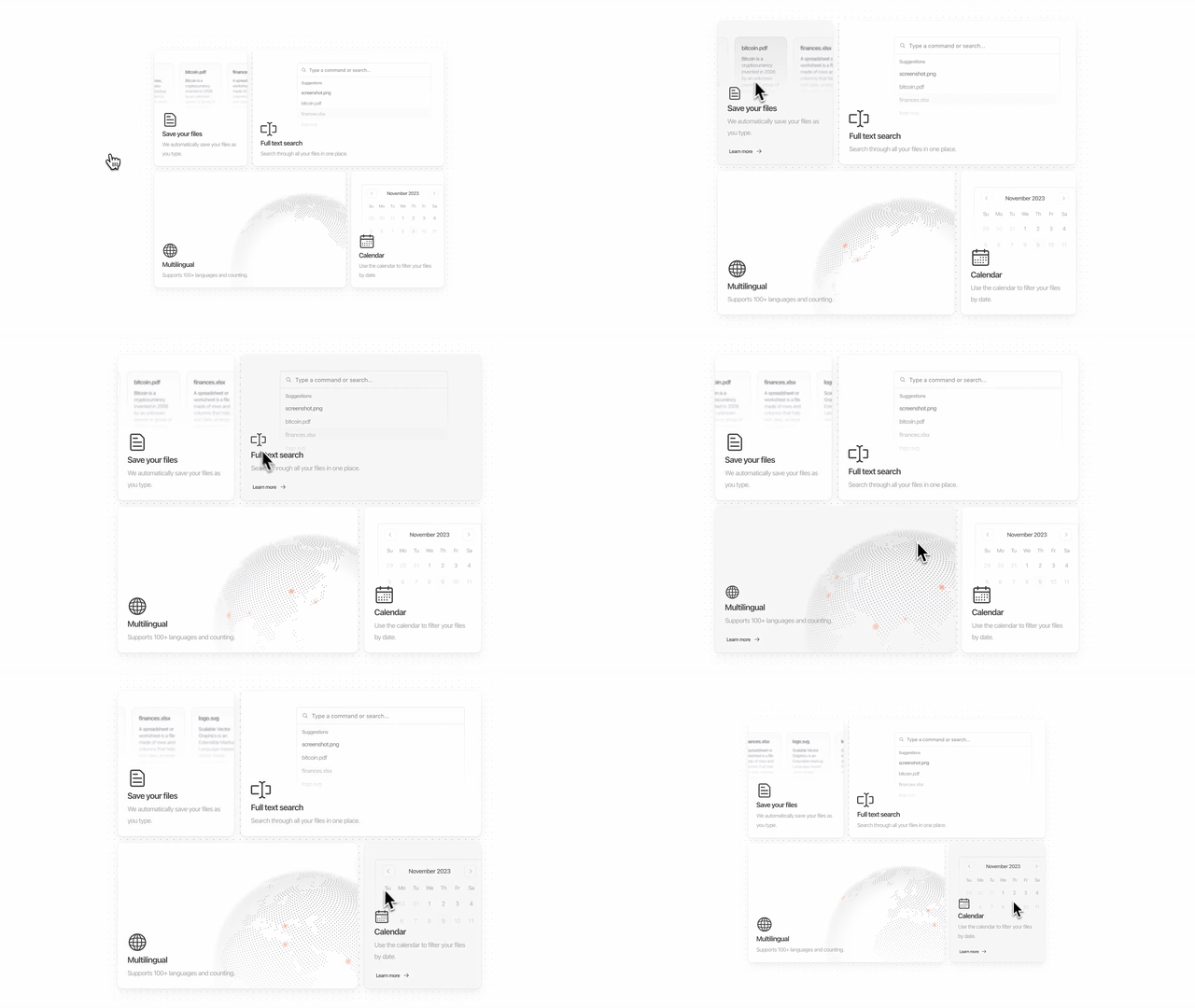
# Technical Documentation: magicuidesign/magicui

> ℹ️ **Provenance:** Multi-Tier Ingestion · [CodeWiki Reference](https://codewiki.google/github.com/magicuidesign/magicui)

### Overview (`README.md`)

<img alt="Magic UI - UI Library for Design Engineers" src="https://cdn.magicui.design/bento-grid.gif" width="100%">
<h3 align="center">Magic UI</h3>
<p align="center">
    UI Library for Design Engineers
</p>
<div align="center">
  <a href="https://github.com/magicuidesign/magicui/stargazers"><img alt="GitHub Repo stars" src="https://img.shields.io/github/stars/magicuidesign/magicui"></a>
  <a href="https://twitter.com/magicuidesign"><img alt="Twitter Follow" src="https://img.shields.io/twitter/follow/magicuidesign"></a>
  <a href="https://github.com/magicuidesign/magicui/blob/main/LICENSE.md"><img alt="License" src="https://img.shields.io/badge/License-MIT-yellow.svg"></a>
  <a href="https://discord.com/invite/87p2vpsat5"><img alt="Discord" src="https://img.shields.io/discord/1151315619246002176"></a>
  
</div>

## Documentation

Visit https://magicui.design/docs to view the documentation.

## Contributing

Visit our [contributing guide](https://github.com/magicuidesign/magicui/blob/main/CONTRIBUTING.md) to learn how to contribute. It only takes ~5 minutes to add your own!

## Community

Have questions, comments or feedback? [Join our discord](http://magicui.design/discord).

## Authors

<a href="https://github.com/magicuidesign/magicui/graphs/contributors">
  <img src="https://contrib.rocks/image?repo=magicuidesign/magicui" />
</a>

## Stats


## Star History

[](https://www.star-history.com/#magicuidesign/magicui&Date)

## License

Licensed under the [MIT license](https://github.com/magicuidesign/magicui/blob/main/LICENSE.md).

---

### Apps Www Content Docs Index (`apps/www/content/docs/index.mdx`)

---
title: Introduction
description: Create magical landing pages with components that you can copy and paste into your apps.
---

Magic UI is a collection of re-usable components that you can copy and paste into your web apps.

It primarily features components, blocks, and templates geared towards creating landing pages and user-facing marketing materials.

## Philosophy

**I personally believe that good design contributes significant value to software. It's one of the main methods of establishing trust between you and an internet stranger**. Trust is important for internet businesses because it is the first thing a visitor evaluates before pulling out their credit card and becoming a customer.

Some questions visitors might ask themselves are:

- "Is this company legit?"
- "Who else is using it?"
- "Can I trust them with my personal data?"

**Poor design reflects poorly on your team.** It comes off as lazy, unfinished, and unstable. It shows that the team doesn't care about user experience.

**Good design indicates that the team behind has their shit together.** I can probably expect good things from them in the future.

It makes me think "if they care so much about these tiny details, they must care a lot about other things in the company, including their customers!".

A great example of this in play is https://linear.app landing page which I first came across in 2020. I didn't even need to try the product but I already knew that it _must_ be good.

This library is heavily inspired by [https://ui.shadcn.com](https://ui.shadcn.com).

---

### Apps Www Content Docs Components Index (`apps/www/content/docs/components/index.mdx`)

---
title: Components
description: Here you can find all the components available in the library.
---

<ComponentsList />

---

### Apps Www Content Docs Installation Index (`apps/www/content/docs/installation/index.mdx`)

---
title: Installation
description: How to install dependencies and structure your app.
date: 2024-09-16
---

<Callout>

**Note:** We have the exact same installation process as [shadcn/ui](https://ui.shadcn.com/docs/installation/).

</Callout>

<Steps>

### Create project

Run the `init` command to create a new Next.js project or to setup an existing one:

```bash
npx shadcn@latest init
```

### Add components

You can now start adding components to your project.

```bash
npx shadcn@latest add @magicui/globe
```

### Import component

The command above will add the `Globe` component to your project. You can then import it like this:

```tsx {1,6} showLineNumbers
import { Globe } from "@/components/ui/globe"

export default function Home() {
  return <Globe />
}
```

</Steps>

---

### Apps Www Content Docs Legacy (`apps/www/content/docs/legacy.mdx`)

---
title: Legacy Versions
description: Documentation for older versions of Magic UI.
date: 2025-04-08
---

## Legacy Version (Tailwind v3)

For older Magic UI components using Tailwind CSS v3, visit: [v3.magicui.design](https://v3.magicui.design)

## Upgrading

To upgrade from legacy to current version, follow the migration guide: [https://ui.shadcn.com/docs/tailwind-v4](https://ui.shadcn.com/docs/tailwind-v4)

---

### Apps Www Content Docs Mcp (`apps/www/content/docs/mcp.mdx`)

---
title: Magic UI MCP Server
description: Learn how to use the Model Context Protocol with Magic UI.
date: 2025-04-16
---

Magic UI now has an official MCP server 🎉.

[MCP](https://modelcontextprotocol.com/) is an open protocol that standardizes how applications provide context to LLMs.

This is useful for Magic UI because you can now give your AI-assisted IDE direct access to all Magic UI components so that it can generate code with minimal errors.

<Tabs defaultValue="cli">

<TabsList>
  <TabsTrigger value="cli">CLI</TabsTrigger>
  <TabsTrigger value="manual">Manual</TabsTrigger>
</TabsList>

<TabsContent value="cli">

<Steps>

<Step>Installation</Step>

<Tabs defaultValue="cursor">
  <TabsList>
    <TabsTrigger value="cursor">Cursor</TabsTrigger>
    <TabsTrigger value="windsurf">Windsurf</TabsTrigger>
    <TabsTrigger value="claude">Claude</TabsTrigger>
    <TabsTrigger value="cline">Cline</TabsTrigger>
    <TabsTrigger value="roo-cline">Roo-Cline</TabsTrigger>
  </TabsList>
  <TabsContent value="cursor">

    ```bash
    npx @magicuidesign/cli@latest install cursor
    ```

  </TabsContent>
  <TabsContent value="windsurf">
  
    ```bash
    npx @magicuidesign/cli@latest install windsurf
    ```

  </TabsContent>
  <TabsContent value="claude">

    ```bash
    npx @magicuidesign/cli@latest install claude
    ```

  </TabsContent>
  <TabsContent value="cline">

    ```bash
    npx @magicuidesign/cli@latest install cline
    ```

  </TabsContent>
  <TabsContent value="roo-cline">
  
    ```bash
    npx @magicuidesign/cli@latest install roo-cline
    ```

  </TabsContent>
</Tabs>

<Step>Restart your IDE</Step>

</Steps>

</TabsContent>
<TabsContent value="manual">

<Steps>

<Step>Add the following to your MCP config file:</Step>

```json
{
  "mcpServers": {
    "magicuidesign-mcp": {
      "command": "npx",
      "args": ["-y", "@magicuidesign/mcp@latest"]
    }
  }
}
```

<Step>Restart your IDE</Step>

</Steps>

</TabsContent>

</Tabs>

## Usage

You can now ask your IDE to use any Magic UI component. Here are some examples:

- "Add a blur fade text animation"
- "Add a grid background"
- "Add a vertical marquee of logos"

---

### Apps Www Content Docs Story (`apps/www/content/docs/story.mdx`)

---
title: Story
description: Learn about how Magic UI started
published: true
date: 2023-06-26
---

Magic UI started because of an annoying problem I faced in the summer of 2023.

I built my [first SaaS app](https://automatic.chat) a few months earlier and was trying to redesign the landing page for it. However, none of the code I wrote matched my expectations in my head for how it would turn out. I was irritated by the process and I especially didn't like having to deal with responsiveness, and animations in particular. Both were really time consuming for me and I felt like I wasn't making progress on actually delivering value to my SaaS users.

I was trying to make landing pages like https://linear.app, https://wope.com and https://reflect.app but they were instead turning out like websites designed in 1995.

**I tried to search the web for good tutorials, code examples, or guides on how to make a landing page like https://linear.app but I found nothing.**

That same week I tweeted that I would just build it myself.

<Tweet id="1668408059125702661" className="mt-4" />

This tweet immediately went viral and it seemed like there were others like me who resonated!

I started building the foundations of this site as well as a few components and within 10 days, Magic UI was in the hands of users.

People seem to love it and we're just getting started.

<div className="mt-4 columns-1 gap-4 md:columns-3 [&>*]:mb-4">
  <Tweet id="1722659583464968612" />
  <Tweet id="1668442365625790465" />
  <Tweet id="1684613797984800768" />
  <Tweet id="1722690049374830639" />
  <Tweet id="1684676668445622272" />
  <Tweet id="1668640878225764354" />
  <Tweet id="1668506160620769280" />
  <Tweet id="1681477151042797568" />
</div>

---

### Apps Www Content Docs Components Android (`apps/www/content/docs/components/android.mdx`)

---
title: Android
date: 2024-12-20
description: A mockup of an Android device.
author: dillionverma
published: true
---

<ComponentPreview name="android-demo" />

## Installation

<Tabs defaultValue="cli">

<TabsList>
  <TabsTrigger value="cli">CLI</TabsTrigger>
  <TabsTrigger value="manual">Manual</TabsTrigger>
</TabsList>
<TabsContent value="cli">

```bash
npx shadcn@latest add @magicui/android
```

</TabsContent>

<TabsContent value="manual">

<Steps>

<Step>Copy and paste the following code into your project.</Step>

<ComponentSource name="android" />

</Steps>

</TabsContent>

</Tabs>

## Examples

### With Image

<ComponentPreview name="android-demo-2" />

### With Video

<ComponentPreview name="android-demo-3" />

## Usage

```tsx showLineNumbers
import { Android } from "@/components/ui/android"
```

```tsx showLineNumbers
<Android />
```

## Props

| Prop       | Type     | Default | Description                        |
| ---------- | -------- | ------- | ---------------------------------- |
| `width`    | `number` | `433`   | The width of the Android window    |
| `height`   | `number` | `882`   | The height of the Android window   |
| `src`      | `string` | `-`     | The source of the image to display |
| `videoSrc` | `string` | `-`     | The source of the video to display |

The `Android` component also accepts all properties of the `SVGElement` type.

---

### Apps Www Content Docs Components Animated Beam (`apps/www/content/docs/components/animated-beam.mdx`)

---
title: Animated Beam
date: 2024-02-11
description: An animated beam of light which travels along a path. Useful for showcasing the "integration" features of a website.
author: dillionverma
published: true
video: https://cdn.magicui.design/animated-beam.mp4
---

<ComponentPreview name="animated-beam-demo" />

## Installation

<Tabs defaultValue="cli">

<TabsList>
  <TabsTrigger value="cli">CLI</TabsTrigger>
  <TabsTrigger value="manual">Manual</TabsTrigger>
</TabsList>
<TabsContent value="cli">

```bash
npx shadcn@latest add @magicui/animated-beam
```

</TabsContent>

<TabsContent value="manual">

<Steps>

<Step>Copy and paste the following code into your project.</Step>

<ComponentSource name="animated-beam" />

<Step>Update the import paths to match your project setup.</Step>

</Steps>

</TabsContent>

</Tabs>

## Examples

### Animated Beam Uni-Directional

<ComponentPreview name="animated-beam-unidirectional" />

### Animated Beam Bi-Directional

<ComponentPreview name="animated-beam-bidirectional" />

### Animated Beam Multiple Inputs

<ComponentPreview name="animated-beam-multiple-inputs" />

### Animated Beam Multiple Outputs

<ComponentPreview name="animated-beam-multiple-outputs" />

## Usage

```tsx showLineNumbers
import { AnimatedBeam } from "@/components/ui/animated-beam"
```

```tsx showLineNumbers
<AnimatedBeam containerRef={containerRef} fromRef={fromRef} toRef={toRef} />
```

## Props

### Animated Beam

| Prop                 | Type      | Default    | Description                                              |
| -------------------- | --------- | ---------- | -------------------------------------------------------- |
| `className`          | `string`  | `-`        | The class name for the component.                        |
| `containerRef`       | `ref`     | `-`        | The container ref.                                       |
| `fromRef`            | `ref`     | `-`        | The ref of the element from which the beam should start. |
| `toRef`              | `ref`     | `-`        | The ref of the element to which the beam should end.     |
| `curvature`          | `number`  | `0`        | The curvature of the beam.                               |
| `reverse`            | `boolean` | `false`    | Whether the beam should be reversed.                     |
| `duration`           | `number`  | `5`        | The duration of the beam.                                |
| `delay`              | `number`  | `0`        | The delay of the beam.                                   |
| `repeat`             | `number`  | `Infinity` | The number of times the beam animation should repeat.    |
| `repeatDelay`        | `number`  | `0`        | The delay between repeated beam animation cycles.        |
| `pathColor`          | `string`  | `gray`     | The color of the beam.                                   |
| `pathWidth`          | `number`  | `2`        | The width of the beam.                                   |
| `pathOpacity`        | `number`  | `0.2`      | The opacity of the beam.                                 |
| `gradientStartColor` | `string`  | `#ffaa40`  | The start color of the gradient.                         |
| `gradientStopColor`  | `string`  | `#9c40ff`  | The stop color of the gradient.                          |
| `startXOffset`       | `number`  | `0`        | The start x offset of the beam.                          |
| `startYOffset`       | `number`  | `0`        | The start y offset of the beam.                          |
| `endXOffset`         | `number`  | `0`        | The end x offset of the beam.                            |
| `endYOffset`         | `number`  | `0`        | The end y offset of the beam.                            |

## Credits

- Credit to [@itsarghyadas](https://twitter.com/itsarghyadas) for figuring out the foundation of this!

---

### Apps Www Content Docs Components Animated Circular Progress Bar (`apps/www/content/docs/components/animated-circular-progress-bar.mdx`)

---
title: Animated Circular Progress Bar
date: 2024-05-28
description: Animated Circular Progress Bar is a component that displays a circular gauge with a percentage value.
author: luis-codex
published: true
---

<ComponentPreview name="animated-circular-progress-bar-demo" />

## Installation

<Tabs defaultValue="cli">

<TabsList>
  <TabsTrigger value="cli">CLI</TabsTrigger>
  <TabsTrigger value="manual">Manual</TabsTrigger>
</TabsList>
<TabsContent value="cli">

```bash
npx shadcn@latest add @magicui/animated-circular-progress-bar
```

</TabsContent>

<TabsContent value="manual">

<Steps>

<Step>Copy and paste the following code into your project.</Step>

<ComponentSource name="animated-circular-progress-bar" />

<Step>Update the import paths to match your project setup.</Step>

</Steps>

</TabsContent>

</Tabs>

## Usage

```tsx showLineNumbers
import { AnimatedCircularProgressBar } from "@/components/ui/animated-circular-progress-bar"
```

```tsx showLineNumbers
<AnimatedCircularProgressBar />
```

## Props

| Prop                  | Type     | Default | Description                                   |
| --------------------- | -------- | ------- | --------------------------------------------- |
| `className`           | `string` | `-`     | The class name to be applied to the component |
| `max`                 | `number` | `100`   | The maximum value of the gauge                |
| `min`                 | `number` | `0`     | The minimum value of the gauge                |
| `value`               | `number` | `0`     | The current value of the gauge                |
| `gaugePrimaryColor`   | `string` | `-`     | The primary color of the gauge                |
| `gaugeSecondaryColor` | `string` | `-`     | The secondary color of the gauge              |

## Credits

- Credit to [@luis-code](https://luis-code.vercel.app/)

---

### Apps Www Content Docs Components Animated Gradient Text (`apps/www/content/docs/components/animated-gradient-text.mdx`)

---
title: Animated Gradient Text
date: 2024-04-09
description: An animated gradient background which transitions between colors for text.
author: dillionverma
published: true
video: https://cdn.magicui.design/animated-gradient-text.mp4
---

<ComponentPreview name="animated-gradient-text-demo" />

## Installation

<Tabs defaultValue="cli">

<TabsList>
  <TabsTrigger value="cli">CLI</TabsTrigger>
  <TabsTrigger value="manual">Manual</TabsTrigger>
</TabsList>
<TabsContent value="cli">

```bash
npx shadcn@latest add @magicui/animated-gradient-text
```

</TabsContent>

<TabsContent value="manual">

<Steps>

<Step>Copy and paste the following code into your project.</Step>

<ComponentSource name="animated-gradient-text" />

<Step>Update the import paths to match your project setup.</Step>

<Step>Add the required CSS animations</Step>

Add the following animations to your global CSS file.

```css title="app/globals.css" showLineNumbers {2, 4-8}
@theme inline {
  --animate-gradient: gradient 8s linear infinite;

  @keyframes gradient {
    to {
      background-position: var(--bg-size, 300%) 0;
    }
  }
}
```

</Steps>

</TabsContent>

</Tabs>

## Examples

### Custom Speed

<ComponentPreview name="animated-gradient-text-demo-2" />

### Usage

```tsx showLineNumbers
import { AnimatedGradientText } from "@/components/ui/animated-gradient-text"
```

```tsx showLineNumbers
<AnimatedGradientText>Animated Gradient Text</AnimatedGradientText>
```

## Props

| Prop        | Type     | Default     | Description                            |
| ----------- | -------- | ----------- | -------------------------------------- |
| `children`  | `node`   | `-`         | The children passed into the component |
| `className` | `string` | `-`         | The class name to be applied           |
| `speed`     | `number` | `1`         | The speed of the gradient animation    |
| `colorFrom` | `string` | `"#ffaa40"` | The starting color of the gradient     |
| `colorTo`   | `string` | `"#9c40ff"` | The ending color of the gradient       |

---

### Apps Www Content Docs Components Animated Grid Pattern (`apps/www/content/docs/components/animated-grid-pattern.mdx`)

---
title: Animated Grid Pattern
date: 2024-02-07
description: A animated background grid pattern made with SVGs, fully customizable using Tailwind CSS.
author: dillionverma
published: true
---

<ComponentPreview name="animated-grid-pattern-demo" />

## Installation

<Tabs defaultValue="cli">

<TabsList>
  <TabsTrigger value="cli">CLI</TabsTrigger>
  <TabsTrigger value="manual">Manual</TabsTrigger>
</TabsList>
<TabsContent value="cli">

```bash
npx shadcn@latest add @magicui/animated-grid-pattern
```

</TabsContent>

<TabsContent value="manual">

<Steps>

<Step>Copy and paste the following code into your project.</Step>

<ComponentSource name="animated-grid-pattern" />

<Step>Update the import paths to match your project setup.</Step>

</Steps>

</TabsContent>

</Tabs>

## Usage

```tsx showLineNumbers
import { AnimatedGridPattern } from "@/components/ui/animated-grid-pattern"
```

```tsx showLineNumbers
<AnimatedGridPattern />
```

## Props

### GridPattern

| Prop              | Type     | Default | Description                                   |
| ----------------- | -------- | ------- | --------------------------------------------- |
| `className`       | `string` | `-`     | Additional classes to be added to the pattern |
| `width`           | `number` | `40`    | Width of the pattern                          |
| `height`          | `number` | `40`    | Height of the pattern                         |
| `x`               | `number` | `-1`    | X offset of the pattern                       |
| `y`               | `number` | `-1`    | Y offset of the pattern                       |
| `strokeDasharray` | `number` | `0`     | Stroke dash array of the pattern              |
| `numSquares`      | `number` | `200`   | Number of squares in the pattern              |
| `maxOpacity`      | `number` | `0.5`   | Maximum opacity of the pattern                |
| `duration`        | `number` | `1`     | Duration of the animation                     |
| `repeatDelay`     | `number` | `0.5`   | Repeat delay of the animation                 |

---

### Apps Www Content Docs Components Animated List (`apps/www/content/docs/components/animated-list.mdx`)

---
title: Animated List
date: 2023-12-12
description: A list that animates each item in sequence with a delay. Used to showcase notifications or events on your landing page.
author: dillionverma
published: true
---

<ComponentPreview name="animated-list-demo" />

## Installation

<Tabs defaultValue="cli">

<TabsList>
  <TabsTrigger value="cli">CLI</TabsTrigger>
  <TabsTrigger value="manual">Manual</TabsTrigger>
</TabsList>
<TabsContent value="cli">

```bash
npx shadcn@latest add @magicui/animated-list
```

</TabsContent>

<TabsContent value="manual">

<Steps>

<Step>Copy and paste the following code into your project.</Step>

<ComponentSource name="animated-list" />

<Step>Update the import paths to match your project setup.</Step>

</Steps>

</TabsContent>

</Tabs>

## Usage

```tsx showLineNumbers
import { AnimatedList } from "@/components/ui/animated-list"
```

```tsx showLineNumbers
<AnimatedList>
  <p>Item 1</p>
  <p>Item 2</p>
  <p>Item 3</p>
</AnimatedList>
```

## Props

### Animated List

| Prop        | Type     | Default | Description                       |
| ----------- | -------- | ------- | --------------------------------- |
| `className` | `string` | `-`     | The class name for the component  |
| `delay`     | `number` | `1000`  | The delay between each item in ms |

---

### Apps Www Content Docs Components Animated Shiny Text (`apps/www/content/docs/components/animated-shiny-text.mdx`)

---
title: Animated Shiny Text
date: 2024-01-16
description: A light glare effect which pans across text making it appear as if it is shimmering.
author: dillionverma
published: true
video: https://cdn.magicui.design/animated-shiny-text.mp4
---

<ComponentPreview name="animated-shiny-text-demo" />

## Installation

<Tabs defaultValue="cli">

<TabsList>
  <TabsTrigger value="cli">CLI</TabsTrigger>
  <TabsTrigger value="manual">Manual</TabsTrigger>
</TabsList>
<TabsContent value="cli">

```bash
npx shadcn@latest add @magicui/animated-shiny-text
```

</TabsContent>

<TabsContent value="manual">

<Steps>

<Step>Copy and paste the following code into your project.</Step>

<ComponentSource name="animated-shiny-text" />

<Step>Update the import paths to match your project setup.</Step>

<Step>Add the required CSS animations</Step>

Add the following animations to your global CSS file.

```css title="app/globals.css" showLineNumbers {2, 4-14}
@theme inline {
  --animate-shiny-text: shiny-text 8s infinite;

  @keyframes shiny-text {
    0%,
    90%,
    100% {
      background-position: calc(-100% - var(--shiny-width)) 0;
    }
    30%,
    60% {
      background-position: calc(100% + var(--shiny-width)) 0;
    }
  }
}
```

</Steps>

</TabsContent>

</Tabs>

## Usage

```tsx showLineNumbers
import { AnimatedShinyText } from "@/components/ui/animated-shiny-text"
```

```tsx showLineNumbers
<AnimatedShinyText>Hello</AnimatedShinyText>
```

## Props

| Prop           | Type     | Default | Description                                  |
| -------------- | -------- | ------- | -------------------------------------------- |
| `children`     | `node`   | `-`     | The text to be shimmered.                    |
| `className`    | `string` | `-`     | The class name to be applied to the shimmer. |
| `shimmerWidth` | `number` | `100`   | The width of the shimmer in pixels.          |

---

### Apps Www Content Docs Components Animated Theme Toggler (`apps/www/content/docs/components/animated-theme-toggler.mdx`)

---
title: Theme Toggler
date: 2025-08-17
description: Animated theme toggle using the View Transitions API with configurable clip-path shapes and origin.
author: Nazam Kalsi
published: true
---

<ComponentPreview name="animated-theme-toggler-demo" />

## Installation

<Tabs defaultValue="cli">

<TabsList>
  <TabsTrigger value="cli">CLI</TabsTrigger>
  <TabsTrigger value="manual">Manual</TabsTrigger>
</TabsList>
<TabsContent value="cli">

```bash
npx shadcn@latest add @magicui/animated-theme-toggler
```

</TabsContent>

<TabsContent value="manual">

<Steps>

<Step>Copy and paste the following code into your project.</Step>

<ComponentSource name="animated-theme-toggler" />

<Step>Update the import paths to match your project setup.</Step>

<Step>Add the required CSS into your global CSS file</Step>

The component sets `--magicui-theme-toggle-vt-duration` and a `data-magicui-theme-vt="active"` flag on `<html>` only while a toggle is in flight, so the clip-path animation stays in sync with the view-transition group **without affecting any other view transitions in your app** (e.g. Next.js navigation transitions).

```css title="app/globals.css" showLineNumbers
::view-transition-old(root),
::view-transition-new(root) {
  animation: none;
  mix-blend-mode: normal;
}

/* Scoped to AnimatedThemeToggler — the toggler sets the data-attribute and the variable only during a theme toggle. */
html[data-magicui-theme-vt="active"]::view-transition-group(root) {
  animation-duration: var(--magicui-theme-toggle-vt-duration);
}
```

</Steps>

</TabsContent>

</Tabs>

## Usage

```tsx showLineNumbers
import { AnimatedThemeToggler } from "@/components/ui/animated-theme-toggler"
```

```tsx showLineNumbers
<AnimatedThemeToggler />
```

Use `variant` to change the clip-path shape of the view transition (`circle`, `square`, `triangle`, `diamond`, `rectangle`, `hexagon`, or `star`):

```tsx showLineNumbers
<AnimatedThemeToggler variant="star" />
```

Expand from the viewport center instead of the button with `fromCenter`:

```tsx showLineNumbers
<AnimatedThemeToggler variant="hexagon" duration={600} fromCenter />
```

## Examples

The preview at the top of this page uses the default **circle** reveal. Below, each variant has its own isolated preview so you can test one shape at a time.

### Square

<ComponentPreview name="animated-theme-toggler-square-demo" />

### Diamond

<ComponentPreview name="animated-theme-toggler-diamond-demo" />

### Rectangle

<ComponentPreview name="animated-theme-toggler-rectangle-demo" />

### Hexagon

<ComponentPreview name="animated-theme-toggler-hexagon-demo" />

### Triangle

<ComponentPreview name="animated-theme-toggler-triangle-demo" />

### Star

<ComponentPreview name="animated-theme-toggler-star-demo" />

### Next.js (next-themes)

Pass `theme` and `onThemeChange` to keep `useTheme()` subscribers in sync on toggle. When controlled, the component skips `localStorage` and lets the parent own persistence.

<ComponentPreview name="animated-theme-toggler-next-themes-demo" />

## Props

| Prop            | Type                                 | Default    | Description                                                                         |
| --------------- | ------------------------------------ | ---------- | ----------------------------------------------------------------------------------- |
| `className`     | `string`                             | —          | Additional classes for the button                                                   |
| `duration`      | `number`                             | `400`      | Duration of the theme transition animation in milliseconds                          |
| `variant`       | `TransitionVariant`                  | `"circle"` | Shape used for the view-transition clip-path reveal                                 |
| `fromCenter`    | `boolean`                            | `false`    | If true, the clip expands from the viewport center instead of the button            |
| `theme`         | `"light" \| "dark"`                  | —          | Controlled theme value. When set, the parent owns persistence (e.g. `next-themes`). |
| `onThemeChange` | `(theme: "light" \| "dark") => void` | —          | Called on toggle. Pair with `theme` for controlled usage.                           |

Export `TransitionVariant` from the same module when you need typed props or menus.

## Credits

- Credit to [Nazam Kalsi](https://nazam-kalsi-portfolio.vercel.app), [chishiyac](https://github.com/chishiyac), [dikshantgulekar20-oss](https://github.com/dikshantgulekar20-oss)

---

### Apps Www Content Docs Components Aurora Text (`apps/www/content/docs/components/aurora-text.mdx`)

---
title: Aurora Text
date: 2025-01-12
description: A beautiful aurora text effect
author: Dillon
published: true
---

<ComponentPreview name="aurora-text-demo" />

## Installation

<Tabs defaultValue="cli">

<TabsList>
  <TabsTrigger value="cli">CLI</TabsTrigger>
  <TabsTrigger value="manual">Manual</TabsTrigger>
</TabsList>
<TabsContent value="cli">

```bash
npx shadcn@latest add @magicui/aurora-text
```

</TabsContent>

<TabsContent value="manual">

<Steps>

<Step>Copy and paste the following code into your project.</Step>

<ComponentSource name="aurora-text" />

<Step>Update the import paths to match your project setup.</Step>

<Step>Add the required CSS animations</Step>

Add the following animations to your global CSS file.

```css title="app/globals.css" showLineNumbers {2, 4-25}
@theme inline {
  --animate-aurora: aurora 8s ease-in-out infinite alternate;

  @keyframes aurora {
    0% {
      background-position: 0% 50%;
      transform: rotate(-5deg) scale(0.9);
    }
    25% {
      background-position: 50% 100%;
      transform: rotate(5deg) scale(1.1);
    }
    50% {
      background-position: 100% 50%;
      transform: rotate(-3deg) scale(0.95);
    }
    75% {
      background-position: 50% 0%;
      transform: rotate(3deg) scale(1.05);
    }
    100% {
      background-position: 0% 50%;
      transform: rotate(-5deg) scale(0.9);
    }
  }
}
```

</Steps>

</TabsContent>

</Tabs>

## Usage

```tsx showLineNumbers
import { AuroraText } from "@/components/ui/aurora-text"
```

```tsx showLineNumbers
<AuroraText>Aurora Text</AuroraText>
```

## Props

| Prop        | Type        | Default                                         | Description                                                   |
| ----------- | ----------- | ----------------------------------------------- | ------------------------------------------------------------- |
| `className` | `string`    | `""`                                            | The class name to be applied to the component                 |
| `children`  | `ReactNode` | `-`                                             | Children elements                                             |
| `colors`    | `string[]`  | ` ["#FF0080", "#7928CA", "#0070F3", "#38bdf8"]` | Array of colors used for the aurora effect                    |
| `speed`     | `number`    | `1`                                             | Animation speed multiplier (1 is default, 2 is twice as fast) |

---

### Apps Www Content Docs Components Avatar Circles (`apps/www/content/docs/components/avatar-circles.mdx`)

---
title: Avatar Circles
date: 2024-05-22
description: Overlapping circles of avatars.
author: tomonarifeehan
published: true
---

<ComponentPreview name="avatar-circles-demo" />

## Installation

<Tabs defaultValue="cli">

<TabsList>
  <TabsTrigger value="cli">CLI</TabsTrigger>
  <TabsTrigger value="manual">Manual</TabsTrigger>
</TabsList>
<TabsContent value="cli">

```bash
npx shadcn@latest add @magicui/avatar-circles
```

</TabsContent>

<TabsContent value="manual">

<Steps>

<Step>Copy and paste the following code into your project.</Step>

<ComponentSource name="avatar-circles" />

<Step>Update the import paths to match your project setup.</Step>

</Steps>

</TabsContent>

</Tabs>

## Usage

```tsx showLineNumbers
import { AvatarCircles } from "@/components/ui/avatar-circles"
```

```tsx showLineNumbers
<AvatarCircles
  numPeople={99}
  avatarUrls={[
    {
      imageUrl: "https://avatars.githubusercontent.com/u/16860528",
      profileUrl: "https://github.com/dillionverma",
    },
  ]}
/>
```

## Props

| Prop        | Type     | Default | Description                                   |
| ----------- | -------- | ------- | --------------------------------------------- |
| `className` | `string` | `-`     | The class name to be applied to the component |
| `numPeople` | `number` | `99`    | The number appearing in the last circle       |

---

### Apps Www Content Docs Components Backlight (`apps/www/content/docs/components/backlight.mdx`)

---
title: Backlight
date: 2026-03-27
description: A backlight glow effect for videos, images, and SVGs.
author: abdmjd1
published: true
---

<ComponentPreview name="backlight-video-demo" />

## Installation

<Tabs defaultValue="cli">

<TabsList>
  <TabsTrigger value="cli">CLI</TabsTrigger>
  <TabsTrigger value="manual">Manual</TabsTrigger>
</TabsList>
<TabsContent value="cli">

```bash
npx shadcn@latest add @magicui/backlight
```

</TabsContent>

<TabsContent value="manual">

<Steps>

<Step>Copy and paste the following code into your project.</Step>

<ComponentSource name="backlight" />

<Step>Update the import paths to match your project setup.</Step>

</Steps>

</TabsContent>

</Tabs>

## Examples

### Image

<ComponentPreview name="backlight-image-demo" />

### SVG

<ComponentPreview name="backlight-svg-demo" />

## Usage

```tsx showLineNumbers
import { Backlight } from "@/components/ui/backlight"
```

```tsx showLineNumbers
<Backlight>
  <img src="https://some-url/image.png" />
</Backlight>
```

## Props

| Prop        | Type                 | Default | Description                                                        |
| ----------- | -------------------- | ------- | ------------------------------------------------------------------ |
| `blur`      | `number`             | `20`    | The blur intensity of the backlight glow effect.                   |
| `children`  | `React.ReactElement` | `-`     | The video, image, or SVG element to apply the backlight effect to. |
| `className` | `string`             | `-`     | Additional class names for the wrapper div.                        |

## Credits

- Credit to [@abdmjd1](https://github.com/abdmjd1)

---

### Apps Www Content Docs Components Bento Grid (`apps/www/content/docs/components/bento-grid.mdx`)

---
title: Bento Grid
date: 2023-11-09
description: Bento grid is a layout used to showcase the features of a product in a simple and elegant way.
author: dillionverma
published: true
---

<ComponentPreview name="bento-demo" />

## Installation

<Tabs defaultValue="cli">

<TabsList>
  <TabsTrigger value="cli">CLI</TabsTrigger>
  <TabsTrigger value="manual">Manual</TabsTrigger>
</TabsList>
<TabsContent value="cli">

```bash
npx shadcn@latest add @magicui/bento-grid
```

</TabsContent>

<TabsContent value="manual">

<Steps>

<Step>Copy and paste the following code into your project.</Step>

<ComponentSource name="bento-grid" />

<Step>Update the import paths to match your project setup.</Step>

</Steps>

</TabsContent>

</Tabs>

## Examples

<ComponentPreview name="bento-demo-vertical" />

## Usage

```tsx showLineNumbers
import { BentoCard, BentoGrid } from "@/components/ui/bento-grid"
```

```tsx showLineNumbers
<BentoGrid>
  <BentoCard />
</BentoGrid>
```

---

### Apps Www Content Docs Components Blur Fade (`apps/www/content/docs/components/blur-fade.mdx`)

---
title: Blur Fade
date: 2024-07-07
description: Blur fade in and out animation. Used to smoothly fade in and out content.
author: dillionverma
published: true
---

<ComponentPreview name="blur-fade-demo" />

## Installation

<Tabs defaultValue="cli">

<TabsList>
  <TabsTrigger value="cli">CLI</TabsTrigger>
  <TabsTrigger value="manual">Manual</TabsTrigger>
</TabsList>
<TabsContent value="cli">

```bash
npx shadcn@latest add @magicui/blur-fade
```

</TabsContent>

<TabsContent value="manual">

<Steps>

<Step>Copy and paste the following code into your project.</Step>

<ComponentSource name="blur-fade" />

<Step>Update the import paths to match your project setup.</Step>

</Steps>

</TabsContent>

</Tabs>

## Examples

<ComponentPreview name="blur-fade-text-demo" />

## Usage

```tsx showLineNumbers
import { BlurFade } from "@/components/ui/blur-fade"
```

```tsx showLineNumbers
<BlurFade>
  <img src="https://picsum.photos/300/200?random=1" alt="Sample 1" />
  <img src="https://picsum.photos/300/200?random=2" alt="Sample 2" />
  <img src="https://picsum.photos/300/200?random=3" alt="Sample 3" />
</BlurFade>
```

## Props

| Prop           | Type              | Default   | Description                                                 |
| -------------- | ----------------- | --------- | ----------------------------------------------------------- |
| `children`     | `React.ReactNode` | `-`       | The content to be animated                                  |
| `className`    | `string`          | `-`       | The class name to be applied to the component               |
| `variant`      | `object`          | `-`       | Custom animation variants for motion component              |
| `duration`     | `number`          | `0.4`     | Duration (seconds) for the animation                        |
| `delay`        | `number`          | `0`       | Delay (seconds) before the animation starts                 |
| `offset`       | `number`          | `6`       | Offset for the animation                                    |
| `direction`    | `string`          | `"down"`  | Direction for the animation (`up`, `down`, `left`, `right`) |
| `inView`       | `boolean`         | `false`   | Whether to trigger animation when component is in view      |
| `inViewMargin` | `MarginType`      | `"-50px"` | Margin for triggering the in-view animation                 |
| `blur`         | `string`          | `"6px"`   | Amount of blur to apply during the animation                |

---

### Apps Www Content Docs Components Border Beam (`apps/www/content/docs/components/border-beam.mdx`)

---
title: Border Beam
date: 2024-02-06
description: An animated beam of light which travels along the border of its container.
author: dillionverma
published: true
video: https://cdn.magicui.design/border-beam.mp4
---

<ComponentPreview name="border-beam-demo" />

## Installation

<Tabs defaultValue="cli">

<TabsList>
  <TabsTrigger value="cli">CLI</TabsTrigger>
  <TabsTrigger value="manual">Manual</TabsTrigger>
</TabsList>
<TabsContent value="cli">

```bash
npx shadcn@latest add @magicui/border-beam
```

</TabsContent>

<TabsContent value="manual">

<Steps>

<Step>Copy and paste the following code into your project.</Step>

<ComponentSource name="border-beam" />

</Steps>

</TabsContent>

</Tabs>

## Examples

### 2 Border Beams

<ComponentPreview name="border-beam-demo-2" />

### Reverse

<ComponentPreview name="border-beam-demo-3" />

### Spring Animation

<ComponentPreview name="border-beam-demo-4" />

## Usage

```tsx showLineNumbers
import { BorderBeam } from "@/components/ui/border-beam"
```

```tsx showLineNumbers
<div className="relative h-[500px] w-full overflow-hidden">
  <BorderBeam />
</div>
```

## Props

### Border Beam

| Prop            | Type                  | Default   | Description                            |
| --------------- | --------------------- | --------- | -------------------------------------- |
| `className`     | `string`              | `-`       | Custom class to apply to the component |
| `size`          | `number`              | `50`      | Size of the beam                       |
| `duration`      | `number`              | `6`       | Duration of the animation in seconds   |
| `delay`         | `number`              | `0`       | Delay before the animation starts      |
| `colorFrom`     | `string`              | `#ffaa40` | Start color of the beam gradient       |
| `colorTo`       | `string`              | `#9c40ff` | End color of the beam gradient         |
| `transition`    | `Transition`          | `-`       | Custom motion transition configuration |
| `style`         | `React.CSSProperties` | `-`       | Custom CSS styles to apply             |
| `reverse`       | `boolean`             | `false`   | Whether to reverse animation direction |
| `initialOffset` | `number`              | `0`       | Initial offset position (0-100)        |
| `borderWidth`   | `number`              | `1`       | Border width of the beam               |

---

### Apps Www Content Docs Components Code Comparison (`apps/www/content/docs/components/code-comparison.mdx`)

---
title: Code Comparison
date: 2024-10-02
description: A component which compares two code snippets.
author: dillionverma
published: true
---

<ComponentPreview name="code-comparison-demo" />

## Installation

<Tabs defaultValue="cli">

<TabsList>
  <TabsTrigger value="cli">CLI</TabsTrigger>
  <TabsTrigger value="manual">Manual</TabsTrigger>
</TabsList>
<TabsContent value="cli">

```bash
npx shadcn@latest add @magicui/code-comparison
```

</TabsContent>

<TabsContent value="manual">

<Steps>

<Step>Copy and paste the following code into your project.</Step>

<ComponentSource name="code-comparison" />

</Steps>

</TabsContent>

</Tabs>

## Usage

```tsx showLineNumbers
import { CodeComparison } from "@/components/ui/code-comparison"
```

```tsx showLineNumbers
<CodeComparison beforeCode={beforeCode} afterCode={afterCode} />
```

## Props

| Prop             | Type     | Default                     | Description                                            |
| ---------------- | -------- | --------------------------- | ------------------------------------------------------ |
| `className`      | `string` | `-`                         | The class name to be applied to the component          |
| `beforeCode`     | `string` | `-`                         | The code snippet to display in the "before" section    |
| `afterCode`      | `string` | `-`                         | The code snippet to display in the "after" section     |
| `language`       | `string` | `-`                         | The language of the code snippets (e.g., "typescript") |
| `filename`       | `string` | `-`                         | The filename to display for the code snippets          |
| `lightTheme`     | `string` | `github-light`              | The theme to use for light mode                        |
| `darkTheme`      | `string` | `github-dark`               | The theme to use for dark mode                         |
| `highlightColor` | `string` | `rgba(101, 117, 133, 0.16)` | The color to use for highlighting the code snippets    |

---

### Apps Www Content Docs Components Comic Text (`apps/www/content/docs/components/comic-text.mdx`)

---
title: Comic Text
date: 2025-07-15
description: Comic text animation that looks like a comic book text
author: iambharathpadhu
published: true
---

<ComponentPreview name="comic-text-demo" />

## Installation

<Tabs defaultValue="cli">

<TabsList>
  <TabsTrigger value="cli">CLI</TabsTrigger>
  <TabsTrigger value="manual">Manual</TabsTrigger>
</TabsList>
<TabsContent value="cli">

```bash
npx shadcn@latest add @magicui/comic-text
```

</TabsContent>

<TabsContent value="manual">

<Steps>

<Step>Copy and paste the following code into your project.</Step>

<ComponentSource name="comic-text" />

<Step>Update the import paths to match your project setup.</Step>

</Steps>

</TabsContent>

</Tabs>

## Usage

```tsx showLineNumbers
import { ComicText } from "@/components/ui/comic-text"
```

```tsx showLineNumbers
<ComicText>Comic Text</ComicText>
```

## Props

| Prop        | Type            | Default   | Description                                   |
| ----------- | --------------- | --------- | --------------------------------------------- |
| `className` | `string`        | `-`       | The class name to be applied to the component |
| `fontSize`  | `number`        | `4`       | The font size of the text                     |
| `style`     | `CSSProperties` | `#ffffff` | The style of the text                         |
| `children`  | `string`        | `-`       | The text to be displayed                      |

## Credits

- Credit to [@iambharathpadhu](https://github.com/iambharathpadhu)

---

### Apps Www Content Docs Components Confetti (`apps/www/content/docs/components/confetti.mdx`)

---
title: Confetti
date: 2024-05-26
description: Confetti animations are best used to delight your users when something special happens
author: Bankkroll
published: true
---

<ComponentPreview name="confetti-demo" />

## Installation

<Tabs defaultValue="cli">

<TabsList>
  <TabsTrigger value="cli">CLI</TabsTrigger>
  <TabsTrigger value="manual">Manual</TabsTrigger>
</TabsList>
<TabsContent value="cli">

```bash
npx shadcn@latest add @magicui/confetti
```

</TabsContent>

<TabsContent value="manual">

<Steps>

<Step>Install the following dependencies:</Step>

```bash
npm install canvas-confetti
```

<Step>Copy and paste the following code into your project.</Step>

<ComponentSource name="confetti" />

<Step>Update the import paths to match your project setup.</Step>

</Steps>

</TabsContent>

</Tabs>

## Examples

### Basic

<ComponentPreview name="confetti-basic-cannon" />

### Random Direction

<ComponentPreview name="confetti-random-direction" />

### Fireworks

<ComponentPreview name="confetti-fireworks" />

### Side Cannons

<ComponentPreview name="confetti-side-cannons" />

### Stars

<ComponentPreview name="confetti-stars" />

### Custom Shapes

<ComponentPreview name="confetti-custom-shapes" />

### Emoji

<ComponentPreview name="confetti-emoji" />

### Usage

```tsx showLineNumbers
import { useRef } from "react"

import { Confetti, type ConfettiRef } from "@/components/ui/confetti"

export function ConfettiDemo() {
  const confettiRef = useRef<ConfettiRef>(null)

  return (
    <div>
      <Confetti ref={confettiRef} manualstart />
      <button onClick={() => confettiRef.current?.fire()}>
        Trigger Confetti
      </button>
    </div>
  )
}
```

## Props

### Confetti

| Prop            | Type                     | Default                             | Description                                                      |
| --------------- | ------------------------ | ----------------------------------- | ---------------------------------------------------------------- |
| `ref`           | `React.Ref<ConfettiRef>` | `null`                              | Ref exposing imperative `fire(options?: ConfettiOptions)` method |
| `options`       | `ConfettiOptions`        | `{}`                                | Default options for automatic or imperative confetti triggers    |
| `globalOptions` | `ConfettiGlobalOptions`  | `{ resize: true, useWorker: true }` | Global options passed to `canvas-confetti.create()`              |
| `manualstart`   | `Boolean`                | `false`                             | Prevents automatic confetti firing on component mount            |
| `className`     | `String`                 | `undefined`                         | Custom CSS classes applied to the canvas element                 |

### ConfettiRef

| Method | Parameters                  | Return Type             | Description                                                   |
| ------ | --------------------------- | ----------------------- | ------------------------------------------------------------- |
| `fire` | `options?: ConfettiOptions` | `Promise<void> \| void` | Imperatively triggers a confetti burst on the canvas instance |

### ConfettiOptions

| Field           | Type                       | Default                        | Description                                             |
| --------------- | -------------------------- | ------------------------------ | ------------------------------------------------------- |
| `particleCount` | `Integer`                  | `50`                           | Number of confetti particles to launch                  |
| `angle`         | `Number`                   | `90`                           | Launch angle in degrees                                 |
| `spread`        | `Number`                   | `45`                           | Spread angle in degrees                                 |
| `startVelocity` | `Number`                   | `45`                           | Initial particle velocity                               |
| `decay`         | `Number`                   | `0.9`                          | Velocity decay rate                                     |
| `gravity`       | `Number`                   | `1`                            | Gravity applied to particles                            |
| `drift`         | `Number`                   | `0`                            | Horizontal drift factor                                 |
| `flat`          | `Boolean`                  | `false`                        | Renders flat 2D shapes                                  |
| `ticks`         | `Number`                   | `200`                          | Number of animation frames confetti lasts               |
| `origin`        | `{ x: number, y: number }` | `{ x: 0.5, y: 0.5 }`           | Normalized viewport origin coordinates (`0.0` to `1.0`) |
| `colors`        | `Array of Strings`         | `HEX array`                    | Custom HEX color palette                                |
| `shapes`        | `Array of Strings`         | `['square', 'circle', 'star']` | Particle shapes or custom text shapes                   |
| `zIndex`        | `Integer`                  | `9999`                         | Z-index of the confetti burst                           |
| `scalar`        | `Number`                   | `1`                            | Scaling factor for particle dimensions                  |

### ConfettiButton

| Prop       | Type                                      | Default | Description                                       |
| ---------- | ----------------------------------------- | ------- | ------------------------------------------------- |
| `options`  | `ConfettiOptions & ConfettiGlobalOptions` | `{}`    | Options for the confetti launched on button click |
| `children` | `React.ReactNode`                         | `null`  | Button label and child elements                   |
| `ref`      | `React.Ref<HTMLButtonElement>`            | `null`  | Forwarded DOM reference to the underlying button  |

## Credits

- Credit to [Bankk](https://www.x.com/bankkroll_eth)
- Inspired by [canvas-confetti](https://www.npmjs.com/package/canvas-confetti)

---

### Apps Www Content Docs Components Cool Mode (`apps/www/content/docs/components/cool-mode.mdx`)

---
title: Cool Mode
date: 2024-06-01
description: Cool mode effect for buttons, links, and other DOMs
author: Bankkroll
published: true
---

<ComponentPreview name="cool-mode-demo" />

## Installation

<Tabs defaultValue="cli">

<TabsList>
  <TabsTrigger value="cli">CLI</TabsTrigger>
  <TabsTrigger value="manual">Manual</TabsTrigger>
</TabsList>
<TabsContent value="cli">

```bash
npx shadcn@latest add @magicui/cool-mode
```

</TabsContent>

<TabsContent value="manual">

<Steps>

<Step>Copy and paste the following code into your project.</Step>

<ComponentSource name="cool-mode" />

<Step>Update the import paths to match your project setup.</Step>

</Steps>

</TabsContent>

</Tabs>

## Examples

### Custom Particle

<ComponentPreview name="cool-mode-custom" />

### Usage

```tsx showLineNumbers
import { CoolMode } from "@/components/ui/cool-mode"
```

```tsx showLineNumbers
<CoolMode>
  <button>Click me</button>
</CoolMode>
```

## Props

| Prop            | Type     | Default    | Description                            |
| --------------- | -------- | ---------- | -------------------------------------- |
| `particle`      | `String` | `"circle"` | The particle URL for a custom particle |
| `size`          | `Number` | `Varies`   | Size of the particle                   |
| `particleCount` | `Number` | `Varies`   | The number of particles to generate    |
| `speedHorz`     | `Number` | `Varies`   | Horizontal speed of the particles      |
| `speedUp`       | `Number` | `Varies`   | Upward speed of the particles          |

## Credits

- Credit to [Bankk](https://www.x.com/bankkroll_eth)
- Inspired by [ClickFusion](https://github.com/BankkRoll/ClickFusion)

---

### Apps Www Content Docs Components Dia Text Reveal (`apps/www/content/docs/components/dia-text-reveal.mdx`)

---
title: Dia Text Reveal
date: 2026-04-13
description: A horizontal color band sweeps across text with a gradient shine, then settles on your theme foreground color.
author: magicuidesign
published: true
---

<ComponentPreview name="dia-text-reveal-demo" />

## Examples

### Custom gradient

Override `colors` for a shorter or softer palette on a single line of text.

<ComponentPreview name="dia-text-reveal-demo-2" />

### Rotating phrases in a heading

Pass `text` as an array and set `repeat` to cycle strings after each sweep. You can place static words in the same `<h1>` (or paragraph) before the component—no extra layout wrappers are required for basic inline use.

<ComponentPreview name="dia-text-reveal-demo-3" />

Use `fixedWidth` when the strings differ a lot in length and you want to avoid horizontal layout shift (not shown in this example).

### Duration and delay

Slow the sweep with `duration`, or add a short `delay` before the band moves.

<ComponentPreview name="dia-text-reveal-demo-4" />

## Installation

<Tabs defaultValue="cli">

<TabsList>
  <TabsTrigger value="cli">CLI</TabsTrigger>
  <TabsTrigger value="manual">Manual</TabsTrigger>
</TabsList>
<TabsContent value="cli">

```bash
npx shadcn@latest add @magicui/dia-text-reveal
```

</TabsContent>

<TabsContent value="manual">

<Steps>

<Step>Copy and paste the following code into your project.</Step>

<ComponentSource name="dia-text-reveal" />

<Step>Update the import paths to match your project setup.</Step>

</Steps>

</TabsContent>

</Tabs>

## Usage

```tsx showLineNumbers
import { DiaTextReveal } from "@/components/ui/dia-text-reveal"
```

```tsx showLineNumbers
<DiaTextReveal text="Magic UI" />
```

```tsx showLineNumbers
<h1 className="text-3xl font-semibold">
  Learn to{" "}
  <DiaTextReveal
    repeat
    repeatDelay={1.2}
    text={["build faster", "ship smarter", "scale easier"]}
  />
</h1>
```

## Props

| Prop          | Type                 | Default                                                   | Description                                                                     |
| ------------- | -------------------- | --------------------------------------------------------- | ------------------------------------------------------------------------------- |
| `text`        | `string \| string[]` | —                                                         | Text to display. Use an array to rotate between strings when `repeat` is on.    |
| `colors`      | `string[]`           | `["#c679c4", "#fa3d1d", "#ffb005", "#e1e1fe", "#0358f7"]` | Colors in the sweeping gradient band.                                           |
| `textColor`   | `string`             | `var(--foreground)`                                       | Solid text color after the animation (matches your theme by default).           |
| `duration`    | `number`             | `1.5`                                                     | Sweep duration in seconds.                                                      |
| `delay`       | `number`             | `0`                                                       | Delay before the sweep starts, in seconds.                                      |
| `repeat`      | `boolean`            | `false`                                                   | When `text` is an array, advance to the next string after each cycle.           |
| `repeatDelay` | `number`             | `0.5`                                                     | Pause in seconds before replaying or advancing (when `repeat` is true).         |
| `startOnView` | `boolean`            | `true`                                                    | Start the animation when the element enters the viewport.                       |
| `once`        | `boolean`            | `true`                                                    | Play only the first time (when `startOnView` is used).                          |
| `className`   | `string`             | —                                                         | Additional CSS classes on the root `span`.                                      |
| `fixedWidth`  | `boolean`            | `false`                                                   | Lock width to the widest string when `text` is an array to reduce layout shift. |

## Credits

- Credit to [@chishiyac](https://github.com/chishiyac)

---

### Apps Www Content Docs Components Dock (`apps/www/content/docs/components/dock.mdx`)

---
title: Dock
date: 2024-04-25
description: An implementation of the MacOS dock using react + tailwindcss + framer motion
author: dillionverma
published: true
video: https://cdn.magicui.design/dock.mp4
---

<ComponentPreview name="dock-demo" />

## Installation

<Tabs defaultValue="cli">

<TabsList>
  <TabsTrigger value="cli">CLI</TabsTrigger>
  <TabsTrigger value="manual">Manual</TabsTrigger>
</TabsList>
<TabsContent value="cli">

```bash
npx shadcn@latest add @magicui/dock
```

</TabsContent>

<TabsContent value="manual">

<Steps>

<Step>Copy and paste the following code into your project.</Step>

<ComponentSource name="dock" />

<Step>Update the import paths to match your project setup.</Step>

</Steps>

</TabsContent>

</Tabs>

## Examples

### Custom Direction

<ComponentPreview name="dock-demo-2" />

### Custom magnification

<ComponentPreview name="dock-demo-3" />

## Usage

```tsx showLineNumbers
import { Home, Search, Settings } from "lucide-react"

import { Dock, DockIcon } from "@/components/ui/dock"
```

```tsx showLineNumbers
<Dock>
  <DockIcon>
    <Home />
  </DockIcon>
  <DockIcon>
    <Settings />
  </DockIcon>
  <DockIcon>
    <Search />
  </DockIcon>
</Dock>
```

## Props

### Dock

| Prop                   | Type        | Default    | Description                          |
| ---------------------- | ----------- | ---------- | ------------------------------------ |
| `className`            | `string`    | `-`        | Custom CSS class for styling         |
| `children`             | `ReactNode` | `-`        | Children elements                    |
| `iconSize`             | `number`    | `40`       | Size of the icon                     |
| `iconMagnification`    | `number`    | `60`       | Level of icon magnification          |
| `iconDistance`         | `number`    | `140`      | Distance from cursor to magnify icon |
| `direction`            | `string`    | `"middle"` | Direction of the dock                |
| `disableMagnification` | `boolean`   | `false`    | Disable Magnification on hover       |

### DockIcon

| Prop            | Type                | Default | Description                          |
| --------------- | ------------------- | ------- | ------------------------------------ |
| `size`          | `number`            | `40`    | Size of the icon                     |
| `magnification` | `number`            | `60`    | Level of icon magnification          |
| `distance`      | `number`            | `140`   | Distance from cursor to magnify icon |
| `mouseX`        | `any`               | `-`     | Mouse X position for magnification   |
| `className`     | `string`            | `-`     | Custom CSS class for styling         |
| `children`      | `React.ReactNode`   | `-`     | Children elements                    |
| `props`         | `PropsWithChildren` | `-`     | Additional props                     |

## Credits

- Credits to [Build UI](https://buildui.com/recipes/magnified-dock) for this fantastic component
- Credits to [Ritesh Bucha](https://twitter.com/bucha_ritesh) for finding and improving it

---

### Apps Www Content Docs Components Dot Pattern (`apps/www/content/docs/components/dot-pattern.mdx`)

---
title: Dot Pattern
date: 2023-07-20
description: A background dot pattern made with SVGs, fully customizable using Tailwind CSS.
author: dillionverma
published: true
video: https://cdn.magicui.design/dot-pattern.mp4
---

<ComponentPreview name="dot-pattern-demo" />

## Installation

<Tabs defaultValue="cli">

<TabsList>
  <TabsTrigger value="cli">CLI</TabsTrigger>
  <TabsTrigger value="manual">Manual</TabsTrigger>
</TabsList>
<TabsContent value="cli">

```bash
npx shadcn@latest add @magicui/dot-pattern
```

</TabsContent>

<TabsContent value="manual">

<Steps>

<Step>Copy and paste the following code into your project.</Step>

<ComponentSource name="dot-pattern" />

<Step>Update the import paths to match your project setup.</Step>

</Steps>

</TabsContent>

</Tabs>

## Examples

### Linear Gradient

<ComponentPreview name="dot-pattern-linear-gradient" />

### With Glow Effect

<ComponentPreview name="dot-pattern-with-glow-effect" />

### Usage

```tsx showLineNumbers
import { DotPattern } from "@/components/ui/dot-pattern"
```

```tsx showLineNumbers
<div className="relative h-[500px] w-full overflow-hidden">
  <DotPattern />
</div>
```

## Props

### Dot Pattern

| Prop        | Type      | Default | Description                                  |
| ----------- | --------- | ------- | -------------------------------------------- |
| `width`     | `any`     | `16`    | Width of the dot pattern                     |
| `height`    | `any`     | `16`    | Height of the dot pattern                    |
| `x`         | `any`     | `0`     | X position of the dot                        |
| `y`         | `any`     | `0`     | Y position of the dot                        |
| `cx`        | `any`     | `1`     | X position of the circle                     |
| `cy`        | `any`     | `1`     | Y position of the circle                     |
| `cr`        | `any`     | `1`     | Radius of the circle                         |
| `className` | `string`  | `-`     | Class name of the dot pattern                |
| `glow`      | `boolean` | `false` | Activates the glow effect in the dot pattern |

---

### Apps Www Content Docs Components Dotted Map (`apps/www/content/docs/components/dotted-map.mdx`)

---
title: Dotted Map
date: 2025-12-31
description: A component with a svg dotted map.
author: dillionverma, Yeom-JinHo
published: true
---

<ComponentPreview name="dotted-map-demo" />

## Installation

<Tabs defaultValue="cli">

<TabsList>
  <TabsTrigger value="cli">CLI</TabsTrigger>
  <TabsTrigger value="manual">Manual</TabsTrigger>
</TabsList>
<TabsContent value="cli">

```bash
npx shadcn@latest add @magicui/dotted-map
```

</TabsContent>

<TabsContent value="manual">

<Steps>

<Step>Copy and paste the following code into your project.</Step>

<ComponentSource name="dotted-map" />

<Step>Update the import paths to match your project setup.</Step>

</Steps>

</TabsContent>

</Tabs>

## Examples

### Smaller Dots

<ComponentPreview name="dotted-map-demo-2" />

### PulseMarker

<ComponentPreview name="dotted-map-demo-3" />

## Usage

```tsx showLineNumbers
import { DottedMap, type Marker } from "@/components/ui/dotted-map"
```

```tsx showLineNumbers
<div className="relative h-[400px] w-full overflow-hidden rounded-xl border">
  <DottedMap />
</div>
```

### With Custom Markers

```tsx showLineNumbers
import { DottedMap, type Marker } from "@/components/ui/dotted-map"
import type { TCountryCode } from "countries-list"

type CountryCode = Lowercase<TCountryCode>

type MyMarker = Marker & {
  overlay: {
    countryCode: CountryCode
    label: string
  }
}

const markers: MyMarker[] = [
  {
    lat: 37.5665,
    lng: 126.978,
    size: 2.8,
    overlay: { countryCode: "kr", label: "Seoul" },
  },
]

<DottedMap<MyMarker>
  markers={markers}
  renderMarkerOverlay={({ marker, x, y, r }) => {
    // Custom overlay rendering
    return <text x={x} y={y}>{marker.overlay.label}</text>
  }}
/>
```

## Props

| Prop                  | Type                  | Default     | Description                                                    |
| --------------------- | --------------------- | ----------- | -------------------------------------------------------------- |
| `width`               | `number`              | `150`       | Width of the SVG map.                                          |
| `height`              | `number`              | `75`        | Height of the SVG map.                                         |
| `mapSamples`          | `number`              | `5000`      | Number of sample points for map generation.                    |
| `markers`             | `Marker[]`            | `[]`        | Array of markers to display on the map.                        |
| `dotColor`            | `string`              | `undefined` | Color of the map dots (uses currentColor if not set).          |
| `markerColor`         | `string`              | `"#FF6900"` | Color of the markers.                                          |
| `dotRadius`           | `number`              | `0.2`       | Radius of the map dots.                                        |
| `stagger`             | `boolean`             | `true`      | Whether to stagger dots in alternating rows for visual effect. |
| `pulse`               | `boolean`             | `false`     | Enables built-in pulse animation for markers.                  |
| `renderMarkerOverlay` | `(args) => ReactNode` | `undefined` | Custom render function for marker overlays.                    |
| `className`           | `string`              | `undefined` | Additional class names applied to the SVG.                     |
| `style`               | `React.CSSProperties` | `undefined` | Inline styles merged into the SVG.                             |

## Types

### Marker

```tsx
export interface Marker {
  lat: number
  lng: number
  size?: number
  pulse?: boolean
}
```

Set `pulse` on `DottedMap` to animate all markers (and use `marker.pulse = false` to opt out per marker). Without the `pulse` prop, only markers with `marker.pulse = true` will pulse.

The `DottedMap` component supports generic types, allowing you to extend the `Marker` interface with custom properties:

```tsx
import type { TCountryCode } from "countries-list"

type CountryCode = Lowercase<TCountryCode>

type MyMarker = Marker & {
  overlay: {
    countryCode: CountryCode
    label: string
  }
}
;<DottedMap<MyMarker> markers={markers} />
```

---

### Apps Www Content Docs Components File Tree (`apps/www/content/docs/components/file-tree.mdx`)

---
title: File Tree
date: 2023-07-20
description: A component used to showcase the folder and file structure of a directory.
author: dillionverma
published: true
---

<ComponentPreview name="file-tree-demo" />

## Installation

<Tabs defaultValue="cli">

<TabsList>
  <TabsTrigger value="cli">CLI</TabsTrigger>
  <TabsTrigger value="manual">Manual</TabsTrigger>
</TabsList>
<TabsContent value="cli">

```bash
npx shadcn@latest add @magicui/file-tree
```

</TabsContent>

<TabsContent value="manual">

<Steps>

<Step>Copy and paste the following code into your project.</Step>

<ComponentSource name="file-tree" />

<Step>Update the import paths to match your project setup.</Step>

</Steps>

</TabsContent>

</Tabs>

## Usage

```tsx showLineNumbers
import { Tree } from "@/components/ui/file-tree"
import type { TreeViewElement } from "@/components/ui/file-tree"
```

```tsx showLineNumbers
const elements: TreeViewElement[] = [
  {
    id: "src",
    type: "folder",
    name: "src",
    children: [
      { id: "components", type: "folder", name: "components" },
      { id: "app", type: "folder", name: "app" },
      { id: "page", name: "page.tsx" },
      { id: "layout", name: "layout.tsx" },
    ],
  },
]

<Tree elements={elements} />
```

When you pass `elements` and omit `children`, the tree is rendered from data and siblings are sorted automatically using a folders-first alphabetical order. Use `sort="none"` to preserve the input order, or pass a custom comparator.

## Props

### Tree

| Prop                   | Type                                        | Default     | Description                                                           |
| ---------------------- | ------------------------------------------- | ----------- | --------------------------------------------------------------------- |
| `initialSelectedId`    | `string`                                    | `-`         | The ID of the initially selected item.                                |
| `indicator`            | `boolean`                                   | `true`      | Whether to show the tree indicator line.                              |
| `elements`             | `TreeViewElement[]`                         | `-`         | An array of tree view elements to render when `children` are omitted. |
| `initialExpandedItems` | `string[]`                                  | `-`         | An array of IDs for items that should be initially expanded.          |
| `openIcon`             | `React.ReactNode`                           | `-`         | Custom icon for open folders.                                         |
| `closeIcon`            | `React.ReactNode`                           | `-`         | Custom icon for closed folders.                                       |
| `sort`                 | `"default" \| "none" \| ((a, b) => number)` | `"default"` | Sorting mode used for data-driven trees rendered from `elements`.     |
| `dir`                  | `"rtl" \| "ltr"`                            | `"ltr"`     | The text direction of the tree.                                       |

### TreeViewElement

| Prop           | Type                 | Default | Description                                           |
| -------------- | -------------------- | ------- | ----------------------------------------------------- |
| `id`           | `string`             | `-`     | A unique identifier for the node.                     |
| `name`         | `string`             | `-`     | The label rendered for the node in data-driven mode.  |
| `type`         | `"file" \| "folder"` | `-`     | Explicit node type. Use `"folder"` for empty folders. |
| `isSelectable` | `boolean`            | `true`  | Whether the node can be selected.                     |
| `children`     | `TreeViewElement[]`  | `-`     | Child nodes for folders.                              |

### Folder

| Prop           | Type      | Default | Description                               |
| -------------- | --------- | ------- | ----------------------------------------- |
| `element`      | `string`  | `-`     | The name of the folder.                   |
| `value`        | `string`  | `-`     | The unique identifier for the folder.     |
| `isSelectable` | `boolean` | `true`  | Whether the folder can be selected.       |
| `isSelect`     | `boolean` | `-`     | Whether the folder is currently selected. |

### File

| Prop           | Type              | Default | Description                             |
| -------------- | ----------------- | ------- | --------------------------------------- |
| `value`        | `string`          | `-`     | The unique identifier for the file.     |
| `isSelectable` | `boolean`         | `true`  | Whether the file can be selected.       |
| `isSelect`     | `boolean`         | `-`     | Whether the file is currently selected. |
| `fileIcon`     | `React.ReactNode` | `-`     | Custom icon for the file.               |

### CollapseButton

| Prop        | Type                | Default | Description                                |
| ----------- | ------------------- | ------- | ------------------------------------------ |
| `elements`  | `TreeViewElement[]` | `-`     | An array of tree view elements to control. |
| `expandAll` | `boolean`           | `false` | Whether to expand all elements initially.  |

---

### Apps Www Content Docs Components Flickering Grid (`apps/www/content/docs/components/flickering-grid.mdx`)

---
title: Flickering Grid
date: 2024-08-15
description: A flickering grid background made with SVGs, fully customizable using Tailwind CSS.
author: dillionverma
published: true
---

<ComponentPreview name="flickering-grid-demo" />

## Installation

<Tabs defaultValue="cli">

<TabsList>
  <TabsTrigger value="cli">CLI</TabsTrigger>
  <TabsTrigger value="manual">Manual</TabsTrigger>
</TabsList>
<TabsContent value="cli">

```bash
npx shadcn@latest add @magicui/flickering-grid
```

</TabsContent>

<TabsContent value="manual">

<Steps>

<Step>Copy and paste the following code into your project.</Step>

<ComponentSource name="flickering-grid" />

<Step>Update the import paths to match your project setup.</Step>

</Steps>

</TabsContent>

</Tabs>

## Examples

### Rounded

<ComponentPreview name="flickering-grid-rounded-demo" />

### Usage

```tsx showLineNumbers
import { FlickeringGrid } from "@/components/ui/flickering-grid"
```

```tsx showLineNumbers
<FlickeringGrid />
```

## Props

| Prop            | Type     | Default          | Description                           |
| --------------- | -------- | ---------------- | ------------------------------------- |
| `squareSize`    | `number` | `4`              | Size of each square in the grid       |
| `gridGap`       | `number` | `6`              | Gap between squares in the grid       |
| `flickerChance` | `number` | `0.3`            | Probability of a square flickering    |
| `color`         | `string` | `"rgb(0, 0, 0)"` | Color of the squares                  |
| `width`         | `number` | `-`              | Width of the canvas                   |
| `height`        | `number` | `-`              | Height of the canvas                  |
| `className`     | `string` | `-`              | Additional CSS classes for the canvas |
| `maxOpacity`    | `number` | `0.2`            | Maximum opacity of the squares        |

---

### Apps Www Content Docs Components Floating 3d Particles (`apps/www/content/docs/components/floating-3d-particles.mdx`)

---
title: Floating 3D Particles
date: 2026-08-16
description: A canvas-based pseudo-3D particle field with perspective projection, continuous rotation, buoyant drift and depth-aware rendering.
author: Miles
published: true
---

<ComponentPreview name="floating-3d-particles-demo" />

## Installation

<Tabs defaultValue="cli">

<TabsList>
  <TabsTrigger value="cli">CLI</TabsTrigger>
  <TabsTrigger value="manual">Manual</TabsTrigger>
</TabsList>
<TabsContent value="cli">

```bash
npx shadcn@latest add @magicui/floating-3d-particles
```

</TabsContent>

<TabsContent value="manual">

<Steps>

<Step>Copy and paste the following code into your project.</Step>

<ComponentSource name="floating-3d-particles" />

<Step>Update the import paths to match your project setup.</Step>

</Steps>

</TabsContent>

</Tabs>

## Examples

### Plain Background

<ComponentPreview name="floating-3d-particles-demo-2" />

## Usage

`Floating3DParticles` renders an absolutely positioned `canvas` (`inset-0`, `pointer-events-none`). Place it inside a `relative` container and layer any foreground content above it with `z-10`.

```tsx showLineNumbers
import { Floating3DParticles } from "@/components/ui/floating-3d-particles"
```

```tsx showLineNumbers
<div className="relative flex h-[500px] w-full items-center justify-center overflow-hidden rounded-lg border">
  <Floating3DParticles color="#8B5CF6" quantity={400} />
  <div className="relative z-10 text-center">
    <h2 className="text-3xl font-bold">Build Something Magical</h2>
  </div>
</div>
```

## Props

| Prop        | Type     | Default     | Description                                                                                               |
| ----------- | -------- | ----------- | --------------------------------------------------------------------------------------------------------- |
| `className` | `string` | `-`         | Additional CSS classes for the canvas element.                                                            |
| `quantity`  | `number` | `400`       | Number of particles on desktop viewports. Automatically scales down to 20% on mobile screens (< 768px).   |
| `color`     | `string` | `"#8B5CF6"` | Particle color (supports 3-digit or 6-digit hex).                                                         |
| `size`      | `number` | `5`         | Mean particle radius in px. Each particle varies within ±40% of this value.                               |
| `opacity`   | `number` | `0.3`       | Mean particle opacity (0–1). Each particle varies within ±0.2, clamped to [0, 1].                         |
| `drift`     | `number` | `0.8`       | Vertical floating speed in px per frame. Positive drifts upward, negative downward.                       |
| `depth`     | `number` | `0.5`       | 3D depth intensity (0–1). `0` = flat 2D plane; `1` = strong perspective with pronounced near/far scaling. |

---

### Apps Www Content Docs Components Glare Hover (`apps/www/content/docs/components/glare-hover.mdx`)

---
title: Glare Hover
date: 2024-12-19
description: A diagonal light glare on hover using a ::before gradient, CSS variables, and background-position animation—no extra global keyframes required.
author: magicui
published: true
---

<ComponentPreview name="glare-hover-demo" />

## Examples

### CTA

<ComponentPreview name="glare-hover-demo-cta" />

### Alerts

<ComponentPreview name="glare-hover-demo-alert" />

## Installation

<Tabs defaultValue="cli">

<TabsList>
  <TabsTrigger value="cli">CLI</TabsTrigger>
  <TabsTrigger value="manual">Manual</TabsTrigger>
</TabsList>
<TabsContent value="cli">

```bash
npx shadcn@latest add @magicui/glare-hover
```

</TabsContent>

<TabsContent value="manual">

<Steps>

<Step>Copy and paste the following code into your project.</Step>

<ComponentSource name="glare-hover" />

<Step>Update the import paths to match your project setup.</Step>

</Steps>

</TabsContent>

</Tabs>

## Usage

The effect is implemented with a **`::before` pseudo-element**: a `linear-gradient` tile moves from one corner to the opposite on hover. Color is parsed from **hex** (`#rgb` or `#rrggbb`) into `rgba` for the glare band.

```tsx showLineNumbers
import { GlareHover } from "@/registry/magicui/glare-hover"
```

```tsx showLineNumbers
<GlareHover className="rounded-lg">
  <Card>
    <CardContent>
      <CardTitle>Hello World</CardTitle>
      <CardDescription>Hover to see the glare sweep</CardDescription>
    </CardContent>
  </Card>
</GlareHover>
```

### Colors and opacity

Use **`color`** (hex glare highlight) and **`opacity`** (alpha of that highlight). **`background`** sets the container background (default `#000`).

```tsx showLineNumbers
<GlareHover
  className="rounded-lg"
  color="#a78bfa"
  opacity={0.35}
  background="#0a0a0a"
>
  <Card>{/* ... */}</Card>
</GlareHover>
```

### Angle and size

**`angle`** is the gradient angle in degrees (default **-45**). **`size`** is the glare tile size as a **percentage** of the element (default **250**), passed to `background-size`.

```tsx showLineNumbers
<GlareHover className="rounded-lg" angle={-30} size={280}>
  <Card>{/* ... */}</Card>
</GlareHover>
```

### Duration

**`duration`** is the transition length in **milliseconds** (default **650**).

```tsx showLineNumbers
<GlareHover className="rounded-lg" duration={500}>
  <Card>{/* ... */}</Card>
</GlareHover>
```

### playOnce

With **`playOnce`** (default **false**), the glare only animates while hovering: transitions are disabled until hover, so the sweep runs each time you enter the element instead of animating on first paint.

```tsx showLineNumbers
<GlareHover className="rounded-lg" playOnce>
  <Card>{/* ... */}</Card>
</GlareHover>
```

### Layout

Optional **`width`** and **`height`** are merged onto the root `style` (string values, e.g. `"100%"`). You can also rely on **`className`** (e.g. `w-full`) and normal `style` / `div` props.

## Props

### GlareHover

| Prop         | Type              | Default     | Description                                                           |
| ------------ | ----------------- | ----------- | --------------------------------------------------------------------- |
| `children`   | `React.ReactNode` | —           | Content inside the wrapper.                                           |
| `className`  | `string`          | —           | Classes on the root `div` (use `rounded-*`, `overflow-hidden`, etc.). |
| `style`      | `CSSProperties`   | —           | Merged after CSS variables and `background`.                          |
| `background` | `string`          | `"#000"`    | Root background color.                                                |
| `color`      | `string`          | `"#ffffff"` | Glare highlight (hex `#rgb` / `#rrggbb`).                             |
| `opacity`    | `number`          | `0.5`       | Alpha for the parsed glare color.                                     |
| `angle`      | `number`          | `-45`       | Gradient angle in degrees (`--gh-angle`).                             |
| `size`       | `number`          | `250`       | Glare tile size in `%` (`--gh-size`).                                 |
| `duration`   | `number`          | `650`       | Transition duration in ms (`--gh-duration`).                          |
| `playOnce`   | `boolean`         | `false`     | If `true`, animation runs on hover only (no transition until hover).  |
| `width`      | `string`          | —           | Optional `width` on the root `style`.                                 |
| `height`     | `string`          | —           | Optional `height` on the root `style`.                                |

The root forwards standard **`div`** props (`onClick`, `data-*`, etc.). The glare is drawn on **`::before`** with `z-10` above the content.

## Credits

- Credit to [@chishiyac](https://github.com/chishiyac)

---

### Apps Www Content Docs Components Globe (`apps/www/content/docs/components/globe.mdx`)

---
title: Globe
date: 2023-08-02
description: An autorotating, interactive, and highly performant globe made using WebGL.
author: dillionverma
published: true
video: https://cdn.magicui.design/globe.mp4
---

<ComponentPreview name="globe-demo" />

## Installation

<Tabs defaultValue="cli">

<TabsList>
  <TabsTrigger value="cli">CLI</TabsTrigger>
  <TabsTrigger value="manual">Manual</TabsTrigger>
</TabsList>
<TabsContent value="cli">

```bash
npx shadcn@latest add @magicui/globe
```

</TabsContent>

<TabsContent value="manual">

<Steps>

<Step>Install the following dependencies:</Step>

```bash
npm install cobe@0.6.4 motion
```

<Step>Copy and paste the following code into your project.</Step>

<ComponentSource name="globe" />

<Step>Update the import paths to match your project setup.</Step>

</Steps>

</TabsContent>

</Tabs>

## Usage

```tsx showLineNumbers
import { Globe } from "@/components/ui/globe"
```

```tsx showLineNumbers
<Globe />
```

## Props

| Prop        | Type          | Default | Description                                                                           |
| ----------- | ------------- | ------- | ------------------------------------------------------------------------------------- |
| `className` | `string`      | `-`     | The css classes for the component                                                     |
| `config`    | `COBEOptions` | `{}`    | The configuration options for the globe. More details [here](https://cobe.vercel.app) |

## Credits

This component is built on top of [Cobe](https://cobe.vercel.app).

---

### Apps Www Content Docs Components Glyph Matrix (`apps/www/content/docs/components/glyph-matrix.mdx`)

---
title: Glyph Matrix
date: 2026-06-12
description: An animated grid of subtly shifting glyphs on a canvas, with a theme-aware color driven by the consumer.
author: magicui
published: true
---

<ComponentPreview name="glyph-matrix-demo" />

## Installation

<Tabs defaultValue="cli">

<TabsList>
  <TabsTrigger value="cli">CLI</TabsTrigger>
  <TabsTrigger value="manual">Manual</TabsTrigger>
</TabsList>
<TabsContent value="cli">

```bash
npx shadcn@latest add @magicui/glyph-matrix
```

</TabsContent>

<TabsContent value="manual">

<Steps>

<Step>Copy and paste the following code into your project.</Step>

<ComponentSource name="glyph-matrix" />

<Step>Update the import paths to match your project setup.</Step>

</Steps>

</TabsContent>

</Tabs>

## Usage

```tsx showLineNumbers
import { GlyphMatrix } from "@/registry/magicui/glyph-matrix"
```

```tsx showLineNumbers
<div className="border-border bg-background h-[400px] w-full overflow-hidden rounded-lg border">
  <GlyphMatrix />
</div>
```

## Props

| Prop           | Type     | Default          | Description                                  |
| -------------- | -------- | ---------------- | -------------------------------------------- |
| `glyphs`       | `string` | `"01·•+*/\\<>="` | Characters to randomly pick from.            |
| `cellSize`     | `number` | `14`             | Cell size in pixels and font size.           |
| `mutationRate` | `number` | `0.04`           | Probability a cell mutates each tick.        |
| `interval`     | `number` | `90`             | Tick interval in milliseconds.               |
| `className`    | `string` | `-`              | Classes applied to the canvas element.       |
| `fadeBottom`   | `number` | `0.6`            | Fade strength toward the bottom of the grid. |
| `color`        | `string` | `"#6B7280"`      | Glyph color (any CSS color).                 |

## Notes

The component draws with the `color` prop, which accepts any CSS color (hex, `rgb()`, `hsl()`, `oklch()`, ...) and is normalized through canvas before drawing. For light/dark support, drive `color` from the consumer — e.g. with `next-themes` as shown in the demo above.

---

### Apps Www Content Docs Components Grid Pattern (`apps/www/content/docs/components/grid-pattern.mdx`)

---
title: Grid Pattern
date: 2023-07-18
description: A background grid pattern made with SVGs, fully customizable using Tailwind CSS.
author: dillionverma
published: true
video: https://cdn.magicui.design/grid-pattern.mp4
---

<ComponentPreview name="grid-pattern-demo" />

## Installation

<Tabs defaultValue="cli">

<TabsList>
  <TabsTrigger value="cli">CLI</TabsTrigger>
  <TabsTrigger value="manual">Manual</TabsTrigger>
</TabsList>
<TabsContent value="cli">

```bash
npx shadcn@latest add @magicui/grid-pattern
```

</TabsContent>

<TabsContent value="manual">

<Steps>

<Step>Copy and paste the following code into your project.</Step>

<ComponentSource name="grid-pattern" />

<Step>Update the import paths to match your project setup.</Step>

</Steps>

</TabsContent>

</Tabs>

## Examples

### Linear Gradient

<ComponentPreview name="grid-pattern-linear-gradient" />

### Dashed Stroke

<ComponentPreview name="grid-pattern-dashed" />

### Usage

```tsx showLineNumbers
import { GridPattern } from "@/components/ui/grid-pattern"
```

```tsx showLineNumbers
<div className="relative h-[500px] w-full overflow-hidden">
  <GridPattern />
</div>
```

## Props

### GridPattern

| Prop              | Type     | Default | Description                                   |
| ----------------- | -------- | ------- | --------------------------------------------- |
| `width`           | `number` | `40`    | Width of the pattern                          |
| `height`          | `number` | `40`    | Height of the pattern                         |
| `x`               | `number` | `-1`    | X offset of the pattern                       |
| `y`               | `number` | `-1`    | Y offset of the pattern                       |
| `squares`         | `number` | `[]`    | X Y coordinates of filled squares as 2D array |
| `strokeDasharray` | `string` | `0`     | Stroke dash array for the pattern             |

---

### Apps Www Content Docs Components Hero Video Dialog (`apps/www/content/docs/components/hero-video-dialog.mdx`)

---
title: Hero Video Dialog
date: 2024-08-26
description: A hero video dialog component.
author: dillionverma
published: true
---

<ComponentPreview name="hero-video-dialog-demo" />

## Installation

<Tabs defaultValue="cli">

<TabsList>
  <TabsTrigger value="cli">CLI</TabsTrigger>
  <TabsTrigger value="manual">Manual</TabsTrigger>
</TabsList>
<TabsContent value="cli">

```bash
npx shadcn@latest add @magicui/hero-video-dialog
```

</TabsContent>

<TabsContent value="manual">

<Steps>

<Step>Copy and paste the following code into your project.</Step>

<ComponentSource name="hero-video-dialog" />

<Step>Update the import paths to match your project setup.</Step>

</Steps>

</TabsContent>

</Tabs>

## Examples

### Top-in-bottom-out

<ComponentPreview name="hero-video-dialog-demo-top-in-bottom-out" />

## Usage

```tsx showLineNumbers
import { HeroVideoDialog } from "@/components/ui/hero-video-dialog"
```

```tsx showLineNumbers
<HeroVideoDialog
  className="block dark:hidden"
  animationStyle="from-center"
  videoSrc="https://www.example.com/dummy-video"
  thumbnailSrc="https://www.example.com/dummy-thumbnail.png"
  thumbnailAlt="Dummy Video Thumbnail"
/>
```

## Props

| Prop             | Type     | Default             | Description                      |
| ---------------- | -------- | ------------------- | -------------------------------- |
| `animationStyle` | `string` | `"from-center"`     | Animation style for the dialog   |
| `videoSrc`       | `string` | `-`                 | URL of the video to be played    |
| `thumbnailSrc`   | `string` | `-`                 | URL of the thumbnail image       |
| `thumbnailAlt`   | `string` | `"Video thumbnail"` | Alt text for the thumbnail image |

## Animation Styles

The `animationStyle` prop accepts the following values:

- `"from-bottom"`: Dialog enters from the bottom and exits to the bottom
- `"from-center"`: Dialog scales up from the center and scales down to the center
- `"from-top"`: Dialog enters from the top and exits to the top
- `"from-left"`: Dialog enters from the left and exits to the left
- `"from-right"`: Dialog enters from the right and exits to the right
- `"fade"`: Dialog fades in and out
- `"top-in-bottom-out"`: Dialog enters from the top and exits to the bottom
- `"left-in-right-out"`: Dialog enters from the left and exits to the right

## Note

- If using a YouTube video, make sure to use the `embed` version of the video URL.

---

### Apps Www Content Docs Components Hexagon Pattern (`apps/www/content/docs/components/hexagon-pattern.mdx`)

---
title: Hexagon Pattern
date: 2026-04-05
description: A background hexagon pattern made with SVGs, fully customizable using Tailwind CSS.
author: magicui
published: true
---

<ComponentPreview name="hexagon-pattern-demo" />

## Installation

<Tabs defaultValue="cli">

<TabsList>
  <TabsTrigger value="cli">CLI</TabsTrigger>
  <TabsTrigger value="manual">Manual</TabsTrigger>
</TabsList>
<TabsContent value="cli">

```bash
npx shadcn@latest add @magicui/hexagon-pattern
```

</TabsContent>

<TabsContent value="manual">

<Steps>

<Step>Copy and paste the following code into your project.</Step>

<ComponentSource name="hexagon-pattern" />

<Step>Update the import paths to match your project setup.</Step>

</Steps>

</TabsContent>

</Tabs>

## Examples

### Linear Gradient

<ComponentPreview name="hexagon-pattern-linear-gradient" />

### Dashed Stroke

<ComponentPreview name="hexagon-pattern-dashed" />

### Spacing

<ComponentPreview name="hexagon-pattern-spacing" />

## Usage

```tsx showLineNumbers
import { HexagonPattern } from "@/components/ui/hexagon-pattern"
```

```tsx showLineNumbers
<div className="relative h-[500px] w-full overflow-hidden">
  <HexagonPattern />
</div>
```

## Props

### HexagonPattern

| Prop              | Type                         | Default        | Description                                                               |
| ----------------- | ---------------------------- | -------------- | ------------------------------------------------------------------------- |
| `radius`          | `number`                     | `40`           | Radius from center to vertex for each hexagon                             |
| `gap`             | `number`                     | `0`            | Extra spacing between adjacent hexagons (pixels)                          |
| `x`               | `number`                     | `-1`           | X offset of the pattern origin                                            |
| `y`               | `number`                     | `-1`           | Y offset of the pattern origin                                            |
| `direction`       | `"horizontal" \| "vertical"` | `"horizontal"` | `horizontal` — flat-top honeycomb; `vertical` — pointy-top honeycomb      |
| `hexagons`        | `Array<[col, row]>`          | —              | Grid coordinates of highlighted (filled) hexagons                         |
| `strokeDasharray` | `string`                     | `"0"`          | SVG `stroke-dasharray` for outline hexagons in the repeating pattern      |
| `className`       | `string`                     | —              | Additional classes on the root SVG (for example Tailwind color utilities) |

Also accepts standard SVG attributes on the root `<svg>` (for example `aria-hidden`, `role`) where applicable.

## Credits

- Credit to [@chishiyac](https://github.com/chishiyac)

---

### Apps Www Content Docs Components Highlighter (`apps/www/content/docs/components/highlighter.mdx`)

---
title: Text Highlighter
date: 2025-02-11
description: A text highlighter that mimics the effect of a human-drawn marker stroke.
author: pratiyank
published: true
---

<ComponentPreview name="highlighter-demo" />

## Installation

<Tabs defaultValue="cli">

<TabsList>
  <TabsTrigger value="cli">CLI</TabsTrigger>
  <TabsTrigger value="manual">Manual</TabsTrigger>
</TabsList>
<TabsContent value="cli">

```bash
npx shadcn@latest add @magicui/highlighter
```

</TabsContent>

<TabsContent value="manual">

<Steps>

<Step>Install the following dependencies:</Step>

```bash
pnpm add motion rough-notation
```

<Step>Copy and paste the following code into your project.</Step>

<ComponentSource name="highlighter" />

</Steps>

</TabsContent>

</Tabs>

## Usage

```tsx showLineNumbers
import { Highlighter } from "@/components/ui/highlighter"
```

```tsx showLineNumbers
<p>
  The{" "}
  <Highlighter action="underline" color="#FF9800">
    Magic UI Highlighter
  </Highlighter>{" "}
  makes important{" "}
  <Highlighter action="highlight" color="#87CEFA">
    text stand out
  </Highlighter>{" "}
  effortlessly.
</p>
```

## Props

Here's the updated props table with units specified for the numerical values:

| Prop                | Type                                                                                                | Default       | Description                                                                  |
| ------------------- | --------------------------------------------------------------------------------------------------- | ------------- | ---------------------------------------------------------------------------- |
| `children`          | `React.ReactNode`                                                                                   | Required      | The content to be highlighted/annotated.                                     |
| `color`             | `string`                                                                                            | `"#ffd1dc"`   | The color of the highlight.                                                  |
| `action`            | `"highlight" \| "circle" \| "box" \| "bracket" \| "crossed-off" \| "strike-through" \| "underline"` | `"highlight"` | The type of annotation effect to apply.                                      |
| `strokeWidth`       | `number`                                                                                            | `1.5px`       | The width of the annotation stroke.                                          |
| `animationDuration` | `number`                                                                                            | `500ms`       | Duration of the animation in milliseconds.                                   |
| `iterations`        | `number`                                                                                            | `2`           | Number of times to draw the annotation (adds a sketchy effect when > 1).     |
| `padding`           | `number`                                                                                            | `2px`         | Padding between the element and the annotation.                              |
| `multiline`         | `boolean`                                                                                           | `true`        | Whether to annotate across multiple lines or treat content as a single line. |
| `isView`            | `boolean`                                                                                           | `false`       | Controls whether the animation starts only when the element enters viewport. |

## Credits

- Credit to [@pratiyank](https://github.com/Pratiyankkumar) for this component!

---

### Apps Www Content Docs Components Hyper Text (`apps/www/content/docs/components/hyper-text.mdx`)

---
title: Hyper Text
date: 2024-08-03
description: A text animation that scrambles letters before revealing the final text.
author: SwayambhuPrasad
published: true
---

<ComponentPreview name="hyper-text-demo" />

## Installation

<Tabs defaultValue="cli">

<TabsList>
  <TabsTrigger value="cli">CLI</TabsTrigger>
  <TabsTrigger value="manual">Manual</TabsTrigger>
</TabsList>
<TabsContent value="cli">

```bash
npx shadcn@latest add @magicui/hyper-text
```

</TabsContent>

<TabsContent value="manual">

<Steps>

<Step>Install the following dependencies:</Step>

```bash
npm install motion
```

<Step>Copy and paste the following code into your project.</Step>

<ComponentSource name="hyper-text" />

<Step>Update the import paths to match your project setup.</Step>

</Steps>

</TabsContent>

</Tabs>

## Usage

```tsx showLineNumbers
import { HyperText } from "@/components/ui/hyper-text"
```

```tsx showLineNumbers
<HyperText>Hover me</HyperText>
```

## Props

| Prop             | Type                                                                                                       | Default | Description                                   |
| ---------------- | ---------------------------------------------------------------------------------------------------------- | ------- | --------------------------------------------- |
| `children`       | `string`                                                                                                   | `-`     | Text content to animate                       |
| `className`      | `string`                                                                                                   | `-`     | The class name to be applied to the component |
| `duration`       | `number`                                                                                                   | `800`   | Duration of the animation in milliseconds     |
| `delay`          | `number`                                                                                                   | `0`     | Delay before animation starts (in ms)         |
| `as`             | `"article" \| "div" \| "h1" \| "h2" \| "h3" \| "h4" \| "h5" \| "h6" \| "li" \| "p" \| "section" \| "span"` | `"div"` | Component to render as                        |
| `startOnView`    | `boolean`                                                                                                  | `false` | Start animation when component is in view     |
| `animateOnHover` | `boolean`                                                                                                  | `true`  | Enable hover animation                        |
| `characterSet`   | `string[]`                                                                                                 | `A-Z`   | Custom character set for scramble effect      |

---

### Apps Www Content Docs Components Icon Cloud (`apps/www/content/docs/components/icon-cloud.mdx`)

---
title: Icon Cloud
date: 2024-05-24
description: An interactive 3D tag cloud component
author: dillionverma
published: true
---

<ComponentPreview name="icon-cloud-demo" />

## Installation

<Tabs defaultValue="cli">

<TabsList>
  <TabsTrigger value="cli">CLI</TabsTrigger>
  <TabsTrigger value="manual">Manual</TabsTrigger>
</TabsList>
<TabsContent value="cli">

```bash
npx shadcn@latest add @magicui/icon-cloud
```

</TabsContent>

<TabsContent value="manual">

<Steps>

<Step>Copy and paste the following code into your project.</Step>

<ComponentSource name="icon-cloud" />

</Steps>

</TabsContent>

</Tabs>

## With Images

<ComponentPreview name="icon-cloud-demo-2" />

## With SVG Icons

<ComponentPreview name="icon-cloud-demo-3" />

## Usage

```tsx showLineNumbers
import { IconCloud } from "@/components/ui/icon-cloud"
```

```tsx showLineNumbers
<div className="relative overflow-hidden">
  <IconCloud images={images} />
</div>
```

## Props

| Prop          | Type                | Default | Description                                |
| ------------- | ------------------- | ------- | ------------------------------------------ |
| `icons`       | `React.ReactNode[]` | `[]`    | Array of icons to render in the cloud      |
| `images`      | `string[]`          | `[]`    | Array of image URLs to render in the cloud |
| `showControl` | `boolean`           | `true`  | Show play/pause control button             |

## Accessibility

The cloud rotates automatically, so it ships with a play/pause control by default to satisfy [WCAG 2.1 SC 2.2.2 (Pause, Stop, Hide)](https://www.w3.org/WAI/WCAG22/Understanding/pause-stop-hide.html).

Rotation also pauses automatically when the user has `prefers-reduced-motion: reduce` enabled. Setting `showControl={false}` removes the only way to resume it, so opt out only when your layout provides its own control.

---

### Apps Www Content Docs Components Interactive Grid Pattern (`apps/www/content/docs/components/interactive-grid-pattern.mdx`)

---
title: Interactive Grid Pattern
date: 2024-12-31
description: A interactive background grid pattern made with SVGs, fully customizable using Tailwind CSS.
author: h3rmel
published: true
---

<ComponentPreview name="interactive-grid-pattern-demo" />

## Installation

<Tabs defaultValue="cli">

<TabsList>
  <TabsTrigger value="cli">CLI</TabsTrigger>
  <TabsTrigger value="manual">Manual</TabsTrigger>
</TabsList>
<TabsContent value="cli">

```bash
npx shadcn@latest add @magicui/interactive-grid-pattern
```

</TabsContent>

<TabsContent value="manual">

<Steps>

<Step>Copy and paste the following code into your project.</Step>

<ComponentSource name="interactive-grid-pattern" />

<Step>Update the import paths to match your project setup.</Step>

</Steps>

</TabsContent>

</Tabs>

## Examples

### Colorful

<ComponentPreview name="interactive-grid-pattern-demo-2" />

### Usage

```tsx showLineNumbers
import { InteractiveGridPattern } from "@/components/ui/interactive-grid-pattern"
```

```tsx showLineNumbers
<div className="relative h-[500px] w-full overflow-hidden">
  <InteractiveGridPattern />
</div>
```

## Props

| Prop               | Type               | Default   | Description                                                                                   |
| ------------------ | ------------------ | --------- | --------------------------------------------------------------------------------------------- |
| `width`            | `number`           | `40`      | Width of each square in the grid                                                              |
| `height`           | `number`           | `40`      | Height of each square in the grid                                                             |
| `squares`          | `[number, number]` | `[24,24]` | Number of squares in the grid. First number is horizontal squares, second is vertical squares |
| `className`        | `string`           | `-`       | Class name applied to the grid container                                                      |
| `squaresClassName` | `string`           | `-`       | Class name applied to individual squares in the grid                                          |

---

### Apps Www Content Docs Components Interactive Hover Button (`apps/www/content/docs/components/interactive-hover-button.mdx`)

---
title: Interactive Hover Button
date: 2024-12-17
description: A visually engaging button component that responds to hover with dynamic transitions, adapting smoothly between light and dark modes for enhanced user interactivity.
author: aayushbharti
published: true
---

<ComponentPreview name="interactive-hover-button-demo" />

## Installation

<Tabs defaultValue="cli">

<TabsList>
  <TabsTrigger value="cli">CLI</TabsTrigger>
  <TabsTrigger value="manual">Manual</TabsTrigger>
</TabsList>
<TabsContent value="cli">

```bash
npx shadcn@latest add @magicui/interactive-hover-button
```

</TabsContent>

<TabsContent value="manual">

<Steps>

<Step>Copy and paste the following code into your project.</Step>

<ComponentSource name="interactive-hover-button" />

<Step>Update the import paths to match your project setup.</Step>

</Steps>

</TabsContent>

</Tabs>

## Usage

```tsx showLineNumbers
import { InteractiveHoverButton } from "@/components/ui/interactive-hover-button"
```

```tsx showLineNumbers
<InteractiveHoverButton>Interactive Hover Button</InteractiveHoverButton>
```

## Props

| Prop        | Type     | Default  | Description                                   |
| ----------- | -------- | -------- | --------------------------------------------- |
| `text`      | `string` | `Button` | The text to be displayed inside the button    |
| `className` | `string` | `-`      | Additional class names to style the component |

## Credits

- Credit to [@AayushBharti](https://github.com/AayushBharti)

---

### Apps Www Content Docs Components Iphone (`apps/www/content/docs/components/iphone.mdx`)

---
title: iPhone
date: 2024-09-01
description: A mockup of the iPhone
author: dillionverma, Yeom-JinHo
published: true
---

<ComponentPreview name="iphone-demo" />

## Installation

<Tabs defaultValue="cli">

<TabsList>
  <TabsTrigger value="cli">CLI</TabsTrigger>
  <TabsTrigger value="manual">Manual</TabsTrigger>
</TabsList>
<TabsContent value="cli">

```bash
npx shadcn@latest add @magicui/iphone
```

</TabsContent>

<TabsContent value="manual">

<Steps>

<Step>Copy and paste the following code into your project.</Step>

<ComponentSource name="iphone" />

<Step>Update the import paths to match your project setup.</Step>

</Steps>

</TabsContent>

</Tabs>

## Examples

### With Image

<ComponentPreview name="iphone-demo-2" />

### With Video

<ComponentPreview name="iphone-demo-3" />

## Usage

```tsx showLineNumbers
import { Iphone } from "@/components/ui/iphone"
```

```tsx showLineNumbers
<Iphone />
```

## Props

| Prop        | Type                  | Default | Description                                       |
| ----------- | --------------------- | ------- | ------------------------------------------------- |
| `src`       | `string`              | `-`     | The source of the image to display                |
| `videoSrc`  | `string`              | `-`     | The source of the video to display                |
| `className` | `string`              | `-`     | Additional classes applied to the wrapper `<div>` |
| `style`     | `React.CSSProperties` | `-`     | Inline styles applied to the wrapper `<div>`      |

## Notes

- Sizing: width and height props have been removed. The size is controlled by the wrapper `<div>`. The component enforces the aspect ratio 433/882.
- Masking: The screen area is only masked when media (src or videoSrc) is provided. Without media, only the frame is rendered.
- HTML Attributes: The Iphone component accepts all standard HTMLDivElement props.
- iOS Compatibility: Video is rendered as a DOM overlay instead of foreignObject to avoid Safari/iOS masking issues.

---

### Apps Www Content Docs Components Kinetic Text (`apps/www/content/docs/components/kinetic-text.mdx`)

---
title: Kinetic Text
date: 2026-04-20
description: A text component that animates font weight of characters on hover.
author: abdmjd1
published: true
---

<ComponentPreview name="kinetic-text-demo" />

## Installation

<Tabs defaultValue="cli">

<TabsList>
  <TabsTrigger value="cli">CLI</TabsTrigger>
  <TabsTrigger value="manual">Manual</TabsTrigger>
</TabsList>
<TabsContent value="cli">

```bash
npx shadcn@latest add @magicui/kinetic-text
```

</TabsContent>

<TabsContent value="manual">

<Steps>

<Step>Copy and paste the following code into your project.</Step>

<ComponentSource name="kinetic-text" />

<Step>Update the import paths to match your project setup.</Step>

</Steps>

</TabsContent>

</Tabs>

## Usage

```tsx showLineNumbers
import { KineticText } from "@/components/ui/kinetic-text"
```

```tsx showLineNumbers
<KineticText text="some text" />
```

## Props

| Prop        | Type                                                            | Default | Description                                         |
| ----------- | --------------------------------------------------------------- | ------- | --------------------------------------------------- |
| `text`      | `string`                                                        | `-`     | The text content to render with the kinetic effect. |
| `as`        | `"h1" \| "h2" \| "h3" \| "h4" \| "h5" \| "h6" \| "p" \| "span"` | `"h1"`  | The HTML element to render as.                      |
| `className` | `string`                                                        | `-`     | Additional class names for the wrapper element.     |

## Credits

- Credit to [@abdmjd1](https://github.com/abdmjd1)

---

### Apps Www Content Docs Components Lens (`apps/www/content/docs/components/lens.mdx`)

---
title: Lens
date: 2025-01-13
description: A interactive component that enables zooming into images, videos and other elements.
author: h3rmel
published: true
---

<ComponentPreview name="lens-demo" />

## Installation

<Tabs defaultValue="cli">

<TabsList>
  <TabsTrigger value="cli">CLI</TabsTrigger>
  <TabsTrigger value="manual">Manual</TabsTrigger>
</TabsList>
<TabsContent value="cli">

```bash
npx shadcn@latest add @magicui/lens
```

</TabsContent>

<TabsContent value="manual">

<Steps>

<Step>Copy and paste the following code into your project.</Step>

<ComponentSource name="lens" />

<Step>Update the import paths to match your project setup.</Step>

</Steps>

</TabsContent>

</Tabs>

## Examples

### Static Lens

<ComponentPreview name="lens-demo-2" />

### Lens with a Default Position

<ComponentPreview name="lens-demo-3" />

## Usage

```tsx showLineNumbers
import { Lens } from "@/components/ui/lens"
```

```tsx showLineNumbers
<Lens>
  <img src="/images/lens-demo.jpg" alt="Lens Demo" />
</Lens>
```

## Props

| Property          | Type              | Default | Description                                                |
| ----------------- | ----------------- | ------- | ---------------------------------------------------------- |
| `children`        | `React.ReactNode` | -       | The content that will be magnified by the lens             |
| `zoomFactor`      | `number`          | 1.3     | The magnification factor of the lens                       |
| `lensSize`        | `number`          | 170     | The size of the lens in pixels (works as a diameter)       |
| `position`        | `Position`        | -       | The current position of the lens                           |
| `defaultPosition` | `Position`        | -       | The initial position of the lens                           |
| `isStatic`        | `boolean`         | false   | Determines if the lens will remain in a fixed position     |
| `duration`        | `number`          | 0.1     | Duration of the animation when the lens moves (in seconds) |
| `lensColor`       | `string`          | -       | The color of the lens (CSS color value)                    |
| `ariaLabel`       | `string`          | -       | Accessibility label for the lens component                 |

---

### Apps Www Content Docs Components Light Rays (`apps/www/content/docs/components/light-rays.mdx`)

---
title: Light Rays
date: 2025-09-25
description: A component with animated light rays which shine down from above.
author: dillionverma
published: true
---

<ComponentPreview name="light-rays-demo" />

## Installation

<Tabs defaultValue="cli">

<TabsList>
  <TabsTrigger value="cli">CLI</TabsTrigger>
  <TabsTrigger value="manual">Manual</TabsTrigger>
</TabsList>
<TabsContent value="cli">

```bash
npx shadcn@latest add @magicui/light-rays
```

</TabsContent>

<TabsContent value="manual">

<Steps>

<Step>Copy and paste the following code into your project.</Step>

<ComponentSource name="light-rays" />

<Step>Update the import paths to match your project setup.</Step>

</Steps>

</TabsContent>

</Tabs>

## Usage

```tsx showLineNumbers
import { LightRays } from "@/components/ui/light-rays"
```

```tsx showLineNumbers
<div className="relative h-[400px] w-full overflow-hidden rounded-xl border">
  <LightRays />
</div>
```

## Props

| Prop        | Type                  | Default                      | Description                                         |
| ----------- | --------------------- | ---------------------------- | --------------------------------------------------- |
| `count`     | `number`              | `7`                          | Total number of animated rays.                      |
| `color`     | `string`              | `"rgba(160, 210, 255, 0.2)"` | Base colour used for the gradients.                 |
| `blur`      | `number`              | `36`                         | Pixel radius applied to the blur filter.            |
| `opacity`   | `number`              | `0.65`                       | Maximum opacity that rays reach (0 – 1).            |
| `speed`     | `number`              | `14`                         | Average seconds each ray takes to complete a cycle. |
| `length`    | `string \| number`    | `"70vh"`                     | CSS length for the ray height.                      |
| `className` | `string`              | `undefined`                  | Additional class names applied to the wrapper.      |
| `style`     | `React.CSSProperties` | `undefined`                  | Inline styles merged into the wrapper.              |

---

### Apps Www Content Docs Components Line Shadow Text (`apps/www/content/docs/components/line-shadow-text.mdx`)

---
title: Line Shadow Text
date: 2025-01-11
description: A text component with a moving line shadow.
author: magicui
published: true
---

<ComponentPreview name="line-shadow-text-demo" />

## Installation

<Tabs defaultValue="cli">

<TabsList>
  <TabsTrigger value="cli">CLI</TabsTrigger>
  <TabsTrigger value="manual">Manual</TabsTrigger>
</TabsList>
<TabsContent value="cli">

```bash
npx shadcn@latest add @magicui/line-shadow-text
```

</TabsContent>

<TabsContent value="manual">

<Steps>

<Step>Copy and paste the following code into your project.</Step>

<ComponentSource name="line-shadow-text" />

<Step>Update the import paths to match your project setup.</Step>

<Step>Add the required CSS animations</Step>

Add the following animations to your global CSS file.

```css title="app/globals.css" showLineNumbers {2, 5-12}
@theme inline {
  --animate-line-shadow: line-shadow 15s linear infinite;

  @keyframes line-shadow {
    0% {
      background-position: 0 0;
    }
    100% {
      background-position: 100% -100%;
    }
  }
}
```

</Steps>

</TabsContent>

</Tabs>

## Usage

```tsx showLineNumbers
import { LineShadowText } from "@/components/ui/line-shadow-text"
```

```tsx showLineNumbers
<LineShadowText>Magic UI</LineShadowText>
```

## Props

| Prop          | Type                                                                                                       | Default   | Description                            |
| ------------- | ---------------------------------------------------------------------------------------------------------- | --------- | -------------------------------------- |
| `shadowColor` | `string`                                                                                                   | `"black"` | The color of the shadow effect         |
| `children`    | `string`                                                                                                   | `-`       | The text to display with shadow effect |
| `as`          | `"article" \| "div" \| "h1" \| "h2" \| "h3" \| "h4" \| "h5" \| "h6" \| "li" \| "p" \| "section" \| "span"` | `"span"`  | The HTML element to render the text as |

---

### Apps Www Content Docs Components Magic Card (`apps/www/content/docs/components/magic-card.mdx`)

---
title: Magic Card
date: 2024-07-07
description: A spotlight effect that follows your mouse cursor and highlights borders on hover.
author: dillionverma, Yeom-JinHo
published: true
---

<ComponentPreview name="magic-card-demo" />

## Installation

<Tabs defaultValue="cli">

<TabsList>
  <TabsTrigger value="cli">CLI</TabsTrigger>
  <TabsTrigger value="manual">Manual</TabsTrigger>
</TabsList>
<TabsContent value="cli">

```bash
npx shadcn@latest add @magicui/magic-card
```

</TabsContent>

<TabsContent value="manual">

<Steps>

<Step>Copy and paste the following code into your project.</Step>

<ComponentSource name="magic-card" />

<Step>Update the import paths to match your project setup.</Step>

</Steps>

</TabsContent>

</Tabs>

## Examples

### Orb

<ComponentPreview name="magic-card-demo-2" />

## Usage

```tsx showLineNumbers
import { MagicCard } from "@/components/ui/magic-card"
```

```tsx showLineNumbers
<MagicCard>
  <div className="p-4">
    <p>Hello World</p>
    <span>Hover me</span>
  </div>
</MagicCard>
```

## Props

### MagicCard

| Prop name         | Type                  | Default      | Description                                        |
| ----------------- | --------------------- | ------------ | -------------------------------------------------- |
| `children`        | `React.ReactNode`     | `-`          | The content to be rendered inside the card         |
| `className`       | `string`              | `-`          | Additional CSS classes to apply to the card        |
| `mode`            | `"gradient" \| "orb"` | `"gradient"` | Display mode: gradient or orb effect               |
| `gradientSize`    | `number`              | `200`        | Size of the gradient effect                        |
| `gradientColor`   | `string`              | `#262626`    | Color of the gradient effect                       |
| `gradientOpacity` | `number`              | `0.8`        | Opacity of the gradient effect                     |
| `gradientFrom`    | `string`              | `#9E7AFF`    | Start color of the gradient border                 |
| `gradientTo`      | `string`              | `#FE8BBB`    | End color of the gradient border                   |
| `glowFrom`        | `string`              | `#ee4f27`    | Start color of the orb glow effect (orb mode only) |
| `glowTo`          | `string`              | `#6b21ef`    | End color of the orb glow effect (orb mode only)   |
| `glowAngle`       | `number`              | `90`         | Angle of the orb glow gradient (orb mode only)     |
| `glowSize`        | `number`              | `420`        | Size of the orb glow effect (orb mode only)        |
| `glowBlur`        | `number`              | `60`         | Blur amount of the orb glow effect (orb mode only) |
| `glowOpacity`     | `number`              | `0.9`        | Opacity of the orb glow effect (orb mode only)     |

---

### Apps Www Content Docs Components Marquee (`apps/www/content/docs/components/marquee.mdx`)

---
title: Marquee
date: 2023-07-26
description: An infinite scrolling component that can be used to display text, images, or videos.
author: dillionverma
published: true
video: https://cdn.magicui.design/marquee.mp4
---

<ComponentPreview name="marquee-demo" />

## Installation

<Tabs defaultValue="cli">

<TabsList>
  <TabsTrigger value="cli">CLI</TabsTrigger>
  <TabsTrigger value="manual">Manual</TabsTrigger>
</TabsList>
<TabsContent value="cli">

```bash
npx shadcn@latest add @magicui/marquee
```

</TabsContent>

<TabsContent value="manual">

<Steps>

<Step>Copy and paste the following code into your project.</Step>

<ComponentSource name="marquee" />

<Step>Update the import paths to match your project setup.</Step>

<Step>Add the required CSS animations</Step>

Add the following animations to your global CSS file.

```css title="app/globals.css" showLineNumbers {2-3, 4-20}
@theme inline {
  --animate-marquee: marquee var(--duration) infinite linear;
  --animate-marquee-vertical: marquee-vertical var(--duration) linear infinite;

  @keyframes marquee {
    from {
      transform: translateX(0);
    }
    to {
      transform: translateX(calc(-100% - var(--gap)));
    }
  }
  @keyframes marquee-vertical {
    from {
      transform: translateY(0);
    }
    to {
      transform: translateY(calc(-100% - var(--gap)));
    }
  }
}
```

</Steps>

</TabsContent>

</Tabs>

## Examples

### Vertical

<ComponentPreview name="marquee-demo-vertical" />

### 3D

<ComponentPreview name="marquee-3d" />

## Usage

```tsx showLineNumbers
import { Marquee } from "@/components/ui/marquee"
```

```tsx showLineNumbers
<Marquee>
  <span>Next.js</span>
  <span>React</span>
  <span>TypeScript</span>
  <span>Tailwind CSS</span>
</Marquee>
```

## Props

| Prop           | Type      | Default | Description                                                                  |
| -------------- | --------- | ------- | ---------------------------------------------------------------------------- |
| `className`    | `string`  | `-`     | The class name to apply to the component.                                    |
| `reverse`      | `boolean` | `false` | Whether or not to reverse the direction of the marquee.                      |
| `pauseOnHover` | `boolean` | `false` | Whether or not to pause the marquee when the user hovers over the component. |
| `vertical`     | `boolean` | `false` | Whether or not to display the marquee vertically.                            |
| `children`     | `node`    | `-`     | The content to display in the marquee.                                       |
| `repeat`       | `number`  | `4`     | The number of times to repeat the content.                                   |

---

### Apps Www Content Docs Components Meteors (`apps/www/content/docs/components/meteors.mdx`)

---
title: Meteors
date: 2023-07-13
description: A meteor shower effect.
author: dillionverma
published: true
video: https://cdn.magicui.design/meteors.mp4
---

<ComponentPreview name="meteors-demo" />

## Installation

<Tabs defaultValue="cli">

<TabsList>
  <TabsTrigger value="cli">CLI</TabsTrigger>
  <TabsTrigger value="manual">Manual</TabsTrigger>
</TabsList>
<TabsContent value="cli">

```bash
npx shadcn@latest add @magicui/meteors
```

</TabsContent>

<TabsContent value="manual">

<Steps>

<Step>Copy and paste the following code into your project.</Step>

<ComponentSource name="meteors" />

<Step>Update the import paths to match your project setup.</Step>

<Step>Add the required CSS animations</Step>

Add the following animations to your global CSS file.

```css title="app/globals.css" showLineNumbers {2, 4-15}
@theme inline {
  --animate-meteor: meteor 5s linear infinite;

  @keyframes meteor {
    0% {
      transform: rotate(var(--angle)) translateX(0);
      opacity: 1;
    }
    70% {
      opacity: 1;
    }
    100% {
      transform: rotate(var(--angle)) translateX(-500px);
      opacity: 0;
    }
  }
}
```

</Steps>

</TabsContent>

</Tabs>

## Usage

```tsx showLineNumbers
import { Meteors } from "@/components/ui/meteors"
```

```tsx showLineNumbers
<div className="relative h-[500px] w-full overflow-hidden">
  <Meteors />
</div>
```

## Props

### Meteors

| Prop          | Type     | Default | Description                                             |
| ------------- | -------- | ------- | ------------------------------------------------------- |
| `number`      | `number` | `20`    | Number of meteors                                       |
| `minDelay`    | `number` | `0.2`   | Minimum delay in seconds before meteor animation starts |
| `maxDelay`    | `number` | `1.2`   | Maximum delay in seconds before meteor animation starts |
| `minDuration` | `number` | `2`     | Minimum duration in seconds for meteor animation        |
| `maxDuration` | `number` | `10`    | Maximum duration in seconds for meteor animation        |
| `angle`       | `number` | `215`   | Angle in degrees for meteor trajectory                  |
| `className`   | `string` | -       | Optional additional CSS classes                         |

---

### Apps Www Content Docs Components Morphing Text (`apps/www/content/docs/components/morphing-text.mdx`)

---
title: Morphing Text
date: 2024-09-02
description: A dynamic text morphing component for Magic UI.
author: magicui
published: true
---

<ComponentPreview name="morphing-text-demo" />

## Installation

<Tabs defaultValue="cli">

<TabsList>
  <TabsTrigger value="cli">CLI</TabsTrigger>
  <TabsTrigger value="manual">Manual</TabsTrigger>
</TabsList>
<TabsContent value="cli">

```bash
npx shadcn@latest add @magicui/morphing-text
```

</TabsContent>

<TabsContent value="manual">

<Steps>

<Step>Copy and paste the following code into your project.</Step>

<ComponentSource name="morphing-text" />

</Steps>

</TabsContent>

</Tabs>

## Usage

```tsx showLineNumbers
import { MorphingText } from "@/components/ui/morphing-text"
```

```tsx showLineNumbers
<MorphingText texts={["Hello", "World"]} />
```

## Props

| Prop        | Type       | Default | Description                          |
| ----------- | ---------- | ------- | ------------------------------------ |
| `texts`     | `string[]` | `[]`    | Array of texts to morph between      |
| `className` | `string?`  | `""`    | Additional classes for the container |

This `MorphingText` component dynamically transitions between an array of text strings, creating a smooth, engaging visual effect.

## Credits

- Credit to [@luis-code](https://luis-code.vercel.app/)

---

### Apps Www Content Docs Components Neon Gradient Card (`apps/www/content/docs/components/neon-gradient-card.mdx`)

---
title: Neon Gradient Card
date: 2024-05-26
description: A beautiful neon card effect
author: Draxx0
published: true
---

<ComponentPreview name="neon-gradient-card-demo" />

## Installation

<Tabs defaultValue="cli">

<TabsList>
  <TabsTrigger value="cli">CLI</TabsTrigger>
  <TabsTrigger value="manual">Manual</TabsTrigger>
</TabsList>
<TabsContent value="cli">

```bash
npx shadcn@latest add @magicui/neon-gradient-card
```

</TabsContent>

<TabsContent value="manual">

<Steps>

<Step>Copy and paste the following code into your project.</Step>

<ComponentSource name="neon-gradient-card" />

<Step>Update the import paths to match your project setup.</Step>

<Step>Add the required CSS animations</Step>

Add the following animations to your global CSS file .

```css title="app/globals.css" showLineNumbers {2-3, 5-12}
@theme inline {
  --animate-background-position-spin: background-position-spin 3000ms infinite
    alternate;

  @keyframes background-position-spin {
    0% {
      background-position: top center;
    }
    100% {
      background-position: bottom center;
    }
  }
}
```

</Steps>

</TabsContent>

</Tabs>

## Usage

```tsx showLineNumbers
import { NeonGradientCard } from "@/components/ui/neon-gradient-card"
```

```tsx showLineNumbers
<NeonGradientCard>
  <div className="p-4">
    <p>Hello</p>
    <span>Hover me</span>
  </div>
</NeonGradientCard>
```

## Props

| Prop           | Type        | Default                                             | Description                                   |
| -------------- | ----------- | --------------------------------------------------- | --------------------------------------------- |
| `className`    | `string`    | `-`                                                 | The class name to be applied to the component |
| `children`     | `ReactNode` | `-`                                                 | Children elements                             |
| `borderSize`   | `number`    | `5`                                                 | The size of the border                        |
| `borderRadius` | `number`    | `20`                                                | The size of the radius                        |
| `neonColors`   | `object`    | `{ firstColor: "#ff00aa", secondColor: "#00FFF1" }` | The colors of the neon gradient               |

## Credits

- Credit to [@Unleashed-Design](https://unleashed-design.de/)

---

### Apps Www Content Docs Components Noise Texture (`apps/www/content/docs/components/noise-texture.mdx`)

---
title: Noise Texture
date: 2026-04-07
description: An SVG fractal noise layer using feTurbulence for subtle texture overlays.
author: magicui
published: true
---

<ComponentPreview name="noise-texture-demo" />

## Installation

<Tabs defaultValue="cli">

<TabsList>
  <TabsTrigger value="cli">CLI</TabsTrigger>
  <TabsTrigger value="manual">Manual</TabsTrigger>
</TabsList>
<TabsContent value="cli">

```bash
npx shadcn@latest add @magicui/noise-texture
```

</TabsContent>

<TabsContent value="manual">

<Steps>

<Step>Copy and paste the following code into your project.</Step>

<ComponentSource name="noise-texture" />

<Step>Update the import paths to match your project setup.</Step>

</Steps>

</TabsContent>

</Tabs>

## Examples

### Newsletter digest

<ComponentPreview name="noise-texture-demo-2" />

### Button

<ComponentPreview name="noise-texture-demo-3" />

### Input field

<ComponentPreview name="noise-texture-demo-4" />

## Usage

`NoiseTexture` renders a full-size `svg` (absolute, inset 0). Put it inside a `relative` container and layer content above with `z-10` when needed.

```tsx showLineNumbers
import { NoiseTexture } from "@/components/ui/noise-texture"
```

```tsx showLineNumbers
<div className="relative h-64 overflow-hidden rounded-lg border">
  <NoiseTexture />
</div>
```

## Props

`NoiseTextureProps` extends React’s `ComponentProps<"svg">`. Besides standard SVG attributes, these props are supported:

### NoiseTexture

| Prop           | Type     | Default | Description                                 |
| -------------- | -------- | ------- | ------------------------------------------- |
| `className`    | `string` | —       | Merged onto the root `svg` (via `cn`)       |
| `frequency`    | `number` | `0.4`   | `baseFrequency` for `feTurbulence`          |
| `octaves`      | `number` | `6`     | `numOctaves` for `feTurbulence`             |
| `slope`        | `number` | `0.15`  | Linear slope per channel after desaturation |
| `noiseOpacity` | `number` | `0.6`   | Opacity of the noise `rect`                 |

## Credits

- Credit to [@chishiyac](https://github.com/chishiyac)

---

### Apps Www Content Docs Components Number Ticker (`apps/www/content/docs/components/number-ticker.mdx`)

---
title: Number Ticker
date: 2023-11-18
description: Animate numbers to count up or down to a target number
author: dillionverma
published: true
video: https://cdn.magicui.design/number-ticker.mp4
---

<ComponentPreview name="number-ticker-demo" />

## Installation

<Tabs defaultValue="cli">

<TabsList>
  <TabsTrigger value="cli">CLI</TabsTrigger>
  <TabsTrigger value="manual">Manual</TabsTrigger>
</TabsList>
<TabsContent value="cli">

```bash
npx shadcn@latest add @magicui/number-ticker
```

</TabsContent>

<TabsContent value="manual">

<Steps>

<Step>Copy and paste the following code into your project.</Step>

<ComponentSource name="number-ticker" />

<Step>Update the import paths to match your project setup.</Step>

</Steps>

</TabsContent>

</Tabs>

## Example

### Decimal

<ComponentPreview name="number-ticker-decimal-demo" />

### Start Value

<ComponentPreview name="number-ticker-demo-2" />

### Usage

```tsx showLineNumbers
import { NumberTicker } from "@/components/ui/number-ticker"
```

```tsx showLineNumbers
<NumberTicker value={100} />
```

## Props

| Prop            | Type         | Default | Description                          |
| --------------- | ------------ | ------- | ------------------------------------ |
| `value`         | `int`        | `0`     | The value to count to                |
| `direction`     | `up \| down` | `"up"`  | The direction to count in            |
| `delay`         | `number`     | `0`     | The delay before counting            |
| `decimalPlaces` | `number`     | `0`     | The number of decimal places to show |
| `startValue`    | `number`     | `0`     | The value to start counting from     |

---

### Apps Www Content Docs Components Orbiting Circles (`apps/www/content/docs/components/orbiting-circles.mdx`)

---
title: Orbiting Circles
date: 2024-04-24
description: A collection of circles which move in orbit along a circular path
author: dillionverma
published: true
video: https://cdn.magicui.design/orbiting-circles.mp4
---

<ComponentPreview name="orbiting-circles-demo" />

## Installation

<Tabs defaultValue="cli">

<TabsList>
  <TabsTrigger value="cli">CLI</TabsTrigger>
  <TabsTrigger value="manual">Manual</TabsTrigger>
</TabsList>
<TabsContent value="cli">

```bash
npx shadcn@latest add @magicui/orbiting-circles
```

</TabsContent>

<TabsContent value="manual">

<Steps>

<Step>Copy and paste the following code into your project.</Step>

<ComponentSource name="orbiting-circles" />

<Step>Update the import paths to match your project setup.</Step>

<Step>Add the required CSS animations</Step>

Add the following animations to your global CSS file.

```css title="app/globals.css" showLineNumbers {2, 4-14}
@theme inline {
  --animate-orbit: orbit calc(var(--duration) * 1s) linear infinite;

  @keyframes orbit {
    0% {
      transform: rotate(calc(var(--angle) * 1deg))
        translateY(calc(var(--radius) * 1px)) rotate(calc(var(--angle) * -1deg));
    }
    100% {
      transform: rotate(calc(var(--angle) * 1deg + 360deg))
        translateY(calc(var(--radius) * 1px))
        rotate(calc((var(--angle) * -1deg) - 360deg));
    }
  }
}
```

</Steps>

</TabsContent>

</Tabs>

## Usage

```tsx showLineNumbers
import { File, Search, Settings } from "lucide-react"

import { OrbitingCircles } from "@/components/ui/orbiting-circles"
```

```tsx showLineNumbers
<div className="relative h-[500px] w-full overflow-hidden">
  <OrbitingCircles>
    <File />
    <Settings />
    <File />
  </OrbitingCircles>
  <OrbitingCircles radius={100} reverse>
    <File />
    <Settings />
    <File />
    <Search />
  </OrbitingCircles>
</div>
```

## Props

| Prop        | Type              | Default | Description                                      |
| ----------- | ----------------- | ------- | ------------------------------------------------ |
| `className` | `string`          | `-`     | The class name for the component                 |
| `children`  | `React.ReactNode` | `-`     | The children nodes of the component              |
| `reverse`   | `boolean`         | `false` | If true, the animation plays in reverse          |
| `duration`  | `number`          | `20`    | The duration of the animation in seconds         |
| `delay`     | `number`          | `10`    | The delay before the animation starts in seconds |
| `radius`    | `number`          | `160`   | The radius of the orbit in pixels                |
| `path`      | `boolean`         | `true`  | If true, a path is displayed for the orbit       |
| `iconSize`  | `number`          | `30`    | The size of the icon in pixels                   |
| `speed`     | `number`          | `1`     | The speed of the animation                       |

---

### Apps Www Content Docs Components Particles (`apps/www/content/docs/components/particles.mdx`)

---
title: Particles
date: 2024-06-04
description: Particles are a fun way to add some visual flair to your website. They can be used to create a sense of depth, movement, and interactivity.
author: dillionverma
published: true
---

<ComponentPreview name="particles-demo" />

## Installation

<Tabs defaultValue="cli">

<TabsList>
  <TabsTrigger value="cli">CLI</TabsTrigger>
  <TabsTrigger value="manual">Manual</TabsTrigger>
</TabsList>
<TabsContent value="cli">

```bash
npx shadcn@latest add @magicui/particles
```

</TabsContent>

<TabsContent value="manual">

<Steps>

<Step>Copy and paste the following code into your project.</Step>

<ComponentSource name="particles" />

<Step>Update the import paths to match your project setup.</Step>

</Steps>

</TabsContent>

</Tabs>

## Usage

```tsx showLineNumbers
import { Particles } from "@/components/ui/particles"
```

```tsx showLineNumbers
<div className="relative h-[500px] w-full overflow-hidden">
  <Particles />
</div>
```

## Props

| Prop        | Type      | Default   | Description                      |
| ----------- | --------- | --------- | -------------------------------- |
| `className` | `string`  | `-`       | The class name for the component |
| `quantity`  | `number`  | `100`     | The number of particles          |
| `staticity` | `number`  | `50`      | The staticity of the particles   |
| `ease`      | `number`  | `50`      | The ease of the particles        |
| `size`      | `number`  | `0.4`     | The size of the particles        |
| `refresh`   | `boolean` | `false`   | Whether to refresh the particles |
| `color`     | `string`  | `#ffffff` | The color of the particles       |
| `vx`        | `number`  | `0`       | The x velocity of the particles  |
| `vy`        | `number`  | `0`       | The y velocity of the particles  |

---

### Apps Www Content Docs Components Pixel Image (`apps/www/content/docs/components/pixel-image.mdx`)

---
title: Pixel Image
date: 2025-06-05
description: A component that displays your image with a pixelated effect, enhancing the visual appeal of any image in your website.
author: dharminnagar
published: true
---

<ComponentPreview name="pixel-image-demo" />

## Features

- Pixelated image reveal animation
- Customizable grid size and layout
- Supports grayscale-to-color animation
- Adjustable animation duration and delay
- Lightweight and easy to use

## Installation

<Tabs defaultValue="cli">

<TabsList>
  <TabsTrigger value="cli">CLI</TabsTrigger>
  <TabsTrigger value="manual">Manual</TabsTrigger>
</TabsList>
<TabsContent value="cli">

```bash
npx shadcn@latest add @magicui/pixel-image
```

</TabsContent>

<TabsContent value="manual">

<Steps>

<Step>Copy and paste the following code into your project.</Step>

<ComponentSource name="pixel-image" />

<Step>Update the import paths to match your project setup.</Step>

</Steps>

</TabsContent>

</Tabs>

## Usage

```tsx showLineNumbers
import { PixelImage } from "@/components/ui/pixel-image"
```

```tsx showLineNumbers
<PixelImage src="/pixel-image-demo.jpg" grid="8x8" />
```

## Props

| Prop                  | Type                                        | Default | Description                                    |
| --------------------- | ------------------------------------------- | ------- | ---------------------------------------------- |
| `src`                 | `string`                                    | —       | The image source URL                           |
| `grid`                | `"6x4" \| "8x8" \| "8x3" \| "4x6" \| "3x8"` | `"8x8"` | Predefined grid layout                         |
| `customGrid`          | `{ rows: number; cols: number; }`           | —       | Custom grid layout (overrides `grid`)          |
| `grayscaleAnimation`  | `boolean`                                   | `true`  | Whether to animate from grayscale to color     |
| `pixelFadeInDuration` | `number`                                    | `1000`  | Duration (ms) for each pixel fade-in animation |
| `maxAnimationDelay`   | `number`                                    | `1200`  | Maximum random delay (ms) for pixel animation  |
| `colorRevealDelay`    | `number`                                    | `1500`  | Delay (ms) before revealing color              |

### Grid Type

```typescript
// Predefined grid options
"6x4" | "8x8" | "8x3" | "4x6" | "3x8"

// Custom grid example
customGrid={{ rows: 5, cols: 10 }}
```

## Note

- Since the pixelation effect is purely decorative, make sure to provide text alternatives (like descriptions or labels) for any important content shown in the image. This ensures the content is accessible to screen reader users.

## Credits

- Credit to [@dharminnagar](https://x.com/dharminnagar) for implementation

---

### Apps Www Content Docs Components Pointer (`apps/www/content/docs/components/pointer.mdx`)

---
title: Pointer
date: 2025-02-17
description: A component that displays a pointer when hovering over an element
author: h3rmel
published: true
---

<ComponentPreview name="pointer-demo-1" />

## Installation

<Tabs defaultValue="cli">

<TabsList>
  <TabsTrigger value="cli">CLI</TabsTrigger>
  <TabsTrigger value="manual">Manual</TabsTrigger>
</TabsList>
<TabsContent value="cli">

```bash
npx shadcn@latest add @magicui/pointer
```

</TabsContent>

<TabsContent value="manual">

<Steps>

<Step>Copy and paste the following code into your project.</Step>

<ComponentSource name="pointer" />

<Step>Update the import paths to match your project setup.</Step>

</Steps>

</TabsContent>

</Tabs>

## Usage

```tsx showLineNumbers
import { Pointer } from "@/components/ui/pointer"
```

```tsx showLineNumbers
<Pointer />
```

---

### Apps Www Content Docs Components Progressive Blur (`apps/www/content/docs/components/progressive-blur.mdx`)

---
title: Progressive Blur
date: 2024-06-01
description: Add a progressive blur effect to scrollable content
author: magicui
published: true
---

<ComponentPreview name="progressive-blur-demo" />

## Installation

<Tabs defaultValue="cli">

<TabsList>
  <TabsTrigger value="cli">CLI</TabsTrigger>
  <TabsTrigger value="manual">Manual</TabsTrigger>
</TabsList>
<TabsContent value="cli">

```bash
npx shadcn@latest add @magicui/progressive-blur
```

</TabsContent>

<TabsContent value="manual">

<Steps>

<Step>Copy and paste the following code into your project.</Step>

<ComponentSource name="progressive-blur" />

<Step>Update the import paths to match your project setup.</Step>

</Steps>

</TabsContent>

</Tabs>

## Usage

```tsx showLineNumbers
import { ProgressiveBlur } from "@/components/ui/progressive-blur"
```

```tsx showLineNumbers
<div className="relative h-[400px] w-full overflow-auto">
  {/* Your scrollable content */}
  <div className="space-y-4 p-4">{/* Content items */}</div>

  <ProgressiveBlur height="50%" position="bottom" />
</div>
```

## Props

### ProgressiveBlur

| Prop         | Type                          | Default                         | Description                                           |
| ------------ | ----------------------------- | ------------------------------- | ----------------------------------------------------- |
| `className`  | `string`                      | `-`                             | Additional classes to apply to the blur container.    |
| `height`     | `string`                      | `"30%"`                         | Height of the blur effect container.                  |
| `position`   | `"top" \| "bottom" \| "both"` | `"bottom"`                      | Position of the blur effect.                          |
| `blurLevels` | `number[]`                    | `[0.5, 1, 2, 4, 8, 16, 32, 64]` | Array of blur values (in px) for progressive effect.  |
| `children`   | `React.ReactNode`             | `-`                             | Optional content to render within the blur container. |

---

### Apps Www Content Docs Components Pulsating Button (`apps/www/content/docs/components/pulsating-button.mdx`)

---
title: Pulsating Button
date: 2024-07-23
description: An animated pulsating button useful for capturing attention of users.
author: shikhap04
published: true
---

<ComponentPreview name="pulsating-button-demo" />

## Installation

<Tabs defaultValue="cli">

<TabsList>
  <TabsTrigger value="cli">CLI</TabsTrigger>
  <TabsTrigger value="manual">Manual</TabsTrigger>
</TabsList>
<TabsContent value="cli">

```bash
npx shadcn@latest add @magicui/pulsating-button
```

</TabsContent>

<TabsContent value="manual">

<Steps>

<Step>Copy and paste the following code into your project.</Step>

<ComponentSource name="pulsating-button" />

<Step>Update the import paths to match your project setup.</Step>

<Step>Add the required CSS animations</Step>

Add the following animations to your global CSS file.

```css title="app/globals.css" showLineNumbers {2, 4-12}
@theme inline {
  --animate-pulse: pulse var(--duration) ease-out infinite;
  --animate-pulse-ripple: pulse-ripple var(--duration)
    cubic-bezier(0.16, 1, 0.3, 1) infinite;

  @keyframes pulse {
    0%,
    100% {
      box-shadow: 0 0 0 0 var(--pulse-color, oklch(from var(--bg) l c h / 0.5));
    }
    50% {
      box-shadow: 0 0 0 var(--distance)
        var(--pulse-color, oklch(from var(--bg) l c h / 0.5));
    }
  }

  @keyframes pulse-ripple {
    0% {
      box-shadow: 0 0 0 0 oklch(from var(--pulse-color, var(--bg)) l c h / 1);
    }
    100% {
      box-shadow: 0 0 0 var(--distance)
        oklch(from var(--pulse-color, var(--bg)) l c h / 0);
    }
  }
}
```

</Steps>

</TabsContent>

</Tabs>

## Usage

```tsx showLineNumbers
import { PulsatingButton } from "@/components/ui/pulsating-button"
```

```tsx showLineNumbers
<PulsatingButton>Pulsating Button</PulsatingButton>
```

## Examples

### Ripple Variant

<ComponentPreview name="pulsating-button-demo-2" />

## Props

| Prop         | Type                  | Default                          | Description                                |
| ------------ | --------------------- | -------------------------------- | ------------------------------------------ |
| `children`   | `React.ReactNode`     | `-`                              | The content of the button.                 |
| `className`  | `string`              | `-`                              | Additional class names for the button.     |
| `pulseColor` | `string`              | `Derived from button background` | Any valid CSS color for the pulsing waves. |
| `duration`   | `string`              | `1.5s`                           | The duration of one pulse.                 |
| `distance`   | `string`              | `8px`                            | How far the pulse expands from the button. |
| `variant`    | `"pulse" \| "ripple"` | `pulse`                          | The pulse animation style.                 |

## Credits

- Credit to [@shikhap04](https://github.com/shikhap04) & [@abdmjd1](https://github.com/abdmjd1)

---

### Apps Www Content Docs Components Rainbow Button (`apps/www/content/docs/components/rainbow-button.mdx`)

---
title: Rainbow Button
date: 2024-09-19
description: An animated button with a rainbow effect.
author: dillionverma
published: true
---

<ComponentPreview name="rainbow-button-demo" />

## Installation

<Tabs defaultValue="cli">

<TabsList>
  <TabsTrigger value="cli">CLI</TabsTrigger>
  <TabsTrigger value="manual">Manual</TabsTrigger>
</TabsList>
<TabsContent value="cli">

```bash
npx shadcn@latest add @magicui/rainbow-button
```

</TabsContent>

<TabsContent value="manual">

<Steps>

<Step>Copy and paste the following code into your project.</Step>

<ComponentSource name="rainbow-button" />

<Step>Update the import paths to match your project setup.</Step>

<Step>Update `globals.css`</Step>

Add the following to your `globals.css` file:

```css title="app/globals.css" showLineNumbers {2-6}
:root {
  --color-1: hsl(0 100% 63%);
  --color-2: hsl(270 100% 63%);
  --color-3: hsl(210 100% 63%);
  --color-4: hsl(195 100% 63%);
  --color-5: hsl(90 100% 63%);
}
```

<Step>Add the required CSS animations</Step>

Add the following animations to your global CSS file.

```css title="app/globals.css" showLineNumbers {2, 4-11}
@theme inline {
  --animate-rainbow: rainbow var(--speed, 2s) infinite linear;

  @keyframes rainbow {
    0% {
      background-position: 0%;
    }
    100% {
      background-position: 200%;
    }
  }
}
```

</Steps>

</TabsContent>

</Tabs>

## Examples

### Outline Variant

<ComponentPreview name="rainbow-button-demo-2" />

## Usage

```tsx showLineNumbers
import { RainbowButton } from "@/components/ui/rainbow-button"
```

```tsx showLineNumbers
<RainbowButton>Rainbow Button</RainbowButton>
```

## Props

| Prop        | Type                                  | Default     | Description                                         |
| ----------- | ------------------------------------- | ----------- | --------------------------------------------------- |
| `children`  | `React.ReactNode`                     | `-`         | The content to be displayed inside the button.      |
| `className` | `string`                              | `-`         | Additional CSS classes to be applied to the button. |
| `variant`   | `"default" \| "outline"`              | `"default"` | The variant of the button.                          |
| `size`      | `"default" \| "sm" \| "lg" \| "icon"` | `"default"` | The size of the button.                             |

---

### Apps Www Content Docs Components Retro Grid (`apps/www/content/docs/components/retro-grid.mdx`)

---
title: Retro Grid
date: 2023-11-23
description: An animated scrolling retro grid effect
author: dillionverma
published: true
video: https://cdn.magicui.design/retro-grid.mp4
---

<ComponentPreview name="retro-grid-demo" />

## Installation

<Tabs defaultValue="cli">

<TabsList>
  <TabsTrigger value="cli">CLI</TabsTrigger>
  <TabsTrigger value="manual">Manual</TabsTrigger>
</TabsList>
<TabsContent value="cli">

```bash
npx shadcn@latest add @magicui/retro-grid
```

</TabsContent>

<TabsContent value="manual">

<Steps>

<Step>Copy and paste the following code into your project.</Step>

<ComponentSource name="retro-grid" />

<Step>Update the import paths to match your project setup.</Step>

<Step>No additional CSS is required.</Step>

</Steps>

</TabsContent>

</Tabs>

## Usage

```tsx showLineNumbers
import { RetroGrid } from "@/components/ui/retro-grid"
```

```tsx showLineNumbers
<div className="relative h-[500px] w-full overflow-hidden">
  <RetroGrid />
</div>
```

## Props

| Prop             | Type     | Default  | Description                                   |
| ---------------- | -------- | -------- | --------------------------------------------- |
| `className`      | `string` | `-`      | Additional CSS classes for the grid container |
| `angle`          | `number` | `65`     | Rotation angle of the grid in degrees         |
| `cellSize`       | `number` | `60`     | Grid cell size in pixels                      |
| `opacity`        | `number` | `0.5`    | Grid opacity value between 0 and 1            |
| `lightLineColor` | `string` | `"gray"` | Grid line color in light mode                 |
| `darkLineColor`  | `string` | `"gray"` | Grid line color in dark mode                  |

---

### Apps Www Content Docs Components Ripple Button (`apps/www/content/docs/components/ripple-button.mdx`)

---
title: Ripple Button
date: 2024-11-17
description: An animated button with ripple useful for user engagement.
author: Sidd5arth
published: true
---

<ComponentPreview name="ripple-button-demo" />

## Installation

<Tabs defaultValue="cli">

<TabsList>
  <TabsTrigger value="cli">CLI</TabsTrigger>
  <TabsTrigger value="manual">Manual</TabsTrigger>
</TabsList>
<TabsContent value="cli">

```bash
npx shadcn@latest add @magicui/ripple-button
```

</TabsContent>

<TabsContent value="manual">

<Steps>

<Step>Copy and paste the following code into your project.</Step>

<ComponentSource name="ripple-button" />

<Step>Update the import paths to match your project setup.</Step>

<Step>Add the required CSS animations</Step>

Add the following animations to your global CSS file.

```css title="app/globals.css" showLineNumbers {2, 4-12}
@theme inline {
  --animate-rippling: rippling var(--duration) ease-out;

  @keyframes rippling {
    0% {
      opacity: 1;
    }
    100% {
      transform: scale(2);
      opacity: 0;
    }
  }
}
```

</Steps>

</TabsContent>

</Tabs>

## Usage

```tsx showLineNumbers
import { RippleButton } from "@/components/ui/ripple-button"
```

```tsx showLineNumbers
<RippleButton>Ripple Button</RippleButton>
```

## Props

| Prop          | Type              | Default | Description                                               |
| ------------- | ----------------- | ------- | --------------------------------------------------------- |
| `children`    | `React.ReactNode` | `-`     | The content of the button.                                |
| `className`   | `string`          | `-`     | Additional class names for the button.                    |
| `rippleColor` | `string`          | `-`     | The rbg numbers only for the color of the rippling waves. |
| `duration`    | `string`          | `-`     | The time span of one ripple.                              |

## Credits

- Credit to [@Sidd5arth](https://github.com/Sidd5arth)

---

### Apps Www Content Docs Components Ripple (`apps/www/content/docs/components/ripple.mdx`)

---
title: Ripple
date: 2023-11-18
description: An animated ripple effect typically used behind elements to emphasize them.
author: dillionverma
published: true
video: https://cdn.magicui.design/ripple.mp4
---

<ComponentPreview name="ripple-demo" />

## Installation

<Tabs defaultValue="cli">

<TabsList>
  <TabsTrigger value="cli">CLI</TabsTrigger>
  <TabsTrigger value="manual">Manual</TabsTrigger>
</TabsList>
<TabsContent value="cli">

```bash
npx shadcn@latest add @magicui/ripple
```

</TabsContent>

<TabsContent value="manual">

<Steps>

<Step>Copy and paste the following code into your project.</Step>

<ComponentSource name="ripple" />

<Step>Update the import paths to match your project setup.</Step>

<Step>Add the required CSS animations</Step>

Add the following animations to your global CSS file.

```css title="app/globals.css" showLineNumbers {2-3, 5-13}
@theme inline {
  --animate-ripple: ripple var(--duration, 2s) ease calc(var(--i, 0) * 0.2s)
    infinite;

  @keyframes ripple {
    0%,
    100% {
      transform: translate(-50%, -50%) scale(1);
    }
    50% {
      transform: translate(-50%, -50%) scale(0.9);
    }
  }
}
```

</Steps>

</TabsContent>

</Tabs>

## Usage

```tsx showLineNumbers
import { Ripple } from "@/components/ui/ripple"
```

```tsx showLineNumbers
<div className="relative h-[500px] w-full overflow-hidden">
  <Ripple />
</div>
```

## Props

| Prop                | Type     | Default | Description                            |
| ------------------- | -------- | ------- | -------------------------------------- |
| `mainCircleSize`    | `number` | `210`   | The size of the main circle in pixels  |
| `mainCircleOpacity` | `number` | `0.24`  | The opacity of the main circle         |
| `numCircles`        | `number` | `8`     | The number of ripple circles to render |

---

### Apps Www Content Docs Components Safari (`apps/www/content/docs/components/safari.mdx`)

---
title: Safari
date: 2024-09-01
description: A safari browser mockup to showcase your website.
author: dillionverma, Yeom-JinHo
published: true
---

<ComponentPreview name="safari-demo" />

## Installation

<Tabs defaultValue="cli">

<TabsList>
  <TabsTrigger value="cli">CLI</TabsTrigger>
  <TabsTrigger value="manual">Manual</TabsTrigger>
</TabsList>
<TabsContent value="cli">

```bash
npx shadcn@latest add @magicui/safari
```

</TabsContent>

<TabsContent value="manual">

<Steps>

<Step>Copy and paste the following code into your project.</Step>

<ComponentSource name="safari" />

<Step>Update the import paths to match your project setup.</Step>

</Steps>

</TabsContent>

</Tabs>

## Examples

### With Image

<ComponentPreview name="safari-demo-2" />

### With Video

<ComponentPreview name="safari-demo-3" />

### Simple Mode

<ComponentPreview name="safari-demo-4" />

## Usage

```tsx showLineNumbers
import { Safari } from "@/components/ui/safari"
```

```tsx showLineNumbers
<Safari url="https://magicui.design" />
```

## Props

| Prop        | Type                  | Default     | Description                                                 |
| ----------- | --------------------- | ----------- | ----------------------------------------------------------- |
| `url`       | `string`              | `-`         | The URL to display in the Safari address bar                |
| `imageSrc`  | `string`              | `-`         | The source URL of the image to display in the Safari window |
| `videoSrc`  | `string`              | `-`         | The source URL of the video to display in the Safari window |
| `mode`      | `SafariMode`          | `"default"` | The display mode of the Safari window.                      |
| `className` | `string`              | `-`         | Additional classes applied to the wrapper `<div>`           |
| `style`     | `React.CSSProperties` | `-`         | Inline styles applied to the wrapper `<div>`                |

## Notes

- Sizing: width and height props have been removed. The size is controlled by the wrapper `<div>`. The component enforces the aspect ratio 1203/753.
- Masking: The screen area is only masked when media (src or videoSrc) is provided. Without media, only the frame is rendered.
- HTML Attributes: The Safari component accepts all standard HTMLDivElement props.
- iOS Compatibility: Video is rendered as a DOM overlay instead of foreignObject to avoid Safari/iOS masking issues.

---

### Apps Www Content Docs Components Scroll Based Velocity (`apps/www/content/docs/components/scroll-based-velocity.mdx`)

---
title: Scroll Based Velocity
date: 2024-05-22
description: Scrolling text whose speed changes based on scroll speed
author: whyismynamerudy
published: true
---

<ComponentPreview name="scroll-based-velocity-demo" />

<ComponentPreview name="scroll-based-velocity-images-demo" />

## Installation

<Tabs defaultValue="cli">

<TabsList>
  <TabsTrigger value="cli">CLI</TabsTrigger>
  <TabsTrigger value="manual">Manual</TabsTrigger>
</TabsList>
<TabsContent value="cli">

```bash
npx shadcn@latest add @magicui/scroll-based-velocity
```

</TabsContent>

<TabsContent value="manual">

<Steps>

<Step>Install the following dependencies:</Step>

```bash
npm install motion
```

<Step>Copy and paste the following code into your project.</Step>

<ComponentSource name="scroll-based-velocity" />

<Step>Update the import paths to match your project setup.</Step>

</Steps>

</TabsContent>

</Tabs>

## Usage

```tsx showLineNumbers
import {
  ScrollVelocityContainer,
  ScrollVelocityRow,
} from "@/components/ui/scroll-based-velocity"
```

```tsx showLineNumbers
<ScrollVelocityContainer className="text-4xl font-bold md:text-7xl">
  <ScrollVelocityRow baseVelocity={20} direction={1}>
    Velocity Scroll
  </ScrollVelocityRow>
  <ScrollVelocityRow baseVelocity={20} direction={-1}>
    Velocity Scroll
  </ScrollVelocityRow>
</ScrollVelocityContainer>
```

## Props

### ScrollVelocityContainer

| Prop        | Type        | Default | Description                                   |
| ----------- | ----------- | ------- | --------------------------------------------- |
| `className` | `string`    | `-`     | The class name to be applied to the component |
| `children`  | `ReactNode` | `-`     | Content to be animated                        |

### ScrollVelocityRow

| Prop               | Type        | Default | Description                                        |
| ------------------ | ----------- | ------- | -------------------------------------------------- |
| `className`        | `string`    | `-`     | The class name to be applied to the row container  |
| `children`         | `ReactNode` | `-`     | Content to be duplicated and scrolled              |
| `baseVelocity`     | `number`    | `5`     | Base scroll velocity percentage of content width   |
| `direction`        | `1 \| -1`   | `1`     | Scroll direction (1 = left-to-right, -1 = reverse) |
| `scrollReactivity` | `boolean`   | `true`  | Toggles scroll interactivity                       |

## Performance

- Pauses updates when offscreen and when the tab is hidden.
- Respects user preference for reduced motion.

---

### Apps Www Content Docs Components Scroll Progress (`apps/www/content/docs/components/scroll-progress.mdx`)

---
title: Scroll Progress
date: 2024-12-19
description: Animated Scroll Progress for your pages
author: dipesh_the_dev
published: true
---

<ComponentPreview name="scroll-progress-demo" />

## Installation

<Tabs defaultValue="cli">
<TabsList>
    <TabsTrigger value="cli">CLI</TabsTrigger>
    <TabsTrigger value="manual">Manual</TabsTrigger>
</TabsList>
<TabsContent value="cli">

```bash
npx shadcn@latest add @magicui/scroll-progress
```

</TabsContent>

<TabsContent value="manual">

<Steps>

<Step>Copy and paste the following code into your project.</Step>

<ComponentSource name="scroll-progress" />

</Steps>

</TabsContent>

</Tabs>

## Usage

```tsx showLineNumbers
import { ScrollProgress } from "@/components/ui/scroll-progress"
```

```tsx showLineNumbers
<ScrollProgress />
```

## Props

| Prop        | Type     | Default | Description                                   |
| ----------- | -------- | ------- | --------------------------------------------- |
| `className` | `string` | `-`     | The class name to be applied to the component |

The `ScrollProgress` component also accepts all properties of the `HTMLDivElement` type.

## Credits

- Credit to [dipesh_the_dev](https://twitter.com/dipesh_the_dev)

---

### Apps Www Content Docs Components Shimmer Button (`apps/www/content/docs/components/shimmer-button.mdx`)

---
title: Shimmer Button
date: 2023-08-10
description: A button with a shimmering light which travels around the perimeter.
author: dillionverma
published: true
video: https://cdn.magicui.design/shimmer-button.mp4
---

<ComponentPreview name="shimmer-button-demo" />

## Installation

<Tabs defaultValue="cli">

<TabsList>
  <TabsTrigger value="cli">CLI</TabsTrigger>
  <TabsTrigger value="manual">Manual</TabsTrigger>
</TabsList>
<TabsContent value="cli">
  
```bash
npx shadcn@latest add @magicui/shimmer-button
```

</TabsContent>

<TabsContent value="manual">

<Steps>

<Step>Copy and paste the following code into your project.</Step>

<ComponentSource name="shimmer-button" />

<Step>Update the import paths to match your project setup.</Step>

<Step>Add the required CSS animations</Step>

Add the following animations to your global CSS file.

```css title="app/globals.css" showLineNumbers {2-4, 6-26}
@theme inline {
  --animate-shimmer-slide: shimmer-slide var(--speed) ease-in-out infinite
    alternate;
  --animate-spin-around: spin-around calc(var(--speed) * 2) infinite linear;

  @keyframes shimmer-slide {
    to {
      transform: translate(calc(100cqw - 100%), 0);
    }
  }
  @keyframes spin-around {
    0% {
      transform: translateZ(0) rotate(0);
    }
    15%,
    35% {
      transform: translateZ(0) rotate(90deg);
    }
    65%,
    85% {
      transform: translateZ(0) rotate(270deg);
    }
    100% {
      transform: translateZ(0) rotate(360deg);
    }
  }
}
```

</Steps>

</TabsContent>

</Tabs>

## Usage

```tsx showLineNumbers
import { ShimmerButton } from "@/components/ui/shimmer-button"
```

```tsx showLineNumbers
<ShimmerButton>Shimmer Button</ShimmerButton>
```

## Props

| Prop              | Type              | Default            | Description                         |
| ----------------- | ----------------- | ------------------ | ----------------------------------- |
| `shimmerColor`    | `string`          | `#ffffff`          | The color of the shimmer            |
| `shimmerSize`     | `string`          | `0.05em`           | The size of the shimmer             |
| `borderRadius`    | `string`          | `100px`            | The border radius of the button     |
| `shimmerDuration` | `string`          | `3s`               | The duration of the spark animation |
| `background`      | `string`          | `rgba(0, 0, 0, 1)` | The background of the button        |
| `className`       | `string`          | `undefined`        | The class name of the button        |
| `children`        | `React.ReactNode` | `undefined`        | The children of the button          |

## Credits

Credit to [@jh3yy](https://twitter.com/jh3yy/status/1656423856276488192) for the inspiration behind this component.

---

### Apps Www Content Docs Components Shine Border (`apps/www/content/docs/components/shine-border.mdx`)

---
title: Shine Border
date: 2024-05-25
description: Shine border is an animated background border effect.
author: unnamed-lab
published: true
---

<ComponentPreview name="shine-border-demo" />

## Installation

<Tabs defaultValue="cli">

<TabsList>
  <TabsTrigger value="cli">CLI</TabsTrigger>
  <TabsTrigger value="manual">Manual</TabsTrigger>
</TabsList>
<TabsContent value="cli">

```bash
npx shadcn@latest add @magicui/shine-border
```

</TabsContent>

<TabsContent value="manual">

<Steps>

<Step>Copy and paste the following code into your project.</Step>

<ComponentSource name="shine-border" />

<Step>Update the import paths to match your project setup.</Step>

<Step>Add the required CSS animations</Step>

Add the following animations to your global CSS file.

```css title="app/globals.css" showLineNumbers {2, 4-14}
@theme inline {
  --animate-shine: shine var(--duration) infinite linear;

  @keyframes shine {
    0% {
      background-position: 0% 0%;
    }
    50% {
      background-position: 100% 100%;
    }
    to {
      background-position: 0% 0%;
    }
  }
}
```

</Steps>

</TabsContent>

</Tabs>

## Examples

### Monotone

<ComponentPreview name="shine-border-demo-2" />

## Usage

```tsx showLineNumbers
import { ShineBorder } from "@/components/ui/shine-border"
```

```tsx showLineNumbers
<div className="relative h-[500px] w-full overflow-hidden">
  <ShineBorder />
</div>
```

## Props

| Prop          | Type                  | Default     | Description                                                         |
| ------------- | --------------------- | ----------- | ------------------------------------------------------------------- |
| `className`   | `string`              | `-`         | The class name to be applied to the component.                      |
| `duration`    | `number`              | `14`        | Defines the animation duration to be applied on the shining border. |
| `shineColor`  | `string \| string[]`  | `"#000000"` | Color of the border, can be a single color or an array of colors.   |
| `borderWidth` | `number`              | `1`         | Width of the border in pixels.                                      |
| `style`       | `React.CSSProperties` | `-`         | Additional styles to be applied to the component.                   |

---

### Apps Www Content Docs Components Shiny Button (`apps/www/content/docs/components/shiny-button.mdx`)

---
title: Shiny Button
date: 2024-05-24
description: A shiny button component with dynamic styles in the dark mode or light mode.
author: luis-codex
published: true
---

<ComponentPreview name="shiny-button-demo" />

## Installation

<Tabs defaultValue="cli">

<TabsList>
  <TabsTrigger value="cli">CLI</TabsTrigger>
  <TabsTrigger value="manual">Manual</TabsTrigger>
</TabsList>
<TabsContent value="cli">

```bash
npx shadcn@latest add @magicui/shiny-button
```

</TabsContent>

<TabsContent value="manual">

<Steps>

<Step>Copy and paste the following code into your project.</Step>

<ComponentSource name="shiny-button" />

<Step>Update the import paths to match your project setup.</Step>

</Steps>

</TabsContent>

</Tabs>

## Usage

```tsx showLineNumbers
import { ShinyButton } from "@/components/ui/shiny-button"
```

```tsx showLineNumbers
<ShinyButton>Shiny Button</ShinyButton>
```

## Props

| Prop        | Type              | Default | Description                                   |
| ----------- | ----------------- | ------- | --------------------------------------------- |
| `className` | `string`          | `-`     | The class name to be applied to the component |
| `children`  | `React.ReactNode` | `-`     | The content to be displayed inside the button |

## Credits

- Credit to [@luis-code](https://luis-code.vercel.app/)

---

### Apps Www Content Docs Components Smooth Cursor (`apps/www/content/docs/components/smooth-cursor.mdx`)

---
title: Smooth Cursor
date: 2024-04-17
description: A customizable, physics-based smooth cursor animation component for React applications.
author: magicui
published: true
---

<ComponentPreview name="smooth-cursor-demo" />

## Features

- 🎯 Smooth physics-based cursor animations
- 🔄 Rotation effects based on movement direction
- ⚡ Performance optimized with RAF
- 🎨 Fully customizable cursor design
- 📦 Lightweight and easy to implement

## Installation

<Tabs defaultValue="cli">

<TabsList>
  <TabsTrigger value="cli">CLI</TabsTrigger>
  <TabsTrigger value="manual">Manual</TabsTrigger>
</TabsList>
<TabsContent value="cli">

```bash
npx shadcn@latest add @magicui/smooth-cursor
```

</TabsContent>

<TabsContent value="manual">

<Steps>

<Step>Copy and paste the following code into your project.</Step>

<ComponentSource name="smooth-cursor" />

<Step>Add the component to your page or layout.</Step>

```tsx showLineNumbers
import { SmoothCursor } from "@/components/ui/smooth-cursor"

export default function Page() {
  return (
    <>
      <SmoothCursor />
      {/* Your page content */}
    </>
  )
}
```

</Steps>

</TabsContent>

</Tabs>

## Usage

```tsx showLineNumbers
import { SmoothCursor } from "@/components/ui/smooth-cursor"
```

```tsx showLineNumbers
<SmoothCursor />
```

## Hiding Default Browser Cursor

To prevent the default browser cursor from overlapping with the custom cursor, add the following CSS globally:

```css showLineNumbers
* {
  cursor: none !important;
}
```

### Optional: Keep text cursor for inputs

```css showLineNumbers
input,
textarea,
select {
  cursor: text !important;
}
```

💡 If you're using Tailwind CSS, you can add cursor-none to your layout wrapper:

```tsx showLineNumbers
<div className="cursor-none">
  <SmoothCursor />
  {/* your app */}
</div>
```

## Props

| Prop           | Type              | Default                | Description                                            |
| -------------- | ----------------- | ---------------------- | ------------------------------------------------------ |
| `cursor`       | `React.ReactNode` | `<DefaultCursorSVG />` | Custom cursor component to replace the default cursor  |
| `springConfig` | `SpringConfig`    | See below              | Configuration object for the spring animation behavior |

### SpringConfig Type

```typescript showLineNumbers
interface SpringConfig {
  damping: number // Controls how quickly the animation settles
  stiffness: number // Controls the spring stiffness
  mass: number // Controls the virtual mass of the animated object
  restDelta: number // Controls the threshold at which animation is considered complete
}
```

### Default Spring Configuration

```typescript showLineNumbers
const defaultSpringConfig = {
  damping: 45,
  stiffness: 400,
  mass: 1,
  restDelta: 0.001,
}
```

## Browser Support

Compatible with all modern browsers that support:

- `requestAnimationFrame`
- CSS transforms
- Pointer events
- Hover-capable fine pointers (mouse or trackpad)

Touch-first devices are ignored automatically to prevent the custom cursor from appearing after taps.

## Accessibility

When using this component, consider that:

- Users navigating via keyboard will not see the custom cursor
- You may want to provide alternative visual cues for interactive elements
- Some users may have motion sensitivity, so consider providing a way to disable the animation

## Credits

- Credit to [@Code_Parth](https://twitter.com/Code_Parth) for the original concept and implementation

---

### Apps Www Content Docs Components Sparkles Text (`apps/www/content/docs/components/sparkles-text.mdx`)

---
title: Sparkles Text
date: 2024-05-30
description: A dynamic text that generates continuous sparkles with smooth transitions, perfect for highlighting text with animated stars.
author: Draxx0
published: true
---

<ComponentPreview name="sparkles-text-demo" />

## Installation

<Tabs defaultValue="cli">

<TabsList>
  <TabsTrigger value="cli">CLI</TabsTrigger>
  <TabsTrigger value="manual">Manual</TabsTrigger>
</TabsList>
<TabsContent value="cli">

```bash
npx shadcn@latest add @magicui/sparkles-text
```

</TabsContent>

<TabsContent value="manual">

<Steps>

<Step>Copy and paste the following code into your project.</Step>

<ComponentSource name="sparkles-text" />

<Step>Update the import paths to match your project setup.</Step>

</Steps>

</TabsContent>

</Tabs>

## Usage

```tsx showLineNumbers
import { SparklesText } from "@/components/ui/sparkles-text"
```

```tsx showLineNumbers
<SparklesText>Sparkles Text</SparklesText>
```

## Props

| Prop            | Type     | Default                                 | Description                                        |
| --------------- | -------- | --------------------------------------- | -------------------------------------------------- |
| `children`      | `string` | `-`                                     | The content to display                             |
| `className`     | `string` | `-`                                     | The class name to be applied to the sparkles text. |
| `sparklesCount` | `number` | `10`                                    | sparkles count that appears on the text            |
| `colors`        | `object` | `{first: '#A07CFE', second: '#FE8FB5'}` | the sparkles colors                                |

## Credits

- Credit to [@simonlejeune](https://www.simlej.dev/)

---

### Apps Www Content Docs Components Spinning Text (`apps/www/content/docs/components/spinning-text.mdx`)

---
title: Spinning Text
date: 2025-02-09
description: The Spinning Text component animates text in a circular motion with customizable speed, direction, color, and transitions for dynamic and engaging effects.
author: aayushbharti
published: true
---

<ComponentPreview name="spinning-text-demo" />

## Installation

<Tabs defaultValue="cli">

<TabsList>
  <TabsTrigger value="cli">CLI</TabsTrigger>
  <TabsTrigger value="manual">Manual</TabsTrigger>
</TabsList>

<TabsContent value="cli">

```bash
npx shadcn@latest add @magicui/spinning-text
```

</TabsContent>

<TabsContent value="manual">

<Steps>

<Step>Copy and paste the following code into your project.</Step>

<ComponentSource name="spinning-text" />

<Step>Update the import paths to match your project setup.</Step>

</Steps>

</TabsContent>

</Tabs>

## Examples

### Reverse

<ComponentPreview name="spinning-text-demo-2" />

### Usage

```tsx showLineNumbers
import { SpinningText } from "@/components/ui/spinning-text"
```

```tsx showLineNumbers
<SpinningText>learn more • earn more • grow more •</SpinningText>
```

## Props

| Prop         | Type                                         | Default | Description                                             |
| ------------ | -------------------------------------------- | ------- | ------------------------------------------------------- |
| `children`   | `ReactElement`                               |         | The text content to be animated in a circular motion.   |
| `style`      | `CSSProperties`                              | `{}`    | Custom styles for the text container.                   |
| `duration`   | `number`                                     | `10`    | The duration of the full circular rotation animation.   |
| `className`  | `string`                                     |         | A custom class name for the text container.             |
| `reverse`    | `boolean`                                    | `false` | Determines if the animation should rotate in reverse.   |
| `radius`     | `number`                                     | `5`     | The radius of the circular path for the text animation. |
| `transition` | `Transition`                                 |         | Custom transition effects for the animation.            |
| `variants`   | `{ container?: Variants; item?: Variants; }` |         | Variants for container and item animations.             |

## Credits

- Credit to [@AayushBharti](https://github.com/AayushBharti)

---

### Apps Www Content Docs Components Striped Pattern (`apps/www/content/docs/components/striped-pattern.mdx`)

---
title: Striped Pattern
date: 2025-09-01
description: A background striped pattern made with SVGs, fully customizable using Tailwind CSS.
author: matheusfigueiredo
published: true
---

<ComponentPreview name="striped-pattern-demo" />

## Installation

<Tabs defaultValue="cli">

<TabsList>
  <TabsTrigger value="cli">CLI</TabsTrigger>
  <TabsTrigger value="manual">Manual</TabsTrigger>
</TabsList>
<TabsContent value="cli">

```bash
npx shadcn@latest add @magicui/striped-pattern
```

</TabsContent>

<TabsContent value="manual">

<Steps>

<Step>Copy and paste the following code into your project.</Step>

<ComponentSource name="striped-pattern" />

<Step>Update the import paths to match your project setup.</Step>

</Steps>

</TabsContent>

</Tabs>

## Examples

### Striped Pattern with a dashed stroke

<ComponentPreview name="striped-pattern-dashed" />

### Striped Pattern To Right

<ComponentPreview name="striped-pattern-right" />

### Usage

```tsx
import { StripedPattern } from "@/components/ui/striped-pattern"
```

```tsx
<div className="relative h-[500px] w-full overflow-hidden">
  <StripedPattern />
</div>
```

## Props

### StripedPattern

| Prop        | Type                  | Default  | Description             |
| ----------- | --------------------- | -------- | ----------------------- |
| `width`     | `number`              | `40`     | Width of the pattern    |
| `height`    | `number`              | `40`     | Height of the pattern   |
| `x`         | `number`              | `-1`     | X offset of the pattern |
| `y`         | `number`              | `-1`     | Y offset of the pattern |
| `direction` | `"left"` \| `"right"` | `"left"` | Line direction          |

## Credits

- Credit to [@chishiyac](https://github.com/chishiyac)

---

### Apps Www Content Docs Components Terminal (`apps/www/content/docs/components/terminal.mdx`)

---
title: Terminal
date: 2025-01-16
description: An implementation of the MacOS terminal. Useful for showcasing a command line interface.
author: dillionverma
published: true
---

<ComponentPreview name="terminal-demo" />

## Examples

### Custom Delays

<ComponentPreview name="terminal-demo-2" />

## Installation

<Tabs defaultValue="cli">

<TabsList>
  <TabsTrigger value="cli">CLI</TabsTrigger>
  <TabsTrigger value="manual">Manual</TabsTrigger>
</TabsList>
<TabsContent value="cli">

```bash
npx shadcn@latest add @magicui/terminal
```

</TabsContent>

<TabsContent value="manual">

<Steps>

<Step>Copy and paste the following code into your project.</Step>

<ComponentSource name="terminal" />

</Steps>

</TabsContent>

</Tabs>

## Usage

```tsx showLineNumbers
import {
  AnimatedSpan,
  Terminal,
  TypingAnimation,
} from "@/components/ui/terminal"
```

```tsx showLineNumbers
<Terminal>
  <TypingAnimation>pnpm dlx shadcn@latest init</TypingAnimation>
  <AnimatedSpan>✔ Preflight checks.</AnimatedSpan>
  <AnimatedSpan>✔ Validating Tailwind CSS.</AnimatedSpan>
  <TypingAnimation>Success! Project initialization completed.</TypingAnimation>
</Terminal>
```

The terminal sequences its children automatically. Each `TypingAnimation` or `AnimatedSpan` starts when the previous finishes. Manual `delay` props are optional and typically unnecessary.

## Props

### Terminal

| Prop          | Type        | Default | Description                                                    |
| ------------- | ----------- | ------- | -------------------------------------------------------------- |
| `children`    | `ReactNode` | `-`     | Terminal content: a list of `TypingAnimation`/`AnimatedSpan`.  |
| `className`   | `string`    | `-`     | Custom CSS class for styling.                                  |
| `sequence`    | `boolean`   | `true`  | Enable auto sequencing so each line starts after the previous. |
| `startOnView` | `boolean`   | `true`  | Start sequencing when the terminal enters the viewport.        |

### AnimatedSpan

| Prop          | Type        | Default | Description                                                                 |
| ------------- | ----------- | ------- | --------------------------------------------------------------------------- |
| `children`    | `ReactNode` | `-`     | Content to be faded in.                                                     |
| `className`   | `string`    | `-`     | Custom CSS class for styling.                                               |
| `delay`       | `number`    | `0`     | Delay in ms before animation starts (used when `sequence` is `false`).      |
| `startOnView` | `boolean`   | `false` | If `true`, waits for viewport visibility before animating when unsequenced. |

### TypingAnimation

| Prop          | Type                                                                                                       | Default  | Description                                                              |
| ------------- | ---------------------------------------------------------------------------------------------------------- | -------- | ------------------------------------------------------------------------ |
| `children`    | `string`                                                                                                   | `-`      | Text to be typed.                                                        |
| `className`   | `string`                                                                                                   | `-`      | Custom CSS class for styling.                                            |
| `duration`    | `number`                                                                                                   | `60`     | Milliseconds per character.                                              |
| `delay`       | `number`                                                                                                   | `0`      | Delay in ms before typing starts (used when `sequence` is `false`).      |
| `as`          | `"article" \| "div" \| "h1" \| "h2" \| "h3" \| "h4" \| "h5" \| "h6" \| "li" \| "p" \| "section" \| "span"` | `"span"` | The component type to render.                                            |
| `startOnView` | `boolean`                                                                                                  | `true`   | If `true`, waits for viewport visibility before typing when unsequenced. |

---

### Apps Www Content Docs Components Text 3d Flip (`apps/www/content/docs/components/text-3d-flip.mdx`)

---
title: Text 3D Flip
date: 2026-04-05
description: A text effect that flips each letter in 3D with a staggered animation on hover.
author: aayushbharti
published: true
---

<ComponentPreview name="text-3d-flip-demo" />

## Installation

<Tabs defaultValue="cli">

<TabsList>
  <TabsTrigger value="cli">CLI</TabsTrigger>
  <TabsTrigger value="manual">Manual</TabsTrigger>
</TabsList>
<TabsContent value="cli">

```bash
npx shadcn@latest add @magicui/text-3d-flip
```

</TabsContent>

<TabsContent value="manual">

<Steps>

<Step>Copy and paste the following code into your project.</Step>

<ComponentSource name="text-3d-flip" />

<Step>Update the import paths to match your project setup.</Step>

</Steps>

</TabsContent>

</Tabs>

## Usage

```tsx showLineNumbers
import Text3DFlip from "@/components/ui/text-3d-flip"
```

```tsx showLineNumbers
<Text3DFlip
  className="bg-background"
  textClassName="bg-background text-foreground"
  flipTextClassName="bg-background text-foreground"
  rotateDirection="top"
>
  Stay hungry, stay foolish
</Text3DFlip>
```

## Examples

### Stagger from center

<ComponentPreview name="text-3d-flip-demo-2" />

## Props

| Prop                | Type                                                  | Default                                           | Description                                                                                   |
| ------------------- | ----------------------------------------------------- | ------------------------------------------------- | --------------------------------------------------------------------------------------------- |
| `children`\*        | `ReactNode`                                           | `-`                                               | The content to be displayed and animated                                                      |
| `as`                | `ElementType`                                         | `"p"`                                             | HTML element to render the component as                                                       |
| `className`         | `string`                                              | `-`                                               | Class name for the main container element                                                     |
| `textClassName`     | `string`                                              | `-`                                               | Class name for each letter (visible before flip)                                              |
| `flipTextClassName` | `string`                                              | `-`                                               | Class name for each letter (revealed after flip)                                              |
| `staggerDuration`   | `number`                                              | `0.05`                                            | Duration of stagger delay between each letter in seconds                                      |
| `staggerFrom`       | `"first" \| "last" \| "center" \| number \| "random"` | `"first"`                                         | Direction to stagger animations from. Use a number to stagger from a specific character index |
| `transition`        | `ValueAnimationTransition \| AnimationOptions`        | `{ type: "spring", damping: 30, stiffness: 300 }` | Animation transition configuration from Motion                                                |
| `rotateDirection`   | `"top" \| "right" \| "bottom" \| "left"`              | `"right"`                                         | Direction of 3D rotation on hover                                                             |

## Credits

- Credit to [@AayushBharti](https://github.com/AayushBharti)

---

### Apps Www Content Docs Components Text Animate (`apps/www/content/docs/components/text-animate.mdx`)

---
title: Text Animate
date: 2025-01-01
description: A text animation component that animates text using a variety of different animations.
author: dillionverma
published: true
---

<ComponentPreview name="text-animate-demo" />

## Installation

<Tabs defaultValue="cli">

<TabsList>
  <TabsTrigger value="cli">CLI</TabsTrigger>
  <TabsTrigger value="manual">Manual</TabsTrigger>
</TabsList>
<TabsContent value="cli">

```bash
npx shadcn@latest add @magicui/text-animate
```

</TabsContent>

<TabsContent value="manual">

<Steps>

<Step>Copy and paste the following code into your project.</Step>

<ComponentSource name="text-animate" />

<Step>Update the import paths to match your project setup.</Step>

</Steps>

</TabsContent>

</Tabs>

## Examples

### Blur In by Text

<ComponentPreview name="text-animate-demo-2" />

### Slide Up by Word

<ComponentPreview name="text-animate-demo-3" />

### Scale Up by Text

<ComponentPreview name="text-animate-demo-4" />

### Fade In by Line

<ComponentPreview name="text-animate-demo-5" />

### Slide Left by Character

<ComponentPreview name="text-animate-demo-6" />

### With Delay

<ComponentPreview name="text-animate-demo-7" />

### With Duration

<ComponentPreview name="text-animate-demo-8" />

### With Custom Motion Variants

<ComponentPreview name="text-animate-demo-9" />

## Usage

```tsx showLineNumbers
import { TextAnimate } from "@/components/ui/text-animate"
```

```tsx showLineNumbers
<TextAnimate animation="blurInUp" by="word">
  Blur in by word
</TextAnimate>
```

## Props

| Prop               | Type                                                                                                       | Default    | Description                                               |
| ------------------ | ---------------------------------------------------------------------------------------------------------- | ---------- | --------------------------------------------------------- |
| `children`         | `string`                                                                                                   | `-`        | The text content to animate                               |
| `className`        | `string`                                                                                                   | `-`        | The class name to be applied to the component             |
| `segmentClassName` | `string`                                                                                                   | `-`        | The class name to be applied to each segment              |
| `delay`            | `number`                                                                                                   | `0`        | Delay before animation starts                             |
| `duration`         | `number`                                                                                                   | `0.3`      | Duration of the animation                                 |
| `variants`         | `Variants`                                                                                                 | `-`        | Custom motion variants for the animation                  |
| `as`               | `"article" \| "div" \| "h1" \| "h2" \| "h3" \| "h4" \| "h5" \| "h6" \| "li" \| "p" \| "section" \| "span"` | `"p"`      | The element type to render                                |
| `by`               | `"text" \| "word" \| "character" \| "line"`                                                                | `"word"`   | How to split the text ("text", "word", "character")       |
| `startOnView`      | `boolean`                                                                                                  | `true`     | Whether to start animation when component enters viewport |
| `once`             | `boolean`                                                                                                  | `false`    | Whether to animate only once                              |
| `animation`        | `AnimationVariant`                                                                                         | `"fadeIn"` | The animation preset to use                               |
| `accessible`       | `boolean`                                                                                                  | `true`     | Whether to render an accessible screen-reader label       |

---

### Apps Www Content Docs Components Text Reveal (`apps/www/content/docs/components/text-reveal.mdx`)

---
title: Text Reveal
date: 2024-04-08
description: Fade in text as you scroll down the page.
author: dillionverma
published: true
video: https://cdn.magicui.design/text-reveal.mp4
---

<ComponentPreview name="text-reveal-demo" />

## Installation

<Tabs defaultValue="cli">

<TabsList>
  <TabsTrigger value="cli">CLI</TabsTrigger>
  <TabsTrigger value="manual">Manual</TabsTrigger>
</TabsList>
<TabsContent value="cli">

```bash
npx shadcn@latest add @magicui/text-reveal
```

</TabsContent>

<TabsContent value="manual">

<Steps>

<Step>Copy and paste the following code into your project.</Step>

<ComponentSource name="text-reveal" />

<Step>Update the import paths to match your project setup.</Step>

</Steps>

</TabsContent>

</Tabs>

## Usage

```tsx showLineNumbers
import { TextReveal } from "@/components/ui/text-reveal"
```

```tsx showLineNumbers
<TextReveal>Magic UI will change the way you design.</TextReveal>
```

---

### Apps Www Content Docs Components Tweet Card (`apps/www/content/docs/components/tweet-card.mdx`)

---
title: Tweet Card
date: 2023-10-15
description: A card that displays a tweet with the author's name, handle, and profile picture.
author: dillionverma
published: true
video: https://cdn.magicui.design/tweet-card.mp4
---

<ComponentPreview name="tweet-card-demo" />

## Installation

<Tabs defaultValue="cli">

<TabsList>
  <TabsTrigger value="cli">CLI</TabsTrigger>
  <TabsTrigger value="manual">Manual</TabsTrigger>
</TabsList>
<TabsContent value="cli">

```bash
npx shadcn@latest add @magicui/tweet-card
```

</TabsContent>

<TabsContent value="manual">

<Steps>

<Step>Install the dependencies.</Step>

```bash
npm install react-tweet
```

### Installation React Server Component (Next.js 13+):

Copy and paste the following code into your project.

<ComponentSource name="tweet-card" />

### Installation Client Side

Copy and paste the following code into your project.

<ComponentSource name="client-tweet-card" />

<Step>Update the import paths to match your project setup.</Step>

</Steps>

</TabsContent>

</Tabs>

## Usage

To render on server side using RSC (Next.js 13):

```tsx showLineNumbers
import { TweetCard } from "@/components/ui/tweet-card"

export default async function App() {
  return <TweetCard id="1441032681968212480" />
}
```

To render on client side:

```tsx showLineNumbers
"use client"

import { ClientTweetCard } from "@/components/ui/client-tweet-card"

export default function App() {
  return <ClientTweetCard id="1441032681968212480" />
}
```

## Examples

### Tweet Card With Image Carousel

<ComponentPreview name="tweet-card-images" />

### Tweet Card With Meta URL Preview

<ComponentPreview name="tweet-card-meta-preview" />

## Props

### ClientTweetCard

| Prop | Type     | Default | Description                     |
| ---- | -------- | ------- | ------------------------------- |
| `id` | `string` | `-`     | The id of the tweet to display. |

### TweetCard

| Prop | Type     | Default | Description                     |
| ---- | -------- | ------- | ------------------------------- |
| `id` | `string` | `-`     | The id of the tweet to display. |

## Credits

This component is built on top of [React Tweet](https://react-tweet.vercel.app/).

---

### Apps Www Content Docs Components Typing Animation (`apps/www/content/docs/components/typing-animation.mdx`)

---
title: Typing Animation
date: 2024-05-22
description: Characters appearing in typed animation
author: imanubhardwaj
published: true
---

<ComponentPreview name="typing-animation-demo" />

## Installation

<Tabs defaultValue="cli">

<TabsList>
  <TabsTrigger value="cli">CLI</TabsTrigger>
  <TabsTrigger value="manual">Manual</TabsTrigger>
</TabsList>
<TabsContent value="cli">

```bash
npx shadcn@latest add @magicui/typing-animation
```

</TabsContent>

<TabsContent value="manual">

<Steps>

<Step>Copy and paste the following code into your project.</Step>

<ComponentSource name="typing-animation" />

<Step>Update the import paths to match your project setup.</Step>

</Steps>

</TabsContent>

</Tabs>

## Examples

### Basic Usage

<ComponentPreview name="typing-animation-demo" />

### Multiple Words with Loop

<ComponentPreview name="typing-animation-demo-2" />

### Custom Speed

<ComponentPreview name="typing-animation-demo-3" />

### Start on View

<ComponentPreview name="typing-animation-demo-4" />

### Without Cursor

<ComponentPreview name="typing-animation-demo-5" />

### Single Play (No Loop)

<ComponentPreview name="typing-animation-demo-6" />

### Cursor Blinking

<ComponentPreview name="typing-animation-demo-7" />

### Cursor Styles

<ComponentPreview name="typing-animation-demo-8" />

## Usage

```tsx showLineNumbers
import { TypingAnimation } from "@/components/ui/typing-animation"
```

```tsx showLineNumbers
<TypingAnimation>Hello World! 👋</TypingAnimation>
```

## Props

| Prop          | Type                                                                                                       | Default  | Description                                     |
| ------------- | ---------------------------------------------------------------------------------------------------------- | -------- | ----------------------------------------------- |
| `children`    | `string`                                                                                                   | `-`      | Single string to animate                        |
| `words`       | `string[]`                                                                                                 | `-`      | Array of strings to type and delete in sequence |
| `className`   | `string`                                                                                                   | `-`      | The class name to be applied to the component   |
| `duration`    | `number`                                                                                                   | `100`    | Duration for each character                     |
| `typeSpeed`   | `number`                                                                                                   | `100`    | Speed of typing animation (ms per character)    |
| `deleteSpeed` | `number`                                                                                                   | `50`     | Speed of deleting animation (ms per character)  |
| `delay`       | `number`                                                                                                   | `0`      | Delay before animation starts (in ms)           |
| `pauseDelay`  | `number`                                                                                                   | `1000`   | Pause duration between words (in ms)            |
| `loop`        | `boolean`                                                                                                  | `false`  | Whether to loop the animation                   |
| `as`          | `"article" \| "div" \| "h1" \| "h2" \| "h3" \| "h4" \| "h5" \| "h6" \| "li" \| "p" \| "section" \| "span"` | `"span"` | Component to render as                          |
| `startOnView` | `boolean`                                                                                                  | `true`   | Start animation when component is in view       |
| `showCursor`  | `boolean`                                                                                                  | `true`   | Whether to show the typing cursor               |
| `blinkCursor` | `boolean`                                                                                                  | `true`   | Whether the cursor should blink                 |
| `cursorStyle` | `"line" \| "block" \| "underscore"`                                                                        | `"line"` | Style of the cursor (like VSCode)               |

---

### Apps Www Content Docs Components Video Text (`apps/www/content/docs/components/video-text.mdx`)

---
title: Video Text
date: 2025-04-16
description: A text component with a video background.
author: magicui
published: true
---

<ComponentPreview name="video-text-demo" />

## Installation

<Tabs defaultValue="cli">

<TabsList>
  <TabsTrigger value="cli">CLI</TabsTrigger>
  <TabsTrigger value="manual">Manual</TabsTrigger>
</TabsList>
<TabsContent value="cli">

```bash
npx shadcn@latest add @magicui/video-text
```

</TabsContent>

<TabsContent value="manual">

<Steps>

<Step>Copy and paste the following code into your project.</Step>

<ComponentSource name="video-text" />

</Steps>

</TabsContent>

</Tabs>

## Usage

```tsx showLineNumbers
import { VideoText } from "@/components/ui/video-text"
```

```tsx showLineNumbers
<div className="relative h-[500px] w-full overflow-hidden">
  <VideoText src="https://cdn.magicui.design/ocean-small.webm">OCEAN</VideoText>
</div>
```

## Props

| Prop               | Type                             | Default        | Description                                              |
| ------------------ | -------------------------------- | -------------- | -------------------------------------------------------- |
| `src`              | `string`                         | Required       | The video source URL                                     |
| `as`               | `ElementType`                    | `"div"`        | The element type to render for the text                  |
| `children`         | `ReactNode`                      | Required       | The content to display (will have the video "inside" it) |
| `className`        | `string`                         | `""`           | Additional className for the container                   |
| `autoPlay`         | `boolean`                        | `true`         | Whether to autoplay the video                            |
| `muted`            | `boolean`                        | `true`         | Whether to mute the video                                |
| `loop`             | `boolean`                        | `true`         | Whether to loop the video                                |
| `preload`          | `"auto" \| "metadata" \| "none"` | `"auto"`       | Whether to preload the video                             |
| `fontSize`         | `string \| number`               | `"120"`        | Font size for the text mask                              |
| `fontWeight`       | `string \| number`               | `"bold"`       | Font weight for the text mask                            |
| `textAnchor`       | `string`                         | `"middle"`     | Text anchor for the text mask                            |
| `dominantBaseline` | `string`                         | `"middle"`     | Dominant baseline for the text mask                      |
| `fontFamily`       | `string`                         | `"sans-serif"` | Font family for the text mask                            |

---

### Apps Www Content Docs Components Warp Background (`apps/www/content/docs/components/warp-background.mdx`)

---
title: Warp Background
date: 2024-12-24
description: A card with a time warping background effect.
author: magicui
published: true
---

<ComponentPreview name="warp-background-demo" />

## Installation

<Tabs defaultValue="cli">

<TabsList>
  <TabsTrigger value="cli">CLI</TabsTrigger>
  <TabsTrigger value="manual">Manual</TabsTrigger>
</TabsList>
<TabsContent value="cli">

```bash
npx shadcn@latest add @magicui/warp-background
```

</TabsContent>

<TabsContent value="manual">

<Steps>

<Step>Copy and paste the following code into your project.</Step>

<ComponentSource name="warp-background" />

<Step>Update the import paths to match your project setup.</Step>

</Steps>

</TabsContent>

</Tabs>

## Usage

```tsx showLineNumbers
import { WarpBackground } from "@/components/ui/warp-background"
```

```tsx showLineNumbers
<WarpBackground>
  <div className="w-80">
    <p>Warp Background</p>
    <p>This is a component that creates a warp background effect.</p>
  </div>
</WarpBackground>
```

## Props

| Prop           | Type              | Default           | Description                                     |
| -------------- | ----------------- | ----------------- | ----------------------------------------------- |
| `children`     | `React.ReactNode` | `-`               | The content to be put inside the warp animation |
| `perspective`  | `number`          | `100`             | The perspective of the warp animation           |
| `beamsPerSide` | `number`          | `3`               | The number of beams per side                    |
| `beamSize`     | `number`          | `5`               | The size of the beams                           |
| `beamDelayMax` | `number`          | `3`               | The maximum delay of the beams                  |
| `beamDelayMin` | `number`          | `0`               | The minimum delay of the beams                  |
| `beamDuration` | `number`          | `3`               | The duration of the beams                       |
| `gridColor`    | `string`          | `"var(--border)"` | The color of the grid lines                     |

---

### Apps Www Content Docs Components Word Rotate (`apps/www/content/docs/components/word-rotate.mdx`)

---
title: Word Rotate
date: 2024-05-21
description: A vertical rotation of words
author: dillionverma
published: true
---

<ComponentPreview name="word-rotate-demo" />

## Installation

<Tabs defaultValue="cli">

<TabsList>
  <TabsTrigger value="cli">CLI</TabsTrigger>
  <TabsTrigger value="manual">Manual</TabsTrigger>
</TabsList>
<TabsContent value="cli">

```bash
npx shadcn@latest add @magicui/word-rotate
```

</TabsContent>

<TabsContent value="manual">

<Steps>

<Step>Install the following dependencies:</Step>

```bash
npm install motion
```

<Step>Copy and paste the following code into your project.</Step>

<ComponentSource name="word-rotate" />

<Step>Update the import paths to match your project setup.</Step>

</Steps>

</TabsContent>

</Tabs>

## Usage

```tsx showLineNumbers
import { WordRotate } from "@/components/ui/word-rotate"
```

```tsx showLineNumbers
<WordRotate words={["Word", "Rotate"]} />
```

## Props

| Prop          | Type              | Default | Description                                   |
| ------------- | ----------------- | ------- | --------------------------------------------- |
| `className`   | `string`          | `-`     | The class name to be applied to the component |
| `duration`    | `number`          | `2500`  | Duration of the animation                     |
| `words`       | `string[]`        | `""`    | An array of words to rotate through           |
| `motionProps` | `HTMLMotionProps` | `{}`    | An object containing motion animation props   |

---

### Apps Www Content Docs Templates Agent (`apps/www/content/docs/templates/agent.mdx`)

---
title: AI Agent Template
date: 2025-03-25
description: The ultimate landing page template for your AI agent startup.
author: dillionverma
published: true
---

<div className="flex max-w-[800px] flex-col gap-4">
  <video
    autoPlay
    loop
    muted
    playsInline
    src="https://cdn.magicui.design/agent-demo.mp4"
    className="w-full rounded-xl border"
  />
  <div className="flex w-full flex-col gap-2 sm:flex-row">
    <TemplateOpen />
    <TemplatePreview href="https://agent-magicui.vercel.app/">
      Live Preview
    </TemplatePreview>
  </div>
</div>

### What is this?

This is a landing page template for an AI agent startup. The template is built with Next.js, TailwindCSS, and Motion, optimized for showcasing AI agent services.

### Who is this for?

You are launching a new AI agent startup and need a professional, eye-catching landing page to showcase your product's features.

### Why should I use this?

- ✅ Save 500+ hours of work
- ✅ No need to learn advanced animations
- ✅ Easy to configure and change
- ✅ 1-click download and setup
- ✅ 5 minutes to update the text and images
- ✅ Deploy live to Vercel

### Features

- 1x Landing Page with 9 sections
  - Header Section
  - Hero Section
  - Logos Section
  - Features Bento Grid Section
  - Testimonials Section
  - Pricing Section
  - FAQ Section
  - CTA Section
  - Footer Section
- Dark mode support
- 100% Mobile responsive
- Full SEO coverage
- Dynamic OpenGraph images for every page
- Tons of animations / micro-interactions
- Clean and maintainable code
- Global constants and variables for color, text, and more

### Dependencies

- Next.js 15.2.2
- React 19
- TypeScript 5
- TailwindCSS 4
- Motion 12.5
- next-themes 0.4.6
- radix-ui
- shadcn/ui

---

### Apps Www Content Docs Templates Blog (`apps/www/content/docs/templates/blog.mdx`)

---
title: Blog Template
date: 2025-09-16
description: A minimal blog template built using Next.js.
author: dillionverma
published: true
---

<div className="flex max-w-[800px] flex-col gap-4">
  <video
    autoPlay
    loop
    muted
    playsInline
    src="https://cdn.magicui.design/blog-demo.mp4"
    className="w-full rounded-xl border"
  />
  <div className="flex w-full flex-col gap-2 sm:flex-row">
    <TemplateOpen url="https://github.com/magicuidesign/blog-template" free />
    <TemplatePreview href="https://blog-magicui.vercel.app/">
      Live Preview{" "}
    </TemplatePreview>
  </div>
</div>

A minimal changelog template to showcase your product updates, releases, and improvements in a beautiful timeline format. Built with Next.js, TailwindCSS, and Fumadocs for easy content management.

### Dependencies

- Next.js 15
- React 19
- TypeScript 5
- TailwindCSS 4
- Fumadocs UI
- next-themes
- radix-ui
- shadcn/ui

### Tech Stack

<TechStack
  technologies={["nextjs", "react", "typescript", "tailwindcss", "shadcn"]}
/>

---

### Apps Www Content Docs Templates Changelog (`apps/www/content/docs/templates/changelog.mdx`)

---
title: Changelog Template
date: 2025-07-16
description: A minimal changelog template built using Next.js.
author: dillionverma
published: true
---

<div className="flex max-w-[800px] flex-col gap-4">
  <video
    autoPlay
    loop
    muted
    playsInline
    src="https://cdn.magicui.design/changelog-demo.mp4"
    className="w-full rounded-xl border"
  />
  <div className="flex w-full flex-col gap-2 sm:flex-row">
    <TemplateOpen
      url="https://github.com/magicuidesign/changelog-template"
      free
    />
    <TemplatePreview href="https://changelog-magicui.vercel.app/">
      Live Preview{" "}
    </TemplatePreview>
  </div>
</div>

A minimal changelog template to showcase your product updates, releases, and improvements in a beautiful timeline format. Built with Next.js, TailwindCSS, and Fumadocs for easy content management.

### Dependencies

- Next.js 15
- React 19
- TypeScript 5
- TailwindCSS 4
- Fumadocs UI
- next-themes
- radix-ui
- shadcn/ui

### Tech Stack

<TechStack
  technologies={["nextjs", "react", "typescript", "tailwindcss", "shadcn"]}
/>

---

### Apps Www Content Docs Templates Codeforge (`apps/www/content/docs/templates/codeforge.mdx`)

---
title: Codeforge Template
date: 2025-12-23
description: A professional landing page template designed for developer tools and workflow automation platforms. Showcase your product's capabilities with interactive demos, workflow visualizations, and compelling features.
author: dillionverma
published: true
---

<div className="flex max-w-[800px] flex-col gap-4">
  <video
    autoPlay
    loop
    muted
    playsInline
    src="https://cdn.magicui.design/codeforge-demo.mp4"
    className="w-full rounded-xl border"
  />
  <div className="flex w-full flex-col gap-2 sm:flex-row">
    <TemplateOpen />
    <TemplatePreview href="https://codeforge-magicui.vercel.app/">
      Live Preview
    </TemplatePreview>
  </div>
</div>

### What is this?

This is a landing page template for an AI agent startup. The template is built with Next.js, TailwindCSS, and Motion, optimized for showcasing AI agent services.

### Who is this for?

You are launching a new AI agent startup and need a professional, eye-catching landing page to showcase your product's features.

### Why should I use this?

- ✅ Save 500+ hours of work
- ✅ Landing Page with 9 sections
- ✅ Dark mode support
- ✅ 100% Mobile responsive
- ✅ SEO optimized
- ✅ Interactive animations
- ✅ Workflow visualization components
- ✅ Clean and maintainable code
- ✅ Global config for easy updates
- ✅ Easy customization
- ✅ 1-click download and setup
- ✅ Deploy live to Vercel

### Features

- Landing Page with 9 sections
  - Header Section
  - Hero Section
  - Logos Section
  - Features Bento Grid Section
  - Testimonials Section
  - Pricing Section
  - FAQ Section
  - CTA Section
  - Footer Section
- Dark mode support
- 100% Mobile responsive
- Full SEO coverage
- Dynamic OpenGraph images for every page
- Tons of animations / micro-interactions
- Clean and maintainable code
- Global constants and variables for color, text, and more

### Dependencies

- Next.js 15
- React 18.3
- TypeScript 5
- TailwindCSS 3.4
- Framer Motion 11.3
- next-themes 0.3.0
- radix-ui
- shadcn/ui

---

### Apps Www Content Docs Templates Devtool (`apps/www/content/docs/templates/devtool.mdx`)

---
title: Dev Tool
date: 2024-11-18
description: The ultimate landing page template for your developer tool.
author: dillionverma
published: true
---

<div className="flex max-w-[800px] flex-col gap-4">
  <video
    autoPlay
    loop
    muted
    playsInline
    src="https://cdn.magicui.design/devtool-demo.mp4"
    className="w-full rounded-xl border"
  />
  <div className="flex w-full flex-col gap-2 sm:flex-row">
    <TemplateOpen />
    <TemplatePreview href="https://devtool-magicui.vercel.app/">
      Live Preview
    </TemplatePreview>
  </div>
</div>
### What is this?

This is a landing page template for a developer tool. The template is built with Next.js, TailwindCSS, and Framer Motion, optimized for showcasing developer tools and services.

### Who is this for?

You are launching a new developer tool or service and need a professional, eye-catching landing page to showcase your product's features and attract developers.

### Why should I use this?

- ✅ Save 500+ hours of work
- ✅ No need to learn advanced animations
- ✅ Easy to configure and change
- ✅ 1-click download and setup
- ✅ 5 minutes to update the text and images
- ✅ Deploy live to Vercel

### Features

- 1x Landing Page with 13 sections
  - Header Section
  - Hero Section
  - Logos Section
  - Examples Section
  - Use Cases Section
  - Features Section
  - Statistics Section
  - Testimonials Section
  - Pricing Section
  - Community Section
  - Blog Section
  - CTA Section
  - Footer Section
- 1x Blog using MDX
- Dark mode support
- 100% Mobile responsive
- Full SEO coverage
- Dynamic OpenGraph images for every page
- Tons of animations / micro-interactions
- Clean and maintainable code
- Global constants and variables for color, text, and more

### Dependencies

- Next.js 15
- React 18.3
- TypeScript 5
- TailwindCSS 3.4
- Framer Motion 11.3
- next-themes 0.3.0
- radix-ui
- shadcn/ui

---

### Apps Www Content Docs Templates Mobile (`apps/www/content/docs/templates/mobile.mdx`)

---
title: Mobile
date: 2024-10-18
description: The ultimate landing page template for your mobile app.
author: dillionverma
published: true
---

<div className="flex max-w-[800px] flex-col gap-4">
  <video
    autoPlay
    loop
    muted
    playsInline
    src="https://cdn.magicui.design/mobile-demo.mp4"
    className="w-full rounded-xl border"
  />
  <div className="flex w-full flex-col gap-2 sm:flex-row">
    <TemplateOpen />
    <TemplatePreview href="https://mobile-magicui.vercel.app/">
      Live Preview
    </TemplatePreview>
  </div>
</div>
### What is this?

This is a landing page template for a mobile app. The template is built with Next.js, TailwindCSS, and Framer Motion, optimized for showcasing mobile applications.

### Who is this for?

You are launching a new mobile app and need a professional, eye-catching landing page to showcase your app's features and drive downloads.

### Why should I use this?

- ✅ Save 500+ hours of work
- ✅ No need to learn advanced animations
- ✅ Easy to configure and change
- ✅ 1-click download and setup.
- ✅ 5 minutes to update the text and images.
- ✅ Deploy live to vercel

### Features

- 1x Landing Page with 12 sections
  - Header Section
  - Hero Section
  - Feature Scroll Section
  - Bento Grid Section
  - Feature Highlight Section
  - Benefits Section
  - Features Section
  - Testimonials Section
  - Pricing Section
  - FAQ Section
  - CTA Section
  - Footer Section
- Dark mode support
- 100% Mobile responsive
- Full SEO coverage
- Dynamic OpenGraph images for every page
- Tons of animations / micro-interactions
- Clean and maintainable code
- Global constants and variables for color, text, and more

### Dependencies

- Next.js 14
- React 18.3
- TypeScript 5
- TailwindCSS 3.4
- Framer Motion 11.3
- next-themes 0.3
- radix-ui
- shadcn/ui

---

### Apps Www Content Docs Templates Portfolio (`apps/www/content/docs/templates/portfolio.mdx`)

---
title: Portfolio Template
date: 2024-06-18
description: A minimal portfolio template to showcase your work and experience.
author: dillionverma
published: true
---

<div className="flex max-w-[800px] flex-col gap-4">
  <video
    autoPlay
    loop
    muted
    playsInline
    src="https://cdn.magicui.design/portfolio-demo.mp4"
    className="w-full rounded-xl border"
  />
  <div className="flex w-full flex-col gap-2 sm:flex-row">
    <TemplateOpen url="https://github.com/dillionverma/portfolio" free />
    <TemplatePreview href="https://portfolio-magicui.vercel.app/">
      Live Preview{" "}
    </TemplatePreview>
  </div>
</div>

A portfolio template used to showcase your skills, work experience, and projects as a developer.

### Features

- Hero Section
- About Section
- Work Section
- Education Section
- Projects Section
- Hackathon Section
- Contact Section
- Blog

### Tech Stack

<TechStack
  technologies={[
    "nextjs",
    "react",
    "typescript",
    "tailwindcss",
    "motion",
    "shadcn",
  ]}
/>

---

### Apps Www Content Docs Templates Saas (`apps/www/content/docs/templates/saas.mdx`)

---
title: SaaS Template
date: 2024-09-05
description: The ultimate landing page template for your SaaS product.
author: dillionverma
published: true
---

<div className="flex max-w-[800px] flex-col gap-4">
  <video
    autoPlay
    loop
    muted
    playsInline
    src="https://cdn.magicui.design/saas-demo.mp4"
    className="w-full rounded-xl border"
  />
  <div className="flex w-full flex-col gap-2 sm:flex-row">
    <TemplateOpen />
    <TemplatePreview href="https://saas-magicui.vercel.app/">
      Live Preview
    </TemplatePreview>
  </div>
</div>

### What is this?

This is a landing page template for a SaaS product. The template is built with Next.js, TailwindCSS, and Framer Motion.

### Who is this for?

You are looking to launch a new SaaS product but don't want to spend time on learning frontend or figuring out how to design.

### Why should I use this?

- ✅ Save 500+ hours of work
- ✅ No need to learn advanced animations
- ✅ Easy to configure and change
- ✅ 1-click download and setup.
- ✅ 5 minutes to update the text and images.
- ✅ Deploy live to vercel

### Features

- 1x Landing Page with 14 sections
  - Header Section
  - Hero Section
  - Logos Section
  - Problem Section
  - Solution Section
  - How It Works Section
  - Testimonial Highlight Section
  - Features Section
  - Testimonials Section
  - Pricing Section
  - FAQ Section
  - Blog Section
  - CTA Section
  - Footer Section
- 1x Blog using MDX
- Dark mode support
- 100% Mobile responsive
- Full SEO coverage
- Dynamic OpenGraph images for every page
- Tons of animations / micro-interactions
- Clean and maintainable code
- Global constants and variables for color, text, and more

### Dependencies

- Next.js 14
- React 18.3
- TypeScript 5
- TailwindCSS 3.4
- Framer Motion 11.3
- next-themes 0.3
- radix-ui
- shadcn/ui

---

### Apps Www Content Docs Templates Startup (`apps/www/content/docs/templates/startup.mdx`)

---
title: Startup Template
date: 2024-04-12
description: The best landing page template for launching new ideas. Perfect for bootstrappers and pre-PMF VC backed startups.
author: dillionverma
published: true
---

<div className="flex max-w-[800px] flex-col gap-4">
  <video
    autoPlay
    loop
    muted
    playsInline
    src="https://cdn.magicui.design/startup-template-demo.mp4"
    className="w-full rounded-xl border"
  />
  <div className="flex w-full flex-col gap-2 sm:flex-row">
    <TemplateOpen />
    <TemplatePreview href="https://startup-template-sage.vercel.app/">
      Live Preview{" "}
    </TemplatePreview>
  </div>
</div>

### What is this?

A complete landing page template to launch a new project or idea (frontend only). Uses the latest frontend technologies and best practices to unblock you and delight your customers.

### Who is this for?

You are an indiehacker, bootstrapper, YC startup, solopreneur, VC-backed startup, developer, or student. You are thinking about launching a new idea or already have a prototype. Maybe it's an AI SaaS, a crazy drone robot company, or just a simple digital product. But... you dread the idea of learning react or anything frontend 😩

**This template is exactly what you're looking for.**

### Why should I use this?

- ✅ Save 100+ hours of work
- ✅ No need to learn advanced animations
- ✅ Easy to configure and change
- ✅ 1-click download and setup.
- ✅ 5 minutes to update the text and images.
- ✅ Deploy live to vercel

### Features

- Header Section
- Hero Section
- Social Proof Section
- Pricing Section
- Call To Action Section
- Footer Section
- Mobile Reponsive Navbar

### Tech Stack

<TechStack
  technologies={[
    "nextjs",
    "react",
    "typescript",
    "tailwindcss",
    "motion",
    "shadcn",
  ]}
/>

---

--- METRICS ---
- Files Extracted: 93
- Estimated Token Budget: ~55654 tokens
- Canonical Reference: https://codewiki.google/github.com/magicuidesign/magicui