## 1. Project Overview & Quickstart (lightpanda-io/browser)

## 1. Project Overview & Quickstart (lightpanda-io/browser)

## 1. Project Overview & Quickstart (lightpanda-io/browser)

# Technical Documentation: lightpanda-io/browser

> ℹ️ **Provenance:** Multi-Tier Ingestion · [CodeWiki Reference](https://codewiki.google/github.com/lightpanda-io/browser)

### Overview (`README.md`)

<p align="center">
  <a href="https://lightpanda.io"><img src="https://cdn.lightpanda.io/assets/images/logo/lpd-logo.png" alt="Logo" height=170></a>
</p>
<h1 align="center">Lightpanda Browser</h1>
<p align="center">
<strong>The headless browser built from scratch for AI agents and automation.</strong><br>
Not a Chromium fork. Not a WebKit patch. A new browser, written in Zig.</strong><br>
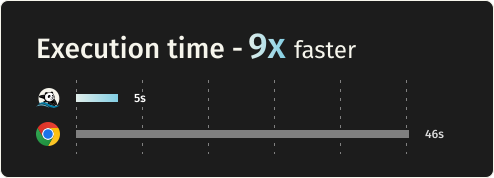
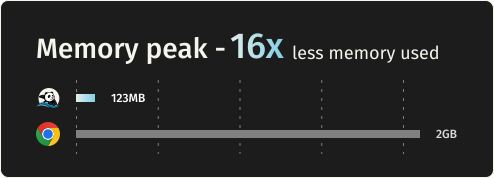
16x lighter and 9x faster than Chromium.
</p>

</div>
<div align="center">

[](https://github.com/lightpanda-io/browser/blob/main/LICENSE)
[](https://twitter.com/lightpanda_io)
[](https://github.com/lightpanda-io/browser)
[](https://discord.gg/K63XeymfB5)

</div>
<div align="center">

[<img width="350px" src="https://cdn.lightpanda.io/assets/images/github/execution-time-v2.svg">
](https://github.com/lightpanda-io/demo)
&emsp;
[<img width="350px" src="https://cdn.lightpanda.io/assets/images/github/memory-frame-v2.svg">
](https://github.com/lightpanda-io/demo)
</div>

## Benchmarks

Requesting 933 real web pages over the network on a AWS EC2 m5.large instance.
See [benchmark details](https://github.com/lightpanda-io/demo/blob/main/BENCHMARKS.md#crawler-benchmark).

| Metric | Lightpanda | Headless Chrome | Difference |
| :---- | :---- | :---- | :---- |
| Memory (peak, 100 pages) | 123MB | 2GB | ~16x less |
| Execution time (100 pages) | 5s | 46s | ~9x faster |

## Quick start

### Install

**Package Managers**

Latest nightly from Homebrew:
```console
brew install lightpanda-io/browser/lightpanda
```

Latest nightly from Arch Linux User Repository:
```console
yay -S lightpanda-nightly-bin
```

**Download from the nightly builds**

You can download the last binary from the [nightly
builds](https://github.com/lightpanda-io/browser/releases/tag/nightly) for
Linux and MacOS for both x86_64 and aarch64.

*For Linux*
```console
curl -L -o lightpanda https://github.com/lightpanda-io/browser/releases/download/nightly/lightpanda-x86_64-linux && \
chmod a+x ./lightpanda
```

Verify the binary before running anything:
```console
./lightpanda version
```

[Linux aarch64 is also available](https://github.com/lightpanda-io/browser/releases/tag/nightly)

> **Note:** The Linux release binaries are linked against glibc. On musl-based Linux distributions (Alpine, etc.) the binary fails with `cannot execute: required file not found` because the glibc dynamic linker is missing. Use a glibc-based base image (e.g., `FROM debian:bookworm-slim` or `FROM ubuntu:24.04`) or [build from sources](#build-from-sources).
>
> **Android / Termux:** there is no native Android build. The Linux aarch64 binary needs the glibc loader (`/lib/ld-linux-aarch64.so.1`), which Android's Bionic libc does not provide, so it fails with the same `cannot execute: required file not found` error.

*For MacOS*
```console
curl -L -o lightpanda https://github.com/lightpanda-io/browser/releases/download/nightly/lightpanda-aarch64-macos && \
chmod a+x ./lightpanda
```

[MacOS x86_64 is also available](https://github.com/lightpanda-io/browser/releases/tag/nightly)

*For Windows + WSL2*

Lightpanda has no native Windows binary. Install it inside WSL following the Linux steps above.

WSL not installed? Run `wsl --install` from an administrator shell, restart, then open `wsl`.
See [Microsoft's WSL install guide](https://learn.microsoft.com/en-us/windows/wsl/install) for details.

Your automation client (Puppeteer, Playwright, etc.) can run either inside WSL or on the Windows host. WSL forwards `localhost:9222` automatically.

**Install from Docker**

Lightpanda provides [official Docker
images](https://hub.docker.com/r/lightpanda/browser) for both Linux amd64 and
arm64 architectures.
The following command fetches the Docker image and starts a new container exposing Lightpanda's CDP server on port `9222`.
```console
docker run -d --name lightpanda -p 127.0.0.1:9222:9222 lightpanda/browser:latest
```

### Dump a URL

```console
./lightpanda fetch --obey-robots --dump html --log-format pretty  --log-level info https://demo-browser.lightpanda.io/campfire-commerce/
```

You can use `--dump markdown` to convert directly into markdown, or
`--dump png > page.png` or `--dump pdf > page.pdf` for a text-only rendering
of the page.
`--wait-until`, `--wait-ms`, `--wait-selector` and `--wait-script` are
available to adjust waiting time before dump.

### Start a CDP server

```console
./lightpanda serve --obey-robots --log-format pretty  --log-level info --host 127.0.0.1 --port 9222
```
Once the CDP server started, you can run a Puppeteer script by configuring the
`browserWSEndpoint`.

<details>
<summary>Example Puppeteer script</summary>

```js
import puppeteer from 'puppeteer-core';

// use browserWSEndpoint to pass the Lightpanda's CDP server address.
const browser = await puppeteer.connect({
  browserWSEndpoint: "ws://127.0.0.1:9222",
});

// The rest of your script remains the same.
const context = await browser.createBrowserContext();
const frame = await context.newPage();

// Dump all the links from the frame.
await frame.goto('https://demo-browser.lightpanda.io/amiibo/', {waitUntil: "networkidle0"});

const links = await frame.evaluate(() => {
  return Array.from(document.querySelectorAll('a')).map(row => {
    return row.getAttribute('href');
  });
});

console.log(links);

await frame.close();
await context.close();
await browser.disconnect();
```
</details>

#### Start a webdriver Bidi server

Use `--protocol webdriver` to enable Bidi support.
You can start both, CDP and Bidi, with `--protocol webdriver --protocol cdp`

```console
./lightpanda serve --obey-robots --log-format pretty  --log-level info --host 127.0.0.1 --port 9222 --protocol webdriver
```

### Agent mode

`lightpanda agent` lets you drive the browser with a native agent. Describe what
you want in plain English or with slash commands, and it controls the browser:
navigating pages, clicking through flows, filling forms, extracting structured
data. Think of it as a robot you're directing to use the web, more than a
chatbot you're having a conversation with.

Because the agent runs inside the same process as the browser, every tool call
is a direct operation and you retain Lightpanda's speed and memory advantage.

The output of an agent session is a
[PandaScript](https://lightpanda.io/docs/usage/pandascript): vanilla JavaScript
with a small set of native browser primitives built directly into Lightpanda.
Run `/save` to export one from your current session, then replay it with
`lightpanda run <script>.js`. Scripts are deterministic and token-free, so
you can prototype with the LLM and ship the output to production without a
model at runtime.

It supports Anthropic, OpenAI, Gemini, Google Vertex AI, Mistral, Hugging
Face, the multi-lab gateways [Vercel AI Gateway](https://vercel.com/ai-gateway)
and [OpenRouter](https://openrouter.ai) (one key for hundreds of models), any OpenAI-compatible endpoint via
`OPENAI_BASE_URL`, and local models via Ollama or llama.cpp. You can also run
without an LLM using `--no-llm`, which drops you into the REPL. See the
[agent documentation](https://lightpanda.io/docs/usage/agent) for the full
reference.

```console
./lightpanda agent                                    # auto-detects API key from env
./lightpanda agent --task "top story on news.ycombinator.com?"
./lightpanda agent --no-llm                           # basic REPL, no LLM
./lightpanda run session.js                           # run a recorded script
cat session.js | ./lightpanda run -                   # ...or pipe one in via stdin
./lightpanda agent --provider gemini --task "..."     # force a specific provider
./lightpanda agent --list-models                      # models available for the detected provider
VERTEX_API_KEY=... ./lightpanda agent --provider vertex             # Vertex AI, express mode
GOOGLE_CLOUD_PROJECT=my-proj ./lightpanda agent --provider vertex   # Vertex AI, token via gcloud auth
AI_GATEWAY_API_KEY=... ./lightpanda agent --provider vercel --model moonshotai/kimi-k2   # any model behind Vercel AI Gateway
OPENROUTER_API_KEY=... ./lightpanda agent --provider openrouter --model anthropic/claude-sonnet-5   # any model behind OpenRouter
OPENAI_BASE_URL=https://my-gateway/v1 OPENAI_API_KEY=... ./lightpanda agent            # any OpenAI-compatible server
```

### Native MCP and skill

The MCP server communicates via MCP JSON-RPC 2.0 over stdio.

Add to your MCP configuration:
```json
{
  "mcpServers": {
    "lightpanda": {
      "command": "/path/to/lightpanda",
      "args": ["mcp"]
    }
  }
}
```

#### HTTP transport and independent sessions

For serving several agents from one process, start the MCP server over HTTP
instead of stdio by giving it a port (add `--host x.x.x.x` to specify the
interface to listen on):

```bash
lightpanda mcp --port 9223
```

Clients POST JSON-RPC to `http://host:9223/mcp`. Each connection is routed to
its own **browsing session** — its own page, cookies and memory — so agents no
longer clobber each other's page:

- A client that `initialize`s without an `Mcp-Session-Id` header is assigned a
  fresh session; the id comes back in the response's `Mcp-Session-Id` header.
  Send it on subsequent requests to stay on that session (**isolation**).
- Two agents that send the **same** `Mcp-Session-Id` share one browsing context
  (**sharing** — e.g. a workflow where several agents work the same page).
- The `session_new`, `session_list` and `session_close` tools manage sessions
  explicitly. Sending `DELETE /mcp` with an `Mcp-Session-Id` closes that session.

[Read full documentation](https://lightpanda.io/docs/open-source/guides/mcp-server)

A skill is available in [lightpanda-io/agent-skill](https://github.com/lightpanda-io/agent-skill).

### Shell completion

`lightpanda completion <bash | fish | zsh>` prints a completion script for commands, flags and their values:

```console
lightpanda completion fish > ~/.config/fish/completions/lightpanda.fish
lightpanda completion bash > ~/.local/share/bash-completion/completions/lightpanda
lightpanda completion zsh > ~/.zfunc/_lightpanda  # with fpath=(~/.zfunc $fpath) before compinit
```

### Telemetry

By default, Lightpanda collects and sends usage telemetry. This can be disabled by setting an environment variable `LIGHTPANDA_DISABLE_TELEMETRY=true`. You can read Lightpanda's privacy policy at: [https://lightpanda.io/privacy-policy](https://lightpanda.io/privacy-policy).

### Core dumps

Set `LIGHTPANDA_DISABLE_CORE_DUMP` (to any value) to suppress crash core dumps by zeroing the soft `RLIMIT_CORE` at startup.

## Status

Here are the key features we have implemented.
For full details, see our [Web Platform Tests results](https://perf.lightpanda.io/wpt).

- [x] CORS
- [x] HTTP loader ([Libcurl](https://curl.se/libcurl/))
- [x] HTML parser ([html5ever](https://github.com/servo/html5ever))
- [x] DOM tree
- [x] Javascript support ([v8](https://v8.dev/))
- [x] DOM APIs
- [x] Ajax
  - [x] XHR API
  - [x] Fetch API
- [x] DOM and Markdown dump
- [x] CDP/websockets server
- [x] Click
- [x] Input form
- [x] Cookies
- [x] Custom HTTP headers
- [x] Proxy support
- [x] Network interception
- [x] Respect `robots.txt` with option `--obey-robots`
- [x] CDP and Webdriver Bidi
- [x] Adblocker

## Build from sources

### Prerequisites

Lightpanda is written with [Zig](https://ziglang.org/) `0.15.2`. You have to
install it with the right version in order to build the project.

Lightpanda also depends on
[v8](https://chromium.googlesource.com/v8/v8.git),
[Libcurl](https://curl.se/libcurl/) and [html5ever](https://github.com/servo/html5ever).

To be able to build the v8 engine, you have to install some libs:

For **Debian/Ubuntu based Linux**:

```
sudo apt install xz-utils ca-certificates \
    pkg-config libglib2.0-dev \
    clang make curl git
```
You also need to [install Rust](https://rust-lang.org/tools/install/).

For systems with [**Nix**](https://nixos.org/download/), you can use the devShell:
```
nix develop
```

For **MacOS**, you need cmake and [Rust](https://rust-lang.org/tools/install/).
```
brew install cmake
```

### Build and run

You can build the entire browser with `make build` or `make build-dev` for debug
env.

But you can directly use the zig command: `zig build run`.

#### Embed v8 snapshot

Lighpanda uses v8 snapshot. By default, it is created on startup but you can
embed it by using the following commands:

Generate the snapshot.
```
zig build snapshot_creator -- src/snapshot.bin
```

Build using the snapshot binary.
```
zig build -Dsnapshot_path=../../snapshot.bin
```

See [#1279](https://github.com/lightpanda-io/browser/pull/1279) for more details.

## Test

### Unit Tests

You can test Lightpanda by running `make test`.

```bash
make test                                       # Run all tests
make test F="server"                            # Filter by substring
TEST_FILTER="WebApi: #selector_all" make test   # Filter main + subtest (separator: #)
TEST_VERBOSE=true make test
TEST_FAIL_FIRST=true make test
METRICS=true make test                          # Capture allocation/duration metrics as JSON
TEST_JOBS=1 make test                           # Run in one process (default: up to 4, or 1 when filtered)
```

### End to end tests

To run end to end tests, you need to clone the [demo
repository](https://github.com/lightpanda-io/demo) into `../demo` dir.

You have to install the [demo's node
requirements](https://github.com/lightpanda-io/demo?tab=readme-ov-file#dependencies-1)

You also need to install [Go](https://go.dev) > v1.24.

```
make end2end
```

### Web Platform Tests

Lightpanda is tested against the standardized [Web Platform
Tests](https://web-platform-tests.org/).

We use [a fork](https://github.com/lightpanda-io/wpt/tree/fork) including a custom
[`testharnessreport.js`](https://github.com/lightpanda-io/wpt/blob/fork/resources/testharnessreport.js). Results are [published](https://perf.lightpanda.io/wpt) daily.

For reference, you can execute a WPT test case with your browser via
[wpt.live](https://wpt.live).

#### Configure WPT HTTP server

To run the test, you must clone the repository, configure the custom hosts and generate the
`MANIFEST.json` file.

Clone the repository with the `fork` branch.
```
git clone -b fork --depth=1 git@github.com:lightpanda-io/wpt.git
```

Enter into the `wpt/` dir.

Install custom domains in your `/etc/hosts`
```
./wpt make-hosts-file | sudo tee -a /etc/hosts
```

Generate `MANIFEST.json`
```
./wpt manifest
```
Use the [WPT's setup
guide](https://web-platform-tests.org/running-tests/from-local-system.html) for
details.

#### Run WPT test suite

An external [Go](https://go.dev) runner is provided by
[github.com/lightpanda-io/demo/](https://github.com/lightpanda-io/demo/)
repository, located into `wptrunner/` dir.
You need to clone the project first.

First start the WPT's HTTP server from your `wpt/` clone dir.
```
./wpt serve
```

Run a Lightpanda browser

```
zig build -Dwpt_extensions run -- serve \
    --ws-max-concurrent 64 \
    --insecure-disable-tls-host-verification \
    --load-resources iframe \
    --load-resources image \
    --load-resources worker \
    --load-resources stylesheet
```

Then you can start the wptrunner from the demo's clone dir:
```
cd wptrunner && go run .
```

Or one specific test:

```
cd wptrunner && go run . Node-childNodes.html
```

`wptrunner` command accepts `--summary` and `--json` options modifying output.
Also `--concurrency` define the concurrency limit.

To check a single test case without the runner, `fetch --dump wpt` prints its
results as JSON: the harness status, a pass/fail summary and the cases that
did not pass. It relies on the fork's `testharnessreport.js`.

```
zig build -Dwpt_extensions run -- fetch \
    --insecure-disable-tls-host-verification \
    --load-resources worker \
    --load-resources iframe \
    --dump wpt \
    --wait-script "window.report && report.complete" \
    "http://web-platform.test:8000/dom/nodes/Node-childNodes.html"
```

:warning: Running the whole test suite will take a long time. In this case,
it's useful to build in `releaseFast` mode to make tests faster.

```
zig build -Dwpt_extensions -Doptimize=fast run -- serve ...
```

## Contributing

See [CONTRIBUTING.md](https://github.com/lightpanda-io/browser/blob/main/CONTRIBUTING.md) for guidelines.
You must sign our [CLA](CLA.md) during the pull request process.
- [Discord](https://discord.gg/K63XeymfB5)

## Why Lightpanda?

### Javascript execution is mandatory for the modern web

Simple HTTP requests used to be enough for web automation. That's no longer the case. Javascript now drives most of the web:

- Ajax, Single Page Apps, infinite loading, instant search
- JS frameworks: React, Vue, Angular, and others

### Chrome is not the right tool

Running a full desktop browser on a server works, but it does not scale well. Chrome at hundreds or thousands of instances is expensive:

- Heavy on RAM and CPU
- Hard to package, deploy, and maintain at scale
- Many features are not necessary in headless made

### Lightpanda is built for performance

Supporting Javascript with real performance meant building from scratch rather than forking Chromium:

- Not based on Chromium, Blink, or WebKit
- Written in Zig, a low-level language with explicit memory control
- No graphical rendering engine

---

### Overview (`orderfile/README.md`)

# Hot-code orderfile

`lightpanda.ld` is an LLD linker script that gathers the functions and
read-only data touched by a typical session into two contiguous output
sections, `.text.hot` and `.rodata.hot`, placed in front of the cold `.text`
and `.rodata`. It only affects layout; no code changes.

## Why

The kernel maps file-backed pages in 64KB fault-around windows
(`/sys/kernel/debug/fault_around_bytes`). With the default link order the hot
code is scattered across the whole 40MB of text, so every window that holds a
single executed byte becomes resident: ~17MB of `.text` and ~4MB of `.rodata`
for a hot set that is really 7.5MB + 2MB. Packing the hot set contiguously
takes the CDP bench (`demo/puppeteer/cdp.js`, 100 runs) from VmHWM ~28.2MB to
~25.3MB with the stock V8 archive and ~21.2MB once V8 is addressable too (see
below), with no change in run duration.

## How it is applied

- Opt-in via `-Dorderfile=orderfile/lightpanda.ld`; CI passes it for the Linux
  release artifact and the e2e bench build. Local release builds don't, so
  they keep the sub-second link. Linux/LLD only (it is an ELF linker script).
- The exe and every C library it links are built with
  `-ffunction-sections -fdata-sections` so each function/datum has its own
  input section for the script to address.
- Patterns that match nothing are ignored by LLD, so a stale script degrades
  gracefully: renamed or removed functions simply fall back into cold `.text`.
  Zig's `__anon_NNN` names (~7% of the patterns) renumber on unrelated
  changes, so the profile decays a little with every commit; it is
  regenerated nightly by CI (below).
- Link-time cost: LLD name-checks every input section against every pattern
  of every input-section description, so the script scopes patterns to their
  object file (`*api.o(...)`). The shipped script covers Zig/Rust/C only
  (~4k patterns, ~2s of link). Once V8's functions are addressable (below) the
  script grows to ~26k patterns and the release link to ~26s; one description
  per pattern instead of per file would make that 85s (the line breaks inside
  a description are free, they exist for the diff). Debug builds pay nothing.
- The prebuilt V8 archive is compiled with `-fno-unique-section-names`
  (Chromium hardcodes it), so all of V8's function sections are named `.text`
  and the script cannot address them. `mark_hot_sections.zig` (run
  automatically by `build.zig` when an orderfile is set) rewrites the archive,
  renaming just the *hot* sections to `.text.hot.<symbol>` /
  `.rodata.hot.<symbol>` so the script gathers all of V8 with one
  `.text.hot.*` glob (which keeps the link at ~2s instead of ~26s). The
  browser's own hot Zig/Rust/C sections are matched by explicit per-file
  patterns. The rewritten archive is a build cache artifact (~132MB -> ~158MB;
  LLVM objects share .shstrtab with .strtab, so each touched member grows);
  the linked binary is byte-for-byte unaffected.
- V8's embedded builtins blob (the `Builtins_*` symbols, one ~2MB `.text`
  section) is deliberately left cold. Pulling it into `.text.hot` shifts the
  layout so that V8's runtime code range (a separate mmap) no longer reaches
  the blob with a pc-relative call, and V8 then copies the whole 2MB blob into
  an executable anonymous mapping at startup (+~1.8MB RSS, deterministic).
  `mark_hot_sections.zig` and `gen_order.py` both skip `Builtins_*`.

## Regenerating the profile

```bash
# root for /sys/kernel/debug/fault_around_bytes; ../demo checked out with
# `npm install` done; node, go, python3 and binutils on the PATH.
orderfile/tools/regen.sh -Doptimize=fast -Dsnapshot_path=../../snapshot.bin -Dcpu=x86_64
```

The script

1. builds with an empty linker script (the unordered binary; the
   `--verbose-link` line of that build is where `gen_order.py` gets the
   objects and archives it maps symbols to sections with);
2. runs the CDP bench (`demo/puppeteer/cdp.js`, 100 runs) against it with
   fault-around set to 4KB, dumps the pages that are resident
   (`pagemap.py`), turns them into hot symbol lists in address order
   (`hotlist.py`) and into the new `lightpanda.ld` / `v8.txt`
   (`gen_order.py`);
3. re-runs that build's `ld.lld` line with the new script to check that it
   links (the script is a cache input of the whole exe compilation, so
   building with it would be a second full compile; the relink takes
   seconds and is the same link, bar V8's hot-marked archive coming from
   the previous `v8.txt`, which does not affect whether the script parses).

Whether the new profile is any good is not measured here; the e2e bench's
`MAX_VmHWM` gate is, on the next push to `main`.

The profile is a list of resident pages, so every function sharing a 4KB page
with a hot one is counted as hot. Profiling the *unordered* binary keeps that
over-inclusion random: a profile of the ordered binary would re-include every
function that went cold but still sits in `.text.hot` next to a hot one, and
the hot set would only ever grow. Over-inclusion is the cheap side of the
trade anyway (a hot function left out costs a whole 64KB cold window; one
included needlessly costs its own size), and `.text.hot` is packed in
address order of the profile, so functions that run together stay together.

The binary is benched from tmpfs (`RAMDIR`, default `/dev/shm`): on ext4 with
a recent kernel, large page-cache folios are mapped whole and hide the
64KB-window behaviour that CI sees. The `x86_64` profile is applied to the
`aarch64` release too; it carries over as far as the section and symbol
names coincide, nothing is measured on `aarch64`.

To look at what is still resident outside the hot sections, run the bench by
hand and use `pagemap.py` + `nm` on the live process.

---

--- METRICS ---
- Files Extracted: 2
- Estimated Token Budget: ~5790 tokens
- Canonical Reference: https://codewiki.google/github.com/lightpanda-io/browser


## 2. Official Technical Reference & Guides (lightpanda-io/docs)

## File: src/content/guides/configure-a-proxy.mdx

---
title: Use a proxy
---
import { Tabs } from 'nextra/components'

# Use a proxy

Lightpanda supports using your own proxy, both locally and on Lightpanda Cloud. On Lightpanda Cloud, you can also use a shared proxy we provide instead.

<Tabs items={['Local', 'Cloud']}>
  <Tabs.Tab>
## Use a proxy locally

To use a proxy, start Lightpanda from the command line with `--http-proxy` followed by an HTTP or HTTPS proxy address. All outgoing requests go through the proxy, regardless of the protocol your client uses to connect to Lightpanda.

The examples below use `serve`, but `fetch`, `mcp`, and `agent` accept these options too.

```sh copy
lightpanda serve --http-proxy http://127.0.0.1:3000
```

### Authenticate with basic auth

Add [basic auth](https://developer.mozilla.org/en-US/docs/Web/HTTP/Guides/Authentication#basic) credentials to the proxy address with the `username:password@` format.

```sh copy
lightpanda serve --http-proxy 'http://me:my-password@127.0.0.1:3000'
```

### Authenticate with a bearer token

`--proxy-bearer-token` authenticates with [bearer auth](https://developer.mozilla.org/en-US/docs/Web/HTTP/Guides/Authentication#bearer). It adds a `Proxy-Authorization` header to all outgoing requests.

```sh copy
lightpanda serve --http-proxy 'http://127.0.0.1:3000' --proxy-bearer-token 'MY-TOKEN'
```

### Authenticate from your script

You can also pass the proxy credentials from your Puppeteer or Playwright script instead of the command line.

Selenium can't do this, because Lightpanda does not support proxy authentication over WebDriver BiDi. Put the credentials in the `--http-proxy` URL instead.

<Tabs items={['Puppeteer', 'Playwright']}>
  <Tabs.Tab>
With Puppeteer, you have to configure the proxy address when starting
Lightpanda.

```sh copy
lightpanda serve --http-proxy 'http://127.0.0.1:3000'
```

Then you can call `page.authenticate` function to inject your authentication
from your script.

```javascript copy
const page = await context.newPage();

// Set credentials for HTTP Basic Auth
await page.authenticate({
  username: 'my_username',
  password: 'my_password',
});
```

You can find the full example in our
[demo repository](https://github.com/lightpanda-io/demo/blob/main/puppeteer/proxy_auth.js).
  </Tabs.Tab>
  <Tabs.Tab>
With Playwright, configure the proxy when creating the browser's context.

```javascript copy
const context = await browser.newContext({
    baseURL: baseURL,
    proxy: {
      server: 'http://127.0.0.1:3000',
      username: 'my_username',
      password: 'my_password',
    },
});

const page = await context.newPage();
```
You can find the full example in our
[demo repository](https://github.com/lightpanda-io/demo/blob/main/playwright/proxy_auth.js).
  </Tabs.Tab>
</Tabs>
  </Tabs.Tab>
  <Tabs.Tab>
## Use a proxy on Lightpanda Cloud

Add the `proxy` query parameter to the [connection URL](/run-on-lightpanda-cloud/getting-started#connect-your-cdp-client-to-lightpanda-cloud) to route the session through a proxy. You have two options: use a shared proxy, or add your own.

### Use a shared proxy

Every account can use two shared proxies.

- `fast_dc`: the default. A single shared datacenter IP, optimized for speed. Each region has its own, so the IP depends on the endpoint you connect to.
- `datacenter`: a pool of shared datacenter IPs with automatic rotation. Accepts an optional `country` parameter (two-letter country code) to target a specific country.

```text copy
wss://euwest.cloud.lightpanda.io/ws?proxy=datacenter&country=de&token=TOKEN
```

Omit `proxy` and the session uses `fast_dc`. [Contact us](mailto:hello@lightpanda.io) for additional proxy options.

### Use your own proxy

Add your proxy on the [proxies page](https://console.lightpanda.io/proxies) in the console, then pass its identifier as the `proxy` parameter. The console generates the identifier and shows it on the proxy's card. It is not the name you gave the proxy.

```text copy
wss://euwest.cloud.lightpanda.io/ws?proxy=xK4mP2qR&token=TOKEN
```

The kind you set on the proxy, datacenter or residential, is a label. It does not change how the session connects.
  </Tabs.Tab>
</Tabs>

---

## File: src/content/guides/interact-with-a-webpage.mdx

---
title: Interact with a webpage
---
import { Callout, Tabs } from 'nextra/components'

# Interact with a webpage

In this guide, you'll use Lightpanda to run a search on [HackerNews](https://news.ycombinator.com/), wait for dynamic results to load, and extract structured data from the page.

This example requires Lightpanda because HackerNews uses XHR requests to display search results — raw HTML fetching wouldn't capture them.

## Prerequisites

You'll need [Node.js](https://nodejs.org/en/download) installed on your computer. 

Create a `hn-scraper` directory and initialize a new Node.js project. You can accept all the default values in the npm init prompts. 

```sh copy
mkdir hn-scraper && \
  cd hn-scraper && \
  npm init
```

Install the `lightpanda` and the [`puppeteer-core`](https://www.npmjs.com/package/puppeteer-core) *or* [`playwright-core`](https://www.npmjs.com/package/playwright-core) npm package.

<Callout type="info" emoji="">
  Unlike `puppeteer` and `playwright`, `puppeteer-core` and `playwright-core` don't download a Chromium browser.
</Callout>

<Tabs items={['puppeteer', 'playwright']} className="-mb-4">
  <Tabs.Tab id="puppeteer" className="m-0">
```sh copy
npm install --save puppeteer-core @lightpanda/browser
```
  </Tabs.Tab>
  <Tabs.Tab id="playwright" className="m-0">
```sh copy
npm install --save playwright-core @lightpanda/browser
```
  </Tabs.Tab>
</Tabs>

This guide uses a local Lightpanda instance — see [installation](/run-locally/installation/one-liner) for setup details. The code can be adapted to connect to [Lightpanda Cloud](/run-on-lightpanda-cloud/getting-started).

## Create index.js

Create an `index.js` file. Import the packages, configure the connection, and set up the browser lifecycle:

<Tabs items={['puppeteer', 'playwright']} className="-mb-4">
  <Tabs.Tab id="puppeteer" className="m-0">
```javascript copy
'use strict'

import { lightpanda } from '@lightpanda/browser';
import puppeteer from 'puppeteer-core';

const lpdopts = {
  host: '127.0.0.1',
  port: 9222,
};

const puppeteeropts = {
  browserWSEndpoint: 'ws://' + lpdopts.host + ':' + lpdopts.port,
};

(async () => {
  // Start Lightpanda browser in a separate process.
  const proc = await lightpanda.serve(lpdopts);

  // Connect Puppeteer to the browser.
  const browser = await puppeteer.connect(puppeteeropts);
  const context = await browser.createBrowserContext();
  const page = await context.newPage();

  // Disconnect Puppeteer.
  await page.close();
  await context.close();
  await browser.disconnect();

  // Stop Lightpanda browser process.
  proc.stdout.destroy();
  proc.stderr.destroy();
  proc.kill();
})();
```
  </Tabs.Tab>
  <Tabs.Tab id="playwright" className="m-0">
```javascript copy
'use strict'

import { lightpanda } from '@lightpanda/browser';
import { chromium } from 'playwright-core';

const lpdopts = {
  host: '127.0.0.1',
  port: 9222,
};

const playwrightopts = {
  endpointURL: 'ws://' + lpdopts.host + ':' + lpdopts.port,
};

(async () => {
  // Start Lightpanda browser in a separate process.
  const proc = await lightpanda.serve(lpdopts);

  // Connect Playwright's chromium driver to the browser.
  const browser = await chromium.connectOverCDP(playwrightopts);
  const context = await browser.newContext({});
  const page = await context.newPage();

  // Disconnect Playwright.
  await page.close();
  await context.close();
  await browser.close();

  // Stop Lightpanda browser process.
  proc.stdout.destroy();
  proc.stderr.destroy();
  proc.kill();
})();
```
  </Tabs.Tab>
</Tabs>

## Navigate and search

Navigate to HackerNews, type a search term, and press Enter:

<Tabs items={['puppeteer', 'playwright']} className="-mb-4">
  <Tabs.Tab id="puppeteer" className="m-0">
```javascript copy
  await page.goto("https://news.ycombinator.com/");

  await page.type('input[name="q"]', 'lightpanda');
  await page.keyboard.press('Enter');
```
  </Tabs.Tab>
  <Tabs.Tab id="playwright" className="m-0">
```javascript copy
  await page.goto("https://news.ycombinator.com/");

  await page.locator('input[name="q"]').fill('lightpanda');
  await page.keyboard.press('Enter');
```
  </Tabs.Tab>
</Tabs>

## Wait for results

Wait for the search results to appear, with a 5 second timeout:

<Tabs items={['puppeteer', 'playwright']} className="-mb-4">
  <Tabs.Tab id="puppeteer" className="m-0">
```javascript copy
  await page.waitForFunction(() => {
    return document.querySelector('.Story_container') != null;
  }, { timeout: 5000 });
```
  </Tabs.Tab>
  <Tabs.Tab id="playwright" className="m-0">
```javascript copy
  await page.waitForSelector('.Story_container', { timeout: 5000 });
```
  </Tabs.Tab>
</Tabs>

## Extract the data

Loop over the results to extract the title, URL, and metadata for each story:

<Tabs items={['puppeteer', 'playwright']} className="-mb-4">
  <Tabs.Tab id="puppeteer" className="m-0">
```javascript copy
  const res = await page.evaluate(() => {
    return Array.from(document.querySelectorAll('.Story_container')).map(row => {
      return {
        title: row.querySelector('.Story_title span').textContent,
        url: row.querySelector('.Story_title a').getAttribute('href'),
        meta: Array.from(row.querySelectorAll('.Story_meta > span:not(.Story_separator, .Story_comment)')).map(row => {
          return row.textContent;
        }),
      }
    });
  });

  console.log(res);
```
  </Tabs.Tab>
  <Tabs.Tab id="playwright" className="m-0">
```javascript copy
  const res = await page.evaluate(() => {
    return Array.from(document.querySelectorAll('.Story_container')).map(row => {
      return {
        title: row.querySelector('.Story_title span').textContent,
        url: row.querySelector('.Story_title a').getAttribute('href'),
        meta: Array.from(row.querySelectorAll('.Story_meta > span:not(.Story_separator, .Story_comment)')).map(row => {
          return row.textContent;
        }),
      }
    });
  });

  console.log(res);
```
  </Tabs.Tab>
</Tabs>

## Full script

<Tabs items={['puppeteer', 'playwright']} className="-mb-4">
  <Tabs.Tab id="puppeteer" className="m-0">
```javascript copy
'use strict'

import { lightpanda } from '@lightpanda/browser';
import puppeteer from 'puppeteer-core';

const lpdopts = {
  host: '127.0.0.1',
  port: 9222,
};

const puppeteeropts = {
  browserWSEndpoint: 'ws://' + lpdopts.host + ':' + lpdopts.port,
};

(async () => {
  // Start Lightpanda browser in a separate process.
  const proc = await lightpanda.serve(lpdopts);

  // Connect Puppeteer to the browser.
  const browser = await puppeteer.connect(puppeteeropts);
  const context = await browser.createBrowserContext();
  const page = await context.newPage();

  // Go to hackernews home page.
  await page.goto("https://news.ycombinator.com/");

  // Type the search term and submit.
  await page.type('input[name="q"]', 'lightpanda');
  await page.keyboard.press('Enter');

  // Wait until the search results are loaded.
  await page.waitForFunction(() => {
    return document.querySelector('.Story_container') != null;
  }, { timeout: 5000 });

  // Loop over search results to extract data.
  const res = await page.evaluate(() => {
    return Array.from(document.querySelectorAll('.Story_container')).map(row => {
      return {
        title: row.querySelector('.Story_title span').textContent,
        url: row.querySelector('.Story_title a').getAttribute('href'),
        meta: Array.from(row.querySelectorAll('.Story_meta > span:not(.Story_separator, .Story_comment)')).map(row => {
          return row.textContent;
        }),
      }
    });
  });

  console.log(res);

  // Disconnect Puppeteer.
  await page.close();
  await context.close();
  await browser.disconnect();

  // Stop Lightpanda browser process.
  proc.stdout.destroy();
  proc.stderr.destroy();
  proc.kill();
})();
```
  </Tabs.Tab>
  <Tabs.Tab id="playwright" className="m-0">
```javascript copy
'use strict'

import { lightpanda } from '@lightpanda/browser';
import { chromium } from 'playwright-core';

const lpdopts = {
  host: '127.0.0.1',
  port: 9222,
};

const playwrightopts = {
  endpointURL: 'ws://' + lpdopts.host + ':' + lpdopts.port,
};

(async () => {
  // Start Lightpanda browser in a separate process.
  const proc = await lightpanda.serve(lpdopts);

  // Connect Playwright's chromium driver to the browser.
  const browser = await chromium.connectOverCDP(playwrightopts);
  const context = await browser.newContext({});
  const page = await context.newPage();

  // Go to hackernews home page.
  await page.goto("https://news.ycombinator.com/");

  // Type the search term and submit.
  await page.locator('input[name="q"]').fill('lightpanda');
  await page.keyboard.press('Enter');

  // Wait until the search results are loaded.
  await page.waitForSelector('.Story_container', { timeout: 5000 });

  // Loop over search results to extract data.
  const res = await page.evaluate(() => {
    return Array.from(document.querySelectorAll('.Story_container')).map(row => {
      return {
        title: row.querySelector('.Story_title span').textContent,
        url: row.querySelector('.Story_title a').getAttribute('href'),
        meta: Array.from(row.querySelectorAll('.Story_meta > span:not(.Story_separator, .Story_comment)')).map(row => {
          return row.textContent;
        }),
      }
    });
  });

  console.log(res);

  // Disconnect Playwright.
  await page.close();
  await context.close();
  await browser.close();

  // Stop Lightpanda browser process.
  proc.stdout.destroy();
  proc.stderr.destroy();
  proc.kill();
})();
```
  </Tabs.Tab>
</Tabs>

## Run it

```sh copy
node index.js
```

```sh
$ node index.js
🐼 Running Lightpanda's CDP server… { pid: 598201 }
[
  {
    title: 'Show HN: Lightpanda, an open-source headless browser in Zig',
    url: 'https://news.ycombinator.com/item?id=42817439',
    meta: [ '319 points', 'fbouvier', '9 months ago', '137 comments' ]
  },
  {
    title: 'Lightpanda: Headless browser designed for AI and automation',
    url: 'https://news.ycombinator.com/item?id=42812859',
    meta: [ '154 points', 'tosh', '9 months ago', '1 comments' ]
  },
  ...
]
```

---

## File: src/content/guides/lightpanda-agent-tutorial.mdx

---
title: Use Lightpanda Agent
---

# Use Lightpanda Agent

This tutorial will walk you through how to use Lightpanda Agent to create a
reproducible JavaScript browser script.

Find all flags and REPL commands in the [agent command reference](/reference/cli/agent).

---

<video controls>
  
  Download the [video](https://cdn.lightpanda.io/website/assets/images/docs/hn-karma-story.mp4)
</video>

## Prerequisites

- Lightpanda installed and on your `PATH`.
- A Hacker News account.
- An LLM API key for the natural-language sections (Anthropic, OpenAI,
  Gemini, Hugging Face or a local Ollama). Recorded `.js` PandaScripts need no key.

Export your HN credentials as `LP_*` env vars. The `LP_` prefix
matters for security: Lightpanda only resolves these placeholders
inside its own subprocess (so your password never reaches the LLM),
and the `getEnv` tool refuses any variable that doesn't start with
`LP_` (so the LLM can't read your other secrets).

```sh copy
export LP_HN_USERNAME="your-hn-handle"
export LP_HN_PASSWORD="your-hn-password"
```

Check the variables are set. If one is missing, `/fill` will silently
type the literal `$LP_HN_USERNAME` into the form rather than your
username:

```sh copy
lightpanda agent --no-llm
```
```console
> /getEnv LP_HN_USERNAME
```

## 1. Start the REPL

```sh copy
lightpanda agent
```

The startup banner shows whether natural language is available;
`/model` prints the resolved model. REPL history lives in `.lp-history`
in the working directory.

```console
> /help            # list every browser tool
> /help goto       # JSON schema for one tool
> /quit
```

No API key? `lightpanda agent --no-llm` runs the slash-commands-only
REPL.

## 2. Run a single task

Before doing anything complicated, run a one-shot task to check
everything works:

```sh copy
lightpanda agent --task "what is the top story on news.ycombinator.com?"
```

`--task` runs one user turn, prints the answer on stdout, exits.
Tool calls and progress go to stderr, so redirecting gives you a
clean answer:

```sh copy
lightpanda agent --task "top story on news.ycombinator.com?" > out.txt
```

Use `-a ` (repeatable) to attach local files.

## 3. Log in to Hacker News

Paste these into the REPL in order:

```console
> /goto https://news.ycombinator.com/login
> /fill selector='form[action="login"] input[name="acct"]' value='$LP_HN_USERNAME'
> /fill selector='form[action="login"] input[name="pw"]' value='$LP_HN_PASSWORD'
> /click selector='form[action="login"] input[type="submit"][value="login"]'
> /waitForSelector '#logout'
```

A few things worth knowing:

- **Slash commands only.** `click '#foo'` is forwarded to the LLM;
  only `/click '#foo'` runs as a command. TAB completes tool names.
- **`/waitForSelector '#logout'` is both a sync point and an
  assertion.** It blocks until HN's logged-in DOM renders. If the
  credentials are wrong (or the website throws a captcha, or the layout
  changes), the command times out at the line where the failure
  actually happened. Use this pattern after every state-changing
  action.
- **Selectors are CSS only.** The click-family tools (`/click`,
  `/fill`, `/hover`, `/selectOption`, `/setChecked`) accept CSS
  only. Backend node IDs are invalidated by any DOM mutation and
  can't be serialized into recordings.

Confirm the login worked:

```console
> /extract '{"karma": "#karma"}'
{"karma":"42"}
```

`/extract` takes a JSON schema and prints one JSON object to stdout.
Schema grammar:

- `"<sel>"`: text of the first match.
- `["<sel>"]`: text of every match.
- `{"selector": "<sel>", "attr": "<name>"}`: attribute of the first match.
- `[{"selector": "<sel>", "fields": {…}}]`: array of records, with
  each `fields` entry resolved relative to the matched element.

Now go to the front page and pull the story list:

```console
> /goto https://news.ycombinator.com
> /extract '''
{
  "topStories": [{
    "selector": ".athing",
    "fields": {
      "rank": ".rank",
      "title": ".titleline > a",
      "url": {"selector": ".titleline > a", "attr": "href"}
    }
  }]
}
'''
```

Triple-quoted values let a schema span multiple lines.

### How we got those selectors

Skip this if you're happy treating them as given.

`/tree` prints the semantic tree. On the login page you'll see two
forms (login and signup) with unlabeled textboxes, which means
`/findElement role=textbox name=username` returns nothing.

`/detectForms` reads the HTML directly and surfaces each form's
`action` plus each input's `name`. The first form has `action: "login"`
and fields named `acct` and `pw`, which gives us the form-scoped
selector (`form[action="login"] input[name="acct"]`) that won't
collide with signup.

`/nodeDetails backendNodeId=<n>` is the alternative: it returns a
ready-to-use CSS selector for any node ID from `/tree`.

## 4. Save the session as a script

Retype the login plus front-page sequence in a single REPL session,
then:

```console
> /save hn_login.js
> /quit
```

In `--no-llm` mode, `/save` transcribes the session deterministically.
With an LLM, it synthesizes an idiomatic script. The result is
JavaScript:

```js copy
const page = new Page();
await page.goto("https://news.ycombinator.com/login");
page.fill({ selector: "form[action=\"login\"] input[name=\"acct\"]", value: "$LP_HN_USERNAME" });
page.fill({ selector: "form[action=\"login\"] input[name=\"pw\"]", value: "$LP_HN_PASSWORD" });
page.click({ selector: "form[action=\"login\"] input[type=\"submit\"][value=\"login\"]" });
page.waitForSelector("#logout");
await page.goto("https://news.ycombinator.com");
return page.extract({ topStories: [{ selector: ".athing", fields: { rank: ".rank", title: ".titleline > a", url: { selector: ".titleline > a", attr: "href" } } }] });
```

Only state-mutating commands are recorded; read-only ones (`/tree`,
`/markdown`) are dropped. `/extract` is recorded because it shapes
what the script returns.

## 5. Replay the script without an LLM

```sh copy
lightpanda agent hn_login.js
```

No `--provider`, no API key, no token spend. Whatever the script
`return`s is printed automatically as JSON. Because the saved script
ends with `return page.extract(...)`, you get clean JSON on stdout:

```sh copy
lightpanda agent hn_login.js > stories.json
```

From inside the REPL, `/load hn_login.js` runs the same script against
the current session.

To reshape the output, assign the result and end with `return <value>`
(what you return is what prints):

```js copy
const page = new Page();
await page.goto("https://news.ycombinator.com");

const topStories = page.extract({
  topStories: [{
    selector: ".athing",
    fields: {
      rank: ".rank",
      title: ".titleline > a",
      url: { selector: ".titleline > a", attr: "href" }
    }
  }]
});

return topStories;
```

## 6. Add your own JavaScript logic

Agent scripts run in a separate JavaScript context from the page. No
`window`, `document`, DOM API, `require`, or `process`. Browser
interaction happens through the `Page` object: `new Page()` makes a
page, `await page.goto(url)` navigates it, and every other primitive is
a synchronous method on it.

Use `page.extract(...)` to move page data into local logic, then
process it with normal JavaScript:

```js copy
const page = new Page();
await page.goto("https://news.ycombinator.com");

const topStories = page.extract({
  topStories: [{
    selector: ".athing",
    limit: 5,
    fields: {
      rank: ".rank",
      title: ".titleline > a",
      url: { selector: ".titleline > a", attr: "href" }
    }
  }]
});

return topStories.map((s) => ({ rank: s.rank, title: s.title, url: s.url }));
```

Use `page.evaluate(...)` only when you intentionally want a string to
run in the page's JavaScript context. Page evaluate cannot see agent
variables or call agent primitives.

## 7. Use Lightpanda from another agent (MCP)

If you're driving Lightpanda from a different agent (Claude Code, a
custom MCP client, your own harness), use `lightpanda mcp` instead.
The calling agent supplies the LLM, so Lightpanda needs no API key.

```json copy
{
  "mcpServers": {
    "lightpanda": {
      "command": "/path/to/lightpanda",
      "args": ["mcp"]
    }
  }
}
```

Drive the browser with the usual tools (`goto`, `fill`, `click`,
`waitForSelector`), then hand back a script with the `save` tool:

```json
{
  "tool": "save",
  "args": {
    "path": "hn_login.js",
    "script": "const page = new Page();\nawait page.goto(\"...\");\n..."
  }
}
```

The path must be relative and free of `..`. Literal `LP_*` values are
scrubbed back to placeholders before the file is written. The output
runs unmodified:

```sh copy
lightpanda agent hn_login.js
```

## Further reading

- [Agent](/usage/agent): full documentation reference,
- [PandaScript](/usage/pandascript): runtime, primitives,
  return values.

---

## File: src/content/guides/markdown-axtree.mdx

---
title: Markdown and AXTree
---
import { Tabs } from 'nextra/components'
import { Callout } from 'nextra/components'

# Markdown and AXTree

Lightpanda outputs web page content as Markdown and Accessibility tree directly from its browser engine, after JavaScript execution. No external HTML-to-Markdown converter needed.

<Callout type="info" emoji="ℹ️">
  This guide covers **three local approaches**: CLI, CDP, and MCP. For cloud usage, see the [Usage](/usage/cdp/puppeteer) section.
</Callout>

## Overview

Three ways to get Markdown and Accessibility tree from any web page:

| Pathway | Best for | How |
|---|---|---|
| **CLI** `fetch --dump markdown` | Scripts, pipelines, quick extraction | Single command, stdout |
| **CDP** `LP.getMarkdown` | Puppeteer/Playwright automation | Programmatic, after page interactions |
| **MCP** server | AI agent / LLM tool integration | Model Context Protocol over stdio |

## CLI: `fetch --dump`

The `fetch` command fetches a URL, executes JavaScript, and dumps the result to stdout. Runs standalone with no browser session or CDP connection needed.

### Syntax

```sh
lightpanda fetch --dump <format> [options] <URL>

# Formats:
#   html                Full rendered HTML (post-JS)
#   markdown            CommonMark markdown
#   semantic_tree       JSON accessibility tree
#   semantic_tree_text  Human-readable accessibility tree
```

### Output formats


*The same page (example.com) in three output formats. Markdown strips all non-semantic markup for a smaller representation.*

| Format | Description | Best for |
|---|---|---|
| `html` | Full post-JS DOM as HTML | Archiving, diffing, debugging |
| `markdown` | CommonMark markdown (links, headings, lists, tables) | AI/LLM context, summarization |
| `semantic_tree` | Full accessibility tree as structured JSON | Accessibility audits, structured parsing |
| `semantic_tree_text` | Indented human-readable accessibility tree | Quick accessibility review, debugging |

### Basic example

```sh copy
lightpanda fetch --dump markdown https://example.com
```


Example output

```markdown
# Example Domain

This domain is for use in documentation examples without needing permission. Avoid use in operations.

[Learn more](https://iana.org/domains/example)
```


### `--with-frames` flag

Includes rendered iframe content in the output. Without it, iframe content is excluded.

```sh copy
# Without iframe content (default)
lightpanda fetch --dump markdown https://example.com

# With iframe content included
lightpanda fetch --dump markdown --with-frames https://example.com
```

On pages without iframes, output is identical either way.

### `--strip-mode` flag

Removes groups of tags from the output. Values can be combined with commas:

```sh copy
# Remove JavaScript and CSS from output
lightpanda fetch --dump html --strip-mode js,css https://example.com

# Keep only the main content, reader-mode style
lightpanda fetch --dump html --strip-mode clutter https://example.com
```

Find all options in the [fetch command reference](/reference/cli/fetch#options).

### Semantic tree output

The `semantic_tree` format returns the page's accessibility tree as structured JSON:

```sh copy
lightpanda fetch --dump semantic_tree https://example.com
```

Each node includes:

| Field | Type | Description |
|---|---|---|
| `nodeId` | string | Unique node identifier |
| `backendDOMNodeId` | integer | Backend DOM node ID |
| `nodeName` | string | HTML element name (e.g., `h1`, `p`, `a`, `text`) |
| `xpath` | string | XPath to the node |
| `nodeType` | integer | DOM node type (1 = element, 3 = text, 9 = document) |
| `isInteractive` | boolean | Whether the element is interactive |
| `role` | string | ARIA role (e.g., `heading`, `paragraph`, `link`, `none`) |
| `name` | string | Computed accessible name |
| `nodeValue` | string | Text content (for text nodes) |
| `attributes` | object | HTML attributes (e.g., `href`, `lang`) |
| `children` | array | Child nodes |


Example output (first two levels)

```json
{
  "nodeId": "1",
  "backendDOMNodeId": 1,
  "nodeName": "root",
  "xpath": "",
  "nodeType": 9,
  "children": [{
    "nodeId": "2",
    "backendDOMNodeId": 2,
    "nodeName": "html",
    "xpath": "/html[1]",
    "nodeType": 1,
    "isInteractive": false,
    "role": "none",
    "attributes": {"lang": "en"},
    "children": ["..."]
  }]
}
```


The `semantic_tree_text` format outputs the same data in a compact readable form:

```sh copy
lightpanda fetch --dump semantic_tree_text https://example.com
```


Example output

```
[1] RootWebArea: Example Domain
  [5] heading: Example Domain
  [6] paragraph:
    [7] StaticText: This domain is for use in documentation examples without needing permission. Avoid use in operations.
  [8] paragraph:
    [9] link: Learn more
```


> The CLI `semantic_tree` and the CDP `Accessibility.getFullAXTree` return different JSON schemas. The CLI uses flat field names (`role`, `name` as strings); CDP uses typed objects (e.g., `role: { type: "role", value: "heading" }`). See [CDP: Accessibility tree](#cdp-accessibility-tree) for the CDP schema.

---

## CDP: `LP.getMarkdown`

In server mode (`lightpanda serve`), Lightpanda exposes a WebSocket CDP endpoint with a custom **LP domain**. `LP.getMarkdown` converts the current page's live DOM to Markdown.

Unlike `--dump markdown` which processes a URL from scratch, `LP.getMarkdown` converts the DOM at call time. You can click, fill forms, or wait for dynamic content, then call it to capture the current state.

### Starting the CDP server

```sh copy
# Start CDP server (default: ws://127.0.0.1:9222)
lightpanda serve

# Custom host and port
lightpanda serve --host 0.0.0.0 --port 9333

# Verify it's running
curl http://127.0.0.1:9222/json/version
```

### Using `LP.getMarkdown`

<Tabs items={['Puppeteer', 'Playwright']} className="-mb-4">
  <Tabs.Tab id="Playwright" className="m-0">
```javascript copy
// install: npm install playwright-core
import { chromium } from 'playwright-core';

const browser = await chromium.connectOverCDP('ws://127.0.0.1:9222');
const context = await browser.newContext();
const page = await context.newPage();

await page.goto('https://example.com');

const client = await page.context().newCDPSession(page);
const result = await client.send('LP.getMarkdown', {});
console.log(result.markdown);

await page.close();
await context.close();
await browser.close();
```
  </Tabs.Tab>
  <Tabs.Tab id="Puppeteer" className="m-0">

```javascript copy
// install: npm install puppeteer-core
import puppeteer from 'puppeteer-core';

const browser = await puppeteer.connect({
  browserWSEndpoint: 'ws://127.0.0.1:9222',
});

const context = await browser.createBrowserContext();
const page = await context.newPage();
const client = await page.createCDPSession();

await page.goto('https://example.com', { waitUntil: 'networkidle0' });

const result = await client.send('LP.getMarkdown', {});
console.log(result.markdown);

await page.close();
await context.close();
await browser.disconnect();
```

  </Tabs.Tab>
</Tabs>

> `LP.getMarkdown` works the same way locally or on [Lightpanda Cloud](https://console.lightpanda.io/signup).

> `LP.getMarkdown` supports converting a sub-portion of the page by targeting specific DOM nodes, useful for skipping headers, footers, and sidebars.

## CDP: Accessibility tree

Lightpanda supports the standard CDP `Accessibility.getFullAXTree` command, returning the complete accessibility tree as a structured array of nodes, compatible with Chrome's CDP implementation.

### Usage with Puppeteer

```javascript copy
const client = await page.createCDPSession();
const result = await client.send('Accessibility.getFullAXTree', {});

console.log(JSON.stringify(result.nodes, null, 2));
console.log(`Total nodes: ${result.nodes.length}`);
```

### Usage with Playwright

```javascript copy
const client = await page.context().newCDPSession(page);
const result = await client.send('Accessibility.getFullAXTree', {});
console.log(JSON.stringify(result.nodes, null, 2));
```

### AX node structure


Example node shape

```json
{
  "nodeId": 6,
  "backendDOMNodeId": 6,
  "role": { "type": "role", "value": "heading" },
  "ignored": false,
  "name": {
    "type": "computedString",
    "value": "Example Domain",
    "sources": [{ "type": "contents" }]
  },
  "properties": [
    { "name": "level", "value": { "type": "integer", "value": 1 } }
  ],
  "parentId": 5,
  "childIds": [9]
}
```


| Field | Type | Description |
|---|---|---|
| `nodeId` | integer | Unique node identifier |
| `backendDOMNodeId` | integer | Backend DOM node ID |
| `role` | object | `{ type: "role", value: "<role>" }` - ARIA role |
| `ignored` | boolean | Whether the node is ignored for accessibility |
| `ignoredReasons` | array | Why the node is ignored (if applicable) |
| `name` | object | `{ type: "computedString", value: "<name>", sources: [...] }` |
| `properties` | array | ARIA properties (e.g., `level`, `url`, `focusable`) |
| `parentId` | integer | Parent node ID |
| `childIds` | array | Child node IDs |

For `example.com`, the CDP accessibility tree contains **12 nodes**.

---

## MCP server

Lightpanda includes a built-in MCP (Model Context Protocol) server for direct integration with AI tools and LLM frameworks.

```sh copy
lightpanda mcp
```

The MCP server exposes `markdown` and `semantic_tree` tools.

| Name | Description |
|-|-|
| markdown | Get the page content in markdown format. If a url is provided, it navigates to that url first. |
| semantic_tree | Get the page content as a simplified semantic DOM tree for AI reasoning. If a url is provided, it navigates to that url first. |

> For full MCP server documentation — tools, resources, handshake protocol, agent configuration, and HTTP transport — see the [MCP server guide](/usage/mcp) and the [MCP tools reference](/reference/mcp-tools).

## References

- [Native Markdown Output in Lightpanda](https://lightpanda.io/blog/posts/native-markdown-output)
- [Playwright markdown demo](https://github.com/lightpanda-io/demo/blob/main/playwright/markdown.js)
- [Puppeteer markdown demo](https://github.com/lightpanda-io/demo/blob/main/puppeteer/markdown.js)
- [Playwright AX tree demo](https://github.com/lightpanda-io/demo/blob/main/playwright/axtree.js)
- [Puppeteer AX tree demo](https://github.com/lightpanda-io/demo/blob/main/puppeteer/axtree.js)
- [Lightpanda releases](https://github.com/lightpanda-io/browser/releases)
- [Cloudflare: Markdown for Agents](https://blog.cloudflare.com/markdown-for-agents/)

---

## File: src/content/guides/retrieve-an-html-webpage.mdx

---
title: Retrieve an HTML webpage
---
import { Callout, Tabs } from 'nextra/components'

# Retrieve an HTML webpage

In this guide, you'll connect a CDP client to Lightpanda and extract all reference links from a [Wikipedia page](https://en.wikipedia.org/wiki/Web_browser).

Unlike [curl](https://curl.se/), which only fetches raw HTML, Lightpanda executes JavaScript and runs query selectors directly in the browser — making it suitable for dynamic pages.

## Prerequisites

You'll need [Node.js](https://nodejs.org/en/download) installed on your computer. 

Create a `hn-scraper` directory and initialize a new Node.js project. You can accept all the default values in the npm init prompts. 

```sh copy
mkdir hn-scraper && \
  cd hn-scraper && \
  npm init
```

Install the `lightpanda` and the [`puppeteer-core`](https://www.npmjs.com/package/puppeteer-core) *or* [`playwright-core`](https://www.npmjs.com/package/playwright-core) npm packages.

<Callout type="info" emoji="">
  Unlike `puppeteer` and `playwright`, `puppeteer-core` and `playwright-core` don't download a Chromium browser.
</Callout>

<Tabs items={['puppeteer', 'playwright']} className="-mb-4">
  <Tabs.Tab id="puppeteer" className="m-0">
```sh copy
npm install --save puppeteer-core @lightpanda/browser
```
  </Tabs.Tab>
  <Tabs.Tab id="playwright" className="m-0">
```sh copy
npm install --save playwright-core @lightpanda/browser
```
  </Tabs.Tab>
</Tabs>

This guide uses a local Lightpanda instance — see [installation](/run-locally/installation/one-liner) for setup details. The code can be adapted to connect to [Lightpanda Cloud](/run-on-lightpanda-cloud/getting-started).

## Create index.js

Create an `index.js` file. Import the packages, configure the connection, and set up the browser lifecycle:

<Tabs items={['puppeteer', 'playwright']} className="-mb-4">
  <Tabs.Tab id="puppeteer" className="m-0">
```javascript copy
'use strict'

import { lightpanda } from '@lightpanda/browser';
import puppeteer from 'puppeteer-core';

const lpdopts = {
  host: '127.0.0.1',
  port: 9222,
};

const puppeteeropts = {
  browserWSEndpoint: 'ws://' + lpdopts.host + ':' + lpdopts.port,
};

(async () => {
  // Start Lightpanda browser in a separate process.
  const proc = await lightpanda.serve(lpdopts);

  // Connect Puppeteer to the browser.
  const browser = await puppeteer.connect(puppeteeropts);
  const context = await browser.createBrowserContext();
  const page = await context.newPage();

  // Disconnect Puppeteer.
  await page.close();
  await context.close();
  await browser.disconnect();

  // Stop Lightpanda browser process.
  proc.stdout.destroy();
  proc.stderr.destroy();
  proc.kill();
})();
```
  </Tabs.Tab>
  <Tabs.Tab id="playwright" className="m-0">
```javascript copy
'use strict'

import { lightpanda } from '@lightpanda/browser';
import { chromium } from 'playwright-core';

const lpdopts = {
  host: '127.0.0.1',
  port: 9222,
};

const playwrightopts = {
  endpointURL: 'ws://' + lpdopts.host + ':' + lpdopts.port,
};

(async () => {
  // Start Lightpanda browser in a separate process.
  const proc = await lightpanda.serve(lpdopts);

  // Connect Playwright's chromium driver to the browser.
  const browser = await chromium.connectOverCDP(playwrightopts);
  const context = await browser.newContext({});
  const page = await context.newPage();

  // Disconnect Playwright.
  await page.close();
  await context.close();
  await browser.close();

  // Stop Lightpanda browser process.
  proc.stdout.destroy();
  proc.stderr.destroy();
  proc.kill();
})();
```
  </Tabs.Tab>
</Tabs>

## Navigate and extract

Use `page.goto` to navigate to the Wikipedia page, then run a query selector to extract all external reference links:

<Tabs items={['puppeteer', 'playwright']} className="-mb-4">
  <Tabs.Tab id="puppeteer" className="m-0">
```javascript copy
  // Go to Wikipedia page.
  await page.goto("https://en.wikipedia.org/wiki/Web_browser");

  // Extract all links from the references list of the page.
  const reflist = await page.evaluate(() => {
    return Array.from(document.querySelectorAll('.references a.external')).map(row => {
      return row.getAttribute('href');
    });
  });

  // Display the result.
  console.log("all reference links", reflist);
```
  </Tabs.Tab>
  <Tabs.Tab id="playwright" className="m-0">
```javascript copy
  // Go to Wikipedia page.
  await page.goto("https://en.wikipedia.org/wiki/Web_browser");

  // Extract all links from the references list of the page.
  const reflist = await page.locator('.references a.external').evaluateAll(links =>
    links.map(link => link.getAttribute('href'))
  );

  // Display the result.
  console.log("all reference links", reflist);
```
  </Tabs.Tab>
</Tabs>

## Full script

<Tabs items={['puppeteer', 'playwright']} className="-mb-4">
  <Tabs.Tab id="puppeteer" className="m-0">
```javascript copy
'use strict'

import { lightpanda } from '@lightpanda/browser';
import puppeteer from 'puppeteer-core';

const lpdopts = {
  host: '127.0.0.1',
  port: 9222,
};

const puppeteeropts = {
  browserWSEndpoint: 'ws://' + lpdopts.host + ':' + lpdopts.port,
};

(async () => {
  // Start Lightpanda browser in a separate process.
  const proc = await lightpanda.serve(lpdopts);

  // Connect Puppeteer to the browser.
  const browser = await puppeteer.connect(puppeteeropts);
  const context = await browser.createBrowserContext();
  const page = await context.newPage();

  // Go to Wikipedia page.
  await page.goto("https://en.wikipedia.org/wiki/Web_browser");

  // Extract all links from the references list of the page.
  const reflist = await page.evaluate(() => {
    return Array.from(document.querySelectorAll('.references a.external')).map(row => {
      return row.getAttribute('href');
    });
  });

  // Display the result.
  console.log("all reference links", reflist);

  // Disconnect Puppeteer.
  await page.close();
  await context.close();
  await browser.disconnect();

  // Stop Lightpanda browser process.
  proc.stdout.destroy();
  proc.stderr.destroy();
  proc.kill();
})();
```
  </Tabs.Tab>
  <Tabs.Tab id="playwright" className="m-0">
```javascript copy
'use strict'

import { lightpanda } from '@lightpanda/browser';
import { chromium } from 'playwright-core';

const lpdopts = {
  host: '127.0.0.1',
  port: 9222,
};

const playwrightopts = {
  endpointURL: 'ws://' + lpdopts.host + ':' + lpdopts.port,
};

(async () => {
  // Start Lightpanda browser in a separate process.
  const proc = await lightpanda.serve(lpdopts);

  // Connect Playwright's chromium driver to the browser.
  const browser = await chromium.connectOverCDP(playwrightopts);
  const context = await browser.newContext({});
  const page = await context.newPage();

  // Go to Wikipedia page.
  await page.goto("https://en.wikipedia.org/wiki/Web_browser");

  // Extract all links from the references list of the page.
  const reflist = await page.locator('.references a.external').evaluateAll(links =>
    links.map(link => link.getAttribute('href'))
  );

  // Display the result.
  console.log("all reference links", reflist);

  // Disconnect Playwright.
  await page.close();
  await context.close();
  await browser.close();

  // Stop Lightpanda browser process.
  proc.stdout.destroy();
  proc.stderr.destroy();
  proc.kill();
})();
```
  </Tabs.Tab>
</Tabs>

## Run it

```sh copy
node index.js
```

```sh
$ node index.js
🐼 Running Lightpanda's CDP server... { pid: 34389 }
all reference links [
  'https://gs.statcounter.com/browser-market-share',
  'https://radar.cloudflare.com/reports/browser-market-share-2024-q1',
  'https://web.archive.org/web/20240523140912/https://www.internetworldstats.com/stats.htm',
  'https://www.internetworldstats.com/stats.htm',
  'https://www.reference.com/humanities-culture/purpose-browser-e61874e41999ede',
  ...
]
```

---

## File: src/content/guides/use-hermes.mdx

---
title: Use Hermes Agent
---

import { Callout } from 'nextra/components'

# Use Hermes Agent

[Hermes Agent](https://hermes-agent.nousresearch.com) is an open source autonomous agent built by [Nous Research](https://nousresearch.com). It runs autonomously for long stretches, builds persistent memory, spawns subagents in parallel, and reaches you on Telegram, Discord, Slack, and other platforms while working on a remote VM.

Hermes has two browser drivers, and Lightpanda plugs into both:

- **Browser Use mode** — the default since August 2026. The agent gets a single `browser_exec` tool that runs Python against a browser over CDP through the [Browser Use CLI](https://github.com/browser-use/browser-use).
- **Built-in browser tools** (`browser_navigate`, `browser_snapshot`, …) — the older driver, which reaches browsers through [agent-browser](https://github.com/vercel-labs/agent-browser).

Pick the section below that matches your driver. The setting is the same (`browser.engine: lightpanda`), what differs is what else has to be true for Hermes to honour it.

## Prerequisites

- Hermes Agent `v0.21.0` or later (`hermes update`, then `hermes --version`)
- Lightpanda installed and on your `PATH` — check with `which lightpanda`

If you don't have Lightpanda yet, follow the [installation guide](/run-locally/installation/one-liner). Hermes and agent-browser also look in `~/.lightpanda/lightpanda` and `~/.local/bin/lightpanda`.

<Callout type="warning">
  For the **built-in tools** path, use Lightpanda **0.3.7** until agent-browser ships its launcher fix: nightly builds from 2026-08-27 onward reject the `--timeout` flag agent-browser still passes at launch, so Lightpanda never starts and every action silently falls back to Chrome. Browser Use mode is not affected.
</Callout>

## Option A — Browser Use mode (the Hermes default)

Since Hermes `v0.21.0`, Browser Use mode honours `browser.engine: lightpanda` natively: Hermes starts `lightpanda serve` itself, one process per session, and hands its endpoint to the Browser Use CLI for every `browser_exec` call.

Either pick **Lightpanda** in `hermes tools` → Browser Automation, or set it in `~/.hermes/config.yaml`:

```yaml
browser:
  cloud_provider: local
  engine: lightpanda
```

`cloud_provider: local` matters: `browser.engine` is the lowest-precedence browser setting in Hermes. It is ignored whenever a cloud provider is active — and on a setup that never picked a browser, any `BROWSERBASE_API_KEY`, `BROWSER_USE_API_KEY` or Nous subscription browser in `~/.hermes/.env` selects one automatically. A `browser.cdp_url` / `/browser connect` override takes precedence too. Since `v0.21.0`, `/browser status` and `hermes doctor` tell you when the engine is set but shadowed, and by what.

<Callout type="info">
  Lightpanda holds one page per CDP connection: the first `new_tab(url)` works, a second one fails with `TargetAlreadyLoaded`. Hermes tells the agent to navigate with `goto_url(url)` after the first `new_tab`, and `capture_screenshot()` is unavailable — Lightpanda has no graphical renderer.
</Callout>

## Option B — Built-in browser tools

Switch Hermes off Browser Use mode and select Lightpanda as the local engine:

```yaml
# ~/.hermes/config.yaml
browser:
  backend: "off"
  cloud_provider: local
  engine: lightpanda
```

(`/browser use off` inside Hermes writes `backend: "off"` for you.)

The same precedence rules as Option A apply (`cloud_provider: local`, no CDP override), plus one more: Camoufox (`CAMOFOX_URL`) also wins over `browser.engine` on this path.

Hermes drives Lightpanda through `agent-browser --engine lightpanda` over CDP, the same way it drives local Chrome, with automatic Chrome fallback: Lightpanda handles navigate, snapshot, click, type, scroll, back, press and eval; screenshots, `browser_vision`, PDF generation, file uploads and anything that errors on Lightpanda are retried on Chrome.

<Callout type="warning">
  Before `v0.21.0`, on Ubuntu 23.10+, in Docker, or as root, Hermes injected Chromium sandbox flags (`--no-sandbox`) for every engine, and agent-browser rejects them under Lightpanda (`Custom Chrome arguments (--args) are not supported with Lightpanda`), so every action failed over to Chrome. Setting `AGENT_BROWSER_ARGS` yourself does not help; run `hermes update`.
</Callout>

## Verify the configuration

Start Hermes and run `/browser status`.

Option A shows the engine and the binary Hermes will spawn:

```
Engine: Lightpanda — Browser Use mode: Hermes spawns `lightpanda serve` per session
```

If it instead reports `browser.engine is 'lightpanda' but it is NOT in use: …`, the message names what is shadowing it (a cloud provider, a CDP override, …); see the troubleshooting list below.

Option B shows the engine:

```
🌐 Browser: local Lightpanda (agent-browser --engine lightpanda)
   ⚡ Lightpanda: faster navigation, no screenshot support
   Automatic Chromium fallback for screenshots and failed commands
```

Then try a prompt that involves browsing:

```
Visit https://news.ycombinator.com and list the top 5 story titles.
```

To prove the engine rather than trust the status line, ask the agent for `navigator.userAgent`: Lightpanda reports `Lightpanda/1.0`.

## Troubleshooting: Hermes uses Chrome even though I set the engine

Check, in this order:

1. **Is Hermes up to date?** Browser Use mode only reads `browser.engine` from `v0.21.0`; run `hermes update`. From there, `/browser status` and `hermes doctor` say outright when the engine is shadowed.
2. **Is a cloud provider selected?** `browser.cloud_provider` in `config.yaml`, or a cloud API key / Nous subscription browser on a never-configured setup. Set `cloud_provider: local`.
3. **Is a CDP override active?** `browser.cdp_url` or a previous `/browser connect` (undo with `/browser disconnect`).
4. **Is Camoufox selected?** Unset `CAMOFOX_URL`.
5. **Linux sandbox flags** on Hermes older than `v0.21.0` (Option B, see the warning above).
6. **Nightly `--timeout` rejection** (Option B, see Prerequisites): run `lightpanda serve --timeout 1` by hand; `FATAL app : unknown argument` means agent-browser cannot launch this build.

## Further reading

- [Hermes browser documentation](https://hermes-agent.nousresearch.com/docs/user-guide/features/browser#lightpanda-local-engine)
- [Lightpanda installation guide](/run-locally/installation/one-liner)

---

## File: src/content/guides/use-stagehand.mdx

---
title: Use Stagehand
---
import { Callout } from 'nextra/components'

# Use Stagehand with Lightpanda

[Stagehand](https://www.stagehand.dev/) is a popular, [open
source](https://github.com/browserbase/stagehand) AI Browser Automation
Framework.

With Stagehand you can use natural language and code to control browser.

Since Lightpanda supports [Accessibilty
tree](https://github.com/lightpanda-io/browser/pull/1308), you can use it
instead of Chrome with your Stagehand script.

<Callout type="info" emoji="ℹ️">
  This guide uses **CDP locally**. Lightpanda is started as a local process via the `@lightpanda/browser` npm package. For cloud usage, see the [Usage / CDP](/usage/cdp/puppeteer) section.
</Callout>

## Install the Lightanda and Stagehand dependencies

If not set, create a new npm project and install Stagehand depencies.

```sh copy
npm init
```

```sh copy
npm install @browserbasehq/stagehand@3 @lightpanda/browser
```

Stay on the Stagehand 3.x line. Stagehand 4 moved its DOM work into a Chrome
extension that `localBrowser.connect()` loads through the CDP `Extensions`
domain, which Lightpanda does not implement, so 4.x cannot connect. The API in
this guide is the 3.x one.

## Write your Stagehand script with Lightpanda

Now you can create your Stagehand's. script to connectm by editing `index.js`
file.

```javascript copy
'use strict'

import { lightpanda } from '@lightpanda/browser';

import { Stagehand } from "@browserbasehq/stagehand";
import { z } from "zod/v3";

const lpdopts = { host: '127.0.0.1', port: 9222 };

const stagehandopts = {
  // Enable LOCAL env to configure the CDP url manually in the launch options.
  env: "LOCAL",
  localBrowserLaunchOptions: {
      cdpUrl: 'ws://' + lpdopts.host + ':' + lpdopts.port,
  },
  // You need an ANTHROPIC_API_KEY env var.
  model: "anthropic/claude-haiku-4-5",
  verbose: 0,
};

(async () => {
  // Start Lightpanda browser in a separate process.
  const proc = await lightpanda.serve(lpdopts);

  try {
    // Connect Stagehand to the browser.
    const stagehand = new Stagehand(stagehandopts);

    await stagehand.init();

    // Impportant: in the official documentation, Stagehand uses the default
    // existing page. But Lightpanda requires an explicit page's creation
    // instead.
    const page = await stagehand.context.newPage();

    await page.goto('https://demo-browser.lightpanda.io/amiibo/', {waitUntil: "networkidle"});
    const name = await stagehand.extract("Extract character's name", z.string());
    console.log("===", name);

    await stagehand.close()

  } finally {
    // Stop Lightpanda browser process.
    proc.stdout.destroy();
    proc.stderr.destroy();
    proc.kill();
  }
})();
```

## Run your script

Before running you script, make sure you have a valid Anthropic api key
exported into the env var `ANTHROPIC_API_KEY`.
You can also use [another
model](https://docs.stagehand.dev/v3/configuration/models) supported by
Stagehand.

```sh copy
node index.js
```

You should see in the following logs:
```sh
=== Sandy
```

---

## File: src/content/run-locally/installation/build-from-sources.mdx

---
title: Build from sources
---

import { Callout } from 'nextra/components'

# Build from sources

## Prerequisites

Lightpanda is written with [Zig](https://ziglang.org/) `0.14.0`. You will have to
install it with the right version in order to build the project.

You need also to install [Rust](https://rust-lang.org/tools/install/) for building deps.

Lightpanda also depends on
[zig-js-runtime](https://github.com/lightpanda-io/zig-js-runtime/) (with v8),
[Libcurl](https://curl.se/libcurl/) and [html5ever](https://github.com/servo/html5ever).

To be able to build the v8 engine for zig-js-runtime, you have to install some libs:

**For Debian/Ubuntu based Linux:**

```bash copy
sudo apt install xz-utils ca-certificates \
        pkg-config libglib2.0-dev \
        clang make curl git
```

**For MacOS, you need [Xcode](https://developer.apple.com/xcode/) and the following pacakges from homebrew:**

```bash copy
brew install cmake
```

## Build and run

You can build the entire browser with `make build` or `make build-dev` for debug
env.

But you can directly use the zig command to run in debug mode:

```bash copy
zig build run
```

<Callout type="info" emoji="ℹ️">
    The build will download and build V8. It can takes a lot of time, more than
    1 hour.
    You can save this part by donwloading manually a
    [pre-built](https://github.com/lightpanda-io/zig-v8-fork/releases version)
    and use the `-Dprebuilt_v8_path=` option.
</Callout>

### Embed v8 snapshot

Lighpanda uses v8 snapshot. By default, it is created on startup but you can
embed it by using the following commands:

Generate the snapshot.
```bash copy
zig build snapshot_creator -- src/snapshot.bin
```

Build using the snapshot binary.
```bash copy
zig build -Dsnapshot_path=../../snapshot.bin
```

See [#1279](https://github.com/lightpanda-io/browser/pull/1279) for more details.

## Telemetry

By default, Lightpanda collects and sends usage telemetry. This can be disabled by setting an environment variable `LIGHTPANDA_DISABLE_TELEMETRY=true`. You can read Lightpanda's privacy policy at: [https://lightpanda.io/privacy-policy](https://lightpanda.io/privacy-policy).

## 2. Official Technical Reference & Guides (lightpanda-io/docs)

## File: src/content/guides/configure-a-proxy.mdx

---
title: Use a proxy
---
import { Tabs } from 'nextra/components'

# Use a proxy

Lightpanda supports using your own proxy, both locally and on Lightpanda Cloud. On Lightpanda Cloud, you can also use a shared proxy we provide instead.

<Tabs items={['Local', 'Cloud']}>
  <Tabs.Tab>
## Use a proxy locally

To use a proxy, start Lightpanda from the command line with `--http-proxy` followed by an HTTP or HTTPS proxy address. All outgoing requests go through the proxy, regardless of the protocol your client uses to connect to Lightpanda.

The examples below use `serve`, but `fetch`, `mcp`, and `agent` accept these options too.

```sh copy
lightpanda serve --http-proxy http://127.0.0.1:3000
```

### Authenticate with basic auth

Add [basic auth](https://developer.mozilla.org/en-US/docs/Web/HTTP/Guides/Authentication#basic) credentials to the proxy address with the `username:password@` format.

```sh copy
lightpanda serve --http-proxy 'http://me:my-password@127.0.0.1:3000'
```

### Authenticate with a bearer token

`--proxy-bearer-token` authenticates with [bearer auth](https://developer.mozilla.org/en-US/docs/Web/HTTP/Guides/Authentication#bearer). It adds a `Proxy-Authorization` header to all outgoing requests.

```sh copy
lightpanda serve --http-proxy 'http://127.0.0.1:3000' --proxy-bearer-token 'MY-TOKEN'
```

### Authenticate from your script

You can also pass the proxy credentials from your Puppeteer or Playwright script instead of the command line.

Selenium can't do this, because Lightpanda does not support proxy authentication over WebDriver BiDi. Put the credentials in the `--http-proxy` URL instead.

<Tabs items={['Puppeteer', 'Playwright']}>
  <Tabs.Tab>
With Puppeteer, you have to configure the proxy address when starting
Lightpanda.

```sh copy
lightpanda serve --http-proxy 'http://127.0.0.1:3000'
```

Then you can call `page.authenticate` function to inject your authentication
from your script.

```javascript copy
const page = await context.newPage();

// Set credentials for HTTP Basic Auth
await page.authenticate({
  username: 'my_username',
  password: 'my_password',
});
```

You can find the full example in our
[demo repository](https://github.com/lightpanda-io/demo/blob/main/puppeteer/proxy_auth.js).
  </Tabs.Tab>
  <Tabs.Tab>
With Playwright, configure the proxy when creating the browser's context.

```javascript copy
const context = await browser.newContext({
    baseURL: baseURL,
    proxy: {
      server: 'http://127.0.0.1:3000',
      username: 'my_username',
      password: 'my_password',
    },
});

const page = await context.newPage();
```
You can find the full example in our
[demo repository](https://github.com/lightpanda-io/demo/blob/main/playwright/proxy_auth.js).
  </Tabs.Tab>
</Tabs>
  </Tabs.Tab>
  <Tabs.Tab>
## Use a proxy on Lightpanda Cloud

Add the `proxy` query parameter to the [connection URL](/run-on-lightpanda-cloud/getting-started#connect-your-cdp-client-to-lightpanda-cloud) to route the session through a proxy. You have two options: use a shared proxy, or add your own.

### Use a shared proxy

Every account can use two shared proxies.

- `fast_dc`: the default. A single shared datacenter IP, optimized for speed. Each region has its own, so the IP depends on the endpoint you connect to.
- `datacenter`: a pool of shared datacenter IPs with automatic rotation. Accepts an optional `country` parameter (two-letter country code) to target a specific country.

```text copy
wss://euwest.cloud.lightpanda.io/ws?proxy=datacenter&country=de&token=TOKEN
```

Omit `proxy` and the session uses `fast_dc`. [Contact us](mailto:hello@lightpanda.io) for additional proxy options.

### Use your own proxy

Add your proxy on the [proxies page](https://console.lightpanda.io/proxies) in the console, then pass its identifier as the `proxy` parameter. The console generates the identifier and shows it on the proxy's card. It is not the name you gave the proxy.

```text copy
wss://euwest.cloud.lightpanda.io/ws?proxy=xK4mP2qR&token=TOKEN
```

The kind you set on the proxy, datacenter or residential, is a label. It does not change how the session connects.
  </Tabs.Tab>
</Tabs>

---

## File: src/content/guides/interact-with-a-webpage.mdx

---
title: Interact with a webpage
---
import { Callout, Tabs } from 'nextra/components'

# Interact with a webpage

In this guide, you'll use Lightpanda to run a search on [HackerNews](https://news.ycombinator.com/), wait for dynamic results to load, and extract structured data from the page.

This example requires Lightpanda because HackerNews uses XHR requests to display search results — raw HTML fetching wouldn't capture them.

## Prerequisites

You'll need [Node.js](https://nodejs.org/en/download) installed on your computer. 

Create a `hn-scraper` directory and initialize a new Node.js project. You can accept all the default values in the npm init prompts. 

```sh copy
mkdir hn-scraper && \
  cd hn-scraper && \
  npm init
```

Install the `lightpanda` and the [`puppeteer-core`](https://www.npmjs.com/package/puppeteer-core) *or* [`playwright-core`](https://www.npmjs.com/package/playwright-core) npm package.

<Callout type="info" emoji="">
  Unlike `puppeteer` and `playwright`, `puppeteer-core` and `playwright-core` don't download a Chromium browser.
</Callout>

<Tabs items={['puppeteer', 'playwright']} className="-mb-4">
  <Tabs.Tab id="puppeteer" className="m-0">
```sh copy
npm install --save puppeteer-core @lightpanda/browser
```
  </Tabs.Tab>
  <Tabs.Tab id="playwright" className="m-0">
```sh copy
npm install --save playwright-core @lightpanda/browser
```
  </Tabs.Tab>
</Tabs>

This guide uses a local Lightpanda instance — see [installation](/run-locally/installation/one-liner) for setup details. The code can be adapted to connect to [Lightpanda Cloud](/run-on-lightpanda-cloud/getting-started).

## Create index.js

Create an `index.js` file. Import the packages, configure the connection, and set up the browser lifecycle:

<Tabs items={['puppeteer', 'playwright']} className="-mb-4">
  <Tabs.Tab id="puppeteer" className="m-0">
```javascript copy
'use strict'

import { lightpanda } from '@lightpanda/browser';
import puppeteer from 'puppeteer-core';

const lpdopts = {
  host: '127.0.0.1',
  port: 9222,
};

const puppeteeropts = {
  browserWSEndpoint: 'ws://' + lpdopts.host + ':' + lpdopts.port,
};

(async () => {
  // Start Lightpanda browser in a separate process.
  const proc = await lightpanda.serve(lpdopts);

  // Connect Puppeteer to the browser.
  const browser = await puppeteer.connect(puppeteeropts);
  const context = await browser.createBrowserContext();
  const page = await context.newPage();

  // Disconnect Puppeteer.
  await page.close();
  await context.close();
  await browser.disconnect();

  // Stop Lightpanda browser process.
  proc.stdout.destroy();
  proc.stderr.destroy();
  proc.kill();
})();
```
  </Tabs.Tab>
  <Tabs.Tab id="playwright" className="m-0">
```javascript copy
'use strict'

import { lightpanda } from '@lightpanda/browser';
import { chromium } from 'playwright-core';

const lpdopts = {
  host: '127.0.0.1',
  port: 9222,
};

const playwrightopts = {
  endpointURL: 'ws://' + lpdopts.host + ':' + lpdopts.port,
};

(async () => {
  // Start Lightpanda browser in a separate process.
  const proc = await lightpanda.serve(lpdopts);

  // Connect Playwright's chromium driver to the browser.
  const browser = await chromium.connectOverCDP(playwrightopts);
  const context = await browser.newContext({});
  const page = await context.newPage();

  // Disconnect Playwright.
  await page.close();
  await context.close();
  await browser.close();

  // Stop Lightpanda browser process.
  proc.stdout.destroy();
  proc.stderr.destroy();
  proc.kill();
})();
```
  </Tabs.Tab>
</Tabs>

## Navigate and search

Navigate to HackerNews, type a search term, and press Enter:

<Tabs items={['puppeteer', 'playwright']} className="-mb-4">
  <Tabs.Tab id="puppeteer" className="m-0">
```javascript copy
  await page.goto("https://news.ycombinator.com/");

  await page.type('input[name="q"]', 'lightpanda');
  await page.keyboard.press('Enter');
```
  </Tabs.Tab>
  <Tabs.Tab id="playwright" className="m-0">
```javascript copy
  await page.goto("https://news.ycombinator.com/");

  await page.locator('input[name="q"]').fill('lightpanda');
  await page.keyboard.press('Enter');
```
  </Tabs.Tab>
</Tabs>

## Wait for results

Wait for the search results to appear, with a 5 second timeout:

<Tabs items={['puppeteer', 'playwright']} className="-mb-4">
  <Tabs.Tab id="puppeteer" className="m-0">
```javascript copy
  await page.waitForFunction(() => {
    return document.querySelector('.Story_container') != null;
  }, { timeout: 5000 });
```
  </Tabs.Tab>
  <Tabs.Tab id="playwright" className="m-0">
```javascript copy
  await page.waitForSelector('.Story_container', { timeout: 5000 });
```
  </Tabs.Tab>
</Tabs>

## Extract the data

Loop over the results to extract the title, URL, and metadata for each story:

<Tabs items={['puppeteer', 'playwright']} className="-mb-4">
  <Tabs.Tab id="puppeteer" className="m-0">
```javascript copy
  const res = await page.evaluate(() => {
    return Array.from(document.querySelectorAll('.Story_container')).map(row => {
      return {
        title: row.querySelector('.Story_title span').textContent,
        url: row.querySelector('.Story_title a').getAttribute('href'),
        meta: Array.from(row.querySelectorAll('.Story_meta > span:not(.Story_separator, .Story_comment)')).map(row => {
          return row.textContent;
        }),
      }
    });
  });

  console.log(res);
```
  </Tabs.Tab>
  <Tabs.Tab id="playwright" className="m-0">
```javascript copy
  const res = await page.evaluate(() => {
    return Array.from(document.querySelectorAll('.Story_container')).map(row => {
      return {
        title: row.querySelector('.Story_title span').textContent,
        url: row.querySelector('.Story_title a').getAttribute('href'),
        meta: Array.from(row.querySelectorAll('.Story_meta > span:not(.Story_separator, .Story_comment)')).map(row => {
          return row.textContent;
        }),
      }
    });
  });

  console.log(res);
```
  </Tabs.Tab>
</Tabs>

## Full script

<Tabs items={['puppeteer', 'playwright']} className="-mb-4">
  <Tabs.Tab id="puppeteer" className="m-0">
```javascript copy
'use strict'

import { lightpanda } from '@lightpanda/browser';
import puppeteer from 'puppeteer-core';

const lpdopts = {
  host: '127.0.0.1',
  port: 9222,
};

const puppeteeropts = {
  browserWSEndpoint: 'ws://' + lpdopts.host + ':' + lpdopts.port,
};

(async () => {
  // Start Lightpanda browser in a separate process.
  const proc = await lightpanda.serve(lpdopts);

  // Connect Puppeteer to the browser.
  const browser = await puppeteer.connect(puppeteeropts);
  const context = await browser.createBrowserContext();
  const page = await context.newPage();

  // Go to hackernews home page.
  await page.goto("https://news.ycombinator.com/");

  // Type the search term and submit.
  await page.type('input[name="q"]', 'lightpanda');
  await page.keyboard.press('Enter');

  // Wait until the search results are loaded.
  await page.waitForFunction(() => {
    return document.querySelector('.Story_container') != null;
  }, { timeout: 5000 });

  // Loop over search results to extract data.
  const res = await page.evaluate(() => {
    return Array.from(document.querySelectorAll('.Story_container')).map(row => {
      return {
        title: row.querySelector('.Story_title span').textContent,
        url: row.querySelector('.Story_title a').getAttribute('href'),
        meta: Array.from(row.querySelectorAll('.Story_meta > span:not(.Story_separator, .Story_comment)')).map(row => {
          return row.textContent;
        }),
      }
    });
  });

  console.log(res);

  // Disconnect Puppeteer.
  await page.close();
  await context.close();
  await browser.disconnect();

  // Stop Lightpanda browser process.
  proc.stdout.destroy();
  proc.stderr.destroy();
  proc.kill();
})();
```
  </Tabs.Tab>
  <Tabs.Tab id="playwright" className="m-0">
```javascript copy
'use strict'

import { lightpanda } from '@lightpanda/browser';
import { chromium } from 'playwright-core';

const lpdopts = {
  host: '127.0.0.1',
  port: 9222,
};

const playwrightopts = {
  endpointURL: 'ws://' + lpdopts.host + ':' + lpdopts.port,
};

(async () => {
  // Start Lightpanda browser in a separate process.
  const proc = await lightpanda.serve(lpdopts);

  // Connect Playwright's chromium driver to the browser.
  const browser = await chromium.connectOverCDP(playwrightopts);
  const context = await browser.newContext({});
  const page = await context.newPage();

  // Go to hackernews home page.
  await page.goto("https://news.ycombinator.com/");

  // Type the search term and submit.
  await page.locator('input[name="q"]').fill('lightpanda');
  await page.keyboard.press('Enter');

  // Wait until the search results are loaded.
  await page.waitForSelector('.Story_container', { timeout: 5000 });

  // Loop over search results to extract data.
  const res = await page.evaluate(() => {
    return Array.from(document.querySelectorAll('.Story_container')).map(row => {
      return {
        title: row.querySelector('.Story_title span').textContent,
        url: row.querySelector('.Story_title a').getAttribute('href'),
        meta: Array.from(row.querySelectorAll('.Story_meta > span:not(.Story_separator, .Story_comment)')).map(row => {
          return row.textContent;
        }),
      }
    });
  });

  console.log(res);

  // Disconnect Playwright.
  await page.close();
  await context.close();
  await browser.close();

  // Stop Lightpanda browser process.
  proc.stdout.destroy();
  proc.stderr.destroy();
  proc.kill();
})();
```
  </Tabs.Tab>
</Tabs>

## Run it

```sh copy
node index.js
```

```sh
$ node index.js
🐼 Running Lightpanda's CDP server… { pid: 598201 }
[
  {
    title: 'Show HN: Lightpanda, an open-source headless browser in Zig',
    url: 'https://news.ycombinator.com/item?id=42817439',
    meta: [ '319 points', 'fbouvier', '9 months ago', '137 comments' ]
  },
  {
    title: 'Lightpanda: Headless browser designed for AI and automation',
    url: 'https://news.ycombinator.com/item?id=42812859',
    meta: [ '154 points', 'tosh', '9 months ago', '1 comments' ]
  },
  ...
]
```

---

## File: src/content/guides/lightpanda-agent-tutorial.mdx

---
title: Use Lightpanda Agent
---

# Use Lightpanda Agent

This tutorial will walk you through how to use Lightpanda Agent to create a
reproducible JavaScript browser script.

Find all flags and REPL commands in the [agent command reference](/reference/cli/agent).

---

<video controls>
  
  Download the [video](https://cdn.lightpanda.io/website/assets/images/docs/hn-karma-story.mp4)
</video>

## Prerequisites

- Lightpanda installed and on your `PATH`.
- A Hacker News account.
- An LLM API key for the natural-language sections (Anthropic, OpenAI,
  Gemini, Hugging Face or a local Ollama). Recorded `.js` PandaScripts need no key.

Export your HN credentials as `LP_*` env vars. The `LP_` prefix
matters for security: Lightpanda only resolves these placeholders
inside its own subprocess (so your password never reaches the LLM),
and the `getEnv` tool refuses any variable that doesn't start with
`LP_` (so the LLM can't read your other secrets).

```sh copy
export LP_HN_USERNAME="your-hn-handle"
export LP_HN_PASSWORD="your-hn-password"
```

Check the variables are set. If one is missing, `/fill` will silently
type the literal `$LP_HN_USERNAME` into the form rather than your
username:

```sh copy
lightpanda agent --no-llm
```
```console
> /getEnv LP_HN_USERNAME
```

## 1. Start the REPL

```sh copy
lightpanda agent
```

The startup banner shows whether natural language is available;
`/model` prints the resolved model. REPL history lives in `.lp-history`
in the working directory.

```console
> /help            # list every browser tool
> /help goto       # JSON schema for one tool
> /quit
```

No API key? `lightpanda agent --no-llm` runs the slash-commands-only
REPL.

## 2. Run a single task

Before doing anything complicated, run a one-shot task to check
everything works:

```sh copy
lightpanda agent --task "what is the top story on news.ycombinator.com?"
```

`--task` runs one user turn, prints the answer on stdout, exits.
Tool calls and progress go to stderr, so redirecting gives you a
clean answer:

```sh copy
lightpanda agent --task "top story on news.ycombinator.com?" > out.txt
```

Use `-a ` (repeatable) to attach local files.

## 3. Log in to Hacker News

Paste these into the REPL in order:

```console
> /goto https://news.ycombinator.com/login
> /fill selector='form[action="login"] input[name="acct"]' value='$LP_HN_USERNAME'
> /fill selector='form[action="login"] input[name="pw"]' value='$LP_HN_PASSWORD'
> /click selector='form[action="login"] input[type="submit"][value="login"]'
> /waitForSelector '#logout'
```

A few things worth knowing:

- **Slash commands only.** `click '#foo'` is forwarded to the LLM;
  only `/click '#foo'` runs as a command. TAB completes tool names.
- **`/waitForSelector '#logout'` is both a sync point and an
  assertion.** It blocks until HN's logged-in DOM renders. If the
  credentials are wrong (or the website throws a captcha, or the layout
  changes), the command times out at the line where the failure
  actually happened. Use this pattern after every state-changing
  action.
- **Selectors are CSS only.** The click-family tools (`/click`,
  `/fill`, `/hover`, `/selectOption`, `/setChecked`) accept CSS
  only. Backend node IDs are invalidated by any DOM mutation and
  can't be serialized into recordings.

Confirm the login worked:

```console
> /extract '{"karma": "#karma"}'
{"karma":"42"}
```

`/extract` takes a JSON schema and prints one JSON object to stdout.
Schema grammar:

- `"<sel>"`: text of the first match.
- `["<sel>"]`: text of every match.
- `{"selector": "<sel>", "attr": "<name>"}`: attribute of the first match.
- `[{"selector": "<sel>", "fields": {…}}]`: array of records, with
  each `fields` entry resolved relative to the matched element.

Now go to the front page and pull the story list:

```console
> /goto https://news.ycombinator.com
> /extract '''
{
  "topStories": [{
    "selector": ".athing",
    "fields": {
      "rank": ".rank",
      "title": ".titleline > a",
      "url": {"selector": ".titleline > a", "attr": "href"}
    }
  }]
}
'''
```

Triple-quoted values let a schema span multiple lines.

### How we got those selectors

Skip this if you're happy treating them as given.

`/tree` prints the semantic tree. On the login page you'll see two
forms (login and signup) with unlabeled textboxes, which means
`/findElement role=textbox name=username` returns nothing.

`/detectForms` reads the HTML directly and surfaces each form's
`action` plus each input's `name`. The first form has `action: "login"`
and fields named `acct` and `pw`, which gives us the form-scoped
selector (`form[action="login"] input[name="acct"]`) that won't
collide with signup.

`/nodeDetails backendNodeId=<n>` is the alternative: it returns a
ready-to-use CSS selector for any node ID from `/tree`.

## 4. Save the session as a script

Retype the login plus front-page sequence in a single REPL session,
then:

```console
> /save hn_login.js
> /quit
```

In `--no-llm` mode, `/save` transcribes the session deterministically.
With an LLM, it synthesizes an idiomatic script. The result is
JavaScript:

```js copy
const page = new Page();
await page.goto("https://news.ycombinator.com/login");
page.fill({ selector: "form[action=\"login\"] input[name=\"acct\"]", value: "$LP_HN_USERNAME" });
page.fill({ selector: "form[action=\"login\"] input[name=\"pw\"]", value: "$LP_HN_PASSWORD" });
page.click({ selector: "form[action=\"login\"] input[type=\"submit\"][value=\"login\"]" });
page.waitForSelector("#logout");
await page.goto("https://news.ycombinator.com");
return page.extract({ topStories: [{ selector: ".athing", fields: { rank: ".rank", title: ".titleline > a", url: { selector: ".titleline > a", attr: "href" } } }] });
```

Only state-mutating commands are recorded; read-only ones (`/tree`,
`/markdown`) are dropped. `/extract` is recorded because it shapes
what the script returns.

## 5. Replay the script without an LLM

```sh copy
lightpanda agent hn_login.js
```

No `--provider`, no API key, no token spend. Whatever the script
`return`s is printed automatically as JSON. Because the saved script
ends with `return page.extract(...)`, you get clean JSON on stdout:

```sh copy
lightpanda agent hn_login.js > stories.json
```

From inside the REPL, `/load hn_login.js` runs the same script against
the current session.

To reshape the output, assign the result and end with `return <value>`
(what you return is what prints):

```js copy
const page = new Page();
await page.goto("https://news.ycombinator.com");

const topStories = page.extract({
  topStories: [{
    selector: ".athing",
    fields: {
      rank: ".rank",
      title: ".titleline > a",
      url: { selector: ".titleline > a", attr: "href" }
    }
  }]
});

return topStories;
```

## 6. Add your own JavaScript logic

Agent scripts run in a separate JavaScript context from the page. No
`window`, `document`, DOM API, `require`, or `process`. Browser
interaction happens through the `Page` object: `new Page()` makes a
page, `await page.goto(url)` navigates it, and every other primitive is
a synchronous method on it.

Use `page.extract(...)` to move page data into local logic, then
process it with normal JavaScript:

```js copy
const page = new Page();
await page.goto("https://news.ycombinator.com");

const topStories = page.extract({
  topStories: [{
    selector: ".athing",
    limit: 5,
    fields: {
      rank: ".rank",
      title: ".titleline > a",
      url: { selector: ".titleline > a", attr: "href" }
    }
  }]
});

return topStories.map((s) => ({ rank: s.rank, title: s.title, url: s.url }));
```

Use `page.evaluate(...)` only when you intentionally want a string to
run in the page's JavaScript context. Page evaluate cannot see agent
variables or call agent primitives.

## 7. Use Lightpanda from another agent (MCP)

If you're driving Lightpanda from a different agent (Claude Code, a
custom MCP client, your own harness), use `lightpanda mcp` instead.
The calling agent supplies the LLM, so Lightpanda needs no API key.

```json copy
{
  "mcpServers": {
    "lightpanda": {
      "command": "/path/to/lightpanda",
      "args": ["mcp"]
    }
  }
}
```

Drive the browser with the usual tools (`goto`, `fill`, `click`,
`waitForSelector`), then hand back a script with the `save` tool:

```json
{
  "tool": "save",
  "args": {
    "path": "hn_login.js",
    "script": "const page = new Page();\nawait page.goto(\"...\");\n..."
  }
}
```

The path must be relative and free of `..`. Literal `LP_*` values are
scrubbed back to placeholders before the file is written. The output
runs unmodified:

```sh copy
lightpanda agent hn_login.js
```

## Further reading

- [Agent](/usage/agent): full documentation reference,
- [PandaScript](/usage/pandascript): runtime, primitives,
  return values.

---

## File: src/content/guides/markdown-axtree.mdx

---
title: Markdown and AXTree
---
import { Tabs } from 'nextra/components'
import { Callout } from 'nextra/components'

# Markdown and AXTree

Lightpanda outputs web page content as Markdown and Accessibility tree directly from its browser engine, after JavaScript execution. No external HTML-to-Markdown converter needed.

<Callout type="info" emoji="ℹ️">
  This guide covers **three local approaches**: CLI, CDP, and MCP. For cloud usage, see the [Usage](/usage/cdp/puppeteer) section.
</Callout>

## Overview

Three ways to get Markdown and Accessibility tree from any web page:

| Pathway | Best for | How |
|---|---|---|
| **CLI** `fetch --dump markdown` | Scripts, pipelines, quick extraction | Single command, stdout |
| **CDP** `LP.getMarkdown` | Puppeteer/Playwright automation | Programmatic, after page interactions |
| **MCP** server | AI agent / LLM tool integration | Model Context Protocol over stdio |

## CLI: `fetch --dump`

The `fetch` command fetches a URL, executes JavaScript, and dumps the result to stdout. Runs standalone with no browser session or CDP connection needed.

### Syntax

```sh
lightpanda fetch --dump <format> [options] <URL>

# Formats:
#   html                Full rendered HTML (post-JS)
#   markdown            CommonMark markdown
#   semantic_tree       JSON accessibility tree
#   semantic_tree_text  Human-readable accessibility tree
```

### Output formats


*The same page (example.com) in three output formats. Markdown strips all non-semantic markup for a smaller representation.*

| Format | Description | Best for |
|---|---|---|
| `html` | Full post-JS DOM as HTML | Archiving, diffing, debugging |
| `markdown` | CommonMark markdown (links, headings, lists, tables) | AI/LLM context, summarization |
| `semantic_tree` | Full accessibility tree as structured JSON | Accessibility audits, structured parsing |
| `semantic_tree_text` | Indented human-readable accessibility tree | Quick accessibility review, debugging |

### Basic example

```sh copy
lightpanda fetch --dump markdown https://example.com
```


Example output

```markdown
# Example Domain

This domain is for use in documentation examples without needing permission. Avoid use in operations.

[Learn more](https://iana.org/domains/example)
```


### `--with-frames` flag

Includes rendered iframe content in the output. Without it, iframe content is excluded.

```sh copy
# Without iframe content (default)
lightpanda fetch --dump markdown https://example.com

# With iframe content included
lightpanda fetch --dump markdown --with-frames https://example.com
```

On pages without iframes, output is identical either way.

### `--strip-mode` flag

Removes groups of tags from the output. Values can be combined with commas:

```sh copy
# Remove JavaScript and CSS from output
lightpanda fetch --dump html --strip-mode js,css https://example.com

# Keep only the main content, reader-mode style
lightpanda fetch --dump html --strip-mode clutter https://example.com
```

Find all options in the [fetch command reference](/reference/cli/fetch#options).

### Semantic tree output

The `semantic_tree` format returns the page's accessibility tree as structured JSON:

```sh copy
lightpanda fetch --dump semantic_tree https://example.com
```

Each node includes:

| Field | Type | Description |
|---|---|---|
| `nodeId` | string | Unique node identifier |
| `backendDOMNodeId` | integer | Backend DOM node ID |
| `nodeName` | string | HTML element name (e.g., `h1`, `p`, `a`, `text`) |
| `xpath` | string | XPath to the node |
| `nodeType` | integer | DOM node type (1 = element, 3 = text, 9 = document) |
| `isInteractive` | boolean | Whether the element is interactive |
| `role` | string | ARIA role (e.g., `heading`, `paragraph`, `link`, `none`) |
| `name` | string | Computed accessible name |
| `nodeValue` | string | Text content (for text nodes) |
| `attributes` | object | HTML attributes (e.g., `href`, `lang`) |
| `children` | array | Child nodes |


Example output (first two levels)

```json
{
  "nodeId": "1",
  "backendDOMNodeId": 1,
  "nodeName": "root",
  "xpath": "",
  "nodeType": 9,
  "children": [{
    "nodeId": "2",
    "backendDOMNodeId": 2,
    "nodeName": "html",
    "xpath": "/html[1]",
    "nodeType": 1,
    "isInteractive": false,
    "role": "none",
    "attributes": {"lang": "en"},
    "children": ["..."]
  }]
}
```


The `semantic_tree_text` format outputs the same data in a compact readable form:

```sh copy
lightpanda fetch --dump semantic_tree_text https://example.com
```


Example output

```
[1] RootWebArea: Example Domain
  [5] heading: Example Domain
  [6] paragraph:
    [7] StaticText: This domain is for use in documentation examples without needing permission. Avoid use in operations.
  [8] paragraph:
    [9] link: Learn more
```


> The CLI `semantic_tree` and the CDP `Accessibility.getFullAXTree` return different JSON schemas. The CLI uses flat field names (`role`, `name` as strings); CDP uses typed objects (e.g., `role: { type: "role", value: "heading" }`). See [CDP: Accessibility tree](#cdp-accessibility-tree) for the CDP schema.

---

## CDP: `LP.getMarkdown`

In server mode (`lightpanda serve`), Lightpanda exposes a WebSocket CDP endpoint with a custom **LP domain**. `LP.getMarkdown` converts the current page's live DOM to Markdown.

Unlike `--dump markdown` which processes a URL from scratch, `LP.getMarkdown` converts the DOM at call time. You can click, fill forms, or wait for dynamic content, then call it to capture the current state.

### Starting the CDP server

```sh copy
# Start CDP server (default: ws://127.0.0.1:9222)
lightpanda serve

# Custom host and port
lightpanda serve --host 0.0.0.0 --port 9333

# Verify it's running
curl http://127.0.0.1:9222/json/version
```

### Using `LP.getMarkdown`

<Tabs items={['Puppeteer', 'Playwright']} className="-mb-4">
  <Tabs.Tab id="Playwright" className="m-0">
```javascript copy
// install: npm install playwright-core
import { chromium } from 'playwright-core';

const browser = await chromium.connectOverCDP('ws://127.0.0.1:9222');
const context = await browser.newContext();
const page = await context.newPage();

await page.goto('https://example.com');

const client = await page.context().newCDPSession(page);
const result = await client.send('LP.getMarkdown', {});
console.log(result.markdown);

await page.close();
await context.close();
await browser.close();
```
  </Tabs.Tab>
  <Tabs.Tab id="Puppeteer" className="m-0">

```javascript copy
// install: npm install puppeteer-core
import puppeteer from 'puppeteer-core';

const browser = await puppeteer.connect({
  browserWSEndpoint: 'ws://127.0.0.1:9222',
});

const context = await browser.createBrowserContext();
const page = await context.newPage();
const client = await page.createCDPSession();

await page.goto('https://example.com', { waitUntil: 'networkidle0' });

const result = await client.send('LP.getMarkdown', {});
console.log(result.markdown);

await page.close();
await context.close();
await browser.disconnect();
```

  </Tabs.Tab>
</Tabs>

> `LP.getMarkdown` works the same way locally or on [Lightpanda Cloud](https://console.lightpanda.io/signup).

> `LP.getMarkdown` supports converting a sub-portion of the page by targeting specific DOM nodes, useful for skipping headers, footers, and sidebars.

## CDP: Accessibility tree

Lightpanda supports the standard CDP `Accessibility.getFullAXTree` command, returning the complete accessibility tree as a structured array of nodes, compatible with Chrome's CDP implementation.

### Usage with Puppeteer

```javascript copy
const client = await page.createCDPSession();
const result = await client.send('Accessibility.getFullAXTree', {});

console.log(JSON.stringify(result.nodes, null, 2));
console.log(`Total nodes: ${result.nodes.length}`);
```

### Usage with Playwright

```javascript copy
const client = await page.context().newCDPSession(page);
const result = await client.send('Accessibility.getFullAXTree', {});
console.log(JSON.stringify(result.nodes, null, 2));
```

### AX node structure


Example node shape

```json
{
  "nodeId": 6,
  "backendDOMNodeId": 6,
  "role": { "type": "role", "value": "heading" },
  "ignored": false,
  "name": {
    "type": "computedString",
    "value": "Example Domain",
    "sources": [{ "type": "contents" }]
  },
  "properties": [
    { "name": "level", "value": { "type": "integer", "value": 1 } }
  ],
  "parentId": 5,
  "childIds": [9]
}
```


| Field | Type | Description |
|---|---|---|
| `nodeId` | integer | Unique node identifier |
| `backendDOMNodeId` | integer | Backend DOM node ID |
| `role` | object | `{ type: "role", value: "<role>" }` - ARIA role |
| `ignored` | boolean | Whether the node is ignored for accessibility |
| `ignoredReasons` | array | Why the node is ignored (if applicable) |
| `name` | object | `{ type: "computedString", value: "<name>", sources: [...] }` |
| `properties` | array | ARIA properties (e.g., `level`, `url`, `focusable`) |
| `parentId` | integer | Parent node ID |
| `childIds` | array | Child node IDs |

For `example.com`, the CDP accessibility tree contains **12 nodes**.

---

## MCP server

Lightpanda includes a built-in MCP (Model Context Protocol) server for direct integration with AI tools and LLM frameworks.

```sh copy
lightpanda mcp
```

The MCP server exposes `markdown` and `semantic_tree` tools.

| Name | Description |
|-|-|
| markdown | Get the page content in markdown format. If a url is provided, it navigates to that url first. |
| semantic_tree | Get the page content as a simplified semantic DOM tree for AI reasoning. If a url is provided, it navigates to that url first. |

> For full MCP server documentation — tools, resources, handshake protocol, agent configuration, and HTTP transport — see the [MCP server guide](/usage/mcp) and the [MCP tools reference](/reference/mcp-tools).

## References

- [Native Markdown Output in Lightpanda](https://lightpanda.io/blog/posts/native-markdown-output)
- [Playwright markdown demo](https://github.com/lightpanda-io/demo/blob/main/playwright/markdown.js)
- [Puppeteer markdown demo](https://github.com/lightpanda-io/demo/blob/main/puppeteer/markdown.js)
- [Playwright AX tree demo](https://github.com/lightpanda-io/demo/blob/main/playwright/axtree.js)
- [Puppeteer AX tree demo](https://github.com/lightpanda-io/demo/blob/main/puppeteer/axtree.js)
- [Lightpanda releases](https://github.com/lightpanda-io/browser/releases)
- [Cloudflare: Markdown for Agents](https://blog.cloudflare.com/markdown-for-agents/)

---

## File: src/content/guides/retrieve-an-html-webpage.mdx

---
title: Retrieve an HTML webpage
---
import { Callout, Tabs } from 'nextra/components'

# Retrieve an HTML webpage

In this guide, you'll connect a CDP client to Lightpanda and extract all reference links from a [Wikipedia page](https://en.wikipedia.org/wiki/Web_browser).

Unlike [curl](https://curl.se/), which only fetches raw HTML, Lightpanda executes JavaScript and runs query selectors directly in the browser — making it suitable for dynamic pages.

## Prerequisites

You'll need [Node.js](https://nodejs.org/en/download) installed on your computer. 

Create a `hn-scraper` directory and initialize a new Node.js project. You can accept all the default values in the npm init prompts. 

```sh copy
mkdir hn-scraper && \
  cd hn-scraper && \
  npm init
```

Install the `lightpanda` and the [`puppeteer-core`](https://www.npmjs.com/package/puppeteer-core) *or* [`playwright-core`](https://www.npmjs.com/package/playwright-core) npm packages.

<Callout type="info" emoji="">
  Unlike `puppeteer` and `playwright`, `puppeteer-core` and `playwright-core` don't download a Chromium browser.
</Callout>

<Tabs items={['puppeteer', 'playwright']} className="-mb-4">
  <Tabs.Tab id="puppeteer" className="m-0">
```sh copy
npm install --save puppeteer-core @lightpanda/browser
```
  </Tabs.Tab>
  <Tabs.Tab id="playwright" className="m-0">
```sh copy
npm install --save playwright-core @lightpanda/browser
```
  </Tabs.Tab>
</Tabs>

This guide uses a local Lightpanda instance — see [installation](/run-locally/installation/one-liner) for setup details. The code can be adapted to connect to [Lightpanda Cloud](/run-on-lightpanda-cloud/getting-started).

## Create index.js

Create an `index.js` file. Import the packages, configure the connection, and set up the browser lifecycle:

<Tabs items={['puppeteer', 'playwright']} className="-mb-4">
  <Tabs.Tab id="puppeteer" className="m-0">
```javascript copy
'use strict'

import { lightpanda } from '@lightpanda/browser';
import puppeteer from 'puppeteer-core';

const lpdopts = {
  host: '127.0.0.1',
  port: 9222,
};

const puppeteeropts = {
  browserWSEndpoint: 'ws://' + lpdopts.host + ':' + lpdopts.port,
};

(async () => {
  // Start Lightpanda browser in a separate process.
  const proc = await lightpanda.serve(lpdopts);

  // Connect Puppeteer to the browser.
  const browser = await puppeteer.connect(puppeteeropts);
  const context = await browser.createBrowserContext();
  const page = await context.newPage();

  // Disconnect Puppeteer.
  await page.close();
  await context.close();
  await browser.disconnect();

  // Stop Lightpanda browser process.
  proc.stdout.destroy();
  proc.stderr.destroy();
  proc.kill();
})();
```
  </Tabs.Tab>
  <Tabs.Tab id="playwright" className="m-0">
```javascript copy
'use strict'

import { lightpanda } from '@lightpanda/browser';
import { chromium } from 'playwright-core';

const lpdopts = {
  host: '127.0.0.1',
  port: 9222,
};

const playwrightopts = {
  endpointURL: 'ws://' + lpdopts.host + ':' + lpdopts.port,
};

(async () => {
  // Start Lightpanda browser in a separate process.
  const proc = await lightpanda.serve(lpdopts);

  // Connect Playwright's chromium driver to the browser.
  const browser = await chromium.connectOverCDP(playwrightopts);
  const context = await browser.newContext({});
  const page = await context.newPage();

  // Disconnect Playwright.
  await page.close();
  await context.close();
  await browser.close();

  // Stop Lightpanda browser process.
  proc.stdout.destroy();
  proc.stderr.destroy();
  proc.kill();
})();
```
  </Tabs.Tab>
</Tabs>

## Navigate and extract

Use `page.goto` to navigate to the Wikipedia page, then run a query selector to extract all external reference links:

<Tabs items={['puppeteer', 'playwright']} className="-mb-4">
  <Tabs.Tab id="puppeteer" className="m-0">
```javascript copy
  // Go to Wikipedia page.
  await page.goto("https://en.wikipedia.org/wiki/Web_browser");

  // Extract all links from the references list of the page.
  const reflist = await page.evaluate(() => {
    return Array.from(document.querySelectorAll('.references a.external')).map(row => {
      return row.getAttribute('href');
    });
  });

  // Display the result.
  console.log("all reference links", reflist);
```
  </Tabs.Tab>
  <Tabs.Tab id="playwright" className="m-0">
```javascript copy
  // Go to Wikipedia page.
  await page.goto("https://en.wikipedia.org/wiki/Web_browser");

  // Extract all links from the references list of the page.
  const reflist = await page.locator('.references a.external').evaluateAll(links =>
    links.map(link => link.getAttribute('href'))
  );

  // Display the result.
  console.log("all reference links", reflist);
```
  </Tabs.Tab>
</Tabs>

## Full script

<Tabs items={['puppeteer', 'playwright']} className="-mb-4">
  <Tabs.Tab id="puppeteer" className="m-0">
```javascript copy
'use strict'

import { lightpanda } from '@lightpanda/browser';
import puppeteer from 'puppeteer-core';

const lpdopts = {
  host: '127.0.0.1',
  port: 9222,
};

const puppeteeropts = {
  browserWSEndpoint: 'ws://' + lpdopts.host + ':' + lpdopts.port,
};

(async () => {
  // Start Lightpanda browser in a separate process.
  const proc = await lightpanda.serve(lpdopts);

  // Connect Puppeteer to the browser.
  const browser = await puppeteer.connect(puppeteeropts);
  const context = await browser.createBrowserContext();
  const page = await context.newPage();

  // Go to Wikipedia page.
  await page.goto("https://en.wikipedia.org/wiki/Web_browser");

  // Extract all links from the references list of the page.
  const reflist = await page.evaluate(() => {
    return Array.from(document.querySelectorAll('.references a.external')).map(row => {
      return row.getAttribute('href');
    });
  });

  // Display the result.
  console.log("all reference links", reflist);

  // Disconnect Puppeteer.
  await page.close();
  await context.close();
  await browser.disconnect();

  // Stop Lightpanda browser process.
  proc.stdout.destroy();
  proc.stderr.destroy();
  proc.kill();
})();
```
  </Tabs.Tab>
  <Tabs.Tab id="playwright" className="m-0">
```javascript copy
'use strict'

import { lightpanda } from '@lightpanda/browser';
import { chromium } from 'playwright-core';

const lpdopts = {
  host: '127.0.0.1',
  port: 9222,
};

const playwrightopts = {
  endpointURL: 'ws://' + lpdopts.host + ':' + lpdopts.port,
};

(async () => {
  // Start Lightpanda browser in a separate process.
  const proc = await lightpanda.serve(lpdopts);

  // Connect Playwright's chromium driver to the browser.
  const browser = await chromium.connectOverCDP(playwrightopts);
  const context = await browser.newContext({});
  const page = await context.newPage();

  // Go to Wikipedia page.
  await page.goto("https://en.wikipedia.org/wiki/Web_browser");

  // Extract all links from the references list of the page.
  const reflist = await page.locator('.references a.external').evaluateAll(links =>
    links.map(link => link.getAttribute('href'))
  );

  // Display the result.
  console.log("all reference links", reflist);

  // Disconnect Playwright.
  await page.close();
  await context.close();
  await browser.close();

  // Stop Lightpanda browser process.
  proc.stdout.destroy();
  proc.stderr.destroy();
  proc.kill();
})();
```
  </Tabs.Tab>
</Tabs>

## Run it

```sh copy
node index.js
```

```sh
$ node index.js
🐼 Running Lightpanda's CDP server... { pid: 34389 }
all reference links [
  'https://gs.statcounter.com/browser-market-share',
  'https://radar.cloudflare.com/reports/browser-market-share-2024-q1',
  'https://web.archive.org/web/20240523140912/https://www.internetworldstats.com/stats.htm',
  'https://www.internetworldstats.com/stats.htm',
  'https://www.reference.com/humanities-culture/purpose-browser-e61874e41999ede',
  ...
]
```

---

## File: src/content/guides/use-hermes.mdx

---
title: Use Hermes Agent
---

import { Callout } from 'nextra/components'

# Use Hermes Agent

[Hermes Agent](https://hermes-agent.nousresearch.com) is an open source autonomous agent built by [Nous Research](https://nousresearch.com). It runs autonomously for long stretches, builds persistent memory, spawns subagents in parallel, and reaches you on Telegram, Discord, Slack, and other platforms while working on a remote VM.

Hermes has two browser drivers, and Lightpanda plugs into both:

- **Browser Use mode** — the default since August 2026. The agent gets a single `browser_exec` tool that runs Python against a browser over CDP through the [Browser Use CLI](https://github.com/browser-use/browser-use).
- **Built-in browser tools** (`browser_navigate`, `browser_snapshot`, …) — the older driver, which reaches browsers through [agent-browser](https://github.com/vercel-labs/agent-browser).

Pick the section below that matches your driver. The setting is the same (`browser.engine: lightpanda`), what differs is what else has to be true for Hermes to honour it.

## Prerequisites

- Hermes Agent `v0.21.0` or later (`hermes update`, then `hermes --version`)
- Lightpanda installed and on your `PATH` — check with `which lightpanda`

If you don't have Lightpanda yet, follow the [installation guide](/run-locally/installation/one-liner). Hermes and agent-browser also look in `~/.lightpanda/lightpanda` and `~/.local/bin/lightpanda`.

<Callout type="warning">
  For the **built-in tools** path, use Lightpanda **0.3.7** until agent-browser ships its launcher fix: nightly builds from 2026-08-27 onward reject the `--timeout` flag agent-browser still passes at launch, so Lightpanda never starts and every action silently falls back to Chrome. Browser Use mode is not affected.
</Callout>

## Option A — Browser Use mode (the Hermes default)

Since Hermes `v0.21.0`, Browser Use mode honours `browser.engine: lightpanda` natively: Hermes starts `lightpanda serve` itself, one process per session, and hands its endpoint to the Browser Use CLI for every `browser_exec` call.

Either pick **Lightpanda** in `hermes tools` → Browser Automation, or set it in `~/.hermes/config.yaml`:

```yaml
browser:
  cloud_provider: local
  engine: lightpanda
```

`cloud_provider: local` matters: `browser.engine` is the lowest-precedence browser setting in Hermes. It is ignored whenever a cloud provider is active — and on a setup that never picked a browser, any `BROWSERBASE_API_KEY`, `BROWSER_USE_API_KEY` or Nous subscription browser in `~/.hermes/.env` selects one automatically. A `browser.cdp_url` / `/browser connect` override takes precedence too. Since `v0.21.0`, `/browser status` and `hermes doctor` tell you when the engine is set but shadowed, and by what.

<Callout type="info">
  Lightpanda holds one page per CDP connection: the first `new_tab(url)` works, a second one fails with `TargetAlreadyLoaded`. Hermes tells the agent to navigate with `goto_url(url)` after the first `new_tab`, and `capture_screenshot()` is unavailable — Lightpanda has no graphical renderer.
</Callout>

## Option B — Built-in browser tools

Switch Hermes off Browser Use mode and select Lightpanda as the local engine:

```yaml
# ~/.hermes/config.yaml
browser:
  backend: "off"
  cloud_provider: local
  engine: lightpanda
```

(`/browser use off` inside Hermes writes `backend: "off"` for you.)

The same precedence rules as Option A apply (`cloud_provider: local`, no CDP override), plus one more: Camoufox (`CAMOFOX_URL`) also wins over `browser.engine` on this path.

Hermes drives Lightpanda through `agent-browser --engine lightpanda` over CDP, the same way it drives local Chrome, with automatic Chrome fallback: Lightpanda handles navigate, snapshot, click, type, scroll, back, press and eval; screenshots, `browser_vision`, PDF generation, file uploads and anything that errors on Lightpanda are retried on Chrome.

<Callout type="warning">
  Before `v0.21.0`, on Ubuntu 23.10+, in Docker, or as root, Hermes injected Chromium sandbox flags (`--no-sandbox`) for every engine, and agent-browser rejects them under Lightpanda (`Custom Chrome arguments (--args) are not supported with Lightpanda`), so every action failed over to Chrome. Setting `AGENT_BROWSER_ARGS` yourself does not help; run `hermes update`.
</Callout>

## Verify the configuration

Start Hermes and run `/browser status`.

Option A shows the engine and the binary Hermes will spawn:

```
Engine: Lightpanda — Browser Use mode: Hermes spawns `lightpanda serve` per session
```

If it instead reports `browser.engine is 'lightpanda' but it is NOT in use: …`, the message names what is shadowing it (a cloud provider, a CDP override, …); see the troubleshooting list below.

Option B shows the engine:

```
🌐 Browser: local Lightpanda (agent-browser --engine lightpanda)
   ⚡ Lightpanda: faster navigation, no screenshot support
   Automatic Chromium fallback for screenshots and failed commands
```

Then try a prompt that involves browsing:

```
Visit https://news.ycombinator.com and list the top 5 story titles.
```

To prove the engine rather than trust the status line, ask the agent for `navigator.userAgent`: Lightpanda reports `Lightpanda/1.0`.

## Troubleshooting: Hermes uses Chrome even though I set the engine

Check, in this order:

1. **Is Hermes up to date?** Browser Use mode only reads `browser.engine` from `v0.21.0`; run `hermes update`. From there, `/browser status` and `hermes doctor` say outright when the engine is shadowed.
2. **Is a cloud provider selected?** `browser.cloud_provider` in `config.yaml`, or a cloud API key / Nous subscription browser on a never-configured setup. Set `cloud_provider: local`.
3. **Is a CDP override active?** `browser.cdp_url` or a previous `/browser connect` (undo with `/browser disconnect`).
4. **Is Camoufox selected?** Unset `CAMOFOX_URL`.
5. **Linux sandbox flags** on Hermes older than `v0.21.0` (Option B, see the warning above).
6. **Nightly `--timeout` rejection** (Option B, see Prerequisites): run `lightpanda serve --timeout 1` by hand; `FATAL app : unknown argument` means agent-browser cannot launch this build.

## Further reading

- [Hermes browser documentation](https://hermes-agent.nousresearch.com/docs/user-guide/features/browser#lightpanda-local-engine)
- [Lightpanda installation guide](/run-locally/installation/one-liner)

---

## File: src/content/guides/use-stagehand.mdx

---
title: Use Stagehand
---
import { Callout } from 'nextra/components'

# Use Stagehand with Lightpanda

[Stagehand](https://www.stagehand.dev/) is a popular, [open
source](https://github.com/browserbase/stagehand) AI Browser Automation
Framework.

With Stagehand you can use natural language and code to control browser.

Since Lightpanda supports [Accessibilty
tree](https://github.com/lightpanda-io/browser/pull/1308), you can use it
instead of Chrome with your Stagehand script.

<Callout type="info" emoji="ℹ️">
  This guide uses **CDP locally**. Lightpanda is started as a local process via the `@lightpanda/browser` npm package. For cloud usage, see the [Usage / CDP](/usage/cdp/puppeteer) section.
</Callout>

## Install the Lightanda and Stagehand dependencies

If not set, create a new npm project and install Stagehand depencies.

```sh copy
npm init
```

```sh copy
npm install @browserbasehq/stagehand@3 @lightpanda/browser
```

Stay on the Stagehand 3.x line. Stagehand 4 moved its DOM work into a Chrome
extension that `localBrowser.connect()` loads through the CDP `Extensions`
domain, which Lightpanda does not implement, so 4.x cannot connect. The API in
this guide is the 3.x one.

## Write your Stagehand script with Lightpanda

Now you can create your Stagehand's. script to connectm by editing `index.js`
file.

```javascript copy
'use strict'

import { lightpanda } from '@lightpanda/browser';

import { Stagehand } from "@browserbasehq/stagehand";
import { z } from "zod/v3";

const lpdopts = { host: '127.0.0.1', port: 9222 };

const stagehandopts = {
  // Enable LOCAL env to configure the CDP url manually in the launch options.
  env: "LOCAL",
  localBrowserLaunchOptions: {
      cdpUrl: 'ws://' + lpdopts.host + ':' + lpdopts.port,
  },
  // You need an ANTHROPIC_API_KEY env var.
  model: "anthropic/claude-haiku-4-5",
  verbose: 0,
};

(async () => {
  // Start Lightpanda browser in a separate process.
  const proc = await lightpanda.serve(lpdopts);

  try {
    // Connect Stagehand to the browser.
    const stagehand = new Stagehand(stagehandopts);

    await stagehand.init();

    // Impportant: in the official documentation, Stagehand uses the default
    // existing page. But Lightpanda requires an explicit page's creation
    // instead.
    const page = await stagehand.context.newPage();

    await page.goto('https://demo-browser.lightpanda.io/amiibo/', {waitUntil: "networkidle"});
    const name = await stagehand.extract("Extract character's name", z.string());
    console.log("===", name);

    await stagehand.close()

  } finally {
    // Stop Lightpanda browser process.
    proc.stdout.destroy();
    proc.stderr.destroy();
    proc.kill();
  }
})();
```

## Run your script

Before running you script, make sure you have a valid Anthropic api key
exported into the env var `ANTHROPIC_API_KEY`.
You can also use [another
model](https://docs.stagehand.dev/v3/configuration/models) supported by
Stagehand.

```sh copy
node index.js
```

You should see in the following logs:
```sh
=== Sandy
```

---

## File: src/content/run-locally/installation/build-from-sources.mdx

---
title: Build from sources
---

import { Callout } from 'nextra/components'

# Build from sources

## Prerequisites

Lightpanda is written with [Zig](https://ziglang.org/) `0.14.0`. You will have to
install it with the right version in order to build the project.

You need also to install [Rust](https://rust-lang.org/tools/install/) for building deps.

Lightpanda also depends on
[zig-js-runtime](https://github.com/lightpanda-io/zig-js-runtime/) (with v8),
[Libcurl](https://curl.se/libcurl/) and [html5ever](https://github.com/servo/html5ever).

To be able to build the v8 engine for zig-js-runtime, you have to install some libs:

**For Debian/Ubuntu based Linux:**

```bash copy
sudo apt install xz-utils ca-certificates \
        pkg-config libglib2.0-dev \
        clang make curl git
```

**For MacOS, you need [Xcode](https://developer.apple.com/xcode/) and the following pacakges from homebrew:**

```bash copy
brew install cmake
```

## Build and run

You can build the entire browser with `make build` or `make build-dev` for debug
env.

But you can directly use the zig command to run in debug mode:

```bash copy
zig build run
```

<Callout type="info" emoji="ℹ️">
    The build will download and build V8. It can takes a lot of time, more than
    1 hour.
    You can save this part by donwloading manually a
    [pre-built](https://github.com/lightpanda-io/zig-v8-fork/releases version)
    and use the `-Dprebuilt_v8_path=` option.
</Callout>

### Embed v8 snapshot

Lighpanda uses v8 snapshot. By default, it is created on startup but you can
embed it by using the following commands:

Generate the snapshot.
```bash copy
zig build snapshot_creator -- src/snapshot.bin
```

Build using the snapshot binary.
```bash copy
zig build -Dsnapshot_path=../../snapshot.bin
```

See [#1279](https://github.com/lightpanda-io/browser/pull/1279) for more details.

## Telemetry

By default, Lightpanda collects and sends usage telemetry. This can be disabled by setting an environment variable `LIGHTPANDA_DISABLE_TELEMETRY=true`. You can read Lightpanda's privacy policy at: [https://lightpanda.io/privacy-policy](https://lightpanda.io/privacy-policy).

## 2. Official Technical Reference & Guides (lightpanda-io/docs)

## File: src/content/guides/configure-a-proxy.mdx

---
title: Use a proxy
---
import { Tabs } from 'nextra/components'

# Use a proxy

Lightpanda supports using your own proxy, both locally and on Lightpanda Cloud. On Lightpanda Cloud, you can also use a shared proxy we provide instead.

<Tabs items={['Local', 'Cloud']}>
  <Tabs.Tab>
## Use a proxy locally

To use a proxy, start Lightpanda from the command line with `--http-proxy` followed by an HTTP or HTTPS proxy address. All outgoing requests go through the proxy, regardless of the protocol your client uses to connect to Lightpanda.

The examples below use `serve`, but `fetch`, `mcp`, and `agent` accept these options too.

```sh copy
lightpanda serve --http-proxy http://127.0.0.1:3000
```

### Authenticate with basic auth

Add [basic auth](https://developer.mozilla.org/en-US/docs/Web/HTTP/Guides/Authentication#basic) credentials to the proxy address with the `username:password@` format.

```sh copy
lightpanda serve --http-proxy 'http://me:my-password@127.0.0.1:3000'
```

### Authenticate with a bearer token

`--proxy-bearer-token` authenticates with [bearer auth](https://developer.mozilla.org/en-US/docs/Web/HTTP/Guides/Authentication#bearer). It adds a `Proxy-Authorization` header to all outgoing requests.

```sh copy
lightpanda serve --http-proxy 'http://127.0.0.1:3000' --proxy-bearer-token 'MY-TOKEN'
```

### Authenticate from your script

You can also pass the proxy credentials from your Puppeteer or Playwright script instead of the command line.

Selenium can't do this, because Lightpanda does not support proxy authentication over WebDriver BiDi. Put the credentials in the `--http-proxy` URL instead.

<Tabs items={['Puppeteer', 'Playwright']}>
  <Tabs.Tab>
With Puppeteer, you have to configure the proxy address when starting
Lightpanda.

```sh copy
lightpanda serve --http-proxy 'http://127.0.0.1:3000'
```

Then you can call `page.authenticate` function to inject your authentication
from your script.

```javascript copy
const page = await context.newPage();

// Set credentials for HTTP Basic Auth
await page.authenticate({
  username: 'my_username',
  password: 'my_password',
});
```

You can find the full example in our
[demo repository](https://github.com/lightpanda-io/demo/blob/main/puppeteer/proxy_auth.js).
  </Tabs.Tab>
  <Tabs.Tab>
With Playwright, configure the proxy when creating the browser's context.

```javascript copy
const context = await browser.newContext({
    baseURL: baseURL,
    proxy: {
      server: 'http://127.0.0.1:3000',
      username: 'my_username',
      password: 'my_password',
    },
});

const page = await context.newPage();
```
You can find the full example in our
[demo repository](https://github.com/lightpanda-io/demo/blob/main/playwright/proxy_auth.js).
  </Tabs.Tab>
</Tabs>
  </Tabs.Tab>
  <Tabs.Tab>
## Use a proxy on Lightpanda Cloud

Add the `proxy` query parameter to the [connection URL](/run-on-lightpanda-cloud/getting-started#connect-your-cdp-client-to-lightpanda-cloud) to route the session through a proxy. You have two options: use a shared proxy, or add your own.

### Use a shared proxy

Every account can use two shared proxies.

- `fast_dc`: the default. A single shared datacenter IP, optimized for speed. Each region has its own, so the IP depends on the endpoint you connect to.
- `datacenter`: a pool of shared datacenter IPs with automatic rotation. Accepts an optional `country` parameter (two-letter country code) to target a specific country.

```text copy
wss://euwest.cloud.lightpanda.io/ws?proxy=datacenter&country=de&token=TOKEN
```

Omit `proxy` and the session uses `fast_dc`. [Contact us](mailto:hello@lightpanda.io) for additional proxy options.

### Use your own proxy

Add your proxy on the [proxies page](https://console.lightpanda.io/proxies) in the console, then pass its identifier as the `proxy` parameter. The console generates the identifier and shows it on the proxy's card. It is not the name you gave the proxy.

```text copy
wss://euwest.cloud.lightpanda.io/ws?proxy=xK4mP2qR&token=TOKEN
```

The kind you set on the proxy, datacenter or residential, is a label. It does not change how the session connects.
  </Tabs.Tab>
</Tabs>

---

## File: src/content/guides/interact-with-a-webpage.mdx

---
title: Interact with a webpage
---
import { Callout, Tabs } from 'nextra/components'

# Interact with a webpage

In this guide, you'll use Lightpanda to run a search on [HackerNews](https://news.ycombinator.com/), wait for dynamic results to load, and extract structured data from the page.

This example requires Lightpanda because HackerNews uses XHR requests to display search results — raw HTML fetching wouldn't capture them.

## Prerequisites

You'll need [Node.js](https://nodejs.org/en/download) installed on your computer. 

Create a `hn-scraper` directory and initialize a new Node.js project. You can accept all the default values in the npm init prompts. 

```sh copy
mkdir hn-scraper && \
  cd hn-scraper && \
  npm init
```

Install the `lightpanda` and the [`puppeteer-core`](https://www.npmjs.com/package/puppeteer-core) *or* [`playwright-core`](https://www.npmjs.com/package/playwright-core) npm package.

<Callout type="info" emoji="">
  Unlike `puppeteer` and `playwright`, `puppeteer-core` and `playwright-core` don't download a Chromium browser.
</Callout>

<Tabs items={['puppeteer', 'playwright']} className="-mb-4">
  <Tabs.Tab id="puppeteer" className="m-0">
```sh copy
npm install --save puppeteer-core @lightpanda/browser
```
  </Tabs.Tab>
  <Tabs.Tab id="playwright" className="m-0">
```sh copy
npm install --save playwright-core @lightpanda/browser
```
  </Tabs.Tab>
</Tabs>

This guide uses a local Lightpanda instance — see [installation](/run-locally/installation/one-liner) for setup details. The code can be adapted to connect to [Lightpanda Cloud](/run-on-lightpanda-cloud/getting-started).

## Create index.js

Create an `index.js` file. Import the packages, configure the connection, and set up the browser lifecycle:

<Tabs items={['puppeteer', 'playwright']} className="-mb-4">
  <Tabs.Tab id="puppeteer" className="m-0">
```javascript copy
'use strict'

import { lightpanda } from '@lightpanda/browser';
import puppeteer from 'puppeteer-core';

const lpdopts = {
  host: '127.0.0.1',
  port: 9222,
};

const puppeteeropts = {
  browserWSEndpoint: 'ws://' + lpdopts.host + ':' + lpdopts.port,
};

(async () => {
  // Start Lightpanda browser in a separate process.
  const proc = await lightpanda.serve(lpdopts);

  // Connect Puppeteer to the browser.
  const browser = await puppeteer.connect(puppeteeropts);
  const context = await browser.createBrowserContext();
  const page = await context.newPage();

  // Disconnect Puppeteer.
  await page.close();
  await context.close();
  await browser.disconnect();

  // Stop Lightpanda browser process.
  proc.stdout.destroy();
  proc.stderr.destroy();
  proc.kill();
})();
```
  </Tabs.Tab>
  <Tabs.Tab id="playwright" className="m-0">
```javascript copy
'use strict'

import { lightpanda } from '@lightpanda/browser';
import { chromium } from 'playwright-core';

const lpdopts = {
  host: '127.0.0.1',
  port: 9222,
};

const playwrightopts = {
  endpointURL: 'ws://' + lpdopts.host + ':' + lpdopts.port,
};

(async () => {
  // Start Lightpanda browser in a separate process.
  const proc = await lightpanda.serve(lpdopts);

  // Connect Playwright's chromium driver to the browser.
  const browser = await chromium.connectOverCDP(playwrightopts);
  const context = await browser.newContext({});
  const page = await context.newPage();

  // Disconnect Playwright.
  await page.close();
  await context.close();
  await browser.close();

  // Stop Lightpanda browser process.
  proc.stdout.destroy();
  proc.stderr.destroy();
  proc.kill();
})();
```
  </Tabs.Tab>
</Tabs>

## Navigate and search

Navigate to HackerNews, type a search term, and press Enter:

<Tabs items={['puppeteer', 'playwright']} className="-mb-4">
  <Tabs.Tab id="puppeteer" className="m-0">
```javascript copy
  await page.goto("https://news.ycombinator.com/");

  await page.type('input[name="q"]', 'lightpanda');
  await page.keyboard.press('Enter');
```
  </Tabs.Tab>
  <Tabs.Tab id="playwright" className="m-0">
```javascript copy
  await page.goto("https://news.ycombinator.com/");

  await page.locator('input[name="q"]').fill('lightpanda');
  await page.keyboard.press('Enter');
```
  </Tabs.Tab>
</Tabs>

## Wait for results

Wait for the search results to appear, with a 5 second timeout:

<Tabs items={['puppeteer', 'playwright']} className="-mb-4">
  <Tabs.Tab id="puppeteer" className="m-0">
```javascript copy
  await page.waitForFunction(() => {
    return document.querySelector('.Story_container') != null;
  }, { timeout: 5000 });
```
  </Tabs.Tab>
  <Tabs.Tab id="playwright" className="m-0">
```javascript copy
  await page.waitForSelector('.Story_container', { timeout: 5000 });
```
  </Tabs.Tab>
</Tabs>

## Extract the data

Loop over the results to extract the title, URL, and metadata for each story:

<Tabs items={['puppeteer', 'playwright']} className="-mb-4">
  <Tabs.Tab id="puppeteer" className="m-0">
```javascript copy
  const res = await page.evaluate(() => {
    return Array.from(document.querySelectorAll('.Story_container')).map(row => {
      return {
        title: row.querySelector('.Story_title span').textContent,
        url: row.querySelector('.Story_title a').getAttribute('href'),
        meta: Array.from(row.querySelectorAll('.Story_meta > span:not(.Story_separator, .Story_comment)')).map(row => {
          return row.textContent;
        }),
      }
    });
  });

  console.log(res);
```
  </Tabs.Tab>
  <Tabs.Tab id="playwright" className="m-0">
```javascript copy
  const res = await page.evaluate(() => {
    return Array.from(document.querySelectorAll('.Story_container')).map(row => {
      return {
        title: row.querySelector('.Story_title span').textContent,
        url: row.querySelector('.Story_title a').getAttribute('href'),
        meta: Array.from(row.querySelectorAll('.Story_meta > span:not(.Story_separator, .Story_comment)')).map(row => {
          return row.textContent;
        }),
      }
    });
  });

  console.log(res);
```
  </Tabs.Tab>
</Tabs>

## Full script

<Tabs items={['puppeteer', 'playwright']} className="-mb-4">
  <Tabs.Tab id="puppeteer" className="m-0">
```javascript copy
'use strict'

import { lightpanda } from '@lightpanda/browser';
import puppeteer from 'puppeteer-core';

const lpdopts = {
  host: '127.0.0.1',
  port: 9222,
};

const puppeteeropts = {
  browserWSEndpoint: 'ws://' + lpdopts.host + ':' + lpdopts.port,
};

(async () => {
  // Start Lightpanda browser in a separate process.
  const proc = await lightpanda.serve(lpdopts);

  // Connect Puppeteer to the browser.
  const browser = await puppeteer.connect(puppeteeropts);
  const context = await browser.createBrowserContext();
  const page = await context.newPage();

  // Go to hackernews home page.
  await page.goto("https://news.ycombinator.com/");

  // Type the search term and submit.
  await page.type('input[name="q"]', 'lightpanda');
  await page.keyboard.press('Enter');

  // Wait until the search results are loaded.
  await page.waitForFunction(() => {
    return document.querySelector('.Story_container') != null;
  }, { timeout: 5000 });

  // Loop over search results to extract data.
  const res = await page.evaluate(() => {
    return Array.from(document.querySelectorAll('.Story_container')).map(row => {
      return {
        title: row.querySelector('.Story_title span').textContent,
        url: row.querySelector('.Story_title a').getAttribute('href'),
        meta: Array.from(row.querySelectorAll('.Story_meta > span:not(.Story_separator, .Story_comment)')).map(row => {
          return row.textContent;
        }),
      }
    });
  });

  console.log(res);

  // Disconnect Puppeteer.
  await page.close();
  await context.close();
  await browser.disconnect();

  // Stop Lightpanda browser process.
  proc.stdout.destroy();
  proc.stderr.destroy();
  proc.kill();
})();
```
  </Tabs.Tab>
  <Tabs.Tab id="playwright" className="m-0">
```javascript copy
'use strict'

import { lightpanda } from '@lightpanda/browser';
import { chromium } from 'playwright-core';

const lpdopts = {
  host: '127.0.0.1',
  port: 9222,
};

const playwrightopts = {
  endpointURL: 'ws://' + lpdopts.host + ':' + lpdopts.port,
};

(async () => {
  // Start Lightpanda browser in a separate process.
  const proc = await lightpanda.serve(lpdopts);

  // Connect Playwright's chromium driver to the browser.
  const browser = await chromium.connectOverCDP(playwrightopts);
  const context = await browser.newContext({});
  const page = await context.newPage();

  // Go to hackernews home page.
  await page.goto("https://news.ycombinator.com/");

  // Type the search term and submit.
  await page.locator('input[name="q"]').fill('lightpanda');
  await page.keyboard.press('Enter');

  // Wait until the search results are loaded.
  await page.waitForSelector('.Story_container', { timeout: 5000 });

  // Loop over search results to extract data.
  const res = await page.evaluate(() => {
    return Array.from(document.querySelectorAll('.Story_container')).map(row => {
      return {
        title: row.querySelector('.Story_title span').textContent,
        url: row.querySelector('.Story_title a').getAttribute('href'),
        meta: Array.from(row.querySelectorAll('.Story_meta > span:not(.Story_separator, .Story_comment)')).map(row => {
          return row.textContent;
        }),
      }
    });
  });

  console.log(res);

  // Disconnect Playwright.
  await page.close();
  await context.close();
  await browser.close();

  // Stop Lightpanda browser process.
  proc.stdout.destroy();
  proc.stderr.destroy();
  proc.kill();
})();
```
  </Tabs.Tab>
</Tabs>

## Run it

```sh copy
node index.js
```

```sh
$ node index.js
🐼 Running Lightpanda's CDP server… { pid: 598201 }
[
  {
    title: 'Show HN: Lightpanda, an open-source headless browser in Zig',
    url: 'https://news.ycombinator.com/item?id=42817439',
    meta: [ '319 points', 'fbouvier', '9 months ago', '137 comments' ]
  },
  {
    title: 'Lightpanda: Headless browser designed for AI and automation',
    url: 'https://news.ycombinator.com/item?id=42812859',
    meta: [ '154 points', 'tosh', '9 months ago', '1 comments' ]
  },
  ...
]
```

---

## File: src/content/guides/lightpanda-agent-tutorial.mdx

---
title: Use Lightpanda Agent
---

# Use Lightpanda Agent

This tutorial will walk you through how to use Lightpanda Agent to create a
reproducible JavaScript browser script.

Find all flags and REPL commands in the [agent command reference](/reference/cli/agent).

---

<video controls>
  
  Download the [video](https://cdn.lightpanda.io/website/assets/images/docs/hn-karma-story.mp4)
</video>

## Prerequisites

- Lightpanda installed and on your `PATH`.
- A Hacker News account.
- An LLM API key for the natural-language sections (Anthropic, OpenAI,
  Gemini, Hugging Face or a local Ollama). Recorded `.js` PandaScripts need no key.

Export your HN credentials as `LP_*` env vars. The `LP_` prefix
matters for security: Lightpanda only resolves these placeholders
inside its own subprocess (so your password never reaches the LLM),
and the `getEnv` tool refuses any variable that doesn't start with
`LP_` (so the LLM can't read your other secrets).

```sh copy
export LP_HN_USERNAME="your-hn-handle"
export LP_HN_PASSWORD="your-hn-password"
```

Check the variables are set. If one is missing, `/fill` will silently
type the literal `$LP_HN_USERNAME` into the form rather than your
username:

```sh copy
lightpanda agent --no-llm
```
```console
> /getEnv LP_HN_USERNAME
```

## 1. Start the REPL

```sh copy
lightpanda agent
```

The startup banner shows whether natural language is available;
`/model` prints the resolved model. REPL history lives in `.lp-history`
in the working directory.

```console
> /help            # list every browser tool
> /help goto       # JSON schema for one tool
> /quit
```

No API key? `lightpanda agent --no-llm` runs the slash-commands-only
REPL.

## 2. Run a single task

Before doing anything complicated, run a one-shot task to check
everything works:

```sh copy
lightpanda agent --task "what is the top story on news.ycombinator.com?"
```

`--task` runs one user turn, prints the answer on stdout, exits.
Tool calls and progress go to stderr, so redirecting gives you a
clean answer:

```sh copy
lightpanda agent --task "top story on news.ycombinator.com?" > out.txt
```

Use `-a ` (repeatable) to attach local files.

## 3. Log in to Hacker News

Paste these into the REPL in order:

```console
> /goto https://news.ycombinator.com/login
> /fill selector='form[action="login"] input[name="acct"]' value='$LP_HN_USERNAME'
> /fill selector='form[action="login"] input[name="pw"]' value='$LP_HN_PASSWORD'
> /click selector='form[action="login"] input[type="submit"][value="login"]'
> /waitForSelector '#logout'
```

A few things worth knowing:

- **Slash commands only.** `click '#foo'` is forwarded to the LLM;
  only `/click '#foo'` runs as a command. TAB completes tool names.
- **`/waitForSelector '#logout'` is both a sync point and an
  assertion.** It blocks until HN's logged-in DOM renders. If the
  credentials are wrong (or the website throws a captcha, or the layout
  changes), the command times out at the line where the failure
  actually happened. Use this pattern after every state-changing
  action.
- **Selectors are CSS only.** The click-family tools (`/click`,
  `/fill`, `/hover`, `/selectOption`, `/setChecked`) accept CSS
  only. Backend node IDs are invalidated by any DOM mutation and
  can't be serialized into recordings.

Confirm the login worked:

```console
> /extract '{"karma": "#karma"}'
{"karma":"42"}
```

`/extract` takes a JSON schema and prints one JSON object to stdout.
Schema grammar:

- `"<sel>"`: text of the first match.
- `["<sel>"]`: text of every match.
- `{"selector": "<sel>", "attr": "<name>"}`: attribute of the first match.
- `[{"selector": "<sel>", "fields": {…}}]`: array of records, with
  each `fields` entry resolved relative to the matched element.

Now go to the front page and pull the story list:

```console
> /goto https://news.ycombinator.com
> /extract '''
{
  "topStories": [{
    "selector": ".athing",
    "fields": {
      "rank": ".rank",
      "title": ".titleline > a",
      "url": {"selector": ".titleline > a", "attr": "href"}
    }
  }]
}
'''
```

Triple-quoted values let a schema span multiple lines.

### How we got those selectors

Skip this if you're happy treating them as given.

`/tree` prints the semantic tree. On the login page you'll see two
forms (login and signup) with unlabeled textboxes, which means
`/findElement role=textbox name=username` returns nothing.

`/detectForms` reads the HTML directly and surfaces each form's
`action` plus each input's `name`. The first form has `action: "login"`
and fields named `acct` and `pw`, which gives us the form-scoped
selector (`form[action="login"] input[name="acct"]`) that won't
collide with signup.

`/nodeDetails backendNodeId=<n>` is the alternative: it returns a
ready-to-use CSS selector for any node ID from `/tree`.

## 4. Save the session as a script

Retype the login plus front-page sequence in a single REPL session,
then:

```console
> /save hn_login.js
> /quit
```

In `--no-llm` mode, `/save` transcribes the session deterministically.
With an LLM, it synthesizes an idiomatic script. The result is
JavaScript:

```js copy
const page = new Page();
await page.goto("https://news.ycombinator.com/login");
page.fill({ selector: "form[action=\"login\"] input[name=\"acct\"]", value: "$LP_HN_USERNAME" });
page.fill({ selector: "form[action=\"login\"] input[name=\"pw\"]", value: "$LP_HN_PASSWORD" });
page.click({ selector: "form[action=\"login\"] input[type=\"submit\"][value=\"login\"]" });
page.waitForSelector("#logout");
await page.goto("https://news.ycombinator.com");
return page.extract({ topStories: [{ selector: ".athing", fields: { rank: ".rank", title: ".titleline > a", url: { selector: ".titleline > a", attr: "href" } } }] });
```

Only state-mutating commands are recorded; read-only ones (`/tree`,
`/markdown`) are dropped. `/extract` is recorded because it shapes
what the script returns.

## 5. Replay the script without an LLM

```sh copy
lightpanda agent hn_login.js
```

No `--provider`, no API key, no token spend. Whatever the script
`return`s is printed automatically as JSON. Because the saved script
ends with `return page.extract(...)`, you get clean JSON on stdout:

```sh copy
lightpanda agent hn_login.js > stories.json
```

From inside the REPL, `/load hn_login.js` runs the same script against
the current session.

To reshape the output, assign the result and end with `return <value>`
(what you return is what prints):

```js copy
const page = new Page();
await page.goto("https://news.ycombinator.com");

const topStories = page.extract({
  topStories: [{
    selector: ".athing",
    fields: {
      rank: ".rank",
      title: ".titleline > a",
      url: { selector: ".titleline > a", attr: "href" }
    }
  }]
});

return topStories;
```

## 6. Add your own JavaScript logic

Agent scripts run in a separate JavaScript context from the page. No
`window`, `document`, DOM API, `require`, or `process`. Browser
interaction happens through the `Page` object: `new Page()` makes a
page, `await page.goto(url)` navigates it, and every other primitive is
a synchronous method on it.

Use `page.extract(...)` to move page data into local logic, then
process it with normal JavaScript:

```js copy
const page = new Page();
await page.goto("https://news.ycombinator.com");

const topStories = page.extract({
  topStories: [{
    selector: ".athing",
    limit: 5,
    fields: {
      rank: ".rank",
      title: ".titleline > a",
      url: { selector: ".titleline > a", attr: "href" }
    }
  }]
});

return topStories.map((s) => ({ rank: s.rank, title: s.title, url: s.url }));
```

Use `page.evaluate(...)` only when you intentionally want a string to
run in the page's JavaScript context. Page evaluate cannot see agent
variables or call agent primitives.

## 7. Use Lightpanda from another agent (MCP)

If you're driving Lightpanda from a different agent (Claude Code, a
custom MCP client, your own harness), use `lightpanda mcp` instead.
The calling agent supplies the LLM, so Lightpanda needs no API key.

```json copy
{
  "mcpServers": {
    "lightpanda": {
      "command": "/path/to/lightpanda",
      "args": ["mcp"]
    }
  }
}
```

Drive the browser with the usual tools (`goto`, `fill`, `click`,
`waitForSelector`), then hand back a script with the `save` tool:

```json
{
  "tool": "save",
  "args": {
    "path": "hn_login.js",
    "script": "const page = new Page();\nawait page.goto(\"...\");\n..."
  }
}
```

The path must be relative and free of `..`. Literal `LP_*` values are
scrubbed back to placeholders before the file is written. The output
runs unmodified:

```sh copy
lightpanda agent hn_login.js
```

## Further reading

- [Agent](/usage/agent): full documentation reference,
- [PandaScript](/usage/pandascript): runtime, primitives,
  return values.

---

## File: src/content/guides/markdown-axtree.mdx

---
title: Markdown and AXTree
---
import { Tabs } from 'nextra/components'
import { Callout } from 'nextra/components'

# Markdown and AXTree

Lightpanda outputs web page content as Markdown and Accessibility tree directly from its browser engine, after JavaScript execution. No external HTML-to-Markdown converter needed.

<Callout type="info" emoji="ℹ️">
  This guide covers **three local approaches**: CLI, CDP, and MCP. For cloud usage, see the [Usage](/usage/cdp/puppeteer) section.
</Callout>

## Overview

Three ways to get Markdown and Accessibility tree from any web page:

| Pathway | Best for | How |
|---|---|---|
| **CLI** `fetch --dump markdown` | Scripts, pipelines, quick extraction | Single command, stdout |
| **CDP** `LP.getMarkdown` | Puppeteer/Playwright automation | Programmatic, after page interactions |
| **MCP** server | AI agent / LLM tool integration | Model Context Protocol over stdio |

## CLI: `fetch --dump`

The `fetch` command fetches a URL, executes JavaScript, and dumps the result to stdout. Runs standalone with no browser session or CDP connection needed.

### Syntax

```sh
lightpanda fetch --dump <format> [options] <URL>

# Formats:
#   html                Full rendered HTML (post-JS)
#   markdown            CommonMark markdown
#   semantic_tree       JSON accessibility tree
#   semantic_tree_text  Human-readable accessibility tree
```

### Output formats


*The same page (example.com) in three output formats. Markdown strips all non-semantic markup for a smaller representation.*

| Format | Description | Best for |
|---|---|---|
| `html` | Full post-JS DOM as HTML | Archiving, diffing, debugging |
| `markdown` | CommonMark markdown (links, headings, lists, tables) | AI/LLM context, summarization |
| `semantic_tree` | Full accessibility tree as structured JSON | Accessibility audits, structured parsing |
| `semantic_tree_text` | Indented human-readable accessibility tree | Quick accessibility review, debugging |

### Basic example

```sh copy
lightpanda fetch --dump markdown https://example.com
```


Example output

```markdown
# Example Domain

This domain is for use in documentation examples without needing permission. Avoid use in operations.

[Learn more](https://iana.org/domains/example)
```


### `--with-frames` flag

Includes rendered iframe content in the output. Without it, iframe content is excluded.

```sh copy
# Without iframe content (default)
lightpanda fetch --dump markdown https://example.com

# With iframe content included
lightpanda fetch --dump markdown --with-frames https://example.com
```

On pages without iframes, output is identical either way.

### `--strip-mode` flag

Removes groups of tags from the output. Values can be combined with commas:

```sh copy
# Remove JavaScript and CSS from output
lightpanda fetch --dump html --strip-mode js,css https://example.com

# Keep only the main content, reader-mode style
lightpanda fetch --dump html --strip-mode clutter https://example.com
```

Find all options in the [fetch command reference](/reference/cli/fetch#options).

### Semantic tree output

The `semantic_tree` format returns the page's accessibility tree as structured JSON:

```sh copy
lightpanda fetch --dump semantic_tree https://example.com
```

Each node includes:

| Field | Type | Description |
|---|---|---|
| `nodeId` | string | Unique node identifier |
| `backendDOMNodeId` | integer | Backend DOM node ID |
| `nodeName` | string | HTML element name (e.g., `h1`, `p`, `a`, `text`) |
| `xpath` | string | XPath to the node |
| `nodeType` | integer | DOM node type (1 = element, 3 = text, 9 = document) |
| `isInteractive` | boolean | Whether the element is interactive |
| `role` | string | ARIA role (e.g., `heading`, `paragraph`, `link`, `none`) |
| `name` | string | Computed accessible name |
| `nodeValue` | string | Text content (for text nodes) |
| `attributes` | object | HTML attributes (e.g., `href`, `lang`) |
| `children` | array | Child nodes |


Example output (first two levels)

```json
{
  "nodeId": "1",
  "backendDOMNodeId": 1,
  "nodeName": "root",
  "xpath": "",
  "nodeType": 9,
  "children": [{
    "nodeId": "2",
    "backendDOMNodeId": 2,
    "nodeName": "html",
    "xpath": "/html[1]",
    "nodeType": 1,
    "isInteractive": false,
    "role": "none",
    "attributes": {"lang": "en"},
    "children": ["..."]
  }]
}
```


The `semantic_tree_text` format outputs the same data in a compact readable form:

```sh copy
lightpanda fetch --dump semantic_tree_text https://example.com
```


Example output

```
[1] RootWebArea: Example Domain
  [5] heading: Example Domain
  [6] paragraph:
    [7] StaticText: This domain is for use in documentation examples without needing permission. Avoid use in operations.
  [8] paragraph:
    [9] link: Learn more
```


> The CLI `semantic_tree` and the CDP `Accessibility.getFullAXTree` return different JSON schemas. The CLI uses flat field names (`role`, `name` as strings); CDP uses typed objects (e.g., `role: { type: "role", value: "heading" }`). See [CDP: Accessibility tree](#cdp-accessibility-tree) for the CDP schema.

---

## CDP: `LP.getMarkdown`

In server mode (`lightpanda serve`), Lightpanda exposes a WebSocket CDP endpoint with a custom **LP domain**. `LP.getMarkdown` converts the current page's live DOM to Markdown.

Unlike `--dump markdown` which processes a URL from scratch, `LP.getMarkdown` converts the DOM at call time. You can click, fill forms, or wait for dynamic content, then call it to capture the current state.

### Starting the CDP server

```sh copy
# Start CDP server (default: ws://127.0.0.1:9222)
lightpanda serve

# Custom host and port
lightpanda serve --host 0.0.0.0 --port 9333

# Verify it's running
curl http://127.0.0.1:9222/json/version
```

### Using `LP.getMarkdown`

<Tabs items={['Puppeteer', 'Playwright']} className="-mb-4">
  <Tabs.Tab id="Playwright" className="m-0">
```javascript copy
// install: npm install playwright-core
import { chromium } from 'playwright-core';

const browser = await chromium.connectOverCDP('ws://127.0.0.1:9222');
const context = await browser.newContext();
const page = await context.newPage();

await page.goto('https://example.com');

const client = await page.context().newCDPSession(page);
const result = await client.send('LP.getMarkdown', {});
console.log(result.markdown);

await page.close();
await context.close();
await browser.close();
```
  </Tabs.Tab>
  <Tabs.Tab id="Puppeteer" className="m-0">

```javascript copy
// install: npm install puppeteer-core
import puppeteer from 'puppeteer-core';

const browser = await puppeteer.connect({
  browserWSEndpoint: 'ws://127.0.0.1:9222',
});

const context = await browser.createBrowserContext();
const page = await context.newPage();
const client = await page.createCDPSession();

await page.goto('https://example.com', { waitUntil: 'networkidle0' });

const result = await client.send('LP.getMarkdown', {});
console.log(result.markdown);

await page.close();
await context.close();
await browser.disconnect();
```

  </Tabs.Tab>
</Tabs>

> `LP.getMarkdown` works the same way locally or on [Lightpanda Cloud](https://console.lightpanda.io/signup).

> `LP.getMarkdown` supports converting a sub-portion of the page by targeting specific DOM nodes, useful for skipping headers, footers, and sidebars.

## CDP: Accessibility tree

Lightpanda supports the standard CDP `Accessibility.getFullAXTree` command, returning the complete accessibility tree as a structured array of nodes, compatible with Chrome's CDP implementation.

### Usage with Puppeteer

```javascript copy
const client = await page.createCDPSession();
const result = await client.send('Accessibility.getFullAXTree', {});

console.log(JSON.stringify(result.nodes, null, 2));
console.log(`Total nodes: ${result.nodes.length}`);
```

### Usage with Playwright

```javascript copy
const client = await page.context().newCDPSession(page);
const result = await client.send('Accessibility.getFullAXTree', {});
console.log(JSON.stringify(result.nodes, null, 2));
```

### AX node structure


Example node shape

```json
{
  "nodeId": 6,
  "backendDOMNodeId": 6,
  "role": { "type": "role", "value": "heading" },
  "ignored": false,
  "name": {
    "type": "computedString",
    "value": "Example Domain",
    "sources": [{ "type": "contents" }]
  },
  "properties": [
    { "name": "level", "value": { "type": "integer", "value": 1 } }
  ],
  "parentId": 5,
  "childIds": [9]
}
```


| Field | Type | Description |
|---|---|---|
| `nodeId` | integer | Unique node identifier |
| `backendDOMNodeId` | integer | Backend DOM node ID |
| `role` | object | `{ type: "role", value: "<role>" }` - ARIA role |
| `ignored` | boolean | Whether the node is ignored for accessibility |
| `ignoredReasons` | array | Why the node is ignored (if applicable) |
| `name` | object | `{ type: "computedString", value: "<name>", sources: [...] }` |
| `properties` | array | ARIA properties (e.g., `level`, `url`, `focusable`) |
| `parentId` | integer | Parent node ID |
| `childIds` | array | Child node IDs |

For `example.com`, the CDP accessibility tree contains **12 nodes**.

---

## MCP server

Lightpanda includes a built-in MCP (Model Context Protocol) server for direct integration with AI tools and LLM frameworks.

```sh copy
lightpanda mcp
```

The MCP server exposes `markdown` and `semantic_tree` tools.

| Name | Description |
|-|-|
| markdown | Get the page content in markdown format. If a url is provided, it navigates to that url first. |
| semantic_tree | Get the page content as a simplified semantic DOM tree for AI reasoning. If a url is provided, it navigates to that url first. |

> For full MCP server documentation — tools, resources, handshake protocol, agent configuration, and HTTP transport — see the [MCP server guide](/usage/mcp) and the [MCP tools reference](/reference/mcp-tools).

## References

- [Native Markdown Output in Lightpanda](https://lightpanda.io/blog/posts/native-markdown-output)
- [Playwright markdown demo](https://github.com/lightpanda-io/demo/blob/main/playwright/markdown.js)
- [Puppeteer markdown demo](https://github.com/lightpanda-io/demo/blob/main/puppeteer/markdown.js)
- [Playwright AX tree demo](https://github.com/lightpanda-io/demo/blob/main/playwright/axtree.js)
- [Puppeteer AX tree demo](https://github.com/lightpanda-io/demo/blob/main/puppeteer/axtree.js)
- [Lightpanda releases](https://github.com/lightpanda-io/browser/releases)
- [Cloudflare: Markdown for Agents](https://blog.cloudflare.com/markdown-for-agents/)

---

## File: src/content/guides/retrieve-an-html-webpage.mdx

---
title: Retrieve an HTML webpage
---
import { Callout, Tabs } from 'nextra/components'

# Retrieve an HTML webpage

In this guide, you'll connect a CDP client to Lightpanda and extract all reference links from a [Wikipedia page](https://en.wikipedia.org/wiki/Web_browser).

Unlike [curl](https://curl.se/), which only fetches raw HTML, Lightpanda executes JavaScript and runs query selectors directly in the browser — making it suitable for dynamic pages.

## Prerequisites

You'll need [Node.js](https://nodejs.org/en/download) installed on your computer. 

Create a `hn-scraper` directory and initialize a new Node.js project. You can accept all the default values in the npm init prompts. 

```sh copy
mkdir hn-scraper && \
  cd hn-scraper && \
  npm init
```

Install the `lightpanda` and the [`puppeteer-core`](https://www.npmjs.com/package/puppeteer-core) *or* [`playwright-core`](https://www.npmjs.com/package/playwright-core) npm packages.

<Callout type="info" emoji="">
  Unlike `puppeteer` and `playwright`, `puppeteer-core` and `playwright-core` don't download a Chromium browser.
</Callout>

<Tabs items={['puppeteer', 'playwright']} className="-mb-4">
  <Tabs.Tab id="puppeteer" className="m-0">
```sh copy
npm install --save puppeteer-core @lightpanda/browser
```
  </Tabs.Tab>
  <Tabs.Tab id="playwright" className="m-0">
```sh copy
npm install --save playwright-core @lightpanda/browser
```
  </Tabs.Tab>
</Tabs>

This guide uses a local Lightpanda instance — see [installation](/run-locally/installation/one-liner) for setup details. The code can be adapted to connect to [Lightpanda Cloud](/run-on-lightpanda-cloud/getting-started).

## Create index.js

Create an `index.js` file. Import the packages, configure the connection, and set up the browser lifecycle:

<Tabs items={['puppeteer', 'playwright']} className="-mb-4">
  <Tabs.Tab id="puppeteer" className="m-0">
```javascript copy
'use strict'

import { lightpanda } from '@lightpanda/browser';
import puppeteer from 'puppeteer-core';

const lpdopts = {
  host: '127.0.0.1',
  port: 9222,
};

const puppeteeropts = {
  browserWSEndpoint: 'ws://' + lpdopts.host + ':' + lpdopts.port,
};

(async () => {
  // Start Lightpanda browser in a separate process.
  const proc = await lightpanda.serve(lpdopts);

  // Connect Puppeteer to the browser.
  const browser = await puppeteer.connect(puppeteeropts);
  const context = await browser.createBrowserContext();
  const page = await context.newPage();

  // Disconnect Puppeteer.
  await page.close();
  await context.close();
  await browser.disconnect();

  // Stop Lightpanda browser process.
  proc.stdout.destroy();
  proc.stderr.destroy();
  proc.kill();
})();
```
  </Tabs.Tab>
  <Tabs.Tab id="playwright" className="m-0">
```javascript copy
'use strict'

import { lightpanda } from '@lightpanda/browser';
import { chromium } from 'playwright-core';

const lpdopts = {
  host: '127.0.0.1',
  port: 9222,
};

const playwrightopts = {
  endpointURL: 'ws://' + lpdopts.host + ':' + lpdopts.port,
};

(async () => {
  // Start Lightpanda browser in a separate process.
  const proc = await lightpanda.serve(lpdopts);

  // Connect Playwright's chromium driver to the browser.
  const browser = await chromium.connectOverCDP(playwrightopts);
  const context = await browser.newContext({});
  const page = await context.newPage();

  // Disconnect Playwright.
  await page.close();
  await context.close();
  await browser.close();

  // Stop Lightpanda browser process.
  proc.stdout.destroy();
  proc.stderr.destroy();
  proc.kill();
})();
```
  </Tabs.Tab>
</Tabs>

## Navigate and extract

Use `page.goto` to navigate to the Wikipedia page, then run a query selector to extract all external reference links:

<Tabs items={['puppeteer', 'playwright']} className="-mb-4">
  <Tabs.Tab id="puppeteer" className="m-0">
```javascript copy
  // Go to Wikipedia page.
  await page.goto("https://en.wikipedia.org/wiki/Web_browser");

  // Extract all links from the references list of the page.
  const reflist = await page.evaluate(() => {
    return Array.from(document.querySelectorAll('.references a.external')).map(row => {
      return row.getAttribute('href');
    });
  });

  // Display the result.
  console.log("all reference links", reflist);
```
  </Tabs.Tab>
  <Tabs.Tab id="playwright" className="m-0">
```javascript copy
  // Go to Wikipedia page.
  await page.goto("https://en.wikipedia.org/wiki/Web_browser");

  // Extract all links from the references list of the page.
  const reflist = await page.locator('.references a.external').evaluateAll(links =>
    links.map(link => link.getAttribute('href'))
  );

  // Display the result.
  console.log("all reference links", reflist);
```
  </Tabs.Tab>
</Tabs>

## Full script

<Tabs items={['puppeteer', 'playwright']} className="-mb-4">
  <Tabs.Tab id="puppeteer" className="m-0">
```javascript copy
'use strict'

import { lightpanda } from '@lightpanda/browser';
import puppeteer from 'puppeteer-core';

const lpdopts = {
  host: '127.0.0.1',
  port: 9222,
};

const puppeteeropts = {
  browserWSEndpoint: 'ws://' + lpdopts.host + ':' + lpdopts.port,
};

(async () => {
  // Start Lightpanda browser in a separate process.
  const proc = await lightpanda.serve(lpdopts);

  // Connect Puppeteer to the browser.
  const browser = await puppeteer.connect(puppeteeropts);
  const context = await browser.createBrowserContext();
  const page = await context.newPage();

  // Go to Wikipedia page.
  await page.goto("https://en.wikipedia.org/wiki/Web_browser");

  // Extract all links from the references list of the page.
  const reflist = await page.evaluate(() => {
    return Array.from(document.querySelectorAll('.references a.external')).map(row => {
      return row.getAttribute('href');
    });
  });

  // Display the result.
  console.log("all reference links", reflist);

  // Disconnect Puppeteer.
  await page.close();
  await context.close();
  await browser.disconnect();

  // Stop Lightpanda browser process.
  proc.stdout.destroy();
  proc.stderr.destroy();
  proc.kill();
})();
```
  </Tabs.Tab>
  <Tabs.Tab id="playwright" className="m-0">
```javascript copy
'use strict'

import { lightpanda } from '@lightpanda/browser';
import { chromium } from 'playwright-core';

const lpdopts = {
  host: '127.0.0.1',
  port: 9222,
};

const playwrightopts = {
  endpointURL: 'ws://' + lpdopts.host + ':' + lpdopts.port,
};

(async () => {
  // Start Lightpanda browser in a separate process.
  const proc = await lightpanda.serve(lpdopts);

  // Connect Playwright's chromium driver to the browser.
  const browser = await chromium.connectOverCDP(playwrightopts);
  const context = await browser.newContext({});
  const page = await context.newPage();

  // Go to Wikipedia page.
  await page.goto("https://en.wikipedia.org/wiki/Web_browser");

  // Extract all links from the references list of the page.
  const reflist = await page.locator('.references a.external').evaluateAll(links =>
    links.map(link => link.getAttribute('href'))
  );

  // Display the result.
  console.log("all reference links", reflist);

  // Disconnect Playwright.
  await page.close();
  await context.close();
  await browser.close();

  // Stop Lightpanda browser process.
  proc.stdout.destroy();
  proc.stderr.destroy();
  proc.kill();
})();
```
  </Tabs.Tab>
</Tabs>

## Run it

```sh copy
node index.js
```

```sh
$ node index.js
🐼 Running Lightpanda's CDP server... { pid: 34389 }
all reference links [
  'https://gs.statcounter.com/browser-market-share',
  'https://radar.cloudflare.com/reports/browser-market-share-2024-q1',
  'https://web.archive.org/web/20240523140912/https://www.internetworldstats.com/stats.htm',
  'https://www.internetworldstats.com/stats.htm',
  'https://www.reference.com/humanities-culture/purpose-browser-e61874e41999ede',
  ...
]
```

---

## File: src/content/guides/use-hermes.mdx

---
title: Use Hermes Agent
---

import { Callout } from 'nextra/components'

# Use Hermes Agent

[Hermes Agent](https://hermes-agent.nousresearch.com) is an open source autonomous agent built by [Nous Research](https://nousresearch.com). It runs autonomously for long stretches, builds persistent memory, spawns subagents in parallel, and reaches you on Telegram, Discord, Slack, and other platforms while working on a remote VM.

Hermes has two browser drivers, and Lightpanda plugs into both:

- **Browser Use mode** — the default since August 2026. The agent gets a single `browser_exec` tool that runs Python against a browser over CDP through the [Browser Use CLI](https://github.com/browser-use/browser-use).
- **Built-in browser tools** (`browser_navigate`, `browser_snapshot`, …) — the older driver, which reaches browsers through [agent-browser](https://github.com/vercel-labs/agent-browser).

Pick the section below that matches your driver. The setting is the same (`browser.engine: lightpanda`), what differs is what else has to be true for Hermes to honour it.

## Prerequisites

- Hermes Agent `v0.21.0` or later (`hermes update`, then `hermes --version`)
- Lightpanda installed and on your `PATH` — check with `which lightpanda`

If you don't have Lightpanda yet, follow the [installation guide](/run-locally/installation/one-liner). Hermes and agent-browser also look in `~/.lightpanda/lightpanda` and `~/.local/bin/lightpanda`.

<Callout type="warning">
  For the **built-in tools** path, use Lightpanda **0.3.7** until agent-browser ships its launcher fix: nightly builds from 2026-08-27 onward reject the `--timeout` flag agent-browser still passes at launch, so Lightpanda never starts and every action silently falls back to Chrome. Browser Use mode is not affected.
</Callout>

## Option A — Browser Use mode (the Hermes default)

Since Hermes `v0.21.0`, Browser Use mode honours `browser.engine: lightpanda` natively: Hermes starts `lightpanda serve` itself, one process per session, and hands its endpoint to the Browser Use CLI for every `browser_exec` call.

Either pick **Lightpanda** in `hermes tools` → Browser Automation, or set it in `~/.hermes/config.yaml`:

```yaml
browser:
  cloud_provider: local
  engine: lightpanda
```

`cloud_provider: local` matters: `browser.engine` is the lowest-precedence browser setting in Hermes. It is ignored whenever a cloud provider is active — and on a setup that never picked a browser, any `BROWSERBASE_API_KEY`, `BROWSER_USE_API_KEY` or Nous subscription browser in `~/.hermes/.env` selects one automatically. A `browser.cdp_url` / `/browser connect` override takes precedence too. Since `v0.21.0`, `/browser status` and `hermes doctor` tell you when the engine is set but shadowed, and by what.

<Callout type="info">
  Lightpanda holds one page per CDP connection: the first `new_tab(url)` works, a second one fails with `TargetAlreadyLoaded`. Hermes tells the agent to navigate with `goto_url(url)` after the first `new_tab`, and `capture_screenshot()` is unavailable — Lightpanda has no graphical renderer.
</Callout>

## Option B — Built-in browser tools

Switch Hermes off Browser Use mode and select Lightpanda as the local engine:

```yaml
# ~/.hermes/config.yaml
browser:
  backend: "off"
  cloud_provider: local
  engine: lightpanda
```

(`/browser use off` inside Hermes writes `backend: "off"` for you.)

The same precedence rules as Option A apply (`cloud_provider: local`, no CDP override), plus one more: Camoufox (`CAMOFOX_URL`) also wins over `browser.engine` on this path.

Hermes drives Lightpanda through `agent-browser --engine lightpanda` over CDP, the same way it drives local Chrome, with automatic Chrome fallback: Lightpanda handles navigate, snapshot, click, type, scroll, back, press and eval; screenshots, `browser_vision`, PDF generation, file uploads and anything that errors on Lightpanda are retried on Chrome.

<Callout type="warning">
  Before `v0.21.0`, on Ubuntu 23.10+, in Docker, or as root, Hermes injected Chromium sandbox flags (`--no-sandbox`) for every engine, and agent-browser rejects them under Lightpanda (`Custom Chrome arguments (--args) are not supported with Lightpanda`), so every action failed over to Chrome. Setting `AGENT_BROWSER_ARGS` yourself does not help; run `hermes update`.
</Callout>

## Verify the configuration

Start Hermes and run `/browser status`.

Option A shows the engine and the binary Hermes will spawn:

```
Engine: Lightpanda — Browser Use mode: Hermes spawns `lightpanda serve` per session
```

If it instead reports `browser.engine is 'lightpanda' but it is NOT in use: …`, the message names what is shadowing it (a cloud provider, a CDP override, …); see the troubleshooting list below.

Option B shows the engine:

```
🌐 Browser: local Lightpanda (agent-browser --engine lightpanda)
   ⚡ Lightpanda: faster navigation, no screenshot support
   Automatic Chromium fallback for screenshots and failed commands
```

Then try a prompt that involves browsing:

```
Visit https://news.ycombinator.com and list the top 5 story titles.
```

To prove the engine rather than trust the status line, ask the agent for `navigator.userAgent`: Lightpanda reports `Lightpanda/1.0`.

## Troubleshooting: Hermes uses Chrome even though I set the engine

Check, in this order:

1. **Is Hermes up to date?** Browser Use mode only reads `browser.engine` from `v0.21.0`; run `hermes update`. From there, `/browser status` and `hermes doctor` say outright when the engine is shadowed.
2. **Is a cloud provider selected?** `browser.cloud_provider` in `config.yaml`, or a cloud API key / Nous subscription browser on a never-configured setup. Set `cloud_provider: local`.
3. **Is a CDP override active?** `browser.cdp_url` or a previous `/browser connect` (undo with `/browser disconnect`).
4. **Is Camoufox selected?** Unset `CAMOFOX_URL`.
5. **Linux sandbox flags** on Hermes older than `v0.21.0` (Option B, see the warning above).
6. **Nightly `--timeout` rejection** (Option B, see Prerequisites): run `lightpanda serve --timeout 1` by hand; `FATAL app : unknown argument` means agent-browser cannot launch this build.

## Further reading

- [Hermes browser documentation](https://hermes-agent.nousresearch.com/docs/user-guide/features/browser#lightpanda-local-engine)
- [Lightpanda installation guide](/run-locally/installation/one-liner)

---

## File: src/content/guides/use-stagehand.mdx

---
title: Use Stagehand
---
import { Callout } from 'nextra/components'

# Use Stagehand with Lightpanda

[Stagehand](https://www.stagehand.dev/) is a popular, [open
source](https://github.com/browserbase/stagehand) AI Browser Automation
Framework.

With Stagehand you can use natural language and code to control browser.

Since Lightpanda supports [Accessibilty
tree](https://github.com/lightpanda-io/browser/pull/1308), you can use it
instead of Chrome with your Stagehand script.

<Callout type="info" emoji="ℹ️">
  This guide uses **CDP locally**. Lightpanda is started as a local process via the `@lightpanda/browser` npm package. For cloud usage, see the [Usage / CDP](/usage/cdp/puppeteer) section.
</Callout>

## Install the Lightanda and Stagehand dependencies

If not set, create a new npm project and install Stagehand depencies.

```sh copy
npm init
```

```sh copy
npm install @browserbasehq/stagehand@3 @lightpanda/browser
```

Stay on the Stagehand 3.x line. Stagehand 4 moved its DOM work into a Chrome
extension that `localBrowser.connect()` loads through the CDP `Extensions`
domain, which Lightpanda does not implement, so 4.x cannot connect. The API in
this guide is the 3.x one.

## Write your Stagehand script with Lightpanda

Now you can create your Stagehand's. script to connectm by editing `index.js`
file.

```javascript copy
'use strict'

import { lightpanda } from '@lightpanda/browser';

import { Stagehand } from "@browserbasehq/stagehand";
import { z } from "zod/v3";

const lpdopts = { host: '127.0.0.1', port: 9222 };

const stagehandopts = {
  // Enable LOCAL env to configure the CDP url manually in the launch options.
  env: "LOCAL",
  localBrowserLaunchOptions: {
      cdpUrl: 'ws://' + lpdopts.host + ':' + lpdopts.port,
  },
  // You need an ANTHROPIC_API_KEY env var.
  model: "anthropic/claude-haiku-4-5",
  verbose: 0,
};

(async () => {
  // Start Lightpanda browser in a separate process.
  const proc = await lightpanda.serve(lpdopts);

  try {
    // Connect Stagehand to the browser.
    const stagehand = new Stagehand(stagehandopts);

    await stagehand.init();

    // Impportant: in the official documentation, Stagehand uses the default
    // existing page. But Lightpanda requires an explicit page's creation
    // instead.
    const page = await stagehand.context.newPage();

    await page.goto('https://demo-browser.lightpanda.io/amiibo/', {waitUntil: "networkidle"});
    const name = await stagehand.extract("Extract character's name", z.string());
    console.log("===", name);

    await stagehand.close()

  } finally {
    // Stop Lightpanda browser process.
    proc.stdout.destroy();
    proc.stderr.destroy();
    proc.kill();
  }
})();
```

## Run your script

Before running you script, make sure you have a valid Anthropic api key
exported into the env var `ANTHROPIC_API_KEY`.
You can also use [another
model](https://docs.stagehand.dev/v3/configuration/models) supported by
Stagehand.

```sh copy
node index.js
```

You should see in the following logs:
```sh
=== Sandy
```

---

## File: src/content/run-locally/installation/build-from-sources.mdx

---
title: Build from sources
---

import { Callout } from 'nextra/components'

# Build from sources

## Prerequisites

Lightpanda is written with [Zig](https://ziglang.org/) `0.14.0`. You will have to
install it with the right version in order to build the project.

You need also to install [Rust](https://rust-lang.org/tools/install/) for building deps.

Lightpanda also depends on
[zig-js-runtime](https://github.com/lightpanda-io/zig-js-runtime/) (with v8),
[Libcurl](https://curl.se/libcurl/) and [html5ever](https://github.com/servo/html5ever).

To be able to build the v8 engine for zig-js-runtime, you have to install some libs:

**For Debian/Ubuntu based Linux:**

```bash copy
sudo apt install xz-utils ca-certificates \
        pkg-config libglib2.0-dev \
        clang make curl git
```

**For MacOS, you need [Xcode](https://developer.apple.com/xcode/) and the following pacakges from homebrew:**

```bash copy
brew install cmake
```

## Build and run

You can build the entire browser with `make build` or `make build-dev` for debug
env.

But you can directly use the zig command to run in debug mode:

```bash copy
zig build run
```

<Callout type="info" emoji="ℹ️">
    The build will download and build V8. It can takes a lot of time, more than
    1 hour.
    You can save this part by donwloading manually a
    [pre-built](https://github.com/lightpanda-io/zig-v8-fork/releases version)
    and use the `-Dprebuilt_v8_path=` option.
</Callout>

### Embed v8 snapshot

Lighpanda uses v8 snapshot. By default, it is created on startup but you can
embed it by using the following commands:

Generate the snapshot.
```bash copy
zig build snapshot_creator -- src/snapshot.bin
```

Build using the snapshot binary.
```bash copy
zig build -Dsnapshot_path=../../snapshot.bin
```

See [#1279](https://github.com/lightpanda-io/browser/pull/1279) for more details.

## Telemetry

By default, Lightpanda collects and sends usage telemetry. This can be disabled by setting an environment variable `LIGHTPANDA_DISABLE_TELEMETRY=true`. You can read Lightpanda's privacy policy at: [https://lightpanda.io/privacy-policy](https://lightpanda.io/privacy-policy).