# Technical Documentation: kitao/pyxel
> ℹ️ **Provenance:** Multi-Tier Ingestion · [CodeWiki Reference](https://codewiki.google/github.com/kitao/pyxel)
### Overview (`README.md`)
# 




A retro game engine for Python
**[▸ Website](https://kitao.dev/pyxel/)**


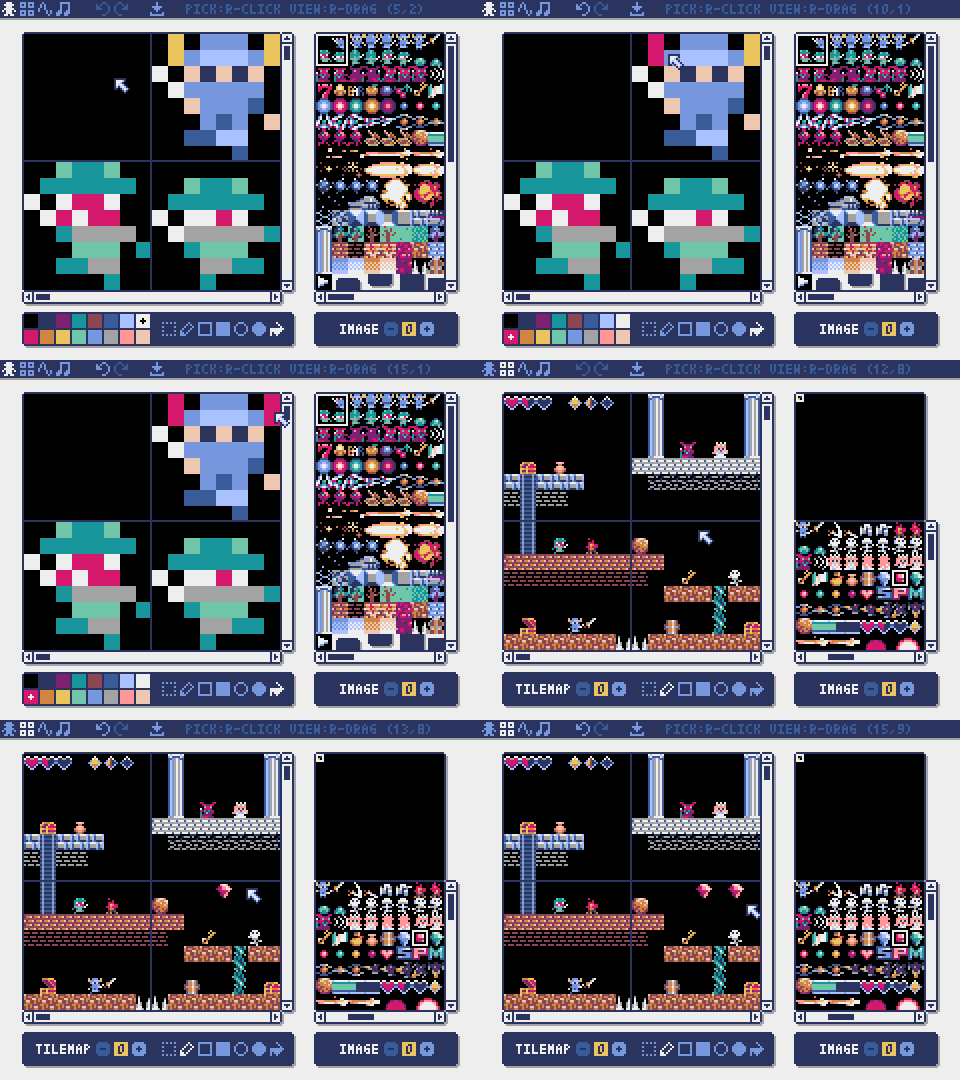
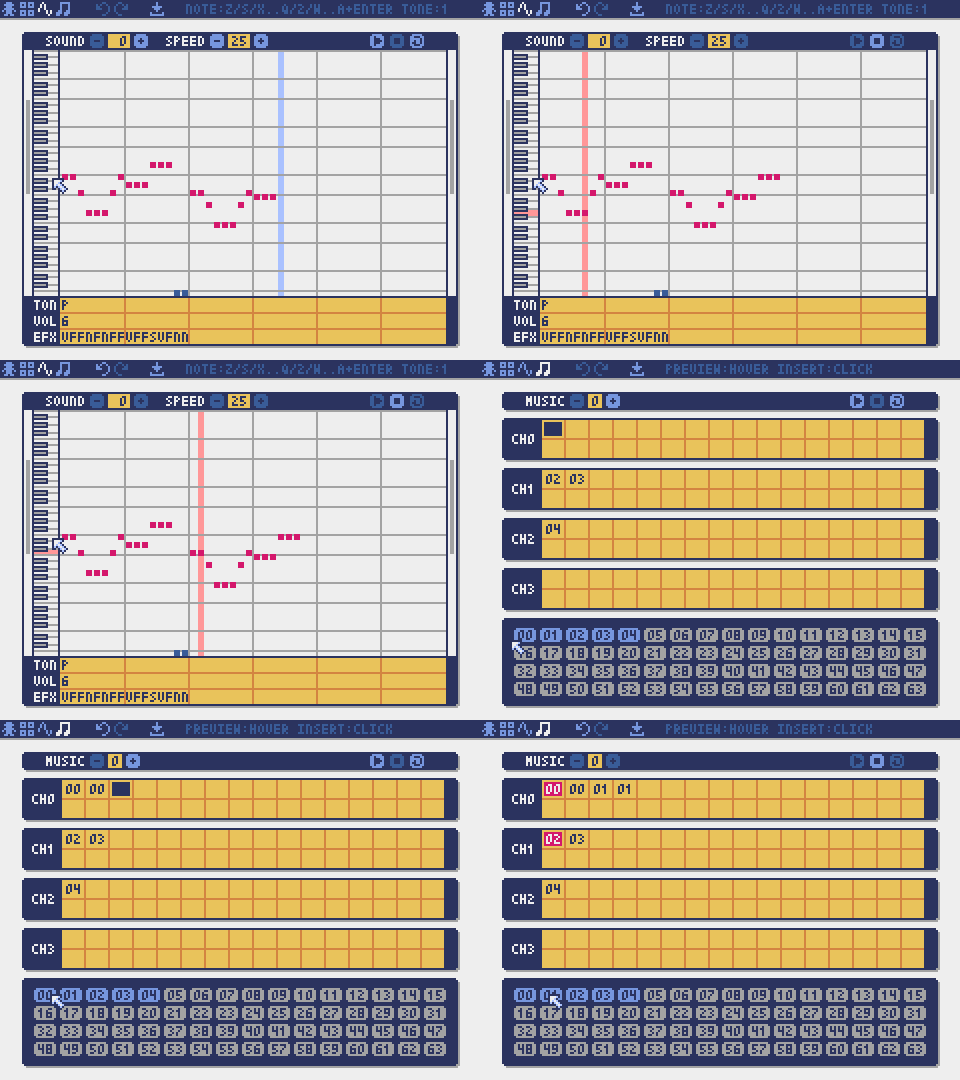
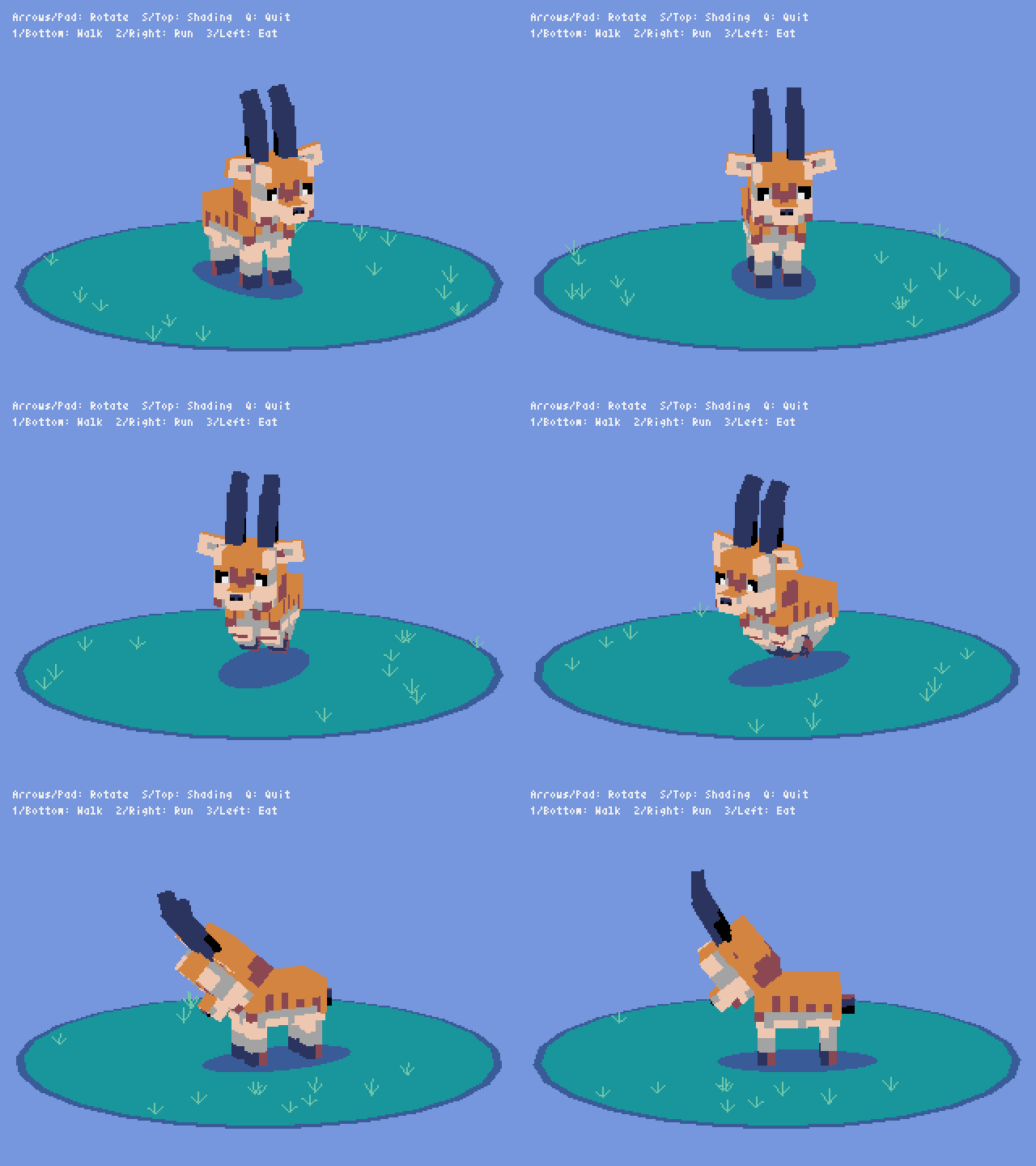
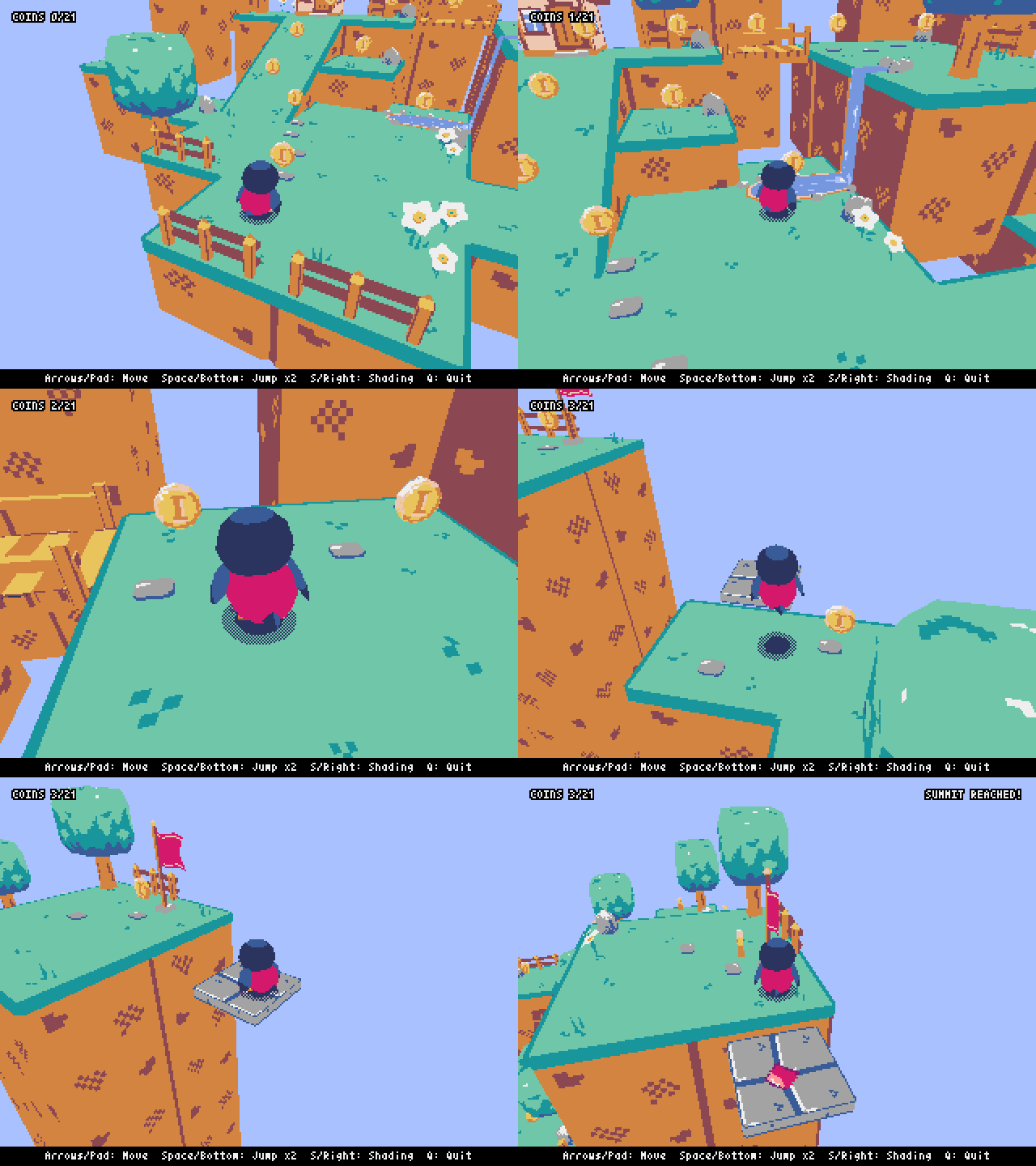
---
### Api Reference (`docs/api-reference.md`)
# Pyxel API Reference
*This document was auto-generated from the [Pyxel API Reference](https://kitao.github.io/pyxel/web/api-reference/) web page, which also offers multilingual support.*
## System
### `width` — variable
The width of the screen.
- **Type:** `int`
### `height` — variable
The height of the screen.
- **Type:** `int`
### `frame_count` — variable
The number of elapsed frames.
- **Type:** `int`
### `init(width, height, title="Pyxel", fps=30, quit_key=KEY_ESCAPE, display_scale=None, capture_scale=2, capture_sec=10, headless=False)` — function
Initialize the Pyxel application with the screen size (width, height).
**Parameters:**
- `width` (*int*) — Screen width
- `height` (*int*) — Screen height
- `title` (*str*) — Window title. Defaults to "Pyxel".
- `fps` (*int*) — Frame rate. Defaults to 30.
- `quit_key` (*int*) — Key to quit the application. Defaults to KEY_ESCAPE.
- `display_scale` (*int*) — Display scale factor. If omitted, automatically determined.
- `capture_scale` (*int*) — Screen capture scale factor. Defaults to 2.
- `capture_sec` (*int*) — Maximum recording time for screen capture video. Defaults to 10.
- `headless` (*bool*) — Run without a window. Defaults to False.
**Example:**
```python
pyxel.init(
160,
120,
title="My Pyxel App",
fps=60,
quit_key=pyxel.KEY_NONE,
capture_scale=3,
capture_sec=0,
)
```
### `run(update, draw)` — function
Start the Pyxel application and call the update function for frame update and the draw function for drawing.
**Parameters:**
- `update` (*callable*) — Function to update game logic each frame
- `draw` (*callable*) — Function to draw the screen each frame
### `show()` — function
Show the screen and wait until the quit key is pressed.
### `flip()` — function
Refresh the screen by one frame. The application exits when the quit key is pressed. This function is not available in the web version.
### `quit()` — function
Quit the Pyxel application.
### `reset()` — function
Restart the Pyxel application from the beginning.
### `title(title)` — function *(Advanced)*
Set the window title.
**Parameters:**
- `title` (*str*) — Window title
### `icon(data, scale, colkey=None)` — function *(Advanced)*
Set the application icon. Specify the icon image as a list of strings.
**Parameters:**
- `data` (*list[str]*) — Icon image as a list of strings
- `scale` (*int*) — Scale factor
- `colkey` (*int/None*) — Transparent color. If omitted, no transparency.
### `fullscreen(enabled)` — function *(Advanced)*
Set whether to run in fullscreen mode.
**Parameters:**
- `enabled` (*bool*) — Enable fullscreen
### `resize(width, height)` — function *(Advanced)*
Change the screen size at runtime.
**Parameters:**
- `width` (*int*) — New screen width in pixels
- `height` (*int*) — New screen height in pixels
### `screen_mode(scr)` — function *(Advanced)*
Set the screen mode (0: crisp, 1: smooth, 2: retro).
**Parameters:**
- `scr` (*int*) — Screen mode number (0: crisp, 1: smooth, 2: retro)
### `perf_monitor(enabled)` — function *(Advanced)*
Show or hide the performance monitor.
**Parameters:**
- `enabled` (*bool*) — Enable the performance monitor
### `integer_scale(enabled)` — function *(Advanced)*
Enable integer scaling for the display.
**Parameters:**
- `enabled` (*bool*) — Enable integer scaling
## Resource
### `load(filename, exclude_images=False, exclude_tilemaps=False, exclude_sounds=False, exclude_musics=False)` — function
Load the resource file (.pyxres). If an option is set to True, the corresponding resource will be excluded from loading.
**Parameters:**
- `filename` (*str*) — Resource file name
- `exclude_images` (*bool*) — Exclude image banks. Defaults to False.
- `exclude_tilemaps` (*bool*) — Exclude tilemaps. Defaults to False.
- `exclude_sounds` (*bool*) — Exclude sounds. Defaults to False.
- `exclude_musics` (*bool*) — Exclude music tracks. Defaults to False.
**Note:** If a palette file (.pyxpal) with the same name exists, the palette display colors will also be updated.
### `user_data_dir(vendor_name, app_name)` — function *(Advanced)*
Return the user data directory created based on vendor_name and app_name. If the directory does not exist, it will be created automatically.
**Parameters:**
- `vendor_name` (*str*) — Vendor name
- `app_name` (*str*) — Application name
**Returns:** `str` — Path to the user data directory
**Example:**
```python
pyxel.user_data_dir("Takashi Kitao", "Pyxel Shooter")
```
### `save(filename, exclude_images=False, exclude_tilemaps=False, exclude_sounds=False, exclude_musics=False)` — function *(Advanced)*
Save the resource file (.pyxres). If an option is set to True, the corresponding resource will be excluded from saving.
**Parameters:**
- `filename` (*str*) — Resource file name
- `exclude_images` (*bool*) — Exclude image banks. Defaults to False.
- `exclude_tilemaps` (*bool*) — Exclude tilemaps. Defaults to False.
- `exclude_sounds` (*bool*) — Exclude sounds. Defaults to False.
- `exclude_musics` (*bool*) — Exclude music tracks. Defaults to False.
### `screenshot(filename=None, scale=2)` — function *(Advanced)*
Take a screenshot.
**Parameters:**
- `filename` (*str/None*) — File name. If omitted, saved to desktop.
- `scale` (*int/None*) — Scale factor. Defaults to capture_scale.
### `screencast(filename=None, scale=2)` — function *(Advanced)*
Save the screen recording as a GIF file.
**Parameters:**
- `filename` (*str/None*) — File name. If omitted, saved to desktop.
- `scale` (*int/None*) — Scale factor. Defaults to capture_scale.
### `reset_screencast()` — function *(Advanced)*
Reset the screen recording buffer.
### `load_pal(filename)` — function *(Advanced)*
Load a palette file (.pyxpal).
**Parameters:**
- `filename` (*str*) — Palette file name
### `save_pal(filename)` — function *(Advanced)*
Save a palette file (.pyxpal).
**Parameters:**
- `filename` (*str*) — Palette file name
## Input
### `mouse_x` — variable
The current x position of the mouse cursor.
- **Type:** `int`
### `mouse_y` — variable
The current y position of the mouse cursor.
- **Type:** `int`
### `mouse_wheel` — variable
The current value of the mouse wheel.
- **Type:** `int`
### `input_keys` — variable *(Advanced)*
List of keys input in the current frame.
- **Type:** `list[int]`
### `input_text` — variable *(Advanced)*
Text input in the current frame.
- **Type:** `str`
### `dropped_files` — variable *(Advanced)*
List of files dropped in the current frame.
- **Type:** `list[str]`
### `btn(key)` — function
Return True if the key is pressed, otherwise return False.
**Parameters:**
- `key` (*int*) — Key code
**Returns:** `bool` — True if pressed
### `btnp(key, hold=0, repeat=0)` — function
Return True if the key is pressed in that frame. When hold and repeat are specified, after holding the key for hold frames, return True every repeat frames.
**Parameters:**
- `key` (*int*) — Key code
- `hold` (*int*) — Frames to hold before repeat starts. Defaults to 0.
- `repeat` (*int*) — Repeat interval in frames. If 0, no repeat.
**Returns:** `bool` — True if pressed in that frame
### `btnr(key)` — function
Return True if the key is released in that frame, otherwise return False.
**Parameters:**
- `key` (*int*) — Key code
**Returns:** `bool` — True if released in that frame
### `mouse(visible)` — function
Show the mouse cursor if visible is True, and hide it if False. The cursor position continues to update even when hidden.
**Parameters:**
- `visible` (*bool*) — Show or hide the cursor
### `btnv(key)` — function *(Advanced)*
Return the analog value of the specified key (e.g., gamepad axis value).
**Parameters:**
- `key` (*int*) — Key code
**Returns:** `int` — Analog value of the key
### `set_btn(key, state)` — function *(Advanced)*
Set the press/release state of the specified key. Mainly for headless mode input simulation.
**Parameters:**
- `key` (*int*) — Target key
- `state` (*bool*) — True for press, False for release
### `set_btnv(key, val)` — function *(Advanced)*
Set the analog value of the specified key. Mainly for headless mode input simulation.
**Parameters:**
- `key` (*int*) — Target key
- `val` (*int*) — Analog value to set
### `set_mouse_pos(x, y)` — function *(Advanced)*
Set the mouse cursor position. Mainly for headless mode input simulation.
**Parameters:**
- `x` (*float*) — X coordinate
- `y` (*float*) — Y coordinate
### `set_input_text(text)` — function *(Advanced)*
Set the text input for the current frame. Replaces any existing text. Mainly for headless mode input simulation.
**Parameters:**
- `text` (*str*) — Text input
### `set_dropped_files(files)` — function *(Advanced)*
Set the dropped file list for the current frame. Replaces any existing list. Mainly for headless mode input simulation.
**Parameters:**
- `files` (*list[str]*) — List of file paths
### Key Constants
**Special Keys:**
`KEY_UNKNOWN` `KEY_RETURN` `KEY_ESCAPE` `KEY_BACKSPACE` `KEY_TAB` `KEY_SPACE` `KEY_NONE`
**Letters:**
`KEY_A` `KEY_B` `KEY_C` `KEY_D` `KEY_E` `KEY_F` `KEY_G` `KEY_H` `KEY_I` `KEY_J` `KEY_K` `KEY_L` `KEY_M` `KEY_N` `KEY_O` `KEY_P` `KEY_Q` `KEY_R` `KEY_S` `KEY_T` `KEY_U` `KEY_V` `KEY_W` `KEY_X` `KEY_Y` `KEY_Z`
**Numbers:**
`KEY_0` `KEY_1` `KEY_2` `KEY_3` `KEY_4` `KEY_5` `KEY_6` `KEY_7` `KEY_8` `KEY_9`
**Symbols:**
`KEY_EXCLAIM` `KEY_QUOTEDBL` `KEY_HASH` `KEY_PERCENT` `KEY_DOLLAR` `KEY_AMPERSAND` `KEY_QUOTE` `KEY_LEFTPAREN` `KEY_RIGHTPAREN` `KEY_ASTERISK` `KEY_PLUS` `KEY_COMMA` `KEY_MINUS` `KEY_PERIOD` `KEY_SLASH` `KEY_COLON` `KEY_SEMICOLON` `KEY_LESS` `KEY_EQUALS` `KEY_GREATER` `KEY_QUESTION` `KEY_AT` `KEY_LEFTBRACKET` `KEY_BACKSLASH` `KEY_RIGHTBRACKET` `KEY_CARET` `KEY_UNDERSCORE` `KEY_BACKQUOTE`
**Function:**
`KEY_F1` `KEY_F2` `KEY_F3` `KEY_F4` `KEY_F5` `KEY_F6` `KEY_F7` `KEY_F8` `KEY_F9` `KEY_F10` `KEY_F11` `KEY_F12` `KEY_F13` `KEY_F14` `KEY_F15` `KEY_F16` `KEY_F17` `KEY_F18` `KEY_F19` `KEY_F20` `KEY_F21` `KEY_F22` `KEY_F23` `KEY_F24`
**Navigation:**
`KEY_INSERT` `KEY_HOME` `KEY_PAGEUP` `KEY_DELETE` `KEY_END` `KEY_PAGEDOWN` `KEY_RIGHT` `KEY_LEFT` `KEY_DOWN` `KEY_UP`
**Modifiers:**
`KEY_CAPSLOCK` `KEY_LCTRL` `KEY_LSHIFT` `KEY_LALT` `KEY_LGUI` `KEY_RCTRL` `KEY_RSHIFT` `KEY_RALT` `KEY_RGUI` `KEY_SHIFT` `KEY_CTRL` `KEY_ALT` `KEY_GUI`
**Numpad:**
`KEY_NUMLOCKCLEAR` `KEY_KP_DIVIDE` `KEY_KP_MULTIPLY` `KEY_KP_MINUS` `KEY_KP_PLUS` `KEY_KP_ENTER` `KEY_KP_1` `KEY_KP_2` `KEY_KP_3` `KEY_KP_4` `KEY_KP_5` `KEY_KP_6` `KEY_KP_7` `KEY_KP_8` `KEY_KP_9` `KEY_KP_0` `KEY_KP_PERIOD` `KEY_KP_EQUALS` `KEY_KP_COMMA` `KEY_KP_EQUALSAS400` `KEY_KP_00` `KEY_KP_000` `KEY_KP_LEFTPAREN` `KEY_KP_RIGHTPAREN` `KEY_KP_LEFTBRACE` `KEY_KP_RIGHTBRACE` `KEY_KP_TAB` `KEY_KP_BACKSPACE` `KEY_KP_A` `KEY_KP_B` `KEY_KP_C` `KEY_KP_D` `KEY_KP_E` `KEY_KP_F` `KEY_KP_XOR` `KEY_KP_POWER` `KEY_KP_PERCENT` `KEY_KP_LESS` `KEY_KP_GREATER` `KEY_KP_AMPERSAND` `KEY_KP_DBLAMPERSAND` `KEY_KP_VERTICALBAR` `KEY_KP_DBLVERTICALBAR` `KEY_KP_COLON` `KEY_KP_HASH` `KEY_KP_SPACE` `KEY_KP_AT` `KEY_KP_EXCLAM` `KEY_KP_MEMSTORE` `KEY_KP_MEMRECALL` `KEY_KP_MEMCLEAR` `KEY_KP_MEMADD` `KEY_KP_MEMSUBTRACT` `KEY_KP_MEMMULTIPLY` `KEY_KP_MEMDIVIDE` `KEY_KP_PLUSMINUS` `KEY_KP_CLEAR` `KEY_KP_CLEARENTRY` `KEY_KP_BINARY` `KEY_KP_OCTAL` `KEY_KP_DECIMAL` `KEY_KP_HEXADECIMAL`
**System & Media:**
`KEY_PRINTSCREEN` `KEY_SCROLLLOCK` `KEY_PAUSE` `KEY_APPLICATION` `KEY_POWER` `KEY_EXECUTE` `KEY_HELP` `KEY_MENU` `KEY_SELECT` `KEY_STOP` `KEY_AGAIN` `KEY_UNDO` `KEY_CUT` `KEY_COPY` `KEY_PASTE` `KEY_FIND` `KEY_MUTE` `KEY_VOLUMEUP` `KEY_VOLUMEDOWN` `KEY_ALTERASE` `KEY_SYSREQ` `KEY_CANCEL` `KEY_CLEAR` `KEY_PRIOR` `KEY_RETURN2` `KEY_SEPARATOR` `KEY_OUT` `KEY_OPER` `KEY_CLEARAGAIN` `KEY_CRSEL` `KEY_EXSEL` `KEY_THOUSANDSSEPARATOR` `KEY_DECIMALSEPARATOR` `KEY_CURRENCYUNIT` `KEY_CURRENCYSUBUNIT`
### Mouse Constants
**Cursor & Wheel:**
`MOUSE_POS_X` `MOUSE_POS_Y` `MOUSE_WHEEL_X` `MOUSE_WHEEL_Y`
**Buttons:**
`MOUSE_BUTTON_LEFT` `MOUSE_BUTTON_MIDDLE` `MOUSE_BUTTON_RIGHT` `MOUSE_BUTTON_X1` `MOUSE_BUTTON_X2`
### Gamepad Constants
**Gamepad 1:**
`GAMEPAD1_AXIS_LEFTX` `GAMEPAD1_AXIS_LEFTY` `GAMEPAD1_AXIS_RIGHTX` `GAMEPAD1_AXIS_RIGHTY` `GAMEPAD1_AXIS_TRIGGERLEFT` `GAMEPAD1_AXIS_TRIGGERRIGHT` `GAMEPAD1_BUTTON_A` `GAMEPAD1_BUTTON_B` `GAMEPAD1_BUTTON_X` `GAMEPAD1_BUTTON_Y` `GAMEPAD1_BUTTON_BACK` `GAMEPAD1_BUTTON_GUIDE` `GAMEPAD1_BUTTON_START` `GAMEPAD1_BUTTON_LEFTSTICK` `GAMEPAD1_BUTTON_RIGHTSTICK` `GAMEPAD1_BUTTON_LEFTSHOULDER` `GAMEPAD1_BUTTON_RIGHTSHOULDER` `GAMEPAD1_BUTTON_DPAD_UP` `GAMEPAD1_BUTTON_DPAD_DOWN` `GAMEPAD1_BUTTON_DPAD_LEFT` `GAMEPAD1_BUTTON_DPAD_RIGHT`
**Gamepad 2:**
`GAMEPAD2_AXIS_LEFTX` `GAMEPAD2_AXIS_LEFTY` `GAMEPAD2_AXIS_RIGHTX` `GAMEPAD2_AXIS_RIGHTY` `GAMEPAD2_AXIS_TRIGGERLEFT` `GAMEPAD2_AXIS_TRIGGERRIGHT` `GAMEPAD2_BUTTON_A` `GAMEPAD2_BUTTON_B` `GAMEPAD2_BUTTON_X` `GAMEPAD2_BUTTON_Y` `GAMEPAD2_BUTTON_BACK` `GAMEPAD2_BUTTON_GUIDE` `GAMEPAD2_BUTTON_START` `GAMEPAD2_BUTTON_LEFTSTICK` `GAMEPAD2_BUTTON_RIGHTSTICK` `GAMEPAD2_BUTTON_LEFTSHOULDER` `GAMEPAD2_BUTTON_RIGHTSHOULDER` `GAMEPAD2_BUTTON_DPAD_UP` `GAMEPAD2_BUTTON_DPAD_DOWN` `GAMEPAD2_BUTTON_DPAD_LEFT` `GAMEPAD2_BUTTON_DPAD_RIGHT`
**Gamepad 3:**
`GAMEPAD3_AXIS_LEFTX` `GAMEPAD3_AXIS_LEFTY` `GAMEPAD3_AXIS_RIGHTX` `GAMEPAD3_AXIS_RIGHTY` `GAMEPAD3_AXIS_TRIGGERLEFT` `GAMEPAD3_AXIS_TRIGGERRIGHT` `GAMEPAD3_BUTTON_A` `GAMEPAD3_BUTTON_B` `GAMEPAD3_BUTTON_X` `GAMEPAD3_BUTTON_Y` `GAMEPAD3_BUTTON_BACK` `GAMEPAD3_BUTTON_GUIDE` `GAMEPAD3_BUTTON_START` `GAMEPAD3_BUTTON_LEFTSTICK` `GAMEPAD3_BUTTON_RIGHTSTICK` `GAMEPAD3_BUTTON_LEFTSHOULDER` `GAMEPAD3_BUTTON_RIGHTSHOULDER` `GAMEPAD3_BUTTON_DPAD_UP` `GAMEPAD3_BUTTON_DPAD_DOWN` `GAMEPAD3_BUTTON_DPAD_LEFT` `GAMEPAD3_BUTTON_DPAD_RIGHT`
**Gamepad 4:**
`GAMEPAD4_AXIS_LEFTX` `GAMEPAD4_AXIS_LEFTY` `GAMEPAD4_AXIS_RIGHTX` `GAMEPAD4_AXIS_RIGHTY` `GAMEPAD4_AXIS_TRIGGERLEFT` `GAMEPAD4_AXIS_TRIGGERRIGHT` `GAMEPAD4_BUTTON_A` `GAMEPAD4_BUTTON_B` `GAMEPAD4_BUTTON_X` `GAMEPAD4_BUTTON_Y` `GAMEPAD4_BUTTON_BACK` `GAMEPAD4_BUTTON_GUIDE` `GAMEPAD4_BUTTON_START` `GAMEPAD4_BUTTON_LEFTSTICK` `GAMEPAD4_BUTTON_RIGHTSTICK` `GAMEPAD4_BUTTON_LEFTSHOULDER` `GAMEPAD4_BUTTON_RIGHTSHOULDER` `GAMEPAD4_BUTTON_DPAD_UP` `GAMEPAD4_BUTTON_DPAD_DOWN` `GAMEPAD4_BUTTON_DPAD_LEFT` `GAMEPAD4_BUTTON_DPAD_RIGHT`
## Graphics
### `colors` — variable
List of the palette display colors. Specified by 24-bit numerical value. Supports Python list operations.
- **Type:** `list[int]`
**Example:**
```python
old_colors = list(pyxel.colors)
pyxel.colors[15] = 0x112233
```
### `images` — variable
Image banks (Image instances) (0-2).
- **Type:** `list[Image]`
**Example:**
```python
pyxel.images[0].load(0, 0, "title.png")
```
### `tilemaps` — variable
Tilemaps (Tilemap instances) (0-7).
- **Type:** `list[Tilemap]`
### `screen` — variable *(Advanced)*
The screen image (Image class instance).
- **Type:** `Image`
### `cursor` — variable *(Advanced)*
The cursor image (Image class instance).
- **Type:** `Image`
### `font` — variable *(Advanced)*
The font image (Image class instance).
- **Type:** `Image`
### `clip(x, y, w, h)` — function
Set the drawing area of the screen from (x, y) with a width of w and a height of h. Call clip() to reset to full screen.
**Parameters:**
- `x` (*float*) — X coordinate of the upper-left corner
- `y` (*float*) — Y coordinate of the upper-left corner
- `w` (*float*) — Width of the clipping area
- `h` (*float*) — Height of the clipping area
### `clip()` — function
Reset the drawing area to full screen.
### `camera(x, y)` — function
Set the drawing offset to (x, y). All subsequent drawing operations will be shifted by (-x, -y).
**Parameters:**
- `x` (*float*) — X coordinate
- `y` (*float*) — Y coordinate
### `camera()` — function
Reset the drawing offset to (0, 0).
### `pal(col1, col2)` — function
Replace color col1 with col2 when drawing.
**Parameters:**
- `col1` (*int*) — Color to replace
- `col2` (*int*) — Replacement color
### `pal()` — function
Reset the palette to the initial state.
### `dither(alpha)` — function
Apply dithering (pseudo-transparency) when drawing. Set alpha in the range 0.0-1.0.
**Parameters:**
- `alpha` (*float*) — Opacity (0.0: transparent, 1.0: opaque)
### `cls(col)` — function
Clear the screen with color col.
**Parameters:**
- `col` (*int*) — Color
### `pget(x, y)` — function
Get the color of the pixel at (x, y). The coordinates are absolute and not affected by the camera offset.
**Parameters:**
- `x` (*float*) — X coordinate
- `y` (*float*) — Y coordinate
**Returns:** `int` — Color of the pixel
### `pset(x, y, col)` — function
Draw a pixel of color col at (x, y).
**Parameters:**
- `x` (*float*) — X coordinate
- `y` (*float*) — Y coordinate
- `col` (*int*) — Color
### `line(x1, y1, x2, y2, col)` — function
Draw a line of color col from (x1, y1) to (x2, y2).
**Parameters:**
- `x1` (*float*) — Start X coordinate
- `y1` (*float*) — Start Y coordinate
- `x2` (*float*) — End X coordinate
- `y2` (*float*) — End Y coordinate
- `col` (*int*) — Color
### `rect(x, y, w, h, col)` — function
Draw a filled rectangle of width w, height h, and color col at (x, y).
**Parameters:**
- `x` (*float*) — X coordinate
- `y` (*float*) — Y coordinate
- `w` (*float*) — Width
- `h` (*float*) — Height
- `col` (*int*) — Color
### `rectb(x, y, w, h, col)` — function
Draw the outline of a rectangle of width w, height h, and color col at (x, y).
**Parameters:**
- `x` (*float*) — X coordinate
- `y` (*float*) — Y coordinate
- `w` (*float*) — Width
- `h` (*float*) — Height
- `col` (*int*) — Color
### `circ(x, y, r, col)` — function
Draw a filled circle of radius r and color col at (x, y).
**Parameters:**
- `x` (*float*) — Center X coordinate
- `y` (*float*) — Center Y coordinate
- `r` (*float*) — Radius
- `col` (*int*) — Color
### `circb(x, y, r, col)` — function
Draw the outline of a circle of radius r and color col at (x, y).
**Parameters:**
- `x` (*float*) — Center X coordinate
- `y` (*float*) — Center Y coordinate
- `r` (*float*) — Radius
- `col` (*int*) — Color
### `elli(x, y, w, h, col)` — function
Draw a filled ellipse of width w, height h, and color col at (x, y).
**Parameters:**
- `x` (*float*) — X coordinate
- `y` (*float*) — Y coordinate
- `w` (*float*) — Width
- `h` (*float*) — Height
- `col` (*int*) — Color
### `ellib(x, y, w, h, col)` — function
Draw the outline of an ellipse of width w, height h, and color col at (x, y).
**Parameters:**
- `x` (*float*) — X coordinate
- `y` (*float*) — Y coordinate
- `w` (*float*) — Width
- `h` (*float*) — Height
- `col` (*int*) — Color
### `tri(x1, y1, x2, y2, x3, y3, col)` — function
Draw a filled triangle with vertices (x1, y1), (x2, y2), (x3, y3) and color col.
**Parameters:**
- `x1` (*float*) — Vertex 1 X
- `y1` (*float*) — Vertex 1 Y
- `x2` (*float*) — Vertex 2 X
- `y2` (*float*) — Vertex 2 Y
- `x3` (*float*) — Vertex 3 X
- `y3` (*float*) — Vertex 3 Y
- `col` (*int*) — Color
### `trib(x1, y1, x2, y2, x3, y3, col)` — function
Draw the outline of a triangle with vertices (x1, y1), (x2, y2), (x3, y3) and color col.
**Parameters:**
- `x1` (*float*) — Vertex 1 X
- `y1` (*float*) — Vertex 1 Y
- `x2` (*float*) — Vertex 2 X
- `y2` (*float*) — Vertex 2 Y
- `x3` (*float*) — Vertex 3 X
- `y3` (*float*) — Vertex 3 Y
- `col` (*int*) — Color
### `fill(x, y, col)` — function
Fill the area connected with the same color as (x, y) with color col.
**Parameters:**
- `x` (*float*) — X coordinate
- `y` (*float*) — Y coordinate
- `col` (*int*) — Fill color
### `blt(x, y, img, u, v, w, h, colkey=None, rotate=0, scale=1)` — function
Copy the region of size (w, h) from (u, v) of image bank img (0-2 or Image instance) to (x, y). Negative w/h flips the image. colkey sets the transparent color. rotate and scale apply transformations.
**Parameters:**
- `x` (*float*) — Destination X
- `y` (*float*) — Destination Y
- `img` (*int/Image*) — Image bank number (0-2) or Image instance
- `u` (*float*) — Source X in the image bank
- `v` (*float*) — Source Y in the image bank
- `w` (*float*) — Width (negative to flip)
- `h` (*float*) — Height (negative to flip)
- `colkey` (*int/None*) — Transparent color. If omitted, no transparency.
- `rotate` (*float*) — Rotation angle in degrees (centered on the copy region). Defaults to 0.
- `scale` (*float*) — Scale factor (centered on the copy region). Defaults to 1.
### `bltm(x, y, tm, u, v, w, h, colkey=None, rotate=0, scale=1)` — function
Copy the region of size (w, h) from (u, v) of tilemap tm (0-7 or Tilemap instance) to (x, y). Each tile is 8x8 pixels stored as (image_tx, image_ty). Negative w/h flips the image. colkey sets the transparent color. rotate and scale apply transformations.
**Parameters:**
- `x` (*float*) — Destination X
- `y` (*float*) — Destination Y
- `tm` (*int/Tilemap*) — Tilemap number (0-7) or Tilemap instance
- `u` (*float*) — Source X in the tilemap
- `v` (*float*) — Source Y in the tilemap
- `w` (*float*) — Width (negative to flip)
- `h` (*float*) — Height (negative to flip)
- `colkey` (*int/None*) — Transparent color. If omitted, no transparency.
- `rotate` (*float*) — Rotation angle in degrees (centered on the copy region). Defaults to 0.
- `scale` (*float*) — Scale factor (centered on the copy region). Defaults to 1.
### `blt3d(x, y, w, h, img, pos, rot, fov=60, colkey=None)` — function *(Advanced)*
Draw the image bank img (0-2 or Image instance) with perspective projection onto the screen rectangle (x, y, w, h). pos is the camera position where x, y match 2D coordinates and z is height. rot is the rotation in degrees. fov sets the field of view in degrees. colkey sets the transparent color.
**Parameters:**
- `x` (*float*) — Destination X
- `y` (*float*) — Destination Y
- `w` (*float*) — Display width
- `h` (*float*) — Display height
- `img` (*int/Image*) — Image bank number (0-2) or Image instance
- `pos` (*(float, float, float)*) — Camera position (x, y, z). x, y match 2D coordinates, z is height
- `rot` (*(float, float, float)*) — Rotation in degrees. rot_x is vertical, rot_y is horizontal, rot_z is tilt
- `fov` (*float*) — Field of view in degrees. Defaults to 60.
- `colkey` (*int/None*) — Transparent color. If omitted, no transparency.
### `bltm3d(x, y, w, h, tm, pos, rot, fov=60, colkey=None)` — function *(Advanced)*
Draw the tilemap tm (0-7 or Tilemap instance) with perspective projection onto the screen rectangle (x, y, w, h). pos is the camera position where x, y match 2D coordinates and z is height. rot is the rotation in degrees. fov sets the field of view in degrees. colkey sets the transparent color.
**Parameters:**
- `x` (*float*) — Destination X
- `y` (*float*) — Destination Y
- `w` (*float*) — Display width
- `h` (*float*) — Display height
- `tm` (*int/Tilemap*) — Tilemap number (0-7) or Tilemap instance
- `pos` (*(float, float, float)*) — Camera position (x, y, z). x, y match 2D coordinates, z is height
- `rot` (*(float, float, float)*) — Rotation in degrees. rot_x is vertical, rot_y is horizontal, rot_z is tilt
- `fov` (*float*) — Field of view in degrees. Defaults to 60.
- `colkey` (*int/None*) — Transparent color. If omitted, no transparency.
### `text(x, y, s, col, font=None)` — function
Draw a string s in color col at (x, y).
**Parameters:**
- `x` (*float*) — X coordinate
- `y` (*float*) — Y coordinate
- `s` (*str*) — String to draw
- `col` (*int*) — Color
- `font` (*Font*) — Custom font. If omitted, the standard font is used.
### Color Constants
- `COLOR_BLACK` — 0 — Black (#000000)
- `COLOR_NAVY` — 1 — Navy (#2b335f)
- `COLOR_PURPLE` — 2 — Purple (#7e2072)
- `COLOR_GREEN` — 3 — Green (#19959c)
- `COLOR_BROWN` — 4 — Brown (#8b4852)
- `COLOR_DARK_BLUE` — 5 — Dark Blue (#395c98)
- `COLOR_LIGHT_BLUE` — 6 — Light Blue (#a9c1ff)
- `COLOR_WHITE` — 7 — White (#eeeeee)
- `COLOR_RED` — 8 — Red (#d4186c)
- `COLOR_ORANGE` — 9 — Orange (#d38441)
- `COLOR_YELLOW` — 10 — Yellow (#e9c35b)
- `COLOR_LIME` — 11 — Lime (#70c6a9)
- `COLOR_CYAN` — 12 — Cyan (#7696de)
- `COLOR_GRAY` — 13 — Gray (#a3a3a3)
- `COLOR_PINK` — 14 — Pink (#ff9798)
- `COLOR_PEACH` — 15 — Peach (#edc7b0)
### Resource Constants
- `NUM_COLORS` — 16 — Number of palette colors
- `NUM_IMAGES` — 3 — Number of image banks (0-2)
- `IMAGE_SIZE` — 256 — Image width and height
- `NUM_TILEMAPS` — 8 — Number of tilemaps (0-7)
- `TILEMAP_SIZE` — 256 — Tilemap width and height
- `TILE_SIZE` — 8 — Tile size in pixels
- `FONT_WIDTH` — 4 — Built-in font width
- `FONT_HEIGHT` — 6 — Built-in font height
## Audio
### `channels` — variable *(Advanced)*
Audio channels (Channel instances) (0-3).
- **Type:** `list[Channel]`
### `tones` — variable *(Advanced)*
Tone definitions (Tone instances) (0-3).
- **Type:** `list[Tone]`
### `sounds` — variable
Sounds (Sound instances) (0-63).
- **Type:** `list[Sound]`
**Example:**
```python
pyxel.sounds[0].speed = 60
```
### `musics` — variable
Music tracks (Music instances) (0-7).
- **Type:** `list[Music]`
### `play(ch, snd, sec=0, loop=False, resume=False)` — function
Play the sound snd on channel ch (0-3). snd can be a sound number (0-63), a list of numbers, a Sound instance, a list of Sounds, or an MML string.
**Parameters:**
- `ch` (*int*) — Channel number (0-3)
- `snd` (*int/list/Sound/str*) — Sound number (0-63), list of numbers, Sound instance, list of Sounds, or MML string
- `sec` (*float*) — Playback start position in seconds. Defaults to 0.
- `loop` (*bool*) — Loop playback. Defaults to False.
- `resume` (*bool*) — Resume previous sound after playback ends. Defaults to False.
### `playm(msc, sec=0, loop=False)` — function
Play the music msc (0-7).
**Parameters:**
- `msc` (*int*) — Music number (0-7)
- `sec` (*float*) — Playback start position in seconds. Defaults to 0.
- `loop` (*bool*) — Loop playback. Defaults to False.
### `stop(ch)` — function
Stop playback of the specified channel ch (0-3).
**Parameters:**
- `ch` (*int*) — Channel number (0-3)
### `stop()` — function
Stop playback of all channels.
### `play_pos(ch)` — function
Get the sound playback position of channel ch (0-3) as a tuple of (sound_index, sec). Return None when playback has stopped.
**Parameters:**
- `ch` (*int*) — Channel number (0-3)
**Returns:** `tuple[int, float]/None` — (sound_index, sec) or None
### `gen_bgm(preset, transp, instr, seed, play=False)` — function
Generate a BGM MML list using an algorithm. preset (0-7) selects the preset, instr (0-3) selects the instrumentation.
**Parameters:**
- `preset` (*int*) — Preset number (0-7). 0-1: title, departure (medium tempo), 2-3: town, peaceful (slow tempo), 4-5: field, adventure (medium tempo), 6-7: battle, crisis (fast tempo)
- `transp` (*int*) — Transpose in semitones (-5 to +5).
- `instr` (*int*) — Instrumentation (0-3). 0: melody+reverb+bass (3ch), 1: melody+bass+drums (3ch), 2: melody+sub+bass (3ch), 3: melody+sub+bass+drums (4ch).
- `seed` (*int*) — Random seed
- `play` (*bool*) — Play the generated MML. Defaults to False.
**Returns:** `list[str]` — List of MML strings
### Tone & Effect Constants
**Tones:**
- `TONE_TRIANGLE` — 0 — Triangle wave
- `TONE_SQUARE` — 1 — Square wave
- `TONE_PULSE` — 2 — Pulse wave
- `TONE_NOISE` — 3 — Noise
**Effects:**
- `EFFECT_NONE` — 0 — No effect
- `EFFECT_SLIDE` — 1 — Slide
- `EFFECT_VIBRATO` — 2 — Vibrato
- `EFFECT_FADEOUT` — 3 — Fade out
- `EFFECT_HALF_FADEOUT` — 4 — Half fade out
- `EFFECT_QUARTER_FADEOUT` — 5 — Quarter fade out
### Resource Constants
- `NUM_CHANNELS` — 4 — Number of audio channels (0-3)
- `NUM_TONES` — 4 — Number of tone types (0-3)
- `NUM_SOUNDS` — 64 — Number of sounds (0-63)
- `NUM_MUSICS` — 8 — Number of music tracks (0-7)
## Math
### `ceil(x)` — function
Return the smallest integer greater than or equal to x.
**Parameters:**
- `x` (*float*) — Value
**Returns:** `int` — Smallest integer >= x
### `floor(x)` — function
Return the largest integer less than or equal to x.
**Parameters:**
- `x` (*float*) — Value
**Returns:** `int` — Largest integer <= x
### `clamp(x, lower, upper)` — function
Return x clamped between lower and upper.
**Parameters:**
- `x` (*float*) — Value to clamp
- `lower` (*float*) — Minimum value
- `upper` (*float*) — Maximum value
**Returns:** `float` — Clamped value
### `sgn(x)` — function
Return 1 when x is positive, 0 when it is 0, and -1 when it is negative.
**Parameters:**
- `x` (*int/float*) — Value
**Returns:** `int/float` — Sign of the value (1, 0, or -1)
### `sqrt(x)` — function
Return the square root of x.
**Parameters:**
- `x` (*float*) — Value
**Returns:** `float` — Square root of x
### `sin(deg)` — function
Return the sine of deg degrees.
**Parameters:**
- `deg` (*float*) — Angle in degrees
**Returns:** `float` — Sine value
### `cos(deg)` — function
Return the cosine of deg degrees.
**Parameters:**
- `deg` (*float*) — Angle in degrees
**Returns:** `float` — Cosine value
### `atan2(y, x)` — function
Return the arctangent of y/x in degrees.
**Parameters:**
- `y` (*float*) — Y value
- `x` (*float*) — X value
**Returns:** `float` — Angle in degrees
### `rseed(seed)` — function
Set the seed of the random number generator.
**Parameters:**
- `seed` (*int*) — Seed value (non-negative integer)
### `rndi(a, b)` — function
Return a random integer from a to b (inclusive).
**Parameters:**
- `a` (*int*) — Minimum value (inclusive)
- `b` (*int*) — Maximum value (inclusive)
**Returns:** `int` — Random integer from a to b
### `rndf(a, b)` — function
Return a random float from a to b (inclusive).
**Parameters:**
- `a` (*float*) — Minimum value (inclusive)
- `b` (*float*) — Maximum value (inclusive)
**Returns:** `float` — Random float from a to b
### `nseed(seed)` — function
Set the seed of Perlin noise.
**Parameters:**
- `seed` (*int*) — Seed value (non-negative integer)
### `noise(x, y=0, z=0)` — function
Return the Perlin noise value for the specified coordinates.
**Parameters:**
- `x` (*float*) — X coordinate
- `y` (*float*) — Y coordinate. Defaults to 0.
- `z` (*float*) — Z coordinate. Defaults to 0.
**Returns:** `float` — Perlin noise value
## Font Class
### `Font(filename, font_size=10.0)` — class *(Advanced)*
Create a Font instance from a font file (BDF/OTF/TTF/TTC).
**Parameters:**
- `filename` (*str*) — Font file name (BDF/OTF/TTF/TTC)
- `font_size` (*float*) — Font size. Defaults to 10.0. Not used for BDF.
**Returns:** `Font` — New Font instance
### `Font.text_width(s)` — function *(Advanced)*
Return the display width of the string s in this font.
**Parameters:**
- `s` (*str*) — String to measure
**Returns:** `int` — Width in pixels
## Image Class
### `Image(width, height)` — class *(Advanced)*
Create a new Image instance with the specified size.
**Parameters:**
- `width` (*int*) — Image width
- `height` (*int*) — Image height
**Returns:** `Image` — New Image instance
### `Image.from_image(filename, include_colors=False)` — class *(Advanced)*
Create an Image instance from an image file.
**Parameters:**
- `filename` (*str*) — Image file name
- `include_colors` (*bool*) — Include palette colors from file. Defaults to False.
**Returns:** `Image` — Image instance from file
### `Image.width` — variable
The width of the image.
- **Type:** `int`
### `Image.height` — variable
The height of the image.
- **Type:** `int`
### `Image.set(x, y, data)` — function
Set the image at (x, y) using a list of hex-digit strings. Each character represents a color index (0-f).
**Parameters:**
- `x` (*int*) — X coordinate
- `y` (*int*) — Y coordinate
- `data` (*list[str]*) — Image data as a list of strings
**Example:**
```python
pyxel.images[0].set(10, 10, ["0123", "4567", "89ab", "cdef"])
```
### `Image.load(x, y, filename, include_colors=False)` — function
Load an image file (PNG/GIF/JPEG) at (x, y).
**Parameters:**
- `x` (*int*) — X coordinate
- `y` (*int*) — Y coordinate
- `filename` (*str*) — Image file name (PNG/GIF/JPEG)
- `include_colors` (*bool*) — Include palette colors from file. Defaults to False.
### `Image.pget(x, y)` — function
Get the color of the pixel at (x, y). The coordinates are absolute and not affected by the camera offset.
**Parameters:**
- `x` (*float*) — X coordinate
- `y` (*float*) — Y coordinate
**Returns:** `int` — Color of the pixel
### `Image.pset(x, y, col)` — function
Draw a pixel with the color col at (x, y).
**Parameters:**
- `x` (*float*) — X coordinate
- `y` (*float*) — Y coordinate
- `col` (*int*) — Color
### `Image.{cls, line, rect, rectb, circ, circb, elli, ellib, tri, trib, fill, blt, bltm, blt3d, bltm3d, text, clip, camera, pal, dither}` — function
Image instances support all drawing functions from the Graphics section. They work the same way but draw on the image instead of the screen.
### `Image.data_ptr()` — function *(Advanced)*
Return the raw data pointer of the image as a ctypes c_uint8 array.
**Returns:** `Any` — Raw data pointer
### `Image.save(filename, scale)` — function *(Advanced)*
Save the image to a file.
**Parameters:**
- `filename` (*str*) — Output file name
- `scale` (*int*) — Scale factor
## Tilemap Class
### `Tilemap(width, height, img)` — class *(Advanced)*
Create a new Tilemap instance.
**Parameters:**
- `width` (*int*) — Tilemap width
- `height` (*int*) — Tilemap height
- `img` (*int/Image*) — Image bank number (0-2) or Image instance
**Returns:** `Tilemap` — New Tilemap instance
### `Tilemap.from_tmx(filename, layer)` — class *(Advanced)*
Create a Tilemap instance from a TMX file.
**Parameters:**
- `filename` (*str*) — TMX file name
- `layer` (*int*) — Layer number (0-)
**Returns:** `Tilemap` — Tilemap instance from TMX file
### `Tilemap.width` — variable
The width of the tilemap.
- **Type:** `int`
### `Tilemap.height` — variable
The height of the tilemap.
- **Type:** `int`
### `Tilemap.imgsrc` — variable
The image bank (0-2) or Image instance referenced by the tilemap.
- **Type:** `int/Image`
### `Tilemap.set(x, y, data)` — function
Set the tilemap at (x, y) using a list of strings. Each tile is a 4-digit hex value representing (image_tx, image_ty), separated by spaces.
**Parameters:**
- `x` (*int*) — X coordinate
- `y` (*int*) — Y coordinate
- `data` (*list[str]*) — Tilemap data as a list of strings
**Example:**
```python
pyxel.tilemaps[0].set(0, 0, ["0000 0100 a0b0", "0001 0101 a1b1"])
```
### `Tilemap.load(x, y, filename, layer)` — function
Load the layer (0-) from the TMX file at (x, y).
**Parameters:**
- `x` (*int*) — X coordinate
- `y` (*int*) — Y coordinate
- `filename` (*str*) — TMX file name
- `layer` (*int*) — Layer number (0-)
### `Tilemap.pget(x, y)` — function
Get the tile at (x, y). The coordinates are absolute and not affected by the camera offset. A tile is a tuple of (image_tx, image_ty).
**Parameters:**
- `x` (*float*) — X coordinate
- `y` (*float*) — Y coordinate
**Returns:** `tuple[int, int]` — (image_tx, image_ty)
### `Tilemap.pset(x, y, tile)` — function
Set a tile at (x, y). A tile is a tuple of (image_tx, image_ty).
**Parameters:**
- `x` (*float*) — X coordinate
- `y` (*float*) — Y coordinate
- `tile` (*tuple[int, int]*) — Tile as (image_tx, image_ty)
### `Tilemap.{cls, line, rect, rectb, circ, circb, elli, ellib, tri, trib, fill, blt, clip, camera}` — function
Tilemap instances support drawing functions from the Graphics section. They work the same way but draw tiles on the tilemap instead of pixels on the screen. Use a tile tuple (image_tx, image_ty) instead of a color value.
### `Tilemap.collide(x, y, w, h, dx, dy, walls)` — function
Resolve collisions after applying pixel movement (dx, dy) to the pixel rectangle at (x, y) with pixel size (w, h), and return the adjusted (dx, dy). walls is a list of tile coordinates that act as obstacles.
**Parameters:**
- `x` (*float*) — Rectangle X position
- `y` (*float*) — Rectangle Y position
- `w` (*float*) — Rectangle width
- `h` (*float*) — Rectangle height
- `dx` (*float*) — Movement in X
- `dy` (*float*) — Movement in Y
- `walls` (*list[tuple[int, int]]*) — List of wall tiles (image_tx, image_ty)
**Returns:** `tuple[float, float]` — Adjusted (dx, dy)
### `Tilemap.data_ptr()` — function *(Advanced)*
Return the raw data pointer of the tilemap as a ctypes c_uint16 array (4 bytes per tile: image_tx, image_ty).
**Returns:** `Any` — Raw data pointer
## Sound Class
### `Sound()` — class *(Advanced)*
Create a new Sound instance.
**Returns:** `Sound` — New Sound instance
### `Sound.notes` — variable
List of notes (0-59). Higher values produce higher pitches. 33 = 'A2' (440 Hz). Rests are -1.
- **Type:** `list[int]`
### `Sound.tones` — variable
List of tones (0: Triangle, 1: Square, 2: Pulse, 3: Noise).
- **Type:** `list[int]`
### `Sound.volumes` — variable
List of volumes (0-7).
- **Type:** `list[int]`
### `Sound.effects` — variable
List of effects (0: None, 1: Slide, 2: Vibrato, 3: FadeOut, 4: Half-FadeOut, 5: Quarter-FadeOut).
- **Type:** `list[int]`
### `Sound.speed` — variable
Playback speed. 1 is the fastest, and the larger the number, the slower the playback speed. At 120, one note equals 1 second.
- **Type:** `int`
### `Sound.set(notes, tones, volumes, effects, speed)` — function
Set notes, tones, volumes, and effects using strings. If the tones, volumes, or effects string is shorter than the notes, it repeats from the beginning.
**Parameters:**
- `notes` (*str*) — Note string
- `tones` (*str*) — Tone string
- `volumes` (*str*) — Volume string
- `effects` (*str*) — Effect string
- `speed` (*int*) — Playback speed
### `Sound.set_notes(notes)` — function
Set the notes using a string made of note names (CDEFGAB), optional sharp (#) or flat (-), octave (0-4), and rests (R). Case-insensitive, whitespace is ignored.
**Parameters:**
- `notes` (*str*) — Notes string
**Example:**
```python
pyxel.sounds[0].set_notes("g2b-2d3r rf3f3f3")
```
### `Sound.set_tones(tones)` — function
Set the tones with a string of TSPN (or 0-9 for custom tone numbers). Case-insensitive, whitespace is ignored.
**Parameters:**
- `tones` (*str*) — Tones string
**Example:**
```python
pyxel.sounds[0].set_tones("ttss pppn")
```
### `Sound.set_volumes(volumes)` — function
Set the volumes with a string of 01234567. Whitespace is ignored.
**Parameters:**
- `volumes` (*str*) — Volumes string
**Example:**
```python
pyxel.sounds[0].set_volumes("7777 7531")
```
### `Sound.set_effects(effects)` — function
Set the effects with a string of NSVFHQ. Case-insensitive, whitespace is ignored.
**Parameters:**
- `effects` (*str*) — Effects string
**Example:**
```python
pyxel.sounds[0].set_effects("nfnf nvvs")
```
### `Sound.mml(code)` — function
Switch to MML mode with the given MML string. In MML mode, normal parameters such as notes and speed are ignored. For available MML commands, see the Pyxel MML Commands page.
**Parameters:**
- `code` (*str*) — MML string
**Example:**
```python
pyxel.sounds[0].mml("T120 Q90 @1 V100 O5 L8 C4&CC.")
```
### `Sound.mml()` — function
Exit MML mode and return to normal mode.
### `Sound.pcm(filename)` — function
Load an audio file (WAV/OGG) for playback.
**Parameters:**
- `filename` (*str*) — Audio file name (WAV/OGG)
**Example:**
```python
pyxel.sounds[0].pcm("sounds/bgm.ogg")
```
### `Sound.pcm()` — function
Exit PCM mode and return to normal mode.
### `Sound.save(filename, sec, ffmpeg=False)` — function *(Advanced)*
Create a WAV file from the sound with the specified duration in seconds.
**Parameters:**
- `filename` (*str*) — Output WAV file name
- `sec` (*float*) — Duration in seconds
- `ffmpeg` (*bool*) — Also create MP4 file (requires FFmpeg). Defaults to False.
### `Sound.total_sec()` — function *(Advanced)*
Return the playback time in seconds. Return None for infinite loops.
**Returns:** `float/None` — Playback time in seconds, or None for infinite loops
## Music Class
### `Music()` — class *(Advanced)*
Create a new Music instance.
**Returns:** `Music` — New Music instance
### `Music.seqs` — variable
A two-dimensional list of sounds (0-63) across multiple channels.
- **Type:** `list[list[int]]`
### `Music.set(seq0, seq1, seq2, ...)` — function
Set the lists of sounds (0-63) for each channel. An empty list means the channel is not used.
**Parameters:**
- `seq0, seq1, ...` (*list[int]*) — Sound lists for each channel. Empty list = unused.
**Example:**
```python
pyxel.musics[0].set([0, 1], [], [3])
```
### `Music.save(filename, sec, ffmpeg=False)` — function *(Advanced)*
Create a WAV file from the music with the specified duration in seconds.
**Parameters:**
- `filename` (*str*) — Output WAV file name
- `sec` (*float*) — Duration in seconds
- `ffmpeg` (*bool*) — Also create MP4 file (requires FFmpeg). Defaults to False.
## Channel Class
### `Channel()` — class *(Advanced)*
Create a new Channel instance.
**Returns:** `Channel` — New Channel instance
### `Channel.gain` — variable *(Advanced)*
The gain (volume) of the channel. Defaults to 0.125.
- **Type:** `float`
### `Channel.detune` — variable *(Advanced)*
Pitch detune in cents (100 cents = 1 semitone). Defaults to 0.
- **Type:** `int`
### `Channel.play(snd, sec=0, loop=False, resume=False)` — function *(Advanced)*
Play the sound snd on this channel. snd can be a sound number, a list, a Sound instance, a list of Sounds, or an MML string.
**Parameters:**
- `snd` (*int/list/Sound/str*) — Sound number (0-63), list of numbers, Sound instance, list of Sounds, or MML string
- `sec` (*float*) — Playback start position in seconds. Defaults to 0.
- `loop` (*bool*) — Loop playback. Defaults to False.
- `resume` (*bool*) — Resume previous sound after playback ends. Defaults to False.
### `Channel.stop()` — function *(Advanced)*
Stop playback on this channel.
### `Channel.play_pos()` — function *(Advanced)*
Get the playback position as a tuple of (sound_index, sec). Return None when playback has stopped.
**Returns:** `tuple[int, float]/None` — (sound_index, sec) or None
## Tone Class
### `Tone()` — class *(Advanced)*
Create a new Tone instance.
**Returns:** `Tone` — New Tone instance
### `Tone.mode` — variable *(Advanced)*
Tone mode (0: Wavetable, 1: ShortPeriodNoise, 2: LongPeriodNoise).
- **Type:** `int`
### `Tone.sample_bits` — variable *(Advanced)*
Sample bits for the wavetable (1-16). Defaults to 4.
- **Type:** `int`
### `Tone.wavetable` — variable *(Advanced)*
Wavetable data as a list of sample values. Each value must be in range 0 to (2^sample_bits - 1).
- **Type:** `list[int]`
### `Tone.gain` — variable *(Advanced)*
Tone gain. Defaults to 1.0.
- **Type:** `float`
---
### Coding Policy Audit (`docs/coding-policy-audit.md`)
# Coding Policy Audit Procedure
This file defines how to run an exhaustive audit against
`docs/coding-policy.md`. It does not define coding standards, add exceptions, or
weaken the policy. If this procedure and the policy disagree, the policy wins
and this procedure must be corrected before the audit is accepted.
An auditor reads both files in this order:
- `docs/coding-policy.md`: the source of truth for standards, scope, and
examples.
- `docs/coding-policy-audit.md`: the execution protocol used to prove that the
policy was checked completely and evenly.
## Operating Rules
- No sampling. Every in-scope file, normative criterion, applicable subject,
cross-file relation, hot-path surface, and required verification gate is
represented by an artifact row.
- No cherry-picking. A local fix is incomplete until every comparable subject
and affected relation is checked to the same depth.
- No unstated memory. Previous conversations, old audit notes, prior summaries,
and repository prevalence may suggest probes, but they are not evidence until
rechecked against the frozen target and recorded in the current artifacts.
- No majority rule. Explicit policy determines departures from the relevant
language's established idiom; otherwise that idiom determines the correct
form. Existing repetition is used only to discover related subjects and uneven
application.
- No example criteria. An example illustrates its parent rule and is recorded
as example coverage; matching or differing from the example alone never
determines a verdict.
- No summary-only evidence. Counts, search results, formatter success, test
success, and reviewer summaries do not prove a check unless its row names what
was inspected and why the verdict follows.
- Use precise result labels. A run is an exhaustive audit only when the
Completion Gate is satisfied. Until then, or when the requested scope is
intentionally narrower, report the work as a targeted review, fix pass, gate
check, or pending audit according to the artifacts actually produced.
- The worktree under review is the audit target. Start from `git ls-files`, add
intended untracked files, and apply the policy's Scope section to that combined
set.
- The frozen target is immutable within a run. If its files, intended additions,
policy, or procedure change, preserve the run and start another. Regenerate an
artifact when only one of its recorded in-run inputs changes; a stale row is
`pending`, never reused as proof. The final report names every preserved run
that led to the completed one.
## When to Run
Run this procedure:
- when an exhaustive coding-policy audit is explicitly requested;
- before a release tag, as part of the release checklist;
- after a substantive revision of `docs/coding-policy.md`, on every subject
whose verdict may change because of the revision;
- after a substantive revision of this procedure, on this procedure and every
affected audit artifact or subject.
## Artifact Rules
Each run writes artifacts to one directory named in the final report. Every TSV
has a header, uses one row per declared unit, and has the declared column count
on every row. Text artifacts use UTF-8 without a BOM, LF line endings, and one
terminal LF. JSON objects use the declared key order and no insignificant
whitespace. TSV fields contain no literal tabs or newlines. Lists are compact
JSON arrays with no duplicate logical entries; an aligned value list retains one
value per key even when values are equal. Reference lists preserve the defining
artifact's row order, enum lists preserve this procedure's declaration order,
and other lists are sorted bytewise unless a recorded source command defines
their order.
Path values encode repository-relative Git path bytes: `/` and ASCII letters,
digits, `.`, `_`, and `-` remain literal; every other byte is `%HH` with uppercase
hex digits. Plural TSV fields are JSON arrays unless their schema says otherwise;
`policy_line` is one policy source reference and `policy_lines` is an array of
them. Artifact rows are sorted bytewise by their identifier.
Every data row has the explicit identifier declared by its artifact. Except for
the separately defined file and artifact IDs, an ID is its column name without
`_id`, followed by `-` and the lowercase SHA-256 of its natural-key JSON array.
That array uses the key values below in listed order, with no whitespace, only
required JSON escapes, and literal non-ASCII characters. Each
verdict-independent row ID is assigned before that row's verdict; finding and
review IDs are computed when those rows are created. IDs use the path-encoding
alphabet and never contain `:`.
Completeness of verdict-independent sets is validated from natural keys, never
from IDs or observed verdicts; post-verdict sets follow their declared
derivations. Natural keys are: policy source lines and normalized rule text for
criteria; policy line for policy coverage; artifact path for the manifest;
`path` for target files and scope; kind and family for relations; family for hot
paths; `cwd`, command, and trigger for commands; criterion and subject for
applicability and checks; source and target references plus finding text for
findings; criterion and subject family for balance rows; and review kind and
subject key for independent-review rows.
Missing or duplicate identifiers or natural keys, unknown criteria or subjects,
invalid enum values, empty required fields, and column-count errors are artifact
failures.
An evidence reference is one of:
- `source::` or `source::-`;
- `source:` for a whole-file check;
- `row::` for a TSV row;
- `artifact:`, optionally followed by `:` or
`:-`, for whole-artifact or raw-line evidence.
Source lines are one-based and ranges are inclusive. Paths use the encoding above;
`artifact` is a required artifact filename. A deleted path is cited through its
hunk in `current-diff.patch`, not as current source.
Every reference resolves to exactly one current source location, artifact
location, or row. The evidence graph is acyclic and terminates in current source,
a frozen-target root artifact, or a successful target-bound command row. Broken,
cyclic, or unterminated evidence blocks completion.
`manifest.tsv` binds manifested artifacts to their exact inputs and the frozen
target. A manifested artifact is stale when its current hash, input hashes, or
`target_sha256` differs from the manifest. The independent review is stale when
its target or manifest hash differs; the summary is stale when any of its three
hashes differs. Immediately before completion, the target snapshot and diff are
independently re-derived from the live worktree; comparing stored artifacts with
one another is insufficient. No artifact hash, fingerprint, or verdict is an
input to its own computation. Identifiers only locate units derived from natural
keys; an observed identifier set never proves its own completeness.
## Required Artifacts
- `target_files.tsv`
- Columns: `file_id`, `path`, `source`, `git_mode`, `content_sha256`.
- Contains every tracked path not deleted by the frozen diff, plus every
intended untracked file, whether the policy later includes or excludes it.
A missing sparse- or skip-worktree path blocks the freeze rather than being
treated as a deletion. `source` is `tracked` or `untracked_intended`.
- `file_id` equals the encoded `path`. `git_mode` is the six-digit mode the
frozen target tree would record. `content_sha256` hashes the working-tree
bytes, the link-target bytes for a symlink, or the hexadecimal bytes of the
recorded commit ID for a gitlink.
- `freeze.json`
- Contains exactly: `schema_version`, `branch`, `base_commit`,
`head_commit`, `policy_sha256`, `procedure_sha256`,
`target_files_sha256`, `diff_sha256`, `target_sha256`, and `artifact_dir`.
- `schema_version` is the integer `1` for this schema and increments whenever a
required artifact's fields or meaning change. `branch` is the short branch
name using the path-byte encoding above, or null; commits are full object
IDs; digests are lowercase SHA-256 strings; and `artifact_dir` is the absolute
run-directory path.
- `base_commit` is the previous release commit for a release audit; otherwise
it is the explicitly requested comparison base, the merge base of `HEAD` and
its configured upstream when no base was requested, or `HEAD` when no
upstream exists.
- `target_sha256` is the SHA-256 of a UTF-8 JSON array containing, in order,
`schema_version`, `branch`, `base_commit`, `head_commit`, `policy_sha256`,
`procedure_sha256`, and `target_files_sha256`. The serialization uses no
whitespace and only required JSON escapes.
- The object records the target before any verdict is written.
- `current-diff.patch`
- Contains the exact diff against `base_commit`, including intended untracked
files as added-file patches, in Git's binary-capable full-index format.
The tracked diff comes first; added-file patches follow in encoded-path order.
- Its SHA-256 equals `freeze.json.diff_sha256`.
- `manifest.tsv`
- Columns: `artifact_id`, `path`, `sha256`, `input_artifact_ids`,
`input_sha256s`, `target_sha256`.
- Contains one row for every required artifact except itself,
`independent_review.tsv`, and `audit_summary.json`.
- `artifact_id` is the artifact filename and `path` is its path relative to the
run directory.
- Input ID and hash arrays have equal length and preserve dependency order.
- The dependency graph is acyclic and contains these direct edges:
- `target_files.tsv` and `current-diff.patch` are roots;
- `freeze.json` depends on both roots;
- `criteria.tsv` and `policy_coverage.tsv` depend on `freeze.json`;
- `scope.tsv` depends on `target_files.tsv`, `criteria.tsv`, and
`policy_coverage.tsv`;
- `relations.tsv`, `hot_paths.tsv`, and `commands.tsv` depend on
`criteria.tsv` and `scope.tsv`, with change-driven inventories also
depending on `current-diff.patch`;
- `applicability.tsv` depends on `criteria.tsv`, `scope.tsv`, `relations.tsv`,
`hot_paths.tsv`, and `commands.tsv`;
- `checks.tsv` depends on `applicability.tsv` and `commands.tsv`;
- `coverage_balance.tsv` depends on `criteria.tsv`, `applicability.tsv`, and
`checks.tsv`;
- `findings.tsv` depends on `checks.tsv` and `coverage_balance.tsv`.
- Each row also names every additional direct artifact input it actually uses.
- `criteria.tsv`
- Columns: `criterion_id`, `policy_lines`, `subject_types`,
`surface_kinds`, `file_selector`, `rule_text`.
- Contains one row for each top-level rule bullet and each normative
introductory paragraph in `docs/coding-policy.md`.
- Nested authoritative enumerations belong to their parent criterion.
`e.g.` bullets and hypothetical anti-patterns never create criteria.
- `subject_types` is a non-empty JSON array drawn from `file`, `relation`,
`hot_path`, `process`, and `command`.
- `file` governs a file surface; `relation` compares files; `hot_path` governs
a policy-listed performance family; `process` governs a repository-wide or
audit obligation with no narrower subject; and `command` requires execution.
Every applicable type is listed.
- `surface_kinds` is a JSON array used only by `file` criteria and drawn
from `path`, `source`, `test`, `prose`, `translation`,
`release_notes`, `policy`, `configuration`, and `structured_data`.
It is non-empty exactly when `subject_types` contains `file`.
- `file_selector` is empty for a non-file criterion. Otherwise it states the
rule-derived predicate that selects governed content within the candidate
surface kinds. It is `all` only where the rule governs every candidate file;
examples and hand-picked repository paths cannot define it.
- `rule_text` is the normative text with internal whitespace collapsed to one
ASCII space. Any text change changes the criterion ID; a semantic addition,
removal, split, or merge changes the criterion set.
- `policy_coverage.tsv`
- Columns: `coverage_id`, `policy_line`, `line_text`, `coverage_kind`,
`criterion_ids`, `rationale`.
- Contains exactly one row for every non-blank policy line; `line_text` is the
exact line content.
- `coverage_kind` is `criterion`, `example`, or `structural`.
Criterion and example rows name their parent criteria. Structural rows have
an empty `criterion_ids` array and explain why the line imposes no
requirement.
- `scope.tsv`
- Columns: `file_id`, `path`, `source`, `scope_status`,
`surface_kinds`, `reason`, `policy_lines`.
- Contains exactly the files in `target_files.tsv`, with the same file IDs,
paths, and sources.
- `source` is `tracked` or `untracked_intended`; `scope_status` is
`included` or `excluded`.
- Every included file's `surface_kinds` contains `path` plus every applicable
kind. Excluded files have an empty surface list. Every row cites the governing
policy lines and explains its inclusion or exclusion.
- `path` applies to every included file; `source` to syntax, structure,
identifiers, comments, or other non-prose content; `test` to verification
code or data; `prose` to documentation, descriptive metadata, or user-facing
natural language other than code comments; `translation` to content with
language variants; `release_notes` to changelog entries; `policy` to these
two policy documents; `configuration` to configuration content; and
`structured_data` to machine-parsed non-code data. Kinds overlap and follow
content and role, not filename extension alone.
- `relations.tsv`
- Columns: `relation_id`, `relation_kind`, `family`, `member_file_ids`,
`criterion_ids`, `policy_lines`, `rationale`, `derivation_refs`.
- Expands every cross-file concern before checking begins. A file may belong
to any number of relations.
- `member_file_ids` contains unique IDs from included `scope.tsv` rows. It is
empty only for a policy-mandated family with no current member, proved by
`derivation_refs`.
- `relation_kind` is `sibling`, `mirror`, `translation`, `exception`, or
`change_dependency`.
- `criterion_ids` contains every relation criterion governing the family;
`policy_lines` cites those rules.
- Required relations include applicable naming and error-message families,
API/binding/stub mirrors, translated content, policy exception groups,
release notes against code changes, and tests against changed behavior.
- A change-dependency relation cites deleted or renamed inputs through the
frozen diff; its member IDs still name only current included files.
- An exception relation cites the exact policy lines, convention, and reason.
Repository prevalence is not a rationale.
- `hot_paths.tsv`
- Columns: `hot_path_id`, `family`, `member_file_ids`, `entry_points`,
`criterion_ids`, `cost_risks`, `derivation`, `derivation_refs`.
- Contains exactly one row for every policy-listed hot-path family and
aggregates every implementation surface in that row.
- `criterion_ids` contains every hot-path criterion governing the family.
- `member_file_ids` contains unique IDs from included scope rows and is empty
only in an absence row.
- `cost_risks` names every concrete cost implied by the rule and inspected
implementation; it is not limited to examples or a fixed category list.
- `entry_points` and `derivation_refs` contain evidence references;
`derivation` explains how they establish completeness.
- A family with no implementation surface has an explicit absence row with
repository-wide derivation evidence.
- `commands.tsv`
- Columns: `command_id`, `criterion_ids`, `cwd`, `command`, `trigger`,
`target_sha256`, `exit_status`, `key_output`.
- Declares every required and targeted command before it runs.
- `cwd` is `.` or an encoded repository-relative directory; `command` records
the exact non-interactive invocation.
- `criterion_ids` contains every command criterion the invocation checks. It
may be empty only for a procedure-level validation command; such a command
remains subject to its trigger and the Completion Gate.
- `exit_status` is a non-negative integer or `not_run`; zero passes and any
other integer fails. A `not_run` row records the blocker and cannot clear a
command criterion.
- A successful command is evidence only when its target digest matches
`freeze.json.target_sha256`.
- `applicability.tsv`
- Columns: `check_id`, `criterion_id`, `subject_ref`,
`derivation_refs`.
- Contains the complete expected check set, derived before verdicts.
- `subject_ref` is `file:`, `relation:`,
`routing:`, `hot_path:`,
`process:`, `command:`, or
`absence::`.
- File candidates are the intersections of criterion and included-file surface
kinds. The selector produces the file checks from those candidates, and every
file criterion also produces one routing check whose derivation proves that
the selector was applied exhaustively. Relation, hot-path, and command checks
come from the corresponding `criterion_ids`; each process criterion produces
one process check.
- Each declared non-file subject type with no concrete subject produces one
absence check. Its derivation proves the absence; it passes only when absence
satisfies the rule. A criterion missing any required applicability row, or a
row not produced by these rules, is an artifact failure.
- `checks.tsv`
- Columns: `check_id`, `criterion_id`, `subject_ref`, `verdict`,
`evidence`, `evidence_refs`.
- Contains exactly one row for every `applicability.tsv` row, with the same
ID, criterion, and subject.
- A local check does not replace a relation or hot-path check, and one
subject's pass does not override another subject's non-pass.
- A routing check proves selection completeness only; it never proves that a
selected file satisfies the criterion.
- `findings.tsv`
- Columns: `finding_id`, `source_ref`, `severity`, `target_ref`,
`criterion_ids`, `finding`, `proposed_fix`.
- Contains one or more rows for every current `fix` verdict in `checks.tsv` or
`coverage_balance.tsv`, one row per distinct target defect, and no rows from
any other verdict.
- `source_ref` names the originating fix row; `target_ref` names the defective
source or artifact; and `criterion_ids` includes the source criterion and any
other directly violated criterion.
- `severity` is `blocker`, `high`, `medium`, or `low`; severity never
changes whether a policy finding must be resolved.
- `coverage_balance.tsv`
- Columns: `balance_id`, `criterion_id`, `subject_family`, `check_ids`,
`comparator_balance_ids`, `verdict`, `rationale`, `evidence_refs`.
- Contains one row for every criterion and subject family represented in
`applicability.tsv`. Subject families are `file:`,
`routing`, `relation:`, `hot_path:`, `process`, and
`command`, plus `absence:`.
- `verdict` is `pass`, `fix`, `review`, or `pending`.
- Comparators are other families for the same criterion and structurally
analogous criterion-family rows. The comparator list is empty only when no
such row exists and the rationale proves why.
- Fix counts need not match. A zero-fix family passes only when its
checks and evidence show depth comparable to its named comparator rows.
- `independent_review.tsv`
- Columns: `review_id`, `reviewer`, `review_kind`, `subject_key`, `source_ref`,
`target_sha256`, `manifest_sha256`, `verdict`, `evidence_refs`.
- `review_kind` is `expected_key`, `check`, `balance`, or `artifact`;
`subject_key` is a compact JSON array beginning with the artifact filename,
followed by that unit's natural-key values. The whole-manifest key is
`["manifest.tsv"]`; each manifest-row key adds its artifact path.
- Contains one row for every independently expected natural key in target
files, policy extraction, scope, subject inventories, and applicability; one
row for every check and balance row; and artifact rows for the manifest as a
whole and for every manifest row.
- `source_ref` resolves to the corresponding current row or artifact. It is
empty only when an expected unit is missing, which requires a non-pass
verdict.
- Every row names the independent reviewer and the reviewed target and manifest
hashes. `verdict` is `pass`, `fix`, or `pending`.
- `audit_summary.json`
- Contains exactly: `schema_version`, `target_sha256`, `manifest_sha256`,
`review_sha256`, `expected_checks`, `actual_checks`, `verdict_counts`,
`finding_counts`, `command_counts`, `balance_counts`, `review_counts`,
`validation_errors`, `stale_artifacts`, and `completion_status`.
- `schema_version` and `target_sha256` equal the freeze; `manifest_sha256` and
`review_sha256` are the lowercase SHA-256 hashes of the current files.
- `verdict_counts` has exactly `pass`, `fix`, `review`, and `pending`;
`finding_counts` has `blocker`, `high`, `medium`, and `low`;
`command_counts` has `passed`, `failed`, and `not_run`;
`balance_counts` has `pass`, `fix`, `review`, and `pending`;
and `review_counts` has `pass`, `fix`, and `pending`.
- `validation_errors` has exactly `schema`, `identifier`, `enum`, `reference`,
`expected_key`, `dependency`, `evidence_cycle`, and
`evidence_termination`.
- `expected_checks`, `actual_checks`, every count member, and every validation
member are non-negative integers. `stale_artifacts` is an array of artifact
IDs.
- `completion_status` is `complete` or `pending` and is derived from the
source artifacts; it never overrides them.
## Verdicts and Evidence
Every `checks.tsv.verdict` is one of:
- `pass`: the governed check obligation is satisfied, with substantive current
evidence;
- `fix`: the governed policy or procedure obligation is violated;
- `review`: semantic judgment is required;
- `pending`: required evidence, execution, or review is incomplete.
Coverage-balance verdicts use the same four meanings for their audit obligation.
Do not use `not applicable`. Applicability is decided before verdicts, and only
applicable criterion/subject pairs enter `applicability.tsv`.
Evidence is substantive only when it:
- names the exact subject and surface inspected;
- explains why the verdict follows from the rule rather than an example;
- records measured or mechanical support where the rule requires it;
- names peers or dependencies for relation verdicts;
- avoids bare phrases such as "no issue", "checked", or "matches policy".
Search output, inventories, formatter success, test success, finding counts, and
reviewer summaries are probes or command evidence, not findings by themselves. A
finding identifies the current source or artifact row, criterion, actionable
defect, and relevant peer or dependency evidence.
## Phases
Run phases in order. Missing expected rows, invalid references, stale artifacts,
or schema errors block the current phase. Non-pass verdicts proceed through
balance and internal resolution, but block independent review and final
validation until resolved.
1. Freeze the target.
- Record every target file's mode and content digest, the branch, base and
head commits, policy and procedure digests, artifact directory, and exact
diff.
- Write `target_files.tsv`, `freeze.json`, and `current-diff.patch` before
verdicts.
2. Extract the policy.
- Build `criteria.tsv` from normative units only.
- Build `policy_coverage.tsv`, classifying every non-blank line as criterion,
example, or structural.
3. Build scope.
- Classify every target snapshot row.
- Apply policy exclusions and assign all applicable surface kinds.
4. Build subject inventories.
- Expand all cross-file relations.
- Enumerate every hot-path surface.
- Declare required and targeted commands.
5. Derive applicability.
- Generate `applicability.tsv` from criteria and subject inventories.
- Validate the complete expected check set before writing verdicts.
6. Perform checks and run commands.
- Inspect every applicable subject and write one `checks.tsv` row per
expected check.
- Inspect source directly; searches and automation remain probes.
- Execute every triggered command and record its target-bound result.
- Run `make format` after code or formatter-managed document changes.
- Run `make lint` and `make lint-wasm` in every exhaustive run.
- Run `make test` after code changes.
- Run targeted parsers and validators for changed structured files, applicable
prose or documentation tests, and `git diff --check`.
- If a command changes the frozen target, preserve the run and start another.
7. Check audit balance.
- Compare each criterion-family row with every comparator it names.
- Re-run the same probes on an unexplained zero-fix family and keep the
balance row `pending` until the difference is justified.
8. Resolve reviews and record findings.
- Resolve every `review` as `pass` or `fix` from current evidence, without
inventing exceptions. Keep missing evidence or blocked execution `pending`.
- Generate `findings.tsv` from the resulting `fix` rows.
- Correct an audit-evidence defect in place and regenerate every dependent
artifact. To correct the frozen target, preserve the current pending run and
start a new run against the changed target.
- Repeat the affected phases until every check and balance row is `pass` and
`findings.tsv` is empty.
9. Run independent review.
- A reviewer who produced none of the audited artifacts independently derives
policy, inventory, and applicability natural keys from the frozen source
before opening the run's verdicts or findings.
- Give that reviewer both documents, the frozen target, complete inventories,
applicability, checks, findings, balance evidence, and manifest for
comparison and source review. Record every required review row in
`independent_review.tsv`.
- The reviewer validates every expected key, verdict, and evidence chain;
review sampling cannot clear this gate.
- Every actionable review result is `fix` regardless of severity. Propagate
source defects to checks and findings, and artifact defects to validation
errors.
- Correct audit evidence in place; for a target correction, preserve the run
and start another. Repeat review after either change.
- If independent review is unavailable, completion remains `pending`.
10. Validate completion.
- Validate every schema, enum, identifier, natural key, reference, dependency,
evidence chain, count, and manifest hash from its source artifact.
- Re-derive the target file snapshot and diff from the live worktree and
require exact equality with the freeze.
- Require the independent-review set to be exact, every review verdict to be
`pass`, and every row to name the current target and manifest hashes.
- Write `audit_summary.json` only after the independent review is clean.
## Delegation Rules
When an audit is split, the lead auditor gives each auditor both documents, the
frozen target, complete subject inventories, exact assigned check IDs, and all
dependencies needed by those checks.
Delegated summaries are not evidence. The lead reads every returned row,
validates its references, rejects copied or shallow evidence, and resolves
conflicting verdicts by re-reading the subjects.
## Completion Gate
The audit is complete only when:
- the live target snapshot and diff exactly match the freeze;
- every required artifact exists, every manifested artifact matches its schema
and manifest inputs, and every artifact is bound to the frozen target;
- policy coverage, scope, subject inventories, and applicability contain exactly
their independently derived expected natural keys;
- `checks.tsv` contains exactly the applicability set and every verdict is
`pass`;
- every `coverage_balance.tsv` verdict is `pass`;
- `findings.tsv` is empty;
- `independent_review.tsv` contains exactly its independently derived expected
natural keys, every verdict is `pass`, and its target and manifest hashes are
current;
- every evidence reference resolves, the evidence graph is acyclic, and every
chain terminates in current source, a frozen-target root artifact, or successful
target-bound command evidence;
- every triggered command succeeded against the frozen target;
- `audit_summary.json` matches the current target, manifest, and review hashes,
reports matching check counts, zero validation errors, zero stale artifacts, and
`completion_status: complete`.
Do not claim completion before every condition is proved. If any condition is
uncertain, the verdict is `pending`.
---
### Coding Policy (`docs/coding-policy.md`)
# Pyxel Coding Policy
## Principles
- **Determinism.** A rule produces the same verdict on the same frozen input regardless of who applies it or when. Taste alone never determines a verdict.
- **Self-applicability.** Every rule applies to every in-scope surface it governs (see Verification > Scope), including the corresponding parts of this document.
- **Performance first.** Subject to correctness, demonstrated hot-path cost overrides language conventions and idiomatic style.
- **Cross-file consistency.** Explicit policy determines required departures from language idiom; otherwise language idiom determines the correct form, which comparable sites use uniformly.
- **Read naturally.** Code reads concisely to a fluent reader of its language; the language's idioms are preferred over invented forms.
## Standards
### Source Code
#### Performance
- Code on the hot paths eliminates avoidable cost. The hot paths are:
- per-pixel blit and primitive draws (line, circle, rect);
- per-pixel 3D rasterization (triangle fill and shading);
- per-sample voice synthesis;
- per-frame voice update for MML and BGM;
- per-frame 3D collision and BVH queries;
- the PyO3 FFI boundary (argument marshaling and return paths);
- SIMD or multi-threaded sections.
- On hot paths, idiomatic patterns with a measured or mechanically demonstrated avoidable cost are not used.
- e.g., per-frame heap allocations (`Vec::new`, `format!`, `Box::new` in inner loops); avoidable copies or type conversions; bounds checks in tight loops; missed SIMD, loop-unrolling, or inlining opportunities.
- Outside hot paths, code stays idiomatic and readable. Micro-optimization is reserved for the listed hot paths.
- e.g., `for x in xs { f(x) }` in a config loader is preferred over a hand-unrolled alternative.
#### Naming
- Mechanical naming rules (the language's standard case conventions and lint-enforced patterns) apply first.
- File and directory names use a policy-compliant, language-idiomatic base-name, separator, and role-suffix pattern uniformly within their sibling group. Public URLs, generated paths, and author-titled assets keep their established spelling unless every mirrored reference is renamed together.
- e.g., `*_wrapper.rs` files keep the wrapper suffix, `web/*/index.html` keeps the route directory as the page identity, and `laser-jetman.html` keeps its author-chosen hyphenation.
- A symbol referenced from more than one file uses the same base name at every site (function and type names, CSS classes, HTML IDs, i18n keys, public API entries). Suffixed variants of the base name are allowed when each variant is exposed as a separate public entry. When mirrors disagree, the authoritative public surface wins; between a binding and the `.pyi`, the `.pyi` wins. If no authoritative surface exists, the language-idiomatic name is chosen and every mirrored reference is updated together.
- e.g., a `pyxel-core` function `gen_bgm` keeps the same base name in `crates/pyxel-binding/src/*_wrapper.rs` and `python/pyxel/__init__.pyi`; if it is split for separate exposure, the split uses suffixes (`gen_bgm_mml`, `gen_bgm_json`) rather than a renaming.
- A name is rewritten when it gives one concept a different base from its peers, breaks a symmetric verb family, repeats its owner or type without distinguishing meaning, or names an obsolete concept.
- e.g., `titleBlock` and `titleDiv` for the same UI concept — anti-pattern; `Canvas.drawCanvas()` — anti-pattern (stutter).
- A language's idiomatic abbreviations are kept as-is.
- e.g., Python and Rust use `i` for a loop counter and `e` for an exception variable; JavaScript uses `e` for an event and `el` for a DOM element.
- A locally reasonable name with no peer to harmonize with is left as-is. The rename rule above applies when peers exist; with no peer, taste alone is not grounds for renaming.
- e.g., a self-contained file using `titleDiv` stays as it is when no comparable sibling exists; the same name in a file with sibling files using `titleBlock` is renamed to match.
#### Ordering
- Definitions are ordered top-down: high-level structures and public types come before the free functions that consume them.
- e.g., a Rust file places `pub struct Foo { ... }` and its impls before any free function consuming `Foo`.
- Where the language requires forward declarations, they precede their use, overriding top-down ordering at the local level.
- Configuration files follow each format's idiomatic grouping; within each group, entries are sorted alphabetically unless the format itself prescribes another order.
- e.g., `Cargo.toml` keeps dependencies, build dependencies, features, and release profiles in their conventional tables and sorts entries within each table.
#### Comments
- Every comment is in English.
- A comment exists only when it adds intent that neither the code nor an existing comment shows; a shared rationale lives once, at the site that owns the decision, unless another rule requires the repetition. Required cases are mechanical or non-obvious operations (bit-twiddling, format-specific encoding) and non-local invariants.
- e.g., `i += 1 # increment i` — anti-pattern; `i += 1 # wrap at frame boundary` — typical; the same workaround explained at its deciding and dependent sites — anti-pattern.
- A comment is as short as its intent allows; comments expressing equally complex intent use comparable granularity.
- e.g., a five-line header on a short helper where sibling files use one-line headers — anti-pattern (surplus wording); a widget's `# Variables:` and `# Events:` blocks matching the convention across widget files — typical.
- A one-line separator comment identifies a meaningful group only when the language's structure does not make the group equally clear; no size threshold alone requires one. It uses the language's idiomatic single-line comment form, in sentence case, without decorative dashes or banners.
- e.g., Python `# Event handlers`, Rust `// Constructors`, JavaScript `// HTML helpers`.
- A label-style comment does not end with a period; a comment of two or more sentences punctuates every sentence, including the last. A single-sentence comment's terminal period is optional; either form is left as-is.
- e.g., `// Constructors` (label); `// Playback has ended` and `// Playback has ended.` — both typical single-sentence forms.
- No documentation comments (Rust `///`/`//!`, Python docstrings, JSDoc `/** */`) anywhere except `python/pyxel/__init__.pyi`. The `.pyi` docstrings are regenerated by `scripts/generate_pyi_docstrings` and are not hand-edited.
- Every comment is understandable at its site without historical or external context. No self-referential gloss, no tautological phrasing.
- e.g., `the Pyxel API (the API of Pyxel)` — anti-pattern (gloss restates the term); `// explanations to aid understanding` — anti-pattern (tautology).
#### Formatting
- Surface formatting (indentation, line wrapping, quoting) is delegated to `make format` for the file types it covers; hand-written `.md` is formatted by hand; every other file follows the standard conventions of its language or data format without unrelated reformatting.
- e.g., a Rust match arm is not hand-aligned; a `Cargo.toml` table is not hand-reformatted.
- Exactly one blank line separates meaningful chunks unless `make format` prescribes otherwise. Runs of blank lines and blank lines inside a chunk are not used.
- e.g., one blank line between class methods; no double blank between imports; no blank line between a function signature and its first statement.
#### Consistency
- Each file participates in every structurally comparable sibling group identified by a common directory, naming pattern, or shared role. Consistency is judged within each group; codebase-wide prevalence does not determine correctness.
- e.g., sibling groups include `crates/pyxel-binding/src/*_wrapper.rs`; `python/pyxel/editor/widgets/*.py`; `python/pyxel/editor/*_editor.py`; HTML pages under `web/*/index.html`; language JSON files under `web/**/*.json`.
- A sibling group is an *exception group* only where this policy names the group, the convention it departs from, and the reason. The exception applies only to that convention; every other rule remains in force.
- The exception groups are:
- `crates/pyxel-binding/src/*_wrapper.rs`: mirrors the Python API rather than following Rust conventions (snake_case names, Python-style argument ordering, and Pyxel-historical short names like `blt`/`cls`/`pset` rather than the Rust-idiomatic counterparts in `pyxel-core`) and adopts the PyO3 binding conventions (`#[new]` for `__init__`, `#[getter]`/`#[setter]` for Python attributes);
- SDL2 call sites: preserve the external SDL2 API's C-style names so calls remain recognizable against its documentation;
- samples in `python/pyxel/examples/`: direct control flow and example-local names may stay when production-style decomposition or abstraction would make the sample harder to follow.
- Parallel mirrors — shapes deliberately repeated across sibling files for API symmetry or data-structure parallelism — preserve their shared structure. A correction is applied to every affected mirror rather than preserving a shared defect.
- e.g., binding wrappers mirror the Python API one-to-one; image and tilemap drawing primitives mirror each other; each i18n JSON file repeats the `languages` array.
- Error and warning messages form codebase-wide families by failure kind rather than per-file groups: a message that mirrors a standard Python error keeps CPython's exact wording, a parameter constraint starts with the parameter as written, and any other message reuses its family's policy-compliant, language-idiomatic shape and casing rather than introducing a new form.
- e.g., `fps must be greater than 0` and `scale must be greater than 0` — typical (one constraint family across files); a lone `draw: ` prefix among sentence-style siblings — anti-pattern.
- The `.pyi` API stub records each parameter's effective default — the value the implementation resolves to — while its binding may take `None` as a sentinel and resolve it internally. The `.pyi` default and the binding-signature default may therefore differ; that divergence is intentional, not an inconsistency.
- e.g., the `.pyi` writes `init(title="Pyxel", fps=30, ...)` while the binding takes `Option` sentinels and resolves them; `None` stays in the `.pyi` only where `None` is itself the default behavior (`display_scale` auto, `colkey` / `font` none).
### Testing
Tests cover the product in four layers: Rust unit tests for platform-independent pure logic; Python API tests for the public interface surface; reference regression of screenshots from the bundled examples, apps, and editor plus rendered audio; and a manual pass on running samples for look, sound, and feel. Test code itself is in scope for every Source Code rule.
- A behavior is unit-tested when its breakage would not surface in the reference regression or the manual pass. These cases qualify:
- numeric boundaries and degenerate inputs (zero, empty, maximum, negative);
- rarely-taken branches (special syntax, edge inputs);
- determinism contracts whose silent change alters existing users' assets;
- compatibility surfaces (deprecated aliases keep working and warn);
- save/load and serialization roundtrips;
- error paths (exception type and message).
- e.g., the BGM generator's seed-determinism snapshot — typical (a silent change rewrites existing users' music).
- A behavior already exercised by the reference regression and the manual pass, whose breakage is plainly visible or audible there, is not duplicated by an internal unit test.
- e.g., a music mixing change is caught by the committed audio renders and the manual pass — typical; a unit test re-asserting the same waveform sample-by-sample — anti-pattern (duplicates the reference regression).
- A test verifies what its name and comments claim; a test that cannot fail for the claimed reason is fixed or removed.
- e.g., a wraparound test whose inputs never wrap — anti-pattern.
- A deterministic outcome is pinned exactly. An assertion accepting several outcomes is reserved for genuine nondeterminism, with the source named in a comment.
- e.g., `play_pos()` may be `None` right after `play()` (audio-thread timing) — typical; "level is 0.0 or 1.0" for a deterministic envelope — anti-pattern.
- Every automated test executes in `make test`.
### Documentation
#### Prose
- Documentation prose reads as natural technical writing in its own language, using the target language's standard conventions for compound-noun chains rather than literal translation from another language.
- e.g., English "package installation guide" — typical; "installation of the package guide" — anti-pattern (translationese).
- Japanese text separates Japanese characters from adjacent alphanumeric tokens with a single half-width space, regardless of which file the text lives in; code spans keep their literal spacing.
- e.g., 「Web 版 Pyxel」「16 色」「.pyxres ファイル」 — typical; 「Web版」「16色」 — anti-pattern (missing separation).
- Japanese technical loanwords follow the project's adopted spelling rather than a mechanical English-suffix rule. Unlisted terms follow established usage in comparable developer documentation, then stay consistent across sibling documentation.
- Adopted spellings: 「ブラウザ」「エディタ」「パラメータ」「バッファ」「コンストラクタ」「ユーザー」「サーバー」「コンピュータ」.
- e.g., 「ブラウザ上で実行」 — typical; mixing 「ブラウザ」 and 「ブラウザー」 for one concept in sibling pages — anti-pattern.
- Japanese text chooses parenthesis width by content: parentheses containing Japanese characters are full-width and sit flush; parentheses with ASCII-only content are half-width, separated by half-width spaces except when adjacent to punctuation.
- e.g., 「イメージバンク(Image クラスのインスタンス)のリスト (0-2)」 — typical; 「リスト(0-2)」 — anti-pattern (full-width around ASCII-only content).
#### Translation
- The maintainer writes in Japanese; Japanese is the source of truth for translation. Translations route through English first, then to every other language.
- Each target language follows its own technical-writing conventions and retains established English loanwords where the target language conventionally uses them.
- e.g., German, Spanish, Italian, and Portuguese keep loanwords like "Editor" and "Gamepad" in English; French instead uses native forms such as "éditeur" and "manette", keeping only product names like "Pyxel Editor" in English.
- A target-language translation is compared against the English version, not the Japanese source.
- e.g., a German `"Installation des Pakets Anleitung"` mirrors a Japanese compound-noun chain and is rewritten as `"Paket-Installationsanleitung"`.
#### Proper Nouns
The authoritative Pyxel product names are: Pyxel, Pyxel Cube, Pyxel Editor, Pyxel Showcase, Pyxel Code Maker, Pyxel MML Studio, Pyxel Web Launcher, Pyxel User Examples, and Pyxel Composer. The abbreviations Pyxel Web (the web version), Pyxel MML (the MML variant), and Pyxel API (the public API) may stand in for their full forms.
- Listed product names are not translated and their casing is not altered.
- e.g., `Pyxel Editor` in every language — never `pyxel editor`, `Pyxel-Editor`, or `ピクセルエディタ`.
- Every other proper noun retains the author's chosen representation, including hyphens, spacing, and casing.
- e.g., `laser-jetman.html` keeps its hyphen; author-titled examples are not renamed to fit a `Pyxel`-prefixed pattern.
- A descriptive label may stand in for a product name when the surrounding context establishes the reference and the label reads naturally there. Outside such contexts, the product name follows the casing rule above.
- e.g., a "Related Sites" section that introduces Pyxel Showcase as "the Pyxel community showcase" reads naturally; references to the same product elsewhere still write `Pyxel Showcase`.
### Release Notes
- A `CHANGELOG.md` entry exists when the change carries (a) a concrete user benefit, or (b) a debugger breadcrumb a future maintainer can follow. Changes that match neither are not recorded.
- User benefits include: feature addition, bug fix, visible behavior change, performance improvement.
- Breadcrumbs include: dependency update; shipped runtime update; build-toolchain update that affects release artifacts; build-configuration change that alters compilation; feature flag addition; internal runtime change; scoped refactor or cleanup; public API rename; release-process change.
- A breadcrumb names a concrete investigation surface; test-only, policy-only, and ignore-file changes are omitted unless they also change product, build, or release behavior.
- e.g., `Updated pyo3 crate to version 0.29` remains useful, `Updated dependencies` is too broad, and adding tests or `.gitignore` entries is not a breadcrumb by itself.
- Sub-changes within a single commit are evaluated separately under the rule above.
- e.g., a commit that fixes a bug and renames a public type produces two entries; a sub-change that is neither a user benefit nor a breadcrumb is omitted.
- Entries describe the change relative to the previous release. A change to code that has not shipped folds into the entry that introduces that code and does not produce its own entry.
- e.g., a fix to a feature added earlier in the same unreleased version is absorbed by that feature's `Added` entry rather than gaining a `Fixed` entry.
- Each entry uses a language-idiomatic verb, grammar form, and level of object specificity. It matches compliant prior entries of the same change category for consistency; prevalence does not determine the form.
- Each entry fits a single line of at most 80 characters; entries typically run around 60 characters. An overlong entry is shortened without losing specificity and is split only when it contains independent sub-changes.
- e.g., `Fixed Pyxel Editor color picker cursor shape across palette sizes` (65 chars) fits the typical band; independent user-visible changes become separate entries, while an atomic change is tightened into one line.
- Each entry is verified against the actual code diff, not the commit message. Commit messages may understate or misstate the diff.
- Documentation wording and translation touch-ups bundle into a single summary line.
- e.g., `Update web titles and docs wording` covers a commit touching many doc strings.
## Verification
### Scope
- This policy applies to every file present in the audit target that is git-tracked or an intended addition and that `.gitattributes` does not mark as `binary`, including this file.
- Files excluded because they are toolchain output:
- `*.tmx` (Tiled tilemap editor output)
- `*.bdf` (font tooling output)
- `Cargo.lock` and `*-lock.json` (package-manager lockfiles)
- `web/styles.css` (a Tailwind CSS build artifact)
- `.md` files whose first line begins with `