## 1. Project Overview & Quickstart (hiifeng/V2ray-for-Doprax)
# Technical Documentation: hiifeng/V2ray-for-Doprax
> ℹ️ **Provenance:** Multi-Tier Ingestion · [CodeWiki Reference](https://codewiki.google/github.com/hiifeng/V2ray-for-Doprax)
### Overview (`README.md`)
# V2ray for Doprax
Create By ifeng
Web Site: https://www.hicairo.com
Telegram: https://t.me/HiaiFeng
# 简介:
本项目用于在 Doprax.com 免费服务上部署 V2ray ,采用的方案为 Nginx + WebSocket + VMess/VLess + TLS。速度与 Replit 相比较慢,但是官方宣传不限流量,服务启动后永不停机。
# 注意事项:
请勿滥用,账号封禁风险自负。
部署完成如发现不能上网,请检查域名是否被墙,可使用 Cloudflare CDN 解决。
# 部署:
1、登录自己的 GitHub 账号后 Fork 该项目。
2、注册 Doprax.com 账号登录后 Import 该项目。
详细使用方案请参考:https://www.hicairo.com/post/55.html
# 使用方法:
1、服务器端配置
请使用 第三方工具 生成一个新的 UUID 。在 Doprax.com 登录后依次点击左侧菜单中的 Main ,窗口右侧的 Edit source code ,选择 Dockerfile 文件,编辑 UUID 及伪装地址信息保存后重启服务。
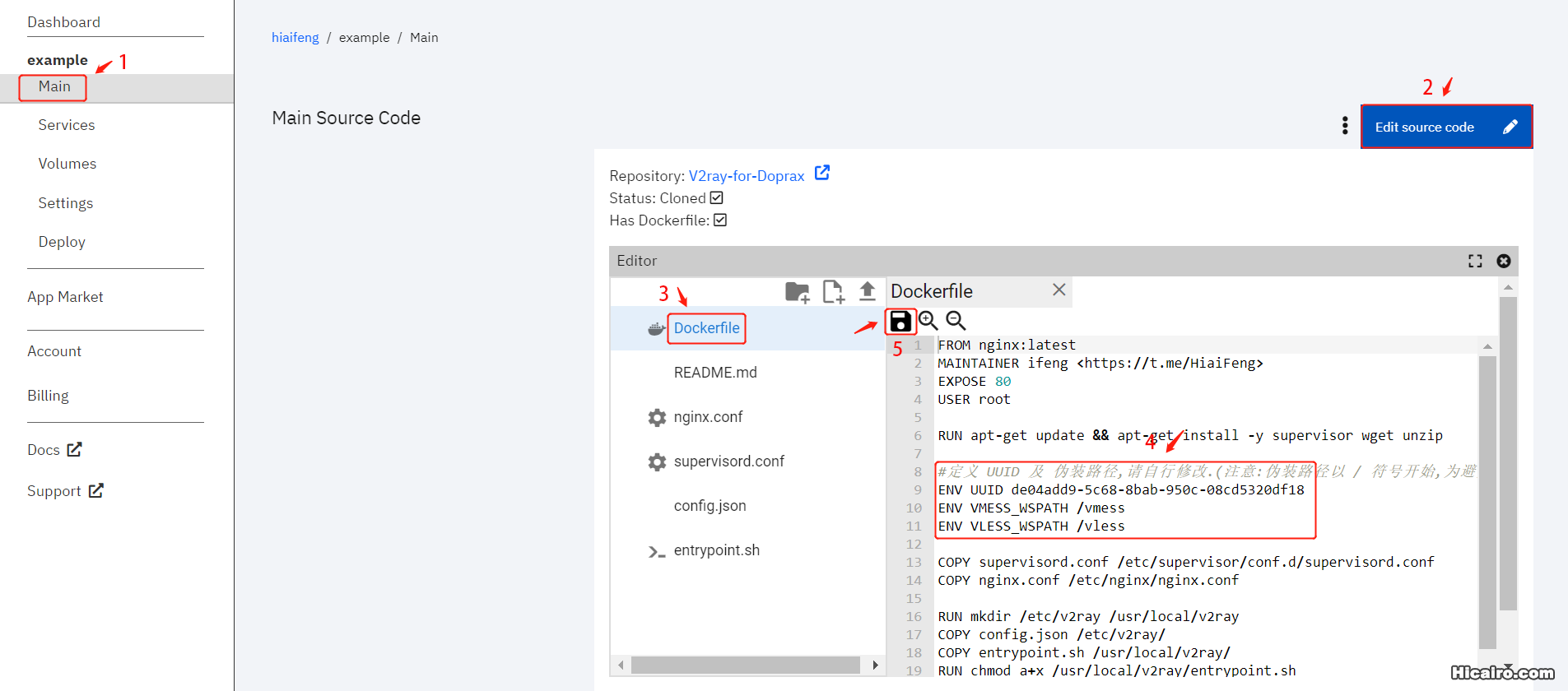
# 用新生成的 UUID 替换 de04add9-5c68-8bab-950c-08cd5320df18
ENV UUID de04add9-5c68-8bab-950c-08cd5320df18
# VMESS_WSPATH / VLESS_WSPATH 两个常量分别定义了 Vmess/VLess 的伪装路径,
# 请分别修改内容中的vmess或vless。注意:伪装路径以 / 符号开始,为避免不必要的麻烦,请不要使用特殊符号.
ENV VMESS_WSPATH /vmess
ENV VLESS_WSPATH /vless
2、客户端配置
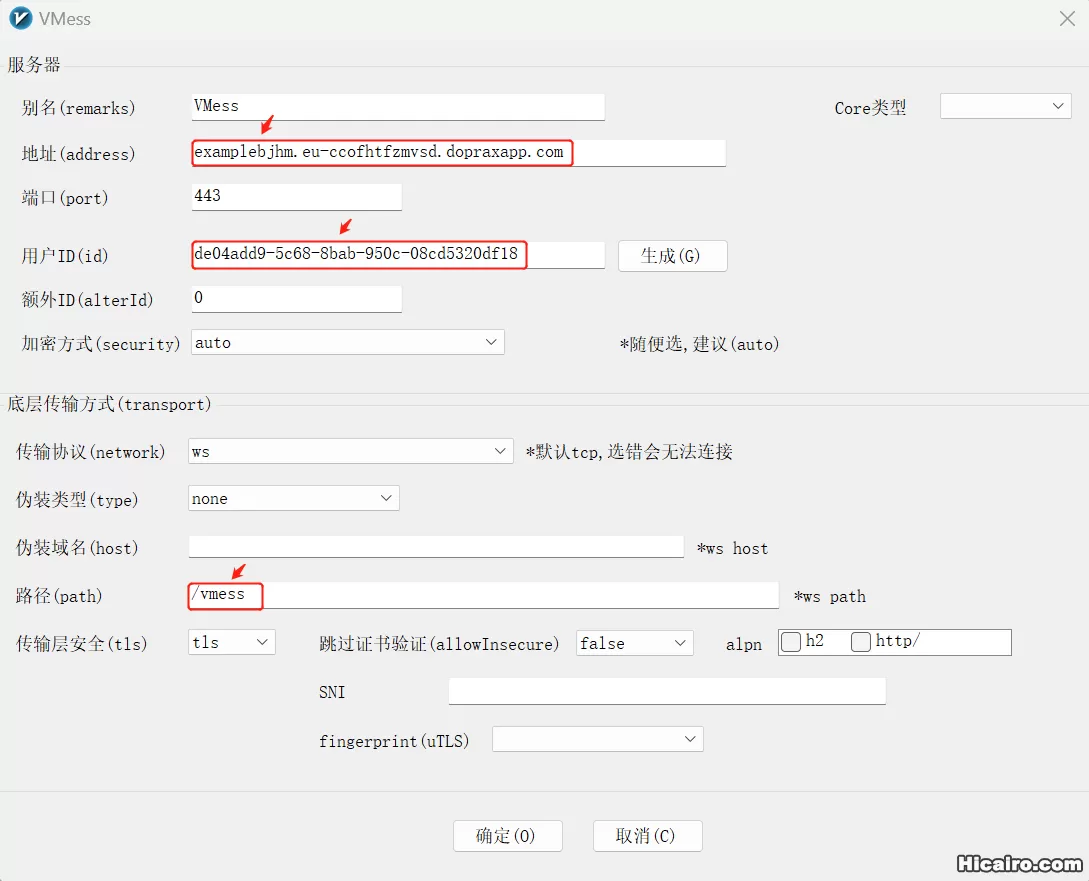
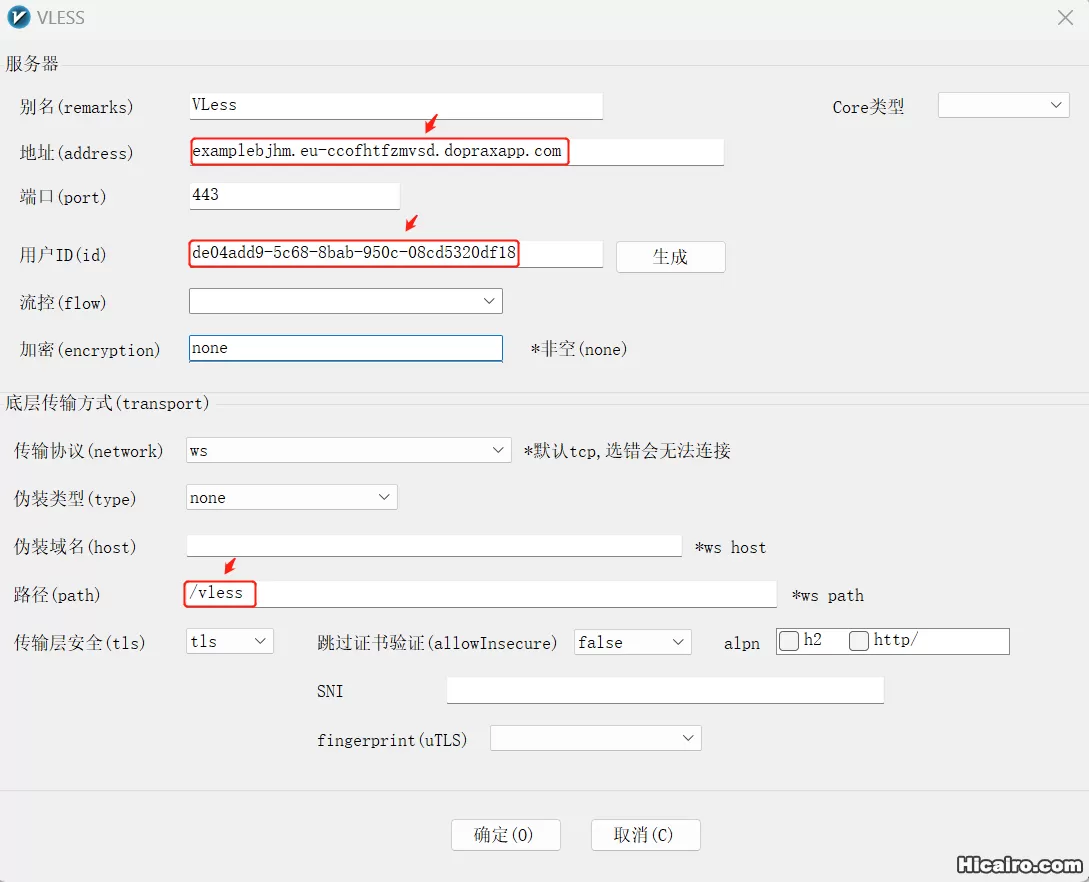
节点客户端配置需要手动进行,下面以 V2rayN 为例。
下图为 VMess 配置示意图,请修改标示内容,其他设置与图片中显示一致。
下图为 VLess 配置示意图,请修改标示内容,其他设置与图片中显示一致。
 # 反馈与交流:
在使用过程中,如果遇到问题,请使用Telegram与我联系。( https://t.me/HiaiFeng )
大家好,Doprax 非常关注用户使用体验。Hemen 先生及他的团队,为 Doprax 社区创建了 Discord 服务,如果您在使用过程中,遇到 Doprax 平台的相关问题或对平台有一些建议,请使用如下链接与官方联系。
Hello everyone! Doprax pays great attention to user experience. Mr. Hemen and his team have created a Discord service for the Doprax community. If you encounter any problems or have any suggestions related to the Doprax platform during use, please contact the official using the link below.
https://discord.gg/pFnGwTuXjk
---
--- METRICS ---
- Files Extracted: 1
- Estimated Token Budget: ~502 tokens
- Canonical Reference: https://codewiki.google/github.com/hiifeng/V2ray-for-Doprax
## 2. Official Technical Reference & Guides (hiifeng/hiifeng.github.io)
## File: README.md
# Building a blog using GitHub Pages
Create By ifeng
Web Site: https://www.hicairo.com
Telegram: https://t.me/HiaiFeng
# 简介:
本项目介绍如何通过 Jekyll 在 GitHub Pages 上搭建 Blog 系统。Jekyll 的核心是一个文本转换引擎。它的方便之处在于支持多种文本标记语言:Markdown,Textile,HTML,然后 Jekyll 就会帮你加入你选择主题的样式的布局中。最终生成你自己的静态博客网站。
# 更新日志:
2024年03月18日
切换 fontawesome-webfont 版本为 4.7.0 ,支持 QQ 、Telgram 等图标;
增加返回顶部按钮;
修改首页底部在手机浏览器中出现空白块的 BUG;
增加站点地图。
# 部署:
登录自己的 GitHub 账号后 Fork 该项目。
详细使用方案请参考:https://www.hicairo.com/post/72.html
# 反馈与交流:
在使用过程中,如果遇到问题,请使用 Telegram 与我联系。( https://t.me/HiaiFeng )
# 鸣谢:
本项目基于黄玄的项目修改,同时参考了 elmagnifico 的项目。
https://github.com/huxpro/huxpro.github.io
https://github.com/elmagnificogi/elmagnificogi.github.io
---
## File: _config.yml
# Site settings
title: HiFeng's Blog
SEOTitle: HiFeng's Blog_记录学习中的点点滴滴......
header-img: img/home-bg.jpg
email: webmaster@hicairo.com
keyword: "linux,debian,gentoo,ubuntu,redhat,centos,fedora,arch linux,openSuse,shell,bash,database,php,vps,v2ray,xray,vmess,vless,trojan,hysteria,naive,wireguard"
url: "https://ifeng.hidns.co" # your host, for absolute URL
baseurl: "" # for example, '/blog' if your blog hosted on 'host/blog'
# Publish posts or collection documents with a future date.
future: true
# SNS settings
RSS: false
wechat: false
#qq_username: 10000
#weibo_username: ifeng
#zhihu_username: ifeng
github_username: hiifeng
twitter_username: HiaiFeng
facebook_username: HiaiFeng
telegram_username: HiaiFeng
#linkedin_username: firstname-lastname-idxxxx
# Build settings
# from 2016, 'pygments' is unsupported on GitHub Pages. Use 'rouge' for highlighting instead.
highlighter: rouge
permalink: pretty
paginate: 10
exclude:
[
"less",
"node_modules",
"Gruntfile.js",
"package.json",
"README.md",
"README.zh.md",
]
anchorjs: true # if you want to customize anchor. check out line:181 of `post.html`
# If you have timezone issue (e.g. #68) in China, uncomment to use this:
#timezone: CN
# Gems
# from PR#40, to support local preview for Jekyll 3.0
# make sure you have this gem installed
# `$ gem install jekyll-paginate`
plugins: [jekyll-paginate]
# Markdown settings
# replace redcarpet to kramdown,
# although redcarpet can auto highlight code, the lack of header-id make the catalog impossible, so I switch to kramdown
# document: http://jekyllrb.com/docs/configuration/#kramdown
markdown: kramdown
kramdown:
input: GFM # use Github Flavored Markdown !important
syntax_highlighter_opts:
span:
line_numbers: false
block:
line_numbers: true
start_line: 1
# Disqus settings
disqus_username: iifeng
# Netease settings
netease_comment: false
# Analytics settings
# Baidu Analytics
# ba_track_id: [your track id]
# Google Analytics
# ga_track_id: "G-L0885W521V" # Format: UA-xxxxxx-xx
# ga_domain: demo.hicairo.com
# Sidebar settings
sidebar: true # whether or not using Sidebar.
sidebar-about-description: "好好工作 快乐生活 ... Contact me "
sidebar-avatar: /img/Hiifeng.png # use absolute URL, seeing it's used in both `/` and `/about/`
# Featured Tags
featured-tags: true # whether or not using Feature-Tags
featured-condition-size: 1 # A tag will be featured if the size of it is more than this condition value
# Progressive Web Apps
chrome-tab-theme-color: "#000000"
service-worker: true
# MathJax rendering for layout:page (e.g. post preview)
page-mathjax: false
# Friends
friends:
[
{ title: "HiFeng's Blog", href: "http://www.hicairo.com" },
{ title: "新月的博客", href: "https://blog.a--i.eu.org" },
{ title: "科技小岛", href: "https://www.kejiland.com" },
{ title: "耕读博客", href: "https://www.igengdu.com" },
{ title: "HiDNS Free Domain", href: "https://www.hidoha.net" },
# { title: "JiyinYiyong", href: "http://tiye.me/" },
# { title: "DHong Say", href: "http://dhong.co" },
# { title: "尹峰以为", href: "http://ingf.github.io/" },
]
---
## File: package.json
{
"name": "hux-blog",
"title": "Hux Blog",
"author": "Hux ",
"version": "1.8.2",
"homepage": "http://huxpro.github.io",
"repository": {
"type": "git",
"url": "https://github.com/Huxpro/huxpro.github.io"
},
"bugs": "https://github.com/Huxpro/huxpro.github.io/issues",
"devDependencies": {
"grunt": ">=1.3.0",
"grunt-banner": "~0.2.3",
"grunt-contrib-less": "^2.0.0",
"grunt-contrib-uglify": "^4.0.1",
"grunt-contrib-watch": "^1.1.0"
},
"scripts": {
"start": "bundle exec jekyll serve",
"dev": "grunt watch & npm run start",
"boil": "git push boilerplate boilerplate:master",
"push": "git push origin master --tag"
}
}
---
## File: search.json
---
layout: null
---
[
{% for post in site.posts %}
{
"title" : "{{ post.title | escape }}",
"subtitle" : "{{ post.subtitle | escape }}",
"tags" : "{{ post.tags | join: ', ' }}",
"url" : "{{ site.baseurl }}{{ post.url }}",
"date" : "{{ post.date }}"
} {% unless forloop.last %},{% endunless %}
{% endfor %}
]
---
## File: _includes/about/en.md
> 「In my brief academic career, I learned one thing... the more earnestly you delve, the more you realize the limits of human capability... — Unless you transcend humanity!!」
Hey, I'm Ifeng. I have a decent understanding of computer technology and I'm passionate about music and traveling. The human brain has its limits; within finite time and energy, it's difficult to grasp all the knowledge one desires. That's why we need "tools" and "skills" to transcend physical constraints. For me, writing is an incredibly effective method. I compile the knowledge I've absorbed into notes, enabling me to quickly revisit my thought process during review sessions. Once I've amassed a sufficient number of notes, I can gradually construct my own framework for a particular topic.
Most of the time, I use a personal note-taking tool to organize my thoughts. Blogging, on the other hand, provides a different sensation as it's a public platform. Although I mostly learn by reading articles from experts online, I believe that sharing my own insights, even if they're just modest achievements, can contribute positively to the community and help others.
**Insights and experiences in life, recording some matters for others' reference.**
Around 2017, Hugo was highly regarded among various static website generators. Over the following years, I predominantly used Markdown for writing and then deployed the static pages generated by Hugo onto GitHub Pages. During this period, I also developed my own themes, Dockerized the entire system, and established a rather convenient writing workflow.
However, ultimately, around 2022, I abandoned the static website generator + GitHub Pages approach in favor of the more convenient Ghost. The primary reason being the ability to write across devices seamlessly without the need for environment reconfiguration. Additionally, the ability to directly edit and preview changes on the web page saved a considerable amount of effort in generating articles and managing images. Even though I am a fervent Markdown enthusiast, I still desired to set up my blog in a cool and geeky manner. After exploring numerous alternative solutions, I still felt the necessity for a platform that allows immediate modification and updating of articles. Perhaps, in due time, I may stumble upon new tools again.
---
## File: _includes/about/zh.md
[Binary file]
---
## File: _posts/2022-06-19-Update-OpenSSL-in-CentOS.md
---
layout: post
title: "CentOS 7 升级 OpenSSL 1.1.1"
author: "ifeng"
header-style: text
tags:
- CentOS
- OpenSSL
---
> 这篇文章转载自 [HiFeng'Blog](https://www.hicairo.com/post/50.html),转载请保留链接 ;)
CentOS7 自带的是 OpenSSL 1.0.2 ,某些软件需要更高的版本 OpenSSL ,因此就有了这篇文章。为考虑到系统兼容性,建议不覆盖原来的版本,而采用安装到 /usr/local/openssl111 的路径。
本文安装后不对系统做任何兼容性的破坏,增加的文件和目录如下:
```shell
/usr/local/openssl111/
/etc/ld.so.conf.d/openssl111.conf
```
编译后的 RPM 包名为 openssl111 ,也不影响系统自带的 openssl 1.0.2 的后续升级。
从官网进行下载。
```shell
#### 以下所有操作都是在普通用户下进行,不能使用 root
cd ~
wget -c https://www.openssl.org/source/openssl-1.1.1k.tar.gz
mkdir -p ~/rpmbuild/{SOURCES,SPECS,SRPMS}
cp openssl-1.1.1k.tar.gz ~/rpmbuild/SOURCES
tar zxf ~/rpmbuild/SOURCES/openssl-1.1.1k.tar.gz -C ~/rpmbuild/SOURCES
# SPEC file
cat << 'EOF' > ~/rpmbuild/SPECS/openssl.spec
%global src openssl
Summary: OpenSSL 1.1.1 for Centos
Name: openssl111
Version: %{?version}%{!?version:1.1.1k}
Release: 2%{?dist}
Epoch: 1
Obsoletes: %{name} <= %{epoch}:%{version}
Provides: %{name} = %{epoch}:%{version}
URL: https://www.openssl.org/
License: GPLv2+
Source: https://www.openssl.org/source/%{src}-%{version}.tar.gz
BuildRequires: make gcc perl perl-WWW-Curl
BuildRoot: %{_tmppath}/%{name}-%{epoch}:%{version}-%{release}-root
%global openssldir /usr/local/openssl111
%description
OpenSSL RPM for version 1.1.1 on CentOS
%package devel
Summary: Development files for programs which will use the openssl library
Group: Development/Libraries
Requires: %{name} = %{epoch}:%{version}-%{release}
%description devel
OpenSSL RPM for version 1.1.1 on CentOS (development package)
%prep
%setup -q -n %{src}-%{version}
%build
./config shared --prefix=%{openssldir} --openssldir=%{openssldir} -Wl,-rpath,%{openssldir}/lib
make clean
make -j8
%install
[ "%{buildroot}" != "/" ] && %{__rm} -rf %{buildroot}
%make_install
mkdir -p %{buildroot}%{_bindir}
mkdir -p %{buildroot}%{_libdir}
#ln -sf %{openssldir}/lib/libssl.so.1.1 %{buildroot}%{_libdir}
#ln -sf %{openssldir}/lib/libcrypto.so.1.1 %{buildroot}%{_libdir}
#ln -sf %{openssldir}/bin/openssl %{buildroot}%{_bindir}
%clean
[ "%{buildroot}" != "/" ] && %{__rm} -rf %{buildroot}
%files
%{openssldir}
%defattr(-,root,root)
#/usr/bin/openssl
#/usr/lib64/libcrypto.so.1.1
#/usr/lib64/libssl.so.1.1
%files devel
%{openssldir}/include/*
%defattr(-,root,root)
#%post -p /sbin/ldconfig
%post
echo /usr/local/openssl111/lib | tee /etc/ld.so.conf.d/openssl111.conf
/sbin/ldconfig
%postun -p /sbin/ldconfig
EOF
rpmbuild -ba ~/rpmbuild/SPECS/openssl.spec
sudo yum install ~/rpmbuild/RPMS/x86_64/openssl111-1.1.1k-1.el7.x86_64.rpm
```
另外,也可以直接从 EPEL 仓库下载 openssl 1.1.1 libs ,这样就不用以上的编译步骤了。
```shell
yum install openssl11-libs
```
---
## File: _posts/2022-10-05-Detailed-Configuration-of-CentOS-7-Firewall.md
---
layout: post
title: "CentOS 7 防火墙详细配置"
subtitle: "Detailed Configuration of CentOS 7 Firewall"
date: 2022-10-05
author: "ifeng"
header-img: "img/post-bg-os-metro.jpg"
catalog: true
tags:
- CentOS
- Firewall
---
> 这篇文章转载自 [HiFeng’Blog](https://www.hicairo.com/post/21.html) ,转载请保留链接 ;)
**1、查看防火墙状态**
```shell
systemctl status firewalld
```
**2、开启防火墙**
```shell
systemctl start firewalld
```
**3、关闭防火墙**
```shell
systemctl stop firewalld
```
**4、设置开机启动**
```shell
systemctl enable firewalld
```
**5、禁止开机启动**
```shell
systemctl disable firewalld
```
**6、查看防火墙配置**
```shell
firewall-cmd --state
firewall-cmd --list-all
```
**7、查询端口是否开放**
```shell
firewall-cmd --query-port=8080/tcp
```
**8、允许80端口访问**
```shell
firewall-cmd --permanent --add-port=80/tcp
firewall-cmd --reload #重新加载防火墙配置才会起作用
```
**9、移除80端口**
```shell
firewall-cmd --permanent --remove-port=80/tcp
firewall-cmd --reload
```
**10、允许某个端口段**
```shell
firewall-cmd --permanent --zone=public --add-port=1000-2000/tcp
firewall-cmd --reload
```
**11、允许某个IP访问,默认允许**
```shell
firewall-cmd --permanent --add-rich-rule='rule family=ipv4 source address=192.168.1.169 accept'
firewall-cmd --reload
```
**12、禁止某个IP访问**
```shell
firewall-cmd --permanent --add-rich-rule='rule family=ipv4 source address=10.0.0.42 drop'
firewall-cmd --reload
```
**13、允许某个IP访问某个端口**
```shell
firewall-cmd --permanent --add-rich-rule='rule family=ipv4 source address=192.168.1.169 port protocol=tcp port=6379 accept'
firewall-cmd --reload
```
**14、移除以上规则**
```shell
firewall-cmd --permanent --remove-rich-rule='rule family="ipv4" source address="192.168.1.169" port port="6379" protocol="tcp" accept'
firewall-cmd --reload
```
**15、允许某个IP段访问**
```shell
firewall-cmd --permanent --add-rich-rule='rule family=ipv4 source address=10.0.0.0/24 accept'
```
**16、重启防火墙**
```shell
firewall-cmd --reload
```
---
## File: _posts/2022-11-23-Upgrade-PHP-version-on-CentOS-7.md
---
layout: post
title: "CentOS 7 升级 php 5.4 到 php 7.2"
subtitle: "Upgrade PHP version on CentOS 7"
author: "ifeng"
header-img: ""
header-bg-css: "linear-gradient(to right, #298E66, #035435);"
tags:
- CentOS
- php
---
> 这篇文章转载自 [HiFeng’Blog](https://www.hicairo.com/post/44.html) , 转载请保留链接 ;)
**原因:**
CentOS 7 下 yum 安装 php 版本默认是 5.4 的,但新框架要求 php 版本在 7 以上,所以把 php 升级一下了。
**查看yum的可安装的php版本列表:**
```shell
yum provides php
```
**开始升级PHP更新源:**
```shell
rpm -Uvh https://mirror.webtatic.com/yum/el7/epel-release.rpm
rpm -Uvh https://mirror.webtatic.com/yum/el7/webtatic-release.rpm
yum remove php-common -y
yum install -y php72w php72w-opcache php72w-xml php72w-mcrypt php72w-gd php72w-devel php72w-mysql php72w-intl php72w-mbstring
```
**查看版本:**
```shell
php -v
PHP 7.2.14 (cli) (built: Jan 12 2019 12:47:33) ( NTS )
Copyright (c) 1997-2018 The PHP Group
Zend Engine v3.2.0, Copyright (c) 1998-2018 Zend Technologies
with Zend OPcache v7.2.14, Copyright (c) 1999-2018, by Zend Technologies
```
**安装 php fpm:**
```shell
yum install php72w-fpm
#启动php-fpm
systemctl start php-fpm.service
#设置开机启动php-fpm
systemctl enable php-fpm.service
```
---
## File: _posts/2023-04-30-Goodbye-my-youth.md
[Binary file]
---
## File: _posts/2023-10-05-Update-Kernel-in-CentOS.md
[Binary file]
---
## File: _posts/2023-12-25-nginx-performance-optimization.md
---
layout: post
title: "提升 Nginx TLS/SSL HTTPS 性能的 7 条优化建议"
subtitle: "7 Tips to Boost Nginx TLS/SSL HTTPS Performance"
author: "ifeng"
header-img: "img/post-bg-web.jpg"
header-mask: 0.4
tags:
- Nginx
- TLS
- SSL
- HTTPS
---
> 这篇文章转载自 [HiFeng'Blog](https://www.hicairo.com/post/68.html),转载请保留链接 ;)
自 2018 年 7 月起,谷歌浏览器开始将 “HTTP” 网站标记为“不安全”。在过去的几年中,互联网已经迅速过渡到 HTTPS ,Chrome 浏览器的流量超过 70%,并且Web排名前100位的网站中有80多个现在默认使用HTTPS,当前Nginx作为最常见的服务器,广泛用于负载均衡(LB)、网关、反向代理。考虑到这一点,让我们看一下Nginx调优技巧,改善 Nginx + HTTPS 的性能以获得更好的 TTFB 和更少的延迟。
**1. 开启 HTTP/2**
HTTP/2 最初是在 Nginx 版本 1.9.5中 实现的,以取代 spdy。在 Nginx 上启用 HTTP/2 模块很简单。
原先的配置:
```nginx
listen 443 ssl;
```
修改为:
```nginx
listen 443 ssl http2;
```
可以通过 curl 来验证:
```nginx
curl --http2 -I https://domain.com/
```
**2. 开启 SSL session 缓存**
启用 SSL Session 缓存可以减少 TLS 的反复验证,减少 TLS 握手。1M 的内存就可以缓存 4000 个连接,非常划算,现在内存便宜,尽量开启。
```nginx
ssl_session_cache shared:SSL:50m; # 1m 4000个,
ssl_session_timeout 1h; # 1小时过期 1 hour during which sessions can be re-used.
```
**3. 禁用 SSL session tickets**
由于 Nginx 中尚未实现 SSL session tickets,可以关闭。
```nginx
ssl_session_tickets off;
```
**4. 禁用 TLS version 1.0**
1.3 已经出来,1.0 可以丢进历史垃圾堆。
```nginx
ssl_protocols TLSv1 TLSv1.1 TLSv1.2 TLSv1.3;
```
修改为
```nginx
ssl_protocols TLSv1.2 TLSv1.3;
```
**5. 启用 OCSP Stapling**
如果不启用 OCSP Stapling 的话,在用户连接你的服务器的时候,需要去验证证书,这个验证证书的时间不可控,我们开启OCSP Stapling后,可以省掉这一步。
```nginx
ssl_stapling on;
ssl_stapling_verify on;
ssl_trusted_certificate /path/to/full_chain.pem;
resolver 8.8.8.8 8.8.4.4 valid=300s;
resolver_timeout 5s;
```
**6. 减小 ssl buffer size**
ssl_buffer_size 控制在发送数据时的 buffer 大小,默认情况下,缓冲区设置为 16k,为了最大程度地减少 TTFB(至第一个字节的时间),最好使用较小的值,这样 TTFB 可以节省大约30 – 50ms。
```nginx
ssl_buffer_size 4k;
```
**7. 调整 Cipher 优先级**
更新更快的 Cipher 放前面,这样延迟更小。
```nginx
# 手动启用 cipher 列表
ssl_prefer_server_ciphers on; # prefer a list of ciphers to prevent old and slow ciphers
ssl_ciphers 'EECDH+AESGCM:EDH+AESGCM:AES256+EECDH:AES256+EDH';
```
---
## File: _posts/2024-01-20-Canon-EOS-R8-Detailed-Review.md
[Binary file]
---
## File: _posts/2024-02-04-Modify-Oracle-Cloud-Hostname.md
---
layout: post
title: "更改 Oracle Cloud 实例主机名"
author: "ifeng"
header-style: text
catalog: true
tags:
- Oracle Cloud
- Hostname
---
> 这篇文章转载自[小汐技术栈](https://tech.soraharu.com/archives/50/)
在使用 Oracle Cloud 实例服务的时候遇见了一个怪事,每次修改 hostname 一段时间后,都会自动变更回来,如何设置都无效,在查阅 Oracle Cloud 支持文档后终于解决了这个问题,在此做个记录。
1、修改 OCI Hostname 配置文件
```shell
vi /etc/oci-hostname.conf
```
将其中的 `PRESERVE_HOSTINFO=0` 修改为 `PRESERVE_HOSTINFO=1`
2、设置实例主机名
将 OracleCloud 更改为想要设置的主机名:
```shell
hostnamectl set-hostname OracleCloud
```
或者也可以直接在 Cockpit 上直接设置。
---
## File: _posts/2024-02-05-Configure-HTTPS-certificate-for-HS8145V.md
[Binary file]
---
## File: _posts/2024-02-06-watch-TV-for-free-in-China.md
[Binary file]
---
## File: _posts/2024-03-03-DartNode-Unlimited-Bandwidth-VPS-Registration-Tutorial.md
---
layout: post
title: "DartNode 无限流量 vps 注册申请教程"
subtitle: "DartNode Unlimited Bandwidth VPS Registration Tutorial"
author: "ifeng"
header-img: "img/post-bg-web.jpg"
header-mask: 0.4
tags:
- VPS
- DartNode
- 不限流量
---
> 这篇文章转载自 [HiFeng'Blog](https://www.hicairo.com/post/71.html)
[DartNode](https://dartnode.com/?via=ifeng) 成立于 2023年,总部位于休斯顿技术中心的中心地带,是 Snaju® Inc. 的一个部门,在 NASA 约翰逊航天中心附近运营着一个 24/7/365 网络运营中心。DartNode 提供`带宽 1 Gb/s 不限流量的 vps 套餐`,其中 VPS-1 Plan `每月仅需 2 美元`,对于经常看 Netflix、youtube 或需要大量下载的小伙伴,终于不用担心流量用超的问题了。
## 一、测试 vps 速度
经过我一个多月的试用,vps 运行基本稳定,晚高峰时速度还比较理想,我使用的是电信 200M 宽带,以下为直连的测速情况。
以下为使用 hysteria2 协议的测速情况,可以跑满我的宽带。
以下是使用 Bench.sh 的检测情况,其中包含服务器硬件配置信息、 I/O 速度、与各个国家/地区的网速情况。虽然 DartNode 在其官网说明提供带宽为 1 Gb/s 不限流量套餐,但从以下的测试结果来看,并没有达到 1 Gb/s 的速度,但是我感觉 200-300 Mb/s 的速度也基本可以满足日常工作和学习的需求。
```shell
-------------------- A Bench.sh Script By Teddysun -------------------
Version : v2023-10-15
Usage : wget -qO- bench.sh | bash
----------------------------------------------------------------------
CPU Model : Intel(R) Xeon(R) CPU E5-2697 v2 @ 2.70GHz
CPU Cores : 1 @ 2699.998 MHz
CPU Cache : 16384 KB
AES-NI : ✓ Enabled
VM-x/AMD-V : ✗ Disabled
Total Disk : 10.0 GB (2.4 GB Used)
Total Mem : 974.7 MB (315.7 MB Used)
System uptime : 37 days, 21 hour 45 min
Load average : 0.05, 0.07, 0.02
OS : CentOS Linux release 7.9.2009 (Core)
Arch : x86_64 (64 Bit)
Kernel : 6.7.1-1.el7.elrepo.x86_64
TCP CC : cubic
Virtualization : KVM
IPv4/IPv6 : ✓ Online / ✓ Online
Organization : AS399646 Snaju Development
Location : Houston / US
Region : Texas
----------------------------------------------------------------------
I/O Speed(1st run) : 85.4 MB/s
I/O Speed(2nd run) : 71.0 MB/s
I/O Speed(3rd run) : 81.5 MB/s
I/O Speed(average) : 79.3 MB/s
----------------------------------------------------------------------
Node Name Upload Speed Download Speed Latency
Speedtest.net 337.18 Mbps 619.38 Mbps 18.19 ms
Los Angeles, US 257.40 Mbps 371.00 Mbps 37.94 ms
Dallas, US 462.26 Mbps 374.00 Mbps 8.31 ms
Montreal, CA 587.50 Mbps 677.16 Mbps 48.13 ms
Paris, FR 76.74 Mbps 454.88 Mbps 113.21 ms
Amsterdam, NL 224.56 Mbps 791.66 Mbps 116.42 ms
Shanghai, CN 185.50 Mbps 924.59 Mbps 193.23 ms
Hongkong, CN 187.20 Mbps 65.38 Mbps 217.23 ms
Mumbai, IN 24.22 Mbps 233.17 Mbps 254.74 ms
Singapore, SG 97.70 Mbps 551.87 Mbps 207.44 ms
Tokyo, JP 76.76 Mbps 354.08 Mbps 136.26 ms
----------------------------------------------------------------------
Finished in : 6 min 45 sec
Timestamp : 2024-03-01 01:42:00 UTC
----------------------------------------------------------------------
```
## 二、账号注册
1、打开如下网址,点击屏幕右上角的“Dashboard”按钮。
[https://dartnode.com/?via=ifeng](https://dartnode.com/?via=ifeng)
2、如图所示,点击“Join Today”。当然如果你有 Gmail 邮箱,也可以选择“Sign with in Google”。
3、如图所示,输入相关信息后,点击“Join Today”按钮。由于 DartNode 在注册过程中,不验证信息的真实性,请确认邮箱是否输入正确,在忘记密码时,邮箱是取回密码的唯一凭证。
4、这时会自动登录,跳转至如下页面,然后点击页面右上角你的用户名中的“Settings”。
5、输入个人信息后点击页面底部的“>>Save && Update”按钮。请注意,Phone Number 请输入真实的号码,Google voice 号码也可以。
## 三、开通 vps 套餐
1、如图所示,点击“Cloud Services”中的“Cloud VPS”按钮。
2、如图所示,点击“Provision New Server”按钮,创建 VPS。
3、如图所示,选择适合自己的 vps 套餐,然后点击“Order Today”按钮。
4、如图所示,填写 Hostname ,选择操作系统后,点击右下角的“Continue”按钮。
5、如图所示,选择 DDOS 防护设置、自动备份设置、IP 设置后,点击右下角的“Continue”按钮。
6、如图所示,点击“Order Now”按钮。
7、DartNode 支持多种付款方式,我们选择使用支付宝进行付款,如图所示,点击右下角的“Reload & Pay $***”按钮。
8、选择“支付宝”后点击“支付”按钮。
9、这时页面跳转至支付宝收银台,使用手机扫描二维码完成支付即可。
## 四、管理自己的 vps
1、点击顶部菜单“Cloud Services”中的“Cloud VPS”后,你会看到你的 vps,如图所示,点击你的 vps 。
2、这时,你将看到你的 vps 的相关信息,包含 IP 地址、root 用户密码等,在这个页面你可以设置反向 DNS 解析,重装操作系统等。
## 五、DartNode 账户充值
DartNode vps 是按月进行计费的,如果您没有绑定信用卡,建议给 DartNode 充值一些费用,避免 vps 到期后忘记充值带来不必要的麻烦。
1、点击页面顶部的“Biling”按钮,然后点击页面右侧的“Reload Account Balance”按钮。
2、DartNode 支持每次最低充值 5 美元,选择充值金额后,点击“Reload With Stripe”按钮。
3、这时页面再次跳转至 Stripe 的页面,选择“支付宝”后点击“支付”按钮,按照提示完成充值即可。
## 六、有关 DartNode vps 的一些说明
1、DartNode 的介绍中提到,vps的出口带宽为 1 Gb/s ,但是在我的实际测试过程中,并没有达到 1 Gb/s 的速度,从本文第一章节可以看到有关测速的详细情况。目前的这个速度基本上也可以满足工作和学习的需要,我感觉性价比还是可以的。
2、 DartNode vps 提供的是不限流量套餐,但是在相关描述中提到“`我们不限制或计量我们服务器的带宽,您每月可以使用大量带宽,只要它符合我们的可接受使用政策。`”,有关符合 DartNode 可接受的政策,我也咨询了 DartNode 的客服人员,是否会因为 vps 占用 CPU 资源过高或流量使用过多而终止服务,对方的回复是他们并没有因为CPU使用率或带宽而取消任何服务,该政策是针对严重滥用行为的包罗万象。如果 DartNode 的带宽接近容量,他们会进行设备或网络的升级。因此目前来看,我认为是可以放心使用的。
以下为 DartNode 客服的回复截图。