### Index
# Heynote Documentation
[Changelog](/docs/changelog/)
Heynote is a dedicated scratchpad. It functions as a large persistent text buffer where you can write down anything you like. Works great for that Slack message you don't want to accidentally send, a JSON response from an API you're working with, notes from a meeting, your daily to-do list, etc.
The Heynote buffer is divided into blocks, and each block can have its own mode set (e.g. JavaScript, JSON, Markdown, etc.). This gives you syntax highlighting and lets you auto-format that JSON response.
Available for Mac, Windows, and Linux.
## Features
- Persistent text buffer(s)
- Block-based
- Inline images
- Multiple buffers in tabs
- Math/Calculator mode
- Currency conversion
- Syntax highlighting:
C++, C#, Clojure, CSS, Elixir, Erlang, Dart, Go, Groovy, HTML, Java, JavaScript, JSX, Kotlin, TypeScript, TOML, TSX, JSON, Lezer, Markdown, PHP, Python, Ruby, Rust, Scala, Shell, SQL, Swift, Vue, XML, YAML
- Language auto-detection
- Auto-formatting
- Multi-cursor editing
- Dark & Light themes
- Option to set a global hotkey to show/hide the app
- Default, Emacs-like or custom key bindings
- Spellchecking
## Default Key Bindings
**On Mac**
```
⌘ + Enter Add new block below the current block
⌥ + Enter Add new block before the current block
⌘ + Shift + Enter Add new block at the end of the buffer
⌥ + Shift + Enter Add new block at the start of the buffer
⌘ + ⌥ + Enter Split the current block at cursor position
⌘ + L Change block language
⌘ + N Create a new note buffer
⌘ + S Move the current block to another (or new) buffer
⌘ + P Open note selector
⌘ + Shift + P Open command palette
⌘ + Down Goto next block
⌘ + Up Goto previous block
⌘ + A Select all text in a note block. Press again to select the whole buffer
⌘ + ⌥ + Up/Down Add additional cursor above/below
⌥ + Shift + F Format block content (works for JSON, JavaScript, HTML, CSS and Markdown)
⌘ + ⌥ + [ Fold block(s)
⌘ + ⌥ + ] Unfold block(s)
⌘ + ⌥ + . Toggle block fold
```
**On Windows and Linux**
```
Ctrl + Enter Add new block below the current block
Alt + Enter Add new block before the current block
Ctrl + Shift + Enter Add new block at the end of the buffer
Alt + Shift + Enter Add new block at the start of the buffer
Ctrl + Alt + Enter Split the current block at cursor position
Ctrl + L Change block language
Ctrl + N Create a new note buffer
Ctrl + S Move the current block to another (or new) buffer
Ctrl + P Open note selector
Ctrl + Shift + P Open command palette
Ctrl + Down Goto next block
Ctrl + Up Goto previous block
Ctrl + A Select all text in a note block. Press again to select the whole buffer
Ctrl + Alt + Up/Down Add additional cursor above/below
Alt + Shift + F Format block content (works for JSON, JavaScript, HTML, CSS and Markdown)
Ctrl + Alt + [ Fold block(s)
Ctrl + Alt + ] Unfold block(s)
Ctrl + Alt + . Toggle block fold
```
You can see all the key bindings in the command palette and in Settings under Key Bindings.
## Custom Key Bindings
Heynote supports custom key bindings which you can configure in the settings. The key bindings are evaluated from top to bottom, so a binding that comes before another one will take precedence. Most commands will stop the event from propagating, but some commands only applies in certain contexts and might not stop the event from propagating to a later key binding.
To disable one of the built in key bindings, you can add a new key binding with the same key combination for the command "Do nothing". This will stop the event from propagating to the built in key binding.
You can see all available commands that can be bound to keys in the command palette which can be opened by pressing `⌘ + ⇧ + P` on Mac and `Ctrl + ⇧ + P` on Windows/Linux.
## Download/Installation
Download the appropriate (Mac, Windows or Linux) version from [heynote.com](https://heynote.com). The Windows build is not signed, so you might see some scary warning (I can not justify paying a yearly fee for a certificate just to get rid of that).
If installing Heynote on Linux in ChromeOS, see the [notes](#user-content-linux-on-chromeos) below about some packages that are needed.
On macOS, [Homebrew](https://brew.sh) users can utilize an unofficial [Homebrew Cask](https://formulae.brew.sh/cask/heynote#default): `brew install --cask heynote`
## Math Blocks
Heynote's Math blocks are powered by [Math.js expressions](https://mathjs.org/docs/expressions). Checkout their [documentation](https://mathjs.org/docs/) to see what [syntax](https://mathjs.org/docs/expressions/syntax.html), [functions](https://mathjs.org/docs/reference/functions.html), and [constants](https://mathjs.org/docs/reference/constants.html) are available.
### Accessing the previous result
The variable `prev` can be used to access the previous result. For example:
```
128
prev * 2 # 256
```
### Changing how the results of Math blocks are formatted
You can define a custom `format` function within the Math block like this:
```
_format = format # store reference to the built in format
format(x) = _format(x, {notation:"exponential"})
```
You can also do something like this to show the number with your default locale or provide a [custom one](https://www.w3.org/International/articles/language-tags/):
```
format(x) = x.toLocaleString();
format(x) = x.toLocaleString('en-GB');
```
See the [Math.js format()](https://mathjs.org/docs/reference/functions/format.html) function for more info on what's supported.
## Images
Pasting image data from the clipboard will insert an inline image into the buffer. Internally, the image data is saved to a file
within [the notes library's](#user-content-the-notes-library) `.images` directory. Drag and dropping an image file will also insert the image
into the editor (a copy of the image will be placed in the `.images` directory).
Images can be resized for display, but the underlying image data keeps its original dimensions. Issuing a copy command (`Ctrl/Cmd-C` with the
default key bindings) with the cursor next to an image will populate the system clipboard with the image data.
## The notes library
The notes library is a directory (with sub dirs) on the disk with a `.txt` file for each buffer. It's created the first time you start Heynote, with the default buffer file `scratch.txt` in it. The default location for the library is:
- Mac: `~/Library/Application Support/Heynote/notes/`
- Windows: `%APPDATA%\Heynote\notes\`
- Linux: `~/.config/Heynote/notes/`
You can change the path of the notes library in the settings. Heynote expects reasonably fast disk access to the notes library, so it's not recommended to use a network drive, though file syncing services like Dropbox, OneDrive, etc. should work (see below).
### Image storage
Images are stored alongside your notes in a hidden `.images` folder inside the notes library directory. Each image is referenced from the buffer file, and the app uses those references to clean up older, unreferenced images over time. Cleanup runs on startup and only removes unreferenced images older than 24 hours (and only if there are any referenced images, as a safety check).
### Synchronizing the notes library
Heynote is built to support synchronizing the notes library (or buffer file in the case of Heynote 1.x) through file-syncing services like Dropbox, OneDrive, etc. However, note that the synchronization logic is quite simple, so editing the same buffer on two different machines at the same time might lead to conflicts and unexpected results.
When using a file synching service that support "offloading" of files in the cloud (removing them from the disk), it's recommended to mark the notes library as "always available offline".
As always, backup things that are important.
## Spellchecking
Spellchecking can be toggled on or off by clicking the spellchecking icon in the status bar. Right-clicking the icon on Windows and Linux allows you to select the active dictionaries (on Mac, the default OS dictionary is used).
## Linux
### Linux on ChromeOS
It's been reported [(#48)](https://github.com/heyman/heynote/issues/48) that ChromeOS's Debian VM need the following packages installed to run the Heynote AppImage:
```
libfuse2
libnss3
libnspr4
```
### Wayland
Due to [an issue in Electron](https://github.com/electron/electron/issues/38288), the global hotkey will not work in all applications running under Wayland. In KDE it is possible to work around this limitation by adding this Kwin script:
```javascript
function toggleHeynote() {
var client = workspace.clientList().find((c) => c.resourceClass.toLowerCase() === 'heynote');
if (client) {
if (client.minimized) {
client.minimized = false;
workspace.activeClient = client;
} else {
if (workspace.activeClient == client) {
client.minimized = true;
} else {
workspace.activeClient = client;
}
}
}
}
registerShortcut('toggleHeynote', 'Toggle Heynote', 'Ctrl+Shift+H', toggleHeynote);
```
See the [KWin scripting tutorial](https://develop.kde.org/docs/plasma/kwin/) for instructions on how to install the script.
Remember to enable the script in the KDE System Settings. It may also be necessary to go into the KDE System Settings and bind the "Toggle Heynote" key manually.
---
### Changelog
# Changelog
Here are the most notable changes in each release. For a more detailed list of changes, see the [Github Releases page](https://github.com/heyman/heynote/releases).
## 2.9.1
- Fix issue with the Heynote window ending up on a screen that has been disconnected
- Fix so that library search works better for Chinese, Japanese and Korean languages.
Previously searching required three characters to trigger but this is no longer the case
for these languages.
## 2.9.0
### Sidebar with tree view of the note buffers
You can now turn on a sidebar with a tree view of all your buffers and directories.
### Search across all buffers
A new global search function has been added. Use it to find text across all buffers in the library. The default
key binding to open up the global search is `Ctrl/Cmd + Shift + F`.
### Archive Scratch functionality
A new archive action has been added for the default Scratch buffer. It can be accessed from the Scratch buffer's
context (right click) menu. It moves the content of Scratch into a new buffer buffer and starts a fresh Scratch buffer.
For performance reasons it's recommended to use this feature when the Scratch buffer grows really large (e.g. MBs).
### Other changes
- Persist the search query between different buffers, and between restarts
- Add a setting for automatically installing new updates (on by default)
- Add version and client id headers when fetching currency exchange rates
- Add inline color preview for hex / hsl / rgb values for supported languages (CSS, HTML, JS/TS, Vue, TSX)
- Improve window show/focus behavior when restoring from tray
- Add setting for automatically starting Heynote on login
- Add setting for starting Heynote hidden
- Add copyLineDown and copyLineUp commands by default bound to `Alt + Shift + ArrowDown/Up`
## 2.8.2
- Fix issue with broken images after changing the buffer files path
## 2.8.1
- Fix crash when fold gutter is turned off
## 2.8.0
### Images
Heynote now supports inline images. You can paste images from the clipboard or drag and drop image files.
Images can be selected and resized directly in the editor, and it's quick and easy to put an image back
on the system clipboard.
### Drawing on images
Heynote now includes a lightweight drawing tool for adding quick, freehand annotations on top of images.
### Other changes
- Add syntax highlighting for Math blocks
- New lines in a Plaintext, Math and SQL blocks now inherits the indentation from the previous line
(other languages should already have this behaviour for new lines)
- Add support for [Mermaid](https://mermaid.js.org/) blocks
- Fix issue not being able to record the Enter key when creating custom key bindings
## v2.7.2
- Fix issue causing broken status bar on some system locales (#434)
## 2.7.1
- Fix issue where a folded block would get unfolded when editing an empty block directly below it.
## 2.7.0
### Non backwards-compatible change
Buffers created/saved with this new version of Heynote is not compatible with older versions of Heynote,
so if you're using Heynote on multiple machines, make sure to update to >=2.7 on all machines.
### Creation time for blocks
The time of creation is now recorded for blocks, and it's displayed in the status bar. For folded blocks,
it's also displayed in the summary line.
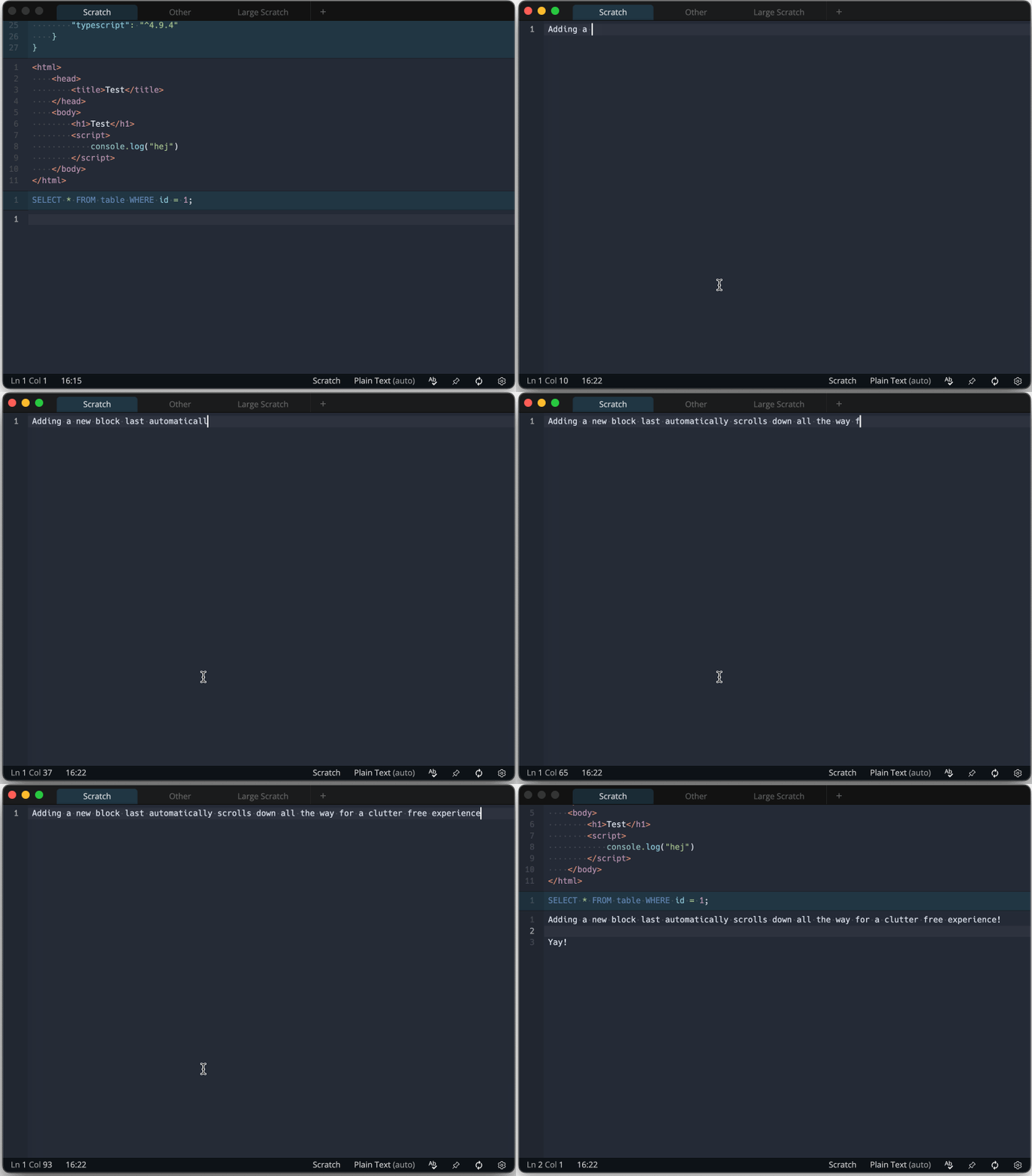
### Add new block and scroll down
A new command for adding a new block at the end of the buffer and then scrolling down so that only the new
block is visible has been added. This can be used to create a new block and avoid any distraction from seeing
the other blocks above while writing.
The default key binding for `Cmd/Ctrl+Shift+Enter` has been changed to this new command, but anyone who would
prefer the old behaviour, can add a key binding for the `Add new block after last block` command.
### Other fixes and improvements
- The default key binding for the `TAB` key is now a new `insertIndentation` command. This command will insert
indentation character(s) (spaces or tabs depending on the setting) so that the cursor aligns with the indentation
columns. Unless there is an active selection, in which case the `indentMore` command will be executed instead.
If you want the old behaviour, you can bind the `TAB` key to `indentMore`.
- Chinese characters in buffer file names are now converted to ascii using pinyin. This fixes an issue where it
wasn't possible to create a buffer with only chinese characters it the name.
- Fix issue where the wrong locale was used for formatting dates on MacOS on systems using a locale such as "en-SE"
- Fix issue with folded Math blocks where the results from the first and last line would still be visible
- Always use 2-digit notation for hours when displaying time
- Add setting for configuring the cursor blink rate (or turning off the blinking)
- Add support for Lua blocks
- Add `toggleCheckbox` command for Markdown todo items (default key binding: `Cmd/Ctrl+Shift+Space`)
- Fix issue when selecting all content of a math block and typing a character
- Fix so that checkboxes in todo lists takes up 4 spaces so that the margin align for multi line list items
## 2.6.2
- Update to latest version of Electron to fix issue making Heynote unusable on latest version of Mac OS (Tahoe)
- Fix issue that would break Math blocks with a large number of lines (the parser would not start processing
rows from the beginning of the block)
- Fix issue with not being able to hide window after toggling alwaysOnTop (on Mac)
## 2.6.1
- Fix crash when no custom key binding had been set
## 2.6.0
- Add setting for rendering white-space (spaces as dots and tabs as arrows)
- Show key bindings in Command Palette
- When displaying key bindings show shorter version with ⇧, ⌘, ⌥, etc instead of Shift, Cmd, Alt, etc
- Fixed so that tooltips displays new key binding if the default have been overridden
## 2.5.0
### Tabs
You now get a visual representation of open buffers in the form of tabs. The tabs are integrated in the menu bar to take up as little screen real estate as possible, and they can also be turned off - completely or just in fullscreen mode - in the settings.
### Spellchecking
It's now possible to turn on/off spellchecking. This can be done by clicking the spellchecking icon in the status bar. There are also heynote commands that can be bound to custom keys to enable/disable/toggle spellchecking.
### Other fixes and improvements
- Added a pin icon to the status bar that can be used to toggle the "Always on top" setting (to make the windows float on top of other programs).
- Added toggleAlwaysOnTop command that can be used to bind a key that toggles the "Always on top setting".
- Remember the open buffer(s) between program restarts.
- Fixed so that Alt-clicking on an cursor removes it (if more than one cursor exists).
- Changed the key binding for rectangular selection from Alt+Click to Alt+Shift+Click.
- Fixed issue where the window position wouldn't be properly restored in some cases.
- Updated to latest version of Electron.
## 2.4.0
### Improved search functionality
The new search (and replace) dialog has an improved UI and is now "block aware", meaning that one can choose to search within the current block or across all blocks. The search settings (within the current block, case sensitivity, whole words) also affects the `Cmd/Ctrl-D` command for selecting the next occurrence of the current selection.
### Other fixes and improvements
- Fix issues with todo lists checkboxes in Markdown blocks
- Fix issue with markdown blocks sometimes not being fully folded
## 2.3.3
- Prevent blocks from unfolding when changing the block language
- Fix issue toggling the fold gutter setting
## 2.3.2
- Improve folding to be less aggressive with the unfolding (e.g. when creating a new block after a folded block, and then immediately pressing backspace to remove the new block)
## 2.3.1
- Fix issue with the cursor being a few pixels too short
- Fix issue where one could remove characters within a folded block without it getting unfolded
## 2.3.0
### Improved support for folding blocks
- Fixed an issue where some types of blocks could not be folded.
- The fold state is now stored in the buffer file so that it's persisted between sessions.
- Added three new commands for folding and unfolding blocks:
- `foldBlock` - Folds the current/selected block(s). Default key binding is `Ctrl-Alt-[` on Windows/Linux and `Cmd-Option-[` on Mac.
- `unfoldBlock` - Unfolds the current/selected block(s). Default key binding is `Ctrl-Alt-]` on Windows/Linux and `Cmd-Option-]` on Mac.
- `toggleFoldBlock` - Toggles the fold state of the current/selected block. Default key binding is `Ctrl-Alt-.` on Windows/Linux and `Cmd-Option-.` on Mac.
- Folded blocks now display the first 50 characters of the block content, as well as the number of lines in the block.
- Default key bindings for folding code on Mac changed from `Cmd-Option-[` and `Cmd-Option-]` to `Cmd-Shift-[` and `Cmd-Shift-]` (to avoid conflicts with the new block folding commands)
### Other features and fixes
- Add document navigation commands (Ctrl+Home/End)
- Fix wrong positioning if IME interface (for Chinese input)
- Prevent editor from loosing focus when line number/fold gutter is clicked
## 2.2.2
- Fix issue when changing settings after having upgraded to Heynote 2.2 from an earlier version
## 2.2.1
### Bug Fixes
- Fix issue where the second command in the command palette, instead of the first command, was selected when the palette is opened.
- Change name/label of some commands in the command palette, and make commands searchable using their key names as well.
- Fix key bindings for toggleComment and toggleBlockComment commands that were previously working.
- Fix issue with lists in markdown blocks not automatically being continued when pressing enter.
## 2.2.0
### New Features
- Added support for custom key bindings. See [the documentation](https://heynote.com/docs/#user-content-custom-key-bindings) for more info.
- Added a "command palette" that can be accessed by pressing `Ctrl/Cmd+Shift+P`, or just typing `>` in the buffer selector. The command palette allows you to discover all available commands in the app, and to quickly execute them.
- Added support for configuring the tab size, as well as the option to use tabs instead of spaces for indentation.
- Added functionality for moving blocks up and down. Default key bindings are `Ctrl/Cmd+Alt+Shift+Up` and `Ctrl/Cmd+Alt+Shift+Down`.
- Added functionality for inserting the current date and time. Default key binding is `Alt+Shift+D`.
### Other changes
- Upgraded to latest version of Electron, CodeMirror, Vue, electron-builder and other dependencies.
## 2.1.4
- Fix issue with positioning and size of todo list checkboxes in Markdown blocks when using a non-default font size, or a non-monospaced font.
- Fix issue when pressing `Ctrl/Cmd+A` in a text input inside a modal dialog (e.g. the buffer selector). Previously the select all command would be sent to the editor.
## 2.1.3
- Fix escaping issue in buffer selector (properly this time, hopefully)
## 2.1.2 (yanked)
- Fix issue where buffer name wasn't properly escaped in buffer selector
## 2.1.1
- Fix bug on Windows causing sub directories in the note library to not work correctly
## 2.1.0
### New Features
- Added support for moving the current block to another (or new) buffer. Pressing `Ctrl/Cmd+S` will now pop up a dialog where you can search for and select another buffer to which the block will be moved. It's also possible to select to create a new buffer to which the block will be moved.
- Add right click context menu with undo/redo/cut/copy/paste/select all as well as Delete Block and Move block to another buffer.
- Add File menu item for switching buffer
- When deleting a block, the cursor will now end up at the beginning of the next block, instead of at the end of the previous block.
- Added support for the following languages:
* Elixir
* Scala
- PHP blocks no longer requires `
## General Information
- [Website](https://heynote.com)
- [Documentation](https://heynote.com/docs/)
- [Changelog](https://heynote.com/docs/changelog/)
Heynote is a scratchpad and note-taking app for developers and power users. It functions as a large persistent text buffer where you can write down anything you like. Works great for that Slack message you don't want to accidentally send, a JSON response from an API you're working with, notes from a meeting, your daily to-do list, etc.
Heynote buffers are divided into blocks, and each block can have its own Language set (e.g. JavaScript, JSON, Markdown, etc.). This gives you syntax highlighting and lets you auto-format that JSON response. Just hit `Ctrl/Cmd + Enter` to create a new block.
Available for Mac, Windows, and Linux.
## Features
- Persistent text buffers
- Block-based
- Inline images
- Multiple buffers in tabs
- Search (single and multi buffer)
- Math/Calculator mode
- Currency conversion
- Syntax highlighting:
C++, C#, Clojure, CSS, Elixir, Erlang, Dart, Go, Groovy, HTML, Java, JavaScript, JSX, Kotlin, TypeScript, TOML, TSX, JSON, Lezer, Markdown, Mermaid, PHP, Python, Ruby, Rust, Scala, Shell, SQL, Swift, Vue, XML, YAML
- Language auto-detection
- Auto-formatting
- Multi-cursor editing
- Dark & Light themes
- Option to set a global hotkey to show/hide the app
- Default, Emacs-like or custom key bindings
- Spellchecking
## Documentation
[Documentation](https://heynote.com/docs/) is available on the Heynote website.
## Development
To develop Heynote you need Node.js and you should (hopefully) just need to check out the code and then run:
```
> npm install
> npm run dev
```
### Run Tests
To run the tests:
```
> npm run test
```
To run the tests in the Playwright UI:
```
> npm run test:ui
```
### Contributions
I'm happy to merge contributions that fit my vision for the app. Bug fixes are always welcome.
## FAQ
### Where is the buffer data stored?
See the [documentation](https://heynote.com/docs/#user-content-the-notes-library).
### Can you make a mobile app?
No, at the moment this is out of scope, sorry.
### What are the default keyboard shortcuts?
See the [documentation](https://heynote.com/docs/#user-content-default-key-bindings).
## Thanks!
Heynote is built upon [CodeMirror](https://codemirror.net/), [Vue](https://vuejs.org/), [Electron](https://www.electronjs.org/), [Math.js](https://mathjs.org/), [Prettier](https://prettier.io/) and other great open-source projects.
---


 ### Other fixes and improvements
- The default key binding for the `TAB` key is now a new `insertIndentation` command. This command will insert
indentation character(s) (spaces or tabs depending on the setting) so that the cursor aligns with the indentation
columns. Unless there is an active selection, in which case the `indentMore` command will be executed instead.
If you want the old behaviour, you can bind the `TAB` key to `indentMore`.
- Chinese characters in buffer file names are now converted to ascii using pinyin. This fixes an issue where it
wasn't possible to create a buffer with only chinese characters it the name.
- Fix issue where the wrong locale was used for formatting dates on MacOS on systems using a locale such as "en-SE"
- Fix issue with folded Math blocks where the results from the first and last line would still be visible
- Always use 2-digit notation for hours when displaying time
- Add setting for configuring the cursor blink rate (or turning off the blinking)
- Add support for Lua blocks
- Add `toggleCheckbox` command for Markdown todo items (default key binding: `Cmd/Ctrl+Shift+Space`)
- Fix issue when selecting all content of a math block and typing a character
- Fix so that checkboxes in todo lists takes up 4 spaces so that the margin align for multi line list items
## 2.6.2
- Update to latest version of Electron to fix issue making Heynote unusable on latest version of Mac OS (Tahoe)
- Fix issue that would break Math blocks with a large number of lines (the parser would not start processing
rows from the beginning of the block)
- Fix issue with not being able to hide window after toggling alwaysOnTop (on Mac)
## 2.6.1
- Fix crash when no custom key binding had been set
## 2.6.0
- Add setting for rendering white-space (spaces as dots and tabs as arrows)
- Show key bindings in Command Palette
- When displaying key bindings show shorter version with ⇧, ⌘, ⌥, etc instead of Shift, Cmd, Alt, etc
- Fixed so that tooltips displays new key binding if the default have been overridden
## 2.5.0
### Tabs
You now get a visual representation of open buffers in the form of tabs. The tabs are integrated in the menu bar to take up as little screen real estate as possible, and they can also be turned off - completely or just in fullscreen mode - in the settings.
### Spellchecking
It's now possible to turn on/off spellchecking. This can be done by clicking the spellchecking icon in the status bar. There are also heynote commands that can be bound to custom keys to enable/disable/toggle spellchecking.
### Other fixes and improvements
- Added a pin icon to the status bar that can be used to toggle the "Always on top" setting (to make the windows float on top of other programs).
- Added toggleAlwaysOnTop command that can be used to bind a key that toggles the "Always on top setting".
- Remember the open buffer(s) between program restarts.
- Fixed so that Alt-clicking on an cursor removes it (if more than one cursor exists).
- Changed the key binding for rectangular selection from Alt+Click to Alt+Shift+Click.
- Fixed issue where the window position wouldn't be properly restored in some cases.
- Updated to latest version of Electron.
## 2.4.0
### Improved search functionality
The new search (and replace) dialog has an improved UI and is now "block aware", meaning that one can choose to search within the current block or across all blocks. The search settings (within the current block, case sensitivity, whole words) also affects the `Cmd/Ctrl-D` command for selecting the next occurrence of the current selection.
### Other fixes and improvements
- Fix issues with todo lists checkboxes in Markdown blocks
- Fix issue with markdown blocks sometimes not being fully folded
## 2.3.3
- Prevent blocks from unfolding when changing the block language
- Fix issue toggling the fold gutter setting
## 2.3.2
- Improve folding to be less aggressive with the unfolding (e.g. when creating a new block after a folded block, and then immediately pressing backspace to remove the new block)
## 2.3.1
- Fix issue with the cursor being a few pixels too short
- Fix issue where one could remove characters within a folded block without it getting unfolded
## 2.3.0
### Improved support for folding blocks
- Fixed an issue where some types of blocks could not be folded.
- The fold state is now stored in the buffer file so that it's persisted between sessions.
- Added three new commands for folding and unfolding blocks:
- `foldBlock` - Folds the current/selected block(s). Default key binding is `Ctrl-Alt-[` on Windows/Linux and `Cmd-Option-[` on Mac.
- `unfoldBlock` - Unfolds the current/selected block(s). Default key binding is `Ctrl-Alt-]` on Windows/Linux and `Cmd-Option-]` on Mac.
- `toggleFoldBlock` - Toggles the fold state of the current/selected block. Default key binding is `Ctrl-Alt-.` on Windows/Linux and `Cmd-Option-.` on Mac.
- Folded blocks now display the first 50 characters of the block content, as well as the number of lines in the block.
- Default key bindings for folding code on Mac changed from `Cmd-Option-[` and `Cmd-Option-]` to `Cmd-Shift-[` and `Cmd-Shift-]` (to avoid conflicts with the new block folding commands)
### Other features and fixes
- Add document navigation commands (Ctrl+Home/End)
- Fix wrong positioning if IME interface (for Chinese input)
- Prevent editor from loosing focus when line number/fold gutter is clicked
## 2.2.2
- Fix issue when changing settings after having upgraded to Heynote 2.2 from an earlier version
## 2.2.1
### Bug Fixes
- Fix issue where the second command in the command palette, instead of the first command, was selected when the palette is opened.
- Change name/label of some commands in the command palette, and make commands searchable using their key names as well.
- Fix key bindings for toggleComment and toggleBlockComment commands that were previously working.
- Fix issue with lists in markdown blocks not automatically being continued when pressing enter.
## 2.2.0
### New Features
- Added support for custom key bindings. See [the documentation](https://heynote.com/docs/#user-content-custom-key-bindings) for more info.
- Added a "command palette" that can be accessed by pressing `Ctrl/Cmd+Shift+P`, or just typing `>` in the buffer selector. The command palette allows you to discover all available commands in the app, and to quickly execute them.
- Added support for configuring the tab size, as well as the option to use tabs instead of spaces for indentation.
- Added functionality for moving blocks up and down. Default key bindings are `Ctrl/Cmd+Alt+Shift+Up` and `Ctrl/Cmd+Alt+Shift+Down`.
- Added functionality for inserting the current date and time. Default key binding is `Alt+Shift+D`.
### Other changes
- Upgraded to latest version of Electron, CodeMirror, Vue, electron-builder and other dependencies.
## 2.1.4
- Fix issue with positioning and size of todo list checkboxes in Markdown blocks when using a non-default font size, or a non-monospaced font.
- Fix issue when pressing `Ctrl/Cmd+A` in a text input inside a modal dialog (e.g. the buffer selector). Previously the select all command would be sent to the editor.
## 2.1.3
- Fix escaping issue in buffer selector (properly this time, hopefully)
## 2.1.2 (yanked)
- Fix issue where buffer name wasn't properly escaped in buffer selector
## 2.1.1
- Fix bug on Windows causing sub directories in the note library to not work correctly
## 2.1.0
### New Features
- Added support for moving the current block to another (or new) buffer. Pressing `Ctrl/Cmd+S` will now pop up a dialog where you can search for and select another buffer to which the block will be moved. It's also possible to select to create a new buffer to which the block will be moved.
- Add right click context menu with undo/redo/cut/copy/paste/select all as well as Delete Block and Move block to another buffer.
- Add File menu item for switching buffer
- When deleting a block, the cursor will now end up at the beginning of the next block, instead of at the end of the previous block.
- Added support for the following languages:
* Elixir
* Scala
- PHP blocks no longer requires `
## General Information
- [Website](https://heynote.com)
- [Documentation](https://heynote.com/docs/)
- [Changelog](https://heynote.com/docs/changelog/)
Heynote is a scratchpad and note-taking app for developers and power users. It functions as a large persistent text buffer where you can write down anything you like. Works great for that Slack message you don't want to accidentally send, a JSON response from an API you're working with, notes from a meeting, your daily to-do list, etc.
Heynote buffers are divided into blocks, and each block can have its own Language set (e.g. JavaScript, JSON, Markdown, etc.). This gives you syntax highlighting and lets you auto-format that JSON response. Just hit `Ctrl/Cmd + Enter` to create a new block.
Available for Mac, Windows, and Linux.
### Other fixes and improvements
- The default key binding for the `TAB` key is now a new `insertIndentation` command. This command will insert
indentation character(s) (spaces or tabs depending on the setting) so that the cursor aligns with the indentation
columns. Unless there is an active selection, in which case the `indentMore` command will be executed instead.
If you want the old behaviour, you can bind the `TAB` key to `indentMore`.
- Chinese characters in buffer file names are now converted to ascii using pinyin. This fixes an issue where it
wasn't possible to create a buffer with only chinese characters it the name.
- Fix issue where the wrong locale was used for formatting dates on MacOS on systems using a locale such as "en-SE"
- Fix issue with folded Math blocks where the results from the first and last line would still be visible
- Always use 2-digit notation for hours when displaying time
- Add setting for configuring the cursor blink rate (or turning off the blinking)
- Add support for Lua blocks
- Add `toggleCheckbox` command for Markdown todo items (default key binding: `Cmd/Ctrl+Shift+Space`)
- Fix issue when selecting all content of a math block and typing a character
- Fix so that checkboxes in todo lists takes up 4 spaces so that the margin align for multi line list items
## 2.6.2
- Update to latest version of Electron to fix issue making Heynote unusable on latest version of Mac OS (Tahoe)
- Fix issue that would break Math blocks with a large number of lines (the parser would not start processing
rows from the beginning of the block)
- Fix issue with not being able to hide window after toggling alwaysOnTop (on Mac)
## 2.6.1
- Fix crash when no custom key binding had been set
## 2.6.0
- Add setting for rendering white-space (spaces as dots and tabs as arrows)
- Show key bindings in Command Palette
- When displaying key bindings show shorter version with ⇧, ⌘, ⌥, etc instead of Shift, Cmd, Alt, etc
- Fixed so that tooltips displays new key binding if the default have been overridden
## 2.5.0
### Tabs
You now get a visual representation of open buffers in the form of tabs. The tabs are integrated in the menu bar to take up as little screen real estate as possible, and they can also be turned off - completely or just in fullscreen mode - in the settings.
### Spellchecking
It's now possible to turn on/off spellchecking. This can be done by clicking the spellchecking icon in the status bar. There are also heynote commands that can be bound to custom keys to enable/disable/toggle spellchecking.
### Other fixes and improvements
- Added a pin icon to the status bar that can be used to toggle the "Always on top" setting (to make the windows float on top of other programs).
- Added toggleAlwaysOnTop command that can be used to bind a key that toggles the "Always on top setting".
- Remember the open buffer(s) between program restarts.
- Fixed so that Alt-clicking on an cursor removes it (if more than one cursor exists).
- Changed the key binding for rectangular selection from Alt+Click to Alt+Shift+Click.
- Fixed issue where the window position wouldn't be properly restored in some cases.
- Updated to latest version of Electron.
## 2.4.0
### Improved search functionality
The new search (and replace) dialog has an improved UI and is now "block aware", meaning that one can choose to search within the current block or across all blocks. The search settings (within the current block, case sensitivity, whole words) also affects the `Cmd/Ctrl-D` command for selecting the next occurrence of the current selection.
### Other fixes and improvements
- Fix issues with todo lists checkboxes in Markdown blocks
- Fix issue with markdown blocks sometimes not being fully folded
## 2.3.3
- Prevent blocks from unfolding when changing the block language
- Fix issue toggling the fold gutter setting
## 2.3.2
- Improve folding to be less aggressive with the unfolding (e.g. when creating a new block after a folded block, and then immediately pressing backspace to remove the new block)
## 2.3.1
- Fix issue with the cursor being a few pixels too short
- Fix issue where one could remove characters within a folded block without it getting unfolded
## 2.3.0
### Improved support for folding blocks
- Fixed an issue where some types of blocks could not be folded.
- The fold state is now stored in the buffer file so that it's persisted between sessions.
- Added three new commands for folding and unfolding blocks:
- `foldBlock` - Folds the current/selected block(s). Default key binding is `Ctrl-Alt-[` on Windows/Linux and `Cmd-Option-[` on Mac.
- `unfoldBlock` - Unfolds the current/selected block(s). Default key binding is `Ctrl-Alt-]` on Windows/Linux and `Cmd-Option-]` on Mac.
- `toggleFoldBlock` - Toggles the fold state of the current/selected block. Default key binding is `Ctrl-Alt-.` on Windows/Linux and `Cmd-Option-.` on Mac.
- Folded blocks now display the first 50 characters of the block content, as well as the number of lines in the block.
- Default key bindings for folding code on Mac changed from `Cmd-Option-[` and `Cmd-Option-]` to `Cmd-Shift-[` and `Cmd-Shift-]` (to avoid conflicts with the new block folding commands)
### Other features and fixes
- Add document navigation commands (Ctrl+Home/End)
- Fix wrong positioning if IME interface (for Chinese input)
- Prevent editor from loosing focus when line number/fold gutter is clicked
## 2.2.2
- Fix issue when changing settings after having upgraded to Heynote 2.2 from an earlier version
## 2.2.1
### Bug Fixes
- Fix issue where the second command in the command palette, instead of the first command, was selected when the palette is opened.
- Change name/label of some commands in the command palette, and make commands searchable using their key names as well.
- Fix key bindings for toggleComment and toggleBlockComment commands that were previously working.
- Fix issue with lists in markdown blocks not automatically being continued when pressing enter.
## 2.2.0
### New Features
- Added support for custom key bindings. See [the documentation](https://heynote.com/docs/#user-content-custom-key-bindings) for more info.
- Added a "command palette" that can be accessed by pressing `Ctrl/Cmd+Shift+P`, or just typing `>` in the buffer selector. The command palette allows you to discover all available commands in the app, and to quickly execute them.
- Added support for configuring the tab size, as well as the option to use tabs instead of spaces for indentation.
- Added functionality for moving blocks up and down. Default key bindings are `Ctrl/Cmd+Alt+Shift+Up` and `Ctrl/Cmd+Alt+Shift+Down`.
- Added functionality for inserting the current date and time. Default key binding is `Alt+Shift+D`.
### Other changes
- Upgraded to latest version of Electron, CodeMirror, Vue, electron-builder and other dependencies.
## 2.1.4
- Fix issue with positioning and size of todo list checkboxes in Markdown blocks when using a non-default font size, or a non-monospaced font.
- Fix issue when pressing `Ctrl/Cmd+A` in a text input inside a modal dialog (e.g. the buffer selector). Previously the select all command would be sent to the editor.
## 2.1.3
- Fix escaping issue in buffer selector (properly this time, hopefully)
## 2.1.2 (yanked)
- Fix issue where buffer name wasn't properly escaped in buffer selector
## 2.1.1
- Fix bug on Windows causing sub directories in the note library to not work correctly
## 2.1.0
### New Features
- Added support for moving the current block to another (or new) buffer. Pressing `Ctrl/Cmd+S` will now pop up a dialog where you can search for and select another buffer to which the block will be moved. It's also possible to select to create a new buffer to which the block will be moved.
- Add right click context menu with undo/redo/cut/copy/paste/select all as well as Delete Block and Move block to another buffer.
- Add File menu item for switching buffer
- When deleting a block, the cursor will now end up at the beginning of the next block, instead of at the end of the previous block.
- Added support for the following languages:
* Elixir
* Scala
- PHP blocks no longer requires `
## General Information
- [Website](https://heynote.com)
- [Documentation](https://heynote.com/docs/)
- [Changelog](https://heynote.com/docs/changelog/)
Heynote is a scratchpad and note-taking app for developers and power users. It functions as a large persistent text buffer where you can write down anything you like. Works great for that Slack message you don't want to accidentally send, a JSON response from an API you're working with, notes from a meeting, your daily to-do list, etc.
Heynote buffers are divided into blocks, and each block can have its own Language set (e.g. JavaScript, JSON, Markdown, etc.). This gives you syntax highlighting and lets you auto-format that JSON response. Just hit `Ctrl/Cmd + Enter` to create a new block.
Available for Mac, Windows, and Linux.
