
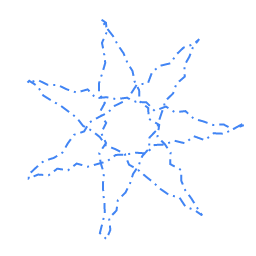
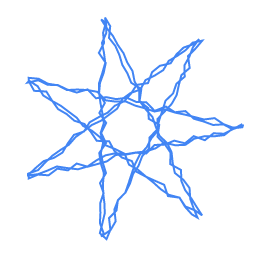

# Technical Documentation: google/skia

> ℹ️ **Provenance:** Multi-Tier Ingestion · [CodeWiki Reference](https://codewiki.google/github.com/google/skia)

### Site Docs  Index (`site/docs/_index.md`)

---
title: 'Documentation'
linkTitle: 'Documentation'
menu:
  main:
    weight: 15
---

Skia is an open source 2D graphics library which provides common APIs that work
across a variety of hardware and software platforms. It serves as the graphics
engine for Google Chrome and ChromeOS, Android, Flutter, Mozilla Firefox and
Firefox OS, and many other products.

Skia is sponsored and managed by Google, but is available for use by anyone
under the BSD Free Software License. While engineering of the core components is
done by the Skia development team, we consider contributions from any source.

- Canonical source tree:
  [skia.googlesource.com/skia](https://skia.googlesource.com/skia).
- Issue tracker: [bug.skia.org](https://bug.skia.org/).
- Discussion forum:
  [skia-discuss@googlegroups.com](https://groups.google.com/forum/#!forum/skia-discuss).
- [API Reference and Overview](https://skia.org/docs/user/api/).
- Skia Fiddle: [fiddle.skia.org](https://fiddle.skia.org/c/@skcanvas_paint).

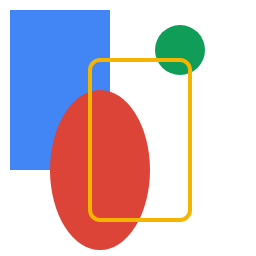
## Showcase

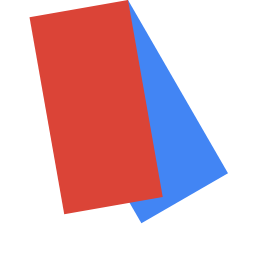
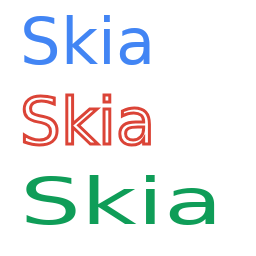
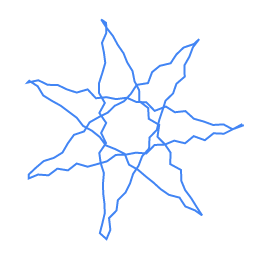
Click on any image below to see the source code that generated the image.

<table>
  <tr><th>Shapes</th><th>Bézier Curves</th></tr>
  <tr>
    <td>
      <a href='https://fiddle.skia.org/c/@shapes'><img src='https://fiddle.skia.org/i/@shapes_raster.png'></a>
    </td>
    <td>
      <a href='https://fiddle.skia.org/c/@bezier_curves'><img src='https://fiddle.skia.org/i/@bezier_curves_raster.png'></a>
    </td>
  </tr>

  <tr><th>Translations and Rotations</th><th>Text Rendering</th></tr>
  <tr>
    <td>
      <a href='https://fiddle.skia.org/c/@rotations'><img src='https://fiddle.skia.org/i/@rotations_raster.png'></a>
    </td>
    <td>
      <a href='https://fiddle.skia.org/c/@text_rendering'><img src='https://fiddle.skia.org/i/@text_rendering_raster.png'></a>
    </td>
  </tr>

  <tr><th>Discrete Path Effects</th><th>Composed Path Effects</th></tr>
  <tr>
    <td>
      <a href='https://fiddle.skia.org/c/@discrete_path'><img src='https://fiddle.skia.org/i/@discrete_path_raster.png'></a>
    </td>
    <td>
      <a href='https://fiddle.skia.org/c/@compose_path'><img src='https://fiddle.skia.org/i/@compose_path_raster.png'></a>
    </td>
  </tr>
  <tr><th>Sum Path Effects</th><th>Shaders</th></tr>
  <tr>
    <td>
      <a href='https://fiddle.skia.org/c/@sum_path_effect'><img src='https://fiddle.skia.org/i/@sum_path_effect_raster.png'></a>
    </td>
    <td>
      <a href='https://fiddle.skia.org/c/@shader'><img src='https://fiddle.skia.org/i/@shader_raster.png'></a>
    </td>
  </tr>
</table>

## Platforms

- Windows 10, 11
- macOS 11 or later
- iOS 15 or later
- Android 4.3 (JellyBean) or later
- Ubuntu 18.04+, Debian 10+, openSUSE 15.2+, or Fedora Linux 32+

---

### Site Docs Dev  Index (`site/docs/dev/_index.md`)

---
title: 'Developer Documentation'
linkTitle: 'Developers'

weight: 2
menu:
  main:
    weight: 100
---

If you want to make changes to the Skia code, this is the place for you.

---

### Site Docs User  Index (`site/docs/user/_index.md`)

---
title: "User Documentation"
linkTitle: "User Documentation"

weight: 1

---


If you want to write code that uses the Skia library, this is the place for you.

The Skia graphics library can be used for drawing Text, Geometries, and Images:

  * 3x3 matrices w/ perspective
  * antialiasing, transparency, filters
  * shaders, xfermodes, maskfilters, patheffects
  * subpixel text

Device backends for Skia currently include:

  * Raster
  * OpenGL
  * PDF
  * XPS
  * SVG
  * Picture (for recording and then playing back into another Canvas)

---

### Site Docs Dev Chrome  Index (`site/docs/dev/chrome/_index.md`)

---
title: "Skia in Chrome"
linkTitle: "Skia in Chrome"

weight: 7

---


Changes to the Skia repository will be rolled into Chromium by the AutoRoll bot
several times per day.

If you have a Skia change that needs to be tested in Chrome, or which requires
associated changes in that repository, see the guides in this section for tips
on execution.

For problems in Chromium related to Skia rolls:

  * Go to https://autoroll.skia.org/r/skia-autoroll. Login with google.com
    account and click the STOP button to pause new rolls.
  * Revert the offending DEPS roll.
  * If an obvious owner cannot be found in the list of CLs, assign to the Skia
    Gardener, listed in the gardeners widget on https://status.skia.org and as
    a reviewer on the roll CL.
  * If the Skia Gardener cannot be assigned, cc them and assign the issue to hcm@.

For more tips on bug triage and labeling, see the [Issue Tracker page](../../user/issue-tracker/).

Branching for Chrome
--------------------

Every 6 weeks, we cut a new branch in Skia to reflect the new release branch in
Chrome, eg. [refs/heads/chrome/m75](https://skia.googlesource.com/skia/+/chrome/m75).
This process is simplified by running [tools/chrome_release_branch](https://skia.googlesource.com/skia/+/7a5b6ec0f6c01d3039e3ec30de6f8065ffc8aac4/tools/chrome_release_branch.py').
This script handles creation of the branch itself, as well as associated
housekeeping like updating the Chrome milestone number for the next release,
setting up the [commit queue]('https://skia.googlesource.com/skia/+/infra/config/commit-queue.cfg')
for the new branch. For example:

    tools/chrome_release_branch <commit hash>

---

### Site Docs Dev Contrib  Index (`site/docs/dev/contrib/_index.md`)

---
title: 'Contributing to Skia'
linkTitle: 'Contributing'

weight: 1
menu:
  main:
    weight: 40
---

Here some ways you can get involved and help us improve Skia.

## Report Bugs

Find bugs to fix or report new bugs in the
[Skia issue tracker](http://bug.skia.org/). You can also search the
[Chromium issue tracker](http://code.google.com/p/chromium/issues/list) for bugs
related to graphics or Skia.

## Test

Write an application or tool that will exercise the Skia code differently than
our current set of tests and verify that Skia works as expected. Draw something
interesting and profile it to find ways to speed up Skia's implementation.We
cannot always fix issues or support every scenario, but we welcome any bugs
found so we can assess and prioritize them. (If you find _and_ fix a bug, even
better!)

## Contribute Code

Whether you develop a new feature or a fix for an existing bug in the Skia code
base, you will need a committer to review and approve the change. There are some
steps that can speed up the review process:

- Keep your code submissions small and targeted.
- When possible, have a fellow contributor review your change in advance of
  submission.
- Propose new features to the project leads by opening a feature bug or posting
  to skia-discuss ahead of development.

For more information, see [How to submit a patch](/docs/dev/contrib/submit/).

For background on the project and an outline of the types of roles interested
parties can take on, see [Project Roles](/docs/roles).

Anyone contributing code to Skia must sign a Contributor License Agreement and
ensure they are listed in the AUTHORS file:

- Individual contributors can complete the
  [Individual Contributor License Agreement](https://developers.google.com/open-source/cla/individual)
  online.
- If you are contributing on behalf of a corporation, fill out the
  [Corporate Contributor License Agreement](https://developers.google.com/open-source/cla/corporate)
  and send it in as described on that page.

- If it is your first time submitting code or you have not previously done so,
  add your (or your organization's) name and contact info to the
  [AUTHORS file](https://skia.googlesource.com/skia/+/main/AUTHORS) as a part
  of your CL.

REVIEWERS: Before you LGTM a change, verify that the contributor is listed in
the AUTHORS file.

If they are not, a Googler must ensure that the individual or their corporation
has signed the CLA by searching
[go/cla-signers](https://goto.google.com/cla-signers). Then have an entry added
to the AUTHORS file with the CL.

---

### Site Docs Dev Design  Index (`site/docs/dev/design/_index.md`)

---
title: "Design Documents"
linkTitle: "Design Documents"

weight: 4

---


Public design documents for major efforts in Skia

---

### Site Docs Dev Design Text Overview (`site/docs/dev/design/text_overview.md`)

---
title: 'Text API Overview'
linkTitle: 'Text API Overview'
---

*2D Graphics* is a broad area. It consists of a host of related, but different ideas and primitives
- rectangles, lines, paths
- images (often scaled, transformed, filtered)
- text (also scalable and transformable)
- ...

Native (desktop, mobile) frameworks combine these primitives with common rendering constructs
- transforms and clipping
- colors, gradients, patterns
- blending and colorspaces

One primitive in particular stands out: **Text**. It can be drawn with the same common constructs as rects and paths, but it has another component unrelated to actual drawing, a 'processing' step that is surprisingly complex and expensive: **Shaping**. The native frameworks recognized this, and offer a separate set of APIs just around this:
- CoreGraphics --> CoreText
- Direct2D/X --> DirectWrite
- Skia --> SkShaper

This proposal embraces this pattern, and aims to expose this functionality to the Web.


## Background

Part of this complexity lies in language and alphabets themselves, and part is due to how our system of fonts and font formats have evolved. This document does not claim to detail either of these, but will briefly touch on each to motivate the proposed API suite.

## Language and Alphabets

### "The office 大楼 is in München."

This simple sentence is illustrative of some of the richness (i.e. complexity) of displaying text. Some examples
- The 'ffi" in office (or possibly just the "fi") **could** be drawn with a specialized form called a [ligature](https://en.wikipedia.org/wiki/Ligature_(writing)).
- The "ü" could have been drawn as a single shape, or it could have been drawn by separately drawing "u" followed by drawing the umlaut (¨) on top.
- The third word may not be representable in the same font as the other words, so a different font may have been needed.

This example in no way attempts to be complete or exhaustive, but it suggests the processing needed to go from just the 'letters' in a sentence, to the actual 'shapes' that must be found or composed from various fonts to finally be able to draw it.

## Fonts and Styles

This [site](https://www.w3schools.com/css/css_font.asp) has an excellent overview of some of the richess of specifying a "font" in CSS. While different native platforms have some variance, most support the following *mapping* from a description of a font, to the actual resource / file / blob containing the drawn shapes.

- family-name : "Helvetica", "Times New Roman", "Lucida Typewriter Sans", ...
- font-style : bold, italic
- font-weight : 100 .. 900
- font-stretch : ultra-condensed .. ultra-expanded
- font-variation-setting : 'wght' 850 or 'wdth' 25 or ...

All of these attributes (and more) go into the browser's search for the best matching font resource/file/blob. Let's call the resulting 'resource' a **Typeface**. Note: If the font supports variation-settings, our definition will also include the specific settings (e.g. a font resource + variation settings).

## Typefaces and Glyphs

We define a Typeface to be a coherent collection of shapes in a given typograph style (including any variation settings). Typically a typeface is stored in a single file or blob (e.g. an OpenType file).

Along with a single Typeface we define the individual *shapes* or images in the typeface as **Glyphs**. Glyphs represent the smallest independent drawing element within a typeface. By convention, glyphs are identified by an *index*, ranging from 0 to however many are in a particular typeface.

Determining what glyphs, in what order and positions, are needed to represent a set of letters, is the heart of **Shaping**, and it is this process, and resulting typefaces + positioned glyphs, that we propose exposing to Web Apps.

## Summary

We posit that drawing *internationally correct* Text is critical to most Web Apps, and that it is both complex to get correct, and can be computationally expensive. We propose exposing this processing to apps, providing them with results that can be efficiently drawn / animated.

The core [Shaping APIs](/docs/dev/design/text_shaper) are detailed here.

Associated [Canvas2D extensions](/docs/dev/design/text_c2d) are detailed here.

Note: it is an explicit goal to **not** tie Shaping or its results to Canvas2D. We envision multiple scenarios where a framework or app will want to shape text, but not need a Canvas2D context .
- drawn using WebGL or WebGPU
- drawn using DOM (but utilizing line-breaking and metrics results)
- drawn using a bespoke (i.e. wasm) renderer

We are also proposing a lower level interface, one that just addresses exposing [unicode properties](/docs/dev/design/uni_characterize).


## Contributors:
 [mikerreed](https://github.com/mikerreed),

---

### Site Docs Dev Gardening  Index (`site/docs/dev/gardening/_index.md`)

---
title: 'Skia Gardener Documentation'
linkTitle: 'Skia Gardener Documentation'

weight: 8
---

### Contents

- [What does a Skia Gardener do?](#what_is_a_skia_gardener)
  - [Skia tree](#skia_tree)
  - [Triage](#triage)
  - [Blamer](#blamer)
  - [AutoRollers](#autorollers)
  - [Gold and Perf](#gold_and_perf)
  - [Documentation](#skia_gardener_doc)
- [Preparing for your rotation](#preparations)
  - [Useful bookmarks](#useful_bookmarks)
  - [Chat rooms](#chat_rooms)
- [View current and upcoming rotations](#view_current_upcoming_rotations)
- [How to swap rotation shifts](#how_to_swap)
- [Tips for Skia Gardeners](#tips)
  - [When to file bugs](#when_to_file_bugs)
  - [How to close or re-open the tree](#how_close_tree)
  - [How to revert a CL](#how_to_revert)
  - [What to do if DEPS roll fails to land](#deps_roll_failures)
  - [How to rebaseline](#how_to_rebaseline)

<a name="what_is_a_skia_gardener"></a>

## What does a Skia Gardener do?

---

A Skia Gardener keeps an eye on the tree, DEPS rolls, Gold tool, the Perf tool,
and triages Chrome bugs.

Below is a brief summary of what the gardener does for each task:

<a name="skia_tree"></a>

### Skia tree

- Understand the
  [testing infrastructure](https://skia.org/docs/dev/testing/automated_testing).
- Start watching the [status page](https://status.skia.org) for bot breakages.
- Track down people responsible for breakages and revert broken changes if there
  is no easy fix. You can use [blamer](#blamer) to help track down such changes.
   - For clean reverts, you need to add "Rubber Stamper" if the author isn't around to +1
     the change. See [go/rubber-stamper-user-guide](http://go/rubber-stamper-user-guide) for more.
   - For dirty reverts, you can use [go/skia-break-glass](http://go/skia-break-glass) to
     move quickly.
- Close and open the [tree](http://tree-status.skia.org).
- Keep the builder comments on the [status page](https://status.skia.org) up to
  date.
- File or follow up with
  [BreakingTheBuildbots bugs](https://bugs.chromium.org/p/skia/issues/list?q=label:BreakingTheBuildbots).
  See the tip on [when to file bugs](#when_to_file_bugs).
- Read and update the
  [Ongoing Issues section](https://docs.google.com/document/d/1y2jUf4vXI0fwhu2TiCLVIfWC1JOxFcHXGw39y7i-y_I/edit#heading=h.tpualuc3p7z0)
  in the handoff doc.
- (Optional) Document significant events that occurred during your shift in the
  [Weekly Handoff Notes section](https://docs.google.com/document/d/1y2jUf4vXI0fwhu2TiCLVIfWC1JOxFcHXGw39y7i-y_I/edit#heading=h.y49irwbutzr)
  in the handoff doc.

<a name="triage"></a>

### Triage

You should triage Chromium, Skia, and OSS-fuzz bugs that show up under "Untriaged Bugs" on
the [status page](https://status.skia.org). The Android Gardener will triage the
untriaged Android Bugs. For a more detailed view of bugs see
[Skia Bugs Central](https://bugs-central.skia.org/).

To access the oss-fuzz bugs, see [go/skia-fuzz](http://go/skia-fuzz).

<a name="blamer"></a>

### Blamer

If you have Go installed, a command-line tool is available to search through git
history and do text searches on the full patch text and the commit message. To
install blamer run:

    go get go.skia.org/infra/blamer/go/blamer

Then run blamer from within a Skia checkout. For example, to search if the
string "SkDevice" has appeared in the last 10 commits:

    $ $GOPATH/bin/blamer --match SkDevice --num 10

    commit ea70c4bb22394c8dcc29a369d3422a2b8f3b3e80
    Author: robertphillips <robertphillips@google.com>
    Date:   Wed Jul 20 08:54:31 2016 -0700

        Remove SkDevice::accessRenderTarget virtual
        GOLD_TRYBOT_URL= https://gold.skia.org/search?issue=2167723002

        Review-Url: https://codereview.chromium.org/2167723002

<a name="autorollers"></a>

### Autorollers

- Ensure that all AutoRollers listed on the
  [status page](https://status.skia.org) are successfully landing.

<a name="gold_and_perf"></a>

### Gold and Perf

- Pay attention for new [Perf](https://perf.skia.org/) and
  [Gold](https://gold.skia.org/) alerts (by clicking on the bell at the top
  right of the [status page](https://status.skia.org)).
- The gardener's duty here is to make sure that when developers introduce new
  images or new perf regressions, that they are aware of what happened, and they
  use these tools to take appropriate action.

#### Basic workflow for triaging Perf issues

1. Click on the regressions link on the Skia Status page to navigate to Perf's regressions page.


2. The regressions page lists all currently untriaged regressing CLs. In this example, there is only one, an autoroll.


3. The columns to the right of each CL record its performance impact. A ∅ indicates no change, while a ? in the high or low column indicates a potential improvement or regression.


4. Clicking a ? opens a window that displays the statistical analysis of the performance change, and tools for investigating the change further:

    * **Gauge the noise**: Use the provided Least Squares Error and step size to determine if the change is a true regression or just statistical noise.

    * **Investigate the CL**: Click the linked CL ID (in this example 79169) to review the exact commit and see if it's the root cause or, in the case of a roll, to dig into the upstream changes.


5. The "View on Dashboard" link is one of the most important tools for triaging performance regressions. Perf will automatically filter which benchmarks are affected by a CL; "View on Dashboard" graphs the performance of these benchmarks at each merged CL, marking the regressing CL with a red line (such as in this diagram). Each line is the test run on different devices. The vertical refers to some metric in performance (e.g. seconds) and the horizontal represents time (i.e. CLs). You may click the right hand check boxes to view or hide a line.

    When looking at this graph, keep the following in mind:
    * **Expand the window range**: Considering the trend helps determine if the regression is a true change or just a transient spike.
    * **Look for broad impact**: A true regression usually impacts multiple benchmarks.


6. Once confident that a CL is truly regressing or not, mark the corresponding check ✓ (for "not an issue") or x (for "this is an issue") and fill out the justification text box. Selecting x will also take you to Buganizer to file a bug for the regression.


### Perf Tips

Responding to performance regressions is similar to responding to Gold regressions. If you see a performance regression from a change, you usually want to notify the person who made the patch.

Although statistical analysis triggers the Perf alerts, the underlying data can be very noisy. Often, a regression is simply noise or, on Android devices, thermal throttling.

Although the performance on some devices can be flaky, a regression will rarely regress only a single device, so pay attention to all the different devices.

For notifying someone of a regression:
- If it's a GPU driver issue -> notify the current GPU gardener
- If it's a patch from a Skia team member -> notify them
- If it's a roll from another Google team -> investigate further

Sometimes perf will find a regression that is very tiny; you can ignore these
but use prudence.

Remember to zoom out and look at the overall trend of Perf, to see whether or not the issue is transient.


<a name="skia_gardener_doc"></a>
### Documentation

- Improve/update this documentation page for future gardeners, especially the
  [Tips section](#tips).

In general, gardeners should have a strong bias towards actions that keep the
tree green and then open; if a simple revert can fix the problem, the gardener
<b>should revert first and ask questions later</b>.

<a name="preparations"></a>

## Preparing for your rotation

---

<a name="useful_bookmarks"></a>

### Useful bookmarks

- [The Chromium main console](https://ci.chromium.org/p/chromium/g/main/console).
- [The Flutter engine console](https://ci.chromium.org/p/flutter/g/engine/console).
- [Skia client search](http://go/skia-client-search),
  a tool for searching the codebases of all skia clients at once. See //tools/skia-client-search.html
  for the public version.

<a name="chat_rooms"></a>

### Chat rooms

- [Flutter Engine Sherriff](https://chat.google.com/room/AAAAm69vf-M) room to
  watch for Flutter issues that are caused by Skia bugs or need assistance from
  our team.

<a name="view_current_upcoming_rotations"></a>

## View current and upcoming rotations

---

The list of Skia Gardeners is specified
[here](http://go/skia-gardener-rotation). The
gardeners widget on the [status page](https://status.skia.org) also displays the
current gardeners.

<a name="how_to_swap"></a>

## How to swap rotation shifts

---

If you need to swap shifts with someone (because you are out sick or on
vacation), please get approval from the person you want to swap with and
directly make the swap via the
[rotations page](http://go/skia-gardener-rotation).

<a name="tips"></a>

## Tips for Skia Gardeners

---

<a name="when_to_file_bugs"></a>

### When to file bugs

Pay close attention to the "Failures" view in the
[status page](https://status.skia.org). Look at all existing
[BreakingTheBuildbots bugs](https://bug.skia.org/?q=label:BreakingTheBuildbots).
If the list is kept up to date then it should accurately represent everything
that is causing failures. If it does not, then please file/update bugs
accordingly.

<a name="how_close_tree"></a>

### How to close or re-open the tree

1. Go to [tree-status.skia.org](https://tree-status.skia.org).
2. Change the status.

- To close the tree, include the word "closed" in the status.
- To open the tree, include the word "open" in the status.
- To caution the tree, include the word "caution" in the status.

<a name="how_to_submit_when_tree_closed"></a>

### How to submit when the tree is closed

- Submit manually using the "git cl land" with the --bypass-hooks flag.
- Add "No-Tree-Checks: true" to your CL description and use the CQ as usual.

<a name="how_to_revert"></a>

### How to revert a CL

See the revert documentation [here](https://skia.org/docs/dev/contrib/revert).


<a name="deps_roll_failures"></a>
### What to do if DEPS roll fails to land

A common cause of DEPS roll failures are layout tests. Find the offending Skia
CL by examining the commit hash range in the DEPS roll and revert (or talk to
the commit author if they are available). If you do revert then keep an eye on
the next DEPS roll to make sure it succeeds.

If a Skia CL changes layout tests, but the new images look good, the tests need
to be rebaselined. See [Rebaseline Layout Tests](#how_to_rebaseline).

<a name="how_to_rebaseline"></a>

### Rebaseline Layout Tests (i.e., add suppressions)

- First create a Chromium bug:

  - goto [crbug.com](https://crbug.com)
  - Make sure you're logged in with your Chromium credentials
  - Click “New Issue”
  - Summary: “Skia image rebaseline”
  - Description:
    - DEPS roll #,
    - Helpful message about what went wrong (e.g., “Changes to how lighting is
      scaled in Skia r#### changed the following images:”)
    - Layout tests affected
    - You should copy the list of affected from stdio of the failing bot
  - Status: Assigned
  - Owner: yourself
  - cc: bsalomon@, robertphillips@ & developer responsible for changes
  - Labels: OS-All & Cr-Blink-LayoutTests
  - If it is filter related, cc senorblanco@

- (Dispreferred but faster) Edit
  [skia/skia_test_expectations.txt](https://chromium.googlesource.com/chromium/+/refs/heads/trunk/skia/skia_test_expectations.txt)

  - Add # comment about what has changed (I usually paraphrase the crbug text)
  - Add line(s) like the following after the comment:
    - crbug.com/<bug#youjustcreated> foo/bar/test-name.html [ ImageOnlyFailure ]
  - Note: this change is usually done in the DEPS roll patch itself

- (Preferred but slower) Make a separate Blink patch by editing
  LayoutTests/TestExpectations

  - Add # comment about what has changed (I usually paraphrase the crbug text)
  - Add line(s) like the following after the comment:
    - crbug.com/<bug#youjustcreated> foo/bar/test-name.html [ Skip ] # needs
      rebaseline
  - Commit the patch you created and wait until it lands and rolls into Chrome

- Retry the DEPS roll (for the 1st/dispreferred option this usually means just
  retrying the layout bots)
- Make a Blink patch by editing LayoutTests/TestExpectations

  - Add # comment about what has changed
  - Add line(s) like the following after the comment:
    - crbug.com/<bug#youjustcreated> foo/bar/test-name.html [ Skip ] # needs
      rebaseline
      - (if you took the second option above you can just edit the existing
        line(s))

- If you took the first/dispreferred option above:
  - Wait for the Blink patch to roll into Chrome
  - Create a Chrome patch that removes your suppressions from
    skia/skia_test_expectations.txt

---

### Site Docs Dev Internal  Index (`site/docs/dev/internal/_index.md`)

---
title: 'Internal Links'
linkTitle: 'Internal Links'
---

Index of links to resources that are internal to the Google/Skia core team, for
easy reference.

## Skia team information

- [Granting access to Skia](https://g3doc.corp.google.com/chrome/skia/g3doc/user/granting.md)
- [Project communications](https://g3doc.corp.google.com/chrome/skia/g3doc/user/access.md?cl=head)

## Skia project information

- [Skia branch process](https://docs.google.com/a/google.com/document/d/1Xn24lTMlmUgdP8bp-iHOeGKAOp8L5uCxg12lw49Jlpg/edit?usp=sharing)
- [Design documents](https://g3doc.corp.google.com/chrome/skia/g3doc/user/design-docs.md)

## Infrastructure related

- [iOS tools](https://g3doc.corp.google.com/chrome/skia/g3doc/user/ios-tools.md)
  for machine setup and provisioning
- [SKP Playback](https://docs.google.com/a/google.com/document/d/1oJpuY8XKc212RsfUm6oEH2tp26Veb-Gez3clBuqapE4/edit?usp=sharing)
  for downloading buildbot SKPs

## Chrome related

- [Development on a Chrome branch](https://g3doc.corp.google.com/chrome/skia/g3doc/user/chrome-branch-build.md)
- [Cherrypick instructions](https://g3doc.corp.google.com/chrome/skia/g3doc/user/chrome-skia-cherry-pick.md)

## Android related

- Skia on Android
  [development guide](https://g3doc.corp.google.com/chrome/skia/g3doc/user/android.md)

## Google3 related

- [Google3-Autoroller](http://go/skia-google3-autoroller)
  -- How to handle failures and how to test CLs.

---

### Site Docs Dev Present  Index (`site/docs/dev/present/_index.md`)

---
title: "Presentations"
linkTitle: "Presentations"

weight: 5

---


Resources providing technical overview of various aspects of the Skia library

---

### Site Docs Dev Testing  Index (`site/docs/dev/testing/_index.md`)

---
title: "Testing"
linkTitle: "Testing"

weight: 3

---


Skia relies heavily on our suite of unit and GM tests, which are served by our
DM test tool, for correctness testing. Tests are executed by our trybots, for
every commit, across most of our supported platforms and configurations.
Skia [Gold](https://gold.skia.org) is a web interface for triaging these results.

We also have a robust set of performance tests, served by the nanobench tool and
accessible via the Skia [Perf](https://perf.skia.org) web interface.

Cluster Telemetry is a powerful framework that helps us capture and benchmark
SKP files, a binary format for draw commands, across up to one million websites.

See the individual subpages for more details on our various test tools.

---

### Site Docs Dev Tools  Index (`site/docs/dev/tools/_index.md`)

---
title: "Tools"
linkTitle: "Tools"

weight: 2

---


Developer tools for working in Skia.

---

### Site Docs User Api SkBlendMode Overview (`site/docs/user/api/SkBlendMode_Overview.md`)

---
title: 'SkBlendMode Overview'
linkTitle: 'SkBlendMode Overview'

weight: 260
---

Describes how destination <a href='undocumented#Pixel'>pixel</a> is replaced
with a combination of itself and source <a href='undocumented#Pixel'>pixel</a>.
<a href='#Blend_Mode'>Blend_Mode</a> may use source, destination, or both.
<a href='#Blend_Mode'>Blend_Mode</a> may operate on each
<a href='https://api.skia.org/SkColor_8h.html'>Color</a> component
independently, or may allow all source <a href='undocumented#Pixel'>pixel</a>
components to contribute to one destination
<a href='undocumented#Pixel'>pixel</a> component.

<a href='#Blend_Mode'>Blend_Mode</a> does not use adjacent pixels to determine
the outcome.

<a href='#Blend_Mode'>Blend_Mode</a> uses source and read destination
<a href='https://api.skia.org/SkColor_8h.html#a918cf5a3a68406ac8107f6be48fb906e'>Alpha</a>
to determine written destination
<a href='https://api.skia.org/SkColor_8h.html#a918cf5a3a68406ac8107f6be48fb906e'>Alpha</a>;
both source and destination
<a href='https://api.skia.org/SkColor_8h.html#a918cf5a3a68406ac8107f6be48fb906e'>Alpha</a>
may also affect written destination
<a href='https://api.skia.org/SkColor_8h.html'>Color</a> components.

Regardless of how
<a href='https://api.skia.org/SkColor_8h.html#a918cf5a3a68406ac8107f6be48fb906e'>Alpha</a>
is encoded in source and destination <a href='undocumented#Pixel'>pixel</a>,
nearly all <a href='#Image_Info_Color_Type'>Color_Types</a> treat it as ranging
from zero to one. And, nearly all <a href='#Blend_Mode'>Blend_Mode</a>
algorithms limit the output so that all results are also zero to one.

Two exceptions are
<a href='https://api.skia.org/SkBlendMode_8h.html#ad96d76accb8ff5f3eafa29b91f7a25f0'>SkBlendMode</a>::<a href='#SkBlendMode_kPlus'>kPlus</a>
and
<a href='https://api.skia.org/SkImageInfo_8h.html#a9ac0b62b3d2c6c7e1a80db557243f93e'>kRGBA_F16_SkColorType</a>.

<a href='https://api.skia.org/SkBlendMode_8h.html#ad96d76accb8ff5f3eafa29b91f7a25f0'>SkBlendMode</a>::<a href='#SkBlendMode_kPlus'>kPlus</a>
permits computing
<a href='https://api.skia.org/SkColor_8h.html#a918cf5a3a68406ac8107f6be48fb906e'>Alpha</a>
and <a href='https://api.skia.org/SkColor_8h.html'>Color</a> component values
larger than one. For <a href='#Image_Info_Color_Type'>Color_Types</a> other than
<a href='https://api.skia.org/SkImageInfo_8h.html#a9ac0b62b3d2c6c7e1a80db557243f93e'>kRGBA_F16_SkColorType</a>,
resulting
<a href='https://api.skia.org/SkColor_8h.html#a918cf5a3a68406ac8107f6be48fb906e'>Alpha</a>
and component values are clamped to one.

<a href='https://api.skia.org/SkImageInfo_8h.html#a9ac0b62b3d2c6c7e1a80db557243f93e'>kRGBA_F16_SkColorType</a>
permits values outside the zero to one range. It is up to the client to ensure
that the result is within the range of zero to one, and therefore well-defined.

<a name='Porter_Duff'></a>

<a href='https://graphics.pixar.com/library/Compositing/paper.pdf'>Compositing
Digital Images</a></a> describes
<a href='#Blend_Mode_Overview_Porter_Duff'>Porter_Duff</a> modes
<a href='https://api.skia.org/SkBlendMode_8h.html#ad96d76accb8ff5f3eafa29b91f7a25f0'>SkBlendMode</a>::<a href='#SkBlendMode_kClear'>kClear</a>
through
<a href='https://api.skia.org/SkBlendMode_8h.html#ad96d76accb8ff5f3eafa29b91f7a25f0'>SkBlendMode</a>::<a href='#SkBlendMode_kXor'>kXor</a>.

Drawing a <a href='https://api.skia.org/classSkBitmap.html'>bitmap</a> with
transparency using <a href='#Blend_Mode_Overview_Porter_Duff'>Porter_Duff</a>
compositing is free to clear the destination.


Draw geometry with transparency using
<a href='#Blend_Mode_Overview_Porter_Duff'>Porter_Duff</a> compositing does not
combine transparent source pixels, leaving the destination outside the geometry
untouched.


<a name='Lighten_Darken'></a>

Modes
<a href='https://api.skia.org/SkBlendMode_8h.html#ad96d76accb8ff5f3eafa29b91f7a25f0'>SkBlendMode</a>::<a href='#SkBlendMode_kPlus'>kPlus</a>
and
<a href='https://api.skia.org/SkBlendMode_8h.html#ad96d76accb8ff5f3eafa29b91f7a25f0'>SkBlendMode</a>::<a href='#SkBlendMode_kScreen'>kScreen</a>
use simple arithmetic to lighten or darken the destination. Modes
<a href='https://api.skia.org/SkBlendMode_8h.html#ad96d76accb8ff5f3eafa29b91f7a25f0'>SkBlendMode</a>::<a href='#SkBlendMode_kOverlay'>kOverlay</a>
through
<a href='https://api.skia.org/SkBlendMode_8h.html#ad96d76accb8ff5f3eafa29b91f7a25f0'>SkBlendMode</a>::<a href='#SkBlendMode_kMultiply'>kMultiply</a>
use more complicated algorithms to lighten or darken; sometimes one mode does
both, as described by <a href='https://en.wikipedia.org/wiki/Blend_modes'>Blend
Modes</a></a> .


<a name='Modulate_Blend'></a>

<a href='https://api.skia.org/SkBlendMode_8h.html#ad96d76accb8ff5f3eafa29b91f7a25f0'>SkBlendMode</a>::<a href='#SkBlendMode_kModulate'>kModulate</a>
is a mashup of
<a href='https://api.skia.org/SkBlendMode_8h.html#ad96d76accb8ff5f3eafa29b91f7a25f0'>SkBlendMode</a>::<a href='#SkBlendMode_kSrcATop'>kSrcATop</a>
and
<a href='https://api.skia.org/SkBlendMode_8h.html#ad96d76accb8ff5f3eafa29b91f7a25f0'>SkBlendMode</a>::<a href='#SkBlendMode_kMultiply'>kMultiply</a>.
It multiplies all components, including
<a href='https://api.skia.org/SkColor_8h.html#a918cf5a3a68406ac8107f6be48fb906e'>Alpha</a>;
unlike
<a href='https://api.skia.org/SkBlendMode_8h.html#ad96d76accb8ff5f3eafa29b91f7a25f0'>SkBlendMode</a>::<a href='#SkBlendMode_kMultiply'>kMultiply</a>,
if either source or destination is transparent, result is transparent.
<a href='https://api.skia.org/SkBlendMode_8h.html#ad96d76accb8ff5f3eafa29b91f7a25f0'>SkBlendMode</a>::<a href='#SkBlendMode_kModulate'>kModulate</a>
uses <a href='undocumented#Premultiply'>Premultiplied</a> values to compute the
product;
<a href='https://api.skia.org/SkBlendMode_8h.html#ad96d76accb8ff5f3eafa29b91f7a25f0'>SkBlendMode</a>::<a href='#SkBlendMode_kMultiply'>kMultiply</a>
uses <a href='undocumented#Unpremultiply'>Unpremultiplied</a> values to compute
the product.


<a name='Color_Blends'></a>

Modes
<a href='https://api.skia.org/SkBlendMode_8h.html#ad96d76accb8ff5f3eafa29b91f7a25f0'>SkBlendMode</a>::<a href='#SkBlendMode_kHue'>kHue</a>,
<a href='https://api.skia.org/SkBlendMode_8h.html#ad96d76accb8ff5f3eafa29b91f7a25f0'>SkBlendMode</a>::<a href='#SkBlendMode_kSaturation'>kSaturation</a>,
<a href='https://api.skia.org/SkBlendMode_8h.html#ad96d76accb8ff5f3eafa29b91f7a25f0'>SkBlendMode</a>::<a href='#SkBlendMode_kColor'>kColor</a>,
and
<a href='https://api.skia.org/SkBlendMode_8h.html#ad96d76accb8ff5f3eafa29b91f7a25f0'>SkBlendMode</a>::<a href='#SkBlendMode_kLuminosity'>kLuminosity</a>
convert source and destination pixels using all components
<a href='https://api.skia.org/SkColor_8h.html'>color</a> information, using
<a href='https://www.w3.org/TR/compositing-1/#blendingnonseparable'>non-separable
blend modes</a></a> .

---

### Site Docs User Api SkPath Overview (`site/docs/user/api/SkPath_Overview.md`)

---
title: 'SkPath Overview'
linkTitle: 'SkPath Overview'

weight: 270
---

<a href='https://api.skia.org/classSkPath.html'>Path</a> contains
<a href='undocumented#Line'>Lines</a> and
<a href='undocumented#Curve'>Curves</a> which can be stroked or filled.
<a href='#Contour'>Contour</a> is composed of a series of connected
<a href='undocumented#Line'>Lines</a> and
<a href='undocumented#Curve'>Curves</a>.
<a href='https://api.skia.org/classSkPath.html'>Path</a> may contain zero, one,
or more <a href='#Contour'>Contours</a>. Each
<a href='undocumented#Line'>Line</a> and <a href='undocumented#Curve'>Curve</a>
are described by Verb,
<a href='https://api.skia.org/structSkPoint.html'>Points</a>, and optional
<a href='#Path_Conic_Weight'>Path_Conic_Weight</a>.

Each pair of connected <a href='undocumented#Line'>Lines</a> and
<a href='undocumented#Curve'>Curves</a> share common
<a href='https://api.skia.org/structSkPoint.html'>Point</a>; for instance,
<a href='https://api.skia.org/classSkPath.html'>Path</a> containing two
connected <a href='undocumented#Line'>Lines</a> are described the
<a href='#Path_Verb'>Path_Verb</a> sequence:
<a href='https://api.skia.org/classSkPath.html'>SkPath</a>::<a href='#SkPath_kMove_Verb'>kMove_Verb</a>,
<a href='https://api.skia.org/classSkPath.html'>SkPath</a>::<a href='#SkPath_kLine_Verb'>kLine_Verb</a>,
<a href='https://api.skia.org/classSkPath.html'>SkPath</a>::<a href='#SkPath_kLine_Verb'>kLine_Verb</a>;
and a <a href='https://api.skia.org/structSkPoint.html'>Point</a> sequence with
three entries, sharing the middle entry as the end of the first
<a href='undocumented#Line'>Line</a> and the start of the second
<a href='undocumented#Line'>Line</a>.

<a href='https://api.skia.org/classSkPath.html'>Path</a> components
<a href='undocumented#Arc'>Arc</a>,
<a href='https://api.skia.org/classSkPath.html#af037025a1adad16072abbbcd83b621f2'>Rect</a>,
<a href='#RRect'>Round_Rect</a>, <a href='undocumented#Circle'>Circle</a>, and
<a href='undocumented#Oval'>Oval</a> are composed of
<a href='undocumented#Line'>Lines</a> and
<a href='undocumented#Curve'>Curves</a> with as many
<a href='https://api.skia.org/classSkPath.html#ac36f638ac96f3428626e993eacf84ff0'>Verbs</a>
and <a href='https://api.skia.org/structSkPoint.html'>Points</a> required for an
exact description. Once added to
<a href='https://api.skia.org/classSkPath.html'>Path</a>, these components may
lose their identity; although
<a href='https://api.skia.org/classSkPath.html'>Path</a> can be inspected to
determine if it describes a single
<a href='https://api.skia.org/classSkPath.html#af037025a1adad16072abbbcd83b621f2'>Rect</a>,
<a href='undocumented#Oval'>Oval</a>, <a href='#RRect'>Round_Rect</a>, and so
on.

### Example

<div><fiddle-embed-sk name="93887af0c1dac49521972698cf04069c"><div><a href='https://api.skia.org/classSkPath.html'>Path</a> contains three <a href='#Contour'>Contours</a>: <a href='undocumented#Line'>Line</a>, <a href='undocumented#Circle'>Circle</a>, and <a href='https://api.skia.org/classSkPath.html#ad75d5a934476ac6543d6d7ddd8dbb90a'>Quad</a>. <a href='undocumented#Line'>Line</a> is stroked but
not filled. <a href='undocumented#Circle'>Circle</a> is stroked and filled; <a href='undocumented#Circle'>Circle</a> stroke forms a loop. <a href='https://api.skia.org/classSkPath.html#ad75d5a934476ac6543d6d7ddd8dbb90a'>Quad</a>
is stroked and filled, but since it is not closed, <a href='https://api.skia.org/classSkPath.html#ad75d5a934476ac6543d6d7ddd8dbb90a'>Quad</a> does not stroke a loop.
</div></fiddle-embed-sk></div>

<a href='https://api.skia.org/classSkPath.html'>Path</a> contains a
<a href='#Path_Fill_Type'>Path_Fill_Type</a> which determines whether
overlapping <a href='#Contour'>Contours</a> form fills or holes.
<a href='#Path_Fill_Type'>Path_Fill_Type</a> also determines whether area inside
or outside <a href='undocumented#Line'>Lines</a> and
<a href='undocumented#Curve'>Curves</a> is filled.

### Example

<div><fiddle-embed-sk name="36a995442c081ee779ecab2962d36e69"><div><a href='https://api.skia.org/classSkPath.html'>Path</a> is drawn filled, then stroked, then stroked and filled.
</div></fiddle-embed-sk></div>

<a href='https://api.skia.org/classSkPath.html'>Path</a> contents are never
shared. Copying <a href='https://api.skia.org/classSkPath.html'>Path</a> by
value effectively creates a new
<a href='https://api.skia.org/classSkPath.html'>Path</a> independent of the
original. Internally, the copy does not duplicate its contents until it is
edited, to reduce memory use and improve performance.

<a name='Contour'></a>

---

<a href='#Contour'>Contour</a> contains one or more
<a href='https://api.skia.org/classSkPath.html#ac36f638ac96f3428626e993eacf84ff0'>Verbs</a>,
and as many <a href='https://api.skia.org/structSkPoint.html'>Points</a> as are
required to satisfy <a href='#Path_Verb_Array'>Path_Verb_Array</a>. First
<a href='#Path_Verb'>Path_Verb</a> in
<a href='https://api.skia.org/classSkPath.html'>Path</a> is always
<a href='https://api.skia.org/classSkPath.html'>SkPath</a>::<a href='#SkPath_kMove_Verb'>kMove_Verb</a>;
each
<a href='https://api.skia.org/classSkPath.html'>SkPath</a>::<a href='#SkPath_kMove_Verb'>kMove_Verb</a>
that follows starts a new <a href='#Contour'>Contour</a>.

### Example

<div><fiddle-embed-sk name="0374f2dcd7effeb1dd435205a6c2de6f"><div>Each <a href='https://api.skia.org/classSkPath.html'>SkPath</a>::<a href='#SkPath_moveTo'>moveTo</a> starts a new <a href='#Contour'>Contour</a>, and content after <a href='https://api.skia.org/classSkPath.html'>SkPath</a>::<a href='#SkPath_close'>close()</a>
also starts a new <a href='#Contour'>Contour</a>. Since <a href='https://api.skia.org/classSkPath.html'>SkPath</a>::<a href='#SkPath_conicTo'>conicTo</a> is not preceded by
<a href='https://api.skia.org/classSkPath.html'>SkPath</a>::<a href='#SkPath_moveTo'>moveTo</a>, the first <a href='https://api.skia.org/structSkPoint.html'>Point</a> of the third <a href='#Contour'>Contour</a> starts at the last <a href='https://api.skia.org/structSkPoint.html'>Point</a>
of the second <a href='#Contour'>Contour</a>.
</div></fiddle-embed-sk></div>

If final <a href='#Path_Verb'>Path_Verb</a> in <a href='#Contour'>Contour</a> is
<a href='https://api.skia.org/classSkPath.html'>SkPath</a>::<a href='#SkPath_kClose_Verb'>kClose_Verb</a>,
<a href='undocumented#Line'>Line</a> connects
<a href='#Path_Last_Point'>Path_Last_Point</a> in <a href='#Contour'>Contour</a>
with first <a href='https://api.skia.org/structSkPoint.html'>Point</a>. A closed
<a href='#Contour'>Contour</a>, stroked, draws
<a href='#Paint_Stroke_Join'>Paint_Stroke_Join</a> at
<a href='#Path_Last_Point'>Path_Last_Point</a> and first
<a href='https://api.skia.org/structSkPoint.html'>Point</a>. Without
<a href='https://api.skia.org/classSkPath.html'>SkPath</a>::<a href='#SkPath_kClose_Verb'>kClose_Verb</a>
as final Verb, <a href='#Path_Last_Point'>Path_Last_Point</a> and first
<a href='https://api.skia.org/structSkPoint.html'>Point</a> are not connected;
<a href='#Contour'>Contour</a> remains open. An open
<a href='#Contour'>Contour</a>, stroked, draws
<a href='#Paint_Stroke_Cap'>Paint_Stroke_Cap</a> at
<a href='#Path_Last_Point'>Path_Last_Point</a> and first
<a href='https://api.skia.org/structSkPoint.html'>Point</a>.

### Example

<div><fiddle-embed-sk name="7a1f39b12d2cd8b7f5b1190879259cb2"><div><a href='https://api.skia.org/classSkPath.html'>Path</a> is drawn stroked, with an open <a href='#Contour'>Contour</a> and a closed <a href='#Contour'>Contour</a>.
</div></fiddle-embed-sk></div>

<a name='Contour_Zero_Length'></a>

---

<a href='#Contour'>Contour</a> length is distance traveled from first
<a href='https://api.skia.org/structSkPoint.html'>Point</a> to
<a href='#Path_Last_Point'>Path_Last_Point</a>, plus, if
<a href='#Contour'>Contour</a> is closed, distance from
<a href='#Path_Last_Point'>Path_Last_Point</a> to first
<a href='https://api.skia.org/structSkPoint.html'>Point</a>. Even if
<a href='#Contour'>Contour</a> length is zero, stroked
<a href='undocumented#Line'>Lines</a> are drawn if
<a href='#Paint_Stroke_Cap'>Paint_Stroke_Cap</a> makes them visible.

### Example

<div><fiddle-embed-sk name="62848df605af6258653d9e16b27d8f7f"></fiddle-embed-sk></div>

---

### Site Docs User Api  Index (`site/docs/user/api/_index.md`)

---
title: 'API Reference and Overview'
linkTitle: 'API Reference and Overview'

weight: 5
---

Skia documentation is actively under development.

Some key classes are:

- [SkAutoCanvasRestore](https://api.skia.org/classSkAutoCanvasRestore.html#details) -
  Canvas save stack manager
- [SkBitmap](https://api.skia.org/classSkBitmap.html#details) - two-dimensional
  raster pixel array
- [SkBlendMode](https://api.skia.org/SkBlendMode_8h.html) - pixel color
  arithmetic
- [SkCanvas](https://api.skia.org/classSkCanvas.html#details) - drawing context
- [SkColor](https://api.skia.org/SkColor_8h.html) - color encoding using integer
  numbers
- [SkFont](https://api.skia.org/classSkFont.html#details) - text style and
  typeface
- [SkImage](https://api.skia.org/classSkImage.html#details) - two dimensional
  array of pixels to draw
- [SkImageInfo](https://api.skia.org/structSkImageInfo.html#details) - pixel
  dimensions and characteristics
- [SkIPoint](https://api.skia.org/structSkIPoint.html#details) - two integer
  coordinates
- [SkIRect](https://api.skia.org/structSkIRect.html#details) - integer rectangle
- [SkMatrix](https://api.skia.org/classSkMatrix.html#details) - 3x3
  transformation matrix
- [SkPaint](https://api.skia.org/classSkPaint.html#details) - color, stroke,
  font, effects
- [SkPath](https://api.skia.org/classSkPath.html#details) - sequence of
  connected lines and curves
- [SkPicture](https://api.skia.org/classSkPicture.html#details) - sequence of
  drawing commands
- [SkPixmap](https://api.skia.org/classSkPixmap.html#details) - pixel map: image
  info and pixel address
- [SkPoint](https://api.skia.org/structSkPoint.html#details) - two floating
  point coordinates
- [SkRRect](https://api.skia.org/classSkRRect.html#details) - floating point
  rounded rectangle
- [SkRect](https://api.skia.org/structSkRect.html#details) - floating point
  rectangle
- [SkRegion](https://api.skia.org/classSkRegion.html#details) - compressed
  clipping mask
- [SkSurface](https://api.skia.org/classSkSurface.html#details) - drawing
  destination
- [SkTextBlob](https://api.skia.org/classSkTextBlob.html#details) - runs of
  glyphs
- [SkTextBlobBuilder](https://api.skia.org/classSkTextBlobBuilder.html#details) -
  constructor for runs of glyphs

All public APIs are indexed by Doxygen.

- [Skia Doxygen](https://api.skia.org)

## Overview

Skia is organized around the `SkCanvas` object. It is the host for the "draw"
calls: `drawRect`, `drawPath`, `drawText`, etc. Each of these has two
components: the primitive being drawn (`SkRect`, `SkPath`, etc.) and color/style
attributes (`SkPaint`).


    canvas->drawRect(rect, paint);

The paint holds much of the state describing how the rectangle (in this case) is
drawn: what color it is, if it is filled or stroked, how it should blend with
what was previously drawn.

The canvas holds relatively little state. It points to the actual pixels being
drawn, and it maintains a stack of matrices and clips. Thus in the above call,
the canvas' current matrix may transform the coordinates of the rectangle
(translation, rotation, skewing, perspective), and the canvas' current clip may
restrict where on the canvas the rectangle will be drawn, but all other
stylistic attributes of the drawing are controlled by the paint.

Using the SkCanvas API:

1.  [SkCanvas Overview](/docs/user/api/skcanvas_overview) - the drawing context
2.  [SkPaint Overview](/docs/user/api/skpaint_overview) - color, stroke, font,
    effects
3.  [SkCanvas Creation](/docs/user/api/skcanvas_creation)

---

### Site Docs User Api Skcanvas Overview (`site/docs/user/api/skcanvas_overview.md`)

---
title: "SkCanvas Overview"
linkTitle: "SkCanvas Overview"

weight: 240

---


*The drawing context*


Preview
-------

Here is an example of a set of drawing commands to draw a filled
heptagram.  This function can be cut and pasted into
[fiddle.skia.org](https://fiddle.skia.org/).

<fiddle-embed-sk name='@skcanvas_star'></fiddle-embed-sk>

Details
-------

SkCanvas is the drawing context for Skia. It knows where to direct the
drawing (i.e. where the screen of offscreen pixels are), and maintains
a stack of matrices and clips. Note however, that unlike similar
contexts in other APIs like postscript, cairo, or awt, Skia does not
store any other drawing attributes in the context (e.g. color, pen
size). Rather, these are specified explicitly in each draw call, via a
SkPaint.

<fiddle-embed-sk name='@skcanvas_square'></fiddle-embed-sk>

The code above will draw a rectangle rotated by 45 degrees. Exactly
what color and style the rect will be drawn in is described by the
paint, not the canvas.

Check out more detailed info on [creating a SkCanvas object](../skcanvas_creation).

To begin with, we might want to erase the entire canvas. We can do
this by drawing an enormous rectangle, but there are easier ways to do
it.


    void draw(SkCanvas* canvas) {
        SkPaint paint;
        paint.setColor(SK_ColorWHITE);
        canvas->drawPaint(paint);
    }

This fills the entire canvas (though respecting the current clip of
course) with whatever color or shader (and xfermode) is specified by
the paint. If there is a shader in the paint, then it will respect the
current matrix on the canvas as well (see SkShader). If you just want
to draw a color (with an optional xfermode), you can just call
drawColor(), and save yourself having to allocate a paint.


    void draw(SkCanvas* canvas) {
        canvas->drawColor(SK_ColorWHITE);
    }

All of the other draw APIs are similar, each one ending with a paint
parameter.

<fiddle-embed-sk name='@skcanvas_paint'></fiddle-embed-sk>

In some of the calls, we pass a pointer, rather than a reference, to
the paint. In those instances, the paint parameter may be null. In all
other cases the paint parameter is required.

Next: [SkPaint](../skpaint_overview)

---

### Site Docs User Api Skpaint Overview (`site/docs/user/api/skpaint_overview.md`)

---
title: 'SkPaint Overview'
linkTitle: 'SkPaint Overview'

weight: 280
---

Anytime you draw something in Skia, and want to specify what color it is, or how
it blends with the background, or what style or font to draw it in, you specify
those attributes in a paint.

Unlike `SkCanvas`, paints do not maintain an internal stack of state (i.e. there
is no save/restore on a paint). However, paints are relatively light-weight, so
the client may create and maintain any number of paint objects, each set up for
a particular use. Factoring all of these color and stylistic attributes out of
the canvas state, and into (multiple) paint objects, allows canvas' save/restore
to be that much more efficient, as all they have to do is maintain the stack of
matrix and clip settings.

<fiddle-embed-sk name='@skpaint_skia'></fiddle-embed-sk>

This shows three different paints, each set up to draw in a different style. Now
the caller can intermix these paints freely, either using them as is, or
modifying them as the drawing proceeds.

<fiddle-embed-sk name='@skpaint_mix'></fiddle-embed-sk>

Beyond simple attributes such as color, strokes, and text values, paints support
effects. These are subclasses of different aspects of the drawing pipeline, that
when referenced by a paint (each of them is reference-counted), are called to
override some part of the drawing pipeline.

For example, to draw using a gradient instead of a single color, assign a
SkShader to the paint.

<fiddle-embed-sk name='@skpaint_shader'></fiddle-embed-sk>

Now, anything drawn with that paint will be drawn with the gradient specified in
the call to `MakeLinear()`. The shader object that is returned is
reference-counted. Whenever any effects object, like a shader, is assigned to a
paint, its reference-count is increased by the paint. To balance this, the
caller in the above example calls `unref()` on the shader once it has assigned
it to the paint. Now the paint is the only "owner" of that shader, and it will
automatically call `unref()` on the shader when either the paint goes out of
scope, or if another shader (or null) is assigned to it.

There are 6 types of effects that can be assigned to a paint:

- **SkPathEffect** - modifications to the geometry (path) before it generates an
  alpha mask (e.g. dashing)
- **SkRasterizer** - composing custom mask layers (e.g. shadows)
- **SkMaskFilter** - modifications to the alpha mask before it is colorized and
  drawn (e.g. blur)
- **SkShader** - e.g. gradients (linear, radial, sweep), bitmap patterns (clamp,
  repeat, mirror)
- **SkColorFilter** - modify the source color(s) before applying the blend
  (e.g. color matrix)
- **SkBlendMode** - e.g. porter-duff transfermodes, blend modes

Paints also hold a reference to a SkTypeface. The typeface represents a specific
font style, to be used for measuring and drawing text. Speaking of which, paints
are used not only for drawing text, but also for measuring it.


    paint.measureText(...);
    paint.getTextBounds(...);
    paint.textToGlyphs(...);
    paint.getFontMetrics(...);

## SkBlendMode

The following example demonstrates all of the Skia's standard blend modes. In
this example the source is a solid magenta color with a horizontal alpha
gradient and the destination is a solid cyan color with a vertical alpha
gradient.

<fiddle-embed-sk name='@skpaint_xfer'></fiddle-embed-sk>

## SkShader

Several shaders are defined (besides the linear gradient already mentioned):

- Bitmap Shader

  <fiddle-embed-sk name='@skpaint_bitmap_shader'></fiddle-embed-sk>

- Radial Gradient Shader

  <fiddle-embed-sk name='@skpaint_radial'></fiddle-embed-sk>

- Two-Point Conical Gradient Shader

  <fiddle-embed-sk name='@skpaint_2pt'></fiddle-embed-sk>

- Sweep Gradient Shader

  <fiddle-embed-sk name='@skpaint_sweep'></fiddle-embed-sk>

- Fractal Perlin Noise Shader

  <fiddle-embed-sk name='@skpaint_perlin'></fiddle-embed-sk>

- Turbulence Perlin Noise Shader

  <fiddle-embed-sk name='@skpaint_turb'></fiddle-embed-sk>

- Compose Shader

  <fiddle-embed-sk name='@skpaint_compose_shader'></fiddle-embed-sk>

## SkMaskFilter

- Blur Mask Filter

  <fiddle-embed-sk name='@skpaint_blur_mask_filter'></fiddle-embed-sk>

## SkColorFilter

- Color Matrix Color Filter

  <fiddle-embed-sk name='@skpaint_matrix_color_filter'></fiddle-embed-sk>

- Color Table Color Filter

  <fiddle-embed-sk name='@skpaint_color_table_filter'></fiddle-embed-sk>

## SkPathEffect

- SkPath2DPathEffect: Stamp the specified path to fill the shape, using the
  matrix to define the latice.

  <fiddle-embed-sk name='@skpaint_path_2d_path_effect'></fiddle-embed-sk>

- SkLine2DPathEffect: a special case of SkPath2DPathEffect where the path is a
  straight line to be stroked, not a path to be filled.

  <fiddle-embed-sk name='@skpaint_line_2d_path_effect'></fiddle-embed-sk>

- SkPath1DPathEffect: create dash-like effects by replicating the specified path
  along the drawn path.

  <fiddle-embed-sk name='@skpaint_path_1d_path_effect'></fiddle-embed-sk>

- SkCornerPathEffect: a path effect that can turn sharp corners into various
  treatments (e.g. rounded corners).

  <fiddle-embed-sk name='@skpaint_corner_path_effects'></fiddle-embed-sk>

- SkDashPathEffect: a path effect that implements dashing.

  <fiddle-embed-sk name='@skpaint_dash_path_effect'></fiddle-embed-sk>

- SkDiscretePathEffect: This path effect chops a path into discrete segments,
  and randomly displaces them.

  <fiddle-embed-sk name='@skpaint_discrete_path_effect'></fiddle-embed-sk>

- SkComposePathEffect: a pathEffect whose effect is to apply first the inner
  pathEffect and the the outer pathEffect (i.e. outer(inner(path))).

  <fiddle-embed-sk name='@skpaint_compose_path_effect'></fiddle-embed-sk>

- SkSumPathEffect: a pathEffect whose effect is to apply two effects, in
  sequence (i.e. first(path) + second(path)).

  <fiddle-embed-sk name='@skpaint_sum_path_effect'></fiddle-embed-sk>

---

### Site Docs User Modules Quickstart (`site/docs/user/modules/quickstart.md`)

---
title: "CanvasKit - Quickstart"
linkTitle: "CanvasKit - Quickstart"

---


CanvasKit is a wasm module that uses Skia to draw to canvas elements a more advance feature set than the canvas API.

Minimal application
-------------------

This example is a minimal Canvaskit application that draws a rounded rect for one frame.
It pulls the wasm binary from unpkg.com but you can also build and host it yourself.


``` js
<canvas id=foo width=300 height=300></canvas>

<script type="text/javascript"
  src="https://unpkg.com/canvaskit-wasm@0.19.0/bin/canvaskit.js"></script>
<script type="text/javascript">
  const ckLoaded = CanvasKitInit({
    locateFile: (file) => 'https://unpkg.com/canvaskit-wasm@0.19.0/bin/'+file});
  ckLoaded.then((CanvasKit) => {
    const surface = CanvasKit.MakeCanvasSurface('foo');

    const paint = new CanvasKit.Paint();
    paint.setColor(CanvasKit.Color4f(0.9, 0, 0, 1.0));
    paint.setStyle(CanvasKit.PaintStyle.Stroke);
    paint.setAntiAlias(true);
    const rr = CanvasKit.RRectXY(CanvasKit.LTRBRect(10, 60, 210, 260), 25, 15);

    function draw(canvas) {
      canvas.clear(CanvasKit.WHITE);
      canvas.drawRRect(rr, paint);
    }
    surface.drawOnce(draw);
  });
</script>
```

<canvas id=foo width=300 height=300></canvas>

<script type="text/javascript"
  src="https://unpkg.com/canvaskit-wasm@0.19.0/bin/canvaskit.js"></script>
<script type="text/javascript">
  const ckLoaded = CanvasKitInit({
    locateFile: (file) => 'https://unpkg.com/canvaskit-wasm@0.19.0/bin/'+file});
  ckLoaded.then((CanvasKit) => {
    const surface = CanvasKit.MakeCanvasSurface('foo');

    const paint = new CanvasKit.Paint();
    paint.setColor(CanvasKit.Color4f(0.9, 0, 0, 1.0));
    paint.setStyle(CanvasKit.PaintStyle.Stroke);
    paint.setAntiAlias(true);
    const rr = CanvasKit.RRectXY(CanvasKit.LTRBRect(10, 60, 210, 260), 25, 15);

    function draw(canvas) {
      canvas.clear(CanvasKit.WHITE);
      canvas.drawRRect(rr, paint);
    }
    surface.drawOnce(draw);
  });
</script>

Let's break it down into parts and explain what they are doing:

`<canvas id=foo width=300 height=300></canvas>` Creates the canvas to which CanvasKit will draw.
This element is where we control the width and height of the drawing buffer, while it's css style
would control any scaling applied after drawing to those pixels. Despite using a canvas element,
CanvasKit isn't calling the HTML canvas's own draw methods. It is using this canvas element to
get a WebGL2 context and performing most of the drawing work in C++ code compiled to WebAssembly,
then sending commands to the GPU at the end of each frame.


``` html
<script type="text/javascript"
  src="https://unpkg.com/canvaskit-wasm@0.19.0/bin/canvaskit.js"></script>
```
and


``` js
const ckLoaded = CanvasKitInit({
  locateFile: (file) => 'https://unpkg.com/canvaskit-wasm@0.19.0/bin/'+file});
ckLoaded.then((CanvasKit) => {
```
are loading the canvaskit helper js and wasm binary respectively. CanvasKitInit accepts a function
for allowing you to alter the path where it will try to find `canvaskit.wasm` and returns a promise
that resolves with the loaded module, which we typically name `CanvasKit`.


``` js
const surface = CanvasKit.MakeCanvasSurface('foo');
```
Creates a Surface associated with the HTML canvas element above.
Hardware acceleration is the default behavior, but can be overridden by calling
`MakeSWCanvasSurface` instead. `MakeCanvasSurface` is also where alternative color spaces or gl
attrtributes can be specified.


``` js
const paint = new CanvasKit.Paint();
paint.setColor(CanvasKit.Color4f(0.9, 0, 0, 1.0));
paint.setStyle(CanvasKit.PaintStyle.Stroke);
paint.setAntiAlias(true);
const rr = CanvasKit.RRectXY(CanvasKit.LTRBRect(10, 60, 210, 260), 25, 15);
```
Creates a paint, a description of how to fill or stroke rects, paths, text and other geometry in
canvaskit. `rr` is a rounded rect, with corners having a radius of 25 in the x axis, and 15 pixels
in the y axis.


``` js
function draw(canvas) {
  canvas.clear(CanvasKit.WHITE);
  canvas.drawRRect(rr, paint);
}
```
Defines a function that will draw our frame. The function is provided a Canvas object on which we
make draw calls. One to clear the entire canvas, and one to draw the rounded rect with the
paint from above.

We also delete the paint object. CanvasKit objects created with `new` or methods prefixed with
`make` must be deleted for the wasm memory to be released. Javascript's GC will not take care of
it automatically. `rr` is just an array, wasn't created with `new` and doesn't point to any WASM
memory, so we don't have to call delete on it.


``` js
surface.drawOnce(draw);
paint.delete()
```
Hand the drawing function to `surface.drawOnce` which makes the calls and flushes the surface.
Upon flushing, Skia will batch and send WebGL commands, making visible changes appear onscreen.
This example draws once and disposes of the surface. As promised, it is is a minimal
application.

Basic Draw Loop
---------------

What if we need to redraw to our canvas every frame? This example
bounces a rounded rect around like a 90s screensaver.


``` js
ckLoaded.then((CanvasKit) => {
  const surface = CanvasKit.MakeCanvasSurface('foo2');

  const paint = new CanvasKit.Paint();
  paint.setColor(CanvasKit.Color4f(0.9, 0, 0, 1.0));
  paint.setStyle(CanvasKit.PaintStyle.Stroke);
  paint.setAntiAlias(true);
  // const rr = CanvasKit.RRectXY(CanvasKit.LTRBRect(10, 60, 210, 260), 25, 15);
  const w = 100; // size of rect
  const h = 60;
  let x = 10; // initial position of top left corner.
  let y = 60;
  let dirX = 1; // box is always moving at a constant speed in one of the four diagonal directions
  let dirY = 1;

  function drawFrame(canvas) {
    // boundary check
    if (x < 0 || x+w > 300) {
      dirX *= -1; // reverse x direction when hitting side walls
    }
    if (y < 0 || y+h > 300) {
      dirY *= -1; // reverse y direction when hitting top and bottom walls
    }
    // move
    x += dirX;
    y += dirY;

    canvas.clear(CanvasKit.WHITE);
    const rr = CanvasKit.RRectXY(CanvasKit.LTRBRect(x, y, x+w, y+h), 25, 15);
    canvas.drawRRect(rr, paint);
    surface.requestAnimationFrame(drawFrame);
  }
  surface.requestAnimationFrame(drawFrame);
});
```

<canvas id=foo2 width=300 height=300></canvas>

<script type="text/javascript">
  ckLoaded.then((CanvasKit) => {
    const surface = CanvasKit.MakeCanvasSurface('foo2');

    const paint = new CanvasKit.Paint();
    paint.setColor(CanvasKit.Color4f(0.9, 0, 0, 1.0));
    paint.setStyle(CanvasKit.PaintStyle.Stroke);
    paint.setAntiAlias(true);
    // const rr = CanvasKit.RRectXY(CanvasKit.LTRBRect(10, 60, 210, 260), 25, 15);
    const w = 100; // size of rect
    const h = 60;
    let x = 10; // initial position of top left corner.
    let y = 60;
    // The box is always moving at a constant speed in one of the four diagonal directions
    let dirX = 1;
    let dirY = 1;

    function drawFrame(canvas) {
      // boundary check
      if (x < 0 || x+w > 300) {
        dirX *= -1; // reverse x direction when hitting side walls
      }
      if (y < 0 || y+h > 300) {
        dirY *= -1; // reverse y direction when hitting top and bottom walls
      }
      // move
      x += dirX;
      y += dirY;

      canvas.clear(CanvasKit.WHITE);
      const rr = CanvasKit.RRectXY(CanvasKit.LTRBRect(x, y, x+w, y+h), 25, 15);
      canvas.drawRRect(rr, paint);
      surface.requestAnimationFrame(drawFrame);
    }
    surface.requestAnimationFrame(drawFrame);
  });
</script>

The main difference here is that we define a function to be called before each frame is drawn and
pass it to `surface.requestAnimationFrame(drawFrame);` That callback is handed a `canvas` and
flushing is taken care of.


``` js
function drawFrame(canvas) {
  canvas.clear(CanvasKit.WHITE);
  // code to update and draw the frame goes here
  surface.requestAnimationFrame(drawFrame);
}
surface.requestAnimationFrame(drawFrame);
```

Creates a function to serve as our main drawing loop. Each time a frame is about to be rendered
(the browser will typically target 60fps), our function is called, we clear the canvas with white,
redraw the round rect, and call `surface.requestAnimationFrame(drawFrame)` registering the
function to be called again before the next frame.

`surface.requestAnimationFrame(drawFrame)` combines window.requestAnimationFrame with
`surface.flush()` and should be used in all the same ways. If your application would only make
visible changes as a result of mouse events,
don't call `surface.requestAnimationFrame` at the end of your drawFrame function. Call it only
after handling mouse input.

Text Shaping
------------

One of the biggest features that CanvasKit offers over the HTML Canvas API is paragraph shaping.
To use text your applicatoin, supply a font file and use Promise.all to run your code when both
CanvasKit and the font file are ready.


``` js
const loadFont = fetch('https://cdn.skia.org/misc/Roboto-Regular.ttf')
  .then((response) => response.arrayBuffer());

Promise.all([ckLoaded, loadFont]).then(([CanvasKit, robotoData]) => {
  const surface = CanvasKit.MakeCanvasSurface('foo3');
  const canvas = surface.getCanvas();
  canvas.clear(CanvasKit.Color4f(0.9, 0.9, 0.9, 1.0));

  const fontMgr = CanvasKit.FontMgr.FromData([robotoData]);
  const paraStyle = new CanvasKit.ParagraphStyle({
    textStyle: {
      color: CanvasKit.BLACK,
      fontFamilies: ['Roboto'],
      fontSize: 28,
    },
    textAlign: CanvasKit.TextAlign.Left,
  });
  const text = 'Any sufficiently entrenched technology is indistinguishable from Javascript';
  const builder = CanvasKit.ParagraphBuilder.Make(paraStyle, fontMgr);
  builder.addText(text);
  const paragraph = builder.build();
  paragraph.layout(290); // width in pixels to use when wrapping text
  canvas.drawParagraph(paragraph, 10, 10);
  surface.flush();
});
```

<canvas id=foo3 width=300 height=300></canvas>

<script type="text/javascript">
const loadFont = fetch('https://cdn.skia.org/misc/Roboto-Regular.ttf')
  .then((response) => response.arrayBuffer());

Promise.all([ckLoaded, loadFont]).then(([CanvasKit, robotoData]) => {
  const surface = CanvasKit.MakeCanvasSurface('foo3');
  const canvas = surface.getCanvas();
  canvas.clear(CanvasKit.Color4f(0.9, 0.9, 0.9, 1.0));

  const fontMgr = CanvasKit.FontMgr.FromData([robotoData]);
  const paraStyle = new CanvasKit.ParagraphStyle({
    textStyle: {
      color: CanvasKit.BLACK,
      fontFamilies: ['Roboto'],
      fontSize: 28,
    },
    textAlign: CanvasKit.TextAlign.Left,
  });
  const text = 'Any sufficiently entrenched technology is indistinguishable from Javascript';
  const builder = CanvasKit.ParagraphBuilder.Make(paraStyle, fontMgr);
  builder.addText(text);
  const paragraph = builder.build();
  paragraph.layout(290); // width in pixels to use when wrapping text
  canvas.drawParagraph(paragraph, 10, 10);
  surface.flush();
});
</script>


``` js
const fontMgr = CanvasKit.FontMgr.FromData([robotoData]);
```
Creates an object that provides fonts by name to various text facilities in CanvasKit. You could
load more than one font in this statement if needed.


``` js
const paraStyle = new CanvasKit.ParagraphStyle({
  textStyle: {
    color: CanvasKit.BLACK,
    fontFamilies: ['Roboto'],
    fontSize: 28,
  },
  textAlign: CanvasKit.TextAlign.Left,
});
```
Specifies the style of the text. The font's name, Roboto, will be used to fetch it from the font
manager. You can specify either (color) or (foregroundColor and backgroundColor) in order to have
a highlight. For the full documentation of the API, check out the Typescript definitions in the
`types/` subfolder of the npm package or in the
[Skia repo](https://github.com/google/skia/tree/main/modules/canvaskit/npm_build/types).


``` js
const builder = CanvasKit.ParagraphBuilder.Make(paraStyle, fontMgr);
builder.addText(text);
const paragraph = builder.build();
```
Next, we create a `ParagraphBuilder` with a style, add some text, and finalize it with `build()`.
Alternatively, we could use multiple `TextStyle`s in one paragraph with


``` js
const builder = CanvasKit.ParagraphBuilder.Make(paraStyle, fontMgr);
builder.addText(text1);
const boldTextStyle = CanvasKit.TextStyle({
    color: CanvasKit.BLACK,
    fontFamilies: ['Roboto'],
    fontSize: 28,
    fontStyle: {'weight': CanvasKit.FontWeight.Bold},
})
builder.pushStyle(boldTextStyle);
builder.addText(text2);
builder.pop();
builder.addText(text3);
const paragraph = builder.build();
```
Finally, we *layout* the paragraph, meaning wrap the text to a particular width, and draw it to
the canvas with


``` js
paragraph.layout(290); // width in pixels to use when wrapping text
canvas.drawParagraph(paragraph, 10, 10); // (x, y) position of left top corner of paragraph.
```

---

### Site Docs User Release  Index (`site/docs/user/release/_index.md`)

---
title: 'Release Information'
linkTitle: 'Releases'

weight: 2
menu:
  main:
    weight: 10
---

We recommend most clients track our tip-of-tree as we work hard to keep it
green. Doing so gives us timely feedback, and users the best chance of getting
fixes.

If you require less frequent updates, we cut a stable milestone every four weeks
along with Chrome.

## Release Process

Chromium (and Skia) have a staged branching strategy. Every four weeks a branch 
is cut from a relatively stable revision near HEAD, is stabilized for six weeks,
and then promoted to stable.

Skia branches alongside Chromium, and progresses through the branch
testing pipeline along with other Chromium components. The Chromium release process is thoroughly documented in the
[Chrome Release Cycle](https://chromium.googlesource.com/chromium/src/+/master/docs/process/release_cycle.md).

The branch/release dates are in the
[schedule](https://chromiumdash.appspot.com/schedule). The current
branches are listed in https://chromiumdash.appspot.com/branches.

## Release Notes

Skia release notes for all milestones can be found in the
[Skia Graphics Release Notes](https://skia.googlesource.com/skia/+/refs/heads/main/RELEASE_NOTES.md).

---

### Site Docs User Sample  Index (`site/docs/user/sample/_index.md`)

---
title: "Samples and Tutorials"
linkTitle: "Samples and Tutorials"

weight: 1

---

---

### Site Docs User Special  Index (`site/docs/user/special/_index.md`)

---
title: "Specialized Builds"
linkTitle: "Specialized Builds"

weight: 6

---

---

### Site Docs Dev Design Conical  Index (`site/docs/dev/design/conical/_index.md`)

---
title: 'Two-point Conical Gradient'
linkTitle: 'Two-point Conical Gradient'
---

<script type="text/x-mathjax-config">
MathJax.Hub.Config({
    tex2jax: {
        inlineMath: [['$','$'], ['\\(','\\)']]
    }
});
</script>

<script src='https://cdnjs.cloudflare.com/ajax/libs/mathjax/2.7.2/MathJax.js?config=TeX-MML-AM_CHTML'></script>

(Please refresh the page if you see a lot of dollars instead of math symbols.)

We present a fast shading algorithm (compared to bruteforcely solving the
quadratic equation of gradient $t$) for computing the two-point conical gradient
(i.e., `createRadialGradient` in
[spec](https://html.spec.whatwg.org/multipage/canvas.html#dom-context-2d-createradialgradient)).
It reduced the number of multiplications per pixel from ~10 down to 3, and
brought a speedup of up to 26% in our nanobenches.

This document has 3 parts:

1. Problem Statement and Setup
2. Algorithm
3. Appendix

Part 1 and 2 are self-explanatory. Part 3 shows how to geometrically proves our
Theorem 1 in part 2; it's more complicated but it gives us a nice picture about
what's going on.

## Problem Statement and Setup

Let two circles be $C_0, r_0$ and $C_1, r_1$ where $C$ is the center and $r$ is
the radius. For any point $P = (x, y)$ we want the shader to quickly compute a
gradient $t \in \mathbb R$ such that $p$ is on the linearly interpolated circle
with center $C_t = (1-t) \cdot C_0 + t \cdot C_1$ and radius
$r_t = (1-t) \cdot r_0 + t \cdot r_1 > 0$ (note that radius $r_t$ has to be
_positive_). If there are multiple (at most 2) solutions of $t$, choose the
bigger one.

There are two degenerate cases:

1. $C_0 = C_1$ so the gradient is essentially a simple radial gradient.
2. $r_0 = r_1$ so the gradient is a single strip with bandwidth $2 r_0 = 2 r_1$.


They are easy to handle so we won't cover them here. From now on, we assume
$C_0 \neq C_1$ and $r_0
\neq r_1$.

As $r_0 \neq r_1$, we can find a focal point
$C_f = (1-f) \cdot C_0 + f \cdot C_1$ where its corresponding linearly
interpolated radius $r_f = (1-f) \cdot r_0 + f \cdot r_1 = 0$. Solving the
latter equation gets us $f = r_0 / (r_0 - r_1)$.

As $C_0 \neq C_1$, focal point $C_f$ is different from $C_1$ unless $r_1 = 0$.
If $r_1 = 0$, we can swap $C_0, r_0$ with $C_1, r_1$, compute swapped gradient
$t_s$ as if $r_1 \neq 0$, and finally set $t = 1 - t_s$. The only catch here is
that with multiple solutions of $t_s$, we shall choose the smaller one (so $t$
could be the bigger one).

Assuming that we've done swapping if necessary so $C_1 \neq C_f$, we can then do
a linear transformation to map $C_f, C_1$ to $(0, 0), (1, 0)$. After the
transformation:

1. All centers $C_t = (x_t, 0)$ must be on the $x$-axis
2. The radius $r_t$ is $x_t r_1$.
3. Given $x_t$ , we can derive $t = f + (1 - f) x_t$

From now on, we'll focus on how to quickly compute $x_t$. Note that $r_t > 0$ so
we're only interested in positive solutions for $x_t$. Again, if there are
multiple $x_t$ solutions, we may want to find the bigger one if $1 - f > 0$, and
smaller one if $1 - f < 0$, so the corresponding $t$ is always the bigger one
(note that $f \neq 1$, otherwise we'll swap $C_0, r_0$ with $C_1, r_1$).

## Algorithm

**Theorem 1.** The solution to $x_t$ is

1. $\frac{x^2 + y^2}{(1 + r_1) x} = \frac{x^2 + y^2}{2 x}$ if $r_1 = 1$
2. $\left(\sqrt{(r_1^2 - 1) y ^2 + r_1^2 x^2}  - x\right) / (r_1^2 - 1)$ if
   $r_1 > 1$
3. $\left(\pm \sqrt{(r_1^2 - 1) y ^2 + r_1^2 x^2}  - x\right) / (r_1^2 - 1)$ if
   $r_1 < 1$.

Case 2 always produces a valid $x_t$. Case 1 and 3 require $x > 0$ to produce
valid $x_t > 0$. Case 3 may have no solution at all if
$(r_1^2 - 1) y^2 + r_1^2 x^2 < 0$.

_Proof._ Algebraically, solving the quadratic equation
$(x_t - x)^2 + y^2 = (x_t r_1)^2$ and eliminating negative $x_t$ solutions gets
us the theorem.

Alternatively, we can also combine Corollary 2., 3., and Lemma 4. in the
Appendix to geometrically prove the theorem. $\square$

Theorem 1 by itself is not sufficient for our shader algorithm because:

1. we still need to compute $t$ from $x_t$ (remember that $t = f + (1-f) x_t$);
2. we still need to handle cases of choosing the bigger/smaller $x_t$;
3. we still need to handle the swapped case (we swap $C_0, r_0$ with $C_1, r_1$
   if $r_1 = 0$);
4. there are way too many multiplications and divisions in Theorem 1 that would
   slow our shader.

Issue 2 and 3 are solved by generating different shader code based on different
situations. So they are mainly correctness issues rather than performance
issues. Issue 1 and 4 are performance critical, and they will affect how we
handle issue 2 and 3.

The key to handle 1 and 4 efficiently is to fold as many multiplications and
divisions into the linear transformation matrix, which the shader has to do
anyway (remember our linear transformation to map $C_f, C_1$ to
$(0, 0), (1, 0)$).

For example, let $\hat x, \hat y = |1-f|x, |1-f|y$. Computing $\hat x_t$ with
respect to $\hat x,
\hat y$ allows us to have
$t = f + (1 - f)x_t = f + \text{sign}(1-f) \cdot \hat x_t$. That saves us one
multiplication. Applying similar techniques to Theorem 1 gets us:

1. If $r_1 = 1$, let $x' = x/2,~ y' = y/2$, then $x_t = (x'^2 + y'^2) / x'$.
2. If $r_1 > 1$, let
   $x' = r_1 / (r_1^2 - 1) x,~ y' = \frac{\sqrt{r_1^2 - 1}}{r_1^2 - 1} y$, then
   $x_t = \sqrt{x'^2 + y'^2} - x' / r_1$
3. If $r_1 < 1$, let
   $x' = r_1 / (r_1^2 - 1) x,~ y' = \frac{\sqrt{1 - r_1^2}}{r_1^2 - 1} y$, then
   $x_t = \pm\sqrt{x'^2 - y'^2} - x' / r_1$

Combining it with the swapping, the equation $t = f + (1-f) x_t$, and the fact
that we only want positive $x_t > 0$ and bigger $t$, we have our final
algorithm:

**Algorithm 1.**

1. Let $C'_0, r'_0, C'_1, r'_1 = C_0, r_0, C_1, r_1$ if there is no swapping and
   $C'_0,
    r'_0, C'_1, r'_1 = C_1, r_1, C_0, r_0$ if there is swapping.
2. Let $f = r'_0 / (r'_0 - r'_1)$ and $1 - f = r'_1 / (r'_1 - r'_0)$
3. Let $x' = x/2,~ y' = y/2$ if $r_1 = 1$, and
   $x' = r_1 / (r_1^2 - 1) x,~ y' = \sqrt{|r_1^2 - 1|} / (r_1^2 - 1) y$ if
   $r_1 \neq 1$
4. Let $\hat x = |1 - f|x', \hat y = |1 - f|y'$
5. If $r_1 = 1$, let $\hat x_t = (\hat x^2 + \hat y^2) / \hat x$
6. If $r_1 > 1$, let $\hat x_t = \sqrt{\hat x^2 + \hat y^2} - \hat x / r_1$
7. If $r_1 < 1$:
    1. return invalid if $\hat x^2 - \hat y^2 < 0$
    2. let $\hat x_t =  -\sqrt{\hat x^2 - \hat y^2} - \hat x / r_1$ if we've
       swapped $r_0, r_1$, or if $1 - f < 0$
    3. let $\hat x_t =  \sqrt{\hat x^2 - \hat y^2} - \hat x / r_1$ otherwise
8. $t$ is invalid if $\hat x_t < 0$ (this check is unnecessary if $r_1 > 1$)
9. Let $t = f + \text{sign}(1 - f) \hat x_t$
10. If swapped, let $t = 1 - t$

In step 7, we try to select either the smaller or bigger $\hat x_t$ based on
whether the final $t$ has a negative or positive relationship with $\hat x_t$.
It's negative if we've swapped, or if $\text{sign}(1 - f)$ is negative (these
two cannot both happen).

Note that all the computations and if decisions not involving $\hat x, \hat y$
can be precomputed before the shading stage. The two if decisions
$\hat x^2 - \hat y^2 < 0$ and $\hat x^t < 0$ can also be omitted by precomputing
the shading area that never violates those conditions.

The number of operations per shading is thus:

- 1 addition, 2 multiplications, and 1 division if $r_1 = 1$
- 2 additions, 3 multiplications, and 1 sqrt for $r_1 \neq 1$ (count subtraction
  as addition; dividing $r_1$ is multiplying $1/r_1$)
- 1 more addition operation if $f \neq 0$
- 1 more addition operation if swapped.

In comparison, for $r_1 \neq 1$ case, our current raster pipeline shading
algorithm (which shall hopefully soon be upgraded to the algorithm described
here) mainly uses formula

$$
t = 0.5 \cdot
(1/a) \cdot \left(-b \pm \sqrt{b^2 - 4ac}\right)$$ It precomputes
$a = 1 - (r_1 - r_0)^2, 1/a, r1 -
r0$. Number
$b = -2 \cdot (x + (r1 - r0) \cdot r0)$ costs 2 multiplications and 1 addition.
Number $c = x^2 + y^2 - r_0^2$ costs 3 multiplications and 2 additions. And the
final $t$ costs 5 more multiplications, 1 more sqrt, and 2 more additions.
That's a total of 5 additions, 10 multiplications, and 1 sqrt. (Our algorithm
has 2-4 additions, 3 multiplications, and 1 sqrt.) Even if it saves the
$0.5 \cdot (1/a), 4a, r_0^2$ and $(r_1 - r_0) r_0$ multiplications, there are
still 6 multiplications. Moreover, it sends in 4 uniforms to the shader while
our algorithm only needs 2 uniforms ($1/r_1$ and $f$).

## Appendix

**Lemma 1.** Draw a ray from $C_f = (0, 0)$ to $P = (x, y)$. For every
intersection point $P_1$ between that ray and circle $C_1 = (1, 0), r_1$, there
exists an $x_t$ that equals the length of segment $C_f P$ over the length of
segment $C_f P_1$. That is, $x_t = || C_f P || / ||C_f P_1||$.

_Proof._ Draw a line from $P$ that's parallel to $C_1 P_1$. Let it intersect
with the $x$-axis on point $C = (x', y')$.

<img src="./lemma1.svg"/>

Triangle $\triangle C_f C P$ is similar to triangle $\triangle C_f C_1 P_1$.
Therefore $||P C|| = ||P_1 C_1|| \cdot (||C_f C|| / ||C_f C_1||) = r_1 x'$. Thus
$x'$ is a solution to $x_t$. Because triangle $\triangle C_f C P$ and triangle
$\triangle C_f C_1 P_1$ are similar,
$x'
= ||C_f C_1|| \cdot (||C_f P|| / ||C_f P_1||) = ||C_f P|| / ||C_f P_1||$.
$\square$

**Lemma 2.** For every solution $x_t$, if we extend/shrink segment $C_f P$ to
$C_f P_1$ with ratio $1 / x_t$ (i.e., find $P_1$ on ray $C_f P$ such that
$||C_f P_1|| / ||C_f P|| = 1 / x_t$), then $P_1$ must be on circle $C_1, r_1$.

_Proof._ Let $C_t = (x_t, 0)$. Triangle $\triangle C_f C_t P$ is similar to
$C_f C_1 P_1$. Therefore $||C_1 P_1|| = r_1$ and $P_1$ is on circle $C_1, r_1$.
$\square$

**Corollary 1.** By lemma 1. and 2., we conclude that the number of solutions
$x_t$ is equal to the number of intersections between ray $C_f P$ and circle
$C_1, r_1$. Therefore

- when $r_1 > 1$, there's always one unique intersection/solution; we call this
  "well-behaved"; this was previously known as the "inside" case;
- when $r_1 = 1$, there's either one or zero intersection/solution (excluding
  $C_f$ which is always on the circle); we call this "focal-on-circle"; this was
  previously known as the "edge" case;

<img src="./corollary2.2.1.svg"/>
<img src="./corollary2.2.2.svg"/>

- when $r_1 < 1$, there may be $0, 1$, or $2$ solutions; this was also
  previously as the "outside" case.

<img src="./corollary2.3.1.svg" width="30%"/>
<img src="./corollary2.3.2.svg" width="30%"/>
<img src="./corollary2.3.3.svg" width="30%"/>

**Lemma 3.** When solutions exists, one such solution is

$$
    x_t = {|| C_f P || \over ||C_f P_1||} = \frac{x^2 + y^2}{x + \sqrt{(r_1^2 - 1) y^2 + r_1^2 x^2}}
$$

_Proof._ As $C_f = (0, 0), P = (x, y)$, we have $||C_f P|| = \sqrt{x^2 + y^2}$.
So we'll mainly focus on how to compute $||C_f P_1||$.

**When $x \geq 0$:**

<img src="./lemma3.1.svg"/>

Let $X_P = (x, 0)$ and $H$ be a point on $C_f P_1$ such that $C_1 H$ is
perpendicular to $C_f
P_1$. Triangle $\triangle C_1 H C_f$ is similar to triangle
$\triangle P X_P C_f$. Thus
$$||C_f H|| = ||C_f C_1|| \cdot (||C_f X_P|| / ||C_f P||) = x / \sqrt{x^2 + y^2}$$
$$||C_1 H|| = ||C_f C_1|| \cdot (||P X_P|| / ||C_f P||) = y / \sqrt{x^2 + y^2}$$

Triangle $\triangle C_1 H P_1$ is a right triangle with hypotenuse $r_1$. Hence
$$ ||H P_1|| = \sqrt{r_1^2 - ||C_1 H||^2} = \sqrt{r_1^2 - y^2 / (x^2 + y^2)} $$

We have \begin{align} ||C_f P_1|| &= ||C_f H|| + ||H P_1|| \\\\\\ &= x /
\sqrt{x^2 + y^2} + \sqrt{r_1^2 - y^2 / (x^2 + y^2)} \\\\\\ &= \frac{x +
\sqrt{r_1^2 (x^2 + y^2) - y^2}}{\sqrt{x^2 + y^2}} \\\\\\ &= \frac{x +
\sqrt{(r_1^2 - 1) y^2 + r_1^2 x^2}}{\sqrt{x^2 + y^2}} \end{align}

**When $x < 0$:**

Define $X_P$ and $H$ similarly as before except that now $H$ is on ray $P_1 C_f$
instead of $C_f P_1$.

<img src="./lemma3.2.svg"/>

As before, triangle $\triangle C_1 H C_f$ is similar to triangle
$\triangle P X_P C_f$, and triangle $\triangle C_1 H P_1$ is a right triangle,
so we have
$$||C_f H|| = ||C_f C_1|| \cdot (||C_f X_P|| / ||C_f P||) = -x / \sqrt{x^2 + y^2}$$
$$||C_1 H|| = ||C_f C_1|| \cdot (||P X_P|| / ||C_f P||) = y / \sqrt{x^2 + y^2}$$
$$ ||H P_1|| = \sqrt{r_1^2 - ||C_1 H||^2} = \sqrt{r_1^2 - y^2 / (x^2 + y^2)} $$

Note that the only difference is changing $x$ to $-x$ because $x$ is negative.

Also note that now $||C_f P_1|| = -||C_f H|| + ||H P_1||$ and we have
$-||C_f H||$ instead of $||C_f H||$. That negation cancels out the negation of
$-x$ so we get the same equation of $||C_f P_1||$ for both $x \geq 0$ and
$x < 0$ cases:

$$
    ||C_f P_1|| = \frac{x + \sqrt{(r_1^2 - 1) y^2 + r_1^2 x^2}}{\sqrt{x^2 + y^2}}
$$

Finally

$$
    x_t = \frac{||C_f P||}{||C_f P_1||} = \frac{\sqrt{x^2 + y^2}}{||C_f P_1||}
        = \frac{x^2 + y^2}{x + \sqrt{(r_1^2 - 1) y^2 + r_1^2 x^2}}
$$ $\square$

**Corollary 2.** If $r_1 = 1$, then the solution
$x_t = \frac{x^2 + y^2}{(1 + r_1) x}$, and it's valid (i.e., $x_t > 0$) iff
$x > 0$.

_Proof._ Simply plug $r_1 = 1$ into the formula of Lemma 3. $\square$

**Corollary 3.** If $r_1 > 1$, then the unique solution is
$x_t = \left(\sqrt{(r_1^2 - 1) y ^2 + r_1^2 x^2}  - x\right) / (r_1^2 - 1)$.

_Proof._ From Lemma 3., we have

\begin{align}
    x_t &= \frac{x^2 + y^2}{x + \sqrt{(r_1^2 - 1) y^2 + r_1^2 x^2}} \\\\\\
        &= {
               (x^2 + y^2) \left ( -x + \sqrt{(r_1^2 - 1) y^2 + r_1^2 x^2} \right )
           \over
               \left (x + \sqrt{(r_1^2 - 1) y^2 + r_1^2 x^2} \right )
               \left (-x + \sqrt{(r_1^2 - 1) y^2 + r_1^2 x^2} \right )
           } \\\\\\
        &= {
               (x^2 + y^2) \left ( -x + \sqrt{(r_1^2 - 1) y^2 + r_1^2 x^2} \right )
           \over
               -x^2 + (r_1^2 - 1) y^2 + r_1^2 x^2
           } \\\\\\
        &= {
               (x^2 + y^2) \left ( -x + \sqrt{(r_1^2 - 1) y^2 + r_1^2 x^2} \right )
           \over
               (r_1^2 - 1) (x^2 + y^2)
           } \\\\\\
        &= \left(\sqrt{(r_1^2 - 1) y ^2 + r_1^2 x^2}  - x\right) / (r_1^2 - 1)
\end{align}

The transformation above (multiplying $-x + \sqrt{(r_1^2 - 1) y^2 + r_1^2 x^2}$
to enumerator and denominator) is always valid because $r_1 > 1$ and it's the
unique solution due to Corollary 1. $\square$

**Lemma 4.** If $r_1 < 1$, then

1. there's no solution to $x_t$ if $(r_1^2 - 1) y^2 + r_1^2 x^2 < 0$
2. otherwise, the solutions are
   $x_t = \left(\sqrt{(r_1^2 - 1) y ^2 + r_1^2 x^2}  - x\right) / (r_1^2 - 1)$,
   or
   $x_t = \left(-\sqrt{(r_1^2 - 1) y ^2 + r_1^2 x^2}  - x\right) / (r_1^2 - 1)$.

(Note that solution $x_t$ still has to be nonnegative to be valid; also note
that $x_t > 0 \Leftrightarrow x > 0$ if the solution exists.)

_Proof._ Case 1 follows naturally from Lemma 3. and Corollary 1.

<img src="./lemma4.svg"/>

For case 2, we notice that $||C_f P_1||$ could be

1. either $||C_f H|| + ||H P_1||$ or $||C_f H|| - ||H P_1||$ if $x \geq 0$,
2. either $-||C_f H|| + ||H P_1||$ or $-||C_f H|| - ||H P_1||$ if $x < 0$.

By analysis similar to Lemma 3., the solution to $x_t$ does not depend on the
sign of $x$ and they are either
$\frac{x^2 + y^2}{x + \sqrt{(r_1^2 - 1) y^2 + r_1^2 x^2}}$ or
$\frac{x^2 + y^2}{x - \sqrt{(r_1^2 - 1) y^2 + r_1^2 x^2}}$.

As $r_1 \neq 1$, we can apply the similar transformation in Corollary 3. to get
the two formula in the lemma. $\square$

---

### Site Docs Dev Design Raster Tragedy  Index (`site/docs/dev/design/raster_tragedy/_index.md`)

---
title: "The Raster Tragedy in Skia"
linkTitle: "The Raster Tragedy in Skia"

---


This is an extension of [The Raster Tragedy at Low-Resolution Revisited](http://rastertragedy.com)
as it applies to Skia. The Raster Tragedy describes a number of issues with typeface rasterization
with a particular emphasis on proper hinting to overcome these issues. Since not all fonts
are nicely hinted and sometimes hinting is not desired, there are additional hacks which may
be applied. Generally, one wants to hint purely informational text laid out for a particular
device, but not hint text which is art. Unless, of course, the hinting is part of the art like
Shift_JIS art.


The Gamma Hack
--------------

First, one should be aware of transfer functions (of which 'gamma' is an
example). A good introduction can be had at [What Every Coder Should Know About
Gamma](https://blog.johnnovak.net/2016/09/21/what-every-coder-should-know-about-gamma/).

In Skia, all color sources are converted into the destination color space and the blending is done
in the destination color space by applying the linear blend function. Skia does not convert into
a linear space, apply the linear blend, and convert back to the encoded space. If the destination
color space does not have a linear encoding this will lead to 'incorrect' blending. The idea is
that there are essentially two kinds of users of Skia. First there are existing systems which
are already using a non-linear encoding with a linear blend function. While the blend isn't
correct, these users generally don't want anything to change due to expectations. Second there
are those who want everything done correctly and they are willing to pay for a linearly encoded
destination in which the linear blend function is correct.

For bi-level glyph rendering a pixel is either covered or not, so there are no coverage blending
issues.

For regular full pixel partial coverage (anti-aliased) glyph rendering the user may or may not
want correct linear blending. In most non-linear encodings, using the linear blend function
tends to make black on white look slightly heavier, using the pixel grid as a kind of contrast
and optical sizing enhancement. It does the opposite for white on black, often making such
glyphs a bit under-covered. However, this fights the common issue of blooming where light on
dark on many displays tends to appear thicker than dark on light. (The black not being fully
black also contributes.) If the pixels are small enough and there is proper optical sizing and
perhaps anti-aliased drop out control (these latter two achieved either manually with proper
font selection or 'opsz', automatically, or through hinting) then correct linear blending tends
to look great. Otherwise black on white text tends to (correctly) get really anemic looking at
small sizes. So correct blending of glyph masks here should be left up to the user of Skia. If
they're really sophisticated and already tackled these issues then they may want linear blending
of the glyphs for best effect. Otherwise the glyphs should just keep looking like they used to
look due to expectations.

For subpixel partial coverage (subpixel anti-aliased) glyph masks linear blending in a
linear encoding is more or less required to avoid color fringing effects. The intensity of
the subpixels is being directly exploited so needs to be carefully controlled. The subpixels
tend to alleviate the issues with no full coverage (though still problematic if blitting text
in one of the display's primaries). One will still want optical sizing since the glyphs will
still look somewhat too light when scaled down linearly.

So, if subpixel anti-aliased glyph masks (and sometimes full pixel anti-aliased glyph masks)
need a correct blit how are they to be used with non-linearly encoded destinations?

One possible solution is to special case these blits. If blitting on the CPU it's often fast and
close enough to take the square root of the source and destination values, do the linear blend
function, then square the result (approximating the destination encoding as if its transfer
function is square). Many GPUs have a mode where they can blend in sRGB, though unfortunately
this generally applies to the whole framebuffer, not just individual draws. For various reasons,
Skia has avoided special casing these blends.

What Skia currently does is the gamma hack. When creating the glyph mask one usually knows
the approximate color which is going to be drawn, the transfer function, and that a linear
source-over blend is going to be used. The destination color is then guessed to be a contrasting
color (if there isn't any contrast the drawing won't be able to be seen anyway) so assume that the
destination color will be the perceptually opposite color in the destination color space. One can
now determine the desired value by converting the perceptual source and guessed destination into
a linear encoding, do the linear source-over blend, and convert to the destination encoding. The
coverage is then adjusted so that the result of a linear source-over blend on the non-linear
encoded values will be as close as possible to this desired value.

This works, but makes many assumptions. The first is the guess at the destination. A perceptual
middle gray could equally well (or poorly) contrast with black or white so the best guess
is drawing it on top of itself. Subpixel anti-aliased glyph masks drawn with this guess will
be drawn without any adjustment at all, leaving them color fringy. On macOS Skia tweaks the
destination guess to reduce the correction when using bright sources. This helps reducing
'blooming' issues with light on dark (aka dark mode) and better matches how CoreText seems
to do blending. The second is that a src-over blend is assumed, but users generally aren't as
discriminating of the results of other blends.

The gamma hack works best with subpixel anti-aliasing since the adjustment can be made per-channel
instead of full pixel. If this hack is applied to full pixel anti-aliased masks everything is
essentially being done in the nearest gray instead of the nearest color (since there is only
one channel through which to communicate), leading to poor results. Most users will not want
the gamma hack applied to full pixel anti-aliased glyphs.

Since the gamma hack is logically part of the blend, it must always be the very last adjustment
made to the coverage mask before being used by the blitter. The inputs are the destination
transfer function and the current color (in the destination color space). In Skia these come
from the color space on the SkSurface and the color on the SkPaint.


Optical Sizing Hack
-------------------

In metal type a type designer will draw out on paper the design for the faces of the final
sorts. Often there would be different drawings for different target sizes. Sometimes these
different sizes look quite different (like Display and Text faces of the same family). Then a
punch cutter takes these drawings and creates a piece of metal called a punch which can stamp
out these faces. The punch is used to create a negative in a softer piece of metal forming a
strike. This strike is made the correct width and called a matrix. This matrix is used as a mold
to cast individual sorts. The sorts are collected into a box called a type case. A typesetter
would take sorts from a type case and set them into a form. The printer would then ink the
sorts in the form and press the paper. (Note that the terms 'typeface' and 'font' aren't used
in this description, there is a lot of disagreement on what they apply to.)

Every step of this process is now automated in some way. Unfortunately, knowledge embedded in
the manual process has not always been replicated in the automation. This can be for a wide
variety of reasons, such as being overlooked or being difficult to emulate. One of these areas
is the art of optical sizing and managing thin features.

In general smaller type should be relatively heavier in weight than would be expected if taking
a larger size and linearly scaling it down. The type designer will draw out the faces with this
in mind, potentially with an eye toward how it would vary with size and with potential need
for ink traps. The punch cutter would then cut the punches at a given size with this in mind,
adjusting until the soot proofs looked good. There may even be slight adjustments to the matrix
itself if something seemed off. The typesetter would often know which specific cases contained
slightly heavier or lighter sorts. The printer would then adjust the ink and pressure to get
a good looking print.

Popular digital font formats didn't really support this until recently with the variable font
'opsz' axis. The presence of an 'opsz' axis is like the type designer giving really good
instructions about how the faces should look at various sizes. However, not all fonts have or
will have a 'opsz' axis. Since we don't always have an 'opsz' what can be done to prevent small
glyphs from looking all washed out?

One way the type designer could influence the optical size is through hinting. Any manual
hinting is done by someone looking at the result at small sizes. Tweaks are made until it
'looks good'. This often unconsciously bakes in optical sizing. Even autohinters eventually
end up emulating this, generally making the text more contrasty and somewhat heavier at small
pixel sizes (this depends on the target pixel size not the nominal requested size).

An alternate way the designer could provide optical sized fonts is using multiple font files
for different optical sizes and expect the user to select the right one (like Display and
Text variants). In theory the right one might also be selected automatically based on some
criteria. Switching font files because of nominal size changes may seem drastic, but this is
how the system font on macOS worked for a while.

One automatic way to do optical sizing is to artificially embolden the outline itself at small
nominal sizes. This is the approach taken by CoreText. This is a lot like the dreaded fake-bold,
but doesn't have the issue of the automatic fake bolding being heavier than ultra bold, since
this emboldening is applied uniformally based on requested nominal size.

Another automatic way to do optical sizing is to over-cover all the edges when doing
anti-aliasing. The pixels are a fixed physical size so affect small features more than large
features. Skia currently has rudimentary support for this in its 'contrast hack' which is
described more later.

As a note on optical sizing, this is one place where the nominal or optical size of the font is
treated differently from the final pixel size of the font. A SkCanvas may have a scale transform
active. Any hinting will be done at the final pixel size (the font size mapped through the
current transformation matrix), but the optical size is not affected by the transform since
it's actually a parameter for the SkTypeface (and maybe the SkFont).


The Contrast Hack
-----------------

Consider the example of [a pixel wide stroke at half-pixel
boundaries](http://rastertragedy.com/RTRCh3.htm#Sec1). As stated in section 3.1.3 "if we were
to choose the stroke positions to render the most faithful proportions and advance width, we
may have to compromise the rendering contrast." If the stroke lands on a pixel boundary all
is well. If the stoke lands at a half pixel boundary and correct linear blending is used then
the same number of photons are reaching the eye, but the reduction in photons is spread out
over twice the area. If the pixels were small enough then this wouldn't be an issue. Back of
the envelope suggests an 8K 20inch desktop monitor or ~400ppi being the minimum. Note that RGB
subpixel anti-aliasing brings a 100dpi display up to 300dpi, which is close, but still a bit
short. Exploiting the RGB subpixels also doesn't really increase the resolution as much when
getting close to the RGB primaries for the fill color.

One way to try to compensate for this is to cover some of these partially covered pixels more
until it visually looks better. Note that this depends on a lot of factors like the pixel density
of the display, the visual acuity of the user, the distance of the user from the display, and the
user's sensitivity to the potential variations in stem darkness which may result. Automatically
taking all these factors into account would be quite difficult. The correct function is generally
determined by having the user look at the result of applying various amounts of extra coverage
and having them to pick a setting that looks the least bad to them.

This specific form of over-covering is a form of drop out control for anti-aliasing and could
be implemented in a similar way, detecting when a stem comes on in one pixel and goes out in
the next and mark that for additional coverage. At raster time a cruder approximation could be
made by doing a pass in each of the horizontal and vertical directions and finding runs of more
than one non-fully-covered pixel and increasing their coverage.

If instead of doing these computationally expensive passes all coverage is boosted then in
addition to the smeared stems the entire outside edge of the glyph will also be bolded. Making
these outside edges heavier is a crude approximation of outsetting the initial path in a
rather complicated way and amounts to an optical sizing tweak. Just as hinting can be used to
approximate optical sizing if the user's perception of the pixel sizes is known in advance,
this is a pixel level tweak tied to a specific user and display combination.

Much like the gamma hack can be modified to reduce the correction for light on dark to
fight blooming, the contrast hack can be reduced when the color being drawn is known to be
light. Generally the contrast correction goes to zero as one approaches white.

---

### Architecture CPU (`docs/architecture/CPU.md`)

# Skia CPU Backend Architecture

This document outlines the major pieces of Skia's CPU backend. The CPU backend is responsible for
rendering graphics on the CPU, without the use of a GPU.

## Background and Definitions

*   **Bitmap**: A grid of pixels representing an image, where each pixel has a color. This is the
    digital canvas Skia's CPU backend paints on. Common image file formats like PNG and JPEG store
    bitmap data.
*   **Blend Mode**: A rule that defines how a source color (the one being drawn) is mathematically
    combined with a destination color (the one already on the canvas).
*   **Blitter**: A component that writes the final pixel colors from the rendering pipeline into the
    destination bitmap. It's the "hand" that actually puts the colored pixels onto the canvas.
*   **Clip**: A region that restricts drawing. Anything drawn outside the clip is not visible.
*   **Coverage Mask**: An array of values (typically 8-bit alpha) that represents how much a
    geometric shape covers each pixel. A value of 255 means fully covered, 0 means not covered,
    and intermediate values represent partial coverage for anti-aliasing.
*   **Hairline**: The thinnest visual line, typically one device pixel wide. A stroke width of 0
    in a paint is interpreted as a hairline. Hairlines do not scale with the CTM.
*   **Matrix**: A mathematical tool used to transform (translate, scale, rotate, skew) what is
    being drawn.
*   **Paint**: An object holding stylistic information for drawing, like color, stroke width, and
    effects.
*   **Path**: A sequence of lines and curves that describe a shape. Skia uses quadratic, cubic, and
    conic Bézier curves to create smooth, scalable curves. A quadratic curve has one control point,
    while a cubic curve has two for more complex shapes. A conic curve represents perfect
    circles etc using one control point and one weight.
*   **Rasterization**: Converting vector graphics (math-based shapes) into a grid of pixels (a
    raster image) for display.
*   **Scanline**: A single horizontal row of pixels. Complex shapes are often rendered one scanline
    at a time.
*   **Shader**: A program that calculates the color of a pixel. Shaders can produce solid colors,
    gradients, textures, or procedural patterns.
*   **Tiling**: An optimization strategy where a large drawing operation is broken into a series of
    smaller, tile-sized operations to keep memory usage (e.g., for intermediate buffers) bounded.
*   **Winding Number**: An algorithm used to determine if a point is inside a complex or
    self-intersecting path. Imagine drawing a ray from the point in any fixed direction to
    infinity. The winding number is the count of how many times the path crosses the ray in one
    direction (e.g., clockwise) minus the number of times it crosses in the other direction
    (counter-clockwise). For a non-zero winding rule, any point with a non-zero winding number is
    considered "inside" the path. This correctly handles shapes with holes and overlapping
    sections.

## Data Flow Walkthrough

The following sections describe the journey of a single drawing command (e.g.,
`canvas.drawPath(...)`) through the CPU backend, from the public API call to modifying raw pixel
memory.

See [CPU.dot](./CPU.dot) for a supplementary diagram.

### 1. The API Layer

The journey begins with the user-facing drawing API.

- **`SkSurface`**: Represents the drawing destination. A CPU-backed surface, created via
  **`SkSurfaces::Raster(...)`**, allocates and owns pixel memory via an `SkPixelRef`. The
  `SkSurface` manages an `SkBitmap` using this memory and provides an `SkCanvas` for drawing.
- **`SkImage`**: Represents an immutable snapshot of pixel data. It can be created from an
  `SkSurface` (via `surface->makeImageSnapshot()`), from an `SkBitmap`, or from encoded data
  (e.g., a PNG file). On the CPU backend, this is implemented by **`SkImage_Raster`**, which holds
  an `SkBitmap` that in turn points to the underlying pixels via an `SkPixelRef`. Because it is
  immutable, it can be cached and shared safely across threads. It can be drawn to a canvas via
  `canvas->drawImage(...)`.
- **`SkCanvas`**: The primary drawing interface with methods like `drawPath`, `drawImage`, etc. The
  user provides geometry (e.g., `SkPath`), images (`SkImage`), styling (`SkPaint`), and font
  information (`SkFont`) to the canvas. The `SkCanvas` holds the current transformation matrix
  and clip. When a draw call is made, the `SkCanvas` forwards all the information to an internal
  `SkDevice` for rendering.
- **`SkPath`**: A high-level object representing vector geometry (lines, curves). It is a
  lightweight, copy-on-write object that holds a shared pointer (`sk_sp`) to an `SkPathRef`.
- **`SkPathRef`**: The reference-counted object that actually stores the raw path data: arrays of
  points, verbs (move, line, quad, conic, cubic, close), and conic weights. `SkPathRef` objects are
  always **heap-allocated** and managed by `sk_sp`. Internally, `SkPathRef` uses
  `skia_private::STArray` for its geometry data storage. This `STArray` is a small-object optimized
  array, meaning that for small paths, the geometry data is stored directly within the `STArray`'s
  internal buffer (part of the heap-allocated `SkPathRef` object). For larger paths, the `STArray`
  dynamically allocates additional memory on the heap to store the geometry data.

#### Text Rendering

Drawing text is a specialized, but common, case. The process involves three key classes:
- **`SkFontMgr`**: A top-level object that discovers and manages the fonts installed on the system.
  It is used to create an `SkTypeface` by matching a font family name (e.g., "Roboto") or by
  loading font data directly from a file or stream. It also handles "fallback", which allows a user
  to find the data to draw a glyph from a collection of fonts and ordering heuristics (e.g. use this
  font for Latin characters and this font for emoji).
- **`SkTypeface`**: An immutable object representing the raw data of a single font face (e.g.,
  "Roboto Bold"). It typically contains the vector paths for each glyph, but also supports bitmap
  glyphs. Vector glyphs are rasterized and stored in a glyph cache (`SkStrikeCache`).
- **`SkFont`**: A lightweight object that holds a reference to an `SkTypeface` plus styling
  attributes like text size, scale, and skew.

When a user calls a method like `canvas.drawSimpleText(...)`, they provide the text and an `SkFont`
to the `SkCanvas`. The backend then uses the `SkFont` to look up the individual glyphs from the
`SkTypeface`. Each glyph is subsequently treated as a standard `SkPath` to be rendered.

**Note on Text Layout:** Core Skia handles rendering individual glyphs, but it does not perform
complex text layout (e.g., line breaking, justification, or bidirectional text). For rich text
layout, Skia provides the **`SkParagraph`** module, which is a higher-level library built on top
of Skia's core components.

#### Paint Configuration

The **`SkPaint`** object holds a suite of optional components that control the styling and
pixel-processing pipeline.
- **`SkShader`**: Generates the source color for the geometry. If no shader is present, the paint's
  color is used. Shaders can produce gradients, bitmap patterns, or procedural colors.
- **`SkColorFilter`**: Modifies the source color produced by the shader or paint. Common uses
  include tinting or applying a color matrix for color correction.
- **`SkMaskFilter`**: Operates on the shape's coverage mask, not its color. Its most common use is
  blurring the shape's edges, such as with a Gaussian blur from `SkMaskFilter::MakeBlur`.
- **`SkPathEffect`**: Modifies the geometry of a shape before it is drawn. For example,
  `SkPathEffect::MakeDash` creates an effect that turns solid lines into dashed lines. This
  happens before rasterization.
- **`SkBlender`**: Controls how the source color (from the shader) is blended with the destination
  color (already on the canvas). It is a more powerful, programmable version of the traditional
  `SkBlendMode` enum. The blending logic is executed as a stage in the `SkRasterPipeline`.
- **`SkImageFilter`**: Applies a complex, multi-pass effect to the output of a drawing operation.
  Unlike other effects, an image filter can operate on the entire result of a draw as a texture.
  This often requires allocating a temporary, offscreen layer. For example, a drop shadow filter
  might draw the shape into a layer, blur it, offset it, and then draw the original shape again
  on top of the blurred shadow.

### 2. The Device Layer: `SkBitmapDevice`

For the CPU backend, the `SkCanvas` forwards draw calls to an **`SkBitmapDevice`**. This object is
the concrete target for all CPU-based drawing. It manages the destination **`SkBitmap`** and
initiates rendering by creating and dispatching to an `SkDraw` object.

**A Note on Clipping:** The device manages an `SkRasterClipStack` corresponding to the canvas's
`save()`/`restore()` calls. For each draw, it resolves this stack into a single `SkRasterClip`
and passes it to `SkDraw`, which is stateless regarding the clip.

**A Note on Tiling:** For large or complex draws, the device may use tiling. It breaks the
operation into smaller, tile-sized chunks, adjusting the clip for each. This bounds the memory
required for intermediate buffers by invoking the draw process once per tile.

### 3. The Orchestrator: `SkDraw`

The `SkBitmapDevice` creates an **`SkDraw`** object for each primitive. `SkDraw` orchestrates a
single draw, bundling the geometry (`SkPath`), styling (`SkPaint`), transform, clip, and
destination `SkPixmap`. It uses `SkScan` to convert the vector shape into raster operations.

### 4. The Rasterizer: `SkScan`

`SkDraw` passes the `SkPath` to **`SkScan`**, the core rasterizer. `SkScan` converts the vector
path into horizontal scanlines, calculating a coverage mask (alpha values) for each. It is
unaware of color or effects. `SkDraw` provides `SkScan` with a `SkBlitter`, which `SkScan`
invokes for each scanline to render the coverage data.

**A Note on Scan Converters:** The `isAntiAlias()` flag on the `SkPaint` selects the scan
converter:
- **Aliased (`SkScan_Path.cpp`):** When anti-aliasing (AA) is off, it produces a binary (0% or
  100%) coverage mask based on whether pixel centers are inside the path, resulting in hard
  edges. For each horizontal run of covered pixels, it calls `blitter->blitH(x, y, width)`.
- **Analytic Anti-Aliased (`SkScan_AAAPath.cpp`):** When AA is on, it analytically calculates the
  exact geometric area of intersection with each pixel, producing fractional coverage values for
  smooth edges. For each horizontal run of partially-covered pixels, it calls
  `blitter->blitAntiH(x, y, alphas, runs)`.

### 5. The Pixel Writer: `SkRasterPipelineBlitter`

The **`SkRasterPipelineBlitter`** is the primary `SkBlitter` in the CPU backend. It implements the
`SkBlitter` interface, but instead of writing pixels directly, it translates calls like `blitH`
or `blitRect` from `SkScan` into an execution of its internal `SkRasterPipeline`. It configures
the pipeline with the correct coverage information from the blitter call and then runs the
pipeline to compute and write the final pixel colors to those lines.

### 6. The Workhorse: `SkRasterPipeline`

The **`SkRasterPipeline`** calculates final pixel colors by chaining together single-purpose
**stages**. For example, a draw might use stages for loading coverage (`load_a8`), setting a
source color (`uniform_color`), loading the destination, blending (`srcover`), and storing the
result (`store_8888`). This stage-based design avoids a combinatorial explosion of functions.

The pipeline is assembled into a sequence of pre-compiled "stages", which are executed in a loop
over the covered area. These functions use **SIMD (e.g., SSE, NEON)** to process multiple pixels
at once for high performance. The pipeline gets memory layout information from an `SkPixmap` to
load and store pixels.

### 7. The Pixel Memory View: `SkPixmap`, `SkBitmap`, and `SkPixelRef`

This is the final stop where pixels are modified.
- **`SkPixmap`**: A lightweight object with a pointer to pixel memory and its metadata
  (dimensions, color type). It provides the `SkRasterPipeline` with the exact memory addresses
  for reading and writing.
- **`SkBitmap`**: Held by `SkBitmapDevice`, it pairs an `SkImageInfo` with the pixel storage.
- **`SkPixelRef`**: A smart pointer that owns the heap-allocated pixel memory, originally created
  by the `SkSurface`.

The `SkRasterPipeline`'s final stage uses the address from the `SkPixmap` to write the new color
into the memory owned by the `SkPixelRef`, completing the draw.

---

### Site Docs Roles (`site/docs/roles.md`)

---
title: "Project Roles"
linkTitle: "Project Roles"

---


The Skia open source project includes individuals working in a variety of
roles.  Anyone can view the code, use the Skia library, file bugs, and submit
patches.  This page describes in detail the kinds of roles that interested
parties can assume.

For more information on ways to get involved in Skia development, see the
[Contributing to Skia page](/docs/dev/contrib/).

<div>
<style scoped></style>
<table id="rolestable">
 <tr>
  <th></th>
  <th>Source Code &amp; Documentation</th>
  <th>Code Reviews</th>
  <th>Bug Tracker</th>
  <th></th>
 </tr>
 <tr style="background-color:#e6b8af;color:black;">
  <th>Committer</th>
  <td>
    <p>force-commit</p>
  </td>
  <td>
    <p>approve changes</p>
  </td>
  <td></td>
 </tr>
 <tr style="background-color:#ffe599;color:black;">
  <th>Contributor<br>(and above)</th>
  <td></td>
  <td>
    <p>launch try jobs</p>
  </td>
  <td>
    <p>change bug status</p>
    <p>edit bug labels</p>
    <p>own bugs</p>
  </td>
 </tr>
 <tr style="background-color:#d0e0e3;color:black;">
  <th>Developer<br>(and above)</th>
  <td>
    <p>download</p>
    <p>view history</p>
  </td>
  <td>
    <p>commit changes (once approved)</p>
    <p>upload changes for approval</p>
    <p>view</p>
  </td>
  <td>
    <p>add comments to existing bugs</p>
    <p>file new bugs</p>
    <p>view bugs</p>
  </td>
 </tr>
</table>
</div>

---

### Site Docs User Build (`site/docs/user/build.md`)

---
title: 'How to build Skia'
linkTitle: 'How to build Skia'

weight: 20
---

Make sure you have first followed the
[instructions to download Skia](../download).

Skia uses [GN](https://chromium.googlesource.com/chromium/src/tools/gn/) to
configure its builds.

## `is_official_build` and Third-party Dependencies

Most users of Skia should set `is_official_build=true`, and most developers
should leave it to its `false` default.

This mode configures Skia in a way that's suitable to ship: an optimized build
with no debug symbols, dynamically linked against its third-party dependencies
using the ordinary library search path.

In contrast, the developer-oriented default is an unoptimized build with full
debug symbols and all third-party dependencies built from source and embedded
into libskia. This is how we do all our manual and automated testing.

Skia offers several features that make use of third-party libraries, like
libpng, libwebp, or libjpeg-turbo to decode images, or ICU and sftnly to subset
fonts. All these third-party dependencies are optional and can be controlled by
a GN argument that looks something like `skia_use_foo` for appropriate `foo`.

If `skia_use_foo` is enabled, enabling `skia_use_system_foo` will build and link
Skia against the headers and libraries found on the system paths.
`is_official_build=true` enables all `skia_use_system_foo` by default. You can
use `extra_cflags` and `extra_ldflags` to add include or library paths if
needed.

### Rust code in third_party

Skia has some third party dependencies that are written in Rust. In order
to build these from Skia's GN build, you will need to have
[Bazel](https://bazel.build/) installed (or use `bazelisk`), which will
download a Rust toolchain and build these.

### Dawn

Skia uses [Dawn](https://dawn.googlesource.com/dawn) for some of its GPU
backends, which it builds using CMake. In order to build Dawn from GN, you
must have `cmake` 3.30 or later installed.

## Supported and Preferred Compilers

While Skia should compile with GCC, MSVC, and other compilers, a number of
routines in Skia's software backend have been written to run fastest when
compiled with Clang. If you depend on software rasterization, image decoding, or
color space conversion and compile Skia with a compiler other than Clang, you
will see dramatically worse performance. This choice was only a matter of
prioritization; there is nothing fundamentally wrong with non-Clang compilers.
So if this is a serious issue for you, please let us know on the mailing list.

Skia makes use of C++20 language features (compiles with `-std=c++20` flag) and
thus requires a C++20 compatible compiler. Clang 21 implements most
the features of the c++20 standard. Older compilers that lack C++20 support may
produce non-obvious compilation errors. You can configure your build to use
specific executables for `cc` and `cxx` invocations using e.g.
`--args='cc="clang" cxx="clang++"'` GN build arguments, as illustrated in
[Quickstart](#quickstart). This can be useful for building Skia without needing to
modify your machine's default compiler toolchain.

If you do not specify `cc` and `cxx` in your gn arguments, Skia will default to
`cc` and `c++`. This is often GCC by default on many platforms, not Clang.

## Quickstart

Run `gn gen` to generate your build files. As arguments to `gn gen`, pass a name
for your build directory, and optionally `--args=` to configure the build type.

To build Skia as a static library in a build directory named `out/Static`:

```
bin/gn gen out/Static --args='is_official_build=true'
```

To build Skia as a shared library (DLL) in a build directory named `out/Shared`:

```
bin/gn gen out/Shared --args='is_official_build=true is_component_build=true'
```

If you find that you don't have `bin/gn`, make sure you've run:

```
python3 tools/git-sync-deps
```

For a list of available build arguments, take a look at `gn/skia.gni`, or run:

```
bin/gn args out/Debug --list
```

GN allows multiple build folders to coexist; each build can be configured
separately as desired. For example:

```
bin/gn gen out/Debug
bin/gn gen out/Release  --args='is_debug=false'
bin/gn gen out/Clang    --args='cc="clang" cxx="clang++"'
bin/gn gen out/Cached   --args='cc_wrapper="ccache"'
bin/gn gen out/RTTI     --args='extra_cflags_cc=["-frtti"]'
```

Once you have generated your build files, run Ninja to compile and link all of Skia:

```
ninja -C out/Static
```

To avoid building everything, include the target or targets after the ninja command. For example:

```
ninja -C out/Debug skia
ninja -C out/Debug viewer dm
```

Not all targets are available for all sets of build arguments. For a list of all available targets
for a given build directory, run:

```
gn ls out/Debug
```

If some header files are missing, install the corresponding dependencies:

```
tools/install_dependencies.sh
```

To pull new changes and rebuild:

```
git pull
python3 tools/git-sync-deps
ninja -C out/Static
```

## Android

To build Skia for Android you need a recent version of
[Java](https://www.oracle.com/java/technologies/downloads/) and a recent
[Android NDK](https://developer.android.com/ndk/index.html).

If you do not have an NDK and have access to CIPD, you can use one of these
commands to fetch the NDK our bots use:

```
./bin/fetch-sk
./bin/sk asset download android_ndk_linux ~/ndk        # on Linux
./bin/sk asset download android_ndk_darwin ~/ndk       # on Mac
./bin/sk.exe asset download android_ndk_windows C:/ndk # on Windows
```

When generating your GN build files, pass the path to your `ndk` and your
desired `target_cpu`:

```
bin/gn gen out/arm   --args='ndk="~/ndk" target_cpu="arm"'
bin/gn gen out/arm64 --args='ndk="~/ndk" target_cpu="arm64"'
bin/gn gen out/x64   --args='ndk="~/ndk" target_cpu="x64"'
bin/gn gen out/x86   --args='ndk="~/ndk" target_cpu="x86"'
```

Other arguments like `is_debug` and `is_component_build` continue to work.
Tweaking `ndk_api` gives you access to newer Android features like Vulkan.

To test on an Android device, push the binary and `resources` over, and run it
as normal. You may find `bin/droid` convenient.

```
ninja -C out/arm64
adb push out/arm64/dm /data/local/tmp
adb push resources /data/local/tmp
adb shell "cd /data/local/tmp; ./dm --src gm --config gl"
```

## ChromeOS

To cross-compile Skia for arm ChromeOS devices the following is needed:

- Clang 4 or newer
- An armhf sysroot
- The (E)GL lib files on the arm chromebook to link against.

To compile Skia for an x86 ChromeOS device, one only needs Clang and the lib
files.

If you have access to CIPD, you can fetch all of these as follows:

```
./bin/sk asset download clang_linux /opt/clang
./bin/sk asset download armhf_sysroot /opt/armhf_sysroot
./bin/sk asset download chromebook_arm_gles /opt/chromebook_arm_gles
./bin/sk asset download chromebook_x86_64_gles /opt/chromebook_x86_64_gles
```

If you don't have authorization to use those assets, then see the README.md
files for
[armhf_sysroot](https://skia.googlesource.com/skia/+/main/infra/bots/assets/armhf_sysroot/README.md),
[chromebook_arm_gles](https://skia.googlesource.com/skia/+/main/infra/bots/assets/chromebook_arm_gles/README.md),
and
[chromebook_x86_64_gles](https://skia.googlesource.com/skia/+/main/infra/bots/assets/chromebook_x86_64_gles/README.md)
for instructions on creating those assets.

Once those files are in place, generate the GN args that resemble the following:

```
#ARM
cc= "/opt/clang/bin/clang"
cxx = "/opt/clang/bin/clang++"

extra_asmflags = [
    "--target=armv7a-linux-gnueabihf",
    "--sysroot=/opt/armhf_sysroot/",
    "-march=armv7-a",
    "-mfpu=neon",
    "-mthumb",
]
extra_cflags=[
    "--target=armv7a-linux-gnueabihf",
    "--sysroot=/opt/armhf_sysroot",
    "-I/opt/chromebook_arm_gles/include",
    "-I/opt/armhf_sysroot/include/",
    "-I/opt/armhf_sysroot/include/c++/4.8.4/",
    "-I/opt/armhf_sysroot/include/c++/4.8.4/arm-linux-gnueabihf/",
    "-DMESA_EGL_NO_X11_HEADERS",
    "-funwind-tables",
]
extra_ldflags=[
    "--sysroot=/opt/armhf_sysroot",
    "-B/opt/armhf_sysroot/bin",
    "-B/opt/armhf_sysroot/gcc-cross",
    "-L/opt/armhf_sysroot/gcc-cross",
    "-L/opt/armhf_sysroot/lib",
    "-L/opt/chromebook_arm_gles/lib",
    "--target=armv7a-linux-gnueabihf",
]
target_cpu="arm"
skia_use_fontconfig = false
skia_use_system_freetype2 = false
skia_use_egl = true


# x86_64
cc= "/opt/clang/bin/clang"
cxx = "/opt/clang/bin/clang++"
extra_cflags=[
    "-I/opt/clang/include/c++/v1/",
    "-I/opt/chromebook_x86_64_gles/include",
    "-DMESA_EGL_NO_X11_HEADERS",
    "-DEGL_NO_IMAGE_EXTERNAL",
]
extra_ldflags=[
    "-stdlib=libc++",
    "-fuse-ld=lld",
    "-L/opt/chromebook_x86_64_gles/lib",
]
target_cpu="x64"
skia_use_fontconfig = false
skia_use_system_freetype2 = false
skia_use_egl = true
```

Compile dm (or another executable of your choice) with ninja, as per usual.

Push the binary to a chromebook via ssh and
[run dm as normal](/docs/dev/testing/tests) using the gles GPU config.

Most chromebooks by default have their home directory partition marked as
noexec. To avoid "permission denied" errors, remember to run something like:

```
sudo mount -i -o remount,exec /home/chronos
```

## Mac

Mac users may want to pass `--ide=xcode` to `bin/gn gen` to generate an Xcode
project.

Mac GN builds assume an Intel CPU by default. If you are building for Apple
Silicon (M1 and newer) instead, add a gn arg to set `target_cpu="arm64"`:

```
bin/gn gen out/AppleSilicon --args='target_cpu="arm64"'
```

Googlers should see [go/skia-corp-xcode](http://go/skia-corp-xcode) for
instructions on setting up Xcode on a corp machine.

### Python

The version of Python supplied by Apple is a few versions out of date,
and it is known to interact poorly with our build system. We recommend
installing the latest official version of Python from
https://www.python.org/downloads/. Then run
"Applications/Python 3.11/Install Certificates.command".

## iOS

Run GN to generate your build files. Set `target_os="ios"` to build for iOS.
This defaults to `target_cpu="arm64"`. To use the iOS simulator, set
`ios_use_simulator=true` and set `target_cpu` to your Mac's architecture.
On an Intel Mac, setting `target_cpu="x64"` alone will also target the iOS
simulator.

```
bin/gn gen out/ios64  --args='target_os="ios"'
bin/gn gen out/ios32  --args='target_os="ios" target_cpu="arm"'
bin/gn gen out/iossim-apple --args='target_os="ios" target_cpu="arm64" ios_use_simulator=true'
bin/gn gen out/iossim-intel --args='target_os="ios" target_cpu="x64"'
```

By default this will also package (and for non-simulator devices, sign) iOS test binaries.
If you wish to skip signing (for testing compilation alone, for example), you can disable it by
setting `skia_ios_use_signing` to `false`.

When signing, the build defaults to a Google signing identity and provisioning profile.
To use a different one
set the GN args `skia_ios_identity` to match your code signing identity and
`skia_ios_profile` to the name of your provisioning profile, e.g.

```
skia_ios_identity=".*Jane Doe.*"
skia_ios_profile="iPad Profile"`
```

A list of identities can be found by typing `security find-identity` on the
command line. The name of the provisioning profile should be available on the
Apple Developer site. Alternatively, you can examine the installed provisioning profile files in the Finder
by going to `~/Library/MobileDevice/Provisioning Profiles`, selecting a `.mobileprovision` file,
and hitting space. The value of `skia_ios_profile` can either be the string
given at the top of that file or on the Developer site, or the absolute path
to the file.

If you find yourself missing a Google signing identity or provisioning profile,
you'll want to have a read through go/appledev and go/ios-signing.

For signed packages `ios-deploy` makes installing and running them on a device
easy:

```
ios-deploy -b out/Debug/dm.app -d --args "--match foo"
```

If you wish to deploy through Xcode you can generate a project by passing `--ide=xcode` to
`bin/gn gen`. If you are using Xcode version 10 or later, you may need to go to
`Project Settings...` and verify that `Build System:` is set to
`Legacy Build System`.

Deploying to a device with an OS older than the current SDK can be done by
setting the `ios_min_target` arg:

```
ios_min_target = "<major>.<minor>"
```

where `<major>.<minor>` is the iOS version on the device, e.g., 12.0 or 11.4.

## Windows

Skia can build on Windows with Visual Studio 2017 or 2019. If GN is unable to
locate either of those, it will print an error message. In that case, you can
pass your `VC` path to GN via `win_vc`.

Skia can be compiled with the free
[Build Tools for Visual Studio 2017 or 2019](https://www.visualstudio.com/downloads/#build-tools-for-visual-studio-2019).

The bots use a packaged 2019 toolchain, which Googlers can download like this:

```
./bin/sk.exe asset download win_toolchain C:/toolchain
```

You can then pass the VC and SDK paths to GN by setting your GN args:

```
win_vc = "C:\toolchain\VC"
win_sdk = "C:\toolchain\win_sdk"
```

This toolchain is the only way we support 32-bit builds, by also setting
`target_cpu="x86"`.

The Skia build assumes that the PATHEXT environment variable contains ".EXE".

### **Highly Recommended**: Build with clang-cl

Skia uses generated code that is only optimized when Skia is built with clang.
Other compilers get generic unoptimized code.

Setting the `cc` and `cxx` gn args is _not_ sufficient to build with clang-cl.
These variables are ignored on Windows. Instead set the variable `clang_win` to
your LLVM installation directory. If you installed the prebuilt LLVM downloaded
from [here](https://releases.llvm.org/download.html 'LLVM Download') in the
default location, that would be:

```
clang_win = "C:\Program Files\LLVM"
```

Follow the standard Windows path specification and not MinGW convention (e.g.
`C:\Program Files\LLVM` not ~~`/c/Program Files/LLVM`~~).

If you will be compiling the rest of your program with a compiler other than
Clang, add this GN argument as well:

```
is_trivial_abi = false
```

### Visual Studio Solutions

If you use Visual Studio, you may want to pass `--ide=vs` to `bin/gn gen` to
generate `all.sln`. That solution will exist within the GN directory for the
specific configuration, and will only build/run that configuration.

If you want a Visual Studio Solution that supports multiple GN configurations,
there is a helper script. It requires that all of your GN directories be inside
the `out` directory. First, create all of your GN configurations as usual. Pass
`--ide=vs` when running `bin/gn gen` for each one. Then:

```
python3 gn/gn_meta_sln.py
```

This creates a new dedicated output directory and solution file
`out/sln/skia.sln`. It has one solution configuration for each GN configuration,
and supports building and running any of them. It also adjusts syntax
highlighting of inactive code blocks based on preprocessor definitions from the
selected solution configuration.

## Windows ARM64

There is early, experimental support for
[Windows 10 on ARM](https://docs.microsoft.com/en-us/windows/arm/). This
currently requires (a recent version of) MSVC, and the
`Visual C++ compilers and libraries for ARM64` individual component in the
Visual Studio Installer. For Googlers, the win_toolchain asset includes the
ARM64 compiler.

To use that toolchain, set the `target_cpu` GN argument to `"arm64"`. Note that
OpenGL is not supported by Windows 10 on ARM, so Skia's GL backends are stubbed
out, and will not work. ANGLE is supported:

```
bin/gn gen out/win-arm64 --args='target_cpu="arm64" skia_use_angle=true'
```

This will produce a build of Skia that can use the software or ANGLE backends,
in DM. Viewer only works when launched with `--backend angle`, because the
software backend tries to use OpenGL to display the window contents.

## CMake

We have added a GN-to-CMake translator mainly for use with IDEs that like CMake
project descriptions. This is not meant for any purpose beyond development.

```
bin/gn gen out/config --ide=json --json-ide-script=../../gn/gn_to_cmake.py
```

---

### Site Docs User Color (`site/docs/user/color.md`)

---
title: "Skia Color Management"
linkTitle: "Skia Color Management"

---


What we mean by color management
--------------------------------

All the color spaces Skia works with describe themselves by how to transform
colors from that color space to a common "connection" color space called XYZ
D50.  And we can infer from that same description how to transform from that
XYZ D50 space back to the original color space.  XYZ D50 is a color space
represented in three dimensions like RGB, but the XYZ parts are not RGB-like at
all, rather a linear remix of those channels.  Y is closest to what you'd think
of as brightness, but X and Z are a little more abstract.  It's kind of like
YUV if you're familiar with that.  The "D50" part refers to the whitepoint of
this space, around 5000 Kelvin.

All color managed drawing is divided into six parts, three steps connecting the
source colors to that XYZ D50 space, then three symmetric steps connecting back
from XYZ D50 to the destination color space.  Some of these steps can
annihilate with each other into no-ops, sometimes all the way to the entire
process amounting to a no-op when the source space and destination space are
the same.  Here are the steps:

Color management steps
----------------------

1. unpremultiply if the source color is premultiplied  -- alpha is not involved
   in color management, and we need to divide it out if it's multiplied in
2. linearize the source color using the source color space's transfer function
3. convert those unpremultiplied, linear source colors to XYZ D50 gamut by
   multiplying by a 3x3 matrix
4. convert those XYZ D50 colors to the destination gamut by multiplying by a 3x3 matrix
5. encode that color using the inverse of the destination color space's transfer function
6. premultiply by alpha if the destination is premultiplied

If you poke around in our code the clearest place to see this logic is in a
type called SkColorSpaceXformSteps.  You'll see it as 5 steps there: we always
merge the innermost two operations into a single 3x3 matrix multiply.

Optimizations
-------------

Whenever we're about to do some drawing we look at which of those steps we
really need to do.  Any step that's a fundamental no-op we skip:

   * skip 1 if the source is already unpremultiplied
   * skip 2 if the source is already linearly encoded
   * skip 3 and 4 if that single concatenated matrix is identity (i.e. the
     source and destination color spaces have the same gamut)
   * skip 5 if the destination wants linear encoding
   * skip 6 if the destination wants to be unpremultiplied

We can reason from those basic skips into some more advanced optimizations:

  * if we've skipped 3 and 4 already, we can skip 2 and 5 any time the transfer
    functions are the same  -- sending colors through a given transfer function
    and its own inverse is a no-op
  * if we've skipped all of 2-5, we can skip 1 and 6 if we were going to do
    both --- no sense in unpremultiplying just to re-premultiply.
  * opaque colors can be treated as either unpremultiplied or premultiplied,
    whichever lets us skip more steps.

All this comes together to an impressive "nothing to do" most of the time.  If
you're drawing opaque colors in a given color space to a destination tagged
with that same color space, we'll notice we can skip all six steps.  Sometimes
fewer steps are needed, sometimes more.  In general if you need to do a gamut
conversion, you should generally expect all the middle steps to be active.
Steps 2 and 5 are by far the most expensive to compute.

nullptr SkColorSpace defaults
-----------------------------

Now how do nullptr SkColorSpace defaults work into all of this?  We preface all
that logic I've just mentioned above with this little snippet:

     if (srcCS == nullptr) { srcCS = sRGB; }
     if (dstCS == nullptr) { dstCS = srcCS; }

(Order matters there.)  The gist is, we assume any untagged sources are sRGB.
And if you leave your surface untagged, we act as if your destination fluidly
matches whatever source you're trying to draw into it, which skips at least
steps 2-5 as listed above, maintaining an unmanaged color mode of drawing
compatible with how retro Skia used to work before we introduce color
management.  It's not very principled, but it's handy in practice to keep
around.

---

### Site Docs User Coordinates (`site/docs/user/coordinates.md`)

---
title: 'Skia Coordinate Spaces'
linkTitle: 'Coordinates'
---

## Overview

Skia generally refers to two different coordinate spaces: **device** and
**local**. Device coordinates are defined by the surface (or other device) that
you're rendering to. They range from `(0, 0)` in the upper-left corner of the
surface, to `(w, h)` in the bottom-right corner - they are effectively measured
in pixels.

---

## Local Coordinates

The local coordinate space is how all geometry and shaders are supplied to the
`SkCanvas`. By default, the local and device coordinate systems are the same.
This means that geometry is typically specified in pixel units. Here, we
position a rectangle at `(100, 50)`, and specify that it is `50` units wide and
tall:

<fiddle-embed-sk name='96f782b723c5240aab440242f4c7cbfb'></fiddle-embed-sk>

Local coordinates are also used to define and evaluate any `SkShader` on the
paint. Here, we define a linear gradient shader that goes from green (when
`x == 0`) to blue (when `x == 50`):

<fiddle-embed-sk name='97cf81a465fdeff01d2298e07a0802a3'></fiddle-embed-sk>

---

## Shaders Do Not Move With Geometry

Now, let's try to draw the gradient-filled square at `(100, 50)`:

<fiddle-embed-sk name='3adc73d23d57084f954f52c6b14c8772'></fiddle-embed-sk>

What happened? Remember, the local coordinate space has not changed. The origin
is still in the upper-left corner of the surface. We have specified that the
geometry should be positioned at `(100, 50)`, but the `SkShader` is still
producing a gradient as `x` goes from `0` to `50`. We have slid the rectangle
across the gradient defined by the `SkShader`. Shaders do not move with the
geometry.

---

## Transforming Local Coordinate Space

To get the desired effect, we could create a new gradient shader, with the
positions moved to `100` and `150`. That makes our shaders difficult to reuse.
Instead, we can use methods on `SkCanvas` to **change the local coordinate
space**. This causes all local coordinates (geometry and shaders) to be
evaluated in the new space defined by the canvas' transformation matrix:

<fiddle-embed-sk name='ce89b326b2bbe41587eec738706bf155'></fiddle-embed-sk>

---

## <span>Transforming Shader Coordinate Space</span>

Finally, it is possible to transform the coordinate space of the `SkShader`,
relative to the canvas local coordinate space. To do this, you supply a
`localMatrix` parameter when creating the `SkShader`. In this situation, the
geometry is transformed by the `SkCanvas` matrix. The `SkShader` is transformed
by the `SkCanvas` matrix **and** the `localMatrix` for that shader. The other
way to think about this: The `localMatrix` defines a transform that maps the
shader's coordinates to the coordinate space of the geometry.

To help illustrate the difference, here's our gradient-filled box. It's first
been translated `50` units over and down. Then, we apply a `45` degree rotation
(pivoting on the center of the box) to the canvas. This rotates the geometry of
the box, and the gradient inside it:

<fiddle-embed-sk name='d4b52d94342f1b55900d489c7ba8fd21'></fiddle-embed-sk>

Compare that to the second example. We still translate `50` units over and down.
Here, though, we apply the `45` degree rotation _only to the shader_, by
specifying it as a `localMatrix` to the `SkGradientShader::MakeLinear` function.
Now, the box remains un-rotated, but the gradient rotates inside the box:

<fiddle-embed-sk name='886fa46943b67e0d6aa78486dcfbcc2c'></fiddle-embed-sk>

---

### Site Docs User Download (`site/docs/user/download.md`)

---
title: 'How to download Skia'
linkTitle: 'Download'

weight: 10
menu:
  main:
    weight: 50
---

## Install `depot_tools` and Git

Follow the instructions on [Installing Chromium's
depot_tools](http://www.chromium.org/developers/how-tos/install-depot-tools)
to download `depot_tools` (which includes gclient, git-cl, and Ninja).
Below is a summary of the necessary steps.


    git clone 'https://chromium.googlesource.com/chromium/tools/depot_tools.git'
    export PATH="${PWD}/depot_tools:${PATH}"

`depot_tools` will also install Git on your system, if it wasn't installed
already.

### Install `bazelisk`
If you intend to add or remove files, or change #includes, you will need to use Bazel to
regenerate parts of the BUILD.bazel files. Instead of installing Bazel manually, we recommend
you install [Bazelisk](https://github.com/bazelbuild/bazelisk#installation), which will fetch the
appropriate version of [Bazel](https://bazel.build/) for you (as specified by //.bazelversion).

### Install `ninja`
Ninja can be supplied using `gclient` or with `bin/fetch-ninja`.

## Clone the Skia repository

Skia can either be cloned using `git` or the `fetch` tool that is
installed with `depot_tools`.


    git clone https://skia.googlesource.com/skia.git
    # or
    # fetch skia
    cd skia
    python3 tools/git-sync-deps
    python3 bin/fetch-ninja

## Getting started with Skia

You will probably now want to [build](../build) Skia.

## Changing and contributing to Skia

At this point, you have everything you need to build and use Skia! If
you want to make changes, and possibly contribute them back to the Skia
project, read [How To Submit a Patch](/docs/dev/contrib/submit/).

---

### Site Docs User Issue Tracker (`site/docs/user/issue-tracker.md`)

---
title: "Issue Tracking"
linkTitle: "Issue Tracking"

---


The Skia Issue Tracker
----------------------
[Skia's Issue Tracker](https://bugs.chromium.org/p/skia/issues/list)
(bug.skia.org or skbug.com) is the primary bug database where we track all defect
reports and feature requests.

When filing a new issue, please select the appropriate template, most likely
"Defect report from user" or "Feature request".  Include an example
[fiddle](https://fiddle.skia.org) or image.  All issues will be triaged by our
program manager and assigned to the appropriate functional team.


Skia issues in the Chromium Tracker
-----------------------------------
Skia bugs found in Chrome may be filed in the [Chromium Tracker](https://bugs.chromium.org/p/chromium/issues/list) (crbug.com).

### Triage for Chromium developers
  * To have an issue triaged by the Skia team, add `Component:Internals>Skia`.
  * For problems related to Skia rolls where an obvious owner cannot be found in
    the list of CLs, assign to the Skia Gardener, listed in the gardeners widget
    on [status.skia.org](https://status.skia.org) and as a reviewer on the roll CL.
    * If the Gardener cannot be assigned, cc them and assign the issue to hcm@.
  * For GPU specific issues, add label `Hotlist-Ganesh`.
  * For image encoding or decoding issues, add
    `Component:Internals>Images>Codecs`.

---

### Site Docs User Privacy (`site/docs/user/privacy.md`)

---
title: "Privacy"
linkTitle: "Privacy"

---


When interacting with any of the web applications provided on
skia.org we follow this [privacy policy](https://policies.google.com/privacy).

---

### Site Docs User Sksl (`site/docs/user/sksl.md`)

---
title: 'SkSL & Runtime Effects'
linkTitle: 'SkSL'
---

## Overview

**SkSL** is Skia's
[shading language](https://en.wikipedia.org/wiki/Shading_language).
**`SkRuntimeEffect`** is a Skia C++ object that can be used to create
`SkShader`, `SkColorFilter`, and `SkBlender` objects with behavior controlled by
SkSL code.

You can experiment with SkSL at https://shaders.skia.org/. The syntax is very
similar to GLSL. When using SkSL effects in your Skia application, there are
important differences (from GLSL) to remember. Most of these differences are
because of one basic fact: **With GPU shading languages, you are programming a
stage of the
[GPU pipeline](https://www.khronos.org/opengl/wiki/Rendering_Pipeline_Overview).
With SkSL, you are programming a stage of the Skia pipeline.**

In particular, a GLSL fragment shader controls the entire behavior of the GPU
between the rasterizer and the blending hardware. That shader does all of the
work to compute a color, and the color it generates is exactly what is fed to
the fixed-function blending stage of the pipeline.

SkSL effects exist as part of the larger Skia pipeline. When you issue a canvas
drawing operation, Skia (generally) assembles a single GPU fragment shader to do
all of the required work. This shader typically includes several pieces. For
example, it might include:

- Evaluating whether a pixel falls inside or outside of the shape being drawn
  (or on the border, where it might apply antialiasing).
- Evaluating whether a pixel falls inside or outside of the clipping region
  (again, with possible antialiasing logic for border pixels).
- Logic for the `SkShader` on the `SkPaint`. The `SkShader` can actually be a
  tree of objects (due to `SkShaders::Blend` and other features described
  below).
- Similar logic for the `SkColorFilter` (which can also be a tree, due to
  `SkColorFilters::Compose`, `SkColorFilters::Blend`, and features described
  below).
- Blending code (for certain `SkBlendMode`s, or for custom blending specified
  with `SkPaint::setBlender`).
- Color space conversion code, as part of Skia's [color management](/docs/user/color).

Even if the `SkPaint` has a complex tree of objects in the `SkShader`,
`SkColorFilter`, or `SkBlender` fields, there is still only a _single_ GPU
fragment shader. Each node in that tree creates a single function. The clipping
code and geometry code each create a function. The blending code might create a
function. The overall fragment shader then calls all of these functions (which
may call other functions, e.g. in the case of an `SkShader` tree).

**Your SkSL effect contributes a function to the GPU's fragment shader.**

---

## Evaluating (sampling) other SkShaders

In GLSL, a fragment shader can sample a texture. With runtime effects, the
object that you bind (in C++) is an `SkShader`, represented by a `shader` in
SkSL. To make it clear that you are operating on an object that will emit its
own shader code, you don't use `sample`. Instead, the `shader` object has a
`.eval()` method. Regardless, Skia has simple methods for creating an `SkShader`
from an `SkImage`, so it's easy to use images in your runtime effects:

<fiddle-embed-sk name='@SkSL_EvaluatingImageShader'></fiddle-embed-sk>

Because the object you bind and evaluate is an `SkShader`, you can directly use
any Skia shader, without necessarily turning it into an image (texture) first.
For example, you can evaluate a linear gradient. In this example, there is no
texture created to hold the gradient. Skia generates a single fragment shader
that computes the gradient color, samples from the image's texture, and then
multiplies the two together:

<fiddle-embed-sk name='@SkSL_EvaluatingTwoShaders'></fiddle-embed-sk>

Of course, you can even invoke another runtime effect, allowing you to combine
shader snippets dynamically:

<fiddle-embed-sk name='@SkSL_EvaluatingNestedShaders'></fiddle-embed-sk>

---

## Coordinate Spaces

To understand how coordinates work in SkSL, you first need to understand
[how they work in Skia](/docs/user/coordinates). If you're comfortable with
Skia's coordinate spaces, then just remember that the coordinates supplied to
your `main()` are **local** coordinates. They will be relative to the coordinate
space of the `SkShader`. This will match the local space of the canvas and any
`localMatrix` transformations. Additionally, if the shader is invoked by
another, that parent shader may modify them arbitrarily.

In addition, the `SkShader` produced from an `SkImage` does not use normalized
coordinates (like a texture in GLSL). It uses `(0, 0)` in the upper-left corner,
and `(w, h)` in the bottom-right corner. Normally, this is exactly what you
want. If you're evaluating an `SkImageShader` with coordinates based on the ones
passed to you, the scale is correct. However, if you want to adjust those
coordinates (to do some kind of re-mapping of the image), remember that the
coordinates are scaled up to the dimensions of the image:

<fiddle-embed-sk name='@SkSL_CoordinateSpaces'></fiddle-embed-sk>

---

## Color Spaces

Applications using Skia are usually [color managed](/docs/user/color). The color
space of a surface (destination) determines the working color space for a draw.
Source content (like shaders, including `SkImageShader`) also have color spaces.
By default, inputs to your SkSL shader will be transformed to the working color
space. Some inputs require special care to get (or inhibit) this behavior, though.

First, let's see Skia's color management in action. Here, we're drawing a portion
of the mandrill image twice. The first time, we've drawn it normally, respecting
the color space stored in the file (this happens to be the [sRGB](https://en.wikipedia.org/wiki/SRGB)
color space. The second time, we've assigned the Rec. 2020 color space to the image.
This simply tells Skia to treat the image as if the colors stored are actually in
that color space. Skia then transforms those values from Rec. 2020 to the
destination surface's color space (sRGB). As a result, all of the colors look more
vivid. More importantly, if the image really *were* in some other color space, or
if the destination surface were in some other color space, this automatic conversion
is desirable, because it ensures content looks consistently correct on any user's
screen.

<fiddle-embed-sk name='@SkSL_ColorSpaces'></fiddle-embed-sk>

### Uniforms

Skia and SkSL doesn't know if your `uniform` variables contain colors, so it won't
automatically apply color conversion to them. In the below example, there are two
uniforms declared: `color` and `not_a_color`. The SkSL simply fades in one of the
two uniform "colors" horizontally, choosing a different uniform for the top and
bottom half of the shader. The code passes the same values to both uniforms, four
floating point values `{1,0,0,1}` that represent "red".

To really see the effect of automatic uniform conversion, the fiddle draws to an
offscreen surface in the [Rec. 2020](https://en.wikipedia.org/wiki/Rec._2020) color
space. Rec. 2020 has a very _wide gamut_, which means that it can represent more
vivid colors than the common default [sRGB](https://en.wikipedia.org/wiki/SRGB)
color space. In particular, the purest red in sRGB is fairly dull compared to pure
red in Rec. 2020.

To understand what happens in this fiddle, we'll explain the steps for the two
different cases. For the top half, we use `not_a_color`. Skia and SkSL don't know
that you intend to use this as a color, so the raw floating point values you supply
are fed directly to the SkSL shader. In other words - when the SkSL executes,
`not_a_color` will contain `{1,0,0,1}`, regardless of the surface's color space.
This produces the most vivid red possible in the destination's color space (which
ends up looking like a very bright red in this case).

For the bottom half, we have declared the uniform `color` with the special syntax
`layout(color)`. That tells SkSL that this variable will be used as a color.
`layout(color)` can only be used on uniform values that are `vec3` (i.e., RGB) or
`vec4` (i.e., RGBA). In either case, the colors you supply when providing uniform data
should be unpremultiplied sRGB colors. Those colors can include values outside of
the range `[0,1]`, if you want to supply wide gamut colors. This is the same way
that Skia accepts and stores colors on `SkPaint`. When the SkSL executes, Skia
transforms the uniform value to the working color space. In this case, that means
that `color` (which starts out as sRGB red) is turned into whatever values represent
that same color in the Rec. 2020 color space.

The overall effect here is to make the correctly labeled uniform much duller, but
that is actually what you want when working with uniform colors. By labeling uniform
colors this way, your source colors (that you place in uniforms) will represent the
same, consistent color regardless of the color space of the destination surface.

<fiddle-embed-sk name='@SkSL_Uniforms'></fiddle-embed-sk>

### Raw Image Shaders

Although most images contain colors that should be color managed, some images
contain data that isn't actually colors. This includes images storing normals,
material properties (e.g., roughness), heightmaps, or any other purely
mathematical data that happens to be stored in an image. When using these kinds
of images in SkSL, you probably want to use a *raw* image shader, created with
`SkImage::makeRawShader`. These work like regular image shaders (including
filtering and tiling), with a few major differences:
  - No color space transformation is ever applied (the color space of the image
    is ignored).
  - Images with an alpha type of kUnpremul are **not** automatically premultiplied.
  - Bicubic filtering is not supported. Requesting bicubic filtering when
    calling `makeRawShader` will return `nullptr`.

Here, we create an image holding a spherical normal map. Then we use that with
a lighting shader to show what happens when rendering to a different color space.
If we use a regular image shader, the normals will be treated as colors, and
transformed to the working color space. This alters the normals, incorrectly.
For the final draw, we use a raw image shader, which returns the original
normals, ignoring the working color space.

<fiddle-embed-sk name='@SkSL_RawImageShaders'></fiddle-embed-sk>

### Working In a Known Color Space

Within an SkSL shader, you don't know what the working color space is. For many
effects, this is fine - evaluating image shaders, and doing simple color math
is usually going to give reasonable results (particularly if you know that
the working color space for an application is always sRGB, for example). For
certain effects, though, it may be important to do some math in a fixed, known
color space. The most common example is lighting -- to get physically accurate
lighting, math should be done in a _linear_ color space. To help with this,
SkSL provides two intrinsic functions:

```
vec3 toLinearSrgb(vec3 color);
vec3 fromLinearSrgb(vec3 color);
```

These convert colors between the working color space and the linear sRGB color
space. That space uses the sRGB color primaries (gamut), and a linear transfer
function. It represents values outside of the sRGB gamut using extended range
values (below 0.0 and above 1.0). This corresponds to Android's
[LINEAR_EXTENDED_SRGB](https://developer.android.com/reference/android/graphics/ColorSpace.Named.html#LINEAR_EXTENDED_SRGB)
or Apple's
[extendedLinearSRGB](https://developer.apple.com/documentation/coregraphics/cgcolorspace/1690961-extendedlinearsrgb),
for example.

Here's an example showing a sphere, with lighting math being done in the default
working space (sRGB), and again with the math done in a linear space:

<fiddle-embed-sk name='@SkSL_LinearSRGB'></fiddle-embed-sk>

---

## Premultiplied Alpha

When dealing with transparent colors, there are two (common)
[possible representations](https://en.wikipedia.org/wiki/Alpha_compositing#Straight_versus_premultiplied).
Skia calls these _unpremultiplied_ (what Wikipedia calls _straight_), and
_premultiplied_. In the Skia pipeline, every `SkShader` returns premultiplied
colors.

If you're familiar with OpenGL blending, you can think of it in terms of the
blend equation. For common alpha blending (called
[source-over](https://developer.android.com/reference/android/graphics/PorterDuff.Mode#SRC_OVER)),
you would normally configure your blend function as
`(GL_SRC_ALPHA, GL_ONE_MINUS_SRC_ALPHA)`. Skia defines source-over blending as
if the blend function were `(GL_ONE, GL_ONE_MINUS_SRC_ALPHA)`.

Skia's use of premultiplied alpha implies:

- If you start with an unpremultiplied `SkImage` (like a PNG), turn that into an
  `SkImageShader`, and evaluate that shader... the resulting colors will be
  `[R*A, G*A, B*A, A]`, **not** `[R, G, B, A]`.
- If your SkSL will return transparent colors, it must be sure to multiply the
  `RGB` by `A`.
- For more complex shaders, you must understand which of your colors are
  premultiplied vs. unpremultiplied. Many operations don't make sense if you mix
  both kinds of color together.

The image below demonstrates this: properly premultiplied colors produce a smooth
gradient as alpha decreases. Unpremultipled colors cause the gradient to display
incorrectly, becoming too bright and shifting hue as the alpha changes.

<fiddle-embed-sk name='@SkSL_PremultipliedAlpha'></fiddle-embed-sk>

---

## Minified SkSL

Skia includes a minifier tool which can automatically reduce the size of your Runtime Effect
or SkMesh code. The tool eliminates whitespace and comments, shortens function and variable names,
and deletes unreferenced code.

As an example, here is the previous demo in its minified form. The shader code is reduced to
approximately half of its original size, while displaying the exact same result.

<fiddle-embed-sk name='@SkSL_MinifiedSkSL'></fiddle-embed-sk>

To enable this tool, add `skia_compile_modules = true` to your gn argument list. (At the command
line, type `gn args out/yourbuild` to access the arguments, or edit the file `out/yourbuild/args.gn`
directly.) Use `ninja` to compile Skia once more, and you will now have a new utility called
`sksl-minify` in the output directory.

When minifying a mesh program, you must supply `struct Varyings` and `struct Attributes` which
correspond to the SkMeshSpecification. These structs will be eliminated from the minified program
for convenience.

`sksl-minify` takes the following command line arguments:

- An output path, e.g. `MyShader.minified.sksl`
- An input path, e.g. `MyShader.sksl`
- (Optional) Pass `--stringify` to wrap the minified SkSL text in a quoted C++ string.
  By default, the output file will contain plain SkSL. The minified shader string in the example
  code above was created with --stringify.
- (Optional) Pass `--shader`, `--colorfilter`, `--blender`, `--meshfrag` or `--meshvert` to set
  the program kind. The default value is `--shader`.

---

### Site Docs User Tips (`site/docs/user/tips.md`)

---
title: 'Tips & FAQ'
linkTitle: 'Tips & FAQ'
---

## Capture a `.skp` file on a web page in Chromium

Use the script `experimental/tools/web_to_skp` , _or_ do the following:

1.  Launch Chrome or Chromium with `--no-sandbox --enable-gpu-benchmarking`
2.  Open the JS console (Ctrl+Shift+J (Windows / Linux) or Cmd+Opt+J (MacOS))
3.  Execute: `chrome.gpuBenchmarking.printToSkPicture('/tmp')` This returns
    "undefined" on success.

Open the resulting file in the [Skia Debugger](/docs/dev/tools/debugger),
rasterize it with `dm`, or use Skia's `viewer` to view it:


    out/Release/dm --src skp --skps /tmp/layer_0.skp -w /tmp \
        --config 8888 gpu pdf --verbose
    ls -l /tmp/*/skp/layer_0.skp.*

    out/Release/viewer --skps /tmp --slide layer_0.skp

---

## Capture a `.mskp` file on a web page in Chromium

Multipage Skia Picture files capture the commands sent to produce PDFs and
printed documents.

Use the script `experimental/tools/web_to_mskp` , _or_ do the following:

1.  Launch Chrome or Chromium with `--no-sandbox --enable-gpu-benchmarking`
2.  Open the JS console (Ctrl+Shift+J (Windows / Linux) or Cmd+Opt+J (MacOS))
3.  Execute:
    `chrome.gpuBenchmarking.printPagesToSkPictures('/tmp/filename.mskp')` This
    returns "undefined" on success.

Open the resulting file in the [Skia Debugger](/docs/dev/tools/debugger) or
process it with `dm`.


    experimental/tools/mskp_parser.py /tmp/filename.mskp /tmp/filename.mskp.skp
    ls -l /tmp/filename.mskp.skp
    # open filename.mskp.skp in the debugger.

    out/Release/dm --src mskp --mskps /tmp/filename.mskp -w /tmp \
        --config pdf --verbose
    ls -l /tmp/pdf/mskp/filename.mskp.pdf

---

## How to add hardware acceleration in Skia

There are two ways Skia takes advantage of specific hardware.

1.  Custom bottleneck routines

    There are sets of bottleneck routines inside the blits of Skia that can be
    replace on a platform in order to take advantage of specific CPU features.
    One such example is the NEON SIMD instructions on ARM v7 devices. See
    [src/opts/](https://skia.googlesource.com/skia/+/main/src/opts/)

---

## Does Skia support Font hinting?

Skia has a built-in font cache, but it does not know how to actually render font
files like TrueType into its cache. For that it relies on the platform to supply
an instance of `SkScalerContext`. This is Skia's abstract interface for
communicating with a font scaler engine. In src/ports you can see support files
for FreeType, macOS, and Windows GDI font engines. Other font engines can easily
be supported in a like manner.

---

## Does Skia shape text (kerning)?

Shaping is the process that translates a span of Unicode text into a span of
positioned glyphs with the appropriate typefaces.

Skia does not shape text. Skia provides interfaces to draw glyphs, but does not
implement a text shaper. Skia's client's often use
[HarfBuzz](http://www.freedesktop.org/wiki/Software/HarfBuzz/) to generate the
glyphs and their positions, including kerning.

[Here is an example of how to use Skia and HarfBuzz together](https://github.com/aam/skiaex).
In the example, a `SkTypeface` and a `hb_face_t` are created using the same
`mmap()`ed `.ttf` font file. The HarfBuzz face is used to shape unicode text
into a sequence of glyphs and positions, and the `SkTypeface` can then be used
to draw those glyphs.

---

## How do I add drop shadow on text?

<fiddle-embed-sk name='1ff4da09e515087f7011c7caec2e98ae'></fiddle-embed-sk>

---

### Site Docs Dev Chrome Blink (`site/docs/dev/chrome/blink.md`)

---
title: "Blink layout tests"
linkTitle: "Blink layout tests"

---

How to land Skia changes that change Blink layout test results.
See https://chromium.googlesource.com/chromium/src/+/HEAD/docs/testing/web_tests.md for more
detail on running the Blink layout tests.

General tips about layout tests
-------------------------------
* Layout tests come in two flavors: "compare 2 html pages" and "compare html page and .png file"
  When rebaselining, most of the effort comes from regenerating the .png files for the second
  kind. The first kind will be something like `third_party/blink/web_tests/.../something.html`
  and have a companion file `.../something-expected.html` as a sibling file.
  ([example](https://source.chromium.org/chromium/chromium/src/+/main:third_party/blink/web_tests/fast/forms/text/input-appearance-autocomplete-very-long-value.html;drc=f68d6358bed8ebfc88a0198d6cda50256620c71d);
  [companion html](https://source.chromium.org/chromium/chromium/src/+/main:third_party/blink/web_tests/fast/forms/text/input-appearance-autocomplete-very-long-value-expected.html;drc=f68d6358bed8ebfc88a0198d6cda50256620c71d))
  The second type won't have the companion html file, but might have a companion .png file, or
  multiple .png files in other directories when the html should render differently
  on other platforms or settings.
  ([example](https://source.chromium.org/chromium/chromium/src/+/main:third_party/blink/web_tests/dark-mode/images/opt-out-svg-gradient.html;drc=44ad10338113aab1779d81df359aca34da89daf3);
  [expected png](https://source.chromium.org/chromium/chromium/src/+/main:third_party/blink/web_tests/virtual/dark-mode-default/dark-mode/images/opt-out-svg-gradient-expected.png;l=1;drc=ec59d7b96e81ccc0e3dc497697e23304d7259b09))
  For this second type, using <https://cs.chromium.org> is a good way to find these if you need to
  look at rebaselining history or something

* Layout tests (of both kinds) can be given fuzzy matching by adding a meta HTML tag to the test
  file.
  `<meta name="fuzzy" content="maxDifference=0-4; totalPixels=0-100" />`

* Some non-layout tests (also called pixel tests) will fail as a result of rendering changes because
  they have their own checked-in images. Look at the logs of failing tests, as these will hopefully
  output base64 encoded pngs of the expected and actual image. Open up a browser tab, use Dev Tools
  to create an `<img src="[base64]" />` with the actual base64 data and right-click to save the
  image as the new expected data.
  ([example](https://source.chromium.org/chromium/chromium/src/+/main:chrome/browser/ui/views/accessibility/accessibility_focus_highlight_browsertest.cc;l=238;drc=a48632411d7e7263e8fd4d273d24a80f668b73ec);
   [expected png](https://source.chromium.org/chromium/chromium/src/+/main:chrome/test/data/accessibility/focus_highlight_appearance.png;l=1;drc=1e2dbf6a77e2f7264da0097a3cd4158c249a75b8))

* Some tests compare [Skia and PyCairo](https://source.chromium.org/chromium/chromium/src/+/main:third_party/blink/web_tests/external/wpt/html/canvas/tools/README.md).
  Since Skia makes different choices to Cairo, it's best to increase fuzzy tolerance for these. Look
  for a `fuzzy` entry in the .yaml file that generates the tests and then regenerate things (or just
  use find and replace 🫣).

* Failing CQ tests usually have a "Show Reproduction Instructions" for running locally. This can help verify
  fuzzy tolerances. Be sure to use [--gtest_filter](https://github.com/google/googletest/blob/main/docs/advanced.md#running-a-subset-of-the-tests)
  to limit what you are testing for faster iteration time.

Changes that affect a large number of test results
--------------------------------------------------
Where a 'large number' or 'many' means more than about 20, it's a bit of a process to get
things rebaselined in Chromium.

1. Add a staging define to the Skia code that allows a client to (at compile time) opt-in to
   the old code path. If only Chromium needs rebaselining, it's probably easier to set it up
   like `if !defined(SK_USE_LEGACY_xxx)`. If this needs to be staged across multiple clients,
   `if defined(SK_USE_NEW_xxx)` is better to let clients "opt-in" one at a time.
   ([example CL](https://crrev.com/c/6316987))
2. Tell Chromium to use the old code path using a staging define in their `SkUserConfig.h`
   (or their `//skia/BUILD.gn` if it impacts only specific builds).
   ([example CL](https://crrev.com/c/6316987))
3. Land and wait for the autoroller to roll Skia into Chromium.
   ([example CL](http://review.skia.org/953516) [autoroll CL](https://crrev.com/c/6324680))
4. Create Chromium CL to use the new code path (by removing the define) and update expectations.
   Follow [the rebaselining steps](https://chromium.googlesource.com/chromium/src/+/HEAD/docs/testing/web_test_expectations.md#How-to-rebaseline) to update layout tests that use a reference image.
   For other types of tests (including the .html and -expected.html type), observe the above tips
   to manually update them. To update the images, you may have to repeat the flow of "sync",
   "run tryjobs" and "rebaseline images from them" a few times due to other simultaneous changes or
   flaky tests. Feel free to add some `<meta name="fuzzy"` tags to any of the flaky tests.

   ([example CL](https://crrev.com/c/6328778))
5. Remove staging define from Skia.
   ([example CL](http://review.skia.org/960516))

Changes that affect a small number of layout test results
---------------------------------------------------------
Changes affecting fewer than ~20 layout tests can be rebaselined without a staging define using
these steps:

1. Prepare your Skia change. Run the `Chromium-Canary` tryjob and take note of which layout tests
   will turn red.
2. Ahead of the Skia auto roll including your change, manually push a change to the
   Blink LayoutTests/TestExpectations [file](https://chromium.googlesource.com/chromium/src/+/main/third_party/blink/web_tests/TestExpectations), flagging tests expected to fail as a result of your change as
   follows:
   ```
   foo/bar/test-name.html [ Failure Pass ]  # Needs rebaseline
   ```
   There's a section `Skia roll test suppressions` to use (to avoid conflicts with other changes).
3. Check in your code to the Skia repo.
4. Wait for the Skia roll to land successfully.
5. In your Chromium checkout, create a new branch
  (e.g. `git co main && gclient sync -D && git cl new-branch update-expectations`).
  Follow [the rebaselining steps](https://chromium.googlesource.com/chromium/src/+/HEAD/docs/testing/web_test_expectations.md#How-to-rebaseline)
  and remove the suppressions from `TestExpectations`.

---

### Site Docs Dev Chrome Changes (`site/docs/dev/chrome/changes.md`)

---
title: "Chrome changes"
linkTitle: "Chrome changes"

---


If your change modifies the Skia API, you may also need to land a change in Chromium.

The strategy you use to synchronize changes in the Skia and Chromium
repositories may differ based on the nature of the change, but in general, we
recommend using build flag suppressions \(defines\)\.
We also prefer making the old code path opt-in where possible.

Method 1 \(preferred\) \- Make the old code path opt\-in for Chromium

  * Add new code to Skia, leaving the old code in place.
  * Deprecate the old code path so that it must be enabled with a flag such as
    'SK_SUPPORT_LEGACY_XXX'.
  * Synchronize the above changes in Skia with a Chromium commit to
    'skia/skia_common.gypi' or 'skia/config/SkUserConfig.h' to enable the
    deprecated Skia API.
      * Note that the code suppression cannot exist in both the header file and
      the gyp file, it should only reside in one location.
  * Test the new or updated Skia API within Chromium.
  * Remove the flag and code when the legacy code path is no longer in use.

Method 2 \- Make the new code path opt\-in for Chromium

  * Add new code to Skia, suppressed by a flag.
  * Leave the old code path in place.
  * Set the flag in Chromium's 'skia/skia_common.gypi' or
    'skia/config/SkUserConfig.h' to enable the new or updated Skia API.
  * Test the new or updated Skia API within Chromium.
  * Remove the code suppression \(and code\) when the legacy API is no longer
    in use.

If your changes will affect Blink layout tests, see detailed instructions about
how to synchronize the changes between Skia, Blink, and Chromium [here](../blink).

---

### Site Docs Dev Chrome Multi Repo Trybots (`site/docs/dev/chrome/multi_repo_trybots.md`)

---
title: "Multiple repo Chromium trybots"
linkTitle: "Multiple repo Chromium trybots"

---


When a proposed Skia change will require a change in Chromium or Blink it is
often helpful to locally create the Chromium and Blink changes and test with the
proposed Skia change. This often happens with Skia API changes and changes
which affect Blink layout tests. While simple to do locally, this explains how
to do so on the Chromium trybots.

Skia only changes
-----------------
If the Skia patch is already in Gerrit and there are no associated Chromium
changes, then it is possible to just run the Chromium trybots. This will apply
the Skia patch and run the bot.

Skia and Chromium changes
-------------------------
If the Skia patch is already in Gerrit and there are associated Chromium
changes, then in the Chromium CL add the following to
\<chromium>/src/DEPS in the 'hooks' array.

      {
        'name': 'fetch_custom_patch',
        'pattern': '.',
        'action': [ 'git', '-C', 'src/third_party/skia/',
                    'fetch', 'https://skia.googlesource.com/skia', 'refs/changes/13/10513/13',
        ],
      },
      {
        'name': 'apply_custom_patch',
        'pattern': '.',
        'action': ['git', '-C', 'src/third_party/skia/',
                   '-c', 'user.name=Custom Patch', '-c', 'user.email=custompatch@example.com',
                   'cherry-pick', 'FETCH_HEAD',
        ],
      },

Modify the 'refs/changes/XX/YYYY/ZZ' to the appropriate values (where YYYY is
the numeric change number, ZZ is the patch set number and XX is the last two
digits of the numeric change number). This can be seen in the 'Download' link on
Gerrit.

If this is for a project other than Skia, update the checkout directory and
fetch source. Note that this can be used multiple times to apply multiple
issues.

An example of this being used can be seen at
https://crrev.com/2786433004/#ps1 .

To test locally, run `gclient runhooks` to update the Skia source code.
Note that if your local skia patch in `third_party/skia` isn't clean (e.g., you
already applied some patch to it), then `gclient runhooks` won't successfully
run. In that case, run `git reset --hard` inside `third_party/skia` before
`gclient runhooks`.

Arbitrary changes
-----------------
If the patch is to files where the above is not possible, then it is still
possible to patch the files manually by adding the following to
\<chromium>/src/DEPS in the 'hooks' array just before the 'gyp' hook.

      {
        'name': 'apply_custom_patch',
        'pattern': '.',
        'action': ['python3',
                   '-c', 'from distutils.dir_util import copy_tree; copy_tree("src/patch/", "src/");'
        ],
      },

Then, copy all 'out of tree' files into \<chromium>/src/patch/, using the same
directory structure used by Chromium. When `gclient runhooks` is run, the files
in \<chromium>/src/patch/ will be copied to and overwrite corresponding files in
\<chromium>/src/. For example, if changing \<skia>/include/core/SkPath.h, place
a copy of the modified SkPath.h at
\<chromium>/src/patch/third_party/skia/include/core/SkPath.h.

An example of this being used can be seen at
https://crrev.com/1866773002/#ps20001 .


Try the patch
-------------
After committing a \<chromium>/src/DEPS or \<chromium>/src/patch/ change
locally, `git cl upload` can be used in the usual way. Be sure to add
`COMMIT=false` to the issue description to avoid accidentally checking it in.

---

### Site Docs Dev Chrome Repo (`site/docs/dev/chrome/repo.md`)

---
title: "Working in a Chromium repo"
linkTitle: "Working in a Chromium repo"

---


To work on Skia inside a Chromium checkout, run the following:

    cd chromium/src/third_party/skia
    python3 tools/git-sync-deps
    bin/gn gen out/Debug

The second command does a minimal "just sync the DEPS" emulation of `gclient
sync` for Skia into chromium/src/third_party/skia/third_party.  After that,
`ninja -C out/Debug dm` in chromium/src/third_party/skia will get you rolling.

We no longer recommend the .gclient file manipulation to have Chromium DEPS also
sync Skia's DEPS.  Most of those DEPS are for building and testing only;
Chromium doesn't need any of them, and it can be confusing and problematic if
they somehow get mixed into the Chromium build.

---

### Site Docs Dev Contrib Bazel (`site/docs/dev/contrib/bazel.md`)

---
title: "Using Bazel"
linkTitle: "Using Bazel"

---

## Overview

Skia is currently migrating towards using [Bazel](https://bazel.build/) as a build system, due to
the ability to more tightly control what and how gets built.

When referring to a file in this doc, we use
[Bazel label notation](https://bazel.build/concepts/labels), so to refer the file located at
`$SKIA_ROOT/docs/examples/Arc.cpp`, we would say `//docs/examples/Arc.cpp`.

## Learning more about Bazel
The Bazel docs are quite good. Suggested reading order if you are new to Bazel:
 - [Getting Started with Bazel and C++](https://bazel.build/tutorials/cpp)
 - [WORKSPACE.bazel and external deps](https://bazel.build/docs/external)
 - [Targets and Labels](https://bazel.build/concepts/labels)
 - [Understanding a build](https://bazel.build/docs/build)
 - [Configuration with .bazelrc files](https://bazel.build/docs/bazelrc)

Googlers, check out [go/bazel-bites](http://go/bazel-bites) for more tips.

## Building with Bazel

All this assumes you have [downloaded Skia](/docs/user/download), especially having synced the
third_party deps using `./tools/git-sync-deps`.

### Linux Hosts (you are running Bazel on a Linux machine)
You can run a command like:
```
bazel build //example:hello_world_gl
```

This uses a hermetic C++ toolchain we put together to compile Skia on a Linux host
(implementation is in `//toolchain`. It builds the _target_ defined in
`//examples/BUILD.bazel` named "hello_world_gl", which uses the `sk_app` framework
we designed to make simple applications using Skia.

Bazel will put this executable in `//bazel-bin/example/hello_world_gl` and tell you it did so in
the logs. You can run this executable yourself, or have Bazel run it by modifying the command to
be:
```
bazel run //example:hello_world_gl
```

If you want to pass one or more flags to `bazel run`, add them on the end after a `--` like:
```
bazel run //example:hello_world_gl -- --flag_one=apple --flag_two=cherry
```

### Mac Hosts (you are running Bazel on a Mac machine)
You can run a command like:
```
bazel build //example:bazel_test_exe
```

When building for Mac, we require the user to have Xcode installed on their device so that we can
use system headers and Mac-specific includes when compiling. Googlers, as per usual, follow the
instructions at [go/skia-corp-xcode](http://go/skia-corp-xcode) to install Xcode.

Our Bazel toolchain assumes you have `xcode-select` in your path so that we may symlink the
user's current Xcode directory in the toolchain's cache. Make sure `xcode-select -p`
returns a valid path.

## .bazelrc Tips
You should make a [.bazelrc file](https://bazel.build/docs/bazelrc) in your home directory where
you can specify settings that apply only to you. These can augment or replace the ones we define
in the `//.bazelrc` configuration file.

Skia defines some [configs](https://bazel.build/docs/bazelrc#config), that is, group of settings
and features in `//bazel/buildrc`. This file contains configs for builds that we use  regularly
(for example, in our continuous integration system).

If you want to define Skia-specific configs (and options which do not conflict with other Bazel
projects), you make a file in `//bazel/user/buildrc` which will automatically be read in. This
file is covered by a `.gitignore` rule and should not be checked in.

You may want some or all of the following entries in your `~/.bazelrc` or `//bazel/user/buildrc`
file.

### Build Skia faster locally
Many Linux machines have a [RAM disk mounted at /dev/shm](https://www.cyberciti.biz/tips/what-is-devshm-and-its-practical-usage.html)
and using this as the location for the Bazel sandbox can dramatically improve compile times because
[sandboxing](https://bazel.build/docs/sandboxing) has been observed to be I/O intensive.

Add the following to `~/.bazelrc` if you have a `/dev/shm` partition that is 4+ GB big.
```
build --sandbox_base=/dev/shm
```

Mac users should probably bypass sandboxing as [it is known to be slow](https://github.com/bazelbuild/bazel/issues/8230).
```
build --spawn_strategy=local
```

### Authenticate to RBE on a Linux VM
We are in the process of setting up Remote Build Execution (RBE) for Bazel. Some users have reported
errors when trying to use RBE (via `--config=linux_rbe`) on Linux VMs such as:
```
ERROR: Failed to query remote execution capabilities:
Error code 404 trying to get security access token from Compute Engine metadata for the default
service account. This may be because the virtual machine instance does not have permission
scopes specified. It is possible to skip checking for Compute Engine metadata by specifying the
environment variable NO_GCE_CHECK=true.
```
For instances where it is not possible to set the `cloud-platform` scope
[on the VM](https://skia-review.googlesource.com/c/skia/+/525577), one can directly link to their
GCP credentials by adding the following to `~/.bazelrc` (substituting their username for &lt;user>)
after logging in via `gcloud auth login`:
```
build:remote --google_credentials=/usr/local/google/home/<user>/.config/gcloud/application_default_credentials.json
```

### Make local builds compatible with remote builds (e.g. better caching)
Add the following to `//bazel/user/buildrc` if you are on a Linux x64 box and want to be able to
share cached build results between things you build locally and build with `--config=linux_rbe`.
```
build --host_platform=//bazel/platform:linux_x64_hermetic
```
For example, if you are on a laptop, using `--config=linux_rbe` will speed up builds when you have
access to Internet, but then if you need to go offline, you can still build locally and use the
previous build results from the remote builds.

---

### Site Docs Dev Contrib Cqkeywords (`site/docs/dev/contrib/cqkeywords.md`)

---
title: "Commit Queue Keywords"
linkTitle: "Commit Queue Keywords"

---


See [CQ
documentation](https://chromium.googlesource.com/chromium/src/+/main/docs/infra/cq.md)
for more information.

Options in the form "Key: Value"  must appear in the last paragraph of the
commit message to be used.


Commit
------

If you are working on experimental code and do not want to risk accidentally
submitting the change via the CQ, then you can mark it with "Commit: false".
The CQ will immediately abandon the change if it contains this option.
To do a dry run through the CQ please use Gerrit's [CQ Dry
Run](https://groups.google.com/a/chromium.org/forum/#!topic/chromium-dev/G5-X0_tfmok)
feature.

    Commit: false

The CQ will run through its list of verifiers (reviewer check, trybots, tree check,
presubmit check), and will close the issue instead of committing it.


No-Dependency-Checks
--------------------

    No-Dependency-Checks: true

The CQ rejects patchsets with open dependencies. An open dependency exists when a CL
depends on another CL that is not yet closed. You can skip this check with this keyword.


Cq-Include-Trybots
------------------

Allows you to add arbitrary trybots to the CQ's list of default trybots.
The CQ will block till these tryjobs pass just like the default list of tryjobs.

This is the format of the values of this keyword:

    Cq-Include-Trybots: bucket1:bot1,bot2;bucket2:bot3,bot4

Multiple lines are allowed:

    Cq-Include-Trybots: bucket1:bot1
    Cq-Include-Trybots: bucket1:bot2
    Cq-Include-Trybots: bucket2:bot3
    Cq-Include-Trybots: bucket2:bot4

Here are some real world examples:

    Cq-Include-Trybots: master.tryserver.chromium.linux:linux_chromium_asan_rel_ng
    Cq-Include-Trybots: skia.primary:Test-Mac12-Clang-MacBookPro16.2-GPU-IntelIrisPlus-x86_64-Debug-All-ANGLE
    Cq-Include-Trybots: luci.skia.skia.primary:Build-Debian9-Clang-x86-devrel-Android_SKQP

    FIXME: what bucket are skia bots in now?


No-Tree-Checks
--------------

If you want to skip the tree status checks, to make the CQ commit a CL even if
the tree is closed, you can add the following line to the CL description:

    No-Tree-Checks: true

This is discouraged, since the tree is closed for a reason. However, in rare
cases this is acceptable, primarily to fix build breakages (i.e., your CL will
help in reopening the tree).


No-Presubmit
------------

If you want to skip the presubmit checks, add the following line to the CL description:

    No-Presubmit: true


No-Try
------

If you cannot wait for the try job results, you can add the following line to
the CL description:

    No-Try: true

The CQ will then not run any try jobs for your change and will commit the CL as
soon as the tree is open, assuming the presubmit check passes.

---

### Site Docs Dev Contrib Directory (`site/docs/dev/contrib/directory.md`)

---
title: "The Skia Directory"
linkTitle: "The Skia Directory"

---


*   Docs & Bugs
    -   [Skia.org](https://skia.org/)
    -   [Issue Tracker](https://bug.skia.org/)
    -   [Autogenerated API Documentation](https://api.skia.org)

*   Code Repositories
    -   [Git repository](https://skia.googlesource.com/skia/)
    -   [Other Skia project repositories](https://skia.googlesource.com/)
    -   [GitHub Mirror](https://github.com/google/skia)
    -   [Code Search](https://cs.skia.org) based on the version of Skia in the
        Chromium tree.

*   BuildBot Consoles
    -   [Commit Status](https://status.skia.org/)
    -   [Tree Status](https://tree-status.skia.org/) (requires login)
    -   [BuildBot Console](https://build.chromium.org/p/client.skia/console)
    -   [FYI BuildBot
        Console](https://build.chromium.org/p/client.skia.fyi/console)
    -   [Android BuildBot
        Console](https://build.chromium.org/p/client.skia.android/console)
    -   [Compile BuildBot
        Console](https://build.chromium.org/p/client.skia.compile/console)

*   Other
    -   [Fiddle](https://fiddle.skia.org/) Try out Skia on the web!
    -   [Gold](https://gold.skia.org/) Correctness testing.
    -   [Perf](https://perf.skia.org/) Performance testing.
    -   [Mon](https://mon.skia.org/) Grafana dashboard (requires login).
    -   [Alerts](https://alerts.skia.org/) Monitor testing and bot status.
    -   [BugChomper](https://bugchomper.skia.org/) Prioritize bugs quickly.
    -   [Code Review](https://skia-review.googlesource.com/)

*   Mailing Lists
    -   [Discussion Mailing List](https://groups.google.com/group/skia-discuss)
    -   [Code Review Announce
        List](https://groups.google.com/a/skia.org/forum/#!forum/reviews)
    -   [Bug Announce
        List](https://groups.google.com/a/skia.org/forum/#!forum/bugs)

---

### Site Docs Dev Contrib Revert (`site/docs/dev/contrib/revert.md`)

---
title: "How to revert a CL"
linkTitle: "How to revert a CL"

---


Using one-click revert
----------------------
*   Find the codereview issue for the CL you want to revert.
*   Click the "revert" button.

Using Git
---------

Update the local repository

    git fetch origin main

Create a local branch with origin/main as its start point.

    git checkout -b revert$RANDOM origin/main

Find the SHA1 of the commit you want to revert

    git log origin/main

Create a revert commit.

    git revert <SHA1>

Upload it to Gerrit.

    git cl upload

Land the revert in origin/main.

    git cl land

Delete the local revert branch.

    git checkout --detach && git branch -D @{-1}

---

### Site Docs Dev Contrib Style (`site/docs/dev/contrib/style.md`)

---
title: 'Coding Style Guidelines'
linkTitle: 'Coding Style Guidelines'
---

These conventions have evolved over time. Some of the earlier code in both
projects doesn't strictly adhere to the guidelines. However, as the code evolves
we hope to make the existing code conform to the guildelines.

## Files

We use `.cpp` and `.h` as extensions for C++ source and header files.

Headers that aren't meant for public consumption should be placed in `src/`
directories so that they aren't in a client's search path, or in
`include/private/` (such as `include/private/base/`) if they need to be used by
public headers.

`#include` directives use full paths relative to the repository root (e.g.
`#include "include/core/SkTypes.h"` or `#include "src/core/SkPriv.h"`). We
follow "include what you use" (do not rely on transitive includes), except in
headers where forward declaring a name is preferred over an `#include` when
sufficient.

Forward declarations and file includes should be in alphabetical order. In both
`.cpp` and `.h` files, Skia headers (`"..."`) come first, followed by system and
C/C++ standard library headers (`<...>`). In `.cpp` files, the corresponding
header for that implementation file comes first before all other includes. You
can run `python3 tools/rewrite_includes.py` to automatically sort Skia includes
and forward declarations (which is also checked on presubmit).

### No define before sktypes

Do not use #if/#ifdef before including "SkTypes.h" (directly or indirectly).
Most things you'd #if on tend to not yet be decided until SkTypes.h.

We use 4 spaces, not tabs.

We use Unix style endlines (LF).

We prefer no trailing whitespace but aren't very strict about it.

We wrap lines at 100 columns unless it is excessively ugly (use your judgement).

### Formatting and `git clang-format`

Skia provides a [`.clang-format`](https://skia.googlesource.com/skia/+/main/.clang-format)
configuration so you can format your modified lines before uploading:

```
git clang-format
```

`git clang-format` is a helpful guide and should be used often, but it is not
the end-all be-all. Automated formatting does not always produce the most
readable result—for example, when formatting tabular data, matrix/geometry grids,
aligned comments or assignments, or hand-wrapped expressions. Use `git clang-format`
as a starting point, and use your judgment when manual formatting is clearer.

## Naming

Externally visible types and functions follow these prefix and namespace
conventions:

* **Core Skia**: Uses an `Sk`- prefix to designate they're part of Skia (e.g.
  `SkCanvas`).
* **Ganesh**: Uses a `Gr`- prefix (e.g. `GrRecordingContext`).
* **Namespaced subsystems**: Newer subsystems use namespaces and omit `Sk`/`Gr`
  prefixes on types and filenames inside those namespaces (e.g.
  `skgpu::graphite::Recorder` in `Recorder.h`):
  * `skgpu::graphite` (Graphite)
  * `skgpu` (shared GPU utilities)
  * `skcpu` (CPU backend utilities)
  * `sktext` and `SkSL`
  * `skia_private` (internal containers and utilities)
* **Nested types**: Need not be prefixed.


```
class SkClass {
public:
    class HelperClass {
        ...
    };
};

namespace skgpu::graphite {
class Recorder {
    ...
};
}  // namespace skgpu::graphite
```

Data fields in structs, classes, and unions that have methods begin with
lower-case f and are then camel-capped, to distinguish those fields from other
variables. Types that are predominantly meant for direct field access don't need
f-decoration.


```
struct GrCar {
    float milesDriven;
    Color color;
};

class GrMotorcyle {
public:
    float getMilesDriven() const { return fMilesDriven; }
    void  setMilesDriven(float milesDriven) { fMilesDriven = milesDriven; }

    Color getColor() const { return fColor; }
private:
    float fMilesDriven;
    Color fColor;
};
```

Global variables are similar but prefixed with g and camel-capped.


```
bool gLoggingEnabled;
```

Local variables and arguments are camel-capped with no initial cap.


```
int herdCats(const Array& cats) {
    int numCats = cats.count();
}
```

Variables declared `constexpr` or `const`, and whose value is fixed for the
duration of the program, are named with a leading "k" and then camel-capped.


```
int drawPicture() {
    constexpr SkISize kPictureSize = {100, 100};
    constexpr float kZoom = 1.0f;
}
```

Enum values are also prefixed with `k`. Scoped enums (`enum class`) are
preferred in new code and do not need suffixes on their enumerators. Unscoped
enum values are postfixed with an underscore and singular name of the enum name.
The enum itself should be singular for exclusive values or plural for a
bitfield (often paired with `SK_MAKE_BITMASK_OPS` and `SkEnumBitMask`). If a
count is needed it is `k<singular enum name>Count`, not a member of the enum,
and is derived from using a `kLast` member of the enum (see example).


```
// Scoped enum class (preferred for new code) does not need suffixes.
enum class SkPancakeType {
     kBlueberry,
     kPlain,
     kChocolateChip,

     kLast = kChocolateChip
};
static constexpr int kPancakeTypeCount = static_cast<int>(SkPancakeType::kLast) + 1;
```


```
// Unscoped enum should have a suffix after the enum name.
enum SkDonutType {
     kGlazed_DonutType,
     kSprinkles_DonutType,
     kChocolate_DonutType,
     kMaple_DonutType,

     kLast_DonutType = kMaple_DonutType
};

static const int kDonutTypeCount = kLast_DonutType + 1;
```


```
enum SkSausageIngredientBits {
    kFennel_SausageIngredientBit = 0x1,
    kBeef_SausageIngredientBit   = 0x2
};
```


```
enum SkMatrixFlags {
    kTranslate_MatrixFlag = 0x1,
    kRotate_MatrixFlag    = 0x2
};
```

Macros are all caps with underscores between words. Macros that have greater
than file scope should be prefixed `SK`, `SKGPU`, or `GR`. Header guards in
namespaced directories such as Graphite include the namespace prefix (e.g.
`skgpu_graphite_Recorder_DEFINED`).

File-local helper functions in implementation (`.cpp`) files are lower-case with
underscores separating words, and may be declared `static` or placed in an
anonymous `namespace`:


```
static inline bool tastes_like_chicken(Food food) {
    return kIceCream_Food != food;
}
```

Externed functions or static class functions are camel-capped with an initial
cap:


```
bool SkIsOdd(int n);

class SkFoo {
public:
    static int FooInstanceCount();

    // Not static.
    int barBaz();
};
```

## Macros

Ganesh macros that are GL-specific should be prefixed GR_GL.


```
#define GR_GL_TEXTURE0 0xdeadbeef
```

Ganesh prefers that macros are always defined and the use of `#if MACRO` rather
than `#ifdef MACRO`.


```
#define GR_GO_SLOWER 0
...
#if GR_GO_SLOWER
    Sleep(1000);
#endif
```

Graphite and shared GPU macros use the `SKGPU_` prefix (e.g.
`SKGPU_ASSERT_SINGLE_OWNER`). When checking whether a macro is defined, prefer
`#if defined(SK_MACRO)` over `#ifdef SK_MACRO`.

## Braces

Open braces don't get a newline. `else` and `else if` appear on the same line as
opening and closing braces unless preprocessor conditional compilation
interferes. Braces are always used with `if`, `else`, `while`, `for`, and `do`.
Prefer multi-line `if` statements over single-line `if` statements, unless
aligning a series of simple checks improves readability.


```
if (...) {
    oneOrManyLines;
}

if (...) {
    oneOrManyLines;
} else if (...) {
    oneOrManyLines;
} else {
    oneOrManyLines;
}

for (...) {
    oneOrManyLines;
}

while (...) {
    oneOrManyLines;
}

void function(...) {
    oneOrManyLines;
}

if (!error) {
    proceed_as_usual();
}
#if HANDLE_ERROR
else {
    freak_out();
}
#endif
```

## Flow Control

There is a space between flow control words and parentheses, and between
parentheses and braces:


```
while (...) {
}

do {
} while (...);

switch (...) {
...
}
```

Cases and default in switch statements are indented from the switch. When a
switch maps enum values to simple return values or assignments, compact
single-line `case` statements are also fine when they improve readability.


```
switch (color) {
    case kBlue:
        ...
        break;
    case kGreen:
        ...
        break;
    ...
    default:
        ...
        break;
}
```

Fallthrough from one case to the next is annotated with `[[fallthrough]]`.
However, when multiple case statements in a row are used, they do not need the
`[[fallthrough]]` annotation.


```
switch (recipe) {
    ...
    case kSmallCheesePizza_Recipe:
    case kLargeCheesePizza_Recipe:
        ingredients |= kCheese_Ingredient | kDough_Ingredient | kSauce_Ingredient;
        break;
    case kCheeseOmelette_Recipe:
        ingredients |= kCheese_Ingredient;
        [[fallthrough]]
    case kPlainOmelette_Recipe:
        ingredients |= (kEgg_Ingredient | kMilk_Ingredient);
        break;
    ...
}
```

When a block is needed to declare variables within a case follow this pattern:


```
switch (filter) {
    ...
    case kGaussian_Filter: {
        Bitmap srcCopy = src->makeCopy();
        ...
    } break;
    ...
};
```

## Classes

Unless there is a need for forward declaring something, class declarations
should be ordered `public`, `protected`, `private`. Within each visibility
section (`public`, `private`), fields should not be intermixed with methods.
It's nice to keep all data fields together at the end.


```
class SkFoo {
public:
    ...

protected:
    ...

private:
    void barHelper(...);
    ...

    SkBar fBar;
    ...
};
```

Virtual functions that are overridden in derived classes should use override,
and the virtual keyword should be omitted.


```
void myVirtual() override {
}
```

If you call a method on a parent type that must stand out as specifically the
parent's version of that method, such as `Parent::method()`. The `this->` that
would normally be required before a method call on the current object is not
necessary when using a scope qualifier.


```
class GrDillPickle : public GrPickle {
    ...
    bool onTasty() const override {
        return GrPickle::onTasty() &&
               fFreshDill;
    }
    ...
private:
    bool fFreshDill;
};
```

Constructor initializers should be placed on the same line as the constructor,
if they fit. Otherwise, each initializer should be on its own line, indented,
with punctuation placed before the initializer.


```
GrDillPickle::GrDillPickle() : GrPickle(), fSize(kDefaultPickleSize) {}

GrDillPickle::GrDillPickle(float size, float crunchiness, const PickleOptions* options)
        : GrPickle(options)
        , fSize(size)
        , fCrunchiness(crunchiness) {}
```

Constructors that take one argument should almost always be explicit, with
exceptions made only for the (rare) automatic compatibility class.


```
class Foo {
    explicit Foo(int x);  // Good.
    Foo(float y);         // Spooky implicit conversion from float to Foo.  No no no!
    ...
};
```

Method calls within method calls should be prefixed with dereference of the
'this' pointer. For example:


```
this->method();
```

A common pattern for virtual methods in Skia is to include a public non-virtual
(or final) method, paired with a private virtual method named "onMethodName".
This ensures that the base-class method is always invoked and gives it control
over how the virtual method is used, rather than relying on each subclass to
call `Parent::onMethodName()`. For example:


```
class SkSandwich {
public:
    void assemble() {
        // All sandwiches must have bread on the top and bottom.
        this->addIngredient(kBread_Ingredient);
        this->onAssemble();
        this->addIngredient(kBread_Ingredient);
    }
    bool cook() {
        return this->onCook();
    }

private:
    // All sandwiches must implement onAssemble.
    virtual void onAssemble() = 0;
    // Sandwiches can remain uncooked by default.
    virtual bool onCook() { return true; }
};

class SkGrilledCheese : public SkSandwich {
private:
    void onAssemble() override {
        this->addIngredient(kCheese_Ingredient);
    }
    bool onCook() override {
        return this->toastOnGriddle();
    }
};

class SkPeanutButterAndJelly : public SkSandwich {
private:
    void onAssemble() override {
        this->addIngredient(kPeanutButter_Ingredient);
        this->addIngredient(kGrapeJelly_Ingredient);
    }
};
```

## Integer Types

We follow the Google C++ guide for ints and are slowly making older code conform
to this

(https://google.github.io/styleguide/cppguide.html#Integer_Types)

Summary: Use `int` unless you have need a guarantee on the bit count, then use
`stdint.h` types (`int32_t`, etc). Assert that counts, etc are not negative
instead of using unsigned. Bitfields use `uint32_t` unless they have to be made
shorter for packing or performance reasons.

## Function Parameters

Mandatory constant object parameters are passed to functions as const
references. Optional constant object parameters are passed to functions as const
pointers. Mutable object parameters are passed to functions as pointers. We very
rarely pass anything by non-const reference.


```
// src and paint are optional
void SkCanvas::drawBitmapRect(const SkBitmap& bitmap, const SkIRect* src,
                              const SkRect& dst, const SkPaint* paint = nullptr);

// metrics is mutable (it is changed by the method)
SkScalar SkPaint::getFontMetrics(FontMetric* metrics, SkScalar scale) const;

```

If function arguments or parameters do not all fit on one line, the overflowing
parameters may be lined up with the first parameter on the next line (either
grouped across lines or placed one per line):


```
void drawBitmapRect(const SkBitmap& bitmap, const SkRect& dst,
                    const SkPaint* paint = nullptr) {
    this->drawBitmapRectToRect(bitmap, nullptr, dst, paint,
                               kNone_DrawBitmapRectFlag);
}
```

or all parameters placed on the next line and indented eight spaces:


```
void drawBitmapRect(
        const SkBitmap& bitmap, const SkRect& dst, const SkPaint* paint = nullptr) {
    this->drawBitmapRectToRect(
            bitmap, nullptr, dst, paint, kNone_DrawBitmapRectFlag);
}
```

## Python

Python code follows the
[Google Python Style Guide](https://google.github.io/styleguide/pyguide.html).

## Folder Organiziation

Skia's public API should live in the `include` directory. Skia's private headers and implementation
files should live in the `src` directory. The `modules` directory contains extra features that are
built on top of Skia (`modules/skcms` being an exception) and can be used by clients.
Private utilities to test Skia live in `tools` and can be used for reference but should not be used
by clients.

No header in `include` should depend on files in other directories (`modules/skcms` being an exception).
This is to prevent private symbols from leaking into client code via transitive dependencies.

---

### Site Docs Dev Contrib Submit (`site/docs/dev/contrib/submit.md`)

---
title: 'How to submit a patch'
linkTitle: 'How to submit a patch'
---

## Configure git


    git config --global user.name "Your Name"
    git config --global user.email you@example.com

## Making changes

First create a branch for your changes:


    git config branch.autosetuprebase always
    git checkout -b my_feature origin/main

After making your changes, create a commit


    git add [file1] [file2] ...
    git commit

If your branch gets out of date, you will need to update it:


    git pull
    python3 tools/git-sync-deps

## Adding a unit test

If you are willing to change Skia codebase, it's nice to add a test at the same
time. Skia has a simple unittest framework so you can add a case to it.

Test code is located under the 'tests' directory.

See [Writing Unit and Rendering Tests](/docs/dev/testing/tests) for details.

Unit tests are best, but if your change touches rendering and you can't think of
an automated way to verify the results, consider writing a GM test. Also, if
your change is in the GPU code, you may not be able to write it as part of the
standard unit test suite, but there are GPU-specific testing paths you can
extend.

## Updating BUILD.bazel files

If you added or removed files, you will need to update the `BUILD.bazel` file in the directory
of those files. Many `BUILD.bazel` files have a list of files that is broken up into two
[`filegroup`](https://bazel.build/reference/be/general#filegroup) rules using the
`split_srcs_and_hdrs` macro. You should add the new file names or delete the old ones from these
file lists.

If your feature will be conditionally enabled (e.g. like the GPU backends or image codecs), you
may need to add or modify
[`select`](https://bazel.build/reference/be/common-definitions#configurable-attributes) statements
to achieve that goal. Look at existing rules for examples of this.

## Submitting a patch

For your code to be accepted into the codebase, you must complete the
[Individual Contributor License Agreement](http://code.google.com/legal/individual-cla-v1.0.html).
You can do this online, and it only takes a minute. If you are contributing on
behalf of a corporation, you must fill out the
[Corporate Contributor License Agreement](http://code.google.com/legal/corporate-cla-v1.0.html)
and send it to us as described on that page. Add your (or your organization's)
name and contact info to the AUTHORS file as a part of your CL.

Now that you've made a change and written a test for it, it's ready for the code
review! Submit a patch and getting it reviewed is fairly easy with depot tools.

Use `git-cl`, which comes with
[depot tools](http://sites.google.com/a/chromium.org/dev/developers/how-tos/install-depot-tools).
For help, run `git cl help`. Note that in order for `git cl` to work correctly,
it needs to run on a clone of <https://skia.googlesource.com/skia>. Using clones
of mirrors, including Google's mirror on GitHub, might lead to issues with
`git cl` usage.

### Find a reviewer

Ideally, the reviewer is someone who is familiar with the area of code you are
touching. Look at the git blame for the file to see who else has been editing
it. If unsuccessful, another option is to click on the 'Suggested Reviewers'
button to add one of the listed Skia contacts. They should be able to add
appropriate reviewers for your change. The button is located here:
<img src="/docs/dev/contrib/SuggestedReviewers.png" style="display: inline-block; max-width: 75%" />

### Uploading changes for review

Skia uses the Gerrit code review tool. Skia's instance is
[skia-review](http://skia-review.googlesource.com). Use `git cl` to upload your
change:


    git cl upload

You may have to enter a Google Account username and password to authenticate
yourself to Gerrit. A free gmail account will do fine, or any other type of
Google account. It does not have to match the email address you configured using
`git config --global user.email` above, but it can.

The command output should include a URL, similar to
([https://skia-review.googlesource.com/c/4559/](https://skia-review.googlesource.com/c/4559/)),
indicating where your changelist can be reviewed.

### Submit try jobs

Skia's trybots allow testing and verification of changes before they land in the
repo. You need to have permission to trigger try jobs; if you need permission,
ask a committer. After uploading your CL to
[Gerrit](https://skia-review.googlesource.com/), you may trigger a try job for
any job listed in tasks.json, either via the Gerrit UI, using `git cl try`, eg.

    git cl try -B skia.primary -b Some-Tryjob-Name

or using bin/try, a small wrapper for `git cl try` which helps to choose try
jobs. From a Skia checkout:

    bin/try --list

You can also search using regular expressions:

    bin/try "Test.*Pixel.*Release"

For more information about testing, see
[testing infrastructure](/docs/dev/testing/automated_testing).

### Request review

Go to the supplied URL or go to the code review page and select the **Your**
dropdown and click on **Changes**. Select the change you want to submit for
review and click **Reply**. Enter at least one reviewer's email address. Now add
any optional notes, and send your change off for review by clicking on **Send**.
Unless you send your change to reviewers, no one will know to look at it.

_Note_: If you don't see editing commands on the review page, click **Sign in**
in the upper right. _Hint_: You can add -r reviewer@example.com --send-mail to
send the email directly when uploading a change using `git-cl`.

## The review process

If you submit a giant patch, or do a bunch of work without discussing it with
the relevant people, you may have a hard time convincing anyone to review it!

Code reviews are an important part of the engineering process. The reviewer will
almost always have suggestions or style fixes for you, and it's important not to
take such suggestions personally or as a commentary on your abilities or ideas.
This is a process where we work together to make sure that the highest quality
code gets submitted!

You will likely get email back from the reviewer with comments. Fix these and
update the patch set in the issue by uploading again. The upload will explain
that it is updating the current CL and ask you for a message explaining the
change. Be sure to respond to all comments before you request review of an
update.

If you need to update code the code on an already uploaded CL, simply edit the
code, commit it again locally, and then run git cl upload again e.g.

    echo "GOATS" > whitespace.txt
    git add whitespace.txt
    git commit -m 'add GOATS fix to whitespace.txt'
    git cl upload

Once you're ready for another review, use **Reply** again to send another
notification (it is helpful to tell the reviewer what you did with respect to
each of their comments). When the reviewer is happy with your patch, they will
approve your change by setting the Code-Review label to "+1".

_Note_: As you work through the review process, both you and your reviewers
should converse using the code review interface, and send notes.

Once your change has received an approval, you can click the "Submit to CQ"
button on the codereview page and it will be committed on your behalf.

Once your commit has gone in, you should delete the branch containing your
change:

    git checkout -q origin/main
    git branch -D my_feature

## Final Testing

Skia's principal downstream user is Chromium, and any change to Skia rendering
output can break Chromium. If your change alters rendering in any way, you are
expected to test for and alleviate this. You may be able to find a Skia team
member to help you, but the onus remains on each individual contributor to avoid
breaking Chrome.

### Evaluating Impact on Chromium

Keep in mind that Skia is rolled daily into Blink and Chromium. Run local tests
and watch canary bots for results to ensure no impact. If you are submitting
changes that will impact layout tests, follow the guides below and/or work with
your friendly Skia-Blink engineer to evaluate, rebaseline, and land your
changes.

Resources:

[How to land Skia changes that change Blink layout test results](/docs/dev/chrome/blink/)

If you're changing the Skia API, you may need to make an associated change in
Chromium. If you do, please follow these instructions:
[Landing Skia changes which require Chrome changes](/docs/dev/chrome/changes/)

## Check in your changes

### Non-Skia-committers

If you already have committer rights, you can follow the directions below to
commit your change directly to Skia's repository.

If you don't have committer rights in https://skia.googlesource.com/skia.git ...
first of all, thanks for submitting your patch! We really appreciate these
submissions. After receiving an approval from a committer, you will be able to
click the "Submit to CQ" button and submit your patch via the commit queue.

In special instances, a Skia committer may assist you in landing the change by
uploading a new codereview containing your patch (perhaps with some small
adjustments at their discretion). If so, you can mark your change as
"Abandoned", and update it with a link to the new codereview.

### Skia committers

- tips on how to apply an externally provided patch are [here](../patch)
- when landing externally contributed patches, please note the original
  contributor's identity (and provide a link to the original codereview) in the
  commit message

  `git-cl` will squash all your commits into a single one with the description
  you used when you uploaded your change.

  ```
  git cl land
  ```

  or

  ```
  git cl land -c 'Contributor Name <email@example.com>'
  ```

---

### Site Docs Dev Design Aaa (`site/docs/dev/design/aaa.md`)

---
title: "Analytic Anti-Alias"
linkTitle: "Analytic Anti-Alias"

---


* [Analytic Anti-Alias Slides](https://docs.google.com/presentation/d/16r9HMS4_UBrcF3HUHscAqbSgkrtIwqaihZNwGP2TL_s/edit?usp=sharing)
* [Analytic Anti-Alias Documents](https://docs.google.com/document/d/17Gq-huAf9q7wA4MRfXwpi_bYLrVeteKcSfAep0Am-wA/edit?usp=sharing)

---

### Site Docs Dev Design Dangling Pointer Detector (`site/docs/dev/design/dangling_pointer_detector.md`)

---
title: "Dangling Pointer Detector"
linkTitle: "Dangling Pointer Detector"

---

A pointer is dangling when it references freed memory. Dangling pointers are a source of Use-After-Free (UAF) bugs and are highly discouraged unless you can definitively ensure that they will never be dereferenced or used after the pointed-to object is freed.

Skia tests (run via `dm`) are configured to detect dangling `raw_ptr<T>` instances when built with PartitionAlloc enabled (`skia_use_partition_alloc = true`).

## Motivation

Tracking the lifetime of interacting objects across a complex C++ codebase is difficult. Often, lifetime issues are discovered late when they cause hard-to-reproduce user crashes.

Enforcing the Dangling Pointer Detector on the Commit Queue (CQ) helps us:
1. **Prevent Regressions**: Catch accidental lifetime changes that invalidate prior ownership assumptions before they ship.
2. **Promote Better Architecture**: Flag ambiguous object lifetimes during code review.
3. **Verify Cleanups**: Give developers immediate confirmation when cleaning up dangling pointers.

## `raw_ptr<T>`

A `raw_ptr<T>` is a non-owning smart pointer. When using `raw_ptr<T>`, the severity of UAFs is significantly mitigated because the underlying allocation is protected by [MiraclePtr / BackupRefPtr](https://security.googleblog.com/2022/09/use-after-freedom-miracleptr.html).

A `raw_ptr<T>` works transparently like a raw `T*`. It should primarily be used for class and struct member variables.

## Flavors & Annotations

When a pointer must temporarily dangle safely, or represents an untriaged legacy instance, you can use these annotations:

```cpp
raw_ptr<T> ptr_never_dangling;
raw_ptr<T, DisableDanglingPtrDetection> ptr_allowed_to_dangle;
raw_ptr<T, DanglingUntriaged> ptr_dangling_to_investigate;
```

* `DisableDanglingPtrDetection`: Used to annotate intentional and safe dangling pointers as a last resort if re-architecting ownership is impractical.
* `DanglingUntriaged`: Indicates a pre-existing dangling pointer marked for future cleanup.

---

### Site Docs Dev Design Pdftheory (`site/docs/dev/design/pdftheory.md`)

---
title: 'PDF Theory of Operation'
linkTitle: 'PDF Theory of Operation'
---


Internally, SkPDFDocument and SkPDFDevice represents PDF documents and pages.
This document describes how the backend operates, but **these interfaces are not
part of the public API and are subject to perpetual change.**

See [Using Skia's PDF Backend](/docs/user/sample/pdf/) to find out how to use
SkPDF as a client calling Skia's public API.

---

## Typical usage of the PDF backend

SkPDFDevice is the main interface to the PDF backend. This child of SkDevice can
be set on an SkCanvas and drawn to. Once drawing to the canvas is complete
(SkDocument::onEndPage() is called), the device's content and resources are
added to the SkPDFDocument that owns the device. A new SkPDFDevice should be
created for each page or layer desired in the document. After all the pages have
been added to the document, `SkPDFDocument::onClose()` is called to finish
serializing the PDF file.

## PDF Objects and Document Structure


**Background**: The PDF file format has a header, a set of objects and then a
footer that contains a table of contents for all of the objects in the document
(the cross-reference table). The table of contents lists the specific byte
position for each object. The objects may have references to other objects and
the ASCII size of those references is dependent on the object number assigned to
the referenced object; therefore we can't calculate the table of contents until
the size of objects is known, which requires assignment of object numbers. The
document uses SkWStream::bytesWritten() to query the offsets of each object and
build the cross-reference table.

Furthermore, PDF files can support a _linearized_ mode, where objects are in a
specific order so that pdf-viewers can more easily retrieve just the objects
they need to display a specific page, i.e. by byte-range requests over the web.
Linearization also requires that all objects used or referenced on the first
page of the PDF have object numbers before the rest of the objects.
Consequently, before generating a linearized PDF, all objects, their sizes, and
object references must be known. Skia has no plans to implement linearized PDFs.

    %PDF-1.4
    …objects...
    xref
    0 31  % Total number of entries in the table of contents.
    0000000000 65535 f
    0000210343 00000 n
    …
    0000117055 00000 n
    trailer
    <</Size 31 /Root 1 0 R>>
    startxref
    210399  % Byte offset to the start of the table of contents.
    %%EOF

The the virtual class SkPDFObject are used to manage the needs of the file
format. Any object that will represent a PDF object must inherit from
SkPDFObject and implement the methods to generate the binary representation and
report any other SkPDFObjects used as resources. SkPDFTypes.h defines most of
the basic PDF object types: bool, int, scalar, string, name, array, dictionary,
and stream. (A stream is a dictionary containing at least a Length entry
followed by the data of the stream.)

Streams are now handled in a slightly different way. The SkPDFStreamOut()
function compresses and serializes the binary data immediately instead of
creating a new object.

All of these PDF object types except the stream type can be used in both a
direct and an indirect fashion, i.e. an array can have an int or a dictionary as
an inline entry, which does not require an object number. The stream type,
cannot be inlined and must be referred to with an object reference. Most of the
time, other objects types can be referred to with an object reference, but there
are specific rules in the PDF specification that requires an inline reference in
some place or an indirect reference in other places. All indirect objects must
have an object number assigned.

- **bools**: `true` `false`
- **ints**: `42` `0` `-1`
- **scalars**: `0.001`
- **strings**: `(strings are in parentheses or byte encoded)` `<74657374>`
- **name**: `/Name` `/Name#20with#20spaces`
- **array**: `[/Foo 42 (arrays can contain multiple types)]`
- **dictionary**: `<</Key1 (value1) /key2 42>>`
- **indirect object**:  
  `5 0 obj (An indirect string. Indirect objects have an object number and a generation number, Skia always uses generation 0 objects) endobj`
- **object reference**: `5 0 R`
- **stream**:
  `<</Length 56>> stream ...stream contents can be arbitrary, including binary... endstream`

Indirect objects are either:

- Serialized as soon as they are needed, and a new SkPDFIndirectReference is
  returned, or

- Serialized later, but reserve a document-unique SkPDFIndirectReference to
  allow other objects to refer to it.

Example document:

    %PDF-1.4
    2 0 obj <<
      /Type /Catalog
      /Pages 1 0 R
    >>
    endobj
    3 0 obj <<
      /Type /Page
      /Parent 1 0 R
      /Resources <>
      /MediaBox [0 0 612 792]
      /Contents 4 0 R
    >>
    endobj
    4 0 obj <> stream
    endstream
    endobj
    1 0 obj <<
      /Type /Pages
      /Kids [3 0 R]
      /Count 1
    >>
    endobj
    xref
    0 5
    0000000000 65535 f
    0000000236 00000 n
    0000000009 00000 n
    0000000062 00000 n
    0000000190 00000 n
    trailer
    <</Size 5 /Root 2 0 R>>
    startxref
    299
    %%EOF

## PDF drawing

Most drawing in PDF is specified by the text of a stream, referred to as a
content stream. The syntax of the content stream is different than the syntax of
the file format described above and is much closer to PostScript in nature. The
commands in the content stream tell the PDF interpreter to draw things, like a
rectangle (`x y w h re`), an image, or text, or to do meta operations like set
the drawing color, apply a transform to the drawing coordinates, or clip future
drawing operations. The page object that references a content stream has a list
of resources that can be used in the content stream using the dictionary name to
reference the resources. Resources are things like font objects, images objects,
graphic state objects (a set of meta operations like miter limit, line width,
etc). Because of a mismatch between Skia and PDF’s support for transparency
(which will be explained later), SkPDFDevice records each drawing operation into
an internal structure (ContentEntry) and only when the content stream is needed
does it flatten that list of structures into the final content stream.

    4 0 obj <<
      /Type /Page
      /Resources <<
        /Font <</F1 9 0 R>>
        /XObject <</Image1 22 0 R /Image2 73 0 R>>
      >>
      /Content 5 0 R
    >> endobj

    5 0 obj <</Length 227>> stream
    % In the font specified in object 9 and a height
    % of 12 points, at (72, 96) draw ‘Hello World.’
    BT
      /F1 12 Tf
      72 96 Td
      (Hello World) Tj
    ET
    % Draw a filled rectange.
    200 96 72 72 re B
    ...
    endstream
    endobj

## Interned objects

There are a number of high level PDF objects (like fonts, graphic states, etc)
that are likely to be referenced multiple times in a single PDF. To ensure that
there is only one copy of each object, the SkPDFDocument holds on to a mapping
from type-specific keys onto the SkPDFIndirectReference for these objects.

## Graphic States

PDF has a number of parameters that affect how things are drawn. The ones that
correspond to drawing options in Skia are: color, alpha, line cap, line join
type, line width, miter limit, and xfer/blend mode (see later section for xfer
modes). With the exception of color, these can all be specified in a single pdf
object, represented by the SkPDFGraphicState class. A simple command in the
content stream can then set the drawing parameters to the values specified in
that graphic state object. PDF does not allow specifying color in the graphic
state object, instead it must be specified directly in the content stream.
Similarly the current font and font size are set directly in the content stream.

    6 0 obj <<
      /Type /ExtGState
      /CA 1  % Opaque - alpha = 1
      /LC 0  % Butt linecap
      /LJ 0  % Miter line-join
      /LW 2  % Line width of 2
      /ML 6  % Miter limit of 6
      /BM /Normal  % Blend mode is normal i.e. source over
    >>
    endobj

## Clip and Transform

Similar to Skia, PDF allows drawing to be clipped or transformed. However, there
are a few caveats that affect the design of the PDF backend. PDF does not
support perspective transforms (perspective transform are treated as identity
transforms). Clips, however, have more issues to contend with. PDF clips cannot
be directly unapplied or expanded. i.e. once an area has been clipped off, there
is no way to draw to it. However, PDF provides a limited depth stack for the PDF
graphic state (which includes the drawing parameters mentioned above in the
Graphic States section as well as the clip and transform). Therefore to undo a
clip, the PDF graphic state must be pushed before the clip is applied, then
popped to revert to the state of the graphic state before the clip was applied.

As the canvas makes drawing calls into SkPDFDevice, the active transform, clip
region, and clip stack are stored in a ContentEntry structure. Later, when the
ContentEntry structures are flattened into a valid PDF content stream, the
transforms and clips are compared to decide on an efficient set of operations to
transition between the states needed. Currently, a local optimization is used,
to figure out the best transition from one state to the next. A global
optimization could improve things by more effectively using the graphics state
stack provided in the PDF format.

## Generating a content stream

For each draw call on an SkPDFDevice, a new ContentEntry is created, which
stores the matrix, clip region, and clip stack as well as the paint parameters.
Most of the paint parameters are bundled into an SkPDFGraphicState (interned)
with the rest (color, font size, etc) explicitly stored in the ContentEntry.
After populating the ContentEntry with all the relevant context, it is compared
to the the most recently used ContentEntry. If the context matches, then the
previous one is appended to instead of using the new one. In either case, with
the context populated into the ContentEntry, the appropriate draw call is
allowed to append to the content stream snippet in the ContentEntry to affect
the core of the drawing call, i.e. drawing a shape, an image, text, etc.

When all drawing is complete, SkPDFDocument::onEndPage() will call
SkPDFDevice::content() to request the complete content stream for the page. The
first thing done is to apply the initial transform specified in part in the
constructor, this transform takes care of changing the coordinate space from an
origin in the lower left (PDF default) to the upper left (Skia default) as well
as any translation or scaling requested by the user (i.e. to achieve a margin or
scale the canvas). Next (well almost next, see the next section), a clip is
applied to restrict drawing to the content area (the part of the page inside the
margins) of the page. Then, each ContentEntry is applied to the content stream
with the help of a helper class, GraphicStackState, which tracks the state of
the PDF graphics stack and optimizes the output. For each ContentEntry, commands
are emitted to the final content entry to update the clip from its current state
to the state specified in the ContentEntry, similarly the Matrix and drawing
state (color, line joins, etc) are updated, then the content entry fragment (the
actual drawing operation) is appended.

## Drawing details

Certain objects have specific properties that need to be dealt with. Images,
layers (see below), and fonts assume the standard PDF coordinate system, so we
have to undo any flip to the Skia coordinate system before drawing these
entities. We don't currently support inverted paths, so filling an inverted path
will give the wrong result ([issue 40031223](skbug.com/40031223)). PDF doesn't
draw zero length lines that have butt of square caps, so that is emulated.

### Layers

PDF has a higher level object called a form x-object (form external object) that
is basically a PDF page, with resources and a content stream, but can be
transformed and drawn on an existing page. This is used to implement layers.
SkPDFDevice has a method, makeFormXObjectFromDevice(), which uses the
SkPDFDevice::content() method to construct a form x-object from the the device.
SkPDFDevice::drawDevice() works by creating a form x-object of the passed device
and then drawing that form x-object in the root device. There are a couple
things to be aware of in this process. As noted previously, we have to be aware
of any flip to the coordinate system - flipping it an even number of times will
lead to the wrong result unless it is corrected for. The SkClipStack passed to
drawing commands includes the entire clip stack, including the clipping
operations done on the base layer. Since the form x-object will be drawn as a
single operation onto the base layer, we can assume that all of those clips are
in effect and need not apply them within the layer.

### Fonts

There are many details for dealing with fonts, so this document will only talk
about some of the more important ones. A couple short details:

- We can't assume that an arbitrary font will be available at PDF view time, so
  we embed all fonts in accordance with modern PDF guidelines.
- Most fonts these days are TrueType fonts, so this is where most of the effort
  has been concentrated.
- Because Skia may only be given a glyph-id encoding of the text to render and
  there is no perfect way to reverse the encoding, the PDF backend always uses
  the glyph-id encoding of the text.

#### _Type1/Type3 fonts_

Linux supports Type1 fonts, but Windows and Mac seem to lack the functionality
required to extract the required information from the font without parsing the
font file. When a non TrueType font is used any any platform (except for Type1
on Linux), it is encoded as a Type3 font. In this context, a Type3 font is an
array of form x-objects (content streams) that draw each glyph of the font. No
hinting or kerning information is included in a Type3 font, just the shape of
each glyph. Any font that has the do-not embed copy protection bit set will also
get embedded as a Type3 font. From what I understand, shapes are not
copyrightable, but programs are, so by stripping all the programmatic
information and only embedding the shape of the glyphs we are honoring the
do-not embed bit as much as required by law.

PDF only supports an 8-bit encoding for Type1 or Type3 fonts. However, they can
contain more than 256 glyphs. The PDF backend handles this by segmenting the
glyphs into groups of 255 (glyph id 0 is always the unknown glyph) and
presenting the font as multiple fonts, each with up to 255 glyphs.

#### _Font subsetting_

Many fonts, especially fonts with CJK support are fairly large, so it is
desirable to subset them. Chrome uses the HarfBuzz subsetter to provide
subsetting support to Skia for TrueType fonts.

### Shaders

Skia has two types of predefined shaders, image shaders and gradient shaders. In
both cases, shaders are effectively positioned absolutely, so the initial
position and bounds of where they are visible is part of the immutable state of
the shader object. Each of the Skia's tile modes needs to be considered and
handled explicitly. The image shader we generate will be tiled, so tiling is
handled by default. To support mirroring, we draw the image, reversed, on the
appropriate axis, or on both axes plus a fourth in the vacant quadrant. For
clamp mode, we extract the pixels along the appropriate edge and stretch the
single pixel wide/long image to fill the bounds. For both x and y in clamp mode,
we fill the corners with a rectangle of the appropriate color. The composed
shader is then rotated or scaled as appropriate for the request.

Gradient shaders are handled purely mathematically. First, the matrix is
transformed so that specific points in the requested gradient are at pre-defined
locations, for example, the linear distance of the gradient is always normalized
to one. Then, a type 4 PDF function is created that achieves the desired
gradient. A type 4 function is a function defined by a restricted postscript
language. The generated functions clamp at the edges so if the desired tiling
mode is tile or mirror, we have to add a bit more postscript code to map any
input parameter into the 0-1 range appropriately. The code to generate the
postscript code is somewhat obtuse, since it is trying to generate optimized
(for space) postscript code, but there is a significant number of comments to
explain the intent.

### Xfer modes

PDF supports some of the xfer modes used in Skia directly. For those, it is
simply a matter of setting the blend mode in the graphic state to the
appropriate value (Normal/SrcOver, Multiply, Screen, Overlay, Darken, Lighten,
!ColorDodge, ColorBurn, HardLight, SoftLight, Difference, Exclusion). Aside from
the standard SrcOver mode, PDF does not directly support the porter-duff xfer
modes though. Most of them (Clear, SrcMode, DstMode, DstOver, SrcIn, DstIn,
SrcOut, DstOut) can be emulated by various means, mostly by creating form
x-objects out of part of the content and drawing it with a another form x-object
as a mask. I have not figured out how to emulate the following modes: SrcATop,
DstATop, Xor, Plus.

At the time of writing [2012-06-25], I have a
[CL outstanding to fix a misunderstanding I had about the meaning of some of the emulated modes](https://codereview.appspot.com/4631078/).
I will describe the system with this change applied.

First, a bit of terminology and definition. When drawing something with an
emulated xfer mode, what's already drawn to the device is called the destination
or Dst, and what's about to be drawn is the source or Src. Src (and Dst) can
have regions where it is transparent (alpha equals zero), but it also has an
inherent shape. For most kinds of drawn objects, the shape is the same as where
alpha is not zero. However, for things like images and layers, the shape is the
bounds of the item, not where the alpha is non-zero. For example, a 10x10 image,
that is transparent except for a 1x1 dot in the center has a shape that is
10x10. The xfermodes gm test demonstrates the interaction between shape and
alpha in combination with the port-duff xfer modes.

The clear xfer mode removes any part of Dst that is within Src's shape. This is
accomplished by bundling the current content of the device (Dst) into a single
entity and then drawing that with the inverse of Src's shape used as a mask (we
want Dst where Src isn't). The implementation of that takes a couple more steps.
You may have to refer back to
[the content stream section](#Generating_a_content_stream). For any draw call, a
ContentEntry is created through a method called
SkPDFDevice::setUpContentEntry(). This method examines the xfer modes in effect
for that drawing operation and if it is an xfer mode that needs emulation, it
creates a form x-object from the device, i.e. creates Dst, and stores it away
for later use. This also clears all of that existing ContentEntry's on that
device. The drawing operation is then allowed to proceed as normal (in most
cases, see note about shape below), but into the now empty device. Then, when
the drawing operation in done, a complementary method is
called,SkPDFDevice::finishContentEntry(), which takes action if the current xfer
mode is emulated. In the case of Clear, it packages what was just drawn into
another form x-object, and then uses the Src form x-object, an invert function,
and the Dst form x-object to draw Dst with the inverse shape of Src as a mask.
This works well when the shape of Src is the same as the opaque part of the
drawing, since PDF uses the alpha channel of the mask form x-object to do
masking. When shape doesn't match the alpha channel, additional action is
required. The drawing routines where shape and alpha don't match, set state to
indicate the shape (always rectangular), which finishContentEntry uses. The
clear xfer mode is a special case; if shape is needed, then Src isn't used, so
there is code to not bother drawing Src if shape is required and the xfer mode
is clear.

SrcMode is clear plus Src being drawn afterward. DstMode simply omits drawing
Src. DstOver is the same as SrcOver with Src and Dst swapped - this is
accomplished by inserting the new ContentEntry at the beginning of the list of
ContentEntry's in setUpContentEntry instead of at the end. SrcIn, SrcOut, DstIn,
DstOut are similar to each, the difference being an inverted or non-inverted
mask and swapping Src and Dst (or not). SrcIn is SrcMode with Src drawn with Dst
as a mask. SrcOut is like SrcMode, but with Src drawn with an inverted Dst as a
mask. DstIn is SrcMode with Dst drawn with Src as a mask. Finally, DstOut is
SrcMode with Dst draw with an inverted Src as a mask.

## Known issues

- [issue 40031257](skbug.com/40031257) SrcAtop Xor, and Plus xfer modes are not
  supported.
- [issue 40031248](skbug.com/40031248) drawVerticies is not implemented.
- [issue 40031251](skbug.com/40031251) Mostly, only TTF fonts are _directly_
  supported. (User metrics show that almost all fonts are truetype.)
- [issue 40031270](skbug.com/40031270) Page rotation is accomplished by
  specifying a different size page instead of including the appropriate rotation
  annotation.

---

---

### Site Docs Dev Design Text C2d (`site/docs/dev/design/text_c2d.md`)

---
title: 'Canvas2D Shaped Text Extensions'
linkTitle: 'Canvas2D Text Extensions'
---

[Shaped Text](/docs/dev/design/text_shaper) is a proposal for exposing the Browser's text shaping engine. It takes in
a block of (annotated) text, and returns the low-level information needed to correctly measure, hit-test,
and draw the text as positioned glyphs. This processing step is needed whenever text is measured or
drawn in the browser, and this processing can be complex and time consuming. The output of this processing
is, however, simple and can be rendered quite efficiently. It is runs (tied to a specific Typeface and size)
of glyph IDs and x,y positions.

This proposal extends Canvas2D to allow it to draw those glyphs directly, and also includes utilities for
querying attributes of the glyphs (not needed for drawing, but useful for other operations).

### Principles
* Drawing positioned glyphs should be at least as flexible as the existing fillText() method.
* It is expected that drawing glyphs can be faster than fillText() -- no shaping/processing is needed.
* With the additional utilities, new effects should be easy and efficient.

## Drawing glyphs

At the heart of the proposal is a parallel to fillText/strokeText...

```js
context.fillGlyphs(glyphs, positions, Font);

context.strokeGlyphs(glyphs, positions, Font);
```

These respect all of the same settings as their 'Text' equivalents (e.g. current transform, clip, style)
with the exception of the actual text attributes:
- font
- textAlign
- textBaseline
- direction

These are ignored, because they have already been 'computed' by the Shape Text processing, and their
results are represented in the glyphs, positions, and [Font](/docs/dev/design/text_shaper) parameters.

[Font](/docs/dev/design/text_shaper) is far more specific in this extension that the existing context.font attribute. In
today's canvas2d, "font" holds a high-level description of the typeface(s): It is a string with the
font's name, which has to be resolved to find the actual (set of) resources. For Shaped Text, this
resolution has already occurred. The glyph IDs are specific to exactly 1 resource (i.e. file/blob) and
so the Font interface contains not the name, but a handle to the actual resource.

The upside to this specificity is performance: with all "fallback" and shaping having already
occurred, the draw calls can execute faster.

## Font utilities

[Shaped Text](/docs/dev/design/text_shaper) introduced the Font interface, but for shaping, it only needed to specify
the resource (Typeface object) sizing information, and (on input) optional font-features. After shaping,
clients may want to query information about specific glyphs within that Font. Those extended methods are
presented here.

```
/* Detailed source-code truncated for AI context efficiency. */
```

[Overview document](/docs/dev/design/text_overview)

## Contributors:
 [mikerreed](https://github.com/mikerreed),

---

### Site Docs Dev Design Text Shaper (`site/docs/dev/design/text_shaper.md`)

---
title: 'Shaped Text'
linkTitle: 'Shaped Text'
---

A series of object models for describing a low-level builder for multi-line formatted text, and the resulting objects that expose the results of shaping that text. These are done outside of DOM Text nodes, and outside of any particular rendering model (e.g. canvas2d or webgl).

A related explainer focuses on suggested [extensions to canvas2d](/docs/dev/design/text_c2d) to allow it to efficiently render the shaped results, and to offer helper objects for inspecting useful properties from a typeface.

[Overview document](/docs/dev/design/text_overview)

## Target audience

We want to target web apps that have already chosen to render their content either in canvas2d,
or webgl, or in some other fashion, but still want access to the powerful international text shaping
and layout services inherent in the browser. In the case of canvas2d, which already has some facilities
for text, we want to address the missing services and low-level results needed for creating interactive
text editing or high-performance rendering and animations.

Rather than 'extend' the existing canvas2d fillText() method, we propose an explicit 2-step model:
process the 'rich' text input into shaped results, and then expose those results to the client, allowing
them to draw or edit or consume the results as they choose.

JavaScript frameworks are another target audience. This proposal is heavily influenced by successful
APIs on native platforms (desktop and mobile) and seeks to deliver similar control and performance.
Thus it may be quite natural that sophisticated frameworks build upon these interfaces, providing more
'friendly', constrained versions of the features. This is expected, since multiple 'high level' models
for text are valid, each with its own opinions and tradeoffs. The goal of this API is to expose the
core services and results, and leave the opinionated layers to the JavaScript community.

### Principles
* An imperative JavaScript-friendly text representation.
* Restrict input to only what is needed for shaping and metrics is provided.
* Decorations (i.e. colors, underlines, shadows, effects) are explicitly not specified, as those can
vary widely with rendering technologies (and client imagination).

## Sequence of calls

For maximum re-use and efficiency, the process of going from rich-text description to final shaped
and formatted results is broken into stages. Each 'stage' carries out specific processing, and in-turn
becomes a factory to return an instances of the next stage.

`TextBuilder`, `ShapedText` and `FormattedText` objects are used in sequence:

```js
const builder = new ParagraphBuilder(font-fallback-chain);
const shaped = builder.shape(DOMString text, sequence<TextBlock> blocks);
const formatted = shaped.format(double width, double height, alignment);
```

A Block is a descriptor for a run of text. Currently there are two specializations, but others may be
added without breaking the design.

```
/* Detailed source-code truncated for AI context efficiency. */
```

Here is a simple example, specifying 3 blocks for the text.

```js
const fontA = new Font({family-name: "Helvetica", size: 14});
const fontB = new Font({family-name: "Times", size: 18});
const blocks = [
  { length: 6, font: fontA },
  { length: 5, font: fontB },
  { length: 6, font: fontA },
];

const shaped = builder.shape("Hello text world.", blocks);

// now we can format the shaped text to get access to glyphs and positions.

const formatted = shaped.format({width: 50, alignment: CENTER});
```

This is explicitly intended to be efficient, both for the browser to digest, and for the client to
be able to reuse compound objects as they choose (i.e. reusing fontA in this example).

If there is a mismatch between the length of the text string, and the sum of the blocks' lengths,
then an exception is raised.

## Access the results of shaping and formatting
FormattedText has methods and the raw data results:

```WebIDL
typedef unsigned long TextIndex;

interface TextPosition {
    readonly attribute TextIndex textIndex;
    readonly attribute unsigned long lineIndex;
    readonly attribute unsigned long runIndex;
    readonly attribute unsigned long glyphIndex;
};

interface FormattedText {
    // Interaction methods

    // Given a valid index into the text, adjust it for proper grapheme
    // boundaries, and return the TextPosition.
    TextPosition indexToPosition(TextIndex index);

    // Given an x,y position, return the TextPosition
    // (adjusted for proper grapheme boundaries).
    TextPosition hitTextToPosition(double x, double y);

    // Given two logical text indices (e.g. the start and end of a selection range),
    // return the corresponding visual set of ranges (e.g. for highlighting).
    sequence<TextPosition> indicesToVisualSelection(TextIndex t0, TextIndex t1);

    // Raw data

    readonly attribute Rect bounds;

    readonly attribute sequence<TextLine> lines;
};
```

The sequence of TextLines is really and array of arrays: each line containing an
array of Runs (either Glyphs or Placeholders for now).

```
/* Detailed source-code truncated for AI context efficiency. */
```

With these data results (specifically glyphs and positions for specific Typeface objects)
callers will have all they need to draw the results in any fashion they wish. The corresponding
start/end text indices allows them to map each run back to the original text.

This last point is fundamental to the design. It is recognized that a client creating richly
annotated text will associate both shaping (e.g. Font) information, as well as arbitrary decoration
and other annotations with each block of text. Returning in each Run the corresponding text range
allows the client to "look-up" all of their bespoke additional information for that run (e.g.
colors, shadows, underlines, placeholders, etc.). This frees the Browser from having to support
or even understand the union of all possible decorations (obviously impossible).


## Alternatives and Prior Art

This model is designed to be low-level, to appeal to performance sensitive applications
(e.g. animations) and sophisticated text (editors). It is also intended to feel 'natural' to a developer
coming from a native app environment (desktop or mobile).

We recognized that many (more casual) users may also want access to some of these services. That is
appropriate, but we posit that with the right primitives and data exposed, such higher-level models
can be constructed by the JavaScript community itself, either as formal Frameworks or as refined
sample / example code.

One excellent example of a higher-level data model is [Formatted Text](https://github.com/WICG/canvas-formatted-text/blob/main/explainer-datamodel.md) and we hope to explore ways to layer these
two proposals, allowing high-level clients to utilize their data model, but still have the option
to access our lower level accessors (as they wish).

## Rendering in Canvas2D
The [next explainer](/docs/dev/design/text_c2d) describes how to take these results and render them
into an (extended) Canvas context.

## Contributors:
 [mikerreed](https://github.com/mikerreed),

---

### Site Docs Dev Design Uni Characterize (`site/docs/dev/design/uni_characterize.md`)

---
title: 'Text Properties API'
linkTitle: 'Text Properties API'
---

A variety of (internationally correct) text processing requires know the *properties* of unicode characters.
For example, where in a string are the word boundaries (needed for line-breaking), which need to be ordered
right-to-left or left-to-right?

We propose a batch call that **characterizes** the code-points in a string. The method will return an array
of bitfields packed in a 32bit unsigned long, containing the results of all of the Options.

## Functional Requirement

One measure of the value/completeness of the API is the following:

*For sophisticated apps or frameworks (e.g. Flutter or Lottie) that need...
- text shaping
- line breaking
- word and grapheme boundaries

Certainly this API could include **more** than is strictly required for those use cases, but it is important that it include **at least** enough to allow them to function without increasing their (WASM) download size
by having to include an copy of ICU (or its equivalent).

## Ergonomics

Associated with the above Function Requirements, another driver for the shape of the API is efficiency, esp. when called by **WASM** clients. There is a real cost for each JS <--> WASM call, more than the equivalent
sequence between JS and the Browser.
- Minimize # calls needed for a block of text
- Homogenous arrays rather than sequence of objects

Given this, implementations are encouraged to use **Uint32Array** typed array buffer for the result.

```
/* Detailed source-code truncated for AI context efficiency. */
```

## Example

```js
const properties = {
    isWhiteSpace: true,
    lineBreak: true,
};

const text = "Because I could not stop for Death\nHe kindly stopped for me";

const results = properties.characterize(text);

// expected results

results[7,9,15,19,24,28,37,44,52,65] --> IsWhiteSpace | SoftLineBreak
results[34] --> HardLineBreak
```

## Related

Some facilities for characterizing Unicode already exist, either as part of EcmaScript or the Web api. See [intl segmenter](https://github.com/tc39/proposal-intl-segmenter). This
proposal acknowledges these, but suggests that any potential overlap in functionality is OK,
given the design constraint spelled out in the [Ergonomics](#ergonomics) section.

Similar to the contrast between canvas2d and webgl, this proposal seeks to provide very efficient,
lower level access to unicode properties, specifically for sophisticated (possibly native ported to wasm)
frameworks and apps. It is not intended to replace existing facilities (i.e. Segmenter), but rather
to offer an alternative interface more suited to high-performance clients.

We also propose a higher level interface specfically aimed at [Text Shaping](/docs/dev/design/text_overview).

## Contributors:
 [mikerreed](https://github.com/mikerreed),

---

### Site Docs Dev Gardening Android (`site/docs/dev/gardening/android.md`)

---
title: 'Android Gardener Documentation'
linkTitle: 'Android Gardener Documentation'
---

### Contents

- [What does a Android Gardener do?](#what_is_a_android_gardener)
- [Android Autorollers](#autoroller_doc)
- [View current and upcoming rotations](#view_current_upcoming_rotations)
- [How to swap rotation shifts](#how_to_swap)

<a name="what_is_a_android_gardener"></a> What does a Android Gardener do?

---

The Android Gardener has two primary jobs:

1. Monitor and approve the semi-autonomous
   [git merges](https://googleplex-android-review.git.corp.google.com/#/q/owner:31977622648%2540project.gserviceaccount.com+status:open)
   from Skia's repository into the Android source tree. See autoroller
   documentation <a href="#autoroller_doc">here</a> for details on how to
   interact with it.

2. Stay on top of incoming Android-related bugs in both the
   [Skia](https://bugs.chromium.org/p/skia/issues/list?can=2&q=OpSys%3DAndroid&sort=-id&colspec=ID+Type+Status+Priority+Owner+Summary&cells=tiles)
   and
   [Android](https://buganizer.corp.google.com/issues?q=assignee:skia-android-triage%20status:open)
   bug trackers. For Skia bugs, this means triaging and assigning all Android
   bugs that are currently unassigned. For Android, this means following the
   [Android guidelines](http://go/android-buganizer) to verifying that all Skia
   bugs are TL-triaged (if not reach out to djsollen@).

The Android Gardener's job is NOT to address issues in Perf and Gold. You'll get
your chance when you are the general Skia Gardener.

<a name="autoroller_doc"></a> Android Autorollers

---

The Android autoroller into the master branch runs on
[https://skia-autoroll.corp.goog/r/android-master-autoroll](https://skia-autoroll.corp.goog/r/android-master-autoroll) and
is accessible only to Googlers.<br/> The autoroller's status is displayed on
Skia's [status page](https://status.skia.org/).

You can send the autoroller into dry run mode via the UI. The uploaded change
will not autosubmit when it is in dry run mode.

You can also stop the autoroller via the UI. This is useful in cases where a
failure needs to be investigated and you do not want to waste TH resources by
running unnecessary tests.

If the autoroller displays an error in the UI then look for more detail in it's
[cloud logs](https://pantheon.corp.google.com/logs/viewer?project=google.com:skia-buildbots&resource=logging_log%2Fname%2Fandroid-master-autoroll&logName=projects%2Fgoogle.com:skia-buildbots%2Flogs%2Fautoroll).

If you need any more information about the autoroller please look at
[skbug.com/40036716](https://bugs.chromium.org/p/skia/issues/detail?id=5538) or ask
rmistry@ / skiabot@.

We also have autorollers into release branches (also restricted only to
Googlers):

- [https://android-o-roll.skia.org](https://android-o-roll.skia.org)
  ([cloud logs](https://pantheon.corp.google.com/logs/viewer?project=google.com:skia-buildbots&resource=logging_log%2Fname%2Fandroid-o-autoroll&logName=projects%2Fgoogle.com:skia-buildbots%2Flogs%2Fautoroll)).

Changes created by these rollers need to be manually approved.<br/> The changes
created by the release rollers:

- Include all authors of merged changes so that they can watch the roll.
- Extracts all buganizer bugs of the form 'BUG=b/123' or 'Bug: b/456' and
  creates a single line in the merge change 'Bug: 123, 456'.
- Collects all 'Test: ' lines and carries them over to the merge change.

<a name="view_current_upcoming_rotations"></a> View current and upcoming
rotations

---

The list of Android Gardeners is specified
[here](https://rotations.corp.google.com/rotation/5296436538245120). The
gardeners widget on the [status page](https://status.skia.org) also displays the
current gardeners.

<a name="how_to_swap"></a> How to swap rotation shifts

---

If you need to swap shifts with someone (because you are out sick or on
vacation), please get approval from the person you want to swap with and
directly make the swap via the
[rotations page](https://rotations.corp.google.com/rotation/5296436538245120).

---

### Site Docs Dev Gardening Gpu (`site/docs/dev/gardening/gpu.md`)

---
title: "GPU Gardener Documentation"
linkTitle: "GPU Gardener Documentation"

---


### Contents ###

*   [What does a GPU Gardener do?](#what_is_a_gpu_gardener)
*   [Tracking GPU Gardener Work](#tracking)
*   [View current and upcoming rotations](#view_current_upcoming_rotations)
*   [How to swap rotation shifts](#how_to_swap)
*   [Tips for GPU Gardeners](#tips)


<a name="what_is_a_gpu_gardener"></a>
What does a GPU Gardener do?
----------------------------

The GPU Gardener has three main jobs:

1) Stay on top of incoming GPU-related bugs from clients in various bug trackers. This means triaging and assigning bugs that have a clear owner and investigating and possibly fixing bugs that don't. Also triage the "OSS-Fuzz" untriaged bugs that are displayed on Skia's [status page](https://status.skia.org/). If required, ask for view access to the oss-fuzz bugs from the Skia members listed [here](https://github.com/google/oss-fuzz/blob/master/projects/skia/project.yaml).


2) Improve the reliability of the GPU bots. This includes dealing with flaky images, crashing bots, etc. We have a never ending set of machine or driver specific issues to deal with. We often brush them under the rug so that we have time for the "real work." When you're gardener this is "real work."


3) Improve our tooling. This includes writing new tools and improving existing test tools. Expected results are faster bot run times, more accurate testing, faster testing, surfacing new useful data, and improving debuggability.


The GPU Gardener should always prioritize dealing with incoming bugs. The balance of a gardener's time should be spent divided as seen fit between 2) and 3). It is expected that as much as possible a gardener puts normal work on pause and focuses on gardener tasks for the full week. It is ok (and encouraged) to take a deep dive on one particular facet of the gardener duties and drive it as far as possible during gardener week (while staying on top of incoming bugs).

Note that the GPU Gardener's job is NOT to spend an abnormal amount of time triaging images, filing bugs for failing bots, or shepherding DEPS rolls. You'll get your chance when you are the general Skia Gardener.

<a name="tracking"></a>
Tracking GPU Gardener Work
--------------------------
Outside of bug reports, a GPU Gardener should track their progress so that a future gardener can pick up any batons left shy of the finish line at week's end.

Also, whenever a gardener figures out how to accomplish a gardenly task (e.g. run a set of Chromium tests that aren't well documented or a cool OpenGL trick used to debug a gnarly issue) the tips section of this doc should be updated to assist future gardeners.


<a name="view_current_upcoming_rotations"></a>
View current and upcoming rotations
-----------------------------------

The list of GPU Gardeners is specified [here](https://rotations.corp.google.com/rotation/6176639586140160).
The gardeners widget on the [status page](https://status.skia.org) also displays the current gardeners.


<a name="how_to_swap"></a>
How to swap rotation shifts
---------------------------

If you need to swap shifts with someone (because you are out sick or on vacation), please get approval from the person you want to swap with and directly make the swap via the [rotations page](https://rotations.corp.google.com/rotation/6176639586140160).


<a name="tips"></a>
Tips for GPU Gardeners
----------------------

Please see [this](https://docs.google.com/a/google.com/document/d/1Q1A5T5js4MdqvD0EKjCgNbUBJfRBMPKR3OZAkc-2Tvc/edit?usp=sharing) doc.

---

### Site Docs Dev Gardening Infra (`site/docs/dev/gardening/infra.md`)

---
title: "Infra Gardener Documentation"
linkTitle: "Infra Gardener Documentation"

---


The Infra Gardener handles problems with Skia's build and test infrastructure.
Documentation for Infra Gardeners is found at [go/skia-infra-gardener](http://go/skia-infra-gardener) (Googler's only).

---

### Site Docs Dev Present Pathops (`site/docs/dev/present/pathops.md`)

---
title: "Path Ops"
linkTitle: "Path Ops"

---


View the PathOps presentations with speaker notes enabled for full content. 

2013 Path Ops Presentation
------------
<iframe
src="https://docs.google.com/presentation/d/1iEjbQV4o40hoooB9DiAHjH9P9Q5CrVUUnbYdQtQB6_A/embed?start=false&loop=false&delayms=3000"
frameborder="0" width="480" height="299" allowfullscreen="true"
mozallowfullscreen="true" webkitallowfullscreen="true"></iframe>

2014 Update
------------
<iframe
src="https://docs.google.com/presentation/d/1NbmG5W6VW9h5HtjpCVLx4h6SXW0qW7HIwmSfiwzFbrI/embed?start=false&loop=false&delayms=3000"
frameborder="0" width="480" height="299" allowfullscreen="true"
mozallowfullscreen="true" webkitallowfullscreen="true"></iframe>

2015 Update
------------
<iframe
src="https://docs.google.com/presentation/d/1PoZdIx4DqdIvs7ybv-L3EvtxQE2qXuzeOZpSkFJjfhg/embed?start=false&loop=false&delayms=3000"
frameborder="0" width="480" height="299" allowfullscreen="true"
mozallowfullscreen="true" webkitallowfullscreen="true"></iframe>

## [Path Ops Inverse Fill Illustration](https://drive.google.com/file/d/0BwoLUwz9PYkHLWpsaXd0UDdaN00/view?usp=sharing)

---

### Site Docs Dev Testing Automated Testing (`site/docs/dev/testing/automated_testing.md`)

---
title: "Skia Automated Testing"
linkTitle: "Skia Automated Testing"

---


Overview
--------

Skia uses [Swarming](https://github.com/luci/luci-py/blob/main/appengine/swarming/doc/Design.md)
to do the heavy lifting for our automated testing. It farms out tasks, which may
consist of compiling code, running tests, or any number of other things, to our
bots, which are virtual or real machines living in our local lab, Chrome Infra's
lab, or in GCE.

The [Skia Task Scheduler](http://go/skia-task-scheduler) determines what tasks
should run on what bots at what time. See the link for a detailed explanation of
how relative task priorities are derived. A *task* corresponds to a single
Swarming task. A *job* is composed of a directed acyclic graph of one or more
*tasks*. The job is complete when all of its component tasks have succeeded
or is considered a failure when any of its component tasks fails. The scheduler
may automatically retry tasks within its set limits. Jobs are not retried.
Multiple jobs may share the same task, for example, tests on two different
Android devices which use the same compiled code.

Each Skia repository has an `infra/bots/tasks.json` file which defines the jobs
and tasks for the repo. Most jobs will run at every commit, but it is possible
to specify nightly and weekly jobs as well. For convenience, most repos also
have a `gen_tasks.go` which will generate `tasks.json`. You will need to
[install Go](https://golang.org/doc/install). From the repository root:

	$ go run infra/bots/gen_tasks.go

It is necessary to run `gen_tasks.go` every time it is changed or every time an
[asset](https://skia.googlesource.com/skia/+/main/infra/bots/assets/README.md)
has changed. There is also a test mode which simply verifies that the `tasks.json`
file is up to date:

	$ go run infra/bots/gen_tasks.go --test


Try Jobs
--------

Skia's trybots allow testing and verification of changes before they land in the
repo. You need to have permission to trigger try jobs; if you need permission,
ask a committer. After uploading your CL to [Gerrit](https://skia-review.googlesource.com/),
you may trigger a try job for any job listed in `tasks.json`, either via the
Gerrit UI, using `git cl try`, eg.

    git cl try -B skia.primary -b Some-Tryjob-Name

or using `bin/try`, a small wrapper for `git cl try` which helps to choose try jobs.
From a Skia checkout:

    bin/try --list

You can also search using regular expressions:

    bin/try "Test.*Pixel.*Release"


Status View
------------

The status view shows a table with tasks, grouped by test type and platform,
on the X-axis and commits on the Y-axis.  The cells are colored according to
the status of the task for each commit:

* green: success
* orange: failure
* purple: mishap (infrastructure issue)
* black border, no fill: task in progress
* blank: no task has started yet for a given revision

Commits are listed by author, and the branch on which the commit was made is
shown on the very left. A purple result will override an orange result.

For more detail, you can click on an individual cell to get a summary of the
task.  You can also click one of the white bars at the top of each column to see
a summary of recent tasks with the same name.

The status page has several filters which can be used to show only a subset of
task specs:

* Interesting: Task specs which have both successes and failures within the
  visible commit window.
* Failures: Task specs which have failures within the visible commit window.
* Comments: Task specs which have comments.
* Failing w/o comment: task specs which have failures within the visible commit
  window but have no comments.
* All: Display all tasks.
* Search: Enter a search string. Substrings and regular expressions may be
  used, per the Javascript String Match() rules:
  http://www.w3schools.com/jsref/jsref_match.asp

<a name="adding-new-jobs"></a>
Adding new jobs
---------------

If you would like to add jobs to build or test new configurations, please file a
[New Bot Request][new bot request].

If you know that the new jobs will need new hardware or you aren't sure which
existing bots should run the new jobs, assign to jcgregorio. Once the Infra team
has allocated the hardware, we will assign back to you to complete the process.

Generally it's possible to copy an existing job and make changes to accomplish
what you want. You will need to add the new job to
[infra/bots/jobs.json][jobs json]. In some cases, you will need to make changes
to recipes:

* If there are new GN flags or compiler options:
  [infra/bots/recipe_modules/build][build recipe module], probably default.py.
* If there are modifications to dm flags: [infra/bots/recipes/test.py][test py]
* If there are modifications to nanobench flags:
  [infra/bots/recipes/perf.py][perf py]

After modifying any of the above files, run `make train` in the infra/bots
directory to update generated files. Upload the CL, then run `git cl try -B
skia.primary -b <job name>` to run the new job. (After commit, the new job will
appear in the PolyGerrit UI after the next successful run of the
Housekeeper-Nightly-UpdateMetaConfig task.)

[new bot request]:
    https://bugs.chromium.org/p/skia/issues/entry?template=New+Bot+Request
[jobs json]: https://skia.googlesource.com/skia/+/main/infra/bots/jobs.json
[build recipe module]:
    https://skia.googlesource.com/skia/+/refs/heads/main/infra/bots/recipe_modules/build/
[test py]:
    https://skia.googlesource.com/skia/+/main/infra/bots/recipes/test.py
[perf py]:
    https://skia.googlesource.com/skia/+/main/infra/bots/recipes/perf.py


Detail on Skia Tasks
--------------------

[infra/bots/gen_tasks.go][gen_tasks] reads config files:

* [infra/bots/jobs.json][jobs json]
* [infra/bots/cfg.json][cfg json]
* [infra/bots/recipe_modules/builder_name_schema/builder_name_schema.json][builder_name_schema]

Based on each job name in jobs.json, gen_tasks decides which tasks to generate (process
function). Various helper functions return task name of the direct dependencies of the job.

In gen_tasks, tasks are specified with a TaskSpec. A TaskSpec specifies how to generate and trigger
a Swarming task.

Most Skia tasks run a recipe with Kitchen. The arguments to the kitchenTask function specify the
most common parameters for a TaskSpec that will run a recipe. More info on recipes at
[infra/bots/recipes/README.md][recipes README] and
[infra/bots/recipe_modules/README.md][recipe_modules README].

The Swarming task is generated based on several parameters of the TaskSpec:

* Isolate: specifies the isolate file. The isolate file specifies the files from the repo to place
  on the bot before running the task. (For non-Kitchen tasks, the isolate also specifies the command
  to run.) [More info][isolate user guide].
* Command: the command to run, if not specified in the Isolate. (Generally this is a boilerplate
  Kitchen command that runs a recipe; see below.)
* CipdPackages: specifies the IDs of CIPD packages that will be placed on the bot before running the
  task. See infra/bots/assets/README.md for more info.
* Dependencies: specifies the names of other tasks that this task depends upon. The outputs of those
  tasks will be placed on the bot before running this task.
* Dimensions: specifies what kind of bot should run this task. Ask Infra team for how to set this.
* ExecutionTimeout: total time the task is allowed to run before it is killed.
* IoTimeout: amount of time the task can run without printing something to stdout/stderr before it
  is killed.
* Expiration: Mostly ignored. If the task happens to be scheduled when there are no bots that can
  run it, it will remain pending for this long before being canceled.

If you need to do something more complicated, or if you are not sure how to add
and configure the new jobs, please ask for help from borenet@, rmistry@ or jcgregorio@.

[gen_tasks]:
	https://skia.googlesource.com/skia/+/main/infra/bots/gen_tasks.go
[cfg json]:
	https://skia.googlesource.com/skia/+/main/infra/bots/cfg.json
[builder_name_schema]:
	https://skia.googlesource.com/skia/+/main/infra/bots/recipe_modules/builder_name_schema/builder_name_schema.json
[recipes README]:
    https://skia.googlesource.com/skia/+/main/infra/bots/recipes/README.md
[recipe_modules README]:
    https://skia.googlesource.com/skia/+/main/infra/bots/recipe_modules/README.md
[isolate user guide]:
    https://chromium.googlesource.com/infra/luci/luci-py/+/main/appengine/isolate/doc/client/Isolate-User-Guide.md

---

### Site Docs Dev Testing Download (`site/docs/dev/testing/download.md`)

---
title: "Downloading Isolates"
linkTitle: "Downloading Isolates"

---


The intermediate and final build products from running tests are all stored in
[Isolate](https://github.com/luci/luci-py/blob/main/appengine/isolate/doc/Design.md),
and can be downloaded to the desktop for inspection and debugging.

First install the client:

     git clone https://github.com/luci/client-py.git

Add the checkout location to your $PATH.

To download the isolated files for a test first visit
the build status page and find the "isolated output" link:

<img src="../Status.png" style="margin-left:30px" width=576 height=271 >


Follow that link to find the hash of the isolated outputs:


<img src="../Isolate.png" style="margin-left:30px" width=451 height=301 >

Then run `isolateserver.py` with --isolated set to that hash:

    $ isolateserver.py \
      download \
      --isolate-server=https://isolateserver.appspot.com \
      --isolated=5b85b7c382ee2a34530e33c7db20a07515ff9481 \
      --target=./download/

---

### Site Docs Dev Testing Fonts (`site/docs/dev/testing/fonts.md`)

---
title: "Fonts and GM Tests"
linkTitle: "Fonts and GM Tests"

---


Overview
--------

Each test in the gm directory draws a reference image. Their primary purpose is
to detect when images change unexpectedly, indicating that a rendering bug has
been introduced.

The gm tests have a secondary purpose: they detect when rendering is different
across platforms and configurations.

GM font selection
-----------------

Each gm specifies the typeface to use when drawing text. To create a portable
typeface, use:

~~~~
SkTypeface* typeface = ToolUtils::CreatePortableTypeface(const char* name,
SkFontStyle style);
~~~~

---

### Site Docs Dev Testing Fuzz (`site/docs/dev/testing/fuzz.md`)

---
title: 'Fuzzing'
linkTitle: 'Fuzzing'
---

## Reproducing using `fuzz`

We assume that you can [build Skia](/docs/user/build). Many fuzzes only
reproduce when building with ASAN or MSAN; see
[those instructions for more details](../xsan).

When building, you should add the following args to BUILD.gn to make reproducing
less machine- and platform- dependent:

    skia_use_fontconfig=false
    skia_use_freetype=true
    skia_use_system_freetype2=false
    skia_use_wuffs=true
    skia_enable_skottie=true
    skia_enable_fontmgr_custom_directory=false
    skia_enable_fontmgr_custom_embedded=false
    skia_enable_fontmgr_custom_empty=true

All that is needed to reproduce a fuzz downloaded from ClusterFuzz or oss-fuzz
is to run something like:

    out/ASAN/fuzz -b /path/to/downloaded/testcase

The fuzz binary will try its best to guess what the type/name should be based on
the name of the testcase. Manually providing type and name is also supported,
like:

    out/ASAN/fuzz -t filter_fuzz -b /path/to/downloaded/testcase
    out/ASAN/fuzz -t api -n RasterN32Canvas -b /path/to/downloaded/testcase

To enumerate all supported types and names, run the following:

    out/ASAN/fuzz --help  # will list all types
    out/ASAN/fuzz -t api  # will list all names

If the crash does not show up, try to add the flag --loops:

    out/ASAN/fuzz -b /path/to/downloaded/testcase --loops <times-to-run>

## Writing fuzzers with libfuzzer

libfuzzer is an easy way to write new fuzzers, and how we run them on oss-fuzz.
Your fuzzer entry point should implement this API:

    extern "C" int LLVMFuzzerTestOneInput(const uint8_t*, size_t);

First install Clang (which should include libfuzzer):

    sudo apt install clang-19

Set up GN args to use libfuzzer:

    cc="clang-19"
    cxx="clang++-19"
    skia_build_fuzzers=true

Add an entry to BUILD.gn using `libfuzzer_app`

Build all the fuzz targets:

    ninja -C out/fuzz my_new_fuzzer

Run your new fuzzer binary to test it out

    out/fuzz/my_new_fuzzer

After adding a new fuzzer, one should connect it with //fuzz/FuzzMain.cpp and then update
**OSS-Fuzz** (see below) to get the fuzzer running automatically.

## Fuzzing Defines

There are some defines that can help guide a fuzzer to be more productive (e.g.
avoid OOMs, avoid unnecessarily slow code).

    // Required for fuzzing with afl-fuzz to prevent OOMs from adding noise.
    SK_BUILD_FOR_AFL_FUZZ

    // Required for fuzzing with libfuzzer
    SK_BUILD_FOR_LIBFUZZER

    // This define adds in guards to abort when we think some code path will take a long time or
    // use a lot of RAM. It is set by default when either of the above defines are set.
    SK_BUILD_FOR_FUZZER

## OSS-Fuzz
The infrastructure that our fuzzers run on is called [OSS-Fuzz](https://google.github.io/oss-fuzz/)
([GitHub](https://github.com/google/oss-fuzz/tree/master)). There is an automated system that
rebuilds Skia and certain fuzzers and then runs said fuzzers, [filing bugs](https://issues.oss-fuzz.com/issues?q=status:open%20componentid:1638179%20project:skia).

The Skia-specific code to build the fuzzers is found in [oss-fuzz/projects/skia](https://github.com/google/oss-fuzz/tree/master/projects/skia)
and the build status can be found [here](https://oss-fuzz-build-logs.storage.googleapis.com/index.html#skia).
When everything is working smoothly, the version of Skia that is fuzzed should be updated about
2/day.

See <https://skia.googlesource.com/skia/+/refs/heads/main/fuzz/README.md> for more details.

If there are issues with oss-fuzz, file them against [component 491058](http://b/issues?q=componentid:491058) [googler only].

---

### Site Docs Dev Testing Ios (`site/docs/dev/testing/ios.md`)

---
title: 'Testing on iOS'
linkTitle: 'Testing on iOS'
---

Before setting Skia up for automated testing from the command line, please
follow the instructions to run Skia tests (_dm_, _nano-bench_) with the
mainstream iOS tool chain. See the
[quick start guide for ios](/docs/user/build/).

iOS doesn't lend itself well to compiling and running from the command line.
Below are instructions on how to install a set of tools that make this possible.
To see how they are used in automated testing please see the bash scripts used
by the buildbot recipes:
<https://github.com/google/skia/tree/main/platform_tools/ios/bin>.

## Installation

The key tools are

- libimobiledevice <http://www.libimobiledevice.org/>,
  <https://github.com/libimobiledevice/libimobiledevice>

- ios-deploy <https://github.com/phonegap/ios-deploy>

Follow these steps to install them:

- Install Brew at <http://brew.sh/>
- Install _libimobiledevice_ (Note: All these are part of the _libimobiledevice_
  project but packaged/developed under different names. The _cask_ extension to
  _brew_ is necessary to install _osxfuse_ and _ifuse_, which allows to mount
  the application directory on an iOS device).

```
brew install libimobiledevice
brew install ideviceinstaller
brew install caskroom/cask/brew-cask
brew install Caskroom/cask/osxfuse
brew install ifuse
```

- Install node.js and ios-deploy

```
$ brew update
$ brew install node
$ npm install ios-deploy
```

---

### Site Docs Dev Testing Profiling (`site/docs/dev/testing/profiling.md`)

---
title: "Profiling Skia with pprof"
linkTitle: "Profiling"

---

Skia binaries (like `nanobench` and `dm`) can be instrumented to produce [CPU](https://github.com/gperftools/gperftools/blob/07c5e9226bda1720bdf783a11f5df0f515e3c9d3/docs/cpuprofile.adoc) and [Heap profiles](https://github.com/gperftools/gperftools/blob/07c5e9226bda1720bdf783a11f5df0f515e3c9d3/docs/tcmalloc.adoc)
compatible with the [pprof](https://github.com/google/pprof) visualizer.

<img src=../pprof_webview.png width=846 height=176 alt="A pprof weblist showing lines of code and time spent on each line." />

Prerequisites
-------------

### Installing the profiler
To install the gperftool headers for compiling and the shared libraries for linking.
This includes `libprofiler.so` (for CPU) and `libtcmalloc.so` (for Heap).

    # On Debian/Ubuntu:
    $ sudo apt-get install libgoogle-perftools-dev


### Installing the visualizer
Googlers already have the `pprof` analysis tool, but external users can do the following to install `google-pprof` (and may want to make an alias to call it `pprof`).

    # On Debian/Ubuntu:
    $ sudo apt-get install google-perftools

Terminology
-----------

When analyzing profiles, you will see two primary metrics:

*   **Flat**: Time (or memory) spent **strictly within** that specific function. High flat time indicates a bottleneck in the function's own logic (e.g., a heavy loop).
*   **Cumulative**: Total time spent (or memory allocated) in that function *plus all functions it calls*. High cumulative time with low flat time indicates a bottleneck in one of the function's children.

Building with Profiling Support
-------------------------------

To enable the profiling instrumentation, set `skia_use_pprof=true` in your `args.gn`. It may help to use `-Og` to get accurate line-level attribution without sacrificing the performance benefits of optimization.

    # Example args.gn in out/Profile
    is_debug = false
    skia_use_pprof = true
    extra_cflags = ["-Og"]

Then build your target:

    $ ninja -C out/Profile nanobench

This links in the CPU instrumenter (which will stop the program repeatedly and note where the program was running, aggregating the samples into the profile) and heap instrumenter (which keeps track of all allocations and frees).

Creating Profiles in Nanobench
------------------------------

When built with `skia_use_pprof`, `nanobench` provides flags to enable the profiler(s) to produce output.

## CPU Profiling

Use the `--cpuprofile` flag to specify the output filename. It is often useful to increase the duration of the run to get more samples.

    $ ./out/Profile/nanobench --match <bench_name> --cpuprofile <output.prof> --ms 1000

## Heap Profiling

Use the `--memprofile` flag to specify an output prefix. The heap profiler will produce snapshots as the program runs and at the end.

    $ ./out/Profile/nanobench --match <bench_name> --memprofile <output.heap>
    ...
    Dumping heap profile to output.heap.0001.heap
    ...
    Dumping heap profile to output.heap.0002.heap

Analysis
--------

Use the `pprof` tool to visualize the results.

## Web Interface

### Graph (using GraphViz)

The CPU graph shows how much time was spent with each function on the callstack. This can help identify potential bottlenecks.

<img src=../pprof_cpu_web.png width=500 height=600 alt="A graphviz graph showing time spent in different functions." />

    $ pprof -web ./out/Profile/nanobench <output.prof>

The alloc_space heap graph shows how much memory was allocated on the heap by each function throughout the entire run (even if it was freed up). This can identify where excess memory was allocated.

<img src=../pprof_mem_web.png width=500 height=400 alt="A graphviz graph showing allocations from different functions." />

    $ pprof -alloc_space -web ./out/Profile/nanobench output.heap.0005.heap

Without `-alloc_space`, only live bytes will be shown (unfreed memory). You can use any of the heap files, but it's probably most useful to see the latest one.


### Annotated Source

`pprof` can show how much time was spent on individual lines of code, even breaking down the assembly instructions. Due to instruction re-ordering, this isn't perfect (see Tips below). Large heap allocations can also muddy the performance blame.

<img src=../pprof_cpu_weblist.png width=565 height=293 alt="A pprof weblist showing lines of code and time spent on each line. One line is expanded to show the assembly instructions" />

    $ pprof -weblist <function> ./out/Profile/nanobench <output.prof>
    # Pick a function you want to zoom in. You can run the command w/o providing
    # a function (or function regex), but it's quite noisy.

The `-weblist` works similarly for heap profiles. By using `-alloc_space`, you'll see how much total memory was allocated for a given line.

<img src=../pprof_mem_weblist.png width=794 height=1083 alt="A pprof weblist showing total allocations on a few of the lines in a function." />

    $ pprof -alloc_space -weblist <function> ./out/Profile/nanobench output.heap.0005.heap

### Flame Graphs

As an alternative view to the web graph, a flame graph can be shown. Googlers, this will be created and uploaded into an [internal tool](http://pprof/?id=aaaf3cb7d1c0c1f3dc033d5068d06e29) (which is easier to share with coworkers/bugs).

<img src=../pprof_cpu_flame.png width=951 height=308 alt="A flame graph showing which functions the CPU spent the most time with." />

    $ pprof -flame ./out/Profile/nanobench <output.prof>
    $ pprof -alloc_space -flame ./out/Profile/nanobench output.heap.0005.heap

## Command Line

If you don't want to use the web UI, you can perform quick analysis directly in your terminal.

### Top Functions
See where the most "flat" time is spent.

    `$ pprof -top ./out/Profile/nanobench <output.prof>`

See which functions are responsible for the most allocations (total).

    $ pprof -alloc_space -top ./out/Profile/nanobench output.heap.0005.heap

See which functions allocate the most *objects* (rather than bytes).

    $ pprof -alloc_objects -top ./out/Profile/nanobench output.heap.0005.heap

### Annotated Source
Print annotated source code for a specific function.

    $ pprof -list <function_name> ./out/Profile/nanobench <output.prof>
    $ pprof -alloc_space -list <function_name> ./out/Profile/nanobench output.heap.0005.heap
    $ pprof -alloc_objects -list <function_name> ./out/Profile/nanobench output.heap.0005.heap

## Comparing Profiles (Diffing)

Comparing two profiles is the best way to verify an optimization or find a memory leak. See the [official docs](https://github.com/google/pprof/blob/a15ffb7f9dccb95074ad153aef0f1fcbb01e61e3/doc/README.md#comparing-profiles) for more on that.

Tips
----

*   **Instruction Drifting**: If samples appear on the wrong line (e.g. an `if` statement that
    should take zero time), it may be due to the compiler reordering instructions. Use `-Og` to minimize this.

---

### Site Docs Dev Testing Skiagold (`site/docs/dev/testing/skiagold.md`)

---
title: 'Skia Gold'
linkTitle: 'Skia Gold'
---

## Overview

Gold is a web application that compares the images produced by our bots against
known baseline images.

Key features:

- Baselines are managed in Gold outside of Git, but in lockstep with Git
  commits.
- Each commit creates >500k images.
- Deviations from the baseline are triaged after a CL lands and images are
  triaged as either `positive` or `negative`. 'Positive' means the diff is
  considered acceptable. 'Negative' means the diff is considered unacceptable
  and requires a fix. If a CL causes Skia to break it is reverted or an
  additional CL is landed to fix the problem.
- We test across a range of dimensions, e.g.:

  - OS (Windows, Linux, Mac, Android, iOS)
  - Architectures (Intel, ARM)
  - Backends (CPU, OpenGL, Vulkan etc.)
  - etc.

- Written in Go, Polymer and deployed on the Google Cloud. The code is in the
  [Skia Infra Repository](https://github.com/google/skia-buildbot).

## Recommended Workflows

### How to best use Gold for commonly faced problems

These instructions will refer to various views which are accessible via the left
navigation on [gold.skia.org](https://gold.skia.org/).

View access is public, triage access is granted to Skia contributors. You must
be logged in to triage.

## Problem #1: As Skia Gardener, I need to triage and “assign” many incoming new images.

Solution today:

- Access the By Blame view to see digests needing triage and associated
  owners/CLs
  - Only untriaged digests will be shown by default
  - Blame is not sorted in any particular order
  - Digests are clustered by runs and the most minimal set of blame

<img src=../BlameView.png style="margin-left:30px" align="left" width="800"/>
<br clear="left">

- Select digests for triage
  - Digests will be listed in order with largest difference first
  - Click to open the digest view with detailed information

<img src=../Digests.png style="margin-left:40px" align="left" width="780"/>
<br clear="left">

- Open bugs for identified owner(s)
  - The digest detail view has a link to open a bug from the UI
  - Via the Gold UI or when manually entering a bug, copy the full URL of single
    digest into a bug report
  - The URL reference to the digest in Issue Tracker will link the bug to the
    digest in Gold

<img src="../IssueHighlight.png" style="margin-left:60px" align="left" width="720" border=1/>
<br clear="left">

<br>

Future improvements:

- Smarter, more granular blamelist

<br>

## Problem #2: As a developer, I need to land a CL that may change many images.

To find your results:

- Immediately following commit, access the By Blame view to find untriaged
  digest groupings associated with your ID
- Click on one of the clusters including your CL to triage
- Return to the By Blame view to walk through all untriaged digests involving
  your change
- Note: It is not yet implemented in the UI but possible to filter the view by
  CL. Delete hashes in the URL to only include the hash for your CL.

<img src=../BlameView.png style="margin-left:30px" align="left" width="800"/>
<br clear="left">

To rebaseline images:

- Access the Ignores view and create a new, short-interval (hours) ignore for
  the most affected configuration(s)

<img src=../Ignores.png style="margin-left:30px" align="left" width="800"/>
<br clear="left">

- Click on the Ignore to bring up a search view filtered by the affected
  configuration(s)
- Mark untriaged images as positive (or negative if appropriate)
- Follow one of two options for handling former positives:
  - Leave former positives as-is and let them fall off with time if there is low
    risk of recurrence
  - Mark former positives as negative if needed to verify the change moving
    forward

Future improvements:

- Trybot support prior to commit, with view limited to your CL
- Pre-triage prior to commit that will persist when the CL lands

<br>

## Problem #3: As a developer or infrastructure engineer, I need to add a new or updated config.

(ie: new bot, test mode, environment change)

Solution today:

- Follow the process for rebaselining images:
  - Wait for the bot/test/config to be committed and show up in the Gold UI
  - Access the Ignores view and create a short-interval ignore for the
    configuration(s)
  - Triage the ignores for that config to identify positive images
  - Delete the ignore

Future improvements:

- Introduction of a new or updated test can make use of try jobs and pre-triage.
- New configs may be able to use these features as well.

<br>

## Problem #4: As a developer, I need to analyze the details of a particular image digest.

Solution:

- Access the By Test view

<img src=../ByTest.png style="margin-left:30px" align="left" width="800"/>
<br clear="left">

- Click the magnifier to filter by configuration
- Access the Cluster view to see the distribution of digest results
  - Use control-click to select and do a direct compare between data points
  - Click on configurations under “parameters” to highlight data points and
    compare

<img src=../ClusterConfig.png style="margin-left:30px" align="left" width="800"/>
<br clear="left">

- Access the Grid view to see NxN diffs

<img src=../Grid.png style="margin-left:30px" align="left" width="800"/>
<br clear="left">

- Access the Dot diagram to see history of commits for the trace
  - Each dot represents a commit
  - Each line represents a configuration
  - Dot colors distinguish between digests

<img src=../DotDiagram.png style="margin-left:30px" align="left" width="800"/>
<br clear="left">

<br>

Future improvements:

- Large diff display of image vs image

<br>

## Problem #5: As a developer, I need to find results for a particular configuration.

Solution:

- Access the Search view
- Select any parameters desired to search across tests

<img src=../Search.png style="margin-left:30px" align="left" width="800"/>
<br clear="left">

---

### Site Docs Dev Testing Skiaperf (`site/docs/dev/testing/skiaperf.md`)

---
title: "Skia Perf"
linkTitle: "Skia Perf"

---


[Skia Perf](https://perf.skia.org) is a web application for analyzing and
viewing performance metrics produced by Skia's testing infrastructure.

<img src=../Perf.png style="margin-left:30px" align="left" width="800"/> <br clear="left">

Skia tests across a large number of platforms and configurations, and each
commit to Skia generates more than 400,000 individual values that are sent to
Perf, consisting mostly of performance benchmark results, but also including
memory and coverage data.

Perf offers clustering, which is a tool to pick out trends and patterns in large sets of traces.

<img src=../Cluster.png style="margin-left:30px" align="left" width="400"/> <br clear="left">

And can generate alerts when those trends spot a regression:

<img src=../Regression.png style="margin-left:30px" align="left" width="800"/> <br clear="left">


## Calculations

Skia Perf has the ability to perform calculations over the test data
allowing you to build up interesting queries.

This query displays the ratio of playback time in ms to the number of ops for desk\_wowwiki.skp:

    ratio(
      ave(fill(filter("name=desk_wowwiki.skp&sub_result=min_ms"))),
      ave(fill(filter("name=desk_wowwiki.skp&sub_result=ops")))
    )

You can also use the data to answer questions like how many tests were run per commit.

    count(filter(""))

See Skia Perf for the [full list of functions available](https://perf.skia.org/help/).

---

### Site Docs Dev Testing Skqp (`site/docs/dev/testing/skqp.md`)

---
title: "SkQP"
linkTitle: "SkQP"

---


Development APKs of SkQP are kept in Google storage.  Each file in named
with a abbreviated Git hash that points at the commit in the Skia repository it
was built with.

These are universal APKs that contain native libraries for armeabi-v7a,
arm64-v8a, x86, and x86\_64 architectures. The most recent is listed first.

The listing can be found here:
[https://storage.googleapis.com/skia-skqp/apklist](https://storage.googleapis.com/skia-skqp/apklist)

If you are looking at Android CTS failures, use the most recent commit on the
`origin/skqp/release` branch.

To run tests:

    adb install -r skqp-universal-{APK_SHA_HERE}.apk
    adb logcat -c
    adb shell am instrument -w org.skia.skqp

Monitor the output with:

    adb logcat TestRunner org.skia.skqp skia DEBUG "*:S"

Note the test's output path on the device.  It will look something like this:

    01-23 15:22:12.688 27158 27173 I org.skia.skqp:
    output written to "/storage/emulated/0/Android/data/org.skia.skqp/files/skqp_report_2019-02-28T102058"

Retrieve and view the report with:

    OUTPUT_LOCATION="/storage/emulated/0/Android/data/org.skia.skqp/files/skqp_report_2019-02-28T102058"
    adb pull "$OUTPUT_LOCATION" /tmp/

(Your value of `$OUTPUT_LOCATION` will differ from mine.

Open the file `/tmp/output/skqp_report_2019-02-28T102058/report.html` .

**Zip up that directory to attach to a bug report:**

    cd /tmp
    zip -r skqp_report_2019-02-28T102058.zip skqp_report_2019-02-28T102058
    ls -l skqp_report_2019-02-28T102058.zip

* * *

For more information about building your own APK, refer to
https://skia.googlesource.com/skia/+/main/tools/skqp/README.md

---

### Site Docs Dev Testing Swarmingbots (`site/docs/dev/testing/swarmingbots.md`)

---
title: 'Skia Swarming Bots'
linkTitle: 'Skia Swarming Bots'
---

## Overview

Skia's Swarming bots are hosted in three places:

- Google Compute Engine. This is the preferred location for bots which don't
  need to run on physical hardware, ie. anything that doesn't require a GPU or a
  specific hardware configuration. Most of our compile bots live here, along
  with some non-GPU test bots on Linux and Windows. We get surprisingly stable
  performance numbers from GCE, despite very few guarantees about the physical
  hardware.
- Chrome Golo. This is the preferred location for bots which require specific
  hardware or OS configurations that are not supported by GCE. We have several
  Mac, Linux, and Windows bots in the Golo.
- The Skolo (local Skia lab in Chapel Hill). Anything we can't get in GCE or the
  Golo lives here. This includes a wider variety of GPUs and all Android,
  ChromeOS, iOS, and other devices.

[go/skbl](https://goto.google.com/skbl) lists all Skia Swarming bots.

### <a name="connecting-to-swarming-bots">Connecting to Swarming Bots</a>

If you need to make changes on a bot/device, please check with the Infra
Gardener or another Infra team member. Most bots/devices can be flashed/imaged
back to a clean state, but others can not.

- Machine name like “skia-e-gce-NNN”, “skia-ct-gce-NNN”, “skia-i-gce-NNN”,
  “ct-gce-NNN”, “ct-xxx-builder-NNN” -> GCE

  - First determine the project for the bot:
    - skia-e-gce-NNN, skia-ct-gce-NNN:
      [skia-swarming-bots](https://console.cloud.google.com/compute/instances?project=skia-swarming-bots)
    - skia-i-gce-NNN:
      [google.com:skia-buildbots](https://console.cloud.google.com/compute/instances?project=google.com:skia-buildbots)
    - ct-gce-NNN, ct-xxx-builder-NNN:
      [ct-swarming-bots](https://console.cloud.google.com/compute/instances?project=ct-swarming-bots)
  - To log in to a Linux bot in GCE, use
    `gcloud compute ssh --project <project> default@<machine name>`. Choose the
    zone listed on the VM's detail page (see links above). You may also specify
    the zone using the `--zone` command-line flag.
  - To log in to a Windows bot in GCE, first go to the VM's detail page and
    click the "Set Windows password" button. (Alternatively, ask the Infra Team
    how to log in as chrome-bot.) There are two options to connect:
    - SSH: Follow the instructions for Linux using your username rather than
      `default`.
    - RDP: On the VM's detail page, click the "RDP" button. (You will be
      instructed to install the Chrome RDP Extension for GCP if it hasn't
      already been installed.)

- Machine name ends with “a9”, “m3”, "m5". Or name matches the pattern {lin, mac, win}-NNN-g580 ->
  Chrome Golo/Labs

  - To log in to Golo bots, see
    [go/chrome-infra-build-access](https://goto.google.com/chrome-infra-build-access).

- Machine name starts with “skia-e-”, “skia-i-” (other than “skia-i-gce-NNN”),
  “skia-rpi-” -> Chapel Hill lab (aka Skolo)<br/> To log in to Skolo bots, see
  the [Skolo maintenance doc][remote access] remote access section. See the
  following for OS specific instructions:<br/>
  - [Remotely debug an Android device in Skolo][remotely debug android]
  - [VNC to Skolo Windows bots][vnc to skolo windows]
  - [ChromeOS Debugging][chromeos debugging]

## Debugging

If you need to run code on a specific machine/device to debug an issue, the
simplest option is to run tryjobs (after adding debugging output to the relevant
code). In some cases you may also need to
[create or modify tryjobs](../automated_testing#adding-new-jobs).

For Googlers: If you need more control (e.g. to run GDB) and need to run
directly on a swarming bot then you can use
[leasing.skia.org](https://leasing.skia.org).<br/> If that does not work then
the [current infra gardener][current infra gardener] can help you bring the
device back to your desk and connect it to GoogleGuest Wifi or the
[Google Test Network](http://go/gtn-criteria).

If you need to make changes on a bot/device, please check with the Infra
Gardener or another Infra team member. Most bots/devices can be flashed/imaged
back to a clean state, but others can not.

If a permanent change needs to be made on the machine (such as an OS or driver
update), please [file a bug][infra bug] and assign to jcgregorio for
reassignment.

For your convenience, the machine skolo-builder is available for checking out
and compiling code within the Skolo. See more info in the [Skolo maintenance
doc][remote access] remote access section.

[current infra gardener]:
  https://rotations.corp.google.com/rotation/4617277386260480
[remote access]:
  https://docs.google.com/document/d/1zTR1YtrIFBo-fRWgbUgvJNVJ-s_4_sNjTrHIoX2vulo/edit#heading=h.v77cmwbwc5la
[infra bug]:
  https://bugs.chromium.org/p/skia/issues/entry?template=Infrastructure+Bug
[remotely debug android]:
  https://docs.google.com/document/d/1nxn7TobfaLNNfhSTiwstOnjV0jCxYUI1uwW0T_V7BYg/
[vnc to skolo windows]:
  https://docs.google.com/document/d/1zTR1YtrIFBo-fRWgbUgvJNVJ-s_4_sNjTrHIoX2vulo/edit#heading=h.7cqd856ft0s
[chromeos debugging]:
  https://docs.google.com/document/d/1yJ2LLfLzV6pXKjiameid1LHEz1mj71Ob4wySIYxlBdw/edit#heading=h.9arg79l59xrf

## Maintenance Tasks

See the [Skolo maintenance doc][skolo maintenance].

[skolo maintenance]:
  https://docs.google.com/document/d/1zTR1YtrIFBo-fRWgbUgvJNVJ-s_4_sNjTrHIoX2vulo/edit

---

### Site Docs Dev Testing Testing (`site/docs/dev/testing/testing.md`)

---
title: 'Correctness Testing'
linkTitle: 'Correctness Testing'
---

Skia correctness testing is primarily served by a tool named DM. This is a
quickstart to building and running DM.


    python3 tools/git-sync-deps
    bin/gn gen out/Debug
    ninja -C out/Debug dm
    out/Debug/dm -v -w dm_output

When you run this, you may notice your CPU peg to 100% for a while, then taper
off to 1 or 2 active cores as the run finishes. This is intentional. DM is very
multithreaded, but some of the work, particularly GPU-backed work, is still
forced to run on a single thread. You can use `--threads N` to limit DM to N
threads if you like. This can sometimes be helpful on machines that have
relatively more CPU available than RAM.

As DM runs, you ought to see a giant spew of output that looks something like
this.

```
Skipping nonrendering: Don't understand 'nonrendering'.
Skipping angle: Don't understand 'angle'.
Skipping nvprmsaa4: Could not create a surface.
492 srcs * 3 sinks + 382 tests == 1858 tasks

(  25MB  1857) 1.36ms   8888 image mandrill_132x132_12x12.astc-5-subsets
(  25MB  1856) 1.41ms   8888 image mandrill_132x132_6x6.astc-5-subsets
(  25MB  1855) 1.35ms   8888 image mandrill_132x130_6x5.astc-5-subsets
(  25MB  1854) 1.41ms   8888 image mandrill_132x130_12x10.astc-5-subsets
(  25MB  1853) 151µs    8888 image mandrill_130x132_10x6.astc-5-subsets
(  25MB  1852) 154µs    8888 image mandrill_130x130_5x5.astc-5-subsets
                                  ...
( 748MB     5) 9.43ms   unit test GLInterfaceValidation
( 748MB     4) 30.3ms   unit test HalfFloatTextureTest
( 748MB     3) 31.2ms   unit test FloatingPointTextureTest
( 748MB     2) 32.9ms   unit test DeferredCanvas_GPU
( 748MB     1) 49.4ms   unit test ClipCache
( 748MB     0) 37.2ms   unit test Blur
```

Do not panic.

As you become more familiar with DM, this spew may be a bit annoying. If you
remove -v from the command line, DM will spin its progress on a single line
rather than print a new line for each status update.

Don't worry about the "Skipping something: Here's why." lines at startup. DM
supports many test configurations, which are not all appropriate for all
machines. These lines are a sort of FYI, mostly in case DM can't run some
configuration you might be expecting it to run.

Don't worry about the "skps: Couldn't read skps." messages either, you won't
have those by default and can do without them. If you wish to test with them
too, you can download them separately.

The next line is an overview of the work DM is about to do.

```
492 srcs * 3 sinks + 382 tests == 1858 tasks
```

DM has found 382 unit tests (code linked in from tests/), and 492 other drawing
sources. These drawing sources may be GM integration tests (code linked in from
gm/), image files (from `--images`, which defaults to "resources") or .skp files
(from `--skps`, which defaults to "skps"). You can control the types of sources
DM will use with `--src` (default, "tests gm image skp").

DM has found 3 usable ways to draw those 492 sources. This is controlled by
`--config`. The defaults are operating system dependent. On Linux they are "8888
gl nonrendering". DM has skipped nonrendering leaving two usable configs: 8888
and gl. These two name different ways to draw using Skia:

- 8888: draw using the software backend into a 32-bit RGBA bitmap
- gl: draw using the OpenGL backend (Ganesh) into a 32-bit RGBA bitmap

Sometimes DM calls these configs, sometimes sinks. Sorry. There are many
possible configs but generally we pay most attention to 8888 and gl.

DM always tries to draw all sources into all sinks, which is why we multiply 492
by 3. The unit tests don't really fit into this source-sink model, so they stand
alone. A couple thousand tasks is pretty normal. Let's look at the status line
for one of those tasks.

```
(  25MB  1857) 1.36ms   8888 image mandrill_132x132_12x12.astc-5-subsets
   [1]   [2]   [3]      [4]
```

This status line tells us several things.

1. The maximum amount of memory DM had ever used was 25MB. Note this is a high
   water mark, not the current memory usage. This is mostly useful for us to
   track on our buildbots, some of which run perilously close to the system
   memory limit.

2. The number of unfinished tasks, in this example there are 1857, either
   currently running or waiting to run. We generally run one task per hardware
   thread available, so on a typical laptop there are probably 4 or 8 running at
   once. Sometimes the counts appear to show up out of order, particularly at DM
   startup; it's harmless, and doesn't affect the correctness of the run.

3. Next, we see this task took 1.36 milliseconds to run. Generally, the
   precision of this timer is around 1 microsecond. The time is purely there for
   informational purposes, to make it easier for us to find slow tests.

4. The configuration and name of the test we ran. We drew the test
   "mandrill_132x132_12x12.astc-5-subsets", which is an "image" source, into an
   "8888" sink.

When DM finishes running, you should find a directory with file named `dm.json`,
and some nested directories filled with lots of images.

```
$ ls dm_output
8888    dm.json gl

$ find dm_output -name '*.png'
dm_output/8888/gm/3x3bitmaprect.png
dm_output/8888/gm/aaclip.png
dm_output/8888/gm/aarectmodes.png
dm_output/8888/gm/alphagradients.png
dm_output/8888/gm/arcofzorro.png
dm_output/8888/gm/arithmode.png
dm_output/8888/gm/astcbitmap.png
dm_output/8888/gm/bezier_conic_effects.png
dm_output/8888/gm/bezier_cubic_effects.png
dm_output/8888/gm/bezier_quad_effects.png
                ...
```

The directories are nested first by sink type (`--config`), then by source type
(`--src`). The image from the task we just looked at, "8888 image
mandrill_132x132_12x12.astc-5-subsets", can be found at
`dm_output/8888/image/mandrill_132x132_12x12.astc-5-subsets.png`.

`dm.json` is used by our automated testing system, so you can ignore it if you
like. It contains a listing of each test run and a checksum of the image
generated for that run.

### Detail <a name="digests"></a>

Boring technical detail: The checksum is not a checksum of the .png file, but
rather a checksum of the raw pixels used to create that .png. That means it is
possible for two different configurations to produce the same exact .png, but
have their checksums differ.

Unit tests don't generally output anything but a status update when they pass.
If a test fails, DM will print out its assertion failures, both at the time they
happen and then again all together after everything is done running. These
failures are also included in the `dm.json` file.

DM has a simple facility to compare against the results of a previous run:


    ninja -C out/Debug dm
    out/Debug/dm -w good

    # do some work

    ninja -C out/Debug dm
    out/Debug/dm -r good -w bad

When using `-r`, DM will display a failure for any test that didn't produce the
same image as the `good` run.

For anything fancier, I suggest using skdiff:


    ninja -C out/Debug dm
    out/Debug/dm -w good

    # do some work

    ninja -C out/Debug dm
    out/Debug/dm -w bad

    ninja -C out/Debug skdiff
    mkdir diff
    out/Debug/skdiff good bad diff

    # open diff/index.html in your web browser

That's the basics of DM. DM supports many other modes and flags. Here are a few
examples you might find handy.


    out/Debug/dm --help        # Print all flags, their defaults, and a brief explanation of each.
    out/Debug/dm --src tests   # Run only unit tests.
    out/Debug/dm --nocpu       # Test only GPU-backed work.
    out/Debug/dm --nogpu       # Test only CPU-backed work.
    out/Debug/dm --match blur  # Run only work with "blur" in its name.
    out/Debug/dm --dryRun      # Don't really do anything, just print out what we'd do.

---

### Site Docs Dev Testing Tests (`site/docs/dev/testing/tests.md`)

---
title: 'Writing Skia Tests'
linkTitle: 'Writing Skia Tests'
---

We assume you have already synced Skia's dependencies and set up Skia's build
system.


    python3 tools/git-sync-deps
    bin/gn gen out/Debug
    bin/gn gen out/Release --args='is_debug=false'

## Writing a Unit Test

1.  Add a file `tests/NewUnitTest.cpp`:


        /*
         * Copyright ........
         *
         * Use of this source code is governed by a BSD-style license
         * that can be found in the LICENSE file.
         */
        #include "Test.h"
        DEF_TEST(NewUnitTest, reporter) {
            if (1 + 1 != 2) {
                ERRORF(reporter, "%d + %d != %d", 1, 1, 2);
            }
            bool lifeIsGood = true;
            REPORTER_ASSERT(reporter, lifeIsGood);
        }

2.  Add `NewUnitTest.cpp` to `gn/tests.gni`.

3.  Recompile and run test:


        ninja -C out/Debug dm
        out/Debug/dm --match NewUnitTest

## Writing a Rendering Test

1.  Add a file `gm/newgmtest.cpp`:


        /*
         * Copyright ........
         *
         * Use of this source code is governed by a BSD-style license
         * that can be found in the LICENSE file.
         */
        #include "gm.h"
        DEF_SIMPLE_GM(newgmtest, canvas, 128, 128) {
            canvas->clear(SK_ColorWHITE);
            SkPaint p;
            p.setStrokeWidth(2);
            canvas->drawLine(16, 16, 112, 112, p);
        }

2.  Add `newgmtest.cpp` to `gn/gm.gni`.

3.  Recompile and run test:


        ninja -C out/Debug dm
        out/Debug/dm --match newgmtest

4.  Run the GM inside Viewer:


        ninja -C out/Debug viewer
        out/Debug/viewer --slide GM_newgmtest

## Writing a Benchmark Test

1.  Add a file `bench/FooBench.cpp`:


        /*
         * Copyright ........
         *
         * Use of this source code is governed by a BSD-style license
         * that can be found in the LICENSE file.
         */
        #include "Benchmark.h"
        #include "SkCanvas.h"
        namespace {
        class FooBench : public Benchmark {
        public:
            FooBench() {}
            virtual ~FooBench() {}
        protected:
            const char* onGetName() override { return "Foo"; }
            SkIPoint onGetSize() override { return SkIPoint{100, 100}; }
            void onDraw(int loops, SkCanvas* canvas) override {
                while (loops-- > 0) {
                    canvas->drawLine(0.0f, 0.0f, 100.0f, 100.0f, SkPaint());
                }
            }
        };
        }  // namespace
        DEF_BENCH(return new FooBench;)

2.  Add `FooBench.cpp` to `gn/bench.gni`.

3.  Recompile and run nanobench:


        ninja -C out/Release nanobench
        out/Release/nanobench --match Foo

---

### Site Docs Dev Testing Xsan (`site/docs/dev/testing/xsan.md`)

---
title: "MSAN, ASAN, & TSAN"
linkTitle: "MSAN, ASAN, & TSAN"

---


*Testing Skia with memory, address, and thread santizers.*

Compiling Skia with ASAN, UBSAN, or TSAN can be done with the latest version of Clang.

- UBSAN works on Linux, Mac, Android, and Windows, though some checks are platform-specific.
- ASAN works on Linux, Mac, Android, and Windows.
- TSAN works on Linux and Mac.
- MSAN works on Linux[1].

We find that testing sanitizer builds with libc++ uncovers more issues than
with the system-provided C++ standard library, which is usually libstdc++.
libc++ proactively hooks into sanitizers to help their analyses.
We ship a copy of libc++ with our Linux toolchain in /lib.

[1]To compile and run with MSAN, an MSAN-instrumented version of libc++ is needed.
It's generally easiest to run one of the following 2 steps to build/download a recent version
of Clang and the instrumented libc++, located in /msan.

Downloading Clang binaries (Googlers Only)
------------------------------------------
This requires the [gcloud sdk](https://cloud.google.com/sdk/downloads).


    gcloud auth application-default login
    CLANGDIR="${HOME}/clang"
    ./bin/sk asset download clang_linux $CLANGDIR

Building Clang binaries from scratch (Other users)
---------------------------


    CLANGDIR="${HOME}/clang"

    python3 tools/git-sync-deps
    CC= CXX= infra/bots/assets/clang_linux/create.py -t "$CLANGDIR"

Configure and Compile Skia with MSAN
------------------------------------


    CLANGDIR="${HOME}/clang"
    mkdir -p out/msan
    cat > out/msan/args.gn <<- EOF
        cc = "${CLANGDIR}/bin/clang"
        cxx = "${CLANGDIR}/bin/clang++"
        extra_cflags = [ "-B${CLANGDIR}/bin" ]
        extra_ldflags = [
            "-B${CLANGDIR}/bin",
            "-fuse-ld=lld",
            "-L${CLANGDIR}/msan",
            "-Wl,-rpath,${CLANGDIR}/msan" ]
        sanitize = "MSAN"
        skia_use_fontconfig = false
    EOF
    python3 tools/git-sync-deps
    bin/gn gen out/msan
    ninja -C out/msan

When running `dm` under MSAN, you'll want to include `--nogpu` because MSAN won't have
instrumented driver memory and such and will flag unrelated issues.

### Symbolizing MSAN Traces

By default, MSan will print hexadecimal addresses in stack traces. To see function names and line
numbers, you must provide the path to `llvm-symbolizer` via an environment variable.


    CLANGDIR="${HOME}/clang"
    export MSAN_SYMBOLIZER_PATH="${CLANGDIR}/bin/llvm-symbolizer"
    ./out/msan/dm ...

Configure and Compile Skia with ASAN
------------------------------------


    CLANGDIR="${HOME}/clang"
    mkdir -p out/asan
    cat > out/asan/args.gn <<- EOF
        cc = "${CLANGDIR}/bin/clang"
        cxx = "${CLANGDIR}/bin/clang++"
        sanitize = "ASAN"
        extra_ldflags = [ "-fuse-ld=lld", "-Wl,-rpath,${CLANGDIR}/lib/x86_64-unknown-linux-gnu" ]
    EOF
    python3 tools/git-sync-deps
    bin/gn gen out/asan
    ninja -C out/asan

Configure and Compile Skia with TSAN
------------------------------------


    CLANGDIR="${HOME}/clang"
    mkdir -p out/tsan
    cat > out/tsan/args.gn <<- EOF
        cc = "${CLANGDIR}/bin/clang"
        cxx = "${CLANGDIR}/bin/clang++"
        sanitize = "TSAN"
        is_debug = false
        extra_ldflags = [ "-Wl,-rpath,${CLANGDIR}/lib" ]
    EOF
    python3 tools/git-sync-deps
    bin/gn gen out/tsan
    ninja -C out/tsan

---

### Site Docs Dev Tools Android Capture (`site/docs/dev/tools/android-capture.md`)

---
title: 'How to capture an SKP file from the Android Framework'
linkTitle: 'How to capture an SKP file from the Android Framework'
---

## Prerequisites

To set up a newly flashed device for capturing, run the following to make it
possible for the recording process to write its file:

```
adb root
adb remount
```

MSKP files may capture any use of a Skia canvas, and there are two uses in
Android instrumented to capture them. HWUI, which will show the contents of a
single application, and RenderEngine which will show interleaved buffers from
multiple applications and transitions such as portrait-landscape.

## Capturing from HWUI

Set the capture_skp property to enable (but not start) HWUI capture capability.
This will only affect applications started after setting the
capture_skp property so you may have to restart the application you wish to
capture from.

```
adb root
adb shell setprop debug.hwui.capture_skp_enabled true
```

Then, each time you want to capture a file:

First, open the application you will be capturing from. Then, trigger capture
with the following script from the root of your Android tree. (See
https://source.android.com/docs/setup/download.)

```
frameworks/base/libs/hwui/tests/scripts/skp-capture.sh -p PACKAGE_NAME -n FRAMES
```

`PACKAGE_NAME` is the name of the component or app you want to capture, for
example: **com.google.android.apps.nexuslauncher**. If not specified, the script will attempt
to infer the package name of the currently open application.

`FRAMES` is the number of frames to capture. This is optional and defaults to 1.

## Capturing from RenderEngine

Once before capturing, run the following from the Android root.

```
frameworks/native/libs/renderengine/skia/debug/record.sh rootandsetup
```

To record all frames that RenderEngine handles over the span of 2 seconds.

```
frameworks/native/libs/renderengine/skia/debug/record.sh 2000
```

The output file is copied to your current working directory when the device is
finished serializing it. This can take up to 30 seconds.

There is a small chance that the capture script incorrectly detects that the
file is complete too early and copies a truncated file off the device.
It will be unreadable in the debugger. If you suspect this has happened, it's
likely that you can still retrieve the complete file from the device at
`/data/user/re_skiacapture_*.mskp`

## Reading the file

Open the resulting file in the [Skia Debugger]. For single frame SKPs, you could
also use the [Skia Viewer] to view it, or rasterize it with `dm` (see [Skia
Build Instructions] for how to build `dm`):

```
out/Release/dm --src skp --skps FILENAME.skp -w /tmp --config 8888 gpu pdf --verbose
ls -l /tmp/*/skp/FILENAME.skp.*
```

[Skia Build Instructions]: /docs/user/build
[Skia Debugger]: https://debugger.skia.org
[Skia Viewer]: /docs/user/sample/viewer/

---

### Site Docs Dev Tools Android Gdb (`site/docs/dev/tools/android_gdb.md`)

---
title: "Debugging DM on Android"
linkTitle: "Debugging DM on Android"

---

By default, we don’t do Android builds with full symbols. Assuming you want more than callstacks,
add the following to your GN args:

~~~
extra_cflags = [ "-g" ]
~~~

When you build, you need to have built the `gdbserver` target. Either build everything, or at least
build both `dm` and `gdbserver`:


    ninja -C out/android dm gdbserver

At this point, the Android gdb script should work. Try running:


    platform_tools/android/bin/android_gdb_native -C out/android dm -i /data/local/tmp/resources <args>

You will end up in a command-line gdb session connected to dm on the device. You’re done, but you
can do better. From here, I’m assuming that you use VS Code. I strongly suspect that this could be
adapted to other IDEs' GDB integration.

VS Code comes with lldb support, but this workflow needs a GDB extension. Search for 'Native Debug'
in the extension browser and install it, the thing you want comes from
https://github.com/WebFreak001/code-debug if you’re unsure.

In your VS Code project’s `launch.json`, add an entry that looks like the following. You'll need to
replace <NDK_BUNDLE> with the path to your NDK bundle (ie $ANDROID_NDK_HOME):

~~~
{
    "name": "Android GDB",
    "type": "gdb",
    "request": "attach",
    "target": ":5039",
    "remote": true,
    "gdbpath": "<NDK bundle>/prebuilt/linux-x86_64/bin/gdb",
    "executable": "out/android/android_gdb_tmp/dm",
    "cwd": "${workspaceRoot}",
    "autorun": [ "break main" ]
}
~~~

Rather than running `android_gdb_native`, run `android_gdbserver` in the same directory (and with
the same arguments). This will do all of the same deployment, and run `gdbserver` on the device,
but won’t start command line gdb on your host.

Now, just 'Start Debugging' in VS Code (with the new configuration selected, if you have more than
one). The VSC hosted gdb will connect to gdbserver, and you’ll have a somewhat interactive debugger
where you can set breakpoints in your source windows, have panes for watches, locals, and the call
stack, etc. Enjoy:

---

### Site Docs Dev Tools Codesearch (`site/docs/dev/tools/codesearch.md`)

---
title: "Code Search"
linkTitle: "Code Search"

---


There are a number of ways to search the Skia codebase, each with advantages and
disadvantages.

[cs.skia.org](http://cs.skia.org) redirects to
[Chromium code search](https://code.google.com/p/chromium/codesearch) restricted
to the Skia portion of the Chromium tree. You can add a query after the slash;
e.g. [cs.skia.org/foo](http://cs.skia.org/foo) will search for "foo" within the
Skia tree. Chromium code search provides cross-references.

For Googlers, there is also the option of [the skia depot](http://cs/#skia/) in
internal Code Search. In addition to the
main [skia](http://cs/#skia/skia/) repo, internal Code Search indexes the
[buildbot](http://cs/#skia/buildbot/), [common](http://cs/#skia/common/),
and [skia_internal](https://cs/#skia/skia_internal/) repos. However,
cross-references and code analysis are not available.

The GitHub mirrors of the [skia](https://github.com/google/skia) and
[skia-buildbot](https://github.com/google/skia-buildbot) repos are useful for
investigating history and blame, or for exploring release branches or other
branches. However, the search functionality is fairly limited, cross-references
are not available, and in history the original committer's username is replaced
with that person's GitHub username.

You can also navigate through the
[Skia repos on googlesource.com](https://skia.googlesource.com/). All commits
appear here first.

  Code search option  |Search |XRef |History |Repos                         |Branches |Freshness
  --------------------|-------|-----|--------|------------------------------|---------|---------------
  [cs.skia.org][1]    |regexp | yes |yes     |skia [buildbot][5]            |main     |last DEPS roll
  [Internal][2]       |regexp | no  |yes     |skia buildbot common internal |main     |hours
  [GitHub][3]         |basic  | no  |yes     |skia buildbot                 |all      |hour
  [googlesource][4]   |none   | no  |yes     |all                           |all      |N/A

[1]: http://cs.skia.org/             "Chromium code search"
[2]: http://cs/#skia/                "Internal Code Search"
[3]: https://github.com/google/skia  "GitHub mirror of skia"
[4]: https://skia.googlesource.com/  "Primary Skia repos on googlesource.com"
[5]: https://cs.chromium.org/chromium/skia/buildbot/

Client code search
------------------

There is an [internal tool for
Googlers](https://goto.google.com/skia-client-search) to make it easier to
search the repos of Skia clients, e.g. Chromium, Android, and Mozilla. If you
use it and have suggestions, please let kjlubick know.

---

### Site Docs Dev Tools Debugger (`site/docs/dev/tools/debugger.md`)

---
title: 'Skia Debugger'
linkTitle: 'Skia Debugger'
---

## Introduction

The Skia Debugger is a graphical tool used to step through and analyze the
contents of the Skia picture format. The tool is available online at
[https://debugger.skia.org](https://debugger.skia.org/) or can be run locally.

Features:

- Draw command and multiple frame playback
- Shows the current clip and matrix at any step
- Zoomed viewer with crosshair for selecting pixels.
- Breakpoints that stop playback when a pixel's color changes.
- GPU or CPU backed execution.
- GPU op bounds visualization
- Android offscreen layer visualization
- Shared resource viewer

<img src="../onlinedebugger.png" style="display: inline-block;" />

## User Guide

SKP files can contain a single frame or multiple frames. Single frame files have
the .skp extension and Multi-frame files have the .mskp extension. In the online
debugger linked above, Open a [sample mskp file](/docs/dev/tools/calendar.mskp)
or capture one from an android device using the
[instructions here](https://sites.google.com/a/google.com/skia/android/skp-from-framework).

### Command Playback and Filters

Try playing back the commands within the current frame using the lower play
button <img src="../playcommands.png" style="display: inline-block;" />, (the
one not in a circle) You should see the image built up one draw at a time.

Many commands manipulate the matrix or clip but don't make any visible change
when run. Try filtering these out by pasting
`!drawannotation save restore concat setmatrix cliprect` in to the filter
textbox just below the command playback controls. Press enter to apply the
filter, and resume playback if it was paused. This will have the effect of
making the playback appear to be much faster as there are only 29 commands in
the first frame of the sample file that pass this filter.

Try pausing command playback and stepping forward and back through the commands
using `,` (comma) and `.` (period).

> Filters are case insensitive, and the only supported logical operator is !
> (not) which applies to the entire filter and is only recognised when it occurs
> at the beginning.

Any command can be expanded using the
<img src="../expand.png" style="display: inline-block;" /> icon to see all of
the parameters that were recorded with that command.

Commands can be disabled or enabled with the checkbox that becomes available
after expanding the command's detail view.

Jog the command playhead to the end of the list with the
<img src="../end.png" style="display: inline-block;" /> button.

### Frame playback

<img src="../frameplayback.png" style="display: inline-block;" />

The sample file contains multiple frames. Use the encircled play button to play
back the frames. The current frame is indicated by the slider position, and the
slider can be set manually. Frames can be stepped through with `w` (back) and
`s` forward. `p` pauses or unpauses the frame playback.

Not all frames in a file will have the same number of commands. When the command
playhead is left at the end of the list the debugger will play every frame to
the end of its list. If the command playhead is somewhere in the middle, say
155, the debugger will try to play every frame to its 155th command.

### Resources Tab

<img src="../resources.png" style="display: inline-block;" />

Any resources that were referenced by commands in the file appear here. As of
Dec 2019, this only shows images.

Any resource can be selected and viewed. You may find it helpful to toggle the
Light/Dark setting if you cannot see an image.

Images' names are formatted as `7 @24205864 (99, 99)` where `7` is the index of
the image as it was saved in the file, `@24205864` is it's address in wasm
memory, for cross referencing with DrawImage\* commands in the command list
which also show this address, and `(99, 99)` is the size of the image.

The resource viewer allows a user to determine if an image was not effectively
shared between frames or draw commands. If it occurs more than once in the
resource tab, then there were multiple copies of it with different generation
ids in the process that recorded the SKP.

### Android Layers

<img src="../layers.png" style="display: inline-block;" />

When MSKPs are recorded in Android, Extra information about offscreen hardware
layers is recorded. The sample google calendar mskp linked above contains this
information. You will find two layers on frame 3.

There are two kinds of events relevant to recorded android layer use.

1. Draw Events - points when an offscreen surface was drawn to. They may be
   complete, meaning the clip equalled the surface's size, or partial, meaning
   the clip was smaller.
2. Use events - points when the offscreen surface was used as an SkImage in the
   main surface.

Layers are shown as boxes in the bottom right of the interface when viewing a
frame where a layer draw event occurred. Each Layer box has two buttons:
`Show Use` will cycle through use events for that layer in the current frame if
there are any, and `Inspector` will open the draw event as if it were a single
frame SKP. you can play back it's commands, enable or disabled them, inspect GPU
op bounds or anything else you could do with an ordinary SKP. Exit the inspector
by clicking the `Exit` button on the layer box.

### Crosshair and Breakpoints

<img src="../crosshair.png" style="display: inline-block;" />

Clicking any point in the main view will toggle a red crosshair for selecting
pixels. the selected pixel's color is shown in several formats on the right
pane. A zoomed view centered on the selected pixel is shown below it. The
position can be moved precisely by either clicking neighboring pixels in the
zoom view, or using `H` (left) `L` (right) `J` (down) `K` (up).

When "Break on change" is selected, command playback will pause on any command
which changes the color of the selected pixel. this can be used to find the
command that draws something you see in the viewer.

### GPU Op Bounds and Other settings

<img src="../settings.png" style="display: inline-block;" />

Each of the filtered commands from above has a colored number to its right
<img src="../gpuop.png" style="display: inline-block;" />. This is the GPU
operation id. When multiple commands share a GPU op id, this indicates that they
were batched together when sent to the GPU. In the WASM debugger, this goes
though WebGL.

There is a "Display GPU Op Bounds" toggle in the upper right of the interface.
Turning this on will show a colored rectangle to represent the bounds of the GPU
op of the currently selected command.

GPU - Controls which backend Skia uses to draw to the screen. GPU in the online
wasm debugger means WebGL. CPU means skia draws into a surface in memory which
is copied into an HTML canvas without using the GPU.

Light/Dark - this toggle changes the appearance of the checkerboard behind the
main view and zoom views to assist in viewing content with transparency.

Display Overdraw Viz - This visualization shows a red overlay that is darker in
proportion to how much overdraw has occurred on a pixel. Overdraw meaning that
the pixel was drawn to more than once.

- As of Dec 2019, this feature may not be working correctly.

### Image fit and download buttons.

<img src="../settings.png" style="display: inline-block;" />

These buttons resize the main view. they are, from left to right:

Original size - the natural size of the canvas, when it was recorded. Fit to
page - shrink enough that the whole canvas fits in the center pane. Fit to page
width - make the canvas fit horizontally but allow scrolling vertically Fit to
page height - make the canvas fit vertically but allow scrolling horizontally.

next to these is a 5th, unrelated download button which saves the current canvas
as a PNG file.

## Building and running locally

Begin by following the instructions to
[download and build Skia](/docs/user/build). Next, you'll need Skia's infrastructure repository,
which can be downloaded with


    git clone https://skia.googlesource.com/buildbot

See further instructions in buildbot/debugger-app/README.md.

## Capturing SKPs

### Chromium

See https://www.chromium.org/developers/how-tos/trace-event-profiling-tool/saving-skp-s-from-chromium/

### Android

See [How to capture an SKP file from the Android framework](/docs/dev/tools/android-capture).

---

### Site Docs Dev Tools Debugvis (`site/docs/dev/tools/debugvis.md`)

---
title: "Debug Visualization"
linkTitle: "Debug Visualization"

---


Skia uses custom container types, such as `SkString` and `SkTArray<>`, which can
be inconvenient to view in a debugger.

If you frequently debug code that uses Skia types, consider installing a debug
visualizer. Skia offers debugger visualization support for the following
platforms:

-   [Visual Studio and VS Code](https://skia.googlesource.com/skia/+/refs/heads/main/platform_tools/debugging/vs/Skia.natvis)
-   [LLDB and Xcode](https://skia.googlesource.com/skia/+/refs/heads/main/platform_tools/debugging/lldb/skia.py)

---

### Site Docs Dev Tools Markdown (`site/docs/dev/tools/markdown.md`)

---
title: 'Markdown'
linkTitle: 'Markdown'
---

This site is build with [Hugo](https://gohugo.io/) and
[Docsy](https://www.docsy.dev/).

Any file you put under `/site/` that has the extension `.md` will be processed
as Markdown. All other files will be served directly. For example, images can be
added and they will be served correctly and referenced from within Markdown
files.

When preparing for a code review of site docs you can get a preview of how the
page will render by visiting the [Gerrit issue](https://skia-review.googlesource.com/c/skia/+/862957/####)
and clicking the eye icon to the left of the file:

<img src="../eye_icon.png" style="display: inline-block;" />

See the [Docsy documentation](https://www.docsy.dev/docs/) for more details on
how to configure and use docsy. For example the
[Navigation](https://www.docsy.dev/docs/adding-content/navigation/) section
explains what frontmatter needs to be added to a page to get it to appear in the
top navigation bar.

## Frontmatter

Each page needs a frontmatter section that provides information on that page.
For example:

```
---
title: 'Markdown'
linkTitle: 'Markdown'
---
```

This is true for both Markdown and HTML pages. See
[the Docsy documentation on frontmatter](https://www.docsy.dev/docs/adding-content/content/#page-frontmatter)
for more details.

## Styling And Icons

Docsy supports both
[Bootstrap](https://getbootstrap.com/docs/5.0/getting-started/introduction/) and
[Font-Awesome](https://fontawesome.com/). Check out their documentation for what
they offer.

Bootstrap contains many classes that allow you to avoid setting styles via CSS.
For example, just using classes, we can change the font, the padding, and the
color:

```html
<p class="font-monospace p-2 text-danger">This is in monospace</p>
```

Which renders as:

<p class="font-monospace p-2 text-danger">This is in monospace</p>

## Diagrams

[Mermaid](https://mermaid-js.github.io/mermaid/#/) diagrams are enabled, so
this:

````markdown
```mermaid
graph TD;
    A-->B;
    A-->C;
    B-->D;
    C-->D;
```
````

Gets rendered as:

```mermaid
graph TD;
    A-->B;
    A-->C;
    B-->D;
    C-->D;
```

## Code Snippets

To get syntax highlighting in code snippets you need to specify the language,
which is specified after the first code fence, for example this is how you would
show HTML markup:

````
```html
<p class="font-monospace p-2 text-danger">This is in monospace</p>
```
````

## Configuration

The Hugo configuration file is `config.toml` located in the site directory.

---

### Site Docs Dev Tools Sk (`site/docs/dev/tools/sk.md`)

---
title: 'SK CLI Tool'
linkTitle: 'SK CLI Tool'
---

## Introduction

`sk` is a command-line tool which provides common functionality useful for
working on Skia.

## Commands

The set of supported commands will probably grow or change over time.

### asset

Used for managing versioned non-code assets used by Skia developers and in CI.
These are stored in [CIPD](https://chrome-infra-packages.appspot.com/p/skia/bots)
and their versions are pinned under
[//infra/bots/assets](https://skia.googlesource.com/skia/+/main/infra/bots/assets)
in Skia.

* add - Add an entry for a new asset. This does not create an initial version.
* remove - Remove the entry for an existing asset. This does not remove uploaded
  versions.
* download - Download the pinned version of the asset into the given directory.
* upload - Upload a new version of the asset and update the pinned version. If
  a script exists to automate creation of the asset, `sk` that runs script and
  uploads the resulting files. Otherwise, it expects a target directory to be
  provided.
* get-version - Print the pinned version of the asset.
* set-version - Set the pinned version of the asset. `sk` verifies that the
  given version actually exists in CIPD.
* list-versions - Print all versions of the asset which exist in CIPD.

### release-branch

This automates the processes involved in creating a new release branch of Skia,
including creating the Git branch itself, setting up the commit queue on the
new branch (as well as retiring the commit queue for the oldest release branch),
and updating the current Skia milestone.  This requires administrator rights.

### try

Trigger try jobs on the current active CL.  Accepts zero or more job names or
regular expressions.  If none is provided, `try` lists all of the available try
jobs and exits.

## Development

The code for `sk` is located in the
[Skia Infra repo](https://skia.googlesource.com/buildbot). Development in that
repo follows similar practices to Skia.  See
[README.md](https://skia.googlesource.com/buildbot/+/main/README.md) for
instructions to get started.

Code for the `sk` tool itself is located under
[//sk/go/](https://skia.googlesource.com/buildbot/+/main/sk/go/). Each
sub-command has an associated package.

## Deployment

New versions of `sk` are automatically built and uploaded to
[CIPD](https://chrome-infra-packages.appspot.com/p/skia/tools/sk) as part of
Skia Infra's CI/CD pipeline.  The version used by Skia is pinned in
[DEPS](https://skia.googlesource.com/skia/+/main/DEPS) and updated by an
[autoroller](https://autoroll.skia.org/r/sk-tool-skia).

---

### Site Docs Dev Tools Tracing (`site/docs/dev/tools/tracing.md`)

---
title: "Tracing Skia Execution"
linkTitle: "Tracing Skia Execution"

---


Introduction
------------

Skia is instrumented to provide execution traces in several ways. Within Chrome, Skia is traced
with the standard [tracing interface](chrome://tracing), along with the rest of Chromium. In
the Android framework, Skia's tracing is integrated into
[atrace](https://source.android.com/devices/tech/debug/ftrace).

For standalone builds, Skia's tools (DM, nanobench, and Viewer) are capable of tracing execution
in three ways, controlled by the `--trace` command line argument.

Standalone Tracing
------------------

Most arguments to `--trace` will be interpreted as a filename (the two exceptions are described
below), and trace events will be written to that file in JSON format, suitable for viewing with
[chrome://tracing](chrome://tracing).


    # Run DM on several GMs to get tracing data
    out/Release/dm --config gl --match bleed --trace gl_bleed_gms.json

This creates a file `gl_bleed_gms.json` in the current directory. There are limitations in Chrome's
tracing tool that prevent loading a file larger than 256 MB. To stay under that limit (and avoid
clutter and slowdown in the interface), it's best to run a small number of tests/benchmarks when
tracing. Once you have generated a file in this way, go to
[chrome://tracing](chrome://tracing), click Load:


... then select the JSON file. The data will be loaded and can be navigated/inspected using the
tracing tools. Tip: press '?' for a help screen explaining the available keyboard and mouse
controls.


Android ATrace
--------------

Running any tool with `--trace atrace` on an Android device will cause the application to forward
tracing information to [atrace](https://source.android.com/devices/tech/debug/ftrace). On other
platforms, this has no effect.

If you run `systrace` from the host command line, you will need to supply `-a <app_name>`,
and the `<app_name>` argument will need to exactly match the command line used on the target
device. For example, if you use `adb shell "cd /data/local/tmp; ./nanobench --trace atrace ..."`
you must pass `-a ./nanobench` or systrace will ignore events from the application.

Console Logging
---------------

For simple situations, all tracing events can be directed to the console with `--trace debugf`:


    # Run DM on a single GM with SkDebugf tracing
    out/Release/dm --config gl --match ^gamma$ --trace debugf

~~~
[ 0] <skia.gpu> GrDrawingManager::internalFlush id=1 #0 {
[ 0] } GrDrawingManager::internalFlush
[ 0] <skia.gpu> GrGpu::createTexture id=1 #1 {
[ 0] } GrGpu::createTexture
[ 0] <skia.gpu> GrRenderTargetContext::discard id=1 #2 {
[ 0] } GrRenderTargetContext::discard
[ 0] <skia.gpu> SkGpuDevice::clearAll id=1 #3 {
[ 1]  <skia.gpu> GrRenderTargetContext::clear id=1 #4 {
[ 1]  } GrRenderTargetContext::clear
[ 0] } SkGpuDevice::clearAll
[ 0] <skia> SkCanvas::drawRect() #5 {
[ 1]  <skia.gpu> SkGpuDevice::drawRect id=1 #6 {
[ 2]   <skia.gpu> GrRenderTargetContext::drawRect id=1 #7 {
[ 3]    <skia.gpu> GrRenderTargetContext::addDrawOp id=1 #8 {
[ 3]    } GrRenderTargetContext::addDrawOp
[ 2]   } GrRenderTargetContext::drawRect
[ 1]  } SkGpuDevice::drawRect
[ 0] } SkCanvas::drawRect()
...
~~~

Tracing with Perfetto
--------------
Running any tool with `--trace perfetto` will cause the application to forward
tracing information to [Perfetto](https://perfetto.dev/docs/instrumentation/track-events).
Perfetto only supports Linux, Mac, and Android and will not run on other platforms.

By default, Perfetto tracing within Skia has been configured to handle relatively short
(~10 seconds or less) trace events and sessions (for example, a subset of tests rather than the
entire testing suite). For any tracing sessions longer than ~10 seconds, it is recommended to use the `--longPerfettoTrace` runtime option which will change Skia's Perfetto configuration to accommodate
the longer trace. Long traces conducted without this runtime option run the risk of overwriting
events, leading to a loss of data.

The trace output file path can be changed with runtime arguments. `--perfettoOutputDir` sets the
output directory, `--perfettoOutputFileName` sets the output file name (without file extension),
and `--perfettoOutputFileExtension` sets the output file extension. By default, the trace file will
be placed in the build output directory as `trace.perfetto-trace`.

You can also elect to generate different trace files for each nanobench benchmark. To do so, use
the
`--splitPerfettoTracesByBenchmark` option. Note that this will lead to the output files being
named after the different benchmarks.

These trace files can be visualized using
[Perfetto's web visualization tool](https://ui.perfetto.dev/). To visualize larger trace files
(anything greater than around 2 GB), see
[these instructions](https://perfetto.dev/docs/visualization/large-traces).

Should you run into any issues or unexpected results, Perfetto has some resources which may help.
To identify potential root causes, check the "Info and stats" page on the web visualization tool, or
by running SQL queries on the trace file (online, or by using
[the trace processor application](https://perfetto.dev/docs/analysis/trace-processor)).
To diagnose these issues, see
[this section](https://perfetto.dev/docs/concepts/buffers#debugging-data-losses)
on debugging data losses and
[this section](https://perfetto.dev/docs/concepts/buffers#flushes-and-windowed-trace-importing)
on out-of-order events which may appear unexpectedly long.


Adding More Trace Events
------------------------

Adding more trace events involves using a set of `TRACE_` macros. The simplest example, to record
the time spent in a function or other scope, is:

~~~
#include "SkTraceEvent.h"
...
void doSomething() {
  // Add an event for the duration of the current function (or other scope)
  // "skia" is a category name, for filtering events while recording
  // TRACE_FUNC is the event name, and expands to the name of the current function
  TRACE_EVENT0("skia", TRACE_FUNC);

  if (doExtraWork) {
    TRACE_EVENT0("skia", "ExtraWorkBeingDone");
    ...
  }
}
~~~

For more examples, including other kinds of trace events and attaching parameters to events, see
the comments in
[SkTraceEventCommon.h](https://cs.chromium.org/chromium/src/third_party/skia/src/core/SkTraceEventCommon.h).

---

### Site Docs User Api Skcanvas Creation (`site/docs/user/api/skcanvas_creation.md`)

---
title: 'SkCanvas Creation'
linkTitle: 'SkCanvas Creation'

weight: 250
---

First, read about [the SkCanvas API](../skcanvas_overview).

Skia has multiple backends which receive SkCanvas drawing commands. Each backend
has a unique way of creating a SkCanvas. This page gives an example for each:

## Raster

---

The raster backend draws to a block of memory. This memory can be managed by
Skia or by the client.

The recommended way of creating a canvas for the Raster and Ganesh backends is
to use a `SkSurface`, which is an object that manages the memory into which the
canvas commands are drawn.


    #include "include/core/SkData.h"
    #include "include/core/SkImage.h"
    #include "include/core/SkStream.h"
    #include "include/core/SkSurface.h"
    void raster(int width, int height,
                void (*draw)(SkCanvas*),
                const char* path) {
        sk_sp<SkSurface> rasterSurface =
                SkSurfaces::Raster(SkImageInfo::MakeN32Premul(width, height));
        SkCanvas* rasterCanvas = rasterSurface->getCanvas();
        draw(rasterCanvas);
        sk_sp<SkImage> img(rasterSurface->makeImageSnapshot());
        if (!img) { return; }
        sk_sp<SkData> png = SkPngEncoder::Encode(nullptr, img, {});
        if (!png) { return; }
        SkFILEWStream out(path);
        (void)out.write(png->data(), png->size());
    }

Alternatively, we could have specified the memory for the surface explicitly,
instead of asking Skia to manage it.


    #include <vector>
    #include "include/core/SkSurface.h"
    std::vector<char> raster_direct(int width, int height,
                                    void (*draw)(SkCanvas*)) {
        SkImageInfo info = SkImageInfo::MakeN32Premul(width, height);
        size_t rowBytes = info.minRowBytes();
        size_t size = info.getSafeSize(rowBytes);
        std::vector<char> pixelMemory(size);  // allocate memory
        sk_sp<SkSurface> surface =
                SkSurfaces::WrapPixels(
                        info, &pixelMemory[0], rowBytes);
        SkCanvas* canvas = surface->getCanvas();
        draw(canvas);
        return pixelMemory;
    }

## GPU

---

GPU Surfaces must have a `GrContext` object which manages the GPU context, and
related caches for textures and fonts. GrContexts are matched one to one with
OpenGL contexts or Vulkan devices. That is, all SkSurfaces that will be rendered
to using the same OpenGL context or Vulkan device should share a GrContext. Skia
does not create a OpenGL context or Vulkan device for you. In OpenGL mode it
also assumes that the correct OpenGL context has been made current to the
current thread when Skia calls are made.


    #include "include/gpu/ganesh/GrDirectContext.h"
    #include "include/gpu/ganesh/gl/GrGLInterface.h"
    #include "include/gpu/ganesh/SkSurfaceGanesh.h"
    #include "include/core/SkData.h"
    #include "include/core/SkImage.h"
    #include "include/core/SkStream.h"
    #include "include/core/SkSurface.h"

    void gl_example(int width, int height, void (*draw)(SkCanvas*), const char* path) {
        // You've already created your OpenGL context and bound it.
        sk_sp<const GrGLInterface> interface = nullptr;
        // Leaving interface as null makes Skia extract pointers to OpenGL functions for the current
        // context in a platform-specific way. Alternatively, you may create your own GrGLInterface
        // and initialize it however you like to attach to an alternate OpenGL implementation or
        // intercept Skia's OpenGL calls.
        sk_sp<GrDirectContext> context = GrDirectContexts::MakeGL(interface);
        SkImageInfo info = SkImageInfo:: MakeN32Premul(width, height);
        sk_sp<SkSurface> gpuSurface(
                SkSurfaces::RenderTarget(context.get(), skgpu::Budgeted::kNo, info));
        if (!gpuSurface) {
            SkDebugf("SkSurfaces::RenderTarget returned null\n");
            return;
        }
        SkCanvas* gpuCanvas = gpuSurface->getCanvas();
        draw(gpuCanvas);
        sk_sp<SkImage> img(gpuSurface->makeImageSnapshot());
        if (!img) { return; }
        // Must pass non-null context so the pixels can be read back and encoded.
        sk_sp<SkData> png = SkPngEncoder::Encode(context.get(), img, {});
        if (!png) { return; }
        SkFILEWStream out(path);
        (void)out.write(png->data(), png->size());
    }

## SkPDF

---

The SkPDF backend uses `SkDocument` instead of `SkSurface`, since a document
must include multiple pages.


    #include "include/docs/SkPDFDocument.h"
    #include "include/core/SkStream.h"
    void skpdf(int width, int height,
               void (*draw)(SkCanvas*),
               const char* path) {
        SkFILEWStream pdfStream(path);
        auto pdfDoc = SkPDF::MakeDocument(&pdfStream);
        SkCanvas* pdfCanvas = pdfDoc->beginPage(SkIntToScalar(width),
                                                SkIntToScalar(height));
        draw(pdfCanvas);
        pdfDoc->close();
    }

## SkPicture

---

The SkPicture backend uses SkPictureRecorder instead of SkSurface.


    #include "include/core/SkPictureRecorder.h"
    #include "include/core/SkPicture.h"
    #include "include/core/SkStream.h"
    void picture(int width, int height,
                 void (*draw)(SkCanvas*),
                 const char* path) {
        SkPictureRecorder recorder;
        SkCanvas* recordingCanvas = recorder.beginRecording(SkIntToScalar(width),
                                                            SkIntToScalar(height));
        draw(recordingCanvas);
        sk_sp<SkPicture> picture = recorder.finishRecordingAsPicture();
        SkFILEWStream skpStream(path);
        // Open SKP files with `viewer --skps PATH_TO_SKP --slide SKP_FILE`
        picture->serialize(&skpStream);
    }

## NullCanvas

---

The null canvas is a canvas that ignores all drawing commands and does nothing.


    #include "include/utils/SkNullCanvas.h"
    void null_canvas_example(int, int, void (*draw)(SkCanvas*), const char*) {
        std::unique_ptr<SkCanvas> nullCanvas = SkMakeNullCanvas();
        draw(nullCanvas.get());  // NoOp
    }

## SkXPS

---

The (_still experimental_) SkXPS canvas writes into an XPS document.


    #include "include/core/SkDocument.h"
    #include "include/core/SkStream.h"
    #ifdef SK_BUILD_FOR_WIN
    void skxps(IXpsOMObjectFactory* factory;
               int width, int height,
               void (*draw)(SkCanvas*),
               const char* path) {
        SkFILEWStream xpsStream(path);
        sk_sp<SkDocument> xpsDoc = SkDocument::MakeXPS(&pdfStream, factory);
        SkCanvas* xpsCanvas = xpsDoc->beginPage(SkIntToScalar(width),
                                                SkIntToScalar(height));
        draw(xpsCanvas);
        xpsDoc->close();
    }
    #endif

## SkSVG

---

The (_still experimental_) SkSVG canvas writes into an SVG document.


    #include "include/core/SkStream.h"
    #include "include/svg/SkSVGCanvas.h"
    #include "SkXMLWriter.h"
    void sksvg(int width, int height,
               void (*draw)(SkCanvas*),
               const char* path) {
        SkFILEWStream svgStream(path);
        std::unique_ptr<SkXMLWriter> xmlWriter(
                new SkXMLStreamWriter(&svgStream));
        SkRect bounds = SkRect::MakeIWH(width, height);
        std::unique_ptr<SkCanvas> svgCanvas =
            SkSVGCanvas::Make(bounds, xmlWriter.get());
        draw(svgCanvas.get());
    }

## Example

---

To try this code out, make a
[new unit test using instructions here](/docs/dev/testing/tests) and wrap these
functions together:


    #include "include/core/SkCanvas.h"
    #include "include/core/SkPath.h"
    #include "tests/Test.h"
    void example(SkCanvas* canvas) {
        const SkScalar scale = 256.0f;
        const SkScalar R = 0.45f * scale;
        const SkScalar TAU = 6.2831853f;
        SkPath path;
        for (int i = 0; i < 5; ++i) {
            SkScalar theta = 2 * i * TAU / 5;
            if (i == 0) {
                path.moveTo(R * cos(theta), R * sin(theta));
            } else {
                path.lineTo(R * cos(theta), R * sin(theta));
            }
        }
        path.close();
        SkPaint p;
        p.setAntiAlias(true);
        canvas->clear(SK_ColorWHITE);
        canvas->translate(0.5f * scale, 0.5f * scale);
        canvas->drawPath(path, p);
    }
    DEF_TEST(FourBackends, r) {
        raster(     256, 256, example, "out_raster.png" );
        gl_example( 256, 256, example, "out_gpu.png"    );
        skpdf(      256, 256, example, "out_skpdf.pdf"  );
        picture(    256, 256, example, "out_picture.skp");
    }

---

### Site Docs User Modules Canvaskit (`site/docs/user/modules/canvaskit.md`)

---
title: 'CanvasKit - Skia + WebAssembly'
linkTitle: 'CanvasKit - Skia + WebAssembly'

weight: 20
---

Skia now offers a WebAssembly build for easy deployment of our graphics APIs on
the web.

CanvasKit provides a playground for testing new Canvas and SVG platform APIs,
enabling fast-paced development on the web platform. It can also be used as a
deployment mechanism for custom web apps requiring cutting-edge features, like
Skia's [Lottie animation](https://skia.org/docs/user/modules/skottie) support.

## Features

- WebGL context encapsulated as an SkSurface, allowing for direct drawing to an
  HTML canvas
- Core set of Skia canvas/paint/path/text APIs available, see bindings
- Draws to a hardware-accelerated backend
- Security tested with Skia's fuzzers

## Samples

<style>
  #demo canvas {
    border: 1px dashed #AAA;
    margin: 2px;
  }

  #patheffect, #ink, #shaping, #shader1, #camera3d {
    width: 400px;
    height: 400px;
  }

  #sk_legos, #sk_drinks, #sk_party, #sk_onboarding {
    width: 300px;
    height: 300px;
  }

  figure {
    display: inline-block;
    margin: 0;
  }

  figcaption > a {
    margin: 2px 10px;
  }

</style>

<div id=demo>
  <h3>Paragraph shaping, custom shaders, and perspective transformation</h3>
  <figure>
    <canvas id=shaping width=500 height=500></canvas>
    <figcaption>
      <a href="https://jsfiddle.skia.org/canvaskit/6a5c211a8cb4a7752297674b3533f7e1bbc2a78dd37f117c29a77bcc68411f31"
          target=_blank rel=noopener>
        SkParagraph JSFiddle</a>
    </figcaption>
  </figure>
  <figure>
    <canvas id=shader1 width=512 height=512></canvas>
    <figcaption>
      <a href="https://jsfiddle.skia.org/canvaskit/ac0574825f9e517f2dfa8e822126ee75b005e8156c3de4a95d4ffd17ab6ca57b"
          target=_blank rel=noopener>
        Shader JSFiddle</a>
    </figcaption>
  </figure>
  <figure>
    <canvas id=camera3d width=400 height=400></canvas>
    <figcaption>
      <a href="https://jsfiddle.skia.org/canvaskit/289946b783390c3242cb5cc117d7bcaf2bcb610bf3d1e67a1dd9c46c1e66b968"
          target=_blank rel=noopener>
        3D Cube JSFiddle</a>
    </figcaption>
  </figure>

  <h3>Play back bodymovin lottie files with skottie (click for fiddles)</h3>
  <a href="https://jsfiddle.skia.org/canvaskit/cb0b72eadb45f7e75b4015db7251e9da2cc202a2ce1cbec8eb2e453d83a619a6"
     target=_blank rel=noopener>
    <canvas id=sk_legos width=300 height=300></canvas>
  </a>
  <a href="https://jsfiddle.skia.org/canvaskit/e77274c30d63645d3bb82fd366991e27c1e1c3df39def04e999b4fcce9f425a2"
     target=_blank rel=noopener>
    <canvas id=sk_drinks width=500 height=500></canvas>
  </a>
  <a href="https://jsfiddle.skia.org/canvaskit/e42700132d80efd3470b0f08334556028490ac08d1938210fa618504c6109c99"
     target=_blank rel=noopener>
    <canvas id=sk_party width=500 height=500></canvas>
  </a>
  <a href="https://jsfiddle.skia.org/canvaskit/987b1f99f4703f9f44dbfb2f43a5ed107672334f68d6262cd53ba44ed7a09236"
     target=_blank rel=noopener>
    <canvas id=sk_onboarding width=500 height=500></canvas>
  </a>

  <h3>Go beyond the HTML Canvas2D</h3>
  <figure>
    <canvas id=patheffect width=400 height=400></canvas>
    <figcaption>
      <a href="https://jsfiddle.skia.org/canvaskit/3588b3b0a7cc93f36d9fa4f08b397c38971dcb1f80a36107f9ad93c051f2cb28"
          target=_blank rel=noopener>
        Star JSFiddle</a>
    </figcaption>
  </figure>
  <figure>
    <canvas id=ink width=400 height=400></canvas>
    <figcaption>
      <a href="https://jsfiddle.skia.org/canvaskit/bd42c174a0dcb2f65ff1f3c803397df14014d1e66b92185e9980dc631a49f258"
          target=_blank rel=noopener>
        Ink JSFiddle</a>
    </figcaption>
  </figure>

</div>

<script type="text/javascript" charset="utf-8">
(function() {
  // Tries to load the WASM version if supported, shows error otherwise
  let s = document.createElement('script');
  let locate_file = '';
  if (window.WebAssembly && typeof window.WebAssembly.compile === 'function') {
    console.log('WebAssembly is supported!');
    locate_file = 'https://unpkg.com/canvaskit-wasm@0.38.0/bin/full/';
  } else {
    console.log('WebAssembly is not supported (yet) on this browser.');
    document.getElementById('demo').innerHTML = "<div>WASM not supported by your browser. Try a recent version of Chrome, Firefox, Edge, or Safari.</div>";
    return;
  }
  s.src = locate_file + 'canvaskit.js';
  s.onload = () => {
  let CanvasKit = null;
  let legoJSON = null;
  let drinksJSON = null;
  let confettiJSON = null;
  let onboardingJSON = null;
  let fullBounds = [0, 0, 500, 500];
  const ckLoaded = CanvasKitInit({
    locateFile: (file) => locate_file + file,
  });

  ckLoaded.then((CK) => {
    CanvasKit = CK;
    DrawingExample(CanvasKit);
    InkExample(CanvasKit);
    ShapingExample(CanvasKit);
     // Set bounds to fix the 4:3 resolution of the legos
    SkottieExample(CanvasKit, 'sk_legos', legoJSON, [-183, -100, 483, 400]);
    // Re-size to fit
    SkottieExample(CanvasKit, 'sk_drinks', drinksJSON, fullBounds);
    SkottieExample(CanvasKit, 'sk_party', confettiJSON, fullBounds);
    SkottieExample(CanvasKit, 'sk_onboarding', onboardingJSON, fullBounds);
    ShaderExample1(CanvasKit);
  });

  fetch('https://cdn.skia.org/misc/lego_loader.json').then((resp) => {
    resp.text().then((str) => {
      legoJSON = str;
      SkottieExample(CanvasKit, 'sk_legos', legoJSON, [-183, -100, 483, 400]);
    });
  });

  fetch('https://cdn.skia.org/misc/drinks.json').then((resp) => {
    resp.text().then((str) => {
      drinksJSON = str;
      SkottieExample(CanvasKit, 'sk_drinks', drinksJSON, fullBounds);
    });
  });

  fetch('https://cdn.skia.org/misc/confetti.json').then((resp) => {
    resp.text().then((str) => {
      confettiJSON = str;
      SkottieExample(CanvasKit, 'sk_party', confettiJSON, fullBounds);
    });
  });

  fetch('https://cdn.skia.org/misc/onboarding.json').then((resp) => {
    resp.text().then((str) => {
      onboardingJSON = str;
      SkottieExample(CanvasKit, 'sk_onboarding', onboardingJSON, fullBounds);
    });
  });

  const loadBrickTex = fetch('https://cdn.skia.org/misc/brickwork-texture.jpg').then((response) => response.arrayBuffer());
  const loadBrickBump = fetch('https://cdn.skia.org/misc/brickwork_normal-map.jpg').then((response) => response.arrayBuffer());
  Promise.all([ckLoaded, loadBrickTex, loadBrickBump]).then((results) => {Camera3D(...results)});

  function preventScrolling(canvas) {
    canvas.addEventListener('touchmove', (e) => {
      // Prevents touch events in the canvas from scrolling the canvas.
      e.preventDefault();
      e.stopPropagation();
    });
  }

  function DrawingExample(CanvasKit) {
    const surface = CanvasKit.MakeCanvasSurface('patheffect');
    if (!surface) {
      console.log('Could not make surface');
    }
    const paint = new CanvasKit.Paint();

    const textPaint = new CanvasKit.Paint();
    textPaint.setColor(CanvasKit.Color(40, 0, 0, 1.0));
    textPaint.setAntiAlias(true);

    const textFont = new CanvasKit.Font(null, 30);

    let i = 0;

    let X = 200;
    let Y = 200;

    function drawFrame(canvas) {
      const path = starPath(CanvasKit, X, Y);
      const dpe = CanvasKit.PathEffect.MakeDash([15, 5, 5, 10], i/5);
      i++;

      paint.setPathEffect(dpe);
      paint.setStyle(CanvasKit.PaintStyle.Stroke);
      paint.setStrokeWidth(5.0 + -3 * Math.cos(i/30));
      paint.setAntiAlias(true);
      paint.setColor(CanvasKit.Color(66, 129, 164, 1.0));

      canvas.clear(CanvasKit.Color(255, 255, 255, 1.0));

      canvas.drawPath(path, paint);
      canvas.drawText('Try Clicking!', 10, 380, textPaint, textFont);
      dpe.delete();
      path.delete();
      surface.requestAnimationFrame(drawFrame);
    }
    surface.requestAnimationFrame(drawFrame);

    // Make animation interactive
    let interact = (e) => {
      if (!e.buttons) {
        return;
      }
      X = e.offsetX;
      Y = e.offsetY;
    };
    document.getElementById('patheffect').addEventListener('pointermove', interact);
    document.getElementById('patheffect').addEventListener('pointerdown', interact);
    preventScrolling(document.getElementById('patheffect'));

    // A client would need to delete this if it didn't go on forever.
    // font.delete();
    // paint.delete();
  }

  function InkExample(CanvasKit) {
    const surface = CanvasKit.MakeCanvasSurface('ink');
    if (!surface) {
      console.log('Could not make surface');
    }
    let paint = new CanvasKit.Paint();
    paint.setAntiAlias(true);
    paint.setColor(CanvasKit.Color(0, 0, 0, 1.0));
    paint.setStyle(CanvasKit.PaintStyle.Stroke);
    paint.setStrokeWidth(4.0);
    // This effect smooths out the drawn lines a bit.
    paint.setPathEffect(CanvasKit.PathEffect.MakeCorner(50));

    // Draw I N K
    let path = new CanvasKit.Path();
    path.moveTo(80, 30);
    path.lineTo(80, 80);

    path.moveTo(100, 80);
    path.lineTo(100, 15);
    path.lineTo(130, 95);
    path.lineTo(130, 30);

    path.moveTo(150, 30);
    path.lineTo(150, 80);
    path.moveTo(170, 30);
    path.lineTo(150, 55);
    path.lineTo(170, 80);

    let paths = [path];
    let paints = [paint];

    function drawFrame(canvas) {
      canvas.clear(CanvasKit.WHITE);
      for (let i = 0; i < paints.length && i < paths.length; i++) {
        canvas.drawPath(paths[i], paints[i]);
      }
      surface.requestAnimationFrame(drawFrame);
    }

    let hold = false;
    let interact = (e) => {
      let type = e.type;
      if (type === 'lostpointercapture' || type === 'pointerup' || !e.pressure ) {
        hold = false;
        return;
      }
      if (hold) {
        path.lineTo(e.offsetX, e.offsetY);
      } else {
        paint = paint.copy();
        paint.setColor(CanvasKit.Color(Math.random() * 255, Math.random() * 255, Math.random() * 255, Math.random() + .2));
        paints.push(paint);
        path = new CanvasKit.Path();
        paths.push(path);
        path.moveTo(e.offsetX, e.offsetY);
      }
      hold = true;
    };
    document.getElementById('ink').addEventListener('pointermove', interact);
    document.getElementById('ink').addEventListener('pointerdown', interact);
    document.getElementById('ink').addEventListener('lostpointercapture', interact);
    document.getElementById('ink').addEventListener('pointerup', interact);
    preventScrolling(document.getElementById('ink'));
    surface.requestAnimationFrame(drawFrame);
  }

  function ShapingExample(CanvasKit) {
    const surface = CanvasKit.MakeCanvasSurface('shaping');
    if (!surface) {
      console.log('Could not make surface');
      return;
    }
    let robotoData = null;
    fetch('https://cdn.skia.org/google-web-fonts/Roboto-Regular.ttf').then((resp) => {
      resp.arrayBuffer().then((buffer) => {
        robotoData = buffer;
      });
    });

    let emojiData = null;
    fetch('https://cdn.skia.org/misc/NotoColorEmoji.ttf').then((resp) => {
      resp.arrayBuffer().then((buffer) => {
        emojiData = buffer;
      });
    });

    const font = new CanvasKit.Font(null, 18);
    const fontPaint = new CanvasKit.Paint();
    fontPaint.setStyle(CanvasKit.PaintStyle.Fill);
    fontPaint.setAntiAlias(true);

    let paragraph = null;
    let X = 250;
    let Y = 250;
    const str = 'The quick brown fox 🦊 ate a zesty hamburgerfons 🍔.\nThe 👩‍👩‍👧‍👧 laughed.';

    function drawFrame(canvas) {
      surface.requestAnimationFrame(drawFrame);
      if (robotoData && emojiData && !paragraph) {
        const fontMgr = CanvasKit.FontMgr.FromData([robotoData, emojiData]);

        const paraStyle = new CanvasKit.ParagraphStyle({
          textStyle: {
            color: CanvasKit.BLACK,
            fontFamilies: ['Roboto', 'Noto Color Emoji'],
            fontSize: 50,
          },
          textAlign: CanvasKit.TextAlign.Left,
          maxLines: 7,
          ellipsis: '...',
        });

        const builder = CanvasKit.ParagraphBuilder.Make(paraStyle, fontMgr);
        builder.addText(str);
        paragraph = builder.build();
      }
      if (!paragraph) {
        canvas.drawText(`Fetching Font data...`, 5, 450, fontPaint, font);
        return;
      }
      canvas.clear(CanvasKit.WHITE);

      let wrapTo = 350 + 150 * Math.sin(Date.now() / 2000);
      paragraph.layout(wrapTo);
      canvas.drawParagraph(paragraph, 0, 0);
      canvas.drawLine(wrapTo, 0, wrapTo, 400, fontPaint);

      const posA = paragraph.getGlyphPositionAtCoordinate(X, Y);
      const cp = str.codePointAt(posA.pos);
      if (cp) {
        const glyph = String.fromCodePoint(cp);
        canvas.drawText(`At (${X.toFixed(2)}, ${Y.toFixed(2)}) glyph is '${glyph}'`, 5, 450, fontPaint, font);
      }
    }

    surface.requestAnimationFrame(drawFrame);
    // Make animation interactive
    let interact = (e) => {
      // multiply by 4/5 to account for the difference in the canvas width and the CSS width.
      // The 10 accounts for where the mouse actually is compared to where it is drawn.
      X = (e.offsetX * 4/5) - 10;
      Y = e.offsetY * 4/5;
    };
    document.getElementById('shaping').addEventListener('pointermove', interact);
    document.getElementById('shaping').addEventListener('pointerdown', interact);
    document.getElementById('shaping').addEventListener('lostpointercapture', interact);
    document.getElementById('shaping').addEventListener('pointerup', interact);
    preventScrolling(document.getElementById('shaping'));
    surface.requestAnimationFrame(drawFrame);
  }

  function starPath(CanvasKit, X=128, Y=128, R=116) {
    let p = new CanvasKit.Path();
    p.moveTo(X + R, Y);
    for (let i = 1; i < 8; i++) {
      let a = 2.6927937 * i;
      p.lineTo(X + R * Math.cos(a), Y + R * Math.sin(a));
    }
    return p;
  }

  function SkottieExample(CanvasKit, id, jsonStr, bounds) {
    if (!CanvasKit || !jsonStr) {
      return;
    }
    const animation = CanvasKit.MakeAnimation(jsonStr);
    const duration = animation.duration() * 1000;
    const size = animation.size();
    let c = document.getElementById(id);
    bounds = bounds || {fLeft: 0, fTop: 0, fRight: size.w, fBottom: size.h};

    const surface = CanvasKit.MakeCanvasSurface(id);
    if (!surface) {
      console.log('Could not make surface');
    }
    let firstFrame = new Date().getTime();

    function drawFrame(canvas) {
      let now = new Date().getTime();
      let seek = ((now - firstFrame) / duration) % 1.0;

      animation.seek(seek);
      animation.render(canvas, bounds);

      surface.requestAnimationFrame(drawFrame);
    }
    surface.requestAnimationFrame(drawFrame);
    //animation.delete();
  }

  function ShaderExample1(CanvasKit) {
    if (!CanvasKit) {
      return;
    }
    const surface = CanvasKit.MakeCanvasSurface('shader1');
    if (!surface) {
      throw 'Could not make surface';
    }
    const paint = new CanvasKit.Paint();

    const prog = `
uniform float rad_scale;
uniform float2 in_center;
uniform float4 in_colors0;
uniform float4 in_colors1;

half4 main(float2 p) {
    float2 pp = p - in_center;
    float radius = sqrt(dot(pp, pp));
    radius = sqrt(radius);
    float angle = atan(pp.y / pp.x);
    float t = (angle + 3.1415926/2) / (3.1415926);
    t += radius * rad_scale;
    t = fract(t);
    return half4(mix(in_colors0, in_colors1, t));
}
`;

    const fact = CanvasKit.RuntimeEffect.Make(prog);
    function drawFrame(canvas) {
      canvas.clear(CanvasKit.WHITE);
      const shader = fact.makeShader([
        Math.sin(Date.now() / 2000) / 5,
        256, 256,
        1, 0, 0, 1,
        0, 1, 0, 1]);

      paint.setShader(shader);
      canvas.drawRect(CanvasKit.LTRBRect(0, 0, 512, 512), paint);
      shader.delete();
      surface.requestAnimationFrame(drawFrame);
    }
    surface.requestAnimationFrame(drawFrame);
  }

  function Camera3D(canvas, textureImgData, normalImgData) {
    const surface = CanvasKit.MakeCanvasSurface('camera3d');
    if (!surface) {
      console.error('Could not make surface');
      return;
    }

    const sizeX = document.getElementById('camera3d').width;
    const sizeY = document.getElementById('camera3d').height;

    let clickToWorld = CanvasKit.M44.identity();
    let worldToClick = CanvasKit.M44.identity();
    // rotation of the cube shown in the demo
    let rotation = CanvasKit.M44.identity();
    // temporary during a click and drag
    let clickRotation = CanvasKit.M44.identity();

    // A virtual sphere used for tumbling the object on screen.
    const vSphereCenter = [sizeX/2, sizeY/2];
    const vSphereRadius = Math.min(...vSphereCenter);

    // The rounded rect used for each face
    const margin = vSphereRadius / 20;
    const rr = CanvasKit.RRectXY(CanvasKit.LTRBRect(margin, margin,
      vSphereRadius - margin, vSphereRadius - margin), margin*2.5, margin*2.5);

    const camAngle = Math.PI / 12;
    const cam = {
      'eye'  : [0, 0, 1 / Math.tan(camAngle/2) - 1],
      'coa'  : [0, 0, 0],
      'up'   : [0, 1, 0],
      'near' : 0.05,
      'far'  : 4,
      'angle': camAngle,
    };

    let mouseDown = false;
    let clickDown = [0, 0]; // location of click down
    let lastMouse = [0, 0]; // last mouse location

    // keep spinning after mouse up. Also start spinning on load
    let axis = [0.4, 1, 1];
    let totalSpin = 0;
    let spinRate = 0.1;
    let lastRadians = 0;
    let spinning = setInterval(keepSpinning, 30);

    const imgscale = CanvasKit.Matrix.scaled(2, 2);
    const textureShader = CanvasKit.MakeImageFromEncoded(textureImgData).makeShaderCubic(
      CanvasKit.TileMode.Clamp, CanvasKit.TileMode.Clamp, 1/3, 1/3, imgscale);
    const normalShader = CanvasKit.MakeImageFromEncoded(normalImgData).makeShaderCubic(
      CanvasKit.TileMode.Clamp, CanvasKit.TileMode.Clamp, 1/3, 1/3, imgscale);
    const children = [textureShader, normalShader];

    const prog = `
      uniform shader color_map;
      uniform shader normal_map;

      uniform float3   lightPos;
      uniform float4x4 localToWorld;
      uniform float4x4 localToWorldAdjInv;

      float3 convert_normal_sample(half4 c) {
        float3 n = 2 * c.rgb - 1;
        n.y = -n.y;
        return n;
      }

      half4 main(float2 p) {
        float3 norm = convert_normal_sample(normal_map.eval(p));
        float3 plane_norm = normalize(localToWorldAdjInv * float4(norm, 0)).xyz;

        float3 plane_pos = (localToWorld * float4(p, 0, 1)).xyz;
        float3 light_dir = normalize(lightPos - plane_pos);

        float ambient = 0.2;
        float dp = dot(plane_norm, light_dir);
        float scale = min(ambient + max(dp, 0), 1);

        return color_map.eval(p) * half4(float4(scale, scale, scale, 1));
      }
`;

    const fact = CanvasKit.RuntimeEffect.Make(prog);

    // properties of light
    let lightLocation = [...vSphereCenter];
    let lightDistance = vSphereRadius;
    let lightIconRadius = 12;
    let draggingLight = false;

    function computeLightWorldPos() {
      return CanvasKit.Vector.add(CanvasKit.Vector.mulScalar([...vSphereCenter, 0], 0.5),
        CanvasKit.Vector.mulScalar(vSphereUnitV3(lightLocation), lightDistance));
    }

    let lightWorldPos = computeLightWorldPos();

    function drawLight(canvas) {
      const paint = new CanvasKit.Paint();
      paint.setAntiAlias(true);
      paint.setColor(CanvasKit.WHITE);
      canvas.drawCircle(...lightLocation, lightIconRadius + 2, paint);
      paint.setColor(CanvasKit.BLACK);
      canvas.drawCircle(...lightLocation, lightIconRadius, paint);
    }

    // Takes an x and y rotation in radians and a scale and returns a 4x4 matrix used to draw a
    // face of the cube in that orientation.
    function faceM44(rx, ry, scale) {
      return CanvasKit.M44.multiply(
        CanvasKit.M44.rotated([0,1,0], ry),
        CanvasKit.M44.rotated([1,0,0], rx),
        CanvasKit.M44.translated([0, 0, scale]));
    }

    const faceScale = vSphereRadius/2
    const faces = [
      {matrix: faceM44(         0,         0, faceScale ), color:CanvasKit.RED}, // front
      {matrix: faceM44(         0,   Math.PI, faceScale ), color:CanvasKit.GREEN}, // back

      {matrix: faceM44( Math.PI/2,         0, faceScale ), color:CanvasKit.BLUE}, // top
      {matrix: faceM44(-Math.PI/2,         0, faceScale ), color:CanvasKit.CYAN}, // bottom

      {matrix: faceM44(         0, Math.PI/2, faceScale ), color:CanvasKit.MAGENTA}, // left
      {matrix: faceM44(         0,-Math.PI/2, faceScale ), color:CanvasKit.YELLOW}, // right
    ];

    // Returns a component of the matrix m indicating whether it faces the camera.
    // If it's positive for one of the matrices representing the face of the cube,
    // that face is currently in front.
    function front(m) {
      // Is this invertible?
      var m2 = CanvasKit.M44.invert(m);
      if (m2 === null) {
        m2 = CanvasKit.M44.identity();
      }
      // look at the sign of the z-scale of the inverse of m.
      // that's the number in row 2, col 2.
      return m2[10]
    }

    function setClickToWorld(canvas, matrix) {
      const l2d = canvas.getLocalToDevice();
      worldToClick = CanvasKit.M44.multiply(CanvasKit.M44.mustInvert(matrix), l2d);
      clickToWorld = CanvasKit.M44.mustInvert(worldToClick);
    }

    function normalMatrix(m) {
      m[3]  = 0;
      m[7]  = 0;
      m[11] = 0;
      m[12] = 0;
      m[13] = 0;
      m[14] = 0;
      m[15] = 1;
      return CanvasKit.M44.transpose(CanvasKit.M44.mustInvert(m));
    }

    function drawCubeFace(canvas, m, color) {
      const trans = new CanvasKit.M44.translated([vSphereRadius/2, vSphereRadius/2, 0]);
      const localToWorld = new CanvasKit.M44.multiply(m, CanvasKit.M44.mustInvert(trans));
      canvas.concat(CanvasKit.M44.multiply(trans, localToWorld));
      const znormal = front(canvas.getLocalToDevice());
      if (znormal < 0) {
        return; // skip faces facing backwards
      }
      const uniforms = [...lightWorldPos, ...localToWorld, ...normalMatrix(localToWorld)];
      const paint = new CanvasKit.Paint();
      paint.setAntiAlias(true);
      const shader = fact.makeShaderWithChildren(uniforms, children);
      paint.setShader(shader);
      canvas.drawRRect(rr, paint);
    }

    function drawFrame(canvas) {
      const clickM = canvas.getLocalToDevice();
      canvas.save();
      canvas.translate(vSphereCenter[0] - vSphereRadius/2, vSphereCenter[1] - vSphereRadius/2);
      // pass surface dimensions as viewport size.
      canvas.concat(CanvasKit.M44.setupCamera(
        CanvasKit.LTRBRect(0, 0, vSphereRadius, vSphereRadius), vSphereRadius/2, cam));
      setClickToWorld(canvas, clickM);
      for (let f of faces) {
        const saveCount = canvas.getSaveCount();
        canvas.save();
        drawCubeFace(canvas, CanvasKit.M44.multiply(clickRotation, rotation, f.matrix), f.color);
        canvas.restoreToCount(saveCount);
      }
      canvas.restore();  // camera
      canvas.restore();  // center the following content in the window

      // draw virtual sphere outline.
      const paint = new CanvasKit.Paint();
      paint.setAntiAlias(true);
      paint.setStyle(CanvasKit.PaintStyle.Stroke);
      paint.setColor(CanvasKit.Color(64, 255, 0, 1.0));
      canvas.drawCircle(vSphereCenter[0], vSphereCenter[1], vSphereRadius, paint);
      canvas.drawLine(vSphereCenter[0], vSphereCenter[1] - vSphereRadius,
                       vSphereCenter[0], vSphereCenter[1] + vSphereRadius, paint);
      canvas.drawLine(vSphereCenter[0] - vSphereRadius, vSphereCenter[1],
                       vSphereCenter[0] + vSphereRadius, vSphereCenter[1], paint);

      drawLight(canvas);
    }

    // convert a 2D point in the circle displayed on screen to a 3D unit vector.
    // the virtual sphere is a technique selecting a 3D direction by clicking on a the projection
    // of a hemisphere.
    function vSphereUnitV3(p) {
      // v = (v - fCenter) * (1 / fRadius);
      let v = CanvasKit.Vector.mulScalar(CanvasKit.Vector.sub(p, vSphereCenter), 1/vSphereRadius);

      // constrain the clicked point within the circle.
      let len2 = CanvasKit.Vector.lengthSquared(v);
      if (len2 > 1) {
          v = CanvasKit.Vector.normalize(v);
          len2 = 1;
      }
      // the closer to the edge of the circle you are, the closer z is to zero.
      const z = Math.sqrt(1 - len2);
      v.push(z);
      return v;
    }

    function computeVSphereRotation(start, end) {
      const u = vSphereUnitV3(start);
      const v = vSphereUnitV3(end);
      // Axis is in the scope of the Camera3D function so it can be used in keepSpinning.
      axis = CanvasKit.Vector.cross(u, v);
      const sinValue = CanvasKit.Vector.length(axis);
      const cosValue = CanvasKit.Vector.dot(u, v);

      let m = new CanvasKit.M44.identity();
      if (Math.abs(sinValue) > 0.000000001) {
          m = CanvasKit.M44.rotatedUnitSinCos(
            CanvasKit.Vector.mulScalar(axis, 1/sinValue), sinValue, cosValue);
          const radians = Math.atan(cosValue / sinValue);
          spinRate = lastRadians - radians;
          lastRadians = radians;
      }
      return m;
    }

    function keepSpinning() {
      totalSpin += spinRate;
      clickRotation = CanvasKit.M44.rotated(axis, totalSpin);
      spinRate *= .998;
      if (spinRate < 0.01) {
        stopSpinning();
      }
      surface.requestAnimationFrame(drawFrame);
    }

    function stopSpinning() {
        clearInterval(spinning);
        rotation = CanvasKit.M44.multiply(clickRotation, rotation);
        clickRotation = CanvasKit.M44.identity();
    }

    function interact(e) {
      const type = e.type;
      let eventPos = [e.offsetX, e.offsetY];
      if (type === 'lostpointercapture' || type === 'pointerup' || type == 'pointerleave') {
        if (draggingLight) {
          draggingLight = false;
        } else if (mouseDown) {
          mouseDown = false;
          if (spinRate > 0.02) {
            stopSpinning();
            spinning = setInterval(keepSpinning, 30);
          }
        } else {
          return;
        }
        return;
      } else if (type === 'pointermove') {
        if (draggingLight) {
          lightLocation = eventPos;
          lightWorldPos = computeLightWorldPos();
        } else if (mouseDown) {
          lastMouse = eventPos;
          clickRotation = computeVSphereRotation(clickDown, lastMouse);
        } else {
          return;
        }
      } else if (type === 'pointerdown') {
        // Are we repositioning the light?
        if (CanvasKit.Vector.dist(eventPos, lightLocation) < lightIconRadius) {
          draggingLight = true;
          return;
        }
        stopSpinning();
        mouseDown = true;
        clickDown = eventPos;
        lastMouse = eventPos;
      }
      surface.requestAnimationFrame(drawFrame);
    };

    document.getElementById('camera3d').addEventListener('pointermove', interact);
    document.getElementById('camera3d').addEventListener('pointerdown', interact);
    document.getElementById('camera3d').addEventListener('lostpointercapture', interact);
    document.getElementById('camera3d').addEventListener('pointerleave', interact);
    document.getElementById('camera3d').addEventListener('pointerup', interact);

    surface.requestAnimationFrame(drawFrame);
  }

  }
  document.head.appendChild(s);
})();
</script>

Lottie files courtesy of the lottiefiles.com community:
[Lego Loader](https://www.lottiefiles.com/410-lego-loader),
[I'm thirsty](https://www.lottiefiles.com/77-im-thirsty),
[Confetti](https://www.lottiefiles.com/1370-confetti),
[Onboarding](https://www.lottiefiles.com/1134-onboarding-1)

## Test server

Test your code on our [CanvasKit Fiddle](https://jsfiddle.skia.org/canvaskit)

## Download

Get [CanvasKit on NPM](https://www.npmjs.com/package/canvaskit-wasm).
Documentation and Typescript definitions are available in the `types/` subfolder
of the npm package or from the
[Skia repo](https://github.com/google/skia/tree/main/modules/canvaskit/npm_build/types).

Check out the [quickstart guide](../quickstart) as well.

---

### Site Docs User Modules Skottie (`site/docs/user/modules/skottie.md`)

---
title: 'Skottie - Lottie Animation Player'
linkTitle: 'Skottie - Lottie Animation Player'

weight: 10
---

Skia now offers a performant, secure native player for JSON animations derived
from the Bodymovin plugin for After Effects. It can be used on any platform
where you are using Skia, including Android & iOS.

The player aims to build upon the Lottie player widely used for animations
today, improving on the performance, feature set, and platform cohesiveness for
our clients. We are big fans of the Bodymovin format and where possible,
contributing advancements back to Bodymovin/Lottie.

<br>

## Sample JSON animations

Here are some test samples rendering with Skia's animation player:

<script src="https://skottie.skia.org/static/canvaskit.js"></script>
<script src="https://skottie.skia.org/static/inline-bundle.js"></script>
<style>
    skottie-inline-sk {
        display: inline-block;
    }
</style>

<a href="https://skottie.skia.org/e6741dda67629da1f80c254dad3df865">
  <skottie-inline-sk src="https://skottie.skia.org/_/j/e6741dda67629da1f80c254dad3df865" width=200 height=200></skottie-inline-sk>
</a>
<a href="https://skottie.skia.org/ffea72cf6be48fa061671c124ed7789c">
  <skottie-inline-sk src="https://skottie.skia.org/_/j/ffea72cf6be48fa061671c124ed7789c" width=200 height=200></skottie-inline-sk>
</a>
<a href="https://skottie.skia.org/00e850cdbed7304985eaefe98a4e8a9c">
  <skottie-inline-sk src="https://skottie.skia.org/_/j/00e850cdbed7304985eaefe98a4e8a9c" width=200 height=200></skottie-inline-sk>
</a>
<a href="https://skottie.skia.org/e1aca009d5ebec9bd122b87b018bb673">
  <skottie-inline-sk src="https://skottie.skia.org/_/j/e1aca009d5ebec9bd122b87b018bb673" width=200 height=200></skottie-inline-sk>
</a>
<a href="https://skottie.skia.org/821fd79dd7437b97ba891e7a00970a06">
  <skottie-inline-sk src="https://skottie.skia.org/_/j/821fd79dd7437b97ba891e7a00970a06" width=200 height=200></skottie-inline-sk>
</a>
<a href="https://skottie.skia.org/ad63f250084685c96edd9b52ae2f436b">
  <skottie-inline-sk src="https://skottie.skia.org/_/j/ad63f250084685c96edd9b52ae2f436b" width=200 height=200></skottie-inline-sk>
</a>
<a href="https://skottie.skia.org/40f78ddc751c16348a08e1d61d3e78b1">
  <skottie-inline-sk src="https://skottie.skia.org/_/j/40f78ddc751c16348a08e1d61d3e78b1" width=200 height=200></skottie-inline-sk>
</a>
<a href="https://skottie.skia.org/fc42db7c75741437b5cb0e90b3febc65">
  <skottie-inline-sk src="https://skottie.skia.org/_/j/fc42db7c75741437b5cb0e90b3febc65" width=200 height=200></skottie-inline-sk>
</a>
<a href="https://skottie.skia.org/c16eee287f2cea44102b6670c66e60ab">
  <skottie-inline-sk src="https://skottie.skia.org/_/j/c16eee287f2cea44102b6670c66e60ab" width=200 height=200></skottie-inline-sk>
</a>

\*Sample animations courtesy of the lottiefiles.com community

<br>

## Test server

Test your Lottie files in our player at https://skottie.skia.org

<br>

## The code

Skia's animation code entry point can be found here on
[Googlesource](https://skia.googlesource.com/skia/+/main/modules/skottie/include/Skottie.h)
and
[GitHub](https://github.com/google/skia/blob/main/modules/skottie/include/Skottie.h).
The code is part of Skia's library but can also be made available as a separate
package.

<br>

## Embedding examples

Sample C code for using the Skottie native player can be found
[here](https://github.com/google/skia/blob/main/modules/skottie/src/SkottieTool.cpp).

Android app code for inspiration can be found
[here](https://github.com/google/skia/tree/main/platform_tools/android/apps/skottie).

Example code embedding Skottie into our Viewer app is
[here](https://github.com/google/skia/blob/main/tools/viewer/SkottieSlide.cpp).

The Viewer or Skottie Android apps can be built following
[these](/docs/user/sample/viewer) instructions.

---

### Site Docs User Sample Pdf (`site/docs/user/sample/pdf.md`)

---
title: "Using Skia's PDF Backend"
linkTitle: "Using Skia's PDF Backend"
---

Here is an example of using Skia's PDF backend (SkPDF) via the SkDocument and
SkCanvas APIs.

<fiddle-embed-sk name='@PDF'></fiddle-embed-sk>


---

## SkPDF Limitations

There are several corners of Skia's public API that SkPDF currently does not
handle because either no known client uses the feature or there is no simple
PDF-ish way to handle it.

In this document:

- **drop** means to draw nothing.

- **ignore** means to draw without the effect

- **expand** means to implement something in a non-PDF-ish way. This may mean to
  rasterize vector graphics, to expand paths with path effects into many
  individual paths, or to convert text to paths.

<style scoped></style>
<table id="pdftable">
<tr><th>Effect</th>                  <th>text</th>   <th>images</th> <th>everything
                                                                         else</th></tr>
<tr><th>SkMaskFilter</th>            <td>drop</td>   <td>ignore</td> <td>ignore</td></tr>
<tr><th>SkPathEffect</th>            <td>ignore</td> <td>n/a</td>    <td>expand</td></tr>
<tr><th>SkColorFilter</th>           <td>ignore</td> <td>expand</td> <td>ignore</td></tr>
<tr><th>SkImageFilter</th>           <td>expand</td> <td>expand</td> <td>expand</td></tr>
<tr><th>unsupported SkXferModes</th> <td>ignore</td> <td>ignore</td> <td>ignore</td></tr>
<tr><th>non-gradient SkShader</th>   <td>expand</td> <td>n/a</td>    <td>expand</td></tr>
</table>

Notes:

- _SkImageFilter_: When SkImageFilter is expanded, text-as-text is lost.

- _SkXferMode_: The following transfer modes are not natively supported by PDF:
  DstOver, SrcIn, DstIn, SrcOut, DstOut, SrcATop, DstATop, and Modulate.

Other limitations:

- _drawText with VerticalText_ — drop. No known clients seem to make use of the
  VerticalText flag.

- _drawTextOnPath_ — expand. (Text-as-text is lost.)

- _drawVertices_ — drop.

- _drawPatch_ — drop.

---

---

### Site Docs User Sample Viewer (`site/docs/user/sample/viewer.md`)

---
title: "Skia Viewer"
linkTitle: "Skia Viewer"

---

The Skia Viewer displays a series of slides that exhibit specific features of Skia, including the Skia GMs and programmed samples that allow interaction. In addition, the Viewer is used to debug and understand different parts of the Skia system:

* Observe rendering performance - placing the Viewer in stats mode displays average frame times.
* Try different rendering methods - it's possible to cycle among the three rendering methods: raster, OpenGL and Vulkan (on supported platforms). You can use this with stats mode to see the effect that the different rendering methods have on drawing performance.
* Display and manipulate your own pictures.

Some slides require resources stored outside the program. These resources are stored in the `<skia-path>/resources` directory.

Linux, Macintosh and Windows
----------------------------

The Viewer can be built using the regular GN build process, e.g.

    bin/gn gen out/Release --args='is_debug=false'
    ninja -C out/Release viewer

To load resources in the desktop Viewers, use the `--resourcePath` option:

    <skia-path>/out/Release/viewer --resourcePath <skia-path>/resources

Similarly, `--skps <skp-file-path>` will load any `.skp` files in that directory
for display within the Viewer.

Other useful command-line options: using `--match <pattern>` will load only SKPs or slides
matching that name; using `--slide <name>` will launch at that slide; and you can start up
with a particular rendering method by using `--backend`, i.e., `--backend sw`, `--backend gl`,
`--backend vk`, or `--backend mtl`.

The desktop Viewers are controlled using the keyboard and mouse: left (←) and right
(→) arrows to move from slide to slide; up (↑) and down (↓) arrows to
zoom in and out; clicking and dragging will translate. Other display options and a slide
picker can be found in the Tools UI, which can be toggled by hitting the spacebar.
The h key toggles the help menu (hit once to group commands by functionality, a second time
for alphabetically, a third time to hide).

Key    | Action
-------|-------------
← →    | Move between the slides
↑ ↓    | Zoom in / out
h      | See all commands
d      | Change render methods among raster, OpenGL and Vulkan
s      | Display rendering times and graph
Space  | Toggle display of Tools UI

Android
-------

To build Viewer as an Android App, first follow the
[Android build instructions](/docs/user/build#android) to set up the
Android NDK and a ninja out directory. In addition, you will need the
[Android SDK command line tools](https://developer.android.com/studio/#command-line-tools-only)
installed and your `ANDROID_HOME` environment variable set.

    mkdir ~/android-sdk
    cd ~/android-sdk
    unzip ~/Downloads/commandlinetools-*.zip
    yes | cmdline-tools/bin/sdkmanager --licenses --sdk_root=.
    export ANDROID_HOME=~/android-sdk  # Or wherever you installed the Android SDK.

If you are not using the NDK included with the Android SDK (at ~/android-sdk/ndk-bundle
in this example) you'll need to set the environmental variable `ANDROID_NDK_HOME`, e.g.,

    export ANDROID_NDK_HOME=/tmp/ndk

The Viewer APK must be built by gradle which can be invoked on the command line
with the following script:

    platform_tools/android/bin/android_build_app -C <out_dir> viewer

where `<out_dir>` is the ninja out directory (e.g., `out/arm64`)
that you created.

If you get errors that seem unrelated to Skia or Viewer, you may have incompatible versions of the
various build tools installed:

* Make sure you have the latest version of Java installed
* Make sure that Gradle version specified by "distributionUrl" in
  [gradle-wrapper.properties](https://crsrc.org/c/third_party/skia/platform_tools/android/apps/gradle/wrapper/gradle-wrapper.properties)
  is compatible with your installed Java version, per
  https://docs.gradle.org/current/userguide/compatibility.html
* Make sure that the Android Gradle tool version specified by
  "com.android.tools.build:gradle:[version]"
  in [build.gradle](https://crsrc.org/c/third_party/skia/platform_tools/android/apps/build.gradle)
  is compatible with gradle version, per https://developer.android.com/build/releases/gradle-plugin

Upon completion of the script the APK can be found at `<out_dir>/viewer.apk`. Install it with
`adb install`.

It is possible to pass additional command line flags like

    adb shell am start -a android.intent.action.MAIN -n org.skia.viewer/org.skia.viewer.ViewerActivity --es args '"--androidndkfonts"'

If you followed the above instructions to install the Android SDK command line tools, you should
have adb installed at [android-sdk]/platform-tools/adb. You can filter console output from Viewer
like so:

    adb logcat --pid=`adb shell pidof org.skia.viewer`

### How to Use the App

Most app functions (except touch gestures and arrow buttons) are placed in the **left drawer**.
Click on the upper-left hamburger button to open that drawer.

#### Switch Slides

In the upper-right corner, there are two arrows: next slide, previous slide.

In the left drawer, you can directly select a slide from a list (spinner). Above that spinner,
there’s a text filter that applies to the slide list. There are hundreds of slides so if you
know the slide name, use that filter to quickly locate and show it.

#### Zoom / Translate

We support touch gestures on the slide so you can drag and pinch to zoom.

#### Change Backend

In the left drawer, you can select the backend from a list of OpenGL, Vulkan, and Raster.

#### Softkey / Stats

In the left drawer, there’s a list of softkeys. They correspond to the keyboard commands
of a desktop Viewer app. For example, you can toggle color mode or stats window. These can
be filtered like the slides.

For animation slides, we also show FPS (actually, it’s Seconds Per Frame) --- frame
refresh rate in milliseconds.

#### Loading resources / skps

Resources and SKPs are automatically copied to the package's assets and are loaded via the Android
Asset Manager API.

#### Running over RenderDoc

For running the Android Viewer over RenderDoc, refer to the following documentation:
http://renderdoc.org/docs/how/how_android_capture.html

Specifically, you will want to set the Executable Path to
`org.skia.viewer/org.skia.viewer.ViewerActivity` and can set Command-line Arguments with
`--es args '"[args]"'`, e.g. `--es args '"--backend vk"'`.

RenderDoc does not have any mechanism itself for capturing or displaying console output, but you can
always run `adb logcat` independently of RenderDoc to view console output.

iOS
---

Viewer on iOS is built using the regular GN process, e.g.

    bin/gn gen out/Release --args='target_os="ios" is_debug=false'
    ninja -C out/Release viewer

Like other iOS apps it can be deployed either by using something like
[ios-deploy](https://github.com/ios-control/ios-deploy)
or by building within Xcode and launching via the IDE. See the
[iOS build instructions](https://skia.org/docs/user/build#ios) for more information
on managing provisioning profiles for signing and deployment.

Viewer will
automatically bundle the `resources` directory in the top-level Skia directory,
and will bundle an `skps` directory if also placed in the Skia directory.

On iOS the Viewer provides basic touch functionality: you can view slides,
swipe between them, pinch-zoom to scale, and translate via panning. There is not
yet support for display options or selecting from a list of slides.

---

### Site Docs User Special Angle (`site/docs/user/special/angle.md`)

---
title: "ANGLE"
linkTitle: "ANGLE"

---


Introduction
------------

ANGLE converts OpenGL ES 2 or 3 calls to DirectX 9, 11, or OpenGL calls. These
instructions document how to use ANGLE instead of the native OpenGL backend on
Windows or Linux.

Details
-------

`gclient sync` downloads ANGLE's source alongside Skia's other test-only dependencies.

To build Skia testing tools against ANGLE, add `skia_use_angle = true` to your
`args.gn` file (or run `gn args` to edit it).

When running tools, use `--config angle_<backend>_<frontend>`, e.g.

    out/Debug/dm --src gm --config angle_d3d11_es2
    out/Release/nanobench --config angle_gl_es2

---

### Site Docs User Special Vulkan (`site/docs/user/special/vulkan.md`)

---
title: "Vulkan"
linkTitle: "Vulkan"

---


Skia has a Vulkan implementation of its GPU backend. The Vulkan backend can be
built alongside the OpenGL backend. The client can select between the OpenGL
and Vulkan implementation at runtime. The Vulkan backend has reached feature
parity with the OpenGL backend. At this time we find that many Vulkan drivers
have bugs that Skia triggers for which we have no workaround. We are reporting
bugs to vendors as we find them.

Windows and Linux
-----------------
To build the Vulkan backend, set `skia_use_vulkan=true` in `args.gn`.

Android
-------
The Vulkan backend can run on any device with Vulkan drivers, including all Android N+ devices.
To build the Vulkan backend, set `ndk_api = 24` in `args.gn` to target Android N.

Mac
---
The Vulkan backend can be run in software emulation using SwiftShader. This will allow for
testing and debugging via `dm`. (Vulkan is not supported in interactive apps like `viewer`.)

Skia already includes the SwiftShader library as an external dependency. To build it, you
will first need to install [CMake](https://cmake.org/download/). Set up CMake for command
line use by opening the app and following the instructions in _Tools > How to Install For
Command Line Use_. Once CMake has been prepared, SwiftShader needs to be compiled. Follow
these steps, substituting your actual Skia directory instead of `$(SKIA_DIR)` below:


    $ cd $(SKIA_DIR)/third_party/externals/swiftshader/build
    $ cmake ..
    $ cmake --build . --parallel

Once its build completes, SwiftShader's `build` directory should include a `Darwin`
subdirectory containing `libvk_swiftshader.dylib`. To allow Skia to see this library,
we need to reference it in `args.gn` like so:

```
skia_use_vulkan = true
extra_cflags = [ "-D", "SK_GPU_TOOLS_VK_LIBRARY_NAME=$(SKIA_DIR)/third_party/externals/swiftshader/build/Darwin/libvk_swiftshader.dylib" ]
```

Using the Vulkan Backend
------------------------

To create a GrContext that is backed by Vulkan the client creates a Vulkan device and queue, initializes a skgpu::VulkanBackendContext to describe the context, and then calls GrDirectContexts::MakeVulkan:


    skgpu::VulkanBackendContext vkContext;
    vkBackendContext.fInstance = vkInstance;
    vkBackendContext.fPhysicalDevice = vkPhysDevice;
    ...

    sk_sp<GrContext> context = GrDirectContexts::MakeVulkan::MakeVulkan(vkBackendContext);

When using the Vulkan backend, GrVkImageInfo is used to construct GrBackendTexture
and GrBackendRenderTarget objects that in turn are used to create SkSurface and SkImage
objects that refer to VkImages created by the Skia client.

The GrBackendObject returned by SkImage::getTextureHandle(),
SkSurface::getTextureHandle(), and SkSurface::getRenderTargetHandle() should be
interpreted as a GrVkImageInfo*. This allows a client to get the backing VkImage
of a SkImage or SkSurface.

GrVkImageInfo specifies a VkImage and associated state (tiling, layout, format, etc).
After getting a GrVkImageInfo* via getTextureHandle() or
getRenderTargetHandle(), the client should check the fImageLayout field to know
what layout Skia left the VkImage in before using the VkImage. If the client
changes the layout of the VkImage,
GrVkImageInfo::updateImageLayout(VkImageLayout layout) should be called before
resuming Skia rendering.

The client is responsible for any synchronization or barriers needed before
Skia performs I/O on a VkImage imported into Skia via GrVkImageInfo.  Skia will
assume it can start issuing commands referencing the VkImage without the need
for additional synchronization.

---

--- METRICS ---
- Files Extracted: 81
- Estimated Token Budget: ~97775 tokens
- Canonical Reference: https://codewiki.google/github.com/google/skia
