PDF scientific paper translation and bilingual comparison library.
- **Online Service**: Beta version launched [Immersive Translate - BabelDOC](https://app.immersivetranslate.com/babel-doc/) Free usage quota is available; please refer to the FAQ section on the page for details.
- **Self-deployment**: [PDFMathTranslate-next](https://github.com/PDFMathTranslate-next/PDFMathTranslate-next) support for BabelDOC, available for self-deployment + WebUI with more translation services.
- Provides a simple [command line interface](#getting-started).
- Provides a [Python API](#python-api).
- Mainly designed to be embedded into other programs, but can also be used directly for simple translation tasks.
> [!TIP]
>
> How to use BabelDOC in Zotero
>
> 1. Immersive Translate Pro members can use the [immersive-translate/zotero-immersivetranslate](https://github.com/immersive-translate/zotero-immersivetranslate) plugin
>
> 2. PDFMathTranslate self-deployed users can use the [guaguastandup/zotero-pdf2zh](https://github.com/guaguastandup/zotero-pdf2zh) plugin
[Supported Language](https://funstory-ai.github.io/BabelDOC/supported_languages/)
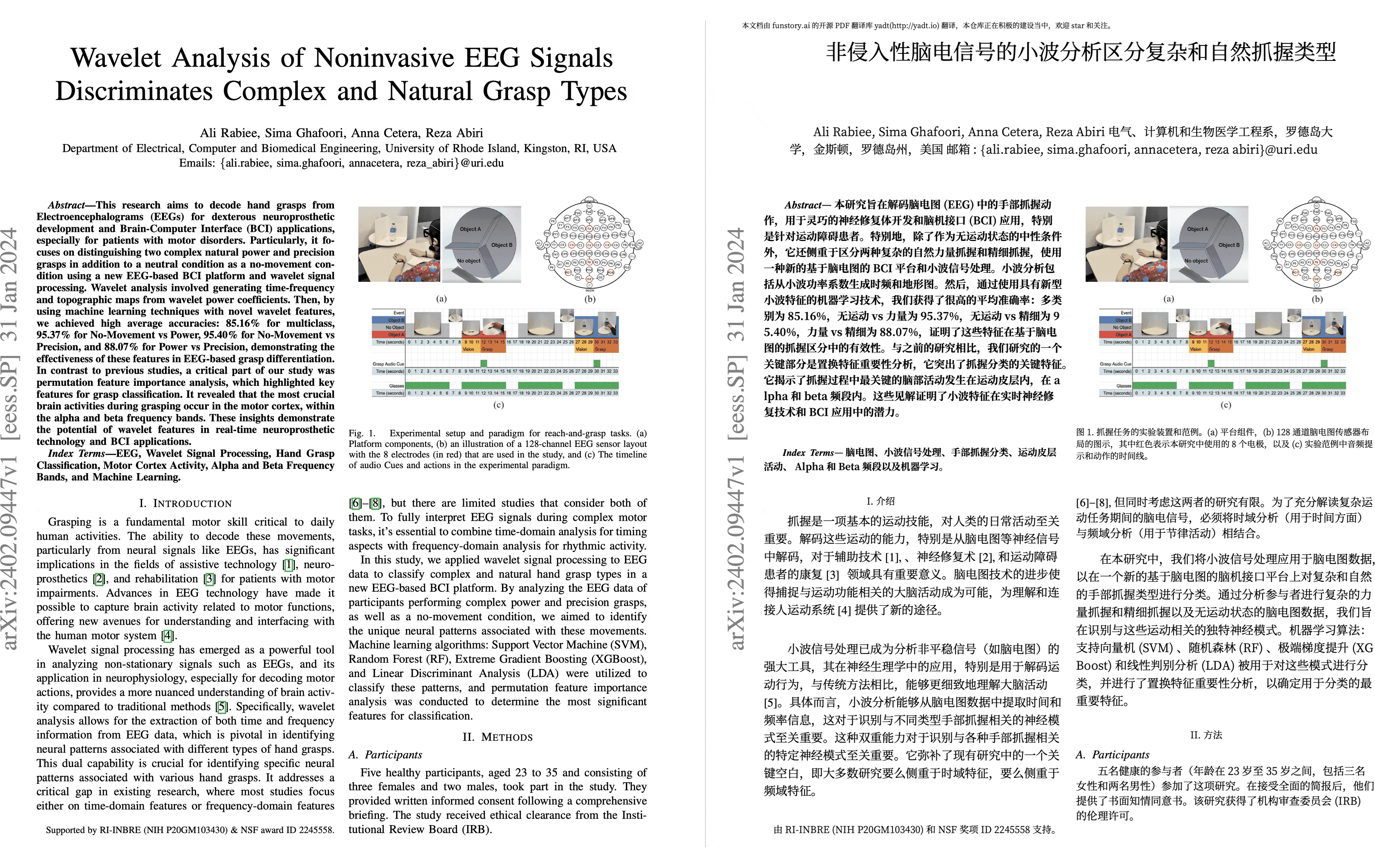
## Preview
## We are hiring
See details: [EN](https://github.com/funstory-ai/jobs) | [ZH](https://github.com/funstory-ai/jobs/blob/main/README_ZH.md)
## Getting Started
### Install from PyPI
We recommend using the Tool feature of [uv](https://github.com/astral-sh/uv) to install BabelDOC.
1. First, you need to refer to [uv installation](https://github.com/astral-sh/uv#installation) to install uv and set up the `PATH` environment variable as prompted.
2. Use the following command to install BabelDOC:
```bash
uv tool install --python 3.12 BabelDOC
babeldoc --help
```
3. Use the `babeldoc` command. For example:
```bash
babeldoc --openai --openai-model "gpt-4o-mini" --openai-base-url "https://api.openai.com/v1" --openai-api-key "your-api-key-here" --files example.pdf
# multiple files
babeldoc --openai --openai-model "gpt-4o-mini" --openai-base-url "https://api.openai.com/v1" --openai-api-key "your-api-key-here" --files example1.pdf --files example2.pdf
```
### Install from Source
We still recommend using [uv](https://github.com/astral-sh/uv) to manage virtual environments.
1. First, you need to refer to [uv installation](https://github.com/astral-sh/uv#installation) to install uv and set up the `PATH` environment variable as prompted.
2. Use the following command to install BabelDOC:
```bash
# clone the project
git clone https://github.com/funstory-ai/BabelDOC
# enter the project directory
cd BabelDOC
# install dependencies and run babeldoc
uv run babeldoc --help
```
3. Use the `uv run babeldoc` command. For example:
```bash
uv run babeldoc --files example.pdf --openai --openai-model "gpt-4o-mini" --openai-base-url "https://api.openai.com/v1" --openai-api-key "your-api-key-here"
# multiple files
uv run babeldoc --files example.pdf --files example2.pdf --openai --openai-model "gpt-4o-mini" --openai-base-url "https://api.openai.com/v1" --openai-api-key "your-api-key-here"
```
> [!TIP]
> The absolute path is recommended.
## Advanced Options
> [!NOTE]
> This CLI is mainly for debugging purposes. Although end users can use this CLI to translate files, we do not provide any technical support for this purpose.
>
> End users should directly use **Online Service**: Beta version launched [Immersive Translate - BabelDOC](https://app.immersivetranslate.com/babel-doc/) 1000 free pages per month.
>
> End users who need self-deployment should use [PDFMathTranslate 2.0](https://github.com/PDFMathTranslate/PDFMathTranslate-next)
>
> If you find that an option is not listed below, it means that this option is a debugging option for maintainers. Please do not use these options.
### Language Options
- `--lang-in`, `-li`: Source language code (default: en)
- `--lang-out`, `-lo`: Target language code (default: zh)
> [!TIP]
> Currently, this project mainly focuses on English-to-Chinese translation, and other scenarios have not been tested yet.
>
> (2025.3.1 update): Basic English target language support has been added, primarily to minimize line breaks within words([0-9A-Za-z]+).
>
> [HELP WANTED: Collecting word regular expressions for more languages](https://github.com/funstory-ai/BabelDOC/issues/129)
### PDF Processing Options
- `--files`: One or more file paths to input PDF documents.
- `--pages`, `-p`: Specify pages to translate (e.g., "1,2,1-,-3,3-5"). If not set, translate all pages
- `--split-short-lines`: Force split short lines into different paragraphs (may cause poor typesetting & bugs)
- `--short-line-split-factor`: Split threshold factor (default: 0.8). The actual threshold is the median length of all lines on the current page \* this factor
- `--skip-clean`: Skip PDF cleaning step
- `--dual-translate-first`: Put translated pages first in dual PDF mode (default: original pages first)
- `--disable-rich-text-translate`: Disable rich text translation (may help improve compatibility with some PDFs)
- `--enhance-compatibility`: Enable all compatibility enhancement options (equivalent to --skip-clean --dual-translate-first --disable-rich-text-translate)
- `--use-alternating-pages-dual`: Use alternating pages mode for dual PDF. When enabled, original and translated pages are arranged in alternate order. When disabled (default), original and translated pages are shown side by side on the same page.
- `--watermark-output-mode`: Control watermark output mode: 'watermarked' (default) adds watermark to translated PDF, 'no_watermark' doesn't add watermark, 'both' outputs both versions.
- `--max-pages-per-part`: Maximum number of pages per part for split translation. If not set, no splitting will be performed.
- `--no-watermark`: [DEPRECATED] Use --watermark-output-mode=no_watermark instead.
- `--translate-table-text`: Translate table text (experimental, default: False)
- `--formular-font-pattern`: Font pattern to identify formula text (default: None)
- `--formular-char-pattern`: Character pattern to identify formula text (default: None)
- `--show-char-box`: Show character bounding boxes (debug only, default: False)
- `--skip-scanned-detection`: Skip scanned document detection (default: False). When using split translation, only the first part performs detection if not skipped.
- `--ocr-workaround`: Use OCR workaround (default: False). Only suitable for documents with black text on white background. When enabled, white rectangular blocks will be added below the translation to cover the original text content, and all text will be forced to black color.
- `--auto-enable-ocr-workaround`: Enable automatic OCR workaround (default: False). If a document is detected as heavily scanned, this will attempt to enable OCR processing and skip further scan detection. See "Important Interaction Note" below for crucial details on how this interacts with `--ocr-workaround` and `--skip-scanned-detection`.
- `--primary-font-family`: Override primary font family for translated text. Choices: 'serif' for serif fonts, 'sans-serif' for sans-serif fonts, 'script' for script/italic fonts. If not specified, uses automatic font selection based on original text properties.
- `--only-include-translated-page`: Only include translated pages in the output PDF. This option is only effective when `--pages` is used. (default: False)
- `--merge-alternating-line-numbers`: Enable post-processing to merge alternating line-number layouts (keep the number paragraph as an independent paragraph b; merge adjacent text paragraphs a and c across it when `layout_id` and `xobj_id` match, digits are ASCII and spaces only). Default: off.
- `--skip-form-render`: Skip form rendering (default: False). When enabled, PDF forms will not be rendered in the output.
- `--skip-curve-render`: Skip curve rendering (default: False). When enabled, PDF curves will not be rendered in the output.
- `--only-parse-generate-pdf`: Only parse PDF and generate output PDF without translation (default: False). This skips all translation-related processing including layout analysis, paragraph finding, style processing, and translation itself. Useful for testing PDF parsing and reconstruction functionality.
- `--remove-non-formula-lines`: Remove non-formula lines from paragraph areas (default: False). This removes decorative lines that are not part of formulas, while protecting lines in figure/table areas. Useful for cleaning up documents with decorative elements that interfere with text flow.
- `--non-formula-line-iou-threshold`: IoU threshold for detecting paragraph overlap when removing non-formula lines (default: 0.9). Higher values are more conservative and will remove fewer lines.
- `--figure-table-protection-threshold`: IoU threshold for protecting lines in figure/table areas when removing non-formula lines (default: 0.9). Higher values provide more protection for structural elements in figures and tables.
- `--rpc-doclayout`: RPC service host address for document layout analysis (default: None)
- `--working-dir`: Working directory for translation. If not set, use temp directory.
- `--no-auto-extract-glossary`: Disable automatic term extraction. If this flag is present, the step is skipped. Defaults to enabled.
- `--save-auto-extracted-glossary`: Save automatically extracted glossary to the specified file. If not set, the glossary will not be saved.
> [!TIP]
> - Both `--skip-clean` and `--dual-translate-first` may help improve compatibility with some PDF readers
> - `--disable-rich-text-translate` can also help with compatibility by simplifying translation input
> - However, using `--skip-clean` will result in larger file sizes
> - If you encounter any compatibility issues, try using `--enhance-compatibility` first
> - Use `--max-pages-per-part` for large documents to split them into smaller parts for translation and automatically merge them back.
> - Use `--skip-scanned-detection` to speed up processing when you know your document is not a scanned PDF.
> - Use `--ocr-workaround` to fill background for scanned PDF. (Current assumption: background is pure white, text is pure black, this option will also auto enable `--skip-scanned-detection`)
### Translation Service Options
- `--qps`: QPS (Queries Per Second) limit for translation service (default: 4)
- `--ignore-cache`: Ignore translation cache and force retranslation
- `--no-dual`: Do not output bilingual PDF files
- `--no-mono`: Do not output monolingual PDF files
- `--min-text-length`: Minimum text length to translate (default: 5)
- `--openai`: Use OpenAI for translation (default: False)
- `--custom-system-prompt`: Custom system prompt for translation.
- `--add-formula-placehold-hint`: Add formula placeholder hint for translation. (Currently not recommended, it may affect translation quality, default: False)
- `--disable-same-text-fallback`: Disable fallback translation when LLM output matches input text. (default: False)
- `--pool-max-workers`: Maximum number of worker threads for internal task processing pools. If not specified, defaults to QPS value. This parameter directly sets the worker count, replacing previous QPS-based dynamic calculations.
- `--no-auto-extract-glossary`: Disable automatic term extraction. If this flag is present, the step is skipped. Defaults to enabled.
> [!TIP]
>
> 1. Currently, only OpenAI-compatible LLM is supported. For more translator support, please use [PDFMathTranslate 2.0](https://github.com/PDFMathTranslate/PDFMathTranslate-next).
> 2. It is recommended to use models with strong compatibility with OpenAI, such as: `glm-4-flash`, `deepseek-chat`, etc.
> 3. Currently, it has not been optimized for traditional translation engines like Bing/Google, it is recommended to use LLMs.
> 4. You can use [litellm](https://github.com/BerriAI/litellm) to access multiple models.
> 5. `--custom-system-prompt`: It is mainly used to add the `/no_think` instruction of Qwen 3 in the prompt. For example: `--custom-system-prompt "/no_think You are a professional, authentic machine translation engine."`
### OpenAI Specific Options
- `--openai-model`: OpenAI model to use (default: gpt-4o-mini)
- `--openai-base-url`: Base URL for OpenAI API
- `--openai-api-key`: API key for OpenAI service
- `--enable-json-mode-if-requested`: Enable JSON mode for OpenAI requests (default: False)
- `--term-pool-max-workers`: Maximum number of worker threads dedicated to automatic term extraction. If not specified, this defaults to the value of `--pool-max-workers`, which itself defaults to the QPS value when unset.
> [!TIP]
>
> 1. This tool supports any OpenAI-compatible API endpoints. Just set the correct base URL and API key. (e.g. `https://xxx.custom.xxx/v1`)
> 2. For local models like Ollama, you can use any value as the API key (e.g. `--openai-api-key a`).
### Glossary Options
- `--glossary-files`: Comma-separated paths to glossary CSV files.
- Each CSV file should have the columns: `source`, `target`, and an optional `tgt_lng`.
- The `source` column contains the term in the original language.
- The `target` column contains the term in the target language.
- The `tgt_lng` column (optional) specifies the target language for that specific entry (e.g., "zh-CN", "en-US").
- If `tgt_lng` is provided for an entry, that entry will only be loaded and used if its (normalized) `tgt_lng` matches the (normalized) overall target language specified by `--lang-out`. Normalization involves lowercasing and replacing hyphens (`-`) with underscores (`_`).
- If `tgt_lng` is omitted for an entry, that entry is considered applicable for any `--lang-out`.
- The name of each glossary (used in LLM prompts) is derived from its filename (without the .csv extension).
- During translation, the system will check the input text against the loaded glossaries. If terms from a glossary are found in the current text segment, that glossary (with the relevant terms) will be included in the prompt to the language model, along with an instruction to adhere to it.
### Output Control
- `--output`, `-o`: Output directory for translated files. If not set, use current working directory.
- `--debug`: Enable debug logging level and export detailed intermediate results in `~/.cache/babeldoc/working`.
- `--report-interval`: Progress report interval in seconds (default: 0.1).
### General Options
- `--warmup`: Only download and verify required assets then exit (default: False)
### Offline Assets Management
- `--generate-offline-assets`: Generate an offline assets package in the specified directory. This creates a zip file containing all required models and fonts.
- `--restore-offline-assets`: Restore an offline assets package from the specified file. This extracts models and fonts from a previously generated package.
> [!TIP]
>
> 1. Offline assets packages are useful for environments without internet access or to speed up installation on multiple machines.
> 2. Generate a package once with `babeldoc --generate-offline-assets /path/to/output/dir` and then distribute it.
> 3. Restore the package on target machines with `babeldoc --restore-offline-assets /path/to/offline_assets_*.zip`.
> 4. The offline assets package name cannot be modified because the file list hash is encoded in the name.
> 5. If you provide a directory path to `--restore-offline-assets`, the tool will automatically look for the correct offline assets package file in that directory.
> 6. The package contains all necessary fonts and models required for document processing, ensuring consistent results across different environments.
> 7. The integrity of all assets is verified using SHA3-256 hashes during both packaging and restoration.
> 8. If you're deploying in an air-gapped environment, make sure to generate the package on a machine with internet access first.
### Configuration File
- `--config`, `-c`: Configuration file path. Use the TOML format.
Example Configuration:
```
/* Detailed source-code truncated for AI context efficiency. */
```
## Python API
The current recommended way to call BabelDOC in Python is to call the `high_level.do_translate_async_stream` function of [pdf2zh next](https://pdf2zh-next.com/).
> [!WARNING]
> **All APIs of BabelDOC should be considered as internal APIs, and any direct use of BabelDOC is not supported.**
## Background
There are a lot projects and teams working on to make document editing and translating easier like:
- [mathpix](https://mathpix.com/)
- [Doc2X](https://doc2x.noedgeai.com/)
- [minerU](https://github.com/opendatalab/MinerU)
- [PDFMathTranslate](https://github.com/PDFMathTranslate/PDFMathTranslate)
There are also some solutions to solve specific parts of the problem like:
- [layoutreader](https://github.com/microsoft/unilm/tree/master/layoutreader): the read order of the text block in a pdf
- [Surya](https://github.com/surya-is/surya): the structure of the pdf
This project hopes to promote a standard pipeline and interface to solve the problem.
In fact, there are two main stages of a PDF parser or translator:
- **Parsing**: A stage of parsing means to get the structure of the pdf such as text blocks, images, tables, etc.
- **Rendering**: A stage of rendering means to render the structure into a new pdf or other format.
For a service like mathpix, it will parse the pdf into a structure may be in a XML format, and then render them using a single column reader order as [layoutreader](https://github.com/microsoft/unilm/tree/master/layoutreader) does. The bad news is that the original structure lost.
Some people will use Adobe PDF Parser because it will generate a Word document and it keeps the original structure. But it is somewhat expensive.
And you know, a pdf or word document is not a good format for reading in mobile devices.
We offer an intermediate representation of the results from parser and can be rendered into a new pdf or other format. The pipeline is also a plugin-based system which everybody can add their new model, ocr, renderer, etc.
## Roadmap
- [ ] Add line support
- [ ] Add table support
- [ ] Add cross-page/cross-column paragraph support
- [ ] More advanced typesetting features
- [ ] Outline support
- [ ] ...
Our first 1.0 version goal is to finish a translation from [PDF Reference, Version 1.7](https://opensource.adobe.com/dc-acrobat-sdk-docs/pdfstandards/pdfreference1.7old.pdf) to the following language version:
- Simplified Chinese
- Traditional Chinese
- Japanese
- Spanish
And meet the following requirements:
- layout error less than 1%
- content loss less than 1%
## Version Number Explanation
This project uses a combination of [Semantic Versioning](https://semver.org/) and [Pride Versioning](https://pridever.org/). The version number format is: "0.MAJOR.MINOR".
> [!NOTE]
>
> The API compatibility here mainly refers to the compatibility with [pdf2zh_next](https://pdf2zh-next.com/).
- MAJOR: Incremented by 1 when API incompatible changes are made or when proud improvements are implemented.
- MINOR: Incremented by 1 when any API compatible changes are made.
## Known Issues
1. Parsing errors in the author and reference sections; they get merged into one paragraph after translation.
2. Lines are not supported.
3. Does not support drop caps.
4. Large pages will be skipped.
## How to Contribute
BabelDOC is currently developed in a maintainer-led mode. Bug reports,
reproducible PDFs, documentation fixes, and small compatibility fixes are
welcome. For changes to parsing, rendering, translation, or service integration
behavior, please open an issue for discussion before submitting a pull request.
Everyone interacting in BabelDOC and its sub-projects' codebases, issue trackers, chat rooms, and mailing lists is expected to follow the BabelDOC [Code of Conduct](https://github.com/funstory-ai/BabelDOC/blob/main/docs/CODE_OF_CONDUCT.md).
[Immersive Translation](https://immersivetranslate.com) sponsors monthly Pro membership redemption codes for active contributors to this project, see details at: [CONTRIBUTOR_REWARD.md](https://github.com/funstory-ai/BabelDOC/blob/main/docs/CONTRIBUTOR_REWARD.md)
## Acknowledgements
BabelDOC is still at an early stage of development, and many parts are not as
polished as we would like yet. We sincerely appreciate every bug report,
criticism, suggestion, reproducible PDF, downstream integration experience, and
contribution from people working on BabelDOC and related upstream/downstream
projects. We will keep iterating on BabelDOC, fixing bugs, and making it better
step by step.
- [PDFMathTranslate](https://github.com/PDFMathTranslate/PDFMathTranslate)
- [DocLayout-YOLO](https://github.com/opendatalab/DocLayout-YOLO)
- [pdfminer](https://github.com/pdfminer/pdfminer.six)
- [PyMuPDF](https://github.com/pymupdf/PyMuPDF)
- [Asynchronize](https://github.com/multimeric/Asynchronize/tree/master?tab=readme-ov-file)
- [PriorityThreadPoolExecutor](https://github.com/oleglpts/PriorityThreadPoolExecutor)
Star History
> [!WARNING]
> **Important Interaction Note for `--auto-enable-ocr-workaround`:**
>
> When `--auto-enable-ocr-workaround` is set to `true` (either via command line or config file):
>
> 1. During the initial setup, the values for `ocr_workaround` and `skip_scanned_detection` will be forced to `false` by `TranslationConfig`, regardless of whether you also set `--ocr-workaround` or `--skip-scanned-detection` flags.
> 2. Then, during the scanned document detection phase (`DetectScannedFile` stage):
> * If the document is identified as heavily scanned (e.g., >80% scanned pages) AND `auto_enable_ocr_workaround` is `true` (i.e., `translation_config.auto_enable_ocr_workaround` is true), the system will then attempt to set both `ocr_workaround` to `true` and `skip_scanned_detection` to `true`.
>
> This means that `--auto-enable-ocr-workaround` effectively gives the system control to enable OCR processing for scanned documents, potentially overriding manual settings for `--ocr-workaround` and `--skip_scanned_detection` based on its detection results. If the document is *not* detected as heavily scanned, then the initial `false` values for `ocr_workaround` and `skip_scanned_detection` (forced by `--auto-enable-ocr-workaround` at the `TranslationConfig` initialization stage) will remain in effect unless changed by other logic.
---
### Overview (`docs/README.md`)
BabelDOC Spec
===
## BabelDOC Document Intermediate Language
[il_version_1.rnc](https://github.com/funstory-ai/BabelDOC/blob/main/babeldoc/format/pdf/document_il/il_version_1.rnc): The definition of the intermediate language used between PDF parsing and rendering stages.
For other implementation details, please refer to [Implementation Details](ImplementationDetails/README.md).
---
### Overview (`docs/ImplementationDetails/README.md`)
# Implementation Details
> [!NOTE]
> This documentation may contain AI-generated content. While we strive for accuracy, there might be inaccuracies. Please report any issues via:
>
> - [GitHub Issues](https://github.com/funstory-ai/yadt/issues)
> - Community contribution (PRs welcome!)
## Core Processing Flow
Main processing stages in order of actual execution and corresponding documentation:
1. [PDFParser.md](PDFParsing/PDFParsing.md): **PDF Parsing and Intermediate Layer Creation**
2. [LayoutParser](https://github.com/funstory-ai/yadt/blob/main/yadt/document_il/midend/layout_parser.py): **Layout OCR**
3. [ParagraphFinding.md](ParagraphFinding/ParagraphFinding.md): **Paragraph Recognition**
4. [StylesAndFormulas.md](StylesAndFormulas/StylesAndFormulas.md): **Style and Formula Processing**
5. [ILTranslator.md](ILTranslator/ILTranslator.md): **Intermediate Layer Translation**
6. [Typesetting.md](Typesetting/Typesetting.md): **Typesetting Processing**
7. [FontMapper](https://github.com/funstory-ai/yadt/blob/main/yadt/document_il/utils/fontmap.py): **Font Mapping**
8. [PDFCreation.md](PDFCreation/PDFCreation.md): **PDF Generation**
## API
1. [Async Translation API](AsyncTranslate/AsyncTranslate.md): **Async Translation API**
> [!TIP]
>
> Click on document links to view detailed implementation principles and configuration options
---
### CODE OF CONDUCT (`docs/CODE_OF_CONDUCT.md`)
# Contributor Covenant Code of Conduct
## Our Pledge
We as members, contributors, and leaders pledge to make participation in our
community a harassment-free experience for everyone, regardless of age, body
size, visible or invisible disability, ethnicity, sex characteristics, gender
identity and expression, level of experience, education, socio-economic status,
nationality, personal appearance, race, religion, or sexual identity
and orientation.
We pledge to act and interact in ways that contribute to an open, welcoming,
diverse, inclusive, and healthy community.
## Our Standards
Examples of behavior that contributes to a positive environment for our
community include:
* Demonstrating empathy and kindness toward other people
* Being respectful of differing opinions, viewpoints, and experiences
* Giving and gracefully accepting constructive feedback
* Accepting responsibility and apologizing to those affected by our mistakes,
and learning from the experience
* Focusing on what is best not just for us as individuals, but for the
overall community
Examples of unacceptable behavior include:
* The use of sexualized language or imagery, and sexual attention or
advances of any kind
* Trolling, insulting or derogatory comments, and personal or political attacks
* Public or private harassment
* Publishing others' private information, such as a physical or email
address, without their explicit permission
* Other conduct which could reasonably be considered inappropriate in a
professional setting
## Enforcement Responsibilities
Community leaders are responsible for clarifying and enforcing our standards of
acceptable behavior and will take appropriate and fair corrective action in
response to any behavior that they deem inappropriate, threatening, offensive,
or harmful.
Community leaders have the right and responsibility to remove, edit, or reject
comments, commits, code, wiki edits, issues, and other contributions that are
not aligned to this Code of Conduct, and will communicate reasons for moderation
decisions when appropriate.
## Scope
This Code of Conduct applies within all community spaces, and also applies when
an individual is officially representing the community in public spaces.
Examples of representing our community include using an official e-mail address,
posting via an official social media account, or acting as an appointed
representative at an online or offline event.
## Enforcement
Instances of abusive, harassing, or otherwise unacceptable behavior may be
reported to the community leaders responsible for enforcement at
aw@funstory.ai .
All complaints will be reviewed and investigated promptly and fairly.
All community leaders are obligated to respect the privacy and security of the
reporter of any incident.
## Enforcement Guidelines
Community leaders will follow these Community Impact Guidelines in determining
the consequences for any action they deem in violation of this Code of Conduct:
### 1. Correction
**Community Impact**: Use of inappropriate language or other behavior deemed
unprofessional or unwelcome in the community.
**Consequence**: A private, written warning from community leaders, providing
clarity around the nature of the violation and an explanation of why the
behavior was inappropriate. A public apology may be requested.
### 2. Warning
**Community Impact**: A violation through a single incident or series
of actions.
**Consequence**: A warning with consequences for continued behavior. No
interaction with the people involved, including unsolicited interaction with
those enforcing the Code of Conduct, for a specified period of time. This
includes avoiding interactions in community spaces as well as external channels
like social media. Violating these terms may lead to a temporary or
permanent ban.
### 3. Temporary Ban
**Community Impact**: A serious violation of community standards, including
sustained inappropriate behavior.
**Consequence**: A temporary ban from any sort of interaction or public
communication with the community for a specified period of time. No public or
private interaction with the people involved, including unsolicited interaction
with those enforcing the Code of Conduct, is allowed during this period.
Violating these terms may lead to a permanent ban.
### 4. Permanent Ban
**Community Impact**: Demonstrating a pattern of violation of community
standards, including sustained inappropriate behavior, harassment of an
individual, or aggression toward or disparagement of classes of individuals.
**Consequence**: A permanent ban from any sort of public interaction within
the community.
## Attribution
This Code of Conduct is adapted from the [Contributor Covenant][homepage],
version 2.0, available at
https://www.contributor-covenant.org/version/2/0/code_of_conduct.html.
Community Impact Guidelines were inspired by [Mozilla's code of conduct
enforcement ladder](https://github.com/mozilla/diversity).
[homepage]: https://www.contributor-covenant.org
For answers to common questions about this code of conduct, see the FAQ at
https://www.contributor-covenant.org/faq. Translations are available at
https://www.contributor-covenant.org/translations.
---
### CONTRIBUTING (`docs/CONTRIBUTING.md`)
# Contributing to BabelDOC
## How to contribute to BabelDOC
### **About Language**
- Issues can be in Chinese or English
- PRs are limited to English
- All documents are provided in English only
### **Contribution policy**
BabelDOC is currently developed in a maintainer-led mode. Bug reports,
reproducible PDFs, documentation fixes, and small compatibility fixes are
welcome. For changes to parsing, rendering, translation, or service integration
behavior, please open an issue for discussion before submitting a pull request.
Because the codebase is changing quickly, maintainers may rewrite contributed
proof-of-concept patches from scratch before merging the underlying fix.
### **Did you find a bug?**
- **Ensure the bug was not already reported** by searching on GitHub under [Issues](https://github.com/funstory-ai/BabelDOC/issues).
Please pay special attention to:
1. Known compatibility issues with pdf2zh - see [#20](https://github.com/funstory-ai/BabelDOC/issues/20) for details
2. Reported edge cases and limitations from downstream applications - see [#23](https://github.com/funstory-ai/BabelDOC/issues/23) for discussion
- If you're unable to find an open issue addressing the problem, [open a new one](https://github.com/funstory-ai/BabelDOC/issues/new?template=bug_report.md). Be sure to include a **title and clear description**, as much relevant information as possible.
### **If you wish to request changes or new features**
- Suggest your change in the [Issues](https://github.com/funstory-ai/BabelDOC/issues/new?template=feature_request.md) section.
### **If you wish to add more translators**
- This project is not intended for direct end-user use, and the supported translators are mainly for debugging purposes. Unless it clearly helps with development and debugging, PRs for directly adding translators will not be accepted.
- You can directly use [PDFMathTranslate](https://github.com/PDFMathTranslate/PDFMathTranslate) to get support for more translators.
### **If you want to add new accelerator support for the layout model**
- This project only plans to support various accelerators through onnxruntime. Please submit your accelerator support directly to onnxruntime.
- Additionally, [translation_config.py](https://github.com/funstory-ai/BabelDOC/blob/9e5be3a05c15ecae98024ba695e4a2db1412c062/babeldoc/translation_config.py#L41) shows that the layout model implementation actually used in this project is passed in from outside. You can implement a layout model class according to the relevant interface, and then pass it through this parameter at runtime.
### **If you wish to contribute to BabelDOC**
> [!TIP]
>
> If you have any questions about the source code or related matters, please contact the maintainer at aw@funstory.ai .
>
> You can also raise questions in [Issues](https://github.com/funstory-ai/BabelDOC/issues).
>
> You can contact the maintainers in the pdf2zh discussion group.
>
> In addition, we do not accept PRs involving the following changes:
> 1. PRs that modify prompts.
> 2. Adding GUI or other features directly targeting end users to this project. (Exceptions granted by maintainers in issues are excluded.)
> 3. PRs that do not comply with this specification.
> 4. Other PRs that maintainers deem inappropriate.
>
> **This project cannot accept all PRs. We recommend that you discuss with the maintainers via [Issue](https://github.com/funstory-ai/BabelDOC/issues) before submitting a PR.**
[//]: # (> We welcome pull requests and will review your contributions.)
1. Fork this repository and clone it locally.
2. Use `doc/deploy.sh` to set up the development environment.
3. Create a new branch and make code changes on that branch. `git checkout -b feature/`
4. Perform development and ensure the code meets the requirements.
5. Commit your changes to your new branch.
```
git add .
git commit -m ""
```
5. Push to your repository: `git push origin feature/`.
6. Create a PR on GitHub and provide a detailed description.
7. Ensure all automated checks pass.
#### Basic Requirements
##### Workflow
1. Please create a fork on the main branch and develop on the forked branch.
- When submitting a Pull Request (PR), please provide detailed descriptions of the changes.
- If the PR fails automated checks (showing checks failed and red cross marks), please review the corresponding details and modify the submission to ensure the new PR passes automated checks.
2. Development and Testing
- Use the `uv run BabelDOC` command for development and testing.
- When you need print log, please use `log.debug()` to print info. **DO NOT USE `print()`**
- Code formatting
3. Dependency Updates
- If new dependencies are introduced, please update the dependency list in pyproject.toml accordingly.
- It is recommended to use the `uv add` command for adding dependencies.
4. Documentation Updates
- If new command-line options are added, please update the command-line options list in README.md accordingly.
5. Commit Messages
- Use [Conventional Commits](https://www.conventionalcommits.org/en/v1.0.0/), for example: feat(translator): add openai.
6. Coding Style
- Please ensure submitted code follows basic coding style guidelines.
- Use pep8-naming.
- Comments should be in English.
- Follow these specific Python coding style guidelines:
a. Naming Conventions:
- Class names should use CapWords (PascalCase): `class TranslatorConfig`
- Function and variable names should use snake_case: `def process_text()`, `word_count = 0`
- Constants should be UPPER_CASE: `MAX_RETRY_COUNT = 3`
- Private attributes should start with underscore: `_internal_state`
b. Code Layout:
- Use 4 spaces for indentation (no tabs)
- Maximum line length is 88 characters (compatible with black formatter)
- Add 2 blank lines before top-level classes and functions
- Add 1 blank line before class methods
- No trailing whitespace
c. Imports:
- Imports should be on separate lines: `import os\nimport sys`
- Imports should be grouped in the following order:
1. Standard library imports
2. Related third party imports
3. Local application/library specific imports
- Use absolute imports over relative imports
d. String Formatting:
- Prefer f-strings for string formatting: `f"Count: {count}"`
- Use double quotes for docstrings
e. Type Hints:
- Use type hints for function arguments and return values
- Example: `def translate_text(text: str) -> str:`
f. Documentation:
- All public functions and classes must have docstrings
- Use Google style for docstrings
- Example:
```python
def function_name(arg1: str, arg2: int) -> bool:
"""Short description of function.
Args:
arg1: Description of arg1
arg2: Description of arg2
Returns:
Description of return value
Raises:
ValueError: Description of when this error occurs
"""
```
The existing codebase does not comply with the above specifications in some aspects. Please discuss broad style-only rewrites with maintainers before submitting a PR.
#### How to modify the intermediate representation
The intermediate representation is described by [il_version_1.rnc](https://github.com/funstory-ai/BabelDOC/blob/main/babeldoc/format/pdf/document_il/il_version_1.rnc). Corresponding Python data classes are generated using [xsdata](https://xsdata.readthedocs.io/en/latest/). The files `il_version_1.rng`, `il_version_1.xsd`, and `il_version_1.py` are auto-generated and must not be manually modified.
##### Format RNC file
```bash
trang babeldoc/format/pdf/document_il/il_version_1.rnc babeldoc/format/pdf/document_il/il_version_1.rnc
```
##### Generate RNG, XSD and Python classes
```bash
# Generate RNG from RNC
trang babeldoc/format/pdf/document_il/il_version_1.rnc babeldoc/format/pdf/document_il/il_version_1.rng
# Generate XSD from RNC
trang babeldoc/format/pdf/document_il/il_version_1.rnc babeldoc/format/pdf/document_il/il_version_1.xsd
# Generate Python classes from XSD
xsdata generate babeldoc/format/pdf/document_il/il_version_1.xsd --package babeldoc.format.pdf.document_il
```
##### Profile memory usage
```bash
uv run memray run --native --aggregate babeldoc/main.py -c babeldoc.toml
```
---
### CONTRIBUTOR REWARD (`docs/CONTRIBUTOR_REWARD.md`)
# BabelDOC/PDFMathTranslate/OneAIFW 贡献者奖励规则
## 月度活跃贡献者奖励规则
### 一、资格标准
#### **贡献类型要求**
- 需提交 **至少 1 个有效 PR**(Pull Request),或进行 **PR 审核、文档编写** 等贡献。
- 有效贡献定义:
- 非简单的文档错别字修复
- 非简单的代码格式化调整(如仅调整缩进、空格等)
- 需做出实质性贡献(如功能开发、Bug 修复、性能优化、架构调整、技术文档编写、PR 审核等)
- 示例合格贡献:新增功能模块、修复逻辑错误、优化算法效率、编写技术文档等
#### **时间范围**
- 每月 1 日至月末最后一天合并的 PR 计入当月统计
### 二、申请流程
#### **申请条件**
- PR 需被成功合并至以下几个仓库:
1. [funstory-ai/BabelDOC](https://github.com/funstory-ai/BabelDOC/pulls) 仓库
2. [PDFMathTranslate-next/PDFMathTranslate-next](https://github.com/PDFMathTranslate-next/PDFMathTranslate-next) 的主分支。
3. [guaguastandup/zotero-pdf2zh](https://github.com/guaguastandup/zotero-pdf2zh) 的主分支
4. [funstory-ai/aifw](https://github.com/funstory-ai/aifw) 的主分支
- 若目标为 [funstory-ai/BabelDOC](https://github.com/funstory-ai/BabelDOC/pulls) 的 PR 未被合并,但被维护者认定为有价值的概念验证,同样符合条件。
- 审核 PR、撰写 wiki 等贡献也必须是以上两个仓库。
- 同一贡献者每月仅可申请一次(无论提交 PR 数量)
- 同一贡献者每月最多可以获得 1 个兑换码
- 对于 PR,只有发起者可以申请兑换码
- 仅可使用当月的贡献申请兑换码(特殊情况请联系 aw@funstory.ai 说明)
#### **申请方式**
- 发送邮件至 **aw@funstory.ai**
- 邮件标题格式:`[贡献者会员兑换码申请] GitHub用户名-月份`(例:`[贡献者会员兑换码申请] awwaawwa-2024-07`)
- 邮件正文需包含:
- GitHub 用户名
- 合并 PR 的完整链接
- 附件要求:
- PR 页面完整截图(需包含合并状态、仓库名称及点击头像后弹出来的侧边栏,如下图所示)
> [!IMPORTANT]
>
> 不满足上述格式要求的邮件会被直接忽略!
#### **奖励说明**
- 奖励内容:[沉浸式翻译(Immersive Translate)](https://immersivetranslate.com/zh-Hans/pricing/)月度会员兑换码
- 兑换码使用:在[沉浸式翻译官网兑换页](https://immersivetranslate.com/zh-Hans/exchange)输入即可激活
- 会员权益:沉浸式翻译 Pro 会员一个月(详见[官网价格页](https://immersivetranslate.com/zh-Hans/pricing/)说明)
- 兑换码为专属福利,不可转让
### 三、审核与发放
#### **审核周期**
- 我们会尽力在收到申请邮件后 1 个工作日内完成审核
- 审核时间可能因申请数量、审核复杂度等因素有所延长
- 审核通过后,兑换码将通过邮件方式发送
- 若审核未通过,我们会通过邮件说明原因
#### **兑换码规则**
- 使用方式:[官网兑换页](https://immersivetranslate.com/zh-Hans/exchange)输入兑换码激活
- 权益内容:月度会员(具体权益见[官网价格页](https://immersivetranslate.com/zh-Hans/pricing/)说明)
- 不可转让
### 四、注意事项
#### **禁止行为**
- 将完整功能拆分为多个无关 PR 提交
- 提交质量不合格或具有潜在危害的代码
- 提供虚假或误导性的申请材料
#### **特别说明**
- funstory.ai 保留对贡献价值的评估权、规则的最终解释权等所有必要权利
- 规则如有实质性更新(格式调整等除外),将提前 1 天在 [BabelDOC GitHub PR](https://github.com/funstory-ai/BabelDOC/pulls) 公告
- 过期未使用的兑换码不予补发
- 自 2025 年 2 月 1 日起的贡献可以申请兑换码
- 为了确认您是 Pull Request (PR) 的发起者,防止他人冒领,我们可能会要求您使用发起者账号在 PR 下方留言指定的随机数字。
## 常见问题解答(FAQ)
**Q:如何判断文档翻译贡献是否有效?**
A:系统性的人工翻译(如完整章节的翻译并经过人工校对)视为有效贡献。零散段落翻译或仅依赖机器翻译的内容不计入有效贡献。
**Q:兑换码过期了可以补发吗?**
A:为确保公平性,过期的兑换码将不予补发,请在有效期内及时使用。
**Q:为什么这个文档是中文的?**
A:因为目前应该是中文贡献者多吧,所以就先写中文的。后面再撰写英文版的。
---
**规则公示**:本规则文档存放于 BabelDOC 仓库 [CONTRIBUTOR_REWARD.md](https://github.com/funstory-ai/BabelDOC/blob/main/docs/CONTRIBUTOR_REWARD.md),并在 [Contributor Reward - BabelDOC](https://funstory-ai.github.io/BabelDOC/CONTRIBUTOR_REWARD/) 展示。
---
### Intro To Pdf Object (`docs/intro-to-pdf-object.md`)
An Introduction to PDF Object Definitions in dpml
===
## 1. Understanding PDF Structure
A PDF file is fundamentally an indexed collection of objects, where each object represents a structured data unit. The file structure consists of four main components:
1. A header
2. Object definitions
3. A cross-reference table
4. A trailer
The cross-reference table serves as a lookup directory, mapping each numbered object to its byte offset location within the file. The trailer contains critical metadata, including the location of the root object (document catalog), which serves as the entry point for PDF interpretation. The file concludes with a byte offset pointing to the cross-reference table.
Here's an illustrative example of a PDF file structure:
```pdf
%PDF-2.0
1 0 obj
<<
/Pages 2 0 R
/Type /Catalog
>>
endobj
2 0 obj
<<
/Count 1
/Kids [
3 0 R
]
/Type /Pages
>>
endobj
3 0 obj
<<
/Contents 4 0 R
/MediaBox [ 0 0 612 792 ]
/Parent 2 0 R
/Resources <<
/Font << /F1 5 0 R >>
>>
/Type /Page
>>
endobj
4 0 obj
<<
/Length 44
>>
stream
BT
/F1 24 Tf
72 720 Td
(Potato) Tj
ET
endstream
endobj
5 0 obj
<<
/BaseFont /Helvetica
/Encoding /WinAnsiEncoding
/Subtype /Type1
/Type /Font
>>
endobj
xref
0 6
0000000000 65535 f
0000000009 00000 n
0000000062 00000 n
0000000133 00000 n
0000000277 00000 n
0000000372 00000 n
trailer <<
/Root 1 0 R
/Size 6
/ID [<42841c13bbf709d79a200fa1691836f8>]
>>
startxref
478
%%EOF
```
### PDF File Interpretation
When a PDF viewer processes a file, it follows these steps:
1. Starts at the file's end to locate the cross-reference table offset
2. Accesses the cross-reference table to find object locations
3. Reads the trailer dictionary to identify the document catalog
4. Uses the document catalog to access various document components:
- Pages
- Outlines
- Thumbnails
- Annotations
- Other PDF elements
The pages tree root is particularly crucial as it enables navigation to specific pages within the document.
### Example Interpretation Flow
Let's trace through our example:
1. The cross-reference table begins at byte offset 478 (indicated after `startxref`)
2. The trailer identifies object 1 as the document catalog (`/Root 1 0 R`)
3. Object 1 is located at byte offset 9
4. The document catalog points to object 2 as the pages tree root
5. Object 2 is found at byte offset 62
6. The pages tree identifies page 3 as the first page
7. Object 3 is positioned at byte offset 133
8. Object 3 defines the page properties and links to object 4 for content
9. Object 4, at byte offset 277, contains the drawing instructions for rendering "Potato"
This structure enables efficient random access to any part of the PDF document.
## 2. PDF Objects
Earlier, we discussed PDF objects and introduced the concept of dictionaries. At the top level of a PDF file, objects are identified by two numbers followed by the keyword "obj". The first number serves as the object number, while the second—known as the generation number—is typically 0. Everything between these identifiers and the "endobj" keyword constitutes the object's body.
The PDF specification provides a mechanism for modifying files by appending object updates and cross-reference table entries. When an object's contents are completely replaced (rather than modified), its generation number can be incremented. This allows object numbers to be reused while preventing old indirect references from resolving to new objects. However, such files are rare in practice, and generation numbers can generally be disregarded. Modern PDF specifications using object streams have even eliminated generation numbers entirely.
PDF objects share similarities with data structures found in JSON, YAML, and modern programming languages, though PDF includes some unique object types. Here are the available PDF object types:
- String: A text sequence enclosed in parentheses, e.g., (potato). Note that PDF strings typically don't support full Unicode encoding, though there are specific cases where this is possible. (A detailed discussion of character encoding is beyond our current scope.)
- Number: Both integers and floating-point numbers (e.g., 12, 3.14159). While the PDF specification distinguishes between integers and real numbers, they're often interchangeable in practice—integers can be used where real numbers are expected, and viewers typically handle real numbers appropriately when integers are required.
- Boolean: Simple true/false values
- Null: Represented by the keyword "null"
- Name: A keyword or dictionary key identifier starting with a forward slash (/), e.g., /Type
- Array: An ordered collection of objects enclosed in square brackets, with no separators between items. Arrays support nested structures, including other arrays and dictionaries. Example: `[1 (two) 3.14 false]`
- Dictionary: A collection of key-value pairs where keys are Names and values can be any object type. Dictionaries are enclosed in << and >> with no separators between entries. Example: `<< /A 1 /B [2, 3 <> ] >>`
- Indirect object reference: A reference to a numbered object in the file, consisting of two numbers (object and generation) followed by 'R', e.g., 1 0 R. While some objects must be direct per the PDF specification, most can be defined at the top level and referenced indirectly.
- Stream: A container for binary data, structured as a dictionary (containing at least a /Length key and other format-specific entries) followed by the specified number of bytes between "stream" and "endstream" keywords. 🔍 The stream length can be specified as an indirect object, enabling single-pass PDF generation where the stream length isn't known in advance—a common practice in PDF creation.
## 3. PDF Object Definitions In dpml
### Coordinate system definition
The positive x-axis extends horizontally to the right, while the positive y-axis extends vertically upward, following
standard mathematical conventions. The unit length along both the x and y axes is defined as 1/72 inch (or 1 point).
## 4. Useful Information
- [PDF32000_2008](https://opensource.adobe.com/dc-acrobat-sdk-docs/pdfstandards/PDF32000_2008.pdf) page 111: Table 51 - Operator Categories
---
### Requirements (`docs/requirements.txt`)
sphinx>=8.2.0
sphinx-click>=5.1.0
furo>=2024.1.29
myst-parser[linkify,html_meta,html_admonition]>=2.0.0
---
### Supported Languages (`docs/supported_languages.md`)
# Supported Languages
For languages in the table below that do not rely on ligature support, BabelDOC provides good support. For languages
that partially rely on ligatures, BabelDOC's translation results can generally meet self-reading needs. For languages
that completely rely on ligatures (such as some Indian languages), BabelDOC does not currently support them.
We are working hard to develop support for ligatures as soon as possible.
| Language | Language Code | Ligature Dependency |
|:--------------------------------|:--------------|:--------------------|
| English | EN | None |
| Simplified Chinese | zh-CN | None |
| Traditional Chinese - Hong Kong | zh-HK | None |
| Traditional Chinese - Taiwan | zh-TW | None |
| Japanese | JA | None |
| Korean | KO | None |
| Polish | PL | Partial |
| Russian | RU | None |
| Spanish | es | None |
| Portuguese | pt | None |
| French | fr | Partial |
| Malay | ms | None |
| Indonesian | id | None |
| Turkmen | tk | None |
| Filipino (Tagalog) | tl | None |
| Vietnamese | vi | None |
| Kazakh (Latin) | kk | None |
| German | de | None |
| Dutch | nl | None |
| Irish | ga | None |
| Italian | it | None |
| Greek | el | None |
| Swedish | sv | None |
| Danish | da | None |
| Norwegian | no | None |
| Icelandic | is | None |
| Finnish | fi | None |
| Ukrainian | uk | None |
| Czech | cs | None |
| Romanian | ro | None |
| Hungarian | hu | None |
| Slovak | sk | None |
| Croatian | hr | None |
| Estonian | et | None |
| Latvian | lv | None |
| Lithuanian | lt | None |
| Belarusian | be | None |
| Macedonian | mk | None |
| Albanian | sq | None |
| Serbian (Cyrillic) | sr | Partial |
| Serbian (Latin) | sr | Partial |
| Slovenian | sl | None |
| Catalan | ca | None |
| Bulgarian | bg | None |
| Maltese | mt | None |
| Swahili | sw | None |
| Amharic | am | None |
| Oromo | om | None |
| Tigrinya | ti | None |
| Haitian Creole | ht | None |
| Latin | la | None |
| Lao | lo | None |
| Malayalam | ml | None |
| Gujarati | gu | None |
| Thai | th | None |
| Burmese | my | Partial |
| Tamil | ta | None |
| Telugu | te | None |
| Oriya | or | Partial |
| Armenian | hy | None |
| Mongolian (Cyrillic) | mn | None |
| Georgian | ka | None |
| Khmer | km | None |
| Bosnian | bs | None |
| Luxembourgish | lb | None |
| Moldovan | ro | None |
| Moldovan (Cyrillic) | ro | None |
| Romansh | rm | None |
| Turkish | tr | None |
| Sinhala | si | None |
| Uzbek | uz | None |
| Kyrgyz | ky | None |
| Tajik | tg | None |
| Abkhazian | ab | None |
| Afar | aa | None |
| Afrikaans | af | None |
| Akan | ak | None |
| Aragonese | an | None |
| Avaric | av | None |
| Ewe | ee | None |
| Aymara | ay | None |
| Ojibwa | oj | None |
| Occitan | oc | None |
| Oriya | or | None |
| Ossetian | os | None |
| Pali | pi | None |
| Bashkir | ba | None |
| Basque | eu | None |
| Breton | br | None |
| Chamorro | ch | None |
| Chechen | ce | None |
| Chuvash | cv | None |
| Tswana | tn | None |
| Ndebele, South | nr | None |
| Ndonga | ng | None |
| Faroese | fo | None |
| Fijian | fj | None |
| Frisian, Western | fy | None |
| Ganda | lg | None |
| Kongo | kg | None |
| Kalaallisut | kl | None |
| Church Slavic | cu | None |
| Guarani | gn | None |
| Interlingua | ia | None |
| Herero | hz | None |
| Kikuyu | ki | None |
| Rundi | rn | None |
| Kinyarwanda | rw | None |
| Kirghiz | ky | None |
| Galician | gl | None |
| Kanuri | kr | None |
| Cornish | kw | None |
| Komi | kv | None |
| Xhosa | xh | None |
| Corsican | co | None |
| Cree | cr | None |
| Croatian | hr | None |
| Quechua | qu | None |
| Kurdish (Latin) | ku | None |
| Kuanyama | kj | None |
| Limburgan | li | None |
| Lingala | ln | None |
| Manx | gv | None |
| Malagasy | mg | None |
| Marshallese | mh | None |
| Maori | mi | None |
| Navajo | nv | None |
| Nauru | na | None |
| Nyanja | ny | None |
| Norwegian Nynorsk | nn | None |
| Sardinian | sc | None |
| Northern Sami | se | None |
| Samoan | sm | None |
| Sango | sg | None |
| Shona | sn | None |
| Esperanto | eo | None |
| Scottish Gaelic | gd | None |
| Somali | so | None |
| Southern Sotho | st | None |
| Tagalog | tl | None |
| Tatar | tt | None |
| Tahitian | ty | None |
| Tongan | to | None |
| Twi | tw | None |
| Walloon | wa | None |
| Welsh | cy | None |
| Venda | ve | None |
| Volapük | vo | None |
| Interlingue | ie | None |
| Hiri Motu | ho | None |
| Igbo | ig | None |
| Ido | io | None |
| Inuktitut | iu | None |
| Inupiaq | ik | None |
| Sichuan Yi | ii | None |
| Yoruba | yo | None |
| Zhuang | za | None |
| Tsonga | ts | None |
| Zulu | zu | None |
| Brazilian Portuguese | pt-BR | None |
---
### Release Notes V0.6.0 (`docs/release-notes/v0.6.0.md`)
# BabelDOC v0.6.0
## Highlights
- BabelDOC's translation pipeline now uses a substantially rewritten PDF parser.
This is a large internal change aimed at making PDF translation more reliable
across complex real-world files.
BabelDOC 的翻译主链路现在使用了大幅重写后的 PDF 解析器。这是一次较大的内部改造,
目标是在复杂真实 PDF 上提升翻译可靠性。
- PDF reconstruction is more robust for documents that rely on advanced PDF
drawing features such as graphics state, Form XObjects, clipping paths, soft
masks, shadings, and inline images.
对依赖复杂 PDF 绘制特性的文档,PDF 重建现在更加稳健,包括图形状态、Form XObject、
裁剪路径、软蒙版、渐变填充和内联图片等场景。
- Several fixes in this release reduce invalid generated PDF streams and missing
resource references in intermediate and final outputs.
本版本修复了若干会导致中间或最终输出 PDF 流无效、资源引用缺失的问题。
## PDF Reliability
- Replaced the parser used by the main translation flow with the rewritten
parser implementation.
翻译主流程使用的 PDF 解析器已切换到重写后的实现。
- Improved serialization of PDF tokens when BabelDOC regenerates content
streams, including PDF names, keywords, strings, arrays, dictionaries,
indirect references, booleans, and inline-image parameters.
BabelDOC 重新生成 PDF 内容流时,对 PDF token 的序列化更稳健,包括名称、关键字、
字符串、数组、字典、间接引用、布尔值和内联图片参数。
- Improved resource handling when rewriting page and Form XObject streams,
especially for ExtGState and shading resources.
重写页面和 Form XObject 内容流时,资源处理更加完整,尤其是 ExtGState 和 Shading
资源。
- Improved preservation of clipping and graphics-state behavior around images,
Form XObjects, shading paints, and soft masks.
对图片、Form XObject、渐变绘制和软蒙版周围的裁剪与图形状态行为保留得更好。
## Compatibility Notes
- The previous parser remains available for explicit compatibility tooling, but
normal translation now uses the rewritten parser.
旧解析器仍保留给显式兼容工具使用;普通翻译流程现在使用重写后的解析器。
- `table_model` is deprecated and ignored with a warning; BabelDOC no longer
loads RapidOCR table-text detection resources at runtime.
`table_model` 已废弃,传入时会被忽略并给出警告;BabelDOC 运行时不再加载 RapidOCR
表格文本检测资源。
---
### Release Notes V0.6.1 (`docs/release-notes/v0.6.1.md`)
# BabelDOC v0.6.1
## Highlights
- Fixed recursion-depth failures that could occur while translating PDFs with
deeply linked paragraph context.
修复了翻译某些 PDF 时,由深层段落上下文触发的递归深度失败。
- Added defensive depth and cycle guards for several PDF parsing paths,
including Form XObject execution, font resource projection, token parsing,
object parsing, and token serialization.
为多个 PDF 解析路径增加了深度与环检测保护,包括 Form XObject 执行、字体资源投影、
token 解析、object 解析和 token 序列化。
- Reduced risky deep-copy behavior in translation context handling and formula
relocation, improving robustness on complex PDF object graphs.
减少了翻译上下文和公式重排中的高风险深拷贝行为,提升复杂 PDF 对象图上的稳健性。
## Reliability
- Title context used by the translator now stores a compact immutable snapshot
instead of copying the full paragraph object graph.
译文上下文中的标题信息现在保存紧凑的不可变快照,而不是复制完整段落对象图。
- Form XObject expansion now stops on recursive or excessively deep structures
instead of exhausting the Python call stack.
Form XObject 展开遇到递归或过深结构时会停止,而不是耗尽 Python 调用栈。
- Deeply nested PDF token and object structures now fail with controlled parser
errors instead of uncaught recursion errors.
深层嵌套的 PDF token 与 object 结构现在会以受控解析错误失败,而不是抛出未控制的递归错误。
- Formula relocation now rebuilds the small objects it needs to move instead of
deep-copying full rendering state.
公式重排现在只重建需要移动的小对象,不再深拷贝完整渲染状态。
## Compatibility Notes
- This release is intended as a focused reliability update for the v0.6 parser
rewrite line.
本版本是针对 v0.6 解析器重写线的可靠性修复版本。
- Extremely recursive or malformed PDF structures may now have only the unsafe
nested portion skipped or reported as a parser error.
对极端递归或损坏的 PDF 结构,BabelDOC 现在可能跳过不安全的嵌套部分,或报告解析错误。
---
### Release Notes V0.6.2 (`docs/release-notes/v0.6.2.md`)
# BabelDOC v0.6.2
## Highlights
- Fixed a CI lint issue in the public source package.
修复公开源码包中的 CI lint 检查问题。
- Restored Python 3.10 installation compatibility by constraining
`onnxruntime` to versions that still provide Python 3.10 wheels.
通过约束 `onnxruntime` 版本,恢复 Python 3.10 环境下的安装兼容性。
## Compatibility Notes
- This release is a focused packaging and CI compatibility follow-up to
v0.6.1. It does not change the recursion hardening behavior introduced in
v0.6.1.
本版本是 v0.6.1 之后的打包与 CI 兼容性修复版本,不改变 v0.6.1 引入的递归防护行为。
---
### Release Notes V0.6.3 (`docs/release-notes/v0.6.3.md`)
# BabelDOC v0.6.3
## Highlights
- Fixed translated output for PDFs that use Type3 fonts with a non-default
FontMatrix, a pattern seen in some CJK and scanned-print documents.
Previously, BabelDOC derived text size directly from the raw Type3 Tf value,
which could be orders of magnitude smaller than the intended visual scale;
on affected pages the translated text was near-invisible and could look
blank. After this fix, BabelDOC normalizes Type3 font metrics against the
font's FontMatrix and FontBBox so affected translated text uses the
intended visual scale.
修复了使用非默认 FontMatrix 的 Type3 字体 PDF 的翻译输出(在部分 CJK 及
扫描印刷文档中可见)。此前 BabelDOC 直接从 Type3 的原始 Tf 值推算文字大小,
导致实际字号比视觉尺寸小数个量级,受影响页面中的译文几乎不可见,看起来
可能像空白。修复后,BabelDOC 根据字体的 FontMatrix 和 FontBBox 对 Type3
字号指标归一化,让受影响译文以预期视觉大小排版。
- Hardened the bundled CMap loader against deserialization of attacker-controlled
pickle files. The loader now only deserializes CMap files that match a pinned
manifest of bundled artifacts (allowlist + SHA-256 + size); names referenced
from PDF content can no longer redirect the loader to an external file.
收紧了内置 CMap 加载器,使其只反序列化与固定 manifest(allowlist + SHA-256 + 字节大小)
匹配的内置 CMap 文件。PDF 内容里的名字不能再把加载器指向外部文件。
- Sanitized PDF-controlled image names before writing through the optional
`ImageWriter`, so an attacker-controlled XObject name can no longer cause a
write outside the intended output directory.
在可选的 `ImageWriter` 写文件前清理 PDF 控制的图像名,使攻击者可控的 XObject 名不能
再写到目标目录之外。
## Security
This release includes a CMap loader fix reported via coordinated
disclosure ([GHSA-m8gf-v64p-gfmg](https://github.com/funstory-ai/BabelDOC/security/advisories/GHSA-m8gf-v64p-gfmg),
affecting BabelDOC <= 0.6.2; see the published advisory for details
and exploit prerequisites), together with one additional
defense-in-depth hardening shipped alongside it (the ImageWriter path
sanitization listed above). Also tracked as
[CVE-2026-54071](https://www.cve.org/CVERecord?id=CVE-2026-54071).
本版本包含一处通过协调披露收到的 CMap 加载器安全修复([GHSA-m8gf-v64p-gfmg](https://github.com/funstory-ai/BabelDOC/security/advisories/GHSA-m8gf-v64p-gfmg),
影响 BabelDOC <= 0.6.2;完整细节与利用前提见上述链接),并同时附带上文
Highlights 里列出的一项纵深防御加固(ImageWriter 路径清理)。亦记录为
[CVE-2026-54071](https://www.cve.org/CVERecord?id=CVE-2026-54071)。
## Dependency Updates
- Raised the minimum versions of `onnx`, `cryptography`, and `pymupdf` for
dependency hygiene and downstream SCA compatibility. We have not
identified a BabelDOC-specific call path that reaches the corresponding
upstream CVEs.
抬升了 `onnx`、`cryptography` 和 `pymupdf` 的最低版本,用于依赖卫生与下游
SCA 兼容性。我们尚未发现这几个上游 CVE 通过 BabelDOC 可触达的具体调用路径。
## Compatibility Notes
- The CMap loader no longer honors the legacy `CMAP_PATH` environment variable.
Deployments that relied on `CMAP_PATH` to ship additional CMap files outside
the BabelDOC package will need to vendor those CMaps into the packaged
runtime data or wait for a documented extension point; arbitrary external
CMap search paths are no longer supported.
CMap 加载器不再读取旧的 `CMAP_PATH` 环境变量。曾用 `CMAP_PATH` 注入额外 CMap 文件的
部署需要把所需 CMap 数据合入打包的运行时资源中,或等待后续记录在文档中的扩展点;
本版本之后,不再支持任意的外部 CMap 搜索路径。
- This release is primarily a security and dependency hardening update for the
v0.6 line. It also fixes translated output for PDFs with non-default Type3
FontMatrix fonts; those documents will produce different (corrected)
translation output after upgrading.
本版本主要是针对 v0.6 线的安全与依赖加固版本,同时修复了具有非默认
Type3 FontMatrix 字体的 PDF 的翻译输出;升级后,这类文档会生成不同(修正后)
的翻译结果。
## Maintenance Policy
BabelDOC publishes security fixes only in the latest release. We do not
publish maintainer-supported backports for older minor, patch, or release
lines. For security fixes shipped in 0.6.3, the maintainer-supported fixed
version is 0.6.3 or later; downstream distributors may carry their own
patches, but older BabelDOC releases will not receive a separate upstream
backport.
BabelDOC 只在最新发布版本中发布安全修复。我们不向更早的 minor、patch 或
release 线发布维护者支持的回移版本。对于本次 0.6.3 中的安全修复,维护者支持
的修复版本为 0.6.3 及以后;下游发行方可自行打补丁维护更旧版本,但上游不会
为更早的 BabelDOC 版本提供独立的回移发布。
---
### Release Notes V0.6.4 (`docs/release-notes/v0.6.4.md`)
# BabelDOC v0.6.4
## Highlights
- Added a unified per-page raster pixel budget for layout detection, improving
memory use and stability on PDFs whose declared page size is far larger than
the real physical size (for example, scanned documents whose pixel dimensions
were written into the page box as points). Such pages previously forced very
large layout-detection renders that could exhaust memory; BabelDOC now caps the
render at a fixed pixel budget and lowers the render DPI when needed, while
preserving layout coordinate semantics. The budget is applied to local layout
detection and scanned-file detection.
为布局识别引入统一的单页光栅像素预算,改善“声明页面尺寸远大于真实物理尺寸”的
PDF(例如把扫描像素数当作 pt 写进页面框的扫描件)的内存占用与稳定性。这类页面
此前会迫使布局识别渲染出极大的位图、可能耗尽内存;现在 BabelDOC 会把渲染限制在
固定像素预算内,必要时降低渲染 DPI,同时保持布局坐标语义不变。该预算应用于本地
布局识别与扫描件检测。
- Fixed line spacing for mixed Latin/CJK translated text. On lines whose glyph
bounding boxes were unusually short (common in all-Latin lines), the following
CJK line could overlap the previous line; BabelDOC now enforces a font-size
based minimum line advance so translated paragraphs no longer collide.
修复了混合 Latin/CJK 译文的行距。此前在字形包围盒异常偏矮的行(常见于全 Latin
行)上,下一行 CJK 可能与上一行重叠;现在 BabelDOC 按字号施加行进距离的下限,
译文段落不再互相重叠。
## Compatibility Notes
- This release is primarily a stability and layout-robustness update for the
v0.6 line. The mixed Latin/CJK line-spacing fix changes the vertical layout of
affected translated pages; those documents will produce different (corrected)
output after upgrading. Layout coordinate semantics are otherwise unchanged.
本版本主要是针对 v0.6 线的稳定性与布局健壮性更新。混合 Latin/CJK 行距修复会
改变受影响译文页的纵向排版,这类文档升级后会生成不同(修正后)的输出;除此之外
布局坐标语义保持不变。
---
### ImplementationDetails AsyncTranslate AsyncTranslate (`docs/ImplementationDetails/AsyncTranslate/AsyncTranslate.md`)
# Async Translation API
> [!NOTE]
> This documentation may contain AI-generated content. While we strive for accuracy, there might be inaccuracies. Please report any issues via:
>
> - [GitHub Issues](https://github.com/funstory-ai/yadt/issues)
> - Community contribution (PRs welcome!)
## Overview
The `yadt.high_level.async_translate` function provides an asynchronous interface for translating PDF files with real-time progress reporting. This function yields progress events that can be used to update progress bars or other UI elements.
## Usage
```python linenums="1"
async def translate_with_progress():
config = TranslationConfig(
input_file="example.pdf",
translator=your_translator,
# ... other configuration options
)
try:
async for event in async_translate(config):
if event["type"] == "progress_update":
print(f"Progress: {event['overall_progress']}%")
elif event["type"] == "finish":
result = event["translate_result"]
print(f"Translation completed: {result.original_pdf_path}")
elif event["type"] == "error":
print(f"Error occurred: {event['error']}")
break
except asyncio.CancelledError:
print("Translation was cancelled")
except KeyboardInterrupt:
print("Translation was interrupted")
```
## Event Types
The function yields different types of events during the translation process:
### 1. Progress Start Event
Emitted when a translation stage begins:
```python
{
"type": "progress_start",
"stage": str, # Name of the current stage
"stage_progress": float, # Always 0.0
"stage_current": int, # Current progress count (0)
"stage_total": int # Total items to process in this stage
}
```
### 2. Progress Update Event
Emitted periodically during translation (controlled by report_interval, default 0.1s):
```python
{
"type": "progress_update",
"stage": str, # Name of the current stage
"stage_progress": float, # Progress percentage of current stage (0-100)
"stage_current": int, # Current items processed in this stage
"stage_total": int, # Total items to process in this stage
"overall_progress": float # Overall translation progress (0-100)
}
```
### 3. Progress End Event
Emitted when a stage completes:
```python
{
"type": "progress_end",
"stage": str, # Name of the completed stage
"stage_progress": float, # Always 100.0
"stage_current": int, # Equal to stage_total
"stage_total": int, # Total items processed in this stage
"overall_progress": float # Overall translation progress (0-100)
}
```
### 4. Finish Event
Emitted when translation completes successfully:
```python
{
"type": "finish",
"translate_result": TranslateResult # Contains paths to translated files and timing info
}
```
### 5. Error Event
Emitted if an error occurs during translation:
```python
{
"type": "error",
"error": str # Error message
}
```
## Translation Stages
The translation process goes through the following stages in order:
1. ILCreater
2. LayoutParser
3. ParagraphFinder
4. StylesAndFormulas
5. ILTranslator
6. Typesetting
7. FontMapper
8. PDFCreater
Each stage will emit its own set of progress events.
## Cancellation
The translation process can be cancelled in several ways:
1. By raising a `CancelledError` (e.g., when using `asyncio.Task.cancel()`)
2. Through `KeyboardInterrupt` (e.g., when user presses Ctrl+C)
3. By calling `translation_config.cancel_translation()` method
Example of programmatic cancellation:
```python linenums="1"
async def translate_with_cancellation():
config = TranslationConfig(
input_file="example.pdf",
translator=your_translator,
# ... other configuration options
)
try:
# Start translation in another task
translation_task = asyncio.create_task(process_translation(config))
# Simulate some condition that requires cancellation
await asyncio.sleep(5)
config.cancel_translation() # This will trigger cancellation
await translation_task # Wait for the task to finish
except asyncio.CancelledError:
print("Translation was cancelled")
async def process_translation(config):
async for event in async_translate(config):
if event["type"] == "error":
if isinstance(event["error"], asyncio.CancelledError):
print("Translation was cancelled")
break
print(f"Error occurred: {event['error']}")
break
# ... handle other events ...
```
When cancelled:
- The function will log the cancellation reason
- All resources will be cleaned up properly
- Any ongoing translation tasks will be stopped
- A final error event with `CancelledError` will be emitted
- The function will exit gracefully
## Error Handling
Any errors during translation will be:
1. Logged with full traceback (if debug mode is enabled)
2. Reported through an error event
3. Cause the event stream to stop after the error event
4. Clean up resources properly before exiting
It's recommended to handle these events appropriately in your application to provide feedback to users. The example in the Usage section shows a basic error handling pattern.
---
### ImplementationDetails ILTranslator ILTranslator (`docs/ImplementationDetails/ILTranslator/ILTranslator.md`)
# Intermediate Layer Translator
> [!NOTE]
> This documentation may contain AI-generated content. While we strive for accuracy, there might be inaccuracies. Please report any issues via:
>
> - [GitHub Issues](https://github.com/funstory-ai/yadt/issues)
> - Community contribution (PRs welcome!)
## Background
After formula and style processing, we need to translate the document while preserving all formatting, formulas, and styles. The intermediate layer translator handles this complex task by using placeholders and style preservation techniques.
## Goal
1. Translate text while preserving document structure
2. Maintain formulas and special formatting
3. Handle rich text with different styles
4. Support concurrent translation for better performance
## Specific Implementation
The translation process consists of several key steps:
### Step 1: Translation Preparation
1. Process paragraphs:
- Skip vertical text
- Handle single-component paragraphs directly
- Process multi-component paragraphs with placeholders
2. Create placeholders:
- Formula placeholders for mathematical expressions
- Rich text placeholders for styled text
- Ensure placeholder uniqueness within each paragraph
### Step 2: Translation Input Creation
1. Analyze paragraph components:
- Regular text components
- Formula components
- Styled text components
2. Handle special cases:
- Skip pure formula paragraphs
- Preserve original text when style matches base style
- Handle font mapping cases
### Step 3: Translation Execution
1. Concurrent translation:
- Use thread pool for parallel processing
- Control QPS (Queries Per Second)
- Track translation progress
2. Translation tracking:
- Record original text
- Record translated text
- Save tracking information for debugging
### Step 4: Translation Output Processing
1. Parse translated text:
- Extract text between placeholders
- Restore formulas at placeholder positions
- Restore rich text with original styles
2. Create new paragraph components:
- Maintain style information
- Preserve formula positioning
- Handle empty text segments
## Additional Features
1. Style preservation:
- Maintains original text styles
- Handles font size variations
- Preserves formatting attributes
2. Formula handling:
- Preserves formula integrity
- Maintains formula positioning
- Supports complex mathematical expressions
3. Debug support:
- Translation tracking
- JSON output for debugging
- Detailed logging
## Limitations
1. Vertical text is not supported
2. Complex nested styles might not be perfectly preserved
3. Placeholder conflicts could occur in rare cases
4. Translation quality depends on external translation engine
## Configuration Options
The translation process can be customized through `TranslationConfig`:
1. `qps`: Maximum queries per second for translation
2. `debug`: Enable/disable debug mode and tracking
3. Translation engine specific settings
---
### ImplementationDetails PDFCreation PDFCreation (`docs/ImplementationDetails/PDFCreation/PDFCreation.md`)
# PDF Creation
> [!NOTE]
> This documentation may contain AI-generated content. While we strive for accuracy, there might be inaccuracies. Please report any issues via:
>
> - [GitHub Issues](https://github.com/funstory-ai/yadt/issues)
> - Community contribution (PRs welcome!)
## Background
After translation and typesetting, we need to create the final PDF document that preserves all the formatting, styles, and layout of the original document while containing the translated text. The PDF creation process handles this final step.
## Goal
1. Create a new PDF document with translated content
2. Preserve all original formatting and styles
3. Support both monolingual and dual-language output
4. Maintain font consistency and character encoding
5. Optimize the output file size and performance
## Specific Implementation
The PDF creation process consists of several key steps:
### Step 1: Font Management
1. Font initialization:
- Add required fonts to the document
- Map font identifiers
- Handle font encoding lengths
2. Font availability checking:
- Check available fonts for each page
- Handle XObject font requirements
- Manage font resources
3. Font subsetting:
- Optimize font usage
- Reduce file size
- Maintain character support
### Step 2: Content Rendering
1. Character processing:
- Handle individual characters
- Process character encodings
- Manage character positioning
2. Graphics state handling:
- Process color spaces
- Handle transparency
- Manage graphic state instructions
3. XObject management:
- Process form XObjects
- Handle drawing operations
- Maintain XObject hierarchy
### Step 3: Document Assembly
1. Page construction:
- Build page content
- Process page resources
- Handle page boundaries
2. Content stream creation:
- Generate drawing operations
- Handle text positioning
- Manage content streams
3. Resource management:
- Handle font resources
- Manage XObject resources
- Process graphic states
### Step 4: Output Generation
1. Monolingual output:
- Create translated-only PDF
- Optimize file size
- Apply compression
2. Dual-language output:
- Combine original and translated pages
- Handle page ordering
- Maintain document structure
3. File optimization:
- Apply garbage collection
- Enable compression
- Optimize for linear reading
## Additional Features
1. Font handling:
- Support for CID fonts
- Font subsetting
- Font resource management
2. Document optimization:
- File size reduction
- Performance optimization
- Resource cleanup
3. Debug support:
- Decompressed output
- Debug information
- Progress tracking
## Limitations
1. Font support:
- Limited to available font formats
- Font subsetting restrictions
- Character encoding constraints
2. File size:
- Dual-language output increases size
- Font embedding impact
- Resource duplication
3. Performance considerations:
- Processing time for large documents
- Memory usage during creation
- Optimization overhead
## Configuration Options
The PDF creation process can be customized through `TranslationConfig`:
1. Output options:
- `no_mono`: Disable monolingual output
- `no_dual`: Disable dual-language output
- Output file naming patterns
2. Optimization settings:
- Compression options
- Garbage collection
- Font subsetting
3. Debug options:
- Debug mode
- Decompressed output
- Progress tracking
---
### ImplementationDetails PDFParsing PDFParsing (`docs/ImplementationDetails/PDFParsing/PDFParsing.md`)
# PDF Parsing and Intermediate Layer Creation
> [!NOTE]
> This documentation may contain AI-generated content. While we strive for accuracy, there might be inaccuracies. Please report any issues via:
>
> - [GitHub Issues](https://github.com/funstory-ai/yadt/issues)
> - Community contribution (PRs welcome!)
## Background
The first step in the translation process is to parse the PDF document and create an intermediate layer (IL) representation. This step involves extracting text, styles, formulas, and layout information from the PDF while maintaining their relationships and properties.
## Goal
1. Extract text content while preserving character-level information
2. Maintain font and style information
3. Preserve document structure and layout
4. Handle special elements like XObjects and graphics
5. Create a structured intermediate representation for later processing
## Specific Implementation
The parsing process consists of several key components working together:
### Step 1: PDF Interpreter (PDFPageInterpreterEx)
1. Page content processing:
- Parse PDF operators and their parameters
- Handle graphics state operations
- Process text and font operations
- Manage XObject rendering
2. Graphics filtering:
- Filter non-formula lines
- Handle color space operations
- Process stroke and fill operations
3. XObject handling:
- Process form XObjects
- Handle image XObjects
- Maintain XObject hierarchy
### Step 2: PDF Converter (PDFConverterEx)
1. Character processing:
- Extract character information
- Maintain character positions
- Preserve style attributes
2. Layout management:
- Handle page boundaries
- Process figure elements
- Manage coordinate systems
3. Font handling:
- Map font identifiers
- Process font metadata
- Handle CID fonts
### Step 3: Intermediate Layer Creator (ILCreater)
1. Document structure creation:
- Build page hierarchy
- Create character objects
- Maintain font registry
2. Resource management:
- Process font resources
- Handle color spaces
- Manage graphic states
3. XObject tracking:
- Track XObject hierarchy
- Maintain XObject states
- Process form content
### Step 4: High-level Coordination
1. Process management:
- Initialize resources
- Coordinate component interactions
- Handle progress tracking
2. Resource initialization:
- Set up font management
- Initialize graphics resources
- Prepare document structure
3. Error handling:
- Handle malformed content
- Manage resource errors
- Provide debug information
## Additional Features
1. Font management:
- Support for CID fonts
- Font metadata extraction
- Font mapping capabilities
2. Graphics state tracking:
- Color space management
- Line style preservation
- Transparency handling
3. Coordinate system handling:
- Support for transformations
- Boundary box calculations
- Position normalization
4. Debug support:
- Detailed logging
- Intermediate file generation
- Progress tracking
## Limitations
1. Complex PDF features:
- Limited support for some PDF extensions
- Simplified graphics model
- Basic transparency support
2. Font handling:
- Limited support for some font formats
- Simplified font metrics
- Basic font feature support
3. Performance considerations:
- Memory usage for large documents
- Processing time for complex layouts
- Resource management overhead
## Configuration Options
The parsing process can be customized through `TranslationConfig`:
1. `debug`: Enable/disable debug mode and intermediate file generation
2. Font-related settings:
- Font mapping configurations
- CID font handling options
3. Layout processing options:
- Page selection
- Content filtering rules
---
### ImplementationDetails ParagraphFinding ParagraphFinding (`docs/ImplementationDetails/ParagraphFinding/ParagraphFinding.md`)
# Paragraph Finding
> [!NOTE]
> This documentation may contain AI-generated content. While we strive for accuracy, there might be inaccuracies. Please report any issues via:
>
> - [GitHub Issues](https://github.com/funstory-ai/yadt/issues)
> - Community contribution (PRs welcome!)
## Background
After PDF analysis, we need to identify paragraphs from individual characters. This is a crucial step before translation and typesetting, as it helps maintain the logical structure of the document.
## Goal
1. Group characters into meaningful paragraphs while preserving the document's logical structure
2. Handle special cases like table of contents, short lines, and multi-line paragraphs
3. Maintain layout information for later typesetting
## Specific Implementation
The paragraph finding process consists of four main steps:
### Step 1: Create Initial Paragraphs
1. Group characters into lines based on their spatial relationships
2. Create paragraphs based on layout information and XObject IDs
3. Characters that don't belong to text layouts are skipped
### Step 2: Process Paragraph Spacing
1. Remove completely empty lines
2. Handle trailing spaces within lines
3. Update paragraph boundary boxes and metadata
### Step 3: Calculate Line Width Statistics
1. Calculate the median width of all lines
2. This information is used for identifying potential paragraph breaks
### Step 4: Process Independent Paragraphs
1. Analyze paragraphs with multiple lines
2. Split paragraphs in two cases:
- When encountering table of contents entries (identified by consecutive dots)
- When finding lines significantly shorter than the median width (configurable via `short_line_split_factor`)
## Additional Features
1. Layout-aware processing:
- Respects different layout types (plain text, title, figure caption, etc.)
- Maintains layout priority order for overlapping regions
2. First line indent detection:
- Automatically detects and marks paragraphs with first line indentation
3. Flexible character position detection:
- Uses multiple position detection modes (middle, topleft, bottomright)
- Special handling for characters with unreliable height information
## Limitations
1. The current implementation assumes left-to-right text direction
2. May not perfectly handle complex layouts with overlapping regions
3. Table of contents detection relies on consecutive dots pattern
4. Short line splitting might occasionally create incorrect paragraph breaks
## Configuration Options
The paragraph finding behavior can be customized through `TranslationConfig`:
1. `split_short_lines`: Enable/disable splitting paragraphs at short lines
2. `short_line_split_factor`: Threshold factor for short line detection (relative to median width)
---
### ImplementationDetails StylesAndFormulas StylesAndFormulas (`docs/ImplementationDetails/StylesAndFormulas/StylesAndFormulas.md`)
# Styles and Formulas Processing
> [!NOTE]
> This documentation may contain AI-generated content. While we strive for accuracy, there might be inaccuracies. Please report any issues via:
>
> - [GitHub Issues](https://github.com/funstory-ai/yadt/issues)
> - Community contribution (PRs welcome!)
## Background
After paragraph finding, we need to identify formulas and text styles within each paragraph. This step is crucial for maintaining mathematical expressions and text formatting during translation.
## Goal
1. Identify and preserve mathematical formulas
2. Detect and maintain consistent text styles
3. Handle special cases like subscripts and superscripts
4. Calculate proper offsets for formula positioning
## Specific Implementation
The processing consists of several main steps:
### Step 1: Formula Detection
1. Identify formula characters based on:
- Formula-specific fonts
- Special Unicode characters
- Vertical text
- Corner marks (subscripts/superscripts)
2. Group consecutive formula characters into formula units
### Step 2: Formula Processing
1. Process comma-containing formulas:
- Split complex formulas at commas when appropriate
- Preserve brackets and their contents
- Convert simple number-only formulas to regular text
2. Merge overlapping formulas:
- Handle cases where subscripts/superscripts are detected as separate formulas
- Maintain proper character ordering
### Step 3: Style Analysis
1. Calculate base style for each paragraph:
- Find common style attributes across all text
- Handle font variations
- Process graphic states
2. Group characters with identical styles:
- Font properties
- Size properties
- Graphic state properties
### Step 4: Position Calculation
1. Calculate formula offsets:
- Compute x-offset relative to surrounding text
- Compute y-offset for proper vertical alignment
- Handle line spacing variations
## Additional Features
1. Font mapping:
- Maps different fonts to standard ones
- Special handling for formula fonts
2. Style inheritance:
- Maintains style hierarchy
- Handles partial style overrides
3. Formula classification:
- Distinguishes between translatable and non-translatable formulas
- Special handling for numeric formulas with commas
## Limitations
1. Formula detection relies on font and character patterns
2. May not handle all types of mathematical notations
3. Complex subscript/superscript combinations might be misidentified
4. Limited support for vertical formulas
## Configuration Options
The formula and style processing can be customized through `TranslationConfig`:
1. `formular_font_pattern`: Regex pattern for identifying formula fonts
2. `formular_char_pattern`: Regex pattern for identifying formula characters
---
### ImplementationDetails Typesetting Typesetting (`docs/ImplementationDetails/Typesetting/Typesetting.md`)
# Typography
> [!NOTE]
> This documentation may contain AI-generated content. While we strive for accuracy, there might be inaccuracies. Please report any issues via:
>
> - [GitHub Issues](https://github.com/funstory-ai/yadt/issues)
> - Community contribution (PRs welcome!)
## Background
After translation, text needs to be typeset before placing into PDF.
Translated paragraphs can contain any combination of the following types:
1. PDF formulas
2. Single PDF original character
3. PDF original string with same style
4. Translated Unicode string with same style
Let's discuss different cases:
For the following 3 types, they can be directly transmitted transparently to new positions:
1. PDF formulas
2. Single PDF original character
3. PDF original string with same style
Only "translated Unicode string with same style" needs typesetting operation, as this step loses original layout information. However, since paragraphs may contain other components that need transparent transmission, their positions may also change and need to participate in typesetting.
## Goal
Try to fit all components within the original paragraph bounding box. If impossible, try to expand the bounding box in writing direction.
## Specific Implementation
First perform reflow judgment to determine if the paragraph needs reflow. If all elements can be transmitted transparently, no reflow is needed. Then, if reflow is needed, execute Algorithm 1:
1. Convert all elements to typesetting unit type, which records length and width information.
2. Start from top-left of original paragraph bounding box, place elements sequentially.
3. If current line cannot fit next element, wrap to next line.
4. Repeat 2-3 until all elements are placed or exceed original bounding box.
Algorithm 1 works normally when translated text is shorter than original. When translated text is longer, Algorithm 2 needs to be added:
1. Initialize element scaling factor as 1.0.
2. Initialize line spacing as 1.5.
3. Try typesetting using Algorithm 1.
4. If it cannot fit all elements:
- First try to reduce line spacing by 0.1 step until reaching minimum line spacing (1.4)
- If still cannot fit:
- When scale > 0.6, reduce element scaling by 0.05
- When scale <= 0.6, reduce element scaling by 0.1
- Reset line spacing to 1.5
- When scale becomes less than 0.7, adjust minimum line spacing to 1.1
5. Report error if element scaling is less than 0.1.
Algorithm 2 can fit translations of almost all languages in original position.
However, for special cases like "图 1" translated to "Figure 1", even with the above algorithms some text may still overflow. So Algorithm 3:
1. Before reducing scale, first try to expand the bounding box in writing direction.
2. Calculate paragraph's right whitespace by:
- Using 90% of page crop box width as maximum limit
- Checking for overlapping paragraphs on the right
- Checking for overlapping figures on the right
3. Expand paragraph bounding box based on available whitespace.
4. If still cannot fit all elements, continue with scale reduction as in Algorithm 2.
## Additional Features
1. Mixed Chinese-English text handling:
- Adds 0.5 character width spacing between Chinese and English text transitions
- Excludes certain punctuation marks from this spacing rule
2. First line indent:
- Adds 2 Chinese characters width indent for the first line when specified
3. Hanging punctuation:
- Allows certain punctuation marks to extend beyond the right margin
- Helps maintain better visual alignment
## Limitations
1. Currently, we use PDFPlumber for PDF analysis, this is only implemented for paragraphs, only handles left-to-right writing.
2. Cannot handle table of contents alignment by dots.
3. Poor performance, needs optimization.
4. No global page information consideration, inconsistent text sizes.
5. No advanced typography features, poor reading experience.
## Related Resources
[UTR #59: East Asian Spacing](https://www.unicode.org/reports/tr59/) specifies which characters need spacing between them.
---
--- METRICS ---
- Files Extracted: 21
- Estimated Token Budget: ~24568 tokens
- Canonical Reference: https://codewiki.google/github.com/funstory-ai/BabelDOC