# Technical Documentation: chartist-js/chartist

> ℹ️ **Provenance:** Multi-Tier Ingestion · [CodeWiki Reference](https://codewiki.google/github.com/chartist-js/chartist)

### Overview (`README.md`)

# Chartist

[![npm (next)][npm]][npm-url]
[![Downloads][downloads]][downloads-url]
[![Build status][build]][build-url]

[npm]: https://img.shields.io/npm/v/chartist/next.svg
[npm-url]: https://www.npmjs.com/package/chartist
[downloads]: https://img.shields.io/npm/dm/chartist.svg
[downloads-url]: https://www.npmjs.com/package/chartist
[build]: https://img.shields.io/github/actions/workflow/status/chartist-js/chartist/ci.yml?branch=main
[build-url]: https://github.com/chartist-js/chartist/actions

<p align="center">
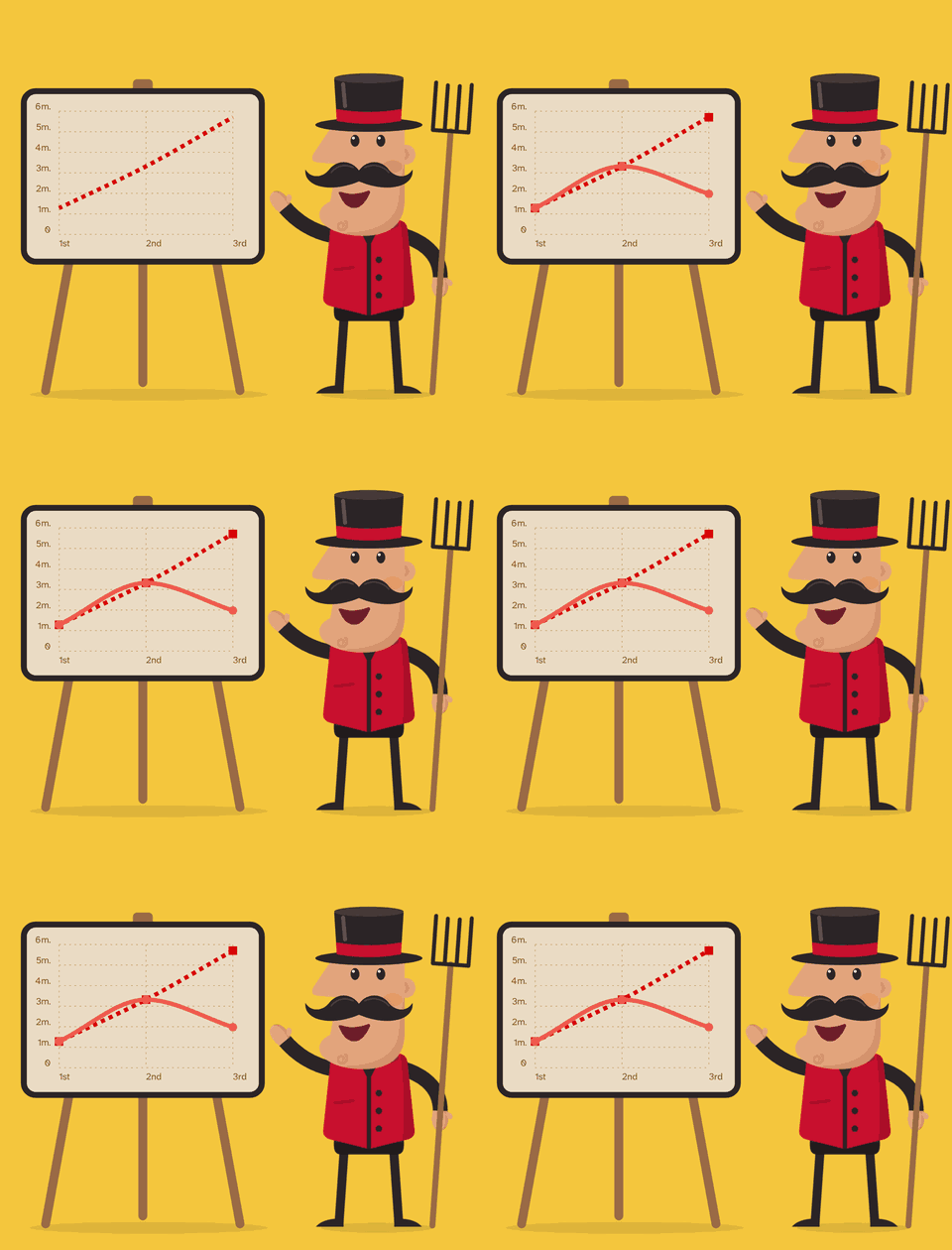
  <a href="https://chartist.dev"><img width="480" alt="The Chartist Guy presents a line chart that draws itself on his easel." src="https://raw.githubusercontent.com/chartist-js/chartist/main/docs/assets/chartist-guy.gif"></a>
</p>

Simple, responsive charts, drawn in SVG and styled with CSS. Tiny, typed, and happy without a build step.

**[chartist.dev](https://chartist.dev)** · [Getting started](https://chartist.dev/docs/getting-started/) · [API](https://chartist.dev/api/) · [Examples](https://chartist.dev/examples/) · [Plugins](https://chartist.dev/plugins/) · [Changelog](https://github.com/chartist-js/chartist/blob/main/CHANGELOG.md)

> **Coming from Chartist 1?** Your code keeps working. [Coming from 1.x](https://chartist.dev/docs/coming-from-1x/) shows what's new, and the 1.x docs are at [chartist.dev/v1/](https://chartist.dev/v1/).

## Install

```sh
npm install chartist
```

```ts
import { lineChart } from 'chartist';
import 'chartist/styles.css';

lineChart('#chart', {
  labels: ['Mon', 'Tue', 'Wed', 'Thu', 'Fri'],
  series: [
    [12, 9, 7, 8, 5],
    [2, 1, 3.5, 7, 3]
  ]
});
```

```html
<div id="chart" class="ct-golden-section"></div>
```

No bundler? Chartist is a native ES module:

```html
<link
  rel="stylesheet"
  href="https://cdn.jsdelivr.net/npm/chartist@2/dist/index.min.css"
/>
<div id="chart" class="ct-golden-section"></div>
<script type="module">
  import { lineChart } from 'https://cdn.jsdelivr.net/npm/chartist@2/dist/index.min.js';

  lineChart('#chart', { series: [[1, 3, 2, 5]] });
</script>
```

## Why Chartist

- **Style it with CSS.** Plain SVG with predictable classes and custom properties for colors, lines and labels. No theme engine.
- **Responsive, two ways.** Options that change with media queries, or with the chart's own container.
- **Composed charts.** Bars and lines in one chart, on as many axes as you need.
- **Renders anywhere SVG does.** Render on a server, with real SVG text labels, for PDFs, email and images.
- **Extend everything.** Every element passes through an open pipeline you can hook into, and the community's plugins keep working.
- **Tiny and typed.** Written in TypeScript, no dependencies, and you ship only what you import.

## Coming from 1.x

Your 1.x code keeps working: the chart classes draw what they drew before. 1.x events and plugins work with `chartist/compat`. The classes are deprecated, and 3.0 removes them from `chartist`. [Coming from 1.x](https://chartist.dev/docs/coming-from-1x/) explains what changed and how to move to the functions.

## Community wrappers

Chartist needs no wrapper: a chart is a container and a function call, and [Charts in frameworks](https://chartist.dev/docs/frameworks/) has recipes for React, Vue, Angular and Svelte, with server rendering. If you'd rather use a component, the community wraps Chartist for these stacks. Thank you to everyone who built them!

| Stack         | Wrapper                                                                                         | Built for    |
| ------------- | ----------------------------------------------------------------------------------------------- | ------------ |
| React         | [react-chartist](https://github.com/fraserxu/react-chartist)                                    | Chartist 1.x |
| Angular       | [ng-chartist](https://github.com/willsoto/ng-chartist)                                          | Chartist 1.x |
| Vue           | [vue-chartist](https://github.com/Yopadd/vue-chartist)                                          | Chartist 0.x |
| Node.js       | [node-chartist](https://github.com/panosoft/node-chartist)                                      | Chartist 0.x |
| Ember         | [ember-cli-chartist](https://github.com/jherdman/ember-cli-chartist)                            | Chartist 0.x |
| Java (JSF)    | [ChartistJSF](https://github.com/hatemalimam/ChartistJSF)                                       | Chartist 0.x |
| Vue 2         | [v-chartist](https://github.com/lakb248/vue-chartist)                                           | Chartist 0.x |
| R             | [chartist](https://github.com/yutannihilation/chartist) (htmlwidget)                            | Chartist 0.x |
| Meteor        | [mfpierre:chartist-js](https://github.com/mfpierre/meteor-chartist-js)                          | Chartist 0.x |
| WordPress     | [TablePress Extension: Chartist](https://wordpress.org/plugins/charts-for-tablepress-chartist/) | Chartist 0.x |
| Blazor        | [UnlockedData.Chartist.Blazor](https://github.com/unlockeddataltd/UnlockedData.Chartist.Blazor) | Chartist 0.x |
| Angular       | [ngx-chartist](https://github.com/affilnost/ngx-chartist)                                       | Chartist 0.x |
| Ruby on Rails | [chartist-rails](https://github.com/AnthonyBobsin/chartist-rails)                               | Chartist 0.x |

Wrappers built for 1.x run on v2: see [Community wrappers](https://chartist.dev/docs/frameworks/#community-wrappers) for the npm `overrides` entry they need until they allow `chartist@2`. Maintain a wrapper that's missing here? Send a pull request.

## Supported by

[Cube](https://cube.dev) sponsors Chartist's maintenance. Thank you!

## Contributing

This repository holds the library (`packages/chartist`), its docs site at chartist.dev (`apps/docs`), the examples and the playground, in an Nx and pnpm monorepo. Clone it, run `pnpm install`, and run tasks through Nx, for example `pnpm nx test chartist` or `pnpm nx dev docs`. [CONTRIBUTING.md](CONTRIBUTING.md) has the setup, the tests and the submission guidelines.

## License

Dual-licensed under [MIT](LICENSE-MIT) or [WTFPL](LICENSE-WTFPL), at your choice.

---

### Overview (`docs/visual-design/README.md`)

# Visual design

Chartist's brand and the docs site's design were made in Claude Design. This folder is a snapshot of that canvas, kept as the design reference for the site.

- Canvas: https://claude.ai/artifact/CFCX75HRhyT28hXYSNdgbU (snapshot of version `1791919724-153a`)
- Implemented in `apps/docs`: the tokens in `src/styles/tokens.css`, the mascot in `src/components/Mascot.astro`, the logomark in `src/components/Logomark.astro`. Styling rules: `apps/docs/STYLING.md`.

To change the design, change the site; the canvas is the reference for new pages and components, not a source the site is generated from. When the design itself changes in the canvas, download a new snapshot here and say what changed in the commit.

## Contents

- `project/canvas.json`: the canvas index (artboard titles, positions, grouping).
- `project/chartist.css`: the design system. It holds the palette (`--p-*`), the semantic tokens for light (`.cx`) and dark (`.cx.dark`), the mascot colors (`--m-*`), the chart series palette (`--ct-series-*`, including the accessible theme), and component styles.
- `project/*.dc.html`: one file per artboard.
- `project/paper.png`, `project/paper-dark.png`: the design's paper texture, "Cream Paper" from Subtle Patterns (CC BY-SA 3.0). The site uses it as the page ground texture (`apps/docs/src/assets/`).
- `assets/reference-*-0x.svg`: the original 2014 mascot and icon, uploaded as a reference for the redesign.

The `.dc.html` files are Claude Design component pages. They need the Design runtime (`support.js`, not included) to render, so read them as source (markup, tokens, copy, data), and open the canvas link to see them rendered.

| Group                      | Artboards                                                                                                                       |
| -------------------------- | ------------------------------------------------------------------------------------------------------------------------------- |
| Brand                      | `Main` (overview and rationale), `MascotPoses`, `Logo`                                                                          |
| Brand system               | `Color`, `Typography`, `VoiceMotion`, `Tokens` (tokens → chart theme), `OgCard`                                                 |
| Components (Astro islands) | `Mascot`, `Logomark`, `Chart`, `LiveExample`, `SiteHeader`, `SiteFooter`, `ComparisonTable`, `ScrollStage`                      |
| Docs pages (desktop)       | `Landing` (scroll story), `LandingStory` (storyboard), `GettingStarted`, `Examples`, `Playground`, `Api`, `Plugins`, `NotFound` |
| Dark mode and mobile       | `LandingDark`, `MobileLanding`, `MobileDocs`, `MobilePlayground`, `MobileNotFound`                                              |

## The design's key choices

- **Mascot:** the 0.x gentleman (top hat, moustache, red waistcoat, easel, hay fork), redrawn. All his colors are custom properties.
- **Palette:** cream became Paper, red became Waistcoat (`#C8102E`), yellow became Mustard (logo tile), warm gray became Ink.
- **Chart series colors:** unchanged from 1.5 (`--ct-series-a` … `-o`), plus an opt-in color-blind-safe theme.
- **Typography:** Zilla Slab (display) and Atkinson Hyperlegible Next (body).

## Where the site differs from the snapshot

- **Code font:** JetBrains Mono instead of Atkinson Hyperlegible Mono. All fonts are self-hosted.
- **Code samples** use the functional API and the real export paths; the design's samples use the 1.x classes and old paths.
- **Charts** are drawn by Chartist. The design's `Chart` component draws them with its own simplified math, as a mockup.
- **Numbers and comparisons** on the landing page come from a dated facts snapshot (`pnpm nx run docs:facts`) and measurements, where the design has placeholders. The design's "Trusted by" logo row became a curated "Used by" list that links to the evidence.

---

### Overview (`packages/chartist/README.md`)

# Chartist

[![npm (next)][npm]][npm-url]
[![Downloads][downloads]][downloads-url]
[![Build status][build]][build-url]

[npm]: https://img.shields.io/npm/v/chartist/next.svg
[npm-url]: https://www.npmjs.com/package/chartist
[downloads]: https://img.shields.io/npm/dm/chartist.svg
[downloads-url]: https://www.npmjs.com/package/chartist
[build]: https://img.shields.io/github/actions/workflow/status/chartist-js/chartist/ci.yml?branch=main
[build-url]: https://github.com/chartist-js/chartist/actions

<p align="center">
  <a href="https://chartist.dev"><img width="480" alt="The Chartist Guy presents a line chart that draws itself on his easel." src="https://raw.githubusercontent.com/chartist-js/chartist/main/docs/assets/chartist-guy.gif"></a>
</p>

Simple, responsive charts, drawn in SVG and styled with CSS. Tiny, typed, and happy without a build step.

**[chartist.dev](https://chartist.dev)** · [Getting started](https://chartist.dev/docs/getting-started/) · [API](https://chartist.dev/api/) · [Examples](https://chartist.dev/examples/) · [Plugins](https://chartist.dev/plugins/) · [Changelog](https://github.com/chartist-js/chartist/blob/main/CHANGELOG.md)

> **Coming from Chartist 1?** Your code keeps working. [Coming from 1.x](https://chartist.dev/docs/coming-from-1x/) shows what's new, and the 1.x docs are at [chartist.dev/v1/](https://chartist.dev/v1/).

## Install

```sh
npm install chartist
```

```ts
import { lineChart } from 'chartist';
import 'chartist/styles.css';

lineChart('#chart', {
  labels: ['Mon', 'Tue', 'Wed', 'Thu', 'Fri'],
  series: [
    [12, 9, 7, 8, 5],
    [2, 1, 3.5, 7, 3]
  ]
});
```

```html
<div id="chart" class="ct-golden-section"></div>
```

No bundler? Chartist is a native ES module:

```html
<link
  rel="stylesheet"
  href="https://cdn.jsdelivr.net/npm/chartist@2/dist/index.min.css"
/>
<div id="chart" class="ct-golden-section"></div>
<script type="module">
  import { lineChart } from 'https://cdn.jsdelivr.net/npm/chartist@2/dist/index.min.js';

  lineChart('#chart', { series: [[1, 3, 2, 5]] });
</script>
```

## Why Chartist

- **Style it with CSS.** Plain SVG with predictable classes and custom properties for colors, lines and labels. No theme engine.
- **Responsive, two ways.** Options that change with media queries, or with the chart's own container.
- **Composed charts.** Bars and lines in one chart, on as many axes as you need.
- **Renders anywhere SVG does.** Render on a server, with real SVG text labels, for PDFs, email and images.
- **Extend everything.** Every element passes through an open pipeline you can hook into, and the community's plugins keep working.
- **Tiny and typed.** Written in TypeScript, no dependencies, and you ship only what you import.

## Coming from 1.x

Your 1.x code keeps working: the chart classes draw what they drew before. 1.x events and plugins work with `chartist/compat`. The classes are deprecated, and 3.0 removes them from `chartist`. [Coming from 1.x](https://chartist.dev/docs/coming-from-1x/) explains what changed and how to move to the functions.

## Community wrappers

Chartist needs no wrapper: a chart is a container and a function call, and [Charts in frameworks](https://chartist.dev/docs/frameworks/) has recipes for React, Vue, Angular and Svelte, with server rendering. If you'd rather use a component, the community wraps Chartist for these stacks. Thank you to everyone who built them!

| Stack         | Wrapper                                                                                         | Built for    |
| ------------- | ----------------------------------------------------------------------------------------------- | ------------ |
| React         | [react-chartist](https://github.com/fraserxu/react-chartist)                                    | Chartist 1.x |
| Angular       | [ng-chartist](https://github.com/willsoto/ng-chartist)                                          | Chartist 1.x |
| Vue           | [vue-chartist](https://github.com/Yopadd/vue-chartist)                                          | Chartist 0.x |
| Node.js       | [node-chartist](https://github.com/panosoft/node-chartist)                                      | Chartist 0.x |
| Ember         | [ember-cli-chartist](https://github.com/jherdman/ember-cli-chartist)                            | Chartist 0.x |
| Java (JSF)    | [ChartistJSF](https://github.com/hatemalimam/ChartistJSF)                                       | Chartist 0.x |
| Vue 2         | [v-chartist](https://github.com/lakb248/vue-chartist)                                           | Chartist 0.x |
| R             | [chartist](https://github.com/yutannihilation/chartist) (htmlwidget)                            | Chartist 0.x |
| Meteor        | [mfpierre:chartist-js](https://github.com/mfpierre/meteor-chartist-js)                          | Chartist 0.x |
| WordPress     | [TablePress Extension: Chartist](https://wordpress.org/plugins/charts-for-tablepress-chartist/) | Chartist 0.x |
| Blazor        | [UnlockedData.Chartist.Blazor](https://github.com/unlockeddataltd/UnlockedData.Chartist.Blazor) | Chartist 0.x |
| Angular       | [ngx-chartist](https://github.com/affilnost/ngx-chartist)                                       | Chartist 0.x |
| Ruby on Rails | [chartist-rails](https://github.com/AnthonyBobsin/chartist-rails)                               | Chartist 0.x |

Wrappers built for 1.x run on v2: see [Community wrappers](https://chartist.dev/docs/frameworks/#community-wrappers) for the npm `overrides` entry they need until they allow `chartist@2`. Maintain a wrapper that's missing here? Send a pull request.

## Supported by

[Cube](https://cube.dev) sponsors Chartist's maintenance. Thank you!

## License

Dual-licensed under [MIT](https://github.com/chartist-js/chartist/blob/main/LICENSE-MIT) or [WTFPL](https://github.com/chartist-js/chartist/blob/main/LICENSE-WTFPL), at your choice.

---

### Overview (`packages/essentials/README.md`)

# @chartist-js/essentials

The Chartist additions people ask for most, as layers you add to a chart. They're kept out of the core, so charts that don't use them stay small, and they're made and released together with Chartist.

It holds `axisTitle()`, `targetLine()`, `trendLine()`, `valueLabels()` and `logAxis()` today. More layers and axes follow.

## Install

```sh
npm install @chartist-js/essentials
```

It depends on `chartist`, which npm installs with it. Load its stylesheet after Chartist's:

```ts
import 'chartist/styles.css';
import '@chartist-js/essentials/styles.css';
```

### Without a bundler

Map both packages in an import map, so the package and your page share one copy of Chartist:

```html
<link
  rel="stylesheet"
  href="https://cdn.jsdelivr.net/npm/chartist@2/dist/index.css"
/>
<link
  rel="stylesheet"
  href="https://cdn.jsdelivr.net/npm/@chartist-js/essentials@2/dist/styles.css"
/>
<script type="importmap">
  {
    "imports": {
      "chartist": "https://cdn.jsdelivr.net/npm/chartist@2/dist/index.min.js",
      "@chartist-js/essentials": "https://cdn.jsdelivr.net/npm/@chartist-js/essentials@2/dist/index.js"
    }
  }
</script>
<script type="module">
  import { lineChart } from 'chartist';
  import { axisTitle } from '@chartist-js/essentials';
</script>
```

## Axis titles

`axisTitle()` names an axis. It reserves the room the title needs next to the axis labels, so you don't have to guess a padding, and the title never overlaps the labels:

```ts
import { lineChart } from 'chartist';
import { axisTitle } from '@chartist-js/essentials';

lineChart(
  '#chart',
  { labels: ['Mon', 'Tue', 'Wed', 'Thu', 'Fri'], series: [[12, 9, 7, 8, 5]] },
  {
    layers: {
      above: [
        axisTitle({ axis: 'x', text: 'Day' }),
        axisTitle({ axis: 'y', text: 'Visits' })
      ]
    }
  }
);
```

One layer draws one title. On the presets the axes are `x` and `y`; in a composed chart, use the ids you gave the axes:

```ts
import {
  autoScaleAxis,
  axisGrid,
  axisLabels,
  cartesianAxes,
  chart,
  line,
  stepAxis
} from 'chartist';
import { axisTitle } from '@chartist-js/essentials';

chart('#chart', {
  data: {
    labels: ['Jan', 'Feb', 'Mar', 'Apr'],
    series: [
      [120, 150, 170, 210],
      [135, 160, 190, 230]
    ]
  },
  axes: cartesianAxes([
    { id: 'month', side: 'bottom', type: stepAxis() },
    { id: 'eur', side: 'left', type: autoScaleAxis() },
    { id: 'usd', side: 'right', type: autoScaleAxis() }
  ]),
  layers: [
    axisGrid({ axes: ['month', 'eur'] }),
    line({ series: [0], x: 'month', y: 'eur' }),
    line({ series: [1], x: 'month', y: 'usd' }),
    axisLabels(),
    axisTitle({ axis: 'month', text: 'Month', align: 'end' }),
    axisTitle({ axis: 'eur', text: 'EUR' }),
    axisTitle({ axis: 'usd', text: 'USD', flip: true })
  ]
});
```

| Option       | What it does                                                                             |
| ------------ | ---------------------------------------------------------------------------------------- |
| `axis`       | The id of the axis to name                                                               |
| `text`       | The title; an empty text draws nothing                                                   |
| `align`      | `start`, `middle` (default) or `end` along the axis; the start of a Y axis is its bottom |
| `flip`       | Left and right titles read from top to bottom instead of from bottom to top              |
| `gap`        | Space between the title and the axis labels, in px (default 4)                           |
| `className`  | Extra classes for the title                                                              |
| `classNames` | `{ title }` replaces the class `ct-axis-title`                                           |

Titles on the same side stack outward in the order of `layers`.

### Styling

The title is an SVG `text` with the classes `ct-axis-title`, `ct-horizontal` or `ct-vertical`, and `ct-start` or `ct-end`. It looks like the axis labels until you say otherwise:

```css
.ct-axis-title {
  --ct-axis-title-color: #555;
  --ct-axis-title-size: 0.875rem;
  font-weight: 600;
}
```

## Target and trend lines

`targetLine()` draws a line across the chart at a value, such as a goal or a limit, with an optional label. `trendLine()` fits a straight line through each series' values (least squares) and draws it in the series' color:

```ts
import { lineChart } from 'chartist';
import { targetLine, trendLine } from '@chartist-js/essentials';

lineChart(
  '#chart',
  {
    labels: ['Jan', 'Feb', 'Mar', 'Apr', 'May', 'Jun'],
    series: [[620, 810, 740, 930, 880, 1020]]
  },
  {
    low: 0,
    layers: {
      above: [targetLine({ value: 1000, label: 'Goal' }), trendLine()]
    }
  }
);
```

A target line takes `value`, `label`, `className`, the `axis` it's on (a Y axis draws it across, an X axis up and down) and where its label sits. A trend line's node knows its `slope`, `intercept` and `correlation`. On a log axis it's fitted to the logarithms, so it's straight there. Style them with `--ct-target-line-color`, `--ct-target-line-width`, `--ct-target-line-dasharray`, `--ct-trend-line-width` and `--ct-trend-line-dasharray`.

## Value labels

`valueLabels()` writes each value next to its point or bar: above points, past the ends of bars, and in the middle of stacked segments. Labels that don't fit their bar or would leave the chart move to where they fit:

```ts
import { barChart } from 'chartist';
import { valueLabels } from '@chartist-js/essentials';

barChart(
  '#chart',
  { labels: ['Q1', 'Q2', 'Q3'], series: [[1250, 1830, 1470]] },
  {
    layers: {
      above: [
        valueLabels({
          locale: 'en-US',
          numberFormat: { style: 'currency', currency: 'USD' }
        })
      ]
    }
  }
);
```

`format(item)` gets the same item as the `format` of `@chartist-js/tooltips`: `undefined` keeps the default text, `null` draws no label, and `\n` starts a new line. `pointPosition`, `barPosition` and `offset` place the labels, `roles` and `series` pick what gets one. Style them with `--ct-value-label-color`, `--ct-value-label-inside-color` and `--ct-value-label-size`.

## Log axis

`logAxis()` is an axis type for values that span several orders of magnitude. Each power of the base is the same distance from the next, so 100, 1,000 and 10,000 are evenly spaced:

```ts
import { lineChart } from 'chartist';
import { logAxis } from '@chartist-js/essentials';

lineChart(
  '#chart',
  {
    labels: ['2019', '2020', '2021', '2022', '2023', '2024'],
    series: [[120, 980, 4100, 36000, 210000, 850000]]
  },
  {
    axisY: {
      type: logAxis({ minorTicks: true }),
      labelTransform: value => value.toLocaleString('en-US')
    }
  }
);
```

| Option       | What it does                                                                               |
| ------------ | ------------------------------------------------------------------------------------------ |
| `base`       | The base of the logarithm, any number above 1 (default 10)                                 |
| `minorTicks` | Grid lines without labels between the ticks, styled with `--ct-grid-minor-*` (default off) |

The axis's own options work as on the core's axes: `low` and `high` set the range exactly, `ticks` sets the ticks by hand, and `labelTransform` formats the labels. Zero and negative values have no place on a log scale: they're drawn at the start of the axis. Use `null` for a gap. A `trendLine()` on a log axis is fitted to the logarithms, so it's straight on the chart.

## On the server

The layers and the log axis are part of the scene, so they render with `chartist/server` and hydrate like the rest of the chart:

```ts
import { lineChartConfig } from 'chartist';
import { renderToString, toScene } from 'chartist/server';
import { axisTitle } from '@chartist-js/essentials';

const config = lineChartConfig(
  { labels: ['Mon', 'Tue', 'Wed'], series: [[12, 9, 7]] },
  { layers: { above: [axisTitle({ axis: 'y', text: 'Visits' })] } }
);
console.log(renderToString(toScene(config, { width: 600, height: 300 })));
```

`@chartist-js/terminal` draws them too, vertical titles in a column.

## License

MIT or WTFPL, like Chartist. See [chartist.dev](https://chartist.dev/packages/essentials/) for the guides.

---

### Overview (`packages/examples/README.md`)

# @chartist/examples

The Chartist examples, shared by the docs site, the live playground and the visual regression tests (`packages/visual`). Private, never published.

## Example format

Each example is a folder laid out like an `npm create vite` vanilla TypeScript starter (minus `package.json`):

```
<type>/<name>/
  index.html     the chart container and <script type="module" src="/src/main.ts">
  src/main.ts    imports 'chartist/styles.css' and the chart from 'chartist'
  src/style.css  optional, imported from src/main.ts
```

Copy a folder into a Vite app that has `chartist` installed and it runs unchanged. Examples contain only code a user would write for that chart:

- no harness, test or docs code;
- only erasable TypeScript syntax (no enums, namespaces, parameter properties or decorators), with type-only imports marked `type`;
- CSS imported from TypeScript (`chartist/styles.css`, relative `./style.css`), and no Vite-specific features (`import.meta.glob`, `?raw`, path aliases);
- seeded randomness (an inlined `mulberry32`) instead of `Math.random()`, so every render is identical.

`src/main.ts` uses the functional API (`lineChart()`, `chart()`, v2 plugins) and teaches v2: when JavaScript would only style an element, it uses the custom properties (`--ct-bar-width`, `--ct-color`, …) or a class and a rule in `src/style.css`.

Each example has an entry in the manifest, `index.ts` (title, a one-sentence `description` for the gallery card and the example's page, viewports, sizing, settle time). `pnpm nx check examples` keeps the manifest and the folders in sync.

## Classic entries

Every example that came from 1.x also has `src/main.classic.ts`, its original 1.x code (`classic: true` in the manifest; `compat: true` when that code needs the compat plugin). Never edit a classic file, comments included: it's the 1.x original. The docs show it behind the example's v2 / 1.x switch.

The visual tests screenshot both entries against one baseline image, recorded from Chartist 1.5.0 with the classic code, which proves that the functions draw what the classes drew. When the two differ:

1. Suspect the functional code first: an option in the wrong place, a different default, a node replaced at a different position, attributes in a different order.
2. If v2 draws it differently on purpose, give the entry a reason in the manifest and a baseline from the local build: `ownBaseline` when only the functional entry differs, `localBaseline` when v2 changes the chart for both APIs (the 1.5.0 run then skips it).
3. If it's a library bug, fix the library (with a GitHub issue labeled `v2`), not the example.

New examples have no 1.x code (`v2: true`); their baselines come from the local build, and the 1.5.0 run skips them. Baselines are recorded only on the reference platform (see "Visual regression" in `docs/decisions.md`).

## Commands

- `pnpm nx typecheck examples`: type-checks every example in strict mode against the built `chartist` declarations (builds `chartist` first).
- `pnpm nx check examples`: validates the manifest against the folders.
- `pnpm nx run visual:test:visual`: screenshots every example (see `packages/visual`).

## Coverage of the 1.x examples

The 32 1.x CodeSandbox examples (`sandboxes/` at the `v1.5.0` tag) moved here in the Vite format. Their history follows the files: `git log --follow <type>/<name>/src/main.ts` for the functional code, which was rewritten in place, and `git log --follow -C` on `src/main.classic.ts`, a copy of the 1.x code.

Every 1.x Storybook story (`src/charts/*/*.stories.ts`) maps to an example. A story was merged into a sandbox example only if its data, options and event handlers are identical (same values and same behavior). All other stories became test-only examples (`docs: false`), with these changes:

- the detached `root` element became the `#chart` container;
- `faker` (story `LineChart/Scatter`) became an inlined seeded `mulberry32`, still drawing whole numbers from 0 to 100;
- `new Date()` (story `PieChart/OverlappingLabels`) became a fixed date;
- `PieChart/GaugeDonut` and `PieChart/RelativeDonutWidth` draw a fixed 500×500 chart, so their container has no fixed height and the tests keep its size (`size: 'viewport'`).

`LineChart/PathAnimation` skipped its animation in storyshots; `line/path-animation` animates and the tests screenshot its end state. The viewports column lists the story's storyshots viewports (iPad → `tablet`, iPhone X → `mobile`, iPhone X landscape → `mobile-landscape`); `pnpm nx check examples` asserts that this table matches the manifest.

| Story                                          | Example                                        | Viewports                                 | Mapping                                                          |
| ---------------------------------------------- | ---------------------------------------------- | ----------------------------------------- | ---------------------------------------------------------------- |
| LineChart/Default                              | line/simple                                    | default                                   | merged                                                           |
| LineChart/AutoScale                            | line/auto-scale                                | default                                   | test-only                                                        |
| LineChart/Labels                               | line/labels                                    | default                                   | test-only                                                        |
| LineChart/MultiSeries                          | line/multi-series                              | default                                   | test-only                                                        |
| LineChart/Holes                                | line/data-holes                                | default                                   | merged                                                           |
| LineChart/FilledHoles                          | line/data-fill-holes                           | default                                   | merged                                                           |
| LineChart/OnlyWholeNumbers                     | line/only-integer                              | default                                   | merged                                                           |
| LineChart/NoInterpolationWithHoles             | line/no-interpolation-with-holes               | default                                   | test-only                                                        |
| LineChart/CardinalInterpolationWithHoles       | line/cardinal-interpolation-with-holes         | default                                   | test-only                                                        |
| LineChart/MonotoneCubicInterpolationWithHoles  | line/monotone-cubic-interpolation-with-holes   | default                                   | test-only                                                        |
| LineChart/SimpleInterpolationWithHoles         | line/simple-interpolation-with-holes           | default                                   | test-only                                                        |
| LineChart/StepInterpolationWithHoles           | line/step-interpolation-with-holes             | default                                   | test-only                                                        |
| LineChart/StepNoPostponeInterpolationWithHoles | line/step-no-postpone-interpolation-with-holes | default                                   | test-only                                                        |
| LineChart/SeriesOverrides                      | line/series-override                           | default                                   | merged                                                           |
| LineChart/ReverseData                          | line/reverse-data                              | default                                   | test-only                                                        |
| LineChart/FullWidth                            | line/full-width                                | default                                   | test-only                                                        |
| LineChart/Scatter                              | line/scatter                                   | default                                   | test-only (integer data, unlike line/scatter-random)             |
| LineChart/Area                                 | line/area                                      | default                                   | merged                                                           |
| LineChart/BiPolarArea                          | line/bipolar-area                              | default                                   | merged                                                           |
| LineChart/CustomPoints                         | line/modify-drawing                            | default                                   | merged                                                           |
| LineChart/PathAnimation                        | line/path-animation                            | default                                   | merged                                                           |
| LineChart/ViewBox                              | line/view-box                                  | default                                   | test-only                                                        |
| BarChart/Default                               | bar/auto-scale                                 | default                                   | test-only                                                        |
| BarChart/BiPolar                               | bar/bi-polar-interpolated                      | default                                   | merged                                                           |
| BarChart/Labels                                | bar/labels                                     | default                                   | test-only                                                        |
| BarChart/MultilineLabels                       | bar/multiline                                  | default                                   | merged                                                           |
| BarChart/LabelsPlacement                       | bar/label-position                             | default                                   | merged                                                           |
| BarChart/MultiSeries                           | bar/multi-series                               | default                                   | test-only                                                        |
| BarChart/DistributedSeries                     | bar/distributed-series                         | default                                   | merged                                                           |
| BarChart/ReverseData                           | bar/reverse-data                               | default                                   | test-only                                                        |
| BarChart/Stack                                 | bar/stacked                                    | default                                   | merged                                                           |
| BarChart/Horizontal                            | bar/horizontal                                 | default                                   | merged                                                           |
| BarChart/Adaptive                              | bar/adaptive                                   | default, tablet, mobile-landscape, mobile | test-only (hides labels, unlike bar/extreme-responsive's `noop`) |
| BarChart/OverlappingBarsOnMobile               | bar/overlapping-bars-on-mobile                 | default, mobile                           | test-only (other data and breakpoints than bar/overlapping-bars) |
| BarChart/PeakCircles                           | bar/with-circle-modify-drawing                 | default                                   | merged                                                           |
| BarChart/AccumulateRelativeStack               | bar/stacked-accumulate-relative                | default                                   | merged                                                           |
| BarChart/ViewBox                               | bar/view-box                                   | default                                   | test-only                                                        |
| PieChart/Default                               | pie/fixed-size                                 | default                                   | test-only                                                        |
| PieChart/Labels                                | pie/labels                                     | default                                   | test-only                                                        |
| PieChart/OverlappingLabels                     | pie/overlapping-labels                         | default                                   | test-only                                                        |
| PieChart/LabelInterpolation                    | pie/label-interpolation                        | default                                   | test-only (fixed size, unlike pie/simple)                        |
| PieChart/StartAngle                            | pie/start-angle                                | default                                   | test-only                                                        |
| PieChart/SmallSlices                           | pie/small-slices                               | default                                   | test-only                                                        |
| PieChart/IgnoreEmptyValues                     | pie/ignore-empty-values                        | default                                   | test-only                                                        |
| PieChart/Donut                                 | pie/donut                                      | default                                   | test-only                                                        |
| PieChart/GaugeDonut                            | pie/gauge-donut                                | default                                   | test-only (fixed size and padding, unlike pie/simple-gauge)      |
| PieChart/RelativeDonutWidth                    | pie/relative-donut-width                       | default                                   | test-only                                                        |
| PieChart/Solid                                 | pie/donut-chart                                | default                                   | merged                                                           |
| PieChart/ViewBox                               | pie/view-box                                   | default                                   | test-only                                                        |

---

### Overview (`packages/playground/README.md`)

# @chartist/playground

In-browser playground for Chartist example projects: an editor with file tabs and a live preview of a Vite-style example (`index.html`, `src/main.ts`, `src/style.css`), without a server. Private, not published. Spec: `openspec/specs/example-playground/spec.md`.

How it works:

1. Strip TypeScript in the browser (sucrase by default, ts-blank-space optional).
2. Turn CSS imports from TypeScript into `<link>`/`<style>` tags.
3. Resolve relative imports to data-URL modules through an import map, which also maps `chartist` to a configurable URL.
4. Render the result into an `<iframe sandbox="allow-scripts">` via `srcdoc`. Errors and console output come back through `postMessage`.

```ts
import { createPlayground } from '@chartist/playground';

await createPlayground(document.querySelector('#playground')!, {
  files: { 'index.html': '…', 'src/main.ts': '…' },
  chartistUrl: '/lib/chartist/index.js', // must send Access-Control-Allow-Origin
  stylesUrl: '/lib/chartist/index.css',
  types: { url: '/lib/chartist/' }, // index.d.ts and compat.d.ts, optional
  chartistVersion: '^1.5.0' // for "Open in StackBlitz"
});
```

`compile(files, options)` is the DOM-free core, usable on its own.

With `types`, TypeScript files get type errors (underlined; Ctrl/Cmd+Shift+M lists them), completions (on `.`, while typing, Ctrl+Space) and the type and doc comment of a name on hover. The TypeScript language service runs in a worker (`src/types/`), one per page, which loads when a TypeScript editor first gets focus: about 1.3 MB compressed with the lib declarations, from the page's own origin. Type errors never stop the preview. The playground element gets `data-types="ready"` once types answer. CSS files complete the stylesheet's `--ct-*` properties.

## Tasks

| Command                           | What it does                                                        |
| --------------------------------- | ------------------------------------------------------------------- |
| `pnpm nx dev playground`          | Demo with the example fixtures in `demo/examples` (Vite dev server) |
| `pnpm nx build playground`        | Static demo in `dist/`, base path `/chartist/`                      |
| `pnpm nx preview playground`      | Serves `dist/` at `http://localhost:4321/chartist/` (see below)     |
| `pnpm nx test playground`         | Unit tests of the compile pipeline (Vitest)                         |
| `pnpm nx run playground:test:e2e` | Playwright, Chromium + Firefox + WebKit, against the built demo     |
| `pnpm nx run playground:measure`  | Bundle sizes and transformer timings                                |

The preview uses the docs dev server's port; while that runs, serve the demo on another one with `node test/e2e/serve.mjs <port>` (from `packages/playground`). The e2e tests use port 4331.

Browsers for the e2e test: `pnpm --filter @chartist/playground exec playwright install chromium firefox webkit`.

The demo URL takes `?example=<id>&transformer=sucrase|ts-blank-space`, and `&types=off` for plain editing.

"Open in StackBlitz" can only be checked by hand: it opens stackblitz.com in a new tab.

---

### Overview (`packages/terminal/README.md`)

# @chartist-js/terminal

Chartist charts in the terminal. Line, bar and pie charts with Chartist's own layout, labels and series colors, drawn in braille dots and block characters:

<img width="634" alt="A terminal window with a chart of response times over a day: the median as a line, the 10th to 90th percentile as a band around it, a dotted target line labeled SLO at 200 ms, and the points over the target marked in yellow, all in braille dots, with a legend below." src="https://raw.githubusercontent.com/chartist-js/chartist/main/packages/terminal/assets/readme.png">

It renders the scene Chartist builds for any chart (`toScene()`), the same one the SVG renderers get. So a terminal chart takes the options you know from `lineChart()`, `barChart()` and `pieChart()`, and the same chart can also come out as text-art HTML.

There are two ways to use it: the `ct-cli` command, and an API for your own CLI tools.

## Install

```sh
npm install @chartist-js/terminal
```

It depends on `chartist`, which npm installs with it. The command needs Node.js 22 or later; the API runs in any JavaScript runtime, browsers included.

## The command

```sh
npx @chartist-js/terminal demo
```

Installed globally (`npm install @chartist-js/terminal`), the command is `ct-cli`. Give it a chart type and the series, each a comma-separated list of numbers:

```sh
ct-cli line 12,9,7,8,5 2,1,3.5,7,3 --labels Mon,Tue,Wed,Thu,Fri --names Visitors,Sign-ups --smooth --area
ct-cli bar 5,4,3,7 3,2,9,5 --labels Q1,Q2,Q3,Q4 --stack
ct-cli bar 5,3,8 --labels Bananas,Apples,Kiwis --horizontal
ct-cli pie 20,10,30 --labels Bananas,Apples,Kiwis --donut
```

An empty value is a hole: `1,,3`.

### Data from files and pipes

Without series arguments, the data comes from `--data <file>` or from stdin. JSON works as `{ "labels": [...], "series": [...] }` or as a plain array:

```sh
echo '{"labels":["Bananas","Apples","Kiwis"],"series":[20,10,30]}' | ct-cli pie --donut
```

Anything else is read as rows of values, one series per row, separated by commas, semicolons, tabs or spaces. A first row that isn't numbers is the labels, and a first column that isn't numbers is the series names:

```sh
printf ',Mon,Tue,Wed\nVisitors,3,5,4\nSign-ups,1,2,3\n' | ct-cli bar --stack
```

### Options

| Option                  | What it does                                                  |
| ----------------------- | ------------------------------------------------------------- |
| `-d, --data <file>`     | Reads the data from a file                                    |
| `-l, --labels <a,b,c>`  | Labels of the values, or of the slices                        |
| `-n, --names <a,b>`     | Series names, shown in a legend                               |
| `-w, --width <columns>` | Width in columns; your terminal's width by default            |
| `-h, --height <rows>`   | Height in rows; 20 by default                                 |
| `--low`, `--high <n>`   | The value axis range                                          |
| `--smooth`              | Line: smooths the lines                                       |
| `--area`                | Line: fills the area below the lines                          |
| `--no-points`           | Line: hides the points                                        |
| `--stack`               | Bar: stacks the series                                        |
| `--horizontal`          | Bar: draws horizontal bars                                    |
| `--donut`               | Pie: draws a donut                                            |
| `--no-labels`           | Pie: hides the slice labels                                   |
| `--palette <#hex,…>`    | Series colors, first series first                             |
| `--no-legend`           | Leaves out the legend                                         |
| `--color <mode>`        | `auto`, `truecolor`, `256`, `16` or `none`; `auto` by default |
| `--html`                | Prints HTML instead of text                                   |
| `--standalone`          | With `--html`: a complete page, styles included               |
| `--help`, `--version`   | What you'd expect                                             |

`-h` is the height. Help is `--help`.

Colors follow your terminal: 24-bit when `COLORTERM` says so, 256 colors otherwise, none when the output goes to a file or a pipe, when `NO_COLOR` is set or `TERM` is `dumb`. `FORCE_COLOR` (`0` to `3`) overrides that, and `--color` overrides everything.

## In your CLI tool

`lineChart()`, `barChart()` and `pieChart()` take the data and options of Chartist's presets, plus a size in columns and rows, and return the chart as a string:

```ts
import { detectColorMode, legend, lineChart } from '@chartist-js/terminal';

const data = {
  labels: ['Mon', 'Tue', 'Wed', 'Thu', 'Fri'],
  series: [
    { name: 'Visitors', data: [12, 9, 7, 8, 5] },
    { name: 'Sign-ups', data: [2, 1, 3.5, 7, 3] }
  ]
};
const color = detectColorMode(process.stdout, process.env);

console.log(
  lineChart(data, {
    columns: 60,
    rows: 14,
    showArea: true,
    lineSmooth: true,
    color
  })
);
console.log(legend(data, { columns: 60, color }));
```

The Chartist options work as they do in the browser: `stackBars`, `horizontalBars`, `low` and `high`, `axisY.labelTransform`, `donut` and the others. The terminal options are:

- `columns` and `rows`: the size in cells, 80 × 20 by default;
- `color`: `truecolor` (default), `256`, `16` or `none` for plain text;
- `palette`: series colors as hex, first series first, Chartist's colors by default;
- `format`: `text` (default), `html` for a string of HTML, or `element` for the same markup as a `pre` element.

`detectColorMode(stream, env)` picks the color mode the way the command does; pass it `process.stdout` and `process.env`.

### Any chart, any scene

The chart functions are shortcuts. For a composed chart, or a scene a plugin changed, lay it out with `terminalSize()` and render it yourself:

```ts
import { barChartConfig, toScene } from 'chartist';
import { renderToTerminal, terminalSize } from '@chartist-js/terminal';

const scene = toScene(
  barChartConfig({ labels: ['Q1', 'Q2', 'Q3'], series: [[5, 4, 3]] }),
  terminalSize(40, 10)
);
console.log(renderToTerminal(scene, { color: 'none' }));
```

A cell stands for 8 × 16 px, so a braille dot is 4 × 4 px and circles stay round; `terminalSize()` measures text one cell per character, so labels land on the character grid. Nodes a plugin adds are drawn by their element: `line` and `path` as lines, `circle` as a filled disc of its radius (a point when it's tiny), `text` as a label.

## HTML output

`renderToHtml(scene)`, or `format: 'html'`, gives the same chart as HTML: a `pre` element with classes instead of colors, `ct-series-a`, `ct-grid`, `ct-label` and so on. In a browser, `renderToElement(scene)`, or `format: 'element'`, builds that `pre` element with DOM methods, so the page needs no `innerHTML`, also where a Content Security Policy requires Trusted Types. Load the stylesheet to color it:

```ts
import '@chartist-js/terminal/styles.css';
import { lineChart } from '@chartist-js/terminal';

document
  .querySelector('#chart')
  ?.replaceChildren(lineChart({ series: [[1, 3, 2]] }, { format: 'element' }));
```

Every character sits in a cell 0.6 × 1 em, and the stylesheet brings a small font of its own (embedded, under 5 kB) for the braille dots, the grid and the bar blocks, drawn to fill a cell edge to edge. Fonts on the reader's system rarely have all of those, so the text art looks the same in every browser. Letters and digits use a monospace font: JetBrains Mono when the page loads it, else the system's. The stylesheet reads Chartist's custom properties (`--ct-series-a` to `--ct-series-o`, `--ct-grid-color`, `--ct-label-color`), so your Chartist theme colors the text art too. `ct-cli --html --standalone` writes a complete page.

## Fonts

In a terminal, braille and box-drawing characters need a font that has them. Most terminal fonts do; on Windows, Cascadia Mono works. If the dots look scattered or the grid has gaps, your font is missing them. HTML output brings its own font for them, so it doesn't depend on the reader's fonts. The stylesheet embeds it as a `data:` URL, so a page with a Content Security Policy needs `font-src data:`; without it, the browser falls back to the reader's fonts.

## Limits

- Line, bar and pie charts, and the nodes listed above. Other layers draw what their nodes are made of, or nothing.
- Each character of a label is one cell, so wide characters (CJK, emoji) shift the columns after them.
- No animation, no interaction: it prints a chart and is done.

## License

MIT or WTFPL, like Chartist. See [chartist.dev](https://chartist.dev/docs/terminal-rendering/) for the guide.

---

### Overview (`packages/tooltips/README.md`)

# @chartist-js/tooltips

Tooltips for Chartist charts: hover a point, tap a bar or tab to a slice, and a tooltip shows its label, series and value. It works with the mouse, touch and the keyboard, stays on its value while the chart updates, and takes its looks from CSS.

## Install

```sh
npm install @chartist-js/tooltips
```

It brings `chartist` along. Load its stylesheet after Chartist's, and add the plugin to a chart:

```ts
import 'chartist/styles.css';
import '@chartist-js/tooltips/styles.css';
import { lineChart } from 'chartist';
import { tooltips } from '@chartist-js/tooltips';

lineChart(
  '#chart',
  {
    labels: ['Mon', 'Tue', 'Wed', 'Thu', 'Fri'],
    series: [{ name: 'Visitors', data: [1200, 1500, 1350, 1600, 1100] }]
  },
  { plugins: [tooltips()] }
);
```

### Without a bundler

The browser build imports nothing, so it works next to any copy of Chartist 2:

```html
<link
  rel="stylesheet"
  href="https://cdn.jsdelivr.net/npm/chartist@2/dist/index.css"
/>
<link
  rel="stylesheet"
  href="https://cdn.jsdelivr.net/npm/@chartist-js/tooltips@2/dist/styles.css"
/>
<div id="chart"></div>
<script type="module">
  import { lineChart } from 'https://cdn.jsdelivr.net/npm/chartist@2/dist/index.min.js';
  import { tooltips } from 'https://cdn.jsdelivr.net/npm/@chartist-js/tooltips@2/dist/index.min.js';

  lineChart('#chart', { series: [[5, 9, 7, 8, 5]] }, { plugins: [tooltips()] });
</script>
```

## Your own text

`numberFormat` sets how the default text writes values, as `Intl.NumberFormat` options, and `format` replaces the text. Return `null` for no tooltip:

```ts
import { barChart } from 'chartist';
import { tooltips } from '@chartist-js/tooltips';

barChart(
  '#chart',
  { labels: ['Q1', 'Q2', 'Q3'], series: [[1250, 1830, 1470]] },
  {
    plugins: [
      tooltips({ numberFormat: { style: 'currency', currency: 'CHF' } })
    ]
  }
);

barChart(
  '#other',
  { labels: ['Q1', 'Q2', 'Q3'], series: [[12, 18, 0]] },
  {
    plugins: [
      tooltips({
        format: item =>
          item.value === 0
            ? null
            : `${item.label}\n${String(item.value)} orders`
      })
    ]
  }
);
```

Content is text, never HTML, so data can't put markup into the page. For markup or a framework's template, `render` fills the tooltip yourself:

```ts
import { lineChart } from 'chartist';
import { tooltips } from '@chartist-js/tooltips';

lineChart(
  '#chart',
  { series: [[5, 9, 7]] },
  {
    plugins: [
      tooltips({
        render(content, item) {
          const value = document.createElement('strong');
          value.textContent = String(item.valueIndex);
          content.append('Value ', value);
          // Return a function to undo it, e.g. to unmount a component.
        }
      })
    ]
  }
);
```

## Options

| Option         | What it does                                                                       |
| -------------- | ---------------------------------------------------------------------------------- |
| `roles`        | The roles that get tooltips: `point`, `bar` and `slice` by default; any role works |
| `format`       | The text of a tooltip; `null` for none                                             |
| `render`       | Fills the tooltip with your own content; may return a cleanup                      |
| `numberFormat` | `Intl.NumberFormat` options for the values                                         |
| `position`     | `element` (default) at the value, or `pointer` to follow the mouse                 |
| `keyboard`     | One tab stop per chart and arrow keys between values; `false` to turn it off       |
| `className`    | Extra classes for the tooltip                                                      |

## Styling

The tooltip is `.ct-tooltip`, with `.ct-tooltip-title`, `.ct-tooltip-series` and `.ct-tooltip-value`. Change its look with custom properties, on the page or a chart's container:

```css
.my-chart {
  --ct-tooltip-background: navy;
  --ct-tooltip-color: white;
  --ct-tooltip-hide-delay: 500ms;
}
```

It shows in the top layer, so `overflow: hidden` and `z-index` don't cut it off, and it's placed with the CSSOM, so it works under a strict Content Security Policy.

## License

MIT or WTFPL, like Chartist. See [chartist.dev](https://chartist.dev/packages/tooltips/) for the guides.

---

### Overview (`apps/docs/public/v0/README.md`)

# The 0.x docs

These files are the Chartist 0.11 documentation, formerly at
`https://gionkunz.github.io/chartist-js/`. Astro copies them to `/v0/` of the
site as they are. The old URLs redirect to chartist.dev: pages without a
`#hash` to their v2 counterpart, sections without one to the same place
here.

They are not edited by hand beyond the changes listed below. The 0.x
toolchain (Grunt, Assemble, Bower) isn't kept.

## Where they come from

The `gh-pages` branch of `gionkunz/chartist-js` at `c1e49e1` (August 2022),
the last build of the 0.x site. Copied: the six pages (`index.html`,
`getting-started.html`, `examples.html`, `api-documentation.html`,
`plugins.html`, `apidoc/index.html`) and the files they load
(`scripts/all.js`, `styles/`, `images/`, `favicon.ico`, `apidoc/scripts/`,
`apidoc/styles/`).

Not copied, because no page loads them: `bower_components/` (most of the
build's 19 MB), `test-chart.html`, `doc-clean-pull.sh`, `404.html` and
`robots.txt`.

## What changed

- **Removed** the "Get awesome Dashboard Templates by Creative Tim" section
  of the home page, its `.affiliate-project*` CSS and its three images on
  S3; the Google Analytics snippet on every page; the version notice pop-up
  added in 2022 (its markup, CSS and script); and the html5shiv script for
  IE 8 in `apidoc/index.html`, whose host is gone.
- **Fonts are served from `fonts/`** instead of Google Fonts and cdnjs: the
  WebFont loader snippet on each page is replaced by a link to
  `fonts/fonts.css`, which loads Oxygen 300/400/700 and Source Code Pro
  400/700 (SIL OFL 1.1, latin subset from fontsource) and Font Awesome
  4.1.0. Their licenses are next to them. With this, no page makes a request
  to another host.
- **Added** a note at the top of each page: "This is the archived
  documentation of Chartist 0.11. The current docs are at chartist.dev." Its
  `<style>` sits next to it.
- **`apidoc/index.html`** shows `images/chartist-icon.svg` instead of a
  Chartist Guy GIF on `raw.github.com` that no longer exists.

---

### Overview (`apps/docs/public/v1/README.md`)

# The 1.x docs

These files are the Chartist 1.5.x documentation (formerly at
`https://chartist.dev/`), the static output of its Docusaurus website. Astro
copies them to `/v1/` of the site as they are.

They are not edited by hand. The 1.x docs won't be updated again, so the
Docusaurus stack isn't kept; if they ever need to change, rebuild them as
below and replace this folder.

## How they were built

Built once on 2026-10-14, from the `v1.5.0` sources (`website/` of
`chartist-js/chartist` at the `v1.5.0` tag, plus the commit after it that
removed the analytics):

1. Copy the 1.x repository to a scratch folder outside this repository.
2. In `website/docusaurus.config.js`: `baseUrl: '/v1/'`, `noIndex: false`, and
   no `editUrl` (there is nothing to edit any more). `url` stays
   `https://chartist.dev`; `trailingSlash` stays `false`, because the
   generated API pages link each other relatively (`../#series`).
3. `pnpm@7 install --frozen-lockfile --ignore-scripts` (the 1.x lockfile is
   pnpm 7's), then `BRANCH=v1.5.0 docusaurus build` in `website/` with Node 22.
   `BRANCH` sets the tree of the CodeSandbox example embeds, so they show the
   1.5.0 sandboxes.
4. Copy `website/build/` here (there are no source maps).

Pages are `.html` files linked without the extension (`/v1/api/basics`), as
Docusaurus writes them with `trailingSlash: false`; the host serves
`page.html` for `/page`, as GitHub Pages does.

---

### Overview (`apps/docs/src/assets/README.md`)

# Assets

- `paper.png`, `paper-dark.png`: the page ground texture, from the design (`docs/visual-design/project/`). Based on "Cream Paper" from Subtle Patterns (Toptal), licensed under [CC BY-SA 3.0](https://creativecommons.org/licenses/by-sa/3.0/), recolored as an overlay for the Chartist v2 design. These two files stay under CC BY-SA 3.0 and need visible attribution on the site.
- `sponsors/cube-logo-light.svg`, `sponsors/cube-logo-dark.svg`: Cube's logo for light and dark grounds, unchanged from Cube's brand kit (https://cube.dev/brand, downloaded 2026-10-14). Its rules: use the files as provided (no recoloring or effects), the matching file for each ground instead of inverting, clear space of at least the cube mark's width around the logo, and no implied partnership beyond the real one (Cube sponsors Chartist).

---

### Apps Docs Src Content Docs Getting Started (`apps/docs/src/content/docs/getting-started.mdx`)

---
title: Getting started
description: Your first chart in about two minutes. No build step, no bundler, no framework. An HTML file and a browser.
group: Start here
order: 1
---

import Step from '../../components/docs/Step.astro';
import Callout from '../../components/docs/Callout.astro';
import LiveExample from '../../components/LiveExample.astro';

export const data = {
  labels: ['Mon', 'Tue', 'Wed', 'Thu', 'Fri'],
  series: [
    [12, 9, 7, 8, 5],
    [2, 1, 3.5, 7, 3]
  ]
};

<Callout kind="tip">
  **Works without a bundler.** Chartist ships as a native ES module, so a `<script type="module">` is all you need. Using npm instead? Skip to [Using npm](#using-npm).
</Callout>

<Step n={1}>

## Add the stylesheet and a container

The stylesheet holds the default look: series colors, grid and labels. The container is any element; Chartist fills it with an SVG. The `ct-golden-section` class gives it a responsive aspect ratio.

```html
<link
  rel="stylesheet"
  href="https://cdn.jsdelivr.net/npm/chartist@2/dist/index.min.css"
/>

<div id="chart" class="ct-golden-section"></div>
```

</Step>

<Step n={2}>

## Import Chartist and draw a chart

Import the chart type you need as a function and call it with the container, the data and, optionally, options. Labels go along the X axis; each array in `series` becomes one line.

```html
<script type="module">
  import { lineChart } from 'https://cdn.jsdelivr.net/npm/chartist@2/dist/index.min.js';

  lineChart('#chart', {
    labels: ['Mon', 'Tue', 'Wed', 'Thu', 'Fri'],
    series: [
      [12, 9, 7, 8, 5],
      [2, 1, 3.5, 7, 3]
    ]
  });
</script>
```

</Step>

<Step n={3}>

## Open it in a browser

That's it. Here's the whole file, ready to save as `index.html`:

```html
<!doctype html>
<html lang="en">
  <head>
    <meta charset="utf-8" />
    <title>My first chart</title>
    <link
      rel="stylesheet"
      href="https://cdn.jsdelivr.net/npm/chartist@2/dist/index.min.css"
    />
  </head>
  <body>
    <div id="chart" class="ct-golden-section"></div>
    <script type="module">
      import { lineChart } from 'https://cdn.jsdelivr.net/npm/chartist@2/dist/index.min.js';

      lineChart('#chart', {
        labels: ['Mon', 'Tue', 'Wed', 'Thu', 'Fri'],
        series: [
          [12, 9, 7, 8, 5],
          [2, 1, 3.5, 7, 3]
        ]
      });
    </script>
  </body>
</html>
```

And this is what it draws, live. Press **Edit** and change a number. The editor knows Chartist's types: point at a name to read what it takes, press Ctrl+Space for suggestions, and a mistake gets a red underline before you run it.

<LiveExample
  title='My first chart'
  label='Line chart with two series from Monday to Friday'
  preview={{ type: 'line', data }}
  example='getting-started/first-chart'
/>

</Step>

## Import Chartist by name

An import map tells the browser where `chartist` lives, so your code can import it by name, just like with npm. The same code then moves to a bundler unchanged, and plugins that import `chartist` find it too:

```html
<script type="importmap">
  {
    "imports": {
      "chartist": "https://cdn.jsdelivr.net/npm/chartist@2/dist/index.min.js",
      "chartist/compat": "https://cdn.jsdelivr.net/npm/chartist@2/dist/compat.min.js"
    }
  }
</script>
<script type="module">
  import { lineChart } from 'chartist';

  lineChart('#chart', {
    labels: ['Mon', 'Tue', 'Wed', 'Thu', 'Fri'],
    series: [
      [12, 9, 7, 8, 5],
      [2, 1, 3.5, 7, 3]
    ]
  });
</script>
```

The import map goes before the first module script. `chartist/compat` is only needed if you use the [1.x compatibility](../coming-from-1x/); it shares the core of the `chartist` entry, since `compat.min.js` imports `index.min.js` next to it.

## Using npm

Same API, installed from npm. It works with Vite, webpack, Rollup, esbuild and Astro, and it's written in TypeScript, so the types come with it.

```sh
npm install chartist
```

```ts
import 'chartist/styles.css';
import { barChart } from 'chartist';

barChart(
  '#chart',
  {
    labels: ['Q1', 'Q2', 'Q3', 'Q4'],
    series: [
      [5, 4, 3, 7],
      [3, 2, 9, 5]
    ]
  },
  { stackBars: true }
);
```

Chartist only adds what you import to your bundle, so a single line chart stays small.

## Make it yours with CSS

There's no theme option. Charts are SVG with predictable classes, so you style them the way you style everything else. Custom properties cover the common cases, for the whole page, one container or one chart:

```css
#chart {
  --ct-series-a: #9a6a45; /* first series */
  --ct-line-width: 2px;
  --ct-grid-dasharray: none;
}
```

<Callout>
  **Coming from Chartist 1.x?** Your code keeps working: the chart classes are
  still there, and your charts look exactly the same. [Coming from
  1.x](../coming-from-1x/) shows how to move to the functions, one chart at a
  time.
</Callout>

## Where to next

- Pick your chart: [line](../line-charts/), [bar](../bar-charts/), [pie and donut](../pie-and-donut-charts/), or [bars and lines together](../composed-charts/).
- Shape your data and options: [Data and options](../data-and-options/), [Sizing charts](../sizing-charts/).
- Make it yours: [Styling with CSS](../styling-with-css/), then [Responsive sugar topping](../responsive/).
- Wondering whether Chartist fits? [Why Chartist?](../why-chartist/) says what it's made for, and what it leaves to you.

---

### Apps Docs Src Content Packages Essentials Index (`apps/docs/src/content/packages/essentials/index.mdx`)

---
title: '@chartist-js/essentials'
description: The additions people ask for most, as layers you add to a chart, kept out of the core so charts without them stay small.
order: 0
label: Overview
---

import LiveExample from '../../../components/LiveExample.astro';

Some things almost every chart grows sooner or later: a title for an axis, a value next to a bar, a legend. In 1.x they came from community plugins, each with its own way to load and its own guess at the padding. `@chartist-js/essentials` makes them layers like `line()` and `targetLine()`, made and released together with Chartist.

They're a package of their own so the core stays small: a chart pays only for the layers it imports. Today the package holds axis titles, which take the room they need and never land on your labels, [target](target-lines/) and [trend lines](trend-lines/), [value labels](value-labels/), and a [log axis](log-axis/) for values that span several orders of magnitude:

<LiveExample
  title='Axis titles'
  label='A line chart of visits per day, with the title Day of the week below the X axis and Visits beside the Y axis'
  gallery='essentials/axis-titles'
/>

## Install

```sh
npm install @chartist-js/essentials
```

It brings `chartist` along. Load its stylesheet after Chartist's:

```ts
import 'chartist/styles.css';
import '@chartist-js/essentials/styles.css';
```

### Without a bundler

From a CDN, map both packages in an import map. The package imports `chartist` by name, so the map gives it the same copy your page uses:

```html
<link
  rel="stylesheet"
  href="https://cdn.jsdelivr.net/npm/chartist@2/dist/index.css"
/>
<link
  rel="stylesheet"
  href="https://cdn.jsdelivr.net/npm/@chartist-js/essentials@2/dist/styles.css"
/>
<script type="importmap">
  {
    "imports": {
      "chartist": "https://cdn.jsdelivr.net/npm/chartist@2/dist/index.min.js",
      "@chartist-js/essentials": "https://cdn.jsdelivr.net/npm/@chartist-js/essentials@2/dist/index.js"
    }
  }
</script>
<script type="module">
  import { lineChart } from 'chartist';
  import { axisTitle } from '@chartist-js/essentials';
</script>
```

## Quick start

The layers go where Chartist's own extra layers go: into `layers` on the presets, or into the list of a composed chart.

```ts
import 'chartist/styles.css';
import '@chartist-js/essentials/styles.css';
import { barChart } from 'chartist';
import { axisTitle } from '@chartist-js/essentials';

barChart(
  '#chart',
  { labels: ['Q1', 'Q2', 'Q3', 'Q4'], series: [[5, 4, 3, 7]] },
  {
    layers: {
      above: [
        axisTitle({ axis: 'x', text: 'Quarter' }),
        axisTitle({ axis: 'y', text: 'Orders (thousands)' })
      ]
    }
  }
);
```

They're part of the chart's scene, so they render on the server, hydrate and show in the terminal like everything else Chartist draws.

## Next

- [Axis titles](axis-titles/): sides, alignment, several axes and styling.
- [Target lines](target-lines/): goals, limits and averages, across or up and down.
- [Trend lines](trend-lines/): the trend of a series and how well it fits.
- [Value labels](value-labels/): each value next to its point or bar.
- [Log axis](log-axis/): decades, minor grid lines, zero values and trend lines.
- [API](api/): every function and option of the package.
- [Custom layers](../../docs/custom-layers/): how layers like these are made, including the room they reserve.

---

### Apps Docs Src Content Packages Terminal Index (`apps/docs/src/content/packages/terminal/index.mdx`)

---
title: '@chartist-js/terminal'
description: Chartist charts in the terminal and as text art in HTML, from the ct-cli command or from your own CLI tool.
order: 0
label: Overview
---

import LiveExample from '../../../components/LiveExample.astro';

Chartist builds every chart as a scene first, and SVG is one way to draw it. `@chartist-js/terminal` draws the same scene with characters: lines, points and areas in braille dots, bars in block characters, slices filled with dots, and the grid in box-drawing lines, all in Chartist's series colors.

The layout is Chartist's own, so the labels, the scale and the options you know carry over. This is `lineChart()` with `showArea` and `lineSmooth`, 34 characters wide, as text art in the page, framed as a terminal window with a bit of CSS:

<LiveExample
  title='Text art'
  label='A smoothed line chart with areas from Monday to Friday, drawn in braille dots and box-drawing characters'
  example='terminal/text-art'
/>

## Install

```sh
npm install @chartist-js/terminal
```

It brings `chartist` along. The command needs Node.js 22 or later; the API runs in any JavaScript runtime, browsers included. To try the command without installing it:

```sh
npx @chartist-js/terminal demo
```

## Quick start

In a terminal, give `ct-cli` a chart type and a series per argument:

```sh
npx @chartist-js/terminal line 12,9,7,8,5 2,1,3.5,7,3 --labels Mon,Tue,Wed,Thu,Fri --area
```

In your own CLI tool, the chart functions take the data and options of Chartist's presets, plus a size in characters, and return the chart as a string:

```ts
import { barChart } from '@chartist-js/terminal';

console.log(
  barChart(
    {
      labels: ['Q1', 'Q2', 'Q3', 'Q4'],
      series: [
        [5, 4, 3, 7],
        [3, 2, 9, 5]
      ]
    },
    { stackBars: true, columns: 50, rows: 12 }
  )
);
```

## Next

- [Terminal rendering](terminal-rendering/): the command's input and options, the API for CLI tools, and text art in HTML.
- [Customizing charts](customizing-charts/): interpolation, axes, stacked bars and gauges, with Chartist's options.
- [Plugins](plugins/): what the terminal draws of the nodes a plugin adds.
- [API](api/): every function and option of the package.
- [Server rendering](../../docs/server-rendering/): the same scene as SVG markup, without a browser.
- [Rendering](../../api/rendering/) in the Chartist API: `toScene()`, the renderers and text measuring this package builds on.

---

### Apps Docs Src Content Packages Tooltips Index (`apps/docs/src/content/packages/tooltips/index.mdx`)

---
title: '@chartist-js/tooltips'
description: Tooltips for mouse, touch and keyboard that show a value's label, series and number, stay on their value while the chart updates, and take their looks from CSS.
order: 0
label: Overview
---

import LiveExample from '../../../components/LiveExample.astro';

Chartist's core has no tooltips: a tooltip is interaction in the browser, and a chart drawn on a server or in a terminal has nothing to hover. `@chartist-js/tooltips` adds them to the charts that need them, as a plugin. Hover a point, tap it, or press **Tab** and use the arrow keys:

<LiveExample
  title='Tooltips'
  label='A line chart of visitors and sign-ups from Monday to Friday; hovering or focusing a point shows its day, series and value'
  example='tooltips/basic'
/>

## Install

```sh
npm install @chartist-js/tooltips
```

It brings `chartist` along. Load its stylesheet after Chartist's.

### Without a bundler

The browser build imports nothing, so it works next to any copy of Chartist 2, without an import map:

```html
<link
  rel="stylesheet"
  href="https://cdn.jsdelivr.net/npm/chartist@2/dist/index.css"
/>
<link
  rel="stylesheet"
  href="https://cdn.jsdelivr.net/npm/@chartist-js/tooltips@2/dist/styles.css"
/>
<div id="chart"></div>
<script type="module">
  import { lineChart } from 'https://cdn.jsdelivr.net/npm/chartist@2/dist/index.min.js';
  import { tooltips } from 'https://cdn.jsdelivr.net/npm/@chartist-js/tooltips@2/dist/index.min.js';

  lineChart('#chart', { series: [[5, 9, 7, 8, 5]] }, { plugins: [tooltips()] });
</script>
```

## Quick start

Add `tooltips()` to a chart's `plugins`: points, bars and slices get a tooltip with the value's label, its series' name and the value.

```ts
import 'chartist/styles.css';
import '@chartist-js/tooltips/styles.css';
import { barChart } from 'chartist';
import { tooltips } from '@chartist-js/tooltips';

barChart(
  '#chart',
  {
    labels: ['Q1', 'Q2', 'Q3', 'Q4'],
    series: [{ name: 'Sales', data: [5, 4, 3, 7] }]
  },
  { plugins: [tooltips()] }
);
```

A chart with tooltips is one stop in the page's tab order: **Tab** focuses a value, the arrow keys move between values and series, and **Escape** hides the tooltip. Screen readers announce the focused value with its tooltip's text. `keyboard: false` leaves the tab order alone.

Charts that use a 1.x tooltip plugin can keep it: it runs through [`fromLegacyPlugin`](../../docs/coming-from-1x/#community-plugins). `tooltips()` takes its place on the functional API, with `format`, `numberFormat` and `render` where the 1.x plugins had their callbacks.

The tooltip shows in the top layer, so an ancestor's `overflow: hidden` can't cut it off, and it's placed through the CSSOM, so it works under a strict [Content Security Policy](../../docs/security-and-csp/). Without a page, in `toScene()` or on a server, the plugin does nothing, so one config serves both.

## Next

- [Content and styling](content-and-styling/): your own text, your own markup or framework template, numbers, roles, positions and the custom properties.
- [API](api/): every option of the plugin.
- [Events and plugins](../../docs/events-and-plugins/): how plugins like this one hook into a chart.

---

### Decisions (`docs/decisions.md`)

# Decisions

The standing decisions behind Chartist: what holds today and why. Detailed behavior is in the living specs (`openspec/specs/`). When the author decides something new, add it here with its reason, or change the entry it replaces.

## History

Chartist.js started in 2014 (0.x): plain JavaScript, Sass, "style with CSS, control with JS", and a hand-crafted docs site with the Chartist Guy and live examples (archived under `/v0/` of chartist.dev; reference clone `tmp/chartist-v0`). In 2022, Cube sponsored the move to TypeScript, Rollup and pnpm (1.x) with a Docusaurus site at chartist.dev (reference clone `tmp/chartist-v1`). v2 rebuilt the library on a functional, composable core, brought back the 0.x site's personality with a new brand, and kept 1.x code working. The rebuild happened in the same repository, so the history back to 2014 is intact; the archived OpenSpec changes in `openspec/changes/archive/` are the detailed record of how and why.

## Principles

- **CSS-first.** Style with CSS, control with JS. Charts are plain SVG with predictable classes; colors, lines, grid and labels are `--ct-*` custom properties. Options don't duplicate what CSS can do, and output has no inline `style` attributes. Default colors follow the page's `color-scheme` through `light-dark()`, not the OS setting (decided 2026-10-16): a light page stays light in dark mode, and a page that declares dark gets light labels and grid lines.
- **TypeScript-native.** The library is written in TypeScript and its types are part of the API. Docs examples are small HTML + TypeScript + CSS projects in the shape of an `npm create vite` vanilla TypeScript app (`index.html`, `src/main.ts`, `src/style.css`), so they open in StackBlitz or a fresh Vite app unchanged. They use only erasable TypeScript syntax and `import type`, so the browser playground can strip types with sucrase.
- **No bundler required.** `<script type="module">` with ESM from a CDN is the primary no-bundler path, shown in Getting started next to npm. UMD ships for backwards compatibility only (documented in "Coming from 1.x", never in examples); CJS for older Node tooling.
- **Functional API first.** `chart()`, `lineChart()`, `barChart()`, `pieChart()` and layers; the core is pure from config to scene (`toScene()`, `renderToString()`), side effects stay at the edges. Event payloads are read-only: handlers transform by returning a new value. Docs, examples and doc comments use the functional API; the 1.x classes appear only where the text is about 1.x.
- **Small.** Stay the smallest charting library: everything tree-shakes, per-entry size budgets are checked (`test:size`). A budget is raised only on purpose, with the reason in the commit. The bugs found in 2.0.0-rc.1 were fixed even though it costs about 1 kB gzipped across the entries (decided 2026-10-15): fixed behavior beats the bytes.

## 1.x compatibility

- **No breaking changes for 1.x code.** `LineChart`, `BarChart` and `PieChart` are thin wrappers over the presets and draw what 1.5.0 drew; the visual tests prove it against a 1.5.0 baseline.
- **No 1.x export is removed in 2.x.** `Svg`, `SvgList`, `SvgPath`, the helpers and the other 1.x root exports stay available from `chartist` and the UMD global.
- **The 1.x API is deprecated, with removal from `chartist` in 3.0** (decided 2026-10-14). The classes and what exists only for them (axis classes, `EventEmitter`, the 1.x drawing helpers, the 1.x options and event types) carry `@deprecated` with the functional replacement, so editors stop offering `LineChart` next to `lineChart`. Names the functional API uses or documents (data types, `Svg`, `Interpolation`, the helpers) stay. The deprecation is type-level only: no runtime warnings, the UMD global unchanged. The 1.x event and plugin types are also exported, unmarked, from `chartist/compat`. A checked-in list (`packages/chartist/test/api/exports/deprecated.json`) sorts every 1.5 export. Whether the 1.x API disappears in 3.0 or moves elsewhere is decided for 3.0; a separate entry for it in 2.x was considered and dropped, because a deprecation should point forward.
- **`labelInterpolationFnc` is renamed `labelTransform`** (decided 2026-10-16, #215): the old name never said what the function does. Both names work in 2.x and the new one wins when both are set; the old one is deprecated and removed in 3.0. The preset defaults stay on the old name, because the 1.x classes expose their resolved options to 1.x plugins.
- **1.x events and plugins are opt-in** through `chartist/compat`, so the runtime ships no compat code. Without it, using them logs a one-time warning with migration instructions. `fromLegacyPlugin()` brings a 1.x plugin to the functional API, and importing `chartist/compat` sets up the global `Chartist` that 0.x and 1.x plugin scripts expect.
- **New features are functional-API only** (composed charts, multiple axes, SVG text labels, container queries). The classes exist so 1.x users don't break.
- **What 1.x had exists in both worlds** (decided 2026-10-19): every feature from before v2 (options, markup, classes, events) works through the 1.x classes and through the functional API, and a fix to one of them lands in both. A feature added in 2.x needs no 1.x path: the docs, examples and tests show it with the functional API. It isn't blocked from the 1.x classes either: when it is purely additive, leaves 1.x output unchanged and costs nothing to have in both worlds (an option on the shared `AxisOptions`, a v2 plugin or a preset option the classes pass through), it stays available there, without separate v2-only types or tests that reject it. Only what would cost code, size or tests to bring to the classes stays functional-API only.
- **Plugins:** the functional API takes v2 plugins (`{ name, install }`) only; the classes take 1.x plugin functions with `compat`. The most used 1.x plugins get official v2 successors in `@chartist-js/essentials` and `@chartist-js/tooltips` (see "Maintained packages"); other community plugins work through compat and are listed on `/plugins/`. Official plugins were first limited to the ones the author maintained in 0.x (accessibility, point labels, threshold); that changed on 2026-10-19, because axis titles, legends and tooltips are what users install most.
- **Framework support,** when it comes, is a web component in a separate wrapper package rather than one wrapper per framework.

## Layers

- **Reference lines and bands are core layers** (decided 2026-10-16): `targetLine()` and `band()`, the most common additions to line and bar charts, which 1.x left to plugins. They're ordinary layers, so they tree-shake, render on the server and in the terminal, and are styled with classes and `--ct-target-line-*` / `--ct-band-*` properties only. The size budgets were raised for them on purpose.
- **Trend lines are a core layer too** (decided 2026-10-16, #1209): `trendLine()` fits a least-squares straight line per series, drawn in the series' color. Other fits (polynomial, moving averages) are left to custom layers.
- **One target line per layer.** A first version took one line or `lines: [...]` as a union of two option shapes; TypeScript then reported a missing `value` as a wrong `label` type. Several lines are several layers, with plain options.
- **A band edge is a constant, values of its own, or a series.** Own values (an array, one per label) keep edges that aren't data out of `data`, so presets don't draw them as lines and the series keep their colors. A bare number is a constant; a series by index is `{ series: 2 }`.
- **Layers that change other layers' output use `refine`,** an optional layer method in the `compose` phase (decided 2026-10-16): every layer composes independently first, then each node with a role passes through the refining layers in list order, before the `compose` events. List order stays the draw order. A dependency order between layers was rejected: compose order doesn't decide draw order, and layers depend on each other's finished nodes, not their data. A refiner sees one node at a time and can't drop nodes or change the tree; charts without a refining layer skip the step. The band's `mark` option is built on it.
- **Layers reserve room outside the drawing area with `inset()`** (decided 2026-10-19, #1528): a layer returns the px it needs per side, and the room is added to the padding, outside the axis bands, before the axes take their offsets. So the area shrinks and the presets' 1.x label formulas, which place top and left labels from the padding, keep working. Shrinking only the area was rejected for that reason. Layers on the same side stack outward in the order of `layers`, like axes; each gets its boxes as `insetArea`, computed before the `layout` listeners so a listener can't move them, and the `layout` payload reports the room as `inset`. Charts without such a layer lay out exactly as before. It runs before the axes exist, so room that depends on tick labels (#304) needs a step of its own. The hook costs about 0.5 kB gzipped wherever the pipeline is bundled; accepted on purpose, since it lets axis titles and legends live outside the core.
- **Minor grid lines and axis transforms are core concepts** (decided 2026-10-20, #64): an axis can list `minorTicks`, which the grid draws as `ct-grid-minor` lines without labels, and an axis factory can declare an `AxisTransform` (`forward`, `inverse`), in whose results the axis is linear. They're in the core, not in `@chartist-js/essentials`, because any axis can have them, the core's own scale axes could get subdivisions later, and `trendLine()` needs the transform to fit a straight line on a log axis. The minor grid style is in the core stylesheet for the same reason. Both are stable, without `@experimental`. Minor ticks are off by default, so charts look as before. They cost about 140 B gzipped in every cartesian chart; accepted, since minor grid lines also help large charts.
- **Layers annotate what other layers drew with `annotate()`** (decided 2026-10-20, #1531): an annotating layer runs once the other layers' nodes are composed, keyed, refined and through the `compose` listeners, gets those finished nodes and returns nodes of its own, drawn at its place in `layers`. Recomputing the geometry would duplicate `bar()`'s stacking and offsets and miss what plugins change; `refine` can't add nodes; a plugin can't sit in `layers.above`. Annotating layers don't see each other's nodes, and their `compose` events come last; the draw order stays the order of `layers`. The second pass costs about 60 to 80 B gzipped in every chart; accepted, since value labels and later a legend's markers need it. The bar context says whether a bar is `horizontal` and `stacked`, which the geometry can't tell for bars of zero length.
- **Value labels are SVG text and fit themselves** (decided 2026-10-20, #1531): `valueLabels()` draws SVG `text` whatever the chart's `labels` option, so labels look the same on servers, in images and in the terminal; `labels: 'html'` is opt-in. Its text follows the tooltips (`numberFormat` with a `locale`, since labels also render on servers, and `format(item)` with the tooltips' item), and there's no `render`. With `overflow: 'fit'`, a label that doesn't fit inside its bar goes past the end, a stacked segment's is left out, and one that would leave the chart moves inward or inside the bar; making room is left to `high`, the padding or wider bars rather than an `inset()` that would shrink every labeled chart.
- **Presets take extra layers** with `layers: { below, above }`: below the series (after the grid) or above them (before the axis labels). Two lists, because a band belongs behind the data and a target line in front; the preset's own layers stay private. Responsive entries merge into it like other options, list by list.
- **A listed plugin whose use case the core covers leaves the plugins page,** and its published page redirects to the docs that cover it (`chartist-plugin-targetline` → "Target lines and bands"). `chartist-plugin-threshold` stays: the core doesn't split lines and bars at a value. A plugin replaced by an official package (`@chartist-js/essentials`, `@chartist-js/tooltips`) leaves the page too, without a redirect (decided 2026-10-19); links that pointed to its page point to the package's guide instead.

## Repository

- This is `chartist-js/chartist`, with its stars, issues and history back to 2014. `main` is the development branch. A `1.x` branch, created from the `v1.5.0` tag, holds 1.x maintenance.
- Git doesn't record renames; it infers them from similarity. File moves, deletions and content edits therefore go in separate commits, and branches are integrated with merge commits or a rebase, never a squash merge, which would collapse a move into its edits.
- Formatting is oxfmt with the 1.x Prettier settings in `.oxfmtrc.json`. Reformat-only commits are `style:` commits listed in `.git-blame-ignore-revs`.
- Tooling: Nx 23 with pnpm workspaces; tsdown (Rolldown + Oxc) for the library, Sass + PostCSS for its CSS; oxlint; Vitest; Playwright for visual, e2e and playground tests; Astro with `@geekvetica/nx-astro` and Tailwind v4 for the docs site.

## Distribution

The `chartist` package ships, under `dist/` and through its `exports` map:

- an ESM build for bundlers (`index.js`, side-effect free) and a minified, self-contained browser ESM build (`index.min.js`) for `<script type="module">` and CDNs;
- a UMD build defining the global `Chartist` (`index.umd.js`, also as `chartist.min.js`); the bare jsDelivr and unpkg URLs serve it, as in 1.x;
- a CommonJS build (`index.cjs`) that loads in Node without a DOM;
- type declarations for both module systems (`.d.ts`, `.d.cts`);
- compiled CSS (`chartist/styles.css`), the opt-in accessible theme (`chartist/themes/accessible.css`) and the Sass sources (`chartist/scss/…`);
- `chartist/compat`, `chartist/live` and `chartist/server` in every format, each importing the core instead of bundling a copy.

Every 1.x import path keeps resolving.

The `@chartist-js` packages ship ESM and CommonJS builds with declarations for both, through their `exports` maps, and depend on `chartist` with a `^{version}` range (`workspace:^` in the repository, which `pnpm publish` rewrites).

## Maintained packages

- **The `@chartist-js` npm scope** (decided 2026-10-15) holds the packages maintained next to `chartist`: renderers, plugins and wrappers, each in `packages/<name>`. `chartist` keeps its name. The first is `@chartist-js/terminal`, a terminal and text-art HTML renderer with the `ct-cli` command.
- **`@chartist-js/essentials` and `@chartist-js/tooltips`** (decided 2026-10-19) hold the additions users ask for most, so the core stays small and they're still maintained in this repository and released with it. The core draws the data: lines, areas, bands, bars and slices, with their axes, grid and labels. What goes on top of it goes to `essentials`: the axis title, target line, trend line, legend and value label layers, and new axis types such as the log and time axes (#64, #116). The core keeps the axes it shipped in 2.0. They tree-shake like the core's, render on the server and take their looks from `--ct-*` properties in the package's stylesheet. Tooltips are their own package, a plugin rather than a layer: they're pointer and focus interaction in the browser, with nothing to render on a server. The 2.x plugin download numbers decided the list: tooltips (three forks together), axis titles, legend and point labels lead by far. Layers that need room outside the drawing area (axis titles, a legend) reserve it through the public layer API, which the core extends for them, so the packages use nothing internal.
- **`@chartist-js/essentials` is stable from its first release, 2.2.0** (decided 2026-10-19): its exports build on the stable layer contract, so none is `@experimental`; a later addition may mark its own. Its examples get a gallery section of their own, "Essentials", after "Live data", and the examples check keeps the package's examples there.
- **No Sass in the packages** (decided 2026-10-20): the official `@chartist-js/*` packages ship plain CSS, themed with `--ct-*` custom properties. The core's Sass build stays only as a legacy some users still rely on, not as a model for new stylesheets.
- **Docs follow the packages** (decided 2026-10-20): a layer is documented where it ships. The core's docs have "Bands"; the essentials docs have a page per layer (axis titles, target lines, trend lines, log axis), each with room for its live examples. Pages that moved in the days after the 2.0 launch aren't redirected; the site's own links and the redirects it keeps for older URLs point to the new pages.
- **`logAxis()` draws zero and negative values at the axis start** (decided 2026-10-20, #64): they're left out of the range and placed at 0 px, rather than throwing (as `chartist-logaxis` did, which broke bar charts through their reference value 0) or becoming holes (which would need every layer to ask the axis). One zero in live data never breaks a chart, bars grow from the bottom edge, and `null` gives a gap. A `base` of 1 or less and a `low` or `high` of zero or less still throw, since they're mistakes in code. The range doesn't drop one more power when the smallest value is exactly a power, and there's no built-in `10³` label format; `labelTransform` covers it.
- **`@chartist-js/tooltips` is a plugin, shown in the top layer** (decided 2026-10-19, #1530): a tooltip is interaction in the browser, with nothing to draw on a server, so it's a v2 plugin, not a layer. It's a `popover` in the chart's container, so `overflow: hidden` can't clip it and the container's custom properties and `color-scheme` still apply, placed through the CSSOM so it works under a strict policy. Content is text by default; `render` fills it with your own DOM or a framework's template, with a cleanup, and `format` still names the value for screen readers (returning `undefined` keeps the default text, so a `format` can handle some roles only). Any role can have a tooltip, the roles of other layers and packages included: the plugin works from the scene, and `format` and `render` get the node's context typed by the listed roles, so checking `item.role` narrows it. Keyboard access is on by default, as one tab stop per chart with arrow keys between values (WCAG 2.1.1). It imports only types from `chartist`, so its browser build needs no import map. Its browser smoke test checks only what jsdom can't (the top layer, focus, the strict policy); placement and touch are unit-tested (the author asked to keep it lean).
- **Without a bundler, packages load through an import map** that maps `chartist` and the package to their `dist` files on jsDelivr (decided 2026-10-19): the package imports `chartist` by name, so the map gives it the page's copy. jsDelivr's `/+esm` was rejected: it rewrites that import to an exact-version URL, which loads a second copy of the core next to the page's (checked on `@chartist-js/terminal`).
- **Shared code goes through `chartist`'s public API**, not a shared internal package (decided 2026-10-15). What a renderer needs is exported from `chartist`: the preset configs without a container (`lineChartConfig`, `barChartConfig`, `pieChartConfig`), the series colors (`seriesColors`, kept equal to `$ct-series-colors` by a test) and the SVG label metric (`textAscent`). Third-party renderers get the same, and there is no extra package to version. A private shared package was considered and dropped, because its code would be copied into every package's build.
- **Package docs live on chartist.dev** under `/packages/<name>/` (decided 2026-10-15): an overview, the package's guides and one API page generated from its types, with a "Packages" item in the header. Their sources stay with the site, in `apps/docs/src/content/packages/<slug>/`, and `apps/docs/src/data/packages.ts` registers each package. Docs inside each package's folder were considered and left for later: guides import site components, and the site's checks assume its folders.
- **Packages use only `chartist`'s published entry points** and are tested from their build: unit tests, a test of their README's examples, and a smoke test that packs and installs them.
- **Packages are the author's own, free or paid** (decided 2026-10-18). Every `@chartist-js` package is made by Chartist's author; third-party work is a community plugin and is listed on `/plugins/`. Some packages are free, others commercial: a yearly license that includes support. The next one is a paid financial charts package. The site's package registry says which (`license`: `open-source` with the license name, or `premium` with its terms and where to get a license), and a premium package shows a license link instead of an install command. The site labels free packages "Open source" and doesn't mention paid packages until the first one is listed; then it presents them as premium packages (decided 2026-10-19), so the open source packages lead and the site doesn't read as a sales page. How paid packages are hosted, published and installed (a private repository, a private registry or license keys, checkout, and whether they join the lockstep release) is open and is decided before the first one; until then, the `@chartist-js` scope rule above (public, from this repository) covers the free packages.
- **The packages are shown on the landing page and in a showcase** (decided 2026-10-18): a news list below the hero announces new packages and releases (the three newest), a landing section draws one chart as SVG and as text art, and `/packages/` has a card per package with a preview the package renders at build time. A registry entry and a preview are all a new package needs to appear on both pages.

## Security

Decided 2026-10-16 (#1516).

- **Charts work under a strict Content Security Policy:** `style-src 'self'` without `'unsafe-inline'`, no `'unsafe-eval'`, and Trusted Types. Styles are set through the CSSOM (`element.style.cssText`), which a policy allows, and the markup keeps its `style` attributes, so 1.x output is unchanged. The library needs nothing beyond `'self'`; the terminal stylesheet needs `font-src data:` for its embedded font.
- **Chart data stays data in every output.** Text and attribute values are escaped, and `renderToString()` throws on an element or attribute name that isn't a valid XML name, as the DOM renderer does, rather than skipping it.
- **Plugins are the page's own code.** Chartist doesn't filter what they set (event handler attributes, `javascript:` URLs), and the 1.x `Svg#foreignObject()` keeps taking a string as HTML. The Security and CSP guide says so.
- **Rendering without `innerHTML`:** `chart()` and the DOM renderer build elements, and the terminal has `format: 'element'` (`renderToElement()`) for pages that forbid HTML strings. The string outputs stay for servers and Node.js.
- **Later, if asked for:** a named Trusted Types policy, so the string outputs can return `TrustedHTML`.

## Road to 2.0 final

Decided 2026-10-16. The functional API's names and surface are final as they are. What remains is which open issues land before 2.0: after 2.0 final, only additive changes go into 2.x minors, and anything that changes existing defaults, output or a documented promise waits for 3.0.

- **rc.3:**
  - #215 `labelTransform`, the new name of `labelInterpolationFnc`;
  - #1463 label and grid defaults that follow a dark `color-scheme`;
  - #262 an offset for `bar()`, for grouped stacks;
  - #1209 a trend line layer;
  - #1487 label alignment per axis on the presets;
  - #546 line breaks in pie labels, on by default.
  - #1516 security and CSP: charts under a strict policy and Trusted Types, and string output that data can't break.

  It ships soon after, so target lines, bands and layer refinement reach npm.

- **Live updates, without an rc.4** (decided 2026-10-17): #3 and #961 went in together, because patching changes when `render` and `mount` run and what a plugin has to undo; designing the cleanup hook before the renderer would have meant changing the plugin contract twice. They ship in 2.0.0 directly, not in a release candidate of their own: the RCs have stalled, waiting for feedback would take long, and feedback on live updates can be met without breaking anything.
- **2.0 final:** the core is final: the functional API, the pipeline, the scene, the renderer contract and the plugin lifecycle lose their `@experimental` tags, and so does `@chartist-js/terminal`. `chartist/live` stays experimental, and `container()` too, because it rests on a draft standard; both can become stable in a 2.x minor, since nothing rules out stabilizing an API in a minor. The experimental names are recorded in `packages/chartist/test/api/exports/experimental.json` and checked against the declarations, like the deprecated ones.
- **The `v2` label** marks what's planned for 2.x, 2.1 and later minors included, not only what fits before 2.0.0.
- **2.1 and later (additive):**
  - #64 log axis, #116 time axis (in `@chartist-js/essentials`);
  - #940 series class names without letters, once its API is designed;
  - opt-in options for behavior that would break as a default: #921 closing grid line, #304 axes sized to their labels, #1271 dropping overlapping labels;
  - the other open feature requests.
- **Two exceptions to additive minors**:
  - (decided 2026-10-18) 2.1 moves `renderToString()` from `chartist` to the new `chartist/server`, without a deprecated re-export. 2.0.0 was a day old, the fix is one import path, and every full browser build (`index.min.js`, UMD, CDN links) gets about 1.1 kB smaller for good; a re-export would have kept those bytes until 3.0. It ships as a manual `2.1.0` release, with the move in the changelog's breaking section.
  - (decided 2026-10-20) 2.2 moves `trendLine()` and `targetLine()` from `chartist` to `@chartist-js/essentials`, with their types, roles and styles and without a re-export, so the packages follow one rule: the core draws the data, essentials adds what goes on top. 2.0.0 was four days old, last week's ~500 downloads of 2.0.0 and 2.1.0 looked like experiments and scanners rather than users, and the fix is an import and a stylesheet. Their Sass settings go away. `band()` stays in the core: it draws series data with the line layer's paths and the live renderer morphs it. It ships as a manual `2.2.0` release, with `feat(chartist)!` and a `BREAKING CHANGE:` footer.

  Additive minors stay the rule.

- **Bars stay lines** (#522): the presets keep the 1.x `<line>` markup, and so does `bar()`. Bars with a fill and a stroke are a plugin's job, not a later core change.

## Live updates

Decided 2026-10-16 and 2026-10-17 (#3, #961).

- **Opt-in, in its own entry point.** Patching and update animations would add about 3.5 to 4 kB gzipped to every chart (`chart()` +75%), and most charts render once. So they live in `chartist/live`, built like `chartist/compat`; the core grew about 0.6 kB. Measured: `liveDomRenderer()` adds 1.35 kB to a chart, `smilAnimations()` about 4 kB more.
- **A renderer, not a plugin.** Plugins can't make a renderer patch, reach the previous output or change the `render` and `mount` payloads, so a plugin would have needed a private hook. Charts opt in with `renderer: liveDomRenderer()`, on `chart()` and on the presets, which take a `renderer` for it.
- **State lives with the chart; renderers are stateless.** From the second render on, a renderer gets the previous render (its own previous output, the previous scene, the cause, both renders' labels and a keyframes lookup) and returns `patched` and its `changes`. One renderer can serve many charts, and a canvas renderer could patch through the same contract. Without `patched`, `render` and `mount` describe a replacement.
- **The pipeline computes everything on every run.** One changed value moves most nodes anyway (scales, step axes, stacks, pie totals), so stages don't compute deltas. Identity is the live renderer's business: values by `key` (`index`, `label` or a function), ticks by value, groups by layer and class. The scene's keys didn't change.
- **Updates animate with SMIL.** CSS can't move `<line>` attributes, and Safari doesn't transition `d`. Animations are additive offsets over the final attribute values, so an interrupted animation continues without a jump and the DOM always holds the new state. Easings SMIL can express are `keySplines`; the others, including overshooting ones, are sampled into frames. Timing is CSS: `--ct-update-duration` and `--ct-update-easing`, 300 ms `ease-out` when unset, `0s` turns it off; reduced motion always wins.
- **Keyframes come from plugins, then the layer.** SMIL only morphs paths with the same commands, so lines, areas and bands need keyframes when keys or counts change, and pie slices whenever their angles change. The built-in ones ship in `smilAnimations()`, not in the layers.
- **Shared code goes through core exports** (`renderElement()`, `applyAttribute()`, `sampleEasing()`, `keySplinesOf()`), as for the maintained packages: a module shared at build time would be bundled into both `index.min.js` and `live.min.js`.
- **1.x code always gets a new SVG.** The 1.x classes and charts with compat or converted 1.x plugins never get the previous render, even with `liveDomRenderer()`, because 1.x `draw` listeners expect new elements.
- **Firefox runs no SMIL inside a `foreignObject`,** so HTML labels move without an animation there; animations that didn't start are removed.

## Hydration

Decided 2026-10-18.

- **Server markup is taken over, not drawn again.** `renderForHydration()` (from `chartist/server`) renders markup that `chart()` and the presets take over in the browser: the elements stay, so CSS animations that started with the page continue, a lazily loaded Chartist leaves no blank frame, and LCP stays at first paint. A proof of concept in Next.js, Nuxt, Angular and SvelteKit showed it needs no framework-specific code in Chartist.
- **Two server outputs.** `toScene()` + `renderToString()` stay the self-contained SVG image, with inline styles, for files, PDFs and email. Hydration markup has no `style` attributes: what SVG can express becomes presentation attributes, the stylesheet sizes label spans, and the rest is applied at the takeover. So it passes `style-src 'self'`, and the page needs Chartist's stylesheet.
- **Adoption is a renderer capability, in `chartist/live`.** `Renderer.adopt(container, replay)` finds the marked svg and reads its marker; the core only replays the server's scene (the config without responsive overrides, the recorded size and label mode, the text estimate) and runs `render` and `mount` with the cause `hydrate`. The DOM renderer doesn't adopt, since it replaces its svg on every render. Keeping the marker lookup out of the core kept `lineChart` at +0.295 kB gzipped; with it in the core, it was +0.58 kB.
- **The correction is a `resize`.** After the `hydrate` mount, the chart lays out at the container's real size through the normal path; when the live renderer patched nothing, the chart emits nothing, so at the server's size there's one mount. That relayout isn't animated.
- **Strict structure, repaired values.** A different structure warns and draws a new svg; different values are set and counted in `hydration.repaired`, which is 0 for the same data and options.
- **A warning when other code replaced the svg,** checked at the start of each render: every framework's raw-HTML feature writes server markup again in some situation, which silently broke live updates.
- **Recipes, not wrapper packages.** The "Charts in frameworks" guide gives the rule (render the markup once, create the chart after hydration, update through the handle, destroy on unmount) and recipes for React, Vue, Angular and Svelte. A web component, the standing plan for framework support, would build on the same contract.
- **Community wrappers are listed, not maintained** (2026-10-19). The README, the package README, the frameworks guide and the landing page list the community's framework wrappers from `apps/docs/src/data/ecosystem.ts`, each with the Chartist version it's built for. A wrapper is listed with at least about 20 GitHub stars or 500 npm downloads a month, and only while its repository isn't archived: readers shouldn't land on a dead end. Forks, republished copies of the library and apps that only use Chartist aren't wrappers.
- **The server can't know the reader's width,** so the docs explain choosing one size (the most common container width) and what client hints or a cookie leave. The landing page's hero chart is rendered at build time at the board's desktop size, as the site's own test of the feature.

## Server rendering

Decided 2026-10-18.

- **Its own entry point, `chartist/server`,** for what turns charts into markup: `renderToString()`, `renderForHydration()`, `computeStyles()` and `applyStyles()`, experimental from 2.1 on. Built like `chartist/live`, it imports the core instead of bundling it. Server code never needed the serializer in every browser bundle.
- **`toScene()` stays in the core,** and `chartist/server` re-exports it. It runs on the pipeline's internals, which the core doesn't export, so moving it would have meant a second pipeline in `chartist/server` or exported internals, for 0.16 kB. It's browser code too: `diffScenes()`, the terminal package, `domRenderer().render(scene)`.
- **Styles for SVG on its own are written as attributes.** Rasterizers and PDF tools ignore custom properties and `light-dark()`, which Chartist's stylesheet colors series with, and a series' color depends on the group a line is in. So styles are computed per element and written as presentation attributes, not copied into a `<style>` element.
- **A small CSS engine, and a seam for a full one.** `computeStyles()` reads what chart styles use (classes, descendant and child selectors, `:root`, the cascade, custom properties, `light-dark()`, `prefers-color-scheme`) and reports what it leaves out through `onSkip`. A complete CSS engine needs a browser, so `applyStyles()` takes the computed styles of any engine; the guide shows one that uses headless Chromium. The limits are documented instead of growing the engine.

## Releases

- **Versions:** release candidates were `2.0.0-rc.N` (with the dot, so `rc.10` sorts after `rc.9`) under the npm `next` dist-tag. `2.0.0` is published under `latest` from a manual run with that version (decided 2026-10-17); afterwards `RELEASE_PREID` is unset, so versions follow the conventional commits. A later prerelease sets it again and goes under `next`.
- **Small minors** (decided 2026-10-19): after 2.1, each minor ships a few fixes and features rather than waiting for a large set, so they reach users sooner and each release stays easy to review. The plan is kept on GitHub as one milestone per version (`2.2.0`, `2.3.0`, …); the triage labels keep saying where a change belongs and how big it is, with `essentials` and `tooltips` added for the two packages.
- **Tooling:** `nx release` with conventional commits: the version, the workspace `CHANGELOG.md` (continuing the 1.x one), `v{version}` tags as in 1.x, the GitHub release and the npm publish.
- **Lockstep:** `chartist` and the `@chartist-js` packages are one fixed release group (decided 2026-10-15): one version for all, one tag, one changelog section and one GitHub release, published by the same workflow. Independent versions were considered; lockstep keeps one version to explain and one release to approve. A new package needs a trusted publisher on npmjs.com (repository `chartist-js/chartist`, workflow `release.yml`, environment `release`) before its first release; `@chartist-js/terminal` has had one since `2.0.0-rc.2`.
- **Changelog:** it covers the released packages only. A renderer on top of Nx's default (`tools/changelog-renderer.cjs`) leaves out commits scoped `docs`, `playground`, `examples` and `openspec`, which ship with the site, and the authors section is off. `docs`, `test`, `build`, `chore`, `refactor`, `style` and `ci` commits neither bump the version nor appear. Commit subjects may start with a name (`LineChart wraps …`), so commitlint doesn't check their case.
- **Version choice:** in order, the manual run's version, the next prerelease of the repository variable `RELEASE_PREID` (`rc` during RCs) when the current version is one, or the conventional commits. An automatic run on a final version while `RELEASE_PREID` is set stops instead of publishing `x.y.z-rc.0`. The logic is a tested script, `.github/scripts/release.mjs`.
- **Approval:** the release workflow runs after green CI on `main` and waits for the author's approval in the `release` environment. A manual run can set the version, do a dry run, or re-publish a tagged version.
- **npm:** trusted publishing via OIDC, so there is no stored token and provenance is attached. Prereleases are published under `next`, final versions under `latest`. A local `nx release` is only ever a dry run: the configuration pushes.
- **Pushing to protected `main`:** `main` keeps its protection (reviewed pull requests, no force pushes). The release pushes its commit and tag as a GitHub App ("Chartist Release") on the protection's bypass list, with its key stored as `release` environment secrets, because `GITHUB_TOKEN` can't bypass the protection and deploy keys aren't bypass actors.
- **Install instructions:** while the version is a prerelease, the site turns `npm install chartist` into `chartist@next` (and `@chartist-js/terminal` into `@chartist-js/terminal@next`) and pins CDN URLs to the exact version (ranges like `chartist@2` skip prereleases). The page sources keep the 2.0.0 wording.
- **Docs deployment:** `docs.yml` deploys chartist.dev from `main` while the repository variable `DOCS_DEPLOY` is `true`, and waits until the built version is on npm, since the release commit is pushed just before the publish.

The workflows and settings are specified in the `release-process` and `continuous-integration` specs.

## Docs hosting

- **chartist.dev** serves the v2 site, from `2.0.0-rc.1` on, deployed to GitHub Pages from `main`.
- **`/v1/`** holds the 1.x docs as the static output of their last Docusaurus build; no Docusaurus stack is kept. Old 1.x URLs that v2 doesn't have redirect there.
- **`/v0/`** holds the 0.x docs, copied from the last build on the `gh-pages` branch of `gionkunz/chartist-js` without the affiliate block, the analytics and the version pop-up, and with self-hosted fonts, so they make no requests to other hosts. The version switcher and the footer link both archives.
- **The old 0.x site** (https://gionkunz.github.io/chartist-js/) redirects to chartist.dev with a page per old page: canonical link, script and instant meta refresh, since GitHub Pages can't send HTTP redirects. A page without a `#hash` goes to its v2 counterpart, an anchor v2 covers to that page, any other anchor to the same place under `/v0/`. `docs:v0-redirects` checks the targets against the build and writes the pages; a renamed v2 page or heading means running it again and pushing the result to that `gh-pages` branch.
- **Diagrams are Mermaid,** written as `.mmd` files next to the docs, imported with `?raw` and shown with a `Diagram` component (decided 2026-10-18). They're rendered to SVG during the docs build, in Playwright's Chromium, since Mermaid measures text with a browser's layout engine and Node has none; a cache keeps rebuilds fast, and the docs workflow installs Chromium before it builds. Mermaid's own styles are removed: the site's tokens style the diagrams, so one inline SVG follows light and dark mode. Pages load no Mermaid script. `with { type: 'text' }` replaces `?raw` once Vite supports it.
- **Visitor counting:** GoatCounter (`chartist.goatcounter.com`), cookieless, so no consent banner. It loads only on chartist.dev, so dev, tests, previews and forks never request it, and it's the one exception to "no third-party requests" (fonts and assets are self-hosted). The `/v1/` archive isn't counted.

## Test strategy

- **The library is tested rigorously; the docs site gets happy paths** (decided 2026-10-16). Chartist's tests guard what users rely on: unit and public API tests, the 1.x parity tests and the API tests against 1.5.0, pixel comparisons with 1.5.0, the bundle size budgets and the package smoke tests. The docs e2e tests check that each page loads without errors or third-party requests, that every live example runs, and the site's interactive features and published URLs. They don't pin copy, ordering or per-page details.
- **One page per template** is enough where pages share a template: the accessibility scan opens one page per template (plus pages with components of their own) on every push, and every page only before a release. Checks of static output (share tags, the sitemap) read the built HTML instead of opening a browser per page.
- **CI checks each thing once:** the Node matrix covers the packages; the docs site is built and tested in its own workflow.

## Visual regression

- **Reference platform:** Linux x64 with the Chromium of the pinned Playwright version: GitHub's Ubuntu runners or the author's WSL2 host. Committed baselines (`packages/visual/__screenshots__`) are recorded only there.
- **The dev container's fonts render differently,** so it never records committed baselines. It uses `visual:test:visual:local`, against a local baseline made from 1.5.0 by `visual:test:visual:local-baseline`. Examples without 1.x code get their local baseline from the current build, so for those, check the committed images instead.
- Considered for later: running the visual tests in the official Playwright Docker image, so every machine matches the reference platform.

## Standards to monitor

Check these before each release and update the docs and the polyfill advice when they move.

- **`Element.matchContainer()`** ([csswg-drafts#6205](https://github.com/w3c/csswg-drafts/issues/6205)), the `@container` counterpart of `matchMedia()`, used by container conditions in responsive options. Until browsers ship it, users load the [`match-container`](https://github.com/teetotum/match-container) polyfill, and container conditions are documented as experimental and polyfill-only; every container example shows the polyfill import and the `container-type` CSS. Chartist depends only on `matchContainer(query).matches` and an optional `change` event. Watch for the final name and semantics, a `change` event or observer, and browser releases.

---

### Typescript (`docs/typescript.md`)

# TypeScript Coding Guidelines

This document defines the TypeScript coding standards and best practices for TypeScript projects.

> **In Chartist.** These guidelines come from the author's exprit repository and apply to new code here. Where Chartist differs:
>
> - **Doc comments** follow [`packages/chartist/DOC-COMMENTS.md`](../packages/chartist/DOC-COMMENTS.md), which wins over the JSDoc section below: the reference and the editor hovers are generated from them, in the voice of the guides.
> - **1.x compatibility** keeps what 1.x code relies on: the 1.x classes (`LineChart`, `Svg`, …), the `any` in 1.x public types such as the 1.x plugin function, and the `index.ts` files in subfolders of `packages/chartist/src`, which the 1.x layout and the tested export lists use. New code is functional, and new folders get no barrel file.
> - **Formatting** is oxfmt with the settings in `.oxfmtrc.json`, so the examples' commas and line breaks follow the formatter, not this text.
> - The framework examples (NestJS, Angular) illustrate the rules; Chartist uses neither.

## Table of Contents

- [Core Principles](#core-principles)
- [Type Safety & Immutability](#type-safety--immutability)
- [Naming Conventions](#naming-conventions)
- [Type Definitions](#type-definitions)
- [Functions & Methods](#functions--methods)
- [Classes & Services](#classes--services)
- [Async Operations](#async-operations)
- [Error Handling](#error-handling)
- [Modern JavaScript Features](#modern-javascript-features)
- [Imports & Exports](#imports--exports)
- [Comments & Documentation](#comments--documentation)

---

## Core Principles

### Functional Programming First

**Always prefer pure functions over classes.** Extract business logic into helper modules.

```typescript
// ✅ DO: Pure helper functions
export function validateEntityName(name: string): ValidationResult {
  if (!name || name.trim().length === 0) {
    return { success: false, error: 'empty' };
  }
  if (name.length > 100) {
    return { success: false, error: 'too-long' };
  }
  return { success: true, value: name.trim() };
}

export function generateRequestId(): string {
  return randomUUID();
}

// ❌ DON'T: Class for pure logic
class EntityValidator {
  validate(name: string): ValidationResult {
    // ... validation logic
  }
}
```

**When to use classes:**

- Framework requirements (NestJS services, Angular components, DTOs)
- When you need dependency injection
- When managing stateful objects

```typescript
// ✅ DO: Classes for framework services
@Injectable()
export class DataService {
  constructor(
    private readonly db: DatabaseService,
    private readonly config: AppConfig
  ) {}

  async createEntity(dto: CreateEntityDto): Promise<Entity> {
    // Service logic using injected dependencies
  }
}
```

---

## Type Safety & Immutability

### Always Use `readonly` in Interfaces

All interface properties should be `readonly` to promote immutability.

```typescript
// ✅ DO: Readonly interface properties
export interface Entity {
  readonly id: string;
  readonly name: string;
  readonly type: 'A' | 'B' | 'C';
  readonly properties: Record<string, unknown>;
}

export interface ScanResult {
  readonly isValid: boolean;
  readonly message?: string;
  readonly output: string;
  readonly scannedAt: Date;
}

// ❌ DON'T: Mutable interface properties
export interface Entity {
  id: string;
  name: string;
  type: string;
}
```

### Never Use Enums - Use String Literal Union Types

```typescript
// ✅ DO: String literal union types
export type EntityStatus = 'DRAFT' | 'IN_PROGRESS' | 'COMPLETED' | 'ARCHIVED';
export type SizeLevel = 'XS' | 'S' | 'M' | 'L' | 'XL' | 'XXL';

// ❌ DON'T: Enums
enum EntityStatus {
  DRAFT = 'DRAFT',
  IN_PROGRESS = 'IN_PROGRESS'
}
```

### Prefer `unknown` Over `any`

Use `unknown` for truly unknown types, then narrow with type guards.

```typescript
// ✅ DO: Use unknown and narrow with type guards
function handleError(error: unknown): void {
  if (error instanceof Error) {
    console.error(error.message);
  } else {
    console.error(String(error));
  }
}

// ❌ DON'T: Use any
function handleError(error: any): void {
  console.error(error.message); // No type safety
}
```

### Use Discriminated Unions for Type Safety

```typescript
// ✅ DO: Discriminated unions with readonly
export interface LocalSource {
  readonly type: 'local';
  readonly path: string;
  readonly maxResults?: number;
}

export interface RemoteSource {
  readonly type: 'remote';
  readonly url: string;
  readonly resourceId: string;
  readonly maxResults?: number;
}

export type SourceConfig = LocalSource | RemoteSource;

// Type guard
export function isLocalSource(source: SourceConfig): source is LocalSource {
  return source.type === 'local';
}
```

---

## Naming Conventions

### Variables and Functions

Use **camelCase** for variables, functions, and methods.

```typescript
// ✅ DO: camelCase
const userId = 'user-123';
const entityId = 'entity-456';
const isActive = true;

function validateEntityName(name: string): ValidationResult {}
function generateRequestId(): string {}
```

### Classes, Interfaces, and Types

Use **PascalCase** for classes, interfaces, types, and DTOs.

```typescript
// ✅ DO: PascalCase
export class DataService {}
export interface Entity {}
export type EntityStatus = 'DRAFT' | 'IN_PROGRESS';
export class CreateEntityDto {}
export class EnhancedError extends Error {}
```

### Constants

Use **UPPER_SNAKE_CASE** only for true constants (not configuration values).

```typescript
// ✅ DO: UPPER_SNAKE_CASE for true constants
const MAX_FILE_SIZE_MB = 50;
const DEFAULT_PAGE_SIZE = 20;
const API_VERSION = 'v1';

// ✅ DO: camelCase for configuration
const config = {
  maxFileSize: 50,
  apiVersion: 'v1'
};
```

### Private Fields

**NestJS/Backend:** Use `private readonly` modifier.

```typescript
// ✅ DO: NestJS services
@Injectable()
export class AuthService {
  private readonly logger = new Logger(AuthService.name);

  constructor(
    private readonly db: DatabaseService,
    private readonly authProvider: AuthProviderService
  ) {}
}
```

**Angular/Frontend:** Use `#` prefix for private fields (ECMAScript private fields).

```typescript
// ✅ DO: Angular services
@Injectable({ providedIn: 'root' })
export class DataApiService {
  readonly #http = inject(HttpClient);
  readonly #config = inject(AppConfig);

  getItems(): Observable<Item[]> {
    return this.#http.get<Item[]>('/api/items');
  }
}
```

### Boolean Variables

Prefix boolean variables with `is`, `has`, `should`, or `can`.

```typescript
// ✅ DO: Boolean prefixes
const isActive = true;
const hasPermission = false;
const shouldRetry = true;
const canEdit = false;
const isValid = scanResult.isValid;
```

---

## Type Definitions

### Interfaces vs Type Aliases

**Use interfaces for object shapes** (always with `readonly`).

```typescript
// ✅ DO: Interfaces for object shapes
export interface GraphNode {
  readonly id: string;
  readonly type: string;
  readonly properties: Record<string, unknown>;
}

export interface SessionContext {
  readonly userId: string;
  readonly entityId: string;
  readonly sessionId: string;
}
```

**Use type aliases for unions, intersections, and mapped types.**

```typescript
// ✅ DO: Type aliases for unions
export type EntityStatus = 'DRAFT' | 'IN_PROGRESS' | 'COMPLETED';
export type ValidationResult =
  | { success: true; value: string }
  | { success: false; error: string };

// ✅ DO: Type aliases for intersections
export type AuthenticatedUser = User & { token: string };
```

### Type Guards

Use type guards with `is` predicates for runtime type checking.

```typescript
// ✅ DO: Type guards with 'is' predicate
export function isStringValue(
  definition: FieldDefinition,
  value: unknown
): value is string {
  return definition.fieldType === 'STRING' && typeof value === 'string';
}

export function isLocalSource(source: SourceConfig): source is LocalSource {
  return source.type === 'local';
}

// Usage in code
if (isStringValue(definition, value)) {
  // TypeScript knows 'value' is string here
  return value;
}
```

### Generic Types

Use meaningful single-letter or descriptive names for generics.

```typescript
// ✅ DO: Standard generic names
function identity<T>(value: T): T {
  return value;
}

export interface Result<TData, TError = Error> {
  readonly data?: TData;
  readonly error?: TError;
}

// ✅ DO: Descriptive generic names for complex types
export interface Repository<TEntity extends BaseEntity> {
  findById(id: string): Promise<TEntity | null>;
  save(entity: TEntity): Promise<TEntity>;
}
```

### Utility Types

Leverage TypeScript's built-in utility types.

```typescript
// ✅ DO: Use utility types
type PartialEntity = Partial<Entity>;
type RequiredMetadata = Required<FileMetadata>;
type ReadonlyConfig = Readonly<AppConfig>;
type UserProps = Pick<User, 'id' | 'email' | 'role'>;
type UserWithoutPassword = Omit<User, 'password'>;
```

---

## Functions & Methods

### Function Declarations

Use **arrow functions** for standalone functions. Use **function declarations** when hoisting is needed.

```typescript
// ✅ DO: Arrow functions for helpers
export const validateEntityName = (name: string): ValidationResult => {
  if (!name || name.trim().length === 0) {
    return { success: false, error: 'empty' };
  }
  return { success: true, value: name.trim() };
};

// ✅ DO: Traditional function for hoisting
function setupEnvironment() {
  validateConfig();
  initializeDatabase();
}
```

### Parameter Types

Always type function parameters and return types.

```typescript
// ✅ DO: Explicit parameter and return types
export function generateRequestId(): string {
  return randomUUID();
}

export function evaluateRule(
  expression: string,
  context: RuleContext
): RuleEvaluationResult {
  // Implementation
}

// ❌ DON'T: Missing types
function evaluateRule(expression, context) {
  // No type safety
}
```

### Default Parameters

Use default parameters instead of checking for undefined.

```typescript
// ✅ DO: Default parameters
export function validateFile(
  file: File,
  maxSizeMB = 50,
  allowedTypes: readonly string[] = ['application/pdf', 'image/jpeg']
): ValidationResult {
  // Implementation
}

// ❌ DON'T: Manual undefined checks
export function validateFile(
  file: File,
  maxSizeMB: number,
  allowedTypes: string[]
): ValidationResult {
  maxSizeMB = maxSizeMB || 50;
  allowedTypes = allowedTypes || ['application/pdf'];
}
```

### Rest Parameters

Use rest parameters for variable arguments.

```typescript
// ✅ DO: Rest parameters
export function mergeMetadata(
  ...metadata: Record<string, unknown>[]
): Record<string, unknown> {
  return metadata.reduce(
    (merged, current) => {
      return { ...merged, ...current };
    },
    {} as Record<string, unknown>
  );
}
```

---

## Classes & Services

### Class Property Initialization

Use property initialization syntax for simple values. Use constructor for injected dependencies.

```typescript
// ✅ DO: Property initialization and constructor injection
@Injectable()
export class DataService {
  private readonly logger = new Logger(DataService.name);

  constructor(
    private readonly db: DatabaseService,
    private readonly config: AppConfig,
    private readonly eventEmitter: EventEmitter2
  ) {}
}
```

### Method Visibility

Explicitly declare method visibility (`public`, `private`, `protected`).

```typescript
// ✅ DO: Explicit visibility
@Injectable()
export class EntityService {
  private readonly logger = new Logger(EntityService.name);

  constructor(private readonly db: DatabaseService) {}

  // Public method
  async createEntity(dto: CreateEntityDto): Promise<Entity> {
    const validated = this.validateInput(dto);
    return this.saveEntity(validated);
  }

  // Private helper methods
  private validateInput(dto: CreateEntityDto): ValidatedInput {
    // Implementation
  }

  private async saveEntity(input: ValidatedInput): Promise<Entity> {
    // Implementation
  }
}
```

### DTOs (Data Transfer Objects)

Use class-validator decorators for validation when using NestJS. Always use `readonly` for properties.

```typescript
// ✅ DO: DTO with validation decorators (NestJS)
export class CreateEntityDto {
  @ApiProperty({
    description: 'User ID who is creating the entity (UUID)',
    example: '550e8400-e29b-41d4-a716-446655440003'
  })
  @IsString()
  @IsNotEmpty()
  readonly userId!: string;

  @ApiProperty({
    description: 'Entity name',
    example: 'My Entity',
    minLength: 1,
    maxLength: 100
  })
  @IsString()
  @MinLength(1)
  @MaxLength(100)
  readonly name!: string;

  @ApiPropertyOptional({
    description: 'Optional description',
    example: 'Entity description'
  })
  @IsOptional()
  @IsString()
  readonly description?: string;
}
```

---

## Async Operations

### Always Use `async/await`

Prefer `async/await` over `.then()` chains for better readability.

```typescript
// ✅ DO: async/await
async function processDocument(documentId: string): Promise<ProcessingResult> {
  try {
    const document = await fetchDocument(documentId);
    const ocr = await performOCR(document);
    const summary = await generateSummary(ocr);
    return { success: true, summary };
  } catch (error) {
    logger.error('Document processing failed:', error);
    return { success: false, error };
  }
}

// ❌ DON'T: .then() chains
function processDocument(documentId: string): Promise<ProcessingResult> {
  return fetchDocument(documentId)
    .then(document => performOCR(document))
    .then(ocr => generateSummary(ocr))
    .then(summary => ({ success: true, summary }))
    .catch(error => {
      logger.error('Document processing failed:', error);
      return { success: false, error };
    });
}
```

### Error Handling with Try-Catch

Always use try-catch with async/await.

```typescript
// ✅ DO: Proper error handling
async function uploadFile(file: File): Promise<UploadResult> {
  try {
    const scanResult = await scanService.validateFile(file.path);

    if (!scanResult.isValid) {
      throw new BadRequestException(`Validation failed: ${scanResult.message}`);
    }

    const path = await storageService.uploadFile(file);
    await db.fileMetadata.create({ data: { path } });

    return { success: true, path };
  } catch (error) {
    logger.error(`Upload failed for ${file.originalname}:`, error);

    if (error instanceof BadRequestException) {
      throw error;
    }

    throw new InternalServerErrorException('Failed to upload file');
  }
}
```

### Promisify Callback-Based APIs

Use `util.promisify` to convert callbacks to promises.

```typescript
// ✅ DO: Promisify callbacks
import { promisify } from 'util';
import { exec } from 'child_process';

const execAsync = promisify(exec);

async function runCommand(command: string): Promise<string> {
  const { stdout, stderr } = await execAsync(command);
  return stdout || stderr;
}
```

---

## Error Handling

### Error Type Narrowing

Always narrow error types before accessing properties.

```typescript
// ✅ DO: Type narrowing for errors
try {
  await performOperation();
} catch (error) {
  if (error instanceof Error) {
    logger.error(`Operation failed: ${error.message}`);
  } else {
    logger.error(`Operation failed: ${String(error)}`);
  }
}

// ✅ DO: Extract error message safely
const errorMessage = error instanceof Error ? error.message : 'Unknown error';
```

### Never Silently Swallow Errors

Always log or handle errors appropriately.

```typescript
// ✅ DO: Log errors
try {
  await cleanup();
} catch (error) {
  logger.warn('Cleanup failed, but continuing:', error);
}

// ❌ DON'T: Silent error swallowing
try {
  await cleanup();
} catch {
  // Error ignored - bad practice
}
```

---

## Modern JavaScript Features

### Destructuring

Use destructuring for objects and arrays.

```typescript
// ✅ DO: Object destructuring
const { userId, entityId, sessionId } = request.body;
const { success, error } = validateInput(data);

// ✅ DO: Array destructuring
const [first, second, ...rest] = items;

// ✅ DO: Destructuring in function parameters
function processUser({ userId, email, role }: User): void {
  // Implementation
}

// ✅ DO: Nested destructuring with defaults
const {
  database: { url: dbUrl = 'localhost' },
  redis: { port: redisPort = 6379 }
} = config;
```

### Spread Operators

Use spread operators for immutability.

```typescript
// ✅ DO: Object spreading for immutability
const updatedUser = { ...user, email: newEmail };
const mergedConfig = { ...defaultConfig, ...userConfig };

// ✅ DO: Array spreading
const allItems = [...existingItems, ...newItems];
const clonedArray = [...originalArray];

// ✅ DO: Function arguments
function mergeCorrelationIds(...ids: CorrelationIds[]): CorrelationIds {
  return ids.reduce((merged, current) => ({ ...merged, ...current }), {});
}
```

### Optional Chaining and Nullish Coalescing

Use `?.` for optional access and `??` for null/undefined defaults.

```typescript
// ✅ DO: Optional chaining
const userName = user?.profile?.name;
const firstItem = array?.[0];
const result = obj?.method?.();

// ✅ DO: Nullish coalescing
const port = config.port ?? 3000;
const name = input ?? 'default';

// ❌ DON'T: Old-style checking
const port =
  config.port !== null && config.port !== undefined ? config.port : 3000;
```

### Template Literals

Use template literals for string interpolation.

```typescript
// ✅ DO: Template literals
const message = `User ${userId} created entity ${entityId}`;
const url = `${baseUrl}/api/entities/${entityId}`;
const multiline = `
  This is a multi-line
  string with proper formatting
`;

// ❌ DON'T: String concatenation
const message = 'User ' + userId + ' created entity ' + entityId;
```

### Arrow Functions

Use arrow functions for callbacks and short functions.

```typescript
// ✅ DO: Arrow functions
const doubled = numbers.map(n => n * 2);
const filtered = items.filter(item => item.isActive);
const sorted = users.sort((a, b) => a.name.localeCompare(b.name));

// ✅ DO: Arrow functions preserve 'this' context
class MyClass {
  private value = 42;

  method() {
    setTimeout(() => {
      console.log(this.value); // 'this' is preserved
    }, 1000);
  }
}
```

---

## Imports & Exports

### Named Exports Only

Always use named exports, never default exports.

```typescript
// ✅ DO: Named exports
export class DataService {}
export interface TaxEntity {}
export function validateInput(data: unknown): ValidationResult {}

// ❌ DON'T: Default exports
export default class DataService {}
```

### Import Organization

Group imports by source: external libraries, then internal modules.

```typescript
// ✅ DO: Organized imports
// External libraries
import { Injectable, Logger } from '@nestjs/common';
import { EventEmitter2 } from '@nestjs/event-emitter';
import { v4 as uuidv4 } from 'uuid';

// Internal shared libraries (use your project's path aliases)
import { AppConfig } from '@myapp/config';
import { DatabaseService } from '@myapp/database';
import { StorageService } from '@myapp/services';

// Relative imports
import { DataService } from './data.service';
import { validateEntityName } from '../helpers/validation.helpers';
```

### Barrel Files

**Only use barrel files (`index.ts`) at library root.** Never for subfolders.

```typescript
// ✅ DO: Root level barrel file (libs/services/src/index.ts)
export * from './lib/storage.service';
export * from './lib/cache.service';

// ❌ DON'T: Barrel files in subfolders
// libs/services/src/lib/storage/index.ts - Don't create this
```

### Import Aliases

Use path aliases from `tsconfig.base.json`.

```typescript
// ✅ DO: Use path aliases from tsconfig
import { StorageService } from '@myapp/services';
import { AppConfig } from '@myapp/config';
import { EntityStatus } from '@myapp/shared-types';

// ❌ DON'T: Relative paths for libraries
import { StorageService } from '../../../libs/services/src/lib/storage.service';
```

---

## Comments & Documentation

### JSDoc for Public APIs

Use JSDoc comments for exported functions, classes, and interfaces.

````typescript
// ✅ DO: JSDoc for public API
/**
 * Evaluate a rule expression with context objects
 *
 * This API accepts domain objects and values directly for type-safe rule evaluation.
 *
 * @param expression - The rule expression to evaluate
 * @param contextObjects - Array of context objects for evaluation
 * @returns Evaluation result with success flag and result value
 *
 * @example
 * ```typescript
 * evaluateRuleWithContext('balance > 5000', [
 *   { type: 'entity', value: entity },
 *   { type: 'entity', value: entityProps },
 * ]);
 * ```
 */
export function evaluateRuleWithContext(
  expression: string,
  contextObjects: RuleContextObject[]
): RuleEvaluationResult {
  // Implementation
}
````

### Code Comments

Use comments to explain **why**, not **what**.

```typescript
// ✅ DO: Explain why
// Use optimized variant when available (e.g., daemon vs CLI for 10x faster execution)
const { stdout, stderr } = await execAsync(`process-file "${filePath}"`);

// Clear timeout - job completed successfully before timeout
if (timeoutHandle) {
  clearTimeout(timeoutHandle);
}

// ❌ DON'T: Explain what (code is self-explanatory)
// Create a new user
const user = await createUser(dto);

// Loop through items
for (const item of items) {
  // ...
}
```

### TODO and FIXME Comments

Use standardized comment prefixes for tracking.

```typescript
// TODO: Implement caching for frequently accessed data
// FIXME: Handle edge case when entity is deleted during processing
// NOTE: This approach was chosen for performance reasons
// HACK: Temporary workaround until library is updated
```

---

## Summary Checklist

- ✅ Use `readonly` for all interface properties
- ✅ Never use enums, use string literal union types
- ✅ Prefer pure functions, minimize classes
- ✅ Use `unknown` instead of `any`
- ✅ Always type function parameters and return types
- ✅ Use `async/await` over `.then()` chains
- ✅ Use type guards for runtime type checking
- ✅ Use optional chaining (`?.`) and nullish coalescing (`??`)
- ✅ Use destructuring and spread operators
- ✅ Use template literals for string interpolation
- ✅ Named exports only, no default exports
- ✅ No barrel files in subfolders, only at library root
- ✅ Document public APIs with JSDoc
- ✅ Use camelCase for variables/functions, PascalCase for classes/types

---

### Apps Docs STYLING (`apps/docs/STYLING.md`)

# Styling the docs site

The site uses **Tailwind v4** (Vite plugin) on top of the brand's design tokens. This note is the contract for everyone changing styles, people and agents alike.

## The cascade

`src/styles/global.css` sets three layers, in this order:

1. `theme`: Tailwind's theme, from `src/styles/theme.css`.
2. `components`: the site's own CSS that stays CSS (see below) and the shared classes.
3. `utilities`: Tailwind utilities. **They win over everything in `components`.**

There is no preflight: `base.css` sets the element defaults (box sizing, headings without margins, links, inline code). Two things are unlayered and win over all layers, utilities included: Astro's scoped `<style>` blocks (keep them for what utilities can't express) and `live.css`, which has to override the playground's own unlayered stylesheet.

## Tokens and the theme

`src/styles/tokens.css` is the single source; `theme.css` exposes it to Tailwind with `@theme inline`, so light and dark switch at runtime without `dark:` classes. Tailwind's own palette, fonts, sizes, radii and shadows are cleared: only these exist.

| Utilities                                | Values                                                                                                                                                                                                                                                                                                                                                                                                                                        |
| ---------------------------------------- | --------------------------------------------------------------------------------------------------------------------------------------------------------------------------------------------------------------------------------------------------------------------------------------------------------------------------------------------------------------------------------------------------------------------------------------------- |
| Colors (`text-*`, `bg-*`, `border-*`, …) | `bg`, `bg-sunken`, `surface`, `surface-raised`, `line`, `line-strong`, `ink`, `ink-2`, `ink-inverse`, `brand`, `brand-hover`, `on-brand`, `accent`, `on-accent`, `link`, `focus`, `ok`/`ok-bg`, `warn`/`warn-bg`, `danger`/`danger-bg`, `info`/`info-bg`, `code-bg`, `code-ink`, `code-muted`, `code-line`, `code-hover`, `code-accent`, `footer-bg`, `footer-ink`, `footer-muted`, `footer-line`, `black`, `white`, `transparent`, `current` |
| Fonts                                    | `font-slab` (Zilla Slab, headings), `font-sans` (Atkinson, body), `font-mono` (JetBrains Mono)                                                                                                                                                                                                                                                                                                                                                |
| Sizes                                    | `text-xs` 12, `text-sm` 14, `text-md` 16, `text-lg` 18, `text-xl` 22, `text-2xl` 28, `text-3xl` 36, `text-4xl` and `text-5xl` (fluid). They set only the font size.                                                                                                                                                                                                                                                                           |
| Line heights                             | `leading-tight`, `leading-snug`, `leading-body`, plus Tailwind's `leading-none` and numbers                                                                                                                                                                                                                                                                                                                                                   |
| Radii                                    | `rounded-sm` 6, `rounded-md` 10, `rounded-lg` 16, `rounded-xl` 24, `rounded-pill`                                                                                                                                                                                                                                                                                                                                                             |
| Shadows                                  | `shadow-line`, `shadow-print-sm` (2 px offset), `shadow-print` (4 px offset, cards that pop), `shadow-float`                                                                                                                                                                                                                                                                                                                                  |
| Easings                                  | `ease-gentle`, `ease-bounce`                                                                                                                                                                                                                                                                                                                                                                                                                  |
| Breakpoints                              | `sm` 720 px, `md` 860 px, `lg` 1100 px. The design is desktop-first: `max-md:` replaces `@media (max-width: 860px)`.                                                                                                                                                                                                                                                                                                                          |

Spacing is Tailwind's 4 px scale (`p-4` = 16 px, `gap-6` = 24 px, `gap-3.5` = 14 px). Values off the scale or fluid ones take arbitrary values: `p-[clamp(24px,4vw,40px)]`, `tracking-[-0.02em]`, `grid-cols-[repeat(auto-fit,minmax(min(200px,100%),1fr))]`. Never write raw colors; use a token, or `[color-mix(in_oklab,var(--bg)_92%,transparent)]` built from tokens.

Dark mode: `dark:` follows `data-theme="dark"` on `<html>`. Most components need none; use it only where more than a token changes.

Elements that scripts show and hide with the `hidden` attribute: a `flex` or `grid` utility overrides `[hidden]`, so add `[&[hidden]]:hidden` next to it.

## Shared classes (`src/styles/ui.css`)

Patterns used across the site stay as plain classes in the `components` layer. Modifiers chain, and utilities override them:

- Layout: `wrap` (page width and gutters), `section`, `section-head`, `grid-auto`, `grid-auto-sm`
- Type: `eyebrow`, `display`, `lead`, `muted`, `hl`
- Controls: `btn` (`primary`, `sm`), `icon-btn` (`sm`), `chip`, `pill-link`
- `tag` (`brand`, `accent`, `ok`)
- `card` (`flat`, `link`), `dot-grid`

Use them as they are; add a new shared class only for a pattern repeated in three or more components.

## What stays CSS

- `tokens.css`, `theme.css`, `chart-theme.css` (the `--ct-*` chart theme: Chartist's own CSS API, which the site demonstrates), `mascot.css`.
- `motion.css`: scroll and view timelines (`.reveal`, the chapter progress), keyframes and their reduced-motion alternatives. Keep using the `reveal` class.
- Generated HTML: `code.css` (Shiki code blocks and their copy button), `prose.css` (MDX content), `live.css` (the editor), `diagrams.css` (the Mermaid diagrams' SVG, drawn with the tokens in both themes; the renderer measures text with it loaded, so its font sizes change the layout).
  Chart containers sized by `aspect-ratio` need `min-h-0`: otherwise the box grows with its content, including the probe svg Chartist measures it with, and the chart is drawn too tall. `Chart.astro` does this; any other chart box (like the plugin demo's) must too.

- Selectors into Chartist's SVG (`.ct-*`) or complex states (`:has()`, sibling chains): a scoped `<style>` in the component.

Scroll-driven animations use longhands (`animation-name`, `animation-timeline`, …), never the `animation` shorthand: the minifier folds the timeline into the shorthand, which browsers reject. An e2e test checks them with motion on.

## Changing a component

1. Style its markup with utilities from the theme; reach for a scoped `<style>` only for the cases above.
2. **Keep** `id`s, `data-*` attributes (`data-section`, `data-visual`, `data-chart`, `data-stage-scene`, …), ARIA attributes, and classes that scripts, `motion.css` or tests select (`grep` `src/scripts`, `src/styles` and `e2e` before removing one).
3. Check: `pnpm nx run-many -t lint check build e2e -p docs`, then `node e2e/visual.mjs` (from `apps/docs`) against a baseline taken before the change. Fix every difference you didn't intend.

Examples: `src/components/landing/News.astro` and `Numbers.astro`.

## Screenshot comparison

`pnpm nx run docs:visual` builds the site and compares screenshots with the baseline in `apps/docs/.visual/baseline/` (git-ignored); `-- --update` takes a new baseline, `-- --only hero,story` limits the shots, `-- --baseline <dir>` uses another baseline, `-- --port <n>` changes the server port, and `-- --dist <dir>` serves another build (for a baseline from an older commit). The screenshots run with reduced motion and include the first live example in edit mode. Shots are named `landing-<data-visual>-<desktop|phone>-<light|dark>`, `getting-started-…` and `404-…`. The report is `apps/docs/.visual/report.html`.

---

### Apps Docs WRITING (`apps/docs/WRITING.md`)

# Writing the Chartist docs

How the docs pages in `src/content/docs/` read and are put together. The voice comes from the 0.x guides (2014): direct, a little opinionated, with live examples to play with. The content is v2.

## Voice

- **Talk to the reader.** "You", present tense, active voice. "Add a container and call `lineChart()`", not "A container is added and `lineChart()` is called".
- **Say why before how.** Chartist makes choices (styling lives in CSS, not in options; tooltips come from plugins). Explain the choice in a sentence, then show it.
- **Be opinionated where Chartist is**, and honest about its limits. "Colors belong in your stylesheet" is fine; so is "If you need zoom and panning out of the box, Chartist isn't the right tool".
- **A little personality.** A playful heading or an aside where it fits ("Responsive sugar topping", "Fixed stuff can be sweet too!"), at most a couple per page. Never at the cost of clarity, never a joke for its own sake.
- **Short.** Short paragraphs (one to three sentences), short sentences. Cut anything the code already says.
- **No marketing words:** blazing, seamless, powerful, effortless, simply, just, easy, robust, cutting-edge. Show it instead.

House style, as on the rest of the site: sentence-case headings, US English, no em dashes (use commas, colons, parentheses or a new sentence), no "Note:" prefixes (use a `Callout`).

## Page shape

```mdx
---
title: Styling with CSS
description: One sentence for search results and the page header.
group: Guides # Start here | Chart types | Guides
order: 3 # position in its group
---

An intro paragraph: what this page covers and why it matters. No heading before it.

## A section per idea

Prose, then something the reader can run or copy: a LiveExample or a code block.
```

- One topic, one home page. When another page touches it, link there instead of explaining it again.
- Every page has at least one `LiveExample`. Pick the example that shows the point best, not the biggest one.
- Link to other docs pages relatively, with the trailing slash: `[Sizing charts](../sizing-charts/)`, `[the custom properties](../styling-with-css/#custom-properties)`. The site may be hosted under a base path, so never start a link with `/`.
- End with links to related pages when there are natural next steps ("Next: make it respond to its container").
- Headings: `##` for sections, `###` inside them. They feed the "On this page" list, so keep them short.

## The pages

Slugs (file names) and sidebar order. Link between pages with these.

| Group       | Order | Slug                     | Title                    |
| ----------- | ----- | ------------------------ | ------------------------ |
| Start here  | 1     | `getting-started`        | Getting started          |
| Start here  | 2     | `why-chartist`           | Why Chartist?            |
| Start here  | 3     | `coming-from-1x`         | Coming from 1.x          |
| Chart types | 1     | `line-charts`            | Line charts              |
| Chart types | 2     | `bar-charts`             | Bar charts               |
| Chart types | 3     | `pie-and-donut-charts`   | Pie and donut charts     |
| Chart types | 4     | `composed-charts`        | Composed charts          |
| Guides      | 1     | `data-and-options`       | Data and options         |
| Guides      | 2     | `sizing-charts`          | Sizing charts            |
| Guides      | 3     | `styling-with-css`       | Styling with CSS         |
| Guides      | 4     | `responsive`             | Responsive sugar topping |
| Guides      | 5     | `axes-and-scales`        | Axes and scales          |
| Guides      | 6     | `target-lines-and-bands` | Target lines and bands   |
| Guides      | 7     | `animations`             | Animations               |
| Guides      | 8     | `events-and-plugins`     | Events and plugins       |
| Guides      | 9     | `custom-layers`          | Custom layers            |
| Guides      | 10    | `server-rendering`       | Server rendering         |
| Guides      | 11    | `security-and-csp`       | Security and CSP         |
| Guides      | 12    | `live-updates`           | Live updates             |

## Package pages

The `@chartist-js` packages each have a subsite under `/packages/<slug>/`, listed in `src/data/packages.ts`. Their pages are in `src/content/packages/<slug>/`:

- `index.mdx` is the overview (`order: 0`, `label: Overview`): what the package does, with a live example, then Install, a Quick start and links on.
- Every other file is a guide, ordered by `order`. Guides follow the rest of this guide: a live example each, checked samples, relative links (`../../../docs/<page>/` to a core guide, `../api/` to the package's API page).
- `api` isn't a page name: the package's API page uses it.

Live examples of package pages live in `src/examples/<slug>/<example>/`.

## Components

```mdx
import LiveExample from '../../components/LiveExample.astro';
import Callout from '../../components/docs/Callout.astro';
import Step from '../../components/docs/Step.astro';
```

- **`LiveExample`**: a Vite-shaped project shown as code with a live chart; readers press Edit to change it in place. The project lives in real files, `src/examples/<page-slug>/<example>/` with `index.html`, `src/main.ts` and optionally `src/style.css` (imported from `main.ts`), so it's formatted and type-checked like code. (Don't put project files in MDX strings: the formatter strips their indentation.) Pass `example="<page-slug>/<example>"`, `title`, `label` (the chart's accessible name), `preview` (`{ type, data, options }` for the static chart drawn before editing; `type` is `line`, `bar`, `pie` or `composed`) and `files`. `show` picks the file shown before editing (default `src/main.ts`), and `previewStyle` gives the preview the custom properties your CSS sets. Keep `preview` in sync with the code. See `getting-started.mdx` and `styling-with-css.mdx`.
- **`Callout`**: `kind="tip"` for shortcuts, `kind="info"` (default) for context, `kind="warn"` for experimental features and pitfalls. Bold the first words as a lead-in.
- **`Step`**: numbered steps for a procedure (Getting started). Rare elsewhere.
- **`Diagram`**: a Mermaid diagram; see [Diagrams](#diagrams).

## Diagrams

A diagram helps where the text describes a flow: steps that hand something on, two sides that talk to each other, states a chart moves through. If a sentence or a list says it as clearly, leave the diagram out; never draw what a chart or a code sample already shows.

Diagrams are [Mermaid](https://mermaid.js.org/) sources, one per file, in `src/diagrams/<page-slug>/<name>.mmd`. A page imports the source as text and passes it to `Diagram`:

```mdx
import Diagram from '../../components/docs/Diagram.astro';
import flow from '../../diagrams/ssr-hydration/flow.mmd?raw';

<Diagram source={flow} caption="From the server's markup to a live chart." />
```

The build renders it to inline SVG (no Mermaid script in the browser), and `src/styles/diagrams.css` draws it with the tokens in both themes. The dev server renders it again when you save the source. The renderer reads `diagrams.css` once, since its font sizes change the layout: restart the dev server after changing them.

- **`accTitle` and `accDescr` are required**: the title names the diagram for screen readers, the description says in a few sentences what the diagram shows. A source without them fails the build.
- **Top-down** (`flowchart TD`) for anything wider than a few nodes: a diagram scales down to the column, and a wide one gets small text on phones.
- **Emphasis by class**: `brand`, `accent`, `muted` or `code` (`hydrate([hydrate]):::accent`, `code` for a function or option name). Don't write colors with `style` or `classDef`: the build fails on a color without a token.
- **Covered types**: flowcharts (with subgraphs), sequence diagrams and state diagrams are styled fully; other types get the site's colors and fonts only. Use a `caption` instead of Mermaid's `title`.
- **A new machine**: the build renders in Playwright's Chromium. Install it once with `pnpm --dir apps/docs exec playwright install chromium`. Rendered diagrams are cached in `apps/docs/.cache/diagrams/`, so unchanged ones don't start the browser.
- `?raw` is Vite's text import. Once Vite supports `with { type: 'text' }`, that replaces it.

## Code

- **The functional API everywhere**: `lineChart()`, `barChart()`, `pieChart()`, `chart()`. The 1.x classes (`new LineChart(...)`) appear only on the migration page.
- **Real import paths**: `chartist`, `chartist/compat`, `chartist/styles.css`, `chartist/themes/accessible.css`, `chartist/scss/...`. CDN examples use `https://cdn.jsdelivr.net/npm/chartist@2/dist/index.min.js` and `.../index.min.css`.
- **TypeScript blocks are type-checked** against Chartist's types (`pnpm nx run docs:samples`, part of `check`). A checked block must be a complete module: imports included. For a fragment (an options object, a single call), mark the fence `ts nocheck`; use that sparingly, and prefer a complete, short sample.
- CSS, HTML and shell blocks use `css`, `html` and `sh`.
- **The library is the truth.** Check every option, default, class name and behavior you describe against the source in `packages/chartist/src` and its tests, not against memory or 1.x docs. If the source and your expectation disagree, the source wins; if the source looks wrong, report it.

## Checks

```sh
pnpm nx run-many -t lint check build e2e -p docs
```

`check` includes the sample check; e2e opens every docs page, checks it for console errors and accessibility, and runs every live example.

---

### Apps Docs Package.Json (`apps/docs/package.json`)

{
  "name": "docs",
  "version": "0.0.1",
  "private": true,
  "type": "module",
  "dependencies": {
    "@astrojs/check": "0.9.10",
    "@astrojs/mdx": "8.1.0",
    "@chartist-js/essentials": "workspace:*",
    "@chartist-js/terminal": "workspace:*",
    "@chartist-js/tooltips": "workspace:*",
    "@fontsource-variable/atkinson-hyperlegible-next": "5.3.0",
    "@fontsource-variable/jetbrains-mono": "5.3.0",
    "@fontsource/zilla-slab": "5.3.0",
    "astro": "7.4.0",
    "chartist": "workspace:*"
  },
  "devDependencies": {
    "@astrojs/sitemap": "3.7.4",
    "@axe-core/playwright": "4.14.0",
    "@chartist/examples": "workspace:*",
    "@chartist/playground": "workspace:*",
    "@playwright/test": "1.64.1",
    "@resvg/resvg-js": "2.6.2",
    "@tailwindcss/vite": "4.3.3",
    "apexcharts": "8.3.1",
    "chart.js": "4.5.1",
    "chartist-hover": "1.0.5",
    "chartist-plugin-accessibility": "0.0.5",
    "chartist-plugin-fill-donut": "0.1.4",
    "chartist-plugin-legend": "0.6.2",
    "chartist-plugin-threshold": "0.0.2",
    "chartist-plugin-zoom": "0.6.0",
    "esbuild": "0.28.2",
    "highcharts": "13.1.1",
    "match-container": "0.1.4",
    "mermaid": "12.2.0",
    "pagefind": "1.5.2",
    "pixelmatch": "8.0.0",
    "pngjs": "7.0.0",
    "satori": "0.62.0",
    "tailwindcss": "4.3.3",
    "typedoc": "0.28.20",
    "typescript": "6.0.3"
  }
}

---

### Apps Docs Project.Json (`apps/docs/project.json`)

{
  "name": "docs",
  "$schema": "../../node_modules/nx/schemas/project-schema.json",
  "sourceRoot": "apps/docs/src",
  "projectType": "application",
  "tags": [],
  "targets": {
    "dev": {
      "executor": "@geekvetica/nx-astro:dev",
      "options": {},
      "cache": false,
      "dependsOn": ["api"]
    },
    "build": {
      "executor": "@geekvetica/nx-astro:build",
      "options": {},
      "inputs": [
        "production",
        "^production",
        "{projectRoot}/package.json",
        {
          "externalDependencies": ["astro"]
        }
      ],
      "outputs": ["{workspaceRoot}/dist/{projectRoot}"],
      "cache": true,
      "dependsOn": ["^build", "api"]
    },
    "preview": {
      "executor": "@geekvetica/nx-astro:preview",
      "options": {},
      "cache": false,
      "dependsOn": ["build"]
    },
    "check": {
      "executor": "@geekvetica/nx-astro:check",
      "options": {},
      "inputs": [
        "default",
        "^production",
        {
          "externalDependencies": ["astro", "typescript"]
        }
      ],
      "cache": true,
      "dependsOn": ["sync", "samples", "server-markup", "api", "test"]
    },
    "sync": {
      "executor": "@geekvetica/nx-astro:sync",
      "options": {},
      "inputs": [
        "{projectRoot}/src/content/**/*",
        {
          "externalDependencies": ["astro"]
        }
      ],
      "outputs": [],
      "cache": true,
      "metadata": {
        "technologies": ["astro"],
        "description": "Generate TypeScript types for Astro Content Collections and modules (via astro sync)"
      }
    },
    "e2e": {
      "command": "playwright test",
      "options": {
        "cwd": "{projectRoot}"
      },
      "dependsOn": ["build"],
      "inputs": [
        "default",
        "^production",
        {
          "env": "E2E_A11Y"
        }
      ],
      "cache": true
    },
    "v0-redirects": {
      "command": "node scripts/v0-redirects.ts",
      "options": {
        "cwd": "{projectRoot}"
      },
      "dependsOn": ["build"],
      "cache": false
    },
    "facts": {
      "command": "node scripts/facts.ts",
      "options": {
        "cwd": "{projectRoot}"
      },
      "dependsOn": ["^build"],
      "cache": false
    },
    "visual": {
      "command": "node e2e/visual.mjs",
      "options": {
        "cwd": "{projectRoot}"
      },
      "dependsOn": ["build"],
      "cache": false,
      "metadata": {
        "description": "Screenshot comparison with a baseline: --update takes it, --only filters shots, --baseline points elsewhere"
      }
    },
    "server-markup": {
      "command": "node scripts/server-markup.ts",
      "options": {
        "cwd": "{projectRoot}"
      },
      "dependsOn": ["^build"],
      "inputs": [
        "{projectRoot}/src/examples/**/*",
        "{projectRoot}/src/lib/server-markup.ts",
        "{projectRoot}/scripts/server-markup.ts",
        "^production"
      ],
      "cache": true,
      "metadata": {
        "description": "Checks that the server markup in example pages is what the current build renders; --write writes it"
      }
    },
    "samples": {
      "command": "node scripts/check-samples.ts",
      "options": {
        "cwd": "{projectRoot}"
      },
      "dependsOn": ["^build"],
      "inputs": [
        "{projectRoot}/src/content/docs/**/*",
        "{projectRoot}/scripts/check-samples.ts",
        "^production"
      ],
      "cache": true,
      "metadata": {
        "description": "Type-checks the TypeScript code blocks of the docs pages against Chartist's types"
      }
    },
    "api": {
      "command": "typedoc --options api/typedoc.json && typedoc --options api/typedoc.terminal.json && typedoc --options api/typedoc.essentials.json && typedoc --options api/typedoc.tooltips.json",
      "options": {
        "cwd": "{projectRoot}"
      },
      "inputs": [
        "{workspaceRoot}/packages/chartist/src/**/*",
        "{workspaceRoot}/packages/terminal/src/**/*",
        "{workspaceRoot}/packages/essentials/src/**/*",
        "{workspaceRoot}/packages/tooltips/src/**/*",
        "{projectRoot}/api/*",
        {
          "externalDependencies": ["typedoc", "typescript"]
        }
      ],
      "outputs": [
        "{projectRoot}/src/generated/api.json",
        "{projectRoot}/src/generated/api"
      ],
      "cache": true,
      "metadata": {
        "description": "Writes the API models of chartist and chartist/compat, and of each documented @chartist-js package (TypeDoc JSON), for the reference pages"
      },
      "dependsOn": ["^build"]
    },
    "test": {
      "dependsOn": ["api"]
    }
  }
}

---

### Apps Docs Tsconfig.Json (`apps/docs/tsconfig.json`)

{
  "extends": "astro/tsconfigs/strict",
  "include": [".astro/types.d.ts", "src/**/*", "e2e/**/*", "*.ts"],
  "exclude": ["dist"]
}

---

### Apps Docs Api Tsconfig.Essentials.Json (`apps/docs/api/tsconfig.essentials.json`)

{
  "//": "@chartist-js/essentials's compiler options for TypeDoc (docs:api); `chartist` resolves to its built declarations.",
  "extends": "../../../packages/essentials/tsconfig.build.json",
  "compilerOptions": {
    "rootDir": "../../../packages/essentials",
    "noEmit": true
  },
  "include": ["../../../packages/essentials/src"],
  "exclude": ["../../../packages/essentials/src/**/*.spec.ts"]
}

---

### Apps Docs Api Tsconfig.Json (`apps/docs/api/tsconfig.json`)

{
  "//": "The library's compiler options for TypeDoc (docs:api). TypeScript 6 rejects the library's moduleResolution 'node', and the source root is the package.",
  "extends": "../../../packages/chartist/tsconfig.json",
  "compilerOptions": {
    "moduleResolution": "bundler",
    "rootDir": "../../../packages/chartist",
    "noEmit": true
  },
  "include": ["../../../packages/chartist/src"],
  "exclude": ["../../../packages/chartist/src/**/*.spec.ts"]
}

---

### Apps Docs Api Tsconfig.Terminal.Json (`apps/docs/api/tsconfig.terminal.json`)

{
  "//": "@chartist-js/terminal's compiler options for TypeDoc (docs:api); `chartist` resolves to its built declarations.",
  "extends": "../../../packages/terminal/tsconfig.build.json",
  "compilerOptions": {
    "rootDir": "../../../packages/terminal",
    "noEmit": true
  },
  "include": ["../../../packages/terminal/src"],
  "exclude": ["../../../packages/terminal/src/**/*.spec.ts"]
}

---

### Apps Docs Api Tsconfig.Tooltips.Json (`apps/docs/api/tsconfig.tooltips.json`)

{
  "//": "@chartist-js/tooltips's compiler options for TypeDoc (docs:api); `chartist` resolves to its built declarations.",
  "extends": "../../../packages/tooltips/tsconfig.build.json",
  "compilerOptions": {
    "rootDir": "../../../packages/tooltips",
    "noEmit": true
  },
  "include": ["../../../packages/tooltips/src"],
  "exclude": ["../../../packages/tooltips/src/**/*.spec.ts"]
}

---

### Apps Docs Api Typedoc.Essentials.Json (`apps/docs/api/typedoc.essentials.json`)

{
  "$schema": "https://typedoc.org/schema.json",
  "entryPoints": ["../../../packages/essentials/src/index.ts"],
  "tsconfig": "./tsconfig.essentials.json",
  "json": "../src/generated/api/essentials.json",
  "excludeExternals": true,
  "excludeInternal": true,
  "excludePrivate": true,
  "excludeProtected": true,
  "sort": ["source-order"],
  "validation": {
    "notExported": false,
    "invalidLink": true,
    "notDocumented": false
  },
  "logLevel": "Warn"
}

---

### Apps Docs Api Typedoc.Json (`apps/docs/api/typedoc.json`)

{
  "$schema": "https://typedoc.org/schema.json",
  "entryPoints": [
    "../../../packages/chartist/src/index.ts",
    "../../../packages/chartist/src/compat/index.ts",
    "../../../packages/chartist/src/live/index.ts",
    "../../../packages/chartist/src/server/index.ts"
  ],
  "tsconfig": "./tsconfig.json",
  "json": "../src/generated/api.json",
  "excludeExternals": true,
  "excludeInternal": true,
  "excludePrivate": true,
  "excludeProtected": true,
  "sort": ["source-order"],
  "validation": {
    "notExported": false,
    "invalidLink": true,
    "notDocumented": false
  },
  "logLevel": "Warn"
}

---

### Apps Docs Api Typedoc.Terminal.Json (`apps/docs/api/typedoc.terminal.json`)

{
  "$schema": "https://typedoc.org/schema.json",
  "entryPoints": ["../../../packages/terminal/src/index.ts"],
  "tsconfig": "./tsconfig.terminal.json",
  "json": "../src/generated/api/terminal.json",
  "excludeExternals": true,
  "excludeInternal": true,
  "excludePrivate": true,
  "excludeProtected": true,
  "sort": ["source-order"],
  "validation": {
    "notExported": false,
    "invalidLink": true,
    "notDocumented": false
  },
  "logLevel": "Warn"
}

---

### Apps Docs Api Typedoc.Tooltips.Json (`apps/docs/api/typedoc.tooltips.json`)

{
  "$schema": "https://typedoc.org/schema.json",
  "entryPoints": ["../../../packages/tooltips/src/index.ts"],
  "tsconfig": "./tsconfig.tooltips.json",
  "json": "../src/generated/api/tooltips.json",
  "excludeExternals": true,
  "excludeInternal": true,
  "excludePrivate": true,
  "excludeProtected": true,
  "sort": ["source-order"],
  "validation": {
    "notExported": false,
    "invalidLink": true,
    "notDocumented": false
  },
  "logLevel": "Warn"
}

---

### Visual Design Project Canvas.Json (`docs/visual-design/project/canvas.json`)

{
  "v": 3,
  "createdOnFiles": {
    "v": 1,
    "at": "2026-10-11T21:46:37Z"
  },
  "title": "Chartist v2 — Brand & Docs Redesign",
  "launch": {
    "view": "canvas"
  },
  "pages": [],
  "boards": {
    "Main.dc.html": {
      "x": 0,
      "y": 0,
      "w": 1440,
      "h": 1000,
      "title": "00 · Chartist v2 — the soul of 0.x, made for today"
    },
    "MascotPoses.dc.html": {
      "x": 1520,
      "y": 0,
      "w": 1440,
      "h": 1200,
      "title": "01 · Mascot — poses, chart slot, avatar"
    },
    "Logo.dc.html": {
      "x": 3040,
      "y": 0,
      "w": 1440,
      "h": 1200,
      "title": "02 · Logomark & wordmark"
    },
    "Color.dc.html": {
      "x": 0,
      "y": 1580,
      "w": 1440,
      "h": 1500,
      "title": "03 · Color system & chart palette"
    },
    "Typography.dc.html": {
      "x": 1520,
      "y": 1580,
      "w": 1440,
      "h": 1150,
      "title": "04 · Typography"
    },
    "Mascot.dc.html": {
      "x": 0,
      "y": 3460,
      "w": 480,
      "h": 420,
      "title": "<Mascot pose>"
    },
    "Logomark.dc.html": {
      "x": 560,
      "y": 3460,
      "w": 128,
      "h": 128,
      "title": "<Logomark variant>"
    },
    "VoiceMotion.dc.html": {
      "x": 3040,
      "y": 1580,
      "w": 1440,
      "h": 1250,
      "title": "05–06 · Voice & motion",
      "is_interactive": true
    },
    "Tokens.dc.html": {
      "x": 4560,
      "y": 1580,
      "w": 1440,
      "h": 1400,
      "title": "07 · Design tokens → chart theme",
      "is_interactive": true
    },
    "OgCard.dc.html": {
      "x": 6080,
      "y": 1580,
      "w": 1200,
      "h": 630,
      "title": "08 · Social / OG card template"
    },
    "Chart.dc.html": {
      "x": 768,
      "y": 3460,
      "w": 400,
      "h": 240,
      "title": "<Chart kind data options>"
    },
    "LiveExample.dc.html": {
      "x": 1248,
      "y": 3460,
      "w": 1240,
      "h": 420,
      "title": "<LiveExample> — inline playground",
      "is_interactive": true
    },
    "SiteHeader.dc.html": {
      "x": 2568,
      "y": 3460,
      "w": 1440,
      "h": 72,
      "title": "<SiteHeader>",
      "is_interactive": true
    },
    "SiteFooter.dc.html": {
      "x": 2568,
      "y": 3612,
      "w": 1440,
      "h": 420,
      "title": "<SiteFooter> with sponsor line"
    },
    "Landing.dc.html": {
      "x": 0,
      "y": 4880,
      "w": 1440,
      "h": 10400,
      "title": "Landing — light · scroll story",
      "expand": "fill",
      "is_interactive": true
    },
    "LandingDark.dc.html": {
      "x": 0,
      "y": 15860,
      "w": 1440,
      "h": 10400,
      "title": "Landing — dark",
      "expand": "fill",
      "is_interactive": true
    },
    "MobileLanding.dc.html": {
      "x": 1520,
      "y": 15860,
      "w": 390,
      "h": 15000,
      "title": "Mobile · Landing — dark",
      "is_interactive": true
    },
    "GettingStarted.dc.html": {
      "x": 1520,
      "y": 4880,
      "w": 1440,
      "h": 3300,
      "title": "Getting started — docs page template",
      "expand": "fill",
      "is_interactive": true
    },
    "MobileDocs.dc.html": {
      "x": 1990,
      "y": 15860,
      "w": 390,
      "h": 5200,
      "title": "Mobile · Getting started — light",
      "is_interactive": true
    },
    "Examples.dc.html": {
      "x": 3040,
      "y": 4880,
      "w": 1440,
      "h": 2400,
      "title": "Examples gallery",
      "expand": "fill",
      "is_interactive": true
    },
    "Playground.dc.html": {
      "x": 4560,
      "y": 4880,
      "w": 1440,
      "h": 900,
      "title": "Playground — full screen, dark",
      "expand": "fill",
      "is_interactive": true
    },
    "MobilePlayground.dc.html": {
      "x": 2460,
      "y": 15860,
      "w": 390,
      "h": 1200,
      "title": "Mobile · Playground — dark",
      "is_interactive": true
    },
    "Api.dc.html": {
      "x": 6080,
      "y": 4880,
      "w": 1440,
      "h": 3300,
      "title": "API reference — dark",
      "expand": "fill",
      "is_interactive": true
    },
    "Plugins.dc.html": {
      "x": 7600,
      "y": 4880,
      "w": 1440,
      "h": 2100,
      "title": "Plugins",
      "expand": "fill",
      "is_interactive": true
    },
    "NotFound.dc.html": {
      "x": 9120,
      "y": 4880,
      "w": 1440,
      "h": 1240,
      "title": "404 — dark",
      "expand": "fill",
      "is_interactive": true
    },
    "MobileNotFound.dc.html": {
      "x": 2930,
      "y": 15860,
      "w": 390,
      "h": 1700,
      "title": "Mobile · 404 — light",
      "is_interactive": true
    },
    "ComparisonTable.dc.html": {
      "x": 4088,
      "y": 3460,
      "w": 1100,
      "h": 860,
      "title": "<ComparisonTable>"
    },
    "ScrollStage.dc.html": {
      "x": 5268,
      "y": 3460,
      "w": 560,
      "h": 560,
      "title": "<ScrollStage active chapters>",
      "is_interactive": true
    },
    "LandingStory.dc.html": {
      "x": 10640,
      "y": 4880,
      "w": 1440,
      "h": 2150,
      "title": "LandingStory — scroll storyboard"
    }
  },
  "order": [
    "Main.dc.html",
    "MascotPoses.dc.html",
    "Logo.dc.html",
    "Color.dc.html",
    "Typography.dc.html",
    "VoiceMotion.dc.html",
    "Tokens.dc.html",
    "OgCard.dc.html",
    "Mascot.dc.html",
    "Logomark.dc.html",
    "Chart.dc.html",
    "LiveExample.dc.html",
    "SiteHeader.dc.html",
    "SiteFooter.dc.html",
    "Landing.dc.html",
    "LandingStory.dc.html",
    "LandingDark.dc.html",
    "MobileLanding.dc.html",
    "GettingStarted.dc.html",
    "MobileDocs.dc.html",
    "Examples.dc.html",
    "Playground.dc.html",
    "MobilePlayground.dc.html",
    "Api.dc.html",
    "Plugins.dc.html",
    "NotFound.dc.html",
    "MobileNotFound.dc.html",
    "ComparisonTable.dc.html",
    "ScrollStage.dc.html"
  ],
  "notes": {
    "rowBrand": {
      "x": 0,
      "y": -280,
      "text": "Brand — for sign-off",
      "kind": "title1",
      "maxW": 4480
    },
    "rowSystem": {
      "x": 0,
      "y": 1300,
      "text": "Brand system",
      "kind": "title1",
      "maxW": 7280
    },
    "rowComponents": {
      "x": 0,
      "y": 3180,
      "text": "Components (Astro islands)",
      "kind": "title1",
      "maxW": 5828
    },
    "rowPages": {
      "x": 0,
      "y": 4600,
      "text": "Docs website — desktop",
      "kind": "title1",
      "maxW": 12080
    },
    "rowAlt": {
      "x": 0,
      "y": 15580,
      "text": "Dark mode & mobile",
      "kind": "title1",
      "maxW": 3320
    }
  },
  "designSystems": []
}

---

### Apps Docs Src Data Facts.Json (`apps/docs/src/data/facts.json`)

{
  "generatedAt": "2026-10-19",
  "npm": {
    "monthlyDownloads": 493639,
    "period": {
      "start": "2026-09-17",
      "end": "2026-10-16"
    }
  },
  "github": {
    "stars": 13400,
    "contributors": 93,
    "dependents": 72837
  },
  "usedBy": [
    {
      "owner": "vendurehq",
      "name": "Vendure",
      "repo": "vendurehq/vendure",
      "stars": 8526,
      "evidence": "https://github.com/vendurehq/vendure/blob/master/packages/admin-ui/package.json",
      "avatar": "vendurehq.png"
    },
    {
      "owner": "opensourcepos",
      "name": "Open Source POS",
      "repo": "opensourcepos/opensourcepos",
      "stars": 4447,
      "evidence": "https://github.com/opensourcepos/opensourcepos/blob/master/package.json",
      "avatar": "opensourcepos.png"
    },
    {
      "owner": "indico",
      "name": "Indico",
      "repo": "indico/indico",
      "stars": 2117,
      "evidence": "https://github.com/indico/indico/blob/master/package.json",
      "avatar": "indico.png"
    },
    {
      "owner": "vatesfr",
      "name": "Xen Orchestra",
      "repo": "vatesfr/xen-orchestra",
      "stars": 994,
      "evidence": "https://github.com/vatesfr/xen-orchestra/blob/master/packages/xo-web/package.json",
      "avatar": "vatesfr.png"
    },
    {
      "owner": "getgrav",
      "name": "Grav",
      "repo": "getgrav/grav-plugin-admin",
      "stars": 377,
      "evidence": "https://github.com/getgrav/grav-plugin-admin/blob/develop/themes/grav/package.json",
      "avatar": "getgrav.png"
    },
    {
      "owner": "zooniverse",
      "name": "Zooniverse",
      "repo": "zooniverse/Panoptes-Front-End",
      "stars": 68,
      "evidence": "https://github.com/zooniverse/Panoptes-Front-End/blob/main/package.json",
      "avatar": "zooniverse.png"
    }
  ],
  "credits": {
    "roles": {
      "gionkunz": "core maintainer"
    },
    "people": [
      {
        "login": "gionkunz",
        "name": "Gion Kunz",
        "url": "https://github.com/gionkunz",
        "commits": 989,
        "role": "creator",
        "avatar": "gionkunz.png"
      },
      {
        "login": "dangreen",
        "name": "Dan Onoshko",
        "url": "https://github.com/dangreen",
        "commits": 77,
        "avatar": "dangreen.png"
      },
      {
        "login": "hansmaad",
        "name": "Hannes Kamecke",
        "url": "https://github.com/hansmaad",
        "commits": 27,
        "avatar": "hansmaad.png"
      },
      {
        "login": "autarc",
        "name": "autarc",
        "url": "https://github.com/autarc",
        "commits": 10,
        "avatar": "autarc.png"
      },
      {
        "login": "psalaets",
        "name": "Paul Salaets",
        "url": "https://github.com/psalaets",
        "commits": 8,
        "avatar": "psalaets.png"
      },
      {
        "login": "jwatmuff",
        "name": "jwatmuff",
        "url": "https://github.com/jwatmuff",
        "commits": 6,
        "avatar": "jwatmuff.png"
      },
      {
        "login": "Arantiryo",
        "name": "Ivan Tsenilov",
        "url": "https://github.com/Arantiryo",
        "commits": 5,
        "avatar": "arantiryo.png"
      },
      {
        "login": "astanb",
        "name": "Alex",
        "url": "https://github.com/astanb",
        "commits": 4,
        "avatar": "astanb.png"
      },
      {
        "login": "danieldiekmeier",
        "name": "Daniel Diekmeier",
        "url": "https://github.com/danieldiekmeier",
        "commits": 4,
        "avatar": "danieldiekmeier.png"
      },
      {
        "login": "tylergaw",
        "name": "Tyler Gaw",
        "url": "https://github.com/tylergaw",
        "commits": 4,
        "avatar": "tylergaw.png"
      }
    ]
  },
  "plugins": {
    "chartist-plugin-legend": {
      "monthlyDownloads": 27780,
      "lastRelease": "2017-08-05"
    },
    "chartist-hover": {
      "monthlyDownloads": 9597,
      "lastRelease": "2018-05-15"
    },
    "chartist-plugin-zoom": {
      "monthlyDownloads": 8423,
      "lastRelease": "2019-12-14"
    },
    "chartist-plugin-fill-donut": {
      "monthlyDownloads": 4854,
      "lastRelease": "2016-11-05"
    },
    "chartist-plugin-accessibility": {
      "monthlyDownloads": 1946,
      "lastRelease": "2018-02-11"
    },
    "chartist-plugin-threshold": {
      "monthlyDownloads": 1379,
      "lastRelease": "2015-11-18"
    }
  },
  "sizes": {
    "method": "One line chart with the smallest setup each library documents (Chart.js tree-shaken registration, ApexCharts core plus the line type, Highcharts\u2019 recommended import), bundled with esbuild (minified, ESM, browser) and gzipped (level 9).",
    "versions": {
      "chartist": "workspace (2.1.0 package version)",
      "chart.js": "4.5.1",
      "apexcharts": "8.3.1",
      "highcharts": "13.1.1",
      "esbuild": "0.28.2"
    },
    "bytes": {
      "chartist (lineChart)": {
        "minified": 36884,
        "gzip": 14486
      },
      "chartist (core: chart)": {
        "minified": 13722,
        "gzip": 5758
      },
      "chart.js": {
        "minified": 139095,
        "gzip": 49350
      },
      "apexcharts": {
        "minified": 582581,
        "gzip": 172312
      },
      "highcharts": {
        "minified": 281246,
        "gzip": 104650
      }
    }
  }
}

---

### Apps Docs Src Data Plugin Files.Json (`apps/docs/src/data/plugin-files.json`)

{
  "chartist-plugin-legend": {
    "script": "chartist-plugin-legend.js",
    "license": "LICENSE"
  },
  "chartist-hover": {
    "script": "chartist-hover.js",
    "license": "LICENSE"
  },
  "chartist-plugin-zoom": {
    "script": "dist/chartist-plugin-zoom.js",
    "license": "LICENSE"
  },
  "chartist-plugin-fill-donut": {
    "script": "dist/chartist-plugin-fill-donut.js",
    "license": "LICENSE-MIT"
  },
  "chartist-plugin-accessibility": {
    "script": "dist/chartist-plugin-accessibility.js",
    "license": "LICENSE"
  },
  "chartist-plugin-threshold": {
    "script": "dist/chartist-plugin-threshold.js",
    "license": "LICENSE"
  }
}

---

### Apps Docs Src Data Used By Candidates.Json (`apps/docs/src/data/used-by-candidates.json`)

[
  {
    "repo": "vendurehq/vendure",
    "path": "packages/admin-ui",
    "name": "Vendure"
  },
  { "repo": "opensourcepos/opensourcepos", "name": "Open Source POS" },
  { "repo": "indico/indico", "name": "Indico" },
  {
    "repo": "vatesfr/xen-orchestra",
    "path": "packages/xo-web",
    "name": "Xen Orchestra"
  },
  {
    "repo": "getgrav/grav-plugin-admin",
    "path": "themes/grav",
    "name": "Grav"
  },
  { "repo": "zooniverse/Panoptes-Front-End", "name": "Zooniverse" }
]

---

### Apps Docs Public V0 Fonts Oxygen LICENSE (`apps/docs/public/v0/fonts/oxygen-LICENSE.txt`)

Copyright (c) 2012, Vernon Adams (vern@newtypography.co.uk), with Reserved Font Names 'Oxygen' Oxygen-Regular.ttf: Copyright (c) 2012, Vernon Adams (vern@newtypography.co.uk), with Reserved Font Names 'Oxygen' Oxygen-Bold.ttf: Copyright (c) 2012, Vernon Adams (vern@newtypography.co.uk), with Reserved Font Names 'Oxygen'

This Font Software is licensed under the SIL Open Font License, Version 1.1.
This license is copied below, and is also available with a FAQ at:
http://scripts.sil.org/OFL


-----------------------------------------------------------
SIL OPEN FONT LICENSE Version 1.1 - 26 February 2007
-----------------------------------------------------------

PREAMBLE
The goals of the Open Font License (OFL) are to stimulate worldwide
development of collaborative font projects, to support the font creation
efforts of academic and linguistic communities, and to provide a free and
open framework in which fonts may be shared and improved in partnership
with others.

The OFL allows the licensed fonts to be used, studied, modified and
redistributed freely as long as they are not sold by themselves. The
fonts, including any derivative works, can be bundled, embedded,
redistributed and/or sold with any software provided that any reserved
names are not used by derivative works. The fonts and derivatives,
however, cannot be released under any other type of license. The
requirement for fonts to remain under this license does not apply
to any document created using the fonts or their derivatives.

DEFINITIONS
"Font Software" refers to the set of files released by the Copyright
Holder(s) under this license and clearly marked as such. This may
include source files, build scripts and documentation.

"Reserved Font Name" refers to any names specified as such after the
copyright statement(s).

"Original Version" refers to the collection of Font Software components as
distributed by the Copyright Holder(s).

"Modified Version" refers to any derivative made by adding to, deleting,
or substituting -- in part or in whole -- any of the components of the
Original Version, by changing formats or by porting the Font Software to a
new environment.

"Author" refers to any designer, engineer, programmer, technical
writer or other person who contributed to the Font Software.

PERMISSION & CONDITIONS
Permission is hereby granted, free of charge, to any person obtaining
a copy of the Font Software, to use, study, copy, merge, embed, modify,
redistribute, and sell modified and unmodified copies of the Font
Software, subject to the following conditions:

1) Neither the Font Software nor any of its individual components,
in Original or Modified Versions, may be sold by itself.

2) Original or Modified Versions of the Font Software may be bundled,
redistributed and/or sold with any software, provided that each copy
contains the above copyright notice and this license. These can be
included either as stand-alone text files, human-readable headers or
in the appropriate machine-readable metadata fields within text or
binary files as long as those fields can be easily viewed by the user.

3) No Modified Version of the Font Software may use the Reserved Font
Name(s) unless explicit written permission is granted by the corresponding
Copyright Holder. This restriction only applies to the primary font name as
presented to the users.

4) The name(s) of the Copyright Holder(s) or the Author(s) of the Font
Software shall not be used to promote, endorse or advertise any
Modified Version, except to acknowledge the contribution(s) of the
Copyright Holder(s) and the Author(s) or with their explicit written
permission.

5) The Font Software, modified or unmodified, in part or in whole,
must be distributed entirely under this license, and must not be
distributed under any other license. The requirement for fonts to
remain under this license does not apply to any document created
using the Font Software.

TERMINATION
This license becomes null and void if any of the above conditions are
not met.

DISCLAIMER
THE FONT SOFTWARE IS PROVIDED "AS IS", WITHOUT WARRANTY OF ANY KIND,
EXPRESS OR IMPLIED, INCLUDING BUT NOT LIMITED TO ANY WARRANTIES OF
MERCHANTABILITY, FITNESS FOR A PARTICULAR PURPOSE AND NONINFRINGEMENT
OF COPYRIGHT, PATENT, TRADEMARK, OR OTHER RIGHT. IN NO EVENT SHALL THE
COPYRIGHT HOLDER BE LIABLE FOR ANY CLAIM, DAMAGES OR OTHER LIABILITY,
INCLUDING ANY GENERAL, SPECIAL, INDIRECT, INCIDENTAL, OR CONSEQUENTIAL
DAMAGES, WHETHER IN AN ACTION OF CONTRACT, TORT OR OTHERWISE, ARISING
FROM, OUT OF THE USE OR INABILITY TO USE THE FONT SOFTWARE OR FROM
OTHER DEALINGS IN THE FONT SOFTWARE.

---

### Apps Docs Public V0 Fonts Source Code Pro LICENSE (`apps/docs/public/v0/fonts/source-code-pro-LICENSE.txt`)

Google Inc.

This Font Software is licensed under the SIL Open Font License, Version 1.1.
This license is copied below, and is also available with a FAQ at:
http://scripts.sil.org/OFL


-----------------------------------------------------------
SIL OPEN FONT LICENSE Version 1.1 - 26 February 2007
-----------------------------------------------------------

PREAMBLE
The goals of the Open Font License (OFL) are to stimulate worldwide
development of collaborative font projects, to support the font creation
efforts of academic and linguistic communities, and to provide a free and
open framework in which fonts may be shared and improved in partnership
with others.

The OFL allows the licensed fonts to be used, studied, modified and
redistributed freely as long as they are not sold by themselves. The
fonts, including any derivative works, can be bundled, embedded,
redistributed and/or sold with any software provided that any reserved
names are not used by derivative works. The fonts and derivatives,
however, cannot be released under any other type of license. The
requirement for fonts to remain under this license does not apply
to any document created using the fonts or their derivatives.

DEFINITIONS
"Font Software" refers to the set of files released by the Copyright
Holder(s) under this license and clearly marked as such. This may
include source files, build scripts and documentation.

"Reserved Font Name" refers to any names specified as such after the
copyright statement(s).

"Original Version" refers to the collection of Font Software components as
distributed by the Copyright Holder(s).

"Modified Version" refers to any derivative made by adding to, deleting,
or substituting -- in part or in whole -- any of the components of the
Original Version, by changing formats or by porting the Font Software to a
new environment.

"Author" refers to any designer, engineer, programmer, technical
writer or other person who contributed to the Font Software.

PERMISSION & CONDITIONS
Permission is hereby granted, free of charge, to any person obtaining
a copy of the Font Software, to use, study, copy, merge, embed, modify,
redistribute, and sell modified and unmodified copies of the Font
Software, subject to the following conditions:

1) Neither the Font Software nor any of its individual components,
in Original or Modified Versions, may be sold by itself.

2) Original or Modified Versions of the Font Software may be bundled,
redistributed and/or sold with any software, provided that each copy
contains the above copyright notice and this license. These can be
included either as stand-alone text files, human-readable headers or
in the appropriate machine-readable metadata fields within text or
binary files as long as those fields can be easily viewed by the user.

3) No Modified Version of the Font Software may use the Reserved Font
Name(s) unless explicit written permission is granted by the corresponding
Copyright Holder. This restriction only applies to the primary font name as
presented to the users.

4) The name(s) of the Copyright Holder(s) or the Author(s) of the Font
Software shall not be used to promote, endorse or advertise any
Modified Version, except to acknowledge the contribution(s) of the
Copyright Holder(s) and the Author(s) or with their explicit written
permission.

5) The Font Software, modified or unmodified, in part or in whole,
must be distributed entirely under this license, and must not be
distributed under any other license. The requirement for fonts to
remain under this license does not apply to any document created
using the Font Software.

TERMINATION
This license becomes null and void if any of the above conditions are
not met.

DISCLAIMER
THE FONT SOFTWARE IS PROVIDED "AS IS", WITHOUT WARRANTY OF ANY KIND,
EXPRESS OR IMPLIED, INCLUDING BUT NOT LIMITED TO ANY WARRANTIES OF
MERCHANTABILITY, FITNESS FOR A PARTICULAR PURPOSE AND NONINFRINGEMENT
OF COPYRIGHT, PATENT, TRADEMARK, OR OTHER RIGHT. IN NO EVENT SHALL THE
COPYRIGHT HOLDER BE LIABLE FOR ANY CLAIM, DAMAGES OR OTHER LIABILITY,
INCLUDING ANY GENERAL, SPECIAL, INDIRECT, INCIDENTAL, OR CONSEQUENTIAL
DAMAGES, WHETHER IN AN ACTION OF CONTRACT, TORT OR OTHERWISE, ARISING
FROM, OUT OF THE USE OR INABILITY TO USE THE FONT SOFTWARE OR FROM
OTHER DEALINGS IN THE FONT SOFTWARE.

---

### Apps Docs Src Content Docs Animations (`apps/docs/src/content/docs/animations.mdx`)

---
title: Animations
description: Draw lines in, grow bars and reveal charts on scroll with CSS, reach for SMIL where CSS can't go, animate updates, and respect people who prefer less motion.
group: Basics
order: 6
---

import Callout from '../../components/docs/Callout.astro';
import LiveExample from '../../components/LiveExample.astro';

export const lineData = {
  labels: ['Mon', 'Tue', 'Wed', 'Thu', 'Fri'],
  series: [
    [12, 9, 7, 8, 5],
    [2, 1, 3.5, 7, 3]
  ]
};

export const barData = {
  labels: ['Q1', 'Q2', 'Q3', 'Q4'],
  series: [
    [5, 4, 3, 7],
    [3, 2, 9, 5]
  ]
};

Chartist has no animation option. Charts are SVG elements with classes, and CSS animates SVG well: keyframes, transitions, delays and scroll timelines all work on `.ct-line` like on any other element. Animations stay in your stylesheet, next to the rest of the chart's look.

CSS covers most of it. For the few SVG attributes CSS can't reach, there's SMIL, for charts that change while people watch, there are update animations, and for everyone who'd rather not see things move, there's `prefers-reduced-motion`.

## Draw lines in

The classic trick: give a line a dash as long as the line itself, push the dash out of view with `stroke-dashoffset`, and animate the offset back to zero. The catch is the length. Every line has a different one, and it changes with the chart's size.

`pathLength` solves that. With `pathLength="1"`, the browser treats the path as one unit long, whatever its real length, so `stroke-dasharray: 1` and `stroke-dashoffset: 1` hide any line. A tiny [plugin](../events-and-plugins/) adds the attribute while the chart is built. Press **Edit** and change the timings:

<LiveExample
  title='Draw lines in'
  label='A line chart whose two lines draw in from left to right, then the points pop in'
  show='src/style.css'
  preview={{ type: 'line', data: lineData }}
  example='animations/draw-in'
/>

The same works for bars (each bar is an SVG `line`) and donut slices (`ct-slice-donut`, a stroked path): give them `pathLength: 1` too and animate their dash offset.

<Callout kind='tip'>
  **Each render draws a new SVG, by default.** When the chart updates or its
  container resizes, Chartist replaces the SVG, and your animations play again.
  A chart drawn with `liveDomRenderer()` keeps its elements instead, so CSS
  animations play once, when an element is added. See [Live
  updates](../live-updates/#keep-the-svg).
</Callout>

## Stagger

Delays make a chart unfold instead of popping up all at once. For series, use their letter classes:

```css
.ct-series-b .ct-line {
  animation-delay: 0.3s;
}
.ct-series-c .ct-line {
  animation-delay: 0.6s;
}
```

For points and bars, number them. The plugin above sets `--i` from the value index of each point (`node.ctx.valueIndex`), and the CSS turns the number into a delay:

```css
.ct-point {
  animation-delay: calc(1s + var(--i) * 80ms);
}
```

## Reveal on scroll

A chart far down the page has finished its animation long before anyone sees it. Scroll-driven animations tie the animation to the element's way through the viewport instead of to time: `animation-timeline: view()` runs it while the element scrolls into view.

```css
@supports (animation-timeline: view()) {
  @media (prefers-reduced-motion: no-preference) {
    .reveal .ct-line {
      stroke-dasharray: 1;
      animation-name: draw-in;
      animation-timing-function: linear;
      animation-fill-mode: both;
      animation-timeline: view();
      animation-range: entry 20% cover 45%;
    }
  }
}

@keyframes draw-in {
  from {
    stroke-dashoffset: 1;
  }
  to {
    stroke-dashoffset: 0;
  }
}
```

The lines still need `pathLength="1"` from the plugin above. Browsers without scroll timelines skip the whole block and show the chart as it is.

<Callout kind='warn'>
  **Write `animation-timeline` as a longhand.** Don't put it into the
  `animation` shorthand, and don't follow it with one: the shorthand resets the
  timeline. And watch your minifier: given an `animation` shorthand next to the
  timeline, it may fold the timeline into the shorthand, which browsers reject,
  and nothing animates. Spell out `animation-name`, `animation-timing-function`
  and the rest, as above.
</Callout>

## SMIL, for what CSS can't animate

CSS animates properties, and some SVG attributes aren't properties. A bar is a `line`, and its end point (`y2`) is an attribute, so CSS can't grow it from the axis. SMIL can: an `<animate>` element inside the SVG animates any attribute, and Chartist's `Svg` wrapper writes one for you with `animate()`.

The plugin waits for the `mount` event, when the chart's elements exist, wraps each bar's element and animates `y2` from the axis (`y1`) to the bar's end:

<LiveExample
  title='Bars grow with SMIL'
  label='A bar chart whose bars grow from the axis, one quarter after the other'
  preview={{ type: 'bar', data: barData }}
  example='animations/smil'
/>

`animate()` takes one SMIL definition per attribute: `dur` and `begin` (numbers are milliseconds), `from`, `to`, and an `easing`: a name from `easings` (exported by `chartist`, from `easeInSine` to `easeInOutBack`), four numbers of a cubic Bézier curve, or a CSS easing such as `'ease-out'`, `'cubic-bezier(0.34, 1.56, 0.64, 1)'`, `linear()` or `steps()`. Easings that overshoot, like `easeOutBack`, run as sampled values, since browsers ignore SMIL curves that leave 0 to 1 (in 1.x, such animations never ran). By default it runs in guided mode: the attribute starts at `from` before the animation begins, the animation starts after `begin`, and when it ends the attribute keeps `to` and the `<animate>` element is removed. Pass `false` as the second argument to write the `<animate>` element as given.

Charts [rendered to a string](../server-rendering/) have no elements to wrap. There, add the `<animate>` element to the scene yourself, and it travels with the markup. Tools that don't run SMIL, like most image converters, show the line without the fade:

```ts
import { node, type ChartPlugin } from 'chartist';

/** Fades each line in, also in SVG rendered on a server. */
export const fadeIn: ChartPlugin = {
  name: 'fade-in',
  install(chart) {
    chart.on('compose', current =>
      current.role === 'line'
        ? current.append(
            node('animate', {
              attributeName: 'opacity',
              from: 0,
              to: 1,
              dur: '1s'
            })
          )
        : undefined
    );
  }
};
```

## Update animations

Charts drawn with `liveDomRenderer()` from `chartist/live` can animate their updates: give the renderer `smilAnimations()`, and bars, points, lines, areas and pie slices move from their old values to the new ones. How long that takes and how it eases is the chart's look, so it lives in CSS:

```ts
import { barChart } from 'chartist';
import { liveDomRenderer, smilAnimations } from 'chartist/live';

barChart(
  '#chart',
  { labels: ['Q1', 'Q2', 'Q3', 'Q4'], series: [[5, 4, 3, 7]] },
  { renderer: liveDomRenderer({ animations: smilAnimations() }) }
);
```

```css
#chart {
  --ct-update-duration: 400ms;
  --ct-update-easing: ease-out;
}
```

Without either property, updates take 300 ms with `ease-out`; `--ct-update-duration: 0s` turns them off. `--ct-update-easing` takes any CSS easing, also curves that overshoot, `linear()` and `steps()`. Only updates and responsive changes animate, never the first render or a resize, and never for people who ask for less motion.

The [live updates guide](../live-updates/#animate-updates) has a running example and advice for streaming data. Plugins get the same timing in `mount`, to [animate what they draw](../events-and-plugins/#animate-in-step) in step with the chart.

## Less motion

Some people get dizzy or distracted from things moving on screen and ask their system for reduced motion. Respect it. For CSS, put the animations behind the media query, or turn them off inside it, as the examples above do:

```css
@media (prefers-reduced-motion: reduce) {
  .ct-line,
  .ct-point,
  .ct-bar {
    animation: none;
    stroke-dashoffset: 0;
  }
}
```

The media query doesn't stop SMIL, so check it in JavaScript before you add SMIL animations, like the bar plugin does:

```ts
const reducedMotion = matchMedia('(prefers-reduced-motion: reduce)');

if (!reducedMotion.matches) {
  // add the animations
}
```

Update animations from `smilAnimations()` check it themselves, and so does the `animation` timing plugins get in `mount`: it's absent when the chart doesn't animate.

Make sure the end state is the one people see without motion: lines drawn, bars at full height.

In the API reference: [`Svg`](../../api/svg/#Svg), [`easings`](../../api/svg/#easings), [`smilAnimations()`](../../api/live/#smilAnimations) and [the scene](../../api/scene/).

Next: [write your own plugins](../events-and-plugins/), or [update charts with new data](../live-updates/).

---

### Apps Docs Src Content Docs Axes And Scales (`apps/docs/src/content/docs/axes-and-scales.mdx`)

---
title: Axes and scales
description: Step axes, auto-scaled and fixed axes, XY plots with two-dimensional data, label formatting, and how the presets pick their axes.
group: Basics
order: 2
---

import Callout from '../../components/docs/Callout.astro';
import LiveExample from '../../components/LiveExample.astro';

export const bugs = {
  labels: ['Mon', 'Tue', 'Wed', 'Thu', 'Fri'],
  series: [[2, 3, 1, 4, 2]]
};

export const readings = {
  1: 9,
  4: 7,
  7: 8,
  8: 11,
  9: 13,
  12: 18,
  15: 21,
  16: 20,
  20: 15,
  23: 11
};

export const hours = [...Array(25).keys()];

export const xy = {
  /* The preview can't take axis factories: it draws the readings on a
     stretched step axis, one step per hour, at the same places. */
  labels: hours.map(hour => (hour % 6 === 0 ? hour : null)),
  series: [hours.map(hour => readings[hour] ?? null)]
};

An axis decides where a value lands. The line and bar charts come with sensible axes, and they cover a lot. When they don't, you swap an axis type or tune its options: plot values along X too, fix the ticks you care about, or keep the scale to whole numbers.

## Three kinds of axes

Chartist has three axis types, each created by a function:

| Type               | Places a value by                        | Ticks                                                         |
| ------------------ | ---------------------------------------- | ------------------------------------------------------------- |
| `stepAxis()`       | Its index: first, second, third…         | One per step: the data's `labels`, or the `ticks` you give    |
| `autoScaleAxis()`  | Its value, on a scale fitted to the data | Round numbers, at least `scaleMinSpace` px apart (default 20) |
| `fixedScaleAxis()` | Its value, between `low` and `high`      | The `ticks` you give, or `divisor` evenly spaced ones         |

A step axis doesn't look at values at all, which is right for categories like weekdays or quarters. The two scale axes are continuous: a value of 7 lands at 70% of an axis from 0 to 10.

For values that span several orders of magnitude, [`@chartist-js/essentials`](../../packages/essentials/) has a fourth type, [`logAxis()`](../../packages/essentials/log-axis/): it places a value by its logarithm, so 10, 100 and 1,000 are evenly spaced.

## How the presets choose

| Preset        | X axis                                                    | Y axis                                                                                     |
| ------------- | --------------------------------------------------------- | ------------------------------------------------------------------------------------------ |
| `lineChart()` | A step axis over `labels`; `fullWidth: true` stretches it | An auto scale                                                                              |
| `barChart()`  | A step axis over `labels`                                 | An auto scale that includes zero, unless you set `low` or `high`, on the chart or the axis |
| `pieChart()`  | None: a pie has no axes                                   |                                                                                            |

With `horizontalBars: true`, the bar chart swaps them: the labels go down the Y axis and the values along X.

The labels in your data only become ticks through that default step axis. Give `axisX` another `type` and the labels have nothing left to do.

## Tuning the auto scale

The auto scale fits the data and picks round steps. These axis options steer it:

| Option           | What it does                                                                                       |
| ---------------- | -------------------------------------------------------------------------------------------------- |
| `low`, `high`    | The range of the scale; an auto scale rounds its ends out to a step, `fixedScaleAxis()` keeps them |
| `onlyInteger`    | Steps of whole numbers only                                                                        |
| `scaleMinSpace`  | The smallest distance between two ticks in px; larger values give fewer ticks                      |
| `referenceValue` | A value the scale includes, like a zero line; `low` and `high` win over it                         |

Small counts are where `onlyInteger` shines. Without it, this chart would put ticks between the whole numbers:

<LiveExample
  title='Only whole bugs'
  label='Line chart of bugs found per day, Monday to Friday, on a Y axis of whole numbers from zero'
  preview={{
    type: 'line',
    data: bugs,
    options: { axisY: { onlyInteger: true, low: 0 } }
  }}
  example='axes-and-scales/only-integer'
/>

## Label text

Every axis takes a `labelTransform`. It gets each tick's value and index and returns the label to show. Return `null` and the tick is skipped, label and grid line both:

```ts
import 'chartist/styles.css';
import { lineChart } from 'chartist';

const days = Array.from({ length: 30 }, (_, i) => i + 1);

lineChart(
  '#chart',
  {
    labels: days,
    series: [days.map(day => Math.round(12 + 6 * Math.sin(day / 4)))]
  },
  {
    axisX: {
      // A label every five days.
      labelTransform: (value, index) =>
        index % 5 === 0 ? `Day ${value}` : null
    },
    axisY: {
      labelTransform: value => `${value} °C`
    }
  }
);
```

To keep a grid line but hide its label, return an empty string instead.

### Aligning labels

SVG text labels (`labels: 'svg'`) sit in a box per tick, aligned as the default stylesheet aligns HTML labels. `labelAlign` on an axis moves them within it, with `horizontal` (`'start'`, `'middle'`, `'end'`) and `vertical` (`'top'`, `'middle'`, `'bottom'`):

```ts
import 'chartist/styles.css';
import { lineChart } from 'chartist';

lineChart(
  '#chart',
  { labels: ['Mon', 'Tue', 'Wed', 'Thu'], series: [[3, 5, 4, 6]] },
  {
    labels: 'svg',
    axisX: { labelAlign: { horizontal: 'middle' } },
    axisY: { labelAlign: { horizontal: 'end' } }
  }
);
```

In a composed chart, `axisLabels({ align })` sets the alignment for all its axes, and an axis's own `labelAlign` wins. HTML labels ignore both: align them with CSS.

## A line chart is only 1-dimensional?!

A step axis places values by index, so a plain series is all it needs. Under the hood, Chartist turns every value into a point with an empty `x`:

```ts nocheck
[5, 2, 8];
// becomes
[
  { x: undefined, y: 5 },
  { x: undefined, y: 2 },
  { x: undefined, y: 8 }
];
```

Which means you can fill in `x` yourself. Give the series `{ x, y }` points and the X axis a scale type, and the line chart becomes an XY plot. You don't need `labels` anymore:

```ts
import 'chartist/styles.css';
import { autoScaleAxis, lineChart } from 'chartist';

lineChart(
  '#chart',
  {
    series: [
      [
        { x: 1, y: 2 },
        { x: 2.5, y: 5 },
        { x: 7, y: 3 },
        { x: 10, y: 8 }
      ]
    ]
  },
  {
    axisX: { type: autoScaleAxis(), onlyInteger: true }
  }
);
```

The points now sit at their real distances: the gap between 2.5 and 7 is three times the gap between 1 and 2.5, as it should be.

## Fixed stuff can be sweet too!

Sometimes you know which ticks matter. `fixedScaleAxis()` puts the scale between `low` and `high` and draws exactly the `ticks` you give it. Here it gives a day its four quarters, with temperature readings taken at odd hours. `showLine: false` turns the line chart into a scatter plot:

<LiveExample
  title='Readings at odd hours'
  label='Scatter plot of ten temperature readings over a day, on an X axis from 0 to 24 hours with ticks every six hours'
  preview={{
    type: 'line',
    data: xy,
    options: { showLine: false, fullWidth: true }
  }}
  example='axes-and-scales/xy-plot'
/>

Without `low` and `high`, the scale runs from the smallest to the largest value in the data. Instead of `ticks`, you can give a `divisor`: it splits the range into that many equal parts, with a tick at each end. With `low: 0`, `high: 100` and `divisor: 4`, the ticks are 0, 25, 50, 75 and 100.

<Callout kind='tip'>
  **The same works on Y.** `axisY: { type: fixedScaleAxis(), ticks: [0, 50, 100], low: 0, high: 100 }` keeps a percentage chart on a 0 to 100 scale with exactly three grid lines.
</Callout>

## Axes in composed charts

The axis types and options are the same in [composed charts](../composed-charts/), where you list the axes yourself, give them ids and put them on any side.

In the API reference: [the axis options](../../api/charts/#LineChartPresetOptions.axisX) and [scales and axes](../../api/scales/).

Next: [compose bars and a line on two axes](../composed-charts/), or [animate a chart](../animations/).

---

### Apps Docs Src Content Docs Bands (`apps/docs/src/content/docs/bands.mdx`)

---
title: Bands
description: Shade ranges on line and bar charts with the band() layer, between two series, around a group or at fixed values, and mark the values in or out of them.
group: Basics
order: 7
---

import Callout from '../../components/docs/Callout.astro';
import LiveExample from '../../components/LiveExample.astro';

export const weeks = ['W1', 'W2', 'W3', 'W4', 'W5', 'W6', 'W7', 'W8'];

export const stores = [
  { name: 'Basel', data: [42, 45, 40, 38, 44, 47, 50, 52] },
  { name: 'Bern', data: [36, 38, 33, 28, 30, 41, 49, 55] },
  { name: 'Chur', data: [25, 27, 30, 29, 31, 30, 33, 34] },
  { name: 'Geneva', data: [50, 53, 55, 51, 49, 54, 58, 60] },
  { name: 'Lucerne', data: [31, 30, 34, 36, 35, 37, 36, 40] },
  { name: 'Zurich', data: [46, 44, 49, 52, 50, 48, 53, 57] }
];

export const average = weeks.map(
  (_, week) =>
    stores.reduce((sum, store) => sum + store.data[week], 0) / stores.length
);

export const temperatures = {
  labels: [
    '0h',
    '2h',
    '4h',
    '6h',
    '8h',
    '10h',
    '12h',
    '14h',
    '16h',
    '18h',
    '20h',
    '22h'
  ],
  series: [[18, 17.5, 17, 17, 19, 21, 22.5, 24.5, 25, 23, 21, 19.5]]
};

A value on its own says little. Is 21 degrees fine? Against a comfort zone of 19 to 24, you see it at a glance. `band()` draws that range: a shaded area between two edges, from a group of series, two series, your own values or two numbers. It's part of the core, works on the presets and in composed charts, and you style it with CSS like the rest of the chart.

For a single goal or limit, or the trend of a series, use the [target lines](../../packages/essentials/target-lines/) and [trend lines](../../packages/essentials/trend-lines/) of `@chartist-js/essentials`. They go well with a band.

## Band charts

A band shows a range: from the lowest to the highest value of a group, between two series such as percentiles, or between two fixed values. With the group's average and one member drawn on top, you get a [band chart](https://www.clearlyandsimply.com/2011/04/an-underrated-chart-type-the-band-chart/): how does Bern do compared to the other stores?

<LiveExample
  title='A band chart'
  label='Weekly sales of six stores over eight weeks: a shaded band from the lowest to the highest store, the average as a line and the store Bern as a line with points'
  preview={{
    type: 'chart',
    data: {
      labels: weeks,
      series: [
        ...stores,
        { name: 'average', className: 'ct-series-e', data: average }
      ]
    },
    options: {
      axes: {
        $call: 'cartesianAxes',
        args: [
          {
            x: { type: { $call: 'stepAxis' } },
            y: { type: { $call: 'autoScaleAxis' }, low: 0 }
          }
        ]
      },
      layers: [
        { $call: 'axisGrid' },
        {
          $call: 'band',
          args: [{ series: stores.map(store => store.name), lineSmooth: false }]
        },
        {
          $call: 'line',
          args: [{ series: ['average'], lineSmooth: false, showPoint: false }]
        },
        { $call: 'line', args: [{ series: ['Bern'], lineSmooth: false }] },
        { $call: 'axisLabels' }
      ]
    }
  }}
  example='bands/band-chart'
/>

`band({ series })` takes the group by name or index and covers its minimum to its maximum at each label. The average is a series you compute yourself: one line of code, and you decide what "average" means. Layers draw in order, so the band comes before the lines.

The edges of a band can be:

- **values of their own:** `band({ low: [3, 4, 3, 5], high: [9, 11, 10, 12] })`, one per label, like a series that isn't in your data,
- **two numbers:** `band({ low: 40, high: 60 })`, a target zone across the whole chart,
- **two series** from your data: `band({ low: 'p10', high: 'p90' })`,
- **a mix:** `band({ low: 0, high: forecast })`.

A number is a constant, an array holds values, and a string names a series; pick a series by index with `{ series: 2 }`.

Edges follow `lineSmooth` like lines do, smooth by default, and `align: 'center'` lines a band up with bars, as for [lines](../composed-charts/#lining-up-with-bars). Where an edge has no value, the band breaks.

### On a preset

Presets take extra layers in their `layers` option: `below` draws them behind the bars or lines, `above` on top. [Responsive options](../responsive/) can change them too: a `layers: { below: [...] }` entry replaces the `below` list and keeps `above`.

Give a preset's band its own values. The edges then stay out of your data, so the preset doesn't draw them as lines and the series keep their colors:

```ts
import { band, lineChart } from 'chartist';

lineChart(
  '#chart',
  {
    labels: ['Mon', 'Tue', 'Wed', 'Thu', 'Fri'],
    series: [[5, 8, 6, 9, 7]]
  },
  {
    layers: {
      below: [band({ low: [3, 4, 3, 5, 4], high: [9, 11, 10, 12, 11] })]
    }
  }
);
```

On a scale X axis (an XY chart), give the values as `{ x, y }`, like the data.

## In or out of the band

With `mark: true`, the band marks the points and bars of the other layers: `ct-in-band` when the value is within the band, edges included, `ct-out-band` when it isn't. What "out" looks like is up to your CSS.

<LiveExample
  title='A comfort zone'
  label='Line chart of room temperature over a day with a shaded band from 19 to 24 degrees; the points within the band are mustard yellow, the ones below and above it larger and red'
  preview={{
    type: 'line',
    data: temperatures,
    options: {
      low: 15,
      high: 27,
      layers: {
        below: [{ $call: 'band', args: [{ low: 19, high: 24, mark: true }] }]
      }
    }
  }}
  example='bands/comfort-zone'
/>

The band marks the points no matter where it's listed: it works from the data, after every layer has drawn. Marking classes whole points and bars; a line keeps one color where it crosses an edge.

## Styling

A band draws in the text color by default, as a light fill, so it reads as context behind the data. Change it with custom properties, or give it a series color with `className: 'ct-series-c'`:

```css
.ct-chart {
  --ct-band-color: #b07800;
  --ct-band-opacity: 0.2;
}
```

The markup: a `g.ct-band` group with a `path.ct-band-area` per piece of the band. In listeners and plugins, find them by the role `band`, as in [events and plugins](../events-and-plugins/).

Next: add a goal with a [target line](../../packages/essentials/target-lines/), [compose your own charts](../composed-charts/) with several axes, or [style the chart](../styling-with-css/) to match your page.

---

### Apps Docs Src Content Docs Bar Charts (`apps/docs/src/content/docs/bar-charts.mdx`)

---
title: Bar charts
description: Grouped, stacked, horizontal and distributed bars with barChart(), and how to space them.
group: Chart types
order: 2
---

import Callout from '../../components/docs/Callout.astro';
import LiveExample from '../../components/LiveExample.astro';

export const grouped = {
  labels: ['Jan', 'Feb', 'Mar', 'Apr'],
  series: [
    [5, 4, 3, 7],
    [3, 2, 9, 5],
    [1, 5, 8, 4]
  ]
};

export const spacing = {
  labels: ['Jan', 'Feb', 'Mar', 'Apr'],
  series: [
    [5, 4, 3, 7],
    [3, 2, 9, 5]
  ]
};

export const stacked = {
  labels: ['Q1', 'Q2', 'Q3', 'Q4'],
  series: [
    [800, 1200, 1400, 1300],
    [200, 400, 500, 300],
    [100, 200, 400, 600]
  ]
};

export const horizontal = {
  labels: ['Monday', 'Tuesday', 'Wednesday', 'Thursday', 'Friday'],
  series: [
    [5, 4, 3, 7, 5],
    [3, 2, 9, 5, 4]
  ]
};

export const distributed = {
  labels: ['XS', 'S', 'M', 'L', 'XL'],
  series: [20, 60, 120, 200, 180]
};

A bar chart takes the same data as a line chart: labels along one axis, a series per array. Each value becomes a bar that grows from zero, so the axis includes zero (unless you [set `low` or `high`](#low-and-high)) and negative values hang below it.

`barChart()` takes a container, your data and options. The data shapes are shared by all chart types and explained in [Data and options](../data-and-options/).

## Grouped bars

Several series put their bars side by side, one group per label:

<LiveExample
  title='Grouped bars'
  label='Bar chart with three series grouped by month from January to April'
  preview={{ type: 'bar', data: grouped }}
  example='bar-charts/grouped'
/>

A `null` value leaves its bar out and keeps its place in the group.

## Bar spacing

Two settings shape a group, and they live in different places. The distance between the bars of a group is layout, so it's an option: `seriesBarDistance`, in pixels, `15` by default. The thickness of a bar is looks, so it's CSS: bars are SVG lines, and `--ct-bar-width` (`10px` by default) sets their stroke width.

<LiveExample
  title='Wider bars, further apart'
  label='Bar chart with two series by month, with thick bars spaced wide apart'
  show='src/style.css'
  previewStyle='--ct-bar-width: 20px;'
  preview={{ type: 'bar', data: spacing, options: { seriesBarDistance: 24 } }}
  example='bar-charts/spacing'
/>

Keep `seriesBarDistance` at least as large as the bar width, or the bars of a group overlap. More about the custom properties in [Styling with CSS](../styling-with-css/#custom-properties).

## Stacked bars

With `stackBars: true`, the series of a label stack into one bar, and the value axis grows to fit the totals. `seriesBarDistance` has no effect here.

<LiveExample
  title='Stacked bars'
  label='Stacked bar chart with three series over four quarters'
  preview={{ type: 'bar', data: stacked, options: { stackBars: true } }}
  example='bar-charts/stacked'
/>

### Stack modes

`stackMode` decides what happens when values have different signs:

| `stackMode`              | The stack                                                                                          |
| ------------------------ | -------------------------------------------------------------------------------------------------- |
| `'accumulate'` (default) | A running total: each bar starts where the previous one ended, so a negative value goes back down. |
| `'accumulate-relative'`  | Positive values stack up from zero, negative values stack down from zero.                          |
| `'overlap'` or `true`    | No stacking: every bar starts at zero and they overlap, the first series at the back.              |

`'accumulate-relative'` is the one for gains and losses:

```ts
import 'chartist/styles.css';
import { barChart } from 'chartist';

barChart(
  '#chart',
  {
    labels: ['Q1', 'Q2', 'Q3', 'Q4'],
    series: [
      [5, 4, 6, 8],
      [-3, -1, -4, -2]
    ]
  },
  { stackBars: true, stackMode: 'accumulate-relative' }
);
```

The value axis fits both sides: up to the highest stack above zero and down to the lowest one below it.

## Horizontal bars

`horizontalBars: true` turns the chart on its side: the labels move to the Y axis and the values to the X axis. The axis options move with them, so the label settings now go in `axisY`. Long labels need a wider `offset`:

<LiveExample
  title='Horizontal bars'
  label='Horizontal bar chart with two series for the days Monday to Friday'
  preview={{
    type: 'bar',
    data: horizontal,
    options: { horizontalBars: true, axisY: { offset: 70 } }
  }}
  example='bar-charts/horizontal'
/>

The chart gets the `ct-horizontal-bars` class next to `ct-chart-bar`, for styles that only apply to horizontal bars.

## Distributed series

Sometimes every bar is its own thing: sizes, categories, a profile rather than values over time. Pass a flat array of values and set `distributeSeries: true`. Each value becomes its own series, `ct-series-a`, `ct-series-b` and so on, so every bar gets its own color:

<LiveExample
  title='Distributed series'
  label='Bar chart with one differently colored bar per size from XS to XL'
  preview={{
    type: 'bar',
    data: distributed,
    options: { distributeSeries: true }
  }}
  example='bar-charts/distributed'
/>

## Low and high

`low` and `high` fix the ends of the value axis, as on line charts, and so do the value axis's own (`axisY: { low: 10 }`). Bars still start at zero: with a `low` above zero, the bars start at the bottom edge of the chart. The axis settings are in [Axes and scales](../axes-and-scales/).

```ts
import 'chartist/styles.css';
import { barChart } from 'chartist';

barChart(
  '#chart',
  {
    labels: ['Jan', 'Feb', 'Mar', 'Apr'],
    series: [[5, 4, 3, 7]]
  },
  { high: 10 }
);
```

## Goals and ranges

The `layers` option adds layers to the chart: `below` the bars or `above` them, for a range with `band()` (see [Bands](../bands/)) or a goal line with `targetLine()` from [`@chartist-js/essentials`](../../packages/essentials/target-lines/).

In the API reference: [`barChart`](../../api/charts/#barChart) and [its options](../../api/charts/#BarChartPresetOptions).

Next: [line charts](../line-charts/), or [make bars respond to the screen](../responsive/).

---

### Apps Docs Src Content Docs Coming From 1x (`apps/docs/src/content/docs/coming-from-1x.mdx`)

---
title: Coming from 1.x
description: Your Chartist 1.x charts keep running on v2. Here's what stays the same, what's new, and how to move to the functions one chart at a time.
group: Start here
order: 3
---

import Callout from '../../components/docs/Callout.astro';
import LiveExample from '../../components/LiveExample.astro';

export const data = {
  labels: ['Mon', 'Tue', 'Wed', 'Thu', 'Fri'],
  series: [
    [12, 9, 7, 8, 5],
    [2, 1, 3.5, 7, 3]
  ]
};

Good news first: your 1.x code keeps working. v2 adds a functional API next to the classes you know, and both run on the same engine. Upgrade, check your events (one line, see below), and move to the functions whenever a chart needs something new.

## What keeps working

The classes are still there, imported the same way, with the same constructor arguments: the container, the data, the options and the responsive options.

<LiveExample
  title='1.x code on v2'
  label='Line chart with two series from Monday to Friday, drawn by the 1.x LineChart class'
  preview={{
    type: 'line',
    data,
    options: { fullWidth: true, chartPadding: { right: 40 } }
  }}
  example='coming-from-1x/class-api'
/>

- **`LineChart`, `BarChart` and `PieChart`** from `chartist`, with `update(data, options, override)`, `detach()`, `on()` and `off()`. The first render still happens on the next tick, and charts still redraw when the window resizes, and now also when their container does.
- **Every other 1.x export**, from `chartist` and from the UMD global: `Svg`, `SvgList`, `SvgPath`, `easings`, `Interpolation`, the axis classes, `EventEmitter`, the helpers and the types (`LineChartData`, `BarChartOptions` and the rest). None of them was removed. The classes and what only they use are [deprecated](#deprecated-in-2x-removed-in-30), and still work through all of 2.x.
- **The look.** Same class names, same default styles. v2 is tested against screenshots of 1.5.0, and the default stylesheet matches them.
- **Your stylesheet imports.** `chartist/dist/index.css` and the Sass entry `chartist/dist/index.scss` are still in the package. The new short path is `chartist/styles.css`:

```ts
import 'chartist/styles.css';
import { BarChart, LineChart, PieChart } from 'chartist';
```

## Events need the compat plugin

This is the one change you may need to make. In 1.x, every chart emitted `data`, `optionsChanged`, `draw`, `created`, `animationBegin` and `animationEnd`. In v2 these 1.x events live in an opt-in plugin, so charts that don't use them don't carry the code.

Add `compat` from `chartist/compat` to `plugins`, and your listeners run as before:

```ts
import 'chartist/styles.css';
import { LineChart } from 'chartist';
import { compat } from 'chartist/compat';

const chart = new LineChart(
  '#chart',
  {
    labels: ['Mon', 'Tue', 'Wed', 'Thu', 'Fri'],
    series: [[12, 9, 7, 8, 5]]
  },
  { plugins: [compat] }
);

chart.on('draw', data => {
  if (data.type === 'point' && data.index === 4) {
    data.element.addClass('is-friday');
  }
});
```

Without `compat`, a listener for a 1.x event isn't called, and the console tells you once per event name what to add. In TypeScript it doesn't compile either: importing `chartist/compat` is what declares the 1.x events, so `data` in a `draw` listener is typed as before.

With `compat`, `draw` events come in the 1.x order and with the 1.x payloads. They fire right after the chart is in the DOM, so `data.element` is a live element you can measure, animate or replace. One small difference: an element you append to `data.group` lands after the group's other elements.

## Your 1.x plugins

A 1.x plugin is a function that gets the chart (and its options). On the classes, those plugins run when `compat` is in the list too:

```ts
import 'chartist/styles.css';
import { LineChart } from 'chartist';
import { compat, type Plugin } from 'chartist/compat';

// A 1.x plugin: a function that gets the chart and its options.
const caption: Plugin = (chart, options) => {
  chart.on('created', () => {
    chart.container.setAttribute('aria-label', options.text);
  });
};

new LineChart(
  '#chart',
  { series: [[1, 3, 2, 4]] },
  { plugins: [compat, [caption, { text: 'Visitors per week' }]] }
);
```

Without `compat`, Chartist skips the plugin and logs a warning that explains how to turn it on.

## Deprecated in 2.x, removed in 3.0

The classes, and everything that exists only for them, are deprecated. They keep working through all of 2.x, and 3.0 removes them from `chartist`. Nothing changes at runtime and nothing is logged: your editor strikes the names through and its hint says what replaces them.

- **`LineChart`, `BarChart`, `PieChart`:** use `lineChart()`, `barChart()` and `pieChart()`, or `chart()` for the rest.
- **`LineChartOptions`, `BarChartOptions`, `PieChartOptions`:** the options of the functions are `LineChartPresetOptions`, `BarChartPresetOptions` and `PieChartPresetOptions`.
- **`AutoScaleAxis`, `FixedScaleAxis`, `StepAxis`:** use `autoScaleAxis()`, `fixedScaleAxis()` and `stepAxis()`.
- **`EventEmitter` and the classes' events types:** the handle a chart function returns has `on()` and `off()`.
- **`DrawEvent`, `CreatedEvent`, `Plugin` and the other 1.x event types:** import the same types from `chartist/compat`.
- **`labelInterpolationFnc`:** the option is now called `labelTransform`, on axes and pies alike. The old name keeps working; when both are set, `labelTransform` wins.

The data types, `Svg`, `SvgPath`, `easings`, `Interpolation` and the helpers aren't deprecated: the functions use them too.

If your linter treats deprecations as errors (for example `@typescript-eslint/no-deprecated`), this is where it shows up. Move one chart at a time, as the next section shows.

## Moving to the functions

Each class has a function with the same arguments and the same options: `lineChart()`, `barChart()` and `pieChart()`. The functions are where the new features are, and they're the smaller bundle too. You can move one chart at a time; classes and functions work side by side on one page.

### 1. Swap the constructor

```ts nocheck
// 1.x
const chart = new LineChart('#chart', data, options, responsiveOptions);

// v2
const chart = lineChart('#chart', data, options, responsiveOptions);
```

The data, the options and the media query pairs in `responsiveOptions` stay as they are.

### 2. Know what's different about the handle

`lineChart()` returns a small handle instead of a class instance:

| 1.x class                                        | v2 function                                                                      |
| ------------------------------------------------ | -------------------------------------------------------------------------------- |
| First render on the next tick                    | Renders right away, before the call returns                                      |
| Redraws when the window or its container resizes | Redraws when the container resizes (`ResizeObserver`)                            |
| `chart.update(newData)`                          | `chart.update({ data: newData })`, see [Live updates](../live-updates/)          |
| `chart.update(undefined, options, true)`         | `chart.setOptions(options)`                                                      |
| `chart.update(undefined, options)`               | `chart.setOptions(options, { replace: true })`                                   |
| `chart.detach()`                                 | `chart.detach()`, or `chart.destroy()` to also remove the SVG                    |
| `chart.on('draw', …)` and other 1.x events       | Pipeline events like `compose`, see [Events and plugins](../events-and-plugins/) |

### 3. Rewrite draw handlers as plugins

A 1.x `draw` handler changes elements after they're drawn. In v2, a plugin changes the chart's scene before it's rendered: a `compose` listener gets each node and returns a changed copy, or nothing to keep it.

```ts nocheck
// 1.x
chart.on('draw', data => {
  if (data.type === 'point' && data.index === 4) {
    data.element.addClass('is-friday');
  }
});
```

```ts
import 'chartist/styles.css';
import { lineChart, type ChartPlugin } from 'chartist';

// v2
const markFriday: ChartPlugin = {
  name: 'mark-friday',
  install(chart) {
    chart.on('compose', node =>
      node.role === 'point' && node.ctx.valueIndex === 4
        ? node.addClass('is-friday')
        : undefined
    );
  }
};

lineChart(
  '#chart',
  {
    labels: ['Mon', 'Tue', 'Wed', 'Thu', 'Fri'],
    series: [[12, 9, 7, 8, 5]]
  },
  { plugins: [markFriday] }
);
```

Because it works on the scene, this version also runs when you [render on the server](../server-rendering/).

### 4. Bring 1.x plugins along with `fromLegacyPlugin`

The functions accept only v2 plugins, and throw if you pass a plain function. Wrap a 1.x plugin with `fromLegacyPlugin()` from `chartist/compat`. It turns on the 1.x events for that chart and calls your plugin with a 1.x-style chart object (`container`, `data`, `options`, `svg`, `on`, `off`, `update`, `detach`):

```ts
import 'chartist/styles.css';
import { lineChart } from 'chartist';
import { fromLegacyPlugin, type Plugin } from 'chartist/compat';

const caption: Plugin = (chart, options) => {
  chart.on('created', () => {
    chart.container.setAttribute('aria-label', options.text);
  });
};

lineChart(
  '#chart',
  { series: [[1, 3, 2, 4]] },
  { plugins: [fromLegacyPlugin(caption, { text: 'Visitors per week' })] }
);
```

You don't need `compat` in the list as well.

<Callout kind='warn'>
  **Register 1.x listeners in a plugin.** The functions render before they
  return, so a `draw` listener added with `chart.on()` afterwards misses the
  first render. Put it in a plugin instead:
  `fromLegacyPlugin(chart => chart.on('draw', …))`. Listeners of the v2 phases
  go in the `on` option: `lineChart('#chart', data, { on: { compose: … } })`.
</Callout>

## Community plugins

Most community plugins, like the legends and labels on the [plugins page](../../plugins/), were written for 0.x. They're scripts: they read the global `Chartist`, register on `Chartist.plugins`, and check the chart type with `chart instanceof Chartist.Line`.

Importing `chartist/compat` sets that global up for them, in every build: the library, compat, and the 0.x names they use (`plugins`, `Line`, `Bar` and `Pie` for the chart classes, and `getDataArray`). It only adds what's missing, so plugins that already registered keep their place. These names live on the global only; they aren't exports.

Then load the plugin as a script that runs after that import, and wrap it with `fromLegacyPlugin`. How depends on how you load Chartist.

Tooltips and axis titles don't need a community plugin any more: [`@chartist-js/tooltips`](../../packages/tooltips/) replaces the 1.x tooltip plugins on the functional API, and [`axisTitle()`](../../packages/essentials/axis-titles/) in `@chartist-js/essentials` is a layer that reserves its own room.

These plugins need a browser: their `draw` and `created` events fire when the chart is drawn in the page, so they don't run in [server rendering](../server-rendering/).

### With modules, without a bundler

The plugin script needs `defer` and has to come after the module that imports compat: deferred scripts and module scripts run in document order. Then your chart code runs after both.

```html
<link
  rel="stylesheet"
  href="https://cdn.jsdelivr.net/npm/chartist@2/dist/index.min.css"
/>
<script type="module">
  import 'https://cdn.jsdelivr.net/npm/chartist@2/dist/compat.min.js';
</script>
<script
  defer
  src="https://cdn.jsdelivr.net/npm/chartist-plugin-threshold@0.0.2/dist/chartist-plugin-threshold.js"
></script>

<div id="chart" class="ct-golden-section"></div>
<script type="module">
  import { lineChart } from 'https://cdn.jsdelivr.net/npm/chartist@2/dist/index.min.js';
  import { fromLegacyPlugin } from 'https://cdn.jsdelivr.net/npm/chartist@2/dist/compat.min.js';

  lineChart(
    '#chart',
    { series: [[1, 3, 2, 4]] },
    {
      plugins: [
        fromLegacyPlugin(Chartist.plugins.ctThreshold({ threshold: 2.5 }))
      ]
    }
  );
</script>
```

Import `index.min.js` with `compat.min.js`, or `index.js` with `compat.js`: each pair shares one copy of Chartist.

### With the UMD build

With classic script tags, load the plugin after Chartist's UMD build and `compat.umd.js`, and use everything from the global:

```html
<script src="https://cdn.jsdelivr.net/npm/chartist@2/dist/index.umd.js"></script>
<script src="https://cdn.jsdelivr.net/npm/chartist@2/dist/compat.umd.js"></script>
<script src="https://cdn.jsdelivr.net/npm/chartist-plugin-threshold@0.0.2/dist/chartist-plugin-threshold.js"></script>

<div id="chart" class="ct-golden-section"></div>
<script>
  Chartist.lineChart(
    '#chart',
    { series: [[1, 3, 2, 4]] },
    {
      plugins: [
        Chartist.fromLegacyPlugin(
          Chartist.plugins.ctThreshold({ threshold: 2.5 })
        )
      ]
    }
  );
</script>
```

On the 1.x classes, list the plugin next to `compat` as before: `new Chartist.LineChart('#chart', data, { plugins: [Chartist.compat, Chartist.plugins.ctThreshold()] })`.

### With a bundler

A bundler can't use these plugins as modules: it takes their CommonJS entry, which reads `require('chartist')` and expects the 0.x names on it. Import compat as usual, then load the plugin as a script at runtime, before the first chart that uses it:

```ts nocheck
import { lineChart } from 'chartist';
import { fromLegacyPlugin } from 'chartist/compat';

function loadScript(src: string) {
  return new Promise<void>((resolve, reject) => {
    const script = Object.assign(document.createElement('script'), { src });
    script.onload = () => resolve();
    script.onerror = () => reject(new Error(`Can't load ${src}`));
    document.head.append(script);
  });
}

await loadScript(
  'https://cdn.jsdelivr.net/npm/chartist-plugin-threshold@0.0.2/dist/chartist-plugin-threshold.js'
);

lineChart('#chart', data, {
  plugins: [fromLegacyPlugin(Chartist.plugins.ctThreshold({ threshold: 2.5 }))]
});
```

`chartist/compat` is marked as having side effects in its package, so bundlers keep the import even where nothing from it is used. In TypeScript, declare the global the plugins register on:

```ts nocheck
declare const Chartist: {
  plugins: Record<string, (options?: unknown) => import('chartist').Plugin>;
};
```

### Plugins that are ES modules

A plugin written for 1.x as an ES module imports `chartist` itself, like `@stklcode/chartist-plugin-tooltips`. Import it as usual and wrap it with `fromLegacyPlugin`; it needs no global. For tooltips on the functional API, [`@chartist-js/tooltips`](../../packages/tooltips/) replaces the 1.x tooltip plugins.

### One copy of Chartist

Load Chartist once: as modules, or as the UMD build. If compat is imported as a module while the UMD build of another copy already owns the global `Chartist`, compat leaves that global alone and logs a warning. Two copies would break the plugins' type checks: a chart of one copy isn't an instance of the other copy's `LineChart`.

## What's new

These come with the functions. The classes stay as they were in 1.x, so they don't get them:

- **Composed charts:** bars and lines in one chart, several axes, with `chart()`. See [Composed charts](../composed-charts/).
- **Container queries** for responsive options, next to media queries (experimental). See [Responsive sugar topping](../responsive/).
- **Server rendering** with `toScene()` and `renderToString()`, and SVG text labels. See [Server rendering](../server-rendering/).
- **v2 plugins** that hook into every step of the pipeline. See [Events and plugins](../events-and-plugins/).
- **`setOptions()`** changes a chart's options after creation, and the **`on` option** listens from the first render. See [Live updates](../live-updates/#new-options).
- **Stricter types:** scene nodes narrow by role, event names and payloads are checked, and a misspelled event is a compile error instead of a listener that's never called.

And for every chart, classes included:

- **Custom properties** like `--ct-series-a` and `--ct-line-width` in the default stylesheet, and an opt-in accessible palette. See [Styling with CSS](../styling-with-css/).

## Classic script tags

The UMD build is still published for pages that load Chartist with a classic `<script>` tag. It's there for backwards compatibility only: for new pages, use a [`<script type="module">`](../getting-started/) instead. The compat plugin has a UMD build that adds itself to the global `Chartist`:

```html
<link
  rel="stylesheet"
  href="https://cdn.jsdelivr.net/npm/chartist@2/dist/index.min.css"
/>
<script src="https://cdn.jsdelivr.net/npm/chartist@2/dist/index.umd.js"></script>
<script src="https://cdn.jsdelivr.net/npm/chartist@2/dist/compat.umd.js"></script>

<div id="chart" class="ct-golden-section"></div>
<script>
  new Chartist.LineChart(
    '#chart',
    { series: [[1, 3, 2, 4]] },
    { plugins: [Chartist.compat] }
  );
</script>
```

The 0.x file names, `dist/chartist.min.js` and `dist/chartist.min.css`, are copies of the same files, so old links keep loading. The 0.x API (`new Chartist.Line(…)`) went away in 1.0 and doesn't come back. Compat puts `Chartist.Line`, `Bar` and `Pie` on the global only so the type checks of [community plugins](#community-plugins) keep working; in your own code, use the functions or the 1.x classes.

## What changed

Nothing was removed. The changes covered above:

- **1.x events** need `compat` in `plugins`. Without it, listeners aren't called and the console warns.
- **1.x plugins** need `compat` on the classes, or `fromLegacyPlugin()` on the functions. The functions throw for a plain plugin function.
- **`draw` events** fire after the DOM render. Elements appended to `data.group` land after the group's other elements.
- **The compat plugin** covers line, bar and pie charts, not composed charts made with `chart()`. It needs the DOM renderer, so it doesn't work with server rendering.

A few 1.x behaviors were bugs, and v2 fixes them, on the classes too:

- **An axis's own `low` and `high`** win over a bar chart's zero line: `axisY: { low: 10 }` starts the axis at 10. In 1.x, the axis always included zero.
- **`fixedScaleAxis` with `divisor`** puts a tick at `high` too: `divisor: 4` gives five ticks. 1.x left out the last one.
- **The donut ring width** comes from the stylesheet (`--ct-donut-width`, 60px) unless you set `donutWidth`, and in the page the ring is laid out for it. Without the Chartist stylesheet, set `donutWidth`, or the ring gets the browser's 1px stroke. When rendering on the server, set `donutWidth` if your stylesheet changes the width.
- **Donut labels** follow `labelPosition`, as pie labels do. In 1.x they always sat on the ring.
- **`stackMode: 'accumulate-relative'`** fits the axis to the stacks below zero too, so you no longer need a `low` for them.
- **`roundWithPrecision(value, 0)`** and `SvgPath` with `accuracy: 0` round to whole numbers. In 1.x, 0 digits fell back to 8, or didn't round at all. `accuracy: false` turns rounding off.
- **`animationBegin` and `animationEnd`** fire with `compat` when you call `data.element.animate()` in a `draw` listener. In 1.x they never reached your listeners.
- **`off(name)`** without a listener removes only your listeners. In 1.x it also removed those of plugins.
- **A slice that fills the circle**, like a single value, is drawn around the centre. In 1.x it could sit a few pixels off.
- **x values in descending order** draw a line with the default smoothing. 1.x drew nothing.
- **Holes written as `{ x, y: null }`** leave a gap with `Interpolation.step()` and `simple()` too. 1.x wrote `NaN` into the path.
- **A chart-level `low` or `high` that leaves no range**, like a `low` equal to the stacked high, still gives an axis. 1.x ran until the stack overflowed.
- **Labels next to a tick at the axis start** get their step's width. In 1.x, bar labels could land on top of each other.
- **`referenceValue`** works on line charts too, for the default Y axis. In 1.x it only worked for bars.
- **Series 16 to 26** (`ct-series-p` to `ct-series-z`) are coloured, repeating the first 15 colours. 1.x left them blank.
- **Label spans** have no `xmlns` attribute, so a serialized chart parses as SVG.
- **`SvgPath`** splits, joins, parses, scales and translates consistently.
- **An object option over a number** works, like `chartPadding: { top: 20 }` on a pie. 1.x threw.
- **Charts in an iframe or a JSDOM document** use that document's window, and options arrays made there stay arrays.
- **`detach()` during the first render** sticks, and a missing target throws once, not again later.
- **Printed charts** scale to the page instead of being cut off.
- **With `reverseData`**, each value keeps its `meta` on bar and line charts. In 1.x, the meta stayed in the original order, so a bar got the meta of the value at the other end.

In the API reference: [`chartist/compat`](../../api/compat/) and [the 1.x classes](../../api/classes/).

Next: [draw a chart with the functions](../getting-started/), or [see what Chartist leaves to CSS](../why-chartist/).

---

### Apps Docs Src Content Docs Composed Charts (`apps/docs/src/content/docs/composed-charts.mdx`)

---
title: Composed charts
description: Build charts from axes and layers with chart(), for bars and a line on two Y axes, axes on any side and anything the presets don't cover.
group: Chart types
order: 4
---

import LiveExample from '../../components/LiveExample.astro';

export const groupedStacks = {
  labels: ['Q1', 'Q2', 'Q3', 'Q4'],
  series: [
    { name: '2024 new', data: [5, 3, 4, 6] },
    { name: '2024 returning', data: [2, 2, 3, 3] },
    { name: '2025 new', data: [4, 6, 5, 7] },
    { name: '2025 returning', data: [3, 4, 4, 5] }
  ]
};

export const groupedStacksOptions = {
  className: 'ct-chart-bar',
  axes: {
    $call: 'cartesianAxes',
    args: [
      {
        x: { type: { $call: 'stepAxis' } },
        y: { type: { $call: 'autoScaleAxis' }, low: 0 }
      }
    ]
  },
  layers: [
    { $call: 'axisGrid' },
    {
      $call: 'bar',
      args: [
        { series: ['2024 new', '2024 returning'], stackBars: true, offset: -8 }
      ]
    },
    {
      $call: 'bar',
      args: [
        { series: ['2025 new', '2025 returning'], stackBars: true, offset: 8 }
      ]
    },
    { $call: 'axisLabels' }
  ]
};

export const climate = {
  labels: ['Jan', 'Feb', 'Mar', 'Apr', 'May', 'Jun'],
  series: [
    {
      name: 'rain',
      className: 'ct-series-b',
      data: [64, 58, 70, 82, 104, 120]
    },
    {
      name: 'temperature',
      className: 'ct-series-a',
      data: [1, 3, 8, 12, 16, 20]
    }
  ]
};

export const climateOptions = {
  axes: {
    $call: 'cartesianAxes',
    args: [
      [
        { id: 'month', side: 'bottom', type: { $call: 'stepAxis' } },
        { id: 'mm', side: 'left', type: { $call: 'autoScaleAxis' }, low: 0 },
        {
          id: 'celsius',
          side: 'right',
          type: { $call: 'autoScaleAxis' },
          low: 0
        }
      ]
    ]
  },
  layers: [
    { $call: 'axisGrid', args: [{ axes: ['month', 'mm'] }] },
    { $call: 'bar', args: [{ series: ['rain'], x: 'month', y: 'mm' }] },
    {
      $call: 'line',
      args: [
        { series: ['temperature'], x: 'month', y: 'celsius', align: 'center' }
      ]
    },
    { $call: 'axisLabels' }
  ]
};

`lineChart()`, `barChart()` and `pieChart()` are presets: ready-made recipes over one function, `chart()`. When a recipe doesn't fit, you cook with the same parts yourself: a list of axes, and a list of layers that draw on them.

## Preset or compose?

Use a preset when your chart is a line, bar or pie chart. Presets take the familiar options, handle responsive options and give you the classic markup in one call.

Compose when you need something a preset can't do:

- bars and a line in one chart,
- two value scales, like millimeters on the left and degrees on the right,
- several axes on one side, or an X axis at the top,
- [your own layer](../custom-layers/) next to the built-in ones.

## Bars and a line on two axes

A climate chart: rain as bars on the left axis, temperature as a line on the right axis, each on its own scale.

<LiveExample
  title='Rain and temperature'
  label='Composed chart: monthly rain in mm as bars on the left axis and temperature in degrees as a line on the right axis, January to June'
  preview={{ type: 'chart', data: climate, options: climateOptions }}
  example='composed-charts/rain-and-temperature'
/>

Three things make this work:

- **Axes have ids.** `cartesianAxes()` takes a list of axes, each with an `id`, a `side` and a `type`.
- **Layers pick their series and axes.** `bar({ series: ['rain'], x: 'month', y: 'mm' })` draws the series named `rain` against the `month` and `mm` axes.
- **Each axis scales to its own series.** The `mm` axis only looks at the rain, the `celsius` axis only at the temperature.

## Axes

Every axis in `cartesianAxes([...])` has:

| Field  | What it is                                                              |
| ------ | ----------------------------------------------------------------------- |
| `id`   | The name layers use to draw on it. Ids must be unique                   |
| `side` | `'bottom'` or `'top'` for an X axis, `'left'` or `'right'` for a Y axis |
| `type` | `stepAxis()`, `autoScaleAxis()` or `fixedScaleAxis()`                   |

On top of that, an axis takes the same options as `axisX` and `axisY` in the presets: `offset`, `low`, `high`, `onlyInteger`, `ticks`, `showGrid`, `showLabel`, `labelTransform` and the rest. [Axes and scales](../axes-and-scales/) explains the types and their options.

One thing goes beyond the presets: **several axes can share a side.** They stack outward in the order you list them, each with its own offset.

```ts nocheck
cartesianAxes([
  { id: 'month', side: 'bottom', type: stepAxis() },
  // Both on the left: 'eur' next to the chart, 'usd' outside it.
  { id: 'eur', side: 'left', type: autoScaleAxis() },
  { id: 'usd', side: 'left', type: autoScaleAxis(), offset: 50 }
]);
```

## Layers

Layers draw in the order you list them, each on top of the ones before. Put the grid first and the labels last.

| Layer          | Draws                                  | Options                                                                                                           |
| -------------- | -------------------------------------- | ----------------------------------------------------------------------------------------------------------------- |
| `line()`       | Lines, points and areas                | `series`, `x`, `y`, `align`, `lineSmooth`, `showLine`, `showPoint`, `showArea`, `areaBase`                        |
| `bar()`        | Bars                                   | `series`, `x`, `y`, `horizontalBars`, `stackBars`, `stackMode`, `seriesBarDistance`, `distributeSeries`, `offset` |
| `axisGrid()`   | Grid lines (`g.ct-grids`)              | `axes` (default: all), `background`                                                                               |
| `axisLabels()` | Axis labels (`g.ct-labels`)            | `axes` (default: all), `labels` (`'html'` or `'svg'`)                                                             |
| `band()`       | A band between two edges (`g.ct-band`) | `series`, `low`, `high`, `x`, `y`, `align`, `lineSmooth`, `mark`                                                  |

`series` picks series by `name` or by index; leave it out and the layer draws all of them. `x` and `y` are axis ids; leave them out and the layer uses the first X and the first Y axis. An unknown name or id throws an error that names the layer. Grid and label layers draw for every axis unless you name some: the example draws the grid of `month` and `mm` only, so the right axis doesn't add a second set of lines.

Bands have [a guide of their own](../bands/). Target lines, trend lines and axis titles are layers of [`@chartist-js/essentials`](../../packages/essentials/), and work in composed charts the same way.

Series keep their place in the data: the temperature is the second series, so it would be `ct-series-b` even though it's the only series its layer draws. Your [series colors](../styling-with-css/#one-color-per-series) stay put when you move a series to another layer. (The example picks `ct-series-e` with `className`, the dark ink that stands apart from the red bars.)

### Lining up with bars

Bars sit in the middle of each step, while line points sit at the start of it by default. `align: 'center'` moves the points to the bar centers, as in the example.

Bars grow from zero on their value axis, so make sure zero is on it: `low: 0`, or `referenceValue: 0` to include zero and still scale to the data.

### Grouped stacks

A bar layer with `stackBars` stacks all its series into one bar per label. For two stacks side by side, use two bar layers, one per group, and move them apart with `offset` (in px, along the label axis):

<LiveExample
  title='Grouped stacks'
  label='Bar chart of new and returning customers per quarter, two stacks per quarter: 2024 on the left, 2025 on the right'
  preview={{
    type: 'chart',
    data: groupedStacks,
    options: groupedStacksOptions
  }}
  example='composed-charts/grouped-stacks'
/>

Each layer stacks only the series it picks, and the value axis fits both stacks.

## The rest of the config

Next to `data`, `axes` and `layers`, `chart()` takes:

| Option            | What it does                                                                                      |
| ----------------- | ------------------------------------------------------------------------------------------------- |
| `padding`         | Space around the chart in px: a number, or `{ top, right, bottom, left }` (default 15, 15, 5, 10) |
| `className`       | Classes for the `<svg>`. By default the chart type's class, from the layers                       |
| `width`, `height` | A fixed size; by default the chart fills its container                                            |
| `labels`          | `'html'` or `'svg'` axis labels for every label layer                                             |

The class matters for CSS: the default stylesheet aligns labels by chart type. Without a `className`, a chart with a `bar()` layer gets `ct-chart-bar`, which centers the X labels under the bars, a pie gets `ct-chart-pie` (or `ct-chart-donut`), and anything else gets `ct-chart-line`. A `className` of your own replaces it, so add the chart type's class to it if you want that alignment.

In the API reference: [`chart()`](../../api/chart/), [layers](../../api/layers/) and [scales and axes](../../api/scales/).

Next: [learn what each axis type does](../axes-and-scales/), or [keep the chart up to date with new data](../live-updates/).

---

### Apps Docs Src Content Docs Custom Layers (`apps/docs/src/content/docs/custom-layers.mdx`)

---
title: Custom layers
description: 'Write your own layers for chart() and the presets, from drawing to binding axes and series, widening axes and refining what other layers drew.'
group: Advanced
order: 3
---

import LiveExample from '../../components/LiveExample.astro';

Every chart in Chartist is drawn by layers: `line()`, `bar()`, `pie()`, the grid and the labels. They're plain objects with a few functions, and yours work exactly like the built-in ones. A layer is a good way to add a new kind of mark to a chart, and to share it: it's a function that returns an object, with no setup and nothing to install.

Layers and [plugins](../events-and-plugins/) do different jobs. A **layer draws** something of its own: lollipops, a heat strip, error bars. A **plugin changes** what's drawn and reacts to the chart's events: tooltips, legends, animations. If your idea is "a new kind of chart", it's a layer.

## A first layer

A lollipop chart: a stem from zero and a dot for each value. The layer is in `src/lollipop.ts`; the chart uses it next to the grid and the labels.

<LiveExample
  title='A lollipop layer'
  label='A lollipop chart of visits from Monday to Friday: a red stem from zero and a red dot for each value'
  example='custom-layers/lollipop'
  show='src/lollipop.ts'
  codeHeight='440px'
/>

Use it like any layer: in `layers` of [`chart()`](../composed-charts/), or on a preset with `layers: { below: [...], above: [...] }`.

## What a layer is made of

| Field         | What it does                                                                                        |
| ------------- | --------------------------------------------------------------------------------------------------- |
| `type`        | A name for error messages, such as `lollipop`                                                       |
| `coordinates` | Where it can draw: `['cartesian']`, `['polar']` or both. Using it elsewhere throws                  |
| `compose`     | Draws the layer: gets the data, axes and chart area, returns scene nodes                            |
| `axes`        | The ids of the X and Y axis to draw on; by default the first of each                                |
| `series`      | The series to draw, by name or index; by default all of them                                        |
| `extent`      | Widens the axes beyond the layer's values, such as to include zero                                  |
| `inset`       | Reserves room outside the drawing area, such as for a title or a legend                             |
| `refine`      | Changes nodes that any layer drew, after all of them have drawn                                     |
| `annotate`    | Draws from the finished nodes of the other layers, such as a label at each bar's end                |
| `chartType`   | The chart class it gives `chart()` without a `className`: `'bar'` centers the X labels, for example |

Only `type`, `coordinates` and `compose` are required. A layer is data: create it with a function that takes options, and keep no state in it. The same layer object may draw several charts, and every resize draws again.

## compose: drawing

`compose(context)` runs on every render, after the axes are created. It returns the layer's top-level nodes, usually one group per series. Its context has:

| Field           | What it is                                                                                     |
| --------------- | ---------------------------------------------------------------------------------------------- |
| `area`          | The drawing area in px: `x1`, `x2` (left, right), `y1` (bottom), `y2` (top), `width`, `height` |
| `axes`          | The bound `x` and `y` axes, and `all` axes of the chart                                        |
| `normalized`    | The layer's series as the axes see them: `{ x, y }` values, `undefined` for holes              |
| `data`          | The layer's series as given, with names, classes and meta                                      |
| `seriesIndexes` | Each series' index in the whole chart, when the layer selects some                             |
| `layerIndex`    | The layer's position in `layers`                                                               |
| `measureText`   | Measures text with the page's fonts, for layers that lay out labels                            |
| `insetArea`     | The boxes of the room the layer reserved with `inset`, one per side                            |

**From values to px.** `axis.project(value, index, series)` gives the distance in px from the start of the axis. Y grows upward and SVG downward, so a Y position is `area.y1 - y.project(value)`, and an X position `area.x1 + x.project(value)`. A step axis places by index instead of value; its `step` is the width of one step.

**Nodes.** Create them with `node(element, attributes, classes, { role, ctx })` and nest them with `append()`. A node with a `role` and a `ctx` (its data context) is what plugins and listeners see: they find it by role and read its values. Declare your roles in `NodeRoles`, as the example does, and `node()` and the listeners check their context.

**Colors.** Put the series' nodes in a group with `ct-series ct-series-<letter>` (`alphaNumerate(seriesIndex)` gives the letter): the default stylesheet sets `--ct-color` on it, and your CSS reads it. Use the chart-wide index from `seriesIndexes`, so a series keeps its color whichever layer draws it.

Keys come for free: nodes with a series and value index get one from the layer index, so the scene stays stable between renders.

## Axes and series

A layer draws on one X and one Y axis. Give it `x` and `y` options and pass them on as `axes`, as the built-in layers do, so users can bind it to any axis by id. The `series` option works the same way: pass it on as `series`, and `compose` gets only those series, with their chart-wide indexes in `seriesIndexes`.

The selection also decides what the axes fit: **each axis covers the series of the layers bound to it.** A layer that draws no series (a reference line, an annotation) sets `series: []`, so it doesn't shape any axis.

**extent** adds to that. It runs before the axes are created and returns, by axis id, the range the layer needs:

```ts
import type { Layer } from 'chartist';

export const withZero = (layer: Layer): Layer => ({
  ...layer,
  // Keep zero on the layer's Y axis, wherever its values are.
  extent: ({ axes }) => (axes.y ? { [axes.y]: { low: 0, high: 0 } } : {})
});
```

The axis covers every layer's extent and the data together. An axis's own `low` and `high` still win.

## refine: changing what others drew

Some layers need to change other layers' nodes: the [band](../bands/#in-or-out-of-the-band) marks the points inside it. That's `refine(node, context)`. Once every layer has composed, it's called for each node with a role, from all layers, before the `compose` events reach plugins:

```ts
import type { Layer } from 'chartist';

/** Marks the highest point of every line with ct-max. */
export const highlightMax = (): Layer => ({
  type: 'highlightMax',
  coordinates: ['cartesian'],
  // Draws nothing of its own.
  compose: () => [],
  refine(current, { normalized }) {
    if (current.role !== 'point' || !normalized) {
      return undefined;
    }
    const ys = normalized.series
      .flat()
      .flatMap(value =>
        value && typeof value === 'object' && 'y' in value ? [value.y] : []
      );
    const { value } = current.ctx;
    const y =
      value && typeof value === 'object' && 'y' in value ? value.y : undefined;
    return y === Math.max(...ys) ? current.addClass('ct-max') : undefined;
  }
});
```

Refining has rules, so layers can't break each other:

- **One node at a time.** `refine` gets the node it's called for, not the scene. To compare with other values, work from the data in the context, as above.
- **No structural changes.** Return the node with changed attributes, classes or context, or `undefined` to leave it. Whatever you return keeps the node's key and children, and refining can't drop a node. Removing and rearranging nodes is a plugin's job.
- **Your own context.** The context is the one your `compose` got: your layer's data and axes. A layer with `series: []` sees no data here either; leave `series` out, as above, to see all of it.
- **Order.** Every layer composes first, so a layer can refine the nodes of layers listed after it. Refining layers run in the order of `layers`, and plugins see the result in their `compose` events, where they can still change it.
- **No state.** Don't count or remember between calls: the same layer object may refine several charts.

Leave `refine` out when you don't need it: charts without a refining layer skip the step.

## annotate: drawing from what others drew

`refine` changes nodes but can't add any. To draw something where another layer's nodes ended up, such as a label at each bar's end after stacking, use `annotate(drawn, context)`. It runs once the other layers' nodes are composed, refined and through the plugins' `compose` events, and gets those finished nodes. What it returns is drawn at the layer's place in `layers`:

```ts
import { findAll, getMultiValue, node, type Layer } from 'chartist';

// Writes each bar's value past its end.
export const barValues: Layer = {
  type: 'barValues',
  coordinates: ['cartesian'],
  series: [],
  compose: () => [],
  annotate: drawn =>
    drawn.flatMap(top =>
      findAll(top, { role: 'bar' }).map(bar =>
        node('text', { x: bar.ctx.x2, y: bar.ctx.y2 - 4 }, 'ct-bar-value').text(
          String(getMultiValue(bar.ctx.value, 'y'))
        )
      )
    )
};
```

A bar a plugin dropped isn't in `drawn`, and a moved one is where it ends up. Annotating layers don't see each other's nodes. A bar's context also says whether it's `horizontal` and `stacked`. [`valueLabels()`](../../packages/essentials/value-labels/) of `@chartist-js/essentials` is built this way.

## inset: room outside the chart

Titles, notes and legends sit next to the chart, not on it. A layer that draws there reserves the room it needs with `inset(context)`, in px per side. Chartist adds the room to the padding before the axes take theirs, so the drawing area shrinks and the axis labels stay next to it. You don't touch `chartPadding`:

<LiveExample
  title='A source note below the chart'
  label='A line chart of visits from Monday to Friday, with the note Source: web analytics, week 20 below the X axis labels, aligned right'
  example='custom-layers/source-note'
  show='src/source.ts'
/>

`inset` runs on every layout, before the axes are created, so the room can depend on the chart's size. Its context has the chart's `width` and `height`, the `padding` option, the layer's series in `data`, the axis definitions in `axes` (with their ids, sides and offsets) and `measureText`, so the room follows the stylesheet's font.

`compose` then gets the room as `insetArea`: one box per side the layer reserved, an `Area` like the drawing area. A box sits just outside the axes on its side and runs along the drawing area. Layers that reserve room on the same side stack outward in the order of `layers`, the way axes do. The `layout` event shows the total as `inset`, and charts without such a layer lay out as before.

[Axis titles](../../packages/essentials/axis-titles/) in `@chartist-js/essentials` are built this way.

## Sharing a layer

A layer is a function, so a package of layers is a module of functions. Depend on `chartist` as a peer dependency, export a function per layer with typed options, and ship a small stylesheet with your classes, using `--ct-color` and the other `--ct-*` properties so the user's theme applies.

What you get for free:

- **Presets:** users add your layer to `lineChart()` and `barChart()` with `layers`, no `chart()` needed.
- **Server rendering:** layers are pure, so they work in [`toScene()` and `renderToString()`](../server-rendering/).
- **The terminal:** `@chartist-js/terminal` draws nodes of unknown roles by their element (lines, paths, circles, text).
- **Plugins:** your nodes go through the `compose` events like the built-in ones.

In the API reference: [`Layer`](../../api/layers/#Layer), [`LayerContext`](../../api/layers/#LayerContext) and [`node`](../../api/scene/#node).

Next: [events and plugins](../events-and-plugins/), to change charts instead of drawing on them, or the [band layer](../bands/).

---

### Apps Docs Src Content Docs Data And Options (`apps/docs/src/content/docs/data-and-options.mdx`)

---
title: Data and options
description: What a chart's data looks like, from plain arrays to named series with metadata, and how options set defaults for every series or just one.
group: Basics
order: 1
---

import Callout from '../../components/docs/Callout.astro';
import LiveExample from '../../components/LiveExample.astro';

export const data = {
  labels: ['Mon', 'Tue', 'Wed', 'Thu', 'Fri', 'Sat', 'Sun'],
  series: [
    { name: 'visits', data: [12, 9, 7, null, 5, 8, 11] },
    { name: 'signups', data: [2, 1, 3.5, 7, 3, 4, 6] }
  ]
};

Every chart function takes the same three things: where to draw, what to draw and how. The container comes first, the data second, the options third. This page is about the last two.

Data is plain JavaScript: arrays of numbers, and objects when a series or a value needs a name or extra information. Options are plain objects too, merged over sensible defaults, so you only write down what you want to change.

## Labels and series

The simplest data is a list of labels and a list of series, where each series is an array of numbers. On a line chart, every series is a line and the labels go along the X axis, one per value.

```ts
import 'chartist/styles.css';
import { lineChart } from 'chartist';

lineChart('#chart', {
  labels: ['Mon', 'Tue', 'Wed', 'Thu', 'Fri'],
  series: [
    [12, 9, 7, 8, 5],
    [2, 1, 3.5, 7, 3]
  ]
});
```

Series don't need the same length. Chartist pads the shorter ones with gaps up to the longest series, and the labels with empty strings, so nothing shifts out of place.

Pie and donut charts take one flat series instead, a single array of numbers, one per slice. See [Pie and donut charts](../pie-and-donut-charts/).

## Series objects

When a series needs more than its numbers, write it as an object and put the values in `data`:

```ts
import 'chartist/styles.css';
import { lineChart } from 'chartist';

lineChart('#chart', {
  labels: ['Q1', 'Q2', 'Q3', 'Q4'],
  series: [
    { name: 'revenue', className: 'revenue', data: [5, 7, 6, 9] },
    { name: 'costs', meta: { unit: 'kCHF' }, data: [3, 4, 4, 5] }
  ]
});
```

| Property    | What it does                                                                                                                            |
| ----------- | --------------------------------------------------------------------------------------------------------------------------------------- |
| `data`      | The values, as in a plain array series                                                                                                  |
| `name`      | Identifies the series for [per-series options](#options-per-series); also written to the series group as `ct:series-name`               |
| `className` | Replaces the letter class (`ct-series-a`, …) on the series group, see [one color per series](../styling-with-css/#one-color-per-series) |
| `meta`      | Anything you want to keep with the series; written as `ct:meta` and passed to event listeners and plugins                               |

Plain arrays and objects mix freely in one `series` list.

## Value objects

The same goes for a single value: `{ value, meta }` instead of a number. The metadata ends up on that value's point or bar as `ct:meta`, which is where a tooltip plugin finds it. More in [Events and plugins](../events-and-plugins/).

```ts
import 'chartist/styles.css';
import { barChart } from 'chartist';

barChart('#chart', {
  labels: ['Jan', 'Feb', 'Mar'],
  series: [
    [{ value: 4, meta: 'A slow start' }, 7, { value: 12, meta: 'Launch' }]
  ]
});
```

## Gaps in the data

Missing a value? Use `null`. Chartist treats `null`, `undefined` and `NaN` as a hole: a line breaks there and draws no point, a bar chart leaves the slot empty. The value keeps its place, so the labels still line up.

```ts
import 'chartist/styles.css';
import { lineChart } from 'chartist';

lineChart('#chart', {
  labels: ['Mon', 'Tue', 'Wed', 'Thu', 'Fri'],
  series: [[12, 9, null, 8, 5]]
});
```

To bridge the gap with a line instead, give the line chart an interpolation with `fillHoles`:

```ts
import { Interpolation, lineChart } from 'chartist';

lineChart(
  '#chart',
  {
    labels: ['Mon', 'Tue', 'Wed', 'Thu', 'Fri'],
    series: [[12, 9, null, 8, 5]]
  },
  { lineSmooth: Interpolation.monotoneCubic({ fillHoles: true }) }
);
```

[Line charts](../line-charts/#gaps-in-your-data) shows how gaps look with each curve.

## Two-dimensional values

Labels put values on evenly spaced steps. When the X position is data too (timestamps, measurements), give each value an `x` and a `y`, and make the X axis a scale instead of steps:

```ts
import 'chartist/styles.css';
import { autoScaleAxis, lineChart } from 'chartist';

lineChart(
  '#chart',
  {
    series: [
      [
        { x: 1, y: 100 },
        { x: 2, y: 50 },
        { x: 4, y: 75 },
        { x: 9, y: 20 }
      ]
    ]
  },
  { axisX: { type: autoScaleAxis() } }
);
```

The points now sit at their X value, not at their position in the array. Axis types and their options have their own page: [Axes and scales](../axes-and-scales/).

## The options argument

Options are the third argument. Every chart type has defaults, and your options are merged over them, deeply: `axisX: { showGrid: false }` turns off the X grid and keeps every other X axis default.

```ts
import 'chartist/styles.css';
import { lineChart } from 'chartist';

lineChart(
  '#chart',
  {
    labels: ['Mon', 'Tue', 'Wed', 'Thu', 'Fri'],
    series: [[12, 9, 7, 8, 5]]
  },
  {
    low: 0,
    showArea: true,
    axisX: { showGrid: false }
  }
);
```

What you won't find in options: colors, line widths and fonts. Those belong in your stylesheet, see [Styling with CSS](../styling-with-css/). Sizes are options and CSS both, see [Sizing charts](../sizing-charts/).

## Options per series

Sometimes one series should look different from the rest: a smooth line next to a jagged one, one area filled and one not. On a line chart, the `series` option holds overrides by series name. Each key is the `name` of a series, each value the options that series gets instead of the chart's.

<LiveExample
  title='Options per series'
  label='Two lines over a week: visits as a smooth area with a gap on Thursday, signups as a straight line without an area'
  preview={{
    type: 'line',
    data,
    options: {
      low: 0,
      showArea: true,
      series: { signups: { lineSmooth: false, showArea: false } }
    }
  }}
  example='data-and-options/series-options'
/>

A series can override `lineSmooth`, `showLine`, `showPoint`, `showArea` and `areaBase`. Everything else (axes, padding, `low` and `high`) is chart-wide. Series without a `name`, or without an entry in `series`, use the chart's options.

<Callout kind='tip'>
  **Responsive, per series.** Overrides work in responsive options too: a
  `series` entry in a media query override changes one series on small screens.
  See [Responsive sugar topping](../responsive/).
</Callout>

## Where the full lists live

Each chart type page lists its options with their defaults: [Line charts](../line-charts/), [Bar charts](../bar-charts/) and [Pie and donut charts](../pie-and-donut-charts/). A generated API reference follows later.

In the API reference: [the data types](../../api/data/), and the options of [`lineChart`](../../api/charts/#LineChartPresetOptions), [`barChart`](../../api/charts/#BarChartPresetOptions) and [`pieChart`](../../api/charts/#PieChartPresetOptions).

Next: [give your charts the right size](../sizing-charts/).

---

### Apps Docs Src Content Docs Events And Plugins (`apps/docs/src/content/docs/events-and-plugins.mdx`)

---
title: Events and plugins
description: Every chart is built in phases, and each phase is an event you can listen to and change. Plugins package those listeners so you can share them.
group: Advanced
order: 2
---

import Callout from '../../components/docs/Callout.astro';
import LiveExample from '../../components/LiveExample.astro';
import Diagram from '../../components/docs/Diagram.astro';
import pipeline from '../../diagrams/events-and-plugins/pipeline.mmd?raw';
import layoutBox from '../../diagrams/events-and-plugins/layout-box.mmd?raw';

export const heatData = {
  series: [[3, 6, 9, 12, 9, 6, 3, 6, 9, 12, 9, 6]]
};

export const visitorData = {
  series: [[12, 15, 14, 18, 21, 19, 23, 22]]
};

export const barData = {
  labels: ['Q1', 'Q2', 'Q3', 'Q4'],
  series: [
    [5, 4, 3, 7],
    [3, 2, 9, 5]
  ]
};

Chartist keeps its core small and leaves the extras to you. Tooltips, value labels, legends, a bar that turns red past a threshold: none of them are options. Instead, every step of drawing a chart is an event, and a listener can change what that step produces. A plugin is a set of such listeners with a name, ready to share.

## The pipeline

A chart goes through seven phases, in this order. The first five build the chart's scene, a plain tree of SVG nodes, without touching the page; the last two put it there:

<Diagram
  source={pipeline}
  caption='A render runs the phases top to bottom, each with an event. A resize starts again at layout, and toScene() stops after scene.'
/>

Each phase emits an event with what it produced:

| Phase     | Payload                                                             | What it is                                                                               |
| --------- | ------------------------------------------------------------------- | ---------------------------------------------------------------------------------------- |
| `resolve` | `{ config }`                                                        | The config with defaults applied: padding, coordinates, layers, axes                     |
| `prepare` | `{ data }`                                                          | The data, each series as `{ values, name, className, meta }`                             |
| `layout`  | `{ width, height, padding, area, inset }`                           | The chart's size and the drawing area inside the padding and axes                        |
| `compose` | a scene node                                                        | Each element the layers draw: series, lines, points, bars, slices, grid lines and labels |
| `scene`   | `{ scene }`                                                         | The whole tree, its root the `svg`                                                       |
| `render`  | `{ scene, output, cause, previous, changes }`                       | The renderer has written the SVG, or changed it in place                                 |
| `mount`   | `{ scene, output, cause, previous, changes, elementOf, animation }` | The SVG is in the page; `elementOf(node)` gives you a node's element                     |

A listener that returns a new payload changes the phase, and later phases build on the change. Return nothing to leave it as it is. By `render` and `mount`, the SVG exists: `render` listeners only watch, and a `mount` listener may return a function that undoes what it did (see [Cleaning up](#cleaning-up)). Other return values of theirs are ignored.

`render` and `mount` also say why the chart rendered and what the render did: `cause` is `create`, `hydrate` (a chart that [took server markup over](../ssr-hydration/)), `update`, `resize`, `responsive` or `fonts`, `previous` is the previous render's scene, and `changes` lists every node that was added, updated or removed. `mount` also has the `animation` timing when the chart [animates its update](../live-updates/#animate-updates). [Live updates](../live-updates/#what-changed) has the details.

When the container resizes, the chart runs again from `layout`. The config and data haven't changed, so `resolve` and `prepare` don't run, and their listeners aren't called.

### The layout box

`layout` measures the chart from the outside in, a bit like CSS's box model: the padding, the room layers reserve, the axes, and in the middle the area the layers draw in.

<Diagram
  source={layoutBox}
  caption='The layout from the outside in: each box holds the next.'
/>

- **Chart:** `width` × `height` in the payload.
- **Padding:** `chartPadding`.
- **Reserved room:** what layers reserve with `inset()`, reported as `inset` and only there when a layer reserved some. Each layer draws in its own boxes, its `insetArea`. `padding` in the payload covers the padding and this room together.
- **Axis bands:** each axis's `offset`, holding its tick labels. Axes on the same side stack outward in the order they're listed, and so does the reserved room.
- **Drawing area:** `area`, what's left. A `layout` listener can return a smaller one to make room for something of its own, but a layer does that better with `inset()`: see [Custom layers](../custom-layers/#inset-room-outside-the-chart).

## Listening

Pass listeners in the config of `chart()`, by phase name:

```ts
import { autoScaleAxis, cartesianAxes, chart, line, stepAxis } from 'chartist';

chart('#chart', {
  data: { labels: ['Mon', 'Tue', 'Wed'], series: [[1, 3, 2]] },
  axes: cartesianAxes([
    { id: 'x', side: 'bottom', type: stepAxis() },
    { id: 'y', side: 'left', type: autoScaleAxis() }
  ]),
  layers: [line()],
  on: {
    layout: ({ width, height }) =>
      console.log(`laid out at ${width}×${height}`),
    mount: ({ scene }) => console.log('mounted', scene)
  }
});
```

The presets take the same listeners:

```ts
import { lineChart } from 'chartist';

lineChart(
  '#chart',
  { series: [[1, 3, 2]] },
  { on: { mount: () => console.log('drawn') } }
);
```

Or call `on()` and `off()` on the chart handle. Both return the handle, so they chain. `off(name, listener)` removes that listener. `off(name)` without one removes the listeners you added to that event, with `on()` or in the `on` config, and leaves the ones of plugins alone. The name `'*'` listens to all events, with the event name as the first argument:

```ts
import { lineChart } from 'chartist';

const chart = lineChart('#chart', { series: [[1, 3, 2]] });

const log = (name: string, payload: unknown) => console.log(name, payload);
chart.on('*', log);
chart.update({}); // logs every phase of this render
chart.off('*', log);
```

<Callout>
  **The first render happens right away.** `chart()` and the presets draw the
  chart before they return, so a listener added with `on()` afterwards sees the
  next render, not the first. For the first one, pass it in `on`, or use a
  plugin.
</Callout>

## Scene nodes

The `compose` event is where most plugins work. Its payload is a scene node: a plain description of an SVG element with its `name`, `attrs`, `classes` and `children`, plus what Chartist knows about it:

- `role`: `series`, `line`, `point`, `area`, `bar`, `slice`, `grid`, `gridBackground` or `label`
- `ctx`: its data, such as `seriesIndex`, `valueIndex`, `value` and `meta`
- `key`: a stable id like `0/1/3` (layer, series, value)

In TypeScript, checking the role narrows the node: after `node.role === 'point'`, `node.ctx.x` is a number and `node.ctx.path` is an error, since only lines, areas and slices have a path. `findAll(scene, { role: 'bar' })` returns bar nodes, and the builder methods keep the type. The live examples' editor shows it too: type `node.ctx.` inside a role check, and it lists that role's fields. If your plugin adds nodes with a role of its own, declare it in the `NodeRoles` interface, the same way as [custom events](#custom-events).

Every node with a role passes through the listeners, children before their parents. So a series listener sees its points and lines as the other listeners left them.

Nodes are immutable. Their methods (`attr()`, `addClass()`, `removeClass()`, `append()`, `remove()`, `replace()`, `text()`, `empty()`) return a new node, and you return that node from the listener.

### Dynamic coloring

Color isn't only for stylesheets. Here a plugin reads each bar's value and gives it a color from mustard yellow to red:

<LiveExample
  title='Dynamic coloring'
  label='A bar chart whose bars go from mustard yellow for low values to red for high values'
  preview={{
    type: 'bar',
    data: heatData,
    options: { axisX: { showLabel: false } }
  }}
  example='events-and-plugins/dynamic-coloring'
/>

### Change, replace or drop

To change a node, return it with new attributes or classes, as above. To replace it, return a different node; keep its `role`, `ctx` and `key` so later listeners still know what it is. To drop it, return `null`:

```ts
import { node, type ChartPlugin } from 'chartist';

/** Circles instead of points, and no points for zero values. */
export const circles: ChartPlugin = {
  name: 'circles',
  install(chart) {
    chart.on('compose', current => {
      if (current.role !== 'point') {
        return;
      }
      const { x, y, value } = current.ctx;
      // Line values are { x, y } (or a hole).
      if (value && typeof value === 'object' && 'y' in value && value.y === 0) {
        return null;
      }
      return node('circle', { cx: x, cy: y, r: 5 }, 'ct-circle', {
        role: current.role,
        ctx: current.ctx,
        key: current.key
      });
    });
  }
};
```

The circle has none of the point's classes, so style it yourself, for example with `.ct-circle { fill: var(--ct-color); }`.

### Decorate

To add elements, append them to a parent. A value above each bar goes into the bar's series, which comes through the listener after its bars:

```ts
import { node, type ChartPlugin } from 'chartist';

export const valueLabels: ChartPlugin = {
  name: 'value-labels',
  install(chart) {
    chart.on('compose', series => {
      if (series.role !== 'series') {
        return;
      }
      return series.children
        .filter(child => child.role === 'bar')
        .reduce((result, bar) => {
          const { x2, y2 } = bar.attrs;
          const { value: v } = bar.ctx;
          const value =
            v && typeof v === 'object' && 'y' in v ? v.y : undefined;
          return result.append(
            node(
              'text',
              { x: x2, y: y2 - 8, 'text-anchor': 'middle' },
              'ct-value'
            ).text(String(value))
          );
        }, series);
    });
  }
};
```

## Writing a plugin

A plugin is an object with a `name` and an `install` function. `install` runs once, before the first render, with the chart handle, and registers listeners on it. They stay for every later render, after updates and resizes too. For options, write a function that returns the plugin:

```ts
import { barChart, type ChartPlugin } from 'chartist';

/** Bars at or above the limit get the class ct-over. */
const threshold = (limit: number): ChartPlugin => ({
  name: 'threshold',
  install(chart) {
    chart.on('compose', current => {
      if (current.role !== 'bar') {
        return;
      }
      // A number, { x, y } (with an X scale axis) or a hole.
      const { value } = current.ctx;
      const y =
        typeof value === 'number'
          ? value
          : value && 'y' in value
            ? value.y
            : undefined;
      return y !== undefined && y >= limit
        ? current.addClass('ct-over')
        : undefined;
    });
  }
});

barChart(
  '#chart',
  { labels: ['Q1', 'Q2', 'Q3', 'Q4'], series: [[5, 4, 3, 7]] },
  { plugins: [threshold(5)] }
);
```

Plugins go into `plugins`, in the config of `chart()` or the options of the presets. Plugins install in order, so with two listeners on the same event, the earlier plugin's runs first. `chart()` also takes a `[plugin, options]` pair as an entry, and `install` receives the options as its second argument.

## Cleaning up

What a plugin sets up outside the chart has to go when the chart goes. `install` may return a function, and `destroy()` calls it once, after the chart's SVG is removed. `detach()` doesn't: a detached chart keeps its SVG and its plugins.

```ts
import type { ChartPlugin } from 'chartist';

/** Logs the chart's size while the Shift key is down. */
export const shiftToMeasure: ChartPlugin = {
  name: 'shift-to-measure',
  install(chart) {
    const onKey = (event: KeyboardEvent) => {
      if (event.key === 'Shift') {
        const box = chart.container?.getBoundingClientRect();
        console.log(`${box?.width} x ${box?.height}`);
      }
    };
    document.addEventListener('keydown', onKey);
    return () => document.removeEventListener('keydown', onKey);
  }
};
```

A `mount` listener may return a function too, for what it did to the elements of one render. It runs before the next render touches the SVG, and on `destroy()`. Use it when the next render needs a clean slate, such as a `title` with a point's value. For what you set up once per element, like event listeners, act on the `add` changes instead. [Live updates](../live-updates/#cleaning-up) shows both.

## Custom events

Plugins can emit events of their own with `chart.emit(name, payload)`. Declare each event and its payload in the `ChartEvents` interface (TypeScript merges your declaration into Chartist's), list it in `provides`, and listen to it with `on()` like to any other event. A misspelled name or a wrong payload is then a type error, not a silent no-op. This plugin reports clicks on bars; the page listens and shows the clicked value. Press **Edit** and click a bar:

<LiveExample
  title='A custom event'
  label='A bar chart with two series by quarter; clicking a bar shows its value'
  preview={{ type: 'bar', data: barData }}
  example='events-and-plugins/custom-event'
/>

The click handlers go on in `mount`, the first phase in which the elements exist, and only on elements that are new in the page: those of `add` changes. With the default renderer, every render draws a new SVG, so every element is new, and the old ones go away with their handlers. With [`liveDomRenderer()`](../live-updates/#keep-the-svg), a bar can stay the same element for many renders, and a handler added on every render would fire once for each of them. What a kept bar stands for can change, so the plugin notes it per element from `add` and `update` changes, and the handler reads it when it fires.

Phase names are reserved: emitting `compose` or `mount` throws. A prefix such as `bar:` keeps your names apart from other plugins'.

## Plugins for live updates

A chart drawn with [`liveDomRenderer()`](../live-updates/) keeps its elements from one render to the next. That's good news for plugins: what they add to an element stays, hover and focus survive an update, and their own elements can move with the chart instead of popping in again. It asks a little more of them, though.

This tooltip plugin shows the value of the point under the pointer. It's here to show how a plugin works with live updates; for tooltips on your charts, use [`@chartist-js/tooltips`](../../packages/tooltips/). The chart gets a new value every second, and the tooltip stays on its point, shows the point's new value and moves in step with the chart's update animation. Press **Edit** and hover a point:

<LiveExample
  title='A tooltip that stays'
  label='A line chart of visitors that gets a new value every second; hovering a point shows its value'
  preview={{ type: 'line', data: visitorData, options: { low: 0 } }}
  example='events-and-plugins/live-tooltip'
/>

### New elements, kept elements

`mount` comes after every render, and in a live chart most of its elements were there before. Add listeners on `add` changes only, as the tooltip does, or they pile up on kept elements. Read what an element shows when you need it (the tooltip reads `ct:value` when it shows), not when you add the listener: a kept point can get a new value. And return a cleanup function from `install` for what lives outside the SVG, like the tooltip's element.

### Keys for your own nodes

Nodes a plugin adds are matched between renders too, so they keep their elements. Without a key, a node is matched by its element name, its first class and its place among siblings like it. Give it a key with `node()` when that's not enough, for nodes that come and go or change their order:

```ts
import { node, type ChartPlugin } from 'chartist';

/** Writes the last value of each line next to its end. */
export const lastValue: ChartPlugin = {
  name: 'last-value',
  install(chart) {
    chart.on('compose', series => {
      if (series.role !== 'series') {
        return;
      }
      const points = series.children.filter(child => child.role === 'point');
      const last = points.at(-1);
      if (!last) {
        return;
      }
      const { x1, y1 } = last.attrs;
      return series.append(
        node('text', { x: Number(x1) + 8, y: y1 }, 'ct-last-value', {
          key: `last-value/${series.ctx.seriesIndex}`
        }).text(String(last.attrs['ct:value']))
      );
    });
  }
};
```

### Keyframes

With update animations, numbers move from their old to their new value, and paths with the same commands move point by point. That's right for most nodes. For a node that should move differently, such as a needle that turns around its center, give the plugin `keyframes()`. The renderer asks it once per update, with the progress points of the chart's easing: 0 is the old node, 1 the new one, and points beyond them come from an easing that overshoots. The plugin returns one set of attributes per point, or nothing for the default:

```ts
import type { ChartPlugin } from 'chartist';

/**
 * Turns the needle a gauge plugin draws, instead of morphing its path.
 * The gauge gives the needle's path its angle in `ct:angle`.
 */
export const turningNeedle: ChartPlugin = {
  name: 'turning-needle',
  install() {},
  keyframes(previous, next, progress) {
    if (!next.classes.includes('ct-needle')) {
      return undefined;
    }
    const from = Number(previous.attrs['ct:angle']);
    const to = Number(next.attrs['ct:angle']);
    return progress.map(p => ({
      transform: `rotate(${from + (to - from) * p} 100 100)`
    }));
  }
};
```

Plugins are asked first, in their order, then the layer that drew the node, so a plugin can also change how a built-in node moves. [Custom layers](../custom-layers/) can have `keyframes()` too.

### Animate in step

When the chart animates an update, `mount` gets its `animation`: the duration in milliseconds and the easing as a CSS string. Animate what your plugin draws with it, and it moves with the chart. For HTML elements, pass it to the Web Animations API as the tooltip does, `element.animate(frames, animation)`. For SVG elements, `Svg#animate()` takes the CSS easing as it is. When the chart doesn't animate (a resize, `domRenderer()`, or a reader who prefers less motion), `animation` is absent, and your plugin doesn't animate either.

<Callout>
  **1.x plugins get a new SVG every time.** A chart with a plugin converted with
  `fromLegacyPlugin` draws a new SVG on every render, even with
  `liveDomRenderer()`, because 1.x `draw` listeners expect new elements. For a
  chart that updates live, write a v2 plugin like the one above.
</Callout>

## Sharing a plugin

A plugin is plain data and functions, so sharing one is publishing a module. Export a function that takes the options and returns the plugin, and type it with `ChartPlugin`:

```ts
import type { ChartPlugin } from 'chartist';

export interface HighlightOptions {
  className?: string;
}

export function highlightLast(options: HighlightOptions = {}): ChartPlugin {
  const className = options.className ?? 'ct-last';
  return {
    name: 'highlight-last',
    install(chart) {
      chart.on('compose', current => {
        if (current.role !== 'series') {
          return;
        }
        const last = current.children.at(-1);
        return last && current.replace(last, last.addClass(className));
      });
    }
  };
}
```

A few things keep a plugin working everywhere:

- Change the scene in `compose` and `scene`, not the DOM. Then it also works when the chart is [rendered to a string](../server-rendering/), where `render` and `mount` never happen.
- Touch elements only in `mount`, and only through `elementOf`.
- Set elements up on their `add` change, or return a cleanup function from `mount`. Then the plugin works with both renderers; see [Plugins for live updates](#plugins-for-live-updates).
- List `chartist` as a peer dependency, so your plugin uses the reader's copy.

## Publishing a plugin

Publish your plugin the way Chartist v2 is published: as an ES module with types.

```json
{
  "name": "chartist-plugin-highlight-last",
  "type": "module",
  "exports": {
    ".": { "types": "./dist/index.d.ts", "default": "./dist/index.js" }
  },
  "files": ["dist"],
  "keywords": ["chartist", "chartist-plugin"],
  "peerDependencies": { "chartist": "^2.0.0" },
  "sideEffects": false
}
```

- **Import, don't read globals.** Import what you need from `chartist`. Don't read the global `Chartist`: it only exists on pages that load Chartist's UMD build, or that import `chartist/compat` for old plugins.
- **No UMD build.** Pages without a bundler load ES modules directly from a CDN, and an import map tells the browser where `chartist` is, for your plugin's imports too:

  ```html
  <script type="importmap">
    {
      "imports": {
        "chartist": "https://cdn.jsdelivr.net/npm/chartist@2/dist/index.min.js"
      }
    }
  </script>
  <script type="module">
    import { lineChart } from 'chartist';
    import { highlightLast } from 'https://cdn.jsdelivr.net/npm/chartist-plugin-highlight-last/dist/index.js';

    lineChart('#chart', data, { plugins: [highlightLast()] });
  </script>
  ```

  Chartist still publishes a UMD build and a global `Chartist`, but only so that old pages and the plugins of 0.x keep working. They are for backwards compatibility, not something new plugins should build on.

- **Name it `chartist-plugin-…`** and add the `chartist-plugin` keyword, so people find it on npm.
- **Work in `compose` and `scene`** where you can. Then your plugin also draws when a chart is [rendered on a server](../server-rendering/), and the plugins page can tag it as SSR-capable.

**Don't forget to tell us about your plugin.** Once it's on npm, open a pull request that adds it to the [plugins page](../../plugins/), where readers find the community's plugins (the list is [`apps/docs/src/data/plugins.ts`](https://github.com/chartist-js/chartist/blob/next/apps/docs/src/data/plugins.ts)), or show it in [GitHub Discussions](https://github.com/chartist-js/chartist/discussions).

<Callout>
  **Coming from 1.x?** v2 charts don't emit `draw`, `created` or the other 1.x
  events. Listening to one logs a hint. Your 1.x plugins still run: wrap them
  with `fromLegacyPlugin` from `chartist/compat`. See [Coming from
  1.x](../coming-from-1x/), and the [plugins page](../../plugins/) for the
  community's plugins running on v2.
</Callout>

In the API reference: [events and plugins](../../api/events-and-plugins/), [the scene](../../api/scene/) and [chartist/live](../../api/live/).

Next: [render charts on a server](../server-rendering/), or [animate them](../animations/).

---

### Apps Docs Src Content Docs Frameworks (`apps/docs/src/content/docs/frameworks.mdx`)

---
title: Charts in frameworks
description: Use Chartist in React, Vue, Angular and Svelte, with the chart rendered on the server and taken over in the browser.
group: Advanced
order: 6
---

import Callout from '../../components/docs/Callout.astro';
import LiveExample from '../../components/LiveExample.astro';
import { WRAPPERS } from '../../data/ecosystem';

export const data = {
  labels: ['Mon', 'Tue', 'Wed', 'Thu', 'Fri'],
  series: [[4, 7, 3, 8, 5]]
};

Chartist doesn't need a framework wrapper: a chart is a container element and a handle. (The community has written [wrappers](#community-wrappers) anyway, for React, Angular, Vue and more.) A component creates the chart once, passes new data to the handle and destroys it when it goes away. With server rendering, the component also puts the chart's [hydration markup](../ssr-hydration/) into the server's HTML, and the chart takes it over in the browser.

## The rule

The framework owns the container, Chartist owns everything inside it:

- Render the server markup into the container **once**, and never again. In the browser, the framework doesn't touch the container's children.
- Create the chart after the framework's hydration, with `liveDomRenderer()` from `chartist/live`, so it keeps the server's elements.
- Pass new data and options to the chart's handle: `update()`, or a preset's `setOptions()`.
- Destroy the chart when the component unmounts.

Every framework's raw-HTML feature writes the markup again in some situation, without an error. The chart then draws into an svg that's no longer in the page. Chartist warns about it on the next render (`other code removed the chart's svg`), and each recipe below names its framework's trap.

Without a framework, that's this lifecycle. Mount, update and unmount the chart:

<LiveExample
  title='The lifecycle of a chart'
  label='A line chart from Monday to Friday, with buttons to mount it, give it new data and unmount it, and a line that says what its last render did'
  preview={{ type: 'line', data, options: { low: 0 } }}
  example='frameworks/lifecycle'
/>

Give the container a height or an `aspect-ratio` that matches the size the server lays the chart out at, and make the svg a block. The recipes leave that to your stylesheet:

```css
.chart {
  aspect-ratio: 2 / 1;
}

.chart svg {
  display: block;
}
```

## React

Freeze the markup when the component mounts: React writes `dangerouslySetInnerHTML` into the container again whenever its `__html` string changes. Create the chart in `useLayoutEffect`, before the browser paints:

```tsx
'use client';
import {
  lineChart,
  lineChartConfig,
  type ChartHandle,
  type LineChartData
} from 'chartist';
import { liveDomRenderer } from 'chartist/live';
import { renderForHydration } from 'chartist/server';
import { useEffect, useLayoutEffect, useRef, useState } from 'react';

export function LineChart({ data }: { data: LineChartData }) {
  const container = useRef<HTMLDivElement>(null);
  const chart = useRef<ChartHandle | undefined>(undefined);
  // Frozen: a new string would make React write the container again.
  const [html] = useState(() => ({
    __html: renderForHydration(lineChartConfig(data), {
      width: 600,
      height: 300
    })
  }));

  useLayoutEffect(() => {
    const handle = lineChart(container.current!, data, {
      renderer: liveDomRenderer()
    });
    chart.current = handle;
    return () => handle.destroy();
  }, []);

  // New data from the parent; the first run is the chart's own data.
  const drawn = useRef(data);
  useEffect(() => {
    if (drawn.current !== data) {
      drawn.current = data;
      chart.current?.update({ data });
    }
  }, [data]);

  return (
    <div ref={container} className='chart' dangerouslySetInnerHTML={html} />
  );
}
```

In development, Strict Mode runs the effect twice: the first chart is destroyed with its svg, and the second draws a new one. That's harmless, and production builds take the server's svg over.

## Vue

Give `v-html` the markup on the server only. In the browser, Vue writes any `v-html` string into the container while it hydrates, even the same one, without a warning; `undefined` it leaves alone:

```vue
<script setup lang="ts">
import {
  lineChart,
  lineChartConfig,
  type ChartHandle,
  type LineChartData
} from 'chartist';
import { liveDomRenderer } from 'chartist/live';
import { renderForHydration } from 'chartist/server';
import {
  onBeforeUnmount,
  onMounted,
  shallowRef,
  toRaw,
  useTemplateRef,
  watch
} from 'vue';

const props = defineProps<{ data: LineChartData }>();

// On the server only: never a string in the browser.
const markup = import.meta.server
  ? renderForHydration(lineChartConfig(props.data), { width: 600, height: 300 })
  : undefined;

const container = useTemplateRef<HTMLElement>('container');
const chart = shallowRef<ChartHandle>();

onMounted(() => {
  chart.value = lineChart(container.value!, toRaw(props.data), {
    renderer: liveDomRenderer()
  });
});

// Chartist gets plain objects, not Vue's proxies.
watch(
  () => props.data,
  data => chart.value?.update({ data: toRaw(data) }),
  { deep: true }
);

onBeforeUnmount(() => chart.value?.destroy());
</script>

<template>
  <div ref="container" class="chart" v-html="markup" />
</template>
```

`import.meta.server` is Nuxt's. With Vue's own server rendering through Vite, use `import.meta.env.SSR`.

## Angular

Leave the template empty and write the markup into the host element on the server. A template binding is the trap here: `[innerHTML]` strips the SVG through Angular's sanitizer, `bypassSecurityTrustHtml()` gets it set again on the first change detection, and `ngSkipHydration` renders the component again. Create the chart in `afterNextRender`:

```
/* Detailed source-code truncated for AI context efficiency. */
```

With Zone.js, create the chart in `NgZone.runOutsideAngular()`, so its resize observer doesn't run change detection.

## Svelte

`{@html}` writes the markup again when its value changes, and an empty value in the browser is worse: Svelte throws a `hydration_mismatch` and mounts the whole app again. So the browser gets a constant placeholder that isn't empty, and Svelte keeps the server's markup. Create the chart in an attachment that runs once:

```svelte
<script lang="ts">
  import { browser } from '$app/env';
  import { lineChart, lineChartConfig, type LineChartData } from 'chartist';
  import { liveDomRenderer } from 'chartist/live';
  import { renderForHydration } from 'chartist/server';
  import { untrack } from 'svelte';
  import type { Attachment } from 'svelte/attachments';

  let { data }: { data: LineChartData } = $props();

  // Not '' in the browser: an empty {@html} makes Svelte mount the app again.
  const markup = browser
    ? ''
    : untrack(() =>
        renderForHydration(lineChartConfig(data), { width: 600, height: 300 })
      );

  const attach: Attachment<HTMLElement> = element => {
    // Untracked, so the attachment doesn't run again when data changes.
    const chart = untrack(() =>
      lineChart(element, $state.snapshot(data), { renderer: liveDomRenderer() })
    );
    let first = true;
    $effect(() => {
      const next = $state.snapshot(data);
      if (!first) {
        untrack(() => chart.update({ data: next }));
      }
      first = false;
    });
    return () => chart.destroy();
  };
</script>

<div class="chart" {@attach attach}>
  
  {@html markup}
</div>
```

`$state.snapshot()` reads the data deeply, so changes inside it count, and hands Chartist plain objects instead of Svelte's proxies.

## What goes into updates

`update()` shallow-merges config changes into the chart, and a preset's `setOptions()` changes its options. Pass the data and options a parent component gives you. Leave out what's set when the chart is created:

- `plugins` and `on`: they stay installed for the chart's life;
- `renderer`: the chart keeps the one it was created with.

Updates from a memoized or computed value keep the chart from redrawing when nothing changed. Give Chartist plain objects: `toRaw()` in Vue, `$state.snapshot()` in Svelte.

<Callout kind='tip'>
  **Same data on both sides.** The browser builds the scene from its own config,
  not from the markup. Log `hydration.repaired` in development, as in [the
  hydrate render](../ssr-hydration/#the-hydrate-render), to catch a server and a
  browser that draw different data.
</Callout>

## Community wrappers

If you'd rather use a component than the recipes above, these wrappers come from the community. Thank you to everyone who built and kept them going!

<table>
  <thead>
    <tr>
      <th>Stack</th>
      <th>Chartist</th>
      <th>Wrapper</th>
    </tr>
  </thead>
  <tbody>
    {WRAPPERS.map(wrapper => (
      <tr>
        <td>{wrapper.stack}</td>
        <td>{wrapper.chartist}</td>
        <td>
          <a href={wrapper.href}>
            <code>{wrapper.pkg}</code>
          </a>{' '}
          ({wrapper.registry}): {wrapper.note}
        </td>
      </tr>
    ))}
  </tbody>
</table>

Wrappers built for 1.x use the chart classes, which v2 keeps. Until a wrapper allows `chartist@2` in its peer dependencies, npm stops the install with `ERESOLVE`. Tell npm that the wrapper may use your Chartist:

```json
{
  "overrides": {
    "react-chartist": { "chartist": "$chartist" }
  }
}
```

If you listen to 1.x events like `draw`, add `compat` to the chart's options, as [Coming from 1.x](../coming-from-1x/#events-need-the-compat-plugin) shows. Wrappers built for 0.x use the 0.x API, which went away in 1.0, so they need Chartist 0.x.

Next: [Security and CSP](../security-and-csp/), for pages with a strict policy.

---

### Apps Docs Src Content Docs Line Charts (`apps/docs/src/content/docs/line-charts.mdx`)

---
title: Line charts
description: Lines, areas and points with lineChart(), from smoothing and gaps in your data to scatter plots and edge-to-edge lines.
group: Chart types
order: 1
---

import Callout from '../../components/docs/Callout.astro';
import LiveExample from '../../components/LiveExample.astro';

export const week = ['Mon', 'Tue', 'Wed', 'Thu', 'Fri', 'Sat', 'Sun'];

export const area = {
  labels: week,
  series: [[5, 9, 7, 8, 5, 3, 5]]
};

export const smoothing = {
  labels: ['6am', '9am', '12pm', '3pm', '6pm', '9pm'],
  series: [
    { name: 'smooth', data: [11, 15, 21, 23, 18, 14] },
    { name: 'straight', data: [6, 9, 14, 15, 11, 8] }
  ]
};

export const gaps = {
  labels: week,
  series: [[4, 6, null, null, 5, 7, 6]]
};

export const quarters = {
  labels: ['Q1', 'Q2', 'Q3', 'Q4'],
  series: [
    [5, 9, 7, 12],
    [3, 4, 6, 5]
  ]
};

A line chart draws each series as a line through its points, one point per label. That's the whole idea, and most of this page is about the switches around it: fill the area below, smooth the line or keep it straight, leave gaps where data is missing, or drop the line and keep the dots.

`lineChart()` takes a container, your data and options. The data shapes (plain arrays, series objects, `{ x, y }` values) are the same for every chart type and live in [Data and options](../data-and-options/).

## Lines, points and areas

By default you get a smooth line with a point on every value. Three options switch the parts on and off:

| Option      | Default | What it draws                |
| ----------- | ------- | ---------------------------- |
| `showLine`  | `true`  | The line, a `ct-line` path   |
| `showPoint` | `true`  | A `ct-point` for every value |
| `showArea`  | `false` | The `ct-area` below the line |

Turn on `showArea` and you have an area chart:

<LiveExample
  title='An area chart'
  label='Line chart of one series from Monday to Sunday with the area below the line filled'
  preview={{ type: 'line', data: area, options: { showArea: true } }}
  example='line-charts/area'
/>

The area closes at `areaBase`, which is `0` by default. If `0` is outside the axis range, as in this example, the area closes at the edge of the chart instead. Its opacity, like every other color and size, is set in CSS: see [Styling with CSS](../styling-with-css/).

## Smooth or straight

Lines are smooth by default. The default curve is a monotone cubic spline: it passes through every point and never swings above or below your data between two points, so a smooth line doesn't invent peaks. Set `lineSmooth: false` for straight segments.

Options also work per series. Give a series a `name`, and the `series` option takes overrides by that name for `lineSmooth`, `showLine`, `showPoint`, `showArea` and `areaBase`:

<LiveExample
  title='Smooth and straight lines'
  label='Line chart with a smooth line and a straight line over six times of day'
  preview={{
    type: 'line',
    data: smoothing,
    options: { series: { straight: { lineSmooth: false } } }
  }}
  example='line-charts/smoothing'
/>

### Pick your curve

`lineSmooth` also takes an interpolation function, for a different curve or to tune one. They're all in the `Interpolation` namespace, and each is a factory that takes options:

| Function                        | Options                          | The line                                                                                                            |
| ------------------------------- | -------------------------------- | ------------------------------------------------------------------------------------------------------------------- |
| `Interpolation.monotoneCubic()` | `fillHoles`                      | Smooth and never past the data. The default for `lineSmooth: true`.                                                 |
| `Interpolation.cardinal()`      | `tension` (`1`), `fillHoles`     | A Catmull-Rom spline: rounder, but it can overshoot when values change quickly.                                     |
| `Interpolation.simple()`        | `divisor` (`2`), `fillHoles`     | Curves with horizontal handles: hits every point, never overshoots, less flowing.                                   |
| `Interpolation.step()`          | `postpone` (`true`), `fillHoles` | Steps. With `postpone`, the line holds each value until the next point; `false` jumps to the next value right away. |
| `Interpolation.none()`          | `fillHoles`                      | Straight segments. The same as `lineSmooth: false`.                                                                 |

```ts
import 'chartist/styles.css';
import { Interpolation, lineChart } from 'chartist';

lineChart(
  '#chart',
  {
    labels: ['Mon', 'Tue', 'Wed', 'Thu', 'Fri'],
    series: [[1, 3, 3, 2, 4]]
  },
  { lineSmooth: Interpolation.step() }
);
```

The step line draws its corners as extra points, so with `showPoint` on you'll see a dot at every corner. The two splines need at least three values in a row; with fewer they draw straight segments.

## Gaps in your data

Missing a value? Put `null` where it would be. The line stops before the gap and starts again after it, with no point in between. A series shorter than the labels ends early.

<LiveExample
  title='A gap in the data'
  label='Line chart from Monday to Sunday with a gap on Wednesday and Thursday'
  preview={{ type: 'line', data: gaps }}
  example='line-charts/gaps'
/>

That's honest: the chart doesn't pretend to know what happened on Wednesday. With `showArea`, each piece of the line gets its own area. If you'd rather bridge the gap, every interpolation function takes `fillHoles: true` and connects the values on either side:

```ts
import 'chartist/styles.css';
import { Interpolation, lineChart } from 'chartist';

lineChart(
  '#chart',
  {
    labels: ['Mon', 'Tue', 'Wed', 'Thu', 'Fri', 'Sat', 'Sun'],
    series: [[4, 6, null, null, 5, 7, 6]]
  },
  { lineSmooth: Interpolation.monotoneCubic({ fillHoles: true }) }
);
```

## Scatter plots

A scatter plot is a line chart without the line. Give each value an `x` and a `y`, use a scale for the X axis instead of the labels, and set `showLine: false`:

```ts
import 'chartist/styles.css';
import { autoScaleAxis, lineChart } from 'chartist';

lineChart(
  '#chart',
  {
    series: [
      [
        { x: 1, y: 2 },
        { x: 2.5, y: 7 },
        { x: 4, y: 3 },
        { x: 7, y: 8 },
        { x: 10, y: 4 }
      ]
    ]
  },
  {
    showLine: false,
    axisX: { type: autoScaleAxis() }
  }
);
```

Without `axisX.type`, the X axis has one step per label and the points sit in label order, whatever their `x`. The axis types and their options are explained in [Axes and scales](../axes-and-scales/).

## From edge to edge

The X axis divides the width into one step per label and puts each point at the start of its step, so the last point stops short of the right edge. `fullWidth: true` stretches the line across the whole width. The last label then sits on the edge, so give it room with `chartPadding`:

<LiveExample
  title='A full-width line chart'
  label='Line chart with two series over four quarters, stretched to the full width'
  preview={{
    type: 'line',
    data: quarters,
    options: { fullWidth: true, chartPadding: { right: 40 } }
  }}
  example='line-charts/full-width'
/>

## Low and high

The Y axis fits your data. Set `low` and `high` to fix either end, for example to start at zero or to keep several charts on the same scale:

```ts
import 'chartist/styles.css';
import { lineChart } from 'chartist';

lineChart(
  '#chart',
  {
    labels: ['Mon', 'Tue', 'Wed', 'Thu', 'Fri'],
    series: [[61, 64, 62, 67, 66]]
  },
  { low: 0, high: 100 }
);
```

<Callout kind='tip'>
  **Zero or not?** A line chart that doesn't start at zero shows the change
  better; one that does shows the size. Both are fine, as long as the axis
  labels say which one you picked.
</Callout>

Ticks, label formats and the other axis settings are in [Axes and scales](../axes-and-scales/).

## Goals and ranges

The `layers` option adds layers to the chart: `below` the lines or `above` them. Draw a range with `band()`, as in [Bands](../bands/), or a goal with `targetLine()` from [`@chartist-js/essentials`](../../packages/essentials/target-lines/).

In the API reference: [`lineChart`](../../api/charts/#lineChart) and [its options](../../api/charts/#LineChartPresetOptions).

Next: [bar charts](../bar-charts/), or [make your lines respond to the screen](../responsive/).

---

### Apps Docs Src Content Docs Live Updates (`apps/docs/src/content/docs/live-updates.mdx`)

---
title: Live updates
description: Give a chart new data through its handle, and let it keep its SVG with liveDomRenderer(), so elements stay, plugins keep what they added and updates can animate.
group: Advanced
order: 1
---

import Callout from '../../components/docs/Callout.astro';
import LiveExample from '../../components/LiveExample.astro';

export const sensorData = {
  labels: ['1s', '2s', '3s', '4s', '5s', '6s', '7s', '8s', '9s', '10s'],
  series: [[21.2, 21.4, 21.3, 21.7, 21.9, 21.8, 22.1, 22, 22.3, 22.2]]
};

export const regionData = {
  labels: ['North', 'East', 'South', 'West'],
  series: [
    [5, 4, 3, 7],
    [3, 2, 9, 5]
  ]
};

`lineChart()`, `barChart()`, `pieChart()` and `chart()` draw the chart right away and return a handle. Keep it: it's how you give the chart new data, and how you tell it you're done with it.

Here's a temperature sensor that reports every second. The chart drops the oldest reading, adds the new one and keeps its SVG while doing it. The line under the chart counts what each update did to the SVG: almost every element is kept, many of them with new positions, and only the oldest reading's elements are removed and the new one's added. The axis follows the readings, so when their range changes, its grid lines and labels change too. Press **Edit** to change the code:

<LiveExample
  title='A live sensor'
  label='A line chart of the last ten temperature readings, with a new reading every second, and a line below it that counts the elements each update added, changed and removed'
  preview={{
    type: 'line',
    data: sensorData,
    options: { showArea: true }
  }}
  gallery='live/sensor'
/>

[`liveDomRenderer()`](#keep-the-svg), the `key` option, [animations](#animate-updates) and [what changed](#what-changed) are what the rest of this guide is about. More live charts are in the [examples](../../examples/#live).

The handle's methods:

| Method            | What it does                                                                       |
| ----------------- | ---------------------------------------------------------------------------------- |
| `update(changes)` | Merges the changes into the config and draws the chart again                       |
| `detach()`        | Stops following the container's size; the chart stays as it is                     |
| `destroy()`       | Detaches, removes the SVG and removes every listener                               |
| `on()`, `off()`   | Adds and removes listeners, see [Events and plugins](../events-and-plugins/)       |
| `setOptions()`    | Presets only: changes the options and draws again, see [new options](#new-options) |

## New data

Pass `update()` the parts of the config that changed. The merge is shallow: each key you pass replaces that key, the rest stays. `update({ data })` replaces all of the data, labels included, so pass the whole data object, not only the series that changed. The same goes for `axes` and `layers` in a `chart()` config.

```ts
import { autoScaleAxis, cartesianAxes, chart, line, stepAxis } from 'chartist';

const labels = ['Mon', 'Tue', 'Wed'];
const handle = chart('#chart', {
  data: { labels, series: [[1, 3, 2]] },
  axes: cartesianAxes([
    { id: 'x', side: 'bottom', type: stepAxis() },
    { id: 'y', side: 'left', type: autoScaleAxis() }
  ]),
  layers: [line()]
});

// New data; the axes and layers stay.
handle.update({ data: { labels, series: [[2, 4, 3]] } });

// Another look; the data stays.
handle.update({ layers: [line({ showArea: true, showPoint: false })] });
```

Every update runs the whole pipeline again, and your plugins and listeners stay. They aren't part of what `update()` takes: add and remove listeners with `on()` and `off()`.

## New options

`update()` takes the config of `chart()`, so on a preset chart it replaces the `data`, but options like `showArea` or `stackBars` aren't part of it. The presets' handles have `setOptions()` for those. The options you pass extend the current ones; with `{ replace: true }` they start from the defaults instead, and the options you gave before are gone:

```ts
import { lineChart } from 'chartist';

const chart = lineChart(
  '#chart',
  { series: [[1, 3, 2, 5]] },
  { showPoint: false }
);

// Areas too; showPoint: false stays.
chart.setOptions({ showArea: true });

// From the defaults: points again, and areas.
chart.setOptions({ showArea: true }, { replace: true });
```

[Responsive options](../responsive/) still apply on top, and new data from `update({ data })` stays when they change. `plugins`, `on` and `renderer` are set at creation.

## Keep the SVG

<Callout kind='warn'>
  **Experimental.** `chartist/live` is new with 2.0. Its API may still change in
  a 2.x minor before it becomes stable; the rest of Chartist is stable.
</Callout>

What a render does to the page depends on the chart's renderer:

- **`domRenderer()`**, the default, draws a new SVG on every render and replaces the old one: on an update, a resize, a responsive change, or when web fonts finish loading. It's small, and right for charts that rarely change. But the elements are new each time: a hovered bar loses its `:hover`, a focused point its focus, what a plugin added to an element is gone, and [CSS animations](../animations/) play again.
- **`liveDomRenderer()`**, from `chartist/live`, draws the SVG once and then changes it in place. An element whose value is still in the data stays the same element, and only the attributes, classes and text that changed are set. New values get new elements, gone ones are removed. The result is the same SVG a fresh chart would draw.

Opt in per chart with the `renderer` option, on the presets and on `chart()`:

```ts
import { barChart } from 'chartist';
import { liveDomRenderer } from 'chartist/live';

barChart(
  '#chart',
  { labels: ['Q1', 'Q2', 'Q3', 'Q4'], series: [[5, 4, 3, 7]] },
  { renderer: liveDomRenderer() }
);
```

Reach for it when a chart updates while people look at it: dashboards, streams, charts with [tooltips](../../packages/tooltips/) or other interactive plugins. A chart that's drawn once doesn't need it.

<Callout>
  **1.x code always gets a new SVG.** The 1.x classes (`new LineChart()`) and
  charts with the `compat` plugin or 1.x plugins converted with
  `fromLegacyPlugin` draw a new SVG on every render, even with
  `liveDomRenderer()`: their `draw` listeners expect new elements. To update
  such a chart live, move its plugins to [v2
  plugins](../events-and-plugins/#plugins-for-live-updates).
</Callout>

### Importing chartist/live

With a bundler, import it next to `chartist`:

```ts
import { lineChart } from 'chartist';
import { liveDomRenderer } from 'chartist/live';

lineChart('#chart', { series: [[1, 3, 2]] }, { renderer: liveDomRenderer() });
```

Without one, load `live.min.js` from the same CDN folder as `index.min.js`. It imports `./index.min.js`, so both share one copy of Chartist:

```html
<script type="module">
  import { lineChart } from 'https://cdn.jsdelivr.net/npm/chartist@2/dist/index.min.js';
  import { liveDomRenderer } from 'https://cdn.jsdelivr.net/npm/chartist@2/dist/live.min.js';

  lineChart('#chart', { series: [[1, 3, 2]] }, { renderer: liveDomRenderer() });
</script>
```

## Which value is which

To keep an element, the renderer has to know which value of the new data it stands for. The `key` option says what identifies a value:

- **`'index'`**, the default: its position in its series. The third value stays the third value. Right when the data has the same values in the same order, with new numbers.
- **`'label'`**: the label at its position. Right for a sliding window like the sensor above, where every reading moves one place to the left. With index keys, each point would stay where it is and take its neighbor's value; with label keys, the point of `5s` keeps its element and moves left.
- **A function** that gets `{ seriesIndex, valueIndex, value, label, meta }` and returns a string or a number. Right when values carry an id, or when they change their order:

```ts
import { barChart } from 'chartist';
import { liveDomRenderer } from 'chartist/live';

// Each value carries its team's id; the bars are sorted by score.
barChart(
  '#chart',
  {
    labels: ['Otters', 'Owls', 'Ants'],
    series: [
      [
        { value: 12, meta: 'otters' },
        { value: 9, meta: 'owls' },
        { value: 4, meta: 'ants' }
      ]
    ]
  },
  { renderer: liveDomRenderer({ key: ({ meta }) => String(meta) }) }
);
```

Series are matched by their index, and grid lines and axis labels by their tick value: when the scale changes from 0 to 10 to 0 to 15, the lines of 0, 5 and 10 move and the one of 15 is added. Values with the same key in a series are matched in their order, so repeated labels work like index keys. The key only decides which elements are kept, never what's drawn.

## What changed

The `render` and `mount` events say why the chart rendered and what the render did, for every renderer:

- `cause`: `create` for the first render, then `update` (from `update()` and `setOptions()`), `resize`, `responsive` or `fonts`;
- `previous`: the previous render's scene, if there was one;
- `changes`: one entry per node, in document order. `add` for a new node, `update` for a node that changed (with its `previous` node), `remove` for a node that's gone. In `mount`, `elementOf()` gives each entry's element, for a `remove` the one just taken out of the page.

With `domRenderer()`, every render is a replacement: every previous node is removed and every new one added. With `liveDomRenderer()`, the changes are what it changed.

That makes `add` entries the place to set up an element once. Listeners added in `mount` to every element would pile up on elements that stay, so add them to new elements only. This works the same with both renderers:

```ts
import { barChart } from 'chartist';
import { liveDomRenderer } from 'chartist/live';

barChart(
  '#chart',
  { labels: ['Q1', 'Q2', 'Q3', 'Q4'], series: [[5, 4, 3, 7]] },
  {
    renderer: liveDomRenderer(),
    on: {
      mount: ({ cause, changes, elementOf }) => {
        for (const change of changes) {
          if (change.op === 'add' && change.node.role === 'bar') {
            elementOf(change.node)?.addEventListener('click', () =>
              console.log('clicked a bar')
            );
          }
        }
        console.log(`${cause}: ${changes.length} changes`);
      }
    }
  }
);
```

## Cleaning up

Some things can't be set up once: a `title` that shows a value changes with the value. A `mount` listener can return a function that undoes what it did. It runs right before the next render touches the SVG, and on `destroy()`:

```ts
import { findAll, lineChart } from 'chartist';
import { liveDomRenderer } from 'chartist/live';

const SVG = 'http://www.w3.org/2000/svg';

lineChart(
  '#chart',
  { series: [[1, 3, 2, 4]] },
  {
    renderer: liveDomRenderer(),
    on: {
      mount: ({ scene, elementOf }) => {
        // A tooltip with its value on every point.
        const titles = findAll(scene, { role: 'point' }).map(point => {
          const title = document.createElementNS(SVG, 'title');
          title.textContent = String(point.attrs['ct:value']);
          elementOf(point)?.append(title);
          return title;
        });
        // Gone before the next render adds new ones.
        return () => titles.forEach(title => title.remove());
      }
    }
  }
);
```

Plugins can do the same, and their `install` can return a cleanup function too, for what they set up outside the chart. See [Events and plugins](../events-and-plugins/#cleaning-up).

## Animate updates

With `smilAnimations()`, updates move: bars grow and shrink, points and lines slide to their new place, pie slices turn. Updates take 300 ms with `ease-out`. The timing is part of the chart's look, so it's in CSS: set `--ct-update-duration` and `--ct-update-easing` on the chart or its container to change it, or `--ct-update-duration: 0s` to turn the animations off.

<LiveExample
  title='Animated updates'
  label='A bar chart with two series by region that gets new numbers every two seconds, its bars moving to their new values'
  show='src/style.css'
  preview={{ type: 'bar', data: regionData }}
  gallery='live/dashboard'
/>

`--ct-update-easing` takes any CSS easing: the keywords (`ease-out` is the default), `cubic-bezier()` curves, including ones that overshoot like the one above, `linear()` and `steps()`. The animations run with SMIL, which reaches what CSS can't: bars and points are `<line>` elements, and the ends of a line are attributes, not CSS properties. SMIL moves them, and paths, in every browser.

A few things to know:

- **The attributes hold the new values at once.** The animation is drawn on top of them, so whatever you read from the DOM is the final state.
- **An update during an animation continues from where the elements are drawn**, without a jump. Pie slices start from their previous shape.
- **Only `update` and `responsive` renders animate.** A resize, the first render and loaded fonts draw the new state at once.
- **Nothing moves for people who ask for less motion.** Under `prefers-reduced-motion: reduce`, updates aren't animated, whatever the CSS says.
- **Firefox doesn't animate HTML labels.** It runs no SMIL inside a `foreignObject`, so there the axis labels move to their new place at once. SVG text labels (`labels: 'svg'`) move in every browser.

Pies animate too. Each slice turns to its new size around the pie, and its label moves around with it. With `key: 'label'`, a slice keeps its element even when the order of the parties changes:

<LiveExample
  title='Votes by district'
  label='A pie of four parties whose slices and labels turn to the new shares as each district reports its results'
  gallery='live/votes'
/>

A gauge is a donut on half a ring. Its second slice is the rest of the scale, drawn as a faint track in CSS, so the load moves along the ring:

<LiveExample
  title='Live gauge'
  label='A half-ring gauge whose red part follows a changing CPU load'
  gallery='live/gauge'
/>

How to animate your own layers and plugins: [keyframes](../events-and-plugins/#keyframes) in the plugin guide, and [Animations](../animations/#update-animations) for the rest of the animation story.

### Streaming

For data that arrives every second or faster, keep the duration at or below the update interval. Every update starts new animations on top of the running ones, and when they come faster than they end, the chart is always on its way somewhere and never quite there. With a `linear` easing and the duration of the interval, a stream scrolls without stopping.

Here, four network speed samples a second come in as touching bars, with their running average as a line on top. The samples are known by their number, so they all slide one bar to the left:

<LiveExample
  title='Network speed'
  label='Touching bars of network speed samples, four per second, with a line of their running average on top, scrolling to the left'
  gallery='live/network-speed'
/>

The [seismograph](../../examples/live/seismograph/) in the examples updates every 80 ms.

## Data and options at once

`update()` takes any part of the config, so new data and new layers can arrive in one update. It's one render, so it's one animation: every bar moves from where it was to where it goes. These bars switch between grouped and stacked every two and a half seconds, with new numbers each time:

<LiveExample
  title='Grouped and stacked'
  label='Bars by month in three series that switch between grouped and stacked with new numbers, each bar moving to its new place'
  gallery='live/grouped-stacked'
/>

The axis moves with them: its range grows for the stacks, and the grid lines and labels of the ticks that stay slide to their new place. On a preset, options change with `setOptions()` and data with `update()`, which are two renders: the second one picks up where the first one's animation is.

## What it costs

Live updates are opt-in, in their own entry point, so charts that don't use them don't carry them. Minified and gzipped, `liveDomRenderer()` adds about 1.4 kB to a chart, and `smilAnimations()` about 4 kB more. What the core needs for them (the previous render for renderers, `cause` and `changes`, cleanup functions) is about 0.6 kB, in every chart.

## Redrawing on resize

You don't need to listen to `resize` on the window. A chart watches its container with a `ResizeObserver` and lays itself out again when the container's size changes, whether the window, a sidebar or a CSS grid changed it. Only the layout and later phases run again; the config and data are reused.

Two things make this work: the container needs a size, and the chart needs room to follow it. [Sizing charts](../sizing-charts/) covers both. For different options at different sizes, see [Responsive sugar topping](../responsive/).

Charts with [SVG labels](../server-rendering/#svg-or-html-labels) also lay out again when web fonts finish loading, since Chartist may have measured the labels before the font arrived.

## Detach and destroy

`detach()` stops a chart from following its container (and, for presets, the media queries of their responsive options). The SVG and your listeners stay, and `update()` still draws. Use it to freeze a chart, for example before printing or while you animate its container.

`destroy()` is for when the chart goes away: it detaches, runs the cleanup functions, removes the SVG from the container and removes every listener. Calling it twice is safe. In a component framework, destroy the chart where the component cleans up, so no observer keeps a removed element alive:

```ts
import { lineChart, type ChartHandle } from 'chartist';

let handle: ChartHandle | undefined;

export function mount(element: HTMLElement) {
  handle = lineChart(element, { series: [[1, 3, 2]] });
}

export function unmount() {
  handle?.destroy();
  handle = undefined;
}
```

In the API reference: [the chart handle](../../api/chart/#ChartHandle) and [chartist/live](../../api/live/).

Next: [animate charts with CSS](../animations/), or [write a plugin](../events-and-plugins/).

---

### Apps Docs Src Content Docs Pie And Donut Charts (`apps/docs/src/content/docs/pie-and-donut-charts.mdx`)

---
title: Pie and donut charts
description: Pies, donuts and gauges with pieChart(), from the data shape to label placement, slice colors and half-circle gauges.
group: Chart types
order: 3
---

import Callout from '../../components/docs/Callout.astro';
import LiveExample from '../../components/LiveExample.astro';

export const meeting = {
  labels: ['Agenda', 'Small talk', 'Decisions', 'Coffee'],
  series: [10, 25, 5, 20]
};

A pie shows parts of a whole. `pieChart()` draws one slice per value, sized by its share of the total, and turns into a donut or a gauge with a few options. Pies work best with a handful of slices. If you're comparing more than five or six values, a [bar chart](../bar-charts/) is easier to read.

## Your first pie

A pie takes a flat series: one array of numbers, not an array of arrays. The labels are optional and go on the slices in the same order:

<LiveExample
  title='A one-hour meeting'
  label='Pie chart of a one-hour meeting: agenda 10, small talk 25, decisions 5 and coffee 20 minutes'
  preview={{ type: 'pie', data: meeting }}
  previewStyle='--ct-label-color: #fff;'
  example='pie-and-donut-charts/meeting'
/>

Every value becomes its own series group, `ct-series-a`, `ct-series-b` and so on, so every slice gets its own color from the stylesheet. Leave out the labels and the slices show their values instead.

The white labels are one line of CSS, `--ct-label-color: #fff` in `src/style.css`: the default label color is a translucent black, made for axes on a light background. Labels [outside the pie](#labels) keep it.

## Donuts

Set `donut: true` and the slices become arcs of a ring. The stylesheet sets how thick it is, 60 px by default: change it with `--ct-donut-width` in CSS, for the page, a container or one chart. The chart lays the ring out for that width, so it still fits the chart's edge.

<LiveExample
  title='Donut'
  label='Donut chart of a one-hour meeting with a 40 px ring'
  preview={{
    type: 'pie',
    data: meeting,
    options: { donut: true }
  }}
  previewStyle='--ct-label-color: #fff; --ct-donut-width: 40px;'
  example='pie-and-donut-charts/donut'
/>

A donut's SVG gets `ct-chart-donut` instead of `ct-chart-pie`, and its slices are `ct-slice-donut` paths drawn with a stroke, not a fill. Labels sit in the middle of the ring; `labelPosition` and `labelOffset` move them as on a pie.

<Callout>
  **The width comes from CSS, or from `donutWidth`.** The chart reads the width
  the stylesheet gives a slice on every render, so `--ct-donut-width: 30px` on a
  container and a 1.x rule like `.ct-slice-donut { stroke-width: 30px }` both
  work. Only px widths count: a percentage in CSS is laid out as 60 px. After a
  CSS change that doesn't resize the chart, such as a theme switch, call
  `update()`. Set `donutWidth` where there's no stylesheet to read: with
  `renderToString()` the ring is laid out for 60 px, and without the Chartist
  stylesheet it gets the browser's 1px stroke. `donutWidth` takes px or a
  percentage of the radius, like `'30%'`, and is written as an inline
  `stroke-width` that wins over the stylesheet. 1.x code that sets it keeps
  working.
</Callout>

## Gauges

Two options turn a donut into a gauge. `startAngle` is where the first slice starts, in degrees: `0` points up and the slices run clockwise. `total` fixes the value of a full circle; without it, the slices always add up to one. When your values sum to less than `total`, part of the circle stays empty.

Start at `270` (the left side) and make the total twice the sum, and the slices fill the upper half:

<LiveExample
  title='Sprint gauge'
  label='Half-circle gauge of a sprint: 12 points done, 5 in progress and 3 to do'
  preview={{
    type: 'pie',
    data: { series: [12, 5, 3] },
    options: {
      donut: true,
      startAngle: 270,
      total: 40,
      showLabel: false
    }
  }}
  previewStyle='--ct-donut-width: 40px;'
  example='pie-and-donut-charts/gauge'
/>

Gauges usually go without slice labels, so this one sets `showLabel: false`. A single-value gauge works the same way: `{ series: [72] }` with `total: 200` fills a little more than a third of the circle.

## Labels

By default, labels sit halfway between the center and the edge of the slice, or in the middle of a donut's ring. Four options move them:

| Option           | Default     | What it does                                                                                                                                  |
| ---------------- | ----------- | --------------------------------------------------------------------------------------------------------------------------------------------- |
| `showLabel`      | `true`      | Draws the labels at all                                                                                                                       |
| `labelPosition`  | `'inside'`  | `'inside'` (half the radius, or the middle of the ring), `'outside'` (on the outer edge) or `'center'` (the center point, plus `labelOffset`) |
| `labelOffset`    | `0`         | Px added to that distance from the center; negative values move labels inward                                                                 |
| `labelDirection` | `'neutral'` | `'explode'` anchors labels so the text grows away from the center, `'implode'` toward it; `'neutral'` centers it                              |

Labels outside the pie need room, so give the chart some `chartPadding` (the pie's default is `5`):

<LiveExample
  title='Labels outside'
  label='Pie chart of a one-hour meeting with its labels outside the slices'
  preview={{
    type: 'pie',
    data: meeting,
    options: {
      labelPosition: 'outside',
      labelOffset: 16,
      labelDirection: 'explode',
      chartPadding: 30
    }
  }}
  example='pie-and-donut-charts/outside-labels'
/>

### Label text

`labelTransform` gets each slice's label (or its value, when there are no labels) and its index, and returns the text to show. Return `null` to leave a slice without a label:

```ts
import 'chartist/styles.css';
import { pieChart } from 'chartist';

const series = [10, 25, 5, 20];
const total = series.reduce((sum, value) => sum + value, 0);

pieChart(
  '#chart',
  { series },
  {
    // 17%, 42% and 33%; the 8% slice stays unlabeled.
    labelTransform: value => {
      const percent = Math.round((Number(value) / total) * 100);
      return percent < 10 ? null : `${percent}%`;
    }
  }
);
```

A `\n` in a label starts a new line, centered on the label's place, for a name with its share below:

```ts
import 'chartist/styles.css';
import { pieChart } from 'chartist';

pieChart(
  '#chart',
  { labels: ['Apples\n60%', 'Pears\n40%'], series: [60, 40] },
  { donut: true, donutWidth: 50 }
);
```

Small slices crowd their labels. `preventOverlappingLabelOffset` is a px step: when a label would overlap one drawn before it, it moves up and to the left by that step until it doesn't.

## Slices with names and colors

A value can also be an object. `className` replaces the slice's letter class, so you pick its color in CSS. `name` and `meta` end up in the SVG as `ct:series-name` and `ct:meta` attributes, for plugins and your own scripts:

```ts
import 'chartist/styles.css';
import { pieChart } from 'chartist';

pieChart('#chart', {
  labels: ['Yes', 'No'],
  series: [
    { value: 62, className: 'vote-yes' },
    { value: 38, className: 'vote-no' }
  ]
});
```

```css
.vote-yes {
  --ct-color: #59922b;
}
.vote-no {
  --ct-color: #d70206;
}
```

More on series colors in [Styling with CSS](../styling-with-css/#one-color-per-series).

A `0` still gets a label and a sliver of a slice. Set `ignoreEmptyValues: true` to skip both.

In the API reference: [`pieChart`](../../api/charts/#pieChart) and [its options](../../api/charts/#PieChartPresetOptions).

Next: [put bars and a line on one chart](../composed-charts/), or [make the pie respond to its container](../responsive/).

---

### Apps Docs Src Content Docs Responsive (`apps/docs/src/content/docs/responsive.mdx`)

---
title: Responsive sugar topping
description: Change what a chart draws, not only its size, with media queries per chart, and experimentally with container queries.
group: Basics
order: 5
---

import Callout from '../../components/docs/Callout.astro';
import LiveExample from '../../components/LiveExample.astro';

export const data = {
  labels: ['Monday', 'Tuesday', 'Wednesday', 'Thursday', 'Friday'],
  series: [
    { name: 'visits', data: [12, 9, 7, 8, 5] },
    { name: 'signups', data: [2, 1, 3.5, 7, 3] }
  ]
};

A chart that scales is a good start, and Chartist [does that by itself](../sizing-charts/). But a chart that looks right at 900 pixels is often a mess at 320: labels collide, points crowd each other, the area hides the line behind it. Shrinking it isn't enough; on a small screen it should draw less.

Media queries already do this for your styles. Responsive options do it for a chart's options: pairs of a condition and the options that apply while it matches.

## Media queries

The chart functions take responsive options as a fourth argument, after the options. Each entry is `[mediaQuery, overrides]`:

<LiveExample
  title='Responsive options'
  label='Two lines over the work week with full day names; narrower screens show short names and no points'
  preview={{ type: 'line', data, options: { low: 0, showArea: true } }}
  example='responsive/media-queries'
/>

The live preview is a page of its own, so its width is the "screen" these queries see. On a wide page it shows full day names. On a phone, or in a narrow preview, it drops the points and shortens the labels.

Chartist checks the queries with `matchMedia()` and redraws when one starts or stops matching. The options that don't depend on the screen stay in the third argument; the fourth only holds what changes.

## Order and merging

Every matching entry applies, not only the first one. They're merged over your options in the order you list them, so a later entry wins where two set the same option. Write them from the general to the specific: `(max-width: 640px)` first, `(max-width: 400px)` after it. Below 400 pixels both match, and the second only needs what's different.

The merge is deep, like the merge of [options over defaults](../data-and-options/#the-options-argument): `axisX: { labelTransform }` changes the labels and keeps the other X axis options. That includes [options per series](../data-and-options/#options-per-series), which is how the example above drops the area of one series on small screens only.

## Responsive `chart()`

`chart()` takes responsive overrides too, in its config as `responsive: responsive([...])`. The entries look the same, and the overrides are part of the config: padding, axes, layers, size.

```ts
import 'chartist/styles.css';
import {
  autoScaleAxis,
  axisGrid,
  axisLabels,
  cartesianAxes,
  chart,
  line,
  responsive,
  stepAxis
} from 'chartist';

const labels = ['Mon', 'Tue', 'Wed', 'Thu', 'Fri'];

chart('#chart', {
  data: { labels, series: [[12, 9, 7, 8, 5]] },
  axes: cartesianAxes([
    { id: 'x', side: 'bottom', type: stepAxis() },
    { id: 'y', side: 'left', type: autoScaleAxis(), low: 0 }
  ]),
  layers: [axisGrid(), line({ showArea: true }), axisLabels()],
  responsive: responsive([
    [
      '(max-width: 640px)',
      {
        padding: 5,
        layers: [axisGrid(), line({ showPoint: false }), axisLabels()]
      }
    ]
  ])
});
```

Here the merge is shallow: an override replaces a top-level key as a whole. That's why the entry above lists all three layers, not only the line. Responsive support is opt-in through `responsive()`, so a `chart()` without it doesn't bundle the code that watches the queries.

## Container queries

<Callout kind='warn'>
  **`container()` is experimental.** It needs `Element.matchContainer()`, which
  no browser ships yet ([csswg-drafts#6205](https://github.com/w3c/csswg-drafts/issues/6205)).
  Until then, load the [`match-container`](https://github.com/teetotum/match-container)
  polyfill before your charts: `import 'match-container'` from npm, or a
  `<script>` tag from a CDN. Without it, Chartist warns once in the console and
  ignores the container entries; media query entries keep working.
</Callout>

A media query asks about the screen. A chart in a sidebar, a card or a grid cell cares about its own box: the same chart can be wide on one page and narrow on another at the same window width. Container queries ask about the box.

Wrap the query in `container()`. It takes the condition you'd write after `@container` in CSS, so you can reuse the breakpoints from your stylesheet:

```ts
import 'match-container';
import 'chartist/styles.css';
import { container, lineChart } from 'chartist';

lineChart(
  '#chart',
  {
    labels: ['Mon', 'Tue', 'Wed', 'Thu', 'Fri'],
    series: [[12, 9, 7, 8, 5]]
  },
  { low: 0 },
  [
    [
      container('(width < 400px)'),
      {
        showPoint: false,
        axisX: { labelTransform: value => String(value)[0] }
      }
    ]
  ]
);
```

As in CSS, a container query needs a container: an element with `container-type`. That can be the chart's container itself or any element around it:

```css
.card {
  container-type: inline-size;
}
```

```html
<div class="card">
  <div id="chart" class="ct-golden-section"></div>
</div>
```

Without a bundler, load the polyfill with a classic script before your module:

```html
<script src="https://cdn.jsdelivr.net/npm/match-container@0.1.4/matchContainer.js"></script>
<script type="module">
  import {
    container,
    lineChart
  } from 'https://cdn.jsdelivr.net/npm/chartist@2/dist/index.min.js';
  // …
</script>
```

Container entries mix with media query strings in one list, and they merge the same way: in order, every matching entry. Chartist watches the container's size and redraws when an entry starts or stops matching. They work with the chart functions and with `chart()`; the 1.x classes ignore them.

<Callout>
  **Why no live example?** The live examples run in a sandbox without the
  polyfill, and this site loads nothing from other servers. The [responsive demo
  on the home page](../../#responsive) uses container queries, polyfill
  included: drag its corner to see them work.
</Callout>

In the API reference: [responsive options](../../api/responsive/).

Next: [style what you've drawn](../styling-with-css/), or [animate it](../animations/).

---

### Apps Docs Src Content Docs Security And Csp (`apps/docs/src/content/docs/security-and-csp.mdx`)

---
title: Security and CSP
description: Run Chartist on pages with a strict Content Security Policy or Trusted Types, and keep the data in your charts from injecting markup.
group: Advanced
order: 7
---

import Callout from '../../components/docs/Callout.astro';
import LiveExample from '../../components/LiveExample.astro';

export const products = {
  labels: [
    'Tea & biscuits',
    '<b>Bold</b> coffee',
    '<img src=x onerror=alert(1)>'
  ],
  series: [[42, 31, 18]]
};

Charts often show what people typed: names, product titles, comments. Chartist keeps that text as text, and it runs on pages that lock down what scripts may do. This page covers what your policy needs to allow and what is up to you.

## The policy Chartist needs

Nothing beyond your own origin. A policy like this one works:

```html
<meta
  http-equiv="Content-Security-Policy"
  content="default-src 'self'; style-src 'self'"
/>
```

Chartist sets the few inline styles it needs (the chart's size, the boxes of HTML labels, a donut's width) through `element.style`, which a policy allows. It never sets a `style` attribute from a script, which `style-src` without `'unsafe-inline'` blocks. It also evaluates no strings as code and adds no style sheets, so `script-src` needs no `'unsafe-eval'` either.

Loading Chartist from a CDN? Add the CDN to `script-src` and `style-src`, for example `https://cdn.jsdelivr.net`.

The [terminal package](../../packages/terminal/)'s stylesheet brings its own font as a `data:` URL, so a page that shows text art also needs `font-src data:`. Without it, the browser falls back to the reader's fonts, and the braille dots and grid lines may show gaps.

<Callout kind='warn'>
  **Inline styles in your own markup** are blocked too. The examples on this
  site size their containers with `style="height: 50vh"` for brevity; under a
  strict policy, move such sizes into your stylesheet.
</Callout>

## Server-rendered markup

The two server outputs differ here. The self-contained SVG image from `renderToString()` carries `style` attributes. In a page, a strict style policy blocks every one of them and reports it as a violation, and the chart loses what they set, such as a donut's width. For a page with such a policy, render the chart with `renderForHydration()`. Its markup has no `style` attributes, looks the same with Chartist's stylesheet, and once the chart [takes it over](../ssr-hydration/), the chart sets its styles through `element.style` like every chart.

## Your data stays data

Labels, series names, class names, meta and what your label functions return: Chartist writes all of it as text or as escaped attribute values, in the page, in `renderToString()` output and in the terminal's text art. A label that contains markup shows its characters:

<LiveExample
  title='Markup in labels'
  label='A bar chart of three products, whose labels show markup as plain characters'
  preview={{ type: 'bar', data: products }}
  example='security-and-csp/escaped-labels'
/>

## Without innerHTML

Pages that require [Trusted Types](https://developer.mozilla.org/en-US/docs/Web/API/Trusted_Types_API) (`require-trusted-types-for 'script'`) can't assign strings to `innerHTML`. Chartist's DOM renderer creates elements instead, so `chart()` and the presets need nothing. The same goes for `liveDomRenderer()` from `chartist/live`: it creates and changes elements the way the DOM renderer does, `style` through `element.style` included, and its update animations are SMIL elements, not style sheets.

Two outputs are strings on purpose. SVG markup from `renderToString()` is for servers and files (see [Server rendering](../server-rendering/)). In the browser, draw the same scene with `domRenderer()`:

```ts
import { domRenderer, lineChartConfig, toScene } from 'chartist';

const scene = toScene(lineChartConfig({ series: [[1, 3, 2]] }), {
  width: 400,
  height: 200
});
const container = document.querySelector('#chart');
if (container) {
  domRenderer().render(scene, container);
}
```

And text art from the terminal package comes as an element with `format: 'element'`:

```ts
import { lineChart } from '@chartist-js/terminal';

document
  .querySelector('#chart')
  ?.replaceChildren(lineChart({ series: [[1, 3, 2]] }, { format: 'element' }));
```

## What's up to you

- **1.x `Svg#foreignObject()`** takes a string as HTML, as it did in 1.x. Give it text you trust, or a DOM node (under Trusted Types, only a node works).
- **Plugins and listeners** are your page's code. What they add to a chart, such as an `onclick` attribute or a link, is theirs, and they follow your policy like any other script.
- **Strings you insert yourself:** if you put `renderToString()` output into a page with `innerHTML`, it's escaped, but Trusted Types still ask for a policy of your own.

Next: render charts on a server in [Server rendering](../server-rendering/), or write plugins in [Events and plugins](../events-and-plugins/).

---

### Apps Docs Src Content Docs Server Rendering (`apps/docs/src/content/docs/server-rendering.mdx`)

---
title: Server rendering
description: Build a chart's scene without a browser and turn it into SVG markup, for server-rendered pages, PDFs, email and images.
group: Advanced
order: 4
---

import Callout from '../../components/docs/Callout.astro';
import LiveExample from '../../components/LiveExample.astro';

export const data = {
  labels: ['Mon', 'Tue', 'Wed', 'Thu', 'Fri'],
  series: [
    [12, 9, 7, 8, 5],
    [2, 1, 3.5, 7, 3]
  ]
};

A Chartist chart doesn't need a browser until the very end. The pipeline builds a scene, a plain tree of SVG elements, and only the last step writes it into the page. Stop before that step, and you can render the scene to a string anywhere JavaScript runs: in Node.js, in a server bundle, in a worker.

## Two outputs

What you render depends on where the markup goes:

- **A self-contained SVG image**, from `toScene()` and `renderToString()`: a picture of the chart for files, PDFs, email, social images or a static chart in a page. It carries its inline styles, since there's often no stylesheet where it ends up. This page is about it.
- **Hydration markup**, from `renderForHydration()`: a page fragment that the browser takes over and keeps running, with updates, plugins and animations. It has no inline styles, needs Chartist's stylesheet in the page and passes a strict `style-src` policy. See [SSR with hydration](../ssr-hydration/).

## Two functions

<Callout kind='warn'>
  **Experimental.** The server API of `chartist/server` (`renderToString()`,
  `renderForHydration()`, `computeStyles()` and `applyStyles()`) is new with
  2.1. It may still change in a 2.x minor before it becomes stable; `toScene()`
  and the rest of Chartist are stable.
</Callout>

`toScene(config, size)` runs the pipeline from `resolve` to `scene` and returns the scene. It takes the same config as `chart()`, with your plugins and listeners, plus the size to lay out at. It touches no DOM, timers or globals.

`renderToString(scene)` turns a scene into standalone SVG markup, namespaces included. Both come from `chartist/server`, the entry point for rendering without a DOM; `toScene()` is the one from `chartist`, re-exported there so server code needs one import. In 2.0, `renderToString()` came from `chartist`: import it from `chartist/server` now.

```ts
import { lineChartConfig } from 'chartist';
import { renderToString, toScene } from 'chartist/server';

export function weekChart(values: number[]): string {
  const scene = toScene(
    lineChartConfig({
      labels: ['Mon', 'Tue', 'Wed', 'Thu', 'Fri'],
      series: [values]
    }),
    { width: 600, height: 300 }
  );
  return renderToString(scene);
}
```

The presets (`lineChart()` and friends) draw into an element. For their charts as a string, `lineChartConfig()`, `barChartConfig()` and `pieChartConfig()` build the config a preset draws, from the same data and options: `toScene(lineChartConfig(data, options), size)`. `toScene()` takes any config of `chart()`, so [composed charts](../composed-charts/) with their own axes and layers render the same way.

The browser can run the same code. This example builds the scene with `toScene()` and shows its markup from `renderToString()` below the chart. The chart itself comes from the same scene through `domRenderer()`: in a page, the DOM renderer creates the elements, so nothing goes through `innerHTML`, which [a strict Content Security Policy](../security-and-csp/) can block.

<LiveExample
  title='Rendered to a string'
  label='A line chart with two series from Monday to Friday, drawn from a scene, with its SVG markup below'
  preview={{ type: 'line', data }}
  example='server-rendering/to-string'
/>

## Size

A server has no container to measure, so you pass the size: the scene is laid out at `width` × `height`, and the root `svg` gets those as its `width` and `height`. To let the markup scale with its container, add a `viewBox` of the same size to the config, as the example does, and size the SVG with CSS:

```css
.chart svg {
  width: 100%;
  height: auto;
}
```

## Measuring text

SVG labels (see [below](#svg-or-html-labels)) are wrapped into lines and aligned by Chartist, so it needs to know how wide text is. In the browser, it measures the text with the page's fonts. On a server, `toScene()` estimates it: each character is 0.6 em wide and a line 1.2 em high, at 12px unless told otherwise. That's close enough for numbers and short labels.

When you know your fonts, pass a `measureText` function in the size, next to `width` and `height`. It gets the text and options with the `fontSize` (and the label's `classes`), and returns a `width` and `height` in px:

```ts
import type { MeasureText } from 'chartist';

// Wider glyphs than the estimate, for a wide font.
export const measureText: MeasureText = (text, options = {}) => {
  const fontSize = options.fontSize ?? 12;
  return { width: text.length * fontSize * 0.7, height: fontSize * 1.25 };
};
```

Then call `toScene(config, { width: 600, height: 300, measureText })`.

## SVG or HTML labels

Chartist draws axis labels in one of two ways, set with the `labels` option:

- `html`: a `<span>` inside a `<foreignObject>`, as 1.x did. CSS lays them out, wraps long text and aligns it with flexbox. Only browsers draw them.
- `svg`: an SVG `<text>`, wrapped and aligned by Chartist. Every SVG viewer draws these.

The renderer picks the default: `chart()` and the presets draw HTML labels in the page, and `toScene()` draws SVG labels, because string output often ends up in tools without HTML support. Set `labels` to choose for yourself, in the config (`labels: 'html'`) or in the size of `toScene()`. The config wins.

`axisLabels()` takes `labels` too, for one layer, and so do `lineChart()` and `barChart()` as an option. The 1.x classes always draw HTML labels, and pie and donut labels are always SVG text.

## Where the markup goes

The markup has the same classes as a chart in the page, but no styles. Where it ends up decides how it gets them.

**Server-rendered pages.** Put the string into your HTML and load `chartist/styles.css` (or your own chart styles) on the page, like for any chart. Since the page is HTML, HTML labels work, if you want them. If the chart should run in the page once its script loads, render it for [SSR with hydration](../ssr-hydration/) instead.

**PDFs.** If you print HTML to PDF with a headless browser, it's the same as a web page. Other PDF tools read the SVG on its own: there, use SVG labels and write the styles into the SVG.

**Email and images.** Many email clients don't show SVG at all, so send a PNG. Convert the markup with an SVG rasterizer, for example in a Node.js service, and use SVG labels with the styles written into the SVG. Rasterizers don't draw HTML, so HTML labels would be missing.

### Styles in the SVG

Tools that read SVG on its own know less CSS than browsers. Chartist's stylesheet colors each series through a custom property (`stroke: var(--ct-color)`, set on the series group) and the grid and labels with `light-dark()`. Rasterizers such as resvg support neither, and draw the lines without their color. So don't copy the stylesheet into the SVG. Write it into the scene with `applyStyles()`:

```ts
import { readFileSync } from 'node:fs';
import { createRequire } from 'node:module';
import { lineChartConfig } from 'chartist';
import { applyStyles, renderToString, toScene } from 'chartist/server';

// Chartist's stylesheet, from the package, and your own after it.
const require = createRequire(import.meta.url);
const css = [
  readFileSync(require.resolve('chartist/styles.css'), 'utf8'),
  '.ct-series-a { --ct-color: #0b7285; }'
];

const scene = toScene(
  lineChartConfig({
    labels: ['Mon', 'Tue', 'Wed', 'Thu', 'Fri'],
    series: [[12, 9, 7, 8, 5]]
  }),
  { width: 600, height: 300 }
);

export const markup = renderToString(applyStyles(scene, css));
```

`applyStyles(scene, css)` matches the rules against the scene as a browser would and writes the values each element gets as SVG attributes, such as `stroke="#0b7285"` on the line. Custom properties are resolved per element, inherited through the scene, and `light-dark()` takes its light value. Pass `{ colorScheme: 'dark' }` for the dark values and the `@media (prefers-color-scheme: dark)` rules. The classes stay, and the scene you pass in isn't changed.

### How Chartist reads your CSS

`applyStyles()` uses `computeStyles()`, a CSS engine of its own: deliberately small, made for the CSS charts are styled with, and without dependencies. It isn't a browser, and some CSS it leaves out. What it reads:

- type, class and attribute selectors, `:root`, `:not()`, `:is()` and `:where()`, and the descendant and child combinators;
- the cascade: `!important`, an element's own `style`, specificity, order;
- custom properties, inherited through the scene, with `var()` fallbacks, and `light-dark()`;
- `@media (prefers-color-scheme)` for the color scheme you pass, and `@supports` and `@layer` blocks, in place (without layer order);
- the page around the chart: rules for `:root`, `html` and `body` apply, so a theme's custom properties on `:root` reach the chart, and inherited properties such as `color` and `font-family` set there reach the svg.

What it doesn't:

| CSS                                                                          | What happens                                                                                |
| ---------------------------------------------------------------------------- | ------------------------------------------------------------------------------------------- |
| Sibling and structural selectors (`+`, `~`, `:nth-child()`), ids, `:hover`   | The rule is left out.                                                                       |
| Nested rules                                                                 | Left out.                                                                                   |
| The `font` shorthand                                                         | Left out: write `font-family`, `font-size` and the others.                                  |
| At-rules other than the ones above (`@media print`, `@container`, `@import`) | Their rules are left out.                                                                   |
| `calc()`, relative units (`rem`, `em`, `%`), newer color functions           | Written as they are. Browsers read them, many rasterizers don't: use `px` and plain colors. |
| HTML labels (`foreignObject`)                                                | Left as they are. Rasterizers don't draw them: use SVG labels.                              |

Pass `onSkip` to `computeStyles()` to find out what it left out, with the reason:

```ts
import { lineChartConfig } from 'chartist';
import { applyStyles, computeStyles, toScene } from 'chartist/server';

const css = '.ct-label { font: 14px Georgia; } .ct-line:hover { stroke: red; }';
const scene = toScene(lineChartConfig({ series: [[5, 2, 4]] }), {
  width: 600,
  height: 300
});

const styles = computeStyles(scene, css, {
  // shorthand: font: 14px Georgia
  // selector: .ct-line:hover
  onSkip: ({ reason, text }) => console.warn(`${reason}: ${text}`)
});
export const styled = applyStyles(scene, styles);
```

### Another CSS engine

For CSS beyond that, compute the styles with something that knows all of it: a browser. `applyStyles()` takes any function that gives a scene node its values (a `ComputedStyles`), not only the one from `computeStyles()`. This one renders the markup with your stylesheet in headless Chromium, with [Playwright](https://playwright.dev/), and reads each element's computed style:

```ts nocheck
import type { SceneNode } from 'chartist';
import { chromium } from 'playwright';
import {
  applyStyles,
  renderToString,
  type ComputedStyles
} from 'chartist/server';

// The properties to read: the ones your stylesheet sets.
const properties = ['fill', 'stroke', 'stroke-width', 'opacity', 'font-size'];

export async function browserStyles(
  scene: SceneNode,
  css: string
): Promise<ComputedStyles> {
  const browser = await chromium.launch();
  try {
    const page = await browser.newPage();
    await page.setContent(`<style>${css}</style>${renderToString(scene)}`);
    // The computed values of every element, in document order.
    const values = await page.$$eval(
      'svg, svg *',
      (elements, names) =>
        elements.map(element => {
          const style = getComputedStyle(element);
          return Object.fromEntries(
            names.map(name => [name, style.getPropertyValue(name)])
          );
        }),
      properties
    );
    // The scene's nodes are in the same order.
    const nodes: SceneNode[] = [];
    const visit = (node: SceneNode) => {
      nodes.push(node);
      node.children.forEach(visit);
    };
    visit(scene);
    const byNode = new Map(nodes.map((node, index) => [node, values[index]]));
    return node => byNode.get(node);
  } finally {
    await browser.close();
  }
}

// const styled = applyStyles(scene, await browserStyles(scene, css));
```

It costs a browser on your server, and it's slower: use it when the small engine doesn't cover your CSS.

<Callout kind='warn'>
  **Pass only your own CSS.** The values end up in the markup, `url()` included.
  They're written as escaped attribute values, so CSS can't add elements, but
  treat a stylesheet like code: pass only the ones your application controls,
  never one from a user.
</Callout>

<Callout>
  **Plugins run on the server too.** `toScene()` installs the config's plugins
  and calls their listeners, up to the `scene` phase. Plugins that change the
  scene work there unchanged; listeners of `render` and `mount` never run, and
  calling `update()`, `detach()` or `destroy()` throws. 1.x plugins converted
  with `fromLegacyPlugin` don't run there: their `draw` and `created` events
  come from the `mount` phase. See [Events and plugins](../events-and-plugins/).
</Callout>

In the API reference: [rendering](../../api/rendering/) and [chartist/server](../../api/server/).

Next: keep a server-rendered chart running in the page with [SSR with hydration](../ssr-hydration/).

---

### Apps Docs Src Content Docs Sizing Charts (`apps/docs/src/content/docs/sizing-charts.mdx`)

---
title: Sizing charts
description: Give a chart a responsive aspect ratio with a class, a fixed size with options, or any size CSS can describe. Chartist fills the box and redraws when it changes.
group: Basics
order: 3
---

import Callout from '../../components/docs/Callout.astro';
import LiveExample from '../../components/LiveExample.astro';

export const data = {
  labels: ['Q1', 'Q2', 'Q3', 'Q4'],
  series: [
    [5, 4, 3, 7],
    [3, 2, 9, 5]
  ]
};

A chart fills its container. It measures the box, draws an SVG of that size, and draws again when the box changes. So sizing a chart means sizing its container, and you have three ways to do it: an aspect ratio class, fixed options, or your own CSS.

## Aspect ratios

Images and videos on a responsive page keep their proportions as they scale: they're 4:3 or 16:9, not 320 by 240 pixels. Charts should too. Add a ratio class to the container, and the chart is as wide as its parent and as tall as the ratio says:

```html
<div id="chart" class="ct-perfect-fourth"></div>
```

No `width` or `height` in the options. Press **Edit**, then try another class in `index.html`:

<LiveExample
  title='Aspect ratio classes'
  label='A bar chart of two series over four quarters in a golden section box'
  show='index.html'
  preview={{ type: 'bar', data }}
  example='sizing-charts/ratio-classes'
/>

The classes come with `chartist/styles.css` and are named after musical intervals, from a square to four times as wide as tall:

| Class               | Width : height |
| ------------------- | -------------- |
| `ct-square`         | 1 : 1          |
| `ct-minor-second`   | 16 : 15        |
| `ct-major-second`   | 9 : 8          |
| `ct-minor-third`    | 6 : 5          |
| `ct-major-third`    | 5 : 4          |
| `ct-perfect-fourth` | 4 : 3          |
| `ct-perfect-fifth`  | 3 : 2          |
| `ct-minor-sixth`    | 8 : 5          |
| `ct-golden-section` | 1.618 : 1      |
| `ct-major-sixth`    | 5 : 3          |
| `ct-minor-seventh`  | 16 : 9         |
| `ct-major-seventh`  | 15 : 8         |
| `ct-octave`         | 2 : 1          |
| `ct-major-tenth`    | 5 : 2          |
| `ct-major-eleventh` | 8 : 3          |
| `ct-major-twelfth`  | 3 : 1          |
| `ct-double-octave`  | 4 : 1          |

Need another ratio? With Sass, the `$ct-scales` and `$ct-scales-names` settings define the list (keep them the same length); see [Sass](../styling-with-css/#sass).

## Fixed sizes

Sometimes a chart has a fixed spot: a 300 by 200 pixel card, a print layout. Set `width` and `height` in the options:

```ts
import 'chartist/styles.css';
import { lineChart } from 'chartist';

lineChart(
  '#chart',
  {
    labels: ['Mon', 'Tue', 'Wed', 'Thu', 'Fri'],
    series: [[12, 9, 7, 8, 5]]
  },
  { width: 300, height: 200 }
);
```

A number is pixels. A string can be any CSS length, `'20rem'` or `'50%'`: Chartist sets it on the SVG and measures what the browser makes of it. You can fix one side and leave the other to the container.

## Your own CSS

The ratio classes are one way to give the container a size; anything that does is fine. A height in CSS works:

```css
#chart {
  height: 240px;
}
```

So does CSS `aspect-ratio`, with one line you must not forget:

```css
#chart {
  aspect-ratio: 16 / 9;
  min-height: 0;
}
```

<Callout kind='warn'>
  **`aspect-ratio` needs `min-height: 0`.** To measure the container, Chartist
  places a probe SVG of 100% width and height in it. An `aspect-ratio` box can
  grow with its content, probe included, and then the chart comes out too tall.
  `min-height: 0` stops that. The `ct-*` classes don't use `aspect-ratio` and
  aren't affected.
</Callout>

A container with no height of its own, like an empty `div`, gets a chart 150 pixels tall: the browser's default height for an SVG. If a chart comes out that height whatever you do, the container's height is the place to look.

## More than one chart on a page

Every chart needs its own container. A selector string draws into the first element that matches it, so give each container an id:

```html
<div id="visits" class="ct-perfect-fourth"></div>
<div id="revenue" class="ct-octave"></div>
```

```ts
import 'chartist/styles.css';
import { barChart, lineChart } from 'chartist';

lineChart('#visits', {
  labels: ['Mon', 'Tue', 'Wed', 'Thu', 'Fri'],
  series: [[12, 9, 7, 8, 5]]
});

barChart('#revenue', {
  labels: ['Q1', 'Q2', 'Q3', 'Q4'],
  series: [[5, 4, 3, 7]]
});
```

Or pass the elements themselves, for example to draw one chart per card:

```ts
import 'chartist/styles.css';
import { lineChart } from 'chartist';

for (const element of document.querySelectorAll('.sparkline')) {
  lineChart(element, {
    series: [[3, 5, 2, 6, 4]]
  });
}
```

## What happens on resize

Nothing you need to wire up. Chartist watches its container with a `ResizeObserver` and redraws when the size changes, whether the window was resized, a sidebar collapsed or the layout moved the chart. A chart with a fixed `width` and `height` keeps its size.

To change what the chart draws at a new size, not only how big it is, use [responsive options](../responsive/). To stop watching, call `detach()` on the chart; see [Live updates](../live-updates/#detach-and-destroy).

In the API reference: [`width`](../../api/charts/#LineChartPresetOptions.width), [`height`](../../api/charts/#LineChartPresetOptions.height) and [`chartPadding`](../../api/charts/#LineChartPresetOptions.chartPadding).

Next: [style your charts with CSS](../styling-with-css/).

---

### Apps Docs Src Content Docs Ssr Hydration (`apps/docs/src/content/docs/ssr-hydration.mdx`)

---
title: SSR with hydration
description: Render a chart into the server's HTML and let the browser take it over, keeping its elements, with live updates, plugins and animations from there on.
group: Advanced
order: 5
---

import Callout from '../../components/docs/Callout.astro';
import Diagram from '../../components/docs/Diagram.astro';
import LiveExample from '../../components/LiveExample.astro';
import flow from '../../diagrams/ssr-hydration/flow.mmd?raw';

export const data = {
  labels: ['Mon', 'Tue', 'Wed', 'Thu', 'Fri'],
  series: [
    [12, 9, 7, 8, 5],
    [2, 1, 3.5, 7, 3]
  ]
};

A chart in the server's HTML shows up with the page's first paint, before any script loads. With hydration, the browser then takes that chart over instead of drawing it again: the chart keeps the server's elements and gets updates, plugins and animations from there on.

The server renders the chart with `renderForHydration()`, and the browser creates the chart in the same container with `liveDomRenderer()`. For a static picture of a chart (files, PDFs, email), use the self-contained SVG image from [Server rendering](../server-rendering/) instead.

<Diagram
  source={flow}
  caption="The server draws the chart at a size it picks; the browser shows that drawing scaled, takes it over, and lays it out again at the container's size."
/>

<Callout kind='warn'>
  **Only `liveDomRenderer()` hydrates.** It comes from `chartist/live` and
  keeps the server's elements. With the default renderer, the chart draws a
  new svg over the server's: that works, but the elements are new, so a CSS
  animation that started with the page starts again.
  `liveDomRenderer({ adopt: false })` draws a new svg too. 1.x classes and
  charts with plugins converted with `fromLegacyPlugin` always draw a new svg.
</Callout>

## On the server and in the browser

On the server, render the chart's markup into its container:

```ts
import { lineChartConfig } from 'chartist';
import { renderForHydration } from 'chartist/server';

const data = {
  labels: ['Mon', 'Tue', 'Wed', 'Thu', 'Fri'],
  series: [[12, 9, 7, 8, 5]]
};

// On the server, inside the chart's container: <div id="chart">…</div>
export const markup = renderForHydration(lineChartConfig(data), {
  width: 600,
  height: 300
});
```

In the browser, create the chart in that container, with the same data and options:

```ts
import { lineChart } from 'chartist';
import { liveDomRenderer } from 'chartist/live';

const data = {
  labels: ['Mon', 'Tue', 'Wed', 'Thu', 'Fri'],
  series: [[12, 9, 7, 8, 5]]
};

// The chart keeps the server's svg and its elements.
const chart = lineChart('#chart', data, { renderer: liveDomRenderer() });
chart.update({ data: { ...data, series: [[3, 9, 7, 8, 11]] } });
```

The browser doesn't read the data from the markup: it builds the same scene again from its own config, at the size the server recorded, and binds it to the server's elements. From there on, it's a chart like any other.

The example's page holds the server markup in its `index.html`, so you see the server's chart first. **Hydrate** creates the chart, which a real page does right away. Below the chart, the example counts what each render did and how many of the server's elements are still there. **New values** updates the chart: values move, and when the axis needs other ticks, grid lines and labels are added and removed.

<LiveExample
  title='SSR with hydration'
  label='A line chart with two series from Monday to Friday, rendered on the server, with buttons to hydrate it and to give it new values, and a log of what each render changed'
  preview={{ type: 'line', data, options: { low: 0, showArea: true } }}
  example='ssr-hydration/hydrate'
/>

## The hydrate render

The takeover is the chart's first render: `render` and `mount` run with the cause `hydrate`, and `mount` gets the server's elements as added, so plugins work on them as on a first render. The events also carry `hydration.repaired`: how many attributes, classes and texts of the markup differed from what the browser built, and were set. It's 0 when the server and the browser drew the same data and options. Log it in development to catch the two drifting apart:

```ts
import { lineChart } from 'chartist';
import { liveDomRenderer } from 'chartist/live';

lineChart(
  '#chart',
  { labels: ['Mon', 'Tue', 'Wed'], series: [[12, 9, 7]] },
  {
    renderer: liveDomRenderer(),
    on: {
      mount: ({ cause, hydration }) => {
        if (cause === 'hydrate' && hydration?.repaired) {
          console.warn(`The server drew ${hydration.repaired} differences`);
        }
      }
    }
  }
);
```

### What causes repairs

Anything that makes the server and the browser draw different values:

- **Data that changed in between.** The browser fetched it again, or the data has a timestamp or a random value.
- **Formatting that depends on the environment.** A `labelTransform` with `toLocaleString()` or `Intl` formats for the server's locale and time zone, the browser for the reader's: the label texts differ.
- **Options or plugins on one side only.** A class, a `low` or a plugin that changes the scene only in the browser. (Plugins that act in `mount` don't count: they run after the takeover.)
- **A custom `measureText` on the server**, with SVG labels: the browser replays with the built-in estimate, so label positions differ.

The chart shows the browser's values, so readers see the right chart either way. Styles don't count: the markup leaves them out on purpose (see [Styles and text](#styles-and-text)).

A different structure can't be repaired: another number of points or series, or an axis with other ticks because the values span another range. Then the chart warns, names the first element that differs and draws a new svg in place of the server's.

## Choosing the server's size

A server has no container to measure, so it lays the chart out at the size you give it and records that size. The markup's svg is `100%` wide and high (unless the config sets a size), with a `viewBox` of the server's size, so the drawing scales into its container until the chart runs. Then the chart lays itself out at the container's real size.

How close the two sizes are decides what readers see at the takeover:

- **The same size:** nothing is drawn again. The chart keeps the server's layout, and the takeover is invisible.
- **A narrower container:** before the chart runs, the whole drawing is scaled down, text and lines included: a 600 px wide layout in a 343 px phone column shows 12 px labels at about 7 px. At the takeover, the chart lays out again at 343 px, so the labels get their real size and the points, grid lines and labels move. An auto-scaled axis can also get fewer ticks, since it keeps them at least `scaleMinSpace` px apart.
- **A wider container:** the same, scaled up before the takeover.

The elements stay either way: the chart changes them instead of drawing new ones. That relayout isn't animated, even with `smilAnimations()`, since the drawing's scale changes in the same step. Responsive options apply only from the takeover on too, since the server draws without them.

### The server can't know the width

A request doesn't say how wide the reader's window is, so the server has to pick one size for everyone:

- **The width your layout gives the chart most often**, for example its column on a desktop, or a phone's width if most of your readers come on phones. A static site, built once for every reader, can only do this.
- **A size per device**, if your server renders per request. [Client hints](https://developer.mozilla.org/en-US/docs/Web/HTTP/Client_hints) like `Sec-CH-Viewport-Width` say it, but only Chromium browsers send them, and only after the server asked with `Accept-CH`, so not on a first visit. A cookie from an earlier visit works in every browser, from the second visit on. Either way, the page then varies per reader, so caches need to know (`Vary`).

HTML labels that move at the takeover count as a small layout shift (CLS), around 0.002 to 0.03 in our tests; SVG labels don't.

### Give the container a size

Give the container a height or an `aspect-ratio` that matches the server's size, and make the svg a block, as for every chart that fills its container:

```css
#chart {
  aspect-ratio: 2 / 1;
}

#chart svg {
  display: block;
}
```

With a matching `aspect-ratio`, the server's drawing fills the container exactly; with another one, it sits letterboxed inside it until the takeover. Without a height, the server markup looks right, but the chart collapses to 150 px once it runs, as it would without server rendering. See [Sizing charts](../sizing-charts/).

## Styles and text

Hydration markup has no `style` attributes. Chartist's stylesheet sizes the label boxes and the root's attributes size the svg; a donut's `donutWidth` becomes a `stroke-width` attribute. So the markup looks the same before and after the takeover, and it passes a policy of `style-src 'self'` (see [Security and CSP](../security-and-csp/)). Load Chartist's stylesheet in the page, as for every chart. Styles that your `scene` listeners add appear only once the chart runs: for what should show before, use classes and CSS.

Use the built-in text estimate on the server, without a `measureText`: the browser replays the server's layout with it.

## Render the markup once

The chart owns its svg after the takeover. Code that writes the server markup into the container again, as some frameworks' raw-HTML features do when a page updates, leaves the chart drawing into an svg that's no longer on the page. Chartist warns on its next render and draws a new svg, but the fix is to render the markup into the container only once. [Charts in frameworks](../frameworks/) shows how, in React, Vue, Angular and Svelte.

In the API reference: [rendering](../../api/rendering/).

Next: [charts in frameworks](../frameworks/).

---

### Apps Docs Src Content Docs Styling With Css (`apps/docs/src/content/docs/styling-with-css.mdx`)

---
title: Styling with CSS
description: Chartist draws plain SVG with predictable classes, so you style charts with the CSS you already write, from one custom property to a full theme.
group: Basics
order: 4
---

import Callout from '../../components/docs/Callout.astro';
import LiveExample from '../../components/LiveExample.astro';

export const data = {
  labels: ['Mon', 'Tue', 'Wed', 'Thu', 'Fri'],
  series: [
    [12, 9, 7, 8, 5],
    [2, 1, 3.5, 7, 3]
  ]
};

Chartist has no theme option, and no color settings in JavaScript. Charts are SVG elements with predictable class names, and their look lives in CSS, next to the rest of your styles. When the brand color changes, you change one line in a stylesheet, not every chart's options.

There are three ways in, from quick to complete: custom properties for the common things, plain selectors for everything else, and Sass if you want to build your own stylesheet.

## Custom properties

The default stylesheet, `chartist/styles.css`, reads its values from custom properties and falls back to the classic Chartist look. Set one, and every chart in its scope follows. Press **Edit** and try other values:

<LiveExample
  title='Custom properties'
  label='A line chart in brown and mustard yellow with thin lines and no grid dashes'
  show='src/style.css'
  previewStyle='--ct-series-a: #9a6a45; --ct-series-b: #f4c63d; --ct-line-width: 2px; --ct-point-size: 8px; --ct-grid-dasharray: none;'
  preview={{ type: 'line', data }}
  example='styling-with-css/custom-properties'
/>

| Property                          | Default               | What it sets                         |
| --------------------------------- | --------------------- | ------------------------------------ |
| `--ct-series-a` … `--ct-series-z` | the 15 classic colors | The color of each series, in order   |
| `--ct-line-width`                 | `4px`                 | Line thickness                       |
| `--ct-line-dasharray`             | `none`                | Dashed lines                         |
| `--ct-point-size`                 | `10px`                | Point size                           |
| `--ct-point-shape`                | `round`               | `round` or `square` points           |
| `--ct-area-opacity`               | `0.1`                 | Opacity of the area below a line     |
| `--ct-bar-width`                  | `10px`                | Bar thickness                        |
| `--ct-donut-width`                | `60px`                | Donut ring thickness                 |
| `--ct-grid-color`                 | `rgba(0, 0, 0, 0.2)`  | Grid lines                           |
| `--ct-grid-width`                 | `1px`                 | Grid line thickness                  |
| `--ct-grid-dasharray`             | `2px`                 | Grid dashes (`none` for solid lines) |
| `--ct-grid-background-fill`       | `none`                | Fill behind the grid                 |
| `--ct-grid-minor-color`           | `rgba(0, 0, 0, 0.08)` | Minor grid lines, between the ticks  |
| `--ct-grid-minor-width`           | `1px`                 | Minor grid line thickness            |
| `--ct-grid-minor-dasharray`       | `none`                | Minor grid dashes                    |
| `--ct-label-color`                | `rgba(0, 0, 0, 0.4)`  | Axis and slice labels                |
| `--ct-label-size`                 | `0.75rem`             | Label font size                      |

A donut's `donutWidth` option wins over `--ct-donut-width`. Without it, the chart lays the ring out for the width the stylesheet draws. A server render has no stylesheet to read and lays it out for 60 px, so set `donutWidth` there. More in [Pie and donut charts](../pie-and-donut-charts/#donuts).

They're regular custom properties, so they cascade. Set them where they should apply:

```css
/* The whole site */
:root {
  --ct-series-a: #c8102e;
}

/* Every chart in the sidebar */
.sidebar {
  --ct-line-width: 2px;
}

/* One chart */
#revenue {
  --ct-grid-dasharray: none;
}
```

### Dark pages

Labels and grid lines follow the page's color scheme: where `color-scheme: dark` applies, they turn light. Declare it on the page or on the chart's container; the OS setting alone doesn't change anything, since a light page should keep its colors in dark mode:

```css
:root {
  color-scheme: light dark;
}
```

`--ct-label-color` and `--ct-grid-color` still win. The series colors stay as they are; for colors that are clear on both, use the [accessible theme](#colors-for-everyone).

## One color per series

Each series is a group with a letter class: the first is `ct-series-a`, the second `ct-series-b`, up to `ct-series-z`, and the 27th starts again at `ct-series-a`. The letter class sets `--ct-color`, and the series' lines, points, bars, areas and slices use it as their stroke or fill. There are 15 colors, so from the 16th series they repeat: `ct-series-p` gets the first series' color and follows `--ct-series-a`, unless you set `--ct-series-p`. That gives you two levels to work at:

```css
/* Recolor the second series everywhere */
:root {
  --ct-series-b: #f4c63d;
}

/* Or recolor one series in one chart */
#sales .ct-series-a {
  --ct-color: #9a6a45;
}
```

Want a meaningful name instead of a letter? Give the series a `className`. It replaces the letter class, so the series has no default color and takes the one you give it:

```ts
import 'chartist/styles.css';
import { lineChart } from 'chartist';

lineChart('#chart', {
  labels: ['Q1', 'Q2', 'Q3', 'Q4'],
  series: [
    { className: 'revenue', data: [5, 7, 6, 9] },
    { className: 'costs', data: [3, 4, 4, 5] }
  ]
});
```

```css
.revenue {
  --ct-color: #b07800;
}
.costs {
  --ct-color: #d70206;
}
```

<Callout kind='tip'>
  **Stroke or fill?** SVG colors lines with `stroke` and shapes with `fill`.
  Setting `--ct-color` covers both, which is why it's the easiest way to recolor
  a series.
</Callout>

## Plain selectors for the rest

Custom properties cover the common cases. For anything else, write CSS against the classes Chartist draws:

| Element              | Classes                                                                                               |
| -------------------- | ----------------------------------------------------------------------------------------------------- |
| The chart's SVG      | `ct-chart-line`, `ct-chart-bar` (plus `ct-horizontal-bars`), `ct-chart-pie`, `ct-chart-donut`         |
| A series             | `ct-series` and `ct-series-a` … (or its `className`)                                                  |
| Lines, points, areas | `ct-line`, `ct-point`, `ct-area`                                                                      |
| Bars                 | `ct-bar`                                                                                              |
| Slices               | `ct-slice-pie`, `ct-slice-donut`                                                                      |
| Grid                 | `ct-grids` (the group), `ct-grid`, with `ct-horizontal` or `ct-vertical`                              |
| Labels               | `ct-labels` (the group), `ct-label`, with `ct-horizontal` or `ct-vertical` and `ct-start` or `ct-end` |

Anything SVG and CSS can do works here: transitions, hover states, filters.

```css
/* Square bar ends and a hover highlight */
.ct-bar {
  stroke-linecap: square;
  transition: opacity 0.2s;
}
.ct-series:hover .ct-bar {
  opacity: 0.6;
}

/* Only horizontal grid lines */
.ct-grid.ct-horizontal {
  display: none;
}
```

## Colors for everyone

The classic colors are kept for compatibility, and some of their pairs are hard to tell apart for people with color vision deficiencies. Chartist ships an opt-in palette checked for that, with light and dark variants:

```ts
import 'chartist/styles.css';
import 'chartist/themes/accessible.css';
```

```html
<body class="ct-theme-accessible">
  …
</body>
```

Add the class to the page or to one chart's container. The palette follows the element's `color-scheme`, so it switches with your dark mode as long as your dark theme declares `color-scheme: dark`.

<Callout>
  **Dark mode for labels and grid.** The default label and grid colors are
  translucent black. In a dark theme, set `--ct-label-color` and
  `--ct-grid-color` to light values alongside your other dark colors.
</Callout>

## Sass

If your build already uses Sass, configure the stylesheet at its source instead of overriding it. Every setting is a `!default` variable:

```scss
@use 'chartist/scss/index' with (
  $ct-series-names: (
    a,
    b,
    c
  ),
  $ct-series-colors: (
    #9a6a45,
    #f4c63d,
    #c8102e
  ),
  $ct-line-width: 2px,
  $ct-grid-dasharray: false
);
```

With fewer colors than names, the colors repeat in order, as in the default stylesheet. The custom properties still work on top of the compiled CSS. Set `$ct-include-classes: false` to emit nothing and use the `ct-chart-*` mixins in your own selectors.

In the API reference: [`classNames`](../../api/charts/#LineChartPresetOptions.classNames), to use class names of your own.

Next: [make charts respond to the screen and their container](../responsive/), or [animate them with CSS](../animations/).

---

### Apps Docs Src Content Docs Why Chartist (`apps/docs/src/content/docs/why-chartist.mdx`)

---
title: Why Chartist?
description: Chartist draws simple, responsive charts as SVG and leaves styling, interaction and the rest to the web platform. Here's what that means for you.
group: Start here
order: 2
---

import Callout from '../../components/docs/Callout.astro';
import LiveExample from '../../components/LiveExample.astro';

export const coffee = {
  labels: ['Mon', 'Tue', 'Wed', 'Thu', 'Fri', 'Sat', 'Sun'],
  series: [[3, 4, 2, 5, 6, 2, 1]]
};

Chartist has one job: turn your data into a clean, responsive SVG chart. Everything the browser already does well (styling, events, animation, layout) it leaves to the browser. That's a choice, and it shapes everything else on this site.

## SVG in the DOM

A Chartist chart is an inline `<svg>` in your page, with groups and paths and class names you can read in the dev tools. Not a canvas, not a black box. Anything that works on the DOM works on a chart: CSS, `querySelector`, event listeners, screen reader attributes, your browser's inspector.

## Your stylesheet decides the look

There's no theme engine and no color option. Colors, line widths, grid dashes and fonts live in CSS, next to the rest of your styles, where a designer can change them without touching JavaScript.

Here's the proof. The script below only says what to draw. Everything you see comes from five custom properties; press **Edit** and change them:

<LiveExample
  title='Styled by CSS'
  label='A mustard yellow area chart of cups of coffee per day, Monday to Sunday'
  show='src/style.css'
  previewStyle='--ct-series-a: #b07800; --ct-line-width: 3px; --ct-point-size: 0; --ct-area-opacity: 0.3; --ct-grid-dasharray: none;'
  preview={{ type: 'line', data: coffee, options: { showArea: true } }}
  example='why-chartist/css-only'
/>

When the brand color changes, you change one line. [Styling with CSS](../styling-with-css/) has the full list of properties and classes.

## Tooltips, as a package

Chartist's core doesn't ship tooltips, zoom, legends or click handlers. A tooltip is interaction in the browser, and a chart drawn on a server or in a terminal has nothing to hover, so the core leaves it out. [`@chartist-js/tooltips`](../../packages/tooltips/) adds tooltips to the charts that need them, for mouse, touch and keyboard, styled with CSS. For anything else, the DOM already has events: a few lines of your own code or a plugin work the way the rest of your site does.

If you need zoom, panning and crosshairs out of the box, or tens of thousands of points, Chartist isn't the right tool. A canvas library will serve you better.

## Small, and only what you use

Chartist has no dependencies, and it's tree-shakable: your bundle gets the parts you import. A line chart with `lineChart()` comes to about 12 kB minified and gzipped, and the default stylesheet to under 1.5 kB.

## No build step required

Chartist ships as a native ES module, so a `<script type="module">` and a CDN link are all you need. If you do use a bundler, the same code works there, with TypeScript types included. [Getting started](../getting-started/) shows both.

## Extend it through the pipeline

Every chart goes through the same steps: resolve the config, prepare the data, lay out the chart, compose the scene, render it. Plugins hook into any of them, and a listener changes a step by returning a new value instead of mutating the old one.

```ts
import { lineChart, type ChartPlugin } from 'chartist';

// Gives every point a class, so CSS can style it.
const markPoints: ChartPlugin = {
  name: 'mark-points',
  install(chart) {
    chart.on('compose', node =>
      node.role === 'point' ? node.addClass('my-point') : undefined
    );
  }
};

lineChart('#chart', { series: [[1, 3, 2, 4]] }, { plugins: [markPoints] });
```

Because the steps are plain functions from config to scene, the same chart can also be [rendered to an SVG string on the server](../server-rendering/). The phases and plugins have their own page: [Events and plugins](../events-and-plugins/).

<Callout>
  **Using Chartist 1.x?** Everything above holds for your existing charts too.
  [Coming from 1.x](../coming-from-1x/) shows what stays and what's new.
</Callout>

Next: [draw your first chart](../getting-started/), or [learn how charts take their styles](../styling-with-css/).

---

### Apps Docs Public V0 Fonts Font Awesome LICENSE (`apps/docs/public/v0/fonts/font-awesome/LICENSE.txt`)

Font Awesome 4.1.0 by Dave Gandy, http://fontawesome.io

- The Font Awesome font is licensed under the SIL OFL 1.1: http://scripts.sil.org/OFL
- The Font Awesome CSS is licensed under the MIT License: http://opensource.org/licenses/mit-license.html

Only the CSS and the woff font are kept: the CSS lists woff before the
ttf and svg fonts, so browsers that read woff never request the others.

---

### Apps Docs Public V1 Assets Js Main.45fc875e.Js.LICENSE (`apps/docs/public/v1/assets/js/main.45fc875e.js.LICENSE.txt`)

/*
object-assign
(c) Sindre Sorhus
@license MIT
*/

/* NProgress, (c) 2013, 2014 Rico Sta. Cruz - http://ricostacruz.com/nprogress
 * @license MIT */

/**
 * Prism: Lightweight, robust, elegant syntax highlighting
 *
 * @license MIT <https://opensource.org/licenses/MIT>
 * @author Lea Verou <https://lea.verou.me>
 * @namespace
 * @public
 */

/** @license React v0.20.2
 * scheduler.production.min.js
 *
 * Copyright (c) Facebook, Inc. and its affiliates.
 *
 * This source code is licensed under the MIT license found in the
 * LICENSE file in the root directory of this source tree.
 */

/** @license React v16.13.1
 * react-is.production.min.js
 *
 * Copyright (c) Facebook, Inc. and its affiliates.
 *
 * This source code is licensed under the MIT license found in the
 * LICENSE file in the root directory of this source tree.
 */

/** @license React v17.0.2
 * react-dom.production.min.js
 *
 * Copyright (c) Facebook, Inc. and its affiliates.
 *
 * This source code is licensed under the MIT license found in the
 * LICENSE file in the root directory of this source tree.
 */

/** @license React v17.0.2
 * react.production.min.js
 *
 * Copyright (c) Facebook, Inc. and its affiliates.
 *
 * This source code is licensed under the MIT license found in the
 * LICENSE file in the root directory of this source tree.
 */

---

### Apps Docs Src Content Packages Essentials Axis Titles (`apps/docs/src/content/packages/essentials/axis-titles.mdx`)

---
title: Axis titles
description: Name an axis on any side of the chart. The title reserves its own room, so it never overlaps the labels.
order: 1
---

import LiveExample from '../../../components/LiveExample.astro';

A chart of "1200, 1450, 1380" says little until you know they're visits. `axisTitle()` puts a name next to an axis. It measures its text and reserves that much room beside the axis labels, so the drawing area shrinks a little and you don't have to tune `chartPadding` until the title stops covering the labels.

<LiveExample
  title='Visits per day'
  label='A line chart of visits per day, with the title Day of the week below the X axis and Visits beside the Y axis'
  gallery='essentials/axis-titles'
/>

## One title per axis

A layer draws one title, for the axis you name with `axis`. On the presets, the axes are `x` and `y`, wherever they sit:

```ts
import { lineChart } from 'chartist';
import { axisTitle } from '@chartist-js/essentials';

lineChart(
  '#chart',
  { labels: ['Mon', 'Tue', 'Wed'], series: [[12, 9, 7]] },
  {
    axisX: { position: 'start' },
    layers: {
      above: [
        axisTitle({ axis: 'x', text: 'Day' }),
        axisTitle({ axis: 'y', text: 'Visits' })
      ]
    }
  }
);
```

With `position: 'start'` the X axis is at the top, and so is its title. On horizontal bars, `x` is the value axis at the bottom. An empty `text` draws nothing and takes no room, which is handy in [responsive options](../../../docs/responsive/) that drop the title on small screens.

## Several axes

In a [composed chart](../../../docs/composed-charts/), use the ids you gave the axes. Each title sits outside its axis's labels, on the axis's side:

<LiveExample
  title='Two Y axes, each named'
  label='Revenue in EUR as bars on the left axis and ad spend in USD as a line on the right axis, with a title beside each Y axis and the year at the end of the X axis'
  gallery='essentials/axis-titles-composed'
/>

Titles on the same side stack outward in the order of `layers`. With two Y axes on the left, list their titles in the order of the axes, so each title lines up with its own labels.

## Placement

| Option  | What it does                                                                                                                                   |
| ------- | ---------------------------------------------------------------------------------------------------------------------------------------------- |
| `align` | `start`, `middle` (default) or `end` along the axis. The start of an X axis is its left, the start of a Y axis its bottom.                     |
| `flip`  | Left and right titles read from bottom to top; `flip: true` turns them to read from top to bottom. Titles of top and bottom axes don't change. |
| `gap`   | The space between the title and the axis labels, in px (4 by default).                                                                         |

The right axis above uses `flip: true`, so its title faces the chart, and the year is aligned to the `end` of the X axis.

## Styling

The title is an SVG `text` with the classes `ct-axis-title`, `ct-horizontal` (top and bottom) or `ct-vertical` (left and right), and `ct-start` (top and left) or `ct-end` (bottom and right). It looks like the axis labels until you say otherwise:

```css
.ct-axis-title {
  --ct-axis-title-color: #555;
  --ct-axis-title-size: 0.875rem;
  font-weight: 600;
}
```

`--ct-axis-title-color` and `--ct-axis-title-size` fall back to `--ct-label-color` and `--ct-label-size`, so a page that restyles the labels restyles the titles too. The room follows the size: a larger font reserves a taller line. `className` adds classes (`ct-series-b` gives a title the color of the second series), and `classNames: { title }` replaces `ct-axis-title`.

In `compose` listeners and plugins, a title has the role `axisTitle`, with its axis, side, text and position in `ctx`.

## On the server and in the terminal

Titles are SVG text in every label mode, so [server rendering](../../../docs/server-rendering/) draws them, `applyStyles()` styles them, and hydration takes them over. On the server, the room comes from Chartist's text estimate. In the browser it comes from the stylesheet's font; a chart that takes over server markup keeps the server's room until its next resize, so hydration repairs nothing. `@chartist-js/terminal` draws them too, vertical titles in a column of their own.

## Coming from chartist-plugin-axistitle

The 1.x plugin drew titles in the `created` event and reserved nothing, so its titles needed an `offset` and a `chartPadding` that left room for them. `axisTitle()` reserves the room itself:

| `chartist-plugin-axistitle` | `axisTitle()`                                                                       |
| --------------------------- | ----------------------------------------------------------------------------------- |
| `axisX` / `axisY`           | One layer per axis: `axis: 'x'` or `axis: 'y'`                                      |
| `axisTitle`                 | `text`                                                                              |
| `axisClass`                 | `classNames: { title }`                                                             |
| `textAnchor`                | `align`                                                                             |
| `flipTitle`                 | `flip`                                                                              |
| `offset`                    | Not needed: the title sits in its own room. `gap` sets the space to the labels.     |
| A function as title         | Change the text with `update()` or [responsive options](../../../docs/responsive/). |

Next: every option on the [API page](../api/), or how a layer reserves room in [Custom layers](../../../docs/custom-layers/).

---

### Apps Docs Src Content Packages Essentials Log Axis (`apps/docs/src/content/packages/essentials/log-axis.mdx`)

---
title: Log axis
description: A logarithmic scale for values that span several orders of magnitude, with ticks at the powers of ten, minor grid lines and straight trend lines for exponential growth.
order: 5
---

import LiveExample from '../../../components/LiveExample.astro';

An app that grew from 120 users to 850,000 makes a dull chart on a linear scale: a flat line along the bottom for four years, then a wall. On a log scale every tenfold step is the same height, so the first hundred users get as much room as the last hundred thousand, and steady growth looks like a straight line.

`logAxis()` is an axis type, like `autoScaleAxis()`. It goes in the `type` of an axis:

<LiveExample
  title='Users per year'
  label='A line chart of users per year from 2019 to 2024 on a log Y axis, rising from 120 to 850,000 with the Y labels 100, 1,000, 10,000, 100,000 and 1,000,000 evenly spaced'
  gallery='essentials/log-axis'
/>

Use it when the values span several orders of magnitude, or when what matters is the rate of growth rather than the amount: a line that's straight on a log axis grows by the same factor in every step.

## Linear or log

Moore's law says the transistors on a chip double about every two years. Here are fifteen processors from the Intel 4004 in 1971 to the Apple M1 Ultra in 2022, from 2,250 transistors to 114 billion. Switch the Y axis to a linear scale and back, and watch the points move:

<LiveExample
  title="Moore's law"
  label='Transistors per processor from 1971 to 2022 as points on a log Y axis with minor grid lines, rising in a nearly straight line from 2,250 to 114 billion; a button switches the axis to a linear scale, where all but the last two points lie flat on the bottom'
  gallery='essentials/moores-law'
  show='src/main.ts'
/>

On the linear scale, thirteen of the fifteen processors sit on the bottom edge: next to 114 billion, a billion is a rounding error. On the log scale every chip gets its place, and the straight climb is the doubling itself. Switching is `setOptions({ axisY: { type } })`, and [`liveDomRenderer()`](../../../docs/live-updates/) moves the points from one scale to the other.

## Range and ticks

Without `low` and `high`, the axis runs from the power of ten at or below the smallest value to the power at or above the largest: 120 to 850,000 becomes 100 to 1,000,000. The ticks sit at the powers in between, and when they'd come closer than `scaleMinSpace` (20 px by default), the axis keeps every second or third. The axis's own options work as on the core's axes:

```ts
import { lineChart } from 'chartist';
import { logAxis } from '@chartist-js/essentials';

lineChart(
  '#chart',
  { labels: ['A', 'B', 'C'], series: [[12, 180, 2400]] },
  {
    axisY: {
      type: logAxis(),
      // The range exactly, without rounding to powers.
      low: 10,
      high: 4000,
      // Ticks by hand, at their places on the log scale.
      ticks: [10, 25, 63, 160, 400, 1000, 2500]
    }
  }
);
```

When the range is narrower than a power, say from 20 to 80, the ticks are the whole numbers between: 20, 30, 40 and so on.

`base` changes the base of the logarithm. `logAxis({ base: 2 })` puts the ticks at 1, 2, 4, 8, 16, which suits values that double, such as memory sizes.

## Minor grid lines

`minorTicks: true` draws lighter grid lines without labels between the ticks: at 2, 3, … 9 times each power, the way log paper has them. When the axis shows only every second power, the ones it leaves out get the minor lines instead. Moore's law above has them on its Y axis only. On a log-log chart, both axes are logarithmic, and both can have them:

<LiveExample
  title='Kleiber’s law'
  label='Body mass against resting metabolic rate for seven animals from a mouse to an elephant, on two log axes with light minor grid lines, and a dashed trend line running straight through the points'
  gallery='essentials/log-log'
/>

They're grid lines with the class `ct-grid-minor` next to `ct-grid`, and Chartist's stylesheet styles them with three custom properties:

```css
.ct-chart {
  --ct-grid-minor-color: rgba(0, 0, 0, 0.05);
  --ct-grid-minor-width: 1px;
  --ct-grid-minor-dasharray: 1px 3px;
}
```

## Labels

The labels show the tick values. Long numbers read better with separators, and `labelTransform` formats them as on any axis. Give the axis an `offset` wide enough for the longest label:

```ts
import { lineChart } from 'chartist';
import { logAxis } from '@chartist-js/essentials';

lineChart(
  '#chart',
  { labels: ['2022', '2023', '2024'], series: [[3200, 41000, 870000]] },
  {
    axisY: {
      type: logAxis(),
      offset: 64,
      labelTransform: value => value.toLocaleString('en-US')
    }
  }
);
```

## Zero and negative values

A log scale has no place for zero: you can halve a value forever and never reach it. A zero in your data doesn't break the chart, though. Zero and negative values are left out of the range and drawn at the start of the axis, on its bottom edge. A bar for zero has no length.

That's what you want for a day with no sales, but it can read as "very small" for a missing measurement. Use `null` where a value is missing: it's a gap in the line, as on every axis.

## Bars

Bars grow from the start of the axis, so on a log axis their length shows the value's power of ten rather than the value: a bar for 1,000 is three times as long as one for 10 when the axis starts at 1. Set `low` to say where the bars start. Stacked bars work, but stacking adds values while a log axis compares factors, so the segments' lengths don't add up; grouped bars or lines read better.

## Trend lines

A [`trendLine()`](../trend-lines/) on a log axis is fitted to the logarithms of the values, so it's straight on the chart and follows exponential growth on a log Y axis. On two log axes, as in the log-log chart above, it finds a power law: the animals' metabolic rate grows with their mass to the power of about ¾, and the trend line's `slope` says so.

```ts
import { lineChart } from 'chartist';
import { logAxis, trendLine } from '@chartist-js/essentials';

lineChart(
  '#chart',
  {
    labels: ['Mon', 'Tue', 'Wed', 'Thu', 'Fri'],
    series: [[30, 75, 210, 480, 1300]]
  },
  {
    axisY: { type: logAxis() },
    layers: { above: [trendLine()] }
  }
);
```

The trend line's context has its `slope` in powers of the base per step: a slope of 0.4 on a base 10 axis means the values grow about 2.5 times (10<sup>0.4</sup>) a day.

## Next to a linear axis

In a [composed chart](../../../docs/composed-charts/), a log axis is one axis among others. Each axis fits its range to the series of the layers drawn on it:

```ts
import {
  autoScaleAxis,
  axisGrid,
  axisLabels,
  bar,
  cartesianAxes,
  chart,
  line,
  stepAxis
} from 'chartist';
import { logAxis } from '@chartist-js/essentials';

chart('#chart', {
  data: {
    labels: ['Jan', 'Feb', 'Mar', 'Apr'],
    series: [
      { name: 'posts', data: [3, 5, 4, 6] },
      { name: 'reach', data: [240, 3100, 18000, 95000] }
    ]
  },
  axes: cartesianAxes([
    { id: 'month', side: 'bottom', type: stepAxis() },
    { id: 'posts', side: 'left', type: autoScaleAxis(), low: 0 },
    { id: 'reach', side: 'right', type: logAxis(), offset: 50 }
  ]),
  layers: [
    axisGrid({ axes: ['month', 'posts'] }),
    bar({ series: ['posts'], y: 'posts' }),
    line({ series: ['reach'], y: 'reach', align: 'center' }),
    axisLabels()
  ],
  className: 'ct-chart-bar'
});
```

## Coming from chartist-logaxis

The `chartist-logaxis` plugin patched 1.x's auto-scale axis with `scale: 'log10'`. With `logAxis()`, change the axis type: `type: logAxis()` instead of `type: Chartist.AutoScaleAxis, scale: 'log10'`, and `logAxis({ minorTicks: true })` instead of `showMinorGrid: true`. The minor grid lines keep the class `ct-grid-minor`, so your CSS for them still applies. Zeros no longer throw an error.

---

### Apps Docs Src Content Packages Essentials Target Lines (`apps/docs/src/content/packages/essentials/target-lines.mdx`)

---
title: Target lines
description: Draw goals, limits and averages across a chart with targetLine(), on a preset or in a composed chart, horizontal or vertical.
order: 2
---

import Callout from '../../../components/docs/Callout.astro';
import LiveExample from '../../../components/LiveExample.astro';

A number on its own says little. Is 950 good? Against a goal of 1000, you see it at a glance. `targetLine()` draws that line: a goal, a limit or an average, across the chart at a value, with a label if you want one. It works on the presets and in composed charts, and you style it with CSS like the rest of the chart. For the trend of a series, see [trend lines](../trend-lines/).

It comes from `@chartist-js/essentials`, with its stylesheet after Chartist's:

```ts
import 'chartist/styles.css';
import '@chartist-js/essentials/styles.css';
```

## A target line

Presets take extra layers in their `layers` option: `above` draws them on top of the bars or lines, `below` behind them.

<LiveExample
  title='A goal line'
  label='Bar chart of monthly sales from January to June, with a dashed horizontal line labeled Goal at 1000'
  example='target-lines/goal'
/>

[Responsive options](../../../docs/responsive/) can change the layers too: a `layers: { above: [...] }` entry replaces the `above` list and keeps `below`.

The Y axis makes room for the line: a goal above all the bars still shows. A `low` or `high` you set on the axis wins, and a line outside it isn't drawn.

| Option          | What it does                                                              |
| --------------- | ------------------------------------------------------------------------- |
| `value`         | Where the line goes, on the axis                                          |
| `label`         | Text next to the line (optional)                                          |
| `className`     | Extra class for the line and its label, such as `ct-series-b` for a color |
| `axis`          | The id of the axis the value is on; by default the first Y axis           |
| `labelPosition` | `'end'` (default) or `'start'` of the line                                |

## Several lines

One layer draws one line. For a minimum and a goal, add two, and give one a series color with `className`:

<LiveExample
  title='A goal and a minimum'
  label='Bar chart of monthly sales with two dashed horizontal lines, a goal and a minimum, each labeled'
  gallery='essentials/target-line'
/>

## Vertical lines

On an X axis, the lines are vertical. That's where the values are on horizontal bars: the presets call their axes `x` and `y`, so use `targetLine({ axis: 'x', value })`. In a [composed chart](../../../docs/composed-charts/), use your own axis ids. Here the line is the average, computed from the data:

<LiveExample
  title='An average on horizontal bars'
  label='Horizontal bars of minutes per visit for five pages, with a dashed vertical line labeled Average at 40 minutes'
  example='target-lines/vertical'
  show='src/main.ts'
/>

A target line next to a range: put a [band](../../../docs/bands/) behind it.

## Styling

A target line draws in the text color by default, dashed, so it reads as context behind the data. Change it with custom properties, or give it a series color with `className: 'ct-series-c'`:

```css
.ct-chart {
  --ct-target-line-color: #c8102e;
  --ct-target-line-width: 3px;
  --ct-target-line-dasharray: none;
}
```

The markup: a `line.ct-target-line` and a `text.ct-target-label` per line. In listeners and plugins, find them by the roles `targetLine` and `targetLabel`, as in [events and plugins](../../../docs/events-and-plugins/). Importing `@chartist-js/essentials` declares the roles, so TypeScript knows their contexts.

<Callout>
  **Coming from the target line plugin?** `chartist-plugin-targetline` with
  `{ value: 1000 }` becomes `layers: { above: [targetLine({ value: 1000 })] }`.
  The line keeps the class `ct-target-line`, so your CSS still applies. You
  also get labels, any axis, and server rendering.
</Callout>

---

### Apps Docs Src Content Packages Essentials Trend Lines (`apps/docs/src/content/packages/essentials/trend-lines.mdx`)

---
title: Trend lines
description: Fit a straight line through each series with trendLine(), read how well it fits, and draw exponential trends on a log axis.
order: 3
---

import LiveExample from '../../../components/LiveExample.astro';

Values go up and down. Is the series growing anyway? `trendLine()` answers with one straight line through it, dashed and in the series' color. It works on the presets and in composed charts, on bars, lines and points. For a fixed goal or limit, see [target lines](../target-lines/).

It comes from `@chartist-js/essentials`, with its stylesheet after Chartist's:

```ts
import 'chartist/styles.css';
import '@chartist-js/essentials/styles.css';
```

## A trend through bars

Presets take extra layers in their `layers` option: `above` draws them on top of the bars or lines. On bar charts, `align: 'center'` lines the trend up with the middle of the bars:

<LiveExample
  title='Bars with a trend line'
  label='Bar chart of monthly sign-ups with a dashed line rising through the bars'
  gallery='essentials/trend-line'
/>

The line runs from the series' first to its last value. Where it ends below or above the values, the Y axis grows to keep it in view. Holes are skipped, and a series with fewer than two values gets no line. Without options, every series gets a line; `series` picks some by name or index.

| Option       | What it does                                                           |
| ------------ | ---------------------------------------------------------------------- |
| `series`     | The series to fit, by name or index; by default all of them            |
| `x`, `y`     | The ids of the axes to draw on, in a composed chart                    |
| `align`      | `'start'` (default) or `'center'` of each step, to line up with bars   |
| `classNames` | `{ series, line }` replace the classes `ct-series` and `ct-trend-line` |

## Points on a scale

The fit is least squares: on a step axis it uses the values' order, on a scale axis their `x`. So a scatter plot gets its regression line:

<LiveExample
  title='A regression line'
  label='Scatter plot of ice cream sales against the temperature, with a dashed line rising through the points'
  gallery='essentials/scatter-regression'
/>

## How well it fits

A rising line says little when the values jump around it. Each trend line's node has the line's `slope` and `intercept`, and its `correlation`: Pearson's r, from -1 for values that all lie on a falling line, through 0 for no straight trend, to 1 for a rising one. Its square is the R² that spreadsheets show next to a trendline, the share of the ups and downs the line explains. A listener can read it from the scene:

<LiveExample
  title='Two trends, two fits'
  label='Line chart of two shops over twelve weeks with a trend line each; the text below says Basel grows 1.9 a week with an R² of 0.98, and Bern 1.5 a week with an R² of 0.26'
  example='trend-lines/fit'
  show='src/main.ts'
/>

Both shops grow, but only Basel's line describes its weeks. With two values r is always 1 or -1, so a fit needs a few values before it means much. A [tooltip](../../tooltips/content-and-styling/) can show the same numbers on hover.

## Exponential growth

On a [log axis](../log-axis/), the line is fitted to the logarithms of the values, so it's straight there: an exponential trend on a log Y axis, a power law on two log axes. Here an animal's metabolic rate grows with its mass to the power of about ¾:

<LiveExample
  title='A power law'
  label='Body mass against resting metabolic rate for seven animals from a mouse to an elephant, on two log axes, with a dashed trend line running straight through the points'
  gallery='essentials/log-log'
/>

The `slope` is then in powers of the base per step, here about 0.75: the rate grows by a factor of 10 to the 0.75 for every tenfold mass.

## Styling

A trend line takes its series' color. Its width and dash pattern are custom properties:

```css
.ct-chart {
  --ct-trend-line-width: 1px;
  --ct-trend-line-dasharray: 2px 2px;
}
```

The markup: a `line.ct-trend-line` in a series group (`g.ct-series.ct-series-a`) per line. In listeners and plugins, find them by the role `trendLine`, as in [events and plugins](../../../docs/events-and-plugins/). Importing `@chartist-js/essentials` declares the role, so TypeScript knows its context.

---

### Apps Docs Src Content Packages Essentials Value Labels (`apps/docs/src/content/packages/essentials/value-labels.mdx`)

---
title: Value labels
description: Write each value next to its point or bar with valueLabels(), format the text like a tooltip's, and let labels that don't fit move to where they do.
order: 4
---

import LiveExample from '../../../components/LiveExample.astro';

Some charts are read for their numbers. A reader who needs to know that Q4 made 15, not "about 15", shouldn't have to hover. `valueLabels()` writes each value next to the point or bar that shows it: above points, past the ends of bars, below them for negative values, and in the middle of stacked segments.

It comes from `@chartist-js/essentials`, with its stylesheet after Chartist's:

```ts
import 'chartist/styles.css';
import '@chartist-js/essentials/styles.css';
```

## Labels on bars

Add it as an extra layer, `above` on a preset:

<LiveExample
  title='Profit per quarter'
  label='Bar chart of profit in six quarters with each value written past the end of its bar: plus 12, minus 4 below its bar, plus 8, plus 15, minus 2 and plus 9'
  gallery='essentials/value-labels-bars'
/>

The layer reads the bars and points after the other layers drew them, so it follows stacking, `seriesBarDistance`, horizontal bars and anything a `compose` listener changed, without knowing their options. A bar a listener dropped gets no label.

## Text

The default text is the value along the value axis, written with `Intl.NumberFormat`. `numberFormat` takes its options, and `locale` its locale:

```ts
import { valueLabels } from '@chartist-js/essentials';

export const money = valueLabels({
  locale: 'de-CH',
  numberFormat: { style: 'currency', currency: 'CHF' }
});
```

Set `locale` when charts render on a server: without it, the server's locale writes the numbers.

For anything else, `format(item)` returns the text. It gets the same item as the `format` of [`@chartist-js/tooltips`](../../tooltips/content-and-styling/): the value, its `meta`, the series and its name, the label at the value's index, and the node's `context`. Return `undefined` to keep the default text, `null` or an empty string for no label, and `\n` for a second line. Here the text comes from each value's `meta`:

<LiveExample
  title='Work orders on three machines'
  label='Horizontal stacked bars of hours per work order on a mill, a lathe and a press; each segment is labeled with its order number and its hours on two lines'
  gallery='essentials/value-labels-stacked'
  show='src/main.ts'
/>

Holes get no label, and `format` isn't called for them. A value of 0 is labeled.

## Where they go

| Option          | What it does                                                                               |
| --------------- | ------------------------------------------------------------------------------------------ |
| `pointPosition` | `above` (default), `below`, `left`, `right` or `center` of a point                         |
| `barPosition`   | `end` (default), `inside-end`, `center` or `inside-base`, from the bar's base to its value |
| `offset`        | The gap in px between the point or the bar's end and the label: 8 for points, 4 for bars   |
| `roles`         | `['point']`, `['bar']` or both (default)                                                   |
| `series`        | The series to label, by name or index; default: all of them                                |
| `overflow`      | `fit` (default) or `show`                                                                  |
| `labels`        | `svg` (default) or `html`                                                                  |

Segments of stacked bars are labeled in their middle, since past a segment's end is the next one. A line drawn without points (`showPoint: false`) gets its labels where the points would be.

### When they don't fit

With `overflow: 'fit'`, a label that doesn't fit inside its bar goes past its end instead; in a stacked segment, it's left out. A label that would leave the chart moves inward, and a bar's label that would leave it at the top goes inside the bar's end. Bars are 10 px thin by default, so a label inside one is cramped: give the chart room instead, with a `high` above the highest value or more `chartPadding`, or make the bars wider with `--ct-bar-width`, as the examples do. `overflow: 'show'` draws every label where its position puts it.

## Styling

Labels look like the axis labels until you say otherwise. Each one has the class `ct-value-label` and its series' class, so one line gives them their series' colors:

<LiveExample
  title='Temperatures in two cities'
  label='Line chart of temperatures from Monday to Friday in Basel and Chur, each point labeled in degrees Celsius in its line color'
  gallery='essentials/value-labels-line'
  show='src/style.css'
/>

| Property                        | What it sets                                                  |
| ------------------------------- | ------------------------------------------------------------- |
| `--ct-value-label-color`        | The text color; default: the axis label color, light and dark |
| `--ct-value-label-inside-color` | The color of labels inside a bar; default: white              |
| `--ct-value-label-size`         | The font size; default: the axis label size                   |

Labels inside or centered in a bar also have `ct-value-label-inside`. `classNames` replaces `group` (`ct-value-labels`), `label` and `inside`.

## SVG, HTML, server and terminal

Labels are SVG `text` by default, whatever the chart's `labels` option says, so they render the same on a server, in an exported image and in [the terminal](../../terminal/). `labels: 'html'` draws each one as a `span` in a `foreignObject` instead, for CSS boxes: a background, padding, rounded corners.

In listeners and plugins, find them by the role `valueLabel`. Its context has the labeled value, its indexes, the text and where the label ended up. They're keyed like their values, so with [live updates](../../../docs/live-updates/) a label keeps its element and moves with its bar.

## Coming from the label plugins

`chartist-plugin-pointlabels` and `chartist-plugin-barlabels` were 1.x `draw` listeners. `valueLabels()` covers both:

| Plugin option                        | With `valueLabels()`                                          |
| ------------------------------------ | ------------------------------------------------------------- |
| `labelInterpolationFnc`              | `format`, which gets the value and its meta, series and label |
| `labelOffset`, `textAnchor`, `align` | `pointPosition`, `barPosition` and `offset`                   |
| `labelClass`                         | `classNames: { label }`; the default is `ct-value-label`      |
| `showZeroLabels`                     | Zero is labeled; return `null` from `format` to leave it out  |
| `thresholdPercentage`, `startAtBase` | `barPosition: 'inside-end'` or `'inside-base'`, with fitting  |

Add the layer to `layers.above` instead of `plugins`. It draws in `g.ct-value-labels` above all series, so a later series doesn't cover an earlier series' labels.

---

### Apps Docs Src Content Packages Terminal Customizing Charts (`apps/docs/src/content/packages/terminal/customizing-charts.mdx`)

---
title: Customizing charts
description: Interpolation, axes, options per series, stacked bars and gauges. Chartist's options change the text art the way they change the SVG.
order: 2
---

import LiveExample from '../../../components/LiveExample.astro';

The terminal's chart functions take the options of Chartist's presets, and the layout is Chartist's own. So an option changes the text art the way it changes the SVG chart, and what you know from the [Chartist guides](../../../docs/line-charts/) carries over. This page goes through the options you'll reach for first.

## Line interpolation

`lineSmooth` takes a function from `Interpolation`, as in the browser. `Interpolation.step()` turns each value into a step, which suits counts that change at a point in time:

<LiveExample
  title='A stepped line'
  label='Two series as stepped lines with shaded areas, Monday to Friday, drawn in braille dots'
  example='terminal/stepped-line'
/>

The other interpolations work the same way: `Interpolation.none()` for straight segments, `simple()` and `cardinal()` for curves, and `monotoneCubic()`, the default. A missing value (`null`) breaks the line, and `fillHoles: true` bridges it. [Smooth or straight](../../../docs/line-charts/#smooth-or-straight) and [Gaps in your data](../../../docs/line-charts/#gaps-in-your-data) show them in SVG.

## Options per series

Name your series, and `series` sets options for one of them. Here the signups are a stepped area next to the smooth visits:

```ts
import { Interpolation } from 'chartist';
import { lineChart } from '@chartist-js/terminal';

console.log(
  lineChart(
    {
      labels: ['Mon', 'Tue', 'Wed', 'Thu', 'Fri'],
      series: [
        { name: 'visits', data: [5, 2, 4, 2, 7] },
        { name: 'signups', data: [1, 3, 2, 5, 3] }
      ]
    },
    {
      series: {
        signups: {
          lineSmooth: Interpolation.step(),
          showArea: true,
          showPoint: false
        }
      }
    }
  )
);
```

## Axes and scales

`low` and `high`, `onlyInteger`, `labelTransform` and the axis types work as in [Axes and scales](../../../docs/axes-and-scales/). With `autoScaleAxis()` on the X axis, a line chart becomes a scatter plot:

```ts
import { autoScaleAxis } from 'chartist';
import { lineChart } from '@chartist-js/terminal';

console.log(
  lineChart(
    {
      series: [
        [
          { x: 1, y: 2 },
          { x: 3, y: 7 },
          { x: 6, y: 4 },
          { x: 9, y: 8 }
        ]
      ]
    },
    {
      showLine: false,
      low: 0,
      axisX: { type: autoScaleAxis(), onlyInteger: true },
      axisY: { labelTransform: value => `${value}k` }
    }
  )
);
```

`fixedScaleAxis()` with `ticks` puts the ticks where you want them. The automatic scales keep their ticks at least two rows apart, so a short chart gets fewer of them, as a small SVG chart does.

## Bars and pies

Stacked and horizontal bars, `distributeSeries` and `reverseData` work as on [Bar charts](../../../docs/bar-charts/). Pies take `donut`, `startAngle`, `total` and `labelTransform`, so a gauge is half a donut:

```ts
import { barChart, pieChart } from '@chartist-js/terminal';

console.log(
  barChart(
    {
      labels: ['Q1', 'Q2', 'Q3', 'Q4'],
      series: [
        [5, 4, 3, 7],
        [3, 2, 5, 3]
      ]
    },
    { stackBars: true, axisY: { onlyInteger: true } }
  )
);

// Half a donut, starting on the left.
console.log(
  pieChart(
    { series: [20, 10, 30, 40] },
    { donut: true, startAngle: 270, total: 200 }
  )
);
```

Where two stacked bars meet inside a cell, the cell shows both: the upper series as a block on the lower one's background.

## What stays in the browser

- **Styling.** A cell has a character and a color. The terminal colors by series, from `palette` or, in HTML, from [the custom properties](../../../docs/styling-with-css/#custom-properties); line widths, dashes and your own classes don't reach it.
- **Size.** There are no `responsiveOptions` and no container to measure: `columns` and `rows` set the size.
- **Interaction.** No animation, no tooltips: the output is text.

Next: [plugins](../plugins/) in the terminal, or every option of the chart functions on the [API page](../api/).

---

### Apps Docs Src Content Packages Terminal Plugins (`apps/docs/src/content/packages/terminal/plugins.mdx`)

---
title: Plugins
description: Plugins and layers change the scene, and the terminal draws the scene. A plugin that adds lines, circles and text works in the terminal as it does in SVG.
order: 3
---

import LiveExample from '../../../components/LiveExample.astro';

A Chartist plugin listens to the phases of a chart and changes its scene: it adds nodes, replaces them or drops them. The terminal draws that same scene, so a plugin needs no terminal version. Pass it in `plugins`, as you would on an SVG chart.

## Marking values

This plugin keeps a circle on each value that reaches a target and drops the other points. The target line itself is a layer from the core, `targetLine()`, added with the `layers` option. The plugin is an ordinary 2.x plugin, written with nothing but `chartist`:

<LiveExample
  title='A plugin that marks reached values'
  label='A line chart from January to June with a labeled target line at 1000, and circles on April and June, the months above it'
  example='terminal/target-line'
  show='src/reached.ts'
/>

How it works:

- The `compose` listener sees every point with its value in `ctx.value`.
- It returns a `circle` with the point's `role`, `ctx` and `key`, or `null` to drop the point. The circles stay in their series' group, so they take its color.

On an SVG chart, the layer and the plugin go into the same options:

```ts nocheck
import { lineChart } from 'chartist';
import { targetLine } from '@chartist-js/essentials';
import { reached } from './reached';

lineChart('#chart', data, {
  low: 0,
  layers: {
    above: [
      targetLine({ value: 1000, label: 'target', labelPosition: 'start' })
    ]
  },
  plugins: [reached(1000)]
});
```

[Events and plugins](../../../docs/events-and-plugins/) covers the phases, the scene nodes and [writing a plugin](../../../docs/events-and-plugins/#writing-a-plugin).

## What the terminal draws

Nodes with one of Chartist's roles (`line`, `point`, `bar`, `slice`, `band` and the others) are drawn as the terminal draws that role. Every other node is drawn by its element:

| Element                 | Drawn as                                             |
| ----------------------- | ---------------------------------------------------- |
| `line`                  | a braille line between its two ends                  |
| `path`                  | its outline as a braille line, curves flattened      |
| `circle`                | a filled disc of its radius, or a point if it's tiny |
| `text`, `foreignObject` | a label, one cell per character                      |
| anything else           | nothing, but its children are drawn                  |

That goes for nodes a plugin replaced too. The circles above keep the role `point`, but they're circles now, so the terminal draws them as circles.

A node in a series' group, or with a `ct-series-x` class, takes that series' color. Other lines and points use the text color, and text the label color. Styles (`stroke-width`, dashes) and the plugin's own classes don't show: a cell has a character and a color, and in HTML its classes are the kind of mark and the series.

## Plugins that need a page

A terminal chart is laid out and drawn, never mounted. Listeners of the `render` and `mount` phases don't run, and calling `update()` on the chart throws. So plugins that work with the page, such as tooltips, hover effects and zoom, have nothing to do here. Plugins that change the scene in `compose` or `scene` work.

Next: Chartist's options in the terminal in [Customizing charts](../customizing-charts/), or every function on the [API page](../api/).

---

### Apps Docs Src Content Packages Terminal Terminal Rendering (`apps/docs/src/content/packages/terminal/terminal-rendering.mdx`)

---
title: Terminal rendering
description: Draw charts from the ct-cli command or from your own CLI tool, and as text art in HTML, with the data and options of Chartist's presets.
order: 1
---

import LiveExample from '../../../components/LiveExample.astro';

`@chartist-js/terminal` draws Chartist's charts with characters. This guide covers the three ways to use it: the `ct-cli` command, the API for your own CLI tools, and text art in HTML.

## From the command line

`ct-cli` draws a chart from numbers. Each argument is one series:

```sh
npx @chartist-js/terminal line 12,9,7,8,5 2,1,3.5,7,3 --labels Mon,Tue,Wed,Thu,Fri --area
npx @chartist-js/terminal bar 5,4,3,7 3,2,9,5 --labels Q1,Q2,Q3,Q4 --stack
npx @chartist-js/terminal pie 20,10,30 --labels Bananas,Apples,Kiwis --donut
```

Installed globally (`npm install @chartist-js/terminal`), the command is `ct-cli`. `ct-cli demo` shows one of each chart type.

Without series arguments, it reads the data from a file (`--data`) or from a pipe. JSON works, and so do rows of numbers, one series per row, with optional labels in the first row and series names in the first column:

```sh
printf ',Mon,Tue,Wed\nVisitors,3,5,4\nSign-ups,1,2,3\n' | ct-cli bar --stack
```

`--width` and `--height` set the size in columns and rows, and `ct-cli --help` lists the rest. Colors follow your terminal: 24-bit or 256 colors in one, none when the output goes into a file or a pipe, or when `NO_COLOR` is set.

## In your CLI tool

Your tool has numbers and a terminal, so give it a chart. `lineChart()`, `barChart()` and `pieChart()` from `@chartist-js/terminal` take the data and options of Chartist's presets, plus a size in cells, and return a string:

```ts
import { detectColorMode, legend, lineChart } from '@chartist-js/terminal';

const data = {
  labels: ['Mon', 'Tue', 'Wed', 'Thu', 'Fri'],
  series: [
    { name: 'Visitors', data: [12, 9, 7, 8, 5] },
    { name: 'Sign-ups', data: [2, 1, 3.5, 7, 3] }
  ]
};
const color = detectColorMode(process.stdout, process.env);

console.log(lineChart(data, { columns: 60, rows: 14, showArea: true, color }));
console.log(legend(data, { columns: 60, color }));
```

Every preset option works: `stackBars`, `horizontalBars`, `low` and `high`, `axisY.labelTransform` and so on. The terminal adds `columns` and `rows`, `color` (`truecolor`, `256`, `16` or `none`), `palette` for other series colors, and `format`.

### Any scene

The chart functions cover the presets. For a [composed chart](../../../docs/composed-charts/), or a scene a plugin changed, lay it out with `terminalSize()` and render it with `renderToTerminal()`:

```ts
import { barChartConfig, toScene } from 'chartist';
import { renderToTerminal, terminalSize } from '@chartist-js/terminal';

const scene = toScene(
  barChartConfig({ labels: ['Q1', 'Q2', 'Q3'], series: [[5, 4, 3]] }),
  terminalSize(40, 10)
);
console.log(renderToTerminal(scene, { color: 'none' }));
```

[`lineChartConfig()`](../../../api/charts/#lineChartConfig), `barChartConfig()` and `pieChartConfig()` come from `chartist`: they build the config a preset draws, for any renderer. [`toScene()`](../../../api/rendering/#toScene) and the other renderers are in the [Rendering](../../../api/rendering/) part of the API reference. A terminal cell stands for 8 × 16 px of the scene, so a braille dot is 4 × 4 px and circles stay round. Labels are measured one cell per character, so they land on the character grid.

## Text art in HTML

`format: 'element'` (or `renderToElement(scene)`) gives the text art as a `pre` element to add to the page, with classes where the terminal has colors: `ct-series-a`, `ct-grid`, `ct-label` and so on. `format: 'html'` (or `renderToHtml(scene)`) gives the same markup as a string, for a server or a file; in the browser, prefer the element, which needs no `innerHTML`. Its stylesheet colors them with [the custom properties](../../../docs/styling-with-css/#custom-properties) your charts already use, so a theme colors the text art too:

```ts
import '@chartist-js/terminal/styles.css';
```

The stylesheet also brings a small font of its own for the dots, grid lines and bars, drawn to fill each character cell, so the text art looks the same in every browser. It's embedded as a `data:` URL, so a page with a Content Security Policy needs `font-src data:` ([Security and CSP](../../../docs/security-and-csp/) has the rest). `ct-cli pie 3,2,1 --html --standalone` writes a whole page.

This example draws a donut as text art, framed as a terminal window:

<LiveExample
  title='A donut as text art'
  label='A donut chart with three slices, Bananas, Apples and Kiwis, drawn in braille dots with its labels on the slices'
  example='terminal/donut'
/>

## Fonts and limits

In a terminal, braille and box-drawing characters need a font that has them. Most terminal fonts do; if the dots look scattered or the grid has gaps, the font is missing some. HTML output doesn't depend on the reader's fonts: the stylesheet brings its own for those characters.

Each character of a label is one cell, so wide characters (CJK, emoji) push the columns after them. And it's a printout: no tooltips, no animation.

Next: Chartist's options in the terminal in [Customizing charts](../customizing-charts/), [plugins](../plugins/), or the same scene as SVG markup in [server rendering](../../../docs/server-rendering/).

---

### Apps Docs Src Content Packages Tooltips Content And Styling (`apps/docs/src/content/packages/tooltips/content-and-styling.mdx`)

---
title: Content and styling
description: Your own text with format, your own markup or a framework's template with render, numbers, roles, positions, live charts and the custom properties of the tooltip.
order: 1
---

import LiveExample from '../../../components/LiveExample.astro';

A tooltip shows up to three parts by default: a title, the series' name and the value. The title is the value's `meta` when it's a string or a number, otherwise its label; a part that's empty or repeats an earlier one is left out. This page changes what a tooltip says, what it looks like and where it shows.

## Your own text

`format` gets the hovered value and returns its tooltip's text. Line breaks show as line breaks. `null` or an empty string means no tooltip for that value, and `undefined` keeps the default text:

<LiveExample
  title='Text with format'
  label='A bar chart of orders per quarter; hovering a bar shows the quarter and its orders on two lines, and the empty quarter has no tooltip'
  example='tooltips/format'
/>

The item `format` gets has the value's `role`, `seriesIndex` and `valueIndex`, its `value` (a number, or `{ x, y }` when it has both, as in a scatter chart), its `meta`, the `series` and its `seriesName`, its `label` and its `element`. The text is also the focused value's accessible name, so write it to be read out too.

For numbers, the default text is often enough: `numberFormat` takes `Intl.NumberFormat` options, in the reader's locale.

```ts
import { barChart } from 'chartist';
import { tooltips } from '@chartist-js/tooltips';

barChart(
  '#chart',
  { labels: ['Q1', 'Q2', 'Q3'], series: [[1250, 1830, 1470]] },
  {
    plugins: [
      tooltips({ numberFormat: { style: 'currency', currency: 'CHF' } })
    ]
  }
);
```

## Your own markup

The default text is text only: data, `meta` and `format` can't put markup into the page. For markup, `render` fills the tooltip yourself. It gets the tooltip's content element, emptied for each value, the hovered item and the chart's data, so a tooltip can compare a value with its neighbours:

<LiveExample
  title='Markup with render'
  label='A line chart of visitors; hovering a point shows its visitors in bold and the change since the day before, in green or red'
  example='tooltips/render'
  show='src/main.ts'
/>

`render` also takes a framework's template: mount a component into the content element, and return a function that unmounts it. The plugin calls it before the next value's `render`, when the tooltip hides and on `destroy()`. Content a framework fills in later is fine: the tooltip is placed again when its content changes size.

```ts nocheck
tooltips({
  render(content, item) {
    // Angular: a dynamic component in the tooltip.
    const ref = createComponent(ValueTooltip, {
      environmentInjector,
      hostElement: content
    });
    ref.setInput('item', item);
    appRef.attachView(ref.hostView);
    return () => ref.destroy();
  }
});
```

With `render`, `format` still decides which values have a tooltip and gives their accessible name; without `format`, the name is the content's text. What `render` does is your code: setting an HTML string with `innerHTML` needs your own Trusted Types policy on a page that requires them.

## Which values, and where

`roles` picks the nodes that get tooltips: `point`, `bar` and `slice` by default. Any role works, including the roles of other layers and plugins: `roles: ['line']` gives each series of a line chart one tooltip, with its name, and a target line's tooltip shows its label and value. For what the default text doesn't know, `item.context` is the node's data context, so `format` can describe a trend line by its `slope`, and by its `correlation` how well it fits the values (squared, the R² spreadsheets show):

```ts
import { lineChart } from 'chartist';
import { trendLine } from '@chartist-js/essentials';
import { tooltips } from '@chartist-js/tooltips';

lineChart(
  '#chart',
  { series: [{ name: 'Visitors', data: [12, 15, 14, 18, 21] }] },
  {
    layers: { above: [trendLine()] },
    plugins: [
      tooltips({
        roles: ['point', 'trendLine'],
        format: item => {
          if (item.role !== 'trendLine') {
            // Points keep the default text.
            return undefined;
          }
          const { slope, correlation } = item.context;
          const fit =
            correlation === undefined
              ? ''
              : `, R² ${(correlation ** 2).toFixed(2)}`;
          return `${item.seriesName}: ${slope >= 0 ? '+' : ''}${slope.toFixed(1)} a day${fit}`;
        }
      })
    ]
  }
);
```

Thin lines are hard to hover: give them a wider stroke in your CSS, or use the keyboard, which reaches every role in `roles`.

### Roles from your own layers

The plugin doesn't keep a list of roles it knows: it works from the chart's scene. So the roles of [your own layers](../../../docs/custom-layers/) and of layers from other packages get tooltips the same way, once you list them. This chart's dots come from the lollipop layer of the custom layers guide, with a role of its own:

<LiveExample
  title='Tooltips on a custom layer'
  label='A lollipop chart of visits from Monday to Friday; hovering or focusing a dot shows its day, series and value'
  example='tooltips/custom-layer'
/>

What the default text shows depends on the node's context: a layer that gives its nodes `seriesIndex`, `valueIndex` and `value`, as Chartist's own layers do, gets the label, the series' name and the value without any setup. Anything else a layer puts into a node's context reaches `format` and `render` as `item.context`. It's typed by the roles you list: checking `item.role` narrows `item.context` to that role's context, for Chartist's roles and for the roles other layers declare in `NodeRoles` alike.

```ts
import { lineChart } from 'chartist';
import { tooltips } from '@chartist-js/tooltips';

// A role of a forecast layer from another package, as such layers declare it.
declare module 'chartist' {
  interface NodeRoles {
    forecast: {
      ctx: { readonly low: number; readonly high: number };
      attrs: object;
    };
  }
}

lineChart(
  '#chart',
  { series: [[12, 15, 14]] },
  {
    plugins: [
      tooltips({
        roles: ['point', 'trendLine', 'forecast'],
        format: item => {
          if (item.role === 'forecast') {
            // Numbers here: TypeScript knows the forecast's context.
            return `Forecast: ${item.context.low} to ${item.context.high}`;
          }
          if (item.role === 'trendLine') {
            return `Trend: ${item.context.slope.toFixed(1)} a day`;
          }
          return undefined;
        }
      })
    ]
  }
);
```

Returning `undefined` keeps the default text, so a `format` like this one handles its own roles and leaves points as they were.

`position: 'pointer'` makes the tooltip follow the mouse while it moves over a value. Touch and keyboard always place it at the value: at a point, at a bar's end, at the middle of a slice's arc. It shows above, below when there's no room above, and moves sideways to stay in the viewport.

## Live charts

With [`liveDomRenderer()`](../../../docs/live-updates/), a tooltip stays on its value while the chart updates, shows the new value, and moves in step with the update animation. Hover a point:

<LiveExample
  title='A tooltip on a live chart'
  label='A line chart of visitors that gets a new value every second and a half; hovering a point shows its value, which follows the point'
  example='tooltips/live'
/>

## Styling

The tooltip is `.ct-tooltip`, with `.ct-tooltip-title`, `.ct-tooltip-series` and `.ct-tooltip-value` inside, or `.ct-tooltip-text` for `format`'s text. Its looks are custom properties. Set them on the page, or on a chart's container for one chart:

<LiveExample
  title='A styled tooltip'
  label='A bar chart of fruit in two years; hovering a bar shows a square, dark blue tooltip with a large value and an arrow pointing at the bar'
  example='tooltips/styled'
  show='src/style.css'
/>

| Property                    | What it sets                                                                    |
| --------------------------- | ------------------------------------------------------------------------------- |
| `--ct-tooltip-background`   | The background; dark on light pages and light on dark ones                      |
| `--ct-tooltip-color`        | The text color                                                                  |
| `--ct-tooltip-border`       | The border, as the `border` shorthand                                           |
| `--ct-tooltip-radius`       | The corner radius                                                               |
| `--ct-tooltip-padding`      | The padding                                                                     |
| `--ct-tooltip-font`         | The font, as the `font` shorthand                                               |
| `--ct-tooltip-shadow`       | The shadow                                                                      |
| `--ct-tooltip-max-width`    | The widest the tooltip gets before its text wraps                               |
| `--ct-tooltip-offset`       | The distance from the value, in px                                              |
| `--ct-tooltip-hide-delay`   | How long it stays after the pointer leaves                                      |
| `--ct-tooltip-focus-color`  | The color of the focused value's outline                                        |
| `--ct-tooltip-focus-width`  | The width of that outline                                                       |
| `--ct-tooltip-series-color` | Set by the plugin: the series' color, for the swatch before its name            |
| `--ct-tooltip-anchor-x`     | Set by the plugin: the value's place from the tooltip's left edge, for an arrow |

The example also draws a callout arrow toward the value. The plugin sets `data-placement` on the tooltip (`top` or `bottom`, the side of the value it shows on) and `--ct-tooltip-anchor-x`, the value's place from the tooltip's left edge, which stays right when the tooltip moved sideways to stay in view. Set `--ct-tooltip-offset` to at least the arrow's size.

The colors follow the page's `color-scheme`, like Chartist's own. `className` adds classes to the tooltip, for plain CSS beyond the properties. The tooltip stays while the pointer is over it, and the hide delay is a CSS transition, which reduced motion turns off.

---

### Apps Docs Public V0 Apidoc Scripts Prettify Apache License 2.0 (`apps/docs/public/v0/apidoc/scripts/prettify/Apache-License-2.0.txt`)

Apache License
                           Version 2.0, January 2004
                        http://www.apache.org/licenses/

   TERMS AND CONDITIONS FOR USE, REPRODUCTION, AND DISTRIBUTION

   1. Definitions.

      "License" shall mean the terms and conditions for use, reproduction,
      and distribution as defined by Sections 1 through 9 of this document.

      "Licensor" shall mean the copyright owner or entity authorized by
      the copyright owner that is granting the License.

      "Legal Entity" shall mean the union of the acting entity and all
      other entities that control, are controlled by, or are under common
      control with that entity. For the purposes of this definition,
      "control" means (i) the power, direct or indirect, to cause the
      direction or management of such entity, whether by contract or
      otherwise, or (ii) ownership of fifty percent (50%) or more of the
      outstanding shares, or (iii) beneficial ownership of such entity.

      "You" (or "Your") shall mean an individual or Legal Entity
      exercising permissions granted by this License.

      "Source" form shall mean the preferred form for making modifications,
      including but not limited to software source code, documentation
      source, and configuration files.

      "Object" form shall mean any form resulting from mechanical
      transformation or translation of a Source form, including but
      not limited to compiled object code, generated documentation,
      and conversions to other media types.

      "Work" shall mean the work of authorship, whether in Source or
      Object form, made available under the License, as indicated by a
      copyright notice that is included in or attached to the work
      (an example is provided in the Appendix below).

      "Derivative Works" shall mean any work, whether in Source or Object
      form, that is based on (or derived from) the Work and for which the
      editorial revisions, annotations, elaborations, or other modifications
      represent, as a whole, an original work of authorship. For the purposes
      of this License, Derivative Works shall not include works that remain
      separable from, or merely link (or bind by name) to the interfaces of,
      the Work and Derivative Works thereof.

      "Contribution" shall mean any work of authorship, including
      the original version of the Work and any modifications or additions
      to that Work or Derivative Works thereof, that is intentionally
      submitted to Licensor for inclusion in the Work by the copyright owner
      or by an individual or Legal Entity authorized to submit on behalf of
      the copyright owner. For the purposes of this definition, "submitted"
      means any form of electronic, verbal, or written communication sent
      to the Licensor or its representatives, including but not limited to
      communication on electronic mailing lists, source code control systems,
      and issue tracking systems that are managed by, or on behalf of, the
      Licensor for the purpose of discussing and improving the Work, but
      excluding communication that is conspicuously marked or otherwise
      designated in writing by the copyright owner as "Not a Contribution."

      "Contributor" shall mean Licensor and any individual or Legal Entity
      on behalf of whom a Contribution has been received by Licensor and
      subsequently incorporated within the Work.

   2. Grant of Copyright License. Subject to the terms and conditions of
      this License, each Contributor hereby grants to You a perpetual,
      worldwide, non-exclusive, no-charge, royalty-free, irrevocable
      copyright license to reproduce, prepare Derivative Works of,
      publicly display, publicly perform, sublicense, and distribute the
      Work and such Derivative Works in Source or Object form.

   3. Grant of Patent License. Subject to the terms and conditions of
      this License, each Contributor hereby grants to You a perpetual,
      worldwide, non-exclusive, no-charge, royalty-free, irrevocable
      (except as stated in this section) patent license to make, have made,
      use, offer to sell, sell, import, and otherwise transfer the Work,
      where such license applies only to those patent claims licensable
      by such Contributor that are necessarily infringed by their
      Contribution(s) alone or by combination of their Contribution(s)
      with the Work to which such Contribution(s) was submitted. If You
      institute patent litigation against any entity (including a
      cross-claim or counterclaim in a lawsuit) alleging that the Work
      or a Contribution incorporated within the Work constitutes direct
      or contributory patent infringement, then any patent licenses
      granted to You under this License for that Work shall terminate
      as of the date such litigation is filed.

   4. Redistribution. You may reproduce and distribute copies of the
      Work or Derivative Works thereof in any medium, with or without
      modifications, and in Source or Object form, provided that You
      meet the following conditions:

      (a) You must give any other recipients of the Work or
          Derivative Works a copy of this License; and

      (b) You must cause any modified files to carry prominent notices
          stating that You changed the files; and

      (c) You must retain, in the Source form of any Derivative Works
          that You distribute, all copyright, patent, trademark, and
          attribution notices from the Source form of the Work,
          excluding those notices that do not pertain to any part of
          the Derivative Works; and

      (d) If the Work includes a "NOTICE" text file as part of its
          distribution, then any Derivative Works that You distribute must
          include a readable copy of the attribution notices contained
          within such NOTICE file, excluding those notices that do not
          pertain to any part of the Derivative Works, in at least one
          of the following places: within a NOTICE text file distributed
          as part of the Derivative Works; within the Source form or
          documentation, if provided along with the Derivative Works; or,
          within a display generated by the Derivative Works, if and
          wherever such third-party notices normally appear. The contents
          of the NOTICE file are for informational purposes only and
          do not modify the License. You may add Your own attribution
          notices within Derivative Works that You distribute, alongside
          or as an addendum to the NOTICE text from the Work, provided
          that such additional attribution notices cannot be construed
          as modifying the License.

      You may add Your own copyright statement to Your modifications and
      may provide additional or different license terms and conditions
      for use, reproduction, or distribution of Your modifications, or
      for any such Derivative Works as a whole, provided Your use,
      reproduction, and distribution of the Work otherwise complies with
      the conditions stated in this License.

   5. Submission of Contributions. Unless You explicitly state otherwise,
      any Contribution intentionally submitted for inclusion in the Work
      by You to the Licensor shall be under the terms and conditions of
      this License, without any additional terms or conditions.
      Notwithstanding the above, nothing herein shall supersede or modify
      the terms of any separate license agreement you may have executed
      with Licensor regarding such Contributions.

   6. Trademarks. This License does not grant permission to use the trade
      names, trademarks, service marks, or product names of the Licensor,
      except as required for reasonable and customary use in describing the
      origin of the Work and reproducing the content of the NOTICE file.

   7. Disclaimer of Warranty. Unless required by applicable law or
      agreed to in writing, Licensor provides the Work (and each
      Contributor provides its Contributions) on an "AS IS" BASIS,
      WITHOUT WARRANTIES OR CONDITIONS OF ANY KIND, either express or
      implied, including, without limitation, any warranties or conditions
      of TITLE, NON-INFRINGEMENT, MERCHANTABILITY, or FITNESS FOR A
      PARTICULAR PURPOSE. You are solely responsible for determining the
      appropriateness of using or redistributing the Work and assume any
      risks associated with Your exercise of permissions under this License.

   8. Limitation of Liability. In no event and under no legal theory,
      whether in tort (including negligence), contract, or otherwise,
      unless required by applicable law (such as deliberate and grossly
      negligent acts) or agreed to in writing, shall any Contributor be
      liable to You for damages, including any direct, indirect, special,
      incidental, or consequential damages of any character arising as a
      result of this License or out of the use or inability to use the
      Work (including but not limited to damages for loss of goodwill,
      work stoppage, computer failure or malfunction, or any and all
      other commercial damages or losses), even if such Contributor
      has been advised of the possibility of such damages.

   9. Accepting Warranty or Additional Liability. While redistributing
      the Work or Derivative Works thereof, You may choose to offer,
      and charge a fee for, acceptance of support, warranty, indemnity,
      or other liability obligations and/or rights consistent with this
      License. However, in accepting such obligations, You may act only
      on Your own behalf and on Your sole responsibility, not on behalf
      of any other Contributor, and only if You agree to indemnify,
      defend, and hold each Contributor harmless for any liability
      incurred by, or claims asserted against, such Contributor by reason
      of your accepting any such warranty or additional liability.

   END OF TERMS AND CONDITIONS

   APPENDIX: How to apply the Apache License to your work.

      To apply the Apache License to your work, attach the following
      boilerplate notice, with the fields enclosed by brackets "[]"
      replaced with your own identifying information. (Don't include
      the brackets!)  The text should be enclosed in the appropriate
      comment syntax for the file format. We also recommend that a
      file or class name and description of purpose be included on the
      same "printed page" as the copyright notice for easier
      identification within third-party archives.

   Copyright [yyyy] [name of copyright owner]

   Licensed under the Apache License, Version 2.0 (the "License");
   you may not use this file except in compliance with the License.
   You may obtain a copy of the License at

       http://www.apache.org/licenses/LICENSE-2.0

   Unless required by applicable law or agreed to in writing, software
   distributed under the License is distributed on an "AS IS" BASIS,
   WITHOUT WARRANTIES OR CONDITIONS OF ANY KIND, either express or implied.
   See the License for the specific language governing permissions and
   limitations under the License.

---

--- METRICS ---
- Files Extracted: 68
- Estimated Token Budget: ~116633 tokens
- Canonical Reference: https://codewiki.google/github.com/chartist-js/chartist