# Technical Documentation: aimhubio/aim
> ℹ️ **Provenance:** Multi-Tier Ingestion · [CodeWiki Reference](https://codewiki.google/github.com/aimhubio/aim)
### Overview (`README.md`)

An easy-to-use & supercharged open-source experiment tracker
Aim logs your training runs and any AI Metadata, enables a beautiful UI to compare, observe them and an API to query them programmatically.
[](https://community.aimstack.io/)
[](https://twitter.com/aimstackio)
[](https://medium.com/aimstack)
[]()
[](https://pypi.org/project/aim/)
[](https://pypi.org/project/aim/)
[](https://opensource.org/licenses/Apache-2.0)
[](https://pypi.org/project/aim/)
[](http://github.com/aimhubio/aim/issues)
SEAMLESSLY INTEGRATES WITH:



TRUSTED BY ML TEAMS FROM:


AimStack offers enterprise support that's beyond core Aim. Contact via hello@aimstack.io e-mail.
---
---
# ℹ️ About
Aim is an open-source, self-hosted ML experiment tracking tool designed to handle 10,000s of training runs.
Aim provides a performant and beautiful UI for exploring and comparing training runs.
Additionally, its SDK enables programmatic access to tracked metadata — perfect for automations and Jupyter Notebook analysis.
Aim's mission is to democratize AI dev tools 🎯
| Log Metadata Across Your ML Pipeline 💾 |
Visualize & Compare Metadata via UI 📊 |
- ML experiments and any metadata tracking
- Integration with popular ML frameworks
- Easy migration from other experiment trackers
|
- Metadata visualization via Aim Explorers
- Grouping and aggregation
- Querying using Python expressions
|
| Run ML Trainings Effectively ⚡ |
Organize Your Experiments 🗂️ |
- System info and resource usage tracking
- Real-time alerting on training progress
- Logging and configurable notifications
|
- Detailed run information for easy debugging
- Centralized dashboard for holistic view
- Runs grouping with tags and experiments
|
# 🎬 Demos
Check out live Aim demos NOW to see it in action.
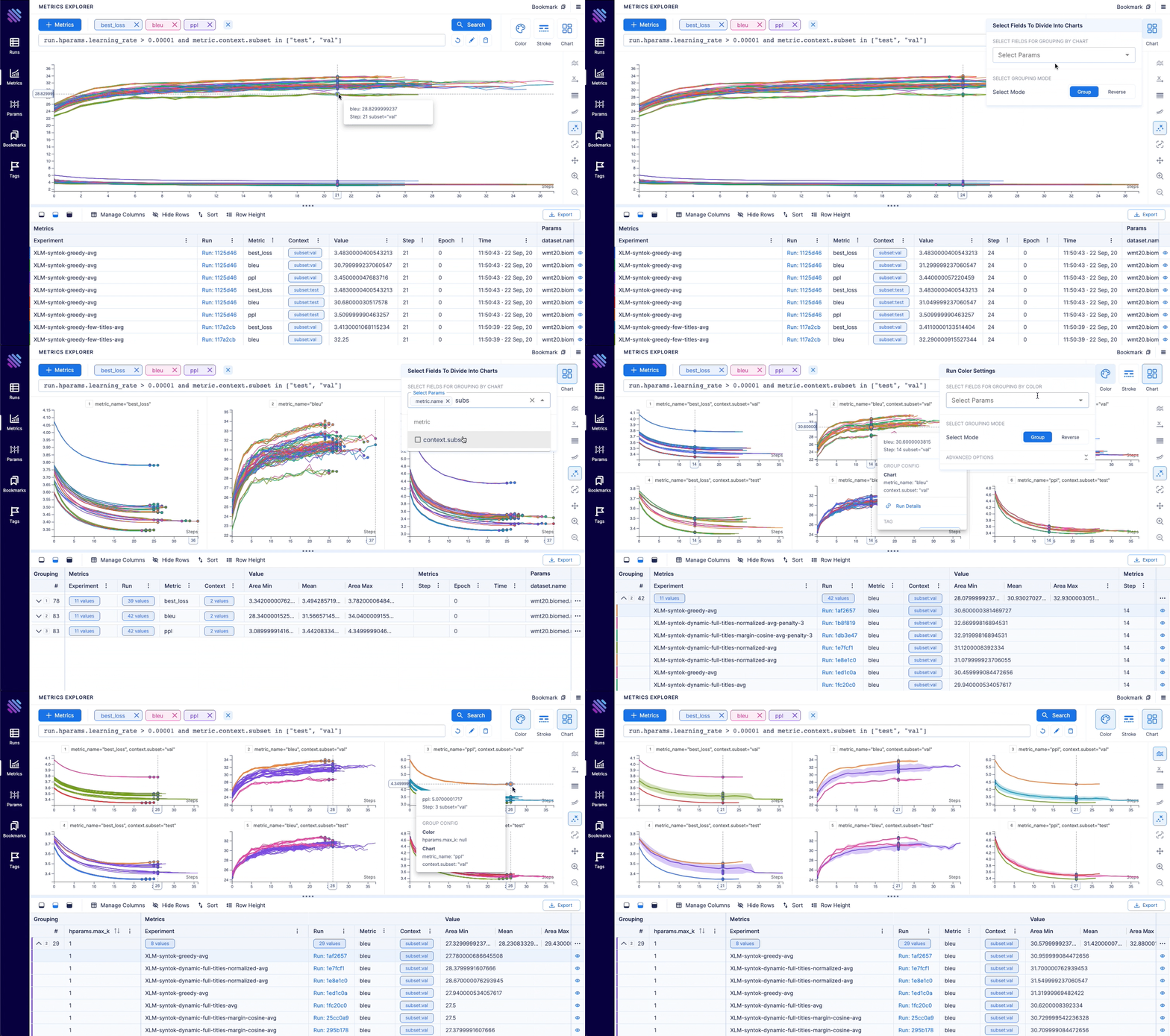
| [Machine translation experiments](https://play.aimstack.io/nmt/metrics?grouping=O-JTdCJTIyY29sb3IlMjI6JTVCJTIycnVuLnBhcmFtcy5ocGFyYW1zLm1heF9rJTIyJTVELCUyMnN0cm9rZSUyMjolNUIlNUQsJTIyY2hhcnQlMjI6JTVCJTIybmFtZSUyMiwlMjJjb250ZXh0LnN1YnNldCUyMiU1RCwlMjJyZXZlcnNlTW9kZSUyMjolN0IlMjJjb2xvciUyMjpmYWxzZSwlMjJzdHJva2UlMjI6ZmFsc2UsJTIyY2hhcnQlMjI6ZmFsc2UlN0QsJTIyaXNBcHBsaWVkJTIyOiU3QiUyMmNvbG9yJTIyOnRydWUsJTIyc3Ryb2tlJTIyOnRydWUsJTIyY2hhcnQlMjI6dHJ1ZSU3RCwlMjJwZXJzaXN0ZW5jZSUyMjolN0IlMjJjb2xvciUyMjpmYWxzZSwlMjJzdHJva2UlMjI6ZmFsc2UlN0QsJTIyc2VlZCUyMjolN0IlMjJjb2xvciUyMjoxMCwlMjJzdHJva2UlMjI6MTAlN0QsJTIycGFsZXR0ZUluZGV4JTIyOjAlN0Q&chart=O-JTdCJTIyaGlnaGxpZ2h0TW9kZSUyMjoyLCUyMmlnbm9yZU91dGxpZXJzJTIyOnRydWUsJTIyem9vbSUyMjolN0IlMjJhY3RpdmUlMjI6ZmFsc2UsJTIybW9kZSUyMjowLCUyMmhpc3RvcnklMjI6JTVCJTVEJTdELCUyMmF4ZXNTY2FsZVR5cGUlMjI6JTdCJTIyeEF4aXMlMjI6JTIybGluZWFyJTIyLCUyMnlBeGlzJTIyOiUyMmxpbmVhciUyMiU3RCwlMjJheGVzU2NhbGVSYW5nZSUyMjolN0IlMjJ5QXhpcyUyMjolN0IlN0QsJTIyeEF4aXMlMjI6JTdCJTdEJTdELCUyMnNtb290aGluZyUyMjolN0IlMjJhbGdvcml0aG0lMjI6JTIyRVhQT05FTlRJQUxfTU9WSU5HX0FWRVJBR0UlMjIsJTIyZmFjdG9yJTIyOjAsJTIyY3VydmVJbnRlcnBvbGF0aW9uJTIyOiUyMmN1cnZlTGluZWFyJTIyLCUyMmlzQXBwbGllZCUyMjpmYWxzZSU3RCwlMjJhbGlnbm1lbnRDb25maWclMjI6JTdCJTIybWV0cmljJTIyOiUyMiUyMiwlMjJ0eXBlJTIyOiUyMnN0ZXAlMjIlN0QsJTIyZGVuc2l0eVR5cGUlMjI6NTAwLCUyMmFnZ3JlZ2F0aW9uQ29uZmlnJTIyOiU3QiUyMm1ldGhvZHMlMjI6JTdCJTIyYXJlYSUyMjoxLCUyMmxpbmUlMjI6MCU3RCwlMjJpc0FwcGxpZWQlMjI6dHJ1ZSwlMjJpc0VuYWJsZWQlMjI6dHJ1ZSU3RCwlMjJ0b29sdGlwJTIyOiU3QiUyMmFwcGVhcmFuY2UlMjI6JTIyYXV0byUyMiwlMjJkaXNwbGF5JTIyOnRydWUsJTIyc2VsZWN0ZWRGaWVsZHMlMjI6JTVCJTVELCUyMnNlbGVjdGVkUGFyYW1zJTIyOiU1QiU1RCU3RCwlMjJsZWdlbmRzJTIyOiU3QiUyMmRpc3BsYXklMjI6dHJ1ZSwlMjJtb2RlJTIyOiUyMnBpbm5lZCUyMiU3RCwlMjJmb2N1c2VkU3RhdGUlMjI6JTdCJTIyYWN0aXZlJTIyOnRydWUsJTIya2V5JTIyOiUyMk8tSlRkQ0pUSXljblZ1U0dGemFDVXlNam9sTWpKa1lUTmtNV1UzSlRJeUxDVXlNbTFsZEhKcFkwNWhiV1VsTWpJNkpUSXlZbVZ6ZEY5c2IzTnpKVEl5TENVeU1uUnlZV05sUTI5dWRHVjRkQ1V5TWpvbE4wSWxNakp6ZFdKelpYUWxNakk2SlRJeWRtRnNKVEl5SlRkRUpUZEUlMjIsJTIyeFZhbHVlJTIyOjIxLCUyMnlWYWx1ZSUyMjozLjQ3Mzk5OTk3NzEsJTIyY2hhcnRJbmRleCUyMjowLCUyMnZpc0lkJTIyOiUyMjAlMjIlN0QlN0Q&select=O-JTdCJTIyb3B0aW9ucyUyMjolNUIlN0IlMjJsYWJlbCUyMjolMjJiZXN0X2xvc3MlMjIsJTIyZ3JvdXAlMjI6JTIyYmVzdF9sb3NzJTIyLCUyMnR5cGUlMjI6JTIybWV0cmljcyUyMiwlMjJjb2xvciUyMjolMjIjN0E0Q0UwJTIyLCUyMmtleSUyMjolMjJPLUpUZENKVEl5YldWMGNtbGpUbUZ0WlNVeU1qb2xNakppWlhOMFgyeHZjM01sTWpJc0pUSXlZMjl1ZEdWNGRFNWhiV1VsTWpJNkpUSXlKVEl5SlRkRSUyMiwlMjJ2YWx1ZSUyMjolN0IlMjJvcHRpb25fbmFtZSUyMjolMjJiZXN0X2xvc3MlMjIsJTIyY29udGV4dCUyMjpudWxsJTdEJTdELCU3QiUyMmxhYmVsJTIyOiUyMmJsZXUlMjIsJTIyZ3JvdXAlMjI6JTIyYmxldSUyMiwlMjJ0eXBlJTIyOiUyMm1ldHJpY3MlMjIsJTIyY29sb3IlMjI6JTIyIzNFNzJFNyUyMiwlMjJrZXklMjI6JTIyTy1KVGRDSlRJeWJXVjBjbWxqVG1GdFpTVXlNam9sTWpKaWJHVjFKVEl5TENVeU1tTnZiblJsZUhST1lXMWxKVEl5T2lVeU1pVXlNaVUzUkElMjIsJTIydmFsdWUlMjI6JTdCJTIyb3B0aW9uX25hbWUlMjI6JTIyYmxldSUyMiwlMjJjb250ZXh0JTIyOm51bGwlN0QlN0QlNUQsJTIycXVlcnklMjI6JTIycnVuLmhwYXJhbXMubGVhcm5pbmdfcmF0ZSUyMCUzRSUyMDAuMDAwMDElMjIsJTIyYWR2YW5jZWRNb2RlJTIyOmZhbHNlLCUyMmFkdmFuY2VkUXVlcnklMjI6JTIycnVuLmhwYXJhbXMubGVhcm5pbmdfcmF0ZSUyMCUzRSUyMDAuMDAwMDElMjBhbmQlMjAoKG1ldHJpYy5uYW1lJTIwPT0lMjAlNUMlMjJibGV1JTVDJTIyKSUyMG9yJTIwKG1ldHJpYy5uYW1lJTIwPT0lMjAlNUMlMjJiZXN0X2xvc3MlNUMlMjIpJTIwb3IlMjAobWV0cmljLm5hbWUlMjA9PSUyMCU1QyUyMmJzeiU1QyUyMiUyMGFuZCUyMG1ldHJpYy5jb250ZXh0LnN1YnNldCUyMD09JTIwJTVDJTIydHJhaW4lNUMlMjIpKSUyMiU3RA) | [lightweight-GAN experiments](https://play.aimstack.io/image-generation/images?grouping=O-JTdCJTIycm93JTIyOiU1QiU1RCwlMjJyZXZlcnNlTW9kZSUyMjolN0IlMjJyb3clMjI6ZmFsc2UsJTIyZ3JvdXAlMjI6ZmFsc2UlN0QsJTIyaXNBcHBsaWVkJTIyOiU3QiUyMnJvdyUyMjp0cnVlLCUyMmdyb3VwJTIyOnRydWUlN0QsJTIyZ3JvdXAlMjI6JTVCJTIyaW5kZXglMjIsJTIyc3RlcCUyMiU1RCU3RA&select=O-JTdCJTIyb3B0aW9ucyUyMjolNUIlN0IlMjJsYWJlbCUyMjolMjJnZW5lcmF0ZWQlMjIsJTIyZ3JvdXAlMjI6JTIyZ2VuZXJhdGVkJTIyLCUyMmNvbG9yJTIyOiUyMiMzRTcyRTclMjIsJTIya2V5JTIyOiUyMk8tSlRkQ0pUSXliV1YwY21salRtRnRaU1V5TWpvbE1qSm5aVzVsY21GMFpXUWxNaklzSlRJeVkyOXVkR1Y0ZEU1aGJXVWxNakk2SlRJeUpUSXlKVGRFJTIyLCUyMnZhbHVlJTIyOiU3QiUyMm9wdGlvbl9uYW1lJTIyOiUyMmdlbmVyYXRlZCUyMiwlMjJjb250ZXh0JTIyOm51bGwlN0QlN0QlNUQsJTIycXVlcnklMjI6JTIyaW1hZ2VzLmNvbnRleHQuaW50ZXJwb2xhdGVkJTIwYW5kJTIwcnVuLmhwYXJhbXMubmFtZSUyMD09JTIwJTVDJTIybWV0ZmFjZXMlNUMlMjIlMjIsJTIyYWR2YW5jZWRNb2RlJTIyOmZhbHNlLCUyMmFkdmFuY2VkUXVlcnklMjI6JTIyaW1hZ2VzLmNvbnRleHQuaW50ZXJwb2xhdGVkJTIwYW5kJTIwcnVuLmhwYXJhbXMubmFtZSUyMD09JTIwJTVDJTIybWV0ZmFjZXMlNUMlMjIlMjIlN0Q&images=O-JTdCJTIyaW5kZXhEZW5zaXR5JTIyOjcsJTIycmVjb3JkRGVuc2l0eSUyMjoxNSwlMjJ0b29sdGlwJTIyOiU3QiUyMmFwcGVhcmFuY2UlMjI6JTIyYXV0byUyMiwlMjJkaXNwbGF5JTIyOnRydWUsJTIyc2VsZWN0ZWRGaWVsZHMlMjI6JTVCJTVELCUyMnNlbGVjdGVkUGFyYW1zJTIyOiU1QiU1RCU3RCwlMjJhZGRpdGlvbmFsUHJvcGVydGllcyUyMjolN0IlMjJhbGlnbm1lbnRUeXBlJTIyOiUyMkhlaWdodCUyMiwlMjJtZWRpYUl0ZW1TaXplJTIyOjIzLCUyMmltYWdlUmVuZGVyaW5nJTIyOiUyMnBpeGVsYXRlZCUyMiwlMjJzdGFja2luZyUyMjpmYWxzZSU3RCwlMjJmb2N1c2VkU3RhdGUlMjI6JTdCJTIyYWN0aXZlJTIyOmZhbHNlLCUyMmtleSUyMjpudWxsJTdELCUyMnNvcnRGaWVsZHMlMjI6JTVCJTVELCUyMnNvcnRGaWVsZHNEaWN0JTIyOiU3QiU3RCwlMjJpbnB1dHNWYWxpZGF0aW9ucyUyMjolN0IlMjJpbmRleERlbnNpdHklMjI6dHJ1ZSwlMjJyZWNvcmREZW5zaXR5JTIyOnRydWUlN0QsJTIyY2FsY1JhbmdlcyUyMjpmYWxzZSwlMjJzdGVwUmFuZ2UlMjI6JTVCMSw0Njk1NiU1RCwlMjJpbmRleFJhbmdlJTIyOiU1QjAsNyU1RCwlMjJyZWNvcmRTbGljZSUyMjolNUIzMTE0Miw0Njk1NyU1RCwlMjJpbmRleFNsaWNlJTIyOiU1QjAsOCU1RCwlMjJpbWFnZVByb3BlcnRpZXMlMjI6JTdCJTIyYWxpZ25tZW50VHlwZSUyMjolMjJIZWlnaHQlMjIsJTIyaW1hZ2VTaXplJTIyOjI1LCUyMmltYWdlUmVuZGVyaW5nJTIyOiUyMnBpeGVsYXRlZCUyMiU3RCU3RA)|
|:---:|:---:|
|  |
|  |
| Training logs of a neural translation model(from WMT'19 competition). | Training logs of 'lightweight' GAN, proposed in ICLR 2021. |
| [FastSpeech 2 experiments](https://play.aimstack.io/fastspeech2/runs/d9e89aa7875e44b2ba85612a/audios)| [Simple MNIST](https://play.aimstack.io/digit-recognition/runs/426032ad2d7e4b0385bc6c51/distributions) |
|:---:|:---:|
|
|
| Training logs of a neural translation model(from WMT'19 competition). | Training logs of 'lightweight' GAN, proposed in ICLR 2021. |
| [FastSpeech 2 experiments](https://play.aimstack.io/fastspeech2/runs/d9e89aa7875e44b2ba85612a/audios)| [Simple MNIST](https://play.aimstack.io/digit-recognition/runs/426032ad2d7e4b0385bc6c51/distributions) |
|:---:|:---:|
|  |
|  |
| Training logs of Microsoft's "FastSpeech 2: Fast and High-Quality End-to-End Text to Speech". | Simple MNIST training logs. |
# 🌍 Ecosystem
Aim is not just an experiment tracker. It's a groundwork for an ecosystem.
Check out the two most famous Aim-based tools.
| [aimlflow](https://github.com/aimhubio/aimlflow) | [Aim-spaCy](https://github.com/aimhubio/aim-spacy) |
|:---:|:---:|
| | |
| Exploring MLflow experiments with a powerful UI | an Aim-based spaCy experiment tracker |
# 🏁 Quick start
Follow the steps below to get started with Aim.
## 1. Install Aim on your training environment
```shell
pip3 install aim
```
## 2. Integrate Aim with your code
```python
from aim import Run
# Initialize a new run
run = Run()
# Log run parameters
run["hparams"] = {
"learning_rate": 0.001,
"batch_size": 32,
}
# Log metrics
for i in range(10):
run.track(i, name='loss', step=i, context={ "subset":"train" })
run.track(i, name='acc', step=i, context={ "subset":"train" })
```
_See the full list of supported trackable objects(e.g. images, text, etc) [here](https://aimstack.readthedocs.io/en/latest/quick_start/supported_types.html)._
## 3. Run the training as usual and start Aim UI
```shell
aim up
```
## Learn more
|
| Training logs of Microsoft's "FastSpeech 2: Fast and High-Quality End-to-End Text to Speech". | Simple MNIST training logs. |
# 🌍 Ecosystem
Aim is not just an experiment tracker. It's a groundwork for an ecosystem.
Check out the two most famous Aim-based tools.
| [aimlflow](https://github.com/aimhubio/aimlflow) | [Aim-spaCy](https://github.com/aimhubio/aim-spacy) |
|:---:|:---:|
| | |
| Exploring MLflow experiments with a powerful UI | an Aim-based spaCy experiment tracker |
# 🏁 Quick start
Follow the steps below to get started with Aim.
## 1. Install Aim on your training environment
```shell
pip3 install aim
```
## 2. Integrate Aim with your code
```python
from aim import Run
# Initialize a new run
run = Run()
# Log run parameters
run["hparams"] = {
"learning_rate": 0.001,
"batch_size": 32,
}
# Log metrics
for i in range(10):
run.track(i, name='loss', step=i, context={ "subset":"train" })
run.track(i, name='acc', step=i, context={ "subset":"train" })
```
_See the full list of supported trackable objects(e.g. images, text, etc) [here](https://aimstack.readthedocs.io/en/latest/quick_start/supported_types.html)._
## 3. Run the training as usual and start Aim UI
```shell
aim up
```
## Learn more
Migrate from other tools
Aim has built-in converters to easily migrate logs from other tools.
These migrations cover the most common usage scenarios.
In case of custom and complex scenarios you can use Aim SDK to implement your own conversion script.
- [TensorBoard logs converter](https://aimstack.readthedocs.io/en/latest/quick_start/convert_data.html#show-tensorboard-logs-in-aim)
- [MLFlow logs converter](https://aimstack.readthedocs.io/en/latest/quick_start/convert_data.html#show-mlflow-logs-in-aim)
- [Weights & Biases logs converter](https://aimstack.readthedocs.io/en/latest/quick_start/convert_data.html#show-weights-and-biases-logs-in-aim)
Integrate Aim into an existing project
Aim easily integrates with a wide range of ML frameworks, providing built-in callbacks for most of them.
- [Integration with Pytorch Ignite](https://aimstack.readthedocs.io/en/latest/quick_start/integrations.html#integration-with-pytorch-ignite)
- [Integration with Pytorch Lightning](https://aimstack.readthedocs.io/en/latest/quick_start/integrations.html#integration-with-pytorch-lightning)
- [Integration with Hugging Face](https://aimstack.readthedocs.io/en/latest/quick_start/integrations.html#integration-with-hugging-face)
- [Integration with Keras & tf.Keras](https://aimstack.readthedocs.io/en/latest/quick_start/integrations.html#integration-with-keras-tf-keras)
- [Integration with Keras Tuner](https://aimstack.readthedocs.io/en/latest/quick_start/integrations.html#integration-with-keras-tuner)
- [Integration with XGboost](https://aimstack.readthedocs.io/en/latest/quick_start/integrations.html#integration-with-xgboost)
- [Integration with CatBoost](https://aimstack.readthedocs.io/en/latest/quick_start/integrations.html#integration-with-catboost)
- [Integration with LightGBM](https://aimstack.readthedocs.io/en/latest/quick_start/integrations.html#integration-with-lightgbm)
- [Integration with fastai](https://aimstack.readthedocs.io/en/latest/quick_start/integrations.html#integration-with-fastai)
- [Integration with MXNet](https://aimstack.readthedocs.io/en/latest/quick_start/integrations.html#integration-with-mxnet)
- [Integration with Optuna](https://aimstack.readthedocs.io/en/latest/quick_start/integrations.html#integration-with-optuna)
- [Integration with PaddlePaddle](https://aimstack.readthedocs.io/en/latest/quick_start/integrations.html#integration-with-paddlepaddle)
- [Integration with Stable-Baselines3](https://aimstack.readthedocs.io/en/latest/quick_start/integrations.html#integration-with-stable-baselines3)
- [Integration with Acme](https://aimstack.readthedocs.io/en/latest/quick_start/integrations.html#integration-with-acme)
- [Integration with Prophet](https://aimstack.readthedocs.io/en/latest/quick_start/integrations.html#integration-with-prophet)
Query runs programmatically via SDK
Aim Python SDK empowers you to query and access any piece of tracked metadata with ease.
```python
from aim import Repo
my_repo = Repo('/path/to/aim/repo')
query = "metric.name == 'loss'" # Example query
# Get collection of metrics
for run_metrics_collection in my_repo.query_metrics(query).iter_runs():
for metric in run_metrics_collection:
# Get run params
params = metric.run[...]
# Get metric values
steps, metric_values = metric.values.sparse_numpy()
```
Set up a centralized tracking server
Aim remote tracking server allows running experiments in a multi-host environment and collect tracked data in a centralized location.
See the docs on how to [set up the remote server](https://aimstack.readthedocs.io/en/latest/using/remote_tracking.html).
Deploy Aim on kubernetes
- The official Aim docker image: https://hub.docker.com/r/aimstack/aim
- A guide on how to deploy Aim on kubernetes: https://aimstack.readthedocs.io/en/latest/using/k8s_deployment.html
Read the full documentation on [aimstack.readthedocs.io](https://aimstack.readthedocs.io) 📖
# 🆚 Comparisons to familiar tools
TensorBoard vs Aim
**Training run comparison**
Order of magnitude faster training run comparison with Aim
- The tracked params are first class citizens at Aim. You can search, group, aggregate via params - deeply explore all the tracked data (metrics, params, images) on the UI.
- With tensorboard the users are forced to record those parameters in the training run name to be able to search and compare. This causes a super-tedius comparison experience and usability issues on the UI when there are many experiments and params. **TensorBoard doesn't have features to group, aggregate the metrics**
**Scalability**
- Aim is built to handle 1000s of training runs - both on the backend and on the UI.
- TensorBoard becomes really slow and hard to use when a few hundred training runs are queried / compared.
**Beloved TB visualizations to be added on Aim**
- Embedding projector.
- Neural network visualization.
MLflow vs Aim
MLFlow is an end-to-end ML Lifecycle tool.
Aim is focused on training tracking.
The main differences of Aim and MLflow are around the UI scalability and run comparison features.
Aim and MLflow are a perfect match - check out the [aimlflow](https://github.com/aimhubio/aimlflow) - the tool that enables Aim superpowers on Mlflow.
**Run comparison**
- Aim treats tracked parameters as first-class citizens. Users can query runs, metrics, images and filter using the params.
- MLFlow does have a search by tracked config, but there are no grouping, aggregation, subplotting by hyparparams and other comparison features available.
**UI Scalability**
- Aim UI can handle several thousands of metrics at the same time smoothly with 1000s of steps. It may get shaky when you explore 1000s of metrics with 10000s of steps each. But we are constantly optimizing!
- MLflow UI becomes slow to use when there are a few hundreds of runs.
Weights and Biases vs Aim
Hosted vs self-hosted
- Weights and Biases is a hosted closed-source MLOps platform.
- Aim is self-hosted, free and open-source experiment tracking tool.
# 🛣️ Roadmap
## Detailed milestones
The [Aim product roadmap](https://github.com/orgs/aimhubio/projects/3) :sparkle:
- The `Backlog` contains the issues we are going to choose from and prioritize weekly
- The issues are mainly prioritized by the highly-requested features
## High-level roadmap
The high-level features we are going to work on the next few months:
**In progress**
- [ ] Aim SDK low-level interface
- [ ] Dashboards – customizable layouts with embedded explorers
- [ ] Ergonomic UI kit
- [ ] Text Explorer
Next-up
**Aim UI**
- Runs management
- Runs explorer – query and visualize runs data(images, audio, distributions, ...) in a central dashboard
- Explorers
- Distributions Explorer
**SDK and Storage**
- Scalability
- Smooth UI and SDK experience with over 10.000 runs
- Runs management
- CLI commands
- Reporting - runs summary and run details in a CLI compatible format
- Manipulations – copy, move, delete runs, params and sequences
- Cloud storage support – store runs blob(e.g. images) data on the cloud
- Artifact storage – store files, model checkpoints, and beyond
**Integrations**
- ML Frameworks:
- Shortlist: scikit-learn
- Resource management tools
- Shortlist: Kubeflow, Slurm
- Workflow orchestration tools
Done
- [x] Live updates (Shipped: _Oct 18 2021_)
- [x] Images tracking and visualization (Start: _Oct 18 2021_, Shipped: _Nov 19 2021_)
- [x] Distributions tracking and visualization (Start: _Nov 10 2021_, Shipped: _Dec 3 2021_)
- [x] Jupyter integration (Start: _Nov 18 2021_, Shipped: _Dec 3 2021_)
- [x] Audio tracking and visualization (Start: _Dec 6 2021_, Shipped: _Dec 17 2021_)
- [x] Transcripts tracking and visualization (Start: _Dec 6 2021_, Shipped: _Dec 17 2021_)
- [x] Plotly integration (Start: _Dec 1 2021_, Shipped: _Dec 17 2021_)
- [x] Colab integration (Start: _Nov 18 2021_, Shipped: _Dec 17 2021_)
- [x] Centralized tracking server (Start: _Oct 18 2021_, Shipped: _Jan 22 2022_)
- [x] Tensorboard adaptor - visualize TensorBoard logs with Aim (Start: _Dec 17 2021_, Shipped: _Feb 3 2022_)
- [x] Track git info, env vars, CLI arguments, dependencies (Start: _Jan 17 2022_, Shipped: _Feb 3 2022_)
- [x] MLFlow adaptor (visualize MLflow logs with Aim) (Start: _Feb 14 2022_, Shipped: _Feb 22 2022_)
- [x] Activeloop Hub integration (Start: _Feb 14 2022_, Shipped: _Feb 22 2022_)
- [x] PyTorch-Ignite integration (Start: _Feb 14 2022_, Shipped: _Feb 22 2022_)
- [x] Run summary and overview info(system params, CLI args, git info, ...) (Start: _Feb 14 2022_, Shipped: _Mar 9 2022_)
- [x] Add DVC related metadata into aim run (Start: _Mar 7 2022_, Shipped: _Mar 26 2022_)
- [x] Ability to attach notes to Run from UI (Start: _Mar 7 2022_, Shipped: _Apr 29 2022_)
- [x] Fairseq integration (Start: _Mar 27 2022_, Shipped: _Mar 29 2022_)
- [x] LightGBM integration (Start: _Apr 14 2022_, Shipped: _May 17 2022_)
- [x] CatBoost integration (Start: _Apr 20 2022_, Shipped: _May 17 2022_)
- [x] Run execution details(display stdout/stderr logs) (Start: _Apr 25 2022_, Shipped: _May 17 2022_)
- [x] Long sequences(up to 5M of steps) support (Start: _Apr 25 2022_, Shipped: _Jun 22 2022_)
- [x] Figures Explorer (Start: _Mar 1 2022_, Shipped: _Aug 21 2022_)
- [x] Notify on stuck runs (Start: _Jul 22 2022_, Shipped: _Aug 21 2022_)
- [x] Integration with KerasTuner (Start: _Aug 10 2022_, Shipped: _Aug 21 2022_)
- [x] Integration with WandB (Start: _Aug 15 2022_, Shipped: _Aug 21 2022_)
- [x] Stable remote tracking server (Start: _Jun 15 2022_, Shipped: _Aug 21 2022_)
- [x] Integration with fast.ai (Start: _Aug 22 2022_, Shipped: _Oct 6 2022_)
- [x] Integration with MXNet (Start: _Sep 20 2022_, Shipped: _Oct 6 2022_)
- [x] Project overview page (Start: _Sep 1 2022_, Shipped: _Oct 6 2022_)
- [x] Remote tracking server scaling (Start: _Sep 11 2022_, Shipped: _Nov 26 2022_)
- [x] Integration with PaddlePaddle (Start: _Oct 2 2022_, Shipped: _Nov 26 2022_)
- [x] Integration with Optuna (Start: _Oct 2 2022_, Shipped: _Nov 26 2022_)
- [x] Audios Explorer (Start: _Oct 30 2022_, Shipped: _Nov 26 2022_)
- [x] Experiment page (Start: _Nov 9 2022_, Shipped: _Nov 26 2022_)
- [x] HuggingFace datasets (Start: _Dec 29 2022_, _Feb 3 2023_)
# 👥 Community
## Aim README badge
Add Aim badge to your README, if you've enjoyed using Aim in your work:
[](https://github.com/aimhubio/aim)
```
[](https://github.com/aimhubio/aim)
```
## Cite Aim in your papers
In case you've found Aim helpful in your research journey, we'd be thrilled if you could acknowledge Aim's contribution:
```bibtex
@software{Arakelyan_Aim_2020,
author = {Arakelyan, Gor and Soghomonyan, Gevorg and {The Aim team}},
doi = {10.5281/zenodo.6536395},
license = {Apache-2.0},
month = {6},
title = {{Aim}},
url = {https://github.com/aimhubio/aim},
version = {3.9.3},
year = {2020}
}
```
## Contributing to Aim
Considering contibuting to Aim?
To get started, please take a moment to read the [CONTRIBUTING.md](https://github.com/aimhubio/aim/blob/main/CONTRIBUTING.md) guide.
Join Aim contributors by submitting your first pull request. Happy coding! 😊
 Made with [contrib.rocks](https://contrib.rocks).
## More questions?
1. [Read the docs](https://aimstack.readthedocs.io/en/latest/)
2. [Open a feature request or report a bug](https://github.com/aimhubio/aim/issues)
3. [Join Discord community server](https://community.aimstack.io/)
---
### Overview (`tests/README.md`)
# Testing
## Goals
Be able to test the correctness of the
- `aim engine`
- `aim sdk`
- `aim ql`
- `extensions`
### Folder Structure
```
tests
engine
test_*.py
sdk
test_*.py
ql
test_*.py
ext
test_*.py
```
## Run
Run tests via command `python -m unittest discover -s tests` in the root folder.
---
### Overview (`aim/web/ui/tasks/cli/README.md`)
# aim-ui/cli
### Supported commands
- create-component
> $ node cli/index.js create-component `--name=` `--path=` `--lint`
__NOTES__:
_Created two scripts inside `ui` project_
>$ npm run crc-kit -- ``
Will create a component named `ComponentName` in `./src/components/kit` folder, and will run lint to fix formatting
> $ npm run crc -- ``
Will create a component named `ComponentName` in `./src/components/` folder, and will run lint to fix formatting
---
### Overview (`aim/web/ui/src/services/live-update/README.md`)
## Usage
````js
// to describe webpack as this is a worker file
import LUWorker from 'comlink-loader!./services/live-update/Worker';
import { getDataFromTransferable } from 'services/live-update'
import * as Comlink from 'comlink';
function initizeWorker(subscriber) {
let worker = new LUWorker();
// set config [name, uri, delay, enableLog]
worker.setConfig('Runs', 'runs/search/run', 1000, true);
worker.subscribeToApiCallResult(
// if subscriber has a context, please bind to the context
Comlink.proxy(subscriber),
);
return worker;
}
const subscriber = (data) => {
const obj = getDataFromTransferable(data);
console.log("DATA --- ", obj);
// send to render
}
const w = initizeWorker(subscriber);
w.start({ q: 'test', limit: 50 })
// some condition
w.stop().then().catch()// will pause to call
// some condition
// w.start({ q: 'test1', limit: 60 }).then().catch()
// to terminate
w.close();
````
---
### Source Overview (`docs/source/overview.md`)
# Overview
Made with [contrib.rocks](https://contrib.rocks).
## More questions?
1. [Read the docs](https://aimstack.readthedocs.io/en/latest/)
2. [Open a feature request or report a bug](https://github.com/aimhubio/aim/issues)
3. [Join Discord community server](https://community.aimstack.io/)
---
### Overview (`tests/README.md`)
# Testing
## Goals
Be able to test the correctness of the
- `aim engine`
- `aim sdk`
- `aim ql`
- `extensions`
### Folder Structure
```
tests
engine
test_*.py
sdk
test_*.py
ql
test_*.py
ext
test_*.py
```
## Run
Run tests via command `python -m unittest discover -s tests` in the root folder.
---
### Overview (`aim/web/ui/tasks/cli/README.md`)
# aim-ui/cli
### Supported commands
- create-component
> $ node cli/index.js create-component `--name=` `--path=` `--lint`
__NOTES__:
_Created two scripts inside `ui` project_
>$ npm run crc-kit -- ``
Will create a component named `ComponentName` in `./src/components/kit` folder, and will run lint to fix formatting
> $ npm run crc -- ``
Will create a component named `ComponentName` in `./src/components/` folder, and will run lint to fix formatting
---
### Overview (`aim/web/ui/src/services/live-update/README.md`)
## Usage
````js
// to describe webpack as this is a worker file
import LUWorker from 'comlink-loader!./services/live-update/Worker';
import { getDataFromTransferable } from 'services/live-update'
import * as Comlink from 'comlink';
function initizeWorker(subscriber) {
let worker = new LUWorker();
// set config [name, uri, delay, enableLog]
worker.setConfig('Runs', 'runs/search/run', 1000, true);
worker.subscribeToApiCallResult(
// if subscriber has a context, please bind to the context
Comlink.proxy(subscriber),
);
return worker;
}
const subscriber = (data) => {
const obj = getDataFromTransferable(data);
console.log("DATA --- ", obj);
// send to render
}
const w = initizeWorker(subscriber);
w.start({ q: 'test', limit: 50 })
// some condition
w.stop().then().catch()// will pause to call
// some condition
// w.start({ q: 'test1', limit: 60 }).then().catch()
// to terminate
w.close();
````
---
### Source Overview (`docs/source/overview.md`)
# Overview


An easy-to-use & supercharged open-source experiment tracker
Aim logs your training runs, enables a beautiful UI to compare them and an API to query them programmatically.
[]()
[](https://pypi.org/project/aim/)
[](https://pypi.org/project/aim/)
[](https://opensource.org/licenses/Apache-2.0)
[](https://pypi.org/project/aim/)
[](http://github.com/aimhubio/aim/issues)
Integrates seamlessly with your favorite tools










**Jump to:**
- [Quick start](quick_start/setup.html)
- [Aim UI](ui/overview.html)
- [Using Aim](using/manage_runs.html)
- [Understanding Aim](understanding/overview.html)
- [Examples](examples/images_explorer_gan.html)
- [API reference](refs/cli.html)
**If you have questions:**
- [Open a feature request or report a bug](https://github.com/aimhubio/aim/issues)
- [Join our slack](https://slack.aimstack.io/)
---
### Source Examples Overview (`docs/source/examples/overview.md`)
## Aim usage examples
This section covers real-life examples of how Aim used to get insights
from tracked metadata in various domains.
---
### Source Ui Overview (`docs/source/ui/overview.md`)
## Overview
Aim UI is one of the key two interfaces to interact with the ML training runs tracked by Aim.
It's super-powerful for comparing large number of experiments.
The Aim UI is mainly built around the Explorers that allow to query and compare metrics, images and params, scatterplots etc.
Explorers are built around the way to query runs and compare them. Each explorer has a way to navigate to a single run where all the run-related information is visualized and can be used to do deep-dive into runs.
Besides these, Aim UI also allows to tag the runs, delete/archive them and save Explorers state to share with the team.
### Pythonic Search
Once you track your experiments with Aim, they are available to be searched.
There are three objects that could be searched:
- Runs
- Metrics
- Images
This basically means that you can write a python if-statement over everything you have tracked with a few options of the output.
Explorers encompass these outputs and give you unique supwer-powers to manipulate and compare the results of the search.
### Explorers
Explorers are powerful tools to query ML training runs, select specific type of data tracked (metrics, params etc), apply modifications to them and compare them.
The runs are compared by grouping and dividing them via the tracked hyperparams.
**Every** param (even the system params) are available on Aim - to be used for runs comparison on all Explorers.
### Runs Management
Runs Management includes the Runs Explorer.
You can search through runs on the Runs Explorer and have the holistic view of your runs, their diff, the last values of the metrics, all the params etc.
This also contains the Single Run Page that will help you observer everything you have tracked for your run - all in one place. This includes params, metrics, images, distributions etc.
### Other Aim UI features
Besides this, you can also save the Explorer states for reproducible experiment analysis.
Aim also enables ways to tag the runs.
---
### Source Understanding Overview (`docs/source/understanding/overview.md`)
## Overview
Aim is built around several concepts allowing to make sure that it meets the following criteria:
- **Run data isolation**. Each training run process isolated in terms of data and do not require additional services to run.
- **Scalability**. Aim web app is able to handle 1000s of training runs. Starting from v3.4.0 Aim provides a
[Remote Tracking server](./remote_tracking_basics.html) allowing to run multiple parallel experiments in a distributed multi-host environment.
- **Flexibility**. Aim UI and query language allow users to select, group and filter the tracked data any way they want.
### Aim Components
In order to understand how Aim works, lets take a quick look on a different components it has.
- **Aim Storage**. At its core Aim uses a custom-built storage, based on [rocksdb](http://rocksdb.org/docs/getting-started.html). More details in 'Where is data collected?'. Data tracked by
different training runs collected and indexed in an aim repository (`.aim`). The storage itself is generic; it
allows accessing the data as collection of dictionaries and arrays.
- **Aim SDK**. On top of the storage Aim SDK provides functionality to track/select/query data. Additionally, SDK is a layer used by Web APIs
and CLI.
- **Aim UI**. Web app allowing to browse run metadata, metrics, images and other tracked data.
- **Aim CLI**. A collection of command line utilities for running Aim web server, managing aim repositories, runs, etc.
- **Remote Tracking server**. A fastapi/uvicorn based service accepting incoming traffic and storing data on a centralized server.
The next sections will describe various concepts Aim introduces and provide more detailed look on
individual components introduced above.
---
### Requirements (`docs/requirements.txt`)
mistune==0.8.4
sphinx
sphinx_rtd_theme
m2r2==0.3.3.post2
sphinx-copybutton
Cython==3.0.10
---
### Source Index (`docs/source/index.rst`)
.. mdinclude:: overview.md
.. raw:: html
.. toctree::
overview.md
.. toctree::
:maxdepth: 1
:name: start
:caption: Quick Start
quick_start/setup.md
quick_start/integrations.md
quick_start/convert_data.md
quick_start/supported_types.md
quick_start/next_steps.md
.. toctree::
:maxdepth: 1
:name: ui
:caption: Aim UI
ui/overview.md
ui/pages/home_page.md
ui/pages/run_management.md
ui/pages/explorers.md
ui/pages/table.md
ui/pages/bookmarks.md
ui/pages/tags.md
ui/pages/reports.md
.. toctree::
:maxdepth: 2
:name: guides
:caption: Using Aim
using/manage_runs.md
using/configure_runs.md
using/query_runs.md
using/search.md
using/remote_tracking.md
using/training_monitoring.md
using/logging.md
using/artifacts.md
using/notifications.md
using/callbacks.md
using/k8s_deployment.md
using/jupyter_notebook_ui.md
using/sagemaker_notebook_ui.md
using/integration_guides.md
.. toctree::
:maxdepth: 2
:name: concepts
:caption: Understanding Aim
understanding/overview.md
understanding/data_storage.md
understanding/storage_indexing.md
understanding/concepts.md
understanding/running_aim_with_profiling.md
understanding/metric_step_hashing.md
.. toctree::
:maxdepth: 1
:name: examples
:caption: Examples
examples/images_explorer_gan.md
.. toctree::
:maxdepth: 2
:name: refs
:caption: References
refs/cli
refs/sdk
refs/ql
refs/storage
.. toctree::
:maxdepth: 1
:name: community
:caption: Community
generated/CHANGELOG.md
.. raw:: html
Indices and tables
==================
* :ref:`genindex`
* :ref:`modindex`
---
### Source Examples Images Explorer Gan (`docs/source/examples/images_explorer_gan.md`)
## Track and compare GANs with Aim
### Overview
[Generative Adversarial Networks](https://arxiv.org/abs/1406.2661), or GANs, are deep-learning-based generative models.
Generative modeling is an unsupervised learning task in machine learning that involves automatically discovering and learning the patterns of input data in such a way that the model can be used to generate new examples that plausibly could have been drawn from the original dataset.
In this guide we will show you how to integrate Aim with your GAN and GAN with EMA to compare the generated images from both experiments to compare their performances.
### Experiment
We will train and compare a regular GAN vs GAN with EMA. EMA is a technique for parameter averaging in GAN training, which computes an exponentially discounted sum of weights.
We will use [lightweight-gan](https://github.com/aimhubio) model implemented by [lucidrains](https://github.com/lucidrains) and [MetFaces Dataset](https://github.com/NVlabs/metfaces-dataset) as a training dataset.
To be able to analyze the results we will fix random 64 points and track them during the training both for a regular GAN and GAN w/ EMA.
### Track images with Aim
1. Initialize a new run in the trainer class to collect and store sequences of images:
```python
class Trainer():
def __init__(
self,
name = 'default',
results_dir = 'results',
models_dir = 'models',
...
):
...
self.run = aim.Run() # Initialize aim.Run
self.run['hparams'] = hparams # Log hyperparams
...
```
Code on [GitHub](https://github.com/aimhubio/lightweight-gan/blob/636b8a1ea96111a6964a724386e3aef58b3e6201/lightweight_gan/lightweight_gan.py#L983-L987)
2. Track images generated by a regular GAN:
```python
# Regular GAN
# Get generated images
generated_images = self.generate_(self.GAN.G, latents)
aim_images = []
for idx, image in enumerate(generated_images):
ndarr = image.mul(255).add_(0.5).clamp_(0, 255).permute(1, 2, 0).to('cpu', torch.uint8).numpy()
im = PIL.Image.fromarray(ndarr)
aim_images.append(aim.Image(im, caption=f'#{idx}'))
# Store with Aim (name="generated" and context.ema=0)
self.run.track(value=aim_images, name='generated', step=self.steps, context={'ema': False})
```
Code on [GitHub](https://github.com/aimhubio/lightweight-gan/blob/636b8a1ea96111a6964a724386e3aef58b3e6201/lightweight_gan/lightweight_gan.py#L1293-L1306)
3. Track images generated by a GAN with enabled EMA:
```python
# GAN with moving averages
# Get generated images
generated_images = self.generate_(self.GAN.GE, latents)
aim_images = []
for idx, image in enumerate(generated_images):
ndarr = image.mul(255).add_(0.5).clamp_(0, 255).permute(1, 2, 0).to('cpu', torch.uint8).numpy()
im = PIL.Image.fromarray(ndarr)
aim_images.append(aim.Image(im, caption=f'EMA #{idx}'))
# Store with Aim (name="generated" and context.ema=1)
self.run.track(value=aim_images, name='generated', step=self.steps, context={'ema': True})
```
Code on [GitHub](https://github.com/aimhubio/lightweight-gan/blob/636b8a1ea96111a6964a724386e3aef58b3e6201/lightweight_gan/lightweight_gan.py#L1309-L1321)
### Explore the results with Aim UI
1. Visualize images generated by a regular GAN:

 2. Visualize images generated by GAN with EMA:

 As you may notice GAN with EMA converges in an exponential fashion and has better results at the end.
3. Let's compare the final step of the two methods side by side:
As you may notice GAN with EMA converges in an exponential fashion and has better results at the end.
3. Let's compare the final step of the two methods side by side:


 ### Conclusion
As you can see GAN with EMA performed much better compared to the regular one.
With Aim you can easily compare diff groups of tracked images from diff runs.
Group them by the run hash, other parameters available to slice and dice and observe the difference between the runs.
---
### Source Quick Start Convert Data (`docs/source/quick_start/convert_data.md`)
## Migrate from other tools
The Aim explorers add true superpowers to the AI engineer's arsenal. However not all training runs may have been tracked
by Aim. So it is important to be able to port existing training run logs. There might be 1000s of training runs tracked
with other tools. Aim has built-in converters to easily migrate logs from other tools. These migrations cover the most
common usage scenarios. In case of custom and complex scenarios you can use Aim SDK to implement your own conversion
script.
As of Aim `v3.6.0` the following converters are supported:
- [TensorBoard logs converter](#show-tensorboard-logs-in-aim)
- [MLFlow logs converter](#show-mlflow-logs-in-aim)
- [Weights & Biases logs converter](#show-weights-and-biases-logs-in-aim)
We are working to constantly improve existing converters and implement new ones.
### Show TensorBoard logs in Aim
Aim gives you a possibility to convert [TensorBoard](https://www.tensorflow.org/tensorboard)
logs into native format and show them directly inside the Aim UI.
Before showing the logs in Aim, the files have to pass the conversion process.
Please note that only the following plugins are currently supported
- scalar
- image
To convert TensorBoard logs, `aim convert` command must be run on your log directory.
```shell
aim convert tensorboard --logdir ~/my_logdir
```
To make conversion process smooth please ensure that logs directory structure follows conventions below. Consider the
following directory hierarchy:
```
~/my_logdir/
├> run_1/
│ ├>
│ └>
├> group_1/
│ ├> (THIS LOG WILL BE IGNORED)
│ ├> run_2/
│ │ ├> train/
│ │ │ ├>
│ │ │ └>
│ │ ├> validate/
│ │ │ ├>
│ │ │ └>
│ │ ├> (IGNORED IF "--flat" IS ACTIVE)
│ │ └> (IGNORED IF "--flat" IS ACTIVE)
│ └> run_3/
│ ├>
│ └>
├> (THIS LOG WILL BE IGNORED)
└> (THIS LOG WILL BE IGNORED)
```
Note that directory naming is not mandated and its up to you how to name them.
The conversion logic categorizes your hierarchy into one of `group`, `run` and `context`
categories where.
- group: Is a directory which has one or more `run` directories inside it,
- run: Is a directory which has either log files or context directory inside it,
- context: Is a directory inside of `run` directory which has at least one log file inside it.
Conversion process will scan and determine `run` directories for your hierarchy and will create a distinct run for each
of them.
From the hierarchy example above you can see that the following log files will be ignored since the converter treats
them as unorganized log files.
- `~/my_logdir/group_1/evnet_file_3`
- `~/my_logdir/evnet_file_12`
- `~/my_logdir/evnet_file_13`
All other logs will either have `Context` or `No Context`. Context of the log is the name of the parent directory if
the parent directory hasn't been categorized into neither as `run` nor `group` category.
For example:
- Log files right underneath `run_1`, `run_2` and `run_3` will have no context
- Log files in `run_2/train` and `run_2/validate` will have `train` and `validate` as context accordingly.
In case the converter finds unorganized log files in your hierarchy a warning message will be issued.
To make the converter process these logs, consider re-structuring your directories so that it matches the sample
structure. (i.e. create a new directory and moving your unorganized logs there)
You can make converter treat every directory as a distinct run by supplying `--flat` option. In this case the following
directories will be categorized as a `run` directory.
- `~/my_logdir/run_1/`
- `~/my_logdir/group_1/run_2/train/`
- `~/my_logdir/group_1/run_2/validate/`
- `~/my_logdir/group_1/run_3/`
The log files in all other directories will be ignored.
### Show MLflow logs in Aim
Aim gives you a possibility to convert [MLflow](https://mlflow.org/) runs into native format and show them directly on
Aim UI.
Before showing your MLlfow runs on Aim, they need to pass conversion process where your metrics, tags, parameters, run
description/notes and *some* artifacts will be transferred into Aim storage.
Please note that as for now, only the artifacts having the following file extensions will be transferred into Aim
storage!
* Images: `(
'jpg',
'bmp',
'jpeg',
'png',
'gif',
'svg'
)`
* Texts: `(
'txt',
'log',
'py',
'js',
'yaml',
'yml',
'json',
'csv',
'tsv',
'md',
'rst',
'jsonnet'
)`
* Sound/Audios: `(
'flac',
'mp3',
'wav'
)`
To convert MLflow runs, `aim convert mlflow` command must be run on your log directory:
```commandline
$ aim init
$ aim convert mlflow --tracking_uri 'file:///Users/aim_user/mlruns'
```
You can also set the `MLFLOW_TRACKING_URI` environment variable to have MLflow find a URI from there. In both cases, the
URI can either be an HTTP/HTTPS URI for a remote server, a database connection string, or a local path to log data to a
directory.
The conversion process will iterate over all your Experiments and create a distinct run for each run inside the
experiment. If you want to process only a single experiment, you can provide the experiment id or name to the conversion
command:
```commandline
$ aim convert mlflow --tracking_uri 'file:///Users/aim_user/mlruns' --experiment 0
```
While converting the artifacts, the converter will try to determine file content type only based on its extension. A
warning message will be issued if artifact cannot be categorized, these artifacts will not be transferred to aim!
Please check the command output logs if you fail to see your artifact in Aim's web.
### Show Weights and Biases logs in Aim
Aim gives you a possibility to convert [Weights & Biases](https://wandb.ai/site) runs into native format and explore them via Aim UI.
To be able to explore Weights & Biases runs with Aim, please run the WandB to Aim converter. All the metrics, tags, config, experiment description/notes and *some* artifacts will be converted and stored in `.aim` repo.
Execute `aim convert wandb` command to start converting Weights & Biases experiments:
```commandline
$ aim init
$ aim convert wandb --entity 'my_team' --project 'test_project'
```
The convertor will iterate over all the experiments and create a distinct Aim run for each experiment. If you want to process only a single experiment, please specify the experiment id or name when running the command:
```commandline
$ aim convert wandb --entity my_team --project test_project --run-id ''
```
While converting the artifacts, the converter will try to determine file content type based on its extension. A
warning message will be issued if artifact will not be categorized, these artifacts will not be transferred to aim.
Please note that current implementation tracks only the primitive datatypes.
If there are any issues with the conversion process, please [submit an issue](https://github.com/aimhubio/aim/issues/new/choose).
Once conversion process is complete - you can enjoy the power of Aim 🚀
---
### Source Quick Start Integrations (`docs/source/quick_start/integrations.md`)
## Integrate Aim into an existing project
### Any python script
```python
from aim import Run
run = Run()
# Save inputs, hparams or any other `key: value` pairs
run['hparams'] = {
'learning_rate': 0.001,
'batch_size': 32,
}
# ...
for step in range(10):
# Log metrics to visualize performance
run.track(step, name='metric_name')
# ...
```
Aim easily integrates with your favourite ML frameworks.
Aim loggers give access to the `aim.Run` object instance via the `experiment` property. The `aim.Run` instance will help you to easily track additional metrics or set any other `key: value` pairs (params) relevant to your project.
In this way you can easily extend the default integrations. More info about this is abailable on Integration guides [section.](../using/integration_guides.html)
### Integration with Pytorch Ignite
[](https://colab.research.google.com/github/aimhubio/tutorials/blob/publication/notebooks/pytorch_ignite_track.ipynb)
It only takes 2 steps to simply and easily inject Aim into pytorch ignite:
```python
# import aim sdk designed for pytorch ignite
from aim.pytorch_ignite import AimLogger
```
Pytorch Ignite provides trainer objects to simplify the training process of pytorch model. We can attach the trainer object as AimLogger's output handler to use the logger function defined by aim to simplify the process of tracking experiments. This process is divided into 2 steps:
Step 1. Create `AimLogger` object
```python
aim_logger = AimLogger(
experiment='aim_on_pt_ignite',
train_metric_prefix='train_',
val_metric_prefix='val_',
test_metric_prefix='test_',
)
```
Step 2. Attach output handler to the `aim_logger` object
```python
aim_logger.attach_output_handler(
trainer,
event_name=Events.ITERATION_COMPLETED,
tag="train",
output_transform=lambda loss: {'loss': loss}
)
```
Adapter source can be found [here](https://github.com/aimhubio/aim/blob/main/aim/sdk/adapters/pytorch_ignite.py).
Example using Pytorch Ignite can be found [here](https://github.com/aimhubio/aim/blob/main/examples/pytorch_ignite_track.py).
### Integration with Pytorch Lightning
We only require 2 steps to simply and easily inject Aim into pytorch lightining:
```python
# import aim sdk designed for pl
from aim.pytorch_lightning import AimLogger
```
Pytorch lighting provides trainer objects to simplify the training process of pytorch model. One of the parameters is called logger. We can use the logger function defined by aim to simplify the process of tracking experiments. This process is divided into 2 steps:
Step 1. Create `AimLogger` object
```python
# track experimental data by using Aim
aim_logger = AimLogger(repo='path/to/aim/repo', experiment='aim_on_pt_lightning')
```
Step 2. Pass the `aim_logger` object as the `logger` argument
```python
# track experimental data by using Aim
trainer = Trainer(gpus=1, progress_bar_refresh_rate=20, max_epochs=5, logger=aim_logger)
```
#### Managing Aim Contexts
Aim contexts can be automatically derived from your metric names by defining prefixes and postfixes with the `context_prefixes` and `context_postfixes` kwargs. By default, AimLogger recognizes `train_`, `val_`, and `test_` prefixes and assign metrics with those postfixes to the `subset` context.
For instance, calling `self.log("val_loss", loss_value)` in a pl.LightningModule instance will log `loss_value` to Aim in a metric called "loss" with the "val" context.
Changing this default and adding new contexts is possible with the following usage:
```python
Aimlogger(...,
context_prefixes = dict(subset={'train': 'train_', # the default behavior,
'val': 'val_', # shown here as example
'test': 'test_'}),
contest_postfixes = dict(custom_context={'weighted':'_weighted', # a new, user-defined
'macro': '_macro'}, # metric-averaging context
)
```
To remove all default context mapping, do `AimLogger(..., context_prefixes={})`.
If you need more than two contexts per metric, or have other context needs, you can always directly access Aim's tracking capabilities from a pl.LightningModule or pl.Trainer instance with:
`instance.logger.experiment.track(value, name=..., context=...)`
For the Pytorch Lightning AimLogger, arguments `train_metric_prefix`, `val_metric_prefix`, `test_metric_prefix` are deprecated but functional. However, using them in conjuncture with `context_prefixes` will raise a ValueError.
Adapter source can be found [here](https://github.com/aimhubio/aim/blob/main/aim/sdk/adapters/pytorch_lightning.py).
Example using Pytorch Lightning can be found [here](https://github.com/aimhubio/aim/blob/main/examples/pytorch_lightning_track.py).
### Integration with Hugging Face
You only need 2 simple steps to employ Aim to collect data ❤️
Step 1: Import the sdk designed by Aim for Huggingface.
```python
from aim.hugging_face import AimCallback
```
Step 2: Hugging Face has a trainer api to help us simplify the training process. This api provides a callback function to return the information that the user needs. Therefore, aim has specially designed SDK to simplify the process of the user writing callback functions, we only need to initialize `AimCallback` object as follows:
```python
# Initialize aim_callback
aim_callback = AimCallback(experiment='huggingface_experiment')
# Initialize trainer
trainer = Trainer(
model=model,
args=training_args,
train_dataset=small_train_dataset,
eval_dataset=small_eval_dataset,
compute_metrics=compute_metrics,
callbacks=[aim_callback]
)
```
Adapter source can be found [here](https://github.com/aimhubio/aim/blob/main/aim/sdk/adapters/hugging_face.py).
Example using Hugging Face can be found [here](https://github.com/aimhubio/aim/blob/main/examples/hugging_face_track.py).
### Integration with Keras & tf.Keras
It only takes 2 steps to easily integrate aim in keras to record experimental information.
```python
# call keras as the high api of tensorflow
from aim.tensorflow import AimCallback
# call keras library directly
from aim.keras import AimCallback
```
In keras, we call the `fit()` method of the model object to train the data. The callbacks are provided here. `AimCallback` inherits the usage specification of callbacks. We just need to add it to the callbacks list.
```python
model.fit(x_train, y_train, epochs=5, callbacks=[
# in case of tf.keras, we use aim.tensorflow.AimCallback
AimCallback(experiment='aim_on_keras')
])
```
Adapter source can be found [here](https://github.com/aimhubio/aim/blob/main/aim/sdk/adapters/tensorflow.py).
Example using Keras can be found [here](https://github.com/aimhubio/aim/blob/main/examples/keras_track.py).
Example using tf.Keras can be found [here](https://github.com/aimhubio/aim/blob/main/examples/tensorflow_keras_track.py).
### Integration with Keras Tuner
It only takes 2 steps to easily integrate aim in keras to record experimental information.
```python
from aim.keras_tuner import AimCallback
```
In kerastuner, we call the `search()` method of the tuner object to perform a search for best hyperparameter configuations. The callbacks are provided here. `AimCallback` inherits the usage specification of callbacks. We just need to add it to the callbacks list.
```python
tuner.search(
train_ds,
validation_data=test_ds,
callbacks=[AimCallback(tuner=tuner, repo='./aim_logs', experiment='keras_tuner_test')],
)
```
Adapter source can be found [here](https://github.com/aimhubio/aim/blob/main/aim/sdk/adapters/keras_tuner.py).
Example using Keras Tuner can be found [here](https://github.com/aimhubio/aim/blob/main/examples/keras_tuner_track.py).
### Integration with XGboost
Enjoy using aim to track xgboost experimental data which requires two simple steps:
Step 1: Explicitly import the `AimCallback` for tracking training data.
```python
# call sdk aim.xgboost
from aim.xgboost import AimCallback
```
Step 2: XGboost provides the `xgboost.train` method for model training, in which the callbacks parameter can call back data information from the outside. Here we pass in aimcallbacl designed for tracking data information
```python
xgboost.train(param, dtrain, num_round, watchlist,
callbacks=[AimCallback(experiment='xgboost_test')])
```
Adapter source can be found [here](https://github.com/aimhubio/aim/blob/main/aim/sdk/adapters/xgboost.py).
Example using XGboost can be found [here](https://github.com/aimhubio/aim/blob/main/examples/xgboost_track.py).
### Integration with CatBoost
It only takes two steps to integrate Aim with [CatBoost](https://catboost.ai/).
Step 1: Import `AimLogger` to track the training metadata.
```python
# call sdk aim.catboost
from aim.catboost import AimLogger
```
Step 2: Pass the logger to the trainer.
Trainings in CatBoost are initiated with `fit` method.
The method can be supplied with `log_cout` parameter to redirect output logs into a custom handler.
Pass `AimLogger` to automatically track metrics and hyper-parameters with Aim.
Depending on the training log output, an additional argument `logging_level` could be passed to make Catboost yield more logs to track `test` & `best` values.
```python
model.fit(train_data, train_labels, log_cout=AimLogger(loss_function='Logloss'), logging_level='Info')
```
`AimLogger` also accepts `log_cout` parameter to preserve the default functionality of Catboost's log handling.
You can pass your own handler, else it defaults to `sys.stdout`.
See `AimLogger` source [here](https://github.com/aimhubio/aim/blob/main/aim/sdk/adapters/catboost.py).
Check out a simple example with Aim and CatBoost [here](https://github.com/aimhubio/aim/blob/main/examples/catboost_track.py).
### Integration with LightGBM
Aim comes with a builtin callback designed to automatically track [LightGBM](https://lightgbm.readthedocs.io/en/latest/index.html) trainings.
It takes two steps to integrate Aim into your training script.
Step 1: Explicitly import the `AimCallback` for tracking training metadata.
```python
from aim.lightgbm import AimCallback
```
Step 2: Pass the callback to `callbacks` list upon initiating your training.
```python
gbm = lgb.train(params,
lgb_train,
num_boost_round=20,
valid_sets=lgb_eval,
callbacks=[AimCallback(experiment='lgb_test')])
```
While your training is running you can start `aim up` in another terminal session and observe the information in real
time.
See `AimCallback` source [here](https://github.com/aimhubio/aim/blob/main/aim/sdk/adapters/lightgbm.py).
Check out a simple regression task example [here](https://github.com/aimhubio/aim/blob/main/examples/lightgbm_track.py).
### Integration with fastai
Aim comes with a builtin callback designed to automatically track [fastai](https://docs.fast.ai/) trainings.
It takes two steps to integrate Aim into your training script.
Step 1: Explicitly import the `AimCallback` for tracking training metadata.
```python
from aim.fastai import AimCallback
```
Step 2: Pass the callback to `cbs` list upon initiating your training.
```python
learn = cnn_learner(dls, resnet18, pretrained=True,
loss_func=CrossEntropyLossFlat(),
metrics=accuracy, model_dir="/tmp/model/",
cbs=AimCallback(repo='.', experiment='fastai_example'))
```
See `AimCallback` source [here](https://github.com/aimhubio/aim/blob/main/aim/sdk/adapters/fastai.py).
Check out a simple regression task example [here](https://github.com/aimhubio/aim/blob/main/examples/fastai_track.py).
### Integration with MXNet
To track MXNet experiments use Aim callback designed for [MXNet](https://mxnet.apache.org/) fit method.
It takes two steps to integrate Aim into your training script.
Step 1: Import the `AimLoggingHandler` for tracking training metadata.
```python
from aim.mxnet import AimLoggingHandler
```
Step 2: Pass a callback instance to `event_handlers` list upon initiating your training.
```python
aim_log_handler = AimLoggingHandler(repo='.', experiment_name='mxnet_example',
log_interval=1, metrics=[train_acc, train_loss, val_acc])
est.fit(train_data=train_data_loader, val_data=val_data_loader,
epochs=num_epochs, event_handlers=[aim_log_handler])
```
See `AimCallback` source [here](https://github.com/aimhubio/aim/blob/main/aim/sdk/adapters/mxnet.py).
Check out a simple regression task example [here](https://github.com/aimhubio/aim/blob/main/examples/mxnet_track.py).
### Integration with Optuna
Aim provides a callback designed to automatically track [optuna](https://optuna.org/) trainings.
The `as_multirun` is a boolean argument. If `as_multirun` is set True then the callback will create a run for each trial. Otherwise it will track all of the results in a single run.
One can also use the decorator function `track_in_aim` to log inside the objective function.
Step 1: Explicitly import the `AimCallback` for tracking training metadata.
```python
from aim.optuna import AimCallback
```
Step 2: Pass the callback to `cbs` list upon initiating your training.
```python
aim_callback = AimCallback(experiment_name="optuna_single_run")
study.optimize(objective, n_trials=10, callbacks=[aim_callback])
```
See `AimCallback` source [here](https://github.com/aimhubio/aim/blob/main/aim/sdk/adapters/optuna.py).
Check out a simple objective optimization example [here](https://github.com/aimhubio/aim/blob/main/examples/optuna_track.py).
### Integration with PaddlePaddle
Aim provides a built in callback to easily track [PaddlePaddle](https://www.paddlepaddle.org.cn/en) trainings.
It takes two steps to integrate Aim into your training script.
Step 1: Explicitly import the `AimCallback` for tracking training metadata.
```python
from aim.paddle import AimCallback
```
Step 2: Pass the callback to `callbacks` list upon initiating your training.
```python
callback = AimCallback(repo='.', experiment='paddle_test')
model.fit(train_dataset, eval_dataset, batch_size=64, callbacks=callback)
```
See `AimCallback` source [here](https://github.com/aimhubio/aim/blob/main/aim/sdk/adapters/paddle.py).
Check out a simple objective optimization example [here](https://github.com/aimhubio/aim/blob/main/examples/paddle_track.py).
### Integration with Stable-Baselines3
Aim provides a callback to easily track one of the reliable Reinforcement Learning implementations [Stable-Baselines3](https://stable-baselines3.readthedocs.io/en/master/) trainings.
It takes two steps to integrate Aim into your training script.
Step 1: Explicitly import the `AimCallback` for tracking training metadata.
```python
from aim.sb3 import AimCallback
```
Step 2: Pass the callback to `callback` upon initiating your training.
```python
model.learn(total_timesteps=10_000, callback=AimCallback(repo='.', experiment_name='sb3_test'))
```
See `AimCallback` source [here](https://github.com/aimhubio/aim/blob/main/aim/sdk/adapters/sb3.py).
Check out a simple objective optimization example [here](https://github.com/aimhubio/aim/blob/main/examples/sb3_track.py).
### Integration with Acme
Aim provides a built in callback to easily track [Acme](https://dm-acme.readthedocs.io/en/latest/) trainings.
It takes few simple steps to integrate Aim into your training script.
Step 1: Explicitly import the `AimCallback` and `AimWriter` for tracking training metadata.
```python
from aim.sdk.acme import AimCallback, AimWriter
```
Step 2: Initialize an Aim Run via `AimCallback`, and create a log factory using the Run.
```python
aim_run = AimCallback(repo=".", experiment_name="acme_test")
def logger_factory(
name: str,
steps_key: Optional[str] = None,
task_id: Optional[int] = None,
) -> loggers.Logger:
return AimWriter(aim_run, name, steps_key, task_id)
```
Step 3: Pass the logger factory to `logger_factory` upon initiating your training.
```python
experiment_config = experiments.ExperimentConfig(
builder=d4pg_builder,
environment_factory=make_environment,
network_factory=network_factory,
logger_factory=logger_factory,
seed=0,
max_num_actor_steps=5000)
```
See `AimCallback` source [here](https://github.com/aimhubio/aim/blob/main/aim/sdk/adapters/acme.py).
Check out a simple objective optimization example [here](https://github.com/aimhubio/aim/blob/main/examples/acme_track.py).
### Integration with Prophet
Aim provides an AimLogger object designed to track [Prophet](https://facebook.github.io/prophet/docs/quick_start.html) hyperparameters and metrics.
It takes three steps to integrate Aim into your Prophet script.
Step 1: Explicitly import the `AimLogger`.
```python
from aim.prophet import AimLogger
```
Step 2: After initializing a Prophet model, instantiate the AimLogger with your Prophet model.
```python
model = Prophet()
logger = AimLogger(prophet_model=model, repo=".", experiment="prophet_test")
```
Step 3 (optional): pass any metrics you want after fitting the Prophet model.
```python
metrics = {"backtest_mse": backtest_mse, "backtest_mape": backtest_mape}
logger.track_metrics(metrics)
```
Note that the metrics are assumed to be validation metrics by default. Alternatively, you can pass a `context` argument to the track_metrics method.
```python
metrics = {"train_mse": backtest_mse, "train_mape": backtest_mape}
logger.track_metrics(metrics, context={"subset": "train"})
```
See `AimLogger` source [here](https://github.com/aimhubio/aim/blob/main/aim/sdk/adapters/prophet.py).
Check out a simple example [here](https://github.com/aimhubio/aim/blob/main/examples/prophet_track.py).
### What's next?
During the training process, you can start another terminal in the same directory, start `aim up` and you can observe
the information in real time.
---
### Source Quick Start Next Steps (`docs/source/quick_start/next_steps.md`)
## Next steps
In the Quick Start section you learned the basics of Aim functionality and how to use the Aim SDK.
In the following sections we will cover different aspects of Aim in more detail.
Aim is designed and built to explore and make sense of large volumns of training run logs.
If you are interested in exploring more about Aim, please navigate to [Using Aim](../using/manage_runs.html) section.
You can browse real-life Aim use-cases in [Examples](../examples/images_explorer_gan.html) section.
If you want to learn more about how Aim works under the hood and get familiar with Aim
terminology, navigate to [Understanding Aim](../understanding/overview.html) section.
Detailed API descriptions as well as CLI commands available at [References](../refs/cli.html).
---
### Source Quick Start Setup (`docs/source/quick_start/setup.md`)
## Get started with Aim
This section shows a simple end-to-end aim setup. It starts from the installation, shows how to run Aim UI and explore the
results.
Use this as a starting point to get familiar with the basics of Aim while getting up and running.
### Installing Aim
Aim is a python package available for Linux and MacOs for Python versions 3.6+. Install Aim using `pip3`:
```shell
pip3 install aim
```
Verify aim was properly installed
```shell
aim version
```
You should see the line listing newly installed version of Aim. For instance:
```shell
Aim v3.5.1
```
The installed package includes Python SDK needed for tracking training runs, UI for browsing the results and CLI
for managing UI and results.
### Nightly releases
Aim also provides daily dev packages with the features developed between main minor releases.
```shell
pip3 install --pre aim
```
Please note, that if the dependencies of `aim` are not already installed, this command will try to install the development versions of those packages as well.
Previous daily dev packages can be installed using the following command:
```shell
pip3 install aim==3.x.0.devyyyymmdd
```
[Release history](https://pypi.org/project/aim/#history)
### Initializing Aim repository
Aim repository is the space where all your training runs are logged.
To initialize `aim` repo in the current working directory, run:
```shell
aim init
```
You should see something like this on your Command line:
```
Initialized a new Aim repository at /home/user/aim
```
Your workspace is now ready for tracking training runs with Aim.
### Tracking data with Aim SDK
To start tracking, first create `aim.Run` object:
```python
from aim import Run
run = Run()
```
Run class provides a dictionary-like interface for storing training hyperparameters and other dictionary-like metadata:
```python
hparams_dict = {
'learning_rate': 0.001,
'batch_size': 32,
}
run['hparams'] = hparams_dict
```
These params can be used later on the UI to query runs, metrics, images.
To track metrics with aim use the `Run.track` method:
```python
run.track(3.0, name='loss')
```
The complete list of supported inputs is available in section ["Track media and objects"](supported_types.html)
Here's a full example demonstrating the steps above:
```python
# aim_test.py
from aim import Run
run = Run()
# set training hyperparameters
run['hparams'] = {
'learning_rate': 0.001,
'batch_size': 32,
}
# log metric
for i in range(10):
run.track(i, name='numbers')
```
Run the script above
```shell
python3 aim_test.py
```
Congrats! Your first run with Aim is ready!
Now it is time to explore results with Aim UI.
### Browsing results with Aim UI
Once the script above finishes you can open Aim UI and see the results:
```shell
aim up
```
You should see the following output meaning Aim UI is up and running:
```shell
Running Aim UI on repo ``
Open http://127.0.0.1:43800
Press Ctrl+C to exit
```
Open your browser and navigate to `http://127.0.0.1:43800`
You should be able to see the home page of Aim UI:
### Conclusion
As you can see GAN with EMA performed much better compared to the regular one.
With Aim you can easily compare diff groups of tracked images from diff runs.
Group them by the run hash, other parameters available to slice and dice and observe the difference between the runs.
---
### Source Quick Start Convert Data (`docs/source/quick_start/convert_data.md`)
## Migrate from other tools
The Aim explorers add true superpowers to the AI engineer's arsenal. However not all training runs may have been tracked
by Aim. So it is important to be able to port existing training run logs. There might be 1000s of training runs tracked
with other tools. Aim has built-in converters to easily migrate logs from other tools. These migrations cover the most
common usage scenarios. In case of custom and complex scenarios you can use Aim SDK to implement your own conversion
script.
As of Aim `v3.6.0` the following converters are supported:
- [TensorBoard logs converter](#show-tensorboard-logs-in-aim)
- [MLFlow logs converter](#show-mlflow-logs-in-aim)
- [Weights & Biases logs converter](#show-weights-and-biases-logs-in-aim)
We are working to constantly improve existing converters and implement new ones.
### Show TensorBoard logs in Aim
Aim gives you a possibility to convert [TensorBoard](https://www.tensorflow.org/tensorboard)
logs into native format and show them directly inside the Aim UI.
Before showing the logs in Aim, the files have to pass the conversion process.
Please note that only the following plugins are currently supported
- scalar
- image
To convert TensorBoard logs, `aim convert` command must be run on your log directory.
```shell
aim convert tensorboard --logdir ~/my_logdir
```
To make conversion process smooth please ensure that logs directory structure follows conventions below. Consider the
following directory hierarchy:
```
~/my_logdir/
├> run_1/
│ ├>
│ └>
├> group_1/
│ ├> (THIS LOG WILL BE IGNORED)
│ ├> run_2/
│ │ ├> train/
│ │ │ ├>
│ │ │ └>
│ │ ├> validate/
│ │ │ ├>
│ │ │ └>
│ │ ├> (IGNORED IF "--flat" IS ACTIVE)
│ │ └> (IGNORED IF "--flat" IS ACTIVE)
│ └> run_3/
│ ├>
│ └>
├> (THIS LOG WILL BE IGNORED)
└> (THIS LOG WILL BE IGNORED)
```
Note that directory naming is not mandated and its up to you how to name them.
The conversion logic categorizes your hierarchy into one of `group`, `run` and `context`
categories where.
- group: Is a directory which has one or more `run` directories inside it,
- run: Is a directory which has either log files or context directory inside it,
- context: Is a directory inside of `run` directory which has at least one log file inside it.
Conversion process will scan and determine `run` directories for your hierarchy and will create a distinct run for each
of them.
From the hierarchy example above you can see that the following log files will be ignored since the converter treats
them as unorganized log files.
- `~/my_logdir/group_1/evnet_file_3`
- `~/my_logdir/evnet_file_12`
- `~/my_logdir/evnet_file_13`
All other logs will either have `Context` or `No Context`. Context of the log is the name of the parent directory if
the parent directory hasn't been categorized into neither as `run` nor `group` category.
For example:
- Log files right underneath `run_1`, `run_2` and `run_3` will have no context
- Log files in `run_2/train` and `run_2/validate` will have `train` and `validate` as context accordingly.
In case the converter finds unorganized log files in your hierarchy a warning message will be issued.
To make the converter process these logs, consider re-structuring your directories so that it matches the sample
structure. (i.e. create a new directory and moving your unorganized logs there)
You can make converter treat every directory as a distinct run by supplying `--flat` option. In this case the following
directories will be categorized as a `run` directory.
- `~/my_logdir/run_1/`
- `~/my_logdir/group_1/run_2/train/`
- `~/my_logdir/group_1/run_2/validate/`
- `~/my_logdir/group_1/run_3/`
The log files in all other directories will be ignored.
### Show MLflow logs in Aim
Aim gives you a possibility to convert [MLflow](https://mlflow.org/) runs into native format and show them directly on
Aim UI.
Before showing your MLlfow runs on Aim, they need to pass conversion process where your metrics, tags, parameters, run
description/notes and *some* artifacts will be transferred into Aim storage.
Please note that as for now, only the artifacts having the following file extensions will be transferred into Aim
storage!
* Images: `(
'jpg',
'bmp',
'jpeg',
'png',
'gif',
'svg'
)`
* Texts: `(
'txt',
'log',
'py',
'js',
'yaml',
'yml',
'json',
'csv',
'tsv',
'md',
'rst',
'jsonnet'
)`
* Sound/Audios: `(
'flac',
'mp3',
'wav'
)`
To convert MLflow runs, `aim convert mlflow` command must be run on your log directory:
```commandline
$ aim init
$ aim convert mlflow --tracking_uri 'file:///Users/aim_user/mlruns'
```
You can also set the `MLFLOW_TRACKING_URI` environment variable to have MLflow find a URI from there. In both cases, the
URI can either be an HTTP/HTTPS URI for a remote server, a database connection string, or a local path to log data to a
directory.
The conversion process will iterate over all your Experiments and create a distinct run for each run inside the
experiment. If you want to process only a single experiment, you can provide the experiment id or name to the conversion
command:
```commandline
$ aim convert mlflow --tracking_uri 'file:///Users/aim_user/mlruns' --experiment 0
```
While converting the artifacts, the converter will try to determine file content type only based on its extension. A
warning message will be issued if artifact cannot be categorized, these artifacts will not be transferred to aim!
Please check the command output logs if you fail to see your artifact in Aim's web.
### Show Weights and Biases logs in Aim
Aim gives you a possibility to convert [Weights & Biases](https://wandb.ai/site) runs into native format and explore them via Aim UI.
To be able to explore Weights & Biases runs with Aim, please run the WandB to Aim converter. All the metrics, tags, config, experiment description/notes and *some* artifacts will be converted and stored in `.aim` repo.
Execute `aim convert wandb` command to start converting Weights & Biases experiments:
```commandline
$ aim init
$ aim convert wandb --entity 'my_team' --project 'test_project'
```
The convertor will iterate over all the experiments and create a distinct Aim run for each experiment. If you want to process only a single experiment, please specify the experiment id or name when running the command:
```commandline
$ aim convert wandb --entity my_team --project test_project --run-id ''
```
While converting the artifacts, the converter will try to determine file content type based on its extension. A
warning message will be issued if artifact will not be categorized, these artifacts will not be transferred to aim.
Please note that current implementation tracks only the primitive datatypes.
If there are any issues with the conversion process, please [submit an issue](https://github.com/aimhubio/aim/issues/new/choose).
Once conversion process is complete - you can enjoy the power of Aim 🚀
---
### Source Quick Start Integrations (`docs/source/quick_start/integrations.md`)
## Integrate Aim into an existing project
### Any python script
```python
from aim import Run
run = Run()
# Save inputs, hparams or any other `key: value` pairs
run['hparams'] = {
'learning_rate': 0.001,
'batch_size': 32,
}
# ...
for step in range(10):
# Log metrics to visualize performance
run.track(step, name='metric_name')
# ...
```
Aim easily integrates with your favourite ML frameworks.
Aim loggers give access to the `aim.Run` object instance via the `experiment` property. The `aim.Run` instance will help you to easily track additional metrics or set any other `key: value` pairs (params) relevant to your project.
In this way you can easily extend the default integrations. More info about this is abailable on Integration guides [section.](../using/integration_guides.html)
### Integration with Pytorch Ignite
[](https://colab.research.google.com/github/aimhubio/tutorials/blob/publication/notebooks/pytorch_ignite_track.ipynb)
It only takes 2 steps to simply and easily inject Aim into pytorch ignite:
```python
# import aim sdk designed for pytorch ignite
from aim.pytorch_ignite import AimLogger
```
Pytorch Ignite provides trainer objects to simplify the training process of pytorch model. We can attach the trainer object as AimLogger's output handler to use the logger function defined by aim to simplify the process of tracking experiments. This process is divided into 2 steps:
Step 1. Create `AimLogger` object
```python
aim_logger = AimLogger(
experiment='aim_on_pt_ignite',
train_metric_prefix='train_',
val_metric_prefix='val_',
test_metric_prefix='test_',
)
```
Step 2. Attach output handler to the `aim_logger` object
```python
aim_logger.attach_output_handler(
trainer,
event_name=Events.ITERATION_COMPLETED,
tag="train",
output_transform=lambda loss: {'loss': loss}
)
```
Adapter source can be found [here](https://github.com/aimhubio/aim/blob/main/aim/sdk/adapters/pytorch_ignite.py).
Example using Pytorch Ignite can be found [here](https://github.com/aimhubio/aim/blob/main/examples/pytorch_ignite_track.py).
### Integration with Pytorch Lightning
We only require 2 steps to simply and easily inject Aim into pytorch lightining:
```python
# import aim sdk designed for pl
from aim.pytorch_lightning import AimLogger
```
Pytorch lighting provides trainer objects to simplify the training process of pytorch model. One of the parameters is called logger. We can use the logger function defined by aim to simplify the process of tracking experiments. This process is divided into 2 steps:
Step 1. Create `AimLogger` object
```python
# track experimental data by using Aim
aim_logger = AimLogger(repo='path/to/aim/repo', experiment='aim_on_pt_lightning')
```
Step 2. Pass the `aim_logger` object as the `logger` argument
```python
# track experimental data by using Aim
trainer = Trainer(gpus=1, progress_bar_refresh_rate=20, max_epochs=5, logger=aim_logger)
```
#### Managing Aim Contexts
Aim contexts can be automatically derived from your metric names by defining prefixes and postfixes with the `context_prefixes` and `context_postfixes` kwargs. By default, AimLogger recognizes `train_`, `val_`, and `test_` prefixes and assign metrics with those postfixes to the `subset` context.
For instance, calling `self.log("val_loss", loss_value)` in a pl.LightningModule instance will log `loss_value` to Aim in a metric called "loss" with the "val" context.
Changing this default and adding new contexts is possible with the following usage:
```python
Aimlogger(...,
context_prefixes = dict(subset={'train': 'train_', # the default behavior,
'val': 'val_', # shown here as example
'test': 'test_'}),
contest_postfixes = dict(custom_context={'weighted':'_weighted', # a new, user-defined
'macro': '_macro'}, # metric-averaging context
)
```
To remove all default context mapping, do `AimLogger(..., context_prefixes={})`.
If you need more than two contexts per metric, or have other context needs, you can always directly access Aim's tracking capabilities from a pl.LightningModule or pl.Trainer instance with:
`instance.logger.experiment.track(value, name=..., context=...)`
For the Pytorch Lightning AimLogger, arguments `train_metric_prefix`, `val_metric_prefix`, `test_metric_prefix` are deprecated but functional. However, using them in conjuncture with `context_prefixes` will raise a ValueError.
Adapter source can be found [here](https://github.com/aimhubio/aim/blob/main/aim/sdk/adapters/pytorch_lightning.py).
Example using Pytorch Lightning can be found [here](https://github.com/aimhubio/aim/blob/main/examples/pytorch_lightning_track.py).
### Integration with Hugging Face
You only need 2 simple steps to employ Aim to collect data ❤️
Step 1: Import the sdk designed by Aim for Huggingface.
```python
from aim.hugging_face import AimCallback
```
Step 2: Hugging Face has a trainer api to help us simplify the training process. This api provides a callback function to return the information that the user needs. Therefore, aim has specially designed SDK to simplify the process of the user writing callback functions, we only need to initialize `AimCallback` object as follows:
```python
# Initialize aim_callback
aim_callback = AimCallback(experiment='huggingface_experiment')
# Initialize trainer
trainer = Trainer(
model=model,
args=training_args,
train_dataset=small_train_dataset,
eval_dataset=small_eval_dataset,
compute_metrics=compute_metrics,
callbacks=[aim_callback]
)
```
Adapter source can be found [here](https://github.com/aimhubio/aim/blob/main/aim/sdk/adapters/hugging_face.py).
Example using Hugging Face can be found [here](https://github.com/aimhubio/aim/blob/main/examples/hugging_face_track.py).
### Integration with Keras & tf.Keras
It only takes 2 steps to easily integrate aim in keras to record experimental information.
```python
# call keras as the high api of tensorflow
from aim.tensorflow import AimCallback
# call keras library directly
from aim.keras import AimCallback
```
In keras, we call the `fit()` method of the model object to train the data. The callbacks are provided here. `AimCallback` inherits the usage specification of callbacks. We just need to add it to the callbacks list.
```python
model.fit(x_train, y_train, epochs=5, callbacks=[
# in case of tf.keras, we use aim.tensorflow.AimCallback
AimCallback(experiment='aim_on_keras')
])
```
Adapter source can be found [here](https://github.com/aimhubio/aim/blob/main/aim/sdk/adapters/tensorflow.py).
Example using Keras can be found [here](https://github.com/aimhubio/aim/blob/main/examples/keras_track.py).
Example using tf.Keras can be found [here](https://github.com/aimhubio/aim/blob/main/examples/tensorflow_keras_track.py).
### Integration with Keras Tuner
It only takes 2 steps to easily integrate aim in keras to record experimental information.
```python
from aim.keras_tuner import AimCallback
```
In kerastuner, we call the `search()` method of the tuner object to perform a search for best hyperparameter configuations. The callbacks are provided here. `AimCallback` inherits the usage specification of callbacks. We just need to add it to the callbacks list.
```python
tuner.search(
train_ds,
validation_data=test_ds,
callbacks=[AimCallback(tuner=tuner, repo='./aim_logs', experiment='keras_tuner_test')],
)
```
Adapter source can be found [here](https://github.com/aimhubio/aim/blob/main/aim/sdk/adapters/keras_tuner.py).
Example using Keras Tuner can be found [here](https://github.com/aimhubio/aim/blob/main/examples/keras_tuner_track.py).
### Integration with XGboost
Enjoy using aim to track xgboost experimental data which requires two simple steps:
Step 1: Explicitly import the `AimCallback` for tracking training data.
```python
# call sdk aim.xgboost
from aim.xgboost import AimCallback
```
Step 2: XGboost provides the `xgboost.train` method for model training, in which the callbacks parameter can call back data information from the outside. Here we pass in aimcallbacl designed for tracking data information
```python
xgboost.train(param, dtrain, num_round, watchlist,
callbacks=[AimCallback(experiment='xgboost_test')])
```
Adapter source can be found [here](https://github.com/aimhubio/aim/blob/main/aim/sdk/adapters/xgboost.py).
Example using XGboost can be found [here](https://github.com/aimhubio/aim/blob/main/examples/xgboost_track.py).
### Integration with CatBoost
It only takes two steps to integrate Aim with [CatBoost](https://catboost.ai/).
Step 1: Import `AimLogger` to track the training metadata.
```python
# call sdk aim.catboost
from aim.catboost import AimLogger
```
Step 2: Pass the logger to the trainer.
Trainings in CatBoost are initiated with `fit` method.
The method can be supplied with `log_cout` parameter to redirect output logs into a custom handler.
Pass `AimLogger` to automatically track metrics and hyper-parameters with Aim.
Depending on the training log output, an additional argument `logging_level` could be passed to make Catboost yield more logs to track `test` & `best` values.
```python
model.fit(train_data, train_labels, log_cout=AimLogger(loss_function='Logloss'), logging_level='Info')
```
`AimLogger` also accepts `log_cout` parameter to preserve the default functionality of Catboost's log handling.
You can pass your own handler, else it defaults to `sys.stdout`.
See `AimLogger` source [here](https://github.com/aimhubio/aim/blob/main/aim/sdk/adapters/catboost.py).
Check out a simple example with Aim and CatBoost [here](https://github.com/aimhubio/aim/blob/main/examples/catboost_track.py).
### Integration with LightGBM
Aim comes with a builtin callback designed to automatically track [LightGBM](https://lightgbm.readthedocs.io/en/latest/index.html) trainings.
It takes two steps to integrate Aim into your training script.
Step 1: Explicitly import the `AimCallback` for tracking training metadata.
```python
from aim.lightgbm import AimCallback
```
Step 2: Pass the callback to `callbacks` list upon initiating your training.
```python
gbm = lgb.train(params,
lgb_train,
num_boost_round=20,
valid_sets=lgb_eval,
callbacks=[AimCallback(experiment='lgb_test')])
```
While your training is running you can start `aim up` in another terminal session and observe the information in real
time.
See `AimCallback` source [here](https://github.com/aimhubio/aim/blob/main/aim/sdk/adapters/lightgbm.py).
Check out a simple regression task example [here](https://github.com/aimhubio/aim/blob/main/examples/lightgbm_track.py).
### Integration with fastai
Aim comes with a builtin callback designed to automatically track [fastai](https://docs.fast.ai/) trainings.
It takes two steps to integrate Aim into your training script.
Step 1: Explicitly import the `AimCallback` for tracking training metadata.
```python
from aim.fastai import AimCallback
```
Step 2: Pass the callback to `cbs` list upon initiating your training.
```python
learn = cnn_learner(dls, resnet18, pretrained=True,
loss_func=CrossEntropyLossFlat(),
metrics=accuracy, model_dir="/tmp/model/",
cbs=AimCallback(repo='.', experiment='fastai_example'))
```
See `AimCallback` source [here](https://github.com/aimhubio/aim/blob/main/aim/sdk/adapters/fastai.py).
Check out a simple regression task example [here](https://github.com/aimhubio/aim/blob/main/examples/fastai_track.py).
### Integration with MXNet
To track MXNet experiments use Aim callback designed for [MXNet](https://mxnet.apache.org/) fit method.
It takes two steps to integrate Aim into your training script.
Step 1: Import the `AimLoggingHandler` for tracking training metadata.
```python
from aim.mxnet import AimLoggingHandler
```
Step 2: Pass a callback instance to `event_handlers` list upon initiating your training.
```python
aim_log_handler = AimLoggingHandler(repo='.', experiment_name='mxnet_example',
log_interval=1, metrics=[train_acc, train_loss, val_acc])
est.fit(train_data=train_data_loader, val_data=val_data_loader,
epochs=num_epochs, event_handlers=[aim_log_handler])
```
See `AimCallback` source [here](https://github.com/aimhubio/aim/blob/main/aim/sdk/adapters/mxnet.py).
Check out a simple regression task example [here](https://github.com/aimhubio/aim/blob/main/examples/mxnet_track.py).
### Integration with Optuna
Aim provides a callback designed to automatically track [optuna](https://optuna.org/) trainings.
The `as_multirun` is a boolean argument. If `as_multirun` is set True then the callback will create a run for each trial. Otherwise it will track all of the results in a single run.
One can also use the decorator function `track_in_aim` to log inside the objective function.
Step 1: Explicitly import the `AimCallback` for tracking training metadata.
```python
from aim.optuna import AimCallback
```
Step 2: Pass the callback to `cbs` list upon initiating your training.
```python
aim_callback = AimCallback(experiment_name="optuna_single_run")
study.optimize(objective, n_trials=10, callbacks=[aim_callback])
```
See `AimCallback` source [here](https://github.com/aimhubio/aim/blob/main/aim/sdk/adapters/optuna.py).
Check out a simple objective optimization example [here](https://github.com/aimhubio/aim/blob/main/examples/optuna_track.py).
### Integration with PaddlePaddle
Aim provides a built in callback to easily track [PaddlePaddle](https://www.paddlepaddle.org.cn/en) trainings.
It takes two steps to integrate Aim into your training script.
Step 1: Explicitly import the `AimCallback` for tracking training metadata.
```python
from aim.paddle import AimCallback
```
Step 2: Pass the callback to `callbacks` list upon initiating your training.
```python
callback = AimCallback(repo='.', experiment='paddle_test')
model.fit(train_dataset, eval_dataset, batch_size=64, callbacks=callback)
```
See `AimCallback` source [here](https://github.com/aimhubio/aim/blob/main/aim/sdk/adapters/paddle.py).
Check out a simple objective optimization example [here](https://github.com/aimhubio/aim/blob/main/examples/paddle_track.py).
### Integration with Stable-Baselines3
Aim provides a callback to easily track one of the reliable Reinforcement Learning implementations [Stable-Baselines3](https://stable-baselines3.readthedocs.io/en/master/) trainings.
It takes two steps to integrate Aim into your training script.
Step 1: Explicitly import the `AimCallback` for tracking training metadata.
```python
from aim.sb3 import AimCallback
```
Step 2: Pass the callback to `callback` upon initiating your training.
```python
model.learn(total_timesteps=10_000, callback=AimCallback(repo='.', experiment_name='sb3_test'))
```
See `AimCallback` source [here](https://github.com/aimhubio/aim/blob/main/aim/sdk/adapters/sb3.py).
Check out a simple objective optimization example [here](https://github.com/aimhubio/aim/blob/main/examples/sb3_track.py).
### Integration with Acme
Aim provides a built in callback to easily track [Acme](https://dm-acme.readthedocs.io/en/latest/) trainings.
It takes few simple steps to integrate Aim into your training script.
Step 1: Explicitly import the `AimCallback` and `AimWriter` for tracking training metadata.
```python
from aim.sdk.acme import AimCallback, AimWriter
```
Step 2: Initialize an Aim Run via `AimCallback`, and create a log factory using the Run.
```python
aim_run = AimCallback(repo=".", experiment_name="acme_test")
def logger_factory(
name: str,
steps_key: Optional[str] = None,
task_id: Optional[int] = None,
) -> loggers.Logger:
return AimWriter(aim_run, name, steps_key, task_id)
```
Step 3: Pass the logger factory to `logger_factory` upon initiating your training.
```python
experiment_config = experiments.ExperimentConfig(
builder=d4pg_builder,
environment_factory=make_environment,
network_factory=network_factory,
logger_factory=logger_factory,
seed=0,
max_num_actor_steps=5000)
```
See `AimCallback` source [here](https://github.com/aimhubio/aim/blob/main/aim/sdk/adapters/acme.py).
Check out a simple objective optimization example [here](https://github.com/aimhubio/aim/blob/main/examples/acme_track.py).
### Integration with Prophet
Aim provides an AimLogger object designed to track [Prophet](https://facebook.github.io/prophet/docs/quick_start.html) hyperparameters and metrics.
It takes three steps to integrate Aim into your Prophet script.
Step 1: Explicitly import the `AimLogger`.
```python
from aim.prophet import AimLogger
```
Step 2: After initializing a Prophet model, instantiate the AimLogger with your Prophet model.
```python
model = Prophet()
logger = AimLogger(prophet_model=model, repo=".", experiment="prophet_test")
```
Step 3 (optional): pass any metrics you want after fitting the Prophet model.
```python
metrics = {"backtest_mse": backtest_mse, "backtest_mape": backtest_mape}
logger.track_metrics(metrics)
```
Note that the metrics are assumed to be validation metrics by default. Alternatively, you can pass a `context` argument to the track_metrics method.
```python
metrics = {"train_mse": backtest_mse, "train_mape": backtest_mape}
logger.track_metrics(metrics, context={"subset": "train"})
```
See `AimLogger` source [here](https://github.com/aimhubio/aim/blob/main/aim/sdk/adapters/prophet.py).
Check out a simple example [here](https://github.com/aimhubio/aim/blob/main/examples/prophet_track.py).
### What's next?
During the training process, you can start another terminal in the same directory, start `aim up` and you can observe
the information in real time.
---
### Source Quick Start Next Steps (`docs/source/quick_start/next_steps.md`)
## Next steps
In the Quick Start section you learned the basics of Aim functionality and how to use the Aim SDK.
In the following sections we will cover different aspects of Aim in more detail.
Aim is designed and built to explore and make sense of large volumns of training run logs.
If you are interested in exploring more about Aim, please navigate to [Using Aim](../using/manage_runs.html) section.
You can browse real-life Aim use-cases in [Examples](../examples/images_explorer_gan.html) section.
If you want to learn more about how Aim works under the hood and get familiar with Aim
terminology, navigate to [Understanding Aim](../understanding/overview.html) section.
Detailed API descriptions as well as CLI commands available at [References](../refs/cli.html).
---
### Source Quick Start Setup (`docs/source/quick_start/setup.md`)
## Get started with Aim
This section shows a simple end-to-end aim setup. It starts from the installation, shows how to run Aim UI and explore the
results.
Use this as a starting point to get familiar with the basics of Aim while getting up and running.
### Installing Aim
Aim is a python package available for Linux and MacOs for Python versions 3.6+. Install Aim using `pip3`:
```shell
pip3 install aim
```
Verify aim was properly installed
```shell
aim version
```
You should see the line listing newly installed version of Aim. For instance:
```shell
Aim v3.5.1
```
The installed package includes Python SDK needed for tracking training runs, UI for browsing the results and CLI
for managing UI and results.
### Nightly releases
Aim also provides daily dev packages with the features developed between main minor releases.
```shell
pip3 install --pre aim
```
Please note, that if the dependencies of `aim` are not already installed, this command will try to install the development versions of those packages as well.
Previous daily dev packages can be installed using the following command:
```shell
pip3 install aim==3.x.0.devyyyymmdd
```
[Release history](https://pypi.org/project/aim/#history)
### Initializing Aim repository
Aim repository is the space where all your training runs are logged.
To initialize `aim` repo in the current working directory, run:
```shell
aim init
```
You should see something like this on your Command line:
```
Initialized a new Aim repository at /home/user/aim
```
Your workspace is now ready for tracking training runs with Aim.
### Tracking data with Aim SDK
To start tracking, first create `aim.Run` object:
```python
from aim import Run
run = Run()
```
Run class provides a dictionary-like interface for storing training hyperparameters and other dictionary-like metadata:
```python
hparams_dict = {
'learning_rate': 0.001,
'batch_size': 32,
}
run['hparams'] = hparams_dict
```
These params can be used later on the UI to query runs, metrics, images.
To track metrics with aim use the `Run.track` method:
```python
run.track(3.0, name='loss')
```
The complete list of supported inputs is available in section ["Track media and objects"](supported_types.html)
Here's a full example demonstrating the steps above:
```python
# aim_test.py
from aim import Run
run = Run()
# set training hyperparameters
run['hparams'] = {
'learning_rate': 0.001,
'batch_size': 32,
}
# log metric
for i in range(10):
run.track(i, name='numbers')
```
Run the script above
```shell
python3 aim_test.py
```
Congrats! Your first run with Aim is ready!
Now it is time to explore results with Aim UI.
### Browsing results with Aim UI
Once the script above finishes you can open Aim UI and see the results:
```shell
aim up
```
You should see the following output meaning Aim UI is up and running:
```shell
Running Aim UI on repo ``
Open http://127.0.0.1:43800
Press Ctrl+C to exit
```
Open your browser and navigate to `http://127.0.0.1:43800`
You should be able to see the home page of Aim UI:
 Click on Metrics Explorer icon
 In the Search bar select a "numbers" metric and click "Search".
You should be able to see line chart with tracked metric:
In the Search bar select a "numbers" metric and click "Search".
You should be able to see line chart with tracked metric:
 ### Running Aim UI inside notebooks
Run the following commands in the notebook to run the Aim UI:
1. Load Aim extension for notebooks:
```jupyter
%load_ext aim
```
2. Run `%aim up` to open Aim UI in the notebook:
```jupyter
%aim up
```
### Running Aim UI inside notebooks
Run the following commands in the notebook to run the Aim UI:
1. Load Aim extension for notebooks:
```jupyter
%load_ext aim
```
2. Run `%aim up` to open Aim UI in the notebook:
```jupyter
%aim up
```
 See [integration guide with Jupyter Notebook](../using/jupyter_notebook_ui.html) for more details.
### Running Aim UI and tracking server inside Docker container
Aim Docker [images](https://hub.docker.com/r/aimstack/aim/tags) are available for running Aim UI and Aim Remote tracking server. Default command
for Aim Docker image is `aim up`. To spin Docker container with Aim UI with port mapping:
```shell
docker run --publish 43800:43800 aimstack/aim
```
To run container with Aim Remote tracking server:
```shell
docker run --publish 53800:53800 aimstack/aim server
```
---
### Source Quick Start Supported Types (`docs/source/quick_start/supported_types.md`)
## Track media and objects
Aim supports variety of data sources. Basic logging of `Run` params covers Python builtin types (such as `int`, `float`
, `bool`, `bytes` and `str`) as well as composition of those into dictionaries, lists, tuples at any depth.
In addition to the builtin types, Aim provides native support for
[OmegaConf](https://github.com/omry/omegaconf/blob/master/README.md) configs, thus simplifying integration for projects
running with [Hydra](https://hydra.cc/docs/intro/).
Starting from `v3.6.0` Aim provides integration with [activeloop/hub](https://docs.activeloop.ai/)
datasets. Hub is the open-source dataset format for AI.
Tracking of data includes metrics, images, audio, text and chart figures. Here's the complete list of Aim objects
provided by the package:
- Metrics
- [Distribution](#distribution-tracking-with-aim)
- [Image](#image-tracking-with-aim)
- [Audio](#audio-tracking-with-aim)
- [Text](#text-tracking-with-aim)
- [Figure](#figure-tracking-with-aim)
### Tracking multiple values
Starting from `v3.14.0` Aim provides ability to track multiple values at once. To track multiple values of different
sequences of the same context, just pass a dictionary of `` pairs to the track method:
```python
aim_run.track({'accuracy': 98.2, 'loss': 0.001}, context={'subset': 'train'}, step=10, epoch=1)
```
> Note: The `name` argument should be set to `None` in this case.
**More examples**
The following code snippet
```shell
from aim import Run
aim_run = Run()
metrics = {'accuracy': 0.72, 'f1': 0.99}
for metric, val in metrics.items()
aim_run.track(val, name=metric, context={'subset': 'train'})
```
can be simplified to:
```shell
from aim import Run
aim_run = Run()
aim_run.track({'accuracy': 0.72, 'f1': 0.99}, context={'subset': 'train'})
```
### Distribution tracking with Aim
You can store distribution objects in Aim repository using our `aim.Distribution` object.
```python
from aim import Distribution
```
`aim.Distribution` accepts the following parameters
* `distribution`: array-like object used to construct `aim.Distribution`.
* `bin_count`: Optional distribution bin count. 64 by default, max 512.
Your data is converted to `numpy.histogram` upon initialization of the object.
Simple example of initializing and tracking distribution
```python
import random
from aim import Run, Distribution
run = Run()
d = Distribution(
distribution=[random.randrange(0, 10000) for _ in range(1000)],
bin_count=250
)
run.track(d, name='dist', step=0)
```
### Image tracking with Aim
Aim lets your track an image using `aim.Image` object
To get started, first import the `Image` object into your code.
```python
from aim import Image
```
Our Image object uses [Pillow](https://pillow.readthedocs.io/en/stable/) under the hood. Image object supports the
following inputs as data source.
- Path to an image file
- **PIL** (Pillow object)
- **torch.Tensor** (PyTorch tensor object)
- **tf.Tensor** (TensorFLow tensor object)
- **np.array** (Numpy array object)
- **matplotlib.figure.Figure** (matplotlib figure object)
Here's an example of tracking image from file path
```python
path = "~/test_image.png"
aim_image = Image(path)
```
Image object also has the following arguments:
```text
caption (:obj: `str`, optional): Optional image caption. '' by default.
format (:obj: `str`, optional): Parameter for PIL's .save() method. 'png' by default.
quality (:obj: `int`, optional): Parameter for PIL's .save() method. 85 by default.
optimize (:obj: `bool`, optional): Parameter for PIL's .save() method. False by default.
```
For more information on the `format`, `quality` and `optimize` parameters, refer
to [Pillow documentation](https://pillow.readthedocs.io/en/stable/reference/Image.html).
Using these parameters you can manipulate image quality and/or convert the image format from `.png` to `jpeg` or to any
other format (which is supported by Pillow)
```python
from aim import Run, Image
# Initialize a new run
run = Run()
for step in range(1000):
# Log image
path = f"~/test_image_{step}.png"
aim_image = Image(
path,
format='jpeg',
optimize=True,
quality=50
)
run.track(aim_image, name='images', step=step)
```
### Audio tracking with Aim
Aim lets your track an audio data using `aim.Audio` object
To get started, first import the `Audio` object into your code.
```python
from aim import Audio
```
You can use `Audio` object to track MP3, WAV and FLAC audio data. Audio object supports the following data as input.
- File path
- Raw bytes
- `io.BytesIO` stream
- Numpy array (only for WAV audio format)
This object comes with the following optional arguments.
```text
format (:obj:`str`): Format of the audio source. Choices are ('flac', 'mp3', 'wav')
rate (:obj:`int`): Only for WAV. Rate of the audio file, defaults to 22500
caption (:obj:`str`): Optional audio caption. An empty string by default.
```
Complete example of tracking WAV audio data.
```python
import os.path
from aim import Run, Audio
# Initialize a new run
run = Run()
for step in range(1000):
# Log image
path = f"~/test_audio_{step}.mp3"
aim_audio = Audio(
path,
format='mp3',
caption=os.path.basename(path)
)
run.track(aim_audio, name='audios', step=step)
```
### Text tracking with Aim
Aim lets your track text/string during your training process.
To get started, first import the `Text` object into your code.
```python
from aim import Text
```
In order to use the `Text` object, you just need to ensure that your input data type is a string.
Here's an example of `Text` usage:
```python
import random
import string
from aim import Run, Text
# Initialize a new run
run = Run()
for step in range(100):
# Generate a random string for this example
random_str = ''.join(random.choices(
string.ascii_uppercase +
string.digits, k=20)
)
aim_text = Text(random_str)
run.track(aim_text, name='text', step=step)
```
### Figure tracking with Aim
Aim provides a Figure object which can be used to track [plotly](https://plotly.com/python/)
and [matplotlib](https://matplotlib.org/stable/index.html) figures.
To get started, first import the `Figure` object into your code.
```python
from aim import Figure
```
You should pass
either [Plotly Figure](https://plotly.com/python-api-reference/generated/plotly.graph_objects.Figure.html#id0)
or [matplotlib Figure](https://matplotlib.org/stable/api/figure_api.html) as input source to Aim's Figure object.
Here's an example of tracking a plotly figure
```python
import plotly.express as px
from aim import Run, Figure
# Initialize a new run
run = Run()
# First we create Plotly figure
fig = px.bar(x=["a", "b", "c"], y=[1, 3, 2])
# Now we convert it to Aim Figure
aim_figure = Figure(fig)
run.track(aim_figure, name="plotly_figures", step=0)
```
It is also easy to track `matplotlib` figure. Please note that the conversion process is done by Plotly under the hood.
```python
from aim import Run, Figure
import matplotlib.pyplot as plt
# Initialize a new run
run = Run()
# define matplotlib figure
fig = plt.figure()
plt.plot([1, 2, 3])
plt.close(fig)
# Now we convert it to Aim Figure using (Plotly's functions)
aim_figure = Figure(fig)
run.track(aim_figure, name="matplotlib_figures", step=0)
```
### Tracking matplotlib figures with Aim
In order to track `matplotlib` figures with Aim, either pass the `matplotlib` figure to Aim's `Image` or `Figure`
object.
#### Converting matplotlib to Aim Image
```python
from aim import Run, Image
import matplotlib.pyplot as plt
run = Run()
# define matplotlib figure
fig = plt.figure()
plt.plot([1, 2, 3])
plt.close(fig)
# pass it to aim Image
aim_img = Image(fig)
run.track(aim_img, step=0, name="matplotlib_images")
```
#### Converting matplotlib to Aim Figure
Please note that the conversion process is done by [Plotly](https://plotly.com/python/) under the hood.
```python
from aim import Run, Figure
import matplotlib.pyplot as plt
run = Run()
# define matplotlib figure
fig = plt.figure()
plt.plot([1, 2, 3])
plt.close(fig)
aim_figure = Figure(fig)
run.track(aim_figure, step=0, name="matplotlib_figures")
```
### Logging activeloop/hub dataset info with Aim
Aim provides wrapper object for `hub.dataset`. It allows to store the dataset info as a `Run`
parameter and retrieve it later just as any other `Run` param. Here is an example of using Aim to log dataset info:
```python
import hub
from aim.sdk.objects.plugins.hub_dataset import HubDataset
from aim.sdk import Run
# create dataset object
ds = hub.dataset('hub://activeloop/cifar100-test')
# log dataset metadata
run = Run(system_tracking_interval=None)
run['hub_ds'] = HubDataset(ds)
```
### Log DVC metadata with Aim
If you are using [DVC](https://dvc.org/) to version your datasets or track checkpoints / other large chunks of data, you
can use Aim to record the info about the tracked files and datasets on Aim. This will allow to easily connect your
datasets info to the tracked experiments. Here is how the code looks like
```python
from aim.sdk import Run
from aim.sdk.objects.plugins.dvc_metadata import DvcData
run = Run(system_tracking_interval=None)
path_to_dvc_repo = '.'
run['dvc_info'] = DvcData(path_to_dvc_repo)
```
If we consider the following [sample repo](https://github.com/iterative/example-get-started) provided by DVC team:
Run the following command to list repository contents, including files and directories tracked by DVC and by Git.
```shell
$ git clone https://github.com/iterative/example-get-started
$ cd example-get-started
$ dvc list .
.dvcignore
.github
.gitignore
README.md
data
dvc.lock
dvc.yaml
model.pkl
params.yaml
prc.json
roc.json
scores.json
src
```
If we apply our previous code snippet on the same repo - we can observe the same information added to Run parameters.
```python
{
'dvc_info.dataset.source': 'dvc',
'dvc_info.dataset.tracked_files': [
'.dvcignore', '.github', '.gitignore',
'README.md', 'data', 'dvc.lock',
'dvc.yaml', 'model.pkl', 'params.yaml',
'prc.json', 'roc.json', 'scores.json', 'src'
]
}
```
### Logging huggingface/datasets dataset info with Aim
Aim provides wrapper object for `datasets`. It allows to store the dataset info as a `Run`
parameter and retrieve it later just as any other `Run` param. Here is an example of using Aim to log dataset info:
```python
from datasets import load_dataset
from aim import Run
from aim.hf_dataset import HFDataset
# create dataset object
dataset = load_dataset('rotten_tomatoes')
# store dataset metadata
run = Run()
run['datasets_info'] = HFDataset(dataset)
```
---
### Source Refs Cli (`docs/source/refs/cli.md`)
## Aim CLI
Aim CLI offers a simple interface to easily organize and record your experiments. Paired with the Python Library, Aim is
a powerful utility to record, search and compare AI experiments. Here are the set of commands supported:
| Command | Description |
| --------- | ----------------------------------------------------------------------------------------- |
| `init` | Initialize the `aim` repository. |
| `version` | Displays the version of aim cli currently installed. |
| `up` | Runs Aim web UI for the given repo. |
| `reindex` | Process runs left in 'in progress' state and optimized finished runs. |
| `server` | Run `aim` remote tracking server accepting incoming RPC requests. |
| `runs` | Manage run data for the given repo. |
| `convert` | Tool-set for converting 3rd party data into Aim readable format. |
| `storage` | Maintain/update Aim repository internal data formats. |
### init
__*This step is optional.*__
Initialize the aim repo to record the experiments.
```shell
$ aim init
```
Creates `.aim` directory to save the recorded experiments to. Running `aim init` in an existing repository will prompt
the user for re-initialization.
| Args | Description |
| --------------------------------- | -------------------------------------------------------------------------------- |
| `--repo ` | Path to parent directory of `.aim` repo. _Current working directory by default_. |
__*Beware:*__ Re-initialization of the repo clears `.aim` folder from previously saved data and initializes new repo.
__*Note:*__ This command is not necessary to be able to get started with Aim as aim is automatically initializes with
the first aim function call.
### version
Display the Aim version installed.
```shell
$ aim version
```
### up
Start the Aim web UI locally.
```shell
$ aim up [ARGS]
```
| Args | Description |
| --------------------------- | ---------------------------------------------------------------------------------------------------------------- |
| `-h, --host ` | Specify host address. |
| `-p, --port ` | Specify port to listen to. _Default is 43800._ |
| `--repo ` | Path to parent directory of `.aim` repo. _Current working directory by default_. |
| `--dev` | Run UI in development mode—enables hot-reloading only, _not meant for end-users_. |
| `--profiler` | Enables API profiling which logs run trace inside `.aim/profiler` directory. |
| `--log-level` | Specifies log level for python logging package. _`WARNING` by default, `DEBUG` when `--dev` option is provided_. |
### server
Run a tracking server to collect tracked data from remote clients.
```shell
$ aim server [ARGS]
```
| Args | Description |
| ---------------------------- | ---------------------------------------------------------------------------------------------------------------- |
| `--repo ` | Path to parent directory of `.aim` repo. _Current working directory by default_. |
| `-h, --host ` | Specify host address. |
| `-p, --port ` | Specify port to listen to. _Default is 53800_. |
| `--ssl-keyfile` | Specify path to keyfile for secure connection. |
| `--ssl-certfile` | Specify path to cert. file for secure connection. |
| `--dev` | Run UI in development mode. |
| `--log-level` | Specifies log level for python logging package. _`WARNING` by default, `DEBUG` when `--dev` option is provided_. |
### runs
Upgrade Aim repository runs data.
```shell
$ aim runs [ARGS] SUBCOMMAND
```
| Args | Description |
| --------------------------------- | -------------------------------------------------------------------------------- |
| `--repo ` | Path to parent directory of `.aim` repo. _Current working directory by default_. |
__runs subcommands__
| Sub-command | Description |
| ----------- | -------------------------------------------------------------------------------- |
| `ls` | List runs in `aim` repository. |
| `rm` | Remove run data for given run hashes. At least one run should be specified. |
| `cp` | Copy run data for given run hashes. At least one run should be specified. |
| `mv` | Move run data for given run hashes. At least one run should be specified. |
| `upload` | Create a snapshot of `.aim` directory in cloud. Bucket name should be specified. |
Global expression (`*`) support is available for run hashes. If hash contains `*`, it must be enclosed within
quotes (`''`) as bash resolves the expression before passing it to `aim runs` command.
```shell
$ aim runs ls
```
```shell
$ aim runs rm [HASH] ...
```
```shell
$ aim runs cp [ARGS] [HASH] ...
```
| Args | Description |
| --------------------------------- | --------------------------------------------------------- |
| `--destination ` | Path to destination repo. __Required.__ |
```shell
$ aim runs mv [ARGS] [HASH] ...
```
| Args | Description |
| --------------------------------- | --------------------------------------------------------- |
| `--destination ` | Path to destination repo. __Required.__ |
```shell
$ aim runs upload [ARGS] ...
```
| Args | Description |
| --------------------------------- | --------------------------------------------------------- |
| `--bucket ` | Name of the cloud storage bucket. __Required.__ |
### convert
Tool-set for converting 3rd party data into Aim readable format.
```shell
$ aim convert [ARGS] SUBCOMMAND
```
| Args | Description |
| --------------------------------- | -------------------------------------------------------------------------------- |
| `--repo ` | Path to parent directory of `.aim` repo. _Current working directory by default_. |
**convert subcommands**
| Sub-command | Description |
| ------------- | ------------------------------- |
| `tensorboard` | Convert from Tensorboard logs. |
| `mlflow` | Convert from MLFlow logs. |
**Sub-command: tensorboard**
| Options | Description |
| ------------- | -------------------------------------------------------------------------------------------- |
| `--flat` | Disregard context directory and treat them as distinct run directories. Inactive by default. |
| `--no-cache` | Ignore previously cached results and process the logs entirely. Disabled by default. |
**Sub-command: mlflow**
| Options | Description |
| ------------------------------------- | -------------------------------------------------------------------------------------------------------------------- |
| `--tracking_uri` | MLFlow logs URI. Can be either an HTTP/HTTPS URI for a remote server, a database connection string, or a local path. |
| `-e` | `--experiment` | MLFlow Experiment name. If specified, only runs for `exp_name` will be converted. |
### storage
Perform various maintenance operations on Aim repository.
```shell
$ aim storage [ARGS] SUBCOMMAND
```
| Args | Description |
| ---------------------- | -------------------------------------------------------------------------------- |
| `--repo ` | Path to parent directory of `.aim` repo. _Current working directory by default_. |
__storage subcommands__
| Sub-command | Description |
| ---------------- | ---------------------------------------------------------------------------------------- |
| `upgrade 3.11+` | Update metric sequence data format for given runs. At least one run should be specified. |
| `restore` | Rollback `Run` to old metric format if run backup is available. |
| `reindex` | Update index to include all runs in Aim repo which are left in progress. |
| `prune` | Remove dangling params/sequences with no referring runs. |
**Sub-command: update 3.11+**
```shell
$ aim storage upgrade 3.11+ [HASH] ...
```
**Sub-command: restore**
```shell
$ aim storage restore [HASH] ...
```
**Sub-command: reindex**
| Args | Description |
| --------------------- | ---------------------------------------------------------------------------------|
| `--finalize-only` | Only finalize runs left in 'in progress' state. Do not attempt runs optimization.|
**Sub-command: prune**
```shell
$ aim storage prune
```
## Aim status watcher CLI
Aim status CLI offers an interface to start training runs status monitoring and configure
how the notifications should be received. The entry point to this CLI is `aim-watcher`:
```shell
$ aim-watcher [ARGS] SUBCOMMAND
```
| Args | Description |
| --------------------- | -------------------------------------------------------------------------------- |
| `--repo ` | Path to parent directory of `.aim` repo. _Current working directory by default_. |
| Sub-Commands| Description |
| ----------- | ----------------------------------------------------------------------------------------- |
| `start` | Start watcher service to monitor and report stuck/failed Runs. |
| `notifiers` | Configure how notifications should be received. |
### start
Start watcher service for the given aim `Repo`.
```shell
aim-watcher --repo . start
```
### notifiers
Manipulate notifiers configuration.
__notifiers subcommands__
| Sub-command | Description |
| ----------- | -------------------------------------------------------------------------------- |
| `add` | Add a new notifier configuration (slack, workplace, etc.). | |
| `list` | List available notifiers |
| `remove` | Remove notifier configuration from the list. |
| `disable` | Stop receiving notifications from given notifier. |
| `enable` | Start receiving notifications from given notifier. |
```shell
$ aim-watcher notifiers add
```
```shell
$ aim-watcher notifiers list
```
```shell
$ aim-watcher notifiers remove [NOTIFIER_ID]
```
```shell
$ aim-watcher notifiers disable [NOTIFIER_ID]
```
```shell
$ aim-watcher notifiers enable [NOTIFIER_ID]
```
---
### Source Refs Sdk (`docs/source/refs/sdk.rst`)
Aim SDK
==================
aim.sdk.repo module
-------------------
.. automodule:: aim.sdk.repo
:members: Repo
aim.sdk.run module
------------------
.. automodule:: aim.sdk.run
.. currentmodule:: aim.sdk.run
.. autoclass:: Run
:inherited-members:
:members:
:special-members: __setitem__, __getitem__, __delitem__
aim.sdk.objects.image
---------------------
.. automodule:: aim.sdk.objects.image
.. currentmodule:: aim.sdk.objects.image
.. autoclass:: Image
:members:
aim.sdk.objects.distribution
---------------------
.. automodule:: aim.sdk.objects.distribution
.. currentmodule:: aim.sdk.objects.distribution
.. autoclass:: Distribution
:members:
aim.sdk.objects.audio
---------------------
.. automodule:: aim.sdk.objects.audio
.. currentmodule:: aim.sdk.objects.audio
.. autoclass:: Audio
:members:
aim.sdk.objects.text
---------------------
.. automodule:: aim.sdk.objects.text
.. currentmodule:: aim.sdk.objects.text
.. autoclass:: Text
:members:
aim.sdk.objects.figure
---------------------
.. automodule:: aim.sdk.objects.figure
.. currentmodule:: aim.sdk.objects.figure
.. autoclass:: Figure
:members:
aim.sdk.sequence module
-----------------------
.. automodule:: aim.sdk.sequence
.. currentmodule:: aim.sdk.sequence
.. autoclass:: Sequence
:members:
aim.sdk.sequences.metric module
---------------------
.. automodule:: aim.sdk.metric
.. currentmodule:: aim.sdk.metric
.. autoclass:: Metric
:exclude-members: allowed_dtypes
:members:
aim.sdk.sequences.image_sequence module
-----------------------------
.. automodule:: aim.sdk.sequences.image_sequence
.. currentmodule:: aim.sdk.sequences.image_sequence
.. autoclass:: Images
:exclude-members: allowed_dtypes
:members:
aim.sdk.sequences.distribution_sequence module
-----------------------------
.. automodule:: aim.sdk.sequences.distribution_sequence
.. currentmodule:: aim.sdk.sequences.distribution_sequence
.. autoclass:: Distributions
:exclude-members: allowed_dtypes
:members:
aim.sdk.sequences.audio_sequence module
-----------------------------
.. automodule:: aim.sdk.sequences.audio_sequence
.. currentmodule:: aim.sdk.sequences.audio_sequence
.. autoclass:: Audios
:exclude-members: allowed_dtypes
:members:
aim.sdk.sequences.text_sequence module
-----------------------------
.. automodule:: aim.sdk.sequences.text_sequence
.. currentmodule:: aim.sdk.sequences.text_sequence
.. autoclass:: Texts
:exclude-members: allowed_dtypes
:members:
aim.sdk.sequences.figure_sequence module
-----------------------------
.. automodule:: aim.sdk.sequences.figure_sequence
.. currentmodule:: aim.sdk.sequences.figure_sequence
.. autoclass:: Figures
:exclude-members: allowed_dtypes
:members:
aim.sdk.sequence_collection module
----------------------------------
.. automodule:: aim.sdk.sequence_collection
.. currentmodule:: aim.sdk.sequence_collection
.. autoclass:: SequenceCollection
:members:
.. autoclass:: SingleRunSequenceCollection
:show-inheritance:
:members: None
.. autoclass:: QuerySequenceCollection
:show-inheritance:
:members: None
.. autoclass:: QueryRunSequenceCollection
:show-inheritance:
:members: None
---
### Source Refs Storage (`docs/source/refs/storage.rst`)
Aim Storage
======================
aim.storage.arrayview module
----------------------------
.. automodule:: aim.storage.arrayview
:members: ArrayView
---
### Source Ui Guides (`docs/source/ui/guides.md`)
## Guides
### Searching
### Grouping
### Control Panel
### Table Actions
---
### Source Understanding QL Concepts (`docs/source/understanding/QL_concepts.md`)
## Aim Query Language
TODO: add content about query execution, laziness, etc.
---
### Source Understanding Concepts (`docs/source/understanding/concepts.md`)
## Concepts
All the functionality in Aim is build around several key concepts. This chapter will give a brief overview of these core
concepts. For more details please check the [Reference](../refs/sdk.html) section or [Glossary](./glossary.html).
### Aim Run
Run is an abstraction representing the tracked data for a single experiment. Its in memory model is SDK class `aim.Run`.
It is a core class used in your training script for tracing metrics and objects, as well as storing training hyperparams
and other data. Run object are queryable and UI provides a rich functionality for exploring runs and browsing single run
details.
### Aim Repo
While you do multiple training experiments, multiple runs data stored in a single directory
called Aim repository (repo for short). You can think of aim repo as an application centralized database.
SDK provides an in memory model for repo `aim.Repo` class. It is responsible for repository resources management and
might be used to query and/or iterate over the stored data.
### Run Params
Each run has a set of parameters associating with it. This might include the training script hyperparameters,
dataset information, etc. The Run object provides dictionary-like interface to set and access run params. Run parameters
are also available in the context of queries. You can set the whole configuration at once with the syntax like this:
```python
run['hparams'] = conf
```
At this moment `Run` supports setting configuration from Python dictionaries and `OmegaConf` configs.
Support of popular configuration formats constantly added. You can check the full list in
[Supported Data types](../quick_start/supported_types.html) section.
### Run Sequence
The sequence is a set of homogeneous ordered objects. In aim sequence must be bound to the Run object. When the value
is tracked in aim, it is appended to an existing or newly created Sequence object. The entire sequences can be queried
using aim QL and each sequence can be sliced further down. Sequence object is agnostic to the element type it holds. The way how
the sequence represented in UI, and the set of additional operations it might have depends on the element type. For example
Metric is a sequence of scalars. It can be represented as a value chart in UI, and SDK provides methods to convert it to
`numpy.ndarray`.
### Sequence Context
The sequence context provides a mechanism to query/group multiple sequences beyond simple string comparison on sequence name.
Sequences with the same name but with different context can perfectly coexist in the scope of one Run. In other words,
sequence defined by its Run, name and context. The example usage of this is tracking the same metric 'loss' for different stages
of training (train, validation, test). The resulting Run will have 3 metrics:
1) `'loss' {'subset': 'train'}`
2) `'loss' {'subset': 'val'}`
3) `'loss' {'subset': 'test'}`
Here is a small code example demonstrating how to specify context for a metric sequence:
```python
from aim import Run
aim_run = Run()
for i in range(100):
if i % 2 == 0:
aim_run.track(i, name=r'numbers', context={'odds': True})
else:
aim_run.track(i, name=r'numbers', context={'odds': False})
```
---
### Source Understanding Data Storage (`docs/source/understanding/data_storage.md`)
## Data storage - where Aim data is collected
This section provides a deep-dive into Aim storage structure. It is important
to know the internal storage organization in order to understand how it affects
queries performance.
### Storage structure
The core foundation for Aim storage is [rocksdb](http://rocksdb.org/docs/getting-started.html). It is a fast, embedded key-value
store maintained by facebook. The aim repository is a collection of individual
rocksdb databases with abstraction layers added to manage the collection as one database. The abstraction of
a single KV store called `Container`. Below is the directory structure for a typical Aim project:
```shell
.aim
run_metadata.sqlite
meta/
index/
chunks/
aacf48e769534c32a9cc5a3c/
80483ab611a24bf5bd8fc288/
16f83a2c2f50477f8446f322/
progress/
aacf48e769534c32a9cc5a3c
80483ab611a24bf5bd8fc288
locks/
aacf48e769534c32a9cc5a3c
80483ab611a24bf5bd8fc288
seqs/
chunks/
aacf48e769534c32a9cc5a3c/
80483ab611a24bf5bd8fc288/
16f83a2c2f50477f8446f322/
progress/
aacf48e769534c32a9cc5a3c
80483ab611a24bf5bd8fc288
locks/
aacf48e769534c32a9cc5a3c
80483ab611a24bf5bd8fc288
```
There are two main parts of the storage:
- `run_metadata.sqlite`: SQLite database for storing `Run` structured data, such as, creation time,
name, `Experiment` it is attached to, `Tag`s etc.
- `meta/` and `seqs/` directories: a collection of rocksdb storages. Used to write `Run`s tracked
data, such as params, metrics and objects.
In the tree above the hash-strings (i.e. `aacf48e769534c32a9cc5a3c`) represent a single `Run`.
When the new `Run` is started, aim will create two Containers:
- **Meta** container for logged params as well as metadata about collected sequences, contexts, etc.
- **Sequence** container for the value series.
The reason the actual sequence data separated from metadata is the necessity for fast queries, regardless
sequence size.
Additionally, per each container two files will be created to properly manage the container state
- **lock** file, indicating that the container opened in write-mode.
- **progress** file, indicating that container potentially has un-indexed data.
This setup allows implementing concurrent training jobs setup without requiring additional synchronization
routines, and without the risk of losing or corrupting the data. For example, two jobs might run on different hosts where aim repo mounted on a shared NFS location.
### What is the index container?
Each run writes data into its own isolated containers. The aim queries require reading
the Run metadata from **meta** container. However, with 1000s of runs opening each meta container database will slow-down
the queries. Here the indexing of metadata becomes crucial.
`Run` object maintains lock for both **meta** and **sequence** containers during the training script execution. Run will
continue to write its data into its own containers. Once the execution finishes, **meta** container data indexed,
the container locks released, and the progress file removed. The **sequence** container data is not indexed, since the
individual points of a sequence are not queryable, and the sequence info is available in **meta** container.
### How data written to/read from the storage?
`Run` object provides interface for logging the Run parameters dict-like data and tracking series of scalars
and objects. Aim has a custom encoding layer which translates this hierarchical data into the sets of key-value
pairs to be written into rocksdb. The same encoding layer is responsible for re-constructing the tracked data/objects.
During query execution, aim SDK will walk through all runs in `index` container + the **meta** containers for chunks which
have progress file (remember that progress file indicates potentially un-indexed data for the Run). If the run/sequence
match the query expression, the appropriate run/sequence will be yielded. Notice that till this point no data was accessed
from the **sequence** container. The sequence data itself is read upon request.
---
### Source Understanding Glossary (`docs/source/understanding/glossary.md`)
## Glossary
TODO
---
### Source Understanding Metric Step Hashing (`docs/source/understanding/metric_step_hashing.md`)
## Storing Metric sequence data for fast access
### Background
Aim allows tracking metric sequences without any limitation of the number of steps tracked.
With a few thousands of steps per metric it is OK to load the entire sequence into memory
and slice it to get the desired number of points. However, when many (tens of millions) steps are tracked,
this approach cannot be applied.
Starting from version `3.11` Aim metric sequence data format has changed to improve the
data collection/sampling performance for long sequences.
### What has changed?
Each value tracked has its unique key in the Run's `rocksdb` database. Previously
the tracking step has been used as the part of this key. This means that in order to get
the sample of K values we have to either do K random access operations or iterate over
entire sequence and skip values. Both have negative implication on data read performance.
With Aim `3.11` the key uses the stable random hashing algorithm instead of tracking step.
Since the keys are sorted, reading first K keys is a good approximation for the entire
metric sequence.
### What to do if the Metric has been logged already?
In order to speed-up the metrics read for existing aim `Repo`s the data format upgrade
should be executed. In cases when `Run` has been opened for write, the upgrade is done
automatically, since it is not possible to mix two formats.
For the rest of the cases new CLI command has been added to apply data format change
for selection of `Run`s or for the entire repo:
```shell
# update selected list of runs
aim storage upgrade 3.11+ ...
# update all runs in the repo
aim storage --repo upgrade 3.11+ '*'
```
The `Run` data backup with old format is available in case of any issues. In order to rollback format
change and get back to the old format run the following command:
```shell
aim storage restore
```
---
### Source Understanding Remote Tracking (`docs/source/understanding/remote_tracking.md`)
## Remote Tracking Server
Description
### Data flow
### Code example
### Benefits
---
### Source Understanding Running Aim With Profiling (`docs/source/understanding/running_aim_with_profiling.md`)
## Running Aim with profiling
Aim comes with profiling feature which is logging all api requests to the backend into a directory inside your
repository. We use [pyinstrument](https://pyinstrument.readthedocs.io/en/latest/) as underlying profiler. To toggle
profiling, run `aim up` with `--profiler` flag.
`$ aim up --profiler`
This will instruct backend to create a new directory inside your repository (`.aim/profler`). On every api call,
profiler will create an `.html` file containing whole run trace of that api. Basically you can navigate into that
directory and open the file in your browser to see where's the performance bottleneck.
### Why would you need to enable the profiling.
Well you don't, unless we explicitly ask you to in case you have any performance issues while using Aim.
Please note that no data is sent to us when profiling is toggled. Everything is stored locally and managed by the end
user.
---
### Source Understanding Storage Indexing (`docs/source/understanding/storage_indexing.md`)
## Storage indexing - how Aim data is indexed
### Background
When tracking experiment metadata with Aim, each run creates its own isolated space in
aim repository. This allows to run multiple concurrent experiments without setting-up additional
services responsible for data writes synchronization. Once run is complete, all the data it
tracked is being indexed. We call this step run finalization. When the training script terminated
with `SIGTERM` signal, Aim will handle this and make sure that run properly finalized and data is
indexed. However, there are cases when training terminated abnormally and data remains unindexed.
### How things worked before?
Due to the chunks of data being unindexed, chunks of data would remain in the runs' separate
storage but not in index storage. This means that queries had to open multiple files to read the
repo data. Once failed runs started to accumulate, queries will slow down. In order to mitigate this
`aim reindex` [command](../refs/cli.html#reindex) has been introduced.
The command will scan the aim repo and index all stalled runs.
### Automatic indexing
Though `aim reindex` command will address the performance issues it is not the most convenient
way to do. The questions such as "When should I run `aim reindex`?" or "How frequent should I run `aim reindex`?" depend on the actual
aim repository and use-case. Thus, we need to automate the indexing of aim repository.
Each time `aim up` command is ran, Aim will spawn a background thread along with the web server.
The thread will check for the unindexed runs and reindex them one at the time. This will keep
queries performance high without locking the index storage for too long.
### Conclusion
With the new automatic indexing logic in place, users don't have to manually run `aim reindex`
command. It is still in place for cases when all the runs data should be indexed at once. The
combination of automatic (implicit) and manual (explicit) reindexing makes sure aim repo has
good performance in a long-term usage screnarios and provides good overall user experience.
---
### Source Using Artifacts (`docs/source/using/artifacts.md`)
## Logging artifacts with Aim
One of the key aspects of experiment tracking is the ability to link certain
files/artifacts to the training run metadata. Examples of such artifacts are the
model checkpoints, training run configuration files, etc.
Starting from the version 3.19, Aim provides the logging API for artifacts, and the
UI for showing artifact's metadata.
### Artifacts logging SDK
There are only two steps for logging artifacts with Aim:
1. Set the artifacts storage URI for the Aim Run:
```python
import aim
run = aim.Run()
# Use S3 as artifacts storage
run.set_artifacts_uri('s3://aim/artifacts/')
# Use file-system as artifacts storage
run.set_artifacts_uri('file:///home/user/aim/artifacts/')
```
Aim will create directory with the name of `run.hash` and store all artifacts there.
Note that setting artifacts storage URI is required only once per run.
2. Log artifact object:
```python
# Log run configuration files as artifacts
run.log_artifact('config.yaml', name='run-config')
```
Once logged, artifact metadata will appear in the Aim UI Run details page:
### Storage backends
Training artifacts may represent large files, and, depending on the use case, might require
different storage backends. For example, in case of small runs using the local file system,
or network shared FS might be a good option. In case of the large models, cloud-based object
stores, such as AWS S3, may be a better choice.
When the artifacts URI is set, Aim will detect storage backend based on the URI scheme.
Currently supported backends for artifacts storage are.
- S3
- File System
#### S3 Artifacts Storage Backend
Aim uses `boto3` Python package for accessing S3 resources. By default `boto3` targets AWS S3 resources. Connection and credential validation is handled by `boto3`. A typical way of supplying credentials for instance is by setting `AWS_ACCESS_KEY_ID` and `AWS_SECRET_ACCESS_KEY` environment variables. More details on how configuration is done
for `boto3` is available [here](https://boto3.amazonaws.com/v1/documentation/api/latest/guide/credentials.html).
If you require direct control of how the `boto3` client handles your s3 connection, you may use `aim.storage.artifacts.s3_storage.S3ArtifactStorage_clientconfig(...)`. `S3ArtifactStorage_clientconfig` accepts any keyword-arguments that the `boto3.client` accepts, overwriting other means of boto3 configuration. This allows for the setting of credentials and connection details such as `endpoint_url` and `botocore` [Config](https://boto3.amazonaws.com/v1/documentation/api/latest/guide/configuration.html) parameters.
```python
import aim
from aim.storage.artifacts.s3_storage import S3ArtifactStorage_clientconfig
S3ArtifactStorage_clientconfig(aws_access_key_id=..., aws_secret_access_key=...,
endpoint_url=..., config={'retries': {...}, },)
run = aim.Run(...)
run.set_artifacts_uri('s3://...')
run.log_artifact(..., name=...)
```
#### File-system Artifacts Storage Backend
Aim provides ability to use mounted FS as an artifact storage. Any kind of storage that provides a mounted FS
interface can thus be used as Aim artifact storage. However, performance of the solution should be considered
when choosing this approach.
---
### Source Using Callbacks (`docs/source/using/callbacks.md`)
## Define custom callbacks
Many things can go wrong during ML training (incorrect driver versions, plateaued metrics, etc)
that could result in wasted GPUs and time.
The Aim callbacks API helps to define custom callbacks to be executed at any point during
ML training - a programmable way to guard ML training from wasting resources.
Callbacks can actually encompass any programmable functionality, such as
[logging messages and sending notifications](./logging.html), or
killing the training process when the given condition is met.
### Callbacks
Terms:
- **callback** - python function that implements a custom logic to be executed at a certain point during the training.
- **callbacks class** - python class to group callback functions. Can be used to share state between different callbacks (example below).
- **event** - represents an event to be bound to the training.
The callbacks API:
- **TrainingFlow** - defines the training flow/events.
- **events.on.*** - decorators to define when the callback function is executed.
The list of currently available training events:
- **events.on.training_started** - called after the training start.
- **events.on.training_successfully_finished** - called after the training is successfully finished, meaning no unexpected exceptions are raised, even a manual keyboard interruption (ctrl+C). Please note that programmatic early stopping is considered as a successful finish.
- **events.on.training_metrics_collected** - called after the training metrics are calculated and ready to be logged. Typically called at each N batches.
- **events.on.validation_metrics_collected** - called after the validation metrics are calculated and ready to be logged. Mostly called only once, after the validation loop is finished.
- **events.on.init** - automatically called after the callbacks class initialization and before all the other events. Must not be called manually. Typical use-case can be initializing a shared state for callback functions (example below).
### Example
The below example demonstrates how to implement custom callbacks to check and notify, when:
- wrong driver versions are installed.
- gnorm metrics explode.
- model starts to overfit.
#### Defining the callbacks
```
/* Detailed source-code truncated for AI context efficiency. */
```
#### Registering the callbacks
```python
from aim import TrainingFlow, Run
aim_run = Run()
training_flow = TrainingFlow(run=aim_run, callbacks=[MyCallbacks()])
# or
training_flow = TrainingFlow(run=aim_run)
training_flow.register(MyCallbacks())
```
---
### Source Using Configure Runs (`docs/source/using/configure_runs.md`)
## Configure runs
You can configure Aim run instance to change the default repository location, retrieve a particular run instance, or
store custom parameters for your run. You can configure your Run upon instantiation.
Here you can see all available options you can use to configure your Run instance.
- `run_hash`: Run's hash. Can be used to restore/retrieve a particular run form the repo. This is handy if you want to
update something or add new metrics in your already existing run. If skipped, the hash will be generated
automatically. Example covered in [Reusing Run in your Repo](#reusing-run-in-your-repo) section.
Starting from Aim version `3.13`, run_hash values restricted to the auto-generated values only. This
is done to prevent multiple undesired cases, such as, creating a new `Run` instead of re-opening
the existing one due to the typo, putting special symbols in `Run.hash`, etc. If the wrong `run_hash` is
specified, `MissingRunError` will be raised.
- `repo`: Aim repository path or Repo object to which Run object is bound. If skipped, default Repo is used. More
covered in [Defining custom location for your Repo](#defining-custom-location-for-your-repo) section.
- `read_only`: Run creation mode. Default is False, meaning Run object can be used to track metrics.
- `experiment`: Sets Run's `experiment` property. 'default' if not specified. Can be used later to query runs/sequences.
- `system_tracking_interval`: Sets the tracking interval in seconds for system usage metrics (CPU, Memory, etc.). Set
to `None` to disable system metrics tracking.
- `log_system_params`: Enable/Disable logging of system params such as installed packages, git info, environment
variables, etc. Checkout [Training Run Reproducibility](#training-run-reproducibility) section for more info.
### Reusing Run in your Repo
Sometimes you might want to add/update parameters and tracked values in your existing Run instance. This can be achieved
trough using `run_hash` parameter. Aim generates a unique id (uuid) for your Run instance only if `run_hash` parameter
is not supplied. Example of re-using generated run.
```python
from aim import Run
# You can also use ID shown in Aim Web after
# creating a run without supplying run_hash parameter
uid = '508c5b29-02c7-4875-a157-f099ea193bfa'
run = Run(run_hash=uid)
for i in range(100):
run.track(i, step=i, name='test')
```
In the example above, no matter how often this piece of code will be executed, only a single run entry will be created
or updated.
### Defining custom location for your Repo
When you use aim, the library automatically creates `.aim` directory which we call "Repo" in your current directory. Aim
stores data about your runs inside the Repo. Sometimes creating a Repo in your current directory is not convenient due
to various reasons (like lack of permissions), and in such scenarios you can define your own path where a new `.aim`
directory will be created or just reused.
```python
from aim import Run
run = Run(repo='~/repo')
...
```
The code above will create a new dir entry `~/repo/.aim`
### Organizing Runs in Experiments
Aim allows you to group runs under experiments, which can be useful for comparing runs intended to tackle a particular
task.
```python
from aim import Run
run = Run(experiment="fraud-detection")
```
### Adding tags and params to Run
Aim lets you add tags and parameters on your Run object. Example of this would be if you want to tag your run with a
specific version or keyword. Or you might need to log parameters, so you have some insight on what params have been used
to process that particular Run.
Example of adding and removing tags
```python
from aim import Run
run = Run()
run.add_tag('v1.0')
run.add_tag('some-awesome-tag')
```
Or you can modify tags on your existing run, but first you have to restore Run object by using it's hash value
```python
from aim import Run
uid = '508c5b29-02c7-4875-a157-f099ea193bfa'
run = Run(run_hash=uid)
run.remove_tag('some-awesome-tag')
run.add_tag('another-awesome-tag')
```
Almost same approach goes for parameters
```python
from aim import Run
run = Run()
var = 'some value'
run['var'] = var
```
Also, you can restore the Run object using its hash key and overwrite value of the previously stored parameter.
```python
from aim import Run
uid = '508c5b29-02c7-4875-a157-f099ea193bfa'
run = Run(run_hash=uid)
var = 'another value'
run['var'] = var
```
### Training Run Reproducibility
When running multiple training jobs it is crucial to understand the factors affecting the trained models performance.
While the hyperparameters diff is an obvious place to look at, the training script environment itself can change the
collected metadata in unexpected ways. It is important to be able to reproduce your runs’ environment to presumably get
the same results. Sometimes even minor version change in your script dependencies or a small tweak in the training code
itself can affect training results. Thus, it's important to collect and log information such as package versions,
environment variables, input arguments, etc. with each run.
Doing this manually requires a lot of code to be added to your training script. This is where Aim's logging of system
parameters can come in handy!
#### What data is logged automatically?
Aim lets you enable system params logging for your Run which in result will log the following parameters
- Environment Variables
- Executables
- CLI arguments
- Installed packages and their versions
- Git information such as current branch, commit hash, author, etc. (if applicable)
#### How to enable system params automatic logging?
To enable logging of the parameters listed above, your Run instance must be supplied with
`log_system_params=True` option, by default it is disabled!
```python
run = Run(log_system_params=True)
```
In addition, these logged parameters can be used in the search box to filter runs based on the supplied parameters.
Everything is searchable at Aim!
Here is an example of what you can do with it:
```python
run.__system_params.git_info.branch == 'feature/testing'
```
### Capturing Terminal logs
When it comes to automating training of multiple runs with job schedulers or workload managers on a cluster,
it becomes hard to track the terminal logs of the runs. This includes the stdout, stderr from the training nodes too.
Inspecting these terminal logs is important, as it may convey crucial information about the training, for example:
- warnings, alerts and errors about the training process,
- debugging information,
- model training statistics, model architecture or summary.
Aim makes it is easier to analyze the terminal logs in one place by streaming them to Aim UI near-real-time.
Terminal logs are captured by default. In order to disable it, set the `capture_terminal_logs` argument to `False`, when initializing the `Run`:
```python
aim_run = Run(capture_terminal_logs=False)
```
Check out how to view captured logs on Aim UI [here](../ui/pages/run_management.html#id13).
---
### Source Using Integration Guides (`docs/source/using/integration_guides.md`)
## Integration guides
Aim integrates seamlessly with your favorite ML frameworks - Pytorch Ignite, Pytorch Lightning, Hugging Face and others.
Basic integration guides can be found at [Quick Start](../quick_start/integrations.html) section.
In this section we're going to deep-dive into the ways we can extend the basic loggers, manipulate them to track a lot more. The basic loggers can track specific metrics and hyper-params only.
There are two ways Aim callbacks/adapters/loggers can be extended:
- by deriving and overriding the main methods that are responsible for logging.
- by using public property called `experiment` which gives access to underlying `aim.Run` object to easily track new metrics, params and other metadata that would benefit your project.
### Pytorch Ignite
Both callback extension mechanisms are available with Pytorch Ignite.
In the example below you'll see how to use the experiment property to track confusion matrix as an image using `aim.Image` after the training is completed.
Here is an [example colab notebook](https://colab.research.google.com/github/aimhubio/tutorials/blob/publication/notebooks/pytorch_ignite_track.ipynb).
```python
from aim import Image
from aim.pytorch_ignite import AimLogger
import matplotlib.pyplot as plt
import seaborn as sns
# Create a logger
aim_logger = AimLogger()
...
@trainer.on(Events.COMPLETED)
def log_confusion_matrix(trainer):
metrics = val_evaluator.state.metrics
cm = metrics['cm']
cm = cm.numpy()
cm = cm.astype(int)
classes = ['T-shirt/top','Trouser','Pullover','Dress','Coat','Sandal','Shirt','Sneaker','Bag','Ankle Boot']
fig, ax = plt.subplots(figsize=(10,10))
ax= plt.subplot()
sns.heatmap(cm, annot=True, ax = ax,fmt="d")
# labels, title and ticks
ax.set_xlabel('Predicted labels')
ax.set_ylabel('True labels')
ax.set_title('Confusion Matrix')
ax.xaxis.set_ticklabels(classes,rotation=90)
ax.yaxis.set_ticklabels(classes,rotation=0)
aim_logger.experiment.track(Image(fig), name='cm_training_end')
```
With Pytorch Ignite there's also a 3rd approach to extend the integration.
For example Pytorch Ignite's Tensorboard logger provides a possibility to track model's gradients and weights as histograms.
Same can be achieved with Aim
```python
from typing import Optional, Union
import torch.nn as nn
from ignite.contrib.handlers.base_logger import BaseWeightsHistHandler
from ignite.engine import Engine, Events
from aim.pytorch_ignite import AimLogger
from aim import Distribution
class AimGradsHistHandler(BaseWeightsHistHandler):
def __init__(self, model: nn.Module, tag: Optional[str] = None):
super(GradsHistHandler, self).__init__(model, tag=tag)
def __call__(self, engine: Engine, logger: AimLogger, event_name: Union[str, Events]) -> None:
global_step = engine.state.get_event_attrib_value(event_name)
context = {'subset': self.tag} if self.tag else {}
for name, p in self.model.named_parameters():
if p.grad is None:
continue
name = name.replace(".", "/")
logger.experiment.track(
Distribution(p.grad.detach().cpu().numpy()),
name=name,
step=global_step,
context=context
)
# Create a logger
aim_logger = AimLogger()
# Attach the logger to the trainer to log model's weights norm after each iteration
aim_logger.attach(
trainer,
event_name=Events.ITERATION_COMPLETED,
log_handler=AimGradsHistHandler(model)
)
```
### Pytorch Lightning
In the [example](https://github.com/aimhubio/aim/blob/main/examples/pytorch_lightning_track.py) provided in the Aim GitHub repo using `PL` + Aim there's already a reference how to customize an integration.
```python
def test_step(self, batch, batch_idx):
...
# Track metrics manually
self.logger.experiment.track(1, name='manually_tracked_metric')
```
So you can track lots of metadata at each iteration of test step: images, texts, whatever is needed by you and supported by Aim.
### Hugging Face
Here is how to extend the basic Hugging Face logger.
Below is an example of a `CustomCallback` that's derived from the `AimCallback`. The main HF method here is the `on_log()` that's overriden.
This allows us to track any `str` object that is passed to `on_log()` method as `aim.Text`.
```python
from aim.hugging_face import AimCallback
from aim import Text
class CustomCallback(AimCallback):
def on_log(self, args, state, control,
model=None, logs=None, **kwargs):
super().on_log(args, state, control, model, logs, **kwargs)
context = {
'subset': self._current_shift,
}
for log_name, log_value in logs.items():
if isinstance(log_value, str):
self.experiment.track(Text(log_value), name=log_name, context=context)
```
### TF/keras
Here is how to track confusion matrices with Aim while extending the default callback provided for `tf.keras`.
We have taken and adapted this [example.](https://www.tensorflow.org/tensorboard/image_summaries) to Aim. Here is how it looks:
```python
from aim.tensorflow import AimCallback
class CustomImageTrackingCallback(AimCallback):
def __init__(self, data):
super().__init__()
self.data = data
def on_epoch_end(self, epoch, logs=None):
super().on_epoch_end(epoch, logs)
from aim import Image
# Use the model to predict the values from the validation dataset.
test_pred_raw = self.model.predict(test_images)
test_pred = np.argmax(test_pred_raw, axis=1)
# Calculate the confusion matrix.
cm = sklearn.metrics.confusion_matrix(test_labels, test_pred)
# Log the confusion matrix as an image summary.
figure = plot_confusion_matrix(cm, class_names=class_names)
cm_image = Image(figure)
# Log the confusion matrix as an Aim image.
self.experiment.track(cm_image,"Confusion Matrix", step=epoch)
aim_callback = CustomImageTrackingCallback()
model.fit(
train_images,
train_labels,
epochs=5,
verbose=0, # Suppress chatty output
callbacks=[aim_callback],
validation_data=(test_images, test_labels),
)
```
### XGBoost
Here is how to override the `AimCallback` for XGBoost.
```python
from aim import Text
from aim.xgboost import AimCallback
class CustomCallback(AimCallback):
def after_iteration(self, model, epoch, evals_log):
for data, metric in evals_log.items():
for metric_name, log in metric.items():
self.experiment.track(Text(log), name=metric_name)
return super().after_iteration(model, epoch, evals_log)
```
### Catboost
Catboost's `.fit()` has `log_cout` parameter which can be used to redirect log output into a custom object
which has `write` attribute. Our logger is an object which implements `write` method to parse log string according to
its content. Thus, most of the log output will be ignored by our parser logic, but you still can code up your own logic
on top of ours to fill the gap for your needs.
```python
from aim.catboost import AimLogger
class CustomLogger(AimLogger):
def write(self, log):
# Process the log string through our parser
super().write(log)
# Do your own parsing
log = log.strip().split()
if log[1] == 'bin:':
value_bin = log[1][4:]
value_score = self._to_number(log[3])
self.experiment.track(value_score, name='score')
```
### LightGBM
Here is how to override the `AimCallback` for LightGBM.
```python
from aim.lightgbm import AimCallback
class CustomCallback(AimCallback):
def before_tracking(self, env):
for item in env.evaluation_result_list:
# manipulate item here
pass
def after_tracking(self, env):
# do any other action if necessary after tracking value
pass
```
---
### Source Using Jupyter Notebook Ui (`docs/source/using/jupyter_notebook_ui.md`)
## Run Aim UI on Jupyter Notebook
Start your notebook with the following code to install Aim:
```jupyter
!pip install aim
```
Next, initialize a new run and save some hyperparameters:
```python
from aim import Run
run = Run()
run['hparams'] = {
'learning_rate': 0.001,
'batch_size': 32,
}
```
.. note::
Do not forget to call run.finalize() once the training is over.
After tracking runs with `Run`,
run the following commands in the notebook to run the Aim UI:
1. Load Aim extension for notebooks:
```jupyter
%load_ext aim
```
2. Run `%aim up` to open Aim UI in the notebook:
```jupyter
%aim up
```
---
### Source Using K8s Deployment (`docs/source/using/k8s_deployment.md`)
## Host Aim on Kubernetes (K8S)
Since Aim can run as a local server through FastAPI, it can be deployed to a K8S cluster! Hosting Aim on K8S comes with
several advantages:
* multiple users of your organization can access Aim in a single spot, which removes the need for ML practitioners to
run Aim themselves
* Aim runs can be centralized on a remote volume, which provides additional support and encouragement for remote model
training and monitoring
* a deployment to K8S abstracts away the Aim CLI, which empowers users to focus on the value provided by Aim (
visualizations/applications vs. CLI `up` and `repo` understanding)
The following sections illustrate how to deploy and serve Aim on K8S. The sections assume:
* access to a cloud provider, such as GCP, AWS, or Azure
* a repository that can host Dockerfiles, such as Google Artifact Registry or Dockerhub
* ability/permissions to provision a `ReadWriteMany` volume, or bind an existing one to a K8S deployment
### Dockerfile
The following Dockerfile image should suffice for getting Aim running in a container:
```Dockerfile
# python3.7 should be sufficient to run Aim
FROM python:3.7
# install the `aim` package on the latest version
RUN pip install --upgrade aim
# make a directory where the Aim repo will be initialized, `/aim`
RUN mkdir /aim
ENTRYPOINT ["/bin/sh", "-c"]
# have to run `aim init` in the directory that stores aim data for
# otherwise `aim up` will prompt for confirmation to create the directory itself.
# We run aim listening on 0.0.0.0 to expose all ports. Also, we run
# using `--dev` to print verbose logs. Port 43800 is the default port of
# `aim up` but explicit is better than implicit.
CMD ["echo \"N\" | aim init --repo /aim && aim up --host 0.0.0.0 --port 43800 --workers 2 --repo /aim"]
```
Assuming you store the above in your current directory, the container can be built
using `docker build . -t my-aim-container:1` and pushed to your repository
with `docker push my-docker-repository.dev/deployments/aim:1`.
### Volume
The core advantage of using a K8S volume to store Aim runs is that other K8S deployments can mount the same volume and
store their runs on it! This way, the core Aim K8S deployment can read the new runs and display them to users who want
to visualize their results. For example, one can have a deployment that performs model training and records Aim runs on
the same volume that is mounted to the Aim deployment! This model is illustrated by the following diagram:
Generally, volumes that support have the `ReadWriteMany` property are manually provisioned, such as Filestore instances
on Google Cloud or, generally, GlusterFS volumes. Once a disk is provisioned, it can be bound to a persistent volume via
an IP. Assuming you can provision a disk like this on your cloud provider and obtain an IP, we can create a volume
representation, along with a claim for it. The persistent volume (`aim-pv.yaml`) can be formulated as:
```YAML
apiVersion: v1
kind: PersistentVolume
metadata:
name: aim-runs
spec:
capacity:
storage: 1Ti # or whatever size disk you provisioned
accessModes:
- ReadWriteMany
nfs:
path: /aim
server: 123.12.123.12 # add your own IP here
```
The persistent volume claim (`aim-pvc.yaml`) is:
```YAML
apiVersion: v1
kind: PersistentVolumeClaim
metadata:
name: aim-runs-claim
spec:
accessModes:
- ReadWriteMany
storageClassName: "" # if you have a custom storage class, use it! Otherwise, it's `default`
volumeName: aim-runs
resources:
requests:
storage: 1Ti
```
These can be provisioned via:
```shell
> kubectl apply -f aim-pv.yaml
> kubectl apply -f aim-pvc.yaml
```
Once the volume is provisioned, we can mount it to our deployments!
### Deployment
The main Aim deployment will have a single container that runs Aim. This deployment will mount the volume that was
provisioned previously, and the main Aim repository will be initialized at the path the volume is mounted to. For
example, if the volume is mounted to `/aim`, then the deployment will initialize and read Aim runs from that path. The
K8S deployment is:
```YAML
apiVersion: apps/v1
kind: Deployment
metadata:
labels:
app: my-aim-deployment
name: my-aim-deployment
namespace: default
spec:
selector:
matchLabels:
app: my-aim-deployment
strategy:
rollingUpdate:
maxSurge: 25%
maxUnavailable: 25%
type: RollingUpdate
template:
metadata:
labels:
app: my-aim-deployment
spec:
containers:
image: my-docker-repository.dev/deployments/aim:1
name: my-aim-deployment
ports:
- containerPort: 43800
protocol: TCP
resources:
limits:
cpu: "1"
memory: 2Gi
requests:
cpu: 100m
memory: 1Gi
volumeMounts:
- mountPath: /aim
name: aim-runs
volumes:
- name: aim-runs
persistentVolumeClaim:
claimName: aim-runs-claim
```
This K8S deployment:
* defines a pod with a single replica that runs the Aim server defined by the Dockerfile
* mounts the persistent volume `aim-run` through the `aim-run-claim` persistent volume claim
* the Dockerfile initializes the `/aim` directory as the Aim repo. Note that the Dockerfile already passes `N` to the
confirmation prompt in case the repo is already initialized (this will be the case after the initial deployment
creation, since the repo has to be initialized only once, but it's nice to avoid manual work)
* starts up the Aim server on port 43800, which reads all the runs stored at `/aim`
### Service
Now that a deployment is deployed, the Aim server can be exposed through a K8S service! Depending on your cluster setup,
you have several options for exposing the deployment. One option is to run:
```shell
> kubectl expose deployment my-aim-deployment --type=LoadBalancer --name=my-aim-service
```
Another alternative is to create the service definition yourself, and apply it. The definition (`aim-svc.yaml`) can be:
```YAML
apiVersion: v1
kind: Service
metadata:
name: my-aim-service
spec:
selector:
app: my-aim-deployment
ports:
- protocol: TCP
port: 80
targetPort: 43800
```
The service definition can be applied via:
```shell
> kubectl apply -f aim-svc.yaml
```
### Conclusion
That's it! Now you have the following structure serving your users' Aim runs:
Assuming your users can submit a model training run to _some_ pod/deployment that runs model training and has the
right `aim` code to record a run at path `/aim`, your Aim deployment will be able to display the run the next time it
performs a live update!
---
### Source Using Logging (`docs/source/using/logging.md`)
## Log messages during training process
During the training many key events may happen. Use Aim logging API to log any text message.
Additionally, [set up the notification service](./notifications.html) to automatically send notifications,
when a new message is logged.
### The logging API
Aim SDK provides an interface to log any string message in the “.aim” repo.
- **Run.log_debug(msg)** - aim.Run method to log a message with level `DEBUG`.
- **Run.log_info(msg)** - aim.Run method to log a message with level `INFO`.
- **Run.log_warning(msg)** - aim.Run method to log a message with level `WARNING`.
- **Run.log_error(msg)** - aim.Run method to log a message with level `ERROR`.
### Notifying on logged messages
Aim notification service constantly checks for new logged messages and sends notifications
to the enabled channels. It is also possible to
[configure](./notifications.html#configuring-notification-levels) the level of notifications to be sent.
See how to configure notifiers [here](./notifications.html#id1).
---
### Source Using Manage Runs (`docs/source/using/manage_runs.md`)
## Manage runs
### Create runs
`Run` is the main object that tracks and stores ML training metadata(e.g. metrics or hyperparams).
When initializing a `Run` object, Aim creates a `.aim` repository at the specified path.
The tracked data is stored in the `.aim` repo.
If the repo path is not specified, the run data is stored in the current working directory.
Use the following `Run` arguments to:
- `repo`: define where to store the data
- `experiment`: define experiment name to group related runs together
- `system_tracking_interval`: Enable system resource usage tracking (CPU, GPU, memory, etc..). By default enabled. Set to `None` to disable
- `capture_terminal_logs`: Enable process output capturing. By default enabled. Set to `False` to disable.
```python
from aim import Run
my_run = Run(
repo='/repo/path/to/store/runs',
experiment='experiment_name'
)
```
`Run` class full [spec](../refs/sdk.html#aim.sdk.run.Run).
Additionally, Aim SDK also gives a flexibility to:
- Use multiple `Run`s in one training script to store multiple runs at once. Usually handy when doing hyperparameter search.
- Use integrations to automate tracking
### Continue runs
Each Run object has a `hash` associated with it which could be looked up at `aim runs ls` (check out the [Aim CLI](../refs/cli.html#runs) here).
Specify the run hash when initializing a `Run` object to continue tracking.
```python
from aim import Run
run = Run(run_hash='run_hash')
```
### Delete runs
There are cases when `Run` data is not needed. Examples of such cases are,
failed training runs or simple disk space cleanup. Aim provides SDK and CLI interfaces
to delete `Run`s.
To remove `Run`s via the SDK:
```python
from aim import Repo
repo = Repo.from_path('aim_repo_path')
repo.delete_run('run_hash')
repo.delete_runs(['run_hash_1', 'run_hash_2'])
```
`Repo` class full [spec](../refs/sdk.html#aim.sdk.repo.Repo).
To remove `Run`s using command line:
```shell
aim runs rm run_hash_1 run_hash_2 run_hash_3
```
#### Cleanup (prune) run params and metric names/contexts
Due to the Aim storage structure, after runs are deleted their params and metric names/contexts
are still available for autocomplete in Aim UI explorers.
In order to clean up those dangling params and metric properties using command line:
```shell
aim storage prune
```
### Upload runs
Aim provides a way to create backup snapshots of a `.aim` repository in AWS s3.
The snapshot will be created in an s3 bucket. The bucket name is passed as an argument.
A new s3 bucket will be created if it does not exist already.
Please note that `boto3` package and sufficient AWS permissions are required for this command.
The details of how to configure `boto3` credentials can be found [here.](https://boto3.amazonaws.com/v1/documentation/api/latest/guide/credentials.html#environment-variables)
To create a snapshot using command line:
```shell
aim runs upload bucket_name_1
```
More details on `aim runs` in CLI [reference](../refs/cli.html#runs).
---
### Source Using Notifications (`docs/source/using/notifications.md`)
## Set up the notification service
Being notified about key events of the training process may save hours of compute resources and researcher's time.
Aim notification service sends notifications to the enabled channels (slack, workplace), when a new message is logged
or a stuck run is detected.
### Quick start
These are the required steps in order to set up the notifications service.
1. Configure notifiers. The notifier configuration is described in detail in [Configuring Notifiers](#configuring-notifiers) section.
2. Start notifier service:
```shell
aim-watcher --repo start
```
Aim notifications service is comprised of the following components:
- Aim watcher service. A service responsible for sending notifications.
- Notifier configuration CLI. Command line utility for configuring where and how you want to
receive notifications about training run status.
Below are the components described in more detail.
### Configuring notifiers
Use `aim-watcher` [CLI](../refs/cli.html#aim-status-watcher-cli) to interactively choose and setup the notifiers.
Currently, following types of notifiers are supported:
- [Slack](#configuring-notifier-for-slack): to receive notifications as a message on a slack channel.
- [Workplace](#configuring-notifier-for-workplace): to receive notifications as a post in a workplace group.
- Logger: to echo notification text to watcher standard output.
The base command is:
```shell
aim-watcher notifiers add
```
Once notifier type is selected, the watcher will ask to fill-in the required inputs for that
particular notifier.
`aim-watcher` allows configuring multiple notifiers in case you'd like to receive them in
multiple channels at the same time. Once notifier configuration added, `aim-watcher` should be re-run, so
new configuration can take effect.
Next sections will describe the setup flow for each of them.
#### Configuring notifier for slack
*In order to execute the steps described below you must have admin permissions for Slack workspace.*
Here are the steps to configure Aim notifier for Slack.
1. Go to Slack API web [page](https://api.slack.com) and push "Create an app" button.
See [integration guide with Jupyter Notebook](../using/jupyter_notebook_ui.html) for more details.
### Running Aim UI and tracking server inside Docker container
Aim Docker [images](https://hub.docker.com/r/aimstack/aim/tags) are available for running Aim UI and Aim Remote tracking server. Default command
for Aim Docker image is `aim up`. To spin Docker container with Aim UI with port mapping:
```shell
docker run --publish 43800:43800 aimstack/aim
```
To run container with Aim Remote tracking server:
```shell
docker run --publish 53800:53800 aimstack/aim server
```
---
### Source Quick Start Supported Types (`docs/source/quick_start/supported_types.md`)
## Track media and objects
Aim supports variety of data sources. Basic logging of `Run` params covers Python builtin types (such as `int`, `float`
, `bool`, `bytes` and `str`) as well as composition of those into dictionaries, lists, tuples at any depth.
In addition to the builtin types, Aim provides native support for
[OmegaConf](https://github.com/omry/omegaconf/blob/master/README.md) configs, thus simplifying integration for projects
running with [Hydra](https://hydra.cc/docs/intro/).
Starting from `v3.6.0` Aim provides integration with [activeloop/hub](https://docs.activeloop.ai/)
datasets. Hub is the open-source dataset format for AI.
Tracking of data includes metrics, images, audio, text and chart figures. Here's the complete list of Aim objects
provided by the package:
- Metrics
- [Distribution](#distribution-tracking-with-aim)
- [Image](#image-tracking-with-aim)
- [Audio](#audio-tracking-with-aim)
- [Text](#text-tracking-with-aim)
- [Figure](#figure-tracking-with-aim)
### Tracking multiple values
Starting from `v3.14.0` Aim provides ability to track multiple values at once. To track multiple values of different
sequences of the same context, just pass a dictionary of `` pairs to the track method:
```python
aim_run.track({'accuracy': 98.2, 'loss': 0.001}, context={'subset': 'train'}, step=10, epoch=1)
```
> Note: The `name` argument should be set to `None` in this case.
**More examples**
The following code snippet
```shell
from aim import Run
aim_run = Run()
metrics = {'accuracy': 0.72, 'f1': 0.99}
for metric, val in metrics.items()
aim_run.track(val, name=metric, context={'subset': 'train'})
```
can be simplified to:
```shell
from aim import Run
aim_run = Run()
aim_run.track({'accuracy': 0.72, 'f1': 0.99}, context={'subset': 'train'})
```
### Distribution tracking with Aim
You can store distribution objects in Aim repository using our `aim.Distribution` object.
```python
from aim import Distribution
```
`aim.Distribution` accepts the following parameters
* `distribution`: array-like object used to construct `aim.Distribution`.
* `bin_count`: Optional distribution bin count. 64 by default, max 512.
Your data is converted to `numpy.histogram` upon initialization of the object.
Simple example of initializing and tracking distribution
```python
import random
from aim import Run, Distribution
run = Run()
d = Distribution(
distribution=[random.randrange(0, 10000) for _ in range(1000)],
bin_count=250
)
run.track(d, name='dist', step=0)
```
### Image tracking with Aim
Aim lets your track an image using `aim.Image` object
To get started, first import the `Image` object into your code.
```python
from aim import Image
```
Our Image object uses [Pillow](https://pillow.readthedocs.io/en/stable/) under the hood. Image object supports the
following inputs as data source.
- Path to an image file
- **PIL** (Pillow object)
- **torch.Tensor** (PyTorch tensor object)
- **tf.Tensor** (TensorFLow tensor object)
- **np.array** (Numpy array object)
- **matplotlib.figure.Figure** (matplotlib figure object)
Here's an example of tracking image from file path
```python
path = "~/test_image.png"
aim_image = Image(path)
```
Image object also has the following arguments:
```text
caption (:obj: `str`, optional): Optional image caption. '' by default.
format (:obj: `str`, optional): Parameter for PIL's .save() method. 'png' by default.
quality (:obj: `int`, optional): Parameter for PIL's .save() method. 85 by default.
optimize (:obj: `bool`, optional): Parameter for PIL's .save() method. False by default.
```
For more information on the `format`, `quality` and `optimize` parameters, refer
to [Pillow documentation](https://pillow.readthedocs.io/en/stable/reference/Image.html).
Using these parameters you can manipulate image quality and/or convert the image format from `.png` to `jpeg` or to any
other format (which is supported by Pillow)
```python
from aim import Run, Image
# Initialize a new run
run = Run()
for step in range(1000):
# Log image
path = f"~/test_image_{step}.png"
aim_image = Image(
path,
format='jpeg',
optimize=True,
quality=50
)
run.track(aim_image, name='images', step=step)
```
### Audio tracking with Aim
Aim lets your track an audio data using `aim.Audio` object
To get started, first import the `Audio` object into your code.
```python
from aim import Audio
```
You can use `Audio` object to track MP3, WAV and FLAC audio data. Audio object supports the following data as input.
- File path
- Raw bytes
- `io.BytesIO` stream
- Numpy array (only for WAV audio format)
This object comes with the following optional arguments.
```text
format (:obj:`str`): Format of the audio source. Choices are ('flac', 'mp3', 'wav')
rate (:obj:`int`): Only for WAV. Rate of the audio file, defaults to 22500
caption (:obj:`str`): Optional audio caption. An empty string by default.
```
Complete example of tracking WAV audio data.
```python
import os.path
from aim import Run, Audio
# Initialize a new run
run = Run()
for step in range(1000):
# Log image
path = f"~/test_audio_{step}.mp3"
aim_audio = Audio(
path,
format='mp3',
caption=os.path.basename(path)
)
run.track(aim_audio, name='audios', step=step)
```
### Text tracking with Aim
Aim lets your track text/string during your training process.
To get started, first import the `Text` object into your code.
```python
from aim import Text
```
In order to use the `Text` object, you just need to ensure that your input data type is a string.
Here's an example of `Text` usage:
```python
import random
import string
from aim import Run, Text
# Initialize a new run
run = Run()
for step in range(100):
# Generate a random string for this example
random_str = ''.join(random.choices(
string.ascii_uppercase +
string.digits, k=20)
)
aim_text = Text(random_str)
run.track(aim_text, name='text', step=step)
```
### Figure tracking with Aim
Aim provides a Figure object which can be used to track [plotly](https://plotly.com/python/)
and [matplotlib](https://matplotlib.org/stable/index.html) figures.
To get started, first import the `Figure` object into your code.
```python
from aim import Figure
```
You should pass
either [Plotly Figure](https://plotly.com/python-api-reference/generated/plotly.graph_objects.Figure.html#id0)
or [matplotlib Figure](https://matplotlib.org/stable/api/figure_api.html) as input source to Aim's Figure object.
Here's an example of tracking a plotly figure
```python
import plotly.express as px
from aim import Run, Figure
# Initialize a new run
run = Run()
# First we create Plotly figure
fig = px.bar(x=["a", "b", "c"], y=[1, 3, 2])
# Now we convert it to Aim Figure
aim_figure = Figure(fig)
run.track(aim_figure, name="plotly_figures", step=0)
```
It is also easy to track `matplotlib` figure. Please note that the conversion process is done by Plotly under the hood.
```python
from aim import Run, Figure
import matplotlib.pyplot as plt
# Initialize a new run
run = Run()
# define matplotlib figure
fig = plt.figure()
plt.plot([1, 2, 3])
plt.close(fig)
# Now we convert it to Aim Figure using (Plotly's functions)
aim_figure = Figure(fig)
run.track(aim_figure, name="matplotlib_figures", step=0)
```
### Tracking matplotlib figures with Aim
In order to track `matplotlib` figures with Aim, either pass the `matplotlib` figure to Aim's `Image` or `Figure`
object.
#### Converting matplotlib to Aim Image
```python
from aim import Run, Image
import matplotlib.pyplot as plt
run = Run()
# define matplotlib figure
fig = plt.figure()
plt.plot([1, 2, 3])
plt.close(fig)
# pass it to aim Image
aim_img = Image(fig)
run.track(aim_img, step=0, name="matplotlib_images")
```
#### Converting matplotlib to Aim Figure
Please note that the conversion process is done by [Plotly](https://plotly.com/python/) under the hood.
```python
from aim import Run, Figure
import matplotlib.pyplot as plt
run = Run()
# define matplotlib figure
fig = plt.figure()
plt.plot([1, 2, 3])
plt.close(fig)
aim_figure = Figure(fig)
run.track(aim_figure, step=0, name="matplotlib_figures")
```
### Logging activeloop/hub dataset info with Aim
Aim provides wrapper object for `hub.dataset`. It allows to store the dataset info as a `Run`
parameter and retrieve it later just as any other `Run` param. Here is an example of using Aim to log dataset info:
```python
import hub
from aim.sdk.objects.plugins.hub_dataset import HubDataset
from aim.sdk import Run
# create dataset object
ds = hub.dataset('hub://activeloop/cifar100-test')
# log dataset metadata
run = Run(system_tracking_interval=None)
run['hub_ds'] = HubDataset(ds)
```
### Log DVC metadata with Aim
If you are using [DVC](https://dvc.org/) to version your datasets or track checkpoints / other large chunks of data, you
can use Aim to record the info about the tracked files and datasets on Aim. This will allow to easily connect your
datasets info to the tracked experiments. Here is how the code looks like
```python
from aim.sdk import Run
from aim.sdk.objects.plugins.dvc_metadata import DvcData
run = Run(system_tracking_interval=None)
path_to_dvc_repo = '.'
run['dvc_info'] = DvcData(path_to_dvc_repo)
```
If we consider the following [sample repo](https://github.com/iterative/example-get-started) provided by DVC team:
Run the following command to list repository contents, including files and directories tracked by DVC and by Git.
```shell
$ git clone https://github.com/iterative/example-get-started
$ cd example-get-started
$ dvc list .
.dvcignore
.github
.gitignore
README.md
data
dvc.lock
dvc.yaml
model.pkl
params.yaml
prc.json
roc.json
scores.json
src
```
If we apply our previous code snippet on the same repo - we can observe the same information added to Run parameters.
```python
{
'dvc_info.dataset.source': 'dvc',
'dvc_info.dataset.tracked_files': [
'.dvcignore', '.github', '.gitignore',
'README.md', 'data', 'dvc.lock',
'dvc.yaml', 'model.pkl', 'params.yaml',
'prc.json', 'roc.json', 'scores.json', 'src'
]
}
```
### Logging huggingface/datasets dataset info with Aim
Aim provides wrapper object for `datasets`. It allows to store the dataset info as a `Run`
parameter and retrieve it later just as any other `Run` param. Here is an example of using Aim to log dataset info:
```python
from datasets import load_dataset
from aim import Run
from aim.hf_dataset import HFDataset
# create dataset object
dataset = load_dataset('rotten_tomatoes')
# store dataset metadata
run = Run()
run['datasets_info'] = HFDataset(dataset)
```
---
### Source Refs Cli (`docs/source/refs/cli.md`)
## Aim CLI
Aim CLI offers a simple interface to easily organize and record your experiments. Paired with the Python Library, Aim is
a powerful utility to record, search and compare AI experiments. Here are the set of commands supported:
| Command | Description |
| --------- | ----------------------------------------------------------------------------------------- |
| `init` | Initialize the `aim` repository. |
| `version` | Displays the version of aim cli currently installed. |
| `up` | Runs Aim web UI for the given repo. |
| `reindex` | Process runs left in 'in progress' state and optimized finished runs. |
| `server` | Run `aim` remote tracking server accepting incoming RPC requests. |
| `runs` | Manage run data for the given repo. |
| `convert` | Tool-set for converting 3rd party data into Aim readable format. |
| `storage` | Maintain/update Aim repository internal data formats. |
### init
__*This step is optional.*__
Initialize the aim repo to record the experiments.
```shell
$ aim init
```
Creates `.aim` directory to save the recorded experiments to. Running `aim init` in an existing repository will prompt
the user for re-initialization.
| Args | Description |
| --------------------------------- | -------------------------------------------------------------------------------- |
| `--repo ` | Path to parent directory of `.aim` repo. _Current working directory by default_. |
__*Beware:*__ Re-initialization of the repo clears `.aim` folder from previously saved data and initializes new repo.
__*Note:*__ This command is not necessary to be able to get started with Aim as aim is automatically initializes with
the first aim function call.
### version
Display the Aim version installed.
```shell
$ aim version
```
### up
Start the Aim web UI locally.
```shell
$ aim up [ARGS]
```
| Args | Description |
| --------------------------- | ---------------------------------------------------------------------------------------------------------------- |
| `-h, --host ` | Specify host address. |
| `-p, --port ` | Specify port to listen to. _Default is 43800._ |
| `--repo ` | Path to parent directory of `.aim` repo. _Current working directory by default_. |
| `--dev` | Run UI in development mode—enables hot-reloading only, _not meant for end-users_. |
| `--profiler` | Enables API profiling which logs run trace inside `.aim/profiler` directory. |
| `--log-level` | Specifies log level for python logging package. _`WARNING` by default, `DEBUG` when `--dev` option is provided_. |
### server
Run a tracking server to collect tracked data from remote clients.
```shell
$ aim server [ARGS]
```
| Args | Description |
| ---------------------------- | ---------------------------------------------------------------------------------------------------------------- |
| `--repo ` | Path to parent directory of `.aim` repo. _Current working directory by default_. |
| `-h, --host ` | Specify host address. |
| `-p, --port ` | Specify port to listen to. _Default is 53800_. |
| `--ssl-keyfile` | Specify path to keyfile for secure connection. |
| `--ssl-certfile` | Specify path to cert. file for secure connection. |
| `--dev` | Run UI in development mode. |
| `--log-level` | Specifies log level for python logging package. _`WARNING` by default, `DEBUG` when `--dev` option is provided_. |
### runs
Upgrade Aim repository runs data.
```shell
$ aim runs [ARGS] SUBCOMMAND
```
| Args | Description |
| --------------------------------- | -------------------------------------------------------------------------------- |
| `--repo ` | Path to parent directory of `.aim` repo. _Current working directory by default_. |
__runs subcommands__
| Sub-command | Description |
| ----------- | -------------------------------------------------------------------------------- |
| `ls` | List runs in `aim` repository. |
| `rm` | Remove run data for given run hashes. At least one run should be specified. |
| `cp` | Copy run data for given run hashes. At least one run should be specified. |
| `mv` | Move run data for given run hashes. At least one run should be specified. |
| `upload` | Create a snapshot of `.aim` directory in cloud. Bucket name should be specified. |
Global expression (`*`) support is available for run hashes. If hash contains `*`, it must be enclosed within
quotes (`''`) as bash resolves the expression before passing it to `aim runs` command.
```shell
$ aim runs ls
```
```shell
$ aim runs rm [HASH] ...
```
```shell
$ aim runs cp [ARGS] [HASH] ...
```
| Args | Description |
| --------------------------------- | --------------------------------------------------------- |
| `--destination ` | Path to destination repo. __Required.__ |
```shell
$ aim runs mv [ARGS] [HASH] ...
```
| Args | Description |
| --------------------------------- | --------------------------------------------------------- |
| `--destination ` | Path to destination repo. __Required.__ |
```shell
$ aim runs upload [ARGS] ...
```
| Args | Description |
| --------------------------------- | --------------------------------------------------------- |
| `--bucket ` | Name of the cloud storage bucket. __Required.__ |
### convert
Tool-set for converting 3rd party data into Aim readable format.
```shell
$ aim convert [ARGS] SUBCOMMAND
```
| Args | Description |
| --------------------------------- | -------------------------------------------------------------------------------- |
| `--repo ` | Path to parent directory of `.aim` repo. _Current working directory by default_. |
**convert subcommands**
| Sub-command | Description |
| ------------- | ------------------------------- |
| `tensorboard` | Convert from Tensorboard logs. |
| `mlflow` | Convert from MLFlow logs. |
**Sub-command: tensorboard**
| Options | Description |
| ------------- | -------------------------------------------------------------------------------------------- |
| `--flat` | Disregard context directory and treat them as distinct run directories. Inactive by default. |
| `--no-cache` | Ignore previously cached results and process the logs entirely. Disabled by default. |
**Sub-command: mlflow**
| Options | Description |
| ------------------------------------- | -------------------------------------------------------------------------------------------------------------------- |
| `--tracking_uri` | MLFlow logs URI. Can be either an HTTP/HTTPS URI for a remote server, a database connection string, or a local path. |
| `-e` | `--experiment` | MLFlow Experiment name. If specified, only runs for `exp_name` will be converted. |
### storage
Perform various maintenance operations on Aim repository.
```shell
$ aim storage [ARGS] SUBCOMMAND
```
| Args | Description |
| ---------------------- | -------------------------------------------------------------------------------- |
| `--repo ` | Path to parent directory of `.aim` repo. _Current working directory by default_. |
__storage subcommands__
| Sub-command | Description |
| ---------------- | ---------------------------------------------------------------------------------------- |
| `upgrade 3.11+` | Update metric sequence data format for given runs. At least one run should be specified. |
| `restore` | Rollback `Run` to old metric format if run backup is available. |
| `reindex` | Update index to include all runs in Aim repo which are left in progress. |
| `prune` | Remove dangling params/sequences with no referring runs. |
**Sub-command: update 3.11+**
```shell
$ aim storage upgrade 3.11+ [HASH] ...
```
**Sub-command: restore**
```shell
$ aim storage restore [HASH] ...
```
**Sub-command: reindex**
| Args | Description |
| --------------------- | ---------------------------------------------------------------------------------|
| `--finalize-only` | Only finalize runs left in 'in progress' state. Do not attempt runs optimization.|
**Sub-command: prune**
```shell
$ aim storage prune
```
## Aim status watcher CLI
Aim status CLI offers an interface to start training runs status monitoring and configure
how the notifications should be received. The entry point to this CLI is `aim-watcher`:
```shell
$ aim-watcher [ARGS] SUBCOMMAND
```
| Args | Description |
| --------------------- | -------------------------------------------------------------------------------- |
| `--repo ` | Path to parent directory of `.aim` repo. _Current working directory by default_. |
| Sub-Commands| Description |
| ----------- | ----------------------------------------------------------------------------------------- |
| `start` | Start watcher service to monitor and report stuck/failed Runs. |
| `notifiers` | Configure how notifications should be received. |
### start
Start watcher service for the given aim `Repo`.
```shell
aim-watcher --repo . start
```
### notifiers
Manipulate notifiers configuration.
__notifiers subcommands__
| Sub-command | Description |
| ----------- | -------------------------------------------------------------------------------- |
| `add` | Add a new notifier configuration (slack, workplace, etc.). | |
| `list` | List available notifiers |
| `remove` | Remove notifier configuration from the list. |
| `disable` | Stop receiving notifications from given notifier. |
| `enable` | Start receiving notifications from given notifier. |
```shell
$ aim-watcher notifiers add
```
```shell
$ aim-watcher notifiers list
```
```shell
$ aim-watcher notifiers remove [NOTIFIER_ID]
```
```shell
$ aim-watcher notifiers disable [NOTIFIER_ID]
```
```shell
$ aim-watcher notifiers enable [NOTIFIER_ID]
```
---
### Source Refs Sdk (`docs/source/refs/sdk.rst`)
Aim SDK
==================
aim.sdk.repo module
-------------------
.. automodule:: aim.sdk.repo
:members: Repo
aim.sdk.run module
------------------
.. automodule:: aim.sdk.run
.. currentmodule:: aim.sdk.run
.. autoclass:: Run
:inherited-members:
:members:
:special-members: __setitem__, __getitem__, __delitem__
aim.sdk.objects.image
---------------------
.. automodule:: aim.sdk.objects.image
.. currentmodule:: aim.sdk.objects.image
.. autoclass:: Image
:members:
aim.sdk.objects.distribution
---------------------
.. automodule:: aim.sdk.objects.distribution
.. currentmodule:: aim.sdk.objects.distribution
.. autoclass:: Distribution
:members:
aim.sdk.objects.audio
---------------------
.. automodule:: aim.sdk.objects.audio
.. currentmodule:: aim.sdk.objects.audio
.. autoclass:: Audio
:members:
aim.sdk.objects.text
---------------------
.. automodule:: aim.sdk.objects.text
.. currentmodule:: aim.sdk.objects.text
.. autoclass:: Text
:members:
aim.sdk.objects.figure
---------------------
.. automodule:: aim.sdk.objects.figure
.. currentmodule:: aim.sdk.objects.figure
.. autoclass:: Figure
:members:
aim.sdk.sequence module
-----------------------
.. automodule:: aim.sdk.sequence
.. currentmodule:: aim.sdk.sequence
.. autoclass:: Sequence
:members:
aim.sdk.sequences.metric module
---------------------
.. automodule:: aim.sdk.metric
.. currentmodule:: aim.sdk.metric
.. autoclass:: Metric
:exclude-members: allowed_dtypes
:members:
aim.sdk.sequences.image_sequence module
-----------------------------
.. automodule:: aim.sdk.sequences.image_sequence
.. currentmodule:: aim.sdk.sequences.image_sequence
.. autoclass:: Images
:exclude-members: allowed_dtypes
:members:
aim.sdk.sequences.distribution_sequence module
-----------------------------
.. automodule:: aim.sdk.sequences.distribution_sequence
.. currentmodule:: aim.sdk.sequences.distribution_sequence
.. autoclass:: Distributions
:exclude-members: allowed_dtypes
:members:
aim.sdk.sequences.audio_sequence module
-----------------------------
.. automodule:: aim.sdk.sequences.audio_sequence
.. currentmodule:: aim.sdk.sequences.audio_sequence
.. autoclass:: Audios
:exclude-members: allowed_dtypes
:members:
aim.sdk.sequences.text_sequence module
-----------------------------
.. automodule:: aim.sdk.sequences.text_sequence
.. currentmodule:: aim.sdk.sequences.text_sequence
.. autoclass:: Texts
:exclude-members: allowed_dtypes
:members:
aim.sdk.sequences.figure_sequence module
-----------------------------
.. automodule:: aim.sdk.sequences.figure_sequence
.. currentmodule:: aim.sdk.sequences.figure_sequence
.. autoclass:: Figures
:exclude-members: allowed_dtypes
:members:
aim.sdk.sequence_collection module
----------------------------------
.. automodule:: aim.sdk.sequence_collection
.. currentmodule:: aim.sdk.sequence_collection
.. autoclass:: SequenceCollection
:members:
.. autoclass:: SingleRunSequenceCollection
:show-inheritance:
:members: None
.. autoclass:: QuerySequenceCollection
:show-inheritance:
:members: None
.. autoclass:: QueryRunSequenceCollection
:show-inheritance:
:members: None
---
### Source Refs Storage (`docs/source/refs/storage.rst`)
Aim Storage
======================
aim.storage.arrayview module
----------------------------
.. automodule:: aim.storage.arrayview
:members: ArrayView
---
### Source Ui Guides (`docs/source/ui/guides.md`)
## Guides
### Searching
### Grouping
### Control Panel
### Table Actions
---
### Source Understanding QL Concepts (`docs/source/understanding/QL_concepts.md`)
## Aim Query Language
TODO: add content about query execution, laziness, etc.
---
### Source Understanding Concepts (`docs/source/understanding/concepts.md`)
## Concepts
All the functionality in Aim is build around several key concepts. This chapter will give a brief overview of these core
concepts. For more details please check the [Reference](../refs/sdk.html) section or [Glossary](./glossary.html).
### Aim Run
Run is an abstraction representing the tracked data for a single experiment. Its in memory model is SDK class `aim.Run`.
It is a core class used in your training script for tracing metrics and objects, as well as storing training hyperparams
and other data. Run object are queryable and UI provides a rich functionality for exploring runs and browsing single run
details.
### Aim Repo
While you do multiple training experiments, multiple runs data stored in a single directory
called Aim repository (repo for short). You can think of aim repo as an application centralized database.
SDK provides an in memory model for repo `aim.Repo` class. It is responsible for repository resources management and
might be used to query and/or iterate over the stored data.
### Run Params
Each run has a set of parameters associating with it. This might include the training script hyperparameters,
dataset information, etc. The Run object provides dictionary-like interface to set and access run params. Run parameters
are also available in the context of queries. You can set the whole configuration at once with the syntax like this:
```python
run['hparams'] = conf
```
At this moment `Run` supports setting configuration from Python dictionaries and `OmegaConf` configs.
Support of popular configuration formats constantly added. You can check the full list in
[Supported Data types](../quick_start/supported_types.html) section.
### Run Sequence
The sequence is a set of homogeneous ordered objects. In aim sequence must be bound to the Run object. When the value
is tracked in aim, it is appended to an existing or newly created Sequence object. The entire sequences can be queried
using aim QL and each sequence can be sliced further down. Sequence object is agnostic to the element type it holds. The way how
the sequence represented in UI, and the set of additional operations it might have depends on the element type. For example
Metric is a sequence of scalars. It can be represented as a value chart in UI, and SDK provides methods to convert it to
`numpy.ndarray`.
### Sequence Context
The sequence context provides a mechanism to query/group multiple sequences beyond simple string comparison on sequence name.
Sequences with the same name but with different context can perfectly coexist in the scope of one Run. In other words,
sequence defined by its Run, name and context. The example usage of this is tracking the same metric 'loss' for different stages
of training (train, validation, test). The resulting Run will have 3 metrics:
1) `'loss' {'subset': 'train'}`
2) `'loss' {'subset': 'val'}`
3) `'loss' {'subset': 'test'}`
Here is a small code example demonstrating how to specify context for a metric sequence:
```python
from aim import Run
aim_run = Run()
for i in range(100):
if i % 2 == 0:
aim_run.track(i, name=r'numbers', context={'odds': True})
else:
aim_run.track(i, name=r'numbers', context={'odds': False})
```
---
### Source Understanding Data Storage (`docs/source/understanding/data_storage.md`)
## Data storage - where Aim data is collected
This section provides a deep-dive into Aim storage structure. It is important
to know the internal storage organization in order to understand how it affects
queries performance.
### Storage structure
The core foundation for Aim storage is [rocksdb](http://rocksdb.org/docs/getting-started.html). It is a fast, embedded key-value
store maintained by facebook. The aim repository is a collection of individual
rocksdb databases with abstraction layers added to manage the collection as one database. The abstraction of
a single KV store called `Container`. Below is the directory structure for a typical Aim project:
```shell
.aim
run_metadata.sqlite
meta/
index/
chunks/
aacf48e769534c32a9cc5a3c/
80483ab611a24bf5bd8fc288/
16f83a2c2f50477f8446f322/
progress/
aacf48e769534c32a9cc5a3c
80483ab611a24bf5bd8fc288
locks/
aacf48e769534c32a9cc5a3c
80483ab611a24bf5bd8fc288
seqs/
chunks/
aacf48e769534c32a9cc5a3c/
80483ab611a24bf5bd8fc288/
16f83a2c2f50477f8446f322/
progress/
aacf48e769534c32a9cc5a3c
80483ab611a24bf5bd8fc288
locks/
aacf48e769534c32a9cc5a3c
80483ab611a24bf5bd8fc288
```
There are two main parts of the storage:
- `run_metadata.sqlite`: SQLite database for storing `Run` structured data, such as, creation time,
name, `Experiment` it is attached to, `Tag`s etc.
- `meta/` and `seqs/` directories: a collection of rocksdb storages. Used to write `Run`s tracked
data, such as params, metrics and objects.
In the tree above the hash-strings (i.e. `aacf48e769534c32a9cc5a3c`) represent a single `Run`.
When the new `Run` is started, aim will create two Containers:
- **Meta** container for logged params as well as metadata about collected sequences, contexts, etc.
- **Sequence** container for the value series.
The reason the actual sequence data separated from metadata is the necessity for fast queries, regardless
sequence size.
Additionally, per each container two files will be created to properly manage the container state
- **lock** file, indicating that the container opened in write-mode.
- **progress** file, indicating that container potentially has un-indexed data.
This setup allows implementing concurrent training jobs setup without requiring additional synchronization
routines, and without the risk of losing or corrupting the data. For example, two jobs might run on different hosts where aim repo mounted on a shared NFS location.
### What is the index container?
Each run writes data into its own isolated containers. The aim queries require reading
the Run metadata from **meta** container. However, with 1000s of runs opening each meta container database will slow-down
the queries. Here the indexing of metadata becomes crucial.
`Run` object maintains lock for both **meta** and **sequence** containers during the training script execution. Run will
continue to write its data into its own containers. Once the execution finishes, **meta** container data indexed,
the container locks released, and the progress file removed. The **sequence** container data is not indexed, since the
individual points of a sequence are not queryable, and the sequence info is available in **meta** container.
### How data written to/read from the storage?
`Run` object provides interface for logging the Run parameters dict-like data and tracking series of scalars
and objects. Aim has a custom encoding layer which translates this hierarchical data into the sets of key-value
pairs to be written into rocksdb. The same encoding layer is responsible for re-constructing the tracked data/objects.
During query execution, aim SDK will walk through all runs in `index` container + the **meta** containers for chunks which
have progress file (remember that progress file indicates potentially un-indexed data for the Run). If the run/sequence
match the query expression, the appropriate run/sequence will be yielded. Notice that till this point no data was accessed
from the **sequence** container. The sequence data itself is read upon request.
---
### Source Understanding Glossary (`docs/source/understanding/glossary.md`)
## Glossary
TODO
---
### Source Understanding Metric Step Hashing (`docs/source/understanding/metric_step_hashing.md`)
## Storing Metric sequence data for fast access
### Background
Aim allows tracking metric sequences without any limitation of the number of steps tracked.
With a few thousands of steps per metric it is OK to load the entire sequence into memory
and slice it to get the desired number of points. However, when many (tens of millions) steps are tracked,
this approach cannot be applied.
Starting from version `3.11` Aim metric sequence data format has changed to improve the
data collection/sampling performance for long sequences.
### What has changed?
Each value tracked has its unique key in the Run's `rocksdb` database. Previously
the tracking step has been used as the part of this key. This means that in order to get
the sample of K values we have to either do K random access operations or iterate over
entire sequence and skip values. Both have negative implication on data read performance.
With Aim `3.11` the key uses the stable random hashing algorithm instead of tracking step.
Since the keys are sorted, reading first K keys is a good approximation for the entire
metric sequence.
### What to do if the Metric has been logged already?
In order to speed-up the metrics read for existing aim `Repo`s the data format upgrade
should be executed. In cases when `Run` has been opened for write, the upgrade is done
automatically, since it is not possible to mix two formats.
For the rest of the cases new CLI command has been added to apply data format change
for selection of `Run`s or for the entire repo:
```shell
# update selected list of runs
aim storage upgrade 3.11+ ...
# update all runs in the repo
aim storage --repo upgrade 3.11+ '*'
```
The `Run` data backup with old format is available in case of any issues. In order to rollback format
change and get back to the old format run the following command:
```shell
aim storage restore
```
---
### Source Understanding Remote Tracking (`docs/source/understanding/remote_tracking.md`)
## Remote Tracking Server
Description
### Data flow
### Code example
### Benefits
---
### Source Understanding Running Aim With Profiling (`docs/source/understanding/running_aim_with_profiling.md`)
## Running Aim with profiling
Aim comes with profiling feature which is logging all api requests to the backend into a directory inside your
repository. We use [pyinstrument](https://pyinstrument.readthedocs.io/en/latest/) as underlying profiler. To toggle
profiling, run `aim up` with `--profiler` flag.
`$ aim up --profiler`
This will instruct backend to create a new directory inside your repository (`.aim/profler`). On every api call,
profiler will create an `.html` file containing whole run trace of that api. Basically you can navigate into that
directory and open the file in your browser to see where's the performance bottleneck.
### Why would you need to enable the profiling.
Well you don't, unless we explicitly ask you to in case you have any performance issues while using Aim.
Please note that no data is sent to us when profiling is toggled. Everything is stored locally and managed by the end
user.
---
### Source Understanding Storage Indexing (`docs/source/understanding/storage_indexing.md`)
## Storage indexing - how Aim data is indexed
### Background
When tracking experiment metadata with Aim, each run creates its own isolated space in
aim repository. This allows to run multiple concurrent experiments without setting-up additional
services responsible for data writes synchronization. Once run is complete, all the data it
tracked is being indexed. We call this step run finalization. When the training script terminated
with `SIGTERM` signal, Aim will handle this and make sure that run properly finalized and data is
indexed. However, there are cases when training terminated abnormally and data remains unindexed.
### How things worked before?
Due to the chunks of data being unindexed, chunks of data would remain in the runs' separate
storage but not in index storage. This means that queries had to open multiple files to read the
repo data. Once failed runs started to accumulate, queries will slow down. In order to mitigate this
`aim reindex` [command](../refs/cli.html#reindex) has been introduced.
The command will scan the aim repo and index all stalled runs.
### Automatic indexing
Though `aim reindex` command will address the performance issues it is not the most convenient
way to do. The questions such as "When should I run `aim reindex`?" or "How frequent should I run `aim reindex`?" depend on the actual
aim repository and use-case. Thus, we need to automate the indexing of aim repository.
Each time `aim up` command is ran, Aim will spawn a background thread along with the web server.
The thread will check for the unindexed runs and reindex them one at the time. This will keep
queries performance high without locking the index storage for too long.
### Conclusion
With the new automatic indexing logic in place, users don't have to manually run `aim reindex`
command. It is still in place for cases when all the runs data should be indexed at once. The
combination of automatic (implicit) and manual (explicit) reindexing makes sure aim repo has
good performance in a long-term usage screnarios and provides good overall user experience.
---
### Source Using Artifacts (`docs/source/using/artifacts.md`)
## Logging artifacts with Aim
One of the key aspects of experiment tracking is the ability to link certain
files/artifacts to the training run metadata. Examples of such artifacts are the
model checkpoints, training run configuration files, etc.
Starting from the version 3.19, Aim provides the logging API for artifacts, and the
UI for showing artifact's metadata.
### Artifacts logging SDK
There are only two steps for logging artifacts with Aim:
1. Set the artifacts storage URI for the Aim Run:
```python
import aim
run = aim.Run()
# Use S3 as artifacts storage
run.set_artifacts_uri('s3://aim/artifacts/')
# Use file-system as artifacts storage
run.set_artifacts_uri('file:///home/user/aim/artifacts/')
```
Aim will create directory with the name of `run.hash` and store all artifacts there.
Note that setting artifacts storage URI is required only once per run.
2. Log artifact object:
```python
# Log run configuration files as artifacts
run.log_artifact('config.yaml', name='run-config')
```
Once logged, artifact metadata will appear in the Aim UI Run details page:
### Storage backends
Training artifacts may represent large files, and, depending on the use case, might require
different storage backends. For example, in case of small runs using the local file system,
or network shared FS might be a good option. In case of the large models, cloud-based object
stores, such as AWS S3, may be a better choice.
When the artifacts URI is set, Aim will detect storage backend based on the URI scheme.
Currently supported backends for artifacts storage are.
- S3
- File System
#### S3 Artifacts Storage Backend
Aim uses `boto3` Python package for accessing S3 resources. By default `boto3` targets AWS S3 resources. Connection and credential validation is handled by `boto3`. A typical way of supplying credentials for instance is by setting `AWS_ACCESS_KEY_ID` and `AWS_SECRET_ACCESS_KEY` environment variables. More details on how configuration is done
for `boto3` is available [here](https://boto3.amazonaws.com/v1/documentation/api/latest/guide/credentials.html).
If you require direct control of how the `boto3` client handles your s3 connection, you may use `aim.storage.artifacts.s3_storage.S3ArtifactStorage_clientconfig(...)`. `S3ArtifactStorage_clientconfig` accepts any keyword-arguments that the `boto3.client` accepts, overwriting other means of boto3 configuration. This allows for the setting of credentials and connection details such as `endpoint_url` and `botocore` [Config](https://boto3.amazonaws.com/v1/documentation/api/latest/guide/configuration.html) parameters.
```python
import aim
from aim.storage.artifacts.s3_storage import S3ArtifactStorage_clientconfig
S3ArtifactStorage_clientconfig(aws_access_key_id=..., aws_secret_access_key=...,
endpoint_url=..., config={'retries': {...}, },)
run = aim.Run(...)
run.set_artifacts_uri('s3://...')
run.log_artifact(..., name=...)
```
#### File-system Artifacts Storage Backend
Aim provides ability to use mounted FS as an artifact storage. Any kind of storage that provides a mounted FS
interface can thus be used as Aim artifact storage. However, performance of the solution should be considered
when choosing this approach.
---
### Source Using Callbacks (`docs/source/using/callbacks.md`)
## Define custom callbacks
Many things can go wrong during ML training (incorrect driver versions, plateaued metrics, etc)
that could result in wasted GPUs and time.
The Aim callbacks API helps to define custom callbacks to be executed at any point during
ML training - a programmable way to guard ML training from wasting resources.
Callbacks can actually encompass any programmable functionality, such as
[logging messages and sending notifications](./logging.html), or
killing the training process when the given condition is met.
### Callbacks
Terms:
- **callback** - python function that implements a custom logic to be executed at a certain point during the training.
- **callbacks class** - python class to group callback functions. Can be used to share state between different callbacks (example below).
- **event** - represents an event to be bound to the training.
The callbacks API:
- **TrainingFlow** - defines the training flow/events.
- **events.on.*** - decorators to define when the callback function is executed.
The list of currently available training events:
- **events.on.training_started** - called after the training start.
- **events.on.training_successfully_finished** - called after the training is successfully finished, meaning no unexpected exceptions are raised, even a manual keyboard interruption (ctrl+C). Please note that programmatic early stopping is considered as a successful finish.
- **events.on.training_metrics_collected** - called after the training metrics are calculated and ready to be logged. Typically called at each N batches.
- **events.on.validation_metrics_collected** - called after the validation metrics are calculated and ready to be logged. Mostly called only once, after the validation loop is finished.
- **events.on.init** - automatically called after the callbacks class initialization and before all the other events. Must not be called manually. Typical use-case can be initializing a shared state for callback functions (example below).
### Example
The below example demonstrates how to implement custom callbacks to check and notify, when:
- wrong driver versions are installed.
- gnorm metrics explode.
- model starts to overfit.
#### Defining the callbacks
```
/* Detailed source-code truncated for AI context efficiency. */
```
#### Registering the callbacks
```python
from aim import TrainingFlow, Run
aim_run = Run()
training_flow = TrainingFlow(run=aim_run, callbacks=[MyCallbacks()])
# or
training_flow = TrainingFlow(run=aim_run)
training_flow.register(MyCallbacks())
```
---
### Source Using Configure Runs (`docs/source/using/configure_runs.md`)
## Configure runs
You can configure Aim run instance to change the default repository location, retrieve a particular run instance, or
store custom parameters for your run. You can configure your Run upon instantiation.
Here you can see all available options you can use to configure your Run instance.
- `run_hash`: Run's hash. Can be used to restore/retrieve a particular run form the repo. This is handy if you want to
update something or add new metrics in your already existing run. If skipped, the hash will be generated
automatically. Example covered in [Reusing Run in your Repo](#reusing-run-in-your-repo) section.
Starting from Aim version `3.13`, run_hash values restricted to the auto-generated values only. This
is done to prevent multiple undesired cases, such as, creating a new `Run` instead of re-opening
the existing one due to the typo, putting special symbols in `Run.hash`, etc. If the wrong `run_hash` is
specified, `MissingRunError` will be raised.
- `repo`: Aim repository path or Repo object to which Run object is bound. If skipped, default Repo is used. More
covered in [Defining custom location for your Repo](#defining-custom-location-for-your-repo) section.
- `read_only`: Run creation mode. Default is False, meaning Run object can be used to track metrics.
- `experiment`: Sets Run's `experiment` property. 'default' if not specified. Can be used later to query runs/sequences.
- `system_tracking_interval`: Sets the tracking interval in seconds for system usage metrics (CPU, Memory, etc.). Set
to `None` to disable system metrics tracking.
- `log_system_params`: Enable/Disable logging of system params such as installed packages, git info, environment
variables, etc. Checkout [Training Run Reproducibility](#training-run-reproducibility) section for more info.
### Reusing Run in your Repo
Sometimes you might want to add/update parameters and tracked values in your existing Run instance. This can be achieved
trough using `run_hash` parameter. Aim generates a unique id (uuid) for your Run instance only if `run_hash` parameter
is not supplied. Example of re-using generated run.
```python
from aim import Run
# You can also use ID shown in Aim Web after
# creating a run without supplying run_hash parameter
uid = '508c5b29-02c7-4875-a157-f099ea193bfa'
run = Run(run_hash=uid)
for i in range(100):
run.track(i, step=i, name='test')
```
In the example above, no matter how often this piece of code will be executed, only a single run entry will be created
or updated.
### Defining custom location for your Repo
When you use aim, the library automatically creates `.aim` directory which we call "Repo" in your current directory. Aim
stores data about your runs inside the Repo. Sometimes creating a Repo in your current directory is not convenient due
to various reasons (like lack of permissions), and in such scenarios you can define your own path where a new `.aim`
directory will be created or just reused.
```python
from aim import Run
run = Run(repo='~/repo')
...
```
The code above will create a new dir entry `~/repo/.aim`
### Organizing Runs in Experiments
Aim allows you to group runs under experiments, which can be useful for comparing runs intended to tackle a particular
task.
```python
from aim import Run
run = Run(experiment="fraud-detection")
```
### Adding tags and params to Run
Aim lets you add tags and parameters on your Run object. Example of this would be if you want to tag your run with a
specific version or keyword. Or you might need to log parameters, so you have some insight on what params have been used
to process that particular Run.
Example of adding and removing tags
```python
from aim import Run
run = Run()
run.add_tag('v1.0')
run.add_tag('some-awesome-tag')
```
Or you can modify tags on your existing run, but first you have to restore Run object by using it's hash value
```python
from aim import Run
uid = '508c5b29-02c7-4875-a157-f099ea193bfa'
run = Run(run_hash=uid)
run.remove_tag('some-awesome-tag')
run.add_tag('another-awesome-tag')
```
Almost same approach goes for parameters
```python
from aim import Run
run = Run()
var = 'some value'
run['var'] = var
```
Also, you can restore the Run object using its hash key and overwrite value of the previously stored parameter.
```python
from aim import Run
uid = '508c5b29-02c7-4875-a157-f099ea193bfa'
run = Run(run_hash=uid)
var = 'another value'
run['var'] = var
```
### Training Run Reproducibility
When running multiple training jobs it is crucial to understand the factors affecting the trained models performance.
While the hyperparameters diff is an obvious place to look at, the training script environment itself can change the
collected metadata in unexpected ways. It is important to be able to reproduce your runs’ environment to presumably get
the same results. Sometimes even minor version change in your script dependencies or a small tweak in the training code
itself can affect training results. Thus, it's important to collect and log information such as package versions,
environment variables, input arguments, etc. with each run.
Doing this manually requires a lot of code to be added to your training script. This is where Aim's logging of system
parameters can come in handy!
#### What data is logged automatically?
Aim lets you enable system params logging for your Run which in result will log the following parameters
- Environment Variables
- Executables
- CLI arguments
- Installed packages and their versions
- Git information such as current branch, commit hash, author, etc. (if applicable)
#### How to enable system params automatic logging?
To enable logging of the parameters listed above, your Run instance must be supplied with
`log_system_params=True` option, by default it is disabled!
```python
run = Run(log_system_params=True)
```
In addition, these logged parameters can be used in the search box to filter runs based on the supplied parameters.
Everything is searchable at Aim!
Here is an example of what you can do with it:
```python
run.__system_params.git_info.branch == 'feature/testing'
```
### Capturing Terminal logs
When it comes to automating training of multiple runs with job schedulers or workload managers on a cluster,
it becomes hard to track the terminal logs of the runs. This includes the stdout, stderr from the training nodes too.
Inspecting these terminal logs is important, as it may convey crucial information about the training, for example:
- warnings, alerts and errors about the training process,
- debugging information,
- model training statistics, model architecture or summary.
Aim makes it is easier to analyze the terminal logs in one place by streaming them to Aim UI near-real-time.
Terminal logs are captured by default. In order to disable it, set the `capture_terminal_logs` argument to `False`, when initializing the `Run`:
```python
aim_run = Run(capture_terminal_logs=False)
```
Check out how to view captured logs on Aim UI [here](../ui/pages/run_management.html#id13).
---
### Source Using Integration Guides (`docs/source/using/integration_guides.md`)
## Integration guides
Aim integrates seamlessly with your favorite ML frameworks - Pytorch Ignite, Pytorch Lightning, Hugging Face and others.
Basic integration guides can be found at [Quick Start](../quick_start/integrations.html) section.
In this section we're going to deep-dive into the ways we can extend the basic loggers, manipulate them to track a lot more. The basic loggers can track specific metrics and hyper-params only.
There are two ways Aim callbacks/adapters/loggers can be extended:
- by deriving and overriding the main methods that are responsible for logging.
- by using public property called `experiment` which gives access to underlying `aim.Run` object to easily track new metrics, params and other metadata that would benefit your project.
### Pytorch Ignite
Both callback extension mechanisms are available with Pytorch Ignite.
In the example below you'll see how to use the experiment property to track confusion matrix as an image using `aim.Image` after the training is completed.
Here is an [example colab notebook](https://colab.research.google.com/github/aimhubio/tutorials/blob/publication/notebooks/pytorch_ignite_track.ipynb).
```python
from aim import Image
from aim.pytorch_ignite import AimLogger
import matplotlib.pyplot as plt
import seaborn as sns
# Create a logger
aim_logger = AimLogger()
...
@trainer.on(Events.COMPLETED)
def log_confusion_matrix(trainer):
metrics = val_evaluator.state.metrics
cm = metrics['cm']
cm = cm.numpy()
cm = cm.astype(int)
classes = ['T-shirt/top','Trouser','Pullover','Dress','Coat','Sandal','Shirt','Sneaker','Bag','Ankle Boot']
fig, ax = plt.subplots(figsize=(10,10))
ax= plt.subplot()
sns.heatmap(cm, annot=True, ax = ax,fmt="d")
# labels, title and ticks
ax.set_xlabel('Predicted labels')
ax.set_ylabel('True labels')
ax.set_title('Confusion Matrix')
ax.xaxis.set_ticklabels(classes,rotation=90)
ax.yaxis.set_ticklabels(classes,rotation=0)
aim_logger.experiment.track(Image(fig), name='cm_training_end')
```
With Pytorch Ignite there's also a 3rd approach to extend the integration.
For example Pytorch Ignite's Tensorboard logger provides a possibility to track model's gradients and weights as histograms.
Same can be achieved with Aim
```python
from typing import Optional, Union
import torch.nn as nn
from ignite.contrib.handlers.base_logger import BaseWeightsHistHandler
from ignite.engine import Engine, Events
from aim.pytorch_ignite import AimLogger
from aim import Distribution
class AimGradsHistHandler(BaseWeightsHistHandler):
def __init__(self, model: nn.Module, tag: Optional[str] = None):
super(GradsHistHandler, self).__init__(model, tag=tag)
def __call__(self, engine: Engine, logger: AimLogger, event_name: Union[str, Events]) -> None:
global_step = engine.state.get_event_attrib_value(event_name)
context = {'subset': self.tag} if self.tag else {}
for name, p in self.model.named_parameters():
if p.grad is None:
continue
name = name.replace(".", "/")
logger.experiment.track(
Distribution(p.grad.detach().cpu().numpy()),
name=name,
step=global_step,
context=context
)
# Create a logger
aim_logger = AimLogger()
# Attach the logger to the trainer to log model's weights norm after each iteration
aim_logger.attach(
trainer,
event_name=Events.ITERATION_COMPLETED,
log_handler=AimGradsHistHandler(model)
)
```
### Pytorch Lightning
In the [example](https://github.com/aimhubio/aim/blob/main/examples/pytorch_lightning_track.py) provided in the Aim GitHub repo using `PL` + Aim there's already a reference how to customize an integration.
```python
def test_step(self, batch, batch_idx):
...
# Track metrics manually
self.logger.experiment.track(1, name='manually_tracked_metric')
```
So you can track lots of metadata at each iteration of test step: images, texts, whatever is needed by you and supported by Aim.
### Hugging Face
Here is how to extend the basic Hugging Face logger.
Below is an example of a `CustomCallback` that's derived from the `AimCallback`. The main HF method here is the `on_log()` that's overriden.
This allows us to track any `str` object that is passed to `on_log()` method as `aim.Text`.
```python
from aim.hugging_face import AimCallback
from aim import Text
class CustomCallback(AimCallback):
def on_log(self, args, state, control,
model=None, logs=None, **kwargs):
super().on_log(args, state, control, model, logs, **kwargs)
context = {
'subset': self._current_shift,
}
for log_name, log_value in logs.items():
if isinstance(log_value, str):
self.experiment.track(Text(log_value), name=log_name, context=context)
```
### TF/keras
Here is how to track confusion matrices with Aim while extending the default callback provided for `tf.keras`.
We have taken and adapted this [example.](https://www.tensorflow.org/tensorboard/image_summaries) to Aim. Here is how it looks:
```python
from aim.tensorflow import AimCallback
class CustomImageTrackingCallback(AimCallback):
def __init__(self, data):
super().__init__()
self.data = data
def on_epoch_end(self, epoch, logs=None):
super().on_epoch_end(epoch, logs)
from aim import Image
# Use the model to predict the values from the validation dataset.
test_pred_raw = self.model.predict(test_images)
test_pred = np.argmax(test_pred_raw, axis=1)
# Calculate the confusion matrix.
cm = sklearn.metrics.confusion_matrix(test_labels, test_pred)
# Log the confusion matrix as an image summary.
figure = plot_confusion_matrix(cm, class_names=class_names)
cm_image = Image(figure)
# Log the confusion matrix as an Aim image.
self.experiment.track(cm_image,"Confusion Matrix", step=epoch)
aim_callback = CustomImageTrackingCallback()
model.fit(
train_images,
train_labels,
epochs=5,
verbose=0, # Suppress chatty output
callbacks=[aim_callback],
validation_data=(test_images, test_labels),
)
```
### XGBoost
Here is how to override the `AimCallback` for XGBoost.
```python
from aim import Text
from aim.xgboost import AimCallback
class CustomCallback(AimCallback):
def after_iteration(self, model, epoch, evals_log):
for data, metric in evals_log.items():
for metric_name, log in metric.items():
self.experiment.track(Text(log), name=metric_name)
return super().after_iteration(model, epoch, evals_log)
```
### Catboost
Catboost's `.fit()` has `log_cout` parameter which can be used to redirect log output into a custom object
which has `write` attribute. Our logger is an object which implements `write` method to parse log string according to
its content. Thus, most of the log output will be ignored by our parser logic, but you still can code up your own logic
on top of ours to fill the gap for your needs.
```python
from aim.catboost import AimLogger
class CustomLogger(AimLogger):
def write(self, log):
# Process the log string through our parser
super().write(log)
# Do your own parsing
log = log.strip().split()
if log[1] == 'bin:':
value_bin = log[1][4:]
value_score = self._to_number(log[3])
self.experiment.track(value_score, name='score')
```
### LightGBM
Here is how to override the `AimCallback` for LightGBM.
```python
from aim.lightgbm import AimCallback
class CustomCallback(AimCallback):
def before_tracking(self, env):
for item in env.evaluation_result_list:
# manipulate item here
pass
def after_tracking(self, env):
# do any other action if necessary after tracking value
pass
```
---
### Source Using Jupyter Notebook Ui (`docs/source/using/jupyter_notebook_ui.md`)
## Run Aim UI on Jupyter Notebook
Start your notebook with the following code to install Aim:
```jupyter
!pip install aim
```
Next, initialize a new run and save some hyperparameters:
```python
from aim import Run
run = Run()
run['hparams'] = {
'learning_rate': 0.001,
'batch_size': 32,
}
```
.. note::
Do not forget to call run.finalize() once the training is over.
After tracking runs with `Run`,
run the following commands in the notebook to run the Aim UI:
1. Load Aim extension for notebooks:
```jupyter
%load_ext aim
```
2. Run `%aim up` to open Aim UI in the notebook:
```jupyter
%aim up
```
---
### Source Using K8s Deployment (`docs/source/using/k8s_deployment.md`)
## Host Aim on Kubernetes (K8S)
Since Aim can run as a local server through FastAPI, it can be deployed to a K8S cluster! Hosting Aim on K8S comes with
several advantages:
* multiple users of your organization can access Aim in a single spot, which removes the need for ML practitioners to
run Aim themselves
* Aim runs can be centralized on a remote volume, which provides additional support and encouragement for remote model
training and monitoring
* a deployment to K8S abstracts away the Aim CLI, which empowers users to focus on the value provided by Aim (
visualizations/applications vs. CLI `up` and `repo` understanding)
The following sections illustrate how to deploy and serve Aim on K8S. The sections assume:
* access to a cloud provider, such as GCP, AWS, or Azure
* a repository that can host Dockerfiles, such as Google Artifact Registry or Dockerhub
* ability/permissions to provision a `ReadWriteMany` volume, or bind an existing one to a K8S deployment
### Dockerfile
The following Dockerfile image should suffice for getting Aim running in a container:
```Dockerfile
# python3.7 should be sufficient to run Aim
FROM python:3.7
# install the `aim` package on the latest version
RUN pip install --upgrade aim
# make a directory where the Aim repo will be initialized, `/aim`
RUN mkdir /aim
ENTRYPOINT ["/bin/sh", "-c"]
# have to run `aim init` in the directory that stores aim data for
# otherwise `aim up` will prompt for confirmation to create the directory itself.
# We run aim listening on 0.0.0.0 to expose all ports. Also, we run
# using `--dev` to print verbose logs. Port 43800 is the default port of
# `aim up` but explicit is better than implicit.
CMD ["echo \"N\" | aim init --repo /aim && aim up --host 0.0.0.0 --port 43800 --workers 2 --repo /aim"]
```
Assuming you store the above in your current directory, the container can be built
using `docker build . -t my-aim-container:1` and pushed to your repository
with `docker push my-docker-repository.dev/deployments/aim:1`.
### Volume
The core advantage of using a K8S volume to store Aim runs is that other K8S deployments can mount the same volume and
store their runs on it! This way, the core Aim K8S deployment can read the new runs and display them to users who want
to visualize their results. For example, one can have a deployment that performs model training and records Aim runs on
the same volume that is mounted to the Aim deployment! This model is illustrated by the following diagram:
Generally, volumes that support have the `ReadWriteMany` property are manually provisioned, such as Filestore instances
on Google Cloud or, generally, GlusterFS volumes. Once a disk is provisioned, it can be bound to a persistent volume via
an IP. Assuming you can provision a disk like this on your cloud provider and obtain an IP, we can create a volume
representation, along with a claim for it. The persistent volume (`aim-pv.yaml`) can be formulated as:
```YAML
apiVersion: v1
kind: PersistentVolume
metadata:
name: aim-runs
spec:
capacity:
storage: 1Ti # or whatever size disk you provisioned
accessModes:
- ReadWriteMany
nfs:
path: /aim
server: 123.12.123.12 # add your own IP here
```
The persistent volume claim (`aim-pvc.yaml`) is:
```YAML
apiVersion: v1
kind: PersistentVolumeClaim
metadata:
name: aim-runs-claim
spec:
accessModes:
- ReadWriteMany
storageClassName: "" # if you have a custom storage class, use it! Otherwise, it's `default`
volumeName: aim-runs
resources:
requests:
storage: 1Ti
```
These can be provisioned via:
```shell
> kubectl apply -f aim-pv.yaml
> kubectl apply -f aim-pvc.yaml
```
Once the volume is provisioned, we can mount it to our deployments!
### Deployment
The main Aim deployment will have a single container that runs Aim. This deployment will mount the volume that was
provisioned previously, and the main Aim repository will be initialized at the path the volume is mounted to. For
example, if the volume is mounted to `/aim`, then the deployment will initialize and read Aim runs from that path. The
K8S deployment is:
```YAML
apiVersion: apps/v1
kind: Deployment
metadata:
labels:
app: my-aim-deployment
name: my-aim-deployment
namespace: default
spec:
selector:
matchLabels:
app: my-aim-deployment
strategy:
rollingUpdate:
maxSurge: 25%
maxUnavailable: 25%
type: RollingUpdate
template:
metadata:
labels:
app: my-aim-deployment
spec:
containers:
image: my-docker-repository.dev/deployments/aim:1
name: my-aim-deployment
ports:
- containerPort: 43800
protocol: TCP
resources:
limits:
cpu: "1"
memory: 2Gi
requests:
cpu: 100m
memory: 1Gi
volumeMounts:
- mountPath: /aim
name: aim-runs
volumes:
- name: aim-runs
persistentVolumeClaim:
claimName: aim-runs-claim
```
This K8S deployment:
* defines a pod with a single replica that runs the Aim server defined by the Dockerfile
* mounts the persistent volume `aim-run` through the `aim-run-claim` persistent volume claim
* the Dockerfile initializes the `/aim` directory as the Aim repo. Note that the Dockerfile already passes `N` to the
confirmation prompt in case the repo is already initialized (this will be the case after the initial deployment
creation, since the repo has to be initialized only once, but it's nice to avoid manual work)
* starts up the Aim server on port 43800, which reads all the runs stored at `/aim`
### Service
Now that a deployment is deployed, the Aim server can be exposed through a K8S service! Depending on your cluster setup,
you have several options for exposing the deployment. One option is to run:
```shell
> kubectl expose deployment my-aim-deployment --type=LoadBalancer --name=my-aim-service
```
Another alternative is to create the service definition yourself, and apply it. The definition (`aim-svc.yaml`) can be:
```YAML
apiVersion: v1
kind: Service
metadata:
name: my-aim-service
spec:
selector:
app: my-aim-deployment
ports:
- protocol: TCP
port: 80
targetPort: 43800
```
The service definition can be applied via:
```shell
> kubectl apply -f aim-svc.yaml
```
### Conclusion
That's it! Now you have the following structure serving your users' Aim runs:
Assuming your users can submit a model training run to _some_ pod/deployment that runs model training and has the
right `aim` code to record a run at path `/aim`, your Aim deployment will be able to display the run the next time it
performs a live update!
---
### Source Using Logging (`docs/source/using/logging.md`)
## Log messages during training process
During the training many key events may happen. Use Aim logging API to log any text message.
Additionally, [set up the notification service](./notifications.html) to automatically send notifications,
when a new message is logged.
### The logging API
Aim SDK provides an interface to log any string message in the “.aim” repo.
- **Run.log_debug(msg)** - aim.Run method to log a message with level `DEBUG`.
- **Run.log_info(msg)** - aim.Run method to log a message with level `INFO`.
- **Run.log_warning(msg)** - aim.Run method to log a message with level `WARNING`.
- **Run.log_error(msg)** - aim.Run method to log a message with level `ERROR`.
### Notifying on logged messages
Aim notification service constantly checks for new logged messages and sends notifications
to the enabled channels. It is also possible to
[configure](./notifications.html#configuring-notification-levels) the level of notifications to be sent.
See how to configure notifiers [here](./notifications.html#id1).
---
### Source Using Manage Runs (`docs/source/using/manage_runs.md`)
## Manage runs
### Create runs
`Run` is the main object that tracks and stores ML training metadata(e.g. metrics or hyperparams).
When initializing a `Run` object, Aim creates a `.aim` repository at the specified path.
The tracked data is stored in the `.aim` repo.
If the repo path is not specified, the run data is stored in the current working directory.
Use the following `Run` arguments to:
- `repo`: define where to store the data
- `experiment`: define experiment name to group related runs together
- `system_tracking_interval`: Enable system resource usage tracking (CPU, GPU, memory, etc..). By default enabled. Set to `None` to disable
- `capture_terminal_logs`: Enable process output capturing. By default enabled. Set to `False` to disable.
```python
from aim import Run
my_run = Run(
repo='/repo/path/to/store/runs',
experiment='experiment_name'
)
```
`Run` class full [spec](../refs/sdk.html#aim.sdk.run.Run).
Additionally, Aim SDK also gives a flexibility to:
- Use multiple `Run`s in one training script to store multiple runs at once. Usually handy when doing hyperparameter search.
- Use integrations to automate tracking
### Continue runs
Each Run object has a `hash` associated with it which could be looked up at `aim runs ls` (check out the [Aim CLI](../refs/cli.html#runs) here).
Specify the run hash when initializing a `Run` object to continue tracking.
```python
from aim import Run
run = Run(run_hash='run_hash')
```
### Delete runs
There are cases when `Run` data is not needed. Examples of such cases are,
failed training runs or simple disk space cleanup. Aim provides SDK and CLI interfaces
to delete `Run`s.
To remove `Run`s via the SDK:
```python
from aim import Repo
repo = Repo.from_path('aim_repo_path')
repo.delete_run('run_hash')
repo.delete_runs(['run_hash_1', 'run_hash_2'])
```
`Repo` class full [spec](../refs/sdk.html#aim.sdk.repo.Repo).
To remove `Run`s using command line:
```shell
aim runs rm run_hash_1 run_hash_2 run_hash_3
```
#### Cleanup (prune) run params and metric names/contexts
Due to the Aim storage structure, after runs are deleted their params and metric names/contexts
are still available for autocomplete in Aim UI explorers.
In order to clean up those dangling params and metric properties using command line:
```shell
aim storage prune
```
### Upload runs
Aim provides a way to create backup snapshots of a `.aim` repository in AWS s3.
The snapshot will be created in an s3 bucket. The bucket name is passed as an argument.
A new s3 bucket will be created if it does not exist already.
Please note that `boto3` package and sufficient AWS permissions are required for this command.
The details of how to configure `boto3` credentials can be found [here.](https://boto3.amazonaws.com/v1/documentation/api/latest/guide/credentials.html#environment-variables)
To create a snapshot using command line:
```shell
aim runs upload bucket_name_1
```
More details on `aim runs` in CLI [reference](../refs/cli.html#runs).
---
### Source Using Notifications (`docs/source/using/notifications.md`)
## Set up the notification service
Being notified about key events of the training process may save hours of compute resources and researcher's time.
Aim notification service sends notifications to the enabled channels (slack, workplace), when a new message is logged
or a stuck run is detected.
### Quick start
These are the required steps in order to set up the notifications service.
1. Configure notifiers. The notifier configuration is described in detail in [Configuring Notifiers](#configuring-notifiers) section.
2. Start notifier service:
```shell
aim-watcher --repo start
```
Aim notifications service is comprised of the following components:
- Aim watcher service. A service responsible for sending notifications.
- Notifier configuration CLI. Command line utility for configuring where and how you want to
receive notifications about training run status.
Below are the components described in more detail.
### Configuring notifiers
Use `aim-watcher` [CLI](../refs/cli.html#aim-status-watcher-cli) to interactively choose and setup the notifiers.
Currently, following types of notifiers are supported:
- [Slack](#configuring-notifier-for-slack): to receive notifications as a message on a slack channel.
- [Workplace](#configuring-notifier-for-workplace): to receive notifications as a post in a workplace group.
- Logger: to echo notification text to watcher standard output.
The base command is:
```shell
aim-watcher notifiers add
```
Once notifier type is selected, the watcher will ask to fill-in the required inputs for that
particular notifier.
`aim-watcher` allows configuring multiple notifiers in case you'd like to receive them in
multiple channels at the same time. Once notifier configuration added, `aim-watcher` should be re-run, so
new configuration can take effect.
Next sections will describe the setup flow for each of them.
#### Configuring notifier for slack
*In order to execute the steps described below you must have admin permissions for Slack workspace.*
Here are the steps to configure Aim notifier for Slack.
1. Go to Slack API web [page](https://api.slack.com) and push "Create an app" button.
 2. Select "From scratch" and follow the steps.
3. Make sure Incoming Webhooks are active. This is the Slack API Aim will use to send
notifications.
2. Select "From scratch" and follow the steps.
3. Make sure Incoming Webhooks are active. This is the Slack API Aim will use to send
notifications.
 4. Create a new Webhook URL and copy to clipboard.
5. Run `aim-watcher notifiers add slack` and once prompted for Webhook url, paste the one copied
in step 4.
6. *Optional* Change the training run failure message template.
7. Confirm setup.
#### Configuring notifier for workplace
*In order to execute steps described below, please make sure you have access to Workplace Admin panel*
Here are the steps to configure Aim notifier for Workplace.
1. Go to "Your workplace" Admin Panel
2. Select "Integrations" tab and press "Create custom integration"
4. Create a new Webhook URL and copy to clipboard.
5. Run `aim-watcher notifiers add slack` and once prompted for Webhook url, paste the one copied
in step 4.
6. *Optional* Change the training run failure message template.
7. Confirm setup.
#### Configuring notifier for workplace
*In order to execute steps described below, please make sure you have access to Workplace Admin panel*
Here are the steps to configure Aim notifier for Workplace.
1. Go to "Your workplace" Admin Panel
2. Select "Integrations" tab and press "Create custom integration"
 3. Follow the setup steps.
4. In the "Permissions" tab make sure "Manage group content" checkbox checked.
3. Follow the setup steps.
4. In the "Permissions" tab make sure "Manage group content" checkbox checked.
 5. Select the group(s) where you want to receive notifications.
6. In the "Details" tab press "Create access token" and copy the generated access token.
7. Run `aim-watcher notifiers add workplace` and provide group ID and copied access token.
8. *Optional* Change the training run failure message template.
9. Confirm setup.
#### Enabling/disabling notifier configuration
Aim watcher CLI allows to temporarily disable or completely remove notifiers. Each notifier
configuration has unique auto-generated ID which can be used to manipulate the notifier.
In order to list available notifiers for the aim Repo:
```shell
aim-watcher --repo . notifiers list
> NOTIFIER ID TYPE STATUS
> 88bbacb3-159d-4ee2-8f33-180addd162f1 slack enabled
> 75fe529d-c060-4816-9cbb-246770cb8592 slack disabled
> 248821e4-2bf3-4aa9-857e-194bf3ab2f8a logger enabled
```
You can disable notifier by given ID:
```shell
aim-watcher --repo . notifiers disable 88bbacb3-159d-4ee2-8f33-180addd162f1
```
and enable it back:
```shell
aim-watcher --repo . notifiers enable 88bbacb3-159d-4ee2-8f33-180addd162f1
```
In order to remove notifier configuration completely:
```shell
aim-watcher --repo . notifiers remove 88bbacb3-159d-4ee2-8f33-180addd162f1
```
Complete reference for aim-watcher CLI is available [here](../refs/cli.html#aim-status-watcher-cli).
#### Configuring notification levels
The notification levels to notify on logged messages can be configured.
Available options are `DEBUG`, `INFO`, `WARNING`, `ERROR`.
Run `aim-watcher notifiers set-log-level [LVL]` command to set the level.
.. note::
WARNING is set as a default level.
---
### Source Using Query Runs (`docs/source/using/query_runs.md`)
### Query runs and objects
Use `Repo` object to query and access saved `Run`s.
Initialize a `Repo` instance:
```python
from aim import Repo
my_repo = Repo('/path/to/aim/repo')
```
`Repo` class full [spec](../refs/sdk.html#aim.sdk.repo.Repo).
Query logged metrics and parameters:
```python
query = "metric.name == 'loss'" # Example query
# Get collection of metrics
for run_metrics_collection in my_repo.query_metrics(query).iter_runs():
for metric in run_metrics_collection:
# Get run params
params = metric.run[...]
# Get metric values
steps, metric_values = metric.values.sparse_numpy()
```
Besides querying `Run`s and metrics, you can also query logged `Image` objects:
```python
query = "images.name == 'mnist_dataset' and images.context.subset == 'val"
# Get collection of Image sequences
for image_seq in my_repo.query_images(query).iter():
# Get first tracked batch of each sequence
image_batch = image_seq.values.first_value()
# Get Image metadata
image_meta = map(Image.json, image_batch)
# Convert to PILImage
pil_images = map(Image.to_pil_image, image_batch)
```
`Image` class full [spec](../refs/sdk.html#aim.sdk.objects.image.Image).
See more advanced usage examples [here](https://colab.research.google.com/drive/14rIAjpEyklf5fSMiRbyZs6iYG7IVibcI).
---
### Source Using Remote Tracking (`docs/source/using/remote_tracking.md`)
## Track experiments with aim remote server
### Overview
Aim remote tracking server allows running experiments in a multi-host environment and collect tracked data in a centralized location.
It provides SDK for client-server communications and utilizes http/ws protocols as its core transport layer.
In this guide we will show you how to set up Aim remote tracking server and how to integrate it in client-side code.
### Prerequisites
Remote tracking server assumes multi-host environments used to run multiple training experiments.
The machine running the server have to accept incoming http traffic on a dedicated port (default is 53800).
### Server-side setup
1. Make sure aim `3.4.0` or upper installed:
```shell
$ pip install "aim>=3.4.0"
```
2. Initialize `aim` repository (optional):
```shell
$ aim init
```
3. Run aim server with dedicated `aim` repository:
```shell
$ aim server --repo
```
You will see the following output:
```shell
> Server is mounted on 0.0.0.0:53800
> Press Ctrl+C to exit
```
The server is up and ready to accept tracked data.
4. Run aim UI
```shell
$ aim up --repo
```
### Client-side setup
With the current architecture there is almost no change in aim SDK usage. The only difference from tracking locally is
that you have to provide the remote tracking URL instead of local aim repo path. The following code shows how to create
`Run` with remote tracking URL and how to use it.
```python
from aim import Run
aim_run = Run(repo='aim://172.3.66.145:53800') # replace example IP with your tracking server IP/hostname
# Log run parameters
aim_run['params'] = {
'learning_rate': 0.001,
'batch_size': 32,
}
...
```
You are now ready to use `aim_run` object to track your experiment results. Below is the full example using
pytorch + aim remote tracking on MNIST dataset.
```
/* Detailed source-code truncated for AI context efficiency. */
```
### SSL support
Aim Remote Tracking server can be set up to use SSL certificates to run on secure mode.
To enable secure mode for server provide `--ssl-keyfile` and `--ssl-certfile` arguments to `aim server `command,
where `--ssl-keyfile` is the path to the private key file for the certificate and `--ssl-certfile` is the path to the signed certificate
(check out the [Aim CLI](../refs/cli.html#server) here).
If you're using self-signed certificates the client has to be configured accordingly, otherwise the client will automatically detect if the server supports secure connection or not.
Please set __AIM_CLIENT_SSL_CERTIFICATES_FILE__ environment variable to the file, where PEM encoded root certificates are located, e.g.
```shell
export __AIM_CLIENT_SSL_CERTIFICATES_FILE__=/path/of/the/certs/file
```
__*Note:*__
For the sake of convenience of providing only one file to the client, the private key will be taken from certfile as well.
The following example will do the trick:
```shell
# generate the cert and key files
openssl genrsa -out server.key 2048
openssl req -new -x509 -sha256 -key server.key -out server.crt -days 3650 -subj '/CN={DOMAIN_NAME}'
# append the private key to the certs in a new file
cat server.crt server.key > server.includesprivatekey.pem
# set the env variable for aim client
export __AIM_CLIENT_SSL_CERTIFICATES_FILE__=./server.includesprivatekey.pem
```
### Conclusion
As you can see, aim remote tracking server allows running experiments on multiple hosts with simple setup and
minimal changes to your training code.
---
### Source Using Sagemaker Notebook Ui (`docs/source/using/sagemaker_notebook_ui.md`)
## Run Aim UI on SageMaker Notebook instance
In this guide you will learn how to run Aim UI on your Sagemaker Jupyter instance
Aim can be installed and used on Jupyter notebooks. With SageMaker notebook instance, there are difficulties with establishing POST requests which prevents some Aim functionalities to work.
So we have built a script to update the proxying package on SageMaker notebook instance.
In order to work with Aim UI, please follow the steps below:
- Create a lifecycle configuration on your SageMaker Service.
- Copy and paste the [script](https://github.com/aimhubio/aim/blob/main/aim/scripts/sagemaker/on-start.sh) in your configuration's `Start Notebook` phase.
5. Select the group(s) where you want to receive notifications.
6. In the "Details" tab press "Create access token" and copy the generated access token.
7. Run `aim-watcher notifiers add workplace` and provide group ID and copied access token.
8. *Optional* Change the training run failure message template.
9. Confirm setup.
#### Enabling/disabling notifier configuration
Aim watcher CLI allows to temporarily disable or completely remove notifiers. Each notifier
configuration has unique auto-generated ID which can be used to manipulate the notifier.
In order to list available notifiers for the aim Repo:
```shell
aim-watcher --repo . notifiers list
> NOTIFIER ID TYPE STATUS
> 88bbacb3-159d-4ee2-8f33-180addd162f1 slack enabled
> 75fe529d-c060-4816-9cbb-246770cb8592 slack disabled
> 248821e4-2bf3-4aa9-857e-194bf3ab2f8a logger enabled
```
You can disable notifier by given ID:
```shell
aim-watcher --repo . notifiers disable 88bbacb3-159d-4ee2-8f33-180addd162f1
```
and enable it back:
```shell
aim-watcher --repo . notifiers enable 88bbacb3-159d-4ee2-8f33-180addd162f1
```
In order to remove notifier configuration completely:
```shell
aim-watcher --repo . notifiers remove 88bbacb3-159d-4ee2-8f33-180addd162f1
```
Complete reference for aim-watcher CLI is available [here](../refs/cli.html#aim-status-watcher-cli).
#### Configuring notification levels
The notification levels to notify on logged messages can be configured.
Available options are `DEBUG`, `INFO`, `WARNING`, `ERROR`.
Run `aim-watcher notifiers set-log-level [LVL]` command to set the level.
.. note::
WARNING is set as a default level.
---
### Source Using Query Runs (`docs/source/using/query_runs.md`)
### Query runs and objects
Use `Repo` object to query and access saved `Run`s.
Initialize a `Repo` instance:
```python
from aim import Repo
my_repo = Repo('/path/to/aim/repo')
```
`Repo` class full [spec](../refs/sdk.html#aim.sdk.repo.Repo).
Query logged metrics and parameters:
```python
query = "metric.name == 'loss'" # Example query
# Get collection of metrics
for run_metrics_collection in my_repo.query_metrics(query).iter_runs():
for metric in run_metrics_collection:
# Get run params
params = metric.run[...]
# Get metric values
steps, metric_values = metric.values.sparse_numpy()
```
Besides querying `Run`s and metrics, you can also query logged `Image` objects:
```python
query = "images.name == 'mnist_dataset' and images.context.subset == 'val"
# Get collection of Image sequences
for image_seq in my_repo.query_images(query).iter():
# Get first tracked batch of each sequence
image_batch = image_seq.values.first_value()
# Get Image metadata
image_meta = map(Image.json, image_batch)
# Convert to PILImage
pil_images = map(Image.to_pil_image, image_batch)
```
`Image` class full [spec](../refs/sdk.html#aim.sdk.objects.image.Image).
See more advanced usage examples [here](https://colab.research.google.com/drive/14rIAjpEyklf5fSMiRbyZs6iYG7IVibcI).
---
### Source Using Remote Tracking (`docs/source/using/remote_tracking.md`)
## Track experiments with aim remote server
### Overview
Aim remote tracking server allows running experiments in a multi-host environment and collect tracked data in a centralized location.
It provides SDK for client-server communications and utilizes http/ws protocols as its core transport layer.
In this guide we will show you how to set up Aim remote tracking server and how to integrate it in client-side code.
### Prerequisites
Remote tracking server assumes multi-host environments used to run multiple training experiments.
The machine running the server have to accept incoming http traffic on a dedicated port (default is 53800).
### Server-side setup
1. Make sure aim `3.4.0` or upper installed:
```shell
$ pip install "aim>=3.4.0"
```
2. Initialize `aim` repository (optional):
```shell
$ aim init
```
3. Run aim server with dedicated `aim` repository:
```shell
$ aim server --repo
```
You will see the following output:
```shell
> Server is mounted on 0.0.0.0:53800
> Press Ctrl+C to exit
```
The server is up and ready to accept tracked data.
4. Run aim UI
```shell
$ aim up --repo
```
### Client-side setup
With the current architecture there is almost no change in aim SDK usage. The only difference from tracking locally is
that you have to provide the remote tracking URL instead of local aim repo path. The following code shows how to create
`Run` with remote tracking URL and how to use it.
```python
from aim import Run
aim_run = Run(repo='aim://172.3.66.145:53800') # replace example IP with your tracking server IP/hostname
# Log run parameters
aim_run['params'] = {
'learning_rate': 0.001,
'batch_size': 32,
}
...
```
You are now ready to use `aim_run` object to track your experiment results. Below is the full example using
pytorch + aim remote tracking on MNIST dataset.
```
/* Detailed source-code truncated for AI context efficiency. */
```
### SSL support
Aim Remote Tracking server can be set up to use SSL certificates to run on secure mode.
To enable secure mode for server provide `--ssl-keyfile` and `--ssl-certfile` arguments to `aim server `command,
where `--ssl-keyfile` is the path to the private key file for the certificate and `--ssl-certfile` is the path to the signed certificate
(check out the [Aim CLI](../refs/cli.html#server) here).
If you're using self-signed certificates the client has to be configured accordingly, otherwise the client will automatically detect if the server supports secure connection or not.
Please set __AIM_CLIENT_SSL_CERTIFICATES_FILE__ environment variable to the file, where PEM encoded root certificates are located, e.g.
```shell
export __AIM_CLIENT_SSL_CERTIFICATES_FILE__=/path/of/the/certs/file
```
__*Note:*__
For the sake of convenience of providing only one file to the client, the private key will be taken from certfile as well.
The following example will do the trick:
```shell
# generate the cert and key files
openssl genrsa -out server.key 2048
openssl req -new -x509 -sha256 -key server.key -out server.crt -days 3650 -subj '/CN={DOMAIN_NAME}'
# append the private key to the certs in a new file
cat server.crt server.key > server.includesprivatekey.pem
# set the env variable for aim client
export __AIM_CLIENT_SSL_CERTIFICATES_FILE__=./server.includesprivatekey.pem
```
### Conclusion
As you can see, aim remote tracking server allows running experiments on multiple hosts with simple setup and
minimal changes to your training code.
---
### Source Using Sagemaker Notebook Ui (`docs/source/using/sagemaker_notebook_ui.md`)
## Run Aim UI on SageMaker Notebook instance
In this guide you will learn how to run Aim UI on your Sagemaker Jupyter instance
Aim can be installed and used on Jupyter notebooks. With SageMaker notebook instance, there are difficulties with establishing POST requests which prevents some Aim functionalities to work.
So we have built a script to update the proxying package on SageMaker notebook instance.
In order to work with Aim UI, please follow the steps below:
- Create a lifecycle configuration on your SageMaker Service.
- Copy and paste the [script](https://github.com/aimhubio/aim/blob/main/aim/scripts/sagemaker/on-start.sh) in your configuration's `Start Notebook` phase.
 For more information how to create a lifecycle configuration on AWS SageMaker Service, please go through the [AWS SageMaker Documentation](https://docs.aws.amazon.com/sagemaker/latest/dg/notebook-lifecycle-config.html).
After creating a lifecycle configuration, attach it to your SageMaker instance and restart the instance.
It is possible to run this script manually from the terminal of your jupyter instance as well.
.. Note::
**Why this script is used for?**
The script above will uptade the `jupyter-server-proxy` package on your notebook instance.
To access a port on your instance (i.e. open the Aim UI) API requests and static files need to go through the proxy, which is created by the package (see the script).
It will replace the existing proxy and make sure Aim and other such requests go through.
Fore more information please go through the https://github.com/jupyterhub/jupyter-server-proxy/pull/328#issue-1145874348.
Once your notebook instance is successfully restarted you will be able to use Aim UI on the instance.
Next, install aim.
```shell
$ pip install aim
```
Initialize a new run and save some hyperparameters.
```python
from aim import Run
run = Run()
run['hparams'] = {
'learning_rate': 0.001,
'batch_size': 32,
}
```
### Using Terminal
In order to run Aim UI from a terminal, execute the following command:
```shell
$ aim up --base-path=/proxy/absolute//aim-sage
```
After running this command you will be able to open `/proxy/absolute//aim-sage/` in your browser.
The default port is `43800`.
It is possible to set `__AIM_PROXY_URL__` env variable, and `aim up` command will print out the generated url for Aim UI.
To find your proxy url, just copy your SageMaker URL and remove `/lab` postfix.
For more information how to create a lifecycle configuration on AWS SageMaker Service, please go through the [AWS SageMaker Documentation](https://docs.aws.amazon.com/sagemaker/latest/dg/notebook-lifecycle-config.html).
After creating a lifecycle configuration, attach it to your SageMaker instance and restart the instance.
It is possible to run this script manually from the terminal of your jupyter instance as well.
.. Note::
**Why this script is used for?**
The script above will uptade the `jupyter-server-proxy` package on your notebook instance.
To access a port on your instance (i.e. open the Aim UI) API requests and static files need to go through the proxy, which is created by the package (see the script).
It will replace the existing proxy and make sure Aim and other such requests go through.
Fore more information please go through the https://github.com/jupyterhub/jupyter-server-proxy/pull/328#issue-1145874348.
Once your notebook instance is successfully restarted you will be able to use Aim UI on the instance.
Next, install aim.
```shell
$ pip install aim
```
Initialize a new run and save some hyperparameters.
```python
from aim import Run
run = Run()
run['hparams'] = {
'learning_rate': 0.001,
'batch_size': 32,
}
```
### Using Terminal
In order to run Aim UI from a terminal, execute the following command:
```shell
$ aim up --base-path=/proxy/absolute//aim-sage
```
After running this command you will be able to open `/proxy/absolute//aim-sage/` in your browser.
The default port is `43800`.
It is possible to set `__AIM_PROXY_URL__` env variable, and `aim up` command will print out the generated url for Aim UI.
To find your proxy url, just copy your SageMaker URL and remove `/lab` postfix.
 ### Using Notebook Extension
1. Load Aim extension for notebooks:
```jupyter
%load_ext aim
```
2. Run `%aim up` command to open Aim UI in the notebook:
```jupyter
%aim up --proxy-url=https://.notebook..sagemaker.aws
```
Will load the Aim UI in the notebook cell.
### Using Notebook Extension
1. Load Aim extension for notebooks:
```jupyter
%load_ext aim
```
2. Run `%aim up` command to open Aim UI in the notebook:
```jupyter
%aim up --proxy-url=https://.notebook..sagemaker.aws
```
Will load the Aim UI in the notebook cell.
 Will print out the proxy url under the loaded Aim UI. Use that URL to open Aim UI on your browser.
 The default port is `43801` for notebook extension to prevent confusions.
The `--port=` argument is supported as well.
.. note::
In notebook extension, the only mandatory argument is `--proxy-url` when using it on SageMaker.
---
### Source Using Search (`docs/source/using/search.md`)
## Query language basics
### Introduction
Aim enables a powerful query language(Aim QL) to filter through all the stored metadata.
AimQL filters the tracked metadata using **python expression**.
Think of it as a python if statement over everything you have tracked.
Hence, nearly any python compatible expression is available with [some restrictions](#security-restrictions) in place.
The data is saved as different types of entities (e.g. `run`, `metric`). The search queries are written against these entities.
When iterating over entities the python expression is evaluated in a Boolean context. When the value is _"truthy"_, then the current entity is yielded. Otherwise the entity is skipped over.
.. note::
Currently, AimQL is only used for filtering data, and has no role in sorting or aggregating the data.
### Searching
Let's track several Runs via Aim SDK:
```python
from aim import Run
# Initialize run_1
# Define its params and track loss metric within test and train contexts
run_1 = Run()
run_1['learning_rate'] = 0.001
run_1['batch_size'] = 32
for i in range(10):
run_1.track(i, name='loss', context={ 'subset':'train' })
run_1.track(i, name='loss', context={ 'subset':'test' })
# Initialize run_2
run_2 = Run()
run_2['learning_rate'] = 0.0007
run_2['batch_size'] = 64
for i in range(20):
run_2.track(i, name='loss', context={ 'subset':'train' })
run_2.track(i, name='loss', context={ 'subset':'test' })
run_2.track(i/100, name='accuracy')
# Initialize run_3
run_3 = Run()
run_3['learning_rate'] = 0.005
run_3['batch_size'] = 16
for i in range(30):
run_3.track(i, name='loss', context={ 'subset':'train' })
run_3.track(i, name='loss', context={ 'subset':'test' })
run_3.track(i/100, name='accuracy')
```
Aim SDK will collect and store the above metadata in `.aim` repo.
| Run | Parameters | Metrics |
|-----|------------|---------|
| `run_1 ` |
The default port is `43801` for notebook extension to prevent confusions.
The `--port=` argument is supported as well.
.. note::
In notebook extension, the only mandatory argument is `--proxy-url` when using it on SageMaker.
---
### Source Using Search (`docs/source/using/search.md`)
## Query language basics
### Introduction
Aim enables a powerful query language(Aim QL) to filter through all the stored metadata.
AimQL filters the tracked metadata using **python expression**.
Think of it as a python if statement over everything you have tracked.
Hence, nearly any python compatible expression is available with [some restrictions](#security-restrictions) in place.
The data is saved as different types of entities (e.g. `run`, `metric`). The search queries are written against these entities.
When iterating over entities the python expression is evaluated in a Boolean context. When the value is _"truthy"_, then the current entity is yielded. Otherwise the entity is skipped over.
.. note::
Currently, AimQL is only used for filtering data, and has no role in sorting or aggregating the data.
### Searching
Let's track several Runs via Aim SDK:
```python
from aim import Run
# Initialize run_1
# Define its params and track loss metric within test and train contexts
run_1 = Run()
run_1['learning_rate'] = 0.001
run_1['batch_size'] = 32
for i in range(10):
run_1.track(i, name='loss', context={ 'subset':'train' })
run_1.track(i, name='loss', context={ 'subset':'test' })
# Initialize run_2
run_2 = Run()
run_2['learning_rate'] = 0.0007
run_2['batch_size'] = 64
for i in range(20):
run_2.track(i, name='loss', context={ 'subset':'train' })
run_2.track(i, name='loss', context={ 'subset':'test' })
run_2.track(i/100, name='accuracy')
# Initialize run_3
run_3 = Run()
run_3['learning_rate'] = 0.005
run_3['batch_size'] = 16
for i in range(30):
run_3.track(i, name='loss', context={ 'subset':'train' })
run_3.track(i, name='loss', context={ 'subset':'test' })
run_3.track(i/100, name='accuracy')
```
Aim SDK will collect and store the above metadata in `.aim` repo.
| Run | Parameters | Metrics |
|-----|------------|---------|
| `run_1 ` | | learning_rate | batch_size |
| 0.001 | 32 |
| | loss { "subset":"train" } | loss { "subset":"test" } |
|---|
| 10 | 10 |
|---|
|
| `run_2 ` | | learning_rate | batch_size |
| 0.0007 | 64 |
| | loss { "subset":"train" } | loss { "subset":"test" } | accuracy {} |
|---|
| 20 | 20 | 0.2 |
|---|
|
| `run_3 ` | | learning_rate | batch_size |
| 0.005 | 16 |
| | loss { "subset":"train" } | loss { "subset":"test" } | accuracy {} |
|---|
| 30 | 30 | 0.3 |
|---|
|
When searching runs, use the `run` keyword which represents the `Run` object. It has the following properties:
| Property | Description |
| -------- | ----------- |
| `name` | Run name |
| `hash` | Run hash |
| `experiment` | Experiment name |
| `tags` | List of run tags |
| `archived` | `True` if run is archived, otherwise `False` |
| `active` | `True` if run is active(in progress), otherwise `False` |
| `duration` | Run duration in seconds |
| `created_at` | Run creation datetime |
| `finalized_at` | Run end datetime |
| `metrics`| Set of run metrics |
Run parameters could be accessed both via chained properties and attributes.
.. note::
The three following examples are functionally equal:
- run.hparams.learning_rate == 32 (recommended)
- run["hparams", "learning_rate"] == 32 (recommended)
- run["hparams"]["learning_rate"] == 32
.. warning::
AimQL has been designed to be highly performant.
Only the params that are used in the query will be loaded into memory.
If you use the **['hparams']['learning_rate']** syntax Aim will load the whole dictionary into memory. The search performance will be impacted.
We recommend to use either **['hparams', 'learning_rate']** or **hparams.learning_rate** syntax which are equivalent to each other in terms of the performance.
**Query examples:**
1. Get runs where `learning_rate` is greater than `0.0001` and `batch_size` is greater than `32`.
```python
run.learning_rate > 0.0001 and run.batch_size > 32
```
*Result:*
| Run | Parameters |
|-----|------------|
| `run_2 ` | | learning_rate | batch_size |
| 0.0007 | 64 |
|
2. Get runs where `learning_rate` is either `0.0001` or `0.005`.
```python
run.learning_rate in [0.0001, 0.005]
```
*Result:*
| Run | Parameters |
|-----|------------|
| `run_1 ` | | learning_rate | batch_size |
| 0.001 | 32 |
|
| `run_3 ` | | learning_rate | batch_size |
| 0.005 | 16 |
|
3. Search runs based on metrics' last values.
`metrics` property takes 2 arguments: metric name and context (name is required, context is empty({}) by default).
a. Get runs where `accuracy, {}` last value is greater than 0.25
```python
run.metrics['accuracy'].last > 0.25
```
*Result:*
| Run | Parameters | Metrics |
|-----|------------|---------|
| `run_3 ` | | learning_rate | batch_size |
| 0.005 | 16 |
| | loss { "subset":"train" } | loss { "subset":"test" } | accuracy {} |
|---|
| 30 | 30 | 0.3 |
|---|
|
b. Get runs where `loss, {'subset': 'train'}` last value is smaller than 25
```python
run.metrics['accuracy', {'subset': 'train'}].last < 25
```
*Result:*
| Run | Parameters | Metrics |
|-----|------------|---------|
| `run_1 ` | | learning_rate | batch_size |
| 0.001 | 32 |
| | loss { "subset":"train" } | loss { "subset":"test" } |
|---|
| 10 | 10 | |
|---|
|
| `run_2 ` | | learning_rate | batch_size |
| 0.0007 | 64 |
| | loss { "subset":"train" } | loss { "subset":"test" } | accuracy {} |
|---|
| 20 | 20 | 0.2 |
|---|
|
4. Search runs where `duration` is smaller than 10s (to filter out failed runs for example)
```python
run.duration < 10
```
This will return all the runs on our test set, but will have a use case on real life experiments to filter the runs that finished under 10 seconds.
Then those can be archived/deleted as they've probably crashed or were stopped.
5. Search runs based on creation or end times
`created_at` and `finalized_at` properties are represented as python `datetime` objects. So any of these queries are a competent way to filter runs:
a. Get runs for a specific date
```python
run.created_at.strftime("%d/%m/%Y") == "24/12/2021"
```
b. Get runs after a specific date
```python
run.finalized_at > datetime(2022, 2, 2)
```
c. Get runs of a specific month
```python
run.created_at.month == 2 and run.created_at.year == 2022
```
### Searching metrics and images
#### Searching metrics
When iterating over metrics, use the `metric` keyword which represents the tracked metric. While searching metrics, you can also refer to the related runs via the `run` keyword.
`metric` has the following default properties.
| Property | Description |
| -------- | ----------- |
| `name` | Metric name |
| `context` | Metric context dictionary |
| `last` | Last tracked value of the metric |
| `last_step` | Last tracked step number of the metric |
| `first_step` | First tracked step number of the metric |
**Query examples**
1. Query metrics by name:
```python
metric.name == "loss"
```
*Result:*
| Metric | Related run |
|--------|-------------|
| `loss { "subset":"train" }` | `run_1 ` |
| `loss { "subset":"test" }` | `run_1 ` |
| `loss { "subset":"train" }` | `run_2 ` |
| `loss { "subset":"test" }` | `run_2 ` |
| `loss { "subset":"train" }` | `run_3 ` |
| `loss { "subset":"test" }` | `run_3 ` |
2. Query metrics by name and context
```python
metric.name == "loss" and metric.context.subset == "train"
```
*Result:*
| Metric | Related run |
|--------|-------------|
| `loss { "subset":"train" }` | `run_1 ` |
| `loss { "subset":"train" }` | `run_2 ` |
| `loss { "subset":"train" }` | `run_3 ` |
3. Query metrics by name and run parameters
```python
metric.name == "loss" and run.learning_rate >= 0.001
```
*Result:*
| Metric | Related run |
|--------|-------------|
| `loss { "subset":"train" }` | `run_1 ` |
| `loss { "subset":"test" }` | `run_1 ` |
| `loss { "subset":"train" }` | `run_3 ` |
| `loss { "subset":"test" }` | `run_3 ` |
4. Query metrics by name and last value
```python
metric.name == "loss" and metric.last >= 15
```
*Result:*
| Metric | Related run |
|--------|-------------|
| `loss { "subset":"train" }` | `run_2 ` |
| `loss { "subset":"test" }` | `run_2 ` |
| `loss { "subset":"train" }` | `run_3 ` |
| `loss { "subset":"test" }` | `run_3 ` |
#### Searching images
Images search works in the same way as metrics.
When iterating over images, use the `images` keyword which represents the tracked images sequence.
While searching images, you can also refer to the related runs via the `run` keyword.
`images` keyword has the following default properties.
| Property | Description |
| -------- | ----------- |
| `name` | Image sequence name |
| `context` | Image sequence context dictionary |
*Query examples:*
- images.name == "generated" and run.learning_rate >= 0.001
- images.name == "generated" and images.context.ema == 0
### Security restrictions
AimQL expression is evaluated with [RestrictedPython](https://github.com/zopefoundation/RestrictedPython).
**RestrictedPython** is a tool that helps to define a subset of the Python language which allows to provide a program input into a trusted environment.
We have followed these [restrictions](https://github.com/aimhubio/aim/blob/e0a089516d0aaf200411358bcb43e7673e02a852/aim/storage/query.py#L150) to avoid security risks such as executing a non-safe function via AimQL.
---
### Source Using Training Monitoring (`docs/source/using/training_monitoring.md`)
## Notify on failed/stuck runs
Many things can cause the training process to fail or get stuck:
- hardware failure
- power outage
- programmatic error
At first, it may seem a relatively easy, however checking that everything is OK with the training run is proven
to be a non-trivial task.
In some cases the training process may not even have a chance to notify about the failure. The process
could also be stuck due to
- network issues
- filesystem I/O issues
- etc
With this in mind, the following definition of failed process is used:
> *The Run is considered as failed if it hasn't reported any progress in a predefined time-interval.*
Once the progress is not reported for the given period of time, a notification will be sent to the enabled channels.
See how to set up the notification service and add notification channels [here](./notifications.html).
### Run progress reporting SDK
Aim SDK provides interface for reporting `Run` progress. The `Run` class has now two methods:
`report_progress` and `report_successful_finish` to report progress and successful finish respectively.
Here's a small code snippet showing how `Run.report_progress()` method can be integrated in the training loop.
```python
from aim import Run
# prep dataset and model
...
aim_run = Run()
for epoch in range(num_epochs):
for i, (images, labels) in enumerate(train_loader):
images = images.to(device)
labels = labels.to(device)
# Forward pass
outputs = model(images)
loss = criterion(outputs, labels)
# Report progress assuming each iteration shoud take less than 3 sec.
aim_run.report_progress(expect_next_in=3)
# Backward and optimize
optimizer.zero_grad()
loss.backward()
optimizer.step()
if i % 30 == 0:
# Track data with aim
aim_run.track(loss.item(), name='loss', epoch=epoch)
...
# Training is done, report success
aim_run.report_successful_finish()
```
`report_progress()` takes an ETA (in seconds) of the next anticipated progress report call.
Detailed description of interfaces is available in aim [SDK reference](../refs/sdk.html#aim.sdk.run.Run.report_progress).
.. note::
Additional grace period of 100s is enabled to compensate for possible hardware (e.g. filesystem) latency.
---
### Source Ui Overview UI Basics (`docs/source/ui/overview/UI_basics.md`)
## Overview
Aim enables powerful UI to explore logged ML runs and metadata.
### Runs explorer
Runs explorer will help you to holistically view all your runs, each metric last tracked values and tracked hyperparameters.
Features:
- Full Research context at hand
- Search runs by date, experiment, hash, tag or parameters
- Search by run/experiment
 ### Metrics explorer
Metrics explorer helps you to compare 100s of metrics within a few clicks.
It helps to save lots of time compared to other open-source experiment tracking tools.
Features:
- Easily query any metric
- Group by any parameter
- Divide into subplots
- Aggregate grouped metrics (by conf. interval, std. dev., std. err., min/max)
- Apply smoothing
- Change scale of the axes (linear or log)
- Align metrics by time, epoch or another metric
### Metrics explorer
Metrics explorer helps you to compare 100s of metrics within a few clicks.
It helps to save lots of time compared to other open-source experiment tracking tools.
Features:
- Easily query any metric
- Group by any parameter
- Divide into subplots
- Aggregate grouped metrics (by conf. interval, std. dev., std. err., min/max)
- Apply smoothing
- Change scale of the axes (linear or log)
- Align metrics by time, epoch or another metric
 ### Images explorer
Track intermediate images and search, compare them on the Images Explorer.
Features:
- Easily query any image
- Group by images by run parameters
- Group images by step
### Images explorer
Track intermediate images and search, compare them on the Images Explorer.
Features:
- Easily query any image
- Group by images by run parameters
- Group images by step
 ### Params explorer
Params explorer enables a parallel coordinates view for metrics and params. Very helpful when doing hyperparameter search.
Features:
- Easily query any metrics and params
- Group runs or divide into subplots
- Apply chart indicator to see correlations
### Params explorer
Params explorer enables a parallel coordinates view for metrics and params. Very helpful when doing hyperparameter search.
Features:
- Easily query any metrics and params
- Group runs or divide into subplots
- Apply chart indicator to see correlations
 ### Single run page
Explore all the metadata associated with a run on the single run page.
It's accessible from all the tables and tooltips.
Features:
- See all the logged params of a run
- See all the tracked metrics(including system metrics)
### Single run page
Explore all the metadata associated with a run on the single run page.
It's accessible from all the tables and tooltips.
Features:
- See all the logged params of a run
- See all the tracked metrics(including system metrics)
 ---
### Source Ui Pages Bookmarks (`docs/source/ui/pages/bookmarks.md`)
## Bookmarks
### Overview
Use the Bookmarks to save the Aim Explorer state. This includes search query, aggregations and any other modifications applied to the explorer. The Bookmarks page is a list of [cards](#the-bookmark-card) to quickly access the explorer state with one click.
---
### Source Ui Pages Bookmarks (`docs/source/ui/pages/bookmarks.md`)
## Bookmarks
### Overview
Use the Bookmarks to save the Aim Explorer state. This includes search query, aggregations and any other modifications applied to the explorer. The Bookmarks page is a list of [cards](#the-bookmark-card) to quickly access the explorer state with one click.

There are bookmark buttons available on all Explorer pages - on the top right . In order to create a bookmark, just press the bookmark button on your preferred Explorer page.

This will open a `create bookmark` form with fields for `title` and `description`.
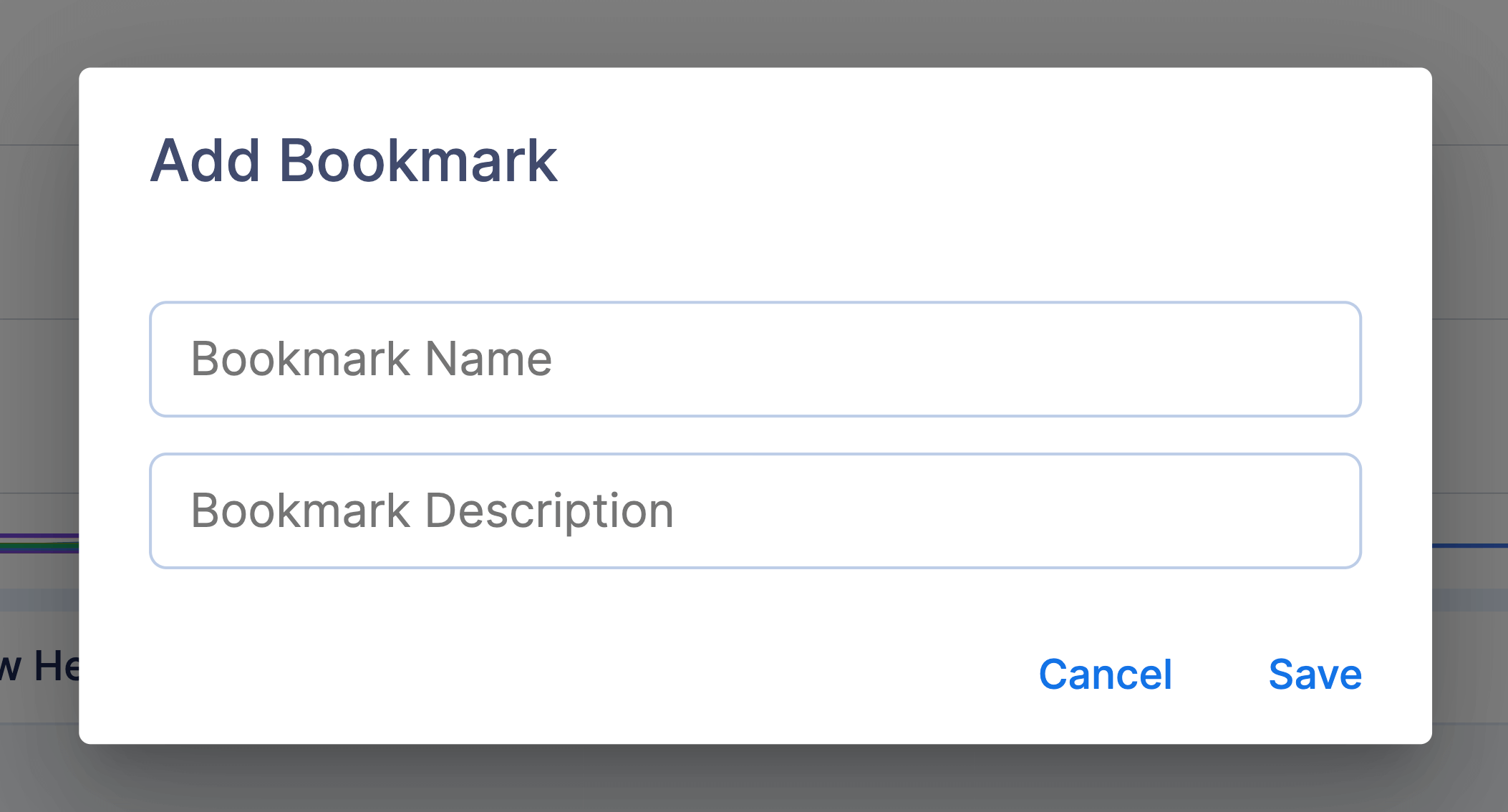
The created bookmark will contain all the current configuration of the explorer.
### The Bookmark Card
 Each of the bookmark cards contains the following:
- Explorer Icon
- Title
- View Bookmark button
- Delete Bookmark button
- Search query
- Selected metrics and params
Each of the bookmark cards contains the following:
- Explorer Icon
- Title
- View Bookmark button
- Delete Bookmark button
- Search query
- Selected metrics and params
### Delete Bookmark
Clicking the delete bookmark button will open a modal, where you can confirm or cancel the deletion.
 ---
### Source Ui Pages Explorers (`docs/source/ui/pages/explorers.md`)
## Explorers
Explorers will help you to compare 1000s of AI experiments with a few clicks.
Explorers are the main tools that Aim is built around.
In this section we will go through the Aim explorers, introduce their features and how to use them.
### Metrics Explorer
#### Overview
Use Metrics explorer to search and compare 1000s of ML training metrics.
The Metrics Explorer allows you to search, group and compare your metrics.
Due to this and number of other visual features on the Metrics Explorer, you will save considerable amounts of time when comparing experiments- compared to other open-source experiment tracking tools.
The Metric Explorer has the following main sections:
- **Metrics Select:** to select the metrics for exploration
- **Search bar:** to query the runs for exploration
- **Charts explorer:** the space where the metrics are rendered
- **Metrics modifiers:** all the grouping, chart division and other metrics modifier tools
- **Context table:** the full information about the selected metrics is available
.. note::
There is also an advanced mode of search is available too where you can use the full Aim QL (more on this further in this section).
There are two ways you can query metrics and runs
- [Select metrics and query runs](#id1)
- [Advanced Search mode](#advanced-search-mode)
An overview of what you can do with queried metrics - the modifiers:
- [Group by tracked parameters](#group-by-any-parameter)
- [Aggregate grouped metrics](#aggregate-metrics)
- [Configure axes properties (x-axis alignment, axes range)](#axes-properties)
- [Change scale of the axes (linear or log)](#axes-scale)
- [Apply smoothing](#chart-smoothing)
- [Ignore outliers](#ignore-outliers)
- [Metric highlight modes (metric on hover, run on hover)](#highlight-modes)
- [Set chart tooltip parameters](#set-tooltip-parameters)
- [Apply zoom in/out on charts](#apply-zoom-on-charts)
- [Export chart as image](#export-chart-as-image)
---
### Source Ui Pages Explorers (`docs/source/ui/pages/explorers.md`)
## Explorers
Explorers will help you to compare 1000s of AI experiments with a few clicks.
Explorers are the main tools that Aim is built around.
In this section we will go through the Aim explorers, introduce their features and how to use them.
### Metrics Explorer
#### Overview
Use Metrics explorer to search and compare 1000s of ML training metrics.
The Metrics Explorer allows you to search, group and compare your metrics.
Due to this and number of other visual features on the Metrics Explorer, you will save considerable amounts of time when comparing experiments- compared to other open-source experiment tracking tools.
The Metric Explorer has the following main sections:
- **Metrics Select:** to select the metrics for exploration
- **Search bar:** to query the runs for exploration
- **Charts explorer:** the space where the metrics are rendered
- **Metrics modifiers:** all the grouping, chart division and other metrics modifier tools
- **Context table:** the full information about the selected metrics is available
.. note::
There is also an advanced mode of search is available too where you can use the full Aim QL (more on this further in this section).
There are two ways you can query metrics and runs
- [Select metrics and query runs](#id1)
- [Advanced Search mode](#advanced-search-mode)
An overview of what you can do with queried metrics - the modifiers:
- [Group by tracked parameters](#group-by-any-parameter)
- [Aggregate grouped metrics](#aggregate-metrics)
- [Configure axes properties (x-axis alignment, axes range)](#axes-properties)
- [Change scale of the axes (linear or log)](#axes-scale)
- [Apply smoothing](#chart-smoothing)
- [Ignore outliers](#ignore-outliers)
- [Metric highlight modes (metric on hover, run on hover)](#highlight-modes)
- [Set chart tooltip parameters](#set-tooltip-parameters)
- [Apply zoom in/out on charts](#apply-zoom-on-charts)
- [Export chart as image](#export-chart-as-image)
 #### Select metrics and query runs
On the Metrics Explorer, there is `+ Metrics` button.
Once pressed, a dropdown will appear with all your tracked metrics and their contexts flattened.
The dropdown is searchable - so you can get to your metric of interest within a stroke!
#### Select metrics and query runs
On the Metrics Explorer, there is `+ Metrics` button.
Once pressed, a dropdown will appear with all your tracked metrics and their contexts flattened.
The dropdown is searchable - so you can get to your metric of interest within a stroke!
 The Search bar is located below the `+ Metric` button. It allows to do a pythonic query (that is eval-ed as python statement) over every param you have tracked.
Search runs with [Aim QL](../../using/search.html)
The Search bar is located below the `+ Metric` button. It allows to do a pythonic query (that is eval-ed as python statement) over every param you have tracked.
Search runs with [Aim QL](../../using/search.html)
 #### Advanced Search mode
Once you press the `Enable advanced search mode` button underneath the main `Search` button, it will enable the full Aim QL search editor - to query the metrics, the runs via full Aim QL
Here is an example:
`((metric.name == 'bleu' and metric.context.subset == 'val') or (metric.name == 'loss' and metric.context.subset == 'train'))
and 1e-5 < run.hparams.learning_rate < 1e-2`
#### Advanced Search mode
Once you press the `Enable advanced search mode` button underneath the main `Search` button, it will enable the full Aim QL search editor - to query the metrics, the runs via full Aim QL
Here is an example:
`((metric.name == 'bleu' and metric.context.subset == 'val') or (metric.name == 'loss' and metric.context.subset == 'train'))
and 1e-5 < run.hparams.learning_rate < 1e-2`
 #### Group by any parameter
Grouping selected metrics by any tracked params will allow you to quickly distinguish the most impactful params, decisions you have made (the preprocessing steps, the hyperparams etc).
The parameters include not only the ones you have tracked but also the native Aim objects too such as
- `metric.name`
- `metric.context.[context_key]`
- `run.hash`
There are several ways you can group the selected metrics and runs - by color, by stroke and by chart.
##### Group by Color
Use this to divide the selected metrics into different clusters based on selected values of params.
Each cluster gets colored differently.
There are a number of options available when grouping
- **group by values** - divides into clusters as per the values of selected params)
- **reverse grouping** - divides into clusters by every param except for the chosen one.
The grouping colors are picked randomly, however it is possible to fix with the advanced coloring features.
Here are the features in the advanced mode:
- Fix the colors of the grouping
- Control the color palette to use during the grouping
#### Group by any parameter
Grouping selected metrics by any tracked params will allow you to quickly distinguish the most impactful params, decisions you have made (the preprocessing steps, the hyperparams etc).
The parameters include not only the ones you have tracked but also the native Aim objects too such as
- `metric.name`
- `metric.context.[context_key]`
- `run.hash`
There are several ways you can group the selected metrics and runs - by color, by stroke and by chart.
##### Group by Color
Use this to divide the selected metrics into different clusters based on selected values of params.
Each cluster gets colored differently.
There are a number of options available when grouping
- **group by values** - divides into clusters as per the values of selected params)
- **reverse grouping** - divides into clusters by every param except for the chosen one.
The grouping colors are picked randomly, however it is possible to fix with the advanced coloring features.
Here are the features in the advanced mode:
- Fix the colors of the grouping
- Control the color palette to use during the grouping
 ##### Group by Stroke
Groups the metrics by a stroke style.
Has all the rest of the other features available on the color grouping except the advanced mode.
##### Group by Stroke
Groups the metrics by a stroke style.
Has all the rest of the other features available on the color grouping except the advanced mode.
 ##### Group by Chart
The end result of using this feature: divides into subplots based on the value of the selected params.
Why this is a grouping mechanism? It groups the metrics belonging to the same group into separate charts.
##### Group by Chart
The end result of using this feature: divides into subplots based on the value of the selected params.
Why this is a grouping mechanism? It groups the metrics belonging to the same group into separate charts.
 #### Aggregate metrics
The metrics aggregation helps to quickly see the trends of each individual group of metrics. See more about [metrics grouping](#group-by-any-parameter).
There are two aspects of aggregation you can control:
- the trend-line
- the area that the group of metricsc take
The trend-line calculation methods:
- Mean
- Median
- Min
- Max
The area calcualtion methods:
- None _(when you'd like to remove the area)_
- Min/Max
- Mean +/- Standard Deviation
- Mean +/- Standard Error
- Confidence Interval (95%)
Pls see the screenshot:
#### Aggregate metrics
The metrics aggregation helps to quickly see the trends of each individual group of metrics. See more about [metrics grouping](#group-by-any-parameter).
There are two aspects of aggregation you can control:
- the trend-line
- the area that the group of metricsc take
The trend-line calculation methods:
- Mean
- Median
- Min
- Max
The area calcualtion methods:
- None _(when you'd like to remove the area)_
- Min/Max
- Mean +/- Standard Deviation
- Mean +/- Standard Error
- Confidence Interval (95%)
Pls see the screenshot:
 #### Axes properties
Axes properties section is for aligning metrics by time, epoch or another metric and for setting axes range manually.
##### Alignment:
Following types of metrics alignment are available: [Step](#step), [Epoch](#epoch), [Relative Time](#relative-time), [Absolute Time](#absolute-time) and [Custom Metric](#custom-metric).
By default, metrics aligned by [Step](#step).
###### Step
By setting metrics alignment to Step, x-axis values will represent the steps of tracked metrics.
#### Axes properties
Axes properties section is for aligning metrics by time, epoch or another metric and for setting axes range manually.
##### Alignment:
Following types of metrics alignment are available: [Step](#step), [Epoch](#epoch), [Relative Time](#relative-time), [Absolute Time](#absolute-time) and [Custom Metric](#custom-metric).
By default, metrics aligned by [Step](#step).
###### Step
By setting metrics alignment to Step, x-axis values will represent the steps of tracked metrics.
 ###### Epoch
By setting metrics alignment to Epoch, x-axis values will represent the epochs of tracked metrics.
###### Epoch
By setting metrics alignment to Epoch, x-axis values will represent the epochs of tracked metrics.
 ###### Relative Time
By setting metrics alignment to Relative Time, x-axis values will represent by `HH:mm:ss`, duration of tracking process.
###### Relative Time
By setting metrics alignment to Relative Time, x-axis values will represent by `HH:mm:ss`, duration of tracking process.
 ###### Absolute Time
By setting metrics alignment to Absolute Time, x-axis values will represent by date `HH:mm:ss D MMM, YY`, since the start date of the first run until the last run.
###### Absolute Time
By setting metrics alignment to Absolute Time, x-axis values will represent by date `HH:mm:ss D MMM, YY`, since the start date of the first run until the last run.
 ###### Custom Metric
By setting metrics alignment to Custom Metric, x-axis values will represent selected metric values, you can detect correlations between queried metrics and selected metric.
##### Set axes range:
To fix an axis range across all the charts, set the corresponding axis minimum and maximum bounds in the form.
###### Custom Metric
By setting metrics alignment to Custom Metric, x-axis values will represent selected metric values, you can detect correlations between queried metrics and selected metric.
##### Set axes range:
To fix an axis range across all the charts, set the corresponding axis minimum and maximum bounds in the form.
 #### Axes Scale
Axes Scale section gives ability to display axes scale's [linear](https://en.wikipedia.org/wiki/Linear_scale) or [logarithmic](https://en.wikipedia.org/wiki/Logarithmic_scale).
By default, axes scale's are [Linear](#linear-scale).
##### Linear Scale
#### Axes Scale
Axes Scale section gives ability to display axes scale's [linear](https://en.wikipedia.org/wiki/Linear_scale) or [logarithmic](https://en.wikipedia.org/wiki/Logarithmic_scale).
By default, axes scale's are [Linear](#linear-scale).
##### Linear Scale
 ##### X-axis scale: Linear, Y-axis scale: Log
 ##### X-axis scale: Log, Y-axis scale: Linear
 ##### Log Scale
 #### Chart Smoothing
While smoothing the chart, the data points are modified so individual points higher than the adjacent points (presumably because of noise) are reduced, and points that are lower than the adjacent points are increased leading to a smoother signal.
You can select curve interpolation methods: Linear or Cubic.
By default, chart smoothing in [Exponential moving average](#exponential-moving-average) mode and curve interpolation method is Linear.
##### Exponential moving average
An [exponential moving average](https://en.wikipedia.org/wiki/Moving_average), also known as an exponentially weighted moving average (EWMA),
is a first-order infinite impulse response filter that applies weighting factors which decrease exponentially.
#### Chart Smoothing
While smoothing the chart, the data points are modified so individual points higher than the adjacent points (presumably because of noise) are reduced, and points that are lower than the adjacent points are increased leading to a smoother signal.
You can select curve interpolation methods: Linear or Cubic.
By default, chart smoothing in [Exponential moving average](#exponential-moving-average) mode and curve interpolation method is Linear.
##### Exponential moving average
An [exponential moving average](https://en.wikipedia.org/wiki/Moving_average), also known as an exponentially weighted moving average (EWMA),
is a first-order infinite impulse response filter that applies weighting factors which decrease exponentially.
 ##### Centered moving average
When you center the moving averages, the data points are placed at the center of the range rather than the end of it.
This is done to position the moving average values at their central positions in time.
##### Centered moving average
When you center the moving averages, the data points are placed at the center of the range rather than the end of it.
This is done to position the moving average values at their central positions in time.
 #### Ignore outliers
An outlier is an observation that lies an abnormal distance from other values in a random sample from a population.
Examination of the data for unusual observations that are far removed from the mass of data.
These points are often referred to as outliers.
#### Ignore outliers
An outlier is an observation that lies an abnormal distance from other values in a random sample from a population.
Examination of the data for unusual observations that are far removed from the mass of data.
These points are often referred to as outliers.
 Excluding outliers can cause your results to become statistically significant.
By default, outliers are ignored.
Excluding outliers can cause your results to become statistically significant.
By default, outliers are ignored.
 #### Highlight Modes
Highlighting functionality is useful for filtering metrics and highlight only hovered metric.
Following types of highlighting mode are available: [Highlight Off](#highlight-off), [Highlight Metric on Hover](#highlight-metric-on-hover), and [Highlight Run on Hover](#highlight-run-on-hover).
By default, highlighting mode is the [Highlight Run on Hover](#highlight-run-on-hover).
##### Highlight Off
By setting Highlight mode Off, there is no highlighting functionality on hover.
#### Highlight Modes
Highlighting functionality is useful for filtering metrics and highlight only hovered metric.
Following types of highlighting mode are available: [Highlight Off](#highlight-off), [Highlight Metric on Hover](#highlight-metric-on-hover), and [Highlight Run on Hover](#highlight-run-on-hover).
By default, highlighting mode is the [Highlight Run on Hover](#highlight-run-on-hover).
##### Highlight Off
By setting Highlight mode Off, there is no highlighting functionality on hover.
 ##### Highlight Metric on Hover
By setting Highlight mode Metric on Hover, mouse point closest metric highlights and other metrics displays with opacity.
##### Highlight Metric on Hover
By setting Highlight mode Metric on Hover, mouse point closest metric highlights and other metrics displays with opacity.
 ##### Highlight Run on Hover
By setting Highlight mode Run on Hover, mouse point closest metric highlights and highlighted metric corresponding run also highlights other metrics displays with opacity.
##### Highlight Run on Hover
By setting Highlight mode Run on Hover, mouse point closest metric highlights and highlighted metric corresponding run also highlights other metrics displays with opacity.
 #### Set tooltip parameters
You can select tooltip parameters to show params and values in tooltip Params section.
You can select hide or show button to display or hide tooltip on hover.
#### Set tooltip parameters
You can select tooltip parameters to show params and values in tooltip Params section.
You can select hide or show button to display or hide tooltip on hover.

 #### Apply zoom on charts
##### Zoom In
#### Apply zoom on charts
##### Zoom In


 ##### Zoom Out
 #### Export chart as image
Metric explorer also, gives ability to export your chart as image.
By clicking `export button` from control panel, will be opened chart preview modal.
You can change exportable chart `image width`, `single chart height`, set `image name` and `format`.
#### Export chart as image
Metric explorer also, gives ability to export your chart as image.
By clicking `export button` from control panel, will be opened chart preview modal.
You can change exportable chart `image width`, `single chart height`, set `image name` and `format`.
 Following formats of chart export are available: `SVG`, `JPEG`, `PNG`.
 ### Images Explorer
#### Overview
Track intermediate images search easily by using select form functional compare them on the Images Explorer by using reach controls panel.
### Images Explorer
#### Overview
Track intermediate images search easily by using select form functional compare them on the Images Explorer by using reach controls panel.
 Features:
- [Easily query any image](#query-any-image)
- [Group images by run parameters, step and index](#group-image-by-run-parameters)
- [Use controls from right control panel to configure workspace](#image-explorer-right-controls-panel)
- [Image properties control](#images-properties-control)
- [Images sorting control](#images-sorting-control)
- [Images group stacking control](#images-group-stacking-control)
- [Images tooltip params control](#set-tooltip-parameters)
#### Query any image
Use select form to easily query any image. There are two option to query images using dropdown, by using [Aim QL](../../using/search.html) language and advance mode for [Aim QL](../../using/search.html).
Features:
- [Easily query any image](#query-any-image)
- [Group images by run parameters, step and index](#group-image-by-run-parameters)
- [Use controls from right control panel to configure workspace](#image-explorer-right-controls-panel)
- [Image properties control](#images-properties-control)
- [Images sorting control](#images-sorting-control)
- [Images group stacking control](#images-group-stacking-control)
- [Images tooltip params control](#set-tooltip-parameters)
#### Query any image
Use select form to easily query any image. There are two option to query images using dropdown, by using [Aim QL](../../using/search.html) language and advance mode for [Aim QL](../../using/search.html).
 ###### How to use select form?
- Click on Images button
- Select options you are want to use in query
- Click on the Search button
###### How to use select form?
- Click on Images button
- Select options you are want to use in query
- Click on the Search button
 ###### How to reset select form value?
 ###### How to use advanced query mode?
- Click on pencel icon in the right side of select form to show input
- Type advance [Aim QL](../../using/search.html) query
- Click on the Search button
###### How to use advanced query mode?
- Click on pencel icon in the right side of select form to show input
- Type advance [Aim QL](../../using/search.html) query
- Click on the Search button
 #### Group image by run parameters
Use select grouping dropdown which is located in the right top corner of the image explore page.
#### Group image by run parameters
Use select grouping dropdown which is located in the right top corner of the image explore page.
 ###### How to use image grouping?
- Click on grouping button
- Select fields by which you want to groupe images
Grouping will be apply after each field selection also you can select grouping mode (Group or Reverse)
###### How to use image grouping?
- Click on grouping button
- Select fields by which you want to groupe images
Grouping will be apply after each field selection also you can select grouping mode (Group or Reverse)
 #### Image explorer right controls panel
Any change in controls will help to explore images better on the workspace
#### Images size manipulation control
- Click on image property button
- Select value from dropdown to align image. (by default dropdown value is `Height`). Use slider to configure value for scale relative to window size by default scale value is `15%`.
- By height
#### Image explorer right controls panel
Any change in controls will help to explore images better on the workspace
#### Images size manipulation control
- Click on image property button
- Select value from dropdown to align image. (by default dropdown value is `Height`). Use slider to configure value for scale relative to window size by default scale value is `15%`.
- By height
 - By width
 - Original size
 - Use image rendering variation by default value of this control is `Pixelated`
 #### Images sorting control
- Click on image sorting button
- Select fields for sorting images. Selection ordering is meaningful and data will be sorting by selection order. Bellow is visible Ordered By list where contains all selected fields from dropdown. You can remove any already selected field by clicking on `x` icon or change sorting direction by clicking radio button Asc or Desc. Default selected direction is Asc.
- For reset all existing sorting fields you can simply click on Reset Sorting button
#### Images sorting control
- Click on image sorting button
- Select fields for sorting images. Selection ordering is meaningful and data will be sorting by selection order. Bellow is visible Ordered By list where contains all selected fields from dropdown. You can remove any already selected field by clicking on `x` icon or change sorting direction by clicking radio button Asc or Desc. Default selected direction is Asc.
- For reset all existing sorting fields you can simply click on Reset Sorting button
 #### Set tooltip parameters
You can select tooltip parameters to show params and values in tooltip Params section.
You can select hide or show button to display or hide tooltip on hover.
### Params Explorer
#### Overview
Params explorer helps you to represent high dimensional data as a multi-dimensional visualization.
Features:
- [Easily query any metrics and params](#query-any-metrics-and-params)
- [Group runs by color, stroke, or chart](#grouping)
- [Make the crossings easier with curve interpolation](#curve-interpolation)
- [Learn patterns and colorations easier colored by the last dimension with a color indicator](#color-indicator)
#### Set tooltip parameters
You can select tooltip parameters to show params and values in tooltip Params section.
You can select hide or show button to display or hide tooltip on hover.
### Params Explorer
#### Overview
Params explorer helps you to represent high dimensional data as a multi-dimensional visualization.
Features:
- [Easily query any metrics and params](#query-any-metrics-and-params)
- [Group runs by color, stroke, or chart](#grouping)
- [Make the crossings easier with curve interpolation](#curve-interpolation)
- [Learn patterns and colorations easier colored by the last dimension with a color indicator](#color-indicator)
 ##### Query any metrics and params
Select params and metrics from dropdown
##### Query any metrics and params
Select params and metrics from dropdown
 Search runs with [Aim QL](../../using/search.html)
 ##### Grouping
Group by color, stroke, or chart with selected parameters
##### Grouping
Group by color, stroke, or chart with selected parameters
 ##### Curve interpolation
By clicking on the Curve interpolation button in the Controls panel, it's possible to make lines from straight to curve to show
correlations between non-adjacent axes.
##### Curve interpolation
By clicking on the Curve interpolation button in the Controls panel, it's possible to make lines from straight to curve to show
correlations between non-adjacent axes.
 ##### Color indicator
By clicking on the Color indicator button in the Controls panel, it's possible to turn on lines gradient coloring by the last dimension.
##### Color indicator
By clicking on the Color indicator button in the Controls panel, it's possible to turn on lines gradient coloring by the last dimension.
 ### Scatters Explorer
Scatter explorer gives ability to visualize correlations between metric last value data with hyper-parameter.
It represents graph where corresponding values from a set of data are placed as points on a coordinate plane. A relationship between the points is sometimes shown to be positive, negative, strong, or weak.
### Scatters Explorer
Scatter explorer gives ability to visualize correlations between metric last value data with hyper-parameter.
It represents graph where corresponding values from a set of data are placed as points on a coordinate plane. A relationship between the points is sometimes shown to be positive, negative, strong, or weak.
 Abilities provided by Scatter explorer
- [Easily align metric last value data with hyper parameter](#align-metric-last-value-data-with-hyper-parameter)
- [Group runs by color and chart](#grouping)
- [Represent the points with trend line](#trend-line)
- [Export chart](#export-chart)
##### Align metric last value data with hyper-parameter
Select params and metrics from `X` and `Y` axes dropdowns to align metric last value data with hyper-parameter.
- X axis
Abilities provided by Scatter explorer
- [Easily align metric last value data with hyper parameter](#align-metric-last-value-data-with-hyper-parameter)
- [Group runs by color and chart](#grouping)
- [Represent the points with trend line](#trend-line)
- [Export chart](#export-chart)
##### Align metric last value data with hyper-parameter
Select params and metrics from `X` and `Y` axes dropdowns to align metric last value data with hyper-parameter.
- X axis
 - Y axis
 Also, you can search runs with [Aim QL](../../using/search.html)
 ##### Grouping
Easily group data by color and chart with selected parameters.
- By `Color`
##### Grouping
Easily group data by color and chart with selected parameters.
- By `Color`
 - By `Chart`
##### Trend line
A trend line is a straight line that best represents the points on a `scatter plot`. The trend line may go through some points but need not go through them all.
- By `Chart`
##### Trend line
A trend line is a straight line that best represents the points on a `scatter plot`. The trend line may go through some points but need not go through them all.
 From trend line options popover you can change regression from `Linear` (by default) to `LOESS`(locally weighted smoothing), which creates a smooth line through a `scatter plot` to help you to see relationship between variables and foresee trends. Also, you can change the `bandwidth` with `slider`
 ##### Export chart
Scatter explorer also, gives ability to `export` your chart as `image`.
By clicking `export button` from control panel, will be opened chart preview modal.
You can change exportable chart `image width`, `single chart height`, set `image name` and `format`.
##### Export chart
Scatter explorer also, gives ability to `export` your chart as `image`.
By clicking `export button` from control panel, will be opened chart preview modal.
You can change exportable chart `image width`, `single chart height`, set `image name` and `format`.
 Following image formats are available export: `SVG`, `JPEG`, `PNG`.
 ---
### Source Ui Pages Home Page (`docs/source/ui/pages/home_page.md`)
## Home Page
Aim Home Page is a high-level overview of your training activities and how to find your way around the Aim UI.
---
### Source Ui Pages Home Page (`docs/source/ui/pages/home_page.md`)
## Home Page
Aim Home Page is a high-level overview of your training activities and how to find your way around the Aim UI.
 There are three main sections:
- [Explore Aim](#explore-aim)
- [Overview](#overview)
- [Latest Changes](#latest-changes)
---
### Explore Aim
In the Explore Aim section, you will find a list of recommended resources to help you get started with Aim or navigate through an existing Aim project. Here are its main sections
- [Quick navigation to some of the most used features queries](#quick-navigation)
- [Recent searches](#recent-searches)
- [Experiments table](#experiments-table)
- [Tags table](#tags-table)
- [Bookmarks](#bookmarks)
#### Quick Navigation
The quick navigation section provides a quick way to navigate through your runs. It includes:
- Active Runs
- Archived Runs
- Last week's runs
#### Recent searches
In this block, you will find your last three successful queries with the ability to navigate through them.
#### Experiments table
This block displays your experiment data in the table format. Also, it provides the ability to compare the selected ones on the explorer pages.
#### Tags table
The tags table provides a quick way to navigate to your tags and compare them on the other explorer pages.
#### Bookmarks
This section displays your bookmarks and provides the ability to navigate through them.
---
### Overview
The overview section is a high-level overview of your training activities. It includes:
- [Statistics of your training activities](#statistics)
- [Active Runs table](#active-runs-table)
- [Contributions heatmap](#contributions-heatmap)
- [Activity feed](#activity-feed)
#### Statistics
Here you can find the total number of runs and tracked sequences. Also, each card is clickable and you can navigate to the Runs and Sequences pages.
#### Active Runs table
The `active runs` table provides the list of your active runs. Also, the ability to compare your runs in other explorer pages.
#### Contributions heatmap
The `heatmap` shows the intensity of experiments you have made for the day - the darker the color the more experiments.
Each cell represents the set of training runs for that day. The cells are clickable!
Once clicked, you will navigate to the Runs explorer page and automatically query the runs made on that day.
#### Activity feed
This section represents the activity feed of your contributions. It includes the following information:
- The date of the activity
- The type of activity
- The name of the activity
---
### Latest Changes
In this section, you can find the latest changes in Aim. It includes:
- The latest changes to the Aim version
- The Changelog of the Aim versions
- The helpful doc links for exploring the Aim
---
### Source Ui Pages Reports (`docs/source/ui/pages/reports.md`)
## Reports
### Overview
Use Aim reports to organize runs, embed visualizations, describe your findings, and share updates with collaborators.
The following image shows an example of a report created from metrics that were logged to aim over the course of a training.
There are three main sections:
- [Explore Aim](#explore-aim)
- [Overview](#overview)
- [Latest Changes](#latest-changes)
---
### Explore Aim
In the Explore Aim section, you will find a list of recommended resources to help you get started with Aim or navigate through an existing Aim project. Here are its main sections
- [Quick navigation to some of the most used features queries](#quick-navigation)
- [Recent searches](#recent-searches)
- [Experiments table](#experiments-table)
- [Tags table](#tags-table)
- [Bookmarks](#bookmarks)
#### Quick Navigation
The quick navigation section provides a quick way to navigate through your runs. It includes:
- Active Runs
- Archived Runs
- Last week's runs
#### Recent searches
In this block, you will find your last three successful queries with the ability to navigate through them.
#### Experiments table
This block displays your experiment data in the table format. Also, it provides the ability to compare the selected ones on the explorer pages.
#### Tags table
The tags table provides a quick way to navigate to your tags and compare them on the other explorer pages.
#### Bookmarks
This section displays your bookmarks and provides the ability to navigate through them.
---
### Overview
The overview section is a high-level overview of your training activities. It includes:
- [Statistics of your training activities](#statistics)
- [Active Runs table](#active-runs-table)
- [Contributions heatmap](#contributions-heatmap)
- [Activity feed](#activity-feed)
#### Statistics
Here you can find the total number of runs and tracked sequences. Also, each card is clickable and you can navigate to the Runs and Sequences pages.
#### Active Runs table
The `active runs` table provides the list of your active runs. Also, the ability to compare your runs in other explorer pages.
#### Contributions heatmap
The `heatmap` shows the intensity of experiments you have made for the day - the darker the color the more experiments.
Each cell represents the set of training runs for that day. The cells are clickable!
Once clicked, you will navigate to the Runs explorer page and automatically query the runs made on that day.
#### Activity feed
This section represents the activity feed of your contributions. It includes the following information:
- The date of the activity
- The type of activity
- The name of the activity
---
### Latest Changes
In this section, you can find the latest changes in Aim. It includes:
- The latest changes to the Aim version
- The Changelog of the Aim versions
- The helpful doc links for exploring the Aim
---
### Source Ui Pages Reports (`docs/source/ui/pages/reports.md`)
## Reports
### Overview
Use Aim reports to organize runs, embed visualizations, describe your findings, and share updates with collaborators.
The following image shows an example of a report created from metrics that were logged to aim over the course of a training.
 ### The report page
In single report page you can find 2 modes: `view` and `edit`.
Create the report in `edit` mode and view the final result in the `view` mode. The example above is on the `view` mode.
You can use
**```aim** sections to retrieve data from Aim storage and visualize them. The example shown below is an overview of the `edit` mode.
### The report page
In single report page you can find 2 modes: `view` and `edit`.
Create the report in `edit` mode and view the final result in the `view` mode. The example above is on the `view` mode.
You can use
**```aim** sections to retrieve data from Aim storage and visualize them. The example shown below is an overview of the `edit` mode.
 The details on objects and methods for data fetching and visualization are in the next sections.
### Data fetching methods
To retrieve data from Aim storage the following methods of `repo` object.
__*Note:*__ the `repo` object is by default available in the report context.
| Method | Description |
| -------- | ----------- |
| `fetch_metrics` | Repo metrics |
| `fetch_images` | Repo images |
| `fetch_audios` | Repo audios |
| `fetch_figures` | Repo figures |
| `fetch_texts` | Repo texts |
All the methods accept a query parameter which defaults to `True` (fetches all the available sequences).
The results of this
Example:
````python
```aim
metrics = repo.fetch_metrics('metric.name == "loss"')
linechart = LineChart(metrics)
```
````
### Visualization objects and methods
The following classes and methods are used to visualize all the data types fetched from Aim storage.
There are small examples provided with each one showing a basic usage.
- `LineChart`
Signature:
`LineChart(data, x, y)`
Parameters:
| name | type | default | default |
|-----|------------|---------|-------|
| `data` | `List[dict]` | required| the data to be plotted |
| `x`| `str` | `steps` | the path to the property for the x-axis value (for fetched metrics available options are `epochs`, `timestamps`)|
| `y`| `str` | `values`| the path to the property for the y-axis value |
Example:
````python
```aim
metrics = repo.fetch_metrics()
linechart = LineChart(metrics, x='timestamps')
```
````
- `ImagesList`
Signature:
`ImagesList(data)`
The details on objects and methods for data fetching and visualization are in the next sections.
### Data fetching methods
To retrieve data from Aim storage the following methods of `repo` object.
__*Note:*__ the `repo` object is by default available in the report context.
| Method | Description |
| -------- | ----------- |
| `fetch_metrics` | Repo metrics |
| `fetch_images` | Repo images |
| `fetch_audios` | Repo audios |
| `fetch_figures` | Repo figures |
| `fetch_texts` | Repo texts |
All the methods accept a query parameter which defaults to `True` (fetches all the available sequences).
The results of this
Example:
````python
```aim
metrics = repo.fetch_metrics('metric.name == "loss"')
linechart = LineChart(metrics)
```
````
### Visualization objects and methods
The following classes and methods are used to visualize all the data types fetched from Aim storage.
There are small examples provided with each one showing a basic usage.
- `LineChart`
Signature:
`LineChart(data, x, y)`
Parameters:
| name | type | default | default |
|-----|------------|---------|-------|
| `data` | `List[dict]` | required| the data to be plotted |
| `x`| `str` | `steps` | the path to the property for the x-axis value (for fetched metrics available options are `epochs`, `timestamps`)|
| `y`| `str` | `values`| the path to the property for the y-axis value |
Example:
````python
```aim
metrics = repo.fetch_metrics()
linechart = LineChart(metrics, x='timestamps')
```
````
- `ImagesList`
Signature:
`ImagesList(data)`
 Parameters:
| name | type | default | default |
|-----|------------|---------|-------|
| `data` | `List[dict]` | required| the data to be plotted |
Example:
````python
```aim
images = repo.fetch_images()
ImagesList(images)
```
````
- `AudiosList`
Signature:
`AudiosList(data)`
Parameters:
| name | type | default | default |
|-----|------------|---------|-------|
| `data` | `List[dict]` | required | the data to be plotted |
Example:
````python
```aim
audios = repo.fetch_audios()
AudiosList(audios)
```
````
- `FiguresList`
Signature:
`FiguresList(data)`
Parameters:
| name | type | default | default |
|-----|------------|---------|-------|
| `data` | `List[dict]` | required| the data to be plotted |
Example:
````python
```aim
figures = repo.fetch_figures()
FiguresList(figures)
```
````
- `TextsList`
Signature:
`TextsList(data)`
Parameters:
| name | type | default | default |
|-----|------------|---------|-------|
| `data` | `List[dict]` | required| the data to be plotted |
Example:
````python
```aim
texts = repo.fetch_texts()
TextsList(texts)
```
````
All the aforementioned objects have `group` method available to them:
```python
def group(prop: str, value: Union[str, list]):
...
```
`prop`- name of the property to be grouped by. Available options are: `color`, `stroke_style`, `row`, `column` (the first 2 are available for `LineChart `only)
`value`- single or multiple values of sequence fields to be grouped by. Available fields are all those fields that are also available in grouping options of the explorer pages.
The `group` method can be applied multiple times sequentially.
Example:
````python
```aim
metrics = repo.fetch_metrics()
linechart = LineChart(metrics)
linechart.group('color', 'run.hash')
linechart.group('row', ['metric.name', 'metric.context.subset'])
```
````
Parameters:
| name | type | default | default |
|-----|------------|---------|-------|
| `data` | `List[dict]` | required| the data to be plotted |
Example:
````python
```aim
images = repo.fetch_images()
ImagesList(images)
```
````
- `AudiosList`
Signature:
`AudiosList(data)`
Parameters:
| name | type | default | default |
|-----|------------|---------|-------|
| `data` | `List[dict]` | required | the data to be plotted |
Example:
````python
```aim
audios = repo.fetch_audios()
AudiosList(audios)
```
````
- `FiguresList`
Signature:
`FiguresList(data)`
Parameters:
| name | type | default | default |
|-----|------------|---------|-------|
| `data` | `List[dict]` | required| the data to be plotted |
Example:
````python
```aim
figures = repo.fetch_figures()
FiguresList(figures)
```
````
- `TextsList`
Signature:
`TextsList(data)`
Parameters:
| name | type | default | default |
|-----|------------|---------|-------|
| `data` | `List[dict]` | required| the data to be plotted |
Example:
````python
```aim
texts = repo.fetch_texts()
TextsList(texts)
```
````
All the aforementioned objects have `group` method available to them:
```python
def group(prop: str, value: Union[str, list]):
...
```
`prop`- name of the property to be grouped by. Available options are: `color`, `stroke_style`, `row`, `column` (the first 2 are available for `LineChart `only)
`value`- single or multiple values of sequence fields to be grouped by. Available fields are all those fields that are also available in grouping options of the explorer pages.
The `group` method can be applied multiple times sequentially.
Example:
````python
```aim
metrics = repo.fetch_metrics()
linechart = LineChart(metrics)
linechart.group('color', 'run.hash')
linechart.group('row', ['metric.name', 'metric.context.subset'])
```
````
 ### Search Report
The search bar is available so you can easily find the report you are looking for.
### Search Report
The search bar is available so you can easily find the report you are looking for.
 ### Delete Report
The Delete button is available with the options button in the upper right corner of the report card.
It will open a modal, where you can confirm or cancel the deletion.
### Delete Report
The Delete button is available with the options button in the upper right corner of the report card.
It will open a modal, where you can confirm or cancel the deletion.
 ---
### Source Ui Pages Run Management (`docs/source/ui/pages/run_management.md`)
# Runs Management
## Runs Explorer
### Overview
To navigate into Runs Explorer, click on the `Runs` navigation item from the left sidebar.
Runs explorer helps you to
- [Search runs with pythonic query](#search-runs)
- [Observe runs in real time](#follow-runs-in-a-real-time)
- [Delete or archive runs](#delete-and-archive-runs-by-batch)
- [Export Runs report](#export-runs-report)
---
### Source Ui Pages Run Management (`docs/source/ui/pages/run_management.md`)
# Runs Management
## Runs Explorer
### Overview
To navigate into Runs Explorer, click on the `Runs` navigation item from the left sidebar.
Runs explorer helps you to
- [Search runs with pythonic query](#search-runs)
- [Observe runs in real time](#follow-runs-in-a-real-time)
- [Delete or archive runs](#delete-and-archive-runs-by-batch)
- [Export Runs report](#export-runs-report)
 #### Search Runs
Use Search bar to query runs with [Aim QL](../../using/search.html).
#### Search Runs
Use Search bar to query runs with [Aim QL](../../using/search.html).
 #### Follow runs in real time
Switch `Live Update` to turn on the real time mode.
#### Follow runs in real time
Switch `Live Update` to turn on the real time mode.
 #### Delete or archive runs
Step 1: Select runs on the runs table:
#### Delete or archive runs
Step 1: Select runs on the runs table:
 Click on the `Archive` button. Fonfirmation popup appears. Click `Archive` again and the runs are archived!
 In order to batch delete the selected runs, just use the `Delete` button.
In this case ase well, press `Delete` again on the confirmation popup and the runs will be hard deleted.
_**Warning:**_ this operation is irreversible and the runs are deleted from the disk.
In order to batch delete the selected runs, just use the `Delete` button.
In this case ase well, press `Delete` again on the confirmation popup and the runs will be hard deleted.
_**Warning:**_ this operation is irreversible and the runs are deleted from the disk.
 #### Export Runs report
Generate Runs CSV report by clicking on the `Export` button on the Runs table.
#### Export Runs report
Generate Runs CSV report by clicking on the `Export` button on the Runs table.
 ## Single run page
Each training run has a dedicated page on Aim. Use the single run page to observe all the tracked metadata associated with that run.
Here are the tabs available on the single run page.
Each tab visualizes respective tracked metadata or empty if not tracked.
- [Overview](#id4)
- [Params](#id5)
- [Metrics](#id6)
- [System](#id7)
- [Distributions](#id8)
- [Images](#id9)
- [Audios](#id10)
- [Texts](#id11)
- [Figures](#id12)
- [Terminal Logs](#id13)
- [Settings](#id14)
### Overview
Overview tab shows overall info about the run.
- These cards can contain information about `Parameters`, `Metrics`, `System Metrics`, `CLI Arguments`, `Environment Variables`, `Packages` and `Git information`. With this data, you can easily reproduce your run.
- Sidebar contains information about `Run Date`, `Run Duration`, `Run Hash`, attached `Tags` and gives the ability to navigate through tabs.
## Single run page
Each training run has a dedicated page on Aim. Use the single run page to observe all the tracked metadata associated with that run.
Here are the tabs available on the single run page.
Each tab visualizes respective tracked metadata or empty if not tracked.
- [Overview](#id4)
- [Params](#id5)
- [Metrics](#id6)
- [System](#id7)
- [Distributions](#id8)
- [Images](#id9)
- [Audios](#id10)
- [Texts](#id11)
- [Figures](#id12)
- [Terminal Logs](#id13)
- [Settings](#id14)
### Overview
Overview tab shows overall info about the run.
- These cards can contain information about `Parameters`, `Metrics`, `System Metrics`, `CLI Arguments`, `Environment Variables`, `Packages` and `Git information`. With this data, you can easily reproduce your run.
- Sidebar contains information about `Run Date`, `Run Duration`, `Run Hash`, attached `Tags` and gives the ability to navigate through tabs.
 Also, you can apply advanced `searching/filtering` to those card tables.
 ### Params
Params tab contains a JSON-like visualization of all the tracked params data related to a single run of interest.
### Params
Params tab contains a JSON-like visualization of all the tracked params data related to a single run of interest.
 ### Metrics
Metrics tab contains the visualizations of all the metrics tracked for the given run.
When exploring run results, some metrics are looked at more often. Pin those metrics to the top of the page to find them easier and faster. Undo pinning by clicking on "unpin" button.
### Metrics
Metrics tab contains the visualizations of all the metrics tracked for the given run.
When exploring run results, some metrics are looked at more often. Pin those metrics to the top of the page to find them easier and faster. Undo pinning by clicking on "unpin" button.
 **Note:** you can track arbitrary number of runs with lots of steps with Aim!
### System
Aim automatically tracks system metrics, so you can use them in order to detect potential resource mismanagements or anomalies.
System tab contains all the tracked system metrics for a single run.
**Note:** you can track arbitrary number of runs with lots of steps with Aim!
### System
Aim automatically tracks system metrics, so you can use them in order to detect potential resource mismanagements or anomalies.
System tab contains all the tracked system metrics for a single run.
 ### Distributions
You can track the gradient, the weights and the biases distributions of all the layers for lots of steps with Aim.
The Distributions tab will allow you to observe them for a single run. You can also
- navigate between the layers
- search for distribution on specific steps
The single run distributions tab is quite powerful!
### Distributions
You can track the gradient, the weights and the biases distributions of all the layers for lots of steps with Aim.
The Distributions tab will allow you to observe them for a single run. You can also
- navigate between the layers
- search for distribution on specific steps
The single run distributions tab is quite powerful!
 ### Images
The Images tab contains all the tracked images of a single run.
You can track runs with different contexts and at different steps of training.
### Images
The Images tab contains all the tracked images of a single run.
You can track runs with different contexts and at different steps of training.
 On the left-hand side are the names of different image-sets you have tracked along with their [context](../../understanding/concepts.html#sequence-context) unpacked.
 Usually the images are tracked at diff steps and with batches. This control will allow you to quickly slice and dice the specific subset of images to view.
Use these sliders to search
- which subset of steps you'd like to see (on the left-hand side)
- which indices you'd like to see (on the right-hand side)
Usually the images are tracked at diff steps and with batches. This control will allow you to quickly slice and dice the specific subset of images to view.
Use these sliders to search
- which subset of steps you'd like to see (on the left-hand side)
- which indices you'd like to see (on the right-hand side)
 If there is only 1 step or only 1 index, you will see the info message instead of the control
 ### Audios
You can track audios with Aim. Use the Audios tab to view and play the tracked audios of a single run.
### Audios
You can track audios with Aim. Use the Audios tab to view and play the tracked audios of a single run.
 ### Texts
Use the `Texts` tab to view and search all the texts tracked for a single run.
On the left-hand side you will see the name and context of the tracked texts.
You can use the search-bar on top to search the text with regexp or just match word or case.
Use the bottom controllers to control the steps and the indices of the tracked texts too.
### Texts
Use the `Texts` tab to view and search all the texts tracked for a single run.
On the left-hand side you will see the name and context of the tracked texts.
You can use the search-bar on top to search the text with regexp or just match word or case.
Use the bottom controllers to control the steps and the indices of the tracked texts too.
 ### Figures
Aim allows tracking Plotly and matplotlib figures.
On the `Figures` tab you can view all the track figures over different contexts and steps.
**Note:** Aim will render figures with passed or default dimensions. There will be scrolls if the size exceeds the plotly container space of the Figures tab.
### Figures
Aim allows tracking Plotly and matplotlib figures.
On the `Figures` tab you can view all the track figures over different contexts and steps.
**Note:** Aim will render figures with passed or default dimensions. There will be scrolls if the size exceeds the plotly container space of the Figures tab.
 ### Terminal Logs
Aim streams the process output logs (terminal logs) to the Aim UI automatically near-real-time. The terminal logs are displayed under `Logs` tab on the single run page.The terminal logs can be disabled programmatically if needed. [More on terminal logs here](../../using/configure_runs.html#capturing-terminal-logs).
### Terminal Logs
Aim streams the process output logs (terminal logs) to the Aim UI automatically near-real-time. The terminal logs are displayed under `Logs` tab on the single run page.The terminal logs can be disabled programmatically if needed. [More on terminal logs here](../../using/configure_runs.html#capturing-terminal-logs).
 ### Settings
Use the `Settings` tab to delete or archive the single run
### Settings
Use the `Settings` tab to delete or archive the single run
 #### Delete Run

 #### Archive Run

 ---
### Source Ui Pages Table (`docs/source/ui/pages/table.md`)
## Table
### Overview
The Aim Table helps to explore and compare training runs - their results, logged hyper-parameters, system info, etc. You can also use the table to hide, delete, archive and compare selected training runs in a few clicks.
### Delete the selected runs
To delete a set of runs, select rows and click on the `Delete` button, which is located at the top of the table.
---
### Source Ui Pages Table (`docs/source/ui/pages/table.md`)
## Table
### Overview
The Aim Table helps to explore and compare training runs - their results, logged hyper-parameters, system info, etc. You can also use the table to hide, delete, archive and compare selected training runs in a few clicks.
### Delete the selected runs
To delete a set of runs, select rows and click on the `Delete` button, which is located at the top of the table.
 .. note::
In-progress runs can't be deleted. Please wait until the run is finished or terminate it to be able to delete the run.
After clicking on the `Delete` button a popup appears where `finished` and `in-progress` runs are divided into separate tables.
.. note::
In-progress runs can't be deleted. Please wait until the run is finished or terminate it to be able to delete the run.
After clicking on the `Delete` button a popup appears where `finished` and `in-progress` runs are divided into separate tables.
 To undo the selection, hover over the selected row and click on the X button (appears on hover).
 ### Archive/Unarchive the selected runs
To archive/unarchive a set of runs, select rows and click on the `Archive/Unarchive` button, which is located at the top of the table.
### Archive/Unarchive the selected runs
To archive/unarchive a set of runs, select rows and click on the `Archive/Unarchive` button, which is located at the top of the table.
 After clicking on the `Archive/Unarchive` button a popup appears, where `archived` and `unarchived` runs are divided into separate tables.
 To undo the selection, hover over the selected row and click on the X button (appears on hover).
 ### Hide/Show the selected runs
To hide/show a set of runs, select rows and click on the `Hide/Show Lines` button, which is located at the top of the table.
### Hide/Show the selected runs
To hide/show a set of runs, select rows and click on the `Hide/Show Lines` button, which is located at the top of the table.
 ---
### Source Ui Pages Tags (`docs/source/ui/pages/tags.md`)
# Tags page
### Overview
Tags functionality intended to mark a runs. A tag can be attached to the runs to distribute by segments and then find it quickly.
### Create tag
How to create tag?
There are two options for creating a tag.
##### First option
- Go to the tags page by clicking on the Tags from the left sidebar.
- Click on the create tag button to open the create tag form modal. In this modal there is the form that has two input fields first one for tag name the second one for tag comment and also there are exist color pallets for selecting tag color.
---
### Source Ui Pages Tags (`docs/source/ui/pages/tags.md`)
# Tags page
### Overview
Tags functionality intended to mark a runs. A tag can be attached to the runs to distribute by segments and then find it quickly.
### Create tag
How to create tag?
There are two options for creating a tag.
##### First option
- Go to the tags page by clicking on the Tags from the left sidebar.
- Click on the create tag button to open the create tag form modal. In this modal there is the form that has two input fields first one for tag name the second one for tag comment and also there are exist color pallets for selecting tag color.
 - Type name for a tag. Name filed is mandatory and can't be empty for tag creation form and has maximum 50 symbol limit validation.
- Type comment for a tag. Comment field is optional for tag creation form and has max 200 symbol limit validation.
- Select color for a tag from the color pallet.
- Click to the create button for saving a the tag then. After successful saving should appear toaster approving the create on the right top corner of the window. Optional there are default selected colors for tag.
- Type name for a tag. Name filed is mandatory and can't be empty for tag creation form and has maximum 50 symbol limit validation.
- Type comment for a tag. Comment field is optional for tag creation form and has max 200 symbol limit validation.
- Select color for a tag from the color pallet.
- Click to the create button for saving a the tag then. After successful saving should appear toaster approving the create on the right top corner of the window. Optional there are default selected colors for tag.
 ##### Second option
- Go to any explorer page (metrics, params, images, scatters).
- Click to one of the sequence unit to open popover where is exist tag section with attach button.
- Click on attach button to open the select tag popover where you will see all your previously created tags.
##### Second option
- Go to any explorer page (metrics, params, images, scatters).
- Click to one of the sequence unit to open popover where is exist tag section with attach button.
- Click on attach button to open the select tag popover where you will see all your previously created tags.
 - Click create tag button and you will be redirected to the tags page than the actual first option.
 ### Attach tag
#### How to attach tag to the run?
- Go to any explorer page (metrics, params, images, scatters).
- Click to one of the sequence unit to open popover where is exist tag section with attach button.
### Attach tag
#### How to attach tag to the run?
- Go to any explorer page (metrics, params, images, scatters).
- Click to one of the sequence unit to open popover where is exist tag section with attach button.
 - Click on attach button to open the select tag popover where will be visible all tags.
- Select a tag you want to attach to the sequence unit. You can select more then on tag for each point.
- Click on attach button to open the select tag popover where will be visible all tags.
- Select a tag you want to attach to the sequence unit. You can select more then on tag for each point.
 ### Update attached tags
How to update attached tags?
- Go to any explorer page (metrics, params, images, scatters).
- Select point which you want to attach tag and click on it to open popover where is the exist tag section. In tags section will be visible already attached tags.
- Click on attach button for adding new tag to open the select tag popover where will be visible all existing tags.
### Update attached tags
How to update attached tags?
- Go to any explorer page (metrics, params, images, scatters).
- Select point which you want to attach tag and click on it to open popover where is the exist tag section. In tags section will be visible already attached tags.
- Click on attach button for adding new tag to open the select tag popover where will be visible all existing tags.
 - Click on x icon in the right end of the each tag for removing the tag from the point.
 ### Edit tag
#### How to edit tag?
- Go to the tags page
- Click to edit icon in the right side in the tag row
### Edit tag
#### How to edit tag?
- Go to the tags page
- Click to edit icon in the right side in the tag row
 - Then should appear the edit modal. In the edit modal there is the form that has two input fields first one for tag name the second one for tag comment and also there are exist color pallets for selecting tag color. In this modal is possible to make changes for tag.
- Make changes you need.
- Then you have three possible actions close modal, save changes and reset changes. After closing the modal you will lose all changes, after clicking the reset button modal form fields will be reset to initial values and by clicking the save button you will save all changes for the tag. After successful saving should appear toaster approving the update on the right top corner of the window.
- Then should appear the edit modal. In the edit modal there is the form that has two input fields first one for tag name the second one for tag comment and also there are exist color pallets for selecting tag color. In this modal is possible to make changes for tag.
- Make changes you need.
- Then you have three possible actions close modal, save changes and reset changes. After closing the modal you will lose all changes, after clicking the reset button modal form fields will be reset to initial values and by clicking the save button you will save all changes for the tag. After successful saving should appear toaster approving the update on the right top corner of the window.
 ### Delete tag
#### How to delete tag?
- Go to the tags page.
- Click on the trash icon in the right side in the tag row to open the delete modal.
### Delete tag
#### How to delete tag?
- Go to the tags page.
- Click on the trash icon in the right side in the tag row to open the delete modal.
 - In the delete modal there is a tag name input field and a tag name label at the top of the tag name input. You need to type the tag name for approving you are want to delete that tag.
- Then you have two possible actions delete the tag or close the modal by canceling the delete operation. If you want to delete a tag please double-check the tag name and click to delete button. After tag deletion, there are no possibilities to recover it. Also if you are deleting the tag it will be removed from all relations too.
- In the delete modal there is a tag name input field and a tag name label at the top of the tag name input. You need to type the tag name for approving you are want to delete that tag.
- Then you have two possible actions delete the tag or close the modal by canceling the delete operation. If you want to delete a tag please double-check the tag name and click to delete button. After tag deletion, there are no possibilities to recover it. Also if you are deleting the tag it will be removed from all relations too.
 ### Used in overlay
In the tags page you can select tag by clicking on circle icon then will opened overlay in the right side of window. Here is visible that runs which are use the tag. By clicking a run hash you will be redirected to single run page.
### Used in overlay
In the tags page you can select tag by clicking on circle icon then will opened overlay in the right side of window. Here is visible that runs which are use the tag. By clicking a run hash you will be redirected to single run page.
 ---
--- METRICS ---
- Files Extracted: 50
- Estimated Token Budget: ~60191 tokens
- Canonical Reference: https://codewiki.google/github.com/aimhubio/aim
---
--- METRICS ---
- Files Extracted: 50
- Estimated Token Budget: ~60191 tokens
- Canonical Reference: https://codewiki.google/github.com/aimhubio/aim