# Technical Documentation: aframevr/aframe

> ℹ️ **Provenance:** Multi-Tier Ingestion · [CodeWiki Reference](https://codewiki.google/github.com/aframevr/aframe)

### Overview (README.md)

<h1 align="center">A-Frame</h1>

<p align="center"><a href="https://aframe.io" target="_blank"><img width="480" alt="A-Frame" src="https://user-images.githubusercontent.com/674727/32120889-230ef110-bb0f-11e7-908c-76e39aa43149.jpg"></a></p>

<p align="center"><b>A web framework for building browser based 3D, AR and VR experiences.</b></p>

<p align="center">
  <a href="https://codecov.io/gh/aframevr/aframe">
    <img src="https://codecov.io/gh/aframevr/aframe/branch/master/graph/badge.svg" alt="Coverage Status">
  </a>
  <a href="https://npmjs.org/package/aframe">
    <img src="https://img.shields.io/npm/dt/aframe.svg?style=flat-square" alt="Downloads">
  </a>
  <a href="https://npmjs.org/package/aframe">
    <img src="https://img.shields.io/npm/v/aframe.svg?style=flat-square" alt="Version">
  </a>
  <a href="https://npmjs.com/package/aframe">
    <img src="https://img.shields.io/npm/l/aframe.svg?style=flat-square" alt="License"></a>
  </a>
</p>

<div align="center">
  <a href="https://aframe.io">Site</a>
  &mdash;
  <a href="https://aframe.io/docs/">Docs</a>
  &mdash;
  <a href="https://aframe.io/aframe/examples/">Examples</a>
  &mdash;
  <a href="https://aframe.io/school/">School</a>
  &mdash;
  <a href="https://aframe.io/community/">Community</a>
</div>

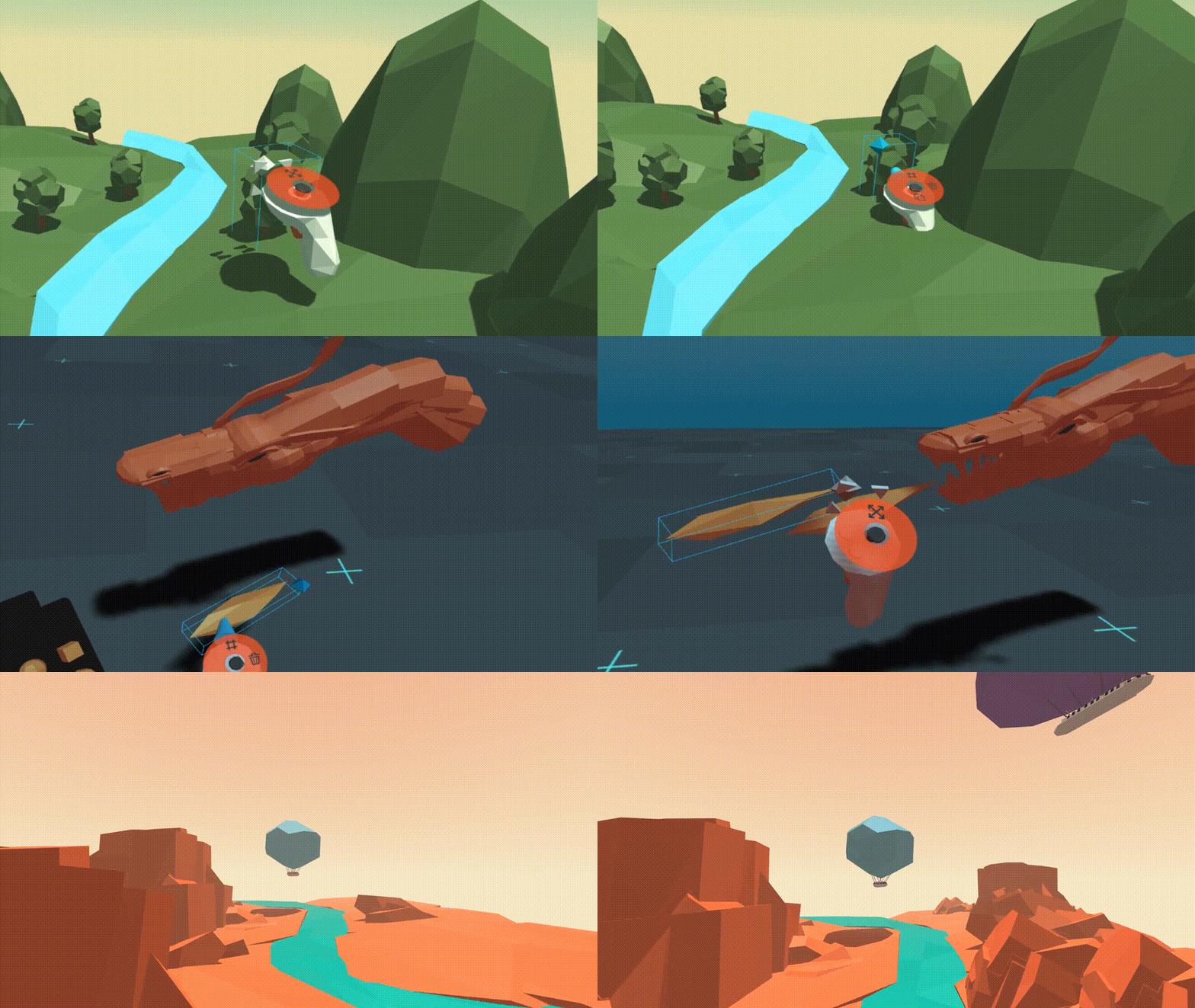
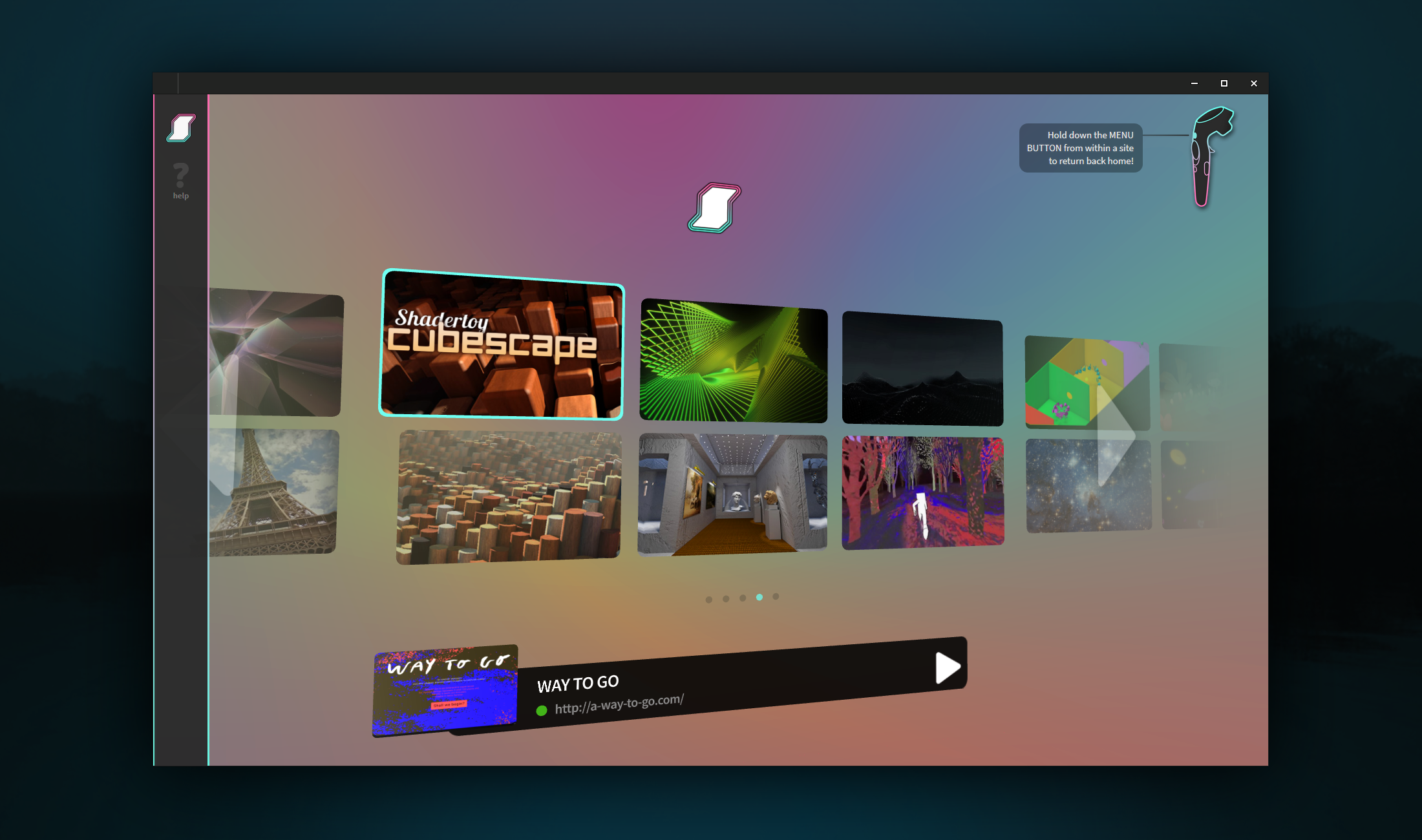
## Examples

<a href="https://supermedium.com/supercraft">
  <img alt="Supercraft" target="_blank" src="https://user-images.githubusercontent.com/674727/41085457-f5429566-69eb-11e8-92e5-3210e4c6c4a0.gif" height="190" width="32%">
</a>
<a href="https://aframe.io/a-painter/?url=https://ucarecdn.com/962b242b-87a9-422c-b730-febdc470f203/">
  <img alt="A-Painter" target="_blank" src="https://cloud.githubusercontent.com/assets/674727/24531388/acfc3dda-156d-11e7-8563-5bd75252f70f.gif" height="190" width="32%">
</a>
<a href="https://supermedium.com">
  <img alt="Supermedium" target="_blank" src="https://user-images.githubusercontent.com/674727/37294616-7212cd20-25d3-11e8-9e7f-c0c61074f1e0.png" height="190" width="32%">
</a>
<a href="https://aframe.io/a-blast/">
  <img alt="A-Blast" target="_blank" src="https://cloud.githubusercontent.com/assets/674727/24531440/0336e66e-156e-11e7-95c2-f2e6ebc0393d.gif" height="190" width="32%">
</a>
<a href="https://aframe.io/a-saturday-night/">
  <img alt="A-Saturday-Night" target="_blank" src="https://cloud.githubusercontent.com/assets/674727/24531477/44272daa-156e-11e7-8ef9-d750ed430f3a.gif" height="190" width="32%">
</a>
<a href="https://github.com/googlecreativelab/webvr-musicalforest">
  <img alt="Musical Forest by @googlecreativelab" target="_blank" src="https://cloud.githubusercontent.com/assets/674727/25109861/b8e9ec48-2394-11e7-8f2d-ea1cd9df69c8.gif" height="190" width="32%">
</a>

*Find more examples on [the homepage](https://aframe.io), [A Week of A-Frame](https://aframe.io/blog/), and [WebVR Directory](https://webvr.directory).*

## Features

:eyeglasses: **Virtual Reality Made Simple**: A-Frame handles the 3D and WebXR
boilerplate required to get running across platforms including mobile, desktop, and all headsets (compatible with a WebXR capable browser) just by dropping in `<a-scene>`.

:heart: **Declarative HTML**: HTML is easy to read and copy-and-paste. Since
A-Frame can be used from HTML, A-Frame is accessible to everyone: web
developers, VR and AR enthusiasts, educators, artists, makers, kids.

:electric_plug: **Entity-Component Architecture**: A-Frame is a powerful
framework on top of three.js, providing a declarative, composable, reusable
entity-component structure for three.js. While A-Frame can be used from HTML,
developers have unlimited access to JavaScript, DOM APIs, three.js, WebXR, and
WebGL.

:zap: **Performance**: A-Frame is a thin framework on top of three.js.
Although A-Frame uses the DOM, A-Frame does not touch the browser layout
engine. Performance is a top priority, being battle-tested on highly
interactive WebXR experiences.

:globe_with_meridians: **Cross-Platform**: Build VR and AR applications for any headset compatible with a WebXR capable browser. Don't have a headset or controllers? No
problem! A-Frame still works on standard desktop and smartphones.

:mag: **Visual Inspector**: A-Frame provides a built-in visual 3D inspector
with a workflow similar to a browser's developer tools and interface similar to
Unity. Open up any A-Frame scene and hit `<ctrl> + <alt> + i`.

:runner: **Features**: Hit the ground running with A-Frame's built-in
components such as geometries, materials, lights, animations, models,
raycasters, shadows, positional audio, tracked controllers. Get even further
with community components such as particle systems, physics, multiuser, oceans,
mountains, speech recognition, or teleportation!

## Usage

### Example

Build VR and AR scenes in the browser with just a few lines of HTML! To start playing
and publishing now, remix the starter example on:

[](https://glitch.com/~aframe)
```html
<html>
  <head>
    <script src="https://aframe.io/releases/1.8.0/aframe.min.js"></script>
  </head>
  <body>
    <a-scene>
      <a-box position="-1 0.5 -3" rotation="0 45 0" color="#4CC3D9"></a-box>
      <a-sphere position="0 1.25 -5" radius="1.25" color="#EF2D5E"></a-sphere>
      <a-cylinder position="1 0.75 -3" radius="0.5" height="1.5" color="#FFC65D"></a-cylinder>
      <a-plane position="0 0 -4" rotation="-90 0 0" width="4" height="4" color="#7BC8A4"></a-plane>
      <a-sky color="#ECECEC"></a-sky>
    </a-scene>
  </body>
</html>
```

With A-Frame's [entity-component
architecture](https://aframe.io/docs/1.8.0/introduction/entity-component-system.html), we can drop in community
components from the ecosystem (e.g., ocean, physics) and plug them into our
objects straight from HTML:

[See example](https://aframe.io/aframe/examples/docs/community-components/)

```html
<html>
  <head>
    <script src="https://aframe.io/releases/1.8.0/aframe.min.js"></script>
    <script src="https://cdn.jsdelivr.net/gh/c-frame/aframe-particle-system-component@1.2.x/dist/aframe-particle-system-component.min.js"></script>
    <script src="https://cdn.jsdelivr.net/gh/c-frame/aframe-extras@7.7.x/dist/aframe-extras.min.js"></script>
    <script src="https://cdn.jsdelivr.net/npm/@fern-solutions/aframe-sky-background/dist/sky-background.umd.min.js"></script>
  </head>
  <body>
    <a-scene>
      <a-entity id="rain" particle-system="preset: rain; color: #24CAFF; particleCount: 5000"></a-entity>

      <a-entity id="sphere" geometry="primitive: sphere"
                material="color: #EFEFEF; shader: flat"
                position="0 0.15 -5"
                light="type: point; intensity: 15.7"
                animation="property: position; easing: easeInOutQuad; dir: alternate; dur: 1000; to: 0 -0.10 -5; loop: true"></a-entity>

      <a-entity id="ocean" ocean="density: 20; width: 50; depth: 50; speed: 4"
                material="color: #9CE3F9; opacity: 0.75; metalness: 0; roughness: 1"
                rotation="-90 0 0"></a-entity>

      <a-sky-background top-color="#EBEBF5" bottom-color="#B9B9D2"></a-sky-background>

      <a-entity id="light" light="type: ambient; color: #888"></a-entity>
    </a-scene>
  </body>
</html>
```

### Builds

To use the latest stable build of A-Frame, include [`aframe.min.js`](https://aframe.io/releases/1.8.0/aframe.min.js):

```js
<head>
  <script src="https://aframe.io/releases/1.8.0/aframe.min.js"></script>
</head>
```

To check out the stable and master builds, see the [`dist/` folder](dist/).

### npm

```sh
npm install --save aframe
# Or yarn add aframe
```

```js
import AFRAME from 'aframe';  // e.g., with Webpack or Vite.
```

## Local Development

```sh
git clone https://github.com/aframevr/aframe.git  # Clone the repository.
cd aframe && npm install  # Install dependencies.
npm start  # Start the local development server.
```

And open in your browser [http://localhost:8080](http://localhost:8080).

If you want to test the examples in VR, you need to run it with https:

```sh
npm run start:https
```

Look at the "On Your Network (IPv4)" line in the console, and copy and paste
the url to https://hmd.link service.
Then open the browser in your headset and type hmd.link in the address bar
then click on the copied url that will show up if you're connected to the same
network as your machine.
You will see a message about the page being dangerous because we're using a
self-signed certificate, you can ignore that warning and continue to the page.

### Generating Builds

```sh
npm run dist
```

## Questions

For questions and support, [ask on StackOverflow](https://stackoverflow.com/questions/ask/?tags=aframe).

## Stay in Touch

- Hang out with the [community](https://aframe.io/community/)
- [Follow @aframevr on X](https://x.com/aframevr).

And get in touch with the maintainers!

- [Diego Marcos](https://x.com/dmarcos)
- [Don McCurdy](https://x.com/donrmccurdy)
- [Kevin Ngo](https://x.com/andgokevin)

## Contributing

Get involved! Check out the [Contributing Guide](CONTRIBUTING.md) for how to get started.

You can also support development by [buying a gorgeous A-Frame t-shirt with exclusive designs](https://cottonbureau.com/products/a-frame-og#/9479538/tee-men-standard-tee-vintage-black-tri-blend-s)

## License

This program is free software and is distributed under an [MIT License](LICENSE).

---

### Introduction Index (`docs/introduction/index.md`)

---
title: Introduction
section_title: Introduction
type: introduction
layout: docs
order: 1
parent_section: docs
section_order: 1
installation: true
examples:
  - title: Hello, World!
    src: https://glitch.com/edit/#!/aframe?path=index.html
---

[three.js]: https://threejs.org

## Getting Started

[glitch]: http://glitch.com/~aframe

A-Frame can be developed from a plain HTML file without having to install
anything. A great way to try out A-Frame is to **[remix the starter example on
Glitch][glitch]**, an online code editor that instantly hosts and deploys for
free. Alternatively, create an `.html` file and include A-Frame in the
`<head>`:

```html
<html>
  <head>
    <script src="https://aframe.io/releases/1.8.0/aframe.min.js"></script>
  </head>
  <body>
    <a-scene>
      <a-box position="-1 0.5 -3" rotation="0 45 0" color="#4CC3D9"></a-box>
      <a-sphere position="0 1.25 -5" radius="1.25" color="#EF2D5E"></a-sphere>
      <a-cylinder position="1 0.75 -3" radius="0.5" height="1.5" color="#FFC65D"></a-cylinder>
      <a-plane position="0 0 -4" rotation="-90 0 0" width="4" height="4" color="#7BC8A4"></a-plane>
      <a-sky color="#ECECEC"></a-sky>
    </a-scene>
  </body>
</html>
```

[Installation]: ./installation.md
[school]: https://aframe.io/school/

The [Installation] page provides more options for getting started with A-Frame.
To get started learning A-Frame, check out [A-Frame School][school] for visual
step-by-step lessons to complement the documentation.

## What is A-Frame?

[github]: https://github.com/aframevr/
[community]: https://aframe.io/community/


:a:-Frame is a web framework for building virtual reality (VR) experiences.
A-Frame is based on top of HTML, making it simple to get started. But A-Frame
is not just a 3D scene graph or a markup language; the core is a powerful
entity-component framework that provides a declarative, extensible, and
composable structure to [three.js].

Originally conceived within Mozilla and now maintained by the co-creators of
A-Frame within [Supermedium](https://supermedium.com), A-Frame was developed to
be an easy yet powerful way to develop VR content. As an [independent open
source project][github], A-Frame has grown to be one of the [largest VR
communities][community].

A-Frame supports most VR and AR devices such as Meta Quest, Apple Vision Pro, PICO lineup, Lynx-R1 or Valve Index 
Although A-Frame supports the whole spectrum, A-Frame aims to define
fully immersive interactive VR experiences that go beyond basic 360&deg;
content, making full use of positional tracking and controllers.

<div class="docs-introduction-examples">
  <a href="https://supermedium.com/supercraft">
    <img alt="Supercraft" target="_blank" src="https://user-images.githubusercontent.com/674727/41085457-f5429566-69eb-11e8-92e5-3210e4c6c4a0.gif" height="190" width="32%">
  </a>
  <a href="https://aframe.io/a-painter/?url=https://ucarecdn.com/962b242b-87a9-422c-b730-febdc470f203/">
    <img alt="A-Painter" target="_blank" src="https://cloud.githubusercontent.com/assets/674727/24531388/acfc3dda-156d-11e7-8563-5bd75252f70f.gif" height="190" width="32%">
  </a>
  <a href="https://supermedium.com">
    <img alt="Supermedium" target="_blank" src="https://user-images.githubusercontent.com/674727/37294616-7212cd20-25d3-11e8-9e7f-c0c61074f1e0.png" height="190" width="32%">
  </a>
  <a href="https://aframe.io/a-blast/">
    <img alt="A-Blast" target="_blank" src="https://cloud.githubusercontent.com/assets/674727/24531440/0336e66e-156e-11e7-95c2-f2e6ebc0393d.gif" height="190" width="32%">
  </a>
  <a href="https://aframe.io/a-saturday-night/">
    <img alt="A-Saturday-Night" target="_blank" src="https://cloud.githubusercontent.com/assets/674727/24531477/44272daa-156e-11e7-8ef9-d750ed430f3a.gif" height="190" width="32%">
  </a>
  <a href="https://github.com/googlecreativelab/webvr-musicalforest">
    <img alt="Musical Forest by @googlecreativelab" target="_blank" src="https://cloud.githubusercontent.com/assets/674727/25109861/b8e9ec48-2394-11e7-8f2d-ea1cd9df69c8.gif" height="190" width="32%">
  </a>
</div>

## Features

:eyeglasses: **VR Made Simple**: Just drop in a `<script>` tag and `<a-scene>`.
A-Frame will handle 3D boilerplate, VR setup, and default controls. Nothing to
install, no build steps.

:heart: **Declarative HTML**: HTML is easy to read, understand, and
copy-and-paste. Being based on top of HTML, A-Frame is accessible to everyone:
web developers, VR enthusiasts, artists, designers, educators, makers, kids.

:electric_plug: **Entity-Component Architecture**: A-Frame is a powerful
[three.js] framework, providing a declarative, composable, reusable
[entity-component structure][ecs]. HTML is just the tip of the iceberg;
developers have unlimited access to JavaScript, DOM APIs, three.js, WebVR, and
WebGL.

:globe_with_meridians: **Cross-Platform VR**: Build VR applications for Vive,
Rift, Meta Quest, Windows Mixed Reality, and Apple Vision Pro with support for
all respective controllers. Don't have a headset or controllers? No problem!
A-Frame still works on standard desktop and smartphones.

[ecs]: ./entity-component-system.md

[A-Painter]: https://github.com/aframevr/a-painter
[Tilt Brush]: https://www.tiltbrush.com/

:zap: **Performance**: A-Frame is optimized from the ground up for WebVR. While
A-Frame uses the DOM, its elements don't touch the browser layout engine. 3D
object updates are all done in memory with little garbage and overhead. The most
interactive and large scale WebVR applications have been done in A-Frame
running smoothly at 90fps.

[inspector]: ./visual-inspector-and-dev-tools.md

:mag: **Visual Inspector**: A-Frame provides a handy built-in [visual 3D
inspector][inspector]. Open up *any* A-Frame scene, hit `<ctrl> + <alt> + i` or `<ctrl> + <option> + i`,
and fly around to peek under the hood!


[augmented reality]: https://github.com/jeromeetienne/AR.js#augmented-reality-for-the-web-in-less-than-10-lines-of-html
[environment]: https://github.com/supermedium/aframe-environment-component
[multiuser]: https://github.com/networked-aframe/networked-aframe
[oceans]: https://github.com/c-frame/aframe-extras/tree/master/src/primitives
[particle systems]: https://github.com/c-frame/aframe-particle-system-component
[physics]: https://github.com/c-frame/aframe-physics-system
[state]: https://npmjs.com/package/aframe-state-component
[super hands]: https://github.com/c-frame/aframe-super-hands-component
[teleportation]: https://github.com/jure/aframe-blink-controls

:runner: **Components**: Hit the ground running with A-Frame's core components
such as geometries, materials, lights, animations, models, raycasters, shadows,
positional audio, text, and controls for most major headsets. Get even further
from the hundreds of community components including [environment], [state], [particle
systems], [physics], [multiuser], [oceans], [teleportation], [super hands], and
[augmented reality].

:earth_americas: **Proven and Scalable**: A-Frame has been used by companies
such as Google, Disney, Samsung, Toyota, Ford, Chevrolet, Amnesty
International, CERN, NPR, Al Jazeera, The Washington Post, NASA. Companies such
as Google, Microsoft, Oculus, and Samsung have made contributions to A-Frame.

## Off You Go!

[Discord]: https://supermedium.com/discord

If it's your first time here, here's a plan for success for getting into
A-Frame:

1. Read through the documentation to get a grasp.
[Glitch](https://glitch.com/~aframe) is used as a recommended coding playground
and for examples.

2. [Join us on Discord][Discord] if you have any
questions, [search and ask on StackOverflow](http://stackoverflow.com/questions/ask/?tags=aframe),
and someone will try to get to you!

3. When you build something, share your project online on X with the
   `@aframevr` mention. You can also post it on the #self-promotion channel on
   [Supermedium Discord][Discord] and #a-frame channel on
   [WebXR Discord](https://discord.gg/jJxvuW97c4).

And it really helps to have a dig into the fundamentals on JavaScript and
[three.js](https://threejs.org/). Have fun!

---

### Components Anchored (`docs/components/anchored.md`)

---
title: anchored
type: components
layout: docs
parent_section: components
source_code: src/components/anchored.js
examples: []
---

[webxranchors]: https://immersive-web.github.io/anchors/

It requires a browser supporting the [WebXR Anchors module][webxranchors].

Fix any entity to a position and rotation in the real world. Apply the anchored component to an entity and call the method `el.components.anchored.createAnchor(position, quaternion)` to anchor it to a position and rotation corresponding to real world coordinates. If `creatorAnchor` is not called the entity is anchored to its initial position and rotation. The anchoring only applies when in immersive mode.


## Example

```html
<a-entity id="myBox" anchored="persistent: true" geometry="primitive: box" material="color: red"></a-entity>
```

## Properties

| Properties        | Description                                                             |
|-------------------|-------------------------------------------------------------------------|
| persistent        | If the anchor persists on page reloads. The entity must have an id.     |

---

### Components Animation (`docs/components/animation.md`)

---
title: animation
type: components
layout: docs
parent_section: components
source_code: src/components/animation.js
examples:
 - title: Animating on Events
   src: https://glitch.com/edit/#!/aframe-animation-events?path=index.html:1:0
 - title: Generated Animations
   src: https://glitch.com/~aframe-shooting-stars
---

[animationtimeline]: https://www.npmjs.com/package/aframe-animation-timeline-component

The animation component lets us animate and tween values including:

- Component values (e.g., `position`, `visible`)
- Component property values (e.g., `light.intensity`)

We can also tween values directly for better performance versus going through
`.setAttribute`, such as by animating values:

- On the `object3D` (e.g., `object3D.position.y`, `object3D.rotation.z`)
- Directly within a component (e.g., `components.material.material.color`, `components.text.material.uniforms.opacity.value`),

For example, translating a box:

```html
<a-box position="-1 1.6 -5" animation="property: position; to: 1 8 -10; dur: 2000; easing: linear; loop: true" color="tomato"></a-box>
```

Or orbiting a sphere in a 5-meter radius:

```html
<a-entity rotation="0 0 0" animation="property: rotation; to: 0 360 0; loop: true; dur: 10000">
        <a-sphere position="5 0 0" color="mediumseagreen"></a-sphere>
</a-entity>
```

Read more below for additional options and discovering how to properly animate
different types of values.


## API

### Properties

| Property      | Description                                                                                                                                                                                                                                                                                                                                       | Default Value | Values                  |
| --------      | -----------                                                                                                                                                                                                                                                                                                                                       | ------------- | ------                  |
| property      | Property to animate. Can be a component name, a dot-delimited property of a component (e.g., `material.color`), or a plain attribute.                                                                                                                                                                                                             |               |                         |
| isRawProperty | Flag to animate an arbitrary object property outside of A-Frame components for better performance. If set to true, for example, we can set `property` to like `components.material.material.opacity`. If `property` starts with `components` or `object3D`, this will be inferred to `true`.                                                      | false         |                         |
| from          | Initial value at start of animation. If not specified, the current property value of the entity will be used (will be sampled on each animation start). It is best to specify a `from` value when possible for stability.                                                                                                                         | null          |                         |
| to            | Target value at end of animation.                                                                                                                                                                                                                                                                                                                 | null          |                         |
| type          | Right now only supports `color` for tweening `isRawProperty` color XYZ/RGB vector  values.                                                                                                                                                                                                                                                        | ''            |                         |
| delay         | How long (milliseconds) to wait before starting.                                                                                                                                                                                                                                                                                                  | 0             |                         |
| dir           | Which dir to go from `from` to `to`.                                                                                                                                                                                                                                                                                                              | normal        | alternate, reverse      |
| dur           | How long (milliseconds) each cycle of the animation is.                                                                                                                                                                                                                                                                                           | 1000          |                         |
| easing        | Easing function of animation. To ease in, ease out, ease in and out.                                                                                                                                                                                                                                                                              | easeInQuad    | See [easings](#easings) |
| elasticity    | How much to bounce (higher is stronger).                                                                                                                                                                                                                                                                                                          | 400           |                         |
| loop          | How many times the animation should repeat. If the value is `true`, the animation will repeat infinitely.                                                                                                                                                                                                                                         | 0             |                         |
| round         | Whether to round values.                                                                                                                                                                                                                                                                                                                          | false         |                         |
| startEvents   | Comma-separated list of events to listen to trigger a restart and play. Animation will not autoplay if specified. `startEvents` will **restart** the animation, use `pauseEvents` to resume it. If there are other animation components on the entity animating the same property, those animations will be automatically paused to not conflict. | null          |                         |
| pauseEvents   | Comma-separated list of events to listen to trigger pause. Can be resumed with `resumeEvents`.                                                                                                                                                                                                                                                    | null          |                         |
| resumeEvents  | Comma-separated list of events to listen to trigger resume after pausing.                                                                                                                                                                                                                                                                         | null          |                         |
| autoplay      | Whether or not the animation should `autoplay`. Should be specified if the animation is defined for the [`animation-timeline` component][animationtimeline].                                                                                                                                                                                      | true      |                         |
| enabled       | If disabled, animation will stop and startEvents will not trigger animation start.                                                                                                                                                                                                                                                                                                                        | true          ||

### Multiple Animations

The component's base name is `animation`. We can attach multiple animations to
one entity by name-spacing the component with double underscores (`__`):

```html
<a-entity animation="property: rotation"
          animation__2="property: position"
          animation__color="property: material.color"></a-entity>
```

### Easings

Easings define the accelerations and speed throughout the cycle of the
animation.

| easeIn        | easeOut        | easeInOut        | Others |
|---------------|----------------|------------------|--------|
| easeInQuad    | easeOutQuad    | easeInOutQuad    | linear |
| easeInCubic   | easeOutCubic   | easeInOutCubic   |        |
| easeInQuart   | easeOutQuart   | easeInOutQuart   |        |
| easeInQuint   | easeOutQuint   | easeInOutQuint   |        |
| easeInSine    | easeOutSine    | easeInOutSine    |        |
| easeInExpo    | easeOutExpo    | easeInOutExpo    |        |
| easeInCirc    | easeOutCirc    | easeInOutCirc    |        |
| easeInBack    | easeOutBack    | easeInOutBack    |        |
| easeInElastic | easeOutElastic | easeInOutElastic |        |

### Events

| Property                | Description                                                            |
| --------                | -----------                                                            |
| animationbegin          | Animation began. Event detail contains `name` of animation.            |
| animationcomplete       | Animation completed. Event detail contains `name` of animation.        |
| animationcomplete__<id> | Animation completed if animation has an ID (e.g., `animation__click`). |

### Members

Accessed as `el.components.animation.<MEMBER>`.

| Member    | Description                |
|-----------|----------------------------|
| animation | anime.js object.           |
| config    | Config passed to anime.js. |

### Controlling Animations using setAttribute

Like any A-Frame component, the animation component can be configured from JavaScript by calling [setAttribute()](../introduction/javascript-events-dom-apis.md#updating-a-component-with-setattribute) on an element.

By default, the animation will begin playing immediately (autoplay is true by default).

However, care should be taken when using the interface in this way.  If a finite (i.e. non-looping) animation is requested twice in a row, with identical parameters, the second animation will not play, and neither will it generate an animationcomplete event.

This is because A-Frame sees the second request as a duplicate request for configuration already applied to the element, and so the second request never reaches the animation component.

A better approach is to control the start of an animation using events (see next section)

- On initialization, configure all the animations that may be required on the object, with a custom event configured to start the animation.
- When you want to start a specific animation, do so by using emit() rather than setAttribute().

This gives more robust control of the animation (avoiding problems where you request the same animation twice in a row), and also reduces the overheads involved in setting up animation config, since it only needs to be done once.

## Animating on Events

We can use the `startEvents` property to animate upon events:

```html
<a-entity id="mouseCursor" cursor="rayOrigin: mouse"></a-entity>

<a-entity
  geometry="primitive: box"
  material="color: red"
  animation__mouseenter="property: components.material.material.color; type: color; to: blue; startEvents: mouseenter; dur: 500";
  animation__mouseleave="property: components.material.material.color; type: color; to: red; startEvents: mouseleave; dur: 500";
  animation__customevent="property: components.material.material.color; type: color; from: red; to: blue; startEvents: triggeranimation; dur: 500";>
</a-entity>
```

[eventsglitch]: https://glitch.com/edit/#!/aframe-animation-events?path=index.html:1:0

[Remix the Animating on Events Glitch][eventsglitch].

To start an animation by explicitly [emitting a custom event](../introduction/javascript-events-dom-apis.md#emitting-an-event-with-emit), you can do the following:

```
el.emit(`triggeranimation`, null, false);
```

The [third parameter of emit](../core/entity.md#emit-name-detail-bubbles) set to "false" parameter ensures the event won't bubble up to parents, so that you can target the animation at just one particular element.

This assumes that an animation has already been configured to respond to that custom start event, for example like this:

```
el.setAttribute('animation__001', {'property': 'position',
                                 'to': {x: 1, y: 1, z: 1},                                 
                                 'startEvents': 'startanim001'});
```

(configuring startEvents on the animation automatically disables autoplay).

## Animating Different Types of Values

We'll go over different cases of animating different types of values.

### Component Values

We can animate a single-property component value (e.g., `property: visible`,
we'll go over booleans in a bit) or animate a property of a multi-property
component using a dot `.` as a separator (e.g., `property: light.intensity`,
`property: material.color`).

If the property is a `vec3`, that is also supported (e.g., `property:
someComponent.vec3Value; to: 5 5 5`).

However, animating component values this way is not the most optimal way as it
will invoke `.setAttribute` on each frame of the animation. For an animation
here or there, it won't be a big deal, but we can save time and memory by
animating values directly.

A special note to try not to animate values of the `geometry` component as that
will recreate the geometry on each tick. Rather animate `scale` if we want to
animate the size.

### Boolean Values

We can "animate" boolean values where the `to` value will be applied at the end
of the animation. Like `property: visible; from: false; to: true; dur: 1`.

### Direct Values through `object3D` and `components`

The animation component supports animating values directly through `object3D`
or `components`.

For example, we can animate values on `object3D` like `property:
object3D.position.z; to: 5` which will tween the entity's `object3D.position.z`
value directly without calling `.setAttribute`; it's the most direct way and
lets us animate a single axis at a time. Note, for `object3D.rotation`, degrees
are used.

Or we can animate values by reaching into `components`. For example, rather than
animating `property: material.opacity` which would call `.setAttribute` on each
frame, we can animate the opacity value directly with `property:
components.material.material.opacity`. We use a dot-delimited path to walk the
object tree to find the value we want to animate, and the animation process
under the hood reduces down to changing a number.

#### Direct Color Values

We can animate three.js color values directly, but we'll need to specify `type:
color`. So rather than animating `property: material.color`, we can do
`property: components.material.material.color; type: color`.

A note on color values, we can specify color values using hex, color names,
hsl, or rgb (e.g., `from: red; to: #FFCCAA` or `from: rgb(100, 100, 100); to:
hsl(213, 100%, 70%)`)..

## Using anime.js Directly

anime is a popular and powerful animation engine. The component prefers to do
just basic tweening and touches the surface of what anime can do (e.g.,
timelines, motion paths, progress, seeking). If we need more animation
features, create a separate component that invokes anime.js directly. anime is
accessible via **`AFRAME.ANIME`**.

Read through and explore the [anime.js
documentation](https://github.com/juliangarnier/anime) and
[website](https://animejs.com).

## See Also

- [animation-timeline component][animationtimeline]

---

### Components Ar Hit Test (`docs/components/ar-hit-test.md`)

---
title: ar-hit-test
type: components
layout: docs
parent_section: components
source_code: src/components/scene/ar-hit-test.js
examples: []
---

[hit-test]: https://immersive-web.github.io/hit-test/

This component uses the WebXR hit-test API to position virtual objects in the real world. Remember to request the `hit-test` optional feature to allow it work.

You add it to the scene element and then when the user is in Augmented Reality if they tap on the screen or select with a controller it will work out where the user is pointing to in the real world and place a reticle there and fire events.

If you have set a target property to be an element it will automatically make the reticle to be the same size as the footprint of the target and then when the user selects the object will be telepoted there. It will also set the visible state of the object to true so you can hide the object until the user has placed it for the first time. The `hide-on-enter-ar` component is useful for that.

You can toggle this component's enabled state to not do any interactions until you are ready.

## Example

```html
<a-scene webxr="optionalFeatures:  hit-test;" ar-hit-test="target:#myobject;">
	<a-entity id="myobject"></a-entity>
```

## Properties

| Property       | Description                                                  | Default Value |
|----------------|--------------------------------------------------------------|---------------|
| target         | The object to move around.                                   | null          |
| enabled        | Whether to do hit-testing or not                             | true          |
| src            | Image to use for the reticle                                 | See: Assets   |
| type           | 'footprint' or 'map' footprint is the shape of the model     | "footprint"   |
| footprintDepth | Amount of the model used for the footprint, 1 is full height | 0.1           |
| mapSize        | If no target is set then this is the size of the map         | 0.5 0.5       |

## Events

| Event Name           | Description                                                  |
|----------------------|--------------------------------------------------------------|
| ar-hit-test-start    | The AR Hit Test system has managed start scanning            |
| ar-hit-test-achieved | The AR Hit Test system has managed to find a surface to start hit testing on |
| ar-hit-test-select   | The user has stopped positioning the detail contains the latest position, orientation and inputSource that was used |

## Assets

- [Default Reticle Map](data:image/webp;base64,UklGRkQHAABXRUJQVlA4WAoAAAAQAAAA/wEA/wEAQUxQSL0DAAARDzD/ERGCjrY9sYYFfgo6aa1kJ7K0w9Lo3AadLSVeFxevQwj5kuM8RfR/Atw/C0+ozB/oUBrloFZs6ElSW88j1KA4yExNWQaqRZquIDF0JYmlq0hAuUDTFu66tng3teW7pa3cQf1V1edvur54M/Slm6Wv3Gx9zw0MXlQLntcsBN6wkHjTQuYtC4W3LTw8mGRVG57TbAROtxHfZNhInGkjc5aNwtk2Hg6Mvki14k+NkZzCwQgCxalcAv3kddRTPI1DcUrXId1FLf1uHpzaQz4tquhZVLlKesbVpqKeTj0n0F5PpXDlFN9UqmhalL/ImuZFo6KmToWLoKlddMprqlS8cKovBvHo2kTiFV2LN4msaxKZl3QNiair8xYRdDWivIvXVXmbcMqJ51UebZuFXxZt6xd4laxtciqRtA3Cv0nU1t+kEUFbI8JvCa+tvkm3FDlO/W+OR99+kWEp/YYo+tYfTVnf/K8cE/F///3vv//993eeL+a+uvjawLcX3xjYvJotBFY3kVjTRGFtE+BU2AiMbiQyhpHMWEYeBozAH5qNBYRDB5KBCaTDBKKBAZTDBoKBDjwHAN5ABeCJBsAZcAAC0YHHxAYSMYBiYgGZWEA2MYFCbCCZGAAIANFEB+AnYgMQTDQAYSJ2AN5EBZAm4gDgTDgAeSIu4DGygTIRN1CMLOCZiACykQlg4jsAycgA8AO+BxCNdJyDkcbwRirDGXGnx8w+FDPrkM3MQ9JQZMYhiiwV/RDMtIM3U1/DmXHUo+IR2kSR2ToWkQ1NIn2qf2J8LCqJKiDUiSADHY3whirhdHgZ94HKaR97PhE+twEUJUFoAcgyTct8hfSxSkShASDKdMJ/ritKHwgyQ0sD4D/miCxU5SbhOOUDTnZpccCjYP/i0bZ/8bAgtVGEoGapWIQXyzKVKLwgNJFk2rtMIgoNRJlOZF7SNSSyUEeQmbxBFKEmtYjEe8S8zOZ1AkJVCmS88FJOtF40Ksg4oUaFiygk3C8qlTVNyl8UTevCUdAE2t14PfVqU1FPp57TopKeQZWromddTQp6QOfTOEQt/ZDuipZ11w/wOiqO8dRORcc6BQEkDQMClaHcn5wV9yLbxsNZNgpn2sicYSNxuo34Js1G4FQbnuNsOPa28PCWhcKbFjJvWEi8ZiHwqgXPcxbc5db33Cx95WboSzddX7yp+vyN0+eul7ZyN7Xlu64t3jVt4c5pc4JLV5EYupJE0xUknC4nOjVlmaYpyLit53HCQ0+ScnqceNcS5dzUkd0/CwMAVlA4IGADAAAQXwCdASoAAgACP8ne6Wy/tjCpqJ/IA/A5CWlu4XYBG/Pz8AfwD8APz//f3v8E1fuHZnxKYACtfuHZnxKYACrYTb5mOslhxu843ecbvON3nG7zjd3a0VCn7G1MABVxwH/Xd25gAK1+4dmfEpe2+PHhQaj75++riG6FuYACtfuHZnxKYACRrK3q9xO8Ss3uWKnMhs/rDF1hi6wxdYYusMXWGI5QRcCFDZog5OgqNlse1NDuz/UoFa/cOzPiUwAEsAOK4/nu5eZHK2tlXxJfNYlMABWv3Dsz4bvNJ5YA/LtxJ38SmAArX7h2Z8Sk5vdZUYv7mZPiUwAFa/cOzPh21s5OgZxf1mfEpemRyFr/rM+JS9noA/LtxJ38SmAAlUJIotzAASn6TjdhK+D3Dsz4dyvB7h2Z8O2tnJ0DOL+sz4lL2nKLT4lL/+iSLOocxq639w7M34MNZdm55uJ8v8ra2cpVZnxKTq2F3PN/cNksAfl24k7+JTAASqrD37h2Z7b1W+VtbOUqsz4lJ1bC7nm/uGyWAPy7cSd/EpgAJVVh79w7M9t6rfK2tnKVWZ8Sk6thdzzf3DZLAH5duJO/iUwAEqqw9+4dme29VvlbWzlKrM+JSdWwu55v7hslgD8u3EnfxKYACVVYe/cOzPbeq3ytrZylVme0kYJ8557FLerqFrzIbPrrf3DZLAH5duJO/iUvaVMS9BoaF4p7pSDFTP1XMyfElelrM0DOL+sz4eBJ13nV1OppBGPuKb4YzXQgq9uH19uS/0+JS9t9fr6ZUlQBelDG6GMgq97otb5QMPJwtKyBTbFp8Sl7b6/X0ykkawEOsgdiE6Fi0vb/Eve6xkwsmug0Z4nGNHQO8839bpTsjpz7SWIJxKagvd1QWMa6FYT1KEw3j4XDT6vJ9Xk+nyfT5Pq8n1eEmk5dinMM/9Fcfz4Z3Dsz3KD2dw7LxBRxKrqUUGQPH/7zxr1KIfNpLEJ0MZB2ITM/0Z2EFoh12NlXnEcpYcbvON3nG7zjd5xu84vfcNIAAP7+y8ceyzbVxkakPYY4lcr72fqOnDwipv+yxC71wAADBrjKnAAAAAAAAAAAAAAw7oNGHttqWONcoFN/2WIDc2pa6WVFtFYROlsaMaTXdcOjXHz93+YxAglKa4AAAAA=)

---

### Components Background (`docs/components/background.md`)

---
title: background
type: components
layout: docs
parent_section: components
source_code: src/components/scene/background.js
examples: []
---

The background component sets a basic color background of a scene that is more
performant than `a-sky` since geometry is not created. There are no undesired
frustum culling issues when `a-sky` is further than the far plane of the
camera. There are no unexpected occlusions either with far objects that might
be behind of the sphere geometry of `a-sky`.

## Example

The example below sets the background color to red and use lighting estimation for AR.

```html
<a-scene background="color: red"></a-scene>
```

## Properties

| Property                   | Description                                               | Default Value   |
|----------------------------|-----------------------------------------------------------|-----------------|
| color                      | Color of the scene background.                            | black           |
| transparent                | Background is transparent. The color property is ignored. | false           |

---

### Components Camera (`docs/components/camera.md`)

---
title: camera
type: components
layout: docs
parent_section: components
source_code: src/components/camera.js
examples: []
---

The camera component defines from which perspective the user views the scene.
The camera is commonly paired with controls components that allow input devices
to move and rotate the camera.

## Examples

A camera should usually be positioned at the average height of human eye level
(1.6 meters). When used with controls that receive rotation or position (e.g.
from a VR device) this position will be overridden.

```html
<a-entity camera look-controls position="0 1.6 0"></a-entity>
```

When moving or rotating the camera relative to the scene, use a camera rig.
By doing so, the camera's height offset can be updated by roomscale devices,
while still allowing the tracked area to be moved independently around the
scene.

```html
<a-entity id="rig" position="25 10 0">
  <a-entity id="camera" camera look-controls></a-entity>
</a-entity>
```

## Properties

| Property   | Description                                                                                                                                                                                                                                                                         | Default Value |
|------------|-------------------------------------------------------------------------------------------------------------------------------------------------------------------------------------------------------------------------------------------------------------------------------------|---------------|
| active     | Whether the camera is the active camera in a scene with more than one camera.                                                                                                                                                                                                       | true          |
| far        | Camera frustum far clipping plane.                                                                                                                                                                                                                                                  | 10000         |
| fov        | Field of view (in degrees).                                                                                                                                                                                                                                                         | 80            |
| near       | Camera frustum near clipping plane.                                                                                                                                                                                                                                                 | 0.005         |
| spectator  | Whether the camera is used to render a third-person view of the scene on the 2D display while in VR mode.                                                                                                                                                                                       | false         |
| zoom       | Zoom factor of the camera.                                                                                                                                                                                                                                                          | 1             |

## Default Camera

If a camera is not specified, A-Frame will inject a default camera:

```html
<a-entity camera="active: true" look-controls wasd-controls position="0 1.6 0" data-aframe-default-camera></a-entity>
```

If a camera is specified (e.g., our own `<a-camera>` or `<a-entity camera>`),
then the default camera will not be added.

## VR Behavior

When exiting VR, the camera will restore its rotation to its rotation *before*
it entered VR. This is so when we exit VR, the rotation of the camera is back
to normal for a desktop screen.

Far, near, fov, zoom properties only apply in 2D and magic window modes. 
In VR mode the camera parameters are supplied by the WebVR / WebXR API to match IPD and headset FOV. Those aren't configurable. 

## Changing the Active Camera

When the `active` property gets toggled, the component will notify the camera system
to change the current camera used by the renderer:

```js
var secondCameraEl = document.querySelector('#second-camera');
secondCameraEl.setAttribute('camera', 'active', true);
```

## Fixing Entities to the Camera

To fix entities onto the camera such that they stay within view no matter where
the user looks, you can attach those entities as a child of the camera. Use
cases might be a heads-up display (HUD).

```html
<a-entity camera look-controls>
  <a-entity geometry="primitive: plane; height: 0.2; width: 0.2" position="0 0 -1"
            material="color: gray; opacity: 0.5"></a-entity>
</a-entity>
```

Note that you should use HUDs sparingly as they cause irritation and eye strain
in VR. Consider integrating menus into the fabric of the world itself. If you
do create a HUD, make sure that the HUD is more in the center of the field of
view such that the user does not have to strain their eyes to read it.

## Reading Position or Rotation of the Camera

To actively read the position or rotation of the camera, use a `tick` handler
of a component that reads the position or rotation, and does something with it.
Then attach the component to the camera.

```js
AFRAME.registerComponent('rotation-reader', {
  tick: function () {
    // `this.el` is the element.
    // `object3D` is the three.js object.

    // `rotation` is a three.js Euler using radians. `quaternion` also available.
    console.log(this.el.object3D.rotation);

    // `position` is a three.js Vector3.
    console.log(this.el.object3D.position);
  }
});

// <a-entity camera look-controls rotation-reader>
```

### Reading World Position or Rotation of the Camera

three.js has methods to attain position or rotation (or scale) in world space
versus object local space.

```js
AFRAME.registerComponent('rotation-reader', {
  /**
   * We use IIFE (immediately-invoked function expression) to only allocate one
   * vector or euler and not re-create on every tick to save memory.
   */
  tick: (function () {
    var position = new THREE.Vector3();
    var quaternion = new THREE.Quaternion();

    return function () {
      this.el.object3D.getWorldPosition(position);
      this.el.object3D.getWorldQuaternion(quaternion);
      // position and rotation now contain vector and quaternion in world space.
    };
  })()
});
```

---

### Components Cursor (`docs/components/cursor.md`)

---
title: cursor
type: components
layout: docs
parent_section: components
source_code: src/components/cursor.js
examples:
  - title: Mouse Click Example
    src: https://glitch.com/edit/#!/a-frame-mouse-click-example
---

[a-cursor]: ../primitives/a-cursor.md
[laser-controls]: ./laser-controls.md
[raycaster]: ./raycaster.md

The cursor component provides hover and click states for interaction on top of
the [raycaster component][raycaster]. The cursor component can be used for
both gaze-based and controller-based interactions, but the appearance needs
to be configured depending on the use case. The [`<a-cursor>`
primitive][a-cursor] provides a default reticle appearance for a gaze-based
cursor, and the [laser-controls component][laser-controls] configures the
cursor for all controllers.

The cursor component listens to events and keeps state on what's being hovered
and pressed in order to provide `mousedown`, `mouseup`, `mouseenter`,
`mouseleave`, and `click` events. We use the name `mouse` to mimic
traditional web development for now. Under the hood, the cursor component uses
the `raycaster-intersection` and `raycaster-intersection-cleared` events,
capturing the closest visible intersected entity.

By default, the cursor is configured to be used in a gaze-based mode and will
register user input via mouse or touch. Specifying the `downEvents` and
`upEvents` properties allows the cursor to work with controllers. For example,
the [laser-controls component][laser-controls] automatically configures these
properties to work with most controllers.

[geometry]: ./geometry.md
[line]: ./line.md
[material]: ./material.md

To provide a shape or appearance to the cursor, we should apply either the
[geometry][geometry] and [material][material] components or use the raycaster
component's `showLine` property to draw a line using the [line
component][line].

## Example

[camera]: ./camera.md

For example, we can create a ring-shaped cursor fixed to the center of the
screen. To fix the cursor to the screen so the cursor is always present no
matter where we look, we place it as a child of the active [camera][camera]
entity. We pull it in front of the camera by placing it on the negative Z axis.
When the cursor clicks on the box, we can listen to the click event.

```html
<a-entity camera look-controls>
  <a-entity cursor="fuse: true; fuseTimeout: 500"
            position="0 0 -1"
            geometry="primitive: ring; radiusInner: 0.02; radiusOuter: 0.03"
            material="color: black; shader: flat">
  </a-entity>
</a-entity>

<a-entity id="box" cursor-listener geometry="primitive: box" material="color: blue"></a-entity>
```

```js
// Component to change to a sequential color on click.
AFRAME.registerComponent('cursor-listener', {
  init: function () {
    var lastIndex = -1;
    var COLORS = ['red', 'green', 'blue'];
    this.el.addEventListener('click', function (evt) {
      lastIndex = (lastIndex + 1) % COLORS.length;
      this.setAttribute('material', 'color', COLORS[lastIndex]);
      console.log('I was clicked at: ', evt.detail.intersection.point);
    });
  }
});
```

## Properties

| Property           | Description                                                                                                                                        | Default Value                    |
|--------------------|----------------------------------------------------------------------------------------------------------------------------------------------------|----------------------------------|
| downEvents         | Array of additional events on the entity to *listen* to for triggering `mousedown` (e.g., `triggerdown` for vive-controls).                        | []                               |
| fuse               | Whether cursor is fuse-based.                                                                                                                      | false on desktop, true on mobile |
| fuseTimeout        | How long to wait (in milliseconds) before triggering a fuse-based click event.                                                                     | 1500                             |
| hand               | Filter WebXR `selectstart`/`selectend` events by controller handedness (`left` or `right`). When set, the cursor only responds to WebXR events from the matching controller. Used by laser-controls to prevent one controller's trigger from affecting another controller's hovered entity. | ''                               |
| mouseCursorStylesEnabled | Whether to show pointer cursor in `rayOrigin: mouse` mode when hovering over entity.                                                               | true                             |
| rayOrigin          | Where the intersection ray is cast from (i.e. xrselect ,entity or mouse). `rayOrigin: mouse` is extremely useful for VR development on a mouse and keyboard. | entity
| upEvents           | Array of additional events on the entity to *listen* to for triggering `mouseup`.                       | []                               |

To further customize the cursor component, we configure the cursor's dependency
component, [the raycaster component][raycaster].

## Events

| Event         | Description                                                                                                                 |
|---------------|-----------------------------------------------------------------------------------------------------------------------------|
| click         | Emitted on both cursor and intersected entity if a currently intersected entity is clicked (whether by mouse or by fuse).   |
| fusing        | Emitted on both cursor and intersected entity when fuse-based cursor starts counting down.                                  |
| mousedown     | Emitted on both cursor and intersected entity (if any) on mousedown on the canvas element.                                  |
| mouseenter    | Emitted on both cursor and intersected entity (if any) when cursor intersects with an entity.                               |
| mouseleave    | Emitted on both cursor and intersected entity (if any) when cursor no longer intersects with previously intersected entity. |
| mouseup       | Emitted on both cursor and intersected entity (if any) on mouseup on the canvas element.                                    |

### Event Data

Additional detail is included in the `detail` object on the event as follows:

#### intersection

Relevant events will contain in the event detail `intersection`, which will
contain `{distance, point, face, faceIndex, indices, object}` about specific
data about the intersection:

```js
this.el.addEventListener('click', function (evt) {
  console.log(evt.detail.intersection.point);
});
```

#### intersectedEl

Events emitted on the cursor entity also include event detail `intersectedEl`, which provides a reference to the intersected entity.

#### mouseEvent and touchEvent

Where the trigger for a cursor event is a [MouseEvent](https://developer.mozilla.org/en-US/docs/Web/API/MouseEvent) or [TouchEvent](https://developer.mozilla.org/en-US/docs/Web/API/TouchEvent), event detail `mouseEvent` or `touchEvent` provides a reference to that event.

These events provide a wealth of additional detail about the event, as detailed in the APIs linked above.  Among other things, they can indicate:

- which mouse button was used
- information about the state of the mouse buttons (or multi-touch for touch events), and relevant keys shuch as Shift, Ctrl etc. at the time of the mouse or touch event.
- the screen co-ordinates where the event occurred.

This information can be used by applications to handle cursor events differently, depending on this information (e.g. different handling of left click & right click).

For example:

```
this.el.addEventListener('click', function (evt) {
  if (!evt.detail.mouseEvent || evt.detail.mouseEvent.button === 0) {
    console.log("left button clicked (or touch event / no information)");

  } else if (evt.detail.mouseEvent.button === 2) {
    console.log("right button clicked");
  }
});
```

At most one of  `mouseEvent` or `touchEvent` will be present on a cursor event, and sometimes neither will.  Neither will be present on `mousenter`, `mouseleave` and `fusing` events, nor on a `click` event that has been triggered by a fuse timeout rather than a mouse click or touch event.

## States

The cursor will add states to the cursor entity on certain events:

| State           | Description                                            |
|-----------------|--------------------------------------------------------|
| cursor-fusing   | Added when the cursor is fusing on another entity.     |
| cursor-hovering | Added when the cursor is hovering over another entity. |

The cursor will add states to intersected entities on certain events:

| State          | Description                                                          |
|----------------|----------------------------------------------------------------------|
| cursor-hovered | Added to the intersected entity when the cursor is hovering over it. |

## Configuring the Cursor through the Raycaster Component

[raycasterprops]: ./raycaster.md#properties

The cursor builds on top of and depends on the raycaster component. If we
want to customize the raycasting pieces of the cursor, we can do by changing
the [raycaster component properties][raycasterprops]. Say we want set a max
distance, check for intersections less frequently, and set which objects are
clickable:

```html
<a-entity cursor raycaster="far: 20; interval: 1000; objects: .clickable"></a-entity>
```

## Fuse-Based Cursor

Also known as gaze-based cursor. If we set the cursor to be fuse-based, the
cursor will trigger a click if the user gazes at an entity for a set amount of
time. Imagine a laser strapped to the user's head, and the laser extends out
into the scene. If the user stares at an entity long enough (i.e., the
`fuseTimeout`), then the cursor will trigger a click.

The advantage of fuse-based interactions for VR is that it does not require
extra input devices other than the headset. The disadvantage of fuse-based
interactions is that it requires the user to turn their head a lot.

## Adding Visual Feedback

[animation]: ./animation.md

To add visual feedback to the cursor to show when the cursor is clicking or
fusing, we can use the [animation component][animation].  When the cursor
intersects the entity, it will emit an event, and the animation system will
pick up event with the `begin` attribute:

```html
<a-entity
  animation__click="property: scale; startEvents: click; easing: easeInCubic; dur: 150; from: 0.1 0.1 0.1; to: 1 1 1"
  animation__fusing="property: scale; startEvents: fusing; easing: easeInCubic; dur: 1500; from: 1 1 1; to: 0.1 0.1 0.1"
  animation__mouseleave="property: scale; startEvents: mouseleave; easing: easeInCubic; dur: 500; to: 1 1 1"
  cursor="fuse: true;"
  material="color: black; shader: flat"
  position="0 0 -3"
  geometry="primitive: ring"></a-entity>
```

[cursor-codepen]: https://codepen.io/Absulit/pen/WEKjqm

To play with an example of a cursor with visual feedback, check out the [Cursor
with Visual Feedback example on CodePen][cursor-codepen].

## XR Select Cursor

When an XR `"selectstart"` event happens the raycaster picks an element based upon it's current location.
This works for handheld AR, and headmounted VR and AR. This works well with the mouse `rayOrigin` too.

```html
<a-scene
  cursor__mouse="rayOrigin: mouse"
  cursor__xrselect="rayOrigin: xrselect"
  raycaster="objects:#objects *;"
>
```

---

### Components Debug (`docs/components/debug.md`)

---
title: debug
type: components
layout: docs
parent_section: components
source_code: src/components/scene/debug.js
---

The debug component enables component-to-DOM serialization.

## Example

```html
<a-scene debug></a-scene>
```

## Component-to-DOM Serialization

By default, for performance reasons, A-Frame does not update the DOM with
component data. This also means mutation observers will not fire. If we open
the browser's DOM inspector, we will see only the component names (and not the
values) are visible.

```html
<a-entity geometry material position rotation></a-entity>
```

A-Frame stores the component data in memory. Updating the DOM takes CPU time
for converting internal component data to strings. If we want to see the DOM
update for debugging purposes, we can attach the `debug` component to the
scene. Components will check for an enabled `debug` component before trying to
serialize to the DOM. Then we will be able to view component data in the DOM:

```html
<a-entity geometry="primitive: box" material="color: red" position="1 2 3" rotation="0 180 0"></a-entity>
```

Make sure that this component is not active in production.

### Manually Serializing to DOM

[cftd]: ../core/component.md#flushtodom
[eftd]: ../core/entity.md#flushtodom-recursive

To manually serialize to DOM, use [`Entity.flushToDOM`][eftd] or
[`Component.flushToDOM`][cftd]:

```js
document.querySelector('a-entity').components.position.flushToDOM();  // Flush a component.
document.querySelector('a-entity').flushToDOM();  // Flush an entity.
document.querySelector('a-entity').flushToDOM(true);  // Flush an entity and its children.
document.querySelector('a-scene').flushToDOM(true);  // Flush every entity.
```

---

### Components Device Orientation Permission Ui (`docs/components/device-orientation-permission-ui.md`)

---
title: device-orientation-permission-ui
type: components
layout: docs
parent_section: components
source_code: src/components/scene/device-orientation-permission-ui.js
---

Starting with Safari on iOS 13 browsers require sites to be served over `https` and request user permission to access DeviceOrientation events. This component presents a permission dialog for the user to grant or deny access.
The device-orientation-permission-ui component applies only to the [`<a-scene>` element][scene]

To configure the style of the dialog one can redefine the associated css styles. To change the colors of the allow, deny and ok buttons:

```css
.a-dialog-allow-button {
  background-color: red;
}

.a-dialog-deny-button {
  background-color: blue;
}

.a-dialog-ok-button {
   background-color: green;
 }
```

The dialog can also be disabled all together if you prefer to handle the permissions workflow differently.

## Example

```html
<a-scene device-orientation-permission-ui="enabled: false"></a-scene>
```

## Properties

| Property      | Description                                                         | Default Value |
|---------------|---------------------------------------------------------------------|---------------|
| enabled       | Whether or not to display the dialog when required                  | true          |
| denyButtonText       | Deny button text                 | English text       |
| allowButtonText       | Allow button text                 | English text       |
| cancelButtonText       | Cancel button text                 | English text       |
| deviceMotionMessage       | Message in dialog requesting user permission to enable the Device Motion API.                 | English text       |
| mobileDesktopMessage       | Message displayed in modal requesting user to switch to mobile browsing mode.                  | English text          |
| httpsMessage       | Message requesting user to switch to HTTPS.                  | English text          |


## Events

| Event Name                           | Description                                                                                |
|--------------------------------------|--------------------------------------------------------------------------------------------|
| deviceorientationpermissiongranted   | User has granted access to DeviceOrientation events                                        |
| deviceorientationpermissionrejected  | User or browser has denied access to DeviceOrientation events                              |
| deviceorientationpermissionrequested | Application has requested permission to access DeviceOrientation events                    |

[scene]: ../core/scene.md

---

### Components Embedded (`docs/components/embedded.md`)

---
title: embedded
type: components
layout: docs
parent_section: components
source_code: src/components/scene/embedded.js
examples: []
---

The embedded component removes fullscreen CSS styles from A-Frame's
`<canvas>` element, making it easier to embed within the layout of an
existing webpage.  Embedding removes the default fixed positioning from
the canvas and makes the Enter VR button smaller.

## Example

Add the `embedded` component, then style the `<a-scene>` element with CSS as if
it were an empty `<div>`. Within `<a-scene>` is the `<canvas>` element.

```html
a-scene {
  height: 300px;
  width: 600px;
}

<body>
  <div id="myEmbeddedScene">
    <a-scene embedded>
      
    </a-scene>
  </div>
</body>
```

An inline example of an embedded scene:

<script src="https://aframe.io/releases/1.8.0/aframe.min.js"></script>

<style>
  #myEmbeddedScene {
    width:100%;
    height:200px;
  }
</style>

<div id="myEmbeddedScene">
  <a-scene background="color: #ECECEC" embedded>
    <a-box position="-1 0.5 -3" rotation="0 45 0" color="#4CC3D9" shadow></a-box>
    <a-sphere position="0 1.25 -5" radius="1.25" color="#EF2D5E" shadow></a-sphere>
    <a-cylinder position="1 0.75 -3" radius="0.5" height="1.5" color="#FFC65D" shadow></a-cylinder>
    <a-plane position="0 0 -4" rotation="-90 0 0" width="4" height="4" color="#7BC8A4" shadow></a-plane>
  </a-scene>
</div>

## Integration with the 2D Page

Embedded scenes can be visually integrated and can interact with the rest of
the 2D page. Some things we could do:

- Use CSS `z-index` to put an HTML element above or under the scene
- Use a transparent `<a-sky>` or no background to overlay `<a-scene>` on top of the page, with underlying HTML elements visible
- Use interaction with HTML elements (e.g., buttons, forms) to affect the scene

## Using I-Frames

Only one `<a-scene>` can exist on a page. Alternatively, we can use an
`<iframe>` with `allowfullscreen="yes"` and `allowvr="yes"` to display multiple
scenes. For now, if the I-Frame is not on the same origin as the page, the
WebVR polyfill for mobile won't work and there won't be any tracked rotation of
the device.

---

### Components Fog (`docs/components/fog.md`)

---
title: fog
type: components
layout: docs
parent_section: components
source_code: src/components/scene/fog.js
examples: []
---

The fog component obscures entities in fog given distance from the camera. The
fog component applies only to the [`<a-scene>` element][scene].

## Example

```html
<a-scene fog="type: linear; color: #AAA"></a-scene>
```

## Properties

Given the fog distribution type, different properties will apply.

| Property | Description                                                                          | Default Value |
|----------|--------------------------------------------------------------------------------------|---------------|
| type     | Type of fog distribution. Can be `linear` or `exponential`.                          | linear        |
| color    | Color of fog. For example, if set to black, far away objects will be rendered black. | #000          |

### Linear Fog

Linear fog grows linearly denser with distance.

| Property | Description                                                                                | Default Value |
|----------|--------------------------------------------------------------------------------------------|---------------|
| near     | Minimum distance to start applying fog. Objects closer than this won't be affected by fog. | 1             |
| far      | Maximum distance to stop applying fog. Objects farther than this won't be affected by fog. | 1000          |

### Exponential Fog

Exponential fog grows exponentially denser with distance.

| Property | Description                      | Default Value |
|----------|----------------------------------|---------------|
| density  | How quickly the fog grows dense. | 0.00025       |

## Excluding a Material from Fog

To not apply fog to certain entities, we can disable fog for certain materials.

```html
<a-entity material="fog: false"></a-entity>
```

[scene]: ../core/scene.md

---

### Components Geometry (`docs/components/geometry.md`)

---
title: geometry
type: components
layout: docs
parent_section: docs
section_title: Components
section_order: 4
source_code: src/components/geometry.js
examples:
 - title: Creating Shapes
   src: https://glitch.com/edit/#!/ex-2-geometry?path=index.html:1:0
 - title: Texture on Shapes
   src: https://glitch.com/edit/#!/ex-2a-texture-on-shape?path=index.html:1:0
 - title: Shape as Entity
   src: https://glitch.com/edit/#!/ex-2b-shape-as-entity?path=index.html:1:0
 - title: Animating Shapes
   src: https://glitch.com/edit/#!/ex-2c-animating-shapes?path=index.html:1:0
 - title: Animating Shapes with Components
   src: https://glitch.com/edit/#!/ex-2d-animating-shapes-with-components?path=index.html:1:0

---

The geometry component provides a basic shape for an entity. The `primitive`
property defines the general shape. Geometric primitives, in computer graphics,
are irreducible basic shapes. A material component is commonly defined to
provide an appearance alongside the shape to create a complete mesh.

Overview of available geometries:


## Base Properties

Every geometry type will have these properties:

| Property  | Description                                                                                                                          | Default Value |
|-----------|--------------------------------------------------------------------------------------------------------------------------------------|---------------|
| primitive | Name of a geometry (e.g., one of the geometries listed below). Determines the geometry type and what other properties are available. | box           |
| skipCache | Disable retrieving the shared geometry object from the cache.                                                                        | false         |

## Built-in Geometries

### `box`

The box geometry defines boxes (i.e., any quadrilateral, not just cubes).

```html
<a-entity geometry="primitive: box; width: 1; height: 1; depth: 1"></a-entity>
```

| Property       | Description                                    | Default Value |
|----------------|------------------------------------------------|---------------|
| width          | Width (in meters) of the sides on the X axis.  | 1             |
| height         | Height (in meters) of the sides on the Y axis. | 1             |
| depth          | Depth (in meters) of the sides on the Z axis.  | 1             |
| segmentsDepth  | Number of segmented faces on the z-axis        | 1             |
| segmentsHeight | Number of segmented faces on the y-axis        | 1             |
| segmentsWidth  | Number of segmented faces on the x-axis        | 1             |

### `circle`

The circle geometry creates flat two-dimensional circles. These can be complete
circles or partial circles (like Pac-Man). Note that because circles are flat,
A-Frame will only render a single face of the circle if we don't specify `side:
double` on the `material` component.

```html
<a-entity geometry="primitive: circle; radius: 1" material="side: double"></a-entity>
```

| Property    | Description                                                                                                                      | Default Value |
|-------------|----------------------------------------------------------------------------------------------------------------------------------|---------------|
| radius      | Radius (in meters) of the circle.                                                                                                | 1             |
| segments    | Number of triangles to construct the circle, like pizza slices. A higher number of segments means the circle will be more round. | 32            |
| thetaStart  | Start angle for first segment. Can be used to define a partial circle.                                                           | 0             |
| thetaLength | The central angle (in degrees). Defaults to `360`, which makes for a complete circle.                                            | 360           |

#### `thetaLength` and `thetaStart` Properties

In degrees, `thetaStart` defines where to start a circle or arc and
`thetaLength` defines where a circle or arc ends. If we wanted to make a `(`
shape, we would start the circle halfway through and define the length as half
of a circle. We can do this with `thetaStart: 180; thetaLength: 180`. Or if we
wanted to make a `)` shape, we can do `thetaStart: 0; thetaLength: 180`.

Useful cases might be to animating `thetaStart` to create a spinner effect or
animating `thetaLength` on a fuse-based cursor for visual feedback.


### `cone`

The cone geometry is a cylinder geometry that have different top and bottom radii.

```html
<a-entity geometry="primitive: cone; radiusBottom: 1; radiusTop: 0.1"></a-entity>
```

| Property       | Description                                                     | Default Value |
|----------------|-----------------------------------------------------------------|---------------|
| height         | Height of the cone.                                             | 2             |
| openEnded      | Whether the ends of the cone are open (true) or capped (false). | false         |
| radiusBottom   | Radius of the bottom end of the cone.                           | 1             |
| radiusTop      | Radius of the top end of the cone.                              | 1             |
| segmentsRadial | Number of segmented faces around the circumference of the cone. | 36            |
| segmentsHeight | Number of rows of faces along the height of the cone.           | 18            |
| thetaStart     | Starting angle in degrees.                                      | 0             |
| thetaLength    | Central angle in degrees.                                       | 360           |

### `cylinder`

The cylinder geometry creates cylinders in the traditional sense like a
Coca-Cola™ can, but it can also define shapes such as tubes and curved
surfaces.

We can create a basic cylinder using height and radius:

```html
<a-entity geometry="primitive: cylinder; height: 3; radius: 2"></a-entity>
```

We can create a tube by making the cylinder open-ended, which removes the top
and bottom surfaces of the cylinder such that the inside is visible. Then we
need a double-sided material to render properly:

```html

<a-entity geometry="primitive: cylinder; openEnded: true" material="side: double"></a-entity>
```

We can create a curved surfaces by specifying the arc via `thetaLength` such
that the cylinder doesn't curve all the way around, making the cylinder
open-ended, and then making the material double-sided:

```html

<a-entity geometry="primitive: cylinder; openEnded: true; thetaLength: 180"
          material="side: double"></a-entity>
```

| Property       | Description                                                         | Default Value |
|----------------|---------------------------------------------------------------------|---------------|
| radius         | Radius of the cylinder.                                             | 1             |
| height         | Height of the cylinder.                                             | 2             |
| segmentsRadial | Number of segmented faces around the circumference of the cylinder. | 36            |
| segmentsHeight | Number of rows of faces along the height of the cylinder.           | 18            |
| openEnded      | Whether the ends of the cylinder are open (true) or capped (false). | false         |
| thetaStart     | Starting angle in degrees.                                          | 0             |
| thetaLength    | Central angle in degrees.                                           | 360           |

We can create [prisms][prisms-wiki] by changing the number of radial segments
(i.e., sides). For example, to make a hexagonal prism:

```html

<a-entity geometry="primitive: cylinder; segmentsRadial: 6"></a-entity>
```

### `dodecahedron`

The dodecahedron geometry creates a polygon with twelve equally-sized faces.

```html
<a-entity geometry="primitive: dodecahedron; radius: 2"></a-entity>
```

| Property | Description                             | Default Value |
|----------|-----------------------------------------|---------------|
| radius   | Radius (in meters) of the dodecahedron. | 1             |

### `octahedron`

The octahedron geometry creates a polygon with eight equilateral triangular faces.

```html
<a-entity geometry="primitive: octahedron"></a-entity>
```

| Property | Description                            | Default Value |
|----------|----------------------------------------|---------------|
| radius   | Radius (in meters) of the octahedron. | 1             |

### `icosahedron`

The icosahedron geometry creates a polygon with twenty equilateral triangular faces.

```html
<a-entity geometry="primitive: icosahedron"></a-entity>
```

| Property | Description                            | Default Value |
|----------|----------------------------------------|---------------|
| radius   | Radius (in meters) of the icosahedron. | 1             |

### `plane`

The plane geometry creates a flat surface. Because planes are flat, A-Frame
will render only a single face of the plane unless we specify `side: double` on
the `material` component.

```html
<a-entity geometry="primitive: plane; height: 10; width: 10" material="side: double"></a-entity>
```

| Property       | Description                             | Default Value |
|----------------|-----------------------------------------|---------------|
| width          | Width along the X axis.                 | 1             |
| height         | Height along the Y axis.                | 1             |
| segmentsHeight | Number of segmented faces on the y-axis | 1             |
| segmentsWidth  | Number of segmented faces on the x-axis | 1             |

### `ring`

The ring geometry creates a flat ring, like a [CD][cd]. Because the ring is
flat, A-Frame will only render a single face of the ring unless we specify `side:
double` the `material` component.

```html
<a-entity geometry="primitive: ring; radiusInner: 0.5; radiusOuter: 1"
          material="side: double"></a-entity>
```

| Property      | Description                                                            | Default Value |
|---------------|------------------------------------------------------------------------|---------------|
| radiusInner   | Radius of the inner hole of the ring.                                  | 1             |
| radiusOuter   | Radius of the outer edge of the ring.                                  | 1             |
| segmentsTheta | Number of segments. A higher number means the ring will be more round. | 32            |
| segmentsPhi   | Number of triangles within each face defined by segmentsTheta.         | 8             |
| thetaStart    | Starting angle in degrees.                                             | 0             |
| thetaLength   | Central angle in degrees.                                              | 360           |

### `sphere`

The sphere geometry creates spheres (e.g., balls). We can create a basic sphere:

```html
<a-entity geometry="primitive: sphere; radius: 2"></a-entity>
```

We can create polyhedrons and abstract shapes by specifying the number of
horizontal angles and faces:

```html
<a-entity geometry="primitive: sphere; segmentsWidth: 2; segmentsHeight: 8"></a-entity>
```

| Property       | Description                    | Default Value |
|----------------|--------------------------------|---------------|
| radius         | Radius of the sphere.          | 1             |
| segmentsWidth  | Number of horizontal segments. | 18            |
| segmentsHeight | Number of vertical segments.   | 36            |
| phiStart       | Horizontal starting angle.     | 0             |
| phiLength      | Horizontal sweep angle size.   | 360           |
| thetaStart     | Vertical starting angle.       | 0             |
| thetaLength    | Vertical sweep angle size.     | 360           |

### `tetrahedron`

The tetrahedron geometry creates a polygon with four triangular faces.

```html
<a-entity geometry="primitive: tetrahedron; radius: 2"></a-entity>
```

| Property | Description                                                                  | Default Value |
|----------|------------------------------------------------------------------------------|---------------|
| radius   | Radius (in meters) of the tetrahedron.                                       | 1             |

### `torus`

The torus geometry creates a donut or curved tube shape:

```html

<a-entity geometry="primitive: torus; radius: 2; radiusTubular: 0.5; arc: 180"></a-entity>
```

| Property        | Description                                                                                                     | Default Value |
|-----------------|-----------------------------------------------------------------------------------------------------------------|---------------|
| radius          | Radius of the outer edge of the torus.                                                                          | 1             |
| radiusTubular   | Radius of the tube.                                                                                             | 0.2           |
| segmentsRadial  | Number of segments along the circumference of the tube ends. A higher number means the tube will be more round. | 36            |
| segmentsTubular | Number of segments along the circumference of the tube face. A higher number means the tube will be more round. | 32            |
| arc             | Central angle.                                                                                                  | 360           |

### `torusKnot`

The torus knot geometry creates a pretzel shape. A pair of coprime integers,
`p` and `q`, defines the particular shape of the pretzel. If `p` and `q` are
not coprime the result will be a torus link:

```html
<a-entity geometry="primitive: torusKnot; p: 3; q:7"></a-entity>
```

| Property        | Description                                                                                                     | Default Value |
|-----------------|-----------------------------------------------------------------------------------------------------------------|---------------|
| radius          | Radius that contains the torus knot.                                                                            | 1             |
| radiusTubular   | Radius of the tubes of the torus knot.                                                                          | 0.2           |
| segmentsRadial  | Number of segments along the circumference of the tube ends. A higher number means the tube will be more round. | 36            |
| segmentsTubular | Number of segments along the circumference of the tube face. A higher number means the tube will be more round. | 32            |
| p               | How many times the geometry winds around its axis of rotational symmetry.                                       | 2             |
| q               | How many times the geometry winds around a circle in the interior of the torus.                                 | 3             |

### `triangle`

The triangle geometry creates a flat two-dimensional triangle. Because triangles are flat,
A-Frame will render only a single face, which is the one with `vertexA`, `vertexB`, and
`vertexC` appear in counterclockwise order on the screen, unless we specify `side: double` on
the `material` component.

```html
<a-entity geometry="primitive: triangle" material="side: double"></a-entity>
```

| Property | Description                                | Default Value |
|----------|--------------------------------------------|---------------|
| vertexA  | Coordinates of one of the three vertices   |    0  0.5 0   |
| vertexB  | Coordinates of one of the three vertices   | -0.5 -0.5 0   |
| vertexC  | Coordinates of one of the three vertices   |  0.5 -0.5 0   |

## Register a Custom Geometry

We can register our own geometries using `AFRAME.registerGeometry` and creating
an object that is an instance of [`THREE.BufferGeometry`][three-geometry].
Recent versions of three.js rename generators such as PlaneBufferGeometry to just
[PlaneGeometry](https://threejs.org/docs/#api/en/geometries/PlaneGeometry),
but support the old name as an alias. See the three.js manual to learn about creating a
[custom `BufferGeometry`](https://threejs.org/manual/#en/custom-buffergeometry).
A-Frame
registers all built-in geometries using this API. Here is how A-Frame registers
the `box` geometry:

```js
AFRAME.registerGeometry('box', {
  schema: {
    depth: {default: 1, min: 0},
    height: {default: 1, min: 0},
    width: {default: 1, min: 0},
    segmentsHeight: {default: 1, min: 1, max: 20, type: 'int'},
    segmentsWidth: {default: 1, min: 1, max: 20, type: 'int'},
    segmentsDepth: {default: 1, min: 1, max: 20, type: 'int'}
  },

  init: function (data) {
    this.geometry = new THREE.BoxGeometry(data.width, data.height, data.depth);
  }
});
```

Like with registering components, we provide a name, a
[schema][component-schema] that will expose the properties of the geometry, and
lifecycle methods. Then we need to create the geometry and set on
`this.geometry` through the `init` lifecycle method.

When a geometry component sets its `primitive` property to the custom geometry
name, we can set the properties of the custom geometry on the geometry
component. Say we registered a custom geometry:

```js
AFRAME.registerGeometry('example', {
  schema: {
    vertices: {
      default: ['-10 10 0', '-10 -10 0', '10 -10 0'],
    }
  },

  init: function (data) {
    var geometry = new THREE.BufferGeometry();
     const pointsArray = new Array();
     data.vertices.map(function (vertex) {
     var points = vertex.split(' ').map(function(x){return parseInt(x);});
     pointsArray.push(new THREE.Vector3(points[0], points[1], points[2]));
     });
     geometry.setFromPoints(pointsArray);
     geometry.computeBoundingBox();
     geometry.computeVertexNormals();
     this.geometry = geometry;
  }
});
```

We can then use that custom geometry in HTML:

```html
<a-entity geometry="primitive: example; vertices: 1 1 -3, 3 1 -3, 2 2 -3"></a-entity>
```

[cd]: https://en.wikipedia.org/wiki/Compact_disc
[component-schema]: ../core/component.md#schema
[prisms-wiki]: https://en.wikipedia.org/wiki/Prism_%28geometry%29
[three-geometry]: https://threejs.org/docs/#api/en/core/BufferGeometry

---

### Components Gltf Model (`docs/components/gltf-model.md`)

---
title: gltf-model
type: components
layout: docs
parent_section: components
source_code: src/components/gltf-model.js
examples:
 - title: Modifying Material of Model
   src: https://aframe.io/aframe/examples/test/gltf-model/modify-materials.html
---

[about-gltf]: https://www.khronos.org/gltf

[glTF][about-gltf] (GL Transmission Format) is an open project by Khronos
providing a common, extensible format for 3D assets that is both efficient and
highly interoperable with modern web technologies.

The `gltf-model` component loads a 3D model using a glTF (`.gltf` or `.glb`)
file.

[threejsgltf]: https://threejs.org/docs/#examples/loaders/GLTFLoader

Note that glTF is a fairly new specification and adoption is still growing.
Work on the [three.js glTF loader][threejsgltf] and converters are still
active.

> **NOTE:** A-Frame supports glTF 2.0. For models using older versions of the
> glTF format, use `gltf-model-legacy` from [aframe-extras][extras].

[extras]: https://github.com/c-frame/aframe-extras/tree/master/src/loaders


## Why use glTF?

[obj-model]: ./obj-model.md

In comparison to the older [OBJ][obj-model] format, which supports only
vertices, normals, texture coordinates, and basic materials, glTF provides a
more powerful set of features. In addition to all of the above, glTF offers:

- Hierarchical objects
- Scene information (light sources, cameras)
- Skeletal structure and animation
- More robust materials and shaders

For simple models with no animation, OBJ is nevertheless a common and reliable
choice.

In comparison to COLLADA or FBX, the supported features are very
similar. However, because glTF focuses on providing a "transmission format"
rather than an editor format, it is more interoperable with web technologies.
By analogy, the .PSD (Adobe Photoshop) format is helpful for editing 2D images,
but images are converted to .JPG for use on the web. In the same way, glTF is a
simpler way of transmitting 3D assets while rendering the same result.

In short, expect glTF models to work with A-Frame more reliably than other
formats.

## Example

Load a glTF model by pointing to an asset that specifies the `src` for a glTF
file.

```html
<a-scene>
  <a-assets>
    <a-asset-item id="tree" src="/path/to/tree.gltf"></a-asset-item>
  </a-assets>

  <a-entity gltf-model="#tree"></a-entity>
</a-scene>
```

## Values

| Type     | Description                          |
|----------|--------------------------------------|
| selector | Selector to an `<a-asset-item>`      |
| string   | `url()`-enclosed path to a glTF file |
| Data URL | data:model/gltf-binary;base64,...    |


Data URL can be used for small glb files if you want to embed the assets in
the html page. You can create a Data URL with those commands:

```sh
echo -n "data:model/gltf-binary;base64," >/tmp/base64.txt
base64 -w 0 model.glb >>/tmp/base64.txt
```

## Events

| Event Name   | Description                                |
|--------------|--------------------------------------------|
| model-loaded | glTF model has been loaded into the scene. |
| model-error  | glTF model could not be loaded.            |

## Loading Inline

Alternatively, load a glTF model by specifying the path directly within
`url()`. However, the scene won't wait for the resource to load before
rendering.

```html
<a-entity gltf-model="url(/path/to/tree.gltf)"></a-entity>
```

## Using animations

If you want to use the animations from your glTF model, you can use the [animation-mixer](https://github.com/c-frame/aframe-extras/tree/master/src/loaders#animation) component from [aframe-extras](https://github.com/c-frame/aframe-extras). By default all animations are played in a loop.

```html
<a-entity gltf-model="#monster" animation-mixer></a-entity>
```

## Using compression

[draco]: https://google.github.io/draco/
[meshopt]: https://github.com/zeux/meshoptimizer
[gltf-pipeline]: https://github.com/AnalyticalGraphicsInc/gltf-pipeline
[gltf-transform]: https://gltf-transform.donmccurdy.com/
[gltfpack]: https://github.com/zeux/meshoptimizer/tree/master/gltf
[github-pages-issue]: https://github.community/t/support-for-gzip-on-glb-3d-model-files/11004#M2962

glTF file size may be reduced using [Draco][draco] or [Meshopt][meshopt] compression. Neither of these affect textures, which should be compressed or resized by other methods. Furthermore, compression does not particularly affect framerate — if the model has too many triangles or draw calls, compression will not change that, and the model should be simplified using tools like [Blender][blender] or [gltfpack][gltfpack], instead.

- **Draco:** Compression for geometry, often reducing geometry size by 90-95%. Requires some extra time to decompress on the device, but this occurs off the main thread in a Web Worker.
- **Meshopt:** Compression for geometry, morph targets, and animation. If combined with additional lossless compression (like gzip) Meshopt may have similar compression ratios to Draco, with much faster decompression. _Note: Some web servers do not support gzip with `.glb` or `.gltf` files (see: [GitHub Pages][github-pages-issue])._

To optimize an existing glTF model, use tools such as:

- [Blender][blender] for Draco compression
- [glTF-Pipeline][gltf-pipeline] for Draco compression
- [glTF-Transform][gltf-transform] for Draco or Meshopt compression
- [gltfpack][gltfpack] for Meshopt compression

You'll also need to load a decoder library by configuring scene properties as explained below.

## Scene properties

[draco-decoders]: https://github.com/mrdoob/three.js/tree/master/examples/jsm/libs/draco/gltf
[meshopt-decoder]: https://github.com/zeux/meshoptimizer/tree/master/js

When using glTF models compressed with Draco, KTX2 or Meshopt, you must configure the path to the necessary decoders:

```html
<a-scene gltf-model="dracoDecoderPath: path/to/decoder/;
    basisTranscoderPath: path/to/transcoder/;
    meshoptDecoderPath: path/to/meshopt_decoder.cjs;">
  <a-entity gltf-model="url(pony.glb)"></a-entity>
</a-scene>
```

| Property         | Description                                                                                                                                                                                           | Default Value                       |
|------------------|--------------------------------------|----|
| dracoDecoderPath | Path to the Draco decoder libraries. | 'https://www.gstatic.com/draco/versioned/decoders/1.5.7/' |
| basisTranscoderPath | Path to the basis/KTX2 transcoder libraries. | '' |
| meshoptDecoderPath | Path to the Meshopt decoder.       | '' |

`dracoDecoderPath` path must be a folder containing three files:

* `draco_decoder.js` — Emscripten-compiled decoder, compatible with old browsers like IE11.
* `draco_decoder.wasm` — WebAssembly decoder, compatible with modern browsers.
* `draco_wasm_wrapper.js` — JavaScript wrapper for the WASM decoder.

These files are available from the three.js repository, under
[examples/jsm/libs/draco/gltf][draco-decoders], but a more recent version may
exist in the [draco repository](https://github.com/google/draco/releases).
The `gltf-model` component will automatically choose whether to use a WASM or JavaScript
decoder, so both should be included.

`basisTranscoderPath` path must be a folder containing two files:

    basis_transcoder.js — JavaScript wrapper for the WebAssembly transcoder.
    basis_transcoder.wasm — WebAssembly transcoder.

These files are available from the three.js repository in [`/examples/jsm/libs/basis`](https://github.com/mrdoob/three.js/tree/dev/examples/jsm/libs/basis).
You can use a CDN like this: `basisTranscoderPath:https://cdn.jsdelivr.net/npm/three@0.154.0/examples/jsm/libs/basis/;`


`meshoptDecoderPath` path should be the complete file path (including filename) for a Meshopt decoder, typically named `meshopt_decoder.cjs`. Meshopt requires WebAssembly support. A CDN-hosted, versioned decoder is available at `https://unpkg.com/meshoptimizer@1.1.1/meshopt_decoder.cjs` (check the latest version number on [npm](https://www.npmjs.com/package/meshoptimizer)), or you may download copies from the [meshoptimizer GitHub repository][meshopt-decoder].

## More Resources

[sketchfab]: https://sketchfab.com/models?features=downloadable&sort_by=-likeCount
[blender]: https://www.blender.org/
[obj-converter]: https://github.com/AnalyticalGraphicsInc/obj2gltf
[fbx-converter]: https://github.com/facebookincubator/FBX2glTF
[collada-converter]: http://cesiumjs.org/convertmodel.html

Over 100,000 glTF models are free for download on [Sketchfab][sketchfab], and
various exporters and converters converters are available:

- [Blender 2.80+][blender]
- [OBJ &rarr; glTF][obj-converter]
- [FBX &rarr; glTF][fbx-converter]
- [COLLADA &rarr; glTF][collada-converter]
- [glTF Workflow for A Saturday Night](https://blog.mozvr.com/a-saturday-night-gltf-workflow/)

[spec]: https://github.com/KhronosGroup/glTF

See the [official glTF specification][spec] for available features, community
resources, and ways to contribute.

---

### Components Hand Controls (`docs/components/hand-controls.md`)

---
title: hand-controls
type: components
layout: docs
parent_section: components
source_code: src/components/hand-controls.js
examples: []
---

[tracked]: ./tracked-controls.md
[vive]: ./vive-controls.md
[metatouch]: ./meta-touch-controls.md
[daydream]: ./daydream-controls.md

The hand-controls component provides tracked hands (using a prescribed model)
with animated gestures. hand-controls wraps the [vive-controls][vive] and
[meta-touch-controls][metatouch] which in turn wrap the [tracked-controls
component][tracked]. By specifying just `hand-controls`, we have something that
works well with both Vive and Rift. The component gives extra events and
handles hand animations and poses.

## Example

```html
<a-entity id="leftHand" hand-controls="hand: left; handModelStyle: lowPoly; color: #ffcccc"></a-entity>
<a-entity id="rightHand" hand-controls="hand: right; handModelStyle: lowPoly; color: #ffcccc"></a-entity>
```

## Properties

| Property       | Description                                                                            | Default Value |
|----------------|----------------------------------------------------------------------------------------|---------------|
| color          | Color of hand material.                                                                | white         |
| hand           | Associated controller. Can be `left` or `right`.                                       | left          |
| handModelStyle | Style of the hand 3D model loaded. Can be `lowPoly`, `highPoly` or `toon`.             | lowPoly       |


## Events

| Event Name    | Description                                                    |
| ----------    | -----------                                                    |
| gripdown      | The hand is closed into a fist without thumb raised.           |
| gripup        | The hand is no longer closed into a fist without thumb raised. |
| pointup       | The hand is touching or pressing the trigger only.             |
| pointdown     | The hand is no longer touching or pressing the trigger only.   |
| thumbup       | The hand is closed into a fist with thumb raised.              |
| thumbdown     | The hand is no longer closed into a fist with thumb raised.    |
| pointingstart | The hand is pointing with index finger without thumb raised.   |
| pointingend   | The hand is no longer pointing without thumb raised.           |
| pistolstart   | The hand is pointing with index finger and thumb raised.       |
| pistolend     | The hand is no longer pointing with thumb raised.              |

## Assets

- [Left hand low poly model](https://cdn.aframe.io/controllers/hands/leftHandLow.glb)
- [Right hand low poly model](https://cdn.aframe.io/controllers/hands/rightHandLow.glb)

- [Left hand high poly model](https://cdn.aframe.io/controllers/hands/leftHandHigh.glb)
- [Right hand high poly model](https://cdn.aframe.io/controllers/hands/rightHandHigh.glb)

- [Left hand toon model](https://cdn.aframe.io/controllers/hands/leftHand.glb)
- [Right hand toon model](https://cdn.aframe.io/controllers/hands/rightHand.glb)

---

### Components Hand Tracking Controls (`docs/components/hand-tracking-controls.md`)

---
title: hand-tracking-controls
type: components
layout: docs
parent_section: components
source_code: src/components/hand-tracking-controls.js
examples: []
---

[webxrhandinput]: https://immersive-web.github.io/webxr-hand-input/

Use `hand-tracking-controls` to integrate [hand tracked input][webxrhandinput] in your application. The component provides a visual representation of the hand and basic gesture recognition. It can be used along tracked controllers (e.g: meta-touch-controls) for applications requiring multiple input methods. Component is only active when the browser and underlying system starts tracking the user's hands.

## Example

```html
<a-entity id="leftHand" hand-tracking-controls="hand: left;"></a-entity>
<a-entity id="rightHand" hand-tracking-controls="hand: right;"></a-entity>
```

## Properties

| Property       | Description                                                                            | Default Value |
|----------------|----------------------------------------------------------------------------------------|---------------|
| hand                 | The hand that will be tracked (i.e., right, left). | left                 |
| modelColor          | Color of hand material.                                                                | white         |
| modelOpacity         | Opacity of the hand material.                                   | 1.0          |
| modelStyle           | Mesh representing the hand or dots matching the joints        | mesh

## Events

| Event Name    | Description                                                    |
| ----------    | -----------                                                    |
| pinchstarted  | The pinch gesture has started. World coordinates passed as event detail.                                 |
| pinchended    | The pinch gesture has ended. World coordinates passed as event detail.                                    |
| pinchmoved    | The hand moved while making the pinch gesture. Useful for interactions that track the hand while the gesture is engaged. World coordinates passed as event detail.                  |

## Assets

- [Left hand low poly model](https://cdn.aframe.io/controllers/oculus-hands/unity/left.glb)
- [Right hand low poly model](https://cdn.aframe.io/controllers/oculus-hands/unity/right.glb)

---

### Components Hand Tracking Grab Controls (`docs/components/hand-tracking-grab-controls.md`)

---
title: hand-tracking-grab-controls
type: components
layout: docs
parent_section: components
source_code: src/components/hand-tracking-grab-controls.js
examples: []
---

Grab any entity with hand tracking using the pinch gesture.

## Example

```html
<a-entity id="leftHand" hand-tracking-grab-controls="hand: left;"></a-entity>
<a-entity id="rightHand" hand-tracking-grab-controls="hand: right;"></a-entity>
```

The `grabbable` component makes any entity hand grababble.

```html
<a-box grabbable></a-box>
```

For debugging purposes you can make the colliders visible, changing color when a collision is detected, as shown below:

```html
<a-scene obb-collider="showColliders: true"></a-scene>
```

## Properties

| Property       | Description                                                                            | Default Value |
|----------------|----------------------------------------------------------------------------------------|---------------|
| hand           | The hand that will be tracked (i.e., right, left).                                     | left          |
| color          | The color of the hand model.                                                           | white         |
| hoverColor     | Hand color when hand intersects a grabbable entity bounding box.                       | #538df1       |
| hoverEnabled   | If the hand model changes color when intersecting a grabbable entity.                  | false         |

---

### Components Hide On Enter Ar (`docs/components/hide-on-enter-ar.md`)

---
title: hide-on-enter-ar
type: components
layout: docs
parent_section: components
source_code: src/components/hide-on-enter-ar.js
examples: []
---

When the user enters AR this component will hide the component by toggling it's `visible` state.

This is used to hide background elements such as floors, sky boxes, environments and other large elements. Letting the user comfortably fit the remaining visible elements into their physical space.

You can also use this to disable scene lighting if you will be using lighting estimation instead.

## Example

```html
<a-light hide-on-enter-ar></a-light>
<a-sky hide-on-enter-ar color="skyblue"></a-sky>
```

## Properties

None

## Events

None

---

### Components Hide On Enter Vr (`docs/components/hide-on-enter-vr.md`)

---
title: hide-on-enter-vr
type: components
layout: docs
parent_section: components
source_code: src/components/hide-on-enter-vr.js
examples: []
---

When the user enters VR this component will hide the entity by toggling it's `visible` state.

Depending on the immersive mode: VR or AR one might want to show / hide different entities.

## Example

```html
<a-entity hide-on-enter-vr></a-entity>
```

## Properties

None

## Events

None

---

### Components Keyboard Shortcuts (`docs/components/keyboard-shortcuts.md`)

---
title: keyboard-shortcuts
type: components
layout: docs
parent_section: components
source_code: src/components/scene/keyboard-shortcuts.js
---

[scene]: ../core/scene.md

The keyboard-shortcuts component toggles global keyboard shortcuts. The
keyboard-shortcuts component applies only to the [`<a-scene>` element][scene].

## Example

```html
<a-scene keyboard-shortcuts="enterVR: false; exitVR: false;"></a-scene>
```

## Properties

| Property    | Description                                           | Default Value |
|-------------|-------------------------------------------------------|---------------|
| enterVR     | Enables the shortcut to press 'F' to enter VR.        | true          |
| exitVR      | Enables the shortcut to press 'Escape' to exit VR.    | true          |

---

### Components Laser Controls (`docs/components/laser-controls.md`)

---
title: laser-controls
type: components
layout: docs
parent_section: components
image:
  src: https://user-images.githubusercontent.com/674727/26897482-91947a94-4b7d-11e7-9cb5-5c47f50938e4.gif
source_code: src/components/laser-controls.js
examples: []
---

The laser-controls component provides a tracked controller with a laser or ray
cursor shooting out to be used for input and interactions. All headsets ship with some form of 
tracked input controller that has at least a button to trigger actions. Using laser-controls we can
get a consistent form of interaction that works across all VR platforms with
a single line of HTML.

[meta-touch-controls]: ./meta-touch-controls.md
[vive-controls]: ./vive-controls.md
[windows-motion-controls]: ./windows-motion-controls.md

laser-controls is a **higher-order component**, meaning the component wraps and
configures other components, rather than implementing any logic itself. Under
the hood, laser-controls sets all of the tracked controller components:

- [vive-controls]
- [meta-touch-controls]
- [windows-motion-controls]

[cursor]: ./cursor.md
[raycaster]: ./raycaster.md

These controller components get activated if its respective controller is
connected and detected via the Gamepad API. Then the model of the actual
controller is used. laser-controls then configures the [cursor
component][cursor] to listen to the appropriate events and passes the `hand`
property to ensure WebXR events are filtered by controller handedness. This
prevents one controller's trigger press from affecting another controller's
hovered entity. It also configures the [raycaster component][raycaster] to draw
the laser.

When the laser intersects with an entity, the length of the line gets truncated
to the distance to the intersection point.

## Example

```html
<a-entity laser-controls="hand: left"></a-entity>
```

## Properties

| Properties        | Description                                             |
|-------------------|---------------------------------------------------------|
| hand              | `left` or `right`.                                      |
| model             | Whether the default model for the controller is loaded. |
| defaultModelColor | Color for the default controller model.                 |

## Customizing the Raycaster

Configure the [raycaster properties][raycaster].

For example:

```html
<a-entity laser-controls raycaster="objects: .links; far: 5"></a-entity>
```

## Customizing the Line

[customize]: ./raycaster.md#customizing-the-line

See [*Raycaster: Customizing the Line*][customize].

For example:

```html
<a-entity laser-controls raycaster="lineColor: red; lineOpacity: 0.5"></a-entity>
```

---

### Components Layer (`docs/components/layer.md`)

---
title: layer
type: components
layout: docs
parent_section: components
source_code: src/components/layer.js
examples: []
---

[webxrlayer]: https://immersive-web.github.io/layers/

The layer component renders images, videos or cubemaps into a [WebXR compositor layer][webxrlayer] on supported browsers.

The benefits of layers are:

 - **Performance and judder:** Once the layer is submitted, the compositor is in charge of rendering it at a fixed refresh rate (72Hz, 90Hz... depending on device). Even if the application cannot keep up with the compositor refresh rate the layer won't drop any frames resulting in a smoother experience.
 - **Visual fidelity:** The images in a layer will be sampled only once by the compositor. Regular WebGL content is sampled twice: Once one rendering to the eye buffer and a second time when copied to the compositor. This results in a loss of details.
 - **Battery life:** No double sampling results in less memory copies reducing operations and battery consumption.
 - **Latency:** Headset pose sampling for layers takes place at the end of the frame using the most recent HMD pose. This paired with reprojection techniques reduce the effective latency.


## Example

```html
<a-scene>
  <a-assets>
    <img id="comicbook" crossOrigin="anonymous" src="/path/to/comicbook.png">
  </a-assets>
  <a-entity layer="type: quad; src: #comicbook" position="0 1.8 -1.5"></a-entity>
</a-scene>
```

## Properties

| Properties        | Description                                             |
|-------------------|---------------------------------------------------------|
| type              | `quad`, `monocubemap` or `stereocubemap`                |
| src               | Image or video loaded in the layer.                      |
| rotateCubemap     | Rotates the cubemap 180 degrees in the y-axis.          |

---

### Components Light (`docs/components/light.md`)

---
title: light
type: components
layout: docs
parent_section: components
source_code: src/components/light.js
examples:
  - title: Animated Lights
    src: https://aframe.io/aframe/examples/showcase/dynamic-lights/
---

The light component defines the entity as a source of light. Light affects all
materials that have not specified a flat shading model with `shader: flat`.
Note that lights are computationally expensive hence we should limit number of lights
in a scene.

```html
<a-entity light="color: #AFA; intensity: 1.5" position="-1 1 0"></a-entity>
```

By default, A-Frame scenes inject default lighting, an ambient light and a
directional light. These default lights are visible in the DOM with the
`data-aframe-default-light` attribute. Whenever we add any lights, A-Frame
removes the default lights from the scene.

```html

<a-entity light="type: ambient; color: #BBB"></a-entity>
<a-entity light="type: directional; color: #FFF; intensity: 0.6" position="-0.5 1 1"></a-entity>
```

To manually disable the defaults, without adding other lights:

```html
<a-scene light="defaultLightsEnabled: false">
  
</a-scene>
```


## Properties

All light types support a few basic properties:

| Property  | Description                                                              | Default Value |
|-----------|--------------------------------------------------------------------------|---------------|
| type      | One of `ambient`, `directional`, `hemisphere`, `point`, `spot`, `probe`. | directional   |
| color     | Light color.                                                             | #fff          |
| intensity | Light strength.                                                          | 1.0           |

## Light Types

Different types of lights include unique properties. We will go through each
type, including its properties and when it may be the right choice.

### Ambient

Ambient lights globally affect all entities in the scene. The `color` and
`intensity` properties define ambient lights. Additionally, `position`,
`rotation`, and `scale` have no effect on ambient lights.

We recommend to have some form of ambient light such that shadowed areas are
not fully black and to mimic indirect lighting.

```html
<a-entity light="type: ambient; color: #CCC"></a-entity>
```

### Directional

Directional lights are like a light source that is infinitely far away, but shining
from a specific direction, like the sun. Thus, absolute position do not have an
effect on the intensity of the light on an entity. We can specify the direction
using the `position` component.

The example below creates a light source shining from the upper-left at a
45-degree angle. Note that because only the vector matters, `position="-100 100
0"` and `position="-1 1 0"` are the same.

```html
<a-entity light="type: directional; color: #EEE; intensity: 0.5" position="-1 1 0"></a-entity>
```

We can specify the direction of the directional light with its orientation by
creating a child entity it targets. For example, pointing down its -Z axis:

```html
<a-light type="directional" position="0 0 0" rotation="-90 0 0" target="#directionaltarget">
  <a-entity id="directionaltarget" position="0 0 -1"></a-entity>
</a-light>
```

Directional lights are the most efficient type for adding realtime shadows to a scene. You can use shadows like so:

```html
<a-light type="directional" light="castShadow:true;" position="1 1 1" intensity="0.5" shadow-camera-automatic="#objects"></a-light>
```

The `shadow-camera-automatic` configuration maps to `light.shadowCameraAutomatic` which tells the light to automatically update the shadow camera to be the minimum size and position to encompass the target elements. 

### Hemisphere

Hemisphere lights are like an ambient light, but with two different colors, one
from above (`color`) and one from below (`groundColor`). This can be useful for
scenes with two distinct lighting colors (e.g., a grassy field under a gray
sky).

```html
<a-entity light="type: hemisphere; color: #33C; groundColor: #3C3; intensity: 2"></a-entity>
```

| Property    | Description             | Default Value |
|-------------|-------------------------|---------------|
| color       | Light color from above. | #fff          |
| groundColor | Light color from below. | #fff          |

### Point

Point lights, unlike directional lights, are omni-directional and affect
materials depending on their position and distance. Point lights are like light
bulb. The closer the light bulb gets to an object, the greater the object is
lit.

```html
<a-entity light="type: point; intensity: 0.75; distance: 50; decay: 2"
          position="0 10 10"></a-entity>
```

| Property    | Description                                                                                                | Default Value |
|-------------|------------------------------------------------------------------------------------------------------------|---------------|
| decay       | Amount the light dims along the distance of the light.                                                     | 1.0           |
| distance    | Distance where intensity becomes 0. If `distance` is `0`, then the point light does not decay with distance. | 0.0           |

### Spot

Spot lights are like point lights in the sense that they affect materials
depending on its position and distance, but spot lights are not
omni-directional. They mainly cast light in one direction, like the
[Bat-Signal](https://en.wikipedia.org/wiki/Bat-Signal).

```html
<a-entity light="type: spot; angle: 45"></a-entity>
```

| Property    | Description                                                                                                    | Default Value |
|-------------|----------------------------------------------------------------------------------------------------------------|---------------|
| angle       | Maximum extent of spot light from its direction (in degrees).                                                  | 60            |
| decay       | Amount the light dims along the distance of the light.                                                         | 1.0           |
| distance    | Distance where intensity becomes 0. If `distance` is `0`, then the point light does not decay with distance.   | 0.0           |
| penumbra    | Percent of the spotlight cone that is attenuated due to penumbra.                                              | 0.0           |
| target      | element the spot should point to. set to null to transform spotlight by orientation, pointing to it's -Z axis. | null          |

### Probe

[cubemap]: ../primitives/a-cubemap.md

Probe lights are kind of like ambient lighting in that they don't have a particular source or direction and light everything equally.

Where they differ though is that they will color each angle differently based upon a spherical harmonic. This spherical harmonic is generated by analyzing a [cubemap][cubemap]. The cubemap you provide doesn't need to be high resolution since it's only used to generate the spherical harmonics.

| Property    | Description              | Default Value |
|-------------|--------------------------|---------------|
| intensity   | Amount of light provided | 1             |
| envMap      | Cube Map to load         | null          |

Example:

```html
<a-assets>
  <a-cubemap id="pisa">
  <img src="https://threejs.org/examples/textures/cube/pisa/px.png">
  <img src="https://threejs.org/examples/textures/cube/pisa/nx.png">
  <img src="https://threejs.org/examples/textures/cube/pisa/py.png">
  <img src="https://threejs.org/examples/textures/cube/pisa/ny.png">
  <img src="https://threejs.org/examples/textures/cube/pisa/pz.png">
  <img src="https://threejs.org/examples/textures/cube/pisa/nz.png">
  </a-cubemap>
</a-assets>

<a-light type="probe" envMap="#pisa"></a-light>
```

## Configuring Shadows

[inspector]: ../introduction/visual-inspector-and-dev-tools.md

A-Frame includes support for realtime shadow rendering. With proper
configuration, objects (both moving or stationary) will cast shadows adding
depth and realism to a scene. Since shadows come with many properties, it
is very helpful to **[use the A-Frame Inspector to configure shadows][inspector]**

Light types that support shadows (`point`, `spot`, and `directional`) include
additional properties:

| Property              | Light type      | Description                                                                                                                                | Default Value |
|-----------------------|-----------------|--------------------------------------------------------------------------------------------------------------------------------------------|---------------|
| castShadow            |                 | Whether this light casts shadows on the scene.                                                                                             | false         |
| shadowBias            |                 | Offset depth when deciding whether a surface is in shadow. Tiny adjustments here (in the order of +/-0.0001) may reduce artifacts in shadows. | 0             |
| shadowCameraAutomatic | `directional`   | Automatically configure the Bottom, Top, Left, Right and Near of a directional light's shadow map, from an element                         |               |
| shadowCameraBottom    | `directional`   | Bottom plane of shadow camera frustum.                                                                                                     | -5            |
| shadowCameraFar       |                 | Far plane of shadow camera frustum.                                                                                                        | 500           |
| shadowCameraFov       | `point`, `spot` | Shadow camera's FOV.                                                                                                                       | 50            |
| shadowCameraLeft      | `directional`   | Left plane of shadow camera frustum.                                                                                                       | -5            |
| shadowCameraNear      |                 | Near plane of shadow camera frustum.                                                                                                       | 0.5           |
| shadowCameraRight     | `directional`   | Right plane of shadow camera frustum.                                                                                                      | 5             |
| shadowCameraTop       | `directional`   | Top plane of shadow camera frustum.                                                                                                        | 5             |
| shadowCameraVisible   |                 | Displays a visual aid showing the shadow camera's position and frustum. This is the light's view of the scene, used to project shadows.    | false         |
| shadowMapHeight       |                 | Shadow map's vertical resolution. Larger shadow maps display more crisp shadows, at the cost of performance.                               | 512           |
| shadowMapWidth        |                 | Shadow map's horizontal resolution.                                                                                                        | 512           |

### Adding Real-Time Shadows

[light-baking]: #todo

> NOTE: Real-time shadows add performance overhead. When objects in a scene are
> stationary, or especially when optimizing for mobile devices, be aware of
> other techniques for realistic shadows, such as [baking light and shadow
> information into a texture][light-baking] before importing assets into
> A-Frame.

- **1. Create at least one light** with `castShadow: true`. Three light types
  support shadows (`point`, `spot`, and `directional`). Of the three,
  `directional` lights will have the best performance. Combining an ambient
  light (without shadows) and a directional light (with shadows) is a good
  place to start.

```html
<a-scene>
  <a-entity light="type: ambient; intensity: 0.5;"></a-entity>
  <a-entity light="type: directional;
                   castShadow: true;
                   intensity: 0.4;
                   shadowCameraVisible: true;"
            position="-5 3 1.5"></a-entity>
</a-scene>
```

In the example above, the directional light has lower intensity than the
ambient light, for slightly softer shadows. Adding `shadowCameraVisible: true`
creates a visual aid for debugging: objects outside the camera's view cannot
cast or receive shadows.

- **2. Add the shadow component** to objects in the scene that should cast or
  receive shadows.

```html
<a-gltf-model src="tree.gltf" shadow="cast: true"></a-gltf-model>
<a-circle id="ground" radius="10" rotation="-90 0 0" shadow="receive: true"></a-circle>
```

- **3. Adjust the shadow camera** position and frustum (`shadowCameraTop`,
  `shadowCameraRight`, ...) of the directional light, until it envelops the
  scene tightly. If the frustum is too small, shadows will be missing or
  partially clipped. If the frustum is too large, shadows will appear coarse or
  pixelated. The size of the shadow map (`shadowMapHeight: 512`, `shadowMapWidth:
  512`) determines the resolution at which shadows are computed, so tightly
  sizing the shadow camera around your scene will make the best use of this
  resolution and device performance.

- **4. Refine** shadow appearance. Scene-wide options, affecting all lights,
  may be configured on the scene's shadow system.

## Shadow System Properties

These global options affect the entire scene, and are set using the `shadow`
system on the `<a-scene>` root element.

```html
<a-scene shadow="type: pcf">
  
</a-scene>
```

| Property           | Description                                                                                                   | Default Value |
|--------------------|---------------------------------------------------------------------------------------------------------------|---------------|
| type               | Defines shadow map type (`basic`, `pcf`) with varying appearance and performance characteristics.             | `pcf`         |

---

### Components Line (`docs/components/line.md`)

---
title: line
type: components
layout: docs
parent_section: components
source_code: src/components/line.js
examples: []
---

[threeline]: https://threejs.org/docs/#api/objects/Line

The line component draws a line given a start coordinate and end coordinate
using [`THREE.Line`][threeline].

[laser-controls]: ./laser-controls.md
[raycaster]: ./raycaster.md

The [raycaster component][raycaster] uses the line component for its `showLine`
property, which is then used by the [laser-controls component][laser-controls].

## Example

```html
<a-entity line="start: 0 1 0; end: 2 0 -5; color: red"
          line__2="start: -2 4 5; end: 0 4 -3; color: green"></a-entity>
```

Note an entity can have multiple lines. The line mesh is set as `line` or
`line__<ID>` in the entity's `object3DMap`:

```js
console.log(el.getObject3D('line'));
console.log(el.getObject3D('line__2'));
```

## Properties

| Property | Description                   | Default Value |
|----------|-------------------------------|---------------|
| start    | Start point coordinate.       | 0 0 0       |
| end      | End coordinate.               | 0 0 0       |
| color    | Line color.                   | #74BEC1       |
| opacity  | Line opacity.                 | 1             |
| visible  | Whether the material visible. | true          |

---

### Components Link (`docs/components/link.md`)

---
title: link
type: components
layout: docs
parent_section: components
image:
  src: https://user-images.githubusercontent.com/674727/27721720-19388346-5d17-11e7-912b-499886be0a8d.gif
source_code: src/components/link.js
examples: []
---

[invrproposal]: https://github.com/immersive-web/navigation#api-proposal

The link component connects between experiences and allows for traversing between VR web pages. When activated via an event, the link component sends the user to a different page, just like a normal web page redirect. To maintain VR across pages, the following conditions must apply:

- Your browser implements the WebXR [in-VR navigation proposal][invrproposal]. Notice that is not yet part of the standard. Support is experimental, varies across browsers and it might require enabling manually in settings.

[sessiongranted]: https://github.com/immersive-web/navigation#api-proposal

- The destination Web page listens to the window [`sessiongranted`] event and enters VR. A-Frame experiences behave this way by default.

- At the moment, The Oculus Browser on Quest is the only browser shipping the [in-VR navigation proposal][invrproposal].

## Link UX

A link in VR can be anything such as grabbing onto an object, placing something
on our head, clicking something, even eating something! We provide a default
implementation of links as a portal or window, using a 360&deg; image thumbnail
to preview the destination.

The UX of link traversal will continue to refine as we iterate and experiment,
both in content and from the browser.

### Controls

[link-controls]: https://github.com/aframevr/aframe/blob/master/examples/showcase/link-traversal/js/components/link-controls.js

The default UX of the link component as a portal can be interacted with using a
cursor or controllers. This is not provided directly in the A-Frame core, but
there is a [link-controls component in the A-Frame examples][link-controls]. This component
shows tooltips and provides button mappings for peeking and entering portals.

## Example

```html
<a-scene>
  <a-assets>
    <img id="homeThumbnail" src="home.jpg">
  </a-assets>

  <a-entity link="href: index.html; title: My Homepage; image: #homeThumbnail"></a-entity>
</a-scene>
```

We also provide a link primitive with a different syntax:

```html
<a-link href="index.html" title="My Homepage" image="#homeThumbnail"></a-link>
```

## Properties

| Property            | Description                                                                                                                                  | Default Value |
|---------------------|----------------------------------------------------------------------------------------------------------------------------------------------|---------------|
| backgroundColor     | Inner (background) color of the portal.                                                                                                      | red           |
| borderColor         | Border color of the portal.                                                                                                                  | white         |
| highlighted         | Boolean to toggle link highlight color.                                                                                                      | false         |
| highlightedColor    | Border color when highlighted.                                                                                                               | '#24CAFF'     |
| href                | Destination URL where the link points to.                                                                                                    | ''            |
| image               | 360&deg; image used as scene preview in the portal. Can be a selector to an `<img>` element or a URL.                                        | ''            |
| on                  | Event to listen to that triggers link traversal.                                                                                             | 'click'       |
| peekMode            | Whether the 360&deg; image is fully expanded for preview.                                                                                    | false         |
| title               | Text displayed on the link. The `href` or page URL is used if not defined.                                                                   | ''            |
| titleColor          | Color of the text displayed on the link.                                                                                                     | white         |
| visualAspectEnabled | Whether to enable the default visual appearance of a portal. Set to false if we want to implement our own pattern or form of link traversal. | false          |

## Manually Navigating

[so]: https://stackoverflow.com/questions/503093/how-do-i-redirect-to-another-webpage

To navigate manually, use `window.location` API. See this [StackOverflow question on navigating][so]. For example:

```js
window.location.href = 'https://supermedium.com/supercraft/';
// or window.location.replace
```

---

### Components Loading Screen (`docs/components/loading-screen.md`)

---
title: loading-screen
type: components
layout: docs
parent_section: components
examples: []
---

The loading screen component configures the loading screen visual style.

To configure the style of the loader title bar one can redefine
`.a-loader-title` style. The example below sets the text color to red:

```css
 .a-loader-title {
   color: red;
 }
```

The title text is set to whatever is in `document.title` or `<title></title>`.

## Example

The example below sets the background color to black and dots color to red.

```html
<a-scene loading-screen="dotsColor: red; backgroundColor: black"></a-scene>
```

## Properties

| Property        | Description                                               | Default Value |
|-----------------|-----------------------------------------------------------|---------------|
| dotsColor       | Loader dots color.                                        | white         |
| backgroundColor | Loader background color.                                  | #24CAFF       |
| enabled         | Enables / Disables the loading screen.                    | true          |

---

### Components Logitech Mx Ink Controls (`docs/components/logitech-mx-ink-controls.md`)

---
title: logitech-mx-ink-controls
type: components
layout: docs
parent_section: components
source_code: src/components/logitech-mx-ink-controls.js
examples: []
---

[trackedcontrols]: ./tracked-controls.md

The `logitech-mx-ink-controls` component interfaces with the Logitech MX Ink tracked pen. It
wraps the [tracked-controls component][trackedcontrols] while adding button
mappings, events, and a pencil model.

## Example

```html
<a-entity logitech-mx-ink-controls="hand: left"></a-entity>
<a-entity logitech-mx-ink-controls="hand: right"></a-entity>
```

## Value

| Property             | Description                                        | Default Value        |
|----------------------|----------------------------------------------------|----------------------|
| hand                 | The hand that will be tracked (i.e., right, left). | left                 |
| model                | Whether the Touch controller model is loaded.      | true                 |

## Events

| Event Name           | Description                       |
| ----------           | -----------                       |
| tiptouchstart        | Tip touched.                      |
| tiptouchend          | Tip no longer touched.            |
| tipchanged           | Tip changed.                      |
| frontdown            | Front button pressed.             |
| frontup              | Front button released.            |
| frontchanged         | Front button changed.             |
| reardown             | Rear button pressed.              |
| rearup               | Rear button released.             |
| rearchanged          | Rear button changed.              |

## Read tip changes

Listen to the `tipchanged` event.

```html
<a-entity logitech-mx-ink-controls="hand: left" tip-logging></a-entity>
<a-entity logitech-mx-ink-controls="hand: right" tip-logging></a-entity>
```

```javascript
AFRAME.registerComponent('tip-logging',{
  init: function () {
    this.el.addEventListener('tipchanged', this.tipChanged);
  },
  tipChanged: function (evt) {
    console.log("Pen tip changed");
  }
});
```

## Assets

- [Logitech MX Ink glTF](https://cdn.aframe.io/controllers/logitech/logitech-mx-ink.glb)

---

### Components Look Controls (`docs/components/look-controls.md`)

---
title: look-controls
type: components
layout: docs
parent_section: components
source_code: src/components/look-controls.js
examples: []
---

The look-controls component:

- Rotates the entity when we rotate a VR head-mounted display (HMD).
- Rotates the entity when we move the mouse.
- Rotates the entity when we touch-drag the touchscreen.

## Example

The look-controls component is usually used alongside the [camera
component](camera.md).

```html
<a-entity camera look-controls position="0 1.6 0"></a-entity>
```

## Properties

[pointer-lock-api]: https://developer.mozilla.org/docs/Web/API/Pointer_Lock_API

| Property         | Description                                                      | Default Value |
|------------------|------------------------------------------------------------------|---------------|
| enabled          | Whether look controls are enabled.                               | true          |
| reverseMouseDrag | Whether to reverse mouse drag.                                   | false         |
| reverseTouchDrag | Whether to reverse touch drag.                                   | false         |
| touchEnabled     | Whether to use touch controls in magic window mode.              | true          |
| mouseEnabled     | Whether to use mouse to move the camera in 2D mode.              | true          |
| pointerLockEnabled | Whether to hide the cursor using the [Pointer Lock API][pointer-lock-api]. | false |
| magicWindowTrackingEnabled | Whether gyroscope camera tracking is enabled on mobile devices. | true |

## Customizing look-controls

[look-controls]: https://github.com/aframevr/aframe/blob/master/src/components/look-controls.js

While A-Frame's look-controls component is primarily meant for VR with sensible
defaults to work across platforms, many developers want to use A-Frame for
non-VR use cases (e.g., desktop, touchscreen). We might want to modify the
mouse and touch behaviors.

The best way to configure the behavior is to [copy and customize the current
look-controls component code][look-controls]. This allows us to configure the
controls how we want (e.g., limit the pitch on touch, reverse one axis). If we
were to include every possible configuration into the core component, we would
be left maintaining a wide array of flags.

## Caveats

If you want to create your own component for look controls, you will have to
copy and paste the HMD-tracking bits into your component. In the future, we may
have a system for people to more easily create their controls.

---

### Components Magicleap Controls (`docs/components/magicleap-controls.md`)

---
title: magicleap-controls
type: components
layout: docs
parent_section: components
source_code: src/components/magicleap-controls.js

examples: []
---

[trackedcontrols]: ./tracked-controls.md

The magicleap-controls component interfaces with the Magic Leap controller.
It wraps the [tracked-controls component][trackedcontrols] while adding button
mappings, events, and Magic Leap controller model/

## Example

```html

<a-entity magicleap-controls></a-entity>


<a-entity magicleap-controls="hand: left"></a-entity>
<a-entity magicleap-controls="hand: right"></a-entity>
```

## Value

| Property             | Description                                        | Default              |
|----------------------|----------------------------------------------------|----------------------|
| hand                 | The hand that will be tracked (e.g., right, left). |                      |
| model                | Whether the Magic Leap controller model is loaded. | true                 |

## Events

| Event Name         | Description           |
| ----------         | -----------           |
| touchpadchanged    | Touchpad changed.     |
| touchpaddown       | Touchpad pressed.     |
| touchpadmoved      | Touchpad axis changed.|
| touchpadup         | Touchpad released.    |
| touchpadtouchstart | Touchpad touched.     |
| touchpadtouchend   | Touchpad not touched. |
| gripchanged        | Grip changed.         |
| gripdown           | Grip pressed.         |
| gripup             | Grip released.        |
| triggerchanged     | Trigger changed.      |
| triggerdown        | Trigger pressed.      |
| triggerup          | Trigger released.     |
| menuchanged        | Menu changed.         |
| menudown           | Menu pressed.         |
| menuup             | Menu released.        |

## Assets

- [Controller GLTF](https://cdn.aframe.io/controllers/magicleap/magicleap-one-controller.glb)

---

### Components Material (`docs/components/material.md`)

---
title: material
type: components
layout: docs
parent_section: components
source_code: src/components/material.js
examples:
  - title: Shader Walkthrough
    src: https://codepen.io/machenmusik/pen/WZyQNj
  - title: Grid Shader
    src: https://glitch.com/edit/#!/aframe-simpler-shader?path=public/index.html
  - title: Real-Time Vertex Displacement Shader
    src: https://glitch.com/edit/#!/aframe-displacement-registershader?path=public/index.html
  - title: Real-Time Vertex Displacement with Offset
    src: https://glitch.com/edit/#!/aframe-displacement-offset-registershader?path=public/index.html
---

[fog]: ./fog.md
[geometry]: ./geometry.md

The material component gives appearance to an entity. We can define properties
such as color, opacity, or texture. This is often paired with the [geometry
component][geometry] which provides shape.

We can register custom materials to extend the material component to provide a
wide range of visual effects.


## Example

Defining a red material using the default standard material:

```html
<a-entity geometry="primitive: box" material="color: red"></a-entity>
```

Here is an example of using a different material:

```html
<a-entity geometry="primitive: box" material="shader: flat; color: red"></a-entity>
```

Here is an example of using an example custom material:

```html
<a-entity geometry="primitive: plane"
          material="shader: ocean; color: blue; wave-height: 10"></a-entity>
```

## Properties

[flat]: #flat
[standard]: #standard
[renderer]: ./renderer.md

The material component has some base properties. More properties are available
depending on the material type applied.

| Property     | Description                                                                                                                                       | Default Value |
|--------------|---------------------------------------------------------------------------------------------------------------------------------------------------|---------------|
| alphaTest    | Alpha test threshold for transparency.                                                                                                            | 0             |
| depthTest    | Whether depth testing is enabled when rendering the material.                                                                                     | true          |
| flatShading  | Use `THREE.FlatShading` rather than `THREE.StandardShading`.                                                                                      | false         |
| offset       | Texture offset to be used.                                                                                                                        | {x: 0, y: 0}  |
| opacity      | Extent of transparency. If the `transparent` property is not `true`, then the material will remain opaque and `opacity` will only affect color.   | 1.0           |
| premultipliedAlpha | Whether the material's RGB channels are premultiplied by its alpha channel. Automatically forced to `true` when `blending` is `multiply` or `subtractive`.   | false         |
| repeat       | Texture repeat to be used.                                                                                                                        | {x: 1, y: 1}  |
| magFilter    | Which magnifying filter to use when sampling textures. Can be one of `linear` or `nearest`.                                                       | `linear`      |
| minFilter    | Which minifying filter to use when sampling textures. Can be one of `linear`, `linear-mipmap-nearest`, `linear-mipmap-linear`, `nearest`, `nearest-mipmap-nearest` or `nearest-mipmap-linear`. | `linear-mipmap-linear` |
| shader       | Which material to use. Defaults to the [standard material][standard]. Can be set to the [flat material][flat] or to a registered custom shader material. | standard      |
| side         | Which sides of the mesh to render. Can be one of `front`, `back`, or `double`.                                                                    | front         |
| transparent  | Whether material is transparent. Transparent entities are rendered after non-transparent entities.                                                | false         |
| vertexColorsEnabled | Whether to use vertex colors to shade the material.                                             | false        |
| visible      | Whether material is visible. Raycasters will ignore invisible materials.                                                                          | true          |
| blending     | The blending mode for the material's RGB and Alpha sent to the WebGLRenderer. Can be one of `none`, `normal`, `additive`, `subtractive` or `multiply`.  | normal          |
| dithering    | Whether material is dithered with noise. Removes banding from gradients like ones produced by lighting.                                           | true          |
| anisotropy   | The anisotropic filtering sample rate to use for the textures. A value of 0 means the default value will be used, see [renderer][renderer]        | 0             |

## Events

| Event Name              | Description                                                                                |
|-------------------------|--------------------------------------------------------------------------------------------|
| materialtextureloaded   | Texture loaded onto material.                                                              |
| materialvideoloadeddata | Video data loaded and is going to play.                                                    |
| materialvideoended      | For video textures, emitted when the video has reached its end (may not work with `loop`). |

## Built-in Materials

A-Frame ships with a couple of built-in materials.

### `standard`

[threestandardmaterial]: https://threejs.org/docs/#api/materials/MeshStandardMaterial
[a-cubemap]: ../primitives/a-cubemap.md

[envMaps]: #environment-maps

The `standard` material is the default material. It uses the physically-based
[THREE.MeshStandardMaterial][threestandardmaterial].

#### Properties

These properties are available on top of the base material properties.

| Property                      | Description                                                                                                                                     | Default Value |
|-------------------------------|-------------------------------------------------------------------------------------------------------------------------------------------------|---------------|
| ambientOcclusionMap           | Ambient occlusion map. Used to add shadows to the mesh. Can either be a selector to an `<img>`, or an inline URL. Requires 2nd set of UVs (see below). | None          |
| ambientOcclusionMapIntensity  | The intensity of the ambient occlusion map, a number between 0 and 1.                                                                           | 1             |
| ambientOcclusionTextureRepeat | How many times the ambient occlusion texture repeats in the X and Y direction.                                                                  | 1 1           |
| ambientOcclusionTextureOffset | How the ambient occlusion texture is offset in the x y direction.                                                                               | 0 0           |
| color                         | Base diffuse color.                                                                                                                             | #fff          |
| displacementMap               | Displacement map. Used to distort a mesh. Can either be a selector to an `<img>`, or an inline URL.                                             | None          |
| displacementScale             | The intensity of the displacement map effect                                                                                                    | 1             |
| displacementBias              | The zero point of the displacement map.                                                                                                         | 0.5           |
| displacementTextureRepeat     | How many times the displacement texture repeats in the X and Y direction.                                                                       | 1 1           |
| displacementTextureOffset     | How the displacement texture is offset in the x y direction.                                                                                    | 0 0           |
| emissive                      | The color of the emissive lighting component. Used to make objects produce light even without other lighting in the scene.                      | #000          |
| emissiveIntensity             | Intensity of the emissive lighting component.                                                                                                   | 1             |
| height                        | Height of video (in pixels), if defining a video texture.                                                                                       | 360           |
| envMap                        | Environment cubemap texture for reflections. Can be a selector to [<a-cubemap>][a-cubemap] or a comma-separated list of URLs.  See [below][envMaps] for more detail.| None          |
| fog                           | Whether or not material is affected by [fog][fog].                                                                                              | true          |
| metalness                     | How metallic the material is from `0` to `1`.                                                                                                   | 0             |
| normalMap                     | Normal map. Used to add the illusion of complex detail. Can either be a selector to an `<img>`, or an inline URL.                               | None          |
| normalScale                   | Scale of the effect of the normal map in the X and Y directions.                                                                                | 1 1           |
| normalTextureRepeat           | How many times the normal texture repeats in the X and Y direction.                                                                             | 1 1           |
| normalTextureOffset           | How the normal texture is offset in the x y direction.                                                                                          | 0 0           |
| repeat                        | How many times a texture (defined by `src`) repeats in the X and Y direction.                                                                   | 1 1           |
| roughness                     | How rough the material is from `0` to `1`. A rougher material will scatter reflected light in more directions than a smooth material.           | 0.5           |
| sphericalEnvMap               | Environment spherical texture for reflections. Can either be a selector to an `<img>`, or an inline URL.                                        | None          |
| width                         | Width of video (in pixels), if defining a video texture.                                                                                        | 640           |
| wireframe                     | Whether to render just the geometry edges.                                                                                                      | false         |
| wireframeLinewidth            | Width in px of the rendered line.                                                                                                               | 2             |
| src                           | Image or video texture map. Can either be a selector to an `<img>` or `<video>`, or an inline URL.                                              | None          |

#### Physically-Based Shading

Physically-based shading is a shading model that aims to make materials behave
realistically to lighting conditions. Appearance is a result of the interaction
between the incoming light and the properties of the material.

To achieve realism, the diffuse `color`, `metalness`, `roughness` properties of
the material must be accurately controlled, often based on real-world material
studies. Some people have compiled charts of realistic values for different
kinds of materials that we can use as a starting point.

For example, for a tree bark material, as an estimation, we might set:

```html
<a-entity geometry="primitive: cylinder"
          material="src: treebark.png; color: #696969; roughness: 1; metalness: 0">
</a-entity>
```

#### Phong-Based Shading

Phong shading is an inexpensive shader model which whilst less realistic than the
standard material is better than flat shading.

To use it set the shader to phong in the material:

```html
<a-torus-knot position="0 3 0" material="shader:phong; reflectivity: 0.9; shininess: 30;"
  geometry="radius: 0.45; radiusTubular: 0.09">
</a-torus-knot>
```

It has the following properties you can use:

|  Name          | Description                                                                   | Default |
|----------------|-------------------------------------------------------------------------------|---------|
|specular        | This defines how shiny the material is and the color of its shine.            | #111111 |
|shininess       | How shiny the specular highlight is; a higher value gives a sharper highlight | 30      |
|transparent     | Whether the material is transparent                                           | false   |
|combine         | How the environment map mixes with the material. "mix", "add" or "multiply"   | "mix"   |
|reflectivity    | How much the environment map affects the surface                              | 0.9     |
|refract         | Whether the defined envMap should refract                                     | false   |
|refractionRatio | 1/refractive index of the material                                            | 0.98    |
#### Distortion Maps

There are three properties which give the illusion of complex geometry:

- **Ambient occlusion maps** - Applies subtle shadows in areas that receive less
  ambient light. Direct (point, directional) lights do not affect ambient occlusion
  maps. Baked ambient occlusion requires a 2nd set of UVs, which may be added to
  the mesh in modeling software or using JavaScript.
- **Displacement maps** - Distorts a simpler model at a high resolution
  allowing more detail. This will affect the mesh's silhouette but can be
  expensive.
- **Normal maps** - Defines the angle of the surface at that point. Giving the
  appearance of complex geometry without distorting the model. This does not
  change the geometry but normal maps are cheaper.

#### Environment Maps

[cubemap]: ../primitives/a-cubemap.md

The `envMap` and `sphericalEnvMap` properties define what environment
the material reflects. The clarity of the environment reflection depends
on the `metalness`, and `roughness` properties.

The `sphericalEnvMap` property takes a single spherical mapped
texture. Of the kind you would assign to a `<a-sky>`.

Unlike textures, the `envMap` property takes a [cubemap][cubemap], six images put together
to form a cube. The cubemap wraps around the mesh and applied as a texture.

For example:

```html
<a-scene>
  <a-assets>
    <a-cubemap id="sky">
      <img src="right.png">
      <img src="left.png">
      <img src="top.png">
      <img src="bottom.png">
      <img src="front.png">
      <img src="back.png">
    </a-cubemap>
  </a-assets>

  <a-entity geometry="primitive: box" material="envMap: #sky; roughness: 0"></a-entity>
</a-scene>
```

Alternatively, you can include the URLs for the cubemap images directly in the material component like this:

```html
<a-entity geometry="primitive: box"
          material="envMap: url(right.png),
                            url(left.png), 
                            url(top.png), 
                            url(bottom.png),
                            url(front.png),
                            url(back.png);
                    roughness: 0">
</a-entity>
```


### `flat`

[basic]: https://threejs.org/docs/#api/materials/MeshBasicMaterial

The `flat` material uses the [THREE.MeshBasicMaterial][basic]. Flat materials
are not affected by the scene's lighting conditions. This is useful for things
such as images or videos. Set `shader` to `flat`:

```html
<a-entity geometry="primitive: plane" material="shader: flat; src: #cat-image"></a-entity>
```

#### Properties

| Property             | Description                                                                                                                          | Default Value |
|-----------|-------------------------------------------------------------------------------------------------------------------------------------------------|---------------|
| color                | Base diffuse color.                                                                                                                  | #fff          |
| fog                  | Whether or not material is affected by [fog][fog].                                                                                   | true          |
| height               | Height of video (in pixels), if defining a video texture.                                                                            | 360           |
| repeat               | How many times a texture (defined by `src`) repeats in the X and Y direction.                                                        | 1 1           |
| src                  | Image or video texture map. Can either be a selector to an `<img>` or `<video>`, or an inline URL.                                   | None          |
| toneMapped           | Whether to ignore toneMapping, set to false you are using renderer.toneMapping and an element should appear to emit light.           | true          |
| width                | Width of video (in pixels), if defining a video texture.                                                                             | 640           |
| wireframe            | Whether to render just the geometry edges.                                                                                           | false         |
| wireframeLinewidth   | Width in px of the rendered line.                                                                                                    | 2             |

## Textures

[asm]: ../core/asset-management-system.md

To set a texture using one of the built-in materials, specify the `src`
property. `src` can be a selector to either an `<img>` or `<video>` element in the
[asset management system][asm]:

```html
<a-scene>
  <a-assets>
    <img id="my-texture" src="texture.png">
  </a-assets>

  <a-entity geometry="primitive: box" material="src: #my-texture"></a-entity>
</a-scene>
```

`src` can also be an inline URL. Note that we do not get browser caching or
preloading through this method.

```html
<a-scene>
  <a-entity geometry="primitive: box" material="src: url(texture.png)"></a-entity>
</a-scene>
```

Most of the other properties works together with textures. For example, the
`color` property will act as the base color and multiplies per pixel with the
texture. Set it to `#fff` to maintain the original colors of the texture.

A-Frame caches textures so as to not push redundant textures to the GPU.

### Video Textures

[startplayback]: https://aframe.io/aframe/examples/test/video/
[videotestcode]: https://github.com/aframevr/aframe/blob/master/examples/test/video/index.html
[videoplaycomponent]: https://github.com/aframevr/aframe/blob/master/examples/js/play-on-click.js


Whether the video texture loops or autoplays depends on the video element used
to create the texture. If we simply pass a URL instead of creating and passing
a video element, then the texture will loop and autoplay by default. To specify
otherwise, create a video element in the asset management system, and pass a
selector for the `id` attribute (e.g., `#my-video`):

Video autoplay policies are getting more and more strict and rules might vary across browsers. Mandatory user gesture is now commonly enforced. For maximum compatibility, you can offer a button that the user can click to start [video playback][startplayback]. [Simple sample code][videotestcode] can be found in the docs. Pay particular attention to the [play-on-click component][videoplaycomponent]

```html
<a-scene>
  <a-assets>
    
    <video id="my-video" src="video.mp4" autoplay="true"></video>
  </a-assets>

  <a-entity geometry="primitive: box" material="src: #my-video"></a-entity>
</a-scene>
```

#### Controlling Video Textures

[mediaplayback]: https://developer.mozilla.org/docs/Web/Guide/HTML/Using_HTML5_audio_and_video#Controlling_media_playback

To control the video playback such as pausing or seeking, we can use the video
element to [control media playback][mediaplayback]. For example:

```js
var videoEl = document.querySelector('#my-video');
videoEl.currentTime = 122;  // Seek to 122 seconds.
videoEl.pause();
```

This doesn't work as well if you are passing an inline URL, in which case
A-Frame creates a video element internally. To get a handle on the video
element, we should define one in `<a-assets>`.

## Canvas Textures

We can use a `<canvas>` as a texture source. If the canvas if modified, you'll need to refresh the texture by using code that follows the example shown [here](https://github.com/aframevr/aframe/blob/master/examples/test/canvas-texture/components/canvas-updater.js).

```html
<script>
  AFRAME.registerComponent('draw-canvas', {
    schema: {default: ''},

    init: function () {
      this.canvas = document.getElementById(this.data);
      this.ctx = this.canvas.getContext('2d');

      // Draw on canvas...
    }
  });
</script>

<a-assets>
  <canvas id="my-canvas" crossorigin="anonymous"></canvas>
</a-assets>

<a-entity geometry="primitive: plane" material="src: #my-canvas"
          draw-canvas="my-canvas"></a-entity>
```

### Repeating Textures

We might want to repeat tile textures rather than having them stretch. The `repeat`
property can repeat textures.

```html
<a-entity geometry="primitive: plane; width: 100"
          material="src: carpet.png; repeat: 100 20"></a-entity>
```

## Transparency Issues

Transparency and alpha channels are tricky in 3D graphics. If you are having
issues where transparent materials in the foreground do not composite correctly
over materials in the background, the issues are probably due to underlying
design of the OpenGL compositor (which WebGL is an API for).

In an ideal scenario, transparency in A-Frame would "just work", regardless of
where the developer places an entity in 3D space, or in which order they define
the elements in markup. We can often run into scenarios where foreground
entities occlude background entities. This creates confusion and unwanted
visual defects.

To work around this issue, try changing the order of the entities in the HTML.

When using PNG images as cutouts or masks (where part of the image should be
fully transparent, and the rest fully opaque), try setting `transparent: false`
and like `alphaTest: 0.5` to solve transparency issues. Play around with the alpha
test value.

### `render-order` Component

[render-order component]: https://github.com/supermedium/superframe/tree/master/components/render-order#aframe-render-order-component

Use the [render-order component] to tell the render to sort transparent objects
by depth and to be able to manually define render order of entities in HTML via
named layers. If you have transparency ordering issues, use this component.

## Register a Custom Shader Material

We can register custom shader materials for appearances and effects using
`AFRAME.registerShader`.

[example]: https://codepen.io/machenmusik/pen/WZyQNj

Let's walk through an [example CodePen][example] with step-by-step commentary.
As always, we need to include the A-Frame script.

```js
<script src="https://aframe.io/releases/1.8.0/aframe.min.js"></script>
```

Next, we define any components and shaders we need after the A-Frame
script but before the scene declaration. Here, we begin our `my-custom` shader.
The schema declares any parameters for the shader.

```js
<script>
AFRAME.registerShader('my-custom', {
  schema: {
    // ...
  }
});
</script>
```

We usually want to support the `color` and `opacity` properties.  `is:
'uniform'` tells A-Frame this property should appear as uniform value in the
shaders:

```js
<script>
AFRAME.registerShader('my-custom', {
  schema: {
    color: {type: 'color', is: 'uniform', default: 'red'},
    opacity: {type: 'number', is: 'uniform', default: 1.0}
  }
});
</script>
```

[rawshader]: https://threejs.org/docs/#api/en/materials/RawShaderMaterial
[shadermaterial]: https://threejs.org/docs/#api/en/materials/ShaderMaterial

Setting `raw` to `true` uses [THREE.RawShaderMaterial][rawshader] instead of
[ShaderMaterial][shadermaterial] so built-in uniforms and attributes are not
automatically added to your shader code. Here we want to include the usual
prefixes with GLSL constants and such, so leave it `false`.

```js
  raw: false,
```

We're going to use the default vertex shader by omitting `vertexShader`.  Note
that if our fragment shader cares about texture coordinates, our vertex shader
should set `varying` values to use in the fragment shader.

Since almost every WebVR-capable browser supports ES6, we define our fragment
shader as a multi-line string:

```js
  fragmentShader:
`
  // Use medium precision.
  precision mediump float;

  // This receives the color value from the schema, which becomes a vec3 in the shader.
  uniform vec3 color;

  // This receives the opacity value from the schema, which becomes a number.
  uniform float opacity;

  // This is the shader program.
  // A fragment shader can set the color via gl_FragColor,
  // or decline to draw anything via discard.
  void main () {
    // Note that this shader doesn't use texture coordinates.
    // Set the RGB portion to our color,
    // and the alpha portion to our opacity.
    gl_FragColor = vec4(color, opacity);
  }
`
});
</script>
```

And using our shader from the `material` component:

```html

<a-box material="shader: my-custom; color: blue; opacity: 0.7; transparent: true" position="0 0 -2"></a-box>
```

### `registerShader`

Like components, custom materials have schema and lifecycle handlers.

| Property       | Description                                                                                                                          |
|----------------|--------------------------------------------------------------------------------------------------------------------------------------|
| fragmentShader | Optional string containing the fragment shader. If omitted, a simple default is used.                                                |
| init           | Optional lifecycle handler called once during shader initialization. Used to create the material.                                    |
| raw            | Optional. If true, uses THREE.RawShaderMaterial to accept shaders verbatim. If false (default), uses THREE.ShaderMaterial.           |
| schema         | Defines properties, uniforms, attributes that the shader will use to extend the material component.                                  |
| update         | Optional lifecycle handler called once during shader initialization and when data is updated. Used to update the material or shader. |
| vertexShader   | Optional string containing the vertex shader. If omitted, a simple default is used.                                                  |

### Schema

We can define material properties just as we would with component properties.
The data will act as the data we use to create our material:

```js
AFRAME.registerShader('custom', {
  schema: {
    emissive: {default: '#000'},
    wireframe: {default: false}
  }
});
```

To pass data values into the shader(s) as uniform values, include `is:
'uniform'` in the definition:

```js
AFRAME.registerShader('my-custom', {
  schema: {
    color: {type:'color', is:'uniform', default:'red'},
    opacity: {type:'number', is:'uniform', default:1.0}
  },
  ...
```

## Supported Uniform Types

The uniform types supported by A-Frame are summarized in the table below.  Note
that `time` can eliminate the need for a `tick()` handler in many cases.

| A-Frame Type | THREE Type | GLSL Shader Type     |
|--------------|------------|----------------------|
| array        | v3         | vec3                 |
| color        | v3         | vec3                 |
| int          | i          | int                  |
| number       | f          | float                |
| map          | t          | map                  |
| time         | f          | float (milliseconds) |
| vec2         | v2         | vec2                 |
| vec3         | v3         | vec3                 |
| vec4         | v4         | vec4                 |

### Example - GLSL and Shaders

For more customized visual effects, we can write GLSL shaders and apply them to
A-Frame entities.

> NOTE: GLSL, the syntax used to write shaders, may seem a bit scary at first.
> For a gentle (and free!) introduction, we recommend [The Book of
> Shaders](http://thebookofshaders.com/).

Here are the vertex and fragment shaders we'll use:

```glsl
// vertex.glsl

varying vec2 vUv;

void main() {
  vUv = uv;
  gl_Position = projectionMatrix * modelViewMatrix * vec4( position, 1.0 );
}
```

```glsl
// fragment.glsl

varying vec2 vUv;
uniform vec3 color;
uniform float timeMsec; // A-Frame time in milliseconds.

void main() {
  float time = timeMsec / 1000.0; // Convert from A-Frame milliseconds to typical time in seconds.
  // Use sin(time), which curves between 0 and 1 over time,
  // to determine the mix of two colors:
  //    (a) Dynamic color where 'R' and 'B' channels come
  //        from a modulus of the UV coordinates.
  //    (b) Base color.
  //
  // The color itself is a vec4 containing RGBA values 0-1.
  gl_FragColor = mix(
    vec4(mod(vUv , 0.05) * 20.0, 1.0, 1.0),
    vec4(color, 1.0),
    sin(time)
  );
}
```

To use these vertex and fragment shaders, after reading them into strings
`vertexShader` and `fragmentShader`, we register our custom shader with
A-Frame:

```js
// shader-grid-glitch.js

AFRAME.registerShader('grid-glitch', {
  schema: {
    color: {type: 'color', is: 'uniform'},
    timeMsec: {type: 'time', is: 'uniform'}
  },

  vertexShader: vertexShader,
  fragmentShader: fragmentShader
});
```

And using from HTML markup:

```html
<a-sphere material="shader:grid-glitch; color: blue;" radius="0.5" position="0 1.5 -2"></a-sphere>
```

* [Live demo](https://aframe-simpler-shader.glitch.me/)
* [Remix this on Glitch](https://glitch.com/edit/#!/aframe-simpler-shader)


***

For an example with textures, [Remix this Texture Shader on Glitch](https://glitch.com/edit/#!/aframe-texture-shader)


For a more advanced example, [try Real-Time Vertex Displacement](https://glitch.com/edit/#!/aframe-displacement-registershader).


## Using a Custom Shader and Component Together

Let's take the real-time vertex displacement shader example above, and add the
capability to apply an offset based upon the camera's position. We declare
that offset as a uniform vec3 value `myOffset`:

```js
AFRAME.registerShader('displacement-offset', {
  schema: {
    timeMsec: {type: 'time', is: 'uniform'},
    myOffset: {type: 'vec3', is: 'uniform'}
  },
  vertexShader: vertexShader,
  fragmentShader: fragmentShader
});
```

[vertexshaderglitch]: https://glitch.com/edit/#!/aframe-displacement-offset-registershader?path=displacement-offset-shader.js:1:0

Used by [this vertex shader][vertexshaderglitch]. So how do we update
`myOffset` to be the camera position from A-Frame such that the vertex shader
behaves correctly? The typical method to do this in A-Frame is to create a
component with the desired functionality, and attach it to the appropriate
entity.

Note that the shader property is exposed via the `material` component, so we
modify the single property of interest using a form of `setAttribute()`. As
best practice to avoid creating garbage for performance reasons:

- Do not use the form of `setAttribute` that takes an object as second argument.
- Create a component property to hold the offset, to avoid creating a new `THREE.Vector3` every tick.

```js
AFRAME.registerComponent('myoffset-updater', {
  init: function () {
    this.offset = new THREE.Vector3();
  },

  tick: function (t, dt) {
    this.offset.copy(this.el.sceneEl.camera.el.getAttribute('position'));
    this.offset.y = 0;
    this.el.setAttribute('material', 'myOffset', this.offset);
  }
});
```

We then apply the component to the entity with the custom shader:

```html
<a-scene>
  <a-sphere
    animation="property: scale; dir: alternate; dur: 5000; loop: true; to: 4 4 4"
    geometry="radius: 0.2"
    material="shader: displacement-offset"
    myoffset-updater
    position="0 1.5 -2">
  </a-sphere>
  <a-box color="#CCC" width="3" depth="3" height="0.1" position="0 0 -2"></a-box>
</a-scene>
```

Voila!

- [Live demo](https://aframe-displacement-offset-registershader.glitch.me/)
- [Remix this on Glitch](https://glitch.com/edit/#!/aframe-displacement-offset-registershader)

Another good example of using a component to set shader values is the [A-Frame
Shaders example](https://aframe.io/aframe/examples/test/shaders/).  This
component reacts to `rotation` updates to the element with id `orbit` by
computing the `sunPosition` vector to use in the sky shader:

```js
AFRAME.registerComponent('sun-position-setter', {
  init: function () {
    var skyEl = this.el;
    var orbitEl = this.el.sceneEl.querySelector('#orbit');

    orbitEl.addEventListener('componentchanged', function changeSun (evt) {
      var sunPosition;
      var phi;
      var theta;

      if (evt.detail.name !== 'rotation') { return; }

      sunPosition = orbitEl.getAttribute('rotation');

      if(sunPosition === null) { return; }

      theta = Math.PI * (- 0.5);
      phi = 2 * Math.PI * (sunPosition.y / 360 - 0.5);
      skyEl.setAttribute('material', 'sunPosition', {
        x: Math.cos(phi),
        y: Math.sin(phi) * Math.sin(theta),
        z: -1
      });
    });
  }
});
```

[shadertoy]: https://shadertoy.com
[shaderfrog]: https://github.com/chenzlabs/aframe-import-shaderfrog

In addition, there are components developed by the A-Frame developer community
that allow the use of existing shaders from repositories such as
[ShaderToy][shadertoy] and [ShaderFrog][shaderfrog].

Note however that these shaders can be quite demanding in terms of
computational and graphics power, and some more complex shaders may not
function well on lower-performance devices such as smartphones.

## Creating a Material from a Component

For those cases where the `registerShader` API lacks needed functionality
(e.g., no `tick` handler, some missing uniform types), we recommend creating a
custom material by creating three.js materials (e.g., `RawShaderMaterial`,
`ShaderMaterial`) within a component:

```js
AFRAME.registerComponent('custom-material', {
  schema: {
    // Add properties.
  },

  init: function () {
    this.el.addEventListener("loaded", e => { // when using gltf models use "model-loaded" instead
      this.material = this.el.getObject3D('mesh').material = new THREE.ShaderMaterial({
      // ...
      });
    });
  },

  update: function () {
    // Update `this.material`.
  }
});
```

---

### Components Meta Touch Controls (`docs/components/meta-touch-controls.md`)

---
title: meta-touch-controls
type: components
layout: docs
parent_section: components
source_code: src/components/meta-touch-controls.js
examples: []
---

[trackedcontrols]: ./tracked-controls.md

The meta-touch-controls (formerly oculus-touch-controls) component interfaces with the Meta Touch controllers (Rift, Rift S, Oculus Quest 1, 2, 3 and 3s). It
wraps the [tracked-controls component][trackedcontrols] while adding button
mappings, events, and a Touch controller model.

## Example

```html
<a-entity meta-touch-controls="hand: left"></a-entity>
<a-entity meta-touch-controls="hand: right"></a-entity>
```

## Value

| Property             | Description                                        | Default Value        |
|----------------------|----------------------------------------------------|----------------------|
| hand                 | The hand that will be tracked (i.e., right, left). | left                 |
| model                | Whether the Touch controller model is loaded.      | true                 |

## Events

| Event Name           | Description                       |
| ----------           | -----------                       |
| triggerdown          | Trigger pressed.                  |
| triggerup            | Trigger released.                 |
| triggertouchstart    | Trigger touched.                  |
| triggertouchend      | Trigger no longer touched.        |
| triggerchanged       | Trigger changed.                  |
| thumbstickdown       | Thumbstick pressed.               |
| thumbstickup         | Thumbstick released.              |
| thumbsticktouchstart | Thumbstick touched.               |
| thumbsticktouchend   | Thumbstick no longer touched.     |
| thumbstickchanged    | Thumbstick changed.               |
| thumbstickmoved      | Thumbstick direction changed.     |
| gripdown             | Grip button pressed.              |
| gripup               | Grip button released.             |
| griptouchstart       | Grip button touched.              |
| griptouchend         | Grip button no longer touched.    |
| gripchanged          | Grip button changed.              |
| abuttondown          | A button pressed.                 |
| abuttonup            | A button released.                |
| abuttontouchstart    | A button touched.                 |
| abuttontouchend      | A button no longer touched.       |
| abuttonchanged       | A button changed.                 |
| bbuttondown          | B button pressed.                 |
| bbuttonup            | B button released.                |
| bbuttontouchstart    | B button touched.                 |
| bbuttontouchend      | B button no longer touched.       |
| bbuttonchanged       | B button changed.                 |
| xbuttondown          | X button pressed.                 |
| xbuttonup            | X button released.                |
| xbuttontouchstart    | X button touched.                 |
| xbuttontouchend      | X button no longer touched.       |
| xbuttonchanged       | X button changed.                 |
| ybuttondown          | Y button pressed.                 |
| ybuttonup            | Y button released.                |
| ybuttontouchstart    | Y button touched.                 |
| ybuttontouchend      | Y button no longer touched.       |
| ybuttonchanged       | Y button changed.                 |
| surfacedown          | Surface button pressed.           |
| surfaceup            | Surface button released.          |
| surfacetouchstart    | Surface button touched.           |
| surfacetouchend      | Surface button no longer touched. |
| surfacechanged       | Surface button changed.           |

## Read thumbstick values

Listen to the `thumbstick` event and the values are available in the object passed to the handler

```html
<a-entity meta-touch-controls="hand: left" thumbstick-logging></a-entity>
<a-entity meta-touch-controls="hand: right" thumbstick-logging></a-entity>
```

```javascript
AFRAME.registerComponent('thumbstick-logging',{
  init: function () {
    this.el.addEventListener('thumbstickmoved', this.logThumbstick);
  },
  logThumbstick: function (evt) {
    if (evt.detail.y > 0.95) { console.log("DOWN"); }
    if (evt.detail.y < -0.95) { console.log("UP"); }
    if (evt.detail.x < -0.95) { console.log("LEFT"); }
    if (evt.detail.x > 0.95) { console.log("RIGHT"); }
  }
});
```

## Assets

- [Left Controller glTF](https://cdn.aframe.io/controllers/meta/quest-touch-plus-left.glb)
- [Right Controller glTF](https://cdn.aframe.io/controllers/meta/quest-touch-plus-right.glb)

---

### Components Obb Collider (`docs/components/obb-collider.md`)

---
title: obb-collider
type: components
layout: docs
parent_section: components
source_code: src/components/obb-collider.js
examples: []
---

[obb]: https://threejs.org/docs/#examples/en/math/OBB

Collision system using Oriented Bounding Boxes based on [`THREE.OBB`][obb].

It checks collision across all entities with the obb-collider component. It emits events when bounding boxes start and stop intersecting.

## Example

```html
<a-entity obb-collider></a-entity>
```

Set `showColliders` to `true` on the scene to render colliders for debugging purposes:

```html
<a-scene obb-collider="showColliders: true"></a-scene>
```

## Properties

| Property         | Description                                                                            | Default Value |
|------------------|----------------------------------------------------------------------------------------|---------------|
| size             | Force collider to a specific size                                                      | 0 0 0         |
| trackedObject3D  | Variable path to the object3D used to calculate the collider. el.object3D by default   | ''            |
| minimumColliderDimension  | Minimum dimension size for the collider. Not practical if too small. e.g planes or small models   | 0.02            |
| centerModel  | Centers the model before calculating the bounding box and corresponding collider.  | false            |


## Events

| Event Name          | Description                                                                                 |
| ----------          | ------------------------------------------------------------------------------------------- |
| obbcollisionstarted | Emitted on the entities that start colliding. Event detail will contain `withEl` referencing the entity that has collided with.                            |
| obbcollisionended   | Emitted on the entities that stop colliding. Event detail will contain `withEl` referencing the entity that was colliding with                                                |

---

### Components Obj Model (`docs/components/obj-model.md`)

---
title: obj-model
type: components
layout: docs
parent_section: components
source_code: src/components/obj-model.js
examples:
 - title: Modifying Material of Model
   src: https://aframe.io/aframe/examples/test/gltf-model/modify-materials.html
---

The obj-model component loads a 3D model and material using a
[Wavefront][wavefront-wiki] (.OBJ) file and a .MTL file.

## Example

We can load an .OBJ model by pointing to assets that specify the path to an .OBJ and .MTL file.

```html
<a-scene>
  <a-assets>
    <a-asset-item id="tree-obj" src="/path/to/tree.obj"></a-asset-item>
    <a-asset-item id="tree-mtl" src="/path/to/tree.mtl"></a-asset-item>
  </a-assets>

  <a-entity obj-model="obj: #tree-obj; mtl: #tree-mtl"></a-entity>
</a-scene>
```

## Properties

| Property   | Description                                                                                                                                                       |
| ---------- | -------------------------------------------------------------------------------------------                                                                       |
| obj        | Selector to an `<a-asset-item>` pointing to a .OBJ file or an inline path to a .OBJ file.                                                                         |
| mtl        | Selector to an `<a-asset-item>` pointing to a .MTL file or an inline path to a .MTL file. Optional if you wish to use the [material component][material] instead. |

## Events

| Event Name   | Description                                                                                 |
| ----------   | ------------------------------------------------------------------------------------------- |
| model-loaded | .OBJ model has been loaded into the scene.                                                  |

## Loading Inline

We can also load assets by specifying the path directly within `url()`. Note this is less performant than going through the asset management system.

```html
<a-entity obj-model="obj: url(/path/to/tree.obj); mtl: url(/path/to/tree.mtl)"></a-entity>
```

## Troubleshooting

See [Introduction → 3D Models → Troubleshooting](../introduction/models.md#troubleshooting).

## Additional Resources

We can find and download models on the web to drop into our scenes:

- [Sketchup's 3D Warehouse][sketchup] - Repository of models.
- [Clara.io][clara] - Repository of models.
- [Blender][blender] - A free open-source 3D modeling program with plenty of existing learning resources to create models.

[blender]: https://www.blender.org/
[clara]: https://clara.io
[material]: ./material.md
[sketchup]: https://3dwarehouse.sketchup.com
[wavefront-wiki]: https://en.wikipedia.org/wiki/Wavefront_.obj_file

---

### Components Pool (`docs/components/pool.md`)

---
title: pool
type: components
layout: docs
parent_section: components
source_code: src/components/scene/pool.js
examples: []
---

The pool component allows for [object
pooling](https://en.wikipedia.org/wiki/Object_pool_pattern). This gives us a
reusable pool of entities to avoid creating and destroying the same kind of
entities in dynamic scenes. Object pooling helps reduce garbage collection pauses.

Note that entities requested from the pool are paused by default and you need 
to call `.play()` in order to activate their components' tick functions.

For performance reasons, unused entities in the pool are detached from the THREE.js scene graph, which means that they are not rendered, their matrices are not updated, and they are excluded from raycasting.

## Example

For example, we may have a game with enemy entities that we want to reuse.

```html
<a-scene pool__enemy="mixin: enemy; size: 10"></a-scene>
```

```js
var el = sceneEl.components.pool__enemy.requestEntity();
el.play();
sceneEl.components.pool__enemy.returnEntity(el);
```

## Properties

| Property | Description                                                                           | Default Value |
|----------|---------------------------------------------------------------------------------------|---------------|
| container | Selector to store pooled entities. Defaults to the scene. | '' |
| dynamic  | Grow the pool automatically if more entities are requested after reaching the `size`. | false         |
| mixin    | Mixin required to initialize the entities of the pool.                                | ''            |
| size     | Number of preallocated entities in the pool.                                          | 0             |

## Methods

### .requestEntity ()

Request one of the available entities in the pool. Will return `undefined` and 
log a warning if `dynamic` is set to `false` and you have exhausted the pool.

### .returnEntity (entityEl)

Relinquish an entity back to the pool. Will log a warning if you attempt to return
an entity that did not belong to this pool.

---

### Components Position (`docs/components/position.md`)

---
title: position
type: components
layout: docs
parent_section: components
source_code: src/components/position.js
examples: []
---

The position component places entities at certain spots in 3D space. Position
takes a coordinate value as three space-delimited numbers.

All entities inherently have the position component.

## Example

```html
<a-entity position="0 1 -1"></a-entity>
```

## Value

A-Frame uses a right-handed coordinate system where the negative Z axis extends into the screen. The table below assumes looking down the negative Z axis from the origin.

| Axis | Description                                                  | Default Value |
|------|--------------------------------------------------------------|---------------|
| x    | Negative X axis extends left. Positive X Axis extends right. | 0             |
| y    | Negative Y axis extends down. Positive Y Axis extends up.    | 0             |
| z    | Negative Z axis extends in. Positive Z Axis extends out.     | 0             |

## Relative Positioning

World-space positions of child entities inherit from parent entities. Consider this scene:

```html
<a-entity id="parent" position="1 2 3">
  <a-entity id="child1"></a-entity>
  <a-entity id="child2" position="2 3 4"></a-entity>
</a-entity>
```

The world-space position of `#child1` would be `1 2 3` as inherited by the
entity. In the local parent's space, `#child1`'s position would be `0 0 0`.

The world-space position of `#child2` would be `3 5 7`, by combining the
position with the parent entity. In the parent's local space, `#child2`'s
position would be `2 3 4`.

## Updating Position

[object3d]: https://threejs.org/docs/#api/core/Object3D
[update]: ../introduction/javascript-events-dom-apis.md#updating-a-component-with-setattribute
[vector]: https://threejs.org/docs/index.html#api/math/Vector3

For performance and ergonomics, we recommend updating position directly via the
three.js [Object3D][object3d] `.position` [Vector3][vector] versus [via
`.setAttribute`][update].

This method is easier because we have access to all the [Vector3
utilities][vector], and faster by skipping `.setAttribute` overhead and not
needing to create an object to set position:

```js
// With three.js
el.object3D.position.set(1, 2, 3);

// With .setAttribute (less recommended).
el.setAttribute('position', {x: 1, y: 2, z: 3});
```

We can also do incremental updates (which is just modifying a number) and use
[Vector3][vector] utilities:

```js
el.object3D.position.x += 1;
el.object3D.position.multiplyScalar(2);
el.object3D.position.sub(someOtherVector);
```

### Getting Position

To reflect updates done at the three.js level, A-Frame returns the actual
`Object3D.position` vector object when doing `.getAttribute('position')`.  Note
modifying the return value will modify the entity itself.

See also [reading position and rotation of the camera](./camera.md#reading-position-or-rotation-of-the-camera).

### Order of Transformations

Transformations are applied to entities in this order:

* [scale](scale.md)
* [rotation](rotation.md)
* position/translation

---

### Components Raycaster (`docs/components/raycaster.md`)

---
title: raycaster
type: components
layout: docs
parent_section: components
source_code: src/components/raycaster.js
examples: []
---

[3ray]: https://threejs.org/docs/#api/core/Raycaster
[line]: ./line.md
[wiki-raycasting]: https://en.wikipedia.org/wiki/Ray_casting

The raycaster component provides line-based intersection testing with a
[raycaster][wiki-raycasting]. Raycasting is the method of extending a line from
an origin towards a direction, and checking whether that line intersects with
other entities.

The raycaster component uses the [three.js raycaster][3ray]. The raycaster
checks for intersections at a certain interval against a list of objects, and
will emit events on the entity when it detects intersections or clearing of
intersections (i.e., when the raycaster is no longer intersecting an entity).

We prescribe that the set of objects that the raycaster tests for intersection
is explicitly defined via the `objects` selector property described below.
Raycasting is an expensive operation, and we should raycast against only
targets that need to be interactable at any given time.

[cursor]: ./cursor.md
[laser-controls]: ./laser-controls.md

The [cursor component][cursor] and [laser-controls components][laser-controls]
both build on top of the raycaster component.

## Example

```html
<a-entity id="player" >
  <a-entity collider-check raycaster="objects: .collidable; showLine:true;" position="0 1 0"></a-entity>
</a-entity>
<a-entity class="collidable" geometry="primitive: box"  position="0 1 -3"></a-entity>
```

Whenever an entity adds or removes the class `collidable`, the raycaster will
refresh its list of objects it is raycasting against.

```js
AFRAME.registerComponent('collider-check', {
  dependencies: ['raycaster'],

  init: function () {
    this.el.addEventListener('raycaster-intersection', function () {
      console.log('Player hit something!');
    });
  }
});
```

## Properties

| Property            | Description                                                                                                                                                                                                    | Default Value |
| --------            | -----------                                                                                                                                                                                                    | ------------- |
| autoRefresh         | Whether to automatically refresh raycaster's list of objects to test for intersection using mutation observers to detect added or removed entities and components.                                             | true          |
| direction           | Vector3 coordinate of which direction the ray should point from relative to the entity's origin.                                                                                                               | 0, 0, -1      |
| enabled             | Whether raycaster is actively checking for intersections.                                                                                                                                                      | true          |
| far                 | Maximum distance under which resulting entities are returned. Cannot be lower than `near`.                                                                                                                     | 1000   |
| interval            | Number of milliseconds to wait in between each intersection test. Lower number is better for faster updates. Higher number is better for performance. Intersection tests are performed at most once per frame. | 0             |
| lineColor           | Raycaster line color if showLine is enabled.                                                                                                                                                      | white          |
| lineOpacity         | Raycaster line opacity if showLine is enabled.                                                                                                                                                      | 1          |
| near                | Minimum distance over which resulting entities are returned. Cannot be lower than 0.                                                                                                                          | 0             |
| objects             | Query selector to pick which objects to test for intersection. If not specified, all entities will be tested. Note that only objects attached via `.setObject3D` and their recursive children will be tested.                               | null          |
| origin              | Vector3 coordinate of where the ray should originate from relative to the entity's origin.                                                                                                                     | 0, 0, 0       |
| showLine            | Whether or not to display the raycaster visually with the [line component][line].                                                                                                                              | false         |
| useWorldCoordinates | Whether the raycaster origin and direction properties are specified in world coordinates.                                                                                                                      | false         |

## Events

The raycaster component is useful because of the events it emits on entities. It will emit events on both the raycasting entity and the intersected entities.

| Event Name                     | Description                                                  |
| ------------------------------ | ------------------------------------------------------------ |
| raycaster-intersected          | Emitted on the intersected entity. Entity is intersecting with a raycaster. Event detail will contain `el`, the raycasting entity, and `intersection`, and `.getIntersection (el)` function which can be used to obtain current intersection data. |
| raycaster-intersected-cleared  | Emitted on the intersected entity. Entity is no longer intersecting with a raycaster. Event detail will contain `el`, the raycasting entity. |
| raycaster-intersection         | Emitted on the raycasting entity. Raycaster is intersecting with one or more entities. Event detail will contain `els`, an array with the newly intersected entities, and `intersections`, and `.getIntersection (el)` function which can be used to obtain current intersection data.  For access to a complete list of intersections (existing & new), see [Members intersectedEls][intersectedEls]. |
| raycaster-intersection-cleared | Emitted on the raycasting entity. Raycaster is no longer intersecting with one or more entities. Event detail will contain `clearedEls`, an array with the formerly intersected entities. |
| raycaster-closest-entity-changed | The closest intersected entity has changed  |

### Intersection Object

[3ray]: https://threejs.org/docs/#api/core/Raycaster

The event detail contains intersection objects. They are returned straight from
[three.js `Raycaster.intersectObjects.`][3ray]:

| Property  | Description                                                 |
|-----------|-------------------------------------------------------------|
| distance  | distance between the origin of the ray and the intersection |
| point     | point of intersection, in world coordinates                 |
| face      | intersected face                                            |
| faceIndex | index of the intersected face                               |
| indices   | indices of vertices comprising the intersected face         |
| object    | the intersected object                                      |
| uv        | U,V coordinates at point of intersection                    |

## Members
[intersectedEls]: raycaster.md#members

| Member         | Description                                                                                                      |
|----------------|------------------------------------------------------------------------------------------------------------------|
| intersectedEls | Entities currently intersecting the raycaster.                                                                   |
| objects        | three.js objects to test for intersections. Will be `scene.children` if `objects` property is not specified. |
| raycaster      | three.js raycaster object.                                                                                       |

## Methods

| Method               | Description                                                                                                                           |
|----------------------|---------------------------------------------------------------------------------------------------------------------------------------|
| getIntersection (el) | Given an entity, return current intersection data if any. This method is also passed into intersection event details for convenience. |
| refreshObjects       | Refreshes the list of objects based off of the `objects` property to test for intersection.                                           |

## Selecting Entities to Test for Intersection

Raycasting is a relatively expensive operation. We heavily recommend and
prescribe setting the `objects` property which will filter what entities the
raycaster is listening to for intersections.  Selective intersections are good
for performance to limit the number of entities to test for intersection since
  intersection testing is an operation that many times per second.

To select or pick the entities we want to test for intersection, we can use the
`objects` property. If this property is not defined, then the raycaster will
test every object in the scene for intersection. `objects` takes a query
selector value:

```html
<a-entity raycaster="objects: .clickable" cursor></a-entity>
<a-entity class="clickable" geometry="primitive: box" position="1 0 0"></a-entity>
<a-entity class="not-clickable" geometry="primitive: sphere" position="-1 0 0"></a-entity>
```

In that example, we can remove or add entities to the raycast list by setting
or removing the `clickable` class (`el.classList.toggle('clickable')`). Another
good way to filter is using data attributes instead of classes
(`[data-raycastable]` and `el.setAttribute('data-raycastable', '')`).

## Listening for Raycaster Intersection Data Change

When we want to listen for change to the intersection data (e.g., listen to
change of the actual point of intersection), we can use the `.getIntersection
(el)` method, which takes an entity and returns intersection data if the
raycaster is currently intersecting the entity. Below is an example component
of doing so in the tick handler:

```js
AFRAME.registerComponent('raycaster-listen', {
	init: function () {
    // Use events to figure out what raycaster is listening so we don't have to
    // hardcode the raycaster.
    this.el.addEventListener('raycaster-intersected', evt => {
      this.raycaster = evt.detail.el;
    });
    this.el.addEventListener('raycaster-intersected-cleared', evt => {
      this.raycaster = null;
    });
  },

  tick: function () {
    if (!this.raycaster) { return; }  // Not intersecting.

    let intersection = this.raycaster.components.raycaster.getIntersection(this.el);
    if (!intersection) { return; }
    console.log(intersection.point);
  }
});

// <a-entity id="raycaster" raycaster></a-entity>
// <a-entity geometry material raycaster-listen></a-entity>
```

Now on every frame, the entity will check its intersection data and do
something with it (e.g., draw a sphere at the point of intersection).

## Manually Refreshing the Target Entities of the Raycaster

The raycaster component keeps a local array of objects and entities that the
raycaster tests against for intersection. This array defaults to every 3D
object in the three.js Scene. If the `objects` property is specified, then
building this array requires running query selectors and additional filtering.

By default with `autoRefresh` set to `true`, the raycaster component will
automatically refresh this list when it detects entities or components are
added and removed. While it is more friendly to auto-refresh, more advanced
developers may want to disable `autoRefresh` and control when the raycaster
is refreshed for performance.

To manually refresh the list of objects that the raycaster component tests
against, call the `.refreshObjects()` method:

```js
var raycasterEl = AFRAME.scenes[0].querySelector('[raycaster]');
raycasterEl.components.raycaster.refreshObjects();
```

A-Frame will call `.refreshObjects()` automatically when an entity is appended
or detached from the scene, but it will not get called during normal DOM
mutations (e.g., some entity changes its `class`).

## Customizing the Line

If `showLine` is set to `true`, the raycaster will configure the line given the
raycaster's `origin`, `direction`, and `far` properties. To customize the line
appearance provided by the `showLine: true` property, we can use the `lineColor` and `lineOpacity`:

```html
<a-entity raycaster="showLine: true; far: 100; lineColor: red; lineOpacity: 0.5"></a-entity>
```

The line length is the raycaster's `far` property when the raycaster is not
intersecting any entity. By default, the `far` property defaults to 1000 meters
meaning the line drawn will be 1000 meters long. When the raycaster intersects
an object, the line will get truncated to the intersection point so it doesn't
shoot straight through.

---

### Components Real World Meshing (`docs/components/real-world-meshing.md`)

---
title: real-world-meshing
type: components
layout: docs
parent_section: components
source_code: src/components/scene/real-world-meshing.js
examples: []
---

Set this component on the scene element to render meshes corresponding to 3D surfaces detected in user's environment: this includes planes and meshes corresponding to floor, ceiling, walls and other objects. Each plane or meshes comes with a label indicating the type of surface or object.

This component requires a browser with support for the [WebXR Mesh Detection Module](https://immersive-web.github.io/real-world-meshing/) and the [WebXR Plane Detection Module](https://immersive-web.github.io/real-world-geometry/plane-detection.html). The system / headset used might require additional scene setup by the use like setting up floor, walls, ceiling or labeling furniture in the space.

## Example

```html
<a-scene real-world-meshing></a-scene>
```

## Properties

| Property      | Description                                                                           | Default Value
|---------------|---------------------------------------------------------------------------------------|---------------
| filterLabels  | List of labels corresponding to the surfaces that will be rendered. Can constrain rendering to certain surfaces like desks, walls, tables... All surfaces will be rendered if left empty. | [] |
| meshesEnabled | If meshes will be rendered as returned by the WebXR Mesh Detection Module. | true         |
| meshMixin     | Mixin applied to the entities corresponding to the detected meshes.                             | ''            |
| planesEnabled | If planes will be rendered as returned by the WebXR Plane Detection Module.                                         | true            |
| planeMixin     | Mixin applied to the entities corresponding to the detected planes.                             | ''            |

---

### Components Reflection (`docs/components/reflection.md`)

---
title: reflection
type: components
layout: docs
parent_section: components
source_code: src/components/scene/reflection.js
examples: []
---

The reflection component generates a default environment cube map for all
materials, this is useful in case you find GLB models end up too dark or reflective
materials don't look right because they are not reflecting the environment this
will provide a default reflective environment.


## Scene Lighting and Lighting Estimation

The reflection component will generate an environment map from your surroundings using WebXR
Lighting estimation in Augmented Reality if it is available.

During this it will also take control of your scene's main directional light to ensure it's direction and color matches that of the rest of the environment. This works really well for your scene's shadows.
It will also create a probe light to match the lighting of the real world.
So you should turn off any additional global scene lights, such as other directional lights, hemisphere lights or ambient lights, when the user enters AR. You can do this with the `hide-on-enter-ar` component.

Once the user leaves AR this light may have a different color, intensity and position than when they entered AR as it has been altered by the lighting estimation.

## Example

The example below sets the reflection color to red and use lighting estimation for AR.

```html
<a-scene reflection="directionalLight:a-light#dirlight;">
	<a-light id="dirlight" intensity="1" light="castShadow:true;type:directional" position="1 1 1"></a-light>
</a-scene>
```

## Properties

| Property                   | Description                                               | Default Value   |
|----------------------------|-----------------------------------------------------------|-----------------|
| directionalLight           | Light to control during WebXR Lighting Estimation         |                 |

---

### Components Renderer (`docs/components/renderer.md`)

---
title: renderer
type: components
layout: docs
parent_section: components
source_code: src/systems/renderer.js
examples: []
---

The `renderer` system configures a scene's
[THREE.WebGLRenderer](https://threejs.org/docs/#api/renderers/WebGLRenderer) instance.
It also configures presentation attributes when entering WebVR/WebXR.

## Example

```html
<a-scene renderer="antialias: true;
                   colorManagement: true;
                   sortTransparentObjects: true;
                   maxCanvasWidth: 1920;
                   maxCanvasHeight: 1920;"></a-scene>
```

## Properties

[precision]: #precision

| Property                | Description                                                                     | Default Value |
|-------------------------|---------------------------------------------------------------------------------|---------------|
| antialias               | Whether to perform antialiasing. If `auto`, antialiasing is disabled on mobile. | auto          |
| colorManagement         | Whether to use a color-managed linear workflow.                                 | true          |
| highRefreshRate         | Increases frame rate from the default (for browsers that support control of frame rate). | false         |
| foveationLevel          | Amount of foveation used in VR to improve perf, from 0 (min) to 1 (max).        | 1             |
| sortTransparentObjects | Whether to sort transparent objects (far to near) before rendering | false |
| maxCanvasWidth          | Maximum canvas width. Uses the size multiplied by device pixel ratio. Does not limit canvas width if set to -1.                                | -1            |
| maxCanvasHeight         | Maximum canvas height. Behaves the same as maxCanvasWidth.                      | -1          |
| multiviewStereo         | Enables the use of the OCULUS_multiview extension.                              | false         |
| logarithmicDepthBuffer  | Whether to use a logarithmic depth buffer.                                      | auto          |
| precision               | Fragment shader [precision][precision] : low, medium or high.                   | high          |
| alpha                   | Whether the canvas should contain an alpha buffer.                              | true          |
| stencil                 | Whether the canvas should contain a stencil buffer.                             | false         |
| toneMapping             | Type of toneMapping to use, one of: 'no', 'ACESFilmic', 'linear', 'reinhard', 'cineon', 'AgX', 'neutral'  | 'no'          |
| exposure                | When any toneMapping other than "no" is used this can be used to make the overall scene brighter or darker  | 1          |
| anisotropy              | Default anisotropic filtering sample rate to use for textures                   | 1             |

> **NOTE:** Once the scene is initialized, none of these properties may no longer be changed apart from "exposure", "toneMapping", "sortTransparentObjects" and "foveationLevel" which can be set dynamically.

### antialias

When enabled, smooths jagged edges on curved lines and diagonals at moderate performance cost.
By default, antialiasing is disabled on mobile devices.

### colorManagement

Color management provides more accurate rendering and reduces the likelihood that scenes
will appear overlit or "washed out." Enabling color management is recommended for precisely
matching colors from texturing and modeling tools, but unofficial components may not always
respond to color management properly at this time.

Managed and unmanaged color modes are similar to linear and gamma workflows, respectively, in
other engines and tools.

> **NOTE:** In three.js, and previous versions of A-Frame, a `gammaOutput: true` property was
> available. This is applied automatically when color management is enabled.

### highRefreshRate

Switches to a higher frame rate than the default, for the given device.

This requires support for  `supportedFrameRates` and `updateTargetFrameRate` as defined in the WebXR specs.  Currently this is supported on the Oculus Browser, but is expected to be supported by other browsers in future.

Frame rates used are as follows:

| Device capabilities                                          | Default Frame Rate | High Frame Rate |
| ------------------------------------------------------------ | ------------------ | --------------- |
| Device supports 90Hz refresh rate (e.g. Quest 2, Quest Pro)  | 72 Hz              | 90 Hz           |
| Device does not support 90Hz refresh rate (e.g. Oculus Go, Quest) | 60Hz               | 72Hz            |

### foveationLevel

Controls the amount of foveation which renders fewer pixels near the edges of the user's field of view
when in stereo rendering mode on certain systems. The value should be in the range of 0 to 1, where
0 is the minimum and 1 the maximum amount of foveation. This is currently supported by the Oculus Browser.


### sortTransparentObjects

[sorting]: ../introduction/faq.md#what-order-does-a-frame-render-objects-in

Sorting is used to attempt to properly render objects that have some degree of transparency.
Due to various limitations, proper transparency often requires some amount of careful setup.
By default, transparent objects are not sorted, and the order of elements in the DOM determines order of
rendering. Re-ordering DOM elements provides one way of forcing a consistent behavior, whereas
use of `renderer="sortTransparentObjects: true"` may cause unwanted changes as the camera moves.

Some more background on how A-Frame sorts objects for rendering can be found [here][sorting]

### logarithmicDepthBuffer

A logarithmic depth buffer may provide better sorting and rendering in scenes containing very
large differences of scale and distance.

### Precision

Set precision in fragment shaders. Main use is to address issues in older hardware / drivers. Adreno 300 series GPU based phones are [particularly problematic](https://github.com/mrdoob/three.js/issues/14137). You can set to `mediump` as a workaround. It will improve performance, in mobile in particular but be aware that might cause visual artifacts in shaders / textures.

### alpha

Whether the canvas should contain an alpha buffer. If this is true the renderer will have a transparent backbuffer and the canvas can be composited with the rest of the webpage. [See here for more info.](https://webglfundamentals.org/webgl/lessons/webgl-and-alpha.html)

### multiviewStereo

Performance improvement for applications that are CPU limited and draw count bound. Most experiences will get a free perf gain from this extension at not visual cost but there are limitations to consider. multiview builds on the multisampled render to texture extension that discards the frame buffer if there are other texture operations during rendering. Problem outlined in https://github.com/KhronosGroup/WebGL/issues/2912. Until browsers and drivers allow more control of when multisample is resolved we have a workaround with some drawbacks. As a temporary solution when enabling multiview the upload of texture data is deferred until the rendering of the main scene has ended, adding one extra frame of latency to texture uploads. Scenarios affected are for example skeletal meshes that upload bone textures with TexImage. With the workadound in place all bone animations will lag by one frame. Another issue is rendering mirror reflexions or rendering another view in the middle of the scene. The logic would have to move to the beginning of the frame to make sure it's not interrupted by the multiview frame. Because of the limitations this flag is disabled by default so developers can address any issues before enabling.

---

### Components Rotation (`docs/components/rotation.md`)

---
title: rotation
type: components
layout: docs
parent_section: components
source_code: src/components/rotation.js
examples: []
---

The rotation component defines the orientation of an entity in degrees. It
takes the pitch (`x`), yaw (`y`), and roll (`z`) as three space-delimited
numbers indicating degrees of rotation.

All entities inherently have the rotation component.

## Example

```html
<a-entity rotation="45 90 180"></a-entity>
```

## Value

A-Frame uses a right-handed coordinate system. When aligning our right hand's
thumb with a positive axis, our hand will curl in the positive direction of
rotation.

| Axis | Description                       | Default Value
|------|-----------------------------------|---------------|
| x    | Pitch, rotation about the X-axis. | 0             |
| y    | Yaw, rotation about the Y-axis.   | 0             |
| z    | Roll, rotation about the Z-axis.  | 0             |

## Relative Rotation

Child entities inherit world-space rotations from parent entities.
Consider this scene:

```html
<a-entity id="parent" rotation="0 45 0">
  <a-entity id="child1"></a-entity>
  <a-entity id="child2" rotation="15 45 30"></a-entity>
</a-entity>
```

The world-space rotation of `#child1` would be `0 45 0` as inherited by the
entity. In the local parent's space, `#child1`'s rotation would be `0 0 0`.

The world-space rotation of `#child2` would be `15 90 30`, by combining the
rotation with the parent entity. In the parent's local space, `#child2`'s
rotation would be `15 45 30`.

## Updating Rotation

[object3d]: https://threejs.org/docs/#api/core/Object3D
[euler]: https://threejs.org/docs/index.html#api/math/Euler
[update]: ../introduction/javascript-events-dom-apis.md#updating-a-component-with-setattribute

For performance and ergonomics, we recommend updating rotation directly via the
three.js [Object3D][object3d] `.rotation` [Euler][euler] (in radians) versus
[via `.setAttribute`][update].

This method is easier because we have access to all the [Euler
utilities][euler], and faster by skipping `.setAttribute` overhead and not
needing to create an object to set rotation:

```js
// With three.js
el.object3D.rotation.set(
  THREE.MathUtils.degToRad(15),
  THREE.MathUtils.degToRad(30),
  THREE.MathUtils.degToRad(90)
);
el.object3D.rotation.x += Math.PI;

// With .setAttribute (less recommended).
el.setAttribute('rotation', {x: 15, y: 30, z: 90});
```

### Getting Rotation

Updates at the three.js level will still be reflected in A-Frame when doing
`entityEl.getAttribute('rotation');`. When calling `.getAttribute('rotation')`,
A-Frame will convert from radians to degrees and return a normal JavaScript
object with x/y/z properties.

See also [reading position and rotation of the camera](./camera.md#reading-position-or-rotation-of-the-camera).

### Order of Transformations

Transformations are applied to entities in this order:

* [scale](scale.md)
* rotation
* [position/translation](position.md)

---

### Components Scale (`docs/components/scale.md`)

---
title: scale
type: components
layout: docs
parent_section: components
source_code: src/components/scale.js
examples: []
---

The scale component defines a shrinking, stretching, or skewing transformation
of an entity. It takes three scaling factors for the X, Y, and Z axes.

All entities inherently have the scale component.

## Example

The example below shrinks the entity in half along the X direction, maintains
the same scale factor along the Y direction, and stretches the entity by
two-fold along the Z-direction:

```html
<a-entity scale="0.5 1 2"></a-entity>
```

## Value

If we set any of the scaling factors to 0, then A-Frame will assign instead a
negligible value.

| Axis | Description                        | Default Value |
|------|------------------------------------|---------------|
| x    | Scaling factor in the X direction. | 1             |
| y    | Scaling factor in the Y direction. | 1             |
| z    | Scaling factor in the Z direction. | 1             |

## Reflection

Scaling factors can be negative, which results in a reflection.

A notable use for this is for sky spheres. Sky spheres contain the entire scene
and have a texture mapped on the interior surface. To do this, we can reflect,
or invert, the sphere in the Z-direction.

```html
<a-entity geometry="primitive: sphere; radius: 1000"
          material="src: sky.png"
          scale="1 1 -1"></a-entity>
```

## Relative Scale

Similar to the rotation and position components, scales are applied in the
local coordinate system and multiply in nested entities.

## Updating Scale

[object3d]: https://threejs.org/docs/#api/core/Object3D
[update]: ../introduction/javascript-events-dom-apis.md#updating-a-component-with-setattribute
[vector]: https://threejs.org/docs/index.html#api/math/Vector3

For performance and ergonomics, we recommend updating scale directly via the
three.js [Object3D][object3d] `.scale` [Vector3][vector] versus [via
`.setAttribute`][update].

This method is easier because we have access to all the [Vector3
utilities][vector], and faster by skipping `.setAttribute` overhead and not
needing to create an object to set rotation:

```js
// With three.js
el.object3D.scale.set(1, 2, 3);

// With .setAttribute (not recommended).
el.setAttribute('scale', {x: 1, y: 2, z: 3});
```

Also easier to do incremental updates:

```js
el.object3D.scale.x += 1;
el.object3D.scale.multiplyScalar(2);
el.object3D.scale.sub(someOtherVector);
```

### Getting Scale

To reflect updates done at the three.js level, A-Frame returns the actual
`Object3D.scale` vector object when doing `.getAttribute('scale')`. Note
modifying the return value will modify the entity itself.

### Order of Transformations

Transformations are applied to entities in this order:

* scale
* [rotation](rotation.md)
* [position/translation](position.md)

---

### Components Screenshot (`docs/components/screenshot.md`)

---
title: screenshot
type: components
layout: docs
parent_section: components
source_code: src/components/scene/screenshot.js
examples: []
---

The screenshot component lets us take different types of screenshots with
keyboard shortcuts. A-Frame attaches this component to the scene by default so
we don't have to do anything to use the component.

## Shortcuts

### Equirectangular Screenshot

To take a 360&deg; (equirectangular) screenshot, press `<ctrl> + <alt> + <shift> + s`
on the keyboard.


### Perspective Screenshot

To take a normal (perspective) screenshot, press `<ctrl> + <alt> + s` on the
keyboard.


## Properties

| Property   | Description                                               | Default Value   |
|------------|-----------------------------------------------------------|-----------------|
| width      | The width in pixels of the screenshot taken.              | 4096            |
| height     | The height in pixels of the screenshot taken.             | 2048            |

## Methods

To take a screenshot programmatically and get a canvas, call `getCanvas()`:

```js
// `screenshot.projection` property can be `equirectangular` or `perspective`.
document.querySelector('a-scene').components.screenshot.getCanvas('equirectangular');
```

To take a screenshot programmatically and automatically save the file, call `capture()`:

```js
document.querySelector('a-scene').components.screenshot.capture('perspective')
```

---

### Components Shadow (`docs/components/shadow.md`)

---
title: shadow
type: components
layout: docs
parent_section: components
source_code: src/components/shadow.js
examples: []
---

The shadow component enables shadows for an entity and its children. Receiving
shadows from surrounding objects and casting shadows onto other objects may
(and often should) be enabled independently.

Without this component, an entity will not cast nor receive shadows.

## Example

The example below configures a tree model to cast shadows onto the surrounding
scene but not receive shadows itself.

```html
<a-entity light="type:directional; castShadow:true;" position="1 1 1"></a-entity>
<a-gltf-model src="tree.gltf" shadow="receive: false"></a-gltf-model>
```

[light]: ./light.md#configuring-shadows
**IMPORTANT:** Adding the `shadow` component alone is not enough to display
shadows in your scene. We must have at least one light with `castShadow:
true` enabled.  Additionally, the light's shadow camera (used for depth
projection) usually must be configured correctly. Refer to the [light][light]
component for more information.

## Properties

| Property | Description                                                     | Default Value |
|----------|-----------------------------------------------------------------|---------------|
| cast     | Whether the entity casts shadows onto the surrounding scene.    | true          |
| receive  | Whether the entity receives shadows from the surrounding scene. | true          |

## Scene Properties

The shadow system exposes scene-level properties for configuring the renderer
for shadows. These are set on `<a-scene>` (e.g., `<a-scene shadow="autoUpdate:
  false">`).

| Property           | Description                                                                                                                                                                                           | Default Value                       |
|--------------------|-------------------------------------------------------------------------------------------------------------------------------------------------------------------------------------------------------|-------------------------------------|
| enabled            | Whether to disable shadows globally, even if there is a shadow component and a light with `castShadow: true` enabled.                                                                                 | true                                |
| autoUpdate         | Whether to dynamically update the shadow map every frame. Disable and manually update by setting `renderer.shadowMap.needsUpdate = true` for best performance. Calculating shadow maps is expensive. | true                                |
| type               | Shadow type. One of `pcf`, `basic`.                                                                                                                                                                   | `pcf` (percentage closer filtering) |

---

### Components Sound (`docs/components/sound.md`)

---
title: sound
type: components
layout: docs
parent_section: components
source_code: src/components/sound.js
examples: []
---

[position]: ./position.md

The sound component defines the entity as a source of sound or audio. The sound
component is positional and is thus affected by the
[components-position][position].

> **NOTE:** Playing sound on iOS — in any browser — requires a physical user interaction.
> This is a browser limitation, and internal A-Frame events (like fusing cursors) do
> not count as interaction. Ways to deal with this include using a *Begin Experience*
> button to start ambient music, or creating audio sprites with libraries like
> [Howler.js](https://github.com/goldfire/howler.js).

## Example

```html
<a-entity id="river" geometry="primitive: plane" material="color: blue"
          position="-10 0 0" sound="src: url(river.mp3); autoplay: true"></a-entity>
```

## Properties

| Property      | Description                                                                                                    | Default Value |
|---------------|----------------------------------------------------------------------------------------------------------------|---------------|
| autoplay      | Whether to automatically play sound once set.                                                                  | false         |
| distanceModel | `linear`, `inverse`, or `exponential`                                                                          | inverse        |
| loop          | Whether to loop the sound once the sound finishes playing.                                                     | false         |
| maxDistance   | Maximum distance between the audio source and the listener, after which the volume is not reduced any further. | 10000         |
| on            | An event for the entity to listen to before playing sound.                                                     | null          |
| stopOn        | An event for the entity to listen to before stopping sound.                                                    | null          |
| pauseOn       | An event for the entity to listen to before pausing sound.                                                     | null          |
| poolSize      | Numbers of simultaneous instances of this sound that can be playing at the same time                           | 1             |
| positional    | Whether or not the audio is positional (movable).                                                               | true          |
| refDistance   | Reference distance for reducing volume as the audio source moves further from the listener.                    | 1             |
| rolloffFactor | Describes how quickly the volume is reduced as the source moves away from the listener.                        | 1             |
| src           | Selector to an asset `<audio>`or `url()`-enclosed path to sound file.                                          | null          |
| volume        | How loud to play the sound.                                                                                    | 1             |


## Methods

| Event Name | Description  |
|------------|--------------|
| pauseSound | Pause sound. |
| playSound  | Play sound.  |
| stopSound  | Stop sound.  |

## Events

| Event Name   | Description                                                                                             |
|--------------|---------------------------------------------------------------------------------------------------------|
| sound-loaded | Triggered when sound file is loaded. Event detail will contain the sound's `name` and `id`.             |
| sound-ended  | Triggered when sound finishes playing.  Event detail will contain the sound's `name` and `id`. |

## Playing on an Event

The `sound` component can also listen to an event before playing as well. For
example, we might have a laughing sound play every time we click a monster:

```html
<a-entity cursor position="0 0 -5"></a-entity>

<a-entity id="elmo" geometry="primitive: box" material="src: elmo.png"
          sound="src: url(ticklelaugh.mp3); on: click"></a-entity>
```

## Stopping on an Event

The `sound` component can also listen to an event before stopping the sound,
using the `stopOn` property. For example, we might play music when the user
enters a zone and stop it when they leave:

```html
<a-entity sound="src: url(music.mp3); on: zone-enter; stopOn: zone-leave"></a-entity>
```

Similarly, the `pauseOn` property pauses the sound on an event. Unlike `stopOn`,
a sound paused this way resumes from where it left off the next time it is
played:

```html
<a-entity sound="src: url(music.mp3); on: zone-enter; pauseOn: menu-open"></a-entity>
```

## Preloading a Sound Asset

For performance, we recommend to block the scene on the sound asset to preload
and cache. We can do so through the asset management system:

```html
<a-scene>
  <a-assets>
    <audio id="river" src="river.mp3" preload="auto"></audio>
  </a-assets>

  <a-entity sound="src: #river"></a-entity>
</a-scene>
```

## Pause and Resume

To programmatically pause or resume a playing sound, we can tell the entity to
pause or resume:

```js
var entity = document.querySelector('[sound]');
entity.components.sound.stopSound();
```

Or to pause only the sound:

```js
entity.components.sound.pauseSound();
```

And to play the sound:

```js
entity.components.sound.playSound();
```

---

### Components Stats (`docs/components/stats.md`)

---
title: stats
type: components
layout: docs
parent_section: components
source_code: src/components/scene/stats.js
---

[scene]: ../core/scene.md

The stats component displays a UI with performance-related metrics. The stats
component applies only to the [`<a-scene>` element][scene].

## Example

```html
<a-scene stats></a-scene>
```

## Metrics

- **fps**: frames per second, framerate. Aim for stable 90 fps with the WebVR 1.0 API.
- **requestAnimationFrame** (raf): Latency.
- **Textures**: number of three.js textures in the scene. A lower count means
  the scene is using less memory and sending less data to the GPU.
- **Programs**: number of GLSL shaders in the scene.
- **Geometries**: number of three.js geometries in the scene. A lower count
  means the scene is using less memory.
- **Vertices**: number of vertices in the scene.
- **Faces**: number of faces in the scene.
- **Calls**: number of draw calls on each frame.
- **Load Time**: how long it took for the scene to start rendering, in ms.
- **Entities**: number of A-Frame entities.

## Toggling UI

Click or tap on the headings to collapse groups of metrics. If you tap
"Framerate", then `fps` and `raf` will collapse.

---

### Components Text (`docs/components/text.md`)

---
title: text
type: components
layout: docs
parent_section: components
source_code: src/components/text.js
examples:
  - title: Stock Font Showcase
    src: https://glitch.com/~aframe-text-fonts-demo

---

The text component renders signed distance field (SDF) font text.

[exampleimage]: https://cloud.githubusercontent.com/assets/674727/22357731/f704544a-e3ee-11e6-8e6e-96c3c4e84958.png
![Example Image][exampleimage]


## Introduction

[three-bmfont-text]: https://github.com/Jam3/three-bmfont-text

Note that rendering text in 3D is hard. In 2D web development, text is the most
basic thing because the browser's renderer and layout engine handle
everything. In a 3D context, we don't have those luxuries. There are several
other different ways to render text in A-Frame including:

- [3D Text Geometry](https://www.npmjs.com/package/aframe-text-geometry-component)
- [HTML Materials (DOM-to-Canvas-to-Texture)](https://github.com/mayognaise/aframe-html-shader)
- Image Textures

As a default, we've selected SDF-based text to be included as a core component
due to its **relatively good performance and clarity**. This component uses
[mattdesl's `three-bmfont-text` library][three-bmfont-text]. The standard text
component has a long lineage, starting out as a community component and was
forked and improved several times before landing into A-Frame!

## Example

Here's a basic example of text defining just the content with not much other
configuration.

```html
<a-entity text="value: Hello World;"></a-entity>
```

See more examples to see configuration of alignments, anchors, baselines,
scaling, and auto-sizing.

[exampletext]: https://aframe.io/aframe/examples/test/text/index.html
[codetext]: https://github.com/aframevr/aframe/blob/master/examples/test/text/index.html
[exampleanchors]: https://aframe.io/aframe/examples/test/text/anchors.html
[codeanchors]: https://github.com/aframevr/aframe/blob/master/examples/test/text/anchors.html
[examplescenarios]: https://aframe.io/aframe/examples/test/text/scenarios.html
[codescenarios]: https://github.com/aframevr/aframe/blob/master/examples/test/text/scenarios.html
[examplesizes]: https://aframe.io/aframe/examples/test/text/sizes.html
[codesizes]: https://github.com/aframevr/aframe/blob/master/examples/test/text/sizes.html

- [Text Example][exampletext] ([code][codetext])
- [Text Anchors][exampleanchors] ([code][codeanchors])
- [Text Scenarios][examplescenarios] ([code][codescenarios])
- [Text Sizes][examplesizes] ([code][codesizes])

Open any of these example scenes, hit **`<ctrl> + <alt> + i`** to open the
Inspector, and play with all the possible values to see the effects instantly!

[textinspector]: https://cloud.githubusercontent.com/assets/674727/22358436/ea430ef4-e3f3-11e6-9dd9-e5e72e6e803a.png
![Inspecting Text][textinspector]

## Properties

[whitespace]: https://github.com/mattdesl/word-wrapper

| Property      | Description                                                                                                                                           | Default Value                     |
|---------------|-------------------------------------------------------------------------------------------------------------------------------------------------------|-----------------------------------|
| align         | Multi-line text alignment (left, center, right).                                                                                                      | left                              |
| alphaTest     | Discard text pixels if alpha is less than this value.                                                                                                 | 0.5                               |
| anchor        | Horizontal positioning (left, center, right, align).                                                                                                  | center                            |
| baseline      | Vertical positioning (top, center, bottom).                                                                                                           | center                            |
| color         | Text color.                                                                                                                                           | white                             |
| font          | Font to render text, either the name of one of [A-Frame's stock fonts](#stock-fonts) or a URL to a font file                                          | default                           |
| fontImage     | Font image texture path to render text. Defaults to the `font`'s name with extension replaced to `.png`. Don't need to specify if using a stock font. | *derived from font name*          |
| height        | Height of text block.                                                                                                                                 | *derived from text size*          |
| letterSpacing | Letter spacing in pixels.                                                                                                                             | 0                                 |
| lineHeight    | Line height in pixels.                                                                                                                                | *derived from font file*          |
| opacity       | Opacity, on a scale from 0 to 1, where 0 means fully transparent and 1 means fully opaque.                                                            | 1.0                               |
| shader        | Shader used to render text.                                                                                                                           | sdf                               |
| side          | Side to render. (front, back, double)                                                                                                                 | front                             |
| tabSize       | Tab size in spaces.                                                                                                                                   | 4                                 |
| transparent   | Whether text is transparent.                                                                                                                          | true                              |
| **value**     | The actual content of the text. Line breaks and tabs are supported with `\n` and `\t`.                                                                | ''                                |
| whiteSpace    | How whitespace should be handled (i.e., normal, pre, nowrap). [Read more about whitespace][whitespace].                                               | normal                            |
| width         | Width in meters.                                                                                                                                      | *derived from geometry if exists* |
| wrapCount     | Number of characters before wrapping text (more or less).                                                                                             | 40                                |
| wrapPixels    | Number of pixels before wrapping text.                                                                                                                | *derived from wrapCount*          |
| xOffset       | X-offset to apply to add padding.                                                                                                                     | 0                                 |
| zOffset       | Z-offset to apply to avoid Z-fighting if using with a geometry as a background.                                                                       | 0.001                             |

[threetextusage]: https://github.com/Jam3/three-bmfont-text#usage

The implementation is based on [mattdesl's three-bmfont-text][three-bmfont-text].
[Read more about the text properties][threetextusage].

## Events

| Event Name  | Description                                  |
|-------------|----------------------------------------------|
| textfontset | Emitted when the font source has been loaded |

## Fonts

We can specify different fonts, although the process is not as simple as Web
Fonts. The text component defaults to `roboto` which uses a multi-channel
signed distance (MSDF) font. MSDF helps to preserve sharp corners and edges.

### Stock Fonts

Select from one of A-Frame's built-in fonts. These fonts will be loaded in from
over a CDN. If you want your application to work better offline, download these
fonts locally and point to them via a URL.

| Stock MSDF Fonts | URL                                          |
|------------------|----------------------------------------------|
| **roboto**       | https://cdn.aframe.io/fonts/Roboto-msdf.json |

| Stock SDF Fonts | URL                                              |
|-----------------|--------------------------------------------------|
| aileronsemibold | https://cdn.aframe.io/fonts/Aileron-Semibold.fnt |
| dejavu          | https://cdn.aframe.io/fonts/DejaVu-sdf.fnt       |
| exo2bold        | https://cdn.aframe.io/fonts/Exo2Bold.fnt         |
| exo2semibold    | https://cdn.aframe.io/fonts/Exo2SemiBold.fnt     |
| kelsonsans      | https://cdn.aframe.io/fonts/KelsonSans.fnt       |
| monoid          | https://cdn.aframe.io/fonts/Monoid.fnt           |
| mozillavr       | https://cdn.aframe.io/fonts/mozillavr.fnt        |
| sourcecodepro   | https://cdn.aframe.io/fonts/SourceCodePro.fnt    |

### Custom Fonts

Different fonts can be specified using the `font` and `fontImage` properties.

```html
<a-entity text="font: mozillavr; value: Via stock font name."></a-entity>
<a-entity text="font: https://cdn.aframe.io/fonts/mozillavr.fnt; value: Via URL."></a-entity>
<a-entity text="text: Hello World; font: ../fonts/DejaVu-sdf.fnt; fontImage: ../fonts/DejaVu-sdf.png"></a-entity>
```

If not specified, `fontImage` will be the `font`'s name, but with the extension
replaced to `.png`. For example, if the `font` path ends with `mozillavr.fnt`,
then the `fontImage` texture will default to `mozillavr.png`.

### Generating SDF Fonts

[hiero]: https://github.com/libgdx/libgdx/wiki/Hiero
[sdffonts]: https://github.com/libgdx/libgdx/wiki/Distance-field-fonts

On top of the stock fonts, we can generate SDF fonts using [Hiero][hiero], a
bitmap font packing tool. [See this guide for generating SDF fonts][sdffonts].

[msdfgen]: https://github.com/Chlumsky/msdfgen
[msdf-bmfont]: https://github.com/Jam3/msdf-bmfont
[msdf-bmfont-web]: http://msdf-bmfont.donmccurdy.com/

We can also generate MSDF fonts using [a web-based MSDF tool][msdf-bmfont-web], or on the commandline with [msdfgen] or [msdf-bmfont]. Tools for MSDF fonts may be less mature than the SDF alternatives.

Below is an example comparing a font generated with Hiero, Arial Black, with
the SDF font, DejaVu:

[fontexampleimage]: http://i.imgur.com/iWtXHm5.png
![Arial Black vs. Deja Vu][fontexampleimage]

### Non-ASCII Characters

To use non-ascii characters, you need to create your own custom font. The easiest way is to use [a web-based MSDF tool][msdf-bmfont-web]. Select your required character set and generate your own custom msdf font zip file.

Here is an example of a French character set you can use:

    ABCDEFGHIJKLMNOPQRSTUVWXYZabcdefghijklmnopqrstuvwxyz0123456789.?!/:;,*§£$ø@+°-~#&²'{}[]|`\()=%*µ àâéèëêïîöôùüûÀÂÉÈËÊÏÎÖÔÜÛçÇ€

Once you download your custom msdf font zip file, extract it, then put both png and json files to your A-Frame directory.
From A-Frame 0.9.0 and above, you don't need to rename `*.png` to `*-msdf.png` anymore, A-Frame loads the image defined in the json file.

Lastly, you should specify the character set used in your HTML by using `<meta>` tag to avoid text to be garbled. If your text is garbled, it is not rendered.

```html
<html>
  <head>
    <meta charset="UTF-8">
    <script src="https://aframe.io/releases/1.8.0/aframe.min.js"></script>
  </head>
  <body>
    <a-scene>
      <a-sky color="lightblue"></a-sky>
      <a-text value="ABCあいうえお日本語" font="custom-msdf.json" font-image="custom-msdf.png" negate="false" scale="2 2 1" position="-2 2 -4"></a-text>
    </a-scene>
  </body>
</html>
```

## Sizing

[position]: ./position.md
[scale]: ./scale.md

To change the size of the text, we can:

- Change the `width`.
- Change the `wrapCount` (roughly how many characters to fit inside the given width).
- Change `wrapPixels`.
- Change the [scale component][scale].
- [Position] the text closer or farther away.

[sizingimg]: https://cloud.githubusercontent.com/assets/674727/22358452/04528216-e3f4-11e6-8467-f03ac7f0e953.png
![Sizing][sizingimg]

Text can be wrapped by specifying width in A-Frame units.

In case we need to do custom layout or need to know the bounds of the text, the
output length of the text can be pre-calculated dynamically with something
like:

```
totalWidth = data.value.length * (data.width / data.wrapCount)
```

### Auto-Scaling

The text component introduces special behavior when using alongside the
geometry component (e.g., a background plane) to fit. Note this only works with
2D-friendly geometries that define a width and height (i.e., `box`, `plane`).
The text can either be scaled, bounded, or aligned in relation to the geometry,
or the text can auto-scale the geometry to fit the text.

[geometryimg]: https://cloud.githubusercontent.com/assets/674727/22358470/218689d6-e3f4-11e6-9e00-62c9cb7867da.png
![Geometry Alignments][geometryimg]

#### Scaling Text to Fit Geometry

To have the text component's `width` property automatically scale to match the
geometry component's `width`, do not specify a `width` for the text component:

```html
<a-entity
  geometry="primitive: plane; width: 4; height: 0"
  material="color: blue"
  text="value: This text will be 4 units wide."></a-entity>
```

#### Scaling Geometry to Fit Text

To have the geometry automatically scale with the text, set the geometry
component's `width` and `height` properties to `0`, and set the text
component's `width` as desired. In this example, the plane's `width` will be
set to 4 units, and its `height` will be set to match the actual height of the
text:

```html
<a-entity
  geometry="primitive: plane; height: 0; width: 0"
  material="color: blue"
  text="width: 4; value: This text will be 4 units wide."></a-entity>
```

Note that if neither `geometry` nor `text` specify a width, the text `width`
property will default to 1 unit (meter), and the geometry `width` property will
then become 1 unit as well.

```html
<a-entity
  geometry="primitive: plane"
  material="color: blue"
  text="value: 1-wide\ndefault."></a-entity>
```

## Limitations

The text component does not make use of all of the features of the
[`three-bmfont-text` library][three-bmfont-text] nor its sister modules.

[sdfsmooth]: https://lambdacube3d.wordpress.com/2014/11/12/playing-around-with-font-rendering/

Bitmap font rendering limits you to the characters included in the font
(*Unicode this is not*). SDF font rendering tends to produce smooth sharp edges
[though there are ways around this][sdfsmooth].

The generated text is not suitable for raycaster intersection testing. For raycaster or cursor detection it is necessary to use a geometry component along with the text component.

## Further Reading

If you are curious about the details of text rendering in WebGL, three.js, and
A-Frame, below are links to some background reading:

[mattdesl]: http://slides.com/mattdeslauriers/hacking-with-three-js#/7
[parris]: https://www.eventbrite.com/engineering/its-2015-and-drawing-text-is-still-hard-webgl-threejs/
[valve]: https://steamcdn-a.akamaihd.net/apps/valve/2007/SIGGRAPH2007_AlphaTestedMagnification.pdf

- [`three-bmfont-text` documentation][three-bmfont-text]
- [*Hacking with three.js*][mattdesl]
- [*It's 2015 and drawing text is still hard (WebGL, ThreeJS)*][parris]
- [*Improved Alpha-Tested Magnification for Vector Textures and Special Effects*][valve]

---

### Components Tracked Controls (`docs/components/tracked-controls.md`)

---
title: tracked-controls
type: components
layout: docs
parent_section: components
source_code: src/components/tracked-controls.js
examples: []
---

[handcontrols]: ./hand-controls.md
[metatouchcontrols]: ./meta-touch-controls.md
[vivecontrols]: ./vive-controls.md
[windowsmotioncontrols]: ./windows-motion-controls.md

The tracked-controls component interfaces with tracked controllers.
tracked-controls uses the Gamepad API to handle tracked controllers, and is
abstracted by the [hand-controls component][handcontrols] as well as the
[vive-controls][vivecontrols], [meta-touch-controls][metatouchcontrols],
[windows-motion-controls][windowsmotioncontrols] components.
This component elects the appropriate controller, applies pose to
the entity, observes buttons state and emits appropriate events.  For non-6DOF controllers,
a primitive arm model is used to emulate positional data.

## Example

Note that due to recent browser-specific changes, Vive controllers may be returned
by the Gamepad API with id values of either "OpenVR Gamepad" or "OpenVR Controller",
so using idPrefix for Vive / OpenVR controllers is recommended.

```html
<a-entity tracked-controls="controller: 0; idPrefix: OpenVR"></a-entity>
```

## Value

| Property          | Description                                                                              | Default Value    |
|-------------------|------------------------------------------------------------------------------------------|------------------|
| autoHide          | Whether to toggle visibility automatically when controller is connected or disconnected. | true             |
| controller        | Index of the controller in array returned by the Gamepad API.                            | 0                |
| id                | Selects the controller from the Gamepad API using exact match.                           |                  |
| idPrefix          | Selects the controller from the Gamepad API using prefix match.                          |                  |
| headElement       | Head element for arm model if needed (if not active camera).                             |                  |
| hand              | Which hand to use, if arm model is needed.  (left negates X)                             | right            |
| space             | Specifies whether to use targetRayspace or gripSpace to determine controller pose.       | targetRaySpace   |

## Events

| Event Name    | Description                                                                                                                                                                       |
|---------------|-----------------------------------------------------------------------------------------------------------------------------------------------------------------------------------|
| controllerconnected    | Controller connected and set up.          |
| controllerdisconnected | Controller disconnected.               |
| axismove               | Axis changed (e.g., for thumbstick, touchpad). Contains `axis` and `axesChanged` in the event detail. `axis` is an array of values from `-1.0` (left, down) to `1.0` (right, up). |
| buttonchanged          | Any touch or press of a button fires this.                                                                                                                                         |
| buttondown             | Button pressed.                                                                                                                                                                   |
| buttonup               | Button released.                                                                                                                                                                   |
| touchstart             | Touch sensitive button touched.                                                                                                                                                   |
| touchend               | Touch sensitive button released.                                                                                                                                                   |

### More Resources

[gamepadAPI]: https://developer.mozilla.org/en-US/docs/Web/API/Gamepad_API
[openVR]: https://github.com/ValveSoftware/openvr/wiki/API-Documentation

- [Gamepad API][gamepadAPI] - W3C Gamepad API
- [OpenVR][openVR] - OpenVR Documentation

---

### Components Visible (`docs/components/visible.md`)

---
title: visible
type: components
layout: docs
parent_section: components
source_code: src/components/visible.js
examples: []
---

The visible component determines whether to render an entity. If set to
`false`, then the entity will not be visible nor drawn.

Visibility effectively applies to all children. If an entity's parent or
ancestor entity has visibility set to false, then the entity will also not be
visible nor draw.  It's a common pattern to create container entities that
contain an entire group of entities that you can flip on an off with `visible`.

## Example

```html
<a-entity visible="false"></a-entity>
```

## Value

| Value | Description                                                                            |
|-------|----------------------------------------------------------------------------------------|
| true  | The entity will be rendered and visible; the default value.                            |
| false | The entity will not be rendered nor visible. The entity will still exist in the scene. |

## Updating Visibility

[update]: ../introduction/javascript-events-dom-apis.md#updating-a-component-with-setattribute

It is slightly faster to update visibility at the three.js level versus [via
`.setAttribute`][update].

```js
// With three.js
el.object3D.visible = false;

// With .setAttribute.
el.setAttribute('visible', false);
```

Updates at the three.js level will still be reflected when doing
`entityEl.getAttribute('visible');`.

## Hiding Entity Until Texture Loaded

[event-set]: https://github.com/supermedium/superframe/tree/master/components/event-set

While we can do this with the [event-set][event-set] component, we can also do
this with the built-in animation component. Here's an example of updating
visibility on an event.

```html

<a-entity
  animation="property: visible; to: true; startEvents: materialtextureloaded"></a-entity>
  material="src: #myTexture"
  visible="false">
```

---

### Components Vive Controls (`docs/components/vive-controls.md`)

---
title: vive-controls
type: components
layout: docs
parent_section: components
source_code: src/components/vive-controls.js
examples: []
---

[trackedcontrols]: ./tracked-controls.md

The vive-controls component interfaces with the HTC Vive controllers/wands. It
wraps the [tracked-controls component][trackedcontrols] while adding button
mappings, events, and a Vive controller model that highlights the pressed
buttons (trigger, grip, menu, system) and trackpad.

## Example

```html
<a-entity vive-controls="hand: left"></a-entity>
<a-entity vive-controls="hand: right"></a-entity>
```

## Value

| Property             | Description                                        | Default Value        |
|----------------------|----------------------------------------------------|----------------------|
| buttonColor          | Button colors when not pressed.                    | #FAFAFA (off-white)  |
| buttonHighlightColor | Button colors when pressed and active.             | #22D1EE (light blue) |
| hand                 | The hand that will be tracked (i.e., right, left). | left                 |
| model                | Whether the Vive controller model is loaded.       | true                 |

## Events

| Event Name      | Description              |
| ----------      | -----------              |
| gripdown        | Grip button pressed.     |
| gripup          | Grip button released.    |
| gripchanged     | Grip button changed.     |
| menudown        | Menu button pressed.     |
| menuup          | Menu button released.    |
| menuchanged     | Menu button changed.     |
| systemdown      | System button pressed.   |
| systemup        | System button released.  |
| systemchanged   | System button changed.   |
| trackpaddown    | Trackpad pressed.        |
| trackpadup      | Trackpad released.       |
| trackpadchanged | Trackpad button changed. |
| triggerdown     | Trigger pressed.         |
| triggerup       | Trigger released.        |
| triggerchanged  | Trigger changed.         |

## Assets

- [Controller OBJ](https://cdn.aframe.io/controllers/vive/vr_controller_vive.obj)
- [Controller MTL](https://cdn.aframe.io/controllers/vive/vr_controller_vive.mtl)

---

### Components Vive Focus Controls (`docs/components/vive-focus-controls.md`)

---
title: vive-focus-controls
type: components
layout: docs
parent_section: components
source_code: src/components/vive-focus-controls.js

examples: []
---

[trackedcontrols]: ./tracked-controls.md

The vive-focus-controls component interfaces with the Vive Focus controller.
It wraps the [tracked-controls component][trackedcontrols] while adding button
mappings, events, and an Vive Focus controller model that highlights the touched
and/or pressed buttons (trackpad, trigger).

## Example

```html

<a-entity vive-focus-controls></a-entity>


<a-entity vive-focus-controls="hand: left"></a-entity>
<a-entity vive-focus-controls="hand: right"></a-entity>
```

## Value

| Property             | Description                                        | Default              |
|----------------------|----------------------------------------------------|----------------------|
| buttonTouchedColor   | Button colors when touched (Trackpad only).        | #777777              |
| buttonHighlightColor | Button colors when pressed and active.             | #FFFFFF              |
| hand                 | The hand that will be tracked (e.g., right, left). |                      |
| model                | Whether the Vive Focus controller model is loaded. | true                 |

## Events

| Event Name         | Description           |
| ----------         | -----------           |
| trackpadchanged    | Trackpad changed.     |
| trackpaddown       | Trackpad pressed.     |
| trackpadmoved      | Trackpad axis changed.|
| trackpadup         | Trackpad released.    |
| trackpadtouchstart | Trackpad touched.     |
| trackpadtouchend   | Trackpad not touched. |
| triggerchanged     | Trigger changed.      |
| triggerdown        | Trigger pressed.      |
| triggerup          | Trigger released.     |

As this controller's buttons are digital, the changed events only fire when
a button is fully pressed or released (value 0 or 1).

## Assets

- [Controller GLTF](https://cdn.aframe.io/controllers/vive/focus-controller/focus-controller.gltf)

---

### Components Wasd Controls (`docs/components/wasd-controls.md`)

---
title: wasd-controls
type: components
layout: docs
parent_section: components
source_code: src/components/wasd-controls.js
---

[components-camera]: ./camera.md

The wasd-controls component controls an entity with the WASD or arrow keyboard
keys. The wasd-controls component is commonly attached to an entity with the [camera
component][components-camera].

## Example

```html
<a-entity camera look-controls wasd-controls="acceleration:100" position="0 1.6 0"></a-entity>
```

## Properties

| Property     | Description                                                              | Default Value |
|--------------|--------------------------------------------------------------------------|---------------|
| acceleration | How fast the entity accelerates when holding the keys.                   | 65            |
| adAxis       | Axis that the `A` and `D` keys act upon.                                 | x             |
| adInverted   | Whether the axis that the `A` and `D` keys act upon are inverted.        | false         |
| enabled      | Whether the WASD controls are enabled.                                   | true          |
| fly          | Whether or not movement is restricted to the entity's initial plane.     | false         |
| wsAxis       | Axis that the `W` and `S` keys act upon.                                 | z             |
| wsInverted   | Whether the axis that the W and S keys act upon are inverted.            | false         |

---

### Components Webxr (`docs/components/webxr.md`)

---
title: webxr
type: components
layout: docs
parent_section: components
source_code: src/systems/webxr.js
examples: []
---

The `webxr` system configures a scene's WebXR device setup,
specifically the options for the [requestSession](https://immersive-web.github.io/webxr/#dom-xrsystem-requestsession) call.

When modifying these options, please pay attention to the browser console for
diagnostic messages such as trying to use features without properly requesting
them.

## Example

```html
<a-scene webxr="requiredFeatures: hit-test,local-floor;
                optionalFeatures: dom-overlay,unbounded;
                overlayElement: #overlay;"></a-scene>
```

## Properties

| Property                | Description                                                    | Default Value |
|-------------------------|----------------------------------------------------------------|---------------|
| referenceSpaceType      | The scene's reference space type for camera and controllers.   | local-floor   |
| requiredFeatures        | Required WebXR session features.                               | local-floor   |
| optionalFeatures        | Optional WebXR session features.                               | bounded-floor |
| overlayElement          | Element selector for use as a WebXR DOM Overlay in AR mode.    | null          |

> **NOTE:** Once the scene is initialized, these properties may no longer be changed.

### referenceSpaceType

Name of the reference space used by default for the scene, must be one of the
entries in [reference space names](https://immersive-web.github.io/webxr/#xrreferencespace).

| Name | Description |
|------|-------------|
| viewer | Rigidly attached to the camera and moves/rotates with it |
| local | Origin is an arbitrary point close to the user's head location at session start. |
| local-floor | Origin is an arbitrary point close to the user's feet at session start. |
| bounded-floor | Same as local-floor, but supports room-scale tracking with safety bounds. |
| unbounded | Same as local, but supports large-scale movement beyond ~5 meters / 15 feet. |

The default 'local-floor' should work reasonably well on all systems, but please
be aware that the floor position may be a rough estimate for 3DoF VR systems, or
for handheld AR. For AR applications that need accurate floor location, it's
recommended to use type 'local' along with world hit testing or plane detection.

Make sure the reference space name is included in `requiredFeatures`. ('viewer' and
'local' are automatically available, all others must be requested as features.)

Applications are free to use additional reference spaces internally, but it's
important that the viewer (camera) and controllers are consistent.

For consistency when used in components, this name is available as
`sceneEl.systems.webxr.sessionReferenceSpaceType`, and the corresponding
reference space object is available during the XR session as
`sceneEl.systems['tracked-controls'].referenceSpace`.

### requiredFeatures

Array (comma-separated list) of WebXR feature names that are required for the
application to work correctly. If one of the features is not supported by the
system, or if the user doesn't agree to it being used, the session request will
fail.

Currently, the list of available features includes the [reference space
names](https://immersive-web.github.io/webxr/#xrreferencespace), and the
following additional features for AR mode:

| Feature | Description |
|---------|-------------|
| hit-test | https://immersive-web.github.io/hit-test/ |
| dom-overlay | https://immersive-web.github.io/dom-overlays/ |

### optionalFeatures

Array (comma-separated list) of WebXR feature names that an application can use,
but where the application will still work if they are not supported. The
session will be created without these features if they are unavailable or
if the user declined their use.

See [requiredFeatures](#requiredFeatures) for more information of available
WebXR feature names.

### overlayElement

Selector for a DOM element that should be used as a WebXR DOM Overlay during
an AR session. This is currently only supported for handheld AR using Chrome
on Android version 82 or newer. 

You must request the feature `dom-overlay` to use this, either as an optional or
required feature.

If the feature is available, `sceneEl.xrSession.domOverlayMode` will have
a string value indicating the type of DOM Overlay being used. This is currently
`screen` for handheld AR, but may also be `floating` or `head-locked` on a
headset. Also, the overlay element will have the `:xr-overlay` pseudoclass
while active, and you can use this in CSS rules to show/hide UI.

---

### Components Windows Motion Controls (`docs/components/windows-motion-controls.md`)

---
title: windows-motion-controls
type: components
layout: docs
parent_section: components
source_code: src/components/windows-motion-controls.js
examples: []
---

[trackedcontrols]: ./tracked-controls.md

The windows-motion-controls component interfaces with any spatial controllers exposed through
Windows Mixed Reality as Spatial Input Sources (such as Motion Controllers). 
It wraps the [tracked-controls component][trackedcontrols] while adding button
mappings, events, and a controller model that highlights applies position/rotation transforms 
to the pressed buttons (trigger, grip, menu, thumbstick, trackpad) and moved axes (thumbstick and trackpad.)

## Example

```html
<a-entity windows-motion-controls="hand: left"></a-entity>
<a-entity windows-motion-controls="hand: right"></a-entity>
```

## Value

| Property             | Description                                                                                       | Default Value  |
|----------------------|---------------------------------------------------------------------------------------------------|----------------|
| hand                 | The hand that will be tracked (i.e., right, left).                                                | right          |
| pair                 | Which pair of controllers, if > 2 are connected.                                                  | 0              |
| model                | Whether the controller model is loaded.                                                           | true           |


## Events

| Event Name             | Description                                     |
| ----------             | -----------                                     |
| thumbstickdown         | Thumbstick button pressed.                      |
| thumbstickup           | Thumbstick button released.                     |
| thumbstickchanged      | Thumbstick button changed.                      |
| thumbstickmoved        | Thumbstick axis moved.                          |
| triggerdown            | Trigger pressed.                                |
| triggerup              | Trigger released.                               |
| triggerchanged         | Trigger changed.                                |
| gripdown               | Grip button pressed.                            |
| gripup                 | Grip button released.                           |
| gripchanged            | Grip button changed.                            |
| menudown               | Menu button pressed.                            |
| menuup                 | Menu button released.                           |
| menuchanged            | Menu button changed.                            |
| trackpaddown           | Trackpad pressed.                               |
| trackpadup             | Trackpad released.                              |
| trackpadchanged        | Trackpad button changed.                        |
| trackpadmoved          | Trackpad axis moved.                            |
| controllermodelready   | The model file is loaded and completed parsing. |

## Assets

TBC.

---

### Components Xr Mode Ui (`docs/components/xr-mode-ui.md`)

---
title: xr-mode-ui
type: components
layout: docs
parent_section: components
source_code: src/components/scene/xr-mode-ui.js
---

The xr-mode-ui component configures or disables the enter VR and AR buttons. Buttons only display if the browser supports the corresponding modes (AR or VR). The xr-mode-ui component applies only
to the [`<a-scene>` element][scene]. If we wish to simply toggle the UI, use CSS instead.

## Example

```html
<a-scene xr-mode-ui="enabled: false"></a-scene>
```

## Properties

| Property | Description | Default Value |
| - | - | - |
| enabled | Whether or not to display UI related to entering VR. | true |
| enterVRButton | Selector to a custom VR button. On click, the button will enter VR. | '' |
| enterVREnabled | If the VR button is displayed when applicable.| true |
| enterARButton | Selector to a custom AR button. On click, the button will enter AR. | '' |
| enterAREnabled | If the AR button is displayed when applicable. | true |
| XRMode | If the AR button (ar), VR button (vr), or both buttons will be displayed (xr). | vr |

### Specifying Custom Enter VR and AR Buttons

```html
<a-scene
  xr-mode-ui="enterVRButton: #myEnterVRButton; enterARButton: #myEnterARButton; XRMode: xr;">
  
  <a id="myEnterVRButton" href="#"></a>
  <a id="myEnterARButton" href="#"></a>
</a-scene>
```

[scene]: ../core/scene.md

---

### Core Asset Management System (`docs/core/asset-management-system.md`)

---
title: Asset Management System
type: core
layout: docs
parent_section: core
order: 9
source_code: src/core/a-assets.js
examples: []
---

A-Frame has an asset management system that allows us to place our assets in
one place and to preload and cache assets for better performance. Note the asset
management system is purely for **preloading assets**. Assets that are set on
entities at runtime could be done via direct URLs to the assets.

Games and rich 3D experiences traditionally preload their assets, such as
models or textures, before rendering their scenes. This makes sure that assets
aren't missing visually, and this is beneficial for performance to ensure
scenes don't try to fetch assets while rendering.

We place assets within `<a-assets>`, and we place `<a-assets>` within
`<a-scene>`. Assets include:

- `<a-asset-item>` - Miscellaneous assets such as 3D models and materials
- `<audio>` - Sound files
- `<img>` - Image textures
- `<video>` - Video textures

The scene won't render or initialize until the browser fetches (or errors out)
all the assets or the asset system reaches the timeout.


## Example

We can define our assets in `<a-assets>` and point to those assets from our
entities using selectors:

```html
<a-scene>
  
  <a-assets>
    <a-asset-item id="horse-obj" src="horse.obj"></a-asset-item>
    <a-asset-item id="horse-mtl" src="horse.mtl"></a-asset-item>
    <a-mixin id="giant" scale="5 5 5"></a-mixin>
    <audio id="neigh" src="neigh.mp3"></audio>
    <img id="advertisement" src="ad.png">
    <video id="kentucky-derby" src="derby.mp4"></video>
  </a-assets>

  
  <a-plane src="#advertisement"></a-plane>
  <a-sound src="#neigh"></a-sound>
  <a-entity geometry="primitive: plane" material="src: #kentucky-derby"></a-entity>
  <a-entity mixin="giant" obj-model="obj: #horse-obj; mtl: #horse-mtl"></a-entity>
</a-scene>
```

The scene and its entities will wait for every asset (up until the timeout)
before initializing and rendering.

## Cross-Origin Resource Sharing (CORS)

[cors]: https://wikipedia.org/wiki/Cross-origin_resource_sharing
[xhr]: https://developer.mozilla.org/docs/Web/API/XMLHttpRequest

Since A-Frame fetches assets using [XHRs][xhr], browser security requires the
browser to serve assets with [cross-origin resource sharing (CORS)
headers][cors] if the asset is on a different domain. Otherwise, we'd have
to host assets on the same origin as the scene.

[ghpages]: https://pages.github.com/

For other options, [GitHub Pages][ghpages] serves everything with CORS headers.
We recommend GitHub Pages as a simple deployment platform. Or another service
that serves files with CORS headers set (such as Amazon S3).

[corsimage]: https://developer.mozilla.org/docs/Web/HTML/CORS_enabled_image

Given that [CORS headers][corsimage] *are* set, `<a-assets>` will automatically set
`crossorigin` attributes on media elements (e.g., `<audio>`, `<img>`,
`<video>`) if it detects the resource is on a different domain.

## Preloading Audio and Video

Audio and video assets will only block the scene if we set `autoplay` or if we
set `preload="auto"`:

```html
<a-scene>
  <a-assets>
    
    <audio src="blockus.mp3"></audio>
    <video src="loadofblocks.mp4"></video>

    
    <audio src="blocky.mp3" autoplay></audio>
    <video src="blockiscooking.mp4" preload="auto"></video>
  </a-assets>
</a-scene>
```

## Setting a Timeout

We can set a timeout that when reached, the scene will begin rendering and
entities will begin initializing regardless of whether all the assets have
loaded. The default timeout is 3 seconds. To set a different timeout, we just
pass in the number of milliseconds to the `timeout` attribute:

If some assets are taking a long time to load, we may want to set an
appropriate timeout such that the user isn't waiting all day in case their
network is slow.

```html
<a-scene>
  <a-assets timeout="10000">
    
    <img src="bigimage.png">
  </a-assets>
</a-scene>
```

## Events

Since `<a-assets>` and `<a-asset-item>` are *nodes* in A-Frame, they will emit
the `loaded` event when they say they have finished loading.

### <a-assets>

| Event Name | Description                                  |
|------------|----------------------------------------------|
| loaded     | All assets were loaded, or assets timed out. |
| timeout    | Assets timed out.                            |

## Load Progress on Individual Assets

### `<a-asset-item>`

`<a-asset-item>` invokes the [three.js
FileLoader](https://threejs.org/docs/#api/en/loaders/FileLoader).  We can use
`<a-asset-item>` for any file type. When finished, it will set its `data`
member with the text response.

| Event Name | Description                                                                                                       |
|------------|-------------------------------------------------------------------------------------------------------------------|
| error      | Fetch error. Event detail contains `xhr` with `XMLHttpRequest` instance.                                          |
| progress   | Emitted on progress. Event detail contains `xhr` with `XMLHttpRequest` instance, `loadedBytes`, and `totalBytes`. |
| loaded     | Asset pointed to by `src` was loaded.                                                                             |

### `<img>`

Images are a standard DOM element so we can listen to the standard DOM events.

| Event Name | Description       |
|------------|-------------------|
| load       | Image was loaded. |

### `HTMLMediaElement`

[mediael]: https://developer.mozilla.org/docs/Web/API/HTMLMediaElement

Audio and video assets are [`HTMLMediaElement`][mediael]s. The browser triggers
particular events on these elements; noted here for convenience:

| Event Name | Description                           |
|------------|---------------------------------------|
| error      | There was an error loading the asset. |
| loadeddata | Progress.                             |
| progress   | Progress.                             |

A-Frame uses these progress events, comparing how much time the browser
buffered with the duration of the asset, to detect when the asset becomes loaded.

## Specifying Response Type

Content fetched by `<a-asset-item>` will be returned as plain text. If we want
to use a different response type such as `arraybuffer`, use `<a-asset-item>`'s
`response-type` attribute:

```html
<a-asset-item response-type="arraybuffer" src="model.gltf"></a-asset-item>
```

## How It Works Internally

Every element in A-Frame inherits from `<a-node>`, the `AFRAME.ANode`
prototype. `ANode` controls load and initialization order. For an element to
initialize (whether it be `<a-assets>`, `<a-asset-item>`, `<a-scene>`, or
`<a-entity>`), its children must have already initialized. Nodes initialize
bottom up.

`<a-assets>` is an `ANode`, and it waits for its children to load before
it loads. And since `<a-assets>` is a child of `<a-scene>`, the scene
effectively must wait for all assets to load. We also added extra load logic to
`<a-entity>` such that they explicitly wait for `<a-assets>` to load if we have
defined `<a-assets>`.

`<a-asset-item>` uses `THREE.FileLoader` to fetch files. three.js stores the
returned data in `THREE.Cache`. Every three.js loader inherits from
`THREE.FileLoader`, whether they are a `ColladaLoader`, `OBJLoader`,
`ImageLoader`, etc. And they all have access and are aware of the central
`THREE.Cache`. If A-Frame already fetched a file, A-Frame won't try to fetch it
again.

Thus, since we block entity initialization on assets, by the time entities
load, all assets will have been already fetched. As long as we define
`<a-asset-item>`s, and the entity is fetching files using some form
`THREE.FileLoader`, then caching will automatically work.

## Accessing the `FileLoader` and Cache

To access the three.js `FileLoader` if we want to listen more closely:

```js
console.log(document.querySelector('a-assets').fileLoader);
```

To access the cache that stores XHR responses:

```js
console.log(THREE.Cache);
```

---

### Core Component (`docs/core/component.md`)

---
title: Component
type: core
layout: docs
parent_section: core
order: 3
source_code: src/core/component.js
examples: []
---

[ecs]: ../introduction/entity-component-system.md
[entity]: ./entity.md
[multiple]: #multiple
[three]: http://threejs.org/
[setAttribute]: ../introduction/javascript-events-dom-apis.md#updating-a-component-with-setattribute
[flushToDom]: #flushtodom

In the [entity-component-system pattern][ecs], a component is a reusable and
modular chunk of data that we plug into an entity to add appearance, behavior,
and/or functionality.

In A-Frame, components modify entities which are 3D objects in the scene. We
mix and compose components together to build complex objects. They let us
encapsulate [three.js][three] and JavaScript code into modules that we can use
declaratively from HTML.

As an abstract analogy, if we define a smartphone as an entity, we might use
components to give it appearance (color, shape), to define its behavior
(vibrate when called, shut down on low battery), or to add functionality
(camera, screen).

Components are roughly analogous to CSS. Like how CSS rules modify the
appearance of elements, component properties modify the appearance, behavior,
and functionality of entities.


## Component HTML Form

A component holds a bucket of data in the form of one or more component
properties. Components use this data to modify entities. Consider an *engine*
component, we might define properties such as *horsepower* or *cylinders*.

HTML attributes represent component names and the value of those attributes
represent component data.

### Single-Property Component

If a component is a *single-property* component, meaning its data consists of a
single value, then in HTML, the component value looks like a normal HTML
attribute:

```html


<a-entity position="1 2 3"></a-entity>
```

### Multi-Property Component

If a component is a *multi-property* component, meaning the data consists of
multiple properties and values, then in HTML, the component value resembles
inline CSS styles:

```html


<a-entity light="type: point; color: crimson"></a-entity>
```

## Register a Component

### `AFRAME.registerComponent (name, definition)`

Register an A-Frame component. We must register components *before* we use them
anywhere in `<a-scene>`. Meaning from an HTML file, components should come in
order before `<a-scene>`.

- `{string} name` - Component name. The component's public API as represented through an HTML attribute name.
- `{Object} definition` - Component definition. Contains schema and lifecycle handler methods.

```js
// Registering component in foo-component.js
AFRAME.registerComponent('foo', {
  schema: {},
  init: function () {},
  update: function () {},
  tick: function () {},
  remove: function () {},
  pause: function () {},
  play: function () {}
});
```

```html

<html>
  <head>
    <script src="aframe.min.js"></script>
    <script src="foo-component.js"></script>
  </head>
  <body>
    <a-scene>
      <a-entity foo></a-entity>
    </a-scene>
  </body>
</html>
```

## Schema

The schema is an object that defines and describes the property or properties
of the component. The schema's keys are the names of the property, and the
schema's values define the types and values of the property (in case of a
multi-property component):

```js
AFRAME.registerComponent('bar', {
  schema: {
    color: {default: '#FFF'},
    size: {type: 'int', default: 5}
  }
}
```

```html
<a-scene>
  <a-entity bar="color: red; size: 20"></a-entity>
</a-scene>
```

[propsimage]: https://cloud.githubusercontent.com/assets/674727/20326452/b7f94966-ab3d-11e6-95e1-47cabf425278.jpg
![propsimage]
<small class="image-caption"><i>Image by Ruben Mueller from vrjump.de</i></small>

### Property Types

Property types primarily define how the schema parses incoming data from the
DOM for each property. The parsed data will then be available via the `data`
property on the component's prototype. Below are A-Frame's built-in property
types:

| Property Type   | Description                                                                                                                                                                                                                                                                                                                                                      | Default Value            |
| --------------- | -------------                                                                                                                                                                                                                                                                                                                                                    | -------------            |
| array           | Parses comma-separated values to array (i.e., `"1, 2, 3" to ['1', '2', '3'])`.                                                                                                                                                                                                                                                                                   | []                       |
| asset           | For URLs pointing to general assets. Can parse URL out of a string in the form of `url(<url>)`. If the value is an element ID selector (e.g., `#texture`), this property type will call `getElementById` and `getAttribute('src')` to return a URL. The `asset` property type may or may not change to handle XHRs or return MediaElements directly (e.g., `<img>` elements). | ''                       |
| audio           | Same parsing as the `asset` property type. Will possibly be used by the A-Frame Inspector to present audio assets.                                                                                                                                                                                                                                               | ''                       |
| boolean         | Parses string to boolean (i.e., `"false"` to false, everything else truthy).                                                                                                                                                                                                                                                                                     | false                    |
| color           | Currently doesn't do any parsing. Primarily used by the A-Frame Inspector to present a color picker. Also, it is required to use color type for color animations to work.                                                                                                                                                                                                                                                            | #FFF                     |
| int             | Calls `parseInt` (e.g., `"124.5"` to `124`).                                                                                                                                                                                                                                                                                                                     | 0                        |
| map             | Same parsing as the `asset` property type. Will possibly be used by the A-Frame Inspector to present texture assets.                                                                                                                                                                                                                                             | ''                       |
| model           | Same parsing as the `asset` property type. Will possibly be used by the A-Frame Inspector to present model assets.                                                                                                                                                                                                                                               | ''                       |
| number          | Calls `parseFloat` (e.g., `"124.5"` to `124.5`).                                                                                                                                                                                                                                                                                                                  | 0                        |
| selector        | Calls `querySelector` (e.g., `"#box"` to `<a-entity id="box">`).                                                                                                                                                                                                                                                                                                  | null                     |
| selectorAll     | Calls `querySelectorAll` and converts `NodeList` to `Array` (e.g., `".boxes"` to [<a-entity class="boxes", ...]),                                                                                                                                                                                                                                                | null                     |
| string          | Doesn't do any parsing.                                                                                                                                                                                                                                                                                                                                          | ''                       |
| vec2            | Parses two numbers into an `{x, y}` object (e.g., `1 -2` to `{x: 1, y: -2}`.                                                                                                                                                                                                                                                                                     | {x: 0, y: 0}             |
| vec3            | Parses three numbers into an `{x, y, z}` object (e.g., `1 -2 3` to `{x: 1, y: -2, z: 3}`.                                                                                                                                                                                                                                                                        | {x: 0, y: 0, z: 0}       |
| vec4            | Parses four numbers into an `{x, y, z, w}` object (e.g., `1 -2 3 -4.5` to `{x: 1, y: -2, z: 3, w: -4.5}`.                                                                                                                                                                                                                                                        | {x: 0, y: 0, z: 0, w: 0} |


#### Property Type Inference

The schema will try to infer a property type given only a default value:

```js
schema: {default: 10}  // type: "number"
schema: {default: "foo"}  // type: "string"
schema: {default: [1, 2, 3]}  // type: "array"
```

The schema will set a default value if not provided, given the property type:

```
schema: {type: 'number'}  // default: 0
schema: {type: 'string'}  // default: ''
schema: {type: 'vec3'}  // default: {x: 0, y: 0, z: 0}
```

#### Custom Property Type

We can also define our own property type by providing a `parse` and `stringify`
function in place of a `type`:

```js
schema: {
  // Parse slash-delimited string to an array (e.g., `foo="myProperty: a/b"` to `['a', 'b']`),
  // stringify array to string (e.g., `['a', 'b']` to `foo="myProperty: a/b"`)
  myProperty: {
    default: [],
    parse: function (value) {
      return value.split('/');
    },
    stringify: function (value) {
      return value.join('/');
    }
  }
}
```

`parse` is called when component properties are updated by `setAttribute` method.
`stringify` is called when DOM is updated by [flushToDom][flushToDom] method.

### Single-Property Schema

A component can either be a single-property component (consisting of one
anonymous value) or a multi-property component (consisting of multiple named
values). A-Frame will infer whether a component is single-property vs.
multi-property based on the structure of the schema.

A single-property component's schema contains `type` and/or `default` keys, and
the schema's values are plain values rather than objects:

```js
AFRAME.registerComponent('foo', {
  schema: {type: 'int', default: 5}
});
```

```html
<a-scene>
  <a-entity foo="20"></a-entity>
</a-scene>
```

## Definition Lifecycle Handler Methods

With the schema being the anatomy, the lifecycle methods are the physiology;
the schema defines the shape of the data, the lifecycle handler methods *use*
the data to modify the entity. The handlers will usually interact with the
[Entity API][entity].

[methodsimage]: https://cloud.githubusercontent.com/assets/674727/21803913/2966ba7e-d6e1-11e6-9179-8acafc87540c.jpg
![methodsimage]
<small class="image-caption"><i>Lifecycle method handlers. Image by Ruben Mueller from vrjump.de</i></small>

### Overview of Methods

| Method       | Description                                                                                                                                                                                                               |
|--------------|---------------------------------------------------------------------------------------------------------------------------------------------------------------------------------------------------------------------------|
| init         | Called once when the component is initialized. Used to set up initial state and instantiate variables.                                                                                                                    |
| update       | Called both when the component is initialized and whenever any of the component's properties is updated (e.g, via *setAttribute*). Used to modify the entity.                                                             |
| remove       | Called when the component is removed from the entity (e.g., via *removeAttribute*) or when the entity is detached from the scene. Used to undo all previous modifications to the entity.                                  |
| tick         | Called on each render loop or tick of the scene. Used for continuous changes or checks.                                                                                                                                   |
| tock         | Called on each render loop or tick of the scene after the scene has rendered. Used for post processing effects or other logic that needs to happen after the scene has been drawn.                                                                                                                                   |
| play         | Called whenever the scene or entity plays to add any background or dynamic behavior. Also called once when the component is initialized. Used to start or resume behavior.                                                |
| pause        | Called whenever the scene or entity pauses to remove any background or dynamic behavior. Also called when the component is removed from the entity or when the entity is detached from the scene. Used to pause behavior. |
| updateSchema | Called whenever any of the component's properties is updated. Can be used to dynamically modify the schema.                                                                                                               |

### Component Prototype Properties

[scene]: ./scene.md

Within the methods, we have access to the component prototype via `this`:

| Property        | Description                                                                                                                                                                                                                                         |
|-----------------|-----------------------------------------------------------------------------------------------------------------------------------------------------------------------------------------------------------------------------------------------------|
| this.data       | Parsed component properties computed from the schema default values, mixins, and the entity's attributes. <br/>__Important:__ Do not modify the data attribute directly. It is updated internally by A-Frame. To modify a component, use [setAttribute][setAttribute].|
| this.el         | Reference to the [entity][entity] as an HTML element.                                                                                                                                                                                               |
| this.el.sceneEl | Reference to the [scene][scene] as an HTML element.                                                                                                                                                                                                 |
| this.id         | If the component can have [multiple instances][multiple], the ID of the individual instance of the component (e.g., `foo` from `sound__foo`).                                                                                                       |

### `.init ()`

`.init ()` is called once at the beginning of the component's lifecycle.
An entity can call the component's `init` handler:

- When the component is statically set on the entity in the HTML file and the page is loaded.
- When the component is set on an attached entity via `setAttribute`.
- When the component is set on an unattached entity, and the entity is
  then attached to the scene via `appendChild`.

The `init` handler is often used to:

- Set up initial state and variables
- Bind methods
- Attach event listeners

For example, a cursor component's `init` would set state variables, bind
methods, and add event listeners:

```js
AFRAME.registerComponent('cursor', {
  // ...
  init: function () {
    // Set up initial state and variables.
    this.intersection = null;
    // Bind methods.
    this.onIntersection = this.onIntersection.bind(this);
    // Attach event listener.
    this.el.addEventListener('raycaster-intersection', this.onIntersection);
  }
  // ...
```

### `.update (oldData)`

`.update (oldData)` is called whenever the component's properties change,
including at the beginning of the component's lifecycle. An entity can call a
component's `update` handler:

- After `init ()` is called, at the beginning of component's lifecycle.
- When the component's properties are updated with `.setAttribute`.

The `update` handler is often used to:

- Do most of the work in making modifications to the entity, using `this.data`.
- Modify the entity whenever one or more component properties change.

[diff]: ./utils.md#aframe-utils-diff-a-b

Granular modifications to the entity can be done by [diffing][diff] the current
dataset (`this.data`) with the previous dataset before the update (`oldData`).

A-Frame calls `.update()` both at the beginning of a component's lifecycle and every
time a component's data changes (e.g., as a result of `setAttribute`). The
update handler often uses `this.data` to modify the entity. The update handler
has access to the previous state of a component's data via its first argument.
We can use the previous data of a component to tell exactly which
properties changed to do granular updates.

[visible]: ../components/visible.md

For example, the [visible][visible] component's `update` sets the visibility of
the entity.

```js
AFRAME.registerComponent('visible', {
  /**
   * this.el is the entity element.
   * this.el.object3D is the three.js object of the entity.
   * this.data is the component's property or properties.
   */
  update: function (oldData) {
    this.el.object3D.visible = this.data;
  }
  // ...
});
```

### `.remove ()`

`.remove ()` is called whenever the component is detached from the entity. An
entity can call a component's `remove` handler:

- When the component is removed from the entity via `removeAttribute`.
- When the entity is detached from the scene (e.g., `removeChild`).

The `remove` handler is often used to:

- Remove, undo, or clean up all of the component's modifications to the entity.
- Detach event listeners.

[light]: ../components/light.md

For example, when the [light component][light] is removed, the light component
will remove the light object that it had previously set on the entity, thus
removing it from the scene.

```js
AFRAME.registerComponent('light', {
  // ...
  remove: function () {
    this.el.removeObject3D('light');
  }
  // ...
});
```

### `.tick (time, timeDelta)`

`.tick ()` is called on each tick or frame of the scene's render loop. The scene
will call a component's `tick` handler:

- On each frame of the render loop.
- On the order of 60 to 120 times per second.
- If the entity or scene is not paused (e.g., the Inspector is open).
- If the entity is still attached to the scene.

The `tick` handler is often used to:

- Continuously modify the entity on each frame or on an interval.
- Poll for conditions.

The `tick` handler is provided the global uptime of the scene in milliseconds
(`time`) and the time difference in milliseconds since the last frame
(`timeDelta`). These can be used for interpolation or to only run parts of the
`tick` handler on a set interval.

[trackedcontrols]: ../components/tracked-controls.md

For example, the [tracked controls component][trackedcontrols] will progress
the controller's animations, update the controller's position and rotation, and
check for button presses.

```js
AFRAME.registerComponent('tracked-controls', {
  // ...
  tick: function (time, timeDelta) {
    this.updateMeshAnimation();
    this.updatePose();
    this.updateButtons();
  }
  // ...
});
```

### `.tock (time, timeDelta, camera)`

Identical to the tick method but invoked after the scene has rendered.

The `tock` handler is used to run logic that needs access to the drawn scene before it's pushed into the headset like postprocessing effects.

### `.pause ()`

`.pause ()` is called when the entity or scene pauses. The entity can call a
component's `pause` handler:

- Before the component is removed, before the `remove` handler is called.
- When the entity is paused with `Entity.pause ()`.
- When the scene is paused with `Scene.pause ()` (e.g., the Inspector is opened).

The `pause` handler is often used to:

- Remove event listeners.
- Remove any chances of dynamic behavior.

[sound]: ../components/sound.md

For example, the [sound component][sound] will pause the sound and remove an
event listener that would have played a sound on an event:

```js
AFRAME.registerComponent('sound', {
  // ...
  pause: function () {
    this.pauseSound();
    this.removeEventListener();
  }
  // ...
});
```

### `.play ()`

`.play ()` is called when the entity or scene resumes. The entity can call
a component's `play` handler:

- When the component is first attached, after the `update` handler is called.
- When the entity was paused but then resumed with `Entity.play ()`.
- When the scene was paused but then resumed with `Scene.play ()`.

The `play` handler is often use to:

- Add event listeners.

For example, the [sound component][sound] will play the sound and update the
event listener that would play a sound on an event:

```js
AFRAME.registerComponent('sound', {
  // ...
  play: function () {
    if (this.data.autoplay) { this.playSound(); }
    this.updateEventListener();
  }
  // ...
});
```

### `.updateSchema (data)`

`.updateSchema ()`, if defined, is called on every update in order to check if
the schema needs to be dynamically modified.

The `updateSchema` handler is often used to:

- Dynamically update or extend the schema, usually depending on the value of a property.

[geometry]: ../components/geometry.md

For example, the [geometry component][geometry] checks if the `primitive`
property changed to determine whether to update the schema for a different
type of geometry:

```js
AFRAME.registerComponent('geometry', {
  // ...
  updateSchema: (newData) {
    if (newData.primitive !== this.data.primitive) {
      this.extendSchema(GEOMETRIES[newData.primitive].schema);
    }
  }
  // ...
});
```

## Definition Properties

### `dependencies`

`dependencies` allows for control on ordering of component initialization if a
component depends on one or more other components. Component names specified in
the `dependencies` array will be initialized left-to-right before initializing
the current component. If the dependency have other dependency components,
those other dependency components will be ordered in the same manner:

```js
// Initializes last.
AFRAME.registerComponent('a', {
  dependencies: ['b']
});

// Initializes second.
AFRAME.registerComponent('b', {
  dependencies: ['c']
});

// Initializes first.
AFRAME.registerComponent('c', {});
```

### `multiple`

[sound]: ../components/sound.md

The `multiple` flag allows for a component to have multiple instances of itself
on an entity. Since `multiple` is set to `false` by default, an entity could
only have a single instance of a component. For example, an entity could only
have one geometry component.

But if a component has `multiple` set to `true`, then the component can have
multiple instances:

```js
AFRAME.registerComponent('foo', {
  multiple: true,
  // ...
});
```

In the DOM, we can differentiate between instances of the component by giving a
suffix of a double underscore and ID (`__<ID>`). For example, to attach
multiple instances of the sound component:

```html
<a-scene>
  <a-entity
    sound="src: url(sound.mp3)"
    sound__beep="src: url(beep.mp3)"
    sound__boop="src: url(boop.mp3)"
  ></a-entity>
</a-scene>
```

From the component lifecycle handler methods, we can differentiate between
instances of the component with `this.id`. If a component instance is set with
`foo__bar`, then `this.id` would be `"bar"`:

```js
AFRAME.registerComponent('foo', {
  multiple: true,

  update: function () {
    console.log('This component instance has the ID', this.id);
  }
});
```

If we're doing a `setObject3D()`, we'll usually want to use `this.attrName`. If
a component instance is set with `foo__bar`, then `this.attrName` would be
`foo__bar`. This gives us a namespace and an ID to set an `object3D` on the
entity's `object3DMap`:

```js
AFRAME.registerComponent('foo', {
  multiple: true,

  update: function () {
    // An object3D will be set using `foo__bar` as the key.
    this.el.setObject3D(this.attrName, new THREE.Mesh());
  }
});
```

### `sceneOnly`

The `sceneOnly` flag indicates if a component can only be applied to the scene
entity. Since `sceneOnly` is set to `false` by default, the component can be added
to any entity. For example, any entity could have a geometry component.

But if a component has `sceneOnly` set to `true`, then the component can only be
applied to `<a-scene>`:

```js
AFRAME.registerComponent('foo', {
  sceneOnly: true,
  // ...
});
```

### `events`

The `events` object allows for conveniently defining event handlers that get
binded and automatically attached and detached at appropriate times during the
component's lifecycle:

- Attached on `.play()`
- Detached on `.pause()` and `.remove()`

Using `events` ensures that event handlers properly clean themselves up when
the entity or scene is paused, or the component is detached. If a component's
event handlers are registered manually and not detached properly, the event
handler can still fire even after the component no longer exists.

```js
AFRAME.registerComponent('foo', {
  events: {
    click: function (evt) {
      console.log('This entity was clicked!');
      this.el.setAttribute('material', 'color', 'red');
    }
  }
});
```

### `before` / `after`

The `before` and `after` properties allow a component to specify when their `.tick()`
and `.tock()` methods should be called in relation to other components. This is
useful in cases where the component depends on the result of others. For example, a
component that uses the world position of the users hands would want to run _after_ the
`hand-tracking-controls` component so that the position it sees is up to date.

While both a `before` and a `after` constraint can be specified, only one is needed.
A-Frame will automatically determine a suitable order among all registered components.
In case the constraints cause an impossible situation, e.g. when one component would
need to be both _before_ and _after_ another component, a warning will be logged and
the resulting order is undefined.

Here's an example showing how to use `before` and `after`:

```js
AFRAME.registerComponent('foo', {
  after: ['bar'],
  // ...
  tick: function() {
    console.log('Called second');
  }
  // ...
});

AFRAME.registerComponent('bar', {
  before: ['foo'],
  // ...
  tick: function() {
    console.log('Called first');
  }
  // ...
});
```

Note that the order is global, meaning in the above example _all_ `bar` components get
their `.tick()` method called before _any_ `foo` component. It does not matter if these
components are on the same entity or not.

## Component Prototype Methods

### `.flushToDOM ()`

[componentserialization]: ../components/debug.md#component-to-dom-serialization

To save on CPU time on stringification, A-Frame will only update in debug mode
the component's serialized representation in the actual DOM. Calling
`flushToDOM ()` will manually serialize the component's data and update the
DOM:

```js
document.querySelector('[geometry]').components.geometry.flushToDOM();
```

Read more about [component-to-DOM serialization][componentserialization].

## Accessing a Component's Members and Methods

A component's members and methods can be accessed through the entity from the
`.components` object. Look up the component from the entity's map of
components, and we'll have access to the component's internals. Consider this
example component:

```js
AFRAME.registerComponent('foo', {
  init: function () {
    this.bar = 'baz';
  },

  qux: function () {
    // ...
  }
});
```

Let's access the `bar` member and `qux` method:

```js
var fooComponent = document.querySelector('[foo]').components.foo;
console.log(fooComponent.bar);
fooComponent.qux();
```

---

### Core Entity (`docs/core/entity.md`)

---
title: Entity
section_title: Core API
type: core
layout: docs
parent_section: docs
order: 1
section_order: 3
source_code: src/core/a-entity.js
---

[ecs]: ../introduction/entity-component-system.md

A-Frame represents an entity via the `<a-entity>` element. As defined in the
[entity-component-system pattern][ecs], entities are placeholder objects to
which we plug in components to provide them appearance, behavior, and
functionality.

[position]: ../components/position.md
[rotation]: ../components/rotation.md
[scale]: ../components/scale.md

In A-Frame, entities are inherently attached with the [position][position],
[rotation][rotation], and [scale][scale] components.


## Example

Consider the entity below. By itself, it has no appearance, behavior, or
functionality. It does nothing:

```html
<a-entity>
```

[geometry]: ../components/geometry.md
[material]: ../components/material.md

We can attach components to it to make it render something or do something. To
give it shape and appearance, we can attach the [geometry][geometry] and
[material][material] components:

```html
<a-entity geometry="primitive: box" material="color: red">
```

[light]: ../components/light.md

Or to make it emit light, we can further attach the [light][light] component:

```html
<a-entity geometry="primitive: box" material="color: red"
          light="type: point; intensity: 2.0">
```

## Retrieving an Entity

We can simply retrieve an entity using DOM APIs.

```html
<a-entity id="mario"></a-entity>
```

```js
var el = document.querySelector('#mario');
```

Once we have an entity, we have access to its properties and methods detailed
below.

## Properties

### `components`

`<a-entity>.components` is an object of components attached to the entity. This
gives us access to the entity's components including each component's data,
state, and methods.

For example, if we wanted to grab an entity's three.js camera object or
material object, we could reach into its components:

```js
var camera = document.querySelector('a-entity[camera]').components.camera.camera;
var material = document.querySelector('a-entity[material]').components.material.material;
```

Or if a component exposes an API, we can call its methods:

```js
document.querySelector('a-entity[sound]').components.sound.pause();
```

### `hasLoaded`

Whether the entity has attached and initialized all of its components. Though
the best way to ensure code is run after the entity is ready is to place code
within a component.

### `isPlaying`

Whether the entity is active and playing. If we pause the entity , then
`isPlaying` becomes `false`.

### `object3D`

[object3d]: https://threejs.org/docs/#api/en/core/Object3D

`<a-entity>.object3D` is a reference to the entity's [three.js
`Object3D`][object3d] representation. More specifically, `object3D` will be a
`THREE.Group` object that may contain different types of `THREE.Object3D`s such
as cameras, meshes, lights, or sounds:

```js
// Gaining access to the internal three.js scene graph.
var groupObject3D = document.querySelector('a-entity').object3D;
console.log(groupObject3D.parent);
console.log(groupObject3D.children);
```

We can access the different types of `Object3D`s through `object3DMap`.

### `object3DMap`

An entity's `object3DMap` is an object that gives access to the different types
of `THREE.Object3D`s (e.g., camera, meshes, lights, sounds) that components
have set.

For an entity with a [geometry][geometry] and [light][light] components
attached, `object3DMap` might look like:

```js
{
  light: <THREE.Light Object>,
  mesh: <THREE.Mesh Object>
}
```

We can manage an entity's set of `THREE.Object3D`s by using `setObject3D` and
`removeObject3D`.

### `sceneEl`

An entity has a reference to its scene element.

```js
var sceneEl = document.querySelector('a-scene');
var entity = sceneEl.querySelector('a-entity');
console.log(entity.sceneEl === sceneEl);  // >> true.
```

## Methods

### `addState (stateName)`

`addState` will push a state onto the entity. This will emit the `stateadded`
event, and we can check the state can for existence using `.is`:


```js
entity.addEventListener('stateadded', function (evt) {
  if (evt.detail === 'selected') {
    console.log('Entity now selected!');
  }
});

entity.addState('selected');
entity.is('selected');  // >> true
```

### `destroy ()`

Clean up memory related to the entity such as clearing all components and their data.

### `emit (name, detail, bubbles)`

[animation]: ../components/animation.md

`emit` emits a custom DOM event on the entity. For example, we can emit an event to
[trigger an animation][animation]:

```js
// <a-entity animation="property: rotation; to: 0 360 0; startEvents: rotate">
entity.emit('rotate');
```

We can also pass event detail or data as the second argument:

```js
entity.emit('collide', { target: collidingEntity });
```

The event will bubble by default. we can tell it not to bubble by passing
`false` for `bubble`:

```js
entity.emit('sink', null, false);
```

### `flushToDOM (recursive)`

[component-to-dom-serialization]: ../components/debug.md#component-to-dom-serialization

`flushToDOM` will manually serialize an entity's components' data and update the DOM.
Read more about [component-to-DOM serialization][component-to-dom-serialization].

### `getAttribute (componentName)`

`getAttribute` retrieves parsed component data (including mixins and defaults).

```js
// <a-entity geometry="primitive: box; width: 3">

entity.getAttribute('geometry');
// >> {primitive: "box", depth: 2, height: 2, width: 3, ...}

entity.getAttribute('geometry').primitive;
// >> "box"

entity.getAttribute('geometry').height;
// >> 2

entity.getAttribute('position');
// >> {x: 0, y: 0, z: 0}
```

If `componentName` is not the name of a registered component, `getAttribute`
will behave as it normally would:

```js
// <a-entity data-position="0 1 1">

entity.getAttribute('data-position');
// >> "0 1 1"
```

### `getDOMAttribute (componentName)`

`getDOMAttribute` retrieves only parsed component data that is explicitly
defined in the DOM or via `setAttribute`. If `componentName` is the name of a
registered component, `getDOMAttribute` will return only the component data
defined in the HTML as a parsed object. `getDOMAttribute` for components is
the partial form of `getAttribute` since the returned component data does not
include applied mixins or default values:

Compare the output of the above example of [`getAttribute`](#getAttribute):

```js
// <a-entity geometry="primitive: box; width: 3">

entity.getDOMAttribute('geometry');
// >> { primitive: "box", width: 3 }

entity.getDOMAttribute('geometry').primitive;
// >> "box"

entity.getDOMAttribute('geometry').height;
// >> undefined

entity.getDOMAttribute('position');
// >> undefined
```

### `getObject3D (type)`

`getObject3D` looks up a child `THREE.Object3D` referenced by `type` on `object3DMap`.

```js
AFRAME.registerComponent('example-mesh', {
  init: function () {
    var el = this.el;
    el.setObject3D('mesh', new THREE.Mesh());
    el.getObject3D('mesh');  // Returns THREE.Mesh that was just created.
  }
});
```

### `pause ()`

`pause()` will stop any dynamic behavior as defined by animations and
components.  When we pause an entity, it will stop its animations and call
`Component.pause()` on each of its components. The components decide to
implement what happens on pause, which is often removing event listeners. An
entity will call `pause()` on its child entities when we pause an entity.

```js
// <a-entity id="spinning-jumping-ball">
entity.pause();
```

For example, the [look-controls component](../components/look-controls.md) on
pause will remove event handlers that listen for input.

### `play ()`

`play()` will start any dynamic behavior as defined by animations and
components.  This is automatically called when the DOM attaches an entity. When
an entity `play()`, the entity calls `play()` on its child entities.

```js
entity.pause();
entity.play();
```

[sound]: ../components/sound.md

For example, the [sound component][sound] on play will begin playing the sound.

### `setAttribute (componentName, value, [propertyValue | clobber])`

If `componentName` is not the name of a registered component or the component is a
single-property component, `setAttribute` behaves as it normally would:

```js
entity.setAttribute('visible', false);
```

Though if `componentName` is the name of a registered component, it may handle special
parsing for the value. For example, the [position component][position] is a
single-property component, but its property type parser allows it to take an
object:

```js
entity.setAttribute('position', { x: 1, y: 2, z: 3 });
```

#### Updating Multi-Property Component Data

To update component data for a multi-property component, we can pass the name
of a registered component as the `componentName`, and pass an object of
properties as the `value`. A string is also acceptable (e.g., `type: spot;
distance: 30`), but objects will save A-Frame some work in parsing:

```js
// Only the properties passed in the object will be overwritten.
entity.setAttribute('light', {
  type: 'spot',
  distance: 30,
  intensity: 2.0
});
```

Or to update individual properties for a multi-property component, we can pass
the name of registered component as the `componentName`, a property name as the second
argument, and the property value to set as the third argument:

```js
// All previous properties for the material component (besides the color)  will be unaffected.
entity.setAttribute('material', 'color', 'crimson');
```

Note that array property types behave uniquely:

- Arrays are mutable. They are assigned by reference so changes to arrays will
  be visible by the component.
- Updates to array type properties will not trigger the component's `update` method
  nor emit events.

#### Putting Multi-Property Component Data

If `true` is passed as the third argument to `.setAttribute`, then
non-specified properties will be reset and clobbered:

```js
// All previous properties for the light component will be removed and overwritten.
entity.setAttribute('light', {
  type: 'spot',
  distance: 30,
  intensity: 2.0
}, true);
```

### `setObject3D (type, obj)`

`setObject3D` will register the passed `obj`, a `THREE.Object3D`, as `type`
under the entity's `object3DMap`. A-Frame adds `obj` as a child of the entity's
root `object3D`. An entity will emit the `object3dset` event with `type` event
detail when `setObject3D` is called.

```js
AFRAME.registerComponent('example-orthogonal-camera', {
  update: function () {
    this.el.setObject3D('camera', new THREE.OrthogonalCamera());
  }
});
```

### `removeAttribute (componentName, propertyName)`

If `componentName` is the name of a registered component, along with removing the
attribute from the DOM, `removeAttribute` will also detach the component from
the entity, invoking the component's `remove` lifecycle method.

```js
entity.removeAttribute('geometry');  // Detach the geometry component.
entity.removeAttribute('sound');  // Detach the sound component.
```

If `propertyName` is given, `removeAttribute` will reset the property value of
that property specified by `propertyName` to the property's default value:

```js
entity.setAttribute('material', 'color', 'blue');  // The color is blue.
entity.removeAttribute('material', 'color');  // Reset the color to the default value, white.
```

### `removeObject3D (type)`

`removeObject3D` removes the object specified by `type` from the entity's
`THREE.Group` and thus from the scene. This will update the entity's
`object3DMap`, setting the value of the `type` key to `null`. This is generally
called from a component, often within the remove handler:

```js
AFRAME.registerComponent('example-light', {
  update: function () {
    this.el.setObject3D('light', new THREE.Light());
    // Light is now part of the scene.
    // object3DMap.light is now a THREE.Light() object.
  },

  remove: function () {
    this.el.removeObject3D('light');
    // Light is now removed from the scene.
    // object3DMap.light is now null.
  }
});
```

### `removeState (stateName)`

`removeState` will pop a state from the entity. This will emit the
`stateremoved` event, and we can check the state its removal using `.is`:

```js
entity.addEventListener('stateremoved', function (evt) {
  if (evt.detail.state === 'selected') {
    console.log('Entity no longer selected.');
  }
});

entity.addState('selected');
entity.is('selected');  // >> true

entity.removeState('selected');
entity.is('selected');  // >> false
```

## Events

| Event Name           | Description                                                                                                                                                                                                                       |
|----------------------|-----------------------------------------------------------------------------------------------------------------------------------------------------------------------------------------------------------------------------------|
| child-attached       | A child entity was attached to the entity.                                                                                                                                                                                        |
| child-detached       | A child entity was detached from the entity.                                                                                                                                                                                      |
| componentchanged     | One of the entity's components was modified. This event is throttled. Do not use this for reading position and rotation changes, rather [use a tick handler](../components/camera.md#reading-position-or-rotation-of-the-camera). |
| componentinitialized | One of the entity's components was initialized.                                                                                                                                                                                   |
| componentremoved     | One of the entity's components was removed.                                                                                                                                                                                       |
| loaded               | The entity has attached and initialized its components.                                                                                                                                                                           |
| object3dset          | `THREE.Object3D` was set on entity using `setObject3D(name)`. Event detail will contain `name` used to set on the `object3DMap`.                                                                                                  |
| pause                | The entity is now inactive and paused in terms of dynamic behavior.                                                                                                                                                               |
| play                 | The entity is now active and playing in terms of dynamic behavior.                                                                                                                                                                |
| stateadded           | The entity received a new state.                                                                                                                                                                                                  |
| stateremoved         | The entity no longer has a certain state.                                                                                                                                                                                         |
| schemachanged        | The schema of a component was changed.                                                                                                                                                                                            |

### Event Detail

Below is what the event detail contains for each event:

| Event Name           | Property  | Description                                        |
|----------------------|-----------|----------------------------------------------------|
| child-attached       | el        | Reference to the attached child element.           |
| componentchanged     | name      | Name of component that had its data modified.      |
|                      | id        | ID of component that had its data modified.        |
| componentinitialized | name      | Name of component that was initialized.            |
|                      | id        | ID of component that had its data modified.        |
|                      | data      | Component data.                                    |
| componentremoved     | name      | Name of component that was removed.                |
|                      | id        | ID of component that was removed.                  |
| stateadded           | N/A       | The state that was attached (string).              |
| stateremoved         | N/A       | The state that was detached (string).              |
| schemachanged        | component | Name of component that had it's schema changed.    |

#### Listening for Component Changes

We can use the `componentchanged` event to listen for changes to the entity:

```js
entity.addEventListener('componentchanged', function (evt) {
  if (evt.detail.name === 'position') {
    console.log('Entity has moved to', evt.target.getAttribute('position'), '!');
  }
});
```

#### Listening for Child Elements Being Attached and Detached

We can use the `child-attached` and `child-detached` events to listen for when
the scene attaches or detaches an entity:

```js
entity.addEventListener('child-attached', function (evt) {
  if (evt.detail.el.tagName.toLowerCase() === 'a-box') {
    console.log('a box element has been attached');
  };
});
```

---

### Core Globals (`docs/core/globals.md`)

---
title: Globals
type: core
layout: docs
parent_section: core
order: 10
source_code: src/index.js
---

A-Frame exposes its public interface through the `window.AFRAME` browser
global. This same interface is also exposed when you import aframe (`import AFRAME from 'aframe'`).

## `AFRAME` Properties

[component]: ./component.md
[componentregister]: ./component.md#register-a-component
[entity]: ./entity.md
[geometryregister]: ../components/geometry.md#register-a-custom-geometry
[materialregister]: ../components/material.md#register-a-custom-shader-material
[primitiveregister]: ../introduction/html-and-primitives.md#registering-a-primitive
[scene]: ./scene.md
[three.js]: http://threejs.org
[utils]: ./utils.md

| Property              | Description                                                                                                                                                                                                                            |
| ----------            | -------------                                                                                                                                                                                                                          |
| AComponent | [Component][component] prototype.                                                                                                                                                                                                            |
| AEntity               | [Entity][entity] prototype.                                                                                                                                                                                                            |
| ANode                 | Base node prototype that A-Frame elements inherit from.                                                                                                                                                                                |
| AScene                | [Scene][scene] prototype.                                                                                                                                                                                                              |
| components            | Object of registered components.                                                                                                                                                                                                       |
| geometries            | Object of registered geometries .                                                                                                                                                                                                      |
| primitives.primitives | Object of registered primitives.                                                                                                                                                                                                       |
| registerComponent     | Function to [register a component][componentregister].                                                                                                                                                                                 |
| registerGeometry      | Function to [register a geometry][geometryregister].                                                                                                                                                                                   |
| registerPrimitive     | Function to [register a primitive][primitiveregister] like registering an A-Frame elements similar to `<a-box>`.                                                                                                                       |
| registerShader        | Function to [register a material][materialregister] or shader.                                                                                                                                                                         |
| schema                | Schema-related utilities.                                                                                                                                                                                                              |
| shaders               | Object of registered shaders.                                                                                                                                                                                                          |
| systems               | Object of registered systems.                                                                                                                                                                                                          |
| THREE                 | Global [three.js][three.js] object.                                                                                                                                                                                                    |
| utils                 | A-Frame [utility modules][utils].                                                                                                                                                                                                      |
| version               | Version of A-Frame build.                                                                                                                                                                                                              |

## `window` Properties

| Property                     | Description                                  |
| ----------                   | -------------                                |
| AFRAME                       | The object described above.                  |

## Requiring `AFRAME` in a Node.js Environment

It is possible to run A-Frame in [Node.js](https://nodejs.org/en/about) to get access to its globals. The only catch is we need to supply a browser `window` mock since Node.js lacks a `window` object. You can do that with [jsdom-global](https://www.npmjs.com/package/jsdom-global), and you also need to mock `customElements`.

```js
const cleanup = require('jsdom-global')();
global.customElements = { define: function () {} };
const aframe = require('aframe');
console.log(aframe.version);
cleanup();
```

You can't use jsdom to run tests with aframe components because `customElements` api is missing. A-Frame is using karma to open a real browser to run the tests.

---

### Core Mixins (`docs/core/mixins.md`)

---
title: Mixins
type: core
layout: docs
parent_section: core
order: 7
source_code: src/core/a-mixin.js
examples:
  - title: Animated Lights
    src: https://aframe.io/aframe/examples/showcase/dynamic-lights/
---

Mixins provide a way to compose and reuse commonly-used sets of component
properties. They are defined using the `<a-mixin>` element and are placed in
[`<a-assets>`][assets]. Mixins should be set with an `id`, and when an entity
sets that `id` as its `mixin` attribute, the entity will absorb all of the
mixin's attributes.

```html
<a-scene>
  <a-assets>
    <a-mixin id="red" material="color: red"></a-mixin>
    <a-mixin id="blue" material="color: blue"></a-mixin>
    <a-mixin id="cube" geometry="primitive: box"></a-mixin>
  </a-assets>

  <a-entity mixin="red cube"></a-entity>
  <a-entity mixin="blue cube"></a-entity>
</a-scene>
```

The entity with `red cube` will take the properties from the `red` mixin and
the `cube` mixin in that order. Likewise with the `blue cube`. Conceptually,
the entities above expand to:

```html
<a-entity material="color: red" geometry="primitive: box"></a-entity>
<a-entity material="color: blue" geometry="primitive: box"></a-entity>
```


## Merging Component Properties

Properties of a multi-property component will merge if defined by multiple mixins and/or the entity. For example:

```html
<a-scene>
  <a-assets>
    <a-mixin id="box" geometry="primitive: box"></a-mixin>
    <a-mixin id="tall" geometry="height: 10"></a-mixin>
    <a-mixin id="wide" geometry="width: 10"></a-mixin>
  </a-assets>

  <a-entity mixin="wide tall box" geometry="depth: 2"></a-entity>
</a-scene>
```

All of the geometry component properties will merge since they are included as mixins and defined on the entity. The entity would then be equivalent to:

```html
<a-entity geometry="primitive: box; height: 10; depth: 2; width: 10"></a-entity>
```

## Order and Precedence

When an entity includes multiple mixins that define the same component
properties, the right-most mixin takes precedence. In the example below, the
entity includes both `red` and `blue` mixins, and since the `blue` mixin is
included last, the final color of the cube will be blue.

```html
<a-scene>
  <a-assets>
    <a-mixin id="red" material="color: red"></a-mixin>
    <a-mixin id="blue" material="color: blue"></a-mixin>
    <a-mixin id="cube" geometry="primitive: box"></a-mixin>
  </a-assets>

  <a-entity mixin="red blue cube"></a-entity>
</a-scene>
```

If an entity itself defines a property that is already defined by a mixin, the entity's definition takes precedence. In the example below, the entity includes both `red` and `blue` mixins and also defines a green color. Since the entity directly defines its own color, the final color of the cube will be green.

```html
<a-scene>
  <a-assets>
    <a-mixin id="red" material="color: red"></a-mixin>
    <a-mixin id="blue" material="color: blue"></a-mixin>
    <a-mixin id="cube" geometry="primitive: box"></a-mixin>
  </a-assets>

  <a-entity mixin="red blue cube" material="color: green"></a-entity>
</a-scene>
```

[assets]: ./asset-management-system.md

---

### Core Scene (`docs/core/scene.md`)

---
title: Scene
type: core
layout: docs
parent_section: core
order: 5
source_code: src/core/scene/a-scene.js
examples: []
---

[entity]: ./entity.md

A scene is represented by the `<a-scene>` element. The scene is the global root
object, and all [entities][entity] are contained within the scene.

The scene inherits from the [`Entity`][entity] class so it inherits all of its
properties, its methods, the ability to attach components, and the behavior to
wait for all of its child nodes (e.g., `<a-assets>` and `<a-entity>`) to load
before kicking off the render loop.

`<a-scene>` handles all of the three.js and WebVR/WebXR boilerplate for us:

- Set up canvas, renderer, render loop
- Default camera and lights
- Set up webvr-polyfill, VREffect
- Add UI to Enter VR that calls WebVR API
- Configure WebXR devices through the [`webxr`](../components/webxr.md) system


## Example

```html
<a-scene>
  <a-assets>
    <img id="texture" src="texture.png">
  </a-assets>

  <a-box src="#texture"></a-box>
</a-scene>
```

## Properties

[scene]: http://threejs.org/docs/#Reference/Scenes/Scene
[systems]: ../core/systems.md

| Name          | Description                                                               |
|---------------|---------------------------------------------------------------------------|
| behaviors     | Array of components with tick methods that will be run on every frame.    |
| camera        | Active three.js camera.                                                   |
| canvas        | Reference to the canvas element.                                          |
| isMobile      | Whether or not environment is detected to be mobile.                      |
| object3D      | [`THREE.Scene`][scene] object.                                            |
| renderer      | Active `THREE.WebGLRenderer`.                                             |
| renderStarted | Whether scene is rendering.                                               |
| effect        | Renderer for VR created by passing active renderer into `THREE.VREffect`. |
| systems       | Instantiated [systems][systems].                                          |
| time          | Global uptime of scene in seconds.                                        |

## States

| Name    | Description                                                                                                            |
|---------|------------------------------------------------------------------------------------------------------------------------|
| vr-mode | Added and removed when entering and exiting VR, respectively. Check with `sceneEl.is('vr-mode')`. |

## Methods

| Name    | Description                                                                                                            |
|---------|------------------------------------------------------------------------------------------------------------------------|
| enterVR | Switch to stereo render and push content to the headset. Needs to be called within a user-generated event handler like `click`. the first time a page enters VR. |
| exitVR  | Switch to mono renderer and stops presenting content on the headset.                                                                           |

## Events

| Name         | Description                         |
|--------------|-------------------------------------|
| enter-vr     | User has entered VR and headset started presenting content. |
| exit-vr      | User has exited VR and headset stopped presenting content.  |
| loaded       | All nodes have loaded.                             |
| renderstart | Render loop has started.            |

## Scene Components

Components can be attached to the scene as well as entities:

```html
<a-scene fog stats>
```

[embedded]: ../components/embedded.md
[fog]: ../components/fog.md
[keyboard-shortcuts]: ../components/keyboard-shortcuts.md
[inspector]: ../introduction/visual-inspector-and-dev-tools.md
[stats]: ../components/stats.md
[xr-mode-ui]: ../components/xr-mode-ui.md

A-Frame ships with a few components to configure the scene:

- [embedded][embedded] - Remove fullscreen styles from the canvas.
- [fog][fog] - Add fog.
- [keyboard-shortcuts][keyboard-shortcuts] - Toggle keyboard shortcuts.
- [inspector][inspector] - Inject the A-Frame Inspector.
- [stats][stats] - Toggle performance stats.
- [xr-mode-ui][xr-mode-ui] - Toggle UI for entering and exiting VR.

## Running Content Scripts on the Scene

The recommended way is to write a component, and attach it to the scene element. The scene and its children will be initialized before this component.

```js
AFRAME.registerComponent('do-something', {
  init: function () {
    var sceneEl = this.el;
  }
});
```

```html
<a-scene do-something></a-scene>
```

If for some particular reason you prefer not to write a dedicated component you need to wait for the scene to finish initializing and attaching:

```js
var scene = document.querySelector('a-scene');

if (scene.hasLoaded) {
  run();
} else {
  scene.addEventListener('loaded', run);
}

function run () {
  var entity = scene.querySelector('a-entity');
  entity.setAttribute('material', 'color', 'red');
}
```

---

### Core Systems (`docs/core/systems.md`)

---
title: System
type: core
layout: docs
parent_section: core
order: 4
source_code: src/core/system.js
examples: 
  - title: System providing envMaps
    src: https://glitch.com/~aframe-refraction-system
---

[ecs]: ../introduction/entity-component-system.md

A system, of the [entity-component-system pattern][ecs], provides global scope,
services, and management to classes of components. It provides public APIs
(methods and properties) for classes of components. A system can be accessed
through the scene element, and can help components interface with the global
scene.

[camera]: ../components/camera.md

For example, the camera system manages all entities with the [camera
component][camera], controlling which camera is the active camera.


## Registering a System

[components]: ./component.md

A system is registered similarly to a [component][components].

If the system name matches a component name, then the component will have a
reference to the system as `this.system`:

```js
AFRAME.registerSystem('my-component', {
  schema: {},  // System schema. Parses into `this.data`.

  init: function () {
    // Called on scene initialization.
  },

  // Other handlers and methods.
});

AFRAME.registerComponent('my-component', {
  init: function () {
    console.log(this.system);
  }
});
```

## Properties

[schema]: ./component.md#schema

| Property | Description                                                        |
| -------- | -------------                                                      |
| data     | Data provided by the schema available across handlers and methods. |
| el       | Reference to `<a-scene>`.                                          |
| schema   | Behaves the same as [component schemas][schema]. Parses to `data`. |

## Methods

A system, like a component, defines lifecycle handlers. It can also define
methods intended to be public API.

| Method   | Description                                                              |
| -------- | -------------                                                            |
| init     | Called once when the system is initialized. Used to initialize.          |
| pause    | Called when the scene pauses. Used to stop dynamic behavior.             |
| play     | Called when the scene starts or resumes. Used to start dynamic behavior. |
| tick     | If defined, will be called on every tick of the scene's render loop.     |

## Accessing a System

An instantiated system can be accessed through the scene:

```js
document.querySelector('a-scene').systems[systemName];
```

Registered system prototypes can be accessed through `AFRAME.systems`.

## Patterns

### Separation of Logic and Data

Systems can help separate logic and behavior from data if desired. We let
systems handle the heavy lifting, and components only worry about managing its
data through its lifecycle methods:

```js
AFRAME.registerSystem('my-component', {
  createComplexObject: function (data) {
    // Do calculations and stuff with data.
    return new ComplexObject(data);
  }
});

AFRAME.registerComponent('my-component', {
  init: function () {
    this.myObject = null;
  },

  update: function () {
    // Do stuff with `this.data`.
    this.myObject = this.system.createComplexObject(this.data);
  }
});
```

### Gathering All Components of a System

There is no strict API for defining how systems manage components. A common
pattern is to have components subscribe themselves to the system. The system
then has references to all of its components:

```js
AFRAME.registerSystem('my-component', {
  init: function () {
    this.entities = [];
  },

  registerMe: function (el) {
    this.entities.push(el);
  },

  unregisterMe: function (el) {
    var index = this.entities.indexOf(el);
    this.entities.splice(index, 1);
  }
});

AFRAME.registerComponent('my-component', {
  init: function () {
    this.system.registerMe(this.el);
  },

  remove: function () {
    this.system.unregisterMe(this.el);
  }
});
```

---

### Core Utils (`docs/core/utils.md`)

---
title: Utils
type: core
layout: docs
parent_section: core
order: 11
source_code: src/utils/index.js
---

A-Frame's utility modules are public through `AFRAME.utils`.


## `AFRAME.utils.coordinates`

Module for handling vec3 and vec4 types.

### `.isCoordinates (value)`

Tests whether a string is a vec3 or vec4.

```js
AFRAME.utils.coordinates.isCoordinates('1 2 3')
// >> true

AFRAME.utils.coordinates.isCoordinates('1 2 3 4')
// >> true
```

### `.parse (value)`

Parses an "x y z" string to an `{x, y, z}` vec3 object. Or parses an "x y z w" string to an {x, y, z, w} vec4 object.

```js
AFRAME.utils.coordinates.parse('1 2 -3')
// >> {x: 1, y: 2, z: -3}
```

### `.stringify (data)`

Stringifies an `{x, y, z}` vec3 object to an "x y z" string.Or Stringifies an `{x, y, z, w}` vec4 object to an "x y z w" string.

```js
AFRAME.utils.coordinates.stringify({x: 1, y: 2, z: -3})
// >> "1 2 -3"

AFRAME.utils.coordinates.stringify({x: 1, y: 2, z: -3, w:4})
// >> "1 2 -3 4"
```

## `AFRAME.utils.entity`

[getattr]: ./entity.md#getattribute-componentname

### `.getComponentProperty(entity, componentName, delimiter='.')`

Performs like [`Entity.getAttribute`][getattr], but with support for
return an individual property for a multi-property component. `componentName`
is a string that can either be a component name, or a component name delimited
with a property name.

```js
// <a-entity id="box" geometry="primitive: box"></a-entity>
var entity = document.querySelector('#box');

AFRAME.utils.entity.getComponentProperty(entity, 'geometry.primitive');
AFRAME.utils.entity.getComponentProperty(entity, 'geometry|primitive', '|');
// >> 'box'

AFRAME.utils.entity.getComponentProperty(entity, 'geometry');
// >> {primitive: 'box', width: 1, ...}
```

This is useful for components that need a way to reference a property of a
multi-property component.

### `.setComponentProperty (entity, componentName, value, delimiter)`

[setattr]: ./entity.md#setattribute-componentname-value-propertyvalue-clobber

Performs like [`Entity.setAttribute`][setattr], but with support for setting an
individual property for a multi-property component. `componentName` is a string
that can either be a component name, or a component name delimited with a
property name.

```js
// <a-entity id="box" geometry="primitive: box"></a-entity>
var entity = document.querySelector('#box');

AFRAME.utils.entity.setComponentProperty(entity, 'geometry.width', 1);
AFRAME.utils.entity.setComponentProperty(entity, 'geometry|height', 2, '|');
AFRAME.utils.entity.setComponentProperty(entity, 'geometry', {depth: 3});
```

## AFRAME.utils.styleParser

### `.parse (value)`

Parses a CSS style-like string to an object.

```js
AFRAME.utils.styleParser.parse('attribute: color; dur: 5000;')
// >> {"attribute": "color", "dur": "5000"}
```

### `.stringify (data)`

Stringifies an object to a CSS style-like string.

```js
AFRAME.utils.styleParser.stringify({height: 10, width: 5})
// >> "height: 10; width: 5"
```

## Object Utils

### `AFRAME.utils.deepEqual (a, b)`

Checks if two objects have the same attributes and values, including nested objects.

```
deepEqual({a: 1, b: {c: 3}}, {a: 1, b: {c: 3}})
// >> true
```

### `AFRAME.utils.diff (a, b)`

Returns difference between two objects. The returned object's set of keys denote which values were not equal, and the set of values are `b`'s values.

```js
diff({a: 1, b: 2, c: 3}, {b: 2, c: 4})
// >> {"a": undefined, "c": 4}
```

### `AFRAME.utils.extend(target, source, [source, ...])`

[Object Assign polyfill](https://www.npmjs.com/package/object-assign)

### `AFRAME.utils.extendDeep (target, source, [source, ...])`

[Deep Assign](https://www.npmjs.com/package/deep-assign)

## `AFRAME.utils.device`

### `AFRAME.utils.device.checkHeadsetConnected ()`

Checks if a VR headset is connected by looking for browser support of
immersive-vr or immersive-ar WebXR session. Returns a `boolean`.

### `AFRAME.utils.device.isMobile ()`

Checks if device is a smartphone. Returns a `boolean`.

### `AFRAME.utils.device.isTablet ()`

Checks if device is a tablet. Returns a `boolean`.

### `AFRAME.utils.device.isMobileVR ()`

Checks if device is a standalone headset. Returns a `boolean`.

## Function Utils

### `AFRAME.utils.throttle (function, minimumInterval [, optionalContext])`

[lodash]: https://lodash.com/docs/#throttle

Returns a throttled function that is called at most once every
`minimumInterval` milliseconds. A context such as `this` can be provided to
handle function binding for convenience. The same as [lodash's
`throttle`][lodash].

```js
AFRAME.registerComponent('foo', {
  init: function () {
    // Set up throttling.
    this.throttledFunction = AFRAME.utils.throttle(this.everySecond, 1000, this);
  },

  everySecond: function () {
    // Called every second.
    console.log("A second passed.");
  },

  tick: function (t, dt) {
    this.throttledFunction();  // Called once a second.
    console.log("A frame passed.");  // Called every frame.
   },
});
```

### `AFRAME.utils.throttleTick (function (t, dt) {...}, minimumInterval [, optionalContext])`

Returns a throttled function that is called at most once every
`minimumInterval` milliseconds. A context such as `this` can be provided to
handle function binding for convenience.

This variant of `.throttle()` is slightly more performant and tailored for
`tick` handlers as it uses the `t` and `dt` timestamps passed by the global
render loop.

```js
AFRAME.registerComponent('foo', {
  init: function () {
    // Set up the tick throttling.
    this.tick = AFRAME.utils.throttleTick(this.tick, 500, this);
  },

  /**
   * Tick function that will be wrapped to be throttled.
   */
  tick: function (t, dt) {}
});
```

### `AFRAME.utils.throttleLeadingAndTrailing (function, minimumInterval [, optionalContext])`

Returns a throttled function that is called at most once every `minimumInterval` milliseconds, but ensures that the very last call of a burst gets deferred until the end of the interval.  This is useful when an event is used to trigger synchronization of state, and there is a need to converge to the correct final state following a burst of events.

Example use cases:

 * synchronizing state based on the componentchanged event
 * following a mouse pointer using the mousemove event
 * integrating with [THREE.TransformControls](https://threejs.org/docs/#examples/en/controls/TransformControls), via the objectChange event.

A context such as `this` can be provided to handle function binding for convenience.

The same as [lodash's`throttle`][lodash], with `leading` and `trailing` options both set to `true`

## Miscellaneous

### `AFRAME.utils.getUrlParameter (name)`

Returns the value of a URL parameter as a string, otherwise returns an empty
string.

```js
AFRAME.utils.getUrlParameter('testing');
// If visiting the current page with ?testing=aframe, this will log 'aframe'.
```

---

### Guides Building A 360 Image Gallery (`docs/guides/building-a-360-image-gallery.md`)

---
title: Building a 360&deg; Image Gallery
type: guides
layout: docs
parent_section: guides
order: 3
examples:
  - title: 360&deg; Image Gallery
    src: https://github.com/aframevr/aframe/tree/master/examples/docs/360-gallery/index.html
---

[live-example]: https://aframe.io/aframe/examples/docs/360-gallery/


Let's build an interactive gaze-based **360&deg; image gallery**. There will be
three panels which the user can click on. Once clicked, the background will
fade and swap the 360&deg; images.

[ecs]: ../introduction/entity-component-system.md

This guide will practice three concepts related to [entity-component][ecs]:

1. Using the standard components that come with A-Frame.
2. Using community components from the ecosystem.
3. Writing custom components to accomplish whatever we want.

Not to say 360&deg; images are at all a focus use case of A-Frame, but it makes
for an easy example that has a lot of demand as an early use case on the Web.


## Skeleton

This is the starting point for our scene.

```html
<a-scene>
  <a-assets>
    <audio id="click-sound" src="https://cdn.aframe.io/360-image-gallery-boilerplate/audio/click.ogg"></audio>

    
    <img id="city" src="https://cdn.aframe.io/360-image-gallery-boilerplate/img/city.jpg">
    <img id="city-thumb" src="https://cdn.aframe.io/360-image-gallery-boilerplate/img/thumb-city.jpg">
    <img id="cubes" src="https://cdn.aframe.io/360-image-gallery-boilerplate/img/cubes.jpg">
    <img id="cubes-thumb" src="https://cdn.aframe.io/360-image-gallery-boilerplate/img/thumb-cubes.jpg">
    <img id="sechelt" src="https://cdn.aframe.io/360-image-gallery-boilerplate/img/sechelt.jpg">
    <img id="sechelt-thumb" src="https://cdn.aframe.io/360-image-gallery-boilerplate/img/thumb-sechelt.jpg">
  </a-assets>

  
  <a-sky id="image-360" radius="10" src="#city"></a-sky>

  
  <a-entity class="link"></a-entity>

  
  <a-camera>
    <a-cursor
      id="cursor"
      animation__click="property: scale; from: 0.1 0.1 0.1; to: 1 1 1; easing: easeInCubic; dur: 150; startEvents: click"
      animation__clickreset="property: scale; to: 0.1 0.1 0.1; dur: 1; startEvents: animationcomplete__click"
      animation__fusing="property: scale; from: 1 1 1; to: 0.1 0.1 0.1; easing: easeInCubic; dur: 150; startEvents: fusing"></a-cursor>
  </a-camera>
</a-scene>
```

[a-sky]: ../primitives/a-sky.md
[ams]: ../core/asset-management-system.md
[animationevents]: ../components/animation.md#animating-on-events
[camera]: ../primitives/a-camera.md
[component]: ../core/component.md
[cursor]: ../components/cursor.md

We have predefined:

- Several images to *preload* in the [Asset Management System][ams] within
  `<a-assets>`. Note not all our assets must be predefined or preloaded.
- Our 360&deg; image placeholder with [`<a-sky>`][a-sky].
- A [cursor][cursor] with visual feedback using [event-driven
  animations][animationevents], fixed to the [camera][camera].

## Using Standard Components

Standard components are components that ship with A-Frame, like any standard
library. We'll go over how to attach these components to entities and configure
them from HTML.

We want to build a textured plane to act as a link that when clicked, will
change the 360&deg; image. We start with an empty entity. Without any
components, any empty entity does nothing and renders nothing:

```html
<a-entity class="link"></a-entity>
```

[geometry]: ../components/geometry.md

To give our entity shape, we can attach the [geometry component][geometry],
configured to a plane shape. We specify the component data using a syntax that
resembles that of inline CSS styles:

```html
<a-entity
  class="link"
  geometry="primitive: plane; height: 1; width: 1"></a-entity>
```

[material]: ../components/material.md

Then to give our entity appearance, we can attach the [material
component][material].  We set `shader` to `flat` so the image isn't affected
negatively by lighting. And we set `src` to `#cubes-thumb`, a selector to one
of the images preloaded in the [Asset Management System][ams]. Alternatively,
we could pass a URL for the image:

```html
<a-entity class="link"
  geometry="primitive: plane; height: 1; width: 1"
  material="shader: flat; src: #cubes-thumb"></a-entity>
```

[sound]: ../components/sound.md

We can continue adding features to our entity by plugging in more components.
Let's attach one more standard component, the [sound component][sound]. We want
to make it such that when we click (via gazing) on the link, it plays a click
sound. The syntax is the same as before, but instead we are now using the sound
component's properties. We set `on` to `click` so the sound is played on click.
And we set `src` to `#click-sound`, a selector to our `<audio>` element.

```html
<a-entity class="link"
  geometry="primitive: plane; height: 1; width: 1"
  material="shader: flat; src: #cubes-thumb"
  sound="on: click; src: #click-sound"></a-entity>
```

Now we have a textured plane that plays a click sound when clicked.

## Using Community Components

[npm]: https://www.npmjs.com/search?q=keywords:aframe-component

A-Frame comes with a small core of standard components, but lot of magic comes
from the large number of open source community components in the A-Frame
ecosystem.  We can find community components from places such as [npm][npm]. We
can drop them into our scene and use them straight in our HTML. Components are
capable of doing anything and abstract hundreds of lines of code into a single
component that can be plugged in via an HTML attribute, like physics!

We'll go through using four community components:

- [event-set](https://supermedium.com/superframe/components/event-set/)
- [layout](https://supermedium.com/superframe/components/layout/)
- [proxy-event](https://supermedium.com/superframe/components/proxy-event/)
- [template](https://supermedium.com/superframe/components/template/)

Community components are generally available through both GitHub and published
on npm. An easy way to include components is to use the [unpkg.com
CDN](http://unpkg.com/), which lets us include components hosted on npm as a
script tag, even with support for specifying fuzzy versions. We usually just
need to know the component's npm package name and the path:

```html
<html>
  <head>
    <title>360° Image Browser</title>
    <script src="https://aframe.io/releases/1.8.0/aframe.min.js"></script>
    <script src="https://unpkg.com/aframe-template-component@3.x.x/dist/aframe-template-component.min.js"></script>
    <script src="https://unpkg.com/aframe-layout-component@5.x.x/dist/aframe-layout-component.min.js"></script>
    <script src="https://unpkg.com/aframe-event-set-component@5.x.x/dist/aframe-event-set-component.min.js"></script>
     <script src="https://unpkg.com/aframe-proxy-event-component@2.1.0/dist/aframe-proxy-event-component.min.jss"></script>
    
  </head>
  <body>
    <a-scene>
      
    </a-scene>
  </body>
</html>
```

### `template` Component to Create the Links

Currently, we have one link. We want to create three of them, one for each of
our 360&deg; images. We want to be able to reuse the HTML definition for all of
them.

One solution is the [template component][template], which integrates templating
engines into A-Frame at runtime.  This lets us do things such as encapsulate
groups of entities, passing data to generate entities, or iteration. Since we
want to turn one link into three, without copy-and-pasting HTML, we can use the
template component.

[Super Nunjucks Webpack Loader]: https://github.com/supermedium/aframe-super-hot-loader/tree/master/example

> Ideally, we would do this at build time (e.g., with the [Super Nunjucks Webpack Loader]),
> instead of wasting time doing it at runtime. But for simplicity for this
> tutorial to demonstrate components, we will use the template component. In
> practice, we'd want to do it with a module bundler such as Webpack.

[template]: https://github.com/supermedium/superframe/tree/master/components/template#aframe-template-component

If we read the [template component's documentation][template], we see one way
to define a template is via a script tag in `<head>`. Let's make our link a
template and give it a name using an `id`:

```html
<head>
  
  <script id="link" type="text/html">
    <a-entity class="link"
      geometry="primitive: plane; height: 1; width: 1"
      material="shader: flat; src: #cubes-thumb"
      sound="on: click; src: #click-sound"></a-entity>
  </script>
</head>
```

Then we can use the template to create multiple planes without much work:

```html
<a-entity template="src: #link"></a-entity>
```

[templateliteral]: https://developer.mozilla.org/docs/Web/JavaScript/Reference/Template_literals

But then they'll all be displaying the same image texture and look the same.
Here is where we'll need a template engine with variable substitution. The
template component comes with simple [ES6 string
interpolation][templateliteral] (i.e., `${var}` format).

[data]: https://developer.mozilla.org/docs/Web/Guide/HTML/Using_data_attributes

To allow each instance of the template to be customizable, we define a
`${thumb}` variable in the template, which we can pass using [data
attributes][data]:

```html
<a-assets>
  
  <script id="link" type="text/html">
    <a-entity class="link"
      geometry="primitive: plane; height: 1; width: 1"
      material="shader: flat; src: ${thumb}"
      sound="on: click; src: #click-sound"></a-entity>
  </script>
</a-assets>


<a-entity template="src: #link" data-thumb="#city-thumb"></a-entity>
<a-entity template="src: #link" data-thumb="#cubes-thumb"></a-entity>
<a-entity template="src: #link" data-thumb="#sechelt-thumb"></a-entity>
```

The template component has allowed us to not have to repeat a lot of HTML,
keeping our scene very readable.

### `layout` Component to Lay Out Links

[layout]: https://www.npmjs.com/package/aframe-layout-component

Because the default position of an entity is `0 0 0`, the entities will
overlap. While we could manually position each link, we could instead use the
[layout component][layout] to do it for us. The layout component will
automatically position its children to the specified layout.

We create a wrapper entity around our links and attach the layout component
using the `line` layout:

```html
<a-entity id="links" layout="type: line; margin: 1.5" position="-1.5 -1 -4">
  <a-entity template="src: #link" data-thumb="#city-thumb"></a-entity>
  <a-entity template="src: #link" data-thumb="#cubes-thumb"></a-entity>
  <a-entity template="src: #link" data-thumb="#sechelt-thumb"></a-entity>
</a-entity>
```

Now our links are no longer overlapping without us having to calculate and
fiddle with positions. The layout component supports other layouts including
grid, circle, and dodecahedron. The layout component is fairly simple, but we
can imagine in the future, they can get more and more powerful while retaining
the same simplicity of use.

### `event-set` Component for Visual Feedback on Hover

[cursorevents]: ../components/cursor.md#events
[eventset]: https://www.npmjs.com/package/aframe-event-set-component
[scale]: ../components/scale.md

Lastly, we'll add some visual feedback to our links. We want them to scale up
and scale back when they are hovered or clicked. This involves writing an event
listener to do `setAttribute`s on the [scale component][scale] in response to
[cursor events][cursorevents]. This is a fairly common pattern so there is an
[event-set component][eventset] that does `setAttribute` in response to events.

[multiple]: ../core/component.md#multiple

Let's attach event listeners on our links to scale them up when they are gazed
over, scale them down as they are being clicked, and scale them back when they
are no longer gazed upon. We can specify event names either the `_event`
property or via the `__<id>` as shown below. The rest of the properties define
the `setAttribute` calls. Notice that the event-set component can have
[multiple instances][multiple]:

```html
<script id="link" type="text/html">
  <a-entity class="link"
    geometry="primitive: plane; height: 1; width: 1"
    material="shader: flat; src: ${thumb}"
    sound="on: click; src: #click-sound"
    event-set__mouseenter="scale: 1.2 1.2 1"
    event-set__mouseleave="scale: 1 1 1"
    event-set__click="_target: #image-360; _delay: 300; material.src: ${src}"></a-entity>
</script>
```

Remember to add `data-src` attributes to the link entities to load the full image on click:

```
<a-entity template="src: #link" data-src="#city" data-thumb="#city-thumb"></a-entity>
<a-entity template="src: #link" data-src="#cubes" data-thumb="#cubes-thumb"></a-entity>
<a-entity template="src: #link" data-src="#sechelt" data-thumb="#sechelt-thumb"></a-entity>
```

Next, we want to actually set the new background image. We'll add a nice fade-to-black effect.

The last `event-set__click` is more complex in that it sets a property on
another entity (our background noted as ID `#image-360`) with a delay of 300,
setting the texture with `material.src`. The delay of 300 will allow for the
fade-to-black animation to run before setting the texture.

## `proxy-event` Component to Change the Background

Next, we want to wire up the click on the link to actually changing the
background. We can use `proxy-set` to pass an event from one entity to
another. It's a convenient way for telling the background that one of the links
was clicked in order to begin the animation:

```html
<a-entity
  class="link"
  
  proxy-event="event: click; to: #image-360; as: fade"></a-entity>
```

When the link is clicked, it will emit the event also on our background (IDed
as `#image-360`), renaming the event from `click` to `fade`. Now let's handle this event
to begin the animation:

```html

<a-sky
  id="image-360" radius="10" src="#city"
  animation__fade="property: components.material.material.color; type: color; from: #FFF; to: #000; dur: 300; startEvents: fade"
  animation__fadeback="property: components.material.material.color; type: color; from: #000; to: #FFF; dur: 300; startEvents: animationcomplete__fade"></a-sky>
```

We set two animations, one setting the color to fade to black, and one setting
the color to fade back to normal. The `animation__fade` sets to black,
listening to the `fade` event that we "proxied" earlier.

The `animation__fadeback` is interesting in that we start it once the
`animation__fade` completes by listening to the `animationcomplete__fade` event
that is emitted by animation component when an animation finishes. We
effectively chained these animations!

[Writing a Component]: ../introduction/writing-a-component.md

Wielding components, we were able to do a lot in a few dozen lines of HTML,
working on VR across most headsets and browsers. Though the ecosystem has a lot
to offer for common needs, non-trivial VR applications will require us to write
application-specific components. That is covered in [Writing a Component] and
hopefully in later guides.

> **[Try it out!][live-example]**

---

### Guides Building A Basic Scene (`docs/guides/building-a-basic-scene.md`)

---
title: Building a Basic Scene
section_title: Guides
type: guides
layout: docs
parent_section: docs
order: 1
section_order: 2
nav_expand_sections: true
image:
  src: https://user-images.githubusercontent.com/674727/29746371-b7906dcc-8a8c-11e7-8ef4-3f7e4d224ce7.jpg
examples:
  - title: Basic Guide with Environment
    src: https://github.com/aframevr/aframe/tree/master/examples/docs/basic-scene/index.html
---

[primitives]: ../introduction/html-and-primitives.md
[position]: ../components/position.md
[rotation]: ../components/rotation.md
[scale]: ../components/scale.md

Let's start by building a basic A-Frame scene. For this, we will need a basic
understanding of HTML. We will learn how to:

- Add 3D entities (i.e., objects) with [primitives][primitives]
- Transform entities in 3D space with position, rotation, scale
- Add an environment
- Add textures
- Add basic interactivity using animations and events
- Add text

[Remix the Basic Guide example on Glitch](https://glitch.com/~aframe-basic-guide-with-environment).


## Starting with HTML

We start out with a minimal HTML structure:

```html
<html>
  <head>
    <script src="https://aframe.io/releases/1.8.0/aframe.min.js"></script>
  </head>
  <body>
    <a-scene>
    </a-scene>
  </body>
</html>
```

We include A-Frame as a script tag in the `<head>`, pointing to the A-Frame
build hosted on a CDN. This has to be included *before* `<a-scene>` because
A-Frame registers custom HTML elements which must be defined before `<a-scene>`
is attached or else `<a-scene>` will do nothing.

[scene]: ../core/scene.md

Next, we include [`<a-scene>`][scene] in the `<body>`. `<a-scene>` will contain every
entity in our scene. `<a-scene>` handles all of the setup that is required for
3D: setting up WebGL, the canvas, camera, lights, renderer, render loop as well
as out of the box WebXR support on headsets and WebXR enabled browser on smartphones.
`<a-scene>` alone takes a lot of load off of us!

## Adding an Entity

[abox]: ../primitives/a-box.md

Within our `<a-scene>`, we attach 3D entities using one of A-Frame's standard
[primitives] `<a-box>`. We can use `<a-box>` just like a normal HTML element,
defining the tag and using HTML attributes to customize it. Some other examples
of primitives that come with A-Frame include `<a-cylinder>`, `<a-plane>`, or
`<a-sphere>`.

Here we define the color `<a-box>`, see [`<a-box>`'s documentation][abox] for
the more attributes (e.g., `width`, `height`, `depth`).

[boximage]: https://cloud.githubusercontent.com/assets/674727/20326452/b7f94966-ab3d-11e6-95e1-47cabf425278.jpg
![boximage]
<small class="image-caption"><i>Image by Ruben Mueller from vrjump.de</i></small>

```html
<a-scene>
  <a-box color="red"></a-box>
</a-scene>
```

[entity]: ../core/entity.md
[geometry]: ../components/geometry.md
[material]: ../components/material.md

As a side note, primitives are A-Frame's easy-to-use HTML elements that wrap
the underlying entity-component assembly. They can be convenient, but
underneath `<a-box>` is [`<a-entity>`][entity] with the [geometry] and
[material] components:

```html
<a-entity id="box" geometry="primitive: box" material="color: red"></a-entity>
```

[camera]: ../components/camera.md

However, because the default [camera] and the box are positioned at the default
position at the `0 0 0` origin, we won't be able to see the box unless we move
it. We can do this by using the [position][position] component to transform the
box in 3D space.

## Transforming an Entity in 3D

Let's first go over 3D space. A-Frame uses a right-handed coordinate system.
With the default camera direction: positive X-axis extends *right*, positive
Y-axis extends *up*, and the positive Z-axis extends *out* of the screen
towards us:

[righthandimage]: https://cloud.githubusercontent.com/assets/674727/20328731/326137a8-ab49-11e6-9b76-4e3a65f333d9.jpg
![righthandimage]
<small class="image-caption"><i>Image from what-when-how.com</i></small>

[webvr]: https://developer.mozilla.org/docs/Web/API/WebVR_API

A-Frame's distance unit is in **meters** because the [WebVR
API][webvr] returns pose data in meters. When designing a scene for VR, it is
important to consider the real world scale of the entities we create. A box with
`height="10"` may look normal on our computer screens, but in VR the box will
appear massive.

[right-hand rule]: https://wikipedia.org/wiki/Right-hand_rule

A-Frame's rotational unit in A-Frame is in **degrees**, although it will get
internally converted to radians when passing to three.js. To determine the
positive direction of rotation, use the [right-hand rule]. Point our thumbs
down the direction of a positive axis, and the direction which our fingers curl
around the positive direction of rotation.

To translate, rotate, and scale the box, we can change the
[position][position], [rotation][rotation], and [scale][scale] components.
Let's first apply the rotation and scale components:

```html
<a-scene>
  <a-box color="red" rotation="0 45 45" scale="2 2 2"></a-box>
</a-scene>
```

This will rotate our box at an angle and double its size.

### Parent and Child Transforms

[scene graph]: https://wikipedia.org/wiki/Scene_graph

A-Frame HTML represent a 3D [scene graph]. In a scene graph, entities can have
a single parent and multiple children. Child entities inherit transformations
(i.e., position, rotation, and scale) from their parent.

For example, we could have a sphere as a child of a box:

```html
<a-scene>
  <a-box position="0 2 0" rotation="0 45 45" scale="2 4 2">
    <a-sphere position="1 0 3"></a-sphere>
  </a-box>
</a-scene>
```

If we calculate the sphere's world position, it would be `1 2 3`, achieved by
composing the sphere's parent position with its own position. Similarly, for
rotation and scale, the sphere would inherit the box's rotation and scale. The
sphere too would be rotated and stretched just as like its parent box. If the
box were to change its position, rotation, or scale, it would immediately apply
to and affect the sphere.

If we were to add a cylinder as a child to our sphere, the cylinder's transform
would be affected by both the sphere's *and* box's transforms. Under the hood
in three.js, this is done by multiplying *transformation matrices* together.
Fortunately, we don't have to think about that!

### Placing our Box in Front of the Camera

Now let's get back to making our box visible to the camera from the start. We
can move the box back *5 meters* on the negative Z-axis with the position
component. We also have to move it up *2 meters* on the positive Y-axis so the
box doesn't intersect with the ground since we scaled the box and scaling happens
from the center:

```html
<a-scene>
  <a-box color="red" position="0 2 -5" rotation="0 45 45" scale="2 2 2"></a-box>
</a-scene>
```

Now we see our box!

[boximage2]: https://cloud.githubusercontent.com/assets/674727/20327511/34a5e5f6-ab42-11e6-8107-66c42b80f846.png
![boximage2]

### Default Controls

For flat displays (i.e., laptop, desktop), the default control scheme lets us
look around by click-dragging the mouse and move around with the `WASD` or
arrow keys. On mobile, we can pan the phone around to rotate the camera.
Although A-Frame is tailored for WebVR, this default control scheme allows
people to view scenes without a headset.

[webvrimage]: https://cloud.githubusercontent.com/assets/674727/20328949/69e2c628-ab4a-11e6-97e9-6e25104d6673.png
![webvrimage]

Upon entering VR by clicking the goggles icon with a VR headset
connected (e.g., Oculus Rift, HTC Vive), we can experience the scene in
immersive VR. If room-scale is available, we can physically *walk* around the
scene!

## Adding an Environment

[environment]: https://github.com/supermedium/aframe-environment-component/

A-Frame allows developers to create and share reusable components for others to
easily use. The [environment component][environment] procedurally
generates a variety of entire environments for us with a single line of HTML.
The environment component is a great and easy way to visually bootstrap our VR
application, providing over a dozen environments with numerous parameters:

First, include the environment component using a script tag after A-Frame:

```html
<head>
  <script src="https://aframe.io/releases/1.8.0/aframe.min.js"></script>
  <script src="https://unpkg.com/aframe-environment-component@1.5.x/dist/aframe-environment-component.min.js"></script>
</head>
```

Then within the scene, add an entity with the environment component attached.
We can specify a preset (e.g., `forest`) with along many other parameters
(e.g., 200 trees):

```html
<a-scene>
  <a-box color="red" position="0 2 -5" rotation="0 45 45" scale="2 2 2"></a-box>

  
  <a-entity environment="preset: forest; dressingAmount: 500"></a-entity>
</a-scene>
```

## Applying an Image Texture

> Make sure you're [serving your HTML using a local server](../introduction/installation.md#use-a-local-server)
> for textures to load properly.
> Due to an [issue with imgur.com](https://stackoverflow.com/questions/43895390/imgur-images-returning-403), view the page using http://localhost, rather than http://127.0.0.1

We can apply an image texture to the box with an image, video, or `<canvas>`
using the `src` attribute, just like we would with a normal `<img>` element.
We also should remove the `color="red"` that we set so that the color doesn't
get blended in with the texture. The default material color is `white`, so
removing the color attribute is good enough.

```html
<a-scene>
  <a-box src="https://i.imgur.com/mYmmbrp.jpg" position="0 2 -5" rotation="0 45 45"
    scale="2 2 2"></a-box>

  <a-sky color="#222"></a-sky>
</a-scene>
```

Now we'll see our box with an image texture pulled from online:

[boxtextureimage]: https://cloud.githubusercontent.com/assets/674727/20329111/368aea3e-ab4b-11e6-89e1-d13c994290ce.png
![boxtextureimage]

### Using the Asset Management System

[asset management system]: ../core/asset-management-system.md

However, we recommend using the [asset management system] for performance. The
asset management system makes it easier for the browser to cache assets (e.g.,
images, videos, models) and A-Frame will make sure all of the assets are
fetched before rendering.

If we define an `<img>` in the asset management system, later three.js doesn't
have to internally create an `<img>`. Creating the `<img>` ourselves also gives
us more control and lets us reuse the texture across multiple entities. A-Frame
is also smart enough to set `crossOrigin` and other such attributes when
necessary.

To use the asset management system for an image texture:

- Add `<a-assets>` to the scene.
- Define the texture as an `<img>` under `<a-assets>`.
- Give the `<img>` an HTML ID (e.g., `id="boxTexture"`).
- Reference the asset using the ID in DOM selector format (`src="#boxTexture"`).

```html
<a-scene>
  <a-assets>
    <img id="boxTexture" src="https://i.imgur.com/mYmmbrp.jpg">
  </a-assets>

  <a-box src="#boxTexture" position="0 2 -5" rotation="0 45 45" scale="2 2 2"></a-box>

  <a-sky color="#222"></a-sky>
</a-scene>
```

## Creating a Custom Environment (Optional)

Previously we had the environment component generate the environment. Though
it's good to know a bit on creating a basic environment for learning purposes.

### Adding a Background to the Scene

[sky]: ../primitives/a-sky.md

We can add a background with [`<a-sky>`][sky] that surrounds the scene.
`<a-sky>`, which is a material applied to the inside of a large sphere, can be
a flat color, a 360&deg; image, or a 360&deg; video. For example, a dark gray
background would be:

```html
<a-scene>
  <a-box color="red" position="0 2 -5" rotation="0 45 45" scale="2 2 2"></a-box>

  <a-sky color="#222"></a-sky>
</a-scene>
```

Or we can use an image texture to get a 360&deg; background image by using
`src` instead of `color`:

```html
<a-scene>
  <a-assets>
    <img id="boxTexture" src="https://i.imgur.com/mYmmbrp.jpg">
    <img id="skyTexture"
      src="https://cdn.aframe.io/360-image-gallery-boilerplate/img/sechelt.jpg">
  </a-assets>

  <a-box src="#boxTexture" position="0 2 -5" rotation="0 45 45" scale="2 2 2"></a-box>

  <a-sky src="#skyTexture"></a-sky>
</a-scene>
```

### Adding a Ground

[aplane]: ../primitives/a-plane.md

To add a ground, we can use [`<a-plane>`][aplane]. By default, planes are
oriented parallel to the XY axis. To make it parallel to the ground, we need to
orient it along the XZ axis. We can do so by rotating the plane negative
90&deg; on the X-axis.

```html
<a-plane rotation="-90 0 0"></a-plane>
```

We'll want the ground to be large, so we can increase the `width` and `height`. Let's
make it 30-meters in each direction:

```html
<a-plane rotation="-90 0 0" width="30" height="30"></a-plane>
```

Then we can apply an image texture to our ground:

```html
  <a-assets>
    
    <img id="groundTexture" src="https://cdn.aframe.io/a-painter/images/floor.jpg">
    
  </a-assets>

  
  <a-plane src="#groundTexture" rotation="-90 0 0" width="30" height="30"></a-plane>
  
```

To tile our texture, we can use the `repeat` attribute. `repeat` takes two
numbers, how many times to repeat in the X direction and how many times to
repeat in the Y direction (commonly referred to as U and V for textures).

```html
<a-plane src="#groundTexture" rotation="-90 0 0" width="30" height="30"
  repeat="10 10"></a-plane>
```

### Tweaking Lighting

[light]: ../primitives/a-light.md

We can change how the scene is lit by using [`<a-light>s`][light]. By default
if we don't specify any lights, A-Frame adds an ambient light and a directional
light. If A-Frame didn't add lights for us, the scene would be black. Once we
add lights of our own, however, the default lighting setup is removed and
replaced with our setup.

We'll add an ambient light that has a slight blue-green hue that matches the
sky. Ambient lights are applied to all entities in the scene (given they have
the default material applied at least).

We'll also add a point light. Point lights are like light bulbs; we can
position them around the scene, and the effect of the point light on an entity
depends on its distance to the entity:

```html
<a-scene>
  ...
  <a-light type="ambient" color="#445451"></a-light>
  <a-light type="point" intensity="2" position="2 4 4"></a-light>
  ...
</a-scene>
```

## Adding Animation

[animation]: ../components/animation.md

We can add animations to the box using A-Frame's [built-in animation
system][animation]. Animations interpolate or tween a value over time. We can
set the animation component on the entity. Let's have the box hover up and down
to add some motion to the scene.

```html
<a-scene>
  <a-assets>
    <img id="boxTexture" src="https://i.imgur.com/mYmmbrp.jpg">
  </a-assets>

  <a-box src="#boxTexture" position="0 2 -5" rotation="0 45 45" scale="2 2 2"
         animation="property: object3D.position.y; to: 2.2; dir: alternate; dur: 2000; loop: true"></a-box>
</a-scene>
```

[entity]: ../core/entity.md
[object3D]: ../core/entity.md#object3d

We tell the animation component to:

- Animate the [entity's][entity] [object3D's][object3D] position's Y axis.
- Animate *to* `2.2` which is 20 centimeters higher.
- Alternate the *dir* (direction) of the animation on each repeated cycle of the animation so it goes back and forth.
- Last for 2000 millisecond *dur* (duration) on each cycle.
- *Loop* or repeat the animation forever.

[animationgif]: https://cloud.githubusercontent.com/assets/674727/20375894/e8b3fa48-ac36-11e6-9ecd-5a5fe33cb9db.gif
![animationgif]

## Adding Interaction

[cursor component]: ../components/cursor.md

Let's add interaction with the box: when we look at the box, we'll increase the
size of the box, and when we "click" on the box, we'll make it spin.

Given that many developers currently do not have proper VR hardware with
controllers, we'll focus this section on using basic mobile and desktop inputs
with the built-in [cursor component]. The cursor component by default provides
the ability to "click" on entities by staring or gazing at them on mobile, or
on desktop, looking at an entity and click the mouse. But know that the cursor
component is just one way to add interactions, things open up if we have access
to actual controllers.

[parentchild]: #parent-and-child-transforms

To have a visible cursor fixed to the [camera], we place the cursor as a child
of the camera as explained above in [Parent and Child Transforms][parentchild].

[camera]: ../components/camera.md

Since we didn't specifically define a camera, A-Frame included a default camera
for us. But since we need to add a cursor as a child of the camera, we will
need to now define [`<a-camera>`][camera] containing `<a-cursor>`:

```html
<a-scene>
  <a-assets>
    <img id="boxTexture" src="https://i.imgur.com/mYmmbrp.jpg">
  </a-assets>

  <a-box src="#boxTexture" position="0 2 -5" rotation="0 45 45" scale="2 2 2"
         animation="property: object3D.position.y; to: 2.2; dir: alternate; dur: 2000; loop: true"></a-box>

  <a-camera>
    <a-cursor color="#FAFAFA"></a-cursor>
  </a-camera>
</a-scene>
```

If we check the [documentation of the cursor component][cursor component] that
`<a-cursor>` wraps, we see that it emits hover events such as `mouseenter`,
`mouseleave` as well as `click`.

### Event Listener Component (Intermediate)

[addeventlistener]: https://developer.mozilla.org/docs/Web/API/EventTarget/addEventListener
[animatingonevents]: #animating-on-events
[queryselector]: https://developer.mozilla.org/docs/Web/API/Document/querySelector
[setattribute]: ../core/entity.md#setattribute-componentname-value-propertyvalue-clobber

One way to manually handle the cursor events is to [add an event listener with
JavaScript][addeventlistener] just like we would with a normal DOM element. If
you aren't comfortable with JavaScript, you may skip to [Animating on
Events][animatingonevents] below.

In JavaScript, we grab the box with [`querySelector`][queryselector], use
[`addEventListener`][addeventlistener], and then [`setAttribute`][setattribute]
to make the box grow its scale when its hovered over. Note that A-Frame adds
features to `setAttribute` to work with multi-property components. We can pass
a full `{x, y, z}` object as the second argument.

```js
<script>
  var boxEl = document.querySelector('a-box');
  boxEl.addEventListener('mouseenter', function () {
    boxEl.setAttribute('scale', {x: 2, y: 2, z: 2});
  });
</script>
```

But a much more robust method would be to encapsulate this logic into an
A-Frame component. This way, we don't have to wait for the scene to load, we
don't have to run query selectors because components give us context, and
components can be reused and configured versus having an uncontrolled script
running on the page. And better yet would be to skip calling `.setAttribute`
and set the value on the `this.el.object3D.scale` directly for performance.

```js
<script>
  AFRAME.registerComponent('scale-on-mouseenter', {
    schema: {
      to: {default: '2.5 2.5 2.5', type: 'vec3'}
    },

    init: function () {
      var data = this.data;
      var el = this.el;
      this.el.addEventListener('mouseenter', function () {
        el.object3D.scale.copy(data.to);
      });
    }
  });
</script>
```

We can attach this component to our box straight from HTML:

```html
<script>
  AFRAME.registerComponent('scale-on-mouseenter', {
    // ...
  });
</script>

<a-scene>
  
  <a-box src="#boxTexture" position="0 2 -5" rotation="0 45 45" scale="2 2 2"
         animation="property: object3D.position.y; to: 2.2; dir: alternate; dur: 2000; loop: true"
         scale-on-mouseenter></a-box>
  
</a-scene>
```

### Animating on Events

The animation component has a feature to start its animation when the entity
emits an event. This can be done through the `startEvents` attribute, which
takes a comma-separated list of event names.

We can add two animations for the cursor component's `mouseenter` and 
`mouseleave` events to change the box's scale, and one for rotating the box
around the Y-axis on `click`. Note that an entity can have multiple animations
by suffixing the attribute name with `__<ID>`:

```html
<a-box
  src="#boxTexture"
  position="0 2 -5"
  rotation="0 45 45"
  scale="2 2 2"
  animation__position="property: object3D.position.y; to: 2.2; dir: alternate; dur: 2000; loop: true"
  animation__mouseenter="property: scale; to: 2.3 2.3 2.3; dur: 300; startEvents: mouseenter"
  animation__mouseleave="property: scale; to: 2 2 2; dur: 300; startEvents: mouseleave"
  animation__click="property: rotation; from: 0 45 45; to: 0 405 45; dur: 1000; startEvents: click"></a-box>
```

## Adding Audio

Audio is important for providing immersion and presence in VR. Even adding
simple white noise in the background goes a long way. We recommend having some
audio for every scene. One way would be to add an `<audio>` element to our
HTML (preferably under `<a-assets>`) to play an audio file:

```html
<a-scene>
  <a-assets>
    <audio src="https://cdn.aframe.io/basic-guide/audio/backgroundnoise.wav" autoplay
      preload></audio>
  </a-assets>

  
</a-scene>
```

Or we can add positional audio using `<a-sound>`. This makes the sound get
louder as we approach it and get softer as we distance from it. We could place
the sound in our scene using `position`.

```html
<a-scene>
  
  <a-sound src="https://cdn.aframe.io/basic-guide/audio/backgroundnoise.wav" autoplay="true"
    position="-3 1 -4"></a-sound>
  
</a-scene>
```

## Adding Text

[text]: ../components/text.md
[three-bmfont-text]: https://github.com/Jam3/three-bmfont-text

A-Frame comes with a [text component][text]. There are several ways to render
text, each with their own advantages and disadvantages. A-Frame comes with an SDF
text implementation using [`three-bmfont-text`][three-bmfont-text] that is
relatively sharp and performant:

```html
<a-entity text="value: Hello, A-Frame; color: #FAFAFA; width: 5; anchor: align"
          position="-0.9 0.2 -3"
          scale="1.5 1.5 1.5"></a-entity>
```

## Play With It!

And that's the basic example!

[View the example](https://aframe.io/aframe/examples/docs/basic-scene/) (basic environment)

[View the example](https://aframe.io/aframe/examples/docs/basic-scene-2/) (custom environment)

---

### Guides Building A Minecraft Demo (`docs/guides/building-a-minecraft-demo.md`)

---
title: Building a Minecraft Demo
type: guides
layout: docs
parent_section: guides
order: 10
examples:
  - title: Aincraft
    src: https://github.com/aframevr/aframe/tree/master/examples/docs/aincraft/
---

[source-code]: https://github.com/aframevr/aframe/tree/master/examples/docs/aincraft/
[live-demo]: https://aframe.io/aframe/examples/docs/aincraft/

> View the [source code][source-code], or try out [the demo][live-demo]

Let's build a basic Minecraft (voxel builder) demo that targets room scale VR
with controllers (e.g., Quest, Vive, Rift). The example will be minimally usable on
mobile and desktop.


## Example Skeleton

We'll start off with this skeleton HTML:

```html
<script src="https://aframe.io/releases/1.8.0/aframe.min.js"></script>

<body>
  <a-scene>
  </a-scene>
</body>
```

## Adding a Ground

`<a-plane>` and `<a-circle>` are basic primitives that are commonly used for
adding a ground. We'll be using `<a-cylinder>` to better work with the
raycasters our controllers will be using. The cylinder will have a radius of 30
meters to match the radius of the sky we'll add later. Note that A-Frame units
are in meters to match the real-world units returned from the WebXR API.

The texture of the ground we'll be using is hosted at
`https://cdn.aframe.io/a-painter/images/floor.jpg"`. We'll add the texture to
our assets, and create a thin cylinder entity pointing to that texture:

```html
<script src="https://aframe.io/releases/1.8.0/aframe.min.js"></script>

<a-scene>
  <a-cylinder id="ground" src="https://cdn.aframe.io/a-painter/images/floor.jpg" radius="32" height="0.1"></a-cylinder>
</a-scene>
```

See a live version [here](https://aframe.io/aframe/examples/docs/aincraft/step1.html)

### Preloading Assets

[assets]: ../core/asset-management-system.md

Specifying a URL via the `src` attribute will load the texture at runtime.
Since network requests can negatively impact render performance, we can
*preload* the texture such that the scene doesn't start rendering until its
assets have been fetched. We can do this using the [asset management
system][assets].

We place `<a-assets>` into our `<a-scene>`, place assets (e.g., images, videos,
models, sounds) into `<a-assets>`, and point to them from our entities via a
selector (e.g., `#myTexture`).

Let's move our ground texture to `<a-assets>` to be preloaded using an
`<img>` element:

```html
<script src="https://aframe.io/releases/1.8.0/aframe.min.js"></script>

<a-scene>
  <a-assets>
    <img id="groundTexture" src="https://cdn.aframe.io/a-painter/images/floor.jpg">
  </a-assets>

  <a-cylinder id="ground" src="#groundTexture" radius="32" height="0.1"></a-cylinder>
</a-scene>
```

See a live version [here](https://aframe.io/aframe/examples/docs/aincraft/step2.html)

## Adding a Background

[a-sky]: ../primitives/a-sky.md
[flickr]: https://www.flickr.com/groups/equirectangular/

[gradient]: https://github.com/mrxz/fern-aframe-components/tree/main/sky-background

Let's add a 360&deg; background to our `<a-scene>` with the [`<a-sky>`
element][a-sky]. `<a-sky>` is a large 3D sphere with a material mapped on the
inside. Just like a normal image, `<a-sky>` can take an image path with `src`.
This ultimately lets us do immersive 360&deg; images with one line of HTML. As
an exercise later, try using some 360&deg; images from [Flickr's
equirectangular pool][flickr].

We could add a plain color background (e.g., `<a-sky color="#333"></a-sky>`) or
[a gradient][gradient], but let's add a textured background with an image. The
image we're using is hosted at `https://cdn.aframe.io/a-painter/images/sky.jpg`.

The image texture we are using covers semi-sphere so we'll chop our sphere in
half with `theta-length="90"`, and we'll give our sphere a radius of 30 meters
to match the ground:

```html
<script src="https://aframe.io/releases/1.8.0/aframe.min.js"></script>

<a-scene>
  <a-assets>
    <img id="groundTexture" src="https://cdn.aframe.io/a-painter/images/floor.jpg">
    <img id="skyTexture" src="https://cdn.aframe.io/a-painter/images/sky.jpg">
  </a-assets>

  <a-cylinder id="ground" src="#groundTexture" radius="30" height="0.1"></a-cylinder>

  <a-sky id="background" src="#skyTexture" theta-length="90" radius="30"></a-sky>
</a-scene>
```

See a live version [here](https://aframe.io/aframe/examples/docs/aincraft/step3.html)

## Adding Voxels

Voxels in our VR application will be like `<a-box>` but attached with a few
custom A-Frame components. But first let's go over the entity-component
pattern. Let's see how the easy-to-use primitives such as `<a-box>` are
composed under the hood.

This section will later do a deeper dive into the implementation of a couple
A-Frame components. In practice though, we'd often get to use components via
HTML already written by A-Frame community developers rather than building them
from scratch.

### Entity-Component Pattern

[entity]: ../core/entity.md

Every single object in an A-Frame scene is [`<a-entity>`][entity], which by itself
doesn't do anything, like an empty `<div>`. We plug in components (**not to be
confused with Web or React Components**) to that entity to provide with
appearance, behavior , and logic.

[geometry]: ../components/geometry.md
[material]: ../components/material.md

For a box, we attach and configure A-Frame's basic [geometry] and [material]
components. Components are represented as HTML attributes, and component
properties are defined like CSS styles by default. Here's what `<a-box>` looks
like decomposed to its fundamental components. `<a-box>` wraps the components:

```html

<a-entity geometry="primitive: box; depth: 0.5; height: 0.5; width: 0.5"
          material="color: red; shader: standard"></a-entity>
```

The benefit of components is that they are **composable**. We can mix and match
from a bunch of existing components to construct different types of objects.
In 3D development, the possible types of objects we construct are infinite in
number and complexity, and we need an easy way of defining new types of objects
rather than through traditional inheritance. Contrast this to the 2D web where
we develop with a small pool of fixed HTML elements and plop them into a
hierarchy.

### Random Color Component

Components in A-Frame are defined in JavaScript, and they have full access to
three.js and DOM APIs; they can do anything. We define all of our objects as a
bundle of components.

We'll put the pattern to action by writing an A-Frame component to set a random
color on our box. Components are registered with `AFRAME.registerComponent`. We
can define a schema, (the component's data) and lifecycle handler methods (the
component's logic). For the random color component, we won't be setting a schema
since it won't be configurable. But we will define the `init` handler, which is
called exactly once when the component is attached:

```js
AFRAME.registerComponent('random-color', {
  init: function () {
    // ...
  }
});
```

[js]: ../introduction/javascript-events-dom-apis.md

For the random color component, we want to set a random color on the entity
that this component is attached to. Components have a reference to the entity
with `this.el` from the handler methods. And to change the color with
JavaScript, we change the material component's color property using
`.setAttribute()`. A-Frame enhances the behavior of several DOM APIs a bit, but
the APIs mostly mirror vanilla web development. [Read more about using JavaScript
and DOM APIs with A-Frame][js].

We'll also add the `material` component to the list of components that should
initialize before this one, just so our material isn't overwritten.

```js
AFRAME.registerComponent('random-color', {
  dependencies: ['material'],

  init: function () {
    // Set material component's color property to a random color.
    this.el.setAttribute('material', 'color', getRandomColor());
  }
});

function getRandomColor() {
  const letters = '0123456789ABCDEF';
  var color = '#';
  for (var i = 0; i < 6; i++ ) {
    color += letters[Math.floor(Math.random() * 16)];
  }
  return color;
}
```

After the component is registered, we can attach this component **straight from
HTML**. All code written within A-Frame's framework is extending HTML, and
those extensions can be used on other objects and in other scenes. The
beautiful thing is that a developer could write a component that adds physics
to an object, and then someone that doesn't even know JavaScript could add
physics to their scene!

Take our box entity from earlier, we attach the `random-color` HTML attribute
to plug in the `random-color` component. We'll save the component as a JS file
and include it before the scene:

```html
<script src="https://aframe.io/releases/1.8.0/aframe.min.js"></script>
<script src="components/random-color.js"></script>

<a-scene>
  <a-assets>
    <img id="groundTexture" src="https://cdn.aframe.io/a-painter/images/floor.jpg">
    <img id="skyTexture" src="https://cdn.aframe.io/a-painter/images/sky.jpg">
  </a-assets>

  
  <a-entity geometry="primitive: box; depth: 0.5; height: 0.5; width: 0.5"
            material="shader: standard"
            position="0 0.5 -2"
            random-color></a-entity>

  <a-cylinder id="ground" src="#groundTexture" radius="30" height="0.1"></a-cylinder>

  <a-sky id="background" src="#skyTexture" theta-length="90" radius="30"></a-sky>
</a-scene>
```

See a live version [here](https://aframe.io/aframe/examples/docs/aincraft/step4.html)

Components can be plugged into any entity without having to create or extend a
class like we'd have to in traditional inheritance. If we wanted to attach it
to say, `<a-sphere>` or `<a-obj-model>`, we could!

```html

<a-sphere random-color></a-sphere>
<a-obj-model src="model.obj" random-color></a-obj-model>
```

[directory]: https://aframe.wiki/en/#!pages/component-directory.md

if we wanted to share this component for other people to use, we could too.
There is a community-maintained [Component Directory][directory] that lists
many handy components from the ecosystem, similar to the Unity Asset Store.
If we developed our application using components, all our code is inherently
modular and reusable!

### Snap Component

[snap]: https://github.com/aframevr/aframe/tree/master/examples/docs/aincraft/components/snap.js

We'll have a `snap` component to snap our boxes to a grid so they aren't
overlapping. We won't get into the details of how this component is
implemented, but you can check out [the snap component's source
code][snap]
(20 lines of JavaScript).

We attach the snap component to our box so that it snaps to every half meter,
also with an offset to center the box:

```html
<a-entity
   geometry="primitive: box; height: 0.5; width: 0.5; depth: 0.5"
   material="shader: standard"
   random-color
   snap="offset: 0.25 0.25 0.25; snap: 0.5 0.5 0.5"></a-entity>
```

Now we have a box entity represented as a bundle of components that can be used
to describe all the voxels in our scene.

### Mixins

[mixin]: ../core/mixins.md

We can create [a mixin][mixin] to define a reusable bundle of components.
Instead of `<a-entity>`, which adds an object to the scene, we'll describe it
using `<a-mixin>` which can be reused to create voxels like a prefab:

```html
<script src="https://aframe.io/releases/1.8.0/aframe.min.js"></script>
<script src="components/random-color.js"></script>
<script src="components/snap.js"></script>

<a-scene>
  <a-assets>
    <img id="groundTexture" src="https://cdn.aframe.io/a-painter/images/floor.jpg">
    <img id="skyTexture" src="https://cdn.aframe.io/a-painter/images/sky.jpg">
    <a-mixin id="voxel"
       geometry="primitive: box; height: 0.5; width: 0.5; depth: 0.5"
       material="shader: standard"
       random-color
       snap="offset: 0.25 0.25 0.25; snap: 0.5 0.5 0.5"></a-mixin>
  </a-assets>

  <a-cylinder id="ground" src="#groundTexture" radius="30" height="0.1"></a-cylinder>

  <a-sky id="background" src="#skyTexture" theta-length="90" radius="30"></a-sky>

  <a-entity mixin="voxel" position="-1 0 -2"></a-entity>
  <a-entity mixin="voxel" position="0 0 -2"></a-entity>
  <a-entity mixin="voxel" position="0 1 -2"
            animation="property: rotation; to: 0 360 0; loop: true"></a-entity>
  <a-entity mixin="voxel" position="1 0 -2"></a-entity>
</a-scene>
```

And we've added voxels using that mixin:

```html
<a-entity mixin="voxel" position="-1 0 -2"></a-entity>
<a-entity mixin="voxel" position="0 0 -2"></a-entity>
<a-entity mixin="voxel" position="0 1 -2"
          animation="property: rotation; to: 0 360 0; loop: true"></a-entity>
<a-entity mixin="voxel" position="1 0 -2"></a-entity>
```

See a live version [here](https://aframe.io/aframe/examples/docs/aincraft/step5.html)

Next, we'll be creating voxels dynamically through interaction using tracked
controllers. Let's start adding our hands to the application.

## Adding Hand Controllers

Adding HTC Vive or Oculus Touch tracked controllers is easy:

```html

<a-entity vive-controls="hand: left"></a-entity>
<a-entity vive-controls="hand: right"></a-entity>


<a-entity meta-touch-controls="hand: left"></a-entity>
<a-entity meta-touch-controls="hand: right"></a-entity>
```

We'll be using `hand-controls` which abstracts and works with both Vive and
Rift controls, providing models of basic hand. We'll make the left hand
responsible for teleporting around and the right hand responsible for spawning
and placing blocks.

```html
<a-entity id="teleHand" hand-controls="hand: left"></a-entity>
<a-entity id="blockHand" hand-controls="hand: right"></a-entity>
```

### Adding Teleportation to the Left Hand

We'll plug in teleportation capabilities to the left hand such that we push a
thumbstick to show an arc coming out of the controller, and let go of the
thumbstick to teleport to the end of the arc. Before, we wrote our own A-Frame
components. But we can also use open source components already made from the
community and just use them straight from HTML!

To enable this, let's first define a `player` entity that wraps the controllers
and the camera:

```html
<script src="https://aframe.io/releases/1.8.0/aframe.min.js"></script>


<a-entity id="player">
  <a-entity id="teleHand" hand-controls="hand: left"></a-entity>
  <a-entity id="blockHand" hand-controls="hand: right"></a-entity>
  <a-camera></a-camera>
</a-entity>
```

[blink-controls]: https://github.com/jure/aframe-blink-controls
For teleportation, there's a component called [blink-controls][blink-controls].
Following the README, we add the component via a `<script>` tag and just set
the `blink-controls` component on the controller on the entity:

```html
<script src="https://aframe.io/releases/1.8.0/aframe.min.js"></script>
<script src="https://cdn.jsdelivr.net/npm/aframe-blink-controls/dist/aframe-blink-controls.min.js"></script>


<a-entity id="player">
  <a-entity id="teleHand" hand-controls="hand: left"></a-entity>
  <a-entity id="blockHand" hand-controls="hand: right"></a-entity>
  <a-camera></a-camera>
</a-entity>
```

By default, `blink-controls` will only teleport on the ground, but we can
specify with `collisionEntities` to teleport on the blocks *and* the ground
using selectors. This property is part of the API that the`blink-controls`
component was created with:

```html
<a-entity id="teleHand" hand-controls="hand: left" blink-controls="collisionEntities: [mixin='voxel'], #ground"></a-entity>
```

That's it! **One script tag and one HTML attribute and we can teleport**.  For
more cool components, check out the [A-Frame Component Directory][directory].

### Adding Voxel Spawner to the Right Hand

In WebXR, the ability to click on objects isn't built-in as it is in 2D
applications. We have to provide that ourselves. Fortunately, A-Frame has many
components to handle interaction. A common method for cursor-like clicking in
VR is to use a raycaster, a laser that shoots out and returns objects that it
intersects with.  Then we implement the cursor states by listening to
interaction events and checking the raycaster for intersections.

A-Frame provides `laser-controls` component for controller laser interaction
that attaches the clicking laser to VR tracked controllers.  Like the
`blink-controls` component, we include the script tag and attach the
`laser-controls` component. This time to the right hand:

```html
<script src="https://aframe.io/releases/1.8.0/aframe.min.js"></script>
<script src="https://cdn.jsdelivr.net/npm/aframe-blink-controls/dist/aframe-blink-controls.min.js"></script>


<a-entity id="teleHand" hand-controls="hand: left" blink-controls="collisionEntities: [mixin='voxel'], #ground"></a-entity>
<a-entity id="blockHand" hand-controls="hand: right" laser-controls></a-entity>
```


Now when we pull the trigger button on the tracked controllers,
`laser-controls` will emit a `click` event on both the controller and the
entity it is intersecting at the time. Events such as `mouseenter`,
`mouseleave` are also provided. The event contains details about the
intersection.

That provides us with the ability to click, but we'll have to wire up some code
to handle those clicks to spawn blocks. We can use an event listener and
`document.createElement`:

```js
document.querySelector('#blockHand').addEventListener(`click`, function (evt) {
  // Create a blank entity.
  var newVoxelEl = document.createElement('a-entity');

  // Use the mixin to make it a voxel.
  newVoxelEl.setAttribute('mixin', 'voxel');

  // Get normal of the face of intersection and scale it down a bit
  var normal = evt.detail.intersection.face.normal;
  normal.multiplyScalar(0.25);

  // Get the position of the intersection and add our scaled normal
  var position = evt.detail.intersection.point;
  position.add(normal);

  // Set the position using intersection point. The `snap` component above which
  // is part of the mixin will snap it to the closest half meter.
  newVoxelEl.setAttribute('position', position);

  // Add to the scene with `appendChild`.
  this.appendChild(newVoxelEl);
});
```

[intersection-spawn]: https://github.com/aframevr/aframe/tree/master/examples/docs/aincraft/components/intersection-spawn.js

To generalize creating entities from an intersection event, we've created an
`intersection-spawn` component that can be configured with any event and list
of properties. We won't go into the detail of the implementation, but you can
[check out the simple `intersection-spawn` component source code on
GitHub][intersection-spawn]. We attach `intersection-spawn` capabilities to the
right hand, and it's also a good idea to give the raycaster a half-meter buffer
to prevent voxels from spawning right at the controller:

```html
<a-entity id="blockHand" hand-controls="hand: right" laser-controls raycaster="near: 0.5" intersection-spawn="event: click; mixin: voxel"></a-entity>
```

Now when we click, we spawn voxels!

### Adding Support for Mobile and Desktop

We see how we've built a custom type of object (i.e., a tracked hand controller
with a hand model that has click capabilities and spawns blocks on click) by
mixing together components. The wonderful thing with components is that they
are reusable in other contexts. We could even attach the `intersection-spawn`
component with the gaze-based `cursor` component so that we can also spawn
blocks on mobile and desktop, without changing a thing about the component!

```html
<a-entity id="blockHand" hand-controls="hand: right" laser-controls raycaster="near: 0.5" intersection-spawn="event: click; mixin: voxel"></a-entity>
<a-camera>
  <a-cursor intersection-spawn="event: click; mixin: voxel"></a-cursor>
</a-camera>
```

## Try It Out!

> [Read the source code on GitHub][source-code].
>
> [Try out the live version][live-demo]

On desktop, we can drag to move the view and click to spawn blocks.  We can
also move using WASD.

On mobile, we can pan the device around and tap to spawn blocks. If we have
a VR headset with a [WebXR-capable browser][webxr] (e.g., Meta Quest, HTC Vive, Oculus
Rift), we can view the [demo][live-demo] in VR within the browser.

[webxr]: https://immersiveweb.dev/

---

### Introduction Best Practices (`docs/introduction/best-practices.md`)

---
title: Best Practices
type: introduction
layout: docs
parent_section: introduction
order: 13
---

## A-Frame

[ecs]: ./entity-component-system.md
[mixins]: ../core/mixins.md
[template]: https://github.com/supermedium/superframe/tree/master/components/template/

The core structure of A-Frame is [entity-component (ECS)][ecs]. Place and
structure application code within purely A-Frame components for reusability,
modularity, composability, decoupling, encapsulation, declarativeness, and
testability.

**Do not do this**:

```
<a-scene>
  <a-box></a-box>
  
</a-scene>

<script>
  // My JavaScript code here!
  // ... NO!
</script>
```

Place your code within A-Frame components so they are executed at the correct
time, to encapsulate reusable code, and to make use of the framework which is the
purpose of using A-Frame.

**Do this**:

```
<script>
  AFRAME.registerComponent('code-that-does-this', {
    init: function () {
      // Code here.
      console.log(this.el);
    }
  });

  AFRAME.registerComponent('code-to-attach-to-box', {
    init: function () {
      // Code here.
      console.log(this.el);
    }
  });
</script>

<a-scene code-that-does-this>
  <a-box code-to-attach-to-box></a-box>
  
</a-scene>
```

## Performance

[animation]: ../components/animation.md#direct-values-through-object3d-and-components
[asm]: ../core/asset-management-system.md
[hardware]: ./vr-headsets-and-webxr-browsers.md
[stats]: ../components/stats.md
[pool]: ../components/pool.md
[background]: ../components/background.md
[geometrymerger]: https://www.npmjs.com/package/aframe-geometry-merger-component


Performance is critical in VR. A high framerate must be maintained in order for
people to feel comfortable. Here are some ways to help improve performance of
an A-Frame scene:

- Use [recommended hardware specifications][hardware].
- Use the **[stats component][stats]** to keep an eye on various metrics (FPS,
  vertex and face count, geometry and material count, draw calls, number of
  entities). We want to maximize FPS and minimize everything else.
- Limit draw calls as much as possible. Each geometry, object, model without
  optimization is generally a draw call. Rule of thumb, try to keep under 300
  maximum. [Merge][geometrymerger] together all static meshes if possible. You
  can use [geometry-merger][geometrymerger] and then make use a three.js
  material with vertex colors enabled. three.js geometries keep data such as
  color, uvs per vertex that can be used to maintain and manipulate geometries
  post-merge.
- Make use of the **[asset management system][asm]** to browser cache and
  preload assets.
- If using models, look to bake your lights into textures rather than relying
  on real-time lighting and shadows.
- Generally, the fewer number of entities and lights in the scene, the better.
- Make sure your textures' resolutions are sized to powers of two (e.g.,
  256x256, 512x1024) in order to avoid the renderer having to resize the
  texture during runtime.
- Limit the number of faces and vertices on models.
- Some further techniques include geometry instancing, [geometry
  merging][geometrymerger], level of detail (LOD).
- When using raycasters or colliders, select which entities are to be raycasted
  against rather than raycasting against every object in the scene.
- When adding continuously running behaviors, use A-Frame component `tick`
  handlers to hook into the global render loop. Use utilities such as
  `AFRAME.utils.throttleTick` to limit the number of times the `tick` handler
  is run if appropriate.
- Use the **[background component][background]** instead of `a-sky` to define a
  solid color as the scene background. This prevents the creation of
  unnecessary geometry.
- Update `position`, `rotation`, `scale`, and `visible` at the three.js
  level (`el.object3D.position`, `el.object3D.rotation`, `el.object3D.scale`,
  `el.object3D.visible`) to avoid overhead on `.setAttribute`.
- If you need to create, remove and re-create many entities of the same type,
  use the **[pool component][pool]** to pre-generate and reuse entities. This
  avoids the cost of creating entities on the fly and reduces garbage collection.
- When using the animation component, [animate values directly][animation] 
  which will skip `.setAttribute` and animate JS values directly. 
  For example, instead of `material.opacity`, 
  animate `components.material.material.opacity`.

### GPU Texture Preloading

Until non-blocking texture uploads to the GPU are available, try to draw all
materials and textures up front. When materials and textures are drawn for the
first time, the browser will hang and block while uploading to the GPU. We can
manually preload textures by calling:

```js
document.querySelector('a-scene').renderer.setTexture2D(ourTexture, 0);
```

We will try to come with a convenient API in A-Frame to do this automatically.

[360]: https://aframe.io/aframe/examples/docs/360-gallery/

For example, this is apparent in the [360&deg; image gallery][360]. If we look at
the browser performance tools, there will be frame drops when switching to a
new image for the first time, but smooth transitions when switching back to
images for the second time.

Reuse materials and textures as much as possible, aiming for a small number
of unique materials. Texture atlases provide one efficient way to reuse
materials while giving the impression of more variety. Simpler three.js
materials such as `MeshLambertMaterial` or `MeshBasicMaterial` perform better
and are often sufficient for low-poly scenes.

In particular, pre-baked lighting on an unlit (Basic) material can
significantly improve performance. A-Frame's default PBR-based (Standard)
material is more physically realistic, but also more expensive and often
unnecessary in simple scenes.

### Minimizing Garbage Collection in JavaScript

[firefox-alloc]: https://developer.mozilla.org/en-US/docs/Tools/Performance/Allocations
[chrome-alloc]: https://developers.google.com/web/tools/chrome-devtools/memory-problems/#spot_frequent_garbage_collections

Avoid creating garbage and instantiating new JavaScript objects, arrays,
strings, and functions as much as possible. In the 2D web, it is not as big of
a deal to create a lot of JavaScript objects since there is a lot of idle time
for the garbage collector to run. For VR, garbage collection may cause dropped
frames as it pauses to clean up memory. To avoid this, we try to minimize
allocation of memory and hold onto objects to prevent them from getting garbage
collected.

Learn more about detecting allocations and garbage collection in
[Firefox][firefox-alloc] and [Chrome][chrome-alloc] performance tools.

Try to avoid patterns such as `Object.keys(obj).forEach(function () { });`,
which create new arrays, functions, and callbacks versus using `for (key in
obj)`. Or for array iteration, avoid `.forEach` and use a simple `for` loop
instead. Avoid unnecessary copying of objects, using methods like
`utils.extend(target, source)` instead of `utils.clone` or `.slice`.

If emitting an event, try to reuse the same object for event details:

```js
AFRAME.registerComponent('foo', {
  init: function () {
    this.someData = [];
    this.evtDetail = {someData: this.someData};
  },

  tick: function (time) {
    this.someData.push(time);
    this.el.emit('bar', this.evtDetail);
  }
});
```

All of the suggestions above are _especially_ important in `tick()` handlers,
where they will be running on every frame.

More articles on reducing garbage collector activity:

- [Best Practices for Reducing Garbage Collector Activity in JS](https://stackoverflow.com/questions/18364175/best-practices-for-reducing-garbage-collector-activity-in-javascript)
- [How to Write Low Garbage Real-Time JavaScript](https://www.construct.net/en/blogs/construct-official-blog-1/how-to-write-low-garbage-real-time-javascript-761)

### `tick` Handlers

[throttle]: ../core/utils.html#aframe-utils-throttletick-function-t-dt-minimuminterval-optionalcontext

In component tick handlers, be frugal on creating new objects. Try to reuse
objects. A pattern to create private reusable auxiliary variables is with a
closure. Below we create a helper vector and quaternion and reuse them between
frames, rather than creating new ones on each frame. Be careful that these
variables do not hold state because they will be shared between all instances
of the component. Doing this will reduce memory usage and garbage collection:

```js
AFRAME.registerComponent('foo', {
  tick: function () {
    this.doSomething();
  },

  doSomething: (function () {
    var helperVector = new THREE.Vector3();
    var helperQuaternion = new THREE.Quaternion();

    return function () {
      helperVector.copy(this.el.object3D.position);
      helperQuaternion.copy(this.el.object3D.quaternion);
    };
  })()
});
```

Also if we continuously modify a component in the tick, make sure we pass the
same object for updating properties. A-Frame will keep track of the latest
passed object and disable type checking on subsequent calls for an extra speed
boost. Here is an example of a recommended tick function that modifies the
rotation on every tick:

```js
AFRAME.registerComponent('foo', {
  tick: function () {
    var el = this.el;
    var rotationTmp = this.rotationTmp = this.rotationTmp || {x: 0, y: 0, z: 0};
    var rotation = el.getAttribute('rotation');
    rotationTmp.x = rotation.x + 0.1;
    rotationTmp.y = rotation.y + 0.1;
    rotationTmp.z = rotation.z + 0.1;
    el.setAttribute('rotation', rotationTmp);
  }
});
```

Again be careful what you do in tick functions, treat them as critical
performance code because they will be run 90 times per second. [Consider
using `utils.throttleTick`][throttle] to run your code at less frequent intervals.

## VR Design

[oculus]: https://developers.meta.com/horizon/resources/bp-overview/

Designing for VR is different than designing for flat experiences. As a new
medium, there are new sets of best practices to follow, especially to maintain
user comfort and presence. This has been thoroughly written about so we defer
to these guides. Note that VR interaction design is fairly new, and nothing is
absolute:

- [Oculus Best Practices (for VR)][oculus]

Some things to note:

- The common golden rule is to never unexpectedly take control of the camera
  away from users.
- Units (such as for position) should be considered meters. This is because the
  WebVR API returns pose in meters which is fed into most camera controls. By
  considering units as meters, we achieve expected scale.

Make use of hands and controllers. For best experience, target your application
to a specific form factor versus watering it down for all platforms at once.

---

### Introduction Developing With Threejs (`docs/introduction/developing-with-threejs.md`)

---
title: Developing with three.js
type: introduction
layout: docs
parent_section: introduction
order: 7
examples: []
---

[three.js]: http://threejs.org

Being a framework based on [three.js], A-Frame provides full access to the
three.js API. We'll go over how to access the underlying three.js scene,
objects, and API that lay underneath A-Frame.


## Relationship Between A-Frame and three.js Scene Graphs

- A-Frame's `<a-scene>` maps one-to-one with a three.js scene.
- A-Frame's `<a-entity>` maps to one or more three.js objects.
- three.js's objects have a reference to their A-Frame entity via `.el`, which is
set by A-Frame.

### Parent-Child Relationships

When A-Frame entities are nested in parent-child relationships, so are their
three.js objects. For example, take this A-Frame scene:

```html
<a-scene>
  <a-box>
    <a-sphere></a-sphere>
    <a-light></a-light>
  </a-box>
</a-scene>
```

The three.js scene graph will correspond and look like:

```
THREE.Scene
  THREE.Mesh
    THREE.Mesh
    THREE.Light
```

## Accessing the three.js API

three.js is available as a global object on the window:

```js
console.log(THREE);
```

## Working With three.js Objects

A-Frame is an abstraction on top of three.js, but we still operate with
three.js underneath. A-Frame's elements have doors that lead to three.js's
scene graph.

### Accessing the three.js Scene

[scene]: https://threejs.org/docs/#api/scenes/Scene

The [three.js scene][scene] is accessible from the `<a-scene>` element as `.object3D`:

```js
document.querySelector('a-scene').object3D;  // THREE.Scene
```

And every A-Frame entity also has a reference to `<a-scene>` via `.sceneEl`:

```js
document.querySelector('a-entity').sceneEl.object3D;  // THREE.Scene
```

[component]: ../core/component.md

From a [component][component], we access the scene through its entity
(i.e., `this.el`):

```js
AFRAME.registerComponent('foo', {
  init: function () {
    var scene = this.el.sceneEl.object3D;  // THREE.Scene
  }
});
```

### Accessing an Entity's three.js Objects

[group]: https://threejs.org/docs/#api/objects/Group
[object3d]: https://threejs.org/docs/#api/core/Object3D

Every A-Frame entity (e.g., `<a-entity>`) has its own
[`THREE.Object3D`][object3d], more specifically a [`THREE.Group`][group] that
contains different types of `Object3D`s. The root `THREE.Group` of an entity is
accessed via `.object3D`:

```js
document.querySelector('a-entity').object3D;  // THREE.Group
```

[entity]: ../core/entity.md

Entities can be composed of multiple types of `Object3D`s. For example,
an entity can be both a `THREE.Mesh` and a `THREE.Light` by having both
a geometry component and light component:

```html
<a-entity geometry light></a-entity>
```

Components add the mesh and light under the entity's root `THREE.Group`.
References to the mesh and light are stored as different types of three.js
objects in the entity's `.object3DMap`.

```js
console.log(entityEl.object3DMap);
// {mesh: THREE.Mesh, light: THREE.Light}
```

But we can access them through the entity's `.getObject3D(name)` method:

```js
entityEl.getObject3D('mesh');  // THREE.Mesh
entityEl.getObject3D('light');  // THREE.Light
```

Now let's see how these three.js objects were set in the first place.

### Setting an `Object3D` on an Entity

Setting an `Object3D` on an entity adds the `Object3D` to the entity's `Group`,
which makes the newly set `Object3D` part of the three.js scene. We set the
`Object3D` with the entity's `.setObject3D(name)` method where the name
denotes the `Object3D`s purpose.

For example, to set a point light from within a component:

```js
AFRAME.registerComponent('pointlight', {
  init: function () {
    this.el.setObject3D('light', new THREE.PointLight());
  }
});
// <a-entity light></a-entity>
```

We set the light with the name `light`. To later access it, we can use the
entity's `.getObject3D(name)` method as described before:

```js
entityEl.getObject3D('light');
```

And when we set a three.js object on an A-Frame entity, A-Frame will set a
reference to the A-Frame entity from the three.js object via `.el`:

```js
entityEl.getObject3D('light').el;  // entityEl
```

### Removing an `Object3D` From an Entity

To remove an `Object3D` from an entity, and consequently the three.js scene, we
can use the entity's `.removeObject3D(name)` method. Going back to our example
with the point light, we remove the light when the component is detached:

```js
AFRAME.registerComponent('pointlight', {
  init: function () {
    this.el.setObject3D('light', new THREE.PointLight());
  },

  remove: function () {
    // Remove Object3D.
    this.el.removeObject3D('light');
  }
});
```

## Transforming Between Coordinate Spaces

Every object and the scene (world) in general has their own coordinate space. A
parent object's position, rotation, and scale transformations are applied to
its children's position, rotation, and scale transformations. Consider this scene:

```html
<a-entity id="foo" position="1 2 3">
  <a-entity id="bar" position="2 3 4"></a-entity>
</a-entity>
```

From the world's reference point, foo has position (1,2,3) and bar has position
(3, 5, 7) since foo's transformations apply onto bar's. From foo's reference
point, foo has position (0, 0, 0) and bar has position (2, 3, 4).

Often we will want to transform between these reference points and coordinate
spaces. Above was a simple example, but we might want to do operations such as
finding the world-space coordinate of bar's position, or translate an arbitrary
coordinate into foo's coordinate space. In 3D programming, these operations are
accomplished with matrices, but three.js provides helpers to make them easier.

### Local to World Transforms

Normally, we'd need to call `.updateMatrixWorld ()` on parent `Object3D`s, but
three.js defaults `Object3D.matrixAutoUpdate` to `true`. We can use three.js's
`.getWorldPosition (vector)` and `.getWorldQuaternion (quaternion)`.

To get the world position of an `Object3D`:

```js
var worldPosition = new THREE.Vector3();
entityEl.object3D.getWorldPosition(worldPosition);
```

To get the world rotation of an `Object3D`:

```js
var worldQuaternion = new THREE.Quaternion();
entityEl.object3D.getWorldQuaternion(worldQuaternion);
```

three.js `Object3D` has [more functions available for local-to-world transforms][object3d]:

- `.localToWorld (vector)`
- `.getWorldDirection (vector)`
- `.getWorldQuaternion (quaternion)`
- `.getWorldScale (vector)`

### World to Local Transforms

To obtain a matrix that transforms from world to an object's local space, get
the inverse of the object's world matrix.

```js
var worldToLocal = new THREE.Matrix4().getInverse(object3D.matrixWorld)
```

Then we can apply that `worldToLocal` matrix to anything we want to transform:

```js
anotherObject3D.applyMatrix(worldToLocal);
```

---

### Introduction Entity Component System (`docs/introduction/entity-component-system.md`)

---
title: Entity-Component-System
type: introduction
layout: docs
order: 5
examples:
  - title: Community Components in Action
    src: https://aframe.io/aframe/examples/docs/community-components/
  - title: Animated Lights
    src: https://aframe.io/aframe/examples/showcase/dynamic-lights/
---

[ecs]: https://wikipedia.org/wiki/Entity_component_system

A-Frame is a three.js framework with an [entity-component-system][ecs] (ECS)
architecture. ECS architecture is a common and desirable pattern in 3D and game
development that follows the **composition over inheritance and hierarchy**
principle.

The benefits of ECS include:

1. Greater flexibility when defining objects by mixing and matching reusable parts.
2. Eliminates the problems of long inheritance chains with complex interwoven functionality.
3. Promotes clean design via decoupling, encapsulation, modularization, reusability.
4. Most scalable way to build a VR application in terms of complexity.
5. Proven architecture for 3D and VR development.
6. Allows for extending new features (possibly sharing them as community components).

On the 2D Web, we lay out elements that have fixed behavior in a hierarchy. 3D
and VR is different; there are infinite types of possible objects that have
unbounded behavior. ECS provides a manageable pattern to construct types of
objects.

Below are great introductory materials to ECS architecture. We recommend
skimming through them to get a better grasp of the benefits. ECS is well-suited
for VR development, and A-Frame is based entirely around this paradigm:

- [*Entity-component-system* on Wikipedia](https://en.wikipedia.org/wiki/Entity%E2%80%93component%E2%80%93system)
- [*What is an Entity System?* by Adam Martin](http://t-machine.org/index.php/2007/11/11/entity-systems-are-the-future-of-mmog-development-part-2/)
- [*Decoupling Patterns &mdash; Component* on Game Programming Patterns](http://gameprogrammingpatterns.com/component.html)
- [*Evolve Your Hierarchy* by Mick West](http://cowboyprogramming.com/2007/01/05/evolve-your-heirachy/)

A well-known game engine implementing ECS is Unity. Although there are pain
points in cross-entity communication, we'll see how A-Frame, the DOM, and
declarative HTML really make ECS shine.


## Concept

[entity]: ../core/entity.md
[component]: ../core/component.md
[system]: ../core/systems.md


A basic definition of ECS involves:

- **[Entities][entity]** are container objects into which components can be
  attached. Entities are the base of all objects in the scene. Without
  components, entities neither do nor render anything, similar to empty `<div>`s.
- **[Components][component]** are reusable modules or data containers that can
  be attached to entities to provide appearance, behavior, and/or
  functionality. Components are like plug-and-play for objects. All logic is
  implemented through components, and we define different types of objects by
  mixing, matching, and configuring components. Like alchemy!
- **[Systems][system]** provide global scope, management, and services for
  classes of components. Systems are often optional, but we can use them to
  separate logic and data; systems handle the logic, components act as data
  containers.

### Examples

Some abstract examples of different types of entities built from composing
together different components:

- `Box = Position + Geometry + Material`
- `Light Bulb = Position + Light + Geometry + Material + Shadow`
- `Sign = Position + Geometry + Material + Text`
- `VR Controller = Position + Rotation + Input + Model + Grab + Gestures`
- `Ball = Position + Velocity + Physics + Geometry + Material`
- `Player = Position + Camera + Input + Avatar + Identity`

As another abstract example, imagine we want to build a car entity by
assembling components:

- We can attach a `material` component that has properties such as "color" or
  "shininess" that affects the appearance of the car.
- We can attach an `engine` component that has properties such as "horsepower" or
  "weight" that affects the functionality of the car.
- We can attach a `tire` component that has properties such as "number of
  tires" or "steering angle" that affects the behavior of the car.

So we can create different types of cars by varying the properties of the
`material`, `engine`, and `tire` component. The `material`, `engine`, and
`tire` components don't have to know about each other and can even be used in
isolation for other cases. We could mix and match them to create even
different types of vehicles:

- To create a *boat* entity: remove the `tire` component.
- To create a *motorcycle* entity: change `tire` component's number of tires to 2,
  configure the `engine` component to be smaller.
- To create an *airplane* entity: attach `wing` and `jet` components.

Contrast this to traditional inheritance where if we want to extend an object,
we would have to create a large class that tries to handle everything or an
inheritance chain.

## ECS in A-Frame

A-Frame has APIs that represents each piece of ECS:

- **Entities** are represented by the `<a-entity>` element and prototype.
- **Components** are represented by HTML attributes on `<a-entity>`'s. Underneath,
  components are objects containing a schema, lifecycle handlers, and methods.
  Components are registered via the `AFRAME.registerComponent (name, definition)`
  API.
- **Systems** are represented by `<a-scene>`'s HTML attributes. System are
  similar to components in definition. Systems are registered via the
  `AFRAME.registerSystem (name, definition)` API.

### Syntax

[style]: https://developer.mozilla.org/docs/Web/API/HTMLElement/style

We create `<a-entity>` and attach components as HTML attributes. Most
components have multiple properties that are represented by a syntax similar to
[`HTMLElement.style` CSS][style]. This syntax takes the form with a colon
(`:`) separating property names from property values, and a semicolon (`;`)
separating different property declarations:

`<a-entity ${componentName}="${propertyName1}: ${propertyValue1}; ${propertyName2}: ${propertyValue2}">`

[geometry]: ../components/geometry.md
[material]: ../components/material.md
[light]: ../components/light.md
[position]: ../components/position.md

For example, we have `<a-entity>` and attach the [geometry], [material],
[light], and [position] components with various properties and property values:

```html
<a-entity geometry="primitive: sphere; radius: 1.5"
          light="type: point; color: white; intensity: 2"
          material="color: white; shader: flat; src: glow.jpg"
          position="0 0 -5"></a-entity>
```

### Composition

From there, we could attach more components to add additional appearance,
behavior, or functionality (e.g., physics). Or we could update the component
values to configure the entity (either declaratively or through
`.setAttribute`).

[composegif]: https://cloud.githubusercontent.com/assets/674727/25463804/896c04c2-2aad-11e7-8015-2fc84118a01c.gif

![Composing an Entity][composegif]

A common type of entity to compose from multiple components are the player's
hands in VR. The player's hands can have many components: appearance, gestures,
behaviors, interactivity with other objects.

We plug in components into a hand entity to provide it behavior as if we were
attaching superpowers or augmentations for VR! Each of the components below
have no knowledge of each other, but can be combined to define a complex
entity:

```html
<a-entity
  tracked-controls  
  vive-controls  
  meta-touch-controls  
  hand-controls  
  laser-controls 
  sphere-collider  
  grab  
  throw 
  event-set="_event: grabstart; visible: false"  
  event-set="_event: grabend; visible: true"  
>
```

### Declarative DOM-Based ECS

A-Frame takes ECS to another level by making it declarative and based on the
DOM. Traditionally, ECS-based engines would create entities, attach components,
update components, remove components all through code. But A-Frame has HTML and
the DOM which makes ECS ergonomic and resolves many of its weaknesses. Below
are abilities that the DOM provides for ECS:

1. **Referencing Other Entities with Query Selectors**: The DOM provides a powerful
query selector system which lets us query the scene graph and select an entity
or entities that match a condition. We can get references to entities by IDs,
classes, or data attributes. Because A-Frame is based on HTML, we can use query
selectors out of the box. `document.querySelector('#player')`.
2. **Decoupled Cross-Entity Communication with Events**: The DOM provides the
ability to listen to and emit events. This provides a publish-subscribe
communication system between entities. Components don't have to know about each
other, they can just emit an event (which could bubble up), and other
components can listen to those events without calling each other.
`ball.emit('collided')`.
3. **APIs for Lifecycle Management with DOM APIs**: The DOM provides APIs to
update HTML elements and the tree including `.setAttribute`,
`.removeAttribute`, `.createElement`, and `.removeChild`. These can be used as
is just like in normal web development.
4. **Entity-Filtering with Attribute Selectors**: The DOM provides attribute
selectors which allows us to query for an entity or entities that have or don't
have certain HTML attributes. This means we can ask for entities that have or
don't have a certain set of components.
`document.querySelector('[enemy]:not([alive])')`.
5. **Declarativeness**: Lastly, the DOM provides HTML. A-Frame bridges between
ECS and HTML making an already clean pattern declarative, readable, and
copy-and-pasteable.

### Extensibility

A-Frame components can do anything. Developers are given permissionless
innovation to create components to extend any feature. Components have full
access to JavaScript, three.js, and Web APIs (e.g., WebRTC, Speech
Recognition).

[writecomponent]: ./writing-a-component.md

We will later go over in detail how to [write an A-Frame
component][writecomponent]. As a preview, the structure of a basic component
may look like:

```js
AFRAME.registerComponent('foo', {
  schema: {
    bar: {type: 'number'},
    baz: {type: 'string'}
  },

  init: function () {
    // Do something when component first attached.
  },

  update: function () {
    // Do something when component's data is updated.
  },

  remove: function () {
    // Do something when the component or its entity is detached.
  },

  tick: function (time, timeDelta) {
    // Do something on every scene tick or frame.
  }
});
```

Declarative ECS grants us the ability to write a JavaScript module and abstract
it through HTML. Once the component is registered, we can declaratively plug
this module of code into an entity via an HTML attribute.  This code-to-HTML
abstraction makes ECS powerful and easy to reason. `foo` is the name of the
component we just registered, and the data contains `bar` and `baz` properties:

```html
<a-entity foo="bar: 5; baz: bazValue"></a-entity>
```

### Component-Based Development

**For building VR applications, we recommend placing all application code
within components (and systems).** An ideal A-Frame codebase consists purely of
modular, encapsulated, and decoupled components. These components can be unit
tested in isolation or alongside other components.

When an application is created solely with components, all parts of its
codebase become reusable! Components can be shared for other developers to use
or we can reuse them in our other projects. Or the components can be forked and
modified to adapt to other use cases.

A simple ECS codebase might be structured like:

```
index.html
components/
  ball.js
  collidable.js
  grabbable.js
  enemy.js
  scoreboard.js
  throwable.js
```

### Higher-Order Components

[cursor]: ../components/cursor.md
[hand-controls]: ../components/hand-controls.md
[meta-touch-controls]: ../components/meta-touch-controls.md
[raycaster]: ../components/raycaster.md
[tracked-controls]: ../components/tracked-controls.md
[vive-controls]: ../components/vive-controls.md

Components can set other components on the entity, making them a higher-order
or higher-level component in abstraction.

For example, the [cursor component][cursor] sets and builds on top of the
[raycaster component][raycaster]. Or the [hand-controls
component][hand-controls] sets and builds on top of the [vive-controls
component][vive-controls] and [meta-touch-controls
component][meta-touch-controls] which in turn build on top of the
[tracked-controls component][tracked-controls].

## Community Component Ecosystem

Components can be shared into the A-Frame ecosystem for the community to use.
The wonderful thing about A-Frame's ECS is extensibility. An experienced
developer can develop a physics system or graphics shader components, and an
novice developer can take those components and use them in their scene from
HTML just by dropping in a `<script>` tag. We can use powerful published
components without having to touch JavaScript.

### Where to Find Components

There are hundreds of components out in the wild. We try our best to make them
discoverable. If you develop a component, please submit it through these
channels to share!

#### npm

[search]: https://www.npmjs.com/search?q=keywords:aframe-component
[directory]: https://aframe.wiki/en/#!pages/component-directory.md

Most A-Frame components are published on npm as well as GitHub. We can use
[npm's search to search for packages tagged with `aframe-component`][search].
This is a great place to look for a more complete list of components.

For a list of components with the A-Frame version that the component
was last tested with, check out the community-maintained [Component Directory][directory]
on the [A-Frame Wiki](#a-frame-wiki).

#### GitHub Projects

[github]: https://github.com

Many A-Frame applications are developed purely from components, and many of
those A-Frame applications are open source on [GitHub]. Their codebases will
contain components that we can use directly, refer to, or copy from. Projects
to look at include:

- [BeatSaver Viewer](https://github.com/supermedium/beatsaver-viewer/)
- [Super Says](https://github.com/supermedium/supersays/)
- [A-Painter](https://github.com/aframevr/a-painter/)
- [A-Blast](https://github.com/aframevr/a-blast/)

#### A-Frame Blog

[blog]: https://aframe.io/blog/
[homepage]: https://aframe.io/

The A-Frame Blog archives include details of components as they were released or updated, and can be a good place to find links to components.

#### A-Frame Wiki

The [A-Frame Wiki](https://aframe.wiki/) is a useful community-driven initiative that collects information and tips about available A-Frame components. Everyone is encouraged to participate. It's very easy to add and edit information.

### Using a Community Component

[particlesystem]: https://www.npmjs.com/package/@c-frame/aframe-particle-system-component

Once we find a component that we want to use, we can include the component as a
`<script>` tag and use it from HTML.

[unpkg.com]: http://unpkg.com/

For example, let's use the [particle system component][particlesystem]:

#### Using unpkg

First, we have to grab a CDN link to the component JS file. The documentation
of the component will usually have a CDN link or usage information. But a way
to get the most up-to-date CDN link is to use [unpkg.com].

unpkg is a CDN that automatically hosts everything that is published to npm.
unpkg can resolve semantic versioning and provide us the version of the
component we want. A URL takes the form of:

```
https://unpkg.com/<npm package name>@<version>/<path to file>
```

If we want the latest version, we can exclude the `version`:

```
https://unpkg.com/<npm package name>/<path to file>
```

Rather than typing in the path to the built component JS file, we can exclude
`path to file` to be able to browse the directories of the component package.
The JS file will usually be in a folder called `dist/` or `build/` and end with
`.min.js`.

For the particle system component, we head to:

```
https://unpkg.com/aframe-particle-system-component/
```

Note the ending slash (`/`). Find the file we need, right click, and hit *Copy
Link to Address* to copy the CDN link into our clipboard.


#### Including the Component JS File

Then head to our HTML. Under the `<head>`, *after* the A-Frame JS `<script>`
tag, and *before* `<a-scene>`, we will include our JS file with a `<script>`
tag.

For the particle system component, the CDN link we found earlier (at time of
writing) was:

```
https://unpkg.com/@c-frame/aframe-particle-system-component@1.2.x/dist/aframe-particle-system-component.min.js
```

Now we can include it into our HTML:

```html
<html>
  <head>
    <script src="https://aframe.io/releases/1.8.0/aframe.min.js"></script>
    <script src="https://unpkg.com/@c-frame/aframe-particle-system-component@1.2.x/dist/aframe-particle-system-component.min.js"></script>
  </head>
  <body>
    <a-scene>
    </a-scene>
  </body>
</html>
```

#### Using the Component

Follow the documentation of the component on how to use it in implementation.
But generally, the usage involves attaching the component to an entity and
configuring it. For the particle system component:

Now we can include it into our HTML:

```html
<html>
  <head>
    <script src="https://aframe.io/releases/1.8.0/aframe.min.js"></script>
    <script src="https://unpkg.com/@c-frame/aframe-particle-system-component@1.2.x/dist/aframe-particle-system-component.min.js"></script>
  </head>
  <body>
    <a-scene>
      <a-entity particle-system="preset: snow" position="0 0 -10"></a-entity>
    </a-scene>
  </body>
</html>
```

### Using jsdelivr for CDN

[jsdelivr]: https://www.jsdelivr.com/

[JSDELIVR][jsdelivr] is an alternative CDN to unpkg.  One benefit of JSDELIVR is that it can download files from GitHub as well as NPM.

You can convert unpkg URLs to  JSDELIVR URLs using this link: https://www.jsdelivr.com/unpkg

You can convert GitHub URLs to  JSDELIVR URLs using this link: https://www.jsdelivr.com/github

### Example

[community-example]: https://aframe.io/examples/docs/community-components


Below is a complete example of using various community components from the
Registry and using the JSDELIVR CDN.  This example can also be viewed in the [A-Frame Examples][community-example].

```html
<html>
  <head>
    <title>Community Components Example</title>
    <meta name="description" content="Community Components Example">
    <script src="https://aframe.io/releases/1.8.0/aframe.min.js"></script>
    <script src="https://unpkg.com/@c-frame/aframe-particle-system-component@1.2.x/dist/aframe-particle-system-component.min.js"></script>
    <script src="https://cdn.jsdelivr.net/npm/aframe-simple-sun-sky@^1.2.2/simple-sun-sky.js"></script>
    <script src="https://cdn.jsdelivr.net/gh/c-frame/aframe-extras@7.7.x/dist/aframe-extras.min.js"></script>
  </head>
  <body>
    <a-scene>
      <a-entity id="rain" particle-system="preset: rain; color: #24CAFF; particleCount: 5000"></a-entity>

      <a-entity id="sphere" geometry="primitive: sphere"
                material="color: #EFEFEF; shader: flat"
                position="0 0.15 -5"
                light="type: point; intensity: 5"
                animation="property: position; easing: easeInOutQuad; dir: alternate; dur: 1000; to: 0 -0.10 -5; loop: true"></a-entity>

      <a-entity id="ocean" ocean="density: 20; width: 50; depth: 50; speed: 4"
                material="color: #9CE3F9; opacity: 0.75; metalness: 0; roughness: 1"
                rotation="-90 0 0"></a-entity>

      <a-simple-sun-sky sun-position="1 0.4 0"></a-simple-sun-sky>

      <a-entity id="light" light="type: ambient; color: #888"></a-entity>
    </a-scene>
  </body>
</html>
```

---

### Introduction Faq (`docs/introduction/faq.md`)

---
title: FAQ
type: introduction
layout: docs
parent_section: introduction
order: 14
---

[ecs]: ./entity-component-system.md
[github]: http://github.com/aframevr/aframe/
[three]: http://threejs.org
[slack]: https://aframevr.slack.com/join/shared_invite/zt-f6rne3ly-ekVaBU~Xu~fsZHXr56jacQ
[twitter]: https://twitter.com/aframevr/
[stackoverflow]: http://stackoverflow.com/questions/tagged/aframe/


## How is A-Frame's performance?

[a-painter]: https://github.com/aframevr/a-painter/
[tiltbrush]: https://github.com/icosa-foundation/open-brush

A-Frame can achieve native-like latency and framerate with proper browsers
(e.g., Firefox with WebVR). For example, [A-Painter][a-painter] is [Tilt
Brush][tiltbrush] in the browser that can smoothly run 90 frames per second
and can be indiscernible from native.

A-Frame being based on HTML is not an issue. While the browser's 2D layout has
been a primary performance concern for normal web applications, A-Frame uses
Custom Elements to act merely as data containers and does not trigger the
layout engine. 3D operations are done in memory with minimal overhead and
are rendered with WebGL, which binds to OpenGL or Direct3D.

Some measures that A-Frame takes to minimize overhead include:

- Making `setAttribute` synchronous with a reduced code path. Modifying an
  entity's position via `setAttribute('position', {x: 1, y: 2, z: 3})` almost
  directly touches the underlying three.js objects. The overhead involves
  comparing new data to old data to determine whether a change needs to be triggered
  and invoking lifecycle handlers.
- Not serializing data back to the DOM. When changing an entity's properties, the actual
  HTML as seen in the browser's DOM inspector is not updated to reduce stringification
  operations. This makes most operations done in memory, a tiny bit similar to
  Virtual DOM.
- Keeping everything under a single `requestAnimationFrame` and letting
  components hook into a single global render loop via the `tick` handler.
- Caching HTML attributes values.
- Caching assets, materials, textures, geometries.
- Providing community components that implement performance techniques used in the
  3D and game industry (e.g., geometry instancing, level-of-detail, object pooling).

[bestpractices]: ../introduction/best-practices.md

A-Frame provides reasonable defaults that yield good performance for most
common use cases. However, performance is ultimately determined by the
complexity and characteristics of each individual application. To get the best
use of resources, we will need deeper understanding about 3D graphics.  See
[best performance practices and guidelines][bestpractices] to get started.

## Why is my experience not showing VR or AR buttons?

[webxr]: https://immersive-web.github.io/webxr/

The [WebXR standard][webxr] requires a secure context.
You have to serve your content over HTTPS.

For the AR button, you need to explicitly enable it with
`<a-scene xr-mode-ui="XRMode: xr">` to have both the VR and AR buttons.
You can use `XRMode: ar` to show only the AR button.
Note that the `vr-mode-ui` component was renamed to `xr-mode-ui` since A-Frame 1.5.0.

## Why does my asset (e.g., image, video, model) not load?

[cors]: https://en.wikipedia.org/wiki/Cross-origin_resource_sharing
[localserver]: ./installation.md#local-development
[startplayback]: https://aframe.io/aframe/examples/test/video/
[videotestcode]: https://github.com/aframevr/aframe/blob/master/examples/test/video/index.html
[videoplaycomponent]: https://github.com/aframevr/aframe/blob/master/examples/js/play-on-click.js

First, if you are doing local development, make sure you are [using a local
server][localserver] so that asset requests work properly.

If you are loading the asset from a different domain, make sure that the asset
is served with [cross-origin resource sharing (CORS) headers][cors]. You could
either find a host to serve the asset with CORS headers, or place the asset on
the same domain (directory) as your application.

If you are trying to load a video, make sure the browser supports the video
(i.e., encoding, framerate, size).

Video autoplay policies are getting more and more strict and rules might vary across browsers. Mandatory user gesture is now commonly enforced. For maximum compatibility, you can offer a button that the user can click to start [video playback][startplayback]. [Simple sample code][videotestcode] can be found in the docs. Pay particular attention to the [play-on-click component][videoplaycomponent]

Read the [*Hosting and Publishing* guide](./hosting-and-publishing.md) for more
information.

## Why is the HTML not updating when I check the browser inspector?

[debug]: ../components/debug.md
[flushtodom]: ../core/entity.md#flushtodom-recursive

If you open up your browser's developer tools, you'll see that the HTML
attribute values are empty.


To improve performance, A-Frame does not update the HTML to save on
stringification operations. This also means mutation observations will not
fire. Use the [debug component][debug] or [`.flushToDOM` methods][flushtodom]
if you need to sync to the DOM.

## Why does my video not play?

[iosvideo]: https://developer.apple.com/library/iad/documentation/UserExperience/Conceptual/iAdJSProgGuide/PlayingVideosinAds/PlayingVideosinAds.html

Mobile and now desktop browsers have limitations playing inline video.

Because of an [iOS platform restriction][iosvideo] in order to get inline video
(with or without autoplay), we must:

- Set the `<meta name="apple-mobile-web-app-capable" content="yes">` meta tag (will be injected if missing).
- Set the `playsinline` attribute to the video element (is automatically added to all videos).
- Possibly pin the webpage to the homescreen for older iOS versions.

Mobile and desktop browsers have been tightening the video autoplay policies to preserve battery and avoid intrusive advertisements. Most browsers now require a user action (such as a click or tap event) to start video playback:

-[Chrome for Android](https://bugs.chromium.org/p/chromium/issues/detail?id=178297)
-[Chrome desktop](https://www.chromium.org/audio-video/autoplay)
-[Safari](https://webkit.org/blog/7734/auto-play-policy-changes-for-macos/)
-[Firefox](https://hacks.mozilla.org/2019/02/firefox-66-to-block-automatically-playing-audible-video-and-audio/)

[video-playback-example]: https://aframe.io/aframe/examples/test/video/
[video-playback-code]: https://github.com/aframevr/aframe/blob/master/examples/test/video/index.html

There's an [A-Frame example that includes the necessary logic][video-playback-example] to request the user clicking or tapping to start video playback. [The source code is also available][video-playback-code]

We do not focus too much on video, but below are GitHub issues that may contain helpful information from community:

- [*Videos and videospheres don't work on mobile*](https://github.com/aframevr/aframe/issues/316)
- [*Document iOS video encoding restrictions*](https://github.com/aframevr/aframe/issues/1846)
- [*Official videosphere demo does not work on mobile*](https://github.com/aframevr/aframe/issues/2152)

## How do I display `<iframe>`s or render HTML in A-Frame?

There is no way for the browser to display `<iframe>`s within WebGL. While it
is possible to overlay an `<iframe>` on top of the canvas, the `<iframe>` will
not display in VR nor can it integrate with the scene.

[html-shader]: https://github.com/mayognaise/aframe-html-shader/
[html-mesh]: https://github.com/AdaRoseCannon/aframe-htmlmesh

Though, we can render basic HTML and CSS as a texture without interactivity.
We can paint to a `<canvas>` and use the canvas as source for a texture. There
are components in the ecosystem that enable this:

- [HTML Shader][html-shader]
- [HTML Mesh][html-mesh]

## Which 3D model formats work?

[gltf]: https://en.wikipedia.org/wiki/GlTF
[whygltf]: ../components/gltf-model.md#why-use-gltf

The ideal format is the GL Transmission Format [glTF (`.gltf`)][gltf] since
glTF is feature-rich, compact, and efficient. glTF focuses on providing a
*transmission format* rather than an editor format and is more interoperable
with web technologies.  [Read more about glTF and A-Frame's glTF
component][whygltf].

[obj]: https://en.wikipedia.org/wiki/Wavefront_.obj_file

[Wavefront (`.obj`)][obj] is also a well-known format but has some limitations
like the lack of animation and vertex color support.

Below are a couple basic examples for using models:

- [Model Example 1](https://aframe.io/aframe/examples/test/model/)
- [Model Example 2](https://aframe.io/aframe/examples/primitives/models/)

## Where can I find assets?

[awesomestock]: https://github.com/neutraltone/awesome-stock-resources

In general, [awesome-stock-resources][awesomestock] is a great collection of
free assets.

[textures]: https://www.textures.com/

For images, check out [textures.com][textures].

[flickr]: https://www.flickr.com/groups/equirectangular/

For 360&deg; images, search for [equirectangular images on Flickr][flickr].

For 3D models, check out:

- [Sketchfab](https://sketchfab.com)
- [Clara.io](http://clara.io)
- [Archive3D](http://archive3d.net)
- [Sketchup's 3D Warehouse](https://3dwarehouse.sketchup.com)
- [TurboSquid](http://www.turbosquid.com/Search/3D-Models/free)

For sounds, check out:

- [Freesound.org](http://www.freesound.org/)
- [Annual GDC Game Audio Bundles by Sonniss](http://www.sonniss.com/gameaudiogdc2016/)

## Can I render Vimeo videos as a texture?

Yes. [Vimeo has an A-Frame plugin](https://github.com/vimeo/vimeo-webvr-demo), but rendering is limited to just videos from your personal Vimeo account.

## Can I render YouTube videos as a texture?

[proxy]: https://github.com/cvan/webvr360

No. You could [proxy YouTube videos][proxy] as a texture or download them locally
to serve, but that is against their terms of service.

## Can I add links to my scene?

[link-traversal-example]: https://aframe.io/aframe/examples/showcase/link-traversal/

Browsers provide the ability to go from WebVR page to WebVR page via the
`vrdisplayactivate` event described in the WebVR specification. Currently, not
all browsers implement this. Firefox with WebVR implements this. A link
component for link traversal ([example][link-traversal-example]) was released with A-Frame 0.6.0:

```html
<a-entity link="on: click; href: https://aframe.io/aframe/examples/docs/aincraft/"></a-entity>
```

## Can I prevent the camera from going through obstacles?

This depends on what devices you plan to support and how you allow users to
navigate your scene. For most VR experiences, follow best practices and only
move the camera proportionately to the user's motion.

[teleport]: https://github.com/jure/aframe-blink-controls

Don't block the camera if the user steps forward in a room-scale VR space. For
most VR applications it's better to do locomotion with methods such as using
[teleportation controls][teleport], designing your scene to keep obstacles out
of the way or not require much movement, or explore more creative ways of
moving users through the world.

[physics]: https://github.com/c-frame/aframe-physics-system

For non-VR desktop experiences with a gamepad or keyboard controls or for VR
scenes where the camera is inside a vehicle, you can add a [physics
engine][physics] to prevent movement through obstacles.

## What type of units does A-Frame use?

A-Frame uses meters with a 1:1 ratio since the WebVR API also uses meters. 5
units in A-Frame is equal to 5 meters in real life. Furthermore, when using
programs like Blender, configured in imperial or metric mode, measurements will
also translate 1:1. 10 feet in Blender will equal 10 feet in real life.

## How is A-Frame different from VRML?

[extensible]: https://extensiblewebmanifesto.org/

A-Frame is a JavaScript framework. Unlike VRML, A-Frame is not a 3D file
format, markup language, nor a standard. A-Frame embraces the [Extensible Web
Manifesto][extensible]. Only look at standardization as winning ideas emerge.

Technically, A-Frame is an [entity-component-system][ecs] game engine on top of
three.js. As it is a JavaScript framework, coding is to be expected for more
complex applications. Unlike 3D file formats, A-Frame provides power and
interactivity via full access to JavaScript, three.js, and Web APIs.

## Does A-Frame support `X` feature?

[aframecomponents]: https://github.com/aframevr/aframe/tree/master/src/components
[writingcomponent]: ./writing-a-component.md

A-Frame ships with a number of components and primitives. Being based on top of
an [entity-component-system architecture][ecs], if a feature doesn't exist, you
can [write or find a component][writingcomponent] to enable it. Or if one of
the standard components doesn't fit your use cases, you can [copy and modify
it][aframecomponents].

[finding]: ./entity-component-system.md#where-to-find-components

Read [*Where to Find Components*][finding] for more information.

## Does A-Frame support `X` library or framework?

A-Frame is built on top of the DOM so most libraries and frameworks work
including jQuery, HTMX, React, SolidJS, Vue and Svelte.

Some meta frameworks like TanStack Start and SolidStart hide the `index.html`,
so you may encounter issues adding additional script tags and template tags (for
Networked-Aframe).

We advice you to use a template for your framework that still has an `index.html`
you can edit and render the UI to a specific div while keeping your `<a-scene>`
directly in `index.html`. That way you can easily follow A-Frame examples.
If you're creating a complex app with several routes and only specific routes
render an A-Frame scene, you'll want to add a router library and render
`<a-scene>` via a component in your framework.
Reactive frameworks like SolidJS and latest versions of Vue and Svelte are
well suited for this because they doesn't do unnecessary computation to check
if something needs to be updated. You can do that also in React but be sure to wrap
your Scene and UI components with React.memo and proper usage of useMemo/useCallback
or better enable the React Compiler that does this for you to avoid any performance
issues.

The Vite build tool has templates for most of the popular frameworks.
You can follow the [Vite Guide](https://vite.dev/guide/) to create a new project
and then add the aframe `<script>` tag in the head and the `<a-scene>` tag in
the body.

For SolidJS and Networked-Aframe, you have a
[dedicated tutorial](https://aframe.wiki/en/#!pages/solidjs.md) explaining how
to set up a project, and using a router to render the scene for a specific
route. For React, it should be very similar.

## Which headsets, browsers, devices, and platforms does A-Frame support?

[deviceplatform]: ./vr-headsets-and-webxr-browsers.md

Most of them. Read *[VR Headsets and WebVR Browsers][deviceplatform]* for more
information.

## How can I improve performance?

[bestpractices-perf]: ./best-practices.md#performance

Read *[Best Practices &mdash; Performance][bestpractices-perf]* for more information.

## How can I get in touch with the A-Frame team?

We try to be responsive and helpful! We love questions, feedback, bug reports,
and pull requests:

- Got a question? Ask us using the [A-Frame StackOverflow tag][stackoverflow].
- Want to chat? Hang out with us on the community [A-Frame Slack channel][slack].
- Want to share? Tweet at us at [@aframevr][twitter].
- Find an issue? File issues on the [A-Frame GitHub repo][github].

## Where is the roadmap?

[roadmap]: https://github.com/aframevr/aframe/blob/master/ROADMAP.md

The [roadmap is on GitHub][roadmap]!

## Do I call it "A-Frame" or "aframe" or "aframevr" or "aFrame"?

A-Frame!

## Why do my textures render black?

[precision]: ../components/renderer.md#precision

Phones with Adreno 300 series GPUs are notoriously problematic. Set [renderer precision][precision] to `medium` as a workaround. Real fix has to happen at the driver / device level.

## Why is the gyroscope / magic window mode not working?

[New browser policies](https://www.w3.org/TR/orientation-event/#dom-deviceorientationevent-requestpermission) require sites to prompt the user for permission before getting access to DeviceMotionEvents. [Starting with iOS 13](https://webkit.org/blog/9674/new-webkit-features-in-safari-13/) DeviceMotionEvents are only available for pages served over `https`. Other browsers will also apply same policies and restrictions. A-Frame now [incorporates customizable UI](https://aframe.io/docs/1.0.0/components/device-orientation-permission-ui.html#sidebar) to request the necessary permissions to the user. Make sure to update to [A-Frame latest version](https://github.com/aframevr/aframe/releases)


## Can I use A-Frame offline or self hosted?

Using A-Frame online sometimes is not possible or inconvenient, for instance when traveling or during public events with poor Internet connectivity. A-Frame is mostly self-contained so including the build (aframe.min.js) in your project will be sufficient in many cases. Some specific parts are lazy loaded and only fetched when used. This is for example the case of the fonts for the text component and the 3D models for controllers. In order to make an A-Frame build work either offline or without relying on A-Frame hosting infrastructure (typically cdn.aframe.io), you can monitor network requests on your browser console. This will show precisely what assets are being loaded and thus as required for your specific experience. Fonts can be found via FONT_BASE_URL in the whereas controllers via MODEL_URLS. Both can be modified in the source and included in your own [custom build](https://github.com/aframevr/aframe#generating-builds).

Alternatively one can set `window.AFRAME_CDN_ROOT='./assets/'` before loading AFrame. That directory can contain [files from the assets repository](https://github.com/aframevr/assets), in particular the `./fonts` and `./controllers` directories. Note that not all files are required, for example for controllers only the `.glb` files are required, others can thus be safely removed. Once again it is good to check with the browser network inspector that all needed files are loading properly locally before going truly offline.


## Can I load A-Frame as an ES module?

You can load A-Frame as an ES module using a [side effect import](https://developer.mozilla.org/en-US/docs/Web/JavaScript/Reference/Statements/import#import_a_module_for_its_side_effects_only). A-Frame will then initialize any `<a-scene>` in the document. It's still important to register any components or systems you need before this happens:

```HTML
<head>
  <script type="importmap">
    {
        "imports": {
            "aframe": "https://aframe.io/releases/1.8.0/aframe.min.js",
        }
    }
  </script>
  <script type="module">
    import 'aframe';
    AFRAME.registerComponent('my-component', {
      ...
    });
  </script>
</head>
```

If it's not possible to register everything synchronously to importing A-Frame, you can set the `window.AFRAME_ASYNC` flag. This prevents A-Frame from initializing `<a-scene>` tags, until you give a ready signal by calling `window.AFRAME.emitReady()`. Note that this flag must be set before importing A-Frame, as shown in the following example:

```JS
window.AFRAME_ASYNC = true;
await import('aframe');

// Asynchronously register components/systems

window.AFRAME.emitReady();
```

Since version 1.7.0, A-Frame ships an ES module bundle without the three dependency.
Developers can import from `three` and `three/addons` and avoid the
"Multiple instances of Three.js being imported." warning. Add the three dependency in the importmap like the example below. 
Make sure the three and A-Frame versions are compatible. See browser console (or package.json) to see what THREE version A-Frame ships with by default.

```HTML
<head>
  <script type="importmap">
    {
      "imports": {
        "aframe": "https://aframe.io/releases/1.8.0/aframe.module.min.js",
        "three": "https://cdn.jsdelivr.net/npm/super-three@0.184.0/build/three.module.min.js",
        "three/addons/": "https://cdn.jsdelivr.net/npm/super-three@0.184.0/examples/jsm/",
        "aframe-extras/controls": "https://cdn.jsdelivr.net/gh/c-frame/aframe-extras@7.7.x/dist/aframe-extras.controls.min.js"
      }
    }
  </script>
  <script type="module">
    import AFRAME from "aframe";
    // AFRAME and THREE variables are available globally, the imported aframe-master.module.min.js bundle basically does:
    // import * as THREE from "three"
    // window.THREE = THREE
    import { TeapotGeometry } from "three/addons/geometries/TeapotGeometry.js"; // This uses the same three instance.
    AFRAME.registerComponent("teapot", {
      ...
    }
  </script>
</head>
```

The [importmap example](https://aframe.io/aframe/examples/boilerplate/importmap/index.html) uses the above code.

## "Multiple instances of Three.js being imported." warning

See `Can I load A-Frame as an ES module?` above.

As a library author of aframe components, be sure to configure your bundler configuration to produce a build with the three dependency declared as external if you're using any `import ... from three` in your code or any addons you import like `import ... from three/addons/...js`.
You can look at the webpack configuration in the [aframe-extras repository](https://github.com/c-frame/aframe-extras) as an example.

## What order does A-Frame render objects in?

[sortTransparentObjects]: ../components/renderer.md#sorttransparentobjects

In many cases, the order in which objects is rendered doesn't matter much - most scenes will look the same whatever order the objects are rendered in - but there are a few cases where sorting is important:

- for transparent objects, it's typically better to render objects furthest to nearest (although some cases are more complex and require [more sophisticated approaches](https://threejs.org/manual/?q=transp[#en/transparency)).  However, when the camera and/or objects are moving, this can result in undesirable visual effects when objects switch in terms of their relative distance from the camera
- for performance reasons, it's typically desirable to render objects nearest to furthest, so that GPU doesn't spend time drawing pixels that end up being drawn over.
- for AR "hider material" used to hide parts of the scene to create the appearance of occlusion by real-world objects, it's typically necessary to render these before the rest of the scene.

By default, A-Frame sorts objects as follows:

- for all objects, if [`renderOrder`](https://threejs.org/docs/index.html?q=object3D#api/en/core/Object3D.renderOrder) is set on the Object3D or a Group that it is a member of, the specified order will be respected
- otherwise, opaque objects are rendered furthest to nearest, and transparent objects are rendered in the order they appear in the THREE.js Object tree (in most cases, this is the same as the order they appear in the DOM)

The `renderer` system has a [`sortTransparentObjects`][sortTransparentObjects] property, which can be used to render transparent objects furthest to nearest, rather than in DOM order.

---

### Introduction Hosting And Publishing (`docs/introduction/hosting-and-publishing.md`)

---
title: "Hosting & Publishing"
type: introduction
layout: docs
parent_section: introduction
order: 12
---

This section will show several ways to deploy, host, and publish an A-Frame
site and its assets onto the Web for the world to see.


## Publishing a Site

There are many free services to deploy and host a site. We'll go over some of
the more easy or popular options, but there are certainly other options such
as AWS, Heroku, or self-hosting. An important note is that these sites should
be served with SSL/HTTPS due to a common security restriction of the browser's
WebVR API. All the options below serve with SSL/HTTPS.

### Neocities


*"Create your own free website.  Unlimited creativity, zero ads.  Neocities is
a social network of 129,100 web sites that are bringing back the lost
individual creativity of the web. We offer free web hosting and tools that
allow you to create your own web site. Join us!"*

[Neocities](https://neocities.org) is also another free and easy way to create
and publish a site from within the browser. While it doesn't have some of the
features of Glitch, Neocities is friendly and lets us upload assets into the
project directory versus a CDN.  This makes Neocities at least better at
hosting models. With Neocities, we can create and edit files. They'll then be
hosted and published for us (e.g., `ngokevin.neocities.org`):


## Hosting Assets

We'll also go over hosting assets such as audio, textures, models, and video.

If the A-Frame site is being published alongside its assets in the same
directory (i.e., the same domain), then we don't need to worry much about
hosting assets. The A-Frame site can use relative URLs to reference the asset,
and since they're on the same domain, there is no issue with fetching that
asset. For example, if we have all your resources in the same root directory
and we publish everything via Neocities, GitHub Pages, or Surge, there will be
no issues.

## Content Delivery Network (CDN)

If we're hosting assets externally, like on a CDN, then we need to take in
considerations .The primary requirement for assets is that they be served with
[cross-origin resource sharing
(CORS)](https://developer.mozilla.org/docs/Web/HTTP/Access_control_CORS)
enabled. This allows the A-Frame site to fetch the asset to display in the
scene. Plus, if we're using `<a-assets>`, we should usually set
`crossorigin="anonymous"` on assets such as `<img>`, `<audio>`, and `<video>`.

There are several simple options to host assets via a CDN:

- [Glitch Asset Uploader](https://glitch.com/) - The Glitch code editor has a
  panel to upload assets and get CDN URLs in return.
- [imgur](https://imgur.com/) - For images, we could use imgur, a popular image
  hosting service.

### Hosting Models

Hosting models is not as simple. Models usually come as groups of files in a
folder, where the model file relatively references other files such as images.
Thus, models have to be uploaded as a single folder in the same directory. Many
of the free asset hosting services support only uploading one file a time. One
solution would be to rename all of the image paths to the CDN paths after the
images are individually uploaded, but that is tedious. There are a couple known
solutions for easily hosting models via CDN:

If publishing a site via Neocities, we can upload any number of files and
directories into the site directory:


*Neocities Asset Uploader*

[jsdelivr]: https://www.jsdelivr.com/?docs=gh

Or we can upload assets to a GitHub repository, and use GitHub to serve the
model files.

1. Go to one of our GitHub repositories.
2. Click **Upload files**.
3. Upload our assets and wait for the upload to finish.
4. Type a quick message at the bottom and hit **Commit changes**.
5. Wait for processing.
6. Once finished, click on the primary asset file.
7. Click on **Raw**.
8. Then we have our asset URL hosted on GitHub. Then the asset can be
hosted and referenced via [JSDelivr CDN][jsdelivr].

Though ee can also host the model the same as we serve all of our other assets,
and let the server and CDN handle it. If we want a special place to host them,
S3 is another option.

## Sharing Our Project

Once we've published our awesome project, we'll want to share it so other
people dive inside!

### Creating Media

[gifpardy]: https://github.com/ngokevin/gifpardy
[obs]: https://obsproject.com/

A-Frame and VR are very visual; we'll want to create videos and GIFs of our
project.

First, we want to record the screen. On OS X, record the screen using built-in
QuickTime Player's Screen Recording or [OBS Studio][obs]. On Windows, we can
use [OBS Studio][obs]. OBS Studio also supports streaming and compositing a
webcam image on top of the screen, which is useful to show the person using the
headset in reality (even with mixed reality).

Then, we can possibly want to trim the video. On OS X, we can use QuickTime
Player's trim tool (`<cmd> + t`).

To convert to a GIF with one command, use [gifpardy][gifpardy]. `gifpardy` uses ffmpeg
and gifsicle under the hood:

```
gifpardy in.mp4
gifpardy in.mp4 out.gif
gifpardy -r 320x240 --delay 8 in.mp4
```

[brewery]: https://itunes.apple.com/us/app/gif-brewery-by-gfycat-capture-make-video-gifs/id1081413713?mt=12

Alternatively, we can use [GIF Brewery][brewery] which has UI to trim, resize,
crop, and preview a GIF before exporting. Or capture straight to GIF using
[LICECap](https://licecap.en.softonic.com/).

### Sharing Media

[blog]: https://aframe.io/blog/
[reddit-webvr]: https://www.reddit.com/r/webvr
[slack-webvr]: https://webvr-slack.herokuapp.com/

If you create something with A-Frame, please share it with us! If you share
your project, we'll feature it on [*A Week of
A-Frame*](https://aframe.io/blog/) for the community to see. Great channels
include:

- [Twitter](https://twitter.com) - Mention `@aframevr` or include the `#webvr`
  hashtag.
- [`#projects` channel on Slack](http://aframevr.slackarchive.io/projects/)
- [WebVR Slack channel][slack-webvr].
- [/r/WebVR subreddit][reddit-webvr].
- Write a case study and tell us to feature on the [A-Frame Blog][blog].

## Embedding

If we want to embed an A-Frame scene into the layout of 2D web page, we can use
the [embedded component](../components/embedded.md) to remove fullscreen styles
and allow us to style the canvas with CSS.

Note we can only embed one scene at a time into a page. If we need multiple
scenes, we can use
[`<iframe>`s](https://developer.mozilla.org/docs/Web/HTML/Element/iframe).

---

### Introduction Html And Primitives (`docs/introduction/html-and-primitives.md`)

---
title: "HTML & Primitives"
type: introduction
layout: docs
order: 4
examples: []
---

[component]: ../core/component.md
[entity]: ../core/entity.md

[dom]: https://developer.mozilla.org/docs/Web/API/Document_Object_Model
[html]: https://developer.mozilla.org/docs/Learn/HTML/Introduction_to_HTML/Getting_started

This section will go over the concepts of A-Frame's primitive elements and
their relation to the entity-component framework. If you're looking for a guide
on using HTML and primitives, [check out the *Building a Basic Scene*
guide](../guides/building-a-basic-scene.md).


## HTML

A-Frame is based on top of [HTML][html] and [the DOM][dom] using a polyfill for
Custom Elements. HTML is the building block of the Web, providing one of the
most accessible computing languages around. There are no installations or build
steps required, creating with HTML involves just text in an HTML file and
opening the HTML file in a browser. Since most of the Web was built on top of
HTML, most existing tools and libraries work with A-Frame including React,
Vue.js, Angular, d3.js, and jQuery.


If you don't have too much experience with HTML, no problem! It's fairly easy
to pick up and perhaps even easier to grasp than 2D HTML. Once you pick up the
general structure or syntax of HTML (opening tag, attributes, closing tag),
then you're good to go! [Read an introduction to HTML on MDN][html].


## Primitives

While the HTML layer looks basic, HTML and the DOM are only the outermost
abstraction layer of A-Frame. Underneath, A-Frame is an entity-component
framework for three.js that is exposed declaratively.

A-Frame provides a handful of elements such as `<a-box>` or `<a-sky>` called
*primitives* that wrap the entity-component pattern to make it appealing for
beginners. At the bottom of the documentation navigation sidebar, we can see
every primitive that A-Frame provides out of the box. Developers can create
their own primitives as well.

## Example

Below is the *Hello, WebVR* example that uses a few basic primitives. A-Frame
provides primitives to create meshes, render 360&deg; content, customize the
environment, place the camera, etc.

```html
<html>
  <head>
    <script src="https://aframe.io/releases/1.8.0/aframe.min.js"></script>
  </head>
  <body>
    <a-scene>
      <a-box position="-1 0.5 -3" rotation="0 45 0" color="#4CC3D9"></a-box>
      <a-sphere position="0 1.25 -5" radius="1.25" color="#EF2D5E"></a-sphere>
      <a-cylinder position="1 0.75 -3" radius="0.5" height="1.5" color="#FFC65D"></a-cylinder>
      <a-plane position="0 0 -4" rotation="-90 0 0" width="4" height="4" color="#7BC8A4"></a-plane>
      <a-sky color="#ECECEC"></a-sky>
    </a-scene>
  </body>
</html>
```

### Under the Hood

Primitives act as a convenience layer (i.e., syntactic sugar) primarily for
newcomers. Keep in mind for now that primitives are `<a-entity>`s under the
hood that:

- Have a semantic name (e.g., `<a-box>`)
- Have a preset bundle of components with default values
- Map or proxy HTML attributes to [component][component] data

[assemblage]: http://vasir.net/blog/game-development/how-to-build-entity-component-system-in-javascript
[prefab]: http://docs.unity3d.com/Manual/Prefabs.html

Primitives are similar to [prefabs in Unity][prefab]. Some literature on the
entity-component-system pattern refer to them as [assemblages][assemblage].
They abstract the core entity-component API to:

- Pre-compose useful components together with prescribed defaults
- Act as a shorthand for complex-but-common types of entities (e.g., `<a-sky>`)
- Provide a familiar interface for beginners since A-Frame takes HTML in a new direction

Under the hood, this `<a-box>` primitive:

```html
<a-box color="red" width="3"></a-box>
```

represents this entity-component form:

```html
<a-entity geometry="primitive: box; width: 3" material="color: red"></a-entity>
```

`<a-box>` defaults the `geometry.primitive` property to `box`. And the
primitive maps the HTML `width` attribute to the underlying `geometry.width`
property as well as the HTML `color` attribute to the underlying
`material.color` property.

## Attaching Components to Primitives

[animations]: ../core/animations.md
[mixins]: ../core/mixins.md

Primitives are just `<a-entity>`s under the hood. This means primitives have
the same API as entities such as positioning, rotating, scaling, and attaching
components.

### Example

Let's attach community physics components to primitives. We include the source
for [Don McCurdy's
`aframe-physics-system`](https://github.com/c-frame/aframe-physics-system) and attach
the physics components via HTML attributes:

```html
<html>
  <head>
    <script src="https://aframe.io/releases/1.8.0/aframe.min.js"></script>
    <script src="https://unpkg.com/@c-frame/aframe-physics-system@4.2.3/dist/aframe-physics-system.min.js"></script>
  </head>
  <body>
    <a-scene physics>
      <a-box position="-1 4 -3" rotation="0 45 0" color="#4CC3D9" dynamic-body></a-box>
      <a-plane position="0 0 -4" rotation="-90 0 0" width="4" height="4" color="#7BC8A4" static-body></a-plane>
      <a-sky color="#ECECEC"></a-sky>
    </a-scene>
  </body>
</html>
```

## Registering a Primitive

We can register our own primitives (i.e., register an element) using
`AFRAME.registerPrimitive(name, definition)`. `name` is a string and must contain a dash (i.e. `'a-foo'`). `definition` is a JavaScript
object defining these properties:

| Property          | Description                                                                                                                                                                                                                                                                               | Example                          |
|-------------------|-------------------------------------------------------------------------------------------------------------------------------------------------------------------------------------------------------------------------------------------------------------------------------------------|----------------------------------|
| defaultComponents | Object specifying default components of the primitive. The keys are the components' names and the values are the components' default data.                                                                                                                                                | `{geometry: {primitive: 'box'}}`
| mappings          | Object specifying mapping between HTML attribute name and component property names. Whenever the HTML attribute name is updated, the primitive will update the corresponding component property. The component property is defined using a dot syntax `${componentName}.${propertyName}`. | `{depth: 'geometry.depth', height: 'geometry.height', width: 'geometry.width'}`

### Example

For example, below is A-Frame's registration for the `<a-box>` primitive:

```js
var extendDeep = AFRAME.utils.extendDeep;

// The mesh mixin provides common material properties for creating mesh-based primitives.
// This makes the material component a default component and maps all the base material properties.
var meshMixin = AFRAME.primitives.getMeshMixin();

AFRAME.registerPrimitive('a-box', extendDeep({}, meshMixin, {
  // Preset default components. These components and component properties will be attached to the entity out-of-the-box.
  defaultComponents: {
    geometry: {primitive: 'box'}
  },

  // Defined mappings from HTML attributes to component properties (using dots as delimiters).
  // If we set `depth="5"` in HTML, then the primitive will automatically set `geometry="depth: 5"`.
  mappings: {
    depth: 'geometry.depth',
    height: 'geometry.height',
    width: 'geometry.width'
  }
}));
```

[aframe-extras]: https://github.com/c-frame/aframe-extras

For example, [`aframe-extras`][aframe-extras] package includes an
`<a-ocean>` primitive that wraps his `ocean` component. Here is the definition
for `<a-ocean>`.

```js
AFRAME.registerPrimitive('a-ocean', {
  // Attaches the `ocean` component by default.
  // Defaults the ocean to be parallel to the ground.
  defaultComponents: {
    ocean: {},
    rotation: {x: -90, y: 0, z: 0}
  },

  // Maps HTML attributes to the `ocean` component's properties.
  mappings: {
    width: 'ocean.width',
    depth: 'ocean.depth',
    density: 'ocean.density',
    color: 'ocean.color',
    opacity: 'ocean.opacity'
  }
});
```

With the `<a-ocean>` primitive registered, we'd be able to create oceans using
a line of traditional HTML:

```html
<a-ocean color="aqua" depth="100" width="100"></a-ocean>
```

---

### Introduction Installation (`docs/introduction/installation.md`)

---
title: Installation
type: introduction
layout: docs
parent_section: introduction
order: 2
---

This installation section offers several ways to get started with A-Frame,
although most methods don't require any actual installation since A-Frame
is primarily HTML and JavaScript.


## Code Editors in the Browser

The fastest way is to start playing from within the browser.

### Remix on Glitch


[glitch]: https://glitch.com/~aframe

[Glitch][glitch] provides an online code editor with instant deployment and
hosting of web sites. The editor supports both front-end and back-end code as
well as multiple files and directories. Glitch lets us remix (i.e., copy)
existing projects and make them our own and instantly host and deploy changes
for everyone to see.

[Hit **Remix** on this A-Frame project][glitch], mess with the HTML in
`index.html`, and see your site published live on each change! The base A-Frame
Glitch, for example, is published at `aframe.glitch.me`, but we will provide your
own custom URL name.

Below are a few other A-Frame Glitches for starters:

- [aincraft](https://github.com/aframevr/aframe/tree/master/examples/docs/aincraft) - Minecraft demo.
- [360-gallery](https://github.com/aframevr/aframe/tree/master/examples/docs/360-gallery/) - 360&deg; image gallery.
- [community-components](https://github.com/aframevr/aframe/tree/master/examples/docs/community-components) - Showcase of various community components.
- [aframe-vaporwave](https://glitch.com/~aframe-vaporwave) - Retro-futuristic scene.

### Other Code Editors

Below are a couple of A-Frame starter kits on other browser-based code
editors. Both support remixing or forking:

- [CodePen &mdash; A-Frame](https://codepen.io/mozvr/pen/BjygdO)

## Local Development

### Use a Local Server

For the options below, we should develop projects using a local server so that
files are properly served. Options of local servers include:

- Run `npm i five-server@latest && five-server --port=8000` in a terminal
  in the same directory as your HTML file.
- Run `python3 -m http.server` in a terminal in the same directory as your
  HTML file.

Once we are running our server, we can open our project in the browser using
the local URL and port which the server is running on (e.g.,
`http://localhost:8000`). Try *not* to open the project using the `file://`
protocol which does not provide a domain; absolute and relative URLs may not
work.

### Include the JS Build

To include A-Frame in an HTML file, we drop a `<script>` tag pointing to the
CDN build:

```html
<head>
  <script src="https://aframe.io/releases/1.8.0/aframe.min.js"></script>
</head>
```

If we want to serve it ourselves, we can download the JS build:

<a id="builds-prod" class="btn btn-download" href="https://aframe.io/releases/1.8.0/aframe.min.js" download>Production Version <span>1.8.0</span></a> <em class="install-note">Minified</em>
<a id="builds-dev" class="btn btn-download" href="https://aframe.io/releases/1.8.0/aframe.js" download>Development Version <span>1.8.0</span></a> <em class="install-note">Uncompressed with Source Maps</em>

### Install from npm

We can also install A-Frame through npm:

```bash
$ npm install aframe
```

Then we can bundle A-Frame into our application. For example, with Webpack or
Vite:

```js
import AFRAME from 'aframe';
```

[angle]: https://www.npmjs.com/package/angle

If you use npm, you can use [`angle`][angle], a command line interface for
A-Frame.  `angle` can initialize a scene template with a single command:

```sh
npm install angle && angle initscene
```

## Cordova Development

A-Frame is compatible with Cordova apps. Currently, network access is required as A-Frame and its dependencies load assets from CDN sources.

[Cordova A-Frame Showcase App (demo)](https://github.com/benallfree/cordova-aframe-showcase)

### Installation

Install the [cordova-plugin-xhr-local-file](https://github.com/benallfree/cordova-plugin-xhr-local-file) plugin. This is needed because
Cordova runs from `file://`, and XHR requests to local `file://` assets (JSON fonts, 3D models, etc) will fail without this plugin.

```bash
cordova plugin add cordova-plugin-xhr-local-file
```

In your `index.html`, adjust as follows:

```html
<head>
  <meta
        http-equiv="Content-Security-Policy"
        content="
          default-src 
            'self' 
            data: 
            gap: 
            https://ssl.gstatic.com 
            'unsafe-eval' 
            https://cdn.aframe.io         <-- required
            https://fonts.googleapis.com  <-- required
            https://cdn.jsdelivr.net      <-- your choice, see below
            ; 
          style-src 
            'self' 
            'unsafe-inline'
            ; 
          media-src *; 
          img-src 
            'self' 
            data:                         <-- required
            content:                      <-- required
            blob:                         <-- required
            ;
        "
      />
  ...
  <script src="https://cdn.jsdelivr.net/npm/aframe@1.8.0/dist/aframe-master.min.js"></script>
  <script id='my-scene' type="text/html">
    ...your scene goes here...
  </script>
  <script>
    document.addEventListener('deviceready', function() {
      // After the 'deviceready' event, Cordova is ready for you to render your A-Frame scene.
      document.getElementById('scene-root').innerHTML = document.getElementById('my-scene').innerHTML
    })
  </script>
</head>
<body>
  <div id='scene-root'></div>
  ...
</body>
```

### Discussion


#### deviceready
The most important difference between a browser environment and a Cordova environment is waiting for the `deviceready` event
before rendering your scene. 

The sample above shows a pure DOM+JS approach, but you can also use a framework like React:

```javascript
document.addEventListener('deviceready', () => {
  ReactDOM.render(<Root />, document.getElementById('root'))
})
```

#### Layout

Depending on your target device, you may find that A-Frame's default CSS causes certain buttons and controls to appear out of
position or too close to the edge of the phone screen. Supply your own CSS overrides to adjust positioning to fit
the target device.

---

### Introduction Interactions And Controllers (`docs/introduction/interactions-and-controllers.md`)

---
title: Interactions & Controllers
type: introduction
layout: docs
parent_section: introduction
order: 9
---

There is no one true way for adding interactions due to variety of platforms,
devices, input methods that A-Frame can support. On top of that, VR interaction
is open-ended. Unlike the 2D Web where we only have to worry about mouse and
touch input,
we can do anything in VR: grab, throw, rub, flip, poke, stretch, press, etc.
Going further, mixed reality, trackers, and custom controllers provide even
more creativity in interaction!

What we can do in this section is go over existing components for common
interactions. And we can show *how* these input-based and interaction-based
components are built in order to give us the knowledge to build our own
interactions. In a sense, learn how to fish rather than being given a fish.


## Events

[events]: ./javascript-events-dom-apis.md#events-and-event-listeners
[addeventlistener]: https://developer.mozilla.org/docs/Web/API/EventTarget/addEventListener

In the 2D Web, input and interactions are handled through [browser
events][events] (e.g., `click`, `mouseenter`, `mouseleave`, `touchstart`,
`touchend`). Whenever an input-based event happens, the browser will emit
an event that we can listen to and handle with
[`Element.addEventListener`][addeventlistener]:

```js
// `click` event emitted by browser on mouse click.
document.querySelector('p').addEventListener('click', function (evt) {
  console.log('This 2D element was clicked!');
});
```

[synthetic]: https://developer.mozilla.org/docs/Web/Guide/Events/Creating_and_triggering_events

Just like the 2D Web, A-Frame relies on events and event listeners for
interactivity and dynamicity. However because A-Frame is a JavaScript framework
and everything is done in WebGL, **A-Frame's events are [synthetic custom
events][synthetic]** that can be emitted by any component describing any event:

```js
// `collide` event emitted by a component such as some collider or physics component.
document.querySelector('a-entity').addEventListener('collide', function (evt) {
  console.log('This A-Frame entity collided with another entity!');
});
```

[mousecursor]: https://github.com/mayognaise/aframe-mouse-cursor-component

A common misbelief is that we can add a `click` event listener to an A-Frame
entity and expect it to work by directly clicking on the entity with our mouse.
In WebGL, we must provide the input and interaction that provides such `click`
events. For example, A-Frame's `cursor` component creates a synthetic `click`
event on gaze using a raycaster. Or as another example, Mayo Tobita's
[mouse-cursor component][mousecursor] creates a synthetic `click` event when
clicking directly on the entity using a raycaster.

## Gaze-Based Interactions with cursor Component

[Remix this cursor example on Glitch](https://glitch.com/~aframe-school-cursor-handler/).

We'll first go over gaze-based interactions. Gaze-based interactions rely on
rotating our heads and looking at objects to interact with them. This type of
interaction is for headsets without a controller. Even with a rotation-only
controller (Oculus Go), the interaction is still similar. Since A-Frame
provides mouse-drag controls by default, gaze-based can sort of be used on
desktop to preview the interaction by dragging the camera rotation.

[configureraycaster]: ../components/cursor.md#configuring-the-cursor-through-the-raycaster-component
[cursor]: ../components/cursor.md

To add gaze-based interaction, we need to add or implement a component. A-Frame
comes with a [cursor component][cursor] that provides gaze-based interaction if
attached to the camera:

1. Explicitly define [`<a-camera>`](../components/camera.md) entity.
   Previously, A-Frame was providing the default camera.
2. Add [`<a-cursor>`][cursor] entity as a child element underneath the camera entity.
3. Optionally, [configure the raycaster used by the cursor][configureraycaster].

```html
<a-scene>
  <a-camera>
    <a-cursor></a-cursor>
    
  </a-camera>
</a-scene>
```

### Handling Events with event-set Component

[Remix this event set component example on Glitch](https://glitch.com/~aframe-event-set-component).

[event-set]: https://github.com/supermedium/superframe/tree/master/components/event-set

Now let's handle the events that the cursor component provides. The cursor
component emits synthetic events like `click`, `mouseenter`, `mouseleave`,
`mousedown`, `mouseup`, and `fusing`. We named them similarly to the browser's
native events to be familiar for newcomers, but again note they are synthetic
events.

For basic event handler where we listen to an event and set a property in
response, we can use the [event-set component][event-set]. The event-set
component makes basic event handlers declarative. The API for the event-set
component looks like:

```html
<a-entity event-set__${id}="_event: ${eventName}; ${someProperty}: ${toValue}">
```

The `__${id}` piece lets us attach multiple event-set components on the same
entity. We provide `${eventName}` for which event the instance will handle. And
then we pass property names and values that we want to set when the event
occurs on or from the entity.

For example, to make an entity visible when it's hovered over or looked at. The
cursor component provides the `mouseenter` event:

```html
<a-entity event-set__makevisible="_event: mouseenter; visible: true">
```

If we want to change the color of a box on hover and restore it when no longer
hovering:

```html
<script src="https://aframe.io/releases/1.8.0/aframe.min.js"></script>
<script src="https://unpkg.com/aframe-event-set-component@5.x.x/dist/aframe-event-set-component.min.js"></script>
<body>
  <a-scene>
    <a-box position="-1 0.5 -3" rotation="0 45 0" color="#4CC3D9"
           event-set__enter="_event: mouseenter; color: #8FF7FF"
           event-set__leave="_event: mouseleave; color: #4CC3D9"></a-box>

    <a-camera>
      <a-cursor></a-cursor>
    </a-camera>
  </a-scene>
</body>
```

The event-set component can also target other entities using `_target:
${selector}`. If we want to display a text label when an entity is hovered
over:

```html
<script src="https://aframe.io/releases/1.8.0/aframe.min.js"></script>
<script src="https://unpkg.com/aframe-event-set-component@5.x.x/dist/aframe-event-set-component.min.js"></script>
<body>
  <a-scene>
    <a-cylinder position="1 0.75 -3" radius="0.5" height="1.5" color="#FFC65D"
                event-set__enter="_event: mouseenter; _target: #cylinderText; visible: true"
                event-set__leave="_event: mouseleave; _target: #cylinderText; visible: false">
      <a-text id="cylinderText" value="This is a cylinder" align="center" color="#FFF" visible="false" position="0 -0.55 0.55"
              geometry="primitive: plane; width: 1.75" material="color: #333"></a-text>
    </a-cylinder>

    <a-camera>
      <a-cursor></a-cursor>
    </a-camera>
  </a-scene>
</body>
```

The event-set component also works with components that have multiple
properties using A-Frame component dot syntax (i.e.,
`${componentName}.${propertyName}`):

```html
<script src="https://aframe.io/releases/1.8.0/aframe.min.js"></script>
<script src="https://unpkg.com/aframe-event-set-component@5.x.x/dist/aframe-event-set-component.min.js"></script>
<body>
  <a-scene>
    <a-plane position="0 0 -4" rotation="-90 0 0" width="4" height="4" color="#7BC8A4"
             event-set__down="_event: mousedown; material.wireframe: true"
             event-set__up="_event: mouseup; material.wireframe: false"
             event-set__leave="_event: mouseleave; material.wireframe: false"></a-plane>

    <a-camera>
      <a-cursor></a-cursor>
    </a-camera>
  </a-scene>
</body>
```

### Handling Events With JavaScript

[Remix this cursor handler example on Glitch](https://glitch.com/~aframe-school-cursor-handler/)

[writingcomponent]: ./writing-a-component.md

The event set component is good for basic setting operations, but it is
important to know how to handle events in JavaScript. We might want to do more
complex operations (e.g., make API calls, store data, affect the application
state) in response to events. For those cases, we'll need to use JavaScript,
and for A-Frame, we prescribe that code be placed within [A-Frame
components][writingcomponent].

To demonstrate what the event set component does under the hood, let's have a
box change color on hover and on leaving hover with JavaScript:

```html
<script src="https://aframe.io/releases/1.8.0/aframe.min.js"></script>
<script>
  AFRAME.registerComponent('change-color-on-hover', {
    schema: {
      color: {default: 'red'}
    },

    init: function () {
      var data = this.data;
      var el = this.el;  // <a-box>
      var defaultColor = el.getAttribute('material').color;

      el.addEventListener('mouseenter', function () {
        el.setAttribute('color', data.color);
      });

      el.addEventListener('mouseleave', function () {
        el.setAttribute('color', defaultColor);
      });
    }
  });
</script>
<body>
  <a-scene>
    <a-box color="#EF2D5E" position="0 1 -4" change-color-on-hover="color: blue"></a-box>

    <a-camera><a-cursor></a-cursor></a-camera>
  </a-scene>
</body>
```

While we do a simple `.setAttribute`, we could technically do anything within
the component in response to the event since we have full access to JavaScript,
three.js, and Web APIs.

We'll move onto describing and implementing interactivity for VR controllers,
but the concepts of events and event listeners will still apply.

## VR Controllers

Controllers are vital for immersing people into a VR application. The potential
of VR is not met without them, namely controllers that provide six degrees of
freedom (6DoF). With controllers, people can reach out and around the scene and
interact with objects with their hands.

[gamepad]: https://developer.mozilla.org/docs/Web/API/Gamepad_API/Using_the_Gamepad_API

A-Frame provides components for controllers across the spectrum as supported by
their respective WebXR browsers through the [Gamepad Web API][gamepad]. There
are components for Vive, Oculus Touch, Meta Quest and Oculus Go controllers.

To inspect the Gamepad object for poking around or to get the Gamepad ID, we
can call `navigator.getGamepads()` in the browser console. This will return a
`GamepadList` array with all of the connected controllers.

For advanced applications, controllers are built and tailored for the
application (i.e., custom 3D models, animations, mappings, gestures). For
example, a medieval knight might have metal gauntlets, or a robot might have a
robot hand that can shoot lasers or display information on the wrist.

The controller components that A-Frame provide primarily act as defaults,
starter components, or a base from which to derive more custom controller
components.

### tracked-controls Component

[trackedcontrols]: ../components/tracked-controls.md
[vivecontrols]: ../components/vive-controls.md

The [tracked-controls component][trackedcontrols] is A-Frame's base controller
component that provides the foundation for all of A-Frame's controller
components. The tracked-controls component:

- Grabs a Gamepad object from the Gamepad API given an ID or prefix.
- Applies pose (position and orientation) from the Gamepad API to read controller motion.
- Looks for changes in the Gamepad object's button values to provide events
  when buttons are pressed or touched and when axis and touchpads are changed
  (i.e., `axischanged`, `buttonchanged`, `buttondown`, `buttonup`,
  `touchstart`, `touchend`).

All of A-Frame's controller components build on top of the tracked-controls
component by:

- Setting the tracked-controls component on the entity with the appropriate
  Gamepad ID (e.g., `Oculus Touch (Right)`). For example, the [vive-controls
  component][vivecontrols] does `el.setAttribute('tracked-controls', {idPrefix:
  'OpenVR'})`. tracked-controls will then connect to the appropriate Gamepad
  object to provide pose and events for the entity.
- Abstracting the events provided by tracked-controls. tracked-controls events are
  low-level; it'd be difficult for us to tell which buttons were pressed based
  off of those events alone because we'd have to know the button mappings beforehand.
  Controller components can know the mappings beforehand for their respective
  controllers and provide more semantic events such as `triggerdown` or `xbuttonup`.
- Providing a model. tracked-controls alone does not provide any appearance.
  Controller components can provide a model that shows visual feedback,
  gestures, and animations when buttons are pressed or touched.

The controller components following are only activated if they detect the
controller is found and seen as connected in the Gamepad API.

### Adding 3DoF Controllers (oculus-go-controls)

[dof]: http://www.roadtovr.com/introduction-positional-tracking-degrees-freedom-dof/

Controllers with *3 degrees of freedom* (3DoF) are limited to rotational
tracking. 3DoF controllers have no positional tracking meaning we can't reach
out nor move our hand back-and-forth or up-and-down. Having a controller with
only 3DoF is like having a hand and wrist without an arm. [Read more about
degrees of freedom for VR][dof].

The 3DoF controller components provide rotational tracking, a default model
matching the real-life hardware, and events to abstract the button mappings.
The controllers for Oculus Go have 3DoF, and both
support only one controller for one hand.

[oculusgocomponent]: ../components/oculus-go-controls.md

To add a controller for Oculus Go, use the [oculus-go-controls
component][oculusgocomponent]. Then try it out on Oculus Browser or Samsung
Internet on an Oculus Go standalone headset:

```html
<a-entity oculus-go-controls></a-entity>
```

### Adding 6DoF Controllers (vive-controls, meta-touch-controls)

Controllers with *6 degrees of freedom* (6DoF) have both rotational and
positional tracking. Unlike controllers with 3DoF which are constrained to
orientation, controllers with 6DoF are able to move freely in 3D space. 6DoF
allows us to reach forward, behind our backs, move our hands across our body or
close to our face. Having 6DoF is like reality where we have both hands and
arms. 6DoF also applies to the headset and additional trackers (e.g., feet,
props). Having 6DoF is a minimum for providing a truly immersive VR experience.

The 6DoF controller components provide full tracking, a default model matching
the real-life hardware, and events to abstract the button mappings.  HTC Vive
and Oculus Rift with Touch provide 6DoF and controllers for both hands. HTC
Vive also provides trackers for tracking additional objects in the real world
into VR.

[immersiveweb]: https://immersiveweb.dev
[vivecomponent]: ../components/vive-controls.md

To add controllers for HTC Vive, use the [vive-controls
component][vivecomponent] for both hands. Then try it out on a [WebXR-enabled
desktop browser][immersiveweb]:

```html
<a-entity vive-controls="hand: left"></a-entity>
<a-entity vive-controls="hand: right"></a-entity>
```

[metatouchcomponent]: ../components/meta-touch-controls.md

To add controllers for Oculus Touch, use the [meta-touch-controls
component][metatouchcomponent] for both hands. Then try it out on a [WebXR-enabled
browser][immersiveweb]:

```html
<a-entity meta-touch-controls="hand: left"></a-entity>
<a-entity meta-touch-controls="hand: right"></a-entity>
```

## Supporting Multiple Types of Controllers

The Web has the benefit of being able to support multiple platforms. Though
it's less clear in VR what supporting multiple platforms entails since a 3DoF
platform versus a 6DoF platform provide different interactions and require
different user experience treatment. It will be up to the application what
"responsive" means for VR on the Web. What we can show are several different
methods, but none that are truly one-size-fits-all.

### hand-controls Component

[handcontrols]: ../components/hand-controls.md
[lasercontrols]: ../components/laser-controls.md

A-Frame provides an implementation for supporting multiple types of 6DoF
controllers (Vive, Oculus Touch) via the [hand-controls
component][handcontrols]. The hand-controls component is primarily for 6DoF
controllers since it's geared towards room scale interactions such as grabbing
objects.  The hand-controls component works on top of both Vive and Oculus
Touch controllers by:

- Setting both the vive-controls and meta-touch-controls component
- Overriding the controller models with a simple hand model
- Mapping Vive-specific and Oculus Touch-specific events to hand events and
  gestures (e.g., `gripdown` and `triggerdown` to `thumbup`)

To add the hand-controls component:

```html
<a-entity hand-controls="hand: left"></a-entity>
<a-entity hand-controls="hand: right"></a-entity>
```

Unfortunately, there is not yet a 3DoF controller component that abstracts well
all the types of 3DoF controllers (i.e., Oculus Go). We could create a
custom controller that works with both controllers. It would be fairly easy to
cover since 3DoF controllers do not offer much potential for interaction (i.e.,
only rotational tracking with a touchpad).

However, there is a controller component that covers all 6DoF and 3DoF controllers
currently supported by A-Frame: [laser-controls][lasercontrols].

### Creating Custom Controllers

[handcontrolssource]: https://github.com/aframevr/aframe/blob/master/src/components/hand-controls.js

As mentioned previously, applications are best when controllers are
custom-tailored to the experience. Most VR applications have their own distinct
controllers. This means different models, animations, gestures, visual
feedback, and states.

Looking at the [hand-controls source code][handcontrolssource] is a decent way
to understand how to do a custom controller without having to do everything
from scratch:

- The tracked-controls component will provide pose and events
- The vive-controls, meta-touch-controls... components provide button mappings and controller-specific events
- Our custom controller component will build on all of the above, plus
  overriding the model, animations, visual feedback, states, etc.,

The first piece is to set which controller components will be supported. The
controller components will inject the tracked-control components as well. For
example, to support all controllers, set all of the controller components while
providing the hand and overriding the model:

```js
AFRAME.registerComponent('custom-controls', {
  schema: {
    hand: {default: ''},
    model: {default: 'customControllerModel.gltf'}
  },

  update: function () {
    var hand = this.data.hand;
    var el = this.el;
    var controlConfiguration = {
      hand: hand,
      model: false
    };

    // Build on top of controller components.
    el.setAttribute('vive-controls', controlConfiguration);
    el.setAttribute('meta-touch-controls', controlConfiguration);
    el.setAttribute('windows-motion-controls', controlConfiguration);

    // Set a model.
    el.setAttribute('gltf-model', this.data.model);
  }
});
```

[a-blast]: https://github.com/aframevr/a-blast/blob/master/src/components/shoot-controls.js
[a-painter]: https://github.com/aframevr/a-painter/blob/master/src/components/paint-controls.js

For advanced examples on real applications, see the [paint-controls component
for A-Painter][a-painter] or the [shoot-controls component for
A-Blast][a-blast].

## Listening for Button and Axis Events

Controllers have many buttons and emit many events. For each button, every time
a button is pressed down, released, or for some cases, even touched. And for
each axis (e.g., trackpad, thumbstick), an event is emitted every time it is
touched. To handle buttons, look for the event name in the respective
controller component documentation pages at the event tables, then register
event handlers how we want:

- [hand-controls events](../components/hand-controls.md#events)
- [meta-touch-controls events](../components/meta-touch-controls.md#events)
- [vive-controls events](../components/vive-controls.md#events)
- [windows-motion-controls events](../components/windows-motion-controls.md#events)

For example, we can listen to the Oculus Touch X button press, and toggle
visibility of an entity. In component form:

```js
AFRAME.registerComponent('x-button-listener', {
  init: function () {
    var el = this.el;
    el.addEventListener('xbuttondown', function (evt) {
      el.setAttribute('visible', !el.getAttribute('visible'));
    });
  }
});
```

Then attach the component:

```html
<a-entity meta-touch-controls x-button-listener></a-entity>
```

## Adding Laser Interactions for Controllers

[laser-controls]: ../components/laser-controls.md

Laser interactions refer to placing a visible raycaster (line) shooting out of
the controller. Interactions occur when entities intersect the line, a
controller button changes during intersection, and/or when entities no longer
intersect the line. This interaction is very similar to gaze-based interaction,
except the raycaster is now affixed to the controller rather than the headset.

The [laser-controls component][laser-controls] component provides laser
interactions for controllers.  The usage is almost exactly similar to the
cursor component, but attach the component to the controller rather than under
the camera:

```html
<a-entity laser-controls="hand: right"></a-entity>
```

[raycasterfar]: ../components/raycaster.html#properties_far

Then default length of the laser is configured by [adjusting the length of the
raycaster][raycasterfar]. When the laser intersects with an entity, the length
of the laser will be truncated.

```html
<a-entity hand-controls laser-controls raycaster="far: 2"></a-entity>
```

[gaze]: #gaze-based-interactions-with-cursor-component

Then handling events and interactions is the exact same as [gaze-based
interactions with the cursor component][gaze] . Refer to the section above!

## Adding Room Scale Interactions for Controllers

Room scale interactions are harder. These include interactions in 3D space and
two-handed interactions such as grabbing, throwing, stretching, hitting,
turning, pulling, or pushing. The number or complexity of room scale
interactions is not something we can completely cover. This is unlike the 2D
Web where there is just mouse and touchscreen or 3DoF VR where there is only
wiggling the controller. But we can show various implementations that can be
used as is or as a reference.

Rather than using raycasters to detect for intersections with objects, room
scale and 3D interactions involve *colliders*. Whereas raycasters are 2D lines,
colliders are 3D volumes. There are different shapes of colliders (AABB/box,
sphere, mesh) that wrap around objects, and when those shapes intersect, a
collision is detected.

### super-hands Component

[superhands]: https://github.com/c-frame/aframe-super-hands-component.git
[superhandsex]: https://c-frame.github.io/aframe-super-hands-component/examples/

The [super-hands component by William Murphy][superhands] provides all-in-one
natural hand controller interaction. The component interprets input from
tracked controllers and collision detection components into interaction
gestures and communicates those gestures to target entities for them to
respond.

The currently implemented gestures are:

- Hover: Holding a controller in the collision space of an entity
- Grab: Pressing a button while hovering an entity, potentially also moving it
- Stretch: Grabbing an entity with two hands and resizing
- Drag-drop: Dragging an entity onto another entity

For an entity to respond to the super-hands gestures, the entity needs to have
components attached to translate the gestures into actions. super-hands
includes components for typical reactions to the implemented gestures:
hoverable, grabbable, stretchable, and drag-droppable.

The [documentation for super-hands][superhands] and
[examples][superhandsex] are excellent for getting started. We defer to those.

### Other Examples

[aframe-extras]: https://github.com/c-frame/aframe-extras
[aframe-physics]: https://github.com/c-frame/aframe-physics-system

Other examples to look at include:

- [tracked-controls](https://github.com/aframevr/aframe/tree/master/examples/showcase/tracked-controls) -
  Interaction through sphere-collider and grab components.
- [ball-throw](https://github.com/bryik/aframe-ball-throw) - Grab and throw
  using [aframe-extras] and [aframe-physics].
- [vr-editor](https://github.com/caseyyee/aframe-vreditor-component) - Interaction through
  a single vr-editor component for cloning, moving, deleting, placing, and scaling.

---

### Introduction Javascript Events Dom Apis (`docs/introduction/javascript-events-dom-apis.md`)

---
title: JavaScript, Events, DOM APIs
type: introduction
layout: docs
parent_section: introduction
order: 6
examples:
  - title: A-Frame School &mdash; Getting Entities
    src: https://glitch.com/edit/#!/aframe-school-js?path=solution.html
  - title: A-Frame School &mdash; Modifying Entities
    src: https://glitch.com/edit/#!/aframe-school-js?path=solution2.html
  - title: A-Frame School &mdash; Creating Entities
    src: https://glitch.com/edit/#!/aframe-school-js?path=solution3.html
  - title: A-Frame School &mdash; Handling Events
    src: https://glitch.com/edit/#!/aframe-school-js?path=solution4.html
  - title: Animated Lights
    src: https://aframe.io/aframe/examples/showcase/dynamic-lights/
---

[geometry]: ../components/geometry.md
[DOM]: https://developer.mozilla.org/docs/Web/API/Document_Object_Model/Introduction
[object3d]: https://threejs.org/docs/#api/core/Object3D

Since A-Frame is just HTML, we can control the scene and its entities using
JavaScript and [DOM] APIs as we mostly would in ordinary web development.

[vrjump]: http://vrjump.de

[jsimage]: https://cloud.githubusercontent.com/assets/674727/20290105/e1573210-aa92-11e6-8f1a-8a31fb6dad52.jpg
![With JavaScript][jsimage]
<small class="image-caption"><i>Image by Ruben Mueller from [The VR Jump][vrjump].</i></small>

[entity]: ../core/entity.md
Every element in the scene, even elements such as `<a-box>` or `<a-sky>`, are entities (represented as `<a-entity>`). A-Frame modifies the HTML element prototype to add some extra behavior for certain DOM APIs to tailor them to
A-Frame. See the [Entity API documentation][entity] for reference on most of
the APIs discussed below.


## Where to Place JavaScript Code for A-Frame

[A-Frame components]: ../core/component.md

**Important:** Before we go over the different ways to use JavaScript and DOM
APIs, we prescribe encapsulating your JavaScript code within [A-Frame
components].  Components modularize code, make logic and behavior visible from
HTML, and ensure that code is executed at the correct time (e.g., after the
scene and entities have attached and initialized). As the most basic example,
to register a `console.log` component *before* `<a-scene>`:

```js
AFRAME.registerComponent('log', {
  schema: {type: 'string'},

  init: function () {
    var stringToLog = this.data;
    console.log(stringToLog);
  }
});
```

And *after* the registration, use the component from HTML:

```html
<a-scene log="Hello, Scene!">
  <a-box log="Hello, Box!"></a-box>
</a-scene>
```

Components encapsulate all of our code to be reusable, declarative, and
shareable. Though if we're just poking around at runtime, we can use our
browser's Developer Tools Console to run JavaScript on our scene.

[contentscripts]: ../core/scene.md#running-content-scripts-on-the-scene

Do **not** try to put A-Frame-related JavaScript in a raw `<script>` tag after
`<a-scene>` as we would with traditional 2D scripting. If we do, we'd have to
take special measures to make sure code runs at the right time (see [Running
Content Scripts on the Scene][contentscripts]).

## Getting Entities by Querying and Traversing

[queryselector]: https://developer.mozilla.org/docs/Web/API/Document/querySelector
[jqueryselector]: https://api.jquery.com/category/selectors/

The wonderful thing about the DOM as a scene graph is that the standard DOM
provides utilities for traversal, querying, finding, and selecting through
`.querySelector()` and `.querySelectorAll()`. Originally inspired by [jQuery
selectors][jqueryselector], we can [learn about query selectors on
MDN][queryselector].

Let's run a few example query selectors. Take the scene below for example.

```html
<html>
  <a-scene>
    <a-box id="redBox" class="clickable" color="red"></a-box>
    <a-sphere class="clickable" color="blue"></a-sphere>
    <a-box color="green"></a-box>
    <a-entity light="type: ambient"></a-entity>
    <a-entity light="type: directional"></a-entity>
  </a-scene>
</html>
```

### With `.querySelector()`

If we want to grab just one element, we use `.querySelector()` which returns
one element. Let's grab the scene element:

```js
var sceneEl = document.querySelector('a-scene');
```

Note if we were working within a component, we'd already have a reference to
the scene element without needing to query. All entities have reference to
their scene element:

```js
AFRAME.registerComponent('foo', {
  init: function () {
    console.log(this.el.sceneEl);  // Reference to the scene element.
  }
});
```

If an element has an ID, we can use an ID selector (i.e., `#<ID>`). Let's grab
the red box which has an ID. Before we did a query selector on the entire
document. Here, we'll do a query selector just within the scope of the scene.
With query selectors, we're able to limit the scope of the query to within any
element:

```js
var sceneEl = document.querySelector('a-scene');
console.log(sceneEl.querySelector('#redBox'));
// <a-box id="redBox" class="clickable" color="red"></a-box>
```

### With `.querySelectorAll()`

If we want to grab a group of elements, we use `.querySelectorAll()` which returns
an array of elements. We can query across element names:

```js
console.log(sceneEl.querySelectorAll('a-box'));
// [
//  <a-box id="redBox" class="clickable" color="red"></a-box>,
//  <a-box color="green"></a-box>
// ]
```

We can query for elements that have a class with a class selector (i.e.,
`.<CLASS_NAME>`). Let's grab every entity that has the `clickable` class:

```js
console.log(sceneEl.querySelectorAll('.clickable'));
// [
//  <a-box id="redBox" class="clickable" color="red"></a-box>
//  <a-sphere class="clickable" color="blue"></a-sphere>
// ]
```

We can query for elements containing an attribute (or in this case, a
component) with an attribute selector (i.e., `[<ATTRIBUTE_NAME>]`). Let's grab
every entity that has a light:

```js
console.log(sceneEl.querySelectorAll('[light]'));
// [
//  <a-entity light="type: ambient"></a-entity>
// <a-entity light="type: directional"></a-entity>
// ]
```

### Looping Over Entities from `.querySelectorAll()`

If we grabbed a group of entities using `.querySelectorAll()`, we can loop over
them with a `for` loop. Let's loop over every element in the scene with `*`.

```js
var els = sceneEl.querySelectorAll('*');
for (var i = 0; i < els.length; i++) {
  console.log(els[i]);
}
```

#### A Note About Performance

Avoid using `.querySelector` and `.querySelectorAll` in `tick` and `tock` functions
that get called every frame as it does take some time to loop over the DOM to retrieve
entities. Instead, keep a cached list of entities, calling the query selectors beforehand,
and then just loop over that.

```js
AFRAME.registerComponent('query-selector-example', {
  init: function () {
    this.entities = document.querySelectorAll('.box');
  },
  
  tick: function () {
    // Don't call query selector in here, query beforehand.
    for (let i = 0; i < this.entities.length; i++) {
      // Do something with entities.
    }
  }
});
```

## Retrieving Component Data with `.getAttribute()`

We can get the data of components of an entity via `.getAttribute`. A-Frame
augments `.getAttribute` to return values rather than strings (e.g., returning
objects in most cases since components usually consist of multiple properties,
or returning an actual boolean for like `.getAttribute('visible')`.  Often,
`.getAttribute` will return the internal data object of the component so do not
modify the object directly:

```js
// <a-entity geometry="primitive: sphere; radius: 2"></a-entity>
el.getAttribute('geometry');
// >> {"primitive": "sphere", "radius": 2, ...}
```

### Retrieving `position` and `scale`

[vector3]: https://threejs.org/docs/#api/math/Vector3
[updatepos]: #updating-position-rotation-scale-visible

Doing `el.getAttribute('position')` or `el.getAttribute('scale')` will return
the three.js [Object3D][object3d] position and scale properties which are
[Vector3][vector3]s. Keep in mind that modifying these objects will modify the
actual entity data.

This is because A-Frame allows us to [modify position, rotation, scale,
visible][updatepos] at the three.js level, and in order for `.getAttribute` to
return the correct data, A-Frame returns the actual three.js Object3D objects.

This is not true for the `.getAttribute('rotation')` because A-Frame, for
better or worse, uses degrees instead of radians. In such case, a normal
JavaScript object with x/y/z properties is returned. The Object3D Euler can be
retrieved via `el.object3D.rotation` if we need to work at a lower level with
radians.

## Modifying the A-Frame Scene Graph

With JavaScript and DOM APIs, we can dynamically add and remove entities as we
would with normal HTML elements.

### Creating an Entity with `.createElement()`

To create an entity, we can use `document.createElement`. This will give us a
blank entity:

```js
var el = document.createElement('a-entity');
```

However, this entity will not be initialized or be a part of the scene until we
attach it to our scene.

### Adding an Entity with `.appendChild()`

To add an entity to the DOM, we can use `.appendChild(element)`. Specifically,
we want to add it to our scene. We grab the scene, create the entity, and
append the entity to our scene.

```js
var sceneEl = document.querySelector('a-scene');
var entityEl = document.createElement('a-entity');
// Do `.setAttribute()`s to initialize the entity.
sceneEl.appendChild(entityEl);
```

Note that `.appendChild()` is an *asynchronous* operation in the browser. Until
the entity has finished appending to the DOM, we can't do many operations on
the entity (such as calling `.getAttribute()`). If we need to query an
attribute on an entity that has just been appended, we can listen to the
`loaded` event on the entity, or place logic in an A-Frame component so that
it is executed once it is ready:

```js
var sceneEl = document.querySelector('a-scene');

AFRAME.registerComponent('do-something-once-loaded', {
  init: function () {
    // This will be called after the entity has properly attached and loaded.
    console.log('I am ready!');
  }
});

var entityEl = document.createElement('a-entity');
entityEl.setAttribute('do-something-once-loaded', '');
sceneEl.appendChild(entityEl);
```

### Removing an Entity with `.removeChild()`

To remove an entity from the DOM and thus from the scene, we call
`.removeChild(element)` from the parent element. If we have an entity, we have to
ask its parent (`parentNode`) to remove the entity.

```js
entityEl.parentNode.removeChild(entityEl);
```

## Modifying an Entity

A blank entity doesn't do anything. We can modify the entity by adding
components, configuring component properties, and removing components.

### Adding a Component with `.setAttribute()`

To add a component, we can use `.setAttribute(componentName, data)`. Let's add
a geometry component to the entity.

```js
entityEl.setAttribute('geometry', {
  primitive: 'box',
  height: 3,
  width: 1
});
```

[physics]: https://github.com/c-frame/aframe-physics-system

Or adding [the community physics component][physics]:

```js
entityEl.setAttribute('dynamic-body', {
  shape: 'box',
  mass: 1.5,
  linearDamping: 0.005
});
```

[setattr]:  ../core/entity.md#setattribute-attr-value-componentattrvalue

Unlike a normal HTML `.setAttribute()`, an entity's `.setAttribute()` is
improved to take a variety of types of arguments such as objects, or to be able
to update a single property of a component. [Read more about
`Entity.setAttribute()`][setattr].

### Updating a Component with `.setAttribute()`

To update a component, we also use `.setAttribute()`. Updating a component
takes several forms.

#### Updating Property of Single-Property Component

[position]: ../components/position.md

Let's update the property of the [position component][position], a
single-property component. We can pass either an object or a string. It is
slightly preferred to pass an object so A-Frame doesn't have to parse the
string.

```js
entityEl.setAttribute('position', {x: 1, y: 2, z: -3});
// Read on to see why `entityEl.object3D.position.set(1, 2, -3)` is preferred though.
```

#### Updating Single Property of Multi-Property Component

[material]: ../components/material.md

Let's update a single property of the [material component][material], a
multi-property component. We do this by providing the component name, property
name, and then property value to `.setAttribute()`:

```js
entityEl.setAttribute('material', 'color', 'red');
```

#### Updating Multiple Properties of a Multi-Property Component

[light]: ../components/light.md

Let's update multiple properties at once of the [light component][material], a
multi-property component. We do this by providing the component name and an
object of properties to `.setAttribute()`. We'll change the light's color and
intensity but leave the type the same:

```js
// <a-entity light="type: directional; color: #CAC; intensity: 0.5"></a-entity>
entityEl.setAttribute('light', {color: '#ACC', intensity: 0.75});
// <a-entity light="type: directional; color: #ACC; intensity: 0.75"></a-entity>
```

#### Updating `position`, `rotation`, `scale`, and `visible`.

As a special case, for better performance, memory, and access to utilities, we
recommend modifying `position`, `rotation`, `scale`, and `visible` directly at
the three.js level via the entity's [Object3D][object3d] rather than via
`.setAttribute`:

```js
// Examples for position.
entityEl.object3D.position.set(1, 2, 3);
entityEl.object3D.position.x += 5;
entityEl.object3D.position.multiplyScalar(5);

// Examples for rotation.
entityEl.object3D.rotation.y = THREE.MathUtils.degToRad(45);
entityEl.object3D.rotation.divideScalar(2);

// Examples for scale.
entityEl.object3D.scale.set(2, 2, 2);
entityEl.object3D.scale.z += 1.5;

// Examples for visible.
entityEl.object3D.visible = false;
entityEl.object3D.visible = true;
```

This lets us skip over the `.setAttribute` overhead and instead do simple
setting of properties for components that are most commonly updated. Updates at
the three.js level will still be reflected when doing for example
`entityEl.getAttribute('position');`.

#### Replacing Properties of a Multi-Property Component

Let's replace all the properties of the [geometry component][geometry], a
multi-property component. We do this by providing the component name, an object
of properties to `.setAttribute()`, and a flag that specifies to clobber the
existing properties. We'll replace all of the geometry's existing properties with new properties:

```js
// <a-entity geometry="primitive: cylinder; height: 4; radius: 2"></a-entity>
entityEl.setAttribute('geometry', {primitive: 'torusKnot', p: 1, q: 3, radiusTubular: 4}, true);
// <a-entity geometry="primitive: torusKnot; p: 1; q: 3; radiusTubular: 4"></a-entity>
```

### Removing a Component with `.removeAttribute()`

To remove or detach a component from an entity, we can use
`.removeAttribute(componentName)`. Let's remove the default `wasd-controls`
from the camera entity:

```js
var cameraEl = document.querySelector('[camera]');
cameraEl.removeAttribute('wasd-controls');
```

## Events and Event Listeners

[eventlistener]: http://javascript.info/tutorial/introduction-browser-events

With JavaScript and the DOM, there is an easy way for entities and components
to communicate with one another: events and event listeners.  Events are a way
to send out a signal that other code can pick up and respond to. [Read more
about browser events][eventlistener].

### Emitting an Event with `.emit()`

A-Frame elements provide an easy way to emit custom events with
`.emit(eventName, eventDetail, bubbles)`. For example, let's say we are
building a physics component and we want the entity to send out a signal when
it has collided with another entity:

```js
entityEl.emit('physicscollided', {collidingEntity: anotherEntityEl}, false);
```

Then other parts of the code can wait and listen on this event and run code in
response. We can pass information and data through the event detail as the
second argument. And we can specify whether the event *bubbles*, meaning that
the parent entities will also emit the event. So other parts of the code can
register an event listener.

### Adding an Event Listener with `.addEventListener()`

Like with normal HTML elements, we can register an event listener with
`.addEventListener(eventName, function)`. When the event the listener is
registered to is emitted, then the function will be called and handle the
event. For example, continuing from the previous example with the physics
collision event:

```js
entityEl.addEventListener('physicscollided', function (event) {
  console.log('Entity collided with', event.detail.collidingEntity);
});
```

When the entity emits the `physicscollided` event, the function will be called
with the event object. Notably in the event object, we have the event detail
which contains data and information passed through the event.

### Removing an Event Listener with `.removeEventListener()`

Like with normal HTML elements, when we want to remove the event listener, we
can use `.removeEventListener(eventName, function)`. We have to pass the same
event name and function that the listener was registered with. For example,
continuing from the previous example with the physics collision event:

```js
// We have to define this function with a name if we later remove it.
function collisionHandler (event) {
  console.log('Entity collided with', event.detail.collidingEntity);
}

entityEl.addEventListener('physicscollided', collisionHandler);
entityEl.removeEventListener('physicscollided', collisionHandler);
```

### Binding Event Listeners

By default, [Javascript execution context rules](https://developer.mozilla.org/en-US/docs/Web/JavaScript/Reference/Operators/this) binds `this` to the global context (`window`) for any independent function, meaning that these functions won't have access to the component's `this` by default.

In order for the component's `this` to be accessible inside an event listener, [it must be bound](https://developer.mozilla.org/en-US/docs/Web/JavaScript/Reference/Operators/this).

There are several ways you can do this:

1. By using an arrow function to define the event listener.  Arrow functions automatically bind `this`

```
this.el.addEventListener('physicscollided', (event) => {
    console.log(this.el.id);
});
```


2. By defining your event listener within the events object of the component (this will also handling adding and removing the listener automatically)

   See the explanation [here](../core/component.md#events).


3. By creating another function, which is the bound version of the function.

```
this.listeners = {
    clickListener: this.clickListener.bind(this);
}
entityEl.addEventListener('click', this.listeners.clickListener);
```

## Caveats

[faq]: ./faq.md#why-is-the-html-not-updating-when-i-check-the-browser-inspector
[mutation-observer]: https://developer.mozilla.org/en-US/docs/Web/API/MutationObserver
[attr-selectors]: https://developer.mozilla.org/en-US/docs/Web/CSS/Attribute_selectors

A-Frame entities and primitives are implemented in a way that
[favours performance][faq] such that some HTML APIs may not work as expected.
For instance, [attribute selectors involving values][attr-selectors] won't work
and a [mutation observer][mutation-observer] won't trigger changes when a entity's
component is altered.

---

### Introduction Models (`docs/introduction/models.md`)

---
title: 3D Models
type: introduction
layout: docs
parent_section: introduction
order: 10
examples:
 - title: Modifying Material of Model
   src: https://aframe.io/aframe/examples/test/gltf-model/modify-materials.html
---

[3loaders]: https://github.com/mrdoob/three.js/tree/dev/examples/jsm/loaders
[ecsfind]: ./entity-component-system.md#where-to-find-components
[glTF]: ../components/gltf-model.md
[OBJ]: ../components/obj-model.md
[recommend using glTF]: ../components/gltf-model.md#why-use-gltf

A-Frame provides components for loading [glTF] and [OBJ]. We [recommend
using glTF] if possible as glTF gains adoption as the standard for transmitting
3D models over the Web. Components can be written to handle any file format,
specifically any format that has a [three.js loader][3loaders]. We can also try
to [find components in the ecosystem][ecsfind] that have already been written
to handle other formats (e.g., PLY, FBX, JSON, three.js).

Models come in the format of plain text files containing vertices, faces, UVs,
textures, materials, and animations. They also come with images for textures,
usually alongside the model file. three.js loaders parse these files to render
them within a three.js scene as meshes. A-Frame model components wrap these
three.js loaders.

## Animating Models

[mixer]: https://github.com/c-frame/aframe-extras/tree/master/src/loaders#animation

We can use [Don McCurdy's animation-mixer component][mixer] to play a model's
built-in animations. Animations usually come in the model built via animation
tools or programs rather than being provided at the A-Frame level. The
animation-mixer component may be merged into A-Frame's core in the future.

For starting material on creating animations, see:

- [Blender Tutorial - Creating and Editing Actions for Re-use in Animations and
  Games](https://www.youtube.com/watch?v=Gb152Qncn2s)
- [Workflow: Animation from Blender to three.js by Arturo Paracuellos](http://unboring.net/workflows/animation.html)

## Where to Find Models

Places to find 3D models include:

- [Sketchfab](https://sketchfab.com)
- [Clara.io](http://clara.io)
- [Archive3D](http://archive3d.net)
- [Sketchup's 3D Warehouse](https://3dwarehouse.sketchup.com)
- [TurboSquid](http://www.turbosquid.com/Search/3D-Models/free)

## How to Create Models

Programs to create models include:

- [Blender](https://www.blender.org/)
- [MagicaVoxel](https://ephtracy.github.io/)
- [Autodesk Maya](https://www.autodesk.com/products/maya/overview) or [Maya LT](https://www.autodesk.com/products/maya-lt/overview)
- [Maxon Cinema4D](https://www.maxon.net/en-us/)
- [Supercraft](https://supermedium.com/supercraft/) (DEPRECATED) - Built **with** A-Frame to
  model directly within VR with no modeling skill required and load with
  [`aframe-supercraft-loader`](https://www.npmjs.com/package/aframe-supercraft-loader).

## Hosting Models

Refer to [Hosting and Publishing &mdash; Hosting
Models](./hosting-and-publishing.md#hosting-models).

## Modifying Materials

[modify]: https://aframe.io/aframe/examples/test/gltf-model/modify-materials.html

To modify the material of a model, we need to wait for the model to load, and
then modify the three.js meshes created from the model. What happens is an
A-Frame model component requests on the network the model, parses the model,
creates three.js meshes or objects, and loads them in under the `<a-entity>`
under `.getObject3D('mesh')`. We can reach into that mesh and modify whatever,
in this case, three.js materials.

See this live example of [modifying material of a loaded model][modify].

```html
<script>
  AFRAME.registerComponent('modify-materials', {
    init: function () {
      // Wait for model to load.
      this.el.addEventListener('model-loaded', () => {
        // Grab the mesh / scene.
        const obj = this.el.getObject3D('mesh');
        // Go over the submeshes and modify materials we want.
        obj.traverse(node => {
          if (node.name.indexOf('ship') !== -1) {
            node.material.color.set('red');
          }
        });
      });
    }
  });
</script>

<a-scene>
  <a-assets>
    <a-asset-item id="cityModel" src="https://cdn.aframe.io/test-models/models/glTF-2.0/virtualcity/VC.gltf"></a-asset-item>
  </a-assets>
  <a-entity gltf-model="#cityModel" modify-materials></a-entity>
</a-scene>
```

## Troubleshooting

[hostingmodels]: ./hosting-and-publishing.md#hosting-models

Before anything else, check your console for errors. Common issues related to
CORS can be solved by properly [hosting your models][hostingmodels] and the
console will also tell you if your model needs additional files that are
missing.

### I Don't See My Model

If there are no errors in the console, try scaling your model down. Often times
there's a mismatch in the scale when you export, and this will cause the camera
to be inside the model, which means you won't be able to see it.

```html
<a-entity gltf-model="#tree" scale="0.01 0.01 0.01"></a-entity>
```

If this doesn't work, open the Inspector by pressing `ctrl + alt + i` and zoom
out to verify the model is actually there.

### I Don't See Textures

Sometimes textures just won't work right off the bat. This is usually because
exporters use absolute paths like `C:\\Path\To\Model\texture.jpg` or
`/Path/To/Model/texture.jpg` for textures, which won't work on the Web. Instead,
use relative paths like `texture.jpg` or `images/texture.jpg`, relative to your
model or `.mtl` file.

1. Open the model (or .mtl if you're doing OBJ) in a plain text editor
2. Search for the name of your texture (e.g., `texture.jpg`)
3. Fix the path to the texture by making it relative instead of absolute

If this didn't work, you should check your MTL file and you might notice it is trying to use TGA or some other sort of textures that aren't plain images. In this case, you need to include additional three.js loaders. However it might be easier to try converting all the TGAs to just use images like PNGs using a converter, and replace all instances of 'tga' with 'png'.

### My Model Isn't Animating

[aframe-extras]: https://github.com/c-frame/aframe-extras

The [animation-mixer component][mixer], part of [aframe-extras] by Don McCurdy,
provides controls for playing animations in three.js (.json) and glTF (.gltf)
models.

### My Model Looks Distorted

A common issue with models is incorrect orientation of normals. You'll know you
have an issue with normals if some of the faces on your geometry are
transparent, or there are "holes" in the mesh.

1. Import the model into Blender
2. Turn on backface culling in the shading section of the properties panel
(`n`) to get a better idea of which faces are incorrect.
3. Select the object
4. Go to edit mode (`<tab>`)
5. Press a to select all faces
6. Press `<ctrl> + n` to make normals consistent. If it looks like the opposite
of what you want, flip them via the toolbar (`t`).

## Model Performance

We may notice that when we import a large file or complex model, the browser
will slow to a halt or not even load. Complex models that were designed for
high fidelity renders aren't ideal for real time applications. However,
there're some things we can do to make them more performant while retaining
their appearance.

### Testing for Performance

[stats]: ../components/stats.md

To get an idea of how our scene is performing, enable the [stats component][stats]:

```html
<a-scene stats>
```

Move around our scene and test different scenarios while keeping an eye on the
graph and be sure to test on different hardware. A development PC will most
likely have an easier time handling the scene than a smartphone. If we're
noticing that we're not reaching 60 fps, try removing different elements in the
scene until we find the culprit. If the performance-offending entity is a 3D
model, we can try to optimize it.

### Optimizing Complex Models

One of the biggest factors for scene optimization is model complexity and face
count. The less geometry, the better.

A quick way to reduce the number of faces on a model is with the decimate
modifier in Blender. The decimate modifier reduces the amount of geometric
faces while retaining the model's UV coordinates. Nothing beats proper modeling
techniques, but the decimate modifier can be a great last resort to make poorly
optimized files run smoother. The settings for the modifier will be highly
dependent on the model and how much detail we wish to remove.


Adjust the ratio (highlighted) to reduce the number of faces.

We may have to manually fix some of the faces at the end of the process. After
we're happy with the results, *save a copy*, and export to our desired file
type. Test it out, and adjust as needed. Note that we may have to apply the
modifier before it will take effect.

---

### Introduction Visual Inspector And Dev Tools (`docs/introduction/visual-inspector-and-dev-tools.md`)

---
title: Visual Inspector & Dev Tools
type: introduction
layout: docs
parent_section: introduction
order: 11
---

[inspector]: https://github.com/aframevr/aframe-inspector
[motioncapture]: https://github.com/dmarcos/aframe-motion-capture-components

This section will go over many useful tools that will improve VR development
experience:

- [**A-Frame Inspector**][inspector] - Inspector tool to get a different view of the scene
  and see the visual effect of tweaking entities. The VR analog to the
  browser's DOM inspector. Can be opened on any A-Frame scene with `<ctrl> +
  <alt> + i`.
- Keyboard shortcuts.
- [**Motion Capture**][motioncapture] - A tool to record and replay headset and
  controller pose and events. Hit record, move around inside the VR headset,
  interact with objects with the controller. Then replay that recording back on
  any computer for rapid development and testing. Reduce the amount of time going
  in and out of the headset.

We'll touch on other tools that can ease development across multiple machines.


## A-Frame Inspector

The [A-Frame Inspector][inspector] is a visual tool for inspecting and tweaking
scenes. With the Inspector, we can:

- Drag, rotate, and scale entities using handles and helpers
- Tweak an entity's components and their properties using widgets
- Immediately see results from changing values without having to go back and
  forth between code and the browser

The Inspector is similar to the browser's DOM inspector but tailored for 3D and
A-Frame. We can toggle the Inspector to open up any A-Frame scene in the wild
Let's view source!


### Opening the Inspector

The easiest way to use is to press the **`<ctrl> + <alt> + i`** shortcut on
our keyboard. This will fetch the Inspector code via CDN and open up our scene
in the Inspector. The same shortcut toggles the Inspector closed.

Not only can we open our local scenes inside the Inspector, we can open any
A-Frame scene in the wild using the Inspector (as long as the author has not
explicitly disabled it).

See the [Inspector README][inspector] for details on serving local,
development, or custom builds of the Inspector.

### Using the Inspector

#### Scene Graph

The Inspector's scene graph is a tree-based representation of the scene.  We
can use the scene graph to *select, search, delete, clone, and add entities* or
exporting HTML.


The scene graph lists A-Frame entities rather than internal three.js objects.
Given HTML is also a representation of the scene graph, the Inspector's scene
graph mirrors the underlying HTML closely. Entities are displayed using their
HTML ID or HTML tag name.

#### Viewport

The viewport displays the scene from the Inspector's point of the view. We can
rotate, pan, or zoom the viewport to change the view of the scene:

- **Rotate:** hold down left mouse button (or one finger down on a trackpad) and drag
- **Pan:** hold down right mouse button (or two fingers down on a trackpad) and drag
- **Zoom:** scroll up and down (or two-finger scroll on a trackpad)

From the viewport, we can also select entities and transform them:

- **Select**: left-click on an entity, double-click to focus the camera on it
- **Transform**: select a helper tool on the upper-right corner of the
  viewport, drag the red/blue/green helpers surrounding an entity to transform
  it


#### Components Panel

The components panel displays the selected entity's components and properties.
We can modify values of common components (e.g., position, rotation, scale),
modify values of attached components, add and remove mixins, and add and remove
components.

The type of widget for each property depends on the property type. For example,
booleans use a checkbox, numbers use a value slide, and colors use a color
picker.

We can copy the HTML output of individual components. This is useful for
visually tweaking and finding the desired value of a component and then syncing
it back to source code.


#### Shortcuts

We can press **`h`** key to see a list of all the shortcuts available.

## Mouse and Keyboard Shortcuts

[debugcursor]: https://www.npmjs.com/package/aframe-debug-cursor-component

Using `<a-entity cursor="rayOrigin: mouse"></a-entity>`, we can hover and click
entities using the mouse. These provide `mouseenter`, `mouseleave`, and `click`
events that are compatible with using the cursor on a controller (such as via
`<a-laser-controls>`). There is a [debug-cursor component][debugcursor] to log
cursor events.

It is useful to develop keyboard shortcut bindings to test actions within
the application using `document.addEventListener('keydown', function (evt) { //
... });`.

[debugcontrol]: https://gist.github.com/ngokevin/803e68351f70139da51fda48d3b484e3

There is [also a component that lets you control a controller in 6DoF using
keyboard][debugcontrol].

## Motion Capture

Room scale VR can be cumbersome to develop. Every change to the code, we have
to:

- Open a web page (often running on a separate computer)
- Enter VR
- Put on the headset
- Grab the controllers (often having to turn them back on)
- Do our test run with the headset and controllers
- Take off the headset and controllers and pop open the browser development tools
- Restart the browser if necessary since they're currently experimental and buggy
- Repeat

Room scale VR development becomes molasses. But we've come up with a workflow
to supercharge VR development so we can automate, develop rapidly, and on the
go with [A-Frame Motion Capture
Components](https://github.com/dmarcos/aframe-motion-capture-components/).

With the motion capture components, we can record VR actions (e.g., headset and
controller movement, controller button presses), and repeatedly replay those VR
actions, on any device from anywhere without a headset.

### Use Cases


Below are several real-life use cases of motion capture vastly improving VR
development ergonomics:

1. **Faster test trials:** No need to take the headset on and off, enter VR,
grab the controllers, do manual actions, or restart browsers. Just record once
and develop for hours on a single recording.

2. **Development on the go**: Rather than having to re-enter the headset and VR
every time we want to test something, we can take our recording, send it to,
say, a Macbook, head out to a coffee shop, and continue developing our VR
application using the recording on a stable browser. Add some `console.log`s,
refactor our application, or freeze the replay with the A-Frame Inspector
(`<ctrl> + <alt> + i`) to poke around.

3. **Automated integration testing**: We can record a bunch of different recordings as
regression test cases and QA. Store the recordings, do some development, and
occasionally click through the recordings to make sure everything still works.
We store multiple recordings in projects for later testing.

4. **Multiple developers sharing one headset**: One developer can take a recording
with the Vive and go off somewhere else to develop with the recording, leaving
the Vive free for the other developers to use or take recordings.

5. **Requests for recordings**: Perhaps we don't have a Vive or Rift handy but our
colleague or friend does.  Give them a link to our web application maybe via
[ngrok](https://ngrok.io) (isn't the Web awesome?), have them take a recording,
and send it to us! Now we're unblocked from developing.

6. **Demonstrating bugs**: Or let's say we found a bug in a VR web application
and want to show it to someone. Take a recording and send it to them to debug.
No need to give bug reproduction steps, it's all in the recording!

7. **Automated unit testing**: We can use recordings with unit testing
frameworks such as Karma and Mocha to replay the recording and make assertions.
For example, touch an box and check that it changes color. See [A-Frame
Machinima Testing][machinima] by [William Murphy] for an example.

[machinima]: https://github.com/wmurphyrd/aframe-machinima-testing/
[William Murphy]: https://twitter.com/datatitian

### How to Record

Read the [Motion Capture
documentation](https://github.com/dmarcos/aframe-motion-capture-components/)
for more information. Here's how to set up the recording:

1. Drop the Motion Capture Components script tag into our HTML file (e.g., `<script src="https://unpkg.com/aframe-motion-capture-components/dist/aframe-motion-capture-components.min.js">`)
2. Add the `avatar-recorder` component to the scene (i.e., `<a-scene avatar-recorder>`)
3. Enter VR
4. Press `<space>` to start recording
5. Record movements and actions
6. Press `<space>` to stop recording
7. Save the recording JSON file or upload it by hitting `u` to get a short URL to share between computers

Now we can replay the recording. We can try recording the camera with WASD and
mouse drag controls right now on a desktop. Head to the [Record
Example](http://dmarcos.github.io/aframe-motion-capture-components/), open the
browser Console to get feedback, and hit `<space>` to start and stop recording!


### How to Replay

By default, the recording will also be saved and replayed from localStorage. If
we want to take our recording on the go, here's how to replay a recording
(assuming we already have the script tag above):

1. Put the recording file somewhere accessible to the web page (i.e., in the project directory or online)
2. Add `avatar-replayer` component to the scene (i.e., `<a-scene avatar-replayer>`)
3. Append `?avatar-recording=path/to/recording.json` to the URL *or* set `<a-scene avatar-replayer="src: path/to/recording.json">`

Then replay the recording on any device from anywhere without a headset to our
heart's content. Get in the headset, record some clicks, and then from a
laptop, we can build event handlers on top of the controller events we emitted
in the recording.

### Spectator Mode

The A-Frame Motion Capture Components have a Spectator Mode feature that can be
enabled from the `avatar-replayer` component:

```
<a-scene avatar-replayer="spectatorMode: true">
```

This lets us view the recording from a third-person view. This can be useful
since it is hard to see what was happening in first person. The first-person
view is naturally shaky, hands would occlude the camera, actions would be
happening off-screen, and its hard to focus on one place if the camera is
always moving away. The Spectator Mode lets us free move around the scene and
view at whatever angle or focus on whatever area.


## Cross-Machine Development

With VR development, it is common to develop across multiple machines. For
example, developing on a laptop and testing on a VR desktop. The tools below
help with that process:

### Synergy


[Synergy](https://symless.com/synergy) lets us share one mouse and keyboard
between multiple computers. For example, this lets us control a desktop from a
laptop. We can code from the laptop. Then using the laptop, we can control the
desktop to refresh the browser, enter VR, visit different URLs, take motion
capture recordings, or inspect the browser's developer tools. No need to have
two sets of keyboards and mice on our desk space.

A Synergy Basic license costs $19, but it is well worth it if we are developing
with multiple computers.

### ngrok


[ngrok](https://ngrok.io) lets us easily expose a local development server for
other computers to access, even through firewalls or NAT networks. The steps
are to:

1. Download ngrok
2. Open the command line and head to the same directory ngrok was downloaded to
3. Have a local development server running (e.g., `python3 -m http.server 8080`)
4. Run `./ngrok http <PORT>` (e.g., `./ngrok http 8080`)
5. An ngrok instance will spin up and provide a URL that the other computer can
access from its browser (e.g., `https://abcdef123456.ngrok.io`)

ngrok is most ergonomic if we get a premium account and reserve our own
domains to get easy-to-remember URLs. Otherwise, the URL is randomized each
time and very hard to type. The Basic license provides 3 reserved domains for
$5/mo, and the Pro license provides 2 simultaneous instances for $8.25/mo. [See
ngrok pricing details](https://ngrok.com/product#pricing).

With reserved domains, we can reserve a URL like `https://abc.ngrok.io`. Note
`abc` is just an example, and it is currently taken. Then every time we start
ngrok, we pass the domain:

```
./ngrok http --subdomain=abc 8080
```

Every time we start ngrok, we can reliably use the same URL. To make it even
simpler, we could add a Bash alias:

```
alias ngrok="~/path/to/ngrok http --subdomain=abc"
```

And use it simply from the command line from anywhere:

```
ngrok 8080
```

Alternatively, we could have both computers connected on the same local
network, and use `ipconfig` or `ifconfig` to point one computer to the other
using the local IP address (e.g., `http://192.168.1.135:8000`). But that can
disrupt workflow because we have to run commands to get the local IP address,
the local IP address often changes, and it's hard to remember and type the IP.

### Motion Capture

Motion capture was described above, but to reiterate, motion capture helps
immensely in developing across machines. The VR recordings can be shared, and
replayed on other computers. After taking a motion capture recording with
`<space>`, press `u` on the keyboard to upload the recording data and get a URL
that can easily be transferred (versus emailing ourselves). Alternatively,
recordings can be transferred using [file.io](https://file.io).

---

### Introduction Vr Headsets And Webxr Browsers (`docs/introduction/vr-headsets-and-webxr-browsers.md`)

---
title: "VR Headsets & WebXR Browsers"
type: introduction
layout: docs
parent_section: introduction
order: 3
---

[w3c]: https://immersive-web.github.io/webxr/


## What is Virtual Reality?

Virtual reality (VR) is a technology that uses head-mounted headsets with
displays to generate the realistic images, sounds, and other sensations to put
users into an immersive virtual environment. VR allows us to create unbounded
worlds that people can walk around and interact with using their hands, to feel
as if they were transported to another place.

### What Are the Differences Between Headsets?

There are several consumer VR headsets with different features on the market.
Important distinguishing features include whether they:

- Have positional tracking (six degrees of freedom (6DoF)) or
  Only have rotational tracking (three degrees of freedom (3DoF)).
- Have controllers or not, and whether those controllers have 6DoF
  or 3DoF. Generally, the number of degrees of freedom of the controllers
  matches that of the headset.
- Are powered by a PC or by a mobile device or standalone.

Rotational tracking allows people to look around or rotate objects. All
headsets provide rotational tracking.

Positional tracking allows people to move around, get closer to objects, reach
forward. As the VR industry evolves, the minimum viable experience will trend
towards having positionally-tracked headsets with positionally-tracked
controllers. Positional tracking is important to give people presence, to make
them feel they are in a real environment. With rotational-only tracking, people
are constrained to looking around and wiggling the controller.

### What Are Some Current Headsets?

[Apple Vision Pro]: https://www.apple.com/apple-vision-pro/
[HTC Vive]: https://www.vive.com/
[Vive Focus]: https://enterprise.vive.com/us/vivefocus/
[Meta Quest 2]: https://www.meta.com/quest/
[Meta Quest 3]: https://www.meta.com/quest/
[Meta Quest Pro]: https://www.meta.com/quest/
[Vive Focus]: https://www.vive.com/us/product/vive-focus3/overview/
[Valve Index]: https://store.steampowered.com/valveindex
[Windows Mixed Reality]: https://learn.microsoft.com/en-us/windows/mixed-reality/enthusiast-guide/

| Headset                 | Platform   | Positional Tracking | Controllers        | Controller Positional Tracking | Hand Tracking                  |
|-------------------------|------------|---------------------|--------------------|--------------------------------|--------------------------------|
| [HTC Vive]              | PC         | :white_check_mark:  | :white_check_mark: | :white_check_mark:             |                                |
| [Oculus Rift]           | PC         | :white_check_mark:  | :white_check_mark: | :white_check_mark:             |                                |
| [Windows Mixed Reality] | PC         | :white_check_mark:  | :white_check_mark: | :white_check_mark:             |                                |
| [Vive Focus]            | Standalone | :x:                 | :white_check_mark: | :x:                            |                                |
| [Valve Index]           | Standalone | :x:                 | :white_check_mark: | :x:                            |                                |
| [Meta Quest 2]          | Standalone | :white_check_mark:  | :white_check_mark: | :white_check_mark:             | :white_check_mark:             |
| [Meta Quest 3]          | Standalone | :white_check_mark:  | :white_check_mark: | :white_check_mark:             | :white_check_mark:             |
| [Meta Quest Pro]        | Standalone | :white_check_mark:  | :white_check_mark: | :white_check_mark:             | :white_check_mark:             |
| [Apple Vision Pro]      | Standalone | :white_check_mark:  |                    | :white_check_mark:             | :white_check_mark:             |

## What is WebXR?

WebXR is a JavaScript API for creating immersive 3D, virtual reality (and augmented reality)
experiences in your browser. Or simply put, allows VR in the browser over the
Web.

A-Frame uses the WebXR API to gain access to VR headset sensor data (position,
orientation) to transform the camera and to render content directly to VR
headsets. Note that WebXR, which provides data, should not be confused nor
conflated with WebGL, which provides graphics and rendering.

## What Browsers Support VR?

Including [Supermedium](https://supermedium.com) and
[Exokit](https://github.com/exokitxr/exokit):

<iframe src="https://caniuse.com/#search=webxr" height="480px" width="100%"></iframe>

## Where Does A-Frame Want to Take WebXR?

A-Frame aims for highly immersive and interactive VR content with native-like
performance. For this, A-Frame believes the minimum viable bar will trend
towards positionally-tracking headsets with positionally-tracked controllers.
This is the paradigm in which A-Frame wants to innovate as well as discover new
grounds that are specific to the VR Web (e.g., link traversal,
decentralization, identity). Contrast this type of content against flat and
static 360&deg; content and menus.

At the same time, A-Frame wants everyone to be able to get involved with VR
content creation. A-Frame supports all major headsets with their controllers.
Fortunately with the large community and contributors, A-Frame is able to both
look far towards the future as well as satisfy the needs of today's VR
landscape.

## Which Platforms Does A-Frame Support?

A-Frame supports almost all platforms through browsers. General platforms that
A-Frame supports include:

- VR on desktop with a headset
- VR on mobile with a headset
- VR on standalone headset
- Flat on desktop (i.e., mouse and keyboard)
- Flat mobile (i.e., magic window)

Some other platforms that have been shown to work with A-Frame include:

- Augmented reality (AR) on AR headsets (e.g., Magic Leap, HoloLens)
- Augmented reality (AR) on mobile (i.e., magic window, ARKit, ARCore)

## Which VR Headsets Does A-Frame Support?

A-Frame supports most headsets through browsers. Some VR headsets that A-Frame
supports include:

- HTC Vive
- Oculus Rift
- Meta Quest
- Meta Quest 2
- Meta Quest 3
- Meta Quest Pro
- Oculus Go
- Valve Index
- Vive Focus
- Apple Vision Pro

For general hardware recommendations (not requirements):

- [Oculus Rift Hardware Recommendations](https://www.oculus.com/en-us/oculus-ready-pcs/)
- [HTC Vive Hardware Recommendations](https://www.vive.com/us/ready/)
- For smartphones, an iPhone 6 for iOS and at least a Galaxy S6 for Android

## Which Browsers Does A-Frame Support?

A-Frame supports VR for any browser that implements the [WebXR
specification][w3c], and flat 3D for most browsers. Large browser vendors are
slowly moving to the WebXR specification, though it does not have much
front-facing changes to A-Frame developers, involving mostly renaming of APIs.

- Firefox
- Oculus Browser
- Samsung Internet
- Microsoft Edge
- Chrome (WebXR under origin trials)
- Exokit (experimental early support)

[webvrpolyfill]: https://github.com/googlevr/webvr-polyfill

A-Frame supports most modern mobile browsers that don't have WebXR support
through the [WebVR polyfill][webvrpolyfill]. Note that these browsers do not
have official WebXR support, and we are using a polyfill; it is important to
lower the expectations that these browsers will provide a quality experience
and not have quirks:

- Safari for iOS
- Chrome for Android
- Firefox for iOS
- Samsung Internet
- UC Browser

For flat or plain 3D support, A-Frame supports all modern browsers,
specifically those that support WebGL including:

- Firefox
- Chrome
- Safari
- Edge
- Internet Explorer 11

---

### Introduction Writing A Component (`docs/introduction/writing-a-component.md`)

---
title: Writing a Component
type: introduction
layout: docs
parent_section: introduction
order: 8
examples: []
---

[component]: ../core/component.md
[ecs]: ../introduction/entity-component-system.md
[emit]: ./javascript-events-dom-apis.md#emitting-an-event-with-emit

Components of A-Frame's [entity-component framework][ecs] are JavaScript
modules that can be mixed, matched, and composed onto entities to build
appearance, behavior, and functionality. We can register component in
JavaScript and use it declaratively from the DOM. Components are configurable,
reusable, and shareable. Most code in an A-Frame application should live within
components.

[vehicleimage]: https://cloud.githubusercontent.com/assets/674727/21803890/0d44f0c2-d6e1-11e6-8b4f-7fb14c05a492.jpg
![vehicleimage]
<small class="image-caption"><i>Image by Ruben Mueller from vrjump.de</i></small>

This guide will take it pretty slow. We recommend skimming over the [Component
API documentation][component] before going through this guide as that
documentation will be more concise. Note that components should be defined
before `<a-scene>` like:

```html
<html>
  <head>
    <script src="foo-component.js"></script>
  </head>
  <body>
    <script>
      // Or inline before the <a-scene>.
      AFRAME.registerComponent('bar', {
        // ...
      });
    </script>

    <a-scene>
    </a-scene>
  </body>
</html>
```

[learning]: #learning-through-components-in-ecosystem

We'll go over examples on writing components. The examples will do mostly
trivial things, but will demonstrate data flow, API, and usage. To see examples
of non-trivial components, see the [Learning Through Components in Ecosystem
section][learning].


## Example: `hello-world` Component

[init]: ../core/component.md#init

Let's start with the most basic component to get a general idea. This component
will log a simple message once when the component's entity is attached using
the [`.init()` handler][init].

### Registering the Component with `AFRAME.registerComponent`

Components are registered with `AFRAME.registerComponent()`. We pass the name of
the component, which will be used as the HTML attribute name in the component's
representation in the DOM. Then we pass the **component definition** which is a
JavaScript object of methods and properties. Within the definition, we can
define **lifecycle handler methods**. One of which is [`.init()`][init], which
is called once when the component is first plugged into its entity.

In the example below, we just have our `.init()` handler log a simple message.

```js
AFRAME.registerComponent('hello-world', {
  init: function () {
    console.log('Hello, World!');
  }
});
```

### Using the Component from HTML

Then we can use our `hello-world` component declaratively as an HTML attribute.

```html
<a-scene>
  <a-entity hello-world></a-entity>
</a-scene>
```

Now after the entity is attached and initialized, it will initialize our
`hello-world` component. The wonderful thing about components is that they are
called only after the entity is ready. **We don't have to worry about waiting
for the scene or entity to set up**, it'll just work! If we check the console,
`Hello, World!` will be logged once after the scene has started running and the
entity has attached.

### Using the Component from JS

Another way to set a component, rather than via static HTML, is to set it
programmatically with `.setAttribute()`. The scene element can take components
too, let's set our `hello-world` component on the scene programmatically:

```js
document.querySelector('a-scene').setAttribute('hello-world', '');
```

## Example: `log` Component

Similar to the `hello-world` component, let's make a `log` component. It'll
still only just do `console.log`, but we'll make it able to `console.log` more
than just `Hello, World!`. Our `log` component will log whatever string its
passed in. We'll find out how to pass data to components by defining
configurable properties via the schema.

### Defining Properties with the Schema

The **schema** defines the **properties** of its component. As an analogy, if
we think of a component as a function, then a component's properties are like
its function arguments. A property has a name (if the component has more than
one property), a default value, and a **property type**. Property types define
how data is parsed if its passed as a string (i.e., from the DOM).

For our `log` component, let's define a `message` property type via the
`schema`. The `message` property type will have a `string` property type and
have a default value of `Hello, World!`:

```js
AFRAME.registerComponent('log', {
  schema: {
    message: {type: 'string', default: 'Hello, World!'}
  },
  // ...
});
```

### Using Property Data from a Lifecycle Handler

The `string` property type doesn't do any parsing on the incoming data and will
pass it to the lifecycle method handlers as is. Now let's `console.log` that
`message` property type. Like the `hello-world` component, we write a `.init()`
handler, but this time we won't be logging a hardcoded string. The component's
property type values are available through `this.data`. So let's log
`this.data.message`!

```js
AFRAME.registerComponent('log', {
  schema: {
    message: {type: 'string', default: 'Hello, World!'}
  },

  init: function () {
    console.log(this.data.message);
  }
});
```

[inlinecss]: http://webdesign.about.com/od/beginningcss/qt/tipcssinlinesty.htm

Then from HTML, we can attach the component to an entity. For a multi-property
component, the syntax is the same as [inline css styles][inlinecss] (property
name/value pairs separated by `:` and properties separated by `;`):

```html
<a-scene>
  <a-entity log="message: Hello, Metaverse!"></a-entity>
</a-scene>
```

### Handling Property Updates

So far, we've been using just the `.init()` handler which is called only once
at the beginning of the component lifecycle with only its initial properties.
But components often have their properties updated dynamically. We can use the
`.update()` handler to handle property updates.

[methodsimage]: https://cloud.githubusercontent.com/assets/674727/21803913/2966ba7e-d6e1-11e6-9179-8acafc87540c.jpg
![methodsimage]
<small class="image-caption"><i>Lifecycle method handlers. Image by Ruben Mueller from vrjump.de</i></small>

To demonstrate this, we'll have our `log` component only log whenever its
entity [emits an event][emit]. First, we'll add an `event` property type that
specifies which event the component should listen on.

```js
// ...
schema: {
  event: {type: 'string', default: ''},
  message: {type: 'string', default: 'Hello, World!'},
},
// ...
```

[addeventlistener]: ./javascript-events-dom-apis.md#adding-an-event-listener-with-addeventlistener

Then we'll actually move everything from our `.init()` handler to our
`.update()` handler. The `.update()` handler is also called right after
`.init()` when the component is attached. Sometimes, we have most of our logic
in the `.update()` handler so we can initialize *and* handle updates all at
once without repeating code.

What we want to do is [add an event listener][addeventlistener] that will
listen to the event before logging a message. If the `event` property type is
not specified, we'll just log the message:

```js
AFRAME.registerComponent('log', {
  schema: {
    event: {type: 'string', default: ''},
    message: {type: 'string', default: 'Hello, World!'}
  },

  update: function () {
    var data = this.data;  // Component property values.
    var el = this.el;  // Reference to the component's entity.

    if (data.event) {
      // This will log the `message` when the entity emits the `event`.
      el.addEventListener(data.event, function () {
        console.log(data.message);
      });
    } else {
      // `event` not specified, just log the message.
      console.log(data.message);
    }
  }
});
```

[remove an event listener]: ./javascript-events-dom-apis.md#removing-an-event-listener-with-removeeventlistener

Now that we've added our event listener property, let's handle an actual
property update. When the `event` property type changes (e.g., as a result of
`.setAttribute()`), we need to remove the previous event listener, and add a
new one.

But to [remove an event listener], we need a reference to the function. So
let's first store the function on `this.eventHandlerFn` whenever we attach an
event listener. When we attach properties to the component via `this`, they'll
be available throughout all the other lifecycle handlers.

```js
AFRAME.registerComponent('log', {
  schema: {
    event: {type: 'string', default: ''},
    message: {type: 'string', default: 'Hello, World!'}
  },

  init: function () {
    // Closure to access fresh `this.data` from event handler context.
    var self = this;

    // .init() is a good place to set up initial state and variables.
    // Store a reference to the handler so we can later remove it.
    this.eventHandlerFn = function () { console.log(self.data.message); };
  },

  update: function () {
    var data = this.data;
    var el = this.el;

    if (data.event) {
      el.addEventListener(data.event, this.eventHandlerFn);
    } else {
      console.log(data.message);
    }
  }
});
```

Now that we have the event handler function stored. We can remove the event
listener whenever the `event` property type changes. We want to only update the
event listener when the `event` property type changes. We do this by checking
`this.data` against the `oldData` argument provided by the `.update()` handler:

```js
AFRAME.registerComponent('log', {
  schema: {
    event: {type: 'string', default: ''},
    message: {type: 'string', default: 'Hello, World!'}
  },

  init: function () {
    var self = this;
    this.eventHandlerFn = function () { console.log(self.data.message); };
  },

  update: function (oldData) {
    var data = this.data;
    var el = this.el;

    // `event` updated.
    if (data.event !== oldData.event) {

      // Remove the previous event listener, if it exists.
      if (oldData.event) {
        el.removeEventListener(oldData.event, this.eventHandlerFn);
      }

      // Add listener for new event, if it exists.
      if (data.event) {
        el.addEventListener(data.event, this.eventHandlerFn);
      }
    }

    if (!data.event) {
      console.log(data.message);
    }
  }
  
});
```

Now let's test our component with an updating event listener. Here's our scene:

```html
<a-scene>
  <a-entity log="event: anEvent; message: Hello, Metaverse!"></a-entity>
</a-scene>
```

Let's have our entity [emit the event][emit] to test it out:

```js
var el = document.querySelector('a-entity');
el.emit('anEvent');
// >> "Hello, Metaverse!"
```

Now let's update our event to test the `.update()` handler:

```js
var el = document.querySelector('a-entity');
el.setAttribute('log', {event: 'anotherEvent', message: 'Hello, new event!'});
el.emit('anotherEvent');
// >> "Hello, new event!"
```

### Handling Component Removal

[remove]: ./javascript-events-dom-apis.md#removing-a-component-with-removeattribute

Let's handle the case where the [component unplugs from the entity][remove]
(i.e., `.removeAttribute('log')`). We can implement the `.remove()` handler
which is called when the component is removed. For the `log` component, we
remove any event listeners the component attached to the entity:

```js
AFRAME.registerComponent('log', {
  schema: {
    event: {type: 'string', default: ''},
    message: {type: 'string', default: 'Hello, World!'}
  },

  init: function () {
    var self = this;
    this.eventHandlerFn = function () { console.log(self.data.message); };
  },

  update: function (oldData) {
    var data = this.data;
    var el = this.el;

    if (oldData.event && data.event !== oldData.event) {
      el.removeEventListener(oldData.event, this.eventHandlerFn);
    }

    if (data.event) {
      el.addEventListener(data.event, this.eventHandlerFn);
    } else {
      console.log(data.message);
    }
  },

  /**
   * Handle component removal.
   */
  remove: function () {
    var data = this.data;
    var el = this.el;

    // Remove event listener.
    if (data.event) {
      el.removeEventListener(data.event, this.eventHandlerFn);
    }
  }
});
```

Now let's test out the remove handler. Let's remove the component and check
that emitting the event no longer does anything:

```html
<a-scene>
  <a-entity log="event: anEvent; message: Hello, Metaverse!"></a-entity>
</a-scene>
```

```js
var el = document.querySelector('a-entity');
el.removeAttribute('log');
el.emit('anEvent');
// >> Nothing should be logged...
```

### Allowing Multiple Instances of a Component

[multiple]: ../core/component.md#multiple

Let's allow having multiple `log` components attached to the same entity. To do
so, we enable [multiple instancing with the `.multiple` flag][multiple]. Let's
set that to `true`:

```js
AFRAME.registerComponent('log', {
  schema: {
    event: {type: 'string', default: ''},
    message: {type: 'string', default: 'Hello, World!'}
  },

  multiple: true,

  // ...
});
```

The syntax for an attribute name for a multiple-instanced component has the
form of `<COMPONENTNAME>__<ID>`, a double-underscore with an ID suffix. The ID
can be whatever we choose. For example, in HTML:

```html
<a-scene>
  <a-entity log__helloworld="message: Hello, World!"
            log__metaverse="message: Hello, Metaverse!"></a-entity>
</a-scene>
```

Or from JS:

```js
var el = document.querySelector('a-entity');
el.setAttribute('log__helloworld', {message: 'Hello, World!'});
el.setAttribute('log__metaverse', {message: 'Hello, Metaverse!'});
```

Within the component, if we wanted, we can tell between different instances
using `this.id` and `this.attrName`. Given `log__helloworld`, `this.id` would
be `helloworld` and `this.attrName` would be the full `log__helloworld`.

And there we have our basic `log` component!

## Example: `box` Component

[usingthree]: ./developing-with-threejs.md

For a less trivial example, let's find out how we can add 3D objects and affect
the scene graph by writing a component that [uses three.js][usingthree]. To get
the idea, we'll just make a basic `box` component that creates a box mesh with both
geometry and material.

[geometry]: ../components/geometry.md
[material]: ../components/material.md

[boximage]: https://cloud.githubusercontent.com/assets/674727/20326452/b7f94966-ab3d-11e6-95e1-47cabf425278.jpg
![boximage]
<small class="image-caption"><i>Image by Ruben Mueller from vrjump.de</i></small>

**Note:** this is just a 3D equivalent of writing a `Hello, World!` component.
A-Frame provides [geometry][geometry] and [material][material] components if we
actually wanted to make a box in practice.

### Schema and API

Let's start with the schema. The schema defines the API of your component.
We'll make the `width`, `height`, `depth`, and `color` configurable through the
properties. The `width`, `height`, and `depth` will be number types (i.e.,
floats) with a default of 1 meter. The `color` type will have a color type
(i.e., a string) with a default of gray:

```js
AFRAME.registerComponent('box', {
  schema: {
    width: {type: 'number', default: 1},
    height: {type: 'number', default: 1},
    depth: {type: 'number', default: 1},
    color: {type: 'color', default: '#AAA'}
  }
});
```

Later, when we use this component via HTML, the syntax will look like:

```html
<a-scene>
  <a-entity box="width: 0.5; height: 0.25; depth: 1; color: orange"
            position="0 0 -5"></a-entity>
</a-scene>
```

### Creating the Box Mesh

[mesh]: https://threejs.org/docs/index.html#Reference/Objects/Mesh
[threegeometry]: https://threejs.org/docs/index.html#Reference/Geometries/BoxGeometry
[threematerial]: https://threejs.org/docs/index.html#Reference/Materials/MeshStandardMaterial
[setobject3d]: ./developing-with-threejs.md#setting-an-object3d-on-an-entity

Let's create our three.js box mesh from the `.init()`, and we'll later let the
`.update()` handler handle all the property updates. To create a box in
three.js, we'll create a [`THREE.BoxGeometry`][threegeometry].
Generators such as `BoxGeometry` now create a BufferGeometry.
See the [three.js manual](https://threejs.org/manual/#en/custom-buffergeometry) to
learn about creating a custom `BufferGeometry`.  (The less-performant `Geometry` class is not
available in recent versions of three.js nor A-Frame.)

We'll also need a
[`THREE.MeshStandardMaterial`][threematerial], and finally a
[`THREE.Mesh`][mesh]. Then we set the mesh on our entity to add the mesh to the
three.js scene graph [using `.setObject3D(name, object)`][setobject3d]:

```js
AFRAME.registerComponent('box', {
  schema: {
    width: {type: 'number', default: 1},
    height: {type: 'number', default: 1},
    depth: {type: 'number', default: 1},
    color: {type: 'color', default: '#AAA'}
  },

  /**
   * Initial creation and setting of the mesh.
   */
  init: function () {
    var data = this.data;
    var el = this.el;

    // Create geometry.
    this.geometry = new THREE.BoxGeometry(data.width, data.height, data.depth);

    // Create material.
    this.material = new THREE.MeshStandardMaterial({color: data.color});

    // Create mesh.
    this.mesh = new THREE.Mesh(this.geometry, this.material);

    // Set mesh on entity.
    el.setObject3D('mesh', this.mesh);
  }
});
```

Now let's handle updates. If the geometry-related properties (i.e., `width`,
`height`, `depth`) update, we'll just recreate the geometry. If the
material-related properties (i.e., `color`) update, we'll just update the
material in place. To access the mesh to update it, we use
`.getObject3D('mesh')`.

```js
AFRAME.registerComponent('box', {
  schema: {
    width: {type: 'number', default: 1},
    height: {type: 'number', default: 1},
    depth: {type: 'number', default: 1},
    color: {type: 'color', default: '#AAA'}
  },

  init: function () {
    var data = this.data;
    var el = this.el;
    this.geometry = new THREE.BoxGeometry(data.width, data.height, data.depth);
    this.material = new THREE.MeshStandardMaterial({color: data.color});
    this.mesh = new THREE.Mesh(this.geometry, this.material);
    el.setObject3D('mesh', this.mesh);
  },

  /**
   * Update the mesh in response to property updates.
   */
  update: function (oldData) {
    var data = this.data;
    var el = this.el;

    // If `oldData` is empty, then this means we're in the initialization process.
    // No need to update.
    if (Object.keys(oldData).length === 0) { return; }

    // Geometry-related properties changed. Update the geometry.
    if (data.width !== oldData.width ||
        data.height !== oldData.height ||
        data.depth !== oldData.depth) {
      el.getObject3D('mesh').geometry = new THREE.BoxGeometry(data.width, data.height,
                                                                    data.depth);
    }

    // Material-related properties changed. Update the material.
    if (data.color !== oldData.color) {
      el.getObject3D('mesh').material.color = new THREE.Color(data.color);
    }
  }
});
```

### Removing the Box Mesh

Lastly, we'll handle when the component or entity is removed. In this case,
we'll want to remove the mesh from the scene. We can do so with the `.remove()`
handler and `.removeObject3D(name)`:

```js
AFRAME.registerComponent('box', {
  // ...

  remove: function () {
    this.el.removeObject3D('mesh');
  }
});
```

And that wraps up the basic three.js `box` component! In practice, a three.js
component would do something more useful. Anything that can be accomplished in
three.js can be wrapped in an A-Frame component to make it declarative. So
check out the three.js features and ecosystem and see what components you can
write!

## Example: `follow` Component

Let's write a `follow` component where we tell one entity to follow another.
This will demonstrate the use of the `.tick()` handler which adds a
continuously running behavior that runs on every frame of the render loop to
the scene. This will also demonstrate relationships between entities.

### Schema and API

First off, we'll need a `target` property that specifies which entity to
follow. A-Frame has a `selector` property type to do the trick, allowing
us to pass in a query selector and get back an entity element. We'll also add a
`speed` property (in m/s) to tell specify how fast the entity should follow.

```js
AFRAME.registerComponent('follow', {
  schema: {
    target: {type: 'selector'},
    speed: {type: 'number'}
  }
});
```

Later, when we use this component via HTML, the syntax will look like:

```html
<a-scene>
  <a-box id="target-box" color="#5E82C5" position="-3 0 -5"></a-box>
  <a-box follow="target: #target-box; speed: 1" color="#FF6B6B" position="3 0 -5"></a-box>
</a-scene>
```

### Creating a Helper Vector

Since the `.tick()` handler will be called on every frame (e.g., 90 times per
second), we want to make sure its performant. One thing we don't want to do is
be creating unnecessary objects on each tick such as `THREE.Vector3` objects.
That would help lead to garbage collection pauses. Since we'll need to do
some vector operations using a `THREE.Vector3`, we'll create it once in the
`.init()` handler so we can later reuse it:

```js
AFRAME.registerComponent('follow', {
  schema: {
    target: {type: 'selector'},
    speed: {type: 'number'}
  },

  init: function () {
    this.directionVec3 = new THREE.Vector3();
  }
});
```

### Defining a Behavior With the `.tick()` Handler

Now we'll write the `.tick()` handler so the component continuously moves the
entity towards its target at the desired speed. A-Frame passes in the global
scene uptime as `time` and time since the last frame as `timeDelta` into the
`tick()` handler, in milliseconds. We can use the `timeDelta` to calculate how
far the entity should travel towards the target this frame, given the speed.

To calculate the direction the entity should head in, we subtract the entity's
position vector from the target entity's position vector. We have access to
the entities' three.js objects via `.object3D`, and from there the position
vector `.position`. We store the direction vector in the `this.directionVec3`
we previously allocated in the `init()` handler.

Then we factor in the distance to go, the desired speed, and how much time
has passed since the last frame to find the appropriate vector to add to
the entity's position. We translate the entity with `.setAttribute` and in
the next frame, the `.tick()` handler will be run again.

The full `.tick()` handler is below. `.tick()` is great because it allows an
easy way to hook into the render loop without actually having a reference to
the render loop. We just have to define a method. Follow along below with the
code comments:

```js
AFRAME.registerComponent('follow', {
  schema: {
    target: {type: 'selector'},
    speed: {type: 'number'}
  },

  init: function () {
    this.directionVec3 = new THREE.Vector3();
  },

  tick: function (time, timeDelta) {
    var directionVec3 = this.directionVec3;

    // Grab position vectors (THREE.Vector3) from the entities' three.js objects.
    var targetPosition = this.data.target.object3D.position;
    var currentPosition = this.el.object3D.position;

    // Subtract the vectors to get the direction the entity should head in.
    directionVec3.copy(targetPosition).sub(currentPosition);

    // Calculate the distance.
    var distance = directionVec3.length();

    // Don't go any closer if a close proximity has been reached.
    if (distance < 1) { return; }

    // Scale the direction vector's magnitude down to match the speed.
    var factor = this.data.speed / distance;
    ['x', 'y', 'z'].forEach(function (axis) {
      directionVec3[axis] *= factor * (timeDelta / 1000);
    });

    // Translate the entity in the direction towards the target.
    this.el.setAttribute('position', {
      x: currentPosition.x + directionVec3.x,
      y: currentPosition.y + directionVec3.y,
      z: currentPosition.z + directionVec3.z
    });
  }
});
```

## Learning Through Components in Ecosystem

There are a large number of components in the ecosystem, most of them open
source on GitHub.  One way to learn is to browse the source code of other
components to see how they're built and what use cases they provide for. Here
are a few places to look:

[corecomponents]: https://github.com/aframevr/aframe/tree/master/src/components
[paintercomponents]: https://github.com/aframevr/a-painter/tree/master/src/components

[weekofaframe]: https://aframe.io/blog/
[officialsite]: https://aframe.io/
[community]: https://aframe.io/community/
[npmcomponents]: https://www.npmjs.com/search?q=keywords:aframe&page=1&ranking=optimal
[aframetwitter]: https://twitter.com/aframevr/

- [A-Frame core components][corecomponents] - Source code of A-Frame's standard components.
- [A-Painter components][paintercomponents] - Application-specific components for A-Painter.
- [**A Week of A-Frame** Weekly Series][weekofaframe]
- [Official Site][officialsite]
- [Community][community]
- [Components on npm][npmcomponents]
- [Twitter][aframetwitter]

## Publishing a Component

[angle]: https://www.npmjs.com/package/angle

Many components in practice will be application-specific or one-off components.
But if you wrote a component that could be useful to the community and is
generalized enough to work in other applications, you should publish it!

For a component template, we recommend using [`angle`][angle].  `angle` is a
command-line interface for A-Frame; one of its features is to set up a
component template for publishing to GitHub and npm and also to be consistent
with all the other components in the ecosystem. To install the template:

```sh
npm install angle && angle initcomponent
```

`initcomponent` will ask for some information like the component name to get
the template set up. Write some code, examples, and documentation, and publish
to GitHub and npm!

---

### Primitives A Box (`docs/primitives/a-box.md`)

---
title: <a-box>
section_title: Primitives
type: primitives
layout: docs
parent_section: docs
order: 1
section_order: 5
source_code: src/extras/primitives/primitives/meshPrimitives.js
---

The box primitive creates shapes such as boxes, cubes, or walls.

## Example

```html
<a-assets>
  <img id="texture" src="texture.png">
</a-assets>


<a-box color="tomato" depth="2" height="4" width="0.5"></a-box>


<a-box src="#texture"></a-box>
```

## Attributes

| Attribute                        | Component Mapping                      | Default Value        |
| --------                         | -----------------                      | -------------        |
| alpha-test                       | material.alphaTest                     | 0                    |
| ambient-occlusion-map            | material.ambientOcclusionMap           | None                 |
| ambient-occlusion-map-intensity  | material.ambientOcclusionMapIntensity  | 1                    |
| ambient-occlusion-texture-offset | material.ambientOcclusionTextureOffset | 0 0                  |
| ambient-occlusion-texture-repeat | material.ambientOcclusionTextureRepeat | 1 1                  |
| anisotropy                       | material.anisotropy                    | 0                    |
| blending                         | material.blending                      | normal               |
| color                            | material.color                         | #FFF                 |
| depth                            | geometry.depth                         | 1                    |
| depth-test                       | material.depthTest                     | true                 |
| depth-write                      | material.depthWrite                    | true                 |
| displacement-bias                | material.displacementBias              | 0.5                  |
| displacement-map                 | material.displacementMap               | None                 |
| displacement-scale               | material.displacementScale             | 1                    |
| displacement-texture-offset      | material.displacementTextureOffset     | 0 0                  |
| displacement-texture-repeat      | material.displacementTextureRepeat     | 1 1                  |
| dithering                        | material.dithering                     | true                 |
| emissive                         | material.emissive                      | #000                 |
| emissive-intensity               | material.emissiveIntensity             | 1                    |
| env-map                          | material.envMap                        | None                 |
| flat-shading                     | material.flatShading                   | false                |
| height                           | geometry.height                        | 1                    |
| mag-filter                       | material.magFilter                     | linear               |
| material-fog                     | material.fog                           | true                 |
| material-visible                 | material.visible                       | true                 |
| metalness                        | material.metalness                     | 0                    |
| metalness-map                    | material.metalnessMap                  | None                 |
| metalness-texture-offset         | material.metalnessTextureOffset        | 0 0                  |
| metalness-texture-repeat         | material.metalnessTextureRepeat        | 1 1                  |
| min-filter                       | material.minFilter                     | linear-mipmap-linear |
| normal-map                       | material.normalMap                     | None                 |
| normal-scale                     | material.normalScale                   | 1 1                  |
| normal-texture-offset            | material.normalTextureOffset           | 0 0                  |
| normal-texture-repeat            | material.normalTextureRepeat           | 1 1                  |
| offset                           | material.offset                        | 0 0                  |
| opacity                          | material.opacity                       | 1                    |
| repeat                           | material.repeat                        | 1 1                  |
| roughness                        | material.roughness                     | 0.5                  |
| roughness-map                    | material.roughnessMap                  | None                 |
| roughness-texture-offset         | material.roughnessTextureOffset        | 0 0                  |
| roughness-texture-repeat         | material.roughnessTextureRepeat        | 1 1                  |
| segments-depth                   | geometry.segmentsDepth                 | 1                    |
| segments-height                  | geometry.segmentsHeight                | 1                    |
| segments-width                   | geometry.segmentsWidth                 | 1                    |
| shader                           | material.shader                        | standard             |
| side                             | material.side                          | front                |
| spherical-env-map                | material.sphericalEnvMap               | None                 |
| src                              | material.src                           | None                 |
| transparent                      | material.transparent                   | false                |
| vertex-colors-enabled            | material.vertexColorsEnabled           | false                |
| width                            | geometry.width                         | 1                    |
| wireframe                        | material.wireframe                     | false                |
| wireframe-linewidth              | material.wireframeLinewidth            | 2                    |

---

### Primitives A Camera (`docs/primitives/a-camera.md`)

---
title: <a-camera>
type: primitives
layout: docs
parent_section: primitives
source_code: src/extras/primitives/primitives/a-camera.js
---

The camera primitive determines what the user sees. We can change the viewport
by modifying the camera entity's position and rotation.

## Example

```html
<a-scene>
  <a-box></a-box>
  <a-camera></a-camera>
</a-scene>
```

## Attributes

| Attribute             | Component Mapping              | Default Value |
|-----------------------|--------------------------------|---------------|
| far                   | camera.far                     | 10000         |
| fov                   | camera.fov                     | 80            |
| look-controls-enabled | look-controls.enabled          | true          |
| near                  | camera.near                    | 0.5           |
| reverse-mouse-drag    | look-controls.reverseMouseDrag | false         |
| wasd-controls-enabled | wasd-controls.enabled          | true          |

## Manually Positioning the Camera

A camera is situated by default at the average height of human eye level (1.6
meters). When used with controls that receive rotation or position (e.g. from a
VR device) this position will be overridden.

```html

<a-camera position="0 0 0"></a-camera>
```

When moving or rotating the camera relative to the scene, use a camera rig.
By doing so, the camera's height offset can be updated by roomscale devices,
while still allowing the tracked area to be moved independently around the
scene.

```html
<a-entity id="rig" position="25 10 0">
  <a-camera id="camera"></a-camera>
</a-entity>
```

---

### Primitives A Circle (`docs/primitives/a-circle.md`)

---
title: <a-circle>
type: primitives
layout: docs
parent_section: primitives
source_code: src/extras/primitives/primitives/meshPrimitives.js
---

The circle primitive creates circles surfaces using the [geometry][geometry]
component with the type set to `circle`.

## Example

```html
<a-scene>
  <a-assets>
    <img id="platform" src="platform.jpg">
  </a-assets>

  
  <a-circle color="#CCC" radius="20"></a-circle>

  
  <a-circle src="#platform" radius="50" rotation="-90 0 0"></a-circle>
</a-scene>
```

## Attributes

| Attribute                        | Component Mapping                      | Default Value        |
| --------                         | -----------------                      | -------------        |
| alpha-test                       | material.alphaTest                     | 0                    |
| ambient-occlusion-map            | material.ambientOcclusionMap           | None                 |
| ambient-occlusion-map-intensity  | material.ambientOcclusionMapIntensity  | 1                    |
| ambient-occlusion-texture-offset | material.ambientOcclusionTextureOffset | 0 0                  |
| ambient-occlusion-texture-repeat | material.ambientOcclusionTextureRepeat | 1 1                  |
| anisotropy                       | material.anisotropy                    | 0                    |
| blending                         | material.blending                      | normal               |
| color                            | material.color                         | #FFF                 |
| depth-test                       | material.depthTest                     | true                 |
| depth-write                      | material.depthWrite                    | true                 |
| displacement-bias                | material.displacementBias              | 0.5                  |
| displacement-map                 | material.displacementMap               | None                 |
| displacement-scale               | material.displacementScale             | 1                    |
| displacement-texture-offset      | material.displacementTextureOffset     | 0 0                  |
| displacement-texture-repeat      | material.displacementTextureRepeat     | 1 1                  |
| dithering                        | material.dithering                     | true                 |
| emissive                         | material.emissive                      | #000                 |
| emissive-intensity               | material.emissiveIntensity             | 1                    |
| env-map                          | material.envMap                        | None                 |
| flat-shading                     | material.flatShading                   | false                |
| mag-filter                       | material.magFilter                     | linear               |
| material-fog                     | material.fog                           | true                 |
| material-visible                 | material.visible                       | true                 |
| metalness                        | material.metalness                     | 0                    |
| metalness-map                    | material.metalnessMap                  | None                 |
| metalness-texture-offset         | material.metalnessTextureOffset        | 0 0                  |
| metalness-texture-repeat         | material.metalnessTextureRepeat        | 1 1                  |
| min-filter                       | material.minFilter                     | linear-mipmap-linear |
| normal-map                       | material.normalMap                     | None                 |
| normal-scale                     | material.normalScale                   | 1 1                  |
| normal-texture-offset            | material.normalTextureOffset           | 0 0                  |
| normal-texture-repeat            | material.normalTextureRepeat           | 1 1                  |
| offset                           | material.offset                        | 0 0                  |
| opacity                          | material.opacity                       | 1                    |
| radius                           | geometry.radius                        | 1                    |
| repeat                           | material.repeat                        | 1 1                  |
| roughness                        | material.roughness                     | 0.5                  |
| roughness-map                    | material.roughnessMap                  | None                 |
| roughness-texture-offset         | material.roughnessTextureOffset        | 0 0                  |
| roughness-texture-repeat         | material.roughnessTextureRepeat        | 1 1                  |
| segments                         | geometry.segments                      | 32                   |
| shader                           | material.shader                        | standard             |
| side                             | material.side                          | front                |
| spherical-env-map                | material.sphericalEnvMap               | None                 |
| src                              | material.src                           | None                 |
| theta-length                     | geometry.thetaLength                   | 360                  |
| theta-start                      | geometry.thetaStart                    | 0                    |
| transparent                      | material.transparent                   | false                |
| vertex-colors-enabled            | material.vertexColorsEnabled           | false                |
| wireframe                        | material.wireframe                     | false                |
| wireframe-linewidth              | material.wireframeLinewidth            | 2                    |

## Parallelizing to the Ground

To make a circle parallel to the ground, rotate it around the X-axis:

```html
<a-circle rotation="-90 0 0"></a-circle>
```

[geometry]: ../components/geometry.md

---

### Primitives A Cone (`docs/primitives/a-cone.md`)

---
title: <a-cone>
type: primitives
layout: docs
parent_section: primitives
source_code: src/extras/primitives/primitives/meshPrimitives.js
---

The cone primitive creates a cone shape.

## Example

```html
<a-assets>
  <img id="texture" src="texture.png">
</a-assets>


<a-cone color="tomato" radius-bottom="2" radius-top="0.5"></a-cone>


<a-cone src="#texture"></a-cone>
```

## Attributes

| Attribute                        | Component Mapping                      | Default Value        |
| --------                         | -----------------                      | -------------        |
| alpha-test                       | material.alphaTest                     | 0                    |
| ambient-occlusion-map            | material.ambientOcclusionMap           | None                 |
| ambient-occlusion-map-intensity  | material.ambientOcclusionMapIntensity  | 1                    |
| ambient-occlusion-texture-offset | material.ambientOcclusionTextureOffset | 0 0                  |
| ambient-occlusion-texture-repeat | material.ambientOcclusionTextureRepeat | 1 1                  |
| anisotropy                       | material.anisotropy                    | 0                    |
| blending                         | material.blending                      | normal               |
| color                            | material.color                         | #FFF                 |
| depth-test                       | material.depthTest                     | true                 |
| depth-write                      | material.depthWrite                    | true                 |
| displacement-bias                | material.displacementBias              | 0.5                  |
| displacement-map                 | material.displacementMap               | None                 |
| displacement-scale               | material.displacementScale             | 1                    |
| displacement-texture-offset      | material.displacementTextureOffset     | 0 0                  |
| displacement-texture-repeat      | material.displacementTextureRepeat     | 1 1                  |
| dithering                        | material.dithering                     | true                 |
| emissive                         | material.emissive                      | #000                 |
| emissive-intensity               | material.emissiveIntensity             | 1                    |
| env-map                          | material.envMap                        | None                 |
| flat-shading                     | material.flatShading                   | false                |
| height                           | geometry.height                        | 1                    |
| mag-filter                       | material.magFilter                     | linear               |
| material-fog                     | material.fog                           | true                 |
| material-visible                 | material.visible                       | true                 |
| metalness                        | material.metalness                     | 0                    |
| metalness-map                    | material.metalnessMap                  | None                 |
| metalness-texture-offset         | material.metalnessTextureOffset        | 0 0                  |
| metalness-texture-repeat         | material.metalnessTextureRepeat        | 1 1                  |
| min-filter                       | material.minFilter                     | linear-mipmap-linear |
| normal-map                       | material.normalMap                     | None                 |
| normal-scale                     | material.normalScale                   | 1 1                  |
| normal-texture-offset            | material.normalTextureOffset           | 0 0                  |
| normal-texture-repeat            | material.normalTextureRepeat           | 1 1                  |
| offset                           | material.offset                        | 0 0                  |
| opacity                          | material.opacity                       | 1                    |
| open-ended                       | geometry.openEnded                     | false                |
| radius-bottom                    | geometry.radiusBottom                  | 1                    |
| radius-top                       | geometry.radiusTop                     | 0.01                 |
| repeat                           | material.repeat                        | 1 1                  |
| roughness                        | material.roughness                     | 0.5                  |
| roughness-map                    | material.roughnessMap                  | None                 |
| roughness-texture-offset         | material.roughnessTextureOffset        | 0 0                  |
| roughness-texture-repeat         | material.roughnessTextureRepeat        | 1 1                  |
| segments-height                  | geometry.segmentsHeight                | 18                   |
| segments-radial                  | geometry.segmentsRadial                | 36                   |
| shader                           | material.shader                        | standard             |
| side                             | material.side                          | front                |
| spherical-env-map                | material.sphericalEnvMap               | None                 |
| src                              | material.src                           | None                 |
| theta-length                     | geometry.thetaLength                   | 360                  |
| theta-start                      | geometry.thetaStart                    | 0                    |
| transparent                      | material.transparent                   | false                |
| vertex-colors-enabled            | material.vertexColorsEnabled           | false                |
| wireframe                        | material.wireframe                     | false                |
| wireframe-linewidth              | material.wireframeLinewidth            | 2                    |

---

### Primitives A Cubemap (`docs/primitives/a-cubemap.md`)

---
title: <a-cubemap>
type: primitives
layout: docs
parent_section: primitives
source_code: src/core/a-cubemap.js
---

[envMap]: ../components/material.md#environment-maps
[material]: ../components/material.md#built-in-materials
[probe-light]: ../components/light.md#probe
[cube-texture]: https://threejs.org/docs/#api/en/textures/CubeTexture

The cubemap primitive is used to create a [CubeTexture][cube-texture] environment map from 6 square images.

This can then be used as an [envMap][envMap] in the [material component][material], or on a [probe light][probe-light].

## Example

```html
<a-scene>
  <a-assets>
    
    <a-cubemap id="reflection">
      <img src="milkyway/px.jpg">
      <img src="milkyway/nx.jpg">
      <img src="milkyway/py.jpg">
      <img src="milkyway/ny.jpg">
      <img src="milkyway/pz.jpg">
      <img src="milkyway/nz.jpg">
    </a-cubemap>
  </a-assets>

  
  <a-sphere position="0 1 -2"
            material="envMap:#reflection; metalness:1.0; roughness:0.0">
  </a-sphere>
</a-scene>
```

## Attributes

No attributes.  The cubemap is configured by creating 6 child elements beneath it.

---

### Primitives A Cursor (`docs/primitives/a-cursor.md`)

---
title: <a-cursor>
type: primitives
layout: docs
parent_section: primitives
source_code: src/extras/primitives/primitives/a-cursor.js
---

The cursor primitive is a reticle that allows for clicking and basic
interactivity with a scene on devices that do not have a hand controller. The
default appearance is a ring geometry. The cursor is usually placed as a child
of the camera.

Read the [cursor component documentation](../components/cursor.md) for detailed information about how the cursor works and how to use the cursor.

## Example

```html
<a-scene>
  <a-camera>
    <a-cursor></a-cursor>
  </a-camera>

  <a-box></a-box>
</a-scene>
```

## Attributes

| Attribute    | Component Mapping  | Default Value |
|--------------|--------------------|---------------|
| far          | raycaster.far      | 1000          |
| fuse         | cursor.fuse        | false         |
| fuse-timeout | cursor.fuseTimeout | 1500          |
| interval     | raycaster.interval | 100           |
| objects      | raycaster.objects  | 100           |

---

### Primitives A Curvedimage (`docs/primitives/a-curvedimage.md`)

---
title: <a-curvedimage>
type: primitives
layout: docs
parent_section: primitives
source_code: src/extras/primitives/primitives/a-curvedimage.js
---


The curved image primitive creates images that bend around the user. Curved
images arranged around the camera can be pleasing for legibility since each
pixel sits at the same distance from the user. They can be a better choice than
angled flat planes for complex layouts because they ensure a smooth surface
rather than a series of awkward seams between planes.

Under the hood, a curved image is a double-sided open-ended cylinder with
textures mapped to the inside of the cylinder.

## Example

```html
<a-scene>
  <a-assets>
    <img id="my-image" src="image.png">
  </a-assets>

  
  <a-curvedimage src="#my-image" height="3.0" radius="5.7" theta-length="72"
                 rotation="0 100 0" scale="0.8 0.8 0.8"></a-curvedimage>

  
  <a-curvedimage src="another-image.png"></a-curvedimage>
</a-scene>
```

## Attributes

| Attribute       | Component Mapping       | Default Value |
| --------        | -----------------       | ------------- |
| color           | material.color          | #FFF          |
| height          | geometry.height         | 1             |
| metalness       | material.metalness      | 0             |
| opacity         | material.opacity        | 1             |
| open-ended      | geometry.openEnded      | true          |
| radius          | geometry.radius         | 2             |
| repeat          | material.repeat         | None          |
| roughness       | material.roughness      | 0.5           |
| segments-height | geometry.segmentsHeight | 18            |
| segments-radial | geometry.segmentsRadial | 48            |
| shader          | material.shader         | flat          |
| side            | material.side           | double        |
| src             | material.src            | None          |
| theta-length    | geometry.thetaLength    | 270           |
| theta-start     | geometry.thetaStart     | 0             |
| transparent     | material.transparent    | true          |

## Fine-Tuning

Ensuring that the image is not distorted by stretching requires us to carefully
set the `height`, `radius`, and `theta-length` attributes relative to the image
aspect ratio. 

According to this formula:

S = r * θ

We need to calculate `r` or `θ` for `S` to match the `height` value preserving 
the original aspect ratio of the image. In this formula, `θ` is set in radians 
and `radius` and `S` properties are set in meters.

<p align="center"><img width="350" alt="Arc formula" src="https://user-images.githubusercontent.com/21111451/46638723-e28f3800-cb27-11e8-9d6f-f8ddf5c87f62.png"></p>

In degrees, `thetaStart` defines where to start the arc and `thetaLength` defines where the arc ends. 

Once those values are fine-tuned to avoid distortion, we can use
`scale` to safely adjust the distance of the curved image relative to the user.

---

### Primitives A Cylinder (`docs/primitives/a-cylinder.md`)

---
title: <a-cylinder>
type: primitives
layout: docs
parent_section: primitives
source_code: src/extras/primitives/primitives/meshPrimitives.js
---

The cylinder primitive is used to create tubes and curved surfaces.

## Examples

The cylinder primitive is versatile and can be used to create different kinds of shapes:

```html

<a-cylinder color="crimson" height="3" radius="1.5"></a-cylinder>


<a-cylinder color="cyan" segments-radial="6"></a-cylinder>


<a-cylinder color="yellow" theta-start="50" theta-length="280" side="double"></a-cylinder>


<a-cylinder color="green" open-ended="true"></a-cylinder>
```

In degrees, `thetaStart` defines where to start the arc and `thetaLength` defines where the arc ends. 

Also, we can create a tube by making the cylinder open-ended, which removes the top and bottom surfaces of the cylinder such that the inside is visible. Then, we need a double-sided material to render properly:

```html
<a-cylinder color="cyan" material="side: double" open-ended="true" rotation="90 0 0"></a-cylinder>
```

## Attributes

| Attribute                        | Component Mapping                      | Default Value        |
| --------                         | -----------------                      | -------------        |
| alpha-test                       | material.alphaTest                     | 0                    |
| ambient-occlusion-map            | material.ambientOcclusionMap           | None                 |
| ambient-occlusion-map-intensity  | material.ambientOcclusionMapIntensity  | 1                    |
| ambient-occlusion-texture-offset | material.ambientOcclusionTextureOffset | 0 0                  |
| ambient-occlusion-texture-repeat | material.ambientOcclusionTextureRepeat | 1 1                  |
| anisotropy                       | material.anisotropy                    | 0                    |
| blending                         | material.blending                      | normal               |
| color                            | material.color                         | #FFF                 |
| depth-test                       | material.depthTest                     | true                 |
| depth-write                      | material.depthWrite                    | true                 |
| displacement-bias                | material.displacementBias              | 0.5                  |
| displacement-map                 | material.displacementMap               | None                 |
| displacement-scale               | material.displacementScale             | 1                    |
| displacement-texture-offset      | material.displacementTextureOffset     | 0 0                  |
| displacement-texture-repeat      | material.displacementTextureRepeat     | 1 1                  |
| dithering                        | material.dithering                     | true                 |
| emissive                         | material.emissive                      | #000                 |
| emissive-intensity               | material.emissiveIntensity             | 1                    |
| env-map                          | material.envMap                        | None                 |
| flat-shading                     | material.flatShading                   | false                |
| height                           | geometry.height                        | 1                    |
| mag-filter                       | material.magFilter                     | linear               |
| material-fog                     | material.fog                           | true                 |
| material-visible                 | material.visible                       | true                 |
| metalness                        | material.metalness                     | 0                    |
| metalness-map                    | material.metalnessMap                  | None                 |
| metalness-texture-offset         | material.metalnessTextureOffset        | 0 0                  |
| metalness-texture-repeat         | material.metalnessTextureRepeat        | 1 1                  |
| min-filter                       | material.minFilter                     | linear-mipmap-linear |
| normal-map                       | material.normalMap                     | None                 |
| normal-scale                     | material.normalScale                   | 1 1                  |
| normal-texture-offset            | material.normalTextureOffset           | 0 0                  |
| normal-texture-repeat            | material.normalTextureRepeat           | 1 1                  |
| offset                           | material.offset                        | 0 0                  |
| opacity                          | material.opacity                       | 1                    |
| open-ended                       | geometry.openEnded                     | false                |
| radius                           | geometry.radius                        | 1                    |
| repeat                           | material.repeat                        | 1 1                  |
| roughness                        | material.roughness                     | 0.5                  |
| roughness-map                    | material.roughnessMap                  | None                 |
| roughness-texture-offset         | material.roughnessTextureOffset        | 0 0                  |
| roughness-texture-repeat         | material.roughnessTextureRepeat        | 1 1                  |
| segments-height                  | geometry.segmentsHeight                | 18                   |
| segments-radial                  | geometry.segmentsRadial                | 36                   |
| shader                           | material.shader                        | standard             |
| side                             | material.side                          | front                |
| spherical-env-map                | material.sphericalEnvMap               | None                 |
| src                              | material.src                           | None                 |
| theta-length                     | geometry.thetaLength                   | 360                  |
| theta-start                      | geometry.thetaStart                    | 0                    |
| transparent                      | material.transparent                   | false                |
| vertex-colors-enabled            | material.vertexColorsEnabled           | false                |
| wireframe                        | material.wireframe                     | false                |
| wireframe-linewidth              | material.wireframeLinewidth            | 2                    |

---

### Primitives A Dodecahedron (`docs/primitives/a-dodecahedron.md`)

---
title: <a-dodecahedron>
type: primitives
layout: docs
parent_section: primitives
source_code: src/extras/primitives/primitives/meshPrimitives.js
---

## Example

```html
<a-dodecahedron color="#FF926B" radius="5"></a-dodecahedron>
```

## Attributes

| Attribute                        | Component Mapping                      | Default Value        |
| --------                         | -----------------                      | -------------        |
| alpha-test                       | material.alphaTest                     | 0                    |
| ambient-occlusion-map            | material.ambientOcclusionMap           | None                 |
| ambient-occlusion-map-intensity  | material.ambientOcclusionMapIntensity  | 1                    |
| ambient-occlusion-texture-offset | material.ambientOcclusionTextureOffset | 0 0                  |
| ambient-occlusion-texture-repeat | material.ambientOcclusionTextureRepeat | 1 1                  |
| anisotropy                       | material.anisotropy                    | 0                    |
| blending                         | material.blending                      | normal               |
| color                            | material.color                         | #FFF                 |
| depth-test                       | material.depthTest                     | true                 |
| depth-write                      | material.depthWrite                    | true                 |
| detail                           | geometry.detail                        | 0                    |
| displacement-bias                | material.displacementBias              | 0.5                  |
| displacement-map                 | material.displacementMap               | None                 |
| displacement-scale               | material.displacementScale             | 1                    |
| displacement-texture-offset      | material.displacementTextureOffset     | 0 0                  |
| displacement-texture-repeat      | material.displacementTextureRepeat     | 1 1                  |
| dithering                        | material.dithering                     | true                 |
| emissive                         | material.emissive                      | #000                 |
| emissive-intensity               | material.emissiveIntensity             | 1                    |
| env-map                          | material.envMap                        | None                 |
| flat-shading                     | material.flatShading                   | false                |
| mag-filter                       | material.magFilter                     | linear               |
| material-fog                     | material.fog                           | true                 |
| material-visible                 | material.visible                       | true                 |
| metalness                        | material.metalness                     | 0                    |
| metalness-map                    | material.metalnessMap                  | None                 |
| metalness-texture-offset         | material.metalnessTextureOffset        | 0 0                  |
| metalness-texture-repeat         | material.metalnessTextureRepeat        | 1 1                  |
| min-filter                       | material.minFilter                     | linear-mipmap-linear |
| normal-map                       | material.normalMap                     | None                 |
| normal-scale                     | material.normalScale                   | 1 1                  |
| normal-texture-offset            | material.normalTextureOffset           | 0 0                  |
| normal-texture-repeat            | material.normalTextureRepeat           | 1 1                  |
| offset                           | material.offset                        | 0 0                  |
| opacity                          | material.opacity                       | 1                    |
| radius                           | geometry.radius                        | 1                    |
| repeat                           | material.repeat                        | 1 1                  |
| roughness                        | material.roughness                     | 0.5                  |
| roughness-map                    | material.roughnessMap                  | None                 |
| roughness-texture-offset         | material.roughnessTextureOffset        | 0 0                  |
| roughness-texture-repeat         | material.roughnessTextureRepeat        | 1 1                  |
| shader                           | material.shader                        | standard             |
| side                             | material.side                          | front                |
| spherical-env-map                | material.sphericalEnvMap               | None                 |
| src                              | material.src                           | None                 |
| transparent                      | material.transparent                   | false                |
| vertex-colors-enabled            | material.vertexColorsEnabled           | false                |
| wireframe                        | material.wireframe                     | false                |
| wireframe-linewidth              | material.wireframeLinewidth            | 2                    |

---

### Primitives A Gltf Model (`docs/primitives/a-gltf-model.md`)

---
title: <a-gltf-model>
type: primitives
layout: docs
parent_section: primitives
source_code: src/extras/primitives/primitives/a-gltf-model.js
---

The glTF model primitive displays a 3D glTF model created from a 3D
modeling program or downloaded from the web.

## Example

```html
<a-scene>
  <a-assets>
    <a-asset-item id="tree" src="tree.gltf"></a-asset-item>
  </a-assets>

  
  <a-gltf-model src="#tree"></a-gltf-model>

  
  <a-gltf-model src="tree.gltf"></a-gltf-model>
</a-scene>
```

## Attribute

[gltf]: ../components/gltf-model.md

| Attribute | Component Mapping      | Default Value |
|-----------|------------------------|---------------|
| src       | [gltf-model][gltf].src | null          |

---

### Primitives A Icosahedron (`docs/primitives/a-icosahedron.md`)

---
title: <a-icosahedron>
type: primitives
layout: docs
parent_section: primitives
source_code: src/extras/primitives/primitives/meshPrimitives.js
---

## Example

```html
<a-icosahedron color="#FF926B" radius="5"></a-icosahedron>
```

## Attributes

| Attribute                        | Component Mapping                      | Default Value        |
| --------                         | -----------------                      | -------------        |
| alpha-test                       | material.alphaTest                     | 0                    |
| ambient-occlusion-map            | material.ambientOcclusionMap           | None                 |
| ambient-occlusion-map-intensity  | material.ambientOcclusionMapIntensity  | 1                    |
| ambient-occlusion-texture-offset | material.ambientOcclusionTextureOffset | 0 0                  |
| ambient-occlusion-texture-repeat | material.ambientOcclusionTextureRepeat | 1 1                  |
| anisotropy                       | material.anisotropy                    | 0                    |
| blending                         | material.blending                      | normal               |
| color                            | material.color                         | #FFF                 |
| depth-test                       | material.depthTest                     | true                 |
| depth-write                      | material.depthWrite                    | true                 |
| detail                           | geometry.detail                        | 0                    |
| displacement-bias                | material.displacementBias              | 0.5                  |
| displacement-map                 | material.displacementMap               | None                 |
| displacement-scale               | material.displacementScale             | 1                    |
| displacement-texture-offset      | material.displacementTextureOffset     | 0 0                  |
| displacement-texture-repeat      | material.displacementTextureRepeat     | 1 1                  |
| dithering                        | material.dithering                     | true                 |
| emissive                         | material.emissive                      | #000                 |
| emissive-intensity               | material.emissiveIntensity             | 1                    |
| env-map                          | material.envMap                        | None                 |
| flat-shading                     | material.flatShading                   | false                |
| mag-filter                       | material.magFilter                     | linear               |
| material-fog                     | material.fog                           | true                 |
| material-visible                 | material.visible                       | true                 |
| metalness                        | material.metalness                     | 0                    |
| metalness-map                    | material.metalnessMap                  | None                 |
| metalness-texture-offset         | material.metalnessTextureOffset        | 0 0                  |
| metalness-texture-repeat         | material.metalnessTextureRepeat        | 1 1                  |
| min-filter                       | material.minFilter                     | linear-mipmap-linear |
| normal-map                       | material.normalMap                     | None                 |
| normal-scale                     | material.normalScale                   | 1 1                  |
| normal-texture-offset            | material.normalTextureOffset           | 0 0                  |
| normal-texture-repeat            | material.normalTextureRepeat           | 1 1                  |
| offset                           | material.offset                        | 0 0                  |
| opacity                          | material.opacity                       | 1                    |
| radius                           | geometry.radius                        | 1                    |
| repeat                           | material.repeat                        | 1 1                  |
| roughness                        | material.roughness                     | 0.5                  |
| roughness-map                    | material.roughnessMap                  | None                 |
| roughness-texture-offset         | material.roughnessTextureOffset        | 0 0                  |
| roughness-texture-repeat         | material.roughnessTextureRepeat        | 1 1                  |
| shader                           | material.shader                        | standard             |
| side                             | material.side                          | front                |
| spherical-env-map                | material.sphericalEnvMap               | None                 |
| src                              | material.src                           | None                 |
| transparent                      | material.transparent                   | false                |
| vertex-colors-enabled            | material.vertexColorsEnabled           | false                |
| wireframe                        | material.wireframe                     | false                |
| wireframe-linewidth              | material.wireframeLinewidth            | 2                    |

---

### Primitives A Image (`docs/primitives/a-image.md`)

---
title: <a-image>
type: primitives
layout: docs
parent_section: primitives
source_code: src/extras/primitives/primitives/a-image.js
---

The image primitive shows an image on a flat plane.

## Example

```html
<a-scene>
  <a-assets>
    <img id="my-image" src="image.png">
  </a-assets>

  
  <a-image src="#my-image"></a-image>

  
  <a-image src="another-image.png"></a-image>
</a-scene>
```

## Attributes

| Attribute       | Component Mapping       | Default Value |
| --------        | -----------------       | ------------- |
| color           | material.color          | #FFF          |
| height          | geometry.height         | 1             |
| metalness       | material.metalness      | 0             |
| opacity         | material.opacity        | 1             |
| repeat          | material.repeat         | None          |
| roughness       | material.roughness      | 0.5           |
| segments-height | geometry.segmentsHeight | 1             |
| segments-width  | geometry.segmentsWidth  | 1             |
| shader          | material.shader         | flat          |
| side            | material.side           | front         |
| src             | material.src            | None          |
| transparent     | material.transparent    | true          |
| width           | geometry.width          | 1             |

## Fine-Tuning

Ensuring that the image is not distorted by stretching requires us to appropriately set the `width` and `height` preserving the original aspect ratio of the image. This properties are set in meters, don't confuse with pixels.

For example, a 2:1 image:

```html
<a-image src="#logo" width="3" height="1.5"></a-image>
```

---

### Primitives A Light (`docs/primitives/a-light.md`)

---
title: <a-light>
type: primitives
layout: docs
parent_section: primitives
source_code: src/extras/primitives/primitives/a-light.js
---

A light changes the lighting and shading of the scene.

## Examples

```html
<a-light color="red" position="-1 1 0"></a-light>


<a-light type="point" color="blue" position="0 5 0"></a-light>


<a-light type="ambient" color="#222"></a-light>


<a-assets>
	<a-cubemap id="pisa">
	<img src="https://threejs.org/examples/textures/cube/pisa/px.png">
	<img src="https://threejs.org/examples/textures/cube/pisa/nx.png">
	<img src="https://threejs.org/examples/textures/cube/pisa/py.png">
	<img src="https://threejs.org/examples/textures/cube/pisa/ny.png">
	<img src="https://threejs.org/examples/textures/cube/pisa/pz.png">
	<img src="https://threejs.org/examples/textures/cube/pisa/nz.png">
	</a-cubemap>
</a-assets>

<a-light type="probe" envMap="#pisa"></a-light>
```

## Attributes

| Attribute    | Component Mapping | Default Value |
| ------------ | ----------------- | ------------- |
| angle        | light.angle       | 60            |
| color        | light.color       | #fff          |
| decay        | light.decay       | 1             |
| distance     | light.distance    | 0.0           |
| envmap       | light.envMap      | null          |
| ground-color | light.groundColor | #fff          |
| intensity    | light.intensity   | 1.0           |
| penumbra     | light.penumbra    | 0.0           |
| type         | light.type        | directional   |
| target       | light.target      | null          |

## Differences with the Default Lighting

When we add a light, A-Frame will remove the default lighting setup (i.e., one
directional light from the top-left, and one small ambient light).

---

### Primitives A Link (`docs/primitives/a-link.md`)

---
title: <a-link>
type: primitives
layout: docs
parent_section: primitives
source_code: src/extras/primitives/primitives/a-link.js
---

The link primitive provides a compact API to define links that resembles
the traditional `<a>` tag.

## Attributes

| Attribute             | Component Mapping              | Default Value |
|-----------------------|--------------------------------|---------------|
| href                  | link.href                      |               |
| title                 | link.title                     |               |
| src                   | link.src                       |               |

---

### Primitives A Obj Model (`docs/primitives/a-obj-model.md`)

---
title: <a-obj-model>
type: primitives
layout: docs
parent_section: primitives
source_code: src/extras/primitives/primitives/a-obj-model.js
---

> We recommend glTF for distributing assets in production over the web. Check
> out using the [glTF model primitive](a-gltf-model.md). You can
> either instead export to COLLADA and use [the
> converter](https://cesiumjs.org/convertmodel.html) or try out the [OBJ
> converter](https://github.com/AnalyticalGraphicsInc/OBJ2GLTF).

The .OBJ model primitive displays a 3D Wavefront model.

## Example

```html
<a-scene>
  <a-assets>
    <a-asset-item id="crate-obj" src="crate.obj"></a-asset-item>
    <a-asset-item id="crate-mtl" src="crate.mtl"></a-asset-item>
  </a-assets>

  
  <a-obj-model src="#crate-obj" mtl="#crate-mtl"></a-obj-model>

  
  <a-obj-model src="crate.obj" mtl="crate.mtl"></a-obj-model>
</a-scene>
```

## Attribute

| Attribute | Component Mapping | Default Value |
|-----------|-------------------|---------------|
| mtl       | obj-model.mtl     | null          |
| src       | obj-model.obj     | null          |

## Troubleshooting

See [Introduction → 3D Models → Troubleshooting](../introduction/models.md#troubleshooting).

---

### Primitives A Octahedron (`docs/primitives/a-octahedron.md`)

---
title: <a-octahedron>
type: primitives
layout: docs
parent_section: primitives
source_code: src/extras/primitives/primitives/meshPrimitives.js
---

## Example

```html
<a-octahedron color="#FF926B" radius="5"></a-octahedron>
```

## Attributes

| Attribute                        | Component Mapping                      | Default Value        |
| --------                         | -----------------                      | -------------        |
| alpha-test                       | material.alphaTest                     | 0                    |
| ambient-occlusion-map            | material.ambientOcclusionMap           | None                 |
| ambient-occlusion-map-intensity  | material.ambientOcclusionMapIntensity  | 1                    |
| ambient-occlusion-texture-offset | material.ambientOcclusionTextureOffset | 0 0                  |
| ambient-occlusion-texture-repeat | material.ambientOcclusionTextureRepeat | 1 1                  |
| anisotropy                       | material.anisotropy                    | 0                    |
| blending                         | material.blending                      | normal               |
| color                            | material.color                         | #FFF                 |
| depth-test                       | material.depthTest                     | true                 |
| depth-write                      | material.depthWrite                    | true                 |
| detail                           | geometry.detail                        | 0                    |
| displacement-bias                | material.displacementBias              | 0.5                  |
| displacement-map                 | material.displacementMap               | None                 |
| displacement-scale               | material.displacementScale             | 1                    |
| displacement-texture-offset      | material.displacementTextureOffset     | 0 0                  |
| displacement-texture-repeat      | material.displacementTextureRepeat     | 1 1                  |
| dithering                        | material.dithering                     | true                 |
| emissive                         | material.emissive                      | #000                 |
| emissive-intensity               | material.emissiveIntensity             | 1                    |
| env-map                          | material.envMap                        | None                 |
| flat-shading                     | material.flatShading                   | false                |
| mag-filter                       | material.magFilter                     | linear               |
| material-fog                     | material.fog                           | true                 |
| material-visible                 | material.visible                       | true                 |
| metalness                        | material.metalness                     | 0                    |
| metalness-map                    | material.metalnessMap                  | None                 |
| metalness-texture-offset         | material.metalnessTextureOffset        | 0 0                  |
| metalness-texture-repeat         | material.metalnessTextureRepeat        | 1 1                  |
| min-filter                       | material.minFilter                     | linear-mipmap-linear |
| normal-map                       | material.normalMap                     | None                 |
| normal-scale                     | material.normalScale                   | 1 1                  |
| normal-texture-offset            | material.normalTextureOffset           | 0 0                  |
| normal-texture-repeat            | material.normalTextureRepeat           | 1 1                  |
| offset                           | material.offset                        | 0 0                  |
| opacity                          | material.opacity                       | 1                    |
| radius                           | geometry.radius                        | 1                    |
| repeat                           | material.repeat                        | 1 1                  |
| roughness                        | material.roughness                     | 0.5                  |
| roughness-map                    | material.roughnessMap                  | None                 |
| roughness-texture-offset         | material.roughnessTextureOffset        | 0 0                  |
| roughness-texture-repeat         | material.roughnessTextureRepeat        | 1 1                  |
| shader                           | material.shader                        | standard             |
| side                             | material.side                          | front                |
| spherical-env-map                | material.sphericalEnvMap               | None                 |
| src                              | material.src                           | None                 |
| transparent                      | material.transparent                   | false                |
| vertex-colors-enabled            | material.vertexColorsEnabled           | false                |
| wireframe                        | material.wireframe                     | false                |
| wireframe-linewidth              | material.wireframeLinewidth            | 2                    |

---

### Primitives A Plane (`docs/primitives/a-plane.md`)

---
title: <a-plane>
type: primitives
layout: docs
parent_section: primitives
source_code: src/extras/primitives/primitives/meshPrimitives.js
---

[geometry]: ../components/geometry.md

The plane primitive creates flat surfaces using the [geometry][geometry]
component with the type set to `plane`.

## Example

```html
<a-scene>
  <a-assets>
    <img id="ground" src="ground.jpg">
  </a-assets>

  
  <a-plane color="#CCC" height="20" width="20"></a-plane>

  
  <a-plane src="#ground" height="100" width="100" rotation="-90 0 0"></a-plane>
</a-scene>
```

## Attributes

| Attribute                        | Component Mapping                      | Default Value        |
| --------                         | -----------------                      | -------------        |
| alpha-test                       | material.alphaTest                     | 0                    |
| ambient-occlusion-map            | material.ambientOcclusionMap           | None                 |
| ambient-occlusion-map-intensity  | material.ambientOcclusionMapIntensity  | 1                    |
| ambient-occlusion-texture-offset | material.ambientOcclusionTextureOffset | 0 0                  |
| ambient-occlusion-texture-repeat | material.ambientOcclusionTextureRepeat | 1 1                  |
| anisotropy                       | material.anisotropy                    | 0                    |
| blending                         | material.blending                      | normal               |
| color                            | material.color                         | #FFF                 |
| depth-test                       | material.depthTest                     | true                 |
| depth-write                      | material.depthWrite                    | true                 |
| displacement-bias                | material.displacementBias              | 0.5                  |
| displacement-map                 | material.displacementMap               | None                 |
| displacement-scale               | material.displacementScale             | 1                    |
| displacement-texture-offset      | material.displacementTextureOffset     | 0 0                  |
| displacement-texture-repeat      | material.displacementTextureRepeat     | 1 1                  |
| dithering                        | material.dithering                     | true                 |
| emissive                         | material.emissive                      | #000                 |
| emissive-intensity               | material.emissiveIntensity             | 1                    |
| env-map                          | material.envMap                        | None                 |
| flat-shading                     | material.flatShading                   | false                |
| height                           | geometry.height                        | 1                    |
| mag-filter                       | material.magFilter                     | linear               |
| material-fog                     | material.fog                           | true                 |
| material-visible                 | material.visible                       | true                 |
| metalness                        | material.metalness                     | 0                    |
| metalness-map                    | material.metalnessMap                  | None                 |
| metalness-texture-offset         | material.metalnessTextureOffset        | 0 0                  |
| metalness-texture-repeat         | material.metalnessTextureRepeat        | 1 1                  |
| min-filter                       | material.minFilter                     | linear-mipmap-linear |
| normal-map                       | material.normalMap                     | None                 |
| normal-scale                     | material.normalScale                   | 1 1                  |
| normal-texture-offset            | material.normalTextureOffset           | 0 0                  |
| normal-texture-repeat            | material.normalTextureRepeat           | 1 1                  |
| offset                           | material.offset                        | 0 0                  |
| opacity                          | material.opacity                       | 1                    |
| repeat                           | material.repeat                        | 1 1                  |
| roughness                        | material.roughness                     | 0.5                  |
| roughness-map                    | material.roughnessMap                  | None                 |
| roughness-texture-offset         | material.roughnessTextureOffset        | 0 0                  |
| roughness-texture-repeat         | material.roughnessTextureRepeat        | 1 1                  |
| segments-height                  | geometry.segmentsHeight                | 1                    |
| segments-width                   | geometry.segmentsWidth                 | 1                    |
| shader                           | material.shader                        | standard             |
| side                             | material.side                          | front                |
| spherical-env-map                | material.sphericalEnvMap               | None                 |
| src                              | material.src                           | None                 |
| transparent                      | material.transparent                   | false                |
| vertex-colors-enabled            | material.vertexColorsEnabled           | false                |
| width                            | geometry.width                         | 1                    |
| wireframe                        | material.wireframe                     | false                |
| wireframe-linewidth              | material.wireframeLinewidth            | 2                    |

## Parallelizing to the Ground

To make a plane parallel to the ground or make a plane the ground itself,
rotate it around the X-axis:

```html
<a-plane rotation="-90 0 0"></a-plane>
```

---

### Primitives A Ring (`docs/primitives/a-ring.md`)

---
title: <a-ring>
type: primitives
layout: docs
parent_section: primitives
source_code: src/extras/primitives/primitives/meshPrimitives.js
---

The ring primitive creates a ring or disc shape.

## Example

```html
<a-assets>
  <img id="texture" src="texture.png">
</a-assets>


<a-ring color="teal" radius-inner="1" radius-outer="2"></a-ring>


<a-ring src="#texture"></a-ring>
```

## Attributes

| Attribute                        | Component Mapping                      | Default Value        |
| --------                         | -----------------                      | -------------        |
| alpha-test                       | material.alphaTest                     | 0                    |
| ambient-occlusion-map            | material.ambientOcclusionMap           | None                 |
| ambient-occlusion-map-intensity  | material.ambientOcclusionMapIntensity  | 1                    |
| ambient-occlusion-texture-offset | material.ambientOcclusionTextureOffset | 0 0                  |
| ambient-occlusion-texture-repeat | material.ambientOcclusionTextureRepeat | 1 1                  |
| anisotropy                       | material.anisotropy                    | 0                    |
| blending                         | material.blending                      | normal               |
| color                            | material.color                         | #FFF                 |
| depth-test                       | material.depthTest                     | true                 |
| depth-write                      | material.depthWrite                    | true                 |
| displacement-bias                | material.displacementBias              | 0.5                  |
| displacement-map                 | material.displacementMap               | None                 |
| displacement-scale               | material.displacementScale             | 1                    |
| displacement-texture-offset      | material.displacementTextureOffset     | 0 0                  |
| displacement-texture-repeat      | material.displacementTextureRepeat     | 1 1                  |
| dithering                        | material.dithering                     | true                 |
| emissive                         | material.emissive                      | #000                 |
| emissive-intensity               | material.emissiveIntensity             | 1                    |
| env-map                          | material.envMap                        | None                 |
| flat-shading                     | material.flatShading                   | false                |
| mag-filter                       | material.magFilter                     | linear               |
| material-fog                     | material.fog                           | true                 |
| material-visible                 | material.visible                       | true                 |
| metalness                        | material.metalness                     | 0                    |
| metalness-map                    | material.metalnessMap                  | None                 |
| metalness-texture-offset         | material.metalnessTextureOffset        | 0 0                  |
| metalness-texture-repeat         | material.metalnessTextureRepeat        | 1 1                  |
| min-filter                       | material.minFilter                     | linear-mipmap-linear |
| normal-map                       | material.normalMap                     | None                 |
| normal-scale                     | material.normalScale                   | 1 1                  |
| normal-texture-offset            | material.normalTextureOffset           | 0 0                  |
| normal-texture-repeat            | material.normalTextureRepeat           | 1 1                  |
| offset                           | material.offset                        | 0 0                  |
| opacity                          | material.opacity                       | 1                    |
| radius-inner                     | geometry.radiusInner                   | 0.8                  |
| radius-outer                     | geometry.radiusOuter                   | 1.2                  |
| repeat                           | material.repeat                        | 1 1                  |
| roughness                        | material.roughness                     | 0.5                  |
| roughness-map                    | material.roughnessMap                  | None                 |
| roughness-texture-offset         | material.roughnessTextureOffset        | 0 0                  |
| roughness-texture-repeat         | material.roughnessTextureRepeat        | 1 1                  |
| segments-phi                     | geometry.segmentsPhi                   | 10                   |
| segments-theta                   | geometry.segmentsTheta                 | 32                   |
| shader                           | material.shader                        | standard             |
| side                             | material.side                          | front                |
| spherical-env-map                | material.sphericalEnvMap               | None                 |
| src                              | material.src                           | None                 |
| theta-length                     | geometry.thetaLength                   | 360                  |
| theta-start                      | geometry.thetaStart                    | 0                    |
| transparent                      | material.transparent                   | false                |
| vertex-colors-enabled            | material.vertexColorsEnabled           | false                |
| wireframe                        | material.wireframe                     | false                |
| wireframe-linewidth              | material.wireframeLinewidth            | 2                    |

---

### Primitives A Sky (`docs/primitives/a-sky.md`)

---
title: <a-sky>
type: primitives
layout: docs
parent_section: primitives
source_code: src/extras/primitives/primitives/a-sky.js
examples:
  - title: Adding a Sky
    src: https://glitch.com/edit/#!/aframe-adding-a-sky?path=index.html
  - title: Changing the Sky
    src: https://glitch.com/edit/#!/aframe-changing-the-sky?path=index.html
---

The sky primitive adds a background color or 360&deg; image to a scene.  A sky
is a large sphere with a color or texture mapped to the inside.

## Example

An equirectangular image as a background:

```html
<a-scene>
  <a-assets>
    <img id="sky" src="sky.png">
  </a-assets>
  <a-sky src="#sky"></a-sky>
</a-scene>
```

A plain color as a background:

```html
<a-sky color="#6EBAA7"></a-sky>
```

## Attributes

| Attribute       | Component Mapping       | Default Value |
| --------        | -----------------       | ------------- |
| color           | material.color          | #FFF          |
| metalness       | material.metalness      | 0             |
| opacity         | material.opacity        | 1             |
| phi-length      | geometry.phiLength      | 360           |
| phi-start       | geometry.phiStart       | 0             |
| radius          | geometry.radius         | 500           |
| repeat          | material.repeat         | None          |
| roughness       | material.roughness      | 0.5           |
| segments-height | geometry.segmentsHeight | 32            |
| segments-width  | geometry.segmentsWidth  | 64            |
| shader          | material.shader         | flat          |
| side            | material.side           | back          |
| src             | material.src            | None          |
| theta-length    | geometry.thetaLength    | 180           |
| theta-start     | geometry.thetaStart     | 0             |
| transparent     | material.transparent    | false         |

## Equirectangular Image

To be seamless, images should be
[equirectangular](https://en.wikipedia.org/wiki/Equirectangular_projection). We
can find some sample equirectangular images on
[Flickr](https://www.flickr.com/groups/equirectangular/). To take an
equirectangular photo, check out this [360-degree photography
guide](http://ngokevin.com/blog/360-photography/).

---

### Primitives A Sound (`docs/primitives/a-sound.md`)

---
title: <a-sound>
type: primitives
layout: docs
parent_section: primitives
source_code: src/extras/primitives/primitives/a-sound.js
---

The sound primitive wraps the [sound component](../components/sound.md).

## Example

```html
<a-scene>
  <a-sound src="src: url(click.mp3)" autoplay="true" position="0 2 5"></a-sound>
</a-scene>
```

## Attributes

| Attribute | Component Mapping | Default Value |
|-----------|-------------------|---------------|
| autoplay  | sound.autoplay    | false         |
| loop      | sound.loop        | false         |
| on        | sound.on          | null          |
| src       | sound.src         | null          |
| volume    | sound.volume      | 1             |

---

### Primitives A Sphere (`docs/primitives/a-sphere.md`)

---
title: <a-sphere>
type: primitives
layout: docs
parent_section: primitives
source_code: src/extras/primitives/primitives/meshPrimitives.js
---

The sphere primitive creates a spherical or polyhedron shapes. It wraps an entity that prescribes the [geometry component](../components/geometry.md) with its geometric primitive set to `sphere`.

## Example

```html
<a-sphere color="yellow" radius="5"></a-sphere>
```

## Attributes

| Attribute                        | Component Mapping                      | Default Value        |
| --------                         | -----------------                      | -------------        |
| alpha-test                       | material.alphaTest                     | 0                    |
| ambient-occlusion-map            | material.ambientOcclusionMap           | None                 |
| ambient-occlusion-map-intensity  | material.ambientOcclusionMapIntensity  | 1                    |
| ambient-occlusion-texture-offset | material.ambientOcclusionTextureOffset | 0 0                  |
| ambient-occlusion-texture-repeat | material.ambientOcclusionTextureRepeat | 1 1                  |
| anisotropy                       | material.anisotropy                    | 0                    |
| blending                         | material.blending                      | normal               |
| color                            | material.color                         | #FFF                 |
| depth-test                       | material.depthTest                     | true                 |
| depth-write                      | material.depthWrite                    | true                 |
| displacement-bias                | material.displacementBias              | 0.5                  |
| displacement-map                 | material.displacementMap               | None                 |
| displacement-scale               | material.displacementScale             | 1                    |
| displacement-texture-offset      | material.displacementTextureOffset     | 0 0                  |
| displacement-texture-repeat      | material.displacementTextureRepeat     | 1 1                  |
| dithering                        | material.dithering                     | true                 |
| emissive                         | material.emissive                      | #000                 |
| emissive-intensity               | material.emissiveIntensity             | 1                    |
| env-map                          | material.envMap                        | None                 |
| flat-shading                     | material.flatShading                   | false                |
| mag-filter                       | material.magFilter                     | linear               |
| material-fog                     | material.fog                           | true                 |
| material-visible                 | material.visible                       | true                 |
| metalness                        | material.metalness                     | 0                    |
| metalness-map                    | material.metalnessMap                  | None                 |
| metalness-texture-offset         | material.metalnessTextureOffset        | 0 0                  |
| metalness-texture-repeat         | material.metalnessTextureRepeat        | 1 1                  |
| min-filter                       | material.minFilter                     | linear-mipmap-linear |
| normal-map                       | material.normalMap                     | None                 |
| normal-scale                     | material.normalScale                   | 1 1                  |
| normal-texture-offset            | material.normalTextureOffset           | 0 0                  |
| normal-texture-repeat            | material.normalTextureRepeat           | 1 1                  |
| offset                           | material.offset                        | 0 0                  |
| opacity                          | material.opacity                       | 1                    |
| phi-length                       | geometry.phiLength                     | 360                  |
| phi-start                        | geometry.phiStart                      | 0                    |
| radius                           | geometry.radius                        | 1                    |
| repeat                           | material.repeat                        | 1 1                  |
| roughness                        | material.roughness                     | 0.5                  |
| roughness-map                    | material.roughnessMap                  | None                 |
| roughness-texture-offset         | material.roughnessTextureOffset        | 0 0                  |
| roughness-texture-repeat         | material.roughnessTextureRepeat        | 1 1                  |
| segments-height                  | geometry.segmentsHeight                | 18                   |
| segments-width                   | geometry.segmentsWidth                 | 36                   |
| shader                           | material.shader                        | standard             |
| side                             | material.side                          | front                |
| spherical-env-map                | material.sphericalEnvMap               | None                 |
| src                              | material.src                           | None                 |
| theta-length                     | geometry.thetaLength                   | 180                  |
| theta-start                      | geometry.thetaStart                    | 0                    |
| transparent                      | material.transparent                   | false                |
| vertex-colors-enabled            | material.vertexColorsEnabled           | false                |
| wireframe                        | material.wireframe                     | false                |
| wireframe-linewidth              | material.wireframeLinewidth            | 2                    |

---

### Primitives A Tetrahedron (`docs/primitives/a-tetrahedron.md`)

---
title: <a-tetrahedron>
type: primitives
layout: docs
parent_section: primitives
source_code: src/extras/primitives/primitives/meshPrimitives.js
---

## Example

```html
<a-tetrahedron color="#FF926B" radius="5"></a-tetrahedron>
```

## Attributes

| Attribute                        | Component Mapping                      | Default Value        |
| --------                         | -----------------                      | -------------        |
| alpha-test                       | material.alphaTest                     | 0                    |
| ambient-occlusion-map            | material.ambientOcclusionMap           | None                 |
| ambient-occlusion-map-intensity  | material.ambientOcclusionMapIntensity  | 1                    |
| ambient-occlusion-texture-offset | material.ambientOcclusionTextureOffset | 0 0                  |
| ambient-occlusion-texture-repeat | material.ambientOcclusionTextureRepeat | 1 1                  |
| anisotropy                       | material.anisotropy                    | 0                    |
| blending                         | material.blending                      | normal               |
| color                            | material.color                         | #FFF                 |
| depth-test                       | material.depthTest                     | true                 |
| depth-write                      | material.depthWrite                    | true                 |
| detail                           | geometry.detail                        | 0                    |
| displacement-bias                | material.displacementBias              | 0.5                  |
| displacement-map                 | material.displacementMap               | None                 |
| displacement-scale               | material.displacementScale             | 1                    |
| displacement-texture-offset      | material.displacementTextureOffset     | 0 0                  |
| displacement-texture-repeat      | material.displacementTextureRepeat     | 1 1                  |
| dithering                        | material.dithering                     | true                 |
| emissive                         | material.emissive                      | #000                 |
| emissive-intensity               | material.emissiveIntensity             | 1                    |
| env-map                          | material.envMap                        | None                 |
| flat-shading                     | material.flatShading                   | false                |
| mag-filter                       | material.magFilter                     | linear               |
| material-fog                     | material.fog                           | true                 |
| material-visible                 | material.visible                       | true                 |
| metalness                        | material.metalness                     | 0                    |
| metalness-map                    | material.metalnessMap                  | None                 |
| metalness-texture-offset         | material.metalnessTextureOffset        | 0 0                  |
| metalness-texture-repeat         | material.metalnessTextureRepeat        | 1 1                  |
| min-filter                       | material.minFilter                     | linear-mipmap-linear |
| normal-map                       | material.normalMap                     | None                 |
| normal-scale                     | material.normalScale                   | 1 1                  |
| normal-texture-offset            | material.normalTextureOffset           | 0 0                  |
| normal-texture-repeat            | material.normalTextureRepeat           | 1 1                  |
| offset                           | material.offset                        | 0 0                  |
| opacity                          | material.opacity                       | 1                    |
| radius                           | geometry.radius                        | 1                    |
| repeat                           | material.repeat                        | 1 1                  |
| roughness                        | material.roughness                     | 0.5                  |
| roughness-map                    | material.roughnessMap                  | None                 |
| roughness-texture-offset         | material.roughnessTextureOffset        | 0 0                  |
| roughness-texture-repeat         | material.roughnessTextureRepeat        | 1 1                  |
| shader                           | material.shader                        | standard             |
| side                             | material.side                          | front                |
| spherical-env-map                | material.sphericalEnvMap               | None                 |
| src                              | material.src                           | None                 |
| transparent                      | material.transparent                   | false                |
| vertex-colors-enabled            | material.vertexColorsEnabled           | false                |
| wireframe                        | material.wireframe                     | false                |
| wireframe-linewidth              | material.wireframeLinewidth            | 2                    |

---

### Primitives A Text (`docs/primitives/a-text.md`)

---
title: <a-text>
type: primitives
layout: docs
parent_section: primitives
source_code: src/extras/primitives/primitives/a-text.js
---

[text]: ../components/text.md

Wraps the [text component][text].

## Example

```html
<a-text value="Hello, World!"></a-text>
```

## Attributes

| Attribute      | Component Mapping  |
|----------------|--------------------|
| align          | text.align         |
| alpha-test     | text.alphaTest     |
| anchor         | text.anchor        |
| baseline       | text.baseline      |
| color          | text.color         |
| font           | text.font          |
| font-image     | text.fontImage     |
| height         | text.height        |
| letter-spacing | text.letterSpacing |
| line-height    | text.lineHeight    |
| opacity        | text.opacity       |
| shader         | text.shader        |
| side           | text.side          |
| tab-size       | text.tabSize       |
| transparent    | text.transparent   |
| value          | text.value         |
| white-space    | text.whiteSpace    |
| width          | text.width         |
| wrap-count     | text.wrapCount     |
| wrap-pixels    | text.wrapPixels    |
| z-offset       | text.zOffset       |

## Limitations

To interact with the text via raycaster or cursor, we need to add geometry like a plane to the text.

```html
<a-text value="Now Interactable" geometry="primitive:plane"></a-text>
```

---

--- METRICS ---
- Files Extracted: 101
- Estimated Token Budget: ~169659 tokens
- Canonical Reference: https://codewiki.google/github.com/aframevr/aframe