` protocol. Any `ASLayoutable` object may be the child of a layoutSpec. ASLayoutable properties may be applied to `ASLayoutable` objects to create complex UI designs.
### Single Child layoutSpecs
| LayoutSpec |
Description |
ASInsetLayoutSpec |
Applies an inset margin around a component. The object that is being inset must have an intrinsic size. |
ASOverlayLayoutSpec |
Lays out a component, stretching another component on top of it as an overlay. The underlay object must have an intrinsic size. Additionally, the order in which subnodes are added matters for this layoutSpec; the overlay object must be added as a subnode to the parent node after the underlay object. |
ASBackgroundLayoutSpec |
Lays out a component, stretching another component behind it as a backdrop. The foreground object must have an intrinsic size. The order in which subnodes are added matters for this layoutSpec; the background object must be added as a subnode to the parent node before the foreground object. |
ASCenterLayoutSpec |
Centers a component in the available space. The ASCenterLayoutSpec must have an intrinisic size. |
ASRatioLayoutSpec |
Lays out a component at a fixed aspect ratio (which can be scaled). This spec is great for objects that do not have an intrinisic size, such as ASNetworkImageNodes and ASVideoNodes. |
ASRelativeLayoutSpec |
Lays out a component and positions it within the layout bounds according to vertical and horizontal positional specifiers. Similar to the “9-part” image areas, a child can be positioned at any of the 4 corners, or the middle of any of the 4 edges, as well as the center. |
ASLayoutSpec |
Can be used as a spacer in a stack spec with other children, when .flexGrow and/or .flexShrink is applied. This class can also be subclassed to create custom layout specs - advanced Texture only! |
### Multiple Child(ren) layoutSpecs
The following layoutSpecs may contain one or more children.
| LayoutSpec |
Description |
ASStackLayoutSpec |
Allows you to stack components vertically or horizontally and specify how they should be flexed and aligned to fit in the available space. This is the most common layoutSpec. |
ASStaticLayoutSpec |
Allows positioning children at fixed offsets using the .sizeRange and .layoutPosition ASLayoutable properties. |
### ASLayoutable Properties
The following properties can be applied to both nodes _and_ `layoutSpec`s; both conform to the `ASLayoutable` protocol.
### ASStackLayoutable Properties
The following properties may be set on any node or `layoutSpec`s, but will only apply to those who are a **child of a stack** `layoutSpec`.
| Property |
Description |
CGFloat .spacingBefore |
Additional space to place before this object in the stacking direction. |
CGFloat .spacingAfter |
Additional space to place after this object in the stacking direction. |
BOOL .flexGrow |
If the sum of children's stack dimensions is less than the minimum size, should this object grow? Used when attached to a stack layout. |
BOOL .flexShrink |
If the sum of children's stack dimensions is greater than the maximum size, should this object shrink? Used when attached to a stack layout. |
ASRelativeDimension .flexBasis |
Specifies the initial size for this object, in the stack dimension (horizontal or vertical), before the flexGrow or flexShrink properties are applied and the remaining space is distributed. |
ASStackLayoutAlignSelf alignSelf |
Orientation of the object along cross axis, overriding alignItems. Used when attached to a stack layout. |
CGFloat .ascender |
Used for baseline alignment. The distance from the top of the object to its baseline. |
CGFloat .descender |
Used for baseline alignment. The distance from the baseline of the object to its bottom. |
### ASStaticLayoutable Properties
The following properties may be set on any node or `layoutSpec`s, but will only apply to those who are a **child of a static** `layoutSpec`.
| Property |
Description |
.sizeRange |
If specified, the child's size is restricted according to this ASRelativeSizeRange. Percentages are resolved relative to the static layout spec. |
.layoutPosition |
The CGPoint position of this object within its parent spec. |
### Providing Intrinsic Sizes for Leaf Nodes
Texture's layout is recursive, starting at the layoutSpec returned from `layoutSpecThatFits:` and proceeding down until it reaches the leaf nodes included in any nested `layoutSpec`s.
Some leaf nodes provide their own intrinsic size, such as `ASTextNode` or `ASImageNode`. An attributed string or an image have their own sizes. Other leaf nodes require an intrinsic size to be set.
**Nodes that require the developer to provide an intrinsic size:**
- `ASDisplayNode` custom subclasses may provide their intrinisc size by implementing `calculateSizeThatFits:`.
- `ASNetworkImageNode` or `ASMultiplexImageNode` have no intrinsic size until the image is downloaded.
- `ASVideoNode` or `ASVideoNodePlayer` have no intrinsic size until the video is downloaded.
To provide an intrinisc size for these nodes, you can set one of the following:
1. implement `calculateSizeThatFits:` for **custom ASDisplayNode subclasses** only.
2. set `.preferredFrameSize`
3. set `.sizeRange` for children of **static** nodes only.
Note that `.preferredFrameSize` is not considered by `ASTextNodes`. Also, setting .sizeRange on a node will override the node's intrinisic size provided by `calculateSizeThatFits:`.
### Common Confusions
There are two main confusions that developers have when using layoutSpecs
1. Certain ASLayoutable properties only apply to children of stack nodes, while other properties only apply to children of static nodes. All ASLayoutable properties can be applied to any node or layoutSpec, however certain properties will only take effect depending on the type of the parent layoutSpec they are wrapped in. These differences are highlighted above in the ASStackLayoutable Properties and ASStaticLayoutable Properties sections.
2. Have I set an intrinsic size for all of my leaf nodes?
#### I set `.flexGrow` on my node, but it doesn't grow?
Upward propogation of `ASLayoutable` properties is currently disabled. Thus, in certain situations, the `.flexGrow` property must be manually applied to the containers. Two common examples of this that we see include:
- a node (with `flexGrow` enabled) is wrapped in a static layoutSpec, wrapped in a stack layoutSpec. **solution**: enable `flexGrow` on the static layoutSpec as well.
- a node (with `flexGrow` enabled) is wrapped in an inset spec. **solution**: enable `flexGrow` on the inset spec as well.
#### I want to provide a size for my image, but I don't want to hard code the size.
#### Why won't my stack spec span the full width?
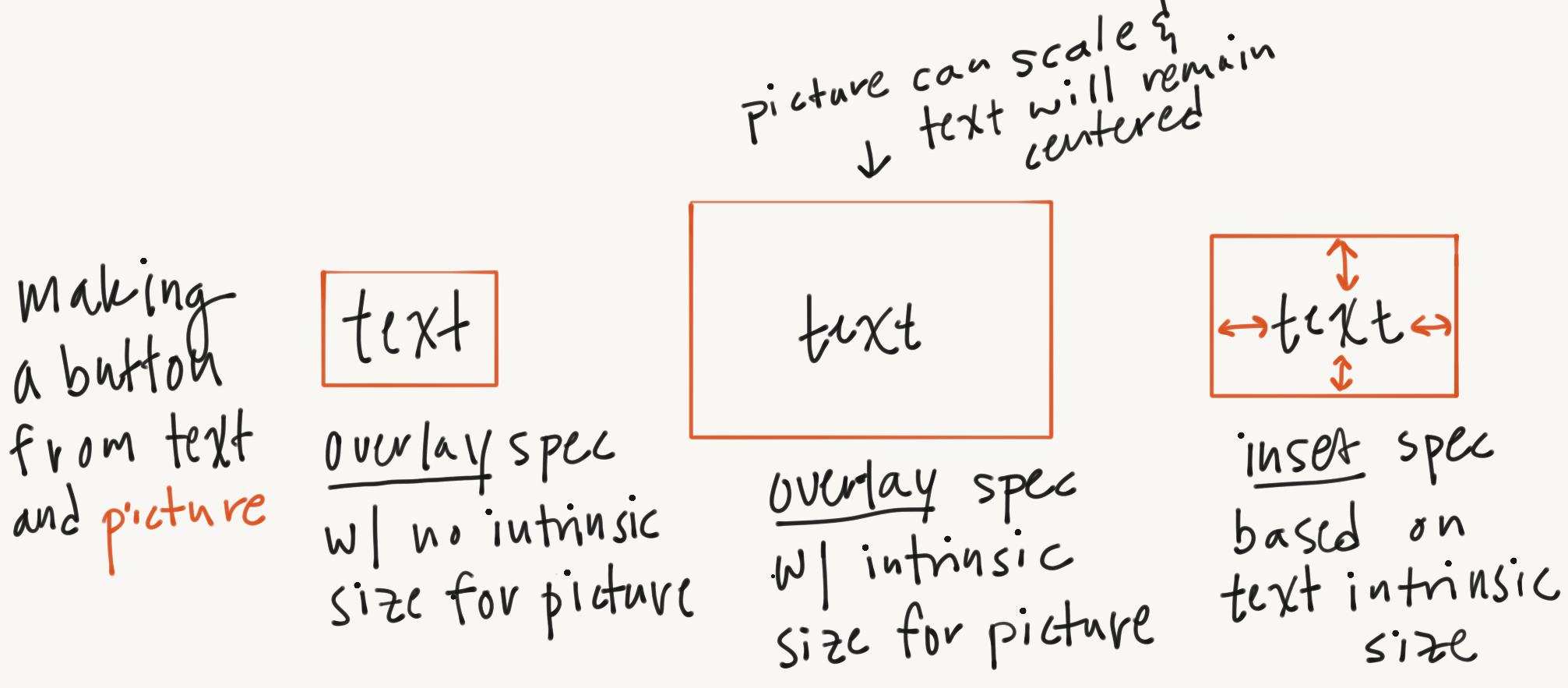
#### Difference between `ASInsetLayoutSpec` and `ASOverlayLayoutSpec`
An overlay spec requires the underlay object (object to which the overlay item will be applied) to have an intrinsic size. It will center the overlay object in the middle of this area.
An inset spec requires its object to have an intrinsic size. It adds the inset padding to this size to calculate the final size of the inset spec.
 ### Best Practices
- Texture layout is called on a background thread. Do not access the device screen bounds, or any other UIKit methods in `layoutSpecThatFits:`.
- don't wrap everything in a staticLayoutSpec?
- avoid using preferred frame size for everything - won't respond nicely to device rotation or device sizing differences?
---
### Docs Automatic Layout Examples 2 (`docs/_docs/automatic-layout-examples-2.md`)
---
title: Layout Examples
layout: docs
permalink: /docs/automatic-layout-examples-2.html
prevPage: layout2-quickstart.html
nextPage: layout2-layoutspec-types.html
---
Check out the layout specs example project to play around with the code below.
## Simple Header with Left and Right Justified Text
### Best Practices
- Texture layout is called on a background thread. Do not access the device screen bounds, or any other UIKit methods in `layoutSpecThatFits:`.
- don't wrap everything in a staticLayoutSpec?
- avoid using preferred frame size for everything - won't respond nicely to device rotation or device sizing differences?
---
### Docs Automatic Layout Examples 2 (`docs/_docs/automatic-layout-examples-2.md`)
---
title: Layout Examples
layout: docs
permalink: /docs/automatic-layout-examples-2.html
prevPage: layout2-quickstart.html
nextPage: layout2-layoutspec-types.html
---
Check out the layout specs example project to play around with the code below.
## Simple Header with Left and Right Justified Text
 To create this layout, we will use a:
- a vertical `ASStackLayoutSpec`
- a horizontal `ASStackLayoutSpec`
- `ASInsetLayoutSpec` to inset the entire header
The diagram below shows the composition of the layout elements (nodes + layout specs).
To create this layout, we will use a:
- a vertical `ASStackLayoutSpec`
- a horizontal `ASStackLayoutSpec`
- `ASInsetLayoutSpec` to inset the entire header
The diagram below shows the composition of the layout elements (nodes + layout specs).

Swift
Objective-C
- (ASLayoutSpec *)layoutSpecThatFits:(ASSizeRange)constrainedSize
{
// when the username / location text is too long,
// shrink the stack to fit onscreen rather than push content to the right, offscreen
ASStackLayoutSpec *nameLocationStack = [ASStackLayoutSpec verticalStackLayoutSpec];
nameLocationStack.style.flexShrink = 1.0;
nameLocationStack.style.flexGrow = 1.0;
// if fetching post location data from server,
// check if it is available yet and include it if so
if (_postLocationNode.attributedText) {
nameLocationStack.children = @[_usernameNode, _postLocationNode];
} else {
nameLocationStack.children = @[_usernameNode];
}
// horizontal stack
ASStackLayoutSpec *headerStackSpec = [ASStackLayoutSpec stackLayoutSpecWithDirection:ASStackLayoutDirectionHorizontal
spacing:40
justifyContent:ASStackLayoutJustifyContentStart
alignItems:ASStackLayoutAlignItemsCenter
children:@[nameLocationStack, _postTimeNode]];
// inset the horizontal stack
return [ASInsetLayoutSpec insetLayoutSpecWithInsets:UIEdgeInsetsMake(0, 10, 0, 10) child:headerStackSpec];
}
override func layoutSpecThatFits(_ constrainedSize: ASSizeRange) -> ASLayoutSpec {
let nameLocationStack = ASStackLayoutSpec.vertical()
nameLocationStack.style.flexShrink = 1.0
nameLocationStack.style.flexGrow = 1.0
if postLocationNode.attributedText != nil {
nameLocationStack.children = [userNameNode, postLocationNode]
} else {
nameLocationStack.children = [userNameNode]
}
let headerStackSpec = ASStackLayoutSpec(direction: .horizontal,
spacing: 40,
justifyContent: .start,
alignItems: .center,
children: [nameLocationStack, postTimeNode])
return ASInsetLayoutSpec(insets: UIEdgeInsets(top: 0, left: 10, bottom: 0, right: 10), child: headerStackSpec)
}
Rotate the example project from portrait to landscape to see how the spacer grows and shrinks.
## Photo with Inset Text Overlay
 To create this layout, we will use a:
- `ASInsetLayoutSpec` to inset the text
- `ASOverlayLayoutSpec` to overlay the inset text spec on top of the photo
To create this layout, we will use a:
- `ASInsetLayoutSpec` to inset the text
- `ASOverlayLayoutSpec` to overlay the inset text spec on top of the photo
Swift
Objective-C
- (ASLayoutSpec *)layoutSpecThatFits:(ASSizeRange)constrainedSize
{
_photoNode.style.preferredSize = CGSizeMake(USER_IMAGE_HEIGHT*2, USER_IMAGE_HEIGHT*2);
// INIFINITY is used to make the inset unbounded
UIEdgeInsets insets = UIEdgeInsetsMake(INFINITY, 12, 12, 12);
ASInsetLayoutSpec *textInsetSpec = [ASInsetLayoutSpec insetLayoutSpecWithInsets:insets child:_titleNode];
return [ASOverlayLayoutSpec overlayLayoutSpecWithChild:_photoNode overlay:textInsetSpec];
}
override func layoutSpecThatFits(_ constrainedSize: ASSizeRange) -> ASLayoutSpec {
let photoDimension: CGFloat = constrainedSize.max.width / 4.0
photoNode.style.preferredSize = CGSize(width: photoDimension, height: photoDimension)
// INFINITY is used to make the inset unbounded
let insets = UIEdgeInsets(top: CGFloat.infinity, left: 12, bottom: 12, right: 12)
let textInsetSpec = ASInsetLayoutSpec(insets: insets, child: titleNode)
return ASOverlayLayoutSpec(child: photoNode, overlay: textInsetSpec)
}
## Photo with Outset Icon Overlay
 To create this layout, we will use a:
- `ASCornerLayoutSpec` to position the icon in corner of the photo
To create this layout, we will use a:
- `ASCornerLayoutSpec` to position the icon in corner of the photo
Swift
Objective-C
- (ASLayoutSpec *)layoutSpecThatFits:(ASSizeRange)constrainedSize
{
_iconNode.style.preferredSize = CGSizeMake(40, 40);
_photoNode.style.preferredSize = CGSizeMake(150, 150);
return [ASCornerLayoutSpec cornerLayoutSpecWithChild:_photoNode corner:_iconNode location:ASCornerLayoutLocationTopRight];
}
override func layoutSpecThatFits(_ constrainedSize: ASSizeRange) -> ASLayoutSpec {
iconNode.style.preferredSize = CGSize(width: 40, height: 40)
photoNode.style.preferredSize = CGSize(width: 150, height: 150)
return ASCornerLayoutSpec(child: photoNode, corner: iconNode, location: .topRight)
}
## Simple Inset Text Cell
 To recreate the layout of a single cell as is used in Pinterest's search view above, we will use a:
- `ASInsetLayoutSpec` to inset the text
- `ASCenterLayoutSpec` to center the text according to the specified properties
To recreate the layout of a single cell as is used in Pinterest's search view above, we will use a:
- `ASInsetLayoutSpec` to inset the text
- `ASCenterLayoutSpec` to center the text according to the specified properties
Swift
Objective-C
- (ASLayoutSpec *)layoutSpecThatFits:(ASSizeRange)constrainedSize
{
UIEdgeInsets insets = UIEdgeInsetsMake(0, 12, 4, 4);
ASInsetLayoutSpec *inset = [ASInsetLayoutSpec insetLayoutSpecWithInsets:insets
child:_titleNode];
return [ASCenterLayoutSpec centerLayoutSpecWithCenteringOptions:ASCenterLayoutSpecCenteringY
sizingOptions:ASCenterLayoutSpecSizingOptionMinimumX
child:inset];
}
override func layoutSpecThatFits(_ constrainedSize: ASSizeRange) -> ASLayoutSpec {
let insets = UIEdgeInsets(top: 0, left: 12, bottom: 4, right: 4)
let inset = ASInsetLayoutSpec(insets: insets, child: _titleNode)
return ASCenterLayoutSpec(centeringOptions: .Y, sizingOptions: .minimumX, child: inset)
}
## Top and Bottom Separator Lines
 To create the layout above, we will use a:
- a `ASInsetLayoutSpec` to inset the text
- a vertical `ASStackLayoutSpec` to stack the two separator lines on the top and bottom of the text
The diagram below shows the composition of the layoutables (layout specs + nodes).
To create the layout above, we will use a:
- a `ASInsetLayoutSpec` to inset the text
- a vertical `ASStackLayoutSpec` to stack the two separator lines on the top and bottom of the text
The diagram below shows the composition of the layoutables (layout specs + nodes).
 The following code can also be found in the `ASLayoutSpecPlayground` [example project]().
Swift
Objective-C
- (ASLayoutSpec *)layoutSpecThatFits:(ASSizeRange)constrainedSize
{
_topSeparator.style.flexGrow = 1.0;
_bottomSeparator.style.flexGrow = 1.0;
ASInsetLayoutSpec *insetContentSpec = [ASInsetLayoutSpec insetLayoutSpecWithInsets:UIEdgeInsetsMake(20, 20, 20, 20) child:_textNode];
return [ASStackLayoutSpec stackLayoutSpecWithDirection:ASStackLayoutDirectionVertical
spacing:0
justifyContent:ASStackLayoutJustifyContentCenter
alignItems:ASStackLayoutAlignItemsStretch
children:@[_topSeparator, insetContentSpec, _bottomSeparator]];
}
override func layoutSpecThatFits(_ constrainedSize: ASSizeRange) -> ASLayoutSpec {
topSeparator.style.flexGrow = 1.0
bottomSeparator.style.flexGrow = 1.0
textNode.style.alignSelf = .center
let verticalStackSpec = ASStackLayoutSpec.vertical()
verticalStackSpec.spacing = 20
verticalStackSpec.justifyContent = .center
verticalStackSpec.children = [topSeparator, textNode, bottomSeparator]
return ASInsetLayoutSpec(insets:UIEdgeInsets(top: 60, left: 0, bottom: 60, right: 0), child: verticalStackSpec)
}
---
### Docs Automatic Layout Examples (`docs/_docs/automatic-layout-examples.md`)
---
title: Layout Examples
layout: docs
permalink: /docs/automatic-layout-examples.html
prevPage: automatic-layout-containers.html
nextPage: automatic-layout-debugging.html
---
Three examples in increasing order of complexity.
#NSSpain Talk Example

SwiftObjective-C
- (ASLayoutSpec *)layoutSpecThatFits:(ASSizeRange)constraint
{
ASStackLayoutSpec *vStack = [[ASStackLayoutSpec alloc] init];
[vStack setChildren:@[titleNode, bodyNode];
ASStackLayoutSpec *hstack = [[ASStackLayoutSpec alloc] init];
hStack.direction = ASStackLayoutDirectionHorizontal;
hStack.spacing = 5.0;
[hStack setChildren:@[imageNode, vStack]];
ASInsetLayoutSpec *insetSpec = [ASInsetLayoutSpec insetLayoutSpecWithInsets:UIEdgeInsetsMake(5,5,5,5) child:hStack];
return insetSpec;
}
###Discussion
#Social App Layout

SwiftObjective-C
- (ASLayoutSpec *)layoutSpecThatFits:(ASSizeRange)constrainedSize
{
// header stack
_userAvatarImageView.preferredFrameSize = CGSizeMake(USER_IMAGE_HEIGHT, USER_IMAGE_HEIGHT); // constrain avatar image frame size
ASLayoutSpec *spacer = [[ASLayoutSpec alloc] init];
spacer.flexGrow = YES;
ASStackLayoutSpec *headerStack = [ASStackLayoutSpec horizontalStackLayoutSpec];
headerStack.alignItems = ASStackLayoutAlignItemsCenter; // center items vertically in horizontal stack
headerStack.justifyContent = ASStackLayoutJustifyContentStart; // justify content to left side of header stack
headerStack.spacing = HORIZONTAL_BUFFER;
[headerStack setChildren:@[_userAvatarImageView, _userNameLabel, spacer, _photoTimeIntervalSincePostLabel]];
// header inset stack
UIEdgeInsets insets = UIEdgeInsetsMake(0, HORIZONTAL_BUFFER, 0, HORIZONTAL_BUFFER);
ASInsetLayoutSpec *headerWithInset = [ASInsetLayoutSpec insetLayoutSpecWithInsets:insets child:headerStack];
headerWithInset.flexShrink = YES;
// vertical stack
CGFloat cellWidth = constrainedSize.max.width;
_photoImageView.preferredFrameSize = CGSizeMake(cellWidth, cellWidth); // constrain photo frame size
ASStackLayoutSpec *verticalStack = [ASStackLayoutSpec verticalStackLayoutSpec];
verticalStack.alignItems = ASStackLayoutAlignItemsStretch; // stretch headerStack to fill horizontal space
[verticalStack setChildren:@[headerWithInset, _photoImageView, footerWithInset]];
return verticalStack;
}
###Discussion
Get the full Texture project at examples/ASDKgram.
#Social App Layout 2

SwiftObjective-C
- (ASLayoutSpec *)layoutSpecThatFits:(ASSizeRange)constrainedSize {
ASLayoutSpec *textSpec = [self textSpec];
ASLayoutSpec *imageSpec = [self imageSpecWithSize:constrainedSize];
ASOverlayLayoutSpec *soldOutOverImage = [ASOverlayLayoutSpec overlayLayoutSpecWithChild:imageSpec
overlay:[self soldOutLabelSpec]];
NSArray *stackChildren = @[soldOutOverImage, textSpec];
ASStackLayoutSpec *mainStack = [ASStackLayoutSpec stackLayoutSpecWithDirection:ASStackLayoutDirectionVertical
spacing:0.0
justifyContent:ASStackLayoutJustifyContentStart
alignItems:ASStackLayoutAlignItemsStretch
children:stackChildren];
ASOverlayLayoutSpec *soldOutOverlay = [ASOverlayLayoutSpec overlayLayoutSpecWithChild:mainStack
overlay:self.soldOutOverlay];
return soldOutOverlay;
}
- (ASLayoutSpec *)textSpec {
CGFloat kInsetHorizontal = 16.0;
CGFloat kInsetTop = 6.0;
CGFloat kInsetBottom = 0.0;
UIEdgeInsets textInsets = UIEdgeInsetsMake(kInsetTop, kInsetHorizontal, kInsetBottom, kInsetHorizontal);
ASLayoutSpec *verticalSpacer = [[ASLayoutSpec alloc] init];
verticalSpacer.flexGrow = YES;
ASLayoutSpec *horizontalSpacer1 = [[ASLayoutSpec alloc] init];
horizontalSpacer1.flexGrow = YES;
ASLayoutSpec *horizontalSpacer2 = [[ASLayoutSpec alloc] init];
horizontalSpacer2.flexGrow = YES;
NSArray *info1Children = @[self.firstInfoLabel, self.distanceLabel, horizontalSpacer1, self.originalPriceLabel];
NSArray *info2Children = @[self.secondInfoLabel, horizontalSpacer2, self.finalPriceLabel];
if ([ItemNode isRTL]) {
info1Children = [[info1Children reverseObjectEnumerator] allObjects];
info2Children = [[info2Children reverseObjectEnumerator] allObjects];
}
ASStackLayoutSpec *info1Stack = [ASStackLayoutSpec stackLayoutSpecWithDirection:ASStackLayoutDirectionHorizontal
spacing:1.0
justifyContent:ASStackLayoutJustifyContentStart
alignItems:ASStackLayoutAlignItemsBaselineLast children:info1Children];
ASStackLayoutSpec *info2Stack = [ASStackLayoutSpec stackLayoutSpecWithDirection:ASStackLayoutDirectionHorizontal
spacing:0.0
justifyContent:ASStackLayoutJustifyContentCenter
alignItems:ASStackLayoutAlignItemsBaselineLast children:info2Children];
ASStackLayoutSpec *textStack = [ASStackLayoutSpec stackLayoutSpecWithDirection:ASStackLayoutDirectionVertical
spacing:0.0
justifyContent:ASStackLayoutJustifyContentEnd
alignItems:ASStackLayoutAlignItemsStretch
children:@[self.titleLabel, verticalSpacer, info1Stack, info2Stack]];
ASInsetLayoutSpec *textWrapper = [ASInsetLayoutSpec insetLayoutSpecWithInsets:textInsets
child:textStack];
textWrapper.flexGrow = YES;
return textWrapper;
}
- (ASLayoutSpec *)imageSpecWithSize:(ASSizeRange)constrainedSize {
CGFloat imageRatio = [self imageRatioFromSize:constrainedSize.max];
ASRatioLayoutSpec *imagePlace = [ASRatioLayoutSpec ratioLayoutSpecWithRatio:imageRatio child:self.dealImageView];
self.badge.layoutPosition = CGPointMake(0, constrainedSize.max.height - kFixedLabelsAreaHeight - kBadgeHeight);
self.badge.sizeRange = ASRelativeSizeRangeMake(ASRelativeSizeMake(ASRelativeDimensionMakeWithPercent(0), ASRelativeDimensionMakeWithPoints(kBadgeHeight)), ASRelativeSizeMake(ASRelativeDimensionMakeWithPercent(1), ASRelativeDimensionMakeWithPoints(kBadgeHeight)));
ASStaticLayoutSpec *badgePosition = [ASStaticLayoutSpec staticLayoutSpecWithChildren:@[self.badge]];
ASOverlayLayoutSpec *badgeOverImage = [ASOverlayLayoutSpec overlayLayoutSpecWithChild:imagePlace overlay:badgePosition];
badgeOverImage.flexGrow = YES;
return badgeOverImage;
}
- (ASLayoutSpec *)soldOutLabelSpec {
ASCenterLayoutSpec *centerSoldOutLabel = [ASCenterLayoutSpec centerLayoutSpecWithCenteringOptions:ASCenterLayoutSpecCenteringXY
sizingOptions:ASCenterLayoutSpecSizingOptionMinimumXY child:self.soldOutLabelFlat];
ASStaticLayoutSpec *soldOutBG = [ASStaticLayoutSpec staticLayoutSpecWithChildren:@[self.soldOutLabelBackground]];
ASCenterLayoutSpec *centerSoldOut = [ASCenterLayoutSpec centerLayoutSpecWithCenteringOptions:ASCenterLayoutSpecCenteringXY sizingOptions:ASCenterLayoutSpecSizingOptionDefault child:soldOutBG];
ASBackgroundLayoutSpec *soldOutLabelOverBackground = [ASBackgroundLayoutSpec backgroundLayoutSpecWithChild:centerSoldOutLabel background:centerSoldOut];
return soldOutLabelOverBackground;
}
###Discussion
Get the full Texture project at examples/CatDealsCollectionView.
---
### Docs Automatic Subnode Mgmt (`docs/_docs/automatic-subnode-mgmt.md`)
---
title: Automatic Subnode Management
layout: docs
permalink: /docs/automatic-subnode-mgmt.html
prevPage: batch-fetching-api.html
nextPage: inversion.html
---
Enabling Automatic Subnode Management (ASM) is required to use the Layout Transition API. However, apps that don't require animations can still benefit from the reduction in code size that this feature enables.
When enabled, ASM means that your nodes no longer require `addSubnode:` or `removeFromSupernode` method calls. The presence or absence of the ASM node _and_ its subnodes is completely determined in its `layoutSpecThatFits:` method.
### Example ###
Consider the following intialization method from the PhotoCellNode class in ASDKgram sample app. This ASCellNode subclass produces a simple social media photo feed cell.
In the "Original Code" we see the familiar `addSubnode:` calls in bold. In the "Code with ASM" these have been removed and replaced with a single line that enables ASM.
By setting `.automaticallyManagesSubnodes` to `YES` on the `ASCellNode`, we _no longer_ need to call `addSubnode:` for each of the `ASCellNode`'s subnodes. These `subNodes` will be present in the node hierarchy as long as this class' `layoutSpecThatFits:` method includes them.
Original code
Objective-C
Swift
- (instancetype)initWithPhotoObject:(PhotoModel *)photo
{
self = [super init];
if (self) {
_photoModel = photo;
_userAvatarImageNode = [[ASNetworkImageNode alloc] init];
_userAvatarImageNode.URL = photo.ownerUserProfile.userPicURL;
[self addSubnode:_userAvatarImageNode];
_photoImageNode = [[ASNetworkImageNode alloc] init];
_photoImageNode.URL = photo.URL;
[self addSubnode:_photoImageNode];
_userNameTextNode = [[ASTextNode alloc] init];
_userNameTextNode.attributedString = [photo.ownerUserProfile usernameAttributedStringWithFontSize:FONT_SIZE];
[self addSubnode:_userNameTextNode];
_photoLocationTextNode = [[ASTextNode alloc] init];
[photo.location reverseGeocodedLocationWithCompletionBlock:^(LocationModel *locationModel) {
if (locationModel == _photoModel.location) {
_photoLocationTextNode.attributedString = [photo locationAttributedStringWithFontSize:FONT_SIZE];
[self setNeedsLayout];
}
}];
[self addSubnode:_photoLocationTextNode];
}
return self;
}
class PhotoCellNode {
private let photoModel: PhotoModel
private let userAvatarImageNode = ASNetworkImageNode()
private let photoImageNode = ASNetworkImageNode()
private let userNameTextNode = ASTextNode()
private let photoLocationTextNode = ASTextNode()
init(photo: PhotoModel) {
photoModel = photo
super.init()
userAvatarImageNode.URL = photo.ownerUserProfile.userPicURL
addSubnode(userAvatarImageNode)
photoImageNode.URL = photo.URL
addSubnode(photoImageNode)
userNameTextNode.attributedText = poto.ownerUserProfile.usernameAttributedString(fontSize: fontSize)
addSubnode(userNameTextNode)
photo.location.reverseGeocodeLocation { [weak self] location in
if locationModel == self?.photoModel.location {
self?.photoLocationTextNode.attributedText = photo.locationAttributedString(fontSize: fontSize)
self?.setNeedsLayout()
}
}
addSubnode(photoLocationTextNode)
}
}
Code with ASM
Objective-C
Swift
- (instancetype)initWithPhotoObject:(PhotoModel *)photo
{
self = [super init];
if (self) {
self.automaticallyManagesSubnodes = YES;
_photoModel = photo;
_userAvatarImageNode = [[ASNetworkImageNode alloc] init];
_userAvatarImageNode.URL = photo.ownerUserProfile.userPicURL;
_photoImageNode = [[ASNetworkImageNode alloc] init];
_photoImageNode.URL = photo.URL;
_userNameTextNode = [[ASTextNode alloc] init];
_userNameTextNode.attributedString = [photo.ownerUserProfile usernameAttributedStringWithFontSize:FONT_SIZE];
_photoLocationTextNode = [[ASTextNode alloc] init];
[photo.location reverseGeocodedLocationWithCompletionBlock:^(LocationModel *locationModel) {
if (locationModel == _photoModel.location) {
_photoLocationTextNode.attributedString = [photo locationAttributedStringWithFontSize:FONT_SIZE];
[self setNeedsLayout];
}
}];
}
return self;
}
class PhotoCellNode {
private let photoModel: PhotoModel
private let userAvatarImageNode = ASNetworkImageNode()
private let photoImageNode = ASNetworkImageNode()
private let userNameTextNode = ASTextNode()
private let photoLocationTextNode = ASTextNode()
init(photo: PhotoModel) {
photoModel = photo
super.init()
automaticallyManagesSubnodes = true
userAvatarImageNode.URL = photo.ownerUserProfile.userPicURL
photoImageNode.URL = photo.URL
userNameTextNode.attributedText = poto.ownerUserProfile.usernameAttributedString(fontSize: fontSize)
photo.location.reverseGeocodeLocation { [weak self] location in
if locationModel == self?.photoModel.location {
self?.photoLocationTextNode.attributedText = photo.locationAttributedString(fontSize: fontSize)
self?.setNeedsLayout()
}
}
}
}
Several of the elements in this cell - `_userAvatarImageNode`, `_photoImageNode`, and `_photoLocationLabel` depend on seperate data fetches from the network that could return at any time. When should they be added to the UI?
ASM knows whether or not to include these elements in the UI based on the information provided in the cell's `ASLayoutSpec`.
An ASLayoutSpec completely describes the UI of a view in your app by specifying the hierarchy state of a node and its subnodes. An ASLayoutSpec is returned by a node from its layoutSpecThatFits: method.
**It is your job to construct a `layoutSpecThatFits:` that handles how the UI should look with and without these elements.**
Consider the abreviated `layoutSpecThatFits:` method for the `ASCellNode` subclass above.
Objective-C
Swift
- (ASLayoutSpec *)layoutSpecThatFits:(ASSizeRange)constrainedSize
{
ASStackLayoutSpec *headerSubStack = [ASStackLayoutSpec verticalStackLayoutSpec];
headerSubStack.flexShrink = YES;
if (_photoLocationLabel.attributedString) {
[headerSubStack setChildren:@[_userNameLabel, _photoLocationLabel]];
} else {
[headerSubStack setChildren:@[_userNameLabel]];
}
_userAvatarImageNode.preferredFrameSize = CGSizeMake(USER_IMAGE_HEIGHT, USER_IMAGE_HEIGHT); // constrain avatar image frame size
ASLayoutSpec *spacer = [[ASLayoutSpec alloc] init];
spacer.flexGrow = YES;
UIEdgeInsets avatarInsets = UIEdgeInsetsMake(HORIZONTAL_BUFFER, 0, HORIZONTAL_BUFFER, HORIZONTAL_BUFFER);
ASInsetLayoutSpec *avatarInset = [ASInsetLayoutSpec insetLayoutSpecWithInsets:avatarInsets child:_userAvatarImageNode];
ASStackLayoutSpec *headerStack = [ASStackLayoutSpec horizontalStackLayoutSpec];
headerStack.alignItems = ASStackLayoutAlignItemsCenter; // center items vertically in horizontal stack
headerStack.justifyContent = ASStackLayoutJustifyContentStart; // justify content to the left side of the header stack
[headerStack setChildren:@[avatarInset, headerSubStack, spacer]];
// header inset stack
UIEdgeInsets insets = UIEdgeInsetsMake(0, HORIZONTAL_BUFFER, 0, HORIZONTAL_BUFFER);
ASInsetLayoutSpec *headerWithInset = [ASInsetLayoutSpec insetLayoutSpecWithInsets:insets child:headerStack];
// footer inset stack
UIEdgeInsets footerInsets = UIEdgeInsetsMake(VERTICAL_BUFFER, HORIZONTAL_BUFFER, VERTICAL_BUFFER, HORIZONTAL_BUFFER);
ASInsetLayoutSpec *footerWithInset = [ASInsetLayoutSpec insetLayoutSpecWithInsets:footerInsets child:_photoCommentsNode];
// vertical stack
CGFloat cellWidth = constrainedSize.max.width;
_photoImageNode.preferredFrameSize = CGSizeMake(cellWidth, cellWidth); // constrain photo frame size
ASStackLayoutSpec *verticalStack = [ASStackLayoutSpec verticalStackLayoutSpec];
verticalStack.alignItems = ASStackLayoutAlignItemsStretch; // stretch headerStack to fill horizontal space
[verticalStack setChildren:@[headerWithInset, _photoImageNode, footerWithInset]];
return verticalStack;
}
override func layoutSpecThatFits(_ constrainedSize: ASSizeRange) -> ASLayoutSpec {
let headerSubStack: ASStackLayoutSpec = .vertical()
headerSubStack.style.flexShrink = 1
if photoLocationLabel.attributedText != nil {
headerSubStack.children = [userNameLabel, photoLocationLabel]
} else {
headerSubStack.children = [userNameLabel]
}
userAvatarImageNode.style.preferredSize = CGSize(width: userImageHeight, height: userImageHeight) // constrain avatar image frame size
let spacer = ASLayoutSpec()
spacer.style.flexGrow = 1
let avatarInsets = UIEdgeInsets(top: horizontalBuffer, left: 0, bottom: horizontalBuffer, right: horizontalBuffer)
let avatarInset = ASInsetLayoutSpec(insets: avatarInsets, child: userAvatarImageNode)
let headerStack: ASStackLayoutSpec = .horizontal()
headerStack.alignItems = .center // center items vertically in horizontal stack
headerStack.justifyContent = .start // justify content to the left side of the header stack
headerStack.children = [avatarInset, headerSubStack, spacer]
// header inset stack
let insets = UIEdgeInsets(top: 0, left: horizontalBuffer, bottom: 0, right: horizontalBuffer)
let headerWithInset = ASInsetLayoutSpec(insets: insets, child: headerStack)
// footer inset stack
let footerInsets = UIEdgeInsets(top: verticalBuffer, left: horizontalBuffer, bottom: verticalBuffer, right: horizontalBuffer)
let footerWithInset = ASInsetLayoutSpec(insets: footerInsets, child: photoCommentsNode)
// vertical stack
let cellWidth = constrainedSize.max.width
photoImageNode.style.preferredSize = CGSize(width: cellWidth, height: cellWidth) // constrain photo frame size
let verticalStack: ASStackLayoutSpec = .vertical()
verticalStack.alignItems = .stretch // stretch headerStack to fill horizontal space
verticalStack.children = [headerWithInset, photoImageNode, footerWithInset]
return verticalStack
}
Here you can see that the children of the `headerSubStack` depend on whether or not the `_photoLocationLabel` attributed string has returned from the reverseGeocode process yet.
The `_userAvatarImageNode`, `_photoImageNode`, and `_photoCommentsNode` are added into the ASLayoutSpec, but will not show up until their data fetches return.
### Updating an ASLayoutSpec ###
**If something happens that you know will change your `ASLayoutSpec`, it is your job to call `setNeedsLayout`**. This is equivalent to `transitionLayout:duration:0` in the Transition Layout API. You can see this call in the completion block of the `photo.location reverseGeocodedLocationWithCompletionBlock:` call in the first code block.
An appropriately constructed ASLayoutSpec will know which subnodes need to be added, removed or animated.
Try out the ASDKgram sample app after looking at the code above, and you will see how simple it is to code an `ASCellNode` whose layout is responsive to numerous, individual data fetches and returns. While the `ASLayoutSpec` is coded in a way that leaves holes for the avatar and photo to populate, you can see how the cell's height will automatically adjust to accomodate the comments node at the bottom of the photo.
This is just a simple example, but this feature has many more powerful uses.
Warning: addSubnode: and removeFromSupernode should never be called on a node that has ASM enabled. Doing so could cause the following exception - "A flattened layout must consist exclusively of node sublayouts".
---
### Docs Batch Fetching Api (`docs/_docs/batch-fetching-api.md`)
---
title: Batch Fetching API
layout: docs
permalink: /docs/batch-fetching-api.html
prevPage: hit-test-slop.html
nextPage: automatic-subnode-mgmt.html
---
Texture's Batch Fetching API makes it easy to add fetching chunks of new data. Usually this would be done in a `-scrollViewDidScroll:` method, but Texture provides a more structured mechanism.
By default, as a user is scrolling, when they approach the point in the table or collection where they are 2 "screens" away from the end of the current content, the table will try to fetch more data.
If you'd like to configure how far away from the end you should be, just change the `leadingScreensForBatching` property on an `ASTableView` or `ASCollectionView` to something else.
SwiftObjective-C
tableNode.view.leadingScreensForBatching = 3.0; // overriding default of 2.0
tableNode.view.leadingScreensForBatching = 3.0 // overriding default of 2.0
### Batch Fetching Delegate Methods
The first thing you have to do in order to support batch fetching, is implement a method that decides if it's an appropriate time to load new content or not.
For tables it would look something like:
SwiftObjective-C
- (BOOL)shouldBatchFetchForTableNode:(ASTableNode *)tableNode
{
if (_weNeedMoreContent) {
return YES;
}
return NO;
}
func shouldBatchFetchForTableNode(tableNode: ASTableNode) -> Bool {
if (weNeedMoreContent) {
return true
}
return false
}
and for collections:
SwiftObjective-C
- (BOOL)shouldBatchFetchForCollectionNode:(ASCollectionNode *)collectionNode
{
if (_weNeedMoreContent) {
return YES;
}
return NO;
}
func shouldBatchFetchForCollectionNode(collectionNode: ASCollectionNode) -> Bool {
if (weNeedMoreContent) {
return true
}
return false
}
These methods will be called when the user has scrolled into the batch fetching range, and their answer will determine if another request actually needs to be made or not. Usually this decision is based on if there is still data to fetch.
If you return NO, then no new batch fetching process will happen. If you return YES, the batch fetching mechanism will start and the following method will be called next.
`-tableNode:willBeginBatchFetchWithContext:`
or
`-collectionNode:willBeginBatchFetchWithContext:`
This is where you should actually fetch data, be it from a web API or some local database.
Note: This method will always be called on a background thread. This means, if you need to do any work on the main thread, you should dispatch it to the main thread and then proceed with the work needed in order to finish the batch fetch operation.
SwiftObjective-C
- (void)tableNode:(ASTableNode *)tableNode willBeginBatchFetchWithContext:(ASBatchContext *)context
{
// Fetch data most of the time asynchronously from an API or local database
NSArray *newPhotos = [SomeSource getNewPhotos];
// Insert data into table or collection node
[self insertNewRowsInTableNode:newPhotos];
// Decide if it's still necessary to trigger more batch fetches in the future
_stillDataToFetch = ...;
// Properly finish the batch fetch
[context completeBatchFetching:YES];
}
func tableNode(tableNode: ASTableNode, willBeginBatchFetchWithContext context: ASBatchContext) {
// Fetch data most of the time asynchronously from an API or local database
let newPhotos = SomeSource.getNewPhotos()
// Insert data into table or collection view
insertNewRowsInTableNode(newPhotos)
// Decide if it's still necessary to trigger more batch fetches in the future
stillDataToFetch = ...
// Properly finish the batch fetch
context.completeBatchFetching(true)
}
Once you've finished fetching your data, it is very important to let Texture know that you have finished the process. To do that, you need to call `-completeBatchFetching:` on the `context` object that was passed in with a parameter value of `YES`. This assures that the whole batch fetching mechanism stays in sync and the next batch fetching cycle can happen. Only by passing `YES` will the context know to attempt another batch update when necessary.
Check out the following sample apps to see the batch fetching API in action:
---
### Docs Button Node (`docs/_docs/button-node.md`)
---
title: ASButtonNode
layout: docs
permalink: /docs/button-node.html
prevPage: cell-node.html
nextPage: text-node.html
---
### Basic Usage
`ASButtonNode` subclasses `ASControlNode` in the same way `UIButton` subclasses `UIControl`. In contrast, being able to layer back the subnodes of every button can significantly lighten main thread impact relative to `UIButton`.
### Control State
If you've used `-setTitle:forControlState:` then you already know how to set up an ASButtonNode. The `ASButtonNode` version adds in a few parameters for conveniently setting attributes.
SwiftObjective-C
[buttonNode setTitle:@"Button Title Normal" withFont:nil withColor:[UIColor blueColor] forState:ASControlStateNormal];
buttonNode.setTitle("Button Title Normal", with: nil, with: .blue, for: .normal)
If you need even more control, you can also opt to use the attributed string version directly:
SwiftObjective-C
[self.buttonNode setAttributedTitle:attributedTitle forState:ASControlStateNormal];
buttonNode.setAttributedTitle(attributedTitle, for: .normal)
### Target-Action Pairs
Again, analagous to UIKit, you can add sets of target-action pairs to respond to various events.
SwiftObjective-C
[buttonNode addTarget:self action:@selector(buttonPressed:) forControlEvents:ASControlNodeEventTouchUpInside];
buttonNode.addTarget(self, action: #selector(buttonPressed), forControlEvents: .touchUpInside)
### Content Alignment
`ASButtonNode` offers both `contentVerticalAlignment` and `contentHorizontalAlignment` properties. This allows you to easily set the alignment of the titleLabel or image you're using for your button.
SwiftObjective-C
self.buttonNode.contentVerticalAlignment = ASVerticalAlignmentTop;
self.buttonNode.contentHorizontalAlignment = ASHorizontalAlignmentMiddle;
buttonNode.contentVerticalAlignment = .top
buttonNode.contentHorizontalAlignment = .middle
Note: At the moment, this property will not work if you aren't using -layoutSpecThatFits:.
### Gotchas
There are a few things that might trip up someone new to the framework.
##### View Hierarchies
Let's say you want to add an `ASButtonNode` to the view of one of your existing view controllers. The first thing you'll notice is that setting a title for a control state doesn't seem to make your title appear. You can fix this by calling `-measure:` on the button which will cause its title label to be measured and laid out.
The next thing you'll notice is that, if you set titles of various lengths for different control states, the button will dynamically grow and shrink as the title changes. This is because changing the title causes `-setNeedsLayout` to be called on the button. Within a node hierarchy, this makes sense, and will work as expected.
Long story short, use an `ASDKViewController`.
##### Selected State
If you want your button to change to a "selected" state after being tapped, you'll need to do that manually.
---
### Docs Cell Node (`docs/_docs/cell-node.md`)
---
title: ASCellNode
layout: docs
permalink: /docs/cell-node.html
prevPage: display-node.html
nextPage: button-node.html
---
`ASCellNode`, as you may have guessed, is the cell class of Texture. Unlike the various cells in UIKit, `ASCellNode` can be used with `ASTableNodes`, `ASCollectionNodes` and `ASPagerNodes`, making it incredibly flexible.
### 3 Ways to Party
There are three ways in which you can implement the cells you'll use in your Texture app: subclassing `ASCellNode`, initializing with an existing `ASDKViewController` or using an existing UIView or `CALayer`.
#### Subclassing
Subclassing an `ASCellNode` is pretty much the same as subclassing a regular `ASDisplayNode`.
Most likely, you'll write a few of the following:
- `-init` -- Thread safe initialization.
- `-layoutSpecThatFits:` -- Return a layout spec that defines the layout of your cell.
- `-didLoad` -- Called on the main thread. Good place to add gesture recognizers, etc.
- `-layout` -- Also called on the main thread. Layout is complete after the call to super which means you can do any extra tweaking you need to do.
#### Initializing with an `ASDKViewController`
Say you already have some type of view controller written to display a view in your app. If you want to take that view controller and drop its view in as a cell in one of the scrolling nodes or a pager node its no problem.
For example, say you already have a view controller written that manages an `ASTableNode`. To use that table as a page in an `ASPagerNode` you can use `-initWithViewControllerBlock`.
SwiftObjective-C
- (ASCellNode *)pagerNode:(ASPagerNode *)pagerNode nodeAtIndex:(NSInteger)index
{
NSArray *animals = self.allAnimals[index];
ASCellNode *node = [[ASCellNode alloc] initWithViewControllerBlock:^UIViewController * _Nonnull{
return [[AnimalTableNodeController alloc] initWithAnimals:animals];
} didLoadBlock:nil];
node.style.preferredSize = pagerNode.bounds.size;
return node;
}
func pagerNode(_ pagerNode: ASPagerNode, nodeAt index: Int) -> ASCellNode {
let animals = allAnimals[index]
let node = ASCellNode(viewControllerBlock: { () -> UIViewController in
return AnimalTableNodeController(animals: animals)
}, didLoad: nil)
node.style.preferredSize = pagerNode.bounds.size
return node
}
And this works for any combo of scrolling container node and `UIViewController` subclass. You want to embed random view controllers in your collection node? Go for it.
Notice that you need to set the .style.preferredSize of a node created this way. Normally your nodes will implement -layoutSpecThatFits: but since these don't you'll need give the cell a size.
#### Initializing with a `UIView` or `CALayer`
Alternatively, if you already have a `UIView` or `CALayer` subclass that you'd like to drop in as cell you can do that instead.
SwiftObjective-C
- (ASCellNode *)pagerNode:(ASPagerNode *)pagerNode nodeAtIndex:(NSInteger)index
{
NSArray *animal = self.animals[index];
ASCellNode *node = [[ASCellNode alloc] initWithViewBlock:^UIView * _Nonnull{
return [[SomeAnimalView alloc] initWithAnimal:animal];
}];
node.style.preferredSize = pagerNode.bounds.size;
return node;
}
func pagerNode(_ pagerNode: ASPagerNode, nodeAt index: Int) -> ASCellNode {
let animal = animals[index]
let node = ASCellNode { () -> UIView in
return SomeAnimalView(animal: animal)
}
node.style.preferredSize = pagerNode.bounds.size
return node
}
As you can see, its roughly the same idea. That being said, if you're doing this, you may consider converting the existing `UIView` subclass to be an `ASCellNode` subclass in order to gain the advantage of asynchronous display.
### Never Show Placeholders
Usually, if a cell hasn't finished its display pass before it has reached the screen it will show placeholders until it has completed drawing its content.
If placeholders are unacceptable, you can set an `ASCellNode`'s `neverShowPlaceholders` property to `YES`.
SwiftObjective-C
node.neverShowPlaceholders = YES;
node.neverShowPlaceholders = true
With this property set to `YES`, the main thread will be blocked until display has completed for the cell. This is more similar to UIKit, and in fact makes Texture scrolling visually indistinguishable from UIKit's, except being faster.
Using this option does not eliminate all of the performance advantages of Texture. Normally, a cell has been preloading and is almost done when it reaches the screen, so the blocking time is very short. Even if the rangeTuningParameters are set to 0 this option outperforms UIKit. While the main thread is waiting, subnode display executes concurrently.
### `UITableViewCell` specific propertys
UITableViewCell has properties like selectionStyle, accessoryType and seperatorInset that many of us use sometimes to give the Cell more detail. For this case ASCellNode has the same (passthrough) properties that can be used.
UIKits UITableViewCell contains ASCellNode as a subview. Depending how your ASLayoutSpec is defined it may occur that your Layout overlays the UITableViewCell.accessoryView and therefore is not visible. Make sure that your Layout doesn't overlay any of UITableViewCell's specific properties.
---
### Docs Containers Ascollectionnode (`docs/_docs/containers-ascollectionnode.md`)
---
title: ASCollectionNode
layout: docs
permalink: /docs/containers-ascollectionnode.html
prevPage: containers-astablenode.html
nextPage: containers-aspagernode.html
---
`ASCollectionNode` is equivalent to UIKit's `UICollectionView` and can be used in place of any `UICollectionView`.
`ASCollectionNode` replaces `UICollectionView`'s required method
Swift
Objective-C
- (UICollectionViewCell *)collectionView:(UICollectionView *)collectionView cellForItemAtIndexPath:(NSIndexPath *)indexPath;
override func collectionView(_ collectionView: UICollectionView, cellForItemAt indexPath: IndexPath) -> UICollectionViewCell
with your choice of **_one_** of the following methods
SwiftObjective-C
- (ASCellNode *)collectionNode:(ASCollectionNode *)collectionNode nodeForItemAtIndexPath:(NSIndexPath *)indexPath
override func collectionNode(_ collectionNode: ASCollectionNode, nodeForItemAt indexPath: IndexPath) -> ASCellNode
or
SwiftObjective-C
- (ASCellNodeBlock)collectionNode:(ASCollectionNode *)collectionNode nodeBlockForItemAtIndexPath:(NSIndexPath *)indexPath
override func collectionNode(_ collectionNode: ASCollectionNode, nodeBlockForItemAt indexPath: IndexPath) -> ASCellNodeBlock
It is recommended that you use the node block version of the method so that your collection node will be able to prepare and display all of its cells concurrently.
As noted in the previous section:
- ASCollectionNodes do not utilize cell reuse.
- Using the "nodeBlock" method is preferred.
- It is very important that the returned node blocks are thread-safe.
- ASCellNodes can be used by ASTableNode, ASCollectionNode and ASPagerNode.
### Node Block Thread Safety Warning
It is very important that node blocks be thread-safe. One aspect of that is ensuring that the data model is accessed _outside_ of the node block. Therefore, it is unlikely that you should need to use the index inside of the block.
Consider the following `-collectionNode:nodeBlockForItemAtIndexPath:` method.
SwiftObjective-C
- (ASCellNodeBlock)collectionNode:(ASCollectionNode *)collectionNode nodeBlockForItemAtIndexPath:(NSIndexPath *)indexPath
{
PhotoModel *photoModel = [_photoFeed objectAtIndex:indexPath.row];
// this may be executed on a background thread - it is important to make sure it is thread safe
ASCellNode *(^cellNodeBlock)() = ^ASCellNode *() {
PhotoCellNode *cellNode = [[PhotoCellNode alloc] initWithPhoto:photoModel];
cellNode.delegate = self;
return cellNode;
};
return cellNodeBlock;
}
func collectionNode(_ collectionNode: ASCollectionNode, nodeBlockForItemAt indexPath: IndexPath) -> ASCellNodeBlock {
guard photoFeed.count > indexPath.row else { return { ASCellNode() } }
let photoModel = photoFeed[indexPath.row]
// this may be executed on a background thread - it is important to make sure it is thread safe
let cellNodeBlock = { () -> ASCellNode in
let cellNode = PhotoCellNode(photo: photoModel)
cellNode.delegate = self
return cellNode
}
return cellNodeBlock
}
In the example above, you can see how the index is used to access the photo model before creating the node block.
### Replacing a UICollectionViewController with an ASDKViewController
Texture does not offer an equivalent to UICollectionViewController. Instead, you can use the flexibility of ASDKViewController to recreate any type of UI...ViewController.
Consider, the following ASDKViewController subclass.
An ASCollectionNode is assigned to be managed by an `ASDKViewController` in its `-initWithNode:` designated initializer method, thus making it a sort of ASCollectionNodeController.
SwiftObjective-C
- (instancetype)init
{
_flowLayout = [[UICollectionViewFlowLayout alloc] init];
_collectionNode = [[ASCollectionNode alloc] initWithCollectionViewLayout:_flowLayout];
self = [super initWithNode:_collectionNode];
if (self) {
_flowLayout.minimumInteritemSpacing = 1;
_flowLayout.minimumLineSpacing = 1;
}
return self;
}
init() {
flowLayout = UICollectionViewFlowLayout()
collectionNode = ASCollectionNode(collectionViewLayout: flowLayout)
super.init(node: collectionNode)
flowLayout.minimumInteritemSpacing = 1
flowLayout.minimumLineSpacing = 1
}
This works just as well with any node including as an ASTableNode, ASPagerNode, etc.
### Accessing the ASCollectionView
If you've used previous versions of Texture, you'll notice that `ASCollectionView` has been removed in favor of `ASCollectionNode`.
`ASCollectionView`, an actual `UICollectionView` subclass, is still used internally by `ASCollectionNode`. While it should not be created directly, it can still be used directly by accessing the `.view` property of an `ASCollectionNode`.
Don't forget that a node's `view` or `layer` property should only be accessed after viewDidLoad or didLoad, respectively, have been called.
The `LocationCollectionNodeController` above accesses the `ASCollectionView` directly in `-viewDidLoad`.
SwiftObjective-C
- (void)viewDidLoad
{
[super viewDidLoad];
_collectionNode.delegate = self;
_collectionNode.dataSource = self;
_collectionNode.view.allowsSelection = NO;
_collectionNode.view.backgroundColor = [UIColor whiteColor];
}
override func viewDidLoad() {
super.viewDidLoad()
collectionNode.delegate = self
collectionNode.dataSource = self
collectionNode.view.allowsSelection = false
collectionNode.view.backgroundColor = .white
}
### Cell Sizing and Layout
As discussed in the previous section, `ASCollectionNode` and `ASTableNode` do not need to keep track of the height of their `ASCellNode`s.
Right now, cells will grow to fit their constrained size and will be laid out by whatever `UICollectionViewLayout` you provide.
You can also constrain cells used in a collection node using `ASCollectionNode`'s `-constrainedSizeForItemAtIndexPath:`.
### Examples
The most detailed example of laying out the cells of an `ASCollectionNode` is the CustomCollectionView app. It includes a Pinterest style cell layout using an `ASCollectionNode` and a custom `UICollectionViewLayout`.
#### More Sample Apps with ASCollectionNodes
### Interoperability with UICollectionViewCells
`ASCollectionNode` supports using UICollectionViewCells alongside native ASCellNodes.
Note that these UIKit cells will **not** have the performance benefits of `ASCellNodes` (like preloading, async layout, and async drawing), even when mixed within the same `ASCollectionNode`.
However, this interoperability allows developers the flexibility to test out the framework without needing to convert all of their cells at once. Read more here.
---
### Docs Containers Asdkviewcontroller (`docs/_docs/containers-asdkviewcontroller.md`)
---
title: ASDKViewController
layout: docs
permalink: /docs/containers-asdkviewcontroller.html
prevPage: asrunloopqueue.html
nextPage: containers-asnodecontroller.html
---
`ASDKViewController` is a subclass of `UIViewController` that adds several useful features for hosting `ASDisplayNode` hierarchies.
An `ASDKViewController` can be used in place of any `UIViewController` - including within a `UINavigationController`, `UITabBarController` and `UISplitViewController` or as a modal view controller.
Benefits of using an `ASDKViewController`:
- Save Memory. An
ASDKViewController that goes off screen will automatically reduce the size of the fetch data and display ranges of any of its children. This is key for memory management in large applications.
ASVisibility Feature. When used in an ASDKNavigationController or ASTabBarController, these classes know the exact number of user taps it would take to make the view controller visible.
More features will be added over time, so it is a good idea to base your view controllers off of this class.
## Usage
A `UIViewController` provides a view of its own. An `ASDKViewController` is assigned a node to manage in its designated initializer `-initWithNode:`.
Consider the following `ASDKViewController` subclass, `PhotoFeedNodeController`, from the ASDKgram example project that would like to use a table node as its managed node.
This table node is assigned to the `ASDKViewController` in its `-initWithNode:` designated initializer method.
SwiftObjective-C
- (instancetype)init
{
_tableNode = [[ASTableNode alloc] initWithStyle:UITableViewStylePlain];
self = [super initWithNode:_tableNode];
if (self) {
_tableNode.dataSource = self;
_tableNode.delegate = self;
}
return self;
}
init(models: [Model]) {
let tableNode = ASTableNode(style: .plain)
super.init(node: tableNode)
self.models = models
self.tableNode = tableNode
self.tableNode.delegate = self
self.tableNode.dataSource = self
}
Conversion Tip: If your app already has a complex view controller hierarchy, it is perfectly fine to have all of them subclass ASDKViewController. That is to say, even if you don't use ASDKViewController's designated initializer -initWithNode:, and only use the ASDKViewController in the manner of a traditional UIViewController, this will give you the additional node support if you choose to adopt it in different areas your application.
---
### Docs Containers Asnodecontroller (`docs/_docs/containers-asnodecontroller.md`)
---
title: "ASNodeController (Beta)"
layout: docs
permalink: /docs/containers-asnodecontroller.html
prevPage: containers-asdkviewcontroller.html
nextPage: containers-astablenode.html
---
To use this feature, you will need to import "ASNodeController+Beta.h"
The Texture team has many exciting ideas for expanding `ASNodeController`. Follow along [here](https://github.com/facebook/AsyncDisplayKit/issues/2964) if you'd like to participate in shaping the future of node controllers.
For now, `ASNodeController` remains a simple, but powerful class.
### Example
The [example project](https://github.com/texturegroup/texture/pull/2945) attached in the initial PR modifies the normal [ASDKgram](https://github.com/texturegroup/texture/tree/master/examples/ASDKgram) project to use an `ASNodeController`.
This `PhotoCellNodeController` is used to manage the fetching of the comments data for a photo in a photo feed, once the photo enters the preload range. This node controller allows us to separate the preloading logic from where it previously existed in the `PhotoCellNode` "view" class.
To convert ASDKgram to use an `ASNodeController`, we first create a `PhotoCellNodeController` class.
This node controller overrides `ASNodeController`'s' `-loadNode` method to create a `PhotoCellNode` once required. It is not neccessary to call super in this method.
This node controller also observes its node's interface state in order to intelligently preload the photo's comment feed model data when the `PhotoCellNode` enters the preload state (which indicates that the photo cell is likely to scroll onscreen soon).
All of this logic can be removed from where it previously existed in the "view" (our `PhotoCellNode` class), leading to a more concise and MVC-friendly view class.
Swift
Objective-C
@implementation PhotoCellNodeController
- (void)loadNode
{
self.node = [[PhotoCellNode alloc] initWithPhotoObject:self.photoModel];
}
- (void)didEnterPreloadState
{
[super didEnterPreloadState];
CommentFeedModel *commentFeedModel = _photoModel.commentFeed;
[commentFeedModel refreshFeedWithCompletionBlock:^(NSArray *newComments) {
// load comments for photo
if (commentFeedModel.numberOfItemsInFeed > 0) {
[self.node.photoCommentsNode updateWithCommentFeedModel:commentFeedModel];
[self.node setNeedsLayout];
}
}];
}
@end
final class PhotoCellNodeController: ASNodeController<PhotoCellNode> {
override func loadNode() {
self.node = PhotoCellNode(photoObject: photoModel)
}
override func didEnterPreloadState() {
super.didEnterPreloadState()
let commentFeedModel = photoModel.commentFeed
commentFeedModel.refreshFeedWithCompletionBlock { [weak self] newComments in
// load comments for photo
if commentFeedModel.numberOfItemsInFeed > 0 {
self?.node.photoCommentsNode.updateWithCommentFeedModel(commentFeedModel)
self?.node.setNeedsLayout()
}
}
}
}
Next, we add a mutable array to the `PhotoFeedNodeController` to store our node controllers and instantiate it in the init method.
Swift
Objective-C
@implementation PhotoFeedNodeController
{
PhotoFeedModel *_photoFeed;
ASTableNode *_tableNode;
NSMutableArray *_photoCellNodeControllers;
}
- (instancetype)init
{
_tableNode = [[ASTableNode alloc] init];
self = [super initWithNode:_tableNode];
if (self) {
self.navigationItem.title = @"Texture";
[self.navigationController setNavigationBarHidden:YES];
_tableNode.dataSource = self;
_tableNode.delegate = self;
_photoCellNodeControllers = [NSMutableArray array];
}
return self;
}
final class PhotoFeedNodeController: PhotoFeedBaseController {
let photoFeed: PhotoFeedModel
let tableNode: ASTableNode = ASTableNode()
var photoCellNodeControllers: [PhotoCellNodeController] = []
init() {
super.init(node: tableNode)
navigationItem.title = "Texture"
navigationController.isNavigationBarHidden = true
tableNode.dataSource = self
tableNode.delegate = self
}
}
To use this node controller, we modify our table row insertion logic to create a `PhotoCellNodeController` rather than a `PhotoCellNode` directly and add it to our node controller array.
Swift
Objective-C
- (void)insertNewRowsInTableNode:(NSArray *)newPhotos
{
NSInteger section = 0;
NSMutableArray *indexPaths = [NSMutableArray array];
NSUInteger newTotalNumberOfPhotos = [_photoFeed numberOfItemsInFeed];
for (NSUInteger row = newTotalNumberOfPhotos - newPhotos.count; row < newTotalNumberOfPhotos; row++) {
// create photoCellNodeControllers for the new photos
PhotoCellNodeController *cellController = [[PhotoCellNodeController alloc] init];
cellController.photoModel = [_photoFeed objectAtIndex:row];
[_photoCellNodeControllers addObject:cellController];
// include this index path in the insert rows call for the table
NSIndexPath *path = [NSIndexPath indexPathForRow:row inSection:section];
[indexPaths addObject:path];
}
[_tableNode insertRowsAtIndexPaths:indexPaths withRowAnimation:UITableViewRowAnimationNone];
}
func insertNewRowsInTableNode(newPhotos: [PhotoFeedModel]) {
let section = 0
var indexPaths: [NSIndexPath] = []
let newTotalNumberOfPhotos = photoFeed.numberOfItemsInFeed
let firstRow = newTotalNumberOfPhotos - newPhotos.count
(firstRow..// create photoCellNodeControllers for the new photos
let cellController = PhotoCellNodeController()
cellController.photoModel = photoFeed[row]
photoCellNodeControllers.append(cellController)
// include this index path in the insert rows call for the table
let path = IndexPath(row: row, section: section)
indexPaths.append(path)
}
tableNode.insertRows(at: indexPaths, with: .none)
}
Don't forget to modify the table data source method to return the node controller rather than the cell node.
Swift
Objective-C
- (ASCellNodeBlock)tableNode:(ASTableNode *)tableNode nodeBlockForRowAtIndexPath:(NSIndexPath *)indexPath
{
PhotoCellNodeController *cellController = [_photoCellNodeControllers objectAtIndex:indexPath.row];
// this will be executed on a background thread - important to make sure it's thread safe
ASCellNode *(^ASCellNodeBlock)() = ^ASCellNode *() {
PhotoCellNode *cellNode = [cellController node];
return cellNode;
};
return ASCellNodeBlock;
}
func tableNode(_ tableNode: ASTableNode, nodeBlockForRowAt indexPath: IndexPath) -> ASCellNodeBlock {
let cellController = photoCellNodeControllers[indexPath.row]
// this will be executed on a background thread - important to make sure it's thread safe
let cellNodeBlock = { () -> ASCellNode in
let cellNode = cellController.node
return cellNode
}
return cellNodeBlock
}
---
### Docs Containers Aspagernode (`docs/_docs/containers-aspagernode.md`)
---
title: ASPagerNode
layout: docs
permalink: /docs/containers-aspagernode.html
prevPage: containers-ascollectionnode.html
nextPage: display-node.html
---
`ASPagerNode` is a subclass of `ASCollectionNode` with a specific `UICollectionViewLayout` used under the hood.
Using it allows you to produce a page style UI similar to what you'd create with UIKit's `UIPageViewController`. `ASPagerNode` currently supports staying on the correct page during rotation. It does _not_ currently support circular scrolling.
The main dataSource methods are:
SwiftObjective-C
- (NSInteger)numberOfPagesInPagerNode:(ASPagerNode *)pagerNode
func numberOfPages(in pagerNode: ASPagerNode) -> Int
and
SwiftObjective-C
- (ASCellNode *)pagerNode:(ASPagerNode *)pagerNode nodeAtIndex:(NSInteger)index
func pagerNode(_ pagerNode: ASPagerNode, nodeAt index: Int) -> ASCellNode
or
SwiftObjective-C
- (ASCellNodeBlock)pagerNode:(ASPagerNode *)pagerNode nodeBlockAtIndex:(NSInteger)index`
func pagerNode(_ pagerNode: ASPagerNode, nodeBlockAt index: Int) -> ASCellNodeBlock
These two methods, just as with `ASCollectionNode` and `ASTableNode` need to return either an `ASCellNode` or an `ASCellNodeBlock` - a block that creates an `ASCellNode` and can be run on a background thread.
Note that neither methods should rely on cell reuse (they will be called once per row). Also, unlike UIKit, these methods are not called when the row is just about to display.
While `-pagerNode:nodeAtIndex:` will be called on the main thread, `-pagerNode:nodeBlockAtIndex:` is preferred because it concurrently allocates cell nodes, meaning that the `-init:` method of each of your subnodes will be run in the background. **It is very important that node blocks be thread-safe** as they can be called on the main thread or a background queue.
### Node Block Thread Safety Warning
It is imperative that the data model be accessed outside of the node block. This means that it is highly unlikely that you should need to use the index inside of the block.
In the example below, you can see how the index is used to access the photo model before creating the node block.
SwiftObjective-C
- (ASCellNodeBlock)pagerNode:(ASPagerNode *)pagerNode nodeBlockAtIndex:(NSInteger)index
{
PhotoModel *photoModel = _photoFeed[index];
// this part can be executed on a background thread - it is important to make sure it is thread safe!
ASCellNode *(^cellNodeBlock)() = ^ASCellNode *() {
PhotoCellNode *cellNode = [[PhotoCellNode alloc] initWithPhoto:photoModel];
return cellNode;
};
return cellNodeBlock;
}
func pagerNode(_ pagerNode: ASPagerNode, nodeBlockAt index: Int) -> ASCellNodeBlock {
guard photoFeed.count > index else { return { ASCellNode() } }
let photoModel = photoFeed[index]
let cellNodeBlock = { () -> ASCellNode in
let cellNode = PhotoCellNode(photo: photoModel)
return cellNode
}
return cellNodeBlock
}
### Using an ASDKViewController For Optimal Performance
One especially useful pattern is to return an `ASCellNode` that is initialized with an existing `UIViewController` or `ASDKViewController`. For optimal performance, use an `ASDKViewController`.
SwiftObjective-C
- (ASCellNode *)pagerNode:(ASPagerNode *)pagerNode nodeAtIndex:(NSInteger)index
{
NSArray *animals = self.animals[index];
ASCellNode *node = [[ASCellNode alloc] initWithViewControllerBlock:^{
return [[AnimalTableNodeController alloc] initWithAnimals:animals];;
} didLoadBlock:nil];
node.style.preferredSize = pagerNode.bounds.size;
return node;
}
func pagerNode(_ pagerNode: ASPagerNode, nodeAt index: Int) -> ASCellNode {
guard animals.count > index else { return ASCellNode() }
let animal = animals[index]
let node = ASCellNode(viewControllerBlock: { () -> UIViewController in
return AnimalTableNodeController(animals: animals)
}, didLoadBlock: nil)
node.style.preferredSize = pagerNode.bounds.size
return node
}
In this example, you can see that the node is constructed using the `-initWithViewControllerBlock:` method. It is usually necessary to provide a cell created this way with a `style.preferredSize` so that it can be laid out correctly.
### Use ASPagerNode as root node of an ASDKViewController
#### Log message while popping back in the view controller hierarchy
If you use an `ASPagerNode` embedded in an `ASDKViewController` in full screen. If you pop back from the view controller hierarchy you will see some error message in the console.
To resolve the error message set `self.automaticallyAdjustsScrollViewInsets = NO;` in `viewDidLoad` in your `ASDKViewController` subclass.
#### `navigationBar.translucent` is set to YES
If you have an `ASPagerNode` embedded in an `ASDKViewController` in full screen and set the `navigationBar.translucent` to `YES`, you will see an error message while pushing the view controller on the view controller stack.
To resolve the error message add `[self.pagerNode waitUntilAllUpdatesAreCommitted];` within `- (void)viewWillAppear:(BOOL)animated` in your `ASDKViewController` subclass.
Unfortunately the disadvantage of this is that the first measurement pass will block the main thread until it finishes.
#### Some more details about the error messages above
The reason for this error message is that due to the asynchronous nature of Texture, measurement of nodes will happen on a background thread as UIKit will resize the view of the `ASDKViewController` on on the main thread. The new layout pass has to wait until the old layout pass finishes with an old layout constrained size. Unfortunately while the measurement pass with the old constrained size is still in progress the `ASPagerFlowLayout` that is backing a `ASPagerNode` will print some errors in the console as it expects sizes for nodes already measured with the new constrained size.
### Sample Apps
Check out the following sample apps to see an `ASPagerNode` in action:
---
### Docs Containers Astablenode (`docs/_docs/containers-astablenode.md`)
---
title: ASTableNode
layout: docs
permalink: /docs/containers-astablenode.html
prevPage: containers-asnodecontroller.html
nextPage: containers-ascollectionnode.html
---
`ASTableNode` is equivalent to UIKit's `UITableView` and can be used in place of any `UITableView`.
`ASTableNode` replaces `UITableView`'s required method
Swift
Objective-C
- (UITableViewCell *)tableView:(UITableView *)tableView cellForRowAtIndexPath:(NSIndexPath *)indexPath
func tableView(_ tableView: UITableView, cellForRowAt indexPath: IndexPath) -> UITableViewCell
with your choice of **_one_** of the following methods
Swift
Objective-C
- (ASCellNode *)tableNode:(ASTableNode *)tableNode nodeForRowAtIndexPath:(NSIndexPath *)indexPath
func tableNode(_ tableNode: ASTableNode, nodeForRowAt indexPath: IndexPath) -> ASCellNode
or
Swift
Objective-C
- (ASCellNodeBlock)tableNode:(ASTableNode *)tableNode nodeBlockForRowAtIndexPath:(NSIndexPath *)indexPath
func tableNode(_ tableNode: ASTableNode, nodeBlockForRowAt indexPath: IndexPath) -> ASCellNodeBlock
It is recommended that you use the node block version of these methods so that your table node will be able to prepare and display all of its cells concurrently. This means that all subnode initialization methods can be run in the background. Make sure to keep 'em thread safe.
These two methods, need to return either an `ASCellNode` or an `ASCellNodeBlock`. An `ASCellNodeBlock` is a block that creates a `ASCellNode` which can be run on a background thread. Note that `ASCellNodes` are used by `ASTableNode`, `ASCollectionNode` and `ASPagerNode`.
Note that neither of these methods require a reuse mechanism.
### Replacing UITableViewController with ASDKViewController
Texture does not offer an equivalent to `UITableViewController`. Instead, use an `ASDKViewController` initialized with an `ASTableNode`.
Consider, again, the `ASDKViewController` subclass - PhotoFeedNodeController - from the `ASDKgram sample app` that uses a table node as its managed node.
An `ASTableNode` is assigned to be managed by an `ASDKViewController` in its `-initWithNode:` designated initializer method.
SwiftObjective-C
- (instancetype)init
{
_tableNode = [[ASTableNode alloc] initWithStyle:UITableViewStylePlain];
self = [super initWithNode:_tableNode];
if (self) {
_tableNode.dataSource = self;
_tableNode.delegate = self;
}
return self;
}
init(models: [Model]) {
let tableNode = ASTableNode(style: .plain)
super.init(node: tableNode)
self.models = models
self.tableNode = tableNode
self.tableNode.dataSource = self
return self
}
### Node Block Thread Safety Warning
It is very important that node blocks be thread-safe. One aspect of that is ensuring that the data model is accessed _outside_ of the node block. Therefore, it is unlikely that you should need to use the index inside of the block.
Consider the following `-tableNode:nodeBlockForRowAtIndexPath:` method from the `PhotoFeedNodeController.m` file in the ASDKgram sample app.
SwiftObjective-C
- (ASCellNodeBlock)tableNode:(ASTableNode *)tableNode nodeBlockForRowAtIndexPath:(NSIndexPath *)indexPath
{
PhotoModel *photoModel = [_photoFeed objectAtIndex:indexPath.row];
// this may be executed on a background thread - it is important to make sure it is thread safe
ASCellNode *(^cellNodeBlock)() = ^ASCellNode *() {
PhotoCellNode *cellNode = [[PhotoCellNode alloc] initWithPhoto:photoModel];
cellNode.delegate = self;
return cellNode;
};
return cellNodeBlock;
}
func tableNode(_ tableNode: ASTableNode, nodeBlockForRowAt indexPath: IndexPath) -> ASCellNodeBlock {
guard photoFeed.count > indexPath.row else { return { ASCellNode() } }
let photoModel = photoFeed[indexPath.row]
// this may be executed on a background thread - it is important to make sure it is thread safe
let cellNodeBlock = { () -> ASCellNode in
let cellNode = PhotoCellNode(photo: photoModel)
cellNode.delegate = self
return cellNode
}
return cellNodeBlock
}
In the example above, you can see how the index is used to access the photo model before creating the node block.
### Accessing the ASTableView
If you've used previous versions of Texture, you'll notice that `ASTableView` has been removed in favor of `ASTableNode`.
ASTableView, an actual UITableView subclass, is still used internally by ASTableNode. While it should not be created directly, it can still be used directly by accessing the .view property of an ASTableNode.
Don't forget that a node's view or layer property should only be accessed after -viewDidLoad or -didLoad, respectively, have been called.
For example, you may want to set a table's separator style property. This can be done by accessing the table node's view in the `-viewDidLoad:` method as seen in the example below.
SwiftObjective-C
- (void)viewDidLoad
{
[super viewDidLoad];
_tableNode.view.allowsSelection = NO;
_tableNode.view.separatorStyle = UITableViewCellSeparatorStyleNone;
_tableNode.view.leadingScreensForBatching = 3.0; // default is 2.0
}
override func viewDidLoad() {
super.viewDidLoad()
tableNode.view.allowsSelection = false
tableNode.view.separatorStyle = .none
tableNode.view.leadingScreensForBatching = 3.0 // default is 2.0
}
### Table Row Height
An important thing to notice is that `ASTableNode` does not provide an equivalent to `UITableView`'s `-tableView:heightForRowAtIndexPath:`.
This is because nodes are responsible for determining their own height based on the provided constraints. This means you no longer have to write code to determine this detail at the view controller level.
A node defines its height by way of the layoutSpec returned in the `-layoutSpecThatFits:` method. All nodes given a constrained size are able to calculate their desired size.
By default, a ASTableNode provides its cells with a size range constraint where the minimum width is the tableNode's width and a minimum height is 0. The maximum width is also the tableNode's width but the maximum height is FLT_MAX.
This is all to say, a `tableNode`'s cells will always fill the full width of the `tableNode`, but their height is flexible making self-sizing cells something that happens automatically.
If you call `-setNeedsLayout` on an `ASCellNode`, it will automatically perform another layout pass and if its overall desired size has changed, the table will be informed and will update itself.
This is different from `UIKit` where normally you would have to call reload row / item. This saves tons of code, check out the ASDKgram sample app to see side by side implementations of an `UITableView` and `ASTableNode` implemented social media feed.
### Sample Apps using ASTableNode
---
### Docs Control Node (`docs/_docs/control-node.md`)
---
title: ASControlNode
layout: docs
permalink: /docs/control-node.html
prevPage: map-node.html
nextPage: scroll-node.html
---
`ASControlNode` is the Texture equivalent to `UIControl`. You don't create instances of `ASControlNode` directly. Instead, you can use it as a subclassing point when creating controls of your own. In fact, ASTextNode, ASImageNode, ASVideoNode and ASMapNode are all subclasses of `ASControlNode`.
This fact is especially useful when it comes to image and text nodes. Having the ability to add target-action pairs means that you can use any text or image node as a button without having to rely on creating gesture recognizers, as you would with text in UIKit, or creating extraneous views as you might when using `UIButton`.
### Control State
Like `UIControl`, `ASControlNode` has a state which defines its appearance and ability to support user interactions. Its state can be one of any state defined by `ASControlState`.
SwiftObjective-C
typedef NS_OPTIONS(NSUInteger, ASControlState) {
ASControlStateNormal = 0,
ASControlStateHighlighted = 1 << 0, // used when isHighlighted is set
ASControlStateDisabled = 1 << 1,
ASControlStateSelected = 1 << 2, // used when isSelected is set
...
};
public struct ASControlState : OptionSet {
public static var highlighted: ASControlState { get } // used when ASControlNode isHighlighted is set
public static var disabled: ASControlState { get }
public static var selected: ASControlState { get } // used when ASControlNode isSelected is set
public static var reserved: ASControlState { get } // flags reserved for internal framework use
}
### Target-Action Mechanism
Also similarly to `UIControl`, `ASControlNode`'s have a set of events defined which you can react to by assigning a target-action pair.
The available actions are:
SwiftObjective-C
typedef NS_OPTIONS(NSUInteger, ASControlNodeEvent)
{
/** A touch-down event in the control node. */
ASControlNodeEventTouchDown = 1 << 0,
/** A repeated touch-down event in the control node; for this event the value of the UITouch tapCount method is greater than one. */
ASControlNodeEventTouchDownRepeat = 1 << 1,
/** An event where a finger is dragged inside the bounds of the control node. */
ASControlNodeEventTouchDragInside = 1 << 2,
/** An event where a finger is dragged just outside the bounds of the control. */
ASControlNodeEventTouchDragOutside = 1 << 3,
/** A touch-up event in the control node where the finger is inside the bounds of the node. */
ASControlNodeEventTouchUpInside = 1 << 4,
/** A touch-up event in the control node where the finger is outside the bounds of the node. */
ASControlNodeEventTouchUpOutside = 1 << 5,
/** A system event canceling the current touches for the control node. */
ASControlNodeEventTouchCancel = 1 << 6,
/** All events, including system events. */
ASControlNodeEventAllEvents = 0xFFFFFFFF
};
public struct ASControlNodeEvent : OptionSet {
/** A touch-down event in the control node. */
public static var touchDown: ASControlNodeEvent { get }
/** A repeated touch-down event in the control node; for this event the value of the UITouch tapCount method is greater than one. */
public static var touchDownRepeat: ASControlNodeEvent { get }
/** An event where a finger is dragged inside the bounds of the control node. */
public static var touchDragInside: ASControlNodeEvent { get }
/** An event where a finger is dragged just outside the bounds of the control. */
public static var touchDragOutside: ASControlNodeEvent { get }
/** A touch-up event in the control node where the finger is inside the bounds of the node. */
public static var touchUpInside: ASControlNodeEvent { get }
/** A touch-up event in the control node where the finger is outside the bounds of the node. */
public static var touchUpOutside: ASControlNodeEvent { get }
/** A system event canceling the current touches for the control node. */
public static var touchCancel: ASControlNodeEvent { get }
/** A system event when the Play/Pause button on the Apple TV remote is pressed. */
public static var primaryActionTriggered: ASControlNodeEvent { get }
/** All events, including system events. */
public static var allEvents: ASControlNodeEvent { get }
}
Assigning a target and action for these events is done with the same methods as a `UIControl`, namely using `–addTarget:action:forControlEvents:`.
### Hit Test Slop
While all node's have a `hitTestSlop` property, this is usually most useful when dealing with controls. Instead of needing to make your control bigger, or needing to override `-hitTest:withEvent:` you can just assign a `UIEdgeInsets` to your control and its boundaries will be expanded accordingly.
SwiftObjective-C
CGFloat horizontalDiff = (bounds.size.width - _playButton.bounds.size.width)/2;
CGFloat verticalDiff = (bounds.size.height - _playButton.bounds.size.height)/2;
_playButton.hitTestSlop = UIEdgeInsetsMake(-verticalDiff, -horizontalDiff, -verticalDiff, -horizontalDiff);
let horizontalDiff = (bounds.size.width - playButton.bounds.size.width) / 2
let verticalDiff = (bounds.size.height - playButton.bounds.size.height) / 2
playButton.hitTestSlop = UIEdgeInsets(top: -verticalDiff, left: -horizontalDiff, bottom: -verticalDiff, right: -horizontalDiff)
Remember that, since the property is an inset, you'll need to use negative values in order to expand the size of your tappable region.
### Hit Test Visualization
The hit test visualization tool is an option to enable highlighting of the tappable areas of your nodes. To enable it, include `[ASControlNode setEnableHitTestDebug:YES]` in your app delegate in `-application:didFinishLaunchingWithOptions:`.
---
### Docs Corner Rounding (`docs/_docs/corner-rounding.md`)
---
title: Corner Rounding
layout: docs
permalink: /docs/corner-rounding.html
prevPage: synchronous-concurrency.html
nextPage: debug-tool-hit-test-visualization.html
---
When it comes to corner rounding, many developers stick with CALayer's `.cornerRadius` property. Unfortunately, this convenient property greatly taxes performance and should only be used when there is _no_ alternative. This post will cover:
## CALayer's .cornerRadius is Expensive
Why is `.cornerRadius` so expensive? Use of CALayer's `.cornerRadius` property triggers offscreen rendering to perform the clipping operation on every frame - 60 FPS during scrolling - even if the content in that area isn't changing! This means that the GPU has to switch contexts on every frame, between compositing the overall frame + additional passes for each use of `.cornerRadius`.
Importantly, these costs don't show up in the Time Profiler, because they affect work done by the CoreAnimation Render Server on your app's behalf. This intensive thrash annihilates performance for a lot of devices. On the iPhone 4, 4S, and 5 / 5C (along with comparable iPads / iPods), expect to see notably degraded performance. On the iPhone 5S and newer, even if you can't see the impact directly, it will reduce headroom so that it takes less to cause a frame drop.
## Performant Corner Rounding Strategies
There are only three things to consider when picking a corner rounding strategy:
- Is there movement underneath the corner?
- Is there movement through the corner?
- Are all 4 corners the same node *and* no other nodes intersect in the corner area?
Movement **underneath the corner** is any movement behind the corner. For example, as a rounded-corner collection cell scrolls over a background, the background will move underneath and out from under the corners.
To describe movement **through the corner,** imagine a small rounded-corner scroll view containing a much larger photo. As you zoom and pan the photo inside of the scroll view, the photo will move through the corners of the scroll view.
 The above image shows movement underneath the corner highlighted in blue and movement through the corner highlighted in orange.
Note: There can be movement inside of the rounded-corner object, without moving through the corner. The following image shows content, highlighted in green, inset from the edge with a margin equal to the size of the corner radius. When the content scrolls, it will not move through the corners.
 Using the above method to adjust your design to eliminate one source of corner movement can make the difference between being able to use a fast rounding technique, or resorting to `.cornerRadius.`.
The final consideration is to determine if all four corners cover the same node or if any subnodes interesect the corner area.
Using the above method to adjust your design to eliminate one source of corner movement can make the difference between being able to use a fast rounding technique, or resorting to `.cornerRadius.`.
The final consideration is to determine if all four corners cover the same node or if any subnodes interesect the corner area.
 ### Precomposited Corners
Precomposited corners refer to corners drawn using bezier paths to clip the content in a CGContext / UIGraphicsContext (`[path clip]`). In this scenario, the corners become part of the image itself — and are "baked in" to the single CALayer. There are two types of precomposited corners.
The absolute best method is to use **precomposited opaque corners**. This is the most efficient method available, resulting in zero alpha blending (although this is much less critical than avoiding offscreen rendering). Unfortunately, this method is also the least flexible; the background behind the corners will need to be a solid color if the rounded image needs to move around on top of it. It's possible, but tricky to make precomposited corners with a textured or photo background - usually it's best to use precomposited alpha corners instead.
The second method involves using bezier paths with **precomposited alpha corners**. This method is pretty flexible and should be one of the most frequently used. It does incur the cost of alpha blending across the full size of the content, and including an alpha channel increases memory impact by 25% over opaque precompositing - but these costs are tiny on modern devices, and a different order of magnitude than `.cornerRadius` offscreen rendering.
A key limitation of precomposited corners is that the corners must only touch one node and not intersect with any subnodes. If either of these conditions exist, clip corners must be used.
Note that Texture nodes have a special optimization of `.cornerRadius` that automatically implements precomposited corners **only when using** `.shouldRasterizeDescendants`. It's important to think carefully before you enable rasterization, so don't use this option without first reading all about the concept.
### Precomposited Corners
Precomposited corners refer to corners drawn using bezier paths to clip the content in a CGContext / UIGraphicsContext (`[path clip]`). In this scenario, the corners become part of the image itself — and are "baked in" to the single CALayer. There are two types of precomposited corners.
The absolute best method is to use **precomposited opaque corners**. This is the most efficient method available, resulting in zero alpha blending (although this is much less critical than avoiding offscreen rendering). Unfortunately, this method is also the least flexible; the background behind the corners will need to be a solid color if the rounded image needs to move around on top of it. It's possible, but tricky to make precomposited corners with a textured or photo background - usually it's best to use precomposited alpha corners instead.
The second method involves using bezier paths with **precomposited alpha corners**. This method is pretty flexible and should be one of the most frequently used. It does incur the cost of alpha blending across the full size of the content, and including an alpha channel increases memory impact by 25% over opaque precompositing - but these costs are tiny on modern devices, and a different order of magnitude than `.cornerRadius` offscreen rendering.
A key limitation of precomposited corners is that the corners must only touch one node and not intersect with any subnodes. If either of these conditions exist, clip corners must be used.
Note that Texture nodes have a special optimization of `.cornerRadius` that automatically implements precomposited corners **only when using** `.shouldRasterizeDescendants`. It's important to think carefully before you enable rasterization, so don't use this option without first reading all about the concept.
If you're looking for a simple, flat-color rounded rectangle or circle, Texture offers a variety of conveniences to provide this. See `UIImage+ASConveniences.h` for methods to create flat-colored, rounded-corner resizable images using precomposited corners (both alpha and opaque are supported). These are great for use as placeholders for image nodes or backgrounds for ASButtonNode.
### Clip Corner
This strategy involves placing **4 seperate opaque corners that sit on top of the content** that needs corner rounding. This method is flexible and has quite good performance. It has minor CPU overhead of 4 seperate layers, one layer for each corner.
 Clip corners applies to two main types of corner rounding situations:
- Rounded corners in situations in which the corners touch more than one node or intersect with any subnodes.
- Rounded corners on top of a stationary texture or photo background. The photo clip corner method is tricky, but useful!
## Is it ever okay to use CALayer's .cornerRadius property?
There are a few, quite rare cases in which it is appropriate to use `.cornerRadius.` These include when there is dynamic content moving _both_ through the inside and underneath the corner. For certain animations, this is impossible to avoid. However, in many cases, it is easy to adjust your design to eliminate one of the sources of movement. One such case was discussed in the section on corner movement.
It is much less bad, and okay as a shortcut, to use `.cornerRadius.` for screens in which nothing moves. However, *any* motion on the screen, even movement that doesn't involve the corners, will cause the `.cornerRadius.` performance tax. For example, having a rounded element in the navigation bar with a scrolling view beneath it will cause the impact even if they don't overlap. Animating anything onscreen, even if the user doesn't interact, will as well. Additionally, any type of screen refresh will incur the cost of corner rounding.
### Rasterization and Layerbacking
Some people have suggested that using CALayer's `.shouldRasterize` can improve the performance of the `.cornerRadius` property. This is not well understood option that is generally perilous. As long as nothing causes it to re-rasterize (no movement, no tap to change color, not on a table view that moves, etc), it is okay to use. Generally we don't encourage this because it is very easy to cause much worse performance. For people who have not great app architecture and insist on using CALayer's `.cornerRadius` (e.g. their app is not very performant), this _can_ make a meaningful difference. However, if you are building your app from the ground up, we highly reccommend that you choose one of the better corner rounding strategies above.
CALayer's `.shouldRasterize` is unrelated to Texture `node.shouldRasterizeDescendents`. When enabled, `.shouldRasterizeDescendents` will prevent the actual view and layer of the subnode children from being created.
## Corner Rounding Strategy Flowchart
Use this flowchart to select the most performant strategy to round a set of corners.
 ## Texture Support
The following code exemplifies different ways how to archive corner rounding within Texture:
### Use `.cornerRadius`
## Texture Support
The following code exemplifies different ways how to archive corner rounding within Texture:
### Use `.cornerRadius`
SwiftObjective-C
CGFloat cornerRadius = 20.0;
_photoImageNode.cornerRoundingType = ASCornerRoundingTypeDefaultSlowCALayer;
_photoImageNode.cornerRadius = cornerRadius;
var cornerRadius: CGFloat = 20.0
photoImageNode.cornerRoundingType = ASCornerRoundingTypeDefaultSlowCALayer
photoImageNode.cornerRadius = cornerRadius
### Use precomposition for rounding corners
SwiftObjective-C
CGFloat cornerRadius = 20.0;
_photoImageNode.cornerRoundingType = ASCornerRoundingTypePrecomposited;
_photoImageNode.cornerRadius = cornerRadius;
var cornerRadius: CGFloat = 20.0
// Use precomposition for rounding corners
photoImageNode.cornerRoundingType = ASCornerRoundingTypePrecomposited
photoImageNode.cornerRadius = cornerRadius
### Use clipping for rounding corners
SwiftObjective-C
CGFloat cornerRadius = 20.0;
_photoImageNode.cornerRoundingType = ASCornerRoundingTypeClipping;
_photoImageNode.backgroundColor = [UIColor whiteColor];
_photoImageNode.cornerRadius = cornerRadius;
var cornerRadius: CGFloat = 20.0
photoImageNode.cornerRoundingType = ASCornerRoundingTypeClipping
photoImageNode.backgroundColor = UIColor.white
photoImageNode.cornerRadius = cornerRadius
### Use `willDisplayNodeContentWithRenderingContext` to set a clipping path for the content for rounding corners
SwiftObjective-C
CGFloat cornerRadius = 20.0;
// Use the screen scale for corner radius to respect content scale
CGFloat screenScale = UIScreen.mainScreen.scale;
_photoImageNode.willDisplayNodeContentWithRenderingContext = ^(CGContextRef context, id drawParameters) {
CGRect bounds = CGContextGetClipBoundingBox(context);
CGFloat radius = cornerRadius * screenScale;
UIImage *overlay = [UIImage as_resizableRoundedImageWithCornerRadius:radius
cornerColor:[UIColor clearColor]
fillColor:[UIColor clearColor]
traitCollection:self.primitiveTraitCollection];
[overlay drawInRect:bounds];
[[UIBezierPath bezierPathWithRoundedRect:bounds cornerRadius:radius] addClip];
};
var cornerRadius: CGFloat = 20.0
// Use the screen scale for corner radius to respect content scale
var screenScale: CGFloat = UIScreen.main.scale
photoImageNode.willDisplayNodeContentWithRenderingContext = { context, drawParameters in
var bounds: CGRect = context.boundingBoxOfClipPath()
var radius: CGFloat = cornerRadius * screenScale
var overlay = UIImage.as_resizableRoundedImage(withCornerRadius: radius, cornerColor: UIColor.clear, fill: UIColor.clear)
overlay.draw(in: bounds)
UIBezierPath(roundedRect: bounds, cornerRadius: radius).addClip()
}
### Use `ASImageNode` extras to round the image and add a border.
This is great for example to round avatar images.
SwiftObjective-C
CGFloat cornerRadius = 20.0;
_photoImageNode.imageModificationBlock = ASImageNodeRoundBorderModificationBlock(5.0, [UIColor orangeColor]);
var cornerRadius: CGFloat = 20.0
photoImageNode.imageModificationBlock = ASImageNodeRoundBorderModificationBlock(5.0, UIColor.orange)
---
### Docs Debug Tool ASRangeController (`docs/_docs/debug-tool-ASRangeController.md`)
---
title: Range Visualization
layout: docs
permalink: /docs/debug-tool-ASRangeController.html
prevPage: debug-tool-pixel-scaling.html
nextPage: asvisibility.html
---
## Visualize ASRangeController tuning parameters (PR #1390)
This debug feature adds a semi-transparent subview in the bottom right hand corner of the sharedApplication keyWindow that visualizes the ASRangeTuningParameters per each ASLayoutRangeType for each visible (on-screen) instance of ASRangeController.
- The instances of ASRangeController are represented as bars
- As you scroll around within ASTable/CollectionViews you can see the parameters (green = Visible, yellow = Display, and red = FetchData) move relative to each other.
- White arrows on the L and R sides of the individual RangeController bar views indicate the scrolling direction so that you can determine the leading / trailing tuning parameters (especially useful for vertically-oriented rangeControllers whose leading edge might be unclear within the horizontally-oriented bar view).
- The white debug label above the RangeController bar displays the RangeController dataSource’s class name to differentiate between nested views.
- The overlay can be moved with a panning gesture in order to see content under it.
This debug feature is useful for highly optimized Texture apps that require tuning of any ASRangeController. Or for anyone who is curious about how ASRangeControllers work.
The VerticalWithinHorizontal example app contains an ASPagerNode with embedded ASTableViews. In the screenshot with this feature enabled, you can see the two range controllers - ASTableView and ASCollectionView (ASPagerNode) - in the overlay.
- The white arrows to the right of the rangeController bars indicate that the user is currently scrolling down through the table and right through the ASCollectionView/PagerNode.
- The ASTableView rangeController bar indicates that the range parameters are tuned to both fetch and decode more data in the downward table direction rather than in the reverse direction (which makes sense as the user is scrolling down).
- Since it’s less obvious whether or not the user will page to the right or left next, the ASCollectionView is tuned to fetch and decode equal amounts of data in each direction.
- In the video demo, you can see as the user scrolls between pages, that new ASTableView rangeControllers are created and removed in the overlay view.
## Limitations
- only shows onscreen ASRangeControllers
- currently the ratio of red (fetch data), yellow (display) and green (visible) are relative to each other, but not between each bar view. So you cannot compare individual bars to eachother
## Usage
In your `AppDelegate.m` file,
- import
AsyncDisplayKit+Debug.h
- add
[ASDisplayNode setShouldShowRangeDebugOverlay:YES] at the top of your AppDelegate's didFinishLaunchingWithOptions: method
**Make sure to call this method before initializing any component that uses an ASRangeControllers (ASTableView, ASCollectionView).**
---
### Docs Debug Tool Hit Test Visualization (`docs/_docs/debug-tool-hit-test-visualization.md`)
---
title: Hit Test Visualization
layout: docs
permalink: /docs/debug-tool-hit-test-visualization.html
prevPage: corner-rounding.html
nextPage: debug-tool-pixel-scaling.html
---
## Visualize ASControlNode Tappable Areas
This debug feature adds a semi-transparent highlight overlay on any ASControlNodes containing a `target:action:` pair or gesture recognizer. The tappable range is defined as the ASControlNode’s frame + its `.hitTestSlop` `UIEdgeInsets`. Hit test slop is a unique feature of `ASControlNode` that allows it to extend its tappable range.
In the screenshot below, you can quickly see that
- The tappable area for the avatar image overlaps the username’s tappable area. In this case, the user avatar image is on top in the view hierarchy and is capturing some touches that should go to the username.
- It would probably make sense to expand the `.hitTestSlop` for the username to allow the user to more easily hit it.
- I’ve accidentally set the hitTestSlop’s UIEdgeInsets to be positive instead of negative for the photo likes count label. It’s going to be hard for a user to tap the smaller target.
## Restrictions
A _green_ border on the edge(s) of the highlight overlay indicates that that edge of the tapable area is restricted by one of it's superview's tapable areas. An _orange_ border on the edge(s) of the highlight overlay indicates that that edge of the tapable area is clipped by .clipsToBounds of a parent in its hierarchy.
## Usage
In your `AppDelegate.m` file,
- import
AsyncDisplayKit+Debug.h
- add
[ASControlNode setEnableHitTestDebug:YES] at the top of your AppDelegate's didFinishLaunchingWithOptions: method
**Make sure to call this method before initializing any ASControlNodes - including ASButtonNodes, ASImageNodes, and ASTextNodes.**
---
### Docs Debug Tool Pixel Scaling (`docs/_docs/debug-tool-pixel-scaling.md`)
---
title: Image Scaling
layout: docs
permalink: /docs/debug-tool-pixel-scaling.html
prevPage: debug-tool-hit-test-visualization.html
nextPage: debug-tool-ASRangeController.html
---
## Visualize ASImageNode.image’s pixel scaling
This debug feature adds a red text overlay on the bottom right hand corner of an ASImageNode if (and only if) the image’s size in pixels does not match it’s bounds size in pixels, e.g.
SwiftObjective-C
CGFloat imageSizeInPixels = image.size.width * image.size.height;
CGFloat boundsSizeInPixels = imageView.bounds.size.width * imageView.bounds.size.height;
CGFloat scaleFactor = imageSizeInPixels / boundsSizeInPixels;
if (scaleFactor != 1.0) {
NSString *scaleString = [NSString stringWithFormat:@"%.2fx", scaleFactor];
_debugLabelNode.hidden = NO;
}
let imageSizeInPixels = image.size.width * image.size.height
let boundsSizeInPixels = imageView.bounds.size.width * imageView.bounds.size.height
let scaleFactor = imageSizeInPixels / boundsSizeInPixels
if scaleFactor != 1.0 {
let scaleString = "\(scaleFactor)"
_debugLabelNode.hidden = false
}
This debug feature is useful for quickly determining if you are
- downloading and rendering excessive amounts of image data
- upscaling a low quality image
In the screenshot below of an app with this debug feature enabled, you can see that the avatar image is unnecessarily large (9x too large) for it’s bounds size and that the center picture is more optimized, but not perfectly so. If you control your own endpoint, make sure to return an optimally sized image.
## Usage
In your `AppDelegate.m` file,
- import
AsyncDisplayKit+Debug.h
- add
[ASImageNode setShouldShowImageScalingOverlay:YES] at the top of your AppDelegate's didFinishLaunchingWithOptions: method
**Make sure to call this method before initializing any ASImageNodes.**
---
### Docs Display Node (`docs/_docs/display-node.md`)
---
title: ASDisplayNode
layout: docs
permalink: /docs/display-node.html
prevPage: containers-aspagernode.html
nextPage: cell-node.html
---
### Node Basics
`ASDisplayNode` is the main view abstraction over `UIView` and `CALayer`. It initializes and owns a `UIView` in the same way `UIViews` create and own their own backing `CALayers`.
SwiftObjective-C
ASDisplayNode *node = [[ASDisplayNode alloc] init];
node.backgroundColor = [UIColor orangeColor];
node.bounds = CGRectMake(0, 0, 100, 100);
NSLog(@"Underlying view: %@", node.view);
let node = ASDisplayNode()
node.backgroundColor = .orange
node.bounds = CGRect(x: 0, y: 0, width: 100, height: 100)
print("Underlying view: \(node.view)")
A node has all the same properties as a `UIView`, so using them should feel very familiar to anyone familiar with UIKit.
Properties of both views and layers are forwarded to nodes and can be easily accessed.
SwiftObjective-C
ASDisplayNode *node = [[ASDisplayNode alloc] init];
node.clipsToBounds = YES; // not .masksToBounds
node.borderColor = [UIColor blueColor]; //layer name when there is no UIView equivalent
NSLog(@"Backing layer: %@", node.layer);
let node = ASDisplayNode()
node.clipsToBounds = true // not .masksToBounds
node.borderColor = UIColor.blue.cgColor // layer name when there is no UIView equivalent
print("Backing layer: \(node.layer)")
As you can see, naming defaults to the `UIView` conventions*** unless there is no `UIView` equivalent. You also have access to your underlying `CALayer` just as you would when dealing with a plain `UIView`.
When used with one of the node containers, a node’s properties will be set on a background thread, and its backing view/layer will be lazily constructed with the cached properties collected by the node. You rarely need to worry about jumping to a background thread as this will be taken care of by the framework, but it's important to know that this is happening under the hood.
### View Wrapping
In some cases, it is desirable to initialize a node and provide a view to be used as the backing view. These views are provided via a block that will return a view so that the actual construction of the view can be saved until later. These nodes’ display step happens synchronously. This is because a node can only be asynchronously displayed when it wraps an `_ASDisplayView` (the internal view subclass), not when it wraps a plain `UIView`.
SwiftObjective-C
ASDisplayNode *node = [ASDisplayNode alloc] initWithViewBlock:^{
SomeView *view = [[SomeView alloc] init];
return view;
}];
let node = ASDisplayNode { () -> UIView in
let view = SomeView()
return view
}
Doing this allows you to wrap existing views if that is preferable to converting the `UIView` subclass to an `ASDisplayNode` subclass.
*** The only exception is that nodes use `position` instead of `center` for reasons beyond this intro.
---
### Docs Editable Text Node (`docs/_docs/editable-text-node.md`)
---
title: ASEditableTextNode
layout: docs
permalink: /docs/editable-text-node.html
prevPage: scroll-node.html
nextPage: multiplex-image-node.html
---
`ASEditableTextNode` is available to be used anywhere you'd normally use a `UITextView` or `UITextField`. Under the hood, it uses a specialized `UITextView` as its backing view. You can access and configure this view directly any time after the node has loaded, as long as you do it on the main thread.
It's also important to note that this node does not support layer backing due to the fact that it supports user interaction.
### Basic Usage
Using an editable text node as a text input is easy. If you want it to have text by default, you can assign an attributed string to the `attributedText` property.
SwiftObjective-C
ASEditableTextNode *editableTextNode = [[ASEditableTextNode alloc] init];
editableTextNode.attributedText = [[NSAttributedString alloc] initWithString:@"Lorem ipsum dolor sit amet."];
editableTextNode.textContainerInset = UIEdgeInsetsMake(8, 8, 8, 8);
let editableTextNode = ASEditableTextNode()
editableTextNode.attributedText = NSAttributedString(string: "Lorem ipsum dolor sit amet.")
editableTextNode.textContainerInset = UIEdgeInsets(top: 8, left: 8, bottom: 8, right: 8)
### Placeholder Text
If you want to display a text box with a placeholder that disappears after a user starts typing, just assign an attributed string to the `attributedPlaceholderText` property.
SwiftObjective-C
editableTextNode.attributedPlaceholderText = [[NSAttributedString alloc] initWithString:@"Type something here..."];
editableTextNode.attributedPlaceholderText = NSAttributedString(string: "Type something here...")
The property `isDisplayingPlaceholder` will initially return `YES`, but will toggle to `NO` any time the `attributedText` property is set to a non-empty string.
### Typing Attributes
To set up the style of the text your user will type into this text field, you can set the `typingAttributes`.
SwiftObjective-C
editableTextNode.typingAttributes = @{NSForegroundColorAttributeName: [UIColor blueColor],
NSBackgroundColorAttributeName: [UIColor redColor]};
editableTextNode.typingAttributes = [NSForegroundColorAttributeName: UIColor.blue,
NSBackgroundColorAttributeName: UIColor.red]
### ASEditableTextNode Delegate
In order to respond to events associated with an editable text node, you can use any of the following delegate methods:
-- Indicates to the delegate that the text node began editing.
SwiftObjective-C
- (void)editableTextNodeDidBeginEditing:(ASEditableTextNode *)editableTextNode;
optional public func editableTextNodeDidBeginEditing(_ editableTextNode: ASEditableTextNode)
-- Asks the delegate whether the specified text should be replaced in the editable text node.
SwiftObjective-C
- (BOOL)editableTextNode:(ASEditableTextNode *)editableTextNode shouldChangeTextInRange:(NSRange)range replacementText:(NSString *)text;
optional public func editableTextNode(_ editableTextNode: ASEditableTextNode, shouldChangeTextIn range: NSRange, replacementText text: String) -> Bool
-- Indicates to the delegate that the text node's selection has changed.
SwiftObjective-C
- (void)editableTextNodeDidChangeSelection:(ASEditableTextNode *)editableTextNode fromSelectedRange:(NSRange)fromSelectedRange toSelectedRange:(NSRange)toSelectedRange dueToEditing:(BOOL)dueToEditing;
optional public func editableTextNodeDidChangeSelection(_ editableTextNode: ASEditableTextNode, fromSelectedRange: NSRange, toSelectedRange: NSRange, dueToEditing: Bool)
-- Indicates to the delegate that the text node's text was updated.
SwiftObjective-C
- (void)editableTextNodeDidUpdateText:(ASEditableTextNode *)editableTextNode;
optional public func editableTextNodeDidUpdateText(_ editableTextNode: ASEditableTextNode)
-- Indicates to the delegate that the text node has finished editing.
SwiftObjective-C
- (void)editableTextNodeDidFinishEditing:(ASEditableTextNode *)editableTextNode;
optional public func editableTextNodeDidFinishEditing(_ editableTextNode: ASEditableTextNode)
---
### Docs Faq (`docs/_docs/faq.md`)
---
title: FAQ
layout: docs
permalink: /docs/faq.html
prevPage: subclassing.html
nextPage: layout2-quickstart.html
---
### Common Developer Mistakes
### Common Conceptual Misunderstandings
### Common Questions
### Accessing the node's view before it is loaded
Node `-init` methods are often called off the main thread, therefore it is imperative that no UIKit objects are accessed. Examples of common errors include accessing the node's view or creating a gesture recognizer. Instead, these operations are ideal to perform in `-didLoad`.
Interacting with UIKit in `-init` can cause crashes and performance problems.
### Make sure you access your data source outside the node block
The `indexPath` parameter is only valid _outside_ the node block returned in `nodeBlockForItemAtIndexPath:` or `nodeBlockForRowAtIndexPath:`. Because these blocks are executed on a background thread, the `indexPath` may be invalid by execution time, due to additional changes in the data source.
See an example of how to correctly code a node block in the ASTableNode page. Just as with UIKit, it will cause an exception if Nil is returned from the block for any `ASCellNode`.
### Take steps to avoid a retain cycle in viewBlocks
When using `initWithViewBlock:` it is important to prevent a retain cycle by capturing a strong reference to self. The two ways that a cycle can be created are by using any instance variable inside the block or directly referencing self without using a weak pointer.
You can use properties instead of instance variables as long as they are accessed on a weak pointer to self.
Because viewBlocks are always executed on the main thread, it is safe to preform UIKit operations (including gesture recognizer creation and addition).
Although the block is destroyed after the view is created, in the event that the block is never run and the view is never created, then a cycle can persist preventing memory from being released.
### ASCellNode Reusability
Texture does not use cell reuse, for a number of specific reasons, one side effect of this is that it eliminates the large class of bugs associated with cell reuse.
### LayoutSpecs Are Regenerated
A node's layoutSpec gets regenerated every time its `layoutThatFits:` method is called.
### Layout API Sizing
If you're confused by `ASRelativeDimension`, `ASRelativeSize`, `ASRelativeSizeRange` and `ASSizeRange`, check out our Layout API Sizing guide.
### CALayer's .cornerRadius Property Kills Performance
CALayer's' .cornerRadius property is a disastrously expensive property that should only be used when there is no alternative. It is one of the least efficient, most render-intensive properties on CALayer (alongside shadowPath, masking, borders, etc). These properties trigger offscreen rendering to perform the clipping operation on every frame — 60FPS during scrolling! — even if the content in that area isn't changing.
Using `.cornerRadius` will visually degraded performance on iPhone 4, 4S, and 5 / 5C (along with comparable iPads / iPods) and reduce head room and make frame drops more likely on 5S and newer devices.
For a longer discussion and easy alternative corner rounding solutions, please read our comprehensive corner rounding guide.
### Texture does not support UIKit Auto Layout or InterfaceBuilder
UIKit Auto Layout and InterfaceBuilder are not supported by Texture.
However, Texture's Layout API provides a variety of ASLayoutSpec objects that allow implementing automatic layout which is more efficient (multithreaded, off the main thread), often easier to debug (can step into the code and see where all values come from, as it is open source), and reusable (you can build composable layouts that can be shared with different parts of the UI).
### ASDisplayNode keep alive reference
ASTextNode *title=[[ASTextNode alloc]init];
title.attributedString=Text;
[self addSubnode:title];
retain cycles
(
"-> _keepalive_node -> ASTextNode ",
"-> _view -> _ASDisplayView "
)
This retain cycle is intentionally created because the node is in a "live" view hierarchy (it is inside the UIWindow that is onscreen).
To see why this is necessary, consider that Apple also creates this retain cycle between UIView and CALayer. If you create a UIView and add its layer to a super layer, and then release the UIView, it will stay alive even though the CALayer delegate pointing to it is weak.
For the same reason, if the node's view is a descendant of a window, but there is no reference to the node, we keep the node alive with a strong reference from the view.
Good application design should not rely on this behavior, because a strong reference to the node should be maintained by the subnodes array or by an instance variable. However, this condition occasionally occurs, for example when using a UIView animation API. This cycle should never create a leak or even extend the lifecycle of a node any longer than it is absolutely necessary.
### UICollectionViewCell Compatibility
Texture supports using UICollectionViewCells alongside native ASCellNodes.
Note that these UIKit cells will **not** have the performance benefits of `ASCellNodes` (like preloading, async layout, and async drawing), even when mixed within the same `ASCollectionNode`.
However, this interoperability allows developers the flexibility to test out the framework without needing to convert all of their cells at once. Read more here.
---
### Docs Hit Test Slop (`docs/_docs/hit-test-slop.md`)
---
title: Hit Test Slop
layout: docs
permalink: /docs/hit-test-slop.html
prevPage: layout-transition-api.html
nextPage: batch-fetching-api.html
---
`ASDisplayNode` has a `hitTestSlop` property of type `UIEdgeInsets` that when set to a non-zero inset, increase the bounds for hit testing to make it easier to tap or perform gestures on this node.
ASDisplayNode is the base class for all nodes, so this property is available on any of Texture's nodes.
Note: This affects the default implementation of -hitTest and -pointInside, so subclasses should call super if you override it and want hitTestSlop applied.
A node's ability to capture touch events is restricted by its parent's bounds + parent hitTestSlop UIEdgeInsets. Should you want to extend the hitTestSlop of a child outside its parent's bounds, simply extend the parent node's hitTestSlop to include the child's hitTestSlop needs.
### Usage
A common need for hit test slop, is when you have a text node (aka label) you'd like to use as a button. Often, the text node's height won't meet the 44 point minimum recommended for tappable areas. In that case, you can calculate the difference, and apply a negative inset to your label to increase the tappable area.
SwiftObjective-C
ASTextNode *textNode = [[ASTextNode alloc] init];
CGFloat padding = (44.0 - button.bounds.size.height)/2.0;
textNode.hitTestSlop = UIEdgeInsetsMake(-padding, 0, -padding, 0);
let textNode = ASTextNode()
let padding = (44.0 - button.bounds.size.height)/2.0
textNode.hitTestSlop = UIEdgeInsetsMake(-padding, 0, -padding, 0)
To visualize
hitTestSlop, check out the
debug tool.
SwiftObjective-C
_backgroundImageNode.imageModificationBlock = ^(UIImage *image) {
UIImage *newImage = [image applyBlurWithRadius:30
tintColor:[UIColor colorWithWhite:0.5 alpha:0.3]
saturationDeltaFactor:1.8
maskImage:nil];
return newImage ?: image;
};
//some time later...
_backgroundImageNode.image = someImage;
backgroundImageNode.imageModificationBlock = { image in
let newImage = image.applyBlurWithRadius(30, tintColor: UIColor(white: 0.5, alpha: 0.3),
saturationDeltaFactor: 1.8,
maskImage: nil)
return (newImage != nil) ? newImage : image
}
//some time later...
backgroundImageNode.image = someImage
The image named "someImage" will now be blurred asynchronously before being assigned to the imageNode to be displayed.
### Adding image effects
The most efficient way to add image effects is by leveraging the `imageModificationBlock` block. If a block is provided it can perform drawing operations on the image during the display phase. As display is happening on a background thread it will not block the main thread.
In the following example we assume we have an avatar node that will be setup in `init` of a supernode and the image of the node should be rounded. We provide the `imageModificationBlock` and in there we call a convenience method that transforms the image passed in into a circular image and return it.
SwiftObjective-C
- (instancetype)init
{
// ...
_userAvatarImageNode.imageModificationBlock = ^UIImage *(UIImage *image, ASPrimitiveTraitCollection traitCollection) {
CGSize profileImageSize = CGSizeMake(USER_IMAGE_HEIGHT, USER_IMAGE_HEIGHT);
return [image makeCircularImageWithSize:profileImageSize];
};
// ...
}
init() {
// ...
_userAvatarImageNode?.imageModificationBlock = { image in
return image.makeCircularImage(size: CGSize(width: USER_IMAGE_HEIGHT, height: USER_IMAGE_HEIGHT))
}
The actual drawing code is nicely abstracted away in an UIImage category and looks like the following:
SwiftObjective-C
@implementation UIImage (Additions)
- (UIImage *)makeCircularImageWithSize:(CGSize)size
{
// make a CGRect with the image's size
CGRect circleRect = (CGRect) {CGPointZero, size};
// begin the image context since we're not in a drawRect:
UIGraphicsBeginImageContextWithOptions(circleRect.size, NO, 0);
// create a UIBezierPath circle
UIBezierPath *circle = [UIBezierPath bezierPathWithRoundedRect:circleRect cornerRadius:circleRect.size.width/2];
// clip to the circle
[circle addClip];
// draw the image in the circleRect *AFTER* the context is clipped
[self drawInRect:circleRect];
// get an image from the image context
UIImage *roundedImage = UIGraphicsGetImageFromCurrentImageContext();
// end the image context since we're not in a drawRect:
UIGraphicsEndImageContext();
return roundedImage;
}
@end
extension UIImage {
func makeCircularImage(size: CGSize) -> UIImage {
// make a CGRect with the image's size
let circleRect = CGRect(origin: .zero, size: size)
// begin the image context since we're not in a drawRect:
UIGraphicsBeginImageContextWithOptions(circleRect.size, false, 0)
// create a UIBezierPath circle
let circle = UIBezierPath(roundedRect: circleRect, cornerRadius: circleRect.size.width * 0.5)
// clip to the circle
circle.addClip()
UIColor.white.set()
circle.fill()
// draw the image in the circleRect *AFTER* the context is clipped
self.draw(in: circleRect)
// get an image from the image context
let roundedImage = UIGraphicsGetImageFromCurrentImageContext()
// end the image context since we're not in a drawRect:
UIGraphicsEndImageContext()
return roundedImage ?? self
}
}
The imageModificationBlock is very handy and can be used to add all kind of image effects, such as rounding, adding borders, or other pattern overlays, without extraneous display calls.
---
### Docs Image Node (`docs/_docs/image-node.md`)
---
title: ASImageNode
layout: docs
permalink: /docs/image-node.html
prevPage: text-node.html
nextPage: network-image-node.html
---
`ASImageNode` is the Texture equivalent to `UIImageView`. The most basic difference is that images are decoded asynchronously by default. Of course, there are more advanced improvements as well such as GIF support and `imageModificationBlock`s.
### Basic Usage
Using an image node works exactly like using an image view.
SwiftObjective-C
ASImageNode *imageNode = [[ASImageNode alloc] init];
imageNode.image = [UIImage imageNamed:@"someImage"];
imageNode.contentMode = UIViewContentModeScaleAspectFill;
let imageNode = ASImageNode()
imageNode.image = UIImage(named: "someImage")
imageNode.contentMode = .scaleAspectFill
### Image transformations and effects
Many times, operations that would affect the appearance of an image you're displaying are big sources of main thread work. Naturally, you want to move these to a background thread.
By assigning an `imageModificationBlock` to your `imageNode`, you can define a set of transformations that need to happen asynchronously to any image that gets set on the `imageNode`, including image effects such as rounding, adding borders, or other pattern overlays, without extraneous display calls.
You can read more about it at Image Modification Blocks.
### Image Cropping
When an `imageNode`'s `contentMode` property is set to `UIViewContentModeScaleAspectFill`, it will automatically expand the image to fill the entire area of the imageNode, and crop any areas that go past the bounds due to scaling the image.
By default, the expanded image will be centered within the bounds of the view. Take the following cat image. His face gets cut off by default.
 That's messed up. To fix it, you can set the `cropRect` property to move the image over. By default it is set to `CGRectMake(0.5, 0.5, 0.0, 0.0)`.
The rectangle is specified as a "unit rectangle," using percentages of the source image's width and height. To show the image starting at the left side, you can set the `cropRect`'s `x` value to be `0.0`, meaning the image's origin should start at `{0, 0}` as opposed to the default.
That's messed up. To fix it, you can set the `cropRect` property to move the image over. By default it is set to `CGRectMake(0.5, 0.5, 0.0, 0.0)`.
The rectangle is specified as a "unit rectangle," using percentages of the source image's width and height. To show the image starting at the left side, you can set the `cropRect`'s `x` value to be `0.0`, meaning the image's origin should start at `{0, 0}` as opposed to the default.
SwiftObjective-C
self.animalImageNode.cropRect = CGRectMake(0, 0, 0.0, 0.0);
animalImageNode.cropRect = CGRect(x: 0, y: 0, width: 0.0, height: 0.0)
Leaving the width and height values at `0.0` means the image won't be stretched.
 Alternatively, you can set the `x` value of the origin to `1.0` to right align the image.
 ### Forced Upscaling
By default, an image won't be upscaled on the CPU when it is too small to fit into the bounds of the `imageNode` it has been set on.
You can set `forceUpscaling` to `YES` if you'd like to change this fact. Doing so means your app will take up more memory any time you use an image that is smaller than its destination.
### Detecting Image Scaling
By using the pixel scaling tool, you can easily check each image in your app to see how much it has been scaled up or down.
If images are too big, you risk rendering excessive amounts of image data, and when they're too small you spend time upscaling a low quality image.
If you control your API, consider returning correctly scaled images so that this work can be avoided.
---
### Docs Inset Layout Spec (`docs/_docs/inset-layout-spec.md`)
---
title: ASInsetLayoutSpec
layout: docs
permalink: /docs/inset-layout-spec.html
---
### Forced Upscaling
By default, an image won't be upscaled on the CPU when it is too small to fit into the bounds of the `imageNode` it has been set on.
You can set `forceUpscaling` to `YES` if you'd like to change this fact. Doing so means your app will take up more memory any time you use an image that is smaller than its destination.
### Detecting Image Scaling
By using the pixel scaling tool, you can easily check each image in your app to see how much it has been scaled up or down.
If images are too big, you risk rendering excessive amounts of image data, and when they're too small you spend time upscaling a low quality image.
If you control your API, consider returning correctly scaled images so that this work can be avoided.
---
### Docs Inset Layout Spec (`docs/_docs/inset-layout-spec.md`)
---
title: ASInsetLayoutSpec
layout: docs
permalink: /docs/inset-layout-spec.html
---
😑 This page is coming soon...
---
### Docs Installation (`docs/_docs/installation.md`)
---
title: Installation
layout: docs
permalink: /docs/installation.html
prevPage: resources.html
nextPage: adoption-guide-2-0-beta1.html
---
Texture may be added to your project via CocoaPods or Carthage. Do not forget to import the framework header:
or create a Objective-C bridging header (Swift). If you have any problems installing Texture, please contact us on Github or Slack!
## CocoaPods
Texture is available on CocoaPods. Add the following to your Podfile:
target 'MyApp' do
pod "Texture"
end
Quit Xcode completely before running
in the project directory in Terminal.
To update your version of Texture, run
in the project directory in Terminal.
Don't forget to use the workspace `.xcworkspace` file, _not_ the project `.xcodeproj` file.
## Carthage (standard build)
The standard way to use Carthage is to have a Cartfile list the dependencies, and then run `carthage update` to download the dependenices into the `Cathage/Checkouts` folder and build each of those into frameworks located in the `Carthage/Build` folder, and finally the developer has to manually integrate in the project.
Texture is also available through Carthage.
Add the following to your Cartfile to get the **latest release** branch:
github "texturegroup/texture"
Or, to get the **master** branch:
github "texturegroup/texture" "master"
Texture has its own Cartfile which lists its dependencies, so this is the only line you will need to include in your Cartfile.
Run
in Terminal. This will fetch dependencies into a `Carthage/Checkouts` folder, then build each one.
Look for terminal output confirming `Texture`, `PINRemoteImage (3.0.0-beta.2)` and `PINCache` are all fetched and built. The Texture framework Cartfile should handle the dependencies correctly.
In Xcode, on your application targets’ **“General”** settings tab, in the **“Linked Frameworks and Libraries”** section, drag and drop each framework you want to use from the `Carthage/Build` folder on disk.
## Carthage (light)
Texture does not yet support the lighter way of using Carthage, in which you manually add the project files. This is because one of its dependencies, `PINCache` (a nested dependency of `PINRemoteImage`) does not yet have a project file.
Without including `PINRemoteImage` and `PINCache`, you will not get Texture's full image feature set.
---
### Docs Intelligent Preloading (`docs/_docs/intelligent-preloading.md`)
---
title: Intelligent Preloading
layout: docs
permalink: /docs/intelligent-preloading.html
prevPage: adoption-guide-2-0-beta1.html
nextPage: containers-overview.html
---
While a node's ability to be rendered and measured asynchronously and concurrently makes it quite powerful, another crucially important layer to Texture is the idea of intelligent preloading.
As was pointed out in Getting Started, it is rarely advantageous to use a node outside of the context of one of the node containers. This is due to the fact that all nodes have a notion of their current interface state.
This `interfaceState` property is constantly updated by an `ASRangeController` which all containers create and maintain internally.
A node used outside of a container won't have its state updated by any range controller. This sometimes results in a flash as nodes are rendered after realizing they're already onscreen without any warning.
## Interface State Ranges
When nodes are added to a scrolling or paging interface they are typically in one of the following ranges. This means that as the scrolling view is scrolled, their interface states will be updated as they move through them.
 A node will be in one of following ranges:
| Interface State |
Description |
| Preload |
The furthest range out from being visible. This is where content is gathered from an external source, whether that’s some API or a local disk. |
| Display |
Here, display tasks such as text rasterization and image decoding take place. |
| Visible |
The node is onscreen by at least one pixel. |
## ASRangeTuningParameters
The size of each of these ranges is measured in "screenfuls". While the default sizes will work well for many use cases, they can be tweaked quite easily by setting the tuning parameters for range type on your scrolling node.
 In the above visualization of a scrolling collection, the user is scrolling down. As you can see, the sizes of the ranges in the leading direction are quite a bit larger than the content the user is moving away from (the trailing direction). If the user were to change directions, the leading and trailing sides would dynamically swap in order to keep memory usage optimal. This allows you to worry about defining the leading and trailing sizes without having to worry about reacting to the changing scroll directions of your user.
Intelligent preloading also works in multiple dimensions.
## Interface State Callbacks
As a user scrolls, nodes move through the ranges and react appropriately by loading data, rendering, etc. Your own node subclasses can easily tap into this mechanism by implementing the corresponding callback methods.
#### Visible Range
In the above visualization of a scrolling collection, the user is scrolling down. As you can see, the sizes of the ranges in the leading direction are quite a bit larger than the content the user is moving away from (the trailing direction). If the user were to change directions, the leading and trailing sides would dynamically swap in order to keep memory usage optimal. This allows you to worry about defining the leading and trailing sizes without having to worry about reacting to the changing scroll directions of your user.
Intelligent preloading also works in multiple dimensions.
## Interface State Callbacks
As a user scrolls, nodes move through the ranges and react appropriately by loading data, rendering, etc. Your own node subclasses can easily tap into this mechanism by implementing the corresponding callback methods.
#### Visible Range
-didEnterVisibleState
-didExitVisibleState
#### Display Range
-didEnterDisplayState
-didExitDisplayState
#### Preload Range
-didEnterPreloadState
-didExitPreloadState
Just remember to call super ok? 😉
---
### Docs Inversion (`docs/_docs/inversion.md`)
---
title: Inversion
layout: docs
permalink: /docs/inversion.html
prevPage: automatic-subnode-mgmt.html
nextPage: image-modification-block.html
---
`ASTableNode` and `ASCollectionNode` have a `inverted` property of type `BOOL` that when set to `YES`, will automatically invert the content so that it's layed out bottom to top, that is the 'first' (indexPath 0, 0) node is at the bottom rather than the top as usual. This is extremely covenient for chat/messaging apps, and with Texture it only takes one property.
When this is enabled, developers only have to take one more step to have full inversion support and that is to adjust the `contentInset` of their `ASTableNode` or `ASCollectionNode` like so:
Swift
Objective-C
CGFloat inset = [self topBarsHeight];
self.tableNode.view.contentInset = UIEdgeInsetsMake(0, 0, inset, 0);
self.tableNode.view.scrollIndicatorInsets = UIEdgeInsetsMake(0, 0, inset, 0);
let inset = self.topBarsHeight
self.tableNode.view.contentInset = UIEdgeInsets(top: 0.0, left: 0.0, bottom: inset, right: 0.0)
self.tableNode.view.scrollIndicatorInsets = UIEdgeInsets(top: 0.0, left: 0.0, bottom: inset, right: 0.0)
See the SocialAppLayout-Inverted example project for more details.
---
### Docs Layer Backing (`docs/_docs/layer-backing.md`)
---
title: Layer Backing
layout: docs
permalink: /docs/layer-backing.html
prevPage: uicollectionviewinterop.html
nextPage: subtree-rasterization.html
---
In some cases, you can substantially improve your app's performance by using layers instead of views. **We recommend enabling layer-backing in any custom node that doesn't need touch handling**.
With UIKit, manually converting view-based code to layers is laborious due to the difference in APIs. Worse, if at some point you need to enable touch handling or other view-specific functionality, you have to manually convert everything back (and risk regressions!).
With all Texture nodes, converting an entire subtree from views to layers is as simple as:
...and if you need to go back, it's as simple as deleting one line.
---
### Docs Layout Api Debugging (`docs/_docs/layout-api-debugging.md`)
---
title: Layout Debugging
layout: docs
permalink: /docs/layout-api-debugging.html
prevPage: automatic-layout-containers.html
nextPage: layout-api-sizing.html
---
Here are some helpful questions to ask yourself when you encounter any issues composing layoutSpecs.
## Am I the child of an `ASStackLayoutSpec` or an `ASStaticLayoutSpec`?
Certain `ASLayoutable` properties will _only_ apply when the layoutable is a child of a _stack_ spec (the child is called an ASStackLayoutable), while other properties _only_ apply when the layoutable is a child of a _static_ spec (the child is called an ASStaticLayoutable).
- table of [`ASStackLayoutables` properties](http://texturegroup.org/docs/automatic-layout-containers.html#asstacklayoutable-properties)
- table of [`ASStaticLayoutable` properties](http://texturegroup.org/docs/automatic-layout-containers.html#asstaticlayoutable-properties)
All ASLayoutable properties can be applied to _any_ layoutable (e.g. any node or layout spec), however certain properties will only take effect depending on the type of the parent layout spec they are wrapped in.
## Have I considered where to set `ASLayoutable` properties?
Let's say you have a node (`n1`) and you wrap it in a layout spec (`s1`). If you want to wrap the layout spec (`s1`) in a stack or static spec (`s2`), you will need to set all of the properties on the spec (`s1`) and not the node (`n1`).
A common examples of this confusion involves flex grow and flex shrink. E.g. a node with `.flexGrow` enabled is wrapped in an inset spec. The inset spec will not grow as we expect. **Solution:** enable `.flexGrow` on the inset spec as well.
## Have I provided sizes for any node that lacks an intrinsic size?
Texture's layout pass is recursive, starting at the layout spec returned from `-layoutSpecThatFits:` and proceeding down until it reaches the leaf nodes included in any nested layout specs.
Some leaf nodes have a concept of their own intrinsic size, such as ASTextNode or ASImageNode. A text node knows the length of its formatted string and an ASImageNode knows the size of its static image. Other leaf nodes require an intrinsic size to be set.
Nodes that require the developer to provide an intrinsic size:
- `ASNetworkImageNode` or `ASMultiplexImageNode` have no intrinsic size until the image is downloaded. **A size must be provided for either node.**
- `ASVideoNode` or `ASVideoNodePlayer` have no intrinsic size until the video is downloaded. **A size must be provided for either node.**
- `ASDisplayNode` custom subclasses may provide their intrinisc size by implementing `-calculateSizeThatFits:`.
To provide an intrinisc size for these nodes that lack intrinsic sizes (even if only momentarily), you can set one of the following:
- set `.preferredFrameSize` on any node.
- set `.sizeRange` for children of **static** specs only.
- implement `-calculateSizeThatFits:` for **custom ASDisplayNode subclasses only**.
*_Note that .preferredFrameSize is not considered by ASTextNodes. Also, setting .sizeRange on a node will override the node's intrinisic size provided by -calculateSizeThatFits:_
## When do I use `.preferredFrameSize` vs `.sizeRange`?
Set `.preferredFrameSize` to set a size for any node. Note that setting .preferredFrameSize on an `ASTextNode` will silently fail. We are working on fixing this, but in the meantime, you can wrap the ASTextNode in a static spec and provide it a .sizeRange.
Set `.sizeRange` to set a size range for any node or layout spec that is the child of a *static* spec consisting. `.sizeRange` is the *only* way to set a size on a layout spec. Again, when using `.sizeRange`, you *must wrap the layoutable in a static layout spec for it to take effect.*
A `.sizeRange` consists of a minimum and maximum constrained size (these sizes can be a specific point value or a relative value, like 70%). For details on the `.sizeRange` property's custom value type, check out our [Layout API Sizing guide](http://texturegroup.org/docs/layout-api-sizing.html).
## `ASRelativeDimension` vs `ASRelativeSize` vs `ASRelativeSizeRange` vs `ASSizeRange`
Texture's Layout API supports configuring node and layout spec sizes with specific point values as well as relative values. Read the [Layout API Sizing guide](http://texturegroup.org/docs/layout-api-sizing.html) for a helpful chart and documentation on our custom layout value types.
## Debugging layout specs with ASCII art
Calling `-asciiArtString` on any `ASDisplayNode` or `ASLayoutSpec` returns an ascii-art representation of the object and its children. An example of a simple layoutSpec ascii-art console output can be seen below.
```
-----------------------ASStackLayoutSpec----------------------
|  -----ASStackLayoutSpec-----  -----ASStackLayoutSpec-----  |
|  |       ASImageNode       |  |       ASImageNode       |  |
|  |       ASImageNode       |  |       ASImageNode       |  |
|  ---------------------------  ---------------------------  |
--------------------------------------------------------------
```
---
### Docs Layout Api Sizing (`docs/_docs/layout-api-sizing.md`)
---
title: Layout API Sizing
layout: docs
permalink: /docs/layout-api-sizing.html
prevPage: layout-api-debugging.html
nextPage: layout-transition-api.html
---
The easiest way to understand the compound dimension types in the Layout API is to see all the units in relation to one another.
 ## Values (CGFloat, ASRelativeDimension)
`ASRelativeDimension` is essentially a normal **CGFloat with support for representing either a point value, or a % value**. It allows the same API to take in both fixed values, as well as relative ones.
ASRelativeDimension is used to set the `flexBasis` property on a child of an `ASStackLayoutSpec`. The flexBasis property specifies the initial size in the stack dimension for this object, where the stack dimension is whether it is a horizontal or vertical stack.
When a relative (%) value is used, it is resolved against the size of the parent. For example, an item with 50% flexBasis will ultimately have a point value set on it at the time that the stack achieves a concrete size.
Note that .flexBasis can be set on any <ASLayoutable> (a node, or a layout spec), but will only take effect if that element is added as a child of a stack layout spec. This container-dependence of layoutable properties is a key area we’re working on clarifying.
#### Constructing ASRelativeDimensions
`ASDimension.h` contains 3 convenience functions to construct an `ASRelativeDimension`. It is easiest to use function that corresponds to the type (top 2 functions).
SwiftObjective-C
ASRelativeDimensionMakeWithPoints(CGFloat points);
ASRelativeDimensionMakeWithPercent(CGFloat percent);
ASRelativeDimensionMake(ASRelativeDimensionType type, CGFloat value);
public func ASDimensionMake(_ points: CGFloat) -> ASDimension
public func ASDimensionMakeWithFraction(_ fraction: CGFloat) -> ASDimension
public func ASDimensionMake(_ unit: ASDimensionUnit, _ value: CGFloat)
#### ASRelativeDimension Example
`PIPlaceSingleDetailNode` uses flexBasis to set 2 child nodes of a horizontal stack to share the width 40 / 60:
SwiftObjective-C
leftSideStack.flexBasis = ASRelativeDimensionMakeWithPercent(0.4f);
self.detailLabel.flexBasis  = ASRelativeDimensionMakeWithPercent(0.6f);
[horizontalStack setChildren:@[leftSideStack, self.detailLabel]];
leftSideStack.style.flexBasis = ASDimensionMake("40%")
detailsLabel.style.flexBasis = ASDimensionMake("60%")
horizontalStack.children = [leftSideStack, detailsLabel]
 ## Sizes (CGSize, ASRelativeSize)
`ASRelativeSize` is **similar to a CGSize, but its width and height may represent either a point or percent value.** In fact, their unit type may even be different from one another. `ASRelativeSize` doesn't have a direct use in the Layout API, except to construct an `ASRelativeSizeRange`.
- an `ASRelativeSize` consists of a `.width` and `.height` that are each `ASRelativeDimensions`.
- the type of the width and height are independent; either one individually, or both, may be a point or percent value. (e.g. you could specify that an ASRelativeSize that has a height in points, but a variable % width)
#### Constructing ASRelativeSizes
`ASRelativeSize.h` contains 2 convenience functions to construct an `ASRelativeSize`. **If you don't need to support relative (%) values, you can construct an `ASRelativeSize` with just a CGSize.**
SwiftObjective-C
ASRelativeSizeMake(ASRelativeDimension width, ASRelativeDimension height);
ASRelativeSizeMakeWithCGSize(CGSize size);
ASLayoutSize(width: ASDimension, height: ASDimension)
// ASRelativeSizeMakeWithCGSize deprecated in swift
## Size Ranges (ASSizeRange, ASRelativeSizeRange)
Because the layout spec system allows flexibility with elements growing and shrinking, we sometimes need to provide limits / boundaries to its flexibility.
There are two size range types, but in essence, both contain a minimum and maximum size and that are used to influence the result of layout measurements.
In the Pinterest code base, the **minimum size seems to be only necessary for stack specs in order to determine how much space to fill in between the children.** For example, with buttons in a nav bar, we don’t want them to stack as closely together as they can fit — rather a minimum width, as wide as the screen, is specified and causes the stack to add spacing to satisfy that constraint.
**It’s much more common that the “max” constraint is what matters, though.** This is the case when text is wrapping or truncating - it’s encountering the maximum allowed width. Setting a minimum width for text doesn’t actually do anything—the text can’t be made longer—unless it’s in a stack, and spacing is added around it.
#### ASSizeRange
UIKit doesn't provide a structure to bundle a minimum and maximum CGSize. So `ASSizeRange` was created to support **a minimum and maximum CGSize pair**.
The `constrainedSize` that is passed as an input to `layoutSpecThatFits:` is an `ASSizeRange`.
SwiftObjective-C
- (ASLayoutSpec *)layoutSpecThatFits:(ASSizeRange)constrainedSize;
open func layoutSpecThatFits(_ constrainedSize: ASSizeRange) -> ASLayoutSpec
#### ASRelativeSizeRange
`ASRelativeSizeRange` is essentially **a minimum and maximum size pair, that are used to constrain the size of a layout object.** The minimum and maximum sizes must **support both point and relative sizes**, which is where our friend the ASRelativeSize comes in. Hence, an ASRelativeSizeRange consists of a minimum and maximum `ASRelativeSize`.
ASRelativeSizeRange is used to set the `sizeRange` property on a child of an `ASStaticLayoutSpec`. If specified, the child's size is restricted according to this size.
Note that .sizeRange can be set on any <ASLayoutable> (a node, or a layout spec), but will only take effect if that element is added as a child of a static layout spec. This container-dependence of layoutable properties is a key area we’re working on clarifying.
#### ASSizeRange vs. ASRelativeSizeRange
Why do we pass a `ASSizeRange *constrainedSize` to a node's `layoutSpecThatFits:` function, but a `ASRelativeSizeRange` for the `.sizeRange` property on an element provided as a child of a layout spec?
It’s pretty rare that you need the percent feature for a .sizeRange feature, but it’s there to make the API as flexible as possible. The input value of the constrainedSize that comes into the argument, has already been resolved by the parent’s size. It may have been influenced by a percent type, but has always be converted by that point into points.
#### Constructing ASRelativeSizeRange
`ASRelativeSize.h` contains 4 convenience functions to construct an `ASRelativeSizeRange` from the various smaller units.
- Percentage and point values can be combined. E.g. you could specify that an object is a certain height in points, but a variable percentage width.
- If you only care to constrain the min / max or width / height, you can pass in `CGFLOAT_MIN`, `CGFLOAT_MAX`, `constrainedSize.max.width`, etc
Most of the time, relative values are not needed for a size range _and_ the design requires an object to be forced to a particular size (min size = max size = no range). In this common case, you can use:
SwiftObjective-C
ASRelativeSizeRangeMakeWithExactCGSize(CGSize exact);
public func ASSizeRangeMake(_ exactSize: CGSize) -> ASSizeRange
### Sizing Conclusion
Here we have our original table, which has been annotated to show the uses of the various units in the Layout API.
 It’s worth noting that that there’s a certain flexibility to be able to use so many powerful options with a single API - flexBasis and sizeRange can be used to set points and percentages in different directions. However, since the majority of do not use the full set of options, we should adjust the API so that the powerful capabilities are a slightly more hidden.
---
### Docs Layout Engine (`docs/_docs/layout-engine.md`)
---
title: Layout Engine
layout: docs
permalink: /docs/layout-engine.html
prevPage: subclassing.html
nextPage: containers-overview.html
---
Texture's layout engine is based on the CSS Box Model. While it is the feature of the framework that bears the weakest resemblance to the UIKit equivalent (AutoLayout), it is also among the most useful features once you've gotten used to it. With enough practice, you may just come to prefer creating declarative layouts to the constraint based approach. ;]
The main way you participate in this system is by implementing `-layoutSpecThatFits:` in a node subclass. Here, you declaratively build up layout specs from the inside out, returning the final spec which will contain the rest.
It’s worth noting that that there’s a certain flexibility to be able to use so many powerful options with a single API - flexBasis and sizeRange can be used to set points and percentages in different directions. However, since the majority of do not use the full set of options, we should adjust the API so that the powerful capabilities are a slightly more hidden.
---
### Docs Layout Engine (`docs/_docs/layout-engine.md`)
---
title: Layout Engine
layout: docs
permalink: /docs/layout-engine.html
prevPage: subclassing.html
nextPage: containers-overview.html
---
Texture's layout engine is based on the CSS Box Model. While it is the feature of the framework that bears the weakest resemblance to the UIKit equivalent (AutoLayout), it is also among the most useful features once you've gotten used to it. With enough practice, you may just come to prefer creating declarative layouts to the constraint based approach. ;]
The main way you participate in this system is by implementing `-layoutSpecThatFits:` in a node subclass. Here, you declaratively build up layout specs from the inside out, returning the final spec which will contain the rest.
SwiftObjective-C
- (ASLayoutSpec *)layoutSpecThatFits:(ASSizeRange)constrainedSize
{
  ASStackLayoutSpec *verticalStack = [ASStackLayoutSpec verticalStackLayoutSpec];
  verticalStack.direction          = ASStackLayoutDirectionVertical;
  verticalStack.spacing            = 4.0;
  [verticalStack setChildren:_commentNodes];

  return verticalStack;
}
override func layoutSpecThatFits(constrainedSize: ASSizeRange) {
  let verticalStack = ASStackLayoutSpec()
  verticalStack.direction = .Vertical
  verticalStack.spacing   = 4.0
  verticalStack.setChildren(_commentNodes)

  return verticalStack
}
Whle this example is extremely simple, it gives you an idea of how to use a layout spec. A stack layout spec, for instance, defines a layout of nodes in which the chlidren will be laid out adjacently, in the direction specified, with the spacing specified. It is very similar to `UIStackView` but with the added benefit of backwards compatibility.
### ASLayoutable
Layout spec's children can be any object whose class conforms to the `` protocol. All nodes, as well as all layout specs conform to the `` protocol. This means that your layout can be built up in composable chunks until you have what you want.
Say you wanted to add 8 pts of padding to the stack you've already set up:
SwiftObjective-C
- (ASLayoutSpec *)layoutSpecThatFits:(ASSizeRange)constrainedSize
{
  ASStackLayoutSpec *verticalStack = [ASStackLayoutSpec verticalStackLayoutSpec];
  verticalStack.direction          = ASStackLayoutDirectionVertical;
  verticalStack.spacing            = 4.0;
  [verticalStack setChildren:_commentNodes];

  UIEdgeInsets insets = UIEdgeInsetsMake(8, 8, 8, 8);
  ASInsetLayoutSpec *insetSpec = [ASInsetLayoutSpec insetLayoutSpecWithInsets:insets
                                      child:verticalStack];

  return insetSpec;
}
override func layoutSpecThatFits(constrainedSize: ASSizeRange) {
  let verticalStack = ASStackLayoutSpec()
  verticalStack.direction = .Vertical
  verticalStack.spacing   = 4.0
  verticalStack.setChildren(_commentNodes)

  let insets = UIEdgeInsets(top: 8, left: 8, bottom: 8, right: 8)
  let insetSpec = ASInsetLayoutSpec(insets: insets, child: verticalStack)

  return insetSpec
}
You can easily do that by making that stack the child of an inset layout spec.
Naturally, using layout specs takes a bit of practice so to learn more, check out the layout section.
---
### Docs Layout Options (`docs/_docs/layout-options.md`)
---
title: Layout Options
layout: docs
permalink: /docs/layout-options.html
prevPage: automatic-layout-debugging.html
nextPage: layer-backing.html
---
When using Texture, you have three options for layout. Note that UIKit Autolayout is **not** supported by Texture.
#Manual Sizing & Layout
This original layout method shipped with Texture 1.0 and is analogous to UIKit's layout methods. Use this method for ASDKViewControllers (unless you subclass the node).
`[ASDisplayNode calculateSizeThatFits:]` **vs.** `[UIView sizeThatFits:]`
`[ASDisplayNode layout]` **vs.** `[UIView layoutSubviews]`
###Advantages (over UIKit)
- Eliminates all main thread layout cost
- Results are cached
###Shortcomings (same as UIKit):
- Code duplication between methods
- Logic is not reusable
#Unified Sizing & Layout
This layout method does not have a UIKit analog. It is implemented by calling
`- (ASLayout *)calculateLayoutThatFits: (ASSizeRange)constraint`
###Advantages
- zero duplication
- still async, still cached
###Shortcomings
- logic is not reusable, and is still manual
# Automatic, Extensible Layout
This is the reccomended layout method. It does not have a UIKit analog and is implemented by calling
`- (ASLayoutSpec *)layoutSpecThatFits:(ASSizeRange)constraint`
###Advantages
- can reuse even complex, custom layouts
- built-in specs provide automatic layout
- combine to compose new layouts easily
- still async, cached, and zero duplication
The diagram below shows how options #2 and #3 above both result in an ASLayout, except that in option #3, the ASLayout is produced automatically by the ASLayoutSpec.
---
### Docs Layout Transition Api (`docs/_docs/layout-transition-api.md`)
---
title: Layout Transition API
layout: docs
permalink: /docs/layout-transition-api.html
prevPage: layout2-api-sizing.html
nextPage: hit-test-slop.html
---
The Layout Transition API was designed to make all animations with Texture easy - even transforming an entire set of views into a completely different set of views!
With this system, you simply specify the desired layout and Texture will do the work to figure out differences from the current layout. It will automatically add new elements, remove unneeded elements after the transition, and update the position of any existing elements.
There are also easy to use APIs that allow you to fully customize the starting position of newly introduced elements, as well as the ending position of removed elements.
## Animating between Layouts
The layout Transition API makes it easy to animate between a node's generated layouts in response to some internal state change in a node.
Imagine you wanted to implement this sign up form and animate in the new field when tapping the next button:
A standard way to implement this would be to create a container node called `SignupNode` that includes two editable text field nodes and a button node as subnodes. We'll include a property on the SignupNode called `fieldState` that will be used to select which editable text field node to show when the node calculates its layout.
The internal layout spec of the `SignupNode` container would look something like this:
Swift
Objective-C
- (ASLayoutSpec *)layoutSpecThatFits:(ASSizeRange)constrainedSize
{
  FieldNode *field;
  if (self.fieldState == SignupNodeName) {
    field = self.nameField;
  } else {
    field = self.ageField;
  }

  ASStackLayoutSpec *stack = [[ASStackLayoutSpec alloc] init];
  [stack setChildren:@[field, self.buttonNode]];

  UIEdgeInsets insets = UIEdgeInsetsMake(15.0, 15.0, 15.0, 15.0);
  return [ASInsetLayoutSpec insetLayoutSpecWithInsets:insets child:stack];
}
override func layoutSpecThatFits(_ constrainedSize: ASSizeRange) -> ASLayoutSpec {
  let fieldNode: FieldNode

  if self.fieldState == .signupNodeName {
      fieldNode = self.nameField
  } else {
      fieldNode = self.ageField
  }

  let stack = ASStackLayoutSpec()
  stack.children = [fieldNode, buttonNode]

  let insets = UIEdgeInsets(top: 15, left: 15, bottom: 15, right: 15)
  return ASInsetLayoutSpec(insets: insets, child: stack)
}
To trigger a transition from the `nameField` to the `ageField` in this example, we'll update the SignupNode's `.fieldState` property and begin the transition with `transitionLayoutWithAnimation:`.
This method will invalidate the current calculated layout and recompute a new layout with the `ageField` now in the stack.
Swift
Objective-C
self.signupNode.fieldState = SignupNodeAge;

[self.signupNode transitionLayoutWithAnimation:YES];
self.signupNode.fieldState = .signupNodeName
self.signupNode.transitionLayout(withAnimation: true, shouldMeasureAsync: true)
In the default implementation of this API, the layout will recalculate the new layout and use its sublayouts to size and position the SignupNode's subnodes without animation. Future versions of this API will likely include a default animation between layouts and we're open to feedback on what you'd like to see here. However, we'll need to implement a custom animation block to handle the signup form case.
The example below represents an override of `animateLayoutTransition:` in the SignupNode.
This method is called after the new layout has been calculated via `transitionLayoutWithAnimation:` and in the implementation we'll perform a specific animation based upon the fieldState property that was set before the animation was triggered.
Swift
Objective-C
- (void)animateLayoutTransition:(id<ASContextTransitioning>)context
{
  if (self.fieldState == SignupNodeName) {
    CGRect initialNameFrame = [context initialFrameForNode:self.ageField];
    initialNameFrame.origin.x += initialNameFrame.size.width;
    self.nameField.frame = initialNameFrame;
    self.nameField.alpha = 0.0;
    CGRect finalAgeFrame = [context finalFrameForNode:self.nameField];
    finalAgeFrame.origin.x -= finalAgeFrame.size.width;
    [UIView animateWithDuration:0.4 animations:^{
      self.nameField.frame = [context finalFrameForNode:self.nameField];
      self.nameField.alpha = 1.0;
      self.ageField.frame = finalAgeFrame;
      self.ageField.alpha = 0.0;
    } completion:^(BOOL finished) {
      [context completeTransition:finished];
    }];
  } else {
    CGRect initialAgeFrame = [context initialFrameForNode:self.nameField];
    initialAgeFrame.origin.x += initialAgeFrame.size.width;
    self.ageField.frame = initialAgeFrame;
    self.ageField.alpha = 0.0;
    CGRect finalNameFrame = [context finalFrameForNode:self.ageField];
    finalNameFrame.origin.x -= finalNameFrame.size.width;
    [UIView animateWithDuration:0.4 animations:^{
      self.ageField.frame = [context finalFrameForNode:self.ageField];
      self.ageField.alpha = 1.0;
      self.nameField.frame = finalNameFrame;
      self.nameField.alpha = 0.0;
    } completion:^(BOOL finished) {
      [context completeTransition:finished];
    }];
  }
}
override func animateLayoutTransition(_ context: ASContextTransitioning) {
  if fieldState == .signupNodeName {
    let initialNameFrame = context.initialFrame(for: ageField)

    nameField.frame = initialNameFrame
    nameField.alpha = 0

    var finalAgeFrame = context.finalFrame(for: nameField)
    finalAgeFrame.origin.x -= finalAgeFrame.size.width

    UIView.animate(withDuration: 0.4, animations: {
        self.nameField.frame = context.finalFrame(for: self.nameField)
        self.nameField.alpha = 1
        self.ageField.frame = finalAgeFrame
        self.ageField.alpha = 0
    }, completion: { finished in
        context.completeTransition(finished)
    })
  } else {
    var initialAgeFrame = context.initialFrame(for: nameField)
    initialAgeFrame.origin.x += initialAgeFrame.size.width

    ageField.frame = initialAgeFrame
    ageField.alpha = 0

    var finalNameFrame = context.finalFrame(for: ageField)
    finalNameFrame.origin.x -= finalNameFrame.size.width

    UIView.animate(withDuration: 0.4, animations: {
        self.ageField.frame = context.finalFrame(for: self.ageField)
        self.ageField.alpha = 1
        self.nameField.frame = finalNameFrame
        self.nameField.alpha = 0
    }, completion: { finished in
        context.completeTransition(finished)
    })
  }
}
The passed `ASContextTransitioning` context object in this method contains relevant information to help you determine the state of the nodes before and after the transition. It includes getters into old and new constrained sizes, inserted and removed nodes, and even the raw old and new `ASLayout` objects. In the `SignupNode` example, we're using it to determine the frame for each of the fields and animate them in an out of place.
It is imperative to call `completeTransition:` on the context object once your animation has finished, as it will perform the necessary internal steps for the newly calculated layout to become the current `calculatedLayout`.
Note that there hasn't been a use of `addSubnode:` or `removeFromSupernode` during the transition. Texture's layout transition API analyzes the differences in the node hierarchy between the old and new layout, implicitly performing node insertions and removals via Automatic Subnode Management.
Nodes are inserted before your implementation of `animateLayoutTransition:` is called and this is a good place to manually manage the hierarchy before you begin the animation. Removals are performed in `didCompleteLayoutTransition:` after you call `completeTransition:` on the context object. If you need to manually perform deletions, override `didCompleteLayoutTransition:` and perform your custom operations. Note that this will override the default behavior and it is recommended to either call `super` or walk through the `removedSubnodes` getter in the context object to perform the cleanup.
Passing `NO` to `transitionLayoutWithAnimation:` will still run through your `animateLayoutTransition:` and `didCompleteLayoutTransition:` implementations with the `[context isAnimated]` property set to `NO`. It is your choice on how to handle this case — if at all. An easy way to provide a default implementation this is to call super:
Swift
Objective-C
- (void)animateLayoutTransition:(id<ASContextTransitioning>)context
{
  if ([context isAnimated]) {
    // perform animation
  } else {
    [super animateLayoutTransition:context];
  }
}
override func animateLayoutTransition(_ context: ASContextTransitioning) {
  if context.isAnimated() {

  } else {
      super.animateLayoutTransition(context)
  }
}
## Animating constrainedSize Changes
There will be times you'll simply want to respond to bounds changes to your node and animate the recalculation of its layout. To handle this case, call `transitionLayoutWithSizeRange:animated:` on your node.
This method is similar to `transitionLayoutWithAnimation:`, but will not trigger an animation if the passed `ASSizeRange` is equal to the current `constrainedSizeForCalculatedLayout` value. This is great for responding to rotation events and view controller size changes:
Swift
Objective-C
- (void)viewWillTransitionToSize:(CGSize)size withTransitionCoordinator:(id<UIViewControllerTransitionCoordinator>)coordinator
{
  [super viewWillTransitionToSize:size withTransitionCoordinator:coordinator];
  [coordinator animateAlongsideTransition:^(id<UIViewControllerTransitionCoordinatorContext>  _Nonnull context) {
    [self.node transitionLayoutWithSizeRange:ASSizeRangeMake(size, size) animated:YES];
  } completion:nil];
}
override func viewWillTransition(to size: CGSize, with coordinator: UIViewControllerTransitionCoordinator) {
  super.viewWillTransition(to: size, with: coordinator)
  coordinator.animate(alongsideTransition: { context in
      self.node.transitionLayout(with: ASSizeRange(min: size, max: size), animated: true, shouldMeasureAsync: true)
  })
}
## Examples that use the Layout Transition API
- [ASDKLayoutTransition](https://github.com/texturegroup/texture/tree/master/examples/ASDKLayoutTransition)
---
### Docs Layout2 Api Sizing (`docs/_docs/layout2-api-sizing.md`)
---
title: Layout API Sizing
layout: docs
permalink: /docs/layout2-api-sizing.html
prevPage: layout2-layout-element-properties.html
nextPage: layout-transition-api.html
---
The easiest way to understand the compound dimension types in the Layout API is to see all the units in relation to one another.
 ## Values (`CGFloat`, `ASDimension`)
`ASDimension` is essentially a **normal CGFloat with support for representing either a point value, a relative percentage value, or an auto value**.
This unit allows the same API to take in both fixed values, as well as relative ones.
## Values (`CGFloat`, `ASDimension`)
`ASDimension` is essentially a **normal CGFloat with support for representing either a point value, a relative percentage value, or an auto value**.
This unit allows the same API to take in both fixed values, as well as relative ones.
Swift
Objective-C
// dimension returned is relative (%)
ASDimensionMake(@"50%");
ASDimensionMakeWithFraction(0.5);

// dimension returned in points
ASDimensionMake(@"70pt");
ASDimensionMake(70);
ASDimensionMakeWithPoints(70);
// dimension returned is relative (%)
ASDimensionMake("50%")
ASDimensionMakeWithFraction(0.5)

// dimension returned in points
ASDimensionMake("70pt")
ASDimensionMake(70)
ASDimensionMakeWithPoints(70)
### Example using `ASDimension`
`ASDimension` is used to set the `flexBasis` property on a child of an `ASStackLayoutSpec`. The `flexBasis` property specifies an object's initial size in the stack dimension, where the stack dimension is whether it is a horizontal or vertical stack.
In the following view, we want the left stack to occupy `40%` of the horizontal width and the right stack to occupy `60%` of the width.
We do this by setting the `.flexBasis` property on the two childen of the horizontal stack:
Swift
Objective-C
self.leftStack.style.flexBasis = ASDimensionMake(@"40%");
self.rightStack.style.flexBasis = ASDimensionMake(@"60%");

[horizontalStack setChildren:@[self.leftStack, self.rightStack]];
self.leftStack.style.flexBasis = ASDimensionMake("40%")
self.rightStack.style.flexBasis = ASDimensionMake("60%")

horizontalStack.children = [self.leftStack, self.rightStack]
## Sizes (`CGSize`, `ASLayoutSize`)
`ASLayoutSize` is similar to a `CGSize`, but its **width and height values may represent either a point or percent value**. The type of the width and height are independent; either one may be a point or percent value.
Swift
Objective-C
ASLayoutSizeMake(ASDimension width, ASDimension height);
ASLayoutSizeMake(_ width: ASDimension, _ height: ASDimension)
`ASLayoutSize` is used for setting a layout element's `.preferredLayoutSize`, `.minLayoutSize` and `.maxLayoutSize` properties. It allows the same API to take in both fixed sizes, as well as relative ones.
Swift
Objective-C
// Dimension type "Auto" indicates that the layout element may
// be resolved in whatever way makes most sense given the circumstances
ASDimension width = ASDimensionMake(ASDimensionUnitAuto, 0);
ASDimension height = ASDimensionMake(@"50%");

layoutElement.style.preferredLayoutSize = ASLayoutSizeMake(width, height);
// Dimension type "Auto" indicates that the layout element may
// be resolved in whatever way makes most sense given the circumstances
let width = ASDimensionMake(.auto, 0)
let height = ASDimensionMake("50%")

layoutElement.style.preferredLayoutSize = ASLayoutSizeMake(width, height)
If you do not need relative values, you can set the layout element's `.preferredSize`, `.minSize` and `.maxSize` properties. The properties take regular `CGSize` values.
Swift
Objective-C
layoutElement.style.preferredSize = CGSizeMake(30, 160);
layoutElement.style.preferredSize = CGSize(width: 30, height: 60)
Most of the time, you won't want to constrain both width and height. In these cases, you can individually set a layout element's size properties using `ASDimension` values.
Swift
Objective-C
layoutElement.style.width     = ASDimensionMake(@"50%");
layoutElement.style.minWidth  = ASDimensionMake(@"50%");
layoutElement.style.maxWidth  = ASDimensionMake(@"50%");

layoutElement.style.height    = ASDimensionMake(@"50%");
layoutElement.style.minHeight = ASDimensionMake(@"50%");
layoutElement.style.maxHeight = ASDimensionMake(@"50%");
layoutElement.style.width     = ASDimensionMake("50%")
layoutElement.style.minWidth  = ASDimensionMake("50%")
layoutElement.style.maxWidth  = ASDimensionMake("50%")

layoutElement.style.height    = ASDimensionMake("50%")
layoutElement.style.minHeight = ASDimensionMake("50%")
layoutElement.style.maxHeight = ASDimensionMake("50%")
## Size Range (`ASSizeRange`)
`UIKit` doesn't provide a structure to bundle a minimum and maximum `CGSize`. So, `ASSizeRange` was created to support **a minimum and maximum CGSize pair**.
`ASSizeRange` is used mostly in the internals of the layout API. However, the `constrainedSize` value passed as an input to `layoutSpecThatFits:` is an `ASSizeRange`.
Swift
Objective-C
- (ASLayoutSpec *)layoutSpecThatFits:(ASSizeRange)constrainedSize;
func layoutSpecThatFits(_ constrainedSize: ASSizeRange) -> ASLayoutSpec
The `constrainedSize` passed to an `ASDisplayNode` subclass' `layoutSpecThatFits:` method is the minimum and maximum sizes that the node should fit in. The minimum and maximum `CGSize`s contained in `constrainedSize` can be used to size the node's layout elements.
---
### Docs Layout2 Conversion Guide (`docs/_docs/layout2-conversion-guide.md`)
---
title: Upgrading to Layout 2.0 (Beta)
layout: docs
permalink: /docs/layout2-conversion-guide.html
---
A list of the changes:
- Introduction of true flex factors
- `ASStackLayoutSpec` `.alignItems` property default changed to `ASStackLayoutAlignItemsStretch`
- Rename `ASStaticLayoutSpec` to `ASAbsoluteLayoutSpec`
- Rename `ASLayoutable` to `ASLayoutElement`
- Set `ASLayoutElement` properties via `style` property
- Easier way to size of an `ASLayoutElement`
- Deprecation of `-[ASDisplayNode preferredFrameSize]`
- Deprecation of `-[ASLayoutElement measureWithSizeRange:]`
- Deprecation of `-[ASDisplayNode measure:]`
- Removal of `-[ASAbsoluteLayoutElement sizeRange]`
- Rename `ASRelativeDimension` to `ASDimension`
- Introduction of `ASDimensionUnitAuto`
In addition to the inline examples comparing **1.x** layout code vs **2.0** layout code, the [example projects](https://github.com/texturegroup/texture/tree/master/examples) and layout documentation have been updated to use the new API.
All other **2.0** changes not related to the Layout API are documented here.
## Introduction of true flex factors
With **1.x** the `flexGrow` and `flexShrink` properties were of type `BOOL`.
With **2.0**, these properties are now type `CGFloat` with default values of `0.0`.
This behavior is consistent with the Flexbox implementation for web. See [`flexGrow`](https://developer.mozilla.org/en-US/docs/Web/CSS/flex-grow) and [`flexShrink`](https://developer.mozilla.org/en-US/docs/Web/CSS/flex-shrink) for further information.
SwiftObjective-C
id<ASLayoutElement> layoutElement = ...;

// 1.x:
layoutElement.flexGrow = YES;
layoutElement.flexShrink = YES;

// 2.0:
layoutElement.style.flexGrow = 1.0;
layoutElement.style.flexShrink = 1.0;
## `ASStackLayoutSpec`'s `.alignItems` property default changed
`ASStackLayoutSpec`'s `.alignItems` property default changed to `ASStackLayoutAlignItemsStretch` instead of `ASStackLayoutAlignItemsStart` to align with the CSS align-items property.
## Rename `ASStaticLayoutSpec` to `ASAbsoluteLayoutSpec` & behavior change
`ASStaticLayoutSpec` has been renamed to `ASAbsoluteLayoutSpec`, to be consistent with web terminology and better represent the intended behavior.
SwiftObjective-C
// 1.x:
ASStaticLayoutSpec *layoutSpec = [ASStaticLayoutSpec staticLayoutSpecWithChildren:@[...]];

// 2.0:
ASAbsoluteLayoutSpec *layoutSpec = [ASAbsoluteLayoutSpec absoluteLayoutSpecWithChildren:@[...]];
**Please note** that there has also been a behavior change introduced. The following text overlay layout was previously created using a `ASStaticLayoutSpec`, `ASInsetLayoutSpec` and `ASOverlayLayoutSpec` as seen in the code below.

Using `INFINITY` for the `top` value in the `UIEdgeInsets` property of the `ASInsetLayoutSpec` allowed the text inset to start at the bottom. This was possible because it would adopt the size of the static layout spec's `_photoNode`.
Swift
Objective-C
- (ASLayoutSpec *)layoutSpecThatFits:(ASSizeRange)constrainedSize
{
  _photoNode.preferredFrameSize = CGSizeMake(USER_IMAGE_HEIGHT*2, USER_IMAGE_HEIGHT*2);
  ASStaticLayoutSpec *backgroundImageStaticSpec = [ASStaticLayoutSpec staticLayoutSpecWithChildren:@[_photoNode]];

  UIEdgeInsets insets = UIEdgeInsetsMake(INFINITY, 12, 12, 12);
  ASInsetLayoutSpec *textInsetSpec = [ASInsetLayoutSpec insetLayoutSpecWithInsets:insets child:_titleNode];

  ASOverlayLayoutSpec *textOverlaySpec = [ASOverlayLayoutSpec overlayLayoutSpecWithChild:backgroundImageStaticSpec
                                                                                 overlay:textInsetSpec];

  return textOverlaySpec;
}
With the new `ASAbsoluteLayoutSpec` and same code above, the layout would now look like the picture below. The text is still there, but at ~900 pts (offscreen).
## Rename `ASLayoutable` to `ASLayoutElement`
Remember that an `ASLayoutSpec` contains children that conform to the `ASLayoutElement` protocol. Both `ASDisplayNodes` and `ASLayoutSpecs` conform to this protocol.
The protocol has remained the same as **1.x**, but the name has been changed to be more descriptive.
## Set `ASLayoutElement` properties via `ASLayoutElementStyle`
An `ASLayoutElement`'s properties are are now set via it's `ASLayoutElementStyle` object.
SwiftObjective-C
id<ASLayoutElement> *layoutElement = ...;

// 1.x:
layoutElement.spacingBefore = 1.0;

// 2.0:
layoutElement.style.spacingBefore = 1.0;
However, the properties specific to an `ASLayoutSpec` are still set directly on the layout spec.
SwiftObjective-C
// 1.x and 2.0
ASStackLayoutSpec *stackLayoutSpec = ...;
stackLayoutSpec.direction = ASStackLayoutDirectionVertical;
stackLayoutSpec.justifyContent = ASStackLayoutJustifyContentStart;
## Setting the size of an `ASLayoutElement`
With **2.0** we introduce a new, easier, way to set the size of an `ASLayoutElement`. These methods replace the deprecated `-preferredFrameSize` and `-sizeRange` **1.x** methods.
The following **optional** properties are provided via the layout element's `style` property:
- `-[ASLayoutElementStyle width]`: specifies the width of an ASLayoutElement. The `minWidth` and `maxWidth` properties will override `width`. The height will be set to Auto unless provided.
- `-[ASLayoutElementStyle minWidth]`: specifies the minimum width of an ASLayoutElement. This prevents the used value of the `width` property from becoming smaller than the specified for `minWidth`.
- `-[ASLayoutElementStyle maxWidth]`: specifies the maximum width of an ASLayoutElement. It prevents the used value of the `width` property from becoming larger than the specified for `maxWidth`.
- `-[ASLayoutElementStyle height]`: specifies the height of an ASLayoutElement. The `minHeight` and `maxHeight` properties will override `height`. The width will be set to Auto unless provided.
- `-[ASLayoutElementStyle minHeight]`: specifies the minimum height of an ASLayoutElement. It prevents the used value of the `height` property from becoming smaller than the specified for `minHeight`.
- `-[ASLayoutElementStyle maxHeight]`: specifies the maximum height of an ASLayoutElement. It prevents the used value of the `height` property from becoming larger than the specified for `maxHeight`.
To set both the width and height with a `CGSize` value:
- `-[ASLayoutElementStyle preferredSize]`: Provides a suggested size for a layout element. If the optional minSize or maxSize are provided, and the preferredSize exceeds these, the minSize or maxSize will be enforced. If this optional value is not provided, the layout element’s size will default to it’s intrinsic content size provided calculateSizeThatFits:
- `-[ASLayoutElementStyle minSize]`: An optional property that provides a minimum size bound for a layout element. If provided, this restriction will always be enforced. If a parent layout element’s minimum size is smaller than its child’s minimum size, the child’s minimum size will be enforced and its size will extend out of the layout spec’s.
- `-[ASLayoutElementStyle maxSize]`: An optional property that provides a maximum size bound for a layout element. If provided, this restriction will always be enforced. If a child layout element’s maximum size is smaller than its parent, the child’s maximum size will be enforced and its size will extend out of the layout spec’s.
To set both the width and height with a relative (%) value (an `ASRelativeSize`):
- `-[ASLayoutElementStyle preferredRelativeSize]`: Provides a suggested RELATIVE size for a layout element. An ASRelativeSize uses percentages rather than points to specify layout. E.g. width should be 50% of the parent’s width. If the optional minRelativeSize or maxRelativeSize are provided, and the preferredRelativeSize exceeds these, the minRelativeSize or maxRelativeSize will be enforced. If this optional value is not provided, the layout element’s size will default to its intrinsic content size provided calculateSizeThatFits:
- `-[ASLayoutElementStyle minRelativeSize]`: An optional property that provides a minimum RELATIVE size bound for a layout element. If provided, this restriction will always be enforced. If a parent layout element’s minimum relative size is smaller than its child’s minimum relative size, the child’s minimum relative size will be enforced and its size will extend out of the layout spec’s.
- `-[ASLayoutElementStyle maxRelativeSize]`: An optional property that provides a maximum RELATIVE size bound for a layout element. If provided, this restriction will always be enforced. If a parent layout element’s maximum relative size is smaller than its child’s maximum relative size, the child’s maximum relative size will be enforced and its size will extend out of the layout spec’s.
For example, if you want to set a `width` of an `ASDisplayNode`:
SwiftObjective-C
// 1.x:
// no good way to set an intrinsic size

// 2.0:
ASDisplayNode *ASDisplayNode = ...;

// width 100 points, height: auto
displayNode.style.width = ASDimensionMakeWithPoints(100);

// width 50%, height: auto
displayNode.style.width = ASDimensionMakeWithFraction(0.5);

ASLayoutSpec *layoutSpec = ...;

// width 100 points, height 100 points
layoutSpec.style.preferredSize = CGSizeMake(100, 100);
If you previously wrapped an `ASLayoutElement` with an `ASStaticLayoutSpec` just to give it a specific size (without setting the `layoutPosition` property on the element too), you don't have to do that anymore.
SwiftObjective-C
ASStackLayoutSpec *stackLayoutSpec = ...;
id<ASLayoutElement> *layoutElement = ...;

// 1.x:
layoutElement.sizeRange = ASRelativeSizeRangeMakeWithExactCGSize(CGSizeMake(50, 50));
ASStaticLayoutSpec *staticLayoutSpec = [ASStaticLayoutSpec staticLayoutSpecWithChildren:@[layoutElement]];
stackLayoutSpec.children = @[staticLayoutSpec];

// 2.0:
layoutElement.style.preferredSizeRange = ASRelativeSizeRangeMakeWithExactCGSize(CGSizeMake(50, 50));
stackLayoutSpec.children = @[layoutElement];
If you previously wrapped a `ASLayoutElement` within a `ASStaticLayoutSpec` just to return any layout spec from within `layoutSpecThatFits:` there is a new layout spec now that is called `ASWrapperLayoutSpec`. `ASWrapperLayoutSpec` is an `ASLayoutSpec` subclass that can wrap a `ASLayoutElement` and calculates the layout of the child based on the size given to the `ASLayoutElement`:
SwiftObjective-C
// 1.x - ASStaticLayoutSpec used as a "wrapper" to return subnode from layoutSpecThatFits:
- (ASLayoutSpec *)layoutSpecThatFits:(ASSizeRange)constrainedSize
{
  return [ASStaticLayoutSpec staticLayoutSpecWithChildren:@[subnode]];
}

// 2.0
- (ASLayoutSpec *)layoutSpecThatFits:(ASSizeRange)constrainedSize
{
  return [ASWrapperLayoutSpec wrapperWithLayoutElement:subnode];
}

// 1.x - ASStaticLayoutSpec used to set size (but not position) of subnode
- (ASLayoutSpec *)layoutSpecThatFits:(ASSizeRange)constrainedSize
{
  ASDisplayNode *subnode = ...;
  subnode.preferredSize = ...;
  return [ASStaticLayoutSpec staticLayoutSpecWithChildren:@[subnode]];
}

// 2.0
- (ASLayoutSpec *)layoutSpecThatFits:(ASSizeRange)constrainedSize
{
  ASDisplayNode *subnode = ...;
  subnode.style.preferredSize = CGSizeMake(constrainedSize.max.width, constrainedSize.max.height / 2.0);
  return [ASWrapperLayoutSpec wrapperWithLayoutElement:subnode];
}
## Deprecation of `-[ASDisplayNode preferredFrameSize]`
With the introduction of new sizing properties there is no need anymore for the `-[ASDisplayNode preferredFrameSize]` property. Therefore it is deprecated in **2.0**. Instead, use the size values on the `style` object of an `ASDisplayNode`:
SwiftObjective-C
ASDisplayNode *ASDisplayNode = ...;

// 1.x:
displayNode.preferredFrameSize = CGSize(100, 100);

// 2.0
displayNode.style.preferredSize = CGSize(100, 100);
`-[ASDisplayNode preferredFrameSize]` was not supported properly and was often more confusing than helpful. The new sizing methods should be easier and more clear to implment.
## Deprecation of `-[ASLayoutElement measureWithSizeRange:]`
`-[ASLayoutElement measureWithSizeRange:]` is deprecated in **2.0**.
#### Calling `measureWithSizeRange:`
If you previously called `-[ASLayoutElement measureWithSizeRange:]` to receive an `ASLayout`, call `-[ASLayoutElement layoutThatFits:]` now instead.
SwiftObjective-C
// 1.x:
ASLayout *layout = [layoutElement measureWithSizeRange:someSizeRange];

// 2.0:
ASLayout *layout = [layoutElement layoutThatFits:someSizeRange];
#### Implementing `measureWithSizeRange:`
If you are implementing a custom `class` that conforms to `ASLayoutElement` (e.g. creating a custom `ASLayoutSpec`) , replace `-measureWithSizeRange:` with `-calculateLayoutThatFits:`
SwiftObjective-C
// 1.x:
- (ASLayout *)measureWithSizeRange:(ASSizeRange)constrainedSize {}

// 2.0:
- (ASLayout *)calculateLayoutThatFits:(ASSizeRange)constrainedSize {}
`-calculateLayoutThatFits:` takes an `ASSizeRange` that specifies a min size and a max size of type `CGSize`. Choose any size in the given range, to calculate the children's size and position and return a `ASLayout` structure with the layout of child components.
Besides `-calculateLayoutThatFits:` there are two additional methods on `ASLayoutElement` that you should know about if you are implementing classes that conform to `ASLayoutElement`:
SwiftObjective-C
- (ASLayout *)calculateLayoutThatFits:(ASSizeRange)constrainedSize
                     restrictedToSize:(ASLayoutElementSize)size
                 relativeToParentSize:(CGSize)parentSize;
In certain advanced cases, you may want to override this method. Overriding this method allows you to receive the `layoutElement`'s size, parent size, and constrained size. With these values you could calculate the final constrained size and call `-calculateLayoutThatFits:` with the result.
SwiftObjective-C
- (ASLayout *)layoutThatFits:(ASSizeRange)constrainedSize
                  parentSize:(CGSize)parentSize;
Call this on children`layoutElements` to compute their layouts within your implementation of `-calculateLayoutThatFits:`.
For sample implementations of layout specs and the usage of the `calculateLayoutThatFits:` family of methods, check out the layout specs in Texture itself!
## Deprecation of `-[ASDisplayNode measure:]`
Use `-[ASDisplayNode layoutThatFits:]` instead to get an `ASLayout` and call `size` on the returned `ASLayout`:
SwiftObjective-C
// 1.x:
CGSize size = [displayNode measure:CGSizeMake(100, 100)];

// 2.0:
// Creates an ASSizeRange with min and max sizes.
ASLayout *layout = [displayNode layoutThatFits:ASSizeRangeMake(CGSizeZero, CGSizeMake(100, 100))];
// Or an exact size
// ASLayout *layout = [displayNode layoutThatFits:ASSizeRangeMake(CGSizeMake(100, 100))];
CGSize size = layout.size;
// 1.x
let size = displayNode.measure(CGSize(width: 100, height: 100))

// 2.0:
// Creates an ASSizeRange with min and max sizes.
let layout = displayNode.layoutThatFits(ASSizeRange(min: CGSizeZero, max: CGSize(width: 100, height: 100)))
// Or an exact size
// let layout = displayNode.layoutThatFits(ASSizeRangeMake(CGSize(width: 100, height: 100)))
let size = layout.size
## Remove of `-[ASAbsoluteLayoutElement sizeRange]`
The `sizeRange` property was removed from the `ASAbsoluteLayoutElement` protocol. Instead set the one of the following:
- `-[ASLayoutElement width]`
- `-[ASLayoutElement height]`
- `-[ASLayoutElement minWidth]`
- `-[ASLayoutElement minHeight]`
- `-[ASLayoutElement maxWidth]`
- `-[ASLayoutElement maxHeight]`
SwiftObjective-C
id<ASLayoutElement> layoutElement = ...;

// 1.x:
layoutElement.sizeRange = ASRelativeSizeRangeMakeWithExactCGSize(CGSizeMake(50, 50));

// 2.0:
layoutElement.style.preferredSizeRange = ASRelativeSizeRangeMakeWithExactCGSize(CGSizeMake(50, 50));
Due to the removal of `-[ASAbsoluteLayoutElement sizeRange]`, we also removed the `ASRelativeSizeRange`, as the type was no longer needed.
## Rename `ASRelativeDimension` to `ASDimension`
To simplify the naming and support the fact that dimensions are widely used in Texture now, `ASRelativeDimension` was renamed to `ASDimension`. Having a shorter name and handy functions to create it was an important goal for us.
`ASRelativeDimensionTypePercent` and associated functions were renamed to use `Fraction` to be consistent with Apple terminology.
SwiftObjective-C
// 2.0:
// Handy functions to create ASDimensions
ASDimension dimensionInPoints;
dimensionInPoints = ASDimensionMake(ASDimensionTypePoints, 5.0)
dimensionInPoints = ASDimensionMake(5.0)
dimensionInPoints = ASDimensionMakeWithPoints(5.0)
dimensionInPoints = ASDimensionMake("5.0pt");

ASDimension dimensionInFractions;
dimensionInFractions = ASDimensionMake(ASDimensionTypeFraction, 0.5)
dimensionInFractions = ASDimensionMakeWithFraction(0.5)
dimensionInFractions = ASDimensionMake("50%");
## Introduction of `ASDimensionUnitAuto`
Previously `ASDimensionUnitPoints` and `ASDimensionUnitFraction` were the only two `ASDimensionUnit` enum values available. A new dimension type called `ASDimensionUnitAuto` now exists. All of the ``ASLayoutElementStyle` sizing properties are set to `ASDimensionAuto` by default.
`ASDimensionUnitAuto` means more or less: *"I have no opinion" and may be resolved in whatever way makes most sense given the circumstances.*
Most of the time this is the intrinsic content size of the `ASLayoutElement`.
For example, if an `ASImageNode` has a `width` set to `ASDimensionUnitAuto`, the width of the linked image file will be used. For an `ASTextNode` the intrinsic content size will be calculated based on the text content. If an `ASLayoutElement` cannot provide any intrinsic content size like `ASVideoNode` for example the size needs to set explicitly.
SwiftObjective-C
// 2.0:
// No specific size needs to be set as the imageNode's size
// will be calculated from the content (the image in this case)
ASImageNode *imageNode = [ASImageNode new];
imageNode.image = ...;

// Specific size must be set for ASLayoutElement objects that
// do not have an intrinsic content size (ASVideoNode does not
// have a size until it's video downloads)
ASVideoNode *videoNode = [ASVideoNode new];
videoNode.style.preferredSize = CGSizeMake(200, 100);
---
### Docs Layout2 Layout Element Properties (`docs/_docs/layout2-layout-element-properties.md`)
---
title: Layout Element Properties
layout: docs
permalink: /docs/layout2-layout-element-properties.html
prevPage: layout2-layoutspec-types.html
nextPage: layout2-api-sizing.html
---
- ASStackLayoutElement Properties - will only take effect on a node or layout spec that is the child of a stack spec
- ASAbsoluteLayoutElement Properties - will only take effect on a node or layout spec that is the child of a absolute spec
- ASLayoutElement Properties - applies to all nodes & layout specs
## ASStackLayoutElement Properties
Please note that the following properties will only take effect if set on the child of an STACK layout spec.
| Property |
Description |
CGFloat .style.spacingBefore |
Additional space to place before this object in the stacking direction. |
CGFloat .style.spacingAfter |
Additional space to place after this object in the stacking direction. |
CGFloat .style.flexGrow |
If the sum of children's stack dimensions is less than the minimum size, should this object grow? |
CGFloat .style.flexShrink |
If the sum of children's stack dimensions is greater than the maximum size, should this object shrink? |
ASDimension .style.flexBasis |
Specifies the initial size for this object, in the stack dimension (horizontal or vertical), before the flexGrow / flexShrink properties are applied and the remaining space is distributed. |
ASStackLayoutAlignSelf .style.alignSelf |
Orientation of the object along cross axis, overriding alignItems. Options include:
ASStackLayoutAlignSelfAutoASStackLayoutAlignSelfStartASStackLayoutAlignSelfEndASStackLayoutAlignSelfCenterASStackLayoutAlignSelfStretch |
CGFloat .style.ascender |
Used for baseline alignment. The distance from the top of the object to its baseline. |
CGFloat .style.descender |
Used for baseline alignment. The distance from the baseline of the object to its bottom. |
## ASAbsoluteLayoutElement Properties
Please note that the following properties will only take effect if set on the child of an ABSOLUTE layout spec.
| Property |
Description |
CGPoint .style.layoutPosition |
The CGPoint position of this object within its ASAbsoluteLayoutSpec parent spec. |
## ASLayoutElement Properties
Please note that the following properties apply to ALL layout elements.
| Property |
Description |
ASDimension .style.width |
The width property specifies the width of the content area of an ASLayoutElement. The minWidth and maxWidth properties override width. Defaults to ASDimensionAuto. |
ASDimension .style.height |
The height property specifies the height of the content area of an ASLayoutElement. The minHeight and maxHeight properties override height. Defaults to ASDimensionAuto. |
ASDimension .style.minWidth |
The minWidth property is used to set the minimum width of a given element. It prevents the used value of the width property from becoming smaller than the value specified for minWidth. The value of minWidth overrides both maxWidth and width. Defaults to ASDimensionAuto. |
ASDimension .style.maxWidth |
The maxWidth property is used to set the maximum width of a given element. It prevents the used value of the width property from becoming larger than the value specified for maxWidth. The value of maxWidth overrides width, but minWidth overrides maxWidth. Defaults to ASDimensionAuto. |
ASDimension .style.minHeight |
The minHeight property is used to set the minimum height of a given element. It prevents the used value of the height property from becoming smaller than the value specified for minHeight. The value of minHeight overrides both maxHeight and height. Defaults to ASDimensionAuto. |
ASDimension .style.maxHeight |
The maxHeight property is used to set the maximum height of a given element. It prevents the used value of the height property from becoming larger than the value specified for maxHeight. The value of maxHeight overrides height, but minHeight overrides maxHeight. Defaults to ASDimensionAuto |
CGSize .style.preferredSize |
Provides a suggested size for a layout element. If the optional minSize or maxSize are provided, and the preferredSize exceeds these, the minSize or maxSize will be enforced. If this optional value is not provided, the layout element’s size will default to it’s intrinsic content size provided calculateSizeThatFits:
This method is optional, but one of either preferredSize or preferredLayoutSize is required for nodes that either have no intrinsic content size or should be laid out at a different size than its intrinsic content size. For example, this property could be set on an ASImageNode to display at a size different from the underlying image size.
Warning: calling the getter when the size's width or height are relative will cause an assert. |
CGSize .style.minSize |
An optional property that provides a minimum size bound for a layout element. If provided, this restriction will always be enforced. If a parent layout element’s minimum size is smaller than its child’s minimum size, the child’s minimum size will be enforced and its size will extend out of the layout spec’s.
For example, if you set a preferred relative width of 50% and a minimum width of 200 points on an element in a full screen container, this would result in a width of 160 points on an iPhone screen. However, since 160 pts is lower than the minimum width of 200 pts, the minimum width would be used. |
CGSize .style.maxSize |
An optional property that provides a maximum size bound for a layout element. If provided, this restriction will always be enforced. If a child layout element’s maximum size is smaller than its parent, the child’s maximum size will be enforced and its size will extend out of the layout spec’s.
For example, if you set a preferred relative width of 50% and a maximum width of 120 points on an element in a full screen container, this would result in a width of 160 points on an iPhone screen. However, since 160 pts is higher than the maximum width of 120 pts, the maximum width would be used. |
ASLayoutSize .style.preferredLayoutSize |
Provides a suggested RELATIVE size for a layout element. An ASLayoutSize uses percentages rather than points to specify layout. E.g. width should be 50% of the parent’s width. If the optional minLayoutSize or maxLayoutSize are provided, and the preferredLayoutSize exceeds these, the minLayoutSize or maxLayoutSize will be enforced. If this optional value is not provided, the layout element’s size will default to its intrinsic content size provided calculateSizeThatFits: |
ASLayoutSize .style.minLayoutSize |
An optional property that provides a minimum RELATIVE size bound for a layout element. If provided, this restriction will always be enforced. If a parent layout element’s minimum relative size is smaller than its child’s minimum relative size, the child’s minimum relative size will be enforced and its size will extend out of the layout spec’s. |
ASLayoutSize .style.maxLayoutSize |
An optional property that provides a maximum RELATIVE size bound for a layout element. If provided, this restriction will always be enforced. If a parent layout element’s maximum relative size is smaller than its child’s maximum relative size, the child’s maximum relative size will be enforced and its size will extend out of the layout spec’s. |
---
### Docs Layout2 LayoutSpecThatFits (`docs/_docs/layout2-layoutSpecThatFits.md`)
---
title: Composing Layout Specs
layout: docs
permalink: /docs/layout2-layoutSpecThatFits.html
---
The composing of layout specs and layoutables are happening within the `layoutSpecThatFits:` method. This is where you will put the majority of your layout code. It defines the layout and does the heavy calculation on a background thread.
Every `ASDisplayNode` that would like to layout it's subnodes should should do this by implementing the `layoutSpecThatFits:` method. This method is where you build out a layout spec object that will produce the size of the node, as well as the size and position of all subnodes.
The following `layoutSpecThatFits:` implementation is from the Kittens example and will implement an easy stack layout with an image with a constrained size on the left and a text to the right. The great thing is, by using a `ASStackLayoutSpec` the height is dynamically calculated based on the image height and the height of the text.
Swift
Objective-C
- (ASLayoutSpec *)layoutSpecThatFits:(ASSizeRange)constrainedSize
{
  // Set an intrinsic size for the image node
  CGSize imageSize = _isImageEnlarged ? CGSizeMake(2.0 * kImageSize, 2.0 * kImageSize)
                                      : CGSizeMake(kImageSize, kImageSize);
  [_imageNode setSizeFromCGSize:imageSize];

  // Shrink the text node in case the image + text gonna be too wide
  _textNode.flexShrink = YES;

  // Configure stack
  ASStackLayoutSpec *stackLayoutSpec =
  [ASStackLayoutSpec
   stackLayoutSpecWithDirection:ASStackLayoutDirectionHorizontal
   spacing:kInnerPadding
   justifyContent:ASStackLayoutJustifyContentStart
   alignItems:ASStackLayoutAlignItemsStart
   children:_swappedTextAndImage ? @[_textNode, _imageNode] : @[_imageNode, _textNode]];

  // Add inset
  return [ASInsetLayoutSpec
          insetLayoutSpecWithInsets:UIEdgeInsetsMake(kOuterPadding, kOuterPadding, kOuterPadding, kOuterPadding)
          child:stackLayoutSpec];
}
The result looks like the following:
Let's look at some more advanced composition of layout spec and layoutable implementation from the `ASDKGram` example that should give you a feel how layout specs and layoutables can be combined to compose a difficult layout. You can also find this code in the `examples/ASDKGram` folder.
Swift
Objective-C
override func layoutSpecThatFits(constrainedSize: ASSizeRange) -> ASLayoutSpec {

  // ASImageNode layoutable - constrain avatar image frame size
  self.userAvatarImageView.width = ASDimensionMake(USER_IMAGE_HEIGHT);
  self.userAvatarImageView.height = ASDimensionMake(USER_IMAGE_HEIGHT);

  // ASLayoutSpec as spacer
  let spacer = ASLayoutSpec()
  spacer.flexGrow = true

  // header stack
  let headerStack = ASStackLayoutSpec.horizontalStackLayoutSpec()
  headerStack.alignItems = .Center;       // center items vertically in horizontal stack
  headerStack.justifyContent = .Start;    // justify content to left side of header stack
  headerStack.spacing = HORIZONTAL_BUFFER;
  headerStack.children = [self.userAvatarImageView, self.userNameLabel, spacer, self.photoTimeIntervalSincePostLabel]

  // header inset stack
  let insets = UIEdgeInsetsMake(0, HORIZONTAL_BUFFER, 0, HORIZONTAL_BUFFER);
  let headerWithInset = ASInsetLayoutSpec(insets: insets, child: headerStack)
  headerWithInset.flexShrink = true;

  // footer stack
  let footerStack = ASStackLayoutSpec.verticalStackLayoutSpec();
  footerStack.spacing = VERTICAL_BUFFER;
  footerStack.children = self.photoLikesLabel, self.photoDescriptionLabel, self.photoCommentsView

  // footer inset stack
  let footerInsets = UIEdgeInsetsMake(VERTICAL_BUFFER, HORIZONTAL_BUFFER, VERTICAL_BUFFER, HORIZONTAL_BUFFER);
  let footerWithInset = ASInsetLayoutSpec(insets: footerInsets, child: footerStack)

  // ASNetworkImageNode layoutable - constrain photo frame size
  let cellWidth = constrainedSize.max.width;
  self.photoImageView.size.width = ASDimensionMake(cellWidth);
  self.photoImageView.size.height = ASDimensionMake(cellWidth);

  // vertical stack
  let verticalStack   = ASStackLayoutSpec.verticalStackLayoutSpec();
  verticalStack.alignItems = .Stretch;    // stretch headerStack to fill horizontal space
  verticalStack.children = [headerWithInset, self.photoImageView, footerWithInset]
  return verticalStack;
}
After the layout pass happened the result will look like the following:
The layout spec object that you create in `layoutSpecThatFits:` is mutable up until the point that it is return in this method. After this point, it will be immutable. It's important to remember not to cache layout specs for use later but instead to recreate them when necessary.
Note: Because it is run on a background thread, you should not set any node.view or node.layer properties here. Also, unless you know what you are doing, do not create any nodes in this method. Additionally, it is not necessary to begin this method with a call to super, unlike other method overrides.
---
### Docs Layout2 Layoutspec Types Examples (`docs/_docs/layout2-layoutspec-types-examples.md`)
---
title: Layout Spec Composition Examples
layout: docs
permalink: /docs/layout2-layoutspec-types-examples.html
---
## Text Overlaid on an Image

SwiftObjective-C
- (ASLayoutSpec *)layoutSpecThatFits:(ASSizeRange)constrainedSize
{
  ...
  UIEdgeInsets *insets = UIEdgeInsetsMake(0, HORIZONTAL_BUFFER, 0, HORIZONTAL_BUFFER);
  ASInsetLayoutSpec *headerWithInset = [ASInsetLayoutSpec alloc] initWithInsets:insets child:textNode];
  ...
}
---
### Docs Layout2 Layoutspec Types (`docs/_docs/layout2-layoutspec-types.md`)
---
title: Layout Specs
layout: docs
permalink: /docs/layout2-layoutspec-types.html
prevPage: automatic-layout-examples-2.html
nextPage: layout2-layout-element-properties.html
---
The following `ASLayoutSpec` subclasses can be used to compose simple or very complex layouts.
ASCornerLayoutSpec
You may also subclass `ASLayoutSpec` in order to make your own, custom layout specs.
## ASWrapperLayoutSpec
`ASWrapperLayoutSpec` is a simple `ASLayoutSpec` subclass that can wrap a `ASLayoutElement` and calculate the layout of the child based on the size set on the layout element.
`ASWrapperLayoutSpec` is ideal for easily returning a single subnode from `-layoutSpecThatFits:`. Optionally, this subnode can have sizing information set on it. However, if you need to set a position in addition to a size, use `ASAbsoluteLayoutSpec` instead.
Swift
Objective-C
// return a single subnode from layoutSpecThatFits:
- (ASLayoutSpec *)layoutSpecThatFits:(ASSizeRange)constrainedSize
{
  return [ASWrapperLayoutSpec wrapperWithLayoutElement:_subnode];
}

// set a size (but not position)
- (ASLayoutSpec *)layoutSpecThatFits:(ASSizeRange)constrainedSize
{
  _subnode.style.preferredSize = CGSizeMake(constrainedSize.max.width,
                                            constrainedSize.max.height / 2.0);
  return [ASWrapperLayoutSpec wrapperWithLayoutElement:_subnode];
}
// return a single subnode from layoutSpecThatFits:
override func layoutSpecThatFits(_ constrainedSize: ASSizeRange) -> ASLayoutSpec
{
  return ASWrapperLayoutSpec(layoutElement: _subnode)
}

// set a size (but not position)
override func layoutSpecThatFits(_ constrainedSize: ASSizeRange) -> ASLayoutSpec
{
  _subnode.style.preferredSize = CGSize(width: constrainedSize.max.width,
                                        height: constrainedSize.max.height / 2.0)
  return ASWrapperLayoutSpec(layoutElement: _subnode)
}
## ASStackLayoutSpec (Flexbox Container)
Of all the layoutSpecs in Texture, `ASStackLayoutSpec` is the most useful and powerful. `ASStackLayoutSpec` uses the flexbox algorithm to determine the position and size of its children. Flexbox is designed to provide a consistent layout on different screen sizes. In a stack layout you align items in either a vertical or horizontal stack. A stack layout can be a child of another stack layout, which makes it possible to create almost any layout using a stack layout spec.
`ASStackLayoutSpec` has 7 properties in addition to its `` properties:
- `direction`. Specifies the direction children are stacked in. If horizontalAlignment and verticalAlignment were set,
they will be resolved again, causing justifyContent and alignItems to be updated accordingly.
- `spacing`. The amount of space between each child.
- `horizontalAlignment`. Specifies how children are aligned horizontally. Depends on the stack direction, setting the alignment causes either
justifyContent or alignItems to be updated. The alignment will remain valid after future direction changes.
Thus, it is preferred to those properties.
- `verticalAlignment`. Specifies how children are aligned vertically. Depends on the stack direction, setting the alignment causes either
justifyContent or alignItems to be updated. The alignment will remain valid after future direction changes.
Thus, it is preferred to those properties.
- `justifyContent`. It defines the alignment along the main axis.
- `alignItems`. Orientation of children along cross axis.
- `flexWrap`. Whether children are stacked into a single or multiple lines. Defaults to single line.
- `alignContent`. Orientation of lines along cross axis if there are multiple lines.
Swift
Objective-C
- (ASLayoutSpec *)layoutSpecThatFits:(ASSizeRange)constrainedSize
{
  ASStackLayoutSpec *mainStack = [ASStackLayoutSpec stackLayoutSpecWithDirection:ASStackLayoutDirectionHorizontal
                       spacing:6.0
                justifyContent:ASStackLayoutJustifyContentStart
                    alignItems:ASStackLayoutAlignItemsCenter
                      children:@[_iconNode, _countNode]];

  // Set some constrained size to the stack
  mainStack.style.minWidth = ASDimensionMakeWithPoints(60.0);
  mainStack.style.maxHeight = ASDimensionMakeWithPoints(40.0);

  return mainStack;
}
override func layoutSpecThatFits(_ constrainedSize: ASSizeRange) -> ASLayoutSpec
{
  let mainStack = ASStackLayoutSpec(direction: .horizontal,
                                    spacing: 6.0,
                                    justifyContent: .start,
                                    alignItems: .center,
                                    children: [titleNode, subtitleNode])

  // Set some constrained size to the stack
  mainStack.style.minWidth = ASDimensionMakeWithPoints(60.0)
  mainStack.style.maxHeight = ASDimensionMakeWithPoints(40.0)

  return mainStack
}
Flexbox works the same way in Texture as it does in CSS on the web, with a few exceptions. For example, the defaults are different and there is no `flex` parameter. See Web Flexbox Differences for more information.
## ASInsetLayoutSpec
During the layout pass, the `ASInsetLayoutSpec` passes its `constrainedSize.max` `CGSize` to its child, after subtracting its insets. Once the child determines it's final size, the inset spec passes its final size up as the size of its child plus its inset margin. Since the inset layout spec is sized based on the size of it's child, the child **must** have an instrinsic size or explicitly set its size.
 If you set `INFINITY` as a value in the `UIEdgeInsets`, the inset spec will just use the intrinisic size of the child. See an example of this.
Swift
Objective-C
- (ASLayoutSpec *)layoutSpecThatFits:(ASSizeRange)constrainedSize
{
  ...
  UIEdgeInsets *insets = UIEdgeInsetsMake(10, 10, 10, 10);
  ASInsetLayoutSpec *headerWithInset = [ASInsetLayoutSpec insetLayoutSpecWithInsets:insets child:textNode];
  ...
}
override func layoutSpecThatFits(_ constrainedSize: ASSizeRange) -> ASLayoutSpec
{
  ...
  let insets = UIEdgeInsets(top: 10.0, left: 10.0, bottom: 10.0, right: 10.0)
  let headerWithInset = ASInsetLayoutSpec(insets: insets, child: textNode)
  ...
}
## ASOverlayLayoutSpec
`ASOverlayLayoutSpec` lays out its child (blue), stretching another component on top of it as an overlay (red).
 The overlay spec's size is calculated from the child's size. In the diagram below, the child is the blue layer. The child's size is then passed as the `constrainedSize` to the overlay layout element (red layer). Thus, it is important that the child (blue layer) **must** have an intrinsic size or a size set on it.
When using Automatic Subnode Management with the ASOverlayLayoutSpec, the nodes may sometimes appear in the wrong order. This is a known issue that will be fixed soon. The current workaround is to add the nodes manually, with the overlay layout element (red) must added as a subnode to the parent node after the child layout element (blue).
Swift
Objective-C
- (ASLayoutSpec *)layoutSpecThatFits:(ASSizeRange)constrainedSize
{
  ASDisplayNode *backgroundNode = ASDisplayNodeWithBackgroundColor([UIColor blueColor]);
  ASDisplayNode *foregroundNode = ASDisplayNodeWithBackgroundColor([UIColor redColor]);
  return [ASOverlayLayoutSpec overlayLayoutSpecWithChild:backgroundNode overlay:foregroundNode];
}
override func layoutSpecThatFits(_ constrainedSize: ASSizeRange) -> ASLayoutSpec
{
  let backgroundNode = ASDisplayNodeWithBackgroundColor(UIColor.blue)
  let foregroundNode = ASDisplayNodeWithBackgroundColor(UIColor.red)
  return ASOverlayLayoutSpec(child: backgroundNode, overlay: foregroundNode)
}
## ASBackgroundLayoutSpec
`ASBackgroundLayoutSpec` lays out a component (blue), stretching another component behind it as a backdrop (red).
 The background spec's size is calculated from the child's size. In the diagram below, the child is the blue layer. The child's size is then passed as the `constrainedSize` to the background layout element (red layer). Thus, it is important that the child (blue layer) **must** have an intrinsic size or a size set on it.
When using Automatic Subnode Management with the ASOverlayLayoutSpec, the nodes may sometimes appear in the wrong order. This is a known issue that will be fixed soon. The current workaround is to add the nodes manually, with the child layout element (blue) must added as a subnode to the parent node after the child background element (red).
Swift
Objective-C
- (ASLayoutSpec *)layoutSpecThatFits:(ASSizeRange)constrainedSize
{
  ASDisplayNode *backgroundNode = ASDisplayNodeWithBackgroundColor([UIColor redColor]);
  ASDisplayNode *foregroundNode = ASDisplayNodeWithBackgroundColor([UIColor blueColor]);

  return [ASBackgroundLayoutSpec backgroundLayoutSpecWithChild:foregroundNode background:backgroundNode];
}
override func layoutSpecThatFits(_ constrainedSize: ASSizeRange) -> ASLayoutSpec
{
  let backgroundNode = ASDisplayNodeWithBackgroundColor(UIColor.red)
  let foregroundNode = ASDisplayNodeWithBackgroundColor(UIColor.blue)

  return ASBackgroundLayoutSpec(child: foregroundNode, background: backgroundNode)
}
Note: The order in which subnodes are added matters for this layout spec; the background object must be added as a subnode to the parent node before the foreground object. Using ASM does not currently guarantee this order!
## ASCenterLayoutSpec
`ASCenterLayoutSpec` centers its child within its max `constrainedSize`.
 If the center spec's width or height is unconstrained, it shrinks to the size of the child.
`ASCenterLayoutSpec` has two properties:
- `centeringOptions`. Determines how the child is centered within the center spec. Options include: None, X, Y, XY.
- `sizingOptions`. Determines how much space the center spec will take up. Options include: Default, minimum X, minimum Y, minimum XY.
If the center spec's width or height is unconstrained, it shrinks to the size of the child.
`ASCenterLayoutSpec` has two properties:
- `centeringOptions`. Determines how the child is centered within the center spec. Options include: None, X, Y, XY.
- `sizingOptions`. Determines how much space the center spec will take up. Options include: Default, minimum X, minimum Y, minimum XY.
Swift
Objective-C
- (ASLayoutSpec *)layoutSpecThatFits:(ASSizeRange)constrainedSize
{
  ASStaticSizeDisplayNode *subnode = ASDisplayNodeWithBackgroundColor([UIColor greenColor], CGSizeMake(70, 100));
  return [ASCenterLayoutSpec centerLayoutSpecWithCenteringOptions:ASCenterLayoutSpecCenteringXY
                                                    sizingOptions:ASCenterLayoutSpecSizingOptionDefault
                                                            child:subnode]
}
override func layoutSpecThatFits(_ constrainedSize: ASSizeRange) -> ASLayoutSpec
{
  let subnode = ASDisplayNodeWithBackgroundColor(UIColor.green, CGSize(width: 60.0, height: 100.0))
  let centerSpec = ASCenterLayoutSpec(centeringOptions: .XY, sizingOptions: [], child: subnode)
  return centerSpec
}
## ASRatioLayoutSpec
`ASRatioLayoutSpec` lays out a component at a fixed aspect ratio which can scale. This spec **must** have a width or a height passed to it as a constrainedSize as it uses this value to scale itself.
 It is very common to use a ratio spec to provide an intrinsic size for `ASNetworkImageNode` or `ASVideoNode`, as both do not have an intrinsic size until the content returns from the server.
Swift
Objective-C
- (ASLayoutSpec *)layoutSpecThatFits:(ASSizeRange)constrainedSize
{
  // Half Ratio
  ASStaticSizeDisplayNode *subnode = ASDisplayNodeWithBackgroundColor([UIColor greenColor], CGSizeMake(100, 100));
  return [ASRatioLayoutSpec ratioLayoutSpecWithRatio:0.5 child:subnode];
}
override func layoutSpecThatFits(_ constrainedSize: ASSizeRange) -> ASLayoutSpec
{
  // Half Ratio
  let subnode = ASDisplayNodeWithBackgroundColor(UIColor.green, CGSize(width: 100, height: 100.0))
  let ratioSpec = ASRatioLayoutSpec(ratio: 0.5, child: subnode)
  return ratioSpec
}
## ASRelativeLayoutSpec
Lays out a component and positions it within the layout bounds according to vertical and horizontal positional specifiers. Similar to the “9-part” image areas, a child can be positioned at any of the 4 corners, or the middle of any of the 4 edges, as well as the center.
This is a very powerful class, but too complex to cover in this overview. For more information, look into `ASRelativeLayoutSpec`'s `-calculateLayoutThatFits:` method + properties.
Swift
Objective-C
- (ASLayoutSpec *)layoutSpecThatFits:(ASSizeRange)constrainedSize
{
  ...
  ASDisplayNode *backgroundNode = ASDisplayNodeWithBackgroundColor([UIColor redColor]);
  ASStaticSizeDisplayNode *foregroundNode = ASDisplayNodeWithBackgroundColor([UIColor greenColor], CGSizeMake(70, 100));

  ASRelativeLayoutSpec *relativeSpec = [ASRelativeLayoutSpec relativePositionLayoutSpecWithHorizontalPosition:ASRelativeLayoutSpecPositionStart
                                  verticalPosition:ASRelativeLayoutSpecPositionStart
                                      sizingOption:ASRelativeLayoutSpecSizingOptionDefault
                                             child:foregroundNode]

  ASBackgroundLayoutSpec *backgroundSpec = [ASBackgroundLayoutSpec backgroundLayoutSpecWithChild:relativeSpec background:backgroundNode];
  ...
}
override func layoutSpecThatFits(_ constrainedSize: ASSizeRange) -> ASLayoutSpec
{
  ...
  let backgroundNode = ASDisplayNodeWithBackgroundColor(UIColor.blue)
  let foregroundNode = ASDisplayNodeWithBackgroundColor(UIColor.red, CGSize(width: 70.0, height: 100.0))

  let relativeSpec = ASRelativeLayoutSpec(horizontalPosition: .start,
                                          verticalPosition: .start,
                                          sizingOption: [],
                                          child: foregroundNode)

  let backgroundSpec = ASBackgroundLayoutSpec(child: relativeSpec, background: backgroundNode)
  ...
}
## ASAbsoluteLayoutSpec
Within `ASAbsoluteLayoutSpec` you can specify exact locations (x/y coordinates) of its children by setting their `layoutPosition` property. Absolute layouts are less flexible and harder to maintain than other types of layouts.
`ASAbsoluteLayoutSpec` has one property:
- `sizing`. Determines how much space the absolute spec will take up. Options include: Default, and Size to Fit. *Note* that the Size to Fit option will replicate the behavior of the old `ASStaticLayoutSpec`.
Swift
Objective-C
- (ASLayoutSpec *)layoutSpecThatFits:(ASSizeRange)constrainedSize
{
  CGSize maxConstrainedSize = constrainedSize.max;

  // Layout all nodes absolute in a static layout spec
  guitarVideoNode.style.layoutPosition = CGPointMake(0, 0);
  guitarVideoNode.style.preferredSize = CGSizeMake(maxConstrainedSize.width, maxConstrainedSize.height / 3.0);

  nicCageVideoNode.style.layoutPosition = CGPointMake(maxConstrainedSize.width / 2.0, maxConstrainedSize.height / 3.0);
  nicCageVideoNode.style.preferredSize = CGSizeMake(maxConstrainedSize.width / 2.0, maxConstrainedSize.height / 3.0);

  simonVideoNode.style.layoutPosition = CGPointMake(0.0, maxConstrainedSize.height - (maxConstrainedSize.height / 3.0));
  simonVideoNode.style.preferredSize = CGSizeMake(maxConstrainedSize.width/2, maxConstrainedSize.height / 3.0);

  hlsVideoNode.style.layoutPosition = CGPointMake(0.0, maxConstrainedSize.height / 3.0);
  hlsVideoNode.style.preferredSize = CGSizeMake(maxConstrainedSize.width / 2.0, maxConstrainedSize.height / 3.0);

  return [ASAbsoluteLayoutSpec absoluteLayoutSpecWithChildren:@[guitarVideoNode, nicCageVideoNode, simonVideoNode, hlsVideoNode]];
}
override func layoutSpecThatFits(_ constrainedSize: ASSizeRange) -> ASLayoutSpec
{
  let maxConstrainedSize = constrainedSize.max

  // Layout all nodes absolute in a static layout spec
  guitarVideoNode.style.layoutPosition = CGPoint.zero
  guitarVideoNode.style.preferredSize = CGSize(width: maxConstrainedSize.width, height: maxConstrainedSize.height / 3.0)

  nicCageVideoNode.style.layoutPosition = CGPoint(x: maxConstrainedSize.width / 2.0, y: maxConstrainedSize.height / 3.0)
  nicCageVideoNode.style.preferredSize = CGSize(width: maxConstrainedSize.width / 2.0, height: maxConstrainedSize.height / 3.0)

  simonVideoNode.style.layoutPosition = CGPoint(x: 0.0, y: maxConstrainedSize.height - (maxConstrainedSize.height / 3.0))
  simonVideoNode.style.preferredSize = CGSize(width: maxConstrainedSize.width / 2.0, height: maxConstrainedSize.height / 3.0)

  hlsVideoNode.style.layoutPosition = CGPoint(x: 0.0, y: maxConstrainedSize.height / 3.0)
  hlsVideoNode.style.preferredSize = CGSize(width: maxConstrainedSize.width / 2.0, height: maxConstrainedSize.height / 3.0)

  return ASAbsoluteLayoutSpec(children: [guitarVideoNode, nicCageVideoNode, simonVideoNode, hlsVideoNode])
}
## ASCornerLayoutSpec
`ASCornerLayoutSpec` is a new convenient layout spec for fast corner element layout. The easy way to position an element in corner is to use declarative code expression rather than manual coordinate calculation, and ASCornerLayoutSpec can achieve this goal.
 `ASCornerLayoutSpec` takes good care of its own size calculation. The best scenario to explain this would be the case that adding a small badge view at the corner of user's avatar image and there is no need to worry about the fact that little-exceeded badge frame (which out of avatar image frame) may affect the whole layout size. By default, the size of corner element will not be added to layout size, only if you manually turn on the `wrapsCorner` property.
`ASCornerLayoutSpec` is introduced from version 2.7 and above.
`ASCornerLayoutSpec` takes good care of its own size calculation. The best scenario to explain this would be the case that adding a small badge view at the corner of user's avatar image and there is no need to worry about the fact that little-exceeded badge frame (which out of avatar image frame) may affect the whole layout size. By default, the size of corner element will not be added to layout size, only if you manually turn on the `wrapsCorner` property.
`ASCornerLayoutSpec` is introduced from version 2.7 and above.
Swift
Objective-C
- (ASLayoutSpec *)layoutSpecThatFits:(ASSizeRange)constrainedSize
{
  ...
  // Layout the center of badge to the top right corner of avatar.
  ASCornerLayoutSpec *cornerSpec = [ASCornerLayoutSpec cornerLayoutSpecWithChild:self.avatarNode corner:self.badgeNode location:ASCornerLayoutLocationTopRight];
  // Slightly shift center of badge inside of avatar.
  cornerSpec.offset = CGPointMake(-3, 3);
  ...
}
override func layoutSpecThatFits(_ constrainedSize: ASSizeRange) -> ASLayoutSpec
{
  ...
  // Layout the center of badge to the top right corner of avatar.
  let cornerSpec = ASCornerLayoutSpec(child: avatarNode, corner: badgeNode, location: .topRight)
  // Slightly shift center of badge inside of avatar.
  cornerSpec.offset = CGPoint(x: -3, y: 3)
  ...
}
## ASLayoutSpec
`ASLayoutSpec` is the main class from that all layout spec's are subclassed. It's main job is to handle all the children management, but it also can be used to create custom layout specs. Only the super advanced should want / need to create a custom subclasses of `ASLayoutSpec` though. Instead try to use provided layout specs and compose them together to create more advanced layouts.
Another use of `ASLayoutSpec` is to be used as a spacer in a `ASStackLayoutSpec` with other children, when `.flexGrow` and/or `.flexShrink` is applied.
Swift
Objective-C
- (ASLayoutSpec *)layoutSpecThatFits:(ASSizeRange)constrainedSize
{
  ...
  // ASLayoutSpec as spacer
  ASLayoutSpec *spacer = [[ASLayoutSpec alloc] init];
  spacer.style.flexGrow = 1.0;

  stack.children = @[imageNode, spacer, textNode];
  ...
}
override func layoutSpecThatFits(_ constrainedSize: ASSizeRange) -> ASLayoutSpec
{
  ...
  let spacer = ASLayoutSpec()
  spacer.style.flexGrow = 1.0

  stack.children = [imageNode, spacer, textNode]
  ...
}
---
### Docs Layout2 Manual Layout (`docs/_docs/layout2-manual-layout.md`)
---
title: Manual Layout
layout: docs
permalink: /docs/layout2-manual-layout.html
---
## Manual Layout
After diving in to the automatic way for layout in Texture there is still the _old_ way to layout manually available. For the sake of completness here is a short description how to accomplish that within Texture.
### Manual Layout UIKit
Sizing and layout of custom view hierarchies are typically done all at once on the main thread. For example, a custom UIView that minimally encloses a text view and an image view might look like this:
Swift
Objective-C
- (CGSize)sizeThatFits:(CGSize)size
{
  // size the image
  CGSize imageSize = [_imageView sizeThatFits:size];

  // size the text view
  CGSize maxTextSize = CGSizeMake(size.width - imageSize.width, size.height);
  CGSize textSize = [_textView sizeThatFits:maxTextSize];

  // make sure everything fits
  CGFloat minHeight = MAX(imageSize.height, textSize.height);
  return CGSizeMake(size.width, minHeight);
}

- (void)layoutSubviews
{
  CGSize size = self.bounds.size; // convenience

  // size and layout the image
  CGSize imageSize = [_imageView sizeThatFits:size];
  _imageView.frame = CGRectMake(size.width - imageSize.width, 0.0f,
                                imageSize.width, imageSize.height);

  // size and layout the text view
  CGSize maxTextSize = CGSizeMake(size.width - imageSize.width, size.height);
  CGSize textSize = [_textView sizeThatFits:maxTextSize];
  _textView.frame = (CGRect){ CGPointZero, textSize };
}
This isn't ideal. We're sizing our subviews twice — once to figure out how big our view needs to be and once when laying it out — and while our layout arithmetic is cheap and quick, we're also blocking the main thread on expensive text sizing.
We could improve the situation by manually cacheing our subviews' sizes, but that solution comes with its own set of problems. Just adding `_imageSize` and `_textSize` ivars wouldn't be enough: for example, if the text were to change, we'd need to recompute its size. The boilerplate would quickly become untenable.
Further, even with a cache, we'll still be blocking the main thread on sizing *sometimes*. We could try to shift sizing to a background thread with `dispatch_async()`, but even if our own code is thread-safe, UIView methods are documented to [only work on the main thread](https://developer.apple.com/library/ios/documentation/UIKit/Reference/UIView_Class/index.html):
> Manipulations to your application’s user interface must occur on the main
> thread. Thus, you should always call the methods of the UIView class from
> code running in the main thread of your application. The only time this may
> not be strictly necessary is when creating the view object itself but all
> other manipulations should occur on the main thread.
This is a pretty deep rabbit hole. We could attempt to work around the fact that UILabels and UITextViews cannot safely be sized on background threads by manually creating a TextKit stack and sizing the text ourselves... but that's a laborious duplication of work. Further, if UITextView's layout behaviour changes in an iOS update, our sizing code will break. (And did we mention that TextKit isn't thread-safe either?)
### Manual Layout Texture
Manual layout within Texture are realized within two methods:
#### `calculateSizeThatFits` and `layout`
Within `calculateSizeThatFits:` you should provide a intrinsic content size for the node based on the given `constrainedSize`. This method is called on a background thread so perform expensive sizing operations within it.
After measurement and layout pass happens further layout can be done in `layout`. This method is called on the main thread. In there, layout operations can be done for nodes that are not playing within the automatic layout system and are referenced within `layoutSpecThatFits:`.
#### Example
Our custom node looks like this:
Swift
Objective-C
#import

...

// perform expensive sizing operations on a background thread
- (CGSize)calculateSizeThatFits:(CGSize)constrainedSize
{
  // size the image
  CGSize imageSize = [_imageNode layoutThatFits:ASSizeRangeMake(CGSizeZero, constrainedSize)].size;

  // size the text node
  CGSize maxTextSize = CGSizeMake(constrainedSize.width - imageSize.width,
                                  constrainedSize.height);

  CGSize textSize = [_textNode layoutThatFits:ASSizeRangeMake(CGSizeZero, maxTextSize)].size;

  // make sure everything fits
  CGFloat minHeight = MAX(imageSize.height, textSize.height);
  return CGSizeMake(constrainedSize.width, minHeight);
}

// do as little work as possible in main-thread layout
- (void)layout
{
  // layout the image using its cached size
  CGSize imageSize = _imageNode.calculatedSize;
  _imageNode.frame = CGRectMake(self.bounds.size.width - imageSize.width, 0.0f,
                                imageSize.width, imageSize.height);

  // layout the text view using its cached size
  CGSize textSize = _textNode.calculatedSize;
  _textNode.frame = (CGRect){ CGPointZero, textSize };
}
`ASImageNode` and `ASTextNode`, like the rest of Texture, are thread-safe, so we can size them on background threads. The `-layoutThatFits:` method is like `-sizeThatFits:`, but with side effects: it caches the (`calculatedSize`) for quick access later on — like in our now-snappy `-layout` implementation.
As you can see, node hierarchies are sized and laid out in much the same way as their view counterparts. Manually layed out nodes do need to be written with a few things in mind:
* Nodes must recursively measure all of their subnodes in their `-calculateSizeThatFits:` implementations. Note that the `-layoutThatFits:` machinery will only call `-calculateSizeThatFits:` if a new measurement pass is needed (e.g., if the constrained size has changed) and `layoutSpecThatFits:` is *not* implemented.
* Nodes should perform any other expensive pre-layout calculations in `-calculateSizeThatFits:`, caching useful intermediate results in ivars as appropriate.
* Nodes should call `[self invalidateCalculatedSize]` when necessary. For example, `ASTextNode` invalidates its calculated size when its `attributedString` property is changed.
As already mentioned, automatic layout is preferred over manual layout and should be the way to go in most cases.
---
### Docs Layout2 Web Flexbox Differences (`docs/_docs/layout2-web-flexbox-differences.md`)
---
title: Web Flexbox Differences
layout: docs
permalink: /docs/layout2-web-flexbox-differences.html
---
The goal of Texture's Layout API is *not* to re-implement all of CSS. It only targets a subset of CSS and Flexbox container, and there are no plans to implement support for tables, floats, or any other CSS concepts. The Texture Layout API also does not plan to support styling properties which do not affect layout such as color or background properties.
The layout system tries to stay as close as possible to CSS. There are, however, certain cases where it differs from the web, these include:
### Naming properties
Certain properties have a different naming as on the web. For example `min-height` equivalent is the `minHeight` property. The full list of properties that control layout is documented in the Layout Properties section.
### No margin / padding properties
Layoutables don't have a padding or margin property. Instead wrapping a layoutable within an `ASInsetLayoutSpec` to apply padding or margin to the layoutable is the recommended way. See `ASInsetLayout` section for more information.
### Missing features
Certain features are not supported currently. See Layout Properties for the full list of properties that are supported.
---
### Docs Map Node (`docs/_docs/map-node.md`)
---
title: ASMapNode
layout: docs
permalink: /docs/map-node.html
prevPage: video-node.html
nextPage: control-node.html
---
`ASMapNode` allows you to easily specify a geographic region to show to your users.
### Basic Usage
Let's say you'd like to show a snapshot of San Francisco. All you need are the coordinates.
SwiftObjective-C
ASMapNode *mapNode = [[ASMapNode alloc] init];
mapNode.style.preferredSize = CGSizeMake(300.0, 300.0);

// San Francisco
CLLocationCoordinate2D coord = CLLocationCoordinate2DMake(37.7749, -122.4194);

// show 20,000 square meters
mapNode.region = MKCoordinateRegionMakeWithDistance(coord, 20000, 20000);
let mapNode = ASMapNode()
mapNode.style.preferredSize = CGSize(width: 300.0, height: 300.0)

// San Francisco
let coord = CLLocationCoordinate2DMake(37.7749, -122.4194)

// show 20,000 square meters
mapNode.region = MKCoordinateRegionMakeWithDistance(coord, 20000, 20000)
 The region value is actually just one piece of a property called `options` of type `MKMapSnapshotOptions`.
### MKMapSnapshotOptions
A map node's main components can be defined directly through its `options` property. The snapshot options object contains the following:
The region value is actually just one piece of a property called `options` of type `MKMapSnapshotOptions`.
### MKMapSnapshotOptions
A map node's main components can be defined directly through its `options` property. The snapshot options object contains the following:
- An
MKMapCamera: used to configure altitude and pitch of the camera
- An
MKMapRect: basically a CGRect
- An
MKMapRegion: Controls the coordinate of focus, and the size around that focus to show
- An
MKMapType: Can be set to Standard, Satellite, etc.
To do something like changing your map to a satellite map, you just need to create an options object and set its properties accordingly.
SwiftObjective-C
MKMapSnapshotOptions *options = [[MKMapSnapshotOptions alloc] init];
options.mapType = MKMapTypeSatellite;
options.region = MKCoordinateRegionMakeWithDistance(coord, 20000, 20000);

mapNode.options = options;
let options = MKMapSnapshotOptions()
options.mapType = .satellite
options.region = MKCoordinateRegionMakeWithDistance(coord, 20000, 20000)

mapNode.options = options
Results in:
 One thing to note is that setting the options value will overwrite a previously set region.
### Annotations
To set annotations, all you need to do is assign an array of annotations to your `ASMapNode`.
Say you want to show a pin directly in the middle of your map of San Francisco.
One thing to note is that setting the options value will overwrite a previously set region.
### Annotations
To set annotations, all you need to do is assign an array of annotations to your `ASMapNode`.
Say you want to show a pin directly in the middle of your map of San Francisco.
SwiftObjective-C
MKPointAnnotation *annotation = [[MKPointAnnotation alloc] init];
annotation.coordinate = CLLocationCoordinate2DMake(37.7749, -122.4194);

mapNode.annotations = @[annotation];
let annotation = MKPointAnnotation()
annotation.coordinate = CLLocationCoordinate2DMake(37.7749, -122.4194)

mapNode.annotations = [annotation]
 No problem.
### Live Map Mode
Chaning your map node from a static view of some region, into a fully interactable cartographic playground is as easy as:
This enables "live map mode" in which the node will use an MKMapView to render an interactive version of your map.
No problem.
### Live Map Mode
Chaning your map node from a static view of some region, into a fully interactable cartographic playground is as easy as:
This enables "live map mode" in which the node will use an MKMapView to render an interactive version of your map.
 As with UIKit views, the `MKMapView` used in live map mode is not thread-safe.
### MKMapView Delegate
If live map mode has been enabled and you need to react to any events associated with the map node, you can set the `mapDelegate` property. This delegate should conform to the MKMapViewDelegate protocol.
---
### Docs Multiplex Image Node (`docs/_docs/multiplex-image-node.md`)
---
title: ASMultiplexImageNode
layout: docs
permalink: /docs/multiplex-image-node.html
prevPage: editable-text-node.html
nextPage: /development/overview.html
---
Let's say your API is out of your control and the images in your app can't be progressive jpegs but you can retrieve a few different sizes of the image asset you want to display. This is where you would use an `ASMultiplexImageNode` instead of an ASNetworkImageNode.
In the following example, you're using a multiplex image node in an `ASCellNode` subclass. After initialization, you typically need to do two things. First, make sure to set `downloadsIntermediateImages` to `YES` so that the lesser quality images will be downloaded.
Then, assign an array of keys to the property `imageIdentifiers`. This list should be in descending order of image quality and will be used by the node to determine what URL to call for each image it will try to load.
As with UIKit views, the `MKMapView` used in live map mode is not thread-safe.
### MKMapView Delegate
If live map mode has been enabled and you need to react to any events associated with the map node, you can set the `mapDelegate` property. This delegate should conform to the MKMapViewDelegate protocol.
---
### Docs Multiplex Image Node (`docs/_docs/multiplex-image-node.md`)
---
title: ASMultiplexImageNode
layout: docs
permalink: /docs/multiplex-image-node.html
prevPage: editable-text-node.html
nextPage: /development/overview.html
---
Let's say your API is out of your control and the images in your app can't be progressive jpegs but you can retrieve a few different sizes of the image asset you want to display. This is where you would use an `ASMultiplexImageNode` instead of an ASNetworkImageNode.
In the following example, you're using a multiplex image node in an `ASCellNode` subclass. After initialization, you typically need to do two things. First, make sure to set `downloadsIntermediateImages` to `YES` so that the lesser quality images will be downloaded.
Then, assign an array of keys to the property `imageIdentifiers`. This list should be in descending order of image quality and will be used by the node to determine what URL to call for each image it will try to load.
SwiftObjective-C
- (instancetype)initWithURLs:(NSDictionary *)urls
{
    ...
     _imageURLs = urls;          // something like @{@"thumb": "/smallImageUrl", @"medium": ...}

    _multiplexImageNode = [[ASMultiplexImageNode alloc] initWithCache:nil
                                                           downloader:[ASBasicImageDownloader sharedImageDownloader]];
    _multiplexImageNode.downloadsIntermediateImages = YES;
    _multiplexImageNode.imageIdentifiers = @[ @"original", @"medium", @"thumb" ];

    _multiplexImageNode.dataSource = self;
    _multiplexImageNode.delegate   = self;
    ...
}
init(urls: [String: NSURL]) {
    imageURLs = urls

    multiplexImageNode = ASMultiplexImageNode(cache: nil, downloader: ASBasicImageDownloader.shared())
    multiplexImageNode.downloadsIntermediateImages = true
    multiplexImageNode.imageIdentifiers = ["original", "medium", "thumb" ]

    multiplexImageNode.dataSource = self
    multiplexImageNode.delegate   = self
    ...
}
Then, if you've set up a simple dictionary that holds the keys you provided earlier pointing to URLs of the various versions of your image, you can simply return the URL for the given key in:
SwiftObjective-C
#pragma mark Multiplex Image Node Datasource

- (NSURL *)multiplexImageNode:(ASMultiplexImageNode *)imageNode
        URLForImageIdentifier:(id)imageIdentifier
{
    return _imageURLs[imageIdentifier];
}
func multiplexImageNode(_ imageNode: ASMultiplexImageNode, urlForImageIdentifier imageIdentifier: ASImageIdentifier) -> URL? {
    return imageURLs[imageIdentifier]
}
There are also delegate methods provided to update you on things such as the progress of an image's download, when it has finished displaying etc. They're all optional so feel free to use them as necessary.
For example, in the case that you want to react to the fact that a new image arrived, you can use the following delegate callback.
SwiftObjective-C
#pragma mark Multiplex Image Node Delegate

- (void)multiplexImageNode:(ASMultiplexImageNode *)imageNode
            didUpdateImage:(UIImage *)image
            withIdentifier:(id)imageIdentifier
                 fromImage:(UIImage *)previousImage
            withIdentifier:(id)previousImageIdentifier
{
        // this is optional, in case you want to react to the fact that a new image came in
}
func multiplexImageNode(_ imageNode: ASMultiplexImageNode,
                        didUpdate image: UIImage?,
                        withIdentifier imageIdentifier: ASImageIdentifier?,
                        from previousImage: UIImage?,
                        withIdentifier previousImageIdentifier: ASImageIdentifier?) {
    // this is optional, in case you want to react to the fact that a new image came in
}
---
### Docs Network Image Node (`docs/_docs/network-image-node.md`)
---
title: ASNetworkImageNode
layout: docs
permalink: /docs/network-image-node.html
prevPage: image-node.html
nextPage: video-node.html
---
`ASNetworkImageNode` can be used any time you need to display an image that is being hosted remotely. All you have to do is set the `.URL` property with the appropriate `NSURL` instance and the image will be asynchonously loaded and concurrently rendered for you.
SwiftObjective-C
ASNetworkImageNode *imageNode = [[ASNetworkImageNode alloc] init];
imageNode.URL = [NSURL URLWithString:@"https://someurl.com/image_uri"];
let imageNode = ASNetworkImageNode()
imageNode.url = URL(string: "https://someurl.com/image_uri")
### Laying Out a Network Image Node
Since an `ASNetworkImageNode` has no intrinsic content size when it is created, it is necessary for you to explicitly specify how they should be laid out.
Option 1: .style.preferredSize
If you have a standard size you want the image node's frame size to be you can use the `.style.preferredSize` property.
SwiftObjective-C
- (ASLayoutSpec *)layoutSpecThatFits:(ASSizeRange)constraint
{
	imageNode.style.preferredSize = CGSizeMake(100, 200);
	...
	return finalLayoutSpec;
}
override func layoutSpecThatFits(_ constrainedSize: ASSizeRange) -> ASLayoutSpec {
	imageNode.style.preferredSize = CGSize(width: 100, height: 200)
	...
	return finalLayoutSpec
}
Option 2: ASRatioLayoutSpec
This is also a perfect place to use `ASRatioLayoutSpec`. Instead of assigning a static size for the image, you can assign a ratio and the image will maintain that ratio when it has finished loading and is displayed.
SwiftObjective-C
- (ASLayoutSpec *)layoutSpecThatFits:(ASSizeRange)constraint
{
	CGFloat ratio = 3.0/1.0;
	ASRatioLayoutSpec *imageRatioSpec = [ASRatioLayoutSpec ratioLayoutSpecWithRatio:ratio child:self.imageNode];
	...
	return finalLayoutSpec;
}
override func layoutSpecThatFits(_ constrainedSize: ASSizeRange) -> ASLayoutSpec {
	let ratio: CGFloat = 3.0/1.0
	let imageRatioSpec = ASRatioLayoutSpec(ratio:ratio, child:self.imageNode)
	...
	return finalLayoutSpec
}
### Under the Hood
If you choose not to include the PINRemoteImage and PINCache dependencies you will lose progressive jpeg support and be required to include your own custom cache that conforms to ASImageCacheProtocol.
#### Progressive JPEG Support
Thanks to the inclusion of PINRemoteImage, network image nodes now offer full support for loading progressive JPEGs. This means that if your server provides them, your images will display quickly at a lower quality that will scale up as more data is loaded.
To enable progressive loading, just set `shouldRenderProgressImages` to `YES` like so:
SwiftObjective-C
networkImageNode.shouldRenderProgressImages = YES;
networkImageNode.shouldRenderProgressImages = true
It's important to remember that this is using one image that is progressively loaded. If your server is constrained to using regular JPEGs, but provides you with multiple versions of increasing quality, you should check out ASMultiplexImageNode instead.
#### Automatic Caching
`ASNetworkImageNode` now uses PINCache under the hood by default to cache network images automatically.
#### GIF Support
`ASNetworkImageNode` provides GIF support through `PINRemoteImage`'s beta `PINAnimatedImage`. Of note! This support will not work for local files unless `shouldCacheImage` is set to `NO`.
---
### Docs Overlay Layout Spec (`docs/_docs/overlay-layout-spec.md`)
---
title: ASOverlayLayoutSpec
layout: docs
permalink: /docs/overlay-layout-spec.html
---
😑 This page is coming soon...
---
### Docs Philosophy (`docs/_docs/philosophy.md`)
---
title: Philosophy
layout: docs
permalink: /docs/philosophy.html
prevPage: getting-started.html
nextPage: installation.html
---
#Asynchronous Performance Gains
Texture is a UI framework that was originally born from Facebook’s Paper app. It came as an answer to one of the core questions the Paper team faced. **How can you keep the main thread as clear as possible?**
Nowadays, many apps have a user experience that relies heavily upon continuous gestures and physics based animations. At the very least, your UI is probably dependent on some form of scroll view. These types of user interfaces depend entirely on the main thread and are extremely sensitive to main thread stalls. **A clogged main thread means dropped frames and an unpleasant user experience.**
Texture Nodes are a thread-safe abstraction layer over UIViews and CALayers:
 You can access most view and layer properties when using nodes, the difference is that nodes are rendered concurrently by default, and measured and laid out asynchronously when used correctly!
Too see asynchronous performance gains in action, check out the `examples/ASDKgram` app which compares a UIKit-implemented social media feed with an Texture-implemented social media feed!
On an iPhone 6+, the performance may not be radically different, but on a 4S, the difference is dramatic! Which leads us to Texture's next priority...
#A Great App Experience for All Users
Texture's performance gains allow you to easily design a great experience for every app user - across all devices, on all network connections.
##A Great Developer Experience
Texture also strives to make the developer experience great
- platform compatability: iOS & tvOS
- language compatability: Objective-C & Swift
- requires fewer lines of code to build advanced apps (see `examples/ASDKgram` for a direct comparison of a UIKit implemention of an app vs. an equivalent Texture implementation)
- cleaner architecture patterns
- robust code (some really brilliant minds have worked on this for 3+ years).
#Advanced Developer Tools
As Texture has grown, some of the brightest iOS engineers have contributed advanced technologies that will save you, as a developer using Texture, development time.
###Advanced Technology
- ASRunLoopQueue
- ASRangeController with Intelligent Preloading
###Network Code Savings
- automatic batch fetching (e.g. JSON payloads)
---
### Docs Placeholder Fade Duration (`docs/_docs/placeholder-fade-duration.md`)
---
title: Placeholders
layout: docs
permalink: /docs/placeholder-fade-duration.html
prevPage: image-modification-block.html
nextPage: accessibility.html
---
## ASDisplayNodes may Implement Placeholders
Any `ASDisplayNode` subclass may implement the `-placeholderImage` method to provide a placeholder that covers content until a node's contents are finished displaying. To use placeholders, set `.placeholderEnabled = YES` and optionally set a `.placeholderFadeDuration`;
For image drawing, use the node's `.calculatedSize` property.
You can access most view and layer properties when using nodes, the difference is that nodes are rendered concurrently by default, and measured and laid out asynchronously when used correctly!
Too see asynchronous performance gains in action, check out the `examples/ASDKgram` app which compares a UIKit-implemented social media feed with an Texture-implemented social media feed!
On an iPhone 6+, the performance may not be radically different, but on a 4S, the difference is dramatic! Which leads us to Texture's next priority...
#A Great App Experience for All Users
Texture's performance gains allow you to easily design a great experience for every app user - across all devices, on all network connections.
##A Great Developer Experience
Texture also strives to make the developer experience great
- platform compatability: iOS & tvOS
- language compatability: Objective-C & Swift
- requires fewer lines of code to build advanced apps (see `examples/ASDKgram` for a direct comparison of a UIKit implemention of an app vs. an equivalent Texture implementation)
- cleaner architecture patterns
- robust code (some really brilliant minds have worked on this for 3+ years).
#Advanced Developer Tools
As Texture has grown, some of the brightest iOS engineers have contributed advanced technologies that will save you, as a developer using Texture, development time.
###Advanced Technology
- ASRunLoopQueue
- ASRangeController with Intelligent Preloading
###Network Code Savings
- automatic batch fetching (e.g. JSON payloads)
---
### Docs Placeholder Fade Duration (`docs/_docs/placeholder-fade-duration.md`)
---
title: Placeholders
layout: docs
permalink: /docs/placeholder-fade-duration.html
prevPage: image-modification-block.html
nextPage: accessibility.html
---
## ASDisplayNodes may Implement Placeholders
Any `ASDisplayNode` subclass may implement the `-placeholderImage` method to provide a placeholder that covers content until a node's contents are finished displaying. To use placeholders, set `.placeholderEnabled = YES` and optionally set a `.placeholderFadeDuration`;
For image drawing, use the node's `.calculatedSize` property.
The `-placeholderImage` function may be called on a background thread, so it is important that this function is thread safe. Note that `-[UIImage imageNamed:]` is not thread safe when using image assets. Instead use `-[UIImage imageWithContentsOfFile:]`.
An ideal resource for creating placeholder images, including rounded rect solid colored ones or simple square corner ones is the `UIImage+ASConvenience` category methods in Texture.
See our ancient Placeholders sample app to see this concept, first invented by the Facebook Paper team, in action.
## `.neverShowPlaceholders`
Hear Scott Goodson explain placeholders, `.neverShowPlaceholders` and why UIKit doesn't have them.
## ASNetworkImageNode also have Default Images
In _addition_ to placeholders, `ASNetworkImageNode`s also have a `.defaultImage` property. While placeholders are meant to be transient, default images will persist if the image node's `.URL` property is `nil` or if the URL fails to load.
We suggest using default images for avatars, while using placeholder images for photos.
---
### Docs Principles (`docs/_docs/principles.md`)
---
title: Principles
layout: docs
permalink: /docs/principles.html
---
The following principles guide the design and development of the Texture framework.
## 1. Reliable
- **What:** Behavior should match the documentation. The framework shouldn't crash in production, even when used incorrectly.
- **Why:** If the framework is not reliable, then it cannot be used in production apps. More importantly, it will drain the morale of the engineers working on it.
- **How:** Meaningful, stable unit tests. We will devote a significant chunk of our resources to build unit tests.
## 2. Familiar
- **What:** Interfaces should match industry standards such as UIKit and CSS when possible. When we diverge from these standards, the interfaces should as be intuitive and direct as possible.
- **Why:** If the framework is not familiar, then companies will be wary about adopting it. Engineers trained in UIKit, especially junior ones, will be frustrated and unproductive.
- **How:** Compare API to other mature frameworks, reach out to users when developing new API to get feedback. Be generous with abstraction layers – as long as we don't sacrifice Reliable.
## 3. Lean
- **What:** Speed and memory conservation should be industry-leading, the API should be concise, and implementation code should be short and organized.
- **Why:** Performance is at the heart of Texture. It's what we do and we do it better than anyone else. In addition, a concise codebase and API are easier to maintain and learn. Plus it's just the right thing to do.
- **How:** Look for opportunities to improve performance. Think about the performance implications of each line of code. Dedicate resources to refactoring. Build tools to gather and expose performance metrics.
## 4. Bold
- **What:** Ambitious features, such as animated layout transitioning or our visibility-depth system, should be added from time to time.
- **Why:** Cutting-edge, never-before-seen tech gets people excited about the framework, and can raise the bar for the entire industry. They really move the needle on the user experience in subtle ways. Plus it's fun!
- **How:** Propose crazy ideas. See them through – ensure they get into the workflow and get resources allocated for them.
---
### Docs Relative Layout Spec (`docs/_docs/relative-layout-spec.md`)
---
title: ASRelativeLayoutSpec
layout: docs
permalink: /docs/relative-layout-spec.html
---
😑 This page is coming soon...
---
### Docs Resources (`docs/_docs/resources.md`)
---
title: Resources
layout: docs
permalink: /docs/resources.html
prevPage: getting-started.html
nextPage: installation.html
---
### Slack
Join 700+ Texture developers and the Texture core team on Slack for real-time debugging, the latest updates, and asynchronous banter. Signup here.
### Examples
Browse through our many example projects.
If you are new to Texture, we recommend that you start with the ASDKgram example app which compares a photo feed implemented with UIKit to an identical feed implemented with Texture. The app features:
- An infinitely scrolling home feed that demonstrates Texture's smoother scrolling performance.
- A significantly sized code base to demonstrate how much less code it takes to design apps using Texture.
### Videos
### Tutorials / Articles
### Layout Resources
Texture's powerful layout system is based on the CSS FlexBox model. These sites are useful for learning the basics of this system.
---
### Docs Roadmap (`docs/_docs/roadmap.md`)
---
title: Roadmap
layout: docs
permalink: /docs/roadmap.html
---
This document outlines some of the upcoming plans for Texture. Since Texture is a fast-moving project with a small core team, this roadmap will change over time.
The Texture roadmap is driven by the framework's four key qualities. You can read read more about the principles here.
## 2.1 Release
#### Familiar
- Increase investment in Swift over time.
- Adopt a more regular release cadence.
- Reversible 0-100% transitions for our Layout Transition API.
#### Bold
- Declarative collection node API. [Try it out]() and give us feedback!
## 2.5+ Release
#### Reliable
- Audit typography features.
#### Familiar
- Better supplementary node support.
#### Lean
- True asynchronous layout.
#### Bold
- First class transitions with the Layout Transition API.
- Extreme debuggability.
- AsyncKit?
## Ways to Get Involved
- Connect on GitHub, Slack and Twitter.
- Vet our documentation. Submit or suggest ways to improve.
- Share your experience using Texture. Thanks Buffer!
- Contribute layout examples.
- Contribute code. Try to implement one of our "Needs Volunteer" issues.
---
### Docs Scroll Node (`docs/_docs/scroll-node.md`)
---
title: ASScrollNode
layout: docs
permalink: /docs/scroll-node.html
prevPage: control-node.html
nextPage: editable-text-node.html
---
`ASScrollNode` is an `ASDisplayNode` whose underlying view is an `UIScrollView`. This class offers the ability to automatically adopt its `ASLayoutSpec`'s size as the scrollable `contentSize`.
### automaticallyManagesContentSize
When enabled, the size calculated by the `ASScrolNode`'s layout spec defines the `.contentSize` of the scroll view. This is in contrast to most nodes, where the `layoutSpec` size is applied to the bounds (and in turn, frame). In this mode, the bounds of the scroll view always fills the parent's size.
`automaticallyManagesContentSize` is useful both for subclasses of `ASScrollNode` implementing `layoutSpecThatFits:` or may also be used as the base class with `.layoutSpecBlock` set. In both cases, it is common use `.automaticallyManagesSubnodes` so that the nodes in the layout spec are added to the scrollable area automatically.
With this approach there is no need to capture the layout size, use an absolute layout spec as a wrapper, or set `contentSize` anywhere in the code and it will update as the layout changes! Instead, it is very common and useful to simply return an `ASStackLayoutSpec` and the scrollable area will allow you to see all of it.
### scrollableDirections
This option is useful when using `automaticallyManagesContentSize`, especially if you want horizontal content (because the default is vertical).
This property controls how the `constrainedSize` is interpreted when sizing the content. Options include:
| Vertical |
The `constrainedSize` is interpreted as having unbounded `.height` (`CGFLOAT_MAX`), allowing stacks and other content in the layout spec to expand and result in scrollable content. |
| Horizontal |
The `constrainedSize` is interpreted as having unbounded `.width` (`CGFLOAT_MAX`). |
| Vertical & Horizontal |
The `constrainedSize` is interpreted as unbounded in both directions. |
### Example
In case you're not familiar with scroll views, they are basically windows into content that would take up more space than can fit in that area.
Say you have a giant image, but you only want to take up 200x200 pts on the screen.
SwiftObjective-C
// NOTE: If you are using a horizontal stack, set scrollNode.scrollableDirections.
ASScrollNode *scrollNode = [[ASScrollNode alloc] init];
scrollNode.automaticallyManagesSubnodes = YES;
scrollNode.automaticallyManagesContentSize = YES;

scrollNode.layoutSpecBlock = ^(ASDisplayNode *node, ASSizeRange constrainedSize){
  ASStackLayoutSpec *stack = [ASStackLayoutSpec verticalStackLayoutSpec];
  // Add children to the stack.
  return stack;
};
// NOTE: If you are using a horizontal stack, set scrollNode.scrollableDirections.

let scrollNode = ASScrollNode()
scrollNode.automaticallyManagesSubnodes = true
scrollNode.automaticallyManagesContentSize = true

scrollNode.layoutSpecBlock = { node, constrainedSize in
  let stack = ASStackLayoutSpec.vertical()
  // Add children to the stack.
  return stack
}
---
### Docs Static Layout Spec (`docs/_docs/static-layout-spec.md`)
---
title: ASStaticLayoutSpec
layout: docs
permalink: /docs/static-layout-spec.html
---
😑 This page is coming soon...
---
### Docs Subclassing (`docs/_docs/subclassing.md`)
---
title: Subclassing
layout: docs
permalink: /docs/subclassing.html
prevPage: node-overview.html
nextPage: faq.html
---
The most important distinction when creating a subclass is whether you writing an ASDKViewController or an ASDisplayNode. This sounds obvious, but because some of these differences are subtle, it is important to keep this top of mind.
## ASDisplayNode
While subclassing nodes is similar to writing a UIView subclass, there are a few guidelines to follow to ensure that both that you're utilizing the framework to its full potential and that your nodes behave as expected.
### `-init`
This method is called on a **background thread** when using nodeBlocks. However, because no other method can run until -init is finished, it should never be necessary to have a lock in this method.
The most important thing to remember is that your init method must be capable of being called on any queue. Most notably, this means you should never initialize any UIKit objects, touch the view or layer of a node (e.g. `node.layer.X` or `node.view.X`) or add any gesture recognizers in your initializer. Instead, do these things in `-didLoad`.
### `-didLoad`
This method is conceptually similar to UIViewController's `-viewDidLoad` method; it’s called once and is the point where the backing view has been loaded. It is guaranteed to be called on the **main thread** and is the appropriate place to do any UIKit things (such as adding gesture recognizers, touching the view / layer, initializing UIKit objects).
### `-layoutSpecThatFits:`
This method defines the layout and does the heavy calculation on a **background thread**. This method is where you build out a layout spec object that will produce the size of the node, as well as the size and position of all subnodes. This is where you will put the majority of your layout code.
The layout spec object that you create is malleable up until the point that it is return in this method. After this point, it will be immutable. It's important to remember not to cache layout specs for use later but instead to recreate them when necessary.
Because it is run on a background thread, you should not set any `node.view` or `node.layer` properties here. Also, unless you know what you are doing, do not create any nodes in this method. Additionally, it is not necessary to begin this method with a call to super, unlike other method overrides.
### `-layout`
The call to super in this method is where the results of the layoutSpec are applied; Right after the call to super in this method, the layout spec will have been calculated and all subnodes will have been measured and positioned.
`-layout` is conceptually similar to UIViewController's `-viewWillLayoutSubviews`. This is a good spot to change the hidden property, set view based properties if needed (not layoutable properties) or set background colors. You could put background color setting in -layoutSpecThatFits:, but there may be timing problems. If you happen to be using any UIViews, you can set their frames here. However, you can always create a node wrapper with `-initWithViewBlock:` and then size this on the background thread elsewhere.
This method is called on the **main thread**. However, if you are using layout Specs, you shouldn't rely on this method too much, as it is much preferable to do layout off the main thread. Less than 1 in 10 subclasses will need this.
One great use of `-layout` is for the specific case in which you want a subnode to be your exact size. E.g. when you want a collectionNode to take up the full screen. This case is not supported well by layout specs and it is often easiest to set the frame manually with a single line in this method:
```
subnode.frame = self.bounds;
```
If you desire the same effect in a ASDKViewController, you can do the same thing in -viewWillLayoutSubviews, unless your node is the node in initWithNode: and in that case it will do this automatically.
## ASDKViewController
An `ASDKViewController` is a regular `UIViewController` subclass that has special features to manage nodes. Since it is a UIViewController subclass, all methods are called on the **main thread** (and you should always create an ASDKViewController on the main thread).
### `-init`
This method is called once, at the very beginning of an ASDKViewController's lifecycle. As with UIViewController initialization, it is best practice to **never access** `self.view` or `self.node.view` in this method as it will force the view to be created early. Instead, do any view access in -viewDidLoad.
ASDKViewController's designated initializer is `initWithNode:`. A typical initializer will look something like the code below. Note how the ASDKViewController's node is created _before_ calling super. An ASDKViewController manages a node similarly to how a UIViewController manages a view, but the initialization is slightly different.
SwiftObjective-C
- (instancetype)init
{
_pagerNode = [[ASPagerNode alloc] init];
self = [super initWithNode:_pagerNode];
// setup any instance variables or properties here
if (self) {
_pagerNode.dataSource = self;
_pagerNode.delegate = self;
}
return self;
}
init() {
let pagerNode = ASPagerNode()
super.init(node: pagerNode)
pagerNode.setDataSource(self)
pagerNode.setDelegate(self)
}
### `-loadView`
We recommend that you do not use this method because it is has no particular advantages over `-viewDidLoad` and has some disadvantages. However, it is safe to use as long as you do not set the `self.view` property to a different value. The call to [super loadView] will set it to the `node.view` for you.
### `-viewDidLoad`
This method is called once in a ASDKViewController's lifecycle, immediately after `-loadView`. This is the earliest time at which you should access the node's view. It is a great spot to put any **setup code that should only be run once and requires access to the view/layer**, such as adding a gesture recognizer.
Layout code should never be put in this method, because it will not be called again when geometry changes. Note this is equally true for UIViewController; it is bad practice to put layout code in this method even if you don't currently expect geometry changes.
### `-viewWillLayoutSubviews`
This method is called at the exact same time as a node's `-layout` method and it may be called multiple times in a ASDKViewController's lifecycle; it will be called whenever the bounds of the ASDKViewController's node are changed (including rotation, split screen, keyboard presentation) as well as when there are changes to the hierarchy (children being added, removed, or changed in size).
For consistency, it is best practice to put all layout code in this method. Because it is not called very frequently, even code that does not directly depend on the size belongs here.
### `-viewWillAppear:` / `-viewDidDisappear:`
These methods are called just before the ASDKViewController's node appears on screen (the earliest time that it is visible) and just after it is removed from the view hierarchy (the earliest time that it is no longer visible). These methods provide a good opportunity to start or stop animations related to the presentation or dismissal of your controller. This is also a good place to make a log of a user action.
Although these methods may be called multiple times and geometry information is available, they are not called for all geometry changes and so should not be used for core layout code (beyond setup required for specific animations).
---
### Docs Subtree Rasterization (`docs/_docs/subtree-rasterization.md`)
---
title: Subtree Rasterization
layout: docs
permalink: /docs/subtree-rasterization.html
prevPage: layer-backing.html
nextPage: synchronous-concurrency.html
---
Flattening an entire view hierarchy into a single layer improves performance, but with UIKit, comes with a hit to maintainability and hierarchy-based reasoning.
With all Texture nodes, enabling precompositing is as simple as:
SwiftObjective-C
[rootNode enableSubtreeRasterization];
rootNode.enableSubtreeRasterization()
This line will cause the entire node hierarchy from that point on to be rendered into one layer.
---
### Docs Synchronous Concurrency (`docs/_docs/synchronous-concurrency.md`)
---
title: Synchronous Concurrency
layout: docs
permalink: /docs/synchronous-concurrency.html
prevPage: subtree-rasterization.html
nextPage: corner-rounding.html
---
Both `ASDKViewController` and `ASCellNode` have a property called `neverShowPlaceholders`.
By setting this property to YES, the main thread will be blocked until display has completed for the cell or view controller's view.
Using this option does not eliminate all of the performance advantages of Texture. Normally, a given node has been preloading and is almost done when it reaches the screen, so the blocking time is very short. Even if the rangeTuningParameters are set to 0 this option outperforms UIKit. While the main thread is waiting, all subnode display executes concurrently, thus synchronous concurrency.
See the NSSpain 2015 talk video for a visual walkthrough of this behavior.
SwiftObjective-C
node.neverShowPlaceholders = YES;
node.neverShowPlaceholders = true
Usually, if a cell hasn't finished its display pass before it has reached the screen it will show placeholders until it has drawing its content. Setting this option to YES makes your scrolling node or ASDKViewController act more like UIKit, and in fact makes Texture scrolling visually indistinguishable from UIKit's, except that it's faster.
 ---
### Docs Team (`docs/_docs/team.md`)
---
title: Pinterest Team
layout: docs
permalink: /docs/team.html
---
---
### Docs Team (`docs/_docs/team.md`)
---
title: Pinterest Team
layout: docs
permalink: /docs/team.html
---
 |
Scott Goodson (@appleguy) is an original author of Texture and, most recently, a driving force behind making Pinterest's design vision a reality with the recent rewrite of the iOS app.
Previously, Scott managed the Facebook Paper and Instagram iOS engineering teams, and helped lead the native code rewrite of the core Facebook iOS app. He also spent four years at Apple where he was one of the first ten engineers to work on iPhone OS 1.0, and developed apps like Stocks and Calculator.
Scott is deeply passionate about building Texture into a framework that allows effortless development of polished and performant apps that serve all users, regardless of device age, internet connection, or language. |
 |
Michael Schneider (@maicki) is especially passionate about API design and recently led the re-architecture of the layout API for the 2.0 release. As our resident layout expert, Michael volunteers much of his own time to help developers on Texture's public slack channel. Before he joined Pinterest, Michael worked on Pocket for iOS, Mac and Chrome and Read Later an Instapaper and Pocket Mac app. |
 |
Huy Nguyen (@nguyenhuy ) joined the Pinterest team after authoring Texture's automatic layout feature, which has become the foundation for the Texture's 2.0 release. To date, the Layout API has been the largest contribution to the framework by a community member! |
 |
Garrett Moon (@garrettmoon ) is the fearless leader of Pinterest's framework team. He also authored PINRemoteImage - a threadsafe, performant, feature rich image fetcher, and PINCache, a non-deadlocking fork of TMCache. Both are used as the backing store for ASNetworkImageNode. |
 |
Adlai ("Ad-lee") Holler (@adlai-holler) joined the Pinterest team after making major contributions to the framework while writing Tripstr in Swift with Texture.
|
# Join us!
We are looking for senior developers familiar with Texture to join our team!
We have an exciting roadmap that we believe will continue to push the boundaries of what is possible on the iOS platform, while making the framework easier to use than ever before.
As part of the team, you would work on Texture, [PINRemoteImage](https://github.com/pinterest/PINRemoteImage), and [PINCache](https://github.com/pinterest/PINCache) (the backing store for ASNetworkImageNode), while using all three in Pinterest's [app](https://itunes.apple.com/us/app/pinterest/id429047995).
One interesting thing to note is that Pinterest does not have an internal fork of Texture. Everything is developed on master, with release branches cut from master only a few weeks before our public application launches. This allows us to move exceptionally quickly in developing and launching improvements to millions of users.
Sound interesting?
Send us an email at textureframework@gmail.com.
---
### Docs Text Cell Node (`docs/_docs/text-cell-node.md`)
---
title: ASTextCellNode
layout: docs
permalink: /docs/text-cell-node.html
prevPage: cell-node.html
nextPage: control-node.html
---
ASTextCellNode is a simple ASCellNode subclass you can use when all you need is a cell with styled text.
SwiftObjective-C
ASTextCellNode *textCell = [[ASTextCellNode alloc]
initWithAttributes:@{NSFontAttributeName: [UIFont fontWithName:@"SomeFont" size:16.0]} insets:UIEdgeInsetsMake(8, 16, 8, 16)];
let textCellNode = ASTextCellNode(attributes: [NSFontAttributeName: UIFont(name: "SomeFont", size: 16.0)],
insets: UIEdgeInsets(top: 8, left: 16, bottom: 8, right: 16))
The text can be configured on initialization or after the fact.
SwiftObjective-C
ASTextCellNode *textCell = [[ASTextCellNode alloc] init];
textCellNode.text = @"Some dang ol' text";
textCellNode.attributes = @{NSFontAttributeName: [UIFont fontWithName:@"SomeFont" size:16.0]};
textCellNode.insets = UIEdgeInsetsMake(8, 16, 8, 16);
let textCellNode = ASTextCellNode()
textCellNode.text = "Some dang ol' text"
textCellNode.attributes = [NSFontAttributeName: UIFont(name: "SomeFont", size: 16.0)]
textCellNode.insets = UIEdgeInsets(top: 8, left: 16, bottom: 8, right: 16)
---
### Docs Text Node (`docs/_docs/text-node.md`)
---
title: ASTextNode
layout: docs
permalink: /docs/text-node.html
prevPage: button-node.html
nextPage: image-node.html
---
`ASTextNode` is Texture's main text node and can be used any time you would normally use a `UILabel`. It includes full rich text support and is a subclass of `ASControlNode` meaning it can be used any time you would normally create a UIButton with just its titleLabel set.
### Basic Usage
`ASTextNode`'s interface should be familiar to anyone who's used a `UILabel`. The first difference you may notice, is that text node's only use attributed strings instead of having the option of using a plain string.
SwiftObjective-C
NSDictionary *attrs = @{ NSFontAttributeName: [UIFont fontWithName:@"HelveticaNeue" size:12.0f] };
NSAttributedString *string = [[NSAttributedString alloc] initWithString:@"Hey, here's some text." attributes:attrs];
_node = [[ASTextNode alloc] init];
_node.attributedText = string;
let attrs = [NSFontAttributeName: UIFont(name: "HelveticaNeue", size: 12.0)]
let string = NSAttributedString(string: "Hey, here's some text.", attributes: attrs)
node = ASTextNode()
node.attributedText = string
As you can see, to create a basic text node, all you need to do is use a standard alloc-init and then set up the attributed string for the text you wish to display.
### Truncation
In any case where you need your text node to fit into a space that is smaller than what would be necessary to display all the text it contains, as much as possible will be shown, and whatever is cut off will be replaced with a truncation string.
SwiftObjective-C
_textNode = [[ASTextNode alloc] init];
_textNode.attributedText = string;
_textNode.truncationAttributedText = [[NSAttributedString alloc]
initWithString:@"¶¶¶"];
textNode = ASTextNode()
textNode.attributedText = string
textNode.truncationAttributedText = NSAttributedString(string: "¶¶¶")
This results in something like:
 By default, the truncation string will be "…" so you don't need to set it if that's all you need.
### Link Attributes
In order to designate chunks of your text as a link, you first need to set the `linkAttributes` array to an array of strings which will be used as keys of links in your attributed string. Then, when setting up the attributes of your string, you can use these keys to point to appropriate `NSURL`s.
By default, the truncation string will be "…" so you don't need to set it if that's all you need.
### Link Attributes
In order to designate chunks of your text as a link, you first need to set the `linkAttributes` array to an array of strings which will be used as keys of links in your attributed string. Then, when setting up the attributes of your string, you can use these keys to point to appropriate `NSURL`s.
SwiftObjective-C
_textNode.linkAttributeNames = @[ kLinkAttributeName ];
NSString *blurb = @"kittens courtesy placekitten.com \U0001F638";
NSMutableAttributedString *string = [[NSMutableAttributedString alloc] initWithString:blurb];
[string addAttribute:NSFontAttributeName value:[UIFont fontWithName:@"HelveticaNeue-Light" size:16.0f] range:NSMakeRange(0, blurb.length)];
[string addAttributes:@{
kLinkAttributeName: [NSURL URLWithString:@"http://placekitten.com/"],
NSForegroundColorAttributeName: [UIColor grayColor],
NSUnderlineStyleAttributeName: @(NSUnderlineStyleSingle | NSUnderlinePatternDot),
}
range:[blurb rangeOfString:@"placekitten.com"]];
_textNode.attributedText = string;
_textNode.userInteractionEnabled = YES;
textNode.linkAttributeNames = [kLinkAttributeName]
let blurb: NSString = "kittens courtesy placekitten.com 😸"
let attributedString = NSMutableAttributedString(string: blurb as String)
attributedString.addAttribute(NSFontAttributeName, value: UIFont(name: "HelveticaNeue-Light", size: 16.0)!, range: NSRange(location: 0, length: blurb.length))
attributedString.addAttributes([kLinkAttributeName: NSURL(string: "http://placekitten.com/")!,
NSForegroundColorAttributeName: UIColor.gray,
NSUnderlineStyleAttributeName: (NSUnderlineStyle.styleSingle.rawValue | NSUnderlineStyle.patternDashDot.rawValue)],
range: blurb.range(of: "placekitten.com"))
textNode.attributedText = attributedString
textNode.isUserInteractionEnabled = true
Which results in a light gray link with a dash-dot style underline!
 As you can see, it's relatively convenient to apply various styles to each link given its range in the attributed string.
### ASTextNodeDelegate
Conforming to `ASTextNodeDelegate` allows your class to react to various events associated with a text node. For example, if you want to react to one of your links being tapped:
As you can see, it's relatively convenient to apply various styles to each link given its range in the attributed string.
### ASTextNodeDelegate
Conforming to `ASTextNodeDelegate` allows your class to react to various events associated with a text node. For example, if you want to react to one of your links being tapped:
SwiftObjective-C
- (void)textNode:(ASTextNode *)richTextNode tappedLinkAttribute:(NSString *)attribute value:(NSURL *)URL atPoint:(CGPoint)point textRange:(NSRange)textRange
{
// the link was tapped, open it
[[UIApplication sharedApplication] openURL:URL];
}
func textNode(_ textNode: ASTextNode, tappedLinkAttribute attribute: String, value: Any, at point: CGPoint, textRange: NSRange) {
guard let url = value as? URL else { return }
// the link was tapped, open it
UIApplication.shared.openURL(url)
}
In a similar way, you can react to long presses and highlighting with the following methods:
`– textNode:longPressedLinkAttribute:value:atPoint:textRange:`
`– textNode:shouldHighlightLinkAttribute:value:atPoint:`
`– textNode:shouldLongPressLinkAttribute:value:atPoint:`
### Incorrect maximum number of lines with line spacing
Using a `NSParagraphStyle` with a non-default `lineSpacing` can cause problems if multiline text with a maximum number of lines is wanted. For example see the following code:
SwiftObjective-C
// ...
NSString *someLongString = @"...";
NSMutableParagraphStyle *paragraphStyle = [[NSMutableParagraphStyle alloc] init];
paragraphStyle.lineSpacing = 10.0;
UIFont *font = [UIFont fontWithName:@"SomeFontName" size:15];
NSDictionary *attributes = @{
NSFontAttributeName : font,
NSParagraphStyleAttributeName: paragraphStyle
};
ASTextNode *textNode = [[ASTextNode alloc] init];
textNode.maximumNumberOfLines = 4;
textNode.attributedText = [[NSAttributedString alloc] initWithString:someLongString
attributes:attributes];
// ...
let someLongString = "..."
let paragraphStyle = NSMutableParagraphStyle()
paragraphStyle.lineSpacing = 10.0
let font = UIFont(name: "SomeFontName", size: 15.0)
let attributes = [
NSFontAttributeName: font,
NSParagraphStyleAttributeName: paragraphStyle
]
let textNode = ASTextNode()
textNode.maximumNumberOfLines = 4
textNode.attributedText = NSAttributedString(string: someLongString, attributes: attributes)
`ASTextNode` uses Text Kit internally to calculate the amount to shrink needed to result in the specified maximum number of lines. Unfortunately, in certain cases this will result in the text shrinking too much in the above example; Instead of 4 lines of text, 3 lines of text and a weird gap at the bottom will show up. To get around this issue for now, you have to set the `truncationMode` explicitly to `NSLineBreakByTruncatingTail` on the text node:
SwiftObjective-C
// ...
ASTextNode *textNode = [[ASTextNode alloc] init];
textNode.maximumNumberOfLines = 4;
textNode.truncationMode = NSLineBreakByTruncatingTail;
textNode.attributedText = [[NSAttributedString alloc] initWithString:someLongString
attributes:attributes];
// ...
// ...
let textNode = ASTextNode()
textNode.maximumNumberOfLines = 4
textNode.truncationMode = NSLineBreakByTruncatingTail
textNode.attributedText = NSAttributedString(string: someLongString, attributes: attributes)
//...
```
---
### Docs Tip 1 NodeBlocks (`docs/_docs/tip-1-nodeBlocks.md`)
---
title: Prefer `nodeBlocks` for Performance
layout: docs
permalink: /docs/tip-1-nodeBlocks.html
---
Texture’s `ASCollectionNode` replaces `UICollectionView`’s required method
with your choice of **one** of the two following methods
Swift
Objective-C
// called on main thread, ASCellNode initialized on main and then returned
collectionNode:nodeForItemAtIndexPath:
OR
// called on main thread, ASCellNodeBlock returned, then
// ASCellNode initialized in background when block is called by system
collectionNode:nodeBlockForItemAtIndexPath:
`ASTableNode` has the same options:
Swift
Objective-C
`tableNode:nodeForRow:`
`tableNode:nodeBlockforRow:` // preferred
`ASPagerNode` does as well:
Swift
Objective-C
`pagerNode:nodeAtIndex:`
`pagerNode:nodeBlockAtIndex:` // preferred
We recommend that you use nodeBlocks. Using the nodeBlock method allows table and collections to request blocks for each cell node, and execute them **concurrently** across multiple threads, which allows us to **parallelize the allocation costs** (in addition to layout measurement).
This leaves our main thread more free to handle touch events and other time sensitive work, keeping our user's taps happy and responsive.
### Access your data source outside of the nodeBlock
Because nodeBlocks are executed on a background thread, it is very important they be thread-safe.
The most important aspect to consider is accessing properties on self that may change, such as an array of data models. This can be handled safely by ensuring that any immutable state is collected above the node block.
**Using the indexPath parameter to access a mutable collection inside the node block is not safe.** This is because by the time the block runs, the dataSource may have changed.
Here's an example of a simple nodeBlock:
Swift
Objective-C
- (ASCellNodeBlock)collectionNode:(ASCollectionNode *)collectionNode nodeBlockForItemAtIndexPath:(NSIndexPath *)indexPath
{
// data model is accessed outside of the node block
Board *board = [self.boards objectAtIndex:indexPath.item];
return ^{
BoardScrubberCellNode *node = [[BoardScrubberCellNode alloc] initWithBoard:board];
return node;
};
}
Note that it is okay to use the indexPath if it is used strictly for its integer values and not to index a value from a mutable data source.
## Do not return nil from a nodeBlock
Just as when UIKit requests a cell, returning `nil` will crash the app, so it is important to ensure a valid ASCellNode is returned for either the node or nodeBlock method. Your code should ensure that at least a blank ASCellNode is returned, but ideally the number of items reported to the collection would prevent the method from being called when there is no data to display.
---
### Docs Uicollectionview Challenges (`docs/_docs/uicollectionview-challenges.md`)
---
title: UICollectionView Challenges
layout: docs
permalink: /docs/uicollectionview-challenges.html
---
`UICollectionView` is one of the most commonly used classes and many challenges with iOS development are related to its architecture.
## How `UICollectionView` Works
There are two important methods that `UICollectionView` requires.
Cell Measurement
For each item in the data source, the collection must know its size to understand which items should be visible at a given momement. This is provided by:
SwiftObjective-C
- (CGSize)collectionView:(UICollectionView *)collectionView
layout:(UICollectionViewLayout *)collectionViewLayout
sizeForItemAtIndexPath:(NSIndexPath *)indexPath;
optional func collectionView(_ collectionView: UICollectionView,
layout collectionViewLayout: UICollectionViewLayout,
sizeForItemAt indexPath: IndexPath) -> CGSize
Although not formally named by Apple, we refer to this process as "measuring". Implementing this method is always difficult, because the view that implements the cell layout is never available at the time of this method call.
This means that logic must be duplicated between the implementation of this method and the `-layoutSubviews` implementation of the cell subclass. This presents a tremendous maintainence burden, as the implementations must always match their behavior for any combination of content displayed.
Additionally, once measurement is complete, there's no easy way to cache that information to use it during the layout process. As a result, expensive text measurements must be repeated.
Cell Allocation
Once an item reaches the screen, a view representing it is requested:
SwiftObjective-C
- (UICollectionViewCell *)cellForItemAtIndexPath:(NSIndexPath *)indexPath;
func cellForItem(at indexPath: IndexPath) -> UICollectionViewCell?
In order to provide a cell, all subviews must be configured with the data that they are intended to display. Immediately afterwards, the layout of the cell is calculated, and finally the display (rendering) of the individual elements (text, images) contained within.
For those who are curious, this extremely detailed
diagram shows the full process of
UICollectionView communicating with its data source and delegate to display itself.
Limitations in `UICollectionView`'s Architecture
There are several issues with the architecture outlined above:
Lots of main thread work, which may degrade the user's experience, including
- cell measurement
- cell creation + setup / reuse
- layout
- display (rendering)
Duplicated layout logic
You must have duplicate copies of your cell sizing logic for the cell measurement and cell layout stages. For example, if you want to add a price tag to your cell, both -sizeForItemAtIndexPath and the cell's own -layoutSubviews must be aware of how to size the tag.
No automatic content loading
There is no easy, universal way to handle loading content such as:
- data pages - such as JSON fetching
- other info - such as images or secondary JSON requests
## How `ASCollectionNode` works
Unified Cell Measurement & Allocation
Texture takes both of the important collection methods explained above:
SwiftObjective-C
- (UICollectionViewCell *)cellForItemAtIndexPath:(NSIndexPath *)indexPath;
- (CGSize)collectionView:(UICollectionView *)collectionView
layout:(UICollectionViewLayout *)collectionViewLayout
sizeForItemAtIndexPath:(NSIndexPath *)indexPath;
optional func collectionView(_ collectionView: UICollectionView,
layout collectionViewLayout: UICollectionViewLayout,
sizeForItemAt indexPath: IndexPath) -> CGSize
func cellForItem(at indexPath: IndexPath) -> UICollectionViewCell?
and replaces them with a single method*:
SwiftObjective-C
- (ASCellNode *)collectionNode:(ASCollectionNode *)collectionNode nodeForItemAtIndexPath:(NSIndexPath *)indexPath;
func collectionNode(collectionNode: ASCollectionNode, nodeForItemAtIndexPath indexPath: NSIndexPath) -> ASCellNode
or with the asynchronous versions
SwiftObjective-C
- (ASCellNodeBlock)collectionNode:(ASCollectionNode *)collectionNode nodeBlockForItemAtIndexPath:(NSIndexPath *)indexPath;
func collectionNode(collectionNode: ASCollectionNode, nodeBlockForItemAtIndexPath indexPath: NSIndexPath) -> ASCellNodeBlock
*Note that there is an optional method to provide a constrained size for the cell, but it is not needed by most apps.
ASCellNode, is Texture's universal cell class. They are light-weight enough to be created an an earlier time in the program (concurrently in the background) and they understand how to calculate their own size. `ASCellNode` automatically caches its measurement so that it can be quickly applied during the layout pass.
As a comparison to the diagram above, this detailed
diagram shows the full process of an
ASCollectionView communicating with its data source and delegate to display itself.. Note that
ASCollectionView is
ASCollectionNode's underlying
UICollectionView subclass.
Benefits of Texture's Architecture
Elimination of all of the types of main thread work described above (cell allocation, measurement, layout, display)! In addition, all of this work is preformed concurrently on multiple threads.
Because `ASCollectionNode` is aware of the position of all of its nodes, it can automatically determine when content loading is needed. The Batch Fetching API handles loading of data pages (like JSON) and Intelligent Preloading automatically manages the loading of images and text. Additionally, convenient callbacks allow implementing accurate visibility logging and secondary data model requests.
Lastly, almost all of the concepts we've discussed here apply to `UITableView` / `ASTableNode` and `UIPageViewController` / `ASPagerNode`.
## iOS 10 Cell Pre-fetching
Inspired by Texture, iOS 10 introduced a cell pre-fetching. This API increases the number of cells that the collection tracks at any given time, which helps, but isn't anywhere as performance centric as being aware of all cells in the data source.
Additionally, iOS9 still constitutes a substantial precentage of most app's userbase and will not reduce in number anywhere close to as quickly as the sunset trajectory of iOS 7 and iOS 8 devices. Whereas iOS 9 is the last supported version for about a half-dozen devices, there were zero devices that were deprecated on iOS 8 and only one deivce deprecated on iOS 7.
Unfortunately, these iOS 9 devices are the ones in which performance is most key!
---
### Docs Uicollectionviewinterop (`docs/_docs/uicollectionviewinterop.md`)
---
title: UICollectionViewCell Interoperability
layout: docs
permalink: /docs/uicollectionviewinterop.html
prevPage: accessibility.html
nextPage: layer-backing.html
---
Texture's `ASCollectionNode` offers compatibility with synchronous, standard `UICollectionViewCell` objects alongside native `ASCellNodes`.
Note that these UIKit cells will **not** have the performance benefits of `ASCellNodes` (like preloading, async layout, and async drawing), even when mixed within the same `ASCollectionNode`.
However, this interoperability allows developers the flexibility to test out the framework without needing to convert all of their cells at once.
## Implementing Interoperability
In order to use this feature, you must:
- Conform to
ASCollectionDataSourceInterop and, optionally, ASCollectionDelegateInterop.
- Call
registerCellClass: on the collectionNode.view (in viewDidLoad, or register an onDidLoad: block).
- Return nil from the
nodeBlockForItem...: or nodeForItem...: method. Note: it is an error to return nil from within a nodeBlock, if you have returned a nodeBlock object.
- Lastly, you must implement a method to provide the size for the cell. There are two ways this is done:
UICollectionViewFlowLayout (incl. ASPagerNode). Implement
collectionNode:constrainedSizeForItemAtIndexPath:.- Custom collection layouts. Set
.view.layoutInspector and have it implement
collectionView:constrainedSizeForNodeAtIndexPath:.
By default, the interop data source will only be consulted in cases where no `ASCellNode` is provided to Texture. However, if .dequeuesCellsForNodeBackedItems is enabled, then the interop data source will always be consulted to dequeue cells, and will be expected to return _ASCollectionViewCells in cases where a node was provided.
## CustomCollectionView Example App
The [CustomCollectionView](https://github.com/texturegroup/texture/tree/master/examples/CustomCollectionView) example project demonstrates how to use raw `UIKit` cells alongside native `ASCellNodes`.
Open the app and verify that `kShowUICollectionViewCells` is enabled in `Sample/ViewController.m`.
For this example, the data source method `collectionNode:nodeBlockForItemAtIndexPath:` is setup to return nil for every third cell. When nil is returned, `ASCollectionNode` will automatically query the `cellForItemAtIndexPath:` data source method.
Swift
Objective-C
- (ASCellNodeBlock)collectionNode:(ASCollectionNode *)collectionNode
nodeBlockForItemAtIndexPath:(NSIndexPath *)indexPath
{
if (kShowUICollectionViewCells && indexPath.item % 3 == 1) {
// When enabled, return nil for every third cell and then
// cellForItemAtIndexPath: will be called.
return nil;
}
UIImage *image = _sections[indexPath.section][indexPath.item];
return ^{
return [[ImageCellNode alloc] initWithImage:image];
};
}
- (UICollectionViewCell *)collectionView:(UICollectionView *)collectionView
cellForItemAtIndexPath:(NSIndexPath *)indexPath
{
return [_collectionNode.view dequeueReusableCellWithReuseIdentifier:kReuseIdentifier
forIndexPath:indexPath];
}
// Setting the return type to implicitly unwrapped optional
// helps overcome compiler error when trying to return nil
func collectionNode(_ collectionNode: ASCollectionNode,
nodeBlockForItemAt indexPath: IndexPath) -> ASCellNodeBlock! {
return optionalNode
}
// Click the "Edit on GitHub" button at the bottom of this
// page to contribute the swift code for this section. Thanks!
Run the app to see the orange `UICollectionViewCells` interspersed every 3rd cell among the `ASCellNodes` containing images.
---
### Docs Video Node (`docs/_docs/video-node.md`)
---
title: ASVideoNode
layout: docs
permalink: /docs/video-node.html
prevPage: network-image-node.html
nextPage: map-node.html
---
`ASVideoNode` provides a convenient and performant way to display videos in your app.
Note: If you use `ASVideoNode` in your application, you must link `AVFoundation` since it uses `AVPlayerLayer` and other `AVFoundation` classes under the hood.
### Basic Usage
The easiest way to use `ASVideoNode` is to assign it an `AVAsset`.
SwiftObjective-C
ASVideoNode *videoNode = [[ASVideoNode alloc] init];
AVAsset *asset = [AVAsset assetWithURL:[NSURL URLWithString:@"http://www.w3schools.com/html/mov_bbb.mp4"]];
videoNode.asset = asset;
let videoNode = ASVideoNode()
let asset = AVAsset(url: URL(string: "http://www.w3schools.com/html/mov_bbb.mp4")!)
videoNode.asset = asset
### Autoplay, Autorepeat, and Muting
You can configure the way your video node reacts to various events with a few simple `BOOL`s.
If you'd like your video to automaticaly play when it enters the visible range, set the `shouldAutoplay` property to `YES`. Setting `shouldAutoRepeat` to `YES` will cause the video to loop indefinitely, and, of course, setting `muted` to `YES` will turn the video's sound off.
To set up a node that automatically plays once silently, you would just do the following.
SwiftObjective-C
videoNode.shouldAutoplay = YES;
videoNode.shouldAutorepeat = NO;
videoNode.muted = YES;
videoNode.shouldAutoplay = true
videoNode.shouldAutorepeat = false
videoNode.muted = true
### Placeholder Image
Since video nodes inherit from `ASNetworkImageNode`, you can use the `URL` property to assign a placeholder image. If you decide not to, the first frame of your video will automatically decoded and used as the placeholder instead.
 ### ASVideoNode Delegate
There are a ton of delegate methods available to you that allow you to react to what's happening with your video. For example, if you want to react to the player's state changing, you can use:
### ASVideoNode Delegate
There are a ton of delegate methods available to you that allow you to react to what's happening with your video. For example, if you want to react to the player's state changing, you can use:
SwiftObjective-C
- (void)videoNode:(ASVideoNode *)videoNode willChangePlayerState:(ASVideoNodePlayerState)state toState:(ASVideoNodePlayerState)toState;
videoNode(_:willChange:to:)
The easiest way to see them all is to take a look at the `ASVideoNode` header file.
---
### Docs Development Automatic Subnode Layout (`docs/_docs/development/automatic-subnode-layout.md`)
---
title: Automatic subnode layout
layout: docs
permalink: /development/automatic-subnode-layout.html
---
👷👷♀️Under construction…
---
### Docs Development Collection Asynchronous Updates (`docs/_docs/development/collection-asynchronous-updates.md`)
---
title: Collections and asynchronous updates
layout: docs
permalink: /development/collection-asynchronous-updates.html
prevPage: layout-specs.html
---
# At a glance
This document describes the internal workings of ASCollectionNode, ASPagerNode, and ASTableNode, specifically how they handle asynchronous batch updates and then forward them to their backing UICollectionView or UITableView.
ASPagerNode is a lightweight subclass of ASCollectionNode that supports a specific type of collection layout: pager layout. ASCollectionNode and ASTableNode use the same internal classes (ASRangeController and ASDataController) to facilitate most of their operations. There are some specific behaviors that need to be handled differently but generally speaking, ASCollectionNode and ASTableNode work similarly under the hood, especially when it comes to the topics discussed in this document. As a result, only ASCollectionNode will be discussed through the rest of this document.
ASRangeController is responsible for determining which collection cell nodes are in a certain [range](/docs/intelligent-preloading.html) and setting the appropriate interface state to each cell node and its subnodes.
ASDataController is the real data source of the backing UICollectionView. It is responsible for processing batch updates and then forwarding them to the backing view in a thread-safe manner. Since the main purpose of this document is explaining asynchronous batch updates, ASDataController will be explained in detail.
# Everything is a batch update
UICollectionView allows clients to submit a single edit operation without wrapping it in a batch update. ASCollectionNode allows this as well. However, under the hood, edit operations are automatically bundled into a batch update, also called a "change set" (i.e `_ASHierarchyChangeSet`). Furthermore, batch updates can be nested and the end result will be a single change set. For details on how this is implemented, look into the implementation of ASCollectionView's `-beginUpdates`, `-endUpdatesAnimated:completion:`, `-performBatchAnimated:updates:completion:`, as well as edit methods such as `-insertItemsAtIndexPaths:` and `-reloadData`.
It's worth noting that at the beginning of its lifecycle, UICollectionView needs to perform an initial data load. It does so by simply calling `-reloadData` which is also wrapped in a change set by ASCollectionView. So the initial data load is just another change set like all others that come after it.
# Change set processing pipeline
ASDataController doesn't accept nor process individual edit operations. In fact, the main data-updating method ASDataController exposes is `-updateWithChangeSet:(_ASHierarchyChangeSet *)changeSet` and edit operations must be wrapped in change sets before being submitted via this method. In this sense, you can consider it as a change set processing pipeline.
The pipeline starts processing a change set on the main thread then switches to a background thread to perform expensive operations like allocating and measuring new items, and finally gets back to main thread to forward the result to the backing UICollectionView.
## Internal queues and data sets
Since the pipeline operates on multiple threads, every change set needs to go through the pipeline to ensure data consistency, not only with the data source but also with the backing view. Internally, ASDataController uses two queues and two data sets to facilitate the pipeline.
The two queues are called `_editingTransactionQueue` and `_mainSerialQueue`. The former is a serial background `dispatch_queue` while the latter is an ASMainSerialQueue; ASMainSerialQueue is discussed in detail in the [Threading doc](/development/threading.html).
The two data sets of ASDataController are `pendingMap` and `visibleMap`. Each of them is an instance of ASElementMap which is an immutable, main-thread-only collection of ASCollectionElements.
Each ASCollectionElement represents an item or supplementary view in the collection view. It has enough information for ASDataController to allocate and measure the backing ASCellNode and most importantly a `nodeBlock`. The block is the one returned by the data source at the beginning of the process (more on this later) and retained by the element until it's executed. The block is executed the first time `-[ASCollectionElement node]` is called. Once executed, the result -- an ASCellNode -- is strongly retained by the element and the block is released. That means at any given time, an element either has a node block or a node instance, and never both. In case a caller wants to get the node but only if it's already allocated, the caller should call `-nodeIfAllocated` instead.
## Data source index space vs UIKit index space
Because each change set is processed asynchronously and it might take the backing UICollectionView multiple main thread run loops to fully consume the change set (especially if the view is busy responding to user events such as scrolling), there is a time window in which the data source has a different, more recent "view" of the data than the backing UICollectionView. This includes, for example, numbers of items and sections in the collection, as well as the index path of any particular item. As a result, it's useful to think in terms of the data source's index space and UIKit index space. There are certain operations that rely on the knowledge of the data source and so they must be operating in the data source index space. On the other hand, any operations related to or originated from UIKit must be operating in the UIKit index space. Failing to do so can cause exceptions and/or crashes, including ones thrown by UICollectionView.
At any given time, ASDataController's `pendingMap` is the latest map fetched from the data source and thus it is in the data source index space. `visibleMap`, on the other hand, is the collection of elements currently being displayed by the UICollectionView. As a result, it is in the UIKit index space.
## Five steps of the pipeline
Each change set is processed in 5 steps:
1. The process starts on the main thread. At this point, `pendingMap` and `visibleMap` are the same. A mutable copy of `pendingMap` is made and then updated according to the change set. This includes removing old items and asking the data source for information regarding newly inserted items, such as node block and constrained size. At the end of this step, `pendingMap` is updated to reflect the data source's world view.
2. This is an optional step that is only run if a layout delegate is set to the data controller. By default, the data controller allocates and measures all new items in one pass (step 3). Having a layout delegate allows other classes to customize this behavior. ASCollectionLayout, for example, allocates and measures just enough cells to fill the visible viewport and a bit more. It will allocate more cells on demand as a user scrolls. In order to do this, the layout delegate may need to construct a context which must happen on the same main thread run loop. This is the last chance to do so -- the next step will be on a background thread.
3. On `_editingTransactionQueue`, allocate and measure all elements in the pending map, or call out to the layout delegate and let it decide. At the end of this step, elements are ready to be consumed by the backing view.
4. Schedule the next step (step 5) in a block and add it to the queue on the main thread via `_mainSerialQueue`. If there are any other blocks scheduled to the queue before this point which are not yet consumed, they will be executed before step 5.
5. Notify ASRangeController, collection view's layout facilitator and, more importantly, the collection view itself about the new change set. ASCollectionView calls its superclass to perform a batch update in which ASDataController's pending map is deployed as the visible map. UICollectionView requires the new data set to be deployed within the `updates` block of `-[UICollectionView performBatchUpdates:completion:]`. It also requires edit operations to be in a specific order which is validated by the change set before step 1 (see `-[_ASHierarchyChangeSet markCompletedWithNewItemCounts:]`). The order is strictly followed by ASCollectionView when it relays the edits to UICollectionView.
# Animations
The animation flag of the batch update is stored in the change set (or in each change in case of UITableViewRowAnimation) which will then be consumed by the backing view at step 5. This means batch update animations are respected and should work as expected.
# Move updates
Moves are currently not supported. When clients submit a move operation to the change set, the move is split into a pair of delete and insert operations. More information on how move operation should be implemented can be found [here](https://github.com/facebookarchive/AsyncDisplayKit/pull/3169).
---
### Docs Development How To Debug (`docs/_docs/development/how-to-debug.md`)
---
title: How to debug issues in Texture
layout: docs
permalink: /development/how-to-debug.html
prevPage: how-to-develop.html
nextPage: threading.html
---
# Debug
Debugging Texture should follow:
1. Define the erroneous state
2. Describe how to reproduce that erroneous state
3. If applicable, look for historical changes that could have led to this condition appearing using a [git bisect](https://git-scm.com/docs/git-bisect) or in past PR that had similar surface area/ symptoms
4. If possible, create a unit test of the reproduction case
5. Produce a diff where the reproduction case passes
6. Create an experiment to protect other Texture consumers while you verify this change in production
## Crashes
Sometimes, the environment can get into a state where a fatal interrupt signal occurs inside UIKit. The exception could be from an invalid memory address, unrecognized selector, or a typical out of bounds to name a few. Since Texture is fairly robust, it is the case sometimes that UIKit is more fragile or implicitly expects some behavior by its implementors. It is also likely that crashes will be occurring for a small percentage of your users, visible to you only through a crash reporting service.
Let's go through an example where @maicki and @nguyenhuy solved a mysterious and non-deterministic crash.
__The Symptoms__
In Crashlytics, there was a new top crasher for a host application built with Texture. A crash was being seen in the collection view during high frequency reloads and view controller dismissals. The crash logs were non-obvious, the crashing call stack went several frames deep into UIKit.
The crash count had risen suddenly in recent versions, so this indicated that a `git bisect` might reveal some useful information. A commit was found that introduced the following change.
```objc
- (void)_asyncDelegateOrDataSourceDidChange
{
ASDisplayNodeAssertMainThread();
if (_asyncDataSource == nil && _asyncDelegate == nil) {
[_dataController clearData];
}
}
```
This change ensured that the collection view should clear out its data when the data source was being nilled out. This release would occur in situations like when the collection view is being deallocated. Something very important to note is Texture has the capability to asynchronously deallocate objects by "stealing" the pointer from the reference counter, and using a run loop timer to batch release the pointer triggering the actual work to deallocate via child objects's `dealloc`.
__Analyzing section *A*__
The main run loop is consuming the main dispatch queue. The currently executing item in the main dispatch queue is a block scheduled through the ASMainSerialQueue. If you take a look at the threading doc page, you can catch up on ASMainSerialQueue, Main Thread's run loop, and the main dispatch queue. Ultimately, we can determine the current call stack is running independent of the thread that the block was created on. We make a mental note that this may have to do with race conditions.
There are a series of block invokes happening here.
__Analyzing section *B*__
These are block invokes happening inside UIKit. In call frame `2` you see that there is a calculation to determine the transformation of items. It is a little odd that UIKit does this work again after Texture already presents a transition map via the data structures provided within the `performBatchUpdates` flow. Looking at the top two frames in the call stack we see `UICollectionViewData`, a private UIKit class, is trying to access what appears to be a shared data store and querying it for data.
Let's list out what we know:
1. There is an asynchronous operation referencing a shared data structure `visibleMap`
2. During async dealloc, Objective-C is still able to `objc_msgsend` against valid pointers for the `ASCollectionView`
3. A few synchronous block invocations later, the internal UIKit classes try to operate against a data structure that is nilled
Hypothesis: the new `clearData` call is poorly timed, as it is destroying the internal data store of the `ASCollectionView` while UIKit is executing a series of block invokes for a batch update. This is possible because of the way ASMainSerialQueue can schedule work. Between the time that the collection view schedules a new batch update in the ASMainSerialQueue and when the queue is actually able to consume that block, the async deallocate run loop timer steals the collection view pointer and marks the object as deallocated. Since the collection view pointer is still technically valid in memory but already sent its `dealloc`, the `objc_msgsend` goes through to begin performing the batch update flow.
Here is the collection view's `dealloc`
```objc
- (void)dealloc
{
ASDisplayNodeAssertMainThread();
ASDisplayNodeCAssert(_batchUpdateCount == 0, @"ASCollectionView deallocated in the middle of a batch update.");
// Sometimes the UIKit classes can call back to their delegate even during deallocation, due to animation completion blocks etc.
_isDeallocating = YES;
if (!ASActivateExperimentalFeature(ASExperimentalCollectionTeardown)) {
[self setAsyncDelegate:nil];
[self setAsyncDataSource:nil];
}
}
```
As you can see, this will cause the `clearData` to destroy the private data structures of the `UICollectionView` and `UICollectionViewData`.
The proposed change was then to then prevent destroying the internal data store of the collection view. In order to iterate Texture in a way that is safe for all of its consumers, we should use experiments for sensitive flows of code.
[See @maicki's Pull Request](https://github.com/TextureGroup/Texture/pull/1136)
Using `if (ASActivateExperimentalFeature(ASExperimentalSkipClearData)) {` you can safely gate your new logic to a universal experiment that consumers of Texture can opt into.
@maicki and @nguyenhuy were then able to confirm that preventing the clearData in the data source change prevented this crash from occurring in the wild.
## UIKit Debugging
Now this is where things get a little bit fun. Let's look at another crash with nearly the same call stack.
Trying to understand what's going on in those top UIKit frames would indicate another solution which could hopefully eliminate this family of erroneous states.
Using a disassembler, in this case Hopper, we can look into the UIKit.framework static library and examine the procedures themselves.
__Using Hopper to examine UIKit__
As of XCode 10.x, the UIKit.framework file should be here: `/Library/Developer/CoreSimulator/Profiles/Runtimes/iOS 9.3.simruntime/Contents/Resources/RuntimeRoot/System/Library/Frameworks/UIKit.framework`. You should choose the appropriate runtime.
Select the `UIKit` binary. It takes sometime to load. Once it is done, we search for `_viewAnimationsForCurrentUpdate` function. We note that block invoke `_51...._block_invoke_2` is the closest to the crash. Once we load `_viewAnimationsForCurrentUpdate`, we get the assembly, which most people shouldn't spend the time trying to mentally decompile. Thankfully, Hopper has a mode called "Pseudo Code Mode" as a segment control at the top. Hopper will try to decompile as best as it can.
Looking at the first `_block_invoke` by the `_viewAnimationsForCurrentUpdate`, we see the following pseudo code
```objc
/* @class UICollectionView */
-(void *)_viewAnimationsForCurrentUpdate {
var_3A4 = ___stack_chk_guard;
ebp = ebp;
var_378 = [[self _visibleViews] retain];
var_2F4 = __NSConcreteStackBlock;
var_610 = __NSConcreteStackBlock;
*(&var_610 + 0x4) = 0xc2000000;
*(&var_610 + 0x8) = 0x0;
*(&var_610 + 0xc) = ___51-[UICollectionView _viewAnimationsForCurrentUpdate]_block_invoke;
*(&var_610 + 0x10) = ___block_descriptor_tmp.1927;
eax = [self retain];
var_2F8 = eax;
*(&var_610 + 0x14) = eax;
eax = objc_retainBlock(&var_610);
var_260 = eax;
var_318 = [[NSMutableDictionary alloc] init];
var_368 = [[NSMutableDictionary alloc] init];
var_364 = [[NSMutableDictionary alloc] init];
eax = *ivar_offset(_visibleCellsDict);
var_300 = eax;
(*(var_260 + 0xc))(var_260, *(var_2F8 + eax), var_318, 0x0);
...
```
Demystifying this, we see that `var_610` is a placeholder for the allocation of the block. `self` is captured into the block:
```c
eax = [self retain];
var_2F8 = eax;
*(&var_610 + 0x14) = eax;
```
The block is then called `(*(var_260 + 0xc))` with the parameters `(var_260, *(var_2F8 + eax), var_318, 0x0)`
- (`arg0`) `var_260` is a reference to the block
- (`arg1`) `*(var_2F8 + eax)` is equivalent to `self->_visibleCellsDict`
- (`arg2`) `var_318` is the `NSMutableDictionary` referenced above
- (`arg3`) `0x0` or just plain old 0
Understanding how to work backwards to know the types of these placeholder variables are important as the block parameters as interpreted by Hopper are `int` for their reference address size.
As a quick note, this is from the [LLVM ABI spec](https://releases.llvm.org/3.1/tools/clang/docs/Block-ABI-Apple.txt) for Objective C blocks on the stack:
```c
struct Block_literal_1 {
void *isa; // initialized to &_NSConcreteStackBlock or &_NSConcreteGlobalBlock
int flags;
int reserved;
void (*invoke)(void *, ...);
struct Block_descriptor_1 {
unsigned long int reserved; // NULL
unsigned long int size; // sizeof(struct Block_literal_1)
// optional helper functions
void (*copy_helper)(void *dst, void *src); // IFF (1<<25)
void (*dispose_helper)(void *src); // IFF (1<<25)
// required ABI.2010.3.16
const char *signature; // IFF (1<<30)
} *descriptor;
// imported variables
};
```
You can see how these map roughly to what we see in the decompiled pseudo code. Every block invocation will receive the `arg0` parameter as a reference to the block itself. This way you can access its captured variables.
Ok so what are the arguments going into the `___51-[UICollectionView _viewAnimationsForCurrentUpdate]_block_invoke_2` ?
```objc
int ___51-[UICollectionView _viewAnimationsForCurrentUpdate]_block_invoke(int arg0, int arg1, int arg2, int arg3) {
var_10 = [arg1 retain];
edi = [arg2 retain];
var_30 = __NSConcreteStackBlock;
*(&var_30 + 0x4) = 0xc2000000;
*(&var_30 + 0x8) = 0x0;
*(&var_30 + 0xc) = ___51-[UICollectionView _viewAnimationsForCurrentUpdate]_block_invoke_2;
*(&var_30 + 0x10) = ___block_descriptor_tmp.1924;
*(&var_30 + 0x1c) = arg3;
*(&var_30 + 0x14) = [*(arg0 + 0x14) retain];
*(&var_30 + 0x18) = edi;
edi = [edi retain];
[arg1 enumerateKeysAndObjectsUsingBlock:&var_30];
[var_10 release];
[*(&var_30 + 0x18) release];
[*(&var_30 + 0x14) release];
eax = [edi release];
return eax;
}
```
First we have to think about variables this new block is *capturing*. These are indicated by the trailing assignments in the stack chunk for the block definition.
```c
...
*(&var_30 + 0x1c) = arg3;
*(&var_30 + 0x14) = [*(arg0 + 0x14) retain];
*(&var_30 + 0x18) = edi;
...
```
So remember
- `arg3` is 0, `*(arg0 + 0x14)` is a reference to the calling block's `+0x14` which is the captured and retained UICollectionView reference
- `arg2` is the NSMutableDictionary.
Once the block is defined, `arg1`, which looking above is essentially `collectionView->_visibleCellsDict`, so we get `[collectionView->_visibleCellsDict enumerateKeysAndObjectsUsingBlock:]`
Ok so bringing us back to the problem at hand, we notice that there is a shared, temporally sensitive data structure `_visibleCellsDict` which is private to UIKit that is used for calculations. This reference is passed through multiple blocks.
Going into the last part of this adventure, we arrive to the `__51-[UICollectionView _viewAnimationsForCurrentUpdate]_block_invoke_2`. Here we can see mentions of setting values in a NSDictionary. Looking at our crash signature, the throwing function is `setObject:forKey` which we see in
```
/* Detailed source-code truncated for AI context efficiency. */
```
Looking at the Apple docs, we see that function signature is `- (void)enumerateKeysAndObjectsUsingBlock:(void (^)(KeyType key, ObjectType obj, BOOL *stop))block;`
Working the placeholder variables back into the into their real types, we see the execution path:
1. `goto loc_a2928b` since that `*(edi + 0x1c)` was defined as 0x0 several assignments earlier
2. `eax = *(edi + 0x14);` -> UICollectionView
3. `eax = [*(*(eax + edi) + *ivar_offset(_oldModel))` -> `[((UICollectionView._currentUpdate -> UICollectionViewUpdate)->_oldModel) validatedGlobalIndexForItemAtIndexPath]`
4. `eax = *(ecx->_oldGlobalItemMap + eax * 0x4)` ~> `UICollectionViewUpdate->_oldGlobalItemMap`
5. `esi = [[ecx->_newModel validatedIndexPathForItemAtGlobalIndex:eax] retain];`
6. assert `(esi != 0x0)`
7. `[*(edi + 0x18) setObject:var_12 forKeyedSubscript:esi];`
Looking back at our crash log, we see that the fatal is thrown on a `[NSCFNumber hash]` sent to a null pointer. Prior knowledge indicates that this hashing function is used when indexing objects as keys in a set or dictionary. According to this pathway, the later `0x0` comparison to the pointer should assert that it would not crash the `setObject:forKeyedSubscript`.
This is very unsettling. It should be impossible for a 0x0 address to be sent the hashing invocation, unless the procedure was not branching to this safer part of the block invoke, and instead was executing through to the other branches in this procedure. However, this is impossible due to the `*(edi + 0x1c)` as statically defined earlier.
## Weaver (View and Layout debugging)
[Weaver](https://github.com/TextureGroup/Weaver) is a remote debugging tool for Texture apps. It is a client library and gateway server combination that uses Chrome DevTools on your browser to debug your application's layout hierarchy.
Demo video: https://youtu.be/zdACP6dQlQ8
Weaver is a hard fork of PonyDebugger. It was trimmed down and modified to work with layout elements from both UIKit and Texture.
To use Weaver, you must enable the client in your iOS application and connect it to the gateway server called "ponyd".
---
### Docs Development How To Develop (`docs/_docs/development/how-to-develop.md`)
---
title: How to start contributing to Texture
layout: docs
permalink: /development/how-to-develop.html
prevPage: overview.html
nextPage: how-to-debug.html
---
As an open source project, contributions are always welcome. Before you start, please read our [Contribution Guidelines](https://github.com/TextureGroup/Texture/blob/master/CONTRIBUTING.md). It's also a good idea to familiarize yourself with our [Development documentations](overview.html).
Setting up your dev environment:
- If you don't have CocoaPods installed on your machine yet, you should [install it](https://guides.cocoapods.org/using/getting-started.html#getting-started) now.
- Clone the framework's source code to your machine: `git clone git@github.com:TextureGroup/Texture.git` or `git clone https://github.com/TextureGroup/Texture.git`.
- Run `pod install` in the directory that you cloned to.
- Open "AsyncDisplayKit.xcworkspace" file CocoaPods has just generated. The workspace includes all the source code, as well as our test suite.
- Run `./build.sh all` locally and ensure all tests pass. Also make sure you're running the same Xcode, Cocoapods and Carthage versions as the CI (currently Xcode 10.2.1, Cocoapods 1.6 and Carthage 0.33.0). [xcversion](https://github.com/xcpretty/xcode-install) is a handy tool for keeping multiple versions of Xcode installed. You'll also need the correct [simulator device configuration](https://github.com/TextureGroup/Texture/blob/32a2ebf49b797b0ba2a74f2af44457a9aa7b1160/build.sh#L3) available.
- To run one of our sample projects, run `pod install` in the sample's directory and open the generated workspace.
---
### Docs Development Layout Specs (`docs/_docs/development/layout-specs.md`)
---
title: Layout specs
layout: docs
permalink: /development/layout-specs.html
prevPage: node-lifecycle.html
nextPage: collection-asynchronous-updates.html
---
# Layout specs
A layout describes how nodes should be dimensioned for display. This information defines the sizes of nodes and also their horizontal or vertical ordering. The framing of nodes is then interpreted when considered with the hierarchy.
There are two types of layout engines you can choose from in Texture: default ASLayoutSpec system and Yoga. Here we will be covering the default Texture layout spec system.
The best way to learn this is to look at the Texture example projects and breakpoint at various functions in the subclassed `ASDisplayNode` to see how Texture expects its consumers to interact with its API and to step through the paused call stacks.
Here is an example from the project `LayoutSpecExamples` where an `ASDisplayNode` subclass is created with subnodes, and a layout function is used to describe the placement of those subnodes.
```
- (instancetype)init
{
self = [super init];
if (self) {
_photoNode = [[ASNetworkImageNode alloc] init];
_photoNode.URL = [NSURL URLWithString:@"http://texturegroup.org/static/images/layout-examples-photo-with-outset-icon-overlay-photo.png"];
_iconNode = [[ASNetworkImageNode alloc] init];
_iconNode.URL = [NSURL URLWithString:@"http://texturegroup.org/static/images/layout-examples-photo-with-outset-icon-overlay-icon.png"];
[_iconNode setImageModificationBlock:^UIImage *(UIImage *image, ASPrimitiveTraitCollection traitCollection) { // FIXME: in framework autocomplete for setImageModificationBlock line seems broken
CGSize profileImageSize = CGSizeMake(60, 60);
return [image makeCircularImageWithSize:profileImageSize withBorderWidth:10];
}];
}
return self;
}
- (ASLayoutSpec *)layoutSpecThatFits:(ASSizeRange)constrainedSize
{
_iconNode.style.preferredSize = CGSizeMake(40, 40);
_iconNode.style.layoutPosition = CGPointMake(150, 0);
_photoNode.style.preferredSize = CGSizeMake(150, 150);
_photoNode.style.layoutPosition = CGPointMake(40 / 2.0, 40 / 2.0);
ASAbsoluteLayoutSpec *absoluteSpec = [ASAbsoluteLayoutSpec absoluteLayoutSpecWithChildren:@[_photoNode, _iconNode]];
// ASAbsoluteLayoutSpec's .sizing property recreates the behavior of ASDK Layout API 1.0's "ASStaticLayoutSpec"
absoluteSpec.sizing = ASAbsoluteLayoutSpecSizingSizeToFit;
return absoluteSpec;
}
```
## Layout flow
Layout calculations are done recursively with a few starting triggers. One of the starting triggers for the layout flattening is done when the frame of a parent node changes. This also happens the first time a node tree is created.
Looking at the example project:
```
- (ASLayout *)layoutThatFits:(ASSizeRange)constrainedSize
{
return [self layoutThatFits:constrainedSize parentSize:constrainedSize.max];
}
```
This is the function that will recursively call through its underlying tree of nodes.
This is what a typical call stack will look like for the layout of an `ASDKViewController` with a simple view hierarchy. Here we clicked on the "Photo with outset icon overlay" in the Layout Specs Examples project. Breakpointing on the `-[PhotoWithOutsetIconOverlay layoutSpecThatFits:]` reveals that call stack.
The first significant branch of logic is the top level `-[ASDisplayNode calculateLayoutThatFits]` where it will choose between the Texture Layout and the Yoga engine.
```
- (ASLayout *)calculateLayoutThatFits:(ASSizeRange)constrainedSize
{
__ASDisplayNodeCheckForLayoutMethodOverrides;
switch (self.layoutEngineType) {
case ASLayoutEngineTypeLayoutSpec:
return [self calculateLayoutLayoutSpec:constrainedSize];
#if YOGA
case ASLayoutEngineTypeYoga:
return [self calculateLayoutYoga:constrainedSize];
#endif
// If YOGA is not defined but for some reason the layout type engine is Yoga
// we explicitly fallthrough here
default:
break;
}
// If this case is reached a layout type engine was defined for a node that is currently
// not supported.
ASDisplayNodeAssert(NO, @"No layout type determined");
return nil;
}
```
This falls through the various callers to reach the nodes in the node tree. This stack is relying on `ASDisplayNode` subclasses to implement the `-[ASDisplaynode(LayoutSpec) layoutSpecThatFits:]` method to return a *non-empty layout spec*.
Notice in the `ASDisplayNode` base class:
```
- (ASLayoutSpec *)layoutSpecThatFits:(ASSizeRange)constrainedSize
{
__ASDisplayNodeCheckForLayoutMethodOverrides;
ASDisplayNodeAssert(NO, @"-[ASDisplayNode layoutSpecThatFits:] should never return an empty value. One way this is caused is by calling -[super layoutSpecThatFits:] which is not currently supported.");
return [[ASLayoutSpec alloc] init];
}
```
The layout specs at this point in time are contributed toward a data store called `_pendingDisplayNodeLayout` on the ASDisplayNode base class where they can be implemented during the next draw operation. You can see the pending layout capture in `-[ASDisplayNode(Layout) layoutThatFits:parentSize:]`.
Now at this point, no drawing is occurring. The drawing is where the layout specs become instructions for the rendering operation.
However, at this point between the above call stack and the below call stack, the backing UIKit objects of the `ASDisplayNode` have been put into a UIKit hierarchy as either UIViews or "collapsed" as CALayers. This is the intermediate step between preparing Texture layout specs to when they are actually used to size UIKit objects.
Where these layout specs are used in the rendering operation is during the UIKit `layoutIfNeeded` phase. See `-[ASDisplayNode(UIViewBridge) layoutIfNeeded]`.
This is where pending layout is consumed in order to determine the frames and bounds of the soon to be displayed nodes. There are a few different steps to the sizing and placing process. However, you can see one of the core methods here `-[ASDisplayNode(Layout) _layoutSublayouts]` and look at the callers if you are curious.
Texture loosely follows this process based on UIKit's system in distinct phases:
1. ASDisplayNode and ASLayout initialization. These can exist completely independently of UIKit. This is when a pending layout calculation is created.
2. UIView/CALayer initialization. This follows UIKit's convention of creating UIKit items for display before they are sized. Here, however, they are in the UIKit hierarchy, allowing for the following layout tree trigger.
3. UIView/CALayer layout. This follows UIKit's recursive operation. This is distinct from the layout calculation mentioned in step 1. This is purely for consuming the already prepared pending layouts and applying those to UIView/CALayers for sizing.
4. Rendering where CALayer items are rasterized if necessary and UIKit hierarchy can be drawn by UIKit to the screen.
---
### Docs Development Layout Transitions (`docs/_docs/development/layout-transitions.md`)
---
title: Layout transitions and animations
layout: docs
permalink: /development/layout-transitions.html
---
👷👷♀️Under construction…
---
### Docs Development Node Lifecycle (`docs/_docs/development/node-lifecycle.md`)
---
title: Node lifecycle
layout: docs
permalink: /development/node-lifecycle.html
prevPage: threading.html
nextPage: layout-specs.html
---
# At a glance
Texture uses ARC (Automatic Reference Counting) and thus objects are deallocated as soon as they are no longer strongly referenced. When it comes to instances of ASDisplayNode and its subclasses, different kinds of nodes have different lifecycles and there are benefits in understanding their lifecycles as well as when they enter interface and loading states, so keep reading.
# Nodes managed by [node containers](/docs/containers-overview.html)
Node containers are responsible for the lifecycle of nodes they manage. Generally speaking, node containers allocate their nodes as soon as needed and release them when they are no longer useful. Texture assumes that node containers fully manage their nodes and expects clients to not retain these nodes and/or modify their lifecycles. For example, clients should not attempt to store instances of ASCellNodes allocated by ASCollectionNode, ASPagerNode (which is a thin subclass of ASCollectionNode) or ASTableNode as an attempt to reuse them later.
ASCollectionNode and ASTableNode allocate ASCellNodes as soon as they are added to the container node, either via reload data or insertions as part of a batch update. Similar to UICollectionView/UITableView, the first initial data load is basically a reload data without a previous data set. Unlike UICollectionView and UITableView where cells are reused and reconfigured before they come onscreen, ASCollectionNode and ASTableNode do not reuse ASCellNodes. As a result, the number of ASCellNodes managed by the collection or table node is exactly the same as the number of items or rows inserted up to that time (i.e barring any pending batch updates that have not yet been consumed).
Furthermore, the current implementations of ASCollectionNode and ASTableNode allocate all cell nodes as soon as they are inserted. That is, if clients perform a batch update that inserts 100 items into a collection node, the collection node will allocate 100 cell nodes as part of the processing of the batch update. It will also perform a layout calculation on each of the new cell nodes. Thus, at the end of the process, the collection node will manage 100 nodes more and these nodes have calculated layouts ready to be used.
Because of the above behavior, it can take a while for ASCollectionNode and ASTableNode to process a batch update that inserts a large number of items. In such cases, it's recommended to use the "node block" API that allows cell nodes to be allocated in parallel off the main thread (instead of serially on the main thread) and, if performance is still a concern, use the batch fetching API to split up your data set and gradually expose more data to the container node as end users scroll.
For implementation details, look into ASDataController. `-updateWithChangeSet:` is the entry point and often a good place to start. ASDataController is also the only class that has strong references to all cell nodes at any given time.
## ASCollectionLayout
To address the downsides of handling a large data set mentioned above, we introduced a new set of APIs for ASCollectionNode that allows it to lazily allocate and layout cell nodes as users scroll. However, due to certain limitations, this new functionality is only applicable to collection layouts that know the size of each and every cell. Examples of such layouts include photo gallery, carousel, and paging layouts.
For more details, look into ASCollectionLayout, ASCollectionGalleryLayoutDelegate and ASCollectionFlowLayoutDelegate.
## Deallocation of ASCellNodes
As mentioned above, since ASCellNodes are not meant to be reused, they have a longer lifecycle compared to the view or layer that they encapsulate or their corresponding UICollectionViewCell or UITableViewCell. ASCellNodes are deallocated when they are no longer used and removed from the container node. This can occur after a batch update that includes a reload data or deletion, or after the container node is no longer used and thus released.
# Nodes that are not managed by containers
These are nodes that are often directly created by client code, such as direct and indirect subnodes of cell nodes. When a node is added to a parent node, the parent node retains it until it's removed from the parent node, or until the parent node is deallocated. As a result, if the subnode is not retained by client code in any other way or if it's not removed from the parent node, the subnode's lifecycle is tied to the parent node's lifecycle. In addition, since nodes often live in a hierarchy, the entire node hierarchy has the same lifecycle as the root node's. Lastly, if the root node is managed by a node container -- directly in the case of ASDKViewController and the like, or indirectly as a cell node of a collection or table node --, then the entire node hierarchy is managed by the node container.
## Node lifecycle under [Automatic Subnode Management (ASM)](/docs/automatic-subnode-mgmt.html)
ASM allows clients to manipulate the node hierarchy by simply returning layout specs that contain the only subnodes needed by a parent node at a given time. Texture then calculates subnode insertions and removals by looking at the previous and current layout specs and updates the node hierarchy accordingly. To support animation between the two layout specs, subnode insertions and removals are performed at different times. New subnodes are inserted at the beginning of the animation so that they are present in the view hierarchy and ready for the upcoming animation. As a result, new subnodes are retained by the parent node at the beginning. Old subnodes, however, are removed after the animation finishes. If the old subnodes are not retained anywhere else, then they'll be released at that time.
# Node interface states
With the support of [Intelligent Preloading](/docs/intelligent-preloading.html), ASDisplayNode has three interface states: Preload, Display and Visible. These states are fully utilizied when a node is managed by an ASTableView or ASCollectionView, either directly as an ASCellNode or indirectly as a subnode of an ASCellNode. Both ASTableView and ASCollectionView use ASRangeController to determine the state of each ASCellNode they manage and recursively set the state to every node in the hierarchy.
For more details, look into the implementation of ASDataController, particularly `-_updateVisibleNodeIndexPaths`.
# Node loading state
As an abstraction around a backing store (i.e a view or a layer), ASDisplayNodes often outlived their backing store. That is, a node may not have loaded its view or layer at a given time. ASDisplayNode loads its backing store the first time the store is accessed. When the `-view` or `-layer` getter is called on a node, it checks if its view or layer is ready and allocates it if needs to. Once a node is loaded, it never unloads. As a result, once loaded, the backing store survives as long as the node itself. This is true for all nodes, including ASCellNodes. When it's time to display an ASCellNode, the cell node simply attaches its view to the provided UICollectionViewCell or UITableViewCell and reconfigures some of its properties accordingly.
Since allocating the backing store incurs costs time and memory, it's recommended to only access the node's view or layer when absolutely needed. One common mistake developers usually make is accessing the backing store right after initializing a node, for example, to set some properties on the store. This is referred to as "premature view allocation". Instead, such configuration should be done in `-viewDidLoad`.
It's generally safe to think that the backing store will be deallocated as soon as the node is deallocated. When it comes to implementation details, the store can be deallocated a bit later than the node. This happens when the node is deallocated off the main thread and the view/layer must be deallocated on the main thread, so ASDisplayNode has to dispatch to the main thread and then discards its view/layer then. Another case in which the backing store is deallocated later is when developers retain it themselves and won't let go at a later time.
---
### Docs Development Threading (`docs/_docs/development/threading.md`)
---
title: Threading
layout: docs
permalink: /development/threading.html
prevPage: how-to-debug.html
nextPage: node-lifecycle.html
---
## At a glance
The Texture philosophy is about efficient utilization of resources in order to provide a high frame rate user experience. In other words, an almost scientific approach to distributing work amongst threads keeps the Default Run Loop lean to allow user input events and to consume work scheduled on the main dispatch queue.
There are a few conventions to follow:
1. Invocations of the UIKit API must happen on the main thread via either `dispatch_get_main_queue()` or with `ASPerformBlockOnMainThread()`
2. Anything else should generally happen on a background thread, with prioritization
## Run Loop, Threads, and Queues
A thread is managed by the kernel to execute code. A `dispatch_queue_t` describes a context for an ordered list of blocks to be executed. A queue may utilize specific thread for execution determined by GCD and the kernel.
A run loop is created per thread if required. Selectors and timers can be attached to a run loop. The main thread's run loop is iterated through automatically, background threads' run loops need to be looped explicitly, and may not necessarily exist without prior access. A thread has only one run loop.
When using `dispatch_async` for a background queue, GCD (Grand Central Dispatch) will ask the kernel for a thread, where the kernel either creates one, picks an idle thread, or waits for one to become idle. These threads, once created, live in the thread pool. You should never have to call directly to a thread, they are abstracted to you by GCD.
__Dispatch Queue Playgrounds__
`self.queue1 = dispatch_queue_create("multitask.1", DISPATCH_QUEUE_SERIAL);`
This creates a `dispatch_queue_t`. This is an Objective-C object, managed by ARC. When you startup LLDB, you will notice that there is no designated thread for this queue. That is because a thread is only created if GCD asks the kernel for a thread when work is scheduled.
```
dispatch_async(self.queue1, ^{
NSLog(@"I love robustly distributed work");
});
```
After performing the above operation, a thread is created to perform your work. A thread creation time is roughly 90 microseconds [according to Apple](https://developer.apple.com/library/archive/documentation/Cocoa/Conceptual/Multithreading/CreatingThreads/CreatingThreads.html#//apple_ref/doc/uid/10000057i-CH15-SW7). After this has executed and you see the statement in the debugger, starting LLDB and running `(lldb) thread list` shows that there should be an additional background thread with no associated queue. This is because a thread is created and added to the pool, however the queue is detached from the thread until needed again.
```
dispatch_async(self.queue1, ^{
while (true) {
NSLog(@"I love robustly distributed work");
}
});
```
Starting LLDB while the statements are printing and running `(lldb) thread list` shows a list of threads, one which has an associated queue, in this case our queue `multitask.1`.
```
dispatch_async(self.queue1, ^{
printf("block 1\n");
});
dispatch_async(self.queue1, ^{
printf("block 2\n");
});
```
For this example, we add some autocontinue breakpoints that run a command `thread info` on both of the print statements. Running the program shows the two block invocations are executed on the same thread.
Let's see what kind of behavior GCD exhibits:
```
self.queueA = dispatch_queue_create("multitask.A", DISPATCH_QUEUE_SERIAL);
self.queueB = dispatch_queue_create("multitask.B", DISPATCH_QUEUE_SERIAL);
dispatch_async(self.queueA, ^{
printf("A: block 1\n");
});
dispatch_async(self.queueA, ^{
printf("A: block 2\n");
});
dispatch_async(self.queueB, ^{
printf("B: block 1\n");
});
dispatch_async(self.queueB, ^{
printf("B: block 2\n");
});
```
outputs the following:
```
thread #2: tid = 0x32a3e6, 0x000000010adf4457 ThreadingFun`__29-[ViewController viewDidLoad]_block_invoke(.block_descriptor=0x000000010adf6090) at ViewController.m:24, queue = 'multitask.A', stop reason = breakpoint 2.1
thread #3: tid = 0x32a3e7, 0x000000010adf44b7 ThreadingFun`__29-[ViewController viewDidLoad]_block_invoke_3(.block_descriptor=0x000000010adf6110) at ViewController.m:31, queue = 'multitask.B', stop reason = breakpoint 4.1
A: block 1
B: block 1
thread #2: tid = 0x32a3e6, 0x000000010adf4487 ThreadingFun`__29-[ViewController viewDidLoad]_block_invoke_2(.block_descriptor=0x000000010adf60d0) at ViewController.m:27, queue = 'multitask.A', stop reason = breakpoint 3.1
thread #3: tid = 0x32a3e7, 0x000000010adf44e7 ThreadingFun`__29-[ViewController viewDidLoad]_block_invoke_4(.block_descriptor=0x000000010adf6150) at ViewController.m:34, queue = 'multitask.B', stop reason = breakpoint 5.1
A: block 2
B: block 2
```
So here we can see that GCD elects to create two new threads. It will reuse the thread that pertains to the queue.
So this is when we dispatch work to a queue we created manually. Lets take a look at using `dispatch_get_global_queue`
Without using LLDB breakpoints to execute `thread info`. Since running LLDB takes a non-deterministic amount of time, the block execution time may vary producing out of order statements.
```
dispatch_async(dispatch_get_global_queue(QOS_CLASS_DEFAULT, 0), ^{
printf("block 1\n");
});
dispatch_async(dispatch_get_global_queue(QOS_CLASS_DEFAULT, 0), ^{
printf("block 2\n");
});
dispatch_async(dispatch_get_global_queue(QOS_CLASS_DEFAULT, 0), ^{
printf("block 3\n");
});
dispatch_async(dispatch_get_global_queue(QOS_CLASS_DEFAULT, 0), ^{
printf("block 4\n");
});
```
produces the following output
```
block 1
block 2
block 3
block 4
```
Starting the debugger at the end of the function should show 4 threads, each with the same queue attached. Now GCD is federating your work onto threads on demand. How many threads will it create?
```
for (int i=0; i < 100; i++) {
dispatch_async(dispatch_get_global_queue(QOS_CLASS_DEFAULT, 0), ^{
printf("block %i\n", i);
});
}
```
Starting the debugger approximately 500ms after the completion of the for loop shows that there are 64 threads in the thread pool. The behavior you would experience by the thread pool limit is a delay in block execution after the 64th long-running block has been queued. If you are performing a _lot_ of work, make sure to grab the correct priority queue `dispatch_get_global_queue(QOS_CLASS_xxxxxxx, 0)` for your needs. Otherwise you may denial-of-service any other blocks looking to be executed later on.
An interesting dive into how cores fit into this picture can be found on Mike Ash's [Observing the A11 heterogenous cores](https://www.mikeash.com/pyblog/friday-qa-2017-11-10-observing-the-a11s-heterogenous-cores.html)
Here we can do a fun test to understand the recycling behavior of GCD
```
const int64_t kOneMillion = 1000 * 1000;
static mach_timebase_info_data_t s_timebase_info;
static dispatch_once_t onceToken;
dispatch_once(&onceToken, ^{
(void) mach_timebase_info(&s_timebase_info);
});
for (int i=0; i < 1000; i++) {
uint64_t start = mach_absolute_time();
dispatch_async(dispatch_get_global_queue(QOS_CLASS_DEFAULT, 0), ^{
uint64_t end = mach_absolute_time();
uint64_t elapsed = end - start;
uint64_t nanosec = elapsed * s_timebase_info.numer / s_timebase_info.denom;
printf("%llu ms block %i\n", nanosec / kOneMillion, i);
usleep(10000);
});
}
```
Looking at the logs, we can see how GCD reaches a maximum background thread count, varied by CPU. This example was run on the 8 core Macbook Pro
```
1 ms block 62
1 ms block 63
10 ms block 65
10 ms block 66
10 ms block 64
```
## ASMainSerialQueue
The `ASMainSerialQueue` ensures that work can be performed serially on the main thread without being interrupted. The key difference between this and purely using `dispatch_async(dispatch_get_main_queue, block)` is that the main thread can be interrupted between execution of blocks in its queue, where as this interface will execute everything possible in its queue on the main thread before returning control back to the OS.
This interface calls to `ASPerformBlockOnMainThread`. This interface will lock out other threads attempting to schedule work while it is popping the next block to be consumed on the main thread. New blocks scheduled while existing ones are executing are guaranteed to be executed during that run loop, i.e. before anything else even on main dispatch queue or the Default Run Loop are consumed.
This should also be used a synchronization mechanism. Since the `ASMainSerialQueue` is serial, you can be sure that it will execute in order. An example would be to queue the following blocks: change view property -> trigger layout update -> animate. Remember that funny situations can occur since execution of work on `ASMainSerialQueue` can early execute blocks that were scheduled later than blocks sent using `dispatch_async(dispatch_get_main_queue())` if the `ASMainSerialQueue` is already consuming blocks. The execution time of the `[ASMainSerialQueue runBlocks]` is uncertain given that more work can be scheduled.
This is really just a buffer to the main dispatch queue. It behaves the same, except this offers some more visibility onto how much work is scheduled. This interface guarantees that everything scheduled will execute in one operation serially on the main thread.
## ASRunLoopQueue
Even deallocation of UIKit objects on the main thread are optimized in Texture. Usually, synchronously, objects are retain counted and freed from memory when appropriate. This just isnt't good enough for a performant framework like Texture. So instead, for each run loop iteration on the main thread, a maximum set of objects can be designated to be freed. This is done by calling `void ASPerformMainThreadDeallocation(id _Nullable __strong * _Nonnull objectPtr)`. Behind the scenes, this is using `ASRunLoopQueue` ensuring that only a maximum amount of objects are deallocated, and that this occurs at the least demanding time on the run loop. Let's break down its initializer:
```
// Self is guaranteed to outlive the observer. Without the high cost of a weak pointer,
// __unsafe_unretained allows us to avoid flagging the memory cycle detector.
__unsafe_unretained __typeof__(self) weakSelf = self;
void (^handlerBlock) (CFRunLoopObserverRef observer, CFRunLoopActivity activity) = ^(CFRunLoopObserverRef observer, CFRunLoopActivity activity) {
[weakSelf processQueue];
};
```
Why `__unsafe__unretained`?
```
_runLoopObserver = CFRunLoopObserverCreateWithHandler(NULL, kCFRunLoopBeforeWaiting, true, 0, handlerBlock);
CFRunLoopAddObserver(_runLoop, _runLoopObserver, kCFRunLoopCommonModes);
```
This creates a run loop observer that can be added to the targeted run loop, in this case always the main thread's run loop. The [kCFRunLoopBeforeWaiting](https://developer.apple.com/documentation/corefoundation/cfrunloopactivity?language=objc) places the call to this observer just after the run loop has finished processing the other inputs and sources and just before it will be put to sleep. This ensures that high priority tasks such as responding to user events such as touches are handled first.
However, there is one nuance to using `kCFRunLoopBeforeWaiting`, the handler will not be called if there were no inputs or sources to wake up the run loop again in a situation where the deallocation has to be batched. In order to wake the run loop for another cycle, we introduce a no-op source so that there is "work" to be performed for each iteration of the run loop and then invoke the Core Foundation API to iterate the run loop.
```
static void runLoopSourceCallback(void *info) {
// No-op
}
...
CFRunLoopSourceContext sourceContext = {};
sourceContext.perform = runLoopSourceCallback;
_runLoopSource = CFRunLoopSourceCreate(NULL, 0, &sourceContext);
CFRunLoopAddSource(runloop, _runLoopSource, kCFRunLoopCommonModes);
```
At the end of each `processQueue` invocation, if we still have more objects to process (exceeded the deallocation batch size), then we use this at the end of the `processQueue` to begin another run loop iteration.
```
if (!isQueueDrained) {
CFRunLoopSourceSignal(_runLoopSource);
CFRunLoopWakeUp(_runLoop);
}
```
## Locks and Safety
Carrying on from our last example, we have to make sure that during our processing of the queue for objects that need to be deallocated remains untampered to avoid bounds errors. The execution of this function must be synchronous. In this particular example, we can guarantee that the execution of this will always happen on a designated run loop's single thread, and therefore synchronously. However, we want to design robust software that won't deadlock or crash.
__Method 1__
Looking at `-(void)processQueue`, we have the following locking convention:
```
@interface ASRunLoopQueue () {
ASDN::RecursiveMutex _internalQueueLock;
}
ASSynthesizeLockingMethodsWithMutex(_internalQueueLock) // Texture macro for creating the lock
- (void)processQueue
{
{
ASDN::MutexLocker l(_internalQueueLock);
// ... array operations
}
}
```
`ASDN::MutexLocker l(_internalQueueLock);` will lock the recursive mutex. This prevents other threads other than the current thread from entering this routine again, which is fine since a thread serially executes. The lock will free itself once the stack frame is popped.
Since this lock is also shared, it will prevent other routines from entering until this lock is released. This is mandatory for safe synchronization of shared objects between threads.
__Method 2__
`ASThread` provides `ASLockScopeSelf()`. This is a convenience over `ASLockScopeUnowned()`. This will unlock itself once the scope in which the lock was created is released. Only use this when you are confident that the lock should remain until scope is complete. You can only have one lock defined for `self`, thus it will block all other branches.
```
#define ASLockScopeUnowned(nsLocking) \
__unsafe_unretained id __lockToken __attribute__((cleanup(_ASLockScopeUnownedCleanup))) = nsLocking; \
[__lockToken lock];
ASDISPLAYNODE_INLINE void _ASLockScopeCleanup(id __strong * const lockPtr) {
[*lockPtr unlock];
}
```
Usage example
```
- (ASImageNode *)imageNode
{
ASLockScopeSelf();
if (!_imageNode) {
_imageNode = [[ASImageNode alloc] init];
[_imageNode setLayerBacked:YES];
}
return _imageNode;
}
```
## Thread Contention
Although locks are critical to guaranteeing safer multithreading synchronization, they must be used with some caution, as threads are slept if they can not hold the lock immediately. In order to sleep/wake a thread, many CPU cycles are consumed. Some `std::mutex` implementations are able to spinlock for a bit at first to combat the overhead of sleeping and waking a thread for failed lock holds. However, the performance loss here is a necessary sacrifice in order to attain thread safety. In order to make up for the potential loss in performance, the programmer should design as little opportunity for contention as possible, and to lock only the smallest amount of work.
An interesting investigation can be found [here](https://stackoverflow.com/a/49712993/2584565)
> Bottom line, a mutex is implemented with atomics. To synchronize atomics between cores an internal bus must be locked which freezes the corresponding cache line for several hundred clock cycles.
## Other Threading Practices in Texture
__Main Thread/ UIKit API__
API | Description |
--- | --- |
`ASDisplayNodeAssertMainThread();` | Place this at the start of the every function definition that performs work synchronously on the main thread.
`ASPerformBlockOnMainThread(block)` | If on main thread already, run block synchronously, otherwise use `dispatch_async(dispatch_get_main_queue(block))`
`ASPerformMainThreadDeallocation(&object)` | Schedule async deallocation of UIKit components
`ASPerformBlockOnBackgroundThread(block)` | Perform work on background
## Threading by example
Let's take a look at collection view. UIKit calls (such as batch updates) can be invoked from the background due to network calls returning with fresh models. These models are then used to calculate a change set used by the collection view to perform a batch update. This batch update calls into UIKit API for insertions, deletions, and moves in one continuous operation that modifies the view hierarchy. As we know, all UIKit operations must occur on the main thread. How can we design the interface to get the most efficient distribution of work?
So we have the following situation:
1. A data source that talks and responds to events from the network
2. A data source that calculates a change set for the collection view
2. A collection view that performs batch updates, calling into UIKit API
3. Batch updates must happen serially, as they use transformations rather than clearingAllData
`ASDataController`
This is our data source that talks to the network. It doesn't really in Texture, but we can pretend that this interface is receiving invocations from a network object. The network object invokes a completion block created by the `ASDataController` in a background thread context. This is correct behavior, because we want non-UI related work to happen off of the main thread as much as possible.
Since the data source still needs to have usable data while the network and calculations are occurring, we keep two different data structures: `pendingMap` and `visibleMap`. The `visibleMap` is node map for display on the collection view and the `pendingMap` is an ephemeral for calculating the change set. The change set is the exact least amount of work required to shuffle the collection view items from the old set to the new set.
__Editing Transaction Queue__
The Editing Transaction Queue is an example of using a background queue to schedule work that may be long running in a way that won't block the application from receiving callbacks from the main thread's Run Loop or other main thread only work such as calls to UIKit API.
This is a `dispatch_queue_t` that is privately held by each UICollectionView. The work scheduled gets performed on a background thread.
__Describing the Batch Update flow__
Starting with a simple example, let's say everything was on the main thread. The app would then appear unresponsive to the user until the entire flow finished. This is because the main thread's run loop (which receives operating system events for input) and the main thread dispatch queue compete for service time on the main thread. Execution goes back and forth between the run loop and the main dispatch queue while work is present in either. Now you can see that the work your code wants to schedule competes for time with system and user input events.
Let's identify the items that are not critical for execution on the main thread and dispatch those as blocks onto a background thread.
Ok, this is starting to look better. The main thread now only performs the minimal amount of work. This means the app will feel responsive to the user as it is able to consume Run Loop events with little interruption. However, a lot of the background work is still being done serially in one long running operation. If the network is the longest running task in this sequence, you would want to make sure they get fired off as early as possible. Let's also introduce another condition, we have a NSTimer running which injects a "hint" cell into the collection view. This is to demonstrate how the editing transaction queue is consumed serially.
The reason we must design the work to consume the editing transaction queue serially alongside the main queue is change sets must represent a transformation of the current data set in the collection view. This means that each time a `performBatchUpdate` is intended to be performed, it _must_ calculate using the latest data set used for display in the collection view. In this following image, this means that change sets can only be calculated from `A -> B`, and then when `performBatchUpdate` task is fully finished, another calculation can be done from `B -> C`. Consider data sets `B` and `C` coming in right after the other. If the queues consumed concurrently, then you would get a change set for `A -> B` and `A -> C`. The collection view will crash if a change set is requested for `A -> C`, while a `performBatchUpdate` is updating the collection view to reflect `A -> B` with a `A -> C` operation is queued. All this means that we create a pseudo-lock on the `editingTransactionQueue` by consuming it one operation at a time, either when the queue is empty or when an operation has finished as called by the completed `performBatchUpdate` invocation.
One small note is these diagrams are missing a representation of the main dispatch queue. Remember this is separate from the main thread. It is a data structure operated by GCD similarly to ASMainSerialQueue which handles execution to the main thread. All the work that goes from the background threads to the main thread is first put onto the main dispatch queue when using `dispatch_async(dispatch_get_main_queue())`.
.
---
--- METRICS ---
- Files Extracted: 92
- Estimated Token Budget: ~120709 tokens
- Canonical Reference: https://codewiki.google/github.com/TextureGroup/Texture
 The play button on top of the `ASVideoNode` (top image) is placed using an `ASCenterLayoutSpec` ("center layout spec") and an `ASOverlayLayoutSpec` ("overlay layout spec").
 ### Some nodes need Sizes Set
Some elements have an "intrinsic size" based on their immediately available content. For example, ASTextNode can calculate its size based on its attributed string. Nodes that have an intrinsic size include
- `ASImageNode`
- `ASTextNode`
- `ASButtonNode`
All other nodes either do not have an intrinsic size or lack an intrinsic size until their external resource is loaded. For example, an `ASNetworkImageNode` does not know its size until the image has been downloaded from the URL. These sorts of elements include
- `ASVideoNode`
- `ASVideoPlayerNode`
- `ASNetworkImageNode`
- `ASEditableTextNode`
These nodes that lack an initial intrinsic size must have an initial size set for them using an `ASRatioLayoutSpec`, an `ASAbsoluteLayoutSpec` or the size properties on the style object.
### Layout Debugging
Calling `-asciiArtString` on any `ASDisplayNode` or `ASLayoutSpec` returns an ascii-art representation of the object and its children. Optionally, if you set the `.debugName` on any node or layout spec, that will also be included in the ascii art. An example is seen below.
### Some nodes need Sizes Set
Some elements have an "intrinsic size" based on their immediately available content. For example, ASTextNode can calculate its size based on its attributed string. Nodes that have an intrinsic size include
- `ASImageNode`
- `ASTextNode`
- `ASButtonNode`
All other nodes either do not have an intrinsic size or lack an intrinsic size until their external resource is loaded. For example, an `ASNetworkImageNode` does not know its size until the image has been downloaded from the URL. These sorts of elements include
- `ASVideoNode`
- `ASVideoPlayerNode`
- `ASNetworkImageNode`
- `ASEditableTextNode`
These nodes that lack an initial intrinsic size must have an initial size set for them using an `ASRatioLayoutSpec`, an `ASAbsoluteLayoutSpec` or the size properties on the style object.
### Layout Debugging
Calling `-asciiArtString` on any `ASDisplayNode` or `ASLayoutSpec` returns an ascii-art representation of the object and its children. Optionally, if you set the `.debugName` on any node or layout spec, that will also be included in the ascii art. An example is seen below.
 The nodes highlighted in blue are synchronous wrappers of UIKit elements. For example, `ASScrollNode` wraps a `UIScrollView`, and `ASCollectionNode` wraps a `UICollectionView`. An `ASMapNode` in `liveMapMode` is a synchronous wrapper of `UIMapView`.
---
### Docs Development Overview (`docs/_docs/development/overview.md`)
---
title: Overview and Structure
layout: docs
permalink: /development/overview.html
prevPage: /docs/multiplex-image-node.html
nextPage: how-to-develop.html
---
## Components
For a quick overview of Texture's components, please see the [Getting Started Guide](/docs/getting-started.html).
# Framework dependencies:
At its [core](https://github.com/TextureGroup/Texture/blob/master/Texture.podspec#L18), Texture doesn't depend on any non-system frameworks or libraries. Functionalities such as image downloading and caching, video, map and photo assets supports are considered add-ons and extensible by end-users. [By default](https://github.com/TextureGroup/Texture/blob/master/Texture.podspec#L90) Texture includes first-class support for image downloading and caching by integrating [PINRemoteImage](https://github.com/TextureGroup/Texture/blob/master/Texture.podspec#L41) as well as default implementations for other functionalities mentioned above.
# Repository structure
Here are the main directories within the repository:
- [Source](https://github.com/TextureGroup/Texture/tree/master/Source): All source code of the framework resides here
- [Base](https://github.com/TextureGroup/Texture/tree/master/Source/Base): Helper and utility files used throughout the framework.
- [Debug](https://github.com/TextureGroup/Texture/tree/master/Source/Debug): Files used for debugging functionalities.
- [Details](https://github.com/TextureGroup/Texture/tree/master/Source/Details): Implementaion details of the framework.
- [Layout](https://github.com/TextureGroup/Texture/tree/master/Source/Layout): Files related to the layout system, including layout-premitive types, layout specs and utility files for Yoga and IGListKit support.
- [Private](https://github.com/TextureGroup/Texture/tree/master/Source/Private): Framework-private files that are not exposed to end users, including implementation details, private data structures and helpers.
- [TextKit](https://github.com/TextureGroup/Texture/tree/master/Source/TextKit): All files related to TextKit that are used by ASTextNode.
- [tvOS](https://github.com/TextureGroup/Texture/tree/master/Source/tvOS): tvOS support.
- All other files in the [Source](https://github.com/TextureGroup/Texture/tree/master/Source) directory: Main files, including important components such as nodes (e.g ASDisplayNode, ASButtonNode, ASImageNode, ASCollectionNode and ASTableNode), ASDKNavigationController, etc.
- [Tests](https://github.com/TextureGroup/Texture/tree/master/Tests): The framework's test suite, including unit, integration and snapshot test cases.
- [docs](https://github.com/TextureGroup/Texture/tree/master/docs): Texture documentation that powers [texturegroup.org](https://texturegroup.org/).
- [examples](https://github.com/TextureGroup/Texture/tree/master/examples): Sample projects which demonstrate how to use various features of the framework.
- [examples-extra](https://github.com/TextureGroup/Texture/tree/master/examples_extra): More sample projects.
- All other files in the root directory: Build, CI, git, CocoaPods and Carthage configuration files.
To learn more about main classes and components within the framework, please read other documents under "Development" category.
---
### 404 (`docs/404.md`)
---
id: 4oh4
title: Page Not Found
layout: default
---
# Page Not Found
Crikey! There doesn't seem to be anything here.
If you find a broken link, feel free to send a pull request. You can also let us know at [Github](https://github.com/texturegroup/texture/issues) so that we can fix it.
---
### Appledocs (`docs/appledocs.md`)
---
title: api
layout: appledocs
permalink: /appledocs.html
---
---
### Showcase (`docs/showcase.md`)
---
title: Showcase
layout: default
permalink: /showcase.html
---
The nodes highlighted in blue are synchronous wrappers of UIKit elements. For example, `ASScrollNode` wraps a `UIScrollView`, and `ASCollectionNode` wraps a `UICollectionView`. An `ASMapNode` in `liveMapMode` is a synchronous wrapper of `UIMapView`.
---
### Docs Development Overview (`docs/_docs/development/overview.md`)
---
title: Overview and Structure
layout: docs
permalink: /development/overview.html
prevPage: /docs/multiplex-image-node.html
nextPage: how-to-develop.html
---
## Components
For a quick overview of Texture's components, please see the [Getting Started Guide](/docs/getting-started.html).
# Framework dependencies:
At its [core](https://github.com/TextureGroup/Texture/blob/master/Texture.podspec#L18), Texture doesn't depend on any non-system frameworks or libraries. Functionalities such as image downloading and caching, video, map and photo assets supports are considered add-ons and extensible by end-users. [By default](https://github.com/TextureGroup/Texture/blob/master/Texture.podspec#L90) Texture includes first-class support for image downloading and caching by integrating [PINRemoteImage](https://github.com/TextureGroup/Texture/blob/master/Texture.podspec#L41) as well as default implementations for other functionalities mentioned above.
# Repository structure
Here are the main directories within the repository:
- [Source](https://github.com/TextureGroup/Texture/tree/master/Source): All source code of the framework resides here
- [Base](https://github.com/TextureGroup/Texture/tree/master/Source/Base): Helper and utility files used throughout the framework.
- [Debug](https://github.com/TextureGroup/Texture/tree/master/Source/Debug): Files used for debugging functionalities.
- [Details](https://github.com/TextureGroup/Texture/tree/master/Source/Details): Implementaion details of the framework.
- [Layout](https://github.com/TextureGroup/Texture/tree/master/Source/Layout): Files related to the layout system, including layout-premitive types, layout specs and utility files for Yoga and IGListKit support.
- [Private](https://github.com/TextureGroup/Texture/tree/master/Source/Private): Framework-private files that are not exposed to end users, including implementation details, private data structures and helpers.
- [TextKit](https://github.com/TextureGroup/Texture/tree/master/Source/TextKit): All files related to TextKit that are used by ASTextNode.
- [tvOS](https://github.com/TextureGroup/Texture/tree/master/Source/tvOS): tvOS support.
- All other files in the [Source](https://github.com/TextureGroup/Texture/tree/master/Source) directory: Main files, including important components such as nodes (e.g ASDisplayNode, ASButtonNode, ASImageNode, ASCollectionNode and ASTableNode), ASDKNavigationController, etc.
- [Tests](https://github.com/TextureGroup/Texture/tree/master/Tests): The framework's test suite, including unit, integration and snapshot test cases.
- [docs](https://github.com/TextureGroup/Texture/tree/master/docs): Texture documentation that powers [texturegroup.org](https://texturegroup.org/).
- [examples](https://github.com/TextureGroup/Texture/tree/master/examples): Sample projects which demonstrate how to use various features of the framework.
- [examples-extra](https://github.com/TextureGroup/Texture/tree/master/examples_extra): More sample projects.
- All other files in the root directory: Build, CI, git, CocoaPods and Carthage configuration files.
To learn more about main classes and components within the framework, please read other documents under "Development" category.
---
### 404 (`docs/404.md`)
---
id: 4oh4
title: Page Not Found
layout: default
---
# Page Not Found
Crikey! There doesn't seem to be anything here.
If you find a broken link, feel free to send a pull request. You can also let us know at [Github](https://github.com/texturegroup/texture/issues) so that we can fix it.
---
### Appledocs (`docs/appledocs.md`)
---
title: api
layout: appledocs
permalink: /appledocs.html
---
---
### Showcase (`docs/showcase.md`)
---
title: Showcase
layout: default
permalink: /showcase.html
---




































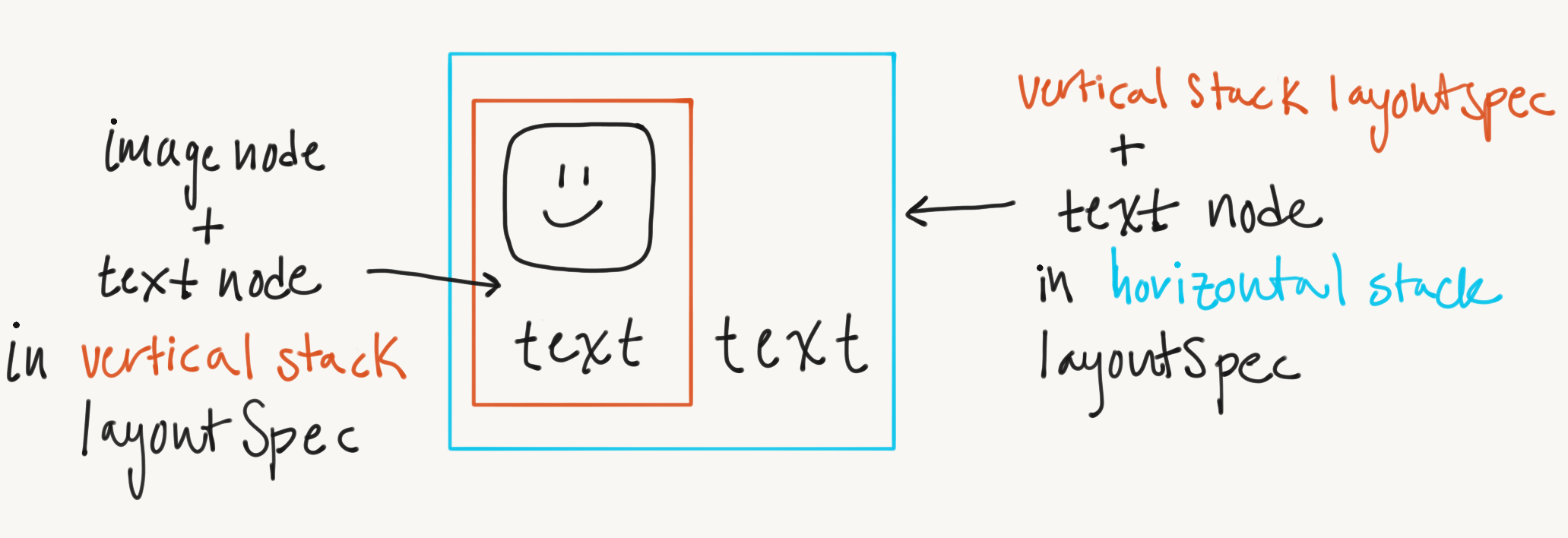 Both nodes and layoutSpecs conform to the `