# Technical Documentation: Pimzino/spec-workflow-mcp
> ℹ️ **Provenance:** Multi-Tier Ingestion · [CodeWiki Reference](https://codewiki.google/github.com/Pimzino/spec-workflow-mcp)
### Overview (`README.md`)
# Spec Workflow MCP
*I HAVE TAKEN A SMALL BREAK FROM THIS REPO FOR PERSONAL REASONS BUT I WILL BE BACK WITH SOME UPDATES IN THE NEAR FUTURE*
*THANK YOU FOR YOUR UNDERSTANDING*
[](https://www.npmjs.com/package/@pimzino/spec-workflow-mcp)
[](https://marketplace.visualstudio.com/items?itemName=Pimzino.spec-workflow-mcp)
A Model Context Protocol (MCP) server for structured spec-driven development with real-time dashboard and VSCode extension.
## ☕ Support This Project
## 📺 Showcase
### 🔄 Approval System in Action
*See how the approval system works: create documents, request approval through the dashboard, provide feedback, and track revisions.*
### 📊 Dashboard & Spec Management
*Explore the real-time dashboard: view specs, track progress, navigate documents, and monitor your development workflow.*
## ✨ Key Features
- **Structured Development Workflow** - Sequential spec creation (Requirements → Design → Tasks)
- **Real-Time Web Dashboard** - Monitor specs, tasks, and progress with live updates
- **VSCode Extension** - Integrated sidebar dashboard for VSCode users
- **Approval Workflow** - Complete approval process with revisions
- **Task Progress Tracking** - Visual progress bars and detailed status
- **Implementation Logs** - Searchable logs of all task implementations with code statistics
- **Multi-Language Support** - Available in 11 languages
## 🌍 Supported Languages
🇺🇸 English • 🇯🇵 日本語 • 🇨🇳 中文 • 🇪🇸 Español • 🇧🇷 Português • 🇩🇪 Deutsch • 🇫🇷 Français • 🇷🇺 Русский • 🇮🇹 Italiano • 🇰🇷 한국어 • 🇸🇦 العربية
**📖 Documentation in your language:**
[English](README.md) | [日本語](README.ja.md) | [中文](README.zh.md) | [Español](README.es.md) | [Português](README.pt.md) | [Deutsch](README.de.md) | [Français](README.fr.md) | [Русский](README.ru.md) | [Italiano](README.it.md) | [한국어](README.ko.md) | [العربية](README.ar.md)
## 🚀 Quick Start
### Step 1: Add to your AI tool
Add to your MCP configuration (see client-specific setup below):
```json
{
"mcpServers": {
"spec-workflow": {
"command": "npx",
"args": ["-y", "@pimzino/spec-workflow-mcp@latest", "/path/to/your/project"]
}
}
}
```
### Step 2: Choose your interface
**Option A: Web Dashboard** (Required for CLI users)
Start the dashboard (runs on port 5000 by default):
```bash
npx -y @pimzino/spec-workflow-mcp@latest --dashboard
```
The dashboard will be accessible at: http://localhost:5000
> **Note:** Only one dashboard instance is needed. All your projects will connect to the same dashboard.
**Option B: VSCode Extension** (Recommended for VSCode users)
Install [Spec Workflow MCP Extension](https://marketplace.visualstudio.com/items?itemName=Pimzino.spec-workflow-mcp) from the VSCode marketplace.
## 📝 How to Use
Simply mention spec-workflow in your conversation:
- **"Create a spec for user authentication"** - Creates complete spec workflow
- **"List my specs"** - Shows all specs and their status
- **"Execute task 1.2 in spec user-auth"** - Runs a specific task
[See more examples →](docs/PROMPTING-GUIDE.md)
## 🔧 MCP Client Setup
Augment Code
Configure in your Augment settings:
```json
{
"mcpServers": {
"spec-workflow": {
"command": "npx",
"args": ["-y", "@pimzino/spec-workflow-mcp@latest", "/path/to/your/project"]
}
}
}
```
Claude Code CLI
Add to your MCP configuration:
```bash
claude mcp add spec-workflow npx @pimzino/spec-workflow-mcp@latest -- /path/to/your/project
```
**Important Notes:**
- The `-y` flag bypasses npm prompts for smoother installation
- The `--` separator ensures the path is passed to the spec-workflow script, not to npx
- Replace `/path/to/your/project` with your actual project directory path
**Alternative for Windows (if the above doesn't work):**
```bash
claude mcp add spec-workflow cmd.exe /c "npx @pimzino/spec-workflow-mcp@latest /path/to/your/project"
```
Claude Desktop
Add to `claude_desktop_config.json`:
```json
{
"mcpServers": {
"spec-workflow": {
"command": "npx",
"args": ["-y", "@pimzino/spec-workflow-mcp@latest", "/path/to/your/project"]
}
}
}
```
> **Important:** Run the dashboard separately with `--dashboard` before starting the MCP server.
Cline/Claude Dev
Add to your MCP server configuration:
```json
{
"mcpServers": {
"spec-workflow": {
"command": "npx",
"args": ["-y", "@pimzino/spec-workflow-mcp@latest", "/path/to/your/project"]
}
}
}
```
Continue IDE Extension
Add to your Continue configuration:
```json
{
"mcpServers": {
"spec-workflow": {
"command": "npx",
"args": ["-y", "@pimzino/spec-workflow-mcp@latest", "/path/to/your/project"]
}
}
}
```
Cursor IDE
Add to your Cursor settings (`settings.json`):
```json
{
"mcpServers": {
"spec-workflow": {
"command": "npx",
"args": ["-y", "@pimzino/spec-workflow-mcp@latest", "/path/to/your/project"]
}
}
}
```
OpenCode
Add to your `opencode.json` configuration file:
```json
{
"$schema": "https://opencode.ai/config.json",
"mcp": {
"spec-workflow": {
"type": "local",
"command": ["npx", "-y", "@pimzino/spec-workflow-mcp@latest", "/path/to/your/project"],
"enabled": true
}
}
}
```
Windsurf
Add to your `~/.codeium/windsurf/mcp_config.json` configuration file:
```json
{
"mcpServers": {
"spec-workflow": {
"command": "npx",
"args": ["-y", "@pimzino/spec-workflow-mcp@latest", "/path/to/your/project"]
}
}
}
```
Codex
Add to your `~/.codex/config.toml` configuration file:
```toml
[mcp_servers.spec-workflow]
command = "npx"
args = ["-y", "@pimzino/spec-workflow-mcp@latest", "/path/to/your/project"]
```
## 🐳 Docker Deployment
Run the dashboard in a Docker container for isolated deployment:
```bash
# Using Docker Compose (recommended)
cd containers
docker-compose up --build
# Or using Docker CLI
docker build -f containers/Dockerfile -t spec-workflow-mcp .
docker run -p 5000:5000 -v "./workspace/.spec-workflow:/workspace/.spec-workflow:rw" spec-workflow-mcp
```
The dashboard will be available at: http://localhost:5000
[See Docker setup guide →](containers/README.md)
## 🔒 Security
Spec-Workflow MCP includes enterprise-grade security features suitable for corporate environments:
### ✅ Implemented Security Controls
| Feature | Description |
|---------|-------------|
| **Localhost Binding** | Binds to `127.0.0.1` by default, preventing network exposure |
| **Rate Limiting** | 120 requests/minute per client with automatic cleanup |
| **Audit Logging** | Structured JSON logs with timestamp, actor, action, and result |
| **Security Headers** | X-Content-Type-Options, X-Frame-Options, X-XSS-Protection, CSP, Referrer-Policy |
| **CORS Protection** | Restricted to localhost origins by default |
| **Docker Hardening** | Non-root user, read-only filesystem, dropped capabilities, resource limits |
### ⚠️ Not Yet Implemented
| Feature | Workaround |
|---------|------------|
| **HTTPS/TLS** | Use a reverse proxy (nginx, Apache) with TLS certificates |
| **User Authentication** | Use a reverse proxy with Basic Auth or OAuth2 Proxy for SSO |
### For External/Network Access
If you need to expose the dashboard beyond localhost, we recommend:
1. **Keep dashboard on localhost** (`127.0.0.1`)
2. **Use nginx or Apache** as a reverse proxy with:
- TLS/HTTPS termination
- Basic authentication or OAuth2
3. **Configure firewall rules** to restrict access
```nginx
# Example nginx reverse proxy with auth
server {
listen 443 ssl;
server_name dashboard.example.com;
ssl_certificate /path/to/cert.pem;
ssl_certificate_key /path/to/key.pem;
auth_basic "Dashboard Access";
auth_basic_user_file /etc/nginx/.htpasswd;
location / {
proxy_pass http://127.0.0.1:5000;
proxy_http_version 1.1;
proxy_set_header Upgrade $http_upgrade;
proxy_set_header Connection "upgrade";
}
}
```
[See Docker security guide →](containers/README.md#security-configuration)
## 🔒 Sandboxed Environments
For sandboxed environments (e.g., Codex CLI with `sandbox_mode=workspace-write`) where `$HOME` is read-only, use the `SPEC_WORKFLOW_HOME` environment variable to redirect global state files to a writable location:
```bash
SPEC_WORKFLOW_HOME=/workspace/.spec-workflow-mcp npx -y @pimzino/spec-workflow-mcp@latest /workspace
```
[See Configuration Guide →](docs/CONFIGURATION.md#environment-variables)
## 📚 Documentation
- [Configuration Guide](docs/CONFIGURATION.md) - Command-line options, config files
- [User Guide](docs/USER-GUIDE.md) - Comprehensive usage examples
- [Workflow Process](docs/WORKFLOW.md) - Development workflow and best practices
- [Interfaces Guide](docs/INTERFACES.md) - Dashboard and VSCode extension details
- [Prompting Guide](docs/PROMPTING-GUIDE.md) - Advanced prompting examples
- [Tools Reference](docs/TOOLS-REFERENCE.md) - Complete tools documentation
- [Development](docs/DEVELOPMENT.md) - Contributing and development setup
- [Troubleshooting](docs/TROUBLESHOOTING.md) - Common issues and solutions
## 📁 Project Structure
```
your-project/
.spec-workflow/
approvals/
archive/
specs/
steering/
templates/
user-templates/
config.example.toml
```
## 🛠️ Development
```bash
# Install dependencies
npm install
# Build the project
npm run build
# Run in development mode
npm run dev
```
[See development guide →](docs/DEVELOPMENT.md)
## 📄 License
GPL-3.0
## ⭐ Star History
---
### Overview (`containers/README.md`)
# Spec-Workflow MCP Docker Setup
This directory contains Docker configuration files to run the Spec-Workflow MCP dashboard in a containerized environment. This setup provides isolation and easy deployment for the dashboard service.
## 📋 Table of Contents
- [Prerequisites](#prerequisites)
- [Quick Start](#quick-start)
- [Testing the Docker Image](#testing-the-docker-image)
- [Building the Image](#building-the-image)
- [Running the Dashboard](#running-the-dashboard)
- [Using Docker Compose](#using-docker-compose)
- [Configuration Options](#configuration-options)
- [Security Configuration](#security-configuration)
- [Troubleshooting](#troubleshooting)
## Prerequisites
- Docker (version 20.10 or later)
- Docker Compose (optional, for simplified management)
- A project directory where you want to use spec-workflow
## Quick Start
### Option 1: Using Docker Compose (Recommended)
The easiest way to get started is with Docker Compose:
```bash
# From the repository root
cd containers
docker-compose up --build
```
The dashboard will be available at: http://localhost:5000
### Option 2: Using Docker CLI
Build and run manually:
```bash
# From the repository root
docker build -f containers/Dockerfile -t spec-workflow-mcp .
docker run -p 5000:5000 -v "./workspace/.spec-workflow:/workspace/.spec-workflow:rw" spec-workflow-mcp
```
## Testing the Docker Image
A comprehensive test script is provided to validate the Docker image configurations:
```bash
# From the containers directory
./test-docker.sh
```
The test script validates:
| Test | Description |
|------|-------------|
| **Image Build** | Verifies the Docker image builds successfully |
| **Docker Default Config** | Tests app binding to 0.0.0.0, Docker exposing to localhost |
| **Security Check** | Verifies app-level security block (when overriding Docker defaults) |
| **Network Exposure** | Tests full network port mapping |
| **Rate Limiting** | Verifies rate limiting configuration |
| **Non-Root User** | Confirms container runs as non-privileged user |
| **Custom Port** | Tests custom port configuration |
### Running Individual Tests
You can also manually test specific configurations:
```bash
# Test default Docker config (localhost-only access)
docker run --rm \
-p 127.0.0.1:5000:5000 \
spec-workflow-mcp
# Expected: Dashboard starts, accessible only from host machine
# Test network access (exposes to all interfaces)
docker run --rm \
-p 5000:5000 \
spec-workflow-mcp
# Expected: Dashboard starts with security warning
# Test app-level security check (override Docker defaults)
docker run --rm \
-e SPEC_WORKFLOW_ALLOW_EXTERNAL_ACCESS=false \
spec-workflow-mcp
# Expected: SECURITY ERROR (app blocks external binding)
```
## Building the Image
### Build from Repository Root
**Important:** The Dockerfile must be built from the repository root directory, not from the `containers` directory, because it needs access to the source code.
```bash
# From the repository root
docker build -f containers/Dockerfile -t spec-workflow-mcp .
```
### Build Arguments
The image is built in two stages:
1. **Builder stage**: Installs dependencies and builds the TypeScript application
2. **Runtime stage**: Creates a minimal production image with only necessary files
## Running the Dashboard
### Basic Usage
Run the dashboard on the default port (5000):
```bash
docker run -p 5000:5000 \
-v "./workspace/.spec-workflow:/workspace/.spec-workflow:rw" \
spec-workflow-mcp
```
### Custom Port
Run the dashboard on a custom port (e.g., 8080):
```bash
docker run -p 8080:8080 \
-e DASHBOARD_PORT=8080 \
-v "./workspace/.spec-workflow:/workspace/.spec-workflow:rw" \
spec-workflow-mcp
```
### Using a Specific Project Path
Mount your project's `.spec-workflow` directory:
```bash
docker run -p 5000:5000 \
-v "/path/to/your/project/.spec-workflow:/workspace/.spec-workflow:rw" \
spec-workflow-mcp
```
## Using Docker Compose
Docker Compose simplifies the management of the dashboard container.
### Default Configuration
Create a `.env` file (optional):
```bash
# .env file
DASHBOARD_PORT=5000
SPEC_WORKFLOW_PATH=./workspace
```
Then start the dashboard:
```bash
cd containers
docker-compose up -d
```
### Custom Configuration
Override environment variables when starting:
```bash
DASHBOARD_PORT=8080 SPEC_WORKFLOW_PATH=/path/to/project docker-compose up -d
```
### Managing the Service
```bash
# Start the dashboard
docker-compose up -d
# View logs
docker-compose logs -f
# Stop the dashboard
docker-compose down
# Rebuild and restart
docker-compose up --build
```
## Configuration Options
### Environment Variables
| Variable | Default (Docker) | Description |
|----------|------------------|-------------|
| `DASHBOARD_PORT` | `5000` | Port on which the dashboard runs |
| `DASHBOARD_HOST` | `127.0.0.1` | Host IP for port binding (`0.0.0.0` for network access) |
| `SPEC_WORKFLOW_PATH` | `/workspace` | Path to the project directory (inside container) |
| `SPEC_WORKFLOW_BIND_ADDRESS` | `0.0.0.0` | IP address to bind to inside container (Docker requires 0.0.0.0 for port forwarding) |
| `SPEC_WORKFLOW_ALLOW_EXTERNAL_ACCESS` | `true` | Set to true in Docker (external access controlled by port mapping) |
| `SPEC_WORKFLOW_RATE_LIMIT_ENABLED` | `true` | Enable/disable rate limiting |
| `SPEC_WORKFLOW_CORS_ENABLED` | `true` | Enable/disable CORS |
### Volume Mounts
The dashboard requires access to the `.spec-workflow` directory to function properly.
**Example:**
```bash
-v "/path/to/project/.spec-workflow:/workspace/.spec-workflow:rw"
```
**Important Notes:**
- The volume mount must be read-write (`:rw`) for the dashboard to function
- Only the `.spec-workflow` directory needs to be mounted
- The directory will be created automatically if it doesn't exist
### Port Mapping
Map the container port to a host port:
```bash
-p :
```
**Examples:**
- Default: `-p 5000:5000`
- Custom: `-p 8080:8080` (remember to set `DASHBOARD_PORT=8080`)
## Security Configuration
The Docker image includes several security features that are enabled by default.
### Docker Networking Model
In Docker, the application binds to `0.0.0.0` inside the container (required for Docker's port forwarding to work). **Security is controlled by Docker's port mapping**, not by the application's bind address.
#### Option 1: Localhost Only (Secure Default)
The default `docker-compose.yml` uses localhost-only port mapping:
```yaml
ports:
- "127.0.0.1:5000:5000" # Only accessible from host machine
```
Or with Docker CLI:
```bash
docker run -p 127.0.0.1:5000:5000 \
-v "./workspace/.spec-workflow:/workspace/.spec-workflow:rw" \
spec-workflow-mcp
```
✅ **This is the recommended configuration.** The dashboard is only accessible from your local machine.
#### Option 2: Network Access (Use with Caution)
To allow access from other machines on your network, use `DASHBOARD_HOST=0.0.0.0`:
**With Docker Compose (recommended):**
```bash
# Expose to all network interfaces
DASHBOARD_HOST=0.0.0.0 docker-compose up
# Or bind to a specific IP
DASHBOARD_HOST=192.168.1.100 docker-compose up
```
**With Docker CLI:**
```bash
docker run -p 0.0.0.0:5000:5000 \
-v "./workspace/.spec-workflow:/workspace/.spec-workflow:rw" \
spec-workflow-mcp
# Or bind to a specific IP
docker run -p 192.168.1.100:5000:5000 \
-v "./workspace/.spec-workflow:/workspace/.spec-workflow:rw" \
spec-workflow-mcp
```
⚠️ **Security Warning:** This exposes the dashboard to your network. The application will display a security warning in the logs. Only use when necessary and ensure proper network security measures (firewall, VPN) are in place.
### Rate Limiting
Rate limiting protects against abuse and DoS attacks. It's enabled by default (120 requests/minute per client).
```bash
# Disable rate limiting (not recommended)
docker run -e SPEC_WORKFLOW_RATE_LIMIT_ENABLED=false spec-workflow-mcp
```
### Docker Compose Security Settings
The provided `docker-compose.yml` includes additional security hardening:
```yaml
# Read-only root filesystem
read_only: true
# Drop all Linux capabilities
cap_drop:
- ALL
# Prevent privilege escalation
security_opt:
- no-new-privileges:true
# Resource limits (prevent DoS)
deploy:
resources:
limits:
cpus: '1.0'
memory: 512M
```
### Security Best Practices
1. **Use localhost port mapping** when possible (`127.0.0.1:5000:5000`)
2. **Never expose to public internet** without proper authentication/firewall
3. **Keep rate limiting enabled** in production
4. **Use the provided docker-compose.yml** for security hardening
5. **Run as non-root user** (default in the image)
6. **Mount volumes read-write only when necessary**
### Audit Logging
All API requests are logged to a structured JSON audit log for compliance and debugging.
**Log Location:** `/.spec-workflow/audit.log`
**Log Format:**
```json
{
"timestamp": "2025-12-06T10:30:45.123Z",
"actor": "127.0.0.1",
"action": "GET /api/projects/list",
"resource": "/api/projects/list",
"result": "success",
"details": {
"statusCode": 200,
"duration": 45,
"userAgent": "Mozilla/5.0..."
}
}
```
**Viewing Logs:**
```bash
# View recent logs
tail -f .spec-workflow/audit.log
# Parse as JSON (requires jq)
cat .spec-workflow/audit.log | jq '.'
# Filter by result
cat .spec-workflow/audit.log | jq 'select(.result == "denied")'
```
### External Access with Authentication
The dashboard does not include built-in authentication. For external access, use a reverse proxy:
**Option 1: nginx with Basic Auth**
```nginx
server {
listen 443 ssl;
server_name dashboard.example.com;
ssl_certificate /path/to/cert.pem;
ssl_certificate_key /path/to/key.pem;
auth_basic "Dashboard Access";
auth_basic_user_file /etc/nginx/.htpasswd;
location / {
proxy_pass http://127.0.0.1:5000;
proxy_http_version 1.1;
proxy_set_header Upgrade $http_upgrade;
proxy_set_header Connection "upgrade";
}
}
```
**Option 2: OAuth2 Proxy (for SSO)**
```bash
oauth2-proxy \
--upstream=http://127.0.0.1:5000 \
--http-address=0.0.0.0:4180 \
--provider=google \
--client-id=YOUR_CLIENT_ID \
--client-secret=YOUR_CLIENT_SECRET
```
## MCP Server Configuration
The dashboard runs independently of MCP servers. To connect MCP servers to the dashboard:
### For Claude Desktop
Add to your `claude_desktop_config.json`:
```json
{
"mcpServers": {
"spec-workflow": {
"command": "npx",
"args": ["-y", "@pimzino/spec-workflow-mcp@latest", "/path/to/your/project"]
}
}
}
```
**Note:** The MCP server runs on your host machine and connects to the Docker dashboard automatically via port 5000.
### For Other MCP Clients
Use similar configuration with the appropriate MCP client settings. The MCP servers run independently and connect to the dashboard's WebSocket endpoint.
## Troubleshooting
### Common Issues
#### 1. Port Already in Use
**Error:** `Bind for 0.0.0.0:5000 failed: port is already allocated`
**Solution:** Use a different port:
```bash
docker run -p 8080:8080 -e DASHBOARD_PORT=8080 ...
# or with docker-compose
DASHBOARD_PORT=8080 docker-compose up
```
#### 2. Permission Denied
**Error:** Permission issues with `.spec-workflow` directory
**Solutions:**
- Ensure the directory has proper permissions: `chmod -R 755 .spec-workflow`
- On SELinux systems, add `:z` to the volume mount: `-v "./workspace/.spec-workflow:/workspace/.spec-workflow:rw,z"`
#### 3. Dashboard Not Accessible
**Check:**
- Container is running: `docker ps`
- Port is properly mapped: `docker port `
- Firewall allows connections on the port
- Access via: `http://localhost:5000` (or your custom port)
#### 4. Build Fails
**Error:** Build fails with COPY or dependency errors
**Solutions:**
- Ensure you're building from the repository root: `docker build -f containers/Dockerfile -t spec-workflow-mcp .`
- Check that all source files are present
- Verify `package.json` and `package-lock.json` exist
### Viewing Logs
#### Docker CLI
```bash
docker logs
docker logs -f # Follow logs
```
#### Docker Compose
```bash
docker-compose logs
docker-compose logs -f # Follow logs
```
### Inspecting the Container
```bash
# View container details
docker inspect
# Access container shell
docker exec -it /bin/sh
```
## Advanced Configuration
### Running in Detached Mode
```bash
docker run -d \
--name spec-workflow-dashboard \
-p 5000:5000 \
-v "./workspace/.spec-workflow:/workspace/.spec-workflow:rw" \
spec-workflow-mcp
```
### Auto-Restart on Failure
```bash
docker run -d \
--name spec-workflow-dashboard \
--restart unless-stopped \
-p 5000:5000 \
-v "./workspace/.spec-workflow:/workspace/.spec-workflow:rw" \
spec-workflow-mcp
```
### Health Checks
The dashboard doesn't currently include health checks, but you can test connectivity:
```bash
curl http://localhost:5000
```
## Security Considerations
The Docker image implements enterprise-grade security controls:
| Feature | Status | Description |
|---------|--------|-------------|
| **Non-root User** | ✅ Enabled | Runs as `node` user (UID 1000) |
| **Rate Limiting** | ✅ Enabled | 120 req/min per client |
| **Audit Logging** | ✅ Enabled | JSON logs with 30-day retention |
| **Security Headers** | ✅ Enabled | XSS, clickjacking, MIME sniffing protection |
| **CORS Protection** | ✅ Enabled | Localhost origins only by default |
| **Localhost Binding** | ✅ Default | `127.0.0.1:5000:5000` in docker-compose |
| **HTTPS/TLS** | ❌ Not built-in | Use reverse proxy (nginx/Apache) |
| **User Authentication** | ❌ Not built-in | Use reverse proxy with Basic Auth or OAuth2 |
**Best Practices:**
- Keep the base image updated: `docker pull node:24-alpine`
- Use read-only volume mounts where possible (`:rw` required for `.spec-workflow`)
- For network access, always use a reverse proxy with TLS and authentication
- Review audit logs regularly for security monitoring
## Performance Tips
- The container is optimized for production with:
- Multi-stage builds to minimize image size
- Only production dependencies in final image
- Alpine Linux for small footprint
- Monitor resource usage:
```bash
docker stats
```
## Additional Resources
- [Main Documentation](../README.md)
- [User Guide](../docs/USER-GUIDE.md)
- [Troubleshooting Guide](../docs/TROUBLESHOOTING.md)
- [GitHub Repository](https://github.com/Pimzino/spec-workflow-mcp)
## Support
If you encounter issues:
1. Check the [Troubleshooting](#troubleshooting) section
2. Review logs: `docker logs `
3. Open an issue on [GitHub](https://github.com/Pimzino/spec-workflow-mcp/issues)
4. Include:
- Docker version: `docker --version`
- Operating system
- Error messages
- Steps to reproduce
---
### Overview (`vscode-extension/README.md`)
# Spec Workflow MCP Extension
A VSCode extension that provides an integrated dashboard for managing Spec-Workflow MCP projects directly in your workspace.
## Features
- **Integrated Sidebar Dashboard**: Access all your spec workflow data without leaving VSCode
- **Real-time Updates**: File system watchers automatically update the dashboard when .spec-workflow files change
- **Project Overview**: Comprehensive statistics showing active vs archived specs, tasks, and approvals
- **Spec Management**: Browse active and archived specifications with easy archiving/unarchiving
- **Task Management**: View and update task statuses directly from the sidebar
- **Approval Workflow**: Complete approval process with approve, reject, and revision requests
- **Steering Documents**: Manage product, tech, and structure steering documents
- **Sound Notifications**: Configurable audio alerts for approvals and task completions
- **Editor Integration**: Context menu actions for approvals and comments directly in code
- **React + Tailwind UI**: Modern, responsive interface built with React 19 and Tailwind CSS v4
## Requirements
- VSCode 1.99.0 or higher
- A workspace containing a `.spec-workflow` directory structure
## Usage
1. Open a workspace that contains a `.spec-workflow` directory
2. The Spec Workflow MCP icon will appear in the Activity Bar
3. Click the icon to open the dashboard sidebar
4. Use the tabbed interface to navigate between:
- **Overview**: Project statistics showing active/archived specs breakdown and recent activity
- **Steering**: Manage steering documents (product, tech, structure)
- **Specs**: Browse active and archived specifications with archive management
- **Tasks**: View and manage task progress for selected specifications
- **Approvals**: Handle pending approval requests with full workflow support
## Archive Management
Specifications can be archived to keep dropdown menus clean and organized:
- Switch between **Active** and **Archived** views in the Specs tab
- Archive completed specifications to remove them from active dropdowns
- Unarchive specifications when needed
- Archive operations are blocked if pending approvals exist for the specification
## Commands
- `Spec Workflow: Open Dashboard` - Opens the sidebar dashboard
- `Spec Workflow: Refresh Data` - Manually refresh all data
- `Spec Workflow: Open Spec` - Quick pick to open specific specifications
- `Spec Workflow: Approve` - Approve current document (editor context)
- `Spec Workflow: Reject` - Reject current document (editor context)
- `Spec Workflow: Request Revision` - Request revision for current document
- `Spec Workflow: Add Comment` - Add comment to selected text
- `Spec Workflow: Approval Actions` - Show approval action menu
## Extension Settings
- `specWorkflow.notifications.sounds.enabled` - Enable sound notifications (default: true)
- `specWorkflow.notifications.sounds.volume` - Sound volume level 0.0-1.0 (default: 0.3)
- `specWorkflow.notifications.sounds.approvalSound` - Play sound for approval requests (default: true)
- `specWorkflow.notifications.sounds.taskCompletionSound` - Play sound for task completions (default: true)
## Development
This extension is built with:
- React 19 with TypeScript
- Vite for webview bundling
- Tailwind CSS v4 for styling
- ShadCN UI components
- VSCode Extension API
## Release Notes
### 0.0.1
Initial release of Spec Workflow MCP Extension:
- **Dashboard Integration**: Complete sidebar dashboard with real-time updates
- **Specification Management**: Active/archived spec organization with archive workflow
- **Task Tracking**: Interactive task management with status updates
- **Approval System**: Full approval workflow with approve/reject/revision capabilities
- **Steering Documents**: Product, tech, and structure document management
- **Sound Notifications**: Configurable audio alerts for key events
- **Editor Integration**: Context menu actions and comment system
- **Modern UI**: React 19 + Tailwind CSS v4 with responsive design
## Support
If you find this extension helpful, consider supporting the development:
[☕ Buy Me a Coffee](https://buymeacoffee.com/pimzino)
## License
This project is licensed under the GPL-3.0 License.
---
### Overview (`docs/technical-documentation/README.md`)
# Technical Documentation
> **Quick Reference**: Jump to what you need most → [Tools API](api-reference.md) | [Architecture](architecture.md) | [Developer Guide](developer-guide.md) | [Troubleshooting](troubleshooting.md)
## 📋 Table of Contents
### Core Documentation
- **[Architecture Overview](architecture.md)** - System design, components, and data flow
- **[MCP Tools API Reference](api-reference.md)** - Complete tool documentation with examples
- **[Developer Workflow Guide](developer-guide.md)** - Step-by-step development workflows
- **[Context Management](context-management.md)** - How context switching and caching works
- **[File Structure](file-structure.md)** - Project organization and directory layout
- **[Dashboard System](dashboard.md)** - Web dashboard and real-time features
- **[Troubleshooting & FAQ](troubleshooting.md)** - Common issues and solutions
### Quick Start Guides
- **[Setting Up Development Environment](setup.md)** - Get up and running quickly
- **[Contributing Guidelines](contributing.md)** - How to contribute to the project
- **[Testing Guide](testing.md)** - Running tests and writing new ones
## 🚀 Quick Start
### For AI Assistant Integration
```json
{
"mcpServers": {
"spec-workflow": {
"command": "npx",
"args": ["-y", "@pimzino/spec-workflow-mcp@latest", "/path/to/project"]
}
}
}
```
**Note**: To use the dashboard, start it separately in a terminal:
```bash
npx -y @pimzino/spec-workflow-mcp@latest --dashboard
```
### For Local Development
```bash
# Clone and setup
git clone
cd spec-workflow-mcp
npm install
# Start development server
npm run dev
# Build for production
npm run build
```
## 🔍 Comprehensive Capability Analysis
### Critical Questions Answered
Based on comprehensive codebase analysis, here are definitive answers to key technical questions:
#### **Question 1: Web Scraping & Research Capabilities**
**Answer: No independent web scraping - leverages LLM's built-in web search**
| Aspect | This MCP | Other AI Agents | Expansion Opportunity |
|--------|----------|----------------|---------------------|
| **Web Scraping** | ❌ No independent capability | ✅ Custom scrapers (Puppeteer, Playwright) | 🔮 Could add structured scraping tools |
| **API Research** | ❌ Relies on LLM's web search | ✅ Direct API integrations | 🔮 Could add GitHub, Stack Overflow APIs |
| **Research Caching** | ❌ No research persistence | ✅ Advanced caching systems | 🔮 Could cache LLM research results |
| **Data Sources** | ✅ LLM's vast training data + real-time web | ❌ Limited to configured sources | ✅ Best of both worlds |
#### **Question 2: AI Calls & Context Window Management**
**Answer: Pure MCP - uses only connected LLM, no independent AI calls**
| Aspect | This MCP | Other AI Agents | Expansion Opportunity |
|--------|----------|----------------|---------------------|
| **AI Service Calls** | ❌ No independent AI calls | ✅ Multiple AI model integration | 🔮 Could add specialized AI services |
| **Context Management** | ❌ No LLM context manipulation | ✅ Advanced context strategies | 🔮 Could add context optimization |
| **Memory Management** | ❌ File-based only | ✅ Vector databases, embeddings | 🔮 Could add persistent memory |
| **Multi-Model Usage** | ❌ Single LLM connection | ✅ GPT-4 + Claude + Gemini | 🔮 Could add model routing |
#### **Question 3: Document Planning Process**
**Answer: Template-guided LLM intelligence - no separate AI planning**
| Aspect | This MCP | Other AI Agents | Expansion Opportunity |
|--------|----------|----------------|---------------------|
| **Planning Intelligence** | ✅ LLM reasoning with templates | ✅ Dedicated planning AI | 🔮 Could add adaptive workflows |
| **Template System** | ✅ Static but comprehensive | ❌ Often no structured templates | ✅ Structured advantage |
| **Workflow Adaptation** | ❌ Fixed sequence | ✅ Dynamic workflow generation | 🔮 Could add LLM-powered workflows |
| **Project Analysis** | ✅ LLM analyzes project context | ✅ Specialized analysis tools | 🔮 Could add deep code analysis |
#### **Question 4: Auto Review Process**
**Answer: Human-only approval system - no automated AI review**
| Aspect | This MCP | Other AI Agents | Expansion Opportunity |
|--------|----------|----------------|---------------------|
| **Review Automation** | ❌ Human approval required | ✅ Multi-stage AI review | 🔮 Could add optional AI gates |
| **Quality Assurance** | ✅ LLM quality + Human oversight | ❌ AI-only (potential errors) | ✅ Best quality control |
| **Approval Workflows** | ✅ Dashboard/VS Code integration | ❌ Often CLI-only | ✅ Superior UX |
| **Review Intelligence** | ✅ LLM can suggest improvements | ✅ Specialized review models | 🔮 Could add review templates |
#### **Question 5: Best Practice Standards**
**Answer: LLM built-in knowledge - no external standards fetching**
| Aspect | This MCP | Other AI Agents | Expansion Opportunity |
|--------|----------|----------------|---------------------|
| **Standards Source** | ✅ LLM's vast training knowledge | ✅ External standards APIs | 🔮 Could add standards integration |
| **Currency** | ✅ LLM can web search for latest | ❌ Static configurations | ✅ Always current |
| **Customization** | ❌ No project-specific standards | ✅ Custom rule engines | 🔮 Could add org standards |
| **Best Practices** | ✅ Industry-wide via LLM | ❌ Limited to pre-configured | ✅ Comprehensive coverage |
### Competitive Positioning Analysis
**Strengths vs Other AI Agents:**
```typescript
interface CompetitiveAdvantages {
humanOversight: "Mandatory approval prevents runaway AI behavior";
llmLeverage: "Uses full power of connected LLM without limitations";
structuredOutput: "Templates ensure consistent, professional documentation";
realTimeUI: "Dashboard and VS Code integration for seamless workflow";
simplicity: "No complex setup or API key management required";
reliability: "Proven workflow sequence with validation and error handling";
}
```
**Current Limitations vs Market Leaders:**
```typescript
interface LimitationsAnalysis {
automationLevel: "Less automated than fully autonomous agents";
integrationEcosystem: "Limited external service integrations";
multiProject: "Single project scope vs enterprise-wide solutions";
aiDiversity: "Single LLM vs multi-model approaches";
workflowFlexibility: "Fixed sequence vs adaptive workflows";
}
```
**Expansion Opportunities Identified:**
```typescript
interface ExpansionRoadmap {
immediateWins: {
githubIntegration: "PR creation, issue sync, code analysis";
qualityGates: "Optional automated quality checks";
templateDynamism: "Project-type aware template selection";
};
mediumTerm: {
multiProjectSupport: "Enterprise dashboard for multiple projects";
advancedIntegrations: "Jira, Confluence, Slack notifications";
workflowCustomization: "Configurable workflow sequences";
};
longTerm: {
aiOrchestration: "Multi-agent coordination capabilities";
predictiveAnalytics: "Project success prediction and risk analysis";
enterpriseFeatures: "SSO, compliance, audit trails";
};
}
```
## ⚠️ Technical Limitations & Capabilities
### What This MCP Does NOT Do
**No Independent External Calls**:
- ❌ No separate web scraping or API calls by the MCP server
- ❌ No independent external research by the MCP server
- ❌ No direct calls to AI services from the MCP server
- ✅ Leverages connected LLM's built-in web search and knowledge
**No Separate AI Service Integration**:
- ❌ No additional calls to OpenAI, Anthropic, or other AI services
- ❌ No independent AI processing outside the connected LLM
- ❌ No separate AI models or services
- ✅ Uses only the LLM provided through MCP connection
**No Context Window Management**:
- ❌ Does not extend or manage AI client context windows
- ❌ No conversation history or memory management
- ❌ No cross-session AI context preservation
- ✅ Provides structured project data for AI client consumption
**Human-Only Approval System**:
- ❌ No automated AI-powered document review
- ❌ No AI-based approval recommendations
- ❌ Verbal approval not accepted
- ✅ All approvals require dashboard or VS Code interaction
### What This MCP Excels At
**Leveraging LLM Built-in Capabilities**:
- ✅ Provides structured templates for LLM to fill with intelligent content
- ✅ Supplies project context for LLM analysis and understanding
- ✅ Enables LLM to use its built-in knowledge for best practices
- ✅ Allows LLM to perform web research when generating content
**Structured Workflow Enforcement**:
- ✅ Enforces spec-driven development sequence
- ✅ Template-based document structure for consistent LLM output
- ✅ Workflow validation and blocking
- ✅ Human oversight integration for LLM-generated content
**Intelligent Project Data Management**:
- ✅ Efficient context loading for LLM consumption
- ✅ Real-time file watching and updates
- ✅ Cross-platform path handling
- ✅ Structured project organization that LLM can understand
**Enhanced Developer Experience**:
- ✅ Web dashboard for reviewing LLM-generated content
- ✅ VS Code extension integration
- ✅ Real-time WebSocket updates
- ✅ Comprehensive error handling
## 🎯 Key Concepts
### MCP Tools
The server provides 12 MCP tools for spec-driven development:
- **Workflow Tools**: `spec-workflow-guide`, `steering-guide`
- **Content Tools**: `create-spec-doc`, `create-steering-doc`, `get-template-context`
- **Search Tools**: `get-spec-context`, `get-steering-context`, `spec-list`
- **Status Tools**: `spec-status`, `manage-tasks`
- **Approval Tools**: `request-approval`, `get-approval-status`, `delete-approval`
### File Organization
```
.spec-workflow/
├── specs/ # Specification documents
├── steering/ # Project guidance documents
├── approvals/ # Approval workflow data
└── archive/ # Archived specifications
```
### Workflow Phases
1. **Requirements** → 2. **Design** → 3. **Tasks** → 4. **Implementation**
Each phase requires approval before proceeding to the next.
## 🔧 Development Workflow
### Adding a New MCP Tool
1. Create tool file in `src/tools/`
2. Export tool definition and handler
3. Register in `src/tools/index.ts`
4. Update API documentation
5. Add tests
### Dashboard Development
```bash
# Start dashboard in development mode
npm run dev:dashboard
# Build dashboard assets
npm run build:dashboard
```
### VSCode Extension Development
```bash
cd vscode-extension
npm install
npm run compile
# Press F5 in VSCode to launch extension host
```
## 📚 Documentation Standards
- **Code Examples**: Always include working examples
- **Error Handling**: Document expected error conditions
- **Performance**: Note any performance considerations
- **Security**: Highlight security implications
- **Breaking Changes**: Mark breaking changes clearly
## 🤝 Getting Help
1. **Check the [Troubleshooting Guide](troubleshooting.md)** first
2. **Search existing [GitHub Issues](https://github.com/Pimzino/spec-workflow-mcp/issues)**
3. **Create a new issue** with detailed reproduction steps
4. **Join the community** for real-time support
---
## 📊 Technical Architecture Summary
### Pure MCP Server Design
This project implements a **pure Model Context Protocol (MCP) server** that:
| Aspect | Implementation | Details |
|--------|---------------|----------|
| **AI Integration** | Pure MCP server | Leverages connected LLM's built-in capabilities |
| **Web Research** | LLM built-in capability | LLM performs web search using its built-in features |
| **Context Management** | File-based structure | No LLM context window management |
| **Content Generation** | LLM-powered with templates | LLM fills templates using built-in knowledge & search |
| **Planning Process** | LLM reasoning + workflow validation | LLM plans content, MCP enforces structure |
| **Review System** | Human approval only | Dashboard/VS Code integration for LLM output |
| **Best Practices** | LLM built-in knowledge | LLM applies best practices from its training |
| **External Calls** | NPM version check only | All other capabilities through connected LLM |
### Key Files & Implementation
- **MCP Tools**: `src/tools/*.ts` - 13 tools for workflow management
- **Templates**: `src/markdown/templates/*.md` - Static document structures
- **Approval System**: `src/dashboard/approval-storage.ts` - Human-only review
- **Context Loading**: `src/core/*.ts` - File-based context structuring
- **Web Dashboard**: `src/dashboard_frontend/` - React-based approval UI
### Performance Characteristics
- **Memory Usage**: 50KB templates + 10-100KB per spec context
- **File System**: Local `.spec-workflow/` directory only
- **Network**: Localhost dashboard + NPM version check
- **Scaling**: Linear per project, 50-100 specs recommended
- **Security**: Local-only, no external data transmission
## 📊 Market Analysis & Strategic Insights
### Competitive Landscape Analysis
**Category 1: Autonomous AI Agents (e.g., AutoGPT, LangChain Agents)**
```typescript
interface AutonomousAgents {
capabilities: {
webScraping: "Advanced - Custom scrapers, API integrations";
aiCalls: "Multiple models, specialized AI services";
automation: "Fully autonomous operation";
integrations: "Extensive third-party ecosystem";
};
limitations: {
humanOversight: "Limited or optional";
reliability: "Can go off-track or produce errors";
complexity: "Complex setup, API management";
cost: "High due to multiple AI calls";
};
differentiator: "Full automation vs structured human-guided workflow";
}
```
**Category 2: Development Workflow Tools (e.g., GitHub Copilot, Cursor)**
```typescript
interface DevelopmentTools {
capabilities: {
codeGeneration: "Excellent within editors";
contextAwareness: "Good for code context";
realTimeAssistance: "Integrated development support";
aiPowered: "Built-in LLM capabilities";
};
limitations: {
workflowStructure: "Limited structured spec processes";
documentationFocus: "Code-centric, not spec-driven";
approvalProcess: "No formal review workflows";
projectPlanning: "Limited high-level planning";
};
differentiator: "Code-first vs spec-driven development approach";
}
```
**Category 3: Project Management + AI (e.g., Notion AI, Linear)**
```typescript
interface ProjectManagementAI {
capabilities: {
projectTracking: "Excellent project organization";
collaboration: "Team coordination features";
aiAssistance: "AI-powered content generation";
integration: "Extensive third-party connections";
};
limitations: {
technicalDepth: "Limited technical specification focus";
workflowEnforcement: "Flexible but not enforced";
developerWorkflow: "Not developer-workflow optimized";
codeIntegration: "Limited code context understanding";
};
differentiator: "General project management vs developer-specific workflows";
}
```
### Strategic Market Position
**Spec-Workflow-MCP's Unique Position:**
```typescript
interface MarketPosition {
blueOcean: {
category: "LLM-Enhanced Structured Development Workflows";
uniqueValue: "Human-supervised LLM intelligence with enforced spec-driven process";
targetUser: "Development teams needing structured processes with AI assistance";
};
competitiveAdvantages: {
llmLeverage: "Full LLM power without additional API costs";
humanOversight: "Prevents AI errors through mandatory approval";
structuredProcess: "Enforces proven development methodology";
simplicity: "No complex setup or API key management";
realTimeUI: "Superior user experience with dashboard";
};
marketOpportunities: {
enterpriseAdoption: "Companies wanting AI benefits with human control";
consultingFirms: "Standardized processes across client projects";
startups: "Structured development without overhead";
education: "Teaching proper development workflows";
};
}
```
### Expansion Strategy Insights
**Phase 1: Leverage Core Strengths**
```typescript
interface Phase1Strategy {
buildOnStrengths: {
enhanceHumanOversight: "Advanced approval workflows, review templates";
improveStructure: "Dynamic templates, adaptive workflows";
expandLLMUsage: "Better context utilization, smarter suggestions";
};
addressGaps: {
basicIntegrations: "GitHub, GitLab, Bitbucket connections";
qualityGates: "Optional automated checks before human review";
teamFeatures: "Multi-developer coordination";
};
}
```
**Phase 2: Strategic Differentiation**
```typescript
interface Phase2Strategy {
uniqueCapabilities: {
hybridIntelligence: "Best of LLM automation + human oversight";
contextMastery: "Superior project context understanding";
processExcellence: "Industry-leading structured workflows";
};
competitiveFeatures: {
multiModelSupport: "Support multiple LLM providers";
enterpriseFeatures: "SSO, compliance, audit trails";
aiOrchestration: "Multi-agent coordination while maintaining oversight";
};
}
```
### Strategic Recommendations for Creators
**Immediate Opportunities (0-6 months):**
1. **GitHub Integration**: Leverage LLM to create PRs, analyze codebases
2. **Quality Templates**: Add project-type detection for smarter templates
3. **Team Coordination**: Multi-developer approval workflows
4. **Performance Analytics**: Track spec-to-delivery success rates
**Medium-term Differentiators (6-18 months):**
1. **Hybrid AI Workflows**: Optional automated gates with human oversight
2. **Enterprise Dashboard**: Multi-project management interface
3. **Advanced Integrations**: Jira, Slack, Confluence, CI/CD pipelines
4. **Predictive Analytics**: Project risk analysis using LLM insights
**Long-term Vision (18+ months):**
1. **AI Orchestration Platform**: Multi-agent coordination with human oversight
2. **Industry Templates**: Specialized workflows for different domains
3. **Compliance Integration**: SOX, GDPR, HIPAA workflow templates
4. **Educational Platform**: Teaching structured development at scale
### Market Validation Insights
**This analysis reveals that Spec-Workflow-MCP occupies a unique market position:**
- ✅ **Underserved Market**: Structured development workflows with AI enhancement
- ✅ **Clear Differentiation**: Human oversight + LLM power combination
- ✅ **Expansion Potential**: Multiple clear paths for feature enhancement
- ✅ **Strategic Moat**: Proven workflow methodology that competitors would struggle to replicate
**Last Updated**: December 2024 | **Version**: 0.0.23
---
### CONFIGURATION.Ar (`docs/CONFIGURATION.ar.md`)
# دليل التكوين
يغطي هذا الدليل جميع خيارات التكوين لـ Spec Workflow MCP.
## خيارات سطر الأوامر
### الاستخدام الأساسي
```bash
npx -y @pimzino/spec-workflow-mcp@latest [project-path] [options]
```
### الخيارات المتاحة
| الخيار | الوصف | مثال |
|--------|-------------|---------|
| `--help` | عرض معلومات الاستخدام الشاملة | `npx -y @pimzino/spec-workflow-mcp@latest --help` |
| `--dashboard` | تشغيل وضع لوحة التحكم فقط (المنفذ الافتراضي: 5000) | `npx -y @pimzino/spec-workflow-mcp@latest --dashboard` |
| `--port ` | تحديد منفذ مخصص للوحة التحكم (1024-65535) | `npx -y @pimzino/spec-workflow-mcp@latest --dashboard --port 8080` |
### ملاحظات مهمة
- **مثيل واحد للوحة التحكم**: تعمل لوحة تحكم واحدة فقط في كل مرة. جميع خوادم MCP تتصل بنفس لوحة التحكم.
- **المنفذ الافتراضي**: تستخدم لوحة التحكم المنفذ 5000 بشكل افتراضي. استخدم `--port` فقط إذا كان 5000 غير متاح.
- **لوحة تحكم منفصلة**: قم دائمًا بتشغيل لوحة التحكم بشكل منفصل عن خوادم MCP.
## أمثلة الاستخدام
### سير العمل النموذجي
1. **ابدأ لوحة التحكم** (قم بذلك أولاً، مرة واحدة فقط):
```bash
# يستخدم المنفذ الافتراضي 5000
npx -y @pimzino/spec-workflow-mcp@latest --dashboard
```
2. **ابدأ خوادم MCP** (واحد لكل مشروع، في نوافذ طرفية منفصلة):
```bash
# المشروع 1
npx -y @pimzino/spec-workflow-mcp@latest ~/projects/app1
# المشروع 2
npx -y @pimzino/spec-workflow-mcp@latest ~/projects/app2
# المشروع 3
npx -y @pimzino/spec-workflow-mcp@latest ~/projects/app3
```
ستظهر جميع المشاريع في لوحة التحكم على http://localhost:5000
### لوحة تحكم مع منفذ مخصص
استخدم منفذًا مخصصًا فقط إذا كان المنفذ 5000 غير متاح:
```bash
# ابدأ لوحة التحكم على المنفذ 8080
npx -y @pimzino/spec-workflow-mcp@latest --dashboard --port 8080
```
## متغيرات البيئة
### SPEC_WORKFLOW_HOME
تجاوز دليل الحالة العامة الافتراضي (`~/.spec-workflow-mcp`). هذا مفيد للبيئات المعزولة حيث يكون `$HOME` للقراءة فقط.
| المتغير | الافتراضي | الوصف |
|----------|---------|-------------|
| `SPEC_WORKFLOW_HOME` | `~/.spec-workflow-mcp` | دليل ملفات الحالة العامة |
**الملفات المخزنة في هذا الدليل:**
- `activeProjects.json` - سجل المشاريع
- `activeSession.json` - معلومات جلسة لوحة التحكم
- `settings.json` - الإعدادات العامة
- `job-execution-history.json` - سجل تنفيذ المهام
- `migration.log` - تتبع ترحيل سجل التنفيذ
**أمثلة الاستخدام:**
```bash
# مسار مطلق
SPEC_WORKFLOW_HOME=/workspace/.spec-workflow-mcp npx -y @pimzino/spec-workflow-mcp@latest /workspace
# مسار نسبي (يُحل مقابل دليل العمل الحالي)
SPEC_WORKFLOW_HOME=./.spec-workflow-mcp npx -y @pimzino/spec-workflow-mcp@latest .
# لوضع لوحة التحكم
SPEC_WORKFLOW_HOME=/workspace/.spec-workflow-mcp npx -y @pimzino/spec-workflow-mcp@latest --dashboard
```
**البيئات المعزولة (مثل Codex CLI):**
عند التشغيل في بيئات معزولة مثل Codex CLI مع `sandbox_mode=workspace-write`، قم بتعيين `SPEC_WORKFLOW_HOME` إلى موقع قابل للكتابة داخل مساحة العمل الخاصة بك:
```bash
SPEC_WORKFLOW_HOME=/workspace/.spec-workflow-mcp npx -y @pimzino/spec-workflow-mcp@latest /workspace
```
## إدارة جلسة لوحة التحكم
تخزن لوحة التحكم معلومات جلستها في `~/.spec-workflow-mcp/activeSession.json` (أو `$SPEC_WORKFLOW_HOME/activeSession.json` إذا تم تعيينه). هذا الملف:
- يفرض مثيل واحد للوحة التحكم
- يسمح لخوادم MCP باكتشاف لوحة التحكم قيد التشغيل
- ينظف تلقائيًا عند توقف لوحة التحكم
### فرض مثيل واحد
يمكن تشغيل لوحة تحكم واحدة فقط في أي وقت. إذا حاولت بدء لوحة تحكم ثانية:
```
Dashboard is already running at: http://localhost:5000
You can:
1. Use the existing dashboard at: http://localhost:5000
2. Stop it first (Ctrl+C or kill PID), then start a new one
Note: Only one dashboard instance is needed for all your projects.
```
## إدارة المنافذ
**المنفذ الافتراضي**: 5000
**المنفذ المخصص**: استخدم `--port ` فقط إذا كان المنفذ 5000 غير متاح
### تعارضات المنافذ
إذا كان المنفذ 5000 قيد الاستخدام بالفعل بواسطة خدمة أخرى:
```bash
Failed to start dashboard: Port 5000 is already in use.
This might be another service using port 5000.
To use a different port:
spec-workflow-mcp --dashboard --port 8080
```
## ملف التكوين (قديم)
### الموقع الافتراضي
يبحث الخادم عن التكوين في: `/.spec-workflow/config.toml`
### تنسيق الملف
يستخدم التكوين تنسيق TOML. إليك مثال كامل:
```toml
# دليل المشروع (افتراضيًا الدليل الحالي)
projectDir = "/path/to/your/project"
# منفذ لوحة التحكم (1024-65535)
port = 3456
# تشغيل وضع لوحة التحكم فقط
dashboardOnly = false
# لغة الواجهة
# الخيارات: en, ja, zh, es, pt, de, fr, ru, it, ko, ar
lang = "en"
# إشعارات صوتية (إضافة VSCode فقط)
[notifications]
enabled = true
volume = 0.5
# الإعدادات المتقدمة
[advanced]
# محاولات إعادة الاتصال بـ WebSocket
maxReconnectAttempts = 10
# إعدادات مراقب الملفات
[watcher]
enabled = true
debounceMs = 300
```
### خيارات التكوين
#### الإعدادات الأساسية
| الخيار | النوع | الافتراضي | الوصف |
|--------|------|---------|-------------|
| `projectDir` | string | الدليل الحالي | مسار دليل المشروع |
| `port` | number | مؤقت | منفذ لوحة التحكم (1024-65535) |
| `dashboardOnly` | boolean | false | تشغيل لوحة التحكم بدون خادم MCP |
| `lang` | string | "en" | لغة الواجهة |
> **ملاحظة**: تمت إزالة خيار `autoStartDashboard` في الإصدار 2.0.0. تستخدم لوحة التحكم الآن وضع متعدد المشاريع الموحد المتاح عبر علامة `--dashboard`.
#### خيارات اللغة
- `en` - الإنجليزية
- `ja` - اليابانية (日本語)
- `zh` - الصينية (中文)
- `es` - الإسبانية (Español)
- `pt` - البرتغالية (Português)
- `de` - الألمانية (Deutsch)
- `fr` - الفرنسية (Français)
- `ru` - الروسية (Русский)
- `it` - الإيطالية (Italiano)
- `ko` - الكورية (한국어)
- `ar` - العربية (العربية)
### إنشاء تكوين مخصص
1. انسخ التكوين المثالي:
```bash
cp .spec-workflow/config.example.toml .spec-workflow/config.toml
```
2. حرر التكوين:
```toml
# تكوين مشروعي
projectDir = "/Users/myname/projects/myapp"
port = 3000
lang = "en"
```
3. استخدم التكوين:
```bash
# يستخدم .spec-workflow/config.toml تلقائيًا
npx -y @pimzino/spec-workflow-mcp@latest
# أو حدد صراحةً
npx -y @pimzino/spec-workflow-mcp@latest --config .spec-workflow/config.toml
```
## أسبقية التكوين
يتم تطبيق قيم التكوين بهذا الترتيب (من الأعلى إلى الأدنى أولوية):
1. **وسائط سطر الأوامر** - لها الأولوية دائمًا
2. **ملف تكوين مخصص** - محدد مع `--config`
3. **ملف التكوين الافتراضي** - `.spec-workflow/config.toml`
4. **الافتراضيات المدمجة** - قيم احتياطية
### مثال على الأسبقية
```toml
# config.toml
port = 3000
```
```bash
# وسيط سطر الأوامر يتجاوز ملف التكوين
npx -y @pimzino/spec-workflow-mcp@latest --config config.toml --port 4000
# النتيجة: port = 4000 (CLI تفوز)
```
## تكوينات خاصة بالبيئة
### تكوين التطوير
```toml
# dev-config.toml
projectDir = "./src"
port = 3000
lang = "en"
[advanced]
debugMode = true
verboseLogging = true
```
الاستخدام:
```bash
npx -y @pimzino/spec-workflow-mcp@latest --config dev-config.toml
```
### تكوين الإنتاج
```toml
# prod-config.toml
projectDir = "/var/app"
port = 8080
lang = "en"
[advanced]
debugMode = false
verboseLogging = false
```
الاستخدام:
```bash
npx -y @pimzino/spec-workflow-mcp@latest --config prod-config.toml
```
## تكوين المنفذ
### نطاق المنفذ الصالح
يجب أن تكون المنافذ بين 1024 و 65535.
### المنافذ المؤقتة
عندما لا يتم تحديد منفذ، يختار النظام تلقائيًا منفذًا مؤقتًا متاحًا. هذا موصى به لـ:
- بيئات التطوير
- مشاريع متعددة متزامنة
- تجنب تعارضات المنافذ
### المنافذ الثابتة
استخدم منافذ ثابتة عندما تحتاج:
- عناوين URL متسقة للإشارات المرجعية
- التكامل مع أدوات أخرى
- التعاون الجماعي مع تكوينات مشتركة
### حل تعارض المنفذ
إذا كان المنفذ قيد الاستخدام بالفعل:
1. **تحقق مما يستخدم المنفذ:**
- Windows: `netstat -an | findstr :3000`
- macOS/Linux: `lsof -i :3000`
2. **الحلول:**
- استخدم منفذًا مختلفًا: `--port 3001`
- أنهِ العملية التي تستخدم المنفذ
- احذف `--port` لاستخدام منفذ مؤقت
## إعداد متعدد المشاريع
### تكوينات منفصلة
أنشئ تكوينات خاصة بالمشروع:
```bash
# المشروع أ
project-a/
.spec-workflow/
config.toml # port = 3000
# المشروع ب
project-b/
.spec-workflow/
config.toml # port = 3001
```
### تكوين مشترك
استخدم تكوينًا مشتركًا مع تجاوزات:
```bash
# تكوين أساسي مشترك
~/configs/spec-workflow-base.toml
# تجاوزات خاصة بالمشروع
npx -y @pimzino/spec-workflow-mcp@latest \
--config ~/configs/spec-workflow-base.toml \
--port 3000 \
/path/to/project-a
```
## تكوين إضافة VSCode
إضافة VSCode لها إعداداتها الخاصة:
1. افتح إعدادات VSCode (Cmd/Ctrl + ,)
2. ابحث عن "Spec Workflow"
3. قم بالتكوين:
- تفضيل اللغة
- الإشعارات الصوتية
- رؤية الأرشيف
- فترة التحديث التلقائي
## استكشاف أخطاء التكوين وإصلاحها
### التكوين لا يتم تحميله
1. **تحقق من موقع الملف:**
```bash
ls -la .spec-workflow/config.toml
```
2. **تحقق من صحة بناء جملة TOML:**
```bash
# ثبت أداة TOML CLI
npm install @iarna/toml
# تحقق من الصحة
toml .spec-workflow/config.toml
```
3. **تحقق من الأذونات:**
```bash
# تأكد من أن الملف قابل للقراءة
chmod 644 .spec-workflow/config.toml
```
### المشكلات الشائعة
| المشكلة | الحل |
|-------|----------|
| المنفذ قيد الاستخدام بالفعل | استخدم منفذًا مختلفًا أو احذف للمنفذ المؤقت |
| لم يتم العثور على ملف التكوين | تحقق من المسار واستخدم المسار المطلق إذا لزم الأمر |
| بناء جملة TOML غير صالح | تحقق من الصحة باستخدام أداة TOML |
| الإعدادات لا يتم تطبيقها | تحقق من أسبقية التكوين |
## أفضل الممارسات
1. **استخدم التحكم في الإصدار** لملفات التكوين
2. **وثق الإعدادات المخصصة** في ملف README الخاص بمشروعك
3. **استخدم منافذ مؤقتة** في التطوير
4. **احتفظ بالبيانات الحساسة** خارج ملفات التكوين
5. **أنشئ تكوينات خاصة بالبيئة**
6. **اختبر تغييرات التكوين** قبل النشر
## التوثيق ذو الصلة
- [دليل المستخدم](USER-GUIDE.md) - استخدام الخادم المُكوَّن
- [دليل الواجهات](INTERFACES.md) - إعدادات لوحة التحكم والإضافة
- [استكشاف الأخطاء وإصلاحها](TROUBLESHOOTING.md) - مشكلات التكوين الشائعة
---
### CONFIGURATION.De (`docs/CONFIGURATION.de.md`)
# Konfigurationsanleitung
Diese Anleitung deckt alle Konfigurationsoptionen für Spec Workflow MCP ab.
## Befehlszeilenoptionen
### Grundlegende Verwendung
```bash
npx -y @pimzino/spec-workflow-mcp@latest [projekt-pfad] [optionen]
```
### Verfügbare Optionen
| Option | Beschreibung | Beispiel |
|--------|--------------|----------|
| `--help` | Umfassende Nutzungsinformationen anzeigen | `npx -y @pimzino/spec-workflow-mcp@latest --help` |
| `--dashboard` | Nur-Dashboard-Modus ausführen (Standardport: 5000) | `npx -y @pimzino/spec-workflow-mcp@latest --dashboard` |
| `--port ` | Benutzerdefinierten Dashboard-Port angeben (1024-65535) | `npx -y @pimzino/spec-workflow-mcp@latest --dashboard --port 8080` |
### Wichtige Hinweise
- **Einzelne Dashboard-Instanz**: Nur ein Dashboard läuft gleichzeitig. Alle MCP-Server verbinden sich mit demselben Dashboard.
- **Standardport**: Dashboard verwendet standardmäßig Port 5000. Verwenden Sie `--port` nur, wenn 5000 nicht verfügbar ist.
- **Separates Dashboard**: Führen Sie das Dashboard immer separat von MCP-Servern aus.
## Verwendungsbeispiele
### Typischer Workflow
1. **Dashboard starten** (zuerst tun, nur einmal):
```bash
# Verwendet Standardport 5000
npx -y @pimzino/spec-workflow-mcp@latest --dashboard
```
2. **MCP-Server starten** (einer pro Projekt, in separaten Terminals):
```bash
# Projekt 1
npx -y @pimzino/spec-workflow-mcp@latest ~/projects/app1
# Projekt 2
npx -y @pimzino/spec-workflow-mcp@latest ~/projects/app2
# Projekt 3
npx -y @pimzino/spec-workflow-mcp@latest ~/projects/app3
```
Alle Projekte werden im Dashboard unter http://localhost:5000 angezeigt
### Dashboard mit benutzerdefiniertem Port
Verwenden Sie einen benutzerdefinierten Port nur, wenn Port 5000 nicht verfügbar ist:
```bash
# Dashboard auf Port 8080 starten
npx -y @pimzino/spec-workflow-mcp@latest --dashboard --port 8080
```
## Umgebungsvariablen
### SPEC_WORKFLOW_HOME
Überschreiben Sie das standardmäßige globale Zustandsverzeichnis (`~/.spec-workflow-mcp`). Dies ist nützlich für Sandbox-Umgebungen, in denen `$HOME` schreibgeschützt ist.
| Variable | Standard | Beschreibung |
|----------|----------|--------------|
| `SPEC_WORKFLOW_HOME` | `~/.spec-workflow-mcp` | Verzeichnis für globale Zustandsdateien |
**In diesem Verzeichnis gespeicherte Dateien:**
- `activeProjects.json` - Projektregister
- `activeSession.json` - Dashboard-Sitzungsinformationen
- `settings.json` - Globale Einstellungen
- `job-execution-history.json` - Job-Ausführungsverlauf
- `migration.log` - Tracking der Implementierungs-Log-Migration
**Verwendungsbeispiele:**
```bash
# Absoluter Pfad
SPEC_WORKFLOW_HOME=/workspace/.spec-workflow-mcp npx -y @pimzino/spec-workflow-mcp@latest /workspace
# Relativer Pfad (wird gegen das aktuelle Arbeitsverzeichnis aufgelöst)
SPEC_WORKFLOW_HOME=./.spec-workflow-mcp npx -y @pimzino/spec-workflow-mcp@latest .
# Für Dashboard-Modus
SPEC_WORKFLOW_HOME=/workspace/.spec-workflow-mcp npx -y @pimzino/spec-workflow-mcp@latest --dashboard
```
**Sandbox-Umgebungen (z.B. Codex CLI):**
Bei Ausführung in Sandbox-Umgebungen wie Codex CLI mit `sandbox_mode=workspace-write`, setzen Sie `SPEC_WORKFLOW_HOME` auf einen beschreibbaren Ort innerhalb Ihres Arbeitsbereichs:
```bash
SPEC_WORKFLOW_HOME=/workspace/.spec-workflow-mcp npx -y @pimzino/spec-workflow-mcp@latest /workspace
```
## Dashboard-Sitzungsverwaltung
Das Dashboard speichert seine Sitzungsinformationen in `~/.spec-workflow-mcp/activeSession.json` (oder `$SPEC_WORKFLOW_HOME/activeSession.json` falls gesetzt). Diese Datei:
- Erzwingt einzelne Dashboard-Instanz
- Ermöglicht MCP-Servern das laufende Dashboard zu finden
- Räumt automatisch auf, wenn das Dashboard stoppt
### Durchsetzung einer einzelnen Instanz
Nur ein Dashboard kann gleichzeitig laufen. Wenn Sie versuchen, ein zweites Dashboard zu starten:
```
Dashboard läuft bereits unter: http://localhost:5000
Sie können:
1. Das vorhandene Dashboard verwenden unter: http://localhost:5000
2. Es zuerst stoppen (Strg+C oder kill PID), dann ein neues starten
Hinweis: Nur eine Dashboard-Instanz wird für alle Ihre Projekte benötigt.
```
## Port-Verwaltung
**Standardport**: 5000
**Benutzerdefinierter Port**: Verwenden Sie `--port ` nur, wenn Port 5000 nicht verfügbar ist
### Port-Konflikte
Wenn Port 5000 bereits von einem anderen Dienst verwendet wird:
```bash
Dashboard konnte nicht gestartet werden: Port 5000 wird bereits verwendet.
Dies könnte ein anderer Dienst sein, der Port 5000 verwendet.
Um einen anderen Port zu verwenden:
spec-workflow-mcp --dashboard --port 8080
```
## Konfigurationsdatei (Veraltet)
### Standardspeicherort
Der Server sucht die Konfiguration unter: `/.spec-workflow/config.toml`
### Dateiformat
Die Konfiguration verwendet das TOML-Format. Hier ist ein vollständiges Beispiel:
```toml
# Projektverzeichnis (standardmäßig aktuelles Verzeichnis)
projectDir = "/pfad/zu/ihrem/projekt"
# Dashboard-Port (1024-65535)
port = 3456
# Nur-Dashboard-Modus ausführen
dashboardOnly = false
# Oberflächensprache
# Optionen: en, ja, zh, es, pt, de, fr, ru, it, ko, ar
lang = "de"
# Sound-Benachrichtigungen (nur VSCode-Extension)
[notifications]
enabled = true
volume = 0.5
# Erweiterte Einstellungen
[advanced]
# WebSocket-Wiederverbindungsversuche
maxReconnectAttempts = 10
# Datei-Watcher-Einstellungen
[watcher]
enabled = true
debounceMs = 300
```
### Konfigurationsoptionen
#### Grundeinstellungen
| Option | Typ | Standard | Beschreibung |
|--------|-----|----------|--------------|
| `projectDir` | string | Aktuelles Verzeichnis | Projektverzeichnispfad |
| `port` | number | Ephemeral | Dashboard-Port (1024-65535) |
| `dashboardOnly` | boolean | false | Dashboard ohne MCP-Server ausführen |
| `lang` | string | "en" | Oberflächensprache |
> **Hinweis**: Die Option `autoStartDashboard` wurde in v2.0.0 entfernt. Das Dashboard verwendet jetzt einen einheitlichen Mehrprojekt-Modus, der über das `--dashboard` Flag zugänglich ist.
#### Sprachoptionen
- `en` - English
- `ja` - Japanese (日本語)
- `zh` - Chinese (中文)
- `es` - Spanish (Español)
- `pt` - Portuguese (Português)
- `de` - German (Deutsch)
- `fr` - French (Français)
- `ru` - Russian (Русский)
- `it` - Italian (Italiano)
- `ko` - Korean (한국어)
- `ar` - Arabic (العربية)
### Eine benutzerdefinierte Konfiguration erstellen
1. Die Beispielkonfiguration kopieren:
```bash
cp .spec-workflow/config.example.toml .spec-workflow/config.toml
```
2. Die Konfiguration bearbeiten:
```toml
# Meine Projektkonfiguration
projectDir = "/Users/meinname/projects/meineapp"
port = 3000
lang = "de"
```
3. Die Konfiguration verwenden:
```bash
# Verwendet automatisch .spec-workflow/config.toml
npx -y @pimzino/spec-workflow-mcp@latest
# Oder explizit angeben
npx -y @pimzino/spec-workflow-mcp@latest --config .spec-workflow/config.toml
```
## Konfigurationspriorität
Konfigurationswerte werden in dieser Reihenfolge angewendet (höchste bis niedrigste Priorität):
1. **Befehlszeilenargumente** - Haben immer Vorrang
2. **Benutzerdefinierte Konfigurationsdatei** - Mit `--config` angegeben
3. **Standard-Konfigurationsdatei** - `.spec-workflow/config.toml`
4. **Eingebaute Standards** - Fallback-Werte
### Beispiel-Priorität
```toml
# config.toml
port = 3000
```
```bash
# Befehlszeilenargument überschreibt Konfigurationsdatei
npx -y @pimzino/spec-workflow-mcp@latest --config config.toml --port 4000
# Ergebnis: port = 4000 (CLI gewinnt)
```
## Umgebungsspezifische Konfigurationen
### Entwicklungskonfiguration
```toml
# dev-config.toml
projectDir = "./src"
port = 3000
lang = "de"
[advanced]
debugMode = true
verboseLogging = true
```
Verwendung:
```bash
npx -y @pimzino/spec-workflow-mcp@latest --config dev-config.toml
```
### Produktionskonfiguration
```toml
# prod-config.toml
projectDir = "/var/app"
port = 8080
lang = "de"
[advanced]
debugMode = false
verboseLogging = false
```
Verwendung:
```bash
npx -y @pimzino/spec-workflow-mcp@latest --config prod-config.toml
```
## Port-Konfiguration
### Gültiger Port-Bereich
Ports müssen zwischen 1024 und 65535 liegen.
### Ephemere Ports
Wenn kein Port angegeben ist, wählt das System automatisch einen verfügbaren ephemeren Port. Dies wird empfohlen für:
- Entwicklungsumgebungen
- Mehrere gleichzeitige Projekte
- Vermeidung von Port-Konflikten
### Feste Ports
Verwenden Sie feste Ports, wenn Sie benötigen:
- Konsistente URLs für Lesezeichen
- Integration mit anderen Tools
- Teamzusammenarbeit mit gemeinsamen Konfigurationen
### Port-Konfliktlösung
Wenn ein Port bereits verwendet wird:
1. **Prüfen Sie, was den Port verwendet:**
- Windows: `netstat -an | findstr :3000`
- macOS/Linux: `lsof -i :3000`
2. **Lösungen:**
- Einen anderen Port verwenden: `--port 3001`
- Den Prozess beenden, der den Port verwendet
- `--port` weglassen, um einen ephemeren Port zu verwenden
## Mehrprojekt-Setup
### Separate Konfigurationen
Erstellen Sie projektspezifische Konfigurationen:
```bash
# Projekt A
projekt-a/
.spec-workflow/
config.toml # port = 3000
# Projekt B
projekt-b/
.spec-workflow/
config.toml # port = 3001
```
### Gemeinsame Konfiguration
Verwenden Sie eine gemeinsame Konfiguration mit Überschreibungen:
```bash
# Gemeinsame Basiskonfiguration
~/configs/spec-workflow-base.toml
# Projektspezifische Überschreibungen
npx -y @pimzino/spec-workflow-mcp@latest \
--config ~/configs/spec-workflow-base.toml \
--port 3000 \
/pfad/zu/projekt-a
```
## VSCode Extension-Konfiguration
Die VSCode Extension hat eigene Einstellungen:
1. VSCode-Einstellungen öffnen (Cmd/Strg + ,)
2. Nach "Spec Workflow" suchen
3. Konfigurieren:
- Sprachpräferenz
- Sound-Benachrichtigungen
- Archiv-Sichtbarkeit
- Auto-Aktualisierungsintervall
## Fehlerbehebung bei der Konfiguration
### Konfiguration lädt nicht
1. **Dateispeicherort überprüfen:**
```bash
ls -la .spec-workflow/config.toml
```
2. **TOML-Syntax validieren:**
```bash
# TOML CLI-Tool installieren
npm install @iarna/toml
# Validieren
toml .spec-workflow/config.toml
```
3. **Berechtigungen überprüfen:**
```bash
# Sicherstellen, dass die Datei lesbar ist
chmod 644 .spec-workflow/config.toml
```
### Häufige Probleme
| Problem | Lösung |
|---------|--------|
| Port bereits verwendet | Anderen Port verwenden oder für ephemeren Port weglassen |
| Konfigurationsdatei nicht gefunden | Pfad überprüfen und absoluten Pfad verwenden falls nötig |
| Ungültige TOML-Syntax | Mit TOML-Linter validieren |
| Einstellungen werden nicht angewendet | Konfigurationspriorität überprüfen |
## Best Practices
1. **Versionskontrolle verwenden** für Konfigurationsdateien
2. **Benutzerdefinierte Einstellungen dokumentieren** in Ihrer Projekt-README
3. **Ephemere Ports verwenden** in der Entwicklung
4. **Sensible Daten fernhalten** aus Konfigurationsdateien
5. **Umgebungsspezifische Konfigurationen erstellen**
6. **Konfigurationsänderungen testen** vor dem Deployment
## Verwandte Dokumentation
- [Benutzerhandbuch](USER-GUIDE.de.md) - Verwendung des konfigurierten Servers
- [Oberflächen-Leitfaden](INTERFACES.de.md) - Dashboard- und Extension-Einstellungen
- [Fehlerbehebung](TROUBLESHOOTING.de.md) - Häufige Konfigurationsprobleme
---
### CONFIGURATION.Es (`docs/CONFIGURATION.es.md`)
# Guía de Configuración
Esta guía cubre todas las opciones de configuración para Spec Workflow MCP.
## Opciones de Línea de Comandos
### Uso Básico
```bash
npx -y @pimzino/spec-workflow-mcp@latest [ruta-proyecto] [opciones]
```
### Opciones Disponibles
| Opción | Descripción | Ejemplo |
|--------|-------------|---------|
| `--help` | Mostrar información completa de uso | `npx -y @pimzino/spec-workflow-mcp@latest --help` |
| `--dashboard` | Ejecutar en modo solo panel de control (puerto predeterminado: 5000) | `npx -y @pimzino/spec-workflow-mcp@latest --dashboard` |
| `--port ` | Especificar puerto personalizado del panel (1024-65535) | `npx -y @pimzino/spec-workflow-mcp@latest --dashboard --port 8080` |
### Notas Importantes
- **Una Sola Instancia del Panel**: Solo se ejecuta un panel de control a la vez. Todos los servidores MCP se conectan al mismo panel.
- **Puerto Predeterminado**: El panel usa el puerto 5000 por defecto. Usa `--port` solo si 5000 no está disponible.
- **Panel Separado**: Siempre ejecuta el panel de control por separado de los servidores MCP.
## Ejemplos de Uso
### Flujo de Trabajo Típico
1. **Iniciar el Panel de Control** (hazlo primero, solo una vez):
```bash
# Usa el puerto predeterminado 5000
npx -y @pimzino/spec-workflow-mcp@latest --dashboard
```
2. **Iniciar Servidores MCP** (uno por proyecto, en terminales separados):
```bash
# Proyecto 1
npx -y @pimzino/spec-workflow-mcp@latest ~/projects/app1
# Proyecto 2
npx -y @pimzino/spec-workflow-mcp@latest ~/projects/app2
# Proyecto 3
npx -y @pimzino/spec-workflow-mcp@latest ~/projects/app3
```
Todos los proyectos aparecerán en el panel de control en http://localhost:5000
### Panel de Control con Puerto Personalizado
Solo usa un puerto personalizado si el puerto 5000 no está disponible:
```bash
# Iniciar el panel en el puerto 8080
npx -y @pimzino/spec-workflow-mcp@latest --dashboard --port 8080
```
## Variables de Entorno
### SPEC_WORKFLOW_HOME
Sobrescribir el directorio de estado global predeterminado (`~/.spec-workflow-mcp`). Esto es útil para entornos en sandbox donde `$HOME` es de solo lectura.
| Variable | Predeterminado | Descripción |
|----------|---------|-------------|
| `SPEC_WORKFLOW_HOME` | `~/.spec-workflow-mcp` | Directorio para archivos de estado global |
**Archivos almacenados en este directorio:**
- `activeProjects.json` - Registro de proyectos
- `activeSession.json` - Información de sesión del panel
- `settings.json` - Configuración global
- `job-execution-history.json` - Historial de ejecución de trabajos
- `migration.log` - Registro de migración de implementación
**Ejemplos de uso:**
```bash
# Ruta absoluta
SPEC_WORKFLOW_HOME=/workspace/.spec-workflow-mcp npx -y @pimzino/spec-workflow-mcp@latest /workspace
# Ruta relativa (resuelta contra el directorio de trabajo actual)
SPEC_WORKFLOW_HOME=./.spec-workflow-mcp npx -y @pimzino/spec-workflow-mcp@latest .
# Para modo panel de control
SPEC_WORKFLOW_HOME=/workspace/.spec-workflow-mcp npx -y @pimzino/spec-workflow-mcp@latest --dashboard
```
**Entornos en sandbox (por ejemplo, Codex CLI):**
Al ejecutar en entornos en sandbox como Codex CLI con `sandbox_mode=workspace-write`, establece `SPEC_WORKFLOW_HOME` en una ubicación con permisos de escritura dentro de tu espacio de trabajo:
```bash
SPEC_WORKFLOW_HOME=/workspace/.spec-workflow-mcp npx -y @pimzino/spec-workflow-mcp@latest /workspace
```
## Gestión de Sesión del Panel de Control
El panel de control almacena su información de sesión en `~/.spec-workflow-mcp/activeSession.json` (o `$SPEC_WORKFLOW_HOME/activeSession.json` si está configurado). Este archivo:
- Fuerza una sola instancia del panel
- Permite a los servidores MCP descubrir el panel en ejecución
- Se limpia automáticamente cuando el panel se detiene
### Aplicación de Instancia Única
Solo un panel de control puede ejecutarse en cualquier momento. Si intentas iniciar un segundo panel:
```
El panel de control ya se está ejecutando en: http://localhost:5000
Puedes:
1. Usar el panel existente en: http://localhost:5000
2. Detenerlo primero (Ctrl+C o kill PID), luego iniciar uno nuevo
Nota: Solo se necesita una instancia del panel para todos tus proyectos.
```
## Gestión de Puertos
**Puerto Predeterminado**: 5000
**Puerto Personalizado**: Usa `--port ` solo si el puerto 5000 no está disponible
### Conflictos de Puertos
Si el puerto 5000 ya está en uso por otro servicio:
```bash
Error al iniciar el panel: El puerto 5000 ya está en uso.
Esto podría ser otro servicio usando el puerto 5000.
Para usar un puerto diferente:
spec-workflow-mcp --dashboard --port 8080
```
## Archivo de Configuración (Obsoleto)
### Ubicación Predeterminada
El servidor busca la configuración en: `/.spec-workflow/config.toml`
### Formato del Archivo
La configuración usa formato TOML. Aquí hay un ejemplo completo:
```toml
# Directorio del proyecto (predeterminado al directorio actual)
projectDir = "/ruta/a/tu/proyecto"
# Puerto del panel (1024-65535)
port = 3456
# Ejecutar en modo solo panel
dashboardOnly = false
# Idioma de la interfaz
# Opciones: en, ja, zh, es, pt, de, fr, ru, it, ko, ar
lang = "es"
# Notificaciones de sonido (solo extensión VSCode)
[notifications]
enabled = true
volume = 0.5
# Configuración avanzada
[advanced]
# Intentos de reconexión WebSocket
maxReconnectAttempts = 10
# Configuración del observador de archivos
[watcher]
enabled = true
debounceMs = 300
```
### Opciones de Configuración
#### Configuración Básica
| Opción | Tipo | Predeterminado | Descripción |
|--------|------|---------|-------------|
| `projectDir` | string | Directorio actual | Ruta del directorio del proyecto |
| `port` | number | Efímero | Puerto del panel (1024-65535) |
| `dashboardOnly` | boolean | false | Ejecutar panel sin servidor MCP |
| `lang` | string | "en" | Idioma de la interfaz |
> **Nota**: La opción `autoStartDashboard` fue eliminada en v2.0.0. El panel ahora usa un modo multi-proyecto unificado accesible mediante la bandera `--dashboard`.
#### Opciones de Idioma
- `en` - English
- `ja` - Japanese (日本語)
- `zh` - Chinese (中文)
- `es` - Spanish (Español)
- `pt` - Portuguese (Português)
- `de` - German (Deutsch)
- `fr` - French (Français)
- `ru` - Russian (Русский)
- `it` - Italian (Italiano)
- `ko` - Korean (한국어)
- `ar` - Arabic (العربية)
### Crear una Configuración Personalizada
1. Copiar la configuración de ejemplo:
```bash
cp .spec-workflow/config.example.toml .spec-workflow/config.toml
```
2. Editar la configuración:
```toml
# Mi configuración de proyecto
projectDir = "/Users/minombre/proyectos/miapp"
port = 3000
lang = "es"
```
3. Usar la configuración:
```bash
# Usa .spec-workflow/config.toml automáticamente
npx -y @pimzino/spec-workflow-mcp@latest
# O especificar explícitamente
npx -y @pimzino/spec-workflow-mcp@latest --config .spec-workflow/config.toml
```
## Precedencia de Configuración
Los valores de configuración se aplican en este orden (de mayor a menor prioridad):
1. **Argumentos de línea de comandos** - Siempre tienen precedencia
2. **Archivo de configuración personalizado** - Especificado con `--config`
3. **Archivo de configuración predeterminado** - `.spec-workflow/config.toml`
4. **Valores predeterminados integrados** - Valores de respaldo
### Ejemplo de Precedencia
```toml
# config.toml
port = 3000
```
```bash
# El argumento de línea de comandos sobrescribe el archivo de configuración
npx -y @pimzino/spec-workflow-mcp@latest --config config.toml --port 4000
# Resultado: port = 4000 (CLI gana)
```
## Configuraciones Específicas del Entorno
### Configuración de Desarrollo
```toml
# dev-config.toml
projectDir = "./src"
port = 3000
lang = "es"
[advanced]
debugMode = true
verboseLogging = true
```
Uso:
```bash
npx -y @pimzino/spec-workflow-mcp@latest --config dev-config.toml
```
### Configuración de Producción
```toml
# prod-config.toml
projectDir = "/var/app"
port = 8080
lang = "es"
[advanced]
debugMode = false
verboseLogging = false
```
Uso:
```bash
npx -y @pimzino/spec-workflow-mcp@latest --config prod-config.toml
```
## Configuración de Puerto
### Rango de Puerto Válido
Los puertos deben estar entre 1024 y 65535.
### Puertos Efímeros
Cuando no se especifica un puerto, el sistema selecciona automáticamente un puerto efímero disponible. Esto se recomienda para:
- Entornos de desarrollo
- Múltiples proyectos simultáneos
- Evitar conflictos de puertos
### Puertos Fijos
Usa puertos fijos cuando necesites:
- URLs consistentes para marcadores
- Integración con otras herramientas
- Colaboración en equipo con configuraciones compartidas
### Resolución de Conflictos de Puerto
Si un puerto ya está en uso:
1. **Verifica qué está usando el puerto:**
- Windows: `netstat -an | findstr :3000`
- macOS/Linux: `lsof -i :3000`
2. **Soluciones:**
- Usar un puerto diferente: `--port 3001`
- Terminar el proceso que usa el puerto
- Omitir `--port` para usar un puerto efímero
## Configuración Multi-Proyecto
### Configuraciones Separadas
Crear configuraciones específicas por proyecto:
```bash
# Proyecto A
proyecto-a/
.spec-workflow/
config.toml # port = 3000
# Proyecto B
proyecto-b/
.spec-workflow/
config.toml # port = 3001
```
### Configuración Compartida
Usar una configuración compartida con sobrescrituras:
```bash
# Configuración base compartida
~/configs/spec-workflow-base.toml
# Sobrescrituras específicas del proyecto
npx -y @pimzino/spec-workflow-mcp@latest \
--config ~/configs/spec-workflow-base.toml \
--port 3000 \
/ruta/a/proyecto-a
```
## Configuración de la Extensión para VSCode
La extensión para VSCode tiene su propia configuración:
1. Abrir Configuración de VSCode (Cmd/Ctrl + ,)
2. Buscar "Spec Workflow"
3. Configurar:
- Preferencia de idioma
- Notificaciones de sonido
- Visibilidad del archivo
- Intervalo de auto-actualización
## Solución de Problemas de Configuración
### La Configuración No Se Carga
1. **Verificar ubicación del archivo:**
```bash
ls -la .spec-workflow/config.toml
```
2. **Validar sintaxis TOML:**
```bash
# Instalar herramienta CLI toml
npm install @iarna/toml
# Validar
toml .spec-workflow/config.toml
```
3. **Verificar permisos:**
```bash
# Asegurar que el archivo es legible
chmod 644 .spec-workflow/config.toml
```
### Problemas Comunes
| Problema | Solución |
|-------|----------|
| Puerto ya en uso | Usar puerto diferente u omitir para efímero |
| Archivo de configuración no encontrado | Verificar ruta y usar ruta absoluta si es necesario |
| Sintaxis TOML inválida | Validar con linter TOML |
| Configuración no se aplica | Verificar precedencia de configuración |
## Mejores Prácticas
1. **Usar control de versiones** para archivos de configuración
2. **Documentar configuraciones personalizadas** en tu README del proyecto
3. **Usar puertos efímeros** en desarrollo
4. **Mantener datos sensibles** fuera de archivos de configuración
5. **Crear configuraciones** específicas del entorno
6. **Probar cambios de configuración** antes de desplegar
## Documentación Relacionada
- [Guía del Usuario](USER-GUIDE.es.md) - Usando el servidor configurado
- [Guía de Interfaces](INTERFACES.es.md) - Configuración del panel y extensión
- [Solución de Problemas](TROUBLESHOOTING.es.md) - Problemas comunes de configuración
---
### CONFIGURATION.Fr (`docs/CONFIGURATION.fr.md`)
# Guide de configuration
Ce guide couvre toutes les options de configuration pour Spec Workflow MCP.
## Options de ligne de commande
### Utilisation de base
```bash
npx -y @pimzino/spec-workflow-mcp@latest [chemin-projet] [options]
```
### Options disponibles
| Option | Description | Exemple |
|--------|-------------|---------|
| `--help` | Afficher les informations d'utilisation complètes | `npx -y @pimzino/spec-workflow-mcp@latest --help` |
| `--dashboard` | Exécuter en mode tableau de bord uniquement (port par défaut : 5000) | `npx -y @pimzino/spec-workflow-mcp@latest --dashboard` |
| `--port ` | Spécifier un port personnalisé pour le tableau de bord (1024-65535) | `npx -y @pimzino/spec-workflow-mcp@latest --dashboard --port 8080` |
### Notes importantes
- **Instance unique de tableau de bord** : Un seul tableau de bord s'exécute à la fois. Tous les serveurs MCP se connectent au même tableau de bord.
- **Port par défaut** : Le tableau de bord utilise le port 5000 par défaut. Utilisez `--port` uniquement si le port 5000 n'est pas disponible.
- **Tableau de bord séparé** : Exécutez toujours le tableau de bord séparément des serveurs MCP.
## Exemples d'utilisation
### Flux de travail typique
1. **Démarrer le tableau de bord** (faites ceci en premier, une seule fois) :
```bash
# Utilise le port par défaut 5000
npx -y @pimzino/spec-workflow-mcp@latest --dashboard
```
2. **Démarrer les serveurs MCP** (un par projet, dans des terminaux séparés) :
```bash
# Projet 1
npx -y @pimzino/spec-workflow-mcp@latest ~/projets/app1
# Projet 2
npx -y @pimzino/spec-workflow-mcp@latest ~/projets/app2
# Projet 3
npx -y @pimzino/spec-workflow-mcp@latest ~/projets/app3
```
Tous les projets apparaîtront dans le tableau de bord à http://localhost:5000
### Tableau de bord avec port personnalisé
Utilisez un port personnalisé uniquement si le port 5000 n'est pas disponible :
```bash
# Démarrer le tableau de bord sur le port 8080
npx -y @pimzino/spec-workflow-mcp@latest --dashboard --port 8080
```
## Variables d'environnement
### SPEC_WORKFLOW_HOME
Remplace le répertoire d'état global par défaut (`~/.spec-workflow-mcp`). Ceci est utile pour les environnements isolés où `$HOME` est en lecture seule.
| Variable | Défaut | Description |
|----------|---------|-------------|
| `SPEC_WORKFLOW_HOME` | `~/.spec-workflow-mcp` | Répertoire pour les fichiers d'état globaux |
**Fichiers stockés dans ce répertoire :**
- `activeProjects.json` - Registre des projets
- `activeSession.json` - Informations de session du tableau de bord
- `settings.json` - Paramètres globaux
- `job-execution-history.json` - Historique d'exécution des tâches
- `migration.log` - Suivi de la migration du journal d'implémentation
**Exemples d'utilisation :**
```bash
# Chemin absolu
SPEC_WORKFLOW_HOME=/workspace/.spec-workflow-mcp npx -y @pimzino/spec-workflow-mcp@latest /workspace
# Chemin relatif (résolu par rapport au répertoire de travail actuel)
SPEC_WORKFLOW_HOME=./.spec-workflow-mcp npx -y @pimzino/spec-workflow-mcp@latest .
# Pour le mode tableau de bord
SPEC_WORKFLOW_HOME=/workspace/.spec-workflow-mcp npx -y @pimzino/spec-workflow-mcp@latest --dashboard
```
**Environnements isolés (par exemple, Codex CLI) :**
Lors de l'exécution dans des environnements isolés comme Codex CLI avec `sandbox_mode=workspace-write`, définissez `SPEC_WORKFLOW_HOME` sur un emplacement accessible en écriture dans votre espace de travail :
```bash
SPEC_WORKFLOW_HOME=/workspace/.spec-workflow-mcp npx -y @pimzino/spec-workflow-mcp@latest /workspace
```
## Gestion de session du tableau de bord
Le tableau de bord stocke ses informations de session dans `~/.spec-workflow-mcp/activeSession.json` (ou `$SPEC_WORKFLOW_HOME/activeSession.json` si défini). Ce fichier :
- Impose une instance unique de tableau de bord
- Permet aux serveurs MCP de découvrir le tableau de bord en cours d'exécution
- Se nettoie automatiquement lorsque le tableau de bord s'arrête
### Application d'instance unique
Un seul tableau de bord peut s'exécuter à la fois. Si vous essayez de démarrer un deuxième tableau de bord :
```
Le tableau de bord est déjà en cours d'exécution à : http://localhost:5000
Vous pouvez :
1. Utiliser le tableau de bord existant à : http://localhost:5000
2. L'arrêter d'abord (Ctrl+C ou kill PID), puis en démarrer un nouveau
Remarque : Une seule instance de tableau de bord est nécessaire pour tous vos projets.
```
## Gestion des ports
**Port par défaut** : 5000
**Port personnalisé** : Utilisez `--port ` uniquement si le port 5000 n'est pas disponible
### Conflits de ports
Si le port 5000 est déjà utilisé par un autre service :
```bash
Échec du démarrage du tableau de bord : Le port 5000 est déjà utilisé.
Il peut s'agir d'un autre service utilisant le port 5000.
Pour utiliser un port différent :
spec-workflow-mcp --dashboard --port 8080
```
## Fichier de configuration (Obsolète)
### Emplacement par défaut
Le serveur recherche la configuration à : `/.spec-workflow/config.toml`
### Format de fichier
La configuration utilise le format TOML. Voici un exemple complet :
```toml
# Répertoire du projet (par défaut le répertoire actuel)
projectDir = "/chemin/vers/votre/projet"
# Port du tableau de bord (1024-65535)
port = 3456
# Exécuter en mode tableau de bord uniquement
dashboardOnly = false
# Langue de l'interface
# Options : en, ja, zh, es, pt, de, fr, ru, it, ko, ar
lang = "fr"
# Notifications sonores (extension VSCode uniquement)
[notifications]
enabled = true
volume = 0.5
# Paramètres avancés
[advanced]
# Tentatives de reconnexion WebSocket
maxReconnectAttempts = 10
# Paramètres du surveillant de fichiers
[watcher]
enabled = true
debounceMs = 300
```
### Options de configuration
#### Paramètres de base
| Option | Type | Défaut | Description |
|--------|------|---------|-------------|
| `projectDir` | string | Répertoire actuel | Chemin du répertoire du projet |
| `port` | number | Éphémère | Port du tableau de bord (1024-65535) |
| `dashboardOnly` | boolean | false | Exécuter le tableau de bord sans serveur MCP |
| `lang` | string | "en" | Langue de l'interface |
> **Remarque** : L'option `autoStartDashboard` a été supprimée dans la v2.0.0. Le tableau de bord utilise désormais un mode multi-projet unifié accessible via le flag `--dashboard`.
#### Options de langue
- `en` - English
- `ja` - Japanese (日本語)
- `zh` - Chinese (中文)
- `es` - Spanish (Español)
- `pt` - Portuguese (Português)
- `de` - German (Deutsch)
- `fr` - French (Français)
- `ru` - Russian (Русский)
- `it` - Italian (Italiano)
- `ko` - Korean (한국어)
- `ar` - Arabic (العربية)
### Créer une configuration personnalisée
1. Copiez l'exemple de configuration :
```bash
cp .spec-workflow/config.example.toml .spec-workflow/config.toml
```
2. Modifiez la configuration :
```toml
# Configuration de mon projet
projectDir = "/Users/monnom/projets/monapp"
port = 3000
lang = "fr"
```
3. Utilisez la configuration :
```bash
# Utilise .spec-workflow/config.toml automatiquement
npx -y @pimzino/spec-workflow-mcp@latest
# Ou spécifiez explicitement
npx -y @pimzino/spec-workflow-mcp@latest --config .spec-workflow/config.toml
```
## Priorité de configuration
Les valeurs de configuration sont appliquées dans cet ordre (priorité la plus élevée à la plus basse) :
1. **Arguments de ligne de commande** - Toujours prioritaires
2. **Fichier de configuration personnalisé** - Spécifié avec `--config`
3. **Fichier de configuration par défaut** - `.spec-workflow/config.toml`
4. **Valeurs par défaut intégrées** - Valeurs de repli
### Exemple de priorité
```toml
# config.toml
port = 3000
```
```bash
# L'argument de ligne de commande remplace le fichier de configuration
npx -y @pimzino/spec-workflow-mcp@latest --config config.toml --port 4000
# Résultat : port = 4000 (CLI gagne)
```
## Configurations spécifiques à l'environnement
### Configuration de développement
```toml
# dev-config.toml
projectDir = "./src"
port = 3000
lang = "fr"
[advanced]
debugMode = true
verboseLogging = true
```
Utilisation :
```bash
npx -y @pimzino/spec-workflow-mcp@latest --config dev-config.toml
```
### Configuration de production
```toml
# prod-config.toml
projectDir = "/var/app"
port = 8080
lang = "fr"
[advanced]
debugMode = false
verboseLogging = false
```
Utilisation :
```bash
npx -y @pimzino/spec-workflow-mcp@latest --config prod-config.toml
```
## Configuration des ports
### Plage de ports valide
Les ports doivent être entre 1024 et 65535.
### Ports éphémères
Lorsqu'aucun port n'est spécifié, le système sélectionne automatiquement un port éphémère disponible. Ceci est recommandé pour :
- Les environnements de développement
- Plusieurs projets simultanés
- Éviter les conflits de ports
### Ports fixes
Utilisez des ports fixes lorsque vous avez besoin de :
- URL cohérentes pour les signets
- Intégration avec d'autres outils
- Collaboration d'équipe avec des configurations partagées
### Résolution des conflits de ports
Si un port est déjà utilisé :
1. **Vérifiez ce qui utilise le port :**
- Windows : `netstat -an | findstr :3000`
- macOS/Linux : `lsof -i :3000`
2. **Solutions :**
- Utilisez un port différent : `--port 3001`
- Tuez le processus utilisant le port
- Omettez `--port` pour utiliser un port éphémère
## Configuration multi-projet
### Configurations séparées
Créez des configurations spécifiques au projet :
```bash
# Projet A
projet-a/
.spec-workflow/
config.toml # port = 3000
# Projet B
projet-b/
.spec-workflow/
config.toml # port = 3001
```
### Configuration partagée
Utilisez une configuration partagée avec des remplacements :
```bash
# Configuration de base partagée
~/configs/spec-workflow-base.toml
# Remplacements spécifiques au projet
npx -y @pimzino/spec-workflow-mcp@latest \
--config ~/configs/spec-workflow-base.toml \
--port 3000 \
/chemin/vers/projet-a
```
## Configuration de l'extension VSCode
L'extension VSCode a ses propres paramètres :
1. Ouvrez les paramètres VSCode (Cmd/Ctrl + ,)
2. Recherchez "Spec Workflow"
3. Configurez :
- Préférence de langue
- Notifications sonores
- Visibilité des archives
- Intervalle de rafraîchissement automatique
## Dépannage de la configuration
### La configuration ne se charge pas
1. **Vérifiez l'emplacement du fichier :**
```bash
ls -la .spec-workflow/config.toml
```
2. **Validez la syntaxe TOML :**
```bash
# Installez l'outil CLI toml
npm install @iarna/toml
# Validez
toml .spec-workflow/config.toml
```
3. **Vérifiez les permissions :**
```bash
# Assurez-vous que le fichier est lisible
chmod 644 .spec-workflow/config.toml
```
### Problèmes courants
| Problème | Solution |
|-------|----------|
| Port déjà utilisé | Utilisez un port différent ou omettez pour éphémère |
| Fichier de configuration introuvable | Vérifiez le chemin et utilisez un chemin absolu si nécessaire |
| Syntaxe TOML invalide | Validez avec un linter TOML |
| Les paramètres ne s'appliquent pas | Vérifiez la priorité de configuration |
## Bonnes pratiques
1. **Utilisez le contrôle de version** pour les fichiers de configuration
2. **Documentez les paramètres personnalisés** dans le README de votre projet
3. **Utilisez des ports éphémères** en développement
4. **Gardez les données sensibles** hors des fichiers de configuration
5. **Créez des configurations spécifiques** à l'environnement
6. **Testez les modifications de configuration** avant le déploiement
## Documentation associée
- [Guide utilisateur](USER-GUIDE.fr.md) - Utilisation du serveur configuré
- [Guide des interfaces](INTERFACES.fr.md) - Paramètres du tableau de bord et de l'extension
- [Dépannage](TROUBLESHOOTING.fr.md) - Problèmes de configuration courants
---
### CONFIGURATION.It (`docs/CONFIGURATION.it.md`)
# Guida alla Configurazione
Questa guida copre tutte le opzioni di configurazione per Spec Workflow MCP.
## Opzioni da Riga di Comando
### Uso Base
```bash
npx -y @pimzino/spec-workflow-mcp@latest [project-path] [opzioni]
```
### Opzioni Disponibili
| Opzione | Descrizione | Esempio |
|--------|-------------|---------|
| `--help` | Mostra informazioni complete sull'uso | `npx -y @pimzino/spec-workflow-mcp@latest --help` |
| `--dashboard` | Esegui solo modalità dashboard (porta predefinita: 5000) | `npx -y @pimzino/spec-workflow-mcp@latest --dashboard` |
| `--port ` | Specifica porta dashboard personalizzata (1024-65535) | `npx -y @pimzino/spec-workflow-mcp@latest --dashboard --port 8080` |
### Note Importanti
- **Singola Istanza Dashboard**: Solo una dashboard viene eseguita alla volta. Tutti i server MCP si connettono alla stessa dashboard.
- **Porta Predefinita**: La dashboard usa la porta 5000 di default. Usa `--port` solo se 5000 non è disponibile.
- **Dashboard Separata**: Esegui sempre la dashboard separatamente dai server MCP.
## Esempi di Utilizzo
### Flusso di Lavoro Tipico
1. **Avvia la Dashboard** (fallo prima, solo una volta):
```bash
# Usa la porta predefinita 5000
npx -y @pimzino/spec-workflow-mcp@latest --dashboard
```
2. **Avvia i Server MCP** (uno per progetto, in terminali separati):
```bash
# Progetto 1
npx -y @pimzino/spec-workflow-mcp@latest ~/projects/app1
# Progetto 2
npx -y @pimzino/spec-workflow-mcp@latest ~/projects/app2
# Progetto 3
npx -y @pimzino/spec-workflow-mcp@latest ~/projects/app3
```
Tutti i progetti appariranno nella dashboard a http://localhost:5000
### Dashboard con Porta Personalizzata
Usa una porta personalizzata solo se la porta 5000 non è disponibile:
```bash
# Avvia la dashboard sulla porta 8080
npx -y @pimzino/spec-workflow-mcp@latest --dashboard --port 8080
```
## Variabili d'Ambiente
### SPEC_WORKFLOW_HOME
Sostituisci la directory di stato globale predefinita (`~/.spec-workflow-mcp`). Questo è utile per ambienti sandboxed dove `$HOME` è in sola lettura.
| Variabile | Predefinito | Descrizione |
|----------|---------|-------------|
| `SPEC_WORKFLOW_HOME` | `~/.spec-workflow-mcp` | Directory per file di stato globale |
**File memorizzati in questa directory:**
- `activeProjects.json` - Registro dei progetti
- `activeSession.json` - Info sessione dashboard
- `settings.json` - Impostazioni globali
- `job-execution-history.json` - Cronologia esecuzione job
- `migration.log` - Tracciamento migrazione log implementazione
**Esempi di utilizzo:**
```bash
# Percorso assoluto
SPEC_WORKFLOW_HOME=/workspace/.spec-workflow-mcp npx -y @pimzino/spec-workflow-mcp@latest /workspace
# Percorso relativo (risolto rispetto alla directory di lavoro corrente)
SPEC_WORKFLOW_HOME=./.spec-workflow-mcp npx -y @pimzino/spec-workflow-mcp@latest .
# Per modalità dashboard
SPEC_WORKFLOW_HOME=/workspace/.spec-workflow-mcp npx -y @pimzino/spec-workflow-mcp@latest --dashboard
```
**Ambienti sandboxed (es. Codex CLI):**
Quando si esegue in ambienti sandboxed come Codex CLI con `sandbox_mode=workspace-write`, imposta `SPEC_WORKFLOW_HOME` su una posizione scrivibile all'interno del tuo workspace:
```bash
SPEC_WORKFLOW_HOME=/workspace/.spec-workflow-mcp npx -y @pimzino/spec-workflow-mcp@latest /workspace
```
## Gestione Sessione Dashboard
La dashboard memorizza le informazioni di sessione in `~/.spec-workflow-mcp/activeSession.json` (o `$SPEC_WORKFLOW_HOME/activeSession.json` se impostato). Questo file:
- Applica l'istanza singola della dashboard
- Consente ai server MCP di scoprire la dashboard in esecuzione
- Si pulisce automaticamente quando la dashboard si ferma
### Applicazione Istanza Singola
Solo una dashboard può essere eseguita alla volta. Se provi ad avviare una seconda dashboard:
```
Dashboard già in esecuzione a: http://localhost:5000
Puoi:
1. Usare la dashboard esistente a: http://localhost:5000
2. Fermarla prima (Ctrl+C o kill PID), poi avviarne una nuova
Nota: È necessaria solo un'istanza della dashboard per tutti i tuoi progetti.
```
## Gestione Porte
**Porta Predefinita**: 5000
**Porta Personalizzata**: Usa `--port ` solo se la porta 5000 non è disponibile
### Conflitti di Porta
Se la porta 5000 è già in uso da un altro servizio:
```bash
Impossibile avviare la dashboard: La porta 5000 è già in uso.
Potrebbe essere un altro servizio che usa la porta 5000.
Per usare una porta diversa:
spec-workflow-mcp --dashboard --port 8080
```
## File di Configurazione (Deprecato)
### Posizione Predefinita
Il server cerca la configurazione in: `/.spec-workflow/config.toml`
### Formato File
La configurazione usa il formato TOML. Ecco un esempio completo:
```toml
# Directory del progetto (predefinita alla directory corrente)
projectDir = "/path/to/your/project"
# Porta dashboard (1024-65535)
port = 3456
# Esegui solo modalità dashboard
dashboardOnly = false
# Lingua interfaccia
# Opzioni: en, ja, zh, es, pt, de, fr, ru, it, ko, ar
lang = "it"
# Notifiche sonore (solo estensione VSCode)
[notifications]
enabled = true
volume = 0.5
# Impostazioni avanzate
[advanced]
# Tentativi di riconnessione WebSocket
maxReconnectAttempts = 10
# Impostazioni watcher file
[watcher]
enabled = true
debounceMs = 300
```
### Opzioni di Configurazione
#### Impostazioni Base
| Opzione | Tipo | Predefinito | Descrizione |
|--------|------|---------|-------------|
| `projectDir` | string | Directory corrente | Percorso directory progetto |
| `port` | number | Effimera | Porta dashboard (1024-65535) |
| `dashboardOnly` | boolean | false | Esegui dashboard senza server MCP |
| `lang` | string | "en" | Lingua interfaccia |
> **Nota**: L'opzione `autoStartDashboard` è stata rimossa nella v2.0.0. La dashboard ora usa una modalità multi-progetto unificata accessibile tramite il flag `--dashboard`.
#### Opzioni Lingua
- `en` - English
- `ja` - Japanese (日本語)
- `zh` - Chinese (中文)
- `es` - Spanish (Español)
- `pt` - Portuguese (Português)
- `de` - German (Deutsch)
- `fr` - French (Français)
- `ru` - Russian (Русский)
- `it` - Italian (Italiano)
- `ko` - Korean (한국어)
- `ar` - Arabic (العربية)
### Creare una Configurazione Personalizzata
1. Copia la configurazione di esempio:
```bash
cp .spec-workflow/config.example.toml .spec-workflow/config.toml
```
2. Modifica la configurazione:
```toml
# Configurazione del mio progetto
projectDir = "/Users/myname/projects/myapp"
port = 3000
lang = "it"
```
3. Usa la configurazione:
```bash
# Usa automaticamente .spec-workflow/config.toml
npx -y @pimzino/spec-workflow-mcp@latest
# Oppure specificalo esplicitamente
npx -y @pimzino/spec-workflow-mcp@latest --config .spec-workflow/config.toml
```
## Precedenza Configurazione
I valori di configurazione vengono applicati in questo ordine (dalla priorità più alta alla più bassa):
1. **Argomenti da riga di comando** - Hanno sempre la precedenza
2. **File config personalizzato** - Specificato con `--config`
3. **File config predefinito** - `.spec-workflow/config.toml`
4. **Predefiniti integrati** - Valori di fallback
### Esempio Precedenza
```toml
# config.toml
port = 3000
```
```bash
# L'argomento da riga di comando sovrascrive il file di configurazione
npx -y @pimzino/spec-workflow-mcp@latest --config config.toml --port 4000
# Risultato: port = 4000 (vince CLI)
```
## Configurazioni Specifiche per Ambiente
### Configurazione Sviluppo
```toml
# dev-config.toml
projectDir = "./src"
port = 3000
lang = "it"
[advanced]
debugMode = true
verboseLogging = true
```
Uso:
```bash
npx -y @pimzino/spec-workflow-mcp@latest --config dev-config.toml
```
### Configurazione Produzione
```toml
# prod-config.toml
projectDir = "/var/app"
port = 8080
lang = "it"
[advanced]
debugMode = false
verboseLogging = false
```
Uso:
```bash
npx -y @pimzino/spec-workflow-mcp@latest --config prod-config.toml
```
## Configurazione Porta
### Intervallo Porte Valide
Le porte devono essere comprese tra 1024 e 65535.
### Porte Effimere
Quando non viene specificata alcuna porta, il sistema seleziona automaticamente una porta effimera disponibile. Questo è consigliato per:
- Ambienti di sviluppo
- Progetti multipli simultanei
- Evitare conflitti di porta
### Porte Fisse
Usa porte fisse quando hai bisogno di:
- URL coerenti per i segnalibri
- Integrazione con altri strumenti
- Collaborazione di team con configurazioni condivise
### Risoluzione Conflitti Porta
Se una porta è già in uso:
1. **Controlla cosa sta usando la porta:**
- Windows: `netstat -an | findstr :3000`
- macOS/Linux: `lsof -i :3000`
2. **Soluzioni:**
- Usa una porta diversa: `--port 3001`
- Termina il processo che usa la porta
- Ometti `--port` per usare una porta effimera
## Configurazione Multi-Progetto
### Configurazioni Separate
Crea configurazioni specifiche per progetto:
```bash
# Progetto A
project-a/
.spec-workflow/
config.toml # port = 3000
# Progetto B
project-b/
.spec-workflow/
config.toml # port = 3001
```
### Configurazione Condivisa
Usa una configurazione condivisa con sovrascritture:
```bash
# Config base condiviso
~/configs/spec-workflow-base.toml
# Sovrascritture specifiche per progetto
npx -y @pimzino/spec-workflow-mcp@latest \
--config ~/configs/spec-workflow-base.toml \
--port 3000 \
/path/to/project-a
```
## Configurazione Estensione VSCode
L'estensione VSCode ha le proprie impostazioni:
1. Apri Impostazioni VSCode (Cmd/Ctrl + ,)
2. Cerca "Spec Workflow"
3. Configura:
- Preferenza lingua
- Notifiche sonore
- Visibilità archivio
- Intervallo auto-refresh
## Risoluzione Problemi Configurazione
### Configurazione Non Caricata
1. **Verifica posizione file:**
```bash
ls -la .spec-workflow/config.toml
```
2. **Valida sintassi TOML:**
```bash
# Installa strumento CLI toml
npm install @iarna/toml
# Valida
toml .spec-workflow/config.toml
```
3. **Verifica permessi:**
```bash
# Assicurati che il file sia leggibile
chmod 644 .spec-workflow/config.toml
```
### Problemi Comuni
| Problema | Soluzione |
|-------|----------|
| Porta già in uso | Usa porta diversa o ometti per effimera |
| File config non trovato | Verifica percorso e usa percorso assoluto se necessario |
| Sintassi TOML non valida | Valida con linter TOML |
| Impostazioni non applicate | Verifica precedenza configurazione |
## Best Practice
1. **Usa controllo versione** per i file di configurazione
2. **Documenta impostazioni personalizzate** nel README del progetto
3. **Usa porte effimere** in sviluppo
4. **Mantieni dati sensibili** fuori dai file di configurazione
5. **Crea configurazioni specifiche** per ambiente
6. **Testa modifiche configurazione** prima del deploy
## Documentazione Correlata
- [Guida Utente](USER-GUIDE.it.md) - Usare il server configurato
- [Guida Interfacce](INTERFACES.it.md) - Impostazioni dashboard ed estensione
- [Risoluzione Problemi](TROUBLESHOOTING.it.md) - Problemi comuni di configurazione
---
### CONFIGURATION.Ja (`docs/CONFIGURATION.ja.md`)
# 設定ガイド
このガイドは、Spec Workflow MCPのすべての設定オプションをカバーしています。
## コマンドラインオプション
### 基本的な使用方法
```bash
npx -y @pimzino/spec-workflow-mcp@latest [project-path] [options]
```
### 利用可能なオプション
| オプション | 説明 | 例 |
|--------|-------------|---------|
| `--help` | 包括的な使用情報を表示 | `npx -y @pimzino/spec-workflow-mcp@latest --help` |
| `--dashboard` | ダッシュボード専用モードで実行(デフォルトポート:5000) | `npx -y @pimzino/spec-workflow-mcp@latest --dashboard` |
| `--port ` | カスタムダッシュボードポートを指定(1024-65535) | `npx -y @pimzino/spec-workflow-mcp@latest --dashboard --port 8080` |
### 重要な注意事項
- **単一のダッシュボードインスタンス**:ダッシュボードは一度に1つだけ実行されます。すべてのMCPサーバーが同じダッシュボードに接続します。
- **デフォルトポート**:ダッシュボードはデフォルトでポート5000を使用します。5000が使用できない場合のみ`--port`を使用してください。
- **別途ダッシュボード**:常にMCPサーバーとは別にダッシュボードを実行してください。
## 使用例
### 典型的なワークフロー
1. **ダッシュボードを起動する**(最初に一度だけ実行):
```bash
# デフォルトポート5000を使用
npx -y @pimzino/spec-workflow-mcp@latest --dashboard
```
2. **MCPサーバーを起動する**(プロジェクトごとに1つ、別々のターミナルで):
```bash
# プロジェクト1
npx -y @pimzino/spec-workflow-mcp@latest ~/projects/app1
# プロジェクト2
npx -y @pimzino/spec-workflow-mcp@latest ~/projects/app2
# プロジェクト3
npx -y @pimzino/spec-workflow-mcp@latest ~/projects/app3
```
すべてのプロジェクトが http://localhost:5000 のダッシュボードに表示されます
### カスタムポートのダッシュボード
ポート5000が使用できない場合のみカスタムポートを使用してください:
```bash
# ポート8080でダッシュボードを起動
npx -y @pimzino/spec-workflow-mcp@latest --dashboard --port 8080
```
## 環境変数
### SPEC_WORKFLOW_HOME
デフォルトのグローバル状態ディレクトリ(`~/.spec-workflow-mcp`)をオーバーライドします。これは`$HOME`が読み取り専用のサンドボックス環境で役立ちます。
| 変数 | デフォルト | 説明 |
|----------|---------|-------------|
| `SPEC_WORKFLOW_HOME` | `~/.spec-workflow-mcp` | グローバル状態ファイル用のディレクトリ |
**このディレクトリに保存されるファイル:**
- `activeProjects.json` - プロジェクトレジストリ
- `activeSession.json` - ダッシュボードセッション情報
- `settings.json` - グローバル設定
- `job-execution-history.json` - ジョブ実行履歴
- `migration.log` - 実装ログ移行追跡
**使用例:**
```bash
# 絶対パス
SPEC_WORKFLOW_HOME=/workspace/.spec-workflow-mcp npx -y @pimzino/spec-workflow-mcp@latest /workspace
# 相対パス(現在の作業ディレクトリに対して解決されます)
SPEC_WORKFLOW_HOME=./.spec-workflow-mcp npx -y @pimzino/spec-workflow-mcp@latest .
# ダッシュボードモード用
SPEC_WORKFLOW_HOME=/workspace/.spec-workflow-mcp npx -y @pimzino/spec-workflow-mcp@latest --dashboard
```
**サンドボックス環境(例:Codex CLI):**
Codex CLIの`sandbox_mode=workspace-write`などのサンドボックス環境で実行する場合は、`SPEC_WORKFLOW_HOME`をワークスペース内の書き込み可能な場所に設定します:
```bash
SPEC_WORKFLOW_HOME=/workspace/.spec-workflow-mcp npx -y @pimzino/spec-workflow-mcp@latest /workspace
```
## ダッシュボードセッション管理
ダッシュボードは`~/.spec-workflow-mcp/activeSession.json`(または設定されている場合は`$SPEC_WORKFLOW_HOME/activeSession.json`)にセッション情報を保存します。このファイルは:
- 単一のダッシュボードインスタンスを強制
- MCPサーバーが実行中のダッシュボードを発見できるようにする
- ダッシュボードが停止すると自動的にクリーンアップされる
### 単一インスタンスの強制
一度に1つのダッシュボードのみを実行できます。2つ目のダッシュボードを起動しようとすると:
```
Dashboard is already running at: http://localhost:5000
You can:
1. Use the existing dashboard at: http://localhost:5000
2. Stop it first (Ctrl+C or kill PID), then start a new one
Note: Only one dashboard instance is needed for all your projects.
```
## ポート管理
**デフォルトポート**:5000
**カスタムポート**:ポート5000が使用できない場合のみ`--port `を使用
### ポートの競合
ポート5000が別のサービスで既に使用されている場合:
```bash
Failed to start dashboard: Port 5000 is already in use.
This might be another service using port 5000.
To use a different port:
spec-workflow-mcp --dashboard --port 8080
```
## 設定ファイル(非推奨)
### デフォルトの場所
サーバーは次の場所で設定を検索します:`/.spec-workflow/config.toml`
### ファイル形式
設定はTOML形式を使用します。完全な例を以下に示します:
```toml
# プロジェクトディレクトリ(デフォルトは現在のディレクトリ)
projectDir = "/path/to/your/project"
# ダッシュボードポート(1024-65535)
port = 3456
# ダッシュボード専用モードで実行
dashboardOnly = false
# インターフェース言語
# オプション:en, ja, zh, es, pt, de, fr, ru, it, ko, ar
lang = "en"
# サウンド通知(VSCode拡張機能のみ)
[notifications]
enabled = true
volume = 0.5
# 詳細設定
[advanced]
# WebSocket再接続試行回数
maxReconnectAttempts = 10
# ファイルウォッチャー設定
[watcher]
enabled = true
debounceMs = 300
```
### 設定オプション
#### 基本設定
| オプション | タイプ | デフォルト | 説明 |
|--------|------|---------|-------------|
| `projectDir` | string | 現在のディレクトリ | プロジェクトディレクトリパス |
| `port` | number | エフェメラル | ダッシュボードポート(1024-65535) |
| `dashboardOnly` | boolean | false | MCPサーバーなしでダッシュボードを実行 |
| `lang` | string | "en" | インターフェース言語 |
> **注意**:`autoStartDashboard`オプションはv2.0.0で削除されました。ダッシュボードは`--dashboard`フラグでアクセスできる統合マルチプロジェクトモードを使用するようになりました。
#### 言語オプション
- `en` - English
- `ja` - Japanese(日本語)
- `zh` - Chinese(中文)
- `es` - Spanish(Español)
- `pt` - Portuguese(Português)
- `de` - German(Deutsch)
- `fr` - French(Français)
- `ru` - Russian(Русский)
- `it` - Italian(Italiano)
- `ko` - Korean(한국어)
- `ar` - Arabic(العربية)
### カスタム設定の作成
1. 例の設定をコピーします:
```bash
cp .spec-workflow/config.example.toml .spec-workflow/config.toml
```
2. 設定を編集します:
```toml
# 私のプロジェクト設定
projectDir = "/Users/myname/projects/myapp"
port = 3000
lang = "en"
```
3. 設定を使用します:
```bash
# 自動的に.spec-workflow/config.tomlを使用
npx -y @pimzino/spec-workflow-mcp@latest
# または明示的に指定
npx -y @pimzino/spec-workflow-mcp@latest --config .spec-workflow/config.toml
```
## 設定の優先順位
設定値は次の順序で適用されます(優先順位の高い順):
1. **コマンドライン引数** - 常に優先される
2. **カスタム設定ファイル** - `--config`で指定
3. **デフォルト設定ファイル** - `.spec-workflow/config.toml`
4. **組み込みデフォルト** - フォールバック値
### 優先順位の例
```toml
# config.toml
port = 3000
```
```bash
# コマンドライン引数が設定ファイルをオーバーライド
npx -y @pimzino/spec-workflow-mcp@latest --config config.toml --port 4000
# 結果:port = 4000(CLIが優先)
```
## 環境固有の設定
### 開発設定
```toml
# dev-config.toml
projectDir = "./src"
port = 3000
lang = "en"
[advanced]
debugMode = true
verboseLogging = true
```
使用方法:
```bash
npx -y @pimzino/spec-workflow-mcp@latest --config dev-config.toml
```
### 本番設定
```toml
# prod-config.toml
projectDir = "/var/app"
port = 8080
lang = "en"
[advanced]
debugMode = false
verboseLogging = false
```
使用方法:
```bash
npx -y @pimzino/spec-workflow-mcp@latest --config prod-config.toml
```
## ポート設定
### 有効なポート範囲
ポートは1024から65535の間である必要があります。
### エフェメラルポート
ポートが指定されていない場合、システムは自動的に利用可能なエフェメラルポートを選択します。これは以下の場合に推奨されます:
- 開発環境
- 複数の同時プロジェクト
- ポート競合の回避
### 固定ポート
以下が必要な場合は固定ポートを使用してください:
- ブックマークのための一貫したURL
- 他のツールとの統合
- 共有設定を使用したチームコラボレーション
### ポート競合の解決
ポートが既に使用されている場合:
1. **ポートを使用しているものを確認:**
- Windows:`netstat -an | findstr :3000`
- macOS/Linux:`lsof -i :3000`
2. **解決策:**
- 別のポートを使用:`--port 3001`
- ポートを使用しているプロセスを終了
- `--port`を省略してエフェメラルポートを使用
## マルチプロジェクトセットアップ
### 個別の設定
プロジェクト固有の設定を作成します:
```bash
# プロジェクトA
project-a/
.spec-workflow/
config.toml # port = 3000
# プロジェクトB
project-b/
.spec-workflow/
config.toml # port = 3001
```
### 共有設定
オーバーライドを含む共有設定を使用します:
```bash
# 共有ベース設定
~/configs/spec-workflow-base.toml
# プロジェクト固有のオーバーライド
npx -y @pimzino/spec-workflow-mcp@latest \
--config ~/configs/spec-workflow-base.toml \
--port 3000 \
/path/to/project-a
```
## VSCode拡張機能の設定
VSCode拡張機能には独自の設定があります:
1. VSCode設定を開く(Cmd/Ctrl + ,)
2. 「Spec Workflow」を検索
3. 設定:
- 言語設定
- サウンド通知
- アーカイブの表示
- 自動更新間隔
## 設定のトラブルシューティング
### 設定が読み込まれない
1. **ファイルの場所を確認:**
```bash
ls -la .spec-workflow/config.toml
```
2. **TOML構文を検証:**
```bash
# TOML CLIツールをインストール
npm install @iarna/toml
# 検証
toml .spec-workflow/config.toml
```
3. **権限を確認:**
```bash
# ファイルが読み取り可能であることを確認
chmod 644 .spec-workflow/config.toml
```
### 一般的な問題
| 問題 | 解決策 |
|-------|----------|
| ポートが既に使用中 | 別のポートを使用するか、エフェメラルポートを省略 |
| 設定ファイルが見つからない | パスを確認し、必要に応じて絶対パスを使用 |
| 無効なTOML構文 | TOMLリンターで検証 |
| 設定が適用されない | 設定の優先順位を確認 |
## ベストプラクティス
1. 設定ファイルに**バージョン管理を使用**
2. プロジェクトREADMEに**カスタム設定を文書化**
3. 開発では**エフェメラルポートを使用**
4. 設定ファイルに**機密データを含めない**
5. **環境固有**の設定を作成
6. デプロイ前に**設定変更をテスト**
## 関連ドキュメント
- [ユーザーガイド](USER-GUIDE.ja.md) - 設定されたサーバーの使用
- [インターフェースガイド](INTERFACES.ja.md) - ダッシュボードと拡張機能の設定
- [トラブルシューティング](TROUBLESHOOTING.ja.md) - 一般的な設定問題
---
### CONFIGURATION.Ko (`docs/CONFIGURATION.ko.md`)
# 구성 가이드
이 가이드는 Spec Workflow MCP의 모든 구성 옵션을 다룹니다.
## 명령줄 옵션
### 기본 사용법
```bash
npx -y @pimzino/spec-workflow-mcp@latest [project-path] [options]
```
### 사용 가능한 옵션
| 옵션 | 설명 | 예제 |
|--------|-------------|---------|
| `--help` | 포괄적인 사용 정보 표시 | `npx -y @pimzino/spec-workflow-mcp@latest --help` |
| `--dashboard` | 대시보드 전용 모드 실행 (기본 포트: 5000) | `npx -y @pimzino/spec-workflow-mcp@latest --dashboard` |
| `--port ` | 사용자 지정 대시보드 포트 지정 (1024-65535) | `npx -y @pimzino/spec-workflow-mcp@latest --dashboard --port 8080` |
### 중요 참고사항
- **단일 대시보드 인스턴스**: 한 번에 하나의 대시보드만 실행됩니다. 모든 MCP 서버가 동일한 대시보드에 연결됩니다.
- **기본 포트**: 대시보드는 기본적으로 포트 5000을 사용합니다. 5000이 사용 불가능한 경우에만 `--port`를 사용하세요.
- **별도 대시보드**: 항상 MCP 서버와 별도로 대시보드를 실행하세요.
## 사용 예제
### 일반적인 워크플로우
1. **대시보드 시작** (먼저 한 번만 수행):
```bash
# 기본 포트 5000 사용
npx -y @pimzino/spec-workflow-mcp@latest --dashboard
```
2. **MCP 서버 시작** (프로젝트당 하나, 별도 터미널에서):
```bash
# 프로젝트 1
npx -y @pimzino/spec-workflow-mcp@latest ~/projects/app1
# 프로젝트 2
npx -y @pimzino/spec-workflow-mcp@latest ~/projects/app2
# 프로젝트 3
npx -y @pimzino/spec-workflow-mcp@latest ~/projects/app3
```
모든 프로젝트가 http://localhost:5000 의 대시보드에 표시됩니다.
### 사용자 지정 포트가 있는 대시보드
포트 5000을 사용할 수 없는 경우에만 사용자 지정 포트를 사용하세요:
```bash
# 포트 8080에서 대시보드 시작
npx -y @pimzino/spec-workflow-mcp@latest --dashboard --port 8080
```
## 환경 변수
### SPEC_WORKFLOW_HOME
기본 전역 상태 디렉터리(`~/.spec-workflow-mcp`)를 재정의합니다. `$HOME`이 읽기 전용인 샌드박스 환경에 유용합니다.
| 변수 | 기본값 | 설명 |
|----------|---------|-------------|
| `SPEC_WORKFLOW_HOME` | `~/.spec-workflow-mcp` | 전역 상태 파일을 위한 디렉터리 |
**이 디렉터리에 저장되는 파일:**
- `activeProjects.json` - 프로젝트 레지스트리
- `activeSession.json` - 대시보드 세션 정보
- `settings.json` - 전역 설정
- `job-execution-history.json` - 작업 실행 기록
- `migration.log` - 구현 로그 마이그레이션 추적
**사용 예제:**
```bash
# 절대 경로
SPEC_WORKFLOW_HOME=/workspace/.spec-workflow-mcp npx -y @pimzino/spec-workflow-mcp@latest /workspace
# 상대 경로 (현재 작업 디렉터리에 대해 확인됨)
SPEC_WORKFLOW_HOME=./.spec-workflow-mcp npx -y @pimzino/spec-workflow-mcp@latest .
# 대시보드 모드용
SPEC_WORKFLOW_HOME=/workspace/.spec-workflow-mcp npx -y @pimzino/spec-workflow-mcp@latest --dashboard
```
**샌드박스 환경 (예: Codex CLI):**
`sandbox_mode=workspace-write`가 있는 Codex CLI와 같은 샌드박스 환경에서 실행할 때 `SPEC_WORKFLOW_HOME`을 작업 공간 내의 쓰기 가능한 위치로 설정하세요:
```bash
SPEC_WORKFLOW_HOME=/workspace/.spec-workflow-mcp npx -y @pimzino/spec-workflow-mcp@latest /workspace
```
## 대시보드 세션 관리
대시보드는 세션 정보를 `~/.spec-workflow-mcp/activeSession.json`(또는 설정된 경우 `$SPEC_WORKFLOW_HOME/activeSession.json`)에 저장합니다. 이 파일은:
- 단일 대시보드 인스턴스 강제 적용
- MCP 서버가 실행 중인 대시보드를 찾을 수 있도록 허용
- 대시보드가 중지되면 자동으로 정리
### 단일 인스턴스 강제 적용
한 번에 하나의 대시보드만 실행할 수 있습니다. 두 번째 대시보드를 시작하려고 하면:
```
대시보드가 이미 실행 중입니다: http://localhost:5000
다음을 수행할 수 있습니다:
1. 기존 대시보드 사용: http://localhost:5000
2. 먼저 중지한 다음(Ctrl+C 또는 PID 종료) 새 대시보드 시작
참고: 모든 프로젝트에 하나의 대시보드 인스턴스만 필요합니다.
```
## 포트 관리
**기본 포트**: 5000
**사용자 지정 포트**: 포트 5000을 사용할 수 없는 경우에만 `--port ` 사용
### 포트 충돌
포트 5000이 다른 서비스에서 이미 사용 중인 경우:
```bash
대시보드 시작 실패: 포트 5000이 이미 사용 중입니다.
포트 5000을 사용하는 다른 서비스일 수 있습니다.
다른 포트를 사용하려면:
spec-workflow-mcp --dashboard --port 8080
```
## 구성 파일 (사용 중단됨)
### 기본 위치
서버는 다음 위치에서 구성을 찾습니다: `/.spec-workflow/config.toml`
### 파일 형식
구성은 TOML 형식을 사용합니다. 완전한 예제:
```toml
# 프로젝트 디렉터리 (기본값은 현재 디렉터리)
projectDir = "/path/to/your/project"
# 대시보드 포트 (1024-65535)
port = 3456
# 대시보드 전용 모드 실행
dashboardOnly = false
# 인터페이스 언어
# 옵션: en, ja, zh, es, pt, de, fr, ru, it, ko, ar
lang = "en"
# 사운드 알림 (VSCode 확장 프로그램만)
[notifications]
enabled = true
volume = 0.5
# 고급 설정
[advanced]
# WebSocket 재연결 시도
maxReconnectAttempts = 10
# 파일 감시자 설정
[watcher]
enabled = true
debounceMs = 300
```
### 구성 옵션
#### 기본 설정
| 옵션 | 유형 | 기본값 | 설명 |
|--------|------|---------|-------------|
| `projectDir` | string | 현재 디렉터리 | 프로젝트 디렉터리 경로 |
| `port` | number | 임시 | 대시보드 포트 (1024-65535) |
| `dashboardOnly` | boolean | false | MCP 서버 없이 대시보드 실행 |
| `lang` | string | "en" | 인터페이스 언어 |
> **참고**: `autoStartDashboard` 옵션은 v2.0.0에서 제거되었습니다. 대시보드는 이제 `--dashboard` 플래그를 통해 액세스할 수 있는 통합 다중 프로젝트 모드를 사용합니다.
#### 언어 옵션
- `en` - English
- `ja` - Japanese (日本語)
- `zh` - Chinese (中文)
- `es` - Spanish (Español)
- `pt` - Portuguese (Português)
- `de` - German (Deutsch)
- `fr` - French (Français)
- `ru` - Russian (Русский)
- `it` - Italian (Italiano)
- `ko` - Korean (한국어)
- `ar` - Arabic (العربية)
### 사용자 지정 구성 생성
1. 예제 구성 복사:
```bash
cp .spec-workflow/config.example.toml .spec-workflow/config.toml
```
2. 구성 편집:
```toml
# 내 프로젝트 구성
projectDir = "/Users/myname/projects/myapp"
port = 3000
lang = "en"
```
3. 구성 사용:
```bash
# .spec-workflow/config.toml 자동 사용
npx -y @pimzino/spec-workflow-mcp@latest
# 또는 명시적으로 지정
npx -y @pimzino/spec-workflow-mcp@latest --config .spec-workflow/config.toml
```
## 구성 우선순위
구성 값은 다음 순서로 적용됩니다 (우선순위가 높은 것부터):
1. **명령줄 인수** - 항상 우선
2. **사용자 지정 구성 파일** - `--config`로 지정
3. **기본 구성 파일** - `.spec-workflow/config.toml`
4. **내장 기본값** - 폴백 값
### 예제 우선순위
```toml
# config.toml
port = 3000
```
```bash
# 명령줄 인수가 구성 파일 재정의
npx -y @pimzino/spec-workflow-mcp@latest --config config.toml --port 4000
# 결과: port = 4000 (CLI 승리)
```
## 환경별 구성
### 개발 구성
```toml
# dev-config.toml
projectDir = "./src"
port = 3000
lang = "en"
[advanced]
debugMode = true
verboseLogging = true
```
사용법:
```bash
npx -y @pimzino/spec-workflow-mcp@latest --config dev-config.toml
```
### 프로덕션 구성
```toml
# prod-config.toml
projectDir = "/var/app"
port = 8080
lang = "en"
[advanced]
debugMode = false
verboseLogging = false
```
사용법:
```bash
npx -y @pimzino/spec-workflow-mcp@latest --config prod-config.toml
```
## 포트 구성
### 유효한 포트 범위
포트는 1024에서 65535 사이여야 합니다.
### 임시 포트
포트가 지정되지 않은 경우 시스템이 자동으로 사용 가능한 임시 포트를 선택합니다. 다음에 권장됩니다:
- 개발 환경
- 여러 동시 프로젝트
- 포트 충돌 방지
### 고정 포트
다음이 필요할 때 고정 포트 사용:
- 북마크를 위한 일관된 URL
- 다른 도구와의 통합
- 공유 구성을 통한 팀 협업
### 포트 충돌 해결
포트가 이미 사용 중인 경우:
1. **포트를 사용하는 것 확인:**
- Windows: `netstat -an | findstr :3000`
- macOS/Linux: `lsof -i :3000`
2. **해결책:**
- 다른 포트 사용: `--port 3001`
- 포트를 사용하는 프로세스 종료
- `--port`를 생략하여 임시 포트 사용
## 다중 프로젝트 설정
### 별도 구성
프로젝트별 구성 생성:
```bash
# 프로젝트 A
project-a/
.spec-workflow/
config.toml # port = 3000
# 프로젝트 B
project-b/
.spec-workflow/
config.toml # port = 3001
```
### 공유 구성
재정의가 있는 공유 구성 사용:
```bash
# 공유 기본 구성
~/configs/spec-workflow-base.toml
# 프로젝트별 재정의
npx -y @pimzino/spec-workflow-mcp@latest \
--config ~/configs/spec-workflow-base.toml \
--port 3000 \
/path/to/project-a
```
## VSCode 확장 프로그램 구성
VSCode 확장 프로그램에는 자체 설정이 있습니다:
1. VSCode 설정 열기 (Cmd/Ctrl + ,)
2. "Spec Workflow" 검색
3. 구성:
- 언어 기본 설정
- 사운드 알림
- 아카이브 가시성
- 자동 새로고침 간격
## 구성 문제 해결
### 구성이 로드되지 않음
1. **파일 위치 확인:**
```bash
ls -la .spec-workflow/config.toml
```
2. **TOML 구문 검증:**
```bash
# TOML CLI 도구 설치
npm install @iarna/toml
# 검증
toml .spec-workflow/config.toml
```
3. **권한 확인:**
```bash
# 파일이 읽기 가능한지 확인
chmod 644 .spec-workflow/config.toml
```
### 일반적인 문제
| 문제 | 해결책 |
|-------|----------|
| 포트가 이미 사용 중 | 다른 포트 사용 또는 임시 포트 사용을 위해 생략 |
| 구성 파일을 찾을 수 없음 | 경로 확인 및 필요한 경우 절대 경로 사용 |
| 잘못된 TOML 구문 | TOML 린터로 검증 |
| 설정이 적용되지 않음 | 구성 우선순위 확인 |
## 모범 사례
1. 구성 파일에 **버전 제어 사용**
2. 프로젝트 README에 **사용자 지정 설정 문서화**
3. 개발에서 **임시 포트 사용**
4. 구성 파일에서 **민감한 데이터 제외**
5. **환경별** 구성 생성
6. 배포 전 **구성 변경 사항 테스트**
## 관련 문서
- [사용자 가이드](USER-GUIDE.md) - 구성된 서버 사용
- [인터페이스 가이드](INTERFACES.md) - 대시보드 및 확장 프로그램 설정
- [문제 해결](TROUBLESHOOTING.md) - 일반적인 구성 문제
---
### CONFIGURATION (`docs/CONFIGURATION.md`)
# Configuration Guide
This guide covers all configuration options for Spec Workflow MCP.
## Command-Line Options
### Basic Usage
```bash
npx -y @pimzino/spec-workflow-mcp@latest [project-path] [options]
```
### Available Options
| Option | Description | Example |
|--------|-------------|---------|
| `--help` | Show comprehensive usage information | `npx -y @pimzino/spec-workflow-mcp@latest --help` |
| `--dashboard` | Run dashboard-only mode (default port: 5000) | `npx -y @pimzino/spec-workflow-mcp@latest --dashboard` |
| `--port ` | Specify custom dashboard port (1024-65535) | `npx -y @pimzino/spec-workflow-mcp@latest --dashboard --port 8080` |
| `--no-open` | Don't auto-open browser when starting dashboard | `npx -y @pimzino/spec-workflow-mcp@latest --dashboard --no-open` |
| `--no-shared-worktree-specs` | Disable shared `.spec-workflow` in git worktrees (use workspace-local instead) | `npx -y @pimzino/spec-workflow-mcp@latest ~/worktree --no-shared-worktree-specs` |
### Important Notes
- **Single Dashboard Instance**: Only one dashboard runs at a time. All MCP servers connect to the same dashboard.
- **Default Port**: Dashboard uses port 5000 by default. Use `--port` only if 5000 is unavailable.
- **Separate Dashboard**: Always run the dashboard separately from MCP servers.
## Usage Examples
### Typical Workflow
1. **Start the Dashboard** (do this first, only once):
```bash
# Uses default port 5000
npx -y @pimzino/spec-workflow-mcp@latest --dashboard
```
2. **Start MCP Servers** (one per project, in separate terminals):
```bash
# Project 1
npx -y @pimzino/spec-workflow-mcp@latest ~/projects/app1
# Project 2
npx -y @pimzino/spec-workflow-mcp@latest ~/projects/app2
# Project 3
npx -y @pimzino/spec-workflow-mcp@latest ~/projects/app3
```
All projects will appear in the dashboard at http://localhost:5000
### Dashboard with Custom Port
Only use a custom port if port 5000 is unavailable:
```bash
# Start dashboard on port 8080
npx -y @pimzino/spec-workflow-mcp@latest --dashboard --port 8080
```
## Environment Variables
### SPEC_WORKFLOW_HOME
Override the default global state directory (`~/.spec-workflow-mcp`). This is useful for sandboxed environments where `$HOME` is read-only.
| Variable | Default | Description |
|----------|---------|-------------|
| `SPEC_WORKFLOW_HOME` | `~/.spec-workflow-mcp` | Directory for global state files |
**Files stored in this directory:**
- `activeProjects.json` - Project registry
- `activeSession.json` - Dashboard session info
- `settings.json` - Global settings
- `job-execution-history.json` - Job execution history
- `migration.log` - Implementation log migration tracking
**Usage examples:**
```bash
# Absolute path
SPEC_WORKFLOW_HOME=/workspace/.spec-workflow-mcp npx -y @pimzino/spec-workflow-mcp@latest /workspace
# Relative path (resolved against current working directory)
SPEC_WORKFLOW_HOME=./.spec-workflow-mcp npx -y @pimzino/spec-workflow-mcp@latest .
# For dashboard mode
SPEC_WORKFLOW_HOME=/workspace/.spec-workflow-mcp npx -y @pimzino/spec-workflow-mcp@latest --dashboard
```
**Sandboxed environments (e.g., Codex CLI):**
When running in sandboxed environments like Codex CLI with `sandbox_mode=workspace-write`, set `SPEC_WORKFLOW_HOME` to a writable location within your workspace:
```bash
SPEC_WORKFLOW_HOME=/workspace/.spec-workflow-mcp npx -y @pimzino/spec-workflow-mcp@latest /workspace
```
### SPEC_WORKFLOW_SHARED_ROOT
Override the automatic git worktree detection. By default, when running in a git worktree, specs are stored in the main repository's `.spec-workflow/` directory so all worktrees share the same specs.
| Variable | Default | Description |
|----------|---------|-------------|
| `SPEC_WORKFLOW_SHARED_ROOT` | (auto-detected) | Override the project root for spec storage |
**Automatic behavior (no env var set):**
- **Main git repo**: Specs stored in `/.spec-workflow/`
- **Git worktree**: Specs stored in `/.spec-workflow/` (shared with all worktrees)
- **Non-git directory**: Specs stored in `/.spec-workflow/`
**When to use this variable:**
Use `SPEC_WORKFLOW_SHARED_ROOT` to override the automatic detection:
```bash
# Force specs to be stored in the current worktree (opt-out of sharing)
SPEC_WORKFLOW_SHARED_ROOT=$(pwd) npx -y @pimzino/spec-workflow-mcp@latest .
# Force a specific shared location
SPEC_WORKFLOW_SHARED_ROOT=/path/to/shared/specs npx -y @pimzino/spec-workflow-mcp@latest ~/my-worktree
```
**Git worktree example:**
```bash
# In main repo: /home/user/myproject
git worktree add ../myproject-feature feature-branch
# Start MCP server in worktree - specs automatically shared with main repo
cd ../myproject-feature
npx -y @pimzino/spec-workflow-mcp@latest .
# Output: Git worktree detected. Using main repo: /home/user/myproject
# Both the main repo and worktree see the same specs in /home/user/myproject/.spec-workflow/
```
## Git Worktree Configuration
Git worktrees are fully supported with two operating modes:
### Default Mode: Shared Specs
By default, all worktrees of a repository share the same `.spec-workflow/` directory (stored in the main repo). However, each worktree registers as its own project in the dashboard with a distinct identity.
**Dashboard behavior:**
- Each worktree appears as a separate project in the project dropdown
- Project names show `repo · worktree` format (e.g., `myproject · feature-auth`)
- Approval file resolution prioritizes the worktree path, then falls back to shared workflow root
```bash
# Main repo
npx -y @pimzino/spec-workflow-mcp@latest ~/myproject
# Dashboard shows: "myproject"
# Worktree
npx -y @pimzino/spec-workflow-mcp@latest ~/myproject-feature
# Dashboard shows: "myproject · myproject-feature"
# Specs are shared from ~/myproject/.spec-workflow/
```
### Isolated Mode: Workspace-Local Specs
Use `--no-shared-worktree-specs` when you want each worktree to have its own independent `.spec-workflow/` directory:
```bash
npx -y @pimzino/spec-workflow-mcp@latest ~/myproject-feature --no-shared-worktree-specs
# Output: Shared worktree specs disabled. Using workspace-local .spec-workflow.
# Specs stored in ~/myproject-feature/.spec-workflow/
```
**When to use isolated mode:**
- Different worktrees have completely different feature scopes
- You want to experiment with specs without affecting other worktrees
- Team members working on different worktrees need independent spec histories
**Comparison:**
| Aspect | Default (Shared) | `--no-shared-worktree-specs` |
|--------|------------------|------------------------------|
| `.spec-workflow/` location | Main repo | Each worktree |
| Specs visible across worktrees | Yes | No |
| Dashboard project identity | Separate per worktree | Separate per worktree |
| Approval file resolution | Worktree → Main repo | Worktree only |
## Dashboard Session Management
The dashboard stores its session information in `~/.spec-workflow-mcp/activeSession.json` (or `$SPEC_WORKFLOW_HOME/activeSession.json` if set). This file:
- Enforces single dashboard instance
- Allows MCP servers to discover the running dashboard
- Automatically cleans up when dashboard stops
### Single Instance Enforcement
Only one dashboard can run at any time. If you try to start a second dashboard:
```
Dashboard is already running at: http://localhost:5000
You can:
1. Use the existing dashboard at: http://localhost:5000
2. Stop it first (Ctrl+C or kill PID), then start a new one
Note: Only one dashboard instance is needed for all your projects.
```
## Port Management
**Default Port**: 5000
**Custom Port**: Use `--port ` only if port 5000 is unavailable
### Port Conflicts
If port 5000 is already in use by another service:
```bash
Failed to start dashboard: Port 5000 is already in use.
This might be another service using port 5000.
To use a different port:
spec-workflow-mcp --dashboard --port 8080
```
## Configuration File (Deprecated)
### Default Location
The server looks for configuration at: `/.spec-workflow/config.toml`
### File Format
Configuration uses TOML format. Here's a complete example:
```toml
# Project directory (defaults to current directory)
projectDir = "/path/to/your/project"
# Dashboard port (1024-65535)
port = 3456
# Run dashboard-only mode
dashboardOnly = false
# Interface language
# Options: en, ja, zh, es, pt, de, fr, ru, it, ko, ar
lang = "en"
# Sound notifications (VSCode extension only)
[notifications]
enabled = true
volume = 0.5
# Advanced settings
[advanced]
# WebSocket reconnection attempts
maxReconnectAttempts = 10
# File watcher settings
[watcher]
enabled = true
debounceMs = 300
```
### Configuration Options
#### Basic Settings
| Option | Type | Default | Description |
|--------|------|---------|-------------|
| `projectDir` | string | Current directory | Project directory path |
| `port` | number | Ephemeral | Dashboard port (1024-65535) |
| `dashboardOnly` | boolean | false | Run dashboard without MCP server |
| `lang` | string | "en" | Interface language |
> **Note**: The `autoStartDashboard` option was removed in v2.0.0. The dashboard now uses a unified multi-project mode accessible via `--dashboard` flag.
#### Language Options
- `en` - English
- `ja` - Japanese (日本語)
- `zh` - Chinese (中文)
- `es` - Spanish (Español)
- `pt` - Portuguese (Português)
- `de` - German (Deutsch)
- `fr` - French (Français)
- `ru` - Russian (Русский)
- `it` - Italian (Italiano)
- `ko` - Korean (한국어)
- `ar` - Arabic (العربية)
### Creating a Custom Configuration
1. Copy the example configuration:
```bash
cp .spec-workflow/config.example.toml .spec-workflow/config.toml
```
2. Edit the configuration:
```toml
# My project configuration
projectDir = "/Users/myname/projects/myapp"
port = 3000
lang = "en"
```
3. Use the configuration:
```bash
# Uses .spec-workflow/config.toml automatically
npx -y @pimzino/spec-workflow-mcp@latest
# Or specify explicitly
npx -y @pimzino/spec-workflow-mcp@latest --config .spec-workflow/config.toml
```
## Configuration Precedence
Configuration values are applied in this order (highest to lowest priority):
1. **Command-line arguments** - Always take precedence
2. **Custom config file** - Specified with `--config`
3. **Default config file** - `.spec-workflow/config.toml`
4. **Built-in defaults** - Fallback values
### Example Precedence
```toml
# config.toml
port = 3000
```
```bash
# Command-line argument overrides config file
npx -y @pimzino/spec-workflow-mcp@latest --config config.toml --port 4000
# Result: port = 4000 (CLI wins)
```
## Environment-Specific Configurations
### Development Configuration
```toml
# dev-config.toml
projectDir = "./src"
port = 3000
lang = "en"
[advanced]
debugMode = true
verboseLogging = true
```
Usage:
```bash
npx -y @pimzino/spec-workflow-mcp@latest --config dev-config.toml
```
### Production Configuration
```toml
# prod-config.toml
projectDir = "/var/app"
port = 8080
lang = "en"
[advanced]
debugMode = false
verboseLogging = false
```
Usage:
```bash
npx -y @pimzino/spec-workflow-mcp@latest --config prod-config.toml
```
## Port Configuration
### Valid Port Range
Ports must be between 1024 and 65535.
### Ephemeral Ports
When no port is specified, the system automatically selects an available ephemeral port. This is recommended for:
- Development environments
- Multiple simultaneous projects
- Avoiding port conflicts
### Fixed Ports
Use fixed ports when you need:
- Consistent URLs for bookmarking
- Integration with other tools
- Team collaboration with shared configurations
### Port Conflict Resolution
If a port is already in use:
1. **Check what's using the port:**
- Windows: `netstat -an | findstr :3000`
- macOS/Linux: `lsof -i :3000`
2. **Solutions:**
- Use a different port: `--port 3001`
- Kill the process using the port
- Omit `--port` to use an ephemeral port
## Multi-Project Setup
### Separate Configurations
Create project-specific configurations:
```bash
# Project A
project-a/
.spec-workflow/
config.toml # port = 3000
# Project B
project-b/
.spec-workflow/
config.toml # port = 3001
```
### Shared Configuration
Use a shared configuration with overrides:
```bash
# Shared base config
~/configs/spec-workflow-base.toml
# Project-specific overrides
npx -y @pimzino/spec-workflow-mcp@latest \
--config ~/configs/spec-workflow-base.toml \
--port 3000 \
/path/to/project-a
```
## VSCode Extension Configuration
The VSCode extension has its own settings:
1. Open VSCode Settings (Cmd/Ctrl + ,)
2. Search for "Spec Workflow"
3. Configure:
- Language preference
- Sound notifications
- Archive visibility
- Auto-refresh interval
## Troubleshooting Configuration
### Configuration Not Loading
1. **Check file location:**
```bash
ls -la .spec-workflow/config.toml
```
2. **Validate TOML syntax:**
```bash
# Install toml CLI tool
npm install @iarna/toml
# Validate
toml .spec-workflow/config.toml
```
3. **Check permissions:**
```bash
# Ensure file is readable
chmod 644 .spec-workflow/config.toml
```
### Common Issues
| Issue | Solution |
|-------|----------|
| Port already in use | Use different port or omit for ephemeral |
| Config file not found | Check path and use absolute path if needed |
| Invalid TOML syntax | Validate with TOML linter |
| Settings not applying | Check configuration precedence |
## Best Practices
1. **Use version control** for configuration files
2. **Document custom settings** in your project README
3. **Use ephemeral ports** in development
4. **Keep sensitive data** out of configuration files
5. **Create environment-specific** configurations
6. **Test configuration changes** before deploying
## Related Documentation
- [User Guide](USER-GUIDE.md) - Using the configured server
- [Interfaces Guide](INTERFACES.md) - Dashboard and extension settings
- [Troubleshooting](TROUBLESHOOTING.md) - Common configuration issues
---
### CONFIGURATION.Pt (`docs/CONFIGURATION.pt.md`)
# Guia de Configuração
Este guia cobre todas as opções de configuração para Spec Workflow MCP.
## Opções de Linha de Comando
### Uso Básico
```bash
npx -y @pimzino/spec-workflow-mcp@latest [project-path] [options]
```
### Opções Disponíveis
| Opção | Descrição | Exemplo |
|--------|-------------|---------|
| `--help` | Mostra informações de uso abrangentes | `npx -y @pimzino/spec-workflow-mcp@latest --help` |
| `--dashboard` | Executa apenas o dashboard (porta padrão: 5000) | `npx -y @pimzino/spec-workflow-mcp@latest --dashboard` |
| `--port ` | Especifica porta personalizada do dashboard (1024-65535) | `npx -y @pimzino/spec-workflow-mcp@latest --dashboard --port 8080` |
### Notas Importantes
- **Instância Única do Dashboard**: Apenas um dashboard é executado por vez. Todos os servidores MCP se conectam ao mesmo dashboard.
- **Porta Padrão**: O dashboard usa a porta 5000 por padrão. Use `--port` apenas se 5000 não estiver disponível.
- **Dashboard Separado**: Sempre execute o dashboard separadamente dos servidores MCP.
## Exemplos de Uso
### Fluxo de Trabalho Típico
1. **Iniciar o Dashboard** (faça isso primeiro, apenas uma vez):
```bash
# Usa a porta padrão 5000
npx -y @pimzino/spec-workflow-mcp@latest --dashboard
```
2. **Iniciar Servidores MCP** (um por projeto, em terminais separados):
```bash
# Projeto 1
npx -y @pimzino/spec-workflow-mcp@latest ~/projects/app1
# Projeto 2
npx -y @pimzino/spec-workflow-mcp@latest ~/projects/app2
# Projeto 3
npx -y @pimzino/spec-workflow-mcp@latest ~/projects/app3
```
Todos os projetos aparecerão no dashboard em http://localhost:5000
### Dashboard com Porta Personalizada
Use uma porta personalizada apenas se a porta 5000 não estiver disponível:
```bash
# Inicia o dashboard na porta 8080
npx -y @pimzino/spec-workflow-mcp@latest --dashboard --port 8080
```
## Variáveis de Ambiente
### SPEC_WORKFLOW_HOME
Substitui o diretório de estado global padrão (`~/.spec-workflow-mcp`). Útil para ambientes isolados onde `$HOME` é somente leitura.
| Variável | Padrão | Descrição |
|----------|---------|-------------|
| `SPEC_WORKFLOW_HOME` | `~/.spec-workflow-mcp` | Diretório para arquivos de estado global |
**Arquivos armazenados neste diretório:**
- `activeProjects.json` - Registro de projetos
- `activeSession.json` - Informações de sessão do dashboard
- `settings.json` - Configurações globais
- `job-execution-history.json` - Histórico de execução de trabalhos
- `migration.log` - Rastreamento de migração de logs de implementação
**Exemplos de uso:**
```bash
# Caminho absoluto
SPEC_WORKFLOW_HOME=/workspace/.spec-workflow-mcp npx -y @pimzino/spec-workflow-mcp@latest /workspace
# Caminho relativo (resolvido em relação ao diretório de trabalho atual)
SPEC_WORKFLOW_HOME=./.spec-workflow-mcp npx -y @pimzino/spec-workflow-mcp@latest .
# Para modo dashboard
SPEC_WORKFLOW_HOME=/workspace/.spec-workflow-mcp npx -y @pimzino/spec-workflow-mcp@latest --dashboard
```
**Ambientes isolados (por exemplo, Codex CLI):**
Ao executar em ambientes isolados como Codex CLI com `sandbox_mode=workspace-write`, defina `SPEC_WORKFLOW_HOME` para um local gravável dentro do seu workspace:
```bash
SPEC_WORKFLOW_HOME=/workspace/.spec-workflow-mcp npx -y @pimzino/spec-workflow-mcp@latest /workspace
```
## Gerenciamento de Sessão do Dashboard
O dashboard armazena suas informações de sessão em `~/.spec-workflow-mcp/activeSession.json` (ou `$SPEC_WORKFLOW_HOME/activeSession.json` se definido). Este arquivo:
- Impõe instância única do dashboard
- Permite que servidores MCP descubram o dashboard em execução
- Limpa automaticamente quando o dashboard para
### Imposição de Instância Única
Apenas um dashboard pode ser executado por vez. Se você tentar iniciar um segundo dashboard:
```
Dashboard já está em execução em: http://localhost:5000
Você pode:
1. Usar o dashboard existente em: http://localhost:5000
2. Pará-lo primeiro (Ctrl+C ou kill PID), depois iniciar um novo
Nota: Apenas uma instância do dashboard é necessária para todos os seus projetos.
```
## Gerenciamento de Portas
**Porta Padrão**: 5000
**Porta Personalizada**: Use `--port ` apenas se a porta 5000 não estiver disponível
### Conflitos de Porta
Se a porta 5000 já estiver em uso por outro serviço:
```bash
Falha ao iniciar dashboard: Porta 5000 já está em uso.
Pode ser outro serviço usando a porta 5000.
Para usar uma porta diferente:
spec-workflow-mcp --dashboard --port 8080
```
## Arquivo de Configuração (Descontinuado)
### Localização Padrão
O servidor procura a configuração em: `/.spec-workflow/config.toml`
### Formato do Arquivo
A configuração usa formato TOML. Aqui está um exemplo completo:
```toml
# Diretório do projeto (padrão: diretório atual)
projectDir = "/path/to/your/project"
# Porta do dashboard (1024-65535)
port = 3456
# Executar apenas modo dashboard
dashboardOnly = false
# Idioma da interface
# Opções: en, ja, zh, es, pt, de, fr, ru, it, ko, ar
lang = "pt"
# Notificações sonoras (apenas extensão VSCode)
[notifications]
enabled = true
volume = 0.5
# Configurações avançadas
[advanced]
# Tentativas de reconexão WebSocket
maxReconnectAttempts = 10
# Configurações do observador de arquivos
[watcher]
enabled = true
debounceMs = 300
```
### Opções de Configuração
#### Configurações Básicas
| Opção | Tipo | Padrão | Descrição |
|--------|------|---------|-------------|
| `projectDir` | string | Diretório atual | Caminho do diretório do projeto |
| `port` | number | Efêmera | Porta do dashboard (1024-65535) |
| `dashboardOnly` | boolean | false | Executar dashboard sem servidor MCP |
| `lang` | string | "en" | Idioma da interface |
> **Nota**: A opção `autoStartDashboard` foi removida na v2.0.0. O dashboard agora usa um modo multi-projeto unificado acessível via flag `--dashboard`.
#### Opções de Idioma
- `en` - English
- `ja` - Japanese (日本語)
- `zh` - Chinese (中文)
- `es` - Spanish (Español)
- `pt` - Portuguese (Português)
- `de` - German (Deutsch)
- `fr` - French (Français)
- `ru` - Russian (Русский)
- `it` - Italian (Italiano)
- `ko` - Korean (한국어)
- `ar` - Arabic (العربية)
### Criando uma Configuração Personalizada
1. Copie a configuração de exemplo:
```bash
cp .spec-workflow/config.example.toml .spec-workflow/config.toml
```
2. Edite a configuração:
```toml
# Configuração do meu projeto
projectDir = "/Users/myname/projects/myapp"
port = 3000
lang = "pt"
```
3. Use a configuração:
```bash
# Usa .spec-workflow/config.toml automaticamente
npx -y @pimzino/spec-workflow-mcp@latest
# Ou especifique explicitamente
npx -y @pimzino/spec-workflow-mcp@latest --config .spec-workflow/config.toml
```
## Precedência de Configuração
Os valores de configuração são aplicados nesta ordem (maior para menor prioridade):
1. **Argumentos de linha de comando** - Sempre têm precedência
2. **Arquivo de configuração personalizado** - Especificado com `--config`
3. **Arquivo de configuração padrão** - `.spec-workflow/config.toml`
4. **Padrões internos** - Valores de fallback
### Exemplo de Precedência
```toml
# config.toml
port = 3000
```
```bash
# Argumento de linha de comando substitui arquivo de configuração
npx -y @pimzino/spec-workflow-mcp@latest --config config.toml --port 4000
# Resultado: port = 4000 (CLI vence)
```
## Configurações Específicas do Ambiente
### Configuração de Desenvolvimento
```toml
# dev-config.toml
projectDir = "./src"
port = 3000
lang = "pt"
[advanced]
debugMode = true
verboseLogging = true
```
Uso:
```bash
npx -y @pimzino/spec-workflow-mcp@latest --config dev-config.toml
```
### Configuração de Produção
```toml
# prod-config.toml
projectDir = "/var/app"
port = 8080
lang = "pt"
[advanced]
debugMode = false
verboseLogging = false
```
Uso:
```bash
npx -y @pimzino/spec-workflow-mcp@latest --config prod-config.toml
```
## Configuração de Porta
### Intervalo de Porta Válido
As portas devem estar entre 1024 e 65535.
### Portas Efêmeras
Quando nenhuma porta é especificada, o sistema seleciona automaticamente uma porta efêmera disponível. Recomendado para:
- Ambientes de desenvolvimento
- Múltiplos projetos simultâneos
- Evitar conflitos de porta
### Portas Fixas
Use portas fixas quando precisar:
- URLs consistentes para favoritos
- Integração com outras ferramentas
- Colaboração em equipe com configurações compartilhadas
### Resolução de Conflito de Porta
Se uma porta já estiver em uso:
1. **Verifique o que está usando a porta:**
- Windows: `netstat -an | findstr :3000`
- macOS/Linux: `lsof -i :3000`
2. **Soluções:**
- Use uma porta diferente: `--port 3001`
- Encerre o processo usando a porta
- Omita `--port` para usar uma porta efêmera
## Configuração Multi-Projeto
### Configurações Separadas
Crie configurações específicas do projeto:
```bash
# Projeto A
project-a/
.spec-workflow/
config.toml # port = 3000
# Projeto B
project-b/
.spec-workflow/
config.toml # port = 3001
```
### Configuração Compartilhada
Use uma configuração compartilhada com substituições:
```bash
# Configuração base compartilhada
~/configs/spec-workflow-base.toml
# Substituições específicas do projeto
npx -y @pimzino/spec-workflow-mcp@latest \
--config ~/configs/spec-workflow-base.toml \
--port 3000 \
/path/to/project-a
```
## Configuração da Extensão VSCode
A extensão VSCode tem suas próprias configurações:
1. Abra Configurações do VSCode (Cmd/Ctrl + ,)
2. Pesquise "Spec Workflow"
3. Configure:
- Preferência de idioma
- Notificações sonoras
- Visibilidade do arquivo
- Intervalo de atualização automática
## Solução de Problemas de Configuração
### Configuração Não Carregando
1. **Verifique a localização do arquivo:**
```bash
ls -la .spec-workflow/config.toml
```
2. **Valide a sintaxe TOML:**
```bash
# Instalar ferramenta CLI TOML
npm install @iarna/toml
# Validar
toml .spec-workflow/config.toml
```
3. **Verifique as permissões:**
```bash
# Certifique-se de que o arquivo é legível
chmod 644 .spec-workflow/config.toml
```
### Problemas Comuns
| Problema | Solução |
|-------|----------|
| Porta já em uso | Use porta diferente ou omita para efêmera |
| Arquivo de configuração não encontrado | Verifique o caminho e use caminho absoluto se necessário |
| Sintaxe TOML inválida | Valide com linter TOML |
| Configurações não aplicando | Verifique precedência de configuração |
## Melhores Práticas
1. **Use controle de versão** para arquivos de configuração
2. **Documente configurações personalizadas** no README do seu projeto
3. **Use portas efêmeras** em desenvolvimento
4. **Mantenha dados sensíveis** fora dos arquivos de configuração
5. **Crie configurações** específicas do ambiente
6. **Teste mudanças de configuração** antes de implantar
## Documentação Relacionada
- [Guia do Usuário](USER-GUIDE.pt.md) - Usando o servidor configurado
- [Guia de Interfaces](INTERFACES.pt.md) - Configurações do dashboard e extensão
- [Solução de Problemas](TROUBLESHOOTING.pt.md) - Problemas comuns de configuração
---
### CONFIGURATION.Ru (`docs/CONFIGURATION.ru.md`)
# Руководство по конфигурации
Это руководство охватывает все параметры конфигурации для Spec Workflow MCP.
## Параметры командной строки
### Базовое использование
```bash
npx -y @pimzino/spec-workflow-mcp@latest [project-path] [options]
```
### Доступные параметры
| Параметр | Описание | Пример |
|--------|-------------|---------|
| `--help` | Показать подробную информацию об использовании | `npx -y @pimzino/spec-workflow-mcp@latest --help` |
| `--dashboard` | Запустить только панель управления (порт по умолчанию: 5000) | `npx -y @pimzino/spec-workflow-mcp@latest --dashboard` |
| `--port ` | Указать пользовательский порт панели управления (1024-65535) | `npx -y @pimzino/spec-workflow-mcp@latest --dashboard --port 8080` |
### Важные замечания
- **Один экземпляр панели управления**: Запускается только одна панель управления одновременно. Все серверы MCP подключаются к одной панели.
- **Порт по умолчанию**: Панель управления использует порт 5000 по умолчанию. Используйте `--port` только если 5000 недоступен.
- **Отдельная панель управления**: Всегда запускайте панель управления отдельно от серверов MCP.
## Примеры использования
### Типичный рабочий процесс
1. **Запустите панель управления** (сделайте это первым, только один раз):
```bash
# Использует порт 5000 по умолчанию
npx -y @pimzino/spec-workflow-mcp@latest --dashboard
```
2. **Запустите серверы MCP** (по одному на проект, в отдельных терминалах):
```bash
# Проект 1
npx -y @pimzino/spec-workflow-mcp@latest ~/projects/app1
# Проект 2
npx -y @pimzino/spec-workflow-mcp@latest ~/projects/app2
# Проект 3
npx -y @pimzino/spec-workflow-mcp@latest ~/projects/app3
```
Все проекты появятся на панели управления по адресу http://localhost:5000
### Панель управления с пользовательским портом
Используйте пользовательский порт только если порт 5000 недоступен:
```bash
# Запустить панель управления на порту 8080
npx -y @pimzino/spec-workflow-mcp@latest --dashboard --port 8080
```
## Переменные окружения
### SPEC_WORKFLOW_HOME
Переопределяет каталог глобального состояния по умолчанию (`~/.spec-workflow-mcp`). Это полезно для изолированных сред, где `$HOME` доступен только для чтения.
| Переменная | По умолчанию | Описание |
|----------|---------|-------------|
| `SPEC_WORKFLOW_HOME` | `~/.spec-workflow-mcp` | Каталог для глобальных файлов состояния |
**Файлы, хранящиеся в этом каталоге:**
- `activeProjects.json` - Реестр проектов
- `activeSession.json` - Информация о сеансе панели управления
- `settings.json` - Глобальные настройки
- `job-execution-history.json` - История выполнения задач
- `migration.log` - Отслеживание миграции журнала реализации
**Примеры использования:**
```bash
# Абсолютный путь
SPEC_WORKFLOW_HOME=/workspace/.spec-workflow-mcp npx -y @pimzino/spec-workflow-mcp@latest /workspace
# Относительный путь (разрешается относительно текущего рабочего каталога)
SPEC_WORKFLOW_HOME=./.spec-workflow-mcp npx -y @pimzino/spec-workflow-mcp@latest .
# Для режима панели управления
SPEC_WORKFLOW_HOME=/workspace/.spec-workflow-mcp npx -y @pimzino/spec-workflow-mcp@latest --dashboard
```
**Изолированные среды (например, Codex CLI):**
При работе в изолированных средах, таких как Codex CLI с `sandbox_mode=workspace-write`, установите `SPEC_WORKFLOW_HOME` на доступное для записи место в вашем рабочем пространстве:
```bash
SPEC_WORKFLOW_HOME=/workspace/.spec-workflow-mcp npx -y @pimzino/spec-workflow-mcp@latest /workspace
```
## Управление сеансом панели управления
Панель управления хранит информацию о сеансе в `~/.spec-workflow-mcp/activeSession.json` (или `$SPEC_WORKFLOW_HOME/activeSession.json`, если установлено). Этот файл:
- Обеспечивает один экземпляр панели управления
- Позволяет серверам MCP обнаружить работающую панель управления
- Автоматически очищается при остановке панели управления
### Обеспечение одного экземпляра
Только одна панель управления может работать одновременно. Если вы попытаетесь запустить вторую панель управления:
```
Dashboard is already running at: http://localhost:5000
You can:
1. Use the existing dashboard at: http://localhost:5000
2. Stop it first (Ctrl+C or kill PID), then start a new one
Note: Only one dashboard instance is needed for all your projects.
```
## Управление портами
**Порт по умолчанию**: 5000
**Пользовательский порт**: Используйте `--port ` только если порт 5000 недоступен
### Конфликты портов
Если порт 5000 уже используется другим сервисом:
```bash
Failed to start dashboard: Port 5000 is already in use.
This might be another service using port 5000.
To use a different port:
spec-workflow-mcp --dashboard --port 8080
```
## Конфигурационный файл (устарело)
### Расположение по умолчанию
Сервер ищет конфигурацию по адресу: `/.spec-workflow/config.toml`
### Формат файла
Конфигурация использует формат TOML. Вот полный пример:
```toml
# Каталог проекта (по умолчанию текущий каталог)
projectDir = "/path/to/your/project"
# Порт панели управления (1024-65535)
port = 3456
# Запустить режим только панели управления
dashboardOnly = false
# Язык интерфейса
# Варианты: en, ja, zh, es, pt, de, fr, ru, it, ko, ar
lang = "en"
# Звуковые уведомления (только расширение VSCode)
[notifications]
enabled = true
volume = 0.5
# Дополнительные настройки
[advanced]
# Попытки повторного подключения WebSocket
maxReconnectAttempts = 10
# Настройки наблюдателя файлов
[watcher]
enabled = true
debounceMs = 300
```
### Параметры конфигурации
#### Базовые настройки
| Параметр | Тип | По умолчанию | Описание |
|--------|------|---------|-------------|
| `projectDir` | string | Текущий каталог | Путь к каталогу проекта |
| `port` | number | Эфемерный | Порт панели управления (1024-65535) |
| `dashboardOnly` | boolean | false | Запустить панель управления без сервера MCP |
| `lang` | string | "en" | Язык интерфейса |
> **Примечание**: Параметр `autoStartDashboard` был удален в версии 2.0.0. Панель управления теперь использует унифицированный многопроектный режим, доступный через флаг `--dashboard`.
#### Языковые параметры
- `en` - English
- `ja` - Japanese (日本語)
- `zh` - Chinese (中文)
- `es` - Spanish (Español)
- `pt` - Portuguese (Português)
- `de` - German (Deutsch)
- `fr` - French (Français)
- `ru` - Russian (Русский)
- `it` - Italian (Italiano)
- `ko` - Korean (한국어)
- `ar` - Arabic (العربية)
### Создание пользовательской конфигурации
1. Скопируйте пример конфигурации:
```bash
cp .spec-workflow/config.example.toml .spec-workflow/config.toml
```
2. Отредактируйте конфигурацию:
```toml
# Конфигурация моего проекта
projectDir = "/Users/myname/projects/myapp"
port = 3000
lang = "en"
```
3. Используйте конфигурацию:
```bash
# Использует .spec-workflow/config.toml автоматически
npx -y @pimzino/spec-workflow-mcp@latest
# Или укажите явно
npx -y @pimzino/spec-workflow-mcp@latest --config .spec-workflow/config.toml
```
## Приоритет конфигурации
Значения конфигурации применяются в следующем порядке (от наивысшего к низшему приоритету):
1. **Аргументы командной строки** - Всегда имеют приоритет
2. **Пользовательский конфигурационный файл** - Указанный с `--config`
3. **Конфигурационный файл по умолчанию** - `.spec-workflow/config.toml`
4. **Встроенные значения по умолчанию** - Резервные значения
### Пример приоритета
```toml
# config.toml
port = 3000
```
```bash
# Аргумент командной строки переопределяет конфигурационный файл
npx -y @pimzino/spec-workflow-mcp@latest --config config.toml --port 4000
# Результат: port = 4000 (CLI выигрывает)
```
## Конфигурации для конкретных сред
### Конфигурация для разработки
```toml
# dev-config.toml
projectDir = "./src"
port = 3000
lang = "en"
[advanced]
debugMode = true
verboseLogging = true
```
Использование:
```bash
npx -y @pimzino/spec-workflow-mcp@latest --config dev-config.toml
```
### Производственная конфигурация
```toml
# prod-config.toml
projectDir = "/var/app"
port = 8080
lang = "en"
[advanced]
debugMode = false
verboseLogging = false
```
Использование:
```bash
npx -y @pimzino/spec-workflow-mcp@latest --config prod-config.toml
```
## Конфигурация порта
### Допустимый диапазон портов
Порты должны быть в диапазоне от 1024 до 65535.
### Эфемерные порты
Когда порт не указан, система автоматически выбирает доступный эфемерный порт. Это рекомендуется для:
- Сред разработки
- Нескольких одновременных проектов
- Избежания конфликтов портов
### Фиксированные порты
Используйте фиксированные порты, когда вам нужно:
- Последовательные URL для закладок
- Интеграция с другими инструментами
- Совместная работа в команде с общими конфигурациями
### Разрешение конфликтов портов
Если порт уже используется:
1. **Проверьте, что использует порт:**
- Windows: `netstat -an | findstr :3000`
- macOS/Linux: `lsof -i :3000`
2. **Решения:**
- Используйте другой порт: `--port 3001`
- Завершите процесс, использующий порт
- Пропустите `--port` для использования эфемерного порта
## Настройка нескольких проектов
### Отдельные конфигурации
Создайте конфигурации для конкретных проектов:
```bash
# Проект A
project-a/
.spec-workflow/
config.toml # port = 3000
# Проект B
project-b/
.spec-workflow/
config.toml # port = 3001
```
### Общая конфигурация
Используйте общую конфигурацию с переопределениями:
```bash
# Общая базовая конфигурация
~/configs/spec-workflow-base.toml
# Переопределения для конкретных проектов
npx -y @pimzino/spec-workflow-mcp@latest \
--config ~/configs/spec-workflow-base.toml \
--port 3000 \
/path/to/project-a
```
## Конфигурация расширения VSCode
Расширение VSCode имеет свои настройки:
1. Откройте настройки VSCode (Cmd/Ctrl + ,)
2. Найдите "Spec Workflow"
3. Настройте:
- Языковые предпочтения
- Звуковые уведомления
- Видимость архива
- Интервал автообновления
## Устранение проблем с конфигурацией
### Конфигурация не загружается
1. **Проверьте расположение файла:**
```bash
ls -la .spec-workflow/config.toml
```
2. **Проверьте синтаксис TOML:**
```bash
# Установите инструмент TOML CLI
npm install @iarna/toml
# Проверьте
toml .spec-workflow/config.toml
```
3. **Проверьте права доступа:**
```bash
# Убедитесь, что файл доступен для чтения
chmod 644 .spec-workflow/config.toml
```
### Распространенные проблемы
| Проблема | Решение |
|-------|----------|
| Порт уже используется | Используйте другой порт или пропустите для эфемерного |
| Конфигурационный файл не найден | Проверьте путь и используйте абсолютный путь при необходимости |
| Неверный синтаксис TOML | Проверьте с помощью TOML линтера |
| Настройки не применяются | Проверьте приоритет конфигурации |
## Лучшие практики
1. **Используйте контроль версий** для конфигурационных файлов
2. **Документируйте пользовательские настройки** в README вашего проекта
3. **Используйте эфемерные порты** в разработке
4. **Храните конфиденциальные данные** вне конфигурационных файлов
5. **Создавайте конфигурации для конкретных сред**
6. **Тестируйте изменения конфигурации** перед развертыванием
## Связанная документация
- [Руководство пользователя](USER-GUIDE.ru.md) - Использование настроенного сервера
- [Руководство по интерфейсам](INTERFACES.ru.md) - Настройки панели управления и расширения
- [Устранение неполадок](TROUBLESHOOTING.ru.md) - Распространенные проблемы конфигурации
---
### CONFIGURATION.Zh (`docs/CONFIGURATION.zh.md`)
# 配置指南
本指南涵盖 Spec Workflow MCP 的所有配置选项。
## 命令行选项
### 基本用法
```bash
npx -y @pimzino/spec-workflow-mcp@latest [project-path] [options]
```
### 可用选项
| 选项 | 描述 | 示例 |
|--------|-------------|---------|
| `--help` | 显示详细使用信息 | `npx -y @pimzino/spec-workflow-mcp@latest --help` |
| `--dashboard` | 运行纯仪表板模式(默认端口:5000) | `npx -y @pimzino/spec-workflow-mcp@latest --dashboard` |
| `--port ` | 指定自定义仪表板端口(1024-65535) | `npx -y @pimzino/spec-workflow-mcp@latest --dashboard --port 8080` |
### 重要说明
- **单一仪表板实例**:同时只运行一个仪表板。所有 MCP 服务器连接到同一个仪表板。
- **默认端口**:仪表板默认使用端口 5000。仅在 5000 不可用时使用 `--port`。
- **独立仪表板**:始终将仪表板与 MCP 服务器分开运行。
## 使用示例
### 典型工作流程
1. **启动仪表板**(首先执行此操作,仅一次):
```bash
# 使用默认端口 5000
npx -y @pimzino/spec-workflow-mcp@latest --dashboard
```
2. **启动 MCP 服务器**(每个项目一个,在单独的终端中):
```bash
# 项目 1
npx -y @pimzino/spec-workflow-mcp@latest ~/projects/app1
# 项目 2
npx -y @pimzino/spec-workflow-mcp@latest ~/projects/app2
# 项目 3
npx -y @pimzino/spec-workflow-mcp@latest ~/projects/app3
```
所有项目将出现在 http://localhost:5000 的仪表板中
### 使用自定义端口的仪表板
仅在端口 5000 不可用时使用自定义端口:
```bash
# 在端口 8080 上启动仪表板
npx -y @pimzino/spec-workflow-mcp@latest --dashboard --port 8080
```
## 环境变量
### SPEC_WORKFLOW_HOME
覆盖默认的全局状态目录(`~/.spec-workflow-mcp`)。这对于 `$HOME` 为只读的沙盒环境很有用。
| 变量 | 默认值 | 描述 |
|----------|---------|-------------|
| `SPEC_WORKFLOW_HOME` | `~/.spec-workflow-mcp` | 全局状态文件的目录 |
**存储在此目录中的文件:**
- `activeProjects.json` - 项目注册表
- `activeSession.json` - 仪表板会话信息
- `settings.json` - 全局设置
- `job-execution-history.json` - 作业执行历史
- `migration.log` - 实现日志迁移跟踪
**使用示例:**
```bash
# 绝对路径
SPEC_WORKFLOW_HOME=/workspace/.spec-workflow-mcp npx -y @pimzino/spec-workflow-mcp@latest /workspace
# 相对路径(相对于当前工作目录解析)
SPEC_WORKFLOW_HOME=./.spec-workflow-mcp npx -y @pimzino/spec-workflow-mcp@latest .
# 对于仪表板模式
SPEC_WORKFLOW_HOME=/workspace/.spec-workflow-mcp npx -y @pimzino/spec-workflow-mcp@latest --dashboard
```
**沙盒环境(例如,Codex CLI):**
在使用 `sandbox_mode=workspace-write` 的 Codex CLI 等沙盒环境中运行时,将 `SPEC_WORKFLOW_HOME` 设置为工作区内的可写位置:
```bash
SPEC_WORKFLOW_HOME=/workspace/.spec-workflow-mcp npx -y @pimzino/spec-workflow-mcp@latest /workspace
```
## 仪表板会话管理
仪表板将其会话信息存储在 `~/.spec-workflow-mcp/activeSession.json`(如果设置了 `$SPEC_WORKFLOW_HOME`,则为 `$SPEC_WORKFLOW_HOME/activeSession.json`)中。此文件:
- 强制实施单一仪表板实例
- 允许 MCP 服务器发现正在运行的仪表板
- 在仪表板停止时自动清理
### 单一实例强制
同时只能运行一个仪表板。如果尝试启动第二个仪表板:
```
Dashboard is already running at: http://localhost:5000
You can:
1. Use the existing dashboard at: http://localhost:5000
2. Stop it first (Ctrl+C or kill PID), then start a new one
Note: Only one dashboard instance is needed for all your projects.
```
## 端口管理
**默认端口**:5000
**自定义端口**:仅在端口 5000 不可用时使用 `--port `
### 端口冲突
如果端口 5000 已被其他服务使用:
```bash
Failed to start dashboard: Port 5000 is already in use.
This might be another service using port 5000.
To use a different port:
spec-workflow-mcp --dashboard --port 8080
```
## 配置文件(已弃用)
### 默认位置
服务器在以下位置查找配置:`/.spec-workflow/config.toml`
### 文件格式
配置使用 TOML 格式。以下是完整示例:
```toml
# 项目目录(默认为当前目录)
projectDir = "/path/to/your/project"
# 仪表板端口(1024-65535)
port = 3456
# 运行纯仪表板模式
dashboardOnly = false
# 界面语言
# 选项:en, ja, zh, es, pt, de, fr, ru, it, ko, ar
lang = "en"
# 声音通知(仅限 VSCode 扩展)
[notifications]
enabled = true
volume = 0.5
# 高级设置
[advanced]
# WebSocket 重连尝试次数
maxReconnectAttempts = 10
# 文件监视器设置
[watcher]
enabled = true
debounceMs = 300
```
### 配置选项
#### 基本设置
| 选项 | 类型 | 默认值 | 描述 |
|--------|------|---------|-------------|
| `projectDir` | string | 当前目录 | 项目目录路径 |
| `port` | number | 临时端口 | 仪表板端口(1024-65535) |
| `dashboardOnly` | boolean | false | 运行仪表板而不运行 MCP 服务器 |
| `lang` | string | "en" | 界面语言 |
> **注意**:`autoStartDashboard` 选项在 v2.0.0 中已移除。仪表板现在使用统一的多项目模式,可通过 `--dashboard` 标志访问。
#### 语言选项
- `en` - English(英语)
- `ja` - Japanese(日本語)
- `zh` - Chinese(中文)
- `es` - Spanish(Español)
- `pt` - Portuguese(Português)
- `de` - German(Deutsch)
- `fr` - French(Français)
- `ru` - Russian(Русский)
- `it` - Italian(Italiano)
- `ko` - Korean(한국어)
- `ar` - Arabic(العربية)
### 创建自定义配置
1. 复制示例配置:
```bash
cp .spec-workflow/config.example.toml .spec-workflow/config.toml
```
2. 编辑配置:
```toml
# 我的项目配置
projectDir = "/Users/myname/projects/myapp"
port = 3000
lang = "en"
```
3. 使用配置:
```bash
# 自动使用 .spec-workflow/config.toml
npx -y @pimzino/spec-workflow-mcp@latest
# 或明确指定
npx -y @pimzino/spec-workflow-mcp@latest --config .spec-workflow/config.toml
```
## 配置优先级
配置值按以下顺序应用(从高到低优先级):
1. **命令行参数** - 始终优先
2. **自定义配置文件** - 使用 `--config` 指定
3. **默认配置文件** - `.spec-workflow/config.toml`
4. **内置默认值** - 后备值
### 优先级示例
```toml
# config.toml
port = 3000
```
```bash
# 命令行参数覆盖配置文件
npx -y @pimzino/spec-workflow-mcp@latest --config config.toml --port 4000
# 结果:port = 4000(CLI 优先)
```
## 特定环境配置
### 开发配置
```toml
# dev-config.toml
projectDir = "./src"
port = 3000
lang = "en"
[advanced]
debugMode = true
verboseLogging = true
```
用法:
```bash
npx -y @pimzino/spec-workflow-mcp@latest --config dev-config.toml
```
### 生产配置
```toml
# prod-config.toml
projectDir = "/var/app"
port = 8080
lang = "en"
[advanced]
debugMode = false
verboseLogging = false
```
用法:
```bash
npx -y @pimzino/spec-workflow-mcp@latest --config prod-config.toml
```
## 端口配置
### 有效端口范围
端口必须在 1024 到 65535 之间。
### 临时端口
当未指定端口时,系统会自动选择可用的临时端口。建议用于:
- 开发环境
- 多个同时项目
- 避免端口冲突
### 固定端口
在以下情况下使用固定端口:
- 需要一致的 URL 以便书签
- 与其他工具集成
- 使用共享配置的团队协作
### 端口冲突解决
如果端口已被使用:
1. **检查正在使用端口的进程:**
- Windows:`netstat -an | findstr :3000`
- macOS/Linux:`lsof -i :3000`
2. **解决方案:**
- 使用不同端口:`--port 3001`
- 终止使用该端口的进程
- 省略 `--port` 以使用临时端口
## 多项目设置
### 独立配置
创建项目特定的配置:
```bash
# 项目 A
project-a/
.spec-workflow/
config.toml # port = 3000
# 项目 B
project-b/
.spec-workflow/
config.toml # port = 3001
```
### 共享配置
使用带覆盖的共享配置:
```bash
# 共享基础配置
~/configs/spec-workflow-base.toml
# 项目特定的覆盖
npx -y @pimzino/spec-workflow-mcp@latest \
--config ~/configs/spec-workflow-base.toml \
--port 3000 \
/path/to/project-a
```
## VSCode 扩展配置
VSCode 扩展有自己的设置:
1. 打开 VSCode 设置(Cmd/Ctrl + ,)
2. 搜索 "Spec Workflow"
3. 配置:
- 语言偏好
- 声音通知
- 归档可见性
- 自动刷新间隔
## 配置故障排除
### 配置未加载
1. **检查文件位置:**
```bash
ls -la .spec-workflow/config.toml
```
2. **验证 TOML 语法:**
```bash
# 安装 toml CLI 工具
npm install @iarna/toml
# 验证
toml .spec-workflow/config.toml
```
3. **检查权限:**
```bash
# 确保文件可读
chmod 644 .spec-workflow/config.toml
```
### 常见问题
| 问题 | 解决方案 |
|-------|----------|
| 端口已被使用 | 使用不同端口或省略以使用临时端口 |
| 找不到配置文件 | 检查路径,必要时使用绝对路径 |
| 无效的 TOML 语法 | 使用 TOML 检查器验证 |
| 设置未应用 | 检查配置优先级 |
## 最佳实践
1. **使用版本控制**管理配置文件
2. **在项目 README 中记录**自定义设置
3. **在开发中使用临时端口**
4. **将敏感数据排除在**配置文件之外
5. **创建特定环境的**配置
6. **在部署前测试**配置更改
## 相关文档
- [用户指南](USER-GUIDE.zh.md) - 使用已配置的服务器
- [界面指南](INTERFACES.zh.md) - 仪表板和扩展设置
- [故障排除](TROUBLESHOOTING.zh.md) - 常见配置问题
---
### DEVELOPMENT.Ar (`docs/DEVELOPMENT.ar.md`)
# دليل التطوير
يغطي هذا الدليل إعداد بيئة التطوير، وبناء المشروع، والمساهمة في الكود، وفهم هندسة Spec Workflow MCP.
## المتطلبات الأساسية
### البرامج المطلوبة
- **Node.js** 18.0 أو أعلى
- **npm** 9.0 أو أعلى
- **Git** للتحكم في الإصدار
- معرفة **TypeScript** مفيدة
### الأدوات الموصى بها
- **VSCode** مع إضافات TypeScript
- **Chrome/Edge DevTools** لتصحيح أخطاء لوحة التحكم
- **Postman/Insomnia** لاختبار API
## إعداد بيئة التطوير
### 1. استنساخ المستودع
```bash
git clone https://github.com/Pimzino/spec-workflow-mcp.git
cd spec-workflow-mcp
```
### 2. تثبيت التبعيات
```bash
npm install
```
هذا يثبت:
- MCP SDK
- TypeScript وأدوات البناء
- Express لخادم لوحة التحكم
- مكتبات WebSocket
- أطر الاختبار
### 3. بناء المشروع
```bash
npm run build
```
هذا يترجم ملفات TypeScript إلى JavaScript في دليل `dist/`.
## أوامر التطوير
### الأوامر الأساسية
| الأمر | الوصف |
|---------|-------------|
| `npm run dev` | البدء في وضع التطوير مع إعادة التحميل التلقائي |
| `npm run build` | بناء حزمة الإنتاج |
| `npm start` | تشغيل خادم الإنتاج |
| `npm test` | تشغيل مجموعة الاختبارات |
| `npm run clean` | إزالة القطع الأثرية للبناء |
| `npm run lint` | تشغيل مدقق الكود |
| `npm run format` | تنسيق الكود باستخدام Prettier |
### وضع التطوير
```bash
npm run dev
```
الميزات:
- إعادة التجميع التلقائي عند تغيير الملفات
- إعادة التحميل الساخن للوحة التحكم
- رسائل خطأ مفصلة
- خرائط المصدر للتصحيح
### البناء للإنتاج
```bash
npm run clean && npm run build
```
التحسينات:
- JavaScript مصغر
- حجم الحزمة محسّن
- معالجة أخطاء الإنتاج
- تحسينات الأداء
## هيكل المشروع
```
spec-workflow-mcp/
├── src/ # الكود المصدري
│ ├── index.ts # نقطة دخول خادم MCP
│ ├── server.ts # خادم لوحة التحكم
│ ├── tools/ # تطبيقات أدوات MCP
│ ├── prompts/ # قوالب الأوامر
│ ├── utils/ # دوال الأدوات المساعدة
│ └── types/ # تعريفات أنواع TypeScript
├── dist/ # JavaScript المترجم
├── dashboard/ # ملفات لوحة تحكم الويب
│ ├── index.html # واجهة لوحة التحكم
│ ├── styles.css # أنماط لوحة التحكم
│ └── script.js # JavaScript لوحة التحكم
├── vscode-extension/ # إضافة VSCode
│ ├── src/ # مصدر الإضافة
│ └── package.json # بيان الإضافة
├── tests/ # ملفات الاختبار
├── docs/ # التوثيق
└── package.json # تكوين المشروع
```
## نظرة عامة على الهندسة
### هندسة خادم MCP
```
Client (AI) ↔ MCP Protocol ↔ Server ↔ File System
↓
Dashboard
```
### المكونات الرئيسية
#### 1. خادم MCP (`src/index.ts`)
- يتعامل مع اتصالات بروتوكول MCP
- يعالج طلبات الأدوات
- يدير حالة المشروع
- عمليات نظام الملفات
#### 2. خادم لوحة التحكم (`src/server.ts`)
- يخدم لوحة تحكم الويب
- اتصالات WebSocket
- التحديثات الفورية
- نقاط نهاية HTTP API
#### 3. الأدوات (`src/tools/`)
كل أداة عبارة عن وحدة منفصلة:
- التحقق من صحة المدخلات
- منطق الأعمال
- عمليات الملفات
- تنسيق الاستجابة
#### 4. الأوامر (`src/prompts/`)
سلاسل القوالب لـ:
- توليد المستندات
- إرشادات سير العمل
- رسائل الخطأ
- تعليمات المستخدم
## تطبيق الميزات الجديدة
### إضافة أداة جديدة
1. **أنشئ ملف الأداة** في `src/tools/`:
```typescript
// src/tools/my-new-tool.ts
import { Tool } from '@anthropic/mcp-sdk';
export const myNewTool: Tool = {
name: 'my-new-tool',
description: 'وصف ما تفعله الأداة',
parameters: {
type: 'object',
properties: {
param1: { type: 'string', description: 'وصف المعامل' },
param2: { type: 'number', optional: true }
},
required: ['param1']
},
handler: async (params) => {
// تطبيق الأداة
const { param1, param2 = 0 } = params;
// منطق الأعمال هنا
return {
success: true,
data: 'استجابة الأداة'
};
}
};
```
2. **سجل في الفهرس** (`src/tools/index.ts`):
```typescript
export { myNewTool } from './my-new-tool';
```
3. **أضف إلى الخادم** (`src/index.ts`):
```typescript
import { myNewTool } from './tools';
server.registerTool(myNewTool);
```
### إضافة ميزات لوحة التحكم
1. **تحديث HTML** (`dashboard/index.html`):
```html
ميزة جديدة
```
2. **أضف JavaScript** (`dashboard/script.js`):
```javascript
document.getElementById('new-action').addEventListener('click', () => {
// منطق الميزة
ws.send(JSON.stringify({
type: 'new-action',
data: { /* ... */ }
}));
});
```
3. **التعامل في الخادم** (`src/server.ts`):
```typescript
ws.on('message', (message) => {
const { type, data } = JSON.parse(message);
if (type === 'new-action') {
// معالجة الإجراء الجديد
}
});
```
## الاختبار
### تشغيل الاختبارات
```bash
# تشغيل جميع الاختبارات
npm test
# تشغيل ملف اختبار محدد
npm test -- src/tools/my-tool.test.ts
# التشغيل مع التغطية
npm run test:coverage
# وضع المراقبة
npm run test:watch
```
### كتابة الاختبارات
أنشئ ملفات اختبار بجانب ملفات المصدر:
```typescript
// src/tools/my-tool.test.ts
import { describe, it, expect } from 'vitest';
import { myTool } from './my-tool';
describe('myTool', () => {
it('يجب معالجة المدخلات بشكل صحيح', async () => {
const result = await myTool.handler({
param1: 'test'
});
expect(result.success).toBe(true);
expect(result.data).toContain('expected');
});
it('يجب معالجة الأخطاء', async () => {
const result = await myTool.handler({
param1: null
});
expect(result.success).toBe(false);
expect(result.error).toBeDefined();
});
});
```
### اختبار التكامل
اختبر سير العمل الكامل:
```typescript
// tests/integration/workflow.test.ts
describe('سير العمل الكامل', () => {
it('يجب إنشاء المواصفة من البداية إلى النهاية', async () => {
// إنشاء المتطلبات
// الموافقة على المتطلبات
// إنشاء التصميم
// الموافقة على التصميم
// إنشاء المهام
// التحقق من الهيكل
});
});
```
## التصحيح
### تصحيح خادم MCP
1. **أضف مخرجات التصحيح**:
```typescript
console.error('[DEBUG]', 'تم استدعاء الأداة:', toolName, params);
```
2. **استخدم مصحح VSCode**:
```json
// .vscode/launch.json
{
"type": "node",
"request": "launch",
"name": "Debug MCP Server",
"program": "${workspaceFolder}/dist/index.js",
"args": ["/path/to/test/project"],
"console": "integratedTerminal"
}
```
### تصحيح لوحة التحكم
1. **أدوات المطور للمتصفح**:
- افتح لوحة التحكم في المتصفح
- اضغط F12 لأدوات المطور
- تحقق من وحدة التحكم للأخطاء
- راقب علامة تبويب الشبكة لـ WebSocket
2. **أضف التسجيل**:
```javascript
console.log('رسالة WebSocket:', message);
console.log('تحديث الحالة:', newState);
```
## أسلوب الكود والمعايير
### إرشادات TypeScript
- استخدم الوضع الصارم
- حدد الواجهات لهياكل البيانات
- تجنب نوع `any`
- استخدم async/await بدلاً من callbacks
### تنظيم الملفات
- مكون واحد لكل ملف
- جمع الوظائف ذات الصلة
- اصطلاحات تسمية واضحة
- تعليقات شاملة
### اصطلاحات التسمية
- **الملفات**: kebab-case (`my-tool.ts`)
- **الفئات**: PascalCase (`SpecManager`)
- **الدوال**: camelCase (`createSpec`)
- **الثوابت**: UPPER_SNAKE (`MAX_RETRIES`)
## المساهمة
### عملية المساهمة
1. **افرع المستودع**
2. **أنشئ فرع الميزة**:
```bash
git checkout -b feature/my-feature
```
3. **قم بإجراء التغييرات**
4. **اكتب الاختبارات**
5. **قم بتشغيل الاختبارات والمدقق**:
```bash
npm test
npm run lint
```
6. **أرسل التغييرات**:
```bash
git commit -m "feat: add new feature"
```
7. **ادفع الفرع**:
```bash
git push origin feature/my-feature
```
8. **أنشئ طلب سحب**
### تنسيق رسالة الالتزام
اتبع الالتزامات التقليدية:
- `feat:` ميزة جديدة
- `fix:` إصلاح خطأ
- `docs:` التوثيق
- `style:` التنسيق
- `refactor:` إعادة هيكلة الكود
- `test:` الاختبار
- `chore:` الصيانة
أمثلة:
```
feat: add approval revision workflow
fix: resolve dashboard WebSocket reconnection issue
docs: update configuration guide
```
### إرشادات طلب السحب
- وصف واضح
- الإشارة إلى المشكلات ذات الصلة
- تضمين لقطات الشاشة لتغييرات واجهة المستخدم
- التأكد من نجاح جميع الاختبارات
- تحديث التوثيق
## النشر
### حزمة NPM
1. **تحديث الإصدار**:
```bash
npm version patch|minor|major
```
2. **بناء الحزمة**:
```bash
npm run build
```
3. **النشر**:
```bash
npm publish
```
### إضافة VSCode
1. **تحديث إصدار الإضافة** في `vscode-extension/package.json`
2. **بناء الإضافة**:
```bash
cd vscode-extension
npm run package
```
3. **النشر إلى السوق**:
```bash
vsce publish
```
## تحسين الأداء
### أداء الخادم
- استخدم التخزين المؤقت لقراءات الملفات
- نفذ debouncing لمراقبي الملفات
- حسّن دفع رسائل WebSocket
- التحميل الكسول للمستندات الكبيرة
### أداء لوحة التحكم
- تقليل تحديثات DOM
- استخدم التمرير الافتراضي للقوائم الطويلة
- نفذ العرض التدريجي
- حسّن إعادة اتصال WebSocket
## اعتبارات الأمان
### التحقق من صحة المدخلات
تحقق دائمًا من صحة مدخلات الأداة:
```typescript
if (!params.specName || typeof params.specName !== 'string') {
throw new Error('Invalid spec name');
}
// تطهير مسارات الملفات
const safePath = path.normalize(params.path);
if (safePath.includes('..')) {
throw new Error('Invalid path');
}
```
### أمان نظام الملفات
- قيد العمليات على دليل المشروع
- تحقق من صحة جميع مسارات الملفات
- استخدم عمليات ملفات آمنة
- نفذ فحوصات الأذونات
## استكشاف أخطاء التطوير وإصلاحها
### أخطاء البناء الشائعة
| الخطأ | الحل |
|-------|----------|
| أخطاء TypeScript | قم بتشغيل `npm run build` لرؤية أخطاء مفصلة |
| الوحدة غير موجودة | تحقق من الاستيرادات وقم بتشغيل `npm install` |
| المنفذ قيد الاستخدام بالفعل | غيّر المنفذ أو أنهِ العملية الموجودة |
| فشل اتصال WebSocket | تحقق من تشغيل الخادم وصحة المنفذ |
### نصائح التطوير
1. **استخدم وضع TypeScript الصارم** لسلامة أفضل للنوع
2. **مكّن خرائط المصدر** لتصحيح أسهل
3. **استخدم nodemon** لإعادة التشغيل التلقائي أثناء التطوير
4. **اختبر عمليات الملفات** في دليل معزول
5. **راقب الأداء** باستخدام Chrome DevTools
## الموارد
- [توثيق MCP SDK](https://github.com/anthropics/mcp-sdk)
- [دليل TypeScript](https://www.typescriptlang.org/docs/)
- [أفضل ممارسات Node.js](https://github.com/goldbergyoni/nodebestpractices)
- [VSCode Extension API](https://code.visualstudio.com/api)
## التوثيق ذو الصلة
- [دليل التكوين](CONFIGURATION.md) - تكوين الخادم
- [دليل المستخدم](USER-GUIDE.md) - استخدام الخادم
- [مرجع الأدوات](TOOLS-REFERENCE.md) - توثيق الأدوات
- [استكشاف الأخطاء وإصلاحها](TROUBLESHOOTING.md) - المشكلات الشائعة
---
### DEVELOPMENT.De (`docs/DEVELOPMENT.de.md`)
# Entwicklungsanleitung
Diese Anleitung behandelt die Einrichtung einer Entwicklungsumgebung, das Erstellen des Projekts, das Beisteuern von Code und das Verständnis der Architektur von Spec Workflow MCP.
## Voraussetzungen
### Erforderliche Software
- **Node.js** 18.0 oder höher
- **npm** 9.0 oder höher
- **Git** für Versionskontrolle
- **TypeScript** Kenntnisse hilfreich
### Empfohlene Tools
- **VSCode** mit TypeScript-Extensions
- **Chrome/Edge DevTools** zum Debuggen des Dashboards
- **Postman/Insomnia** zum API-Testen
## Entwicklungsumgebung einrichten
### 1. Repository klonen
```bash
git clone https://github.com/Pimzino/spec-workflow-mcp.git
cd spec-workflow-mcp
```
### 2. Abhängigkeiten installieren
```bash
npm install
```
Dies installiert:
- MCP SDK
- TypeScript und Build-Tools
- Express für Dashboard-Server
- WebSocket-Bibliotheken
- Test-Frameworks
### 3. Projekt erstellen
```bash
npm run build
```
Dies kompiliert TypeScript-Dateien zu JavaScript im `dist/` Verzeichnis.
## Entwicklungsbefehle
### Kernbefehle
| Befehl | Beschreibung |
|--------|--------------|
| `npm run dev` | Im Entwicklungsmodus mit Auto-Reload starten |
| `npm run build` | Produktions-Bundle erstellen |
| `npm start` | Produktionsserver ausführen |
| `npm test` | Test-Suite ausführen |
| `npm run clean` | Build-Artefakte entfernen |
| `npm run lint` | Code-Linter ausführen |
| `npm run format` | Code mit Prettier formatieren |
### Entwicklungsmodus
```bash
npm run dev
```
Funktionen:
- Auto-Rekompilierung bei Dateiänderungen
- Hot Reload für Dashboard
- Detaillierte Fehlermeldungen
- Source Maps zum Debuggen
### Für Produktion erstellen
```bash
npm run clean && npm run build
```
Optimierungen:
- Minifiziertes JavaScript
- Optimierte Bundle-Größe
- Produktions-Fehlerbehandlung
- Leistungsverbesserungen
## Projektstruktur
```
spec-workflow-mcp/
├── src/ # Quellcode
│ ├── index.ts # MCP-Server-Einstiegspunkt
│ ├── server.ts # Dashboard-Server
│ ├── tools/ # MCP-Tool-Implementierungen
│ ├── prompts/ # Prompt-Templates
│ ├── utils/ # Hilfsfunktionen
│ └── types/ # TypeScript-Typdefinitionen
├── dist/ # Kompiliertes JavaScript
├── dashboard/ # Web-Dashboard-Dateien
│ ├── index.html # Dashboard-UI
│ ├── styles.css # Dashboard-Styles
│ └── script.js # Dashboard-JavaScript
├── vscode-extension/ # VSCode Extension
│ ├── src/ # Extension-Quellcode
│ └── package.json # Extension-Manifest
├── tests/ # Testdateien
├── docs/ # Dokumentation
└── package.json # Projektkonfiguration
```
## Architekturübersicht
### MCP-Server-Architektur
```
Client (AI) ↔ MCP-Protokoll ↔ Server ↔ Dateisystem
↓
Dashboard
```
### Hauptkomponenten
#### 1. MCP-Server (`src/index.ts`)
- Behandelt MCP-Protokollkommunikation
- Verarbeitet Tool-Anfragen
- Verwaltet Projektzustand
- Dateisystemoperationen
#### 2. Dashboard-Server (`src/server.ts`)
- Stellt Web-Dashboard bereit
- WebSocket-Verbindungen
- Echtzeit-Updates
- HTTP-API-Endpunkte
#### 3. Tools (`src/tools/`)
Jedes Tool ist ein separates Modul:
- Eingabevalidierung
- Geschäftslogik
- Dateioperationen
- Response-Formatierung
#### 4. Prompts (`src/prompts/`)
Template-Strings für:
- Dokumentgenerierung
- Workflow-Anleitung
- Fehlermeldungen
- Benutzeranweisungen
## Neue Funktionen implementieren
### Neues Tool hinzufügen
1. **Tool-Datei erstellen** in `src/tools/`:
```typescript
// src/tools/my-new-tool.ts
import { Tool } from '@anthropic/mcp-sdk';
export const myNewTool: Tool = {
name: 'my-new-tool',
description: 'Beschreibung, was das Tool macht',
parameters: {
type: 'object',
properties: {
param1: { type: 'string', description: 'Parameterbeschreibung' },
param2: { type: 'number', optional: true }
},
required: ['param1']
},
handler: async (params) => {
// Tool-Implementierung
const { param1, param2 = 0 } = params;
// Geschäftslogik hier
return {
success: true,
data: 'Tool-Antwort'
};
}
};
```
2. **Im Index registrieren** (`src/tools/index.ts`):
```typescript
export { myNewTool } from './my-new-tool';
```
3. **Zum Server hinzufügen** (`src/index.ts`):
```typescript
import { myNewTool } from './tools';
server.registerTool(myNewTool);
```
### Dashboard-Funktionen hinzufügen
1. **HTML aktualisieren** (`dashboard/index.html`):
```html
Neue Funktion
```
2. **JavaScript hinzufügen** (`dashboard/script.js`):
```javascript
document.getElementById('new-action').addEventListener('click', () => {
// Funktionslogik
ws.send(JSON.stringify({
type: 'new-action',
data: { /* ... */ }
}));
});
```
3. **Im Server behandeln** (`src/server.ts`):
```typescript
ws.on('message', (message) => {
const { type, data } = JSON.parse(message);
if (type === 'new-action') {
// Neue Aktion behandeln
}
});
```
## Testen
### Tests ausführen
```bash
# Alle Tests ausführen
npm test
# Spezifische Testdatei ausführen
npm test -- src/tools/my-tool.test.ts
# Mit Coverage ausführen
npm run test:coverage
# Watch-Modus
npm run test:watch
```
### Tests schreiben
Testdateien neben Quelldateien erstellen:
```typescript
// src/tools/my-tool.test.ts
import { describe, it, expect } from 'vitest';
import { myTool } from './my-tool';
describe('myTool', () => {
it('sollte Eingabe korrekt verarbeiten', async () => {
const result = await myTool.handler({
param1: 'test'
});
expect(result.success).toBe(true);
expect(result.data).toContain('erwartet');
});
it('sollte Fehler behandeln', async () => {
const result = await myTool.handler({
param1: null
});
expect(result.success).toBe(false);
expect(result.error).toBeDefined();
});
});
```
### Integrationstests
Vollständige Workflows testen:
```typescript
// tests/integration/workflow.test.ts
describe('Vollständiger Workflow', () => {
it('sollte Spec von Anfang bis Ende erstellen', async () => {
// Anforderungen erstellen
// Anforderungen genehmigen
// Design erstellen
// Design genehmigen
// Aufgaben erstellen
// Struktur überprüfen
});
});
```
## Debuggen
### MCP-Server debuggen
1. **Debug-Ausgabe hinzufügen**:
```typescript
console.error('[DEBUG]', 'Tool aufgerufen:', toolName, params);
```
2. **VSCode-Debugger verwenden**:
```json
// .vscode/launch.json
{
"type": "node",
"request": "launch",
"name": "Debug MCP Server",
"program": "${workspaceFolder}/dist/index.js",
"args": ["/pfad/zu/test/projekt"],
"console": "integratedTerminal"
}
```
### Dashboard debuggen
1. **Browser DevTools**:
- Dashboard im Browser öffnen
- F12 für DevTools drücken
- Konsole auf Fehler überprüfen
- Netzwerk-Tab für WebSocket überwachen
2. **Logging hinzufügen**:
```javascript
console.log('WebSocket-Nachricht:', message);
console.log('Zustandsaktualisierung:', newState);
```
## Code-Stil und Standards
### TypeScript-Richtlinien
- Strict-Modus verwenden
- Interfaces für Datenstrukturen definieren
- `any` Typ vermeiden
- async/await statt Callbacks verwenden
### Dateiorganisation
- Eine Komponente pro Datei
- Verwandte Funktionalität gruppieren
- Klare Namenskonventionen
- Umfassende Kommentare
### Namenskonventionen
- **Dateien**: kebab-case (`my-tool.ts`)
- **Klassen**: PascalCase (`SpecManager`)
- **Funktionen**: camelCase (`createSpec`)
- **Konstanten**: UPPER_SNAKE (`MAX_RETRIES`)
## Mitwirken
### Mitwirkungsprozess
1. **Repository forken**
2. **Feature-Branch erstellen**:
```bash
git checkout -b feature/meine-funktion
```
3. **Änderungen vornehmen**
4. **Tests schreiben**
5. **Tests und Lint ausführen**:
```bash
npm test
npm run lint
```
6. **Änderungen committen**:
```bash
git commit -m "feat: neue Funktion hinzufügen"
```
7. **Branch pushen**:
```bash
git push origin feature/meine-funktion
```
8. **Pull Request erstellen**
### Commit-Nachrichtenformat
Conventional Commits befolgen:
- `feat:` Neue Funktion
- `fix:` Fehlerbehebung
- `docs:` Dokumentation
- `style:` Formatierung
- `refactor:` Code-Umstrukturierung
- `test:` Tests
- `chore:` Wartung
Beispiele:
```
feat: Freigabe-Revisionsworkflow hinzufügen
fix: Dashboard-WebSocket-Wiederverbindungsproblem beheben
docs: Konfigurationsanleitung aktualisieren
```
### Pull-Request-Richtlinien
- Klare Beschreibung
- Verwandte Issues referenzieren
- Screenshots für UI-Änderungen einschließen
- Sicherstellen, dass alle Tests bestehen
- Dokumentation aktualisieren
## Veröffentlichung
### NPM-Paket
1. **Version aktualisieren**:
```bash
npm version patch|minor|major
```
2. **Paket erstellen**:
```bash
npm run build
```
3. **Veröffentlichen**:
```bash
npm publish
```
### VSCode Extension
1. **Extension-Version aktualisieren** in `vscode-extension/package.json`
2. **Extension erstellen**:
```bash
cd vscode-extension
npm run package
```
3. **Im Marketplace veröffentlichen**:
```bash
vsce publish
```
## Leistungsoptimierung
### Server-Leistung
- Caching für Dateilesevorgänge verwenden
- Debouncing für Datei-Watcher implementieren
- WebSocket-Nachrichtenbatching optimieren
- Große Dokumente lazy laden
### Dashboard-Leistung
- DOM-Updates minimieren
- Virtuelles Scrolling für lange Listen verwenden
- Progressive Rendering implementieren
- WebSocket-Wiederverbindung optimieren
## Sicherheitsüberlegungen
### Eingabevalidierung
Tool-Eingaben immer validieren:
```typescript
if (!params.specName || typeof params.specName !== 'string') {
throw new Error('Ungültiger Spec-Name');
}
// Dateipfade bereinigen
const safePath = path.normalize(params.path);
if (safePath.includes('..')) {
throw new Error('Ungültiger Pfad');
}
```
### Dateisystem-Sicherheit
- Operationen auf Projektverzeichnis beschränken
- Alle Dateipfade validieren
- Sichere Dateioperationen verwenden
- Berechtigungsprüfungen implementieren
## Fehlerbehebung bei Entwicklungsproblemen
### Häufige Build-Fehler
| Fehler | Lösung |
|--------|--------|
| TypeScript-Fehler | `npm run build` ausführen, um detaillierte Fehler zu sehen |
| Modul nicht gefunden | Imports überprüfen und `npm install` ausführen |
| Port bereits verwendet | Port ändern oder bestehenden Prozess beenden |
| WebSocket-Verbindung fehlgeschlagen | Prüfen, ob Server läuft und Port korrekt ist |
### Entwicklungstipps
1. **TypeScript Strict-Modus verwenden** für bessere Typsicherheit
2. **Source Maps aktivieren** für einfacheres Debuggen
3. **nodemon verwenden** für Auto-Restart während der Entwicklung
4. **Dateioperationen testen** in isoliertem Verzeichnis
5. **Leistung überwachen** mit Chrome DevTools
## Ressourcen
- [MCP SDK Dokumentation](https://github.com/anthropics/mcp-sdk)
- [TypeScript Handbuch](https://www.typescriptlang.org/docs/)
- [Node.js Best Practices](https://github.com/goldbergyoni/nodebestpractices)
- [VSCode Extension API](https://code.visualstudio.com/api)
## Verwandte Dokumentation
- [Konfigurationsanleitung](CONFIGURATION.de.md) - Server-Konfiguration
- [Benutzerhandbuch](USER-GUIDE.de.md) - Verwendung des Servers
- [Tools-Referenz](TOOLS-REFERENCE.de.md) - Tool-Dokumentation
- [Fehlerbehebung](TROUBLESHOOTING.de.md) - Häufige Probleme
---
### DEVELOPMENT.Es (`docs/DEVELOPMENT.es.md`)
# Guía de Desarrollo
Esta guía cubre la configuración de un entorno de desarrollo, construcción del proyecto, contribución de código y comprensión de la arquitectura de Spec Workflow MCP.
## Requisitos Previos
### Software Requerido
- **Node.js** 18.0 o superior
- **npm** 9.0 o superior
- **Git** para control de versiones
- **TypeScript** conocimiento útil
### Herramientas Recomendadas
- **VSCode** con extensiones de TypeScript
- **Chrome/Edge DevTools** para depuración del panel
- **Postman/Insomnia** para pruebas de API
## Configuración del Entorno de Desarrollo
### 1. Clonar el Repositorio
```bash
git clone https://github.com/Pimzino/spec-workflow-mcp.git
cd spec-workflow-mcp
```
### 2. Instalar Dependencias
```bash
npm install
```
Esto instala:
- MCP SDK
- TypeScript y herramientas de construcción
- Express para servidor del panel
- Librerías WebSocket
- Frameworks de pruebas
### 3. Construir el Proyecto
```bash
npm run build
```
Esto compila archivos TypeScript a JavaScript en el directorio `dist/`.
## Comandos de Desarrollo
### Comandos Principales
| Comando | Descripción |
|---------|-------------|
| `npm run dev` | Iniciar en modo desarrollo con auto-recarga |
| `npm run build` | Construir paquete de producción |
| `npm start` | Ejecutar servidor de producción |
| `npm test` | Ejecutar suite de pruebas |
| `npm run clean` | Eliminar artefactos de construcción |
| `npm run lint` | Ejecutar linter de código |
| `npm run format` | Formatear código con Prettier |
### Modo de Desarrollo
```bash
npm run dev
```
Características:
- Auto-recompilación en cambios de archivo
- Recarga en caliente para panel
- Mensajes de error detallados
- Source maps para depuración
### Construcción para Producción
```bash
npm run clean && npm run build
```
Optimizaciones:
- JavaScript minificado
- Tamaño de paquete optimizado
- Manejo de errores de producción
- Mejoras de rendimiento
## Estructura del Proyecto
```
spec-workflow-mcp/
├── src/ # Código fuente
│ ├── index.ts # Punto de entrada del servidor MCP
│ ├── server.ts # Servidor del panel
│ ├── tools/ # Implementaciones de herramientas MCP
│ ├── prompts/ # Plantillas de prompts
│ ├── utils/ # Funciones de utilidad
│ └── types/ # Definiciones de tipos TypeScript
├── dist/ # JavaScript compilado
├── dashboard/ # Archivos del panel web
│ ├── index.html # UI del panel
│ ├── styles.css # Estilos del panel
│ └── script.js # JavaScript del panel
├── vscode-extension/ # Extensión VSCode
│ ├── src/ # Código fuente de extensión
│ └── package.json # Manifiesto de extensión
├── tests/ # Archivos de prueba
├── docs/ # Documentación
└── package.json # Configuración del proyecto
```
## Descripción General de la Arquitectura
### Arquitectura del Servidor MCP
```
Cliente (IA) ↔ Protocolo MCP ↔ Servidor ↔ Sistema de Archivos
↓
Panel de Control
```
### Componentes Clave
#### 1. Servidor MCP (`src/index.ts`)
- Maneja comunicación del protocolo MCP
- Procesa solicitudes de herramientas
- Gestiona estado del proyecto
- Operaciones del sistema de archivos
#### 2. Servidor del Panel (`src/server.ts`)
- Sirve panel web
- Conexiones WebSocket
- Actualizaciones en tiempo real
- Endpoints HTTP API
#### 3. Herramientas (`src/tools/`)
Cada herramienta es un módulo separado:
- Validación de entrada
- Lógica de negocio
- Operaciones de archivos
- Formateo de respuesta
#### 4. Prompts (`src/prompts/`)
Cadenas de plantilla para:
- Generación de documentos
- Guía de flujo de trabajo
- Mensajes de error
- Instrucciones de usuario
## Implementación de Nuevas Características
### Agregar una Nueva Herramienta
1. **Crear archivo de herramienta** en `src/tools/`:
```typescript
// src/tools/my-new-tool.ts
import { Tool } from '@anthropic/mcp-sdk';
export const myNewTool: Tool = {
name: 'my-new-tool',
description: 'Descripción de lo que hace la herramienta',
parameters: {
type: 'object',
properties: {
param1: { type: 'string', description: 'Descripción del parámetro' },
param2: { type: 'number', optional: true }
},
required: ['param1']
},
handler: async (params) => {
// Implementación de la herramienta
const { param1, param2 = 0 } = params;
// Lógica de negocio aquí
return {
success: true,
data: 'Respuesta de la herramienta'
};
}
};
```
2. **Registrar en index** (`src/tools/index.ts`):
```typescript
export { myNewTool } from './my-new-tool';
```
3. **Agregar al servidor** (`src/index.ts`):
```typescript
import { myNewTool } from './tools';
server.registerTool(myNewTool);
```
### Agregar Características al Panel
1. **Actualizar HTML** (`dashboard/index.html`):
```html
Nueva Característica
```
2. **Agregar JavaScript** (`dashboard/script.js`):
```javascript
document.getElementById('new-action').addEventListener('click', () => {
// Lógica de la característica
ws.send(JSON.stringify({
type: 'new-action',
data: { /* ... */ }
}));
});
```
3. **Manejar en servidor** (`src/server.ts`):
```typescript
ws.on('message', (message) => {
const { type, data } = JSON.parse(message);
if (type === 'new-action') {
// Manejar nueva acción
}
});
```
## Pruebas
### Ejecutar Pruebas
```bash
# Ejecutar todas las pruebas
npm test
# Ejecutar archivo de prueba específico
npm test -- src/tools/my-tool.test.ts
# Ejecutar con cobertura
npm run test:coverage
# Modo vigilancia
npm run test:watch
```
### Escribir Pruebas
Crear archivos de prueba junto a archivos fuente:
```typescript
// src/tools/my-tool.test.ts
import { describe, it, expect } from 'vitest';
import { myTool } from './my-tool';
describe('myTool', () => {
it('debería procesar la entrada correctamente', async () => {
const result = await myTool.handler({
param1: 'test'
});
expect(result.success).toBe(true);
expect(result.data).toContain('expected');
});
it('debería manejar errores', async () => {
const result = await myTool.handler({
param1: null
});
expect(result.success).toBe(false);
expect(result.error).toBeDefined();
});
});
```
### Pruebas de Integración
Probar flujos de trabajo completos:
```typescript
// tests/integration/workflow.test.ts
describe('Flujo de Trabajo Completo', () => {
it('debería crear especificación de principio a fin', async () => {
// Crear requisitos
// Aprobar requisitos
// Crear diseño
// Aprobar diseño
// Crear tareas
// Verificar estructura
});
});
```
## Depuración
### Depurar Servidor MCP
1. **Agregar salida de depuración**:
```typescript
console.error('[DEBUG]', 'Herramienta llamada:', toolName, params);
```
2. **Usar depurador de VSCode**:
```json
// .vscode/launch.json
{
"type": "node",
"request": "launch",
"name": "Depurar Servidor MCP",
"program": "${workspaceFolder}/dist/index.js",
"args": ["/ruta/a/proyecto/prueba"],
"console": "integratedTerminal"
}
```
### Depurar Panel
1. **DevTools del Navegador**:
- Abrir panel en navegador
- Presionar F12 para DevTools
- Verificar Consola para errores
- Monitorear pestaña Network para WebSocket
2. **Agregar logging**:
```javascript
console.log('Mensaje WebSocket:', message);
console.log('Actualización de estado:', newState);
```
## Estilo de Código y Estándares
### Guías de TypeScript
- Usar modo estricto
- Definir interfaces para estructuras de datos
- Evitar tipo `any`
- Usar async/await sobre callbacks
### Organización de Archivos
- Un componente por archivo
- Agrupar funcionalidad relacionada
- Convenciones de nomenclatura claras
- Comentarios completos
### Convenciones de Nomenclatura
- **Archivos**: kebab-case (`my-tool.ts`)
- **Clases**: PascalCase (`SpecManager`)
- **Funciones**: camelCase (`createSpec`)
- **Constantes**: UPPER_SNAKE (`MAX_RETRIES`)
## Contribución
### Proceso de Contribución
1. **Fork del repositorio**
2. **Crear rama de característica**:
```bash
git checkout -b feature/mi-caracteristica
```
3. **Hacer cambios**
4. **Escribir pruebas**
5. **Ejecutar pruebas y lint**:
```bash
npm test
npm run lint
```
6. **Confirmar cambios**:
```bash
git commit -m "feat: agregar nueva característica"
```
7. **Push de rama**:
```bash
git push origin feature/mi-caracteristica
```
8. **Crear Pull Request**
### Formato de Mensaje de Commit
Seguir commits convencionales:
- `feat:` Nueva característica
- `fix:` Corrección de error
- `docs:` Documentación
- `style:` Formateo
- `refactor:` Reestructuración de código
- `test:` Pruebas
- `chore:` Mantenimiento
Ejemplos:
```
feat: agregar flujo de trabajo de revisión de aprobación
fix: resolver problema de reconexión WebSocket del panel
docs: actualizar guía de configuración
```
### Guías de Pull Request
- Descripción clara
- Referenciar issues relacionados
- Incluir capturas de pantalla para cambios de UI
- Asegurar que todas las pruebas pasen
- Actualizar documentación
## Publicación
### Paquete NPM
1. **Actualizar versión**:
```bash
npm version patch|minor|major
```
2. **Construir paquete**:
```bash
npm run build
```
3. **Publicar**:
```bash
npm publish
```
### Extensión VSCode
1. **Actualizar versión de extensión** en `vscode-extension/package.json`
2. **Construir extensión**:
```bash
cd vscode-extension
npm run package
```
3. **Publicar en marketplace**:
```bash
vsce publish
```
## Optimización de Rendimiento
### Rendimiento del Servidor
- Usar caché para lecturas de archivos
- Implementar debouncing para observadores de archivos
- Optimizar agrupación de mensajes WebSocket
- Carga diferida de documentos grandes
### Rendimiento del Panel
- Minimizar actualizaciones DOM
- Usar desplazamiento virtual para listas largas
- Implementar renderizado progresivo
- Optimizar reconexión WebSocket
## Consideraciones de Seguridad
### Validación de Entrada
Siempre validar entradas de herramientas:
```typescript
if (!params.specName || typeof params.specName !== 'string') {
throw new Error('Nombre de especificación inválido');
}
// Sanitizar rutas de archivos
const safePath = path.normalize(params.path);
if (safePath.includes('..')) {
throw new Error('Ruta inválida');
}
```
### Seguridad del Sistema de Archivos
- Restringir operaciones al directorio del proyecto
- Validar todas las rutas de archivos
- Usar operaciones de archivos seguras
- Implementar verificaciones de permisos
## Solución de Problemas de Desarrollo
### Errores Comunes de Construcción
| Error | Solución |
|-------|----------|
| Errores de TypeScript | Ejecutar `npm run build` para ver errores detallados |
| Módulo no encontrado | Verificar imports y ejecutar `npm install` |
| Puerto ya en uso | Cambiar puerto o terminar proceso existente |
| Conexión WebSocket fallida | Verificar que el servidor esté ejecutándose y el puerto sea correcto |
### Consejos de Desarrollo
1. **Usar modo estricto de TypeScript** para mejor seguridad de tipos
2. **Habilitar source maps** para depuración más fácil
3. **Usar nodemon** para auto-reinicio durante desarrollo
4. **Probar operaciones de archivos** en directorio aislado
5. **Monitorear rendimiento** con Chrome DevTools
## Recursos
- [Documentación MCP SDK](https://github.com/anthropics/mcp-sdk)
- [Manual de TypeScript](https://www.typescriptlang.org/docs/)
- [Mejores Prácticas Node.js](https://github.com/goldbergyoni/nodebestpractices)
- [API de Extensión VSCode](https://code.visualstudio.com/api)
## Documentación Relacionada
- [Guía de Configuración](CONFIGURATION.es.md) - Configuración del servidor
- [Guía del Usuario](USER-GUIDE.es.md) - Usando el servidor
- [Referencia de Herramientas](TOOLS-REFERENCE.es.md) - Documentación de herramientas
- [Solución de Problemas](TROUBLESHOOTING.es.md) - Problemas comunes
---
### DEVELOPMENT.Fr (`docs/DEVELOPMENT.fr.md`)
# Guide de développement
Ce guide couvre la configuration d'un environnement de développement, la compilation du projet, la contribution de code et la compréhension de l'architecture de Spec Workflow MCP.
## Prérequis
### Logiciels requis
- **Node.js** 18.0 ou supérieur
- **npm** 9.0 ou supérieur
- **Git** pour le contrôle de version
- Connaissance de **TypeScript** utile
### Outils recommandés
- **VSCode** avec extensions TypeScript
- **Chrome/Edge DevTools** pour le débogage du tableau de bord
- **Postman/Insomnia** pour les tests API
## Configuration de l'environnement de développement
### 1. Cloner le dépôt
```bash
git clone https://github.com/Pimzino/spec-workflow-mcp.git
cd spec-workflow-mcp
```
### 2. Installer les dépendances
```bash
npm install
```
Cela installe :
- SDK MCP
- TypeScript et outils de compilation
- Express pour le serveur de tableau de bord
- Bibliothèques WebSocket
- Frameworks de test
### 3. Compiler le projet
```bash
npm run build
```
Cela compile les fichiers TypeScript en JavaScript dans le répertoire `dist/`.
## Commandes de développement
### Commandes principales
| Commande | Description |
|---------|-------------|
| `npm run dev` | Démarrer en mode développement avec rechargement automatique |
| `npm run build` | Compiler le bundle de production |
| `npm start` | Exécuter le serveur de production |
| `npm test` | Exécuter la suite de tests |
| `npm run clean` | Supprimer les artefacts de compilation |
| `npm run lint` | Exécuter le linter de code |
| `npm run format` | Formater le code avec Prettier |
### Mode développement
```bash
npm run dev
```
Fonctionnalités :
- Recompilation automatique lors des modifications de fichiers
- Rechargement à chaud pour le tableau de bord
- Messages d'erreur détaillés
- Source maps pour le débogage
### Compilation pour la production
```bash
npm run clean && npm run build
```
Optimisations :
- JavaScript minifié
- Taille de bundle optimisée
- Gestion d'erreur de production
- Améliorations de performance
## Structure du projet
```
spec-workflow-mcp/
├── src/ # Code source
│ ├── index.ts # Point d'entrée du serveur MCP
│ ├── server.ts # Serveur de tableau de bord
│ ├── tools/ # Implémentations des outils MCP
│ ├── prompts/ # Modèles de prompts
│ ├── utils/ # Fonctions utilitaires
│ └── types/ # Définitions de types TypeScript
├── dist/ # JavaScript compilé
├── dashboard/ # Fichiers du tableau de bord web
│ ├── index.html # UI du tableau de bord
│ ├── styles.css # Styles du tableau de bord
│ └── script.js # JavaScript du tableau de bord
├── vscode-extension/ # Extension VSCode
│ ├── src/ # Source de l'extension
│ └── package.json # Manifeste de l'extension
├── tests/ # Fichiers de test
├── docs/ # Documentation
└── package.json # Configuration du projet
```
## Vue d'ensemble de l'architecture
### Architecture du serveur MCP
```
Client (IA) ↔ Protocole MCP ↔ Serveur ↔ Système de fichiers
↓
Tableau de bord
```
### Composants clés
#### 1. Serveur MCP (`src/index.ts`)
- Gère la communication du protocole MCP
- Traite les requêtes d'outils
- Gère l'état du projet
- Opérations sur le système de fichiers
#### 2. Serveur de tableau de bord (`src/server.ts`)
- Sert le tableau de bord web
- Connexions WebSocket
- Mises à jour en temps réel
- Points de terminaison API HTTP
#### 3. Outils (`src/tools/`)
Chaque outil est un module séparé :
- Validation des entrées
- Logique métier
- Opérations sur les fichiers
- Formatage des réponses
#### 4. Prompts (`src/prompts/`)
Chaînes de modèles pour :
- Génération de documents
- Guidance du flux de travail
- Messages d'erreur
- Instructions utilisateur
## Implémentation de nouvelles fonctionnalités
### Ajout d'un nouvel outil
1. **Créer le fichier d'outil** dans `src/tools/` :
```typescript
// src/tools/my-new-tool.ts
import { Tool } from '@anthropic/mcp-sdk';
export const myNewTool: Tool = {
name: 'my-new-tool',
description: 'Description de ce que fait l\'outil',
parameters: {
type: 'object',
properties: {
param1: { type: 'string', description: 'Description du paramètre' },
param2: { type: 'number', optional: true }
},
required: ['param1']
},
handler: async (params) => {
// Implémentation de l'outil
const { param1, param2 = 0 } = params;
// Logique métier ici
return {
success: true,
data: 'Réponse de l\'outil'
};
}
};
```
2. **Enregistrer dans l'index** (`src/tools/index.ts`) :
```typescript
export { myNewTool } from './my-new-tool';
```
3. **Ajouter au serveur** (`src/index.ts`) :
```typescript
import { myNewTool } from './tools';
server.registerTool(myNewTool);
```
### Ajout de fonctionnalités au tableau de bord
1. **Mettre à jour le HTML** (`dashboard/index.html`) :
```html
Nouvelle fonctionnalité
```
2. **Ajouter du JavaScript** (`dashboard/script.js`) :
```javascript
document.getElementById('new-action').addEventListener('click', () => {
// Logique de la fonctionnalité
ws.send(JSON.stringify({
type: 'new-action',
data: { /* ... */ }
}));
});
```
3. **Gérer dans le serveur** (`src/server.ts`) :
```typescript
ws.on('message', (message) => {
const { type, data } = JSON.parse(message);
if (type === 'new-action') {
// Gérer la nouvelle action
}
});
```
## Tests
### Exécution des tests
```bash
# Exécuter tous les tests
npm test
# Exécuter un fichier de test spécifique
npm test -- src/tools/my-tool.test.ts
# Exécuter avec couverture
npm run test:coverage
# Mode surveillance
npm run test:watch
```
### Écriture de tests
Créez des fichiers de test à côté des fichiers source :
```typescript
// src/tools/my-tool.test.ts
import { describe, it, expect } from 'vitest';
import { myTool } from './my-tool';
describe('myTool', () => {
it('devrait traiter l\'entrée correctement', async () => {
const result = await myTool.handler({
param1: 'test'
});
expect(result.success).toBe(true);
expect(result.data).toContain('expected');
});
it('devrait gérer les erreurs', async () => {
const result = await myTool.handler({
param1: null
});
expect(result.success).toBe(false);
expect(result.error).toBeDefined();
});
});
```
### Tests d'intégration
Testez des flux de travail complets :
```typescript
// tests/integration/workflow.test.ts
describe('Flux de travail complet', () => {
it('devrait créer une spécification du début à la fin', async () => {
// Créer les exigences
// Approuver les exigences
// Créer la conception
// Approuver la conception
// Créer les tâches
// Vérifier la structure
});
});
```
## Débogage
### Déboguer le serveur MCP
1. **Ajouter une sortie de débogage** :
```typescript
console.error('[DEBUG]', 'Outil appelé :', toolName, params);
```
2. **Utiliser le débogueur VSCode** :
```json
// .vscode/launch.json
{
"type": "node",
"request": "launch",
"name": "Debug MCP Server",
"program": "${workspaceFolder}/dist/index.js",
"args": ["/chemin/vers/projet/test"],
"console": "integratedTerminal"
}
```
### Déboguer le tableau de bord
1. **DevTools du navigateur** :
- Ouvrir le tableau de bord dans le navigateur
- Appuyer sur F12 pour DevTools
- Vérifier la Console pour les erreurs
- Surveiller l'onglet Network pour WebSocket
2. **Ajouter de la journalisation** :
```javascript
console.log('Message WebSocket :', message);
console.log('Mise à jour d\'état :', newState);
```
## Style de code et normes
### Directives TypeScript
- Utiliser le mode strict
- Définir des interfaces pour les structures de données
- Éviter le type `any`
- Utiliser async/await plutôt que des callbacks
### Organisation des fichiers
- Un composant par fichier
- Regrouper les fonctionnalités liées
- Conventions de nommage claires
- Commentaires complets
### Conventions de nommage
- **Fichiers** : kebab-case (`my-tool.ts`)
- **Classes** : PascalCase (`SpecManager`)
- **Fonctions** : camelCase (`createSpec`)
- **Constantes** : UPPER_SNAKE (`MAX_RETRIES`)
## Contribution
### Processus de contribution
1. **Forker le dépôt**
2. **Créer une branche de fonctionnalité** :
```bash
git checkout -b feature/ma-fonctionnalite
```
3. **Effectuer les modifications**
4. **Écrire des tests**
5. **Exécuter les tests et le linter** :
```bash
npm test
npm run lint
```
6. **Valider les modifications** :
```bash
git commit -m "feat: ajouter nouvelle fonctionnalité"
```
7. **Pousser la branche** :
```bash
git push origin feature/ma-fonctionnalite
```
8. **Créer une Pull Request**
### Format des messages de commit
Suivre les commits conventionnels :
- `feat:` Nouvelle fonctionnalité
- `fix:` Correction de bug
- `docs:` Documentation
- `style:` Formatage
- `refactor:` Restructuration du code
- `test:` Tests
- `chore:` Maintenance
Exemples :
```
feat: ajouter le flux de travail de révision d'approbation
fix: résoudre le problème de reconnexion WebSocket du tableau de bord
docs: mettre à jour le guide de configuration
```
### Directives pour les Pull Requests
- Description claire
- Référencer les problèmes liés
- Inclure des captures d'écran pour les modifications UI
- S'assurer que tous les tests passent
- Mettre à jour la documentation
## Publication
### Package NPM
1. **Mettre à jour la version** :
```bash
npm version patch|minor|major
```
2. **Compiler le package** :
```bash
npm run build
```
3. **Publier** :
```bash
npm publish
```
### Extension VSCode
1. **Mettre à jour la version de l'extension** dans `vscode-extension/package.json`
2. **Compiler l'extension** :
```bash
cd vscode-extension
npm run package
```
3. **Publier sur le marketplace** :
```bash
vsce publish
```
## Optimisation des performances
### Performance du serveur
- Utiliser le cache pour les lectures de fichiers
- Implémenter le debouncing pour les surveillants de fichiers
- Optimiser le batching des messages WebSocket
- Chargement paresseux des documents volumineux
### Performance du tableau de bord
- Minimiser les mises à jour du DOM
- Utiliser le défilement virtuel pour les longues listes
- Implémenter le rendu progressif
- Optimiser la reconnexion WebSocket
## Considérations de sécurité
### Validation des entrées
Toujours valider les entrées des outils :
```typescript
if (!params.specName || typeof params.specName !== 'string') {
throw new Error('Nom de spécification invalide');
}
// Assainir les chemins de fichiers
const safePath = path.normalize(params.path);
if (safePath.includes('..')) {
throw new Error('Chemin invalide');
}
```
### Sécurité du système de fichiers
- Restreindre les opérations au répertoire du projet
- Valider tous les chemins de fichiers
- Utiliser des opérations de fichiers sûres
- Implémenter des vérifications de permissions
## Dépannage des problèmes de développement
### Erreurs de compilation courantes
| Erreur | Solution |
|-------|----------|
| Erreurs TypeScript | Exécuter `npm run build` pour voir les erreurs détaillées |
| Module introuvable | Vérifier les imports et exécuter `npm install` |
| Port déjà utilisé | Changer le port ou tuer le processus existant |
| Échec de connexion WebSocket | Vérifier que le serveur est en cours d'exécution et que le port est correct |
### Conseils de développement
1. **Utiliser le mode strict TypeScript** pour une meilleure sécurité des types
2. **Activer les source maps** pour un débogage plus facile
3. **Utiliser nodemon** pour le redémarrage automatique pendant le développement
4. **Tester les opérations de fichiers** dans un répertoire isolé
5. **Surveiller les performances** avec Chrome DevTools
## Ressources
- [Documentation du SDK MCP](https://github.com/anthropics/mcp-sdk)
- [Manuel TypeScript](https://www.typescriptlang.org/docs/)
- [Meilleures pratiques Node.js](https://github.com/goldbergyoni/nodebestpractices)
- [API Extension VSCode](https://code.visualstudio.com/api)
## Documentation associée
- [Guide de configuration](CONFIGURATION.fr.md) - Configuration du serveur
- [Guide utilisateur](USER-GUIDE.fr.md) - Utilisation du serveur
- [Référence des outils](TOOLS-REFERENCE.fr.md) - Documentation des outils
- [Dépannage](TROUBLESHOOTING.fr.md) - Problèmes courants
---
### DEVELOPMENT.It (`docs/DEVELOPMENT.it.md`)
# Guida allo Sviluppo
Questa guida copre la configurazione di un ambiente di sviluppo, la compilazione del progetto, il contributo al codice e la comprensione dell'architettura di Spec Workflow MCP.
## Prerequisiti
### Software Richiesto
- **Node.js** 18.0 o superiore
- **npm** 9.0 o superiore
- **Git** per il controllo versione
- **TypeScript** conoscenza utile
### Strumenti Consigliati
- **VSCode** con estensioni TypeScript
- **Chrome/Edge DevTools** per debug dashboard
- **Postman/Insomnia** per test API
## Configurazione Ambiente di Sviluppo
### 1. Clona il Repository
```bash
git clone https://github.com/Pimzino/spec-workflow-mcp.git
cd spec-workflow-mcp
```
### 2. Installa le Dipendenze
```bash
npm install
```
Questo installa:
- MCP SDK
- TypeScript e strumenti di build
- Express per server dashboard
- Librerie WebSocket
- Framework di testing
### 3. Compila il Progetto
```bash
npm run build
```
Questo compila i file TypeScript in JavaScript nella directory `dist/`.
## Comandi di Sviluppo
### Comandi Principali
| Comando | Descrizione |
|---------|-------------|
| `npm run dev` | Avvia in modalità sviluppo con auto-reload |
| `npm run build` | Compila bundle produzione |
| `npm start` | Esegui server produzione |
| `npm test` | Esegui suite di test |
| `npm run clean` | Rimuovi artefatti build |
| `npm run lint` | Esegui linter codice |
| `npm run format` | Formatta codice con Prettier |
### Modalità Sviluppo
```bash
npm run dev
```
Funzionalità:
- Auto-ricompilazione su modifiche file
- Hot reload per dashboard
- Messaggi errore dettagliati
- Source map per debugging
### Compilazione per Produzione
```bash
npm run clean && npm run build
```
Ottimizzazioni:
- JavaScript minificato
- Dimensione bundle ottimizzata
- Gestione errori produzione
- Miglioramenti prestazioni
## Struttura del Progetto
```
spec-workflow-mcp/
├── src/ # Codice sorgente
│ ├── index.ts # Entry point server MCP
│ ├── server.ts # Server dashboard
│ ├── tools/ # Implementazioni strumenti MCP
│ ├── prompts/ # Template prompt
│ ├── utils/ # Funzioni utilità
│ └── types/ # Definizioni tipi TypeScript
├── dist/ # JavaScript compilato
├── dashboard/ # File dashboard web
│ ├── index.html # UI dashboard
│ ├── styles.css # Stili dashboard
│ └── script.js # JavaScript dashboard
├── vscode-extension/ # Estensione VSCode
│ ├── src/ # Sorgente estensione
│ └── package.json # Manifest estensione
├── tests/ # File di test
├── docs/ # Documentazione
└── package.json # Configurazione progetto
```
## Panoramica Architettura
### Architettura Server MCP
```
Client (AI) ↔ Protocollo MCP ↔ Server ↔ File System
↓
Dashboard
```
### Componenti Chiave
#### 1. Server MCP (`src/index.ts`)
- Gestisce comunicazione protocollo MCP
- Elabora richieste strumenti
- Gestisce stato progetto
- Operazioni file system
#### 2. Server Dashboard (`src/server.ts`)
- Serve dashboard web
- Connessioni WebSocket
- Aggiornamenti in tempo reale
- Endpoint API HTTP
#### 3. Strumenti (`src/tools/`)
Ogni strumento è un modulo separato:
- Validazione input
- Logica business
- Operazioni file
- Formattazione risposta
#### 4. Prompt (`src/prompts/`)
Stringhe template per:
- Generazione documenti
- Guida workflow
- Messaggi errore
- Istruzioni utente
## Implementazione Nuove Funzionalità
### Aggiungere un Nuovo Strumento
1. **Crea file strumento** in `src/tools/`:
```typescript
// src/tools/my-new-tool.ts
import { Tool } from '@anthropic/mcp-sdk';
export const myNewTool: Tool = {
name: 'my-new-tool',
description: 'Descrizione di cosa fa lo strumento',
parameters: {
type: 'object',
properties: {
param1: { type: 'string', description: 'Descrizione parametro' },
param2: { type: 'number', optional: true }
},
required: ['param1']
},
handler: async (params) => {
// Implementazione strumento
const { param1, param2 = 0 } = params;
// Logica business qui
return {
success: true,
data: 'Risposta strumento'
};
}
};
```
2. **Registra in index** (`src/tools/index.ts`):
```typescript
export { myNewTool } from './my-new-tool';
```
3. **Aggiungi al server** (`src/index.ts`):
```typescript
import { myNewTool } from './tools';
server.registerTool(myNewTool);
```
### Aggiungere Funzionalità Dashboard
1. **Aggiorna HTML** (`dashboard/index.html`):
```html
Nuova Funzionalità
```
2. **Aggiungi JavaScript** (`dashboard/script.js`):
```javascript
document.getElementById('new-action').addEventListener('click', () => {
// Logica funzionalità
ws.send(JSON.stringify({
type: 'new-action',
data: { /* ... */ }
}));
});
```
3. **Gestisci nel server** (`src/server.ts`):
```typescript
ws.on('message', (message) => {
const { type, data } = JSON.parse(message);
if (type === 'new-action') {
// Gestisci nuova azione
}
});
```
## Testing
### Esecuzione Test
```bash
# Esegui tutti i test
npm test
# Esegui file test specifico
npm test -- src/tools/my-tool.test.ts
# Esegui con coverage
npm run test:coverage
# Modalità watch
npm run test:watch
```
### Scrittura Test
Crea file di test accanto ai file sorgente:
```typescript
// src/tools/my-tool.test.ts
import { describe, it, expect } from 'vitest';
import { myTool } from './my-tool';
describe('myTool', () => {
it('dovrebbe elaborare input correttamente', async () => {
const result = await myTool.handler({
param1: 'test'
});
expect(result.success).toBe(true);
expect(result.data).toContain('atteso');
});
it('dovrebbe gestire errori', async () => {
const result = await myTool.handler({
param1: null
});
expect(result.success).toBe(false);
expect(result.error).toBeDefined();
});
});
```
### Test di Integrazione
Testa workflow completi:
```typescript
// tests/integration/workflow.test.ts
describe('Workflow Completo', () => {
it('dovrebbe creare spec dall\'inizio alla fine', async () => {
// Crea requisiti
// Approva requisiti
// Crea design
// Approva design
// Crea task
// Verifica struttura
});
});
```
## Debugging
### Debug Server MCP
1. **Aggiungi output debug**:
```typescript
console.error('[DEBUG]', 'Strumento chiamato:', toolName, params);
```
2. **Usa debugger VSCode**:
```json
// .vscode/launch.json
{
"type": "node",
"request": "launch",
"name": "Debug MCP Server",
"program": "${workspaceFolder}/dist/index.js",
"args": ["/path/to/test/project"],
"console": "integratedTerminal"
}
```
### Debug Dashboard
1. **DevTools Browser**:
- Apri dashboard nel browser
- Premi F12 per DevTools
- Controlla Console per errori
- Monitora tab Network per WebSocket
2. **Aggiungi logging**:
```javascript
console.log('Messaggio WebSocket:', message);
console.log('Aggiornamento stato:', newState);
```
## Stile Codice e Standard
### Linee Guida TypeScript
- Usa modalità strict
- Definisci interfacce per strutture dati
- Evita tipo `any`
- Usa async/await invece di callback
### Organizzazione File
- Un componente per file
- Raggruppa funzionalità correlate
- Convenzioni di naming chiare
- Commenti completi
### Convenzioni Naming
- **File**: kebab-case (`my-tool.ts`)
- **Classi**: PascalCase (`SpecManager`)
- **Funzioni**: camelCase (`createSpec`)
- **Costanti**: UPPER_SNAKE (`MAX_RETRIES`)
## Contribuire
### Processo di Contribuzione
1. **Fork repository**
2. **Crea branch feature**:
```bash
git checkout -b feature/my-feature
```
3. **Fai modifiche**
4. **Scrivi test**
5. **Esegui test e lint**:
```bash
npm test
npm run lint
```
6. **Commit modifiche**:
```bash
git commit -m "feat: aggiungi nuova funzionalità"
```
7. **Push branch**:
```bash
git push origin feature/my-feature
```
8. **Crea Pull Request**
### Formato Messaggio Commit
Segui conventional commits:
- `feat:` Nuova funzionalità
- `fix:` Correzione bug
- `docs:` Documentazione
- `style:` Formattazione
- `refactor:` Ristrutturazione codice
- `test:` Testing
- `chore:` Manutenzione
Esempi:
```
feat: aggiungi workflow revisione approvazione
fix: risolvi problema riconnessione WebSocket dashboard
docs: aggiorna guida configurazione
```
### Linee Guida Pull Request
- Descrizione chiara
- Riferimento issue correlati
- Includi screenshot per modifiche UI
- Assicurati che tutti i test passino
- Aggiorna documentazione
## Pubblicazione
### Pacchetto NPM
1. **Aggiorna versione**:
```bash
npm version patch|minor|major
```
2. **Compila pacchetto**:
```bash
npm run build
```
3. **Pubblica**:
```bash
npm publish
```
### Estensione VSCode
1. **Aggiorna versione estensione** in `vscode-extension/package.json`
2. **Compila estensione**:
```bash
cd vscode-extension
npm run package
```
3. **Pubblica su marketplace**:
```bash
vsce publish
```
## Ottimizzazione Prestazioni
### Prestazioni Server
- Usa caching per letture file
- Implementa debouncing per watcher file
- Ottimizza batching messaggi WebSocket
- Carica documenti grandi in modo lazy
### Prestazioni Dashboard
- Minimizza aggiornamenti DOM
- Usa scrolling virtuale per liste lunghe
- Implementa rendering progressivo
- Ottimizza riconnessione WebSocket
## Considerazioni Sicurezza
### Validazione Input
Valida sempre input strumenti:
```typescript
if (!params.specName || typeof params.specName !== 'string') {
throw new Error('Nome spec non valido');
}
// Sanitizza percorsi file
const safePath = path.normalize(params.path);
if (safePath.includes('..')) {
throw new Error('Percorso non valido');
}
```
### Sicurezza File System
- Limita operazioni alla directory progetto
- Valida tutti i percorsi file
- Usa operazioni file sicure
- Implementa controlli permessi
## Risoluzione Problemi Sviluppo
### Errori Build Comuni
| Errore | Soluzione |
|-------|----------|
| Errori TypeScript | Esegui `npm run build` per vedere errori dettagliati |
| Modulo non trovato | Controlla import ed esegui `npm install` |
| Porta già in uso | Cambia porta o termina processo esistente |
| Connessione WebSocket fallita | Verifica che server sia in esecuzione e porta corretta |
### Suggerimenti Sviluppo
1. **Usa modalità strict TypeScript** per migliore sicurezza tipi
2. **Abilita source map** per debugging più facile
3. **Usa nodemon** per auto-restart durante sviluppo
4. **Testa operazioni file** in directory isolata
5. **Monitora prestazioni** con Chrome DevTools
## Risorse
- [Documentazione MCP SDK](https://github.com/anthropics/mcp-sdk)
- [Manuale TypeScript](https://www.typescriptlang.org/docs/)
- [Best Practice Node.js](https://github.com/goldbergyoni/nodebestpractices)
- [API Estensione VSCode](https://code.visualstudio.com/api)
## Documentazione Correlata
- [Guida Configurazione](CONFIGURATION.it.md) - Configurazione server
- [Guida Utente](USER-GUIDE.it.md) - Usare il server
- [Riferimento Strumenti](TOOLS-REFERENCE.it.md) - Documentazione strumenti
- [Risoluzione Problemi](TROUBLESHOOTING.it.md) - Problemi comuni
---
### DEVELOPMENT.Ja (`docs/DEVELOPMENT.ja.md`)
# 開発ガイド
このガイドでは、開発環境のセットアップ、プロジェクトのビルド、コードへの貢献、およびSpec Workflow MCPのアーキテクチャの理解について説明します。
## 前提条件
### 必要なソフトウェア
- **Node.js** 18.0以上
- **npm** 9.0以上
- **Git** バージョン管理用
- **TypeScript**の知識があると便利
### 推奨ツール
- **VSCode** TypeScript拡張機能付き
- **Chrome/Edge DevTools** ダッシュボードのデバッグ用
- **Postman/Insomnia** APIテスト用
## 開発環境のセットアップ
### 1. リポジトリのクローン
```bash
git clone https://github.com/Pimzino/spec-workflow-mcp.git
cd spec-workflow-mcp
```
### 2. 依存関係のインストール
```bash
npm install
```
これにより以下がインストールされます:
- MCP SDK
- TypeScriptとビルドツール
- ダッシュボードサーバー用Express
- WebSocketライブラリ
- テストフレームワーク
### 3. プロジェクトのビルド
```bash
npm run build
```
これによりTypeScriptファイルが`dist/`ディレクトリ内のJavaScriptにコンパイルされます。
## 開発コマンド
### コアコマンド
| コマンド | 説明 |
|---------|-------------|
| `npm run dev` | 自動リロード付きで開発モードで起動 |
| `npm run build` | 本番バンドルをビルド |
| `npm start` | 本番サーバーを実行 |
| `npm test` | テストスイートを実行 |
| `npm run clean` | ビルド成果物を削除 |
| `npm run lint` | コードリンターを実行 |
| `npm run format` | Prettierでコードをフォーマット |
### 開発モード
```bash
npm run dev
```
機能:
- ファイル変更時の自動再コンパイル
- ダッシュボードのホットリロード
- 詳細なエラーメッセージ
- デバッグ用のソースマップ
### 本番用ビルド
```bash
npm run clean && npm run build
```
最適化:
- 最小化されたJavaScript
- 最適化されたバンドルサイズ
- 本番エラーハンドリング
- パフォーマンスの改善
## プロジェクト構造
```
spec-workflow-mcp/
├── src/ # ソースコード
│ ├── index.ts # MCPサーバーエントリーポイント
│ ├── server.ts # ダッシュボードサーバー
│ ├── tools/ # MCPツール実装
│ ├── prompts/ # プロンプトテンプレート
│ ├── utils/ # ユーティリティ関数
│ └── types/ # TypeScript型定義
├── dist/ # コンパイルされたJavaScript
├── dashboard/ # Webダッシュボードファイル
│ ├── index.html # ダッシュボードUI
│ ├── styles.css # ダッシュボードスタイル
│ └── script.js # ダッシュボードJavaScript
├── vscode-extension/ # VSCode拡張機能
│ ├── src/ # 拡張機能ソース
│ └── package.json # 拡張機能マニフェスト
├── tests/ # テストファイル
├── docs/ # ドキュメント
└── package.json # プロジェクト設定
```
## アーキテクチャ概要
### MCPサーバーアーキテクチャ
```
クライアント(AI)↔ MCPプロトコル ↔ サーバー ↔ ファイルシステム
↓
ダッシュボード
```
### 主要コンポーネント
#### 1. MCPサーバー(`src/index.ts`)
- MCPプロトコル通信を処理
- ツールリクエストを処理
- プロジェクト状態を管理
- ファイルシステム操作
#### 2. ダッシュボードサーバー(`src/server.ts`)
- Webダッシュボードを提供
- WebSocket接続
- リアルタイム更新
- HTTP APIエンドポイント
#### 3. ツール(`src/tools/`)
各ツールは個別のモジュールです:
- 入力検証
- ビジネスロジック
- ファイル操作
- レスポンスのフォーマット
#### 4. プロンプト(`src/prompts/`)
以下のためのテンプレート文字列:
- ドキュメント生成
- ワークフローガイダンス
- エラーメッセージ
- ユーザー指示
## 新機能の実装
### 新しいツールの追加
1. **`src/tools/`にツールファイルを作成**:
```typescript
// src/tools/my-new-tool.ts
import { Tool } from '@anthropic/mcp-sdk';
export const myNewTool: Tool = {
name: 'my-new-tool',
description: 'ツールの動作説明',
parameters: {
type: 'object',
properties: {
param1: { type: 'string', description: 'パラメータの説明' },
param2: { type: 'number', optional: true }
},
required: ['param1']
},
handler: async (params) => {
// ツールの実装
const { param1, param2 = 0 } = params;
// ビジネスロジックをここに
return {
success: true,
data: 'ツールのレスポンス'
};
}
};
```
2. **インデックスに登録**(`src/tools/index.ts`):
```typescript
export { myNewTool } from './my-new-tool';
```
3. **サーバーに追加**(`src/index.ts`):
```typescript
import { myNewTool } from './tools';
server.registerTool(myNewTool);
```
### ダッシュボード機能の追加
1. **HTMLを更新**(`dashboard/index.html`):
```html
新機能
```
2. **JavaScriptを追加**(`dashboard/script.js`):
```javascript
document.getElementById('new-action').addEventListener('click', () => {
// 機能ロジック
ws.send(JSON.stringify({
type: 'new-action',
data: { /* ... */ }
}));
});
```
3. **サーバーで処理**(`src/server.ts`):
```typescript
ws.on('message', (message) => {
const { type, data } = JSON.parse(message);
if (type === 'new-action') {
// 新しいアクションを処理
}
});
```
## テスト
### テストの実行
```bash
# すべてのテストを実行
npm test
# 特定のテストファイルを実行
npm test -- src/tools/my-tool.test.ts
# カバレッジ付きで実行
npm run test:coverage
# ウォッチモード
npm run test:watch
```
### テストの作成
ソースファイルの隣にテストファイルを作成します:
```typescript
// src/tools/my-tool.test.ts
import { describe, it, expect } from 'vitest';
import { myTool } from './my-tool';
describe('myTool', () => {
it('入力を正しく処理する', async () => {
const result = await myTool.handler({
param1: 'test'
});
expect(result.success).toBe(true);
expect(result.data).toContain('expected');
});
it('エラーを処理する', async () => {
const result = await myTool.handler({
param1: null
});
expect(result.success).toBe(false);
expect(result.error).toBeDefined();
});
});
```
### 統合テスト
完全なワークフローをテストします:
```typescript
// tests/integration/workflow.test.ts
describe('完全なワークフロー', () => {
it('最初から最後まで仕様を作成する', async () => {
// 要件を作成
// 要件を承認
// 設計を作成
// 設計を承認
// タスクを作成
// 構造を検証
});
});
```
## デバッグ
### MCPサーバーのデバッグ
1. **デバッグ出力を追加**:
```typescript
console.error('[DEBUG]', 'ツールが呼び出されました:', toolName, params);
```
2. **VSCodeデバッガーを使用**:
```json
// .vscode/launch.json
{
"type": "node",
"request": "launch",
"name": "Debug MCP Server",
"program": "${workspaceFolder}/dist/index.js",
"args": ["/path/to/test/project"],
"console": "integratedTerminal"
}
```
### ダッシュボードのデバッグ
1. **ブラウザDevTools**:
- ブラウザでダッシュボードを開く
- F12を押してDevToolsを開く
- エラーのコンソールを確認
- WebSocketのネットワークタブを監視
2. **ロギングを追加**:
```javascript
console.log('WebSocketメッセージ:', message);
console.log('状態更新:', newState);
```
## コードスタイルと規格
### TypeScriptガイドライン
- strictモードを使用
- データ構造のインターフェースを定義
- `any`型を避ける
- コールバックよりasync/awaitを使用
### ファイル構成
- ファイルごとに1つのコンポーネント
- 関連する機能をグループ化
- 明確な命名規則
- 包括的なコメント
### 命名規則
- **ファイル**:kebab-case(`my-tool.ts`)
- **クラス**:PascalCase(`SpecManager`)
- **関数**:camelCase(`createSpec`)
- **定数**:UPPER_SNAKE(`MAX_RETRIES`)
## 貢献
### 貢献プロセス
1. **リポジトリをフォーク**
2. **機能ブランチを作成**:
```bash
git checkout -b feature/my-feature
```
3. **変更を加える**
4. **テストを書く**
5. **テストとリントを実行**:
```bash
npm test
npm run lint
```
6. **変更をコミット**:
```bash
git commit -m "feat: add new feature"
```
7. **ブランチをプッシュ**:
```bash
git push origin feature/my-feature
```
8. **プルリクエストを作成**
### コミットメッセージ形式
従来のコミットに従います:
- `feat:` 新機能
- `fix:` バグ修正
- `docs:` ドキュメント
- `style:` フォーマット
- `refactor:` コード再構築
- `test:` テスト
- `chore:` メンテナンス
例:
```
feat: add approval revision workflow
fix: resolve dashboard WebSocket reconnection issue
docs: update configuration guide
```
### プルリクエストガイドライン
- 明確な説明
- 関連する問題を参照
- UI変更のスクリーンショットを含める
- すべてのテストが合格することを確認
- ドキュメントを更新
## 公開
### NPMパッケージ
1. **バージョンを更新**:
```bash
npm version patch|minor|major
```
2. **パッケージをビルド**:
```bash
npm run build
```
3. **公開**:
```bash
npm publish
```
### VSCode拡張機能
1. **拡張機能のバージョンを更新**(`vscode-extension/package.json`)
2. **拡張機能をビルド**:
```bash
cd vscode-extension
npm run package
```
3. **マーケットプレイスに公開**:
```bash
vsce publish
```
## パフォーマンス最適化
### サーバーパフォーマンス
- ファイル読み取りにキャッシングを使用
- ファイルウォッチャーにデバウンスを実装
- WebSocketメッセージのバッチ処理を最適化
- 大きなドキュメントの遅延読み込み
### ダッシュボードパフォーマンス
- DOM更新を最小化
- 長いリストに仮想スクロールを使用
- プログレッシブレンダリングを実装
- WebSocket再接続を最適化
## セキュリティの考慮事項
### 入力検証
常にツール入力を検証します:
```typescript
if (!params.specName || typeof params.specName !== 'string') {
throw new Error('Invalid spec name');
}
// ファイルパスをサニタイズ
const safePath = path.normalize(params.path);
if (safePath.includes('..')) {
throw new Error('Invalid path');
}
```
### ファイルシステムセキュリティ
- プロジェクトディレクトリへの操作を制限
- すべてのファイルパスを検証
- 安全なファイル操作を使用
- 権限チェックを実装
## 開発問題のトラブルシューティング
### 一般的なビルドエラー
| エラー | 解決策 |
|-------|----------|
| TypeScriptエラー | `npm run build`を実行して詳細なエラーを確認 |
| モジュールが見つからない | インポートを確認し、`npm install`を実行 |
| ポートが既に使用中 | ポートを変更するか既存のプロセスを終了 |
| WebSocket接続失敗 | サーバーが実行中でポートが正しいか確認 |
### 開発のヒント
1. より良い型安全性のために**TypeScript strictモードを使用**
2. デバッグを容易にするために**ソースマップを有効化**
3. 開発中の自動再起動に**nodemonを使用**
4. 分離されたディレクトリで**ファイル操作をテスト**
5. Chrome DevToolsで**パフォーマンスを監視**
## リソース
- [MCP SDKドキュメント](https://github.com/anthropics/mcp-sdk)
- [TypeScriptハンドブック](https://www.typescriptlang.org/docs/)
- [Node.jsベストプラクティス](https://github.com/goldbergyoni/nodebestpractices)
- [VSCode拡張機能API](https://code.visualstudio.com/api)
## 関連ドキュメント
- [設定ガイド](CONFIGURATION.ja.md) - サーバー設定
- [ユーザーガイド](USER-GUIDE.ja.md) - サーバーの使用
- [ツールリファレンス](TOOLS-REFERENCE.ja.md) - ツールドキュメント
- [トラブルシューティング](TROUBLESHOOTING.ja.md) - 一般的な問題
---
### DEVELOPMENT.Ko (`docs/DEVELOPMENT.ko.md`)
# 개발 가이드
이 가이드는 개발 환경 설정, 프로젝트 빌드, 코드 기여 및 Spec Workflow MCP의 아키텍처 이해를 다룹니다.
## 전제 조건
### 필수 소프트웨어
- **Node.js** 18.0 이상
- **npm** 9.0 이상
- **Git** 버전 제어용
- **TypeScript** 지식이 도움됨
### 권장 도구
- **VSCode** TypeScript 확장 포함
- **Chrome/Edge DevTools** 대시보드 디버깅용
- **Postman/Insomnia** API 테스팅용
## 개발 환경 설정
### 1. 리포지토리 복제
```bash
git clone https://github.com/Pimzino/spec-workflow-mcp.git
cd spec-workflow-mcp
```
### 2. 의존성 설치
```bash
npm install
```
다음이 설치됩니다:
- MCP SDK
- TypeScript 및 빌드 도구
- 대시보드 서버용 Express
- WebSocket 라이브러리
- 테스팅 프레임워크
### 3. 프로젝트 빌드
```bash
npm run build
```
이는 TypeScript 파일을 `dist/` 디렉터리의 JavaScript로 컴파일합니다.
## 개발 명령어
### 핵심 명령어
| 명령어 | 설명 |
|---------|-------------|
| `npm run dev` | 자동 리로드로 개발 모드 시작 |
| `npm run build` | 프로덕션 번들 빌드 |
| `npm start` | 프로덕션 서버 실행 |
| `npm test` | 테스트 스위트 실행 |
| `npm run clean` | 빌드 산출물 제거 |
| `npm run lint` | 코드 린터 실행 |
| `npm run format` | Prettier로 코드 포맷팅 |
### 개발 모드
```bash
npm run dev
```
기능:
- 파일 변경 시 자동 재컴파일
- 대시보드용 핫 리로드
- 상세한 오류 메시지
- 디버깅용 소스 맵
### 프로덕션용 빌드
```bash
npm run clean && npm run build
```
최적화:
- 압축된 JavaScript
- 최적화된 번들 크기
- 프로덕션 오류 처리
- 성능 개선
## 프로젝트 구조
```
spec-workflow-mcp/
├── src/ # 소스 코드
│ ├── index.ts # MCP 서버 진입점
│ ├── server.ts # 대시보드 서버
│ ├── tools/ # MCP 도구 구현
│ ├── prompts/ # 프롬프트 템플릿
│ ├── utils/ # 유틸리티 함수
│ └── types/ # TypeScript 타입 정의
├── dist/ # 컴파일된 JavaScript
├── dashboard/ # 웹 대시보드 파일
│ ├── index.html # 대시보드 UI
│ ├── styles.css # 대시보드 스타일
│ └── script.js # 대시보드 JavaScript
├── vscode-extension/ # VSCode 확장 프로그램
│ ├── src/ # 확장 프로그램 소스
│ └── package.json # 확장 프로그램 매니페스트
├── tests/ # 테스트 파일
├── docs/ # 문서
└── package.json # 프로젝트 구성
```
## 아키텍처 개요
### MCP 서버 아키텍처
```
Client (AI) ↔ MCP Protocol ↔ Server ↔ File System
↓
Dashboard
```
### 주요 구성 요소
#### 1. MCP 서버 (`src/index.ts`)
- MCP 프로토콜 통신 처리
- 도구 요청 처리
- 프로젝트 상태 관리
- 파일 시스템 작업
#### 2. 대시보드 서버 (`src/server.ts`)
- 웹 대시보드 제공
- WebSocket 연결
- 실시간 업데이트
- HTTP API 엔드포인트
#### 3. 도구 (`src/tools/`)
각 도구는 별도 모듈:
- 입력 검증
- 비즈니스 로직
- 파일 작업
- 응답 포맷팅
#### 4. 프롬프트 (`src/prompts/`)
다음을 위한 템플릿 문자열:
- 문서 생성
- 워크플로우 가이드
- 오류 메시지
- 사용자 지침
## 새 기능 구현
### 새 도구 추가
1. **`src/tools/`에 도구 파일 생성**:
```typescript
// src/tools/my-new-tool.ts
import { Tool } from '@anthropic/mcp-sdk';
export const myNewTool: Tool = {
name: 'my-new-tool',
description: '도구가 수행하는 작업 설명',
parameters: {
type: 'object',
properties: {
param1: { type: 'string', description: '매개변수 설명' },
param2: { type: 'number', optional: true }
},
required: ['param1']
},
handler: async (params) => {
// 도구 구현
const { param1, param2 = 0 } = params;
// 여기에 비즈니스 로직
return {
success: true,
data: '도구 응답'
};
}
};
```
2. **인덱스에 등록** (`src/tools/index.ts`):
```typescript
export { myNewTool } from './my-new-tool';
```
3. **서버에 추가** (`src/index.ts`):
```typescript
import { myNewTool } from './tools';
server.registerTool(myNewTool);
```
### 대시보드 기능 추가
1. **HTML 업데이트** (`dashboard/index.html`):
```html
새 기능
```
2. **JavaScript 추가** (`dashboard/script.js`):
```javascript
document.getElementById('new-action').addEventListener('click', () => {
// 기능 로직
ws.send(JSON.stringify({
type: 'new-action',
data: { /* ... */ }
}));
});
```
3. **서버에서 처리** (`src/server.ts`):
```typescript
ws.on('message', (message) => {
const { type, data } = JSON.parse(message);
if (type === 'new-action') {
// 새 작업 처리
}
});
```
## 테스팅
### 테스트 실행
```bash
# 모든 테스트 실행
npm test
# 특정 테스트 파일 실행
npm test -- src/tools/my-tool.test.ts
# 커버리지와 함께 실행
npm run test:coverage
# 감시 모드
npm run test:watch
```
### 테스트 작성
소스 파일 옆에 테스트 파일 생성:
```typescript
// src/tools/my-tool.test.ts
import { describe, it, expect } from 'vitest';
import { myTool } from './my-tool';
describe('myTool', () => {
it('should process input correctly', async () => {
const result = await myTool.handler({
param1: 'test'
});
expect(result.success).toBe(true);
expect(result.data).toContain('expected');
});
it('should handle errors', async () => {
const result = await myTool.handler({
param1: null
});
expect(result.success).toBe(false);
expect(result.error).toBeDefined();
});
});
```
### 통합 테스팅
완전한 워크플로우 테스트:
```typescript
// tests/integration/workflow.test.ts
describe('Complete Workflow', () => {
it('should create spec from start to finish', async () => {
// 요구사항 생성
// 요구사항 승인
// 설계 생성
// 설계 승인
// 작업 생성
// 구조 검증
});
});
```
## 디버깅
### MCP 서버 디버그
1. **디버그 출력 추가**:
```typescript
console.error('[DEBUG]', 'Tool called:', toolName, params);
```
2. **VSCode 디버거 사용**:
```json
// .vscode/launch.json
{
"type": "node",
"request": "launch",
"name": "Debug MCP Server",
"program": "${workspaceFolder}/dist/index.js",
"args": ["/path/to/test/project"],
"console": "integratedTerminal"
}
```
### 대시보드 디버그
1. **브라우저 DevTools**:
- 브라우저에서 대시보드 열기
- F12를 눌러 DevTools 열기
- 오류에 대한 콘솔 확인
- WebSocket에 대한 네트워크 탭 모니터링
2. **로깅 추가**:
```javascript
console.log('WebSocket message:', message);
console.log('State update:', newState);
```
## 코드 스타일 및 표준
### TypeScript 가이드라인
- strict 모드 사용
- 데이터 구조에 대한 인터페이스 정의
- `any` 타입 사용 회피
- 콜백 대신 async/await 사용
### 파일 구성
- 파일당 하나의 구성 요소
- 관련 기능 그룹화
- 명확한 명명 규칙
- 포괄적인 주석
### 명명 규칙
- **파일**: kebab-case (`my-tool.ts`)
- **클래스**: PascalCase (`SpecManager`)
- **함수**: camelCase (`createSpec`)
- **상수**: UPPER_SNAKE (`MAX_RETRIES`)
## 기여
### 기여 프로세스
1. **리포지토리 포크**
2. **기능 브랜치 생성**:
```bash
git checkout -b feature/my-feature
```
3. **변경 사항 만들기**
4. **테스트 작성**
5. **테스트 및 린트 실행**:
```bash
npm test
npm run lint
```
6. **변경 사항 커밋**:
```bash
git commit -m "feat: add new feature"
```
7. **브랜치 푸시**:
```bash
git push origin feature/my-feature
```
8. **Pull Request 생성**
### 커밋 메시지 형식
conventional commits 따르기:
- `feat:` 새 기능
- `fix:` 버그 수정
- `docs:` 문서
- `style:` 포맷팅
- `refactor:` 코드 재구조화
- `test:` 테스팅
- `chore:` 유지보수
예제:
```
feat: add approval revision workflow
fix: resolve dashboard WebSocket reconnection issue
docs: update configuration guide
```
### Pull Request 가이드라인
- 명확한 설명
- 관련 이슈 참조
- UI 변경 사항에 대한 스크린샷 포함
- 모든 테스트 통과 확인
- 문서 업데이트
## 퍼블리싱
### NPM 패키지
1. **버전 업데이트**:
```bash
npm version patch|minor|major
```
2. **패키지 빌드**:
```bash
npm run build
```
3. **퍼블리시**:
```bash
npm publish
```
### VSCode 확장 프로그램
1. **`vscode-extension/package.json`에서 확장 프로그램 버전 업데이트**
2. **확장 프로그램 빌드**:
```bash
cd vscode-extension
npm run package
```
3. **마켓플레이스에 퍼블리시**:
```bash
vsce publish
```
## 성능 최적화
### 서버 성능
- 파일 읽기에 캐싱 사용
- 파일 감시자에 디바운싱 구현
- WebSocket 메시지 배칭 최적화
- 대용량 문서 지연 로딩
### 대시보드 성능
- DOM 업데이트 최소화
- 긴 목록에 가상 스크롤링 사용
- 프로그레시브 렌더링 구현
- WebSocket 재연결 최적화
## 보안 고려사항
### 입력 검증
항상 도구 입력 검증:
```typescript
if (!params.specName || typeof params.specName !== 'string') {
throw new Error('Invalid spec name');
}
// 파일 경로 정리
const safePath = path.normalize(params.path);
if (safePath.includes('..')) {
throw new Error('Invalid path');
}
```
### 파일 시스템 보안
- 프로젝트 디렉터리로 작업 제한
- 모든 파일 경로 검증
- 안전한 파일 작업 사용
- 권한 검사 구현
## 개발 문제 해결
### 일반적인 빌드 오류
| 오류 | 해결책 |
|-------|----------|
| TypeScript 오류 | 상세 오류를 보려면 `npm run build` 실행 |
| 모듈을 찾을 수 없음 | 가져오기 확인 및 `npm install` 실행 |
| 포트가 이미 사용 중 | 포트 변경 또는 기존 프로세스 종료 |
| WebSocket 연결 실패 | 서버가 실행 중이고 포트가 올바른지 확인 |
### 개발 팁
1. 더 나은 타입 안전성을 위해 **TypeScript strict 모드 사용**
2. 더 쉬운 디버깅을 위해 **소스 맵 활성화**
3. 개발 중 자동 재시작을 위해 **nodemon 사용**
4. 격리된 디렉터리에서 **파일 작업 테스트**
5. Chrome DevTools로 **성능 모니터링**
## 리소스
- [MCP SDK Documentation](https://github.com/anthropics/mcp-sdk)
- [TypeScript Handbook](https://www.typescriptlang.org/docs/)
- [Node.js Best Practices](https://github.com/goldbergyoni/nodebestpractices)
- [VSCode Extension API](https://code.visualstudio.com/api)
## 관련 문서
- [구성 가이드](CONFIGURATION.md) - 서버 구성
- [사용자 가이드](USER-GUIDE.md) - 서버 사용
- [도구 참조](TOOLS-REFERENCE.md) - 도구 문서
- [문제 해결](TROUBLESHOOTING.md) - 일반적인 문제
---
### DEVELOPMENT (`docs/DEVELOPMENT.md`)
# Development Guide
This guide covers setting up a development environment, building the project, contributing code, and understanding the architecture of Spec Workflow MCP.
## Prerequisites
### Required Software
- **Node.js** 18.0 or higher
- **npm** 9.0 or higher
- **Git** for version control
- **TypeScript** knowledge helpful
### Recommended Tools
- **VSCode** with TypeScript extensions
- **Chrome/Edge DevTools** for dashboard debugging
- **Postman/Insomnia** for API testing
## Setting Up Development Environment
### 1. Clone the Repository
```bash
git clone https://github.com/Pimzino/spec-workflow-mcp.git
cd spec-workflow-mcp
```
### 2. Install Dependencies
```bash
npm install
```
This installs:
- MCP SDK
- TypeScript and build tools
- Express for dashboard server
- WebSocket libraries
- Testing frameworks
### 3. Build the Project
```bash
npm run build
```
This compiles TypeScript files to JavaScript in the `dist/` directory.
## Development Commands
### Core Commands
| Command | Description |
|---------|-------------|
| `npm run dev` | Start in development mode with auto-reload |
| `npm run build` | Build production bundle |
| `npm start` | Run production server |
| `npm test` | Run test suite |
| `npm run clean` | Remove build artifacts |
| `npm run lint` | Run code linter |
| `npm run format` | Format code with Prettier |
### Development Mode
```bash
npm run dev
```
Features:
- Auto-recompilation on file changes
- Hot reload for dashboard
- Detailed error messages
- Source maps for debugging
### Building for Production
```bash
npm run clean && npm run build
```
Optimizations:
- Minified JavaScript
- Optimized bundle size
- Production error handling
- Performance improvements
## Project Structure
```
spec-workflow-mcp/
├── src/ # Source code
│ ├── index.ts # MCP server entry point
│ ├── server.ts # Dashboard server
│ ├── tools/ # MCP tool implementations
│ ├── prompts/ # Prompt templates
│ ├── utils/ # Utility functions
│ └── types/ # TypeScript type definitions
├── dist/ # Compiled JavaScript
├── dashboard/ # Web dashboard files
│ ├── index.html # Dashboard UI
│ ├── styles.css # Dashboard styles
│ └── script.js # Dashboard JavaScript
├── vscode-extension/ # VSCode extension
│ ├── src/ # Extension source
│ └── package.json # Extension manifest
├── tests/ # Test files
├── docs/ # Documentation
└── package.json # Project configuration
```
## Architecture Overview
### MCP Server Architecture
```
Client (AI) ↔ MCP Protocol ↔ Server ↔ File System
↓
Dashboard
```
### Key Components
#### 1. MCP Server (`src/index.ts`)
- Handles MCP protocol communication
- Processes tool requests
- Manages project state
- File system operations
#### 2. Dashboard Server (`src/server.ts`)
- Serves web dashboard
- WebSocket connections
- Real-time updates
- HTTP API endpoints
#### 3. Tools (`src/tools/`)
Each tool is a separate module:
- Input validation
- Business logic
- File operations
- Response formatting
#### 4. Prompts (`src/prompts/`)
Template strings for:
- Document generation
- Workflow guidance
- Error messages
- User instructions
## Implementing New Features
### Adding a New Tool
1. **Create tool file** in `src/tools/`:
```typescript
// src/tools/my-new-tool.ts
import { Tool } from '@anthropic/mcp-sdk';
export const myNewTool: Tool = {
name: 'my-new-tool',
description: 'Description of what the tool does',
parameters: {
type: 'object',
properties: {
param1: { type: 'string', description: 'Parameter description' },
param2: { type: 'number', optional: true }
},
required: ['param1']
},
handler: async (params) => {
// Tool implementation
const { param1, param2 = 0 } = params;
// Business logic here
return {
success: true,
data: 'Tool response'
};
}
};
```
2. **Register in index** (`src/tools/index.ts`):
```typescript
export { myNewTool } from './my-new-tool';
```
3. **Add to server** (`src/index.ts`):
```typescript
import { myNewTool } from './tools';
server.registerTool(myNewTool);
```
### Adding Dashboard Features
1. **Update HTML** (`dashboard/index.html`):
```html
New Feature
```
2. **Add JavaScript** (`dashboard/script.js`):
```javascript
document.getElementById('new-action').addEventListener('click', () => {
// Feature logic
ws.send(JSON.stringify({
type: 'new-action',
data: { /* ... */ }
}));
});
```
3. **Handle in server** (`src/server.ts`):
```typescript
ws.on('message', (message) => {
const { type, data } = JSON.parse(message);
if (type === 'new-action') {
// Handle new action
}
});
```
## Testing
### Running Tests
```bash
# Run all tests
npm test
# Run specific test file
npm test -- src/tools/my-tool.test.ts
# Run with coverage
npm run test:coverage
# Watch mode
npm run test:watch
```
### Writing Tests
Create test files next to source files:
```typescript
// src/tools/my-tool.test.ts
import { describe, it, expect } from 'vitest';
import { myTool } from './my-tool';
describe('myTool', () => {
it('should process input correctly', async () => {
const result = await myTool.handler({
param1: 'test'
});
expect(result.success).toBe(true);
expect(result.data).toContain('expected');
});
it('should handle errors', async () => {
const result = await myTool.handler({
param1: null
});
expect(result.success).toBe(false);
expect(result.error).toBeDefined();
});
});
```
### Integration Testing
Test complete workflows:
```typescript
// tests/integration/workflow.test.ts
describe('Complete Workflow', () => {
it('should create spec from start to finish', async () => {
// Create requirements
// Approve requirements
// Create design
// Approve design
// Create tasks
// Verify structure
});
});
```
## Debugging
### Debug MCP Server
1. **Add debug output**:
```typescript
console.error('[DEBUG]', 'Tool called:', toolName, params);
```
2. **Use VSCode debugger**:
```json
// .vscode/launch.json
{
"type": "node",
"request": "launch",
"name": "Debug MCP Server",
"program": "${workspaceFolder}/dist/index.js",
"args": ["/path/to/test/project"],
"console": "integratedTerminal"
}
```
### Debug Dashboard
1. **Browser DevTools**:
- Open dashboard in browser
- Press F12 for DevTools
- Check Console for errors
- Monitor Network tab for WebSocket
2. **Add logging**:
```javascript
console.log('WebSocket message:', message);
console.log('State update:', newState);
```
## Code Style and Standards
### TypeScript Guidelines
- Use strict mode
- Define interfaces for data structures
- Avoid `any` type
- Use async/await over callbacks
### File Organization
- One component per file
- Group related functionality
- Clear naming conventions
- Comprehensive comments
### Naming Conventions
- **Files**: kebab-case (`my-tool.ts`)
- **Classes**: PascalCase (`SpecManager`)
- **Functions**: camelCase (`createSpec`)
- **Constants**: UPPER_SNAKE (`MAX_RETRIES`)
## Contributing
### Contribution Process
1. **Fork repository**
2. **Create feature branch**:
```bash
git checkout -b feature/my-feature
```
3. **Make changes**
4. **Write tests**
5. **Run tests and lint**:
```bash
npm test
npm run lint
```
6. **Commit changes**:
```bash
git commit -m "feat: add new feature"
```
7. **Push branch**:
```bash
git push origin feature/my-feature
```
8. **Create Pull Request**
### Commit Message Format
Follow conventional commits:
- `feat:` New feature
- `fix:` Bug fix
- `docs:` Documentation
- `style:` Formatting
- `refactor:` Code restructuring
- `test:` Testing
- `chore:` Maintenance
Examples:
```
feat: add approval revision workflow
fix: resolve dashboard WebSocket reconnection issue
docs: update configuration guide
```
### Pull Request Guidelines
- Clear description
- Reference related issues
- Include screenshots for UI changes
- Ensure all tests pass
- Update documentation
## Publishing
### NPM Package
1. **Update version**:
```bash
npm version patch|minor|major
```
2. **Build package**:
```bash
npm run build
```
3. **Publish**:
```bash
npm publish
```
### VSCode Extension
1. **Update extension version** in `vscode-extension/package.json`
2. **Build extension**:
```bash
cd vscode-extension
npm run package
```
3. **Publish to marketplace**:
```bash
vsce publish
```
## Performance Optimization
### Server Performance
- Use caching for file reads
- Implement debouncing for file watchers
- Optimize WebSocket message batching
- Lazy load large documents
### Dashboard Performance
- Minimize DOM updates
- Use virtual scrolling for long lists
- Implement progressive rendering
- Optimize WebSocket reconnection
## Security Considerations
### Input Validation
Always validate tool inputs:
```typescript
if (!params.specName || typeof params.specName !== 'string') {
throw new Error('Invalid spec name');
}
// Sanitize file paths
const safePath = path.normalize(params.path);
if (safePath.includes('..')) {
throw new Error('Invalid path');
}
```
### File System Security
- Restrict operations to project directory
- Validate all file paths
- Use safe file operations
- Implement permission checks
## Troubleshooting Development Issues
### Common Build Errors
| Error | Solution |
|-------|----------|
| TypeScript errors | Run `npm run build` to see detailed errors |
| Module not found | Check imports and run `npm install` |
| Port already in use | Change port or kill existing process |
| WebSocket connection failed | Check server is running and port is correct |
### Development Tips
1. **Use TypeScript strict mode** for better type safety
2. **Enable source maps** for easier debugging
3. **Use nodemon** for auto-restart during development
4. **Test file operations** in isolated directory
5. **Monitor performance** with Chrome DevTools
## Resources
- [MCP SDK Documentation](https://github.com/anthropics/mcp-sdk)
- [TypeScript Handbook](https://www.typescriptlang.org/docs/)
- [Node.js Best Practices](https://github.com/goldbergyoni/nodebestpractices)
- [VSCode Extension API](https://code.visualstudio.com/api)
## Related Documentation
- [Configuration Guide](CONFIGURATION.md) - Server configuration
- [User Guide](USER-GUIDE.md) - Using the server
- [Tools Reference](TOOLS-REFERENCE.md) - Tool documentation
- [Troubleshooting](TROUBLESHOOTING.md) - Common issues
---
### DEVELOPMENT.Pt (`docs/DEVELOPMENT.pt.md`)
# Guia de Desenvolvimento
Este guia cobre a configuração de um ambiente de desenvolvimento, construção do projeto, contribuição de código e compreensão da arquitetura do Spec Workflow MCP.
## Pré-requisitos
### Software Necessário
- **Node.js** 18.0 ou superior
- **npm** 9.0 ou superior
- **Git** para controle de versão
- Conhecimento de **TypeScript** é útil
### Ferramentas Recomendadas
- **VSCode** com extensões TypeScript
- **Chrome/Edge DevTools** para depuração do dashboard
- **Postman/Insomnia** para testes de API
## Configurando o Ambiente de Desenvolvimento
### 1. Clonar o Repositório
```bash
git clone https://github.com/Pimzino/spec-workflow-mcp.git
cd spec-workflow-mcp
```
### 2. Instalar Dependências
```bash
npm install
```
Isso instala:
- MCP SDK
- TypeScript e ferramentas de build
- Express para servidor do dashboard
- Bibliotecas WebSocket
- Frameworks de teste
### 3. Construir o Projeto
```bash
npm run build
```
Isso compila os arquivos TypeScript para JavaScript no diretório `dist/`.
## Comandos de Desenvolvimento
### Comandos Principais
| Comando | Descrição |
|---------|-------------|
| `npm run dev` | Inicia em modo de desenvolvimento com auto-reload |
| `npm run build` | Constrói bundle de produção |
| `npm start` | Executa servidor de produção |
| `npm test` | Executa suite de testes |
| `npm run clean` | Remove artefatos de build |
| `npm run lint` | Executa linter de código |
| `npm run format` | Formata código com Prettier |
### Modo de Desenvolvimento
```bash
npm run dev
```
Recursos:
- Auto-recompilação em mudanças de arquivo
- Hot reload para dashboard
- Mensagens de erro detalhadas
- Source maps para depuração
### Construindo para Produção
```bash
npm run clean && npm run build
```
Otimizações:
- JavaScript minificado
- Tamanho de bundle otimizado
- Tratamento de erros de produção
- Melhorias de desempenho
## Estrutura do Projeto
```
spec-workflow-mcp/
├── src/ # Código fonte
│ ├── index.ts # Ponto de entrada do servidor MCP
│ ├── server.ts # Servidor do dashboard
│ ├── tools/ # Implementações de ferramentas MCP
│ ├── prompts/ # Templates de prompt
│ ├── utils/ # Funções utilitárias
│ └── types/ # Definições de tipo TypeScript
├── dist/ # JavaScript compilado
├── dashboard/ # Arquivos do dashboard web
│ ├── index.html # UI do dashboard
│ ├── styles.css # Estilos do dashboard
│ └── script.js # JavaScript do dashboard
├── vscode-extension/ # Extensão VSCode
│ ├── src/ # Fonte da extensão
│ └── package.json # Manifesto da extensão
├── tests/ # Arquivos de teste
├── docs/ # Documentação
└── package.json # Configuração do projeto
```
## Visão Geral da Arquitetura
### Arquitetura do Servidor MCP
```
Cliente (IA) ↔ Protocolo MCP ↔ Servidor ↔ Sistema de Arquivos
↓
Dashboard
```
### Componentes Principais
#### 1. Servidor MCP (`src/index.ts`)
- Gerencia comunicação do protocolo MCP
- Processa requisições de ferramentas
- Gerencia estado do projeto
- Operações de sistema de arquivos
#### 2. Servidor Dashboard (`src/server.ts`)
- Serve dashboard web
- Conexões WebSocket
- Atualizações em tempo real
- Endpoints HTTP API
#### 3. Ferramentas (`src/tools/`)
Cada ferramenta é um módulo separado:
- Validação de entrada
- Lógica de negócio
- Operações de arquivo
- Formatação de resposta
#### 4. Prompts (`src/prompts/`)
Strings de template para:
- Geração de documentos
- Orientação de fluxo de trabalho
- Mensagens de erro
- Instruções do usuário
## Implementando Novos Recursos
### Adicionando uma Nova Ferramenta
1. **Criar arquivo de ferramenta** em `src/tools/`:
```typescript
// src/tools/my-new-tool.ts
import { Tool } from '@anthropic/mcp-sdk';
export const myNewTool: Tool = {
name: 'my-new-tool',
description: 'Descrição do que a ferramenta faz',
parameters: {
type: 'object',
properties: {
param1: { type: 'string', description: 'Descrição do parâmetro' },
param2: { type: 'number', optional: true }
},
required: ['param1']
},
handler: async (params) => {
// Implementação da ferramenta
const { param1, param2 = 0 } = params;
// Lógica de negócio aqui
return {
success: true,
data: 'Resposta da ferramenta'
};
}
};
```
2. **Registrar no índice** (`src/tools/index.ts`):
```typescript
export { myNewTool } from './my-new-tool';
```
3. **Adicionar ao servidor** (`src/index.ts`):
```typescript
import { myNewTool } from './tools';
server.registerTool(myNewTool);
```
### Adicionando Recursos do Dashboard
1. **Atualizar HTML** (`dashboard/index.html`):
```html
Novo Recurso
```
2. **Adicionar JavaScript** (`dashboard/script.js`):
```javascript
document.getElementById('new-action').addEventListener('click', () => {
// Lógica do recurso
ws.send(JSON.stringify({
type: 'new-action',
data: { /* ... */ }
}));
});
```
3. **Tratar no servidor** (`src/server.ts`):
```typescript
ws.on('message', (message) => {
const { type, data } = JSON.parse(message);
if (type === 'new-action') {
// Tratar nova ação
}
});
```
## Testes
### Executando Testes
```bash
# Executar todos os testes
npm test
# Executar arquivo de teste específico
npm test -- src/tools/my-tool.test.ts
# Executar com cobertura
npm run test:coverage
# Modo watch
npm run test:watch
```
### Escrevendo Testes
Crie arquivos de teste ao lado dos arquivos fonte:
```typescript
// src/tools/my-tool.test.ts
import { describe, it, expect } from 'vitest';
import { myTool } from './my-tool';
describe('myTool', () => {
it('deve processar entrada corretamente', async () => {
const result = await myTool.handler({
param1: 'teste'
});
expect(result.success).toBe(true);
expect(result.data).toContain('esperado');
});
it('deve tratar erros', async () => {
const result = await myTool.handler({
param1: null
});
expect(result.success).toBe(false);
expect(result.error).toBeDefined();
});
});
```
### Testes de Integração
Teste fluxos de trabalho completos:
```typescript
// tests/integration/workflow.test.ts
describe('Fluxo de Trabalho Completo', () => {
it('deve criar especificação do início ao fim', async () => {
// Criar requisitos
// Aprovar requisitos
// Criar design
// Aprovar design
// Criar tarefas
// Verificar estrutura
});
});
```
## Depuração
### Depurar Servidor MCP
1. **Adicionar saída de depuração**:
```typescript
console.error('[DEBUG]', 'Ferramenta chamada:', toolName, params);
```
2. **Usar depurador do VSCode**:
```json
// .vscode/launch.json
{
"type": "node",
"request": "launch",
"name": "Debug MCP Server",
"program": "${workspaceFolder}/dist/index.js",
"args": ["/path/to/test/project"],
"console": "integratedTerminal"
}
```
### Depurar Dashboard
1. **DevTools do Navegador**:
- Abra dashboard no navegador
- Pressione F12 para DevTools
- Verifique Console para erros
- Monitore aba Network para WebSocket
2. **Adicionar logs**:
```javascript
console.log('Mensagem WebSocket:', message);
console.log('Atualização de estado:', newState);
```
## Estilo de Código e Padrões
### Diretrizes TypeScript
- Use modo estrito
- Defina interfaces para estruturas de dados
- Evite tipo `any`
- Use async/await em vez de callbacks
### Organização de Arquivos
- Um componente por arquivo
- Agrupe funcionalidade relacionada
- Convenções de nomenclatura claras
- Comentários abrangentes
### Convenções de Nomenclatura
- **Arquivos**: kebab-case (`my-tool.ts`)
- **Classes**: PascalCase (`SpecManager`)
- **Funções**: camelCase (`createSpec`)
- **Constantes**: UPPER_SNAKE (`MAX_RETRIES`)
## Contribuindo
### Processo de Contribuição
1. **Fork do repositório**
2. **Criar branch de recurso**:
```bash
git checkout -b feature/my-feature
```
3. **Fazer mudanças**
4. **Escrever testes**
5. **Executar testes e lint**:
```bash
npm test
npm run lint
```
6. **Commit das mudanças**:
```bash
git commit -m "feat: adicionar novo recurso"
```
7. **Push do branch**:
```bash
git push origin feature/my-feature
```
8. **Criar Pull Request**
### Formato de Mensagem de Commit
Siga conventional commits:
- `feat:` Novo recurso
- `fix:` Correção de bug
- `docs:` Documentação
- `style:` Formatação
- `refactor:` Reestruturação de código
- `test:` Testes
- `chore:` Manutenção
Exemplos:
```
feat: adicionar fluxo de trabalho de revisão de aprovação
fix: resolver problema de reconexão WebSocket do dashboard
docs: atualizar guia de configuração
```
### Diretrizes de Pull Request
- Descrição clara
- Referenciar issues relacionados
- Incluir capturas de tela para mudanças de UI
- Garantir que todos os testes passem
- Atualizar documentação
## Publicação
### Pacote NPM
1. **Atualizar versão**:
```bash
npm version patch|minor|major
```
2. **Construir pacote**:
```bash
npm run build
```
3. **Publicar**:
```bash
npm publish
```
### Extensão VSCode
1. **Atualizar versão da extensão** em `vscode-extension/package.json`
2. **Construir extensão**:
```bash
cd vscode-extension
npm run package
```
3. **Publicar no marketplace**:
```bash
vsce publish
```
## Otimização de Desempenho
### Desempenho do Servidor
- Use cache para leituras de arquivo
- Implemente debouncing para observadores de arquivo
- Otimize batching de mensagens WebSocket
- Carregue documentos grandes de forma lazy
### Desempenho do Dashboard
- Minimize atualizações de DOM
- Use scroll virtual para listas longas
- Implemente renderização progressiva
- Otimize reconexão WebSocket
## Considerações de Segurança
### Validação de Entrada
Sempre valide entradas de ferramentas:
```typescript
if (!params.specName || typeof params.specName !== 'string') {
throw new Error('Nome de especificação inválido');
}
// Sanitize caminhos de arquivo
const safePath = path.normalize(params.path);
if (safePath.includes('..')) {
throw new Error('Caminho inválido');
}
```
### Segurança do Sistema de Arquivos
- Restrinja operações ao diretório do projeto
- Valide todos os caminhos de arquivo
- Use operações de arquivo seguras
- Implemente verificações de permissão
## Solução de Problemas de Desenvolvimento
### Erros Comuns de Build
| Erro | Solução |
|-------|----------|
| Erros TypeScript | Execute `npm run build` para ver erros detalhados |
| Módulo não encontrado | Verifique imports e execute `npm install` |
| Porta já em uso | Mude porta ou encerre processo existente |
| Falha na conexão WebSocket | Verifique se servidor está rodando e porta está correta |
### Dicas de Desenvolvimento
1. **Use modo estrito do TypeScript** para melhor segurança de tipo
2. **Habilite source maps** para depuração mais fácil
3. **Use nodemon** para auto-restart durante desenvolvimento
4. **Teste operações de arquivo** em diretório isolado
5. **Monitore desempenho** com Chrome DevTools
## Recursos
- [Documentação MCP SDK](https://github.com/anthropics/mcp-sdk)
- [Manual TypeScript](https://www.typescriptlang.org/docs/)
- [Melhores Práticas Node.js](https://github.com/goldbergyoni/nodebestpractices)
- [API de Extensão VSCode](https://code.visualstudio.com/api)
## Documentação Relacionada
- [Guia de Configuração](CONFIGURATION.pt.md) - Configuração do servidor
- [Guia do Usuário](USER-GUIDE.pt.md) - Usando o servidor
- [Referência de Ferramentas](TOOLS-REFERENCE.pt.md) - Documentação de ferramentas
- [Solução de Problemas](TROUBLESHOOTING.pt.md) - Problemas comuns
---
### DEVELOPMENT.Ru (`docs/DEVELOPMENT.ru.md`)
# Руководство по разработке
Это руководство охватывает настройку среды разработки, сборку проекта, внесение вклада в код и понимание архитектуры Spec Workflow MCP.
## Предварительные требования
### Требуемое программное обеспечение
- **Node.js** 18.0 или выше
- **npm** 9.0 или выше
- **Git** для контроля версий
- **TypeScript** знание полезно
### Рекомендуемые инструменты
- **VSCode** с расширениями TypeScript
- **Chrome/Edge DevTools** для отладки панели управления
- **Postman/Insomnia** для тестирования API
## Настройка среды разработки
### 1. Клонирование репозитория
```bash
git clone https://github.com/Pimzino/spec-workflow-mcp.git
cd spec-workflow-mcp
```
### 2. Установка зависимостей
```bash
npm install
```
Это устанавливает:
- MCP SDK
- TypeScript и инструменты сборки
- Express для сервера панели управления
- Библиотеки WebSocket
- Фреймворки для тестирования
### 3. Сборка проекта
```bash
npm run build
```
Это компилирует файлы TypeScript в JavaScript в каталоге `dist/`.
## Команды разработки
### Основные команды
| Команда | Описание |
|---------|-------------|
| `npm run dev` | Запустить в режиме разработки с автоперезагрузкой |
| `npm run build` | Собрать производственный пакет |
| `npm start` | Запустить производственный сервер |
| `npm test` | Запустить набор тестов |
| `npm run clean` | Удалить артефакты сборки |
| `npm run lint` | Запустить линтер кода |
| `npm run format` | Форматировать код с помощью Prettier |
### Режим разработки
```bash
npm run dev
```
Функции:
- Автоматическая перекомпиляция при изменении файлов
- Горячая перезагрузка для панели управления
- Подробные сообщения об ошибках
- Карты источников для отладки
### Сборка для продакшена
```bash
npm run clean && npm run build
```
Оптимизации:
- Минифицированный JavaScript
- Оптимизированный размер пакета
- Обработка ошибок продакшена
- Улучшения производительности
## Структура проекта
```
spec-workflow-mcp/
├── src/ # Исходный код
│ ├── index.ts # Точка входа сервера MCP
│ ├── server.ts # Сервер панели управления
│ ├── tools/ # Реализации инструментов MCP
│ ├── prompts/ # Шаблоны запросов
│ ├── utils/ # Утилитарные функции
│ └── types/ # Определения типов TypeScript
├── dist/ # Скомпилированный JavaScript
├── dashboard/ # Файлы веб-панели управления
│ ├── index.html # UI панели управления
│ ├── styles.css # Стили панели управления
│ └── script.js # JavaScript панели управления
├── vscode-extension/ # Расширение VSCode
│ ├── src/ # Исходный код расширения
│ └── package.json # Манифест расширения
├── tests/ # Тестовые файлы
├── docs/ # Документация
└── package.json # Конфигурация проекта
```
## Обзор архитектуры
### Архитектура сервера MCP
```
Client (AI) ↔ MCP Protocol ↔ Server ↔ File System
↓
Dashboard
```
### Ключевые компоненты
#### 1. Сервер MCP (`src/index.ts`)
- Обрабатывает связь по протоколу MCP
- Обрабатывает запросы инструментов
- Управляет состоянием проекта
- Операции с файловой системой
#### 2. Сервер панели управления (`src/server.ts`)
- Обслуживает веб-панель управления
- Соединения WebSocket
- Обновления в реальном времени
- Конечные точки HTTP API
#### 3. Инструменты (`src/tools/`)
Каждый инструмент - отдельный модуль:
- Валидация входных данных
- Бизнес-логика
- Операции с файлами
- Форматирование ответов
#### 4. Запросы (`src/prompts/`)
Шаблонные строки для:
- Генерации документов
- Руководства по рабочему процессу
- Сообщений об ошибках
- Инструкций для пользователя
## Реализация новых функций
### Добавление нового инструмента
1. **Создайте файл инструмента** в `src/tools/`:
```typescript
// src/tools/my-new-tool.ts
import { Tool } from '@anthropic/mcp-sdk';
export const myNewTool: Tool = {
name: 'my-new-tool',
description: 'Описание того, что делает инструмент',
parameters: {
type: 'object',
properties: {
param1: { type: 'string', description: 'Описание параметра' },
param2: { type: 'number', optional: true }
},
required: ['param1']
},
handler: async (params) => {
// Реализация инструмента
const { param1, param2 = 0 } = params;
// Бизнес-логика здесь
return {
success: true,
data: 'Ответ инструмента'
};
}
};
```
2. **Зарегистрируйте в index** (`src/tools/index.ts`):
```typescript
export { myNewTool } from './my-new-tool';
```
3. **Добавьте на сервер** (`src/index.ts`):
```typescript
import { myNewTool } from './tools';
server.registerTool(myNewTool);
```
### Добавление функций панели управления
1. **Обновите HTML** (`dashboard/index.html`):
```html
Новая функция
```
2. **Добавьте JavaScript** (`dashboard/script.js`):
```javascript
document.getElementById('new-action').addEventListener('click', () => {
// Логика функции
ws.send(JSON.stringify({
type: 'new-action',
data: { /* ... */ }
}));
});
```
3. **Обработайте на сервере** (`src/server.ts`):
```typescript
ws.on('message', (message) => {
const { type, data } = JSON.parse(message);
if (type === 'new-action') {
// Обработка нового действия
}
});
```
## Тестирование
### Запуск тестов
```bash
# Запустить все тесты
npm test
# Запустить конкретный тестовый файл
npm test -- src/tools/my-tool.test.ts
# Запустить с покрытием
npm run test:coverage
# Режим наблюдения
npm run test:watch
```
### Написание тестов
Создавайте тестовые файлы рядом с исходными файлами:
```typescript
// src/tools/my-tool.test.ts
import { describe, it, expect } from 'vitest';
import { myTool } from './my-tool';
describe('myTool', () => {
it('должен правильно обрабатывать входные данные', async () => {
const result = await myTool.handler({
param1: 'test'
});
expect(result.success).toBe(true);
expect(result.data).toContain('expected');
});
it('должен обрабатывать ошибки', async () => {
const result = await myTool.handler({
param1: null
});
expect(result.success).toBe(false);
expect(result.error).toBeDefined();
});
});
```
### Интеграционное тестирование
Тестируйте полные рабочие процессы:
```typescript
// tests/integration/workflow.test.ts
describe('Полный рабочий процесс', () => {
it('должен создать спецификацию от начала до конца', async () => {
// Создать требования
// Утвердить требования
// Создать дизайн
// Утвердить дизайн
// Создать задачи
// Проверить структуру
});
});
```
## Отладка
### Отладка сервера MCP
1. **Добавьте вывод отладки**:
```typescript
console.error('[DEBUG]', 'Вызван инструмент:', toolName, params);
```
2. **Используйте отладчик VSCode**:
```json
// .vscode/launch.json
{
"type": "node",
"request": "launch",
"name": "Debug MCP Server",
"program": "${workspaceFolder}/dist/index.js",
"args": ["/path/to/test/project"],
"console": "integratedTerminal"
}
```
### Отладка панели управления
1. **Инструменты разработчика браузера**:
- Откройте панель управления в браузере
- Нажмите F12 для DevTools
- Проверьте консоль на наличие ошибок
- Мониторьте вкладку Network для WebSocket
2. **Добавьте логирование**:
```javascript
console.log('Сообщение WebSocket:', message);
console.log('Обновление состояния:', newState);
```
## Стиль кода и стандарты
### Рекомендации TypeScript
- Используйте строгий режим
- Определяйте интерфейсы для структур данных
- Избегайте типа `any`
- Используйте async/await вместо колбэков
### Организация файлов
- Один компонент на файл
- Группируйте связанную функциональность
- Понятные соглашения об именовании
- Подробные комментарии
### Соглашения об именовании
- **Файлы**: kebab-case (`my-tool.ts`)
- **Классы**: PascalCase (`SpecManager`)
- **Функции**: camelCase (`createSpec`)
- **Константы**: UPPER_SNAKE (`MAX_RETRIES`)
## Внесение вклада
### Процесс внесения вклада
1. **Форкните репозиторий**
2. **Создайте ветку функции**:
```bash
git checkout -b feature/my-feature
```
3. **Внесите изменения**
4. **Напишите тесты**
5. **Запустите тесты и линтер**:
```bash
npm test
npm run lint
```
6. **Зафиксируйте изменения**:
```bash
git commit -m "feat: add new feature"
```
7. **Отправьте ветку**:
```bash
git push origin feature/my-feature
```
8. **Создайте Pull Request**
### Формат сообщений коммитов
Следуйте conventional commits:
- `feat:` Новая функция
- `fix:` Исправление ошибки
- `docs:` Документация
- `style:` Форматирование
- `refactor:` Реструктуризация кода
- `test:` Тестирование
- `chore:` Обслуживание
Примеры:
```
feat: add approval revision workflow
fix: resolve dashboard WebSocket reconnection issue
docs: update configuration guide
```
### Рекомендации по Pull Request
- Понятное описание
- Ссылка на связанные проблемы
- Включите скриншоты для изменений UI
- Убедитесь, что все тесты проходят
- Обновите документацию
## Публикация
### Пакет NPM
1. **Обновите версию**:
```bash
npm version patch|minor|major
```
2. **Соберите пакет**:
```bash
npm run build
```
3. **Опубликуйте**:
```bash
npm publish
```
### Расширение VSCode
1. **Обновите версию расширения** в `vscode-extension/package.json`
2. **Соберите расширение**:
```bash
cd vscode-extension
npm run package
```
3. **Опубликуйте на marketplace**:
```bash
vsce publish
```
## Оптимизация производительности
### Производительность сервера
- Используйте кэширование для чтения файлов
- Реализуйте debouncing для наблюдателей файлов
- Оптимизируйте пакетирование сообщений WebSocket
- Ленивая загрузка больших документов
### Производительность панели управления
- Минимизируйте обновления DOM
- Используйте виртуальную прокрутку для длинных списков
- Реализуйте прогрессивный рендеринг
- Оптимизируйте переподключение WebSocket
## Соображения безопасности
### Валидация входных данных
Всегда проверяйте входные данные инструментов:
```typescript
if (!params.specName || typeof params.specName !== 'string') {
throw new Error('Неверное имя спецификации');
}
// Санитизация путей к файлам
const safePath = path.normalize(params.path);
if (safePath.includes('..')) {
throw new Error('Неверный путь');
}
```
### Безопасность файловой системы
- Ограничьте операции каталогом проекта
- Проверяйте все пути к файлам
- Используйте безопасные операции с файлами
- Реализуйте проверки разрешений
## Устранение проблем разработки
### Распространенные ошибки сборки
| Ошибка | Решение |
|-------|----------|
| Ошибки TypeScript | Запустите `npm run build` для просмотра подробных ошибок |
| Модуль не найден | Проверьте импорты и запустите `npm install` |
| Порт уже используется | Измените порт или завершите существующий процесс |
| Не удалось подключение WebSocket | Проверьте, что сервер запущен и порт правильный |
### Советы по разработке
1. **Используйте строгий режим TypeScript** для лучшей типобезопасности
2. **Включите карты источников** для упрощения отладки
3. **Используйте nodemon** для автоперезапуска во время разработки
4. **Тестируйте операции с файлами** в изолированном каталоге
5. **Мониторьте производительность** с помощью Chrome DevTools
## Ресурсы
- [Документация MCP SDK](https://github.com/anthropics/mcp-sdk)
- [Руководство по TypeScript](https://www.typescriptlang.org/docs/)
- [Лучшие практики Node.js](https://github.com/goldbergyoni/nodebestpractices)
- [API расширений VSCode](https://code.visualstudio.com/api)
## Связанная документация
- [Руководство по конфигурации](CONFIGURATION.ru.md) - Конфигурация сервера
- [Руководство пользователя](USER-GUIDE.ru.md) - Использование сервера
- [Справочник инструментов](TOOLS-REFERENCE.ru.md) - Документация по инструментам
- [Устранение неполадок](TROUBLESHOOTING.ru.md) - Распространенные проблемы
---
### DEVELOPMENT.Zh (`docs/DEVELOPMENT.zh.md`)
# 开发指南
本指南涵盖设置开发环境、构建项目、贡献代码以及理解 Spec Workflow MCP 的架构。
## 前置要求
### 必需软件
- **Node.js** 18.0 或更高版本
- **npm** 9.0 或更高版本
- **Git** 用于版本控制
- **TypeScript** 知识有帮助
### 推荐工具
- **VSCode** 带 TypeScript 扩展
- **Chrome/Edge DevTools** 用于仪表板调试
- **Postman/Insomnia** 用于 API 测试
## 设置开发环境
### 1. 克隆仓库
```bash
git clone https://github.com/Pimzino/spec-workflow-mcp.git
cd spec-workflow-mcp
```
### 2. 安装依赖
```bash
npm install
```
这将安装:
- MCP SDK
- TypeScript 和构建工具
- Express 用于仪表板服务器
- WebSocket 库
- 测试框架
### 3. 构建项目
```bash
npm run build
```
这将把 TypeScript 文件编译为 `dist/` 目录中的 JavaScript。
## 开发命令
### 核心命令
| 命令 | 描述 |
|---------|-------------|
| `npm run dev` | 以开发模式启动,支持自动重载 |
| `npm run build` | 构建生产包 |
| `npm start` | 运行生产服务器 |
| `npm test` | 运行测试套件 |
| `npm run clean` | 删除构建产物 |
| `npm run lint` | 运行代码检查器 |
| `npm run format` | 使用 Prettier 格式化代码 |
### 开发模式
```bash
npm run dev
```
功能:
- 文件更改时自动重新编译
- 仪表板热重载
- 详细错误消息
- 调试用的 Source maps
### 生产构建
```bash
npm run clean && npm run build
```
优化:
- 压缩的 JavaScript
- 优化的包大小
- 生产错误处理
- 性能改进
## 项目结构
```
spec-workflow-mcp/
├── src/ # 源代码
│ ├── index.ts # MCP 服务器入口点
│ ├── server.ts # 仪表板服务器
│ ├── tools/ # MCP 工具实现
│ ├── prompts/ # 提示模板
│ ├── utils/ # 实用函数
│ └── types/ # TypeScript 类型定义
├── dist/ # 编译的 JavaScript
├── dashboard/ # Web 仪表板文件
│ ├── index.html # 仪表板 UI
│ ├── styles.css # 仪表板样式
│ └── script.js # 仪表板 JavaScript
├── vscode-extension/ # VSCode 扩展
│ ├── src/ # 扩展源代码
│ └── package.json # 扩展清单
├── tests/ # 测试文件
├── docs/ # 文档
└── package.json # 项目配置
```
## 架构概述
### MCP 服务器架构
```
客户端 (AI) ↔ MCP 协议 ↔ 服务器 ↔ 文件系统
↓
仪表板
```
### 关键组件
#### 1. MCP 服务器(`src/index.ts`)
- 处理 MCP 协议通信
- 处理工具请求
- 管理项目状态
- 文件系统操作
#### 2. 仪表板服务器(`src/server.ts`)
- 提供 Web 仪表板服务
- WebSocket 连接
- 实时更新
- HTTP API 端点
#### 3. 工具(`src/tools/`)
每个工具都是一个独立模块:
- 输入验证
- 业务逻辑
- 文件操作
- 响应格式化
#### 4. 提示(`src/prompts/`)
用于以下的模板字符串:
- 文档生成
- 工作流程指导
- 错误消息
- 用户说明
## 实现新功能
### 添加新工具
1. **在 `src/tools/` 中创建工具文件**:
```typescript
// src/tools/my-new-tool.ts
import { Tool } from '@anthropic/mcp-sdk';
export const myNewTool: Tool = {
name: 'my-new-tool',
description: '工具功能描述',
parameters: {
type: 'object',
properties: {
param1: { type: 'string', description: '参数描述' },
param2: { type: 'number', optional: true }
},
required: ['param1']
},
handler: async (params) => {
// 工具实现
const { param1, param2 = 0 } = params;
// 业务逻辑在这里
return {
success: true,
data: '工具响应'
};
}
};
```
2. **在索引中注册**(`src/tools/index.ts`):
```typescript
export { myNewTool } from './my-new-tool';
```
3. **添加到服务器**(`src/index.ts`):
```typescript
import { myNewTool } from './tools';
server.registerTool(myNewTool);
```
### 添加仪表板功能
1. **更新 HTML**(`dashboard/index.html`):
```html
新功能
```
2. **添加 JavaScript**(`dashboard/script.js`):
```javascript
document.getElementById('new-action').addEventListener('click', () => {
// 功能逻辑
ws.send(JSON.stringify({
type: 'new-action',
data: { /* ... */ }
}));
});
```
3. **在服务器中处理**(`src/server.ts`):
```typescript
ws.on('message', (message) => {
const { type, data } = JSON.parse(message);
if (type === 'new-action') {
// 处理新操作
}
});
```
## 测试
### 运行测试
```bash
# 运行所有测试
npm test
# 运行特定测试文件
npm test -- src/tools/my-tool.test.ts
# 运行覆盖率测试
npm run test:coverage
# 监视模式
npm run test:watch
```
### 编写测试
在源文件旁边创建测试文件:
```typescript
// src/tools/my-tool.test.ts
import { describe, it, expect } from 'vitest';
import { myTool } from './my-tool';
describe('myTool', () => {
it('应正确处理输入', async () => {
const result = await myTool.handler({
param1: 'test'
});
expect(result.success).toBe(true);
expect(result.data).toContain('expected');
});
it('应处理错误', async () => {
const result = await myTool.handler({
param1: null
});
expect(result.success).toBe(false);
expect(result.error).toBeDefined();
});
});
```
### 集成测试
测试完整的工作流程:
```typescript
// tests/integration/workflow.test.ts
describe('完整工作流程', () => {
it('应从头到尾创建规格', async () => {
// 创建需求
// 批准需求
// 创建设计
// 批准设计
// 创建任务
// 验证结构
});
});
```
## 调试
### 调试 MCP 服务器
1. **添加调试输出**:
```typescript
console.error('[DEBUG]', '工具被调用:', toolName, params);
```
2. **使用 VSCode 调试器**:
```json
// .vscode/launch.json
{
"type": "node",
"request": "launch",
"name": "调试 MCP 服务器",
"program": "${workspaceFolder}/dist/index.js",
"args": ["/path/to/test/project"],
"console": "integratedTerminal"
}
```
### 调试仪表板
1. **浏览器 DevTools**:
- 在浏览器中打开仪表板
- 按 F12 打开 DevTools
- 检查控制台中的错误
- 监控网络标签中的 WebSocket
2. **添加日志**:
```javascript
console.log('WebSocket 消息:', message);
console.log('状态更新:', newState);
```
## 代码风格和标准
### TypeScript 指南
- 使用严格模式
- 为数据结构定义接口
- 避免使用 `any` 类型
- 使用 async/await 而不是回调
### 文件组织
- 每个文件一个组件
- 分组相关功能
- 清晰的命名约定
- 全面的注释
### 命名约定
- **文件**:kebab-case(`my-tool.ts`)
- **类**:PascalCase(`SpecManager`)
- **函数**:camelCase(`createSpec`)
- **常量**:UPPER_SNAKE(`MAX_RETRIES`)
## 贡献
### 贡献流程
1. **Fork 仓库**
2. **创建功能分支**:
```bash
git checkout -b feature/my-feature
```
3. **进行更改**
4. **编写测试**
5. **运行测试和代码检查**:
```bash
npm test
npm run lint
```
6. **提交更改**:
```bash
git commit -m "feat: add new feature"
```
7. **推送分支**:
```bash
git push origin feature/my-feature
```
8. **创建 Pull Request**
### 提交消息格式
遵循约定式提交:
- `feat:` 新功能
- `fix:` 错误修复
- `docs:` 文档
- `style:` 格式化
- `refactor:` 代码重构
- `test:` 测试
- `chore:` 维护
示例:
```
feat: add approval revision workflow
fix: resolve dashboard WebSocket reconnection issue
docs: update configuration guide
```
### Pull Request 指南
- 清晰的描述
- 引用相关问题
- 包含 UI 更改的截图
- 确保所有测试通过
- 更新文档
## 发布
### NPM 包
1. **更新版本**:
```bash
npm version patch|minor|major
```
2. **构建包**:
```bash
npm run build
```
3. **发布**:
```bash
npm publish
```
### VSCode 扩展
1. **更新扩展版本**,在 `vscode-extension/package.json` 中
2. **构建扩展**:
```bash
cd vscode-extension
npm run package
```
3. **发布到市场**:
```bash
vsce publish
```
## 性能优化
### 服务器性能
- 对文件读取使用缓存
- 为文件监视器实现防抖
- 优化 WebSocket 消息批处理
- 延迟加载大型文档
### 仪表板性能
- 最小化 DOM 更新
- 对长列表使用虚拟滚动
- 实现渐进式渲染
- 优化 WebSocket 重连
## 安全考虑
### 输入验证
始终验证工具输入:
```typescript
if (!params.specName || typeof params.specName !== 'string') {
throw new Error('无效的规格名称');
}
// 清理文件路径
const safePath = path.normalize(params.path);
if (safePath.includes('..')) {
throw new Error('无效的路径');
}
```
### 文件系统安全
- 将操作限制在项目目录内
- 验证所有文件路径
- 使用安全的文件操作
- 实现权限检查
## 开发问题故障排除
### 常见构建错误
| 错误 | 解决方案 |
|-------|----------|
| TypeScript 错误 | 运行 `npm run build` 查看详细错误 |
| 找不到模块 | 检查导入并运行 `npm install` |
| 端口已被使用 | 更改端口或终止现有进程 |
| WebSocket 连接失败 | 检查服务器是否运行且端口正确 |
### 开发技巧
1. **使用 TypeScript 严格模式**以获得更好的类型安全
2. **启用 source maps**以便更容易调试
3. **使用 nodemon**在开发期间自动重启
4. **在隔离目录中测试**文件操作
5. **使用 Chrome DevTools 监控**性能
## 资源
- [MCP SDK 文档](https://github.com/anthropics/mcp-sdk)
- [TypeScript 手册](https://www.typescriptlang.org/docs/)
- [Node.js 最佳实践](https://github.com/goldbergyoni/nodebestpractices)
- [VSCode 扩展 API](https://code.visualstudio.com/api)
## 相关文档
- [配置指南](CONFIGURATION.zh.md) - 服务器配置
- [用户指南](USER-GUIDE.zh.md) - 使用服务器
- [工具参考](TOOLS-REFERENCE.zh.md) - 工具文档
- [故障排除](TROUBLESHOOTING.zh.md) - 常见问题
---
### INTERFACES.Ar (`docs/INTERFACES.ar.md`)
# دليل الواجهات
يغطي هذا الدليل الواجهتين الأساسيتين لـ Spec Workflow MCP: لوحة تحكم الويب وإضافة VSCode.
## نظرة عامة
يوفر Spec Workflow MCP واجهتين:
1. **لوحة تحكم الويب** - واجهة قائمة على المتصفح لمستخدمي CLI
2. **إضافة VSCode** - تجربة IDE متكاملة لمستخدمي VSCode
توفر كلتا الواجهتين نفس الوظائف الأساسية مع تحسينات خاصة بالمنصة.
## لوحة تحكم الويب
### نظرة عامة
لوحة تحكم الويب هي تطبيق ويب فوري يوفر وصولاً مرئيًا إلى مواصفاتك ومهامك وسير عمل الموافقات.
### بدء لوحة التحكم
#### لوحة تحكم مستقلة
```bash
# يستخدم منفذًا مؤقتًا
npx -y @pimzino/spec-workflow-mcp@latest /path/to/project --dashboard
# منفذ مخصص
npx -y @pimzino/spec-workflow-mcp@latest /path/to/project --dashboard --port 3000
```
#### مع خادم MCP
```bash
# تشغيل خادم MCP ولوحة التحكم بشكل منفصل (موصى به)
# النافذة الطرفية 1: تشغيل لوحة التحكم
npx -y @pimzino/spec-workflow-mcp@latest --dashboard
# النافذة الطرفية 2: تشغيل خادم MCP
npx -y @pimzino/spec-workflow-mcp@latest /path/to/project
```
### ميزات لوحة التحكم
#### العرض الرئيسي
تعرض الصفحة الرئيسية للوحة التحكم:
- **نظرة عامة على المشروع**
- عدد المواصفات النشطة
- إجمالي المهام
- نسبة الإنجاز
- النشاط الأخير
- **بطاقات المواصفات**
- اسم المواصفة والحالة
- شريط التقدم
- مؤشرات المستندات
- إجراءات سريعة
#### عرض تفاصيل المواصفة
النقر على مواصفة يُظهر:
- **علامات تبويب المستند**
- المتطلبات
- التصميم
- المهام
- **محتوى المستند**
- markdown معروض
- تمييز بناء الجملة
- جدول المحتويات
- **إجراءات الموافقة**
- زر الموافقة
- طلب التغييرات
- خيار الرفض
- حقل التعليق
#### إدارة المهام
يوفر عرض المهام:
- **قائمة مهام هرمية**
- مهام مرقمة (1.0, 1.1, 1.1.1)
- مؤشرات الحالة
- تتبع التقدم
- **إجراءات المهام**
- زر نسخ الأمر
- وضع علامة مكتمل
- إضافة ملاحظات
- عرض التبعيات
- **تصور التقدم**
- شريط التقدم الإجمالي
- تقدم القسم
- تقديرات الوقت
#### مستندات التوجيه
الوصول إلى إرشادات المشروع:
- **توجيه المنتج**
- الرؤية والأهداف
- شخصيات المستخدم
- مقاييس النجاح
- **التوجيه التقني**
- قرارات الهندسة المعمارية
- خيارات التكنولوجيا
- أهداف الأداء
- **توجيه الهيكل**
- تنظيم الملفات
- اصطلاحات التسمية
- حدود الوحدات
### التنقل في لوحة التحكم
#### اختصارات لوحة المفاتيح
| الاختصار | الإجراء |
|----------|--------|
| `Alt + S` | التركيز على قائمة المواصفات |
| `Alt + T` | عرض المهام |
| `Alt + R` | عرض المتطلبات |
| `Alt + D` | عرض التصميم |
| `Alt + A` | فتح مربع حوار الموافقة |
| `Esc` | إغلاق مربع الحوار |
#### هيكل URL
روابط مباشرة لطرق عرض محددة:
- `/` - لوحة التحكم الرئيسية
- `/spec/{name}` - مواصفة محددة
- `/spec/{name}/requirements` - مستند المتطلبات
- `/spec/{name}/design` - مستند التصميم
- `/spec/{name}/tasks` - قائمة المهام
- `/steering/{type}` - مستندات التوجيه
### التحديثات الفورية
تستخدم لوحة التحكم WebSockets للتحديثات المباشرة:
- **التحديث التلقائي**
- تظهر المواصفات الجديدة فورًا
- تحديثات حالة المهمة
- تغييرات التقدم
- إشعارات الموافقة
- **حالة الاتصال**
- أخضر: متصل
- أصفر: إعادة الاتصال
- أحمر: غير متصل
- **نظام الإشعارات**
- طلبات الموافقة
- إنجازات المهام
- تنبيهات الأخطاء
- رسائل النجاح
### تخصيص لوحة التحكم
#### إعدادات السمة
التبديل بين الأوضاع الفاتحة والداكنة:
- انقر على أيقونة السمة في الرأس
- يستمر عبر الجلسات
- يحترم تفضيلات النظام
#### اختيار اللغة
تغيير لغة الواجهة:
1. انقر على أيقونة الإعدادات
2. اختر اللغة من القائمة المنسدلة
3. تتحدث الواجهة فورًا
اللغات المدعومة:
- الإنجليزية (en)
- اليابانية (ja)
- الصينية (zh)
- الإسبانية (es)
- البرتغالية (pt)
- الألمانية (de)
- الفرنسية (fr)
- الروسية (ru)
- الإيطالية (it)
- الكورية (ko)
- العربية (ar)
#### خيارات العرض
تخصيص تفضيلات العرض:
- بطاقات المواصفات المدمجة/الموسعة
- إظهار/إخفاء المهام المكتملة
- حجم خط المستند
- سمة بناء جملة الكود
## إضافة VSCode
### التثبيت
التثبيت من سوق VSCode:
1. افتح امتدادات VSCode (Ctrl+Shift+X)
2. ابحث عن "Spec Workflow MCP"
3. انقر على تثبيت
4. أعد تحميل VSCode
أو عبر سطر الأوامر:
```bash
code --install-extension Pimzino.spec-workflow-mcp
```
### ميزات الإضافة
#### لوحة الشريط الجانبي
الوصول عبر أيقونة شريط النشاط:
- **مستكشف المواصفات**
- عرض شجري لجميع المواصفات
- توسيع لرؤية المستندات
- مؤشرات الحالة
- إجراءات قائمة السياق
- **قائمة المهام**
- عرض مهام قابل للتصفية
- تتبع التقدم
- إجراءات سريعة
- وظيفة البحث
- **عرض الأرشيف**
- المواصفات المكتملة
- البيانات التاريخية
- خيار الاستعادة
- عمليات مجمعة
#### عارض المستندات
فتح المستندات في المحرر:
- **تمييز بناء الجملة**
- عرض Markdown
- كتل الكود
- مربعات اختيار المهام
- الروابط والمراجع
- **إجراءات المستند**
- التحرير في مكانه
- وضع المعاينة
- عرض مقسم
- خيارات التصدير
#### الموافقات المتكاملة
مربعات حوار VSCode الأصلية لـ:
- **طلبات الموافقة**
- إشعارات منبثقة
- تعليقات مضمنة
- الموافقة/الرفض السريع
- ملاحظات مفصلة
- **سير عمل المراجعة**
- تتبع التغييرات
- سلاسل التعليقات
- مقارنة الإصدارات
- سجل الموافقة
#### إجراءات قائمة السياق
إجراءات النقر بزر الماوس الأيمن في المحرر:
- **على ملفات المواصفات**
- الموافقة على المستند
- طلب التغييرات
- عرض في لوحة التحكم
- نسخ مسار المواصفة
- **على عناصر المهام**
- وضع علامة مكتمل
- نسخ الأمر
- إضافة مهمة فرعية
- عرض التفاصيل
### إعدادات الإضافة
التكوين في إعدادات VSCode:
```json
{
"specWorkflow.language": "en",
"specWorkflow.notifications.enabled": true,
"specWorkflow.notifications.sound": true,
"specWorkflow.notifications.volume": 0.5,
"specWorkflow.archive.showInExplorer": true,
"specWorkflow.tasks.autoRefresh": true,
"specWorkflow.tasks.refreshInterval": 5000,
"specWorkflow.theme.followVSCode": true
}
```
#### أوصاف الإعدادات
| الإعداد | الوصف | الافتراضي |
|---------|-------------|---------|
| `language` | لغة الواجهة | "en" |
| `notifications.enabled` | إظهار الإشعارات | true |
| `notifications.sound` | تشغيل تنبيهات صوتية | true |
| `notifications.volume` | حجم الصوت (0-1) | 0.5 |
| `archive.showInExplorer` | إظهار المواصفات المؤرشفة | true |
| `tasks.autoRefresh` | التحديث التلقائي للمهام | true |
| `tasks.refreshInterval` | فترة التحديث (ms) | 5000 |
| `theme.followVSCode` | مطابقة سمة VSCode | true |
### أوامر الإضافة
متاحة في لوحة الأوامر (Ctrl+Shift+P):
| الأمر | الوصف |
|---------|-------------|
| `Spec Workflow: Create Spec` | بدء مواصفة جديدة |
| `Spec Workflow: List Specs` | إظهار جميع المواصفات |
| `Spec Workflow: View Dashboard` | فتح لوحة تحكم الويب |
| `Spec Workflow: Archive Spec` | نقل إلى الأرشيف |
| `Spec Workflow: Restore Spec` | استعادة من الأرشيف |
| `Spec Workflow: Refresh` | إعادة تحميل بيانات المواصفة |
| `Spec Workflow: Show Steering` | عرض مستندات التوجيه |
| `Spec Workflow: Export Spec` | التصدير إلى markdown |
### الإشعارات الصوتية
تتضمن الإضافة تنبيهات صوتية لـ:
- **طلبات الموافقة** - رنين لطيف
- **إنجاز المهمة** - صوت نجاح
- **الأخطاء** - نغمة تنبيه
- **التحديثات** - إشعار ناعم
التكوين في الإعدادات:
```json
{
"specWorkflow.notifications.sound": true,
"specWorkflow.notifications.volume": 0.3
}
```
## مقارنة الميزات
| الميزة | لوحة تحكم الويب | إضافة VSCode |
|---------|--------------|------------------|
| عرض المواصفات | ✅ | ✅ |
| إدارة المهام | ✅ | ✅ |
| الموافقات | ✅ | ✅ |
| التحديثات الفورية | ✅ | ✅ |
| نظام الأرشفة | ❌ | ✅ |
| الإشعارات الصوتية | ❌ | ✅ |
| تكامل المحرر | ❌ | ✅ |
| قوائم السياق | ❌ | ✅ |
| اختصارات لوحة المفاتيح | محدود | كامل |
| متعدد المشاريع | يدوي | تلقائي |
| الوصول دون اتصال | ❌ | ✅ |
| خيارات التصدير | أساسي | متقدم |
## اختيار الواجهة المناسبة
### استخدم لوحة تحكم الويب عندما:
- تستخدم أدوات AI قائمة على CLI
- تعمل عبر IDEs متعددة
- تحتاج وصولاً قائمًا على المتصفح
- تشارك مع أعضاء الفريق
- تحتاج نظرة عامة سريعة للمشروع
### استخدم إضافة VSCode عندما:
- IDE الأساسي هو VSCode
- تريد تجربة متكاملة
- تحتاج ميزات المحرر
- تفضل مربعات الحوار الأصلية
- تريد إشعارات صوتية
## مزامنة الواجهة
تشترك كلتا الواجهتين في نفس البيانات:
- **المزامنة الفورية**
- التغييرات في واحدة تنعكس في الأخرى
- حالة موافقة مشتركة
- حالة مهمة متسقة
- تتبع تقدم موحد
- **تخزين البيانات**
- مصدر واحد للحقيقة
- تخزين قائم على الملفات
- لا حاجة للمزامنة
- تحديثات فورية
## الوصول عبر الجوال والأجهزة اللوحية
### لوحة تحكم الويب على الجوال
لوحة التحكم متجاوبة:
- **عرض الهاتف**
- بطاقات مواصفات مكدسة
- تنقل قابل للطي
- أزرار محسّنة للمس
- إيماءات التمرير
- **عرض الجهاز اللوحي**
- تخطيط جنبًا إلى جنب
- تفاعلات اللمس
- تباعد محسّن
- دعم الوضع الأفقي
### القيود على الجوال
- لا يوجد إضافة VSCode
- اختصارات لوحة مفاتيح محدودة
- تعدد مهام مخفض
- تفاعلات مبسطة
## ميزات إمكانية الوصول
### لوحة تحكم الويب
- **التنقل بلوحة المفاتيح**
- Tab عبر العناصر
- Enter للتنشيط
- Escape للإلغاء
- مفاتيح الأسهم للقوائم
- **دعم قارئ الشاشة**
- تسميات ARIA
- سمات الدور
- إعلانات الحالة
- إدارة التركيز
- **إمكانية الوصول البصرية**
- وضع التباين العالي
- حجم خط قابل للتعديل
- ملائم لعمى الألوان
- مؤشرات التركيز
### إضافة VSCode
ترث إمكانية وصول VSCode:
- دعم قارئ الشاشة
- التنقل بلوحة المفاتيح
- سمات التباين العالي
- وظيفة التكبير
## تحسين الأداء
### أداء لوحة التحكم
- **التحميل الكسول**
- المستندات تُحمل عند الطلب
- ترقيم الصفحات للقوائم الطويلة
- العرض التدريجي
- تحسين الصور
- **استراتيجية التخزين المؤقت**
- التخزين المؤقت للمتصفح
- Service worker
- دعم محدود دون اتصال
- تنقل سريع
### أداء الإضافة
- **إدارة الموارد**
- استخدام حد أدنى للذاكرة
- مراقبة فعالة للملفات
- تحديثات debounced
- معالجة الخلفية
## استكشاف مشكلات الواجهة وإصلاحها
### مشكلات لوحة التحكم
| المشكلة | الحل |
|-------|----------|
| لن يتم التحميل | تحقق من تشغيل الخادم، تحقق من URL |
| لا توجد تحديثات | تحقق من اتصال WebSocket، أعد تحميل الصفحة |
| الموافقة لا تعمل | تأكد من اتصال لوحة التحكم وMCP |
| تنسيق معطل | امسح ذاكرة التخزين المؤقت للمتصفح، تحقق من وحدة التحكم |
### مشكلات الإضافة
| المشكلة | الحل |
|-------|----------|
| لا تظهر المواصفات | تحقق من وجود دليل .spec-workflow في المشروع |
| الأوامر لا تعمل | أعد تحميل نافذة VSCode |
| لا توجد إشعارات | تحقق من إعدادات الإضافة |
| الأرشيف غير مرئي | مكّن في الإعدادات |
## الاستخدام المتقدم
### URL لوحة تحكم مخصص
التكوين في نوافذ طرفية متعددة:
```bash
# النافذة الطرفية 1: خادم MCP
npx -y @pimzino/spec-workflow-mcp@latest /project
# النافذة الطرفية 2: لوحة التحكم
npx -y @pimzino/spec-workflow-mcp@latest /project --dashboard --port 3000
```
### مساحات عمل متعددة الجذور للإضافة
تدعم الإضافة مساحات عمل VSCode متعددة الجذور:
1. أضف مجلدات مشروع متعددة
2. كل منها يعرض مواصفات منفصلة
3. التبديل بين المشاريع
4. تكوينات مستقلة
## التوثيق ذو الصلة
- [دليل التكوين](CONFIGURATION.md) - الإعداد والتكوين
- [دليل المستخدم](USER-GUIDE.md) - استخدام الواجهات
- [عملية سير العمل](WORKFLOW.md) - سير عمل التطوير
- [استكشاف الأخطاء وإصلاحها](TROUBLESHOOTING.md) - المشكلات الشائعة
---
### INTERFACES.De (`docs/INTERFACES.de.md`)
# Oberflächen-Leitfaden
Dieser Leitfaden behandelt die beiden primären Oberflächen für Spec Workflow MCP: das Web-Dashboard und die VSCode Extension.
## Überblick
Spec Workflow MCP bietet zwei Oberflächen:
1. **Web-Dashboard** - Browser-basierte Oberfläche für CLI-Benutzer
2. **VSCode Extension** - Integrierte IDE-Erfahrung für VSCode-Benutzer
Beide Oberflächen bieten die gleiche Kernfunktionalität mit plattformspezifischen Optimierungen.
## Web-Dashboard
### Überblick
Das Web-Dashboard ist eine Echtzeit-Webanwendung, die visuellen Zugriff auf Ihre Specs, Aufgaben und Freigabe-Workflows bietet.
### Dashboard starten
#### Eigenständiges Dashboard
```bash
# Verwendet ephemeren Port
npx -y @pimzino/spec-workflow-mcp@latest /pfad/zu/projekt --dashboard
# Benutzerdefinierter Port
npx -y @pimzino/spec-workflow-mcp@latest /pfad/zu/projekt --dashboard --port 3000
```
#### Mit MCP-Server
```bash
# MCP-Server und Dashboard separat ausführen (empfohlen)
# Terminal 1: Dashboard starten
npx -y @pimzino/spec-workflow-mcp@latest --dashboard
# Terminal 2: MCP-Server starten
npx -y @pimzino/spec-workflow-mcp@latest /pfad/zu/projekt
```
### Dashboard-Funktionen
#### Hauptansicht
Das Dashboard-Home zeigt:
- **Projektübersicht**
- Anzahl aktiver Specs
- Gesamtanzahl Aufgaben
- Fertigstellungsprozentsatz
- Letzte Aktivität
- **Spec-Karten**
- Spec-Name und Status
- Fortschrittsbalken
- Dokumentindikatoren
- Schnellaktionen
#### Spec-Detailansicht
Durch Klicken auf eine Spec wird angezeigt:
- **Dokumenttabs**
- Anforderungen
- Design
- Aufgaben
- **Dokumentinhalt**
- Gerendertes Markdown
- Syntax-Highlighting
- Inhaltsverzeichnis
- **Freigabeaktionen**
- Genehmigen-Schaltfläche
- Änderungen anfordern
- Ablehnungsoption
- Kommentarfeld
#### Aufgabenverwaltung
Die Aufgabenansicht bietet:
- **Hierarchische Aufgabenliste**
- Nummerierte Aufgaben (1.0, 1.1, 1.1.1)
- Statusindikatoren
- Fortschrittsverfolgung
- **Aufgabenaktionen**
- Prompt-Schaltfläche kopieren
- Als erledigt markieren
- Notizen hinzufügen
- Abhängigkeiten anzeigen
- **Fortschrittsvisualisierung**
- Gesamtfortschrittsbalken
- Abschnittsfortschritt
- Zeitschätzungen
#### Steering-Dokumente
Zugriff auf Projektleitlinien:
- **Product Steering**
- Vision und Ziele
- Benutzer-Personas
- Erfolgsmetriken
- **Technical Steering**
- Architekturentscheidungen
- Technologieauswahl
- Leistungsziele
- **Structure Steering**
- Dateiorganisation
- Namenskonventionen
- Modulgrenzen
### Dashboard-Navigation
#### Tastaturkürzel
| Kürzel | Aktion |
|--------|--------|
| `Alt + S` | Spec-Liste fokussieren |
| `Alt + T` | Aufgaben anzeigen |
| `Alt + R` | Anforderungen anzeigen |
| `Alt + D` | Design anzeigen |
| `Alt + A` | Freigabe-Dialog öffnen |
| `Esc` | Dialog schließen |
#### URL-Struktur
Direkte Links zu bestimmten Ansichten:
- `/` - Home-Dashboard
- `/spec/{name}` - Spezifische Spec
- `/spec/{name}/requirements` - Anforderungsdokument
- `/spec/{name}/design` - Design-Dokument
- `/spec/{name}/tasks` - Aufgabenliste
- `/steering/{type}` - Steering-Dokumente
### Echtzeit-Updates
Das Dashboard verwendet WebSockets für Live-Updates:
- **Automatische Aktualisierung**
- Neue Specs erscheinen sofort
- Aufgabenstatusaktualisierungen
- Fortschrittsänderungen
- Freigabe-Benachrichtigungen
- **Verbindungsstatus**
- Grün: Verbunden
- Gelb: Wiederverbinden
- Rot: Getrennt
- **Benachrichtigungssystem**
- Freigabeanfragen
- Aufgabenerledigungen
- Fehlerwarnungen
- Erfolgsmeldungen
### Dashboard-Anpassung
#### Theme-Einstellungen
Zwischen hellem und dunklem Modus wechseln:
- Theme-Symbol im Header klicken
- Bleibt über Sitzungen hinweg bestehen
- Respektiert Systempräferenz
#### Sprachauswahl
Oberflächensprache ändern:
1. Einstellungssymbol klicken
2. Sprache aus Dropdown auswählen
3. Oberfläche wird sofort aktualisiert
Unterstützte Sprachen:
- English (en)
- Japanese (ja)
- Chinese (zh)
- Spanish (es)
- Portuguese (pt)
- German (de)
- French (fr)
- Russian (ru)
- Italian (it)
- Korean (ko)
- Arabic (ar)
#### Anzeigeoptionen
Ansichtspräferenzen anpassen:
- Kompakte/erweiterte Spec-Karten
- Erledigte Aufgaben ein-/ausblenden
- Dokumentschriftgröße
- Code-Syntax-Theme
## VSCode Extension
### Installation
Aus dem VSCode Marketplace installieren:
1. VSCode Extensions öffnen (Strg+Shift+X)
2. Nach "Spec Workflow MCP" suchen
3. Installieren klicken
4. VSCode neu laden
Oder über Befehlszeile:
```bash
code --install-extension Pimzino.spec-workflow-mcp
```
### Extension-Funktionen
#### Sidebar-Panel
Über Activity Bar-Symbol zugreifen:
- **Spec Explorer**
- Baumansicht aller Specs
- Erweitern, um Dokumente zu sehen
- Statusindikatoren
- Kontextmenüaktionen
- **Aufgabenliste**
- Filterbare Aufgabenansicht
- Fortschrittsverfolgung
- Schnellaktionen
- Suchfunktion
- **Archivansicht**
- Erledigte Specs
- Historische Daten
- Wiederherstellungsoption
- Massenoperationen
#### Dokumentbetrachter
Dokumente im Editor öffnen:
- **Syntax-Highlighting**
- Markdown-Rendering
- Codeblöcke
- Aufgaben-Checkboxen
- Links und Referenzen
- **Dokumentaktionen**
- Direkt bearbeiten
- Vorschaumodus
- Geteilte Ansicht
- Exportoptionen
#### Integrierte Freigaben
Native VSCode-Dialoge für:
- **Freigabeanfragen**
- Pop-up-Benachrichtigungen
- Inline-Kommentare
- Schnell genehmigen/ablehnen
- Detailliertes Feedback
- **Revisionsworkflow**
- Änderungen verfolgen
- Kommentar-Threads
- Versionsvergleich
- Freigabeverlauf
#### Kontextmenüaktionen
Rechtsklick-Aktionen im Editor:
- **Bei Spec-Dateien**
- Dokument genehmigen
- Änderungen anfordern
- Im Dashboard anzeigen
- Spec-Pfad kopieren
- **Bei Aufgabenelementen**
- Als erledigt markieren
- Prompt kopieren
- Unteraufgabe hinzufügen
- Details anzeigen
### Extension-Einstellungen
In VSCode-Einstellungen konfigurieren:
```json
{
"specWorkflow.language": "de",
"specWorkflow.notifications.enabled": true,
"specWorkflow.notifications.sound": true,
"specWorkflow.notifications.volume": 0.5,
"specWorkflow.archive.showInExplorer": true,
"specWorkflow.tasks.autoRefresh": true,
"specWorkflow.tasks.refreshInterval": 5000,
"specWorkflow.theme.followVSCode": true
}
```
#### Einstellungsbeschreibungen
| Einstellung | Beschreibung | Standard |
|-------------|--------------|----------|
| `language` | Oberflächensprache | "en" |
| `notifications.enabled` | Benachrichtigungen anzeigen | true |
| `notifications.sound` | Sound-Warnungen abspielen | true |
| `notifications.volume` | Sound-Lautstärke (0-1) | 0.5 |
| `archive.showInExplorer` | Archivierte Specs anzeigen | true |
| `tasks.autoRefresh` | Aufgaben auto-aktualisieren | true |
| `tasks.refreshInterval` | Aktualisierungsintervall (ms) | 5000 |
| `theme.followVSCode` | VSCode-Theme übernehmen | true |
### Extension-Befehle
Verfügbar in der Befehlspalette (Strg+Shift+P):
| Befehl | Beschreibung |
|--------|--------------|
| `Spec Workflow: Create Spec` | Neue Spec starten |
| `Spec Workflow: List Specs` | Alle Specs anzeigen |
| `Spec Workflow: View Dashboard` | Web-Dashboard öffnen |
| `Spec Workflow: Archive Spec` | Ins Archiv verschieben |
| `Spec Workflow: Restore Spec` | Aus Archiv wiederherstellen |
| `Spec Workflow: Refresh` | Spec-Daten neu laden |
| `Spec Workflow: Show Steering` | Steering-Dokumente anzeigen |
| `Spec Workflow: Export Spec` | Als Markdown exportieren |
### Sound-Benachrichtigungen
Die Extension enthält Audio-Warnungen für:
- **Freigabeanfragen** - Sanfter Gong
- **Aufgabenerledigungen** - Erfolgssound
- **Fehler** - Warnton
- **Updates** - Sanfte Benachrichtigung
In Einstellungen konfigurieren:
```json
{
"specWorkflow.notifications.sound": true,
"specWorkflow.notifications.volume": 0.3
}
```
## Funktionsvergleich
| Funktion | Web-Dashboard | VSCode Extension |
|----------|--------------|------------------|
| Specs anzeigen | ✅ | ✅ |
| Aufgaben verwalten | ✅ | ✅ |
| Freigaben | ✅ | ✅ |
| Echtzeit-Updates | ✅ | ✅ |
| Archivsystem | ❌ | ✅ |
| Sound-Benachrichtigungen | ❌ | ✅ |
| Editor-Integration | ❌ | ✅ |
| Kontextmenüs | ❌ | ✅ |
| Tastaturkürzel | Begrenzt | Vollständig |
| Mehrprojekt | Manuell | Automatisch |
| Offline-Zugriff | ❌ | ✅ |
| Exportoptionen | Basis | Erweitert |
## Die richtige Oberfläche wählen
### Web-Dashboard verwenden, wenn:
- CLI-basierte AI-Tools verwendet werden
- Über mehrere IDEs gearbeitet wird
- Browser-basierter Zugriff benötigt wird
- Mit Teammitgliedern geteilt wird
- Schnelle Projektübersicht benötigt wird
### VSCode Extension verwenden, wenn:
- Primäre IDE VSCode ist
- Integrierte Erfahrung gewünscht wird
- Editor-Funktionen benötigt werden
- Native Dialoge bevorzugt werden
- Sound-Benachrichtigungen gewünscht werden
## Oberflächen-Synchronisation
Beide Oberflächen teilen die gleichen Daten:
- **Echtzeit-Sync**
- Änderungen in einer spiegeln sich in der anderen
- Gemeinsamer Freigabestatus
- Konsistenter Aufgabenstatus
- Einheitliche Fortschrittsverfolgung
- **Datenspeicherung**
- Einzelne Quelle der Wahrheit
- Dateibasierte Speicherung
- Keine Synchronisation benötigt
- Sofortige Updates
## Mobile und Tablet-Zugriff
### Web-Dashboard auf Mobilgeräten
Das Dashboard ist responsiv:
- **Telefonansicht**
- Gestapelte Spec-Karten
- Einklappbare Navigation
- Touch-optimierte Schaltflächen
- Wischgesten
- **Tablet-Ansicht**
- Seite-an-Seite-Layout
- Touch-Interaktionen
- Optimierter Abstand
- Querformat-Unterstützung
### Einschränkungen auf Mobilgeräten
- Keine VSCode Extension
- Begrenzte Tastaturkürzel
- Reduziertes Multitasking
- Vereinfachte Interaktionen
## Barrierefreiheit
### Web-Dashboard
- **Tastaturnavigation**
- Mit Tab durch Elemente
- Enter zum Aktivieren
- Escape zum Abbrechen
- Pfeiltasten für Listen
- **Screenreader-Unterstützung**
- ARIA-Labels
- Rollenattribute
- Statusankündigungen
- Fokusverwaltung
- **Visuelle Barrierefreiheit**
- Hochkontrastmodus
- Anpassbare Schriftgröße
- Farbenblind-freundlich
- Fokusindikatoren
### VSCode Extension
Erbt VSCode-Barrierefreiheit:
- Screenreader-Unterstützung
- Tastaturnavigation
- Hochkontrast-Themes
- Zoom-Funktionalität
## Leistungsoptimierung
### Dashboard-Leistung
- **Lazy Loading**
- Dokumente werden bei Bedarf geladen
- Paginierung für lange Listen
- Progressive Rendering
- Bildoptimierung
- **Caching-Strategie**
- Browser-Caching
- Service Worker
- Offline-Unterstützung (begrenzt)
- Schnelle Navigation
### Extension-Leistung
- **Ressourcenverwaltung**
- Minimale Speichernutzung
- Effizientes Datei-Watching
- Debounced Updates
- Hintergrundverarbeitung
## Fehlerbehebung bei Oberflächenproblemen
### Dashboard-Probleme
| Problem | Lösung |
|---------|--------|
| Lädt nicht | Server läuft prüfen, URL verifizieren |
| Keine Updates | WebSocket-Verbindung prüfen, Seite aktualisieren |
| Freigabe funktioniert nicht | Sicherstellen, dass Dashboard und MCP verbunden sind |
| Styling defekt | Browser-Cache leeren, Konsole prüfen |
### Extension-Probleme
| Problem | Lösung |
|---------|--------|
| Zeigt keine Specs | Prüfen, ob Projekt .spec-workflow-Verzeichnis hat |
| Befehle funktionieren nicht | VSCode-Fenster neu laden |
| Keine Benachrichtigungen | Extension-Einstellungen prüfen |
| Archiv nicht sichtbar | In Einstellungen aktivieren |
## Verwandte Dokumentation
- [Konfigurationsanleitung](CONFIGURATION.de.md) - Einrichtung und Konfiguration
- [Benutzerhandbuch](USER-GUIDE.de.md) - Verwendung der Oberflächen
- [Workflow-Prozess](WORKFLOW.de.md) - Entwicklungsworkflow
- [Fehlerbehebung](TROUBLESHOOTING.de.md) - Häufige Probleme
---
### INTERFACES.Es (`docs/INTERFACES.es.md`)
# Guía de Interfaces
Esta guía cubre las dos interfaces principales para Spec Workflow MCP: el Panel de Control Web y la Extensión para VSCode.
## Descripción General
Spec Workflow MCP proporciona dos interfaces:
1. **Panel de Control Web** - Interfaz basada en navegador para usuarios de CLI
2. **Extensión para VSCode** - Experiencia IDE integrada para usuarios de VSCode
Ambas interfaces proporcionan la misma funcionalidad central con optimizaciones específicas de la plataforma.
## Panel de Control Web
### Descripción General
El panel de control web es una aplicación web en tiempo real que proporciona acceso visual a tus especificaciones, tareas y flujos de trabajo de aprobación.
### Iniciar el Panel de Control
#### Panel de Control Independiente
```bash
# Usa puerto efímero
npx -y @pimzino/spec-workflow-mcp@latest /ruta/a/proyecto --dashboard
# Puerto personalizado
npx -y @pimzino/spec-workflow-mcp@latest /ruta/a/proyecto --dashboard --port 3000
```
#### Con Servidor MCP
```bash
# Ejecutar servidor MCP y panel de control por separado (recomendado)
# Terminal 1: Iniciar panel de control
npx -y @pimzino/spec-workflow-mcp@latest --dashboard
# Terminal 2: Iniciar servidor MCP
npx -y @pimzino/spec-workflow-mcp@latest /ruta/a/proyecto
```
### Características del Panel de Control
#### Vista Principal
El inicio del panel muestra:
- **Resumen del Proyecto**
- Conteo de especificaciones activas
- Total de tareas
- Porcentaje de completitud
- Actividad reciente
- **Tarjetas de Especificación**
- Nombre y estado de especificación
- Barra de progreso
- Indicadores de documentos
- Acciones rápidas
#### Vista de Detalles de Especificación
Al hacer clic en una especificación muestra:
- **Pestañas de Documentos**
- Requisitos
- Diseño
- Tareas
- **Contenido del Documento**
- Markdown renderizado
- Resaltado de sintaxis
- Tabla de contenidos
- **Acciones de Aprobación**
- Botón de aprobar
- Solicitar cambios
- Opción de rechazo
- Campo de comentarios
#### Gestión de Tareas
La vista de tareas proporciona:
- **Lista de Tareas Jerárquica**
- Tareas numeradas (1.0, 1.1, 1.1.1)
- Indicadores de estado
- Seguimiento de progreso
- **Acciones de Tarea**
- Botón copiar prompt
- Marcar completo
- Agregar notas
- Ver dependencias
- **Visualización de Progreso**
- Barra de progreso general
- Progreso de sección
- Estimaciones de tiempo
#### Documentos de Orientación
Acceso a orientación del proyecto:
- **Orientación del Producto**
- Visión y objetivos
- Personas de usuario
- Métricas de éxito
- **Orientación Técnica**
- Decisiones de arquitectura
- Elecciones de tecnología
- Objetivos de rendimiento
- **Orientación de Estructura**
- Organización de archivos
- Convenciones de nomenclatura
- Límites de módulos
### Navegación del Panel
#### Atajos de Teclado
| Atajo | Acción |
|----------|--------|
| `Alt + S` | Enfocar lista de especificaciones |
| `Alt + T` | Ver tareas |
| `Alt + R` | Ver requisitos |
| `Alt + D` | Ver diseño |
| `Alt + A` | Abrir diálogo de aprobación |
| `Esc` | Cerrar diálogo |
#### Estructura de URL
Enlaces directos a vistas específicas:
- `/` - Panel de inicio
- `/spec/{nombre}` - Especificación específica
- `/spec/{nombre}/requirements` - Documento de requisitos
- `/spec/{nombre}/design` - Documento de diseño
- `/spec/{nombre}/tasks` - Lista de tareas
- `/steering/{tipo}` - Documentos de orientación
### Actualizaciones en Tiempo Real
El panel usa WebSockets para actualizaciones en vivo:
- **Actualización Automática**
- Nuevas especificaciones aparecen instantáneamente
- Actualizaciones de estado de tareas
- Cambios de progreso
- Notificaciones de aprobación
- **Estado de Conexión**
- Verde: Conectado
- Amarillo: Reconectando
- Rojo: Desconectado
- **Sistema de Notificaciones**
- Solicitudes de aprobación
- Completitud de tareas
- Alertas de error
- Mensajes de éxito
### Personalización del Panel
#### Configuración de Tema
Alternar entre modos claro y oscuro:
- Hacer clic en icono de tema en encabezado
- Persiste entre sesiones
- Respeta preferencia del sistema
#### Selección de Idioma
Cambiar idioma de interfaz:
1. Hacer clic en icono de configuración
2. Seleccionar idioma del menú desplegable
3. La interfaz se actualiza inmediatamente
Idiomas compatibles:
- English (en)
- Japanese (ja)
- Chinese (zh)
- Spanish (es)
- Portuguese (pt)
- German (de)
- French (fr)
- Russian (ru)
- Italian (it)
- Korean (ko)
- Arabic (ar)
#### Opciones de Visualización
Personalizar preferencias de vista:
- Tarjetas de especificación compactas/expandidas
- Mostrar/ocultar tareas completadas
- Tamaño de fuente del documento
- Tema de sintaxis de código
## Extensión para VSCode
### Instalación
Instalar desde VSCode Marketplace:
1. Abrir Extensiones de VSCode (Ctrl+Shift+X)
2. Buscar "Spec Workflow MCP"
3. Hacer clic en Instalar
4. Recargar VSCode
O vía línea de comandos:
```bash
code --install-extension Pimzino.spec-workflow-mcp
```
### Características de la Extensión
#### Panel Lateral
Acceso vía icono de Barra de Actividad:
- **Explorador de Especificaciones**
- Vista de árbol de todas las especificaciones
- Expandir para ver documentos
- Indicadores de estado
- Acciones del menú contextual
- **Lista de Tareas**
- Vista de tareas filtrable
- Seguimiento de progreso
- Acciones rápidas
- Funcionalidad de búsqueda
- **Vista de Archivo**
- Especificaciones completadas
- Datos históricos
- Opción de restaurar
- Operaciones en lote
#### Visor de Documentos
Abrir documentos en editor:
- **Resaltado de Sintaxis**
- Renderizado de Markdown
- Bloques de código
- Casillas de verificación de tareas
- Enlaces y referencias
- **Acciones de Documento**
- Editar en el lugar
- Modo de vista previa
- Vista dividida
- Opciones de exportación
#### Aprobaciones Integradas
Diálogos nativos de VSCode para:
- **Solicitudes de Aprobación**
- Notificaciones emergentes
- Comentarios en línea
- Aprobar/rechazar rápido
- Retroalimentación detallada
- **Flujo de Trabajo de Revisión**
- Rastrear cambios
- Hilos de comentarios
- Comparación de versiones
- Historial de aprobación
#### Acciones del Menú Contextual
Acciones de clic derecho en editor:
- **En Archivos de Especificación**
- Aprobar documento
- Solicitar cambios
- Ver en panel
- Copiar ruta de especificación
- **En Elementos de Tarea**
- Marcar completo
- Copiar prompt
- Agregar subtarea
- Ver detalles
### Configuración de la Extensión
Configurar en configuración de VSCode:
```json
{
"specWorkflow.language": "es",
"specWorkflow.notifications.enabled": true,
"specWorkflow.notifications.sound": true,
"specWorkflow.notifications.volume": 0.5,
"specWorkflow.archive.showInExplorer": true,
"specWorkflow.tasks.autoRefresh": true,
"specWorkflow.tasks.refreshInterval": 5000,
"specWorkflow.theme.followVSCode": true
}
```
#### Descripciones de Configuración
| Configuración | Descripción | Predeterminado |
|---------|-------------|---------|
| `language` | Idioma de interfaz | "en" |
| `notifications.enabled` | Mostrar notificaciones | true |
| `notifications.sound` | Reproducir alertas de sonido | true |
| `notifications.volume` | Volumen de sonido (0-1) | 0.5 |
| `archive.showInExplorer` | Mostrar especificaciones archivadas | true |
| `tasks.autoRefresh` | Auto-actualizar tareas | true |
| `tasks.refreshInterval` | Intervalo de actualización (ms) | 5000 |
| `theme.followVSCode` | Coincidir tema de VSCode | true |
### Comandos de la Extensión
Disponibles en Paleta de Comandos (Ctrl+Shift+P):
| Comando | Descripción |
|---------|-------------|
| `Spec Workflow: Create Spec` | Iniciar nueva especificación |
| `Spec Workflow: List Specs` | Mostrar todas las especificaciones |
| `Spec Workflow: View Dashboard` | Abrir panel web |
| `Spec Workflow: Archive Spec` | Mover a archivo |
| `Spec Workflow: Restore Spec` | Restaurar desde archivo |
| `Spec Workflow: Refresh` | Recargar datos de especificación |
| `Spec Workflow: Show Steering` | Ver documentos de orientación |
| `Spec Workflow: Export Spec` | Exportar a markdown |
### Notificaciones de Sonido
La extensión incluye alertas de audio para:
- **Solicitudes de Aprobación** - Campanada suave
- **Completitud de Tarea** - Sonido de éxito
- **Errores** - Tono de alerta
- **Actualizaciones** - Notificación suave
Configurar en configuración:
```json
{
"specWorkflow.notifications.sound": true,
"specWorkflow.notifications.volume": 0.3
}
```
## Comparación de Características
| Característica | Panel Web | Extensión VSCode |
|---------|--------------|------------------|
| Ver especificaciones | ✅ | ✅ |
| Gestionar tareas | ✅ | ✅ |
| Aprobaciones | ✅ | ✅ |
| Actualizaciones en tiempo real | ✅ | ✅ |
| Sistema de archivo | ❌ | ✅ |
| Notificaciones de sonido | ❌ | ✅ |
| Integración con editor | ❌ | ✅ |
| Menús contextuales | ❌ | ✅ |
| Atajos de teclado | Limitado | Completo |
| Multi-proyecto | Manual | Automático |
| Acceso sin conexión | ❌ | ✅ |
| Opciones de exportación | Básico | Avanzado |
## Elegir la Interfaz Correcta
### Usar Panel de Control Web Cuando:
- Usar herramientas de IA basadas en CLI
- Trabajar en múltiples IDEs
- Necesitar acceso basado en navegador
- Compartir con miembros del equipo
- Se necesita vista rápida del proyecto
### Usar Extensión VSCode Cuando:
- IDE principal es VSCode
- Querer experiencia integrada
- Necesitar características del editor
- Preferir diálogos nativos
- Querer notificaciones de sonido
## Sincronización de Interfaz
Ambas interfaces comparten los mismos datos:
- **Sincronización en Tiempo Real**
- Cambios en una se reflejan en otra
- Estado de aprobación compartido
- Estado de tarea consistente
- Seguimiento de progreso unificado
- **Almacenamiento de Datos**
- Fuente única de verdad
- Almacenamiento basado en archivos
- No se necesita sincronización
- Actualizaciones instantáneas
## Acceso Móvil y Tablet
### Panel de Control Web en Móvil
El panel es responsivo:
- **Vista de Teléfono**
- Tarjetas de especificación apiladas
- Navegación plegable
- Botones optimizados para táctil
- Gestos de deslizamiento
- **Vista de Tablet**
- Diseño lado a lado
- Interacciones táctiles
- Espaciado optimizado
- Soporte horizontal
### Limitaciones en Móvil
- Sin extensión VSCode
- Atajos de teclado limitados
- Multi-tarea reducida
- Interacciones simplificadas
## Características de Accesibilidad
### Panel de Control Web
- **Navegación con Teclado**
- Tab a través de elementos
- Enter para activar
- Escape para cancelar
- Teclas de flecha para listas
- **Soporte de Lector de Pantalla**
- Etiquetas ARIA
- Atributos de rol
- Anuncios de estado
- Gestión de foco
- **Accesibilidad Visual**
- Modo de alto contraste
- Tamaño de fuente ajustable
- Amigable para daltónicos
- Indicadores de foco
### Extensión VSCode
Hereda accesibilidad de VSCode:
- Soporte de lector de pantalla
- Navegación con teclado
- Temas de alto contraste
- Funcionalidad de zoom
## Optimización de Rendimiento
### Rendimiento del Panel
- **Carga Diferida**
- Documentos cargan bajo demanda
- Paginación para listas largas
- Renderizado progresivo
- Optimización de imágenes
- **Estrategia de Caché**
- Caché del navegador
- Service worker
- Soporte sin conexión (limitado)
- Navegación rápida
### Rendimiento de la Extensión
- **Gestión de Recursos**
- Uso mínimo de memoria
- Observación eficiente de archivos
- Actualizaciones con debouncing
- Procesamiento en segundo plano
## Solución de Problemas de Interfaz
### Problemas del Panel
| Problema | Solución |
|-------|----------|
| No carga | Verificar que el servidor esté ejecutándose, verificar URL |
| Sin actualizaciones | Verificar conexión WebSocket, actualizar página |
| Aprobación no funciona | Asegurar que panel y MCP estén conectados |
| Estilo roto | Limpiar caché del navegador, verificar consola |
### Problemas de la Extensión
| Problema | Solución |
|-------|----------|
| No muestra especificaciones | Verificar que proyecto tenga directorio .spec-workflow |
| Comandos no funcionan | Recargar ventana de VSCode |
| Sin notificaciones | Verificar configuración de extensión |
| Archivo no visible | Habilitar en configuración |
## Uso Avanzado
### URL Personalizada del Panel
Configurar en múltiples terminales:
```bash
# Terminal 1: Servidor MCP
npx -y @pimzino/spec-workflow-mcp@latest /proyecto
# Terminal 2: Panel
npx -y @pimzino/spec-workflow-mcp@latest /proyecto --dashboard --port 3000
```
### Espacios de Trabajo Multi-Raíz de la Extensión
La extensión soporta espacios de trabajo multi-raíz de VSCode:
1. Agregar múltiples carpetas de proyecto
2. Cada una muestra especificaciones separadas
3. Cambiar entre proyectos
4. Configuraciones independientes
## Documentación Relacionada
- [Guía de Configuración](CONFIGURATION.es.md) - Configuración y ajustes
- [Guía del Usuario](USER-GUIDE.es.md) - Usando las interfaces
- [Proceso de Flujo de Trabajo](WORKFLOW.es.md) - Flujo de trabajo de desarrollo
- [Solución de Problemas](TROUBLESHOOTING.es.md) - Problemas comunes
---
### INTERFACES.Fr (`docs/INTERFACES.fr.md`)
# Guide des interfaces
Ce guide couvre les deux interfaces principales de Spec Workflow MCP : le tableau de bord web et l'extension VSCode.
## Vue d'ensemble
Spec Workflow MCP propose deux interfaces :
1. **Tableau de bord web** - Interface basée sur navigateur pour les utilisateurs CLI
2. **Extension VSCode** - Expérience IDE intégrée pour les utilisateurs VSCode
Les deux interfaces offrent les mêmes fonctionnalités de base avec des optimisations spécifiques à la plateforme.
## Tableau de bord web
### Vue d'ensemble
Le tableau de bord web est une application web en temps réel qui fournit un accès visuel à vos spécifications, tâches et flux d'approbation.
### Démarrage du tableau de bord
#### Tableau de bord autonome
```bash
# Utilise un port éphémère
npx -y @pimzino/spec-workflow-mcp@latest /chemin/vers/projet --dashboard
# Port personnalisé
npx -y @pimzino/spec-workflow-mcp@latest /chemin/vers/projet --dashboard --port 3000
```
#### Avec serveur MCP
```bash
# Exécuter le serveur MCP et le tableau de bord séparément (recommandé)
# Terminal 1: Démarrer le tableau de bord
npx -y @pimzino/spec-workflow-mcp@latest --dashboard
# Terminal 2: Démarrer le serveur MCP
npx -y @pimzino/spec-workflow-mcp@latest /chemin/vers/projet
```
### Fonctionnalités du tableau de bord
#### Vue principale
Le tableau de bord affiche :
- **Aperçu du projet**
- Nombre de spécifications actives
- Total des tâches
- Pourcentage d'achèvement
- Activité récente
- **Cartes de spécification**
- Nom et statut de la spécification
- Barre de progression
- Indicateurs de documents
- Actions rapides
#### Vue des détails de la spécification
Cliquer sur une spécification affiche :
- **Onglets de documents**
- Exigences
- Conception
- Tâches
- **Contenu du document**
- Markdown rendu
- Coloration syntaxique
- Table des matières
- **Actions d'approbation**
- Bouton d'approbation
- Demander des modifications
- Option de rejet
- Champ de commentaire
#### Gestion des tâches
La vue des tâches fournit :
- **Liste hiérarchique des tâches**
- Tâches numérotées (1.0, 1.1, 1.1.1)
- Indicateurs de statut
- Suivi de la progression
- **Actions sur les tâches**
- Bouton de copie du prompt
- Marquer comme terminé
- Ajouter des notes
- Voir les dépendances
- **Visualisation de la progression**
- Barre de progression globale
- Progression par section
- Estimations de temps
#### Documents de pilotage
Accéder aux guides du projet :
- **Pilotage produit**
- Vision et objectifs
- Personas utilisateur
- Métriques de succès
- **Pilotage technique**
- Décisions d'architecture
- Choix technologiques
- Objectifs de performance
- **Pilotage de structure**
- Organisation des fichiers
- Conventions de nommage
- Limites des modules
### Navigation du tableau de bord
#### Raccourcis clavier
| Raccourci | Action |
|----------|--------|
| `Alt + S` | Focus sur la liste des spécifications |
| `Alt + T` | Voir les tâches |
| `Alt + R` | Voir les exigences |
| `Alt + D` | Voir la conception |
| `Alt + A` | Ouvrir le dialogue d'approbation |
| `Esc` | Fermer le dialogue |
#### Structure des URL
Liens directs vers des vues spécifiques :
- `/` - Tableau de bord principal
- `/spec/{nom}` - Spécification spécifique
- `/spec/{nom}/requirements` - Document d'exigences
- `/spec/{nom}/design` - Document de conception
- `/spec/{nom}/tasks` - Liste des tâches
- `/steering/{type}` - Documents de pilotage
### Mises à jour en temps réel
Le tableau de bord utilise WebSockets pour les mises à jour en direct :
- **Rafraîchissement automatique**
- Les nouvelles spécifications apparaissent instantanément
- Mises à jour du statut des tâches
- Changements de progression
- Notifications d'approbation
- **Statut de connexion**
- Vert : Connecté
- Jaune : Reconnexion
- Rouge : Déconnecté
- **Système de notification**
- Demandes d'approbation
- Achèvement des tâches
- Alertes d'erreur
- Messages de succès
### Personnalisation du tableau de bord
#### Paramètres de thème
Basculer entre les modes clair et sombre :
- Cliquer sur l'icône de thème dans l'en-tête
- Persiste entre les sessions
- Respecte la préférence système
#### Sélection de langue
Changer la langue de l'interface :
1. Cliquer sur l'icône des paramètres
2. Sélectionner la langue dans le menu déroulant
3. L'interface se met à jour immédiatement
Langues prises en charge :
- English (en)
- Japanese (ja)
- Chinese (zh)
- Spanish (es)
- Portuguese (pt)
- German (de)
- French (fr)
- Russian (ru)
- Italian (it)
- Korean (ko)
- Arabic (ar)
#### Options d'affichage
Personnaliser les préférences de vue :
- Cartes de spécification compactes/étendues
- Afficher/masquer les tâches terminées
- Taille de police des documents
- Thème de syntaxe du code
## Extension VSCode
### Installation
Installer depuis le marketplace VSCode :
1. Ouvrir les extensions VSCode (Ctrl+Shift+X)
2. Rechercher "Spec Workflow MCP"
3. Cliquer sur Installer
4. Recharger VSCode
Ou via la ligne de commande :
```bash
code --install-extension Pimzino.spec-workflow-mcp
```
### Fonctionnalités de l'extension
#### Panneau latéral
Accès via l'icône de la barre d'activité :
- **Explorateur de spécifications**
- Vue arborescente de toutes les spécifications
- Développer pour voir les documents
- Indicateurs de statut
- Actions du menu contextuel
- **Liste des tâches**
- Vue des tâches filtrable
- Suivi de la progression
- Actions rapides
- Fonctionnalité de recherche
- **Vue des archives**
- Spécifications terminées
- Données historiques
- Option de restauration
- Opérations en masse
#### Visualiseur de documents
Ouvrir les documents dans l'éditeur :
- **Coloration syntaxique**
- Rendu Markdown
- Blocs de code
- Cases à cocher des tâches
- Liens et références
- **Actions sur les documents**
- Modifier sur place
- Mode aperçu
- Vue fractionnée
- Options d'export
#### Approbations intégrées
Dialogues natifs VSCode pour :
- **Demandes d'approbation**
- Notifications pop-up
- Commentaires en ligne
- Approbation/rejet rapide
- Retour détaillé
- **Flux de révision**
- Suivi des modifications
- Fils de commentaires
- Comparaison de versions
- Historique d'approbation
#### Actions du menu contextuel
Actions du clic droit dans l'éditeur :
- **Sur les fichiers de spécification**
- Approuver le document
- Demander des modifications
- Voir dans le tableau de bord
- Copier le chemin de la spécification
- **Sur les éléments de tâche**
- Marquer comme terminé
- Copier le prompt
- Ajouter une sous-tâche
- Voir les détails
### Paramètres de l'extension
Configurer dans les paramètres VSCode :
```json
{
"specWorkflow.language": "fr",
"specWorkflow.notifications.enabled": true,
"specWorkflow.notifications.sound": true,
"specWorkflow.notifications.volume": 0.5,
"specWorkflow.archive.showInExplorer": true,
"specWorkflow.tasks.autoRefresh": true,
"specWorkflow.tasks.refreshInterval": 5000,
"specWorkflow.theme.followVSCode": true
}
```
#### Descriptions des paramètres
| Paramètre | Description | Défaut |
|---------|-------------|---------|
| `language` | Langue de l'interface | "en" |
| `notifications.enabled` | Afficher les notifications | true |
| `notifications.sound` | Jouer les alertes sonores | true |
| `notifications.volume` | Volume sonore (0-1) | 0.5 |
| `archive.showInExplorer` | Afficher les spécifications archivées | true |
| `tasks.autoRefresh` | Rafraîchissement automatique des tâches | true |
| `tasks.refreshInterval` | Intervalle de rafraîchissement (ms) | 5000 |
| `theme.followVSCode` | Correspondre au thème VSCode | true |
### Commandes de l'extension
Disponibles dans la palette de commandes (Ctrl+Shift+P) :
| Commande | Description |
|---------|-------------|
| `Spec Workflow: Create Spec` | Démarrer une nouvelle spécification |
| `Spec Workflow: List Specs` | Afficher toutes les spécifications |
| `Spec Workflow: View Dashboard` | Ouvrir le tableau de bord web |
| `Spec Workflow: Archive Spec` | Déplacer vers les archives |
| `Spec Workflow: Restore Spec` | Restaurer depuis les archives |
| `Spec Workflow: Refresh` | Recharger les données des spécifications |
| `Spec Workflow: Show Steering` | Voir les documents de pilotage |
| `Spec Workflow: Export Spec` | Exporter en markdown |
### Notifications sonores
L'extension inclut des alertes audio pour :
- **Demandes d'approbation** - Carillon doux
- **Achèvement de tâche** - Son de succès
- **Erreurs** - Tonalité d'alerte
- **Mises à jour** - Notification douce
Configurer dans les paramètres :
```json
{
"specWorkflow.notifications.sound": true,
"specWorkflow.notifications.volume": 0.3
}
```
## Comparaison des fonctionnalités
| Fonctionnalité | Tableau de bord web | Extension VSCode |
|---------|--------------|------------------|
| Voir les spécifications | ✅ | ✅ |
| Gérer les tâches | ✅ | ✅ |
| Approbations | ✅ | ✅ |
| Mises à jour en temps réel | ✅ | ✅ |
| Système d'archives | ❌ | ✅ |
| Notifications sonores | ❌ | ✅ |
| Intégration éditeur | ❌ | ✅ |
| Menus contextuels | ❌ | ✅ |
| Raccourcis clavier | Limité | Complet |
| Multi-projet | Manuel | Automatique |
| Accès hors ligne | ❌ | ✅ |
| Options d'export | Basique | Avancé |
## Choisir la bonne interface
### Utiliser le tableau de bord web quand :
- Utilisation d'outils IA en ligne de commande
- Travail sur plusieurs IDE
- Besoin d'accès basé sur navigateur
- Partage avec des membres de l'équipe
- Aperçu rapide du projet nécessaire
### Utiliser l'extension VSCode quand :
- L'IDE principal est VSCode
- Besoin d'expérience intégrée
- Besoin de fonctionnalités d'éditeur
- Préférence pour les dialogues natifs
- Besoin de notifications sonores
## Synchronisation des interfaces
Les deux interfaces partagent les mêmes données :
- **Synchronisation en temps réel**
- Les modifications dans l'une se reflètent dans l'autre
- État d'approbation partagé
- Statut de tâche cohérent
- Suivi de progression unifié
- **Stockage des données**
- Source unique de vérité
- Stockage basé sur fichiers
- Aucune synchronisation nécessaire
- Mises à jour instantanées
## Accès mobile et tablette
### Tableau de bord web sur mobile
Le tableau de bord est responsive :
- **Vue téléphone**
- Cartes de spécification empilées
- Navigation repliable
- Boutons optimisés pour le tactile
- Gestes de balayage
- **Vue tablette**
- Disposition côte à côte
- Interactions tactiles
- Espacement optimisé
- Support paysage
### Limitations sur mobile
- Pas d'extension VSCode
- Raccourcis clavier limités
- Multi-tâche réduit
- Interactions simplifiées
## Fonctionnalités d'accessibilité
### Tableau de bord web
- **Navigation au clavier**
- Tabulation entre les éléments
- Entrée pour activer
- Échap pour annuler
- Touches fléchées pour les listes
- **Support du lecteur d'écran**
- Étiquettes ARIA
- Attributs de rôle
- Annonces de statut
- Gestion du focus
- **Accessibilité visuelle**
- Mode contraste élevé
- Taille de police ajustable
- Adapté aux daltoniens
- Indicateurs de focus
### Extension VSCode
Hérite de l'accessibilité VSCode :
- Support du lecteur d'écran
- Navigation au clavier
- Thèmes à contraste élevé
- Fonctionnalité de zoom
## Optimisation des performances
### Performance du tableau de bord
- **Chargement paresseux**
- Les documents se chargent à la demande
- Pagination pour les longues listes
- Rendu progressif
- Optimisation des images
- **Stratégie de cache**
- Mise en cache du navigateur
- Service worker
- Support hors ligne (limité)
- Navigation rapide
### Performance de l'extension
- **Gestion des ressources**
- Utilisation minimale de la mémoire
- Surveillance efficace des fichiers
- Mises à jour avec debouncing
- Traitement en arrière-plan
## Dépannage des problèmes d'interface
### Problèmes du tableau de bord
| Problème | Solution |
|-------|----------|
| Ne se charge pas | Vérifier que le serveur est en cours d'exécution, vérifier l'URL |
| Pas de mises à jour | Vérifier la connexion WebSocket, rafraîchir la page |
| L'approbation ne fonctionne pas | S'assurer que le tableau de bord et MCP sont connectés |
| Style cassé | Vider le cache du navigateur, vérifier la console |
### Problèmes de l'extension
| Problème | Solution |
|-------|----------|
| N'affiche pas les spécifications | Vérifier que le projet a un répertoire .spec-workflow |
| Les commandes ne fonctionnent pas | Recharger la fenêtre VSCode |
| Pas de notifications | Vérifier les paramètres de l'extension |
| Archive non visible | Activer dans les paramètres |
## Utilisation avancée
### URL personnalisée du tableau de bord
Configurer dans plusieurs terminaux :
```bash
# Terminal 1 : Serveur MCP
npx -y @pimzino/spec-workflow-mcp@latest /projet
# Terminal 2 : Tableau de bord
npx -y @pimzino/spec-workflow-mcp@latest /projet --dashboard --port 3000
```
### Espaces de travail multi-racines de l'extension
L'extension prend en charge les espaces de travail multi-racines VSCode :
1. Ajouter plusieurs dossiers de projet
2. Chacun affiche des spécifications séparées
3. Basculer entre les projets
4. Configurations indépendantes
## Documentation associée
- [Guide de configuration](CONFIGURATION.fr.md) - Configuration et paramétrage
- [Guide utilisateur](USER-GUIDE.fr.md) - Utilisation des interfaces
- [Processus de flux de travail](WORKFLOW.fr.md) - Flux de développement
- [Dépannage](TROUBLESHOOTING.fr.md) - Problèmes courants
---
### INTERFACES.It (`docs/INTERFACES.it.md`)
# Guida alle Interfacce
Questa guida copre le due interfacce principali per Spec Workflow MCP: la Dashboard Web e l'Estensione VSCode.
## Panoramica
Spec Workflow MCP fornisce due interfacce:
1. **Dashboard Web** - Interfaccia browser per utenti CLI
2. **Estensione VSCode** - Esperienza IDE integrata per utenti VSCode
Entrambe le interfacce forniscono le stesse funzionalità principali con ottimizzazioni specifiche per piattaforma.
## Dashboard Web
### Panoramica
La dashboard web è un'applicazione web in tempo reale che fornisce accesso visivo alle tue specifiche, task e flussi di approvazione.
### Avvio della Dashboard
#### Dashboard Standalone
```bash
# Usa porta effimera
npx -y @pimzino/spec-workflow-mcp@latest /path/to/project --dashboard
# Porta personalizzata
npx -y @pimzino/spec-workflow-mcp@latest /path/to/project --dashboard --port 3000
```
#### Con Server MCP
```bash
# Eseguire server MCP e dashboard separatamente (consigliato)
# Terminal 1: Avviare dashboard
npx -y @pimzino/spec-workflow-mcp@latest --dashboard
# Terminal 2: Avviare server MCP
npx -y @pimzino/spec-workflow-mcp@latest /path/to/project
```
### Funzionalità Dashboard
#### Vista Principale
La home della dashboard visualizza:
- **Panoramica Progetto**
- Conteggio specifiche attive
- Task totali
- Percentuale completamento
- Attività recente
- **Card Specifiche**
- Nome specifica e stato
- Barra progressi
- Indicatori documenti
- Azioni rapide
#### Vista Dettaglio Specifica
Cliccando su una specifica mostra:
- **Tab Documenti**
- Requisiti
- Design
- Task
- **Contenuto Documento**
- Markdown renderizzato
- Evidenziazione sintassi
- Indice contenuti
- **Azioni Approvazione**
- Pulsante approva
- Richiedi modifiche
- Opzione rifiuto
- Campo commento
#### Gestione Task
La vista task fornisce:
- **Lista Task Gerarchica**
- Task numerati (1.0, 1.1, 1.1.1)
- Indicatori stato
- Tracciamento progressi
- **Azioni Task**
- Pulsante copia prompt
- Segna completo
- Aggiungi note
- Visualizza dipendenze
- **Visualizzazione Progressi**
- Barra progressi complessiva
- Progressi sezione
- Stime tempo
#### Documenti Steering
Accedi alla guida progetto:
- **Steering Prodotto**
- Visione e obiettivi
- Persona utenti
- Metriche successo
- **Steering Tecnico**
- Decisioni architetturali
- Scelte tecnologiche
- Obiettivi prestazioni
- **Steering Struttura**
- Organizzazione file
- Convenzioni naming
- Confini moduli
### Navigazione Dashboard
#### Scorciatoie Tastiera
| Scorciatoia | Azione |
|----------|--------|
| `Alt + S` | Focus lista specifiche |
| `Alt + T` | Visualizza task |
| `Alt + R` | Visualizza requisiti |
| `Alt + D` | Visualizza design |
| `Alt + A` | Apri dialogo approvazione |
| `Esc` | Chiudi dialogo |
#### Struttura URL
Link diretti a viste specifiche:
- `/` - Home dashboard
- `/spec/{name}` - Specifica specifica
- `/spec/{name}/requirements` - Documento requisiti
- `/spec/{name}/design` - Documento design
- `/spec/{name}/tasks` - Lista task
- `/steering/{type}` - Documenti steering
### Aggiornamenti in Tempo Reale
La dashboard usa WebSocket per aggiornamenti live:
- **Refresh Automatico**
- Nuove specifiche appaiono istantaneamente
- Aggiornamenti stato task
- Cambi progressi
- Notifiche approvazione
- **Stato Connessione**
- Verde: Connesso
- Giallo: Riconnessione
- Rosso: Disconnesso
- **Sistema Notifiche**
- Richieste approvazione
- Completamenti task
- Alert errori
- Messaggi successo
### Personalizzazione Dashboard
#### Impostazioni Tema
Alterna tra modalità chiara e scura:
- Clicca icona tema nell'header
- Persiste tra sessioni
- Rispetta preferenza sistema
#### Selezione Lingua
Cambia lingua interfaccia:
1. Clicca icona impostazioni
2. Seleziona lingua da dropdown
3. Interfaccia si aggiorna immediatamente
Lingue supportate:
- English (en)
- Japanese (ja)
- Chinese (zh)
- Spanish (es)
- Portuguese (pt)
- German (de)
- French (fr)
- Russian (ru)
- Italian (it)
- Korean (ko)
- Arabic (ar)
#### Opzioni Display
Personalizza preferenze vista:
- Card specifiche compatte/espanse
- Mostra/nascondi task completati
- Dimensione font documento
- Tema sintassi codice
## Estensione VSCode
### Installazione
Installa da VSCode Marketplace:
1. Apri Estensioni VSCode (Ctrl+Shift+X)
2. Cerca "Spec Workflow MCP"
3. Clicca Installa
4. Ricarica VSCode
Oppure via riga di comando:
```bash
code --install-extension Pimzino.spec-workflow-mcp
```
### Funzionalità Estensione
#### Pannello Sidebar
Accedi tramite icona Activity Bar:
- **Explorer Specifiche**
- Vista albero di tutte le specifiche
- Espandi per vedere documenti
- Indicatori stato
- Azioni menu contestuale
- **Lista Task**
- Vista task filtrabile
- Tracciamento progressi
- Azioni rapide
- Funzionalità ricerca
- **Vista Archivio**
- Specifiche completate
- Dati storici
- Opzione ripristino
- Operazioni bulk
#### Visualizzatore Documenti
Apri documenti nell'editor:
- **Evidenziazione Sintassi**
- Rendering markdown
- Blocchi codice
- Checkbox task
- Link e riferimenti
- **Azioni Documento**
- Modifica sul posto
- Modalità anteprima
- Vista split
- Opzioni esportazione
#### Approvazioni Integrate
Dialoghi nativi VSCode per:
- **Richieste Approvazione**
- Notifiche pop-up
- Commenti inline
- Rapida approvazione/rifiuto
- Feedback dettagliato
- **Flusso Revisione**
- Traccia modifiche
- Thread commenti
- Confronto versioni
- Cronologia approvazioni
#### Azioni Menu Contestuale
Azioni click-destro nell'editor:
- **Su File Specifiche**
- Approva documento
- Richiedi modifiche
- Visualizza in dashboard
- Copia percorso specifica
- **Su Item Task**
- Segna completo
- Copia prompt
- Aggiungi subtask
- Visualizza dettagli
### Impostazioni Estensione
Configura nelle impostazioni VSCode:
```json
{
"specWorkflow.language": "it",
"specWorkflow.notifications.enabled": true,
"specWorkflow.notifications.sound": true,
"specWorkflow.notifications.volume": 0.5,
"specWorkflow.archive.showInExplorer": true,
"specWorkflow.tasks.autoRefresh": true,
"specWorkflow.tasks.refreshInterval": 5000,
"specWorkflow.theme.followVSCode": true
}
```
#### Descrizioni Impostazioni
| Impostazione | Descrizione | Predefinito |
|---------|-------------|---------|
| `language` | Lingua interfaccia | "en" |
| `notifications.enabled` | Mostra notifiche | true |
| `notifications.sound` | Riproduci alert sonori | true |
| `notifications.volume` | Volume suono (0-1) | 0.5 |
| `archive.showInExplorer` | Mostra specifiche archiviate | true |
| `tasks.autoRefresh` | Auto-refresh task | true |
| `tasks.refreshInterval` | Intervallo refresh (ms) | 5000 |
| `theme.followVSCode` | Adatta tema VSCode | true |
### Comandi Estensione
Disponibili in Command Palette (Ctrl+Shift+P):
| Comando | Descrizione |
|---------|-------------|
| `Spec Workflow: Create Spec` | Avvia nuova specifica |
| `Spec Workflow: List Specs` | Mostra tutte le specifiche |
| `Spec Workflow: View Dashboard` | Apri dashboard web |
| `Spec Workflow: Archive Spec` | Sposta in archivio |
| `Spec Workflow: Restore Spec` | Ripristina da archivio |
| `Spec Workflow: Refresh` | Ricarica dati specifiche |
| `Spec Workflow: Show Steering` | Visualizza documenti steering |
| `Spec Workflow: Export Spec` | Esporta in markdown |
### Notifiche Sonore
L'estensione include alert audio per:
- **Richieste Approvazione** - Suono delicato
- **Completamento Task** - Suono successo
- **Errori** - Tono alert
- **Aggiornamenti** - Notifica soft
Configura nelle impostazioni:
```json
{
"specWorkflow.notifications.sound": true,
"specWorkflow.notifications.volume": 0.3
}
```
## Confronto Funzionalità
| Funzionalità | Dashboard Web | Estensione VSCode |
|---------|--------------|------------------|
| Visualizza specifiche | ✅ | ✅ |
| Gestisci task | ✅ | ✅ |
| Approvazioni | ✅ | ✅ |
| Aggiornamenti tempo reale | ✅ | ✅ |
| Sistema archivio | ❌ | ✅ |
| Notifiche sonore | ❌ | ✅ |
| Integrazione editor | ❌ | ✅ |
| Menu contestuali | ❌ | ✅ |
| Scorciatoie tastiera | Limitate | Complete |
| Multi-progetto | Manuale | Automatico |
| Accesso offline | ❌ | ✅ |
| Opzioni esportazione | Base | Avanzate |
## Scegliere l'Interfaccia Giusta
### Usa Dashboard Web Quando:
- Usi strumenti AI basati su CLI
- Lavori su più IDE
- Serve accesso browser
- Condividi con membri team
- Serve panoramica rapida progetto
### Usa Estensione VSCode Quando:
- IDE primario è VSCode
- Vuoi esperienza integrata
- Serve funzionalità editor
- Preferisci dialoghi nativi
- Vuoi notifiche sonore
## Sincronizzazione Interfacce
Entrambe le interfacce condividono gli stessi dati:
- **Sincronizzazione Tempo Reale**
- Modifiche in una si riflettono nell'altra
- Stato approvazione condiviso
- Stato task consistente
- Tracciamento progressi unificato
- **Archiviazione Dati**
- Singola fonte verità
- Storage basato su file
- Nessuna sincronizzazione necessaria
- Aggiornamenti istantanei
## Accesso Mobile e Tablet
### Dashboard Web su Mobile
La dashboard è responsive:
- **Vista Telefono**
- Card specifiche impilate
- Navigazione collassabile
- Pulsanti ottimizzati touch
- Gesti swipe
- **Vista Tablet**
- Layout affiancato
- Interazioni touch
- Spaziatura ottimizzata
- Supporto landscape
### Limitazioni su Mobile
- Nessuna estensione VSCode
- Scorciatoie tastiera limitate
- Multi-tasking ridotto
- Interazioni semplificate
## Funzionalità Accessibilità
### Dashboard Web
- **Navigazione Tastiera**
- Tab tra elementi
- Enter per attivare
- Escape per annullare
- Tasti freccia per liste
- **Supporto Screen Reader**
- Etichette ARIA
- Attributi ruolo
- Annunci stato
- Gestione focus
- **Accessibilità Visiva**
- Modalità alto contrasto
- Dimensione font regolabile
- Friendly per daltonici
- Indicatori focus
### Estensione VSCode
Eredita accessibilità VSCode:
- Supporto screen reader
- Navigazione tastiera
- Temi alto contrasto
- Funzionalità zoom
## Ottimizzazione Prestazioni
### Prestazioni Dashboard
- **Caricamento Lazy**
- Documenti caricati su richiesta
- Paginazione per liste lunghe
- Rendering progressivo
- Ottimizzazione immagini
- **Strategia Caching**
- Caching browser
- Service worker
- Supporto offline (limitato)
- Navigazione rapida
### Prestazioni Estensione
- **Gestione Risorse**
- Uso memoria minimo
- Watching file efficiente
- Aggiornamenti debounced
- Elaborazione background
## Risoluzione Problemi Interfacce
### Problemi Dashboard
| Problema | Soluzione |
|-------|----------|
| Non si carica | Controlla server in esecuzione, verifica URL |
| Nessun aggiornamento | Controlla connessione WebSocket, aggiorna pagina |
| Approvazione non funziona | Assicurati dashboard e MCP connessi |
| Stile rotto | Pulisci cache browser, controlla console |
### Problemi Estensione
| Problema | Soluzione |
|-------|----------|
| Non mostra specifiche | Controlla che progetto abbia directory .spec-workflow |
| Comandi non funzionano | Ricarica finestra VSCode |
| Nessuna notifica | Controlla impostazioni estensione |
| Archivio non visibile | Abilita nelle impostazioni |
## Uso Avanzato
### URL Dashboard Personalizzato
Configura in terminali multipli:
```bash
# Terminale 1: Server MCP
npx -y @pimzino/spec-workflow-mcp@latest /project
# Terminale 2: Dashboard
npx -y @pimzino/spec-workflow-mcp@latest /project --dashboard --port 3000
```
### Workspace Multi-Root Estensione
L'estensione supporta workspace multi-root VSCode:
1. Aggiungi cartelle progetto multiple
2. Ognuna mostra specifiche separate
3. Alterna tra progetti
4. Configurazioni indipendenti
## Documentazione Correlata
- [Guida Configurazione](CONFIGURATION.it.md) - Setup e configurazione
- [Guida Utente](USER-GUIDE.it.md) - Usare le interfacce
- [Processo Workflow](WORKFLOW.it.md) - Flusso lavoro sviluppo
- [Risoluzione Problemi](TROUBLESHOOTING.it.md) - Problemi comuni
---
### INTERFACES.Ja (`docs/INTERFACES.ja.md`)
# インターフェースガイド
このガイドは、Spec Workflow MCPの2つの主要インターフェースについて説明します:WebダッシュボードとVSCode拡張機能。
## 概要
Spec Workflow MCPは2つのインターフェースを提供します:
1. **Webダッシュボード** - CLIユーザー向けのブラウザベースインターフェース
2. **VSCode拡張機能** - VSCodeユーザー向けの統合IDE体験
両方のインターフェースは、プラットフォーム固有の最適化を備えた同じコア機能を提供します。
## Webダッシュボード
### 概要
Webダッシュボードは、仕様、タスク、承認ワークフローへのビジュアルアクセスを提供するリアルタイムWebアプリケーションです。
### ダッシュボードの起動
#### スタンドアロンダッシュボード
```bash
# エフェメラルポートを使用
npx -y @pimzino/spec-workflow-mcp@latest /path/to/project --dashboard
# カスタムポート
npx -y @pimzino/spec-workflow-mcp@latest /path/to/project --dashboard --port 3000
```
#### MCPサーバーと一緒に
```bash
# MCPサーバーとダッシュボードを別々に実行(推奨)
# ターミナル1: ダッシュボードを起動
npx -y @pimzino/spec-workflow-mcp@latest --dashboard
# ターミナル2: MCPサーバーを起動
npx -y @pimzino/spec-workflow-mcp@latest /path/to/project
```
### ダッシュボード機能
#### メインビュー
ダッシュボードホームには以下が表示されます:
- **プロジェクト概要**
- アクティブな仕様数
- 合計タスク数
- 完了率
- 最近のアクティビティ
- **仕様カード**
- 仕様名とステータス
- 進捗バー
- ドキュメントインジケーター
- クイックアクション
#### 仕様詳細ビュー
仕様をクリックすると表示されます:
- **ドキュメントタブ**
- 要件
- 設計
- タスク
- **ドキュメントコンテンツ**
- レンダリングされたMarkdown
- シンタックスハイライト
- 目次
- **承認アクション**
- 承認ボタン
- 変更をリクエスト
- 却下オプション
- コメントフィールド
#### タスク管理
タスクビューは以下を提供します:
- **階層的タスクリスト**
- 番号付きタスク(1.0、1.1、1.1.1)
- ステータスインジケーター
- 進捗追跡
- **タスクアクション**
- プロンプトをコピーボタン
- 完了をマーク
- メモを追加
- 依存関係を表示
- **進捗の可視化**
- 全体の進捗バー
- セクション進捗
- 時間見積もり
#### ステアリングドキュメント
プロジェクトガイダンスにアクセス:
- **プロダクトステアリング**
- ビジョンと目標
- ユーザーペルソナ
- 成功メトリクス
- **技術ステアリング**
- アーキテクチャ決定
- 技術選択
- パフォーマンス目標
- **構造ステアリング**
- ファイル構成
- 命名規則
- モジュール境界
### ダッシュボードナビゲーション
#### キーボードショートカット
| ショートカット | アクション |
|----------|--------|
| `Alt + S` | 仕様リストにフォーカス |
| `Alt + T` | タスクを表示 |
| `Alt + R` | 要件を表示 |
| `Alt + D` | 設計を表示 |
| `Alt + A` | 承認ダイアログを開く |
| `Esc` | ダイアログを閉じる |
#### URL構造
特定のビューへの直接リンク:
- `/` - ホームダッシュボード
- `/spec/{name}` - 特定の仕様
- `/spec/{name}/requirements` - 要件ドキュメント
- `/spec/{name}/design` - 設計ドキュメント
- `/spec/{name}/tasks` - タスクリスト
- `/steering/{type}` - ステアリングドキュメント
### リアルタイム更新
ダッシュボードはライブ更新にWebSocketを使用します:
- **自動リフレッシュ**
- 新しい仕様が即座に表示
- タスクステータス更新
- 進捗変更
- 承認通知
- **接続ステータス**
- 緑:接続済み
- 黄:再接続中
- 赤:切断
- **通知システム**
- 承認リクエスト
- タスク完了
- エラーアラート
- 成功メッセージ
### ダッシュボードカスタマイズ
#### テーマ設定
ライトモードとダークモードを切り替え:
- ヘッダーのテーマアイコンをクリック
- セッション間で保持
- システム設定を尊重
#### 言語選択
インターフェース言語を変更:
1. 設定アイコンをクリック
2. ドロップダウンから言語を選択
3. インターフェースが即座に更新
サポートされている言語:
- English(en)
- Japanese(ja)
- Chinese(zh)
- Spanish(es)
- Portuguese(pt)
- German(de)
- French(fr)
- Russian(ru)
- Italian(it)
- Korean(ko)
- Arabic(ar)
#### 表示オプション
ビュー設定をカスタマイズ:
- コンパクト/展開された仕様カード
- 完了したタスクを表示/非表示
- ドキュメントフォントサイズ
- コード構文テーマ
## VSCode拡張機能
### インストール
VSCode Marketplaceからインストール:
1. VSCode拡張機能を開く(Ctrl+Shift+X)
2. 「Spec Workflow MCP」を検索
3. インストールをクリック
4. VSCodeをリロード
またはコマンドライン経由で:
```bash
code --install-extension Pimzino.spec-workflow-mcp
```
### 拡張機能の機能
#### サイドバーパネル
アクティビティバーアイコン経由でアクセス:
- **仕様エクスプローラー**
- すべての仕様のツリービュー
- 展開してドキュメントを表示
- ステータスインジケーター
- コンテキストメニューアクション
- **タスクリスト**
- フィルタ可能なタスクビュー
- 進捗追跡
- クイックアクション
- 検索機能
- **アーカイブビュー**
- 完了した仕様
- 履歴データ
- 復元オプション
- 一括操作
#### ドキュメントビューアー
エディタでドキュメントを開く:
- **シンタックスハイライト**
- Markdownレンダリング
- コードブロック
- タスクチェックボックス
- リンクと参照
- **ドキュメントアクション**
- その場で編集
- プレビューモード
- 分割ビュー
- エクスポートオプション
#### 統合承認
以下のためのネイティブVSCodeダイアログ:
- **承認リクエスト**
- ポップアップ通知
- インラインコメント
- 迅速な承認/却下
- 詳細なフィードバック
- **改訂ワークフロー**
- 変更を追跡
- コメントスレッド
- バージョン比較
- 承認履歴
#### コンテキストメニューアクション
エディタでの右クリックアクション:
- **仕様ファイルで**
- ドキュメントを承認
- 変更をリクエスト
- ダッシュボードで表示
- 仕様パスをコピー
- **タスクアイテムで**
- 完了をマーク
- プロンプトをコピー
- サブタスクを追加
- 詳細を表示
### 拡張機能設定
VSCode設定で設定:
```json
{
"specWorkflow.language": "en",
"specWorkflow.notifications.enabled": true,
"specWorkflow.notifications.sound": true,
"specWorkflow.notifications.volume": 0.5,
"specWorkflow.archive.showInExplorer": true,
"specWorkflow.tasks.autoRefresh": true,
"specWorkflow.tasks.refreshInterval": 5000,
"specWorkflow.theme.followVSCode": true
}
```
#### 設定の説明
| 設定 | 説明 | デフォルト |
|---------|-------------|---------|
| `language` | インターフェース言語 | "en" |
| `notifications.enabled` | 通知を表示 | true |
| `notifications.sound` | サウンドアラートを再生 | true |
| `notifications.volume` | サウンドボリューム(0-1) | 0.5 |
| `archive.showInExplorer` | アーカイブされた仕様を表示 | true |
| `tasks.autoRefresh` | タスクを自動リフレッシュ | true |
| `tasks.refreshInterval` | リフレッシュ間隔(ms) | 5000 |
| `theme.followVSCode` | VSCodeテーマに合わせる | true |
### 拡張機能コマンド
コマンドパレットで利用可能(Ctrl+Shift+P):
| コマンド | 説明 |
|---------|-------------|
| `Spec Workflow: Create Spec` | 新しい仕様を開始 |
| `Spec Workflow: List Specs` | すべての仕様を表示 |
| `Spec Workflow: View Dashboard` | Webダッシュボードを開く |
| `Spec Workflow: Archive Spec` | アーカイブに移動 |
| `Spec Workflow: Restore Spec` | アーカイブから復元 |
| `Spec Workflow: Refresh` | 仕様データをリロード |
| `Spec Workflow: Show Steering` | ステアリングドキュメントを表示 |
| `Spec Workflow: Export Spec` | Markdownにエクスポート |
### サウンド通知
拡張機能には以下のオーディオアラートが含まれています:
- **承認リクエスト** - 穏やかなチャイム
- **タスク完了** - 成功サウンド
- **エラー** - アラートトーン
- **更新** - ソフト通知
設定で設定:
```json
{
"specWorkflow.notifications.sound": true,
"specWorkflow.notifications.volume": 0.3
}
```
## 機能比較
| 機能 | Webダッシュボード | VSCode拡張機能 |
|---------|--------------|------------------|
| 仕様を表示 | ✅ | ✅ |
| タスクを管理 | ✅ | ✅ |
| 承認 | ✅ | ✅ |
| リアルタイム更新 | ✅ | ✅ |
| アーカイブシステム | ❌ | ✅ |
| サウンド通知 | ❌ | ✅ |
| エディタ統合 | ❌ | ✅ |
| コンテキストメニュー | ❌ | ✅ |
| キーボードショートカット | 限定的 | 完全 |
| マルチプロジェクト | 手動 | 自動 |
| オフラインアクセス | ❌ | ✅ |
| エクスポートオプション | 基本 | 高度 |
## 適切なインターフェースの選択
### Webダッシュボードを使用する場合:
- CLIベースのAIツールを使用
- 複数のIDEで作業
- ブラウザベースのアクセスが必要
- チームメンバーと共有
- プロジェクトの迅速な概要が必要
### VSCode拡張機能を使用する場合:
- 主なIDEがVSCode
- 統合された体験が必要
- エディタ機能が必要
- ネイティブダイアログを好む
- サウンド通知が必要
## インターフェースの同期
両方のインターフェースは同じデータを共有します:
- **リアルタイム同期**
- 一方の変更がもう一方に反映
- 共有承認状態
- 一貫したタスクステータス
- 統一された進捗追跡
- **データストレージ**
- 単一の真実のソース
- ファイルベースのストレージ
- 同期不要
- 即座の更新
## モバイルとタブレットアクセス
### モバイルでのWebダッシュボード
ダッシュボードはレスポンシブです:
- **電話ビュー**
- スタックされた仕様カード
- 折りたたみ可能なナビゲーション
- タッチ最適化ボタン
- スワイプジェスチャー
- **タブレットビュー**
- 並列レイアウト
- タッチインタラクション
- 最適化されたスペーシング
- 横向きサポート
### モバイルでの制限
- VSCode拡張機能なし
- 限定されたキーボードショートカット
- 制限されたマルチタスキング
- 簡素化されたインタラクション
## アクセシビリティ機能
### Webダッシュボード
- **キーボードナビゲーション**
- タブで要素を移動
- Enterでアクティベート
- Escapeでキャンセル
- リスト用の矢印キー
- **スクリーンリーダーサポート**
- ARIAラベル
- ロール属性
- ステータスアナウンス
- フォーカス管理
- **ビジュアルアクセシビリティ**
- ハイコントラストモード
- 調整可能なフォントサイズ
- 色覚異常に配慮
- フォーカスインジケーター
### VSCode拡張機能
VSCodeアクセシビリティを継承:
- スクリーンリーダーサポート
- キーボードナビゲーション
- ハイコントラストテーマ
- ズーム機能
## パフォーマンス最適化
### ダッシュボードパフォーマンス
- **遅延読み込み**
- オンデマンドでドキュメントを読み込み
- 長いリストのページネーション
- プログレッシブレンダリング
- 画像最適化
- **キャッシング戦略**
- ブラウザキャッシング
- Service Worker
- オフラインサポート(限定的)
- 迅速なナビゲーション
### 拡張機能パフォーマンス
- **リソース管理**
- 最小限のメモリ使用
- 効率的なファイル監視
- デバウンスされた更新
- バックグラウンド処理
## インターフェース問題のトラブルシューティング
### ダッシュボードの問題
| 問題 | 解決策 |
|-------|----------|
| 読み込まない | サーバーが実行中か確認、URLを検証 |
| 更新なし | WebSocket接続を確認、ページを更新 |
| 承認が機能しない | ダッシュボードとMCPが接続されていることを確認 |
| スタイルが壊れている | ブラウザキャッシュをクリア、コンソールを確認 |
### 拡張機能の問題
| 問題 | 解決策 |
|-------|----------|
| 仕様が表示されない | プロジェクトに.spec-workflowディレクトリがあるか確認 |
| コマンドが機能しない | VSCodeウィンドウをリロード |
| 通知なし | 拡張機能設定を確認 |
| アーカイブが表示されない | 設定で有効化 |
## 高度な使用方法
### カスタムダッシュボードURL
複数のターミナルで設定:
```bash
# ターミナル1:MCPサーバー
npx -y @pimzino/spec-workflow-mcp@latest /project
# ターミナル2:ダッシュボード
npx -y @pimzino/spec-workflow-mcp@latest /project --dashboard --port 3000
```
### 拡張機能マルチルートワークスペース
拡張機能はVSCodeマルチルートワークスペースをサポートします:
1. 複数のプロジェクトフォルダーを追加
2. 各フォルダーが個別の仕様を表示
3. プロジェクト間を切り替え
4. 独立した設定
## 関連ドキュメント
- [設定ガイド](CONFIGURATION.ja.md) - セットアップと設定
- [ユーザーガイド](USER-GUIDE.ja.md) - インターフェースの使用
- [ワークフロープロセス](WORKFLOW.ja.md) - 開発ワークフロー
- [トラブルシューティング](TROUBLESHOOTING.ja.md) - 一般的な問題
---
### INTERFACES.Ko (`docs/INTERFACES.ko.md`)
# 인터페이스 가이드
이 가이드는 Spec Workflow MCP의 두 가지 주요 인터페이스인 웹 대시보드와 VSCode 확장 프로그램을 다룹니다.
## 개요
Spec Workflow MCP는 두 가지 인터페이스를 제공합니다:
1. **웹 대시보드** - CLI 사용자를 위한 브라우저 기반 인터페이스
2. **VSCode 확장 프로그램** - VSCode 사용자를 위한 통합 IDE 환경
두 인터페이스 모두 플랫폼별 최적화와 함께 동일한 핵심 기능을 제공합니다.
## 웹 대시보드
### 개요
웹 대시보드는 스펙, 작업 및 승인 워크플로우에 대한 시각적 액세스를 제공하는 실시간 웹 애플리케이션입니다.
### 대시보드 시작
#### 독립형 대시보드
```bash
# 임시 포트 사용
npx -y @pimzino/spec-workflow-mcp@latest /path/to/project --dashboard
# 사용자 지정 포트
npx -y @pimzino/spec-workflow-mcp@latest /path/to/project --dashboard --port 3000
```
#### MCP 서버와 함께
```bash
# MCP 서버와 대시보드를 별도로 실행 (권장)
# 터미널 1: 대시보드 시작
npx -y @pimzino/spec-workflow-mcp@latest --dashboard
# 터미널 2: MCP 서버 시작
npx -y @pimzino/spec-workflow-mcp@latest /path/to/project
```
### 대시보드 기능
#### 메인 뷰
대시보드 홈에 표시되는 내용:
- **프로젝트 개요**
- 활성 스펙 수
- 총 작업 수
- 완료 비율
- 최근 활동
- **스펙 카드**
- 스펙 이름 및 상태
- 진행률 표시줄
- 문서 표시기
- 빠른 작업
#### 스펙 상세 뷰
스펙을 클릭하면 표시:
- **문서 탭**
- 요구사항
- 설계
- 작업
- **문서 내용**
- 렌더링된 마크다운
- 구문 강조
- 목차
- **승인 작업**
- 승인 버튼
- 변경 요청
- 거부 옵션
- 댓글 필드
#### 작업 관리
작업 뷰에서 제공:
- **계층적 작업 목록**
- 번호가 매겨진 작업 (1.0, 1.1, 1.1.1)
- 상태 표시기
- 진행 추적
- **작업 액션**
- 프롬프트 복사 버튼
- 완료 표시
- 메모 추가
- 종속성 보기
- **진행 시각화**
- 전체 진행률 표시줄
- 섹션 진행
- 시간 추정
#### 스티어링 문서
프로젝트 가이드 액세스:
- **제품 스티어링**
- 비전 및 목표
- 사용자 페르소나
- 성공 메트릭
- **기술 스티어링**
- 아키텍처 결정
- 기술 선택
- 성능 목표
- **구조 스티어링**
- 파일 구성
- 명명 규칙
- 모듈 경계
### 대시보드 탐색
#### 키보드 단축키
| 단축키 | 작업 |
|----------|--------|
| `Alt + S` | 스펙 목록에 포커스 |
| `Alt + T` | 작업 보기 |
| `Alt + R` | 요구사항 보기 |
| `Alt + D` | 설계 보기 |
| `Alt + A` | 승인 대화상자 열기 |
| `Esc` | 대화상자 닫기 |
#### URL 구조
특정 뷰에 대한 직접 링크:
- `/` - 홈 대시보드
- `/spec/{name}` - 특정 스펙
- `/spec/{name}/requirements` - 요구사항 문서
- `/spec/{name}/design` - 설계 문서
- `/spec/{name}/tasks` - 작업 목록
- `/steering/{type}` - 스티어링 문서
### 실시간 업데이트
대시보드는 실시간 업데이트를 위해 WebSocket을 사용:
- **자동 새로고침**
- 새 스펙이 즉시 표시
- 작업 상태 업데이트
- 진행 변경
- 승인 알림
- **연결 상태**
- 녹색: 연결됨
- 노란색: 재연결 중
- 빨간색: 연결 끊김
- **알림 시스템**
- 승인 요청
- 작업 완료
- 오류 경고
- 성공 메시지
### 대시보드 사용자 지정
#### 테마 설정
밝은 모드와 어두운 모드 간 전환:
- 헤더의 테마 아이콘 클릭
- 세션 간 유지
- 시스템 기본 설정 존중
#### 언어 선택
인터페이스 언어 변경:
1. 설정 아이콘 클릭
2. 드롭다운에서 언어 선택
3. 인터페이스가 즉시 업데이트
지원 언어:
- English (en)
- Japanese (ja)
- Chinese (zh)
- Spanish (es)
- Portuguese (pt)
- German (de)
- French (fr)
- Russian (ru)
- Italian (it)
- Korean (ko)
- Arabic (ar)
#### 표시 옵션
뷰 기본 설정 사용자 지정:
- 컴팩트/확장 스펙 카드
- 완료된 작업 표시/숨기기
- 문서 글꼴 크기
- 코드 구문 테마
## VSCode 확장 프로그램
### 설치
VSCode 마켓플레이스에서 설치:
1. VSCode 확장 프로그램 열기 (Ctrl+Shift+X)
2. "Spec Workflow MCP" 검색
3. 설치 클릭
4. VSCode 리로드
또는 명령줄을 통해:
```bash
code --install-extension Pimzino.spec-workflow-mcp
```
### 확장 프로그램 기능
#### 사이드바 패널
활동 표시줄 아이콘을 통해 액세스:
- **스펙 탐색기**
- 모든 스펙의 트리 뷰
- 문서를 보려면 확장
- 상태 표시기
- 컨텍스트 메뉴 작업
- **작업 목록**
- 필터링 가능한 작업 뷰
- 진행 추적
- 빠른 작업
- 검색 기능
- **아카이브 뷰**
- 완료된 스펙
- 기록 데이터
- 복원 옵션
- 대량 작업
#### 문서 뷰어
편집기에서 문서 열기:
- **구문 강조**
- 마크다운 렌더링
- 코드 블록
- 작업 체크박스
- 링크 및 참조
- **문서 액션**
- 제자리 편집
- 미리보기 모드
- 분할 뷰
- 내보내기 옵션
#### 통합 승인
다음을 위한 네이티브 VSCode 대화상자:
- **승인 요청**
- 팝업 알림
- 인라인 주석
- 빠른 승인/거부
- 상세한 피드백
- **수정 워크플로우**
- 변경 사항 추적
- 주석 스레드
- 버전 비교
- 승인 기록
#### 컨텍스트 메뉴 액션
편집기에서 마우스 오른쪽 버튼 클릭 액션:
- **스펙 파일에서**
- 문서 승인
- 변경 요청
- 대시보드에서 보기
- 스펙 경로 복사
- **작업 항목에서**
- 완료 표시
- 프롬프트 복사
- 하위 작업 추가
- 세부 정보 보기
### 확장 프로그램 설정
VSCode 설정에서 구성:
```json
{
"specWorkflow.language": "en",
"specWorkflow.notifications.enabled": true,
"specWorkflow.notifications.sound": true,
"specWorkflow.notifications.volume": 0.5,
"specWorkflow.archive.showInExplorer": true,
"specWorkflow.tasks.autoRefresh": true,
"specWorkflow.tasks.refreshInterval": 5000,
"specWorkflow.theme.followVSCode": true
}
```
#### 설정 설명
| 설정 | 설명 | 기본값 |
|---------|-------------|---------|
| `language` | 인터페이스 언어 | "en" |
| `notifications.enabled` | 알림 표시 | true |
| `notifications.sound` | 사운드 경고 재생 | true |
| `notifications.volume` | 사운드 볼륨 (0-1) | 0.5 |
| `archive.showInExplorer` | 아카이브된 스펙 표시 | true |
| `tasks.autoRefresh` | 작업 자동 새로고침 | true |
| `tasks.refreshInterval` | 새로고침 간격 (ms) | 5000 |
| `theme.followVSCode` | VSCode 테마 일치 | true |
### 확장 프로그램 명령어
명령 팔레트에서 사용 가능 (Ctrl+Shift+P):
| 명령어 | 설명 |
|---------|-------------|
| `Spec Workflow: Create Spec` | 새 스펙 시작 |
| `Spec Workflow: List Specs` | 모든 스펙 표시 |
| `Spec Workflow: View Dashboard` | 웹 대시보드 열기 |
| `Spec Workflow: Archive Spec` | 아카이브로 이동 |
| `Spec Workflow: Restore Spec` | 아카이브에서 복원 |
| `Spec Workflow: Refresh` | 스펙 데이터 다시 로드 |
| `Spec Workflow: Show Steering` | 스티어링 문서 보기 |
| `Spec Workflow: Export Spec` | 마크다운으로 내보내기 |
### 사운드 알림
확장 프로그램에는 다음에 대한 오디오 경고가 포함됩니다:
- **승인 요청** - 부드러운 차임
- **작업 완료** - 성공 사운드
- **오류** - 경고 톤
- **업데이트** - 부드러운 알림
설정에서 구성:
```json
{
"specWorkflow.notifications.sound": true,
"specWorkflow.notifications.volume": 0.3
}
```
## 기능 비교
| 기능 | 웹 대시보드 | VSCode 확장 프로그램 |
|---------|--------------|------------------|
| 스펙 보기 | ✅ | ✅ |
| 작업 관리 | ✅ | ✅ |
| 승인 | ✅ | ✅ |
| 실시간 업데이트 | ✅ | ✅ |
| 아카이브 시스템 | ❌ | ✅ |
| 사운드 알림 | ❌ | ✅ |
| 편집기 통합 | ❌ | ✅ |
| 컨텍스트 메뉴 | ❌ | ✅ |
| 키보드 단축키 | 제한적 | 전체 |
| 다중 프로젝트 | 수동 | 자동 |
| 오프라인 액세스 | ❌ | ✅ |
| 내보내기 옵션 | 기본 | 고급 |
## 올바른 인터페이스 선택
### 웹 대시보드를 사용해야 하는 경우:
- CLI 기반 AI 도구 사용
- 여러 IDE에서 작업
- 브라우저 기반 액세스 필요
- 팀 구성원과 공유
- 빠른 프로젝트 개요 필요
### VSCode 확장 프로그램을 사용해야 하는 경우:
- 주요 IDE가 VSCode
- 통합 환경 원함
- 편집기 기능 필요
- 네이티브 대화상자 선호
- 사운드 알림 원함
## 인터페이스 동기화
두 인터페이스 모두 동일한 데이터를 공유:
- **실시간 동기화**
- 하나의 변경 사항이 다른 것에 반영
- 공유 승인 상태
- 일관된 작업 상태
- 통합 진행 추적
- **데이터 저장**
- 단일 진실 공급원
- 파일 기반 저장소
- 동기화 불필요
- 즉각적인 업데이트
## 모바일 및 태블릿 액세스
### 모바일에서 웹 대시보드
대시보드는 반응형:
- **휴대전화 뷰**
- 스택형 스펙 카드
- 접을 수 있는 탐색
- 터치 최적화 버튼
- 스와이프 제스처
- **태블릿 뷰**
- 나란히 레이아웃
- 터치 상호작용
- 최적화된 간격
- 가로 모드 지원
### 모바일의 제한사항
- VSCode 확장 프로그램 없음
- 제한된 키보드 단축키
- 감소된 멀티태스킹
- 단순화된 상호작용
## 접근성 기능
### 웹 대시보드
- **키보드 탐색**
- 요소 간 탭 이동
- 활성화하려면 Enter
- 취소하려면 Escape
- 목록용 화살표 키
- **스크린 리더 지원**
- ARIA 레이블
- 역할 속성
- 상태 알림
- 포커스 관리
- **시각적 접근성**
- 고대비 모드
- 조정 가능한 글꼴 크기
- 색맹 친화적
- 포커스 표시기
### VSCode 확장 프로그램
VSCode 접근성 상속:
- 스크린 리더 지원
- 키보드 탐색
- 고대비 테마
- 확대/축소 기능
## 성능 최적화
### 대시보드 성능
- **지연 로딩**
- 문서가 필요할 때 로드
- 긴 목록에 페이지 매김
- 프로그레시브 렌더링
- 이미지 최적화
- **캐싱 전략**
- 브라우저 캐싱
- 서비스 워커
- 오프라인 지원 (제한적)
- 빠른 탐색
### 확장 프로그램 성능
- **리소스 관리**
- 최소 메모리 사용
- 효율적인 파일 감시
- 디바운스된 업데이트
- 백그라운드 처리
## 인터페이스 문제 해결
### 대시보드 문제
| 문제 | 해결책 |
|-------|----------|
| 로드되지 않음 | 서버가 실행 중인지 확인, URL 검증 |
| 업데이트 없음 | WebSocket 연결 확인, 페이지 새로고침 |
| 승인이 작동하지 않음 | 대시보드와 MCP가 연결되었는지 확인 |
| 스타일 깨짐 | 브라우저 캐시 지우기, 콘솔 확인 |
### 확장 프로그램 문제
| 문제 | 해결책 |
|-------|----------|
| 스펙이 표시되지 않음 | 프로젝트에 .spec-workflow 디렉터리가 있는지 확인 |
| 명령어가 작동하지 않음 | VSCode 창 리로드 |
| 알림 없음 | 확장 프로그램 설정 확인 |
| 아카이브가 보이지 않음 | 설정에서 활성화 |
## 고급 사용법
### 사용자 지정 대시보드 URL
여러 터미널에서 구성:
```bash
# 터미널 1: MCP 서버
npx -y @pimzino/spec-workflow-mcp@latest /project
# 터미널 2: 대시보드
npx -y @pimzino/spec-workflow-mcp@latest /project --dashboard --port 3000
```
### 확장 프로그램 다중 루트 작업 공간
확장 프로그램은 VSCode 다중 루트 작업 공간을 지원:
1. 여러 프로젝트 폴더 추가
2. 각각 별도 스펙 표시
3. 프로젝트 간 전환
4. 독립적인 구성
## 관련 문서
- [구성 가이드](CONFIGURATION.md) - 설정 및 구성
- [사용자 가이드](USER-GUIDE.md) - 인터페이스 사용
- [워크플로우 프로세스](WORKFLOW.md) - 개발 워크플로우
- [문제 해결](TROUBLESHOOTING.md) - 일반적인 문제
---
### INTERFACES (`docs/INTERFACES.md`)
# Interfaces Guide
This guide covers the two primary interfaces for Spec Workflow MCP: the Web Dashboard and the VSCode Extension.
## Overview
Spec Workflow MCP provides two interfaces:
1. **Web Dashboard** - Browser-based interface for CLI users
2. **VSCode Extension** - Integrated IDE experience for VSCode users
Both interfaces provide the same core functionality with platform-specific optimizations.
## Web Dashboard
### Overview
The web dashboard is a real-time web application that provides visual access to your specs, tasks, and approval workflows.
### Starting the Dashboard
#### Standalone Dashboard
```bash
# Uses ephemeral port
npx -y @pimzino/spec-workflow-mcp@latest /path/to/project --dashboard
# Custom port
npx -y @pimzino/spec-workflow-mcp@latest /path/to/project --dashboard --port 3000
```
#### With MCP Server
```bash
# Run MCP server and dashboard separately (recommended)
# Terminal 1: Start dashboard
npx -y @pimzino/spec-workflow-mcp@latest --dashboard
# Terminal 2: Start MCP server
npx -y @pimzino/spec-workflow-mcp@latest /path/to/project
```
### Dashboard Features
#### Main View
The dashboard home displays:
- **Project Overview**
- Active specs count
- Total tasks
- Completion percentage
- Recent activity
- **Spec Cards**
- Spec name and status
- Progress bar
- Document indicators
- Quick actions
#### Spec Details View
Clicking on a spec shows:
- **Document Tabs**
- Requirements
- Design
- Tasks
- **Document Content**
- Rendered markdown
- Syntax highlighting
- Table of contents
- **Approval Actions**
- Approve button
- Request changes
- Rejection option
- Comment field
#### Task Management
The tasks view provides:
- **Hierarchical Task List**
- Numbered tasks (1.0, 1.1, 1.1.1)
- Status indicators
- Progress tracking
- **Task Actions**
- Copy prompt button
- Mark complete
- Add notes
- View dependencies
- **Progress Visualization**
- Overall progress bar
- Section progress
- Time estimates
#### Steering Documents
Access project guidance:
- **Product Steering**
- Vision and goals
- User personas
- Success metrics
- **Technical Steering**
- Architecture decisions
- Technology choices
- Performance goals
- **Structure Steering**
- File organization
- Naming conventions
- Module boundaries
### Dashboard Navigation
#### Keyboard Shortcuts
| Shortcut | Action |
|----------|--------|
| `Alt + S` | Focus spec list |
| `Alt + T` | View tasks |
| `Alt + R` | View requirements |
| `Alt + D` | View design |
| `Alt + A` | Open approval dialog |
| `Esc` | Close dialog |
#### URL Structure
Direct links to specific views:
- `/` - Home dashboard
- `/spec/{name}` - Specific spec
- `/spec/{name}/requirements` - Requirements doc
- `/spec/{name}/design` - Design doc
- `/spec/{name}/tasks` - Task list
- `/steering/{type}` - Steering documents
### Real-Time Updates
The dashboard uses WebSockets for live updates:
- **Automatic Refresh**
- New specs appear instantly
- Task status updates
- Progress changes
- Approval notifications
- **Connection Status**
- Green: Connected
- Yellow: Reconnecting
- Red: Disconnected
- **Notification System**
- Approval requests
- Task completions
- Error alerts
- Success messages
### Dashboard Customization
#### Theme Settings
Toggle between light and dark modes:
- Click theme icon in header
- Persists across sessions
- Respects system preference
#### Language Selection
Change interface language:
1. Click settings icon
2. Select language from dropdown
3. Interface updates immediately
Supported languages:
- English (en)
- Japanese (ja)
- Chinese (zh)
- Spanish (es)
- Portuguese (pt)
- German (de)
- French (fr)
- Russian (ru)
- Italian (it)
- Korean (ko)
- Arabic (ar)
#### Display Options
Customize view preferences:
- Compact/expanded spec cards
- Show/hide completed tasks
- Document font size
- Code syntax theme
## VSCode Extension
### Installation
Install from VSCode Marketplace:
1. Open VSCode Extensions (Ctrl+Shift+X)
2. Search "Spec Workflow MCP"
3. Click Install
4. Reload VSCode
Or via command line:
```bash
code --install-extension Pimzino.spec-workflow-mcp
```
### Extension Features
#### Sidebar Panel
Access via Activity Bar icon:
- **Spec Explorer**
- Tree view of all specs
- Expand to see documents
- Status indicators
- Context menu actions
- **Task List**
- Filterable task view
- Progress tracking
- Quick actions
- Search functionality
- **Archive View**
- Completed specs
- Historical data
- Restore option
- Bulk operations
#### Document Viewer
Open documents in editor:
- **Syntax Highlighting**
- Markdown rendering
- Code blocks
- Task checkboxes
- Links and references
- **Document Actions**
- Edit in place
- Preview mode
- Split view
- Export options
#### Integrated Approvals
Native VSCode dialogs for:
- **Approval Requests**
- Pop-up notifications
- Inline comments
- Quick approve/reject
- Detailed feedback
- **Revision Workflow**
- Track changes
- Comment threads
- Version comparison
- Approval history
#### Context Menu Actions
Right-click actions in editor:
- **On Spec Files**
- Approve document
- Request changes
- View in dashboard
- Copy spec path
- **On Task Items**
- Mark complete
- Copy prompt
- Add subtask
- View details
### Extension Settings
Configure in VSCode settings:
```json
{
"specWorkflow.language": "en",
"specWorkflow.notifications.enabled": true,
"specWorkflow.notifications.sound": true,
"specWorkflow.notifications.volume": 0.5,
"specWorkflow.archive.showInExplorer": true,
"specWorkflow.tasks.autoRefresh": true,
"specWorkflow.tasks.refreshInterval": 5000,
"specWorkflow.theme.followVSCode": true
}
```
#### Setting Descriptions
| Setting | Description | Default |
|---------|-------------|---------|
| `language` | Interface language | "en" |
| `notifications.enabled` | Show notifications | true |
| `notifications.sound` | Play sound alerts | true |
| `notifications.volume` | Sound volume (0-1) | 0.5 |
| `archive.showInExplorer` | Show archived specs | true |
| `tasks.autoRefresh` | Auto-refresh tasks | true |
| `tasks.refreshInterval` | Refresh interval (ms) | 5000 |
| `theme.followVSCode` | Match VSCode theme | true |
### Extension Commands
Available in Command Palette (Ctrl+Shift+P):
| Command | Description |
|---------|-------------|
| `Spec Workflow: Create Spec` | Start new spec |
| `Spec Workflow: List Specs` | Show all specs |
| `Spec Workflow: View Dashboard` | Open web dashboard |
| `Spec Workflow: Archive Spec` | Move to archive |
| `Spec Workflow: Restore Spec` | Restore from archive |
| `Spec Workflow: Refresh` | Reload spec data |
| `Spec Workflow: Show Steering` | View steering docs |
| `Spec Workflow: Export Spec` | Export to markdown |
### Sound Notifications
The extension includes audio alerts for:
- **Approval Requests** - Gentle chime
- **Task Completion** - Success sound
- **Errors** - Alert tone
- **Updates** - Soft notification
Configure in settings:
```json
{
"specWorkflow.notifications.sound": true,
"specWorkflow.notifications.volume": 0.3
}
```
## Feature Comparison
| Feature | Web Dashboard | VSCode Extension |
|---------|--------------|------------------|
| View specs | ✅ | ✅ |
| Manage tasks | ✅ | ✅ |
| Approvals | ✅ | ✅ |
| Real-time updates | ✅ | ✅ |
| Archive system | ❌ | ✅ |
| Sound notifications | ❌ | ✅ |
| Editor integration | ❌ | ✅ |
| Context menus | ❌ | ✅ |
| Keyboard shortcuts | Limited | Full |
| Multi-project | Manual | Automatic |
| Offline access | ❌ | ✅ |
| Export options | Basic | Advanced |
## Choosing the Right Interface
### Use Web Dashboard When:
- Using CLI-based AI tools
- Working across multiple IDEs
- Need browser-based access
- Sharing with team members
- Quick project overview needed
### Use VSCode Extension When:
- Primary IDE is VSCode
- Want integrated experience
- Need editor features
- Prefer native dialogs
- Want sound notifications
## Interface Synchronization
Both interfaces share the same data:
- **Real-Time Sync**
- Changes in one reflect in other
- Shared approval state
- Consistent task status
- Unified progress tracking
- **Data Storage**
- Single source of truth
- File-based storage
- No synchronization needed
- Instant updates
## Mobile and Tablet Access
### Web Dashboard on Mobile
The dashboard is responsive:
- **Phone View**
- Stacked spec cards
- Collapsible navigation
- Touch-optimized buttons
- Swipe gestures
- **Tablet View**
- Side-by-side layout
- Touch interactions
- Optimized spacing
- Landscape support
### Limitations on Mobile
- No VSCode extension
- Limited keyboard shortcuts
- Reduced multi-tasking
- Simplified interactions
## Accessibility Features
### Web Dashboard
- **Keyboard Navigation**
- Tab through elements
- Enter to activate
- Escape to cancel
- Arrow keys for lists
- **Screen Reader Support**
- ARIA labels
- Role attributes
- Status announcements
- Focus management
- **Visual Accessibility**
- High contrast mode
- Adjustable font size
- Color blind friendly
- Focus indicators
### VSCode Extension
Inherits VSCode accessibility:
- Screen reader support
- Keyboard navigation
- High contrast themes
- Zoom functionality
## Performance Optimization
### Dashboard Performance
- **Lazy Loading**
- Documents load on demand
- Pagination for long lists
- Progressive rendering
- Image optimization
- **Caching Strategy**
- Browser caching
- Service worker
- Offline support (limited)
- Quick navigation
### Extension Performance
- **Resource Management**
- Minimal memory usage
- Efficient file watching
- Debounced updates
- Background processing
## Troubleshooting Interface Issues
### Dashboard Issues
| Issue | Solution |
|-------|----------|
| Won't load | Check server is running, verify URL |
| No updates | Check WebSocket connection, refresh page |
| Approval not working | Ensure dashboard and MCP are connected |
| Styling broken | Clear browser cache, check console |
### Extension Issues
| Issue | Solution |
|-------|----------|
| Not showing specs | Check project has .spec-workflow directory |
| Commands not working | Reload VSCode window |
| No notifications | Check extension settings |
| Archive not visible | Enable in settings |
## Advanced Usage
### Custom Dashboard URL
Configure in multiple terminals:
```bash
# Terminal 1: MCP Server
npx -y @pimzino/spec-workflow-mcp@latest /project
# Terminal 2: Dashboard
npx -y @pimzino/spec-workflow-mcp@latest /project --dashboard --port 3000
```
### Extension Multi-Root Workspaces
The extension supports VSCode multi-root workspaces:
1. Add multiple project folders
2. Each shows separate specs
3. Switch between projects
4. Independent configurations
## Related Documentation
- [Configuration Guide](CONFIGURATION.md) - Setup and configuration
- [User Guide](USER-GUIDE.md) - Using the interfaces
- [Workflow Process](WORKFLOW.md) - Development workflow
- [Troubleshooting](TROUBLESHOOTING.md) - Common issues
---
### INTERFACES.Pt (`docs/INTERFACES.pt.md`)
# Guia de Interfaces
Este guia cobre as duas interfaces principais para Spec Workflow MCP: o Dashboard Web e a Extensão VSCode.
## Visão Geral
Spec Workflow MCP fornece duas interfaces:
1. **Dashboard Web** - Interface baseada em navegador para usuários de CLI
2. **Extensão VSCode** - Experiência IDE integrada para usuários do VSCode
Ambas as interfaces fornecem a mesma funcionalidade principal com otimizações específicas da plataforma.
## Dashboard Web
### Visão Geral
O dashboard web é uma aplicação web em tempo real que fornece acesso visual às suas especificações, tarefas e fluxos de trabalho de aprovação.
### Iniciando o Dashboard
#### Dashboard Standalone
```bash
# Usa porta efêmera
npx -y @pimzino/spec-workflow-mcp@latest /path/to/project --dashboard
# Porta personalizada
npx -y @pimzino/spec-workflow-mcp@latest /path/to/project --dashboard --port 3000
```
#### Com Servidor MCP
```bash
# Executar servidor MCP e dashboard separadamente (recomendado)
# Terminal 1: Iniciar dashboard
npx -y @pimzino/spec-workflow-mcp@latest --dashboard
# Terminal 2: Iniciar servidor MCP
npx -y @pimzino/spec-workflow-mcp@latest /path/to/project
```
### Recursos do Dashboard
#### Visualização Principal
O início do dashboard exibe:
- **Visão Geral do Projeto**
- Contagem de especificações ativas
- Total de tarefas
- Porcentagem de conclusão
- Atividade recente
- **Cards de Especificação**
- Nome e status da especificação
- Barra de progresso
- Indicadores de documento
- Ações rápidas
#### Visualização de Detalhes da Especificação
Clicar em uma especificação mostra:
- **Abas de Documento**
- Requisitos
- Design
- Tarefas
- **Conteúdo do Documento**
- Markdown renderizado
- Destaque de sintaxe
- Índice
- **Ações de Aprovação**
- Botão aprovar
- Solicitar mudanças
- Opção de rejeição
- Campo de comentário
#### Gerenciamento de Tarefas
A visualização de tarefas fornece:
- **Lista de Tarefas Hierárquica**
- Tarefas numeradas (1.0, 1.1, 1.1.1)
- Indicadores de status
- Rastreamento de progresso
- **Ações de Tarefa**
- Botão copiar prompt
- Marcar como completa
- Adicionar notas
- Ver dependências
- **Visualização de Progresso**
- Barra de progresso geral
- Progresso de seção
- Estimativas de tempo
#### Documentos de Direcionamento
Acesse orientação do projeto:
- **Direcionamento de Produto**
- Visão e objetivos
- Personas de usuário
- Métricas de sucesso
- **Direcionamento Técnico**
- Decisões de arquitetura
- Escolhas de tecnologia
- Objetivos de desempenho
- **Direcionamento de Estrutura**
- Organização de arquivos
- Convenções de nomenclatura
- Limites de módulos
### Navegação do Dashboard
#### Atalhos de Teclado
| Atalho | Ação |
|----------|--------|
| `Alt + S` | Focar lista de especificações |
| `Alt + T` | Ver tarefas |
| `Alt + R` | Ver requisitos |
| `Alt + D` | Ver design |
| `Alt + A` | Abrir diálogo de aprovação |
| `Esc` | Fechar diálogo |
#### Estrutura de URL
Links diretos para visualizações específicas:
- `/` - Dashboard inicial
- `/spec/{name}` - Especificação específica
- `/spec/{name}/requirements` - Documento de requisitos
- `/spec/{name}/design` - Documento de design
- `/spec/{name}/tasks` - Lista de tarefas
- `/steering/{type}` - Documentos de direcionamento
### Atualizações em Tempo Real
O dashboard usa WebSockets para atualizações ao vivo:
- **Atualização Automática**
- Novas especificações aparecem instantaneamente
- Atualizações de status de tarefa
- Mudanças de progresso
- Notificações de aprovação
- **Status de Conexão**
- Verde: Conectado
- Amarelo: Reconectando
- Vermelho: Desconectado
- **Sistema de Notificação**
- Solicitações de aprovação
- Conclusões de tarefa
- Alertas de erro
- Mensagens de sucesso
### Personalização do Dashboard
#### Configurações de Tema
Alterne entre modos claro e escuro:
- Clique no ícone de tema no cabeçalho
- Persiste entre sessões
- Respeita preferência do sistema
#### Seleção de Idioma
Mude o idioma da interface:
1. Clique no ícone de configurações
2. Selecione idioma no dropdown
3. Interface atualiza imediatamente
Idiomas suportados:
- English (en)
- Japanese (ja)
- Chinese (zh)
- Spanish (es)
- Portuguese (pt)
- German (de)
- French (fr)
- Russian (ru)
- Italian (it)
- Korean (ko)
- Arabic (ar)
#### Opções de Exibição
Personalize preferências de visualização:
- Cards de especificação compactos/expandidos
- Mostrar/ocultar tarefas concluídas
- Tamanho da fonte do documento
- Tema de sintaxe de código
## Extensão VSCode
### Instalação
Instale do Marketplace do VSCode:
1. Abra Extensões do VSCode (Ctrl+Shift+X)
2. Pesquise "Spec Workflow MCP"
3. Clique em Instalar
4. Recarregue o VSCode
Ou via linha de comando:
```bash
code --install-extension Pimzino.spec-workflow-mcp
```
### Recursos da Extensão
#### Painel Lateral
Acesse via ícone da Barra de Atividades:
- **Explorador de Especificações**
- Visualização em árvore de todas as especificações
- Expandir para ver documentos
- Indicadores de status
- Ações do menu de contexto
- **Lista de Tarefas**
- Visualização de tarefas filtrável
- Rastreamento de progresso
- Ações rápidas
- Funcionalidade de pesquisa
- **Visualização de Arquivo**
- Especificações concluídas
- Dados históricos
- Opção de restaurar
- Operações em lote
#### Visualizador de Documentos
Abra documentos no editor:
- **Destaque de Sintaxe**
- Renderização Markdown
- Blocos de código
- Caixas de seleção de tarefa
- Links e referências
- **Ações de Documento**
- Editar no local
- Modo de visualização
- Visualização dividida
- Opções de exportação
#### Aprovações Integradas
Diálogos nativos do VSCode para:
- **Solicitações de Aprovação**
- Notificações pop-up
- Comentários inline
- Aprovar/rejeitar rápido
- Feedback detalhado
- **Fluxo de Trabalho de Revisão**
- Rastrear mudanças
- Threads de comentário
- Comparação de versão
- Histórico de aprovação
#### Ações do Menu de Contexto
Ações de clique direito no editor:
- **Em Arquivos de Especificação**
- Aprovar documento
- Solicitar mudanças
- Ver no dashboard
- Copiar caminho da especificação
- **Em Itens de Tarefa**
- Marcar como completa
- Copiar prompt
- Adicionar subtarefa
- Ver detalhes
### Configurações da Extensão
Configure nas configurações do VSCode:
```json
{
"specWorkflow.language": "pt",
"specWorkflow.notifications.enabled": true,
"specWorkflow.notifications.sound": true,
"specWorkflow.notifications.volume": 0.5,
"specWorkflow.archive.showInExplorer": true,
"specWorkflow.tasks.autoRefresh": true,
"specWorkflow.tasks.refreshInterval": 5000,
"specWorkflow.theme.followVSCode": true
}
```
#### Descrições de Configuração
| Configuração | Descrição | Padrão |
|---------|-------------|---------|
| `language` | Idioma da interface | "en" |
| `notifications.enabled` | Mostrar notificações | true |
| `notifications.sound` | Reproduzir alertas sonoros | true |
| `notifications.volume` | Volume do som (0-1) | 0.5 |
| `archive.showInExplorer` | Mostrar especificações arquivadas | true |
| `tasks.autoRefresh` | Auto-atualizar tarefas | true |
| `tasks.refreshInterval` | Intervalo de atualização (ms) | 5000 |
| `theme.followVSCode` | Combinar tema do VSCode | true |
### Comandos da Extensão
Disponíveis na Paleta de Comandos (Ctrl+Shift+P):
| Comando | Descrição |
|---------|-------------|
| `Spec Workflow: Create Spec` | Iniciar nova especificação |
| `Spec Workflow: List Specs` | Mostrar todas as especificações |
| `Spec Workflow: View Dashboard` | Abrir dashboard web |
| `Spec Workflow: Archive Spec` | Mover para arquivo |
| `Spec Workflow: Restore Spec` | Restaurar do arquivo |
| `Spec Workflow: Refresh` | Recarregar dados da especificação |
| `Spec Workflow: Show Steering` | Ver documentos de direcionamento |
| `Spec Workflow: Export Spec` | Exportar para markdown |
### Notificações Sonoras
A extensão inclui alertas de áudio para:
- **Solicitações de Aprovação** - Som suave
- **Conclusão de Tarefa** - Som de sucesso
- **Erros** - Tom de alerta
- **Atualizações** - Notificação suave
Configure nas configurações:
```json
{
"specWorkflow.notifications.sound": true,
"specWorkflow.notifications.volume": 0.3
}
```
## Comparação de Recursos
| Recurso | Dashboard Web | Extensão VSCode |
|---------|--------------|------------------|
| Ver especificações | ✅ | ✅ |
| Gerenciar tarefas | ✅ | ✅ |
| Aprovações | ✅ | ✅ |
| Atualizações em tempo real | ✅ | ✅ |
| Sistema de arquivo | ❌ | ✅ |
| Notificações sonoras | ❌ | ✅ |
| Integração com editor | ❌ | ✅ |
| Menus de contexto | ❌ | ✅ |
| Atalhos de teclado | Limitado | Completo |
| Multi-projeto | Manual | Automático |
| Acesso offline | ❌ | ✅ |
| Opções de exportação | Básico | Avançado |
## Escolhendo a Interface Certa
### Use o Dashboard Web Quando:
- Usar ferramentas de IA baseadas em CLI
- Trabalhar em múltiplos IDEs
- Precisar de acesso baseado em navegador
- Compartilhar com membros da equipe
- Precisar de visão geral rápida do projeto
### Use a Extensão VSCode Quando:
- IDE principal é VSCode
- Quiser experiência integrada
- Precisar de recursos do editor
- Preferir diálogos nativos
- Quiser notificações sonoras
## Sincronização de Interface
Ambas as interfaces compartilham os mesmos dados:
- **Sincronização em Tempo Real**
- Mudanças em uma refletem na outra
- Estado de aprovação compartilhado
- Status de tarefa consistente
- Rastreamento de progresso unificado
- **Armazenamento de Dados**
- Fonte única da verdade
- Armazenamento baseado em arquivo
- Sem necessidade de sincronização
- Atualizações instantâneas
## Acesso Mobile e Tablet
### Dashboard Web em Mobile
O dashboard é responsivo:
- **Visualização em Telefone**
- Cards de especificação empilhados
- Navegação recolhível
- Botões otimizados para toque
- Gestos de deslizar
- **Visualização em Tablet**
- Layout lado a lado
- Interações por toque
- Espaçamento otimizado
- Suporte paisagem
### Limitações em Mobile
- Sem extensão VSCode
- Atalhos de teclado limitados
- Multi-tarefa reduzida
- Interações simplificadas
## Recursos de Acessibilidade
### Dashboard Web
- **Navegação por Teclado**
- Tab pelos elementos
- Enter para ativar
- Escape para cancelar
- Teclas de seta para listas
- **Suporte a Leitor de Tela**
- Labels ARIA
- Atributos de role
- Anúncios de status
- Gerenciamento de foco
- **Acessibilidade Visual**
- Modo de alto contraste
- Tamanho de fonte ajustável
- Amigável para daltônicos
- Indicadores de foco
### Extensão VSCode
Herda acessibilidade do VSCode:
- Suporte a leitor de tela
- Navegação por teclado
- Temas de alto contraste
- Funcionalidade de zoom
## Otimização de Desempenho
### Desempenho do Dashboard
- **Carregamento Lazy**
- Documentos carregam sob demanda
- Paginação para listas longas
- Renderização progressiva
- Otimização de imagem
- **Estratégia de Cache**
- Cache do navegador
- Service worker
- Suporte offline (limitado)
- Navegação rápida
### Desempenho da Extensão
- **Gerenciamento de Recursos**
- Uso mínimo de memória
- Observação eficiente de arquivos
- Atualizações com debounce
- Processamento em background
## Solução de Problemas de Interface
### Problemas do Dashboard
| Problema | Solução |
|-------|----------|
| Não carrega | Verifique se servidor está rodando, verifique URL |
| Sem atualizações | Verifique conexão WebSocket, atualize página |
| Aprovação não funcionando | Garanta que dashboard e MCP estão conectados |
| Estilo quebrado | Limpe cache do navegador, verifique console |
### Problemas da Extensão
| Problema | Solução |
|-------|----------|
| Não mostrando especificações | Verifique se projeto tem diretório .spec-workflow |
| Comandos não funcionando | Recarregue janela do VSCode |
| Sem notificações | Verifique configurações da extensão |
| Arquivo não visível | Habilite nas configurações |
## Uso Avançado
### URL Personalizada do Dashboard
Configure em múltiplos terminais:
```bash
# Terminal 1: Servidor MCP
npx -y @pimzino/spec-workflow-mcp@latest /project
# Terminal 2: Dashboard
npx -y @pimzino/spec-workflow-mcp@latest /project --dashboard --port 3000
```
### Workspaces Multi-Raiz da Extensão
A extensão suporta workspaces multi-raiz do VSCode:
1. Adicione múltiplas pastas de projeto
2. Cada mostra especificações separadas
3. Alterne entre projetos
4. Configurações independentes
## Documentação Relacionada
- [Guia de Configuração](CONFIGURATION.pt.md) - Configuração e setup
- [Guia do Usuário](USER-GUIDE.pt.md) - Usando as interfaces
- [Processo de Fluxo de Trabalho](WORKFLOW.pt.md) - Fluxo de trabalho de desenvolvimento
- [Solução de Problemas](TROUBLESHOOTING.pt.md) - Problemas comuns
---
### INTERFACES.Ru (`docs/INTERFACES.ru.md`)
# Руководство по интерфейсам
Это руководство охватывает два основных интерфейса для Spec Workflow MCP: веб-панель управления и расширение VSCode.
## Обзор
Spec Workflow MCP предоставляет два интерфейса:
1. **Веб-панель управления** - Браузерный интерфейс для пользователей CLI
2. **Расширение VSCode** - Интегрированный опыт IDE для пользователей VSCode
Оба интерфейса предоставляют одинаковую основную функциональность с оптимизацией для конкретной платформы.
## Веб-панель управления
### Обзор
Веб-панель управления - это веб-приложение реального времени, которое обеспечивает визуальный доступ к вашим спецификациям, задачам и процессам утверждения.
### Запуск панели управления
#### Автономная панель управления
```bash
# Использует эфемерный порт
npx -y @pimzino/spec-workflow-mcp@latest /path/to/project --dashboard
# Пользовательский порт
npx -y @pimzino/spec-workflow-mcp@latest /path/to/project --dashboard --port 3000
```
#### С сервером MCP
```bash
# Запустить сервер MCP и панель управления отдельно (рекомендуется)
# Терминал 1: Запустить панель управления
npx -y @pimzino/spec-workflow-mcp@latest --dashboard
# Терминал 2: Запустить сервер MCP
npx -y @pimzino/spec-workflow-mcp@latest /path/to/project
```
### Функции панели управления
#### Главный вид
Главная панель отображает:
- **Обзор проекта**
- Количество активных спецификаций
- Всего задач
- Процент выполнения
- Недавняя активность
- **Карточки спецификаций**
- Имя и статус спецификации
- Полоса прогресса
- Индикаторы документов
- Быстрые действия
#### Подробный вид спецификации
При клике на спецификацию отображается:
- **Вкладки документов**
- Требования
- Дизайн
- Задачи
- **Содержимое документа**
- Отрендеренный markdown
- Подсветка синтаксиса
- Оглавление
- **Действия утверждения**
- Кнопка утверждения
- Запрос изменений
- Опция отклонения
- Поле комментария
#### Управление задачами
Вид задач предоставляет:
- **Иерархический список задач**
- Нумерованные задачи (1.0, 1.1, 1.1.1)
- Индикаторы статуса
- Отслеживание прогресса
- **Действия с задачами**
- Кнопка копирования запроса
- Отметить как выполненное
- Добавить заметки
- Просмотр зависимостей
- **Визуализация прогресса**
- Общая полоса прогресса
- Прогресс по разделам
- Оценки времени
#### Управляющие документы
Доступ к руководству проекта:
- **Управление продуктом**
- Видение и цели
- Пользовательские персоны
- Метрики успеха
- **Техническое управление**
- Архитектурные решения
- Выбор технологий
- Цели производительности
- **Управление структурой**
- Организация файлов
- Соглашения об именовании
- Границы модулей
### Навигация по панели управления
#### Горячие клавиши
| Комбинация | Действие |
|----------|--------|
| `Alt + S` | Фокус на список спецификаций |
| `Alt + T` | Просмотр задач |
| `Alt + R` | Просмотр требований |
| `Alt + D` | Просмотр дизайна |
| `Alt + A` | Открыть диалог утверждения |
| `Esc` | Закрыть диалог |
#### Структура URL
Прямые ссылки на конкретные виды:
- `/` - Главная панель
- `/spec/{name}` - Конкретная спецификация
- `/spec/{name}/requirements` - Документ требований
- `/spec/{name}/design` - Документ дизайна
- `/spec/{name}/tasks` - Список задач
- `/steering/{type}` - Управляющие документы
### Обновления в реальном времени
Панель управления использует WebSockets для живых обновлений:
- **Автоматическое обновление**
- Новые спецификации появляются мгновенно
- Обновления статуса задач
- Изменения прогресса
- Уведомления об утверждении
- **Статус соединения**
- Зеленый: Подключено
- Желтый: Переподключение
- Красный: Отключено
- **Система уведомлений**
- Запросы утверждения
- Завершение задач
- Оповещения об ошибках
- Сообщения об успехе
### Настройка панели управления
#### Настройки темы
Переключение между светлым и темным режимами:
- Нажмите значок темы в заголовке
- Сохраняется между сеансами
- Учитывает системные предпочтения
#### Выбор языка
Изменение языка интерфейса:
1. Нажмите значок настроек
2. Выберите язык из выпадающего списка
3. Интерфейс обновляется немедленно
Поддерживаемые языки:
- English (en)
- Japanese (ja)
- Chinese (zh)
- Spanish (es)
- Portuguese (pt)
- German (de)
- French (fr)
- Russian (ru)
- Italian (it)
- Korean (ko)
- Arabic (ar)
#### Опции отображения
Настройка предпочтений просмотра:
- Компактные/развернутые карточки спецификаций
- Показать/скрыть выполненные задачи
- Размер шрифта документа
- Тема подсветки кода
## Расширение VSCode
### Установка
Установите из магазина VSCode:
1. Откройте расширения VSCode (Ctrl+Shift+X)
2. Найдите "Spec Workflow MCP"
3. Нажмите установить
4. Перезагрузите VSCode
Или через командную строку:
```bash
code --install-extension Pimzino.spec-workflow-mcp
```
### Функции расширения
#### Боковая панель
Доступ через значок на панели активности:
- **Проводник спецификаций**
- Древовидный вид всех спецификаций
- Развернуть для просмотра документов
- Индикаторы статуса
- Действия контекстного меню
- **Список задач**
- Фильтруемый вид задач
- Отслеживание прогресса
- Быстрые действия
- Функция поиска
- **Вид архива**
- Завершенные спецификации
- Исторические данные
- Опция восстановления
- Массовые операции
#### Просмотрщик документов
Открывайте документы в редакторе:
- **Подсветка синтаксиса**
- Рендеринг Markdown
- Блоки кода
- Флажки задач
- Ссылки и ссылки
- **Действия с документами**
- Редактировать на месте
- Режим предварительного просмотра
- Разделенный вид
- Опции экспорта
#### Интегрированные утверждения
Нативные диалоги VSCode для:
- **Запросы утверждения**
- Всплывающие уведомления
- Встроенные комментарии
- Быстрое утверждение/отклонение
- Подробная обратная связь
- **Процесс ревизии**
- Отслеживание изменений
- Цепочки комментариев
- Сравнение версий
- История утверждений
#### Действия контекстного меню
Действия правой кнопкой мыши в редакторе:
- **На файлах спецификаций**
- Утвердить документ
- Запросить изменения
- Просмотр на панели управления
- Копировать путь спецификации
- **На элементах задач**
- Отметить как выполненное
- Копировать запрос
- Добавить подзадачу
- Просмотр деталей
### Настройки расширения
Настройте в параметрах VSCode:
```json
{
"specWorkflow.language": "en",
"specWorkflow.notifications.enabled": true,
"specWorkflow.notifications.sound": true,
"specWorkflow.notifications.volume": 0.5,
"specWorkflow.archive.showInExplorer": true,
"specWorkflow.tasks.autoRefresh": true,
"specWorkflow.tasks.refreshInterval": 5000,
"specWorkflow.theme.followVSCode": true
}
```
#### Описания настроек
| Настройка | Описание | По умолчанию |
|---------|-------------|---------|
| `language` | Язык интерфейса | "en" |
| `notifications.enabled` | Показывать уведомления | true |
| `notifications.sound` | Воспроизводить звуковые оповещения | true |
| `notifications.volume` | Громкость звука (0-1) | 0.5 |
| `archive.showInExplorer` | Показывать архивные спецификации | true |
| `tasks.autoRefresh` | Автообновление задач | true |
| `tasks.refreshInterval` | Интервал обновления (мс) | 5000 |
| `theme.followVSCode` | Следовать теме VSCode | true |
### Команды расширения
Доступны в палитре команд (Ctrl+Shift+P):
| Команда | Описание |
|---------|-------------|
| `Spec Workflow: Create Spec` | Начать новую спецификацию |
| `Spec Workflow: List Specs` | Показать все спецификации |
| `Spec Workflow: View Dashboard` | Открыть веб-панель управления |
| `Spec Workflow: Archive Spec` | Переместить в архив |
| `Spec Workflow: Restore Spec` | Восстановить из архива |
| `Spec Workflow: Refresh` | Перезагрузить данные спецификации |
| `Spec Workflow: Show Steering` | Просмотр управляющих документов |
| `Spec Workflow: Export Spec` | Экспорт в markdown |
### Звуковые уведомления
Расширение включает звуковые оповещения для:
- **Запросы утверждения** - Мягкий звон
- **Завершение задачи** - Звук успеха
- **Ошибки** - Тон оповещения
- **Обновления** - Мягкое уведомление
Настройте в параметрах:
```json
{
"specWorkflow.notifications.sound": true,
"specWorkflow.notifications.volume": 0.3
}
```
## Сравнение функций
| Функция | Веб-панель управления | Расширение VSCode |
|---------|--------------|------------------|
| Просмотр спецификаций | ✅ | ✅ |
| Управление задачами | ✅ | ✅ |
| Утверждения | ✅ | ✅ |
| Обновления в реальном времени | ✅ | ✅ |
| Система архивирования | ❌ | ✅ |
| Звуковые уведомления | ❌ | ✅ |
| Интеграция с редактором | ❌ | ✅ |
| Контекстные меню | ❌ | ✅ |
| Горячие клавиши | Ограниченные | Полные |
| Мультипроект | Ручной | Автоматический |
| Автономный доступ | ❌ | ✅ |
| Опции экспорта | Базовые | Расширенные |
## Выбор правильного интерфейса
### Используйте веб-панель управления когда:
- Используете инструменты AI на основе CLI
- Работаете в нескольких IDE
- Нужен доступ через браузер
- Делитесь с членами команды
- Нужен быстрый обзор проекта
### Используйте расширение VSCode когда:
- Основная IDE - VSCode
- Хотите интегрированный опыт
- Нужны функции редактора
- Предпочитаете нативные диалоги
- Хотите звуковые уведомления
## Синхронизация интерфейсов
Оба интерфейса используют одни и те же данные:
- **Синхронизация в реальном времени**
- Изменения в одном отражаются в другом
- Общее состояние утверждения
- Согласованный статус задач
- Единое отслеживание прогресса
- **Хранение данных**
- Единый источник истины
- Хранение на основе файлов
- Синхронизация не требуется
- Мгновенные обновления
## Доступ с мобильных устройств и планшетов
### Веб-панель управления на мобильных устройствах
Панель управления адаптивная:
- **Вид на телефоне**
- Стопка карточек спецификаций
- Сворачиваемая навигация
- Кнопки, оптимизированные для касания
- Жесты свайпа
- **Вид на планшете**
- Расположение бок о бок
- Сенсорные взаимодействия
- Оптимизированное расстояние
- Поддержка ландшафта
### Ограничения на мобильных устройствах
- Нет расширения VSCode
- Ограниченные горячие клавиши
- Уменьшенная многозадачность
- Упрощенные взаимодействия
## Функции доступности
### Веб-панель управления
- **Навигация с клавиатуры**
- Tab для перемещения по элементам
- Enter для активации
- Escape для отмены
- Стрелки для списков
- **Поддержка программ чтения с экрана**
- ARIA метки
- Атрибуты ролей
- Объявления статуса
- Управление фокусом
- **Визуальная доступность**
- Режим высокой контрастности
- Настраиваемый размер шрифта
- Дружественный для дальтоников
- Индикаторы фокуса
### Расширение VSCode
Наследует доступность VSCode:
- Поддержка программ чтения с экрана
- Навигация с клавиатуры
- Высококонтрастные темы
- Функция масштабирования
## Оптимизация производительности
### Производительность панели управления
- **Ленивая загрузка**
- Документы загружаются по запросу
- Пагинация для длинных списков
- Прогрессивный рендеринг
- Оптимизация изображений
- **Стратегия кэширования**
- Кэширование браузера
- Service worker
- Автономная поддержка (ограниченная)
- Быстрая навигация
### Производительность расширения
- **Управление ресурсами**
- Минимальное использование памяти
- Эффективное наблюдение за файлами
- Отложенные обновления
- Фоновая обработка
## Устранение проблем интерфейса
### Проблемы панели управления
| Проблема | Решение |
|-------|----------|
| Не загружается | Проверьте, что сервер запущен, проверьте URL |
| Нет обновлений | Проверьте соединение WebSocket, обновите страницу |
| Утверждение не работает | Убедитесь, что панель управления и MCP подключены |
| Стиль сломан | Очистите кэш браузера, проверьте консоль |
### Проблемы расширения
| Проблема | Решение |
|-------|----------|
| Не показывает спецификации | Проверьте, что в проекте есть каталог .spec-workflow |
| Команды не работают | Перезагрузите окно VSCode |
| Нет уведомлений | Проверьте настройки расширения |
| Архив не виден | Включите в настройках |
## Расширенное использование
### Пользовательский URL панели управления
Настройте в нескольких терминалах:
```bash
# Терминал 1: Сервер MCP
npx -y @pimzino/spec-workflow-mcp@latest /project
# Терминал 2: Панель управления
npx -y @pimzino/spec-workflow-mcp@latest /project --dashboard --port 3000
```
### Мультикорневые рабочие пространства расширения
Расширение поддерживает мультикорневые рабочие пространства VSCode:
1. Добавьте несколько папок проекта
2. Каждая показывает отдельные спецификации
3. Переключение между проектами
4. Независимые конфигурации
## Связанная документация
- [Руководство по конфигурации](CONFIGURATION.ru.md) - Настройка и конфигурация
- [Руководство пользователя](USER-GUIDE.ru.md) - Использование интерфейсов
- [Процесс рабочего процесса](WORKFLOW.ru.md) - Рабочий процесс разработки
- [Устранение неполадок](TROUBLESHOOTING.ru.md) - Распространенные проблемы
---
### INTERFACES.Zh (`docs/INTERFACES.zh.md`)
# 界面指南
本指南涵盖 Spec Workflow MCP 的两个主要界面:Web 仪表板和 VSCode 扩展。
## 概述
Spec Workflow MCP 提供两个界面:
1. **Web 仪表板** - 供 CLI 用户使用的基于浏览器的界面
2. **VSCode 扩展** - 供 VSCode 用户使用的集成 IDE 体验
两个界面都提供相同的核心功能,并针对各自平台进行了优化。
## Web 仪表板
### 概述
Web 仪表板是一个实时 Web 应用程序,提供对规格、任务和审批工作流程的可视化访问。
### 启动仪表板
#### 独立仪表板
```bash
# 使用临时端口
npx -y @pimzino/spec-workflow-mcp@latest /path/to/project --dashboard
# 自定义端口
npx -y @pimzino/spec-workflow-mcp@latest /path/to/project --dashboard --port 3000
```
#### 与 MCP 服务器一起
```bash
# 分别运行 MCP 服务器和仪表板(推荐)
# 终端 1: 启动仪表板
npx -y @pimzino/spec-workflow-mcp@latest --dashboard
# 终端 2: 启动 MCP 服务器
npx -y @pimzino/spec-workflow-mcp@latest /path/to/project
```
### 仪表板功能
#### 主视图
仪表板主页显示:
- **项目概览**
- 活跃规格数量
- 总任务数
- 完成百分比
- 最近活动
- **规格卡片**
- 规格名称和状态
- 进度条
- 文档指示器
- 快速操作
#### 规格详情视图
点击规格显示:
- **文档标签**
- 需求
- 设计
- 任务
- **文档内容**
- 渲染的 markdown
- 语法高亮
- 目录
- **审批操作**
- 批准按钮
- 请求更改
- 拒绝选项
- 评论字段
#### 任务管理
任务视图提供:
- **分层任务列表**
- 编号任务(1.0, 1.1, 1.1.1)
- 状态指示器
- 进度跟踪
- **任务操作**
- 复制提示按钮
- 标记完成
- 添加备注
- 查看依赖关系
- **进度可视化**
- 总体进度条
- 章节进度
- 时间估算
#### 指导文档
访问项目指导:
- **产品指导**
- 愿景和目标
- 用户角色
- 成功指标
- **技术指导**
- 架构决策
- 技术选择
- 性能目标
- **结构指导**
- 文件组织
- 命名约定
- 模块边界
### 仪表板导航
#### 键盘快捷键
| 快捷键 | 操作 |
|----------|--------|
| `Alt + S` | 聚焦规格列表 |
| `Alt + T` | 查看任务 |
| `Alt + R` | 查看需求 |
| `Alt + D` | 查看设计 |
| `Alt + A` | 打开审批对话框 |
| `Esc` | 关闭对话框 |
#### URL 结构
直接链接到特定视图:
- `/` - 主页仪表板
- `/spec/{name}` - 特定规格
- `/spec/{name}/requirements` - 需求文档
- `/spec/{name}/design` - 设计文档
- `/spec/{name}/tasks` - 任务列表
- `/steering/{type}` - 指导文档
### 实时更新
仪表板使用 WebSockets 进行实时更新:
- **自动刷新**
- 新规格立即出现
- 任务状态更新
- 进度更改
- 审批通知
- **连接状态**
- 绿色:已连接
- 黄色:重新连接中
- 红色:已断开
- **通知系统**
- 审批请求
- 任务完成
- 错误警报
- 成功消息
### 仪表板自定义
#### 主题设置
在亮色和暗色模式之间切换:
- 点击标题中的主题图标
- 跨会话保持
- 遵循系统偏好
#### 语言选择
更改界面语言:
1. 点击设置图标
2. 从下拉菜单中选择语言
3. 界面立即更新
支持的语言:
- English (en)
- Japanese (ja)
- Chinese (zh)
- Spanish (es)
- Portuguese (pt)
- German (de)
- French (fr)
- Russian (ru)
- Italian (it)
- Korean (ko)
- Arabic (ar)
#### 显示选项
自定义视图首选项:
- 紧凑/展开的规格卡片
- 显示/隐藏已完成的任务
- 文档字体大小
- 代码语法主题
## VSCode 扩展
### 安装
从 VSCode 市场安装:
1. 打开 VSCode 扩展(Ctrl+Shift+X)
2. 搜索 "Spec Workflow MCP"
3. 点击安装
4. 重新加载 VSCode
或通过命令行:
```bash
code --install-extension Pimzino.spec-workflow-mcp
```
### 扩展功能
#### 侧边栏面板
通过活动栏图标访问:
- **规格浏览器**
- 所有规格的树视图
- 展开查看文档
- 状态指示器
- 上下文菜单操作
- **任务列表**
- 可过滤的任务视图
- 进度跟踪
- 快速操作
- 搜索功能
- **归档视图**
- 已完成的规格
- 历史数据
- 还原选项
- 批量操作
#### 文档查看器
在编辑器中打开文档:
- **语法高亮**
- Markdown 渲染
- 代码块
- 任务复选框
- 链接和引用
- **文档操作**
- 就地编辑
- 预览模式
- 拆分视图
- 导出选项
#### 集成审批
用于以下的原生 VSCode 对话框:
- **审批请求**
- 弹出通知
- 内联评论
- 快速批准/拒绝
- 详细反馈
- **修订工作流程**
- 跟踪更改
- 评论线程
- 版本比较
- 审批历史
#### 上下文菜单操作
编辑器中的右键操作:
- **在规格文件上**
- 批准文档
- 请求更改
- 在仪表板中查看
- 复制规格路径
- **在任务项目上**
- 标记完成
- 复制提示
- 添加子任务
- 查看详情
### 扩展设置
在 VSCode 设置中配置:
```json
{
"specWorkflow.language": "en",
"specWorkflow.notifications.enabled": true,
"specWorkflow.notifications.sound": true,
"specWorkflow.notifications.volume": 0.5,
"specWorkflow.archive.showInExplorer": true,
"specWorkflow.tasks.autoRefresh": true,
"specWorkflow.tasks.refreshInterval": 5000,
"specWorkflow.theme.followVSCode": true
}
```
#### 设置描述
| 设置 | 描述 | 默认值 |
|---------|-------------|---------|
| `language` | 界面语言 | "en" |
| `notifications.enabled` | 显示通知 | true |
| `notifications.sound` | 播放声音警报 | true |
| `notifications.volume` | 声音音量(0-1) | 0.5 |
| `archive.showInExplorer` | 显示已归档的规格 | true |
| `tasks.autoRefresh` | 自动刷新任务 | true |
| `tasks.refreshInterval` | 刷新间隔(毫秒) | 5000 |
| `theme.followVSCode` | 匹配 VSCode 主题 | true |
### 扩展命令
在命令面板中可用(Ctrl+Shift+P):
| 命令 | 描述 |
|---------|-------------|
| `Spec Workflow: Create Spec` | 开始新规格 |
| `Spec Workflow: List Specs` | 显示所有规格 |
| `Spec Workflow: View Dashboard` | 打开 Web 仪表板 |
| `Spec Workflow: Archive Spec` | 移至归档 |
| `Spec Workflow: Restore Spec` | 从归档还原 |
| `Spec Workflow: Refresh` | 重新加载规格数据 |
| `Spec Workflow: Show Steering` | 查看指导文档 |
| `Spec Workflow: Export Spec` | 导出为 markdown |
### 声音通知
扩展包含以下音频警报:
- **审批请求** - 柔和的铃声
- **任务完成** - 成功声音
- **错误** - 警报音
- **更新** - 轻柔通知
在设置中配置:
```json
{
"specWorkflow.notifications.sound": true,
"specWorkflow.notifications.volume": 0.3
}
```
## 功能比较
| 功能 | Web 仪表板 | VSCode 扩展 |
|---------|--------------|------------------|
| 查看规格 | ✅ | ✅ |
| 管理任务 | ✅ | ✅ |
| 审批 | ✅ | ✅ |
| 实时更新 | ✅ | ✅ |
| 归档系统 | ❌ | ✅ |
| 声音通知 | ❌ | ✅ |
| 编辑器集成 | ❌ | ✅ |
| 上下文菜单 | ❌ | ✅ |
| 键盘快捷键 | 有限 | 完整 |
| 多项目 | 手动 | 自动 |
| 离线访问 | ❌ | ✅ |
| 导出选项 | 基本 | 高级 |
## 选择合适的界面
### 在以下情况下使用 Web 仪表板:
- 使用基于 CLI 的 AI 工具
- 跨多个 IDE 工作
- 需要基于浏览器的访问
- 与团队成员共享
- 需要快速项目概览
### 在以下情况下使用 VSCode 扩展:
- 主要 IDE 是 VSCode
- 想要集成体验
- 需要编辑器功能
- 偏好原生对话框
- 想要声音通知
## 界面同步
两个界面共享相同的数据:
- **实时同步**
- 一个界面中的更改反映在另一个中
- 共享审批状态
- 一致的任务状态
- 统一的进度跟踪
- **数据存储**
- 单一事实来源
- 基于文件的存储
- 无需同步
- 即时更新
## 移动和平板电脑访问
### 移动设备上的 Web 仪表板
仪表板是响应式的:
- **手机视图**
- 堆叠的规格卡片
- 可折叠导航
- 触摸优化按钮
- 滑动手势
- **平板视图**
- 并排布局
- 触摸交互
- 优化的间距
- 横向支持
### 移动设备上的限制
- 无 VSCode 扩展
- 有限的键盘快捷键
- 减少的多任务处理
- 简化的交互
## 辅助功能
### Web 仪表板
- **键盘导航**
- Tab 键浏览元素
- Enter 键激活
- Escape 键取消
- 箭头键用于列表
- **屏幕阅读器支持**
- ARIA 标签
- 角色属性
- 状态公告
- 焦点管理
- **视觉辅助功能**
- 高对比度模式
- 可调字体大小
- 色盲友好
- 焦点指示器
### VSCode 扩展
继承 VSCode 辅助功能:
- 屏幕阅读器支持
- 键盘导航
- 高对比度主题
- 缩放功能
## 性能优化
### 仪表板性能
- **延迟加载**
- 按需加载文档
- 长列表分页
- 渐进式渲染
- 图像优化
- **缓存策略**
- 浏览器缓存
- Service worker
- 离线支持(有限)
- 快速导航
### 扩展性能
- **资源管理**
- 最小内存使用
- 高效的文件监视
- 防抖更新
- 后台处理
## 界面问题故障排除
### 仪表板问题
| 问题 | 解决方案 |
|-------|----------|
| 无法加载 | 检查服务器是否运行,验证 URL |
| 无更新 | 检查 WebSocket 连接,刷新页面 |
| 审批不起作用 | 确保仪表板和 MCP 已连接 |
| 样式损坏 | 清除浏览器缓存,检查控制台 |
### 扩展问题
| 问题 | 解决方案 |
|-------|----------|
| 不显示规格 | 检查项目是否有 .spec-workflow 目录 |
| 命令不起作用 | 重新加载 VSCode 窗口 |
| 无通知 | 检查扩展设置 |
| 归档不可见 | 在设置中启用 |
## 高级用法
### 自定义仪表板 URL
在多个终端中配置:
```bash
# 终端 1:MCP 服务器
npx -y @pimzino/spec-workflow-mcp@latest /project
# 终端 2:仪表板
npx -y @pimzino/spec-workflow-mcp@latest /project --dashboard --port 3000
```
### 扩展多根工作区
扩展支持 VSCode 多根工作区:
1. 添加多个项目文件夹
2. 每个显示单独的规格
3. 在项目之间切换
4. 独立配置
## 相关文档
- [配置指南](CONFIGURATION.zh.md) - 设置和配置
- [用户指南](USER-GUIDE.zh.md) - 使用界面
- [工作流程](WORKFLOW.zh.md) - 开发工作流程
- [故障排除](TROUBLESHOOTING.zh.md) - 常见问题
---
### PROMPTING GUIDE.Ar (`docs/PROMPTING-GUIDE.ar.md`)
# دليل الأوامر
دليل شامل مع أمثلة وأفضل الممارسات للتفاعل مع Spec Workflow MCP من خلال مساعدي الذكاء الاصطناعي.
## مرجع سريع
### الأوامر الأساسية
```
"Create a spec for [feature]"
"List all my specs"
"Show status of [spec-name]"
"Implement task [number] from [spec]"
"Create steering documents"
```
## إنشاء المواصفات
### إنشاء مواصفة أساسية
#### طلب بسيط
```
"Create a spec for user authentication"
```
سينشئ الذكاء الاصطناعي:
- مستند المتطلبات
- مستند التصميم (بعد الموافقة)
- تفصيل المهام (بعد الموافقة على التصميم)
#### طلب مفصل
```
"Create a spec called payment-processing with:
- Credit card payments via Stripe
- PayPal integration
- Refund handling
- Webhook processing for payment events
- PCI compliance considerations"
```
#### من وثائق موجودة
```
"Create a spec from the PRD in @product-requirements.md"
```
```
"Build a spec based on the design document at @figma-export.md"
```
### إنشاء مواصفة متقدمة
#### مع قيود تقنية
```
"Create a spec for real-time notifications that:
- Uses WebSockets for live updates
- Falls back to polling for older browsers
- Handles up to 10,000 concurrent connections
- Maintains message ordering
- Includes offline queue support"
```
#### مع معايير القبول
```
"Create a spec for search functionality with these acceptance criteria:
- Results appear within 200ms
- Supports fuzzy matching
- Includes filters for date, category, and author
- Shows relevance scoring
- Handles typos and synonyms"
```
#### مواصفة خدمة مصغرة
```
"Create a spec for an inventory microservice that:
- Exposes REST API
- Uses PostgreSQL for storage
- Publishes events to Kafka
- Implements CQRS pattern
- Includes health check endpoints"
```
## إدارة المواصفات
### السرد والحالة
#### الحصول على نظرة عامة
```
"List all my specs"
"Show me all specs and their progress"
"Which specs are waiting for approval?"
"What specs are currently in progress?"
```
#### حالة محددة
```
"Show the status of the user-auth spec"
"What's the progress on payment-processing?"
"Show me what's left to do in the notification spec"
"Which tasks are completed in user-profile?"
```
#### التصفية
```
"Show me specs that are over 50% complete"
"List specs waiting for my approval"
"Which specs have no tasks completed yet?"
"Show blocked or stuck specs"
```
### إدارة المستندات
#### عرض المستندات
```
"Show me the requirements for user-auth"
"Display the design document for payments"
"What are the tasks for the notification system?"
"Show all documents for the search spec"
```
#### تحديث المستندات
```
"Update the user-auth requirements to include 2FA"
"Revise the payment design to use Stripe Connect"
"Add a task for security testing to user-profile"
"Update requirements based on the feedback: [feedback]"
```
## أوامر التنفيذ
### المهام الفردية
#### التنفيذ الأساسي
```
"Implement task 1.2 from user-auth"
"Complete task 2.1.3 in the payment spec"
"Work on the next pending task in notifications"
```
#### مع السياق
```
"Implement task 1.2 from user-auth using TypeScript and Express"
"Complete the database migration task using Prisma"
"Implement the API endpoint task following REST conventions"
```
### التنفيذ الجماعي
#### حسب القسم
```
"Implement all database tasks from user-auth"
"Complete all frontend tasks in the dashboard spec"
"Work through all API tasks for payments"
```
#### حسب الأولوية
```
"Implement all critical tasks first"
"Complete the MVP tasks from user-profile"
"Focus on tasks needed for the demo"
```
#### متسلسل
```
"Implement tasks 1.1 through 1.5 from user-auth"
"Complete all subtasks under section 2"
"Work through the setup tasks in order"
```
### استراتيجيات التنفيذ
#### مدفوع بالاختبار
```
"For task 1.2, write tests first then implement"
"Implement task 2.1 with full test coverage"
"Create unit tests while implementing the service task"
```
#### مع التوثيق
```
"Implement task 1.3 and document the API"
"Complete the authentication task with inline comments"
"Implement and create usage examples for task 2.2"
```
## مستندات التوجيه
### إنشاء التوجيه
#### مجموعة كاملة
```
"Create steering documents for my e-commerce project"
"Set up steering for a SaaS application"
"Create project guidance for a mobile app"
```
#### مستندات فردية
```
"Create a product steering document focusing on user experience"
"Create technical steering for a microservices architecture"
"Create structure steering for a monorepo setup"
```
#### من السياق
```
"Create steering documents based on @project-brief.md"
"Generate steering from our technical decisions in @architecture.md"
```
### تحديث التوجيه
```
"Update product steering to include B2B features"
"Revise technical steering to use GraphQL instead of REST"
"Update structure steering for the new module system"
```
## سير عمل الموافقة
### طلب الملاحظات
#### مع مخاوف محددة
```
"Request approval for user-auth requirements - particularly check the security section"
"Ask for review of the payment design - focus on the error handling"
"Request feedback on the task breakdown - is it too granular?"
```
#### طلبات المراجعة
```
"The requirements need more detail on:
- Error handling scenarios
- Performance requirements
- Security considerations
Please revise and resubmit"
```
### قرارات الموافقة
#### الموافقة
```
"Approve the user-auth requirements"
"The design looks good, approve it"
"Accept the task breakdown as is"
```
#### طلب التغييرات
```
"Request changes to the requirements:
- Add multi-tenant support
- Include rate limiting
- Specify data retention policy"
```
#### الرفض
```
"Reject the current design - we need to use event-driven architecture instead"
"Start over with the requirements - the scope is too broad"
```
## سير عمل الأخطاء
### الإبلاغ عن الأخطاء
#### تقرير مفصل
```
"Create a bug report:
Title: Login fails with special characters
Steps: 1) Enter email with '+' 2) Submit form 3) See error
Expected: Login succeeds
Actual: 500 error
Priority: High
Environment: Production"
```
#### من سجلات الأخطاء
```
"Create a bug report from this error: [paste stack trace]"
"Document this bug from the Sentry alert: [link]"
```
### حل الأخطاء
#### التحقيق
```
"Investigate the root cause of bug #45"
"Analyze why the payment webhook is failing"
"Debug the performance issue in the search endpoint"
```
#### تنفيذ الإصلاح
```
"Create a fix for bug #45 in user authentication"
"Implement a solution for the payment timeout issue"
"Fix the memory leak in the notification service"
```
## التغييرات في منتصف التنفيذ
### عندما تتغير المواصفات أثناء التطوير
غالبًا ما تتطور المتطلبات والتصاميم أثناء التنفيذ. عندما يحدث هذا، تحتاج إلى إبقاء tasks.md متوافقًا مع المواصفة الحالية مع الحفاظ على العمل المكتمل.
### استخدام ميزة تحديث المهام
الذكاء الاصطناعي لديه وصول إلى تعليمات تحديث المهام الشاملة من خلال أمر refresh-tasks. ببساطة أبلغ الذكاء الاصطناعي عن تغييراتك:
#### تحديث المهام الأساسي
```
"The requirements have been updated. Please refresh tasks.md to align with the current requirements.md and design.md."
```
#### تحديث المهام المفصل مع السياق
```
"I've updated the spec with the following changes:
- Removed the reporting module
- Changed database from MongoDB to PostgreSQL
- Added social login feature
Please refresh tasks.md following the task refresh process:
1. Preserve all completed and in-progress tasks
2. Add migration tasks for the database change
3. Remove pending tasks for the reporting module
4. Add new tasks for social login"
```
#### تغيير البنية يتطلب الترحيل
```
"We're switching from REST API to GraphQL. Several REST endpoints are already implemented. Please update tasks.md with:
1. All completed REST work preserved
2. Migration tasks to wrap REST logic in GraphQL resolvers
3. New GraphQL implementation tasks
4. Cleanup tasks to remove REST after GraphQL is verified"
```
### السلوك المتوقع للذكاء الاصطناعي
عندما تطلب تحديث المهام، سيقوم الذكاء الاصطناعي بـ:
1. **تحليل الحالة الحالية**
- قراءة requirements.md و design.md للمواصفة الحالية
- تحديد المهام المكتملة وقيد التنفيذ والمعلقة
- تحديد الميزات التي تمت إضافتها أو إزالتها أو تغييرها
2. **الحفاظ على العمل المكتمل**
- الاحتفاظ بجميع المهام المكتملة [x] دون تغيير
- الاحتفاظ بجميع المهام قيد التنفيذ [-] دون تغيير
- إضافة ملاحظات عندما يكون العمل المكتمل لميزات تمت إزالتها
3. **معالجة تغييرات البنية**
- إضافة مهام الترحيل بعد العمل المكتمل الذي يحتاج إلى تحديث
- إنشاء مهام انتقالية للترحيل التدريجي
- تضمين مهام التحقق قبل إزالة التنفيذ القديم
4. **تحديث المهام المعلقة**
- إزالة المهام المعلقة للميزات المحذوفة
- تحديث المهام المعلقة للمتطلبات المتغيرة
- إضافة مهام جديدة للميزات الجديدة
5. **الحفاظ على بنية المهام**
- الحفاظ على الترقيم المتسلسل
- الحفاظ على صيغة المهام
- تضمين مراجع المتطلبات
- الحفاظ على ترتيب التبعيات
### أمثلة على السيناريوهات
#### إزالة ميزة
```
"We've decided to remove the reporting module from the spec. Update tasks.md accordingly."
```
السلوك المتوقع للذكاء الاصطناعي:
- الاحتفاظ بجميع مهام التقارير المكتملة بحالة [x]
- الاحتفاظ بجميع مهام التقارير قيد التنفيذ بحالة [-]
- إزالة مهام التقارير المعلقة [ ] فقط
- إضافة ملاحظة: "_ملاحظة: تمت إزالة ميزة التقارير من المواصفة ولكن تم الحفاظ على العمل المكتمل_"
#### تغيير البنية مع العمل المكتمل
```
"We're switching from MongoDB to PostgreSQL. Update the pending database tasks. Note that we've already implemented MongoDB schemas and connection logic."
```
السلوك المتوقع للذكاء الاصطناعي:
- الحفاظ على جميع مهام MongoDB المكتملة تمامًا كما هي مكتوبة
- الحفاظ على جميع مهام MongoDB قيد التنفيذ تمامًا كما هي مكتوبة
- إضافة مهام ترحيل جديدة مباشرة بعد عمل MongoDB المكتمل:
- ترحيل مخططات MongoDB إلى جداول PostgreSQL
- استبدال منطق اتصال MongoDB بعميل PostgreSQL
- تحديث استعلامات قاعدة البيانات من بناء جملة MongoDB إلى PostgreSQL
- ترحيل بيانات MongoDB الموجودة إلى PostgreSQL
- تحديث تكوين البيئة لـ PostgreSQL
- إزالة تبعيات MongoDB بعد التحقق من الترحيل
- تحديث مهام قاعدة البيانات المعلقة المتبقية لاستخدام PostgreSQL
- الحفاظ على تسلسل ترقيم المهام
#### إضافة ميزة
```
"Add social login to the authentication spec. The requirements and design have been updated."
```
السلوك المتوقع للذكاء الاصطناعي:
- تحليل بنية المهام الحالية لنقطة الإدراج المنطقية
- إضافة مهام تسجيل الدخول الاجتماعي الجديدة بترقيم مناسب
- الإشارة إلى المتطلبات المحددة لتسجيل الدخول الاجتماعي
- التأكد من أن المهام الجديدة تحافظ على ترتيب التبعيات
- إذا كانت المصادقة الأساسية قد تم تنفيذها بالفعل، إضافة مهام التكامل
### معالجة ترحيلات البنية
عندما تؤثر تغييرات البنية على الكود المنفذ بالفعل:
#### ترحيل REST إلى GraphQL
```
"We're changing from REST to GraphQL. Several REST endpoints are already implemented."
```
إضافات المهام المتوقعة:
- الحفاظ على مهام نقاط نهاية REST المكتملة
- إضافة مهام تعريف مخطط GraphQL
- إضافة مهام تنفيذ المحلل
- إضافة مهام الترحيل لتغليف منطق REST في محللات GraphQL
- إضافة مهام لتحديث كود العميل لاستخدام GraphQL
- إضافة مهام التنظيف لإزالة نقاط نهاية REST بعد التحقق من GraphQL
#### تقسيم Monolith إلى Microservices
```
"We're splitting the monolithic user service into separate auth and profile services."
```
إضافات المهام المتوقعة:
- الحفاظ على مهام الخدمة الأحادية المكتملة
- إضافة مهام فصل الخدمة
- إضافة مهام الاتصال بين الخدمات
- إضافة مهام ترحيل البيانات إذا كانت قواعد البيانات تنقسم
- إضافة مهام تكوين النشر للخدمات الجديدة
- إضافة مهام التنظيف لإزالة الكود الأحادي بعد التحقق من الخدمات
### صيغة المهام للترحيلات
يجب أن تشير مهام الترحيل بوضوح إلى غرضها:
```
"After refreshing tasks, I see you've added:
- [ ] 2.4 Migrate MongoDB schemas to PostgreSQL tables
- File: src/database/migrations/mongo-to-postgres.ts
- Convert document schemas to relational tables
- Map embedded documents to foreign key relationships
- Preserve all existing data relationships
- Purpose: Transition database layer to new architecture
- _Leverage: Completed MongoDB schemas in tasks 2.1-2.3_
- _Requirements: Design section 3.2_"
```
### التواصل مع الذكاء الاصطناعي حول التغييرات
عند إبلاغ الذكاء الاصطناعي عن تغييرات المواصفة:
#### كن محددًا حول التغييرات والتأثير
```
"The payment processing requirements have changed. Stripe is now required instead of PayPal. We've already implemented PayPal webhook handlers. Please update tasks.md to reflect this change, including migration tasks."
```
#### وفر السياق للحفظ والترحيل
```
"Although we're moving from MongoDB to PostgreSQL, keep all completed MongoDB tasks since that work is already done. Add migration tasks to transition the implemented MongoDB code to PostgreSQL."
```
#### اطلب التحقق
```
"After updating tasks.md, confirm that all requirements in requirements.md have corresponding tasks, migration paths exist for architecture changes, and that no pending tasks exist for removed features."
```
### استراتيجية الترحيل التدريجي
بالنسبة لتغييرات البنية الرئيسية، يجب أن ينشئ الذكاء الاصطناعي مهام تدعم الترحيل التدريجي:
1. تنفيذ البنية الجديدة جنبًا إلى جنب مع الموجودة
2. إضافة مهام طبقة التوافق
3. ترحيل الوظائف تدريجيًا
4. التحقق من كل خطوة ترحيل
5. إزالة التنفيذ القديم فقط بعد التحقق الكامل
هذا يضمن بقاء التطبيق وظيفيًا طوال الانتقال.
### استخدام أمر Refresh Tasks
يمكنك أيضًا استدعاء أمر تحديث المهام بشكل صريح:
```
"Use the refresh-tasks prompt for the user-auth spec. The changes are: switched from JWT to OAuth2 for authentication."
```
سيتبع الذكاء الاصطناعي بعد ذلك تعليمات التحديث الشاملة لتحديث مهامك مع الحفاظ على جميع الأعمال المكتملة.
## الأنماط المتقدمة
### سير عمل متعدد المواصفات
#### مواصفات مرتبطة
```
"Create a spec for admin-dashboard that integrates with:
- user-management spec
- analytics spec
- reporting spec"
```
#### تبعيات المواصفات
```
"Create a spec for notifications that depends on:
- user-auth being complete
- message-queue being implemented
- email-service being available"
```
### التطوير التدريجي
#### MVP أولاً
```
"Create an MVP spec for user-profiles with just:
- Basic profile creation
- Display name and avatar
- Public profile view
(We'll add social features later)"
```
#### مواصفات التحسين
```
"Create an enhancement spec for user-auth adding:
- Social login (Google, GitHub)
- Biometric authentication
- Enhanced session management
- Account linking"
```
### سيناريوهات معقدة
#### مواصفات الترحيل
```
"Create a spec for migrating from MongoDB to PostgreSQL:
- Document current schema
- Design new relational structure
- Plan zero-downtime migration
- Include rollback procedures"
```
#### مواصفات إعادة الهيكلة
```
"Create a refactoring spec to:
- Split the monolith into services
- Extract shared components
- Improve test coverage to 80%
- Maintain backward compatibility"
```
#### مواصفات الأداء
```
"Create a performance optimization spec:
- Profile current bottlenecks
- Design caching strategy
- Plan database indexing
- Implement monitoring"
```
## تركيبات سير العمل
### تدفق ميزة كامل
```
1. "Create steering documents for the project"
2. "Create a spec for user authentication"
3. "Review and approve requirements"
4. "Review and approve design"
5. "Implement task 1.1 - database schema"
6. "Implement task 1.2 - authentication service"
7. "Create tests for the authentication flow"
8. "Mark all tasks as complete"
```
### التطوير المتوازي
```
"While I review the requirements, start drafting the API design"
"Create specs for both frontend and backend in parallel"
"Work on UI tasks while the backend team does API tasks"
```
### التحسين التكراري
```
1. "Create initial spec for search"
2. "Implement basic search (tasks 1-3)"
3. "Create enhancement spec for advanced search"
4. "Add filtering and sorting features"
5. "Create optimization spec for search performance"
```
## أوامر واعية بالسياق
### استخدام سياق المشروع
```
"Create a spec that follows our existing patterns"
"Implement this task consistent with our codebase"
"Design this feature to integrate with our current architecture"
```
### الإشارة إلى مواصفات أخرى
```
"Create a spec similar to user-auth but for admin authentication"
"Use the same design patterns as in the payment spec"
"Follow the task structure from our notification spec"
```
### البناء على العمل السابق
```
"Extend the user-auth spec to include team management"
"Add GraphQL support to the existing REST API spec"
"Enhance the search spec with machine learning features"
```
## نصائح للأوامر الفعالة
### كن محددًا
❌ **غامض**: "Create a login spec"
✅ **محدد**: "Create a spec for email/password login with 2FA, remember me, and password reset"
### وفر السياق
❌ **بدون سياق**: "Implement the task"
✅ **مع السياق**: "Implement task 1.2 using our existing Express middleware and PostgreSQL database"
### ضع توقعات واضحة
❌ **غير واضح**: "Make it better"
✅ **واضح**: "Improve the design to handle 10x current traffic with response times under 200ms"
### استخدم الطلبات التدريجية
❌ **كثير جدًا**: "Create 5 specs and implement everything"
✅ **تدريجي**: "Create the user-auth spec first, then we'll review before moving to the next"
### الإشارة إلى العمل الموجود
❌ **البدء من جديد**: "Create a new payment system"
✅ **البناء على**: "Enhance our payment spec to add subscription billing"
## مكتبة الأنماط الشائعة
### عمليات CRUD
```
"Create a spec for CRUD operations on products including:
- Create with validation
- Read with pagination and filtering
- Update with optimistic locking
- Soft delete with recovery option"
```
### المصادقة والتفويض
```
"Create an auth spec with:
- JWT-based authentication
- Role-based access control
- API key management
- Session handling
- Refresh token rotation"
```
### ميزات الوقت الفعلي
```
"Create a spec for real-time chat:
- WebSocket connections
- Message persistence
- Typing indicators
- Read receipts
- Offline message queue"
```
### إدارة الملفات
```
"Create a file upload spec:
- Chunked uploads for large files
- Progress tracking
- Resume capability
- Virus scanning
- CDN integration"
```
### التحليلات والتقارير
```
"Create an analytics spec:
- Event tracking
- Custom dimensions
- Real-time dashboards
- Scheduled reports
- Data export options"
```
## أوامر استكشاف الأخطاء وإصلاحها
### عندما تسوء الأمور
```
"Why is this spec not showing up?"
"Debug why the task isn't completing"
"What's blocking the approval?"
"Help me understand this error"
```
### الخروج من المأزق
```
"What should I do next?"
"Show me what's blocking progress"
"What tasks can I work on while waiting?"
"How do I resolve this dependency?"
```
## الوثائق ذات الصلة
- [دليل المستخدم](USER-GUIDE.md) - تعليمات الاستخدام العامة
- [عملية سير العمل](WORKFLOW.md) - فهم سير العمل
- [مرجع الأدوات](TOOLS-REFERENCE.md) - وثائق الأدوات الكاملة
- [استكشاف الأخطاء وإصلاحها](TROUBLESHOOTING.md) - حل المشاكل الشائعة
---
### PROMPTING GUIDE.De (`docs/PROMPTING-GUIDE.de.md`)
# Prompting-Leitfaden
Ein umfassender Leitfaden mit Beispielen und Best Practices für die Interaktion mit Spec Workflow MCP durch AI-Assistenten.
## Schnellreferenz
### Wesentliche Befehle
```
"Erstelle eine Spec für [Feature]"
"Liste alle meine Specs auf"
"Zeige Status von [spec-name]"
"Implementiere Aufgabe [nummer] aus [spec]"
"Erstelle Steering-Dokumente"
```
## Spezifikationen erstellen
### Grundlegende Spec-Erstellung
#### Einfache Anfrage
```
"Erstelle eine Spec für Benutzerauthentifizierung"
```
Die AI erstellt:
- Anforderungsdokument
- Design-Dokument (nach Freigabe)
- Aufgabenaufschlüsselung (nach Design-Freigabe)
#### Detaillierte Anfrage
```
"Erstelle eine Spec namens payment-processing mit:
- Kreditkartenzahlungen über Stripe
- PayPal-Integration
- Rückerstattungsbearbeitung
- Webhook-Verarbeitung für Zahlungsereignisse
- PCI-Compliance-Überlegungen"
```
#### Aus bestehender Dokumentation
```
"Erstelle eine Spec aus dem PRD in @product-requirements.md"
```
```
"Erstelle eine Spec basierend auf dem Design-Dokument in @figma-export.md"
```
### Erweiterte Spec-Erstellung
#### Mit technischen Einschränkungen
```
"Erstelle eine Spec für Echtzeit-Benachrichtigungen, die:
- WebSockets für Live-Updates verwendet
- Auf Polling für ältere Browser zurückgreift
- Bis zu 10.000 gleichzeitige Verbindungen verarbeitet
- Nachrichtenreihenfolge beibehält
- Offline-Queue-Unterstützung einschließt"
```
#### Mit Akzeptanzkriterien
```
"Erstelle eine Spec für Suchfunktion mit diesen Akzeptanzkriterien:
- Ergebnisse erscheinen innerhalb von 200ms
- Unterstützt Fuzzy-Matching
- Beinhaltet Filter für Datum, Kategorie und Autor
- Zeigt Relevanz-Bewertung
- Behandelt Tippfehler und Synonyme"
```
## Spezifikationen verwalten
### Auflisten und Status
#### Übersicht erhalten
```
"Liste alle meine Specs auf"
"Zeige mir alle Specs und ihren Fortschritt"
"Welche Specs warten auf Freigabe?"
"Welche Specs sind derzeit in Bearbeitung?"
```
#### Spezifischer Status
```
"Zeige den Status der user-auth Spec"
"Wie ist der Fortschritt bei payment-processing?"
"Zeige mir, was noch zu tun ist in der notification Spec"
"Welche Aufgaben sind in user-profile erledigt?"
```
## Implementierungs-Prompts
### Einzelne Aufgaben
#### Grundlegende Implementierung
```
"Implementiere Aufgabe 1.2 aus user-auth"
"Vervollständige Aufgabe 2.1.3 in der payment Spec"
"Arbeite an der nächsten ausstehenden Aufgabe in notifications"
```
#### Mit Kontext
```
"Implementiere Aufgabe 1.2 aus user-auth mit TypeScript und Express"
"Vervollständige die Datenbankmigrations-Aufgabe mit Prisma"
"Implementiere die API-Endpunkt-Aufgabe nach REST-Konventionen"
```
### Batch-Implementierung
#### Nach Abschnitt
```
"Implementiere alle Datenbankaufgaben aus user-auth"
"Vervollständige alle Frontend-Aufgaben in der dashboard Spec"
"Arbeite alle API-Aufgaben für payments durch"
```
#### Nach Priorität
```
"Implementiere zuerst alle kritischen Aufgaben"
"Vervollständige die MVP-Aufgaben aus user-profile"
"Konzentriere dich auf Aufgaben, die für die Demo benötigt werden"
```
## Steering-Dokumente
### Steering erstellen
#### Vollständiges Set
```
"Erstelle Steering-Dokumente für mein E-Commerce-Projekt"
"Richte Steering für eine SaaS-Anwendung ein"
"Erstelle Projektleitlinien für eine mobile App"
```
#### Einzelne Dokumente
```
"Erstelle ein Product Steering-Dokument mit Fokus auf Benutzererfahrung"
"Erstelle Technical Steering für eine Microservices-Architektur"
"Erstelle Structure Steering für ein Monorepo-Setup"
```
## Freigabe-Workflows
### Feedback anfordern
#### Mit spezifischen Bedenken
```
"Fordere Freigabe für user-auth Anforderungen an - prüfe besonders den Sicherheitsabschnitt"
"Bitte um Überprüfung des payment Design - Fokus auf Fehlerbehandlung"
"Fordere Feedback zur Aufgabenaufschlüsselung an - ist sie zu detailliert?"
```
#### Revisionsanfragen
```
"Die Anforderungen brauchen mehr Details zu:
- Fehlerbehandlungsszenarien
- Leistungsanforderungen
- Sicherheitsüberlegungen
Bitte überarbeiten und erneut einreichen"
```
## Mittlere Implementierungsänderungen
### Wenn sich Specs während der Entwicklung ändern
Anforderungen und Designs entwickeln sich oft während der Implementierung. Wenn dies passiert, müssen Sie tasks.md mit der aktuellen Spec in Einklang bringen und gleichzeitig abgeschlossene Arbeit bewahren.
### Die Task Refresh-Funktion verwenden
Die AI hat Zugriff auf umfassende Task-Refresh-Anweisungen durch den refresh-tasks Prompt. Informieren Sie die AI einfach über Ihre Änderungen:
#### Grundlegende Task-Aktualisierung
```
"Die Anforderungen wurden aktualisiert. Bitte aktualisiere tasks.md, um mit den aktuellen requirements.md und design.md übereinzustimmen."
```
#### Detaillierte Task-Aktualisierung mit Kontext
```
"Ich habe die Spec mit folgenden Änderungen aktualisiert:
- Reporting-Modul entfernt
- Datenbank von MongoDB auf PostgreSQL geändert
- Social Login-Feature hinzugefügt
Bitte aktualisiere tasks.md nach dem Task Refresh-Prozess:
1. Behalte alle erledigten und laufenden Aufgaben
2. Füge Migrations-Aufgaben für die Datenbankänderung hinzu
3. Entferne ausstehende Aufgaben für das Reporting-Modul
4. Füge neue Aufgaben für Social Login hinzu"
```
#### Architekturänderung, die Migration erfordert
```
"Wir wechseln von REST API zu GraphQL. Mehrere REST-Endpunkte sind bereits implementiert. Bitte aktualisiere tasks.md mit:
1. Alle abgeschlossene REST-Arbeit erhalten
2. Migrations-Aufgaben zum Wrappen von REST-Logik in GraphQL-Resolver
3. Neue GraphQL-Implementierungs-Aufgaben
4. Aufräum-Aufgaben zum Entfernen von REST nach GraphQL-Verifizierung"
```
### Erwartetes AI-Verhalten
Wenn Sie eine Task-Aktualisierung anfordern, wird die AI:
1. **Aktuellen Zustand analysieren**
- requirements.md und design.md für aktuelle Spec lesen
- Erledigte, laufende und ausstehende Aufgaben identifizieren
- Bestimmen, welche Features hinzugefügt, entfernt oder geändert wurden
2. **Abgeschlossene Arbeit bewahren**
- Alle [x] erledigten Aufgaben unverändert halten
- Alle [-] laufenden Aufgaben unverändert halten
- Notizen hinzufügen, wenn erledigte Arbeit für entfernte Features ist
3. **Architekturänderungen behandeln**
- Migrations-Aufgaben nach abgeschlossener Arbeit hinzufügen, die Aktualisierung benötigt
- Übergangs-Aufgaben für progressive Migration erstellen
- Verifizierungs-Aufgaben vor Entfernung alter Implementierung einschließen
4. **Ausstehende Aufgaben aktualisieren**
- Ausstehende Aufgaben für gelöschte Features entfernen
- Ausstehende Aufgaben für geänderte Anforderungen aktualisieren
- Neue Aufgaben für neue Features hinzufügen
5. **Aufgabenstruktur beibehalten**
- Sequenzielle Nummerierung beibehalten
- Aufgabenformat bewahren
- Anforderungsreferenzen einschließen
- Abhängigkeitsreihenfolge beibehalten
### Beispielszenarien
#### Feature-Entfernung
```
"Wir haben beschlossen, das Reporting-Modul aus der Spec zu entfernen. Aktualisiere tasks.md entsprechend."
```
Erwartetes AI-Verhalten:
- Alle erledigten Reporting-Aufgaben mit ihrem [x] Status behalten
- Alle laufenden Reporting-Aufgaben mit ihrem [-] Status behalten
- Nur ausstehende [ ] Reporting-Aufgaben entfernen
- Notiz hinzufügen: "_Hinweis: Reporting-Feature aus Spec entfernt, aber erledigte Arbeit bewahrt_"
#### Architekturänderung mit abgeschlossener Arbeit
```
"Wir wechseln von MongoDB zu PostgreSQL. Aktualisiere die ausstehenden Datenbankaufgaben. Beachte, dass wir bereits MongoDB-Schemas und Verbindungslogik implementiert haben."
```
Erwartetes AI-Verhalten:
- Alle abgeschlossenen MongoDB-Aufgaben genau so bewahren
- Alle laufenden MongoDB-Aufgaben genau so bewahren
- Neue Migrations-Aufgaben unmittelbar nach abgeschlossener MongoDB-Arbeit hinzufügen:
- MongoDB-Schemas zu PostgreSQL-Tabellen migrieren
- MongoDB-Verbindungslogik durch PostgreSQL-Client ersetzen
- Datenbankabfragen von MongoDB- zu PostgreSQL-Syntax aktualisieren
- Vorhandene MongoDB-Daten zu PostgreSQL migrieren
- Umgebungskonfiguration für PostgreSQL aktualisieren
- MongoDB-Abhängigkeiten nach Migrations-Verifizierung entfernen
- Verbleibende ausstehende Datenbankaufgaben für PostgreSQL aktualisieren
- Aufgabennummerierungssequenz beibehalten
## Erweiterte Muster
### Multi-Spec-Workflows
#### Verwandte Specs
```
"Erstelle eine Spec für admin-dashboard, die integriert mit:
- user-management Spec
- analytics Spec
- reporting Spec"
```
#### Spec-Abhängigkeiten
```
"Erstelle eine Spec für notifications, die abhängt von:
- user-auth ist vollständig
- message-queue ist implementiert
- email-service ist verfügbar"
```
### Inkrementelle Entwicklung
#### MVP zuerst
```
"Erstelle eine MVP-Spec für user-profiles mit nur:
- Grundlegende Profilerstellung
- Anzeigename und Avatar
- Öffentliche Profilansicht
(Wir fügen später Social-Features hinzu)"
```
## Tipps für effektives Prompting
### Spezifisch sein
❌ **Vage**: "Erstelle eine Login-Spec"
✅ **Spezifisch**: "Erstelle eine Spec für E-Mail/Passwort-Login mit 2FA, 'Angemeldet bleiben' und Passwort-Reset"
### Kontext bereitstellen
❌ **Ohne Kontext**: "Implementiere die Aufgabe"
✅ **Mit Kontext**: "Implementiere Aufgabe 1.2 mit unserer bestehenden Express-Middleware und PostgreSQL-Datenbank"
### Klare Erwartungen setzen
❌ **Unklar**: "Mach es besser"
✅ **Klar**: "Verbessere das Design, um 10x aktuellen Traffic mit Antwortzeiten unter 200ms zu verarbeiten"
### Inkrementelle Anfragen verwenden
❌ **Zu viel**: "Erstelle 5 Specs und implementiere alles"
✅ **Inkrementell**: "Erstelle zuerst die user-auth Spec, dann überprüfen wir, bevor wir zur nächsten übergehen"
### Auf bestehende Arbeit verweisen
❌ **Von Grund auf neu**: "Erstelle ein neues Zahlungssystem"
✅ **Darauf aufbauen**: "Erweitere unsere payment Spec um Abonnement-Abrechnung"
## Häufige Muster-Bibliothek
### CRUD-Operationen
```
"Erstelle eine Spec für CRUD-Operationen auf Produkte einschließlich:
- Erstellen mit Validierung
- Lesen mit Paginierung und Filterung
- Aktualisieren mit optimistischem Sperren
- Soft Delete mit Wiederherstellungsoption"
```
### Authentifizierung & Autorisierung
```
"Erstelle eine Auth-Spec mit:
- JWT-basierte Authentifizierung
- Rollenbasierte Zugriffskontrolle
- API-Schlüsselverwaltung
- Sitzungsbehandlung
- Refresh-Token-Rotation"
```
### Echtzeit-Features
```
"Erstelle eine Spec für Echtzeit-Chat:
- WebSocket-Verbindungen
- Nachrichtenpersistenz
- Tipp-Indikatoren
- Lesebestätigungen
- Offline-Nachrichten-Queue"
```
## Fehlerbehebungs-Prompts
### Wenn Dinge schief gehen
```
"Warum wird diese Spec nicht angezeigt?"
"Debugge, warum die Aufgabe nicht abgeschlossen wird"
"Was blockiert die Freigabe?"
"Hilf mir, diesen Fehler zu verstehen"
```
### Aus der Klemme kommen
```
"Was sollte ich als nächstes tun?"
"Zeige mir, was den Fortschritt blockiert"
"An welchen Aufgaben kann ich arbeiten während ich warte?"
"Wie löse ich diese Abhängigkeit?"
```
## Verwandte Dokumentation
- [Benutzerhandbuch](USER-GUIDE.de.md) - Allgemeine Nutzungsanweisungen
- [Workflow-Prozess](WORKFLOW.de.md) - Workflow verstehen
- [Tools-Referenz](TOOLS-REFERENCE.de.md) - Vollständige Tool-Dokumentation
- [Fehlerbehebung](TROUBLESHOOTING.de.md) - Häufige Probleme lösen
---
### PROMPTING GUIDE.Es (`docs/PROMPTING-GUIDE.es.md`)
# Guía de Prompts
Una guía completa con ejemplos y mejores prácticas para interactuar con Spec Workflow MCP a través de asistentes de IA.
## Referencia Rápida
### Comandos Esenciales
```
"Crea una especificación para [característica]"
"Lista todas mis especificaciones"
"Muestra el estado de [nombre-especificación]"
"Implementa la tarea [número] de [especificación]"
"Crea documentos de orientación"
```
## Crear Especificaciones
### Creación Básica de Especificación
#### Solicitud Simple
```
"Crea una especificación para autenticación de usuarios"
```
La IA creará:
- Documento de requisitos
- Documento de diseño (después de aprobación)
- Desglose de tareas (después de aprobación de diseño)
#### Solicitud Detallada
```
"Crea una especificación llamada procesamiento-de-pagos con:
- Pagos con tarjeta de crédito vía Stripe
- Integración con PayPal
- Manejo de reembolsos
- Procesamiento de webhooks para eventos de pago
- Consideraciones de cumplimiento PCI"
```
#### Desde Documentación Existente
```
"Crea una especificación desde el PRD en @requisitos-producto.md"
```
```
"Construye una especificación basada en el documento de diseño en @exportacion-figma.md"
```
### Creación Avanzada de Especificación
#### Con Restricciones Técnicas
```
"Crea una especificación para notificaciones en tiempo real que:
- Use WebSockets para actualizaciones en vivo
- Vuelva a polling para navegadores antiguos
- Maneje hasta 10,000 conexiones concurrentes
- Mantenga orden de mensajes
- Incluya soporte de cola sin conexión"
```
#### Con Criterios de Aceptación
```
"Crea una especificación para funcionalidad de búsqueda con estos criterios de aceptación:
- Resultados aparecen dentro de 200ms
- Soporta coincidencia difusa
- Incluye filtros para fecha, categoría y autor
- Muestra puntuación de relevancia
- Maneja errores tipográficos y sinónimos"
```
#### Especificación de Microservicio
```
"Crea una especificación para un microservicio de inventario que:
- Exponga API REST
- Use PostgreSQL para almacenamiento
- Publique eventos a Kafka
- Implemente patrón CQRS
- Incluya endpoints de verificación de salud"
```
## Gestionar Especificaciones
### Listar y Estado
#### Obtener Vista General
```
"Lista todas mis especificaciones"
"Muéstrame todas las especificaciones y su progreso"
"¿Qué especificaciones están esperando aprobación?"
"¿Qué especificaciones están actualmente en progreso?"
```
#### Estado Específico
```
"Muestra el estado de la especificación user-auth"
"¿Cuál es el progreso de procesamiento-de-pagos?"
"Muéstrame lo que falta hacer en la especificación de notificaciones"
"¿Qué tareas están completadas en user-profile?"
```
#### Filtrado
```
"Muéstrame especificaciones que están más del 50% completas"
"Lista especificaciones esperando mi aprobación"
"¿Qué especificaciones no tienen tareas completadas aún?"
"Muestra especificaciones bloqueadas o atascadas"
```
### Gestión de Documentos
#### Ver Documentos
```
"Muéstrame los requisitos para user-auth"
"Muestra el documento de diseño para pagos"
"¿Cuáles son las tareas para el sistema de notificaciones?"
"Muestra todos los documentos para la especificación de búsqueda"
```
#### Actualizar Documentos
```
"Actualiza los requisitos de user-auth para incluir 2FA"
"Revisa el diseño de pagos para usar Stripe Connect"
"Agrega una tarea para pruebas de seguridad a user-profile"
"Actualiza requisitos basados en la retroalimentación: [retroalimentación]"
```
## Prompts de Implementación
### Tareas Individuales
#### Implementación Básica
```
"Implementa la tarea 1.2 de user-auth"
"Completa la tarea 2.1.3 en la especificación de pagos"
"Trabaja en la siguiente tarea pendiente en notificaciones"
```
#### Con Contexto
```
"Implementa la tarea 1.2 de user-auth usando TypeScript y Express"
"Completa la tarea de migración de base de datos usando Prisma"
"Implementa la tarea del endpoint API siguiendo convenciones REST"
```
### Implementación en Lote
#### Por Sección
```
"Implementa todas las tareas de base de datos de user-auth"
"Completa todas las tareas de frontend en la especificación del panel"
"Trabaja en todas las tareas de API para pagos"
```
#### Por Prioridad
```
"Implementa todas las tareas críticas primero"
"Completa las tareas MVP de user-profile"
"Enfócate en tareas necesarias para la demo"
```
#### Secuencial
```
"Implementa las tareas 1.1 hasta 1.5 de user-auth"
"Completa todas las subtareas bajo la sección 2"
"Trabaja en las tareas de configuración en orden"
```
### Estrategias de Implementación
#### Dirigido por Pruebas
```
"Para la tarea 1.2, escribe pruebas primero luego implementa"
"Implementa la tarea 2.1 con cobertura completa de pruebas"
"Crea pruebas unitarias mientras implementas la tarea de servicio"
```
#### Con Documentación
```
"Implementa la tarea 1.3 y documenta el API"
"Completa la tarea de autenticación con comentarios en línea"
"Implementa y crea ejemplos de uso para la tarea 2.2"
```
## Documentos de Orientación
### Crear Orientación
#### Conjunto Completo
```
"Crea documentos de orientación para mi proyecto de e-commerce"
"Configura orientación para una aplicación SaaS"
"Crea guía de proyecto para una app móvil"
```
#### Documentos Individuales
```
"Crea un documento de orientación de producto enfocado en experiencia de usuario"
"Crea orientación técnica para una arquitectura de microservicios"
"Crea orientación de estructura para una configuración monorepo"
```
#### Desde Contexto
```
"Crea documentos de orientación basados en @brief-proyecto.md"
"Genera orientación desde nuestras decisiones técnicas en @arquitectura.md"
```
### Actualizar Orientación
```
"Actualiza orientación de producto para incluir características B2B"
"Revisa orientación técnica para usar GraphQL en lugar de REST"
"Actualiza orientación de estructura para el nuevo sistema de módulos"
```
## Flujos de Trabajo de Aprobación
### Solicitar Retroalimentación
#### Con Preocupaciones Específicas
```
"Solicita aprobación para requisitos de user-auth - verifica particularmente la sección de seguridad"
"Pide revisión del diseño de pagos - enfócate en el manejo de errores"
"Solicita retroalimentación sobre el desglose de tareas - ¿está demasiado granular?"
```
#### Solicitudes de Revisión
```
"Los requisitos necesitan más detalle sobre:
- Escenarios de manejo de errores
- Requisitos de rendimiento
- Consideraciones de seguridad
Por favor revisa y reenvía"
```
### Decisiones de Aprobación
#### Aprobar
```
"Aprueba los requisitos de user-auth"
"El diseño se ve bien, apruébalo"
"Acepta el desglose de tareas tal como está"
```
#### Solicitar Cambios
```
"Solicita cambios a los requisitos:
- Agregar soporte multi-tenant
- Incluir limitación de tasa
- Especificar política de retención de datos"
```
#### Rechazar
```
"Rechaza el diseño actual - necesitamos usar arquitectura dirigida por eventos en su lugar"
"Comienza de nuevo con los requisitos - el alcance es demasiado amplio"
```
## Flujo de Trabajo de Bugs
### Reportar Bugs
#### Reporte Detallado
```
"Crea un reporte de bug:
Título: Login falla con caracteres especiales
Pasos: 1) Ingresa email con '+' 2) Envía formulario 3) Ve error
Esperado: Login tiene éxito
Actual: Error 500
Prioridad: Alta
Ambiente: Producción"
```
#### Desde Logs de Errores
```
"Crea un reporte de bug desde este error: [pegar stack trace]"
"Documenta este bug desde la alerta de Sentry: [enlace]"
```
### Resolución de Bugs
#### Investigación
```
"Investiga la causa raíz del bug #45"
"Analiza por qué el webhook de pagos está fallando"
"Depura el problema de rendimiento en el endpoint de búsqueda"
```
#### Implementación de Corrección
```
"Crea una corrección para el bug #45 en autenticación de usuarios"
"Implementa una solución para el problema de timeout de pagos"
"Corrige la fuga de memoria en el servicio de notificaciones"
```
## Cambios Durante la Implementación
### Cuando las Especificaciones Cambian Durante el Desarrollo
Los requisitos y diseños a menudo evolucionan durante la implementación. Cuando esto sucede, necesitas mantener tasks.md alineado con la especificación actual mientras preservas el trabajo completado.
### Usar la Característica de Actualización de Tareas
La IA tiene acceso a instrucciones completas de actualización de tareas a través del prompt refresh-tasks. Simplemente informa a la IA sobre tus cambios:
#### Actualización Básica de Tareas
```
"Los requisitos han sido actualizados. Por favor actualiza tasks.md para alinearlo con los requirements.md y design.md actuales."
```
#### Actualización Detallada de Tareas con Contexto
```
"He actualizado la especificación con los siguientes cambios:
- Eliminado el módulo de reportes
- Cambiada base de datos de MongoDB a PostgreSQL
- Agregada característica de login social
Por favor actualiza tasks.md siguiendo el proceso de actualización de tareas:
1. Preserva todas las tareas completadas y en progreso
2. Agrega tareas de migración para el cambio de base de datos
3. Elimina tareas pendientes para el módulo de reportes
4. Agrega nuevas tareas para login social"
```
#### Cambio de Arquitectura Requiriendo Migración
```
"Estamos cambiando de API REST a GraphQL. Varios endpoints REST ya están implementados. Por favor actualiza tasks.md con:
1. Todo el trabajo REST completado preservado
2. Tareas de migración para envolver lógica REST en resolvers GraphQL
3. Nuevas tareas de implementación GraphQL
4. Tareas de limpieza para eliminar REST después de que GraphQL sea verificado"
```
### Comportamiento Esperado de la IA
Cuando solicitas una actualización de tareas, la IA:
1. **Analiza Estado Actual**
- Lee requirements.md y design.md para especificación actual
- Identifica tareas completadas, en progreso y pendientes
- Determina qué características han sido agregadas, eliminadas o cambiadas
2. **Preserva Trabajo Completado**
- Mantiene todas las tareas [x] completadas sin cambios
- Mantiene todas las tareas [-] en progreso sin cambios
- Agrega notas cuando trabajo completado es para características eliminadas
3. **Maneja Cambios de Arquitectura**
- Agrega tareas de migración después de trabajo completado que necesita actualización
- Crea tareas de transición para migración progresiva
- Incluye tareas de verificación antes de eliminar implementación antigua
4. **Actualiza Tareas Pendientes**
- Elimina tareas pendientes para características eliminadas
- Actualiza tareas pendientes para requisitos cambiados
- Agrega nuevas tareas para nuevas características
5. **Mantiene Estructura de Tareas**
- Mantiene numeración secuencial
- Preserva formato de tareas
- Incluye referencias de requisitos
- Mantiene orden de dependencias
### Escenarios de Ejemplo
#### Eliminación de Característica
```
"Hemos decidido eliminar el módulo de reportes de la especificación. Actualiza tasks.md en consecuencia."
```
Comportamiento esperado de la IA:
- Mantiene todas las tareas de reportes completadas con su estado [x]
- Mantiene todas las tareas de reportes en progreso con su estado [-]
- Elimina solo tareas de reportes pendientes [ ]
- Agrega nota: "_Nota: Característica de reportes eliminada de la especificación pero trabajo completado preservado_"
#### Cambio de Arquitectura con Trabajo Completado
```
"Estamos cambiando de MongoDB a PostgreSQL. Actualiza las tareas de base de datos pendientes. Nota que ya hemos implementado esquemas MongoDB y lógica de conexión."
```
Comportamiento esperado de la IA:
- Preserva todas las tareas MongoDB completadas exactamente como están escritas
- Preserva todas las tareas MongoDB en progreso exactamente como están escritas
- Agrega nuevas tareas de migración inmediatamente después del trabajo MongoDB completado:
- Migrar esquemas MongoDB a tablas PostgreSQL
- Reemplazar lógica de conexión MongoDB con cliente PostgreSQL
- Actualizar consultas de base de datos de sintaxis MongoDB a PostgreSQL
- Migrar datos MongoDB existentes a PostgreSQL
- Actualizar configuración de ambiente para PostgreSQL
- Eliminar dependencias MongoDB después de que migración sea verificada
- Actualiza tareas de base de datos pendientes restantes para usar PostgreSQL
- Mantiene secuencia de numeración de tareas
#### Adición de Característica
```
"Agrega login social a la especificación de autenticación. Los requisitos y diseño han sido actualizados."
```
Comportamiento esperado de la IA:
- Analiza estructura de tarea actual para punto de inserción lógico
- Agrega nuevas tareas de login social con numeración apropiada
- Referencia los requisitos específicos para login social
- Asegura que nuevas tareas mantengan orden de dependencias
- Si autenticación básica ya está implementada, agrega tareas de integración
### Manejo de Migraciones de Arquitectura
Cuando cambios de arquitectura afectan código ya implementado:
#### Migración de REST a GraphQL
```
"Estamos cambiando de REST a GraphQL. Varios endpoints REST ya están implementados."
```
Adiciones de tareas esperadas:
- Preserva tareas de endpoint REST completadas
- Agrega tareas de definición de esquema GraphQL
- Agrega tareas de implementación de resolvers
- Agrega tareas de migración para envolver lógica REST existente en resolvers GraphQL
- Agrega tareas para actualizar código cliente para usar GraphQL
- Agrega tareas de limpieza para eliminar endpoints REST después de que GraphQL sea verificado
#### División de Monolito a Microservicios
```
"Estamos dividiendo el servicio de usuario monolítico en servicios separados de autenticación y perfil."
```
Adiciones de tareas esperadas:
- Preserva tareas de servicio monolítico completadas
- Agrega tareas de separación de servicios
- Agrega tareas de comunicación inter-servicios
- Agrega tareas de migración de datos si bases de datos se están dividiendo
- Agrega tareas de configuración de despliegue para nuevos servicios
- Agrega tareas de limpieza para eliminar código monolítico después de que servicios sean verificados
### Formato de Tareas para Migraciones
Las tareas de migración deben indicar claramente su propósito:
```
"Después de actualizar tareas, veo que has agregado:
- [ ] 2.4 Migrar esquemas MongoDB a tablas PostgreSQL
- Archivo: src/database/migrations/mongo-to-postgres.ts
- Convertir esquemas de documentos a tablas relacionales
- Mapear documentos embebidos a relaciones de clave foránea
- Preservar todas las relaciones de datos existentes
- Propósito: Transición de capa de base de datos a nueva arquitectura
- _Aprovechar: Esquemas MongoDB completados en tareas 2.1-2.3_
- _Requisitos: Sección de diseño 3.2_"
```
### Comunicar Cambios a la IA
Al informar a la IA sobre cambios de especificación:
#### Ser Específico sobre Cambios e Impacto
```
"Los requisitos de procesamiento de pagos han cambiado. Ahora se requiere Stripe en lugar de PayPal. Ya hemos implementado manejadores de webhook de PayPal. Por favor actualiza tasks.md para reflejar este cambio, incluyendo tareas de migración."
```
#### Proporcionar Contexto para Preservación y Migración
```
"Aunque estamos moviéndonos de MongoDB a PostgreSQL, mantén todas las tareas MongoDB completadas ya que ese trabajo ya está hecho. Agrega tareas de migración para transicionar el código MongoDB implementado a PostgreSQL."
```
#### Solicitar Validación
```
"Después de actualizar tasks.md, confirma que todos los requisitos en requirements.md tienen tareas correspondientes, existen rutas de migración para cambios de arquitectura, y que no existen tareas pendientes para características eliminadas."
```
### Estrategia de Migración Progresiva
Para cambios importantes de arquitectura, la IA debe crear tareas que soporten migración progresiva:
1. Implementar nueva arquitectura junto con existente
2. Agregar tareas de capa de compatibilidad
3. Migrar funcionalidad incrementalmente
4. Verificar cada paso de migración
5. Eliminar implementación antigua solo después de verificación completa
Esto asegura que la aplicación permanezca funcional durante toda la transición.
### Usar el Prompt de Actualización de Tareas
También puedes invocar explícitamente el prompt de actualización de tareas:
```
"Usa el prompt refresh-tasks para la especificación user-auth. Los cambios son: cambiado de JWT a OAuth2 para autenticación."
```
La IA entonces seguirá las instrucciones completas de actualización para actualizar tus tareas mientras preserva todo el trabajo completado.
## Patrones Avanzados
### Flujos de Trabajo Multi-Especificación
#### Especificaciones Relacionadas
```
"Crea una especificación para panel-de-administración que se integre con:
- especificación de gestión-de-usuarios
- especificación de analíticas
- especificación de reportes"
```
#### Dependencias de Especificación
```
"Crea una especificación para notificaciones que dependa de:
- user-auth esté completo
- message-queue esté implementado
- email-service esté disponible"
```
### Desarrollo Incremental
#### MVP Primero
```
"Crea una especificación MVP para perfiles-de-usuario con solo:
- Creación de perfil básico
- Nombre para mostrar y avatar
- Vista de perfil público
(Agregaremos características sociales más tarde)"
```
#### Especificaciones de Mejora
```
"Crea una especificación de mejora para user-auth agregando:
- Login social (Google, GitHub)
- Autenticación biométrica
- Gestión de sesión mejorada
- Vinculación de cuentas"
```
### Escenarios Complejos
#### Especificaciones de Migración
```
"Crea una especificación para migrar de MongoDB a PostgreSQL:
- Documenta esquema actual
- Diseña nueva estructura relacional
- Planea migración sin tiempo de inactividad
- Incluye procedimientos de rollback"
```
#### Especificaciones de Refactorización
```
"Crea una especificación de refactorización para:
- Dividir el monolito en servicios
- Extraer componentes compartidos
- Mejorar cobertura de pruebas a 80%
- Mantener compatibilidad hacia atrás"
```
#### Especificaciones de Rendimiento
```
"Crea una especificación de optimización de rendimiento:
- Perfilar cuellos de botella actuales
- Diseñar estrategia de caché
- Planear indexación de base de datos
- Implementar monitoreo"
```
## Combinaciones de Flujo de Trabajo
### Flujo de Característica Completo
```
1. "Crea documentos de orientación para el proyecto"
2. "Crea una especificación para autenticación de usuarios"
3. "Revisa y aprueba requisitos"
4. "Revisa y aprueba diseño"
5. "Implementa tarea 1.1 - esquema de base de datos"
6. "Implementa tarea 1.2 - servicio de autenticación"
7. "Crea pruebas para el flujo de autenticación"
8. "Marca todas las tareas como completas"
```
### Desarrollo Paralelo
```
"Mientras reviso los requisitos, comienza a bosquejar el diseño del API"
"Crea especificaciones para frontend y backend en paralelo"
"Trabaja en tareas de UI mientras el equipo de backend hace tareas de API"
```
### Refinamiento Iterativo
```
1. "Crea especificación inicial para búsqueda"
2. "Implementa búsqueda básica (tareas 1-3)"
3. "Crea especificación de mejora para búsqueda avanzada"
4. "Agrega características de filtrado y ordenamiento"
5. "Crea especificación de optimización para rendimiento de búsqueda"
```
## Prompts Conscientes del Contexto
### Usar Contexto del Proyecto
```
"Crea una especificación que siga nuestros patrones existentes"
"Implementa esta tarea consistente con nuestra base de código"
"Diseña esta característica para integrarse con nuestra arquitectura actual"
```
### Referenciar Otras Especificaciones
```
"Crea una especificación similar a user-auth pero para autenticación de admin"
"Usa los mismos patrones de diseño que en la especificación de pagos"
"Sigue la estructura de tareas de nuestra especificación de notificaciones"
```
### Construir sobre Trabajo Previo
```
"Extiende la especificación user-auth para incluir gestión de equipos"
"Agrega soporte GraphQL a la especificación de API REST existente"
"Mejora la especificación de búsqueda con características de machine learning"
```
## Consejos para Prompts Efectivos
### Ser Específico
❌ **Vago**: "Crea una especificación de login"
✅ **Específico**: "Crea una especificación para login email/contraseña con 2FA, recordarme y restablecimiento de contraseña"
### Proporcionar Contexto
❌ **Sin contexto**: "Implementa la tarea"
✅ **Con contexto**: "Implementa la tarea 1.2 usando nuestro middleware Express existente y base de datos PostgreSQL"
### Establecer Expectativas Claras
❌ **Poco claro**: "Hazlo mejor"
✅ **Claro**: "Mejora el diseño para manejar 10x el tráfico actual con tiempos de respuesta bajo 200ms"
### Usar Solicitudes Incrementales
❌ **Demasiado**: "Crea 5 especificaciones e implementa todo"
✅ **Incremental**: "Crea primero la especificación user-auth, luego revisaremos antes de pasar a la siguiente"
### Referenciar Trabajo Existente
❌ **Comenzar de cero**: "Crea un nuevo sistema de pagos"
✅ **Construir sobre**: "Mejora nuestra especificación de pagos para agregar facturación de suscripciones"
## Biblioteca de Patrones Comunes
### Operaciones CRUD
```
"Crea una especificación para operaciones CRUD en productos incluyendo:
- Crear con validación
- Leer con paginación y filtrado
- Actualizar con bloqueo optimista
- Eliminación suave con opción de recuperación"
```
### Autenticación y Autorización
```
"Crea una especificación de autenticación con:
- Autenticación basada en JWT
- Control de acceso basado en roles
- Gestión de claves API
- Manejo de sesiones
- Rotación de tokens de actualización"
```
### Características en Tiempo Real
```
"Crea una especificación para chat en tiempo real:
- Conexiones WebSocket
- Persistencia de mensajes
- Indicadores de escritura
- Recibos de lectura
- Cola de mensajes sin conexión"
```
### Gestión de Archivos
```
"Crea una especificación de carga de archivos:
- Cargas fragmentadas para archivos grandes
- Seguimiento de progreso
- Capacidad de reanudar
- Escaneo de virus
- Integración con CDN"
```
### Analíticas y Reportes
```
"Crea una especificación de analíticas:
- Seguimiento de eventos
- Dimensiones personalizadas
- Paneles en tiempo real
- Reportes programados
- Opciones de exportación de datos"
```
## Prompts de Solución de Problemas
### Cuando las Cosas Van Mal
```
"¿Por qué esta especificación no aparece?"
"Depura por qué la tarea no se está completando"
"¿Qué está bloqueando la aprobación?"
"Ayúdame a entender este error"
```
### Desatascarse
```
"¿Qué debería hacer después?"
"Muéstrame qué está bloqueando el progreso"
"¿Qué tareas puedo trabajar mientras espero?"
"¿Cómo resuelvo esta dependencia?"
```
## Documentación Relacionada
- [Guía del Usuario](USER-GUIDE.es.md) - Instrucciones generales de uso
- [Proceso de Flujo de Trabajo](WORKFLOW.es.md) - Entendiendo el flujo de trabajo
- [Referencia de Herramientas](TOOLS-REFERENCE.es.md) - Documentación completa de herramientas
- [Solución de Problemas](TROUBLESHOOTING.es.md) - Resolver problemas comunes
---
### PROMPTING GUIDE.Fr (`docs/PROMPTING-GUIDE.fr.md`)
# Guide de Prompting
Un guide complet avec des exemples et des meilleures pratiques pour interagir avec Spec Workflow MCP via les assistants IA.
## Référence Rapide
### Commandes Essentielles
```
"Créer une spec pour [fonctionnalité]"
"Lister toutes mes specs"
"Afficher le statut de [nom-spec]"
"Implémenter la tâche [numéro] de [spec]"
"Créer des documents de direction"
```
## Création de Spécifications
### Création de Spec Basique
#### Demande Simple
```
"Créer une spec pour l'authentification utilisateur"
```
L'IA créera :
- Document d'exigences
- Document de conception (après approbation)
- Décomposition des tâches (après approbation de la conception)
#### Demande Détaillée
```
"Créer une spec appelée payment-processing avec :
- Paiements par carte de crédit via Stripe
- Intégration PayPal
- Gestion des remboursements
- Traitement des webhooks pour les événements de paiement
- Considérations de conformité PCI"
```
#### À Partir de Documentation Existante
```
"Créer une spec à partir du PRD dans @product-requirements.md"
```
```
"Construire une spec basée sur le document de conception dans @figma-export.md"
```
### Création de Spec Avancée
#### Avec Contraintes Techniques
```
"Créer une spec pour les notifications en temps réel qui :
- Utilise WebSockets pour les mises à jour en direct
- Se rabat sur le polling pour les navigateurs plus anciens
- Gère jusqu'à 10 000 connexions simultanées
- Maintient l'ordre des messages
- Inclut le support de file d'attente hors ligne"
```
#### Avec Critères d'Acceptation
```
"Créer une spec pour la fonctionnalité de recherche avec ces critères d'acceptation :
- Les résultats apparaissent en moins de 200ms
- Supporte la correspondance floue
- Inclut des filtres pour date, catégorie et auteur
- Affiche le score de pertinence
- Gère les fautes de frappe et les synonymes"
```
#### Spécification de Microservice
```
"Créer une spec pour un microservice d'inventaire qui :
- Expose une API REST
- Utilise PostgreSQL pour le stockage
- Publie des événements vers Kafka
- Implémente le pattern CQRS
- Inclut des endpoints de health check"
```
## Gestion des Spécifications
### Liste et Statut
#### Obtenir une Vue d'Ensemble
```
"Lister toutes mes specs"
"Montrer toutes les specs et leur progression"
"Quelles specs attendent une approbation ?"
"Quelles specs sont actuellement en cours ?"
```
#### Statut Spécifique
```
"Afficher le statut de la spec user-auth"
"Quelle est la progression de payment-processing ?"
"Montrer ce qu'il reste à faire dans la spec notification"
"Quelles tâches sont complétées dans user-profile ?"
```
#### Filtrage
```
"Montrer les specs qui sont complétées à plus de 50%"
"Lister les specs en attente de mon approbation"
"Quelles specs n'ont aucune tâche complétée encore ?"
"Montrer les specs bloquées ou coincées"
```
### Gestion des Documents
#### Visualisation des Documents
```
"Montrer les exigences pour user-auth"
"Afficher le document de conception pour payments"
"Quelles sont les tâches pour le système de notification ?"
"Montrer tous les documents pour la spec search"
```
#### Mise à Jour des Documents
```
"Mettre à jour les exigences user-auth pour inclure 2FA"
"Réviser la conception payment pour utiliser Stripe Connect"
"Ajouter une tâche pour les tests de sécurité à user-profile"
"Mettre à jour les exigences selon les commentaires : [commentaires]"
```
## Prompts d'Implémentation
### Tâches Individuelles
#### Implémentation Basique
```
"Implémenter la tâche 1.2 de user-auth"
"Compléter la tâche 2.1.3 dans la spec payment"
"Travailler sur la prochaine tâche en attente dans notifications"
```
#### Avec Contexte
```
"Implémenter la tâche 1.2 de user-auth en utilisant TypeScript et Express"
"Compléter la tâche de migration de base de données en utilisant Prisma"
"Implémenter la tâche d'endpoint API en suivant les conventions REST"
```
### Implémentation par Lot
#### Par Section
```
"Implémenter toutes les tâches de base de données de user-auth"
"Compléter toutes les tâches frontend dans la spec dashboard"
"Travailler sur toutes les tâches API pour payments"
```
#### Par Priorité
```
"Implémenter d'abord toutes les tâches critiques"
"Compléter les tâches MVP de user-profile"
"Se concentrer sur les tâches nécessaires pour la démo"
```
#### Séquentiel
```
"Implémenter les tâches 1.1 à 1.5 de user-auth"
"Compléter toutes les sous-tâches sous la section 2"
"Travailler sur les tâches de configuration dans l'ordre"
```
### Stratégies d'Implémentation
#### Test-Driven
```
"Pour la tâche 1.2, écrire d'abord les tests puis implémenter"
"Implémenter la tâche 2.1 avec couverture de tests complète"
"Créer des tests unitaires en implémentant la tâche de service"
```
#### Avec Documentation
```
"Implémenter la tâche 1.3 et documenter l'API"
"Compléter la tâche d'authentification avec des commentaires inline"
"Implémenter et créer des exemples d'utilisation pour la tâche 2.2"
```
## Documents de Direction
### Création de Direction
#### Ensemble Complet
```
"Créer des documents de direction pour mon projet e-commerce"
"Configurer la direction pour une application SaaS"
"Créer des orientations de projet pour une application mobile"
```
#### Documents Individuels
```
"Créer un document de direction produit axé sur l'expérience utilisateur"
"Créer une direction technique pour une architecture microservices"
"Créer une direction structurelle pour une configuration monorepo"
```
#### À Partir du Contexte
```
"Créer des documents de direction basés sur @project-brief.md"
"Générer la direction à partir de nos décisions techniques dans @architecture.md"
```
### Mise à Jour de la Direction
```
"Mettre à jour la direction produit pour inclure les fonctionnalités B2B"
"Réviser la direction technique pour utiliser GraphQL au lieu de REST"
"Mettre à jour la direction structurelle pour le nouveau système de modules"
```
## Workflows d'Approbation
### Demande de Feedback
#### Avec Préoccupations Spécifiques
```
"Demander l'approbation pour les exigences user-auth - vérifier particulièrement la section sécurité"
"Demander une révision de la conception payment - se concentrer sur la gestion des erreurs"
"Demander un feedback sur la décomposition des tâches - est-ce trop granulaire ?"
```
#### Demandes de Révision
```
"Les exigences nécessitent plus de détails sur :
- Scénarios de gestion d'erreurs
- Exigences de performance
- Considérations de sécurité
Veuillez réviser et resoumettre"
```
### Décisions d'Approbation
#### Approbation
```
"Approuver les exigences user-auth"
"La conception semble bonne, l'approuver"
"Accepter la décomposition des tâches telle quelle"
```
#### Demande de Modifications
```
"Demander des modifications aux exigences :
- Ajouter le support multi-tenant
- Inclure la limitation de débit
- Spécifier la politique de rétention des données"
```
#### Rejet
```
"Rejeter la conception actuelle - nous devons utiliser une architecture événementielle à la place"
"Recommencer avec les exigences - la portée est trop large"
```
## Workflow de Bug
### Signalement de Bugs
#### Rapport Détaillé
```
"Créer un rapport de bug :
Titre : La connexion échoue avec des caractères spéciaux
Étapes : 1) Entrer un email avec '+' 2) Soumettre le formulaire 3) Voir l'erreur
Attendu : Connexion réussie
Actuel : Erreur 500
Priorité : Haute
Environnement : Production"
```
#### À Partir des Logs d'Erreur
```
"Créer un rapport de bug à partir de cette erreur : [coller la stack trace]"
"Documenter ce bug à partir de l'alerte Sentry : [lien]"
```
### Résolution de Bug
#### Investigation
```
"Investiguer la cause racine du bug #45"
"Analyser pourquoi le webhook de paiement échoue"
"Déboguer le problème de performance dans l'endpoint de recherche"
```
#### Implémentation du Correctif
```
"Créer un correctif pour le bug #45 dans l'authentification utilisateur"
"Implémenter une solution pour le problème de timeout de paiement"
"Corriger la fuite mémoire dans le service de notification"
```
## Modifications en Cours d'Implémentation
### Quand les Specs Changent Pendant le Développement
Les exigences et conceptions évoluent souvent pendant l'implémentation. Lorsque cela se produit, vous devez maintenir tasks.md aligné avec la spec actuelle tout en préservant le travail complété.
### Utilisation de la Fonctionnalité de Rafraîchissement des Tâches
L'IA a accès à des instructions complètes de rafraîchissement des tâches via le prompt refresh-tasks. Informez simplement l'IA de vos changements :
#### Rafraîchissement de Tâches Basique
```
"Les exigences ont été mises à jour. Veuillez rafraîchir tasks.md pour s'aligner avec les requirements.md et design.md actuels."
```
#### Rafraîchissement de Tâches Détaillé avec Contexte
```
"J'ai mis à jour la spec avec les changements suivants :
- Supprimé le module de reporting
- Changé la base de données de MongoDB à PostgreSQL
- Ajouté la fonctionnalité de connexion sociale
Veuillez rafraîchir tasks.md en suivant le processus de rafraîchissement des tâches :
1. Préserver toutes les tâches complétées et en cours
2. Ajouter des tâches de migration pour le changement de base de données
3. Supprimer les tâches en attente pour le module de reporting
4. Ajouter de nouvelles tâches pour la connexion sociale"
```
#### Changement d'Architecture Nécessitant une Migration
```
"Nous passons de l'API REST à GraphQL. Plusieurs endpoints REST sont déjà implémentés. Veuillez mettre à jour tasks.md avec :
1. Tout le travail REST complété préservé
2. Tâches de migration pour encapsuler la logique REST dans les resolvers GraphQL
3. Nouvelles tâches d'implémentation GraphQL
4. Tâches de nettoyage pour supprimer REST après vérification de GraphQL"
```
### Comportement Attendu de l'IA
Lorsque vous demandez un rafraîchissement des tâches, l'IA va :
1. **Analyser l'État Actuel**
- Lire requirements.md et design.md pour la spec actuelle
- Identifier les tâches complétées, en cours et en attente
- Déterminer quelles fonctionnalités ont été ajoutées, supprimées ou modifiées
2. **Préserver le Travail Complété**
- Garder toutes les tâches [x] complétées inchangées
- Garder toutes les tâches [-] en cours inchangées
- Ajouter des notes quand le travail complété concerne des fonctionnalités supprimées
3. **Gérer les Changements d'Architecture**
- Ajouter des tâches de migration après le travail complété nécessitant une mise à jour
- Créer des tâches de transition pour une migration progressive
- Inclure des tâches de vérification avant de supprimer l'ancienne implémentation
4. **Mettre à Jour les Tâches en Attente**
- Supprimer les tâches en attente pour les fonctionnalités supprimées
- Mettre à jour les tâches en attente pour les exigences modifiées
- Ajouter de nouvelles tâches pour les nouvelles fonctionnalités
5. **Maintenir la Structure des Tâches**
- Garder la numérotation séquentielle
- Préserver le format des tâches
- Inclure les références aux exigences
- Maintenir l'ordre des dépendances
### Exemples de Scénarios
#### Suppression de Fonctionnalité
```
"Nous avons décidé de supprimer le module de reporting de la spec. Mettre à jour tasks.md en conséquence."
```
Comportement attendu de l'IA :
- Garder toutes les tâches de reporting complétées avec leur statut [x]
- Garder toutes les tâches de reporting en cours avec leur statut [-]
- Supprimer uniquement les tâches de reporting en attente [ ]
- Ajouter une note : "_Note : Fonctionnalité de reporting supprimée de la spec mais travail complété préservé_"
#### Changement d'Architecture avec Travail Complété
```
"Nous passons de MongoDB à PostgreSQL. Mettre à jour les tâches de base de données en attente. Notez que nous avons déjà implémenté les schémas MongoDB et la logique de connexion."
```
Comportement attendu de l'IA :
- Préserver toutes les tâches MongoDB complétées exactement telles qu'écrites
- Préserver toutes les tâches MongoDB en cours exactement telles qu'écrites
- Ajouter de nouvelles tâches de migration immédiatement après le travail MongoDB complété :
- Migrer les schémas MongoDB vers les tables PostgreSQL
- Remplacer la logique de connexion MongoDB par le client PostgreSQL
- Mettre à jour les requêtes de base de données de MongoDB vers la syntaxe PostgreSQL
- Migrer les données MongoDB existantes vers PostgreSQL
- Mettre à jour la configuration d'environnement pour PostgreSQL
- Supprimer les dépendances MongoDB après vérification de la migration
- Mettre à jour les tâches de base de données restantes en attente pour utiliser PostgreSQL
- Maintenir la séquence de numérotation des tâches
#### Ajout de Fonctionnalité
```
"Ajouter la connexion sociale à la spec d'authentification. Les exigences et la conception ont été mises à jour."
```
Comportement attendu de l'IA :
- Analyser la structure de tâches actuelle pour le point d'insertion logique
- Ajouter de nouvelles tâches de connexion sociale avec une numérotation appropriée
- Référencer les exigences spécifiques pour la connexion sociale
- Assurer que les nouvelles tâches maintiennent l'ordre des dépendances
- Si l'authentification de base est déjà implémentée, ajouter des tâches d'intégration
### Gestion des Migrations d'Architecture
Quand les changements d'architecture affectent du code déjà implémenté :
#### Migration REST vers GraphQL
```
"Nous passons de REST à GraphQL. Plusieurs endpoints REST sont déjà implémentés."
```
Ajouts de tâches attendus :
- Préserver les tâches d'endpoints REST complétées
- Ajouter des tâches de définition de schéma GraphQL
- Ajouter des tâches d'implémentation de resolver
- Ajouter des tâches de migration pour encapsuler la logique REST existante dans les resolvers GraphQL
- Ajouter des tâches pour mettre à jour le code client pour utiliser GraphQL
- Ajouter des tâches de nettoyage pour supprimer les endpoints REST après vérification de GraphQL
#### Division Monolithe vers Microservices
```
"Nous divisons le service utilisateur monolithique en services auth et profile séparés."
```
Ajouts de tâches attendus :
- Préserver les tâches de service monolithique complétées
- Ajouter des tâches de séparation de service
- Ajouter des tâches de communication inter-services
- Ajouter des tâches de migration de données si les bases de données sont divisées
- Ajouter des tâches de configuration de déploiement pour les nouveaux services
- Ajouter des tâches de nettoyage pour supprimer le code monolithique après vérification des services
### Format de Tâche pour les Migrations
Les tâches de migration doivent clairement indiquer leur objectif :
```
"Après rafraîchissement des tâches, je vois que vous avez ajouté :
- [ ] 2.4 Migrer les schémas MongoDB vers les tables PostgreSQL
- Fichier : src/database/migrations/mongo-to-postgres.ts
- Convertir les schémas de documents en tables relationnelles
- Mapper les documents imbriqués vers des relations de clés étrangères
- Préserver toutes les relations de données existantes
- Objectif : Transition de la couche de base de données vers la nouvelle architecture
- _Levier : Schémas MongoDB complétés dans les tâches 2.1-2.3_
- _Exigences : Section de conception 3.2_"
```
### Communiquer les Changements à l'IA
Lorsque vous informez l'IA des changements de spec :
#### Être Spécifique sur les Changements et l'Impact
```
"Les exigences de traitement des paiements ont changé. Stripe est maintenant requis au lieu de PayPal. Nous avons déjà implémenté les gestionnaires de webhook PayPal. Veuillez mettre à jour tasks.md pour refléter ce changement, incluant les tâches de migration."
```
#### Fournir le Contexte pour la Préservation et la Migration
```
"Bien que nous passions de MongoDB à PostgreSQL, garder toutes les tâches MongoDB complétées car ce travail est déjà fait. Ajouter des tâches de migration pour transitionner le code MongoDB implémenté vers PostgreSQL."
```
#### Demander une Validation
```
"Après mise à jour de tasks.md, confirmer que toutes les exigences dans requirements.md ont des tâches correspondantes, que des chemins de migration existent pour les changements d'architecture, et qu'aucune tâche en attente n'existe pour les fonctionnalités supprimées."
```
### Stratégie de Migration Progressive
Pour les changements d'architecture majeurs, l'IA devrait créer des tâches qui supportent une migration progressive :
1. Implémenter la nouvelle architecture à côté de l'existante
2. Ajouter des tâches de couche de compatibilité
3. Migrer les fonctionnalités progressivement
4. Vérifier chaque étape de migration
5. Supprimer l'ancienne implémentation seulement après vérification complète
Cela assure que l'application reste fonctionnelle tout au long de la transition.
### Utilisation du Prompt Refresh Tasks
Vous pouvez également invoquer explicitement le prompt refresh tasks :
```
"Utiliser le prompt refresh-tasks pour la spec user-auth. Les changements sont : passage de JWT à OAuth2 pour l'authentification."
```
L'IA suivra alors les instructions complètes de rafraîchissement pour mettre à jour vos tâches tout en préservant tout le travail complété.
## Patterns Avancés
### Workflows Multi-Spec
#### Specs Reliées
```
"Créer une spec pour admin-dashboard qui s'intègre avec :
- spec user-management
- spec analytics
- spec reporting"
```
#### Dépendances de Spec
```
"Créer une spec pour notifications qui dépend de :
- user-auth étant complète
- message-queue étant implémentée
- email-service étant disponible"
```
### Développement Incrémental
#### MVP en Premier
```
"Créer une spec MVP pour user-profiles avec juste :
- Création de profil de base
- Nom d'affichage et avatar
- Vue de profil public
(Nous ajouterons les fonctionnalités sociales plus tard)"
```
#### Specs d'Amélioration
```
"Créer une spec d'amélioration pour user-auth ajoutant :
- Connexion sociale (Google, GitHub)
- Authentification biométrique
- Gestion améliorée de session
- Liaison de compte"
```
### Scénarios Complexes
#### Specs de Migration
```
"Créer une spec pour migrer de MongoDB à PostgreSQL :
- Documenter le schéma actuel
- Concevoir la nouvelle structure relationnelle
- Planifier une migration sans temps d'arrêt
- Inclure les procédures de rollback"
```
#### Specs de Refactorisation
```
"Créer une spec de refactorisation pour :
- Diviser le monolithe en services
- Extraire les composants partagés
- Améliorer la couverture de tests à 80%
- Maintenir la rétrocompatibilité"
```
#### Specs de Performance
```
"Créer une spec d'optimisation de performance :
- Profiler les goulots d'étranglement actuels
- Concevoir une stratégie de mise en cache
- Planifier l'indexation de base de données
- Implémenter le monitoring"
```
## Combinaisons de Workflow
### Flux de Fonctionnalité Complet
```
1. "Créer des documents de direction pour le projet"
2. "Créer une spec pour l'authentification utilisateur"
3. "Réviser et approuver les exigences"
4. "Réviser et approuver la conception"
5. "Implémenter la tâche 1.1 - schéma de base de données"
6. "Implémenter la tâche 1.2 - service d'authentification"
7. "Créer des tests pour le flux d'authentification"
8. "Marquer toutes les tâches comme complètes"
```
### Développement Parallèle
```
"Pendant que je révise les exigences, commencer à rédiger la conception API"
"Créer des specs pour le frontend et le backend en parallèle"
"Travailler sur les tâches UI pendant que l'équipe backend fait les tâches API"
```
### Raffinement Itératif
```
1. "Créer la spec initiale pour search"
2. "Implémenter la recherche de base (tâches 1-3)"
3. "Créer une spec d'amélioration pour la recherche avancée"
4. "Ajouter les fonctionnalités de filtrage et tri"
5. "Créer une spec d'optimisation pour la performance de recherche"
```
## Prompts Contextuels
### Utilisation du Contexte du Projet
```
"Créer une spec qui suit nos patterns existants"
"Implémenter cette tâche de manière cohérente avec notre codebase"
"Concevoir cette fonctionnalité pour s'intégrer avec notre architecture actuelle"
```
### Référencement d'Autres Specs
```
"Créer une spec similaire à user-auth mais pour l'authentification admin"
"Utiliser les mêmes patterns de conception que dans la spec payment"
"Suivre la structure des tâches de notre spec notification"
```
### Construire sur le Travail Précédent
```
"Étendre la spec user-auth pour inclure la gestion d'équipe"
"Ajouter le support GraphQL à la spec API REST existante"
"Améliorer la spec search avec des fonctionnalités de machine learning"
```
## Conseils pour un Prompting Efficace
### Être Spécifique
❌ **Vague** : "Créer une spec de connexion"
✅ **Spécifique** : "Créer une spec pour connexion email/mot de passe avec 2FA, se souvenir de moi, et réinitialisation de mot de passe"
### Fournir du Contexte
❌ **Sans contexte** : "Implémenter la tâche"
✅ **Avec contexte** : "Implémenter la tâche 1.2 en utilisant notre middleware Express existant et la base de données PostgreSQL"
### Définir des Attentes Claires
❌ **Peu clair** : "L'améliorer"
✅ **Clair** : "Améliorer la conception pour gérer 10x le trafic actuel avec des temps de réponse sous 200ms"
### Utiliser des Demandes Incrémentales
❌ **Trop** : "Créer 5 specs et tout implémenter"
✅ **Incrémental** : "Créer d'abord la spec user-auth, puis nous réviserons avant de passer à la suivante"
### Référencer le Travail Existant
❌ **Recommencer** : "Créer un nouveau système de paiement"
✅ **Construire sur** : "Améliorer notre spec payment pour ajouter la facturation d'abonnement"
## Bibliothèque de Patterns Courants
### Opérations CRUD
```
"Créer une spec pour les opérations CRUD sur les produits incluant :
- Création avec validation
- Lecture avec pagination et filtrage
- Mise à jour avec verrouillage optimiste
- Suppression douce avec option de récupération"
```
### Authentification & Autorisation
```
"Créer une spec d'auth avec :
- Authentification basée JWT
- Contrôle d'accès basé sur les rôles
- Gestion de clés API
- Gestion de session
- Rotation de token de rafraîchissement"
```
### Fonctionnalités Temps Réel
```
"Créer une spec pour chat en temps réel :
- Connexions WebSocket
- Persistence des messages
- Indicateurs de frappe
- Accusés de lecture
- File d'attente de messages hors ligne"
```
### Gestion de Fichiers
```
"Créer une spec de téléchargement de fichiers :
- Téléchargements par morceaux pour gros fichiers
- Suivi de progression
- Capacité de reprise
- Scan antivirus
- Intégration CDN"
```
### Analytique & Reporting
```
"Créer une spec d'analytique :
- Suivi d'événements
- Dimensions personnalisées
- Tableaux de bord en temps réel
- Rapports planifiés
- Options d'export de données"
```
## Prompts de Dépannage
### Quand les Choses Tournent Mal
```
"Pourquoi cette spec n'apparaît pas ?"
"Déboguer pourquoi la tâche ne se complète pas"
"Qu'est-ce qui bloque l'approbation ?"
"M'aider à comprendre cette erreur"
```
### Se Débloquer
```
"Que devrais-je faire ensuite ?"
"Montrer ce qui bloque la progression"
"Sur quelles tâches puis-je travailler en attendant ?"
"Comment résoudre cette dépendance ?"
```
## Documentation Associée
- [Guide Utilisateur](USER-GUIDE.md) - Instructions d'utilisation générales
- [Processus de Workflow](WORKFLOW.md) - Comprendre le workflow
- [Référence des Outils](TOOLS-REFERENCE.md) - Documentation complète des outils
- [Dépannage](TROUBLESHOOTING.md) - Résoudre les problèmes courants
---
### PROMPTING GUIDE.It (`docs/PROMPTING-GUIDE.it.md`)
# Guida ai Prompt
Una guida completa con esempi e best practice per interagire con Spec Workflow MCP tramite assistenti AI.
## Riferimento Rapido
### Comandi Essenziali
```
"Crea una specifica per [funzionalità]"
"Elenca tutte le mie specifiche"
"Mostra stato di [nome-specifica]"
"Implementa task [numero] da [specifica]"
"Crea documenti steering"
```
## Creazione Specifiche
### Creazione Specifica Base
#### Richiesta Semplice
```
"Crea una specifica per autenticazione utente"
```
L'AI creerà:
- Documento requisiti
- Documento design (dopo approvazione)
- Suddivisione task (dopo approvazione design)
#### Richiesta Dettagliata
```
"Crea una specifica chiamata payment-processing con:
- Pagamenti carta credito tramite Stripe
- Integrazione PayPal
- Gestione rimborsi
- Elaborazione webhook per eventi pagamento
- Considerazioni conformità PCI"
```
#### Da Documentazione Esistente
```
"Crea una specifica dal PRD in @product-requirements.md"
```
```
"Costruisci una specifica basata sul documento design in @figma-export.md"
```
### Creazione Specifica Avanzata
#### Con Vincoli Tecnici
```
"Crea una specifica per notifiche real-time che:
- Usa WebSocket per aggiornamenti live
- Fallback a polling per browser vecchi
- Gestisce fino a 10.000 connessioni concorrenti
- Mantiene ordine messaggi
- Include supporto coda offline"
```
#### Con Criteri Accettazione
```
"Crea una specifica per funzionalità ricerca con questi criteri accettazione:
- Risultati appaiono entro 200ms
- Supporta matching fuzzy
- Include filtri per data, categoria e autore
- Mostra scoring rilevanza
- Gestisce errori battitura e sinonimi"
```
#### Specifica Microservizio
```
"Crea una specifica per microservizio inventario che:
- Espone API REST
- Usa PostgreSQL per storage
- Pubblica eventi su Kafka
- Implementa pattern CQRS
- Include endpoint health check"
```
## Gestione Specifiche
### Elenco e Stato
#### Ottieni Panoramica
```
"Elenca tutte le mie specifiche"
"Mostrami tutte le specifiche e i loro progressi"
"Quali specifiche sono in attesa di approvazione?"
"Quali specifiche sono attualmente in corso?"
```
#### Stato Specifico
```
"Mostra stato della specifica user-auth"
"Qual è il progresso su payment-processing?"
"Mostrami cosa resta da fare nella specifica notifiche"
"Quali task sono completati in user-profile?"
```
#### Filtraggio
```
"Mostrami specifiche completate oltre il 50%"
"Elenca specifiche in attesa di mia approvazione"
"Quali specifiche non hanno ancora task completati?"
"Mostra specifiche bloccate o ferme"
```
### Gestione Documenti
#### Visualizzazione Documenti
```
"Mostrami requisiti per user-auth"
"Visualizza documento design per payments"
"Quali sono i task per il sistema notifiche?"
"Mostra tutti i documenti per la specifica search"
```
#### Aggiornamento Documenti
```
"Aggiorna requisiti user-auth per includere 2FA"
"Rivedi design pagamenti per usare Stripe Connect"
"Aggiungi task per security testing a user-profile"
"Aggiorna requisiti basati sul feedback: [feedback]"
```
## Prompt Implementazione
### Task Individuali
#### Implementazione Base
```
"Implementa task 1.2 da user-auth"
"Completa task 2.1.3 nella specifica payment"
"Lavora sul prossimo task pending in notifications"
```
#### Con Contesto
```
"Implementa task 1.2 da user-auth usando TypeScript ed Express"
"Completa task migrazione database usando Prisma"
"Implementa task endpoint API seguendo convenzioni REST"
```
### Implementazione Batch
#### Per Sezione
```
"Implementa tutti i task database da user-auth"
"Completa tutti i task frontend nella specifica dashboard"
"Lavora attraverso tutti i task API per payments"
```
#### Per Priorità
```
"Implementa prima tutti i task critici"
"Completa i task MVP da user-profile"
"Focalizzati sui task necessari per la demo"
```
#### Sequenziale
```
"Implementa task da 1.1 a 1.5 da user-auth"
"Completa tutti i subtask sotto sezione 2"
"Lavora attraverso i task setup in ordine"
```
### Strategie Implementazione
#### Test-Driven
```
"Per task 1.2, scrivi prima i test poi implementa"
"Implementa task 2.1 con copertura test completa"
"Crea unit test mentre implementi task servizio"
```
#### Con Documentazione
```
"Implementa task 1.3 e documenta l'API"
"Completa task autenticazione con commenti inline"
"Implementa e crea esempi uso per task 2.2"
```
## Documenti Steering
### Creazione Steering
#### Set Completo
```
"Crea documenti steering per il mio progetto e-commerce"
"Configura steering per applicazione SaaS"
"Crea guida progetto per app mobile"
```
#### Documenti Individuali
```
"Crea documento steering prodotto focalizzato su esperienza utente"
"Crea steering tecnico per architettura microservizi"
"Crea steering struttura per setup monorepo"
```
#### Da Contesto
```
"Crea documenti steering basati su @project-brief.md"
"Genera steering dalle nostre decisioni tecniche in @architecture.md"
```
### Aggiornamento Steering
```
"Aggiorna steering prodotto per includere funzionalità B2B"
"Rivedi steering tecnico per usare GraphQL invece di REST"
"Aggiorna steering struttura per nuovo sistema moduli"
```
## Flussi Approvazione
### Richiesta Feedback
#### Con Preoccupazioni Specifiche
```
"Richiedi approvazione per requisiti user-auth - controlla particolarmente sezione sicurezza"
"Chiedi revisione design pagamenti - focalizzati su gestione errori"
"Richiedi feedback su suddivisione task - è troppo granulare?"
```
#### Richieste Revisione
```
"I requisiti necessitano più dettagli su:
- Scenari gestione errori
- Requisiti prestazioni
- Considerazioni sicurezza
Rivedi e risubmit"
```
### Decisioni Approvazione
#### Approvazione
```
"Approva requisiti user-auth"
"Il design sembra buono, approvalo"
"Accetta suddivisione task così com'è"
```
#### Richiesta Modifiche
```
"Richiedi modifiche ai requisiti:
- Aggiungi supporto multi-tenant
- Includi rate limiting
- Specifica policy conservazione dati"
```
#### Rifiuto
```
"Rifiuta design corrente - dobbiamo usare architettura event-driven invece"
"Ricomincia con i requisiti - lo scope è troppo ampio"
```
## Flusso Bug
### Segnalazione Bug
#### Report Dettagliato
```
"Crea bug report:
Titolo: Login fallisce con caratteri speciali
Passi: 1) Inserisci email con '+' 2) Submit form 3) Vedi errore
Atteso: Login riesce
Effettivo: errore 500
Priorità: Alta
Ambiente: Produzione"
```
#### Da Log Errori
```
"Crea bug report da questo errore: [incolla stack trace]"
"Documenta questo bug dall'alert Sentry: [link]"
```
### Risoluzione Bug
#### Investigazione
```
"Investiga causa radice del bug #45"
"Analizza perché webhook pagamento sta fallendo"
"Debug problema prestazioni in endpoint search"
```
#### Implementazione Correzione
```
"Crea correzione per bug #45 in autenticazione utente"
"Implementa soluzione per problema timeout pagamento"
"Sistema memory leak in servizio notifiche"
```
## Modifiche Mid-Implementazione
### Quando Specifiche Cambiano Durante Sviluppo
Requisiti e design spesso evolvono durante implementazione. Quando succede, devi mantenere tasks.md allineato con specifica corrente preservando lavoro completato.
### Uso Funzionalità Refresh Task
L'AI ha accesso a istruzioni refresh task complete tramite prompt refresh-tasks. Semplicemente informa l'AI delle tue modifiche:
#### Refresh Task Base
```
"I requisiti sono stati aggiornati. Aggiorna tasks.md per allinearlo con requirements.md e design.md correnti."
```
#### Refresh Task Dettagliato con Contesto
```
"Ho aggiornato la specifica con le seguenti modifiche:
- Rimosso modulo reporting
- Cambiato database da MongoDB a PostgreSQL
- Aggiunta funzionalità login social
Aggiorna tasks.md seguendo processo refresh task:
1. Preserva tutti i task completati e in-progress
2. Aggiungi task migrazione per cambio database
3. Rimuovi task pending per modulo reporting
4. Aggiungi nuovi task per login social"
```
#### Cambio Architettura Richiedente Migrazione
```
"Stiamo passando da API REST a GraphQL. Diversi endpoint REST sono già implementati. Aggiorna tasks.md con:
1. Tutto lavoro REST completato preservato
2. Task migrazione per wrappare logica REST in resolver GraphQL
3. Nuovi task implementazione GraphQL
4. Task cleanup per rimuovere REST dopo verifica GraphQL"
```
### Comportamento AI Atteso
Quando richiedi refresh task, l'AI:
1. **Analizza Stato Corrente**
- Legge requirements.md e design.md per specifica corrente
- Identifica task completati, in-progress e pending
- Determina quali funzionalità sono state aggiunte, rimosse o modificate
2. **Preserva Lavoro Completato**
- Mantiene tutti i task [x] completati invariati
- Mantiene tutti i task [-] in-progress invariati
- Aggiunge note quando lavoro completato è per funzionalità rimosse
3. **Gestisce Cambi Architettura**
- Aggiunge task migrazione dopo lavoro completato che necessita aggiornamento
- Crea task transizione per migrazione progressiva
- Include task verifica prima di rimuovere vecchia implementazione
4. **Aggiorna Task Pending**
- Rimuove task pending per funzionalità eliminate
- Aggiorna task pending per requisiti modificati
- Aggiunge nuovi task per nuove funzionalità
5. **Mantiene Struttura Task**
- Mantiene numerazione sequenziale
- Preserva formato task
- Include riferimenti requisiti
- Mantiene ordine dipendenze
### Scenari Esempio
#### Rimozione Funzionalità
```
"Abbiamo deciso di rimuovere modulo reporting dalla specifica. Aggiorna tasks.md di conseguenza."
```
Comportamento AI atteso:
- Mantieni tutti i task reporting completati con loro stato [x]
- Mantieni tutti i task reporting in-progress con loro stato [-]
- Rimuovi solo task reporting pending [ ]
- Aggiungi nota: "_Nota: Funzionalità reporting rimossa da specifica ma lavoro completato preservato_"
#### Cambio Architettura con Lavoro Completato
```
"Stiamo passando da MongoDB a PostgreSQL. Aggiorna i task database pending. Nota che abbiamo già implementato schemi MongoDB e logica connessione."
```
Comportamento AI atteso:
- Preserva tutti i task MongoDB completati esattamente come scritti
- Preserva tutti i task MongoDB in-progress esattamente come scritti
- Aggiungi nuovi task migrazione immediatamente dopo lavoro MongoDB completato:
- Migra schemi MongoDB a tabelle PostgreSQL
- Sostituisci logica connessione MongoDB con client PostgreSQL
- Aggiorna query database da sintassi MongoDB a PostgreSQL
- Migra dati MongoDB esistenti a PostgreSQL
- Aggiorna configurazione ambiente per PostgreSQL
- Rimuovi dipendenze MongoDB dopo verifica migrazione
- Aggiorna task database pending rimanenti per usare PostgreSQL
- Mantieni sequenza numerazione task
#### Aggiunta Funzionalità
```
"Aggiungi login social alla specifica autenticazione. Requisiti e design sono stati aggiornati."
```
Comportamento AI atteso:
- Analizza struttura task corrente per punto inserimento logico
- Aggiungi nuovi task login social con numerazione appropriata
- Fai riferimento a requisiti specifici per login social
- Assicurati che nuovi task mantengano ordine dipendenze
- Se autenticazione base è già implementata, aggiungi task integrazione
### Gestione Migrazioni Architettura
Quando cambi architettura affettano codice già implementato:
#### Migrazione REST a GraphQL
```
"Stiamo cambiando da REST a GraphQL. Diversi endpoint REST sono già implementati."
```
Aggiunte task attese:
- Preserva task endpoint REST completati
- Aggiungi task definizione schema GraphQL
- Aggiungi task implementazione resolver
- Aggiungi task migrazione per wrappare logica REST esistente in resolver GraphQL
- Aggiungi task per aggiornare codice client per usare GraphQL
- Aggiungi task cleanup per rimuovere endpoint REST dopo verifica GraphQL
#### Divisione Monolite in Microservizi
```
"Stiamo dividendo servizio utente monolitico in servizi auth e profile separati."
```
Aggiunte task attese:
- Preserva task servizio monolitico completati
- Aggiungi task separazione servizi
- Aggiungi task comunicazione inter-servizi
- Aggiungi task migrazione dati se database si dividono
- Aggiungi task configurazione deployment per nuovi servizi
- Aggiungi task cleanup per rimuovere codice monolitico dopo verifica servizi
### Formato Task per Migrazioni
Task migrazione dovrebbero indicare chiaramente loro scopo:
```
"Dopo aver aggiornato i task, vedo che hai aggiunto:
- [ ] 2.4 Migra schemi MongoDB a tabelle PostgreSQL
- File: src/database/migrations/mongo-to-postgres.ts
- Converti schemi documento a tabelle relazionali
- Mappa documenti embedded a relazioni foreign key
- Preserva tutte le relazioni dati esistenti
- Scopo: Transizione layer database a nuova architettura
- _Leverage: Schemi MongoDB completati in task 2.1-2.3_
- _Requisiti: Sezione design 3.2_"
```
### Comunicare Modifiche all'AI
Quando informi l'AI su cambi specifica:
#### Sii Specifico su Modifiche e Impatto
```
"I requisiti elaborazione pagamenti sono cambiati. Stripe è ora richiesto invece di PayPal. Abbiamo già implementato handler webhook PayPal. Aggiorna tasks.md per riflettere questo cambio, includendo task migrazione."
```
#### Fornisci Contesto per Preservazione e Migrazione
```
"Anche se stiamo passando da MongoDB a PostgreSQL, mantieni tutti i task MongoDB completati dato che quel lavoro è già fatto. Aggiungi task migrazione per transizionare codice MongoDB implementato a PostgreSQL."
```
#### Richiedi Validazione
```
"Dopo aver aggiornato tasks.md, conferma che tutti i requisiti in requirements.md abbiano task corrispondenti, esistano percorsi migrazione per cambi architettura, e che non esistano task pending per funzionalità rimosse."
```
### Strategia Migrazione Progressiva
Per cambi architettura maggiori, l'AI dovrebbe creare task che supportino migrazione progressiva:
1. Implementa nuova architettura accanto a esistente
2. Aggiungi task compatibility layer
3. Migra funzionalità incrementalmente
4. Verifica ogni passo migrazione
5. Rimuovi vecchia implementazione solo dopo verifica completa
Questo assicura che applicazione rimanga funzionale durante transizione.
### Uso Prompt Refresh Tasks
Puoi anche invocare esplicitamente prompt refresh tasks:
```
"Usa prompt refresh-tasks per specifica user-auth. I cambi sono: passato da JWT a OAuth2 per autenticazione."
```
L'AI seguirà poi le istruzioni refresh complete per aggiornare i tuoi task preservando tutto il lavoro completato.
## Pattern Avanzati
### Workflow Multi-Spec
#### Specifiche Correlate
```
"Crea specifica per admin-dashboard che integri con:
- specifica user-management
- specifica analytics
- specifica reporting"
```
#### Dipendenze Specifiche
```
"Crea specifica per notifiche che dipenda da:
- user-auth essere completo
- message-queue essere implementato
- email-service essere disponibile"
```
### Sviluppo Incrementale
#### MVP Prima
```
"Crea specifica MVP per user-profiles con solo:
- Creazione profilo base
- Display name e avatar
- Vista profilo pubblica
(Aggiungeremo funzionalità social dopo)"
```
#### Specifiche Enhancement
```
"Crea specifica enhancement per user-auth aggiungendo:
- Login social (Google, GitHub)
- Autenticazione biometrica
- Gestione sessione avanzata
- Linking account"
```
### Scenari Complessi
#### Specifiche Migrazione
```
"Crea specifica per migrare da MongoDB a PostgreSQL:
- Documenta schema corrente
- Progetta nuova struttura relazionale
- Pianifica migrazione zero-downtime
- Include procedure rollback"
```
#### Specifiche Refactoring
```
"Crea specifica refactoring per:
- Dividere monolite in servizi
- Estrarre componenti condivisi
- Migliorare copertura test all'80%
- Mantenere compatibilità retroattiva"
```
#### Specifiche Prestazioni
```
"Crea specifica ottimizzazione prestazioni:
- Profila bottleneck correnti
- Progetta strategia caching
- Pianifica indicizzazione database
- Implementa monitoraggio"
```
## Combinazioni Workflow
### Flusso Funzionalità Completo
```
1. "Crea documenti steering per il progetto"
2. "Crea specifica per autenticazione utente"
3. "Rivedi e approva requisiti"
4. "Rivedi e approva design"
5. "Implementa task 1.1 - schema database"
6. "Implementa task 1.2 - servizio autenticazione"
7. "Crea test per flusso autenticazione"
8. "Segna tutti i task come completi"
```
### Sviluppo Parallelo
```
"Mentre rivedo i requisiti, inizia a bozzare design API"
"Crea specifiche per frontend e backend in parallelo"
"Lavora su task UI mentre team backend fa task API"
```
### Raffinamento Iterativo
```
1. "Crea specifica iniziale per search"
2. "Implementa ricerca base (task 1-3)"
3. "Crea specifica enhancement per ricerca avanzata"
4. "Aggiungi funzionalità filtro e ordinamento"
5. "Crea specifica ottimizzazione per prestazioni search"
```
## Prompt Context-Aware
### Uso Contesto Progetto
```
"Crea specifica che segua i nostri pattern esistenti"
"Implementa questo task consistente con il nostro codebase"
"Progetta questa funzionalità per integrarsi con architettura corrente"
```
### Riferimento Altre Specifiche
```
"Crea specifica simile a user-auth ma per autenticazione admin"
"Usa stessi pattern design della specifica payment"
"Segui struttura task dalla nostra specifica notification"
```
### Costruire su Lavoro Precedente
```
"Estendi specifica user-auth per includere gestione team"
"Aggiungi supporto GraphQL alla specifica API REST esistente"
"Migliora specifica search con funzionalità machine learning"
```
## Suggerimenti per Prompting Efficace
### Sii Specifico
❌ **Vago**: "Crea specifica login"
✅ **Specifico**: "Crea specifica per login email/password con 2FA, ricordami e reset password"
### Fornisci Contesto
❌ **Nessun contesto**: "Implementa il task"
✅ **Con contesto**: "Implementa task 1.2 usando nostro middleware Express esistente e database PostgreSQL"
### Imposta Aspettative Chiare
❌ **Poco chiaro**: "Rendilo migliore"
✅ **Chiaro**: "Migliora design per gestire 10x traffico corrente con tempi risposta sotto 200ms"
### Usa Richieste Incrementali
❌ **Troppo**: "Crea 5 specifiche e implementa tutto"
✅ **Incrementale**: "Crea prima specifica user-auth, poi revisioneremo prima di passare alla prossima"
### Fai Riferimento a Lavoro Esistente
❌ **Da zero**: "Crea nuovo sistema pagamenti"
✅ **Costruendo su**: "Migliora nostra specifica payment per aggiungere fatturazione abbonamenti"
## Libreria Pattern Comuni
### Operazioni CRUD
```
"Crea specifica per operazioni CRUD su prodotti includendo:
- Create con validazione
- Read con paginazione e filtri
- Update con locking ottimistico
- Soft delete con opzione recovery"
```
### Autenticazione & Autorizzazione
```
"Crea specifica auth con:
- Autenticazione basata JWT
- Controllo accesso basato ruoli
- Gestione API key
- Gestione sessioni
- Rotazione refresh token"
```
### Funzionalità Real-time
```
"Crea specifica per chat real-time:
- Connessioni WebSocket
- Persistenza messaggi
- Indicatori digitazione
- Conferme lettura
- Coda messaggi offline"
```
### Gestione File
```
"Crea specifica caricamento file:
- Caricamenti chunked per file grandi
- Tracciamento progressi
- Capacità resume
- Scansione virus
- Integrazione CDN"
```
### Analytics & Reporting
```
"Crea specifica analytics:
- Tracciamento eventi
- Dimensioni personalizzate
- Dashboard real-time
- Report schedulati
- Opzioni esportazione dati"
```
## Prompt Risoluzione Problemi
### Quando le Cose Vanno Male
```
"Perché questa specifica non si mostra?"
"Debug perché task non si completa"
"Cosa blocca l'approvazione?"
"Aiutami a capire questo errore"
```
### Sbloccarsi
```
"Cosa dovrei fare dopo?"
"Mostrami cosa blocca i progressi"
"Su quali task posso lavorare mentre aspetto?"
"Come risolvo questa dipendenza?"
```
## Documentazione Correlata
- [Guida Utente](USER-GUIDE.it.md) - Istruzioni uso generali
- [Processo Workflow](WORKFLOW.it.md) - Comprendere il workflow
- [Riferimento Strumenti](TOOLS-REFERENCE.it.md) - Documentazione completa strumenti
- [Risoluzione Problemi](TROUBLESHOOTING.it.md) - Risolvere problemi comuni
---
### PROMPTING GUIDE.Ja (`docs/PROMPTING-GUIDE.ja.md`)
# プロンプティングガイド
AIアシスタントを通じてSpec Workflow MCPと対話するための包括的なガイドで、例とベストプラクティスを掲載しています。
## クイックリファレンス
### 基本的なコマンド
```
"[機能]の仕様を作成して"
"すべての仕様をリストして"
"[spec-name]のステータスを表示して"
"[spec]のタスク[番号]を実装して"
"ステアリングドキュメントを作成して"
```
## 仕様の作成
### 基本的な仕様作成
#### シンプルなリクエスト
```
"ユーザー認証の仕様を作成して"
```
AIは以下を作成します:
- 要件ドキュメント
- 設計ドキュメント(承認後)
- タスク分解(設計承認後)
#### 詳細なリクエスト
```
"payment-processingという名前の仕様を作成して、以下を含む:
- Stripeを使用したクレジットカード決済
- PayPal統合
- 返金処理
- 決済イベントのWebhook処理
- PCI準拠の考慮事項"
```
#### 既存のドキュメントから
```
"@product-requirements.mdのPRDから仕様を作成して"
```
```
"@figma-export.mdの設計ドキュメントに基づいて仕様を作成して"
```
### 高度な仕様作成
#### 技術的な制約を含む
```
"リアルタイム通知の仕様を作成して、以下の要件を含む:
- ライブ更新にWebSocketを使用
- 古いブラウザ向けにポーリングにフォールバック
- 最大10,000の同時接続を処理
- メッセージの順序を維持
- オフラインキューのサポートを含む"
```
#### 受け入れ基準を含む
```
"検索機能の仕様を以下の受け入れ基準で作成して:
- 結果が200ms以内に表示される
- あいまい一致をサポート
- 日付、カテゴリ、著者のフィルターを含む
- 関連性スコアを表示
- タイプミスと同義語を処理"
```
#### マイクロサービス仕様
```
"在庫マイクロサービスの仕様を作成して、以下を含む:
- REST APIを公開
- ストレージにPostgreSQLを使用
- Kafkaにイベントを発行
- CQRSパターンを実装
- ヘルスチェックエンドポイントを含む"
```
## 仕様の管理
### リストとステータス
#### 概要を取得
```
"すべての仕様をリストして"
"すべての仕様とその進捗を表示して"
"承認待ちの仕様はどれ?"
"現在進行中の仕様はどれ?"
```
#### 特定のステータス
```
"user-auth仕様のステータスを表示して"
"payment-processingの進捗はどう?"
"notification仕様で残っている作業を表示して"
"user-profileで完了したタスクはどれ?"
```
#### フィルタリング
```
"50%以上完了している仕様を表示して"
"承認待ちの仕様をリストして"
"まだタスクが完了していない仕様はどれ?"
"ブロックされているまたは停滞している仕様を表示して"
```
### ドキュメント管理
#### ドキュメントの表示
```
"user-authの要件を表示して"
"paymentsの設計ドキュメントを表示して"
"通知システムのタスクは何?"
"search仕様のすべてのドキュメントを表示して"
```
#### ドキュメントの更新
```
"user-auth要件を更新して2FAを含めて"
"payment設計を改訂してStripe Connectを使用するようにして"
"user-profileにセキュリティテストのタスクを追加して"
"このフィードバックに基づいて要件を更新して: [feedback]"
```
## 実装のプロンプト
### 個別のタスク
#### 基本的な実装
```
"user-authのタスク1.2を実装して"
"payment仕様のタスク2.1.3を完了して"
"notificationsの次の保留中のタスクに取り組んで"
```
#### コンテキストを含む
```
"TypeScriptとExpressを使用してuser-authのタスク1.2を実装して"
"Prismaを使用してデータベース移行タスクを完了して"
"REST規約に従ってAPIエンドポイントタスクを実装して"
```
### バッチ実装
#### セクション別
```
"user-authのすべてのデータベースタスクを実装して"
"dashboard仕様のすべてのフロントエンドタスクを完了して"
"paymentsのすべてのAPIタスクに取り組んで"
```
#### 優先度別
```
"まず重要なタスクをすべて実装して"
"user-profileのMVPタスクを完了して"
"デモに必要なタスクに集中して"
```
#### 順次
```
"user-authのタスク1.1から1.5を実装して"
"セクション2のすべてのサブタスクを完了して"
"セットアップタスクを順番に進めて"
```
### 実装戦略
#### テスト駆動
```
"タスク1.2について、まずテストを書いてから実装して"
"タスク2.1を完全なテストカバレッジで実装して"
"サービスタスクを実装しながら単体テストを作成して"
```
#### ドキュメント付き
```
"タスク1.3を実装してAPIをドキュメント化して"
"インラインコメント付きで認証タスクを完了して"
"タスク2.2を実装して使用例を作成して"
```
## ステアリングドキュメント
### ステアリングの作成
#### 完全なセット
```
"eコマースプロジェクトのステアリングドキュメントを作成して"
"SaaSアプリケーションのステアリングを設定して"
"モバイルアプリのプロジェクトガイダンスを作成して"
```
#### 個別のドキュメント
```
"ユーザーエクスペリエンスに焦点を当てたプロダクトステアリングドキュメントを作成して"
"マイクロサービスアーキテクチャのテクニカルステアリングを作成して"
"モノレポセットアップの構造ステアリングを作成して"
```
#### コンテキストから
```
"@project-brief.mdに基づいてステアリングドキュメントを作成して"
"@architecture.mdの技術的決定からステアリングを生成して"
```
### ステアリングの更新
```
"プロダクトステアリングを更新してB2B機能を含めて"
"テクニカルステアリングを改訂してRESTの代わりにGraphQLを使用するようにして"
"新しいモジュールシステムの構造ステアリングを更新して"
```
## 承認ワークフロー
### フィードバックのリクエスト
#### 特定の懸念事項を含む
```
"user-auth要件の承認をリクエストして - 特にセキュリティセクションを確認して"
"payment設計のレビューを依頼して - エラー処理に焦点を当てて"
"タスク分解のフィードバックをリクエストして - 細かすぎる?"
```
#### 修正リクエスト
```
"要件に以下の詳細を追加する必要があります:
- エラー処理シナリオ
- パフォーマンス要件
- セキュリティの考慮事項
修正して再提出してください"
```
### 承認の決定
#### 承認
```
"user-auth要件を承認して"
"設計は良さそう、承認して"
"タスク分解をそのまま受け入れて"
```
#### 変更のリクエスト
```
"要件への変更をリクエスト:
- マルチテナントサポートを追加
- レート制限を含める
- データ保持ポリシーを指定"
```
#### 却下
```
"現在の設計を却下 - 代わりにイベント駆動アーキテクチャを使用する必要がある"
"要件をやり直して - 範囲が広すぎる"
```
## バグワークフロー
### バグの報告
#### 詳細なレポート
```
"バグレポートを作成:
タイトル: 特殊文字でログインが失敗する
手順: 1) '+'を含むメールを入力 2) フォームを送信 3) エラーを確認
期待: ログイン成功
実際: 500エラー
優先度: 高
環境: 本番"
```
#### エラーログから
```
"このエラーからバグレポートを作成して: [スタックトレースを貼り付け]"
"Sentryアラートからこのバグをドキュメント化して: [リンク]"
```
### バグの解決
#### 調査
```
"バグ#45の根本原因を調査して"
"決済webhookが失敗する理由を分析して"
"検索エンドポイントのパフォーマンス問題をデバッグして"
```
#### 修正の実装
```
"ユーザー認証のバグ#45の修正を作成して"
"決済タイムアウト問題の解決策を実装して"
"通知サービスのメモリリークを修正して"
```
## 実装中の変更
### 開発中に仕様が変更された場合
要件と設計は実装中に進化することがよくあります。その場合、完了した作業を保持しながらtasks.mdを現在の仕様に合わせる必要があります。
### タスク更新機能の使用
AIは、refresh-tasksプロンプトを通じて包括的なタスク更新手順にアクセスできます。変更についてAIに通知するだけです:
#### 基本的なタスク更新
```
"要件が更新されました。現在のrequirements.mdとdesign.mdに合わせてtasks.mdを更新してください。"
```
#### コンテキスト付き詳細タスク更新
```
"仕様を以下の変更で更新しました:
- レポートモジュールを削除
- データベースをMongoDBからPostgreSQLに変更
- ソーシャルログイン機能を追加
タスク更新プロセスに従ってtasks.mdを更新してください:
1. 完了および進行中のタスクをすべて保持
2. データベース変更の移行タスクを追加
3. レポートモジュールの保留中タスクを削除
4. ソーシャルログインの新しいタスクを追加"
```
#### 移行が必要なアーキテクチャ変更
```
"REST APIからGraphQLに切り替えています。いくつかのRESTエンドポイントはすでに実装されています。tasks.mdを以下で更新してください:
1. 完了したRESTワークをすべて保持
2. RESTロジックをGraphQLリゾルバーでラップする移行タスク
3. 新しいGraphQL実装タスク
4. GraphQL検証後にRESTを削除するクリーンアップタスク"
```
### 期待されるAIの動作
タスク更新をリクエストすると、AIは以下を実行します:
1. **現在の状態を分析**
- 現在の仕様についてrequirements.mdとdesign.mdを読む
- 完了、進行中、保留中のタスクを特定
- 追加、削除、変更された機能を判断
2. **完了した作業を保持**
- すべての[x]完了タスクを変更せずに保持
- すべての[-]進行中タスクを変更せずに保持
- 削除された機能の完了作業にメモを追加
3. **アーキテクチャ変更を処理**
- 更新が必要な完了作業の後に移行タスクを追加
- 段階的移行の移行タスクを作成
- 古い実装を削除する前に検証タスクを含める
4. **保留中のタスクを更新**
- 削除された機能の保留中タスクを削除
- 変更された要件の保留中タスクを更新
- 新機能の新しいタスクを追加
5. **タスク構造を維持**
- 連番を維持
- タスク形式を保持
- 要件参照を含める
- 依存関係の順序を維持
### シナリオ例
#### 機能の削除
```
"仕様からレポートモジュールを削除することにしました。それに応じてtasks.mdを更新してください。"
```
期待されるAIの動作:
- すべての完了したレポートタスクを[x]ステータスで保持
- すべての進行中のレポートタスクを[-]ステータスで保持
- 保留中の[ ]レポートタスクのみを削除
- メモを追加: "_注: レポート機能は仕様から削除されましたが、完了した作業は保持されています_"
#### 完了した作業を伴うアーキテクチャ変更
```
"MongoDBからPostgreSQLに切り替えています。保留中のデータベースタスクを更新してください。MongoDBスキーマと接続ロジックはすでに実装されています。"
```
期待されるAIの動作:
- 完了したすべてのMongoDBタスクを書かれたとおりに保持
- 進行中のすべてのMongoDBタスクを書かれたとおりに保持
- 完了したMongoDBワークの直後に新しい移行タスクを追加:
- MongoDBスキーマをPostgreSQLテーブルに移行
- MongoDB接続ロジックをPostgreSQLクライアントに置き換え
- データベースクエリをMongoDBからPostgreSQL構文に更新
- 既存のMongoDBデータをPostgreSQLに移行
- PostgreSQLの環境設定を更新
- 移行検証後にMongoDBの依存関係を削除
- 残りの保留中データベースタスクをPostgreSQLを使用するように更新
- タスクナンバリングシーケンスを維持
#### 機能の追加
```
"認証仕様にソーシャルログインを追加してください。要件と設計は更新されています。"
```
期待されるAIの動作:
- 論理的な挿入ポイントのために現在のタスク構造を分析
- 適切なナンバリングで新しいソーシャルログインタスクを追加
- ソーシャルログインの特定の要件を参照
- 新しいタスクが依存関係の順序を維持することを確認
- 基本認証がすでに実装されている場合、統合タスクを追加
### アーキテクチャ移行の処理
アーキテクチャ変更がすでに実装されたコードに影響を与える場合:
#### RESTからGraphQLへの移行
```
"RESTからGraphQLに変更しています。いくつかのRESTエンドポイントはすでに実装されています。"
```
期待されるタスクの追加:
- 完了したRESTエンドポイントタスクを保持
- GraphQLスキーマ定義タスクを追加
- リゾルバー実装タスクを追加
- 既存のRESTロジックをGraphQLリゾルバーでラップする移行タスクを追加
- クライアントコードをGraphQLを使用するように更新するタスクを追加
- GraphQL検証後にRESTエンドポイントを削除するクリーンアップタスクを追加
#### モノリスからマイクロサービスへの分割
```
"モノリシックなユーザーサービスを個別の認証とプロファイルサービスに分割しています。"
```
期待されるタスクの追加:
- 完了したモノリシックサービスタスクを保持
- サービス分離タスクを追加
- サービス間通信タスクを追加
- データベースを分割する場合はデータ移行タスクを追加
- 新しいサービスのデプロイ設定タスクを追加
- サービス検証後にモノリシックコードを削除するクリーンアップタスクを追加
### 移行のタスク形式
移行タスクはその目的を明確に示す必要があります:
```
"タスク更新後、以下を追加したことを確認します:
- [ ] 2.4 MongoDBスキーマをPostgreSQLテーブルに移行
- ファイル: src/database/migrations/mongo-to-postgres.ts
- ドキュメントスキーマをリレーショナルテーブルに変換
- 埋め込みドキュメントを外部キー関係にマッピング
- すべての既存データ関係を保持
- 目的: データベースレイヤーを新しいアーキテクチャに移行
- _活用: タスク2.1-2.3で完了したMongoDBスキーマ_
- _要件: 設計セクション3.2_"
```
### AIへの変更の伝達
仕様の変更についてAIに通知する際:
#### 変更と影響について具体的に
```
"決済処理の要件が変更されました。PayPalの代わりにStripeが必須になりました。PayPal webhookハンドラーはすでに実装されています。移行タスクを含めてこの変更を反映するようにtasks.mdを更新してください。"
```
#### 保持と移行のコンテキストを提供
```
"MongoDBからPostgreSQLに移行していますが、その作業はすでに完了しているため、完了したすべてのMongoDBタスクを保持してください。実装されたMongoDBコードをPostgreSQLに移行する移行タスクを追加してください。"
```
#### 検証をリクエスト
```
"tasks.mdの更新後、requirements.mdのすべての要件に対応するタスクがあること、アーキテクチャ変更の移行パスが存在すること、削除された機能の保留中タスクがないことを確認してください。"
```
### 段階的移行戦略
主要なアーキテクチャ変更の場合、AIは段階的移行をサポートするタスクを作成する必要があります:
1. 既存のアーキテクチャと並行して新しいアーキテクチャを実装
2. 互換性レイヤータスクを追加
3. 機能を段階的に移行
4. 各移行ステップを検証
5. 完全な検証後にのみ古い実装を削除
これにより、移行中もアプリケーションが機能し続けることが保証されます。
### Refresh Tasksプロンプトの使用
refresh tasksプロンプトを明示的に呼び出すこともできます:
```
"user-auth仕様にrefresh-tasksプロンプトを使用してください。変更点は: 認証にJWTの代わりにOAuth2に切り替えました。"
```
AIは包括的な更新手順に従って、完了したすべての作業を保持しながらタスクを更新します。
## 高度なパターン
### マルチ仕様ワークフロー
#### 関連する仕様
```
"以下と統合するadmin-dashboardの仕様を作成して:
- user-management仕様
- analytics仕様
- reporting仕様"
```
#### 仕様の依存関係
```
"以下に依存するnotificationsの仕様を作成して:
- user-authが完了していること
- message-queueが実装されていること
- email-serviceが利用可能であること"
```
### 段階的開発
#### まずMVP
```
"user-profilesのMVP仕様を以下のみで作成して:
- 基本的なプロファイル作成
- 表示名とアバター
- 公開プロファイルビュー
(ソーシャル機能は後で追加します)"
```
#### 拡張仕様
```
"user-authの拡張仕様を作成して以下を追加:
- ソーシャルログイン(Google、GitHub)
- 生体認証
- 拡張セッション管理
- アカウントリンク"
```
### 複雑なシナリオ
#### 移行仕様
```
"MongoDBからPostgreSQLへの移行仕様を作成して:
- 現在のスキーマをドキュメント化
- 新しいリレーショナル構造を設計
- ゼロダウンタイム移行を計画
- ロールバック手順を含める"
```
#### リファクタリング仕様
```
"以下を行うリファクタリング仕様を作成して:
- モノリスをサービスに分割
- 共有コンポーネントを抽出
- テストカバレッジを80%に改善
- 後方互換性を維持"
```
#### パフォーマンス仕様
```
"パフォーマンス最適化仕様を作成して:
- 現在のボトルネックをプロファイル
- キャッシング戦略を設計
- データベースインデックス作成を計画
- モニタリングを実装"
```
## ワークフローの組み合わせ
### 完全な機能フロー
```
1. "プロジェクトのステアリングドキュメントを作成して"
2. "ユーザー認証の仕様を作成して"
3. "要件をレビューして承認して"
4. "設計をレビューして承認して"
5. "タスク1.1を実装して - データベーススキーマ"
6. "タスク1.2を実装して - 認証サービス"
7. "認証フローのテストを作成して"
8. "すべてのタスクを完了としてマークして"
```
### 並行開発
```
"要件をレビューしている間に、API設計のドラフトを開始して"
"フロントエンドとバックエンドの両方の仕様を並行して作成して"
"バックエンドチームがAPIタスクを行う間にUIタスクに取り組んで"
```
### 反復的改善
```
1. "検索の初期仕様を作成して"
2. "基本的な検索を実装して(タスク1-3)"
3. "高度な検索の拡張仕様を作成して"
4. "フィルタリングとソート機能を追加して"
5. "検索パフォーマンスの最適化仕様を作成して"
```
## コンテキスト対応プロンプト
### プロジェクトコンテキストの使用
```
"既存のパターンに従った仕様を作成して"
"コードベースと一貫性を持ってこのタスクを実装して"
"現在のアーキテクチャと統合するようにこの機能を設計して"
```
### 他の仕様の参照
```
"user-authに似た仕様を作成して、ただし管理者認証用"
"payment仕様と同じ設計パターンを使用して"
"notification仕様のタスク構造に従って"
```
### 以前の作業の構築
```
"user-auth仕様を拡張してチーム管理を含めて"
"既存のREST API仕様にGraphQLサポートを追加して"
"機械学習機能で検索仕様を拡張して"
```
## 効果的なプロンプティングのヒント
### 具体的に
❌ **曖昧**: "ログイン仕様を作成して"
✅ **具体的**: "2FA、ログイン状態の保持、パスワードリセットを含むメール/パスワードログインの仕様を作成して"
### コンテキストを提供
❌ **コンテキストなし**: "タスクを実装して"
✅ **コンテキスト付き**: "既存のExpressミドルウェアとPostgreSQLデータベースを使用してタスク1.2を実装して"
### 明確な期待を設定
❌ **不明確**: "より良くして"
✅ **明確**: "設計を改善して、現在のトラフィックの10倍を200ms未満の応答時間で処理できるようにして"
### 段階的なリクエストを使用
❌ **多すぎる**: "5つの仕様を作成してすべて実装して"
✅ **段階的**: "まずuser-auth仕様を作成して、次に進む前にレビューしましょう"
### 既存の作業を参照
❌ **新規開始**: "新しい決済システムを作成して"
✅ **構築**: "決済仕様を拡張してサブスクリプション課金を追加して"
## 共通パターンライブラリ
### CRUD操作
```
"製品のCRUD操作の仕様を作成して、以下を含む:
- 検証付き作成
- ページネーションとフィルタリング付き読み取り
- 楽観的ロック付き更新
- 回復オプション付き論理削除"
```
### 認証と認可
```
"以下を含む認証仕様を作成して:
- JWTベースの認証
- ロールベースのアクセス制御
- APIキー管理
- セッション処理
- リフレッシュトークンローテーション"
```
### リアルタイム機能
```
"リアルタイムチャットの仕様を作成して:
- WebSocket接続
- メッセージ永続化
- 入力インジケーター
- 既読通知
- オフラインメッセージキュー"
```
### ファイル管理
```
"ファイルアップロード仕様を作成して:
- 大きなファイルのチャンクアップロード
- 進捗追跡
- 再開機能
- ウイルススキャン
- CDN統合"
```
### アナリティクスとレポート
```
"アナリティクス仕様を作成して:
- イベント追跡
- カスタムディメンション
- リアルタイムダッシュボード
- スケジュールレポート
- データエクスポートオプション"
```
## トラブルシューティングプロンプト
### 問題が発生した場合
```
"この仕様が表示されないのはなぜ?"
"タスクが完了しない理由をデバッグして"
"承認を妨げているものは何?"
"このエラーを理解するのを手伝って"
```
### 行き詰まりの解消
```
"次に何をすべき?"
"進捗を妨げているものを表示して"
"待っている間に取り組めるタスクは?"
"この依存関係をどう解決する?"
```
## 関連ドキュメント
- [ユーザーガイド](USER-GUIDE.md) - 一般的な使用方法
- [ワークフロープロセス](WORKFLOW.md) - ワークフローの理解
- [ツールリファレンス](TOOLS-REFERENCE.md) - 完全なツールドキュメント
- [トラブルシューティング](TROUBLESHOOTING.md) - 一般的な問題の解決
---
--- METRICS ---
- Files Extracted: 43
- Estimated Token Budget: ~127310 tokens
- Canonical Reference: https://codewiki.google/github.com/Pimzino/spec-workflow-mcp

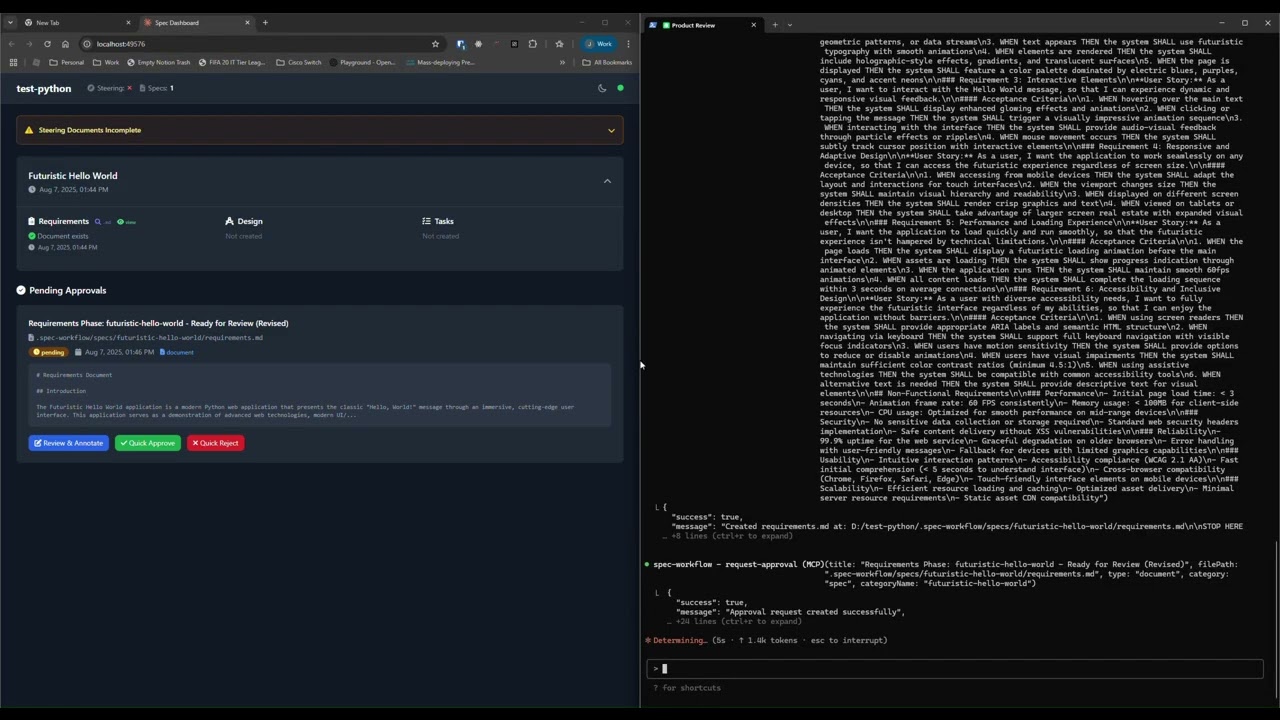 *See how the approval system works: create documents, request approval through the dashboard, provide feedback, and track revisions.*
### 📊 Dashboard & Spec Management
*See how the approval system works: create documents, request approval through the dashboard, provide feedback, and track revisions.*
### 📊 Dashboard & Spec Management
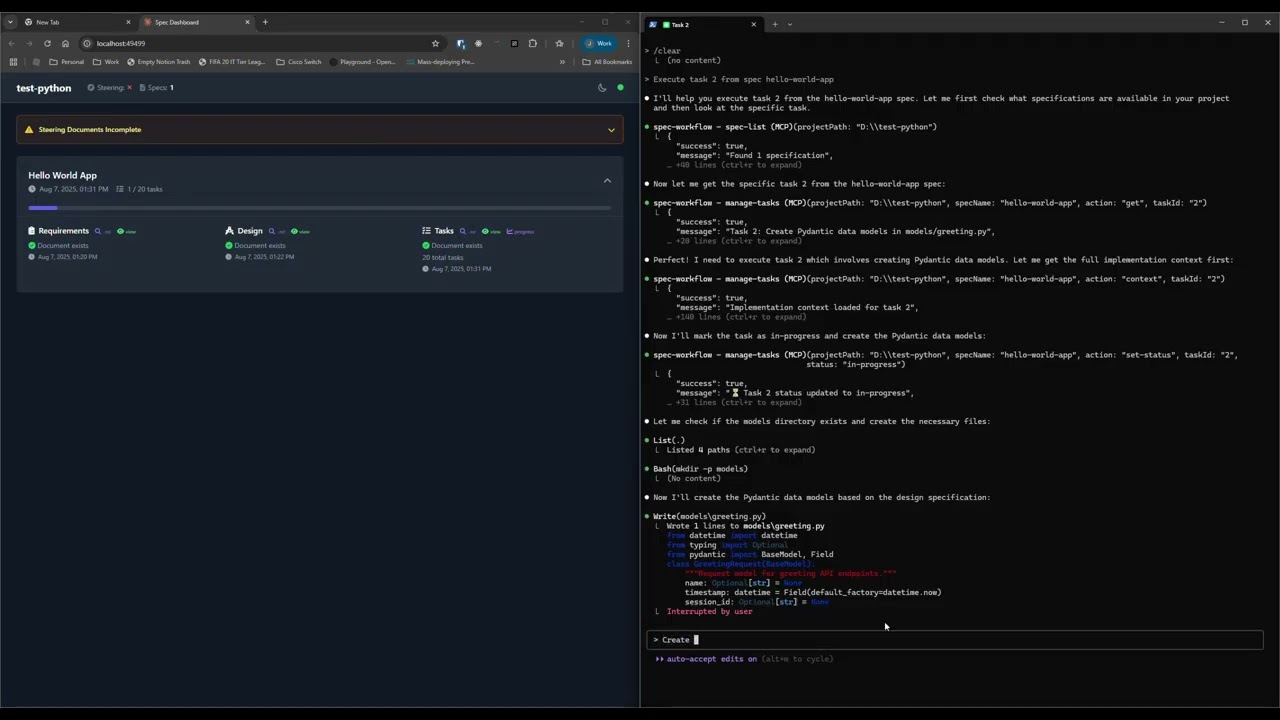 *Explore the real-time dashboard: view specs, track progress, navigate documents, and monitor your development workflow.*
## ✨ Key Features
- **Structured Development Workflow** - Sequential spec creation (Requirements → Design → Tasks)
- **Real-Time Web Dashboard** - Monitor specs, tasks, and progress with live updates
- **VSCode Extension** - Integrated sidebar dashboard for VSCode users
- **Approval Workflow** - Complete approval process with revisions
- **Task Progress Tracking** - Visual progress bars and detailed status
- **Implementation Logs** - Searchable logs of all task implementations with code statistics
- **Multi-Language Support** - Available in 11 languages
## 🌍 Supported Languages
🇺🇸 English • 🇯🇵 日本語 • 🇨🇳 中文 • 🇪🇸 Español • 🇧🇷 Português • 🇩🇪 Deutsch • 🇫🇷 Français • 🇷🇺 Русский • 🇮🇹 Italiano • 🇰🇷 한국어 • 🇸🇦 العربية
**📖 Documentation in your language:**
[English](README.md) | [日本語](README.ja.md) | [中文](README.zh.md) | [Español](README.es.md) | [Português](README.pt.md) | [Deutsch](README.de.md) | [Français](README.fr.md) | [Русский](README.ru.md) | [Italiano](README.it.md) | [한국어](README.ko.md) | [العربية](README.ar.md)
## 🚀 Quick Start
### Step 1: Add to your AI tool
Add to your MCP configuration (see client-specific setup below):
```json
{
"mcpServers": {
"spec-workflow": {
"command": "npx",
"args": ["-y", "@pimzino/spec-workflow-mcp@latest", "/path/to/your/project"]
}
}
}
```
### Step 2: Choose your interface
**Option A: Web Dashboard** (Required for CLI users)
Start the dashboard (runs on port 5000 by default):
```bash
npx -y @pimzino/spec-workflow-mcp@latest --dashboard
```
The dashboard will be accessible at: http://localhost:5000
> **Note:** Only one dashboard instance is needed. All your projects will connect to the same dashboard.
**Option B: VSCode Extension** (Recommended for VSCode users)
Install [Spec Workflow MCP Extension](https://marketplace.visualstudio.com/items?itemName=Pimzino.spec-workflow-mcp) from the VSCode marketplace.
## 📝 How to Use
Simply mention spec-workflow in your conversation:
- **"Create a spec for user authentication"** - Creates complete spec workflow
- **"List my specs"** - Shows all specs and their status
- **"Execute task 1.2 in spec user-auth"** - Runs a specific task
[See more examples →](docs/PROMPTING-GUIDE.md)
## 🔧 MCP Client Setup
*Explore the real-time dashboard: view specs, track progress, navigate documents, and monitor your development workflow.*
## ✨ Key Features
- **Structured Development Workflow** - Sequential spec creation (Requirements → Design → Tasks)
- **Real-Time Web Dashboard** - Monitor specs, tasks, and progress with live updates
- **VSCode Extension** - Integrated sidebar dashboard for VSCode users
- **Approval Workflow** - Complete approval process with revisions
- **Task Progress Tracking** - Visual progress bars and detailed status
- **Implementation Logs** - Searchable logs of all task implementations with code statistics
- **Multi-Language Support** - Available in 11 languages
## 🌍 Supported Languages
🇺🇸 English • 🇯🇵 日本語 • 🇨🇳 中文 • 🇪🇸 Español • 🇧🇷 Português • 🇩🇪 Deutsch • 🇫🇷 Français • 🇷🇺 Русский • 🇮🇹 Italiano • 🇰🇷 한국어 • 🇸🇦 العربية
**📖 Documentation in your language:**
[English](README.md) | [日本語](README.ja.md) | [中文](README.zh.md) | [Español](README.es.md) | [Português](README.pt.md) | [Deutsch](README.de.md) | [Français](README.fr.md) | [Русский](README.ru.md) | [Italiano](README.it.md) | [한국어](README.ko.md) | [العربية](README.ar.md)
## 🚀 Quick Start
### Step 1: Add to your AI tool
Add to your MCP configuration (see client-specific setup below):
```json
{
"mcpServers": {
"spec-workflow": {
"command": "npx",
"args": ["-y", "@pimzino/spec-workflow-mcp@latest", "/path/to/your/project"]
}
}
}
```
### Step 2: Choose your interface
**Option A: Web Dashboard** (Required for CLI users)
Start the dashboard (runs on port 5000 by default):
```bash
npx -y @pimzino/spec-workflow-mcp@latest --dashboard
```
The dashboard will be accessible at: http://localhost:5000
> **Note:** Only one dashboard instance is needed. All your projects will connect to the same dashboard.
**Option B: VSCode Extension** (Recommended for VSCode users)
Install [Spec Workflow MCP Extension](https://marketplace.visualstudio.com/items?itemName=Pimzino.spec-workflow-mcp) from the VSCode marketplace.
## 📝 How to Use
Simply mention spec-workflow in your conversation:
- **"Create a spec for user authentication"** - Creates complete spec workflow
- **"List my specs"** - Shows all specs and their status
- **"Execute task 1.2 in spec user-auth"** - Runs a specific task
[See more examples →](docs/PROMPTING-GUIDE.md)
## 🔧 MCP Client Setup