# Technical Documentation: FaridSafi/react-native-gifted-chat
> ℹ️ **Provenance:** Multi-Tier Ingestion · [CodeWiki Reference](https://codewiki.google/github.com/FaridSafi/react-native-gifted-chat)
### Overview (`README.md`)






React Native Gifted Chat
The most complete chat UI for React Native & Web

> [!NOTE]
> **Active development has moved.** This package is now in maintenance mode and isn't receiving new features. Development continues - including streaming AI messages and the latest fixes - in a maintained fork: **[@kesha-antonov/react-native-chat](https://github.com/kesha-antonov/react-native-chat)**. New projects are encouraged to use it; migrating is mostly a rename (see the fork's migration guide).
---
## ✨ Features
- 🎨 **[Fully Customizable](#-props-reference)** - Override any component with your own implementation
- 📎 **[Composer Actions](#actions--action-sheet)** - Attach photos, files, or trigger custom actions
- ↩️ **[Reply to Messages](#reply-to-messages)** - Swipe-to-reply with reply preview and message threading
- ⏮️ **[Load Earlier Messages](#load-earlier-messages)** - Infinite scroll with pagination support
- 📋 **[Copy to Clipboard](#copy-to-clipboard)** - Long-press messages to copy text
- 🔗 **[Smart Link Parsing](#smart-link-parsing)** - Auto-detect URLs, emails, phone numbers, hashtags, mentions
- 👤 **[Avatars](#avatars)** - User initials or custom avatar images
- 🌍 **[Localized Dates](#date--time)** - Full i18n support via Day.js
- ⌨️ **[Keyboard Handling](#keyboard--layout)** - Smart keyboard avoidance for all platforms
- 💬 **[System Messages](#system-messages)** - Display system notifications in chat
- ⚡ **[Quick Replies](#quick-replies)** - Bot-style quick reply buttons
- 😀 **[Emoji Reactions](#emoji-reactions)** - Long-press to react, with reaction pills and an optional full emoji browser
- ✍️ **[Typing Indicator](#typing-indicator)** - Show when users are typing
- ✅ **[Message Status](#message-status)** - Tick indicators for sent/delivered/read states
- ⬇️ **[Scroll to Bottom](#scroll-to-bottom)** - Quick navigation button
- 🌐 **[Web Support](#web-react-native-web)** - Works with react-native-web
- 📱 **[Expo Support](#expo-projects)** - Easy integration with Expo projects
- 📝 **[TypeScript](#typescript)** - Complete TypeScript definitions included


---
Sponsors
Le Reacteur - Coding Bootcamp in Paris co-founded by Farid Safi
Stream - Scalable chat API/Server written in Go (API Tour | Tutorial)
Ethora - A complete app engine featuring GiftedChat (GitHub)
📚 React Key Concepts (2nd ed.)
---
## 📖 Table of Contents
- [Features](#-features)
- [Requirements](#-requirements)
- [Installation](#-installation)
- [Usage](#-usage)
- [Props Reference](#-props-reference)
- [Data Structure](#-data-structure)
- [Platform Notes](#-platform-notes)
- [Example App](#-example-app)
- [Troubleshooting](#-troubleshooting)
- [Contributing](#-contributing)
- [Authors](#-authors)
- [License](#-license)
---
## 📋 Requirements
| Requirement | Version |
|-------------|---------|
| React Native | >= 0.70.0 |
| iOS | >= 13.4 |
| Android | API 21+ (Android 5.0) |
| Expo | SDK 50+ |
| TypeScript | >= 5.0 (optional) |
---
## 📦 Installation
### Expo Projects
```bash
npx expo install react-native-gifted-chat react-native-reanimated react-native-gesture-handler react-native-safe-area-context react-native-keyboard-controller
```
### Bare React Native Projects
**Step 1:** Install the packages
Using yarn:
```bash
yarn add react-native-gifted-chat react-native-reanimated react-native-gesture-handler react-native-safe-area-context react-native-keyboard-controller
```
Using npm:
```bash
npm install --save react-native-gifted-chat react-native-reanimated react-native-gesture-handler react-native-safe-area-context react-native-keyboard-controller
```
**Step 2:** Install iOS pods
```bash
npx pod-install
```
**Step 3:** Configure react-native-reanimated
Follow the [react-native-reanimated installation guide](https://docs.swmansion.com/react-native-reanimated/docs/fundamentals/getting-started/#step-2-add-reanimateds-babel-plugin) to add the Babel plugin.
---
## 🚀 Usage
### Basic Example
```jsx
import React, { useState, useCallback, useEffect } from 'react'
import { GiftedChat } from 'react-native-gifted-chat'
import { useHeaderHeight } from '@react-navigation/elements'
export function Example() {
const [messages, setMessages] = useState([])
// keyboardVerticalOffset = distance from screen top to GiftedChat container
// useHeaderHeight() returns status bar + navigation header height
const headerHeight = useHeaderHeight()
useEffect(() => {
setMessages([
{
_id: 1,
text: 'Hello developer',
createdAt: new Date(),
user: {
_id: 2,
name: 'John Doe',
avatar: 'https://placeimg.com/140/140/any',
},
},
])
}, [])
const onSend = useCallback((messages = []) => {
setMessages(previousMessages =>
GiftedChat.append(previousMessages, messages),
)
}, [])
return (
onSend(messages)}
user={{
_id: 1,
}}
keyboardAvoidingViewProps={{ keyboardVerticalOffset: headerHeight }}
/>
)
}
```
> **💡 Tip:** Check out more examples in the [`example`](example) directory including Slack-style messages, quick replies, and custom components.
---
## 📊 Data Structure
Messages, system messages, and quick replies follow the structure defined in [Models.ts](src/Models.ts).
Message Object Structure
```typescript
interface IMessage {
_id: string | number
text: string
createdAt: Date | number
user: User
image?: string
video?: string
audio?: string
system?: boolean
sent?: boolean
received?: boolean
pending?: boolean
quickReplies?: QuickReplies
}
interface User {
_id: string | number
name?: string
avatar?: string | number | (() => React.ReactNode)
}
```
---
## 📖 Props Reference
### Core Configuration
- **`messages`** _(Array)_ - Messages to display
- **`user`** _(Object)_ - User sending the messages: `{ _id, name, avatar }`
- **`onSend`** _(Function)_ - Callback when sending a message
- **`messageIdGenerator`** _(Function)_ - Generate an id for new messages. Defaults to a simple random string generator.
- **`locale`** _(String)_ - Locale to localize the dates. You need first to import the locale you need (ie. `require('dayjs/locale/de')` or `import 'dayjs/locale/fr'`)
- **`colorScheme`** _('light' | 'dark')_ - Force color scheme (light/dark mode). When set to `'light'` or `'dark'`, it overrides the system color scheme. When `undefined`, it uses the system color scheme. Default is `undefined`.
### Refs
- **`messagesContainerRef`** _(FlatList ref)_ - Ref to the flatlist
- **`textInputRef`** _(TextInput ref)_ - Ref to the text input
### Keyboard & Layout
- **`keyboardProviderProps`** _(Object)_ - Props to be passed to the [`KeyboardProvider`](https://kirillzyusko.github.io/react-native-keyboard-controller/docs/api/keyboard-provider) for keyboard handling. Default values:
- `statusBarTranslucent: true` - Required on Android for correct keyboard height calculation when status bar is translucent (edge-to-edge mode)
- `navigationBarTranslucent: true` - Required on Android for correct keyboard height calculation when navigation bar is translucent (edge-to-edge mode)
- **`disableKeyboardProvider`** _(Bool)_ - Skip rendering the built-in `KeyboardProvider` wrapper; default is `false`. Enable this when your app already mounts its own `KeyboardProvider` (e.g. once at the root), or when the default edge-to-edge behavior causes a layout shift, flicker on mount, or a header/content jump on Android/Expo. See [Using your own `KeyboardProvider`](#using-your-own-keyboardprovider) below.
- **`keyboardAvoidingViewProps`** _(Object)_ - Props to be passed to the [`KeyboardAvoidingView`](https://kirillzyusko.github.io/react-native-keyboard-controller/docs/api/components/keyboard-avoiding-view). See **keyboardVerticalOffset** below for proper keyboard handling.
- **`isAlignedTop`** _(Boolean)_ Controls whether or not the message bubbles appear at the top of the chat (Default is false - bubbles align to bottom)
- **`isInverted`** _(Bool)_ - Reverses display order of `messages`; default is `true`
#### Understanding `keyboardVerticalOffset`
The [`keyboardVerticalOffset`](https://kirillzyusko.github.io/react-native-keyboard-controller/docs/api/components/keyboard-avoiding-view#keyboardverticaloffset) tells the KeyboardAvoidingView where its container starts relative to the top of the screen. This is essential when GiftedChat is not positioned at the very top of the screen (e.g., when you have a navigation header).
**Default value:** `insets.top` (status bar height from `useSafeAreaInsets()`). This works correctly only when GiftedChat fills the entire screen without a navigation header. If you have a navigation header, you need to pass the correct offset via `keyboardAvoidingViewProps`.
**What the value means:** The offset equals the distance (in points) from the top of the screen to the top of your GiftedChat container. This typically includes:
- Status bar height
- Navigation header height (on iOS, `useHeaderHeight()` already includes status bar)
**How to use:**
```jsx
import { useHeaderHeight } from '@react-navigation/elements'
function ChatScreen() {
// useHeaderHeight() returns status bar + navigation header height on iOS
const headerHeight = useHeaderHeight()
return (
)
}
```
> **Note:** `useHeaderHeight()` requires your chat component to be rendered inside a proper navigation screen (not conditional rendering). If it returns `0`, ensure your chat screen is a real navigation screen with a visible header.
**Why this matters:** Without the correct offset, the keyboard may overlap the input field or leave extra space. The KeyboardAvoidingView uses this value to calculate how much to shift the content when the keyboard appears.
#### Using your own `KeyboardProvider`
By default GiftedChat wraps itself in a [`KeyboardProvider`](https://kirillzyusko.github.io/react-native-keyboard-controller/docs/api/keyboard-provider) with `statusBarTranslucent` and `navigationBarTranslucent` enabled. On some Android/Expo (edge-to-edge) setups this can cause the screen to shift down, flicker on mount, or distort a navigation header - especially when another `KeyboardProvider` already exists higher in the tree.
Set **`disableKeyboardProvider`** to skip the built-in wrapper:
```jsx
import { KeyboardProvider } from 'react-native-keyboard-controller'
// Mount a single KeyboardProvider once, near the root of your app
function App() {
return (
{/* ...navigation / screens... */}
)
}
function ChatScreen() {
return (
)
}
```
> **Important:** GiftedChat's keyboard avoidance relies on a `KeyboardProvider` being present in the tree. When you set `disableKeyboardProvider`, you **must** mount your own `KeyboardProvider` above GiftedChat - otherwise the keyboard will cover the input. Mounting exactly one provider (yours) is what avoids the double edge-to-edge shift.
### Text Input & Composer
- **`text`** _(String)_ - Input text; default is `undefined`, but if specified, it will override GiftedChat's internal state. Useful for managing text state outside of GiftedChat (e.g. with Redux). Don't forget to implement `textInputProps.onChangeText` to update the text state.
- **`initialText`** _(String)_ - Initial text to display in the input field
- **`isSendButtonAlwaysVisible`** _(Bool)_ - Always show send button in input text composer; default `false`, show only when text input is not empty
- **`isTextOptional`** _(Bool)_ - Allow sending messages without text (useful for media-only messages); default `false`. Use with `isSendButtonAlwaysVisible` for media attachments.
- **`minComposerHeight`** _(Object)_ - Custom min-height of the composer.
- **`maxComposerHeight`** _(Object)_ - Custom max height of the composer.
- **`minInputToolbarHeight`** _(Integer)_ - Minimum height of the input toolbar; default is `44`
- **`renderInputToolbar`** _(Component | Function)_ - Custom message composer container
- **`renderComposer`** _(Component | Function)_ - Custom text input message composer
- **`renderSend`** _(Component | Function)_ - Custom send button; you can pass children to the original `Send` component quite easily, for example, to use a custom icon ([example](https://github.com/FaridSafi/react-native-gifted-chat/pull/487))
- **`renderActions`** _(Component | Function)_ - Custom action button on the left of the message composer
- **`renderAccessory`** _(Component | Function)_ - Custom second line of actions below the message composer
- **`textInputProps`** _(Object)_ - props to be passed to the [``](https://reactnative.dev/docs/textinput).
### Actions & Action Sheet
- **`onPressActionButton`** _(Function)_ - Callback when the Action button is pressed (if set, the default `actionSheet` will not be used)
- **`actionSheet`** _(Function)_ - Custom action sheet interface for showing action options
- **`actions`** _(Array)_ - Custom action options for the input toolbar action button; array of objects with `title` (string) and `action` (function) properties
- **`actionSheetOptionTintColor`** _(String)_ - Tint color for action sheet options
### Messages & Message Container
- **`messagesContainerStyle`** _(Object)_ - Custom style for the messages container
- **`renderMessage`** _(Component | Function)_ - Custom message container
- **`renderLoading`** _(Component | Function)_ - Render a loading view when initializing
- **`renderChatEmpty`** _(Component | Function)_ - Custom component to render in the ListView when messages are empty
- **`renderChatFooter`** _(Component | Function)_ - Custom component to render below the MessagesContainer (separate from the ListView)
- **`listProps`** _(Object)_ - Extra props to be passed to the messages [``](https://reactnative.dev/docs/flatlist). Supports all FlatList props including `maintainVisibleContentPosition` for keeping scroll position when new messages arrive (useful for AI chatbots).
### Message Bubbles & Content
- **`renderBubble`** _(Component | Function(`props: BubbleProps`))_ - Custom message bubble. Receives [BubbleProps](src/Bubble/types.ts) as parameter.
- **`renderMessageText`** _(Component | Function)_ - Custom message text
- **`renderMessageImage`** _(Component | Function)_ - Custom message image
- **`renderMessageVideo`** _(Component | Function)_ - Custom message video
- **`renderMessageAudio`** _(Component | Function)_ - Custom message audio
- **`renderCustomView`** _(Component | Function)_ - Custom view inside the bubble
- **`isCustomViewBottom`** _(Bool)_ - Determine whether renderCustomView is displayed before or after the text, image and video views; default is `false`
- **`onPressMessage`** _(Function(`context`, `message`))_ - Callback when a message bubble is pressed
- **`onLongPressMessage`** _(Function(`context`, `message`))_ - Callback when a message bubble is long-pressed; you can use this to show action sheets (e.g., copy, delete, reply)
- **`imageProps`** _(Object)_ - Extra props to be passed to the [``](https://reactnative.dev/docs/image) component created by the default `renderMessageImage`
- **`imageStyle`** _(Object)_ - Custom style for message images
- **`videoProps`** _(Object)_ - Extra props to be passed to the video component created by the required `renderMessageVideo`
- **`messageTextProps`** _(Object)_ - Extra props to be passed to the MessageText component. Useful for customizing link parsing behavior, text styles, and matchers. Supports the following props:
- `matchers` - Custom matchers for linking message content (like URLs, phone numbers, hashtags, mentions)
- `linkStyle` - Custom style for links
- `email` - Enable/disable email parsing (default: true)
- `phone` - Enable/disable phone number parsing (default: true)
- `url` - Enable/disable URL parsing (default: true)
- `hashtag` - Enable/disable hashtag parsing (default: false)
- `mention` - Enable/disable mention parsing (default: false)
- `hashtagUrl` - Base URL for hashtags (e.g., 'https://x.com/hashtag')
- `mentionUrl` - Base URL for mentions (e.g., 'https://x.com')
- `stripPrefix` - Strip 'http://' or 'https://' from URL display (default: false)
- `TextComponent` - Custom Text component to use (e.g., from react-native-gesture-handler)
Example:
```tsx
{
return replacerArgs[0].replace(/[\-\(\) ]/g, '')
},
getLinkText: (replacerArgs: ReplacerArgs): string => {
return replacerArgs[0]
},
style: styles.linkStyle,
onPress: (match: CustomMatch) => {
const url = match.getAnchorHref()
const options: {
title: string
action?: () => void
}[] = [
{ title: 'Copy', action: () => setStringAsync(url) },
{ title: 'Call', action: () => Linking.openURL(`tel:${url}`) },
{ title: 'Send SMS', action: () => Linking.openURL(`sms:${url}`) },
{ title: 'Cancel' },
]
showActionSheetWithOptions({
options: options.map(o => o.title),
cancelButtonIndex: options.length - 1,
}, (buttonIndex?: number) => {
if (buttonIndex === undefined)
return
const option = options[buttonIndex]
option.action?.()
})
},
},
],
linkStyle: { left: { color: 'blue' }, right: { color: 'lightblue' } },
}}
/>
```
See full example in [LinksExample](example/components/chat-examples/LinksExample.tsx)
### Avatars
- **`renderAvatar`** _(Component | Function)_ - Custom message avatar; set to `null` to not render any avatar for the message
- **`isUserAvatarVisible`** _(Bool)_ - Whether to render an avatar for the current user; default is `false`, only show avatars for other users
- **`isAvatarVisibleForEveryMessage`** _(Bool)_ - When false, avatars will only be displayed when a consecutive message is from the same user on the same day; default is `false`
- **`onPressAvatar`** _(Function(`user`))_ - Callback when a message avatar is tapped
- **`onLongPressAvatar`** _(Function(`user`))_ - Callback when a message avatar is long-pressed
- **`isAvatarOnTop`** _(Bool)_ - Render the message avatar at the top of consecutive messages, rather than the bottom; default is `false`
### Username
- **`isUsernameVisible`** _(Bool)_ - Indicate whether to show the user's username inside the message bubble; default is `false`
- **`renderUsername`** _(Component | Function)_ - Custom Username container
### Date & Time
- **`timeFormat`** _(String)_ - Format to use for rendering times; default is `'LT'` (see [Day.js Format](https://day.js.org/docs/en/display/format))
- **`dateFormat`** _(String)_ - Format to use for rendering dates; default is `'D MMMM'` (see [Day.js Format](https://day.js.org/docs/en/display/format))
- **`dateFormatCalendar`** _(Object)_ - Format to use for rendering relative times; default is `{ sameDay: '[Today]' }` (see [Day.js Calendar](https://day.js.org/docs/en/plugin/calendar))
- **`renderDay`** _(Component | Function)_ - Custom day above a message. The same function renders both the inline day separators and the floating/animated day header that sticks to the top while scrolling. Read `props.isAnimated` (`true` for the floating header, `false` for the inline separator) to give each a different look.
- **`dayProps`** _(Object)_ - Props to pass to the Day component:
- `containerStyle` - Custom style for the day container
- `wrapperStyle` - Custom style for the day wrapper
- `textProps` - Props to pass to the Text component (e.g., `style`, `allowFontScaling`, `numberOfLines`)
- **`renderTime`** _(Component | Function)_ - Custom time inside a message
- **`timeTextStyle`** _(Object)_ - Custom text style for time inside messages (supports left/right styles)
- **`isDayAnimationEnabled`** _(Bool)_ - Enable animated day label that appears on scroll; default is `true`
### System Messages
- **`renderSystemMessage`** _(Component | Function)_ - Custom system message
### Load Earlier Messages
- **`loadEarlierMessagesProps`** _(Object)_ - Props to pass to the LoadEarlierMessages component. The button is only visible when `isAvailable` is `true`. Supports the following props:
- `isAvailable` - Controls button visibility (default: false)
- `onPress` - Callback when button is pressed
- `isLoading` - Display loading indicator (default: false)
- `isInfiniteScrollEnabled` - Enable infinite scroll up when reaching the top of messages container, automatically calls `onPress` (not yet supported for web)
- `label` - Override the default "Load earlier messages" text
- `containerStyle` - Custom style for the button container
- `wrapperStyle` - Custom style for the button wrapper
- `textStyle` - Custom style for the button text
- `activityIndicatorStyle` - Custom style for the loading indicator
- `activityIndicatorColor` - Color of the loading indicator (default: 'white')
- `activityIndicatorSize` - Size of the loading indicator (default: 'small')
- **`renderLoadEarlier`** _(Component | Function)_ - Custom "Load earlier messages" button
### Typing Indicator
- **`isTyping`** _(Bool)_ - Typing Indicator state; default `false`. If you use`renderFooter` it will override this.
- **`renderTypingIndicator`** _(Component | Function)_ - Custom typing indicator component
- **`typingIndicatorStyle`** _(StyleProp)_ - Custom style for the TypingIndicator component.
- **`renderFooter`** _(Component | Function)_ - Custom footer component on the ListView, e.g. `'User is typing...'`; see [CustomizedFeaturesExample.tsx](example/components/chat-examples/CustomizedFeaturesExample.tsx) for an example. Overrides default typing indicator that triggers when `isTyping` is true.
### Quick Replies
See [Quick Replies example in messages.ts](example/example-expo/data/messages.ts)
- **`onQuickReply`** _(Function)_ - Callback when sending a quick reply (to backend server)
- **`renderQuickReplies`** _(Function)_ - Custom all quick reply view
- **`quickReplyStyle`** _(StyleProp)_ - Custom quick reply view style
- **`quickReplyTextStyle`** _(StyleProp)_ - Custom text style for quick reply buttons
- **`quickReplyContainerStyle`** _(StyleProp)_ - Custom container style for quick replies
- **`renderQuickReplySend`** _(Function)_ - Custom quick reply **send** view
### Reply to Messages
Gifted Chat supports swipe-to-reply functionality out of the box. When enabled, users can swipe on a message to reply to it, displaying a reply preview in the input toolbar and the replied message above the new message bubble.
> **Note:** This feature uses `ReanimatedSwipeable` from `react-native-gesture-handler` and `react-native-reanimated` for smooth, performant animations.
#### Basic Usage
```tsx
```
#### Reply Props (Grouped)
The `reply` prop accepts an object with the following structure:
```typescript
interface ReplyProps {
// Swipe gesture configuration
swipe?: {
isEnabled?: boolean // Enable swipe-to-reply; default false
direction?: 'left' | 'right' // Swipe direction; default 'left'
onSwipe?: (message: TMessage) => void // Callback when swiped
renderAction?: ( // Custom swipe action component
progress: SharedValue,
translation: SharedValue,
position: 'left' | 'right'
) => React.ReactNode
actionContainerStyle?: StyleProp
}
// Reply preview styling (above input toolbar)
previewStyle?: {
containerStyle?: StyleProp
textStyle?: StyleProp
imageStyle?: StyleProp
}
// In-bubble reply styling
messageStyle?: {
containerStyle?: StyleProp
containerStyleLeft?: StyleProp
containerStyleRight?: StyleProp
textStyle?: StyleProp
textStyleLeft?: StyleProp
textStyleRight?: StyleProp
imageStyle?: StyleProp
}
// Callbacks and state
message?: ReplyMessage // Controlled reply state
onClear?: () => void // Called when reply cleared
onPress?: (message: TMessage) => void // Called when reply preview tapped
// Custom renderers
renderPreview?: (props: ReplyPreviewProps) => React.ReactNode
renderMessageReply?: (props: MessageReplyProps) => React.ReactNode
}
```
#### ReplyMessage Structure
When a message has a reply, it includes a `replyMessage` property:
```typescript
interface ReplyMessage {
_id: string | number
text: string
user: User
image?: string
audio?: string
}
```
#### Advanced Example with External State
```tsx
const [replyMessage, setReplyMessage] = useState(null)
{
const newMessages = messages.map(msg => ({
...msg,
replyMessage: replyMessage || undefined,
}))
setMessages(prev => GiftedChat.append(prev, newMessages))
setReplyMessage(null)
}}
user={{ _id: 1 }}
reply={{
swipe: {
isEnabled: true,
direction: 'right',
onSwipe: setReplyMessage,
},
message: replyMessage,
onClear: () => setReplyMessage(null),
onPress: (msg) => scrollToMessage(msg._id),
}}
/>
```
#### Smooth Animations
The reply preview automatically animates when:
- **Appearing**: Smoothly expands from zero height with fade-in effect
- **Disappearing**: Smoothly collapses with fade-out effect
- **Content changes**: Smoothly transitions when replying to a different message
These animations use `react-native-reanimated` for 60fps performance.
### Scroll to Bottom
- **`isScrollToBottomEnabled`** _(Bool)_ - Enables the scroll to bottom Component (Default is false)
- **`scrollToBottomComponent`** _(Function)_ - Custom Scroll To Bottom Component container
- **`scrollToBottomOffset`** _(Integer)_ - Custom Height Offset upon which to begin showing Scroll To Bottom Component (Default is 200)
- **`scrollToBottomStyle`** _(Object)_ - Custom style for Scroll To Bottom wrapper (position, bottom, right, etc.)
- **`scrollToBottomContentStyle`** _(Object)_ - Custom style for Scroll To Bottom content (size, background, shadow, etc.)
### Maintaining Scroll Position (AI Chatbots)
For AI chat interfaces where long responses arrive and you don't want to disrupt the user's reading position, use [`maintainVisibleContentPosition`](https://reactnative.dev/docs/scrollview#maintainvisiblecontentposition) via `listProps`:
```tsx
// Basic usage - always maintain scroll position
// With auto-scroll threshold - auto-scroll if within 10 pixels of newest content
// Conditionally enable based on scroll state (recommended for chatbots)
const [isScrolledUp, setIsScrolledUp] = useState(false)
{
setIsScrolledUp(event.contentOffset.y > 50)
},
maintainVisibleContentPosition: isScrolledUp
? { minIndexForVisible: 0, autoscrollToTopThreshold: 10 }
: undefined,
}}
/>
```
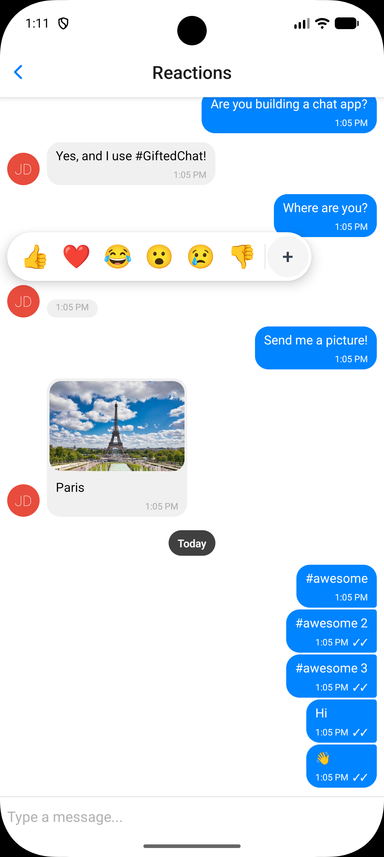
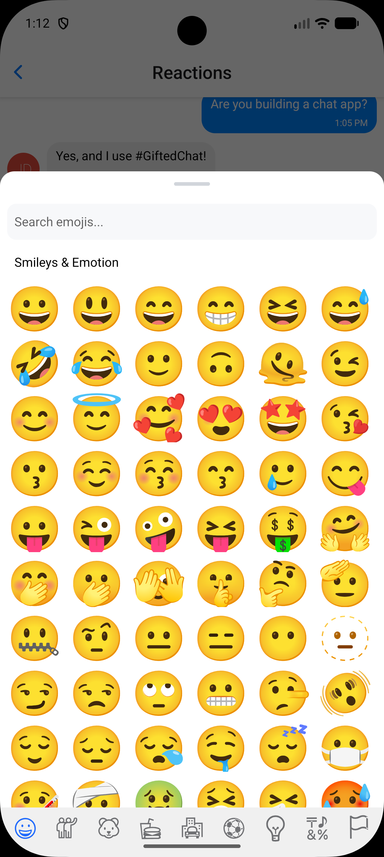
### Emoji Reactions
Long-press a message to open a quick emoji picker; selected reactions render as pills below the bubble and toggle on tap. The core ships a lightweight quick picker (built on `react-native-gesture-handler` and `react-native-reanimated`, no extra dependencies). A full emoji browser is optional and demonstrated in the example app via the `renderReactionPicker` override.
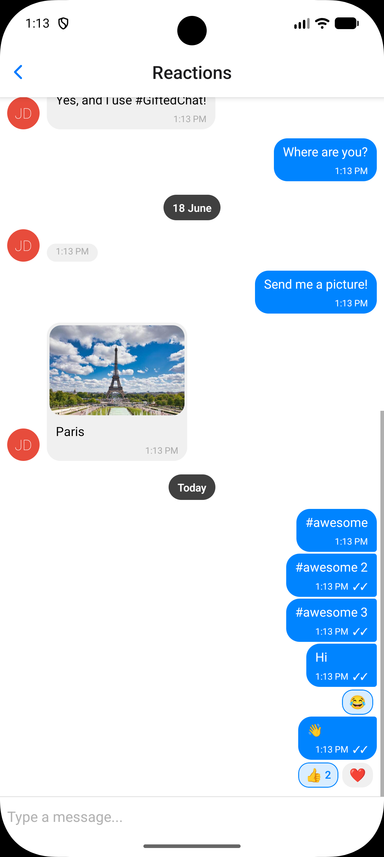
Store reactions on each message as a `reactions` array, then enable the feature and handle the toggle. Reaction state is owned by you, so it works with any backend:
```tsx
interface IChatMessage extends IMessage {
reactions?: MessageReaction[] // { emoji: string, userIds: (string | number)[] }[]
}
const CURRENT_USER_ID = 1
const handleReactionPress = useCallback((message: IChatMessage, emoji: string) => {
setMessages(prev =>
prev.map(m => {
if (m._id !== message._id)
return m
const existing = (m.reactions ?? []).find(r => r.emoji === emoji)
if (!existing)
return { ...m, reactions: [...(m.reactions ?? []), { emoji, userIds: [CURRENT_USER_ID] }] }
const userIds = existing.userIds.includes(CURRENT_USER_ID)
? existing.userIds.filter(id => id !== CURRENT_USER_ID)
: [...existing.userIds, CURRENT_USER_ID]
return {
...m,
reactions: userIds.length === 0
? (m.reactions ?? []).filter(r => r.emoji !== emoji)
: (m.reactions ?? []).map(r => (r.emoji === emoji ? { ...r, userIds } : r)),
}
})
)
}, [])
,
}}
/>
```
#### Reactions Props (Grouped)
The `reactions` prop accepts:
- **`isEnabled`** _(Bool)_ - Enable emoji reactions (default `false`)
- **`emojis`** _(String[])_ - Emojis shown in the quick picker (default `['👍', '❤️', '😂', '😮', '😢', '👎']`)
- **`onReactionPress`** _(Function)_ - `(message, emoji) => void` called when an emoji is selected or a pill is tapped. Toggle logic is left to you
- **`renderReactions`** _(Function)_ - Override the reactions-display component rendered below the bubble
- **`renderReactionPicker`** _(Function)_ - Override the picker shown on long-press (use for a full emoji browser)
- **`containerStyle`**, **`reactionStyle`**, **`reactionActiveStyle`**, **`reactionTextStyle`**, **`reactionCountStyle`** - Styles for the reaction pills
- **`pickerContainerStyle`**, **`pickerEmojiStyle`** - Styles for the quick picker
### Smart Link Parsing
Message text is automatically scanned for URLs, emails, and phone numbers; hashtags and mentions are opt-in. Configure it via `messageTextProps`:
```tsx
{
// type: 'url' | 'email' | 'phone' | 'mention' | 'hashtag'
Linking.openURL(url)
},
}}
/>
```
For full control, pass custom `matchers` (`{ type, pattern, getLinkUrl?, getLinkText?, renderLink?, onPress? }[]`) to add or override patterns. See the Links example in the [example app](#-example-app).
### Copy to Clipboard
Long-press handling is exposed via `onLongPressMessage`. GiftedChat wraps [`@expo/react-native-action-sheet`](https://github.com/expo/react-native-action-sheet), so you can show a "Copy Text" action sheet and copy with the clipboard library of your choice:
```tsx
import { useActionSheet } from '@expo/react-native-action-sheet'
import { setStringAsync } from 'expo-clipboard'
const { showActionSheetWithOptions } = useActionSheet()
{
showActionSheetWithOptions(
{ options: ['Copy Text', 'Cancel'], cancelButtonIndex: 1 },
buttonIndex => {
if (buttonIndex === 0)
setStringAsync(message.text)
}
)
}}
/>
```
### Message Status
Set `sent`, `received`, or `pending` on a message to show its delivery status. By default these render as tick indicators next to the timestamp (`✓` sent, `✓✓` received, `🕓` pending):
```tsx
const message: IMessage = {
_id: 1,
text: 'Delivered!',
createdAt: new Date(),
user: { _id: 1 },
sent: true,
received: true,
}
```
Customize the indicators with `renderTicks` (full override) or `tickStyle` (style only):
```tsx
(message.received ? : null)}
tickStyle={{ color: '#1d9bf0' }}
/>
```
### TypeScript
GiftedChat ships complete type definitions and is generic over your message type. Extend `IMessage` to add custom fields and everything stays typed end to end:
```tsx
import { GiftedChat, IMessage } from 'react-native-gifted-chat'
interface MyMessage extends IMessage {
reactions?: { emoji: string, userIds: (string | number)[] }[]
}
messages={messages}
onSend={msgs => {/* msgs is typed as MyMessage[] */}}
user={{ _id: 1 }}
/>
```
---
## 📱 Platform Notes
### Android
Keyboard configuration
If you are using Create React Native App / Expo, no Android specific installation steps are required. Otherwise, we recommend modifying your project configuration:
Make sure you have `android:windowSoftInputMode="adjustResize"` in your `AndroidManifest.xml`:
```xml
```
For **Expo**, you can append `KeyboardAvoidingView` after GiftedChat (Android only):
```jsx
{Platform.OS === 'android' && }
```
### Web (react-native-web)
With create-react-app
1. Install react-app-rewired: `yarn add -D react-app-rewired`
2. Create `config-overrides.js`:
```js
module.exports = function override(config, env) {
config.module.rules.push({
test: /\.js$/,
exclude: /node_modules[/\\](?!react-native-gifted-chat)/,
use: {
loader: 'babel-loader',
options: {
babelrc: false,
configFile: false,
presets: [
['@babel/preset-env', { useBuiltIns: 'usage' }],
'@babel/preset-react',
],
plugins: ['@babel/plugin-proposal-class-properties'],
},
},
})
return config
}
```
> **Examples:**
> - [xcarpentier/gifted-chat-web-demo](https://github.com/xcarpentier/gifted-chat-web-demo)
> - [Gatsby example](https://github.com/xcarpentier/clean-archi-boilerplate/tree/develop/apps/web)
---
## 🧪 Testing
Triggering layout events in tests
`TEST_ID` is exported as constants that can be used in your testing library of choice.
Gifted Chat uses `onLayout` to determine the height of the chat container. To trigger `onLayout` during your tests:
```typescript
const WIDTH = 200
const HEIGHT = 2000
const loadingWrapper = getByTestId(TEST_ID.LOADING_WRAPPER)
fireEvent(loadingWrapper, 'layout', {
nativeEvent: {
layout: {
width: WIDTH,
height: HEIGHT,
},
},
})
```
---
## 📦 Example App
The repository includes a comprehensive example app demonstrating all features:
```bash
# Clone and install
git clone https://github.com/FaridSafi/react-native-gifted-chat.git
cd react-native-gifted-chat/example
yarn install
# Run on iOS
npx expo run:ios
# Run on Android
npx expo run:android
# Run on Web
npx expo start --web
```
The example app showcases:
- 💬 Basic chat functionality
- 🎨 Custom message bubbles and avatars
- ↩️ Reply to messages with swipe gesture
- ⚡ Quick replies (bot-style)
- ✍️ Typing indicators
- 📎 Attachment actions
- 🔗 Link parsing and custom matchers
- 🌐 Web compatibility
---
## ❓ Troubleshooting
TextInput is hidden on Android
Make sure you have `android:windowSoftInputMode="adjustResize"` in your `AndroidManifest.xml`. See [Android configuration](#android) above.
How to set Bubble color for each user?
See [this issue](https://github.com/FaridSafi/react-native-gifted-chat/issues/672) for examples.
How to customize InputToolbar styles?
See [this issue](https://github.com/FaridSafi/react-native-gifted-chat/issues/662) for examples.
How to manually dismiss the keyboard?
See [this issue](https://github.com/FaridSafi/react-native-gifted-chat/issues/647) for examples.
How to use renderLoading?
See [this issue](https://github.com/FaridSafi/react-native-gifted-chat/issues/298) for examples.
---
## 🤔 Have a Question?
1. Check this README first
2. Search [existing issues](https://github.com/FaridSafi/react-native-gifted-chat/issues)
3. Ask on [StackOverflow](https://stackoverflow.com/questions/tagged/react-native-gifted-chat)
4. Open a new issue if needed
---
## 🤝 Contributing
Contributions are welcome! Please feel free to submit a Pull Request.
1. Fork the repository
2. Create your feature branch (`git checkout -b feature/amazing-feature`)
3. Install dependencies (`yarn install`)
4. Make your changes
5. Run tests (`yarn test`)
6. Run linting (`yarn lint`)
7. Build the library (`yarn build`)
8. Commit your changes (`git commit -m 'Add amazing feature'`)
9. Push to the branch (`git push origin feature/amazing-feature`)
10. Open a Pull Request
### Development Setup
```bash
# Install dependencies
yarn install
# Build the library
yarn build
# Run tests
yarn test
# Run linting
yarn lint
# Full validation
yarn prepublishOnly
```
---
## 👥 Authors
**Original Author:** [Farid Safi](https://www.x.com/FaridSafi)
**Co-author:** [Xavier Carpentier](https://www.x.com/xcapetir) - [Hire Xavier](https://xaviercarpentier.com)
**Maintainer:** [Kesha Antonov](https://github.com/kesha-antonov)
> I've been maintaining this project for 2 years, completely in my free time and without any compensation. If you find it helpful, please consider [becoming a sponsor](https://github.com/sponsors/kesha-antonov) to support continued development. 💖
---
## 📄 License
[MIT](LICENSE)
---
Built with ❤️ by the React Native community
---
### Overview (`example/README.md`)
# How to use
1. Install dependencies:
```bash
yarn install
cd example
yarn install
```
2. Install iOS dev build (only needed once or after rebuilding native dependencies):
```bash
yarn installDevBuild:ios
```
or
```bash
yarn installDevBuild:android
```
3. Start the example app on iOS simulator:
```bash
yarn start:ios
```
# Dark Theme Support
To switch theme press `Cmd + Shift + A` in iOS simulator.
---
### Overview (`expoSnack/README.md`)
# React Native Gifted Chat - Expo Snack
This directory contains a self-contained Expo Snack example that demonstrates the full capabilities of React Native Gifted Chat.
## 🚀 Quick Start
### Option 1: Use Expo Snack (Recommended)
1. Go to [https://snack.expo.dev](https://snack.expo.dev)
2. Click "Create a new Snack"
3. Copy the entire contents of `ExpoSnack.tsx` from this repository
4. Replace the default `App.tsx` content with the copied code
5. Install dependencies (see below)
6. Run on your device or simulator
### Option 2: Use in Your Project
Simply copy `ExpoSnack.tsx` into your Expo project and ensure all dependencies are installed.
## 📦 Required Dependencies
Add these dependencies to your Expo Snack or project:
```json
{
"dependencies": {
"react-native-gifted-chat": "*",
"react-native-gesture-handler": "*",
"react-native-safe-area-context": "*",
"react-native-reanimated": "*",
"@expo/react-native-action-sheet": "*",
"@expo/vector-icons": "*",
"expo-image-picker": "*",
"expo-location": "*",
"expo-linking": "*",
"react-native-maps": "*",
"dayjs": "*"
}
}
```
### In Expo Snack:
1. Click on the "Dependencies" tab in the left sidebar
2. Search for and add each dependency listed above
3. Wait for the dependencies to install
## ✨ Features Demonstrated
This example showcases all major features of React Native Gifted Chat:
### Core Features
- ✅ Text messaging with bubbles
- ✅ User avatars and names
- ✅ Message timestamps
- ✅ Typing indicator
- ✅ Load earlier messages
- ✅ Dark mode support
### Rich Media
- 📷 Image messages
- 📹 Video messages
- 🎵 Audio messages
- 📍 Location/map messages
### Interactive Elements
- ⚡ Quick replies (radio and checkbox)
- ➕ Custom actions (via action sheet)
- 🎯 Custom accessory bar with quick actions
### Custom Components
- **CustomActions**: Action button with action sheet menu
- **AccessoryBar**: Bottom toolbar with photo, camera, location, and typing buttons
- **CustomView**: Map view for location messages
## 🎮 How to Use
### Sending Messages
1. Type in the text input at the bottom
2. Press the send button to send a message
### Adding Images
1. Tap the **+** button or the **photo icon** in the accessory bar
2. Choose "Choose From Library" or "Take Picture"
3. Select or capture an image
### Sending Location
1. Tap the **location icon** in the accessory bar
2. Grant location permissions when prompted
3. Location will be sent and displayed as a map
### Loading Earlier Messages
1. Scroll to the top of the chat
2. Tap "Load earlier messages"
3. Wait for earlier messages to load (simulated with 1.5s delay)
### Quick Replies
1. Scroll to find the quick reply messages
2. Tap on any quick reply option
3. Watch it get added to your chat
### Toggle Typing Indicator
1. Tap the **chat icon** in the accessory bar
2. See the typing indicator appear/disappear
## 🎨 Customization
The example includes several customizable components that you can modify:
### Colors & Theming
The app automatically adapts to your device's color scheme (light/dark mode). You can customize the colors in the `styles` object:
```typescript
const styles = StyleSheet.create({
container: {
flex: 1,
backgroundColor: '#fff', // Light mode background
},
containerDark: {
backgroundColor: '#000', // Dark mode background
},
// ... more styles
})
```
### Message Data
Initial messages are defined in the `initialMessages` array. You can modify or add more messages:
```typescript
const initialMessages: IMessage[] = [
{
_id: 1,
text: 'Your message here',
createdAt: new Date(),
user: {
_id: 2,
name: 'Bot Name',
},
},
// ... more messages
]
```
### User Configuration
The current user is defined in the `user` object:
```typescript
const user = useMemo(() => ({
_id: 1,
name: 'Developer',
}), [])
```
## 📱 Platform Support
This example works on:
- ✅ iOS (simulator and device)
- ✅ Android (emulator and device)
- ⚠️ Web (limited - maps and some media features may not work)
## 🔧 Troubleshooting
### Permissions Issues
If image picker or location features don't work:
1. Make sure you've granted the necessary permissions in your device settings
2. On iOS simulator, you may need to set a custom location
3. On Android emulator, enable location services
### Dependencies Not Installing
If dependencies fail to install in Expo Snack:
1. Try refreshing the page
2. Clear your browser cache
3. Try using a different browser
4. Check Expo Snack status at [status.expo.dev](https://status.expo.dev)
### Maps Not Displaying
Maps may not work on web or some simulators:
1. Use a physical device for best results
2. On Android emulator, enable Google Play Services
3. On iOS simulator, maps should work by default
## 📖 Code Structure
The `ExpoSnack.tsx` file is organized into these sections:
1. **Imports**: All required dependencies
2. **Data**: Initial messages and earlier messages
3. **Media Utilities**: Functions for image picker, camera, and location
4. **CustomView**: Component for rendering map locations
5. **CustomActions**: Action button component with action sheet
6. **AccessoryBar**: Bottom toolbar component
7. **ChatExample**: Main chat component
8. **App**: Root component with ActionSheetProvider
## 🚀 Next Steps
Once you have this working, you can:
1. Customize the styling to match your app
2. Connect to a real backend (Firebase, Socket.io, etc.)
3. Add more custom message types
4. Implement message persistence
5. Add user authentication
6. Implement push notifications
## 📚 Additional Resources
- [React Native Gifted Chat Documentation](https://github.com/FaridSafi/react-native-gifted-chat)
- [Expo Documentation](https://docs.expo.dev)
- [Expo Snack](https://snack.expo.dev)
## ⚠️ Known Limitations
When using in Expo Snack:
- File sizes may be limited
- Some native modules may not work
- Performance may be slower than a local app
- Network requests may be restricted
For production apps, it's recommended to use this as a starting point and develop locally with Expo CLI or React Native CLI.
## 💡 Tips
1. **Test on a real device**: Many features work better on physical devices
2. **Use the Expo Go app**: Scan the QR code with Expo Go for best results
3. **Check console for errors**: Open the console in Expo Snack to see any errors
4. **Experiment**: Modify the code and see changes in real-time!
## 📝 License
This example is based on the React Native Gifted Chat library which is MIT licensed.
---
Happy chatting! 🎉
---
### Overview (`example/example-gifted-chat/README.md`)
# example-gifted-chat
Lots of people using `react-native-gifted-chat` might want to know that...
1. There are so many render props could use, but what should I pass?
2. How could I customize each component, but leaving its functionality.
> For example, said that you want to customize the `send button`, when you pass your own component to `renderSend`, after that you will lose the functionality of clean up text when a message has been sent.
---
I made this for anyone who wants to know how to use the render Props properly.
##### Such as:
- renderInputToolbar
- renderActions
- renderComposer
- renderSend
- renderAvatar
- renderBubble
- renderSystemMessage
- renderMessage
- renderMessageText
- renderCustomView
 ---
### Overview (`example/example-slack-message/README.md`)
# "Slack" style UI example
Credit and inspiration comes from [Slack](https://slack.com/).
Screenshots to compare:
| Default style | "Slack" style |
|:-------------:|:-------------:|
|
---
### Overview (`example/example-slack-message/README.md`)
# "Slack" style UI example
Credit and inspiration comes from [Slack](https://slack.com/).
Screenshots to compare:
| Default style | "Slack" style |
|:-------------:|:-------------:|
|  |
|  |
---
### DAY ANIMATED SPEC (`docs/DAY_ANIMATED_SPEC.md`)
# DayAnimated (floating day header) - animation spec
How the Telegram-style sticky day header works in this library. Describes the
final implementation across `DayAnimated`, `Item` (inline separators),
`MessagesContainer`, and the shared `dayLayout` constants.
## 1. Reference behaviour (Telegram iOS, what we replicate)
The conversation is an inverted list (newest at the bottom). Each day has a
centered date pill. Two elements together read as one sticky header:
1. **Inline separator** - a pill at the top of each day's group, scrolls with the
content like a normal row.
2. **Floating header** - while you scroll, the date of the *topmost visible day*
sticks just under the nav bar.
Behaviour:
- **Scroll-gated visibility.** Hidden at rest. Fades in fast when scrolling
starts, stays fully opaque for the *entire gesture* (drag + momentum, including
slow drags and pauses), fades out shortly after motion fully stops.
- **Which date.** The day of the messages at the top of the viewport (the "stuck"
day), pinned at a small offset under the nav bar.
- **Slide, not fade.** At a day boundary the date *slides*, it never cross-fades.
- Scrolling into an **older** day (scroll up / toward top): the new (older) date
**slides down from the top edge to the pin, pixel by pixel**, as the previous
date slides down below it.
- Scrolling into a **newer** day (scroll down / toward bottom): the newer date
rises from below to the pin and the previous date is pushed up and off.
- During the transition the two dates are **different**, separated by a margin,
moving together. Never two of the same date; never a dip to 0; never a jump.
- **Top of history / "Load earlier".** At the very top the oldest day is stuck.
Once the oldest day's own separator drops back below the pin (the "Load earlier"
button scrolls in) nothing is stuck: the header hands the date back to the inline
separator and hides - no duplicate over the loader. While actively loading, the
header tucks above the top edge.
## 2. Structure & geometry
- Inverted `FlatList`. `daysPositions` (shared value) holds, per day, the cell's
`{ y, height, createdAt }` measured via `onLayout`.
- Two elements in different view trees: inline separators (`AnimatedDayWrapper` in
`Item`) and the floating overlay (`DayAnimated`).
- On-screen Y of a day separator's top edge (dp):
`separatorScreenTop = (listHeight + scrolledY) - (day.y + day.height)`
- The inline pill renders `DAY_MARGIN_TOP` below `separatorScreenTop` (Day's
container marginTop). The floating overlay overrides that margin to 0, so when it
is pinned at `top = DAY_PIN_OFFSET` its pill lines up exactly with an inline
separator whose `separatorScreenTop == DAY_PIN_OFFSET - DAY_MARGIN_TOP`. That
shared line is **`DAY_HANDOFF_OFFSET = DAY_PIN_OFFSET - DAY_MARGIN_TOP`**.
(Verified on device, all dp; the display-density factor cancels.)
## 3. Mechanics (final implementation)
### Stuck-day selection (`DayAnimated`, worklet)
- `daysPositionsArray` is sorted by **`createdAt` (newest first)**, NOT by measured
`y`. `y` jitters while cells are (re)measured mid-scroll; sorting by date keeps
the selection deterministic so it can't briefly jump to the wrong neighbour.
- The stuck day = the newest day whose `separatorScreenTop <= DAY_HANDOFF_OFFSET`.
### Position - the scroll-driven slide (`DayAnimated`, worklet)
- The floating header's `top` is positioned off the *next (newer)* day's separator:
`top = min(DAY_PIN_OFFSET, nextSeparatorScreenTop + DAY_MARGIN_TOP - headerHeight - DAY_PUSH_GAP)`
- When the next separator is far below, `top = DAY_PIN_OFFSET` (pinned).
- As the next separator nears the pin the header slides with it, pixel by pixel:
it slides **down from the top edge** as an older day takes over (scrolling up), or
is **pushed up and off** as a newer day rises (scrolling down). `DAY_PUSH_GAP`
keeps a margin between the outgoing and incoming pills.
- While `isLoading`, `top = -headerHeight` (tucked above the top).
### Handoff opacity - hard cutoffs (no fades)
The date stays solid (opacity 1) through the floating <-> inline handoff because
both sides hard-cut at the same pixel, rather than cross-fading:
- **Inline separator** (`Item`): `opacity = (belowHandoff || !headerShowsThisDay) ? 1 : 0`
where `belowHandoff = separatorScreenTop > DAY_HANDOFF_OFFSET` and
`headerShowsThisDay = floatingRenderedDate === this day's createdAt`.
- **Floating header `stuckGate`** (`DayAnimated`): `curSep <= DAY_HANDOFF_OFFSET ? 1 : 0`
(hard hide when nothing is stuck - the top-of-history / loader case).
### Render gate - covering the JS-thread text lag
The header's date *text* is React state, updated via `runOnJS`, so it lags the
worklet by ~1 frame. Without handling, scrolling into a newer day flashes the old
date at the pin (the header takes over on-screen there; scrolling into an older day
it takes over off-screen, so the lag is invisible - hence the bug was top->bottom
only). Fix:
- `DayAnimated` publishes the date it is actually rendering to the
`floatingRenderedDate` shared value (a `useEffect` on the rendered `createdAt`).
- Header `renderGate = sticky.createdAt === floatingRenderedDate ? 1 : 0` - the
header is hidden for any frame where its text hasn't caught up.
- During that frame the inline separator stays up (`!headerShowsThisDay`) and shows
the correct date. Net: header opacity = `fade * stuckGate * renderGate`.
### Visibility / fade (`DayAnimated` + `MessagesContainer`)
- Driven by an `isScrollActive` shared value set from the scroll handler's
`onBeginDrag` / `onEndDrag` / `onMomentumBegin` / `onMomentumEnd` - NOT from
per-scroll-delta idle timers. This keeps the header at full opacity for the whole
gesture (slow drags and pauses included) instead of flickering out on a pause.
- `isScrollActive` true -> fade in (`FADE_IN_DURATION`), cancel pending fade-out.
false -> schedule fade-out (`FADE_OUT_DELAY` then `FADE_OUT_DURATION`). A flick's
momentum re-asserts `isScrollActive` via `onMomentumBegin` within the delay, so it
stays visible through momentum.
## 4. Constants (`dayLayout.ts`)
- `DAY_PIN_OFFSET = 10` - resting top offset of the floating header.
- `DAY_MARGIN_TOP = 5` - Day container marginTop baked into the inline rel math.
- `DAY_HANDOFF_OFFSET = DAY_PIN_OFFSET - DAY_MARGIN_TOP` - the shared handoff line.
- `DAY_PUSH_GAP = 8` - margin kept between the two date pills during the slide.
- `DAY_HANDOFF_FADE = 10` - legacy; no longer used by the hard-cutoff handoff.
## 5. Debug switches (`DayAnimated`, all OFF/1 for production)
- `DEBUG_TIME_SCALE` - multiply fade durations/delay to capture fades frame-by-frame.
- `DEBUG_FORCE_OPACITY` - keep the header at full opacity to study geometry.
- `DEBUG_OVERLAY` - on-screen readout of `top / curSep / headerHeight / load`.
## 6. Verified edge cases (Android emulator, multi-day data + Load earlier)
- [x] Handoff between days, both directions: solid date, no dip, no duplicate, gap.
- [x] Scroll into newer day (top->bottom): no 1-frame wrong-date flash (render gate).
- [x] "Load earlier" at the top: no duplicate over the loader; tucks while loading;
correct day after prepend.
- [x] At rest: header hidden (Telegram shows the date only while scrolling).
- [~] Fast fling across many days: during a very fast fling the header may stay
hidden (render gate never settles) and the inline separators carry the dates;
self-corrects as scrolling slows. Acceptable.
---
--- METRICS ---
- Files Extracted: 6
- Estimated Token Budget: ~14753 tokens
- Canonical Reference: https://codewiki.google/github.com/FaridSafi/react-native-gifted-chat
|
---
### DAY ANIMATED SPEC (`docs/DAY_ANIMATED_SPEC.md`)
# DayAnimated (floating day header) - animation spec
How the Telegram-style sticky day header works in this library. Describes the
final implementation across `DayAnimated`, `Item` (inline separators),
`MessagesContainer`, and the shared `dayLayout` constants.
## 1. Reference behaviour (Telegram iOS, what we replicate)
The conversation is an inverted list (newest at the bottom). Each day has a
centered date pill. Two elements together read as one sticky header:
1. **Inline separator** - a pill at the top of each day's group, scrolls with the
content like a normal row.
2. **Floating header** - while you scroll, the date of the *topmost visible day*
sticks just under the nav bar.
Behaviour:
- **Scroll-gated visibility.** Hidden at rest. Fades in fast when scrolling
starts, stays fully opaque for the *entire gesture* (drag + momentum, including
slow drags and pauses), fades out shortly after motion fully stops.
- **Which date.** The day of the messages at the top of the viewport (the "stuck"
day), pinned at a small offset under the nav bar.
- **Slide, not fade.** At a day boundary the date *slides*, it never cross-fades.
- Scrolling into an **older** day (scroll up / toward top): the new (older) date
**slides down from the top edge to the pin, pixel by pixel**, as the previous
date slides down below it.
- Scrolling into a **newer** day (scroll down / toward bottom): the newer date
rises from below to the pin and the previous date is pushed up and off.
- During the transition the two dates are **different**, separated by a margin,
moving together. Never two of the same date; never a dip to 0; never a jump.
- **Top of history / "Load earlier".** At the very top the oldest day is stuck.
Once the oldest day's own separator drops back below the pin (the "Load earlier"
button scrolls in) nothing is stuck: the header hands the date back to the inline
separator and hides - no duplicate over the loader. While actively loading, the
header tucks above the top edge.
## 2. Structure & geometry
- Inverted `FlatList`. `daysPositions` (shared value) holds, per day, the cell's
`{ y, height, createdAt }` measured via `onLayout`.
- Two elements in different view trees: inline separators (`AnimatedDayWrapper` in
`Item`) and the floating overlay (`DayAnimated`).
- On-screen Y of a day separator's top edge (dp):
`separatorScreenTop = (listHeight + scrolledY) - (day.y + day.height)`
- The inline pill renders `DAY_MARGIN_TOP` below `separatorScreenTop` (Day's
container marginTop). The floating overlay overrides that margin to 0, so when it
is pinned at `top = DAY_PIN_OFFSET` its pill lines up exactly with an inline
separator whose `separatorScreenTop == DAY_PIN_OFFSET - DAY_MARGIN_TOP`. That
shared line is **`DAY_HANDOFF_OFFSET = DAY_PIN_OFFSET - DAY_MARGIN_TOP`**.
(Verified on device, all dp; the display-density factor cancels.)
## 3. Mechanics (final implementation)
### Stuck-day selection (`DayAnimated`, worklet)
- `daysPositionsArray` is sorted by **`createdAt` (newest first)**, NOT by measured
`y`. `y` jitters while cells are (re)measured mid-scroll; sorting by date keeps
the selection deterministic so it can't briefly jump to the wrong neighbour.
- The stuck day = the newest day whose `separatorScreenTop <= DAY_HANDOFF_OFFSET`.
### Position - the scroll-driven slide (`DayAnimated`, worklet)
- The floating header's `top` is positioned off the *next (newer)* day's separator:
`top = min(DAY_PIN_OFFSET, nextSeparatorScreenTop + DAY_MARGIN_TOP - headerHeight - DAY_PUSH_GAP)`
- When the next separator is far below, `top = DAY_PIN_OFFSET` (pinned).
- As the next separator nears the pin the header slides with it, pixel by pixel:
it slides **down from the top edge** as an older day takes over (scrolling up), or
is **pushed up and off** as a newer day rises (scrolling down). `DAY_PUSH_GAP`
keeps a margin between the outgoing and incoming pills.
- While `isLoading`, `top = -headerHeight` (tucked above the top).
### Handoff opacity - hard cutoffs (no fades)
The date stays solid (opacity 1) through the floating <-> inline handoff because
both sides hard-cut at the same pixel, rather than cross-fading:
- **Inline separator** (`Item`): `opacity = (belowHandoff || !headerShowsThisDay) ? 1 : 0`
where `belowHandoff = separatorScreenTop > DAY_HANDOFF_OFFSET` and
`headerShowsThisDay = floatingRenderedDate === this day's createdAt`.
- **Floating header `stuckGate`** (`DayAnimated`): `curSep <= DAY_HANDOFF_OFFSET ? 1 : 0`
(hard hide when nothing is stuck - the top-of-history / loader case).
### Render gate - covering the JS-thread text lag
The header's date *text* is React state, updated via `runOnJS`, so it lags the
worklet by ~1 frame. Without handling, scrolling into a newer day flashes the old
date at the pin (the header takes over on-screen there; scrolling into an older day
it takes over off-screen, so the lag is invisible - hence the bug was top->bottom
only). Fix:
- `DayAnimated` publishes the date it is actually rendering to the
`floatingRenderedDate` shared value (a `useEffect` on the rendered `createdAt`).
- Header `renderGate = sticky.createdAt === floatingRenderedDate ? 1 : 0` - the
header is hidden for any frame where its text hasn't caught up.
- During that frame the inline separator stays up (`!headerShowsThisDay`) and shows
the correct date. Net: header opacity = `fade * stuckGate * renderGate`.
### Visibility / fade (`DayAnimated` + `MessagesContainer`)
- Driven by an `isScrollActive` shared value set from the scroll handler's
`onBeginDrag` / `onEndDrag` / `onMomentumBegin` / `onMomentumEnd` - NOT from
per-scroll-delta idle timers. This keeps the header at full opacity for the whole
gesture (slow drags and pauses included) instead of flickering out on a pause.
- `isScrollActive` true -> fade in (`FADE_IN_DURATION`), cancel pending fade-out.
false -> schedule fade-out (`FADE_OUT_DELAY` then `FADE_OUT_DURATION`). A flick's
momentum re-asserts `isScrollActive` via `onMomentumBegin` within the delay, so it
stays visible through momentum.
## 4. Constants (`dayLayout.ts`)
- `DAY_PIN_OFFSET = 10` - resting top offset of the floating header.
- `DAY_MARGIN_TOP = 5` - Day container marginTop baked into the inline rel math.
- `DAY_HANDOFF_OFFSET = DAY_PIN_OFFSET - DAY_MARGIN_TOP` - the shared handoff line.
- `DAY_PUSH_GAP = 8` - margin kept between the two date pills during the slide.
- `DAY_HANDOFF_FADE = 10` - legacy; no longer used by the hard-cutoff handoff.
## 5. Debug switches (`DayAnimated`, all OFF/1 for production)
- `DEBUG_TIME_SCALE` - multiply fade durations/delay to capture fades frame-by-frame.
- `DEBUG_FORCE_OPACITY` - keep the header at full opacity to study geometry.
- `DEBUG_OVERLAY` - on-screen readout of `top / curSep / headerHeight / load`.
## 6. Verified edge cases (Android emulator, multi-day data + Load earlier)
- [x] Handoff between days, both directions: solid date, no dip, no duplicate, gap.
- [x] Scroll into newer day (top->bottom): no 1-frame wrong-date flash (render gate).
- [x] "Load earlier" at the top: no duplicate over the loader; tucks while loading;
correct day after prepend.
- [x] At rest: header hidden (Telegram shows the date only while scrolling).
- [~] Fast fling across many days: during a very fast fling the header may stay
hidden (render gate never settles) and the inline separators carry the dates;
self-corrects as scrolling slows. Acceptable.
---
--- METRICS ---
- Files Extracted: 6
- Estimated Token Budget: ~14753 tokens
- Canonical Reference: https://codewiki.google/github.com/FaridSafi/react-native-gifted-chat